Photo manipulation Tutorial 2
1. Open up the image in Photoshop
2. Duplicate the layer by
dragging it down to the layer
icon
3. Use the selection tools to
draw around the outline of the
man and then press delete to
get rid of the background on the
top layer
4. Go to filter and then liquify
5. Stretch down and out on the
mans chin and mouth using the
tool. Alter the size of your brush
accordingly
6. Stretch open the mouth of the
man using liquify again
6. Duplicate the layer and
smooth out the tongue using the
brushes and colour picker
6. Change the fill of the layer to
about 12%
7. Add another layer and add a
bit of black to create a darker
back of the mouth.
8. Change the % fill of the layer
9. Find an image of a shark
10. Use the selection tool to
select the teeth then cut them
out by dragging them into the
angry man project
11. Press ctrl and T to use the
transform, then use the edges to
make the shark mouth fit the
mans mouth
11. Press ctrl and T to use the
transform, then use the edges to
make the shark mouth fit the
mans mouth
12. Use the eraser tool to get rid
of the water and sharks tongue
in the mouth, so that it reveals
the mans tongue underneath
11. Erase around the teeth to
show the lips on the man and
the make them fit inside of the
mouth better
13. Change the levels on the
mouth to affect the lighting and
make it seem more natural
(image> adjustments> levels)
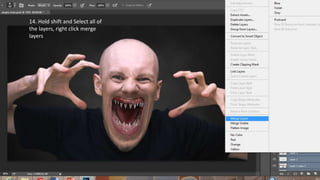
14. Hold shift and Select all of
the layers, right click merge
layers
15. Filter> Liquify
Use the freeze tool to hold the
face in place revealing only the
eyes
16. Use the tools move the eyes
apart and bulge the eyes.
17. Find an image of a cats eye
and drag it onto the layer
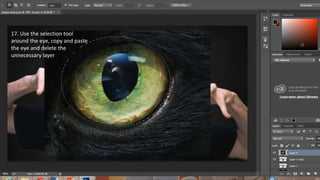
17. Use the selection tool
around the eye, copy and paste
the eye and delete the
unnecessary layer
18. Hold down ctrl and T to transform the size of the eye and fit it to the mans eye.
Pull on the corners to make your transformation.
18. Hold down ctrl and T to
transform the size of the eye
and fit it to the mans eye. Pull
on the corners to make your
transformation.
19.Duplicate the layer for the
other eye and use the
transform tool to flip it by
dragging from the right edge
over to the left. Then use the
eraser to tidy up and delete
any overlapping parts of the
eyes.
20. Use the liquify tools to transform the brow
21. Exit out of this and use them again to pinch out and pull the
ears out, you may need to freeze the hands.
21. Exit out of this and use them again to pinch out and pull the
nose out.
22. Use the selection tool to copy and paste the wrinkles
around the eye
23. Transform the wrinkles so they are sitting on the brow line
24. Use the overlay blending mode to merge the wrinkles into
his head.
25. Change the opacity and fill to blend it
26. Add a new layer and set the blending mode to colour and
play around with your colouring for different effects.
Advanced Tutorial
Advanced Tutorial

Advanced Tutorial

  • 1.
  • 3.
    1. Open upthe image in Photoshop
  • 4.
    2. Duplicate thelayer by dragging it down to the layer icon
  • 5.
    3. Use theselection tools to draw around the outline of the man and then press delete to get rid of the background on the top layer
  • 7.
    4. Go tofilter and then liquify
  • 8.
    5. Stretch downand out on the mans chin and mouth using the tool. Alter the size of your brush accordingly
  • 10.
    6. Stretch openthe mouth of the man using liquify again
  • 11.
    6. Duplicate thelayer and smooth out the tongue using the brushes and colour picker
  • 12.
    6. Change thefill of the layer to about 12%
  • 13.
    7. Add anotherlayer and add a bit of black to create a darker back of the mouth.
  • 14.
    8. Change the% fill of the layer
  • 15.
    9. Find animage of a shark
  • 16.
    10. Use theselection tool to select the teeth then cut them out by dragging them into the angry man project
  • 17.
    11. Press ctrland T to use the transform, then use the edges to make the shark mouth fit the mans mouth
  • 18.
    11. Press ctrland T to use the transform, then use the edges to make the shark mouth fit the mans mouth
  • 19.
    12. Use theeraser tool to get rid of the water and sharks tongue in the mouth, so that it reveals the mans tongue underneath
  • 20.
    11. Erase aroundthe teeth to show the lips on the man and the make them fit inside of the mouth better
  • 21.
    13. Change thelevels on the mouth to affect the lighting and make it seem more natural (image> adjustments> levels)
  • 22.
    14. Hold shiftand Select all of the layers, right click merge layers
  • 23.
    15. Filter> Liquify Usethe freeze tool to hold the face in place revealing only the eyes
  • 24.
    16. Use thetools move the eyes apart and bulge the eyes.
  • 25.
    17. Find animage of a cats eye and drag it onto the layer
  • 26.
    17. Use theselection tool around the eye, copy and paste the eye and delete the unnecessary layer
  • 27.
    18. Hold downctrl and T to transform the size of the eye and fit it to the mans eye. Pull on the corners to make your transformation.
  • 28.
    18. Hold downctrl and T to transform the size of the eye and fit it to the mans eye. Pull on the corners to make your transformation.
  • 29.
    19.Duplicate the layerfor the other eye and use the transform tool to flip it by dragging from the right edge over to the left. Then use the eraser to tidy up and delete any overlapping parts of the eyes.
  • 30.
    20. Use theliquify tools to transform the brow
  • 31.
    21. Exit outof this and use them again to pinch out and pull the ears out, you may need to freeze the hands.
  • 32.
    21. Exit outof this and use them again to pinch out and pull the nose out.
  • 33.
    22. Use theselection tool to copy and paste the wrinkles around the eye
  • 34.
    23. Transform thewrinkles so they are sitting on the brow line
  • 35.
    24. Use theoverlay blending mode to merge the wrinkles into his head.
  • 36.
    25. Change theopacity and fill to blend it
  • 39.
    26. Add anew layer and set the blending mode to colour and play around with your colouring for different effects.