In today’s fast development environment, effective communication
among developers, testers, and stakeholders is the need ofthe hour.
Cucumber BDD in JavaScript, by bridging the technical and non-
technical team members, provides a powerful solution forthe same.
Writing tests in a natural, human-readable language helps everyone
understand the behavior ofthe application from a business
perspective.
We’ll talk in this blog about implementing CucumberBDD in
JavaScript and help you write clean, understandable test cases that
reflect real-life user behavior. This would help set up your
environment from scratch, creating feature files and executing them
to incorporate BDD into yourworkflow on test automation using
JavaScript. Get readyto learn how Cucumber BDD in JavaScript can
TESTAUTOMATION WEBDRIVERIO AND CUCUMBER BDD IN JAVASCRIPT
MasteringAdvancedBDDAutomationwith
WebdriverIO,JavaScript,andCucumber
•
BY QATEAM
improve collaboration, increase test coverage, and make yourtesting
process more efficient!
Table ofContent
Behavior-Driven Development (BDD) and Cucumberwith
JavaScript
How JavaScript Integrates with Cucumber?
Why Use Cucumberwith JavaScript?
Writing Your First Cucumber Feature File
Example of a Simple Feature File
Understanding Feature File Structure
Connecting Cucumberwith JavaScript
Creating Step Definitions in JavaScript
Step Definitions Structure:
Example: Step Definitions File (steps.js)
Mapping Gherkin Steps to JavaScript Functions
Regular Expressions and Cucumber Steps
Using async/await forAsynchronous Actions in Step
Definitions
Example ofAsynchronous Step Definitions
Step Definitions Syntax
Writing Test Steps with WebDriverIO + Cucumber
Interacting with Web Elements (Click, Set Value, Assert
Text)
Navigating to Different Pages
Waiting for Elements (timeouts, waits)
Handling Dynamic Content (Waiting for Changes)
Using CucumberTags and Hooks
What are CucumberTags?
Applying Tags to Features and Scenarios
Running Tests Based on Tags
Cucumber Hooks
Executing Code Before/AfterTests or Scenarios
Benefits of Using Hooks and Tags
Data-Driven Testing with Cucumber
Using Examples in Gherkin
How It Works:
Passing Data from the Feature File to Step Definitions
Step Definition forthe Scenario
Parameterized Tests and Looping Through Examples
Working with Tables in Gherkin
Assertions and Validations in Cucumber
Using WebDriverIO Assertions
Common WebDriverIO Assertions
Custom Assertions in Step Definitions
Handling Validation Errors
Using Assertions to Verify UI and Functionality
Best Practices forAssertions and Validations in
Cucumber
Organizing Tests with Cucumber
Creating Reusable Step Definitions
Modularizing Feature Files
Using Page Object Model (POM) with Cucumber
Grouping Scenarios and Features
Best Practices for Maintaining Tests
Debugging CucumberTests in JavaScript
Common Issues and Errors in Cucumber
Using console.log() for Debugging Step Definitions
Running Tests in Verbose Mode
Howto Enable Verbose Mode forWebDriverIO:
Debugging WebDriverIO Tests
Advanced Cucumber Features
Backgrounds in Gherkin
Scenario Outline with Examples
Reusable Step Libraries
Parallel Test Execution
Custom Cucumber Formatters for Reporting
Continuous Integration using Cucumber
Setting Up CI Pipelines
Running Tests in CI/CD Environments
Integrating CucumberTest Results with CI Tools
Generating and Interpreting Cucumber Reports
Cucumber Reporting and Test Results
Using Built-in Reporters in Cucumber.js
Generating JSON, HTML, and Other Reports
Integration with Third-party Reporting Tools (Allure,
Cucumber HTML Reporter)
Visualizing Test Results
Conclusion
Behavior-Driven Development (BDD)
and Cucumberwith JavaScript
For Overview of Behavior-Driven Development (BDD) ,Cucumber
Basics and Setting Up the Environment You can refer our blog
CucumberBDD in JavaScript
HowJavaScript Integrateswith
Cucumber?
JavaScript is another language that can be used in writing Cucumber
tests, giving JavaScript developers a chance to utilize the capability
of BDD offered by Cucumber. Cucumber-JS is one implementation of
Cucumber in the JavaScript environment where one maywrite, run,
and manage BDD tests.
Basic Steps to Integrate JavaScript with Cucumber
Writing Features in Gherkin: In the first step, the feature files
are written with Gherkin syntax. The behavior ofthe system is
described in plain English (or another natural language).
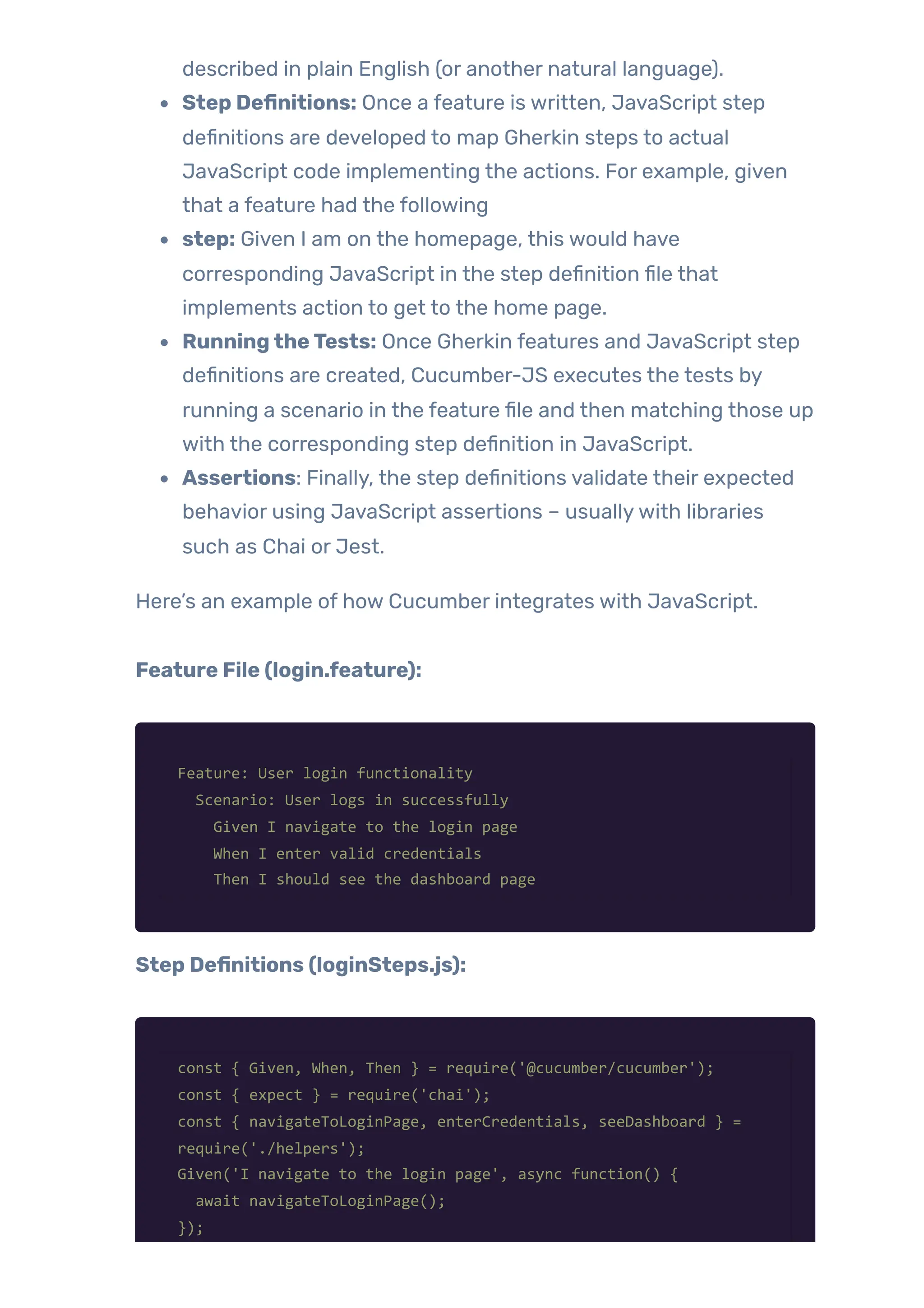
Step Definitions: Once a feature is written, JavaScript step
definitions are developed to map Gherkin steps to actual
JavaScript code implementing the actions. For example, given
that a feature had the following
step: Given I am on the homepage, this would have
corresponding JavaScript in the step definition file that
implements action to get to the home page.
RunningtheTests: Once Gherkin features and JavaScript step
definitions are created, Cucumber-JS executes the tests by
running a scenario in the feature file and then matching those up
with the corresponding step definition in JavaScript.
Assertions: Finally, the step definitions validate their expected
behavior using JavaScript assertions – usuallywith libraries
such as Chai or Jest.
Here’s an example of how Cucumber integrates with JavaScript.
Feature File (login.feature):
Feature: User login functionality
Scenario: User logs in successfully
Given I navigate to the login page
When I enter valid credentials
Then I should see the dashboard page
Step Definitions (loginSteps.js):
const { Given, When, Then } = require('@cucumber/cucumber');
const { expect } = require('chai');
const { navigateToLoginPage, enterCredentials, seeDashboard } =
require('./helpers');
Given('I navigate to the login page', async function() {
await navigateToLoginPage();
});
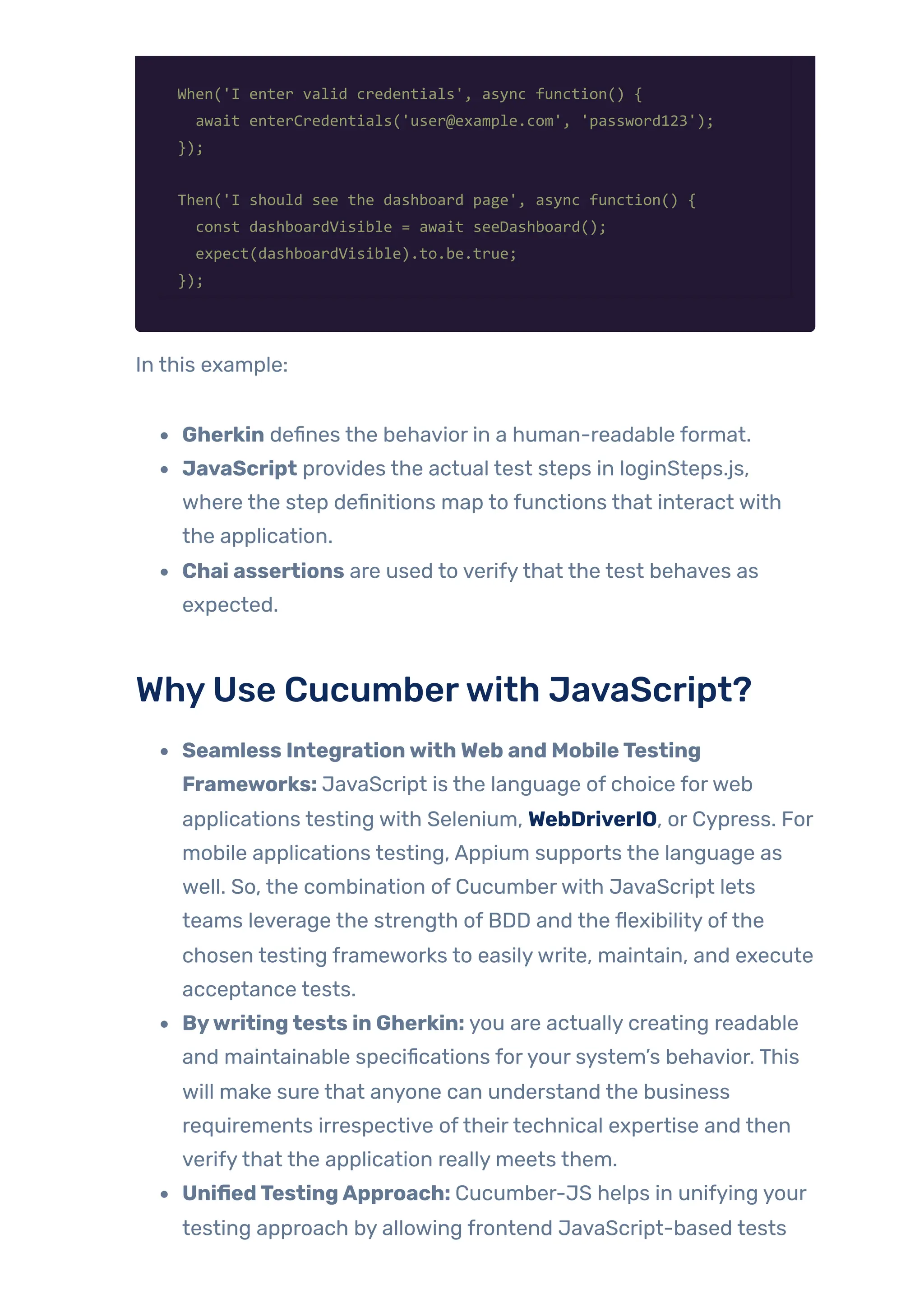
When('I enter valid credentials', async function() {
await enterCredentials('user@example.com', 'password123');
});
Then('I should see the dashboard page', async function() {
const dashboardVisible = await seeDashboard();
expect(dashboardVisible).to.be.true;
});
In this example:
Gherkin defines the behavior in a human-readable format.
JavaScript provides the actual test steps in loginSteps.js,
where the step definitions map to functions that interact with
the application.
Chai assertions are used to verifythat the test behaves as
expected.
WhyUse Cucumberwith JavaScript?
Seamless IntegrationwithWeb and MobileTesting
Frameworks: JavaScript is the language of choice forweb
applications testing with Selenium, WebDriverIO, or Cypress. For
mobile applications testing, Appium supports the language as
well. So, the combination of Cucumberwith JavaScript lets
teams leverage the strength of BDD and the flexibility ofthe
chosen testing frameworks to easilywrite, maintain, and execute
acceptance tests.
Bywritingtests in Gherkin: you are actually creating readable
and maintainable specifications foryour system’s behavior. This
will make sure that anyone can understand the business
requirements irrespective oftheirtechnical expertise and then
verifythat the application really meets them.
UnifiedTestingApproach: Cucumber-JS helps in unifying your
testing approach by allowing frontend JavaScript-based tests
and backend Node.js testing in one language, thus eliminating
the context-switching between different languages and tools.
Collaboration among Stakeholders: Another strength of
Cucumber is that it engages business analysts, testers, and
developers in testing. Gherkin language makes writing tests
quite easy, and therefore involving stakeholders in the
development process ensures that the software does exactly
what is expected of it by business stakeholders.
Cross-PlatformTesting: Since Cucumber is a platform-
agnostic tool, it can be used in conjunction with various testing
frameworks forweb applications (Selenium, Cypress) and mobile
applications (Appium).
WritingYourFirst CucumberFeature File
This tool supports BDD and writes tests in plain language for its users
to read and be clearly understood both bytechnical as well as non-
technical stakeholders. Cucumbertest code is in Gherkin, the
language which will describe test cases in specific syntax in
the.feature file format.
This guide walks through the process of creating yourfirst Cucumber
feature file. You will see howto start with a basic example with Given,
When, and Then steps as well as howto write tests in Gherkin.
Creating.feature Files
Afeature file is a very simple text file with a `.feature` extension
containing yourtest written in Gherkin syntax. The feature file
describes a feature – typically a high-level description ofthe
functionality – and all the scenarios that would point out howthe
feature should behave.
Here’s howto structure the .feature file:
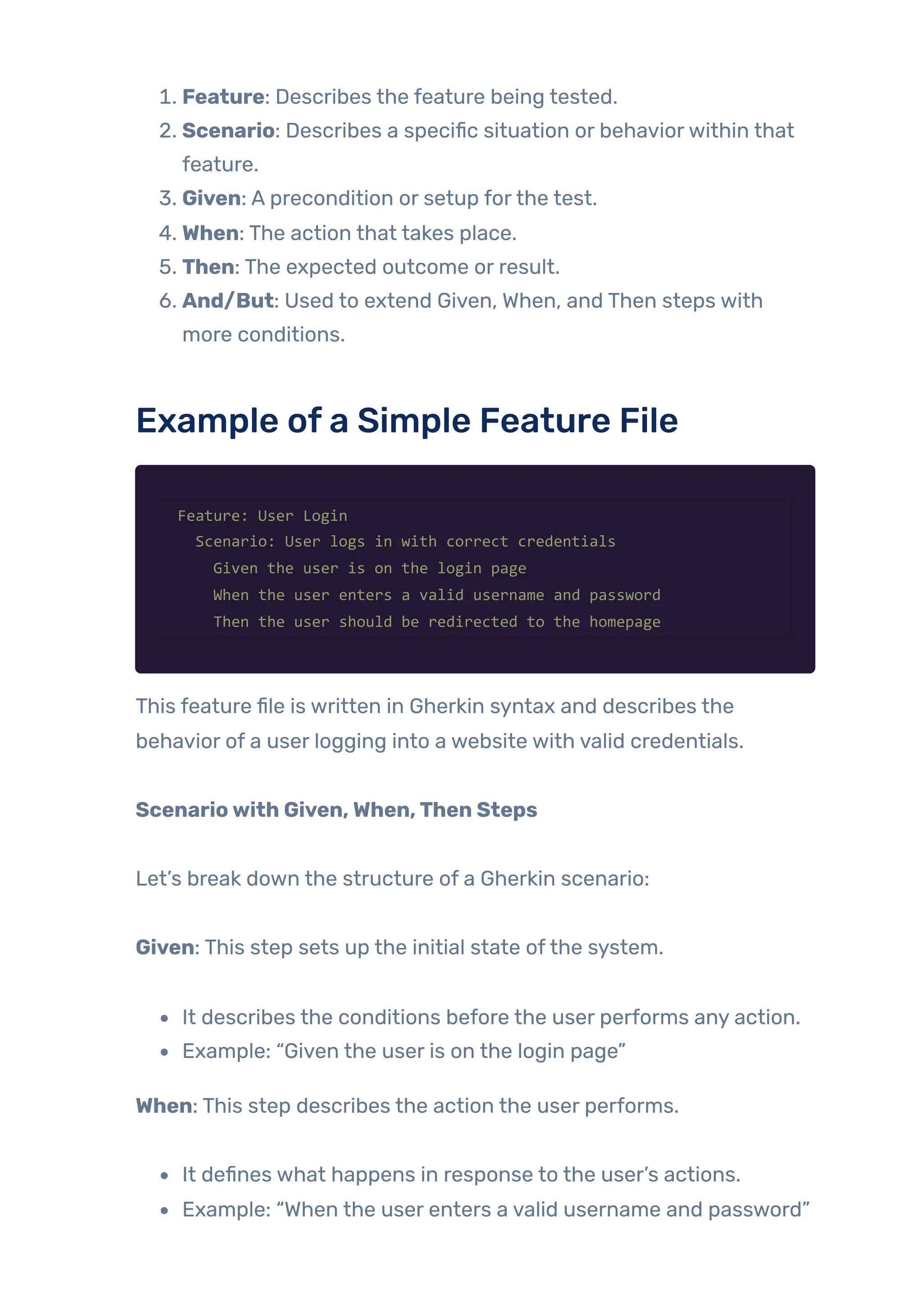
1. Feature: Describes the feature being tested.
2. Scenario: Describes a specific situation or behaviorwithin that
feature.
3. Given: A precondition or setup forthe test.
4. When: The action that takes place.
5. Then: The expected outcome or result.
6. And/But: Used to extend Given, When, and Then steps with
more conditions.
Example ofa Simple Feature File
Feature: User Login
Scenario: User logs in with correct credentials
Given the user is on the login page
When the user enters a valid username and password
Then the user should be redirected to the homepage
This feature file is written in Gherkin syntax and describes the
behavior of a user logging into a website with valid credentials.
Scenariowith Given,When,Then Steps
Let’s break down the structure of a Gherkin scenario:
Given: This step sets up the initial state ofthe system.
It describes the conditions before the user performs any action.
Example: “Given the user is on the login page”
When: This step describes the action the user performs.
It defines what happens in response to the user’s actions.
Example: “When the user enters a valid username and password”
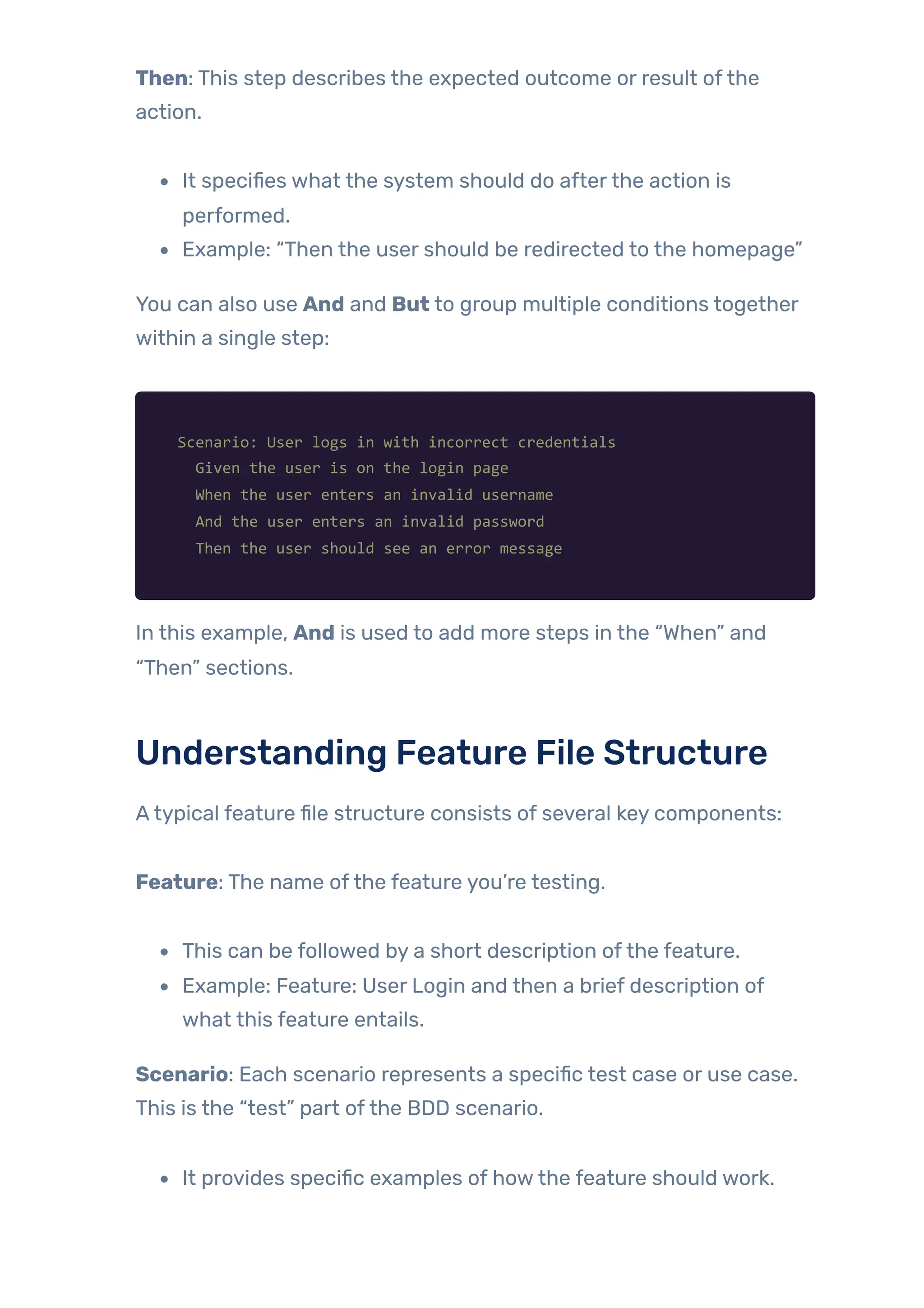
Then: This step describes the expected outcome or result ofthe
action.
It specifies what the system should do afterthe action is
performed.
Example: “Then the user should be redirected to the homepage”
You can also use And and But to group multiple conditions together
within a single step:
Scenario: User logs in with incorrect credentials
Given the user is on the login page
When the user enters an invalid username
And the user enters an invalid password
Then the user should see an error message
In this example, And is used to add more steps in the “When” and
“Then” sections.
Understanding Feature File Structure
Atypical feature file structure consists of several key components:
Feature: The name ofthe feature you’re testing.
This can be followed by a short description ofthe feature.
Example: Feature: User Login and then a brief description of
what this feature entails.
Scenario: Each scenario represents a specific test case or use case.
This is the “test” part ofthe BDD scenario.
It provides specific examples of howthe feature should work.
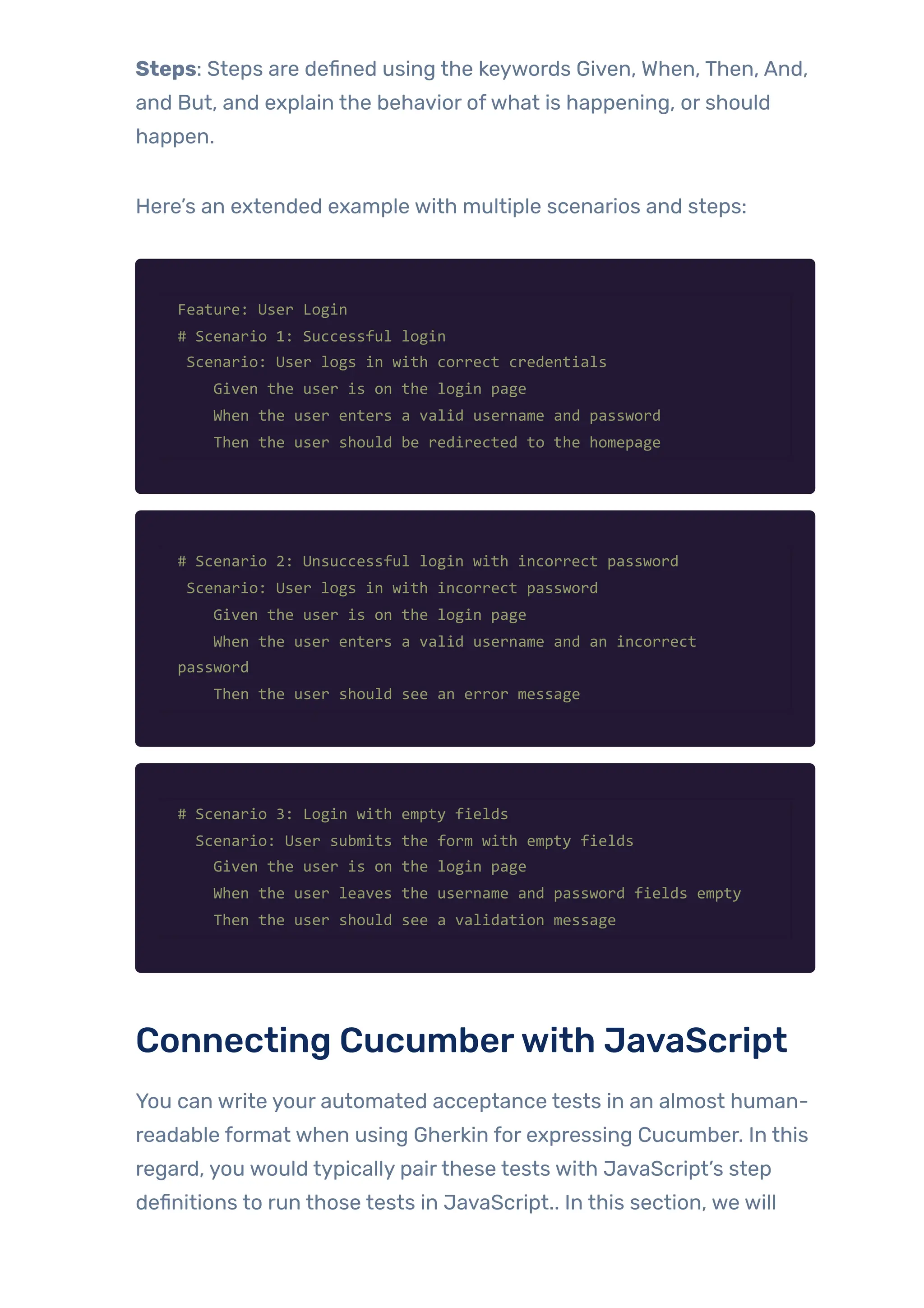
Steps: Steps are defined using the keywords Given, When, Then, And,
and But, and explain the behavior ofwhat is happening, or should
happen.
Here’s an extended example with multiple scenarios and steps:
Feature: User Login
# Scenario 1: Successful login
Scenario: User logs in with correct credentials
Given the user is on the login page
When the user enters a valid username and password
Then the user should be redirected to the homepage
# Scenario 2: Unsuccessful login with incorrect password
Scenario: User logs in with incorrect password
Given the user is on the login page
When the user enters a valid username and an incorrect
password
Then the user should see an error message
# Scenario 3: Login with empty fields
Scenario: User submits the form with empty fields
Given the user is on the login page
When the user leaves the username and password fields empty
Then the user should see a validation message
Connecting Cucumberwith JavaScript
You can write your automated acceptance tests in an almost human-
readable format when using Gherkin for expressing Cucumber. In this
regard, you would typically pairthese tests with JavaScript’s step
definitions to run those tests in JavaScript.. In this section, we will
walk through howto connect Cucumber with JavaScript, create step
definitions, map Gherkin steps to JavaScript functions, and handle
asynchronous actions using async/await.
Creating Step Definitions in JavaScript
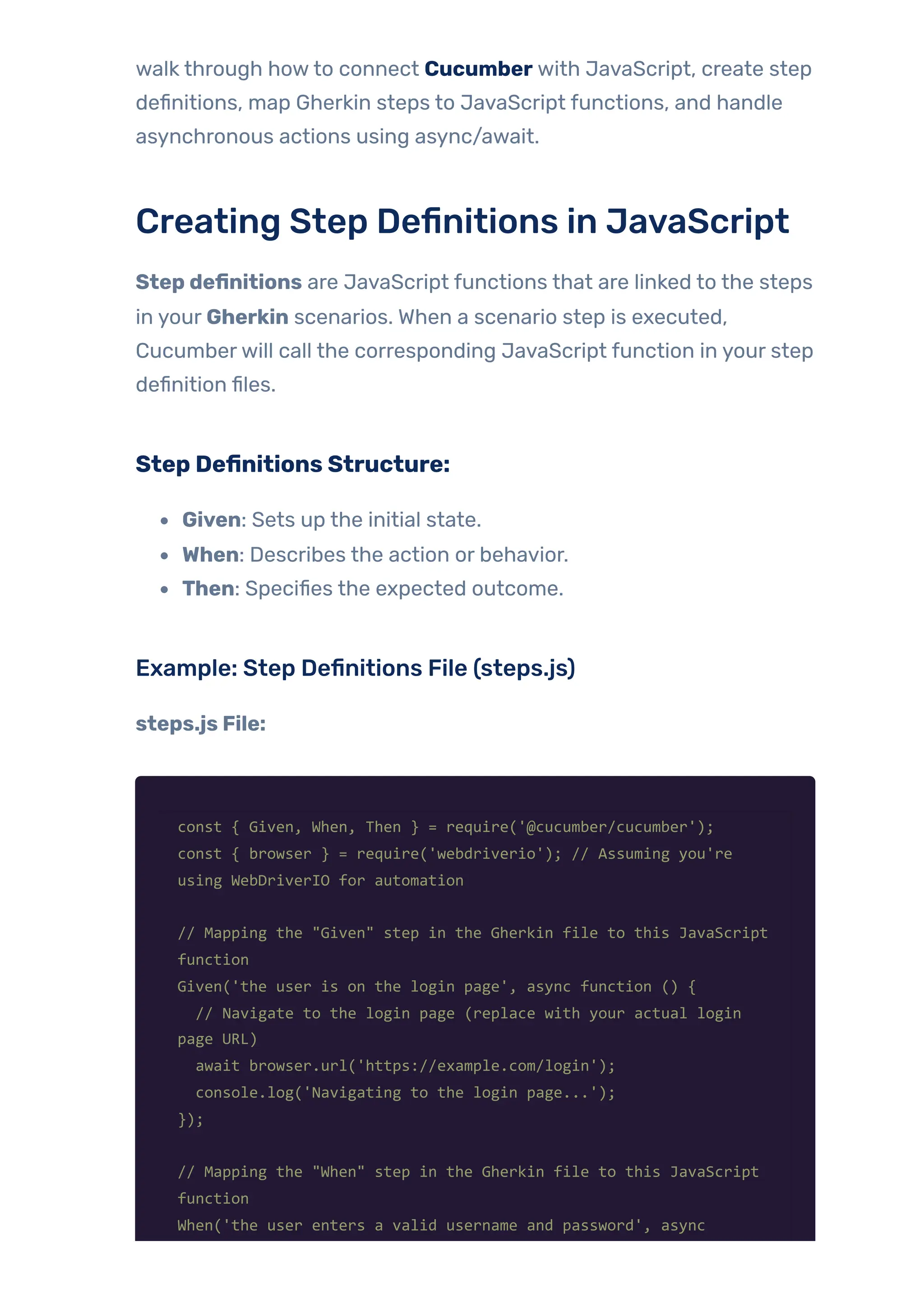
Step definitions are JavaScript functions that are linked to the steps
in your Gherkin scenarios. When a scenario step is executed,
Cucumberwill call the corresponding JavaScript function in your step
definition files.
Step Definitions Structure:
Given: Sets up the initial state.
When: Describes the action or behavior.
Then: Specifies the expected outcome.
Example: Step Definitions File (steps.js)
steps.js File:
const { Given, When, Then } = require('@cucumber/cucumber');
const { browser } = require('webdriverio'); // Assuming you're
using WebDriverIO for automation
// Mapping the "Given" step in the Gherkin file to this JavaScript
function
Given('the user is on the login page', async function () {
// Navigate to the login page (replace with your actual login
page URL)
await browser.url('https://example.com/login');
console.log('Navigating to the login page...');
});
// Mapping the "When" step in the Gherkin file to this JavaScript
function
When('the user enters a valid username and password', async
function () {
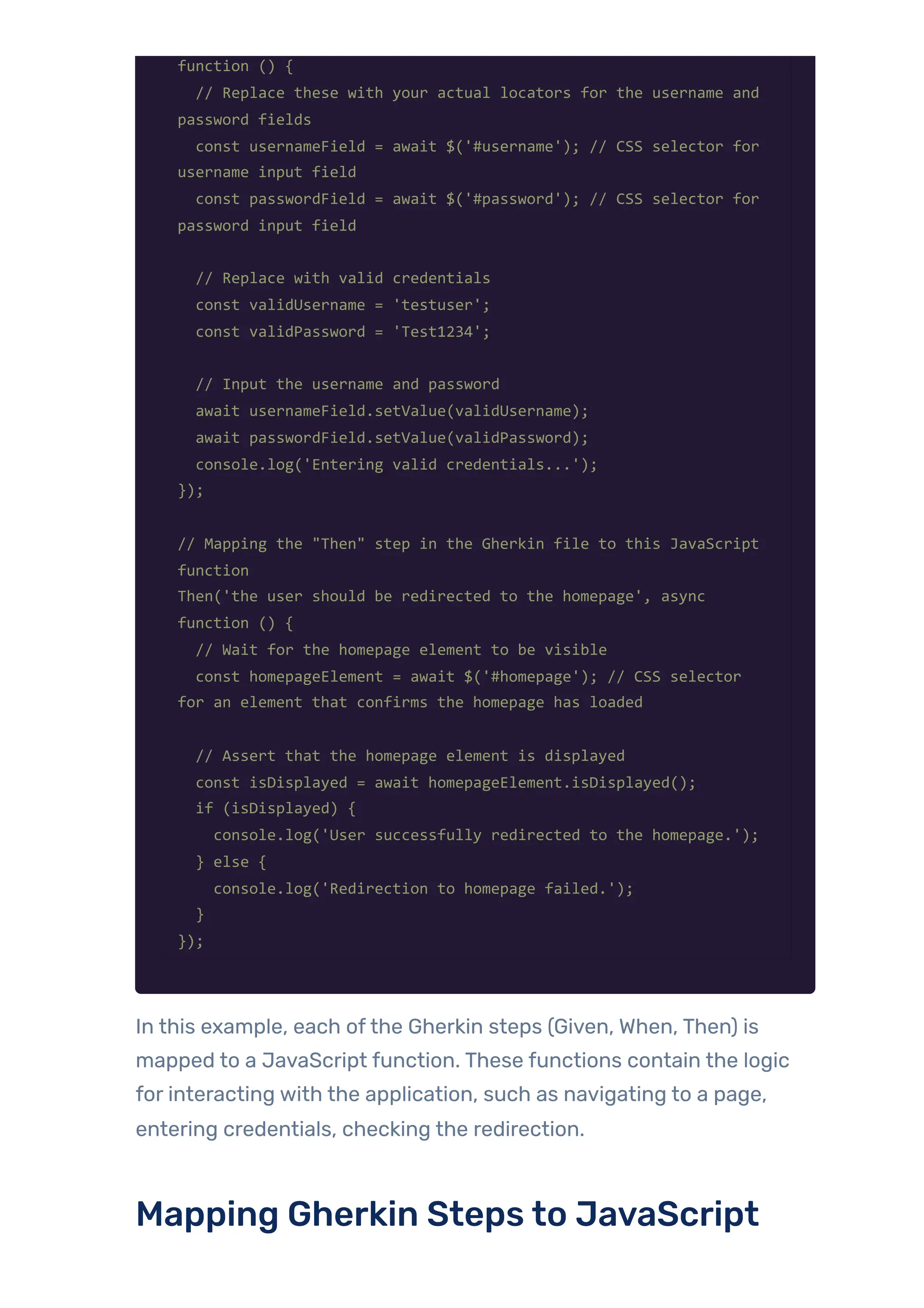
// Replace these with your actual locators for the username and
password fields
const usernameField = await $('#username'); // CSS selector for
username input field
const passwordField = await $('#password'); // CSS selector for
password input field
// Replace with valid credentials
const validUsername = 'testuser';
const validPassword = 'Test1234';
// Input the username and password
await usernameField.setValue(validUsername);
await passwordField.setValue(validPassword);
console.log('Entering valid credentials...');
});
// Mapping the "Then" step in the Gherkin file to this JavaScript
function
Then('the user should be redirected to the homepage', async
function () {
// Wait for the homepage element to be visible
const homepageElement = await $('#homepage'); // CSS selector
for an element that confirms the homepage has loaded
// Assert that the homepage element is displayed
const isDisplayed = await homepageElement.isDisplayed();
if (isDisplayed) {
console.log('User successfully redirected to the homepage.');
} else {
console.log('Redirection to homepage failed.');
}
});
In this example, each ofthe Gherkin steps (Given, When, Then) is
mapped to a JavaScript function. These functions contain the logic
for interacting with the application, such as navigating to a page,
entering credentials, checking the redirection.
Mapping Gherkin Steps to JavaScript
Functions
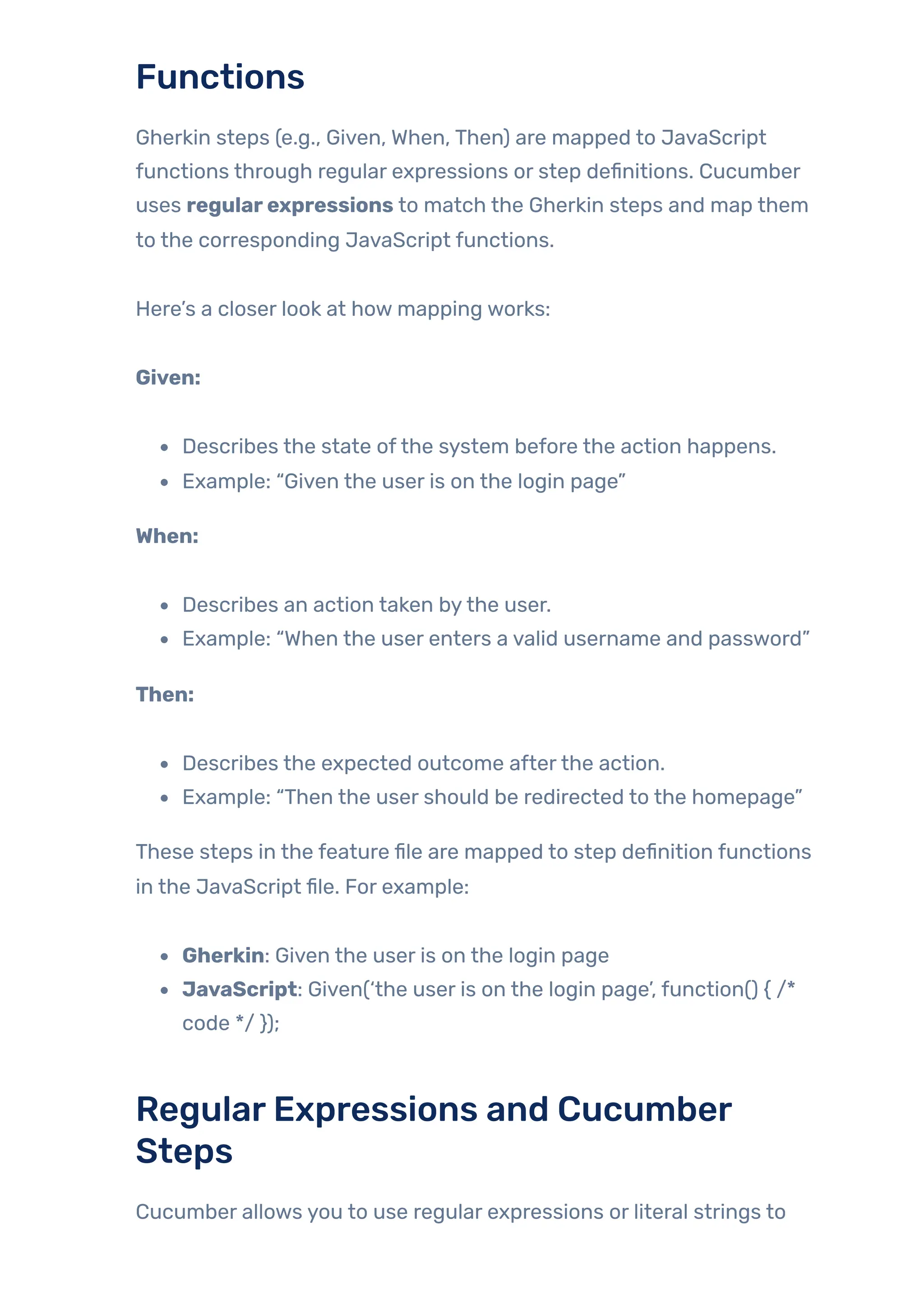
Gherkin steps (e.g., Given, When, Then) are mapped to JavaScript
functions through regular expressions or step definitions. Cucumber
uses regularexpressions to match the Gherkin steps and map them
to the corresponding JavaScript functions.
Here’s a closer look at how mapping works:
Given:
Describes the state ofthe system before the action happens.
Example: “Given the user is on the login page”
When:
Describes an action taken bythe user.
Example: “When the user enters a valid username and password”
Then:
Describes the expected outcome afterthe action.
Example: “Then the user should be redirected to the homepage”
These steps in the feature file are mapped to step definition functions
in the JavaScript file. For example:
Gherkin: Given the user is on the login page
JavaScript: Given(‘the user is on the login page’, function() { /*
code */ });
RegularExpressions and Cucumber
Steps
Cucumber allows you to use regular expressions or literal strings to
define step definitions. The expression in the step definition should
match the Gherkin step text.
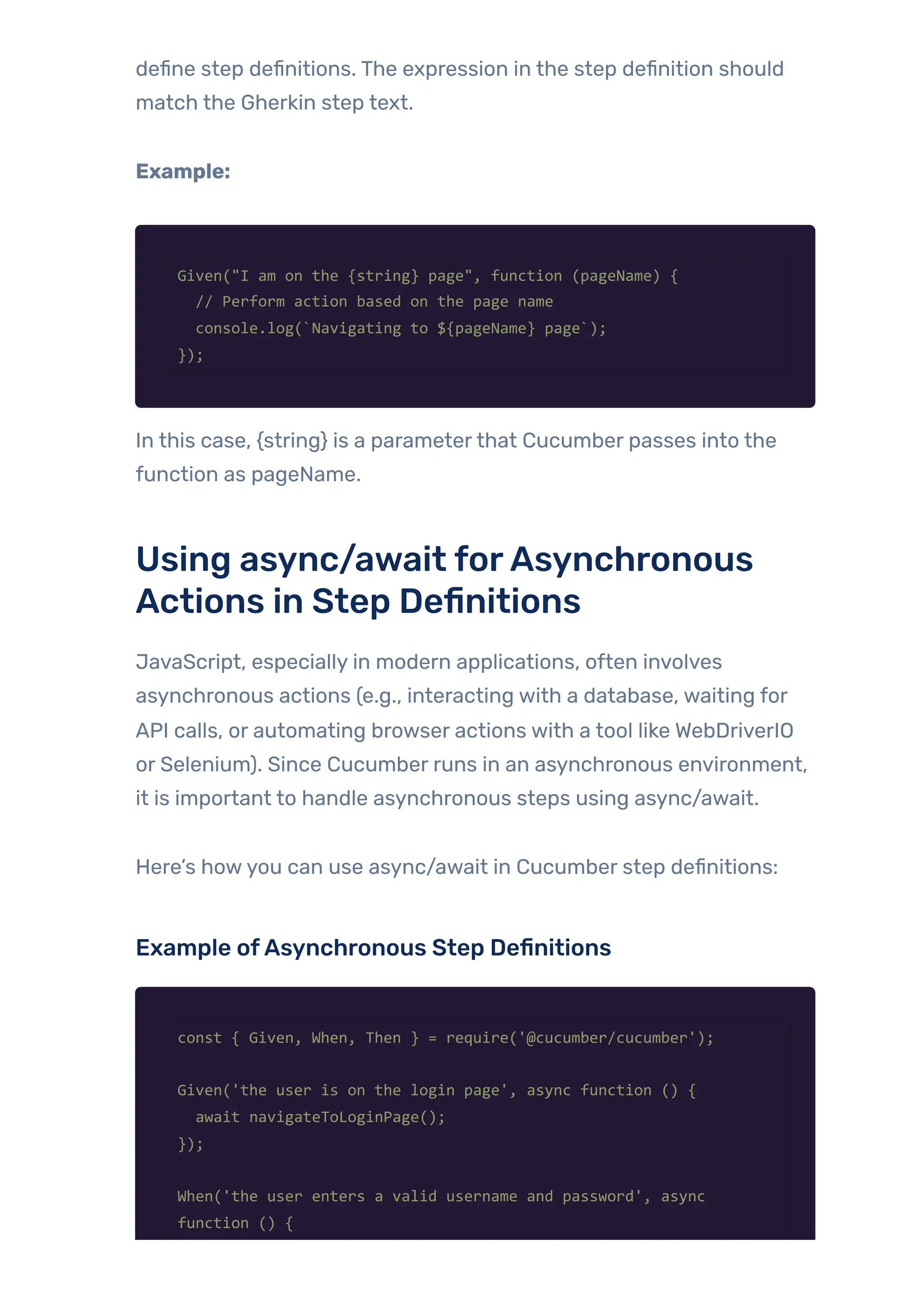
Example:
Given("I am on the {string} page", function (pageName) {
// Perform action based on the page name
console.log(`Navigating to ${pageName} page`);
});
In this case, {string} is a parameterthat Cucumber passes into the
function as pageName.
Using async/await forAsynchronous
Actions in Step Definitions
JavaScript, especially in modern applications, often involves
asynchronous actions (e.g., interacting with a database, waiting for
API calls, or automating browser actions with a tool like WebDriverIO
or Selenium). Since Cucumber runs in an asynchronous environment,
it is important to handle asynchronous steps using async/await.
Here’s howyou can use async/await in Cucumber step definitions:
Example ofAsynchronous Step Definitions
const { Given, When, Then } = require('@cucumber/cucumber');
Given('the user is on the login page', async function () {
await navigateToLoginPage();
});
When('the user enters a valid username and password', async
function () {
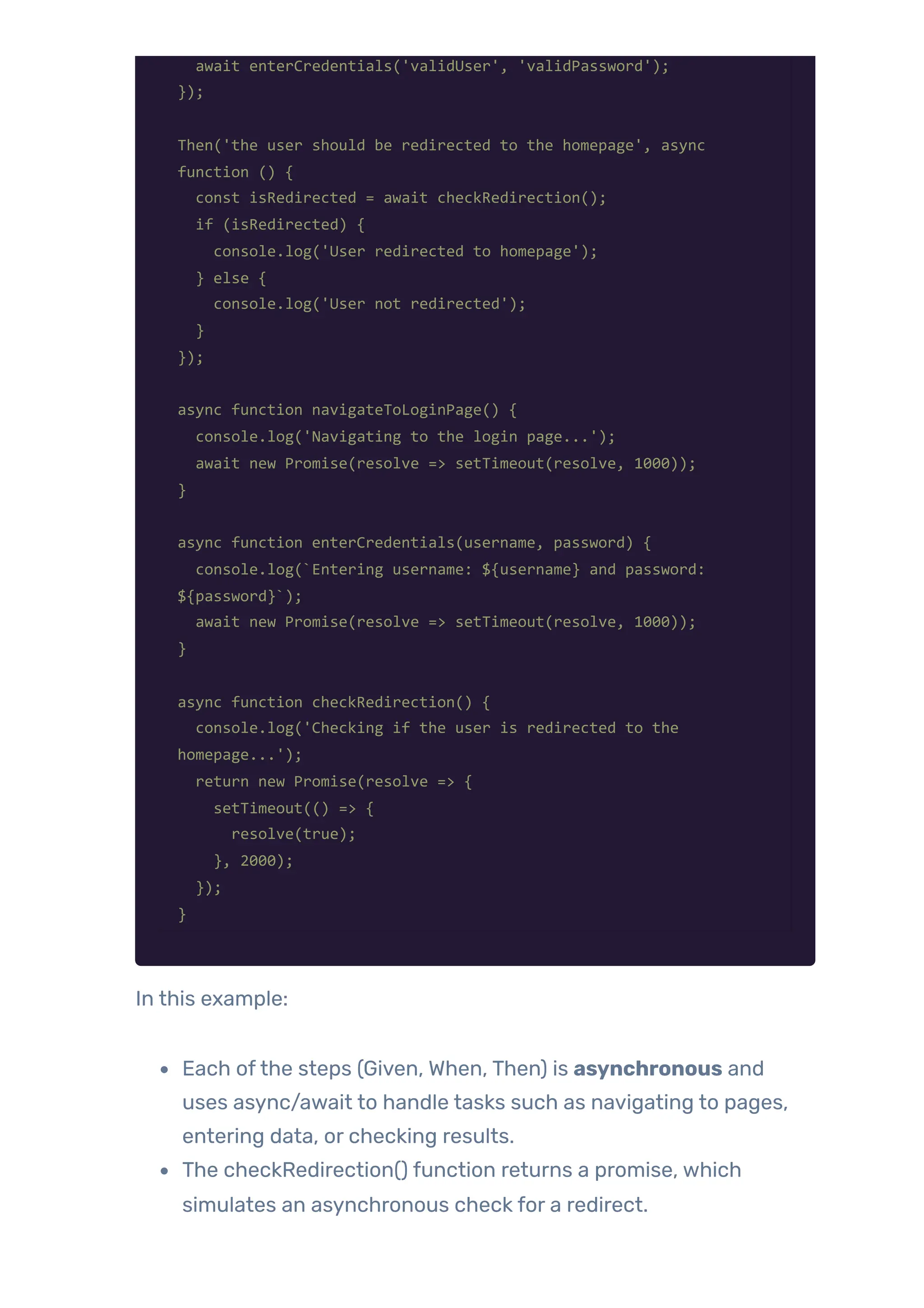
await enterCredentials('validUser', 'validPassword');
});
Then('the user should be redirected to the homepage', async
function () {
const isRedirected = await checkRedirection();
if (isRedirected) {
console.log('User redirected to homepage');
} else {
console.log('User not redirected');
}
});
async function navigateToLoginPage() {
console.log('Navigating to the login page...');
await new Promise(resolve => setTimeout(resolve, 1000));
}
async function enterCredentials(username, password) {
console.log(`Entering username: ${username} and password:
${password}`);
await new Promise(resolve => setTimeout(resolve, 1000));
}
async function checkRedirection() {
console.log('Checking if the user is redirected to the
homepage...');
return new Promise(resolve => {
setTimeout(() => {
resolve(true);
}, 2000);
});
}
In this example:
Each ofthe steps (Given, When, Then) is asynchronous and
uses async/await to handle tasks such as navigating to pages,
entering data, or checking results.
The checkRedirection() function returns a promise, which
simulates an asynchronous check for a redirect.
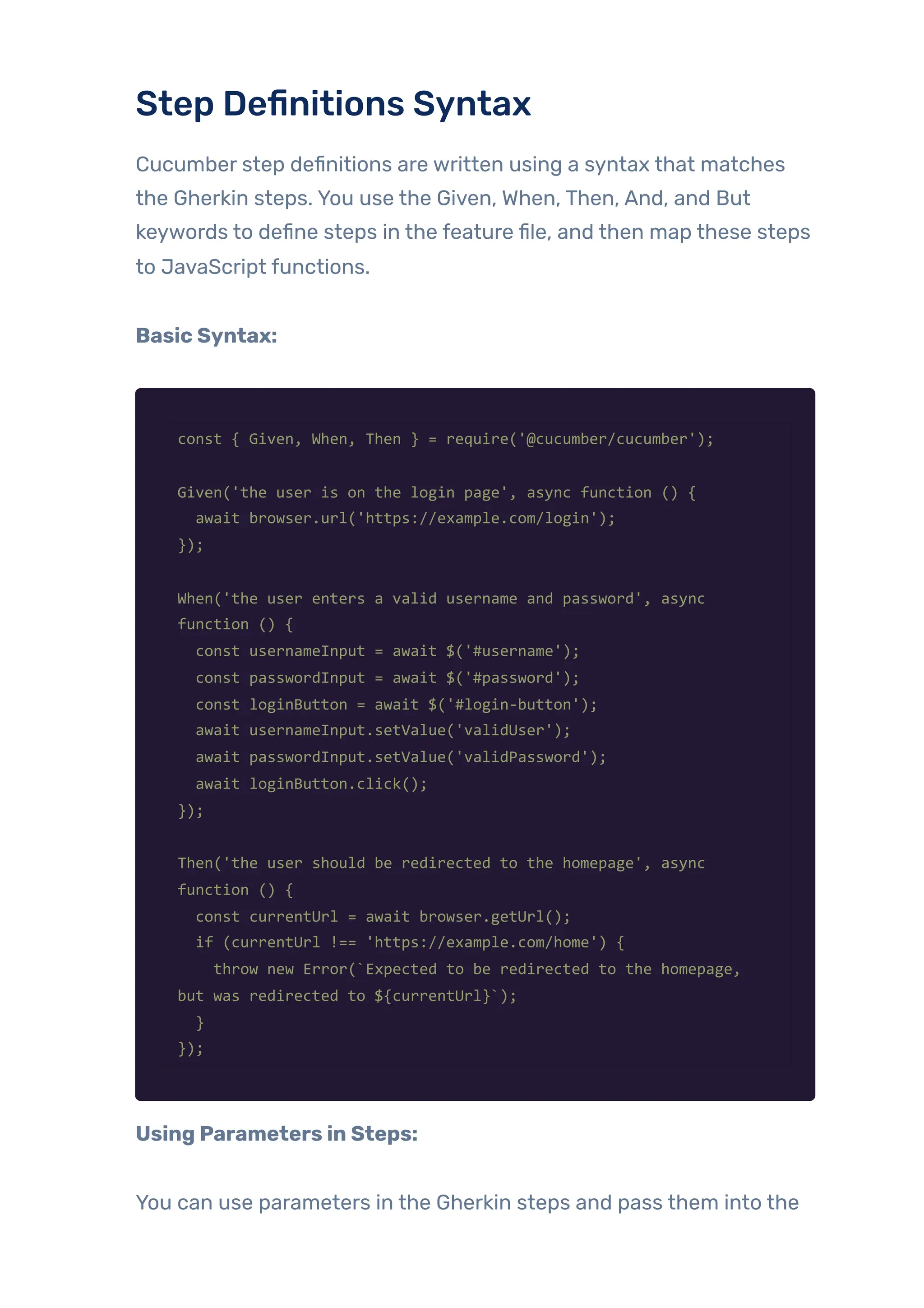
Step Definitions Syntax
Cucumber step definitions are written using a syntax that matches
the Gherkin steps. You use the Given, When, Then, And, and But
keywords to define steps in the feature file, and then map these steps
to JavaScript functions.
Basic Syntax:
const { Given, When, Then } = require('@cucumber/cucumber');
Given('the user is on the login page', async function () {
await browser.url('https://example.com/login');
});
When('the user enters a valid username and password', async
function () {
const usernameInput = await $('#username');
const passwordInput = await $('#password');
const loginButton = await $('#login-button');
await usernameInput.setValue('validUser');
await passwordInput.setValue('validPassword');
await loginButton.click();
});
Then('the user should be redirected to the homepage', async
function () {
const currentUrl = await browser.getUrl();
if (currentUrl !== 'https://example.com/home') {
throw new Error(`Expected to be redirected to the homepage,
but was redirected to ${currentUrl}`);
}
});
Using Parameters in Steps:
You can use parameters in the Gherkin steps and pass them into the
step definitions. These parameters can be anything, such as a page
name, a username, or an expected outcome.
Example with parameters:
Given('the user is on the {string} page', function (pageName) {
// Code to navigate to a dynamic page
console.log(`Navigating to the ${pageName} page.`);
});
In this example:
{string} is a placeholderthat will be replaced with a value (e.g.,
“login” or “dashboard”) when the feature is run.
The parameter pageName is passed into the function, where you
can use it to navigate to the appropriate page.
WritingTest Stepswith WebDriverIO +
Cucumber
Interactingwith Web Elements (Click,
SetValue,AssertText)
const { Given, When, Then } = require('@cucumber/cucumber');
const assert = require('assert');
Given(/^I am on the "([^"]*)" page$/, async (pageName) => {
if (pageName === 'homepage') {
await browser.url('https://example.com');
} else if (pageName === 'dashboard') {
await browser.url('https://example.com/dashboard');
} else {
throw new Error(`Page "${pageName}" not recognized.`);
}
});
When(/^I click the "([^"]*)" button$/, async (buttonText) => {
const button = await $(`button=${buttonText}`);
await button.click();
});
Then(/^I should see the text "([^"]*)"$/, async (expectedText) =>
{
const pageText = await $('body').getText();
try {
assert(pageText.includes(expectedText), `Expected text to
include "${expectedText}", but found "${pageText}".`);
} catch (error) {
console.log('Assertion failed:', error);
throw error;
}
});
When(/^I set the value of the "([^"]*)" field to "([^"]*)"$/,
async (fieldName, value) => {
const inputField = await $(`input[name="${fieldName}"]`);
if (inputField) {
await inputField.setValue(value);
} else {
throw new Error(`Field "${fieldName}" not found.`);
}
});
Navigating to Different Pages
To test navigation, use the browser’s url function and verifythe result
afterthe action.
Given(/^I am on the homepage$/, async () => {
await browser.url('https://example.com');
});
When(/^I navigate to the "([^"]*)" page$/, async (pageName) => {
if (pageName === 'about') {
await browser.url('https://example.com/about');
}
// You can add more conditions to handle other page
navigations
});
Then(/^I should be on the "([^"]*)" page$/, async (expectedPage)
=> {
if (expectedPage === 'about') {
const currentUrl = await browser.getUrl();
assert(currentUrl.includes('about'), 'Expected to be on
the About page');
}
});
Waiting forElements (timeouts,waits)
WebDriverIO has several ways to wait for elements, such as
waitForExist(), waitForDisplayed(), or custom waits. Here’s an
example using waitForDisplayed():
const { Given, When, Then } = require('@cucumber/cucumber');
const assert = require('assert');
When(/^I click the "([^"]*)" button$/, async (buttonText) => {
const button = await $(`button=${buttonText}`);
try {
await button.waitForDisplayed({ timeout: 5000 });
await button.click();
console.log(`Clicked the button with text:
${buttonText}`);
} catch (error) {
throw new Error(`Failed to click the button with text
"${buttonText}". Button might not be visible or clickable.`);
}
});
Then(/^I should see the "([^"]*)" button$/, async (buttonText) =>
{
const button = await $(`button=${buttonText}`);
try {
await button.waitForDisplayed({ timeout: 5000 });
const isDisplayed = await button.isDisplayed();
assert(isDisplayed, `Button with text "${buttonText}"
should be displayed`);
console.log(`Button with text "${buttonText}" is
visible.`);
} catch (error) {
throw new Error(`Button with text "${buttonText}" not
found or not displayed after waiting.`);
}
});
Explanation: waitForDisplayed() waits for an element to be visible
before proceeding with the next action. You can adjust the timeout
value as needed.
Handling Dynamic Content (Waiting for
Changes)
For handling dynamic content like loading spinners, you can wait until
certain elements are either displayed or hidden.
const { Given, When, Then } = require('@cucumber/cucumber');
const assert = require('assert');
When(/^I click the "([^"]*)" button$/, async (buttonText) => {
const button = await $(`button=${buttonText}`);
try {
await button.waitForDisplayed({ timeout: 5000 });
await button.click();
console.log(`Clicked the button with text:
${buttonText}`);
} catch (error) {
throw new Error(`Failed to click the button with text
"${buttonText}". It might not be visible or clickable after
waiting for 5 seconds.`);
}
});
Then(/^I should see the "([^"]*)" button$/, async (buttonText) =>
{
const button = await $(`button=${buttonText}`);
try {
await button.waitForDisplayed({ timeout: 5000 });
const isDisplayed = await button.isDisplayed();
assert(isDisplayed, `Expected the button with text
"${buttonText}" to be displayed, but it was not.`);
console.log(`Button with text "${buttonText}" is
visible.`);
} catch (error) {
throw new Error(`Button with text "${buttonText}" was not
found or not displayed after waiting for 5 seconds.`);
}
});
Explanation: This waits forthe loading spinnerto appear and
disappear after submitting a form. We use waitForDisplayed() with the
reverse: true option to check ifthe element disappears.
Using CucumberTags and Hooks
Tags in Cucumber are used to group and filtertests. You can tag
features or scenarios with custom labels to organize and selectively
run them.
What are CucumberTags?
Tags are special annotations in Cucumberthat help categorize
tests.
You can add tags to features or scenarios in your .feature files.
Tags are prefixed with @ (e.g., @smoke, @regression).
Multiple tags can be used, separated by spaces (e.g., @smoke
@highpriority).
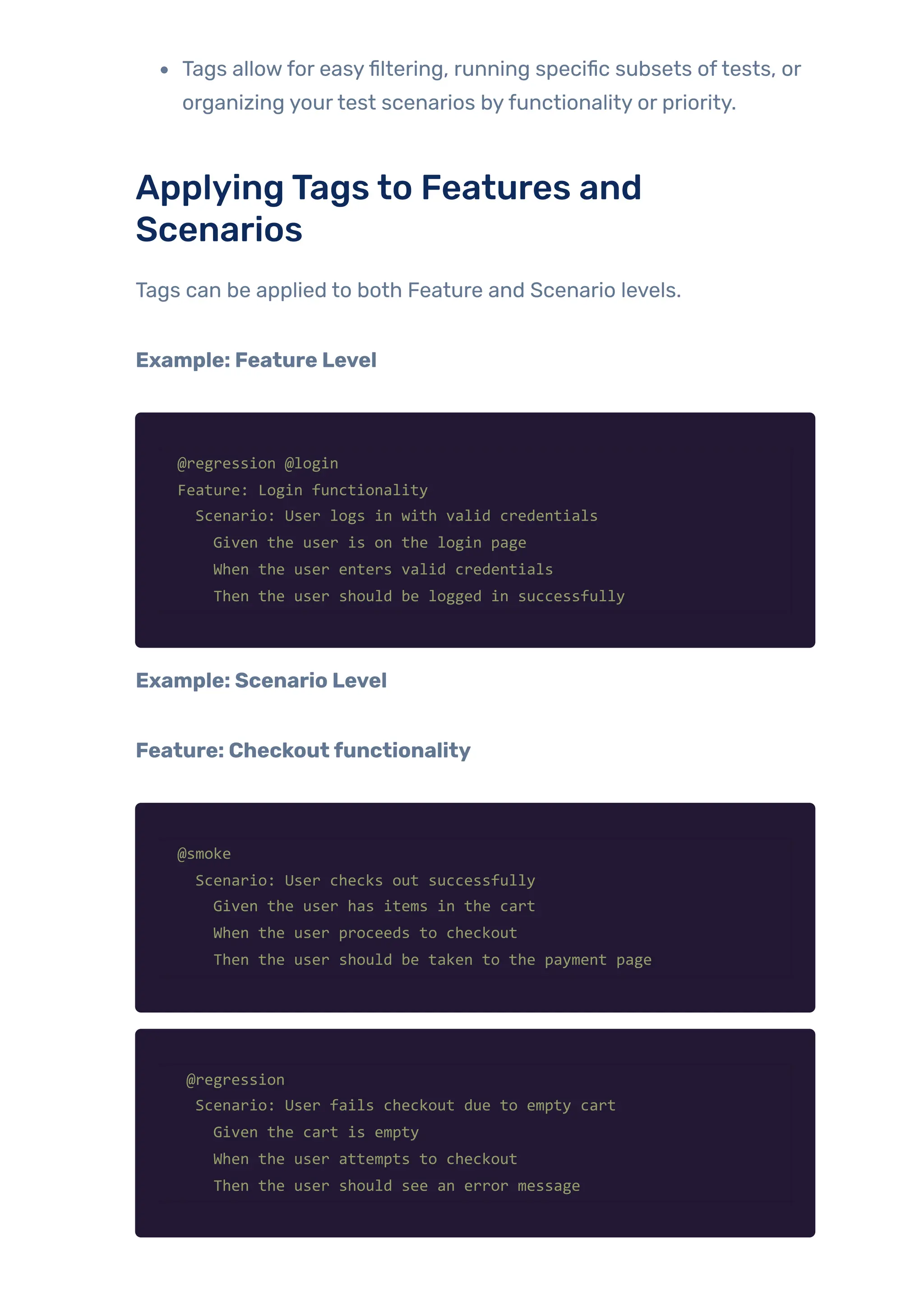
Tags allowfor easyfiltering, running specific subsets oftests, or
organizing yourtest scenarios byfunctionality or priority.
ApplyingTags to Features and
Scenarios
Tags can be applied to both Feature and Scenario levels.
Example: Feature Level
@regression @login
Feature: Login functionality
Scenario: User logs in with valid credentials
Given the user is on the login page
When the user enters valid credentials
Then the user should be logged in successfully
Example: Scenario Level
Feature: Checkoutfunctionality
@smoke
Scenario: User checks out successfully
Given the user has items in the cart
When the user proceeds to checkout
Then the user should be taken to the payment page
@regression
Scenario: User fails checkout due to empty cart
Given the cart is empty
When the user attempts to checkout
Then the user should see an error message
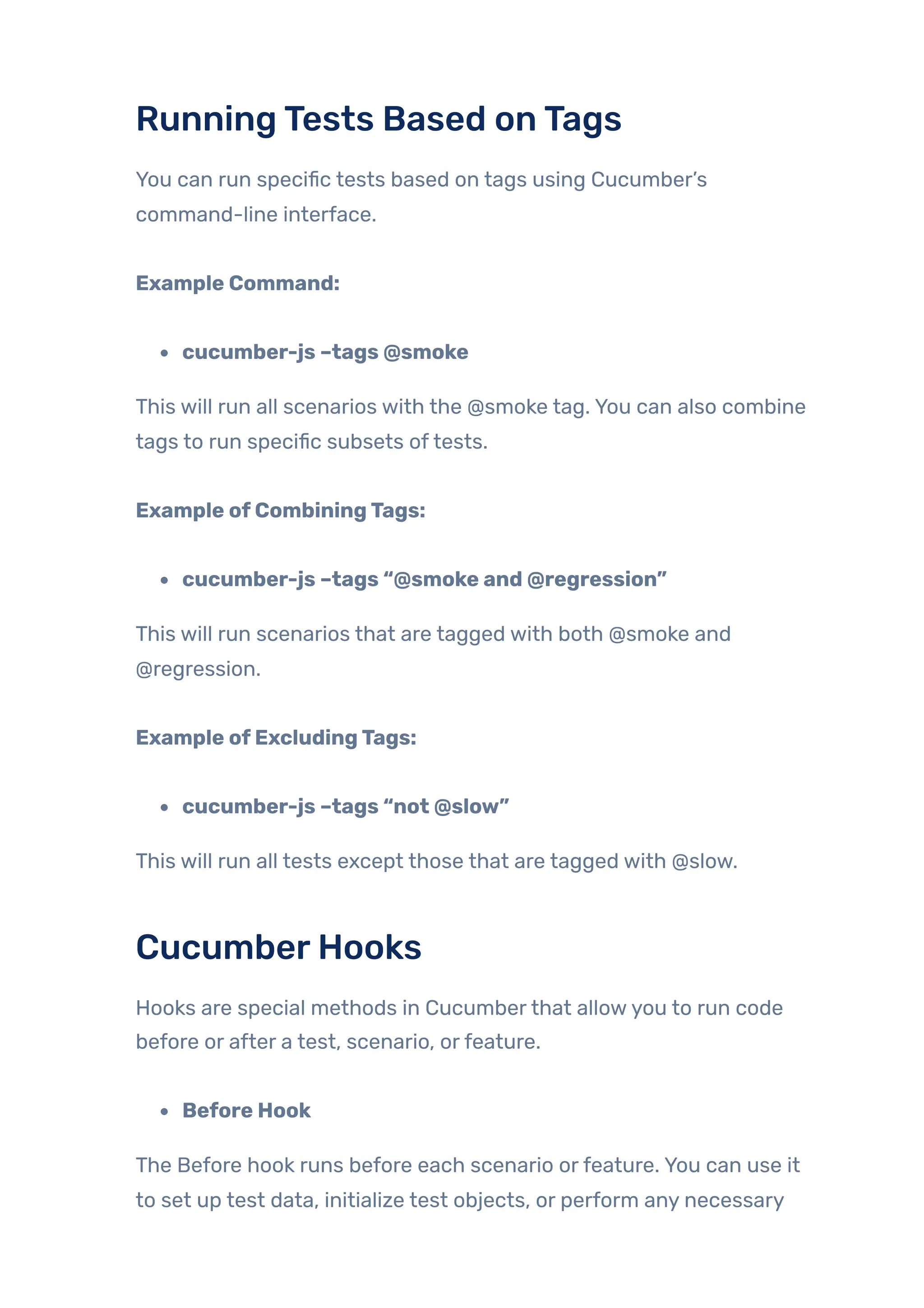
RunningTests Based onTags
You can run specific tests based on tags using Cucumber’s
command-line interface.
Example Command:
cucumber-js –tags @smoke
This will run all scenarios with the @smoke tag. You can also combine
tags to run specific subsets oftests.
Example ofCombiningTags:
cucumber-js –tags “@smoke and @regression”
This will run scenarios that are tagged with both @smoke and
@regression.
Example ofExcludingTags:
cucumber-js –tags “not @slow”
This will run all tests except those that are tagged with @slow.
CucumberHooks
Hooks are special methods in Cucumberthat allowyou to run code
before or after a test, scenario, orfeature.
Before Hook
The Before hook runs before each scenario orfeature. You can use it
to set up test data, initialize test objects, or perform any necessary
steps before the test executes.
Example: Before Hook
const { Before } = require('@cucumber/cucumber');
Before(async function () {
console.log('Setting up before scenario');
await browser.url('https://example.com/login');
const usernameField = await $('#username');
const passwordField = await $('#password');
await usernameField.setValue('testuser');
await passwordField.setValue('password123');
const loginButton = await $('button[type="submit"]');
await loginButton.click();
await $('#dashboard').waitForDisplayed({ timeout: 5000 });
});
AfterHook
The After hook runs after each scenario orfeature. It’s useful for
cleanup tasks, such as deleting test data, logging out, or closing
browserwindows.
Example:AfterHook
const { After } = require('@cucumber/cucumber');
After(async function () {
console.log('Cleaning up after scenario');
// Example: Log out the user if logged in
const logoutButton = await $('#logout');
if (await logoutButton.isDisplayed()) {
await logoutButton.click();
}
// Example: Clear any test data if necessary (e.g., clear the
cart)
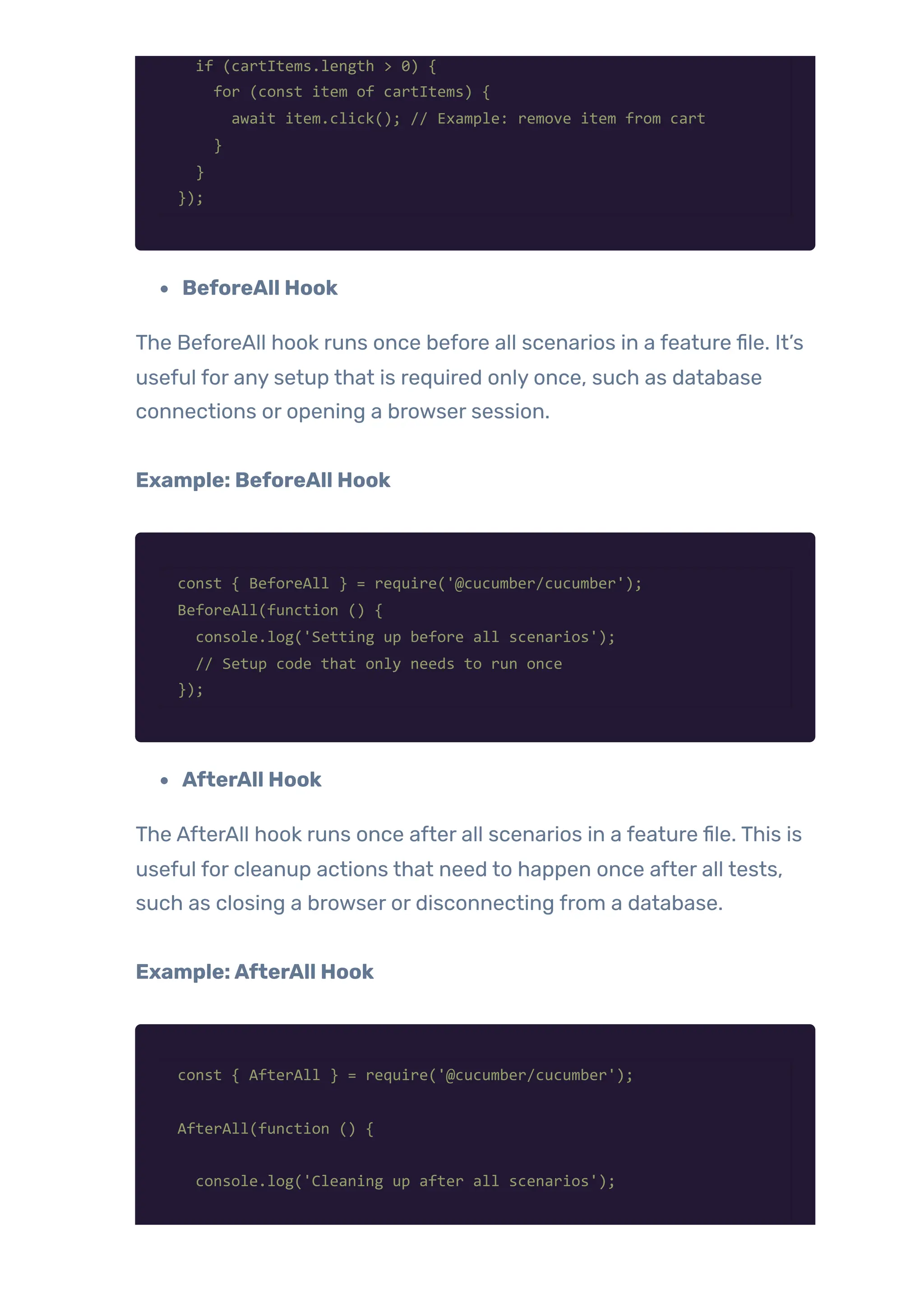
const cartItems = await $$('.cart-item');
if (cartItems.length > 0) {
for (const item of cartItems) {
await item.click(); // Example: remove item from cart
}
}
});
BeforeAll Hook
The BeforeAll hook runs once before all scenarios in a feature file. It’s
useful for any setup that is required only once, such as database
connections or opening a browser session.
Example: BeforeAll Hook
const { BeforeAll } = require('@cucumber/cucumber');
BeforeAll(function () {
console.log('Setting up before all scenarios');
// Setup code that only needs to run once
});
AfterAll Hook
The AfterAll hook runs once after all scenarios in a feature file. This is
useful for cleanup actions that need to happen once after all tests,
such as closing a browser or disconnecting from a database.
Example:AfterAll Hook
const { AfterAll } = require('@cucumber/cucumber');
AfterAll(function () {
console.log('Cleaning up after all scenarios');
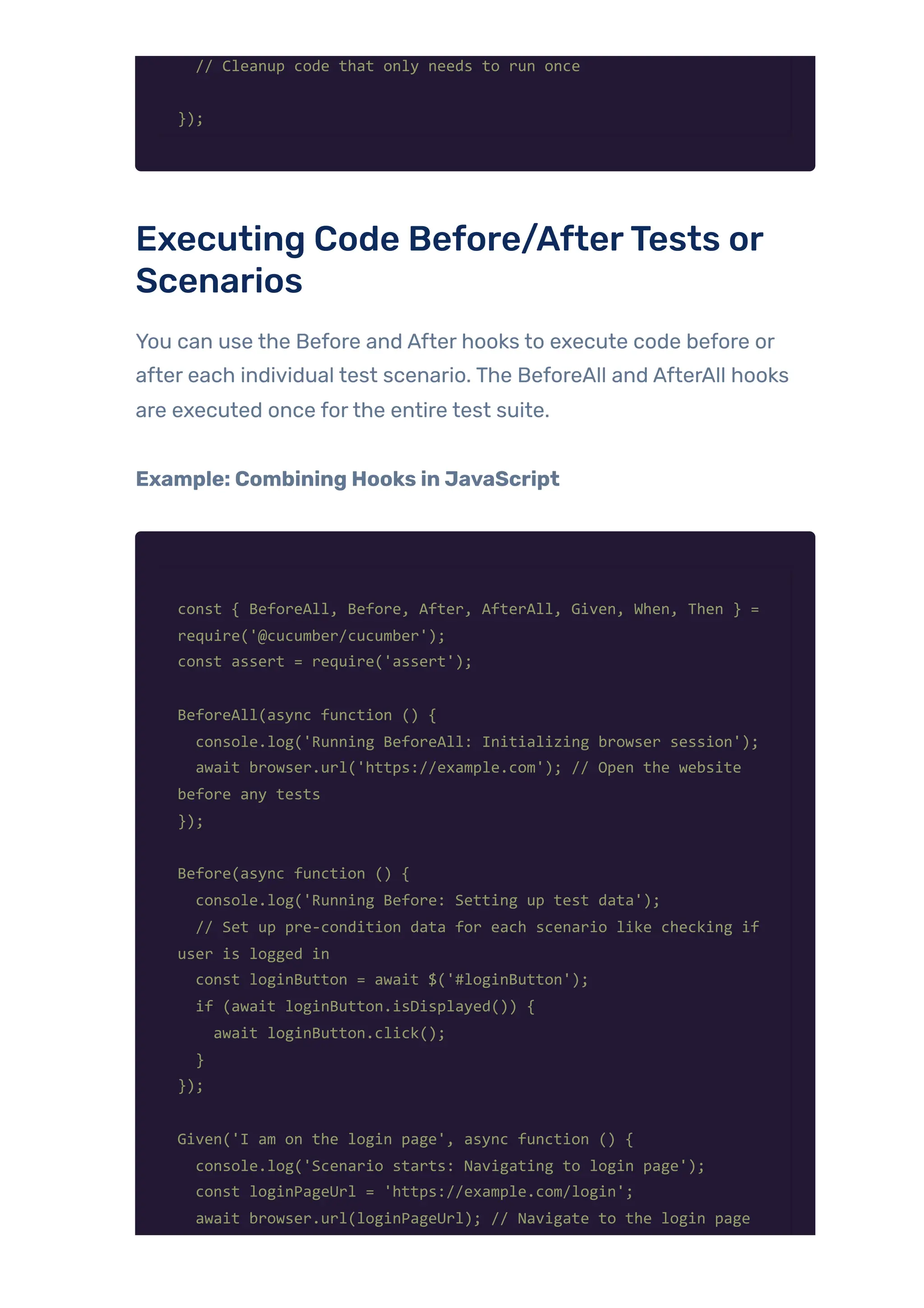
// Cleanup code that only needs to run once
});
Executing Code Before/AfterTests or
Scenarios
You can use the Before and After hooks to execute code before or
after each individual test scenario. The BeforeAll and AfterAll hooks
are executed once forthe entire test suite.
Example: Combining Hooks in JavaScript
const { BeforeAll, Before, After, AfterAll, Given, When, Then } =
require('@cucumber/cucumber');
const assert = require('assert');
BeforeAll(async function () {
console.log('Running BeforeAll: Initializing browser session');
await browser.url('https://example.com'); // Open the website
before any tests
});
Before(async function () {
console.log('Running Before: Setting up test data');
// Set up pre-condition data for each scenario like checking if
user is logged in
const loginButton = await $('#loginButton');
if (await loginButton.isDisplayed()) {
await loginButton.click();
}
});
Given('I am on the login page', async function () {
console.log('Scenario starts: Navigating to login page');
const loginPageUrl = 'https://example.com/login';
await browser.url(loginPageUrl); // Navigate to the login page
});
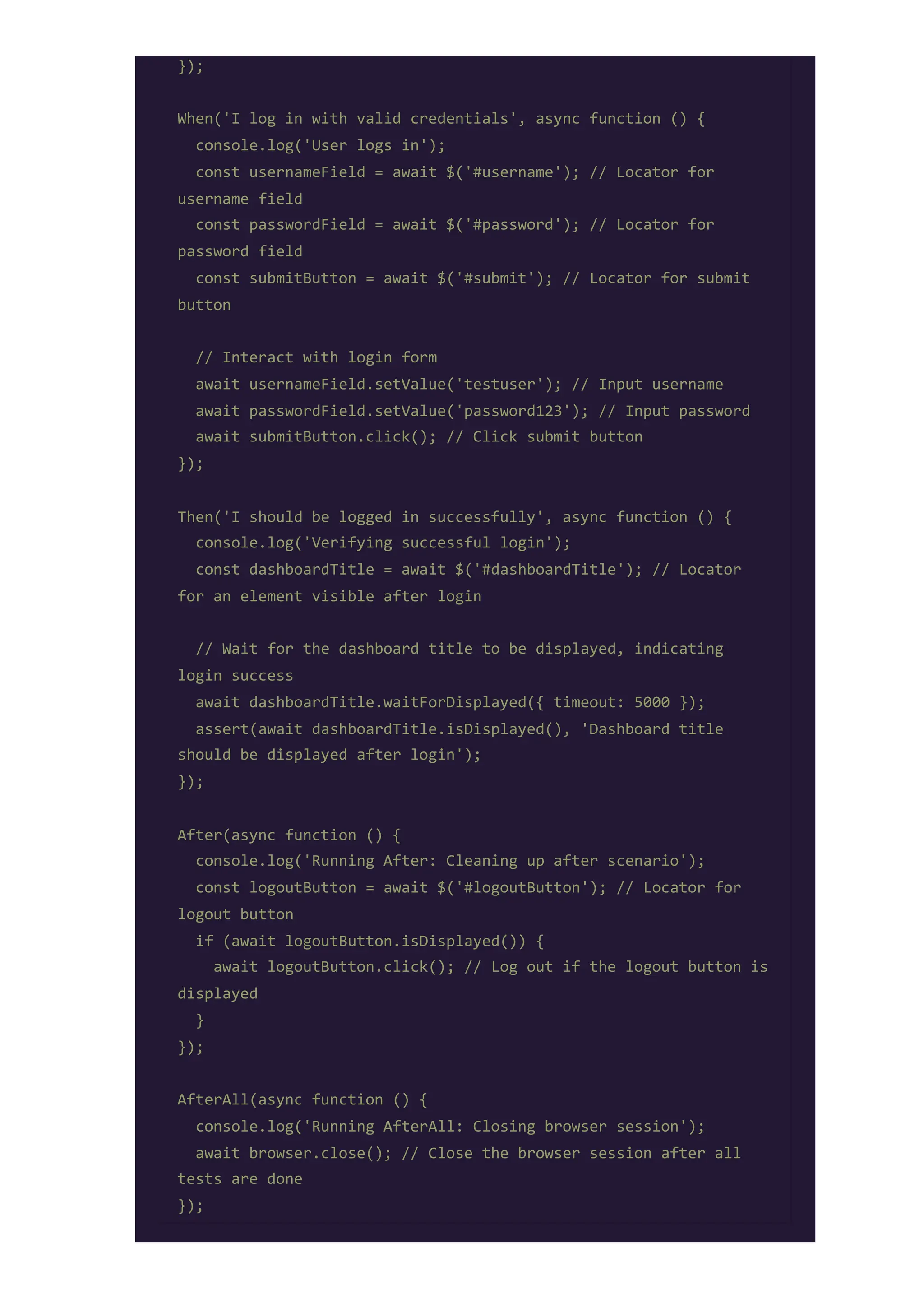
When('I log in with valid credentials', async function () {
console.log('User logs in');
const usernameField = await $('#username'); // Locator for
username field
const passwordField = await $('#password'); // Locator for
password field
const submitButton = await $('#submit'); // Locator for submit
button
// Interact with login form
await usernameField.setValue('testuser'); // Input username
await passwordField.setValue('password123'); // Input password
await submitButton.click(); // Click submit button
});
Then('I should be logged in successfully', async function () {
console.log('Verifying successful login');
const dashboardTitle = await $('#dashboardTitle'); // Locator
for an element visible after login
// Wait for the dashboard title to be displayed, indicating
login success
await dashboardTitle.waitForDisplayed({ timeout: 5000 });
assert(await dashboardTitle.isDisplayed(), 'Dashboard title
should be displayed after login');
});
After(async function () {
console.log('Running After: Cleaning up after scenario');
const logoutButton = await $('#logoutButton'); // Locator for
logout button
if (await logoutButton.isDisplayed()) {
await logoutButton.click(); // Log out if the logout button is
displayed
}
});
AfterAll(async function () {
console.log('Running AfterAll: Closing browser session');
await browser.close(); // Close the browser session after all
tests are done
});
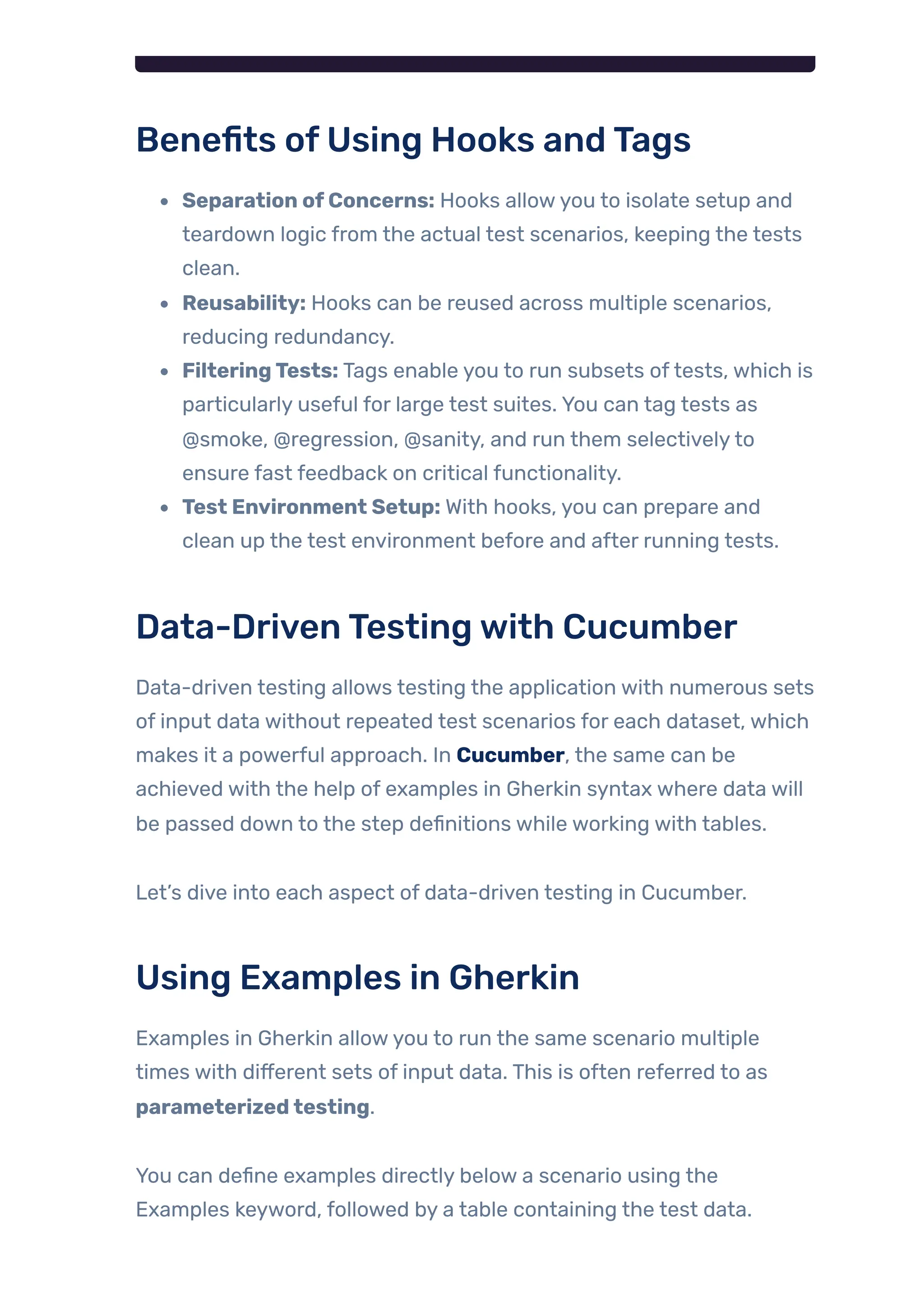
Benefits ofUsing Hooks andTags
Separation ofConcerns: Hooks allowyou to isolate setup and
teardown logic from the actual test scenarios, keeping the tests
clean.
Reusability: Hooks can be reused across multiple scenarios,
reducing redundancy.
FilteringTests: Tags enable you to run subsets oftests, which is
particularly useful for large test suites. You can tag tests as
@smoke, @regression, @sanity, and run them selectivelyto
ensure fast feedback on critical functionality.
Test Environment Setup: With hooks, you can prepare and
clean up the test environment before and after running tests.
Data-DrivenTestingwith Cucumber
Data-driven testing allows testing the application with numerous sets
of input data without repeated test scenarios for each dataset, which
makes it a powerful approach. In Cucumber, the same can be
achieved with the help of examples in Gherkin syntax where data will
be passed down to the step definitions while working with tables.
Let’s dive into each aspect of data-driven testing in Cucumber.
Using Examples in Gherkin
Examples in Gherkin allowyou to run the same scenario multiple
times with different sets of input data. This is often referred to as
parameterizedtesting.
You can define examples directly below a scenario using the
Examples keyword, followed by a table containing the test data.
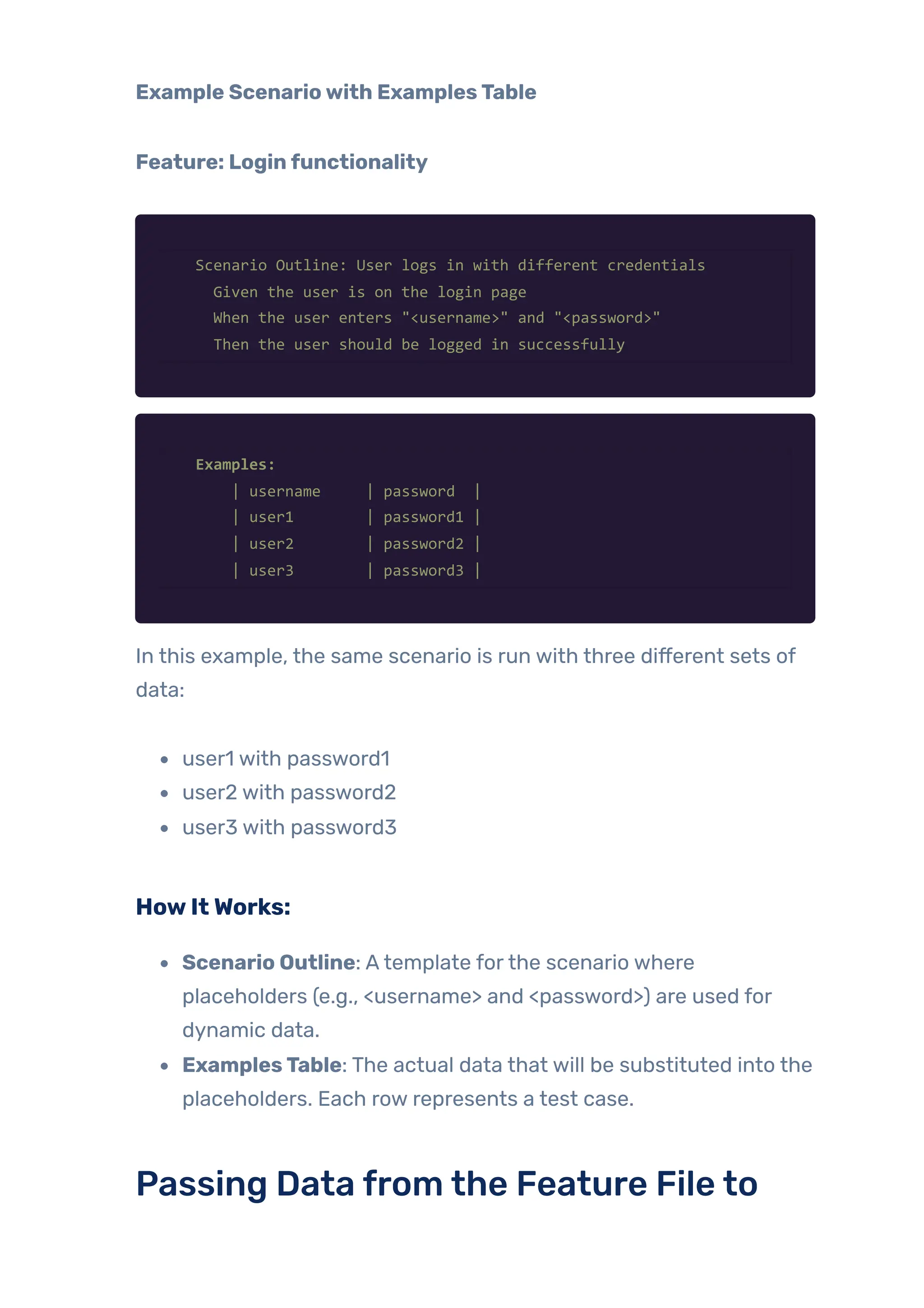
Example Scenariowith ExamplesTable
Feature: Loginfunctionality
Scenario Outline: User logs in with different credentials
Given the user is on the login page
When the user enters "<username>" and "<password>"
Then the user should be logged in successfully
Examples:
| username | password |
| user1 | password1 |
| user2 | password2 |
| user3 | password3 |
In this example, the same scenario is run with three different sets of
data:
user1 with password1
user2 with password2
user3 with password3
HowItWorks:
Scenario Outline: Atemplate forthe scenario where
placeholders (e.g., <username> and <password>) are used for
dynamic data.
ExamplesTable: The actual data that will be substituted into the
placeholders. Each row represents a test case.
Passing Data from the Feature File to
Step Definitions
Once the data is provided in the
Examples table, Cucumberwill automatically substitute the
placeholders in the step definition with the actual values from each
row.
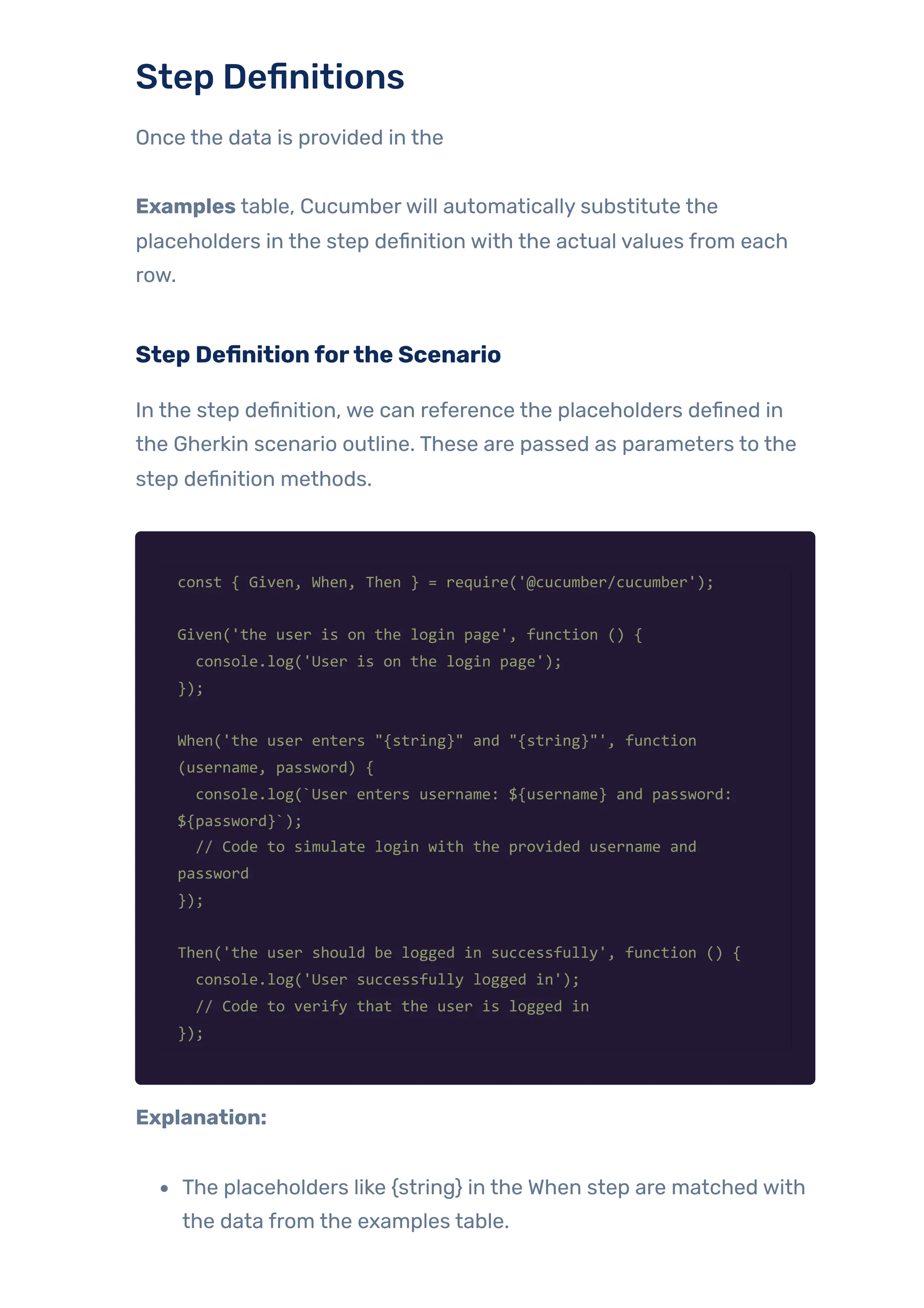
Step Definitionforthe Scenario
In the step definition, we can reference the placeholders defined in
the Gherkin scenario outline. These are passed as parameters to the
step definition methods.
const { Given, When, Then } = require('@cucumber/cucumber');
Given('the user is on the login page', function () {
console.log('User is on the login page');
});
When('the user enters "{string}" and "{string}"', function
(username, password) {
console.log(`User enters username: ${username} and password:
${password}`);
// Code to simulate login with the provided username and
password
});
Then('the user should be logged in successfully', function () {
console.log('User successfully logged in');
// Code to verify that the user is logged in
});
Explanation:
The placeholders like {string} in the When step are matched with
the data from the examples table.
The values from the table (user1, password1, etc.) are passed to
the step definition function as arguments (username, password).
ParameterizedTests and Looping
Through Examples
Cucumber automatically loops through each row in the
Examples table and executes the scenario for each set of
parameters. This eliminates the need for manuallywriting separate
tests for each dataset.
Example: ParameterizedTest
Cucumber automatically loops through each row in the
Examples table and executes the scenario for each set of
parameters. This eliminates the need for manuallywriting separate
tests for each dataset.
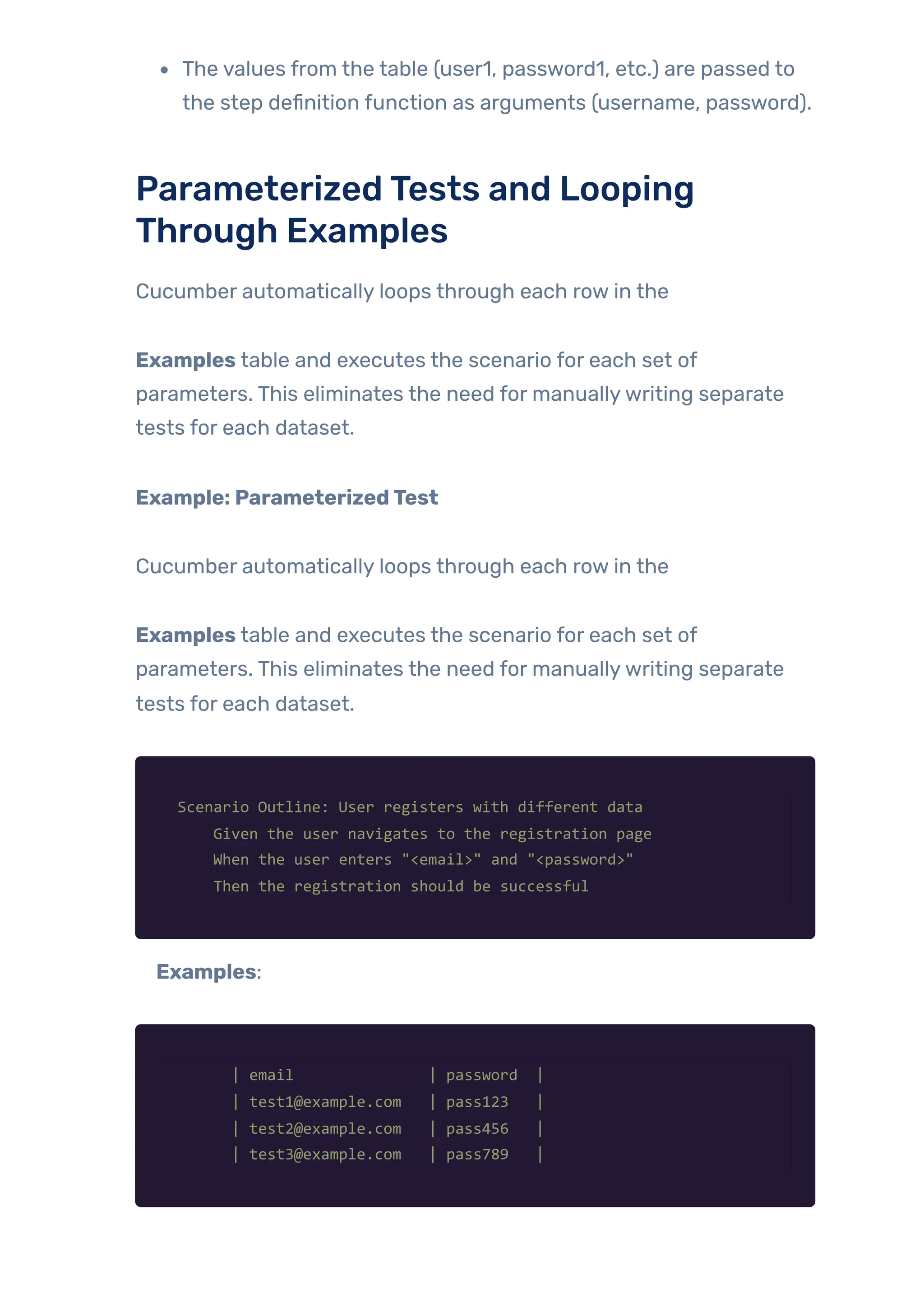
Scenario Outline: User registers with different data
Given the user navigates to the registration page
When the user enters "<email>" and "<password>"
Then the registration should be successful
Examples:
| email | password |
| test1@example.com | pass123 |
| test2@example.com | pass456 |
| test3@example.com | pass789 |
In this case, the same scenario is tested with three different sets of
email and password data.
WorkingwithTables in Gherkin
Tables in Gherkin are used to pass multiple sets of data to a scenario.
This is often done using the Examples keyword, but tables can also be
used in Given, When, and Then steps for more complex data
structures, such as lists or more detailed inputs.
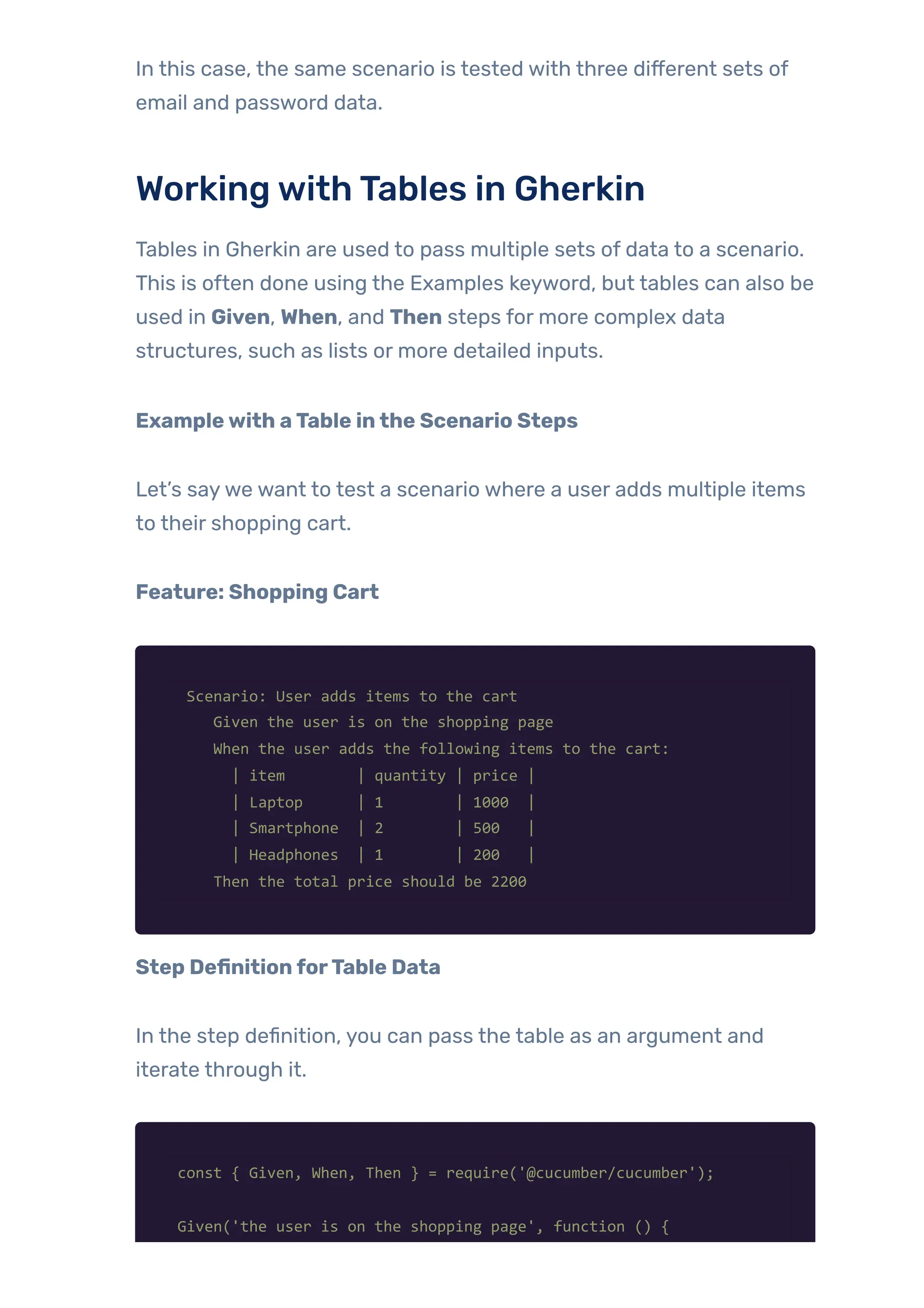
Examplewith aTable inthe Scenario Steps
Let’s saywe want to test a scenario where a user adds multiple items
to their shopping cart.
Feature: Shopping Cart
Scenario: User adds items to the cart
Given the user is on the shopping page
When the user adds the following items to the cart:
| item | quantity | price |
| Laptop | 1 | 1000 |
| Smartphone | 2 | 500 |
| Headphones | 1 | 200 |
Then the total price should be 2200
Step DefinitionforTable Data
In the step definition, you can pass the table as an argument and
iterate through it.
const { Given, When, Then } = require('@cucumber/cucumber');
Given('the user is on the shopping page', function () {
console.log('User is on the shopping page');
});
When('the user adds the following items to the cart:', function
(dataTable) {
let totalPrice = 0;
dataTable.rows().forEach(row => {
const item = row[0]; // Item name
const quantity = parseInt(row[1]); // Quantity
const price = parseInt(row[2]); // Price per item
console.log(`Added ${quantity} of ${item} with price ${price}
each.`);
totalPrice += quantity * price;
});
this.totalPrice = totalPrice; // Save the total price for
validation later
});
Then('the total price should be {int}', function (expectedTotal) {
console.log(`Expected total price: ${expectedTotal}, Actual
total price: ${this.totalPrice}`);
if (this.totalPrice !== expectedTotal) {
throw new Error(`Total price mismatch! Expected:
${expectedTotal}, but got: ${this.totalPrice}`);
}
});
Explanation:
dataTable.rows() provides an array of rows from the table.
Each row in the table is an array ofvalues (in this case: item,
quantity, and price).
The code loops through the rows, calculates the total price, and
stores it in the this.totalPrice propertyto validate it later.
Assertions andValidations in Cucumber
Assertions are very essential in test automation because it verifies
that the system acts as expected. In Cucumber, assertions help
check both the functionality and the UI of an application. In
JavaScript, WebDriverIO is a popular automation framework for
interacting with web elements, and it provides a rich set of assertion
methods.
Let’s explore howto use assertions in Cucumberwith WebDriverIO,
handle validation errors, and verifythe UI and functionality of an
application.
Using WebDriverIOAssertions
WebDriverIO provides several built-in assertion methods that help you
verifyvarious conditions during test execution. Some ofthe most
common WebDriverIO assertions are:
.toBe()
.toHaveText()
.toExist()
.toHaveValue()
.toBeDisplayed()
These assertions are used to validate web elements and ensure that
the application behaves correctly. They are generally used in the step
definitions to validate different parts ofthe application (e.g., page
elements, text content, etc.).
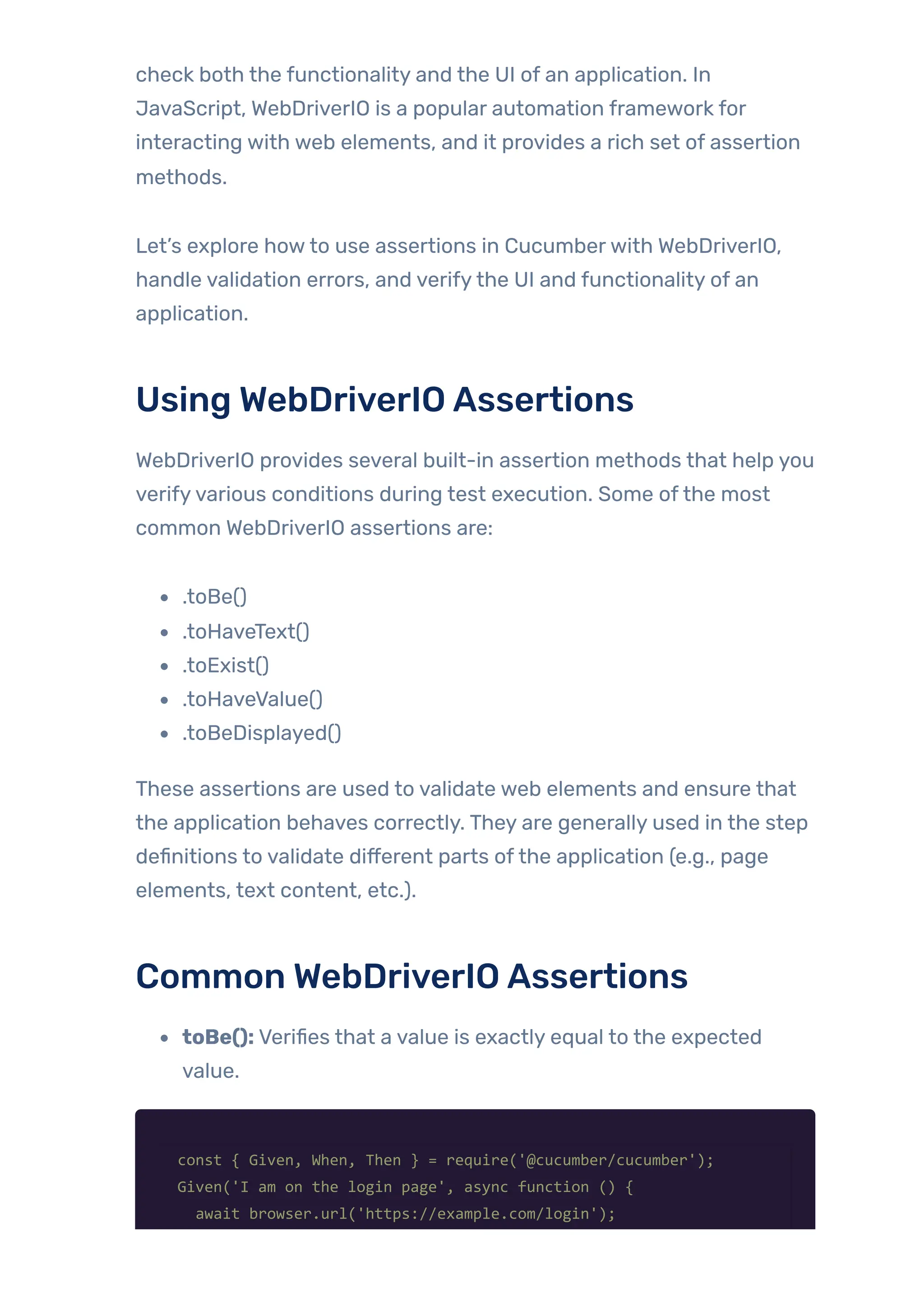
Common WebDriverIOAssertions
toBe(): Verifies that a value is exactly equal to the expected
value.
const { Given, When, Then } = require('@cucumber/cucumber');
Given('I am on the login page', async function () {
await browser.url('https://example.com/login');
});
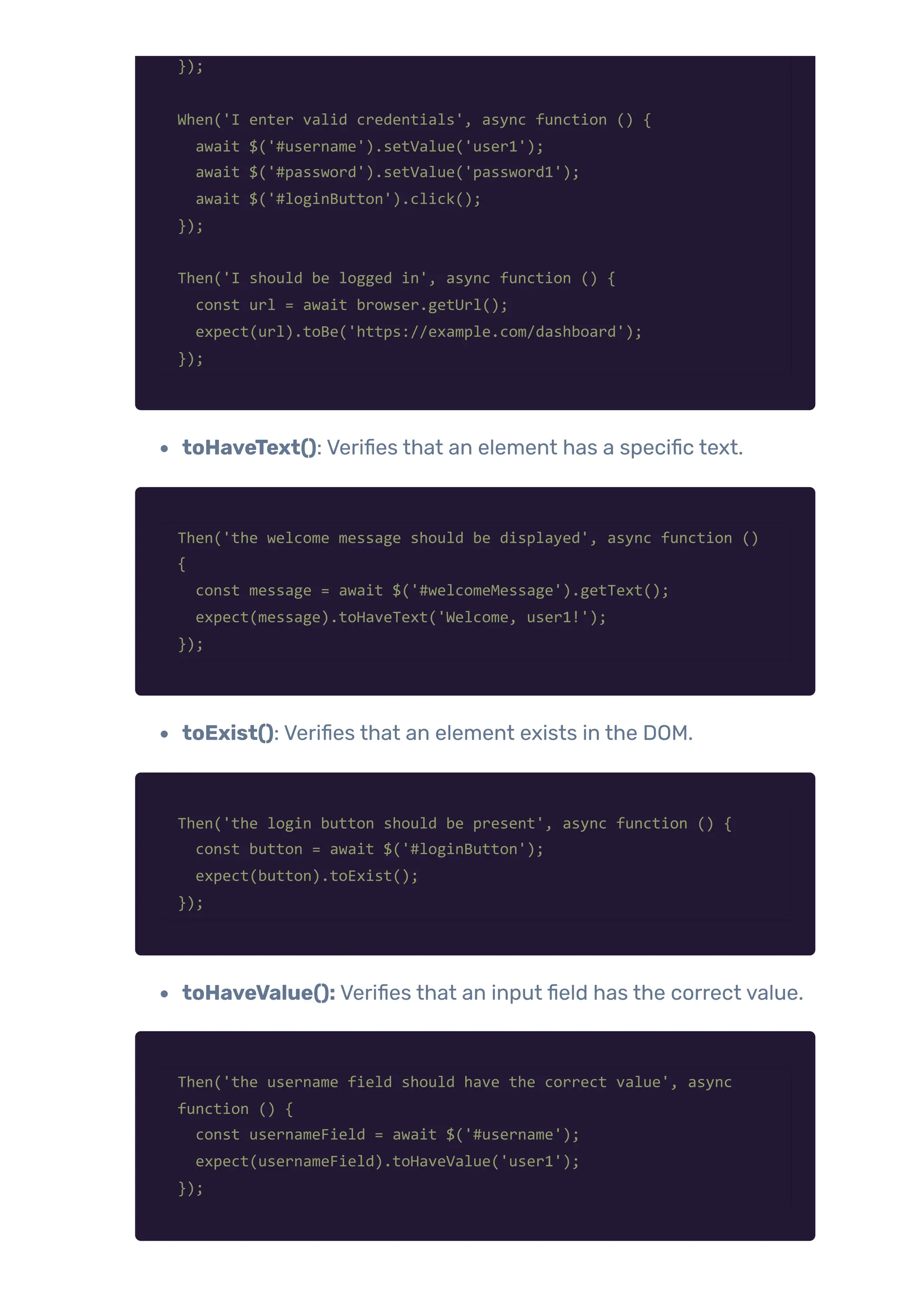
When('I enter valid credentials', async function () {
await $('#username').setValue('user1');
await $('#password').setValue('password1');
await $('#loginButton').click();
});
Then('I should be logged in', async function () {
const url = await browser.getUrl();
expect(url).toBe('https://example.com/dashboard');
});
toHaveText(): Verifies that an element has a specific text.
Then('the welcome message should be displayed', async function ()
{
const message = await $('#welcomeMessage').getText();
expect(message).toHaveText('Welcome, user1!');
});
toExist(): Verifies that an element exists in the DOM.
Then('the login button should be present', async function () {
const button = await $('#loginButton');
expect(button).toExist();
});
toHaveValue(): Verifies that an input field has the correct value.
Then('the username field should have the correct value', async
function () {
const usernameField = await $('#username');
expect(usernameField).toHaveValue('user1');
});
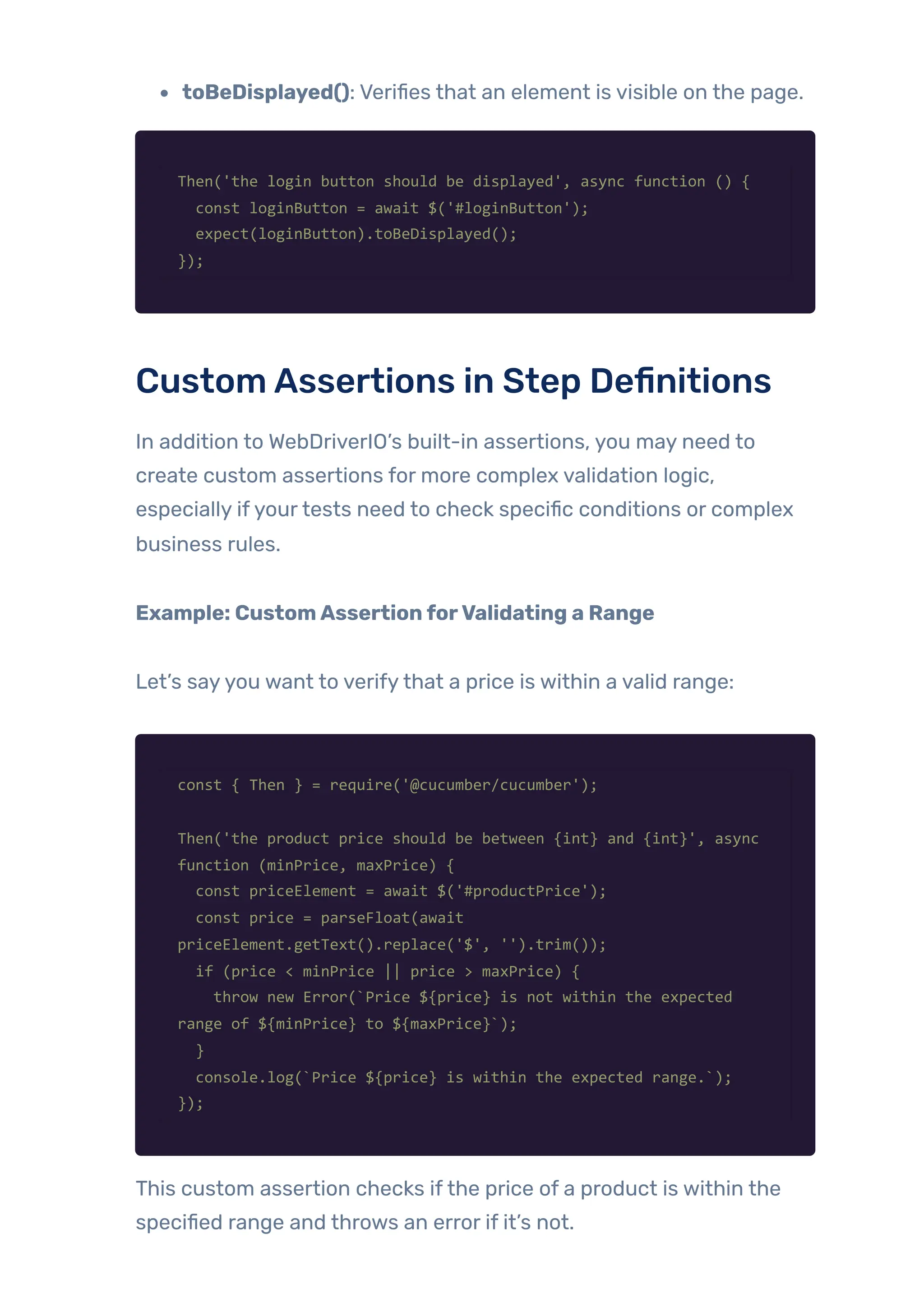
toBeDisplayed(): Verifies that an element is visible on the page.
Then('the login button should be displayed', async function () {
const loginButton = await $('#loginButton');
expect(loginButton).toBeDisplayed();
});
CustomAssertions in Step Definitions
In addition to WebDriverIO’s built-in assertions, you may need to
create custom assertions for more complex validation logic,
especially ifyourtests need to check specific conditions or complex
business rules.
Example: CustomAssertionforValidating a Range
Let’s sayyou want to verifythat a price is within a valid range:
const { Then } = require('@cucumber/cucumber');
Then('the product price should be between {int} and {int}', async
function (minPrice, maxPrice) {
const priceElement = await $('#productPrice');
const price = parseFloat(await
priceElement.getText().replace('$', '').trim());
if (price < minPrice || price > maxPrice) {
throw new Error(`Price ${price} is not within the expected
range of ${minPrice} to ${maxPrice}`);
}
console.log(`Price ${price} is within the expected range.`);
});
This custom assertion checks ifthe price of a product is within the
specified range and throws an error if it’s not.
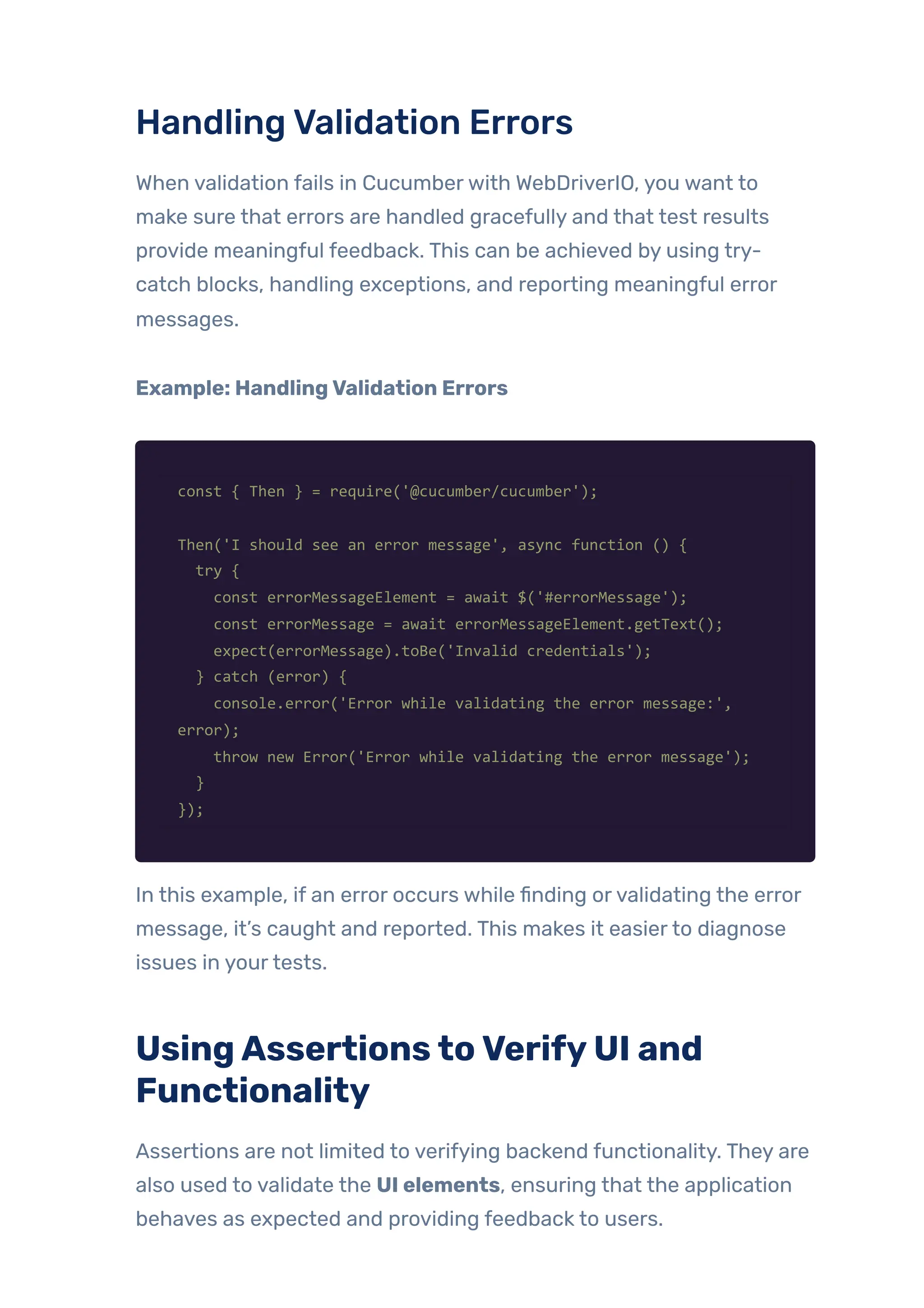
HandlingValidation Errors
When validation fails in Cucumberwith WebDriverIO, you want to
make sure that errors are handled gracefully and that test results
provide meaningful feedback. This can be achieved by using try-
catch blocks, handling exceptions, and reporting meaningful error
messages.
Example: HandlingValidation Errors
const { Then } = require('@cucumber/cucumber');
Then('I should see an error message', async function () {
try {
const errorMessageElement = await $('#errorMessage');
const errorMessage = await errorMessageElement.getText();
expect(errorMessage).toBe('Invalid credentials');
} catch (error) {
console.error('Error while validating the error message:',
error);
throw new Error('Error while validating the error message');
}
});
In this example, if an error occurs while finding orvalidating the error
message, it’s caught and reported. This makes it easierto diagnose
issues in yourtests.
UsingAssertionstoVerifyUI and
Functionality
Assertions are not limited to verifying backend functionality. They are
also used to validate the UI elements, ensuring that the application
behaves as expected and providing feedback to users.
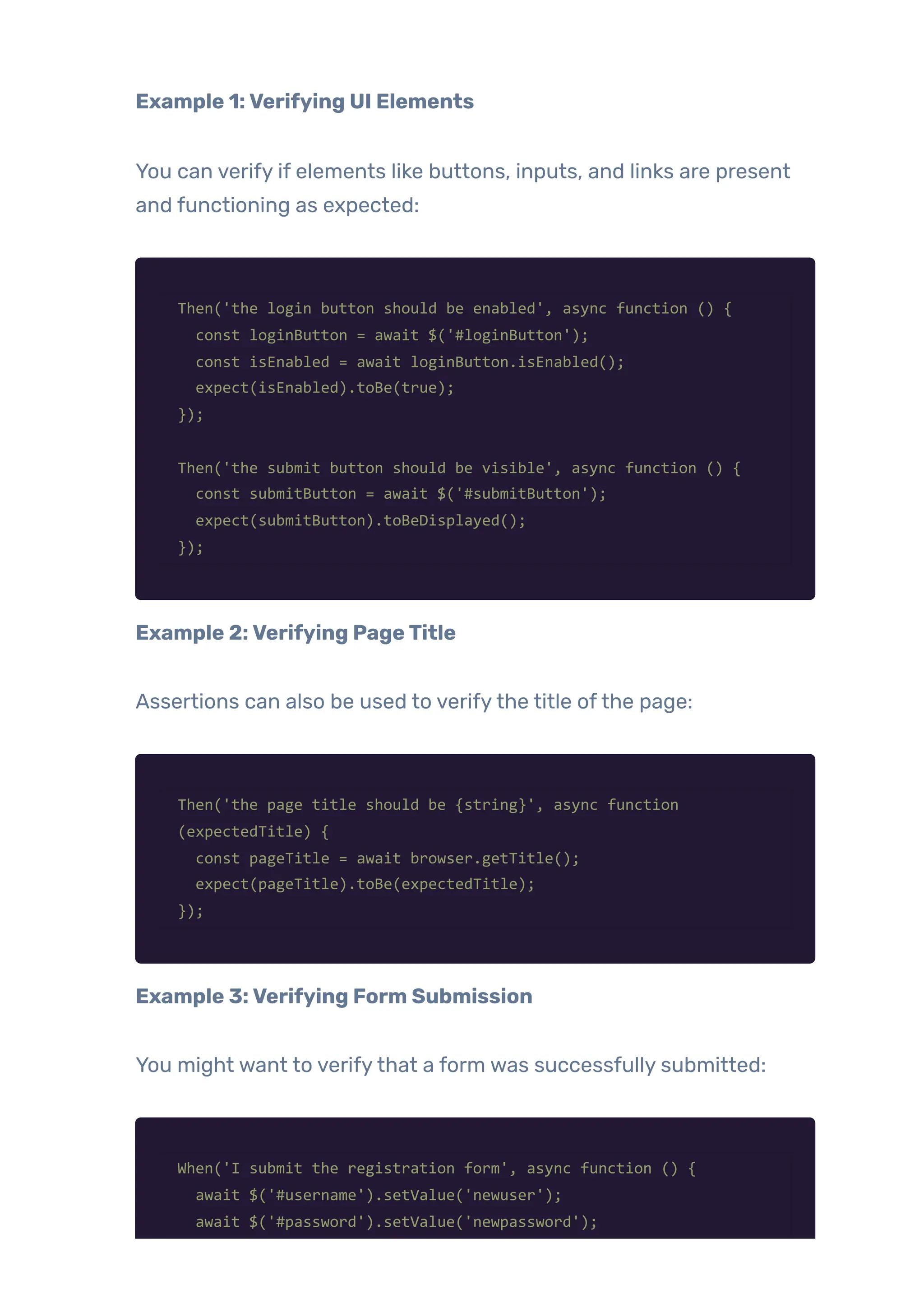
Example 1:Verifying UI Elements
You can verify if elements like buttons, inputs, and links are present
and functioning as expected:
Then('the login button should be enabled', async function () {
const loginButton = await $('#loginButton');
const isEnabled = await loginButton.isEnabled();
expect(isEnabled).toBe(true);
});
Then('the submit button should be visible', async function () {
const submitButton = await $('#submitButton');
expect(submitButton).toBeDisplayed();
});
Example 2:Verifying PageTitle
Assertions can also be used to verifythe title ofthe page:
Then('the page title should be {string}', async function
(expectedTitle) {
const pageTitle = await browser.getTitle();
expect(pageTitle).toBe(expectedTitle);
});
Example 3:Verifying Form Submission
You might want to verifythat a form was successfully submitted:
When('I submit the registration form', async function () {
await $('#username').setValue('newuser');
await $('#password').setValue('newpassword');
await $('#submitButton').click();
});
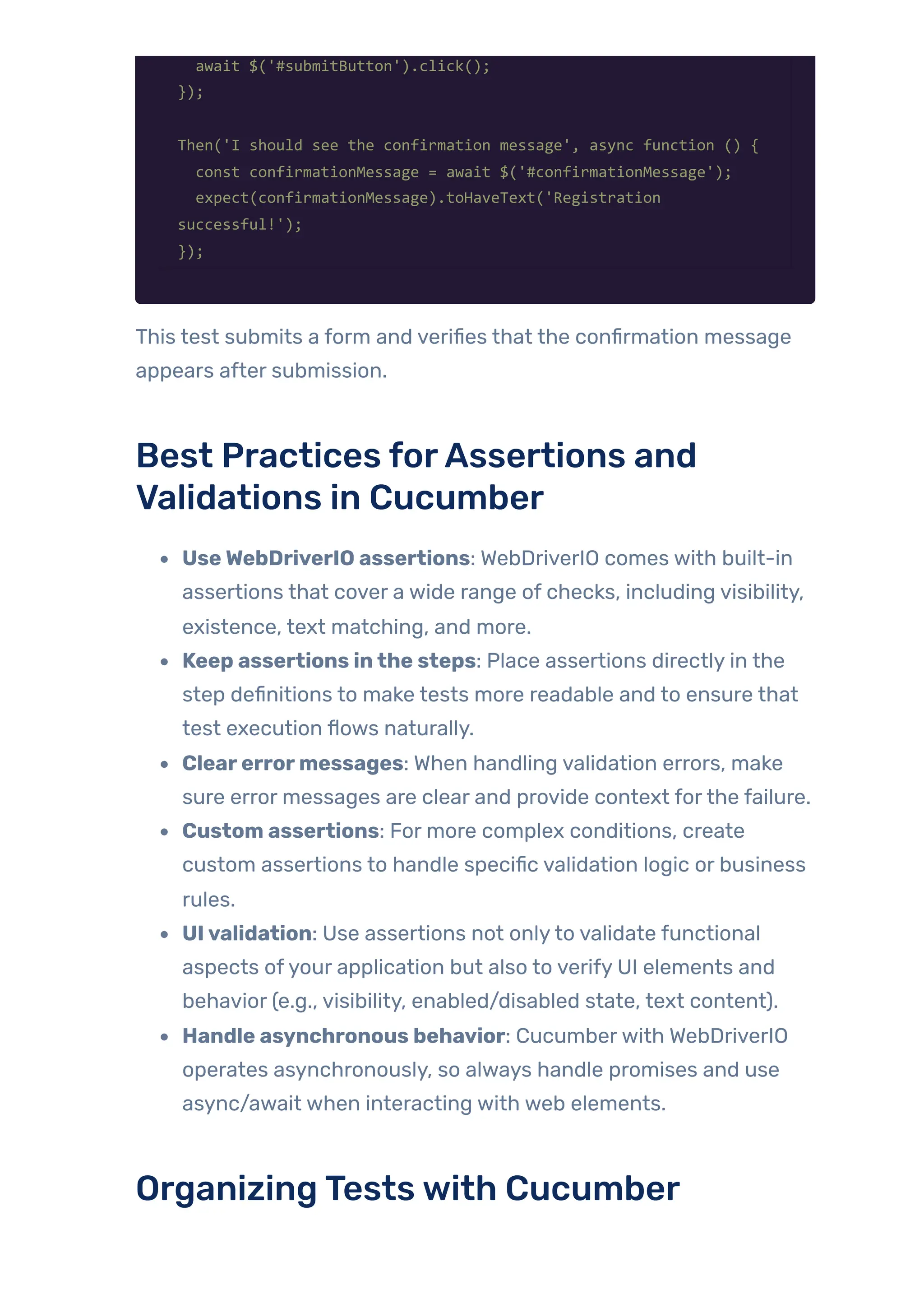
Then('I should see the confirmation message', async function () {
const confirmationMessage = await $('#confirmationMessage');
expect(confirmationMessage).toHaveText('Registration
successful!');
});
This test submits a form and verifies that the confirmation message
appears after submission.
Best Practices forAssertions and
Validations in Cucumber
UseWebDriverIO assertions: WebDriverIO comes with built-in
assertions that cover a wide range of checks, including visibility,
existence, text matching, and more.
Keep assertions inthe steps: Place assertions directly in the
step definitions to make tests more readable and to ensure that
test execution flows naturally.
Clearerrormessages: When handling validation errors, make
sure error messages are clear and provide context forthe failure.
Custom assertions: For more complex conditions, create
custom assertions to handle specific validation logic or business
rules.
UIvalidation: Use assertions not onlyto validate functional
aspects ofyour application but also to verify UI elements and
behavior (e.g., visibility, enabled/disabled state, text content).
Handle asynchronous behavior: Cucumberwith WebDriverIO
operates asynchronously, so always handle promises and use
async/await when interacting with web elements.
OrganizingTestswith Cucumber
Creating Reusable Step Definitions
Reusable step definitions are one ofthe core principles of making
yourtests scalable and maintainable. You define reusable steps to
handle common operations across multiple feature files.
const { Given, When, Then } = require('@cucumber/cucumber');
// Reusable step to navigate to a URL
Given('I navigate to the {string} page', async function (url) {
await this.driver.get(url); // Assuming this.driver is properly
initialized
});
// Reusable step for clicking a button
When('I click the {string} button', async function (buttonText) {
const button = await this.driver.findElement({ xpath:
`//button[contains(text(), '${buttonText}')]` });
await button.click();
});
// Reusable step for verifying the page title
Then('I should see the page title {string}', async function
(expectedTitle) {
const title = await this.driver.getTitle();
if (title !== expectedTitle) {
throw new Error(`Expected title to be ${expectedTitle} but got
${title}`);
}
});
Here, the steps like I navigate to the {string} page, I click the {string}
button, and I should see the page title {string} are reusable. You can
call them from anyfeature file.
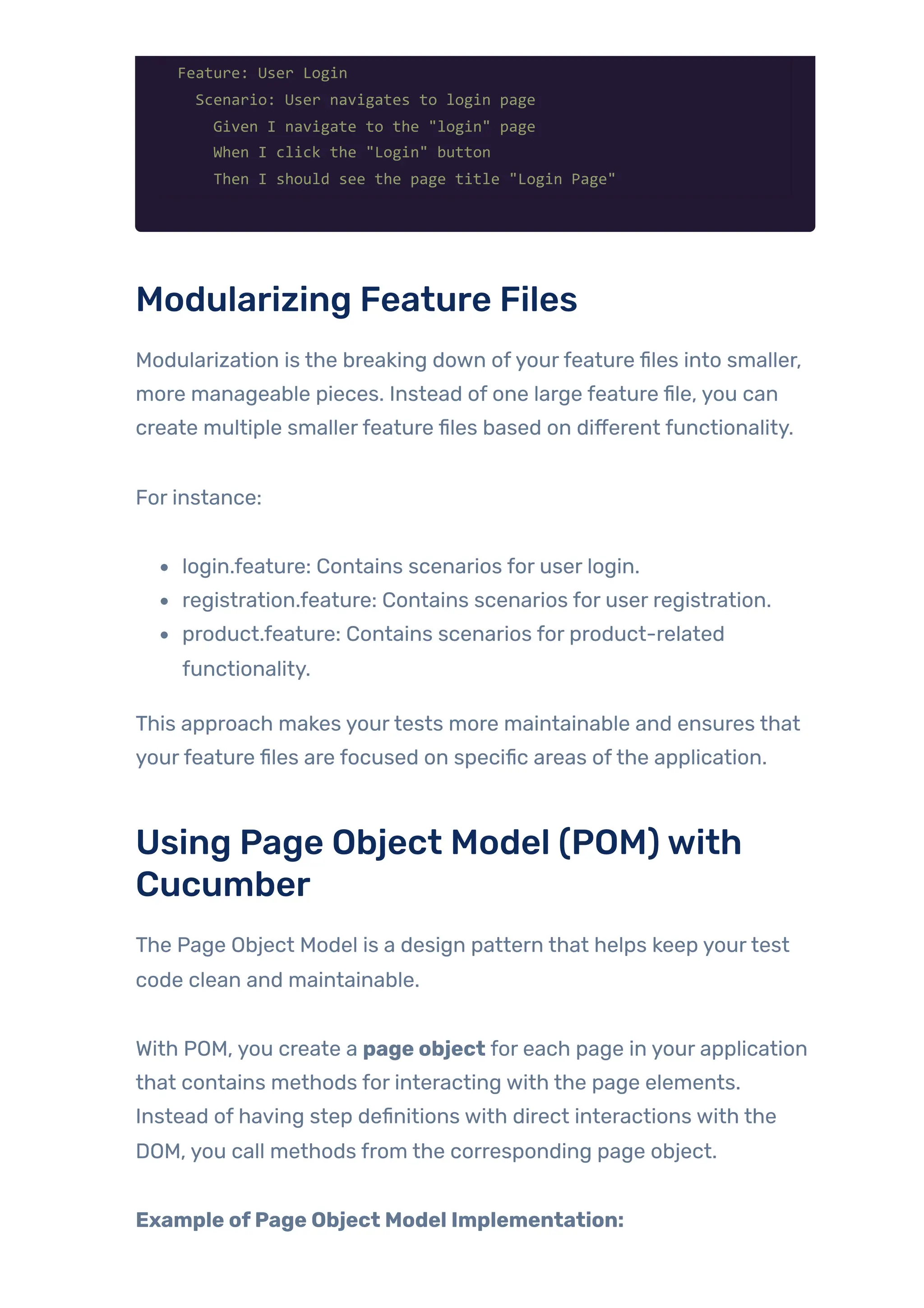
Example Feature File:
Feature: User Login
Scenario: User navigates to login page
Given I navigate to the "login" page
When I click the "Login" button
Then I should see the page title "Login Page"
Modularizing Feature Files
Modularization is the breaking down ofyourfeature files into smaller,
more manageable pieces. Instead of one large feature file, you can
create multiple smallerfeature files based on different functionality.
For instance:
login.feature: Contains scenarios for user login.
registration.feature: Contains scenarios for user registration.
product.feature: Contains scenarios for product-related
functionality.
This approach makes yourtests more maintainable and ensures that
yourfeature files are focused on specific areas ofthe application.
Using Page Object Model (POM)with
Cucumber
The Page Object Model is a design pattern that helps keep yourtest
code clean and maintainable.
With POM, you create a page object for each page in your application
that contains methods for interacting with the page elements.
Instead of having step definitions with direct interactions with the
DOM, you call methods from the corresponding page object.
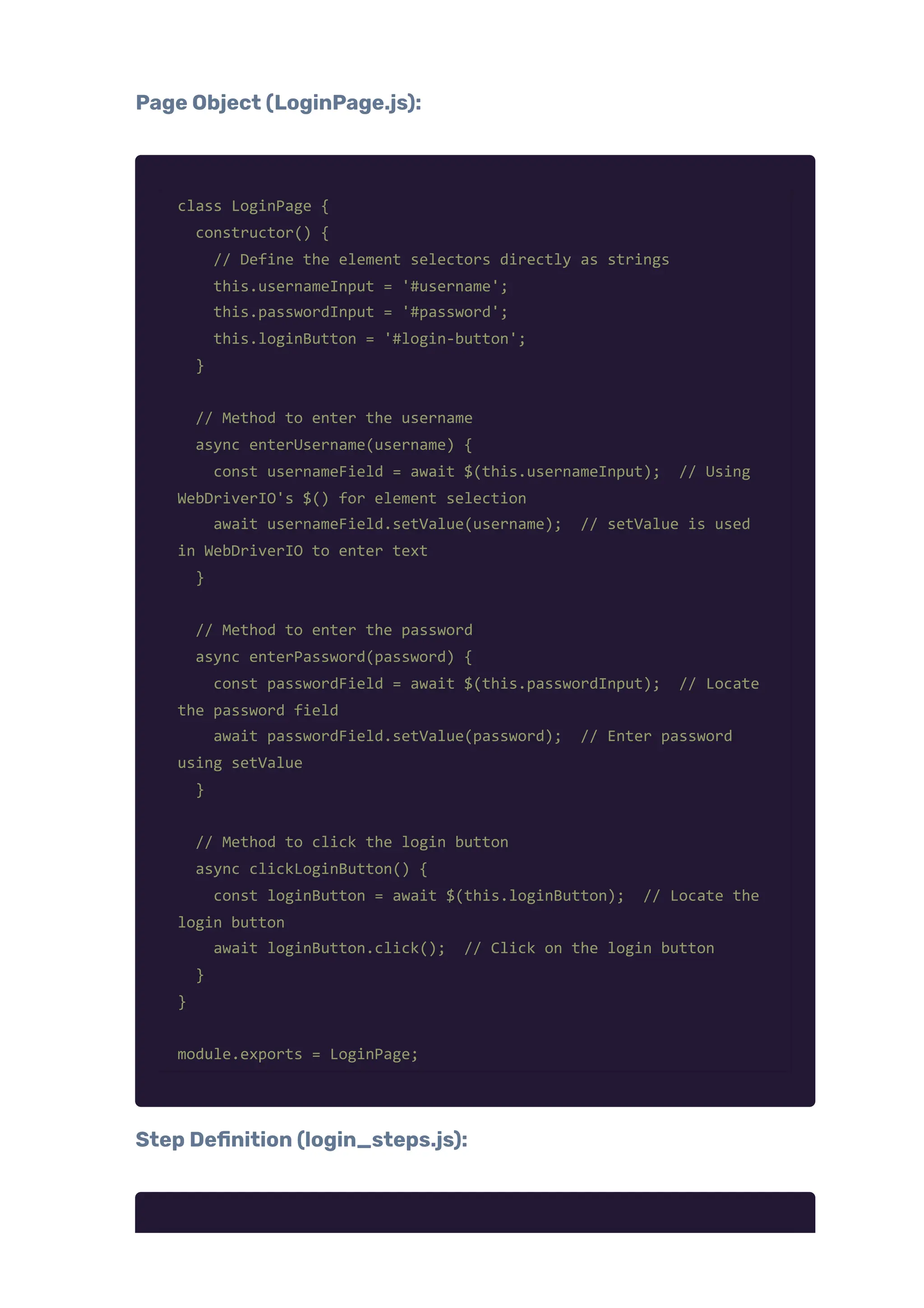
Example ofPage Object Model Implementation:
Page Object (LoginPage.js):
class LoginPage {
constructor() {
// Define the element selectors directly as strings
this.usernameInput = '#username';
this.passwordInput = '#password';
this.loginButton = '#login-button';
}
// Method to enter the username
async enterUsername(username) {
const usernameField = await $(this.usernameInput); // Using
WebDriverIO's $() for element selection
await usernameField.setValue(username); // setValue is used
in WebDriverIO to enter text
}
// Method to enter the password
async enterPassword(password) {
const passwordField = await $(this.passwordInput); // Locate
the password field
await passwordField.setValue(password); // Enter password
using setValue
}
// Method to click the login button
async clickLoginButton() {
const loginButton = await $(this.loginButton); // Locate the
login button
await loginButton.click(); // Click on the login button
}
}
module.exports = LoginPage;
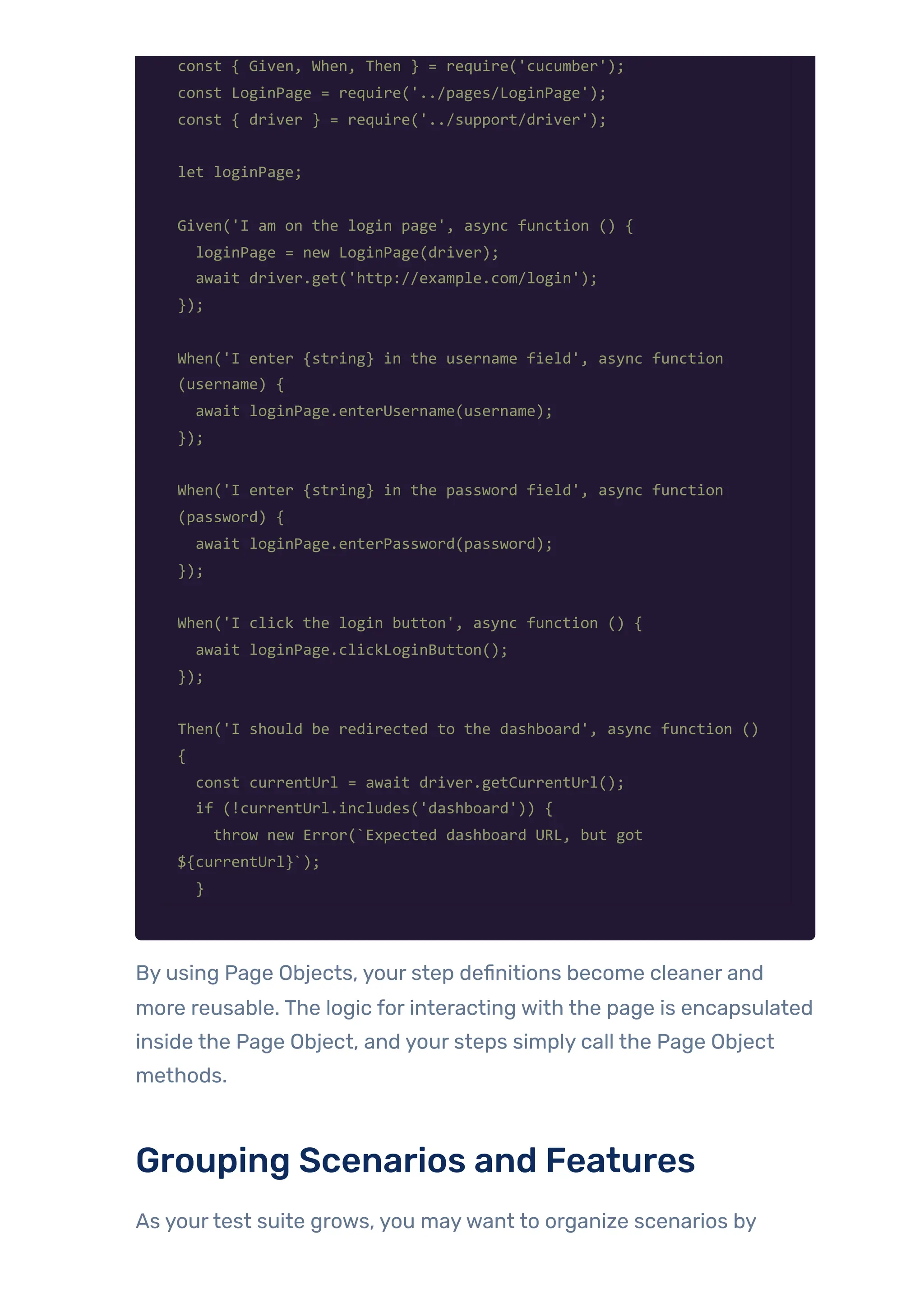
Step Definition (login_steps.js):
const { Given, When, Then } = require('cucumber');
const LoginPage = require('../pages/LoginPage');
const { driver } = require('../support/driver');
let loginPage;
Given('I am on the login page', async function () {
loginPage = new LoginPage(driver);
await driver.get('http://example.com/login');
});
When('I enter {string} in the username field', async function
(username) {
await loginPage.enterUsername(username);
});
When('I enter {string} in the password field', async function
(password) {
await loginPage.enterPassword(password);
});
When('I click the login button', async function () {
await loginPage.clickLoginButton();
});
Then('I should be redirected to the dashboard', async function ()
{
const currentUrl = await driver.getCurrentUrl();
if (!currentUrl.includes('dashboard')) {
throw new Error(`Expected dashboard URL, but got
${currentUrl}`);
}
By using Page Objects, your step definitions become cleaner and
more reusable. The logic for interacting with the page is encapsulated
inside the Page Object, and your steps simply call the Page Object
methods.
Grouping Scenarios and Features
As yourtest suite grows, you maywant to organize scenarios by
functionality, user role, orfeature. You can group scenarios within a
feature file using @tags or organize them in different feature files.
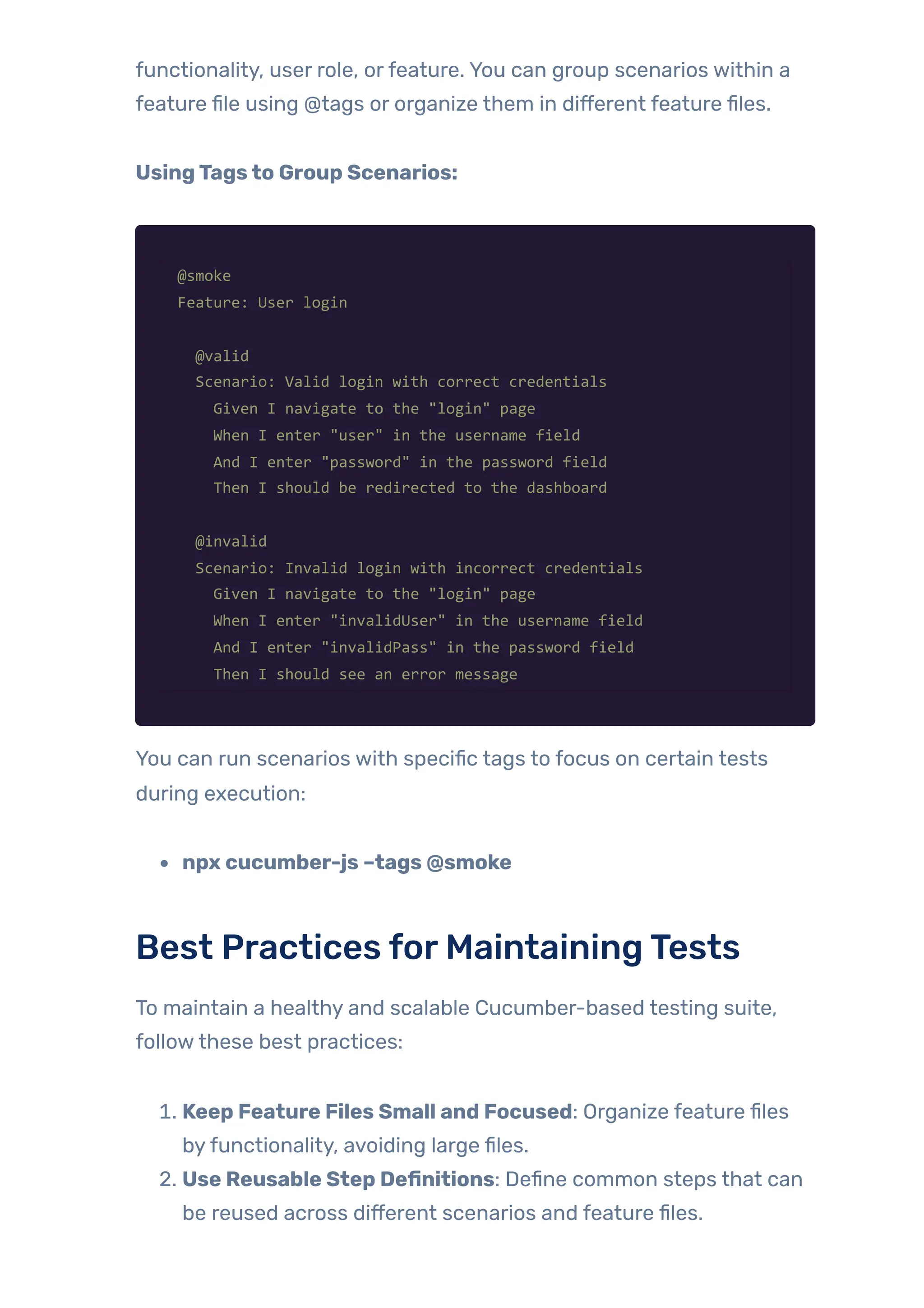
UsingTagsto Group Scenarios:
@smoke
Feature: User login
@valid
Scenario: Valid login with correct credentials
Given I navigate to the "login" page
When I enter "user" in the username field
And I enter "password" in the password field
Then I should be redirected to the dashboard
@invalid
Scenario: Invalid login with incorrect credentials
Given I navigate to the "login" page
When I enter "invalidUser" in the username field
And I enter "invalidPass" in the password field
Then I should see an error message
You can run scenarios with specific tags to focus on certain tests
during execution:
npx cucumber-js –tags @smoke
Best Practices forMaintainingTests
To maintain a healthy and scalable Cucumber-based testing suite,
followthese best practices:
1. Keep Feature Files Small and Focused: Organize feature files
byfunctionality, avoiding large files.
2. Use Reusable Step Definitions: Define common steps that can
be reused across different scenarios and feature files.
3. Adopt Page Object Model: Use POM to separate page
interactions from test logic, making tests easierto maintain.
4. UseTagsforGrouping: Organize tests using tags to run specific
subsets oftests, e.g., smoke, regression, or performance.
5. Maintain Consistent Naming Conventions: Use clear and
consistent naming for steps, features, and page objects.
6. EnsureTestsAre Independent: Write scenarios that are
independent of each otherto avoid dependencies between
them.
7. HandleTest Data: Use hooks or external test data files to handle
setup and teardown oftest data.
8. Reviewand RefactorRegularly: Continuously refactoryour
step definitions and feature files to avoid duplication and keep
them maintainable.
Debugging CucumberTests in
JavaScript
Debugging Cucumbertests can be very complex, but there are
always ways to approach the debugging process in an efficient and
effective way. Here’s a step-by-step guide for debugging your
Cucumbertests in a JavaScript environment when you use
WebDriverIO for browser automation.
Common Issues and Errors in Cucumber
Cucumber is a tool for Behavior-Driven Development, and it often
deals with many components, including feature files, step definitions,
and browser automation tools. Here are some common problems you
might face:
Step Definition Mismatch
This is one ofthe most common errors in Cucumbertests. Ifyour
Gherkin step (from the .feature file) doesn’t match any step definition
in your step definition file, you’ll see an error like:
undefined step: I have a login button on the page
Solution:
Ensure the steps in your .feature file match the patterns defined
in your step definition file.
Cucumber uses regular expressions to link Gherkin steps with
step definitions. Double-check the regular expression patterns.
Element Not Found inWebDriverIOTests
When running tests with WebDriverIO, you might encounter situations
where an element is not found. The error might look like:
Error: NoSuchElementError: Unable to locate element with selector
‘button#login’
Solution:
Verifythe selector is correct.
Make sure the element is present and visible on the page at the
time ofthe test. Ifyourtest runs too fast and the page is not fully
loaded, you might encounterthis error.
Use waitUntil() or browser.waitForExist() to make the test wait
until the element is visible.
Timeout Issues
Cucumber and WebDriverIO often time out if certain conditions are
not met in a reasonable time. For example, waiting for an element or
page load might exceed the timeout period, causing the test to fail.
Solution:
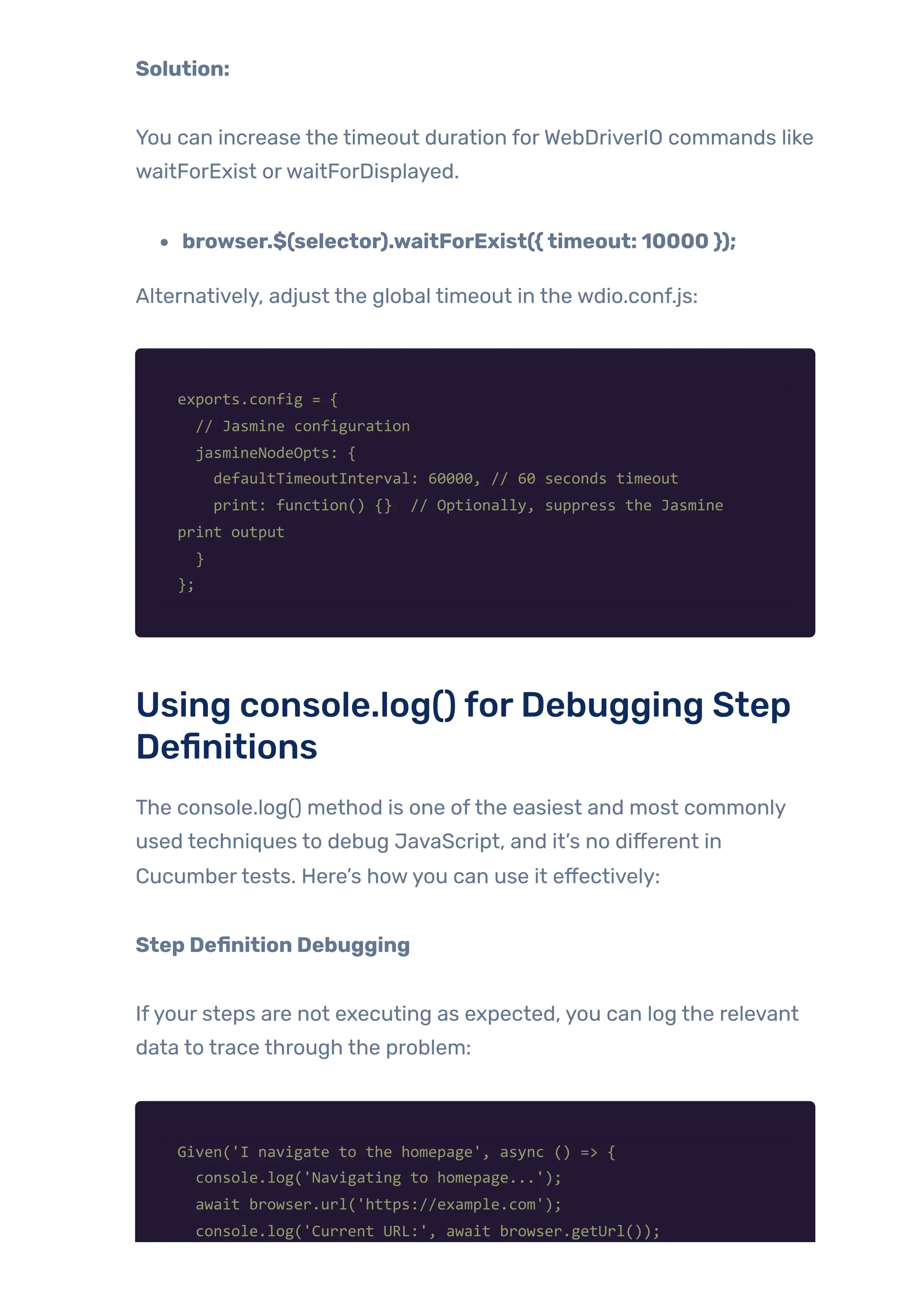
You can increase the timeout duration forWebDriverIO commands like
waitForExist orwaitForDisplayed.
browser.$(selector).waitForExist({timeout: 10000 });
Alternatively, adjust the global timeout in the wdio.conf.js:
exports.config = {
// Jasmine configuration
jasmineNodeOpts: {
defaultTimeoutInterval: 60000, // 60 seconds timeout
print: function() {} // Optionally, suppress the Jasmine
print output
}
};
Using console.log() forDebugging Step
Definitions
The console.log() method is one ofthe easiest and most commonly
used techniques to debug JavaScript, and it’s no different in
Cucumbertests. Here’s howyou can use it effectively:
Step Definition Debugging
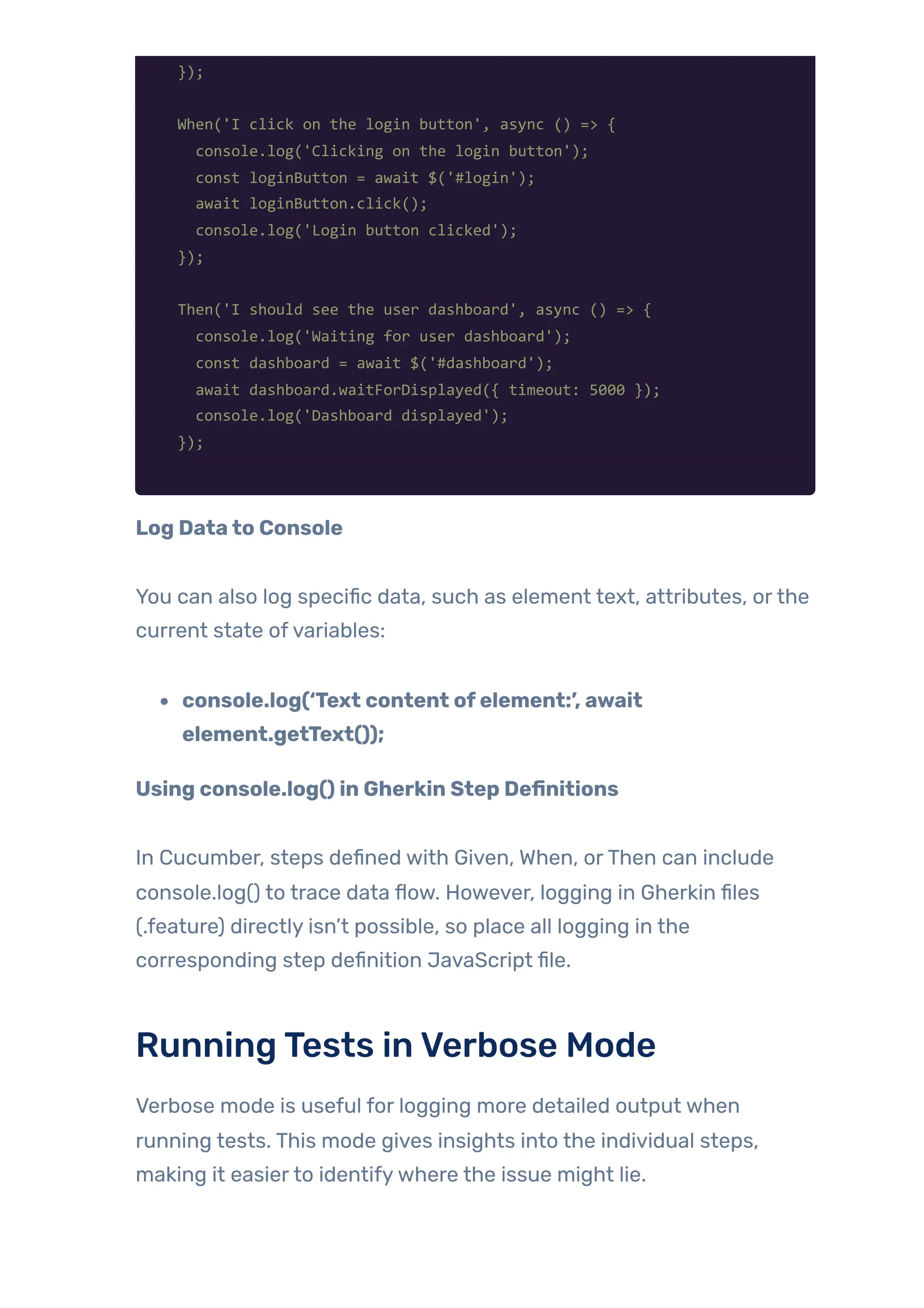
Ifyour steps are not executing as expected, you can log the relevant
data to trace through the problem:
Given('I navigate to the homepage', async () => {
console.log('Navigating to homepage...');
await browser.url('https://example.com');
console.log('Current URL:', await browser.getUrl());
});
When('I click on the login button', async () => {
console.log('Clicking on the login button');
const loginButton = await $('#login');
await loginButton.click();
console.log('Login button clicked');
});
Then('I should see the user dashboard', async () => {
console.log('Waiting for user dashboard');
const dashboard = await $('#dashboard');
await dashboard.waitForDisplayed({ timeout: 5000 });
console.log('Dashboard displayed');
});
Log Datato Console
You can also log specific data, such as element text, attributes, orthe
current state ofvariables:
console.log(‘Text content ofelement:’, await
element.getText());
Using console.log() in Gherkin Step Definitions
In Cucumber, steps defined with Given, When, orThen can include
console.log() to trace data flow. However, logging in Gherkin files
(.feature) directly isn’t possible, so place all logging in the
corresponding step definition JavaScript file.
RunningTests inVerbose Mode
Verbose mode is useful for logging more detailed output when
running tests. This mode gives insights into the individual steps,
making it easierto identifywhere the issue might lie.
Howto EnableVerbose ModeforWebDriverIO:
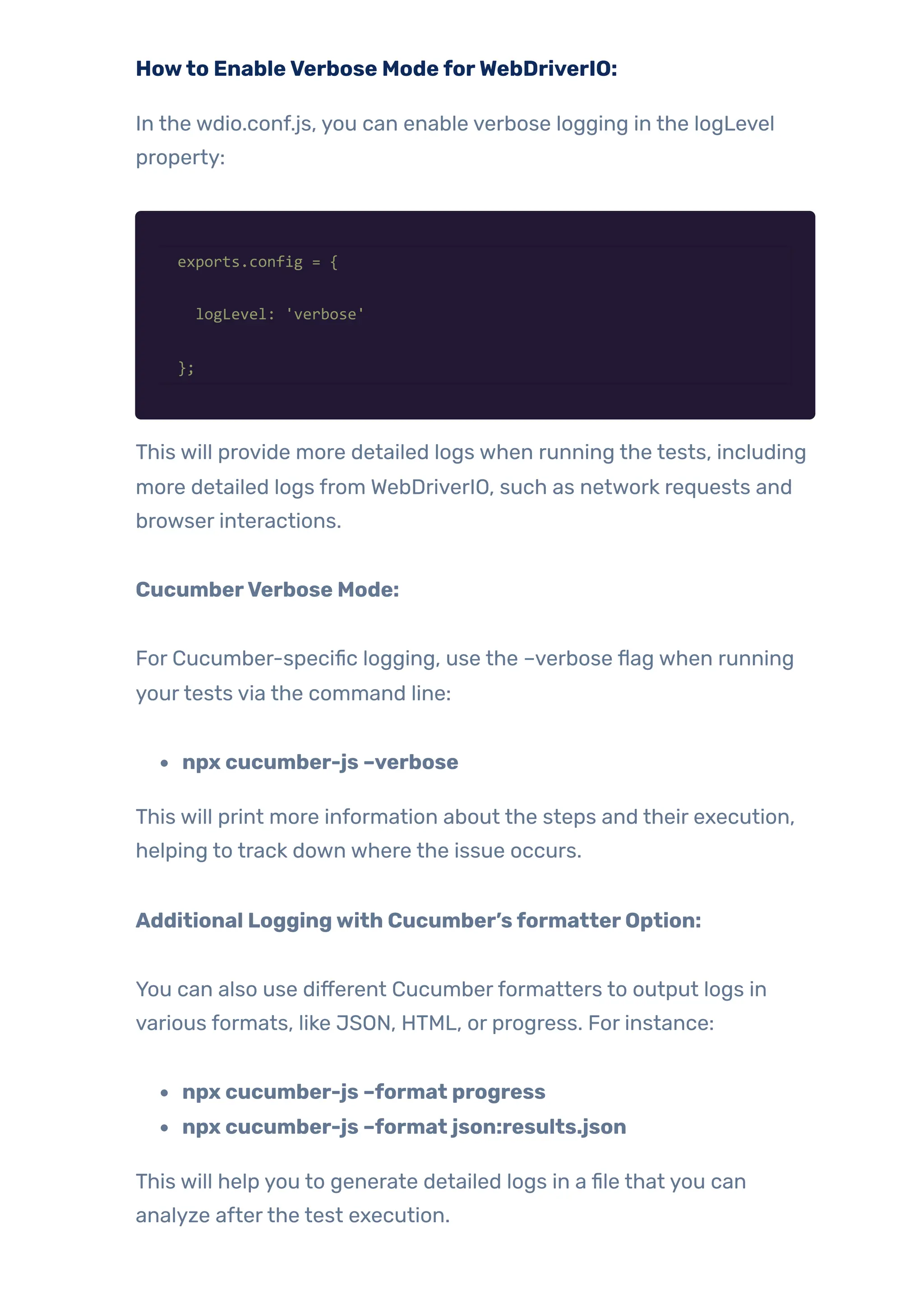
In the wdio.conf.js, you can enable verbose logging in the logLevel
property:
exports.config = {
logLevel: 'verbose'
};
This will provide more detailed logs when running the tests, including
more detailed logs from WebDriverIO, such as network requests and
browser interactions.
CucumberVerbose Mode:
For Cucumber-specific logging, use the –verbose flag when running
yourtests via the command line:
npx cucumber-js –verbose
This will print more information about the steps and their execution,
helping to track down where the issue occurs.
Additional Loggingwith Cucumber’sformatterOption:
You can also use different Cucumberformatters to output logs in
various formats, like JSON, HTML, or progress. For instance:
npx cucumber-js –format progress
npx cucumber-js –format json:results.json
This will help you to generate detailed logs in a file that you can
analyze afterthe test execution.
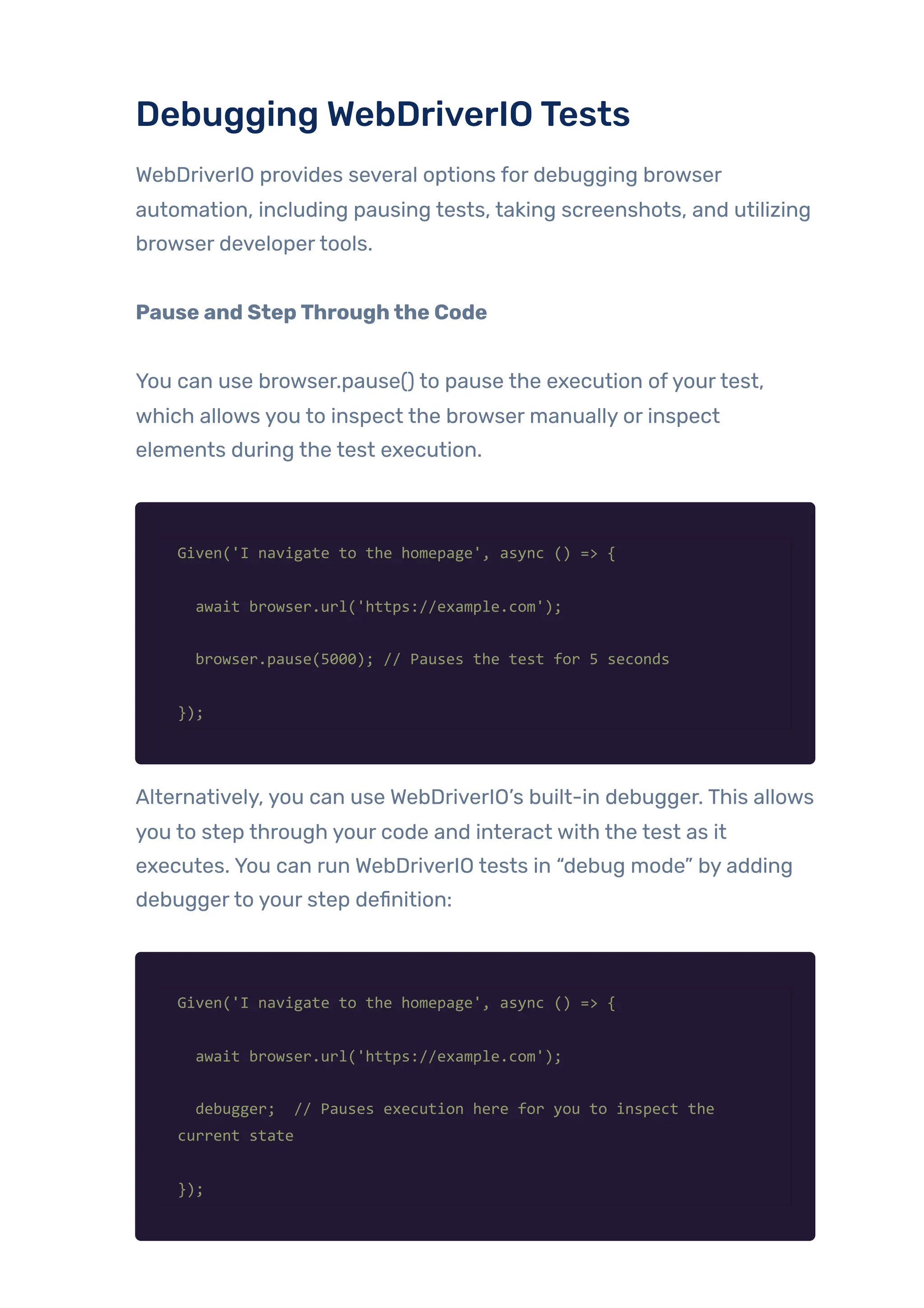
Debugging WebDriverIOTests
WebDriverIO provides several options for debugging browser
automation, including pausing tests, taking screenshots, and utilizing
browser developertools.
Pause and StepThroughthe Code
You can use browser.pause() to pause the execution ofyourtest,
which allows you to inspect the browser manually or inspect
elements during the test execution.
Given('I navigate to the homepage', async () => {
await browser.url('https://example.com');
browser.pause(5000); // Pauses the test for 5 seconds
});
Alternatively, you can use WebDriverIO’s built-in debugger. This allows
you to step through your code and interact with the test as it
executes. You can run WebDriverIO tests in “debug mode” by adding
debuggerto your step definition:
Given('I navigate to the homepage', async () => {
await browser.url('https://example.com');
debugger; // Pauses execution here for you to inspect the
current state
});
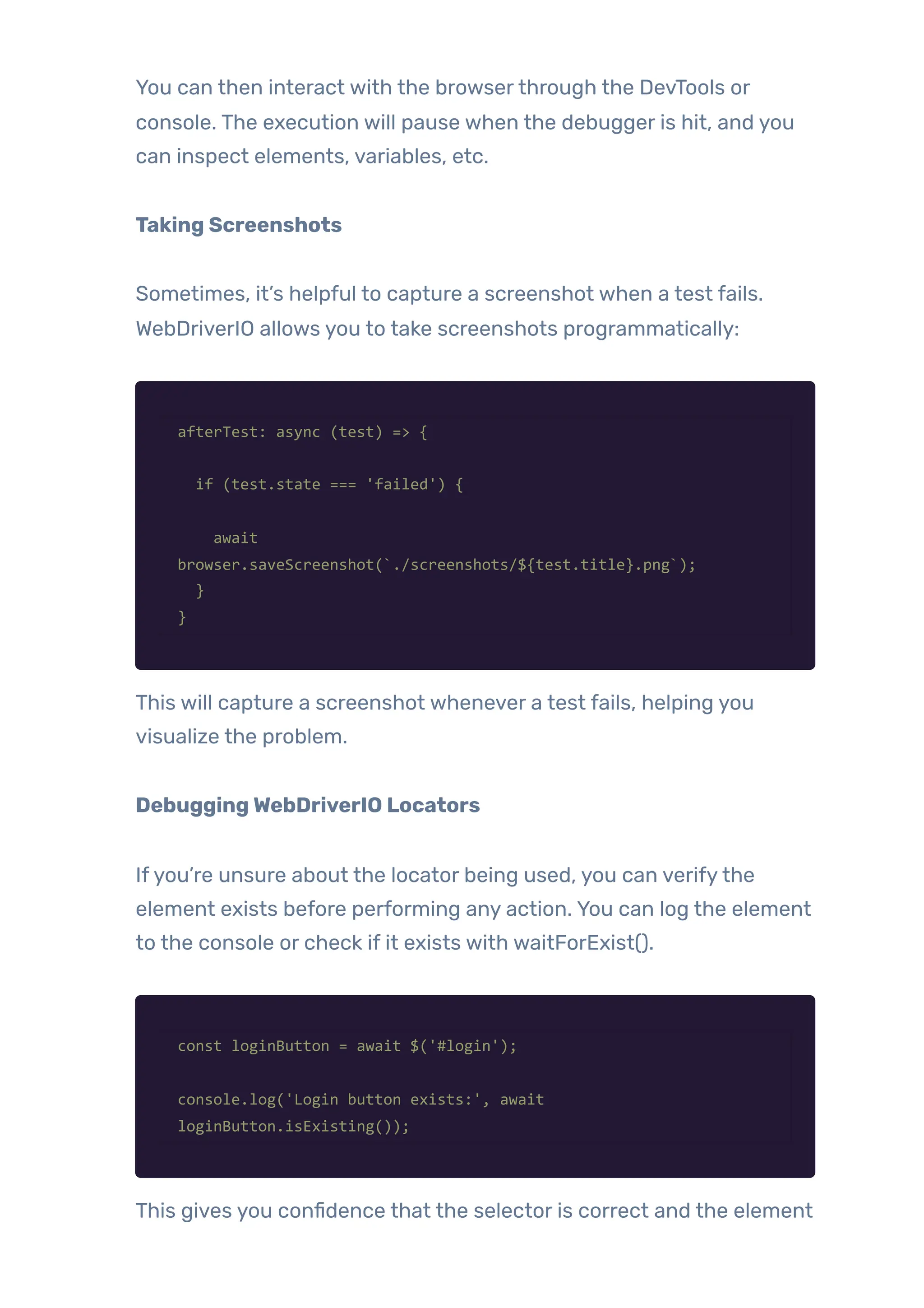
You can then interact with the browserthrough the DevTools or
console. The execution will pause when the debugger is hit, and you
can inspect elements, variables, etc.
Taking Screenshots
Sometimes, it’s helpful to capture a screenshot when a test fails.
WebDriverIO allows you to take screenshots programmatically:
afterTest: async (test) => {
if (test.state === 'failed') {
await
browser.saveScreenshot(`./screenshots/${test.title}.png`);
}
}
This will capture a screenshot whenever a test fails, helping you
visualize the problem.
DebuggingWebDriverIO Locators
Ifyou’re unsure about the locator being used, you can verifythe
element exists before performing any action. You can log the element
to the console or check if it exists with waitForExist().
const loginButton = await $('#login');
console.log('Login button exists:', await
loginButton.isExisting());
This gives you confidence that the selector is correct and the element
is accessible.
Advanced CucumberFeatures
Cucumber is a powerful tool for behavior-driven development (BDD),
and in JavaScript, it is commonly used with the cucumber package.
Below is a deep dive into the advanced Cucumberfeatures you
mentioned, with examples for each one using JavaScript and the
Cucumberframework.
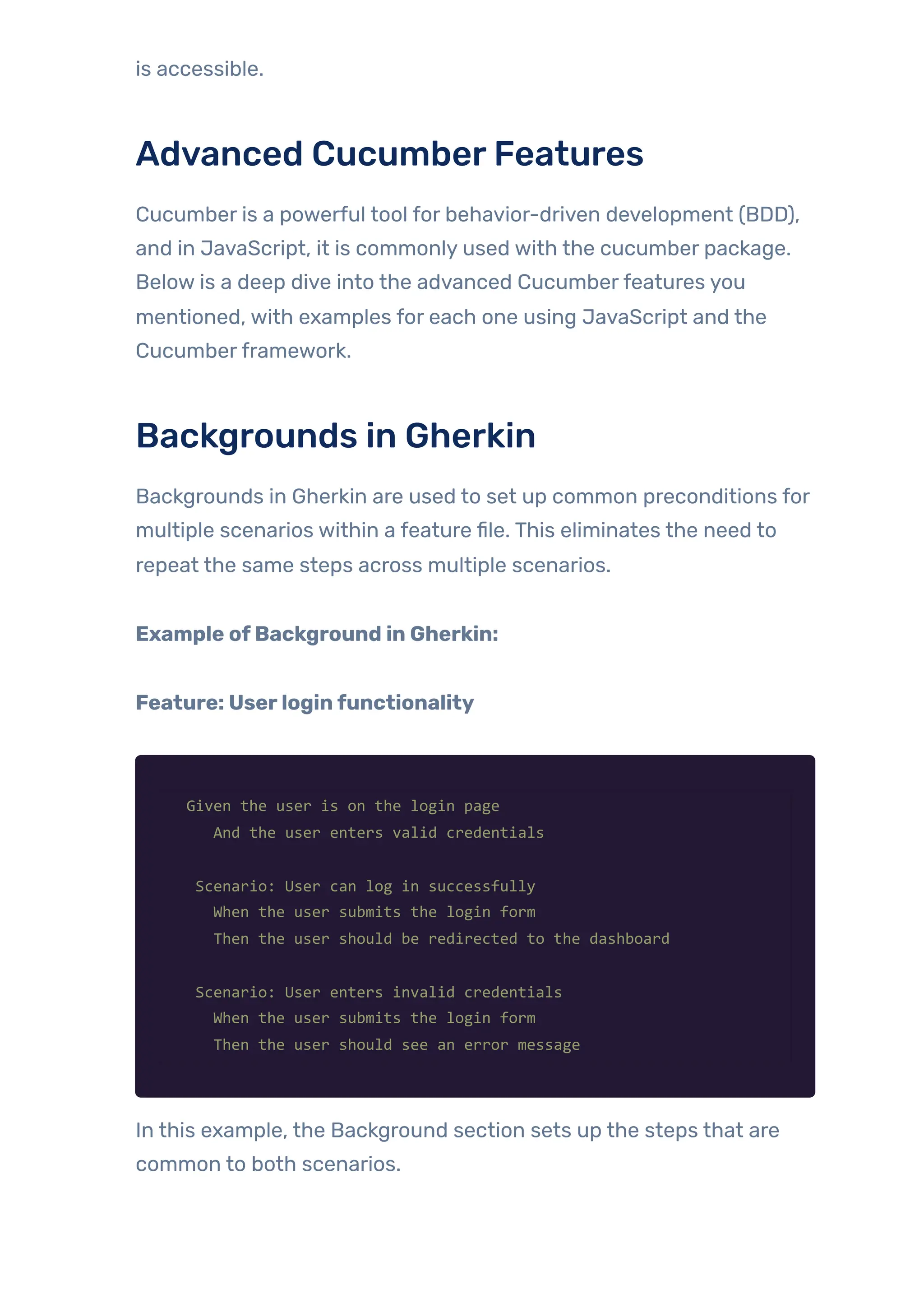
Backgrounds in Gherkin
Backgrounds in Gherkin are used to set up common preconditions for
multiple scenarios within a feature file. This eliminates the need to
repeat the same steps across multiple scenarios.
Example ofBackground in Gherkin:
Feature: Userloginfunctionality
Given the user is on the login page
And the user enters valid credentials
Scenario: User can log in successfully
When the user submits the login form
Then the user should be redirected to the dashboard
Scenario: User enters invalid credentials
When the user submits the login form
Then the user should see an error message
In this example, the Background section sets up the steps that are
common to both scenarios.
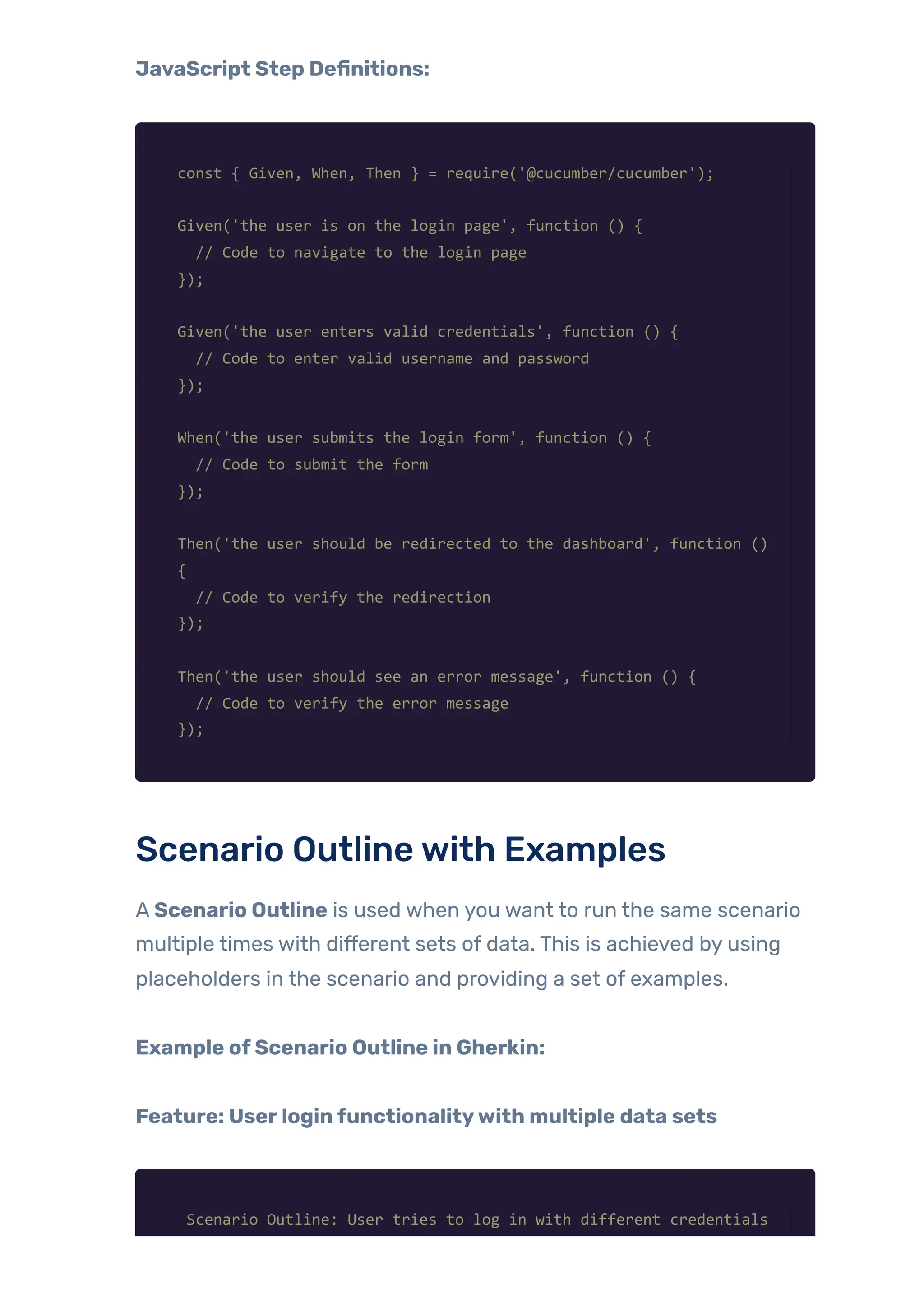
JavaScript Step Definitions:
const { Given, When, Then } = require('@cucumber/cucumber');
Given('the user is on the login page', function () {
// Code to navigate to the login page
});
Given('the user enters valid credentials', function () {
// Code to enter valid username and password
});
When('the user submits the login form', function () {
// Code to submit the form
});
Then('the user should be redirected to the dashboard', function ()
{
// Code to verify the redirection
});
Then('the user should see an error message', function () {
// Code to verify the error message
});
Scenario Outlinewith Examples
A Scenario Outline is used when you want to run the same scenario
multiple times with different sets of data. This is achieved by using
placeholders in the scenario and providing a set of examples.
Example ofScenario Outline in Gherkin:
Feature: Userloginfunctionalitywith multiple data sets
Scenario Outline: User tries to log in with different credentials
Given the user is on the login page
When the user enters "<username>" and "<password>"
Then the user should see "<message>"
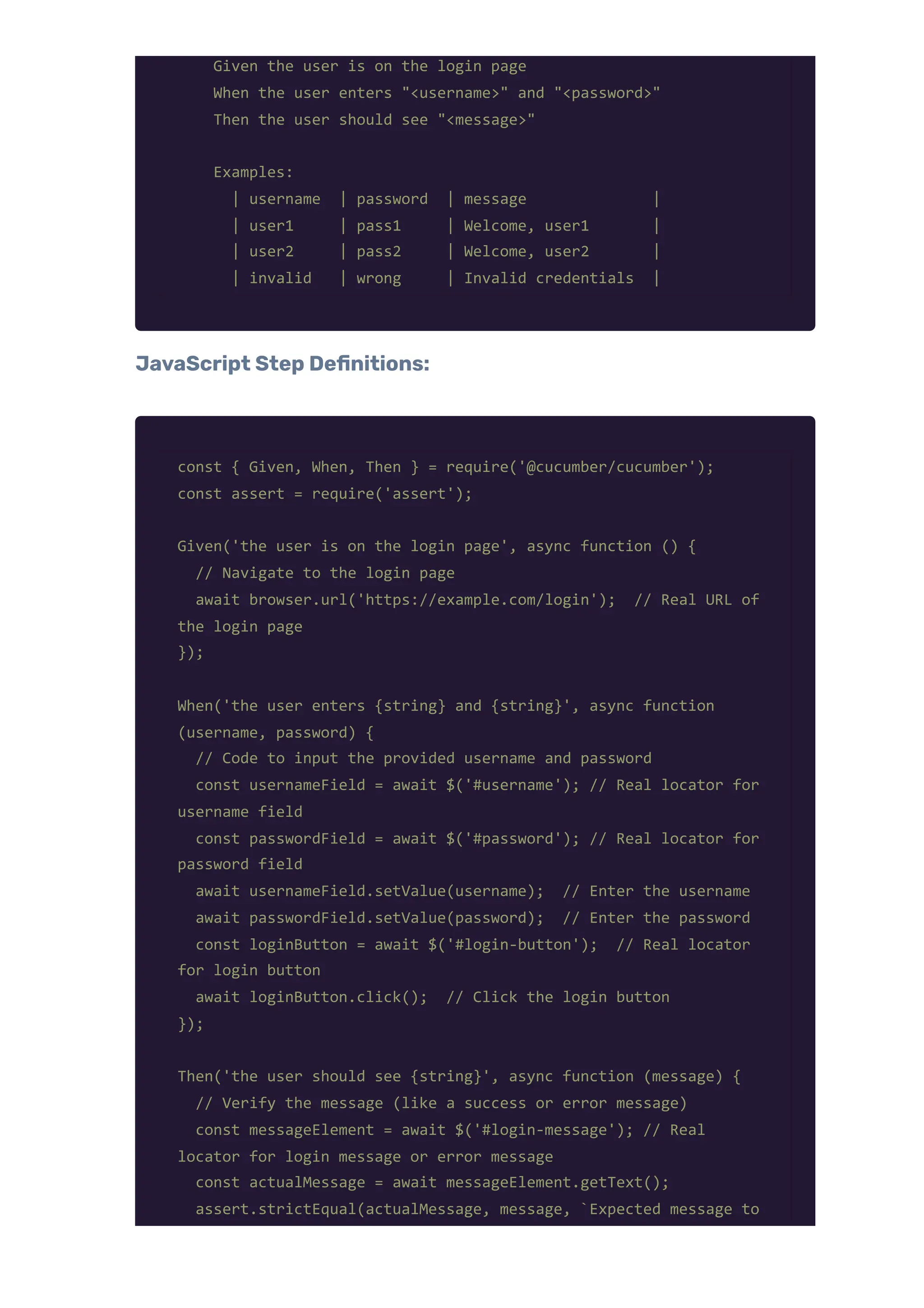
Examples:
| username | password | message |
| user1 | pass1 | Welcome, user1 |
| user2 | pass2 | Welcome, user2 |
| invalid | wrong | Invalid credentials |
JavaScript Step Definitions:
const { Given, When, Then } = require('@cucumber/cucumber');
const assert = require('assert');
Given('the user is on the login page', async function () {
// Navigate to the login page
await browser.url('https://example.com/login'); // Real URL of
the login page
});
When('the user enters {string} and {string}', async function
(username, password) {
// Code to input the provided username and password
const usernameField = await $('#username'); // Real locator for
username field
const passwordField = await $('#password'); // Real locator for
password field
await usernameField.setValue(username); // Enter the username
await passwordField.setValue(password); // Enter the password
const loginButton = await $('#login-button'); // Real locator
for login button
await loginButton.click(); // Click the login button
});
Then('the user should see {string}', async function (message) {
// Verify the message (like a success or error message)
const messageElement = await $('#login-message'); // Real
locator for login message or error message
const actualMessage = await messageElement.getText();
assert.strictEqual(actualMessage, message, `Expected message to
be "${message}" but got "${actualMessage}"`);
});
Reusable Step Libraries
Reusable step libraries allowyou to abstract common steps into
functions, making yourtests more maintainable. This is done by
separating step definitions into different files or modules.
Reusable Step Definitions Example:
You can create a loginSteps.js module for reusable login steps.
// loginSteps.js
const { Given, When, Then } = require('@cucumber/cucumber');
Given('the user enters valid credentials', async function () {
this.username = 'validUser';
this.password = 'validPassword';
const usernameField = await $('#username');
const passwordField = await $('#password');
await usernameField.setValue(this.username);
await passwordField.setValue(this.password);
});
When('the user submits the login form', async function () {
const loginButton = await $('button[type="submit"]');
await loginButton.click();
});
Then('the user should see the dashboard', async function () {
const currentUrl = await browser.getUrl();
const dashboardUrl = 'https://example.com/dashboard';
if (!currentUrl.includes(dashboardUrl)) {
throw new Error(`Expected to be on the dashboard, but was on
${currentUrl}`);
}
const dashboardElement = await $('#dashboard-welcome');
const isDisplayed = await dashboardElement.isDisplayed();
if (!isDisplayed) {
throw new Error('Dashboard element not found.');
}
});
Then, you can import and use this in otherfeature files.
// anotherFeatureSteps.js
const loginSteps = require('./loginSteps');
loginSteps();
ParallelTest Execution
Cucumber allows you to execute tests in parallel to speed up the
execution. This is usually done by using a test runner like
Cucumber.js with tools like CucumberParallel.
Example ConfigurationforParallel Execution:
To enable parallel execution, you need to configure yourtest runner
(e.g., using Cucumber.js with Mocha or Jest):
Installthe necessarypackages:
npm install @cucumber/cucumber cucumber-parallel
Configureyourcucumber.jsonforparallel execution:
{
"default": {
"format": ["json:reports/cucumber_report.json"],
"parallel": true
}
}
Runyourtests in parallel:
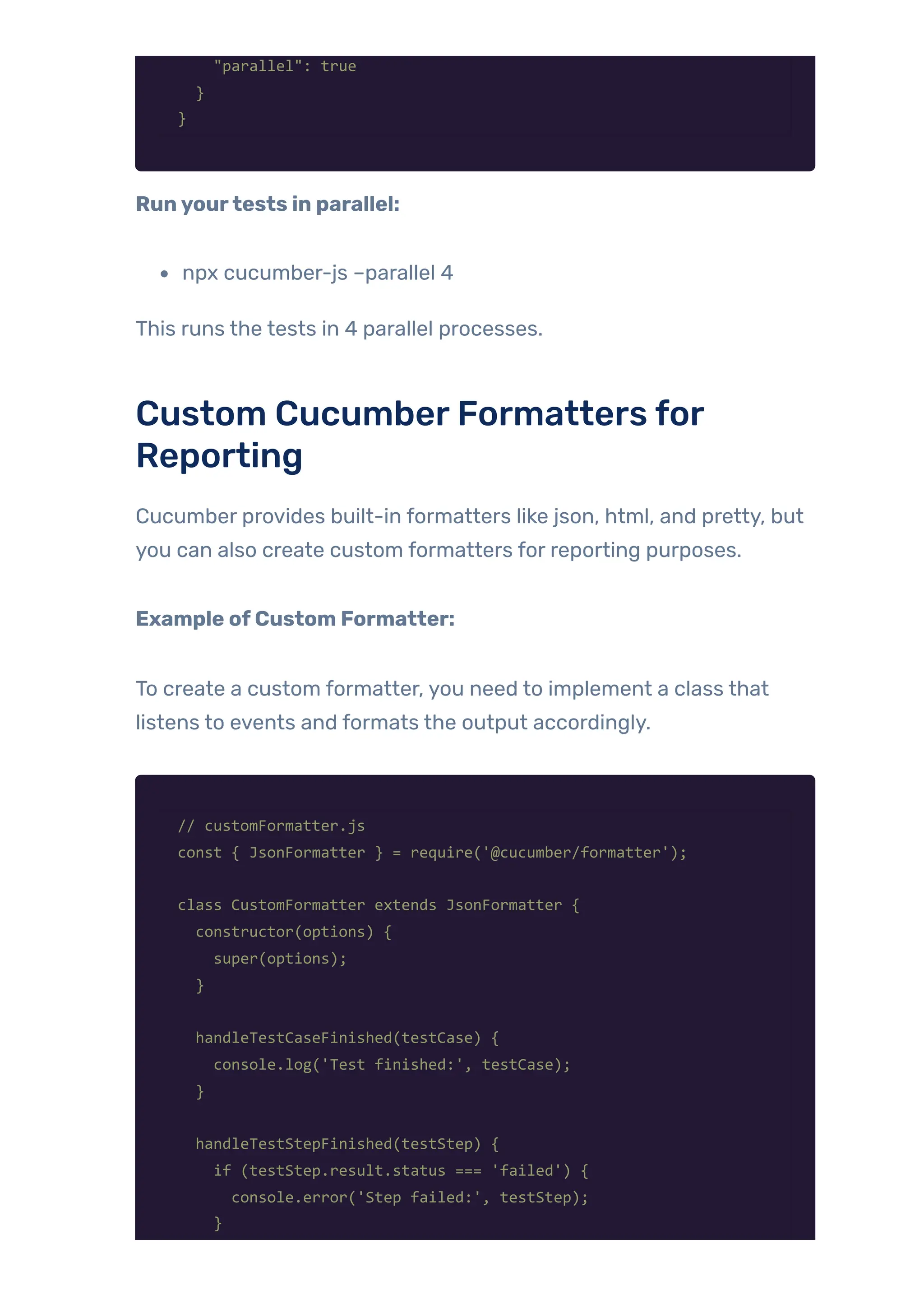
npx cucumber-js –parallel 4
This runs the tests in 4 parallel processes.
Custom CucumberFormatters for
Reporting
Cucumber provides built-in formatters like json, html, and pretty, but
you can also create custom formatters for reporting purposes.
Example ofCustom Formatter:
To create a custom formatter, you need to implement a class that
listens to events and formats the output accordingly.
// customFormatter.js
const { JsonFormatter } = require('@cucumber/formatter');
class CustomFormatter extends JsonFormatter {
constructor(options) {
super(options);
}
handleTestCaseFinished(testCase) {
console.log('Test finished:', testCase);
}
handleTestStepFinished(testStep) {
if (testStep.result.status === 'failed') {
console.error('Step failed:', testStep);
}
}
}
module.exports = CustomFormatter;
Then, in the cucumber.json, you can specifythe custom formatter.
{
"format": ["node_modules/customFormatter.js"]
}
This will use your custom formatterto process test results and
generate the output you desire.
Continuous Integration using Cucumber
Cucumbertests can also be integrated into a CI pipeline in orderto
automate running and ensure that the software being under
development is reliable at different stages ofthe development
process. Continuous Integration pipelines, setup with Jenkins, GitHub
Actions, or GitLab CI, helps automate Cucumbertests and produces
reports and aids in cooperation and collaboration among developers
and QAteams.
Setting Up CI Pipelines
CI pipelines, such as those provided by Jenkins, GitHub Actions, or
GitLab CI, automate the execution oftasks like code compilation,
testing, and deployment. To include Cucumber in a CI pipeline:
1. Install NecessaryDependencies: Ensure the CI environment
has all dependencies required to run your Cucumbertests (e.g.,
Node.js, Java, or Ruby).
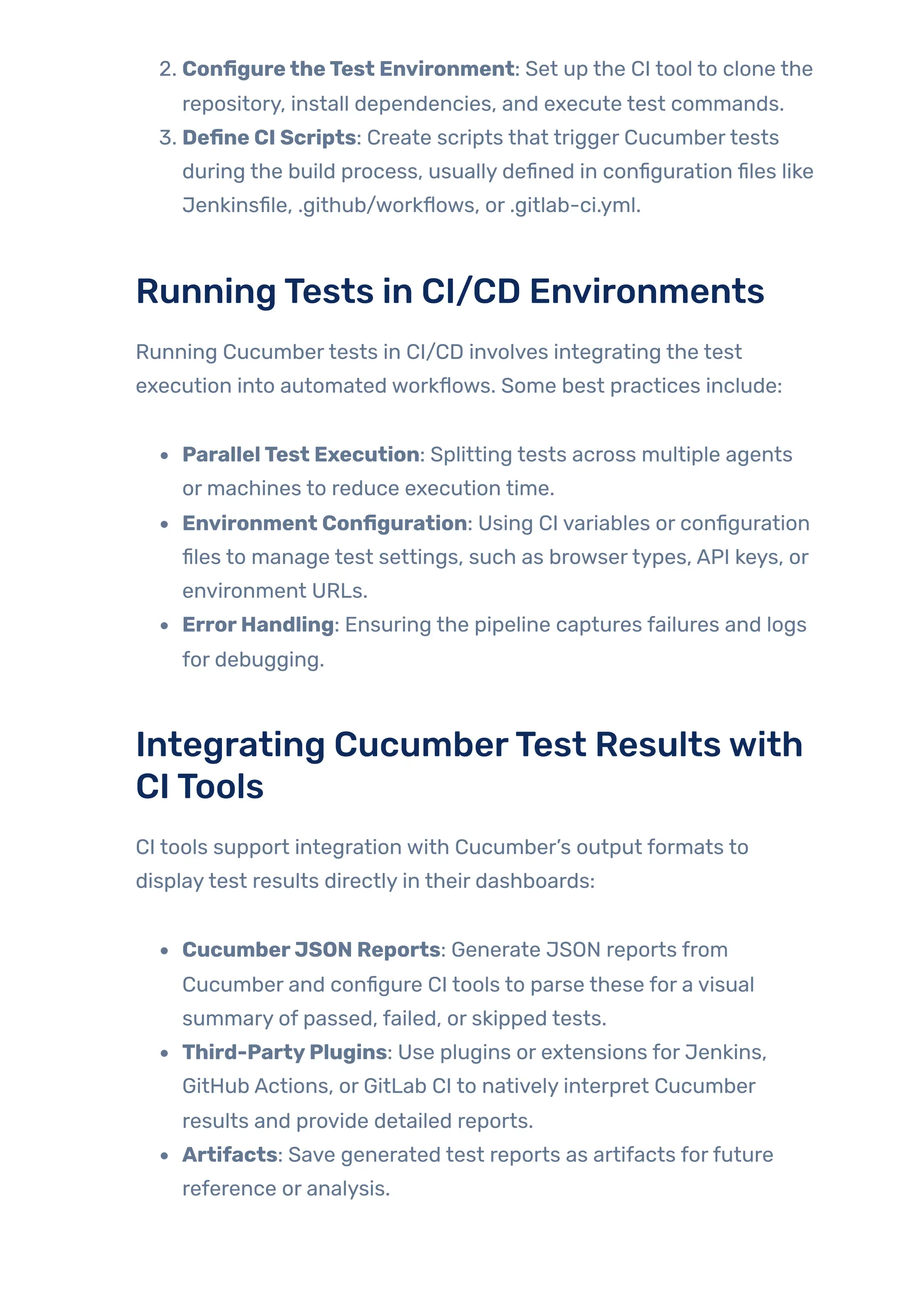
2. ConfiguretheTest Environment: Set up the CI tool to clone the
repository, install dependencies, and execute test commands.
3. Define CI Scripts: Create scripts that trigger Cucumbertests
during the build process, usually defined in configuration files like
Jenkinsfile, .github/workflows, or .gitlab-ci.yml.
RunningTests in CI/CD Environments
Running Cucumbertests in CI/CD involves integrating the test
execution into automated workflows. Some best practices include:
ParallelTest Execution: Splitting tests across multiple agents
or machines to reduce execution time.
Environment Configuration: Using CI variables or configuration
files to manage test settings, such as browsertypes, API keys, or
environment URLs.
ErrorHandling: Ensuring the pipeline captures failures and logs
for debugging.
Integrating CucumberTest Resultswith
CITools
CI tools support integration with Cucumber’s output formats to
displaytest results directly in their dashboards:
CucumberJSON Reports: Generate JSON reports from
Cucumber and configure CI tools to parse these for a visual
summary of passed, failed, or skipped tests.
Third-PartyPlugins: Use plugins or extensions for Jenkins,
GitHub Actions, or GitLab CI to natively interpret Cucumber
results and provide detailed reports.
Artifacts: Save generated test reports as artifacts forfuture
reference or analysis.
Generating and Interpreting Cucumber
Reports
Cucumber provides multiple reporting options, such as JSON, HTML,
and JUnit XMLformats. These reports can be:
Generated Post-Test Execution: By configuring Cucumber
options to output reports in the desired format.
Analyzed in CI Dashboards: With built-in or custom parsers, CI
tools can display detailed metrics like feature and scenario pass
rates, durations, and failure reasons.
UsedforTrendAnalysis: Reports from multiple builds can be
compared to identifytest coverage trends or recurring issues.
By integrating Cucumberwith CI, teams can enhance their
automation processes, ensuring reliable and efficient testing
workflows.
Staytuned! Our upcoming blog on Continuous Integration will be
published soon with all the details.
CucumberReporting andTest Results
Cucumber provides several ways to generate reports foryourtests,
ranging from built-in reporters to third-party integrations. Here’s how
to use these reporting features in Cucumber.js, generate various
types of reports (JSON, HTML), and integrate with tools like Allure
and CucumberHTMLReporter to visualize test results.
Using Built-in Reporters in Cucumber.js
Cucumber.js includes a number of built-in reporters that allow
outputting test results in different formats. Such reporters can
provide valuable information about the process of running tests.
Among the most widely used built-in reporters are:
Progress Reporter: A simple progress log is presented,
indicating passed, failed, or skipped scenarios.
JSON Reporter: Test results are outputted in JSON format,
which allows further processing and integration with othertools.
SummaryReporter: Provides a high-level summary ofthe test
run, including the number offeatures, scenarios, and steps
executed.
Generating JSON, HTML, and Other
Reports
Cucumber allows you to generate reports in various formats, each
serving a different purpose:
JSON Reports: This format provides machine-readable test
results, ideal for integration with CI/CD tools orfurther analysis
by other services.
HTMLReports: These are human-readable reports that carry
summarytest results with the help of a non-technical viewer.
Cucumber does not natively support HTML report generation;
however, JSON outputs can be used and transformed into an
HTML-based output with the help of external tools.
JUnit XMLReports: This is commonly used within CI systems
like Jenkins due to the organized result ofthe tests. They are
also easyto parse, thus visualizing.
IntegrationwithThird-partyReporting
Tools (Allure, CucumberHTMLReporter)
To add extra reporting features, one can make use ofthird-party
reporting tools, Allure and Cucumber HTML Reporter.
Allure: This is a strong reporting framework that improves
Cucumber output. Allure gives more interactive and graphically
enhanced reports and allows the generation of more detailed
visualizations and trend analysis.
CucumberHTMLReporter: This tool converts the JSON output
of Cucumber into a fully-featured, interactive HTML report. It
provides a clean, structured view ofthe test results, making it
easierfor stakeholders to interpret the outcomes.
VisualizingTest Results
This makes visualization ofthe test results really essential for
understanding how a test has performed and what the quality ofthe
software is. It shows trends like pass/fail ratios, test durations, and
where it needs more attention. Allure and Cucumber HTML Reporter
allow charts, graphs, and step-by-step breakdowns to let teams
easily knowwhere they can optimize and make decisions.
To know more, keep watching for our new blog on reports soon!.
Conclusion
Integrating JavaScript and Cucumber gives a powerful Behavior-
Driven Development (BDD) framework, making it possible to write
clear, readable, and maintainable tests. An important benefit of using
Cucumber is that it bridges technical and non-technical stakeholder
gaps by using a Gherkin syntax: simple to understand and supporting
collaboration. The flexibility of JavaScript in integration ensures that
Cucumber can be used effectively in very diverse development
environments.
QA can access a suite oftools that can better automate test practices
when adopting Cucumberwith JavaScript. This means writing
feature files and defining test steps, handling asynchronous actions
with async/await, and all that JavaScript does to amplifythe power of
Cucumber in real-world applications. This is easyto develop tests
that are not onlyfunctional but scalable and maintainable to ensure
long-term success in continuous integration and delivery pipelines.
In addition, JavaScript’s integration with WebDriverIO provides robust
testing forweb applications, ensuring that users can interact with
web elements as expected and verifying their behavior. By utilizing
features like data-driven testing, reusable step definitions, and
modularized test suites, QA professionals can ensure comprehensive
test coverage while maintaining clear and simple test scripts. Tags,
hooks, and advanced reporting tools further enhance the flexibility
and effectiveness oftests when using Cucumber.
In conclusion, JavaScript and Cucumber offer a range of benefits for
QAteams, promoting efficient, collaborative, and scalable test
automation. This integration allows forthe creation of behavior-
driven tests that accurately reflect user interactions and
expectations. Additionally, it provides tools for easy debugging,
maintenance, and optimization ofthe test suite, enabling teams to
maintain high-quality software and deliver a seamless user
experience across all platforms.
Witness howourmeticulous approach and cutting-edge
solutions elevated qualityand performanceto newheights.
Beginyourjourneyintotheworld ofsoftwaretesting excellence.
To knowmore refertoTools &Technologies & QAServices.
Ifyouwould liketo learn more aboutthe awesome serviceswe
provide, be sureto reach out.
HappyTesting 🙂

Advanced Test Automation: WDIO with BDD Cucumber

  • 1.
    In today’s fastdevelopment environment, effective communication among developers, testers, and stakeholders is the need ofthe hour. Cucumber BDD in JavaScript, by bridging the technical and non- technical team members, provides a powerful solution forthe same. Writing tests in a natural, human-readable language helps everyone understand the behavior ofthe application from a business perspective. We’ll talk in this blog about implementing CucumberBDD in JavaScript and help you write clean, understandable test cases that reflect real-life user behavior. This would help set up your environment from scratch, creating feature files and executing them to incorporate BDD into yourworkflow on test automation using JavaScript. Get readyto learn how Cucumber BDD in JavaScript can TESTAUTOMATION WEBDRIVERIO AND CUCUMBER BDD IN JAVASCRIPT MasteringAdvancedBDDAutomationwith WebdriverIO,JavaScript,andCucumber • BY QATEAM
  • 2.
    improve collaboration, increasetest coverage, and make yourtesting process more efficient! Table ofContent Behavior-Driven Development (BDD) and Cucumberwith JavaScript How JavaScript Integrates with Cucumber? Why Use Cucumberwith JavaScript? Writing Your First Cucumber Feature File Example of a Simple Feature File Understanding Feature File Structure Connecting Cucumberwith JavaScript Creating Step Definitions in JavaScript Step Definitions Structure: Example: Step Definitions File (steps.js) Mapping Gherkin Steps to JavaScript Functions Regular Expressions and Cucumber Steps Using async/await forAsynchronous Actions in Step Definitions Example ofAsynchronous Step Definitions Step Definitions Syntax Writing Test Steps with WebDriverIO + Cucumber Interacting with Web Elements (Click, Set Value, Assert Text) Navigating to Different Pages Waiting for Elements (timeouts, waits) Handling Dynamic Content (Waiting for Changes) Using CucumberTags and Hooks What are CucumberTags? Applying Tags to Features and Scenarios Running Tests Based on Tags Cucumber Hooks
  • 3.
    Executing Code Before/AfterTestsor Scenarios Benefits of Using Hooks and Tags Data-Driven Testing with Cucumber Using Examples in Gherkin How It Works: Passing Data from the Feature File to Step Definitions Step Definition forthe Scenario Parameterized Tests and Looping Through Examples Working with Tables in Gherkin Assertions and Validations in Cucumber Using WebDriverIO Assertions Common WebDriverIO Assertions Custom Assertions in Step Definitions Handling Validation Errors Using Assertions to Verify UI and Functionality Best Practices forAssertions and Validations in Cucumber Organizing Tests with Cucumber Creating Reusable Step Definitions Modularizing Feature Files Using Page Object Model (POM) with Cucumber Grouping Scenarios and Features Best Practices for Maintaining Tests Debugging CucumberTests in JavaScript Common Issues and Errors in Cucumber Using console.log() for Debugging Step Definitions Running Tests in Verbose Mode Howto Enable Verbose Mode forWebDriverIO: Debugging WebDriverIO Tests Advanced Cucumber Features Backgrounds in Gherkin Scenario Outline with Examples Reusable Step Libraries Parallel Test Execution Custom Cucumber Formatters for Reporting
  • 4.
    Continuous Integration usingCucumber Setting Up CI Pipelines Running Tests in CI/CD Environments Integrating CucumberTest Results with CI Tools Generating and Interpreting Cucumber Reports Cucumber Reporting and Test Results Using Built-in Reporters in Cucumber.js Generating JSON, HTML, and Other Reports Integration with Third-party Reporting Tools (Allure, Cucumber HTML Reporter) Visualizing Test Results Conclusion Behavior-Driven Development (BDD) and Cucumberwith JavaScript For Overview of Behavior-Driven Development (BDD) ,Cucumber Basics and Setting Up the Environment You can refer our blog CucumberBDD in JavaScript HowJavaScript Integrateswith Cucumber? JavaScript is another language that can be used in writing Cucumber tests, giving JavaScript developers a chance to utilize the capability of BDD offered by Cucumber. Cucumber-JS is one implementation of Cucumber in the JavaScript environment where one maywrite, run, and manage BDD tests. Basic Steps to Integrate JavaScript with Cucumber Writing Features in Gherkin: In the first step, the feature files are written with Gherkin syntax. The behavior ofthe system is
  • 5.
    described in plainEnglish (or another natural language). Step Definitions: Once a feature is written, JavaScript step definitions are developed to map Gherkin steps to actual JavaScript code implementing the actions. For example, given that a feature had the following step: Given I am on the homepage, this would have corresponding JavaScript in the step definition file that implements action to get to the home page. RunningtheTests: Once Gherkin features and JavaScript step definitions are created, Cucumber-JS executes the tests by running a scenario in the feature file and then matching those up with the corresponding step definition in JavaScript. Assertions: Finally, the step definitions validate their expected behavior using JavaScript assertions – usuallywith libraries such as Chai or Jest. Here’s an example of how Cucumber integrates with JavaScript. Feature File (login.feature): Feature: User login functionality Scenario: User logs in successfully Given I navigate to the login page When I enter valid credentials Then I should see the dashboard page Step Definitions (loginSteps.js): const { Given, When, Then } = require('@cucumber/cucumber'); const { expect } = require('chai'); const { navigateToLoginPage, enterCredentials, seeDashboard } = require('./helpers'); Given('I navigate to the login page', async function() { await navigateToLoginPage(); });
  • 6.
    When('I enter validcredentials', async function() { await enterCredentials('user@example.com', 'password123'); }); Then('I should see the dashboard page', async function() { const dashboardVisible = await seeDashboard(); expect(dashboardVisible).to.be.true; }); In this example: Gherkin defines the behavior in a human-readable format. JavaScript provides the actual test steps in loginSteps.js, where the step definitions map to functions that interact with the application. Chai assertions are used to verifythat the test behaves as expected. WhyUse Cucumberwith JavaScript? Seamless IntegrationwithWeb and MobileTesting Frameworks: JavaScript is the language of choice forweb applications testing with Selenium, WebDriverIO, or Cypress. For mobile applications testing, Appium supports the language as well. So, the combination of Cucumberwith JavaScript lets teams leverage the strength of BDD and the flexibility ofthe chosen testing frameworks to easilywrite, maintain, and execute acceptance tests. Bywritingtests in Gherkin: you are actually creating readable and maintainable specifications foryour system’s behavior. This will make sure that anyone can understand the business requirements irrespective oftheirtechnical expertise and then verifythat the application really meets them. UnifiedTestingApproach: Cucumber-JS helps in unifying your testing approach by allowing frontend JavaScript-based tests
  • 7.
    and backend Node.jstesting in one language, thus eliminating the context-switching between different languages and tools. Collaboration among Stakeholders: Another strength of Cucumber is that it engages business analysts, testers, and developers in testing. Gherkin language makes writing tests quite easy, and therefore involving stakeholders in the development process ensures that the software does exactly what is expected of it by business stakeholders. Cross-PlatformTesting: Since Cucumber is a platform- agnostic tool, it can be used in conjunction with various testing frameworks forweb applications (Selenium, Cypress) and mobile applications (Appium). WritingYourFirst CucumberFeature File This tool supports BDD and writes tests in plain language for its users to read and be clearly understood both bytechnical as well as non- technical stakeholders. Cucumbertest code is in Gherkin, the language which will describe test cases in specific syntax in the.feature file format. This guide walks through the process of creating yourfirst Cucumber feature file. You will see howto start with a basic example with Given, When, and Then steps as well as howto write tests in Gherkin. Creating.feature Files Afeature file is a very simple text file with a `.feature` extension containing yourtest written in Gherkin syntax. The feature file describes a feature – typically a high-level description ofthe functionality – and all the scenarios that would point out howthe feature should behave. Here’s howto structure the .feature file:
  • 8.
    1. Feature: Describesthe feature being tested. 2. Scenario: Describes a specific situation or behaviorwithin that feature. 3. Given: A precondition or setup forthe test. 4. When: The action that takes place. 5. Then: The expected outcome or result. 6. And/But: Used to extend Given, When, and Then steps with more conditions. Example ofa Simple Feature File Feature: User Login Scenario: User logs in with correct credentials Given the user is on the login page When the user enters a valid username and password Then the user should be redirected to the homepage This feature file is written in Gherkin syntax and describes the behavior of a user logging into a website with valid credentials. Scenariowith Given,When,Then Steps Let’s break down the structure of a Gherkin scenario: Given: This step sets up the initial state ofthe system. It describes the conditions before the user performs any action. Example: “Given the user is on the login page” When: This step describes the action the user performs. It defines what happens in response to the user’s actions. Example: “When the user enters a valid username and password”
  • 9.
    Then: This stepdescribes the expected outcome or result ofthe action. It specifies what the system should do afterthe action is performed. Example: “Then the user should be redirected to the homepage” You can also use And and But to group multiple conditions together within a single step: Scenario: User logs in with incorrect credentials Given the user is on the login page When the user enters an invalid username And the user enters an invalid password Then the user should see an error message In this example, And is used to add more steps in the “When” and “Then” sections. Understanding Feature File Structure Atypical feature file structure consists of several key components: Feature: The name ofthe feature you’re testing. This can be followed by a short description ofthe feature. Example: Feature: User Login and then a brief description of what this feature entails. Scenario: Each scenario represents a specific test case or use case. This is the “test” part ofthe BDD scenario. It provides specific examples of howthe feature should work.
  • 10.
    Steps: Steps aredefined using the keywords Given, When, Then, And, and But, and explain the behavior ofwhat is happening, or should happen. Here’s an extended example with multiple scenarios and steps: Feature: User Login # Scenario 1: Successful login Scenario: User logs in with correct credentials Given the user is on the login page When the user enters a valid username and password Then the user should be redirected to the homepage # Scenario 2: Unsuccessful login with incorrect password Scenario: User logs in with incorrect password Given the user is on the login page When the user enters a valid username and an incorrect password Then the user should see an error message # Scenario 3: Login with empty fields Scenario: User submits the form with empty fields Given the user is on the login page When the user leaves the username and password fields empty Then the user should see a validation message Connecting Cucumberwith JavaScript You can write your automated acceptance tests in an almost human- readable format when using Gherkin for expressing Cucumber. In this regard, you would typically pairthese tests with JavaScript’s step definitions to run those tests in JavaScript.. In this section, we will
  • 11.
    walk through howtoconnect Cucumber with JavaScript, create step definitions, map Gherkin steps to JavaScript functions, and handle asynchronous actions using async/await. Creating Step Definitions in JavaScript Step definitions are JavaScript functions that are linked to the steps in your Gherkin scenarios. When a scenario step is executed, Cucumberwill call the corresponding JavaScript function in your step definition files. Step Definitions Structure: Given: Sets up the initial state. When: Describes the action or behavior. Then: Specifies the expected outcome. Example: Step Definitions File (steps.js) steps.js File: const { Given, When, Then } = require('@cucumber/cucumber'); const { browser } = require('webdriverio'); // Assuming you're using WebDriverIO for automation // Mapping the "Given" step in the Gherkin file to this JavaScript function Given('the user is on the login page', async function () { // Navigate to the login page (replace with your actual login page URL) await browser.url('https://example.com/login'); console.log('Navigating to the login page...'); }); // Mapping the "When" step in the Gherkin file to this JavaScript function When('the user enters a valid username and password', async
  • 12.
    function () { //Replace these with your actual locators for the username and password fields const usernameField = await $('#username'); // CSS selector for username input field const passwordField = await $('#password'); // CSS selector for password input field // Replace with valid credentials const validUsername = 'testuser'; const validPassword = 'Test1234'; // Input the username and password await usernameField.setValue(validUsername); await passwordField.setValue(validPassword); console.log('Entering valid credentials...'); }); // Mapping the "Then" step in the Gherkin file to this JavaScript function Then('the user should be redirected to the homepage', async function () { // Wait for the homepage element to be visible const homepageElement = await $('#homepage'); // CSS selector for an element that confirms the homepage has loaded // Assert that the homepage element is displayed const isDisplayed = await homepageElement.isDisplayed(); if (isDisplayed) { console.log('User successfully redirected to the homepage.'); } else { console.log('Redirection to homepage failed.'); } }); In this example, each ofthe Gherkin steps (Given, When, Then) is mapped to a JavaScript function. These functions contain the logic for interacting with the application, such as navigating to a page, entering credentials, checking the redirection. Mapping Gherkin Steps to JavaScript
  • 13.
    Functions Gherkin steps (e.g.,Given, When, Then) are mapped to JavaScript functions through regular expressions or step definitions. Cucumber uses regularexpressions to match the Gherkin steps and map them to the corresponding JavaScript functions. Here’s a closer look at how mapping works: Given: Describes the state ofthe system before the action happens. Example: “Given the user is on the login page” When: Describes an action taken bythe user. Example: “When the user enters a valid username and password” Then: Describes the expected outcome afterthe action. Example: “Then the user should be redirected to the homepage” These steps in the feature file are mapped to step definition functions in the JavaScript file. For example: Gherkin: Given the user is on the login page JavaScript: Given(‘the user is on the login page’, function() { /* code */ }); RegularExpressions and Cucumber Steps Cucumber allows you to use regular expressions or literal strings to
  • 14.
    define step definitions.The expression in the step definition should match the Gherkin step text. Example: Given("I am on the {string} page", function (pageName) { // Perform action based on the page name console.log(`Navigating to ${pageName} page`); }); In this case, {string} is a parameterthat Cucumber passes into the function as pageName. Using async/await forAsynchronous Actions in Step Definitions JavaScript, especially in modern applications, often involves asynchronous actions (e.g., interacting with a database, waiting for API calls, or automating browser actions with a tool like WebDriverIO or Selenium). Since Cucumber runs in an asynchronous environment, it is important to handle asynchronous steps using async/await. Here’s howyou can use async/await in Cucumber step definitions: Example ofAsynchronous Step Definitions const { Given, When, Then } = require('@cucumber/cucumber'); Given('the user is on the login page', async function () { await navigateToLoginPage(); }); When('the user enters a valid username and password', async function () {
  • 15.
    await enterCredentials('validUser', 'validPassword'); }); Then('theuser should be redirected to the homepage', async function () { const isRedirected = await checkRedirection(); if (isRedirected) { console.log('User redirected to homepage'); } else { console.log('User not redirected'); } }); async function navigateToLoginPage() { console.log('Navigating to the login page...'); await new Promise(resolve => setTimeout(resolve, 1000)); } async function enterCredentials(username, password) { console.log(`Entering username: ${username} and password: ${password}`); await new Promise(resolve => setTimeout(resolve, 1000)); } async function checkRedirection() { console.log('Checking if the user is redirected to the homepage...'); return new Promise(resolve => { setTimeout(() => { resolve(true); }, 2000); }); } In this example: Each ofthe steps (Given, When, Then) is asynchronous and uses async/await to handle tasks such as navigating to pages, entering data, or checking results. The checkRedirection() function returns a promise, which simulates an asynchronous check for a redirect.
  • 16.
    Step Definitions Syntax Cucumberstep definitions are written using a syntax that matches the Gherkin steps. You use the Given, When, Then, And, and But keywords to define steps in the feature file, and then map these steps to JavaScript functions. Basic Syntax: const { Given, When, Then } = require('@cucumber/cucumber'); Given('the user is on the login page', async function () { await browser.url('https://example.com/login'); }); When('the user enters a valid username and password', async function () { const usernameInput = await $('#username'); const passwordInput = await $('#password'); const loginButton = await $('#login-button'); await usernameInput.setValue('validUser'); await passwordInput.setValue('validPassword'); await loginButton.click(); }); Then('the user should be redirected to the homepage', async function () { const currentUrl = await browser.getUrl(); if (currentUrl !== 'https://example.com/home') { throw new Error(`Expected to be redirected to the homepage, but was redirected to ${currentUrl}`); } }); Using Parameters in Steps: You can use parameters in the Gherkin steps and pass them into the
  • 17.
    step definitions. Theseparameters can be anything, such as a page name, a username, or an expected outcome. Example with parameters: Given('the user is on the {string} page', function (pageName) { // Code to navigate to a dynamic page console.log(`Navigating to the ${pageName} page.`); }); In this example: {string} is a placeholderthat will be replaced with a value (e.g., “login” or “dashboard”) when the feature is run. The parameter pageName is passed into the function, where you can use it to navigate to the appropriate page. WritingTest Stepswith WebDriverIO + Cucumber Interactingwith Web Elements (Click, SetValue,AssertText) const { Given, When, Then } = require('@cucumber/cucumber'); const assert = require('assert'); Given(/^I am on the "([^"]*)" page$/, async (pageName) => { if (pageName === 'homepage') { await browser.url('https://example.com'); } else if (pageName === 'dashboard') { await browser.url('https://example.com/dashboard'); } else { throw new Error(`Page "${pageName}" not recognized.`);
  • 18.
    } }); When(/^I click the"([^"]*)" button$/, async (buttonText) => { const button = await $(`button=${buttonText}`); await button.click(); }); Then(/^I should see the text "([^"]*)"$/, async (expectedText) => { const pageText = await $('body').getText(); try { assert(pageText.includes(expectedText), `Expected text to include "${expectedText}", but found "${pageText}".`); } catch (error) { console.log('Assertion failed:', error); throw error; } }); When(/^I set the value of the "([^"]*)" field to "([^"]*)"$/, async (fieldName, value) => { const inputField = await $(`input[name="${fieldName}"]`); if (inputField) { await inputField.setValue(value); } else { throw new Error(`Field "${fieldName}" not found.`); } }); Navigating to Different Pages To test navigation, use the browser’s url function and verifythe result afterthe action. Given(/^I am on the homepage$/, async () => { await browser.url('https://example.com'); });
  • 19.
    When(/^I navigate tothe "([^"]*)" page$/, async (pageName) => { if (pageName === 'about') { await browser.url('https://example.com/about'); } // You can add more conditions to handle other page navigations }); Then(/^I should be on the "([^"]*)" page$/, async (expectedPage) => { if (expectedPage === 'about') { const currentUrl = await browser.getUrl(); assert(currentUrl.includes('about'), 'Expected to be on the About page'); } }); Waiting forElements (timeouts,waits) WebDriverIO has several ways to wait for elements, such as waitForExist(), waitForDisplayed(), or custom waits. Here’s an example using waitForDisplayed(): const { Given, When, Then } = require('@cucumber/cucumber'); const assert = require('assert'); When(/^I click the "([^"]*)" button$/, async (buttonText) => { const button = await $(`button=${buttonText}`); try { await button.waitForDisplayed({ timeout: 5000 }); await button.click(); console.log(`Clicked the button with text: ${buttonText}`); } catch (error) { throw new Error(`Failed to click the button with text "${buttonText}". Button might not be visible or clickable.`); } }); Then(/^I should see the "([^"]*)" button$/, async (buttonText) => {
  • 20.
    const button =await $(`button=${buttonText}`); try { await button.waitForDisplayed({ timeout: 5000 }); const isDisplayed = await button.isDisplayed(); assert(isDisplayed, `Button with text "${buttonText}" should be displayed`); console.log(`Button with text "${buttonText}" is visible.`); } catch (error) { throw new Error(`Button with text "${buttonText}" not found or not displayed after waiting.`); } }); Explanation: waitForDisplayed() waits for an element to be visible before proceeding with the next action. You can adjust the timeout value as needed. Handling Dynamic Content (Waiting for Changes) For handling dynamic content like loading spinners, you can wait until certain elements are either displayed or hidden. const { Given, When, Then } = require('@cucumber/cucumber'); const assert = require('assert'); When(/^I click the "([^"]*)" button$/, async (buttonText) => { const button = await $(`button=${buttonText}`); try { await button.waitForDisplayed({ timeout: 5000 }); await button.click(); console.log(`Clicked the button with text: ${buttonText}`); } catch (error) { throw new Error(`Failed to click the button with text "${buttonText}". It might not be visible or clickable after waiting for 5 seconds.`);
  • 21.
    } }); Then(/^I should seethe "([^"]*)" button$/, async (buttonText) => { const button = await $(`button=${buttonText}`); try { await button.waitForDisplayed({ timeout: 5000 }); const isDisplayed = await button.isDisplayed(); assert(isDisplayed, `Expected the button with text "${buttonText}" to be displayed, but it was not.`); console.log(`Button with text "${buttonText}" is visible.`); } catch (error) { throw new Error(`Button with text "${buttonText}" was not found or not displayed after waiting for 5 seconds.`); } }); Explanation: This waits forthe loading spinnerto appear and disappear after submitting a form. We use waitForDisplayed() with the reverse: true option to check ifthe element disappears. Using CucumberTags and Hooks Tags in Cucumber are used to group and filtertests. You can tag features or scenarios with custom labels to organize and selectively run them. What are CucumberTags? Tags are special annotations in Cucumberthat help categorize tests. You can add tags to features or scenarios in your .feature files. Tags are prefixed with @ (e.g., @smoke, @regression). Multiple tags can be used, separated by spaces (e.g., @smoke @highpriority).
  • 22.
    Tags allowfor easyfiltering,running specific subsets oftests, or organizing yourtest scenarios byfunctionality or priority. ApplyingTags to Features and Scenarios Tags can be applied to both Feature and Scenario levels. Example: Feature Level @regression @login Feature: Login functionality Scenario: User logs in with valid credentials Given the user is on the login page When the user enters valid credentials Then the user should be logged in successfully Example: Scenario Level Feature: Checkoutfunctionality @smoke Scenario: User checks out successfully Given the user has items in the cart When the user proceeds to checkout Then the user should be taken to the payment page @regression Scenario: User fails checkout due to empty cart Given the cart is empty When the user attempts to checkout Then the user should see an error message
  • 23.
    RunningTests Based onTags Youcan run specific tests based on tags using Cucumber’s command-line interface. Example Command: cucumber-js –tags @smoke This will run all scenarios with the @smoke tag. You can also combine tags to run specific subsets oftests. Example ofCombiningTags: cucumber-js –tags “@smoke and @regression” This will run scenarios that are tagged with both @smoke and @regression. Example ofExcludingTags: cucumber-js –tags “not @slow” This will run all tests except those that are tagged with @slow. CucumberHooks Hooks are special methods in Cucumberthat allowyou to run code before or after a test, scenario, orfeature. Before Hook The Before hook runs before each scenario orfeature. You can use it to set up test data, initialize test objects, or perform any necessary
  • 24.
    steps before thetest executes. Example: Before Hook const { Before } = require('@cucumber/cucumber'); Before(async function () { console.log('Setting up before scenario'); await browser.url('https://example.com/login'); const usernameField = await $('#username'); const passwordField = await $('#password'); await usernameField.setValue('testuser'); await passwordField.setValue('password123'); const loginButton = await $('button[type="submit"]'); await loginButton.click(); await $('#dashboard').waitForDisplayed({ timeout: 5000 }); }); AfterHook The After hook runs after each scenario orfeature. It’s useful for cleanup tasks, such as deleting test data, logging out, or closing browserwindows. Example:AfterHook const { After } = require('@cucumber/cucumber'); After(async function () { console.log('Cleaning up after scenario'); // Example: Log out the user if logged in const logoutButton = await $('#logout'); if (await logoutButton.isDisplayed()) { await logoutButton.click(); } // Example: Clear any test data if necessary (e.g., clear the cart) const cartItems = await $$('.cart-item');
  • 25.
    if (cartItems.length >0) { for (const item of cartItems) { await item.click(); // Example: remove item from cart } } }); BeforeAll Hook The BeforeAll hook runs once before all scenarios in a feature file. It’s useful for any setup that is required only once, such as database connections or opening a browser session. Example: BeforeAll Hook const { BeforeAll } = require('@cucumber/cucumber'); BeforeAll(function () { console.log('Setting up before all scenarios'); // Setup code that only needs to run once }); AfterAll Hook The AfterAll hook runs once after all scenarios in a feature file. This is useful for cleanup actions that need to happen once after all tests, such as closing a browser or disconnecting from a database. Example:AfterAll Hook const { AfterAll } = require('@cucumber/cucumber'); AfterAll(function () { console.log('Cleaning up after all scenarios');
  • 26.
    // Cleanup codethat only needs to run once }); Executing Code Before/AfterTests or Scenarios You can use the Before and After hooks to execute code before or after each individual test scenario. The BeforeAll and AfterAll hooks are executed once forthe entire test suite. Example: Combining Hooks in JavaScript const { BeforeAll, Before, After, AfterAll, Given, When, Then } = require('@cucumber/cucumber'); const assert = require('assert'); BeforeAll(async function () { console.log('Running BeforeAll: Initializing browser session'); await browser.url('https://example.com'); // Open the website before any tests }); Before(async function () { console.log('Running Before: Setting up test data'); // Set up pre-condition data for each scenario like checking if user is logged in const loginButton = await $('#loginButton'); if (await loginButton.isDisplayed()) { await loginButton.click(); } }); Given('I am on the login page', async function () { console.log('Scenario starts: Navigating to login page'); const loginPageUrl = 'https://example.com/login'; await browser.url(loginPageUrl); // Navigate to the login page
  • 27.
    }); When('I log inwith valid credentials', async function () { console.log('User logs in'); const usernameField = await $('#username'); // Locator for username field const passwordField = await $('#password'); // Locator for password field const submitButton = await $('#submit'); // Locator for submit button // Interact with login form await usernameField.setValue('testuser'); // Input username await passwordField.setValue('password123'); // Input password await submitButton.click(); // Click submit button }); Then('I should be logged in successfully', async function () { console.log('Verifying successful login'); const dashboardTitle = await $('#dashboardTitle'); // Locator for an element visible after login // Wait for the dashboard title to be displayed, indicating login success await dashboardTitle.waitForDisplayed({ timeout: 5000 }); assert(await dashboardTitle.isDisplayed(), 'Dashboard title should be displayed after login'); }); After(async function () { console.log('Running After: Cleaning up after scenario'); const logoutButton = await $('#logoutButton'); // Locator for logout button if (await logoutButton.isDisplayed()) { await logoutButton.click(); // Log out if the logout button is displayed } }); AfterAll(async function () { console.log('Running AfterAll: Closing browser session'); await browser.close(); // Close the browser session after all tests are done });
  • 28.
    Benefits ofUsing HooksandTags Separation ofConcerns: Hooks allowyou to isolate setup and teardown logic from the actual test scenarios, keeping the tests clean. Reusability: Hooks can be reused across multiple scenarios, reducing redundancy. FilteringTests: Tags enable you to run subsets oftests, which is particularly useful for large test suites. You can tag tests as @smoke, @regression, @sanity, and run them selectivelyto ensure fast feedback on critical functionality. Test Environment Setup: With hooks, you can prepare and clean up the test environment before and after running tests. Data-DrivenTestingwith Cucumber Data-driven testing allows testing the application with numerous sets of input data without repeated test scenarios for each dataset, which makes it a powerful approach. In Cucumber, the same can be achieved with the help of examples in Gherkin syntax where data will be passed down to the step definitions while working with tables. Let’s dive into each aspect of data-driven testing in Cucumber. Using Examples in Gherkin Examples in Gherkin allowyou to run the same scenario multiple times with different sets of input data. This is often referred to as parameterizedtesting. You can define examples directly below a scenario using the Examples keyword, followed by a table containing the test data.
  • 29.
    Example Scenariowith ExamplesTable Feature:Loginfunctionality Scenario Outline: User logs in with different credentials Given the user is on the login page When the user enters "<username>" and "<password>" Then the user should be logged in successfully Examples: | username | password | | user1 | password1 | | user2 | password2 | | user3 | password3 | In this example, the same scenario is run with three different sets of data: user1 with password1 user2 with password2 user3 with password3 HowItWorks: Scenario Outline: Atemplate forthe scenario where placeholders (e.g., <username> and <password>) are used for dynamic data. ExamplesTable: The actual data that will be substituted into the placeholders. Each row represents a test case. Passing Data from the Feature File to
  • 30.
    Step Definitions Once thedata is provided in the Examples table, Cucumberwill automatically substitute the placeholders in the step definition with the actual values from each row. Step Definitionforthe Scenario In the step definition, we can reference the placeholders defined in the Gherkin scenario outline. These are passed as parameters to the step definition methods. const { Given, When, Then } = require('@cucumber/cucumber'); Given('the user is on the login page', function () { console.log('User is on the login page'); }); When('the user enters "{string}" and "{string}"', function (username, password) { console.log(`User enters username: ${username} and password: ${password}`); // Code to simulate login with the provided username and password }); Then('the user should be logged in successfully', function () { console.log('User successfully logged in'); // Code to verify that the user is logged in }); Explanation: The placeholders like {string} in the When step are matched with the data from the examples table.
  • 31.
    The values fromthe table (user1, password1, etc.) are passed to the step definition function as arguments (username, password). ParameterizedTests and Looping Through Examples Cucumber automatically loops through each row in the Examples table and executes the scenario for each set of parameters. This eliminates the need for manuallywriting separate tests for each dataset. Example: ParameterizedTest Cucumber automatically loops through each row in the Examples table and executes the scenario for each set of parameters. This eliminates the need for manuallywriting separate tests for each dataset. Scenario Outline: User registers with different data Given the user navigates to the registration page When the user enters "<email>" and "<password>" Then the registration should be successful Examples: | email | password | | test1@example.com | pass123 | | test2@example.com | pass456 | | test3@example.com | pass789 |
  • 32.
    In this case,the same scenario is tested with three different sets of email and password data. WorkingwithTables in Gherkin Tables in Gherkin are used to pass multiple sets of data to a scenario. This is often done using the Examples keyword, but tables can also be used in Given, When, and Then steps for more complex data structures, such as lists or more detailed inputs. Examplewith aTable inthe Scenario Steps Let’s saywe want to test a scenario where a user adds multiple items to their shopping cart. Feature: Shopping Cart Scenario: User adds items to the cart Given the user is on the shopping page When the user adds the following items to the cart: | item | quantity | price | | Laptop | 1 | 1000 | | Smartphone | 2 | 500 | | Headphones | 1 | 200 | Then the total price should be 2200 Step DefinitionforTable Data In the step definition, you can pass the table as an argument and iterate through it. const { Given, When, Then } = require('@cucumber/cucumber'); Given('the user is on the shopping page', function () {
  • 33.
    console.log('User is onthe shopping page'); }); When('the user adds the following items to the cart:', function (dataTable) { let totalPrice = 0; dataTable.rows().forEach(row => { const item = row[0]; // Item name const quantity = parseInt(row[1]); // Quantity const price = parseInt(row[2]); // Price per item console.log(`Added ${quantity} of ${item} with price ${price} each.`); totalPrice += quantity * price; }); this.totalPrice = totalPrice; // Save the total price for validation later }); Then('the total price should be {int}', function (expectedTotal) { console.log(`Expected total price: ${expectedTotal}, Actual total price: ${this.totalPrice}`); if (this.totalPrice !== expectedTotal) { throw new Error(`Total price mismatch! Expected: ${expectedTotal}, but got: ${this.totalPrice}`); } }); Explanation: dataTable.rows() provides an array of rows from the table. Each row in the table is an array ofvalues (in this case: item, quantity, and price). The code loops through the rows, calculates the total price, and stores it in the this.totalPrice propertyto validate it later. Assertions andValidations in Cucumber Assertions are very essential in test automation because it verifies that the system acts as expected. In Cucumber, assertions help
  • 34.
    check both thefunctionality and the UI of an application. In JavaScript, WebDriverIO is a popular automation framework for interacting with web elements, and it provides a rich set of assertion methods. Let’s explore howto use assertions in Cucumberwith WebDriverIO, handle validation errors, and verifythe UI and functionality of an application. Using WebDriverIOAssertions WebDriverIO provides several built-in assertion methods that help you verifyvarious conditions during test execution. Some ofthe most common WebDriverIO assertions are: .toBe() .toHaveText() .toExist() .toHaveValue() .toBeDisplayed() These assertions are used to validate web elements and ensure that the application behaves correctly. They are generally used in the step definitions to validate different parts ofthe application (e.g., page elements, text content, etc.). Common WebDriverIOAssertions toBe(): Verifies that a value is exactly equal to the expected value. const { Given, When, Then } = require('@cucumber/cucumber'); Given('I am on the login page', async function () { await browser.url('https://example.com/login');
  • 35.
    }); When('I enter validcredentials', async function () { await $('#username').setValue('user1'); await $('#password').setValue('password1'); await $('#loginButton').click(); }); Then('I should be logged in', async function () { const url = await browser.getUrl(); expect(url).toBe('https://example.com/dashboard'); }); toHaveText(): Verifies that an element has a specific text. Then('the welcome message should be displayed', async function () { const message = await $('#welcomeMessage').getText(); expect(message).toHaveText('Welcome, user1!'); }); toExist(): Verifies that an element exists in the DOM. Then('the login button should be present', async function () { const button = await $('#loginButton'); expect(button).toExist(); }); toHaveValue(): Verifies that an input field has the correct value. Then('the username field should have the correct value', async function () { const usernameField = await $('#username'); expect(usernameField).toHaveValue('user1'); });
  • 36.
    toBeDisplayed(): Verifies thatan element is visible on the page. Then('the login button should be displayed', async function () { const loginButton = await $('#loginButton'); expect(loginButton).toBeDisplayed(); }); CustomAssertions in Step Definitions In addition to WebDriverIO’s built-in assertions, you may need to create custom assertions for more complex validation logic, especially ifyourtests need to check specific conditions or complex business rules. Example: CustomAssertionforValidating a Range Let’s sayyou want to verifythat a price is within a valid range: const { Then } = require('@cucumber/cucumber'); Then('the product price should be between {int} and {int}', async function (minPrice, maxPrice) { const priceElement = await $('#productPrice'); const price = parseFloat(await priceElement.getText().replace('$', '').trim()); if (price < minPrice || price > maxPrice) { throw new Error(`Price ${price} is not within the expected range of ${minPrice} to ${maxPrice}`); } console.log(`Price ${price} is within the expected range.`); }); This custom assertion checks ifthe price of a product is within the specified range and throws an error if it’s not.
  • 37.
    HandlingValidation Errors When validationfails in Cucumberwith WebDriverIO, you want to make sure that errors are handled gracefully and that test results provide meaningful feedback. This can be achieved by using try- catch blocks, handling exceptions, and reporting meaningful error messages. Example: HandlingValidation Errors const { Then } = require('@cucumber/cucumber'); Then('I should see an error message', async function () { try { const errorMessageElement = await $('#errorMessage'); const errorMessage = await errorMessageElement.getText(); expect(errorMessage).toBe('Invalid credentials'); } catch (error) { console.error('Error while validating the error message:', error); throw new Error('Error while validating the error message'); } }); In this example, if an error occurs while finding orvalidating the error message, it’s caught and reported. This makes it easierto diagnose issues in yourtests. UsingAssertionstoVerifyUI and Functionality Assertions are not limited to verifying backend functionality. They are also used to validate the UI elements, ensuring that the application behaves as expected and providing feedback to users.
  • 38.
    Example 1:Verifying UIElements You can verify if elements like buttons, inputs, and links are present and functioning as expected: Then('the login button should be enabled', async function () { const loginButton = await $('#loginButton'); const isEnabled = await loginButton.isEnabled(); expect(isEnabled).toBe(true); }); Then('the submit button should be visible', async function () { const submitButton = await $('#submitButton'); expect(submitButton).toBeDisplayed(); }); Example 2:Verifying PageTitle Assertions can also be used to verifythe title ofthe page: Then('the page title should be {string}', async function (expectedTitle) { const pageTitle = await browser.getTitle(); expect(pageTitle).toBe(expectedTitle); }); Example 3:Verifying Form Submission You might want to verifythat a form was successfully submitted: When('I submit the registration form', async function () { await $('#username').setValue('newuser'); await $('#password').setValue('newpassword');
  • 39.
    await $('#submitButton').click(); }); Then('I shouldsee the confirmation message', async function () { const confirmationMessage = await $('#confirmationMessage'); expect(confirmationMessage).toHaveText('Registration successful!'); }); This test submits a form and verifies that the confirmation message appears after submission. Best Practices forAssertions and Validations in Cucumber UseWebDriverIO assertions: WebDriverIO comes with built-in assertions that cover a wide range of checks, including visibility, existence, text matching, and more. Keep assertions inthe steps: Place assertions directly in the step definitions to make tests more readable and to ensure that test execution flows naturally. Clearerrormessages: When handling validation errors, make sure error messages are clear and provide context forthe failure. Custom assertions: For more complex conditions, create custom assertions to handle specific validation logic or business rules. UIvalidation: Use assertions not onlyto validate functional aspects ofyour application but also to verify UI elements and behavior (e.g., visibility, enabled/disabled state, text content). Handle asynchronous behavior: Cucumberwith WebDriverIO operates asynchronously, so always handle promises and use async/await when interacting with web elements. OrganizingTestswith Cucumber
  • 40.
    Creating Reusable StepDefinitions Reusable step definitions are one ofthe core principles of making yourtests scalable and maintainable. You define reusable steps to handle common operations across multiple feature files. const { Given, When, Then } = require('@cucumber/cucumber'); // Reusable step to navigate to a URL Given('I navigate to the {string} page', async function (url) { await this.driver.get(url); // Assuming this.driver is properly initialized }); // Reusable step for clicking a button When('I click the {string} button', async function (buttonText) { const button = await this.driver.findElement({ xpath: `//button[contains(text(), '${buttonText}')]` }); await button.click(); }); // Reusable step for verifying the page title Then('I should see the page title {string}', async function (expectedTitle) { const title = await this.driver.getTitle(); if (title !== expectedTitle) { throw new Error(`Expected title to be ${expectedTitle} but got ${title}`); } }); Here, the steps like I navigate to the {string} page, I click the {string} button, and I should see the page title {string} are reusable. You can call them from anyfeature file. Example Feature File:
  • 41.
    Feature: User Login Scenario:User navigates to login page Given I navigate to the "login" page When I click the "Login" button Then I should see the page title "Login Page" Modularizing Feature Files Modularization is the breaking down ofyourfeature files into smaller, more manageable pieces. Instead of one large feature file, you can create multiple smallerfeature files based on different functionality. For instance: login.feature: Contains scenarios for user login. registration.feature: Contains scenarios for user registration. product.feature: Contains scenarios for product-related functionality. This approach makes yourtests more maintainable and ensures that yourfeature files are focused on specific areas ofthe application. Using Page Object Model (POM)with Cucumber The Page Object Model is a design pattern that helps keep yourtest code clean and maintainable. With POM, you create a page object for each page in your application that contains methods for interacting with the page elements. Instead of having step definitions with direct interactions with the DOM, you call methods from the corresponding page object. Example ofPage Object Model Implementation:
  • 42.
    Page Object (LoginPage.js): classLoginPage { constructor() { // Define the element selectors directly as strings this.usernameInput = '#username'; this.passwordInput = '#password'; this.loginButton = '#login-button'; } // Method to enter the username async enterUsername(username) { const usernameField = await $(this.usernameInput); // Using WebDriverIO's $() for element selection await usernameField.setValue(username); // setValue is used in WebDriverIO to enter text } // Method to enter the password async enterPassword(password) { const passwordField = await $(this.passwordInput); // Locate the password field await passwordField.setValue(password); // Enter password using setValue } // Method to click the login button async clickLoginButton() { const loginButton = await $(this.loginButton); // Locate the login button await loginButton.click(); // Click on the login button } } module.exports = LoginPage; Step Definition (login_steps.js):
  • 43.
    const { Given,When, Then } = require('cucumber'); const LoginPage = require('../pages/LoginPage'); const { driver } = require('../support/driver'); let loginPage; Given('I am on the login page', async function () { loginPage = new LoginPage(driver); await driver.get('http://example.com/login'); }); When('I enter {string} in the username field', async function (username) { await loginPage.enterUsername(username); }); When('I enter {string} in the password field', async function (password) { await loginPage.enterPassword(password); }); When('I click the login button', async function () { await loginPage.clickLoginButton(); }); Then('I should be redirected to the dashboard', async function () { const currentUrl = await driver.getCurrentUrl(); if (!currentUrl.includes('dashboard')) { throw new Error(`Expected dashboard URL, but got ${currentUrl}`); } By using Page Objects, your step definitions become cleaner and more reusable. The logic for interacting with the page is encapsulated inside the Page Object, and your steps simply call the Page Object methods. Grouping Scenarios and Features As yourtest suite grows, you maywant to organize scenarios by
  • 44.
    functionality, user role,orfeature. You can group scenarios within a feature file using @tags or organize them in different feature files. UsingTagsto Group Scenarios: @smoke Feature: User login @valid Scenario: Valid login with correct credentials Given I navigate to the "login" page When I enter "user" in the username field And I enter "password" in the password field Then I should be redirected to the dashboard @invalid Scenario: Invalid login with incorrect credentials Given I navigate to the "login" page When I enter "invalidUser" in the username field And I enter "invalidPass" in the password field Then I should see an error message You can run scenarios with specific tags to focus on certain tests during execution: npx cucumber-js –tags @smoke Best Practices forMaintainingTests To maintain a healthy and scalable Cucumber-based testing suite, followthese best practices: 1. Keep Feature Files Small and Focused: Organize feature files byfunctionality, avoiding large files. 2. Use Reusable Step Definitions: Define common steps that can be reused across different scenarios and feature files.
  • 45.
    3. Adopt PageObject Model: Use POM to separate page interactions from test logic, making tests easierto maintain. 4. UseTagsforGrouping: Organize tests using tags to run specific subsets oftests, e.g., smoke, regression, or performance. 5. Maintain Consistent Naming Conventions: Use clear and consistent naming for steps, features, and page objects. 6. EnsureTestsAre Independent: Write scenarios that are independent of each otherto avoid dependencies between them. 7. HandleTest Data: Use hooks or external test data files to handle setup and teardown oftest data. 8. Reviewand RefactorRegularly: Continuously refactoryour step definitions and feature files to avoid duplication and keep them maintainable. Debugging CucumberTests in JavaScript Debugging Cucumbertests can be very complex, but there are always ways to approach the debugging process in an efficient and effective way. Here’s a step-by-step guide for debugging your Cucumbertests in a JavaScript environment when you use WebDriverIO for browser automation. Common Issues and Errors in Cucumber Cucumber is a tool for Behavior-Driven Development, and it often deals with many components, including feature files, step definitions, and browser automation tools. Here are some common problems you might face: Step Definition Mismatch This is one ofthe most common errors in Cucumbertests. Ifyour
  • 46.
    Gherkin step (fromthe .feature file) doesn’t match any step definition in your step definition file, you’ll see an error like: undefined step: I have a login button on the page Solution: Ensure the steps in your .feature file match the patterns defined in your step definition file. Cucumber uses regular expressions to link Gherkin steps with step definitions. Double-check the regular expression patterns. Element Not Found inWebDriverIOTests When running tests with WebDriverIO, you might encounter situations where an element is not found. The error might look like: Error: NoSuchElementError: Unable to locate element with selector ‘button#login’ Solution: Verifythe selector is correct. Make sure the element is present and visible on the page at the time ofthe test. Ifyourtest runs too fast and the page is not fully loaded, you might encounterthis error. Use waitUntil() or browser.waitForExist() to make the test wait until the element is visible. Timeout Issues Cucumber and WebDriverIO often time out if certain conditions are not met in a reasonable time. For example, waiting for an element or page load might exceed the timeout period, causing the test to fail.
  • 47.
    Solution: You can increasethe timeout duration forWebDriverIO commands like waitForExist orwaitForDisplayed. browser.$(selector).waitForExist({timeout: 10000 }); Alternatively, adjust the global timeout in the wdio.conf.js: exports.config = { // Jasmine configuration jasmineNodeOpts: { defaultTimeoutInterval: 60000, // 60 seconds timeout print: function() {} // Optionally, suppress the Jasmine print output } }; Using console.log() forDebugging Step Definitions The console.log() method is one ofthe easiest and most commonly used techniques to debug JavaScript, and it’s no different in Cucumbertests. Here’s howyou can use it effectively: Step Definition Debugging Ifyour steps are not executing as expected, you can log the relevant data to trace through the problem: Given('I navigate to the homepage', async () => { console.log('Navigating to homepage...'); await browser.url('https://example.com'); console.log('Current URL:', await browser.getUrl());
  • 48.
    }); When('I click onthe login button', async () => { console.log('Clicking on the login button'); const loginButton = await $('#login'); await loginButton.click(); console.log('Login button clicked'); }); Then('I should see the user dashboard', async () => { console.log('Waiting for user dashboard'); const dashboard = await $('#dashboard'); await dashboard.waitForDisplayed({ timeout: 5000 }); console.log('Dashboard displayed'); }); Log Datato Console You can also log specific data, such as element text, attributes, orthe current state ofvariables: console.log(‘Text content ofelement:’, await element.getText()); Using console.log() in Gherkin Step Definitions In Cucumber, steps defined with Given, When, orThen can include console.log() to trace data flow. However, logging in Gherkin files (.feature) directly isn’t possible, so place all logging in the corresponding step definition JavaScript file. RunningTests inVerbose Mode Verbose mode is useful for logging more detailed output when running tests. This mode gives insights into the individual steps, making it easierto identifywhere the issue might lie.
  • 49.
    Howto EnableVerbose ModeforWebDriverIO: Inthe wdio.conf.js, you can enable verbose logging in the logLevel property: exports.config = { logLevel: 'verbose' }; This will provide more detailed logs when running the tests, including more detailed logs from WebDriverIO, such as network requests and browser interactions. CucumberVerbose Mode: For Cucumber-specific logging, use the –verbose flag when running yourtests via the command line: npx cucumber-js –verbose This will print more information about the steps and their execution, helping to track down where the issue occurs. Additional Loggingwith Cucumber’sformatterOption: You can also use different Cucumberformatters to output logs in various formats, like JSON, HTML, or progress. For instance: npx cucumber-js –format progress npx cucumber-js –format json:results.json This will help you to generate detailed logs in a file that you can analyze afterthe test execution.
  • 50.
    Debugging WebDriverIOTests WebDriverIO providesseveral options for debugging browser automation, including pausing tests, taking screenshots, and utilizing browser developertools. Pause and StepThroughthe Code You can use browser.pause() to pause the execution ofyourtest, which allows you to inspect the browser manually or inspect elements during the test execution. Given('I navigate to the homepage', async () => { await browser.url('https://example.com'); browser.pause(5000); // Pauses the test for 5 seconds }); Alternatively, you can use WebDriverIO’s built-in debugger. This allows you to step through your code and interact with the test as it executes. You can run WebDriverIO tests in “debug mode” by adding debuggerto your step definition: Given('I navigate to the homepage', async () => { await browser.url('https://example.com'); debugger; // Pauses execution here for you to inspect the current state });
  • 51.
    You can theninteract with the browserthrough the DevTools or console. The execution will pause when the debugger is hit, and you can inspect elements, variables, etc. Taking Screenshots Sometimes, it’s helpful to capture a screenshot when a test fails. WebDriverIO allows you to take screenshots programmatically: afterTest: async (test) => { if (test.state === 'failed') { await browser.saveScreenshot(`./screenshots/${test.title}.png`); } } This will capture a screenshot whenever a test fails, helping you visualize the problem. DebuggingWebDriverIO Locators Ifyou’re unsure about the locator being used, you can verifythe element exists before performing any action. You can log the element to the console or check if it exists with waitForExist(). const loginButton = await $('#login'); console.log('Login button exists:', await loginButton.isExisting()); This gives you confidence that the selector is correct and the element
  • 52.
    is accessible. Advanced CucumberFeatures Cucumberis a powerful tool for behavior-driven development (BDD), and in JavaScript, it is commonly used with the cucumber package. Below is a deep dive into the advanced Cucumberfeatures you mentioned, with examples for each one using JavaScript and the Cucumberframework. Backgrounds in Gherkin Backgrounds in Gherkin are used to set up common preconditions for multiple scenarios within a feature file. This eliminates the need to repeat the same steps across multiple scenarios. Example ofBackground in Gherkin: Feature: Userloginfunctionality Given the user is on the login page And the user enters valid credentials Scenario: User can log in successfully When the user submits the login form Then the user should be redirected to the dashboard Scenario: User enters invalid credentials When the user submits the login form Then the user should see an error message In this example, the Background section sets up the steps that are common to both scenarios.
  • 53.
    JavaScript Step Definitions: const{ Given, When, Then } = require('@cucumber/cucumber'); Given('the user is on the login page', function () { // Code to navigate to the login page }); Given('the user enters valid credentials', function () { // Code to enter valid username and password }); When('the user submits the login form', function () { // Code to submit the form }); Then('the user should be redirected to the dashboard', function () { // Code to verify the redirection }); Then('the user should see an error message', function () { // Code to verify the error message }); Scenario Outlinewith Examples A Scenario Outline is used when you want to run the same scenario multiple times with different sets of data. This is achieved by using placeholders in the scenario and providing a set of examples. Example ofScenario Outline in Gherkin: Feature: Userloginfunctionalitywith multiple data sets Scenario Outline: User tries to log in with different credentials
  • 54.
    Given the useris on the login page When the user enters "<username>" and "<password>" Then the user should see "<message>" Examples: | username | password | message | | user1 | pass1 | Welcome, user1 | | user2 | pass2 | Welcome, user2 | | invalid | wrong | Invalid credentials | JavaScript Step Definitions: const { Given, When, Then } = require('@cucumber/cucumber'); const assert = require('assert'); Given('the user is on the login page', async function () { // Navigate to the login page await browser.url('https://example.com/login'); // Real URL of the login page }); When('the user enters {string} and {string}', async function (username, password) { // Code to input the provided username and password const usernameField = await $('#username'); // Real locator for username field const passwordField = await $('#password'); // Real locator for password field await usernameField.setValue(username); // Enter the username await passwordField.setValue(password); // Enter the password const loginButton = await $('#login-button'); // Real locator for login button await loginButton.click(); // Click the login button }); Then('the user should see {string}', async function (message) { // Verify the message (like a success or error message) const messageElement = await $('#login-message'); // Real locator for login message or error message const actualMessage = await messageElement.getText(); assert.strictEqual(actualMessage, message, `Expected message to
  • 55.
    be "${message}" butgot "${actualMessage}"`); }); Reusable Step Libraries Reusable step libraries allowyou to abstract common steps into functions, making yourtests more maintainable. This is done by separating step definitions into different files or modules. Reusable Step Definitions Example: You can create a loginSteps.js module for reusable login steps. // loginSteps.js const { Given, When, Then } = require('@cucumber/cucumber'); Given('the user enters valid credentials', async function () { this.username = 'validUser'; this.password = 'validPassword'; const usernameField = await $('#username'); const passwordField = await $('#password'); await usernameField.setValue(this.username); await passwordField.setValue(this.password); }); When('the user submits the login form', async function () { const loginButton = await $('button[type="submit"]'); await loginButton.click(); }); Then('the user should see the dashboard', async function () { const currentUrl = await browser.getUrl(); const dashboardUrl = 'https://example.com/dashboard'; if (!currentUrl.includes(dashboardUrl)) { throw new Error(`Expected to be on the dashboard, but was on ${currentUrl}`); } const dashboardElement = await $('#dashboard-welcome');
  • 56.
    const isDisplayed =await dashboardElement.isDisplayed(); if (!isDisplayed) { throw new Error('Dashboard element not found.'); } }); Then, you can import and use this in otherfeature files. // anotherFeatureSteps.js const loginSteps = require('./loginSteps'); loginSteps(); ParallelTest Execution Cucumber allows you to execute tests in parallel to speed up the execution. This is usually done by using a test runner like Cucumber.js with tools like CucumberParallel. Example ConfigurationforParallel Execution: To enable parallel execution, you need to configure yourtest runner (e.g., using Cucumber.js with Mocha or Jest): Installthe necessarypackages: npm install @cucumber/cucumber cucumber-parallel Configureyourcucumber.jsonforparallel execution: { "default": { "format": ["json:reports/cucumber_report.json"],
  • 57.
    "parallel": true } } Runyourtests inparallel: npx cucumber-js –parallel 4 This runs the tests in 4 parallel processes. Custom CucumberFormatters for Reporting Cucumber provides built-in formatters like json, html, and pretty, but you can also create custom formatters for reporting purposes. Example ofCustom Formatter: To create a custom formatter, you need to implement a class that listens to events and formats the output accordingly. // customFormatter.js const { JsonFormatter } = require('@cucumber/formatter'); class CustomFormatter extends JsonFormatter { constructor(options) { super(options); } handleTestCaseFinished(testCase) { console.log('Test finished:', testCase); } handleTestStepFinished(testStep) { if (testStep.result.status === 'failed') { console.error('Step failed:', testStep); }
  • 58.
    } } module.exports = CustomFormatter; Then,in the cucumber.json, you can specifythe custom formatter. { "format": ["node_modules/customFormatter.js"] } This will use your custom formatterto process test results and generate the output you desire. Continuous Integration using Cucumber Cucumbertests can also be integrated into a CI pipeline in orderto automate running and ensure that the software being under development is reliable at different stages ofthe development process. Continuous Integration pipelines, setup with Jenkins, GitHub Actions, or GitLab CI, helps automate Cucumbertests and produces reports and aids in cooperation and collaboration among developers and QAteams. Setting Up CI Pipelines CI pipelines, such as those provided by Jenkins, GitHub Actions, or GitLab CI, automate the execution oftasks like code compilation, testing, and deployment. To include Cucumber in a CI pipeline: 1. Install NecessaryDependencies: Ensure the CI environment has all dependencies required to run your Cucumbertests (e.g., Node.js, Java, or Ruby).
  • 59.
    2. ConfiguretheTest Environment:Set up the CI tool to clone the repository, install dependencies, and execute test commands. 3. Define CI Scripts: Create scripts that trigger Cucumbertests during the build process, usually defined in configuration files like Jenkinsfile, .github/workflows, or .gitlab-ci.yml. RunningTests in CI/CD Environments Running Cucumbertests in CI/CD involves integrating the test execution into automated workflows. Some best practices include: ParallelTest Execution: Splitting tests across multiple agents or machines to reduce execution time. Environment Configuration: Using CI variables or configuration files to manage test settings, such as browsertypes, API keys, or environment URLs. ErrorHandling: Ensuring the pipeline captures failures and logs for debugging. Integrating CucumberTest Resultswith CITools CI tools support integration with Cucumber’s output formats to displaytest results directly in their dashboards: CucumberJSON Reports: Generate JSON reports from Cucumber and configure CI tools to parse these for a visual summary of passed, failed, or skipped tests. Third-PartyPlugins: Use plugins or extensions for Jenkins, GitHub Actions, or GitLab CI to natively interpret Cucumber results and provide detailed reports. Artifacts: Save generated test reports as artifacts forfuture reference or analysis.
  • 60.
    Generating and InterpretingCucumber Reports Cucumber provides multiple reporting options, such as JSON, HTML, and JUnit XMLformats. These reports can be: Generated Post-Test Execution: By configuring Cucumber options to output reports in the desired format. Analyzed in CI Dashboards: With built-in or custom parsers, CI tools can display detailed metrics like feature and scenario pass rates, durations, and failure reasons. UsedforTrendAnalysis: Reports from multiple builds can be compared to identifytest coverage trends or recurring issues. By integrating Cucumberwith CI, teams can enhance their automation processes, ensuring reliable and efficient testing workflows. Staytuned! Our upcoming blog on Continuous Integration will be published soon with all the details. CucumberReporting andTest Results Cucumber provides several ways to generate reports foryourtests, ranging from built-in reporters to third-party integrations. Here’s how to use these reporting features in Cucumber.js, generate various types of reports (JSON, HTML), and integrate with tools like Allure and CucumberHTMLReporter to visualize test results. Using Built-in Reporters in Cucumber.js Cucumber.js includes a number of built-in reporters that allow outputting test results in different formats. Such reporters can provide valuable information about the process of running tests.
  • 61.
    Among the mostwidely used built-in reporters are: Progress Reporter: A simple progress log is presented, indicating passed, failed, or skipped scenarios. JSON Reporter: Test results are outputted in JSON format, which allows further processing and integration with othertools. SummaryReporter: Provides a high-level summary ofthe test run, including the number offeatures, scenarios, and steps executed. Generating JSON, HTML, and Other Reports Cucumber allows you to generate reports in various formats, each serving a different purpose: JSON Reports: This format provides machine-readable test results, ideal for integration with CI/CD tools orfurther analysis by other services. HTMLReports: These are human-readable reports that carry summarytest results with the help of a non-technical viewer. Cucumber does not natively support HTML report generation; however, JSON outputs can be used and transformed into an HTML-based output with the help of external tools. JUnit XMLReports: This is commonly used within CI systems like Jenkins due to the organized result ofthe tests. They are also easyto parse, thus visualizing. IntegrationwithThird-partyReporting Tools (Allure, CucumberHTMLReporter) To add extra reporting features, one can make use ofthird-party reporting tools, Allure and Cucumber HTML Reporter.
  • 62.
    Allure: This isa strong reporting framework that improves Cucumber output. Allure gives more interactive and graphically enhanced reports and allows the generation of more detailed visualizations and trend analysis. CucumberHTMLReporter: This tool converts the JSON output of Cucumber into a fully-featured, interactive HTML report. It provides a clean, structured view ofthe test results, making it easierfor stakeholders to interpret the outcomes. VisualizingTest Results This makes visualization ofthe test results really essential for understanding how a test has performed and what the quality ofthe software is. It shows trends like pass/fail ratios, test durations, and where it needs more attention. Allure and Cucumber HTML Reporter allow charts, graphs, and step-by-step breakdowns to let teams easily knowwhere they can optimize and make decisions. To know more, keep watching for our new blog on reports soon!. Conclusion Integrating JavaScript and Cucumber gives a powerful Behavior- Driven Development (BDD) framework, making it possible to write clear, readable, and maintainable tests. An important benefit of using Cucumber is that it bridges technical and non-technical stakeholder gaps by using a Gherkin syntax: simple to understand and supporting collaboration. The flexibility of JavaScript in integration ensures that Cucumber can be used effectively in very diverse development environments. QA can access a suite oftools that can better automate test practices when adopting Cucumberwith JavaScript. This means writing feature files and defining test steps, handling asynchronous actions
  • 63.
    with async/await, andall that JavaScript does to amplifythe power of Cucumber in real-world applications. This is easyto develop tests that are not onlyfunctional but scalable and maintainable to ensure long-term success in continuous integration and delivery pipelines. In addition, JavaScript’s integration with WebDriverIO provides robust testing forweb applications, ensuring that users can interact with web elements as expected and verifying their behavior. By utilizing features like data-driven testing, reusable step definitions, and modularized test suites, QA professionals can ensure comprehensive test coverage while maintaining clear and simple test scripts. Tags, hooks, and advanced reporting tools further enhance the flexibility and effectiveness oftests when using Cucumber. In conclusion, JavaScript and Cucumber offer a range of benefits for QAteams, promoting efficient, collaborative, and scalable test automation. This integration allows forthe creation of behavior- driven tests that accurately reflect user interactions and expectations. Additionally, it provides tools for easy debugging, maintenance, and optimization ofthe test suite, enabling teams to maintain high-quality software and deliver a seamless user experience across all platforms. Witness howourmeticulous approach and cutting-edge solutions elevated qualityand performanceto newheights. Beginyourjourneyintotheworld ofsoftwaretesting excellence. To knowmore refertoTools &Technologies & QAServices. Ifyouwould liketo learn more aboutthe awesome serviceswe provide, be sureto reach out. HappyTesting 🙂