Adobe Acrobat Connect Pro 2008
Host - Karen Brooks
The Participants View
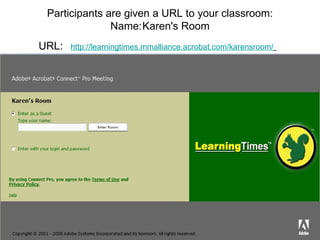
Participants are given a URL to your classroom: Name: Karen's Room URL: http://learningtimes.mmalliance.acrobat.com/karensroom/
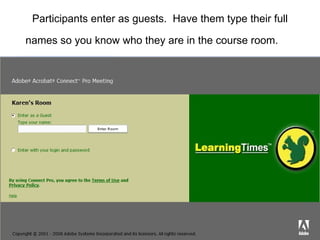
Participants enter as guests.  Have them type their full names so you know who they are in the course room.
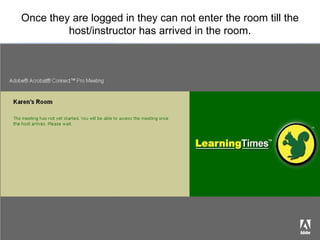
Once they are logged in they can not enter the room till the host/instructor has arrived in the room.
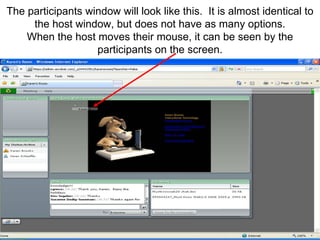
The participants window will look like this.  It is almost identical to the host window, but does not have as many options. When the host moves their mouse, it can be seen by the participants on the screen.
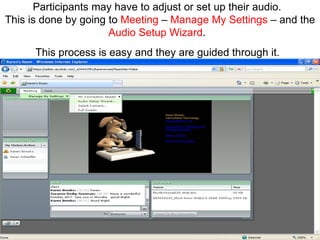
Participants may have to adjust or set up their audio.  This is done by going to  Meeting  –  Manage My Settings  – and the  Audio Setup Wizard .  This process is easy and they are guided through it.
The Professional Developer’s View
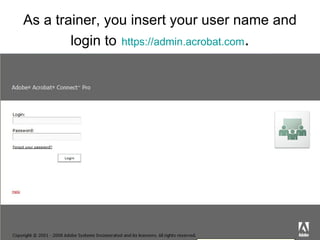
As a trainer, you insert your user name and login to   https:// admin.acrobat.com .
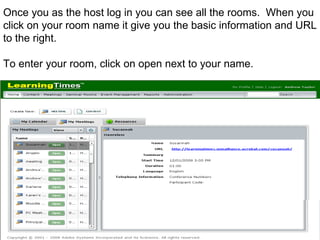
Once you as the host log in you can see all the rooms.  When you click on your room name it give you the basic information and URL to the right. To enter your room, click on open next to your name.
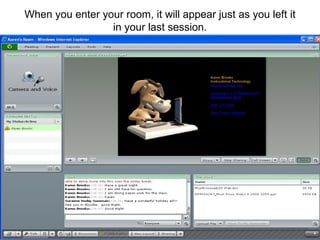
When you enter your room, it will appear just as you left it in your last session.
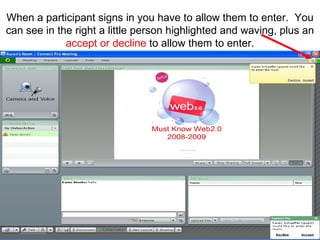
When a participant signs in you have to allow them to enter.  You can see in the right a little person highlighted and waving, plus an  accept or decline  to allow them to enter.
Recommendation Do attendance as they enter the room and you click accept.  It saves time and makes it easier when there are more than 20 people in the room to keep track of who is there.
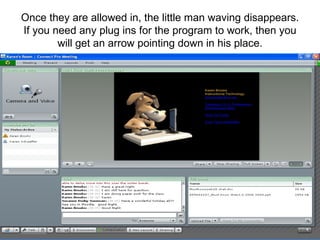
Once they are allowed in, the little man waving disappears. If you need any plug ins for the program to work, then you will get an arrow pointing down in his place.
The Pods
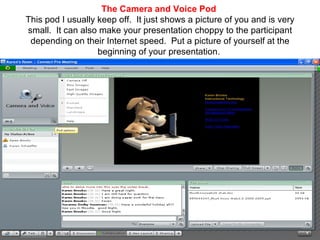
The Camera and Voice Pod   This pod I usually keep off.  It just shows a picture of you and is very small.  It can also make your presentation choppy to the participant depending on their Internet speed.  Put a picture of yourself at the beginning of your presentation.
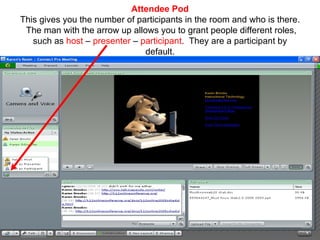
Attendee Pod This gives you the number of participants in the room and who is there.  The man with the arrow up allows you to grant people different roles, such as  host  –  presenter  –  participant .  They are a participant by default.
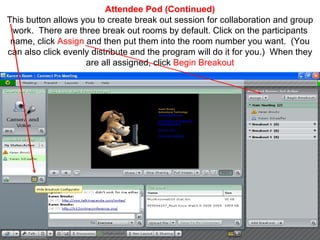
Attendee Pod (Continued) This button allows you to create break out session for collaboration and group work.  There are three break out rooms by default. Click on the participants name, click  Assign  and then put them into the room number you want.  (You can also click evenly distribute and the program will do it for you.)  When they are all assigned, click  Begin Breakout
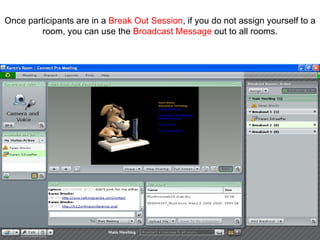
Once participants are in a  Break Out Session , if you do not assign yourself to a room, you can use the  Broadcast Message  out to all rooms.
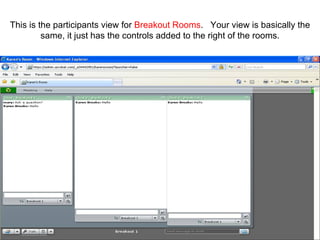
This is the participants view for  Breakout Rooms .  Your view is basically the same, it just has the controls added to the right of the rooms.
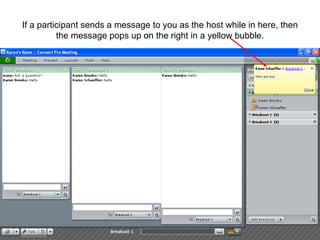
If a participant sends a message to you as the host while in here, then the message pops up on the right in a yellow bubble.
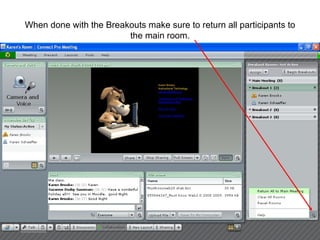
When done with the Breakouts make sure to return all participants to the main room.
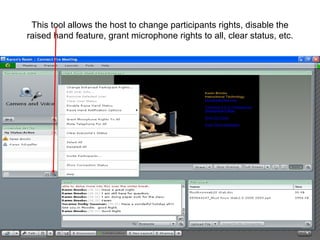
This tool allows the host to change participants rights, disable the raised hand feature, grant microphone rights to all, clear status, etc.
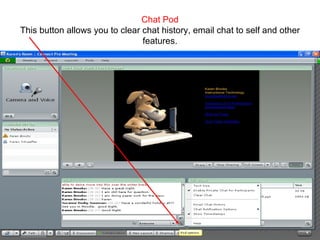
Chat Pod This button allows you to clear chat history, email chat to self and other features.
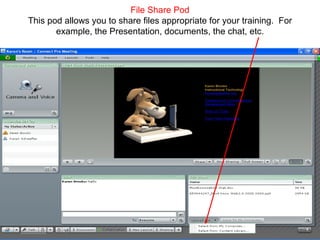
File Share Pod This pod allows you to share files appropriate for your training.  For example, the Presentation, documents, the chat, etc.
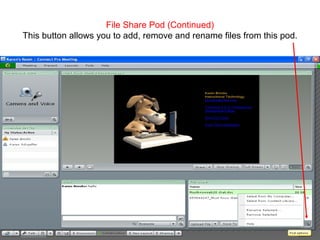
File Share Pod (Continued) This button allows you to add, remove and rename files from this pod.
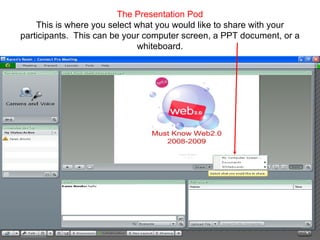
The Presentation Pod This is where you select what you would like to share with your participants.  This can be your computer screen, a PPT document, or a whiteboard.
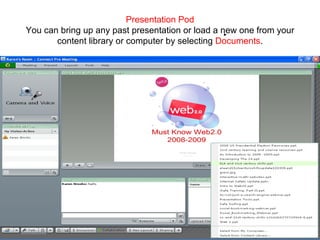
Presentation Pod You can bring up any past presentation or load a new one from your content library or computer by selecting  Documents .
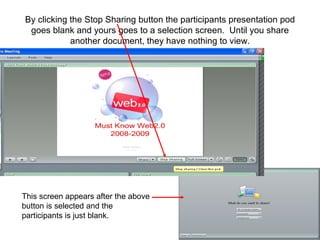
By clicking the Stop Sharing button the participants presentation pod goes blank and yours goes to a selection screen.  Until you share another document, they have nothing to view. This screen appears after the above button is selected and the participants is just blank.
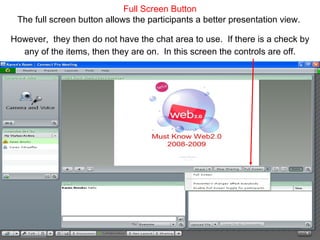
Full Screen Button The full screen button allows the participants a better presentation view.  However,   they then do not have the chat area to use.  If there is a check by any of the items, then they are on.  In this screen the controls are off.
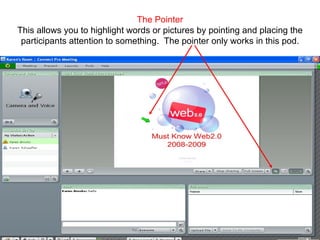
The Pointer This allows you to highlight words or pictures by pointing and placing the participants attention to something.  The pointer only works in this pod.
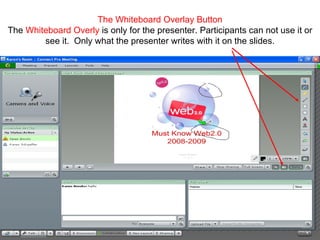
The Whiteboard Overlay Button The  Whiteboard Overly  is only for the presenter. Participants can not use it or see it.  Only what the presenter writes with it on the slides.
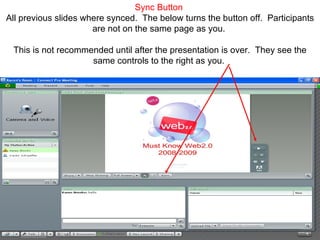
Sync Button  All previous slides where synced.  The below turns the button off.  Participants are not on the same page as you.  This is not recommended until after the presentation is over.  They see the same controls to the right as you.
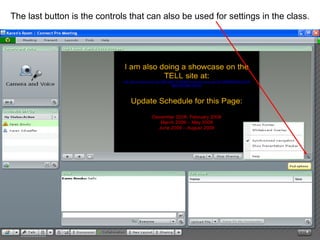
The last button is the controls that can also be used for settings in the class.
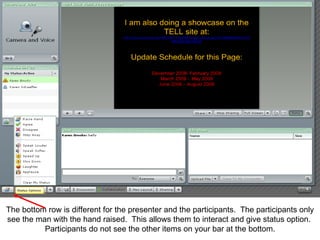
The bottom row is different for the presenter and the participants.  The participants only see the man with the hand raised.  This allows them to interact and give status option.  Participants do not see the other items on your bar at the bottom.
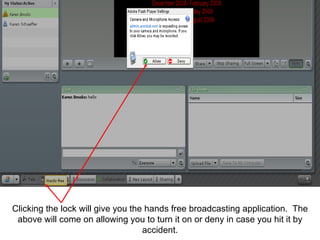
Clicking the lock will give you the hands free broadcasting application.  The above will come on allowing you to turn it on or deny in case you hit it by accident.
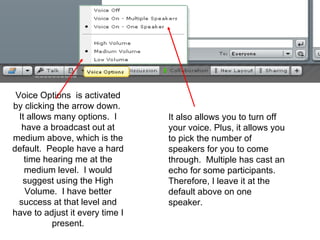
Voice Options  is activated by clicking the arrow down.  It allows many options.  I have a broadcast out at medium above, which is the default.  People have a hard time hearing me at the medium level.  I would suggest using the High Volume.  I have better success at that level and have to adjust it every time I present. It also allows you to turn off your voice. Plus, it allows you to pick the number of speakers for you to come through.  Multiple has cast an echo for some participants.  Therefore, I leave it at the default above on one speaker.
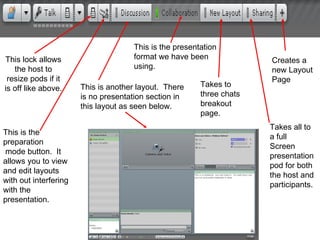
This lock allows the host to resize pods if it is off like above. This is the preparation mode button.  It allows you to view and edit layouts with out interfering with the presentation. This is another layout.  There is no presentation section in this layout as seen below. This is the presentation  format we have been using. Takes to three chats breakout page. Takes all to a full Screen  presentation pod for both the host and participants. Creates a new Layout Page
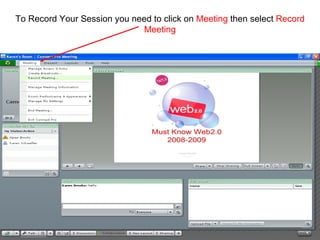
To Record Your Session you need to click on  Meeting  then  select  Record Meeting
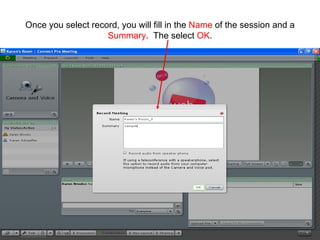
Once you select record, you will fill in the  Name  of the session and a  Summary .  The select  OK .
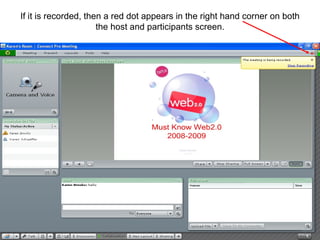
If it is recorded, then a red dot appears in the right hand corner on both the host and participants screen.
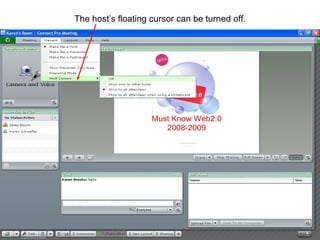
The host’s floating cursor can be turned off.
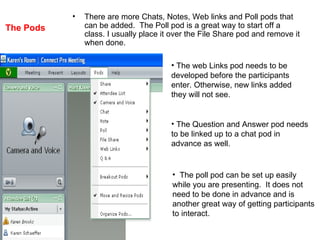
The Pods There are more Chats, Notes, Web links and Poll pods that can be added.  The Poll pod is a great way to start off a class. I usually place it over the File Share pod and remove it when done. The web Links pod needs to be  developed before the participants  enter. Otherwise, new links added  they will not see. The Question and Answer pod needs to be linked up to a chat pod in  advance as well. The poll pod can be set up easily while you are presenting.  It does not  need to be done in advance and is  another great way of getting participants  to interact.
Resources Test your connection:   http://learningtimes.mmalliance.acrobat.com/common/help/en/support/meeting_test.htm     Get a quick overview:   http://www.adobe.com/go/connectpro_overview
Presentation Locations: Teaching 2.0:Professional      Development Blog Tell SlideShare Karen Brooks [email_address]

Adobe Acrobat Connect Pro

  • 1.
  • 2.
  • 3.
  • 4.
    Participants are givena URL to your classroom: Name: Karen's Room URL: http://learningtimes.mmalliance.acrobat.com/karensroom/
  • 5.
    Participants enter asguests. Have them type their full names so you know who they are in the course room.
  • 6.
    Once they arelogged in they can not enter the room till the host/instructor has arrived in the room.
  • 7.
    The participants windowwill look like this. It is almost identical to the host window, but does not have as many options. When the host moves their mouse, it can be seen by the participants on the screen.
  • 8.
    Participants may haveto adjust or set up their audio. This is done by going to Meeting – Manage My Settings – and the Audio Setup Wizard . This process is easy and they are guided through it.
  • 9.
  • 10.
    As a trainer,you insert your user name and login to https:// admin.acrobat.com .
  • 11.
    Once you asthe host log in you can see all the rooms. When you click on your room name it give you the basic information and URL to the right. To enter your room, click on open next to your name.
  • 12.
    When you enteryour room, it will appear just as you left it in your last session.
  • 13.
    When a participantsigns in you have to allow them to enter. You can see in the right a little person highlighted and waving, plus an accept or decline to allow them to enter.
  • 14.
    Recommendation Do attendanceas they enter the room and you click accept. It saves time and makes it easier when there are more than 20 people in the room to keep track of who is there.
  • 15.
    Once they areallowed in, the little man waving disappears. If you need any plug ins for the program to work, then you will get an arrow pointing down in his place.
  • 16.
  • 17.
    The Camera andVoice Pod This pod I usually keep off. It just shows a picture of you and is very small. It can also make your presentation choppy to the participant depending on their Internet speed. Put a picture of yourself at the beginning of your presentation.
  • 18.
    Attendee Pod Thisgives you the number of participants in the room and who is there. The man with the arrow up allows you to grant people different roles, such as host – presenter – participant . They are a participant by default.
  • 19.
    Attendee Pod (Continued)This button allows you to create break out session for collaboration and group work. There are three break out rooms by default. Click on the participants name, click Assign and then put them into the room number you want. (You can also click evenly distribute and the program will do it for you.) When they are all assigned, click Begin Breakout
  • 20.
    Once participants arein a Break Out Session , if you do not assign yourself to a room, you can use the Broadcast Message out to all rooms.
  • 21.
    This is theparticipants view for Breakout Rooms . Your view is basically the same, it just has the controls added to the right of the rooms.
  • 22.
    If a participantsends a message to you as the host while in here, then the message pops up on the right in a yellow bubble.
  • 23.
    When done withthe Breakouts make sure to return all participants to the main room.
  • 24.
    This tool allowsthe host to change participants rights, disable the raised hand feature, grant microphone rights to all, clear status, etc.
  • 25.
    Chat Pod Thisbutton allows you to clear chat history, email chat to self and other features.
  • 26.
    File Share PodThis pod allows you to share files appropriate for your training. For example, the Presentation, documents, the chat, etc.
  • 27.
    File Share Pod(Continued) This button allows you to add, remove and rename files from this pod.
  • 28.
    The Presentation PodThis is where you select what you would like to share with your participants. This can be your computer screen, a PPT document, or a whiteboard.
  • 29.
    Presentation Pod Youcan bring up any past presentation or load a new one from your content library or computer by selecting Documents .
  • 30.
    By clicking theStop Sharing button the participants presentation pod goes blank and yours goes to a selection screen. Until you share another document, they have nothing to view. This screen appears after the above button is selected and the participants is just blank.
  • 31.
    Full Screen ButtonThe full screen button allows the participants a better presentation view. However, they then do not have the chat area to use. If there is a check by any of the items, then they are on. In this screen the controls are off.
  • 32.
    The Pointer Thisallows you to highlight words or pictures by pointing and placing the participants attention to something. The pointer only works in this pod.
  • 33.
    The Whiteboard OverlayButton The Whiteboard Overly is only for the presenter. Participants can not use it or see it. Only what the presenter writes with it on the slides.
  • 34.
    Sync Button All previous slides where synced. The below turns the button off. Participants are not on the same page as you. This is not recommended until after the presentation is over. They see the same controls to the right as you.
  • 35.
    The last buttonis the controls that can also be used for settings in the class.
  • 36.
    The bottom rowis different for the presenter and the participants. The participants only see the man with the hand raised. This allows them to interact and give status option. Participants do not see the other items on your bar at the bottom.
  • 37.
    Clicking the lockwill give you the hands free broadcasting application. The above will come on allowing you to turn it on or deny in case you hit it by accident.
  • 38.
    Voice Options is activated by clicking the arrow down. It allows many options. I have a broadcast out at medium above, which is the default. People have a hard time hearing me at the medium level. I would suggest using the High Volume. I have better success at that level and have to adjust it every time I present. It also allows you to turn off your voice. Plus, it allows you to pick the number of speakers for you to come through. Multiple has cast an echo for some participants. Therefore, I leave it at the default above on one speaker.
  • 39.
    This lock allowsthe host to resize pods if it is off like above. This is the preparation mode button. It allows you to view and edit layouts with out interfering with the presentation. This is another layout. There is no presentation section in this layout as seen below. This is the presentation format we have been using. Takes to three chats breakout page. Takes all to a full Screen presentation pod for both the host and participants. Creates a new Layout Page
  • 40.
    To Record YourSession you need to click on Meeting then select Record Meeting
  • 41.
    Once you selectrecord, you will fill in the Name of the session and a Summary . The select OK .
  • 42.
    If it isrecorded, then a red dot appears in the right hand corner on both the host and participants screen.
  • 43.
    The host’s floatingcursor can be turned off.
  • 44.
    The Pods Thereare more Chats, Notes, Web links and Poll pods that can be added. The Poll pod is a great way to start off a class. I usually place it over the File Share pod and remove it when done. The web Links pod needs to be developed before the participants enter. Otherwise, new links added they will not see. The Question and Answer pod needs to be linked up to a chat pod in advance as well. The poll pod can be set up easily while you are presenting. It does not need to be done in advance and is another great way of getting participants to interact.
  • 45.
    Resources Test yourconnection: http://learningtimes.mmalliance.acrobat.com/common/help/en/support/meeting_test.htm   Get a quick overview: http://www.adobe.com/go/connectpro_overview
  • 46.
    Presentation Locations: Teaching2.0:Professional Development Blog Tell SlideShare Karen Brooks [email_address]