Codian Video Conferencing
                   Family

          Guide for Administrators
Copyright © Codian 2006. All rights reserved. This guide may not be copied, photocopied, translated,
reproduced, or converted into any electronic or machine-readable form in whole or in part without prior
written approval of Codian Limited.
Codian Limited reserves the right to revise this documentation and to make changes in content from time
to time without obligation on the part of Codian Limited to provide notification of such revision or change.
Codian Limited provides this documentation without warranty, term, or condition of any kind, either
implied or expressed, including, but not limited to, the implied warranties, terms or conditions of
merchantability, satisfactory quality, and fitness for a particular purpose. Codian Limited may make
improvements or changes to the product(s) and/or the program(s) described in this documentation at any
time.
All other product and company names herein may be trademarks of their respective owners.
Rev 01


www.codian.com

Europe, Middle East, and Africa       The Americas                         Asia Pacific Region
Codian Ltd.                           Codian Inc.                          Codian (Asia Pacific) Ltd.
14 Waterside Drive                    1570 The Alameda #216                Suite 1606
Langley                               San Jose                             Saxon Tower
Slough SL3 6EZ                        CA 95126                             7 Cheung Shun Street
United Kingdom                        United States of America             Cheung Sha Wan
                                                                           Kowloon
                                                                           Hong Kong
Table of contents
Chapter 1 Introduction ............................................................................................................................ 1
   This guide .................................................................................................................................................. 1
         Assumptions .................................................................................................................................. 1
         Related documentation ............................................................................................................ 1
         Using this document .................................................................................................................. 2
         Chapters in this guide ................................................................................................................ 3
Chapter 2 Video conferencing today ................................................................................................. 5
   Introduction ............................................................................................................................................. 5
   H.323 protocol ......................................................................................................................................... 5
        Video conferencing elements ................................................................................................. 5
   Video conferencing, networking and telephony protocols .................................................... 6
Chapter 3 The Codian video conferencing family ......................................................................... 9
   Introduction ............................................................................................................................................. 9
   MCU 4200 series ...................................................................................................................................... 9
   IP VCR 2200 series ................................................................................................................................11
   Gateway 3200 Series ...........................................................................................................................12
Chapter 4 Different video conferencing scenarios .....................................................................13
   Introduction ...........................................................................................................................................13
   Simple scenarios ...................................................................................................................................14
        MCU with three or more endpoints ....................................................................................14
        Streaming to a web browser with the MCU ....................................................................14
        Sharing data with the MCU and two or more endpoints ............................................15
        IP VCR recording a call or playing back a recording on an endpoint .....................16
        Sharing data with the IP VCR .................................................................................................17
        Recording a conference with an MCU, IP VCR and two or more endpoints ........18
        ISDN GW and an ISDN endpoint video conferencing ..................................................19
   Video conferencing with a gatekeeper ........................................................................................21
        IP VCR recording a point-to-point call ...............................................................................21
        MCU or IP VCR with a gatekeeper and two or more endpoints ...............................21
        ISDN GW with a gatekeeper and IP and ISDN endpoints ...........................................22
   Video conferencing with a gateway ..............................................................................................22
   Video conferencing with a firewall ................................................................................................23
Chapter 5 First steps ...............................................................................................................................25
   Introduction ...........................................................................................................................................25
   Networking considerations ..............................................................................................................25
   Configuring user accounts (all units) ............................................................................................25
        Setting an administrator password ....................................................................................26
        The guest user ............................................................................................................................26
        Other user accounts and privilege levels ..........................................................................26


                                                                                                                                                                     i
MCU specific user fields ..........................................................................................................27
      Port reservation (MCU only) .............................................................................................................27
      Configuring auto attendants (MCU and IP VCR) .......................................................................28
            Auto attendants on the MCU ................................................................................................28
            Auto attendants on the IP VCR .............................................................................................29
            Customizing the auto attendant banner ..........................................................................30
      Localized MCU units ............................................................................................................................30
      Customizing voice prompts (MCU and IP VCR) .........................................................................30
      Communicating with the unit .........................................................................................................30
Chapter 6 MCU administration ...........................................................................................................33
   Introduction ...........................................................................................................................................33
   Conferencing considerations ...........................................................................................................33
         How participants access conferences ................................................................................33
         Types of conference .................................................................................................................33
         Scheduled vs. ad hoc conferences ......................................................................................34
         Permanent vs. time limited conferences ..........................................................................34
         Stopping scheduled conferences early .............................................................................34
         Advantages of pre-configured endpoints ........................................................................35
         Setting up and controlling conference layouts ..............................................................35
         Who displays in the large pane ............................................................................................36
         Conference PINs .........................................................................................................................36
         Conference ownership ............................................................................................................36
         Content channel support .......................................................................................................36
         Selecting a video size (4CIF feature key only) .................................................................36
         Summary information icon ....................................................................................................37
   Enabling the MCU for H.239 .............................................................................................................37
   Configuring endpoints .......................................................................................................................37
   Setting up a H.323 gateway ..............................................................................................................37
   Cascading MCUs ...................................................................................................................................38
   Load balancing MCUs .........................................................................................................................38
   Sending messages during a conference ......................................................................................38
   Using the MCU with a gatekeeper .................................................................................................39
   Displaying conference and participant statistics ......................................................................39
Chapter 7 IP VCR administration .......................................................................................................41
   Introduction ...........................................................................................................................................41
   Making recordings ...............................................................................................................................41
         Recording settings ....................................................................................................................41
   Displaying the connection status ...................................................................................................42
   Enabling the IP VCR for H.239 ..........................................................................................................42
   Configuring endpoints .......................................................................................................................42
   Summary information icon ...............................................................................................................43
   Setting up a H.323 gateway ..............................................................................................................43
   Transferring recordings ......................................................................................................................43
         Recording file formats .............................................................................................................43


ii
Transferring by re-recording .................................................................................................43
      Using the IP VCR with a gatekeeper ..............................................................................................44
      Displaying IP VCR statistics ...............................................................................................................44
Chapter 8 ISDN gateway administration ........................................................................................45
   Introduction ...........................................................................................................................................45
   Installing the ISDN gateway .............................................................................................................45
   Establishing a connection with the ISDN network ...................................................................45
   Routing calls between IP and ISDN networks ............................................................................45
         Basic call routing ........................................................................................................................46
         Advanced call routing ..............................................................................................................46
   Setting up a gatekeeper ....................................................................................................................47
   Using the ISDN gateway for voice-only calls ..............................................................................47
         IP to ISDN calls ............................................................................................................................48
         ISDN to IP calls ............................................................................................................................48
   Monitoring calls ....................................................................................................................................48
Chapter 9 Using data .............................................................................................................................49
   Introduction ...........................................................................................................................................49
   Configuring content channel support ..........................................................................................49
   PC-based streaming of the content channel ..............................................................................50
   Using the main video channel as the content channel ..........................................................50
   Recording the content channel in a conference .......................................................................51
Chapter 10 Streaming (MCU and IP VCR) ..........................................................................................53
   Introduction ...........................................................................................................................................53
   Configuring streaming .......................................................................................................................53
         Multicast streaming on the MCU .........................................................................................53
         Streaming ad hoc conferences .............................................................................................54
   Port allocation when streaming ......................................................................................................54
   Content channel streaming ..............................................................................................................54
   Web conferencing option .................................................................................................................55
         Customizing streaming ...........................................................................................................56
Chapter 11 Using a gatekeeper ............................................................................................................57
   Why use a gatekeeper ........................................................................................................................57
   Registering a unit with a gatekeeper ............................................................................................57
        Registration types (MCU and IP VCR) .................................................................................57
        Service and dial plan prefixes ...............................................................................................58
   MCU Registrations, Prefixes and Conference IDs ......................................................................58
   Registering conferences and recordings with a gatekeeper (MCU and IP VCR) ...........59
   Registering auto attendants with the gatekeeper (MCU and IP VCR) ...............................59
Chapter 12 Using firewalls ......................................................................................................................61
   Introduction ...........................................................................................................................................61
   The Codian video firewall ..................................................................................................................61
        Port functionality in the video firewall ..............................................................................61
        Configuring the video firewall ..............................................................................................63
        Example video firewall configuration ................................................................................63


                                                                                                                                                                iii
Working with third party firewalls ..................................................................................................65
Chapter 13 Call detail records (MCU-only) .......................................................................................67
   Introduction ...........................................................................................................................................67
   Configuring call detail records ........................................................................................................67
Chapter 14 General housekeeping .....................................................................................................69
   Introduction ...........................................................................................................................................69
   Setting the system time .....................................................................................................................69
   System status and event logging ...................................................................................................69
   Upgrading software versions ...........................................................................................................70
   Using additional options (features keys) .....................................................................................70
   Backing up the configuration file ...................................................................................................71
   Shutting down a unit ..........................................................................................................................71
Index ..............................................................................................................................................................73


iv
Chapter 1                     Introduction


This guide
Codian designs and manufactures the most advanced video conferencing products available in the market
today, bringing you the best in voice, video and data conferencing. Using a unique architecture and the
latest hardware technology, our products are both easy to use and powerful, offering outstanding quality,
performance and features.

This Guide for Administrators introduces you to video conferencing in general and the Codian family of
products in particular. The Guide for Administrators is a concepts document — it discusses the advantages
of the different configurations that Codian equipment makes possible. It also tells you where to find more
specific help on certain topics.

Assumptions
It is assumed that you understand computer networks but may not have used video conferencing equipment
before. If you have been the administrator of an MCU or other video conferencing equipment previously
you may want to go directly on to Chapter 3‚ “The Codian video conferencing family”.

Related documentation
Codian provides a large documentation suite and each type of documentation has a particular use:
   The Getting Started Guide covers initial connection and configuration
   The Tutorials run through the most commonly used features of the MCU and IP VCR series and
   explain some common pitfalls by example
   The Codian web site (www.codian.com) provides access to information and all our documents, which
   you can download. Some examples are:
        FAQs cover the most frequently asked configuration and troubleshooting topic
        Endpoint guides tells you how to navigate with the endpoint’s remote control
        Datasheets
            Online help is available from the web interface of all Codian units. To display help at any time,
            click the icon in the top right hand corner of the screen.
            The online help provides both "how to" step-by-step instructions and separate pages of field
            descriptions.


                                                                                                                1
Introduction


However, if you still have a question about our products, send an email detailing the problem to our
technical support team at support@codian.com.
Include the following information in the email:
     the serial number and product model number (for example: MCU 4210) of the unit
     the software build number (to find this, in the web interface, go to Status > General)
     where you purchased the unit
     your contact telephone number

Using this document
The Codian Guide for Administrators is the starting point for information about Codian units. It refers to
all the other documents listed above. In particular, it provides titles of online help pages that tell you how
to carry out a task, or that provide detailed descriptions of fields on a page in the web interface. For
example: See the online help topic “Conference ownership”.
The instruction 'Go to Conferences > Move participants' means click the Conferences link on the menu
bar and then click the Move participants tab.

Figure 1: Conferences > Move participants


                  1                               2

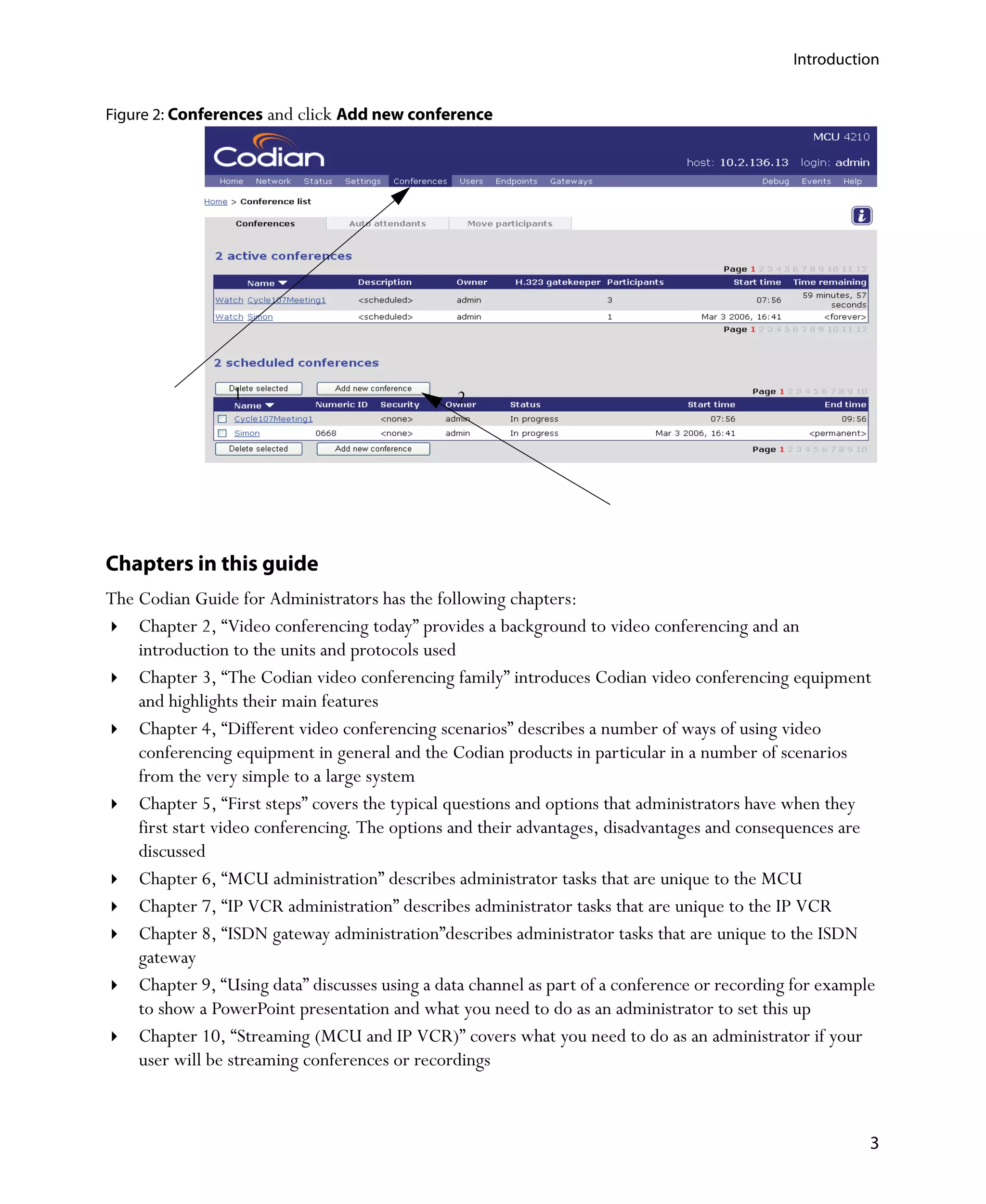
The instruction 'Go to Conferences and click Add new conference means click the Conferences link on
the menu bar and then click the Add new conference button.


2
Introduction


Figure 2: Conferences and click Add new conference


                 1                              2


Chapters in this guide
The Codian Guide for Administrators has the following chapters:
    Chapter 2‚ “Video conferencing today” provides a background to video conferencing and an
    introduction to the units and protocols used
    Chapter 3‚ “The Codian video conferencing family” introduces Codian video conferencing equipment
    and highlights their main features
    Chapter 4‚ “Different video conferencing scenarios” describes a number of ways of using video
    conferencing equipment in general and the Codian products in particular in a number of scenarios
    from the very simple to a large system
    Chapter 5‚ “First steps” covers the typical questions and options that administrators have when they
    first start video conferencing. The options and their advantages, disadvantages and consequences are
    discussed
    Chapter 6‚ “MCU administration” describes administrator tasks that are unique to the MCU
    Chapter 7‚ “IP VCR administration” describes administrator tasks that are unique to the IP VCR
    Chapter 8‚ “ISDN gateway administration”describes administrator tasks that are unique to the ISDN
    gateway
    Chapter 9‚ “Using data” discusses using a data channel as part of a conference or recording for example
    to show a PowerPoint presentation and what you need to do as an administrator to set this up
    Chapter 10‚ “Streaming (MCU and IP VCR)” covers what you need to do as an administrator if your
    user will be streaming conferences or recordings


                                                                                                          3
Introduction


    Chapter 11‚ “Using a gatekeeper” discusses using a gatekeeper with any of our products and how you
    register a unit with a gatekeeper
    Chapter 12‚ “Using firewalls” discusses using the built-in firewall features in the Codian MCU and IP
    VCRs
    Chapter 13‚ “Call detail records (MCU-only)” discusses the use of call detail records with the MCU
    Chapter 14‚ “General housekeeping” covers functions that you will require from time to time such as
    upgrading your unit’s software


4
Chapter 2                     Video conferencing today


Introduction
Video conferencing was first introduced in the 1960s but early systems were unreliable and difficult to
install, use and manage. The equipment and ISDN bandwidth were prohibitively expensive, audio and video
quality were poor.
Today IP-based video conferencing is an attractive and accessible face-to-face communications business
solution. Advances in video technology and the creation of industry standards have allowed for higher audio
and video quality, user-friendly web and desktop interfaces and seamless integration across networks.
Codian products are powerful and truly "plug and play", enabling quick and easy installation and effortless
integration into everyday business processes. Video conferencing is as easy as picking up the phone and
making a call. There is no need for prior arrangements, reservations or complex setup. There is an intuitive
on-screen audio-visual prompt, and an easy-to-use Web interface for scheduling a conference. Individual
users can use their endpoint’s remote to control their view of the conference.


H.323 protocol
One of the protocols used by Codian products for video conferencing is H.323. H.323 defines how a series
of network elements work together and the protocols to allow multimedia transmission across an unreliable
packet-based network such as the Internet. (The H.323 specification is published by the International
Telecommunications Union.)

Video conferencing elements
The H.323 specification defines a number of elements that are required for multimedia transmission.
However in everyday usage some of these element names are used more “loosely” and we try to distinguish
between the two:
    H.323 Endpoint
    Strictly an endpoint is an MCU, a terminal or a gateway (see below). However, the word endpoint is
    usually used interchangeably with a terminal
    H.323 Multipoint Control Unit or MCU
    An MCU maintains the communications between all the participants in the conference call. An MCU
    handles call control and the media exchange (for example voice and video) during a conference.


                                                                                                           5
Video conferencing today


    H.323 Terminal
    The terminal is an endpoint on a network which provides for real-time, two-way communications. A
    terminal may provide audio (speech) only, or audio in a combination of video and data.
    H.323 Gatekeeper
    A gatekeeper is optional and controls a zone. It provides a directory service allowing services to be
    accessed via directory numbers (E.164 numbers) and alphanumeric names. It also provides call
    control, routing services, bandwidth management and admission control. It also provides basic security
    (authorization) for communications between H.323 elements within its zone.
    H.323 Gateway
    A gateway is any device that allows calls to be established between networks, whether of the same or
    different types. It may also provide protocol conversion between H.323 endpoints and endpoints that
    do not support H.323. For example:
         The Codian ISDN GW can route calls to an H.320 ISDN network
         The Codian ISDN gateway and VoIP gateways can perform H.323<->PSTN operations, routing
         voice over IP (VoIP) calls from an H.323 terminal on to the public switched telephone network
         (PSTN) allowing "normal" telephone calls to be made from an H.323 client
The elements can be software based and there can be more than one entity installed on a single computer.
The Codian MCU and IP VCR can act as a gateway to allow direct access to internal features such as
individual conferences or recordings. You can also set up gateway definitions on Codian MCUs and IP VCRs
so that outgoing calls can be routed to gateways.


Video conferencing, networking and telephony
protocols
H.323 encompasses a number of other protocols, including audio (voice) and video codecs, and standards
for passing data and control structures. The following are examples of some protocols supported by Codian
products and included in the H.323 framework that a video conferencing administrator is likely to come
across:
     G.711, G.722, G.723.1, G.728 and G.729 are audio codecs
     H.261, H.263(+) and H.264 are video codecs. H.264 is the most recent video compression standard.
     It offers approximately twice the quality of H.263 at the same bandwidth, or the same quality at half
     the bandwidth
     H.239 which allows a secondary video channel. It defines how PC desktop graphics is converted in to a
     separate media stream and transmitted in parallel with the video stream. This is the protocol that
     Codian MCUs use for the data channel in a conference
     H.225 and H.245 are signalling protocols
     Siren14™ is a proprietary audio codec used by Polycom endpoints


6
Video conferencing today


Session Initiation Protocol (SIP) is a newer protocol, and an alternative to H.323. It is a simple signaling
protocol for Internet conferencing and telephony. SIP messages have a text format similar to HTTP, making
it more suited to Internet applications and easier to implement in software. However, it is not yet as
popular as H.323.
A number of networking and telephony standards can be involved: for example, ISDN, LAN, WAN,
Internet, ADSL (Asynchronous Digital Subscriber Lines) and VPN (Virtual Private Networks) are the
popular transport media used in desktop video conferencing.
Where necessary, these protocols are discussed in more detail later in the guide.


                                                                                                           7
Video conferencing today


8
Chapter 3                     The Codian video conferencing
                              family

Introduction
Codian produce a variety of units for video conferencing:
   MCU 4200 series of multipoint control units
   IP VCR 2200 series of video recorders for recording video conferences and point-to-point calls
   ISDN GW 3200 series of video gateways that enable ISDN network connectivity from IP-based units
   and endpoints
All units have a web interface and detailed, context-sensitive online help.


MCU 4200 series
The MCU 4200 series is the most powerful
multipoint control unit available and uses the latest
video technology. It is the first MCU ever to
maintain its port count (the number of people who
can access the conference bridge) regardless of how
users connect to a video conference, the speed at
which they connect, the layout they choose, and
their equipment. A seemingly expected feature, it is
unique in the video conferencing industry.
The unit streams both video and presentations to web browsers. Streaming sends conference audio and
video to a remote computer, allowing the user to watch and listen to a conference. The media flows in just
one direction, so it is not possible to contribute to a conference via streaming.
Optimized for use in IP networks, the MCU provides the best possible video and audio quality in real-
world network conditions and has proven compatibility with all major vendors.
The MCU has a firewall solution, integrated web server, scheduling, video auto attendant (also known as
an IVR) and additional voice ports.


                                                                                                          9
The Codian video conferencing family


The MCU is available in a number of models:
Table 1: MCU models

                                          Additional voice
                      Video ports                                Concurrent streaming ports
                                          ports

 MCU 4205             12                  12                     60
 MCU 4210             20                  20                     100
 MCU 4215             30                  30                     150
 MCU 4220             40                  40                     200

Features and benefits of the MCU 4200 series include:
    Conference scheduling as standard
    Up to 200 conferences can be set up on the unit. The only thing that limits the number of conferences
    actually running is the number of ports that are purchased.
    One port per participant irrespective of setup. This makes scheduling and provisioning easy because
    the port count is constant. There is no reduction in the number of MCU ports even using bandwidths
    up to 4MB.
    Encoding/decoding on a per user basis and not per conference: you can have any mix of bit rate,
    resolution and codec within the same conference - with no loss of port count or functionality. At all
    times every user sees the best possible video quality possible for their endpoint and connection. Also
    one user's problems with the network do not affect others. This also simplifies conference
    configuration because you do not need to know in advance all the characteristics of all endpoints.
    Only one port is used for streaming irrespective of how many people join the conference as streaming
    participants
    The content channel e.g. a slide presentation using the H.239 protocol only uses one port even when
    the content is sent to every participant who can receive it
    A separate layout is generated for each endpoint. This means that participants can choose one of over
    50 different continuous presence layouts to view during a conference without affecting anyone else.
    This also means that participants never have to view themselves. (All streaming viewers see the same
    layout chosen from the 50 available)
    Support for 16:9 screens (wide screens)
    On screen text messaging to individuals or to all sites
    Support for every standard endpoint including Tandberg, Polycom, Aethra, Sony, Vtel and VCON
    endpoints


10
The Codian video conferencing family


IP VCR 2200 series
The IP VCR 2200 series is a digital video
recorder for video conferencing, allowing video,
audio and content to be recorded from
standards-based video conferencing equipment.
It is the only product available today that can
preserve video and data (for example a
presenter's slides) for future viewing without
data needing to be uploaded in advance. The
content can be streamed live or played back on
demand at multiple bandwidths to a web
browser on a PC using QuickTime™, RealPlayer™ or Windows Media Player™ or to a video
conferencing endpoint.
The IP VCR plays back to H.323 endpoints (unique to Codian) and ISDN endpoints (via an ISDN gateway),
records conference calls and both ends of a point-to-point call, and streams to users' desktop machines at
multiple configurable bit rates. As well as connecting to the Codian MCU you can connect to any MCU on
the market because the IP VCR connects like a regular endpoint.
The video and data are recorded in their native formats with no loss in quality. Intelligent transcoding and
transrating are performed on the data at the time of retrieval to ensure that the video quality is always
optimal whether being played back, streamed or exported.
The IP VCR is available in a number of models:
Table 2: IP VCR models

                                            Concurrent streaming ports
                         Recording ports                                        H.323 playback ports
                                            (unicast/multicast)

 IP VCR 2210             1                  100/unlimited                       5
 IP VCR 2220             5                  200/unlimited                       10
 IP VCR 2240             10                 400/unlimited                       20


                                                                                                          11
The Codian video conferencing family


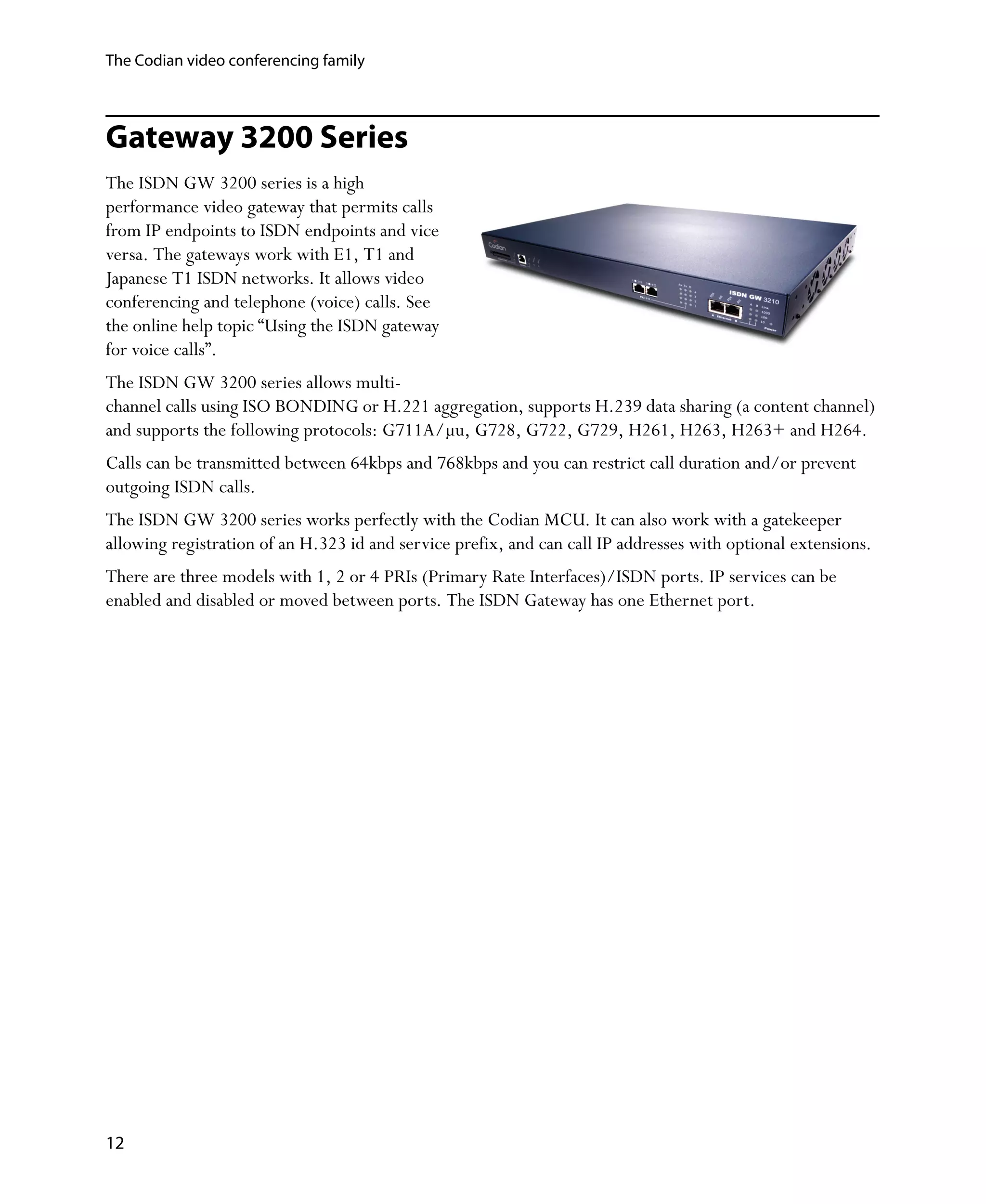
Gateway 3200 Series
The ISDN GW 3200 series is a high
performance video gateway that permits calls
from IP endpoints to ISDN endpoints and vice
versa. The gateways work with E1, T1 and
Japanese T1 ISDN networks. It allows video
conferencing and telephone (voice) calls. See
the online help topic “Using the ISDN gateway
for voice calls”.
The ISDN GW 3200 series allows multi-
channel calls using ISO BONDING or H.221 aggregation, supports H.239 data sharing (a content channel)
and supports the following protocols: G711A/μu, G728, G722, G729, H261, H263, H263+ and H264.
Calls can be transmitted between 64kbps and 768kbps and you can restrict call duration and/or prevent
outgoing ISDN calls.
The ISDN GW 3200 series works perfectly with the Codian MCU. It can also work with a gatekeeper
allowing registration of an H.323 id and service prefix, and can call IP addresses with optional extensions.
There are three models with 1, 2 or 4 PRIs (Primary Rate Interfaces)/ISDN ports. IP services can be
enabled and disabled or moved between ports. The ISDN Gateway has one Ethernet port.


12
Chapter 4                                    Different video conferencing
                                             scenarios

Introduction
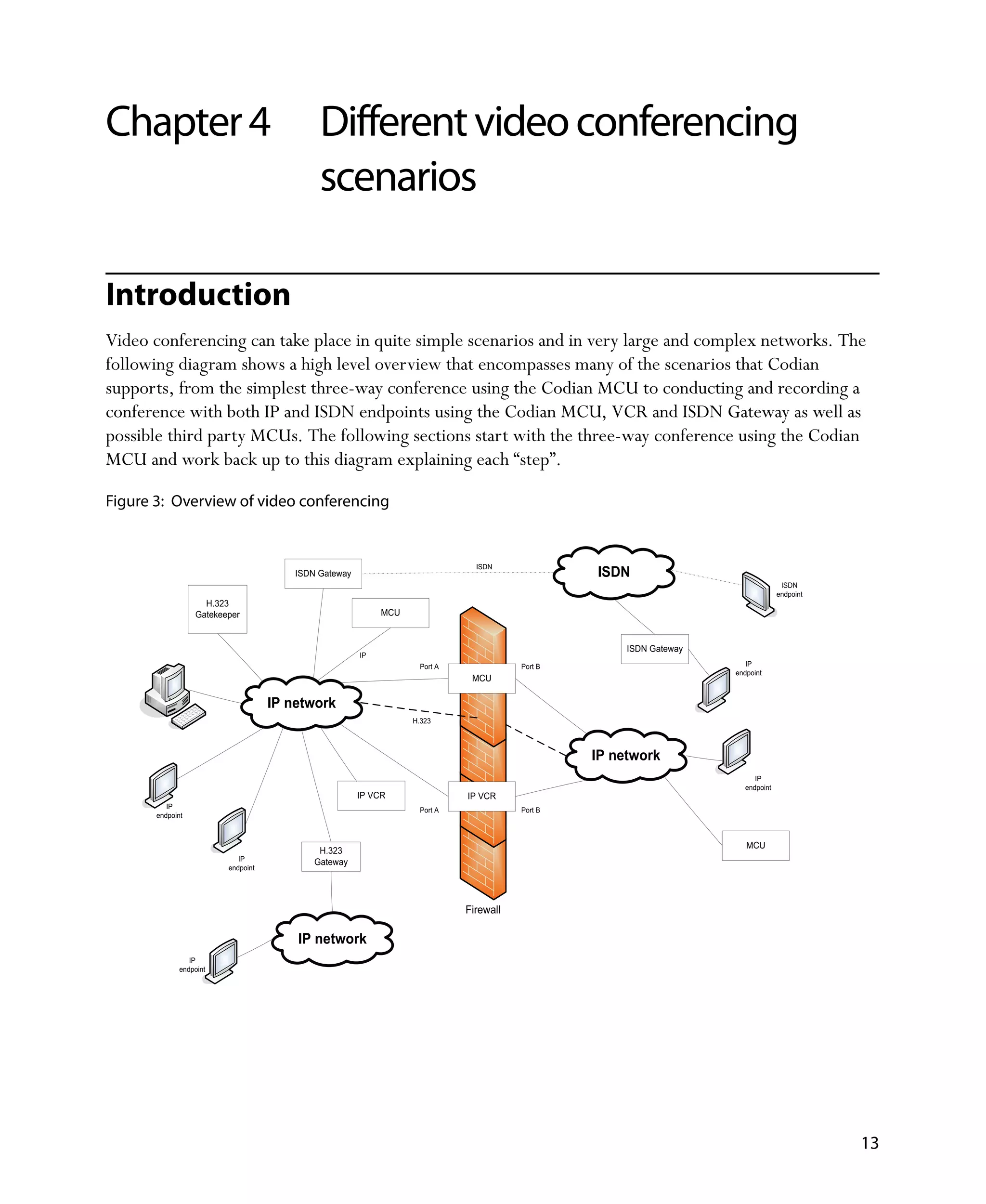
Video conferencing can take place in quite simple scenarios and in very large and complex networks. The
following diagram shows a high level overview that encompasses many of the scenarios that Codian
supports, from the simplest three-way conference using the Codian MCU to conducting and recording a
conference with both IP and ISDN endpoints using the Codian MCU, VCR and ISDN Gateway as well as
possible third party MCUs. The following sections start with the three-way conference using the Codian
MCU and work back up to this diagram explaining each “step”.

Figure 3: Overview of video conferencing


                                                                               ISDN
                                        ISDN Gateway                                             ISDN
                                                                                                                                   ISDN
                                                                                                                                  endpoint
                    H.323
                  Gatekeeper                                MCU


                                                                                                      ISDN Gateway
                                                       IP
                                                                    Port A              Port B                          IP
                                                                                                                     endpoint
                                                                              MCU

                                    IP network
                                                                  H.323


                                                                                                 IP network
                                                                                                                          IP
                                                                                                                       endpoint
                                                       IP VCR                IP VCR
          IP
                                                                    Port A              Port B
       endpoint


                                                                                                                        MCU
                                             H.323
                            IP              Gateway
                         endpoint


                                                                             Firewall

                                        IP network
                 IP
              endpoint


                                                                                                                                             13
Different video conferencing scenarios


Simple scenarios
MCU with three or more endpoints
Figure 4: MCU with three or more endpoints


                            IP
                         endpoint                              MCU


                                       IP network


                               IP                      IP
                            endpoint                endpoint


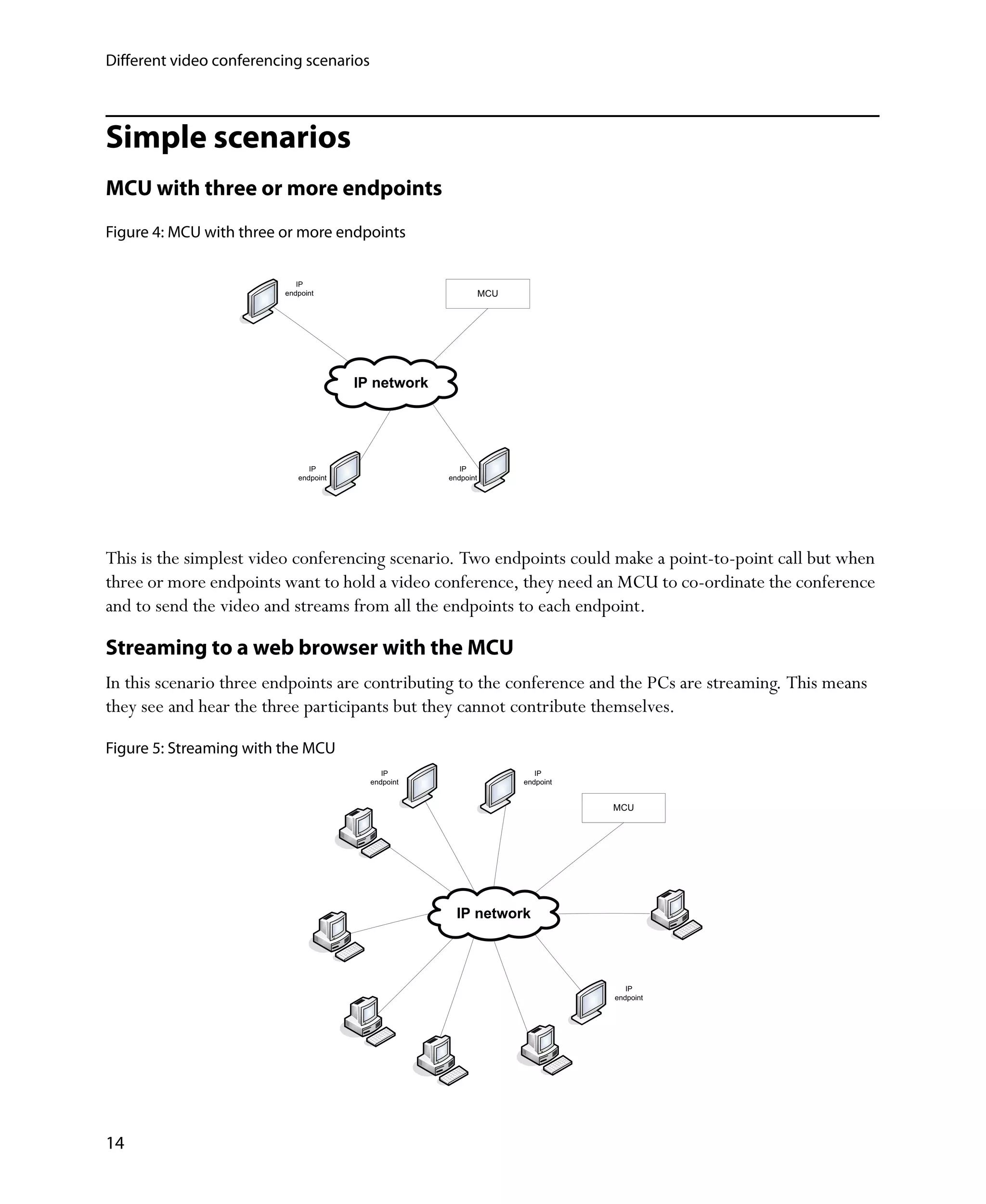
This is the simplest video conferencing scenario. Two endpoints could make a point-to-point call but when
three or more endpoints want to hold a video conference, they need an MCU to co-ordinate the conference
and to send the video and streams from all the endpoints to each endpoint.

Streaming to a web browser with the MCU
In this scenario three endpoints are contributing to the conference and the PCs are streaming. This means
they see and hear the three participants but they cannot contribute themselves.

Figure 5: Streaming with the MCU
                                            IP                          IP
                                         endpoint                    endpoint


                                                                                MCU


                                                      IP network


                                                                                   IP
                                                                                endpoint


14
Different video conferencing scenarios


Sharing data with the MCU and two or more endpoints
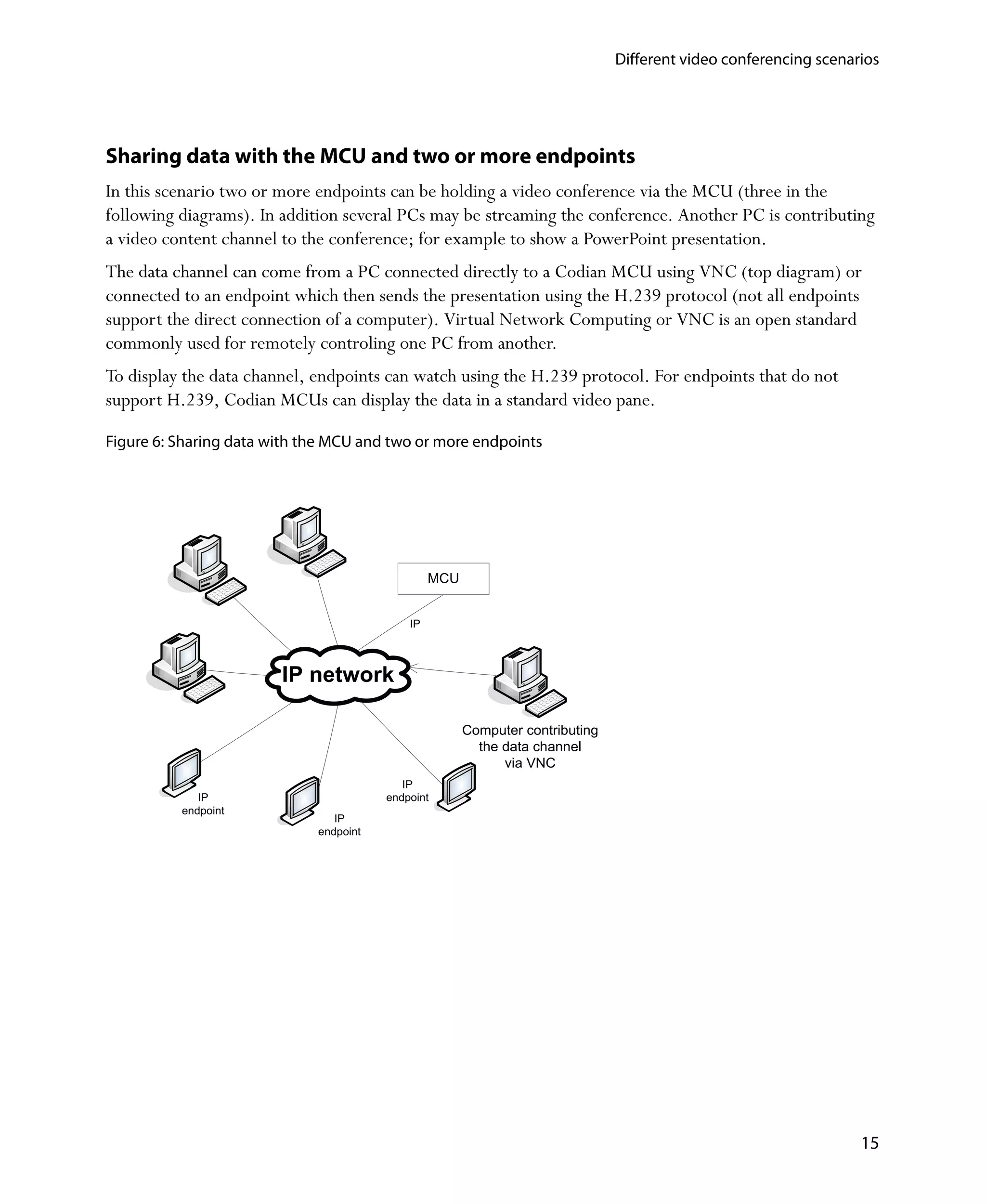
In this scenario two or more endpoints can be holding a video conference via the MCU (three in the
following diagrams). In addition several PCs may be streaming the conference. Another PC is contributing
a video content channel to the conference; for example to show a PowerPoint presentation.
The data channel can come from a PC connected directly to a Codian MCU using VNC (top diagram) or
connected to an endpoint which then sends the presentation using the H.239 protocol (not all endpoints
support the direct connection of a computer). Virtual Network Computing or VNC is an open standard
commonly used for remotely controling one PC from another.
To display the data channel, endpoints can watch using the H.239 protocol. For endpoints that do not
support H.239, Codian MCUs can display the data in a standard video pane.

Figure 6: Sharing data with the MCU and two or more endpoints


                                                 MCU


                                            IP


                        IP network

                                                       Computer contributing
                                                         the data channel
                                                             via VNC
                                           IP
             IP                         endpoint
          endpoint
                                IP
                             endpoint


                                                                                                                  15
Different video conferencing scenarios


                                                     MCU


                                                IP


                                                                Computer contributing
                            IP network                            the data channel
                                                                 directly connected
                                                                   to an endpoint


                                               IP
                  IP                        endpoint
               endpoint
                                    IP
                                 endpoint


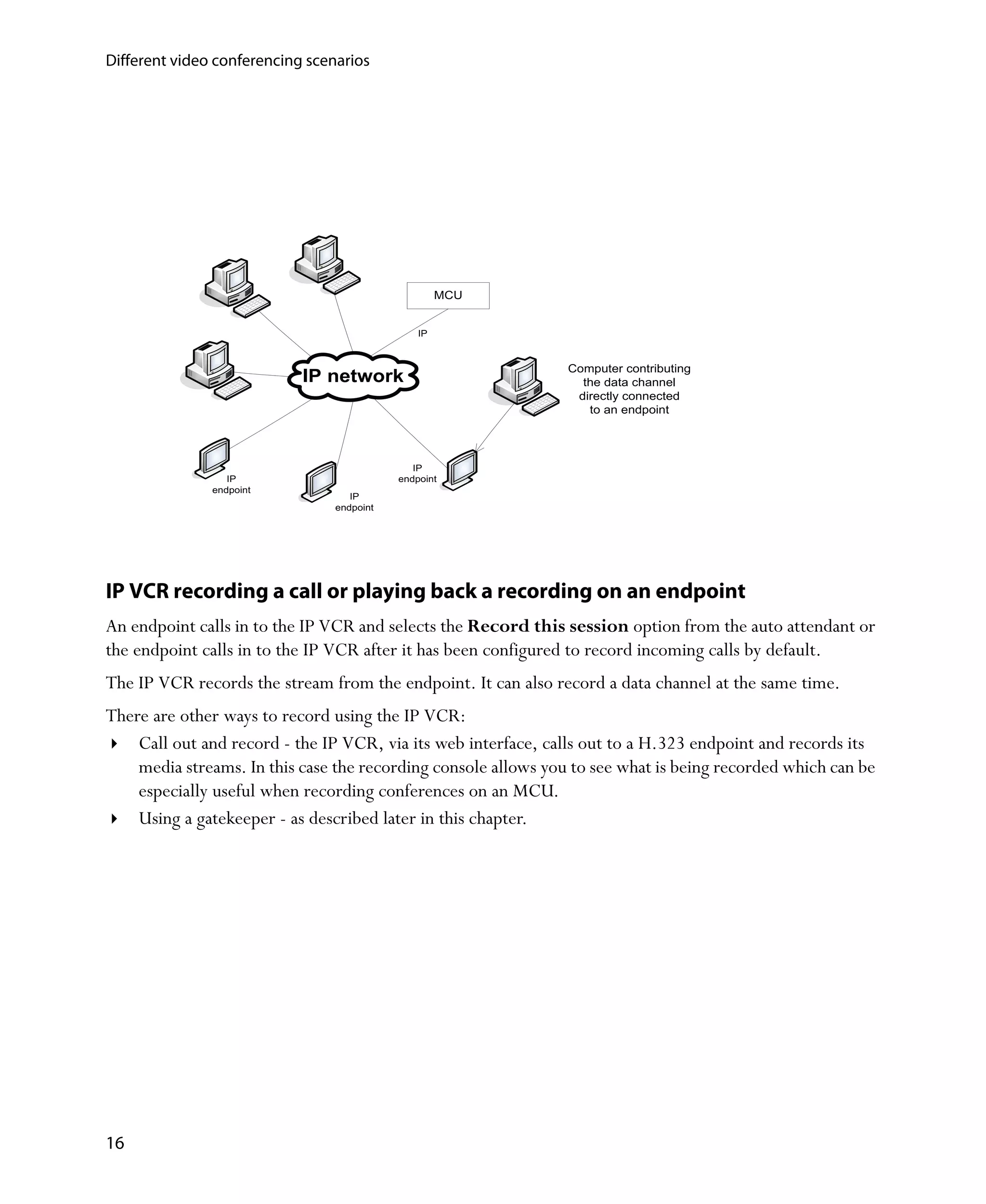
IP VCR recording a call or playing back a recording on an endpoint
An endpoint calls in to the IP VCR and selects the Record this session option from the auto attendant or
the endpoint calls in to the IP VCR after it has been configured to record incoming calls by default.
The IP VCR records the stream from the endpoint. It can also record a data channel at the same time.
There are other ways to record using the IP VCR:
    Call out and record - the IP VCR, via its web interface, calls out to a H.323 endpoint and records its
    media streams. In this case the recording console allows you to see what is being recorded which can be
    especially useful when recording conferences on an MCU.
    Using a gatekeeper - as described later in this chapter.


16
Different video conferencing scenarios


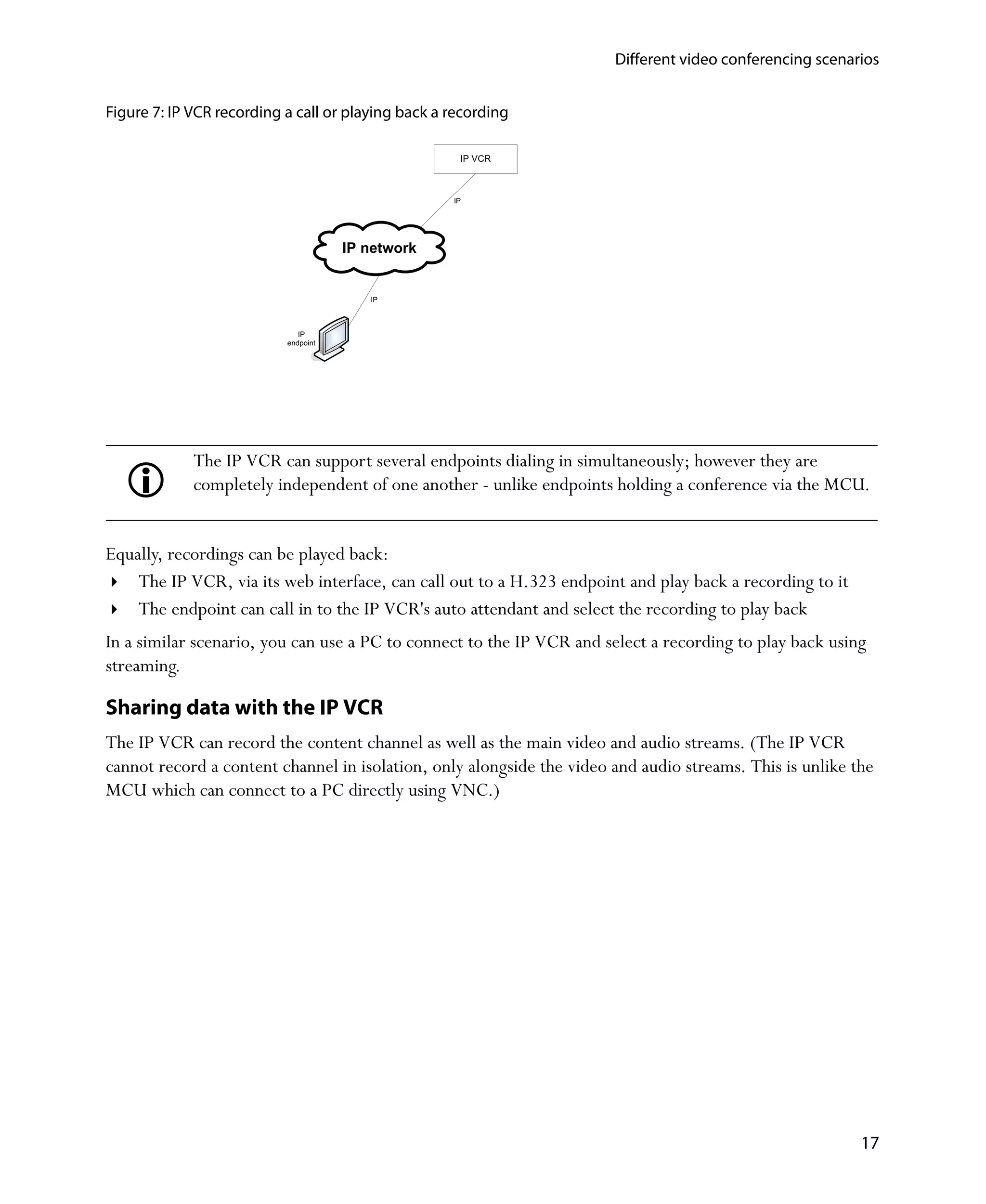
Figure 7: IP VCR recording a call or playing back a recording

                                                     IP VCR


                                                    IP


                                      IP network


                                         IP


                              IP
                           endpoint


             The IP VCR can support several endpoints dialing in simultaneously; however they are
             completely independent of one another - unlike endpoints holding a conference via the MCU.


Equally, recordings can be played back:
    The IP VCR, via its web interface, can call out to a H.323 endpoint and play back a recording to it
    The endpoint can call in to the IP VCR's auto attendant and select the recording to play back
In a similar scenario, you can use a PC to connect to the IP VCR and select a recording to play back using
streaming.

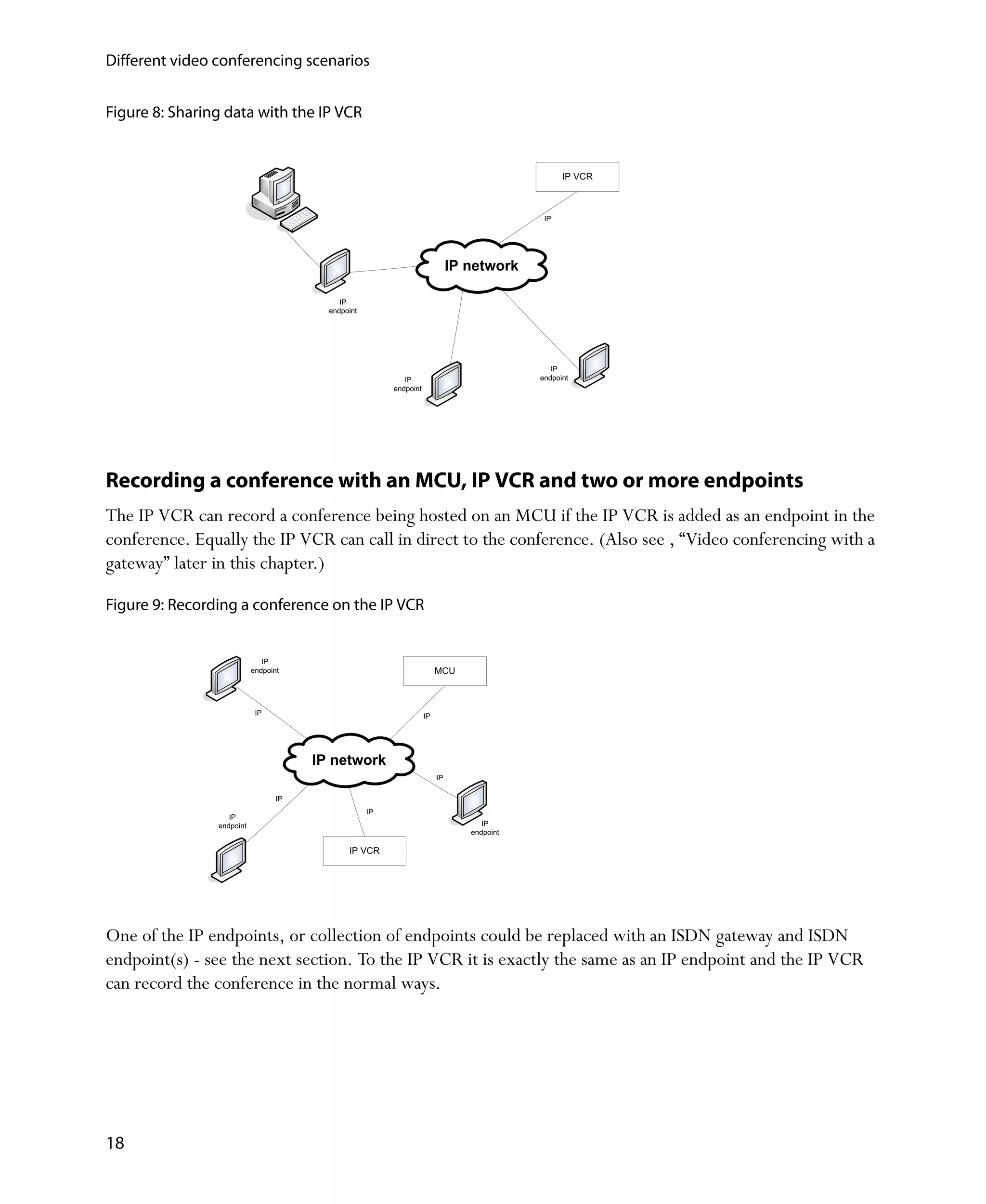
Sharing data with the IP VCR
The IP VCR can record the content channel as well as the main video and audio streams. (The IP VCR
cannot record a content channel in isolation, only alongside the video and audio streams. This is unlike the
MCU which can connect to a PC directly using VNC.)


                                                                                                          17
Different video conferencing scenarios


Figure 8: Sharing data with the IP VCR


                                                                                                  IP VCR


                                                                                             IP


                                                                              IP network

                                            IP
                                         endpoint


                                                                                               IP
                                                            IP                              endpoint
                                                         endpoint


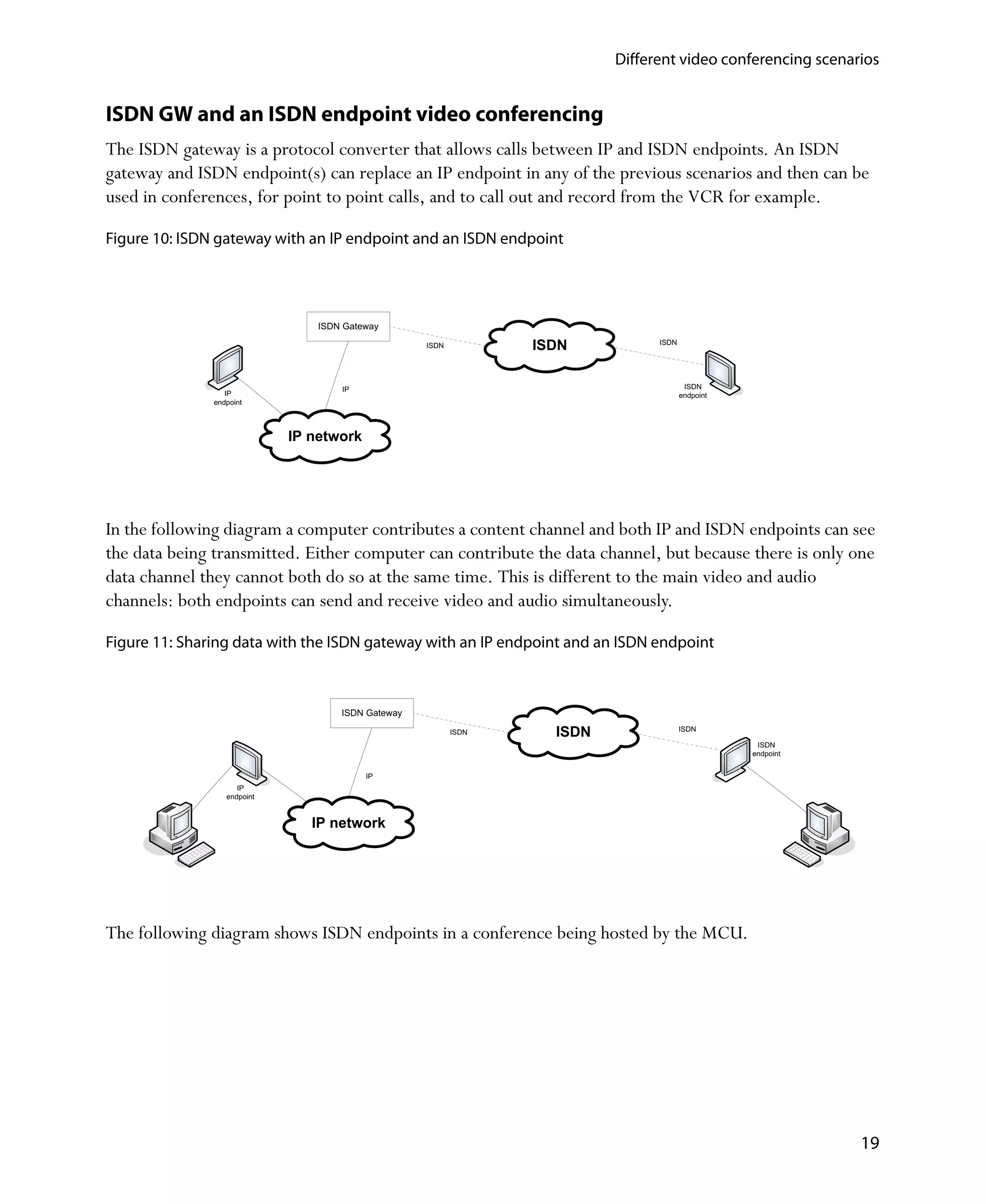
Recording a conference with an MCU, IP VCR and two or more endpoints
The IP VCR can record a conference being hosted on an MCU if the IP VCR is added as an endpoint in the
conference. Equally the IP VCR can call in direct to the conference. (Also see ‚ “Video conferencing with a
gateway” later in this chapter.)

Figure 9: Recording a conference on the IP VCR


                              IP
                           endpoint                                      MCU


                            IP                                      IP


                                       IP network
                                                                         IP

                                  IP
                                                    IP
                   IP
                endpoint                                                            IP
                                                                                 endpoint

                                              IP VCR


One of the IP endpoints, or collection of endpoints could be replaced with an ISDN gateway and ISDN
endpoint(s) - see the next section. To the IP VCR it is exactly the same as an IP endpoint and the IP VCR
can record the conference in the normal ways.


18
Different video conferencing scenarios


ISDN GW and an ISDN endpoint video conferencing
The ISDN gateway is a protocol converter that allows calls between IP and ISDN endpoints. An ISDN
gateway and ISDN endpoint(s) can replace an IP endpoint in any of the previous scenarios and then can be
used in conferences, for point to point calls, and to call out and record from the VCR for example.

Figure 10: ISDN gateway with an IP endpoint and an ISDN endpoint


                                 ISDN Gateway

                                                    ISDN          ISDN           ISDN


                                     IP                                                  ISDN
                  IP                                                                    endpoint
               endpoint


                             IP network


In the following diagram a computer contributes a content channel and both IP and ISDN endpoints can see
the data being transmitted. Either computer can contribute the data channel, but because there is only one
data channel they cannot both do so at the same time. This is different to the main video and audio
channels: both endpoints can send and receive video and audio simultaneously.

Figure 11: Sharing data with the ISDN gateway with an IP endpoint and an ISDN endpoint


                                     ISDN Gateway

                                                           ISDN     ISDN                ISDN

                                                                                                    ISDN
                                                                                                   endpoint


                                          IP
                     IP
                  endpoint


                                IP network


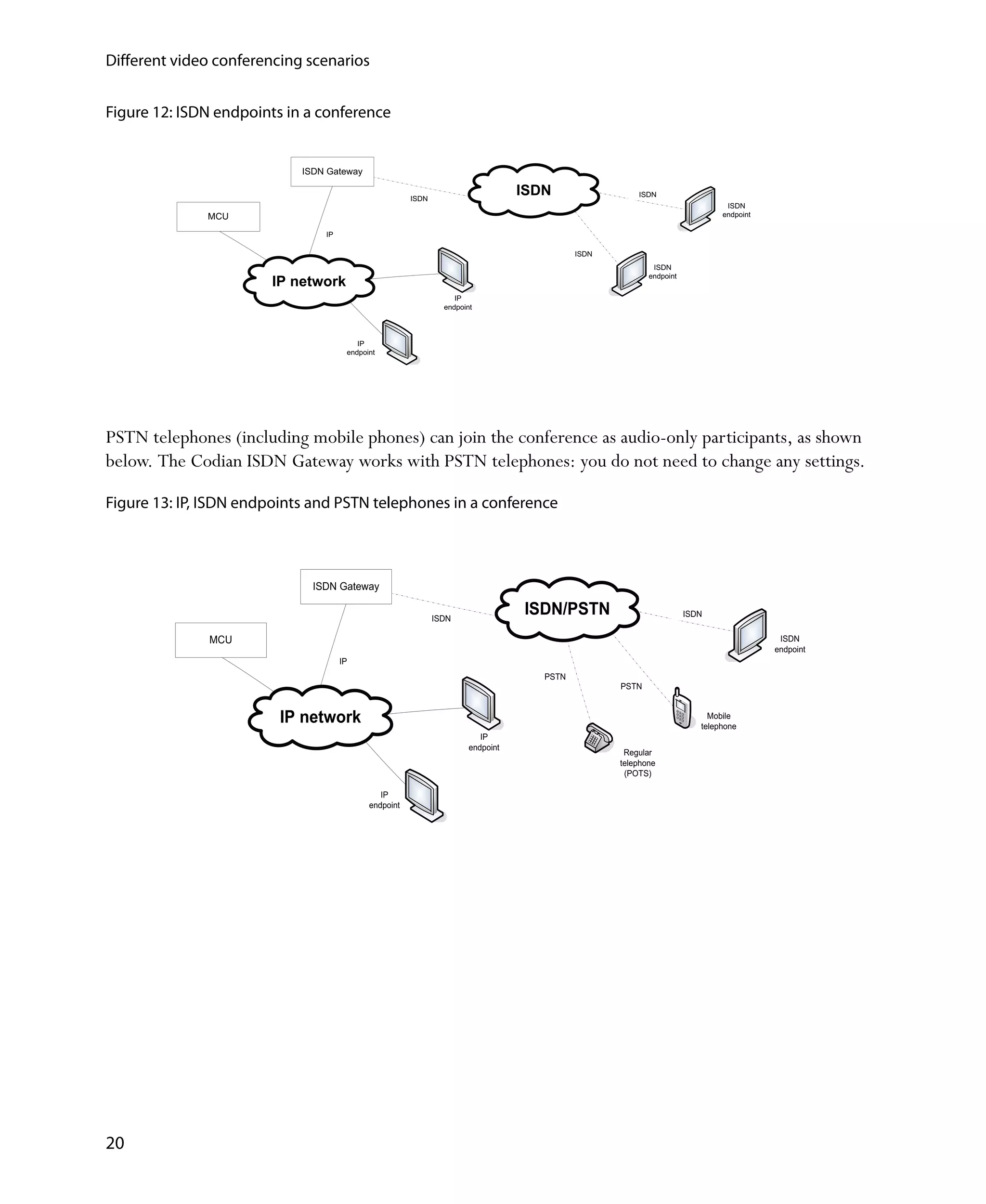
The following diagram shows ISDN endpoints in a conference being hosted by the MCU.


                                                                                                              19
Different video conferencing scenarios


Figure 12: ISDN endpoints in a conference


                            ISDN Gateway

                                                       ISDN
                                                                                  ISDN                 ISDN
                                                                                                                              ISDN
              MCU                                                                                                            endpoint

                                IP

                                                                                            ISDN
                                                                                                           ISDN
                                                                                                          endpoint
                       IP network
                                                                   IP
                                                                endpoint


                                         IP
                                      endpoint


PSTN telephones (including mobile phones) can join the conference as audio-only participants, as shown
below. The Codian ISDN Gateway works with PSTN telephones: you do not need to change any settings.

Figure 13: IP, ISDN endpoints and PSTN telephones in a conference


                              ISDN Gateway

                                                              ISDN
                                                                                  ISDN/PSTN                          ISDN


              MCU                                                                                                                        ISDN
                                                                                                                                        endpoint
                                     IP
                                                                                     PSTN
                                                                                                   PSTN


                         IP network                                                                                       Mobile
                                                                                                                        telephone
                                                                          IP
                                                                       endpoint
                                                                                                    Regular
                                                                                                   telephone
                                                                                                    (POTS)

                                               IP
                                            endpoint


20
Different video conferencing scenarios


Video conferencing with a gatekeeper
All Codian units can use a gatekeeper. A unit registers with the gatekeeper, then when the unit calls out it
queries the gatekeeper to find out where to connect to.

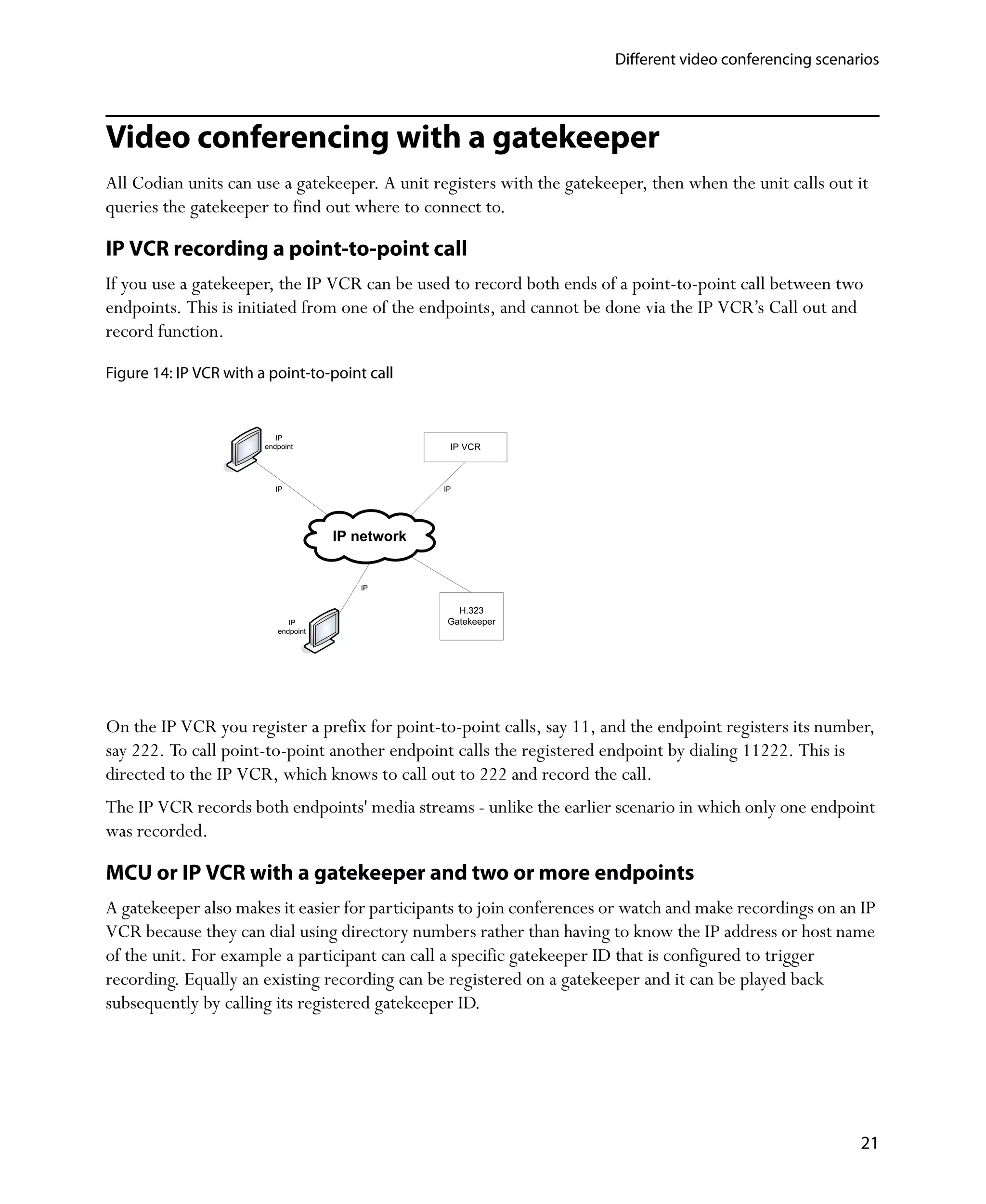
IP VCR recording a point-to-point call
If you use a gatekeeper, the IP VCR can be used to record both ends of a point-to-point call between two
endpoints. This is initiated from one of the endpoints, and cannot be done via the IP VCR’s Call out and
record function.

Figure 14: IP VCR with a point-to-point call


                           IP
                        endpoint                    IP VCR


                           IP                      IP


                                      IP network


                                         IP


                                                      H.323
                              IP                    Gatekeeper
                           endpoint


On the IP VCR you register a prefix for point-to-point calls, say 11, and the endpoint registers its number,
say 222. To call point-to-point another endpoint calls the registered endpoint by dialing 11222. This is
directed to the IP VCR, which knows to call out to 222 and record the call.
The IP VCR records both endpoints' media streams - unlike the earlier scenario in which only one endpoint
was recorded.

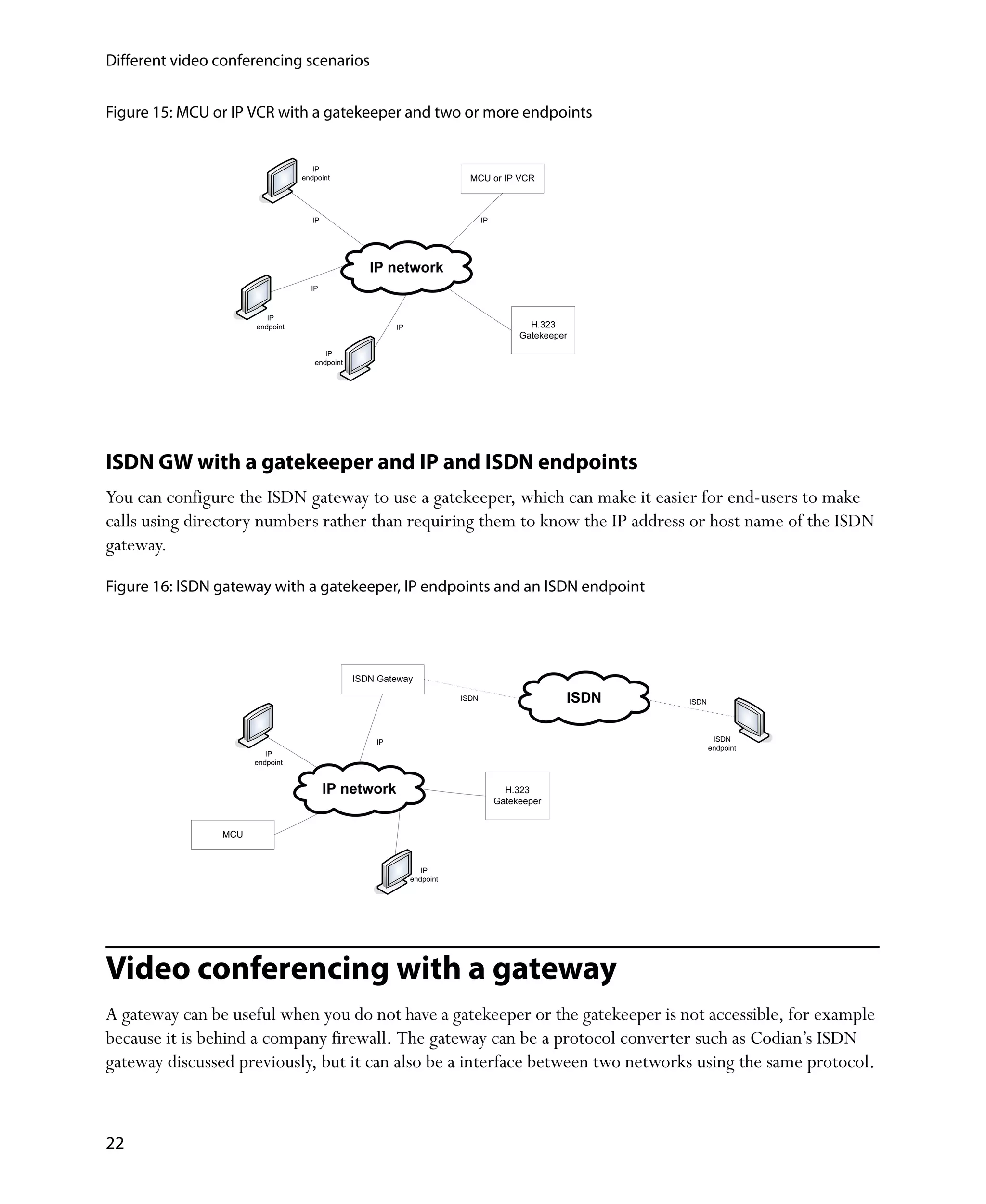
MCU or IP VCR with a gatekeeper and two or more endpoints
A gatekeeper also makes it easier for participants to join conferences or watch and make recordings on an IP
VCR because they can dial using directory numbers rather than having to know the IP address or host name
of the unit. For example a participant can call a specific gatekeeper ID that is configured to trigger
recording. Equally an existing recording can be registered on a gatekeeper and it can be played back
subsequently by calling its registered gatekeeper ID.


                                                                                                           21
Different video conferencing scenarios


Figure 15: MCU or IP VCR with a gatekeeper and two or more endpoints


                                    IP
                                 endpoint                                 MCU or IP VCR


                                    IP                                         IP


                                                  IP network
                                   IP


                         IP
                      endpoint                          IP                                 H.323
                                                                                         Gatekeeper
                                       IP
                                    endpoint


ISDN GW with a gatekeeper and IP and ISDN endpoints
You can configure the ISDN gateway to use a gatekeeper, which can make it easier for end-users to make
calls using directory numbers rather than requiring them to know the IP address or host name of the ISDN
gateway.

Figure 16: ISDN gateway with a gatekeeper, IP endpoints and an ISDN endpoint


                                               ISDN Gateway

                                                                        ISDN                      ISDN   ISDN


                                                   IP                                                            ISDN
                                                                                                                endpoint
                         IP
                      endpoint


                                         IP network                                   H.323
                                                                                    Gatekeeper


                MCU


                                                                IP
                                                             endpoint


Video conferencing with a gateway
A gateway can be useful when you do not have a gatekeeper or the gatekeeper is not accessible, for example
because it is behind a company firewall. The gateway can be a protocol converter such as Codian’s ISDN
gateway discussed previously, but it can also be a interface between two networks using the same protocol.


22
Different video conferencing scenarios


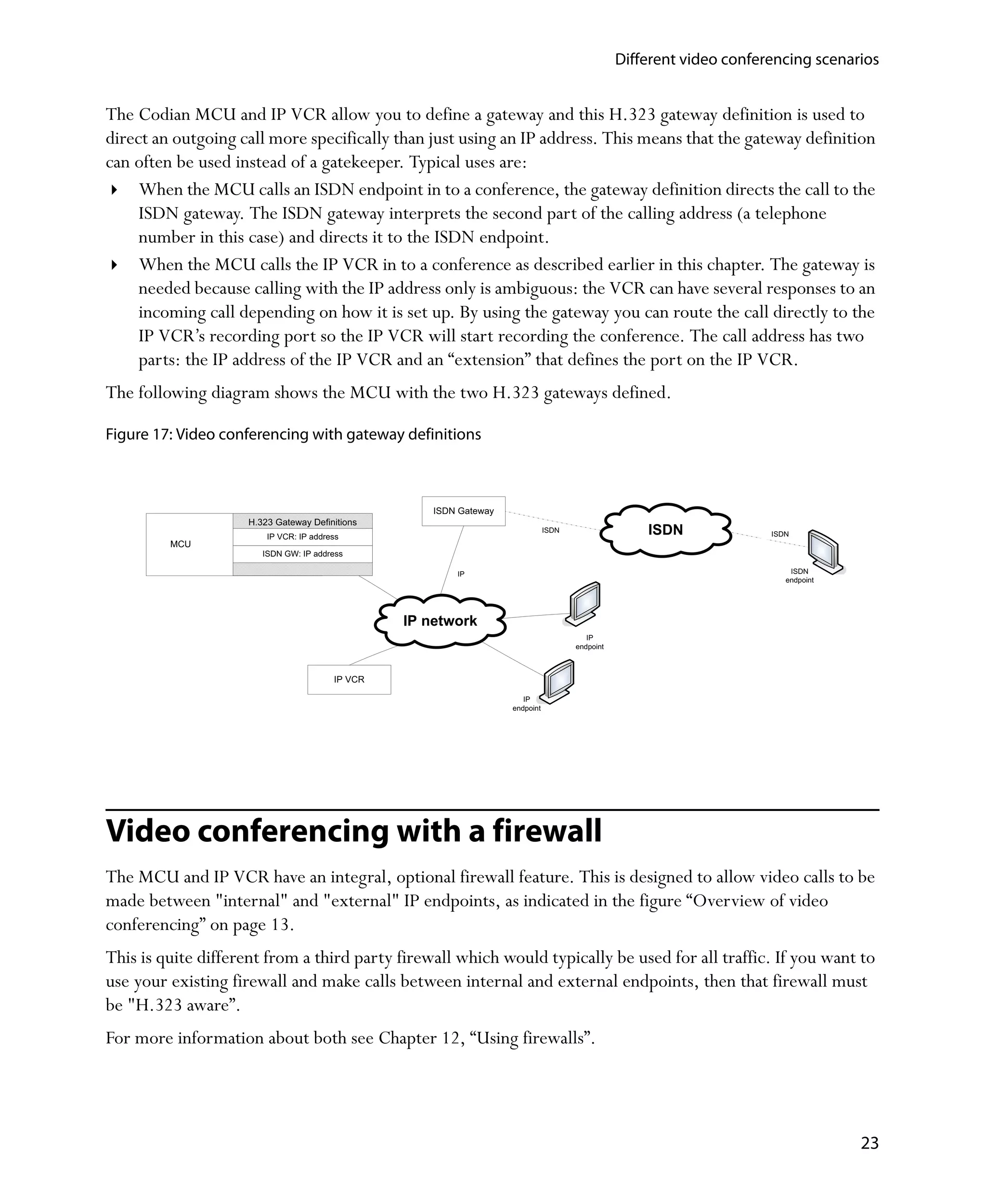
The Codian MCU and IP VCR allow you to define a gateway and this H.323 gateway definition is used to
direct an outgoing call more specifically than just using an IP address. This means that the gateway definition
can often be used instead of a gatekeeper. Typical uses are:
     When the MCU calls an ISDN endpoint in to a conference, the gateway definition directs the call to the
     ISDN gateway. The ISDN gateway interprets the second part of the calling address (a telephone
     number in this case) and directs it to the ISDN endpoint.
     When the MCU calls the IP VCR in to a conference as described earlier in this chapter. The gateway is
     needed because calling with the IP address only is ambiguous: the VCR can have several responses to an
     incoming call depending on how it is set up. By using the gateway you can route the call directly to the
     IP VCR’s recording port so the IP VCR will start recording the conference. The call address has two
     parts: the IP address of the IP VCR and an “extension” that defines the port on the IP VCR.
The following diagram shows the MCU with the two H.323 gateways defined.

Figure 17: Video conferencing with gateway definitions


                                                     ISDN Gateway
                    H.323 Gateway Definitions
                        IP VCR: IP address
                                                                               ISDN                  ISDN              ISDN
         MCU
                       ISDN GW: IP address

                                                         IP                                                                ISDN
                                                                                                                          endpoint


                                                 IP network
                                                                                         IP
                                                                                      endpoint


                                        IP VCR

                                                                       IP
                                                                    endpoint


Video conferencing with a firewall
The MCU and IP VCR have an integral, optional firewall feature. This is designed to allow video calls to be
made between "internal" and "external" IP endpoints, as indicated in the figure “Overview of video
conferencing” on page 13.
This is quite different from a third party firewall which would typically be used for all traffic. If you want to
use your existing firewall and make calls between internal and external endpoints, then that firewall must
be "H.323 aware”.
For more information about both see Chapter 12‚ “Using firewalls”.


                                                                                                                                     23
Different video conferencing scenarios


24
Chapter 5                     First steps


Introduction
When your unit is delivered, it is activated and ready to be connected and used straight away. Follow the
steps in the Getting Started Guide that comes with the unit.
You may also like to work through the Tutorials which are available from Codian’s web site. This provides
step-by-step instructions for some of the most commonly used features.
We suggest that you read the appropriate sections in this chapter for the MCU, IP VCR or ISDN gateway
that you are working with and then go on to the chapter that covers other functionality for that specific unit.


Networking considerations
When you connect your unit you need to consider whether to use DHCP or set a static IP address — see
the Getting Started Guide for the unit you are working with and the online help topic “Configuring
network settings”.
The default settings for the networking options will work in most situations. They should only be altered by
administrators with networking experience. For example on the MCU or IP VCR:
    You should only need to set up Ethernet settings and routes if you are using both ports. See the Chapter
    12‚ “Using firewalls”,and the online help topics “Configuring network settings” and “Configuring IP
    routes settings”.
    You should choose whether to use the in-built video conferencing firewall in the MCU/IP VCR and a
    third party firewall. See Chapter 12‚ “Using firewalls”


Configuring user accounts (all units)
By default when a unit is delivered there are two user accounts: admin and guest (see the online help topic
“System defined users”). These accounts are used to log in to the web interface: people wanting to stream a
conference or select a conference from an auto attendant do not need to log in and therefore do not require
a user account.


                                                                                                            25
First steps


Setting an administrator password
When a unit is delivered the admin user account has no password. However, this is insecure and you should
change the password to something meaningful to you (but that will not be guessed by another person) as
soon as possible.
Go to Users and click the admin link. See the online help topic “Adding and updating users” (MCU and IP
VCR) or “Updating users” (ISDN Gateway).
The other features of the admin user cannot be changed; on each unit the admin user has full privileges.
              You must be logged in as the admin user to be able to change another user's configuration or
              add new users.


The guest user
By default, anyone logging in to the web interface logs in with the guest user account which does not have a
password. By changing the configuration of the guest user you can limit what they can do. You can:
    Enter a password for the guest user account
    Change their privilege level (MCU and IP VCR) — see the next section
Go to Users and click the guest link. See the online help topic “Adding and updating users” (MCU and IP
VCR) or “Updating users” (ISDN Gateway)

Other user accounts and privilege levels
On the MCU and IP VCR the administrator can set up additional user accounts for which there are a
number of privilege levels to choose from (see the online help topic “Privilege levels”):
    The IP VCR has 4 levels from viewing the recording list to full administrator rights
    The MCU has 7 levels from viewing the conference list to full administrator rights
Whether you need to set up additional accounts depends on how you intend to use the unit:
   MCU: if you have users whose main task is to schedule and monitor conferences, you may want to set
   up user accounts for them with one of the "conference creation" privilege levels
   MCU: if you want to display a still photograph of a voice-only participant in a conference in one of the
   video panes, this participant must be set up as a user and his or her photograph uploaded. (The
   maximum number of photographs that can be stored depends on the unit type and model but is quite
   large. For example the Codian MCU 4220 supports 50 user photographs.) See the online help topic
   “Adding and updating users”
   IP VCR: if you have users who only need to stream recordings, they will need a user account at the
   lowest level


26
First steps


    IP VCR: if you have users who need to upload recordings, configure active connections or change
    settings, they will need a user account
            The maximum number of user accounts on all Codian MCUs and IP VCRs is 200 user
            accounts.
            The maximum number of user accounts on the ISDN gateway is 10 and there are only two
            privilege levels: admin and list only (for the guest user that allows you to see basic details
            about active calls).

MCU specific user fields
A number of fields appear in the MCU Add User page only. These work together.
    It is possible to associate voice-only endpoints (via the E.164 phone number) with a user. If the user
    calls in from this number the MCU identifies the call as being from the user. If the following fields are
    then also configured for the user account, the MCU will know how to treat the call
    Associated video endpoint — if this is an endpoint that you configured previously, then the MCU will
    call out to this video endpoint on receiving an audio-only call from the E.164 number. This allows the
    user to fully participant in a conference by talking and listening on the telephone but viewing the
    conference video on the configured video endpoint. Moreover, the audio and video streams are
    associated - for example, the volume that the participant talks with on the telephone is considered in
    the same way as other participants when the MCU decides who appears in the largest video pane.
    (There are different types of endpoint - go to Endpoints and see the online help topic “Displaying
    endpoint list”)
    Upload bit map — if you upload an static image after the user has been created, the MCU will display
    this picture of the user (instead of a video stream) if they are participating as an audio-only participant


Port reservation (MCU only)
MCU has two types of ports: voice-only and video ports (that accept both video and audio). By default,
port reservation is disabled and the MCU will allocate the most appropriate type of port to each endpoint
until all the ports of that type are allocated. It will then allocate an audio-only port to an endpoint that can
support both video and audio until all the ports on the MCU are in use — and equally, if only video ports
are available, it will allocate a video port to an audio-only device until all are in use. It is not possible to
guarantee how many participants will be able to join a conference at any time because you cannot guarantee
how many ports will be used by other conferences.
However, if port reservation is enabled then this behavior changes. When you schedule a conference you
must specify the number of audio-only and video ports to reserve. The MCU will not allow you to specify a
number that would take the total port count during the conference to more than the MCU has. When you
display the conference list the number of participants is displayed as A/B where A is the number of active
participants and B is the configured limit. See the online help topic “Displaying conference lists”.

                                                                                                              27
First steps


Enabling port reservation prevents:
    the Create new conference option being displayed, even on auto attendants that are set up to have this
    option and therefore ad hoc conferences cannot be created when port reservation is enabled
    you creating a new auto attendant with this option
    users calling in to the MCU with an unknown E.164 number setting up a new conference, even if
    Create new conference has been set in the Conference settings page. See the online help topic
    “Configuring global conference settings”. In this case, the user is disconnected
              We recommend that you do not change the setting while there are active conferences. If you
              enable port reservation, all ad hoc conferences are destroyed and their participants are
              disconnected. Also some participants of scheduled conferences may also be disconnected — if
              the number of ports reserved for a conference is less than the number of active participants at
              the time you change mode. See the online help topic “Reservation of MCU media ports”.

Port reservation is enabled on Settings > Conferences. See the online help topic “Port reservation” which
explains the advantages and consequences of enabling port reservation.
              VNC connections are video-only and therefore will never be allocated an audio-only port.
              Streaming requires one video port per conference but any number of viewers can steam the
              same conference on that port.
              When a participant connects to an auto attendant, a port is borrowed from the pool because
              the MCU does not know which conference to allocate the connection to until a conference is
              selected. This means that if that participant is using the last media port and another endpoint
              connects directly to a conference, the auto attendant link will be dropped.
              Even when port reservation is disabled, you can set a maximum for the number of video and
              audio-only participants in a conference. See the online help topic “Adding and updating
              conferences”.


Configuring auto attendants (MCU and IP VCR)
When an endpoint connects to the MCU or IP VCR, the default auto attendant may be displayed with a
menu of options and an audio prompt is heard (see the online help topic “Using an auto attendant”).
Whether the auto attendant is displayed depends on how the units are set up.

Auto attendants on the MCU
The Codian MCU can have many auto attendants (otherwise known as Interactive Voice Responses or IVRs)
and menu structures can be setup by configuring multiple linked auto attendants. See the online help topic
“Adding and updating an auto attendant”.


28
First steps


By default, all active conferences are displayed on the default auto attendant - the auto attendant that the
MCU is delivered with. Alternatively, you specify which conferences appear on a specific auto attendant.
By default, the option Create a new conference is displayed on the default auto attendant so participants
can create new ad hoc conferences when they dial in. This option can be turned off. It is not available if
Media port reservation is enabled. See ‚ “Port reservation (MCU only)”.

When an auto attendant is displayed
On the Settings > Conference page you can configure how the MCU will behave when it uses a prefix
registered with a gatekeeper and an endpoint dials a number starting with that prefix. The options on this
page are to set up a new conference, disconnect the call or display the default auto attendant. See the online
help topic “Configuring global conference settings”.
The default auto attendant is also displayed if an endpoint calls the IP address or H.323 ID of the unit or if
an endpoint dials a number assigned to it.
All auto attendants can have a numeric ID assigned to them and when the number is registered with a
gatekeeper, the auto attendant can be dialed directly (See the online help topic “Adding and Updating an
auto attendant”). In this way, you can provide an alternative number for your participants to dial so that
they go directly to the specific auto attendant of your choice and only see the menu options you want them
to.

Setting a PIN for the auto attendant (MCU only)
For security you can decide whether a PIN has to be entered before an auto attendant is displayed.
Note that on the MCU each conference you see on the auto attendant may have its own conference PIN —
and the two uses of a PIN should not be confused. See the online help topic “Adding and updating an auto
attendant”.

Auto attendants on the IP VCR
The IP VCR has only one auto attendant. The auto attendant is a menu of options from which you can
record the session or select a previously stored recording to play back. Displaying the auto attendant is the
default in Settings > Connections but you can change this to:
    automatically answer incoming calls and start recording
    disconnect the call
    Like the MCU, auto attendants on the IP VCR can have telephone numbers assigned and be registered
    with a gatekeeper so they can be dialed directly.
            Recordings can be registered with a gatekeeper. They can then be dialled directly by calling
            the number that has been registered (bypassing the auto attendant) and play back will start
            automatically.


                                                                                                             29
First steps


Customizing the auto attendant banner
You can add a custom banner image to any auto attendant configured on the MCU or IP VCR. The banner
is the image at the top of the auto attendant menu page and the default is the Codian company logo. The
image file must be in GIF or Windows BMP format with a maximum size of 352 x 64 pixels. If the image is
smaller than 352 x 64 pixels so that the background color is seen, you may also want to change the
background color.
Display the Banner page for the auto attendant you want to alter and see the online help topic “Adding a
custom banner” for more information. To display the page:
    On the MCU go to Conferences > Auto attendants, select the auto attendant and click Banner
    On the IP VCR, go to Settings > Banner


Localized MCU units
If you prefer to work on a Codian MCU in a language other than English, Codian or a reseller can localize
your unit by uploading a localization package. The web interface pages, online help pages and voice
prompts will be displayed/played in your local language. The default files are not deleted and you can
return to English at any time. See the online help topic “Customization”: more information.
However, you can customize voice prompts yourself as described in the next section.


Customizing voice prompts (MCU and IP VCR)
By default the IP VCR and MCU includes English voice prompts spoken by a female American voice. You
may wish to replace these prompts with your own in order to change the wording, language or accent used.
Alternate prompts may be uploaded individually using the web interface (go to Settings >
Customization). After the voice prompts have been uploaded you can create a resource package of them.
You can then upload the resource package on to other units in one go.
For detailed instructions and guidance on making good quality voice prompt recordings, display the online
help topic “Customizing the user interface”.


Communicating with the unit
To communicate with a unit you must have connected its ports and defined its IP address as described in the
Getting Started Guide.
There are a number of ways to communicate with Codian units:
    Serial port or console port - see the Getting Started Guide for your unit.


30
First steps


Web interface: this is the main administrator interface for configuring and managing all the units.
Simply open a web browser and type in the IP address of the unit.
FTP: FTP is not for everyday administration. If FTP connections have been enabled, then some
functions, such as backing up configuration files are best achieved using FTP on all units. The most
common use of FTP is to up/download recordings from the IP VCR.
Far End Camera Control (MCU and IP VCR) can be used to:
     Select an option from an auto attendant
     Control the video layout during conferences
DTMF tones (MCU only): these can be used at the auto attendant for joining a conference by its
numeric id, and for changing layout with endpoints that have no Far End Camera Control capabilities
Management API (MCU only): can be used by software applications to monitor and control the MCU


                                                                                                   31
First steps


32
Chapter 6                     MCU administration


Introduction
This chapter covers general administrator tasks specific to the MCU.


Conferencing considerations
Unit-wide settings are configured in Settings > Conferences. See the online help topic “Configuring
global conference settings”.
Settings for a specific conferences are defined in the Conferences > Add new conference page. Also see
the online help topic “Adding and updating conferences”.

How participants access conferences
There are a number of ways that a participant can join a conference:
    Participants can dial in to a conference or the MCU can dial out. See the online help topics “Calling in
    to conferences” and “Being invited in to a conference”
    When dialing in, they can dial a conference directly if you provide the conference details, or they can
    connect via an auto attendant. See “Configuring auto attendants (MCU and IP VCR)” on page 28
    Participants may be able to join a conference and participate fully, or they may be allowed to stream the
    conference only i.e. they can watch and listen but not contribute

Types of conference
Conferences can be set up when you need them (these are called ad hoc conferences) or can be scheduled to
start at a particular time. They can have a specified duration or be set up to be permanent. Scheduled
conferences can also be set up to repeat for example on a weekly basis.
Conferences can appear in three categories on the web interface:
   Active conferences: conferences that are currently in progress
   Scheduled conferences: conferences that have a specified start time. They can be in progress or yet to
   start. Note that a scheduled conference can also be in the active conferences list


                                                                                                          33
MCU administration


     Completed conferences: scheduled conferences that have finished and are not scheduled to repeat
            You can reactivate a completed conference by displaying its properties and adding a new start
            date/time in the future.


See the online help topic “Displaying conference lists”.

Scheduled vs. ad hoc conferences
Scheduled conferences are set up through the web interface and can start at a specified time or immediately.
Ad hoc conferences are set up "on the fly" from the auto attendant, if the Create new conference option
is displayed.Ad hoc conferences always start immediately. See the online help topic “Adding and updating
conferences”.
Scheduled conferences can be set up to dial out to pre-configured endpoints — see “Pre-configuring
endpoints” later in this chapter — (and participants can also dial in). Participants can dial in to ad hoc
conferences and the MCU can dial out while the ad hoc conference is active but you cannot pre-configure
an ad hoc conference to dial out.
Ad hoc conferences are not permitted if port reservation is enabled — see “Port reservation (MCU only)”
on page 27.

Permanent vs. time limited conferences
When you set up a scheduled conference you can select the Permanent check box or set the maximum
duration. See the online help topic “Adding and updating conferences”. Permanent conferences are not
recommended if you are using port reservation (“Port reservation (MCU only)” on page 27) because they
do not release their port allocation even when there are no participants.

Stopping scheduled conferences early
If a conference is scheduled for 2 hours but the participants have finished after an hour, you can stop the
conference in two ways:
      You can disconnect all the participants — see the online help topic “Viewing conference participant
      list”. The conference remains an active conference but with no active participants. If you are using port
      reservation — see ‚ “Port reservation (MCU only)”— then the ports remain allocated to the
      conference until the scheduled end time and are not available for other conferences until that time.
      You can end the conference by clicking End conference in the Conferences pages — see the online help
      topic “Viewing conference participant list”. In this case, the conference is no longer active. If it was a
      repeating conference, the conference becomes a completed conference and then all future instances
      will not happen unless you display the conference properties and reschedule the conference to start at
      the next occurrence. The conference duration is also reduced — and you may want to return this to its
      previous value if you are rescheduling the conference.


34
MCU administration


Advantages of pre-configured endpoints
You can configure endpoints and then when you configure a conference, select one or more of these
endpoints to be called automatically when the conference starts. Configured endpoints that are also
configured in one or more conference definitions are said to be pre-configured for these conferences.
Pre-configured endpoints are designed to save you time and are useful when a participant takes part in one
or more conferences regularly. For example, when the conference configuration is set up to call the pre-
configured endpoints automatically, this saves you having to set up the details of each endpoint each time.
When an endpoint dials in, a number of parameters including its E.164 number and IP address are checked.
If the MCU matches these call-in parameters to an endpoint’s configuration, it will use the “Conferencing
parameters” in that definition, such as bandwidth and default family view.
There are two types of endpoint: H.323 and VNC and both can be configured and then added to a
conference configuration as pre-configured endpoints. A VNC endpoint (Virtual Network Computing)
enables you to have software applications such as a set of slides running on a remote computer added to a
conference. Go to Endpoints and click Add H.323 or Add VNC as appropriate and see the online help
topics “Displaying endpoint list”, “Configuring H.323 endpoints” and “Configuring VNC endpoints”.

Setting up and controlling conference layouts
When a participant joins a conference the screen layout seen is determined by the combination of settings at
a number of levels:
    The default view set for the MCU. Go to Settings > Conferences and select the Default view family.
    This can be overridden by the layout selected for a conference per individual participant. See the online
    help topic “Customizing layout views”
    The layout for all the participants of a conference in the conference’s Custom layout page. See the
    online help topic “Customizing layout views”
    The participant's custom layout settings. Go to Conferences and select a conference, then a participant
    and click Custom Layout. See the online help topic “Selecting a custom participant view”
    The participant's Display page. This shows the conference and participant custom layout selections as
    additional alternatives to the layout families. See the online help topic “Customizing a participant's
    layout view”. In addition you can select whether:
         the participant can change their view
         the participant can contribute H.239 content channel video - see Chapter 9‚ “Using data”
         to send normal or widescreen video format to the participant's endpoint.
The Custom layout pages for a conference and for a participant have the same layout selections. You can:
    Enable custom view layout
    Select a view
    Make all participants see this view now


                                                                                                           35
MCU administration


     Make all participants see this view when they join the conference
            Unless you specifically prevent it on the participant's display page, each participant can
            override the view you select for them by using their remote control.


Also see the online help topic “Understanding how participants display in layout views”.

Who displays in the large pane
By default the person talking the loudest in a conference is displayed in the largest pane in layouts that have
such a thing. The view is then voice controlled and the person displayed in the largest pane will change as
different people speak.
This can be overridden by making a participant “Important” by clicking the Make important icon. This
makes them the focused participant and gives them priority in the layout views. This is done in the
participant list.

Conference PINs
A conference may be assigned a PIN so that only people who know the PIN can join the conference.

Conference ownership
The person (user account) that sets up a scheduled conference is the conference owner initially. This can be
changed by users with administrator privileges or conference ownership and full control. Being a
conference owner allows control over the conference - the amount of control depends on the privilege level
of the user’s account. See the online help topic “Conference ownership”.

Content channel support
When you set up a conference, you control whether the conference will support an H.239 content video
channel. This is discussed in Chapter 9‚ “Using data”.

Selecting a video size (4CIF feature key only)
If you have the 4CIF feature key enabled (go to Settings > Upgrade to check) you can select a maximum
and default video size for each conference. Go to Settings > Conference and see the online help topic
“Configuring global conference settings”. You can then also select a preferred video size per H.323
endpoint to limit the video size sent or received to that which the endpoint supports (see the online help
topic “Configuring H.323 endpoints”). This setting takes precedence over the conference settings but is
limited by the maximum video size set for the conference.
            If you are using an H.323 gateway to connect to the endpoint, the video size is also limited by
            the maximum video size that can be sent through the gateway. See the online help topic
            “Adding and updating gateways”.


36
MCU administration


Summary information icon

Click the Summary information          icon to display details about a conference that has been selected in the
web interface. This information can be copied to the clipboard for convenience; for example to inform
participants about conference details such as start time and instructions on how to view the conference
using streaming.


Enabling the MCU for H.239
Before you can include a content channel in a conference you need to enable the MCU to do so. Go to
Settings > H.239 and see the online help topic “Configuring H.239 settings”. For more information on the
H.239 content channel see Chapter 9‚ “Using data”.


Configuring endpoints
Configuring endpoints speeds up configuring conferences if the same endpoints are used repeatedly.
You can configure an H.323 endpoint on the MCU by going to Endpoints and then selecting the type of
endpoint to add. Then to add endpoints to a conference, you just select its name from a list.
See the online help topic “Displaying endpoint list” and the online help topic for adding the type of endpoint
you are added, for example “Adding an H.323 endpoint”.


Setting up a H.323 gateway
The MCU has a gateway function which allows you to define the IP address of a gateway: for example you
could set up a gateway definition called Record my conference and this would specify the IP address of an IP
VCR. When you then call out from the MCU you can choose to use this pre-configured gateway definition
and the call will be directed to the specified IP address. In this case the IP VCR acts as a gateway.
(You can also call an IP address and number where the number is understood by the gateway unit you are
dialing. See the explanation in “Video conferencing with a gateway” on page 22.
Reasons why you may want to use these gateway definitions include:
    To create a direct link to another unit without requiring a gatekeeper
    To cascade MCUs in a conference without a gatekeeper - see the next section
    To save typing in the IP address each time
Go to Gateways > Add H.323 gateway. See the online help topic “Adding and updating gateways”.


                                                                                                            37
MCU administration


The ability to define how to access a gateway should not to be confused with our ISDN Gateway which is a
protocol converter as well as a call director.


Cascading MCUs
If you require a dial out scheduled conference with more than 40 participants, multiple MCU units can be
cascaded together. This would lose two ports for each cascade, providing a total of 78 ports. Also some
functionality would be lost between the cascade - such as the ability to choose the layout on the second
MCU if you are connected to the first. It is possible to set up the units so they can automatically cascade
together as part of a scheduled conference: one can automatically dial the other and join a conference and
set the correct layout to send between the units. For best results the cascaded MCU should be displayed in
the largest pane.
            Adding an H.239 content channel to the conference will take a port on each MCU rather than
            one for the entire conference and therefore the maximum number of participants would be
            reduced by two.


Load balancing MCUs
Dial-in ad hoc conferences can be load balanced using a gatekeeper with a "round robin” mode. If you have
two MCUs of the same size that are both registered with the same gatekeeper with the same prefix, then
ad-hoc conferences will be assigned to one or other MCU, balancing the load between them. See the online
help topic “Configuring Global Conference Settings”.
For more information about using a gatekeeper see Chapter 11‚ “Using a gatekeeper”.


Sending messages during a conference
You can send messages to one participant in a conference or to all of them simultaneously. The message can
be up to 256 characters long and you can set the time for which the message will overlay each participant’s
view.
    To send a message to one participant: go to Conferences, select a participant and then click on the
    Send message tab. See the online help topic “Sending a message to an individual participant”
    To send a message to all participants, go to Conferences > Send message. See the online help topic
    “Sending messages to all participants”


38
MCU administration


Using the MCU with a gatekeeper
You can configure the MCU to use a gatekeeper, which can make it easier for participants to join a
conference using directory numbers rather than requiring them to know the IP address or host name of the
MCU. See Chapter 11‚ “Using a gatekeeper”.


Displaying conference and participant statistics
You can display statistics for a conference which may be helpful when managing conferences (see the online
help topic “Displaying conference statistics”) or for an individual participant which shows the status of a
participant’s link (see the online help topic “Displaying statistics for a participant”).


                                                                                                         39
MCU administration


40
Chapter 7                    IP VCR administration


Introduction
This chapter covers general administrator tasks that are unique to the IP VCR.


Making recordings
Recordings can be made by the IP VCR calling out to the endpoint or by an endpoint calling in to the IP
VCR (and the endpoint can be a Codian MCU). In either case you can make recordings non-interactively
— with no feedback to the user — or using the Recording Console. With non-interactive recording the IP
VCR does not send video to your endpoint: typically your endpoint displays a blank screen (see the online
help topic “Non-interactive recording”). To see what the IP VCR is recording, use the Recording Console.
For example this may be useful if you are making a presentation and you want to see the view that your
audience is seeing. See the online help topic “Using the recording console”.

Recording settings
Default action for incoming calls with an unknown E.164 number
When receiving calls with a number that does not match a recording to play back, the IP VCR can behave in
a number of ways:
    Connect to auto attendant: Users see the default auto attendant with the Record this session
    option. This displays the Recording Console.
    Record session: Users see the video recording screen and can record the video from their endpoint
    Disconnect caller: Users may not call the IP VCR in this way; the call is terminated
You select which action will happen. Go to Settings > Connections and see the online help topic
“Configuring global connection settings”.

Other settings
You can set the default and maximum video size and the default connection bandwidth to and from the IP
VCR. Go to Settings > Connections and see the online help topic “Configuring global connection
settings”. There are also a number of more advanced settings on this page but we recommend that you do
not change these unless you are an expert or told to do so by Codian technical support.


                                                                                                       41
IP VCR administration


There are additional settings in Settings > Recording such as whether recordings loop back to the
beginning when they finish and the layout to use for point-to-point calls. See the online help topic
“Configuring recording settings”.
One setting of importance on this page is the whether the video stream being recorded is always sent back
to the endpoint. The IP VCR should not need to send video to an endpoint or MCU device that it is
recording; however, some devices are programmed not to transmit video unless video is sent to them. In
this case, you need to select this option so that the IP VCR can work with such systems. The IP VCR will
then send a blank video stream if the recording console is not in use, or the video stream being recorded if
it is.
On the other hand if the IP VCR sends video to the far end during a conference, then it is possible that the
video sent by the IP VCR ends up as part of the recorded conference in addition to the "real" participants in
that conference. In this case, you would need to deselect this checkbox.


Displaying the connection status
You can see the status of currently active connections on the Connections status page. Go to Connections.
You see connection and endpoint information as well as a snapshot of the video being played or recorded.
For playback and direct recording connections, information for just one endpoint is shown; for point-to-
point recordings, you see information for both endpoints. Endpoint information is not available for
connections that are streaming a recording (playing back to a computer).


Enabling the IP VCR for H.239
Before you can record a content channel in a conference you need to enable the IP VCR to do so. Go to
Settings > H.239 and see the online help topic “Configuring H.239 settings”. This page also lets you set
the size (in pixels) of the H.239 window used when streaming. For more information on the H.239 content
channel see Chapter 9‚ “Using data”.


Configuring endpoints
Configuring endpoints speeds up calling endpoints that you use frequently and playing back or recording.
You can configure an H.323 endpoint on the IP VCR by going to Endpoints > Add H.323. When the IP
VCR is recording a conference being hosted by an MCU, the IP VCR can call out to a configured endpoint
in to the conference.
See the online help topics “Displaying endpoint list” and “Configuring H.323 endpoints”.


42
IP VCR administration


Summary information icon
Click the Summary information         icon to display details about a recording that has been selected in the
web interface. This information can be copied to the clipboard for convenience; for example to inform
users how to view this recording using streaming.


Setting up a H.323 gateway
The IP VCR has a gateway function which allows you to define the IP address of a gateway: for example you
could set up a gateway definition to call out to an endpoint you cannot call directly, for example, behind an
IP PBX. When you call out to the endpoint and use the pre-defined gateway definition the IP PBX acts as
the gateway and routes the call to the endpoint using the E.164 number.
Go to Gateways > Add H.323 gateway. See the online help topic “Adding and updating gateways”.
The gateway definitions should not to be confused with our ISDN gateway which is a protocol converter as
well as a call director.


Transferring recordings
Although you can make and view recordings with the IP VCR you are not restricted to watching only
recordings made with the IP VCR. You can upload recordings made elsewhere to the VCR - and you can
download recordings made on the Codian IP VCR. See the online help topic “Transferring recordings”.
To upload a recording, go to Recordings and select Upload Recording.

Recording file formats
Recordings can be uploaded or downloaded in the .codian or MPEG 1 format file. Files in the .codian
format transfer more quickly. MPEG1 files can be viewed on a PC using a package such as Quicktime™.
(Codian provides a command line utility to convert files in .codian format to MOEG 1 format.)

Transferring by re-recording
You can also transfer a recording by using Call out and record, and then calling the recording to re-record.
However, the new recording may not be of the same quality as the original.


                                                                                                          43
IP VCR administration


Using the IP VCR with a gatekeeper
You can configure the IP VCR to use a gatekeeper, which can make it easier for end-users to watch and
make recordings using directory numbers rather than requiring them to know the IP address or host name
of the IP VCR. See Chapter 11‚ “Using a gatekeeper”.
You also need to use a gatekeeper to make point-to-point calls.


Displaying IP VCR statistics
In addition to displaying general and hardware status you can display information about recordings such as
the number, total size and total length of stored recordings. You can also see how much disk space is left on
the IP VCR for additional recordings. Go to Status > Recording and see the online help topic “Displaying
recording status”.


44
Chapter 8                     ISDN gateway administration


Introduction
This chapter covers general administrator tasks specific to the ISDN gateway.


Installing the ISDN gateway
You connect the ISDN gateway to your ISDN connection and to your Ethernet network. It is important that
you correctly install the unit. This is described in the ISDN gateway Getting Started Guide (supplied with
the unit and also available on the Codian web site).
The initial configuration of the unit, including IP settings, is also described in the Getting Started Guide.


Establishing a connection with the ISDN network
Before the unit can establish a connection with the ISDN network, you need to configure the ISDN settings.
Refer to the ISDN gateway Getting Started Guide and the online help topics “Configuring general ISDN
settings” and “Configuring ISDN ports settings”.


Routing calls between IP and ISDN networks
The default behavior of the ISDN gateway is to reject all calls. You must configure the ISDN gateway to
route calls in the required way. This is achieved by creating a dial plan.
The ISDN gateway uses the dial plan to determine how to route calls between IP and ISDN networks.
When the ISDN gateway receives a request to initiate a new IP to ISDN or ISDN to IP call, it examines the
called number (if available), and uses the dial plan to determine whether to reject the call, find out which
number should be called to initiate the outgoing part of the call, and check the allowed call bandwidth.
There are a number of different ways in which you can use the dial plan. For example, you can use the dial
plan to link specific bandwidths to certain prefixes, thereby enabling users to use the correct bandwidth for
an IP to ISDN call. You can also use the dial plan to enable the ISDN gateway to join incoming ISDN calls to
the correct conference on an MCU. These dial plan configurations are explained in greater detail and with


                                                                                                            45
ISDN gateway administration


supporting examples in the online help: see the online help topics “Understanding the dial plan”, “Example
dial plan rules”, and “Dial plan syntax”.
Each dial plan comprises a set of rules. The ISDN gateway checks calls against the dial plan starting at the
top of the list of rules. The first rule to match the condition of the call will be invoked.
When the ISDN gateway receives a new incoming call, it selects the appropriate dial plan, then compares
the called number (if available) to the condition of each rule in that dial plan until a match is found. When a
match is found, no more rules are checked, and the action of the matching rule is used to determine what
should be done next; typically the outgoing part of the connection will be initiated, calling a number
specified by the action, or the connection will be rejected and the incoming part terminated.
If a dial plan contains no rules, or if no rules' conditions match the called number, calls are rejected by
default.
Because rules are checked in order and the first matching rule is used, place rules with specific conditions at
the top of the list and place rules with general conditions (for example, ‘Match any called number’) at the
bottom of the list.
It may take some experimentation to create the dial plan that you require. The ISDN gateway provides a
facility so that you can test the dial plan to see how your set of rules acts on a particular number. See the
online help topic “Displaying and testing the dial plan”.

Basic call routing
The simplest configuration is to create a dial plan that will:
    connect any IP to ISDN call that has been routed to the ISDN gateway to the number that the caller has
    dialed (using any free enabled port)
    connect any ISDN to IP call to the auto attendant of your MCU
For more information about the above configuration, refer to the Getting Started Guide that accompanied
the ISDN gateway (also available on the Codian web site).

Advanced call routing
There are a number of ways in which you can use the dial plan for advanced call routing: for joining ISDN
calls to a conference on the MCU, for allocating bandwidth, and for specifying how IP telephone calls will
be forwarded to the ISDN network. These configurations are described in basic detail in the sections below.
Refer to the online help for further details, for example dial plans, and for dial plan syntax: see the online
help topics “Understanding the dial plan”, “Example dial plans”, and “Dial plan syntax”.

Joining ISDN calls to a conference on the MCU
You can configure the dial plan to join calls to a particular conference on an MCU. Usually, part of the
original dialled number will be the conference identifier.


46
ISDN gateway administration


Allocating bandwidth for ISDN to IP calls
You can configure the dial plan to limit the bandwidth available for incoming ISDN calls. This is useful
where you want to limit the network resources available to individual calls. In this way, you can prevent any
one call using the resources to the extent that other incoming calls are prevented.

Allocating bandwidth for IP to ISDN calls
You can configure the dial plan to limit the bandwidth available for calls to particular numbers, or to
allocate more bandwidth to priority calls. As cost is an issue with calls to the ISDN network, you may want
to provide users with a list of prefixes that they can use to control the bandwidth for the calls they make. In
this way, rules enable users to select their own appropriate bandwidth for a call.

Specifying voice-only IP telephone calls
You can configure the dial plan to specify how IP telephone calls (that is voice-only calls) will be forwarded
to the ISDN network. Refer to “Using the ISDN gateway for voice-only calls” on page 47.


Setting up a gatekeeper
Some administrators like to use a gatekeeper to simplify management of IP telephony. In the case of the
ISDN gateway, the use of a gatekeeper can also simplify the management of the dial plan.
You can configure the ISDN gateway to use an H.323 gatekeeper, which can make it easier for ISDN
endpoint users to join conferences using directory numbers rather than requiring them to know the IP
address or host name of the MCU. This is especially useful where there are endpoints which do not allow
the dialling of IP addresses.
Using an H.323 gatekeeper can also make it easier for IP endpoint users to connect to ISDN end-points.
To configure the ISDN gateway to use a gatekeeper, go to Settings > Gatekeeper.
For more information about configuring the ISDN gateway to use a gatekeeper, refer to the online help
topic “Configuring gatekeeper settings”.


Using the ISDN gateway for voice-only calls
The ISDN gateway can be used to forward voice-only IP calls to the ISDN network (the PSTN); likewise, it
can be used to forward voice-only ISDN calls from the PSTN to IP telephones on the IP network. If you
want to use the ISDN gateway to forward voice-only calls, there are two ways to configure this feature:
    globally (that is by configuring unit-wide settings):
    either
         entirely as a voice-only gateway: where all IP calls and all ISDN calls are forwarded as voice-only
         calls


                                                                                                            47
ISDN gateway administration


     or
          partly as a voice-only gateway: where incoming ISDN video-conferencing calls are allowed, but
          outgoing ISDN calls are voice only (or vice-versa)
     dial plan configuration: where particular calls (ingoing and outgoing) are allowed to be video-
     conferencing calls, and where particular calls are restricted to voice-only

IP to ISDN calls
IP endpoints sometimes do not allow the caller to specify the type of call being made. For example, a caller
may want to make a telephone call (that is, voice only), but are unable to specify that this is a telephone call.
To overcome this problem, if required, the ISDN gateway can extract the voice part of the call and forward
it to the ISDN network as a voice-only call. For IP to ISDN calls, if the ISDN gateway receives a video-
conferencing call that has been restricted to being a voice-only call (due to the settings on the ISDN
gateway), the unit will forward it as a voice-only call (the call will not be dropped). If the IP endpoint does
allow call type to be specified, an IP telephone call will always be placed as such.

ISDN to IP calls
ISDN endpoints usually allow a caller to specify the type of call being made. This is important, because with
ISDN calls the voice part of the call cannot be separated from the video part. Therefore, if the ISDN
gateway receives a video-conferencing call and the dial plan restricts the ISDN gateway to voice-only calls,
the unit will drop the call. Voice-only telephone calls will always be accepted by the ISDN gateway.
For more information, refer to “Using the ISDN gateway for Voice-Only Calls”.


Monitoring calls
The ISDN gateway provides details about call activity and port activity:
    To display the basic settings for active and recently completed calls, go to ISDN > ISDN calls. The
    ISDN Calls List is displayed. You can disconnect active calls and delete completed calls from the list.
    See the online help topic “Displaying ISDN calls list”
    To display detailed call information for active calls, go to ISDN > ISDN Calls and click more for the call
    about which you want more information. See the online help topic “Displaying detailed call
    information”
    To display port activity for each ISDN channel on an ISDN port-by-port basis, go to ISDN > ISDN
    ports. See the online help topic “Displaying ports utilization”


48
Chapter 9                    Using data


Introduction
For each conference you can use an additional video channel known as the content channel which uses the
H.239 protocol. Typically the content is high resolution, but with a low frame rate for example, for
showing a slide presentation. When this feature is used there may be three media streams between the
MCU and each H.323 endpoint: the main video (the normal multi-pane view), audio and the H.239 video
content (the content channel).
There are a number of differences between the main video and the content channel — see the online help
topic “H.239 (content channel video) support”. The most important of these is that there can be only one
content channel per conference. Therefore if one endpoint is contributing the content channel, another
endpoint cannot start to contribute data until the first one stops.
This content channel feature encompasses:
    Sourcing the content channel from a H.323 endpoint's H.239 video stream or a VNC connection
    H.239 video streams sent from the MCU to viewing H.323 endpoints
    Streaming the content channel to users' desktop machines
    Allowing graphical and textual "markup" of the content channel*
    Text chat between conference participants*
           * These features require web conferencing feature key to be installed. See “Using additional
           options (features keys)” on page 70.


Configuring content channel support
The content channel support is controlled at three levels — see the online help topic “H.239 (content
channel video) support”:
    Box wide:
         MCU-wide. Go to Settings > H.239 and see the online help topic “Configuring H.239 settings”
         IP VCR-wide. Go to Settings > H.239 and see the online help topic “Configuring H.239 settings”


                                                                                                          49
Using data


           The ISDN Gateway will pass a content channel without configuration, however if you experience
           network problems you can fine tune the H.239 codecs allowed. See the online help topic
           “Configuring general ISDN settings”
     Per conference for scheduled conferences (MCU only) in the Conference configuration page (or Add
     conference page if this is a new conference). Select Enabled for the H.239 content channel video
     field to allow the conference to use a content channel. Then set the H.239 contribution from
     endpoints field appropriately depending on whether you want to allow video endpoints to contribute
     the content channel or only the MCU (for example to send the desktop display from a VNC endpoint).
     See the online help topic “Adding and updating conferences”
     Per participant for scheduled and ad hoc conferences (MCU only). Even if the conference default was
     to enable H.239 from endpoints, while a conference is active you can disable the content channel for a
     particular endpoint by displaying the participants for the conference and clicking on the name to
     display the settings. See the online help topic “Customizing a participant’s layout view”. Equally if a
     pre-configured endpoint's configuration has “Use conference default” for it's H.239 video contribution
     setting, then this setting has precedence. See the online help topic “Configuring H.323 endpoints”


PC-based streaming of the content channel
As well as the H.239 content the MCU generates a version of the content channel video in a Codian-
proprietary format. This is used to stream the content channel video to PCs and H.323 endpoints that do
not support H.239.
It also allows additional functionality not available via the H.239 protocol if the web conferencing option
has been enabled:
      Markup: overlaying the content channel video with graphics and text.
      Text chat between those streaming the content channel video and other conference participants.
See the online help topic “H.239 (content channel video) support”.
             If you are streaming a recording back to a web browser, Java must be installed.


Using the main video channel as the content channel
In addition to supporting the H.239 protocol, the MCU allows a participant's main video channel to also be
used for the content stream. (This is essentially what happens for VNC connections.)


50
Using data


Whether this happens or not is controlled by two icons that are displayed in the row for an active
participant in a conference. Go to Conferences and select the conference to see the participants. See the
online help topic “H.239 (content channel video) support” for details about each icon.


Recording the content channel in a conference
The IP VCR has to be enabled to record the data channel. Go to Settings > H.239 and see the online help
topic “Configuring H.239 settings”. You can also set the size at which the H.239 window will be displayed
when you're watching it in a web page. The content channel video stream will always be scaled to the size
you specify.
If H.239 is enabled, then the IP VCR records any H.239 in any connections, and it plays it back from any
recordings that have it. (If you are using the Recording console, the H.239 video is indicated by a "H.239"
icon on the right of the screen.) If H.239 is disabled, then the IP VCR ignores any incoming H.239
channels, and doesn’t play back H.239 channels from recordings with H.239.


                                                                                                         51
Using data


52
Chapter 10 Streaming (MCU and IP VCR)


Introduction
Both the MCU and the IP VCR support streaming on RealPlayer™ or QuickTime™ via web browsers or
standalone applications. Streaming participants can watch and listen to a conference but not take active part
in it. Equally, browsers can connect to the IP VCR and play back a recording.


Configuring streaming
The MCU supports unicast streaming (a direct connection to one browser) and multicast streaming
(transmitting a single copy to more than one browser simultaneously) - see below.
Streaming on the IP VCR is always unicast; that is each browser selects a recording to watch independently.
Two or more browsers can select and play back the same recording simultaneously but each one will occupy
one port.
See the online help topics “Using streaming to view conferences” (MCU) or “Using streaming to view
recordings” (IP VCR) that explain the options streaming viewers can select. This includes the bandwidth
and viewer to be used.

Multicast streaming on the MCU
You can set up the MCU to provide unicast, multicast streaming or both.
If you set the MCU up for multicast streaming (or both unicast and multicast), there are a number of
options you may want to set such as the Media transmit IP address range. In general the defaults will work,
but if you want to change them go to Settings > Streaming and see the online help topic “Configuring
streaming settings”.


                                                                                                          53
Streaming (MCU and IP VCR)


Each conference also has a setting for streaming which is only applicable if the MCU as a whole has
streaming enabled. If both the MCU and the conference have been set up for multicast streaming then the
conference will be streamed at the rates set up in the Settings > Streaming page.
            You can set up to two codec and bit rate combinations for streaming and you need to be sure
            that the settings you pick do not flood the network when multicast streaming is used.
            Typically, when two streaming rates are used, one is set up as a low bit rate combination and
            the other is configured to use a higher bit rate. This enables those users with a low bandwidth
            connection to achieve useful streaming while at the same time allowing those with a high
            bandwidth link to take advantage of enhanced video.

Streaming ad hoc conferences
Ad hoc conferences can never be streamed in multicast mode, but if the MCU has streaming enabled, you
can also enable unicast streaming for ad hoc conferences in the Streaming page. Go to Settings >
Streaming and see the online help topic “Configuring streaming settings”.


Port allocation when streaming
Streaming a conference uses one video port of your MCU's port allocation however many participants are
streaming: only one video port is used per conference whatever the combination of bit rates etc. Therefore
streaming is affected by port reservation — see “Port reservation (MCU only)” on page 27.


Content channel streaming
From v1.4, the content channel can now be seen by streaming viewers, even if the MCU does not have the
optional web conferencing feature key (see the next section). However, without the feature key the content
channel appears as another pane in the view, rather than as a separate (big) window within users' web
browsers.
When playing back a recording or viewing a conference that includes a content channel on a browser, the
user can choose whether to include the content channel. To see the content channel, java must be installed.
(For more information about the content channel see Chapter 9‚ “Using data”.)


54
Streaming (MCU and IP VCR)


Web conferencing option
The web conferencing option allows streaming viewers to take part in H.239-enabled conferences. Go to
Settings > H.239 to setting the size and bandwidth of the H.239 display sent. See the online help topic
“Configuring H.239 Settings”.
If there is no H.239 channel in the conference being viewed, or the View content channel checkbox is not
selected, only the standard embedded player showing the conference will be seen when the conference is
streamed. When the web conferencing option has been purchased and an H.239-enabled conference is
streamed with the View content channel checkbox selected, the window has a number of areas as shown
below.

Figure 18: Web conferencing window areas


The participant list shows the sign-in names of all Web Conferencing participants, but not participants who
are connected via normal H.323 endpoints. Text can be typed into the field above the Clear mark-up
button. Other Web Conferencing participants will see it in the box immediately above it; H.323
participants will see it in the lower left-hand corner of their main video screens.
It is also possible to annotate (mark up) H.239 content, both by drawing and by typing on it. Text and
drawing color can be selected from the drop-down menus at the bottom of the screen. To draw on the
content, click and drag the mouse along the line you wish to draw. All conference participants viewing
H.239 will see your drawing. To enter text on the content, click where you want the text to start and
commence typing. All conference participants viewing H.239 will see your comments.


                                                                                                         55
Streaming (MCU and IP VCR)


To clear all the drawing and text on the content channel, click the Clear mark-up button. This will remove
all the mark-up, not just one participant's.
            A sign-in name is required for Web Conferencing but if you do not use one then you will
            appear as guest <n> in the participant list.


Customizing streaming
By looking at the source code of the web browser page you can:
     display the conference or recording in your own web page (and then change where parts of the page
     appear if you wish by amending the code). To do this, copy and paste the code between the following
     lines:
<!-- To embed the player in your own custom webpage, begin copying below this
line -->


<!-- Stop copying above this line. You can now paste the copied code into your
own webpage -->
     watch the conference or recording in a standalone viewer by copying the url of the conference’s web
     stream. This will have the format rtsp://<IP address>/<internal parameter><conference or
     recording name>

     As well as finding this url in the source code it can be displayed in an information page on the MCU and

     IP VCR. The information page is opened by clicking the Summary information            icon which is
     displayed when you select a conference or recording in the web interface.


56
Chapter 11 Using a gatekeeper


Why use a gatekeeper
You can use a gatekeeper with an MCU, IP VCR or ISDN Gateway. A gatekeeper allows you to:
    Dial endpoints using directory numbers (E.164 number) or names as well as IP addresses. Equally,
    endpoints can dial directly in to conferences or recordings using directory numbers
    Use service prefixes to aid routing of calls
    Balance the load of one conference - see “The IP VCR has one auto attendant that allows you to select a
    recording to play back or start recording. Go to Settings > Gatekeeper to set the auto attendant
    gatekeeper ID. See the online help topic “Displaying gatekeeper settings”.” on page 59
(However, if you do not want to use a gatekeeper because of the cost, the initial setting up which can be
complicated or because you want to keep the items of equipment to a minimum, you can still cater for most
video conferencing requirements.)


Registering a unit with a gatekeeper
If you are intending to use a unit with a gatekeeper go to Settings > Gatekeeper to enable gatekeeper
usage on the unit. Then identify both the gatekeeper to be used and the ID by which your unit will be
known to the gatekeeper. Many of the fields are the same irrespective of unit type but also there are unit-
specific fields. See the online help topic “Displaying gatekeeper settings” (MCU and IP VCR) or
“Configuring gatekeeper settings” (Gateway).
            Each unit can only register with one gatekeeper.


Registration types (MCU and IP VCR)
An MCU or IP VCR unit can be registered with a gatekeeper as one of a number of types. Getting the type
correct is important and depends on the unit, gatekeeper you are using and whether you want to use a
service prefix. See the online help topic “Displaying gatekeeper settings”.


                                                                                                          57
Using a gatekeeper


Service and dial plan prefixes
Service prefixes (MCU and IP VCR) and dial plan prefixes (ISDN Gateway) have the same purpose. They
enable you to specify a prefix which is registered with the gatekeeper. Any calls to numbers beginning with
that prefix are routed to the Codian unit. See the online help topic “Displaying gatekeeper settings” (MCU
and IP VCR) or “Making calls to the ISDN gateway” (ISDN gateway).

Point-to-point call prefixes (IP VCR)
If you want to use a point-to-point call on an IP VCR you must specify an incoming prefix for these calls.
See the online help topic “Displaying gatekeeper settings”. The outgoing prefix is optional. When making
point-to-point calls through the IP VCR, the incoming prefix is stripped from the dialed number and the
outgoing prefix added (if it exists) before the outgoing part of the call is attempted.


MCU Registrations, Prefixes and Conference IDs
This section explains the way the MCU behaves in the areas of conference gatekeeper registrations,
conference IDs, and the connection of incoming calls to conferences based on called party number,
including how it is affected by the Prefix for MCU registrations and the MCU Service Prefix fields
in the Gatekeeper Settings page.

Conference Creation
This section provides the resulting conference ID, gatekeeper registration, and SIP registration depending
on the way a conference is created.
In the following:
     SP: the MCU Service Prefix
     LP: the locally applied Prefix for MCU registrations
For scheduled conferences created via the web interface:
     The conference ID is as specified by the user
     The gatekeeper registered directory number (E.164 number) is LP + conference ID
For ad hoc conference created using the auto-attendant:
     The conference ID is as specified by the user
     The gatekeeper registered directory number (E.164 number) is LP +conference ID
For ad hoc conference created by dialing in to unrecognized E.164 number:
     The conference ID is the dialed number, after stripping the SP if it begins with it
     The gatekeeper registered directory number (E.164 number) is the dialed number (with nothing
     stripped)


58
Using a gatekeeper


Dial-in conference matching
When a participant dials in the called party number (CPN) is compared with all active conference IDs, and
the participant is connected to the first conference which matches using the following algorithm:
1 The CPN is compared with the IDs of each conference in turn
2 If the CPN begins with the SP, the SP is stripped and the resulting number is compared with each
     conference in turn
3 If the CPN begins with the LP, the LP is stripped and the resulting number is compared with each
     conference in turn


Registering conferences and recordings with a
gatekeeper (MCU and IP VCR)
You can register individual conferences (MCUs) and recordings (IP VCR) with a gatekeeper. Then people
can dial the registered number and get straight to their conference or recording. See the online help topics
“Adding and updating conferences” and “Viewing and updating recording details”.


Registering auto attendants with the gatekeeper
(MCU and IP VCR)
If you are using a gatekeeper with either the MCU or IP VCR, you may want to register the auto attendants
with the gatekeeper.
The MCU can have a number of auto attendants and each one can be registered separately with its own
unique number. Go to Conferences > Auto attendant and select the auto attendant to register or click
Add new auto attendant. Enter the number for the auto attendant in the H.323 gatekeeper ID field.
See the online help topic “Adding and updating an auto attendant”.
The IP VCR has one auto attendant that allows you to select a recording to play back or start recording. Go
to Settings > Gatekeeper to set the auto attendant gatekeeper ID. See the online help topic “Displaying
gatekeeper settings”.
            You don’t need to register auto attendants with the gatekeeper. If you don’t, you can still get
            to the default auto attendant by dialling the unit’s IP address, and you can display the other
            auto attendants by adding them to the main auto attendant’s menu.


                                                                                                          59
Using a gatekeeper


60
Chapter 12 Using firewalls


Introduction
This chapter describes the Codian video firewall solution and how it is implemented. It also provides some
information that you might require if you are using Codian products in conjunction with third-party
firewalls.


The Codian video firewall
If you have video conferencing users outside of your company network, Codian recommends that you use
the Codian video firewall solution. Such users can include:
     conference participants
     streaming conference viewers
     users uploading or downloading files to the IP VCR using either FTP or HTTP
The Codian video firewall allows hosts (video conferencing endpoints, PCs, laptops, IP telephones, etc.) on
both local and public networks to connect to the MCU or IP VCR, without any traffic from either network
being able to enter the other network. This provides full video conferencing functionality to local and
public hosts while maintaining complete network security.
The Codian video firewall is available on all MCU and IP VCR units if you have the feature key and have
activated it. You can either purchase your MCU or IP VCR with the feature pre-enabled or purchase the
activation key from your reseller later.

Port functionality in the video firewall
In its default state, Port B is disabled on the MCU and IP VCR. The activation of the video firewall feature
allows Port B to be enabled. In a typical deployment of the video firewall, Port A is connected to the local
network and Port B is connected to the Internet. This is because Port B cannot use DHCP.
Figure 19 shows a typical deployment of the video firewall.


                                                                                                          61
Using firewalls


Figure 19: The video firewall solution


                                           Port A   MCU/ IP VCR   Port B

                     IP
                  endpoint


             Company LAN                                                       Internet

                                                      Router


                                                                                             IP
                                                                                          endpoint


The unit (MCU or IP VCR) does not behave as a router, bridge, or switch; no packets can ever pass
between the unit’s two network ports (Port A and Port B). Routing between ports is permanently disabled.
The system does not forward packets between ports. All control and media connections are bound to
specific physical ports.
Media is not forwarded from one port to the other. In the case of conference participants, the media from
each participant is terminated at the port, and used to create the conference video. The conference video is
then encoded for each participant and sent out from the appropriate port. The exception is the IP VCR
making a point-to-point recording in which one endpoint is reached through port A and the other is
reached through port B. In this case media packets are forwarded between the two ports. Even in this case
no network packets are forwarded, just the media.
The following services can be disabled on Ports A and B:
    HTTP
    H.323 (incoming)
    Streaming (Windows Media Player)
    Streaming (other)
    FTP
Typically, in a video firewall configuration, you configure the default gateway preference for the unit as the
port connected to the Internet (Port B). You must create static routes to the other interface (that is, Port A:
the local network). This is described below.


62
Using firewalls


Configuring the video firewall
To configure the video firewall takes a number of steps.
1   First activate the video firewall feature. (This step is not necessary if you purchased your unit with the
    feature already activated.) Go to Settings > Upgrade and see the online help topic “Upgrading the
    ISDN gateway”
2   Then configure Port B (assuming that you will use Port A to connect to the local network and Port B to
    connect to the Internet; that is the typical configuration. However, you can connect Port A to the
    Internet and Port B to the local network but note that you cannot use DHCP to acquire an IP address
    on Port B). Go to Settings > Network B and see the online help topic “Configuring network settings”.
3   Configure IP routes. Go to Settings > Routes. Select which port will be the default gateway for the
    unit and the port for DNS preference. For traffic which will not go to the default gateway (typically
    local traffic), create static routes. See the online help topic “Configuring IP Routing Settings”.

Example video firewall configuration
Figure 20 below shows an example configuration for a video firewall solution. The example settings are
shown in Table 3.
            The settings in this example are provided as an illustration only. DO NOT USE this exact
            configuration.


                                                                                                           63
Using firewalls


Figure 20: An example configuration of a video firewall.


                                                        192.168.0.2                              207.155.252.7


                            192.168.0.5                          Port A   MCU/ IP VCR   Port B


                    IP
                 endpoint


                       Company LAN                                                                               Internet

                                                            192.168.0.1                 207.155.252.6
         192.168.0.6
                                                                            Firewall

                                          192.168.0.4


                                                                                                                       IP
                                                                                                                    endpoint


Table 3: Example configuration for the video firewall solution

 Field                                                                       Example setting

 Settings > Network B

                       Port enabled                                          Yes
                       Host name                                             my-mcu
                       IP configuration                                      Manual (default)
                       IP address                                            207.155.252.7
                       Subnet mask                                           255.255.255.224
                       Default gateway                                       207.155.252.1
                       Name server (DNS)                                     207.155.252.1
                       Secondary name server                                 Not set
                       Domain name (DNS suffix)                              codian.com


64
Using firewalls


Table 3: Example configuration for the video firewall solution

 Field                                                       Example setting

 Settings > Routes

             Default gateway preference                      Port B
             Name server (DNS) preference                    Port B
             IP address / mask length                        192.168.0.0 / 24
             Route                                           Port A


Working with third party firewalls
If you do not use the Codian video firewall solution and you have video conferencing users outside of your
company network, you might have your MCU and/or IP VCR behind a third-party firewall. Figure 21
shows how your network might look.

Figure 21: MCU/IP VCR behind third-party firewall


                   IP      MCU/ IP
                endpoint
                            VCR


              Company LAN
                                                    Router                      Internet


                                                                                              IP
                                                                                           endpoint


If you are using the MCU/IP VCR behind a third-party firewall, there are a number of issues of which you
should be aware:
     H.323 protocol connections use a number of different ports, your firewall must be ‘H.323 aware’ for
     these connections to be successful


                                                                                                                  65
Using firewalls


     Some firewalls have a H.323 timeout setting. You must ensure that this is sufficient for the conferences
     that will be taking place
     Users on the other side of the firewall will not be able to view streaming conferences in the Codian
     web conferencing applet
             If you have video conferencing users outside of your company network, Codian recommends
             that you upgrade to the video firewall solution.


66
Chapter 13 Call detail records (MCU-only)


Introduction
The MCU can generate Call Detail Records (CDRs) which can be used for auditing and billing purposes.


Configuring call detail records
When enabled on the CDR log page, records are generated whenever a conference starts or finishes, and
when participants join and leave conferences.
            To log CDRs there must be a 256 Mb compact flash card in the compact flash card slot in the
            front of the unit. The MCU does not store CDR's internally. If there is no compact flash card
            present, and you have enabled CDR logging, errors will appear in the event log.

To display the CDR log page, go to Events > CDR log. On this page you can:
    Set the logging parameters
    View the contents of the log
    Download the log as an XML file. (This can be useful because you can only read the compact flash card
    contents on the MCU. However you can also connect to the MCU via ftp and download the log file that
    way)
For more information see the online help topic “Working with call detail records”.


                                                                                                        67
Call detail records (MCU-only)


68
Chapter 14 General housekeeping


Introduction
There are a number of tasks that you may need to perform from time to time on your Codian units. These
are described in this chapter.


Setting the system time
You can change the system time on all the Codian units. Go to Status > General and see the online help
topic “Displaying general status”.
            Codian units do not adjust for Daylight Saving Time automatically.


System status and event logging
You can display the system status on all the Codian units. There are two pages common to all units:
    General status which shows details such as a unit’s IP address and software version. Go to Status >
    General and see the online help topic “Displaying general status”
    Health which shows hardware details such whether the fans are working correctly. Go to Status >
    Health and the online help topic “Displaying hardware health status”
In addition each unit has a status page specific to the unit type:
     the Conference status page in the MCU displays the status of active and completed conferences. See the
     online help topic “Displaying conference status”
     the Recording status page shows information about stored recordings and recordings being played
     back. See the online help topic “Displaying recording status”
     the ISDN status page shows the status and the ISDN ports. See the online help topic “Displaying ISDN
     status”
Each unit also keeps event logs for troubleshooting purposes and their contents can be displayed on a
number of pages as explained in the online help topic “Working with event logs”. However, the event logs


                                                                                                          69
General housekeeping


are not for everyday administration and you are advised not to change any log settings except on the advice
of Codian technical support.


Upgrading software versions
From time to time you may need to upgrade the version of software running on your Codian unit. The
current version that you are running is displayed in the General Status page. Newer versions can be
downloaded from the Codian web site.
This can be done either through the web interface or by using FTP. In general FTP is more reliable than
using the Web interface for upgrades. Instructions for both methods are provided in the Release note for a
particular version but if you are using the web interface also see the online help topic “Upgrading the
firmware” (MCU and IP VCR) or “Upgrading the ISDN gateway”.
The configuration of a unit (for example user accounts) persists during an upgrade.
The progress of the upgrade can be monitored through the serial port.
                Before upgrading make sure that the unit is not in use. Anyone using the unit at the time
                of the upgrade may experience poor performance and loss of connectivity
                If you are using FTP, make sure that the FTP service is enabled on the Settings >
                Services page
                The time required to download and upgrade depends on the speed of your network
                connection. With a fast connection the total time to upload, upgrade and restart the unit
                is approximately 6 minutes


Using additional options (features keys)
All Codian units require activation before most of the features can be used. New units are already activated
but if you want to activate an optional feature subsequently such as the Video Firewall on the MCU, you
will need to reactivate the unit with the appropriate feature key for that feature. (Feature keys are 25-
character alphanumeric codes specific to your unit that allow you to use certain advanced features of your
Codian unit.) The process for activating a unit or enabling an advanced feature is the same and uses the
Settings > Upgrade page. See the online help topic “Upgrading the firmware” (MCU and VCR) or
“Upgrading the ISDN gateway”.
You may need to contact Codian or your reseller to obtain an appropriate activation feature key.


70
General housekeeping


Backing up the configuration file
You can back up and restore the configuration of your Codian unit. You may want to take a backup as a
security measure and the same process can be used to transfer a configuration from one unit to another one
of the same type. However, before doing this, be sure to keep a copy of the original feature keys from the
unit whose configuration is being replaced because each unit requires unique feature keys (see the previous
section). To find the feature keys go to Settings > Upgrade.
FTP is required - make sure that the FTP service is enabled on the Settings > Services page. Instructions
on how to back up and restore are in the FAQs on the Codian web site and in the online help topic “Backing
up and restoring the configuration”.


Shutting down a unit
Codian units are designed to run continuously and therefore do not have an on/off power switch. However,
from time to time, you may need to shut down the unit and restart it. The most common reason for this is
to upgrade the software version — as described earlier in this chapter. You should also shut down the IP
VCR or ISDN gateway before intentionally removing power from the unit.
                Shutting down the MCU disconnects all conference participants, and allows the MCU to
                ensure that all data (such as Call Detail Records) is stored correctly
                Shutting down the IP VCR stops all recordings and play back
                Shutting down the ISDN gateway disconnects all active calls

To shut down a unit go to Settings > Shutdown and see the online help topic “Shutting down and
restarting”.


                                                                                                         71
General housekeeping


72
Index
Symbols                                              sending messages during 38
.codian file format for recordings 43                stopping scheduled conferences early 34
                                                     video size in a conference 36
Numerics
                                                 Conferencing considerations on the MCU 33
4CIF feature key 36
                                                 Connection status on IP VCR 42
A                                                Console port 30
Activating optional features 70                  Content channel
Active conferences 33                                configuring 49
Ad hoc conferences 34                                MCU sharing data with endpoints 15
    streaming 54                                     recording on the IP VCR 51
Admin user account 25                                streaming 50, 54
    setting a password 26                            support 36
Auto attendant 28                                    support on IP VCR 42
    customizing the banner 30                        support on MCU 37
    on IP VCR 41                                     using markup 50
    setting a PIN 29                             Customizing
B                                                    localizing the web interface and online help 30
Backing up a configuration file 71                   the auto attendant banner 30
                                                     voice prompts 30
C                                                Customizing streaming 56
Call Detail Records 67
     configuring 67                              D
Completed conferences 34                         DHCP 25
Conferences                                      Dial plan for ISDN gateway 45
     active conferences 33                       Dial plan prefixes 58
     ad hoc conferences 34                       DTMF tones 31
     advantages of pre-configured endpoints 35   E
     completed conferences 34                    E.164 35, 43
     conference layouts 35                           unknown E.164 number on IP VCR 41
     conference ownership 36                     Endpoints 5, 6
     conference PINS 36                              enabling/disabling the content channel 50
     conference types 33                             pre-configured 35, 37, 42
     configuring the data channel 50                 VNC 17, 50
     content channel support 36                  Ethernet
     displaying conference statistics 39             settings and routes 25
     how participants access conferences 33      Event logs 69
     registering with a gatekeeper 59
                                                 F
     scheduled conferences 33
                                                 Far End Camera Control 31
     scheduled vs. ad hoc 34


                                                                                                 73
Feature keys 70                                        web conferencing option 55
    4CIF 36                                         H.323 gateway 6, 37
    video firewall 61                                  on IP VCR 43
Firewall                                               video conferencing scenario 23
    configuring the video firewall 63               H.323 protocol 5, 6
    third party firewalls 65                        H.323 terminal 6
    video conferencing using a firewall and H.323   I
              gateway scenario 23                   IP PBX 43
    video firewall feature 61                       IP VCR 2200 series 11
FTP 67, 70                                              auto attendant behaviour 28
    to communicate with Codian units 31                 backing up a configuration file 71
G                                                       benefits and features 11
Gatekeeper 6                                            built-in gateway function 6, 23, 43
    dial plan prefixes 58                               built-in video firewall 61
    registering a unit with the gatekeeper 57           configuring streaming 53
    registering an auto attendant 59                    configuring the content channel 49
    registering conferences and recordings 59           connection status 42
    registration types for MCU and IP VCR 57            customizing the auto attendant banner 30
    service prefixes 58                                 data (content channel) support 42
    using with ISDN gateway 47                          default connection bandwidth 41
    video conferencing with a gatekeeper scenario       file formats for recordings 43
              21                                        IP VCR recording a conference scenario 18
    why use a gatekeeper 57                             localizing voice prompts 30
    with IP VCR 44                                      making recordings 41
    with MCU 39                                         models in the series 11
Gateway, see ISDN GW 3200 series or H.323 gate-         point-to-point call scenario 21
way                                                     point-to-point calls 58
Guest user account 25, 26                               Port B 61
H                                                       pre-configured endpoints 42
H.239 protocol 6, 49                                    recording data (content channel) scenario 17
   defining whether a conference will support           recording or playing back with a gatekeeper 21
            H.239 36                                    recording statistics 44
   IP VCR recording data (the content channel)          recording the content channel 51
            scenario 17                                 registering a recording with a gatekeeper 59
   ISDN and IP endpoints sharing data 19                registering an auto attendant with a gatekeeper
   markup 55                                                      59
   MCU sharing data with endpoints scenario 15          shutting down 71
   on IP VCR 42                                         software firewall feature 23
   on MCU 37                                            transferring recordings 43
   recording the data channel on the IP VCR 51          upgrading software version 70
   streaming the content channel 50                     using with a gatekeeper 44


74
video size 41                                        configuring streaming 53
ISDN GW 3200 series 6, 12                               configuring the content channel 49
   active calls statistics 48                           consequences of enabling port reservation 28
   backing up a configuration file 71                   customizing the auto attendant banner 30
   benefits and features 12                             data (content channel) support 37
   conferencing with ISDN and IP endpoints using        enabling port reservation 28
             a gatekeeper scenario 22                   load balancing MCUs 38
   connecting to the ISDN network 45                    localized units 30
   displaying port activity 48                          localizng voice prompts 30
   ISDN and IP endpoints communicating scenar-          MCU hosting conference between ISDN and IP
             io 19                                                endpoints 19
   ISDN calls list 48                                   MCU streaming to a web browser scenario 14
   ISDN status page 69                                  MCU with three endpoints scenario 14
   models in the series 12                              models in the series 10
   monitoring calls 48                                  port allocation for streaming 54
   routing calls 45                                     Port B 61
   shutting down 71                                     port reservation 27
   upgrading software version 70                        pre-configured endpoints 37
   using with a gatekeeper 47                           registering a conference with a gatekeeper 59
   voice-only calls 47                                  registering an auto attendant with a gatekeeper
L                                                                 59
Layouts when viewing conferences 35                     sharing data with endpoints scenario 15
Localized MCU units 30                                  shutting down 71
Localizing                                              software firewall feature 23
    localization package 30                             streaming the content channel 50
                                                        upgrading software version 70
M                                                       using with a gatekeeper 39
Markup over the content channel 50                      video conferencing with a gatekeeper scenario
MCU 4200 series 5, 9                                              21
   associating audio-only endpoints with a user     Messaging 50
             account 27                                 during a conference 38
   associating video endpoint with a user account   MPEG 1 format file 43
             27                                     Multicast streaming 53
   auto attendant behaviour 28                      Multipoint Conference Unit, see MCU
   backing up a configuration file 71
   benefits and features 10                         N
   built-in gateway function 6, 23, 37              Networking considerations 25
   built-in video firewall 61                       O
   call detail records 67                           Ownership of conferences 36
   cascading MCUs 38                                P
   conferencing considerations 33                   Participants
   configuring call detail records 67

                                                                                                    75
displaying participant statistics 39               Status
Permanent vs. time limited conferences 34                    conference status 69
PIN                                                          general status 69
     conference PIN 36                                       hardware health page 69
Point-to-point calls 44, 58                                  ISDN status page 69
Port allocation                                              recording status 69
     streaming 54                                       Streaming 53
Port B on MCU and IP VCR 61                                  ad hoc conferences 54
Port reservation 27                                          content channel 54
     ad hoc conferences not allowed 34                       MCU streaming to a web browser scenario 14
     consequences of enabling 28                             multicast 53, 54
     enabling 28                                             unicast 53
Pre-configured endpoints                                Summary information icon 56
     advantages of 35                                   System time 69
     on IP VCR 37, 42                                   T
PRIs 12                                                 Text chat 50
Privilege levels 26                                     Transferring recordings 43
PSTN telephones 6
                                                        U
R                                                       Unicast streaming 53
RealPlayer 53                                           Upgrading 70
Recordings                                              User accounts 26
    displaying recording statistics 44                      adding user accounts 26
    file formats 43                                         associating audio-only endpoint with a user ac-
    looping back after play back 42                                   count on the Codian MCU 27
    making recordings 41                                    associating video endpoint with a user account
    recording settings 41                                             on the Codian MCU 27
    registering with a gatekeeper 59                        configuring 25
S                                                           maximum number 27
Scheduled conferences 33                                    setting the admin password 26
     consequences of stopping early 34                  V
     vs ad hoc conferences 34                           Video conferencing
Serial port 30                                              overview diagram 13
Service prefixes 58                                     Video conferencing scenario
Session Initialtion Protocol, see SIP                       IP VCR recording a conference 18
Shutting down a unit 71                                     IP VCR recording data (the content channel)
SIP 7                                                                scenario 17
Static IP address 25                                        IP VCR recording or playing back scenario 16
Statistics                                                  ISDN and IP endpoints communicating 19
     displaying conference and participant statisitcs       MCU hosting a conference between ISDN and
               39                                                    IP endpoints 19
     for ISDN gateway 48

76
MCU sharing data with endpoints 15
    MCU streaming to a web browser 14
    MCU with three endpoints 14
    point-to-point call 21
    video conferencing using a firewall and H.323
              gateway 23
    video conferencing with a gatekeeper scenario
              21
    video conferencing with ISDN and IP end-
              points using a gatekeeper 22
Video firewall 61
    configuring 63
Video size 36
    on IP VCR 41
VNC endpoints 17, 50
W
Web conferencing option 55
Web interface 31
   upgrading a unit 70


                                                    77

Administrator Guide for Codian Video Conferencing Version One

  • 1.
    Codian Video Conferencing Family Guide for Administrators
  • 2.
    Copyright © Codian2006. All rights reserved. This guide may not be copied, photocopied, translated, reproduced, or converted into any electronic or machine-readable form in whole or in part without prior written approval of Codian Limited. Codian Limited reserves the right to revise this documentation and to make changes in content from time to time without obligation on the part of Codian Limited to provide notification of such revision or change. Codian Limited provides this documentation without warranty, term, or condition of any kind, either implied or expressed, including, but not limited to, the implied warranties, terms or conditions of merchantability, satisfactory quality, and fitness for a particular purpose. Codian Limited may make improvements or changes to the product(s) and/or the program(s) described in this documentation at any time. All other product and company names herein may be trademarks of their respective owners. Rev 01 www.codian.com Europe, Middle East, and Africa The Americas Asia Pacific Region Codian Ltd. Codian Inc. Codian (Asia Pacific) Ltd. 14 Waterside Drive 1570 The Alameda #216 Suite 1606 Langley San Jose Saxon Tower Slough SL3 6EZ CA 95126 7 Cheung Shun Street United Kingdom United States of America Cheung Sha Wan Kowloon Hong Kong
  • 3.
    Table of contents Chapter1 Introduction ............................................................................................................................ 1 This guide .................................................................................................................................................. 1 Assumptions .................................................................................................................................. 1 Related documentation ............................................................................................................ 1 Using this document .................................................................................................................. 2 Chapters in this guide ................................................................................................................ 3 Chapter 2 Video conferencing today ................................................................................................. 5 Introduction ............................................................................................................................................. 5 H.323 protocol ......................................................................................................................................... 5 Video conferencing elements ................................................................................................. 5 Video conferencing, networking and telephony protocols .................................................... 6 Chapter 3 The Codian video conferencing family ......................................................................... 9 Introduction ............................................................................................................................................. 9 MCU 4200 series ...................................................................................................................................... 9 IP VCR 2200 series ................................................................................................................................11 Gateway 3200 Series ...........................................................................................................................12 Chapter 4 Different video conferencing scenarios .....................................................................13 Introduction ...........................................................................................................................................13 Simple scenarios ...................................................................................................................................14 MCU with three or more endpoints ....................................................................................14 Streaming to a web browser with the MCU ....................................................................14 Sharing data with the MCU and two or more endpoints ............................................15 IP VCR recording a call or playing back a recording on an endpoint .....................16 Sharing data with the IP VCR .................................................................................................17 Recording a conference with an MCU, IP VCR and two or more endpoints ........18 ISDN GW and an ISDN endpoint video conferencing ..................................................19 Video conferencing with a gatekeeper ........................................................................................21 IP VCR recording a point-to-point call ...............................................................................21 MCU or IP VCR with a gatekeeper and two or more endpoints ...............................21 ISDN GW with a gatekeeper and IP and ISDN endpoints ...........................................22 Video conferencing with a gateway ..............................................................................................22 Video conferencing with a firewall ................................................................................................23 Chapter 5 First steps ...............................................................................................................................25 Introduction ...........................................................................................................................................25 Networking considerations ..............................................................................................................25 Configuring user accounts (all units) ............................................................................................25 Setting an administrator password ....................................................................................26 The guest user ............................................................................................................................26 Other user accounts and privilege levels ..........................................................................26 i
  • 4.
    MCU specific userfields ..........................................................................................................27 Port reservation (MCU only) .............................................................................................................27 Configuring auto attendants (MCU and IP VCR) .......................................................................28 Auto attendants on the MCU ................................................................................................28 Auto attendants on the IP VCR .............................................................................................29 Customizing the auto attendant banner ..........................................................................30 Localized MCU units ............................................................................................................................30 Customizing voice prompts (MCU and IP VCR) .........................................................................30 Communicating with the unit .........................................................................................................30 Chapter 6 MCU administration ...........................................................................................................33 Introduction ...........................................................................................................................................33 Conferencing considerations ...........................................................................................................33 How participants access conferences ................................................................................33 Types of conference .................................................................................................................33 Scheduled vs. ad hoc conferences ......................................................................................34 Permanent vs. time limited conferences ..........................................................................34 Stopping scheduled conferences early .............................................................................34 Advantages of pre-configured endpoints ........................................................................35 Setting up and controlling conference layouts ..............................................................35 Who displays in the large pane ............................................................................................36 Conference PINs .........................................................................................................................36 Conference ownership ............................................................................................................36 Content channel support .......................................................................................................36 Selecting a video size (4CIF feature key only) .................................................................36 Summary information icon ....................................................................................................37 Enabling the MCU for H.239 .............................................................................................................37 Configuring endpoints .......................................................................................................................37 Setting up a H.323 gateway ..............................................................................................................37 Cascading MCUs ...................................................................................................................................38 Load balancing MCUs .........................................................................................................................38 Sending messages during a conference ......................................................................................38 Using the MCU with a gatekeeper .................................................................................................39 Displaying conference and participant statistics ......................................................................39 Chapter 7 IP VCR administration .......................................................................................................41 Introduction ...........................................................................................................................................41 Making recordings ...............................................................................................................................41 Recording settings ....................................................................................................................41 Displaying the connection status ...................................................................................................42 Enabling the IP VCR for H.239 ..........................................................................................................42 Configuring endpoints .......................................................................................................................42 Summary information icon ...............................................................................................................43 Setting up a H.323 gateway ..............................................................................................................43 Transferring recordings ......................................................................................................................43 Recording file formats .............................................................................................................43 ii
  • 5.
    Transferring by re-recording.................................................................................................43 Using the IP VCR with a gatekeeper ..............................................................................................44 Displaying IP VCR statistics ...............................................................................................................44 Chapter 8 ISDN gateway administration ........................................................................................45 Introduction ...........................................................................................................................................45 Installing the ISDN gateway .............................................................................................................45 Establishing a connection with the ISDN network ...................................................................45 Routing calls between IP and ISDN networks ............................................................................45 Basic call routing ........................................................................................................................46 Advanced call routing ..............................................................................................................46 Setting up a gatekeeper ....................................................................................................................47 Using the ISDN gateway for voice-only calls ..............................................................................47 IP to ISDN calls ............................................................................................................................48 ISDN to IP calls ............................................................................................................................48 Monitoring calls ....................................................................................................................................48 Chapter 9 Using data .............................................................................................................................49 Introduction ...........................................................................................................................................49 Configuring content channel support ..........................................................................................49 PC-based streaming of the content channel ..............................................................................50 Using the main video channel as the content channel ..........................................................50 Recording the content channel in a conference .......................................................................51 Chapter 10 Streaming (MCU and IP VCR) ..........................................................................................53 Introduction ...........................................................................................................................................53 Configuring streaming .......................................................................................................................53 Multicast streaming on the MCU .........................................................................................53 Streaming ad hoc conferences .............................................................................................54 Port allocation when streaming ......................................................................................................54 Content channel streaming ..............................................................................................................54 Web conferencing option .................................................................................................................55 Customizing streaming ...........................................................................................................56 Chapter 11 Using a gatekeeper ............................................................................................................57 Why use a gatekeeper ........................................................................................................................57 Registering a unit with a gatekeeper ............................................................................................57 Registration types (MCU and IP VCR) .................................................................................57 Service and dial plan prefixes ...............................................................................................58 MCU Registrations, Prefixes and Conference IDs ......................................................................58 Registering conferences and recordings with a gatekeeper (MCU and IP VCR) ...........59 Registering auto attendants with the gatekeeper (MCU and IP VCR) ...............................59 Chapter 12 Using firewalls ......................................................................................................................61 Introduction ...........................................................................................................................................61 The Codian video firewall ..................................................................................................................61 Port functionality in the video firewall ..............................................................................61 Configuring the video firewall ..............................................................................................63 Example video firewall configuration ................................................................................63 iii
  • 6.
    Working with thirdparty firewalls ..................................................................................................65 Chapter 13 Call detail records (MCU-only) .......................................................................................67 Introduction ...........................................................................................................................................67 Configuring call detail records ........................................................................................................67 Chapter 14 General housekeeping .....................................................................................................69 Introduction ...........................................................................................................................................69 Setting the system time .....................................................................................................................69 System status and event logging ...................................................................................................69 Upgrading software versions ...........................................................................................................70 Using additional options (features keys) .....................................................................................70 Backing up the configuration file ...................................................................................................71 Shutting down a unit ..........................................................................................................................71 Index ..............................................................................................................................................................73 iv
  • 7.
    Chapter 1 Introduction This guide Codian designs and manufactures the most advanced video conferencing products available in the market today, bringing you the best in voice, video and data conferencing. Using a unique architecture and the latest hardware technology, our products are both easy to use and powerful, offering outstanding quality, performance and features. This Guide for Administrators introduces you to video conferencing in general and the Codian family of products in particular. The Guide for Administrators is a concepts document — it discusses the advantages of the different configurations that Codian equipment makes possible. It also tells you where to find more specific help on certain topics. Assumptions It is assumed that you understand computer networks but may not have used video conferencing equipment before. If you have been the administrator of an MCU or other video conferencing equipment previously you may want to go directly on to Chapter 3‚ “The Codian video conferencing family”. Related documentation Codian provides a large documentation suite and each type of documentation has a particular use: The Getting Started Guide covers initial connection and configuration The Tutorials run through the most commonly used features of the MCU and IP VCR series and explain some common pitfalls by example The Codian web site (www.codian.com) provides access to information and all our documents, which you can download. Some examples are: FAQs cover the most frequently asked configuration and troubleshooting topic Endpoint guides tells you how to navigate with the endpoint’s remote control Datasheets Online help is available from the web interface of all Codian units. To display help at any time, click the icon in the top right hand corner of the screen. The online help provides both "how to" step-by-step instructions and separate pages of field descriptions. 1
  • 8.
    Introduction However, if youstill have a question about our products, send an email detailing the problem to our technical support team at support@codian.com. Include the following information in the email: the serial number and product model number (for example: MCU 4210) of the unit the software build number (to find this, in the web interface, go to Status > General) where you purchased the unit your contact telephone number Using this document The Codian Guide for Administrators is the starting point for information about Codian units. It refers to all the other documents listed above. In particular, it provides titles of online help pages that tell you how to carry out a task, or that provide detailed descriptions of fields on a page in the web interface. For example: See the online help topic “Conference ownership”. The instruction 'Go to Conferences > Move participants' means click the Conferences link on the menu bar and then click the Move participants tab. Figure 1: Conferences > Move participants 1 2 The instruction 'Go to Conferences and click Add new conference means click the Conferences link on the menu bar and then click the Add new conference button. 2
  • 9.
    Introduction Figure 2: Conferencesand click Add new conference 1 2 Chapters in this guide The Codian Guide for Administrators has the following chapters: Chapter 2‚ “Video conferencing today” provides a background to video conferencing and an introduction to the units and protocols used Chapter 3‚ “The Codian video conferencing family” introduces Codian video conferencing equipment and highlights their main features Chapter 4‚ “Different video conferencing scenarios” describes a number of ways of using video conferencing equipment in general and the Codian products in particular in a number of scenarios from the very simple to a large system Chapter 5‚ “First steps” covers the typical questions and options that administrators have when they first start video conferencing. The options and their advantages, disadvantages and consequences are discussed Chapter 6‚ “MCU administration” describes administrator tasks that are unique to the MCU Chapter 7‚ “IP VCR administration” describes administrator tasks that are unique to the IP VCR Chapter 8‚ “ISDN gateway administration”describes administrator tasks that are unique to the ISDN gateway Chapter 9‚ “Using data” discusses using a data channel as part of a conference or recording for example to show a PowerPoint presentation and what you need to do as an administrator to set this up Chapter 10‚ “Streaming (MCU and IP VCR)” covers what you need to do as an administrator if your user will be streaming conferences or recordings 3
  • 10.
    Introduction Chapter 11‚ “Using a gatekeeper” discusses using a gatekeeper with any of our products and how you register a unit with a gatekeeper Chapter 12‚ “Using firewalls” discusses using the built-in firewall features in the Codian MCU and IP VCRs Chapter 13‚ “Call detail records (MCU-only)” discusses the use of call detail records with the MCU Chapter 14‚ “General housekeeping” covers functions that you will require from time to time such as upgrading your unit’s software 4
  • 11.
    Chapter 2 Video conferencing today Introduction Video conferencing was first introduced in the 1960s but early systems were unreliable and difficult to install, use and manage. The equipment and ISDN bandwidth were prohibitively expensive, audio and video quality were poor. Today IP-based video conferencing is an attractive and accessible face-to-face communications business solution. Advances in video technology and the creation of industry standards have allowed for higher audio and video quality, user-friendly web and desktop interfaces and seamless integration across networks. Codian products are powerful and truly "plug and play", enabling quick and easy installation and effortless integration into everyday business processes. Video conferencing is as easy as picking up the phone and making a call. There is no need for prior arrangements, reservations or complex setup. There is an intuitive on-screen audio-visual prompt, and an easy-to-use Web interface for scheduling a conference. Individual users can use their endpoint’s remote to control their view of the conference. H.323 protocol One of the protocols used by Codian products for video conferencing is H.323. H.323 defines how a series of network elements work together and the protocols to allow multimedia transmission across an unreliable packet-based network such as the Internet. (The H.323 specification is published by the International Telecommunications Union.) Video conferencing elements The H.323 specification defines a number of elements that are required for multimedia transmission. However in everyday usage some of these element names are used more “loosely” and we try to distinguish between the two: H.323 Endpoint Strictly an endpoint is an MCU, a terminal or a gateway (see below). However, the word endpoint is usually used interchangeably with a terminal H.323 Multipoint Control Unit or MCU An MCU maintains the communications between all the participants in the conference call. An MCU handles call control and the media exchange (for example voice and video) during a conference. 5
  • 12.
    Video conferencing today H.323 Terminal The terminal is an endpoint on a network which provides for real-time, two-way communications. A terminal may provide audio (speech) only, or audio in a combination of video and data. H.323 Gatekeeper A gatekeeper is optional and controls a zone. It provides a directory service allowing services to be accessed via directory numbers (E.164 numbers) and alphanumeric names. It also provides call control, routing services, bandwidth management and admission control. It also provides basic security (authorization) for communications between H.323 elements within its zone. H.323 Gateway A gateway is any device that allows calls to be established between networks, whether of the same or different types. It may also provide protocol conversion between H.323 endpoints and endpoints that do not support H.323. For example: The Codian ISDN GW can route calls to an H.320 ISDN network The Codian ISDN gateway and VoIP gateways can perform H.323<->PSTN operations, routing voice over IP (VoIP) calls from an H.323 terminal on to the public switched telephone network (PSTN) allowing "normal" telephone calls to be made from an H.323 client The elements can be software based and there can be more than one entity installed on a single computer. The Codian MCU and IP VCR can act as a gateway to allow direct access to internal features such as individual conferences or recordings. You can also set up gateway definitions on Codian MCUs and IP VCRs so that outgoing calls can be routed to gateways. Video conferencing, networking and telephony protocols H.323 encompasses a number of other protocols, including audio (voice) and video codecs, and standards for passing data and control structures. The following are examples of some protocols supported by Codian products and included in the H.323 framework that a video conferencing administrator is likely to come across: G.711, G.722, G.723.1, G.728 and G.729 are audio codecs H.261, H.263(+) and H.264 are video codecs. H.264 is the most recent video compression standard. It offers approximately twice the quality of H.263 at the same bandwidth, or the same quality at half the bandwidth H.239 which allows a secondary video channel. It defines how PC desktop graphics is converted in to a separate media stream and transmitted in parallel with the video stream. This is the protocol that Codian MCUs use for the data channel in a conference H.225 and H.245 are signalling protocols Siren14™ is a proprietary audio codec used by Polycom endpoints 6
  • 13.
    Video conferencing today SessionInitiation Protocol (SIP) is a newer protocol, and an alternative to H.323. It is a simple signaling protocol for Internet conferencing and telephony. SIP messages have a text format similar to HTTP, making it more suited to Internet applications and easier to implement in software. However, it is not yet as popular as H.323. A number of networking and telephony standards can be involved: for example, ISDN, LAN, WAN, Internet, ADSL (Asynchronous Digital Subscriber Lines) and VPN (Virtual Private Networks) are the popular transport media used in desktop video conferencing. Where necessary, these protocols are discussed in more detail later in the guide. 7
  • 14.
  • 15.
    Chapter 3 The Codian video conferencing family Introduction Codian produce a variety of units for video conferencing: MCU 4200 series of multipoint control units IP VCR 2200 series of video recorders for recording video conferences and point-to-point calls ISDN GW 3200 series of video gateways that enable ISDN network connectivity from IP-based units and endpoints All units have a web interface and detailed, context-sensitive online help. MCU 4200 series The MCU 4200 series is the most powerful multipoint control unit available and uses the latest video technology. It is the first MCU ever to maintain its port count (the number of people who can access the conference bridge) regardless of how users connect to a video conference, the speed at which they connect, the layout they choose, and their equipment. A seemingly expected feature, it is unique in the video conferencing industry. The unit streams both video and presentations to web browsers. Streaming sends conference audio and video to a remote computer, allowing the user to watch and listen to a conference. The media flows in just one direction, so it is not possible to contribute to a conference via streaming. Optimized for use in IP networks, the MCU provides the best possible video and audio quality in real- world network conditions and has proven compatibility with all major vendors. The MCU has a firewall solution, integrated web server, scheduling, video auto attendant (also known as an IVR) and additional voice ports. 9
  • 16.
    The Codian videoconferencing family The MCU is available in a number of models: Table 1: MCU models Additional voice Video ports Concurrent streaming ports ports MCU 4205 12 12 60 MCU 4210 20 20 100 MCU 4215 30 30 150 MCU 4220 40 40 200 Features and benefits of the MCU 4200 series include: Conference scheduling as standard Up to 200 conferences can be set up on the unit. The only thing that limits the number of conferences actually running is the number of ports that are purchased. One port per participant irrespective of setup. This makes scheduling and provisioning easy because the port count is constant. There is no reduction in the number of MCU ports even using bandwidths up to 4MB. Encoding/decoding on a per user basis and not per conference: you can have any mix of bit rate, resolution and codec within the same conference - with no loss of port count or functionality. At all times every user sees the best possible video quality possible for their endpoint and connection. Also one user's problems with the network do not affect others. This also simplifies conference configuration because you do not need to know in advance all the characteristics of all endpoints. Only one port is used for streaming irrespective of how many people join the conference as streaming participants The content channel e.g. a slide presentation using the H.239 protocol only uses one port even when the content is sent to every participant who can receive it A separate layout is generated for each endpoint. This means that participants can choose one of over 50 different continuous presence layouts to view during a conference without affecting anyone else. This also means that participants never have to view themselves. (All streaming viewers see the same layout chosen from the 50 available) Support for 16:9 screens (wide screens) On screen text messaging to individuals or to all sites Support for every standard endpoint including Tandberg, Polycom, Aethra, Sony, Vtel and VCON endpoints 10
  • 17.
    The Codian videoconferencing family IP VCR 2200 series The IP VCR 2200 series is a digital video recorder for video conferencing, allowing video, audio and content to be recorded from standards-based video conferencing equipment. It is the only product available today that can preserve video and data (for example a presenter's slides) for future viewing without data needing to be uploaded in advance. The content can be streamed live or played back on demand at multiple bandwidths to a web browser on a PC using QuickTime™, RealPlayer™ or Windows Media Player™ or to a video conferencing endpoint. The IP VCR plays back to H.323 endpoints (unique to Codian) and ISDN endpoints (via an ISDN gateway), records conference calls and both ends of a point-to-point call, and streams to users' desktop machines at multiple configurable bit rates. As well as connecting to the Codian MCU you can connect to any MCU on the market because the IP VCR connects like a regular endpoint. The video and data are recorded in their native formats with no loss in quality. Intelligent transcoding and transrating are performed on the data at the time of retrieval to ensure that the video quality is always optimal whether being played back, streamed or exported. The IP VCR is available in a number of models: Table 2: IP VCR models Concurrent streaming ports Recording ports H.323 playback ports (unicast/multicast) IP VCR 2210 1 100/unlimited 5 IP VCR 2220 5 200/unlimited 10 IP VCR 2240 10 400/unlimited 20 11
  • 18.
    The Codian videoconferencing family Gateway 3200 Series The ISDN GW 3200 series is a high performance video gateway that permits calls from IP endpoints to ISDN endpoints and vice versa. The gateways work with E1, T1 and Japanese T1 ISDN networks. It allows video conferencing and telephone (voice) calls. See the online help topic “Using the ISDN gateway for voice calls”. The ISDN GW 3200 series allows multi- channel calls using ISO BONDING or H.221 aggregation, supports H.239 data sharing (a content channel) and supports the following protocols: G711A/μu, G728, G722, G729, H261, H263, H263+ and H264. Calls can be transmitted between 64kbps and 768kbps and you can restrict call duration and/or prevent outgoing ISDN calls. The ISDN GW 3200 series works perfectly with the Codian MCU. It can also work with a gatekeeper allowing registration of an H.323 id and service prefix, and can call IP addresses with optional extensions. There are three models with 1, 2 or 4 PRIs (Primary Rate Interfaces)/ISDN ports. IP services can be enabled and disabled or moved between ports. The ISDN Gateway has one Ethernet port. 12
  • 19.
    Chapter 4 Different video conferencing scenarios Introduction Video conferencing can take place in quite simple scenarios and in very large and complex networks. The following diagram shows a high level overview that encompasses many of the scenarios that Codian supports, from the simplest three-way conference using the Codian MCU to conducting and recording a conference with both IP and ISDN endpoints using the Codian MCU, VCR and ISDN Gateway as well as possible third party MCUs. The following sections start with the three-way conference using the Codian MCU and work back up to this diagram explaining each “step”. Figure 3: Overview of video conferencing ISDN ISDN Gateway ISDN ISDN endpoint H.323 Gatekeeper MCU ISDN Gateway IP Port A Port B IP endpoint MCU IP network H.323 IP network IP endpoint IP VCR IP VCR IP Port A Port B endpoint MCU H.323 IP Gateway endpoint Firewall IP network IP endpoint 13
  • 20.
    Different video conferencingscenarios Simple scenarios MCU with three or more endpoints Figure 4: MCU with three or more endpoints IP endpoint MCU IP network IP IP endpoint endpoint This is the simplest video conferencing scenario. Two endpoints could make a point-to-point call but when three or more endpoints want to hold a video conference, they need an MCU to co-ordinate the conference and to send the video and streams from all the endpoints to each endpoint. Streaming to a web browser with the MCU In this scenario three endpoints are contributing to the conference and the PCs are streaming. This means they see and hear the three participants but they cannot contribute themselves. Figure 5: Streaming with the MCU IP IP endpoint endpoint MCU IP network IP endpoint 14
  • 21.
    Different video conferencingscenarios Sharing data with the MCU and two or more endpoints In this scenario two or more endpoints can be holding a video conference via the MCU (three in the following diagrams). In addition several PCs may be streaming the conference. Another PC is contributing a video content channel to the conference; for example to show a PowerPoint presentation. The data channel can come from a PC connected directly to a Codian MCU using VNC (top diagram) or connected to an endpoint which then sends the presentation using the H.239 protocol (not all endpoints support the direct connection of a computer). Virtual Network Computing or VNC is an open standard commonly used for remotely controling one PC from another. To display the data channel, endpoints can watch using the H.239 protocol. For endpoints that do not support H.239, Codian MCUs can display the data in a standard video pane. Figure 6: Sharing data with the MCU and two or more endpoints MCU IP IP network Computer contributing the data channel via VNC IP IP endpoint endpoint IP endpoint 15
  • 22.
    Different video conferencingscenarios MCU IP Computer contributing IP network the data channel directly connected to an endpoint IP IP endpoint endpoint IP endpoint IP VCR recording a call or playing back a recording on an endpoint An endpoint calls in to the IP VCR and selects the Record this session option from the auto attendant or the endpoint calls in to the IP VCR after it has been configured to record incoming calls by default. The IP VCR records the stream from the endpoint. It can also record a data channel at the same time. There are other ways to record using the IP VCR: Call out and record - the IP VCR, via its web interface, calls out to a H.323 endpoint and records its media streams. In this case the recording console allows you to see what is being recorded which can be especially useful when recording conferences on an MCU. Using a gatekeeper - as described later in this chapter. 16
  • 23.
    Different video conferencingscenarios Figure 7: IP VCR recording a call or playing back a recording IP VCR IP IP network IP IP endpoint The IP VCR can support several endpoints dialing in simultaneously; however they are completely independent of one another - unlike endpoints holding a conference via the MCU. Equally, recordings can be played back: The IP VCR, via its web interface, can call out to a H.323 endpoint and play back a recording to it The endpoint can call in to the IP VCR's auto attendant and select the recording to play back In a similar scenario, you can use a PC to connect to the IP VCR and select a recording to play back using streaming. Sharing data with the IP VCR The IP VCR can record the content channel as well as the main video and audio streams. (The IP VCR cannot record a content channel in isolation, only alongside the video and audio streams. This is unlike the MCU which can connect to a PC directly using VNC.) 17
  • 24.
    Different video conferencingscenarios Figure 8: Sharing data with the IP VCR IP VCR IP IP network IP endpoint IP IP endpoint endpoint Recording a conference with an MCU, IP VCR and two or more endpoints The IP VCR can record a conference being hosted on an MCU if the IP VCR is added as an endpoint in the conference. Equally the IP VCR can call in direct to the conference. (Also see ‚ “Video conferencing with a gateway” later in this chapter.) Figure 9: Recording a conference on the IP VCR IP endpoint MCU IP IP IP network IP IP IP IP endpoint IP endpoint IP VCR One of the IP endpoints, or collection of endpoints could be replaced with an ISDN gateway and ISDN endpoint(s) - see the next section. To the IP VCR it is exactly the same as an IP endpoint and the IP VCR can record the conference in the normal ways. 18
  • 25.
    Different video conferencingscenarios ISDN GW and an ISDN endpoint video conferencing The ISDN gateway is a protocol converter that allows calls between IP and ISDN endpoints. An ISDN gateway and ISDN endpoint(s) can replace an IP endpoint in any of the previous scenarios and then can be used in conferences, for point to point calls, and to call out and record from the VCR for example. Figure 10: ISDN gateway with an IP endpoint and an ISDN endpoint ISDN Gateway ISDN ISDN ISDN IP ISDN IP endpoint endpoint IP network In the following diagram a computer contributes a content channel and both IP and ISDN endpoints can see the data being transmitted. Either computer can contribute the data channel, but because there is only one data channel they cannot both do so at the same time. This is different to the main video and audio channels: both endpoints can send and receive video and audio simultaneously. Figure 11: Sharing data with the ISDN gateway with an IP endpoint and an ISDN endpoint ISDN Gateway ISDN ISDN ISDN ISDN endpoint IP IP endpoint IP network The following diagram shows ISDN endpoints in a conference being hosted by the MCU. 19
  • 26.
    Different video conferencingscenarios Figure 12: ISDN endpoints in a conference ISDN Gateway ISDN ISDN ISDN ISDN MCU endpoint IP ISDN ISDN endpoint IP network IP endpoint IP endpoint PSTN telephones (including mobile phones) can join the conference as audio-only participants, as shown below. The Codian ISDN Gateway works with PSTN telephones: you do not need to change any settings. Figure 13: IP, ISDN endpoints and PSTN telephones in a conference ISDN Gateway ISDN ISDN/PSTN ISDN MCU ISDN endpoint IP PSTN PSTN IP network Mobile telephone IP endpoint Regular telephone (POTS) IP endpoint 20
  • 27.
    Different video conferencingscenarios Video conferencing with a gatekeeper All Codian units can use a gatekeeper. A unit registers with the gatekeeper, then when the unit calls out it queries the gatekeeper to find out where to connect to. IP VCR recording a point-to-point call If you use a gatekeeper, the IP VCR can be used to record both ends of a point-to-point call between two endpoints. This is initiated from one of the endpoints, and cannot be done via the IP VCR’s Call out and record function. Figure 14: IP VCR with a point-to-point call IP endpoint IP VCR IP IP IP network IP H.323 IP Gatekeeper endpoint On the IP VCR you register a prefix for point-to-point calls, say 11, and the endpoint registers its number, say 222. To call point-to-point another endpoint calls the registered endpoint by dialing 11222. This is directed to the IP VCR, which knows to call out to 222 and record the call. The IP VCR records both endpoints' media streams - unlike the earlier scenario in which only one endpoint was recorded. MCU or IP VCR with a gatekeeper and two or more endpoints A gatekeeper also makes it easier for participants to join conferences or watch and make recordings on an IP VCR because they can dial using directory numbers rather than having to know the IP address or host name of the unit. For example a participant can call a specific gatekeeper ID that is configured to trigger recording. Equally an existing recording can be registered on a gatekeeper and it can be played back subsequently by calling its registered gatekeeper ID. 21
  • 28.
    Different video conferencingscenarios Figure 15: MCU or IP VCR with a gatekeeper and two or more endpoints IP endpoint MCU or IP VCR IP IP IP network IP IP endpoint IP H.323 Gatekeeper IP endpoint ISDN GW with a gatekeeper and IP and ISDN endpoints You can configure the ISDN gateway to use a gatekeeper, which can make it easier for end-users to make calls using directory numbers rather than requiring them to know the IP address or host name of the ISDN gateway. Figure 16: ISDN gateway with a gatekeeper, IP endpoints and an ISDN endpoint ISDN Gateway ISDN ISDN ISDN IP ISDN endpoint IP endpoint IP network H.323 Gatekeeper MCU IP endpoint Video conferencing with a gateway A gateway can be useful when you do not have a gatekeeper or the gatekeeper is not accessible, for example because it is behind a company firewall. The gateway can be a protocol converter such as Codian’s ISDN gateway discussed previously, but it can also be a interface between two networks using the same protocol. 22
  • 29.
    Different video conferencingscenarios The Codian MCU and IP VCR allow you to define a gateway and this H.323 gateway definition is used to direct an outgoing call more specifically than just using an IP address. This means that the gateway definition can often be used instead of a gatekeeper. Typical uses are: When the MCU calls an ISDN endpoint in to a conference, the gateway definition directs the call to the ISDN gateway. The ISDN gateway interprets the second part of the calling address (a telephone number in this case) and directs it to the ISDN endpoint. When the MCU calls the IP VCR in to a conference as described earlier in this chapter. The gateway is needed because calling with the IP address only is ambiguous: the VCR can have several responses to an incoming call depending on how it is set up. By using the gateway you can route the call directly to the IP VCR’s recording port so the IP VCR will start recording the conference. The call address has two parts: the IP address of the IP VCR and an “extension” that defines the port on the IP VCR. The following diagram shows the MCU with the two H.323 gateways defined. Figure 17: Video conferencing with gateway definitions ISDN Gateway H.323 Gateway Definitions IP VCR: IP address ISDN ISDN ISDN MCU ISDN GW: IP address IP ISDN endpoint IP network IP endpoint IP VCR IP endpoint Video conferencing with a firewall The MCU and IP VCR have an integral, optional firewall feature. This is designed to allow video calls to be made between "internal" and "external" IP endpoints, as indicated in the figure “Overview of video conferencing” on page 13. This is quite different from a third party firewall which would typically be used for all traffic. If you want to use your existing firewall and make calls between internal and external endpoints, then that firewall must be "H.323 aware”. For more information about both see Chapter 12‚ “Using firewalls”. 23
  • 30.
  • 31.
    Chapter 5 First steps Introduction When your unit is delivered, it is activated and ready to be connected and used straight away. Follow the steps in the Getting Started Guide that comes with the unit. You may also like to work through the Tutorials which are available from Codian’s web site. This provides step-by-step instructions for some of the most commonly used features. We suggest that you read the appropriate sections in this chapter for the MCU, IP VCR or ISDN gateway that you are working with and then go on to the chapter that covers other functionality for that specific unit. Networking considerations When you connect your unit you need to consider whether to use DHCP or set a static IP address — see the Getting Started Guide for the unit you are working with and the online help topic “Configuring network settings”. The default settings for the networking options will work in most situations. They should only be altered by administrators with networking experience. For example on the MCU or IP VCR: You should only need to set up Ethernet settings and routes if you are using both ports. See the Chapter 12‚ “Using firewalls”,and the online help topics “Configuring network settings” and “Configuring IP routes settings”. You should choose whether to use the in-built video conferencing firewall in the MCU/IP VCR and a third party firewall. See Chapter 12‚ “Using firewalls” Configuring user accounts (all units) By default when a unit is delivered there are two user accounts: admin and guest (see the online help topic “System defined users”). These accounts are used to log in to the web interface: people wanting to stream a conference or select a conference from an auto attendant do not need to log in and therefore do not require a user account. 25
  • 32.
    First steps Setting anadministrator password When a unit is delivered the admin user account has no password. However, this is insecure and you should change the password to something meaningful to you (but that will not be guessed by another person) as soon as possible. Go to Users and click the admin link. See the online help topic “Adding and updating users” (MCU and IP VCR) or “Updating users” (ISDN Gateway). The other features of the admin user cannot be changed; on each unit the admin user has full privileges. You must be logged in as the admin user to be able to change another user's configuration or add new users. The guest user By default, anyone logging in to the web interface logs in with the guest user account which does not have a password. By changing the configuration of the guest user you can limit what they can do. You can: Enter a password for the guest user account Change their privilege level (MCU and IP VCR) — see the next section Go to Users and click the guest link. See the online help topic “Adding and updating users” (MCU and IP VCR) or “Updating users” (ISDN Gateway) Other user accounts and privilege levels On the MCU and IP VCR the administrator can set up additional user accounts for which there are a number of privilege levels to choose from (see the online help topic “Privilege levels”): The IP VCR has 4 levels from viewing the recording list to full administrator rights The MCU has 7 levels from viewing the conference list to full administrator rights Whether you need to set up additional accounts depends on how you intend to use the unit: MCU: if you have users whose main task is to schedule and monitor conferences, you may want to set up user accounts for them with one of the "conference creation" privilege levels MCU: if you want to display a still photograph of a voice-only participant in a conference in one of the video panes, this participant must be set up as a user and his or her photograph uploaded. (The maximum number of photographs that can be stored depends on the unit type and model but is quite large. For example the Codian MCU 4220 supports 50 user photographs.) See the online help topic “Adding and updating users” IP VCR: if you have users who only need to stream recordings, they will need a user account at the lowest level 26

  • 33.
    First steps IP VCR: if you have users who need to upload recordings, configure active connections or change settings, they will need a user account The maximum number of user accounts on all Codian MCUs and IP VCRs is 200 user accounts. The maximum number of user accounts on the ISDN gateway is 10 and there are only two privilege levels: admin and list only (for the guest user that allows you to see basic details about active calls). MCU specific user fields A number of fields appear in the MCU Add User page only. These work together. It is possible to associate voice-only endpoints (via the E.164 phone number) with a user. If the user calls in from this number the MCU identifies the call as being from the user. If the following fields are then also configured for the user account, the MCU will know how to treat the call Associated video endpoint — if this is an endpoint that you configured previously, then the MCU will call out to this video endpoint on receiving an audio-only call from the E.164 number. This allows the user to fully participant in a conference by talking and listening on the telephone but viewing the conference video on the configured video endpoint. Moreover, the audio and video streams are associated - for example, the volume that the participant talks with on the telephone is considered in the same way as other participants when the MCU decides who appears in the largest video pane. (There are different types of endpoint - go to Endpoints and see the online help topic “Displaying endpoint list”) Upload bit map — if you upload an static image after the user has been created, the MCU will display this picture of the user (instead of a video stream) if they are participating as an audio-only participant Port reservation (MCU only) MCU has two types of ports: voice-only and video ports (that accept both video and audio). By default, port reservation is disabled and the MCU will allocate the most appropriate type of port to each endpoint until all the ports of that type are allocated. It will then allocate an audio-only port to an endpoint that can support both video and audio until all the ports on the MCU are in use — and equally, if only video ports are available, it will allocate a video port to an audio-only device until all are in use. It is not possible to guarantee how many participants will be able to join a conference at any time because you cannot guarantee how many ports will be used by other conferences. However, if port reservation is enabled then this behavior changes. When you schedule a conference you must specify the number of audio-only and video ports to reserve. The MCU will not allow you to specify a number that would take the total port count during the conference to more than the MCU has. When you display the conference list the number of participants is displayed as A/B where A is the number of active participants and B is the configured limit. See the online help topic “Displaying conference lists”. 27
  • 34.
    First steps Enabling portreservation prevents: the Create new conference option being displayed, even on auto attendants that are set up to have this option and therefore ad hoc conferences cannot be created when port reservation is enabled you creating a new auto attendant with this option users calling in to the MCU with an unknown E.164 number setting up a new conference, even if Create new conference has been set in the Conference settings page. See the online help topic “Configuring global conference settings”. In this case, the user is disconnected We recommend that you do not change the setting while there are active conferences. If you enable port reservation, all ad hoc conferences are destroyed and their participants are disconnected. Also some participants of scheduled conferences may also be disconnected — if the number of ports reserved for a conference is less than the number of active participants at the time you change mode. See the online help topic “Reservation of MCU media ports”. Port reservation is enabled on Settings > Conferences. See the online help topic “Port reservation” which explains the advantages and consequences of enabling port reservation. VNC connections are video-only and therefore will never be allocated an audio-only port. Streaming requires one video port per conference but any number of viewers can steam the same conference on that port. When a participant connects to an auto attendant, a port is borrowed from the pool because the MCU does not know which conference to allocate the connection to until a conference is selected. This means that if that participant is using the last media port and another endpoint connects directly to a conference, the auto attendant link will be dropped. Even when port reservation is disabled, you can set a maximum for the number of video and audio-only participants in a conference. See the online help topic “Adding and updating conferences”. Configuring auto attendants (MCU and IP VCR) When an endpoint connects to the MCU or IP VCR, the default auto attendant may be displayed with a menu of options and an audio prompt is heard (see the online help topic “Using an auto attendant”). Whether the auto attendant is displayed depends on how the units are set up. Auto attendants on the MCU The Codian MCU can have many auto attendants (otherwise known as Interactive Voice Responses or IVRs) and menu structures can be setup by configuring multiple linked auto attendants. See the online help topic “Adding and updating an auto attendant”. 28
  • 35.
    First steps By default,all active conferences are displayed on the default auto attendant - the auto attendant that the MCU is delivered with. Alternatively, you specify which conferences appear on a specific auto attendant. By default, the option Create a new conference is displayed on the default auto attendant so participants can create new ad hoc conferences when they dial in. This option can be turned off. It is not available if Media port reservation is enabled. See ‚ “Port reservation (MCU only)”. When an auto attendant is displayed On the Settings > Conference page you can configure how the MCU will behave when it uses a prefix registered with a gatekeeper and an endpoint dials a number starting with that prefix. The options on this page are to set up a new conference, disconnect the call or display the default auto attendant. See the online help topic “Configuring global conference settings”. The default auto attendant is also displayed if an endpoint calls the IP address or H.323 ID of the unit or if an endpoint dials a number assigned to it. All auto attendants can have a numeric ID assigned to them and when the number is registered with a gatekeeper, the auto attendant can be dialed directly (See the online help topic “Adding and Updating an auto attendant”). In this way, you can provide an alternative number for your participants to dial so that they go directly to the specific auto attendant of your choice and only see the menu options you want them to. Setting a PIN for the auto attendant (MCU only) For security you can decide whether a PIN has to be entered before an auto attendant is displayed. Note that on the MCU each conference you see on the auto attendant may have its own conference PIN — and the two uses of a PIN should not be confused. See the online help topic “Adding and updating an auto attendant”. Auto attendants on the IP VCR The IP VCR has only one auto attendant. The auto attendant is a menu of options from which you can record the session or select a previously stored recording to play back. Displaying the auto attendant is the default in Settings > Connections but you can change this to: automatically answer incoming calls and start recording disconnect the call Like the MCU, auto attendants on the IP VCR can have telephone numbers assigned and be registered with a gatekeeper so they can be dialed directly. Recordings can be registered with a gatekeeper. They can then be dialled directly by calling the number that has been registered (bypassing the auto attendant) and play back will start automatically. 29
  • 36.
    First steps Customizing theauto attendant banner You can add a custom banner image to any auto attendant configured on the MCU or IP VCR. The banner is the image at the top of the auto attendant menu page and the default is the Codian company logo. The image file must be in GIF or Windows BMP format with a maximum size of 352 x 64 pixels. If the image is smaller than 352 x 64 pixels so that the background color is seen, you may also want to change the background color. Display the Banner page for the auto attendant you want to alter and see the online help topic “Adding a custom banner” for more information. To display the page: On the MCU go to Conferences > Auto attendants, select the auto attendant and click Banner On the IP VCR, go to Settings > Banner Localized MCU units If you prefer to work on a Codian MCU in a language other than English, Codian or a reseller can localize your unit by uploading a localization package. The web interface pages, online help pages and voice prompts will be displayed/played in your local language. The default files are not deleted and you can return to English at any time. See the online help topic “Customization”: more information. However, you can customize voice prompts yourself as described in the next section. Customizing voice prompts (MCU and IP VCR) By default the IP VCR and MCU includes English voice prompts spoken by a female American voice. You may wish to replace these prompts with your own in order to change the wording, language or accent used. Alternate prompts may be uploaded individually using the web interface (go to Settings > Customization). After the voice prompts have been uploaded you can create a resource package of them. You can then upload the resource package on to other units in one go. For detailed instructions and guidance on making good quality voice prompt recordings, display the online help topic “Customizing the user interface”. Communicating with the unit To communicate with a unit you must have connected its ports and defined its IP address as described in the Getting Started Guide. There are a number of ways to communicate with Codian units: Serial port or console port - see the Getting Started Guide for your unit. 30
  • 37.
    First steps Web interface:this is the main administrator interface for configuring and managing all the units. Simply open a web browser and type in the IP address of the unit. FTP: FTP is not for everyday administration. If FTP connections have been enabled, then some functions, such as backing up configuration files are best achieved using FTP on all units. The most common use of FTP is to up/download recordings from the IP VCR. Far End Camera Control (MCU and IP VCR) can be used to: Select an option from an auto attendant Control the video layout during conferences DTMF tones (MCU only): these can be used at the auto attendant for joining a conference by its numeric id, and for changing layout with endpoints that have no Far End Camera Control capabilities Management API (MCU only): can be used by software applications to monitor and control the MCU 31
  • 38.
  • 39.
    Chapter 6 MCU administration Introduction This chapter covers general administrator tasks specific to the MCU. Conferencing considerations Unit-wide settings are configured in Settings > Conferences. See the online help topic “Configuring global conference settings”. Settings for a specific conferences are defined in the Conferences > Add new conference page. Also see the online help topic “Adding and updating conferences”. How participants access conferences There are a number of ways that a participant can join a conference: Participants can dial in to a conference or the MCU can dial out. See the online help topics “Calling in to conferences” and “Being invited in to a conference” When dialing in, they can dial a conference directly if you provide the conference details, or they can connect via an auto attendant. See “Configuring auto attendants (MCU and IP VCR)” on page 28 Participants may be able to join a conference and participate fully, or they may be allowed to stream the conference only i.e. they can watch and listen but not contribute Types of conference Conferences can be set up when you need them (these are called ad hoc conferences) or can be scheduled to start at a particular time. They can have a specified duration or be set up to be permanent. Scheduled conferences can also be set up to repeat for example on a weekly basis. Conferences can appear in three categories on the web interface: Active conferences: conferences that are currently in progress Scheduled conferences: conferences that have a specified start time. They can be in progress or yet to start. Note that a scheduled conference can also be in the active conferences list 33
  • 40.
    MCU administration Completed conferences: scheduled conferences that have finished and are not scheduled to repeat You can reactivate a completed conference by displaying its properties and adding a new start date/time in the future. See the online help topic “Displaying conference lists”. Scheduled vs. ad hoc conferences Scheduled conferences are set up through the web interface and can start at a specified time or immediately. Ad hoc conferences are set up "on the fly" from the auto attendant, if the Create new conference option is displayed.Ad hoc conferences always start immediately. See the online help topic “Adding and updating conferences”. Scheduled conferences can be set up to dial out to pre-configured endpoints — see “Pre-configuring endpoints” later in this chapter — (and participants can also dial in). Participants can dial in to ad hoc conferences and the MCU can dial out while the ad hoc conference is active but you cannot pre-configure an ad hoc conference to dial out. Ad hoc conferences are not permitted if port reservation is enabled — see “Port reservation (MCU only)” on page 27. Permanent vs. time limited conferences When you set up a scheduled conference you can select the Permanent check box or set the maximum duration. See the online help topic “Adding and updating conferences”. Permanent conferences are not recommended if you are using port reservation (“Port reservation (MCU only)” on page 27) because they do not release their port allocation even when there are no participants. Stopping scheduled conferences early If a conference is scheduled for 2 hours but the participants have finished after an hour, you can stop the conference in two ways: You can disconnect all the participants — see the online help topic “Viewing conference participant list”. The conference remains an active conference but with no active participants. If you are using port reservation — see ‚ “Port reservation (MCU only)”— then the ports remain allocated to the conference until the scheduled end time and are not available for other conferences until that time. You can end the conference by clicking End conference in the Conferences pages — see the online help topic “Viewing conference participant list”. In this case, the conference is no longer active. If it was a repeating conference, the conference becomes a completed conference and then all future instances will not happen unless you display the conference properties and reschedule the conference to start at the next occurrence. The conference duration is also reduced — and you may want to return this to its previous value if you are rescheduling the conference. 34
  • 41.
    MCU administration Advantages ofpre-configured endpoints You can configure endpoints and then when you configure a conference, select one or more of these endpoints to be called automatically when the conference starts. Configured endpoints that are also configured in one or more conference definitions are said to be pre-configured for these conferences. Pre-configured endpoints are designed to save you time and are useful when a participant takes part in one or more conferences regularly. For example, when the conference configuration is set up to call the pre- configured endpoints automatically, this saves you having to set up the details of each endpoint each time. When an endpoint dials in, a number of parameters including its E.164 number and IP address are checked. If the MCU matches these call-in parameters to an endpoint’s configuration, it will use the “Conferencing parameters” in that definition, such as bandwidth and default family view. There are two types of endpoint: H.323 and VNC and both can be configured and then added to a conference configuration as pre-configured endpoints. A VNC endpoint (Virtual Network Computing) enables you to have software applications such as a set of slides running on a remote computer added to a conference. Go to Endpoints and click Add H.323 or Add VNC as appropriate and see the online help topics “Displaying endpoint list”, “Configuring H.323 endpoints” and “Configuring VNC endpoints”. Setting up and controlling conference layouts When a participant joins a conference the screen layout seen is determined by the combination of settings at a number of levels: The default view set for the MCU. Go to Settings > Conferences and select the Default view family. This can be overridden by the layout selected for a conference per individual participant. See the online help topic “Customizing layout views” The layout for all the participants of a conference in the conference’s Custom layout page. See the online help topic “Customizing layout views” The participant's custom layout settings. Go to Conferences and select a conference, then a participant and click Custom Layout. See the online help topic “Selecting a custom participant view” The participant's Display page. This shows the conference and participant custom layout selections as additional alternatives to the layout families. See the online help topic “Customizing a participant's layout view”. In addition you can select whether: the participant can change their view the participant can contribute H.239 content channel video - see Chapter 9‚ “Using data” to send normal or widescreen video format to the participant's endpoint. The Custom layout pages for a conference and for a participant have the same layout selections. You can: Enable custom view layout Select a view Make all participants see this view now 35
  • 42.
    MCU administration Make all participants see this view when they join the conference Unless you specifically prevent it on the participant's display page, each participant can override the view you select for them by using their remote control. Also see the online help topic “Understanding how participants display in layout views”. Who displays in the large pane By default the person talking the loudest in a conference is displayed in the largest pane in layouts that have such a thing. The view is then voice controlled and the person displayed in the largest pane will change as different people speak. This can be overridden by making a participant “Important” by clicking the Make important icon. This makes them the focused participant and gives them priority in the layout views. This is done in the participant list. Conference PINs A conference may be assigned a PIN so that only people who know the PIN can join the conference. Conference ownership The person (user account) that sets up a scheduled conference is the conference owner initially. This can be changed by users with administrator privileges or conference ownership and full control. Being a conference owner allows control over the conference - the amount of control depends on the privilege level of the user’s account. See the online help topic “Conference ownership”. Content channel support When you set up a conference, you control whether the conference will support an H.239 content video channel. This is discussed in Chapter 9‚ “Using data”. Selecting a video size (4CIF feature key only) If you have the 4CIF feature key enabled (go to Settings > Upgrade to check) you can select a maximum and default video size for each conference. Go to Settings > Conference and see the online help topic “Configuring global conference settings”. You can then also select a preferred video size per H.323 endpoint to limit the video size sent or received to that which the endpoint supports (see the online help topic “Configuring H.323 endpoints”). This setting takes precedence over the conference settings but is limited by the maximum video size set for the conference. If you are using an H.323 gateway to connect to the endpoint, the video size is also limited by the maximum video size that can be sent through the gateway. See the online help topic “Adding and updating gateways”. 36
  • 43.
    MCU administration Summary informationicon Click the Summary information icon to display details about a conference that has been selected in the web interface. This information can be copied to the clipboard for convenience; for example to inform participants about conference details such as start time and instructions on how to view the conference using streaming. Enabling the MCU for H.239 Before you can include a content channel in a conference you need to enable the MCU to do so. Go to Settings > H.239 and see the online help topic “Configuring H.239 settings”. For more information on the H.239 content channel see Chapter 9‚ “Using data”. Configuring endpoints Configuring endpoints speeds up configuring conferences if the same endpoints are used repeatedly. You can configure an H.323 endpoint on the MCU by going to Endpoints and then selecting the type of endpoint to add. Then to add endpoints to a conference, you just select its name from a list. See the online help topic “Displaying endpoint list” and the online help topic for adding the type of endpoint you are added, for example “Adding an H.323 endpoint”. Setting up a H.323 gateway The MCU has a gateway function which allows you to define the IP address of a gateway: for example you could set up a gateway definition called Record my conference and this would specify the IP address of an IP VCR. When you then call out from the MCU you can choose to use this pre-configured gateway definition and the call will be directed to the specified IP address. In this case the IP VCR acts as a gateway. (You can also call an IP address and number where the number is understood by the gateway unit you are dialing. See the explanation in “Video conferencing with a gateway” on page 22. Reasons why you may want to use these gateway definitions include: To create a direct link to another unit without requiring a gatekeeper To cascade MCUs in a conference without a gatekeeper - see the next section To save typing in the IP address each time Go to Gateways > Add H.323 gateway. See the online help topic “Adding and updating gateways”. 37
  • 44.
    MCU administration The abilityto define how to access a gateway should not to be confused with our ISDN Gateway which is a protocol converter as well as a call director. Cascading MCUs If you require a dial out scheduled conference with more than 40 participants, multiple MCU units can be cascaded together. This would lose two ports for each cascade, providing a total of 78 ports. Also some functionality would be lost between the cascade - such as the ability to choose the layout on the second MCU if you are connected to the first. It is possible to set up the units so they can automatically cascade together as part of a scheduled conference: one can automatically dial the other and join a conference and set the correct layout to send between the units. For best results the cascaded MCU should be displayed in the largest pane. Adding an H.239 content channel to the conference will take a port on each MCU rather than one for the entire conference and therefore the maximum number of participants would be reduced by two. Load balancing MCUs Dial-in ad hoc conferences can be load balanced using a gatekeeper with a "round robin” mode. If you have two MCUs of the same size that are both registered with the same gatekeeper with the same prefix, then ad-hoc conferences will be assigned to one or other MCU, balancing the load between them. See the online help topic “Configuring Global Conference Settings”. For more information about using a gatekeeper see Chapter 11‚ “Using a gatekeeper”. Sending messages during a conference You can send messages to one participant in a conference or to all of them simultaneously. The message can be up to 256 characters long and you can set the time for which the message will overlay each participant’s view. To send a message to one participant: go to Conferences, select a participant and then click on the Send message tab. See the online help topic “Sending a message to an individual participant” To send a message to all participants, go to Conferences > Send message. See the online help topic “Sending messages to all participants” 38
  • 45.
    MCU administration Using theMCU with a gatekeeper You can configure the MCU to use a gatekeeper, which can make it easier for participants to join a conference using directory numbers rather than requiring them to know the IP address or host name of the MCU. See Chapter 11‚ “Using a gatekeeper”. Displaying conference and participant statistics You can display statistics for a conference which may be helpful when managing conferences (see the online help topic “Displaying conference statistics”) or for an individual participant which shows the status of a participant’s link (see the online help topic “Displaying statistics for a participant”). 39
  • 46.
  • 47.
    Chapter 7 IP VCR administration Introduction This chapter covers general administrator tasks that are unique to the IP VCR. Making recordings Recordings can be made by the IP VCR calling out to the endpoint or by an endpoint calling in to the IP VCR (and the endpoint can be a Codian MCU). In either case you can make recordings non-interactively — with no feedback to the user — or using the Recording Console. With non-interactive recording the IP VCR does not send video to your endpoint: typically your endpoint displays a blank screen (see the online help topic “Non-interactive recording”). To see what the IP VCR is recording, use the Recording Console. For example this may be useful if you are making a presentation and you want to see the view that your audience is seeing. See the online help topic “Using the recording console”. Recording settings Default action for incoming calls with an unknown E.164 number When receiving calls with a number that does not match a recording to play back, the IP VCR can behave in a number of ways: Connect to auto attendant: Users see the default auto attendant with the Record this session option. This displays the Recording Console. Record session: Users see the video recording screen and can record the video from their endpoint Disconnect caller: Users may not call the IP VCR in this way; the call is terminated You select which action will happen. Go to Settings > Connections and see the online help topic “Configuring global connection settings”. Other settings You can set the default and maximum video size and the default connection bandwidth to and from the IP VCR. Go to Settings > Connections and see the online help topic “Configuring global connection settings”. There are also a number of more advanced settings on this page but we recommend that you do not change these unless you are an expert or told to do so by Codian technical support. 41
  • 48.
    IP VCR administration Thereare additional settings in Settings > Recording such as whether recordings loop back to the beginning when they finish and the layout to use for point-to-point calls. See the online help topic “Configuring recording settings”. One setting of importance on this page is the whether the video stream being recorded is always sent back to the endpoint. The IP VCR should not need to send video to an endpoint or MCU device that it is recording; however, some devices are programmed not to transmit video unless video is sent to them. In this case, you need to select this option so that the IP VCR can work with such systems. The IP VCR will then send a blank video stream if the recording console is not in use, or the video stream being recorded if it is. On the other hand if the IP VCR sends video to the far end during a conference, then it is possible that the video sent by the IP VCR ends up as part of the recorded conference in addition to the "real" participants in that conference. In this case, you would need to deselect this checkbox. Displaying the connection status You can see the status of currently active connections on the Connections status page. Go to Connections. You see connection and endpoint information as well as a snapshot of the video being played or recorded. For playback and direct recording connections, information for just one endpoint is shown; for point-to- point recordings, you see information for both endpoints. Endpoint information is not available for connections that are streaming a recording (playing back to a computer). Enabling the IP VCR for H.239 Before you can record a content channel in a conference you need to enable the IP VCR to do so. Go to Settings > H.239 and see the online help topic “Configuring H.239 settings”. This page also lets you set the size (in pixels) of the H.239 window used when streaming. For more information on the H.239 content channel see Chapter 9‚ “Using data”. Configuring endpoints Configuring endpoints speeds up calling endpoints that you use frequently and playing back or recording. You can configure an H.323 endpoint on the IP VCR by going to Endpoints > Add H.323. When the IP VCR is recording a conference being hosted by an MCU, the IP VCR can call out to a configured endpoint in to the conference. See the online help topics “Displaying endpoint list” and “Configuring H.323 endpoints”. 42
  • 49.
    IP VCR administration Summaryinformation icon Click the Summary information icon to display details about a recording that has been selected in the web interface. This information can be copied to the clipboard for convenience; for example to inform users how to view this recording using streaming. Setting up a H.323 gateway The IP VCR has a gateway function which allows you to define the IP address of a gateway: for example you could set up a gateway definition to call out to an endpoint you cannot call directly, for example, behind an IP PBX. When you call out to the endpoint and use the pre-defined gateway definition the IP PBX acts as the gateway and routes the call to the endpoint using the E.164 number. Go to Gateways > Add H.323 gateway. See the online help topic “Adding and updating gateways”. The gateway definitions should not to be confused with our ISDN gateway which is a protocol converter as well as a call director. Transferring recordings Although you can make and view recordings with the IP VCR you are not restricted to watching only recordings made with the IP VCR. You can upload recordings made elsewhere to the VCR - and you can download recordings made on the Codian IP VCR. See the online help topic “Transferring recordings”. To upload a recording, go to Recordings and select Upload Recording. Recording file formats Recordings can be uploaded or downloaded in the .codian or MPEG 1 format file. Files in the .codian format transfer more quickly. MPEG1 files can be viewed on a PC using a package such as Quicktime™. (Codian provides a command line utility to convert files in .codian format to MOEG 1 format.) Transferring by re-recording You can also transfer a recording by using Call out and record, and then calling the recording to re-record. However, the new recording may not be of the same quality as the original. 43
  • 50.
    IP VCR administration Usingthe IP VCR with a gatekeeper You can configure the IP VCR to use a gatekeeper, which can make it easier for end-users to watch and make recordings using directory numbers rather than requiring them to know the IP address or host name of the IP VCR. See Chapter 11‚ “Using a gatekeeper”. You also need to use a gatekeeper to make point-to-point calls. Displaying IP VCR statistics In addition to displaying general and hardware status you can display information about recordings such as the number, total size and total length of stored recordings. You can also see how much disk space is left on the IP VCR for additional recordings. Go to Status > Recording and see the online help topic “Displaying recording status”. 44
  • 51.
    Chapter 8 ISDN gateway administration Introduction This chapter covers general administrator tasks specific to the ISDN gateway. Installing the ISDN gateway You connect the ISDN gateway to your ISDN connection and to your Ethernet network. It is important that you correctly install the unit. This is described in the ISDN gateway Getting Started Guide (supplied with the unit and also available on the Codian web site). The initial configuration of the unit, including IP settings, is also described in the Getting Started Guide. Establishing a connection with the ISDN network Before the unit can establish a connection with the ISDN network, you need to configure the ISDN settings. Refer to the ISDN gateway Getting Started Guide and the online help topics “Configuring general ISDN settings” and “Configuring ISDN ports settings”. Routing calls between IP and ISDN networks The default behavior of the ISDN gateway is to reject all calls. You must configure the ISDN gateway to route calls in the required way. This is achieved by creating a dial plan. The ISDN gateway uses the dial plan to determine how to route calls between IP and ISDN networks. When the ISDN gateway receives a request to initiate a new IP to ISDN or ISDN to IP call, it examines the called number (if available), and uses the dial plan to determine whether to reject the call, find out which number should be called to initiate the outgoing part of the call, and check the allowed call bandwidth. There are a number of different ways in which you can use the dial plan. For example, you can use the dial plan to link specific bandwidths to certain prefixes, thereby enabling users to use the correct bandwidth for an IP to ISDN call. You can also use the dial plan to enable the ISDN gateway to join incoming ISDN calls to the correct conference on an MCU. These dial plan configurations are explained in greater detail and with 45
  • 52.
    ISDN gateway administration supportingexamples in the online help: see the online help topics “Understanding the dial plan”, “Example dial plan rules”, and “Dial plan syntax”. Each dial plan comprises a set of rules. The ISDN gateway checks calls against the dial plan starting at the top of the list of rules. The first rule to match the condition of the call will be invoked. When the ISDN gateway receives a new incoming call, it selects the appropriate dial plan, then compares the called number (if available) to the condition of each rule in that dial plan until a match is found. When a match is found, no more rules are checked, and the action of the matching rule is used to determine what should be done next; typically the outgoing part of the connection will be initiated, calling a number specified by the action, or the connection will be rejected and the incoming part terminated. If a dial plan contains no rules, or if no rules' conditions match the called number, calls are rejected by default. Because rules are checked in order and the first matching rule is used, place rules with specific conditions at the top of the list and place rules with general conditions (for example, ‘Match any called number’) at the bottom of the list. It may take some experimentation to create the dial plan that you require. The ISDN gateway provides a facility so that you can test the dial plan to see how your set of rules acts on a particular number. See the online help topic “Displaying and testing the dial plan”. Basic call routing The simplest configuration is to create a dial plan that will: connect any IP to ISDN call that has been routed to the ISDN gateway to the number that the caller has dialed (using any free enabled port) connect any ISDN to IP call to the auto attendant of your MCU For more information about the above configuration, refer to the Getting Started Guide that accompanied the ISDN gateway (also available on the Codian web site). Advanced call routing There are a number of ways in which you can use the dial plan for advanced call routing: for joining ISDN calls to a conference on the MCU, for allocating bandwidth, and for specifying how IP telephone calls will be forwarded to the ISDN network. These configurations are described in basic detail in the sections below. Refer to the online help for further details, for example dial plans, and for dial plan syntax: see the online help topics “Understanding the dial plan”, “Example dial plans”, and “Dial plan syntax”. Joining ISDN calls to a conference on the MCU You can configure the dial plan to join calls to a particular conference on an MCU. Usually, part of the original dialled number will be the conference identifier. 46
  • 53.
    ISDN gateway administration Allocatingbandwidth for ISDN to IP calls You can configure the dial plan to limit the bandwidth available for incoming ISDN calls. This is useful where you want to limit the network resources available to individual calls. In this way, you can prevent any one call using the resources to the extent that other incoming calls are prevented. Allocating bandwidth for IP to ISDN calls You can configure the dial plan to limit the bandwidth available for calls to particular numbers, or to allocate more bandwidth to priority calls. As cost is an issue with calls to the ISDN network, you may want to provide users with a list of prefixes that they can use to control the bandwidth for the calls they make. In this way, rules enable users to select their own appropriate bandwidth for a call. Specifying voice-only IP telephone calls You can configure the dial plan to specify how IP telephone calls (that is voice-only calls) will be forwarded to the ISDN network. Refer to “Using the ISDN gateway for voice-only calls” on page 47. Setting up a gatekeeper Some administrators like to use a gatekeeper to simplify management of IP telephony. In the case of the ISDN gateway, the use of a gatekeeper can also simplify the management of the dial plan. You can configure the ISDN gateway to use an H.323 gatekeeper, which can make it easier for ISDN endpoint users to join conferences using directory numbers rather than requiring them to know the IP address or host name of the MCU. This is especially useful where there are endpoints which do not allow the dialling of IP addresses. Using an H.323 gatekeeper can also make it easier for IP endpoint users to connect to ISDN end-points. To configure the ISDN gateway to use a gatekeeper, go to Settings > Gatekeeper. For more information about configuring the ISDN gateway to use a gatekeeper, refer to the online help topic “Configuring gatekeeper settings”. Using the ISDN gateway for voice-only calls The ISDN gateway can be used to forward voice-only IP calls to the ISDN network (the PSTN); likewise, it can be used to forward voice-only ISDN calls from the PSTN to IP telephones on the IP network. If you want to use the ISDN gateway to forward voice-only calls, there are two ways to configure this feature: globally (that is by configuring unit-wide settings): either entirely as a voice-only gateway: where all IP calls and all ISDN calls are forwarded as voice-only calls 47
  • 54.
    ISDN gateway administration or partly as a voice-only gateway: where incoming ISDN video-conferencing calls are allowed, but outgoing ISDN calls are voice only (or vice-versa) dial plan configuration: where particular calls (ingoing and outgoing) are allowed to be video- conferencing calls, and where particular calls are restricted to voice-only IP to ISDN calls IP endpoints sometimes do not allow the caller to specify the type of call being made. For example, a caller may want to make a telephone call (that is, voice only), but are unable to specify that this is a telephone call. To overcome this problem, if required, the ISDN gateway can extract the voice part of the call and forward it to the ISDN network as a voice-only call. For IP to ISDN calls, if the ISDN gateway receives a video- conferencing call that has been restricted to being a voice-only call (due to the settings on the ISDN gateway), the unit will forward it as a voice-only call (the call will not be dropped). If the IP endpoint does allow call type to be specified, an IP telephone call will always be placed as such. ISDN to IP calls ISDN endpoints usually allow a caller to specify the type of call being made. This is important, because with ISDN calls the voice part of the call cannot be separated from the video part. Therefore, if the ISDN gateway receives a video-conferencing call and the dial plan restricts the ISDN gateway to voice-only calls, the unit will drop the call. Voice-only telephone calls will always be accepted by the ISDN gateway. For more information, refer to “Using the ISDN gateway for Voice-Only Calls”. Monitoring calls The ISDN gateway provides details about call activity and port activity: To display the basic settings for active and recently completed calls, go to ISDN > ISDN calls. The ISDN Calls List is displayed. You can disconnect active calls and delete completed calls from the list. See the online help topic “Displaying ISDN calls list” To display detailed call information for active calls, go to ISDN > ISDN Calls and click more for the call about which you want more information. See the online help topic “Displaying detailed call information” To display port activity for each ISDN channel on an ISDN port-by-port basis, go to ISDN > ISDN ports. See the online help topic “Displaying ports utilization” 48
  • 55.
    Chapter 9 Using data Introduction For each conference you can use an additional video channel known as the content channel which uses the H.239 protocol. Typically the content is high resolution, but with a low frame rate for example, for showing a slide presentation. When this feature is used there may be three media streams between the MCU and each H.323 endpoint: the main video (the normal multi-pane view), audio and the H.239 video content (the content channel). There are a number of differences between the main video and the content channel — see the online help topic “H.239 (content channel video) support”. The most important of these is that there can be only one content channel per conference. Therefore if one endpoint is contributing the content channel, another endpoint cannot start to contribute data until the first one stops. This content channel feature encompasses: Sourcing the content channel from a H.323 endpoint's H.239 video stream or a VNC connection H.239 video streams sent from the MCU to viewing H.323 endpoints Streaming the content channel to users' desktop machines Allowing graphical and textual "markup" of the content channel* Text chat between conference participants* * These features require web conferencing feature key to be installed. See “Using additional options (features keys)” on page 70. Configuring content channel support The content channel support is controlled at three levels — see the online help topic “H.239 (content channel video) support”: Box wide: MCU-wide. Go to Settings > H.239 and see the online help topic “Configuring H.239 settings” IP VCR-wide. Go to Settings > H.239 and see the online help topic “Configuring H.239 settings” 49
  • 56.
    Using data The ISDN Gateway will pass a content channel without configuration, however if you experience network problems you can fine tune the H.239 codecs allowed. See the online help topic “Configuring general ISDN settings” Per conference for scheduled conferences (MCU only) in the Conference configuration page (or Add conference page if this is a new conference). Select Enabled for the H.239 content channel video field to allow the conference to use a content channel. Then set the H.239 contribution from endpoints field appropriately depending on whether you want to allow video endpoints to contribute the content channel or only the MCU (for example to send the desktop display from a VNC endpoint). See the online help topic “Adding and updating conferences” Per participant for scheduled and ad hoc conferences (MCU only). Even if the conference default was to enable H.239 from endpoints, while a conference is active you can disable the content channel for a particular endpoint by displaying the participants for the conference and clicking on the name to display the settings. See the online help topic “Customizing a participant’s layout view”. Equally if a pre-configured endpoint's configuration has “Use conference default” for it's H.239 video contribution setting, then this setting has precedence. See the online help topic “Configuring H.323 endpoints” PC-based streaming of the content channel As well as the H.239 content the MCU generates a version of the content channel video in a Codian- proprietary format. This is used to stream the content channel video to PCs and H.323 endpoints that do not support H.239. It also allows additional functionality not available via the H.239 protocol if the web conferencing option has been enabled: Markup: overlaying the content channel video with graphics and text. Text chat between those streaming the content channel video and other conference participants. See the online help topic “H.239 (content channel video) support”. If you are streaming a recording back to a web browser, Java must be installed. Using the main video channel as the content channel In addition to supporting the H.239 protocol, the MCU allows a participant's main video channel to also be used for the content stream. (This is essentially what happens for VNC connections.) 50
  • 57.
    Using data Whether thishappens or not is controlled by two icons that are displayed in the row for an active participant in a conference. Go to Conferences and select the conference to see the participants. See the online help topic “H.239 (content channel video) support” for details about each icon. Recording the content channel in a conference The IP VCR has to be enabled to record the data channel. Go to Settings > H.239 and see the online help topic “Configuring H.239 settings”. You can also set the size at which the H.239 window will be displayed when you're watching it in a web page. The content channel video stream will always be scaled to the size you specify. If H.239 is enabled, then the IP VCR records any H.239 in any connections, and it plays it back from any recordings that have it. (If you are using the Recording console, the H.239 video is indicated by a "H.239" icon on the right of the screen.) If H.239 is disabled, then the IP VCR ignores any incoming H.239 channels, and doesn’t play back H.239 channels from recordings with H.239. 51
  • 58.
  • 59.
    Chapter 10 Streaming(MCU and IP VCR) Introduction Both the MCU and the IP VCR support streaming on RealPlayer™ or QuickTime™ via web browsers or standalone applications. Streaming participants can watch and listen to a conference but not take active part in it. Equally, browsers can connect to the IP VCR and play back a recording. Configuring streaming The MCU supports unicast streaming (a direct connection to one browser) and multicast streaming (transmitting a single copy to more than one browser simultaneously) - see below. Streaming on the IP VCR is always unicast; that is each browser selects a recording to watch independently. Two or more browsers can select and play back the same recording simultaneously but each one will occupy one port. See the online help topics “Using streaming to view conferences” (MCU) or “Using streaming to view recordings” (IP VCR) that explain the options streaming viewers can select. This includes the bandwidth and viewer to be used. Multicast streaming on the MCU You can set up the MCU to provide unicast, multicast streaming or both. If you set the MCU up for multicast streaming (or both unicast and multicast), there are a number of options you may want to set such as the Media transmit IP address range. In general the defaults will work, but if you want to change them go to Settings > Streaming and see the online help topic “Configuring streaming settings”. 53
  • 60.
    Streaming (MCU andIP VCR) Each conference also has a setting for streaming which is only applicable if the MCU as a whole has streaming enabled. If both the MCU and the conference have been set up for multicast streaming then the conference will be streamed at the rates set up in the Settings > Streaming page. You can set up to two codec and bit rate combinations for streaming and you need to be sure that the settings you pick do not flood the network when multicast streaming is used. Typically, when two streaming rates are used, one is set up as a low bit rate combination and the other is configured to use a higher bit rate. This enables those users with a low bandwidth connection to achieve useful streaming while at the same time allowing those with a high bandwidth link to take advantage of enhanced video. Streaming ad hoc conferences Ad hoc conferences can never be streamed in multicast mode, but if the MCU has streaming enabled, you can also enable unicast streaming for ad hoc conferences in the Streaming page. Go to Settings > Streaming and see the online help topic “Configuring streaming settings”. Port allocation when streaming Streaming a conference uses one video port of your MCU's port allocation however many participants are streaming: only one video port is used per conference whatever the combination of bit rates etc. Therefore streaming is affected by port reservation — see “Port reservation (MCU only)” on page 27. Content channel streaming From v1.4, the content channel can now be seen by streaming viewers, even if the MCU does not have the optional web conferencing feature key (see the next section). However, without the feature key the content channel appears as another pane in the view, rather than as a separate (big) window within users' web browsers. When playing back a recording or viewing a conference that includes a content channel on a browser, the user can choose whether to include the content channel. To see the content channel, java must be installed. (For more information about the content channel see Chapter 9‚ “Using data”.) 54
  • 61.
    Streaming (MCU andIP VCR) Web conferencing option The web conferencing option allows streaming viewers to take part in H.239-enabled conferences. Go to Settings > H.239 to setting the size and bandwidth of the H.239 display sent. See the online help topic “Configuring H.239 Settings”. If there is no H.239 channel in the conference being viewed, or the View content channel checkbox is not selected, only the standard embedded player showing the conference will be seen when the conference is streamed. When the web conferencing option has been purchased and an H.239-enabled conference is streamed with the View content channel checkbox selected, the window has a number of areas as shown below. Figure 18: Web conferencing window areas The participant list shows the sign-in names of all Web Conferencing participants, but not participants who are connected via normal H.323 endpoints. Text can be typed into the field above the Clear mark-up button. Other Web Conferencing participants will see it in the box immediately above it; H.323 participants will see it in the lower left-hand corner of their main video screens. It is also possible to annotate (mark up) H.239 content, both by drawing and by typing on it. Text and drawing color can be selected from the drop-down menus at the bottom of the screen. To draw on the content, click and drag the mouse along the line you wish to draw. All conference participants viewing H.239 will see your drawing. To enter text on the content, click where you want the text to start and commence typing. All conference participants viewing H.239 will see your comments. 55
  • 62.
    Streaming (MCU andIP VCR) To clear all the drawing and text on the content channel, click the Clear mark-up button. This will remove all the mark-up, not just one participant's. A sign-in name is required for Web Conferencing but if you do not use one then you will appear as guest <n> in the participant list. Customizing streaming By looking at the source code of the web browser page you can: display the conference or recording in your own web page (and then change where parts of the page appear if you wish by amending the code). To do this, copy and paste the code between the following lines: <!-- To embed the player in your own custom webpage, begin copying below this line --> <!-- Stop copying above this line. You can now paste the copied code into your own webpage --> watch the conference or recording in a standalone viewer by copying the url of the conference’s web stream. This will have the format rtsp://<IP address>/<internal parameter><conference or recording name> As well as finding this url in the source code it can be displayed in an information page on the MCU and IP VCR. The information page is opened by clicking the Summary information icon which is displayed when you select a conference or recording in the web interface. 56
  • 63.
    Chapter 11 Usinga gatekeeper Why use a gatekeeper You can use a gatekeeper with an MCU, IP VCR or ISDN Gateway. A gatekeeper allows you to: Dial endpoints using directory numbers (E.164 number) or names as well as IP addresses. Equally, endpoints can dial directly in to conferences or recordings using directory numbers Use service prefixes to aid routing of calls Balance the load of one conference - see “The IP VCR has one auto attendant that allows you to select a recording to play back or start recording. Go to Settings > Gatekeeper to set the auto attendant gatekeeper ID. See the online help topic “Displaying gatekeeper settings”.” on page 59 (However, if you do not want to use a gatekeeper because of the cost, the initial setting up which can be complicated or because you want to keep the items of equipment to a minimum, you can still cater for most video conferencing requirements.) Registering a unit with a gatekeeper If you are intending to use a unit with a gatekeeper go to Settings > Gatekeeper to enable gatekeeper usage on the unit. Then identify both the gatekeeper to be used and the ID by which your unit will be known to the gatekeeper. Many of the fields are the same irrespective of unit type but also there are unit- specific fields. See the online help topic “Displaying gatekeeper settings” (MCU and IP VCR) or “Configuring gatekeeper settings” (Gateway). Each unit can only register with one gatekeeper. Registration types (MCU and IP VCR) An MCU or IP VCR unit can be registered with a gatekeeper as one of a number of types. Getting the type correct is important and depends on the unit, gatekeeper you are using and whether you want to use a service prefix. See the online help topic “Displaying gatekeeper settings”. 57
  • 64.
    Using a gatekeeper Serviceand dial plan prefixes Service prefixes (MCU and IP VCR) and dial plan prefixes (ISDN Gateway) have the same purpose. They enable you to specify a prefix which is registered with the gatekeeper. Any calls to numbers beginning with that prefix are routed to the Codian unit. See the online help topic “Displaying gatekeeper settings” (MCU and IP VCR) or “Making calls to the ISDN gateway” (ISDN gateway). Point-to-point call prefixes (IP VCR) If you want to use a point-to-point call on an IP VCR you must specify an incoming prefix for these calls. See the online help topic “Displaying gatekeeper settings”. The outgoing prefix is optional. When making point-to-point calls through the IP VCR, the incoming prefix is stripped from the dialed number and the outgoing prefix added (if it exists) before the outgoing part of the call is attempted. MCU Registrations, Prefixes and Conference IDs This section explains the way the MCU behaves in the areas of conference gatekeeper registrations, conference IDs, and the connection of incoming calls to conferences based on called party number, including how it is affected by the Prefix for MCU registrations and the MCU Service Prefix fields in the Gatekeeper Settings page. Conference Creation This section provides the resulting conference ID, gatekeeper registration, and SIP registration depending on the way a conference is created. In the following: SP: the MCU Service Prefix LP: the locally applied Prefix for MCU registrations For scheduled conferences created via the web interface: The conference ID is as specified by the user The gatekeeper registered directory number (E.164 number) is LP + conference ID For ad hoc conference created using the auto-attendant: The conference ID is as specified by the user The gatekeeper registered directory number (E.164 number) is LP +conference ID For ad hoc conference created by dialing in to unrecognized E.164 number: The conference ID is the dialed number, after stripping the SP if it begins with it The gatekeeper registered directory number (E.164 number) is the dialed number (with nothing stripped) 58
  • 65.
    Using a gatekeeper Dial-inconference matching When a participant dials in the called party number (CPN) is compared with all active conference IDs, and the participant is connected to the first conference which matches using the following algorithm: 1 The CPN is compared with the IDs of each conference in turn 2 If the CPN begins with the SP, the SP is stripped and the resulting number is compared with each conference in turn 3 If the CPN begins with the LP, the LP is stripped and the resulting number is compared with each conference in turn Registering conferences and recordings with a gatekeeper (MCU and IP VCR) You can register individual conferences (MCUs) and recordings (IP VCR) with a gatekeeper. Then people can dial the registered number and get straight to their conference or recording. See the online help topics “Adding and updating conferences” and “Viewing and updating recording details”. Registering auto attendants with the gatekeeper (MCU and IP VCR) If you are using a gatekeeper with either the MCU or IP VCR, you may want to register the auto attendants with the gatekeeper. The MCU can have a number of auto attendants and each one can be registered separately with its own unique number. Go to Conferences > Auto attendant and select the auto attendant to register or click Add new auto attendant. Enter the number for the auto attendant in the H.323 gatekeeper ID field. See the online help topic “Adding and updating an auto attendant”. The IP VCR has one auto attendant that allows you to select a recording to play back or start recording. Go to Settings > Gatekeeper to set the auto attendant gatekeeper ID. See the online help topic “Displaying gatekeeper settings”. You don’t need to register auto attendants with the gatekeeper. If you don’t, you can still get to the default auto attendant by dialling the unit’s IP address, and you can display the other auto attendants by adding them to the main auto attendant’s menu. 59
  • 66.
  • 67.
    Chapter 12 Usingfirewalls Introduction This chapter describes the Codian video firewall solution and how it is implemented. It also provides some information that you might require if you are using Codian products in conjunction with third-party firewalls. The Codian video firewall If you have video conferencing users outside of your company network, Codian recommends that you use the Codian video firewall solution. Such users can include: conference participants streaming conference viewers users uploading or downloading files to the IP VCR using either FTP or HTTP The Codian video firewall allows hosts (video conferencing endpoints, PCs, laptops, IP telephones, etc.) on both local and public networks to connect to the MCU or IP VCR, without any traffic from either network being able to enter the other network. This provides full video conferencing functionality to local and public hosts while maintaining complete network security. The Codian video firewall is available on all MCU and IP VCR units if you have the feature key and have activated it. You can either purchase your MCU or IP VCR with the feature pre-enabled or purchase the activation key from your reseller later. Port functionality in the video firewall In its default state, Port B is disabled on the MCU and IP VCR. The activation of the video firewall feature allows Port B to be enabled. In a typical deployment of the video firewall, Port A is connected to the local network and Port B is connected to the Internet. This is because Port B cannot use DHCP. Figure 19 shows a typical deployment of the video firewall. 61
  • 68.
    Using firewalls Figure 19:The video firewall solution Port A MCU/ IP VCR Port B IP endpoint Company LAN Internet Router IP endpoint The unit (MCU or IP VCR) does not behave as a router, bridge, or switch; no packets can ever pass between the unit’s two network ports (Port A and Port B). Routing between ports is permanently disabled. The system does not forward packets between ports. All control and media connections are bound to specific physical ports. Media is not forwarded from one port to the other. In the case of conference participants, the media from each participant is terminated at the port, and used to create the conference video. The conference video is then encoded for each participant and sent out from the appropriate port. The exception is the IP VCR making a point-to-point recording in which one endpoint is reached through port A and the other is reached through port B. In this case media packets are forwarded between the two ports. Even in this case no network packets are forwarded, just the media. The following services can be disabled on Ports A and B: HTTP H.323 (incoming) Streaming (Windows Media Player) Streaming (other) FTP Typically, in a video firewall configuration, you configure the default gateway preference for the unit as the port connected to the Internet (Port B). You must create static routes to the other interface (that is, Port A: the local network). This is described below. 62
  • 69.
    Using firewalls Configuring thevideo firewall To configure the video firewall takes a number of steps. 1 First activate the video firewall feature. (This step is not necessary if you purchased your unit with the feature already activated.) Go to Settings > Upgrade and see the online help topic “Upgrading the ISDN gateway” 2 Then configure Port B (assuming that you will use Port A to connect to the local network and Port B to connect to the Internet; that is the typical configuration. However, you can connect Port A to the Internet and Port B to the local network but note that you cannot use DHCP to acquire an IP address on Port B). Go to Settings > Network B and see the online help topic “Configuring network settings”. 3 Configure IP routes. Go to Settings > Routes. Select which port will be the default gateway for the unit and the port for DNS preference. For traffic which will not go to the default gateway (typically local traffic), create static routes. See the online help topic “Configuring IP Routing Settings”. Example video firewall configuration Figure 20 below shows an example configuration for a video firewall solution. The example settings are shown in Table 3. The settings in this example are provided as an illustration only. DO NOT USE this exact configuration. 63
  • 70.
    Using firewalls Figure 20:An example configuration of a video firewall. 192.168.0.2 207.155.252.7 192.168.0.5 Port A MCU/ IP VCR Port B IP endpoint Company LAN Internet 192.168.0.1 207.155.252.6 192.168.0.6 Firewall 192.168.0.4 IP endpoint Table 3: Example configuration for the video firewall solution Field Example setting Settings > Network B Port enabled Yes Host name my-mcu IP configuration Manual (default) IP address 207.155.252.7 Subnet mask 255.255.255.224 Default gateway 207.155.252.1 Name server (DNS) 207.155.252.1 Secondary name server Not set Domain name (DNS suffix) codian.com 64
  • 71.
    Using firewalls Table 3:Example configuration for the video firewall solution Field Example setting Settings > Routes Default gateway preference Port B Name server (DNS) preference Port B IP address / mask length 192.168.0.0 / 24 Route Port A Working with third party firewalls If you do not use the Codian video firewall solution and you have video conferencing users outside of your company network, you might have your MCU and/or IP VCR behind a third-party firewall. Figure 21 shows how your network might look. Figure 21: MCU/IP VCR behind third-party firewall IP MCU/ IP endpoint VCR Company LAN Router Internet IP endpoint If you are using the MCU/IP VCR behind a third-party firewall, there are a number of issues of which you should be aware: H.323 protocol connections use a number of different ports, your firewall must be ‘H.323 aware’ for these connections to be successful 65
  • 72.
    Using firewalls Some firewalls have a H.323 timeout setting. You must ensure that this is sufficient for the conferences that will be taking place Users on the other side of the firewall will not be able to view streaming conferences in the Codian web conferencing applet If you have video conferencing users outside of your company network, Codian recommends that you upgrade to the video firewall solution. 66
  • 73.
    Chapter 13 Calldetail records (MCU-only) Introduction The MCU can generate Call Detail Records (CDRs) which can be used for auditing and billing purposes. Configuring call detail records When enabled on the CDR log page, records are generated whenever a conference starts or finishes, and when participants join and leave conferences. To log CDRs there must be a 256 Mb compact flash card in the compact flash card slot in the front of the unit. The MCU does not store CDR's internally. If there is no compact flash card present, and you have enabled CDR logging, errors will appear in the event log. To display the CDR log page, go to Events > CDR log. On this page you can: Set the logging parameters View the contents of the log Download the log as an XML file. (This can be useful because you can only read the compact flash card contents on the MCU. However you can also connect to the MCU via ftp and download the log file that way) For more information see the online help topic “Working with call detail records”. 67
  • 74.
    Call detail records(MCU-only) 68
  • 75.
    Chapter 14 Generalhousekeeping Introduction There are a number of tasks that you may need to perform from time to time on your Codian units. These are described in this chapter. Setting the system time You can change the system time on all the Codian units. Go to Status > General and see the online help topic “Displaying general status”. Codian units do not adjust for Daylight Saving Time automatically. System status and event logging You can display the system status on all the Codian units. There are two pages common to all units: General status which shows details such as a unit’s IP address and software version. Go to Status > General and see the online help topic “Displaying general status” Health which shows hardware details such whether the fans are working correctly. Go to Status > Health and the online help topic “Displaying hardware health status” In addition each unit has a status page specific to the unit type: the Conference status page in the MCU displays the status of active and completed conferences. See the online help topic “Displaying conference status” the Recording status page shows information about stored recordings and recordings being played back. See the online help topic “Displaying recording status” the ISDN status page shows the status and the ISDN ports. See the online help topic “Displaying ISDN status” Each unit also keeps event logs for troubleshooting purposes and their contents can be displayed on a number of pages as explained in the online help topic “Working with event logs”. However, the event logs 69
  • 76.
    General housekeeping are notfor everyday administration and you are advised not to change any log settings except on the advice of Codian technical support. Upgrading software versions From time to time you may need to upgrade the version of software running on your Codian unit. The current version that you are running is displayed in the General Status page. Newer versions can be downloaded from the Codian web site. This can be done either through the web interface or by using FTP. In general FTP is more reliable than using the Web interface for upgrades. Instructions for both methods are provided in the Release note for a particular version but if you are using the web interface also see the online help topic “Upgrading the firmware” (MCU and IP VCR) or “Upgrading the ISDN gateway”. The configuration of a unit (for example user accounts) persists during an upgrade. The progress of the upgrade can be monitored through the serial port. Before upgrading make sure that the unit is not in use. Anyone using the unit at the time of the upgrade may experience poor performance and loss of connectivity If you are using FTP, make sure that the FTP service is enabled on the Settings > Services page The time required to download and upgrade depends on the speed of your network connection. With a fast connection the total time to upload, upgrade and restart the unit is approximately 6 minutes Using additional options (features keys) All Codian units require activation before most of the features can be used. New units are already activated but if you want to activate an optional feature subsequently such as the Video Firewall on the MCU, you will need to reactivate the unit with the appropriate feature key for that feature. (Feature keys are 25- character alphanumeric codes specific to your unit that allow you to use certain advanced features of your Codian unit.) The process for activating a unit or enabling an advanced feature is the same and uses the Settings > Upgrade page. See the online help topic “Upgrading the firmware” (MCU and VCR) or “Upgrading the ISDN gateway”. You may need to contact Codian or your reseller to obtain an appropriate activation feature key. 70
  • 77.
    General housekeeping Backing upthe configuration file You can back up and restore the configuration of your Codian unit. You may want to take a backup as a security measure and the same process can be used to transfer a configuration from one unit to another one of the same type. However, before doing this, be sure to keep a copy of the original feature keys from the unit whose configuration is being replaced because each unit requires unique feature keys (see the previous section). To find the feature keys go to Settings > Upgrade. FTP is required - make sure that the FTP service is enabled on the Settings > Services page. Instructions on how to back up and restore are in the FAQs on the Codian web site and in the online help topic “Backing up and restoring the configuration”. Shutting down a unit Codian units are designed to run continuously and therefore do not have an on/off power switch. However, from time to time, you may need to shut down the unit and restart it. The most common reason for this is to upgrade the software version — as described earlier in this chapter. You should also shut down the IP VCR or ISDN gateway before intentionally removing power from the unit. Shutting down the MCU disconnects all conference participants, and allows the MCU to ensure that all data (such as Call Detail Records) is stored correctly Shutting down the IP VCR stops all recordings and play back Shutting down the ISDN gateway disconnects all active calls To shut down a unit go to Settings > Shutdown and see the online help topic “Shutting down and restarting”. 71
  • 78.
  • 79.
    Index Symbols sending messages during 38 .codian file format for recordings 43 stopping scheduled conferences early 34 video size in a conference 36 Numerics Conferencing considerations on the MCU 33 4CIF feature key 36 Connection status on IP VCR 42 A Console port 30 Activating optional features 70 Content channel Active conferences 33 configuring 49 Ad hoc conferences 34 MCU sharing data with endpoints 15 streaming 54 recording on the IP VCR 51 Admin user account 25 streaming 50, 54 setting a password 26 support 36 Auto attendant 28 support on IP VCR 42 customizing the banner 30 support on MCU 37 on IP VCR 41 using markup 50 setting a PIN 29 Customizing B localizing the web interface and online help 30 Backing up a configuration file 71 the auto attendant banner 30 voice prompts 30 C Customizing streaming 56 Call Detail Records 67 configuring 67 D Completed conferences 34 DHCP 25 Conferences Dial plan for ISDN gateway 45 active conferences 33 Dial plan prefixes 58 ad hoc conferences 34 DTMF tones 31 advantages of pre-configured endpoints 35 E completed conferences 34 E.164 35, 43 conference layouts 35 unknown E.164 number on IP VCR 41 conference ownership 36 Endpoints 5, 6 conference PINS 36 enabling/disabling the content channel 50 conference types 33 pre-configured 35, 37, 42 configuring the data channel 50 VNC 17, 50 content channel support 36 Ethernet displaying conference statistics 39 settings and routes 25 how participants access conferences 33 Event logs 69 registering with a gatekeeper 59 F scheduled conferences 33 Far End Camera Control 31 scheduled vs. ad hoc 34 73
  • 80.
    Feature keys 70 web conferencing option 55 4CIF 36 H.323 gateway 6, 37 video firewall 61 on IP VCR 43 Firewall video conferencing scenario 23 configuring the video firewall 63 H.323 protocol 5, 6 third party firewalls 65 H.323 terminal 6 video conferencing using a firewall and H.323 I gateway scenario 23 IP PBX 43 video firewall feature 61 IP VCR 2200 series 11 FTP 67, 70 auto attendant behaviour 28 to communicate with Codian units 31 backing up a configuration file 71 G benefits and features 11 Gatekeeper 6 built-in gateway function 6, 23, 43 dial plan prefixes 58 built-in video firewall 61 registering a unit with the gatekeeper 57 configuring streaming 53 registering an auto attendant 59 configuring the content channel 49 registering conferences and recordings 59 connection status 42 registration types for MCU and IP VCR 57 customizing the auto attendant banner 30 service prefixes 58 data (content channel) support 42 using with ISDN gateway 47 default connection bandwidth 41 video conferencing with a gatekeeper scenario file formats for recordings 43 21 IP VCR recording a conference scenario 18 why use a gatekeeper 57 localizing voice prompts 30 with IP VCR 44 making recordings 41 with MCU 39 models in the series 11 Gateway, see ISDN GW 3200 series or H.323 gate- point-to-point call scenario 21 way point-to-point calls 58 Guest user account 25, 26 Port B 61 H pre-configured endpoints 42 H.239 protocol 6, 49 recording data (content channel) scenario 17 defining whether a conference will support recording or playing back with a gatekeeper 21 H.239 36 recording statistics 44 IP VCR recording data (the content channel) recording the content channel 51 scenario 17 registering a recording with a gatekeeper 59 ISDN and IP endpoints sharing data 19 registering an auto attendant with a gatekeeper markup 55 59 MCU sharing data with endpoints scenario 15 shutting down 71 on IP VCR 42 software firewall feature 23 on MCU 37 transferring recordings 43 recording the data channel on the IP VCR 51 upgrading software version 70 streaming the content channel 50 using with a gatekeeper 44 74
  • 81.
    video size 41 configuring streaming 53 ISDN GW 3200 series 6, 12 configuring the content channel 49 active calls statistics 48 consequences of enabling port reservation 28 backing up a configuration file 71 customizing the auto attendant banner 30 benefits and features 12 data (content channel) support 37 conferencing with ISDN and IP endpoints using enabling port reservation 28 a gatekeeper scenario 22 load balancing MCUs 38 connecting to the ISDN network 45 localized units 30 displaying port activity 48 localizng voice prompts 30 ISDN and IP endpoints communicating scenar- MCU hosting conference between ISDN and IP io 19 endpoints 19 ISDN calls list 48 MCU streaming to a web browser scenario 14 ISDN status page 69 MCU with three endpoints scenario 14 models in the series 12 models in the series 10 monitoring calls 48 port allocation for streaming 54 routing calls 45 Port B 61 shutting down 71 port reservation 27 upgrading software version 70 pre-configured endpoints 37 using with a gatekeeper 47 registering a conference with a gatekeeper 59 voice-only calls 47 registering an auto attendant with a gatekeeper L 59 Layouts when viewing conferences 35 sharing data with endpoints scenario 15 Localized MCU units 30 shutting down 71 Localizing software firewall feature 23 localization package 30 streaming the content channel 50 upgrading software version 70 M using with a gatekeeper 39 Markup over the content channel 50 video conferencing with a gatekeeper scenario MCU 4200 series 5, 9 21 associating audio-only endpoints with a user Messaging 50 account 27 during a conference 38 associating video endpoint with a user account MPEG 1 format file 43 27 Multicast streaming 53 auto attendant behaviour 28 Multipoint Conference Unit, see MCU backing up a configuration file 71 benefits and features 10 N built-in gateway function 6, 23, 37 Networking considerations 25 built-in video firewall 61 O call detail records 67 Ownership of conferences 36 cascading MCUs 38 P conferencing considerations 33 Participants configuring call detail records 67 75
  • 82.
    displaying participant statistics39 Status Permanent vs. time limited conferences 34 conference status 69 PIN general status 69 conference PIN 36 hardware health page 69 Point-to-point calls 44, 58 ISDN status page 69 Port allocation recording status 69 streaming 54 Streaming 53 Port B on MCU and IP VCR 61 ad hoc conferences 54 Port reservation 27 content channel 54 ad hoc conferences not allowed 34 MCU streaming to a web browser scenario 14 consequences of enabling 28 multicast 53, 54 enabling 28 unicast 53 Pre-configured endpoints Summary information icon 56 advantages of 35 System time 69 on IP VCR 37, 42 T PRIs 12 Text chat 50 Privilege levels 26 Transferring recordings 43 PSTN telephones 6 U R Unicast streaming 53 RealPlayer 53 Upgrading 70 Recordings User accounts 26 displaying recording statistics 44 adding user accounts 26 file formats 43 associating audio-only endpoint with a user ac- looping back after play back 42 count on the Codian MCU 27 making recordings 41 associating video endpoint with a user account recording settings 41 on the Codian MCU 27 registering with a gatekeeper 59 configuring 25 S maximum number 27 Scheduled conferences 33 setting the admin password 26 consequences of stopping early 34 V vs ad hoc conferences 34 Video conferencing Serial port 30 overview diagram 13 Service prefixes 58 Video conferencing scenario Session Initialtion Protocol, see SIP IP VCR recording a conference 18 Shutting down a unit 71 IP VCR recording data (the content channel) SIP 7 scenario 17 Static IP address 25 IP VCR recording or playing back scenario 16 Statistics ISDN and IP endpoints communicating 19 displaying conference and participant statisitcs MCU hosting a conference between ISDN and 39 IP endpoints 19 for ISDN gateway 48 76
  • 83.
    MCU sharing datawith endpoints 15 MCU streaming to a web browser 14 MCU with three endpoints 14 point-to-point call 21 video conferencing using a firewall and H.323 gateway 23 video conferencing with a gatekeeper scenario 21 video conferencing with ISDN and IP end- points using a gatekeeper 22 Video firewall 61 configuring 63 Video size 36 on IP VCR 41 VNC endpoints 17, 50 W Web conferencing option 55 Web interface 31 upgrading a unit 70 77