Accessing student emails
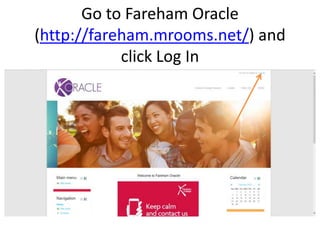
Go to Fareham Oracle
(http://fareham.mrooms.net/) and
click Log In
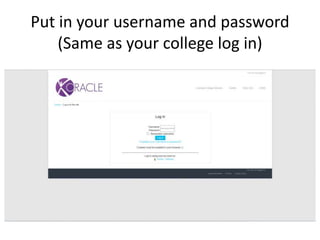
Put in your username and
password (Same as your college
log in)
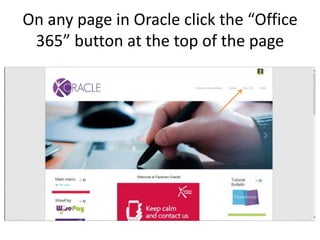
On any page in Oracle click the
“Office 365” button at the top of
the page
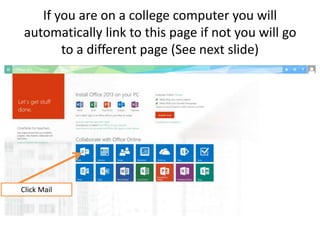
If you are on a college computer you will
automatically link to this page if not you
will go to a different page (See next slide)
Click Mail
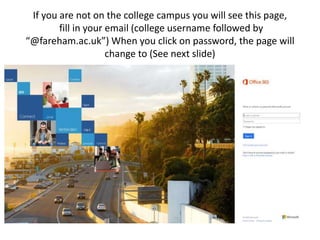
If you are not on the college campus you will see this
page,
fill in your email (college username followed by
“@fareham.ac.uk”) When you click on password, the page
will change to (See next slide)
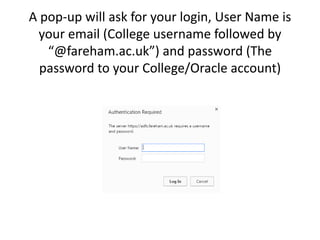
A pop-up will ask for your login, User
Name is your email (College username
followed by “@fareham.ac.uk”) and
password (The password to your
College/Oracle account)
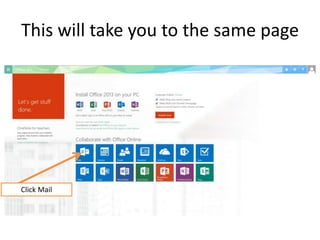
This will take you to the same
page
Click Mail

Accessing student emails

  • 1.
  • 2.
    Go to FarehamOracle (http://fareham.mrooms.net/) and click Log In
  • 3.
    Put in yourusername and password (Same as your college log in)
  • 4.
    On any pagein Oracle click the “Office 365” button at the top of the page
  • 5.
    If you areon a college computer you will automatically link to this page if not you will go to a different page (See next slide) Click Mail
  • 6.
    If you arenot on the college campus you will see this page, fill in your email (college username followed by “@fareham.ac.uk”) When you click on password, the page will change to (See next slide)
  • 7.
    A pop-up willask for your login, User Name is your email (College username followed by “@fareham.ac.uk”) and password (The password to your College/Oracle account)
  • 8.
    This will takeyou to the same page Click Mail