TRAINING NEW
EMPLOYEES
Presenter Name
Presentation Date
New Employee Orientation
• Getting to know your new assignment
• Familiarizing yourself with your new
environment
• Meeting new colleagues
New Work
New
Environment
New
Colleagues
Welcome
• Familiarize yourself with
your new assignment
1
• Explore your new
environment
2
• Meet your new
colleagues
3
Today’s Overview
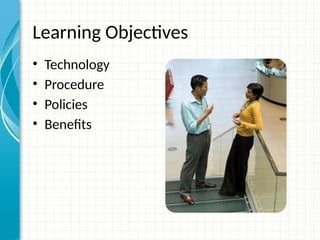
Learning Objectives
• Technology
• Procedure
• Policies
• Benefits
NEW WORK
New Work
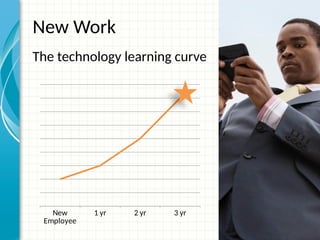
The technology learning curve
New
Employee
1 yr 2 yr 3 yr
Who’s Who
Lead Contact information
Jim Jim@company.com
Dee Dee@gcompany.com
Mavis Mavis@company.com
Doug Doug@company.com
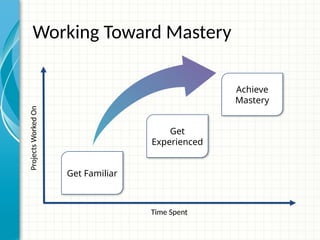
Time Spent
Projects
Worked
On
Get Familiar
Achieve
Mastery
Working Toward Mastery
Get
Experienced
Doing Your Best Work
• Working from home
• Working offsite
• Technology
requirements
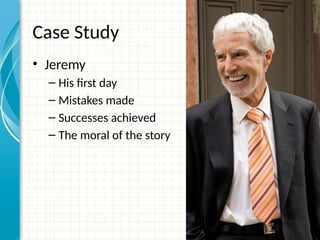
Case Study
• Jeremy
– His first day
– Mistakes made
– Successes achieved
– The moral of the story
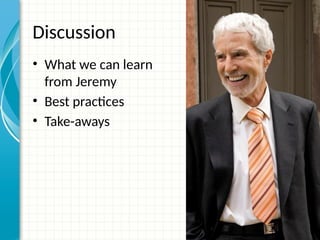
Discussion
• What we can learn
from Jeremy
• Best practices
• Take-aways
Summary
• Define your challenges
– Technological as well as personal
• Set realistic expectation
– Mastery is not achieved overnight
• Keep your eye on the goal
– Mentorship programs
Resources
• <Intranet site text here>
<hyperlink here>
• <Additional reading material text here>
<hyperlink here>
• This slide deck and related resources:
<hyperlink here>
QUESTIONS?
APPENDIX

A PRESENTATION SHOWING JOB INDUCTUCTION SAMPLE.pptx

Editor's Notes

  • #1 This template can be used as a starter file for presenting training materials in a group setting. Sections Right-click on a slide to add sections. Sections can help to organize your slides or facilitate collaboration between multiple authors. Notes Use the Notes section for delivery notes or to provide additional details for the audience. View these notes in Presentation View during your presentation. Keep in mind the font size (important for accessibility, visibility, videotaping, and online production) Coordinated colors Pay particular attention to the graphs, charts, and text boxes. Consider that attendees will print in black and white or grayscale. Run a test print to make sure your colors work when printed in pure black and white and grayscale. Graphics, tables, and graphs Keep it simple: If possible, use consistent, non-distracting styles and colors. Label all graphs and tables.
  • #2 Give a brief overview of the presentation. Describe the major focus of the presentation and why it is important. Introduce each of the major topics. To provide a road map for the audience, you can repeat this Overview slide throughout the presentation, highlighting the particular topic you will discuss next.
  • #3 This is another option for an Overview slides using transitions.
  • #7 This is another option for an Overview slide.
  • #8 What will the audience be able to do after this training is complete? Briefly describe each objective how the audience will benefit from this presentation.
  • #9 Use a section header for each of the topics, so there is a clear transition to the audience.
  • #10 Add slides to each topic section as necessary, including slides with tables, graphs, and images. See next section for sample table, graph, image, and video layouts.
  • #11 Keep it brief. Make your text as brief as possible to maintain a larger font size.
  • #13 If there is relevant video content, such as a case study video, demo of a product, or other training materials, include it in the presentation as well.
  • #14 Add a case study or class simulation to encourage discussion and apply lessons.
  • #15 Discuss outcomes of the case study or class simulation. Cover best practices.
  • #16 Summarize presentation content by restating the important points from the lessons. What do you want the audience to remember when they leave your presentation? Save your presentation to a video for easy distribution (To create a video, click the File tab, and then click Share.  Under File Types, click Create a Video.)
  • #19 Is your presentation as crisp as possible? Consider moving extra content to the appendix. Use appendix slides to store content that you might want to refer to during the Question slide or that may be useful for attendees to investigate deeper in the future.