A guide to setting up a weblog
                          John Barlow

This booklet is a beginner’s guide for teacher’s who may wish to
set up a weblog. I have tried to make it as simple as possible and
hopefully it covers the basics of how to set up a weblog.

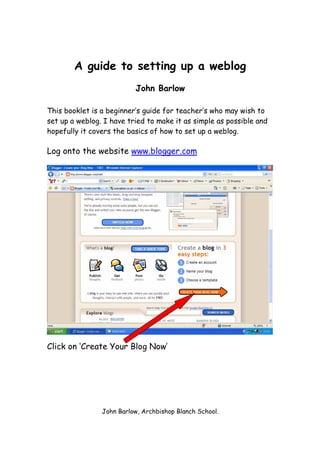
Log onto the website www.blogger.com


Click on ‘Create Your Blog Now’


                John Barlow, Archbishop Blanch School.
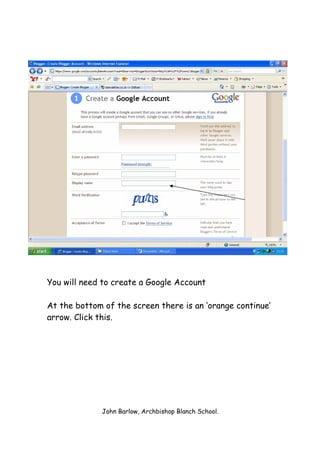
You will need to create a Google Account

At the bottom of the screen there is an ‘orange continue’
arrow. Click this.


             John Barlow, Archbishop Blanch School.
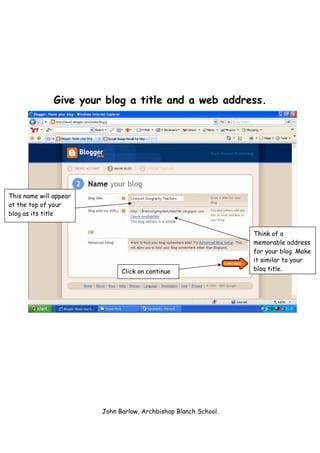
Give your blog a title and a web address.


This name will appear
at the top of your
blog as its title


                                                                 Think of a
                                                                 memorable address
                                                                 for your blog. Make
                                                                 it similar to your
                              Click on continue                  blog title.


                        John Barlow, Archbishop Blanch School.
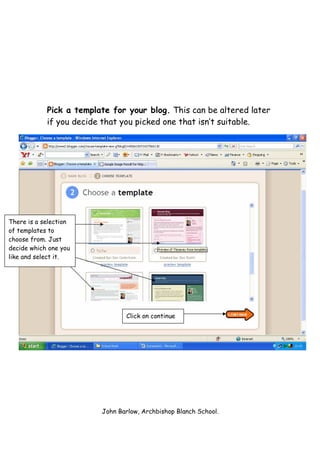
Pick a template for your blog. This can be altered later
            if you decide that you picked one that isn’t suitable.


There is a selection
of templates to
choose from. Just
decide which one you
like and select it.


                                Click on continue


                         John Barlow, Archbishop Blanch School.
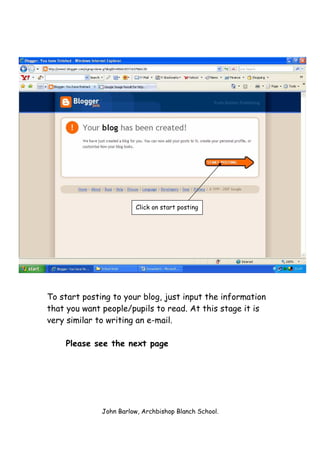
Click on start posting


To start posting to your blog, just input the information
that you want people/pupils to read. At this stage it is
very similar to writing an e-mail.

    Please see the next page


              John Barlow, Archbishop Blanch School.
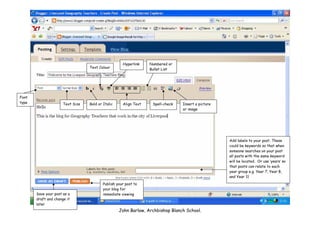
Hyperlink    Numbered or
                                  Text Colour                     Bullet List


Font
type                  Text Size   Bold or Italic     Align Text    Spell-check   Insert a picture
                                                                                 or image


                                                                                                    Add labels to your post. These
                                                                                                    could be keywords so that when
                                                                                                    someone searches on your post
                                                                                                    all posts with the same keyword
                                                                                                    will be located. Or use ‘years’ so
                                                                                                    that posts can relate to each
                                                                                                    year group e.g. Year 7, Year 8,
                                                                                                    and Year 11
                                          Publish your post to
                                          your blog for
       Save your post as a                immediate viewing
       draft and change it
       later
                                                   John Barlow, Archbishop Blanch School.
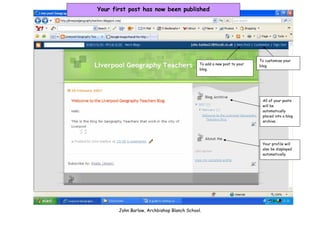
Your first post has now been published


                                                                        To customise your
                                            To add a new post to your   blog.
                                            blog.


                                                                         All of your posts
                                                                         will be
                                                                         automatically
                                                                         placed into a blog
                                                                         archive.


                                                                         Your profile will
                                                                         also be displayed
                                                                         automatically.


       John Barlow, Archbishop Blanch School.
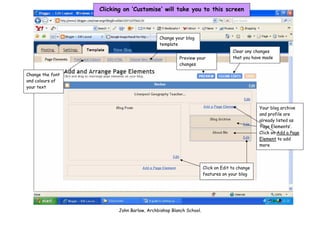
Clicking on ‘Customise’ will take you to this screen


                                          Change your blog
                                          template
                                                                               Clear any changes
                                                   Preview your                that you have made
                                                   changes

Change the font
and colours of
your text


                                                                                           Your blog archive
                                                                                           and profile are
                                                                                           already listed as
                                                                                           ‘Page Elements’.
                                                                                           Click on Add a Page
                                                                                           Element to add
                                                                                           more


                                                                 Click on Edit to change
                                                                 features on your blog


                        John Barlow, Archbishop Blanch School.
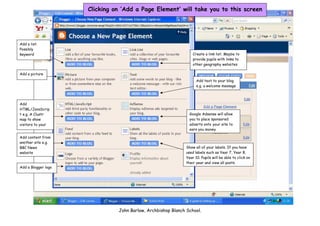
Clicking on ‘Add a Page Element’ will take you to this screen


Add a list.
Possibly
keyword                                                           Create a link list. Maybe to
                                                                  provide pupils with links to
                                                                  other geography websites

Add a picture
                                                                    Add text to your blog
                                                                    e.g. a welcome message


Add
HTML/JavaScrip
t e.g. A Clustr                                                 Google Adsense will allow
map to show                                                     you to place sponsored
visitors to your                                                adverts onto your site to
site                                                            earn you money

Add content from
another site e.g.
BBC News                                                      Show all of your labels. If you have
website                                                       used labels such as Year 7, Year 8,
                                                              Year 10. Pupils will be able to click on
                                                              their year and view all posts.
Add a Blogger logo


                               John Barlow, Archbishop Blanch School.
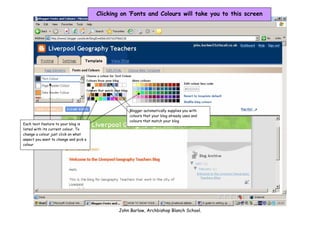
Clicking on ‘Fonts and Colours will take you to this screen


                                                  Blogger automatically supplies you with
                                                  colours that your blog already uses and
                                                  colours that match your blog
Each text feature to your blog is
listed with its current colour. To
change a colour just click on what
aspect you want to change and pick a
colour


                                              John Barlow, Archbishop Blanch School.

A guide to setting up a weblog

  • 1.
    A guide tosetting up a weblog John Barlow This booklet is a beginner’s guide for teacher’s who may wish to set up a weblog. I have tried to make it as simple as possible and hopefully it covers the basics of how to set up a weblog. Log onto the website www.blogger.com Click on ‘Create Your Blog Now’ John Barlow, Archbishop Blanch School.
  • 2.
    You will needto create a Google Account At the bottom of the screen there is an ‘orange continue’ arrow. Click this. John Barlow, Archbishop Blanch School.
  • 3.
    Give your bloga title and a web address. This name will appear at the top of your blog as its title Think of a memorable address for your blog. Make it similar to your Click on continue blog title. John Barlow, Archbishop Blanch School.
  • 4.
    Pick a templatefor your blog. This can be altered later if you decide that you picked one that isn’t suitable. There is a selection of templates to choose from. Just decide which one you like and select it. Click on continue John Barlow, Archbishop Blanch School.
  • 5.
    Click on startposting To start posting to your blog, just input the information that you want people/pupils to read. At this stage it is very similar to writing an e-mail. Please see the next page John Barlow, Archbishop Blanch School.
  • 6.
    Hyperlink Numbered or Text Colour Bullet List Font type Text Size Bold or Italic Align Text Spell-check Insert a picture or image Add labels to your post. These could be keywords so that when someone searches on your post all posts with the same keyword will be located. Or use ‘years’ so that posts can relate to each year group e.g. Year 7, Year 8, and Year 11 Publish your post to your blog for Save your post as a immediate viewing draft and change it later John Barlow, Archbishop Blanch School.
  • 7.
    Your first posthas now been published To customise your To add a new post to your blog. blog. All of your posts will be automatically placed into a blog archive. Your profile will also be displayed automatically. John Barlow, Archbishop Blanch School.
  • 8.
    Clicking on ‘Customise’will take you to this screen Change your blog template Clear any changes Preview your that you have made changes Change the font and colours of your text Your blog archive and profile are already listed as ‘Page Elements’. Click on Add a Page Element to add more Click on Edit to change features on your blog John Barlow, Archbishop Blanch School.
  • 9.
    Clicking on ‘Adda Page Element’ will take you to this screen Add a list. Possibly keyword Create a link list. Maybe to provide pupils with links to other geography websites Add a picture Add text to your blog e.g. a welcome message Add HTML/JavaScrip t e.g. A Clustr Google Adsense will allow map to show you to place sponsored visitors to your adverts onto your site to site earn you money Add content from another site e.g. BBC News Show all of your labels. If you have website used labels such as Year 7, Year 8, Year 10. Pupils will be able to click on their year and view all posts. Add a Blogger logo John Barlow, Archbishop Blanch School.
  • 10.
    Clicking on ‘Fontsand Colours will take you to this screen Blogger automatically supplies you with colours that your blog already uses and colours that match your blog Each text feature to your blog is listed with its current colour. To change a colour just click on what aspect you want to change and pick a colour John Barlow, Archbishop Blanch School.