Creating an ePortfolio using wordpress.com


                                     Creating a ePortfolio using


A key part of the process of personal development is the recording of and reflection upon time in the
workplace and any development activities undertaken. There are many platforms that can be use to do this
but one of the best is a blog.


Why a blog makes a good ePortfolio:
         Blogs can store and organise content in several dynamic ways including chronologically (like a diary)
         or personalised tagging systems.
         Blogs also have the capability to present a personal profile to the world (like a website).
         Blogs also enable people who are interested in your development to follow your activities easily using
         RSS feeds (like subscribing to a newspaper).

These features make blogs the perfect platform to create an ePortfolio. An ePortfolio is an electronic collection
of personal achievements, developments and reflections that can be sent to potential employers to
supplement any CV.

Having researched blogs over many years of my personal favourite blogging platforms is Wordpress.com. This
short guide describes the steps of setting and creating an ePortfolio on wordpress.com.


Signing-up for a wordpress.com blog
1.   Visit the wordpress.com website and select the link ‘Sign up now’
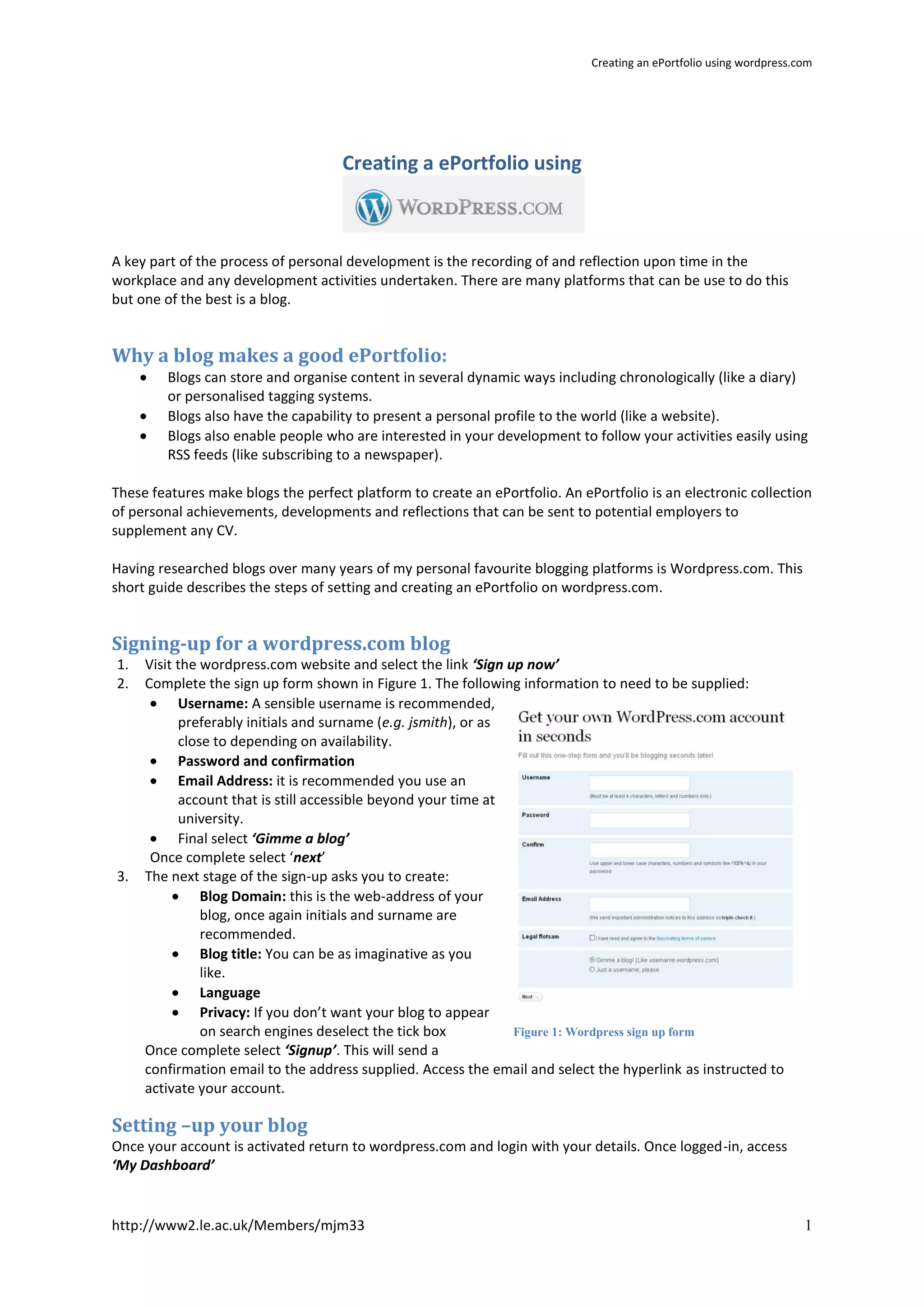
2.   Complete the sign up form shown in Figure 1. The following information to need to be supplied:
           Username: A sensible username is recommended,
           preferably initials and surname (e.g. jsmith), or as
           close to depending on availability.
           Password and confirmation
           Email Address: it is recommended you use an
           account that is still accessible beyond your time at
           university.
           Final select ‘Gimme a blog’
      Once complete select ‘next’
3.   The next stage of the sign-up asks you to create:
               Blog Domain: this is the web-address of your
               blog, once again initials and surname are
               recommended.
               Blog title: You can be as imaginative as you
               like.
               Language
               Privacy: If you don’t want your blog to appear
               on search engines deselect the tick box          Figure 1: Wordpress sign up form
     Once complete select ‘Signup’. This will send a
     confirmation email to the address supplied. Access the email and select the hyperlink as instructed to
     activate your account.

Setting –up your blog
Once your account is activated return to wordpress.com and login with your details. Once logged-in, access
‘My Dashboard’


http://www2.le.ac.uk/Members/mjm33                                                                                   1
Creating an ePortfolio using wordpress.com


My Dashboard
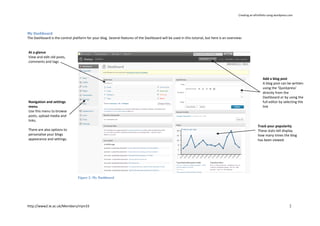
The Dashboard is the control platform for your blog. Several features of the Dashboard will be used in this tutorial, but here is an overview:


At a glance
View and edit old posts,
comments and tags


                                                                                                                                                             Add a blog post
                                                                                                                                                             A blog post can be written
                                                                                                                                                             using the ‘Quickpress’
                                                                                                                                                             directly from the
                                                                                                                                                             Dashboard or by using the
Navigation and settings                                                                                                                                      full editor by selecting the
menu                                                                                                                                                         link
Use this menu to browse
posts, upload media and
links.
                                                                                                                                                         Track your popularity
There are also options to                                                                                                                                These stats tell display
personalise your blogs                                                                                                                                   how many times the blog
appearance and settings.                                                                                                                                 has been viewed.


                                 Figure 2: My Dashboard


http://www2.le.ac.uk/Members/mjm33                                                                                                                                                2
Creating an ePortfolio using wordpress.com


Personalising your blog
The appearance of the blog can be personalised in several ways including:

The Theme, this will be how external visitors view the blog. To change the Theme:
    1. From the Dashboard navigation select ‘Appearance’ followed ‘Themes’.
    2. This will present a series of templates to choose from.
    3. Select a preferred style and click ‘Activate’
The Theme can be changed at any time.

The Widgets; these enable extra features to be added to a blog. To add Widgets:
    1. From the Dashboard navigation select ‘Appearance’ followed by ‘Widgets’
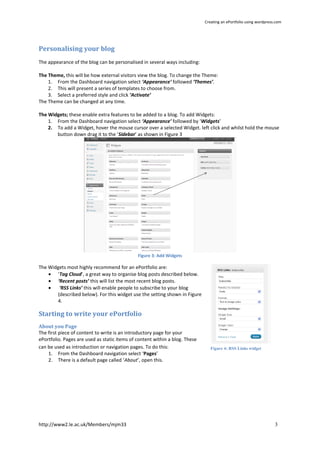
    2. To add a Widget, hover the mouse cursor over a selected Widget. left click and whilst hold the mouse
       button down drag it to the ‘Sidebar’ as shown in Figure 3


                                              Figure 3: Add Widgets

The Widgets most highly recommend for an ePortfolio are:
       ‘Tag Cloud’, a great way to organise blog posts described below.
       ‘Recent posts’ this will list the most recent blog posts.
        ‘RSS Links’ this will enable people to subscribe to your blog
       (described below). For this widget use the setting shown in Figure
       4.

Starting to write your ePortfolio
About you Page
The first piece of content to write is an introductory page for your
ePortfolio. Pages are used as static items of content within a blog. These
can be used as introduction or navigation pages. To do this:                    Figure 4: RSS Links widget
    1. From the Dashboard navigation select ‘Pages’
    2. There is a default page called ‘About’, open this.


http://www2.le.ac.uk/Members/mjm33                                                                                 3
Creating an ePortfolio using wordpress.com


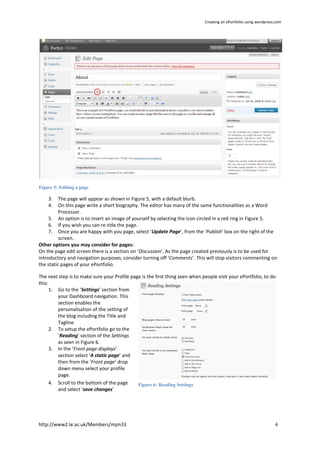
Figure 5: Editing a page

    3.    The page will appear as shown in Figure 5, with a default blurb.
    4.    On this page write a short biography. The editor has many of the same functionalities as a Word
          Processor.
     5. An option is to insert an image of yourself by selecting the icon circled in a red ring in Figure 5.
     6. If you wish you can re-title the page.
     7. Once you are happy with you page, select ‘Update Page’, from the ‘Publish’ box on the right of the
          screen.
Other options you may consider for pages:
On the page edit screen there is a section on ‘Discussion’. As the page created previously is to be used for
introductory and navigation purposes, consider turning off ‘Comments’. This will stop visitors commenting on
the static pages of your ePortfolio.

The next step is to make sure your Profile page is the first thing seen when people visit your ePortfolio, to do
this:
      1. Go to the ‘Settings’ section from
         your Dashboard navigation. This
         section enables the
         personalisation of the setting of
         the blog including the Title and
         Tagline.
      2. To setup the ePortfolio go to the
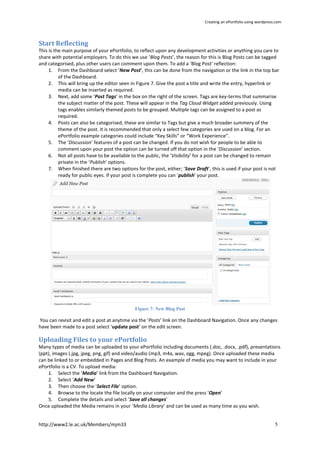
         ‘Reading’ section of the Settings
         as seen in Figure 6.
      3. In the ‘Front page displays’
         section select ‘A static page’ and
         then from the ‘Front page’ drop
         down menu select your profile
         page.
      4. Scroll to the bottom of the page     Figure 6: Reading Settings
         and select ‘save changes’


http://www2.le.ac.uk/Members/mjm33                                                                                  4
Creating an ePortfolio using wordpress.com


Start Reflecting
This is the main purpose of your ePortfolio, to reflect upon any development activities or anything you care to
share with potential employers. To do this we use ‘Blog Posts’, the reason for this is Blog Posts can be tagged
and categorised, plus other users can comment upon them. To add a ‘Blog Post’ reflection:
     1. From the Dashboard select ‘New Post’, this can be done from the navigation or the link in the top bar
          of the Dashboard.
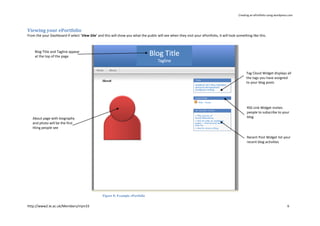
     2. This will bring up the editor seen in Figure 7. Give the post a title and write the entry, hyperlink or
          media can be inserted as required.
     3. Next, add some ‘Post Tags’ in the box on the right of the screen. Tags are key-terms that summarise
          the subject matter of the post. These will appear in the Tag Cloud Widget added previously. Using
          tags enables similarly themed posts to be grouped. Multiple tags can be assigned to a post as
          required.
     4. Posts can also be categorised, these are similar to Tags but give a much broader summery of the
          theme of the post. It is recommended that only a select few categories are used on a blog. For an
          ePortfolio example categories could include “Key Skills” or “Work Experience”.
     5. The ‘Discussion’ features of a post can be changed. If you do not wish for people to be able to
          comment upon your post the option can be turned off that option in the ‘Discussion’ section.
     6. Not all posts have to be available to the public, the ‘Visibility’ for a post can be changed to remain
          private in the ‘Publish’ options.
     7. When finished there are two options for the post, either; ‘Save Draft’, this is used if your post is not
          ready for public eyes. If your post is complete you can ‘publish’ your post.


                                            Figure 7: New Blog Post

You can revisit and edit a post at anytime via the ‘Posts’ link on the Dashboard Navigation. Once any changes
have been made to a post select ‘update post’ on the edit screen.

Uploading Files to your ePortfolio
Many types of media can be uploaded to your ePortfolio including documents (.doc, .docx, .pdf), presentations
(ppt), images (.jpg, jpeg, png, gif) and video/audio (mp3, m4a, wav, ogg, mpeg). Once uploaded these media
can be linked to or embedded in Pages and Blog Posts. An example of media you may want to include in your
ePortfolio is a CV. To upload media:
    1. Select the ‘Media’ link from the Dashboard Navigation.
    2. Select ‘Add New’
    3. Then choose the ‘Select File’ option.
    4. Browse to the locate the file locally on your computer and the press ‘Open’
    5. Complete the details and select ‘Save all changes’
Once uploaded the Media remains in your ‘Media Library’ and can be used as many time as you wish.


http://www2.le.ac.uk/Members/mjm33                                                                                 5
Creating an ePortfolio using wordpress.com


Viewing your ePortfolio
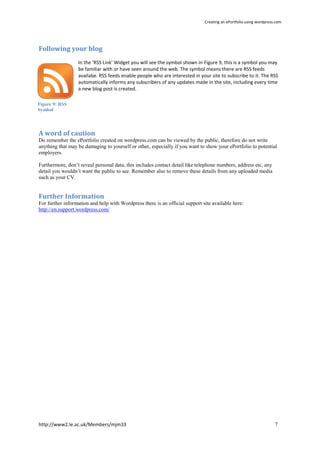
From the your Dashboard if select ‘View Site’ and this will show you what the public will see when they visit your ePortfolio, it will look something like this.


     Blog Title and Tagline appear
     at the top of the page


                                                                                                                                                   Tag Cloud Widget displays all
                                                                                                                                                   the tags you have assigned
                                                                                                                                                   to your blog posts


                                                                                                                                                   RSS Link Widget invites
                                                                                                                                                   people to subscribe to your
   About page with biography                                                                                                                       blog
   and photo will be the first
   thing people see

                                                                                                                                                   Recent Post Widget list your
                                                                                                                                                   recent blog activities


                                                  Figure 8: Example ePortfolio


http://www2.le.ac.uk/Members/mjm33                                                                                                                                                6
Creating an ePortfolio using wordpress.com


Following your blog
                  In the ‘RSS Link’ Widget you will see the symbol shown in Figure 9, this is a symbol you may
                  be familiar with or have seen around the web. The symbol means there are RSS feeds
                  availabe. RSS feeds enable people who are interested in your site to subscribe to it. The RSS
                  automatically informs any subscribers of any updates made in the site, including every time
                  a new blog post is created.

Figure 9: RSS
Symbol


A word of caution
Do remember the ePortfolio created on wordpress.com can be viewed by the public, therefore do not write
anything that may be damaging to yourself or other, especially if you want to show your ePortfolio to potential
employers.

Furthermore, don’t reveal personal data, this includes contact detail like telephone numbers, address etc, any
detail you wouldn’t want the public to see. Remember also to remove these details from any uploaded media
such as your CV.


Further Information
For further information and help with Wordpress there is an official support site available here:
http://en.support.wordpress.com/


http://www2.le.ac.uk/Members/mjm33                                                                                  7

Creating a e portfolio using wordpress

  • 1.
    Creating an ePortfoliousing wordpress.com Creating a ePortfolio using A key part of the process of personal development is the recording of and reflection upon time in the workplace and any development activities undertaken. There are many platforms that can be use to do this but one of the best is a blog. Why a blog makes a good ePortfolio: Blogs can store and organise content in several dynamic ways including chronologically (like a diary) or personalised tagging systems. Blogs also have the capability to present a personal profile to the world (like a website). Blogs also enable people who are interested in your development to follow your activities easily using RSS feeds (like subscribing to a newspaper). These features make blogs the perfect platform to create an ePortfolio. An ePortfolio is an electronic collection of personal achievements, developments and reflections that can be sent to potential employers to supplement any CV. Having researched blogs over many years of my personal favourite blogging platforms is Wordpress.com. This short guide describes the steps of setting and creating an ePortfolio on wordpress.com. Signing-up for a wordpress.com blog 1. Visit the wordpress.com website and select the link ‘Sign up now’ 2. Complete the sign up form shown in Figure 1. The following information to need to be supplied: Username: A sensible username is recommended, preferably initials and surname (e.g. jsmith), or as close to depending on availability. Password and confirmation Email Address: it is recommended you use an account that is still accessible beyond your time at university. Final select ‘Gimme a blog’ Once complete select ‘next’ 3. The next stage of the sign-up asks you to create: Blog Domain: this is the web-address of your blog, once again initials and surname are recommended. Blog title: You can be as imaginative as you like. Language Privacy: If you don’t want your blog to appear on search engines deselect the tick box Figure 1: Wordpress sign up form Once complete select ‘Signup’. This will send a confirmation email to the address supplied. Access the email and select the hyperlink as instructed to activate your account. Setting –up your blog Once your account is activated return to wordpress.com and login with your details. Once logged-in, access ‘My Dashboard’ http://www2.le.ac.uk/Members/mjm33 1
  • 2.
    Creating an ePortfoliousing wordpress.com My Dashboard The Dashboard is the control platform for your blog. Several features of the Dashboard will be used in this tutorial, but here is an overview: At a glance View and edit old posts, comments and tags Add a blog post A blog post can be written using the ‘Quickpress’ directly from the Dashboard or by using the Navigation and settings full editor by selecting the menu link Use this menu to browse posts, upload media and links. Track your popularity There are also options to These stats tell display personalise your blogs how many times the blog appearance and settings. has been viewed. Figure 2: My Dashboard http://www2.le.ac.uk/Members/mjm33 2
  • 3.
    Creating an ePortfoliousing wordpress.com Personalising your blog The appearance of the blog can be personalised in several ways including: The Theme, this will be how external visitors view the blog. To change the Theme: 1. From the Dashboard navigation select ‘Appearance’ followed ‘Themes’. 2. This will present a series of templates to choose from. 3. Select a preferred style and click ‘Activate’ The Theme can be changed at any time. The Widgets; these enable extra features to be added to a blog. To add Widgets: 1. From the Dashboard navigation select ‘Appearance’ followed by ‘Widgets’ 2. To add a Widget, hover the mouse cursor over a selected Widget. left click and whilst hold the mouse button down drag it to the ‘Sidebar’ as shown in Figure 3 Figure 3: Add Widgets The Widgets most highly recommend for an ePortfolio are: ‘Tag Cloud’, a great way to organise blog posts described below. ‘Recent posts’ this will list the most recent blog posts. ‘RSS Links’ this will enable people to subscribe to your blog (described below). For this widget use the setting shown in Figure 4. Starting to write your ePortfolio About you Page The first piece of content to write is an introductory page for your ePortfolio. Pages are used as static items of content within a blog. These can be used as introduction or navigation pages. To do this: Figure 4: RSS Links widget 1. From the Dashboard navigation select ‘Pages’ 2. There is a default page called ‘About’, open this. http://www2.le.ac.uk/Members/mjm33 3
  • 4.
    Creating an ePortfoliousing wordpress.com Figure 5: Editing a page 3. The page will appear as shown in Figure 5, with a default blurb. 4. On this page write a short biography. The editor has many of the same functionalities as a Word Processor. 5. An option is to insert an image of yourself by selecting the icon circled in a red ring in Figure 5. 6. If you wish you can re-title the page. 7. Once you are happy with you page, select ‘Update Page’, from the ‘Publish’ box on the right of the screen. Other options you may consider for pages: On the page edit screen there is a section on ‘Discussion’. As the page created previously is to be used for introductory and navigation purposes, consider turning off ‘Comments’. This will stop visitors commenting on the static pages of your ePortfolio. The next step is to make sure your Profile page is the first thing seen when people visit your ePortfolio, to do this: 1. Go to the ‘Settings’ section from your Dashboard navigation. This section enables the personalisation of the setting of the blog including the Title and Tagline. 2. To setup the ePortfolio go to the ‘Reading’ section of the Settings as seen in Figure 6. 3. In the ‘Front page displays’ section select ‘A static page’ and then from the ‘Front page’ drop down menu select your profile page. 4. Scroll to the bottom of the page Figure 6: Reading Settings and select ‘save changes’ http://www2.le.ac.uk/Members/mjm33 4
  • 5.
    Creating an ePortfoliousing wordpress.com Start Reflecting This is the main purpose of your ePortfolio, to reflect upon any development activities or anything you care to share with potential employers. To do this we use ‘Blog Posts’, the reason for this is Blog Posts can be tagged and categorised, plus other users can comment upon them. To add a ‘Blog Post’ reflection: 1. From the Dashboard select ‘New Post’, this can be done from the navigation or the link in the top bar of the Dashboard. 2. This will bring up the editor seen in Figure 7. Give the post a title and write the entry, hyperlink or media can be inserted as required. 3. Next, add some ‘Post Tags’ in the box on the right of the screen. Tags are key-terms that summarise the subject matter of the post. These will appear in the Tag Cloud Widget added previously. Using tags enables similarly themed posts to be grouped. Multiple tags can be assigned to a post as required. 4. Posts can also be categorised, these are similar to Tags but give a much broader summery of the theme of the post. It is recommended that only a select few categories are used on a blog. For an ePortfolio example categories could include “Key Skills” or “Work Experience”. 5. The ‘Discussion’ features of a post can be changed. If you do not wish for people to be able to comment upon your post the option can be turned off that option in the ‘Discussion’ section. 6. Not all posts have to be available to the public, the ‘Visibility’ for a post can be changed to remain private in the ‘Publish’ options. 7. When finished there are two options for the post, either; ‘Save Draft’, this is used if your post is not ready for public eyes. If your post is complete you can ‘publish’ your post. Figure 7: New Blog Post You can revisit and edit a post at anytime via the ‘Posts’ link on the Dashboard Navigation. Once any changes have been made to a post select ‘update post’ on the edit screen. Uploading Files to your ePortfolio Many types of media can be uploaded to your ePortfolio including documents (.doc, .docx, .pdf), presentations (ppt), images (.jpg, jpeg, png, gif) and video/audio (mp3, m4a, wav, ogg, mpeg). Once uploaded these media can be linked to or embedded in Pages and Blog Posts. An example of media you may want to include in your ePortfolio is a CV. To upload media: 1. Select the ‘Media’ link from the Dashboard Navigation. 2. Select ‘Add New’ 3. Then choose the ‘Select File’ option. 4. Browse to the locate the file locally on your computer and the press ‘Open’ 5. Complete the details and select ‘Save all changes’ Once uploaded the Media remains in your ‘Media Library’ and can be used as many time as you wish. http://www2.le.ac.uk/Members/mjm33 5
  • 6.
    Creating an ePortfoliousing wordpress.com Viewing your ePortfolio From the your Dashboard if select ‘View Site’ and this will show you what the public will see when they visit your ePortfolio, it will look something like this. Blog Title and Tagline appear at the top of the page Tag Cloud Widget displays all the tags you have assigned to your blog posts RSS Link Widget invites people to subscribe to your About page with biography blog and photo will be the first thing people see Recent Post Widget list your recent blog activities Figure 8: Example ePortfolio http://www2.le.ac.uk/Members/mjm33 6
  • 7.
    Creating an ePortfoliousing wordpress.com Following your blog In the ‘RSS Link’ Widget you will see the symbol shown in Figure 9, this is a symbol you may be familiar with or have seen around the web. The symbol means there are RSS feeds availabe. RSS feeds enable people who are interested in your site to subscribe to it. The RSS automatically informs any subscribers of any updates made in the site, including every time a new blog post is created. Figure 9: RSS Symbol A word of caution Do remember the ePortfolio created on wordpress.com can be viewed by the public, therefore do not write anything that may be damaging to yourself or other, especially if you want to show your ePortfolio to potential employers. Furthermore, don’t reveal personal data, this includes contact detail like telephone numbers, address etc, any detail you wouldn’t want the public to see. Remember also to remove these details from any uploaded media such as your CV. Further Information For further information and help with Wordpress there is an official support site available here: http://en.support.wordpress.com/ http://www2.le.ac.uk/Members/mjm33 7