Kinds of Graphical Menus
•Providing the proper kinds of graphical menus to perform
system tasks is also critical to system success.
•The best kind of menu to use in each situation depends on
several factors.
•The following must be considered:
The number of items to be presented in the menu.
How often the menu is used.
How often the menu contents may change.
Different kinds of Graphical Menus are as follows:
• Menu Bar
• Pull-Down Bar
• Cascading Menu Bar
• Pop-Up Menu
• Iconic Menu
Kinds of Graphical Menus
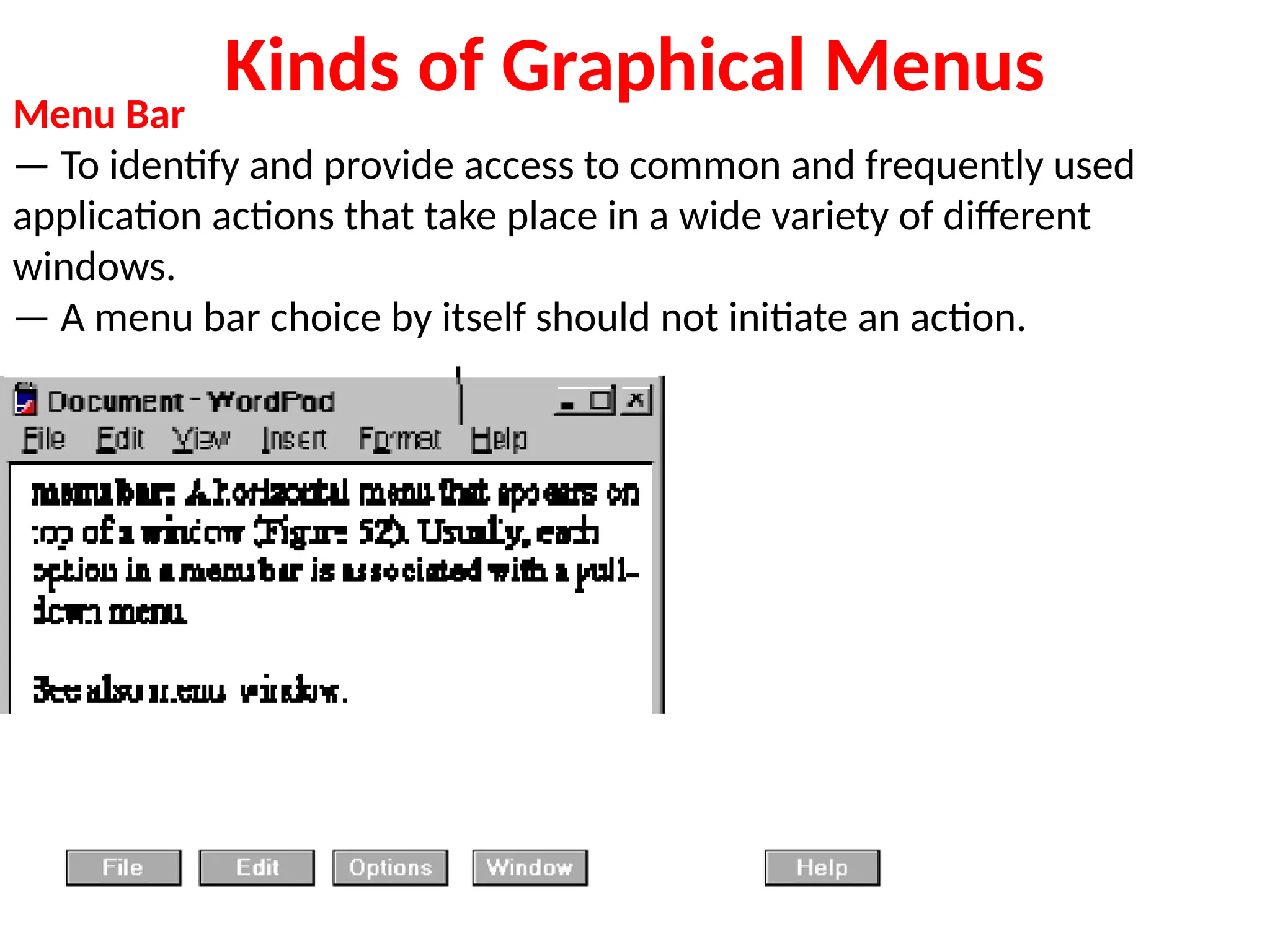
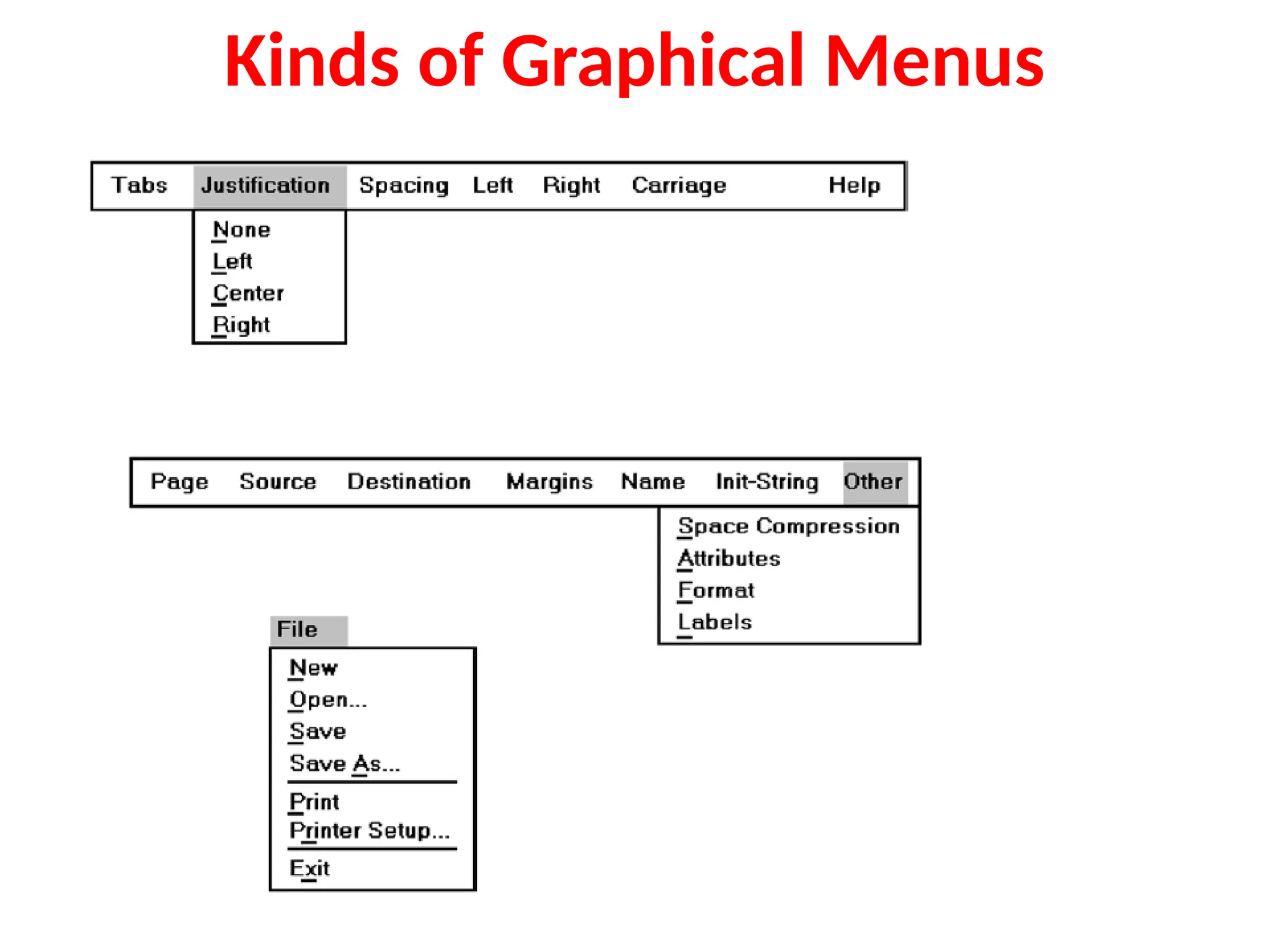
Menu Bar
— To identify and provide access to common and frequently used
application actions that take place in a wide variety of different
windows.
— A menu bar choice by itself should not initiate an action.
Kinds of Graphical Menus
Advantage
•Always visible
•Easy to browse
•Do not obscure the screen working area
•Allow for use of keyboard equivalents
Disadvantage
•Consume a full row of screen space
•Require looking away from the main working area to
find
•Require moving pointer from the main working area to
select
•Horizontal orientation is less efficient for scanning
Kinds of Graphical Menus
Pull-Down Menu
— To initiate frequently used application actions that take place on a
wide variety of different windows.
— A small number of items.
— Items best represented textually.
— Items whose content rarely changes.
Advantages:
— No window space is consumed when they r not used
— Allow for display of both keyboard equivalents and accelerators
— Vertical orientation permits more choices to be displayed
Disadvantages:
— Require searching and selecting
— Require moving the pointer out of working area to select
— May obscure the screen working area
Kinds of Graphical Menus
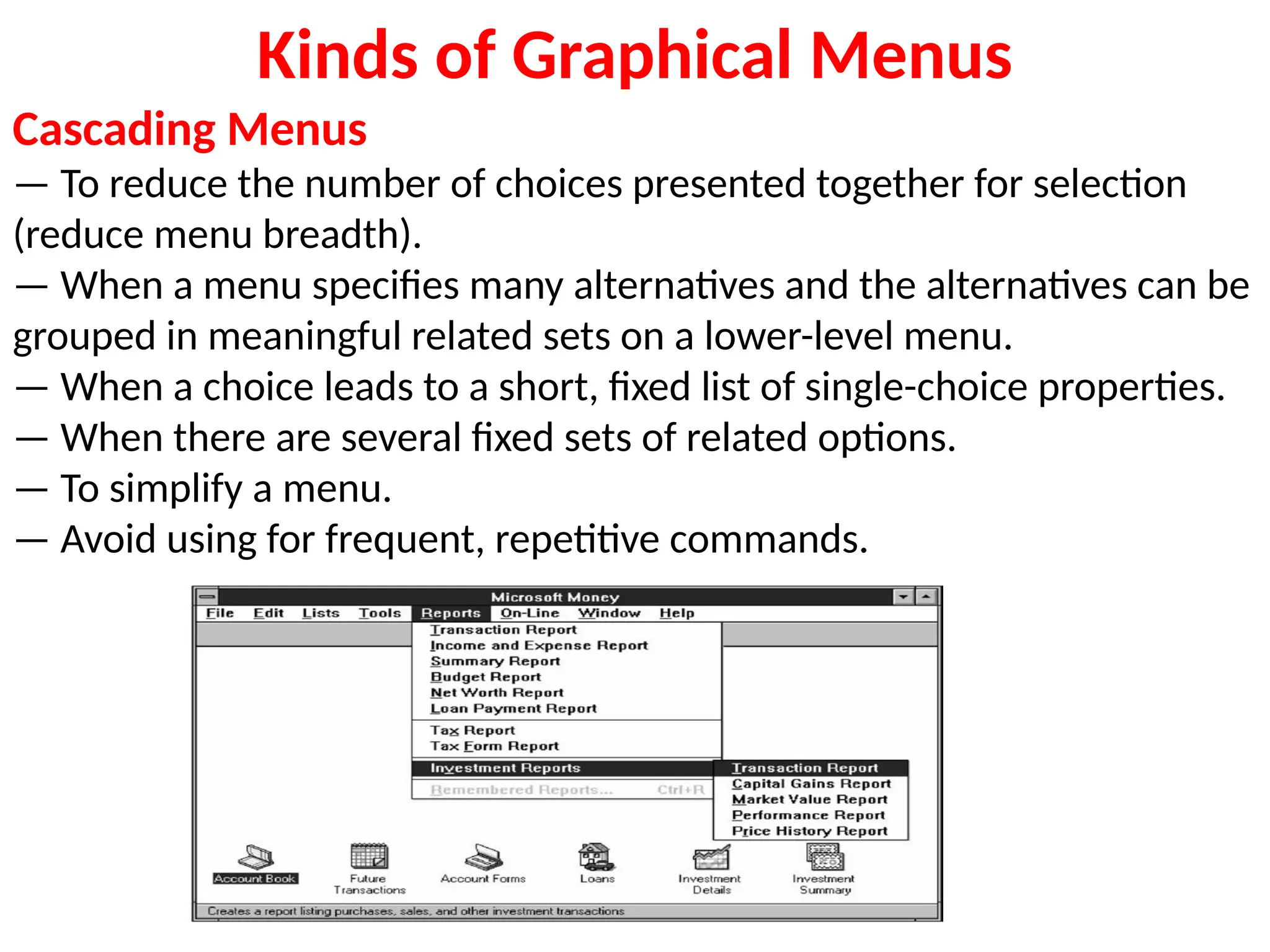
Cascading Menus
— To reduce the number of choices presented together for selection
(reduce menu breadth).
— When a menu specifies many alternatives and the alternatives can be
grouped in meaningful related sets on a lower-level menu.
— When a choice leads to a short, fixed list of single-choice properties.
— When there are several fixed sets of related options.
— To simplify a menu.
— Avoid using for frequent, repetitive commands.
Kinds of Graphical Menus
Advantage:
•Top-level menus are simplified because some choices
are hidden
•More first-letter mnemonics are available because
menus possess fewer alternatives
•High-level command browsing is easier because
subtopics are hidden
•Disadvantage
•Access to submenu items requires more steps
•Access to submenu items require a change in pointer
movement
•Place an arrow or right-pointing triangle to the right of each
menu
•Leave the choice leading to the cascading menu
highlighted
•Do not exceed three menu levels (two cascades)
Kinds of Graphical Menus
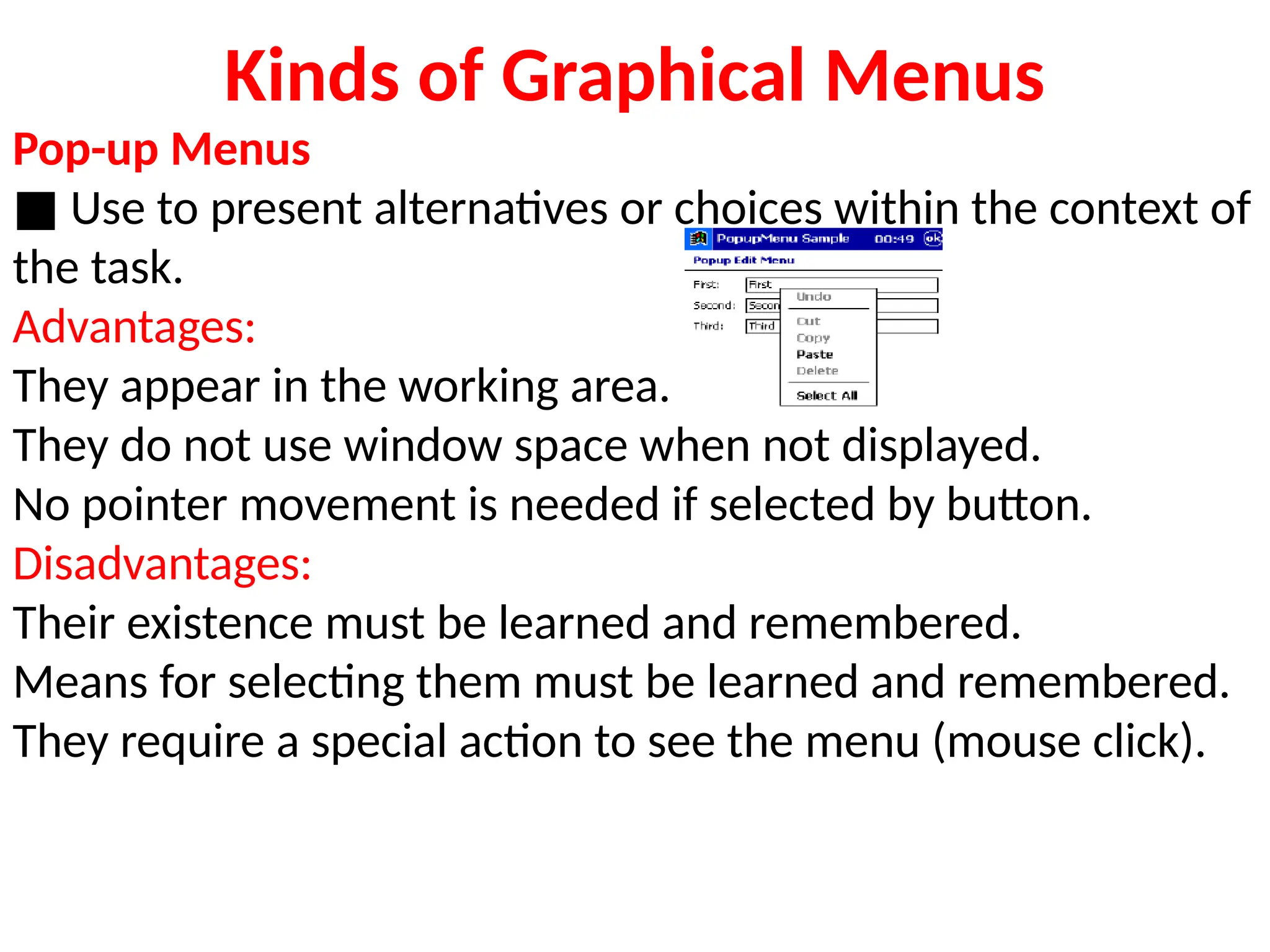
Pop-up Menus
■ Use to present alternatives or choices within the context of
the task.
Advantages:
They appear in the working area.
They do not use window space when not displayed.
No pointer movement is needed if selected by button.
Disadvantages:
Their existence must be learned and remembered.
Means for selecting them must be learned and remembered.
They require a special action to see the menu (mouse click).
Kinds of Graphical Menus
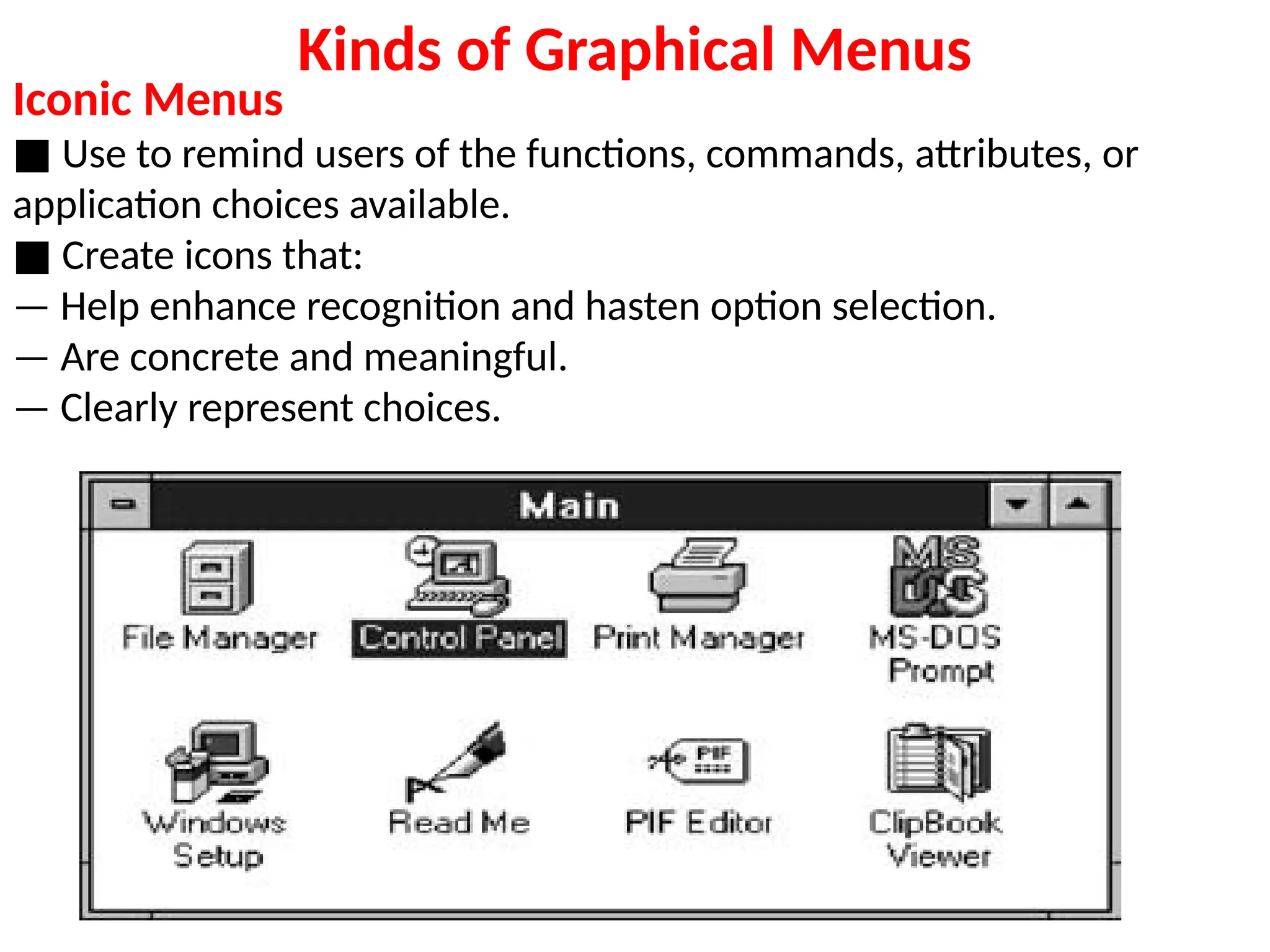
Iconic Menus
■ Use to remind users of the functions, commands, attributes, or
application choices available.
■ Create icons that:
— Help enhance recognition and hasten option selection.
— Are concrete and meaningful.
— Clearly represent choices.

4.GraphicalMenus.pptx 3.Phrasing the Menu.pptx in detail ppt to crack exams

  • 1.
    Kinds of GraphicalMenus •Providing the proper kinds of graphical menus to perform system tasks is also critical to system success. •The best kind of menu to use in each situation depends on several factors. •The following must be considered: The number of items to be presented in the menu. How often the menu is used. How often the menu contents may change. Different kinds of Graphical Menus are as follows: • Menu Bar • Pull-Down Bar • Cascading Menu Bar • Pop-Up Menu • Iconic Menu
  • 2.
    Kinds of GraphicalMenus Menu Bar — To identify and provide access to common and frequently used application actions that take place in a wide variety of different windows. — A menu bar choice by itself should not initiate an action.
  • 3.
    Kinds of GraphicalMenus Advantage •Always visible •Easy to browse •Do not obscure the screen working area •Allow for use of keyboard equivalents Disadvantage •Consume a full row of screen space •Require looking away from the main working area to find •Require moving pointer from the main working area to select •Horizontal orientation is less efficient for scanning
  • 4.
    Kinds of GraphicalMenus Pull-Down Menu — To initiate frequently used application actions that take place on a wide variety of different windows. — A small number of items. — Items best represented textually. — Items whose content rarely changes. Advantages: — No window space is consumed when they r not used — Allow for display of both keyboard equivalents and accelerators — Vertical orientation permits more choices to be displayed Disadvantages: — Require searching and selecting — Require moving the pointer out of working area to select — May obscure the screen working area
  • 5.
  • 6.
    Kinds of GraphicalMenus Cascading Menus — To reduce the number of choices presented together for selection (reduce menu breadth). — When a menu specifies many alternatives and the alternatives can be grouped in meaningful related sets on a lower-level menu. — When a choice leads to a short, fixed list of single-choice properties. — When there are several fixed sets of related options. — To simplify a menu. — Avoid using for frequent, repetitive commands.
  • 7.
    Kinds of GraphicalMenus Advantage: •Top-level menus are simplified because some choices are hidden •More first-letter mnemonics are available because menus possess fewer alternatives •High-level command browsing is easier because subtopics are hidden •Disadvantage •Access to submenu items requires more steps •Access to submenu items require a change in pointer movement •Place an arrow or right-pointing triangle to the right of each menu •Leave the choice leading to the cascading menu highlighted •Do not exceed three menu levels (two cascades)
  • 8.
    Kinds of GraphicalMenus Pop-up Menus ■ Use to present alternatives or choices within the context of the task. Advantages: They appear in the working area. They do not use window space when not displayed. No pointer movement is needed if selected by button. Disadvantages: Their existence must be learned and remembered. Means for selecting them must be learned and remembered. They require a special action to see the menu (mouse click).
  • 9.
    Kinds of GraphicalMenus Iconic Menus ■ Use to remind users of the functions, commands, attributes, or application choices available. ■ Create icons that: — Help enhance recognition and hasten option selection. — Are concrete and meaningful. — Clearly represent choices.

Editor's Notes

  • #3 All primary windows must have a menu bar All menu bars must have an associated pull-down menu containing at least two choices Do not allow the user to turn off the display of the menu bar Locate at the top of the screen, just below the screen title Use single-word choices whenever possible Order choice left-to-right with Most frequent choices to left/ related information grouped together Help, when included should be located at the right side Layout: x File xxx Edit xxx Options Help Separate the bar from the remainder of the screen by A different background or Solid lines above and below Use reverse color selection cursor to surround the choice
  • #4 Gray-out or dim items that can not be chosen Position the pull-down directly below the selected menu bar choice Restrict to no more than 5-10 choices Place frequent or critical items at the top Multicolumn menus are not desirable Alight the first character of the pull-down descriptions under the second character of the applicable menu bar choice If a menu item establishes or changes the attributes of data or properties of the interface, mark the pull down choice or choices whose state is current or active “On”   Grouping: Mark Toggles or Setting Cascade and Leading to other windows indicator Keyboard Equivalents and Accelerators