Overview of Videoconferencing Ellen Varley & Brad Paleg CIT – Distance Learning January 28, 2003
"Facing the Challenge of a New Age" “ This new world of geographical togetherness has been brought about, to a great extent, by man's scientific and technological genius. Man has been able to dwarf distance, place time in chains and carve highways through the stratosphere. Through our scientific genius, we have made the world a neighborhood…” Martin Luther King, Jr., December, 1956
Learner Goals Describe videoconferencing concepts, including situations where videoconferencing may be used  Identify the videoconferencing equipment  Locate and utilize AGNR specific videoconferencing information on the web  Describe who to contact for scheduling a videoconference  Describe how to prepare for a videoconference
Videoconferencing – What Is It? “ Video conferencing in its most basic form is the transmission of image (video) and speech (audio) back and forth between two or more physically separate locations.” Video Conferencing Cookbook. http://www.vide.gatech.edu/cookbook2.0/
Videoconferencing Components Cameras (to capture and send video from your local endpoint)  Video displays (to display video received from remote endpoints) Microphones (to capture and send audio from your local endpoint) Speakers (to play audio received from  remote endpoints)
In Addition, Two Additional Requirements: Codec - "compressor/de-compressor“ - makes the audio/video data "small enough" to be practical for sending over expensive network connections. A codec takes analog signals, compresses and digitizes them, and transmits the signals over digital phone lines. The Supporting System and the Network Connection
H.323 – It’s Not a Disease Standard for interoperability in audio, video and data transmissions as well as Internet phone and voice-over-IP (VoIP) Enables videoconferencing without usage fees But does not have QOS (quality of service)
POP QUIZ (multiple choice) A polycom is: A) one of those geometric atrocities whose angles add up to a heck of a lot more than the sum of its sides B) A tame parrot (Polycalm, get it?) C) A triangular representation of the USS Starship. D) None of the above
Polycom Polycom is the market leader in endpoint voice and video communications. AGNR has been a user of Polycom equipment for roughly three years. University System of Maryland has standardized on H.323 videoconferencing using Polycom videoconferencing equipment.
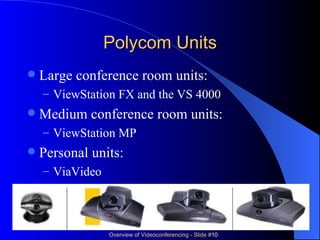
Polycom Units Large conference room units: ViewStation FX and the VS 4000 Medium conference room units: ViewStation MP Personal units:  ViaVideo
Show Me The Money Medium / Large Room Systems ViewStation FX -  $8,000 –$10,000 Small Room Systems ViewStation H.323 - $4,000 - $6,000 Desktop Systems ViaVideo - $400
Point-to-point Conferences Point-to-point – A videoconference that connects two locations.  Each site sees and hears the other sites at all times
Multipoint Conferences Point-to-multipoint – A videoconference  that connects to more than two sites through the use of a multi-point control unit, or MCU. Participants at all sites can hear one another at all times and see the site that is currently speaking. Voice activated switching Multi-point conferencing can be effective although the scheduling, technical, and logistical dimensions of MCU conferences can be imposing.
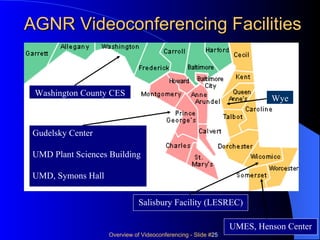
Multipoint Conferences AGNR has two different capabilities of participating in multipoint conferences Utilize a bridge maintained by the USM Office of Information Technology Some of the Polycom units (Gudelsky Center, LESREC,  UMD - Plant Sciences, and UMES) include four point MCU functionality
But It’s Much More Than Video: Computer presentations Other media CD, DVD, video ELMO visual presenter (hardcopies, photos) Audioconferencing
Various Uses: Presentations  Virtual meetings Videoconference-based learning JIT (just in time) events Recruitment/search committees General meetings
Additional Uses: Project coordination  Informal work sessions  Alumni relations  Question and answer sessions  Others?
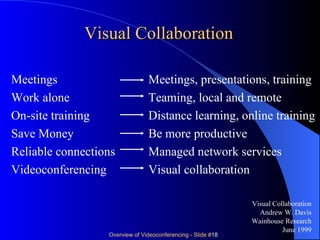
Visual Collaboration Meetings     Meetings, presentations, training Work alone     Teaming, local and remote On-site training     Distance learning, online training Save Money   Be more productive Reliable connections   Managed network services Videoconferencing   Visual collaboration Visual Collaboration Andrew W. Davis Wainhouse Research June 1999
Benefits of Videoconferencing Can improve work quality Increase productivity Reduce costs Improves communication Groups can meet more frequently Critical meetings can be convened in less time More faculty and staff can be involved
Benefits of Videoconference-based Learning Closely resembles traditional classroom-based education; permits learners to be active participants in the process Faculty and staff needs can be met more quickly through just-in-time training More faculty and staff can be trained faster without increasing training resources Guest lecturers can be easily integrated into the course
Benefits of Videoconference-based Learning Enables any site to be the provider of the learning activities. Videoconferencing is cost-effective, when you consider the traveling costs for traditional training.  Videoconference-based learning exploits the already acquired videoconferencing technologies and network infrastructure. H.323 standards provide for learners in any H.323 compliant site to be active participants.
Limitations of Videoconferencing The initial cost of the equipment and leasing the lines to transmit conferences may be prohibitive.  Unless a strong effort is made by the instructor, students not located with the instructor may remain uninvolved in the course.  If visuals, like handwritten or copied materials, are not properly prepared, students may have a difficult time reading them.
Limitations of Videoconferencing If the “pipe” that carries the transmission among sites is not large enough, the students may observe “ghost images” when rapid movement occurs in “real time” If the system is not properly configured, class members may observe an audio “echo” effect.  The result is audio interference that detracts from the learning environment.
Limitations of Videoconferencing The absence of QOS (Quality of Service) provides virtually no guarantee of a satisfying and successful experience Though the technology is improving, a successful videoconference is dependent upon the connections and technologies at all of the participating sites, AND the network infrastructure Security issues
Gudelsky Center UMD Plant Sciences Building UMD, Symons Hall AGNR Videoconferencing Facilities Salisbury Facility (LESREC) UMES, Henson Center Washington County CES Wye
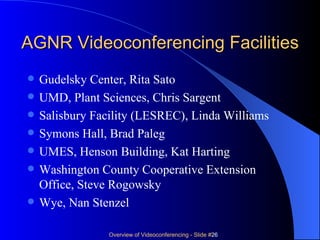
AGNR Videoconferencing Facilities Gudelsky Center, Rita Sato UMD, Plant Sciences, Chris Sargent Salisbury Facility (LESREC), Linda Williams Symons Hall, Brad Paleg UMES, Henson Building, Kat Harting Washington County Cooperative Extension Office, Steve Rogowsky Wye, Nan Stenzel
Best Practices Video Activity Identify five techniques you will use to improve the quality of your videoconference-based classes.  Resource: UW-Madison Videoconferencing video http://www.doit.wisc.edu/training/pte/video/index.asp Video Conferencing at DoIT
AGNR Videoconferencing Info http://www. agnr . umd . edu /CIT/DL/ Click on Videoconferencing
Tricks Of The Trade At the beginning of a videoconference make sure that participants introduce themselves. It is often helpful to have a sign in the background that gives your location. Look directly at the camera as often as possible when speaking. Wear neutral, solid colors. Avoid checks and stripes. Avoid white and shades of red. Red is not codec-friendly. Bright fluorescent objects also cause halo effects and other distracting artifacts.
Tricks Of The Trade Be natural, but try to minimize motion.  Try to arrange a simple, uncluttered, static background in neutral or darker solid colors. Do not sit in front of windows. Tilt pictures, framed degrees, awards or any other glass-covered wall hanging downward to eliminate reflection and glare.
Tricks Of The Trade Try to have direct light on the face of the person speaking. Too much light from behind causes silhouetting, too much from above causes shadows under the eyes. Avoid placing videoconferencing equipment in rooms prone to echo effects or exposed to outside noise. Eliminate in-room sources of extraneous noise. On multipoint video conferences mute your location when not speaking.
Tricks Of The Trade Be aware of the transmission delay ... pause for others to comment.  When asking questions in a group conference, direct the question to a specific individual if possible. Use a real or even a fake plant to humanize the setting. Visual Collaboration Andrew W. Davis Wainhouse Research
Prepare for the Worst Case Scenario Find out who handles difficult technical problems and how to contact him/her.  Designate a remote facilitator.  Develop a contingency plan for the remote site and share it with the remote facilitator. You might, for example, have a discussion topic or activity that supports the videoconference outcomes.
Prepare for the Worst Case Scenario Share telephone numbers with your remote facilitator and troubleshooters.  Make sure you (and your troubleshooters) are familiar with the equipment.  Establish your connection 15-30 minutes prior to the meeting time. Most technical problems are observable when establishing a connection. If you have never connected with your remote site plan a "dry run" a week or so ahead of time.
Videoconference-based Learning Strategies Establish Class Expectations It ain’t MTV At the begining of the session, prepare the preparing learners for an active experience Reduce Distractions Engage Students with Variety and Interaction Encourage Dialogue
Video Conferencing Etiquette This is new and we are learning.  Those who come from a television (production, not watching) as opposed to a computer background tend to be more effective.
Video Conferencing Etiquette Testing, testing, 1, 2, 3,… Connect and test PRIOR to the scheduled time Utilize the picture-in-picture to get a sense of what the remote sites are seeing Leaving well enough alone… If the videoconference is satisfactory make as few adjustments as possible Unnecessary "twiddling" of audio or video can have very distracting results.
Video Conferencing Etiquette Are you still with me? Videoconferencing is much more like an in person exchange than a telephone call — body language and facial expression count! Avoid "multi-tasking" with other work, looking at other applications on the computer screen, talking to other local participants.
Video Conferencing Etiquette Talking out of turn… Stray noises and side conversations within a video conference distract from the primary conversation. Side conversations at remote sites seem to spring up more readily than they would if everyone were in the same actual room, which causes problems to voice-activated switching.
Videoconferencing Resources: AGNR information:  http://www.agnr.umd.edu/cit/dl/ , click on Videoconferencing Video Conferencing Cookbook. http://www.vide.gatech.edu/cookbook2.0/ Distance Education at a Glance Guide #10 http://www.uidaho.edu/evo/dist10.html Videoconferencing for Learning http://www.kn.pacbell.com/wired/vidconf/

3b-Videoconferencing-pres.ppt

  • 1.
    Overview of VideoconferencingEllen Varley & Brad Paleg CIT – Distance Learning January 28, 2003
  • 2.
    "Facing the Challengeof a New Age" “ This new world of geographical togetherness has been brought about, to a great extent, by man's scientific and technological genius. Man has been able to dwarf distance, place time in chains and carve highways through the stratosphere. Through our scientific genius, we have made the world a neighborhood…” Martin Luther King, Jr., December, 1956
  • 3.
    Learner Goals Describevideoconferencing concepts, including situations where videoconferencing may be used Identify the videoconferencing equipment Locate and utilize AGNR specific videoconferencing information on the web Describe who to contact for scheduling a videoconference Describe how to prepare for a videoconference
  • 4.
    Videoconferencing – WhatIs It? “ Video conferencing in its most basic form is the transmission of image (video) and speech (audio) back and forth between two or more physically separate locations.” Video Conferencing Cookbook. http://www.vide.gatech.edu/cookbook2.0/
  • 5.
    Videoconferencing Components Cameras(to capture and send video from your local endpoint) Video displays (to display video received from remote endpoints) Microphones (to capture and send audio from your local endpoint) Speakers (to play audio received from remote endpoints)
  • 6.
    In Addition, TwoAdditional Requirements: Codec - "compressor/de-compressor“ - makes the audio/video data "small enough" to be practical for sending over expensive network connections. A codec takes analog signals, compresses and digitizes them, and transmits the signals over digital phone lines. The Supporting System and the Network Connection
  • 7.
    H.323 – It’sNot a Disease Standard for interoperability in audio, video and data transmissions as well as Internet phone and voice-over-IP (VoIP) Enables videoconferencing without usage fees But does not have QOS (quality of service)
  • 8.
    POP QUIZ (multiplechoice) A polycom is: A) one of those geometric atrocities whose angles add up to a heck of a lot more than the sum of its sides B) A tame parrot (Polycalm, get it?) C) A triangular representation of the USS Starship. D) None of the above
  • 9.
    Polycom Polycom isthe market leader in endpoint voice and video communications. AGNR has been a user of Polycom equipment for roughly three years. University System of Maryland has standardized on H.323 videoconferencing using Polycom videoconferencing equipment.
  • 10.
    Polycom Units Largeconference room units: ViewStation FX and the VS 4000 Medium conference room units: ViewStation MP Personal units: ViaVideo
  • 11.
    Show Me TheMoney Medium / Large Room Systems ViewStation FX - $8,000 –$10,000 Small Room Systems ViewStation H.323 - $4,000 - $6,000 Desktop Systems ViaVideo - $400
  • 12.
    Point-to-point Conferences Point-to-point– A videoconference that connects two locations. Each site sees and hears the other sites at all times
  • 13.
    Multipoint Conferences Point-to-multipoint– A videoconference that connects to more than two sites through the use of a multi-point control unit, or MCU. Participants at all sites can hear one another at all times and see the site that is currently speaking. Voice activated switching Multi-point conferencing can be effective although the scheduling, technical, and logistical dimensions of MCU conferences can be imposing.
  • 14.
    Multipoint Conferences AGNRhas two different capabilities of participating in multipoint conferences Utilize a bridge maintained by the USM Office of Information Technology Some of the Polycom units (Gudelsky Center, LESREC, UMD - Plant Sciences, and UMES) include four point MCU functionality
  • 15.
    But It’s MuchMore Than Video: Computer presentations Other media CD, DVD, video ELMO visual presenter (hardcopies, photos) Audioconferencing
  • 16.
    Various Uses: Presentations Virtual meetings Videoconference-based learning JIT (just in time) events Recruitment/search committees General meetings
  • 17.
    Additional Uses: Projectcoordination Informal work sessions Alumni relations Question and answer sessions Others?
  • 18.
    Visual Collaboration Meetings Meetings, presentations, training Work alone Teaming, local and remote On-site training Distance learning, online training Save Money Be more productive Reliable connections Managed network services Videoconferencing Visual collaboration Visual Collaboration Andrew W. Davis Wainhouse Research June 1999
  • 19.
    Benefits of VideoconferencingCan improve work quality Increase productivity Reduce costs Improves communication Groups can meet more frequently Critical meetings can be convened in less time More faculty and staff can be involved
  • 20.
    Benefits of Videoconference-basedLearning Closely resembles traditional classroom-based education; permits learners to be active participants in the process Faculty and staff needs can be met more quickly through just-in-time training More faculty and staff can be trained faster without increasing training resources Guest lecturers can be easily integrated into the course
  • 21.
    Benefits of Videoconference-basedLearning Enables any site to be the provider of the learning activities. Videoconferencing is cost-effective, when you consider the traveling costs for traditional training. Videoconference-based learning exploits the already acquired videoconferencing technologies and network infrastructure. H.323 standards provide for learners in any H.323 compliant site to be active participants.
  • 22.
    Limitations of VideoconferencingThe initial cost of the equipment and leasing the lines to transmit conferences may be prohibitive. Unless a strong effort is made by the instructor, students not located with the instructor may remain uninvolved in the course. If visuals, like handwritten or copied materials, are not properly prepared, students may have a difficult time reading them.
  • 23.
    Limitations of VideoconferencingIf the “pipe” that carries the transmission among sites is not large enough, the students may observe “ghost images” when rapid movement occurs in “real time” If the system is not properly configured, class members may observe an audio “echo” effect. The result is audio interference that detracts from the learning environment.
  • 24.
    Limitations of VideoconferencingThe absence of QOS (Quality of Service) provides virtually no guarantee of a satisfying and successful experience Though the technology is improving, a successful videoconference is dependent upon the connections and technologies at all of the participating sites, AND the network infrastructure Security issues
  • 25.
    Gudelsky Center UMDPlant Sciences Building UMD, Symons Hall AGNR Videoconferencing Facilities Salisbury Facility (LESREC) UMES, Henson Center Washington County CES Wye
  • 26.
    AGNR Videoconferencing FacilitiesGudelsky Center, Rita Sato UMD, Plant Sciences, Chris Sargent Salisbury Facility (LESREC), Linda Williams Symons Hall, Brad Paleg UMES, Henson Building, Kat Harting Washington County Cooperative Extension Office, Steve Rogowsky Wye, Nan Stenzel
  • 27.
    Best Practices VideoActivity Identify five techniques you will use to improve the quality of your videoconference-based classes. Resource: UW-Madison Videoconferencing video http://www.doit.wisc.edu/training/pte/video/index.asp Video Conferencing at DoIT
  • 28.
    AGNR Videoconferencing Infohttp://www. agnr . umd . edu /CIT/DL/ Click on Videoconferencing
  • 29.
    Tricks Of TheTrade At the beginning of a videoconference make sure that participants introduce themselves. It is often helpful to have a sign in the background that gives your location. Look directly at the camera as often as possible when speaking. Wear neutral, solid colors. Avoid checks and stripes. Avoid white and shades of red. Red is not codec-friendly. Bright fluorescent objects also cause halo effects and other distracting artifacts.
  • 30.
    Tricks Of TheTrade Be natural, but try to minimize motion. Try to arrange a simple, uncluttered, static background in neutral or darker solid colors. Do not sit in front of windows. Tilt pictures, framed degrees, awards or any other glass-covered wall hanging downward to eliminate reflection and glare.
  • 31.
    Tricks Of TheTrade Try to have direct light on the face of the person speaking. Too much light from behind causes silhouetting, too much from above causes shadows under the eyes. Avoid placing videoconferencing equipment in rooms prone to echo effects or exposed to outside noise. Eliminate in-room sources of extraneous noise. On multipoint video conferences mute your location when not speaking.
  • 32.
    Tricks Of TheTrade Be aware of the transmission delay ... pause for others to comment. When asking questions in a group conference, direct the question to a specific individual if possible. Use a real or even a fake plant to humanize the setting. Visual Collaboration Andrew W. Davis Wainhouse Research
  • 33.
    Prepare for theWorst Case Scenario Find out who handles difficult technical problems and how to contact him/her. Designate a remote facilitator. Develop a contingency plan for the remote site and share it with the remote facilitator. You might, for example, have a discussion topic or activity that supports the videoconference outcomes.
  • 34.
    Prepare for theWorst Case Scenario Share telephone numbers with your remote facilitator and troubleshooters. Make sure you (and your troubleshooters) are familiar with the equipment. Establish your connection 15-30 minutes prior to the meeting time. Most technical problems are observable when establishing a connection. If you have never connected with your remote site plan a "dry run" a week or so ahead of time.
  • 35.
    Videoconference-based Learning StrategiesEstablish Class Expectations It ain’t MTV At the begining of the session, prepare the preparing learners for an active experience Reduce Distractions Engage Students with Variety and Interaction Encourage Dialogue
  • 36.
    Video Conferencing EtiquetteThis is new and we are learning. Those who come from a television (production, not watching) as opposed to a computer background tend to be more effective.
  • 37.
    Video Conferencing EtiquetteTesting, testing, 1, 2, 3,… Connect and test PRIOR to the scheduled time Utilize the picture-in-picture to get a sense of what the remote sites are seeing Leaving well enough alone… If the videoconference is satisfactory make as few adjustments as possible Unnecessary "twiddling" of audio or video can have very distracting results.
  • 38.
    Video Conferencing EtiquetteAre you still with me? Videoconferencing is much more like an in person exchange than a telephone call — body language and facial expression count! Avoid "multi-tasking" with other work, looking at other applications on the computer screen, talking to other local participants.
  • 39.
    Video Conferencing EtiquetteTalking out of turn… Stray noises and side conversations within a video conference distract from the primary conversation. Side conversations at remote sites seem to spring up more readily than they would if everyone were in the same actual room, which causes problems to voice-activated switching.
  • 40.
    Videoconferencing Resources: AGNRinformation: http://www.agnr.umd.edu/cit/dl/ , click on Videoconferencing Video Conferencing Cookbook. http://www.vide.gatech.edu/cookbook2.0/ Distance Education at a Glance Guide #10 http://www.uidaho.edu/evo/dist10.html Videoconferencing for Learning http://www.kn.pacbell.com/wired/vidconf/