Oracle
Applications
Framework
Jason Reedy
Sales Consultant
jason.reedy@oracle.com
Oracle Corporation
Oracle Applications Framework

  ‡ The development and deployment platform for
    HTML-based Oracle E-Business Suite
    Applications
  ‡ 100% Java & XML J2EE based, middle-tier
    application framework and services for the rapid
    development & deployment of HTML based
    applications
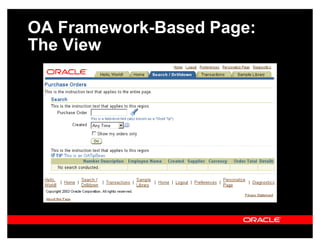
OA Framework-Based Page:
The View
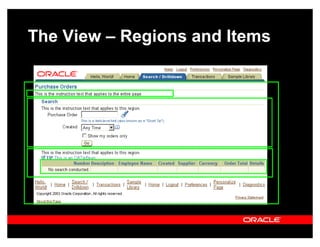
The View ± Regions and Items
Personalization vs. Extensibility
 ‡ Personalization
     ‡ Declaratively tailoring UI look-and-feel, layout
       or visibility of built-in content to suit a
       business need or a user preference
     ‡ Use the Personalization Framework
 ‡ Extensibility
     ‡ Extending the functionality of an application:
        ‡ Adding new content or business logic
        ‡ Extending/overriding existing business logic
     ‡ Use JDeveloper
Integrated Development
Environment
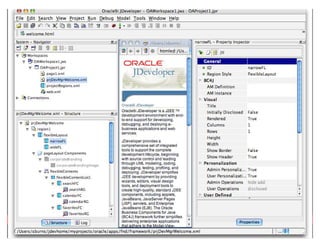
 ‡ Oracle JDeveloper OA Extension comes
   with a number of resources including:
    ‡ A Developer¶s Guide
         ‡ Development Standards
    ‡   A set of Tutorials
    ‡   Javadoc
    ‡   A Samples Library
    ‡   Online Help
OAF Personalization

30 Minute Quick Start
Quick Start Agenda

1.   Environment Setup
2.   Add/Remove Columns
3.   Rename Fields
4.   Reorder a Displayed Table
5.   Add a Tip or Message
6.   Change Style Sheet
7.   Remove OAF Personalizations
Environment Setup
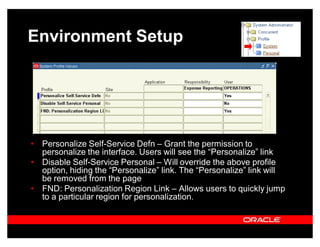
Environment Setup


‡ Personalize Self-Service Defn ± Grant the permission to
  personalize the interface. Users will see the ³Personalize´ link
‡ Disable Self-Service Personal ± Will override the above profile
  option, hiding the ³Personalize´ link. The ³Personalize´ link will
  be removed from the page
‡ FND: Personalization Region Link ± Allows users to quickly jump
  to a particular region for personalization.
Add/Remove Columns
Choose Personalization Context

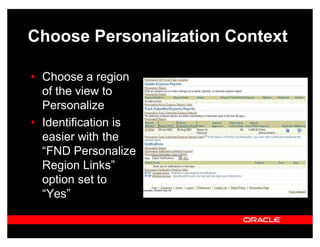
‡ Choose a region
  of the view to
  Personalize
‡ Identification is
  easier with the
  ³FND Personalize
  Region Links´
  option set to
  ³Yes´
Choose Personalization Context

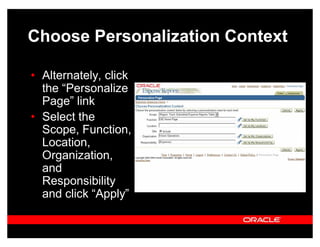
‡ Alternately, click
  the ³Personalize
  Page´ link
‡ Select the
  Scope, Function,
  Location,
  Organization,
  and
  Responsibility
  and click ³Apply´
Locate the Column

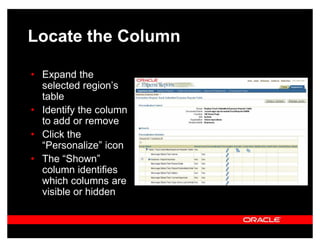
‡ Expand the
  selected region¶s
  table
‡ Identify the column
  to add or remove
‡ Click the
  ³Personalize´ icon
‡ The ³Shown´
  column identifies
  which columns are
  visible or hidden
Update Properties

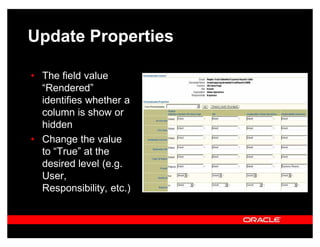
‡ The field value
  ³Rendered´
  identifies whether a
  column is show or
  hidden
‡ Change the value
  to ³True´ at the
  desired level (e.g.
  User,
  Responsibility, etc.)
Rename Fields
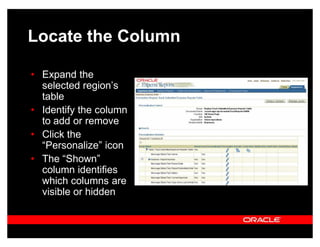
Locate the Column

‡ Expand the
  selected region¶s
  table
‡ Identify the column
  to add or remove
‡ Click the
  ³Personalize´ icon
‡ The ³Shown´
  column identifies
  which columns are
  visible or hidden
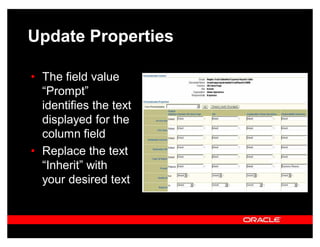
Update Properties

‡ The field value
  ³Prompt´
  identifies the text
  displayed for the
  column field
‡ Replace the text
  ³Inherit´ with
  your desired text
Reorder a Displayed Table
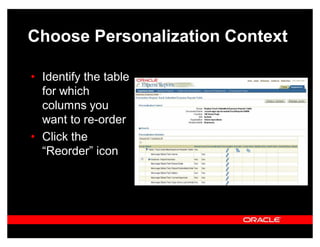
Choose Personalization Context

‡ Identify the table
  for which
  columns you
  want to re-order
‡ Click the
  ³Reorder´ icon
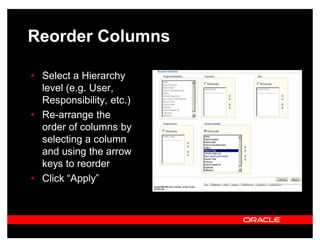
Reorder Columns

‡ Select a Hierarchy
  level (e.g. User,
  Responsibility, etc.)
‡ Re-arrange the
  order of columns by
  selecting a column
  and using the arrow
  keys to reorder
‡ Click ³Apply´
Add a Tip or Message
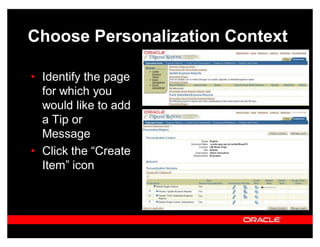
Choose Personalization Context

‡ Identify the page
  for which you
  would like to add
  a Tip or
  Message
‡ Click the ³Create
  Item´ icon
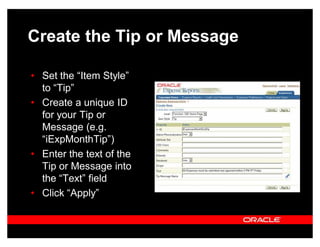
Create the Tip or Message

‡ Set the ³Item Style´
  to ³Tip´
‡ Create a unique ID
  for your Tip or
  Message (e.g.
  ³iExpMonthTip´)
‡ Enter the text of the
  Tip or Message into
  the ³Text´ field
‡ Click ³Apply´
Change Style Sheet
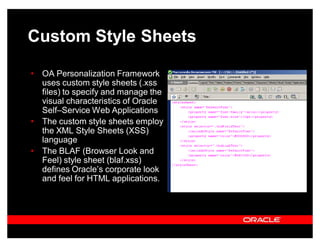
Custom Style Sheets

‡ OA Personalization Framework
  uses custom style sheets (.xss
  files) to specify and manage the
  visual characteristics of Oracle
  Self±Service Web Applications
‡ The custom style sheets employ
  the XML Style Sheets (XSS)
  language
‡ The BLAF (Browser Look and
  Feel) style sheet (blaf.xss)
  defines Oracle¶s corporate look
  and feel for HTML applications.
OA Framework Style Sheets

‡ In OA Framework, style definitions for the look and feel of the
  Oracle Self±Service Web Applications are defined by the
  blaf.xss style sheet
‡ Specific Oracle Self±Service Web Applications products may
  modify or extend those default styles. These product±specific
  styles are defined in the oa.xss style sheet document, which
  includes blaf.xss
‡ As a customer, you may also want to modify existing styles in
  blaf.xss or oa.xss, or add new styles to suit your needs. Rather
  than directly modify blaf.xss or oa.xss, you should place all your
  style sheet customizations in a style sheet document called
  custom.xss, located in OA_HTML/cabo/styles
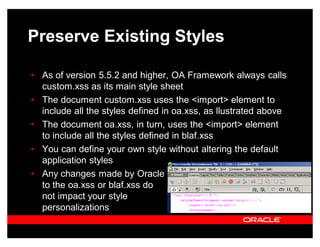
Preserve Existing Styles

‡ As of version 5.5.2 and higher, OA Framework always calls
  custom.xss as its main style sheet
‡ The document custom.xss uses the <import> element to
  include all the styles defined in oa.xss, as llustrated above
‡ The document oa.xss, in turn, uses the <import> element
  to include all the styles defined in blaf.xss
‡ You can define your own style without altering the default
  application styles
‡ Any changes made by Oracle
  to the oa.xss or blaf.xss do
  not impact your style
  personalizations
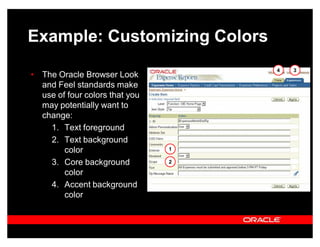
Example: Customizing Colors
                                    4   3
‡ The Oracle Browser Look
  and Feel standards make
  use of four colors that you
  may potentially want to
  change:
    1. Text foreground
    2. Text background
        color                   1

    3. Core background          2

        color
    4. Accent background
        color
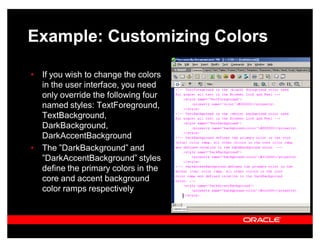
Example: Customizing Colors

‡ If you wish to change the colors
  in the user interface, you need
  only override the following four
  named styles: TextForeground,
  TextBackground,
  DarkBackground,
  DarkAccentBackground
‡ The ´DarkBackground´ and
  ´DarkAccentBackground´ styles
  define the primary colors in the
  core and accent background
  color ramps respectively
Remove Personalizations
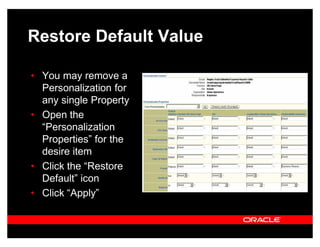
Restore Default Value

‡ You may remove a
  Personalization for
  any single Property
‡ Open the
  ³Personalization
  Properties´ for the
  desire item
‡ Click the ³Restore
  Default´ icon
‡ Click ³Apply´
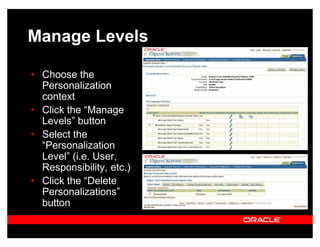
Manage Levels

‡ Choose the
  Personalization
  context
‡ Click the ³Manage
  Levels´ button
‡ Select the
  ³Personalization
  Level´ (i.e. User,
  Responsibility, etc.)
‡ Click the ³Delete
  Personalizations´
  button
For Additional Information
‡ Oracle University Training and Enrolment:
  ± http://education.oracle.com/web_prod-plq-
    dad/plsql/show_desc.redirect?redir_type=3

‡ Oracle Product Information:
  ± Oracle.com - http://oracle.com/
  ± AppsNet - http://oracle.com/appsnet/content.html
  ± MetaLink - http://metalink.oracle.com

‡ Oracle Product Documentation:
  ± AppsNet - http://www.oracle.com/appsnet/products
    /documentation/content.html
  ± Oracle Applications Framework Documentation
    Roadmap ± Note 275880
Questions & Answers


      QUESTIONS
       ANSWERS
Jason Reedy
Sales Consultant
jason.reedy@oracle.com
Oracle Corporation

36761374 Oaf

  • 2.
  • 3.
  • 4.
    Oracle Applications Framework ‡ The development and deployment platform for HTML-based Oracle E-Business Suite Applications ‡ 100% Java & XML J2EE based, middle-tier application framework and services for the rapid development & deployment of HTML based applications
  • 5.
  • 6.
    The View ±Regions and Items
  • 7.
    Personalization vs. Extensibility ‡ Personalization ‡ Declaratively tailoring UI look-and-feel, layout or visibility of built-in content to suit a business need or a user preference ‡ Use the Personalization Framework ‡ Extensibility ‡ Extending the functionality of an application: ‡ Adding new content or business logic ‡ Extending/overriding existing business logic ‡ Use JDeveloper
  • 8.
    Integrated Development Environment ‡Oracle JDeveloper OA Extension comes with a number of resources including: ‡ A Developer¶s Guide ‡ Development Standards ‡ A set of Tutorials ‡ Javadoc ‡ A Samples Library ‡ Online Help
  • 10.
  • 11.
    Quick Start Agenda 1. Environment Setup 2. Add/Remove Columns 3. Rename Fields 4. Reorder a Displayed Table 5. Add a Tip or Message 6. Change Style Sheet 7. Remove OAF Personalizations
  • 12.
  • 13.
    Environment Setup ‡ PersonalizeSelf-Service Defn ± Grant the permission to personalize the interface. Users will see the ³Personalize´ link ‡ Disable Self-Service Personal ± Will override the above profile option, hiding the ³Personalize´ link. The ³Personalize´ link will be removed from the page ‡ FND: Personalization Region Link ± Allows users to quickly jump to a particular region for personalization.
  • 14.
  • 15.
    Choose Personalization Context ‡Choose a region of the view to Personalize ‡ Identification is easier with the ³FND Personalize Region Links´ option set to ³Yes´
  • 16.
    Choose Personalization Context ‡Alternately, click the ³Personalize Page´ link ‡ Select the Scope, Function, Location, Organization, and Responsibility and click ³Apply´
  • 17.
    Locate the Column ‡Expand the selected region¶s table ‡ Identify the column to add or remove ‡ Click the ³Personalize´ icon ‡ The ³Shown´ column identifies which columns are visible or hidden
  • 18.
    Update Properties ‡ Thefield value ³Rendered´ identifies whether a column is show or hidden ‡ Change the value to ³True´ at the desired level (e.g. User, Responsibility, etc.)
  • 19.
  • 20.
    Locate the Column ‡Expand the selected region¶s table ‡ Identify the column to add or remove ‡ Click the ³Personalize´ icon ‡ The ³Shown´ column identifies which columns are visible or hidden
  • 21.
    Update Properties ‡ Thefield value ³Prompt´ identifies the text displayed for the column field ‡ Replace the text ³Inherit´ with your desired text
  • 22.
  • 23.
    Choose Personalization Context ‡Identify the table for which columns you want to re-order ‡ Click the ³Reorder´ icon
  • 24.
    Reorder Columns ‡ Selecta Hierarchy level (e.g. User, Responsibility, etc.) ‡ Re-arrange the order of columns by selecting a column and using the arrow keys to reorder ‡ Click ³Apply´
  • 25.
    Add a Tipor Message
  • 26.
    Choose Personalization Context ‡Identify the page for which you would like to add a Tip or Message ‡ Click the ³Create Item´ icon
  • 27.
    Create the Tipor Message ‡ Set the ³Item Style´ to ³Tip´ ‡ Create a unique ID for your Tip or Message (e.g. ³iExpMonthTip´) ‡ Enter the text of the Tip or Message into the ³Text´ field ‡ Click ³Apply´
  • 28.
  • 29.
    Custom Style Sheets ‡OA Personalization Framework uses custom style sheets (.xss files) to specify and manage the visual characteristics of Oracle Self±Service Web Applications ‡ The custom style sheets employ the XML Style Sheets (XSS) language ‡ The BLAF (Browser Look and Feel) style sheet (blaf.xss) defines Oracle¶s corporate look and feel for HTML applications.
  • 30.
    OA Framework StyleSheets ‡ In OA Framework, style definitions for the look and feel of the Oracle Self±Service Web Applications are defined by the blaf.xss style sheet ‡ Specific Oracle Self±Service Web Applications products may modify or extend those default styles. These product±specific styles are defined in the oa.xss style sheet document, which includes blaf.xss ‡ As a customer, you may also want to modify existing styles in blaf.xss or oa.xss, or add new styles to suit your needs. Rather than directly modify blaf.xss or oa.xss, you should place all your style sheet customizations in a style sheet document called custom.xss, located in OA_HTML/cabo/styles
  • 31.
    Preserve Existing Styles ‡As of version 5.5.2 and higher, OA Framework always calls custom.xss as its main style sheet ‡ The document custom.xss uses the <import> element to include all the styles defined in oa.xss, as llustrated above ‡ The document oa.xss, in turn, uses the <import> element to include all the styles defined in blaf.xss ‡ You can define your own style without altering the default application styles ‡ Any changes made by Oracle to the oa.xss or blaf.xss do not impact your style personalizations
  • 32.
    Example: Customizing Colors 4 3 ‡ The Oracle Browser Look and Feel standards make use of four colors that you may potentially want to change: 1. Text foreground 2. Text background color 1 3. Core background 2 color 4. Accent background color
  • 33.
    Example: Customizing Colors ‡If you wish to change the colors in the user interface, you need only override the following four named styles: TextForeground, TextBackground, DarkBackground, DarkAccentBackground ‡ The ´DarkBackground´ and ´DarkAccentBackground´ styles define the primary colors in the core and accent background color ramps respectively
  • 34.
  • 35.
    Restore Default Value ‡You may remove a Personalization for any single Property ‡ Open the ³Personalization Properties´ for the desire item ‡ Click the ³Restore Default´ icon ‡ Click ³Apply´
  • 36.
    Manage Levels ‡ Choosethe Personalization context ‡ Click the ³Manage Levels´ button ‡ Select the ³Personalization Level´ (i.e. User, Responsibility, etc.) ‡ Click the ³Delete Personalizations´ button
  • 37.
    For Additional Information ‡Oracle University Training and Enrolment: ± http://education.oracle.com/web_prod-plq- dad/plsql/show_desc.redirect?redir_type=3 ‡ Oracle Product Information: ± Oracle.com - http://oracle.com/ ± AppsNet - http://oracle.com/appsnet/content.html ± MetaLink - http://metalink.oracle.com ‡ Oracle Product Documentation: ± AppsNet - http://www.oracle.com/appsnet/products /documentation/content.html ± Oracle Applications Framework Documentation Roadmap ± Note 275880
  • 38.
    Questions & Answers QUESTIONS ANSWERS
  • 39.