Take  your  mobile  app    
    tests  to  the  next  level  :  
  Continuous  Integration	

                  Eing Ong
Staff Software Engineer in Quality, Intuit, Inc.
Session  outline	
•    Mobile tests CI challenges
•    Android & iOS basics
•    Automation tools
•    Demo
•    Q&A


                                  2
CI  challenges  for  mobile  tests	
•  Mobile platforms
   o  OS, resolutions, screen sizes, memory, camera, processor
   o  Phone, tablets

•  Mobile integration
   o  Setup, execution, teardown
   o  Test results

•  Test automation technologies


                                                                 3
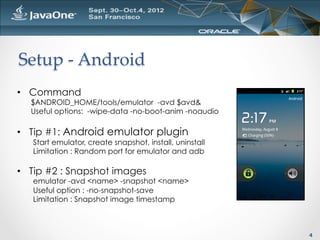
Setup  -­‐‑  Android	
•  Command
  $ANDROID_HOME/tools/emulator -avd $avd&
  Useful options: -wipe-data -no-boot-anim -noaudio

•  Tip #1: Android emulator plugin
   Start emulator, create snapshot, install, uninstall
   Limitation : Random port for emulator and adb

•  Tip #2 : Snapshot images
   emulator -avd <name> -snapshot <name>
   Useful option : -no-snapshot-save
   Limitation : Snapshot image timestamp


                                                         4
Setup  -­‐‑  Android	
•  Tip #3 : Setting current date
   adb shell date -s `date +"%Y%m%d.%H%M%S”`


•  Tip #4 : Restart android debug bridge
   adb devices | grep emulator
   adb kill-server; adb start-server


•  Tip #5 : Unlock emulator
   adb shell input keyevent 82
   adb shell input keyevent 4


                                               5
Setup  -­‐‑  iOS	
•  Tip #1 : Commands
  o  open -a "iPhone Simulator.app”

  o  iphonesim launch <app name> [sdkversion]

  o  instruments
         –t <automation tracetemplate> <app name>
         -w <deviceID>
         -e UIASCRIPT <scriptFilePath>
         -e UIARESULTSPATH <resultsFolderPath>


                                                    6
Setup  -­‐‑  iOS	
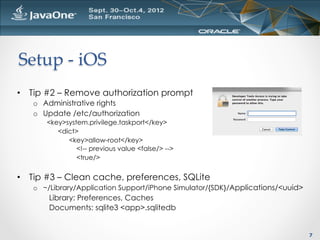
•  Tip #2 – Remove authorization prompt
   o  Administrative rights
   o  Update /etc/authorization
      <key>system.privilege.taskport</key>
         <dict>
            <key>allow-root</key>
               <!-- previous value <false/> -->
               <true/>


•  Tip #3 – Clean cache, preferences, SQLite
   o  ~/Library/Application Support/iPhone Simulator/{SDK}/Applications/<uuid>
       Library: Preferences, Caches
       Documents: sqlite3 <app>.sqlitedb


                                                                                 7
Install	
•  Android
   o  adb install <apk file>
         Multiple installs : find builds -name ‘*.apk’ -exec adb install "{}" ;

   o  adb uninstall <package name>


•  iOS
   o  No separate command needed


                                                                                   8
Launch	
•  Android
  adb shell am start
      -n <activity>
      [-a android.intent.action.MAIN]
      [-c android.intent.category.LAUNCHER]
      [-c android.intent.category.DEFAULT]


•  iOS
   o  Similar to setup/startup


                                              9
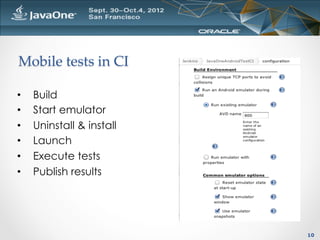
Mobile  tests  in  CI	

•    Build
•    Start emulator
•    Uninstall & install
•    Launch
•    Execute tests
•    Publish results


                           10
Mobile  automation  technologies	
•  Two categories
      •  Instrumented technique
      •  Non-instrumented technique

•  What is instrumentation?
      •    Tests are compiled with the app
      •    Tests are installed & launched with the app
      •    Source code is required and may need to be modified
      •    Only one app can be executed at a time
      •    White box


                                                                 11
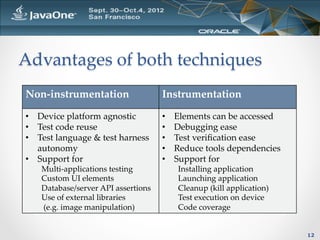
Advantages  of  both  techniques	
Non-­‐‑instrumentation	
                 Instrumentation	

•  Device  platform  agnostic	
          •    Elements  can  be  accessed	
•  Test  code  reuse	
                   •    Debugging  ease	
•  Test  language  &  test  harness      •    Test  verification  ease	
   autonomy	
                            •    Reduce  tools  dependencies	
•  Support  for	
                        •    Support  for	
    Multi-­‐‑applications  testing	
           Installing  application	
    Custom  UI  elements	
                     Launching  application	
    Database/server  API  assertions	
         Cleanup  (kill  application)	
    Use  of  external  libraries	
             Test  execution  on  device	
      (e.g.  image  manipulation)	
            Code  coverage	


                                                                                12
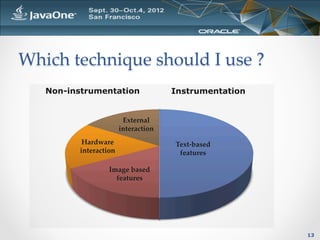
Which  technique  should  I  use  ?	
   Non-instrumentation               Instrumentation


                      External  
                     interaction	
          Hardware                   Text-­‐‑based  
         interaction	
                features	

                  Image  based  
                    features	


                                                       13
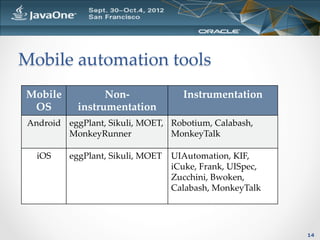
Mobile  automation  tools	
 Mobile  	
       Non-­‐‑                 Instrumentation	
  OS	
      instrumentation	
 Android	
 eggPlant,  Sikuli,  MOET,   Robotium,  Calabash,  
           MonkeyRunner	
              MonkeyTalk	

   iOS	
    eggPlant,  Sikuli,  MOET	
 UIAutomation,  KIF,  
                                       iCuke,  Frank,  UISpec,  
                                       Zucchini,  Bwoken,  
                                       Calabash,  MonkeyTalk	


                                                                   14
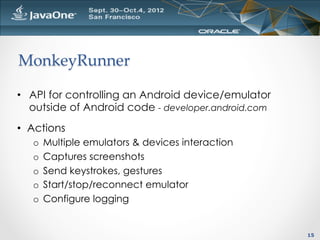
MonkeyRunner	

•  API for controlling an Android device/emulator
   outside of Android code - developer.android.com
•  Actions
   o  Multiple emulators & devices interaction
   o  Captures screenshots
   o  Send keystrokes, gestures
   o  Start/stop/reconnect emulator
   o  Configure logging


                                                     15
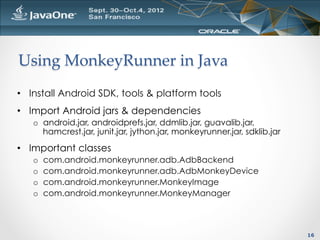
Using  MonkeyRunner  in  Java	
•  Install Android SDK, tools & platform tools
•  Import Android jars & dependencies
   o  android.jar, androidprefs.jar, ddmlib.jar, guavalib.jar,
      hamcrest.jar, junit.jar, jython.jar, monkeyrunner.jar, sdklib.jar
•  Important classes
   o    com.android.monkeyrunner.adb.AdbBackend
   o    com.android.monkeyrunner.adb.AdbMonkeyDevice
   o    com.android.monkeyrunner.MonkeyImage
   o    com.android.monkeyrunner.MonkeyManager


                                                                          16
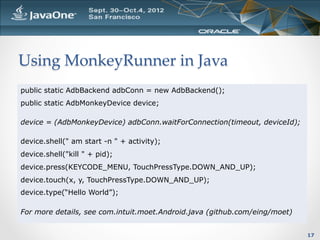
Using  MonkeyRunner  in  Java	
public static AdbBackend adbConn = new AdbBackend();
public static AdbMonkeyDevice device;

device = (AdbMonkeyDevice) adbConn.waitForConnection(timeout, deviceId);

device.shell(" am start -n " + activity);
device.shell("kill " + pid);
device.press(KEYCODE_MENU, TouchPressType.DOWN_AND_UP);
device.touch(x, y, TouchPressType.DOWN_AND_UP);
device.type(“Hello World”);

For more details, see com.intuit.moet.Android.java (github.com/eing/moet)


                                                                            17
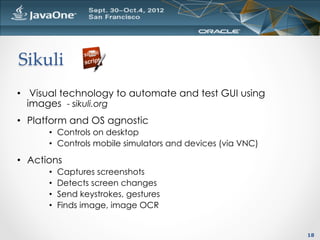
Sikuli	
•  Visual technology to automate and test GUI using
   images - sikuli.org
•  Platform and OS agnostic
       •  Controls on desktop
       •  Controls mobile simulators and devices (via VNC)

•  Actions
       •    Captures screenshots
       •    Detects screen changes
       •    Send keystrokes, gestures
       •    Finds image, image OCR


                                                             18
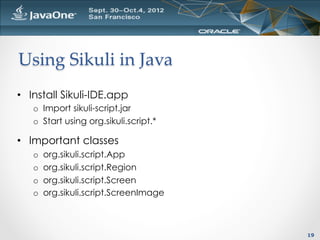
Using  Sikuli  in  Java	
•  Install Sikuli-IDE.app
   o  Import sikuli-script.jar
   o  Start using org.sikuli.script.*

•  Important classes
   o    org.sikuli.script.App
   o    org.sikuli.script.Region
   o    org.sikuli.script.Screen
   o    org.sikuli.script.ScreenImage


                                        19
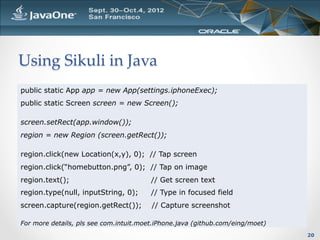
Using  Sikuli  in  Java	
public static App app = new App(settings.iphoneExec);
public static Screen screen = new Screen();

screen.setRect(app.window());
region = new Region (screen.getRect());

region.click(new Location(x,y), 0); // Tap screen
region.click(“homebutton.png”, 0); // Tap on image
region.text();                          // Get screen text
region.type(null, inputString, 0);      // Type in focused field
screen.capture(region.getRect());       // Capture screenshot

For more details, pls see com.intuit.moet.iPhone.java (github.com/eing/moet)
                                                                               20
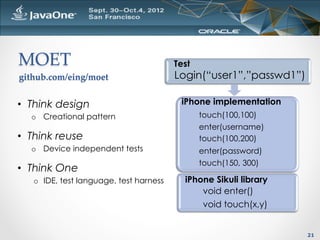
MOET	
                                   Test
github.com/eing/moet	
                   Login(“user1”,”passwd1”)

•  Think design                           iPhone implementation
  o  Creational pattern                         touch(100,100)
                                                enter(username)
•  Think reuse                                  touch(100,200)
  o  Device independent tests                   enter(password)
                                                touch(150, 300)
•  Think One
   o  IDE, test language, test harness     iPhone Sikuli library
                                               void enter()
                                               void touch(x,y)


                                                                    21
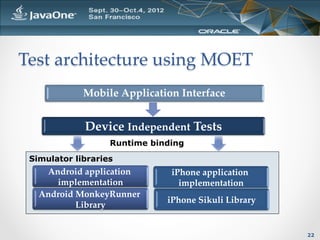
Test  architecture  using  MOET	
             Mobile  Application  Interface


             Device  Independent  Tests
                                     	
                   Runtime binding
 Simulator libraries
    Android  application       iPhone  application  
      implementation 	
          implementation 	
   Android  MonkeyRunner  
                              iPhone  Sikuli  Library
                                                    	
            Library


                                                         22
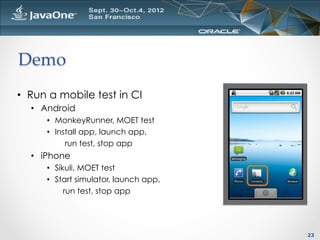
Demo	
•  Run a mobile test in CI
  •  Android
      •  MonkeyRunner, MOET test
      •  Install app, launch app,
            run test, stop app
  •  iPhone
      •  Sikuli, MOET test
      •  Start simulator, launch app,
            run test, stop app


                                        23
Resources	
•    Android testing
         http://developer.android.com/tools/help/index.html
         http://www.java2s.com/Open-Source/Android/android-core/platform-
         sdk/com/android/monkeyrunner/MonkeyRunner.java.htm
         http://code.google.com/p/robotium/
•    iOS testing
         http://sikuli.org/docx/faq/030-java-dev.html
         https://github.com/jhaynie/iphonesim/
         http://sikuli.org/doc/java-x/index.html?org/sikuli/script/Region.html
•    MOET
         https://github.com/eing/moet/tree/master/java/src/com/intuit/moet
•    Jenkins
         http://jenkins-ci.org/


                                                                                 24
Q  &  A	


            25
Thank  you	
Thank you for your session survey& feedback !

    For more details on this presentation,
              please contact
      @eingong / eing.ong@intuit.com


                                                26
Jenkins  Premier	

1.  Start Jenkins
   o    java –jar jenkins.war (or drop war file in servlet container)
2.  Administer Jenkins
   o    http://<hostname>:8080 (add /jenkins for war deploy)
   o    Install plugins
        •  e.g. Perforce, Maven, JUnit, Android emulator

3.  Create a new job
   o    Setup source code management
   o    Build triggers
   o    Build steps
   o    Publish test report


                                                                        27

2012 java one-con3648

  • 1.
    Take  your  mobile app     tests  to  the  next  level  :    Continuous  Integration Eing Ong Staff Software Engineer in Quality, Intuit, Inc.
  • 2.
    Session  outline •  Mobile tests CI challenges •  Android & iOS basics •  Automation tools •  Demo •  Q&A 2
  • 3.
    CI  challenges  for mobile  tests •  Mobile platforms o  OS, resolutions, screen sizes, memory, camera, processor o  Phone, tablets •  Mobile integration o  Setup, execution, teardown o  Test results •  Test automation technologies 3
  • 4.
    Setup  -­‐‑  Android • Command $ANDROID_HOME/tools/emulator -avd $avd& Useful options: -wipe-data -no-boot-anim -noaudio •  Tip #1: Android emulator plugin Start emulator, create snapshot, install, uninstall Limitation : Random port for emulator and adb •  Tip #2 : Snapshot images emulator -avd <name> -snapshot <name> Useful option : -no-snapshot-save Limitation : Snapshot image timestamp 4
  • 5.
    Setup  -­‐‑  Android • Tip #3 : Setting current date adb shell date -s `date +"%Y%m%d.%H%M%S”` •  Tip #4 : Restart android debug bridge adb devices | grep emulator adb kill-server; adb start-server •  Tip #5 : Unlock emulator adb shell input keyevent 82 adb shell input keyevent 4 5
  • 6.
    Setup  -­‐‑  iOS • Tip #1 : Commands o  open -a "iPhone Simulator.app” o  iphonesim launch <app name> [sdkversion] o  instruments –t <automation tracetemplate> <app name> -w <deviceID> -e UIASCRIPT <scriptFilePath> -e UIARESULTSPATH <resultsFolderPath> 6
  • 7.
    Setup  -­‐‑  iOS • Tip #2 – Remove authorization prompt o  Administrative rights o  Update /etc/authorization <key>system.privilege.taskport</key> <dict> <key>allow-root</key> <!-- previous value <false/> --> <true/> •  Tip #3 – Clean cache, preferences, SQLite o  ~/Library/Application Support/iPhone Simulator/{SDK}/Applications/<uuid> Library: Preferences, Caches Documents: sqlite3 <app>.sqlitedb 7
  • 8.
    Install •  Android o  adb install <apk file> Multiple installs : find builds -name ‘*.apk’ -exec adb install "{}" ; o  adb uninstall <package name> •  iOS o  No separate command needed 8
  • 9.
    Launch •  Android adb shell am start -n <activity> [-a android.intent.action.MAIN] [-c android.intent.category.LAUNCHER] [-c android.intent.category.DEFAULT] •  iOS o  Similar to setup/startup 9
  • 10.
    Mobile  tests  in CI •  Build •  Start emulator •  Uninstall & install •  Launch •  Execute tests •  Publish results 10
  • 11.
    Mobile  automation  technologies • Two categories •  Instrumented technique •  Non-instrumented technique •  What is instrumentation? •  Tests are compiled with the app •  Tests are installed & launched with the app •  Source code is required and may need to be modified •  Only one app can be executed at a time •  White box 11
  • 12.
    Advantages  of  both techniques Non-­‐‑instrumentation Instrumentation •  Device  platform  agnostic •  Elements  can  be  accessed •  Test  code  reuse •  Debugging  ease •  Test  language  &  test  harness   •  Test  verification  ease autonomy •  Reduce  tools  dependencies •  Support  for •  Support  for Multi-­‐‑applications  testing Installing  application Custom  UI  elements Launching  application Database/server  API  assertions Cleanup  (kill  application) Use  of  external  libraries Test  execution  on  device  (e.g.  image  manipulation) Code  coverage 12
  • 13.
    Which  technique  should I  use  ? Non-instrumentation Instrumentation External   interaction Hardware   Text-­‐‑based   interaction features Image  based   features 13
  • 14.
    Mobile  automation  tools Mobile   Non-­‐‑ Instrumentation OS instrumentation Android eggPlant,  Sikuli,  MOET,   Robotium,  Calabash,   MonkeyRunner MonkeyTalk iOS eggPlant,  Sikuli,  MOET UIAutomation,  KIF,   iCuke,  Frank,  UISpec,   Zucchini,  Bwoken,   Calabash,  MonkeyTalk 14
  • 15.
    MonkeyRunner •  API forcontrolling an Android device/emulator outside of Android code - developer.android.com •  Actions o  Multiple emulators & devices interaction o  Captures screenshots o  Send keystrokes, gestures o  Start/stop/reconnect emulator o  Configure logging 15
  • 16.
    Using  MonkeyRunner  in Java •  Install Android SDK, tools & platform tools •  Import Android jars & dependencies o  android.jar, androidprefs.jar, ddmlib.jar, guavalib.jar, hamcrest.jar, junit.jar, jython.jar, monkeyrunner.jar, sdklib.jar •  Important classes o  com.android.monkeyrunner.adb.AdbBackend o  com.android.monkeyrunner.adb.AdbMonkeyDevice o  com.android.monkeyrunner.MonkeyImage o  com.android.monkeyrunner.MonkeyManager 16
  • 17.
    Using  MonkeyRunner  in Java public static AdbBackend adbConn = new AdbBackend(); public static AdbMonkeyDevice device; device = (AdbMonkeyDevice) adbConn.waitForConnection(timeout, deviceId); device.shell(" am start -n " + activity); device.shell("kill " + pid); device.press(KEYCODE_MENU, TouchPressType.DOWN_AND_UP); device.touch(x, y, TouchPressType.DOWN_AND_UP); device.type(“Hello World”); For more details, see com.intuit.moet.Android.java (github.com/eing/moet) 17
  • 18.
    Sikuli •  Visual technologyto automate and test GUI using images - sikuli.org •  Platform and OS agnostic •  Controls on desktop •  Controls mobile simulators and devices (via VNC) •  Actions •  Captures screenshots •  Detects screen changes •  Send keystrokes, gestures •  Finds image, image OCR 18
  • 19.
    Using  Sikuli  in Java •  Install Sikuli-IDE.app o  Import sikuli-script.jar o  Start using org.sikuli.script.* •  Important classes o  org.sikuli.script.App o  org.sikuli.script.Region o  org.sikuli.script.Screen o  org.sikuli.script.ScreenImage 19
  • 20.
    Using  Sikuli  in Java public static App app = new App(settings.iphoneExec); public static Screen screen = new Screen(); screen.setRect(app.window()); region = new Region (screen.getRect()); region.click(new Location(x,y), 0); // Tap screen region.click(“homebutton.png”, 0); // Tap on image region.text(); // Get screen text region.type(null, inputString, 0); // Type in focused field screen.capture(region.getRect()); // Capture screenshot For more details, pls see com.intuit.moet.iPhone.java (github.com/eing/moet) 20
  • 21.
    MOET Test github.com/eing/moet Login(“user1”,”passwd1”) •  Think design iPhone implementation o  Creational pattern touch(100,100) enter(username) •  Think reuse touch(100,200) o  Device independent tests enter(password) touch(150, 300) •  Think One o  IDE, test language, test harness iPhone Sikuli library void enter() void touch(x,y) 21
  • 22.
    Test  architecture  using MOET Mobile  Application  Interface Device  Independent  Tests Runtime binding Simulator libraries Android  application   iPhone  application   implementation implementation Android  MonkeyRunner   iPhone  Sikuli  Library Library 22
  • 23.
    Demo •  Run amobile test in CI •  Android •  MonkeyRunner, MOET test •  Install app, launch app, run test, stop app •  iPhone •  Sikuli, MOET test •  Start simulator, launch app, run test, stop app 23
  • 24.
    Resources •  Android testing http://developer.android.com/tools/help/index.html http://www.java2s.com/Open-Source/Android/android-core/platform- sdk/com/android/monkeyrunner/MonkeyRunner.java.htm http://code.google.com/p/robotium/ •  iOS testing http://sikuli.org/docx/faq/030-java-dev.html https://github.com/jhaynie/iphonesim/ http://sikuli.org/doc/java-x/index.html?org/sikuli/script/Region.html •  MOET https://github.com/eing/moet/tree/master/java/src/com/intuit/moet •  Jenkins http://jenkins-ci.org/ 24
  • 25.
  • 26.
    Thank  you Thank youfor your session survey& feedback ! For more details on this presentation, please contact @eingong / eing.ong@intuit.com 26
  • 27.
    Jenkins  Premier 1.  StartJenkins o  java –jar jenkins.war (or drop war file in servlet container) 2.  Administer Jenkins o  http://<hostname>:8080 (add /jenkins for war deploy) o  Install plugins •  e.g. Perforce, Maven, JUnit, Android emulator 3.  Create a new job o  Setup source code management o  Build triggers o  Build steps o  Publish test report 27