Session outline

   Introduction
   Simulator basics
   Mobile end-to-end testing (Moet)
   Building your mobile tests
   Demo
   Advantages and limitations
   Q&A
What are we solving for

 Diverse mobile platforms
 Low cost solution
 End-to-end mobile tests
 Leverage black box testers
Simulator Basics

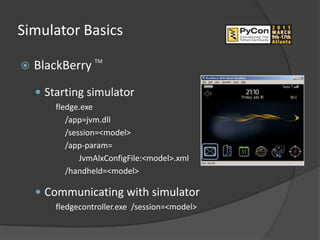
   BlackBerry TM
     Starting simulator
        fledge.exe
           /app=jvm.dll
           /session=<model>
           /app-param=
               JvmAlxConfigFile:<model>.xml
           /handheld=<model>

     Communicating with simulator
        fledgecontroller.exe /session=<model>
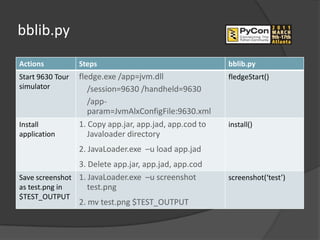
Simulator commands
Actions           Steps
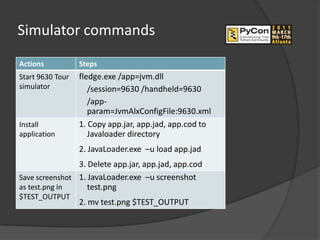
Start 9630 Tour   fledge.exe /app=jvm.dll
simulator            /session=9630 /handheld=9630
                     /app-
                     param=JvmAlxConfigFile:9630.xml
Install           1. Copy app.jar, app.jad, app.cod to
application          Javaloader directory
                  2. JavaLoader.exe –u load app.jad
                3. Delete app.jar, app.jad, app.cod
Save screenshot 1. JavaLoader.exe –u screenshot
as test.png in     test.png
$TEST_OUTPUT
                  2. mv test.png $TEST_OUTPUT
bblib.py
Actions           Steps                                  bblib.py
Start 9630 Tour   fledge.exe /app=jvm.dll                fledgeStart()
simulator            /session=9630 /handheld=9630
                     /app-
                     param=JvmAlxConfigFile:9630.xml
Install           1. Copy app.jar, app.jad, app.cod to   install()
application          Javaloader directory
                  2. JavaLoader.exe –u load app.jad
                3. Delete app.jar, app.jad, app.cod
Save screenshot 1. JavaLoader.exe –u screenshot          screenshot(‘test’)
as test.png in     test.png
$TEST_OUTPUT
                  2. mv test.png $TEST_OUTPUT
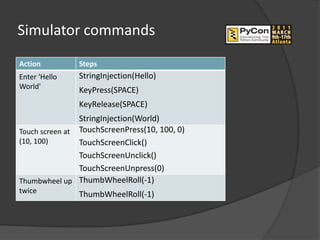
Simulator commands
Action         Steps
Enter 'Hello   StringInjection(Hello)
World'         KeyPress(SPACE)
               KeyRelease(SPACE)
                StringInjection(World)
Touch screen at TouchScreenPress(10, 100, 0)
(10, 100)       TouchScreenClick()
                TouchScreenUnclick()
                TouchScreenUnpress(0)
Thumbwheel up ThumbWheelRoll(-1)
twice          ThumbWheelRoll(-1)
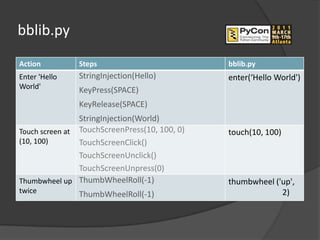
bblib.py
Action         Steps                           bblib.py
Enter 'Hello   StringInjection(Hello)          enter(‘Hello World')
World'         KeyPress(SPACE)
               KeyRelease(SPACE)
                StringInjection(World)
Touch screen at TouchScreenPress(10, 100, 0)   touch(10, 100)
(10, 100)       TouchScreenClick()
                TouchScreenUnclick()
                TouchScreenUnpress(0)
Thumbwheel up ThumbWheelRoll(-1)               thumbwheel ('up',
twice          ThumbWheelRoll(-1)                           2)
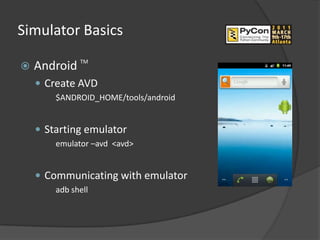
Simulator Basics
              TM
   Android
     Create AVD
        $ANDROID_HOME/tools/android


     Starting emulator
        emulator –avd <avd>


     Communicating with emulator
        adb shell
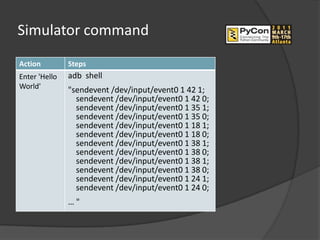
Simulator command
Action         Steps
Enter 'Hello   adb shell
World'         "sendevent /dev/input/event0 1 42 1;
                 sendevent /dev/input/event0 1 42 0;
                 sendevent /dev/input/event0 1 35 1;
                 sendevent /dev/input/event0 1 35 0;
                 sendevent /dev/input/event0 1 18 1;
                 sendevent /dev/input/event0 1 18 0;
                 sendevent /dev/input/event0 1 38 1;
                 sendevent /dev/input/event0 1 38 0;
                 sendevent /dev/input/event0 1 38 1;
                 sendevent /dev/input/event0 1 38 0;
                 sendevent /dev/input/event0 1 24 1;
                 sendevent /dev/input/event0 1 24 0;
               …"
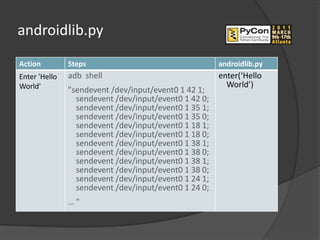
androidlib.py
Action         Steps                                   androidlib.py
Enter 'Hello   adb shell                               enter(‘Hello
World'                                                   World’)
               "sendevent /dev/input/event0 1 42 1;
                 sendevent /dev/input/event0 1 42 0;
                 sendevent /dev/input/event0 1 35 1;
                 sendevent /dev/input/event0 1 35 0;
                 sendevent /dev/input/event0 1 18 1;
                 sendevent /dev/input/event0 1 18 0;
                 sendevent /dev/input/event0 1 38 1;
                 sendevent /dev/input/event0 1 38 0;
                 sendevent /dev/input/event0 1 38 1;
                 sendevent /dev/input/event0 1 38 0;
                 sendevent /dev/input/event0 1 24 1;
                 sendevent /dev/input/event0 1 24 0;
               …"
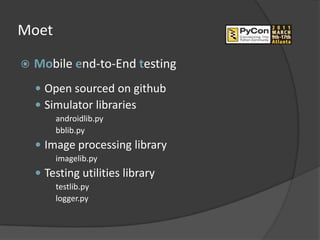
Moet

   Mobile end-to-End testing
     Open sourced on github
     Simulator libraries
        androidlib.py
        bblib.py
     Image processing library
        imagelib.py
     Testing utilities library
        testlib.py
        logger.py
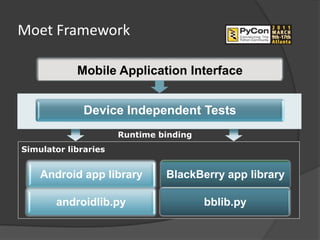
Moet Framework

            Mobile Application Interface


              Device Independent Tests
                      Runtime binding
Simulator libraries


    Android app library        BlackBerry app library

       androidlib.py                    bblib.py
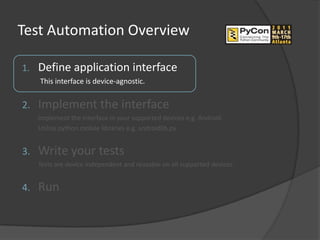
Test Automation Overview

1.   Define application interface
     This interface is device-agnostic.


2.   Implement the interface
     Implement the interface in your supported devices e.g. Android.
     Utilize python mobile libraries e.g. androidlib.py.


3.   Write your tests
     Tests are device independent and reusable on all supported devices.


4.   Run
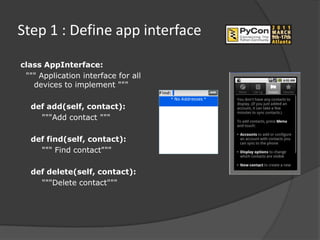
Step 1 : Define app interface

class AppInterface:
 """ Application interface for all
   devices to implement """

  def add(self, contact):
    """Add contact """

  def find(self, contact):
    """ Find contact"""

  def delete(self, contact):
    """Delete contact"""
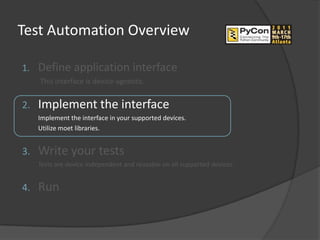
Test Automation Overview

1.   Define application interface
     This interface is device-agnostic.


2.   Implement the interface
     Implement the interface in your supported devices.
     Utilize moet libraries.


3.   Write your tests
     Tests are device independent and reusable on all supported devices.


4.   Run
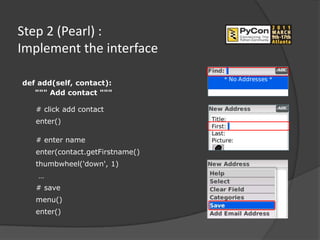
Step 2 (Pearl) :
Implement the interface

def add(self, contact):
   """ Add contact """

   # click add contact
   enter()

   # enter name
   enter(contact.getFirstname()
   thumbwheel('down', 1)
    …
   # save
   menu()
   enter()
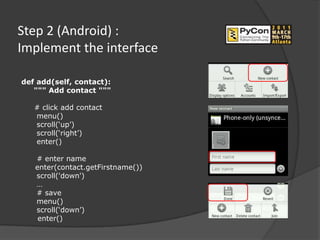
Step 2 (Android) :
Implement the interface

def add(self, contact):
   """ Add contact """

   # click add contact
   menu()
   scroll(‘up’)
   scroll(‘right’)
   enter()

   # enter name
   enter(contact.getFirstname())
   scroll('down')
   …
   # save
   menu()
   scroll(‘down’)
    enter()
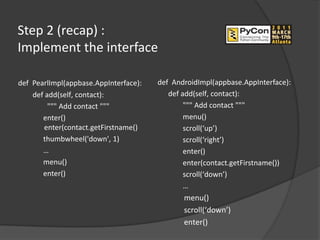
Step 2 (recap) :
Implement the interface

def PearlImpl(appbase.AppInterface):   def AndroidImpl(appbase.AppInterface):
    def add(self, contact):               def add(self, contact):
         """ Add contact """                   """ Add contact """
       enter()                                 menu()
       enter(contact.getFirstname()            scroll(‘up’)
       thumbwheel('down', 1)                   scroll(‘right’)
       …                                       enter()
       menu()                                  enter(contact.getFirstname())
       enter()                                 scroll(‘down’)
                                               …
                                              menu()
                                              scroll(‘down’)
                                              enter()
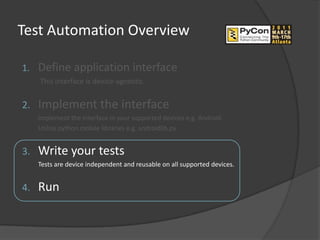
Test Automation Overview

1.   Define application interface
     This interface is device-agnostic.


2.   Implement the interface
     Implement the interface in your supported devices e.g. Android.
     Utilize python mobile libraries e.g. androidlib.py.


3.   Write your tests
     Tests are device independent and reusable on all supported devices.


4.   Run
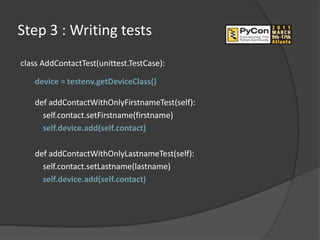
Step 3 : Writing tests
class AddContactTest(unittest.TestCase):

   device = testenv.getDeviceClass()

   def addContactWithOnlyFirstnameTest(self):
     self.contact.setFirstname(firstname)
     self.device.add(self.contact)

   def addContactWithOnlyLastnameTest(self):
     self.contact.setLastname(lastname)
     self.device.add(self.contact)
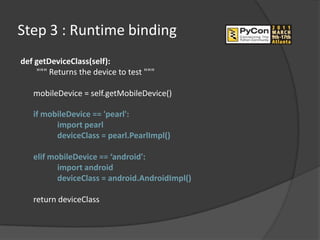
Step 3 : Runtime binding
def getDeviceClass(self):
    """ Returns the device to test """

   mobileDevice = self.getMobileDevice()

   if mobileDevice == 'pearl':
         import pearl
         deviceClass = pearl.PearlImpl()

   elif mobileDevice == ‘android':
          import android
          deviceClass = android.AndroidImpl()

   return deviceClass
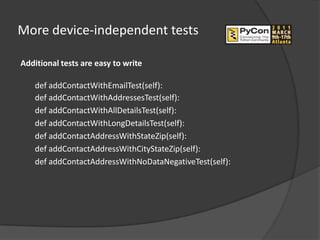
More device-independent tests

Additional tests are easy to write

    def addContactWithEmailTest(self):
    def addContactWithAddressesTest(self):
    def addContactWithAllDetailsTest(self):
    def addContactWithLongDetailsTest(self):
    def addContactAddressWithStateZip(self):
    def addContactAddressWithCityStateZip(self):
    def addContactAddressWithNoDataNegativeTest(self):
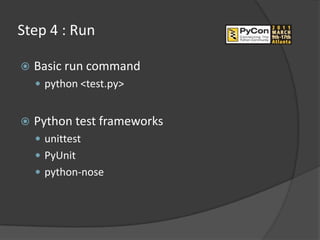
Step 4 : Run

   Basic run command
     python <test.py>


   Python test frameworks
     unittest
     PyUnit
     python-nose
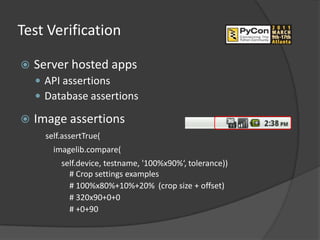
Test Verification

   Server hosted apps
     API assertions
     Database assertions

   Image assertions
      self.assertTrue(
        imagelib.compare(
          self.device, testname, '100%x90%‘, tolerance))
            # Crop settings examples
            # 100%x80%+10%+20% (crop size + offset)
            # 320x90+0+0
            # +0+90
Test Logging

   Logs
    AddressTest.log :
    2010-06-10 15:19:46,773 - testCreateAddressMethod - INFO -
       [Address] 200 Villa St Mountain View CA 94040 BUSINESS ADDRESS


   Initialization
    self.log = self.device.initLogger(self._testMethodName,
                                      self.__class__.__name__)

   Usage
    self.log.info('Starting test: ' + self._testMethodName)
    self.log.debug(self.contact)
    self.log.error(‘Missing image to compare’)
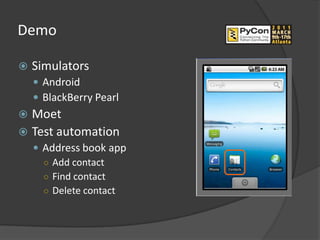
Demo

   Simulators
     Android
     BlackBerry Pearl
 Moet
 Test automation
     Address book app
      ○ Add contact
      ○ Find contact
      ○ Delete contact
Advantages

   Low cost and ease of use
   Reusable end-to-end tests
   No device sharing/scheduling
   Bigger device pool
   Reduce manual testing time
   Run on developer machines
   Debugging capabilities
Limitations

   Requires ethernet or internet connectivity
   Does not simulate network performance
   Does not support hardware controls testing
   Dependent on simulator reliability
   Limited peer-to-peer applications testing
Resources
Moet http://github.com/moet/moet/
Android 

     Emulator http://developer.android.com/guide/developing/tools/emulator.html

     ADB http://android-dls.com/wiki/index.php?title=ADB

     Forum http://developer.android.com/resources/community-groups.html

BlackBerry 
     Downloads http://na.blackberry.com/eng/developers/javaappdev/javadevenv.jsp
     Fledge Controller
          http://docs.blackberry.com/en/developers/deliverables/6338/Testing_apps_using_the_
          BBSmrtphnSmltr_607559_11.jsp

     Forum http://supportforums.blackberry.com/
Q&A
2011 py con

2011 py con

  • 2.
    Session outline  Introduction  Simulator basics  Mobile end-to-end testing (Moet)  Building your mobile tests  Demo  Advantages and limitations  Q&A
  • 3.
    What are wesolving for  Diverse mobile platforms  Low cost solution  End-to-end mobile tests  Leverage black box testers
  • 4.
    Simulator Basics  BlackBerry TM  Starting simulator fledge.exe /app=jvm.dll /session=<model> /app-param= JvmAlxConfigFile:<model>.xml /handheld=<model>  Communicating with simulator fledgecontroller.exe /session=<model>
  • 5.
    Simulator commands Actions Steps Start 9630 Tour fledge.exe /app=jvm.dll simulator /session=9630 /handheld=9630 /app- param=JvmAlxConfigFile:9630.xml Install 1. Copy app.jar, app.jad, app.cod to application Javaloader directory 2. JavaLoader.exe –u load app.jad 3. Delete app.jar, app.jad, app.cod Save screenshot 1. JavaLoader.exe –u screenshot as test.png in test.png $TEST_OUTPUT 2. mv test.png $TEST_OUTPUT
  • 6.
    bblib.py Actions Steps bblib.py Start 9630 Tour fledge.exe /app=jvm.dll fledgeStart() simulator /session=9630 /handheld=9630 /app- param=JvmAlxConfigFile:9630.xml Install 1. Copy app.jar, app.jad, app.cod to install() application Javaloader directory 2. JavaLoader.exe –u load app.jad 3. Delete app.jar, app.jad, app.cod Save screenshot 1. JavaLoader.exe –u screenshot screenshot(‘test’) as test.png in test.png $TEST_OUTPUT 2. mv test.png $TEST_OUTPUT
  • 7.
    Simulator commands Action Steps Enter 'Hello StringInjection(Hello) World' KeyPress(SPACE) KeyRelease(SPACE) StringInjection(World) Touch screen at TouchScreenPress(10, 100, 0) (10, 100) TouchScreenClick() TouchScreenUnclick() TouchScreenUnpress(0) Thumbwheel up ThumbWheelRoll(-1) twice ThumbWheelRoll(-1)
  • 8.
    bblib.py Action Steps bblib.py Enter 'Hello StringInjection(Hello) enter(‘Hello World') World' KeyPress(SPACE) KeyRelease(SPACE) StringInjection(World) Touch screen at TouchScreenPress(10, 100, 0) touch(10, 100) (10, 100) TouchScreenClick() TouchScreenUnclick() TouchScreenUnpress(0) Thumbwheel up ThumbWheelRoll(-1) thumbwheel ('up', twice ThumbWheelRoll(-1) 2)
  • 9.
    Simulator Basics TM  Android  Create AVD $ANDROID_HOME/tools/android  Starting emulator emulator –avd <avd>  Communicating with emulator adb shell
  • 10.
    Simulator command Action Steps Enter 'Hello adb shell World' "sendevent /dev/input/event0 1 42 1; sendevent /dev/input/event0 1 42 0; sendevent /dev/input/event0 1 35 1; sendevent /dev/input/event0 1 35 0; sendevent /dev/input/event0 1 18 1; sendevent /dev/input/event0 1 18 0; sendevent /dev/input/event0 1 38 1; sendevent /dev/input/event0 1 38 0; sendevent /dev/input/event0 1 38 1; sendevent /dev/input/event0 1 38 0; sendevent /dev/input/event0 1 24 1; sendevent /dev/input/event0 1 24 0; …"
  • 11.
    androidlib.py Action Steps androidlib.py Enter 'Hello adb shell enter(‘Hello World' World’) "sendevent /dev/input/event0 1 42 1; sendevent /dev/input/event0 1 42 0; sendevent /dev/input/event0 1 35 1; sendevent /dev/input/event0 1 35 0; sendevent /dev/input/event0 1 18 1; sendevent /dev/input/event0 1 18 0; sendevent /dev/input/event0 1 38 1; sendevent /dev/input/event0 1 38 0; sendevent /dev/input/event0 1 38 1; sendevent /dev/input/event0 1 38 0; sendevent /dev/input/event0 1 24 1; sendevent /dev/input/event0 1 24 0; …"
  • 12.
    Moet  Mobile end-to-End testing  Open sourced on github  Simulator libraries androidlib.py bblib.py  Image processing library imagelib.py  Testing utilities library testlib.py logger.py
  • 13.
    Moet Framework Mobile Application Interface Device Independent Tests Runtime binding Simulator libraries Android app library BlackBerry app library androidlib.py bblib.py
  • 14.
    Test Automation Overview 1. Define application interface This interface is device-agnostic. 2. Implement the interface Implement the interface in your supported devices e.g. Android. Utilize python mobile libraries e.g. androidlib.py. 3. Write your tests Tests are device independent and reusable on all supported devices. 4. Run
  • 15.
    Step 1 :Define app interface class AppInterface: """ Application interface for all devices to implement """ def add(self, contact): """Add contact """ def find(self, contact): """ Find contact""" def delete(self, contact): """Delete contact"""
  • 16.
    Test Automation Overview 1. Define application interface This interface is device-agnostic. 2. Implement the interface Implement the interface in your supported devices. Utilize moet libraries. 3. Write your tests Tests are device independent and reusable on all supported devices. 4. Run
  • 17.
    Step 2 (Pearl): Implement the interface def add(self, contact): """ Add contact """ # click add contact enter() # enter name enter(contact.getFirstname() thumbwheel('down', 1) … # save menu() enter()
  • 18.
    Step 2 (Android): Implement the interface def add(self, contact): """ Add contact """ # click add contact menu() scroll(‘up’) scroll(‘right’) enter() # enter name enter(contact.getFirstname()) scroll('down') … # save menu() scroll(‘down’) enter()
  • 19.
    Step 2 (recap): Implement the interface def PearlImpl(appbase.AppInterface): def AndroidImpl(appbase.AppInterface): def add(self, contact): def add(self, contact): """ Add contact """ """ Add contact """ enter() menu() enter(contact.getFirstname() scroll(‘up’) thumbwheel('down', 1) scroll(‘right’) … enter() menu() enter(contact.getFirstname()) enter() scroll(‘down’) … menu() scroll(‘down’) enter()
  • 20.
    Test Automation Overview 1. Define application interface This interface is device-agnostic. 2. Implement the interface Implement the interface in your supported devices e.g. Android. Utilize python mobile libraries e.g. androidlib.py. 3. Write your tests Tests are device independent and reusable on all supported devices. 4. Run
  • 21.
    Step 3 :Writing tests class AddContactTest(unittest.TestCase): device = testenv.getDeviceClass() def addContactWithOnlyFirstnameTest(self): self.contact.setFirstname(firstname) self.device.add(self.contact) def addContactWithOnlyLastnameTest(self): self.contact.setLastname(lastname) self.device.add(self.contact)
  • 22.
    Step 3 :Runtime binding def getDeviceClass(self): """ Returns the device to test """ mobileDevice = self.getMobileDevice() if mobileDevice == 'pearl': import pearl deviceClass = pearl.PearlImpl() elif mobileDevice == ‘android': import android deviceClass = android.AndroidImpl() return deviceClass
  • 23.
    More device-independent tests Additionaltests are easy to write def addContactWithEmailTest(self): def addContactWithAddressesTest(self): def addContactWithAllDetailsTest(self): def addContactWithLongDetailsTest(self): def addContactAddressWithStateZip(self): def addContactAddressWithCityStateZip(self): def addContactAddressWithNoDataNegativeTest(self):
  • 24.
    Step 4 :Run  Basic run command  python <test.py>  Python test frameworks  unittest  PyUnit  python-nose
  • 25.
    Test Verification  Server hosted apps  API assertions  Database assertions  Image assertions self.assertTrue( imagelib.compare( self.device, testname, '100%x90%‘, tolerance)) # Crop settings examples # 100%x80%+10%+20% (crop size + offset) # 320x90+0+0 # +0+90
  • 26.
    Test Logging  Logs AddressTest.log : 2010-06-10 15:19:46,773 - testCreateAddressMethod - INFO - [Address] 200 Villa St Mountain View CA 94040 BUSINESS ADDRESS  Initialization self.log = self.device.initLogger(self._testMethodName, self.__class__.__name__)  Usage self.log.info('Starting test: ' + self._testMethodName) self.log.debug(self.contact) self.log.error(‘Missing image to compare’)
  • 27.
    Demo  Simulators  Android  BlackBerry Pearl  Moet  Test automation  Address book app ○ Add contact ○ Find contact ○ Delete contact
  • 28.
    Advantages  Low cost and ease of use  Reusable end-to-end tests  No device sharing/scheduling  Bigger device pool  Reduce manual testing time  Run on developer machines  Debugging capabilities
  • 29.
    Limitations  Requires ethernet or internet connectivity  Does not simulate network performance  Does not support hardware controls testing  Dependent on simulator reliability  Limited peer-to-peer applications testing
  • 30.
    Resources Moet http://github.com/moet/moet/ Android  Emulator http://developer.android.com/guide/developing/tools/emulator.html ADB http://android-dls.com/wiki/index.php?title=ADB Forum http://developer.android.com/resources/community-groups.html BlackBerry  Downloads http://na.blackberry.com/eng/developers/javaappdev/javadevenv.jsp Fledge Controller http://docs.blackberry.com/en/developers/deliverables/6338/Testing_apps_using_the_ BBSmrtphnSmltr_607559_11.jsp Forum http://supportforums.blackberry.com/
  • 31.