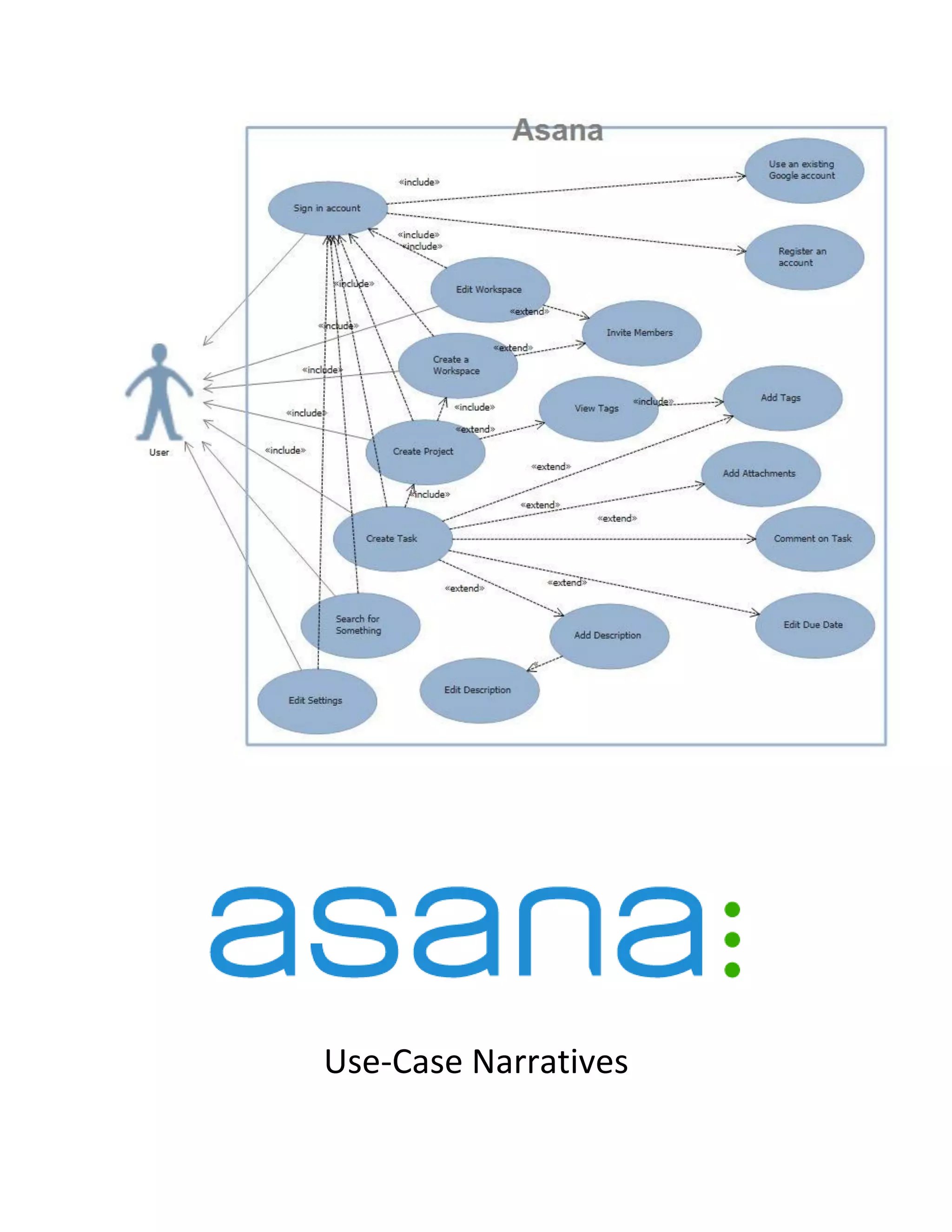
Use-Case Narratives
Identification Summary
TITLE:
Create a Workspace
SUMMARY:
This use case describes the steps associated
with creating a workspace for the user.
ACTORS:
1. User
Interfaces with the system via a web browser
via a variety of computer inputs(typing, clicking,
etc.)
2. Asana
Reacts to the User’s inputs and continuously
generates/refreshes the user interface.
CREATION DATE:
July 7, 2013
VERSION:
V 1.0
DATE OF UPDATE:
July 7, 2013
PERSON-IN-CHARGE:
Rudolf Ildefonso
Flow of Events
PRECONDITIONS:
1. User or Asana has already undergone the Sign in account use-case successfully
MAIN SUCCESS SCENARIO:
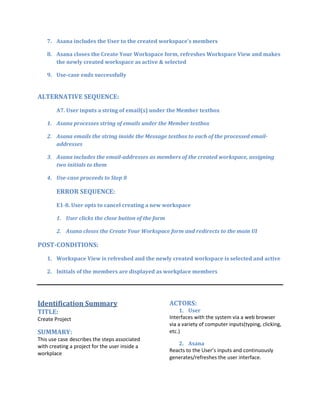
1. User clicks [Username eg. Rudolf Ildefonso] module
2. Asana loads Account and Workspace menu
3. User clicks New Workspace menu item
4. Asana loads Create Your Workspace form
5. User clicks Create Workspace button
6. Asana creates a workspace aptly named by the string inside the Workspace Name
textbox
7. Asana includes the User to the created workspace’s members
8. Asana closes the Create Your Workspace form, refreshes Workspace View and makes
the newly created workspace as active & selected
9. Use-case ends successfully
ALTERNATIVE SEQUENCE:
A7. User inputs a string of email(s) under the Member textbox
1. Asana processes string of emails under the Member textbox
2. Asana emails the string inside the Message textbox to each of the processed email-
addresses
3. Asana includes the email-addresses as members of the created workspace, assigning
two initials to them
4. Use-case proceeds to Step 8
ERROR SEQUENCE:
E1-8. User opts to cancel creating a new workspace
1. User clicks the close button of the form
2. Asana closes the Create Your Workspace form and redirects to the main UI
POST-CONDITIONS:
1. Workspace View is refreshed and the newly created workspace is selected and active
2. Initials of the members are displayed as workplace members
Identification Summary
TITLE:
Create Project
SUMMARY:
This use case describes the steps associated
with creating a project for the user inside a
workplace
ACTORS:
1. User
Interfaces with the system via a web browser
via a variety of computer inputs(typing, clicking,
etc.)
2. Asana
Reacts to the User’s inputs and continuously
generates/refreshes the user interface.
CREATION DATE:
July 9, 2013
VERSION:
V 1.0
DATE OF UPDATE:
July 9, 2013
PERSON-IN-CHARGE:
Rudolf Ildefonso
Flow of Events
PRECONDITIONS:
1. User or Asana has already undergone the Sign in account use-case successfully
2. User or Asana has an active and selected workspace
MAIN SUCCESS SCENARIO:
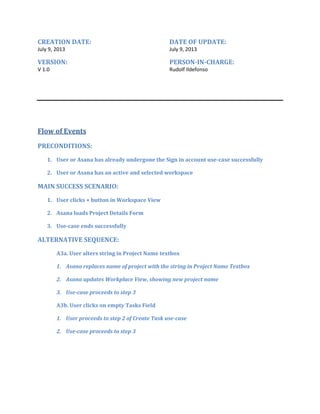
1. User clicks + button in Workspace View
2. Asana loads Project Details Form
3. Use-case ends successfully
ALTERNATIVE SEQUENCE:
A3a. User alters string in Project Name textbox
1. Asana replaces name of project with the string in Project Name Textbox
2. Asana updates Workplace View, showing new project name
3. Use-case proceeds to step 3
A3b. User clicks on empty Tasks Field
1. User proceeds to step 2 of Create Task use-case
2. Use-case proceeds to step 3
A3c. User clicks on New dropdown menu
1. Asana loads New dropdown menu
2. User clicks on New Task tab
3. User proceeds to step 2 of Create Task use-case
4. Use-case proceeds to step 3
POST-CONDITIONS:
1. Workspace View is refreshed and the newly created project is selected and active
Identification Summary
TITLE:
Create Task
SUMMARY:
This use case describes the steps associated
with creating a task for the user inside a project
ACTORS:
1. User
Interfaces with the system via a web browser
via a variety of computer inputs(typing, clicking,
etc.)
2. Asana
Reacts to the User’s inputs and continuously
generates/refreshes the user interface.
CREATION DATE:
July 9, 2013
VERSION:
V 1.0
DATE OF UPDATE:
July 9, 2013
PERSON-IN-CHARGE:
Rudolf Ildefonso
Flow of Events
PRECONDITIONS:
1. User or Asana has already undergone the Sign in account use-case successfully
2. User or Asana has an active and selected project
MAIN SUCCESS SCENARIO:
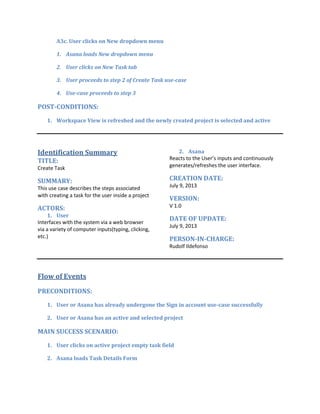
1. User clicks on active project empty task field
2. Asana loads Task Details Form
3. User edits string in task name textbox
4. Asana commits any changes made
5. User clicks anywhere outside Task Details Form
ALTERNATIVE SEQUENCE:
A1. User clicks on New dropdown menu
1. Asana loads New dropdown menu
2. User clicks on New Task tab
3. Use-case proceeds to step 2
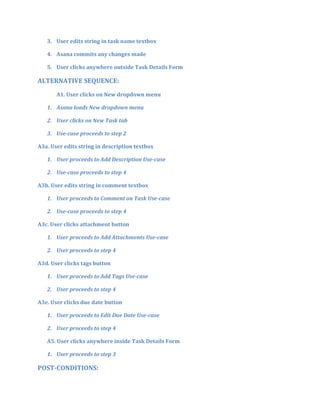
A3a. User edits string in description textbox
1. User proceeds to Add Description Use-case
2. Use-case proceeds to step 4
A3b. User edits string in comment textbox
1. User proceeds to Comment on Task Use-case
2. Use-case proceeds to step 4
A3c. User clicks attachment button
1. User proceeds to Add Attachments Use-case
2. User proceeds to step 4
A3d. User clicks tags button
1. User proceeds to Add Tags Use-case
2. User proceeds to step 4
A3e. User clicks due date button
1. User proceeds to Edit Due Date Use-case
2. User proceeds to step 4
A5. User clicks anywhere inside Task Details Form
1. User proceeds to step 3
POST-CONDITIONS:
1. Project Details is refreshed
2. Created Task is synced and saved

2 use case narratives

  • 1.
  • 2.
    Identification Summary TITLE: Create aWorkspace SUMMARY: This use case describes the steps associated with creating a workspace for the user. ACTORS: 1. User Interfaces with the system via a web browser via a variety of computer inputs(typing, clicking, etc.) 2. Asana Reacts to the User’s inputs and continuously generates/refreshes the user interface. CREATION DATE: July 7, 2013 VERSION: V 1.0 DATE OF UPDATE: July 7, 2013 PERSON-IN-CHARGE: Rudolf Ildefonso Flow of Events PRECONDITIONS: 1. User or Asana has already undergone the Sign in account use-case successfully MAIN SUCCESS SCENARIO: 1. User clicks [Username eg. Rudolf Ildefonso] module 2. Asana loads Account and Workspace menu 3. User clicks New Workspace menu item 4. Asana loads Create Your Workspace form 5. User clicks Create Workspace button 6. Asana creates a workspace aptly named by the string inside the Workspace Name textbox
  • 3.
    7. Asana includesthe User to the created workspace’s members 8. Asana closes the Create Your Workspace form, refreshes Workspace View and makes the newly created workspace as active & selected 9. Use-case ends successfully ALTERNATIVE SEQUENCE: A7. User inputs a string of email(s) under the Member textbox 1. Asana processes string of emails under the Member textbox 2. Asana emails the string inside the Message textbox to each of the processed email- addresses 3. Asana includes the email-addresses as members of the created workspace, assigning two initials to them 4. Use-case proceeds to Step 8 ERROR SEQUENCE: E1-8. User opts to cancel creating a new workspace 1. User clicks the close button of the form 2. Asana closes the Create Your Workspace form and redirects to the main UI POST-CONDITIONS: 1. Workspace View is refreshed and the newly created workspace is selected and active 2. Initials of the members are displayed as workplace members Identification Summary TITLE: Create Project SUMMARY: This use case describes the steps associated with creating a project for the user inside a workplace ACTORS: 1. User Interfaces with the system via a web browser via a variety of computer inputs(typing, clicking, etc.) 2. Asana Reacts to the User’s inputs and continuously generates/refreshes the user interface.
  • 4.
    CREATION DATE: July 9,2013 VERSION: V 1.0 DATE OF UPDATE: July 9, 2013 PERSON-IN-CHARGE: Rudolf Ildefonso Flow of Events PRECONDITIONS: 1. User or Asana has already undergone the Sign in account use-case successfully 2. User or Asana has an active and selected workspace MAIN SUCCESS SCENARIO: 1. User clicks + button in Workspace View 2. Asana loads Project Details Form 3. Use-case ends successfully ALTERNATIVE SEQUENCE: A3a. User alters string in Project Name textbox 1. Asana replaces name of project with the string in Project Name Textbox 2. Asana updates Workplace View, showing new project name 3. Use-case proceeds to step 3 A3b. User clicks on empty Tasks Field 1. User proceeds to step 2 of Create Task use-case 2. Use-case proceeds to step 3
  • 5.
    A3c. User clickson New dropdown menu 1. Asana loads New dropdown menu 2. User clicks on New Task tab 3. User proceeds to step 2 of Create Task use-case 4. Use-case proceeds to step 3 POST-CONDITIONS: 1. Workspace View is refreshed and the newly created project is selected and active Identification Summary TITLE: Create Task SUMMARY: This use case describes the steps associated with creating a task for the user inside a project ACTORS: 1. User Interfaces with the system via a web browser via a variety of computer inputs(typing, clicking, etc.) 2. Asana Reacts to the User’s inputs and continuously generates/refreshes the user interface. CREATION DATE: July 9, 2013 VERSION: V 1.0 DATE OF UPDATE: July 9, 2013 PERSON-IN-CHARGE: Rudolf Ildefonso Flow of Events PRECONDITIONS: 1. User or Asana has already undergone the Sign in account use-case successfully 2. User or Asana has an active and selected project MAIN SUCCESS SCENARIO: 1. User clicks on active project empty task field 2. Asana loads Task Details Form
  • 6.
    3. User editsstring in task name textbox 4. Asana commits any changes made 5. User clicks anywhere outside Task Details Form ALTERNATIVE SEQUENCE: A1. User clicks on New dropdown menu 1. Asana loads New dropdown menu 2. User clicks on New Task tab 3. Use-case proceeds to step 2 A3a. User edits string in description textbox 1. User proceeds to Add Description Use-case 2. Use-case proceeds to step 4 A3b. User edits string in comment textbox 1. User proceeds to Comment on Task Use-case 2. Use-case proceeds to step 4 A3c. User clicks attachment button 1. User proceeds to Add Attachments Use-case 2. User proceeds to step 4 A3d. User clicks tags button 1. User proceeds to Add Tags Use-case 2. User proceeds to step 4 A3e. User clicks due date button 1. User proceeds to Edit Due Date Use-case 2. User proceeds to step 4 A5. User clicks anywhere inside Task Details Form 1. User proceeds to step 3 POST-CONDITIONS:
  • 7.
    1. Project Detailsis refreshed 2. Created Task is synced and saved