Module 6
    Implementing
Messaging Security
Module Overview
• Deploying Edge Transport Servers

• Deploying an Antivirus Solution

• Configuring an Anti-Spam Solution

• Configuring Secure SMTP Messaging
Lesson 1: Deploying Edge Transport Servers
• What Is the Edge Transport Server Role?

• Infrastructure Requirements for the Edge Transport
 Server Role
• What Is AD LDS?

• Demonstration: How to Configure Edge Transport Servers

• What Is Edge Synchronization?

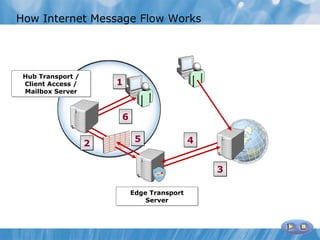
• How Internet Message Flow Works

• Demonstration: How to Configure Edge Synchronization

• What Is Cloned Configuration?
What Is the Edge Transport Server Role?

The Edge Transport server role provides a SMTP gateway that
can be used for messaging security


The Edge Transport server role provides:

   Internet message delivery
   Antivirus and anti-spam protection
   Edge transport rules
   Address rewriting


 The Edge Transport server role:
   Cannot be deployed with any other server role
   Should not be a member of the internal
   Active Directory domain
   Should be deployed in a perimeter network
Infrastructure Requirements for the Edge
Transport Server Role


 The Edge Transport server:


    Must be configured with a Fully Qualified Domain Name
    Requires a minimal number of ports opened on the
    internal and external firewalls
    Must be configured with the IP addresses for DNS
    servers that can resolve DNS names on the Internet
What Is AD LDS?


AD LDS is an LDAP directory service that stores information
for directory-enabled applications


AD LDS on an Edge Transport server stores:
    Schema information
    Configuration information
    Recipient information


You can use the Exchange Server 2010 tools to perform most
of the AD LDS configuration tasks
Demonstration: How to Configure Edge
Transport Servers
In this demonstration, you will review the Edge Transport
server default configuration
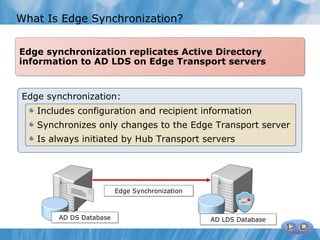
What Is Edge Synchronization?


Edge synchronization replicates Active Directory
information to AD LDS on Edge Transport servers


Edge synchronization:
   Includes configuration and recipient information
   Synchronizes only changes to the Edge Transport server
   Is always initiated by Hub Transport servers


                        Edge Synchronization


       AD DS Database                          AD LDS Database
How Internet Message Flow Works


 Hub Transport /
 Client Access /       1
 Mailbox Server


                       6

                   2        5               4


                                                3

                           Edge Transport
                               Server
Demonstration: How to Configure
Edge Synchronization
In this demonstration, you will:
• Enable Edge Synchronization

• Test Edge Synchronization
What Is Cloned Configuration?


Cloned configuration is a process of configuring multiple Edge
Transport servers with identical configurations


To implement cloned configuration, use the:

      ExportEdgeConfig script to export configuration
      information
      ImportEdgeConfig script to validate the
      configuration on the target server, and then create
      an answer file
      ImportEdgeConfig script to import configuration
      information


If you use any transport rules, ensure that you copy them
separately by using the Export-TransportRuleCollection cmdlet
Lesson 2: Deploying an Antivirus Solution
• Antivirus Solution Features in Exchange Server 2010

• What Is Forefront Protection 2010 for Exchange Server?

• Deployment Options for Forefront Protection 2010

• Best Practices for Deploying an Antivirus Solution

• Demonstration: How to Install and Configure Forefront
 Protection 2010 for Exchange Server
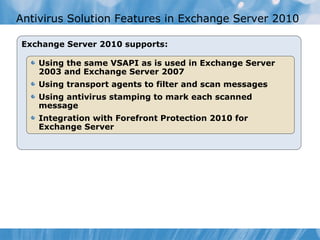
Antivirus Solution Features in Exchange Server 2010

Exchange Server 2010 supports:

    Using the same VSAPI as is used in Exchange Server
    2003 and Exchange Server 2007
    Using transport agents to filter and scan messages
    Using antivirus stamping to mark each scanned
    message
    Integration with Forefront Protection 2010 for
    Exchange Server
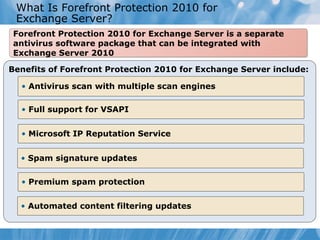
What Is Forefront Protection 2010 for
 Exchange Server?
Forefront Protection 2010 for Exchange Server is a separate
antivirus software package that can be integrated with
Exchange Server 2010

Benefits of Forefront Protection 2010 for Exchange Server include:

  • Antivirus scan with multiple scan engines

  • Full support for VSAPI


  • Microsoft IP Reputation Service


  • Spam signature updates

  • Premium spam protection


  • Automated content filtering updates
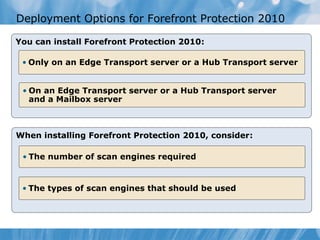
Deployment Options for Forefront Protection 2010

You can install Forefront Protection 2010:

 • Only on an Edge Transport server or a Hub Transport server


 • On an Edge Transport server or a Hub Transport server
   and a Mailbox server


When installing Forefront Protection 2010, consider:

 • The number of scan engines required


 • The types of scan engines that should be used
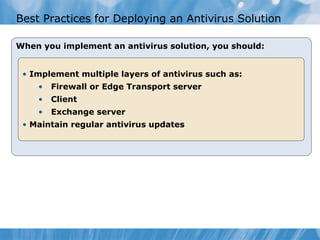
Best Practices for Deploying an Antivirus Solution

When you implement an antivirus solution, you should:


 • Implement multiple layers of antivirus such as:
    •   Firewall or Edge Transport server
    •   Client
    •   Exchange server
 • Maintain regular antivirus updates
Demonstration: How to Install and Configure
Forefront Protection 2010 for Exchange Server
In this demonstration, you will see how to:
• Install Forefront Protection 2010 for Exchange Server

• Configure Forefront Protection 2010 for Exchange Server

• Manage Forefront Protection 2010 for Exchange Server
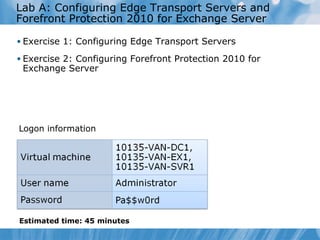
Lab A: Configuring Edge Transport Servers and
Forefront Protection 2010 for Exchange Server

• Exercise 1: Configuring Edge Transport Servers

• Exercise 2: Configuring Forefront Protection 2010 for
 Exchange Server


Logon information


Estimated time: 45 minutes
Lab Scenario
You are a messaging administrator in A. Datum Corporation,
which is a large multinational organization. Your organization
has deployed Exchange Server 2010 internally, and it now
wants to extend it so that everybody can send and receive
Internet email.
As part of your job responsibilities, you need to set up an Edge
Transport server, and then install an antivirus solution to scan
all mail.
Lab Review
• When you implement new certificates on your existing
 Edge Transport server, what do you need to consider?
• Does Forefront Protection 2010 for Exchange Server scan
 the message multiple times when it is passed over Edge
 Transport and Hub Transport servers?
Lesson 3: Deploying an Anti-Spam Solution
• Overview of Spam-Filtering Features

• How Exchange Server 2010 Applies Spam Filters

• What Is Sender ID Filtering?

• What Is Sender Reputation Filtering?

• What Is Content Filtering?

• Demonstration: How to Configure Anti-Spam Options
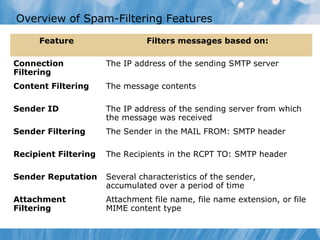
Overview of Spam-Filtering Features

     Feature                    Filters messages based on:

Connection            The IP address of the sending SMTP server
Filtering
Content Filtering     The message contents

Sender ID             The IP address of the sending server from which
                      the message was received
Sender Filtering      The Sender in the MAIL FROM: SMTP header

Recipient Filtering   The Recipients in the RCPT TO: SMTP header

Sender Reputation     Several characteristics of the sender,
                      accumulated over a period of time
Attachment            Attachment file name, file name extension, or file
Filtering             MIME content type
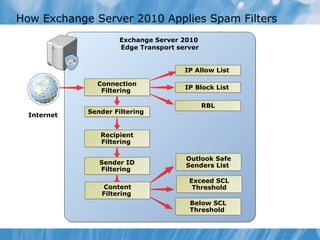
How Exchange Server 2010 Applies Spam Filters
                     Exchange Server 2010
                     Edge Transport server


                                      IP Allow List

               Connection
                                      IP Block List
                Filtering

                                             RBL
             Sender Filtering
  Internet


                Recipient
                Filtering

                                      Outlook Safe
                Sender ID             Senders List
                Filtering
                                       Exceed SCL
                Content                 Threshold
                Filtering
                                       Below SCL
                                       Threshold
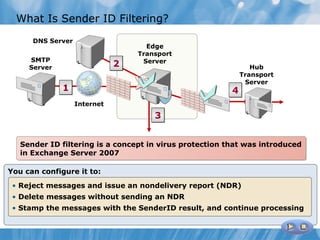
What Is Sender ID Filtering?
      DNS Server
                                    Edge
                                  Transport
     SMTP                          Server
     Server                   2                                 Hub
                                                             Transport
                                                              Server
              1                                          4
                   Internet
                                      3


   Sender ID filtering is a concept in virus protection that was introduced
   in Exchange Server 2007

You can configure it to:
 • Reject messages and issue an nondelivery report (NDR)
 • Delete messages without sending an NDR
 • Stamp the messages with the SenderID result, and continue processing
What Is Sender Reputation Filtering?

 Sender Reputation filtering filters messages based on
 information about recent email messages received from
 specific senders


The Protocol Analysis agent assigns an SRL that is based on:

  • Sender open proxy test
  • HELO/EHLO analysis
  • Reverse DNS lookup
  • Analysis of SCL ratings on messages from a
    particular sender
What Is Content Filtering?

 Content Filtering analyzes the content of each email message
 and assigns an SCL to the message


You can configure content filtering to:


  • Delete, reject, or quarantine messages that
    exceed an SCL value
  • Block or allow messages based on a custom word list
  • Allow exceptions so that messages sent to specified
    recipients are not filtered


 Quarantined messages are sent to a quarantine mailbox
Demonstration: How to Configure Anti-Spam Options
In this demonstration, you will see how to:
• Configure Connection Filtering

• Configure Sender and Recipient Filtering

• Configure Sender ID and Sender Reputation Filtering

• Configure Content Filtering
Lesson 4: Configuring Secure SMTP Messaging
• Discussion: SMTP Security Issues

• SMTP Email Security Options

• Demonstration: How to Configure SMTP Security

• What Is Domain Security?

• How Domain Security Works

• Process for Configuring Domain Security

• Demonstration: How to Configure Domain Security

• How S/MIME Works
Discussion: SMTP Security Issues
• What are the SMTP security issues?

• How do you currently secure SMTP?
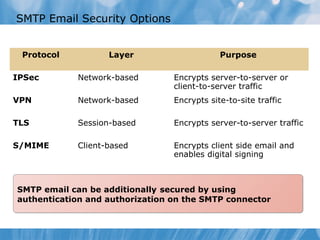
SMTP Email Security Options


 Protocol          Layer                     Purpose

IPSec       Network-based        Encrypts server-to-server or
                                 client-to-server traffic
VPN         Network-based        Encrypts site-to-site traffic

TLS         Session-based        Encrypts server-to-server traffic

S/MIME      Client-based         Encrypts client side email and
                                 enables digital signing


SMTP email can be additionally secured by using
authentication and authorization on the SMTP connector
Demonstration: How to Configure SMTP Security
In this demonstration, you will see how to:
• Configure an externally secured SMTP Connector

• Configure an SMTP Connector that requires TLS and
 authentication
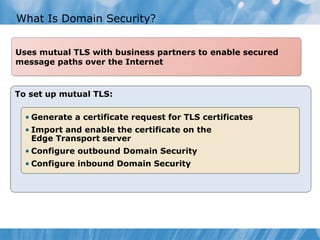
What Is Domain Security?


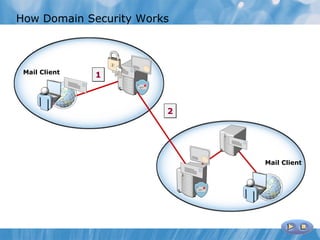
Uses mutual TLS with business partners to enable secured
message paths over the Internet


To set up mutual TLS:

  • Generate a certificate request for TLS certificates
  • Import and enable the certificate on the
    Edge Transport server
  • Configure outbound Domain Security
  • Configure inbound Domain Security
How Domain Security Works


 Mail Client
               1


                        2


                            Mail Client
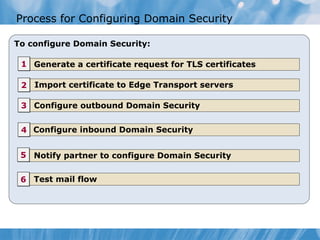
Process for Configuring Domain Security

To configure Domain Security:

 1 Generate a certificate request for TLS certificates

 2 Import certificate to Edge Transport servers

 3 Configure outbound Domain Security


 4 Configure inbound Domain Security


 5 Notify partner to configure Domain Security


 6 Test mail flow
Demonstration: How to Configure Domain Security
In this demonstration, you will see how to:
• Verify certificate and check Receive connector

• Configure Domain Security
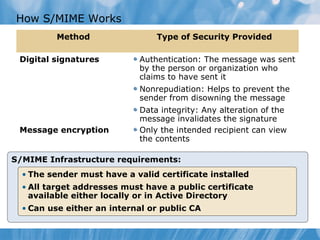
How S/MIME Works
         Method                 Type of Security Provided

 Digital signatures         Authentication: The message was sent
                            by the person or organization who
                            claims to have sent it
                            Nonrepudiation: Helps to prevent the
                            sender from disowning the message
                            Data integrity: Any alteration of the
                            message invalidates the signature
 Message encryption         Only the intended recipient can view
                            the contents

S/MIME Infrastructure requirements:
  • The sender must have a valid certificate installed
  • All target addresses must have a public certificate
    available either locally or in Active Directory
  • Can use either an internal or public CA
Lab B: Implementing Anti-Spam Solutions
• Exercise 1: Configuring an Anti-Spam Solution on Edge
 Transport Servers


Logon information


Estimated time: 65 minutes
Lab Scenario
After configuring the Edge Transport server and installing an
antivirus solution, you must implement an anti-spam solution.
Lab Review
• What anti-spam agents are available in Exchange Server
 2010?
• What is the purpose of the SCL threshold?

• What are the possible issues in implementing Domain
 Security for your partner domains?
Module Review and Takeaways
• Review Questions

• Common Issues and Troubleshooting Tips

10135 b 06

  • 1.
    Module 6 Implementing Messaging Security
  • 2.
    Module Overview • DeployingEdge Transport Servers • Deploying an Antivirus Solution • Configuring an Anti-Spam Solution • Configuring Secure SMTP Messaging
  • 3.
    Lesson 1: DeployingEdge Transport Servers • What Is the Edge Transport Server Role? • Infrastructure Requirements for the Edge Transport Server Role • What Is AD LDS? • Demonstration: How to Configure Edge Transport Servers • What Is Edge Synchronization? • How Internet Message Flow Works • Demonstration: How to Configure Edge Synchronization • What Is Cloned Configuration?
  • 4.
    What Is theEdge Transport Server Role? The Edge Transport server role provides a SMTP gateway that can be used for messaging security The Edge Transport server role provides: Internet message delivery Antivirus and anti-spam protection Edge transport rules Address rewriting The Edge Transport server role: Cannot be deployed with any other server role Should not be a member of the internal Active Directory domain Should be deployed in a perimeter network
  • 5.
    Infrastructure Requirements forthe Edge Transport Server Role The Edge Transport server: Must be configured with a Fully Qualified Domain Name Requires a minimal number of ports opened on the internal and external firewalls Must be configured with the IP addresses for DNS servers that can resolve DNS names on the Internet
  • 6.
    What Is ADLDS? AD LDS is an LDAP directory service that stores information for directory-enabled applications AD LDS on an Edge Transport server stores: Schema information Configuration information Recipient information You can use the Exchange Server 2010 tools to perform most of the AD LDS configuration tasks
  • 7.
    Demonstration: How toConfigure Edge Transport Servers In this demonstration, you will review the Edge Transport server default configuration
  • 8.
    What Is EdgeSynchronization? Edge synchronization replicates Active Directory information to AD LDS on Edge Transport servers Edge synchronization: Includes configuration and recipient information Synchronizes only changes to the Edge Transport server Is always initiated by Hub Transport servers Edge Synchronization AD DS Database AD LDS Database
  • 9.
    How Internet MessageFlow Works Hub Transport / Client Access / 1 Mailbox Server 6 2 5 4 3 Edge Transport Server
  • 10.
    Demonstration: How toConfigure Edge Synchronization In this demonstration, you will: • Enable Edge Synchronization • Test Edge Synchronization
  • 11.
    What Is ClonedConfiguration? Cloned configuration is a process of configuring multiple Edge Transport servers with identical configurations To implement cloned configuration, use the: ExportEdgeConfig script to export configuration information ImportEdgeConfig script to validate the configuration on the target server, and then create an answer file ImportEdgeConfig script to import configuration information If you use any transport rules, ensure that you copy them separately by using the Export-TransportRuleCollection cmdlet
  • 12.
    Lesson 2: Deployingan Antivirus Solution • Antivirus Solution Features in Exchange Server 2010 • What Is Forefront Protection 2010 for Exchange Server? • Deployment Options for Forefront Protection 2010 • Best Practices for Deploying an Antivirus Solution • Demonstration: How to Install and Configure Forefront Protection 2010 for Exchange Server
  • 13.
    Antivirus Solution Featuresin Exchange Server 2010 Exchange Server 2010 supports: Using the same VSAPI as is used in Exchange Server 2003 and Exchange Server 2007 Using transport agents to filter and scan messages Using antivirus stamping to mark each scanned message Integration with Forefront Protection 2010 for Exchange Server
  • 14.
    What Is ForefrontProtection 2010 for Exchange Server? Forefront Protection 2010 for Exchange Server is a separate antivirus software package that can be integrated with Exchange Server 2010 Benefits of Forefront Protection 2010 for Exchange Server include: • Antivirus scan with multiple scan engines • Full support for VSAPI • Microsoft IP Reputation Service • Spam signature updates • Premium spam protection • Automated content filtering updates
  • 15.
    Deployment Options forForefront Protection 2010 You can install Forefront Protection 2010: • Only on an Edge Transport server or a Hub Transport server • On an Edge Transport server or a Hub Transport server and a Mailbox server When installing Forefront Protection 2010, consider: • The number of scan engines required • The types of scan engines that should be used
  • 16.
    Best Practices forDeploying an Antivirus Solution When you implement an antivirus solution, you should: • Implement multiple layers of antivirus such as: • Firewall or Edge Transport server • Client • Exchange server • Maintain regular antivirus updates
  • 17.
    Demonstration: How toInstall and Configure Forefront Protection 2010 for Exchange Server In this demonstration, you will see how to: • Install Forefront Protection 2010 for Exchange Server • Configure Forefront Protection 2010 for Exchange Server • Manage Forefront Protection 2010 for Exchange Server
  • 18.
    Lab A: ConfiguringEdge Transport Servers and Forefront Protection 2010 for Exchange Server • Exercise 1: Configuring Edge Transport Servers • Exercise 2: Configuring Forefront Protection 2010 for Exchange Server Logon information Estimated time: 45 minutes
  • 19.
    Lab Scenario You area messaging administrator in A. Datum Corporation, which is a large multinational organization. Your organization has deployed Exchange Server 2010 internally, and it now wants to extend it so that everybody can send and receive Internet email. As part of your job responsibilities, you need to set up an Edge Transport server, and then install an antivirus solution to scan all mail.
  • 20.
    Lab Review • Whenyou implement new certificates on your existing Edge Transport server, what do you need to consider? • Does Forefront Protection 2010 for Exchange Server scan the message multiple times when it is passed over Edge Transport and Hub Transport servers?
  • 21.
    Lesson 3: Deployingan Anti-Spam Solution • Overview of Spam-Filtering Features • How Exchange Server 2010 Applies Spam Filters • What Is Sender ID Filtering? • What Is Sender Reputation Filtering? • What Is Content Filtering? • Demonstration: How to Configure Anti-Spam Options
  • 22.
    Overview of Spam-FilteringFeatures Feature Filters messages based on: Connection The IP address of the sending SMTP server Filtering Content Filtering The message contents Sender ID The IP address of the sending server from which the message was received Sender Filtering The Sender in the MAIL FROM: SMTP header Recipient Filtering The Recipients in the RCPT TO: SMTP header Sender Reputation Several characteristics of the sender, accumulated over a period of time Attachment Attachment file name, file name extension, or file Filtering MIME content type
  • 23.
    How Exchange Server2010 Applies Spam Filters Exchange Server 2010 Edge Transport server IP Allow List Connection IP Block List Filtering RBL Sender Filtering Internet Recipient Filtering Outlook Safe Sender ID Senders List Filtering Exceed SCL Content Threshold Filtering Below SCL Threshold
  • 24.
    What Is SenderID Filtering? DNS Server Edge Transport SMTP Server Server 2 Hub Transport Server 1 4 Internet 3 Sender ID filtering is a concept in virus protection that was introduced in Exchange Server 2007 You can configure it to: • Reject messages and issue an nondelivery report (NDR) • Delete messages without sending an NDR • Stamp the messages with the SenderID result, and continue processing
  • 25.
    What Is SenderReputation Filtering? Sender Reputation filtering filters messages based on information about recent email messages received from specific senders The Protocol Analysis agent assigns an SRL that is based on: • Sender open proxy test • HELO/EHLO analysis • Reverse DNS lookup • Analysis of SCL ratings on messages from a particular sender
  • 26.
    What Is ContentFiltering? Content Filtering analyzes the content of each email message and assigns an SCL to the message You can configure content filtering to: • Delete, reject, or quarantine messages that exceed an SCL value • Block or allow messages based on a custom word list • Allow exceptions so that messages sent to specified recipients are not filtered Quarantined messages are sent to a quarantine mailbox
  • 27.
    Demonstration: How toConfigure Anti-Spam Options In this demonstration, you will see how to: • Configure Connection Filtering • Configure Sender and Recipient Filtering • Configure Sender ID and Sender Reputation Filtering • Configure Content Filtering
  • 28.
    Lesson 4: ConfiguringSecure SMTP Messaging • Discussion: SMTP Security Issues • SMTP Email Security Options • Demonstration: How to Configure SMTP Security • What Is Domain Security? • How Domain Security Works • Process for Configuring Domain Security • Demonstration: How to Configure Domain Security • How S/MIME Works
  • 29.
    Discussion: SMTP SecurityIssues • What are the SMTP security issues? • How do you currently secure SMTP?
  • 30.
    SMTP Email SecurityOptions Protocol Layer Purpose IPSec Network-based Encrypts server-to-server or client-to-server traffic VPN Network-based Encrypts site-to-site traffic TLS Session-based Encrypts server-to-server traffic S/MIME Client-based Encrypts client side email and enables digital signing SMTP email can be additionally secured by using authentication and authorization on the SMTP connector
  • 31.
    Demonstration: How toConfigure SMTP Security In this demonstration, you will see how to: • Configure an externally secured SMTP Connector • Configure an SMTP Connector that requires TLS and authentication
  • 32.
    What Is DomainSecurity? Uses mutual TLS with business partners to enable secured message paths over the Internet To set up mutual TLS: • Generate a certificate request for TLS certificates • Import and enable the certificate on the Edge Transport server • Configure outbound Domain Security • Configure inbound Domain Security
  • 33.
    How Domain SecurityWorks Mail Client 1 2 Mail Client
  • 34.
    Process for ConfiguringDomain Security To configure Domain Security: 1 Generate a certificate request for TLS certificates 2 Import certificate to Edge Transport servers 3 Configure outbound Domain Security 4 Configure inbound Domain Security 5 Notify partner to configure Domain Security 6 Test mail flow
  • 35.
    Demonstration: How toConfigure Domain Security In this demonstration, you will see how to: • Verify certificate and check Receive connector • Configure Domain Security
  • 36.
    How S/MIME Works Method Type of Security Provided Digital signatures Authentication: The message was sent by the person or organization who claims to have sent it Nonrepudiation: Helps to prevent the sender from disowning the message Data integrity: Any alteration of the message invalidates the signature Message encryption Only the intended recipient can view the contents S/MIME Infrastructure requirements: • The sender must have a valid certificate installed • All target addresses must have a public certificate available either locally or in Active Directory • Can use either an internal or public CA
  • 37.
    Lab B: ImplementingAnti-Spam Solutions • Exercise 1: Configuring an Anti-Spam Solution on Edge Transport Servers Logon information Estimated time: 65 minutes
  • 38.
    Lab Scenario After configuringthe Edge Transport server and installing an antivirus solution, you must implement an anti-spam solution.
  • 39.
    Lab Review • Whatanti-spam agents are available in Exchange Server 2010? • What is the purpose of the SCL threshold? • What are the possible issues in implementing Domain Security for your partner domains?
  • 40.
    Module Review andTakeaways • Review Questions • Common Issues and Troubleshooting Tips

Editor's Notes

  • #2 Module 6: Implementing Messaging Security Course 10135B Presentation: 70 minutes Lab: 110 minutes After completing this module, students will be able to: Deploy Edge Transport servers. Configure an antivirus solution. Configure an anti-spam solution. Implement secure SMTP messaging. Required materials To teach this module, you need the Microsoft® Office PowerPoint® file 10135B_06.ppt. Important: We recommend that you use PowerPoint 2002 or a newer version to display the slides for this course. If you use PowerPoint Viewer or an earlier version, all the features of the slides might not display correctly. Preparation tasks To prepare for this module: Read all of the materials for this module. Practice performing the demonstrations and the lab exercises. Work through the Module Review and Takeaways section, and determine how you will use this section to reinforce student learning and promote knowledge transfer to on-the-job performance. Note about the demonstrations : To prepare for the demonstrations, start the 10135B-VAN-DC1 virtual machine and log on to the server before starting the other virtual machines. To save time during the demonstrations, log on to the Exchange servers and open the Exchange Server management tools before starting the demonstrations. Additionally, connect to the Microsoft Outlook® Web App site on the Exchange servers, and then log on as Administrator. It can take more than a minute to open the management tools and Outlook Web App for the first time. Make sure that students are aware that the Course Companion CD has additional information and resources for the module.
  • #3 Module 6: Implementing Messaging Security Course 10135B
  • #4 Module 6: Implementing Messaging Security Course 10135B
  • #5 Explain that the Edge Transport server role provides a Simple Mail Transfer Protocol (SMTP) gateway that can be used for messaging security, such as anti-spam and antivirus scanning, address rewriting, and other tasks. Mention the new features specific to Edge Transport servers such as incremental EdgeSync that decreases the time taken to synchronize changes from Active Directory® Domain Services (AD DS) to Active Directory Application Mode (ADAM) on Edge Transport servers and the inclusion of per-user block lists. Also mention the following new features in Microsoft Exchange Server 2010 Edge Transport server: New Configuration Settings to Windows PowerShell® New log file to track EdgeSync activity Module 6: Implementing Messaging Security Course 10135B
  • #6 Describe in sufficient detail the infrastructure requirements for the Edge Transport server role. Emphasize that the server is not part of the domain, but is placed in the perimeter network. Mention that the Forefront Threat Management Gateway (TMG) now includes the Edge Transport components. Module 6: Implementing Messaging Security Course 10135B
  • #7 Active Directory Lightweight Directory Service (AD LDS) is a special mode of the AD DS that stores information for directory-enabled applications. Mention that the AD LDS was earlier known as ADAM. AD LDS is a Lightweight Directory Access Protocol (LDAP)-compatible directory service that runs on servers running the Windows Server® 2008 or 2008 R2 operating system. AD LDS is designed to be a standalone directory service. It does not require the deployment of Domain Name System (DNS), domains, or domain controllers. Instead, it stores and replicates only application-related information. AD LDS is configured using PowerShell in Exchange Server 2010. Module 6: Implementing Messaging Security Course 10135B
  • #8 Demonstration Steps Preparation Ensure that the 10135B-VAN-DC1, 10135B-VAN-EDG and 10135B-VAN-EX1 virtual machines are running. Log on to the virtual machine 10135B-VAN-EDG as Administrator using the password Pa$$w0rd .   On VAN-EDG, click Start , point to All Programs , point to Microsoft Exchange Server 2010 , and then click Exchange Management Console . In Exchange Management Console, in the left pane, click Edge Transport . Note that the console is focused just on an Edge Transport server, and that there is no organization node. You must manage each Edge Transport server individually. Review the configuration options on the Anti-spam tab. These settings will be covered in detail later in the module. Click the Receive Connectors tab, and then double-click Default internal receive connector VAN-EDG . Review the receive connector properties. Note that this connector will accept SMTP connections from all IP addresses and will accept anonymous connections. If you are using this server as a SMTP gateway server, you do not need to configure any other receive connectors to enable the server to accept messages. Click Cancel . Click the Send Connectors tab. Note that no Send Connectors are configured on the server. In order to send email, either to the internal network or to the Internet, you will need to configure a Send Connector on the Edge Transport server or create an Edge Subscription that automatically creates the default Send Connectors. Click the Transport Rules tab. Note that no transport rules are configured by default. You can use transport rules to apply actions to messages as they pass through the Edge Transport server. Click the Accepted Domains tab. Note that no accepted domains are configured. This means that you would need to configure an accepted domain before the Edge Transport server will accept any messages. This will be done automatically when you create an Edge Subscription for this Edge Transport server. Module 6: Implementing Messaging Security Course 10135B
  • #9 Emphasize that the EdgeSync feature is based on the Edge Transport server’s certificate. Therefore, a certificate change will break EdgeSync synchronization. EdgeSync synchronization means that you can manage most of your Edge Transport server settings in your organization by using the Exchange Management Console or Exchange Management Shell. You do not need to configure every Edge Transport server one-by-one. For example, if you want to configure a new remote domain, you can do this centrally, and EdgeSync will synchronize the configuration settings to all of your Edge Transport servers. Question : Can you deploy Edge Transport servers without using EdgeSync? Answer : Yes, you can deploy Edge Transport servers without using EdgeSync, but using EdgeSync decreases the effort needed to administer the Edge Transport servers. Reference Understanding Edge Subscriptions http://go.microsoft.com/fwlink/?LinkID=212700 Module 6: Implementing Messaging Security Course 10135B
  • #10 Explain how Internet message flow works in an Exchange 2010 organization. Tell the students that this example assumes that EdgeSync Synchronization is used, but it is not a mandatory requirement. After enabling EdgeSync, email flows through the Exchange organization in the following manner: A user submits a message to a Mailbox server. The Hub Transport server retrieves the message from the Mailbox server, and categorizes it for delivery. In this case, the message recipient is outside the organization. The Hub Transport server determines that it must use the EdgeSync  – sitename to the Internet Send Connector to send email to the Internet. It locates the Edge Transport server that is configured as the bridgehead server for the connector. The Hub Transport server forwards the message to the Edge Transport server, which sends the email message to the Internet using the EdgeSync – sitename to the Internet Send Connector using the EdgeSync – sitename to the Internet Send Connector. For inbound messages, the sending SMTP connector connects to the Edge Transport server. The Edge Transport server accepts this connection using the Default internal Receive connector SERVERNAME, which is configured to accept anonymous connections on port 25 from all IP addresses. The Edge Transport server applies all spam-filtering rules. If the message is accepted, the Edge Transport server uses the EdgeSync-inbound to sitename connector to forward the message to a Hub Transport server that is configured to accept Internet messages. The Hub Transport server uses the default SERVERNAME connector to receive the message, and then forwards the message to the appropriate Mailbox server. Module 6: Implementing Messaging Security Course 10135B
  • #11 This demonstration should show the basic steps to configure the Edge Transport role, and enable Edge Sync synchronization. Also, provide an example on address rewriting, a concept that should be explained in this step. You should also mention when to use address rewriting. For example, you use different email addresses internally compared to externally, or internet-facing. Demonstration Steps - Enable Edge Synchronization On VAN-EDG, click Start , point to All Programs , point to Microsoft Exchange Server 2010 , and then click Exchange Management Shell . In Exchange Management Shell, at the command prompt, type New-EdgeSubscription -FileName “c:\\van-edg.xml”, and then press Enter. In the Confirm text dialog box, enter Y . Click Start , and in the Search box, type Enter \\\\VAN-EX1\\c$ , and then press Enter . Copy c:\\van-edg.xml to the server \\\\VAN-EX1\\c$ . Best Practice: Remember that in real-world scenarios, it would be a security violation if you were able to copy the EdgeSubscription file directly from the Edge Transport server to the Hub Transport server. Normally, you should use an USB device or other means to copy the file. On VAN-EX1, click Start , point to All Programs , point to Microsoft Exchange Server 2010 , and then click Exchange Management Console . In Exchange Management Console, expand Microsoft Exchange On-Premises , expand Organization Configuration , and then click Hub Transport . In the Hub Transport pane, click the Edge Subscriptions tab. In the Actions pane, click New Edge Subscription . In the New Edge Subscription window, select Default-First-Site-Name as Active Directory site , and C:\\VAN-EDG.XML as Subscription file, and then click New . On the Completion page, click Finish .   Module 6: Implementing Messaging Security Course 10135B
  • #12 Demonstration Steps - Test Edge Synchronization Click Start , point to All Programs , point to Microsoft Exchange Server 2010 , and click Exchange Management Shell . In Exchange Management Shell, at the PS prompt, type Start-EdgeSynchronization , and then press Enter. Verify that the synchronization was successful. In Exchange Management Shell, at the PS prompt, type Test-EdgeSynchronization -FullCompareMode , and then press Enter. On VAN-EDG, in the Exchange Management Console, click Edge Transport . On the Receive Connectors tab, confirm that no new receive connectors have been added. The default connector is configured to receive email from all source addresses on port 25. Click the Send Connectors tab, and click Refresh . Confirm that two new connectors named EdgeSync – Default-First-Site-Name to Internet and EdgeSync – Inbound to Default-First-Site-Name have been created. Double-click EdgeSync – Default-First-Site-Name to Internet . On the Address Space tab, confirm that an address space of * is configured. On the Network tab, confirm that the connector will use DNS to route email. Click OK . On the Accepted Domain tab, confirm that the internal domains are listed as authoritative domains. On VAN-EX1, in the Exchange Management Console, in the Organization Configuration work area, click Hub Transport . On the Send Connectors tab, confirm that the EdgeSync – Default-First-Site-Name to Internet connector is displayed. Double-click the connector. On the Source Server tab, confirm that VAN-EDG is listed as the source server. Click OK . Module 6: Implementing Messaging Security Course 10135B
  • #13 Cloned configuration is a process of configuring multiple Edge Transport servers with identical configurations. You use cloned configuration information to configure Edge Transport server-specific settings only once, and then export it to many Edge servers. Thus cloning is only used when you have many (or at least two) Edge Transport servers in place. Briefly discuss the need for implementing more than one Edge Transport server. Cloning configuration includes configurations that are not synchronized with EdgeSync, such as the path to your mail queue. Question : When using cloned configuration with your Edge Transport servers, what extra fact should you consider? Answer : If you are using transport rules on your Edge Transport servers, you need to export and import them separately, because the ExportEdgeConfig.ps1 script does not export them. References MSPress: Exchange Server 2010 Best Practices, Chapter 7: Edge Transport and Messaging Security Configure Edge Transport Server Using Cloned Configuration http://go.microsoft.com/fwlink/?LinkID=212701 Module 6: Implementing Messaging Security Course 10135B
  • #14 Module 6: Implementing Messaging Security Course 10135B
  • #15 A critical component of messaging security is antivirus protection. Students need to understand how virus detection works, and what type of functionality must be available in an antivirus product. Ask the student to suggest some virus threats and antivirus products that they know. Some examples of virus threats include the Melissa virus, which was introduced some years back. Some examples of antivirus products include the Forefront Protection 2010 for Exchange Server. Forefront Protection 2010 for Exchange Server is a separate antivirus package from Microsoft that integrates with Exchange Server 2010 to provide advanced protection, optimized performance, and centralized management. Also, discuss how virus detection works. Mention that the email is analyzed using a virus pattern file to identify the virus. If the virus is not part of the pattern file, it will not be detected. Provide an overview of the virus protection features included in Exchange Server 2010. The key features remain the same as Exchange Server 2003 Exchange Server 2007, but it would be good to focus on the new features. Module 6: Implementing Messaging Security Course 10135B
  • #16 Forefront Protection 2010 for Exchange Server is a separate antivirus software package that can be integrated with Exchange Server 2010 to provide antivirus protection for the Exchange environment.   Explain the following services of Forefront Protection: Microsoft IP Reputation Service, which provides sender reputation information about IP addresses that are known to send spam. This is an IP Block List offered exclusively to Exchange Server. Premium spam protection also includes automated updates for this filter, available on an as-needed basis, up to several times a day. Spam Signature updates to identify the most recent spam campaigns. The signature updates are available on an as-needed basis, up to several times a day. Automated content filtering updates for Microsoft SmartScreen® spam heuristics, phishing Web sites, and other Intelligent Message Filter (IMF) updates.   References Protecting Your Microsoft Exchange Organization with Microsoft Forefront Protection 2010 for Exchange Server http://go.microsoft.com/fwlink/?LinkId=96630  Module 6: Implementing Messaging Security Course 10135B
  • #17 Discuss the options and other considerations for deploying Forefront Protection 2010. Mention that as a baseline, it is important to install an antivirus solution on all Hub and Edge Transport servers. You could also discuss the advantages and disadvantages of installing a virus scanner on the Mailbox server. Explain the different types of virus scanners that are available in Forefront Protection 2010, and how many should be used to scan messages. A best practice is to select five virus scanners, and scan each message with at least one, but a maximum of three scanners. Lead a discussion with students about on which roles you should or you should not deploy Forefront Protection 2010 for Exchange. Also, discuss some possible scenarios for deploying Forefront Protection. Question: What is an antivirus stamp? Answer: Forefront Protection 2010 for Exchange Server scans each email only once. The antivirus stamp is an indicator to other servers that a message has been scanned so that the other servers do not scan the message again. References Forefront Security 2010 for Exchange Server Best Practices - Deployment http://go.microsoft.com/fwlink/?LinkId=179975 Module 6: Implementing Messaging Security Course 10135B
  • #18 Stress the importance of providing multiple layers of protection against viruses. Provide some comprehensive information on best practice considerations for deploying antivirus solutions. You can find examples in Microsoft’s Antivirus Defense-in-Depth Guide http://go.microsoft.com/fwlink/?LinkId=179977. Module 6: Implementing Messaging Security Course 10135B
  • #19 Note : To save time, you can preinstall Forefront Protection 2010 for Exchange Server before you start this module and skip this demonstration. In this demonstration, use Forefront Protection 2010 for Exchange Server as an example to show how to configure antivirus scanning features. Students must also know how to manage this antivirus product to maintain protection. Demonstration Steps Install Forefront Protection 2010 for Exchange Server In Hyper-V® Manager, click 10135B-VAN-EDG , and in the Actions pane, click Settings . Click DVD Drive , and then click Image File . Click Browse , and then browse to C:\\Program Files\\Microsoft Learning\\10135\\Drives. Click ForeFrontInstall.iso , click Open , click OK ,. On VAN-EDG, click Start , in the Search field, type D:\\ , and then press Enter. In the Windows® Explorer window, double-click forefrontexchangesetup.exe . In the Setup Wizard, on the License Agreement page, click I agree to the terms of the license agreement and privacy statement , and then click Next . On the Service Restart page, click Next . On the Installation Folders page, click Next . On the Proxy Information page, click Next . On the Antispam Configuration page, click Enable antispam later , and then click Next . On the Microsoft Update page, click I don’t want to use Microsoft Update , and then click Next . On the Customer Experience Improvement Program page, click Next . On the Confirm Settings page, click Next . Wait for the installation to finish. It will take about five minutes. On the Installation Results page, click Finish . Close the Windows Explorer window. Module 6: Implementing Messaging Security Course 10135B
  • #20 Configure Forefront Protection 2010 for Exchange Server On VAN-EDG, click Start , point to All Programs , point to Microsoft Forefront Server Protection , and then click Forefront Protection for Exchange Server Console . In the Evaluation License Notice dialog box, click OK . In the Forefront Protection 2010 for Exchange Server Administrator Console , in the left pane, click Policy Management . In the Policy Management pane, expand Antimalware , and then click Edge Transport . In the Antimalware – Edge Transport pane, in the Engines and Performance section, select the Scan with a dynamically chosen subset of engines option. In the Additional Options section, verify that the Optimize for performance by not rescanning messages already virus scanned check box is selected, and then click Save . In the Policy Management pane, expand Antispam , and then click Configure . In the Antispam – Configure pane, click the Enable Antispam Filtering button. In the Service Restart Required window, click Yes . Scroll down and then verify that the Enable content filtering check box is selected. Under SCL Thresholds and Actions , in the Suspected spam drop-down list, select SCL 5 to 7. Note the impact of this setting, and note the other options to reject or delete messages above this SCL setting. Click Save . In the Policy Management pane, expand Global Settings , and then click Scan Options . In the Scan Targets – Transport pane, under Target types , clear the Internal check box, and then click Save . In the Policy Management pane, under Global Settings , click Engine Options . Under Additional Options , click Update engines on server startup , and then click Save . Under Global Settings , click Advanced Options . Note the options that you can configure here, especially Threshold Levels and Intelligent Engine Management. Module 6: Implementing Messaging Security Course 10135B
  • #21 Manage Forefront Protection 2010 for Exchange Server In the Forefront Protection 2010 for Exchange Server Administrator Console, in the left pane, click Monitoring . In the Monitoring pane, under Server Security Views , click Incidents . Note what kind of incidents you would see here. For example, a message that has a virus detected would appear here. In the Monitoring pane, under Server Security Views , click Quarantine . Note that the items that were configured for Quarantine based on the SCL level are found here. In the Monitoring pane, under Server Security Views , click Dashboard . Note the different monitors available on this page. In the Monitoring pane, under Configuration , click Notifications . Note some of the available notifications and their uses. For example, you should consider whether to use Engine Update failed, because it is important for keeping your engines updated to prevent virus attacks. Also note the Virus found notification, which can be useful, especially in large organizations that detect dozens of viruses every day. Typically, a Virus found notification would not be useful permanently. It just makes sense to receive confirmation that viruses are being found correctly during the first couple of hours. Module 6: Implementing Messaging Security Course 10135B
  • #22 In this lab, students will: Configure Edge Transport servers. Configure Forefront Protection 2010 for Exchange Servers. Exercise 1: Configuring Edge Transport Servers In this exercise, students will be able to configure Edge Transport servers. The main tasks for this exercise are as follows: Install the Edge Transport server role. Configure Edge Synchronization. Verify that EdgeSync is working, and that AD LDS contains data. Verify that Internet message delivery works. Exercise 2: Configuring Forefront Protection 2010 for Exchange Servers In this exercise, students will be able to configure Forefront Protection 2010 for Exchange Servers, The main tasks for this exercise are as follows: Install Forefront Protection 2010 for Exchange Server. Configure Forefront Protection 2010 for Exchange Server. Verify antivirus functionality. Note: At present time, because an actual virus cannot be shipped with the course, students will not be able to verify the antivirus functionality. Module 6: Implementing Messaging Security Course 10135B
  • #23 Module 6: Implementing Messaging Security Course 10135B
  • #24 Use the questions on the slide to guide the debriefing after students have completed the lab exercises. Question : When you implement new certificates on your existing Edge Server, what do you need to consider? Answer : You need to run Edge Synchronization again , as the new certification will break it. Question : Does Forefront Protection 2010 Suite scan the message multiple times when it is passed over Edge Transport and Hub Transort servers? Answer : No, the message is tagged when it is scanned the first time , and is not scanned again . Module 6: Implementing Messaging Security Course 10135B
  • #25 Module 6: Implementing Messaging Security Course 10135B
  • #26 As you start this topic, ask the students about the anti-spam tools they are using currently in their organizations. Ask them how effective the tools are, and how much effort is involved in managing the solution. Next, discuss the agents available in Exchange Server 2010, and briefly discuss their functionality. If students are not familiar with the Exchange Server 2003 or Exchange Server 2007 anti-spam features, you might want to spend some additional time describing connection, recipient, and sender filtering, because this lesson does not cover them in detail. Module 6: Implementing Messaging Security Course 10135B
  • #27 Describe each step of the filtering process. Emphasize the order in which messages are processed. For example, a message from an SMTP host that is on the IP Block List will never be scanned for content. Mention the real-time block list (RBL) and its use. Emphasize that for most filter types, the messages or SMTP connections are simply dropped, and there is no option for archiving or quarantining the message. Only content filtering provides the option of quarantining messages so that administrators can monitor them for false positives. Introduce the student to the Spam Confidence Level (SCL) threshold and its purpose. Module 6: Implementing Messaging Security Course 10135B
  • #28 Mention that Sender ID filtering was first introduced in Exchange Server 2003 Service Pack 2 (SP2). Stress that the Sender ID Framework is a concept in virus protection that was introduced in Exchange Server 2007. Many organizations have not yet implemented the required Sender of Policy Framework (SPF) records in the Domain Name System (DNS). For this reason, the users should not configure the Sender ID filter to reject or delete messages. Module 6: Implementing Messaging Security Course 10135B
  • #29 Sender Reputation filtering is another spam protection tool that was introduced in Exchange Server 2007. Discuss how Sender Reputation filtering works. Focus on the criteria that the Edge Transport server uses when making the filtering decisions. Discuss how this feature should be implemented. Suggest that students will need to try different Sender Reputation Level (SRL) levels to determine what will work best in their organization. Module 6: Implementing Messaging Security Course 10135B
  • #30 Mention that Content Filtering replaces the Intelligent Message Filter that shipped with Exchange Server 2003. As you describe content filtering, show the configuration options in the Exchange Management Console. Emphasize the importance of monitoring the quarantine mailbox, especially during the initial deployment, to ensure that the SCL thresholds are configured correctly. Module 6: Implementing Messaging Security Course 10135B
  • #31 In this demonstration, provide an overview to the students on Connection filters, Sender and Recipient filters, Sender ID and Content filtering Content filtering is an especially important area where you can show how to create an Edge Transport Rule. For example, you can add “*** SPAM***” to the subject line when the SCL value exceeds 5. Preparation Ensure that the 10135B-VAN-DC1, 10135B-VAN-EDG and 10135B-VAN-EX1 virtual machines are running. Log on to the virtual machine 10135B-VAN-EDG as Administrator using the password Pa$$w0rd . Configure Connection Filters On VAN-EDG, if required, click Start , point to All Programs , point to Microsoft Exchange Server 2010 , and then click Exchange Management Console . In Exchange Management Console, click Edge Transport . In the Edge Transport pane , click the Anti-spam tab. In the VAN-EDG pane, double-click IP Allow List . On the Allowed Addresses tab, click Add . In the Add Allowed IP Address- CIDR dialog box, type 10.10.0.11 , and then click OK twice. Adding this entry means that all messages from this IP address will be accepted without any additional content filtering. In the VAN-EDG pane, double-click IP Block List . On the Blocked Addresses tab, click Add . In the Add Blocked IP Address- CIDR dialog box, type 10.10.0.12 , and then click OK twice. Adding this entry means that all SMTP connections from this IP address will be rejected. In the VAN-EDG pane , double-click IP Block List Providers . In the IP Block List Providers Properties dialog box, click the Providers tab, and then click Add . Type Spamhaus in the Provider name box, type zen.spamhaus.org in the Lookup Domain box, and then click OK twice . After adding this entry, the Edge Transport server will query the IP block list provider whenever a SMTP server attempts to make a connection. If the SMTP server IP address is on the block list, the connection will be dropped.   Configure Sender and Recipient Filters In the VAN-EDG pane, double-click Recipient Filtering . On the Blocked Recipients tab, select the Block messages sent to the following recipients check box. In the Block messages sent to the following recipients text box, type [email_address] , and then click Add . Click OK . On the Anti-spam tab, right-click Sender Filtering , and then click Properties . Module 6: Implementing Messaging Security Course 10135B
  • #32 On the Blocked Senders tab, click Add . In the Add Blocked Senders dialog box, under Individual e-mail address , type [email_address] , and then click OK twice. Configure Sender ID and Sender Reputation Filters On VAN-DC1, open the DNS management console. Expand Forward Lookup Zones , and then click Adatum.com . Right-click Adatum.com , and then click Other New Records . In the Resource Record Type dialog box, click Text (TXT) , and then click Create Record . In the New Resource Record dialog box, in the Text box, type v=spf1 ip4:10.10.0.40 –all , and then click OK . This record configures the Sender ID filter to accept connections only from 10.10.0.40 for the Adatum.com domain. Normally, you would configure this entry on the DNS server that is responsible for your domain on the Internet. In the Resource Record Type dialog box, click Done . On VAN-EDG, in Exchange Management Console , on the Anti-spam tab, right-click Sender ID , and then click Properties . In the Sender ID Properties dialog box, on the Action tab, click Reject Message , and then click OK . In the VAN-EDG pane, double-click Sender Reputation . On the Action tab, move the slider two stops to the left, and then click OK . Configure Content Filtering On VAN-EDG, in the Exchange Management Shell, type Set-ContentFilterConfig –QuarantineMailbox Jeff@adatum.com , and then press Enter. On VAN-EDG, in the Exchange Management Console , on the Anti-spam tab, right-click Content Filtering , and then click Enable . Right-click Content Filtering , and then click Properties . On the Custom Words tab, in the Allow messages containing these words or phrases box, type Mortgages , and then click Add . In the Block messages containing these words or phrases box, type poker , and then click Add . On the Exceptions tab, in the Don’t filter messages sent to the following recipients box, type [email_address] , and then click Add . On the Action tab, select the Quarantine messages that have an SCL rating greater than or equal to check box, and set the value to 7 . Set the Reject messages that have an SCL rating greater than or equal to value to 9 . Click OK . Module 6: Implementing Messaging Security Course 10135B
  • #33 Module 6: Implementing Messaging Security Course 10135B
  • #34 Discussion time: 15 minutes One of the issues that new Exchange Server administrators must be aware of, is that sending SMTP email to the Internet is inherently not secure, and that there are options for providing additional security. Question: What are the security issues with SMTP? Answer: SMTP was primarily designed around the idea of enabling cooperation and trust between servers. It is designed to accept any mail and forward it to its destination. This is called relaying, and this can cause security issues. Additionally, SMTP is not encrypted by default. Question: How do you currently secure SMTP? Answer: Answers may vary. Some organizations may use encryption methods such as Transport Layer Security (TLS), Internet Protocol Security (IPSec), virtual private network (VPN), and so on. Some organizations might also implement authentication and authorization to prevent relaying. Module 6: Implementing Messaging Security Course 10135B
  • #35 Provide an overview of the different options to secure SMTP email. Describe some sample scenarios when each of the following options would be used. TLS VPN IPSec S/MIME Authentication and authorization  Module 6: Implementing Messaging Security Course 10135B
  • #36 In this demonstration, focus on the Receive Connector’s Authentication tab, and what can be configured using that tab. Also demonstrate how to configure an SMTP Connector that requires TLS and authentication. Emphasize that authentication and authorization on the SMTP Connector cannot always be applied. Demonstration Steps Configure an Externally Secured SMTP Connector On VAN-EX1, click Start , point to All Programs , point to Exchange Server 2010 , and then click Exchange Management Console . In Exchange Management Console , expand Microsoft Exchange On-Premises , expand Server Configuration , and then click on Hub Transport . In the Hub Transport pane , select VAN-EX1 . In th e Actions pane, click New Receive Connector . In the New Receive Connector window, in the Name box, type Externally Secured Connector , click Internal in the Select the intended use for this Receive connector list, and then click Next . In the Remote Network settings pane, click Remove , and then click Add . In the Add IP Addresses of Remote Servers window, enter 10.10.0.10 in Address or address range field, click OK , click Next , click New , and then click Finish . In Exchange Management Console , in the Receive Connectors pane, double-click Externally Secured Connector , and then click the Authentication tab. Clear the Exchange Server authentication check box, select the Externally Secured (for example, with IPsec) check box, and then click OK . On VAN-DC1 , click Start , point to All Programs , point to Accessories , and then click Command Prompt . At the command prompt, type Telnet van-ex1 smtp , and then press Enter. Enter the following sequence: Helo Mail from: test@Contoso.com Rcpt to: kim@woodgrovebank.com Quit Note that you can relay through the server when using the externally trusted connector. You need to ensure that this option is only enabled for connections from highly trusted sources. Module 6: Implementing Messaging Security Course 10135B
  • #37   Configure an SMTP Connector that Requires TLS and Authentication Switch to VAN-EX1. In Exchange Management Console, in the Receive Connectors pane, double-click Externally Secured Connector , and then click the Authentication tab. Clear the Externally Secured (for example, with IPSec) check box, and select the following: Basic Authentication Offer Basic authentication only after starting TLS Click the Permission Groups tab, select the Exchange users check box, and then click OK . On VAN-DC1, click Start , point to All Programs , point to Accessories , and then click Command Prompt . At the command prompt, type Telnet van-ex1 smtp . Enter the following sequence: a. Helo b. Mail from: test@contoso.com response: 530 5.7.1 client was not authenticated Module 6: Implementing Messaging Security Course 10135B
  • #38 Domain Security refers to the set of functionality in Exchange Server 2010 that provides a relatively low-cost alternative to S/MIME or other message-level security solutions. The purpose of the Domain Security feature set is to provide administrators a way to manage secured message paths over the Internet with business partners. After these secured message paths are configured, messages that have successfully traveled over the secured path from an authenticated sender are displayed as “Domain Secured” to users in the Outlook and Outlook Web App interface. Module 6: Implementing Messaging Security Course 10135B
  • #39 Use the following steps to describe how Domain Security works. The Edge Transport server receives an email. Edge Transport initiates a mutual TLS session to the target Edge Transport server by exchanging and verifying their certificates. The message is encrypted and transferred to the target Edge Transport server The Edge Transport delivers the email to the target Hub Transport server. Note : The slide explains the technical background to the Exchange Server 2010 Domain Security feature. Module 6: Implementing Messaging Security Course 10135B
  • #40 This process shows the steps that are needed to configure Domain Security. Generate a certificate request for TLS certificates. Explain the options to generate a certificate, such as requesting with Exchange, or creating directly from Certification Authority (CA). Show the PowerShell command to perform this task. Import the certificate to Edge Transport servers. Explain the PowerShell command, and why it is important to enable the certificate for Exchange. Also explain what services are available for an certificate. Configure outbound Domain Security. Configure inbound Domain Security. Notify the business partner to configure Domain Security. Test mail flow. After configuring the local Domain Security, you need to notify your target domain’s Exchange Administrator to also add your Domain Name to their TLS configuration, as TLS only works if it is configured on both ends. You can also discuss the limitations of implementing Domain Security, such as having to manually enable every single domain on both sides—you cannot do this automatically. References Understanding Domain Security http://go.microsoft.com/fwlink/?LinkId=248383 Module 6: Implementing Messaging Security Course 10135B
  • #41 This demonstration shows how to configure Domain Security for one domain, and what users see when they send email to a domain that is domain-secured. Verify Certificate and Check Receive Connector On VAN-EDG , click Start , type mmc.exe and press Enter to open Microsoft Management Console. Then add the Certificates snap-in. In the Certificates snap-in window, click Computer account , click Next , and then click Finish . In the Add or Remove Snap-ins window, click OK . In the Console window, expand Certificates (Local Computer) , expand Personal , and then click Certificates . Open the VAN-EDG certificate. This certificate is the self-signed certificate installed on the server when the Edge Transport server role was installed. In a production environment, you would need to obtain a certificate from a public CA or exchange root certificates with other organizations in order to enable domain security. Click OK , and then close Console 1 without saving changes. Click Start , point to All Programs , point to Exchange Server 2010 , and then click Exchange Management Console . In Exchange Management Console , click Edge Transport . In the Edge Transport pane, click VAN-EDG , and then click the Receive Connectors tab in the VAN-EDG pane. On the Receive Connectors tab, double-click Default internal receive connector VAN-EDG . On the Authentication tab, ensure that both the Transport Layer Security (TLS) and Enable Domain Security (Mutual Auth TLS) check boxes are selected, and then click OK . You can mention here that in a real-world implementation of Domain Security, you might want to add one dedicated Receive Connector for Domain Security connections only as a best practice recommendation. Module 6: Implementing Messaging Security Course 10135B
  • #42 Configure Domain Security On VAN-EX1, click Start , point to All Programs , point to Microsoft Exchange Server 2010 , and then click Exchange Management Console . In Exchange Management Console , expand Microsoft Exchange On-Premises , expand Organization Configuration , and then click Hub Transport . Click the Send Connectors tab, and then double-click EdgeSync - Default-First-Site-Name to Internet . On the Network tab, ensure that Enable Domain Security (Mutual Auth TLS) is selected , and then click OK . Click Start , point to All Programs , point to Microsoft Exchange Server 2010 , and then click Exchange Management Shell . In Exchange Management Shell, at the command prompt, type Set-TransportConfig -TLSSendDomainSecureList contoso.com , and then press Enter. At the command prompt, type Set-TransportConfig -TLSReceiveDomainSecureList contoso.com , and then press Enter. At the command prompt, type Get-TransportConfig |FL , and then press Enter. At the command prompt, type Start-EdgeSynchronization , and then press Enter. Module 6: Implementing Messaging Security Course 10135B
  • #43 Another common option for configuring SMTP security is S/MIME. This enables secure message transfer between individuals in different organizations. This is a client-side feature, and there is almost nothing to configure on the server. Module 6: Implementing Messaging Security Course 10135B
  • #44 In this lab, students will: Configure and verify an anti-spam solution. Exercise 1: Configuring an Anti-Spam Solution on Edge Transport Servers In this exercise, students will be able to configure an anti-spam solution on Edge Transport servers. Configure global SCL for junk mail delivery. Configure content filtering to reject junk messages. Configure an IP Allow List. Configure a Block List Provider. Module 6: Implementing Messaging Security Course 10135B
  • #45 Module 6: Implementing Messaging Security Course 10135B
  • #46 Use the questions on the slide to guide the debriefing after students have completed the lab exercises. Question : What anti-spam agents are available in Exchange Server 2010? Answer : Anti-spam agents include: Connection Filtering, Content Filter, Sender ID, Sender Filter, Recipient Filter, Protocol Analysis, and Attachment Filter. Question : What is the purpose of the SCL threshold? Answer : T he SCL threshold is the threshold value that specifies whether a message is seen as spam, or a valid message. Question : What are the possible issues in implementing Domain Security for your partner domains? Answer : Domain Security needs to be configured on both sides, on a by-domain basis. Module 6: Implementing Messaging Security Course 10135B
  • #47 Review Questions Is EdgeSync Synchronization a mandatory requirement? No, you can use EdgeSync Synchronization to configure the Edge Transport server so that you can manage most of the settings from your Exchange Server organization. However, you can also have a stand-alone Edge Transport server. Which Exchange Server versions support the Domain Security feature? You can use Domain Security or mutual TLS only when both the sending and receiving domains have Exchange Server 2007 or Exchange Server 2010 installed. Does the Edge Transport server role in Exchange Server 2010 include virus-scanning capabilities? The Edge Transport server role only includes some basic anti-virus features. For virus scanning capabilities, you need to use a third-party software such as Forefront Protection 2010 for Exchange, or other products. Common Issues Related to EdgeSync Synchronization and Domain Security Identify the causes for the common issues related to implementing Message Security, and fill in the troubleshooting tips. For answers, refer to relevant lessons in the module. Module 6: Implementing Messaging Security Course 10135B Issue Troubleshooting tip You configured Domain Security with a partner domain, but messages only use TLS for message encryption, not mutual TLS or Domain Security. Ensure both domains trust each other’s CA. Also, Domain Security must be configured on both the local side and the partner side. Edge Synchronization is not working anymore. Use Test-EdgeSychronization to verify that the connection is established. If that does not work, try to reestablish the Edge Synchronization. You’re logged on to your Windows Server 2008 machine using your own account. When you run Test-EdgeSynchronization, it shows that the connection is broken. When you use your own account instead of an administrator account to log on to a Windows Server 2008 or Windows Server 2008 R2 system, ensure that you always start the Exchange Management Shell in Administrator mode. You sometimes need full access to run a cmdlet.