WELLCOME TO MY PRESENTATION
PROJECT NAME:
PLAN, DEPLOY, AND MANAGE MESSAGE
HYGIENE IN EXCHANGE SERVER
Submitted to
A.F.M Bakabillah
Consultant
Networking Technology
IsDB BISEW IT Scholarship program
Submitted by.
Name : Abdullah al Mamun
BATCH :NT/BITI-M/54/01 Trainee ID:
1273584
ROUND:54
Introduction to Message Hygiene
• Definition of Message Hygiene: "Message Hygiene" encompasses a set of
practices, policies, and technologies aimed at safeguarding the integrity,
security, and reliability of email communication. It involves measures to
protect against malicious content, unwanted spam, and various threats
that can compromise email systems.
• Importance of Message Hygiene: The importance of message hygiene
cannot be overstated. Email is a primary vector for cyberattacks, including
phishing, malware distribution, and data
• breaches. Proper message hygiene is essential to protect sensitive
information, maintain business continuity, and preserve an organization's
reputation.
• Challenges in Email Security: Today's email landscape is fraught with
challenges. Cybercriminals are becoming increasingly sophisticated,
continuously evolving their tactics and techniques. Organizations must
contend with a growing volume of emails, compliance requirements, and
the need for real-time threat detection
Planning for Message Hygiene
• Assessing Email Security Needs:
• Understand your organization's specific email security requirements.
• Identify sensitive data and compliance needs.
• Consider the industry-specific threats your organization may face.
• Regulatory Compliance:
• Determine which regulatory standards apply to your organization (e.g., HIPAA, GDPR).
• Ensure your message hygiene strategy aligns with compliance requirements.
• Identifying Threat Vectors:
• Analyze potential threat vectors in email communication (e.g., malware, phishing, spam).
• Assess the likelihood and impact of different threat scenarios.
• User Training and Awareness:
• Recognize the human element in email security.
• Develop user training programs to educate employees about email best practices and security
risks.
• Promote a culture of security awareness.
plan and configure malware filtering
• Prepare for Configuration
• Ensure that Exchange Server 2016 is installed and properly configured in your environment.
• Verify that your Exchange Server has internet connectivity for downloading malware
definition update
• Assess Your Needs
• Identify the specific malware threats your organization is most concerned about (e.g.,
viruses, ransomware, spyware).
• Determine if your organization has any regulatory compliance requirements related to
malware protection
• Choose a Malware Filtering Solution
• Decide whether you will rely on Exchange Server's built-in anti-malware capabilities or opt
for a third-party solution.
• Evaluate the features, scalability, and cost of different malware filtering solutions
• Configure Malware Filtering in Exchange Server 2016
• Log in to your Exchange Server using an account with appropriate administrative privileges.
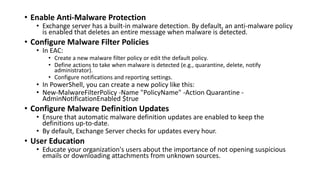
• Enable Anti-Malware Protection
• Exchange server has a built-in malware detection. By default, an anti-malware policy
is enabled that deletes an entire message when malware is detected.
• Configure Malware Filter Policies
• In EAC:
• Create a new malware filter policy or edit the default policy.
• Define actions to take when malware is detected (e.g., quarantine, delete, notify
administrator).
• Configure notifications and reporting settings.
• In PowerShell, you can create a new policy like this:
• New-MalwareFilterPolicy -Name "PolicyName" -Action Quarantine -
AdminNotificationEnabled $true
• Configure Malware Definition Updates
• Ensure that automatic malware definition updates are enabled to keep the
definitions up-to-date.
• By default, Exchange Server checks for updates every hour.
• User Education
• Educate your organization's users about the importance of not opening suspicious
emails or downloading attachments from unknown sources.
plan and configure spam filtering
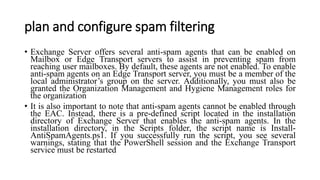
• Exchange Server offers several anti-spam agents that can be enabled on
Mailbox or Edge Transport servers to assist in preventing spam from
reaching user mailboxes. By default, these agents are not enabled. To enable
anti-spam agents on an Edge Transport server, you must be a member of the
local administrator’s group on the server. Additionally, you must also be
granted the Organization Management and Hygiene Management roles for
the organization
• It is also important to note that anti-spam agents cannot be enabled through
the EAC. Instead, there is a pre-defined script located in the installation
directory of Exchange Server that enables the anti-spam agents. In the
installation directory, in the Scripts folder, the script name is Install-
AntiSpamAgents.ps1. If you successfully run the script, you see several
warnings, stating that the PowerShell session and the Exchange Transport
service must be restarted
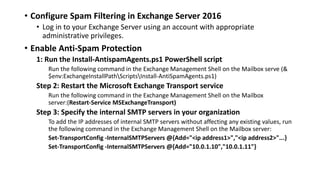
• Configure Spam Filtering in Exchange Server 2016
• Log in to your Exchange Server using an account with appropriate
administrative privileges.
• Enable Anti-Spam Protection
1: Run the Install-AntispamAgents.ps1 PowerShell script
Run the following command in the Exchange Management Shell on the Mailbox serve (&
$env:ExchangeInstallPathScriptsInstall-AntiSpamAgents.ps1)
Step 2: Restart the Microsoft Exchange Transport service
Run the following command in the Exchange Management Shell on the Mailbox
server:(Restart-Service MSExchangeTransport)
Step 3: Specify the internal SMTP servers in your organization
To add the IP addresses of internal SMTP servers without affecting any existing values, run
the following command in the Exchange Management Shell on the Mailbox server:
Set-TransportConfig -InternalSMTPServers @{Add="<ip address1>","<ip address2>"...}
Set-TransportConfig -InternalSMTPServers @{Add="10.0.1.10","10.0.1.11"}
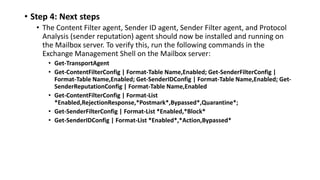
• Step 4: Next steps
• The Content Filter agent, Sender ID agent, Sender Filter agent, and Protocol
Analysis (sender reputation) agent should now be installed and running on
the Mailbox server. To verify this, run the following commands in the
Exchange Management Shell on the Mailbox server:
• Get-TransportAgent
• Get-ContentFilterConfig | Format-Table Name,Enabled; Get-SenderFilterConfig |
Format-Table Name,Enabled; Get-SenderIDConfig | Format-Table Name,Enabled; Get-
SenderReputationConfig | Format-Table Name,Enabled
• Get-ContentFilterConfig | Format-List
*Enabled,RejectionResponse,*Postmark*,Bypassed*,Quarantine*;
• Get-SenderFilterConfig | Format-List *Enabled,*Block*
• Get-SenderIDConfig | Format-List *Enabled*,*Action,Bypassed*
Antispam agents on Mailbox servers
• Sender Filter agent: Sender filtering compares the sending server to a
list of senders or sender domains that are prohibited from sending
messages to your organization
• Sender ID agent: Sender ID relies on the IP address of the sending
server and the Purported Responsible Address (PRA) of the sender to
determine whether the sending email address is spoofed.
• Content Filter agent: Content filtering agent assigns a spam
confidence level (SCL) to each message based on data from legitimate
and spam messages.
• Attachment Filtering agent: Attachment filtering blocks messages or
attachments based on the attachment file name, extension, or MIME
content type
Thank You

Plan, Deploy, and Manage Message Hygiene.pptx

  • 1.
    WELLCOME TO MYPRESENTATION PROJECT NAME: PLAN, DEPLOY, AND MANAGE MESSAGE HYGIENE IN EXCHANGE SERVER Submitted to A.F.M Bakabillah Consultant Networking Technology IsDB BISEW IT Scholarship program Submitted by. Name : Abdullah al Mamun BATCH :NT/BITI-M/54/01 Trainee ID: 1273584 ROUND:54
  • 2.
    Introduction to MessageHygiene • Definition of Message Hygiene: "Message Hygiene" encompasses a set of practices, policies, and technologies aimed at safeguarding the integrity, security, and reliability of email communication. It involves measures to protect against malicious content, unwanted spam, and various threats that can compromise email systems. • Importance of Message Hygiene: The importance of message hygiene cannot be overstated. Email is a primary vector for cyberattacks, including phishing, malware distribution, and data • breaches. Proper message hygiene is essential to protect sensitive information, maintain business continuity, and preserve an organization's reputation. • Challenges in Email Security: Today's email landscape is fraught with challenges. Cybercriminals are becoming increasingly sophisticated, continuously evolving their tactics and techniques. Organizations must contend with a growing volume of emails, compliance requirements, and the need for real-time threat detection
  • 3.
    Planning for MessageHygiene • Assessing Email Security Needs: • Understand your organization's specific email security requirements. • Identify sensitive data and compliance needs. • Consider the industry-specific threats your organization may face. • Regulatory Compliance: • Determine which regulatory standards apply to your organization (e.g., HIPAA, GDPR). • Ensure your message hygiene strategy aligns with compliance requirements. • Identifying Threat Vectors: • Analyze potential threat vectors in email communication (e.g., malware, phishing, spam). • Assess the likelihood and impact of different threat scenarios. • User Training and Awareness: • Recognize the human element in email security. • Develop user training programs to educate employees about email best practices and security risks. • Promote a culture of security awareness.
  • 4.
    plan and configuremalware filtering • Prepare for Configuration • Ensure that Exchange Server 2016 is installed and properly configured in your environment. • Verify that your Exchange Server has internet connectivity for downloading malware definition update • Assess Your Needs • Identify the specific malware threats your organization is most concerned about (e.g., viruses, ransomware, spyware). • Determine if your organization has any regulatory compliance requirements related to malware protection • Choose a Malware Filtering Solution • Decide whether you will rely on Exchange Server's built-in anti-malware capabilities or opt for a third-party solution. • Evaluate the features, scalability, and cost of different malware filtering solutions • Configure Malware Filtering in Exchange Server 2016 • Log in to your Exchange Server using an account with appropriate administrative privileges.
  • 5.
    • Enable Anti-MalwareProtection • Exchange server has a built-in malware detection. By default, an anti-malware policy is enabled that deletes an entire message when malware is detected. • Configure Malware Filter Policies • In EAC: • Create a new malware filter policy or edit the default policy. • Define actions to take when malware is detected (e.g., quarantine, delete, notify administrator). • Configure notifications and reporting settings. • In PowerShell, you can create a new policy like this: • New-MalwareFilterPolicy -Name "PolicyName" -Action Quarantine - AdminNotificationEnabled $true • Configure Malware Definition Updates • Ensure that automatic malware definition updates are enabled to keep the definitions up-to-date. • By default, Exchange Server checks for updates every hour. • User Education • Educate your organization's users about the importance of not opening suspicious emails or downloading attachments from unknown sources.
  • 6.
    plan and configurespam filtering • Exchange Server offers several anti-spam agents that can be enabled on Mailbox or Edge Transport servers to assist in preventing spam from reaching user mailboxes. By default, these agents are not enabled. To enable anti-spam agents on an Edge Transport server, you must be a member of the local administrator’s group on the server. Additionally, you must also be granted the Organization Management and Hygiene Management roles for the organization • It is also important to note that anti-spam agents cannot be enabled through the EAC. Instead, there is a pre-defined script located in the installation directory of Exchange Server that enables the anti-spam agents. In the installation directory, in the Scripts folder, the script name is Install- AntiSpamAgents.ps1. If you successfully run the script, you see several warnings, stating that the PowerShell session and the Exchange Transport service must be restarted
  • 7.
    • Configure SpamFiltering in Exchange Server 2016 • Log in to your Exchange Server using an account with appropriate administrative privileges. • Enable Anti-Spam Protection 1: Run the Install-AntispamAgents.ps1 PowerShell script Run the following command in the Exchange Management Shell on the Mailbox serve (& $env:ExchangeInstallPathScriptsInstall-AntiSpamAgents.ps1) Step 2: Restart the Microsoft Exchange Transport service Run the following command in the Exchange Management Shell on the Mailbox server:(Restart-Service MSExchangeTransport) Step 3: Specify the internal SMTP servers in your organization To add the IP addresses of internal SMTP servers without affecting any existing values, run the following command in the Exchange Management Shell on the Mailbox server: Set-TransportConfig -InternalSMTPServers @{Add="<ip address1>","<ip address2>"...} Set-TransportConfig -InternalSMTPServers @{Add="10.0.1.10","10.0.1.11"}
  • 8.
    • Step 4:Next steps • The Content Filter agent, Sender ID agent, Sender Filter agent, and Protocol Analysis (sender reputation) agent should now be installed and running on the Mailbox server. To verify this, run the following commands in the Exchange Management Shell on the Mailbox server: • Get-TransportAgent • Get-ContentFilterConfig | Format-Table Name,Enabled; Get-SenderFilterConfig | Format-Table Name,Enabled; Get-SenderIDConfig | Format-Table Name,Enabled; Get- SenderReputationConfig | Format-Table Name,Enabled • Get-ContentFilterConfig | Format-List *Enabled,RejectionResponse,*Postmark*,Bypassed*,Quarantine*; • Get-SenderFilterConfig | Format-List *Enabled,*Block* • Get-SenderIDConfig | Format-List *Enabled*,*Action,Bypassed*
  • 9.
    Antispam agents onMailbox servers • Sender Filter agent: Sender filtering compares the sending server to a list of senders or sender domains that are prohibited from sending messages to your organization • Sender ID agent: Sender ID relies on the IP address of the sending server and the Purported Responsible Address (PRA) of the sender to determine whether the sending email address is spoofed. • Content Filter agent: Content filtering agent assigns a spam confidence level (SCL) to each message based on data from legitimate and spam messages. • Attachment Filtering agent: Attachment filtering blocks messages or attachments based on the attachment file name, extension, or MIME content type
  • 10.