

Romulo Lopez
&
Rainer Heufers

DATA MANAGEMENT AND OFFICE
COMMUNICATION
Biggest problem in today’s
office
 Too much information (TMI)
 Information overload (where do I start)
 Consumerization of resources everyone is
  their own IT.
 Connecting the dots
 Disperse knowledge (Information Silos)
Tools to communicate

 Email
 Social Networks
 Wiki’s
 Intranets
 Blogs
 Youtube
Tools to store information

 Paper
 Mainframes
 Servers and PC (Personal Computer)
 External disks (Laptops)
 SAS (Software as a Service)
 Cloud
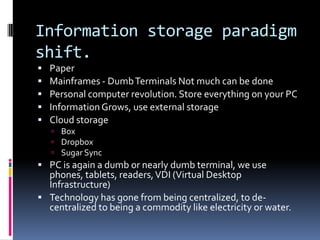
Information storage paradigm
shift.
   Paper
   Mainframes - Dumb Terminals Not much can be done
   Personal computer revolution. Store everything on your PC
   Information Grows, use external storage
   Cloud storage
     Box
     Dropbox
     Sugar Sync
 PC is again a dumb or nearly dumb terminal, we use
  phones, tablets, readers, VDI (Virtual Desktop
  Infrastructure)
 Technology has gone from being centralized, to de-
  centralized to being a commodity like electricity or water.
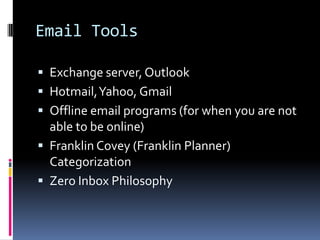
Email Tools

 Exchange server, Outlook
 Hotmail, Yahoo, Gmail
 Offline email programs (for when you are not
  able to be online)
 Franklin Covey (Franklin Planner)
  Categorization
 Zero Inbox Philosophy
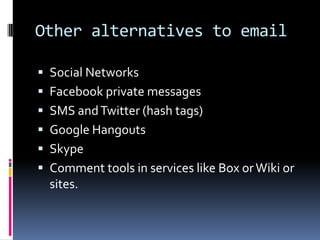
Other alternatives to email

 Social Networks
 Facebook private messages
 SMS and Twitter (hash tags)
 Google Hangouts
 Skype
 Comment tools in services like Box or Wiki or
  sites.
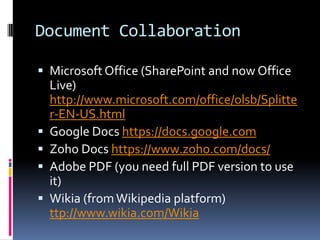
Document Collaboration

 Microsoft Office (SharePoint and now Office
    Live)
    http://www.microsoft.com/office/olsb/Splitte
    r-EN-US.html
   Google Docs https://docs.google.com
   Zoho Docs https://www.zoho.com/docs/
   Adobe PDF (you need full PDF version to use
    it)
   Wikia (from Wikipedia platform)
    ttp://www.wikia.com/Wikia
Document Collaboration
                 Less known but interesting
 Slide Share http://www.slideshare.net/
 Prezi http://prezi.com/explore/
 WebEx
 GoToMeeting (Atlas uses this)
Content Management systems
CMS
 Sharepoint
 Wordpress
 Typepad
 Blogger
 Wikis
 Microsoft Content Management Server
 Tumblr (Microblogging)
 Twitter (Microblogging)
Security

 Norton
 Microsoft Security Essentials
 Trust Apple security and genius like a
  Clapping seal!!
 If you are a geek use weird operating systems
  like Linux or friendly Ubuntu.
Security – Passwords

 Lastpass https://lastpass.com/
 Keypass http://keepass.info/
 Double Authentication
  http://support.google.com/accounts/bin/ans
  wer.py?hl=en&answer=180744
 Fingerprint reader on laptop?
 Random number generator
Security – Backups

 Mozy
 Carbonite
 Amazon Cloud S3, Amazon Cloud Player
 Box
 Dropbox
 Icloud (Apple, Itunes for Music)
 Google docs, Picasa Web (Pictures)
 You-tube
Security guidelines
 Keep sensitive information of the net.
 Spend time designing your security strategy.
 Use encryption whenever possible.
 Password protect your user when you turn your computer even
  after screensaver.
 Wipe used hard drives or destroy them with a construction
  hammer, before recycling computer. Darik's Boot And Nuke
 Beware of social engineering attacks.
  http://en.wikipedia.org/wiki/Social_engineering_%28security%2
  9
 Don’t be a fool. (If you fear someone finding your weird stuff,
  don’t even have it online).
  http://online.wsj.com/article/SB1000142405297020479530457722
  1164189123608.html (Why we tell all online)
Security tools
 Password manager
 Disk encryption in your computer, password protect your system
  (including after screensaver)
 Always use and enable https on email and other services.
 Avoid open Wifi, secure your home or office wifi.
 Use VPN if you need to use open wifi
       Hamachi https://secure.logmein.com/products/hamachi/download.aspx
   Change passwords frequently, specially after trips
   Check what IP’s are used to log on to your email, become familiar with
    your usual IP’s
   If you stop using an old account, visit it once a month and delete junk
    and change passwords. Forward emails to your main account.
   Register your cellphone with email in case you get locked out.
   Password protect your phone, have remote wipe procedures.
   Fill out security questions in case you get locked out.
Database

 CRM or ERP?
 Custom Made (might require to host server)
 Microsoft Access
 Salesforce (cloud)
Financial Software
The Mighty Might
 Quicken
 Mint
 Peachtree
 Quickbooks
Or the 800 pound Gorillas
 Raisers Edge
 Sage
 Microsoft Dynamics
 Sage ERP
Check this link:
http://www.techsoup.org/learningcenter/software/page5144.cfm
Voice and Video
communications
 Skype
 VoIP (Vonage.com, Google Voice)
 Google Hangouts
 WebEx
 GoToMeeting
 Cell phones- Smartphones
 PBX (does anyone uses this?)
Licenses

 Techsoup http://www.techsoup.org
 Microsoft
 Adobe
 Intuit.
 Pay as you go (pay by service) specially if you
  are in the cloud.
 Use open source
 www.ninite.com
A few principles before
choosing software, hardware
or tools.
   Consider it’s learning curve
   Network effects
   Lock in costs
   Don’t forget that software and hardware are tools not your main
    business reason.
   Outsource whenever possible
   Give crowdsourcing a chance.
   Rent don’t own
   SAAS prefer out of the box ready to work solutions, avoid servers
    or costly custom built solutions that depend on a developer or
    particular company.
Working trends
   Working from home.
   Working from your nearest coffee house.
   Using shared office spaces.
   Working on a different country or town
   Outsourcing
   Crowdsourcing
   Kony 2012, Invisible Children campaign
   Wikipedia
   Readers, how many of you try to sell your books?
   Usage of mobile devices, IPAD, Kindle
    http://www.inc.com/business-travel-2011/apps-that-make-
    your-ipad-work-like-a-laptop.html
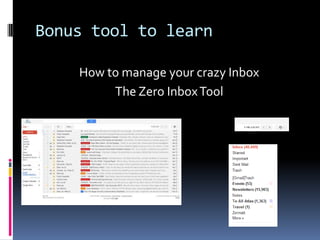
Bonus tool to learn

    How to manage your crazy Inbox
         The Zero Inbox Tool
Zero Inbox Philosophy

 Works best when you can archive messages (not
  delete)
 Keep inbox clean only stuff that is current and
  not pending is kept, anything that has been
  already taken care has been archived.
 Newsletters and non important stuff is archived.
 Personal stuff is handled with Personal email.
  (keep your professional and your personal life
  separate).
 Unsubscribed from unwanted email or mark as
  Spam what is spam.
Zero Inbox Philosophy(cont.)

 Use search function to find emails.
 Enforce good subject lines, avoid hi, hello,
  just wondering, funny subject lines.
 Keep messages brief, avoid online discussion
  unless necessary
 Use email to keep track record.
 Avoid attachments, include relevant
  information in message.
How to Start Zero Inbox

 Spend long hours filtering stuff and deleting.
 Risk loosing important information
 Preferred option in Extreme cases


    Declare email bankruptcy.
Final recommendations

 Live a more automatic life
  http://blogs.hbr.org/schwartz/2012/03/why-you-
  need-to-make-your-life.html?cm_sp=blog_flyout-_-
  schwartz-_-why_you_need_to_make_your_life,
  internalize best practices, rehearse and repeat spend
  more time thinking about new stuff.
 Learn to learn and Read to just read. (use Blog
  readers-RSS, Google Reader, Facebook or Twitter to
  find material to read)
 Develop your own brand, keep your reputation, both
  offline and online.
 Small changes lead to big changes (Personal story)
Change is
possible

Data management and office communication

  • 1.
    Romulo Lopez & Rainer Heufers DATAMANAGEMENT AND OFFICE COMMUNICATION
  • 2.
    Biggest problem intoday’s office  Too much information (TMI)  Information overload (where do I start)  Consumerization of resources everyone is their own IT.  Connecting the dots  Disperse knowledge (Information Silos)
  • 3.
    Tools to communicate Email  Social Networks  Wiki’s  Intranets  Blogs  Youtube
  • 4.
    Tools to storeinformation  Paper  Mainframes  Servers and PC (Personal Computer)  External disks (Laptops)  SAS (Software as a Service)  Cloud
  • 5.
    Information storage paradigm shift.  Paper  Mainframes - Dumb Terminals Not much can be done  Personal computer revolution. Store everything on your PC  Information Grows, use external storage  Cloud storage  Box  Dropbox  Sugar Sync  PC is again a dumb or nearly dumb terminal, we use phones, tablets, readers, VDI (Virtual Desktop Infrastructure)  Technology has gone from being centralized, to de- centralized to being a commodity like electricity or water.
  • 6.
    Email Tools  Exchangeserver, Outlook  Hotmail, Yahoo, Gmail  Offline email programs (for when you are not able to be online)  Franklin Covey (Franklin Planner) Categorization  Zero Inbox Philosophy
  • 7.
    Other alternatives toemail  Social Networks  Facebook private messages  SMS and Twitter (hash tags)  Google Hangouts  Skype  Comment tools in services like Box or Wiki or sites.
  • 8.
    Document Collaboration  MicrosoftOffice (SharePoint and now Office Live) http://www.microsoft.com/office/olsb/Splitte r-EN-US.html  Google Docs https://docs.google.com  Zoho Docs https://www.zoho.com/docs/  Adobe PDF (you need full PDF version to use it)  Wikia (from Wikipedia platform) ttp://www.wikia.com/Wikia
  • 9.
    Document Collaboration Less known but interesting  Slide Share http://www.slideshare.net/  Prezi http://prezi.com/explore/  WebEx  GoToMeeting (Atlas uses this)
  • 10.
    Content Management systems CMS Sharepoint  Wordpress  Typepad  Blogger  Wikis  Microsoft Content Management Server  Tumblr (Microblogging)  Twitter (Microblogging)
  • 11.
    Security  Norton  MicrosoftSecurity Essentials  Trust Apple security and genius like a Clapping seal!!  If you are a geek use weird operating systems like Linux or friendly Ubuntu.
  • 12.
    Security – Passwords Lastpass https://lastpass.com/  Keypass http://keepass.info/  Double Authentication http://support.google.com/accounts/bin/ans wer.py?hl=en&answer=180744  Fingerprint reader on laptop?  Random number generator
  • 13.
    Security – Backups Mozy  Carbonite  Amazon Cloud S3, Amazon Cloud Player  Box  Dropbox  Icloud (Apple, Itunes for Music)  Google docs, Picasa Web (Pictures)  You-tube
  • 14.
    Security guidelines  Keepsensitive information of the net.  Spend time designing your security strategy.  Use encryption whenever possible.  Password protect your user when you turn your computer even after screensaver.  Wipe used hard drives or destroy them with a construction hammer, before recycling computer. Darik's Boot And Nuke  Beware of social engineering attacks. http://en.wikipedia.org/wiki/Social_engineering_%28security%2 9  Don’t be a fool. (If you fear someone finding your weird stuff, don’t even have it online). http://online.wsj.com/article/SB1000142405297020479530457722 1164189123608.html (Why we tell all online)
  • 15.
    Security tools  Passwordmanager  Disk encryption in your computer, password protect your system (including after screensaver)  Always use and enable https on email and other services.  Avoid open Wifi, secure your home or office wifi.  Use VPN if you need to use open wifi  Hamachi https://secure.logmein.com/products/hamachi/download.aspx  Change passwords frequently, specially after trips  Check what IP’s are used to log on to your email, become familiar with your usual IP’s  If you stop using an old account, visit it once a month and delete junk and change passwords. Forward emails to your main account.  Register your cellphone with email in case you get locked out.  Password protect your phone, have remote wipe procedures.  Fill out security questions in case you get locked out.
  • 16.
    Database  CRM orERP?  Custom Made (might require to host server)  Microsoft Access  Salesforce (cloud)
  • 17.
    Financial Software The MightyMight  Quicken  Mint  Peachtree  Quickbooks Or the 800 pound Gorillas  Raisers Edge  Sage  Microsoft Dynamics  Sage ERP Check this link: http://www.techsoup.org/learningcenter/software/page5144.cfm
  • 18.
    Voice and Video communications Skype  VoIP (Vonage.com, Google Voice)  Google Hangouts  WebEx  GoToMeeting  Cell phones- Smartphones  PBX (does anyone uses this?)
  • 19.
    Licenses  Techsoup http://www.techsoup.org Microsoft  Adobe  Intuit.  Pay as you go (pay by service) specially if you are in the cloud.  Use open source  www.ninite.com
  • 20.
    A few principlesbefore choosing software, hardware or tools.  Consider it’s learning curve  Network effects  Lock in costs  Don’t forget that software and hardware are tools not your main business reason.  Outsource whenever possible  Give crowdsourcing a chance.  Rent don’t own  SAAS prefer out of the box ready to work solutions, avoid servers or costly custom built solutions that depend on a developer or particular company.
  • 21.
    Working trends  Working from home.  Working from your nearest coffee house.  Using shared office spaces.  Working on a different country or town  Outsourcing  Crowdsourcing  Kony 2012, Invisible Children campaign  Wikipedia  Readers, how many of you try to sell your books?  Usage of mobile devices, IPAD, Kindle http://www.inc.com/business-travel-2011/apps-that-make- your-ipad-work-like-a-laptop.html
  • 22.
    Bonus tool tolearn How to manage your crazy Inbox The Zero Inbox Tool
  • 23.
    Zero Inbox Philosophy Works best when you can archive messages (not delete)  Keep inbox clean only stuff that is current and not pending is kept, anything that has been already taken care has been archived.  Newsletters and non important stuff is archived.  Personal stuff is handled with Personal email. (keep your professional and your personal life separate).  Unsubscribed from unwanted email or mark as Spam what is spam.
  • 24.
    Zero Inbox Philosophy(cont.) Use search function to find emails.  Enforce good subject lines, avoid hi, hello, just wondering, funny subject lines.  Keep messages brief, avoid online discussion unless necessary  Use email to keep track record.  Avoid attachments, include relevant information in message.
  • 25.
    How to StartZero Inbox  Spend long hours filtering stuff and deleting.  Risk loosing important information  Preferred option in Extreme cases Declare email bankruptcy.
  • 26.
    Final recommendations  Livea more automatic life http://blogs.hbr.org/schwartz/2012/03/why-you- need-to-make-your-life.html?cm_sp=blog_flyout-_- schwartz-_-why_you_need_to_make_your_life, internalize best practices, rehearse and repeat spend more time thinking about new stuff.  Learn to learn and Read to just read. (use Blog readers-RSS, Google Reader, Facebook or Twitter to find material to read)  Develop your own brand, keep your reputation, both offline and online.  Small changes lead to big changes (Personal story)
  • 27.

Editor's Notes

  • #3 Open discussion, some notes on board, have input from participants.
  • #7 Remember to discuss organization problems for email.
  • #11 Systems that allow you to manage your own websites
  • #12 Do you have any security at all? Are you a Mac user?
  • #13 Do you use password management strategies?Do you have problems accessing or remembering passwords?Do you save your passwords in the browser?
  • #14 What would happen if your computer is stolen or disappears on a fire where all your backups are gone?What would you do with your documents
  • #15 Best Password can be beaten by lack of common senseWhy is it that we have become so prone to share everything we do online. Isn’t this a security threat in your countries? Do you check your security settings in Facebook and twitter. Do you share your personal life to everyone?
  • #16 -Security can seem ridiculous, but it’s something that is necessary. -Yes there are bad guys out there.-Yes it can happen to you.-No matter what you do someone is going to fool you. Doesn’t means that we can’t or we shouldn’t prepare.-I can see with a easy to find wifi scanner what you are doing on an open wifi. Always encrypt, or learn how to encrypt your communications.-Best tool, if you need to share a password, pick up the phone and call your friend, also a great excuse to talk to people.-Use your memory (or a password manager) no small papers or notes in your corkboard.
  • #20 Do you get software licenses for your non-profit?Check your country distributors, they are looking for good community partnerships they give away software.
  • #21 Which technology is more likely to get support from peers(Vhs or Beta and you choose Beta)
  • #22 Biggest campaign or issue is done by some small guy with a camera and youtube. The power of new and revolutionary ideas that make your think tank irrelevant.
  • #23 Only if there is time.
  • #27 The more automatic we live the more time we have to think new problems
  • #28 Who knows me more than 2 years ago?