





SharePoint 2013 Migration
Avtar Khaba
SharePoint Architect
@AvtarKhaba
Avtar.Khaba@raona.com
#spday2013
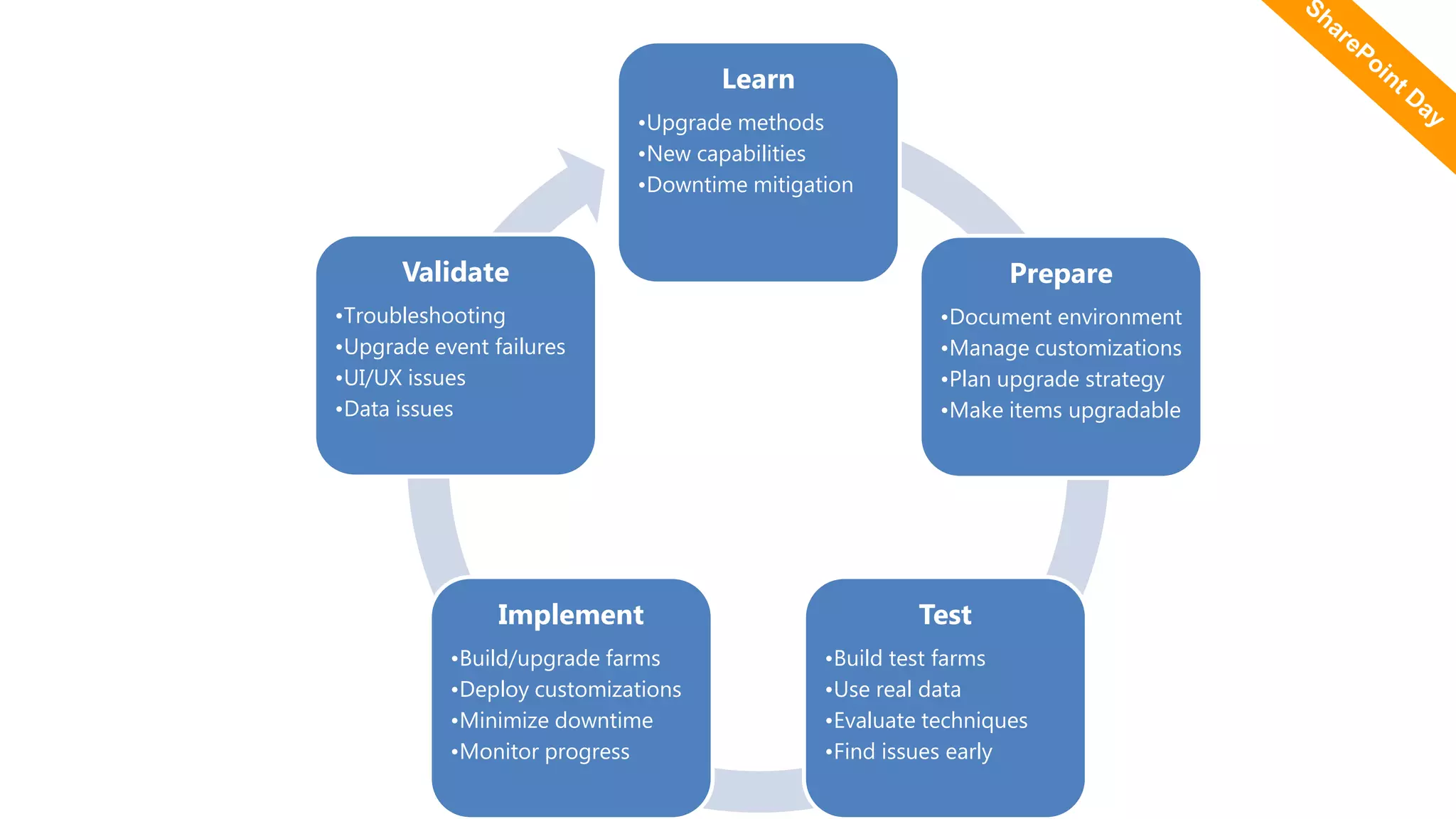
5 aspects to consider if
you want you migration to
be a success
Learn
•Upgrade methods
•New capabilities
•Downtime mitigation
Prepare
•Document environment
•Manage customizations
•Plan upgrade strategy
•Make items upgradable
Test
•Build test farms
•Use real data
•Evaluate techniques
•Find issues early
Implement
•Build/upgrade farms
•Deploy customizations
•Minimize downtime
•Monitor progress
Validate
•Troubleshooting
•Upgrade event failures
•UI/UX issues
•Data issues
SharePoint 2013 Migration
 Is it as easy as Microsoft says?
 What happens with my customisations and
bepoke code?
What is
your
scenario?
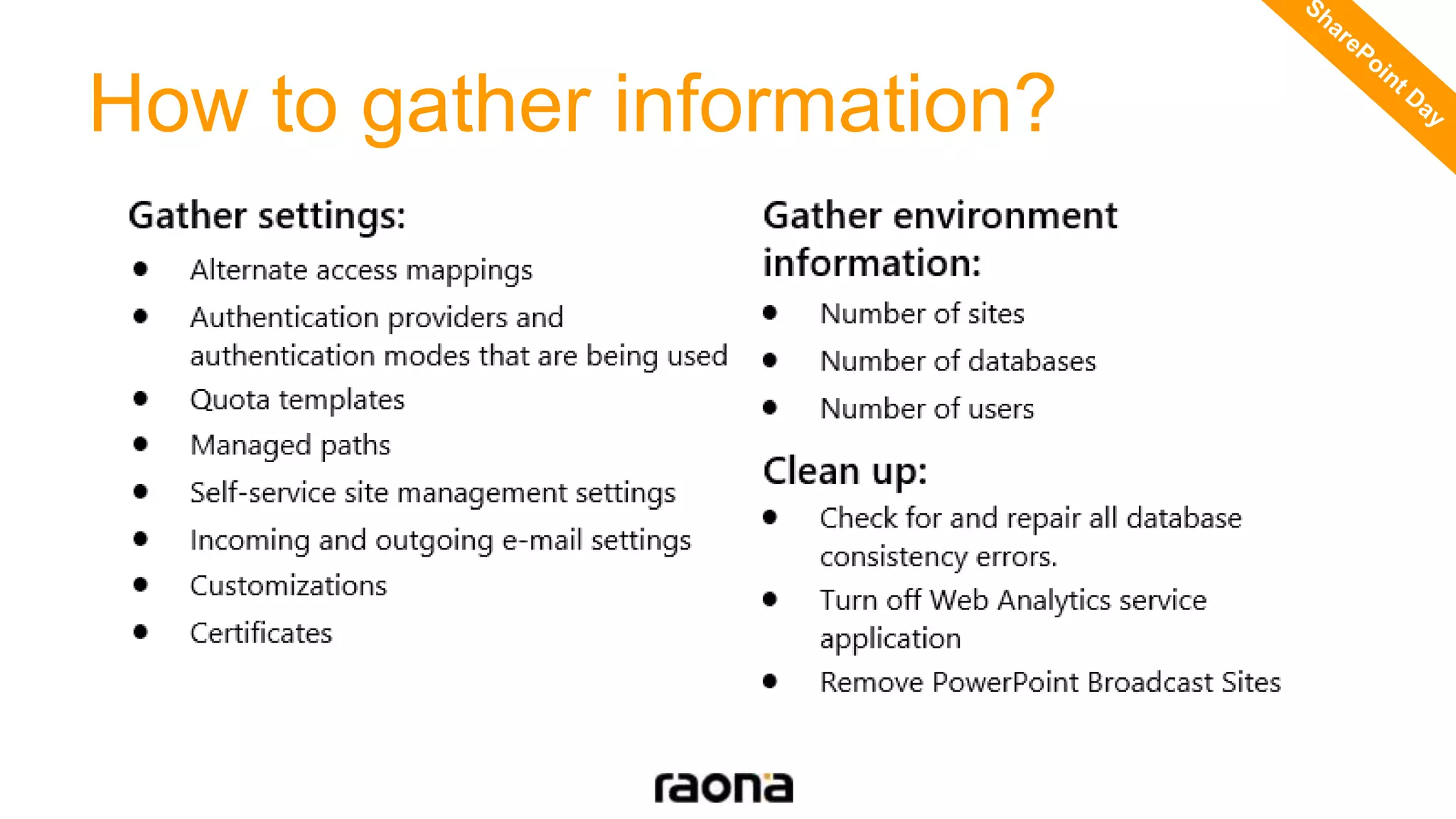
How to gather information?
Architecture Example
 RAM: 12Gb
 Pr: 64bits, 4 Core
 HD: 80GB
 Windows Server 2008 R2/Windows Server 2012
 SQL Server 2008 R2 SP1/SQL Server 2012
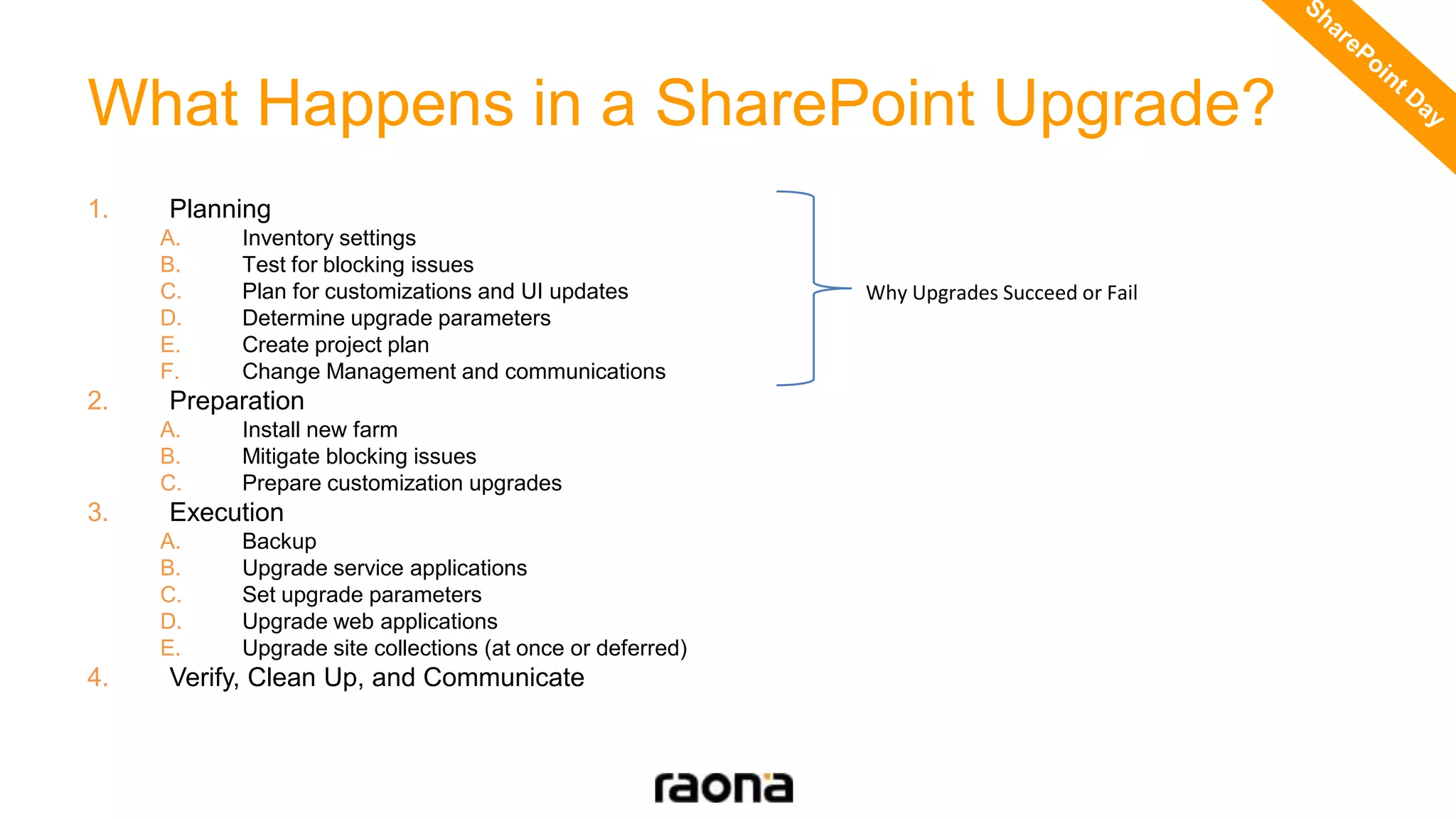
What Happens in a SharePoint Upgrade?
1. Planning
A. Inventory settings
B. Test for blocking issues
C. Plan for customizations and UI updates
D. Determine upgrade parameters
E. Create project plan
F. Change Management and communications
2. Preparation
A. Install new farm
B. Mitigate blocking issues
C. Prepare customization upgrades
3. Execution
A. Backup
B. Upgrade service applications
C. Set upgrade parameters
D. Upgrade web applications
E. Upgrade site collections (at once or deferred)
4. Verify, Clean Up, and Communicate
Why Upgrades Succeed or Fail
SharePoint 2013 Migration Options
 Double Hop
 Direct
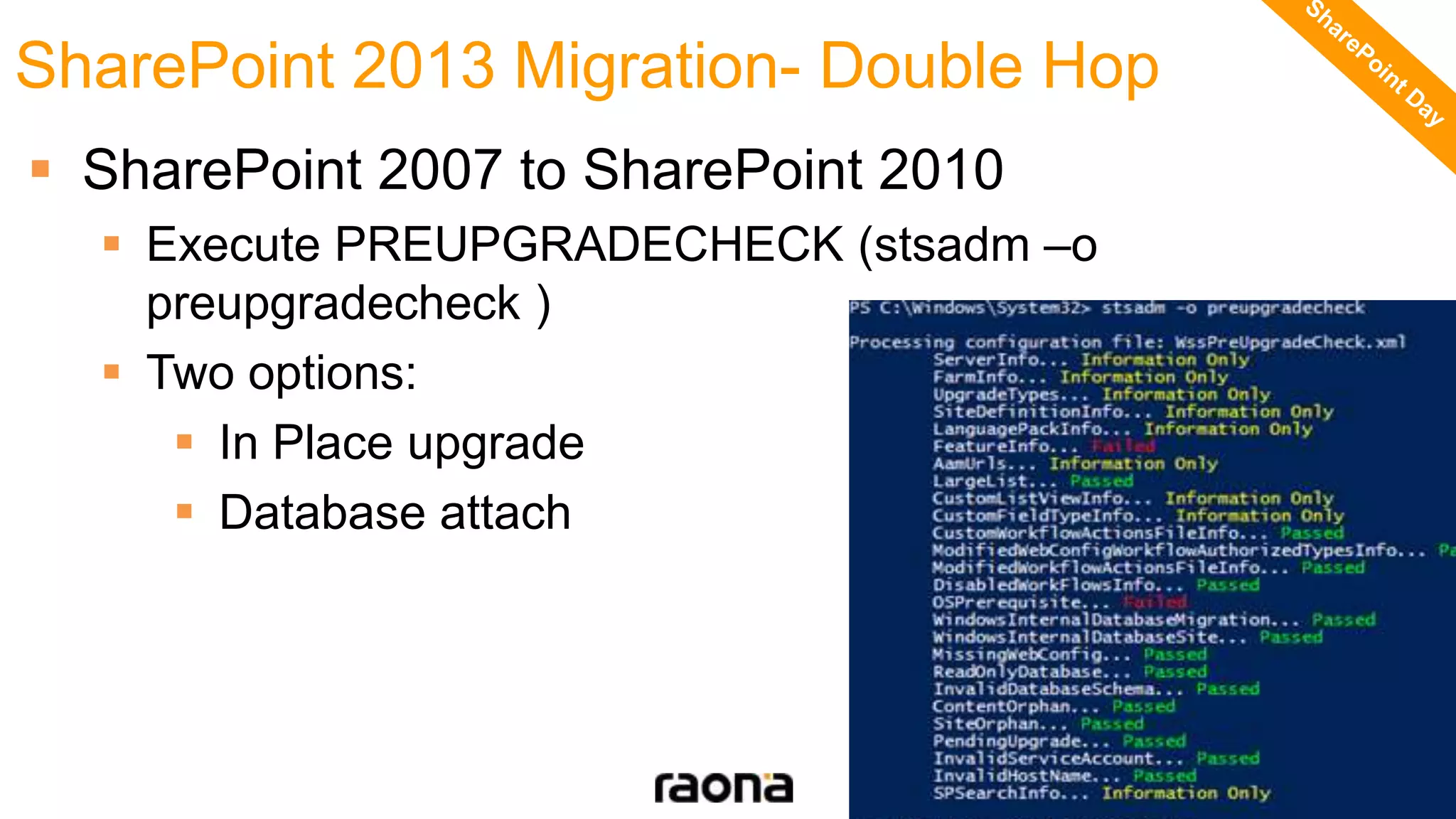
 SharePoint 2007 to SharePoint 2010
 Execute PREUPGRADECHECK (stsadm –o
preupgradecheck )
 Two options:
 In Place upgrade
 Database attach
SharePoint 2013 Migration- Double Hop
 IN PLACE
 Same settings in the new farms
 Personalisation migrated
 The server will be offline
 The upgrade process is quite difficult and require some
manual steps to adapt the customisations
SharePoint 2013 Migration- Double Hop
 DATABASE ATTACH
 Content up to date directly from the database
 Different farms could be migrated in one
 Settings not migrated
 Customisations migrated manually
SharePoint 2013 Migration- Double Hop
Upgrading from Legacy Versions
 No direct upgrade path from SPS2001/2003 or
MOSS2007
 Options:
 Upgrade to intermediate versions first
 Use third-party tools
 Manually migrate content
 These are the most complex upgrades
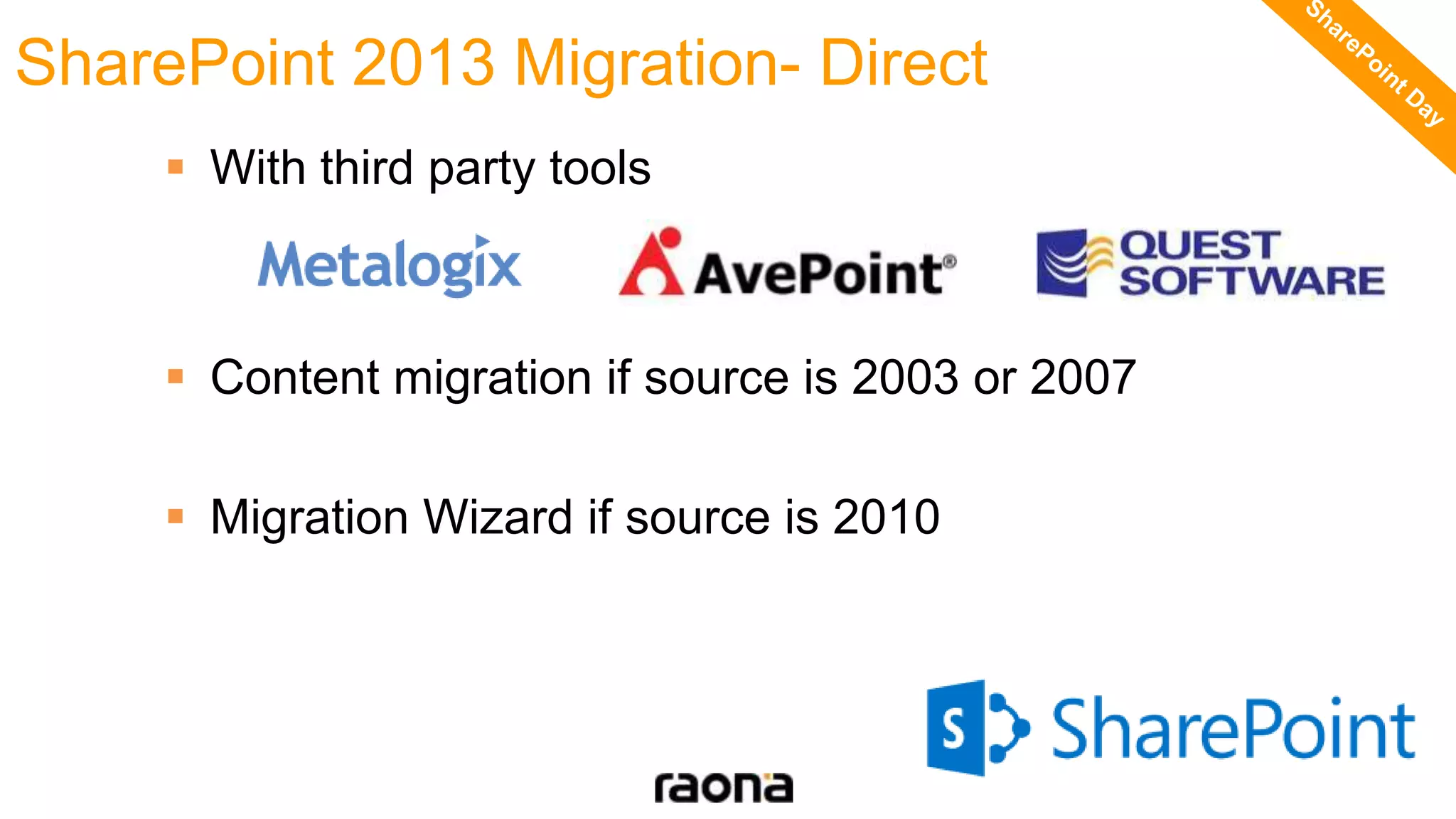
 With third party tools
 Content migration if source is 2003 or 2007
 Migration Wizard if source is 2010
SharePoint 2013 Migration- Direct
Verify Upgrade, Clean Up, and Communicate
 Use the “Upgrade Status” page in Central Administration
 Review the log files for errors and warnings
 Spot check for:
 All content renders
 Permissions appear correct
 Search works
 Custom functionality works
 UI looks correct
 Clean up backups and optionally shrink databases
 Should be communicating throughout: make sure to highlight the
benefits when the new version launches
Troubleshooting
 “Wide List” Issue
 Too many lookup, choice, and/or managed metadata columns
 No workaround short of removing columns
 Missing Solutions and Feature Definitions
 Can use PowerShell to export .WSP definitions
 As a last resort, can copy feature folders between environments
 Path conflicts
 Shouldn’t have created objects in _catalogs; will need to delete
 “Unghosted” / Customized Files
 No shortcut; need to revert customizations in order to use SharePoint 2013 look and feel
 Site locked after upgrading
 Error likely occurred and upgrade didn’t finish; mitigate issue and rerun upgrade
 Always check the logs
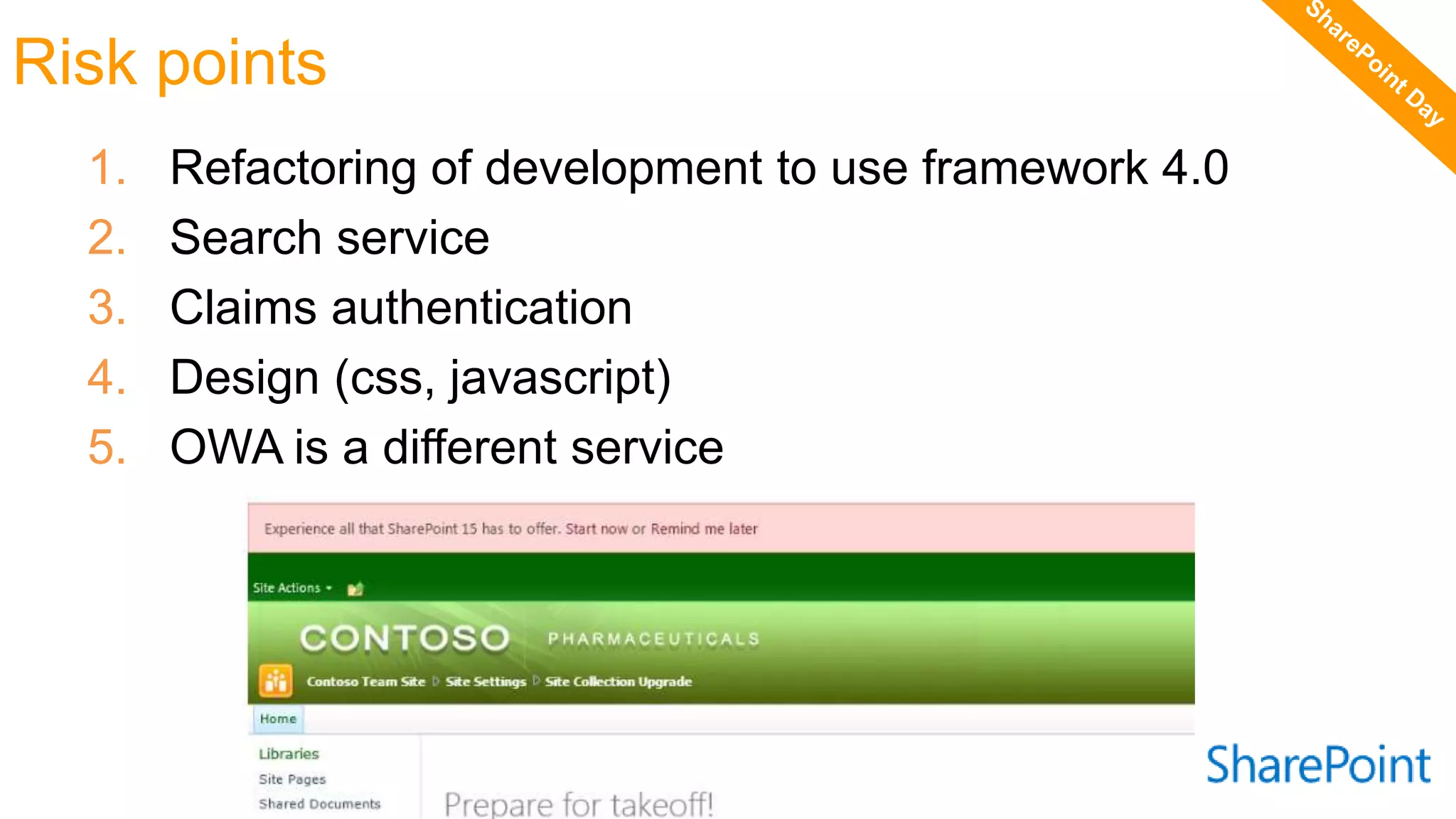
Risk points
1. Refactoring of development to use framework 4.0
2. Search service
3. Claims authentication
4. Design (css, javascript)
5. OWA is a different service
Questions raona_uk
raona.uk

Ensuring a Successful Migration to SharePoint 2013 - SharePoint Day 2013

  • 2.
    SharePoint 2013 Migration AvtarKhaba SharePoint Architect @AvtarKhaba Avtar.Khaba@raona.com #spday2013
  • 3.
    5 aspects toconsider if you want you migration to be a success
  • 4.
    Learn •Upgrade methods •New capabilities •Downtimemitigation Prepare •Document environment •Manage customizations •Plan upgrade strategy •Make items upgradable Test •Build test farms •Use real data •Evaluate techniques •Find issues early Implement •Build/upgrade farms •Deploy customizations •Minimize downtime •Monitor progress Validate •Troubleshooting •Upgrade event failures •UI/UX issues •Data issues
  • 5.
    SharePoint 2013 Migration Is it as easy as Microsoft says?  What happens with my customisations and bepoke code?
  • 6.
  • 7.
    How to gatherinformation?
  • 8.
    Architecture Example  RAM:12Gb  Pr: 64bits, 4 Core  HD: 80GB  Windows Server 2008 R2/Windows Server 2012  SQL Server 2008 R2 SP1/SQL Server 2012
  • 9.
    What Happens ina SharePoint Upgrade? 1. Planning A. Inventory settings B. Test for blocking issues C. Plan for customizations and UI updates D. Determine upgrade parameters E. Create project plan F. Change Management and communications 2. Preparation A. Install new farm B. Mitigate blocking issues C. Prepare customization upgrades 3. Execution A. Backup B. Upgrade service applications C. Set upgrade parameters D. Upgrade web applications E. Upgrade site collections (at once or deferred) 4. Verify, Clean Up, and Communicate Why Upgrades Succeed or Fail
  • 10.
    SharePoint 2013 MigrationOptions  Double Hop  Direct
  • 11.
     SharePoint 2007to SharePoint 2010  Execute PREUPGRADECHECK (stsadm –o preupgradecheck )  Two options:  In Place upgrade  Database attach SharePoint 2013 Migration- Double Hop
  • 12.
     IN PLACE Same settings in the new farms  Personalisation migrated  The server will be offline  The upgrade process is quite difficult and require some manual steps to adapt the customisations SharePoint 2013 Migration- Double Hop
  • 13.
     DATABASE ATTACH Content up to date directly from the database  Different farms could be migrated in one  Settings not migrated  Customisations migrated manually SharePoint 2013 Migration- Double Hop
  • 14.
    Upgrading from LegacyVersions  No direct upgrade path from SPS2001/2003 or MOSS2007  Options:  Upgrade to intermediate versions first  Use third-party tools  Manually migrate content  These are the most complex upgrades
  • 15.
     With thirdparty tools  Content migration if source is 2003 or 2007  Migration Wizard if source is 2010 SharePoint 2013 Migration- Direct
  • 16.
    Verify Upgrade, CleanUp, and Communicate  Use the “Upgrade Status” page in Central Administration  Review the log files for errors and warnings  Spot check for:  All content renders  Permissions appear correct  Search works  Custom functionality works  UI looks correct  Clean up backups and optionally shrink databases  Should be communicating throughout: make sure to highlight the benefits when the new version launches
  • 17.
    Troubleshooting  “Wide List”Issue  Too many lookup, choice, and/or managed metadata columns  No workaround short of removing columns  Missing Solutions and Feature Definitions  Can use PowerShell to export .WSP definitions  As a last resort, can copy feature folders between environments  Path conflicts  Shouldn’t have created objects in _catalogs; will need to delete  “Unghosted” / Customized Files  No shortcut; need to revert customizations in order to use SharePoint 2013 look and feel  Site locked after upgrading  Error likely occurred and upgrade didn’t finish; mitigate issue and rerun upgrade  Always check the logs
  • 18.
    Risk points 1. Refactoringof development to use framework 4.0 2. Search service 3. Claims authentication 4. Design (css, javascript) 5. OWA is a different service
  • 20.