LS 
• List the contents of the folder from which it runs. 
• Syntax: ls 
• Example: 
 ls –l 
 ls -a
MKDIR 
• The “mkdir” (Make directory) command create a new directory. 
• If directory already exists, it will return an error message “cannot 
create folder, folder already exists”. 
• Syntax: mkdir directory_name 
• Example: mkdir student
CAT 
• It is used to create a file with content. 
• And can concatenate two or more file contents. 
• Syntax: cat > filename 
• Example: cat > file1
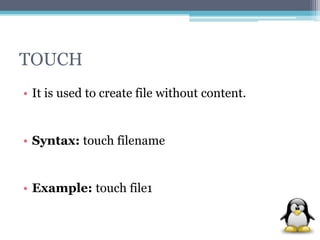
TOUCH 
• It is used to create file without content. 
• Syntax: touch filename 
• Example: touch file1
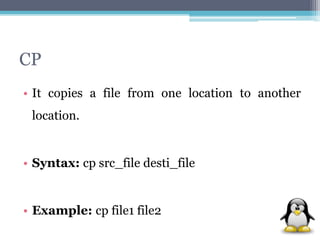
CP 
• It copies a file from one location to another 
location. 
• Syntax: cp src_file desti_file 
• Example: cp file1 file2
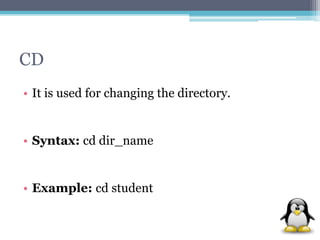
CD 
• It is used for changing the directory. 
• Syntax: cd dir_name 
• Example: cd student
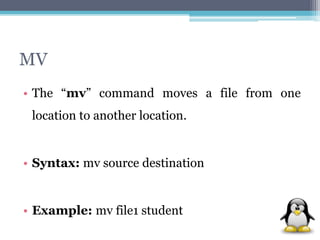
MV 
• The “mv” command moves a file from one 
location to another location. 
• Syntax: mv source destination 
• Example: mv file1 student
PWD 
• It prints the current working directory with full 
path name from terminal. 
• Syntax: pwd
WHEREIS 
• It is used to locate the Sources and Manual 
Pages of the command. 
• Syntax: whereis command 
• Example: whereis cat
WHATIS 
• It is helpful to get brief information about Linux 
commands. 
• Syntax: whatis command 
• Example: whatis cp
WHICH 
• It is used to locate executables in the system. 
• It allows user to pass several command names as 
arguments to get their paths in the system. 
• Syntax: which command 
• Example: which ls
MAN 
• It provides online documentation for all the 
possible options with a command and its usages. 
• Syntax: man command 
• Example: man cat
INFO 
• It provides online documentation for all the 
commands but in a better structured way. 
• Syntax: info command 
• Example: info cat
WHOAMI 
• It is used to find out the current user of the 
terminal. 
• Syntax: whoami
BC 
• It means the basic calculator, used for the basic 
calculations. 
• Syntax: bc
GREP 
• It searches the given file for lines containing a 
match to the given strings or words. 
• Syntax: grep word filename 
• Example: grep m file2
HEAD 
• It prints the first 10 lines of the given file. 
• Syntax: head filename 
• Example: head stu
TAIL 
• It prints the last 10 lines of the given file. 
• Syntax: head filename 
• Example: head std
TAC 
• It prints content of the given file in reverse 
order. 
• Syntax: tac filename 
• Example: tac kk
ECHO 
• Prints a text on the standard output. 
• However in an interactive script, echo passes the 
message to the user through terminal. 
• Syntax: echo message 
• Example: echo hello class
DF 
• Report disk usages of file system. 
• Useful for user as well as System Administrator 
to keep track of their disk usages. 
• Syntax: df
DU 
• Estimate files space usage. 
• df only reports usage statistics on file systems, while 
‘du‘, on the other hand, measures directory 
contents. 
• Syntax: du
PS 
• ps (Process) gives the status of running 
processes with a unique Id called PID. 
• Syntax: ps
ALIAS 
• It is a built in shell command that lets you assign 
name for a long command or frequently used 
command. 
• Syntax: alias aliasname command 
• Example: alias q=ls-l
UNAME 
• The “uname” command stands for Unix 
Name, print detailed information about the 
machine name, Operating System and Kernel. 
• Syntax: uname
SUDO 
• It allows a permitted user to execute a command 
as the super user or another user. 
• Syntax: sudo cmd 
• Example: sudo passwd
SU 
• It is used to run shell with substitute user and group IDs. 
• It helps to change login session’s owner without the 
owner having to first logout of that session. 
• Syntax: su user 
• Example: su user1
HISTORY 
• It prints the history of long list of executed 
commands in terminal. 
• Syntax: history
PASSWD 
• It is used for changing the passwd. 
• You must know the current passwd for the 
security reason. 
• Syntax: passwd
DATE 
• It print the current date and time on the 
standard output & can further be set. 
• Syntax: date 
• To set date: date - -set=‘14 may 2013 13:57’
CAL 
• It is used to display calendar of the present 
month or any other month. 
• Syntax: cal 
• Example: 3 1991
CLEAR 
• It is used to clear the screen. 
• Syntax: clear
Linux commands

Linux commands

  • 2.
    LS • Listthe contents of the folder from which it runs. • Syntax: ls • Example:  ls –l  ls -a
  • 3.
    MKDIR • The“mkdir” (Make directory) command create a new directory. • If directory already exists, it will return an error message “cannot create folder, folder already exists”. • Syntax: mkdir directory_name • Example: mkdir student
  • 4.
    CAT • Itis used to create a file with content. • And can concatenate two or more file contents. • Syntax: cat > filename • Example: cat > file1
  • 5.
    TOUCH • Itis used to create file without content. • Syntax: touch filename • Example: touch file1
  • 6.
    CP • Itcopies a file from one location to another location. • Syntax: cp src_file desti_file • Example: cp file1 file2
  • 7.
    CD • Itis used for changing the directory. • Syntax: cd dir_name • Example: cd student
  • 8.
    MV • The“mv” command moves a file from one location to another location. • Syntax: mv source destination • Example: mv file1 student
  • 9.
    PWD • Itprints the current working directory with full path name from terminal. • Syntax: pwd
  • 10.
    WHEREIS • Itis used to locate the Sources and Manual Pages of the command. • Syntax: whereis command • Example: whereis cat
  • 11.
    WHATIS • Itis helpful to get brief information about Linux commands. • Syntax: whatis command • Example: whatis cp
  • 12.
    WHICH • Itis used to locate executables in the system. • It allows user to pass several command names as arguments to get their paths in the system. • Syntax: which command • Example: which ls
  • 13.
    MAN • Itprovides online documentation for all the possible options with a command and its usages. • Syntax: man command • Example: man cat
  • 14.
    INFO • Itprovides online documentation for all the commands but in a better structured way. • Syntax: info command • Example: info cat
  • 15.
    WHOAMI • Itis used to find out the current user of the terminal. • Syntax: whoami
  • 16.
    BC • Itmeans the basic calculator, used for the basic calculations. • Syntax: bc
  • 17.
    GREP • Itsearches the given file for lines containing a match to the given strings or words. • Syntax: grep word filename • Example: grep m file2
  • 18.
    HEAD • Itprints the first 10 lines of the given file. • Syntax: head filename • Example: head stu
  • 19.
    TAIL • Itprints the last 10 lines of the given file. • Syntax: head filename • Example: head std
  • 20.
    TAC • Itprints content of the given file in reverse order. • Syntax: tac filename • Example: tac kk
  • 21.
    ECHO • Printsa text on the standard output. • However in an interactive script, echo passes the message to the user through terminal. • Syntax: echo message • Example: echo hello class
  • 22.
    DF • Reportdisk usages of file system. • Useful for user as well as System Administrator to keep track of their disk usages. • Syntax: df
  • 23.
    DU • Estimatefiles space usage. • df only reports usage statistics on file systems, while ‘du‘, on the other hand, measures directory contents. • Syntax: du
  • 24.
    PS • ps(Process) gives the status of running processes with a unique Id called PID. • Syntax: ps
  • 25.
    ALIAS • Itis a built in shell command that lets you assign name for a long command or frequently used command. • Syntax: alias aliasname command • Example: alias q=ls-l
  • 26.
    UNAME • The“uname” command stands for Unix Name, print detailed information about the machine name, Operating System and Kernel. • Syntax: uname
  • 27.
    SUDO • Itallows a permitted user to execute a command as the super user or another user. • Syntax: sudo cmd • Example: sudo passwd
  • 28.
    SU • Itis used to run shell with substitute user and group IDs. • It helps to change login session’s owner without the owner having to first logout of that session. • Syntax: su user • Example: su user1
  • 29.
    HISTORY • Itprints the history of long list of executed commands in terminal. • Syntax: history
  • 30.
    PASSWD • Itis used for changing the passwd. • You must know the current passwd for the security reason. • Syntax: passwd
  • 31.
    DATE • Itprint the current date and time on the standard output & can further be set. • Syntax: date • To set date: date - -set=‘14 may 2013 13:57’
  • 32.
    CAL • Itis used to display calendar of the present month or any other month. • Syntax: cal • Example: 3 1991
  • 33.
    CLEAR • Itis used to clear the screen. • Syntax: clear