BASIC COMMANDS
By
Bhaskar N
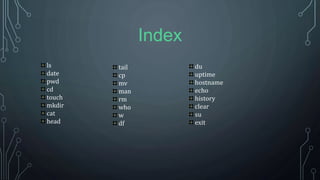
Index
ls
date
pwd
cd
touch
mkdir
cat
head
tail
cp
mv
man
rm
who
w
df
du
uptime
hostname
echo
history
clear
su
exit
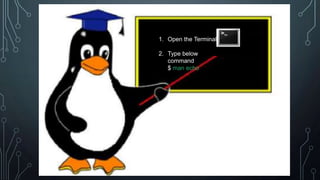
1. Open the Terminal
2. Type below
command
$ man echo
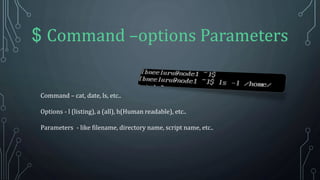
$ Command –options Parameters
Command – cat, date, ls, etc..
Options - l (listing), a (all), h(Human readable), etc..
Parameters - like filename, directory name, script name, etc..
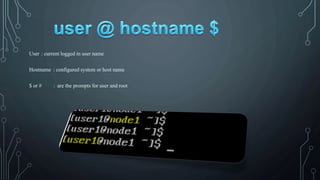
User : current logged in user name
Hostname : configured system or host name
$ or # : are the prompts for user and root
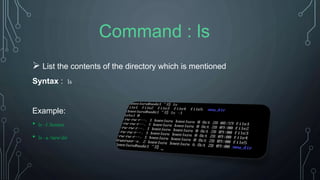
 List the contents of the directory which is mentioned
Syntax : ls
Example:
• ls –l /homes
• ls –a /new/dir
Command : ls
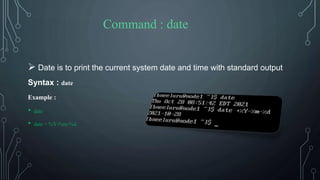
 Date is to print the current system date and time with standard output
Syntax : date
Example :
• date
• date + %Y-%m-%d
Command : date
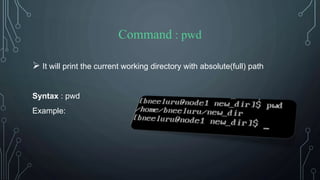
Command : pwd
 It will print the current working directory with absolute(full) path
Syntax : pwd
Example:
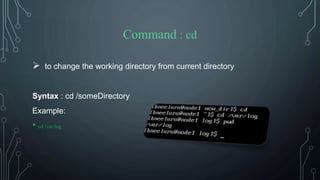
Command : cd
 to change the working directory from current directory
Syntax : cd /someDirectory
Example:
• cd /var/log
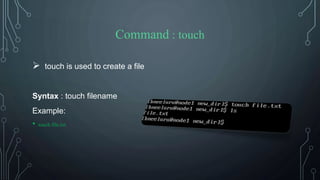
Command : touch
 touch is used to create a file
Syntax : touch filename
Example:
• touch file.txt
Command : mkdir
 command is used to create a new directory
Syntax : mkdir directory_name
Example:
• mkdir new_dir
• mkdir –p dir/dir1 [creating along with parent directory]
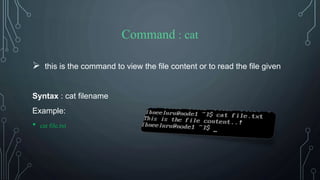
Command : cat
 this is the command to view the file content or to read the file given
Syntax : cat filename
Example:
• cat file.txt
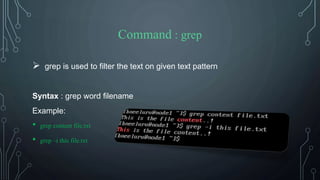
Command : grep
 grep is used to filter the text on given text pattern
Syntax : grep word filename
Example:
• grep content file.txt
• grep –i this file.txt
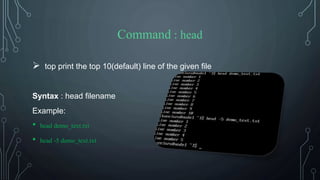
Command : head
 top print the top 10(default) line of the given file
Syntax : head filename
Example:
• head demo_text.txt
• head -5 demo_text.txt
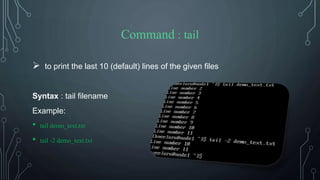
Command : tail
 to print the last 10 (default) lines of the given files
Syntax : tail filename
Example:
• tail demo_text.txt
• tail -2 demo_text.txt
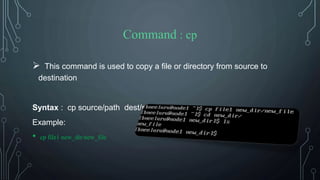
Command : cp
 This command is used to copy a file or directory from source to
destination
Syntax : cp source/path dest/path
Example:
• cp file1 new_dir/new_file
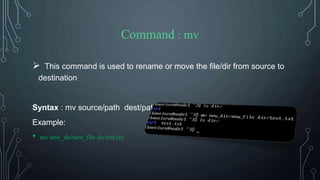
Command : mv
 This command is used to rename or move the file/dir from source to
destination
Syntax : mv source/path dest/path
Example:
• mv new_dir/new_file dir/test.txt
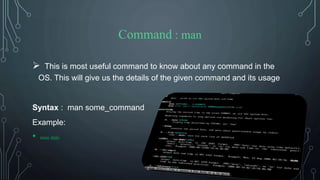
Command : man
 This is most useful command to know about any command in the
OS. This will give us the details of the given command and its usage
Syntax : man some_command
Example:
• man date
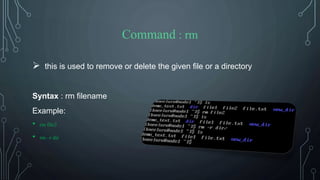
Command : rm
 this is used to remove or delete the given file or a directory
Syntax : rm filename
Example:
• rm file2
• rm –r dir
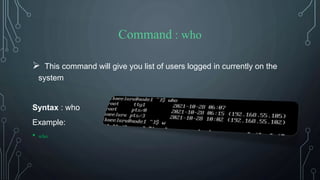
Command : who
 This command will give you list of users logged in currently on the
system
Syntax : who
Example:
• who
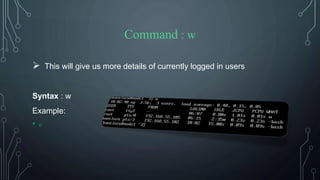
Command : w
 This will give us more details of currently logged in users
Syntax : w
Example:
• w
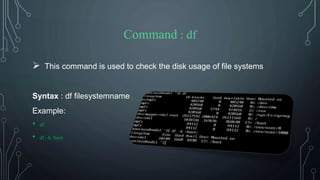
Command : df
 This command is used to check the disk usage of file systems
Syntax : df filesystemname
Example:
• df
• df –h /boot
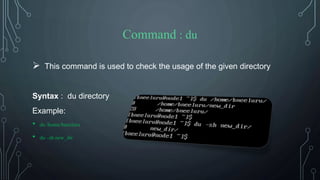
Command : du
 This command is used to check the usage of the given directory
Syntax : du directory
Example:
• du /home/bneeluru
• du –sh new_dir
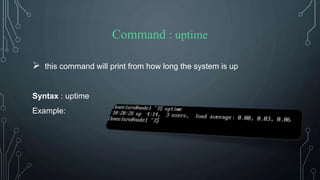
Command : uptime
 this command will print from how long the system is up
Syntax : uptime
Example:
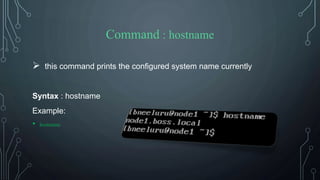
Command : hostname
 this command prints the configured system name currently
Syntax : hostname
Example:
• hostname
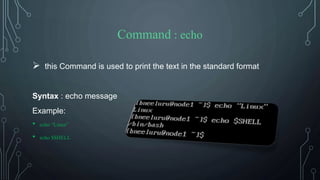
Command : echo
 this Command is used to print the text in the standard format
Syntax : echo message
Example:
• echo “Linux”
• echo $SHELL
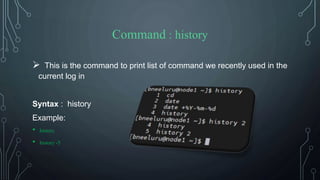
Command : history
 This is the command to print list of command we recently used in the
current log in
Syntax : history
Example:
• history
• history -5
Command : clear
 this command is used to clear the screen
Syntax : clear
Example:
• clear
• Crtl+L [Shortcut key]
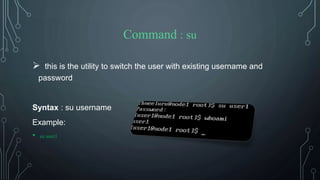
Command : su
 this is the utility to switch the user with existing username and
password
Syntax : su username
Example:
• su user1
Command : exit
 this command is used to exit from the terminal and the exit as the current
user
Syntax : exit
Example:
• exit
• Ctrl+D [Shortcut key]
Linux basics

Linux basics

  • 1.
  • 2.
  • 3.
    1. Open theTerminal 2. Type below command $ man echo
  • 4.
    $ Command –optionsParameters Command – cat, date, ls, etc.. Options - l (listing), a (all), h(Human readable), etc.. Parameters - like filename, directory name, script name, etc..
  • 5.
    User : currentlogged in user name Hostname : configured system or host name $ or # : are the prompts for user and root
  • 6.
     List thecontents of the directory which is mentioned Syntax : ls Example: • ls –l /homes • ls –a /new/dir Command : ls
  • 7.
     Date isto print the current system date and time with standard output Syntax : date Example : • date • date + %Y-%m-%d Command : date
  • 8.
    Command : pwd It will print the current working directory with absolute(full) path Syntax : pwd Example:
  • 9.
    Command : cd to change the working directory from current directory Syntax : cd /someDirectory Example: • cd /var/log
  • 10.
    Command : touch touch is used to create a file Syntax : touch filename Example: • touch file.txt
  • 11.
    Command : mkdir command is used to create a new directory Syntax : mkdir directory_name Example: • mkdir new_dir • mkdir –p dir/dir1 [creating along with parent directory]
  • 12.
    Command : cat this is the command to view the file content or to read the file given Syntax : cat filename Example: • cat file.txt
  • 13.
    Command : grep grep is used to filter the text on given text pattern Syntax : grep word filename Example: • grep content file.txt • grep –i this file.txt
  • 14.
    Command : head top print the top 10(default) line of the given file Syntax : head filename Example: • head demo_text.txt • head -5 demo_text.txt
  • 15.
    Command : tail to print the last 10 (default) lines of the given files Syntax : tail filename Example: • tail demo_text.txt • tail -2 demo_text.txt
  • 16.
    Command : cp This command is used to copy a file or directory from source to destination Syntax : cp source/path dest/path Example: • cp file1 new_dir/new_file
  • 17.
    Command : mv This command is used to rename or move the file/dir from source to destination Syntax : mv source/path dest/path Example: • mv new_dir/new_file dir/test.txt
  • 18.
    Command : man This is most useful command to know about any command in the OS. This will give us the details of the given command and its usage Syntax : man some_command Example: • man date
  • 19.
    Command : rm this is used to remove or delete the given file or a directory Syntax : rm filename Example: • rm file2 • rm –r dir
  • 20.
    Command : who This command will give you list of users logged in currently on the system Syntax : who Example: • who
  • 21.
    Command : w This will give us more details of currently logged in users Syntax : w Example: • w
  • 22.
    Command : df This command is used to check the disk usage of file systems Syntax : df filesystemname Example: • df • df –h /boot
  • 23.
    Command : du This command is used to check the usage of the given directory Syntax : du directory Example: • du /home/bneeluru • du –sh new_dir
  • 24.
    Command : uptime this command will print from how long the system is up Syntax : uptime Example:
  • 25.
    Command : hostname this command prints the configured system name currently Syntax : hostname Example: • hostname
  • 26.
    Command : echo this Command is used to print the text in the standard format Syntax : echo message Example: • echo “Linux” • echo $SHELL
  • 27.
    Command : history This is the command to print list of command we recently used in the current log in Syntax : history Example: • history • history -5
  • 28.
    Command : clear this command is used to clear the screen Syntax : clear Example: • clear • Crtl+L [Shortcut key]
  • 29.
    Command : su this is the utility to switch the user with existing username and password Syntax : su username Example: • su user1
  • 30.
    Command : exit this command is used to exit from the terminal and the exit as the current user Syntax : exit Example: • exit • Ctrl+D [Shortcut key]