UBUNTU INSTALLATION
PRESENTED BY:-
BORA MAYUR
Agenda
 Introduction
 Ubuntu 12 and 14
 Ubuntu 16
4/2/2017
2
Introduction
 There are three Versions of Ubuntu 12, 14 and 16
 There are three ways to install Ubuntu 12 and 14
1. Image copy
2. Bootable CD
3. Bootable Pendrive
 There is only one way to install Ubuntu 16
1. Bootable Pendrive
4/2/2017
3
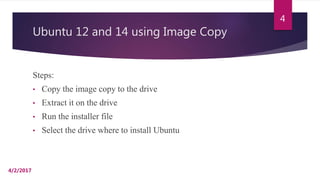
Ubuntu 12 and 14 using Image Copy
Steps:
• Copy the image copy to the drive
• Extract it on the drive
• Run the installer file
• Select the drive where to install Ubuntu
4/2/2017
4
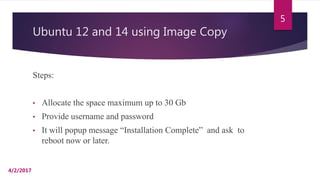
Ubuntu 12 and 14 using Image Copy
Steps:
• Allocate the space maximum up to 30 Gb
• Provide username and password
• It will popup message “Installation Complete” and ask to
reboot now or later.
4/2/2017
5
Ubuntu 12 and 14 using Image Copy
Steps:
• And then it will start the installation process after restart.
• Enter the data required as Time Zone, Device Name
• Then finish and restart.
4/2/2017
6
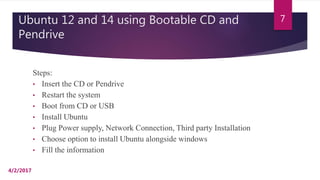
Ubuntu 12 and 14 using Bootable CD and
Pendrive
Steps:
• Insert the CD or Pendrive
• Restart the system
• Boot from CD or USB
• Install Ubuntu
• Plug Power supply, Network Connection, Third party Installation
• Choose option to install Ubuntu alongside windows
• Fill the information
4/2/2017
7
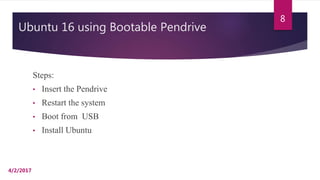
Ubuntu 16 using Bootable Pendrive
Steps:
• Insert the Pendrive
• Restart the system
• Boot from USB
• Install Ubuntu
4/2/2017
8
Ubuntu 16 using Bootable Pendrive
Steps:
• Plug Power supply, Network Connection, Third party
Installation
• Choose option to install Ubuntu alongside windows
• Fill the information
• Restart the System.
4/2/2017
9
10
4/2/2017

Ubuntu installation

  • 1.
  • 2.
    Agenda  Introduction  Ubuntu12 and 14  Ubuntu 16 4/2/2017 2
  • 3.
    Introduction  There arethree Versions of Ubuntu 12, 14 and 16  There are three ways to install Ubuntu 12 and 14 1. Image copy 2. Bootable CD 3. Bootable Pendrive  There is only one way to install Ubuntu 16 1. Bootable Pendrive 4/2/2017 3
  • 4.
    Ubuntu 12 and14 using Image Copy Steps: • Copy the image copy to the drive • Extract it on the drive • Run the installer file • Select the drive where to install Ubuntu 4/2/2017 4
  • 5.
    Ubuntu 12 and14 using Image Copy Steps: • Allocate the space maximum up to 30 Gb • Provide username and password • It will popup message “Installation Complete” and ask to reboot now or later. 4/2/2017 5
  • 6.
    Ubuntu 12 and14 using Image Copy Steps: • And then it will start the installation process after restart. • Enter the data required as Time Zone, Device Name • Then finish and restart. 4/2/2017 6
  • 7.
    Ubuntu 12 and14 using Bootable CD and Pendrive Steps: • Insert the CD or Pendrive • Restart the system • Boot from CD or USB • Install Ubuntu • Plug Power supply, Network Connection, Third party Installation • Choose option to install Ubuntu alongside windows • Fill the information 4/2/2017 7
  • 8.
    Ubuntu 16 usingBootable Pendrive Steps: • Insert the Pendrive • Restart the system • Boot from USB • Install Ubuntu 4/2/2017 8
  • 9.
    Ubuntu 16 usingBootable Pendrive Steps: • Plug Power supply, Network Connection, Third party Installation • Choose option to install Ubuntu alongside windows • Fill the information • Restart the System. 4/2/2017 9
  • 10.