- Uday Kiran Bora,
- AWAO/CRS/TPTY
WHAT WE RECEIVE IN OFFICE:
 FILES &
 DAK consists of
 Letters
 Office Orders
 Memorandums
 Joint Procedure Orders
 Circulars
 Representations etc.,
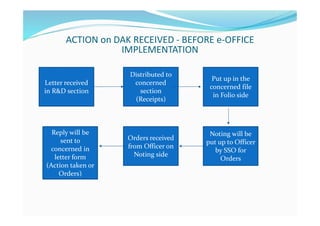
ACTION on DAK RECEIVED - BEFORE e-OFFICE
IMPLEMENTATION
Letter received
in R&D section
Distributed to
concerned
section
(Receipts)
Put up in the
concerned file
in Folio side
Noting will be
put up to Officer
by SSO for
Orders
Orders received
from Officer on
Noting side
Reply will be
sent to
concerned in
letter form
(Action taken or
Orders)
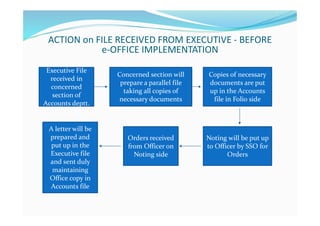
ACTION on FILE RECEIVED FROM EXECUTIVE - BEFORE
e-OFFICE IMPLEMENTATION
Executive File
received in
concerned
section of
Accounts deptt.
Concerned section will
prepare a parallel file
taking all copies of
necessary documents
Copies of necessary
documents are put
up in the Accounts
file in Folio side
Noting will be put up
to Officer by SSO for
Orders
Orders received
from Officer on
Noting side
A letter will be
prepared and
put up in the
Executive file
and sent duly
maintaining
Office copy in
Accounts file
Pre-requisites for
implementation of e-Office
 e-Office can only be used in Railnet.
 Digital Signature.
 Gov.in/Nic mail id.
 Any Browser with DSC service signer and Java 32 bit.
 How to get a Digital Signature
 How to get Gov.in/Nic mail id.
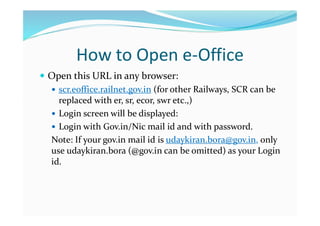
How to Open e-Office
 Open this URL in any browser:
 scr.eoffice.railnet.gov.in (for other Railways, SCR can be
replaced with er, sr, ecor, swr etc.,)
 Login screen will be displayed:
 Login with Gov.in/Nic mail id and with password.
Note: If your gov.in mail id is udaykiran.bora@gov.in, only
use udaykiran.bora (@gov.in can be omitted) as your Login
id.
LOGIN SCREEN
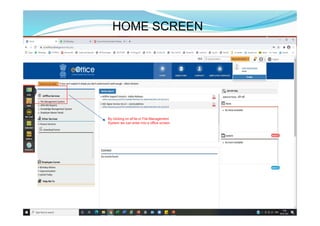
HOME SCREEN
By clicking on eFile or File Management
System we can enter into e office screen.
DAK will be received and sent
from this TAB for necessary action
e-OFFICE MAIN SCREEN
All files will be received in this
TAB for further necessary action
DSC should be activated from this
TAB in the initial login.
BROWSE AND DIARISE SCREEN – GENERATE – TO ATTACH IN ANY
FILE
TO GENERATE AND PUT UP/ATTACH
TO ANY FILE – THIS TAB IS USED.
BROWSE AND DIARISE SCREEN – GENERATE AND SEND – TO SEND
TO THE CONCERNED LIKE DAK (LETTER, CIRCULAR ETC.,)
TO SEND A LETTER
DIRECTLY TO
OTHER USER
The letters which are generated
through browse & diarize can be
seen in this tab, till we put up in a
file or send to other user.
INBOX SCREEN OF RECEIPTS TAB
INBOX SCREEN OF FILES TAB – WHERE WE RECEIVE ALL THE FILES
Files can be created in two ways.
1. After generating through Browse & Diarise, we can select put in a file option,
selecting from the existing files or creating a new one.
2. We can create a file from this tab.
To attach a document in the
folio side, click ToC (Table of
Contents)
To attach Letter/DAK/Document to the folio side of file.
Click attach Tab to attach a letter or DAK
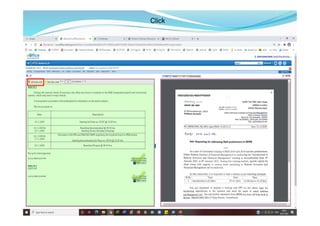
Click
Click
To see the attached file, click on
the receipt/issue number.
Click
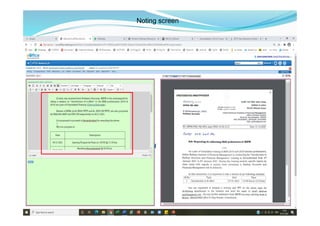
Noting screen
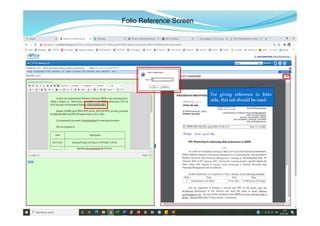
Folio Reference Screen
For giving reference in folio
side, this tab should be used.
Send screen
DSC sign and send screen
Signed with DSC and sent
to CWM for approval
Approved and signed with
DSC by CWM and sent
back.
DSC SIGNED FILE ON THE NOTING SIDE.
All files sent by
you can be seen
in this window.
If you want to pull back the file for correction
& resend or if the other user does not take
action on this, we can click this tab and pull
back the file. If this symbol is not there,
means the other user has already seen the file.
Sent Files screen and Pull back option
Give reasons viz. for reference or for correction
and press “OK” to get the file to your inbox.
Pull Back Option Screen
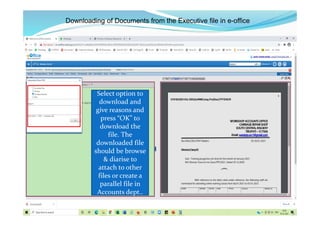
Downloading of Documents from the Executive file in e-office
This Tab can be used to download the
complete files, Notings, DFA &
Correspondence
Select option to
download and
give reasons and
press “OK” to
download the
file. The
downloaded file
should be browse
& diarise to
attach to other
files or create a
parallel file in
Accounts dept..
Downloading of Documents from the Executive file in e-office
To view the draft letter,
click here
Draft letter Approval and DSC signing
You can edit the draft and
approve, by clicking on this.
Draft letter Approval and DSC signing
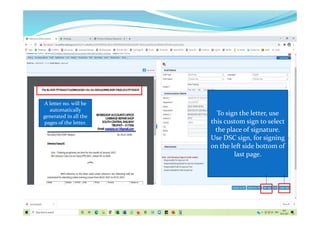
A letter no. will be
automatically
generated in all the
pages of the letter.
To sign the letter, use
this custom sign to select
the place of signature.
Use DSC sign, for signing
on the left side bottom of
last page.
Select the place
of signature and
click on DSC
sign above
Draft letter Approval and DSC signing
Letter was digitally signed
which we can download and
send to concerned.
Draft letter Approval and DSC signing
THANK YOU

E office presentation

  • 1.
    - Uday KiranBora, - AWAO/CRS/TPTY
  • 2.
    WHAT WE RECEIVEIN OFFICE:  FILES &  DAK consists of  Letters  Office Orders  Memorandums  Joint Procedure Orders  Circulars  Representations etc.,
  • 3.
    ACTION on DAKRECEIVED - BEFORE e-OFFICE IMPLEMENTATION Letter received in R&D section Distributed to concerned section (Receipts) Put up in the concerned file in Folio side Noting will be put up to Officer by SSO for Orders Orders received from Officer on Noting side Reply will be sent to concerned in letter form (Action taken or Orders)
  • 4.
    ACTION on FILERECEIVED FROM EXECUTIVE - BEFORE e-OFFICE IMPLEMENTATION Executive File received in concerned section of Accounts deptt. Concerned section will prepare a parallel file taking all copies of necessary documents Copies of necessary documents are put up in the Accounts file in Folio side Noting will be put up to Officer by SSO for Orders Orders received from Officer on Noting side A letter will be prepared and put up in the Executive file and sent duly maintaining Office copy in Accounts file
  • 5.
    Pre-requisites for implementation ofe-Office  e-Office can only be used in Railnet.  Digital Signature.  Gov.in/Nic mail id.  Any Browser with DSC service signer and Java 32 bit.  How to get a Digital Signature  How to get Gov.in/Nic mail id.
  • 6.
    How to Opene-Office  Open this URL in any browser:  scr.eoffice.railnet.gov.in (for other Railways, SCR can be replaced with er, sr, ecor, swr etc.,)  Login screen will be displayed:  Login with Gov.in/Nic mail id and with password. Note: If your gov.in mail id is udaykiran.bora@gov.in, only use udaykiran.bora (@gov.in can be omitted) as your Login id.
  • 7.
  • 8.
    HOME SCREEN By clickingon eFile or File Management System we can enter into e office screen.
  • 9.
    DAK will bereceived and sent from this TAB for necessary action e-OFFICE MAIN SCREEN All files will be received in this TAB for further necessary action DSC should be activated from this TAB in the initial login.
  • 10.
    BROWSE AND DIARISESCREEN – GENERATE – TO ATTACH IN ANY FILE TO GENERATE AND PUT UP/ATTACH TO ANY FILE – THIS TAB IS USED.
  • 11.
    BROWSE AND DIARISESCREEN – GENERATE AND SEND – TO SEND TO THE CONCERNED LIKE DAK (LETTER, CIRCULAR ETC.,) TO SEND A LETTER DIRECTLY TO OTHER USER
  • 12.
    The letters whichare generated through browse & diarize can be seen in this tab, till we put up in a file or send to other user. INBOX SCREEN OF RECEIPTS TAB
  • 13.
    INBOX SCREEN OFFILES TAB – WHERE WE RECEIVE ALL THE FILES Files can be created in two ways. 1. After generating through Browse & Diarise, we can select put in a file option, selecting from the existing files or creating a new one. 2. We can create a file from this tab.
  • 14.
    To attach adocument in the folio side, click ToC (Table of Contents) To attach Letter/DAK/Document to the folio side of file.
  • 15.
    Click attach Tabto attach a letter or DAK
  • 16.
  • 17.
    Click To see theattached file, click on the receipt/issue number.
  • 18.
  • 19.
  • 20.
    Folio Reference Screen Forgiving reference in folio side, this tab should be used.
  • 21.
  • 22.
    DSC sign andsend screen
  • 23.
    Signed with DSCand sent to CWM for approval Approved and signed with DSC by CWM and sent back. DSC SIGNED FILE ON THE NOTING SIDE.
  • 24.
    All files sentby you can be seen in this window. If you want to pull back the file for correction & resend or if the other user does not take action on this, we can click this tab and pull back the file. If this symbol is not there, means the other user has already seen the file. Sent Files screen and Pull back option
  • 25.
    Give reasons viz.for reference or for correction and press “OK” to get the file to your inbox. Pull Back Option Screen
  • 26.
    Downloading of Documentsfrom the Executive file in e-office This Tab can be used to download the complete files, Notings, DFA & Correspondence
  • 27.
    Select option to downloadand give reasons and press “OK” to download the file. The downloaded file should be browse & diarise to attach to other files or create a parallel file in Accounts dept.. Downloading of Documents from the Executive file in e-office
  • 28.
    To view thedraft letter, click here Draft letter Approval and DSC signing
  • 29.
    You can editthe draft and approve, by clicking on this. Draft letter Approval and DSC signing
  • 30.
    A letter no.will be automatically generated in all the pages of the letter. To sign the letter, use this custom sign to select the place of signature. Use DSC sign, for signing on the left side bottom of last page.
  • 31.
    Select the place ofsignature and click on DSC sign above Draft letter Approval and DSC signing
  • 32.
    Letter was digitallysigned which we can download and send to concerned. Draft letter Approval and DSC signing
  • 33.