HTML and CSS by Peter Tucker Associate Professor of Math and Computer Science Whitworth University As presented February 2009 to Online J-Lab
Markup Languages A  markup language  embeds tags within regular text Text file -> edit with notepad SGML – Standard Generalized Markup Language Generic language conceived in the 60’s Language to separate content and structure Elements identify text objects HTML – Hypertext Markup Language Based on SGML Most common markup language for Internet pages XML – Extensible Markup Language Also based on SGML Very flexible Commonly used for information exchange
HTML Editors HTML Files are simply text files Notepad and WordPad are fine text editors Emacs and XEmacs are good, and also work in Linux Many freeware HTML editors exist CoffeeCup is a good free version (and better commercial version…) Many others: search for “HTML Editor” on  www.download.com Be sure to check the licensing agreements Commercial software Microsoft Expression Studio is on these machines Macromedia DreamWeaver is on these machines Visual Studio is also on these machines
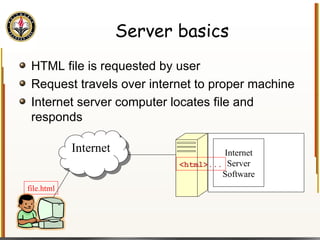
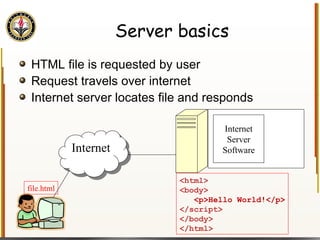
Server basics HTML file is requested by user Request travels over internet to proper machine Internet server computer locates file and responds Internet Internet Server Software file.html <html>...
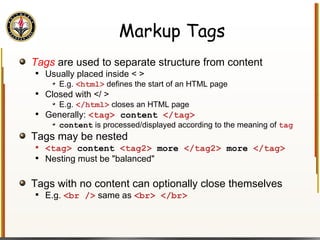
Markup Tags Tags   are used to separate structure from content Usually placed inside < > E.g.  <html>  defines the start of an HTML page Closed with </ > E.g.  </html>  closes an HTML page Generally:  <tag>  content  </tag> content  is processed/displayed according to the meaning of  tag Tags may be nested <tag>  content  <tag2>  more  </tag2>  more  </tag> Nesting must be &quot;balanced&quot; Tags with no content can optionally close themselves E.g.  <br />  same as  <br> </br>
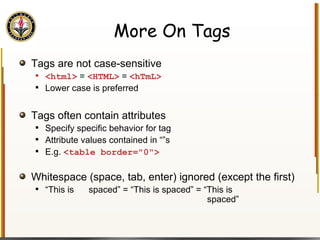
More On Tags Tags are not case-sensitive <html>  =  <HTML>  =  <hTmL> Lower case is preferred Tags often contain attributes Specify specific behavior for tag Attribute values contained in “”s E.g.  <table border=&quot;0&quot;> Whitespace (space, tab, enter) ignored (except the first) “ This is  spaced” = “This is spaced” = “This is    spaced”
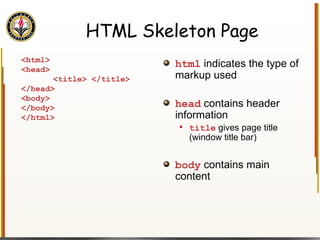
HTML Skeleton Page html  indicates the type of markup used head  contains header information title  gives page title (window title bar) body  contains main content <html> <head> <title> </title> </head> <body> </body> </html>
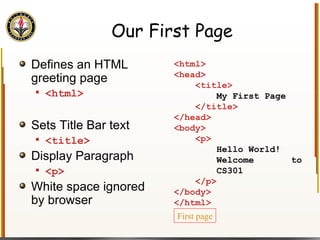
Our First Page Defines an HTML greeting page <html> Sets Title Bar text <title> Display Paragraph <p> White space ignored by browser <html> <head> <title> My First Page </title> </head> <body> <p> Hello World! Welcome  to  CS301 </p> </body> </html> First page
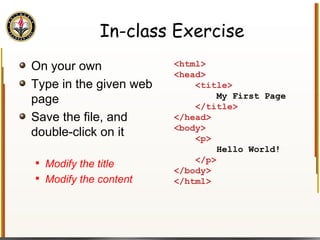
In-class Exercise On your own Type in the given web page Save the file, and double-click on it Modify the title Modify the content <html> <head> <title> My First Page </title> </head> <body> <p> Hello World! </p> </body> </html>
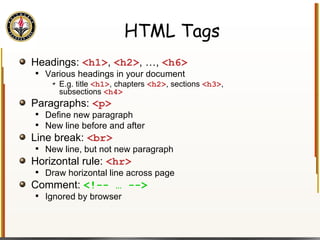
HTML Tags Headings:  <h1> ,  <h2> , …,  <h6> Various headings in your document E.g. title  <h1> , chapters  <h2> , sections  <h3> , subsections  <h4> Paragraphs:  <p> Define new paragraph New line before and after Line break:  <br> New line, but not new paragraph Horizontal rule:  <hr> Draw horizontal line across page Comment:  <!-- … --> Ignored by browser
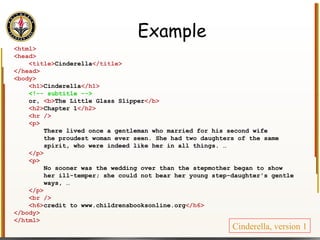
Example <html> <head> <title> Cinderella </title> </head> <body> <h1> Cinderella </h1> <!-- subtitle --> or,  <b> The Little Glass Slipper </b> <h2> Chapter 1 </h2> <hr /> <p> There lived once a gentleman who married for his second wife the proudest woman ever seen. She had two daughters of the same spirit, who were indeed like her in all things. … </p> <p> No sooner was the wedding over than the stepmother began to show her ill-temper; she could not bear her young step-daughter's gentle ways, … </p> <br /> <h6> credit to www.childrensbooksonline.org </h6> </body> </html> Cinderella, version 1
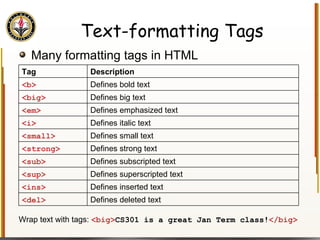
Text-formatting Tags Many formatting tags in HTML Wrap text with tags:  <big> CS301 is a great Jan Term class! </big> Tag Description <b> Defines bold text <big> Defines big text <em> Defines emphasized text  <i> Defines italic text <small> Defines small text <strong> Defines strong text <sub> Defines subscripted text <sup> Defines superscripted text <ins> Defines inserted text <del> Defines deleted text
In-class Exercise Enhance the web page you designed earlier Try some of the different tags listed Give six different formatted versions of “Hello World!” Add comments describing the difference between each version Try nesting some of the tags
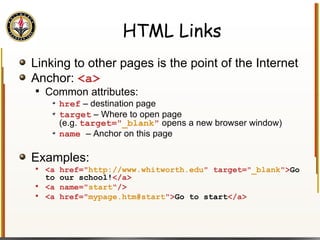
HTML Links Linking to other pages is the point of the Internet Anchor:  <a> Common attributes: href  – destination page target  – Where to open page  (e.g.  target=&quot; _blank &quot;   opens a new browser window) name  – Anchor on this page Examples: <a href=&quot; http://www.whitworth.edu &quot; target=&quot; _blank &quot;> Go to our school! </a> <a name=&quot; start &quot;/> <a href=&quot; mypage.htm#start &quot;> Go to start </a>
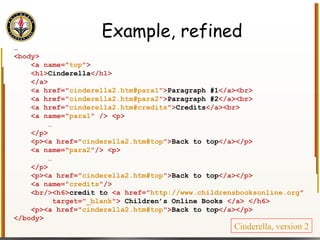
Example, refined … <body> <a name=&quot; top &quot;> <h1> Cinderella </h1> </a> <a href=&quot; cinderella2.htm#para1 &quot;> Paragraph #1 </a><br> <a href=&quot; cinderella2.htm#para2 &quot;> Paragraph #2 </a><br> <a href=&quot; cinderella2.htm#credits &quot;> Credits </a><br> <a name=&quot; para1 &quot; /> <p> … </p> <p><a href=&quot; cinderella2.htm#top &quot;> Back to top </a></p> <a name=&quot; para2 &quot;/> <p> … </p> <p><a href=&quot; cinderella2.htm#top &quot;> Back to top </a></p> <a name=&quot; credits &quot;/> <br/><h6> credit to  <a href=&quot; http://www.childrensbooksonline.org &quot; target=&quot; _blank &quot;>  Children’s Online Books  </a> </h6> <p><a href=&quot; cinderella2.htm#top &quot;> Back to top </a></p> </body> Cinderella, version 2
In-class Exercise Try out anchors Design a new web page that has links to six of your favorite web pages Sort of a “bookmark” page
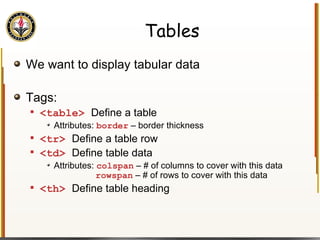
Tables We want to display tabular data Tags: <table>  Define a table Attributes:  border  – border thickness <tr>  Define a table row <td>  Define table data Attributes:  colspan  – # of columns to cover with this data   rowspan  – # of rows to cover with this data <th>  Define table heading
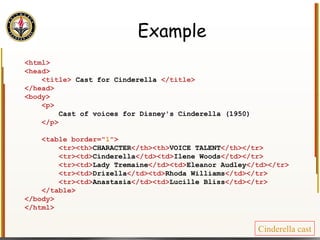
Example <html> <head> <title>  Cast for Cinderella  </title> </head> <body> <p> Cast of voices for Disney's Cinderella (1950) </p> <table border=&quot; 1 &quot;> <tr><th> CHARACTER </th><th> VOICE TALENT </th></tr> <tr><td> Cinderella </td><td> Ilene Woods </td></tr> <tr><td> Lady Tremaine </td><td> Eleanor Audley </td></tr> <tr><td> Drizella </td><td> Rhoda Williams </td></tr> <tr><td> Anastasia </td><td> Lucille Bliss </td></tr> </table> </body> </html> Cinderella cast
In-class Exercise Design a web page that displays the point totals for each quarter and the whole game for three basketball games Get data from  http://sports.espn.go.com/nba/scoreboard
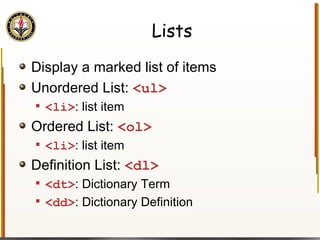
Lists Display a marked list of items Unordered List:  <ul> <li> : list item Ordered List:  <ol> <li> : list item Definition List:  <dl> <dt> : Dictionary Term <dd> : Dictionary Definition
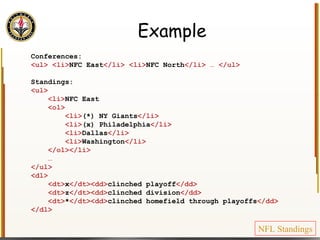
Example Conferences: <ul> <li> NFC East </li> <li> NFC North </li> … </ul> Standings: <ul> <li> NFC East <ol> <li> (*) NY Giants </li> <li> (x) Philadelphia </li> <li> Dallas </li> <li> Washington </li> </ol></li> … </ul> <dl> <dt> x </dt><dd> clinched playoff </dd> <dt> z </dt><dd> clinched division </dd> <dt> * </dt><dd> clinched homefield through playoffs </dd> </dl> NFL Standings
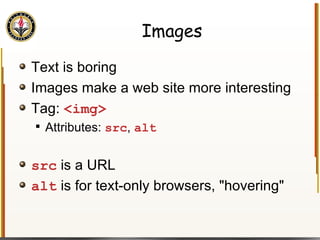
Images Text is boring Images make a web site more interesting Tag:  <img> Attributes:  src ,  alt src  is a URL alt  is for text-only browsers, &quot;hovering&quot;
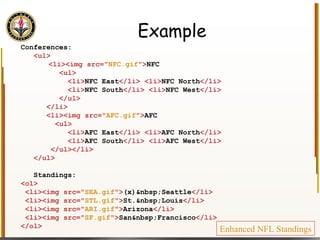
Example Conferences: <ul> <li><img src=&quot; NFC.gif &quot;> NFC <ul> <li> NFC East </li> <li> NFC North </li> <li> NFC South </li> <li> NFC West </li> </ul> </li> <li><img src=&quot; AFC.gif &quot;> AFC <ul> <li> AFC East </li> <li> AFC North </li> <li> AFC South </li> <li> AFC West </li> </ul></li> </ul> Standings: <ol> <li><img src=&quot; SEA.gif &quot;> (x)&nbsp;Seattle </li> <li><img src=&quot; STL.gif &quot;> St.&nbsp;Louis </li> <li><img src=&quot; ARI.gif &quot;> Arizona </li> <li><img src=&quot; SF.gif &quot;> San&nbsp;Francisco </li> </ol> Enhanced NFL Standings
In-class Exercise Modify your basketball scoreboard page Add team logos on the score pages
Images as Links We've seen how to link to other pages <a href=&quot; http://www.whitworth.edu &quot;> Go to Whitworth</a> We've also seen how to put images on the screen <img src=&quot; WhitworthLogo.gif &quot; /> We can put the two together <a href=&quot; http://www.whitworth.edu &quot;>  <img src=&quot; WhitworthLogo.gif &quot; /> </a> <a href=&quot; http://www.whitworth.edu &quot;>  <img src=&quot; WhitworthLogo.gif &quot; /> Go Bucs!  <img src=&quot; WhitworthLogo.gif &quot; /> </a>
In-class Exercise Open the &quot;bookmark&quot; page you constructed Instead of using text for the links,  where appropriate, use an image. Maybe an image is available on that site that makes sense?
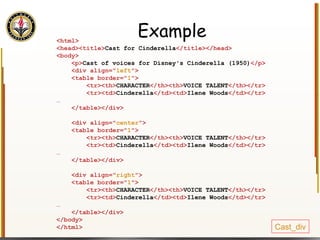
HTML  <div>  tag Defines a generic container Allows us to set up tags as a group (e.g. menu bar, image list, …) Attributes align  ( left ,  center ,  right ,  justify ) class For now, it isn't much help When we learn CSS, styles can be applied to  div It'll come up a bit Thursday
Example <html> <head><title> Cast for Cinderella </title></head> <body> <p> Cast of voices for Disney's Cinderella (1950) </p> <div align=&quot; left &quot;> <table border=&quot; 1 &quot;> <tr><th> CHARACTER </th><th> VOICE TALENT </th></tr> <tr><td> Cinderella </td><td> Ilene Woods </td></tr> … </table></div> <div align=&quot; center &quot;> <table border=&quot; 1 &quot;> <tr><th> CHARACTER </th><th> VOICE TALENT </th></tr> <tr><td> Cinderella </td><td> Ilene Woods </td></tr> … </table></div> <div align=&quot; right &quot;> <table border=&quot; 1 &quot;> <tr><th> CHARACTER </th><th> VOICE TALENT </th></tr> <tr><td> Cinderella </td><td> Ilene Woods </td></tr> … </table></div> </body> </html> Cast_div
HTML Forms Many Internet applications require user input E.g. Search engine pages, customer support, Blogs HTML uses forms to set up user input Many different form controls Tag  <form>  begins a form section Attributes:  name ,  action ,  method ,  id
Form Input Objects Forms need objects to get information from users Usually use  <input>  tag Attributes:  name ,  type ,  value ,  id Type attribute specifies the kind of input object submit ,  text ,  textarea ,  checkbox ,  radio , … We'll discuss these in more detail soon
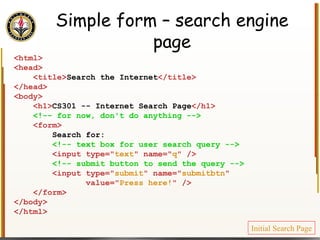
Simple form – search engine page <html> <head> <title> Search the Internet </title> </head> <body> <h1> CS301 -- Internet Search Page </h1> <!-- for now, don't do anything --> <form> Search for: <!-- text box for user search query --> <input type=&quot; text &quot; name=&quot; q &quot; /> <!-- submit button to send the query --> <input type=&quot; submit &quot; name=&quot; submitbtn &quot;  value=&quot; Press here! &quot; /> </form> </body> </html> Initial Search Page
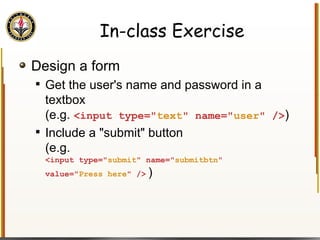
In-class Exercise Design a form  Get the user's name and password in a textbox  (e.g.  <input type=&quot; text &quot; name=&quot; user &quot; /> ) Include a &quot;submit&quot; button (e.g.   <input type=&quot; submit &quot; name=&quot; submitbtn &quot; value=&quot; Press here &quot; />   )
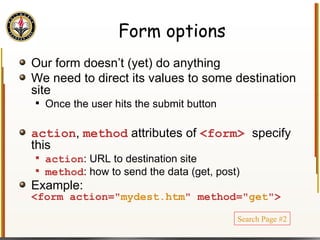
Form options Our form doesn’t (yet) do anything We need to direct its values to some destination site Once the user hits the submit button action ,  method  attributes of  <form>  specify this action : URL to destination site method : how to send the data (get, post) Example: <form action=&quot; mydest.htm &quot; method=&quot; get &quot;> Search Page #2
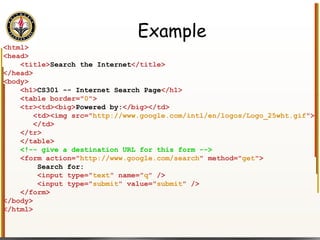
Example <html> <head> <title> Search the Internet </title> </head> <body> <h1> CS301 -- Internet Search Page </h1> <table border=&quot; 0 &quot;> <tr><td><big> Powered by: </big></td> <td><img src=&quot; http://www.google.com/intl/en/logos/Logo_25wht.gif &quot;> </td> </tr> </table> <!-- give a destination URL for this form --> <form action=&quot; http://www.google.com/search &quot; method=&quot; get &quot;> Search for: <input type=&quot; text &quot; name=&quot; q &quot; /> <input type=&quot; submit &quot; value=&quot; submit &quot; /> </form> </body> </html>
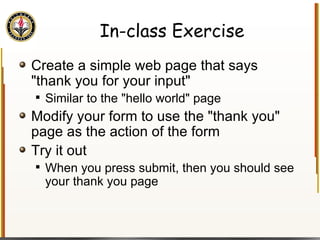
In-class Exercise Create a simple web page that says &quot;thank you for your input&quot; Similar to the &quot;hello world&quot; page Modify your form to use the &quot;thank you&quot; page as the action of the form Try it out When you press submit, then you should see your thank you page
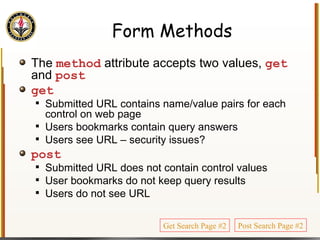
Form Methods The  method  attribute accepts two values,  get  and  post get   Submitted URL contains name/value pairs for each control on web page Users bookmarks contain query answers Users see URL – security issues? post Submitted URL does not contain control values User bookmarks do not keep query results Users do not see URL Get Search Page #2 Post Search Page #2
Form Controls Forms must have more than text boxes and buttons We want check boxes, radio buttons, password fields, multi-line fields, … HTML provides all of these with the  <input>  tag Using the  type  attribute to choose the control Use the  name  attribute to name it (for later)
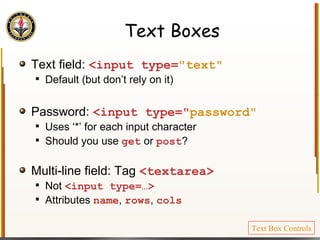
Text Boxes Text field:  <input type= &quot;text&quot; Default (but don’t rely on it) Password:  <input type=&quot; password&quot; Uses ‘*’ for each input character Should you use  get  or  post ? Multi-line field: Tag  <textarea> Not  <input type=…> Attributes  name ,  rows ,  cols Text Box Controls
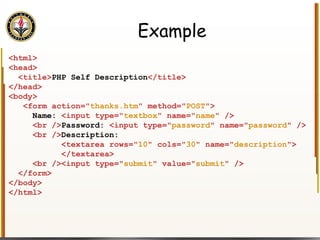
Example <html> <head> <title> PHP Self Description </title> </head> <body> <form action=&quot; thanks.htm &quot; method=&quot; POST &quot;> Name:  <input type=&quot; textbox &quot; name=&quot; name &quot; /> <br /> Password:  <input type=&quot; password &quot; name=&quot; password &quot; /> <br /> Description:  <textarea rows=&quot; 10 &quot; cols=&quot; 30 &quot; name=&quot; description &quot;> </textarea> <br /><input type=&quot; submit &quot; value=&quot; submit &quot; /> </form> </body> </html>
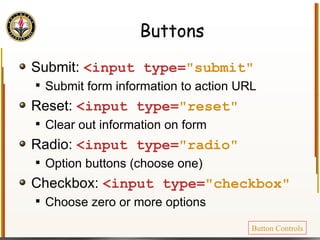
Buttons Submit:  <input type= &quot;submit&quot; Submit form information to action URL Reset:  <input type= &quot;reset&quot; Clear out information on form Radio:  <input type= &quot;radio&quot; Option buttons (choose one) Checkbox:  <input type= &quot;checkbox&quot; Choose zero or more options Button Controls
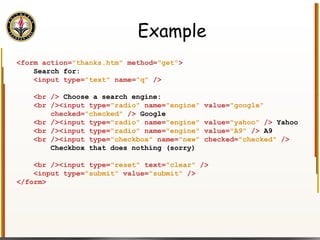
Example <form action= &quot;thanks.htm&quot;  method= &quot;get&quot; > Search for: <input type= &quot;text&quot;  name= &quot;q&quot;  /> <br />  Choose a search engine: <br /><input type= &quot;radio&quot;  name= &quot;engine&quot;  value= &quot;google&quot; checked= &quot;checked&quot;  />  Google <br /><input type= &quot;radio&quot;  name= &quot;engine&quot;  value= &quot;yahoo&quot;  />  Yahoo <br /><input type= &quot;radio&quot;  name= &quot;engine&quot;  value= &quot;A9&quot;  />  A9 <br /><input type= &quot;checkbox&quot;  name= &quot;new&quot;  checked= &quot;checked&quot;  /> Checkbox that does nothing (sorry) <br /><input type= &quot;reset&quot;  text= &quot;clear&quot;  /> <input type= &quot;submit&quot;  value= &quot;submit&quot;  /> </form>
In-class Exercise Design a form that uses radio buttons to list your classes for spring semester Have the user choose the course they're about to attend, then hit submit
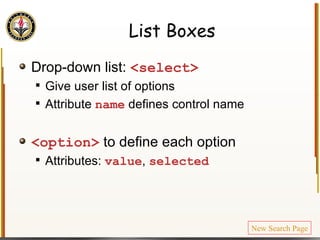
List Boxes Drop-down list:  <select> Give user list of options Attribute  name   defines control name <option>  to define each option Attributes:  value ,  selected New Search Page
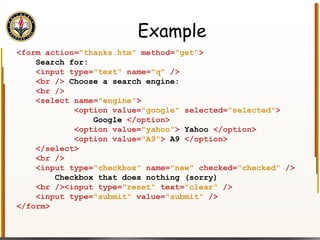
Example <form action= &quot;thanks.htm&quot;  method= &quot;get&quot; > Search for: <input type= &quot;text&quot;  name= &quot;q&quot;  /> <br />  Choose a search engine: <br /> <select name= &quot;engine&quot; > <option value= &quot;google&quot;  selected= &quot;selected&quot; > Google  </option> <option value= &quot;yahoo&quot; >  Yahoo  </option> <option value= &quot;A9&quot; >  A9  </option> </select> <br /> <input type= &quot;checkbox&quot;  name= &quot;new&quot;  checked= &quot;checked&quot;  /> Checkbox that does nothing (sorry) <br /><input type= &quot;reset&quot;  text= &quot;clear&quot;  /> <input type= &quot;submit&quot;  value= &quot;submit&quot;  /> </form>
In-class Exercise Design a form that lists ice cream flavors Ask the user to choose their favorite ice cream
Page and Form Layout Common use for HTML tables is for page layout Generally, programmers have no layout control over their pages E.g. 2-column newspaper We’ll see later that  <div>  is also very useful, especially with CSS border=&quot; 0 &quot;   ( why? ) td  supports  width ,  bgcolor ,  colspan  attributes
Making Forms More Readable Example: Form for a restaurant survey Need to rate things on scale of 1-5 Service Food quality Price Layout
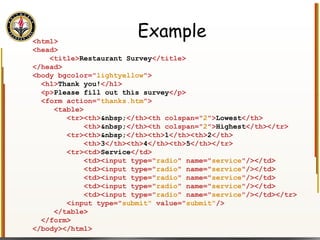
Example <html> <head> <title> Restaurant Survey </title> </head> <body bgcolor=&quot; lightyellow &quot;> <h1> Thank you! </h1> <p> Please fill out this survey </p> <form action=&quot; thanks.htm &quot;> <table> <tr><th> &nbsp; </th><th colspan=&quot; 2 &quot;> Lowest </th> <th> &nbsp; </th><th colspan=&quot; 2 &quot;> Highest </th></tr> <tr><th> &nbsp; </th><th> 1 </th><th> 2 </th> <th> 3 </th><th> 4 </th><th> 5 </th></tr> <tr><td> Service </td> <td><input type=&quot; radio &quot; name=&quot; service &quot;/></td> <td><input type=&quot; radio &quot; name=&quot; service &quot;/></td> <td><input type=&quot; radio &quot; name=&quot; service &quot;/></td> <td><input type=&quot; radio &quot; name=&quot; service &quot;/></td> <td><input type=&quot; radio &quot; name=&quot; service &quot;/></td></tr> <input type=&quot; submit&quot;  value=&quot; submit&quot; /> </table> </form> </body></html>
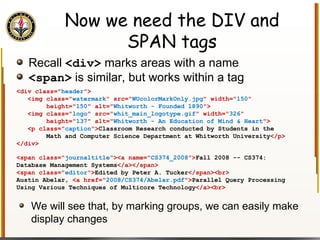
Now we need the DIV and SPAN tags Recall  <div>  marks areas with a name <span>  is similar, but works within a tag <div class=&quot; header &quot;> <img class=&quot; watermark &quot; src=&quot; WUcolorMarkOnly.jpg &quot; width=&quot; 150 &quot; height=&quot; 150 &quot; alt=&quot; Whitworth - Founded 1890 &quot;> <img class=&quot; logo &quot; src=&quot; whit_main_logotype.gif &quot; width=&quot; 326 &quot; height=&quot; 137 &quot; alt=&quot; Whitworth - An Education of Mind & Heart &quot;> <p class=&quot; caption &quot;> Classroom Research conducted by Students in the  Math and Computer Science Department at Whitworth University </p> </div> We will see that, by marking groups, we can easily make display changes <span class=&quot; journaltitle &quot;><a name=&quot; CS374_2008 &quot;> Fall 2008 -- CS374: Database Management Systems </a></span> <span class=&quot; editor &quot;> Edited by Peter A. Tucker </span><br> Austin Abelar,  <a href=&quot; 2008/CS374/Abelar.pdf &quot;> Parallel Query Processing Using Various Techniques of Multicore Technology </a><br>
What is CSS CSS –  Cascading Style Sheets Problem: HTML developers have little control of how things look Modifying a page’s format through HTML can be very messy Solution: Cascading style sheets tell the browser how to display objects Style sheets can be embedded in the HTML file or saved externally We will focus on CSS1 More widely accepted than CSS2
Motivation –  CS Student Research Page Page with a number of papers listed, by class Three versions First , littered with table data tags to place items Second  and  third , same HTML, different style sheets
Next Motivation –  CSS Zen Garden Zen Garden is a great illustration of the power of CSS www.csszengarden.com Let's take a look
CSS Syntax Values in a style sheet have the following syntax: selector {property: value} Where: selector : the HTML tag to specify property : the property of tag to set value : the new value for that tag’s property Semi-colon delimited list ( tag {p1: v1; p2: v2; …} )
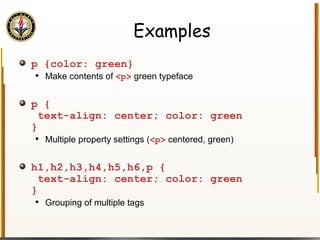
Examples p {color: green} Make contents of  <p>  green typeface p {  text-align: center; color: green } Multiple property settings ( <p>  centered, green) h1,h2,h3,h4,h5,h6,p {  text-align: center; color: green } Grouping of multiple tags
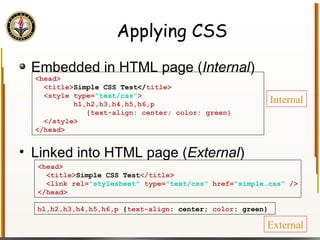
Applying CSS Embedded in HTML page ( Internal ) Linked into HTML page ( External ) <head> <title> Simple CSS Test</ title> <style type= &quot;text/css&quot; > h1,h2,h3,h4,h5,h6,p {text-align: center; color: green} </style> </head> <head> <title> Simple CSS Test </title> <link rel= &quot;stylesheet&quot;  type= &quot;text/css&quot;  href= &quot;simple.css&quot;  /> </head> Internal External h1,h2,h3,h4,h5,h6,p  { text-align : center;  color : green}
In-class Exercise Construct a style sheet internally to one of your existing web pages Choose tags, and some color Reload it in a browser Construct an external style sheet Write it using any text editor  (notepad, Expression Web, VS.NET, …) Link it into another one of your existing web pages Hang onto these files for later work
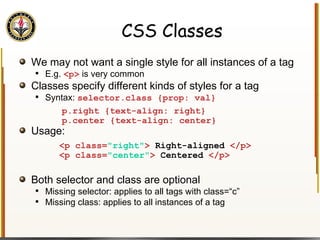
CSS Classes We may not want a single style for all instances of a tag E.g.  <p>  is very common Classes specify different kinds of styles for a tag Syntax:  selector.class {prop: val} Usage: Both selector and class are optional Missing selector: applies to all tags with class=“c” Missing class: applies to all instances of a tag p.right {text-align: right} p.center {text-align: center}  <p class= &quot;right&quot; >  Right-aligned  </p> <p class= &quot;center&quot; >  Centered  </p>
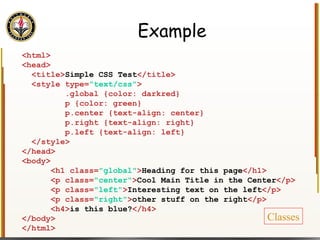
Example <html> <head> <title> Simple CSS Test </title> <style type= &quot;text/css&quot; > .global {color: darkred} p {color: green} p.center {text-align: center} p.right {text-align: right} p.left {text-align: left} </style> </head> <body> <h1 class= &quot;global&quot; > Heading for this page </h1> <p class= &quot;center&quot; > Cool Main Title in the Center </p> <p class= &quot;left&quot; > Interesting text on the left </p> <p class= &quot;right&quot; > other stuff on the right </p> <h4> is this blue? </h4> </body> </html> Classes
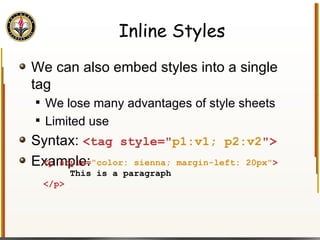
Inline Styles We can also embed styles into a single tag We lose many advantages of style sheets Limited use Syntax:  <tag style=&quot; p1:v1; p2:v2 &quot;> Example: <p style= &quot;color: sienna; margin-left: 20px&quot; > This is a paragraph </p>
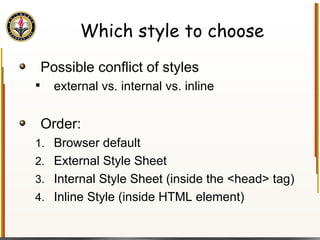
Which style to choose Possible conflict of styles external vs. internal vs. inline Order: Browser default  External Style Sheet  Internal Style Sheet (inside the <head> tag)  Inline Style (inside HTML element)
OK, Now We Need Specifics We know how to use CSS Real Power – one CSS file controls pages on entire site Easy to update entire look What are the possibilities? What properties can be set for various tags?
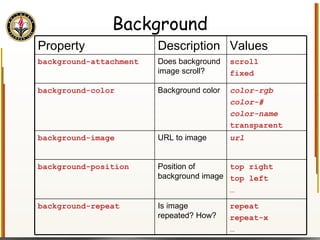
Background Property Description Values background-attachment Does background image scroll? scroll fixed background-color Background color color-rgb color-# color-name transparent background-image URL to image url background-position Position of background image top right top left … background-repeat Is image repeated? How? repeat repeat-x …
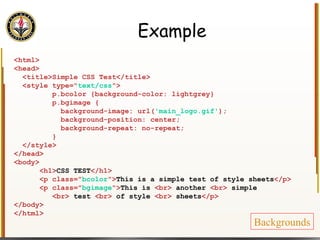
Example <html> <head> <title>Simple CSS Test</title> <style type=&quot; text/css &quot;> p.bcolor {background-color: lightgrey} p.bgimage { background-image: url( 'main_logo.gif' ); background-position: center; background-repeat: no-repeat; } </style> </head> <body> <h1> CSS TEST </h1> <p class=&quot; bcolor &quot;> This is a simple test of style sheets </p> <p class=&quot; bgimage &quot;> This is  <br>  another  <br>  simple <br>  test  <br>  of style  <br>  sheets </p> </body> </html> Backgrounds
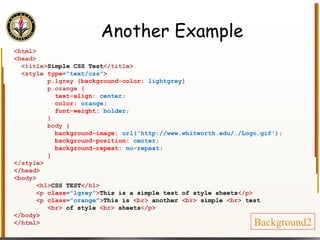
Another Example <html> <head> <title> Simple CSS Test </title> <style  type =&quot;text/css&quot; > p.lgrey { background-color:  lightgrey } p.orange { text-align:  center ;  color:  orange ; font-weight:  bolder ; } body { background-image:  url('http://www.whitworth.edu/…/Logo.gif') ; background-position:  center ; background-repeat:  no-repeat ; } </style> </head> <body> <h1> CSS TEST </h1> <p  class =&quot;lgrey&quot; > This is a simple test of style sheets </p> <p  class =&quot;orange&quot; > This is  <br>  another  <br>  simple  <br>  test  <br>  of style  <br>  sheets </p> </body> </html> Background2
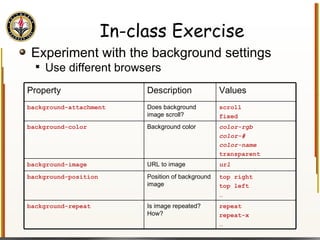
In-class Exercise Experiment with the background settings Use different browsers Property Description Values background-attachment Does background image scroll? scroll fixed background-color Background color color-rgb color-# color-name transparent background-image URL to image url background-position Position of background image top right top left … background-repeat Is image repeated? How? repeat repeat-x …
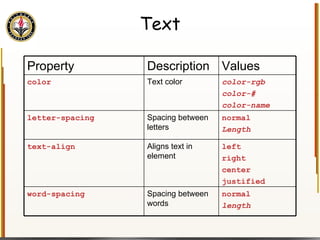
Text Property Description Values color Text color color-rgb color-# color-name letter-spacing Spacing between letters normal Length text-align Aligns text in element left right center justified word-spacing Spacing between words normal length
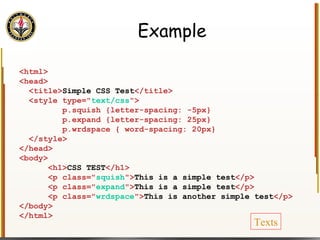
Example <html> <head> <title> Simple CSS Test </title> <style type=&quot; text/css &quot;> p.squish {letter-spacing: -5px} p.expand {letter-spacing: 25px} p.wrdspace { word-spacing: 20px} </style> </head> <body> <h1> CSS TEST </h1> <p class=&quot; squish &quot;> This is a simple test </p> <p class=&quot; expand &quot;> This is a simple test </p> <p class=&quot; wrdspace &quot;> This is another simple test </p> </body> </html> Texts
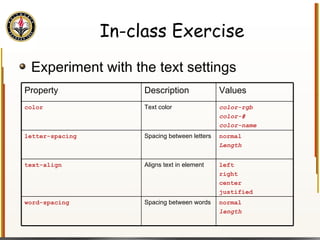
In-class Exercise Experiment with the text settings Property Description Values color Text color color-rgb color-# color-name letter-spacing Spacing between letters normal Length text-align Aligns text in element left right center justified word-spacing Spacing between words normal length
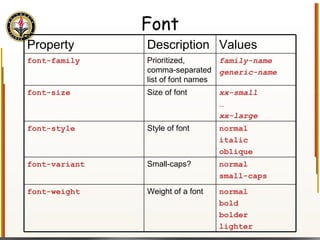
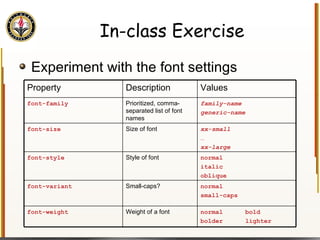
Font Property Description Values font-family Prioritized, comma-separated list of font names family-name generic-name font-size Size of font xx-small … xx-large font-style Style of font normal italic oblique font-variant Small-caps? normal small-caps font-weight Weight of a font normal bold bolder lighter
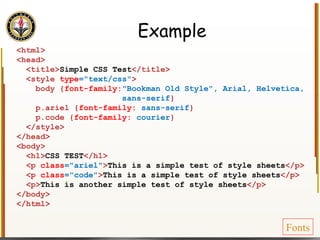
Example <html> <head> <title> Simple CSS Test </title> <style  type =&quot;text/css&quot; > body { font-family: &quot;Bookman Old Style&quot;, Arial, Helvetica, sans-serif } p.ariel { font-family:  sans-serif } p.code { font-family:  courier } </style> </head> <body> <h1> CSS TEST </h1> <p  class =&quot;ariel&quot; > This is a simple test of style sheets </p> <p  class =&quot;code&quot; > This is a simple test of style sheets </p> <p> This is another simple test of style sheets </p> </body> </html> Fonts
In-class Exercise Experiment with the font settings Property Description Values font-family Prioritized, comma-separated list of font names family-name generic-name font-size Size of font xx-small … xx-large font-style Style of font normal italic oblique font-variant Small-caps? normal small-caps font-weight Weight of a font normal  bold bolder  lighter
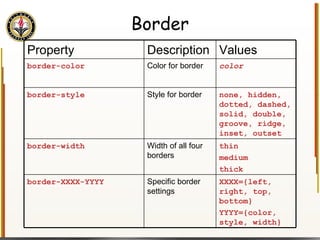
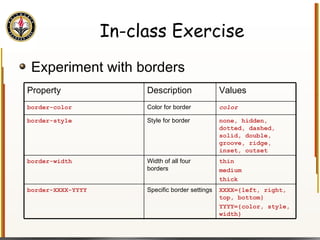
Border Property Description Values border-color Color for border color border-style Style for border none, hidden, dotted, dashed, solid, double, groove, ridge, inset, outset border-width Width of all four borders thin medium thick border-XXXX-YYYY Specific border settings XXXX={left, right, top, bottom} YYYY={color, style, width}
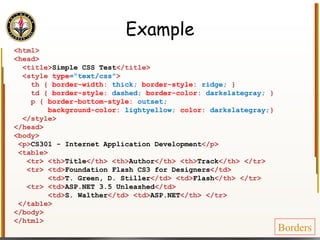
Example <html> <head> <title> Simple CSS Test </title> <style  type =&quot;text/css&quot; > th {  border-width : thick;  border-style : ridge;  } td {  border-style :  dashed;   border-color : darkslategray;  } p {  border-bottom-style :  outset; background-color :  lightyellow;  color :  darkslategray; } </style> </head> <body> <p> CS301 - Internet Application Development </p> <table> <tr> <th> Title </th> <th> Author </th> <th> Track </th> </tr> <tr> <td> Foundation Flash CS3 for Designers </td> <td> T. Green, D. Stiller </td> <td> Flash </th> </tr> <tr> <td> ASP.NET 3.5 Unleashed </td> <td> S. Walther </td> <td> ASP.NET </th> </tr> </table> </body> </html> Borders
In-class Exercise Experiment with borders Property Description Values border-color Color for border color border-style Style for border none, hidden, dotted, dashed, solid, double, groove, ridge, inset, outset border-width Width of all four borders thin medium thick border-XXXX-YYYY Specific border settings XXXX={left, right, top, bottom} YYYY={color, style, width}
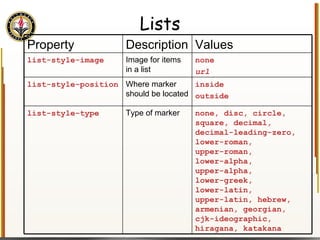
Lists Property Description Values list-style-image Image for items in a list none url list-style-position Where marker should be located inside outside list-style-type Type of marker none, disc, circle, square, decimal, decimal-leading-zero, lower-roman,  upper-roman, lower-alpha, upper-alpha, lower-greek, lower-latin, upper-latin, hebrew, armenian, georgian, cjk-ideographic, hiragana, katakana
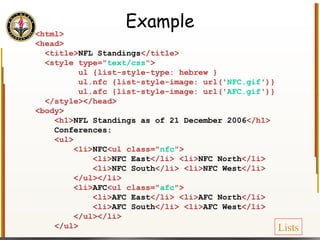
Example <html> <head> <title> NFL Standings </title> <style type=&quot; text/css &quot;> ul {list-style-type: hebrew } ul.nfc {list-style-image: url(' NFC.gif ')} ul.afc {list-style-image: url(' AFC.gif ')} </style></head> <body> <h1> NFL Standings as of 21 December 2006 </h1> Conferences: <ul> <li> NFC <ul class=&quot; nfc &quot;> <li> NFC East </li> <li> NFC North </li> <li> NFC South </li> <li> NFC West </li> </ul></li> <li> AFC <ul class=&quot; afc &quot;> <li> AFC East </li> <li> AFC North </li> <li> AFC South </li> <li> AFC West </li> </ul></li> </ul> Lists
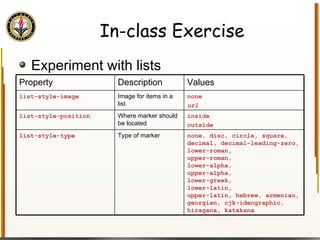
In-class Exercise Experiment with lists Property Description Values list-style-image Image for items in a list none url list-style-position Where marker should be located inside outside list-style-type Type of marker none, disc, circle, square, decimal, decimal-leading-zero, lower-roman,  upper-roman, lower-alpha, upper-alpha, lower-greek, lower-latin, upper-latin, hebrew, armenian, georgian, cjk-ideographic, hiragana, katakana
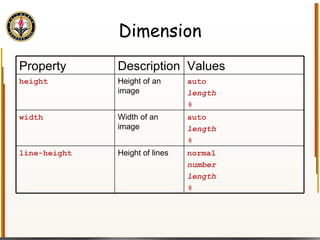
Dimension Property Description Values height Height of an image auto length % width Width of an image auto length % line-height Height of lines normal number length %
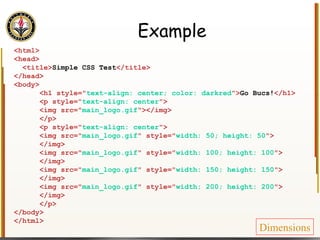
Example <html> <head> <title> Simple CSS Test </title> </head> <body> <h1 style=&quot; text-align: center; color: darkred &quot;> Go Bucs! </h1> <p style=&quot; text-align: center &quot;> <img src=&quot; main_logo.gif &quot;></img> </p> <p style=&quot; text-align: center &quot;> <img src=&quot; main_logo.gif &quot; style=&quot; width: 50; height: 50 &quot;> </img> <img src=&quot; main_logo.gif &quot; style=&quot; width: 100; height: 100 &quot;> </img> <img src=&quot; main_logo.gif &quot; style=&quot; width: 150; height: 150 &quot;> </img> <img src=&quot; main_logo.gif &quot; style=&quot; width: 200; height: 200 &quot;> </img> </p> </body> </html> Dimensions
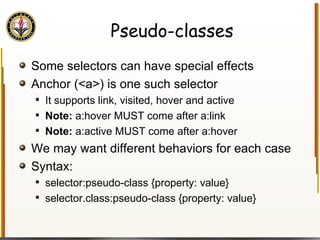
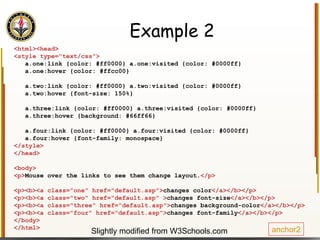
Pseudo-classes Some selectors can have special effects Anchor (<a>) is one such selector It supports link, visited, hover and active Note:  a:hover MUST come after a:link Note:  a:active MUST come after a:hover We may want different behaviors for each case Syntax: selector:pseudo-class {property: value} selector.class:pseudo-class {property: value}
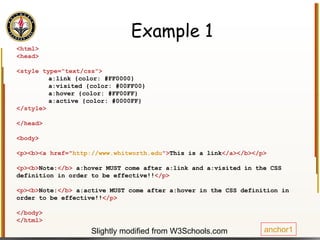
Example 1 <html> <head> <style type=&quot;text/css&quot;> a:link {color: #FF0000} a:visited {color: #00FF00} a:hover {color: #FF00FF} a:active {color: #0000FF} </style> </head> <body> <p><b><a href=&quot; http://www.whitworth.edu &quot;> This is a link </a></b></p> <p><b> Note: </b>  a:hover MUST come after a:link and a:visited in the CSS definition in order to be effective!! </p> <p><b> Note: </b>  a:active MUST come after a:hover in the CSS definition in order to be effective!! </p> </body> </html> Slightly modified from W3Schools.com anchor1
Example 2 <html><head> <style type=&quot;text/css&quot;> a.one:link {color: #ff0000} a.one:visited {color: #0000ff} a.one:hover {color: #ffcc00} a.two:link {color: #ff0000} a.two:visited {color: #0000ff} a.two:hover {font-size: 150%} a.three:link {color: #ff0000} a.three:visited {color: #0000ff} a.three:hover {background: #66ff66} a.four:link {color: #ff0000} a.four:visited {color: #0000ff} a.four:hover {font-family: monospace} </style> </head> <body> <p> Mouse over the links to see them change layout. </p> <p><b><a class=&quot;one&quot; href=&quot;default.asp&quot;> changes color </a></b></p> <p><b><a class=&quot;two&quot; href=&quot;default.asp&quot; > changes font-size </a></b></p> <p><b><a class=&quot;three&quot; href=&quot;default.asp&quot;> changes background-color </a></b></p> <p><b><a class=&quot;four&quot; href=&quot;default.asp&quot;> changes font-family </a></b></p> </body> </html> anchor2 Slightly modified from W3Schools.com
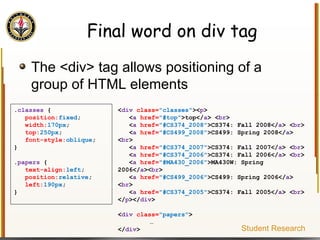
Final word on div tag The <div> tag allows positioning of a group of HTML elements . classes  { position: fixed ; width: 170px ; top: 250px ; font-style: oblique ; } . papers  { text-align: left ; position: relative ; left: 190px ; } < div   class= &quot;classes&quot; >< p > < a   href= &quot;#top&quot; >top</ a > < br > < a   href= &quot;#CS374_2008&quot; >CS374: Fall 2008</ a > < br > < a   href= &quot;#CS499_2008&quot; >CS499: Spring 2008</ a > < br > < a   href= &quot;#CS374_2007&quot; >CS374: Fall 2007</ a > < br > < a   href= &quot;#CS374_2006&quot; >CS374: Fall 2006</ a > < br > < a   href= &quot;#MA430_2006&quot; >MA430W: Spring 2006</ a >< br > < a   href= &quot;#CS499_2006&quot; >CS499: Spring 2006</ a > < br > < a   href= &quot;#CS374_2005&quot; >CS374: Fall 2005</ a > < br > </ p ></ div > < div   class= &quot;papers&quot; > … </ div > Student Research
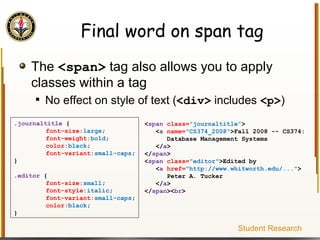
Final word on span tag The  <span>  tag also allows you to apply classes within a tag No effect on style of text ( <div>  includes  <p> ) . journaltitle  { font-size: large ; font-weight: bold ; color: black ; font-variant: small-caps ; } . editor  { font-size: small ; font-style: italic ; font-variant: small-caps ; color: black ; } < span   class= &quot;journaltitle&quot; > < a   name= &quot;CS374_2008&quot; >Fall 2008 -- CS374: Database Management Systems </ a > </ span > < span   class= &quot;editor&quot; >Edited by  < a   href= &quot;http://www.whitworth.edu/...&quot; > Peter A. Tucker </ a > </ span >< br > Student Research
We want to control what happens with form data Currently our form just sends results to Google It's more fun if we can control how the data is processed We sure don't want login information to go to Google We would really like to store customer information in our own database For example, what if users could select their search engine? We need a way to respond to form inputs Must happen on the server Many server-side options:  Perl, PHP, Python, ASP.NET We’ll take a quick tour of PHP to handle our form results
Server basics HTML file is requested by user Request travels over internet Internet server locates file and responds Internet Internet Server Software file.html <html> <body> <p>Hello World!</p> </script> </body> </html>
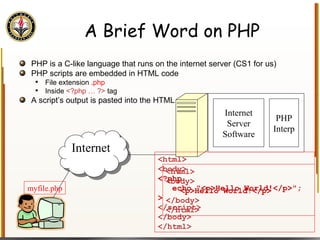
A Brief Word on PHP PHP is a C-like language that runs on the internet server (CS1 for us) PHP scripts are embedded in HTML code File extension  .php Inside  <?php … ?>  tag A script’s output is pasted into the HTML Internet Internet Server Software PHP Interp myfile.php <html> <body> <p>Hello World!</p> </body> </html>  <html> <body> <?php echo &quot;<p>Hello World!</p>&quot;; >  </script> </body> </html>
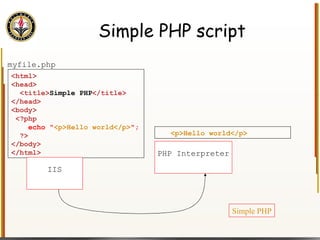
Simple PHP script <html> <head> <title> Simple PHP </title> </head> <body> </body> </html> Simple PHP <p>Hello world</p> PHP Interpreter <?php echo &quot; <p>Hello world</p> &quot;; ?> IIS myfile.php
Main Motivation –  Processing Form Data We really want that data that users gave us Don’t just send it to Google! The input names will be useful We can use $_REQUEST to read that data
Handling Input Example <html> <head> <title> Simple PHP </title> </head> <body> <?php echo  &quot;<p>Hello world</p>\n&quot;; if  (isset($_REQUEST[&quot;name&quot;])) { echo  &quot;<p>Welcome back &quot;  . $_REQUEST[&quot;name&quot;]; } else  { ?> <form action=&quot;name.php&quot; method=&quot;GET&quot;> <input type=&quot;textbox&quot; name=&quot;name&quot;> <br /><input type=&quot;submit&quot; value=&quot;Login&quot;> </form> <?php } ?> </body> </html> Name PHP
Scripting on the Client We would like an interactive web page For example, input validation HTML is static Nothing changes Server-side scripting gave some interactivity But required trips to the server and back Client-side scripting languages give us more flexibility Processed by  browser  – no trips to the server and back Many languages (VBScript, JavaScript, DHTML) We’ll focus on JavaScript
JavaScript Basics JavaScript is a simple programming language It is  not   Java JavaScript is embedded in HTML Most browsers support JavaScript Though not all!
What can we do in JavaScript? JavaScript is a programming language for HTML developers Like us JavaScript can … dynamically put text into an HTML page react to events read and write HTML elements be used to validate data
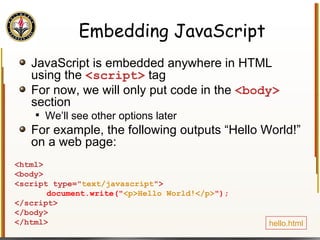
Embedding JavaScript JavaScript is embedded anywhere in HTML using the  <script>  tag For now, we will only put code in the  <body>  section We’ll see other options later For example, the following outputs “Hello World!” on a web page: <html> <body> <script type=&quot; text/javascript &quot;> document.write(&quot; <p>Hello World!</p> &quot;); </script> </body> </html>  hello.html
Input Validation OK, now for the most common use for JavaScript A form has a number of fields Some are required, others are not If we send all the data to the server, then validate, we waste time If there is invalid input, then we should try to catch it before going to the server JavaScript can do this for us
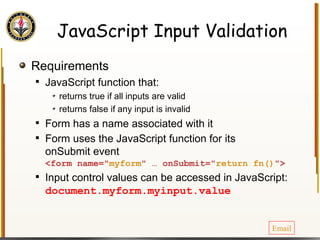
JavaScript Input Validation Requirements JavaScript function that: returns true if all inputs are valid returns false if any input is invalid Form has a name associated with it Form uses the JavaScript function for its onSubmit event <form name=&quot; myform &quot; … onSubmit=&quot; return fn() &quot;> Input control values can be accessed in JavaScript: document.myform.myinput.value Email
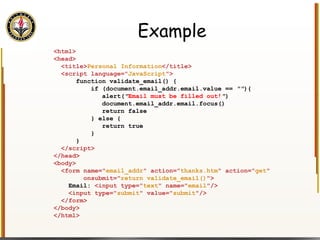
Example <html> <head>   <title> Personal Information </title>   <script language=&quot; JavaScript &quot;>   function validate_email() {   if (document.email_addr.email.value ==  &quot;&quot; ){   alert( &quot; Email must be filled out! &quot; )   document.email_addr.email.focus()   return false   } else {   return true   }   }   </script> </head> <body> <form name=&quot; email_addr &quot; action=&quot; thanks.htm &quot; action=&quot; get &quot;  onsubmit=&quot; return validate_email() &quot;> Email:  <input type=&quot; text &quot; name=&quot; email &quot;/> <input type=&quot; submit &quot; value=&quot; submit &quot;/> </form> </body> </html>

HTML & CSS

  • 1.
    HTML and CSSby Peter Tucker Associate Professor of Math and Computer Science Whitworth University As presented February 2009 to Online J-Lab
  • 2.
    Markup Languages A markup language embeds tags within regular text Text file -> edit with notepad SGML – Standard Generalized Markup Language Generic language conceived in the 60’s Language to separate content and structure Elements identify text objects HTML – Hypertext Markup Language Based on SGML Most common markup language for Internet pages XML – Extensible Markup Language Also based on SGML Very flexible Commonly used for information exchange
  • 3.
    HTML Editors HTMLFiles are simply text files Notepad and WordPad are fine text editors Emacs and XEmacs are good, and also work in Linux Many freeware HTML editors exist CoffeeCup is a good free version (and better commercial version…) Many others: search for “HTML Editor” on www.download.com Be sure to check the licensing agreements Commercial software Microsoft Expression Studio is on these machines Macromedia DreamWeaver is on these machines Visual Studio is also on these machines
  • 4.
    Server basics HTMLfile is requested by user Request travels over internet to proper machine Internet server computer locates file and responds Internet Internet Server Software file.html <html>...
  • 5.
    Markup Tags Tags are used to separate structure from content Usually placed inside < > E.g. <html> defines the start of an HTML page Closed with </ > E.g. </html> closes an HTML page Generally: <tag> content </tag> content is processed/displayed according to the meaning of tag Tags may be nested <tag> content <tag2> more </tag2> more </tag> Nesting must be &quot;balanced&quot; Tags with no content can optionally close themselves E.g. <br /> same as <br> </br>
  • 6.
    More On TagsTags are not case-sensitive <html> = <HTML> = <hTmL> Lower case is preferred Tags often contain attributes Specify specific behavior for tag Attribute values contained in “”s E.g. <table border=&quot;0&quot;> Whitespace (space, tab, enter) ignored (except the first) “ This is spaced” = “This is spaced” = “This is spaced”
  • 7.
    HTML Skeleton Pagehtml indicates the type of markup used head contains header information title gives page title (window title bar) body contains main content <html> <head> <title> </title> </head> <body> </body> </html>
  • 8.
    Our First PageDefines an HTML greeting page <html> Sets Title Bar text <title> Display Paragraph <p> White space ignored by browser <html> <head> <title> My First Page </title> </head> <body> <p> Hello World! Welcome to CS301 </p> </body> </html> First page
  • 9.
    In-class Exercise Onyour own Type in the given web page Save the file, and double-click on it Modify the title Modify the content <html> <head> <title> My First Page </title> </head> <body> <p> Hello World! </p> </body> </html>
  • 10.
    HTML Tags Headings: <h1> , <h2> , …, <h6> Various headings in your document E.g. title <h1> , chapters <h2> , sections <h3> , subsections <h4> Paragraphs: <p> Define new paragraph New line before and after Line break: <br> New line, but not new paragraph Horizontal rule: <hr> Draw horizontal line across page Comment: <!-- … --> Ignored by browser
  • 11.
    Example <html> <head><title> Cinderella </title> </head> <body> <h1> Cinderella </h1> <!-- subtitle --> or, <b> The Little Glass Slipper </b> <h2> Chapter 1 </h2> <hr /> <p> There lived once a gentleman who married for his second wife the proudest woman ever seen. She had two daughters of the same spirit, who were indeed like her in all things. … </p> <p> No sooner was the wedding over than the stepmother began to show her ill-temper; she could not bear her young step-daughter's gentle ways, … </p> <br /> <h6> credit to www.childrensbooksonline.org </h6> </body> </html> Cinderella, version 1
  • 12.
    Text-formatting Tags Manyformatting tags in HTML Wrap text with tags: <big> CS301 is a great Jan Term class! </big> Tag Description <b> Defines bold text <big> Defines big text <em> Defines emphasized text  <i> Defines italic text <small> Defines small text <strong> Defines strong text <sub> Defines subscripted text <sup> Defines superscripted text <ins> Defines inserted text <del> Defines deleted text
  • 13.
    In-class Exercise Enhancethe web page you designed earlier Try some of the different tags listed Give six different formatted versions of “Hello World!” Add comments describing the difference between each version Try nesting some of the tags
  • 14.
    HTML Links Linkingto other pages is the point of the Internet Anchor: <a> Common attributes: href – destination page target – Where to open page (e.g. target=&quot; _blank &quot; opens a new browser window) name – Anchor on this page Examples: <a href=&quot; http://www.whitworth.edu &quot; target=&quot; _blank &quot;> Go to our school! </a> <a name=&quot; start &quot;/> <a href=&quot; mypage.htm#start &quot;> Go to start </a>
  • 15.
    Example, refined …<body> <a name=&quot; top &quot;> <h1> Cinderella </h1> </a> <a href=&quot; cinderella2.htm#para1 &quot;> Paragraph #1 </a><br> <a href=&quot; cinderella2.htm#para2 &quot;> Paragraph #2 </a><br> <a href=&quot; cinderella2.htm#credits &quot;> Credits </a><br> <a name=&quot; para1 &quot; /> <p> … </p> <p><a href=&quot; cinderella2.htm#top &quot;> Back to top </a></p> <a name=&quot; para2 &quot;/> <p> … </p> <p><a href=&quot; cinderella2.htm#top &quot;> Back to top </a></p> <a name=&quot; credits &quot;/> <br/><h6> credit to <a href=&quot; http://www.childrensbooksonline.org &quot; target=&quot; _blank &quot;> Children’s Online Books </a> </h6> <p><a href=&quot; cinderella2.htm#top &quot;> Back to top </a></p> </body> Cinderella, version 2
  • 16.
    In-class Exercise Tryout anchors Design a new web page that has links to six of your favorite web pages Sort of a “bookmark” page
  • 17.
    Tables We wantto display tabular data Tags: <table> Define a table Attributes: border – border thickness <tr> Define a table row <td> Define table data Attributes: colspan – # of columns to cover with this data rowspan – # of rows to cover with this data <th> Define table heading
  • 18.
    Example <html> <head><title> Cast for Cinderella </title> </head> <body> <p> Cast of voices for Disney's Cinderella (1950) </p> <table border=&quot; 1 &quot;> <tr><th> CHARACTER </th><th> VOICE TALENT </th></tr> <tr><td> Cinderella </td><td> Ilene Woods </td></tr> <tr><td> Lady Tremaine </td><td> Eleanor Audley </td></tr> <tr><td> Drizella </td><td> Rhoda Williams </td></tr> <tr><td> Anastasia </td><td> Lucille Bliss </td></tr> </table> </body> </html> Cinderella cast
  • 19.
    In-class Exercise Designa web page that displays the point totals for each quarter and the whole game for three basketball games Get data from http://sports.espn.go.com/nba/scoreboard
  • 20.
    Lists Display amarked list of items Unordered List: <ul> <li> : list item Ordered List: <ol> <li> : list item Definition List: <dl> <dt> : Dictionary Term <dd> : Dictionary Definition
  • 21.
    Example Conferences: <ul><li> NFC East </li> <li> NFC North </li> … </ul> Standings: <ul> <li> NFC East <ol> <li> (*) NY Giants </li> <li> (x) Philadelphia </li> <li> Dallas </li> <li> Washington </li> </ol></li> … </ul> <dl> <dt> x </dt><dd> clinched playoff </dd> <dt> z </dt><dd> clinched division </dd> <dt> * </dt><dd> clinched homefield through playoffs </dd> </dl> NFL Standings
  • 22.
    Images Text isboring Images make a web site more interesting Tag: <img> Attributes: src , alt src is a URL alt is for text-only browsers, &quot;hovering&quot;
  • 23.
    Example Conferences: <ul><li><img src=&quot; NFC.gif &quot;> NFC <ul> <li> NFC East </li> <li> NFC North </li> <li> NFC South </li> <li> NFC West </li> </ul> </li> <li><img src=&quot; AFC.gif &quot;> AFC <ul> <li> AFC East </li> <li> AFC North </li> <li> AFC South </li> <li> AFC West </li> </ul></li> </ul> Standings: <ol> <li><img src=&quot; SEA.gif &quot;> (x)&nbsp;Seattle </li> <li><img src=&quot; STL.gif &quot;> St.&nbsp;Louis </li> <li><img src=&quot; ARI.gif &quot;> Arizona </li> <li><img src=&quot; SF.gif &quot;> San&nbsp;Francisco </li> </ol> Enhanced NFL Standings
  • 24.
    In-class Exercise Modifyyour basketball scoreboard page Add team logos on the score pages
  • 25.
    Images as LinksWe've seen how to link to other pages <a href=&quot; http://www.whitworth.edu &quot;> Go to Whitworth</a> We've also seen how to put images on the screen <img src=&quot; WhitworthLogo.gif &quot; /> We can put the two together <a href=&quot; http://www.whitworth.edu &quot;> <img src=&quot; WhitworthLogo.gif &quot; /> </a> <a href=&quot; http://www.whitworth.edu &quot;> <img src=&quot; WhitworthLogo.gif &quot; /> Go Bucs! <img src=&quot; WhitworthLogo.gif &quot; /> </a>
  • 26.
    In-class Exercise Openthe &quot;bookmark&quot; page you constructed Instead of using text for the links, where appropriate, use an image. Maybe an image is available on that site that makes sense?
  • 27.
    HTML <div> tag Defines a generic container Allows us to set up tags as a group (e.g. menu bar, image list, …) Attributes align ( left , center , right , justify ) class For now, it isn't much help When we learn CSS, styles can be applied to div It'll come up a bit Thursday
  • 28.
    Example <html> <head><title>Cast for Cinderella </title></head> <body> <p> Cast of voices for Disney's Cinderella (1950) </p> <div align=&quot; left &quot;> <table border=&quot; 1 &quot;> <tr><th> CHARACTER </th><th> VOICE TALENT </th></tr> <tr><td> Cinderella </td><td> Ilene Woods </td></tr> … </table></div> <div align=&quot; center &quot;> <table border=&quot; 1 &quot;> <tr><th> CHARACTER </th><th> VOICE TALENT </th></tr> <tr><td> Cinderella </td><td> Ilene Woods </td></tr> … </table></div> <div align=&quot; right &quot;> <table border=&quot; 1 &quot;> <tr><th> CHARACTER </th><th> VOICE TALENT </th></tr> <tr><td> Cinderella </td><td> Ilene Woods </td></tr> … </table></div> </body> </html> Cast_div
  • 29.
    HTML Forms ManyInternet applications require user input E.g. Search engine pages, customer support, Blogs HTML uses forms to set up user input Many different form controls Tag <form> begins a form section Attributes: name , action , method , id
  • 30.
    Form Input ObjectsForms need objects to get information from users Usually use <input> tag Attributes: name , type , value , id Type attribute specifies the kind of input object submit , text , textarea , checkbox , radio , … We'll discuss these in more detail soon
  • 31.
    Simple form –search engine page <html> <head> <title> Search the Internet </title> </head> <body> <h1> CS301 -- Internet Search Page </h1> <!-- for now, don't do anything --> <form> Search for: <!-- text box for user search query --> <input type=&quot; text &quot; name=&quot; q &quot; /> <!-- submit button to send the query --> <input type=&quot; submit &quot; name=&quot; submitbtn &quot; value=&quot; Press here! &quot; /> </form> </body> </html> Initial Search Page
  • 32.
    In-class Exercise Designa form Get the user's name and password in a textbox (e.g. <input type=&quot; text &quot; name=&quot; user &quot; /> ) Include a &quot;submit&quot; button (e.g. <input type=&quot; submit &quot; name=&quot; submitbtn &quot; value=&quot; Press here &quot; /> )
  • 33.
    Form options Ourform doesn’t (yet) do anything We need to direct its values to some destination site Once the user hits the submit button action , method attributes of <form> specify this action : URL to destination site method : how to send the data (get, post) Example: <form action=&quot; mydest.htm &quot; method=&quot; get &quot;> Search Page #2
  • 34.
    Example <html> <head><title> Search the Internet </title> </head> <body> <h1> CS301 -- Internet Search Page </h1> <table border=&quot; 0 &quot;> <tr><td><big> Powered by: </big></td> <td><img src=&quot; http://www.google.com/intl/en/logos/Logo_25wht.gif &quot;> </td> </tr> </table> <!-- give a destination URL for this form --> <form action=&quot; http://www.google.com/search &quot; method=&quot; get &quot;> Search for: <input type=&quot; text &quot; name=&quot; q &quot; /> <input type=&quot; submit &quot; value=&quot; submit &quot; /> </form> </body> </html>
  • 35.
    In-class Exercise Createa simple web page that says &quot;thank you for your input&quot; Similar to the &quot;hello world&quot; page Modify your form to use the &quot;thank you&quot; page as the action of the form Try it out When you press submit, then you should see your thank you page
  • 36.
    Form Methods The method attribute accepts two values, get and post get Submitted URL contains name/value pairs for each control on web page Users bookmarks contain query answers Users see URL – security issues? post Submitted URL does not contain control values User bookmarks do not keep query results Users do not see URL Get Search Page #2 Post Search Page #2
  • 37.
    Form Controls Formsmust have more than text boxes and buttons We want check boxes, radio buttons, password fields, multi-line fields, … HTML provides all of these with the <input> tag Using the type attribute to choose the control Use the name attribute to name it (for later)
  • 38.
    Text Boxes Textfield: <input type= &quot;text&quot; Default (but don’t rely on it) Password: <input type=&quot; password&quot; Uses ‘*’ for each input character Should you use get or post ? Multi-line field: Tag <textarea> Not <input type=…> Attributes name , rows , cols Text Box Controls
  • 39.
    Example <html> <head><title> PHP Self Description </title> </head> <body> <form action=&quot; thanks.htm &quot; method=&quot; POST &quot;> Name: <input type=&quot; textbox &quot; name=&quot; name &quot; /> <br /> Password: <input type=&quot; password &quot; name=&quot; password &quot; /> <br /> Description: <textarea rows=&quot; 10 &quot; cols=&quot; 30 &quot; name=&quot; description &quot;> </textarea> <br /><input type=&quot; submit &quot; value=&quot; submit &quot; /> </form> </body> </html>
  • 40.
    Buttons Submit: <input type= &quot;submit&quot; Submit form information to action URL Reset: <input type= &quot;reset&quot; Clear out information on form Radio: <input type= &quot;radio&quot; Option buttons (choose one) Checkbox: <input type= &quot;checkbox&quot; Choose zero or more options Button Controls
  • 41.
    Example <form action=&quot;thanks.htm&quot; method= &quot;get&quot; > Search for: <input type= &quot;text&quot; name= &quot;q&quot; /> <br /> Choose a search engine: <br /><input type= &quot;radio&quot; name= &quot;engine&quot; value= &quot;google&quot; checked= &quot;checked&quot; /> Google <br /><input type= &quot;radio&quot; name= &quot;engine&quot; value= &quot;yahoo&quot; /> Yahoo <br /><input type= &quot;radio&quot; name= &quot;engine&quot; value= &quot;A9&quot; /> A9 <br /><input type= &quot;checkbox&quot; name= &quot;new&quot; checked= &quot;checked&quot; /> Checkbox that does nothing (sorry) <br /><input type= &quot;reset&quot; text= &quot;clear&quot; /> <input type= &quot;submit&quot; value= &quot;submit&quot; /> </form>
  • 42.
    In-class Exercise Designa form that uses radio buttons to list your classes for spring semester Have the user choose the course they're about to attend, then hit submit
  • 43.
    List Boxes Drop-downlist: <select> Give user list of options Attribute name defines control name <option> to define each option Attributes: value , selected New Search Page
  • 44.
    Example <form action=&quot;thanks.htm&quot; method= &quot;get&quot; > Search for: <input type= &quot;text&quot; name= &quot;q&quot; /> <br /> Choose a search engine: <br /> <select name= &quot;engine&quot; > <option value= &quot;google&quot; selected= &quot;selected&quot; > Google </option> <option value= &quot;yahoo&quot; > Yahoo </option> <option value= &quot;A9&quot; > A9 </option> </select> <br /> <input type= &quot;checkbox&quot; name= &quot;new&quot; checked= &quot;checked&quot; /> Checkbox that does nothing (sorry) <br /><input type= &quot;reset&quot; text= &quot;clear&quot; /> <input type= &quot;submit&quot; value= &quot;submit&quot; /> </form>
  • 45.
    In-class Exercise Designa form that lists ice cream flavors Ask the user to choose their favorite ice cream
  • 46.
    Page and FormLayout Common use for HTML tables is for page layout Generally, programmers have no layout control over their pages E.g. 2-column newspaper We’ll see later that <div> is also very useful, especially with CSS border=&quot; 0 &quot; ( why? ) td supports width , bgcolor , colspan attributes
  • 47.
    Making Forms MoreReadable Example: Form for a restaurant survey Need to rate things on scale of 1-5 Service Food quality Price Layout
  • 48.
    Example <html> <head><title> Restaurant Survey </title> </head> <body bgcolor=&quot; lightyellow &quot;> <h1> Thank you! </h1> <p> Please fill out this survey </p> <form action=&quot; thanks.htm &quot;> <table> <tr><th> &nbsp; </th><th colspan=&quot; 2 &quot;> Lowest </th> <th> &nbsp; </th><th colspan=&quot; 2 &quot;> Highest </th></tr> <tr><th> &nbsp; </th><th> 1 </th><th> 2 </th> <th> 3 </th><th> 4 </th><th> 5 </th></tr> <tr><td> Service </td> <td><input type=&quot; radio &quot; name=&quot; service &quot;/></td> <td><input type=&quot; radio &quot; name=&quot; service &quot;/></td> <td><input type=&quot; radio &quot; name=&quot; service &quot;/></td> <td><input type=&quot; radio &quot; name=&quot; service &quot;/></td> <td><input type=&quot; radio &quot; name=&quot; service &quot;/></td></tr> <input type=&quot; submit&quot; value=&quot; submit&quot; /> </table> </form> </body></html>
  • 49.
    Now we needthe DIV and SPAN tags Recall <div> marks areas with a name <span> is similar, but works within a tag <div class=&quot; header &quot;> <img class=&quot; watermark &quot; src=&quot; WUcolorMarkOnly.jpg &quot; width=&quot; 150 &quot; height=&quot; 150 &quot; alt=&quot; Whitworth - Founded 1890 &quot;> <img class=&quot; logo &quot; src=&quot; whit_main_logotype.gif &quot; width=&quot; 326 &quot; height=&quot; 137 &quot; alt=&quot; Whitworth - An Education of Mind & Heart &quot;> <p class=&quot; caption &quot;> Classroom Research conducted by Students in the Math and Computer Science Department at Whitworth University </p> </div> We will see that, by marking groups, we can easily make display changes <span class=&quot; journaltitle &quot;><a name=&quot; CS374_2008 &quot;> Fall 2008 -- CS374: Database Management Systems </a></span> <span class=&quot; editor &quot;> Edited by Peter A. Tucker </span><br> Austin Abelar, <a href=&quot; 2008/CS374/Abelar.pdf &quot;> Parallel Query Processing Using Various Techniques of Multicore Technology </a><br>
  • 50.
    What is CSSCSS – Cascading Style Sheets Problem: HTML developers have little control of how things look Modifying a page’s format through HTML can be very messy Solution: Cascading style sheets tell the browser how to display objects Style sheets can be embedded in the HTML file or saved externally We will focus on CSS1 More widely accepted than CSS2
  • 51.
    Motivation – CS Student Research Page Page with a number of papers listed, by class Three versions First , littered with table data tags to place items Second and third , same HTML, different style sheets
  • 52.
    Next Motivation – CSS Zen Garden Zen Garden is a great illustration of the power of CSS www.csszengarden.com Let's take a look
  • 53.
    CSS Syntax Valuesin a style sheet have the following syntax: selector {property: value} Where: selector : the HTML tag to specify property : the property of tag to set value : the new value for that tag’s property Semi-colon delimited list ( tag {p1: v1; p2: v2; …} )
  • 54.
    Examples p {color:green} Make contents of <p> green typeface p { text-align: center; color: green } Multiple property settings ( <p> centered, green) h1,h2,h3,h4,h5,h6,p { text-align: center; color: green } Grouping of multiple tags
  • 55.
    Applying CSS Embeddedin HTML page ( Internal ) Linked into HTML page ( External ) <head> <title> Simple CSS Test</ title> <style type= &quot;text/css&quot; > h1,h2,h3,h4,h5,h6,p {text-align: center; color: green} </style> </head> <head> <title> Simple CSS Test </title> <link rel= &quot;stylesheet&quot; type= &quot;text/css&quot; href= &quot;simple.css&quot; /> </head> Internal External h1,h2,h3,h4,h5,h6,p { text-align : center; color : green}
  • 56.
    In-class Exercise Constructa style sheet internally to one of your existing web pages Choose tags, and some color Reload it in a browser Construct an external style sheet Write it using any text editor (notepad, Expression Web, VS.NET, …) Link it into another one of your existing web pages Hang onto these files for later work
  • 57.
    CSS Classes Wemay not want a single style for all instances of a tag E.g. <p> is very common Classes specify different kinds of styles for a tag Syntax: selector.class {prop: val} Usage: Both selector and class are optional Missing selector: applies to all tags with class=“c” Missing class: applies to all instances of a tag p.right {text-align: right} p.center {text-align: center} <p class= &quot;right&quot; > Right-aligned </p> <p class= &quot;center&quot; > Centered </p>
  • 58.
    Example <html> <head><title> Simple CSS Test </title> <style type= &quot;text/css&quot; > .global {color: darkred} p {color: green} p.center {text-align: center} p.right {text-align: right} p.left {text-align: left} </style> </head> <body> <h1 class= &quot;global&quot; > Heading for this page </h1> <p class= &quot;center&quot; > Cool Main Title in the Center </p> <p class= &quot;left&quot; > Interesting text on the left </p> <p class= &quot;right&quot; > other stuff on the right </p> <h4> is this blue? </h4> </body> </html> Classes
  • 59.
    Inline Styles Wecan also embed styles into a single tag We lose many advantages of style sheets Limited use Syntax: <tag style=&quot; p1:v1; p2:v2 &quot;> Example: <p style= &quot;color: sienna; margin-left: 20px&quot; > This is a paragraph </p>
  • 60.
    Which style tochoose Possible conflict of styles external vs. internal vs. inline Order: Browser default External Style Sheet Internal Style Sheet (inside the <head> tag) Inline Style (inside HTML element)
  • 61.
    OK, Now WeNeed Specifics We know how to use CSS Real Power – one CSS file controls pages on entire site Easy to update entire look What are the possibilities? What properties can be set for various tags?
  • 62.
    Background Property DescriptionValues background-attachment Does background image scroll? scroll fixed background-color Background color color-rgb color-# color-name transparent background-image URL to image url background-position Position of background image top right top left … background-repeat Is image repeated? How? repeat repeat-x …
  • 63.
    Example <html> <head><title>Simple CSS Test</title> <style type=&quot; text/css &quot;> p.bcolor {background-color: lightgrey} p.bgimage { background-image: url( 'main_logo.gif' ); background-position: center; background-repeat: no-repeat; } </style> </head> <body> <h1> CSS TEST </h1> <p class=&quot; bcolor &quot;> This is a simple test of style sheets </p> <p class=&quot; bgimage &quot;> This is <br> another <br> simple <br> test <br> of style <br> sheets </p> </body> </html> Backgrounds
  • 64.
    Another Example <html><head> <title> Simple CSS Test </title> <style type =&quot;text/css&quot; > p.lgrey { background-color: lightgrey } p.orange { text-align: center ; color: orange ; font-weight: bolder ; } body { background-image: url('http://www.whitworth.edu/…/Logo.gif') ; background-position: center ; background-repeat: no-repeat ; } </style> </head> <body> <h1> CSS TEST </h1> <p class =&quot;lgrey&quot; > This is a simple test of style sheets </p> <p class =&quot;orange&quot; > This is <br> another <br> simple <br> test <br> of style <br> sheets </p> </body> </html> Background2
  • 65.
    In-class Exercise Experimentwith the background settings Use different browsers Property Description Values background-attachment Does background image scroll? scroll fixed background-color Background color color-rgb color-# color-name transparent background-image URL to image url background-position Position of background image top right top left … background-repeat Is image repeated? How? repeat repeat-x …
  • 66.
    Text Property DescriptionValues color Text color color-rgb color-# color-name letter-spacing Spacing between letters normal Length text-align Aligns text in element left right center justified word-spacing Spacing between words normal length
  • 67.
    Example <html> <head><title> Simple CSS Test </title> <style type=&quot; text/css &quot;> p.squish {letter-spacing: -5px} p.expand {letter-spacing: 25px} p.wrdspace { word-spacing: 20px} </style> </head> <body> <h1> CSS TEST </h1> <p class=&quot; squish &quot;> This is a simple test </p> <p class=&quot; expand &quot;> This is a simple test </p> <p class=&quot; wrdspace &quot;> This is another simple test </p> </body> </html> Texts
  • 68.
    In-class Exercise Experimentwith the text settings Property Description Values color Text color color-rgb color-# color-name letter-spacing Spacing between letters normal Length text-align Aligns text in element left right center justified word-spacing Spacing between words normal length
  • 69.
    Font Property DescriptionValues font-family Prioritized, comma-separated list of font names family-name generic-name font-size Size of font xx-small … xx-large font-style Style of font normal italic oblique font-variant Small-caps? normal small-caps font-weight Weight of a font normal bold bolder lighter
  • 70.
    Example <html> <head><title> Simple CSS Test </title> <style type =&quot;text/css&quot; > body { font-family: &quot;Bookman Old Style&quot;, Arial, Helvetica, sans-serif } p.ariel { font-family: sans-serif } p.code { font-family: courier } </style> </head> <body> <h1> CSS TEST </h1> <p class =&quot;ariel&quot; > This is a simple test of style sheets </p> <p class =&quot;code&quot; > This is a simple test of style sheets </p> <p> This is another simple test of style sheets </p> </body> </html> Fonts
  • 71.
    In-class Exercise Experimentwith the font settings Property Description Values font-family Prioritized, comma-separated list of font names family-name generic-name font-size Size of font xx-small … xx-large font-style Style of font normal italic oblique font-variant Small-caps? normal small-caps font-weight Weight of a font normal bold bolder lighter
  • 72.
    Border Property DescriptionValues border-color Color for border color border-style Style for border none, hidden, dotted, dashed, solid, double, groove, ridge, inset, outset border-width Width of all four borders thin medium thick border-XXXX-YYYY Specific border settings XXXX={left, right, top, bottom} YYYY={color, style, width}
  • 73.
    Example <html> <head><title> Simple CSS Test </title> <style type =&quot;text/css&quot; > th { border-width : thick; border-style : ridge; } td { border-style : dashed; border-color : darkslategray; } p { border-bottom-style : outset; background-color : lightyellow; color : darkslategray; } </style> </head> <body> <p> CS301 - Internet Application Development </p> <table> <tr> <th> Title </th> <th> Author </th> <th> Track </th> </tr> <tr> <td> Foundation Flash CS3 for Designers </td> <td> T. Green, D. Stiller </td> <td> Flash </th> </tr> <tr> <td> ASP.NET 3.5 Unleashed </td> <td> S. Walther </td> <td> ASP.NET </th> </tr> </table> </body> </html> Borders
  • 74.
    In-class Exercise Experimentwith borders Property Description Values border-color Color for border color border-style Style for border none, hidden, dotted, dashed, solid, double, groove, ridge, inset, outset border-width Width of all four borders thin medium thick border-XXXX-YYYY Specific border settings XXXX={left, right, top, bottom} YYYY={color, style, width}
  • 75.
    Lists Property DescriptionValues list-style-image Image for items in a list none url list-style-position Where marker should be located inside outside list-style-type Type of marker none, disc, circle, square, decimal, decimal-leading-zero, lower-roman, upper-roman, lower-alpha, upper-alpha, lower-greek, lower-latin, upper-latin, hebrew, armenian, georgian, cjk-ideographic, hiragana, katakana
  • 76.
    Example <html> <head><title> NFL Standings </title> <style type=&quot; text/css &quot;> ul {list-style-type: hebrew } ul.nfc {list-style-image: url(' NFC.gif ')} ul.afc {list-style-image: url(' AFC.gif ')} </style></head> <body> <h1> NFL Standings as of 21 December 2006 </h1> Conferences: <ul> <li> NFC <ul class=&quot; nfc &quot;> <li> NFC East </li> <li> NFC North </li> <li> NFC South </li> <li> NFC West </li> </ul></li> <li> AFC <ul class=&quot; afc &quot;> <li> AFC East </li> <li> AFC North </li> <li> AFC South </li> <li> AFC West </li> </ul></li> </ul> Lists
  • 77.
    In-class Exercise Experimentwith lists Property Description Values list-style-image Image for items in a list none url list-style-position Where marker should be located inside outside list-style-type Type of marker none, disc, circle, square, decimal, decimal-leading-zero, lower-roman, upper-roman, lower-alpha, upper-alpha, lower-greek, lower-latin, upper-latin, hebrew, armenian, georgian, cjk-ideographic, hiragana, katakana
  • 78.
    Dimension Property DescriptionValues height Height of an image auto length % width Width of an image auto length % line-height Height of lines normal number length %
  • 79.
    Example <html> <head><title> Simple CSS Test </title> </head> <body> <h1 style=&quot; text-align: center; color: darkred &quot;> Go Bucs! </h1> <p style=&quot; text-align: center &quot;> <img src=&quot; main_logo.gif &quot;></img> </p> <p style=&quot; text-align: center &quot;> <img src=&quot; main_logo.gif &quot; style=&quot; width: 50; height: 50 &quot;> </img> <img src=&quot; main_logo.gif &quot; style=&quot; width: 100; height: 100 &quot;> </img> <img src=&quot; main_logo.gif &quot; style=&quot; width: 150; height: 150 &quot;> </img> <img src=&quot; main_logo.gif &quot; style=&quot; width: 200; height: 200 &quot;> </img> </p> </body> </html> Dimensions
  • 80.
    Pseudo-classes Some selectorscan have special effects Anchor (<a>) is one such selector It supports link, visited, hover and active Note: a:hover MUST come after a:link Note: a:active MUST come after a:hover We may want different behaviors for each case Syntax: selector:pseudo-class {property: value} selector.class:pseudo-class {property: value}
  • 81.
    Example 1 <html><head> <style type=&quot;text/css&quot;> a:link {color: #FF0000} a:visited {color: #00FF00} a:hover {color: #FF00FF} a:active {color: #0000FF} </style> </head> <body> <p><b><a href=&quot; http://www.whitworth.edu &quot;> This is a link </a></b></p> <p><b> Note: </b> a:hover MUST come after a:link and a:visited in the CSS definition in order to be effective!! </p> <p><b> Note: </b> a:active MUST come after a:hover in the CSS definition in order to be effective!! </p> </body> </html> Slightly modified from W3Schools.com anchor1
  • 82.
    Example 2 <html><head><style type=&quot;text/css&quot;> a.one:link {color: #ff0000} a.one:visited {color: #0000ff} a.one:hover {color: #ffcc00} a.two:link {color: #ff0000} a.two:visited {color: #0000ff} a.two:hover {font-size: 150%} a.three:link {color: #ff0000} a.three:visited {color: #0000ff} a.three:hover {background: #66ff66} a.four:link {color: #ff0000} a.four:visited {color: #0000ff} a.four:hover {font-family: monospace} </style> </head> <body> <p> Mouse over the links to see them change layout. </p> <p><b><a class=&quot;one&quot; href=&quot;default.asp&quot;> changes color </a></b></p> <p><b><a class=&quot;two&quot; href=&quot;default.asp&quot; > changes font-size </a></b></p> <p><b><a class=&quot;three&quot; href=&quot;default.asp&quot;> changes background-color </a></b></p> <p><b><a class=&quot;four&quot; href=&quot;default.asp&quot;> changes font-family </a></b></p> </body> </html> anchor2 Slightly modified from W3Schools.com
  • 83.
    Final word ondiv tag The <div> tag allows positioning of a group of HTML elements . classes { position: fixed ; width: 170px ; top: 250px ; font-style: oblique ; } . papers { text-align: left ; position: relative ; left: 190px ; } < div class= &quot;classes&quot; >< p > < a href= &quot;#top&quot; >top</ a > < br > < a href= &quot;#CS374_2008&quot; >CS374: Fall 2008</ a > < br > < a href= &quot;#CS499_2008&quot; >CS499: Spring 2008</ a > < br > < a href= &quot;#CS374_2007&quot; >CS374: Fall 2007</ a > < br > < a href= &quot;#CS374_2006&quot; >CS374: Fall 2006</ a > < br > < a href= &quot;#MA430_2006&quot; >MA430W: Spring 2006</ a >< br > < a href= &quot;#CS499_2006&quot; >CS499: Spring 2006</ a > < br > < a href= &quot;#CS374_2005&quot; >CS374: Fall 2005</ a > < br > </ p ></ div > < div class= &quot;papers&quot; > … </ div > Student Research
  • 84.
    Final word onspan tag The <span> tag also allows you to apply classes within a tag No effect on style of text ( <div> includes <p> ) . journaltitle { font-size: large ; font-weight: bold ; color: black ; font-variant: small-caps ; } . editor { font-size: small ; font-style: italic ; font-variant: small-caps ; color: black ; } < span class= &quot;journaltitle&quot; > < a name= &quot;CS374_2008&quot; >Fall 2008 -- CS374: Database Management Systems </ a > </ span > < span class= &quot;editor&quot; >Edited by < a href= &quot;http://www.whitworth.edu/...&quot; > Peter A. Tucker </ a > </ span >< br > Student Research
  • 85.
    We want tocontrol what happens with form data Currently our form just sends results to Google It's more fun if we can control how the data is processed We sure don't want login information to go to Google We would really like to store customer information in our own database For example, what if users could select their search engine? We need a way to respond to form inputs Must happen on the server Many server-side options: Perl, PHP, Python, ASP.NET We’ll take a quick tour of PHP to handle our form results
  • 86.
    Server basics HTMLfile is requested by user Request travels over internet Internet server locates file and responds Internet Internet Server Software file.html <html> <body> <p>Hello World!</p> </script> </body> </html>
  • 87.
    A Brief Wordon PHP PHP is a C-like language that runs on the internet server (CS1 for us) PHP scripts are embedded in HTML code File extension .php Inside <?php … ?> tag A script’s output is pasted into the HTML Internet Internet Server Software PHP Interp myfile.php <html> <body> <p>Hello World!</p> </body> </html> <html> <body> <?php echo &quot;<p>Hello World!</p>&quot;; > </script> </body> </html>
  • 88.
    Simple PHP script<html> <head> <title> Simple PHP </title> </head> <body> </body> </html> Simple PHP <p>Hello world</p> PHP Interpreter <?php echo &quot; <p>Hello world</p> &quot;; ?> IIS myfile.php
  • 89.
    Main Motivation – Processing Form Data We really want that data that users gave us Don’t just send it to Google! The input names will be useful We can use $_REQUEST to read that data
  • 90.
    Handling Input Example<html> <head> <title> Simple PHP </title> </head> <body> <?php echo &quot;<p>Hello world</p>\n&quot;; if (isset($_REQUEST[&quot;name&quot;])) { echo &quot;<p>Welcome back &quot; . $_REQUEST[&quot;name&quot;]; } else { ?> <form action=&quot;name.php&quot; method=&quot;GET&quot;> <input type=&quot;textbox&quot; name=&quot;name&quot;> <br /><input type=&quot;submit&quot; value=&quot;Login&quot;> </form> <?php } ?> </body> </html> Name PHP
  • 91.
    Scripting on theClient We would like an interactive web page For example, input validation HTML is static Nothing changes Server-side scripting gave some interactivity But required trips to the server and back Client-side scripting languages give us more flexibility Processed by browser – no trips to the server and back Many languages (VBScript, JavaScript, DHTML) We’ll focus on JavaScript
  • 92.
    JavaScript Basics JavaScriptis a simple programming language It is not Java JavaScript is embedded in HTML Most browsers support JavaScript Though not all!
  • 93.
    What can wedo in JavaScript? JavaScript is a programming language for HTML developers Like us JavaScript can … dynamically put text into an HTML page react to events read and write HTML elements be used to validate data
  • 94.
    Embedding JavaScript JavaScriptis embedded anywhere in HTML using the <script> tag For now, we will only put code in the <body> section We’ll see other options later For example, the following outputs “Hello World!” on a web page: <html> <body> <script type=&quot; text/javascript &quot;> document.write(&quot; <p>Hello World!</p> &quot;); </script> </body> </html> hello.html
  • 95.
    Input Validation OK,now for the most common use for JavaScript A form has a number of fields Some are required, others are not If we send all the data to the server, then validate, we waste time If there is invalid input, then we should try to catch it before going to the server JavaScript can do this for us
  • 96.
    JavaScript Input ValidationRequirements JavaScript function that: returns true if all inputs are valid returns false if any input is invalid Form has a name associated with it Form uses the JavaScript function for its onSubmit event <form name=&quot; myform &quot; … onSubmit=&quot; return fn() &quot;> Input control values can be accessed in JavaScript: document.myform.myinput.value Email
  • 97.
    Example <html> <head> <title> Personal Information </title> <script language=&quot; JavaScript &quot;> function validate_email() { if (document.email_addr.email.value == &quot;&quot; ){ alert( &quot; Email must be filled out! &quot; ) document.email_addr.email.focus() return false } else { return true } } </script> </head> <body> <form name=&quot; email_addr &quot; action=&quot; thanks.htm &quot; action=&quot; get &quot; onsubmit=&quot; return validate_email() &quot;> Email: <input type=&quot; text &quot; name=&quot; email &quot;/> <input type=&quot; submit &quot; value=&quot; submit &quot;/> </form> </body> </html>