An Introduction To
Docker
Gabriella Davis - IBM Lifetime Champion
The Turtle Partnership
gabriella@turtlepartnership.com
Who Am I?
• Admin of all things and especially quite complicated things where
the fun is
• Working with security , healthchecks, single sign on, design and
deployment of IBM technologies and things that they talk to
• Stubborn and relentless problem solver
• Lives in London about half of the time
• gabriella@turtlepartnership.com
• twitter: gabturtle
• Awarded the first IBM Lifetime Achievement Award for Collaboration
Solutions
MWLUG 2017
Moving Collaboration Forward
Our Amazing Sponsors
Why?
• We are talking about Docker and containerisation because it’s a
rapidly emerging technology that has broken out from a
developer toolset into production architecture
• Connections Pink is entirely based on container architecture
which should mean we don’t have to actually install anything, just
deploy given containers
• Understanding container concepts and how to manage them is
going to be critical to managing our new environment
DevOps
• DevOps or Developer Operations refers to the collaboration of
software development and developers with IT operations
• it refers to practices, processes and communication not specific
technologies
• good DevOps practices are designed around rapid, consistent
and reliable systems
• The goal of DevOps is to ensure the seamless delivery and
maintenance of applications
Virtualisation
• Isolating applications running on a single physical server
• Virtualisation allows us to use software to mimic physical hardware
• Using virtual machines we can more easily create new server
instances and scale them
• This saves both time and cost
• The use of virtual machines and virtual environments has grown
exponentially in the past decade
Virtualisation works well but each instance represents a
single piece of physical hardware and so depends on all
the software layers including operating system being
installed within for it to work
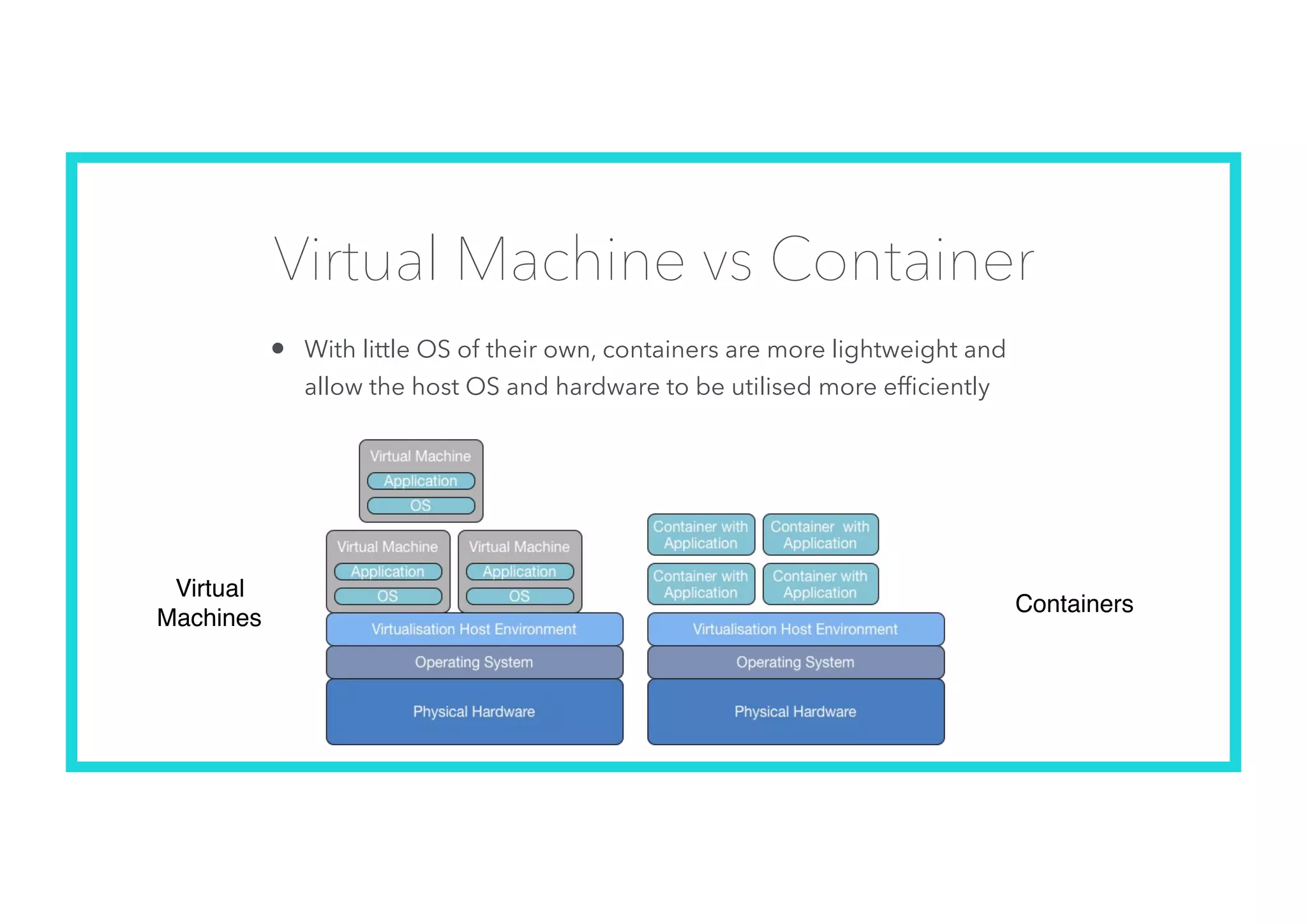
Virtual Machine vs Container
• With little OS of their own, containers are more lightweight and
allow the host OS and hardware to be utilised more efficiently
Virtual
Machines
Containers
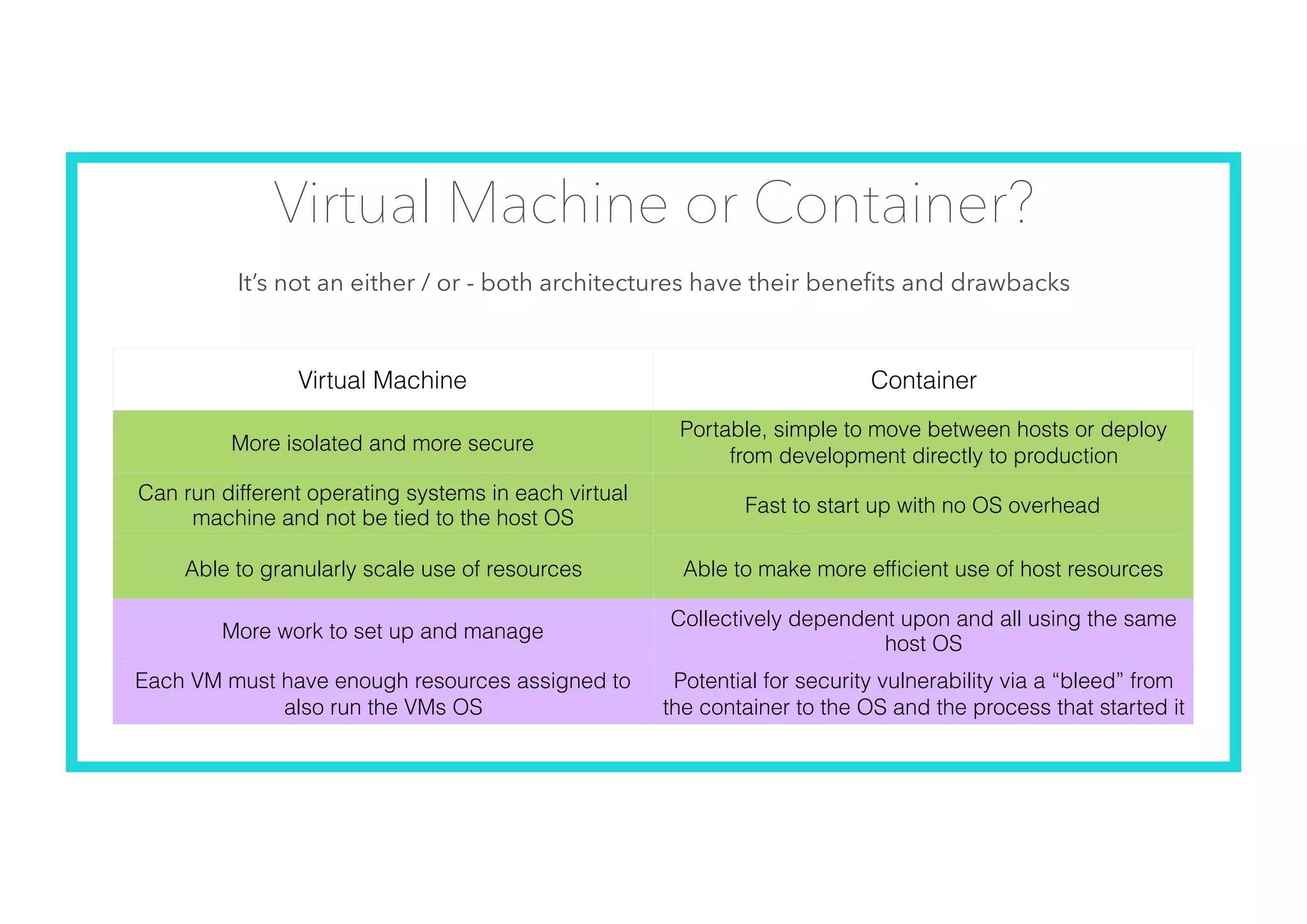
Virtual Machine or Container?
It’s not an either / or - both architectures have their benefits and drawbacks
Virtual Machine Container
More isolated and more secure
Portable, simple to move between hosts or deploy
from development directly to production
Can run different operating systems in each virtual
machine and not be tied to the host OS
Fast to start up with no OS overhead
Able to granularly scale use of resources Able to make more efficient use of host resources
More work to set up and manage
Collectively dependent upon and all using the same
host OS
Each VM must have enough resources assigned to
also run the VMs OS
Potential for security vulnerability via a “bleed” from
the container to the OS and the process that started it
Containers
• Self-contained sandbox environments that host applications including micro services
• Containers do not have an entire OS installed inside them the way virtual servers do
but instead share the OS of the host machine
• Multiple containers can share the OS of a host machine with their own isolated
application and file system
• Container architecture is designed to be portable and simple to update / maintain
• A container would usually contain a single service so that maximum benefit can be
leveraged from the portability
• one service or application to one container
• each application environment is not dependent on the other
Docker
• Docker is an open source container based virtualisation solution
• There is both a “Docker” client and a “Docker” server
• Docker is not the only container environment, there are
others such as rkt (Rocket) but IBM are using Docker for
Connections Pink and it’s supported in Bluemix
Microservices
• Applications were traditionally developed in entirety with every function of the
application grouped together and operating in concert
• for that reason applications can often be large, over developed and hard to
update
• a change to a single function has to be incorporated into the entire
application without any impact
• Microservices architecture refers to applications that are developed as separate
functional or core services each operating in their own isolated container but able
to talk to each other
• updates are simpler and minimising the overall application size is easier by
deploying just those micro services that are needed
Kubernetes and Docker Swarm
• Containers must be deployed and managed
• They can also be clustered and load managed by a cluster manager
• Docker Swarm is a native cluster manager using the Docker API so it requires
Docker containers
• Kubernetes evolved out of Google’s expertise and was far ahead of Docker Swarm
for many years
• There are many tools out there to help cluster and manage Docker containers
• If you are going to have exclusively docker containers than Docker Swarm may be
a better approach than Kubernetes
Docker Architecture
Where’s the OS?
• It’s not in the container
• It’s not in the image
• the OS kernel is on the host machine
• both the image and therefore the container access the host kernel
for their core functionality
• this means you can’t run a Windows container on a Linux host
machine or vice versa
Images and Containers
• The Docker server runs on a host machine and maintains a registry of both
images and containers
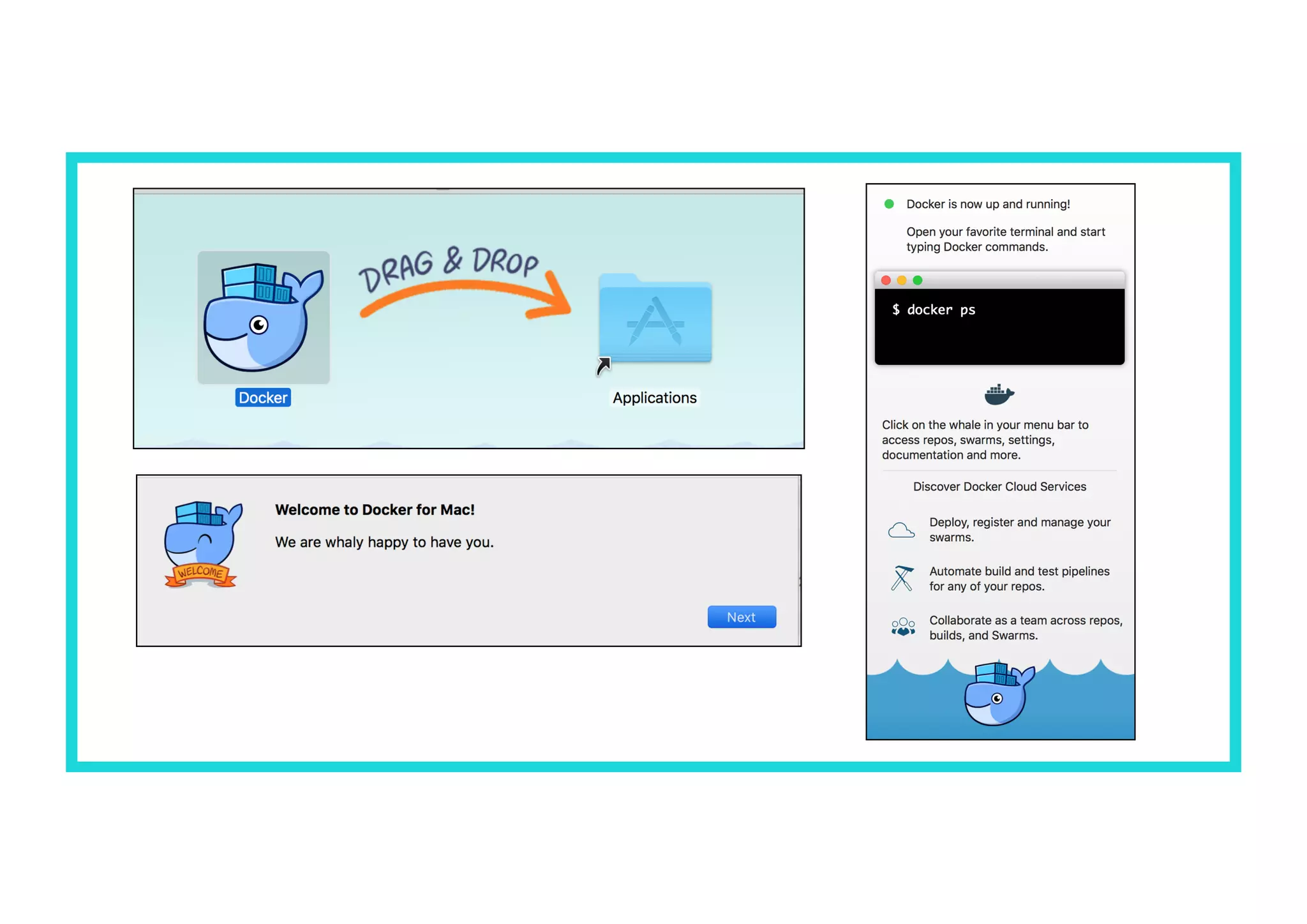
• Once the Docker server is installed you can use the command “docker” to
manage your images and containers
• An image contains all the information needed to run a service or
application
• There are thousands of publicly available docker images already pre-
installed with specific services such as web servers, firewalls, databases etc
• These can be accessed from the online docker registry
Images and Containers
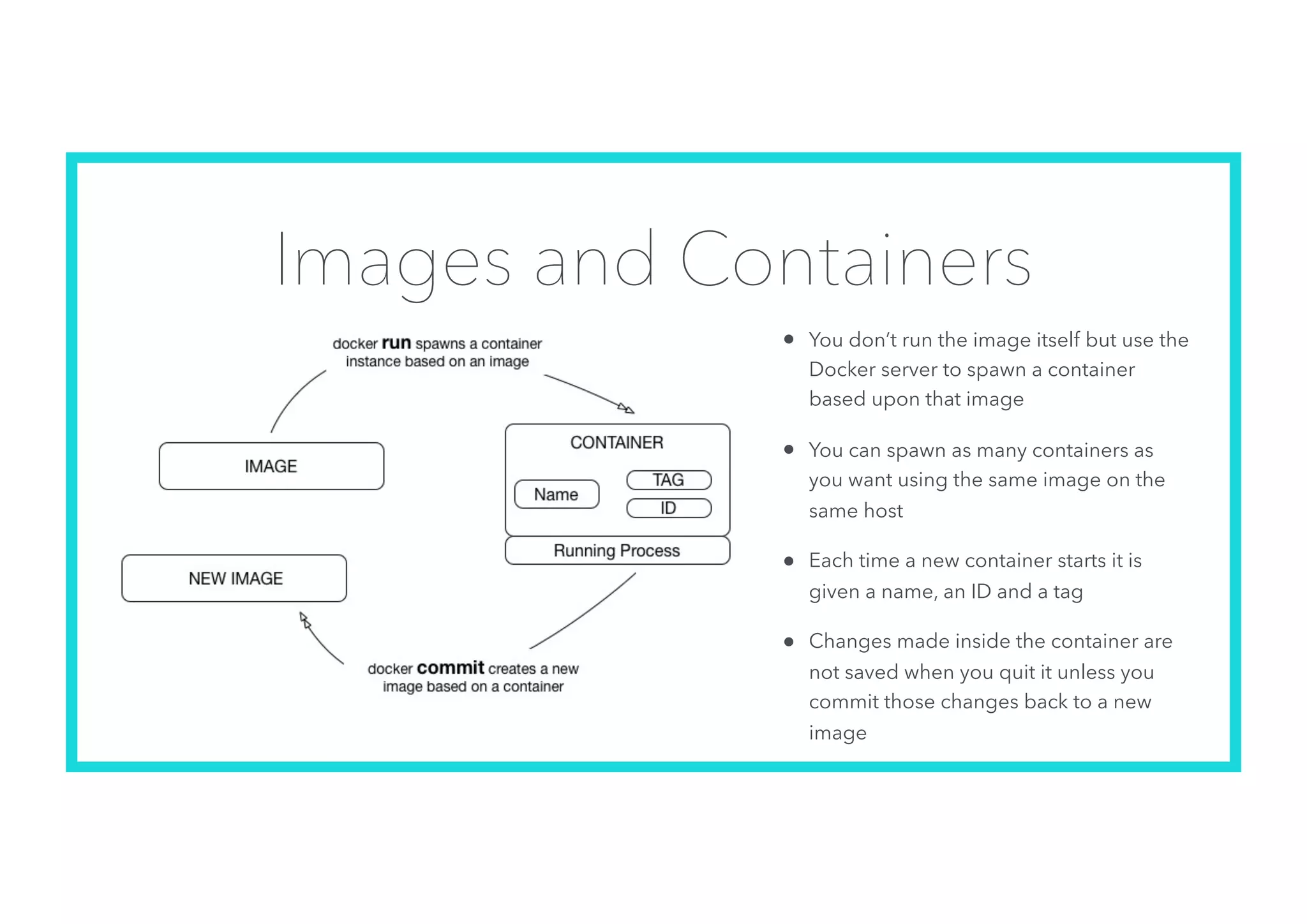
• You don’t run the image itself but use the
Docker server to spawn a container
based upon that image
• You can spawn as many containers as
you want using the same image on the
same host
• Each time a new container starts it is
given a name, an ID and a tag
• Changes made inside the container are
not saved when you quit it unless you
commit those changes back to a new
image
Resources
• When creating a docker container from an image you do have
some control over the resources on the host that it can consume.
This includes
• Maximum allowed memory
• Allocated CPU % as a total of the host and/or relative to other
containers running
• This will prevent a container from consuming too much resource
DockerFiles
• A dockerfile defines how to create an image
• Dockerfile ——> Image ——> Container
• you don’t need to have a dockerfile to create an image but
think of it as an image template
• storage is not usually defined within the dockerfile
Docker Networking
• Docker can create a private network for each container it starts
• Containers can be linked together to share the same private network and
isolate themselves from other containers started by the same docker
machine
• by linking containers you can ensure if they are killed then recreated
with the same name, the network link is maintained
• We can also tell the docker server to expose specific ports inside the
containers to external ports that can be reached outside the containers. For
instance a port 25 SMTP listener or 443 web server (old school method)
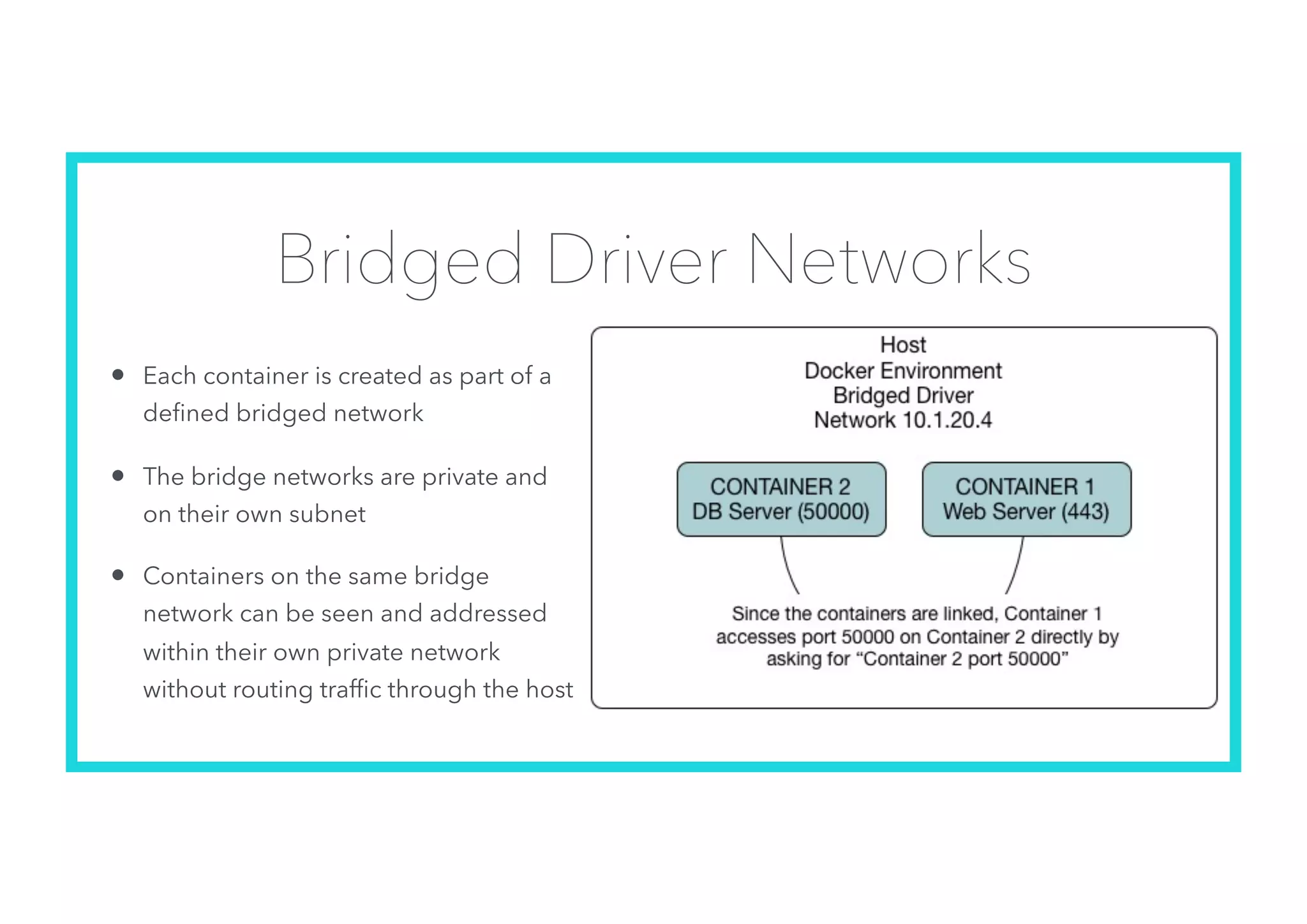
Bridged Driver Networks
• Each container is created as part of a
defined bridged network
• The bridge networks are private and
on their own subnet
• Containers on the same bridge
network can be seen and addressed
within their own private network
without routing traffic through the host
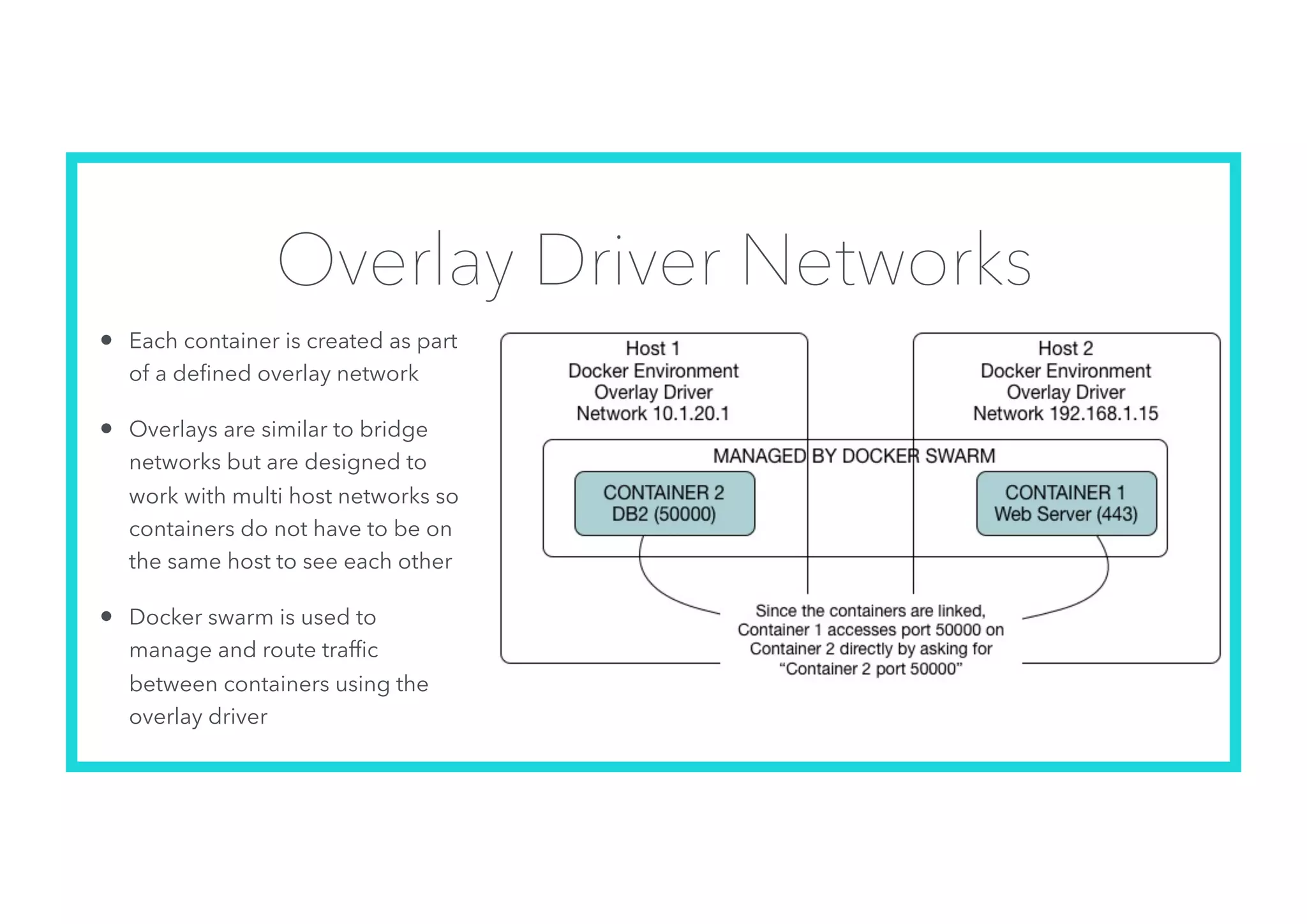
Overlay Driver Networks
• Each container is created as part
of a defined overlay network
• Overlays are similar to bridge
networks but are designed to
work with multi host networks so
containers do not have to be on
the same host to see each other
• Docker swarm is used to
manage and route traffic
between containers using the
overlay driver
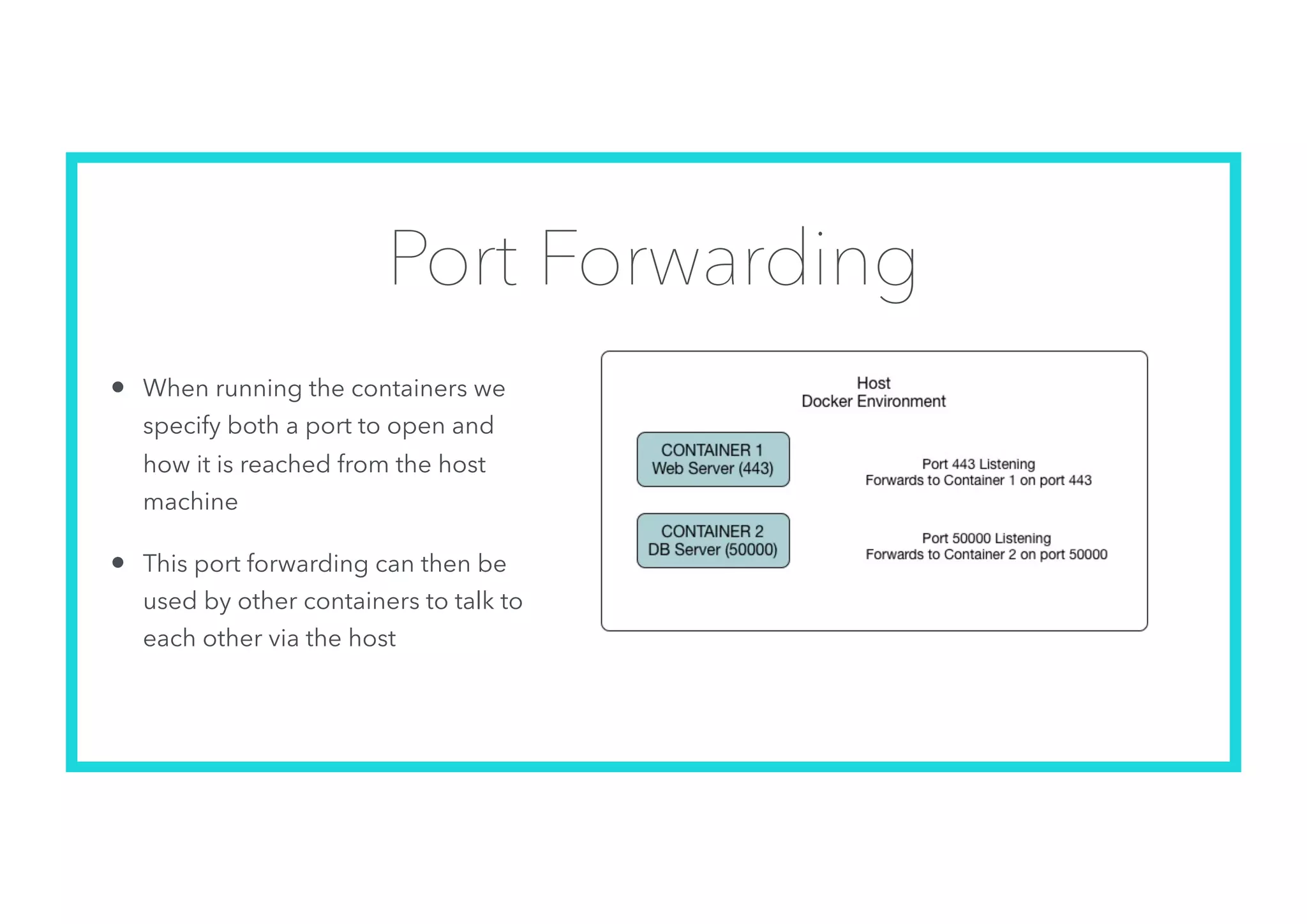
Port Forwarding
• When running the containers we
specify both a port to open and
how it is reached from the host
machine
• This port forwarding can then be
used by other containers to talk to
each other via the host
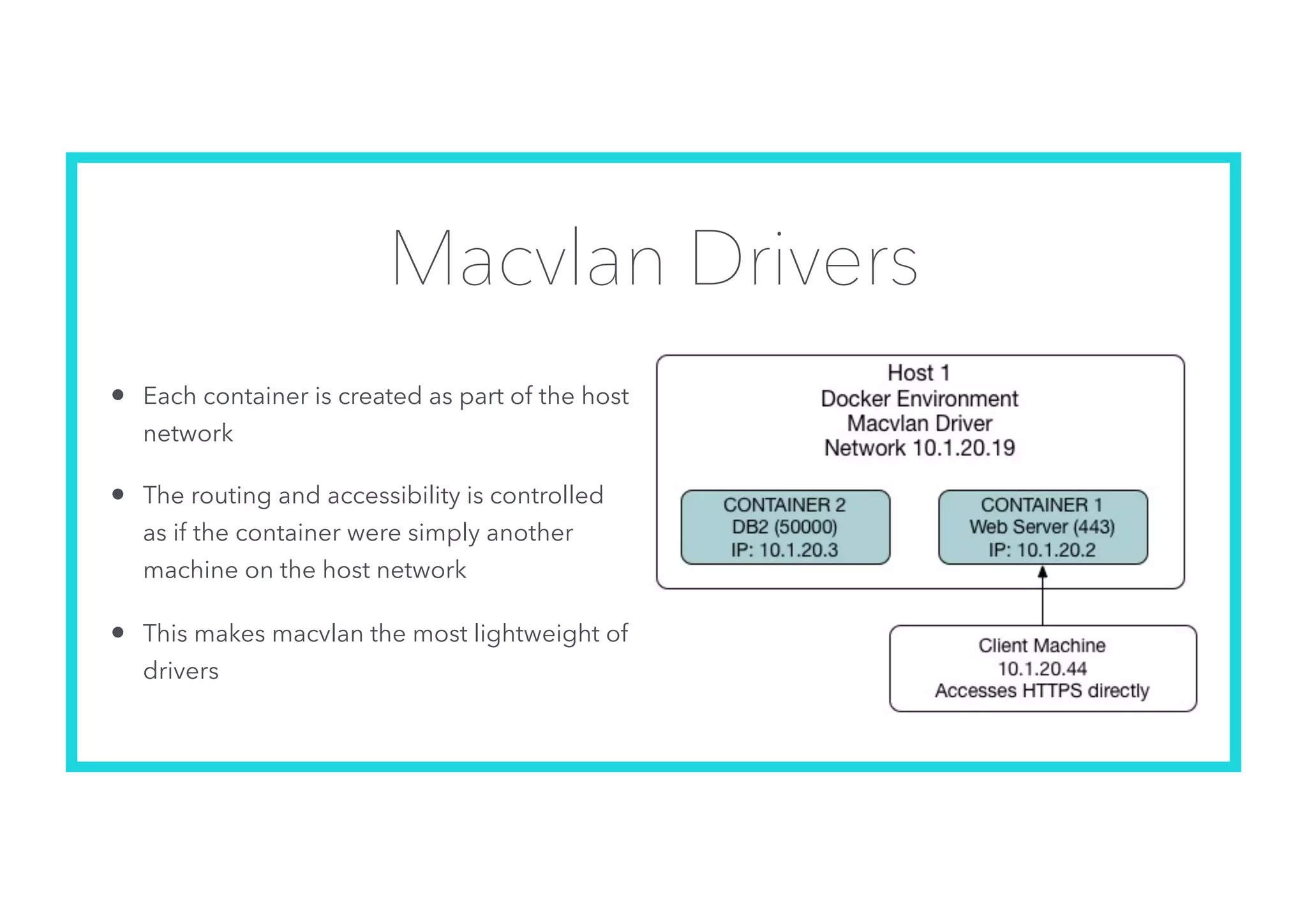
Macvlan Drivers
• Each container is created as part of the host
network
• The routing and accessibility is controlled
as if the container were simply another
machine on the host network
• This makes macvlan the most lightweight of
drivers
Devops and Containers
• Developers love containers
• They make it easy to isolate microservices and swap out updated code
• However that ease comes with risk
• each container is drawing resources from the same host
• each container has separately mounted storage and often nested
dependencies
• spawning a new container from an image will not deploy changes made
inside an existing spawned container
• Process is everything
• Process is Operations and Development working together
Docker Storage
Docker Data Volumes
• Shared storage areas that can be used by the containers to access
data on the host or within another container
• You don’t create volumes within a container so you create volumes
that link to either data stored in another container or on the host
• Volumes defined in an image and deployed as the container
creates can only be applied to that container and are not removed
when it is removed
• Volumes defined within a container can be accessed by other
containers using the volumes-from option
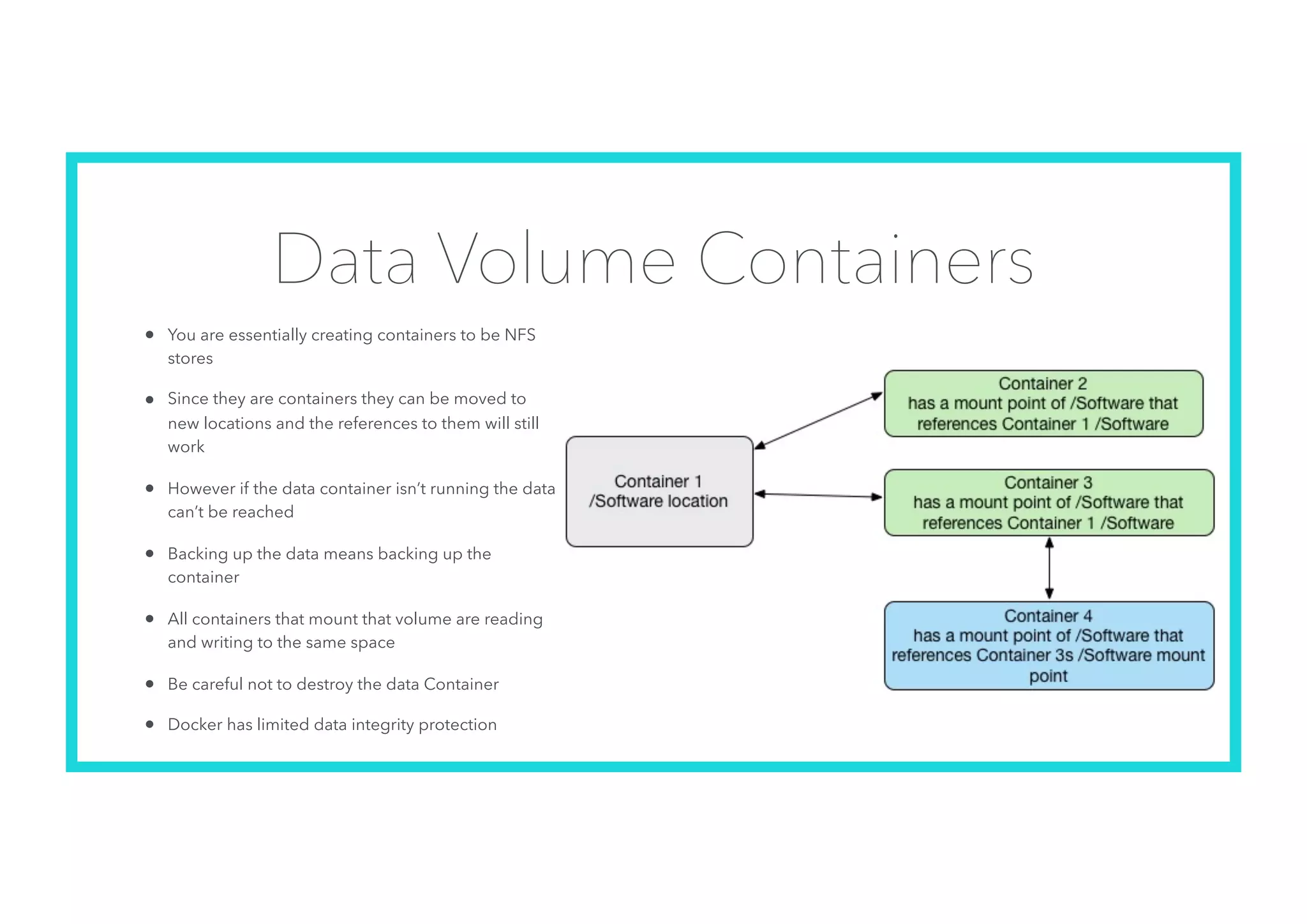
Data Volume Containers
• You are essentially creating containers to be NFS
stores
• Since they are containers they can be moved to
new locations and the references to them will still
work
• However if the data container isn’t running the data
can’t be reached
• Backing up the data means backing up the
container
• All containers that mount that volume are reading
and writing to the same space
• Be careful not to destroy the data Container
• Docker has limited data integrity protection
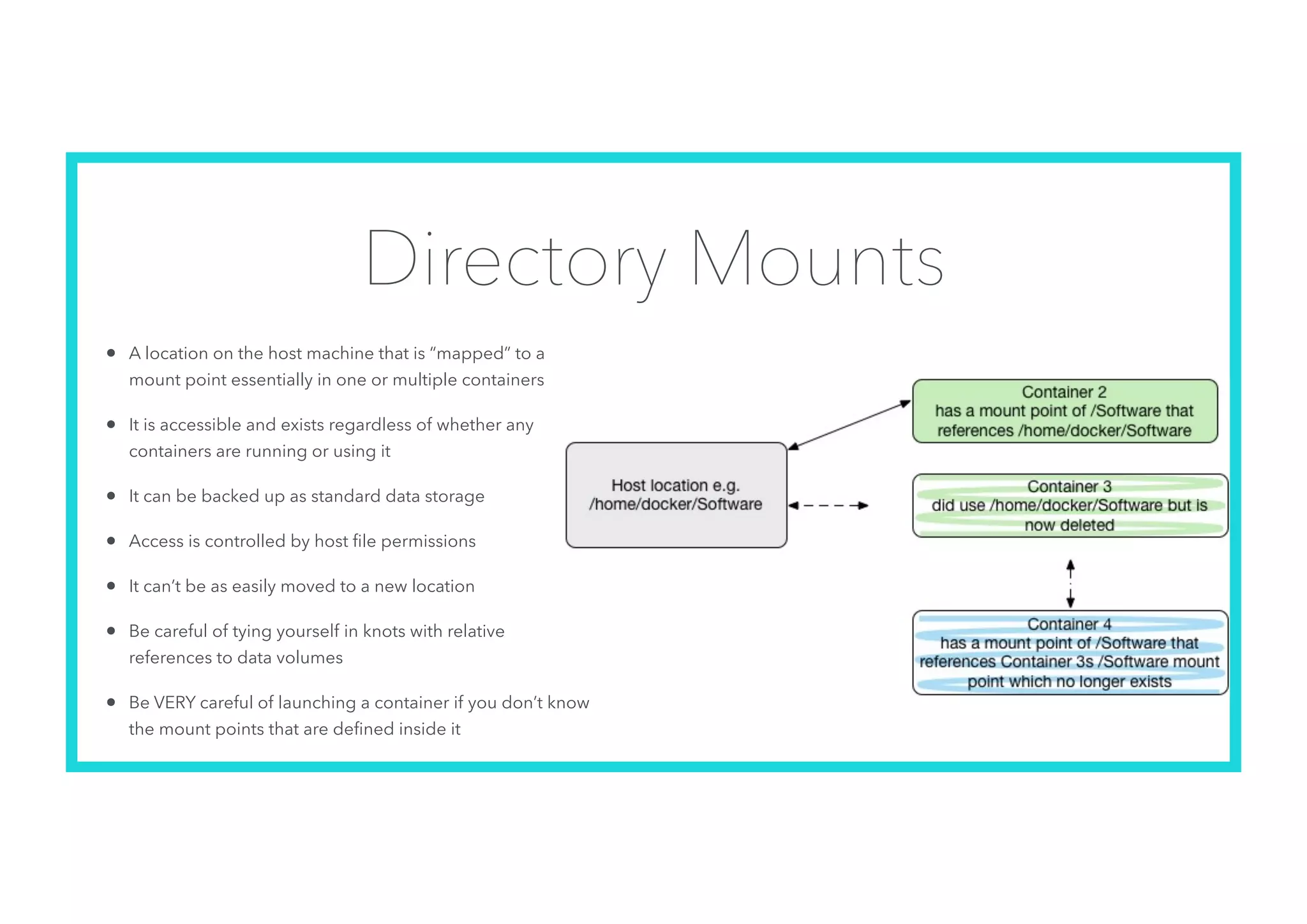
Directory Mounts
• A location on the host machine that is “mapped” to a
mount point essentially in one or multiple containers
• It is accessible and exists regardless of whether any
containers are running or using it
• It can be backed up as standard data storage
• Access is controlled by host file permissions
• It can’t be as easily moved to a new location
• Be careful of tying yourself in knots with relative
references to data volumes
• Be VERY careful of launching a container if you don’t know
the mount points that are defined inside it
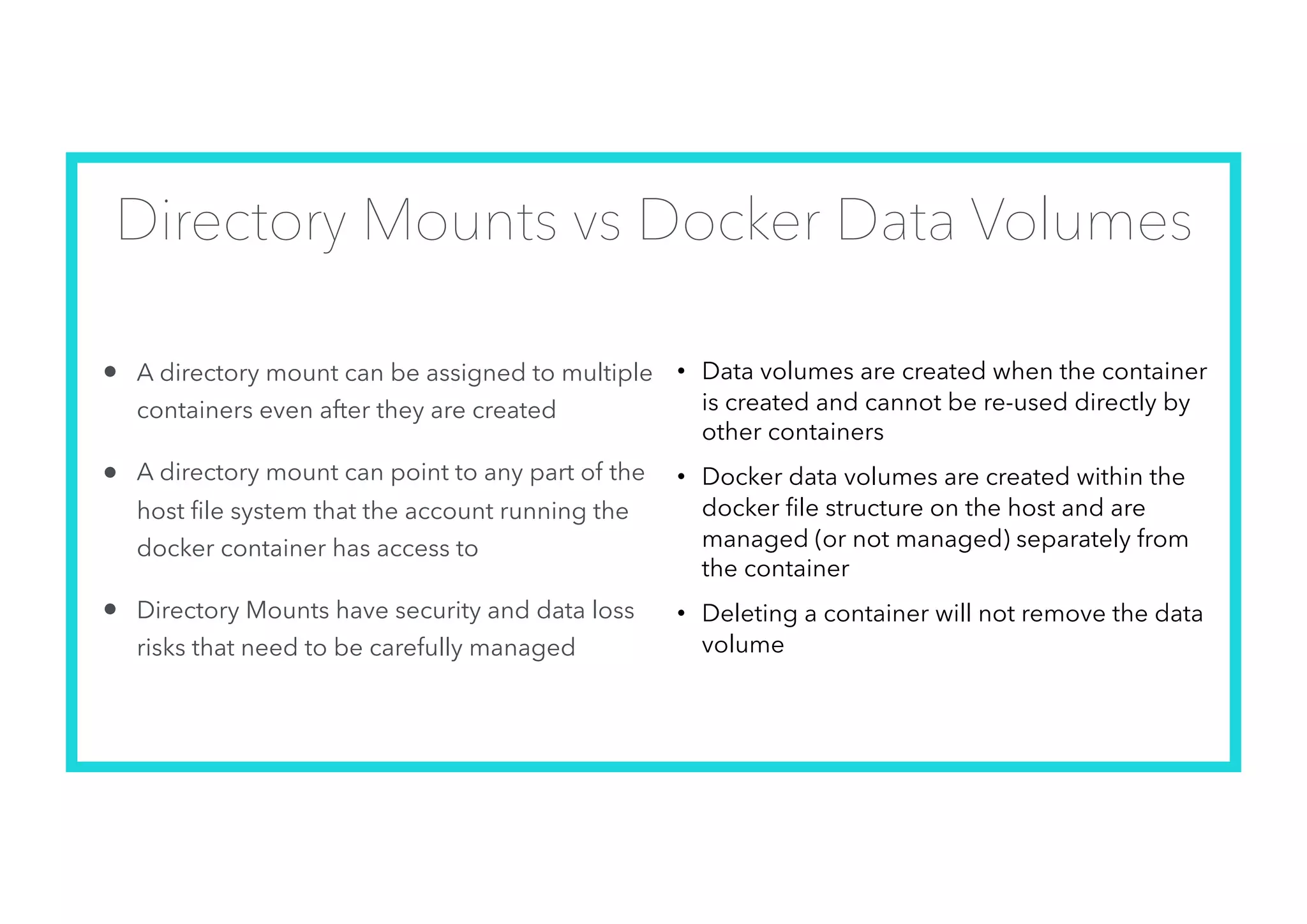
Directory Mounts vs Docker Data Volumes
• A directory mount can be assigned to multiple
containers even after they are created
• A directory mount can point to any part of the
host file system that the account running the
docker container has access to
• Directory Mounts have security and data loss
risks that need to be carefully managed
• Data volumes are created when the container
is created and cannot be re-used directly by
other containers
• Docker data volumes are created within the
docker file structure on the host and are
managed (or not managed) separately from
the container
• Deleting a container will not remove the data
volume
Backups
• Each container can be backed up individually but all containers involved
in a system need to be backed up consistently
• Storage backups
• data volume containers can be moved around with their references
remaining the same
• directory mounts are host specific and harder to relocate
• latency on directory mounts can be better than on data volume
containers but that’s dependent on actual container performance
Risks
• Storage containers can easily be deleted
• especially if it’s not clear that another container is using that storage
• Directory mounts can be easily overwritten if another container runs with
the same mount points
• Deploying new code via a container that retains the storage references
from a previous version will overwrite production storage
• Ease of use and flexibility must be tempered with Devops process and
planning
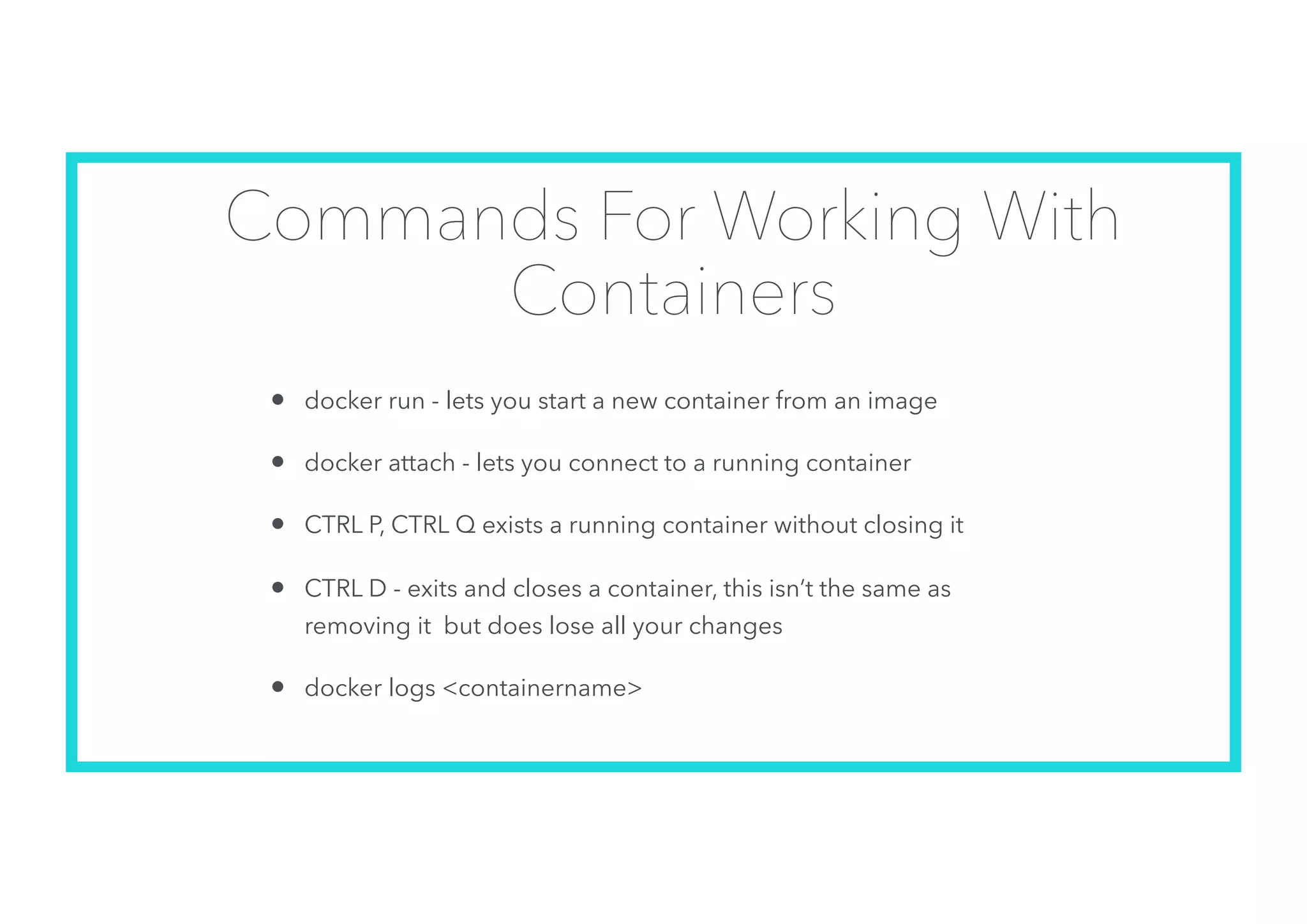
Commands For Working With
Containers
• docker run - lets you start a new container from an image
• docker attach - lets you connect to a running container
• CTRL P, CTRL Q exists a running container without closing it
• CTRL D - exits and closes a container, this isn’t the same as
removing it but does lose all your changes
• docker logs <containername>
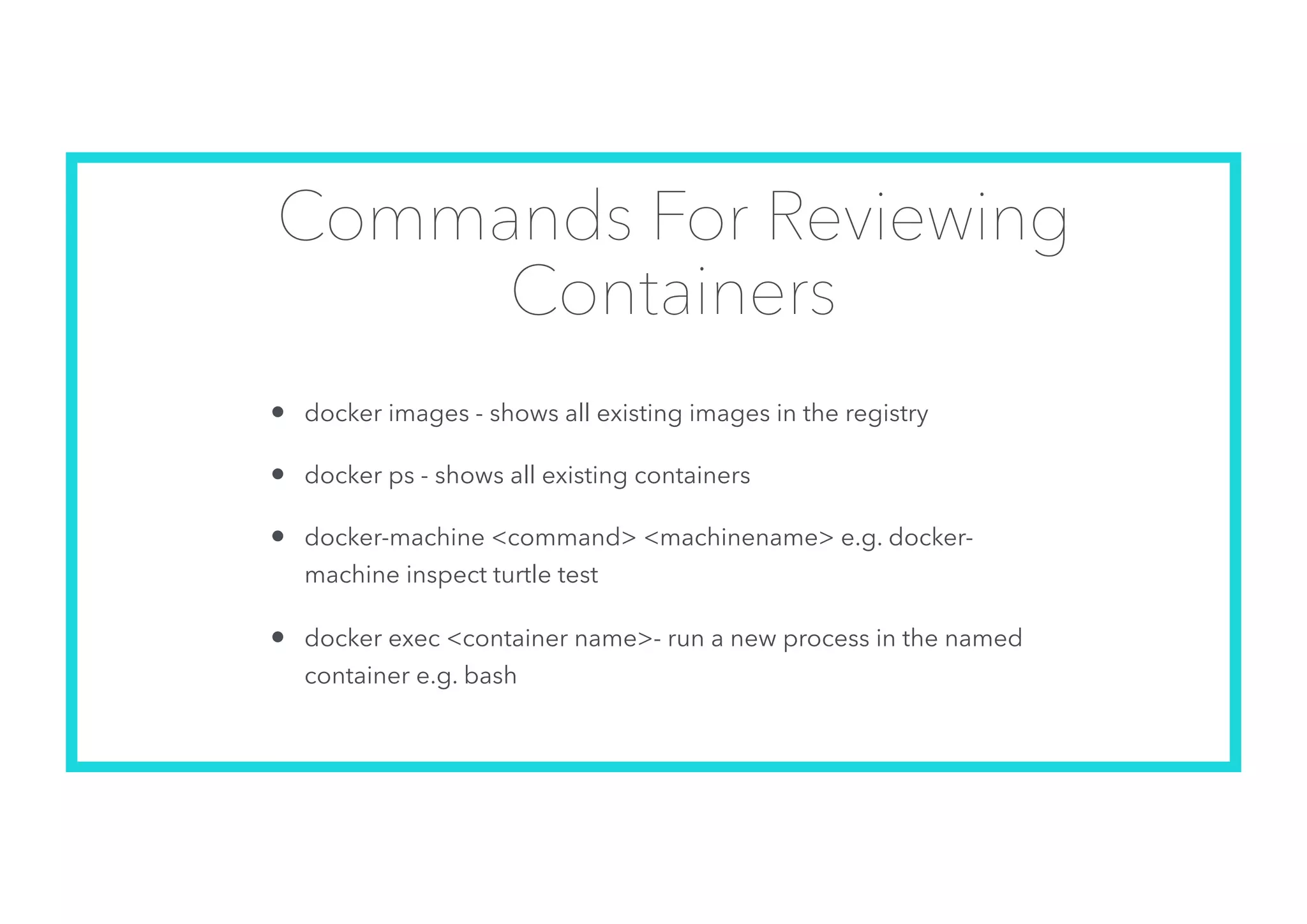
Commands For Reviewing
Containers
• docker images - shows all existing images in the registry
• docker ps - shows all existing containers
• docker-machine <command> <machinename> e.g. docker-
machine inspect turtle test
• docker exec <container name>- run a new process in the named
container e.g. bash

An Introduction To Docker

  • 1.
    An Introduction To Docker GabriellaDavis - IBM Lifetime Champion The Turtle Partnership gabriella@turtlepartnership.com
  • 2.
    Who Am I? •Admin of all things and especially quite complicated things where the fun is • Working with security , healthchecks, single sign on, design and deployment of IBM technologies and things that they talk to • Stubborn and relentless problem solver • Lives in London about half of the time • gabriella@turtlepartnership.com • twitter: gabturtle • Awarded the first IBM Lifetime Achievement Award for Collaboration Solutions
  • 3.
    MWLUG 2017 Moving CollaborationForward Our Amazing Sponsors
  • 4.
    Why? • We aretalking about Docker and containerisation because it’s a rapidly emerging technology that has broken out from a developer toolset into production architecture • Connections Pink is entirely based on container architecture which should mean we don’t have to actually install anything, just deploy given containers • Understanding container concepts and how to manage them is going to be critical to managing our new environment
  • 5.
    DevOps • DevOps orDeveloper Operations refers to the collaboration of software development and developers with IT operations • it refers to practices, processes and communication not specific technologies • good DevOps practices are designed around rapid, consistent and reliable systems • The goal of DevOps is to ensure the seamless delivery and maintenance of applications
  • 6.
    Virtualisation • Isolating applicationsrunning on a single physical server • Virtualisation allows us to use software to mimic physical hardware • Using virtual machines we can more easily create new server instances and scale them • This saves both time and cost • The use of virtual machines and virtual environments has grown exponentially in the past decade
  • 7.
    Virtualisation works wellbut each instance represents a single piece of physical hardware and so depends on all the software layers including operating system being installed within for it to work
  • 8.
    Virtual Machine vsContainer • With little OS of their own, containers are more lightweight and allow the host OS and hardware to be utilised more efficiently Virtual Machines Containers
  • 9.
    Virtual Machine orContainer? It’s not an either / or - both architectures have their benefits and drawbacks Virtual Machine Container More isolated and more secure Portable, simple to move between hosts or deploy from development directly to production Can run different operating systems in each virtual machine and not be tied to the host OS Fast to start up with no OS overhead Able to granularly scale use of resources Able to make more efficient use of host resources More work to set up and manage Collectively dependent upon and all using the same host OS Each VM must have enough resources assigned to also run the VMs OS Potential for security vulnerability via a “bleed” from the container to the OS and the process that started it
  • 10.
    Containers • Self-contained sandboxenvironments that host applications including micro services • Containers do not have an entire OS installed inside them the way virtual servers do but instead share the OS of the host machine • Multiple containers can share the OS of a host machine with their own isolated application and file system • Container architecture is designed to be portable and simple to update / maintain • A container would usually contain a single service so that maximum benefit can be leveraged from the portability • one service or application to one container • each application environment is not dependent on the other
  • 11.
    Docker • Docker isan open source container based virtualisation solution • There is both a “Docker” client and a “Docker” server • Docker is not the only container environment, there are others such as rkt (Rocket) but IBM are using Docker for Connections Pink and it’s supported in Bluemix
  • 13.
    Microservices • Applications weretraditionally developed in entirety with every function of the application grouped together and operating in concert • for that reason applications can often be large, over developed and hard to update • a change to a single function has to be incorporated into the entire application without any impact • Microservices architecture refers to applications that are developed as separate functional or core services each operating in their own isolated container but able to talk to each other • updates are simpler and minimising the overall application size is easier by deploying just those micro services that are needed
  • 14.
    Kubernetes and DockerSwarm • Containers must be deployed and managed • They can also be clustered and load managed by a cluster manager • Docker Swarm is a native cluster manager using the Docker API so it requires Docker containers • Kubernetes evolved out of Google’s expertise and was far ahead of Docker Swarm for many years • There are many tools out there to help cluster and manage Docker containers • If you are going to have exclusively docker containers than Docker Swarm may be a better approach than Kubernetes
  • 15.
  • 16.
    Where’s the OS? •It’s not in the container • It’s not in the image • the OS kernel is on the host machine • both the image and therefore the container access the host kernel for their core functionality • this means you can’t run a Windows container on a Linux host machine or vice versa
  • 17.
    Images and Containers •The Docker server runs on a host machine and maintains a registry of both images and containers • Once the Docker server is installed you can use the command “docker” to manage your images and containers • An image contains all the information needed to run a service or application • There are thousands of publicly available docker images already pre- installed with specific services such as web servers, firewalls, databases etc • These can be accessed from the online docker registry
  • 18.
    Images and Containers •You don’t run the image itself but use the Docker server to spawn a container based upon that image • You can spawn as many containers as you want using the same image on the same host • Each time a new container starts it is given a name, an ID and a tag • Changes made inside the container are not saved when you quit it unless you commit those changes back to a new image
  • 19.
    Resources • When creatinga docker container from an image you do have some control over the resources on the host that it can consume. This includes • Maximum allowed memory • Allocated CPU % as a total of the host and/or relative to other containers running • This will prevent a container from consuming too much resource
  • 20.
    DockerFiles • A dockerfiledefines how to create an image • Dockerfile ——> Image ——> Container • you don’t need to have a dockerfile to create an image but think of it as an image template • storage is not usually defined within the dockerfile
  • 21.
    Docker Networking • Dockercan create a private network for each container it starts • Containers can be linked together to share the same private network and isolate themselves from other containers started by the same docker machine • by linking containers you can ensure if they are killed then recreated with the same name, the network link is maintained • We can also tell the docker server to expose specific ports inside the containers to external ports that can be reached outside the containers. For instance a port 25 SMTP listener or 443 web server (old school method)
  • 22.
    Bridged Driver Networks •Each container is created as part of a defined bridged network • The bridge networks are private and on their own subnet • Containers on the same bridge network can be seen and addressed within their own private network without routing traffic through the host
  • 23.
    Overlay Driver Networks •Each container is created as part of a defined overlay network • Overlays are similar to bridge networks but are designed to work with multi host networks so containers do not have to be on the same host to see each other • Docker swarm is used to manage and route traffic between containers using the overlay driver
  • 24.
    Port Forwarding • Whenrunning the containers we specify both a port to open and how it is reached from the host machine • This port forwarding can then be used by other containers to talk to each other via the host
  • 25.
    Macvlan Drivers • Eachcontainer is created as part of the host network • The routing and accessibility is controlled as if the container were simply another machine on the host network • This makes macvlan the most lightweight of drivers
  • 26.
    Devops and Containers •Developers love containers • They make it easy to isolate microservices and swap out updated code • However that ease comes with risk • each container is drawing resources from the same host • each container has separately mounted storage and often nested dependencies • spawning a new container from an image will not deploy changes made inside an existing spawned container • Process is everything • Process is Operations and Development working together
  • 27.
  • 28.
    Docker Data Volumes •Shared storage areas that can be used by the containers to access data on the host or within another container • You don’t create volumes within a container so you create volumes that link to either data stored in another container or on the host • Volumes defined in an image and deployed as the container creates can only be applied to that container and are not removed when it is removed • Volumes defined within a container can be accessed by other containers using the volumes-from option
  • 29.
    Data Volume Containers •You are essentially creating containers to be NFS stores • Since they are containers they can be moved to new locations and the references to them will still work • However if the data container isn’t running the data can’t be reached • Backing up the data means backing up the container • All containers that mount that volume are reading and writing to the same space • Be careful not to destroy the data Container • Docker has limited data integrity protection
  • 30.
    Directory Mounts • Alocation on the host machine that is “mapped” to a mount point essentially in one or multiple containers • It is accessible and exists regardless of whether any containers are running or using it • It can be backed up as standard data storage • Access is controlled by host file permissions • It can’t be as easily moved to a new location • Be careful of tying yourself in knots with relative references to data volumes • Be VERY careful of launching a container if you don’t know the mount points that are defined inside it
  • 31.
    Directory Mounts vsDocker Data Volumes • A directory mount can be assigned to multiple containers even after they are created • A directory mount can point to any part of the host file system that the account running the docker container has access to • Directory Mounts have security and data loss risks that need to be carefully managed • Data volumes are created when the container is created and cannot be re-used directly by other containers • Docker data volumes are created within the docker file structure on the host and are managed (or not managed) separately from the container • Deleting a container will not remove the data volume
  • 32.
    Backups • Each containercan be backed up individually but all containers involved in a system need to be backed up consistently • Storage backups • data volume containers can be moved around with their references remaining the same • directory mounts are host specific and harder to relocate • latency on directory mounts can be better than on data volume containers but that’s dependent on actual container performance
  • 33.
    Risks • Storage containerscan easily be deleted • especially if it’s not clear that another container is using that storage • Directory mounts can be easily overwritten if another container runs with the same mount points • Deploying new code via a container that retains the storage references from a previous version will overwrite production storage • Ease of use and flexibility must be tempered with Devops process and planning
  • 34.
    Commands For WorkingWith Containers • docker run - lets you start a new container from an image • docker attach - lets you connect to a running container • CTRL P, CTRL Q exists a running container without closing it • CTRL D - exits and closes a container, this isn’t the same as removing it but does lose all your changes • docker logs <containername>
  • 35.
    Commands For Reviewing Containers •docker images - shows all existing images in the registry • docker ps - shows all existing containers • docker-machine <command> <machinename> e.g. docker- machine inspect turtle test • docker exec <container name>- run a new process in the named container e.g. bash