Catalog Planet Labs Plugin for QGIS
It is a product that started from Planet Explorers
program(API V 0), and was updated to API V1.
It is not an official Planet plugin, and you need a key from
Planet Labs in order to use this plugin.
This plugin lets you get images from the Planet Labs API
V1, by performing searches for images that intersect with
the extent of the map window.
With this plugin, you can fetch images by the range of
dates.
Luiz Motta
motta.luiz@gmail.comUpdate: November 07, 2017
Full images[1]:
Item Type:
Planet - PlanetScope Scenes 4 bands.
Rapideye - RapidEye Scenes.
Landsat 8 - Landsat8 Scenes.
Sentinel 2 - Copernicus Sentinel-2 Scenes.
Asset Type:
Analytic.
UDM(Usable data mask).
Thumbnails(quiklook).
TMS (Tile Map Server) [2].
* It is a service and not need download.
Types of images for download
[1] https://www.planet.com/docs/reference/data-api/items-assets/#item-type
[2] https://www.planet.com/docs/reference/tile-services/#tile-services
The default search gets all Planet images one month or less
from the current date.
The Plugin creates a temporary layer with the name “PL [Item
Type]”, with the footprints of the scenes from image search
performed and yours attribute are the full metadata.
With the submenu Plugin, you can search images(create PL
layer) and setting the search( type images, dates,…).
With the submenu PL Layer, you can calculate the status of
assets(Analytic and UDM), create TMS files(XML for access
service), download full image and thumbnails.
Features of Plugin for QGIS
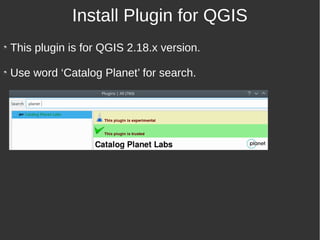
This plugin is for QGIS 2.18.x version.
Use word ‘Catalog Planet’ for search.
Install Plugin for QGIS
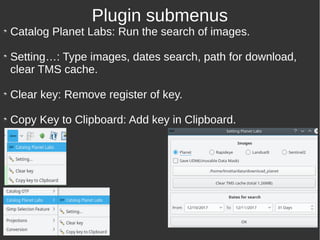
Catalog Planet Labs: Run the search of images.
Setting…: Type images, dates search, path for download,
clear TMS cache.
Clear key: Remove register of key.
Copy Key to Clipboard: Add key in Clipboard.
Plugin submenus
Plugin submenus
Setting...
Selection of one image type[1]:
Planet, Rapideye, Landsat8 or Sentinel2.
Check box for download of UDM.
Path for download:
TMS: XML and Cache(directories and
images).
Thumbnails.
Analytic TIF and UDM.
Dates for search:
Default is the current date less the one
month.
For change, first change the ‘From’ date,
then the ‘To’ date.
[1] https://www.planet.com/docs/reference/data-api/items-assets/#item-type
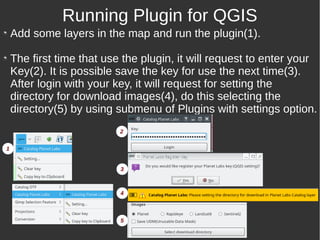
Add some layers in the map and run the plugin(1).
The first time that use the plugin, it will request to enter your
Key(2). It is possible save the key for use the next time(3).
After login with your key, it will request for setting the
directory for download images(4), do this selecting the
directory(5) by using submenu of Plugins with settings option.
Running Plugin for QGIS
1
2
3
4
5
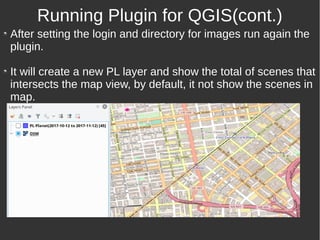
After setting the login and directory for images run again the
plugin.
It will create a new PL layer and show the total of scenes that
intersects the map view, by default, it not show the scenes in
map.
Running Plugin for QGIS(cont.)
This layer provide the access the Planet API V1. The key
licence limit these access.
The functionalities of plugin are provided too by submenus of
created layer(PL Layer).
For create TMS or download thumbnails, don’t need
calculate status assets.
For download of full images, it is necessary calculate status
assets. Some times, the asset of the image is inactive, in this
case, you can activate assets.
All functions of PL Layer submenu are made for features
selected, or for all features, if don't have selection.
Working with PL Layer
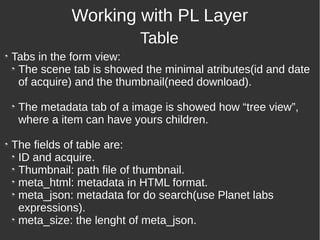
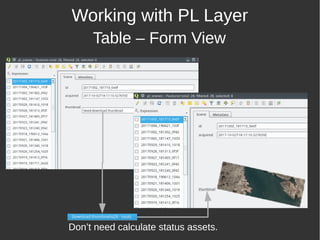
Tabs in the form view:
The scene tab is showed the minimal atributes(id and date
of acquire) and the thumbnail(need download).
The metadata tab of a image is showed how “tree view”,
where a item can have yours children.
The fields of table are:
ID and acquire.
Thumbnail: path file of thumbnail.
meta_html: metadata in HTML format.
meta_json: metadata for do search(use Planet labs
expressions).
meta_size: the lenght of meta_json.
Working with PL Layer
Table
Working with PL Layer
Table – Form View
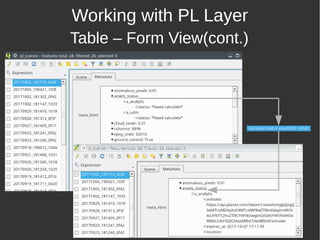
Don’t need calculate status assets.
Working with PL Layer
Table – Form View(cont.)
Working with PL Layer
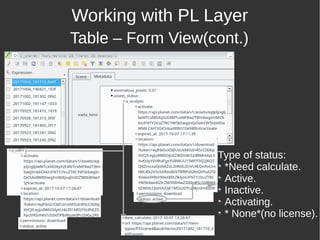
Table – Form View(cont.)
Type of status:
*Need calculate.
Active.
Inactive.
Activating.
* None*(no license).
Working with PL Layer
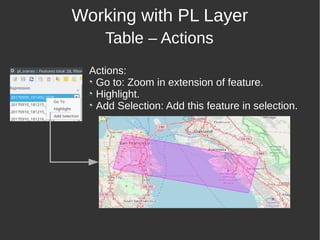
Table – Actions
Actions:
Go to: Zoom in extension of feature.
Highlight.
Add Selection: Add this feature in selection.
Working with PL Layer
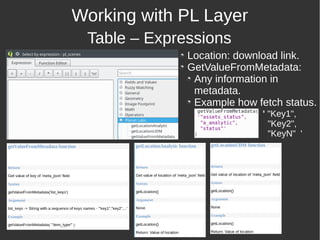
Table – Expressions
Location: download link.
GetValueFromMetadata:
Any information in
metadata.
Example how fetch status.
' "Key1",
"Key2",
"KeyN" '
Working with PL Layer
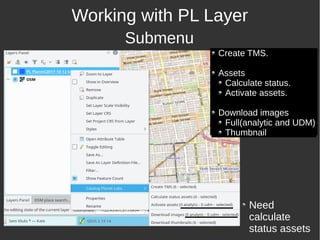
Submenu
Create TMS.
Assets
Calculate status.
Activate assets.
Download images
Full(analytic and UDM)
Thumbnail
Need
calculate
status assets
Working with PL Layer
Submenu(cont.)
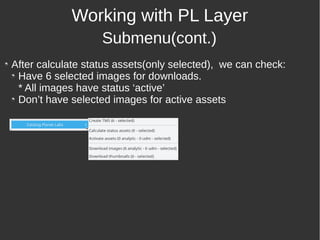
After calculate status assets(only selected), we can check:
Have 6 selected images for downloads.
* All images have status ‘active’
Don’t have selected images for active assets
Working with PL Layer
Submenu(cont.)
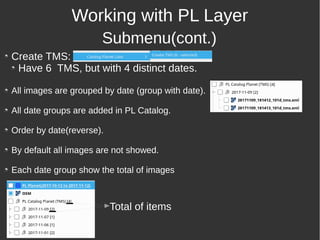
Create TMS:
Have 6 TMS, but with 4 distinct dates.
All images are grouped by date (group with date).
All date groups are added in PL Catalog.
Order by date(reverse).
By default all images are not showed.
Each date group show the total of images
Total of itemscv
cv
Working with Image from PL Layer
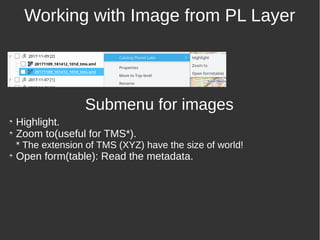
Submenu for images
Highlight.
Zoom to(useful for TMS*).
* The extension of TMS (XYZ) have the size of world!
Open form(table): Read the metadata.
Catalog Planet Labs Plugin for QGIS
Acknowledgment
Planet Labs[1] and SSCON[2] for providing access and support.
Oleg Seliverstov by do test the plugin.
[1] https://www.planet.com/
[2] https://www.sccon.com.br

Catalog Planet Labs Plugin for QGIS - V1

  • 1.
    Catalog Planet LabsPlugin for QGIS It is a product that started from Planet Explorers program(API V 0), and was updated to API V1. It is not an official Planet plugin, and you need a key from Planet Labs in order to use this plugin. This plugin lets you get images from the Planet Labs API V1, by performing searches for images that intersect with the extent of the map window. With this plugin, you can fetch images by the range of dates. Luiz Motta motta.luiz@gmail.comUpdate: November 07, 2017
  • 2.
    Full images[1]: Item Type: Planet- PlanetScope Scenes 4 bands. Rapideye - RapidEye Scenes. Landsat 8 - Landsat8 Scenes. Sentinel 2 - Copernicus Sentinel-2 Scenes. Asset Type: Analytic. UDM(Usable data mask). Thumbnails(quiklook). TMS (Tile Map Server) [2]. * It is a service and not need download. Types of images for download [1] https://www.planet.com/docs/reference/data-api/items-assets/#item-type [2] https://www.planet.com/docs/reference/tile-services/#tile-services
  • 3.
    The default searchgets all Planet images one month or less from the current date. The Plugin creates a temporary layer with the name “PL [Item Type]”, with the footprints of the scenes from image search performed and yours attribute are the full metadata. With the submenu Plugin, you can search images(create PL layer) and setting the search( type images, dates,…). With the submenu PL Layer, you can calculate the status of assets(Analytic and UDM), create TMS files(XML for access service), download full image and thumbnails. Features of Plugin for QGIS
  • 4.
    This plugin isfor QGIS 2.18.x version. Use word ‘Catalog Planet’ for search. Install Plugin for QGIS
  • 5.
    Catalog Planet Labs:Run the search of images. Setting…: Type images, dates search, path for download, clear TMS cache. Clear key: Remove register of key. Copy Key to Clipboard: Add key in Clipboard. Plugin submenus
  • 6.
    Plugin submenus Setting... Selection ofone image type[1]: Planet, Rapideye, Landsat8 or Sentinel2. Check box for download of UDM. Path for download: TMS: XML and Cache(directories and images). Thumbnails. Analytic TIF and UDM. Dates for search: Default is the current date less the one month. For change, first change the ‘From’ date, then the ‘To’ date. [1] https://www.planet.com/docs/reference/data-api/items-assets/#item-type
  • 7.
    Add some layersin the map and run the plugin(1). The first time that use the plugin, it will request to enter your Key(2). It is possible save the key for use the next time(3). After login with your key, it will request for setting the directory for download images(4), do this selecting the directory(5) by using submenu of Plugins with settings option. Running Plugin for QGIS 1 2 3 4 5
  • 8.
    After setting thelogin and directory for images run again the plugin. It will create a new PL layer and show the total of scenes that intersects the map view, by default, it not show the scenes in map. Running Plugin for QGIS(cont.)
  • 9.
    This layer providethe access the Planet API V1. The key licence limit these access. The functionalities of plugin are provided too by submenus of created layer(PL Layer). For create TMS or download thumbnails, don’t need calculate status assets. For download of full images, it is necessary calculate status assets. Some times, the asset of the image is inactive, in this case, you can activate assets. All functions of PL Layer submenu are made for features selected, or for all features, if don't have selection. Working with PL Layer
  • 10.
    Tabs in theform view: The scene tab is showed the minimal atributes(id and date of acquire) and the thumbnail(need download). The metadata tab of a image is showed how “tree view”, where a item can have yours children. The fields of table are: ID and acquire. Thumbnail: path file of thumbnail. meta_html: metadata in HTML format. meta_json: metadata for do search(use Planet labs expressions). meta_size: the lenght of meta_json. Working with PL Layer Table
  • 11.
    Working with PLLayer Table – Form View Don’t need calculate status assets.
  • 12.
    Working with PLLayer Table – Form View(cont.)
  • 13.
    Working with PLLayer Table – Form View(cont.) Type of status: *Need calculate. Active. Inactive. Activating. * None*(no license).
  • 14.
    Working with PLLayer Table – Actions Actions: Go to: Zoom in extension of feature. Highlight. Add Selection: Add this feature in selection.
  • 15.
    Working with PLLayer Table – Expressions Location: download link. GetValueFromMetadata: Any information in metadata. Example how fetch status. ' "Key1", "Key2", "KeyN" '
  • 16.
    Working with PLLayer Submenu Create TMS. Assets Calculate status. Activate assets. Download images Full(analytic and UDM) Thumbnail Need calculate status assets
  • 17.
    Working with PLLayer Submenu(cont.) After calculate status assets(only selected), we can check: Have 6 selected images for downloads. * All images have status ‘active’ Don’t have selected images for active assets
  • 18.
    Working with PLLayer Submenu(cont.) Create TMS: Have 6 TMS, but with 4 distinct dates. All images are grouped by date (group with date). All date groups are added in PL Catalog. Order by date(reverse). By default all images are not showed. Each date group show the total of images Total of itemscv cv
  • 19.
    Working with Imagefrom PL Layer Submenu for images Highlight. Zoom to(useful for TMS*). * The extension of TMS (XYZ) have the size of world! Open form(table): Read the metadata.
  • 20.
    Catalog Planet LabsPlugin for QGIS Acknowledgment Planet Labs[1] and SSCON[2] for providing access and support. Oleg Seliverstov by do test the plugin. [1] https://www.planet.com/ [2] https://www.sccon.com.br