All in One POS Features in Odoo
Email : contact@browseinfo.in
Contact : 079-29700001
Browseinfo
Sensing your needs
Description :
Point of sales- POS All In One Features Odoo apps is used for
reorder,return order,return order with barcode,reprint invoice,
filter order based on customers,create sales order from the POS
screen, apply gift coupon & vouchers, apply bag charges, get
invoice at a time of payment,get all the records in POS,Display
onhand quantity, POS Fixed Amount Discount & Display Total
Number of Purchased Items in Cart and POS Receipt feature.
Description :
All of these feature available
with this single all in one pos
odoo module, you have to
install only this single apps and
you will see all those listed
features with your point of
sales.
Features :
Reprint : This module will help you to reprint POS receipt/invoice.
Reorder : You can easily reorder any pos order from orders list in POS.
Bag Charges : Using this module you can add bag charges.
Import Sale order : Using this odoo pos features module you can easily
import any sale order in POS.
Fix Discount : Using this module you can apply fix discount to POS order.
Product Stock Quantity : Using this all in one pos module you can see all
products stock quantity in POS.
Features :
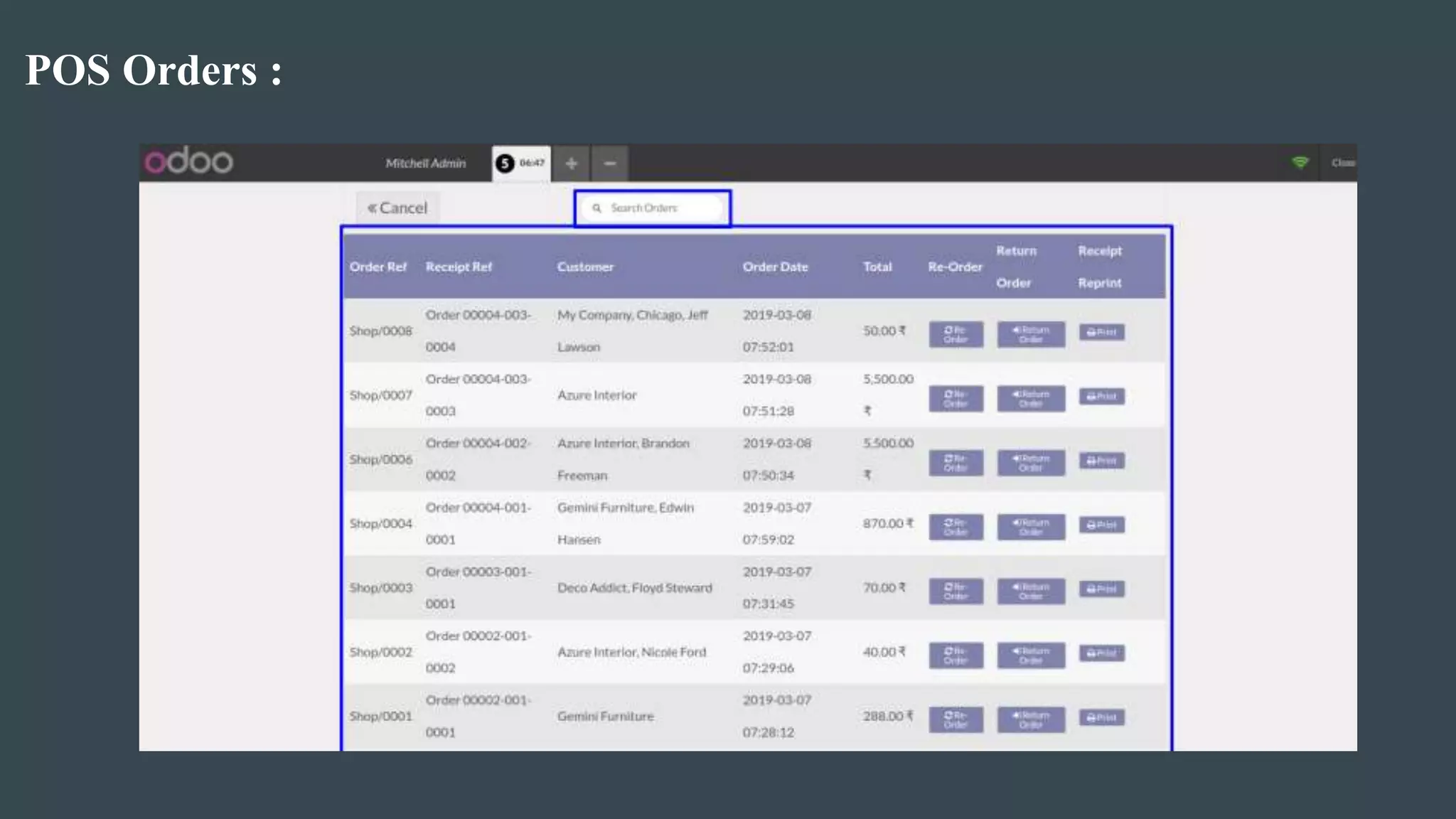
POS Orders : You can see all pos orders in POS Screen.
Return Order : You can easily return any pos order directly or using
barcode.
Gift Voucher : You can apply gift voucher to POS order.
Create Sale order : Using this all in one pos odoo module you can create sale
order from POS.
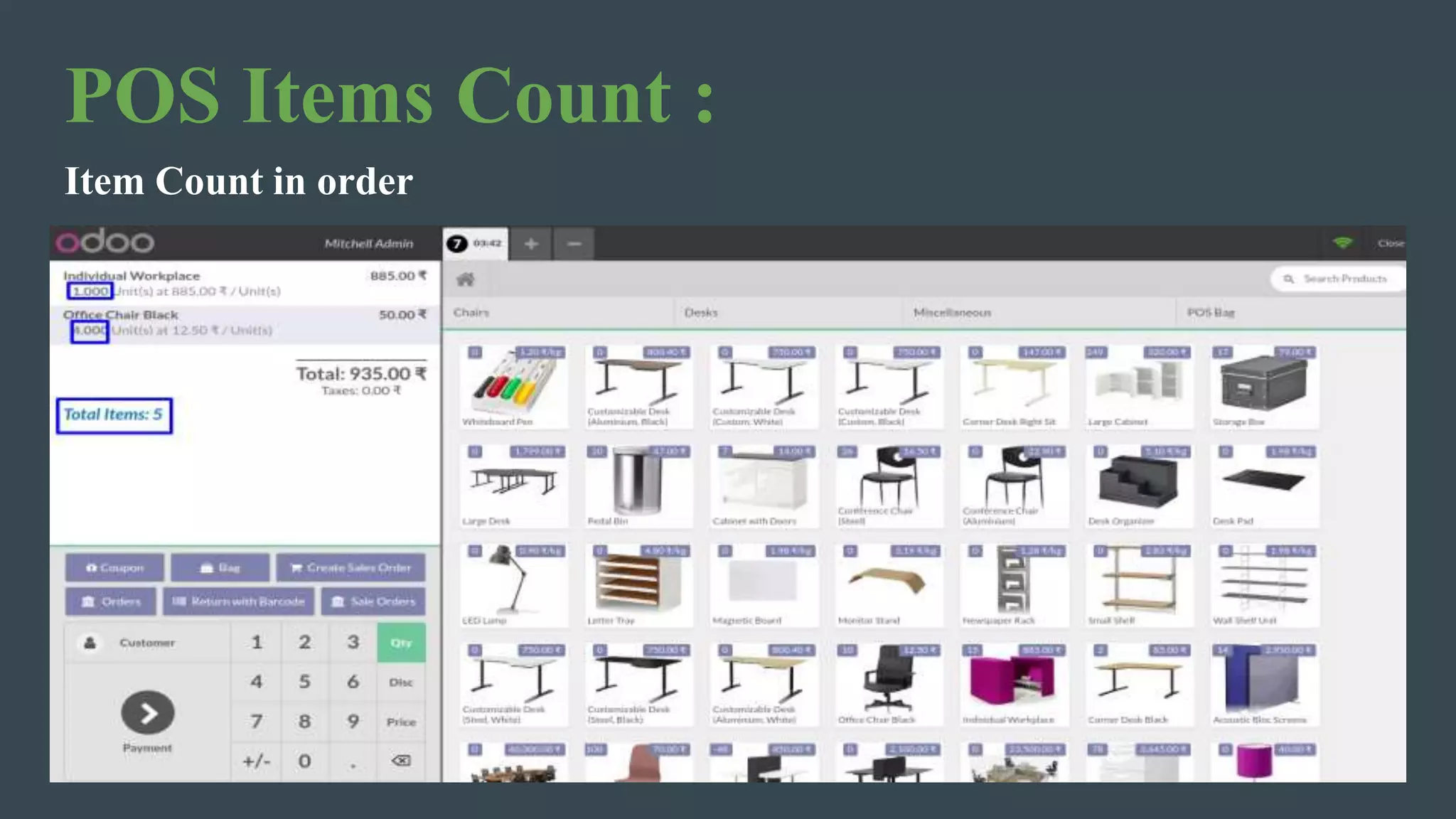
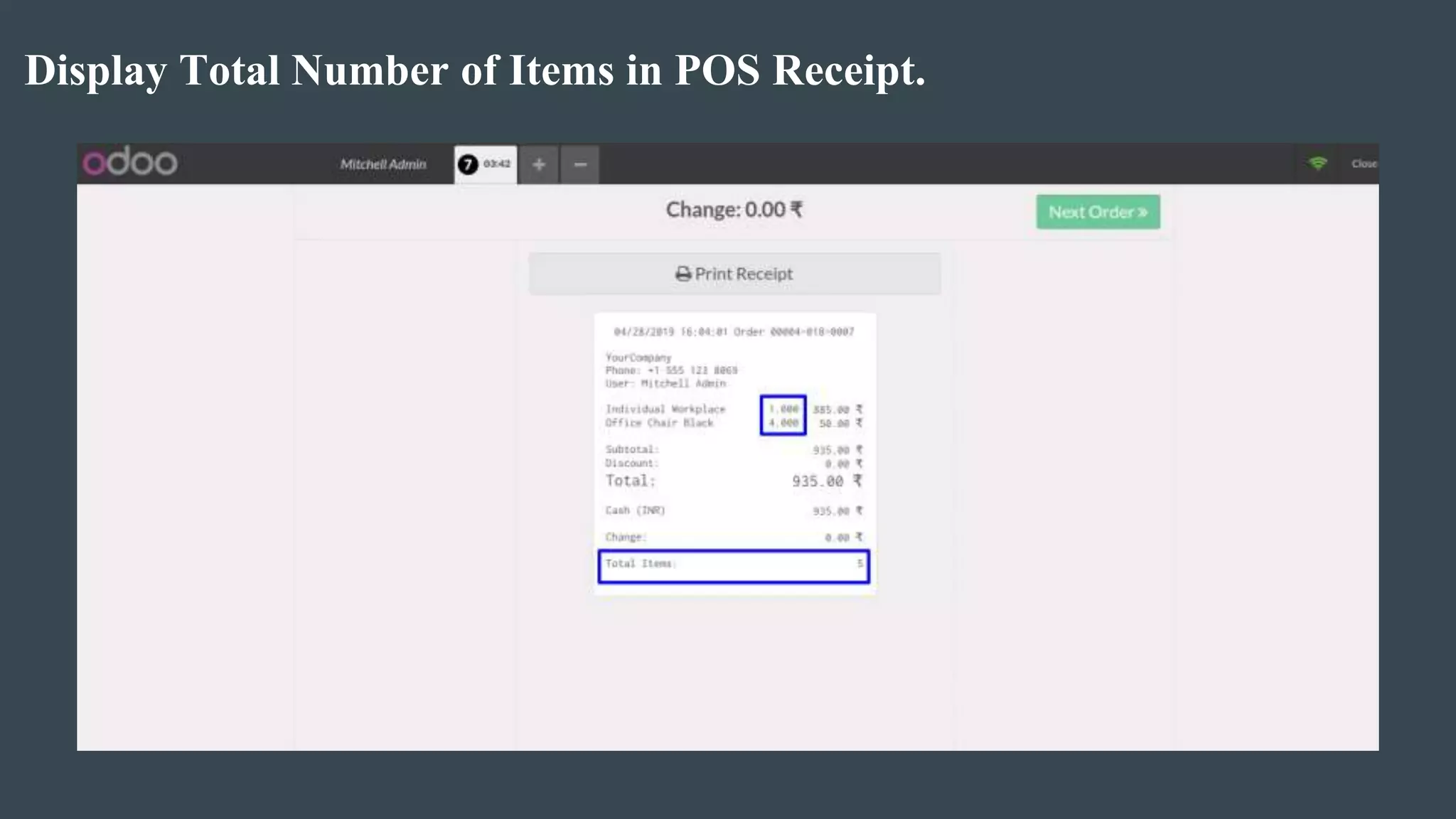
Item Count : Using this module you can see number of items of POS order.
Filter Orders : Using this module you can filter POS orders based on
customer.
Installation Guideline :
Before installing this POS All In One Features Odoo apps you
have to install following packages in your system.(If you have then
Ignore this)
sudo pip3 install python-barcode
OR
sudo pip install python-barcode
Find video tutorial here : Odoo All in One POS Features
POS Items Count :
Item Count in order
Display Total Number of Items in POS Receipt.
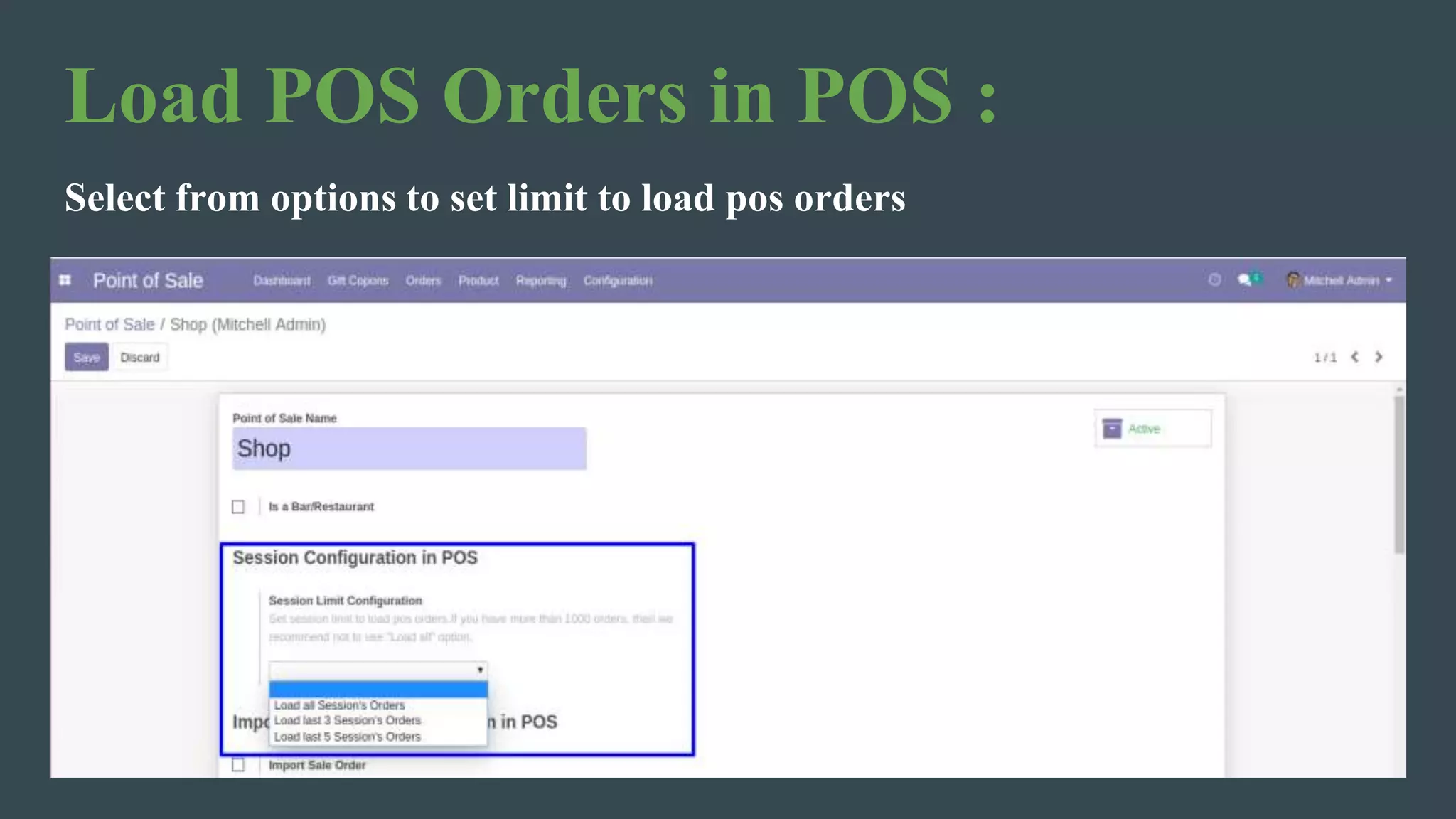
Load POS Orders in POS :
Select from options to set limit to load pos orders
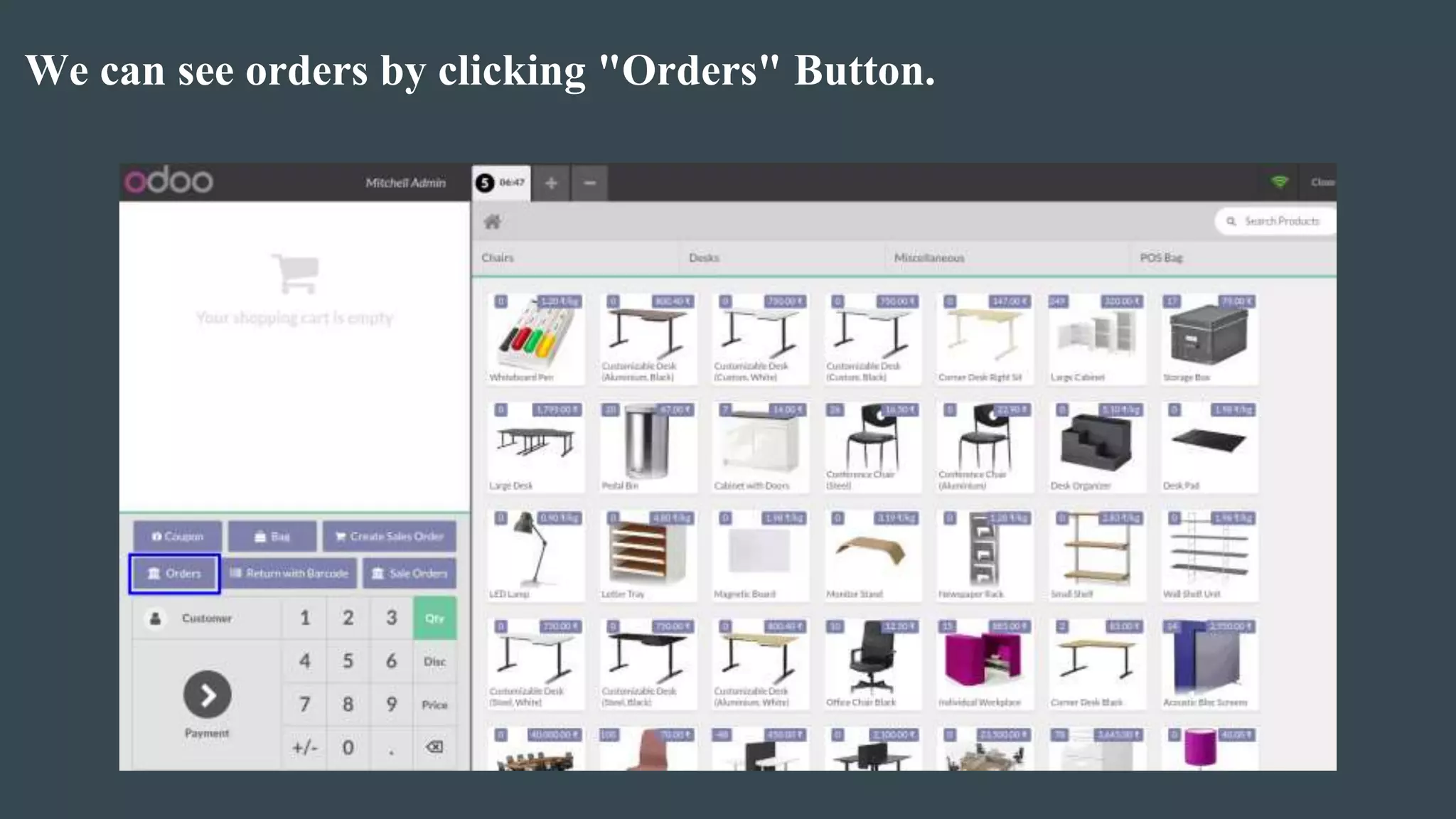
We can see orders by clicking "Orders" Button.
POS Orders :
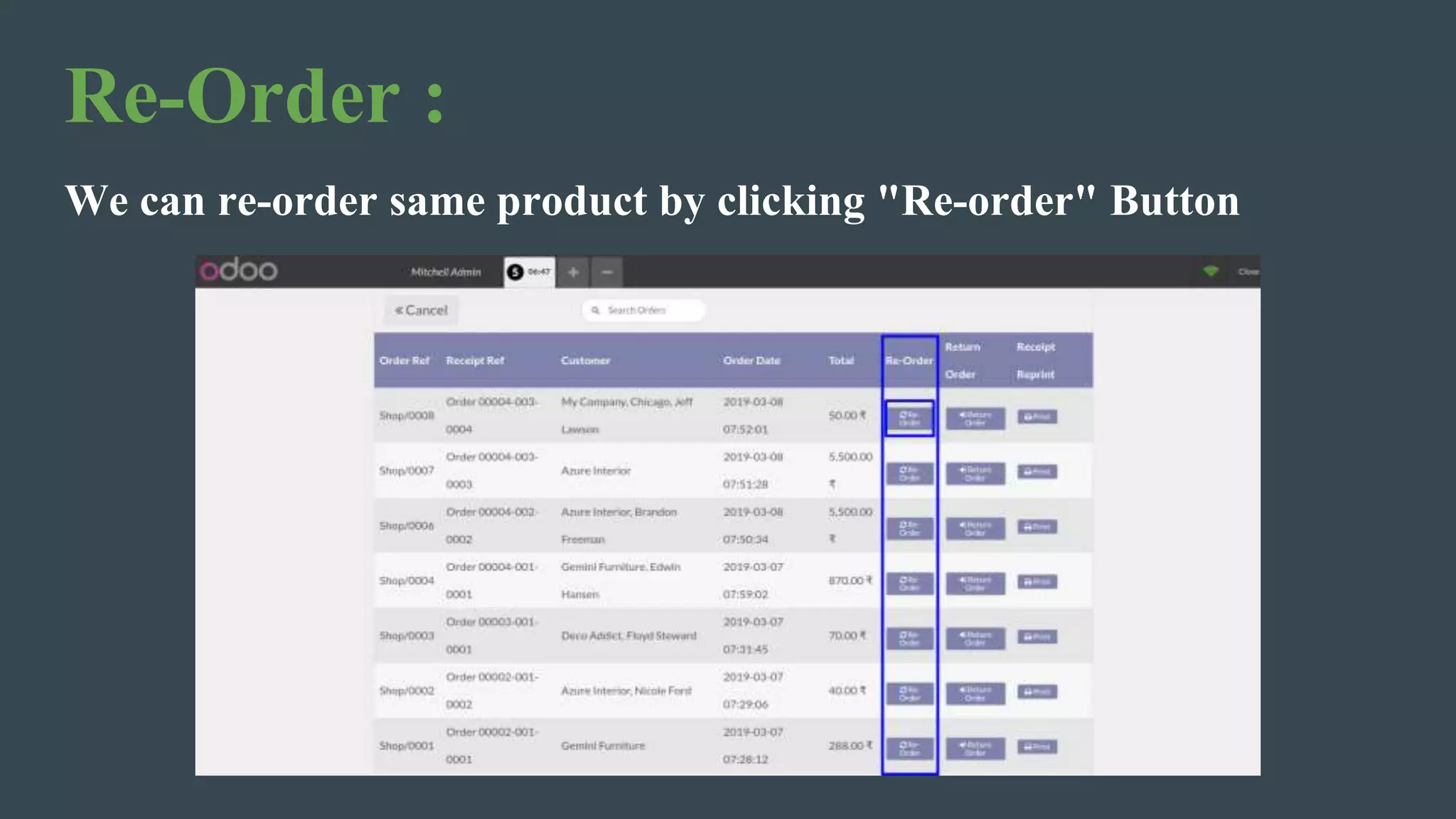
Re-Order :
We can re-order same product by clicking "Re-order" Button
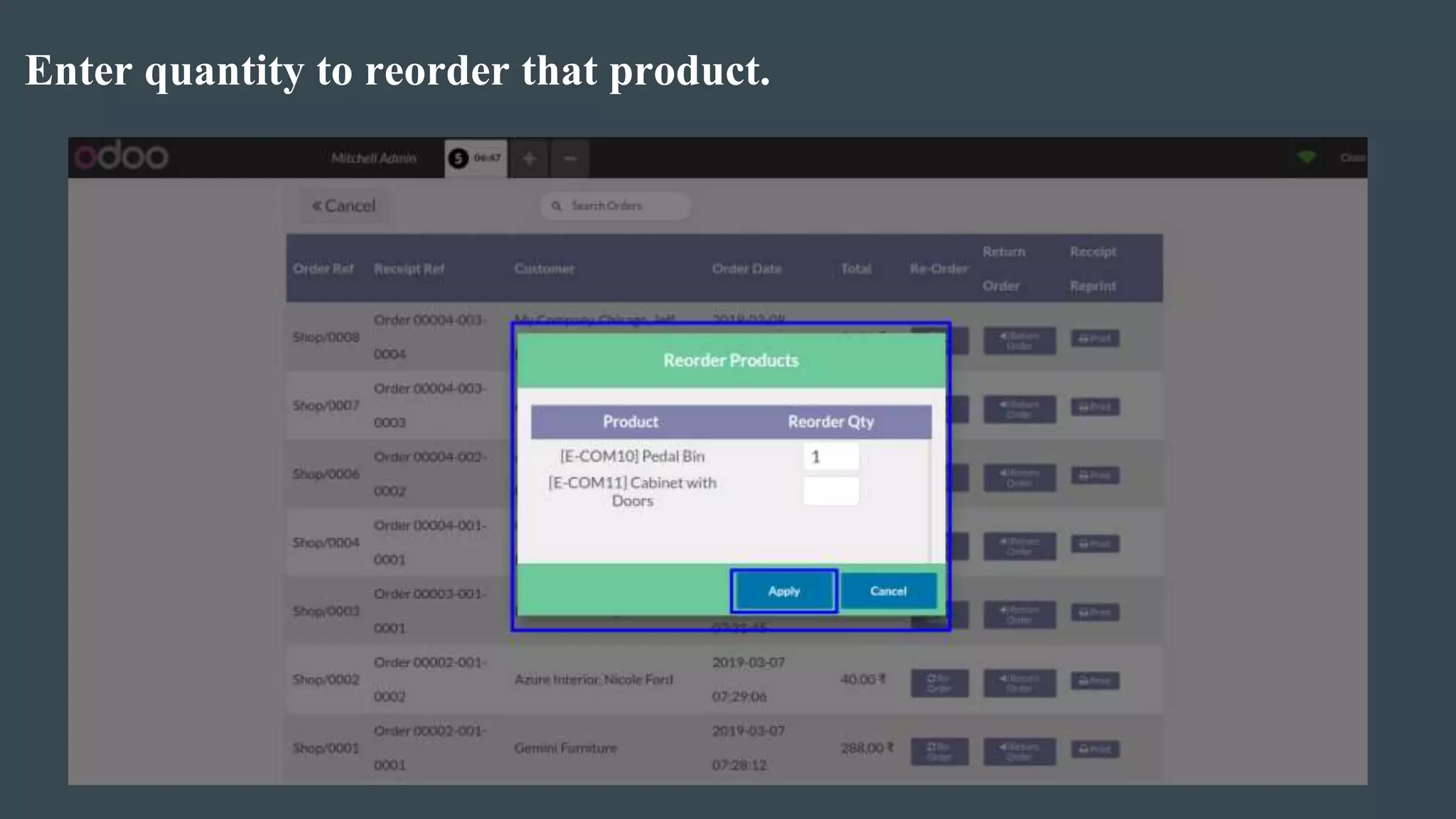
Enter quantity to reorder that product.
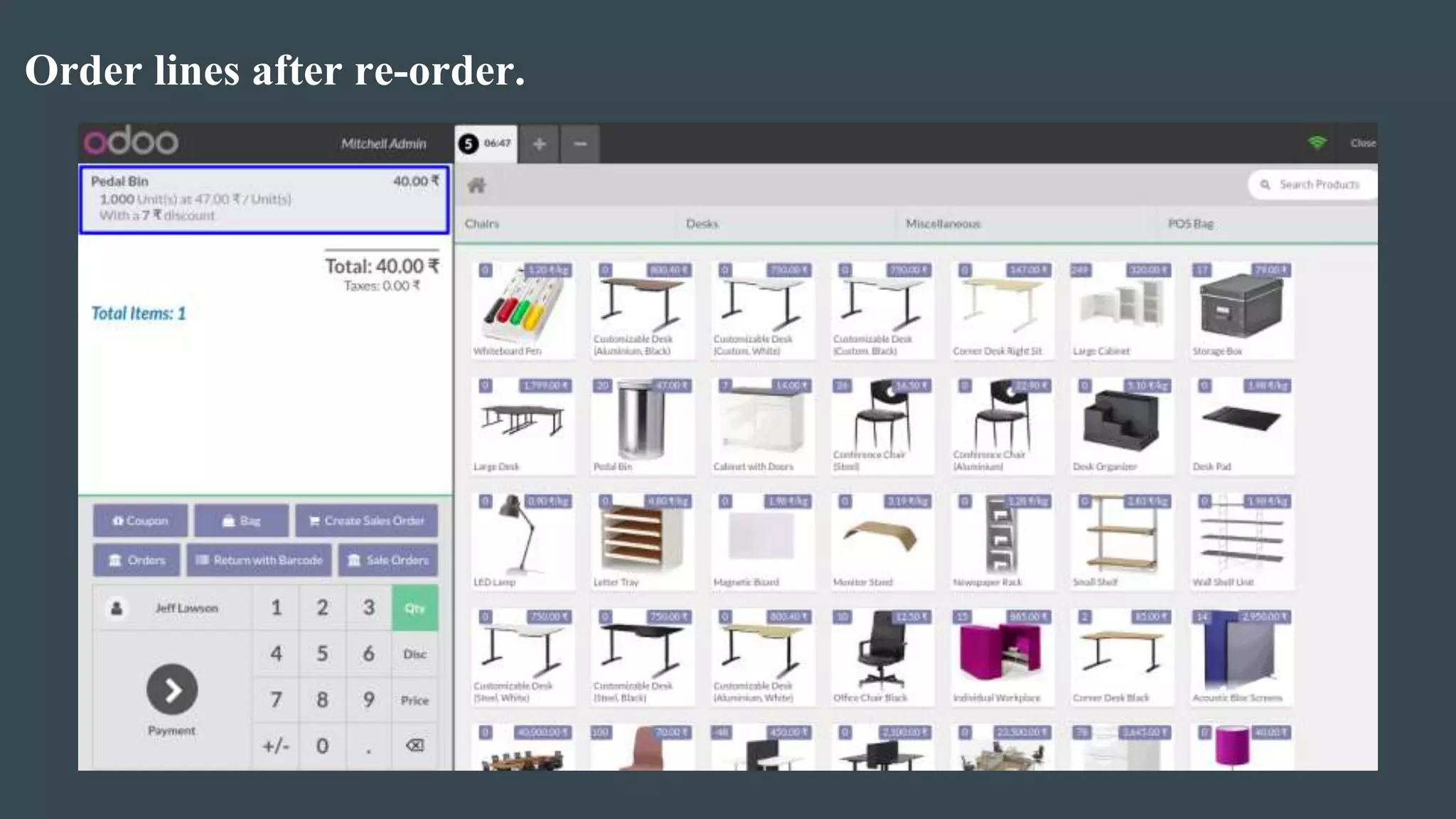
Order lines after re-order.
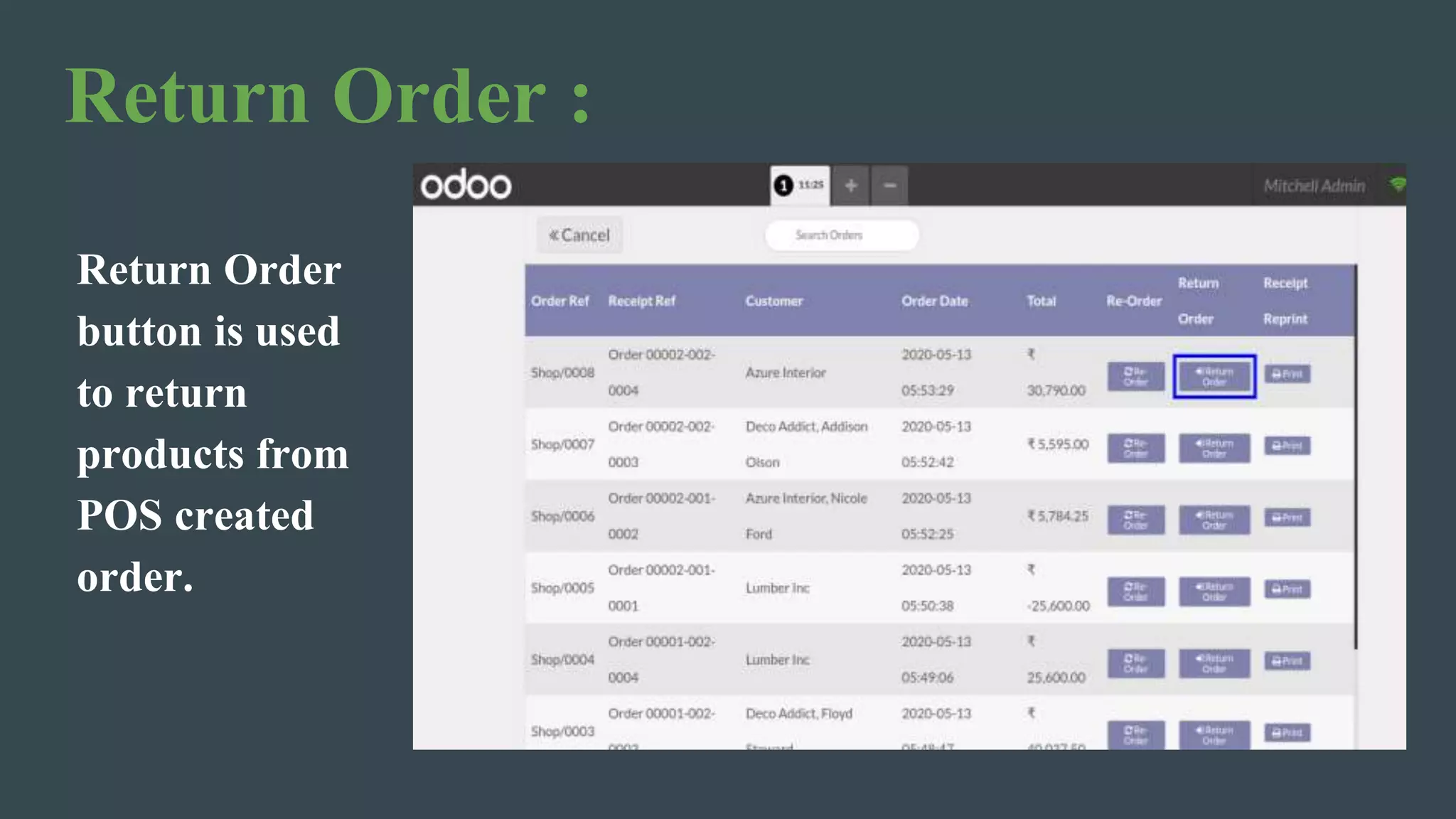
Return Order :
Return Order
button is used
to return
products from
POS created
order.
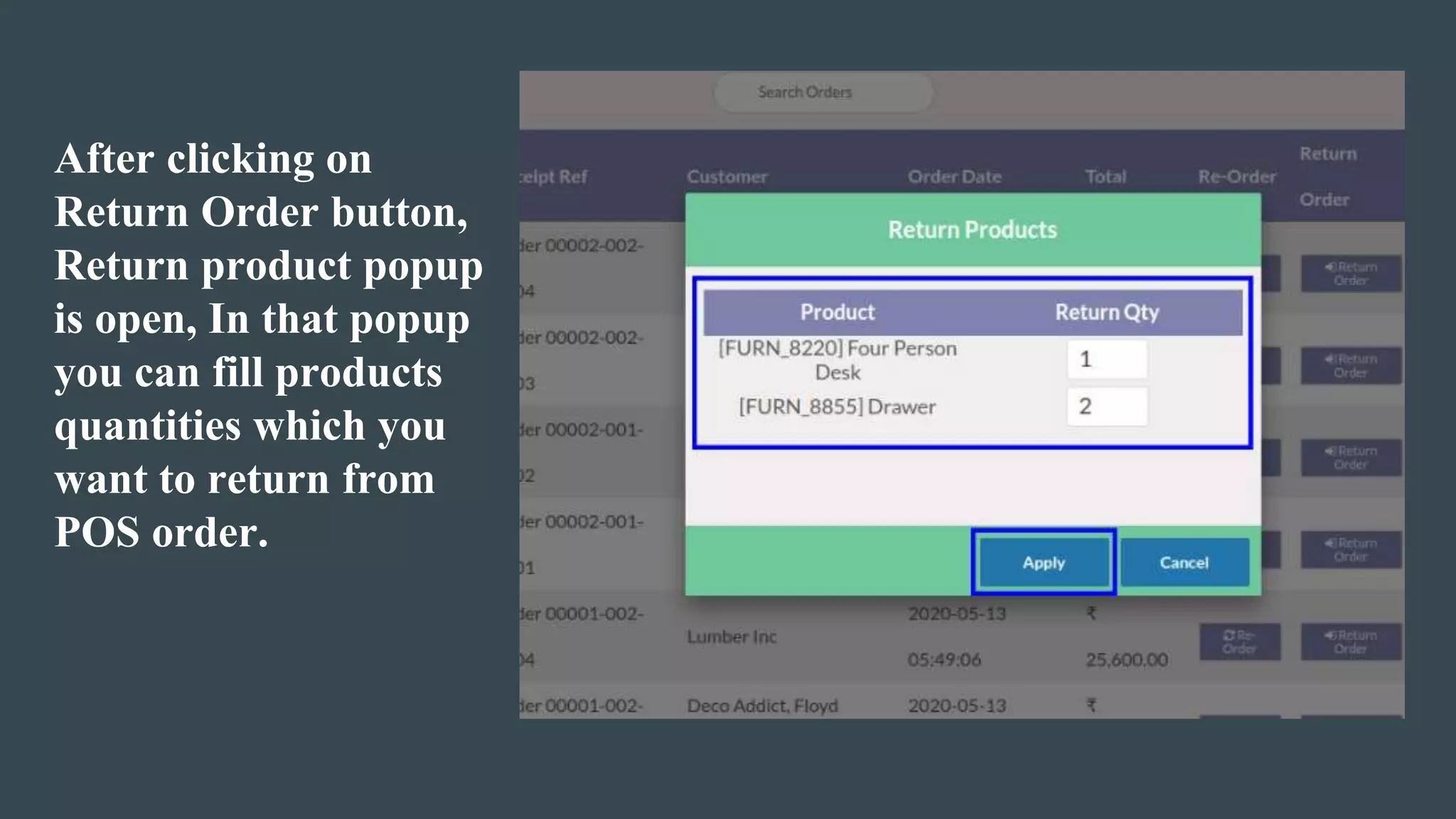
After clicking on
Return Order button,
Return product popup
is open, In that popup
you can fill products
quantities which you
want to return from
POS order.
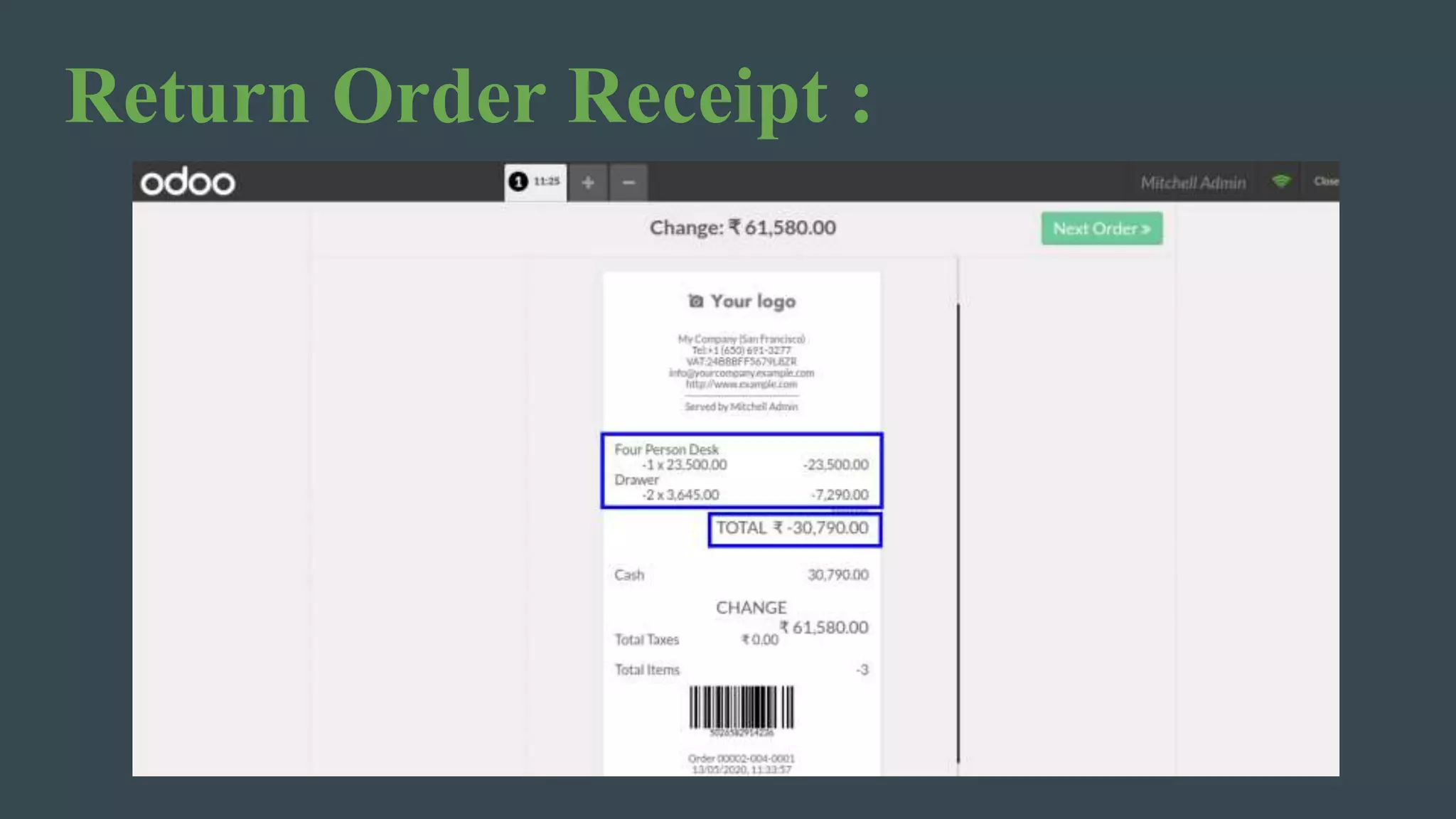
Return Order Receipt :
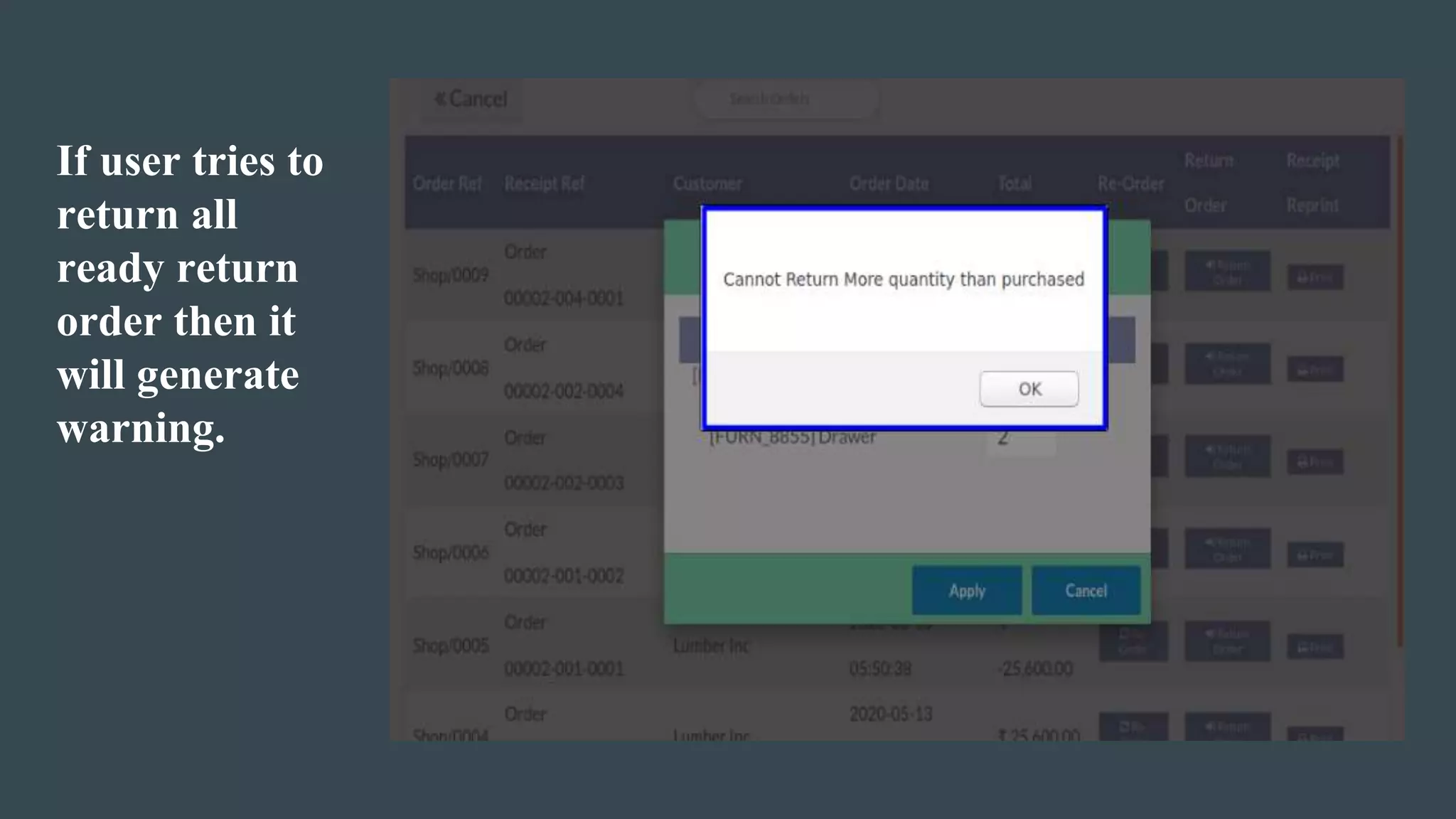
If user tries to
return all
ready return
order then it
will generate
warning.
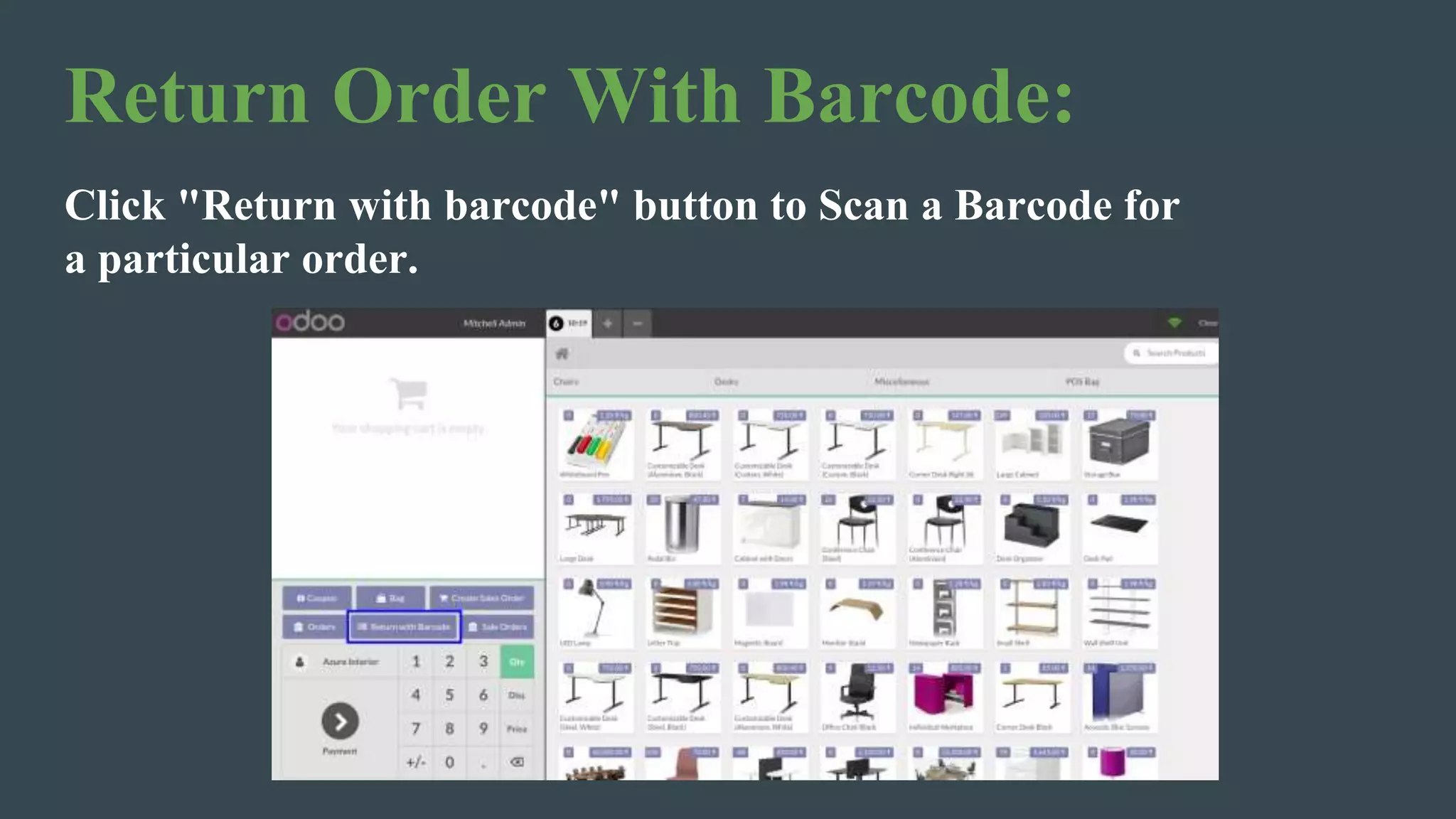
Return Order With Barcode:
Click "Return with barcode" button to Scan a Barcode for
a particular order.
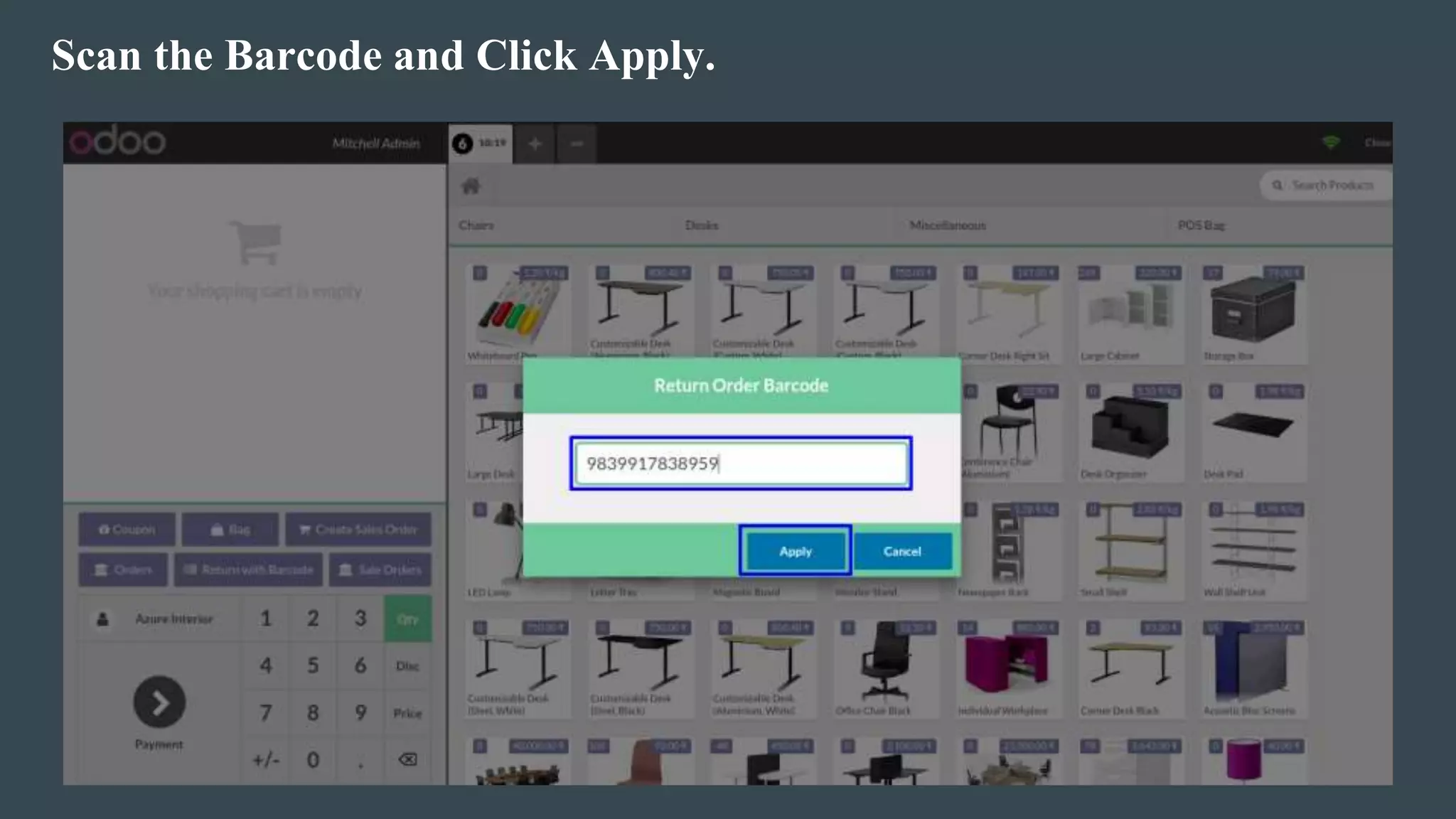
Scan the Barcode and Click Apply.
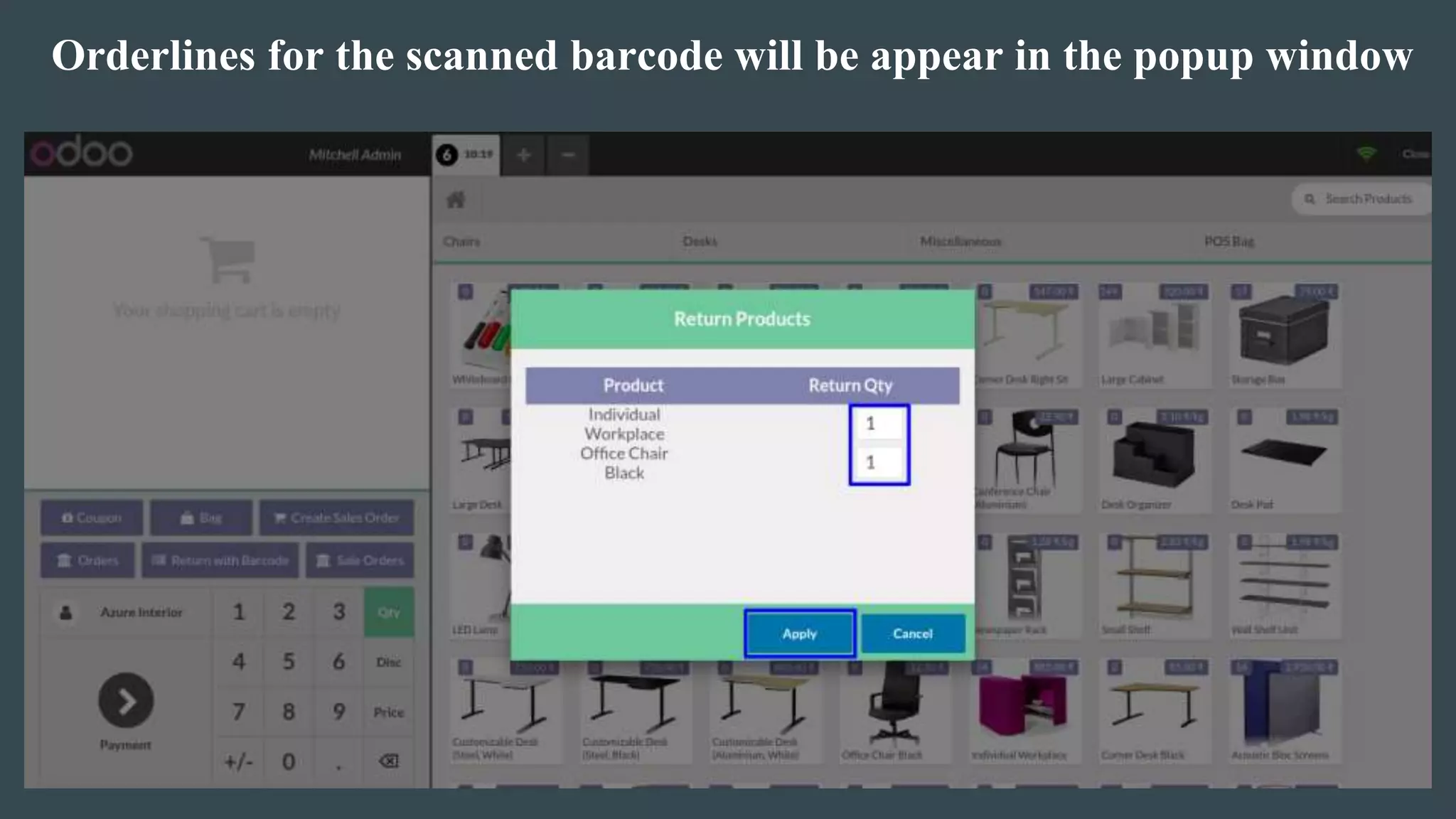
Orderlines for the scanned barcode will be appear in the popup window
Create and import sale Order :
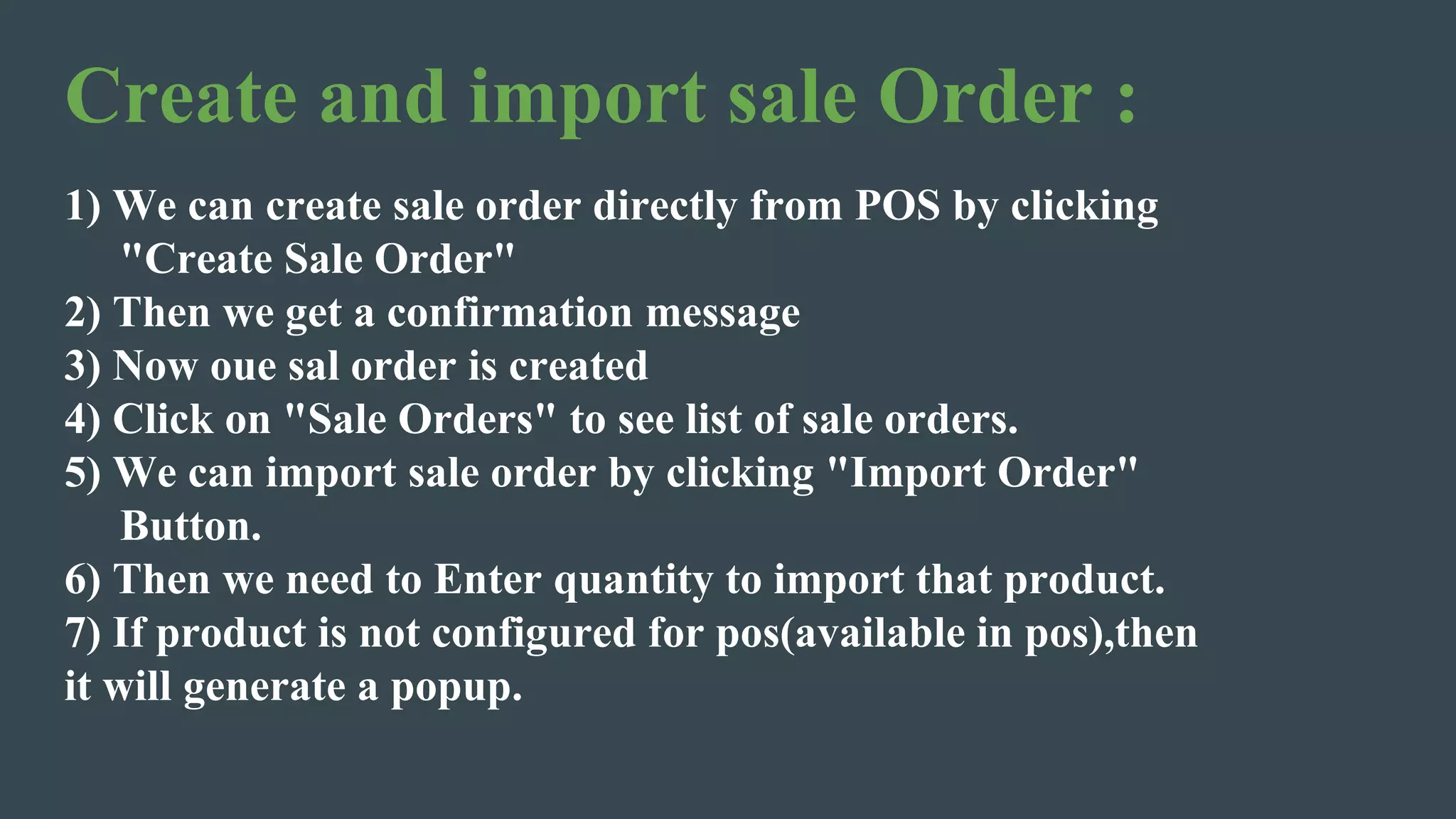
1) We can create sale order directly from POS by clicking
"Create Sale Order"
2) Then we get a confirmation message
3) Now oue sal order is created
4) Click on "Sale Orders" to see list of sale orders.
5) We can import sale order by clicking "Import Order"
Button.
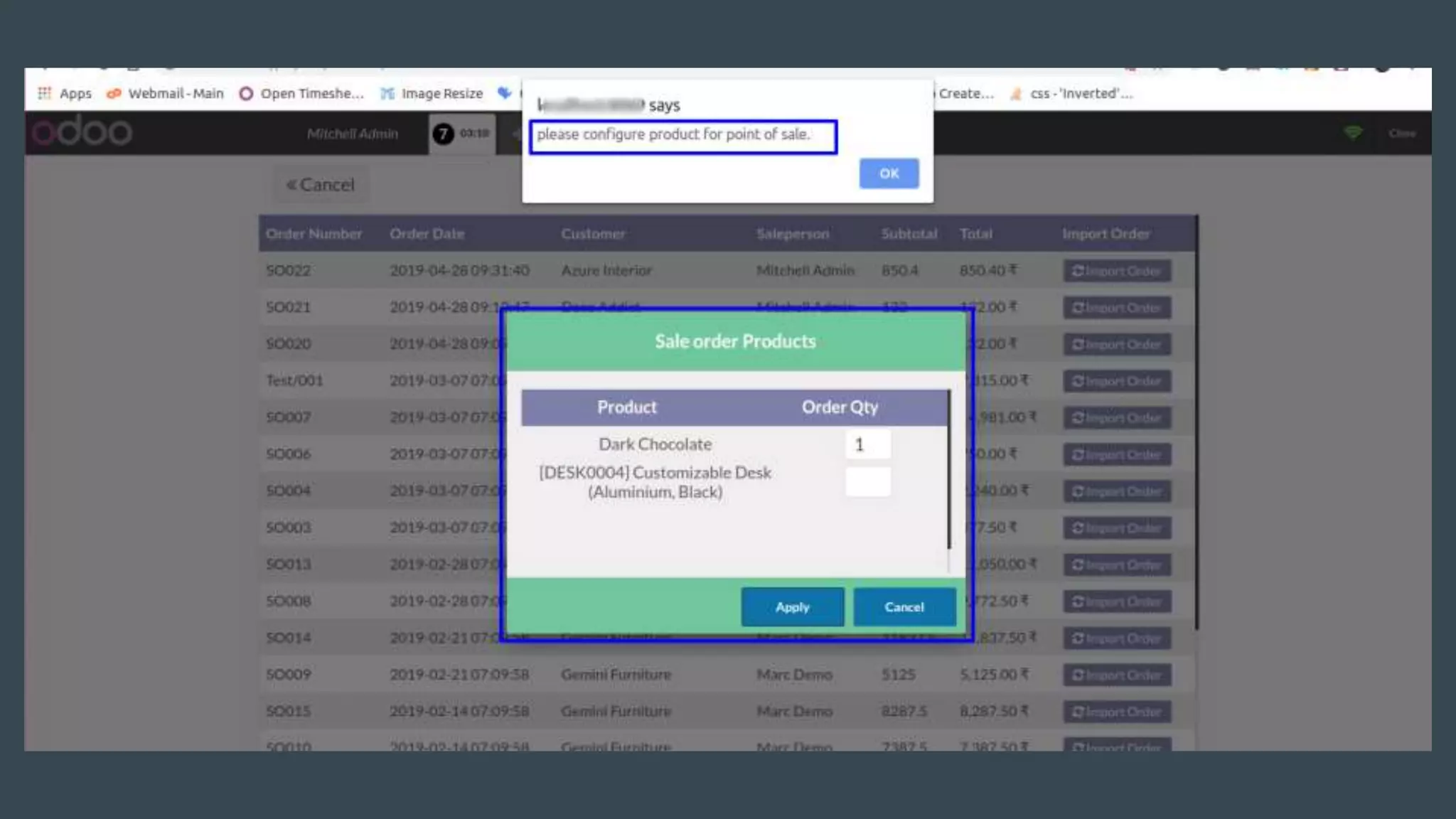
6) Then we need to Enter quantity to import that product.
7) If product is not configured for pos(available in pos),then
it will generate a popup.
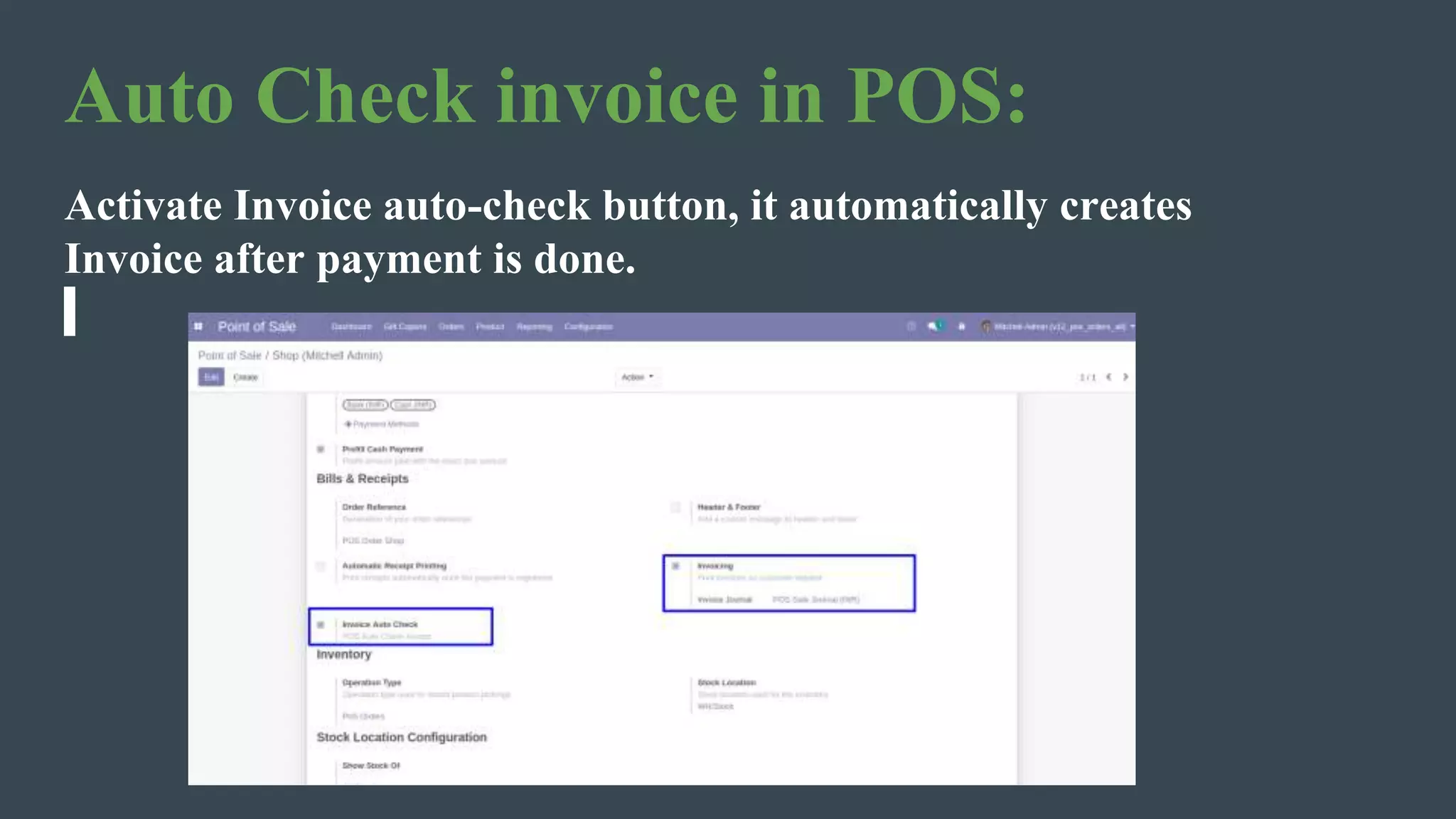
Auto Check invoice in POS:
Activate Invoice auto-check button, it automatically creates
Invoice after payment is done.
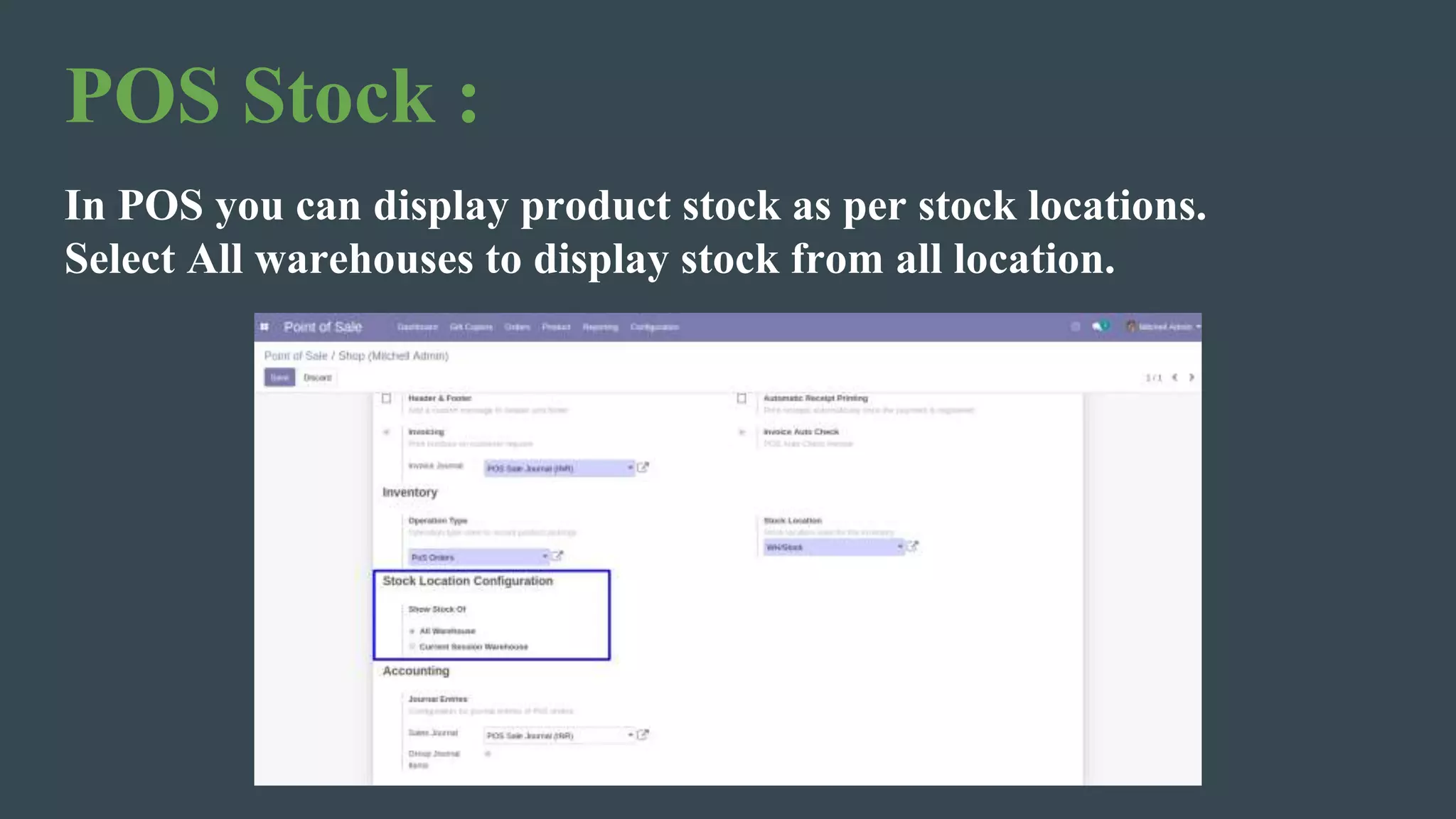
POS Stock :
In POS you can display product stock as per stock locations.
Select All warehouses to display stock from all location.
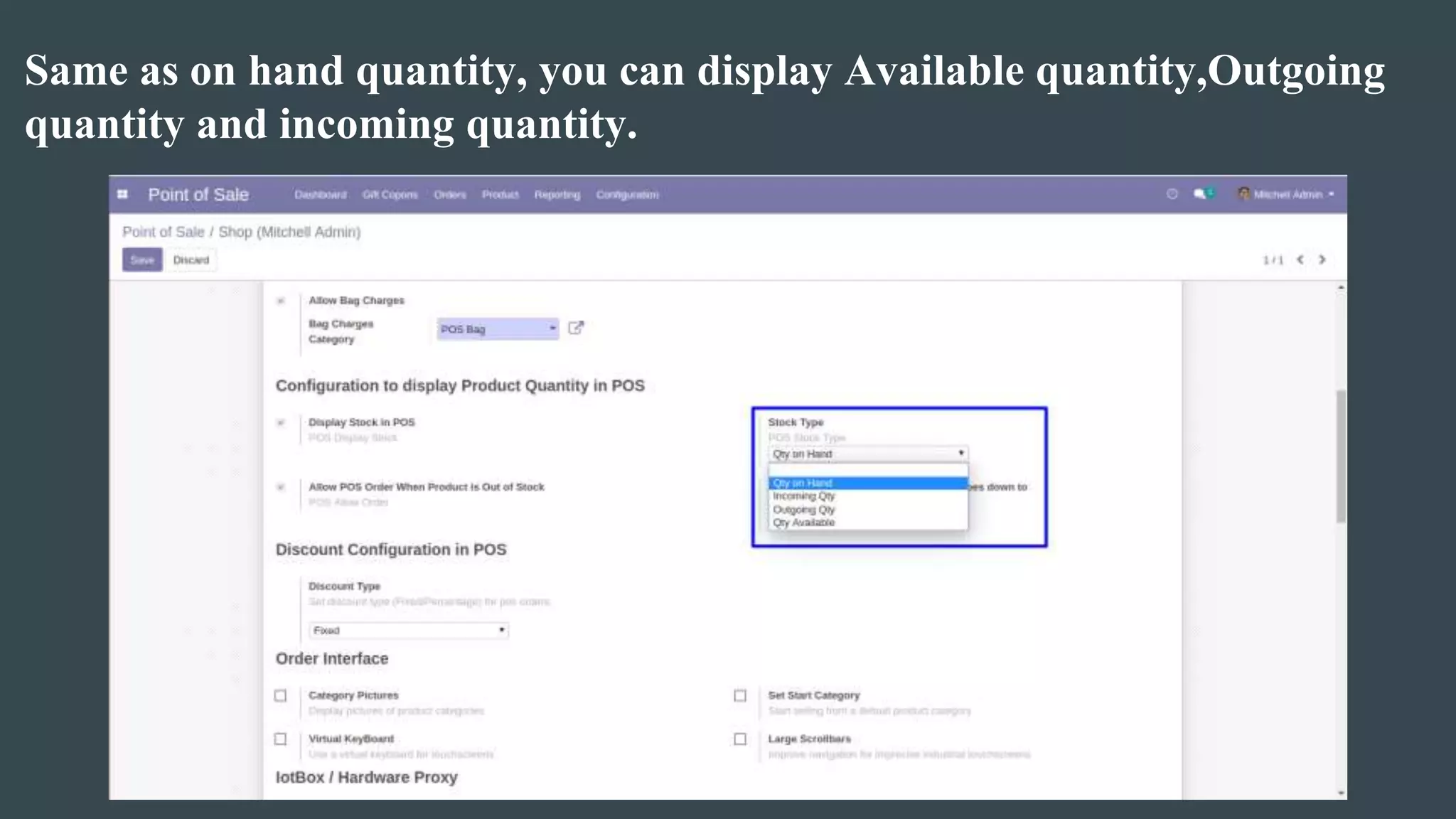
Same as on hand quantity, you can display Available quantity,Outgoing
quantity and incoming quantity.
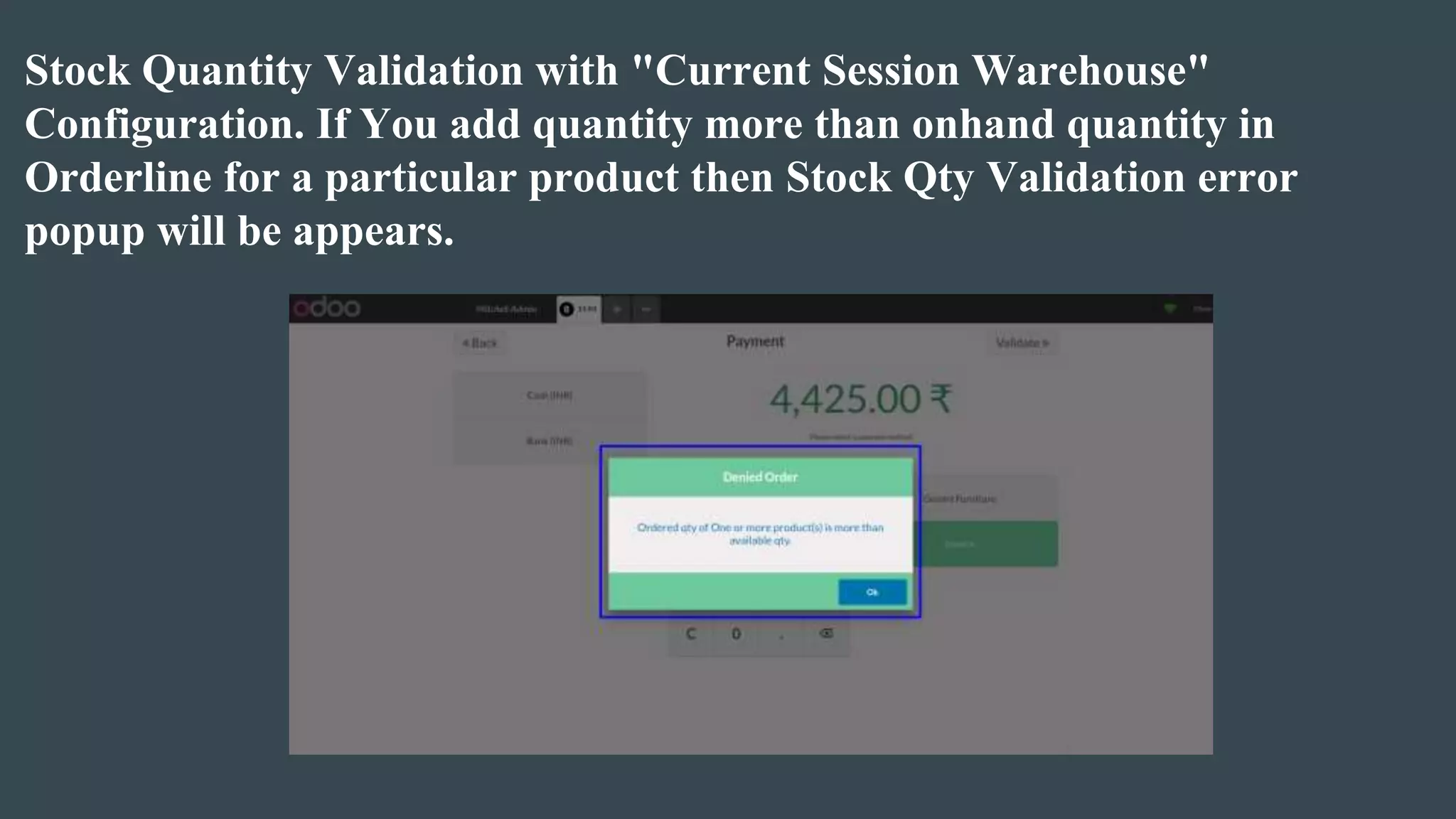
Stock Quantity Validation with "Current Session Warehouse"
Configuration. If You add quantity more than onhand quantity in
Orderline for a particular product then Stock Qty Validation error
popup will be appears.
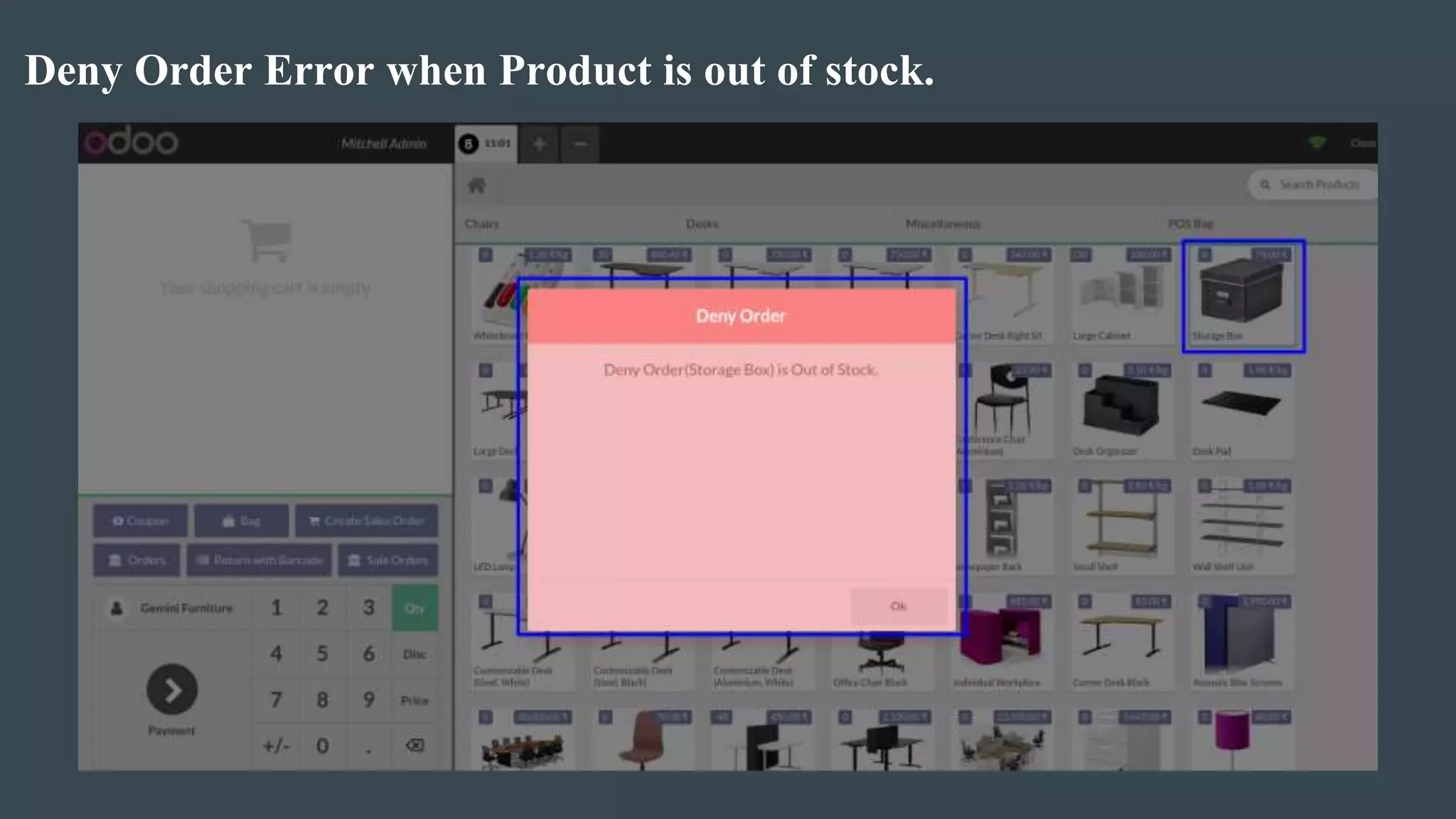
Deny Order Error when Product is out of stock.
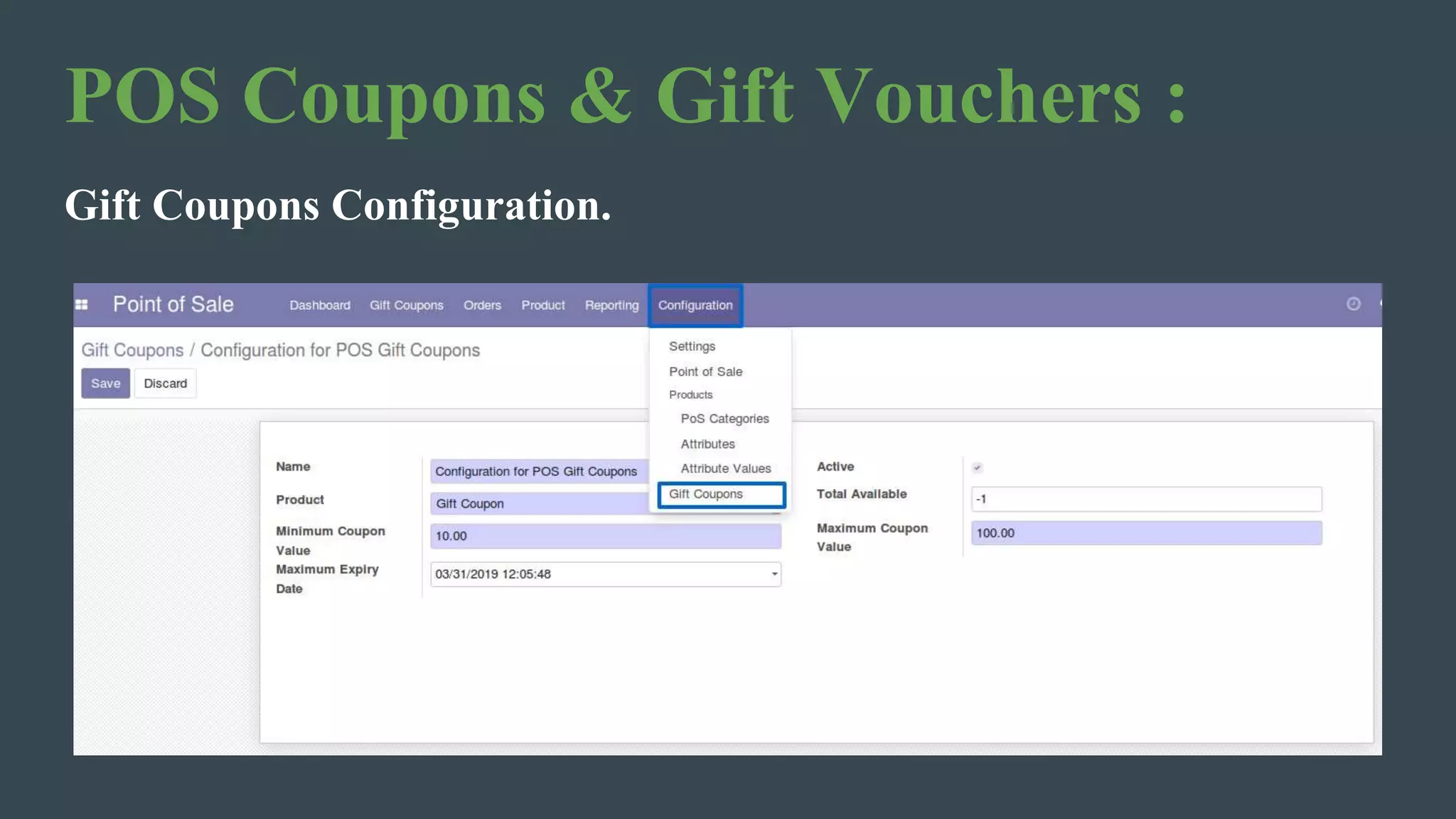
POS Coupons & Gift Vouchers :
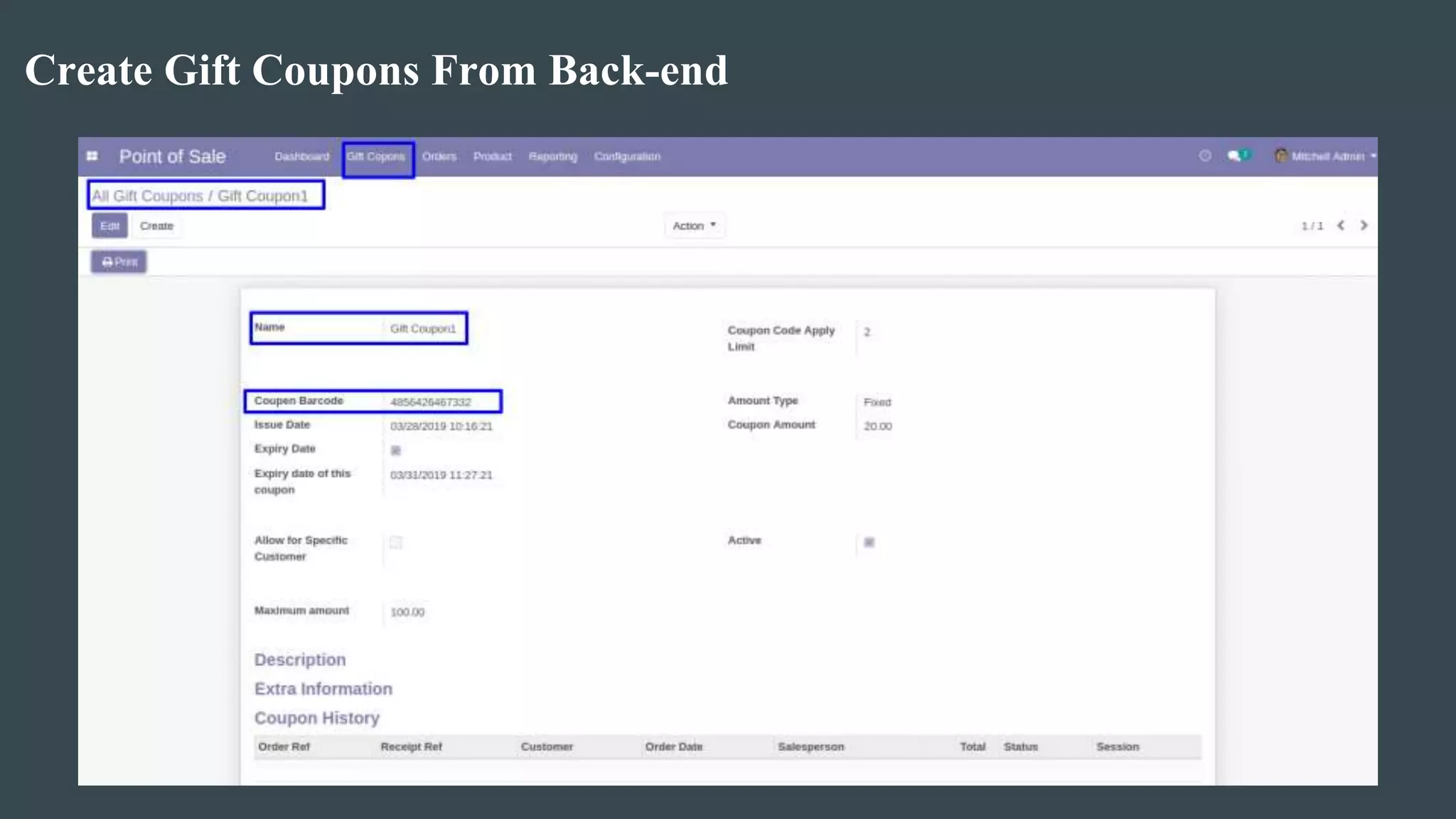
Gift Coupons Configuration.
Create Gift Coupons From Back-end
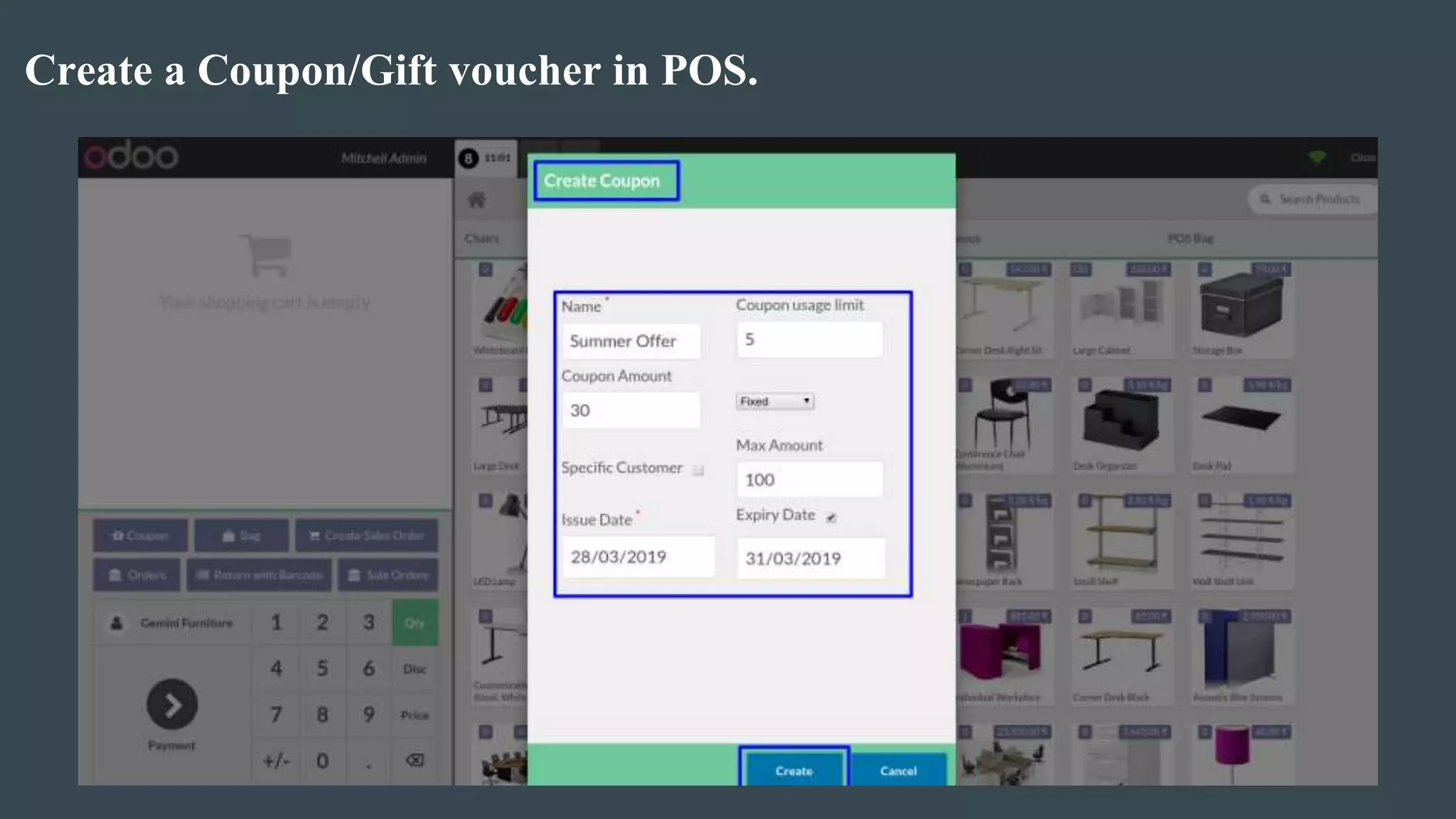
Create a Coupon/Gift voucher in POS.
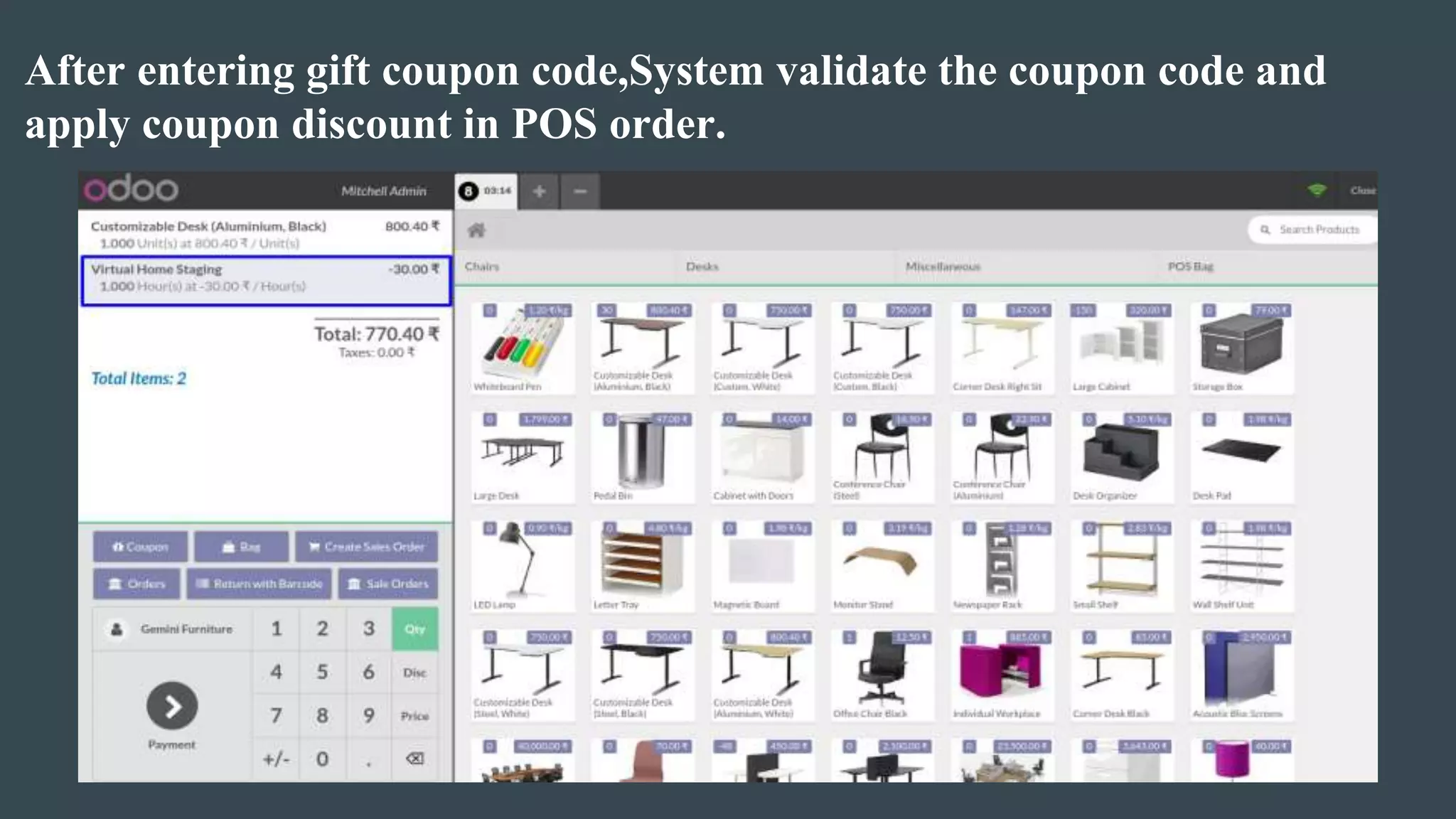
After entering gift coupon code,System validate the coupon code and
apply coupon discount in POS order.
Errors :
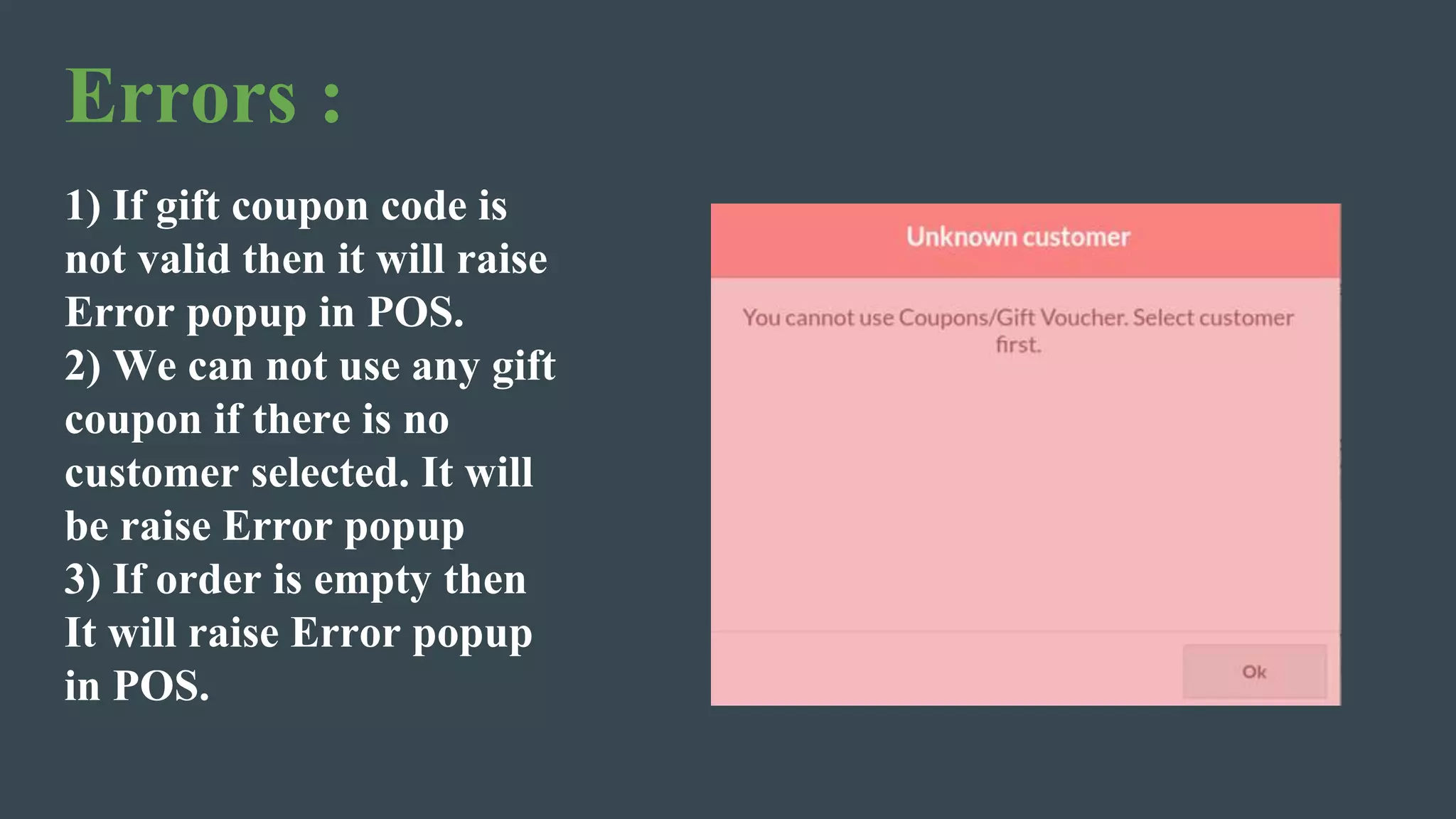
1) If gift coupon code is
not valid then it will raise
Error popup in POS.
2) We can not use any gift
coupon if there is no
customer selected. It will
be raise Error popup
3) If order is empty then
It will raise Error popup
in POS.
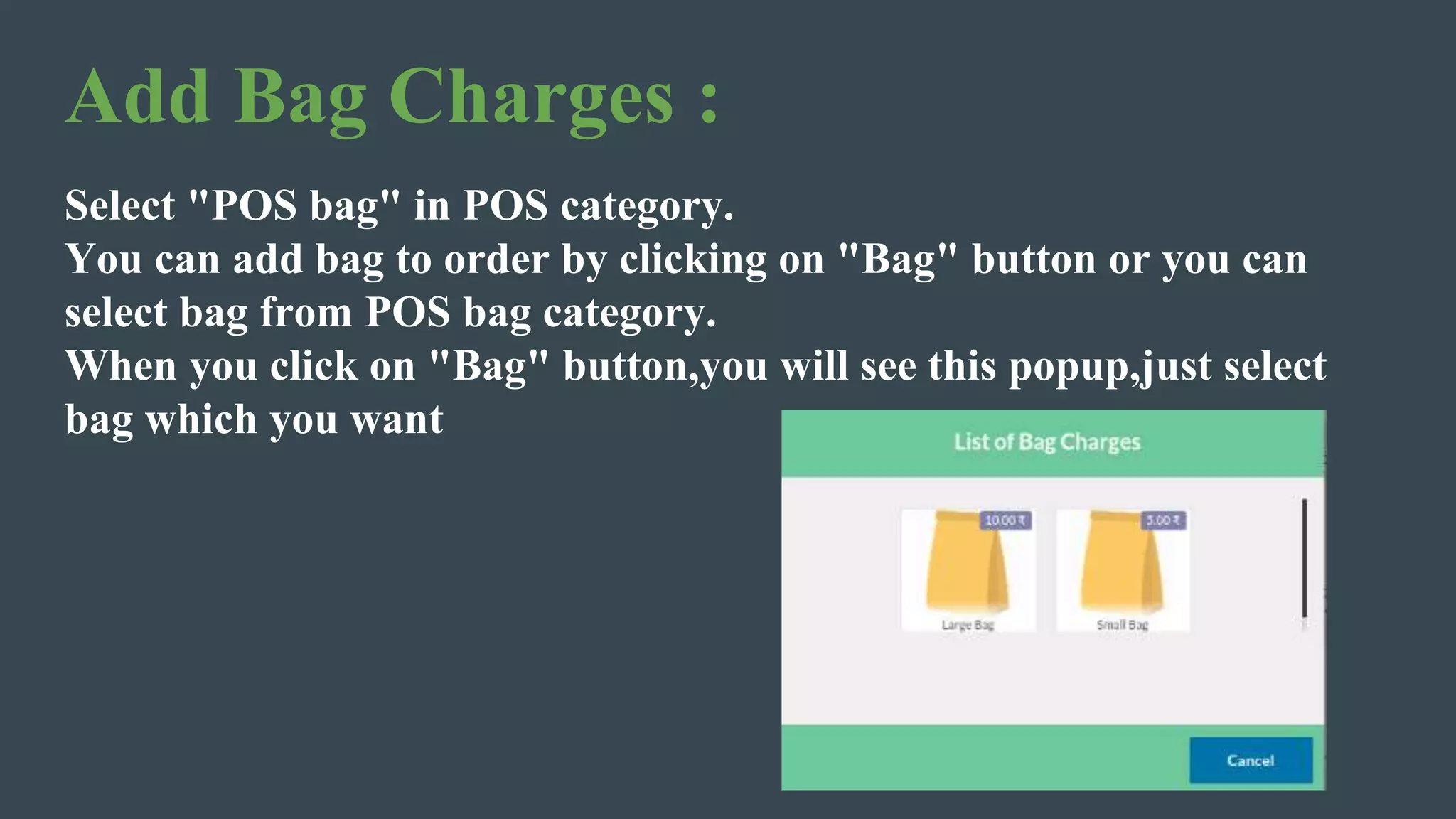
Add Bag Charges :
Select "POS bag" in POS category.
You can add bag to order by clicking on "Bag" button or you can
select bag from POS bag category.
When you click on "Bag" button,you will see this popup,just select
bag which you want
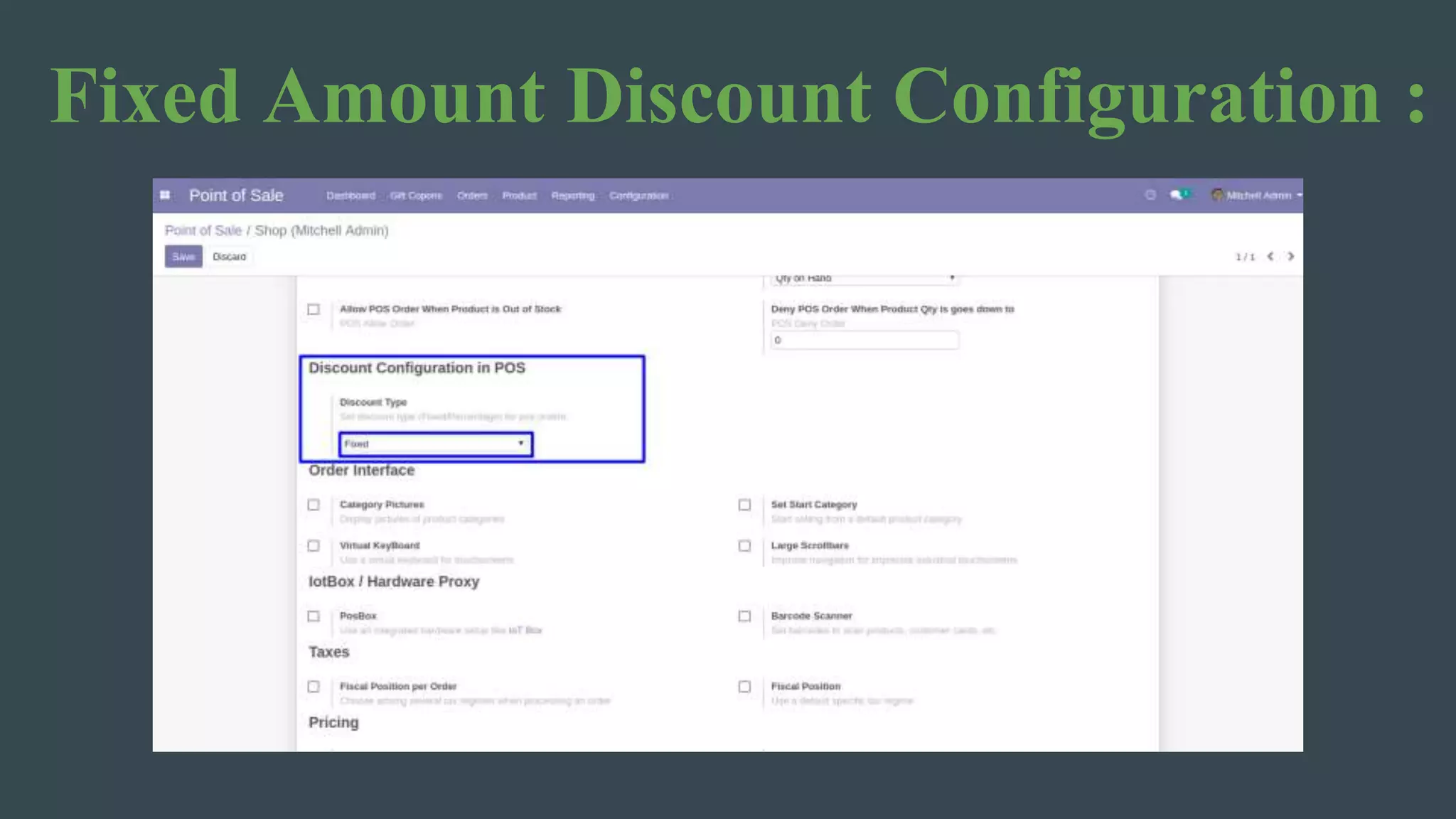
Fixed Amount Discount Configuration :
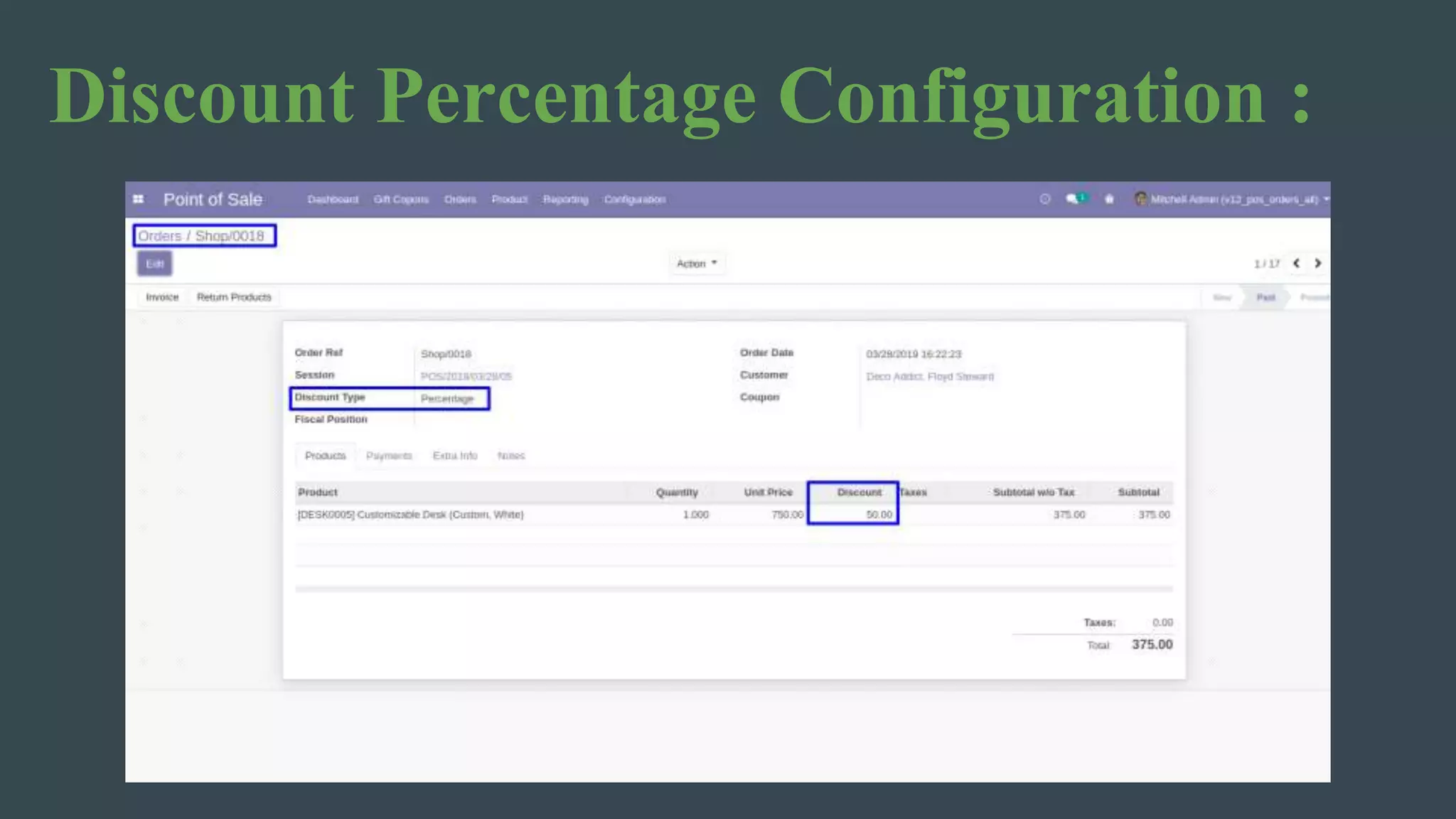
Discount Percentage Configuration :
Conclusion :
1) This Odoo apps include all the POS features in one module so You
only need to install this app and you can use all POS features.
2) This app has many updated version like V13,V12, V11, V10, V9.
3) Easy customization process.
For more information : Odoo Point of Sales features
Apps May you like
S
E
R
V
I
C
E
Odoo
Support
Odoo
Customization
Odoo
Development
Odoo
Integration
Odoo
Implementation
O
U
R
C
O
R
E
Odoo
Thank you
For Your Attention
Browseinfo
Sensing your needs
Address :A-310, Siddhivinayak Tower,
Makarba, Ahmedabad 380051
Gujarat, India.
Contact: 079-29700001
Email: contact@browseinfo.in

All in One POS Features in Odoo

  • 1.
    All in OnePOS Features in Odoo Email : contact@browseinfo.in Contact : 079-29700001 Browseinfo Sensing your needs
  • 2.
    Description : Point ofsales- POS All In One Features Odoo apps is used for reorder,return order,return order with barcode,reprint invoice, filter order based on customers,create sales order from the POS screen, apply gift coupon & vouchers, apply bag charges, get invoice at a time of payment,get all the records in POS,Display onhand quantity, POS Fixed Amount Discount & Display Total Number of Purchased Items in Cart and POS Receipt feature.
  • 3.
    Description : All ofthese feature available with this single all in one pos odoo module, you have to install only this single apps and you will see all those listed features with your point of sales.
  • 4.
    Features : Reprint :This module will help you to reprint POS receipt/invoice. Reorder : You can easily reorder any pos order from orders list in POS. Bag Charges : Using this module you can add bag charges. Import Sale order : Using this odoo pos features module you can easily import any sale order in POS. Fix Discount : Using this module you can apply fix discount to POS order. Product Stock Quantity : Using this all in one pos module you can see all products stock quantity in POS.
  • 5.
    Features : POS Orders: You can see all pos orders in POS Screen. Return Order : You can easily return any pos order directly or using barcode. Gift Voucher : You can apply gift voucher to POS order. Create Sale order : Using this all in one pos odoo module you can create sale order from POS. Item Count : Using this module you can see number of items of POS order. Filter Orders : Using this module you can filter POS orders based on customer.
  • 6.
    Installation Guideline : Beforeinstalling this POS All In One Features Odoo apps you have to install following packages in your system.(If you have then Ignore this) sudo pip3 install python-barcode OR sudo pip install python-barcode Find video tutorial here : Odoo All in One POS Features
  • 7.
    POS Items Count: Item Count in order
  • 8.
    Display Total Numberof Items in POS Receipt.
  • 9.
    Load POS Ordersin POS : Select from options to set limit to load pos orders
  • 10.
    We can seeorders by clicking "Orders" Button.
  • 11.
  • 12.
    Re-Order : We canre-order same product by clicking "Re-order" Button
  • 13.
    Enter quantity toreorder that product.
  • 14.
  • 15.
    Return Order : ReturnOrder button is used to return products from POS created order.
  • 16.
    After clicking on ReturnOrder button, Return product popup is open, In that popup you can fill products quantities which you want to return from POS order.
  • 17.
  • 18.
    If user triesto return all ready return order then it will generate warning.
  • 19.
    Return Order WithBarcode: Click "Return with barcode" button to Scan a Barcode for a particular order.
  • 20.
    Scan the Barcodeand Click Apply.
  • 21.
    Orderlines for thescanned barcode will be appear in the popup window
  • 22.
    Create and importsale Order : 1) We can create sale order directly from POS by clicking "Create Sale Order" 2) Then we get a confirmation message 3) Now oue sal order is created 4) Click on "Sale Orders" to see list of sale orders. 5) We can import sale order by clicking "Import Order" Button. 6) Then we need to Enter quantity to import that product. 7) If product is not configured for pos(available in pos),then it will generate a popup.
  • 24.
    Auto Check invoicein POS: Activate Invoice auto-check button, it automatically creates Invoice after payment is done.
  • 25.
    POS Stock : InPOS you can display product stock as per stock locations. Select All warehouses to display stock from all location.
  • 26.
    Same as onhand quantity, you can display Available quantity,Outgoing quantity and incoming quantity.
  • 27.
    Stock Quantity Validationwith "Current Session Warehouse" Configuration. If You add quantity more than onhand quantity in Orderline for a particular product then Stock Qty Validation error popup will be appears.
  • 28.
    Deny Order Errorwhen Product is out of stock.
  • 29.
    POS Coupons &Gift Vouchers : Gift Coupons Configuration.
  • 30.
    Create Gift CouponsFrom Back-end
  • 31.
    Create a Coupon/Giftvoucher in POS.
  • 32.
    After entering giftcoupon code,System validate the coupon code and apply coupon discount in POS order.
  • 33.
    Errors : 1) Ifgift coupon code is not valid then it will raise Error popup in POS. 2) We can not use any gift coupon if there is no customer selected. It will be raise Error popup 3) If order is empty then It will raise Error popup in POS.
  • 34.
    Add Bag Charges: Select "POS bag" in POS category. You can add bag to order by clicking on "Bag" button or you can select bag from POS bag category. When you click on "Bag" button,you will see this popup,just select bag which you want
  • 35.
    Fixed Amount DiscountConfiguration :
  • 36.
  • 37.
    Conclusion : 1) ThisOdoo apps include all the POS features in one module so You only need to install this app and you can use all POS features. 2) This app has many updated version like V13,V12, V11, V10, V9. 3) Easy customization process. For more information : Odoo Point of Sales features
  • 38.
  • 39.
  • 40.
    Thank you For YourAttention Browseinfo Sensing your needs Address :A-310, Siddhivinayak Tower, Makarba, Ahmedabad 380051 Gujarat, India. Contact: 079-29700001 Email: contact@browseinfo.in