Veepal IT Services Pvt. Ltd.
Ahmedabad, India
Email: info@veepal.com
Web: www.veepal.com
Copyright © 2010-2018 Veepal IT Services Pvt. Ltd. All Rights Reserved
Odoo Development
Veepal IT Services Pvt. Ltd.
Ahmedabad, India
Email: info@veepal.com
Web: www.veepal.com
Copyright © 2010-2018 Veepal IT Services Pvt. Ltd. All Rights Reserved
Table of Contents
Odoo (OpenERP) Point of Sale: Loyalty Management........................................................ 3
OpenERP Point of Sale (POS): Print draft receipt before order validation......................... 6
OpenERP Point of Sale: Create invoice for multiple orders together................................. 8
Odoo Android App: Product quantity in different warehouse......................................... 11
OpenERP (Odoo) V8 Android: App to update quantity using barcode............................. 14
Latest version of Odoo 11: Benefits and migration.......................................................... 19
Veepal IT Services Pvt. Ltd.
Ahmedabad, India
Email: info@veepal.com
Web: www.veepal.com
Copyright © 2010-2018 Veepal IT Services Pvt. Ltd. All Rights Reserved
Odoo (OpenERP) Point of Sale: Loyalty Management
Many companies are providing loyalty features to their regular customers.
We have implemented the same feature in Odoo POS 7.0 which will allow us to use
point system. Let’s have a look that how it is working and Odoo customizations.
From Odoo Point of Sale menu, we can see there are some menus to manage members.
We can create member categories as per our company criteria. There are three main
fields as mentioned below:
– Purchase Limit (Customer must purchase up to or more than this amount then only he
can get points or he can use points if he has from past purchase)
– Point to price
– Price to point
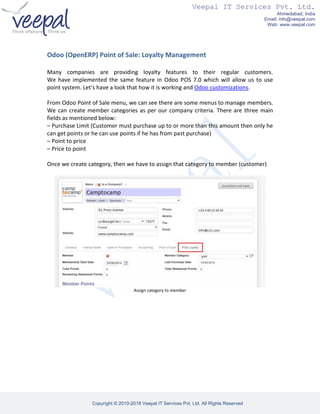
Once we create category, then we have to assign that category to member (customer)
Assign category to member
Veepal IT Services Pvt. Ltd.
Ahmedabad, India
Email: info@veepal.com
Web: www.veepal.com
Copyright © 2010-2018 Veepal IT Services Pvt. Ltd. All Rights Reserved
Now customer will purchase something above his purchase limit.
Earning points on purchase limit
So we can see how this will affect in points.
Earned points from POS Purchase
Veepal IT Services Pvt. Ltd.
Ahmedabad, India
Email: info@veepal.com
Web: www.veepal.com
Copyright © 2010-2018 Veepal IT Services Pvt. Ltd. All Rights Reserved
If any customer wants to use his points, then we can do this way. Check below screen.
Use loyalty points in POS
Same will be affected in customer history also.
Points History
Veepal IT Services Pvt. Ltd.
Ahmedabad, India
Email: info@veepal.com
Web: www.veepal.com
Copyright © 2010-2018 Veepal IT Services Pvt. Ltd. All Rights Reserved
OpenERP Point of Sale (POS): Print draft receipt before order validation
Sometimes it is required to print draft receipt before validating POS Order and that is
what we have improved in our new development in OpenERP V7.
Here in below screen, we can see that we have selected customer, and few products.
OpenERP POS Normal Order
Now once we click on payment option, we will have two more options for Draft Receipt.
We can see the Draft Receipt directly on screen like this, or we can print draft receipt
also.
OpenERP POS Draft Receipt
Veepal IT Services Pvt. Ltd.
Ahmedabad, India
Email: info@veepal.com
Web: www.veepal.com
Copyright © 2010-2018 Veepal IT Services Pvt. Ltd. All Rights Reserved
And here is the normal receipt which we can see after validation which is same as draft
receipt.
OpenERP POS Order Validation
Veepal IT Services Pvt. Ltd.
Ahmedabad, India
Email: info@veepal.com
Web: www.veepal.com
Copyright © 2010-2018 Veepal IT Services Pvt. Ltd. All Rights Reserved
OpenERP Point of Sale: Create invoice for multiple orders together
Though it’s not so complex module but still would like to share with you what we have
developed. As we know that from POS Back Order, we can create invoice one by one. So
here we made solution where we can select more than one POS Orders and create
invoice at once. In below screen, we can see that there is no invoice created for these
POS Orders.
OpenERP POS Orders
We can easily filter POS Order by dates and it will display order which are not relate
with any invoices.
Search POS Orders
Veepal IT Services Pvt. Ltd.
Ahmedabad, India
Email: info@veepal.com
Web: www.veepal.com
Copyright © 2010-2018 Veepal IT Services Pvt. Ltd. All Rights Reserved
For creating invoice for POS Orders, it requires to select customer.
Create Invoice
It will take order lines of all selected POS Order and create one customer invoice in
DRAFT state.
Selection of Customer
Veepal IT Services Pvt. Ltd.
Ahmedabad, India
Email: info@veepal.com
Web: www.veepal.com
Copyright © 2010-2018 Veepal IT Services Pvt. Ltd. All Rights Reserved
After creating invoice, all selected POS Orders “Status” and “Invoice” fields’ value will be
change.
POS Order after invoice validation
In case of “Cancel” invoice, it will update both fields into POS Orders.
POS Order after cancel invoice
Veepal IT Services Pvt. Ltd.
Ahmedabad, India
Email: info@veepal.com
Web: www.veepal.com
Copyright © 2010-2018 Veepal IT Services Pvt. Ltd. All Rights Reserved
Odoo Android App: Product quantity in different warehouse
We have implemented application which will be useful to search product by scanning
barcode and it will display product stock according to product template and according
to different warehouses configured in your database.
Menu
You can search product by writing name or reference of product or scan any barcode
and that product or template will be selected automatically.
Main Page
Veepal IT Services Pvt. Ltd.
Ahmedabad, India
Email: info@veepal.com
Web: www.veepal.com
Copyright © 2010-2018 Veepal IT Services Pvt. Ltd. All Rights Reserved
Search Product
After selecting product, it will display stock information according to warehouses
configured into database.
Display Product Search
Veepal IT Services Pvt. Ltd.
Ahmedabad, India
Email: info@veepal.com
Web: www.veepal.com
Copyright © 2010-2018 Veepal IT Services Pvt. Ltd. All Rights Reserved
In case of Product Template, it will display all products related with template and display
stock.
Search Variant
Display Template Search
Veepal IT Services Pvt. Ltd.
Ahmedabad, India
Email: info@veepal.com
Web: www.veepal.com
Copyright © 2010-2018 Veepal IT Services Pvt. Ltd. All Rights Reserved
OpenERP (Odoo) V8 Android: App to update quantity using barcode
We are happy to announce our first Android Application on Odoo v8 framework which is
for Barcode Scanning and updating product quantity. Let’s have a look that how it is
working.
First we have to enter valid Odoo server url and login information.
Odoo Server URL
Select odoo database
Veepal IT Services Pvt. Ltd.
Ahmedabad, India
Email: info@veepal.com
Web: www.veepal.com
Copyright © 2010-2018 Veepal IT Services Pvt. Ltd. All Rights Reserved
After login, we can see “Barcode” menu.
Odoo database menu
Here in application, we have provided four options:
 Scan Barcode
 Save Barcode
 Synch Selected
 Synch All
Odoo android barcode app
Veepal IT Services Pvt. Ltd.
Ahmedabad, India
Email: info@veepal.com
Web: www.veepal.com
Copyright © 2010-2018 Veepal IT Services Pvt. Ltd. All Rights Reserved
Now when we click on first option, then we will be able to scan product using this
application.
Scan barcode
Once we scan the product, barcode number of that particular product will be visible
immediately after options. After scanning barcode, it is required to save it.
Display barcode number
Veepal IT Services Pvt. Ltd.
Ahmedabad, India
Email: info@veepal.com
Web: www.veepal.com
Copyright © 2010-2018 Veepal IT Services Pvt. Ltd. All Rights Reserved
Save Barcode
Here we can see multiple scanned Barcode List.
Barcode list
Now if we want to do synchronization then we have two different options available.
1. We can select particular barcode numbers and click on third option i.e. Synchronize
selected barcode, so automatically quantity of those products will be increased by one.
2. So if we have same barcode number multiple times, then those products quantity will
be increased accordingly.
Veepal IT Services Pvt. Ltd.
Ahmedabad, India
Email: info@veepal.com
Web: www.veepal.com
Copyright © 2010-2018 Veepal IT Services Pvt. Ltd. All Rights Reserved
Selected Synchronization
Below image shows that we can synchronize all barcode without selecting any particular one
and after completion of process, we can see Sync Successful message.
Synchronization Result
Veepal IT Services Pvt. Ltd.
Ahmedabad, India
Email: info@veepal.com
Web: www.veepal.com
Copyright © 2010-2018 Veepal IT Services Pvt. Ltd. All Rights Reserved
Latest version of Odoo 11: Benefits and migration
 Stunning interface
 Improved speed
 Progress bar
 Mobile UI for uninterrupted communications
Get in touch with us if you need Odoo experts advice for your business solutions. We at
Veepal IT Services; facilitates functional consulting for Odoo, Odoo customization, Odoo
integration, Odoo support.
Why you should choose us:
 Top Odoo development company in India
 Guaranteed and quick response of your inquiry email
 Strict documentation i.e. NDA and Contract in place
 Easy communication medias i.e. Email, Skype and Cellular

Odoo development

  • 1.
    Veepal IT ServicesPvt. Ltd. Ahmedabad, India Email: info@veepal.com Web: www.veepal.com Copyright © 2010-2018 Veepal IT Services Pvt. Ltd. All Rights Reserved Odoo Development
  • 2.
    Veepal IT ServicesPvt. Ltd. Ahmedabad, India Email: info@veepal.com Web: www.veepal.com Copyright © 2010-2018 Veepal IT Services Pvt. Ltd. All Rights Reserved Table of Contents Odoo (OpenERP) Point of Sale: Loyalty Management........................................................ 3 OpenERP Point of Sale (POS): Print draft receipt before order validation......................... 6 OpenERP Point of Sale: Create invoice for multiple orders together................................. 8 Odoo Android App: Product quantity in different warehouse......................................... 11 OpenERP (Odoo) V8 Android: App to update quantity using barcode............................. 14 Latest version of Odoo 11: Benefits and migration.......................................................... 19
  • 3.
    Veepal IT ServicesPvt. Ltd. Ahmedabad, India Email: info@veepal.com Web: www.veepal.com Copyright © 2010-2018 Veepal IT Services Pvt. Ltd. All Rights Reserved Odoo (OpenERP) Point of Sale: Loyalty Management Many companies are providing loyalty features to their regular customers. We have implemented the same feature in Odoo POS 7.0 which will allow us to use point system. Let’s have a look that how it is working and Odoo customizations. From Odoo Point of Sale menu, we can see there are some menus to manage members. We can create member categories as per our company criteria. There are three main fields as mentioned below: – Purchase Limit (Customer must purchase up to or more than this amount then only he can get points or he can use points if he has from past purchase) – Point to price – Price to point Once we create category, then we have to assign that category to member (customer) Assign category to member
  • 4.
    Veepal IT ServicesPvt. Ltd. Ahmedabad, India Email: info@veepal.com Web: www.veepal.com Copyright © 2010-2018 Veepal IT Services Pvt. Ltd. All Rights Reserved Now customer will purchase something above his purchase limit. Earning points on purchase limit So we can see how this will affect in points. Earned points from POS Purchase
  • 5.
    Veepal IT ServicesPvt. Ltd. Ahmedabad, India Email: info@veepal.com Web: www.veepal.com Copyright © 2010-2018 Veepal IT Services Pvt. Ltd. All Rights Reserved If any customer wants to use his points, then we can do this way. Check below screen. Use loyalty points in POS Same will be affected in customer history also. Points History
  • 6.
    Veepal IT ServicesPvt. Ltd. Ahmedabad, India Email: info@veepal.com Web: www.veepal.com Copyright © 2010-2018 Veepal IT Services Pvt. Ltd. All Rights Reserved OpenERP Point of Sale (POS): Print draft receipt before order validation Sometimes it is required to print draft receipt before validating POS Order and that is what we have improved in our new development in OpenERP V7. Here in below screen, we can see that we have selected customer, and few products. OpenERP POS Normal Order Now once we click on payment option, we will have two more options for Draft Receipt. We can see the Draft Receipt directly on screen like this, or we can print draft receipt also. OpenERP POS Draft Receipt
  • 7.
    Veepal IT ServicesPvt. Ltd. Ahmedabad, India Email: info@veepal.com Web: www.veepal.com Copyright © 2010-2018 Veepal IT Services Pvt. Ltd. All Rights Reserved And here is the normal receipt which we can see after validation which is same as draft receipt. OpenERP POS Order Validation
  • 8.
    Veepal IT ServicesPvt. Ltd. Ahmedabad, India Email: info@veepal.com Web: www.veepal.com Copyright © 2010-2018 Veepal IT Services Pvt. Ltd. All Rights Reserved OpenERP Point of Sale: Create invoice for multiple orders together Though it’s not so complex module but still would like to share with you what we have developed. As we know that from POS Back Order, we can create invoice one by one. So here we made solution where we can select more than one POS Orders and create invoice at once. In below screen, we can see that there is no invoice created for these POS Orders. OpenERP POS Orders We can easily filter POS Order by dates and it will display order which are not relate with any invoices. Search POS Orders
  • 9.
    Veepal IT ServicesPvt. Ltd. Ahmedabad, India Email: info@veepal.com Web: www.veepal.com Copyright © 2010-2018 Veepal IT Services Pvt. Ltd. All Rights Reserved For creating invoice for POS Orders, it requires to select customer. Create Invoice It will take order lines of all selected POS Order and create one customer invoice in DRAFT state. Selection of Customer
  • 10.
    Veepal IT ServicesPvt. Ltd. Ahmedabad, India Email: info@veepal.com Web: www.veepal.com Copyright © 2010-2018 Veepal IT Services Pvt. Ltd. All Rights Reserved After creating invoice, all selected POS Orders “Status” and “Invoice” fields’ value will be change. POS Order after invoice validation In case of “Cancel” invoice, it will update both fields into POS Orders. POS Order after cancel invoice
  • 11.
    Veepal IT ServicesPvt. Ltd. Ahmedabad, India Email: info@veepal.com Web: www.veepal.com Copyright © 2010-2018 Veepal IT Services Pvt. Ltd. All Rights Reserved Odoo Android App: Product quantity in different warehouse We have implemented application which will be useful to search product by scanning barcode and it will display product stock according to product template and according to different warehouses configured in your database. Menu You can search product by writing name or reference of product or scan any barcode and that product or template will be selected automatically. Main Page
  • 12.
    Veepal IT ServicesPvt. Ltd. Ahmedabad, India Email: info@veepal.com Web: www.veepal.com Copyright © 2010-2018 Veepal IT Services Pvt. Ltd. All Rights Reserved Search Product After selecting product, it will display stock information according to warehouses configured into database. Display Product Search
  • 13.
    Veepal IT ServicesPvt. Ltd. Ahmedabad, India Email: info@veepal.com Web: www.veepal.com Copyright © 2010-2018 Veepal IT Services Pvt. Ltd. All Rights Reserved In case of Product Template, it will display all products related with template and display stock. Search Variant Display Template Search
  • 14.
    Veepal IT ServicesPvt. Ltd. Ahmedabad, India Email: info@veepal.com Web: www.veepal.com Copyright © 2010-2018 Veepal IT Services Pvt. Ltd. All Rights Reserved OpenERP (Odoo) V8 Android: App to update quantity using barcode We are happy to announce our first Android Application on Odoo v8 framework which is for Barcode Scanning and updating product quantity. Let’s have a look that how it is working. First we have to enter valid Odoo server url and login information. Odoo Server URL Select odoo database
  • 15.
    Veepal IT ServicesPvt. Ltd. Ahmedabad, India Email: info@veepal.com Web: www.veepal.com Copyright © 2010-2018 Veepal IT Services Pvt. Ltd. All Rights Reserved After login, we can see “Barcode” menu. Odoo database menu Here in application, we have provided four options:  Scan Barcode  Save Barcode  Synch Selected  Synch All Odoo android barcode app
  • 16.
    Veepal IT ServicesPvt. Ltd. Ahmedabad, India Email: info@veepal.com Web: www.veepal.com Copyright © 2010-2018 Veepal IT Services Pvt. Ltd. All Rights Reserved Now when we click on first option, then we will be able to scan product using this application. Scan barcode Once we scan the product, barcode number of that particular product will be visible immediately after options. After scanning barcode, it is required to save it. Display barcode number
  • 17.
    Veepal IT ServicesPvt. Ltd. Ahmedabad, India Email: info@veepal.com Web: www.veepal.com Copyright © 2010-2018 Veepal IT Services Pvt. Ltd. All Rights Reserved Save Barcode Here we can see multiple scanned Barcode List. Barcode list Now if we want to do synchronization then we have two different options available. 1. We can select particular barcode numbers and click on third option i.e. Synchronize selected barcode, so automatically quantity of those products will be increased by one. 2. So if we have same barcode number multiple times, then those products quantity will be increased accordingly.
  • 18.
    Veepal IT ServicesPvt. Ltd. Ahmedabad, India Email: info@veepal.com Web: www.veepal.com Copyright © 2010-2018 Veepal IT Services Pvt. Ltd. All Rights Reserved Selected Synchronization Below image shows that we can synchronize all barcode without selecting any particular one and after completion of process, we can see Sync Successful message. Synchronization Result
  • 19.
    Veepal IT ServicesPvt. Ltd. Ahmedabad, India Email: info@veepal.com Web: www.veepal.com Copyright © 2010-2018 Veepal IT Services Pvt. Ltd. All Rights Reserved Latest version of Odoo 11: Benefits and migration  Stunning interface  Improved speed  Progress bar  Mobile UI for uninterrupted communications Get in touch with us if you need Odoo experts advice for your business solutions. We at Veepal IT Services; facilitates functional consulting for Odoo, Odoo customization, Odoo integration, Odoo support. Why you should choose us:  Top Odoo development company in India  Guaranteed and quick response of your inquiry email  Strict documentation i.e. NDA and Contract in place  Easy communication medias i.e. Email, Skype and Cellular