Creating an Infographic
Mt Alvernia College
Days of Excellence
2013
What is an Infographic?
http://www.youtube.com/watch?v=Je-I6fiE_Wk
The Power of Visuals
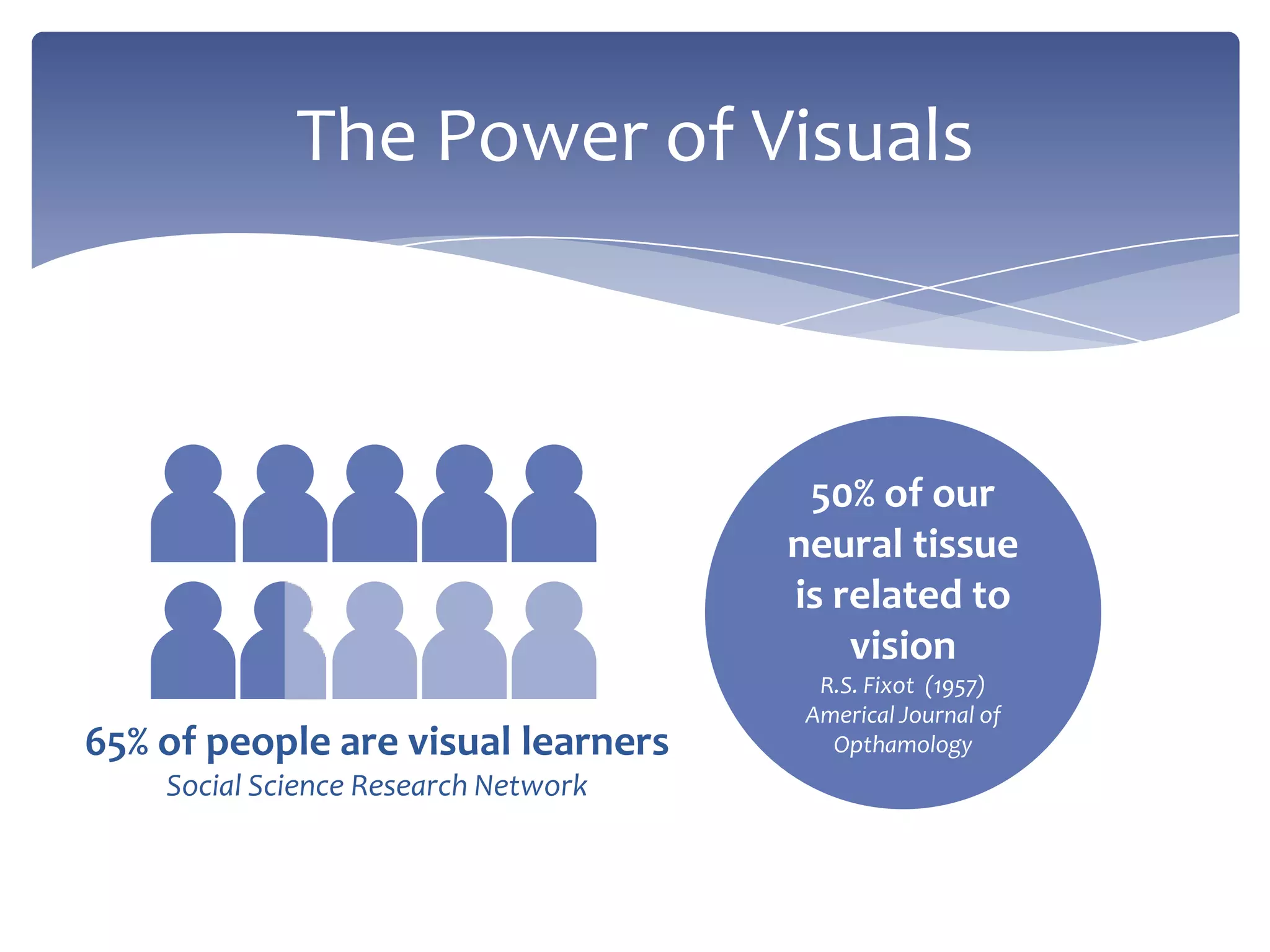
50% of our
neural tissue
is related to
vision
R.S. Fixot (1957)
Americal Journal of
Opthamology65% of people are visual learners
Social Science Research Network
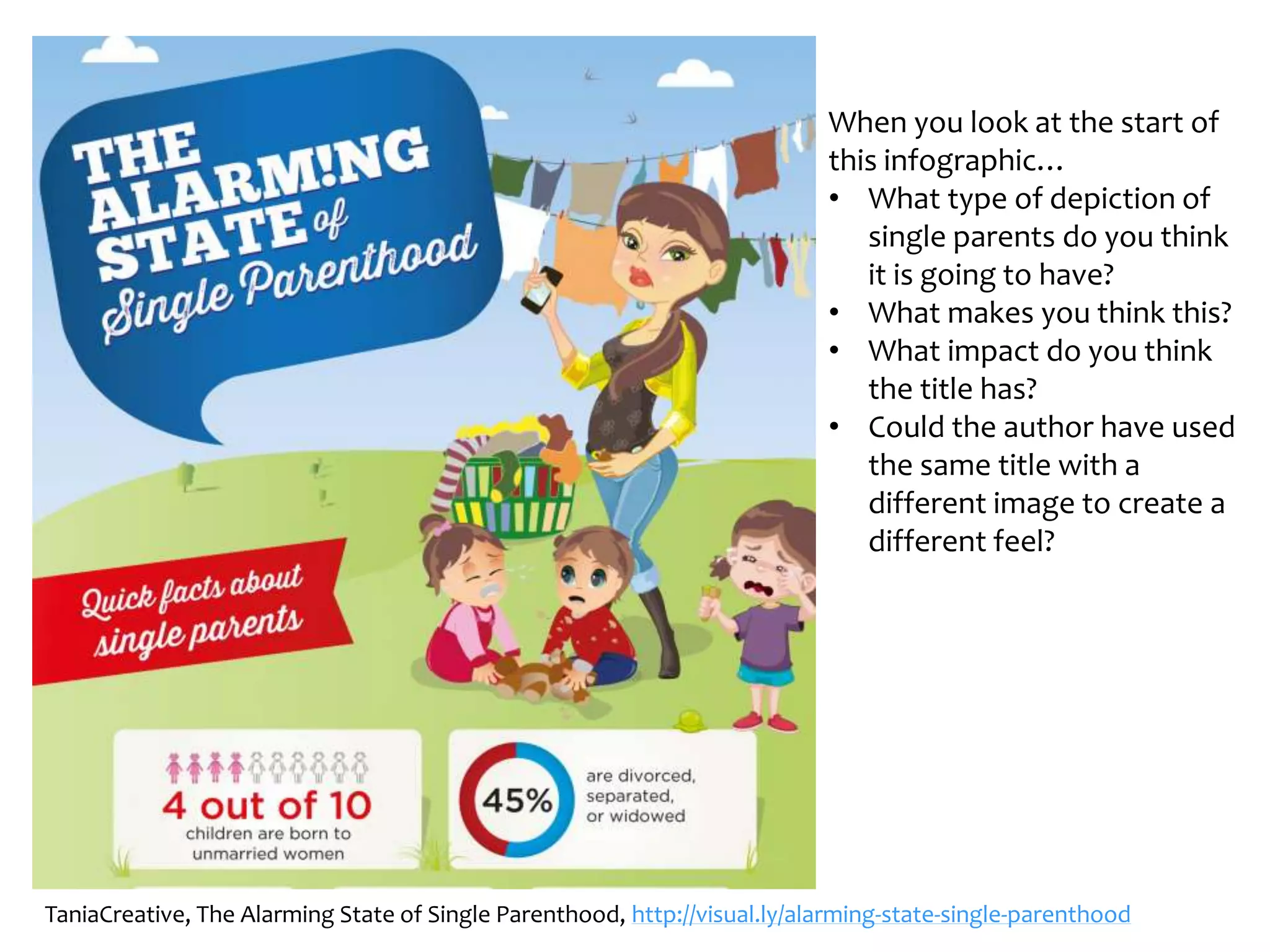
On the next page is the beginning of an infographic
on visual.ly
(http://visual.ly/alarming-state-single-parenthood)
What does it tell you before you even begin to scroll?
The Power of Visuals
TaniaCreative, The Alarming State of Single Parenthood, http://visual.ly/alarming-state-single-parenthood
When you look at the start of
this infographic…
• What type of depiction of
single parents do you think
it is going to have?
• What makes you think this?
• What impact do you think
the title has?
• Could the author have used
the same title with a
different image to create a
different feel?
Statistics
Wolfram Alpha
Australian Bureau of Statistics
Online
Look at other infographics
Interesting facts
Images you can use (check creative
commons licences)
Flickr CC
Clipart
Research
What is your purpose?
Inform
Persuade
Call to Action
Who is your target audience?
Age, location, socio-economic status – do these things
matter online??
Consider appropriate colour schemes, layout, images etc
based on your perceived audience
What message do you want to send?
Alarm, use caution, dive in head first,….
Define
Visual.ly
http://visual.ly/
Easel.ly
http://www.easel.ly/
Infogr.am
http://infogr.am/
Coolinfographics.com
http://www.coolinfographics.com/
Good Is
http://www.good.is/infographics
Design Ideas
What type of colour schemes are used?
How is data represented?
How many fonts are used? Did you consider bold,
italic, size, colour, capitals?
What else did you notice?
What did you notice?
Use pieces of paper and sketch out a rough plan.
Work out the length of your infographic (each piece
of paper is approximately 30cm long + 10cm – you
can’t add length but you can crop!)
You’re ready to start…
Sketch it Out
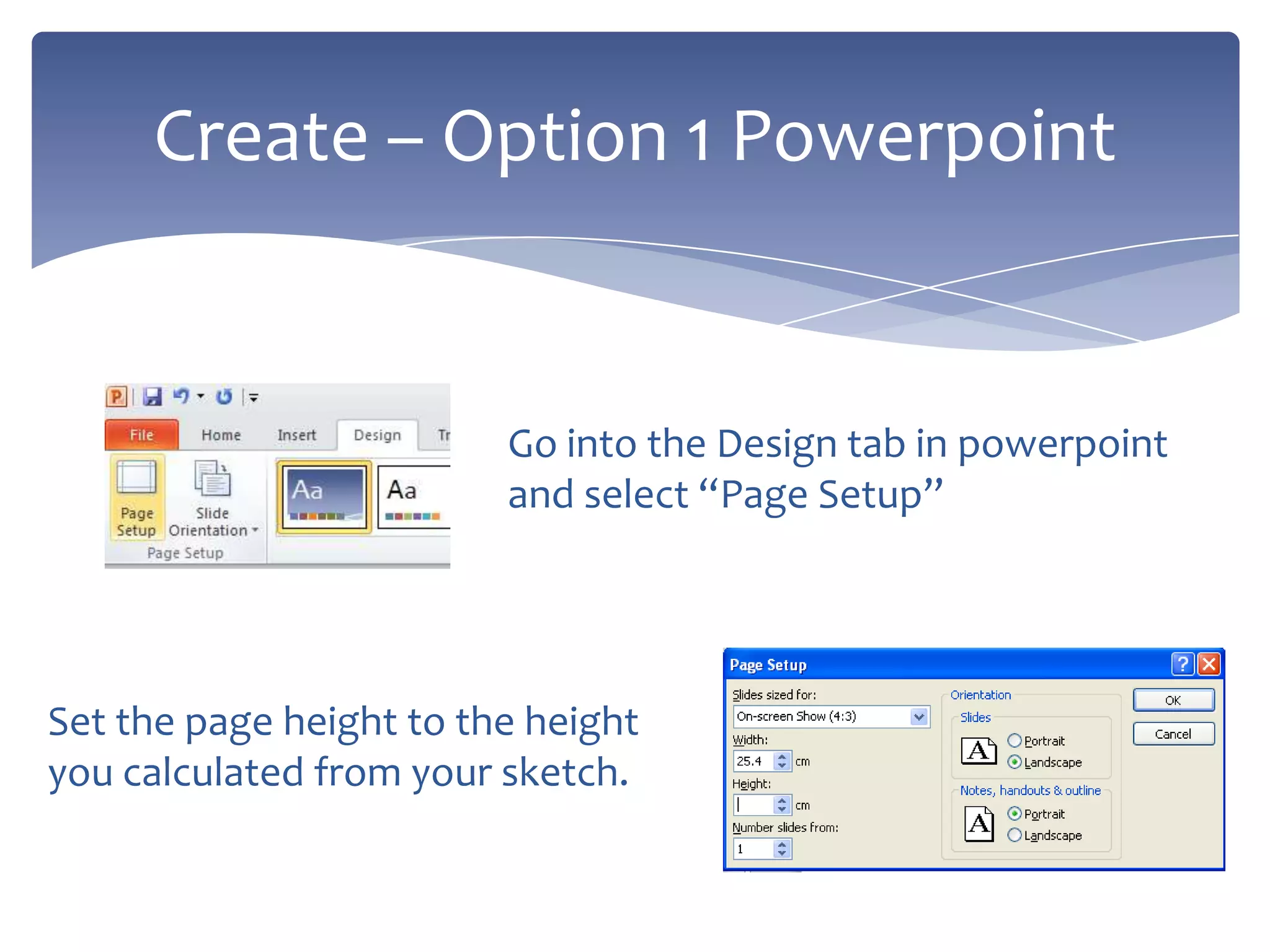
Go into the Design tab in powerpoint
and select “Page Setup”
Create – Option 1 Powerpoint
Set the page height to the height
you calculated from your sketch.
Use the insert menu to add:
clipart (you don’t need to attribute all your images)
Shapes
Pictures you draw from shapes eg people
Smart art diagrams
Graphs
When you are done – File > Save As > PNG
Insert the image into your blog
Create Option 1 - Powerpoint
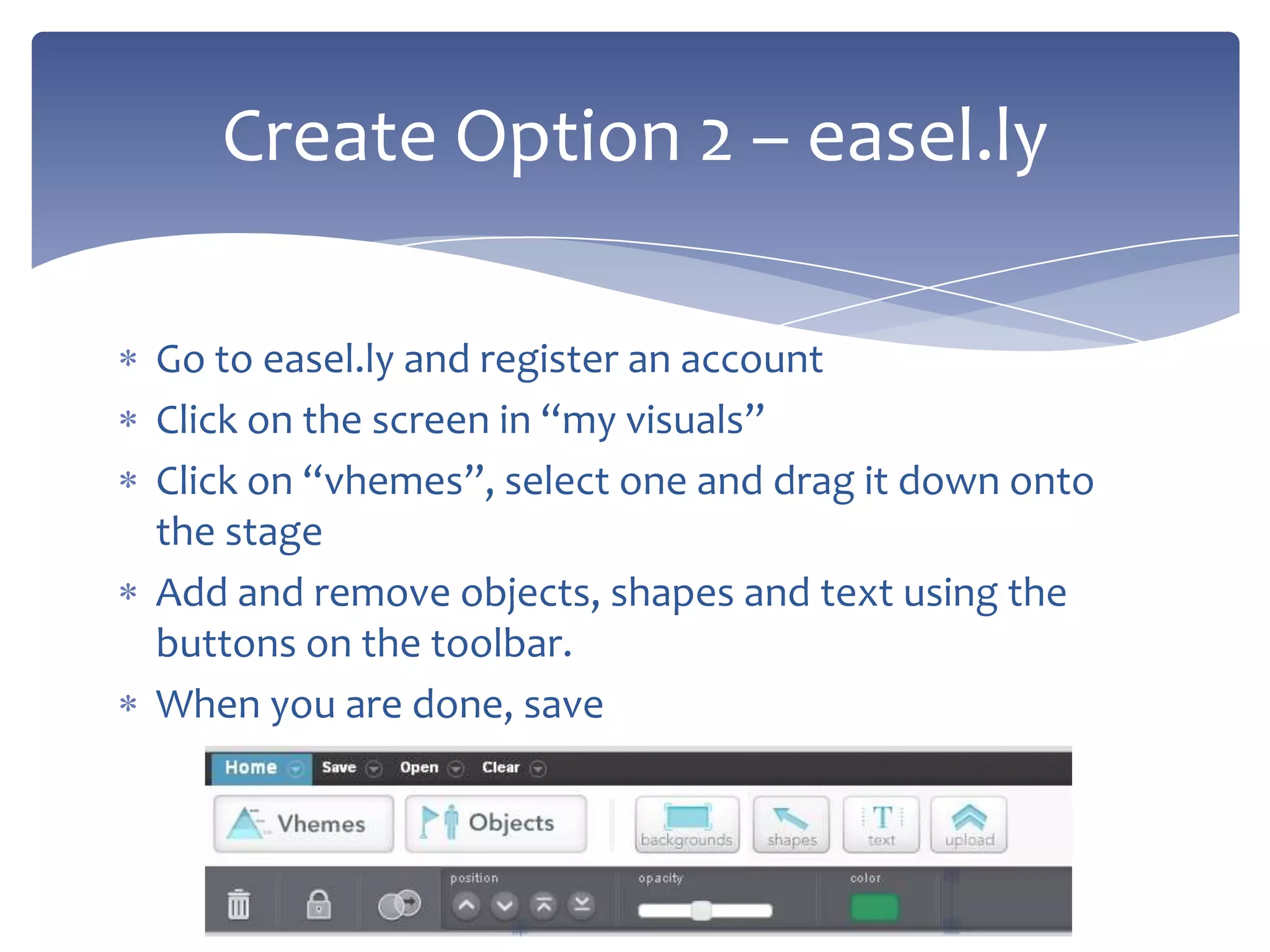
Go to easel.ly and register an account
Click on the screen in “my visuals”
Click on “vhemes”, select one and drag it down onto
the stage
Add and remove objects, shapes and text using the
buttons on the toolbar.
When you are done, save
Create Option 2 – easel.ly
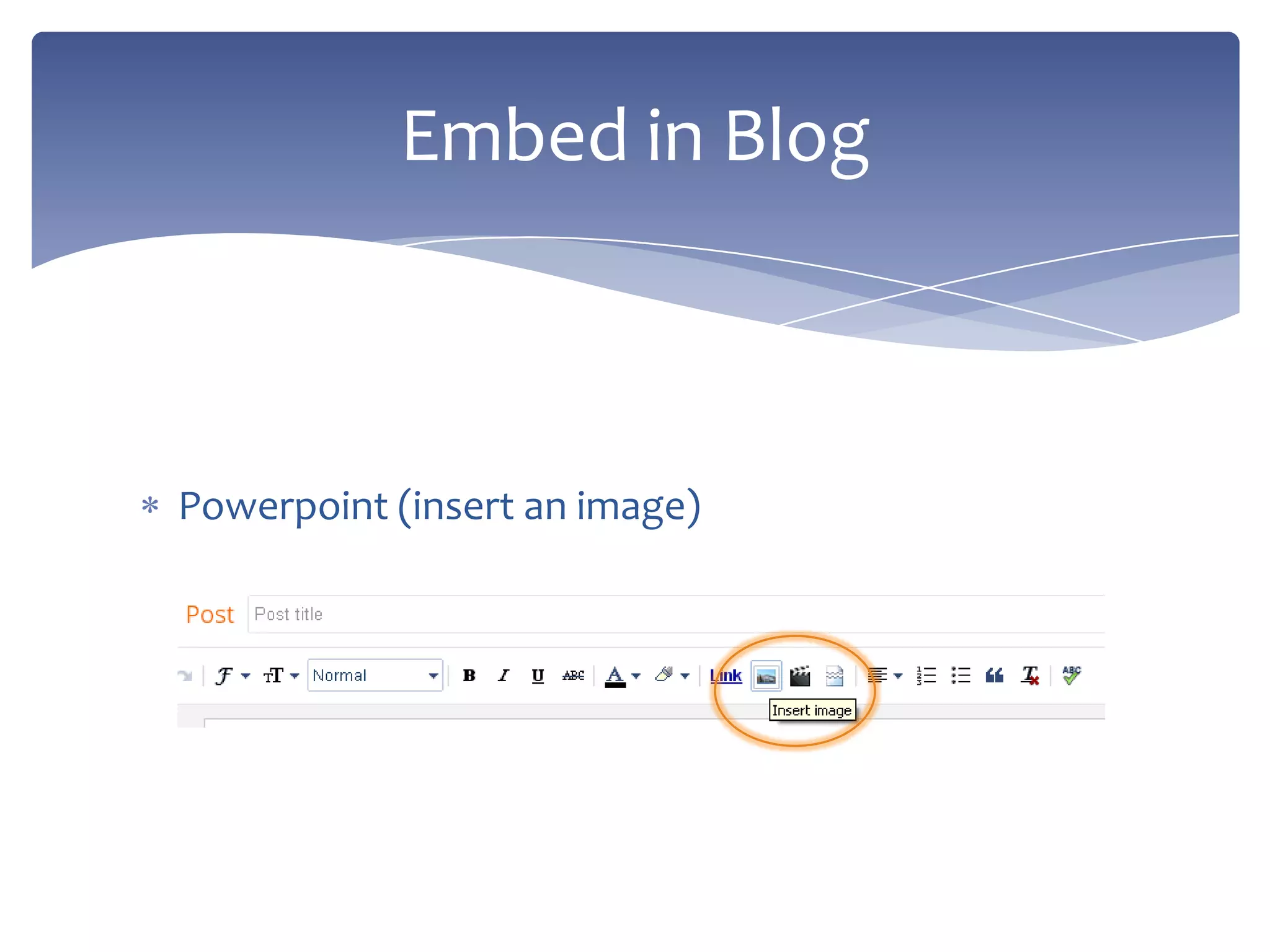
Powerpoint (insert an image)
Embed in Blog
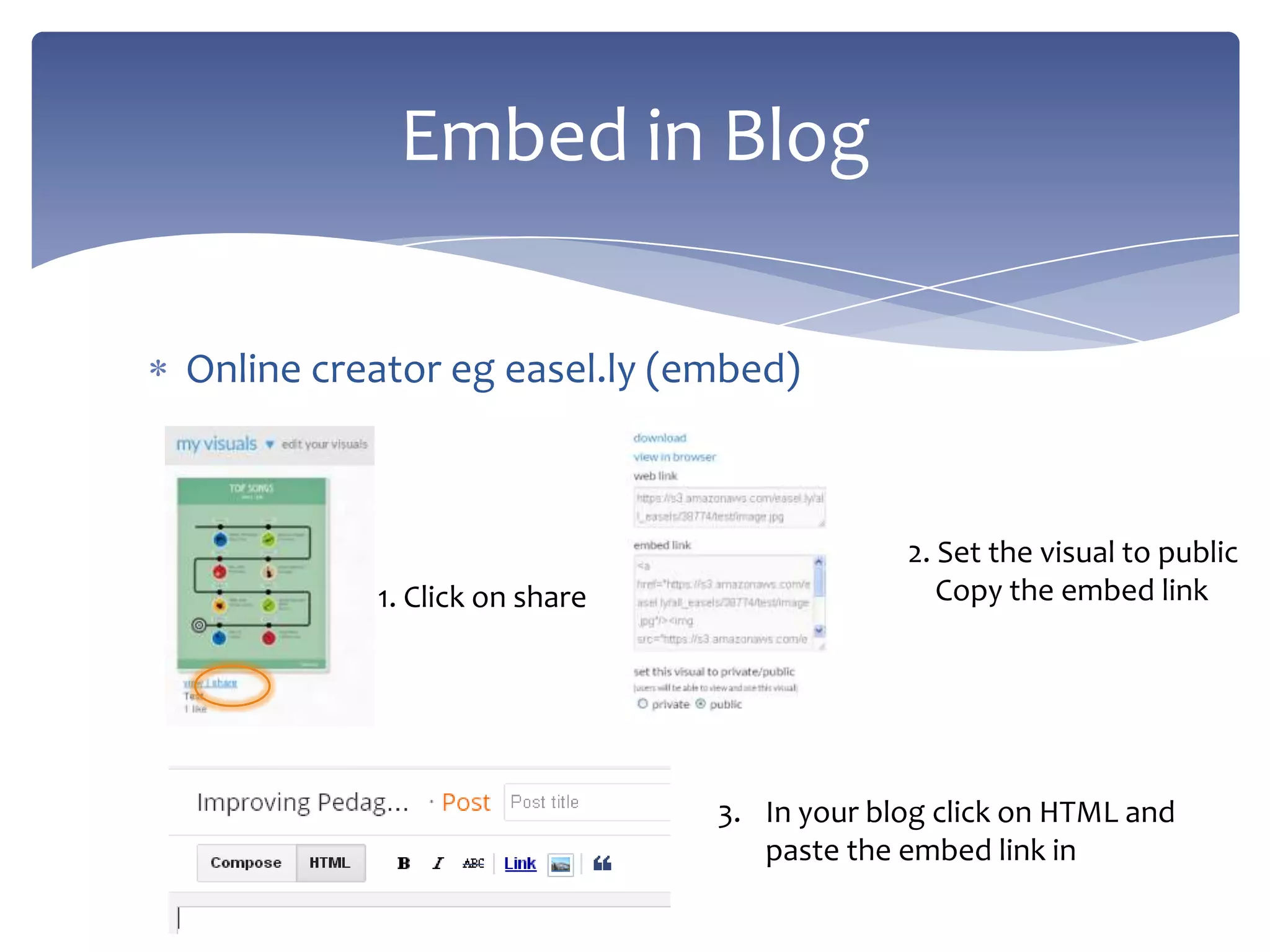
Online creator eg easel.ly (embed)
Embed in Blog
1. Click on share
2. Set the visual to public
Copy the embed link
3. In your blog click on HTML and
paste the embed link in

Creating an infographic

  • 1.
    Creating an Infographic MtAlvernia College Days of Excellence 2013
  • 2.
    What is anInfographic? http://www.youtube.com/watch?v=Je-I6fiE_Wk
  • 3.
    The Power ofVisuals 50% of our neural tissue is related to vision R.S. Fixot (1957) Americal Journal of Opthamology65% of people are visual learners Social Science Research Network
  • 4.
    On the nextpage is the beginning of an infographic on visual.ly (http://visual.ly/alarming-state-single-parenthood) What does it tell you before you even begin to scroll? The Power of Visuals
  • 5.
    TaniaCreative, The AlarmingState of Single Parenthood, http://visual.ly/alarming-state-single-parenthood When you look at the start of this infographic… • What type of depiction of single parents do you think it is going to have? • What makes you think this? • What impact do you think the title has? • Could the author have used the same title with a different image to create a different feel?
  • 6.
    Statistics Wolfram Alpha Australian Bureauof Statistics Online Look at other infographics Interesting facts Images you can use (check creative commons licences) Flickr CC Clipart Research
  • 7.
    What is yourpurpose? Inform Persuade Call to Action Who is your target audience? Age, location, socio-economic status – do these things matter online?? Consider appropriate colour schemes, layout, images etc based on your perceived audience What message do you want to send? Alarm, use caution, dive in head first,…. Define
  • 8.
  • 9.
    What type ofcolour schemes are used? How is data represented? How many fonts are used? Did you consider bold, italic, size, colour, capitals? What else did you notice? What did you notice?
  • 10.
    Use pieces ofpaper and sketch out a rough plan. Work out the length of your infographic (each piece of paper is approximately 30cm long + 10cm – you can’t add length but you can crop!) You’re ready to start… Sketch it Out
  • 11.
    Go into theDesign tab in powerpoint and select “Page Setup” Create – Option 1 Powerpoint Set the page height to the height you calculated from your sketch.
  • 12.
    Use the insertmenu to add: clipart (you don’t need to attribute all your images) Shapes Pictures you draw from shapes eg people Smart art diagrams Graphs When you are done – File > Save As > PNG Insert the image into your blog Create Option 1 - Powerpoint
  • 13.
    Go to easel.lyand register an account Click on the screen in “my visuals” Click on “vhemes”, select one and drag it down onto the stage Add and remove objects, shapes and text using the buttons on the toolbar. When you are done, save Create Option 2 – easel.ly
  • 14.
    Powerpoint (insert animage) Embed in Blog
  • 15.
    Online creator egeasel.ly (embed) Embed in Blog 1. Click on share 2. Set the visual to public Copy the embed link 3. In your blog click on HTML and paste the embed link in