How to Easily Create

Five Fabulous
Infographics
In

PowerPoint

ABOUT THESE TEMPLATES

TABLE OF CONTENTS
ABOUT THESE TEMPLATES ...1

CREATING A COLOR SCHEME…2

USING FONTS FOR DESIGN……3

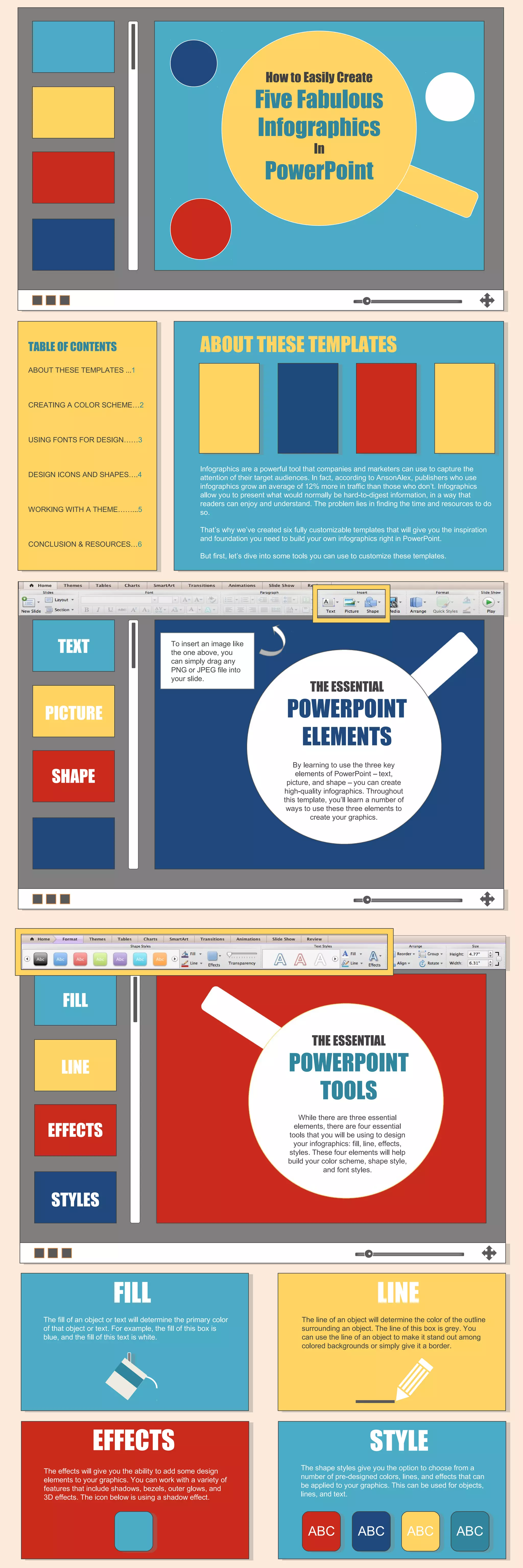
Infographics are a powerful tool that companies and marketers can use to capture the
attention of their target audiences. In fact, according to AnsonAlex, publishers who use
infographics grow an average of 12% more in traffic than those who don’t. Infographics
allow you to present what would normally be hard-to-digest information, in a way that
readers can enjoy and understand. The problem lies in finding the time and resources to do
so.

DESIGN ICONS AND SHAPES….4

WORKING WITH A THEME……...5

That’s why we’ve created six fully customizable templates that will give you the inspiration
and foundation you need to build your own infographics right in PowerPoint.

CONCLUSION & RESOURCES…6

But first, let’s dive into some tools you can use to customize these templates.

TEXT

To insert an image like
the one above, you
can simply drag any
PNG or JPEG file into
your slide.

THE ESSENTIAL

POWERPOINT
ELEMENTS

PICTURE

By learning to use the three key
elements of PowerPoint – text,
picture, and shape – you can create
high-quality infographics. Throughout
this template, you’ll learn a number of
ways to use these three elements to
create your graphics.

SHAPE

FILL
THE ESSENTIAL

POWERPOINT
TOOLS

LINE

While there are three essential
elements, there are four essential
tools that you will be using to design
your infographics: fill, line, effects,
styles. These four elements will help
build your color scheme, shape style,
and font styles.

EFFECTS

STYLES

FILL
The fill of an object or text will determine the primary color
of that object or text. For example, the fill of this box is
blue, and the fill of this text is white.

LINE
The line of an object will determine the color of the outline
surrounding an object. The line of this box is grey. You
can use the line of an object to make it stand out among
colored backgrounds or simply give it a border.

EFFECTS
The effects will give you the ability to add some design
elements to your graphics. You can work with a variety of
features that include shadows, bezels, outer glows, and
3D effects. The icon below is using a shadow effect.

STYLE
The shape styles give you the option to choose from a
number of pre-designed colors, lines, and effects that can
be applied to your graphics. This can be used for objects,
lines, and text.

ABC

ABC

ABC

ABC
CREATING A FOUR COLOR
INFOGRAPHIC
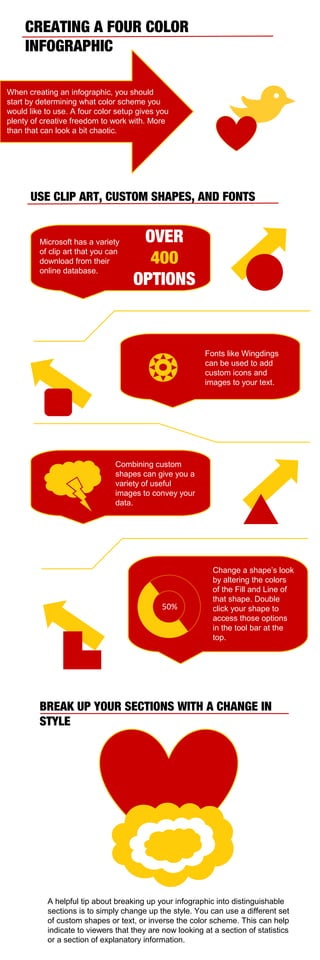
When creating an infographic, you should
start by determining what color scheme you
would like to use. A four color setup gives you
plenty of creative freedom to work with. More
than that can look a bit chaotic.

USE CLIP ART, CUSTOM SHAPES, AND FONTS

Microsoft has a variety
of clip art that you can
download from their
online database.

OVER
400
OPTIONS



Fonts like Wingdings
can be used to add
custom icons and
images to your text.

Combining custom
shapes can give you a
variety of useful
images to convey your
data.

50%

Change a shape’s look
by altering the colors
of the Fill and Line of
that shape. Double
click your shape to
access those options
in the tool bar at the
top.

BREAK UP YOUR SECTIONS WITH A CHANGE IN
STYLE

A helpful tip about breaking up your infographic into distinguishable
sections is to simply change up the style. You can use a different set
of custom shapes or text, or inverse the color scheme. This can help
indicate to viewers that they are now looking at a section of statistics
or a section of explanatory information.
Our Journey
Be Trained was born out of the dreams of people who were passionate about making a difference in
people’s lives. Having had the benefit of excellent facilitators and training interventions, made the
founders of Be Trained recognise the need to help businesses develop their people’s potential. It has
been a journey filled with thrills & spills, highs & lows, wins & losses! Throughout the journey Be
Trained and it’s members have held onto the rails, never allowing failure to overcome the grit,
determination and innovation. This has now become our signature trait after 10 years of providing
unparalleled service to our clients, both nationally & internationally.

7

The Be Trained Model

KEY LESSONS WE HAVE LEARNED

1 You Must Have

5 You Must Work on the Macro

Extreme Self-confidence

2 You Must Take Action
and Implement What You
Learn
3 You Can Never
Be Satisfied

4 Really Big Thinking

and Micro Components of Your
Business

6 You Must Develop Multiple,
High-Value Skills

7 Always Focus on Strategic
Associations

Did You
Know?
Just some of the Clients we have
Partnered with

10

1. Glenrand MIB
2. Government Employees
Pension Fund (GEPF)
3. Computer Facilities
4. ABSA
5. FirstRand Banking Group
6. The Standard Bank Group
7. Anglo American
8. Nedbank
9. London Business School,
London, UK
10. Healthbridge

Compared with traditional
classroom learning, simulations
help participants master content
and new behaviours 40-70% faster?

LIKE US ON Facebook

GRAPHS
10

ATTENTION SPAN OF PEOPLE

9

RANDOM THOUGHTS

YOU CAN’T
CATCH APPLES BY
THROWING ORANGES

8
7
6
5
4
3
2
1
2009

2010

2011

400
BILLION STARS
IN THE MILKY WAY

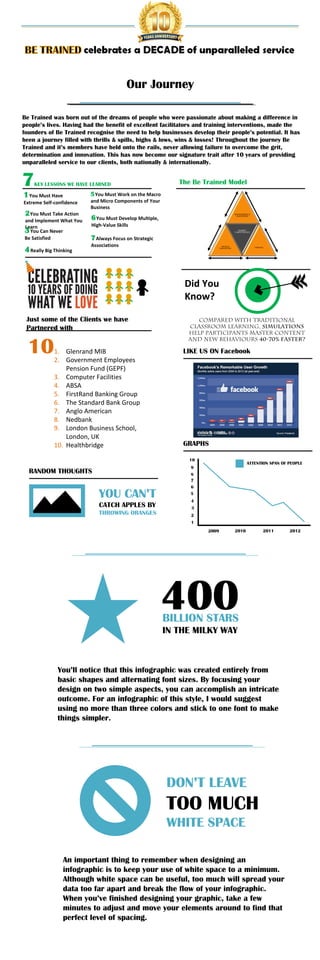
You’ll notice that this infographic was created entirely from
basic shapes and alternating font sizes. By focusing your
design on two simple aspects, you can accomplish an intricate
outcome. For an infographic of this style, I would suggest
using no more than three colors and stick to one font to make
things simpler.

DON’T LEAVE

TOO MUCH
WHITE SPACE
An important thing to remember when designing an
infographic is to keep your use of white space to a minimum.
Although white space can be useful, too much will spread your
data too far apart and break the flow of your infographic.
When you’ve finished designing your graphic, take a few
minutes to adjust and move your elements around to find that
perfect level of spacing.

2012
CONVEYING STATISTICS
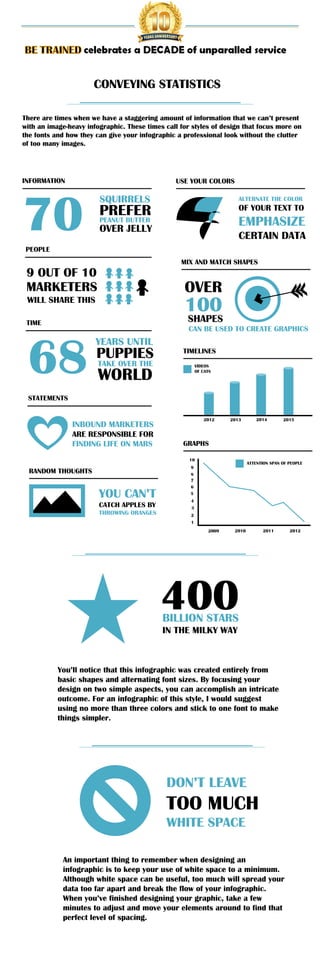
There are times when we have a staggering amount of information that we can’t present
with an image-heavy infographic. These times call for styles of design that focus more on
the fonts and how they can give your infographic a professional look without the clutter
of too many images.

INFORMATION

USE YOUR COLORS

70

SQUIRRELS

ALTERNATE THE COLOR

PREFER
PEANUT BUTTER

OF YOUR TEXT TO

EMPHASIZE

OVER JELLY

CERTAIN DATA

PEOPLE
MIX AND MATCH SHAPES

9 OUT OF 10

OVER

MARKETERS

100

WILL SHARE THIS

SHAPES

TIME

68

CAN BE USED TO CREATE GRAPHICS

YEARS UNTIL

PUPPIES

TIMELINES

TAKE OVER THE

VIDEOS
OF CATS

WORLD

STATEMENTS
2012

INBOUND MARKETERS
ARE RESPONSIBLE FOR
FINDING LIFE ON MARS

2013

ATTENTION SPAN OF PEOPLE

9

YOU CAN’T
CATCH APPLES BY
THROWING ORANGES

2015

GRAPHS
10

RANDOM THOUGHTS

2014

8
7
6
5
4
3
2
1
2009

2010

2011

400
BILLION STARS
IN THE MILKY WAY

You’ll notice that this infographic was created entirely from
basic shapes and alternating font sizes. By focusing your
design on two simple aspects, you can accomplish an intricate
outcome. For an infographic of this style, I would suggest
using no more than three colors and stick to one font to make
things simpler.

DON’T LEAVE

TOO MUCH
WHITE SPACE
An important thing to remember when designing an
infographic is to keep your use of white space to a minimum.
Although white space can be useful, too much will spread your
data too far apart and break the flow of your infographic.
When you’ve finished designing your graphic, take a few
minutes to adjust and move your elements around to find that
perfect level of spacing.

2012
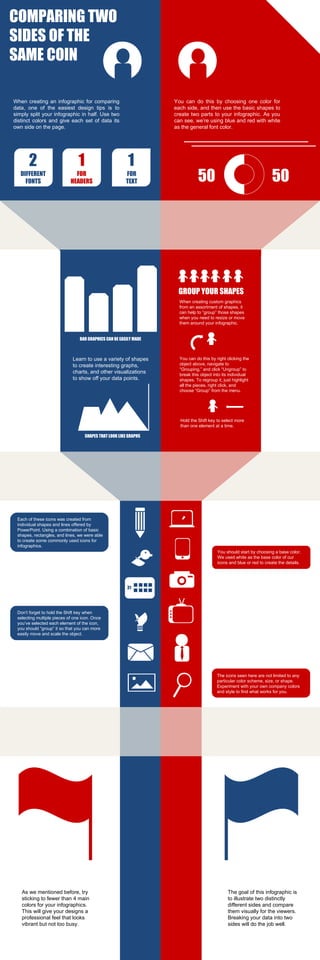
COMPARING TWO
SIDES OF THE
SAME COIN
When creating an infographic for comparing
data, one of the easiest design tips is to
simply split your infographic in half. Use two
distinct colors and give each set of data its
own side on the page.

You can do this by choosing one color for
each side, and then use the basic shapes to
create two parts to your infographic. As you
can see, we’re using blue and red with white
as the general font color.

2

1

1

DIFFERENT
FONTS

FOR
HEADERS

FOR
TEXT

50

50

GROUP YOUR SHAPES
When creating custom graphics
from an assortment of shapes, it
can help to “group” those shapes
when you need to resize or move
them around your infographic.
BAR GRAPHICS CAN BE EASILY MADE

Learn to use a variety of shapes
to create interesting graphs,
charts, and other visualizations
to show off your data points.

You can do this by right clicking the
object above, navigate to
“Grouping,” and click “Ungroup” to
break this object into its individual
shapes. To regroup it, just highlight
all the pieces, right click, and
choose “Group” from the menu.

Hold the Shift key to select more
than one element at a time.
SHAPES THAT LOOK LIKE GRAPHS

Each of these icons was created from
individual shapes and lines offered by
PowerPoint. Using a combination of basic
shapes, rectangles, and lines, we were able
to create some commonly used icons for
infographics.
You should start by choosing a base color.
We used white as the base color of our
icons and blue or red to create the details.

31

Don’t forget to hold the Shift key when
selecting multiple pieces of one icon. Once
you’ve selected each element of the icon,
you should “group” it so that you can more
easily move and scale the object.

The icons seen here are not limited to any
particular color scheme, size, or shape.
Experiment with your own company colors
and style to find what works for you.

As we mentioned before, try
sticking to fewer than 4 main
colors for your infographics.
This will give your designs a
professional feel that looks
vibrant but not too busy.

The goal of this infographic is
to illustrate two distinctly
different sides and compare
them visually for the viewers.
Breaking your data into two
sides will do the job well.
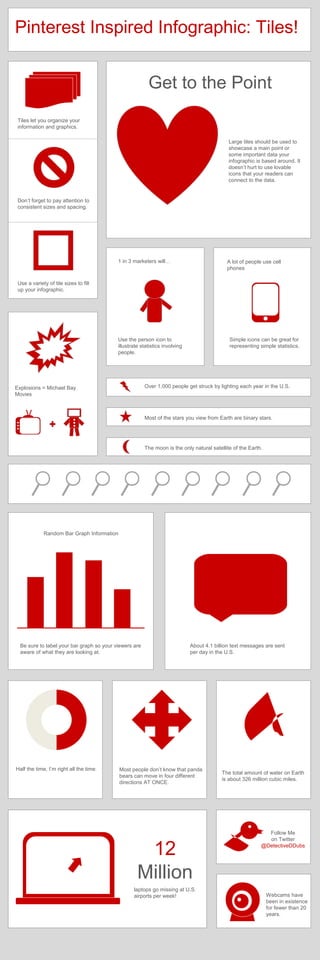
Pinterest Inspired Infographic: Tiles!
Get to the Point
Tiles let you organize your
information and graphics.
Large tiles should be used to
showcase a main point or
some important data your
infographic is based around. It
doesn’t hurt to use lovable
icons that your readers can
connect to the data.

Don’t forget to pay attention to
consistent sizes and spacing.

1 in 3 marketers will…

A lot of people use cell
phones

Use a variety of tile sizes to fill
up your infographic.

Use the person icon to
illustrate statistics involving
people.

Simple icons can be great for
representing simple statistics.

Over 1,000 people get struck by lighting each year in the U.S.

Explosions = Michael Bay
Movies

Most of the stars you view from Earth are binary stars.

The moon is the only natural satellite of the Earth.

Random Bar Graph Information

Be sure to label your bar graph so your viewers are
aware of what they are looking at.

Half the time, I’m right all the time.

About 4.1 billion text messages are sent
per day in the U.S.

Most people don’t know that panda
bears can move in four different
directions AT ONCE.

12
Million
laptops go missing at U.S.
airports per week!

The total amount of water on Earth
is about 326 million cubic miles.

Follow Me
on Twitter
@DetectiveDDubs

Webcams have
been in existence
for fewer than 20
years.
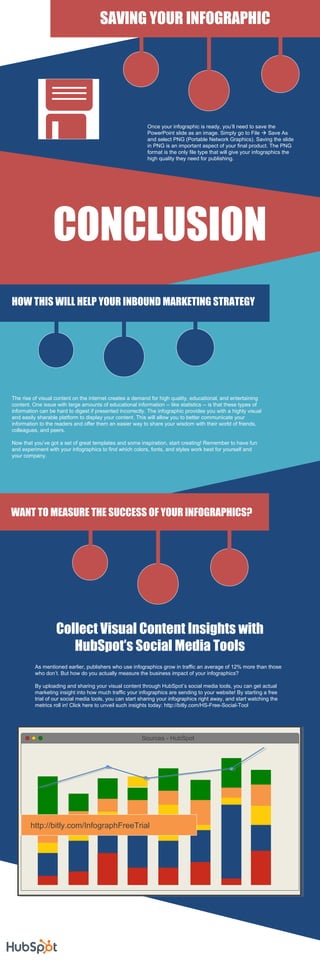
SAVING YOUR INFOGRAPHIC

Once your infographic is ready, you’ll need to save the
PowerPoint slide as an image. Simply go to File  Save As
and select PNG (Portable Network Graphics). Saving the slide
in PNG is an important aspect of your final product. The PNG
format is the only file type that will give your infographics the
high quality they need for publishing.

CONCLUSION
HOW THIS WILL HELP YOUR INBOUND MARKETING STRATEGY

The rise of visual content on the internet creates a demand for high quality, educational, and entertaining
content. One issue with large amounts of educational information -- like statistics -- is that these types of
information can be hard to digest if presented incorrectly. The infographic provides you with a highly visual
and easily sharable platform to display your content. This will allow you to better communicate your
information to the readers and offer them an easier way to share your wisdom with their world of friends,
colleagues, and peers.
Now that you’ve got a set of great templates and some inspiration, start creating! Remember to have fun
and experiment with your infographics to find which colors, fonts, and styles work best for yourself and
your company.

WANT TO MEASURE THE SUCCESS OF YOUR INFOGRAPHICS?

Collect Visual Content Insights with
HubSpot’s Social Media Tools
As mentioned earlier, publishers who use infographics grow in traffic an average of 12% more than those
who don’t. But how do you actually measure the business impact of your infographics?
By uploading and sharing your visual content through HubSpot’s social media tools, you can get actual
marketing insight into how much traffic your infographics are sending to your website! By starting a free
trial of our social media tools, you can start sharing your infographics right away, and start watching the
metrics roll in! Click here to unveil such insights today: http://bitly.com/HS-Free-Social-Tool

Sources - HubSpot

http://bitly.com/InfographFreeTrial

How to-create-5-fabulous-infographics-final

  • 1.
    How to EasilyCreate Five Fabulous Infographics In PowerPoint ABOUT THESE TEMPLATES TABLE OF CONTENTS ABOUT THESE TEMPLATES ...1 CREATING A COLOR SCHEME…2 USING FONTS FOR DESIGN……3 Infographics are a powerful tool that companies and marketers can use to capture the attention of their target audiences. In fact, according to AnsonAlex, publishers who use infographics grow an average of 12% more in traffic than those who don’t. Infographics allow you to present what would normally be hard-to-digest information, in a way that readers can enjoy and understand. The problem lies in finding the time and resources to do so. DESIGN ICONS AND SHAPES….4 WORKING WITH A THEME……...5 That’s why we’ve created six fully customizable templates that will give you the inspiration and foundation you need to build your own infographics right in PowerPoint. CONCLUSION & RESOURCES…6 But first, let’s dive into some tools you can use to customize these templates. TEXT To insert an image like the one above, you can simply drag any PNG or JPEG file into your slide. THE ESSENTIAL POWERPOINT ELEMENTS PICTURE By learning to use the three key elements of PowerPoint – text, picture, and shape – you can create high-quality infographics. Throughout this template, you’ll learn a number of ways to use these three elements to create your graphics. SHAPE FILL THE ESSENTIAL POWERPOINT TOOLS LINE While there are three essential elements, there are four essential tools that you will be using to design your infographics: fill, line, effects, styles. These four elements will help build your color scheme, shape style, and font styles. EFFECTS STYLES FILL The fill of an object or text will determine the primary color of that object or text. For example, the fill of this box is blue, and the fill of this text is white. LINE The line of an object will determine the color of the outline surrounding an object. The line of this box is grey. You can use the line of an object to make it stand out among colored backgrounds or simply give it a border. EFFECTS The effects will give you the ability to add some design elements to your graphics. You can work with a variety of features that include shadows, bezels, outer glows, and 3D effects. The icon below is using a shadow effect. STYLE The shape styles give you the option to choose from a number of pre-designed colors, lines, and effects that can be applied to your graphics. This can be used for objects, lines, and text. ABC ABC ABC ABC
  • 2.
    CREATING A FOURCOLOR INFOGRAPHIC When creating an infographic, you should start by determining what color scheme you would like to use. A four color setup gives you plenty of creative freedom to work with. More than that can look a bit chaotic. USE CLIP ART, CUSTOM SHAPES, AND FONTS Microsoft has a variety of clip art that you can download from their online database. OVER 400 OPTIONS  Fonts like Wingdings can be used to add custom icons and images to your text. Combining custom shapes can give you a variety of useful images to convey your data. 50% Change a shape’s look by altering the colors of the Fill and Line of that shape. Double click your shape to access those options in the tool bar at the top. BREAK UP YOUR SECTIONS WITH A CHANGE IN STYLE A helpful tip about breaking up your infographic into distinguishable sections is to simply change up the style. You can use a different set of custom shapes or text, or inverse the color scheme. This can help indicate to viewers that they are now looking at a section of statistics or a section of explanatory information.
  • 3.
    Our Journey Be Trainedwas born out of the dreams of people who were passionate about making a difference in people’s lives. Having had the benefit of excellent facilitators and training interventions, made the founders of Be Trained recognise the need to help businesses develop their people’s potential. It has been a journey filled with thrills & spills, highs & lows, wins & losses! Throughout the journey Be Trained and it’s members have held onto the rails, never allowing failure to overcome the grit, determination and innovation. This has now become our signature trait after 10 years of providing unparalleled service to our clients, both nationally & internationally. 7 The Be Trained Model KEY LESSONS WE HAVE LEARNED 1 You Must Have 5 You Must Work on the Macro Extreme Self-confidence 2 You Must Take Action and Implement What You Learn 3 You Can Never Be Satisfied 4 Really Big Thinking and Micro Components of Your Business 6 You Must Develop Multiple, High-Value Skills 7 Always Focus on Strategic Associations Did You Know? Just some of the Clients we have Partnered with 10 1. Glenrand MIB 2. Government Employees Pension Fund (GEPF) 3. Computer Facilities 4. ABSA 5. FirstRand Banking Group 6. The Standard Bank Group 7. Anglo American 8. Nedbank 9. London Business School, London, UK 10. Healthbridge Compared with traditional classroom learning, simulations help participants master content and new behaviours 40-70% faster? LIKE US ON Facebook GRAPHS 10 ATTENTION SPAN OF PEOPLE 9 RANDOM THOUGHTS YOU CAN’T CATCH APPLES BY THROWING ORANGES 8 7 6 5 4 3 2 1 2009 2010 2011 400 BILLION STARS IN THE MILKY WAY You’ll notice that this infographic was created entirely from basic shapes and alternating font sizes. By focusing your design on two simple aspects, you can accomplish an intricate outcome. For an infographic of this style, I would suggest using no more than three colors and stick to one font to make things simpler. DON’T LEAVE TOO MUCH WHITE SPACE An important thing to remember when designing an infographic is to keep your use of white space to a minimum. Although white space can be useful, too much will spread your data too far apart and break the flow of your infographic. When you’ve finished designing your graphic, take a few minutes to adjust and move your elements around to find that perfect level of spacing. 2012
  • 5.
    CONVEYING STATISTICS There aretimes when we have a staggering amount of information that we can’t present with an image-heavy infographic. These times call for styles of design that focus more on the fonts and how they can give your infographic a professional look without the clutter of too many images. INFORMATION USE YOUR COLORS 70 SQUIRRELS ALTERNATE THE COLOR PREFER PEANUT BUTTER OF YOUR TEXT TO EMPHASIZE OVER JELLY CERTAIN DATA PEOPLE MIX AND MATCH SHAPES 9 OUT OF 10 OVER MARKETERS 100 WILL SHARE THIS SHAPES TIME 68 CAN BE USED TO CREATE GRAPHICS YEARS UNTIL PUPPIES TIMELINES TAKE OVER THE VIDEOS OF CATS WORLD STATEMENTS 2012 INBOUND MARKETERS ARE RESPONSIBLE FOR FINDING LIFE ON MARS 2013 ATTENTION SPAN OF PEOPLE 9 YOU CAN’T CATCH APPLES BY THROWING ORANGES 2015 GRAPHS 10 RANDOM THOUGHTS 2014 8 7 6 5 4 3 2 1 2009 2010 2011 400 BILLION STARS IN THE MILKY WAY You’ll notice that this infographic was created entirely from basic shapes and alternating font sizes. By focusing your design on two simple aspects, you can accomplish an intricate outcome. For an infographic of this style, I would suggest using no more than three colors and stick to one font to make things simpler. DON’T LEAVE TOO MUCH WHITE SPACE An important thing to remember when designing an infographic is to keep your use of white space to a minimum. Although white space can be useful, too much will spread your data too far apart and break the flow of your infographic. When you’ve finished designing your graphic, take a few minutes to adjust and move your elements around to find that perfect level of spacing. 2012
  • 6.
    COMPARING TWO SIDES OFTHE SAME COIN When creating an infographic for comparing data, one of the easiest design tips is to simply split your infographic in half. Use two distinct colors and give each set of data its own side on the page. You can do this by choosing one color for each side, and then use the basic shapes to create two parts to your infographic. As you can see, we’re using blue and red with white as the general font color. 2 1 1 DIFFERENT FONTS FOR HEADERS FOR TEXT 50 50 GROUP YOUR SHAPES When creating custom graphics from an assortment of shapes, it can help to “group” those shapes when you need to resize or move them around your infographic. BAR GRAPHICS CAN BE EASILY MADE Learn to use a variety of shapes to create interesting graphs, charts, and other visualizations to show off your data points. You can do this by right clicking the object above, navigate to “Grouping,” and click “Ungroup” to break this object into its individual shapes. To regroup it, just highlight all the pieces, right click, and choose “Group” from the menu. Hold the Shift key to select more than one element at a time. SHAPES THAT LOOK LIKE GRAPHS Each of these icons was created from individual shapes and lines offered by PowerPoint. Using a combination of basic shapes, rectangles, and lines, we were able to create some commonly used icons for infographics. You should start by choosing a base color. We used white as the base color of our icons and blue or red to create the details. 31 Don’t forget to hold the Shift key when selecting multiple pieces of one icon. Once you’ve selected each element of the icon, you should “group” it so that you can more easily move and scale the object. The icons seen here are not limited to any particular color scheme, size, or shape. Experiment with your own company colors and style to find what works for you. As we mentioned before, try sticking to fewer than 4 main colors for your infographics. This will give your designs a professional feel that looks vibrant but not too busy. The goal of this infographic is to illustrate two distinctly different sides and compare them visually for the viewers. Breaking your data into two sides will do the job well.
  • 7.
    Pinterest Inspired Infographic:Tiles! Get to the Point Tiles let you organize your information and graphics. Large tiles should be used to showcase a main point or some important data your infographic is based around. It doesn’t hurt to use lovable icons that your readers can connect to the data. Don’t forget to pay attention to consistent sizes and spacing. 1 in 3 marketers will… A lot of people use cell phones Use a variety of tile sizes to fill up your infographic. Use the person icon to illustrate statistics involving people. Simple icons can be great for representing simple statistics. Over 1,000 people get struck by lighting each year in the U.S. Explosions = Michael Bay Movies Most of the stars you view from Earth are binary stars. The moon is the only natural satellite of the Earth. Random Bar Graph Information Be sure to label your bar graph so your viewers are aware of what they are looking at. Half the time, I’m right all the time. About 4.1 billion text messages are sent per day in the U.S. Most people don’t know that panda bears can move in four different directions AT ONCE. 12 Million laptops go missing at U.S. airports per week! The total amount of water on Earth is about 326 million cubic miles. Follow Me on Twitter @DetectiveDDubs Webcams have been in existence for fewer than 20 years.
  • 8.
    SAVING YOUR INFOGRAPHIC Onceyour infographic is ready, you’ll need to save the PowerPoint slide as an image. Simply go to File  Save As and select PNG (Portable Network Graphics). Saving the slide in PNG is an important aspect of your final product. The PNG format is the only file type that will give your infographics the high quality they need for publishing. CONCLUSION HOW THIS WILL HELP YOUR INBOUND MARKETING STRATEGY The rise of visual content on the internet creates a demand for high quality, educational, and entertaining content. One issue with large amounts of educational information -- like statistics -- is that these types of information can be hard to digest if presented incorrectly. The infographic provides you with a highly visual and easily sharable platform to display your content. This will allow you to better communicate your information to the readers and offer them an easier way to share your wisdom with their world of friends, colleagues, and peers. Now that you’ve got a set of great templates and some inspiration, start creating! Remember to have fun and experiment with your infographics to find which colors, fonts, and styles work best for yourself and your company. WANT TO MEASURE THE SUCCESS OF YOUR INFOGRAPHICS? Collect Visual Content Insights with HubSpot’s Social Media Tools As mentioned earlier, publishers who use infographics grow in traffic an average of 12% more than those who don’t. But how do you actually measure the business impact of your infographics? By uploading and sharing your visual content through HubSpot’s social media tools, you can get actual marketing insight into how much traffic your infographics are sending to your website! By starting a free trial of our social media tools, you can start sharing your infographics right away, and start watching the metrics roll in! Click here to unveil such insights today: http://bitly.com/HS-Free-Social-Tool Sources - HubSpot http://bitly.com/InfographFreeTrial