FLEXBOX
Zoe Mickley Gillenwater @zomigiBlend Conference
September 2013
PUTTING
INTO
PRACTICE
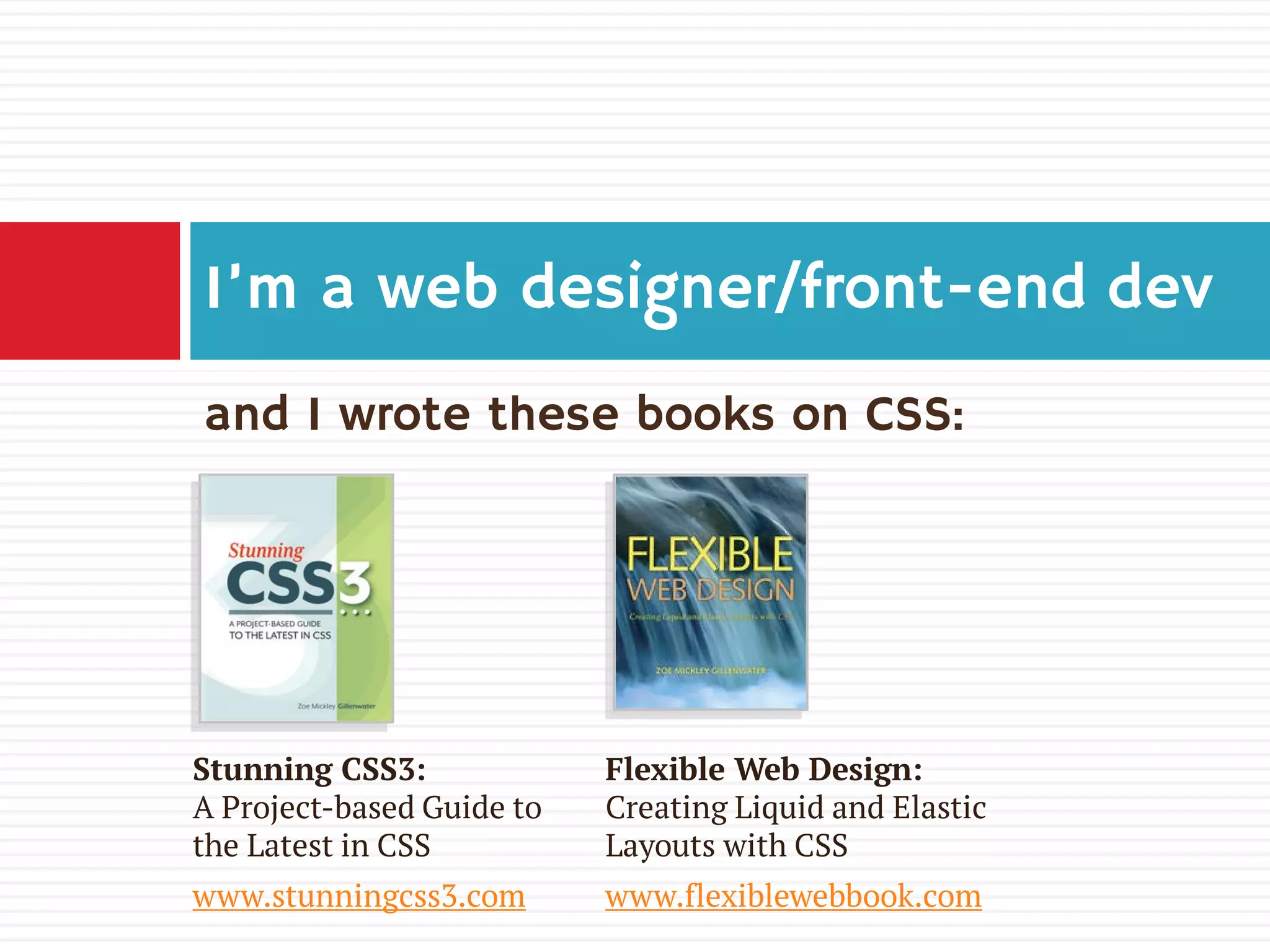
and I wrote these books on CSS:
Iโ€™m a web designer/front-end dev
Stunning CSS3:
A Project-based Guide to
the Latest in CSS
www.stunningcss3.com
Flexible Web Design:
Creating Liquid and Elastic
Layouts with CSS
www.flexiblewebbook.com
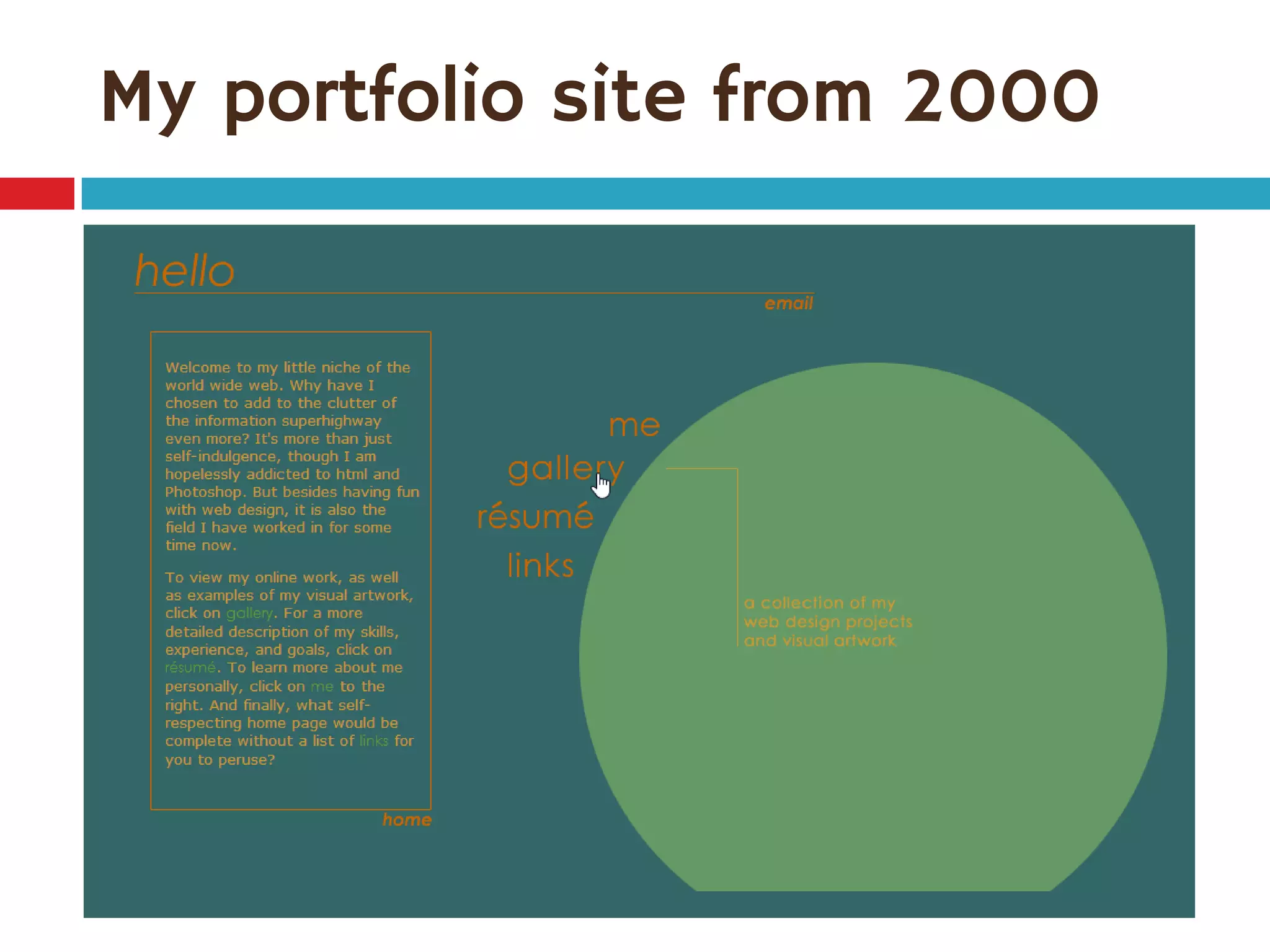
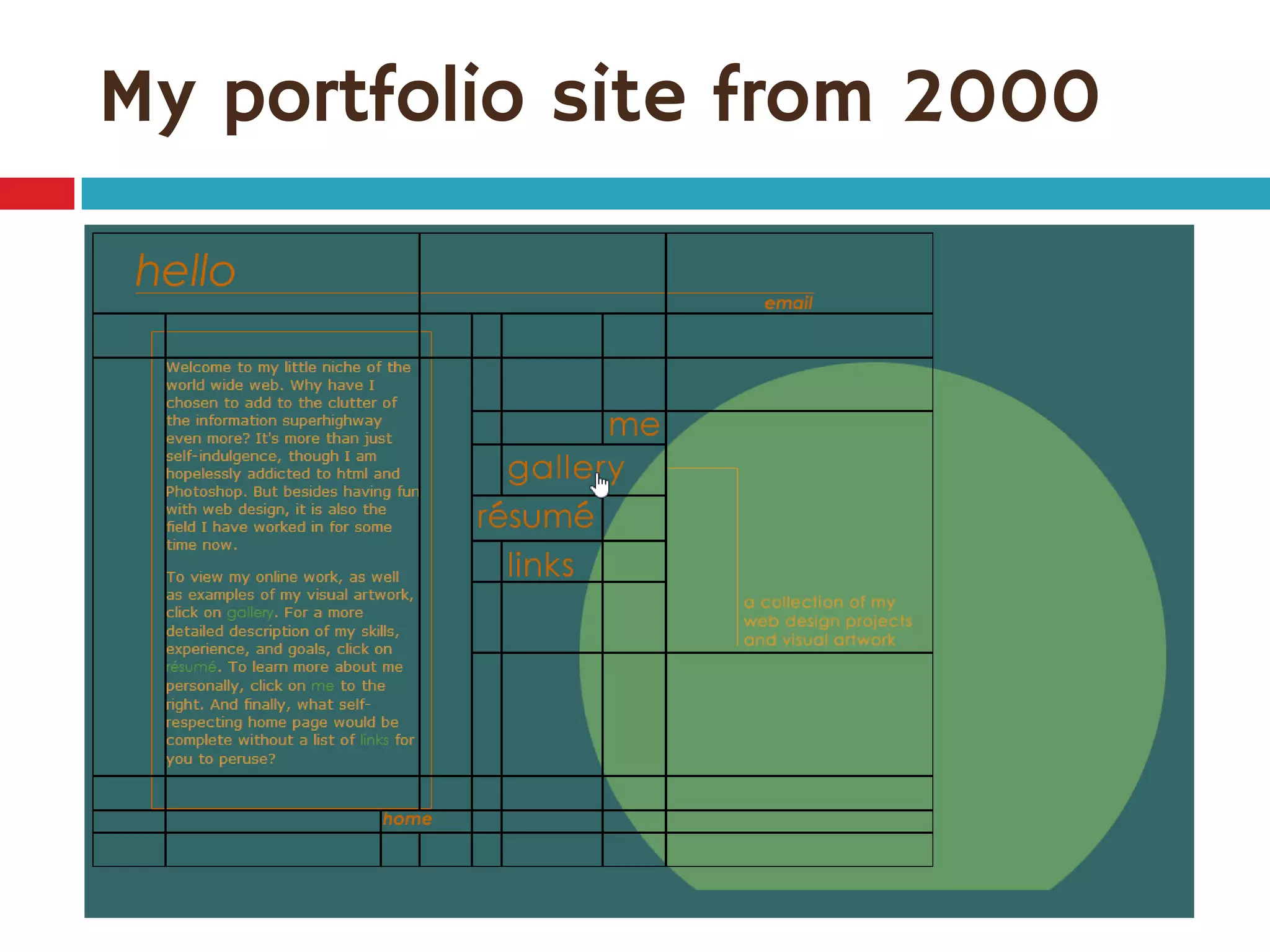
My portfolio site from 2000
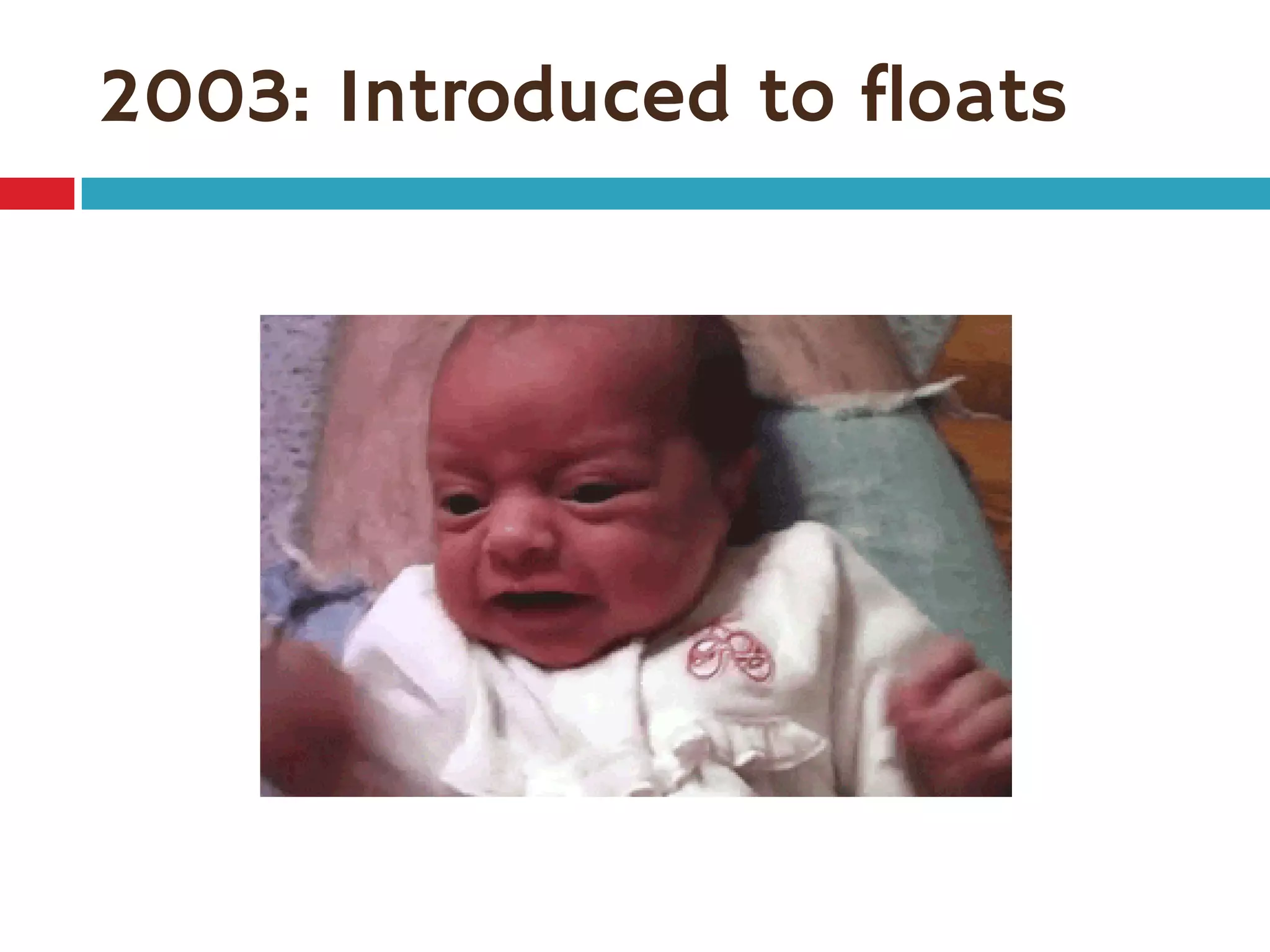
2003: Introduced to floats
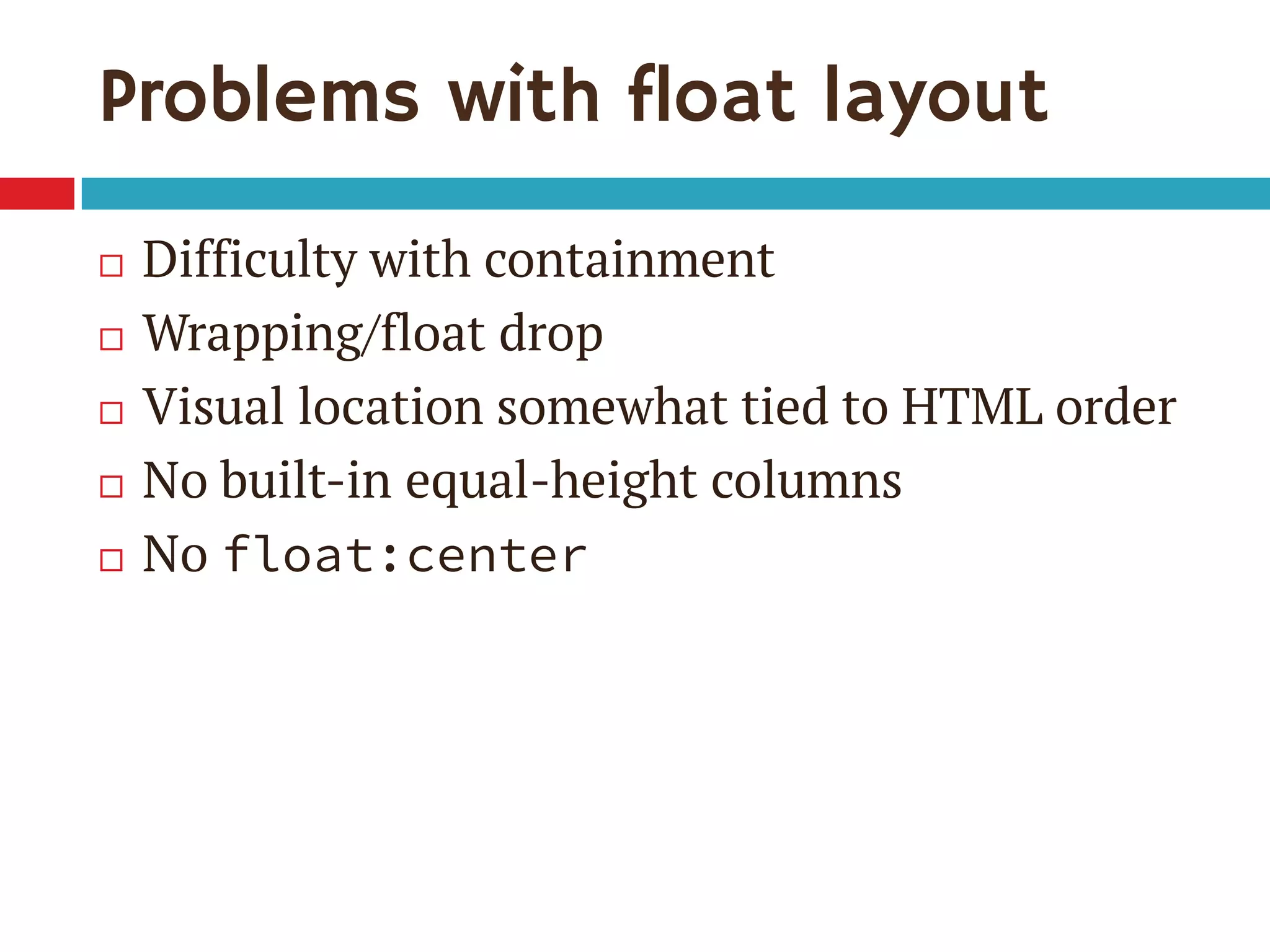
Problems with float layout
๏‚จ Difficulty with containment
๏‚จ Wrapping/float drop
๏‚จ Visual location somewhat tied to HTML order
๏‚จ No built-in equal-height columns
๏‚จ No float:center
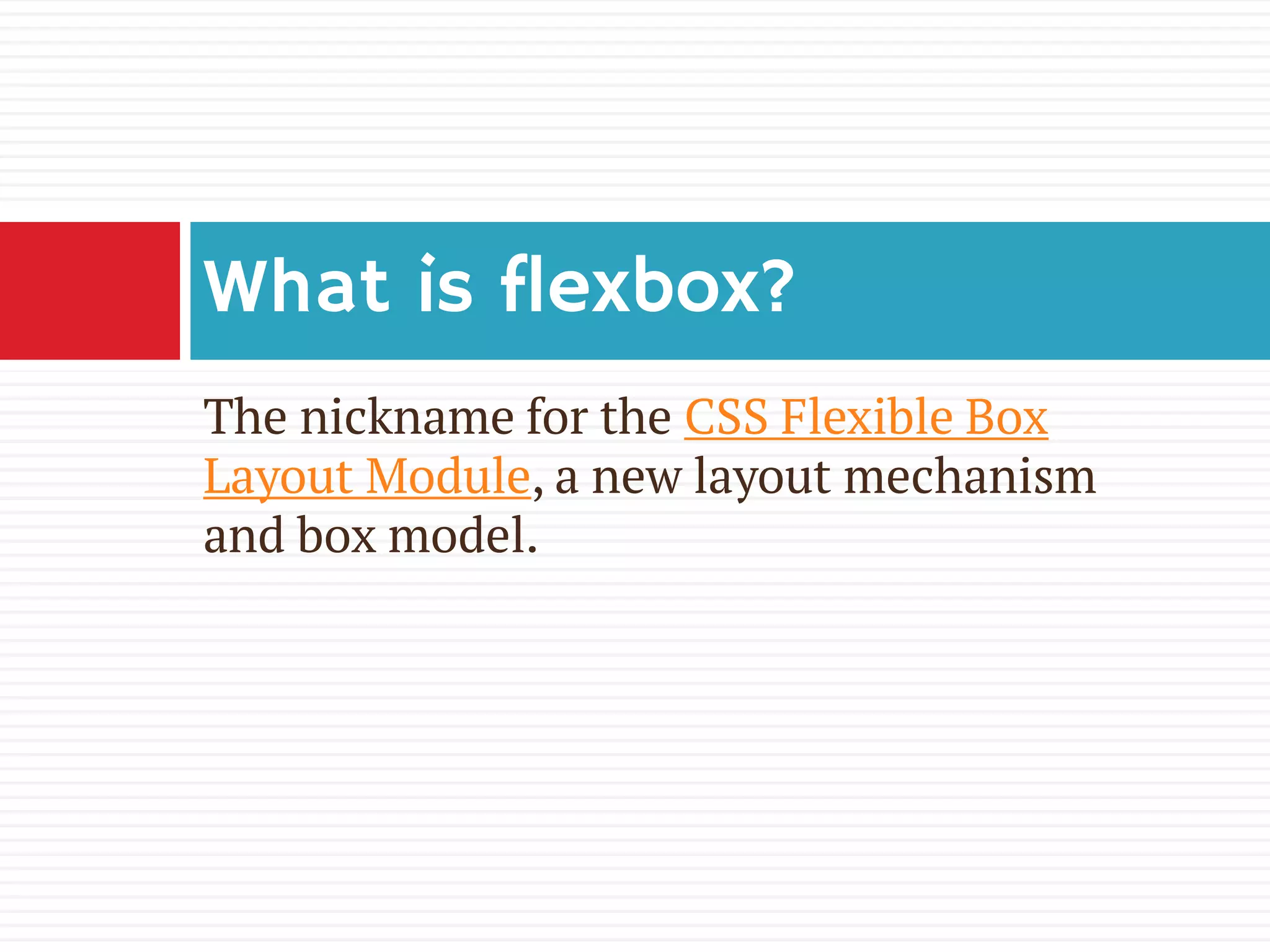
The nickname for the CSS Flexible Box
Layout Module, a new layout mechanism
and box model.
What is flexbox?
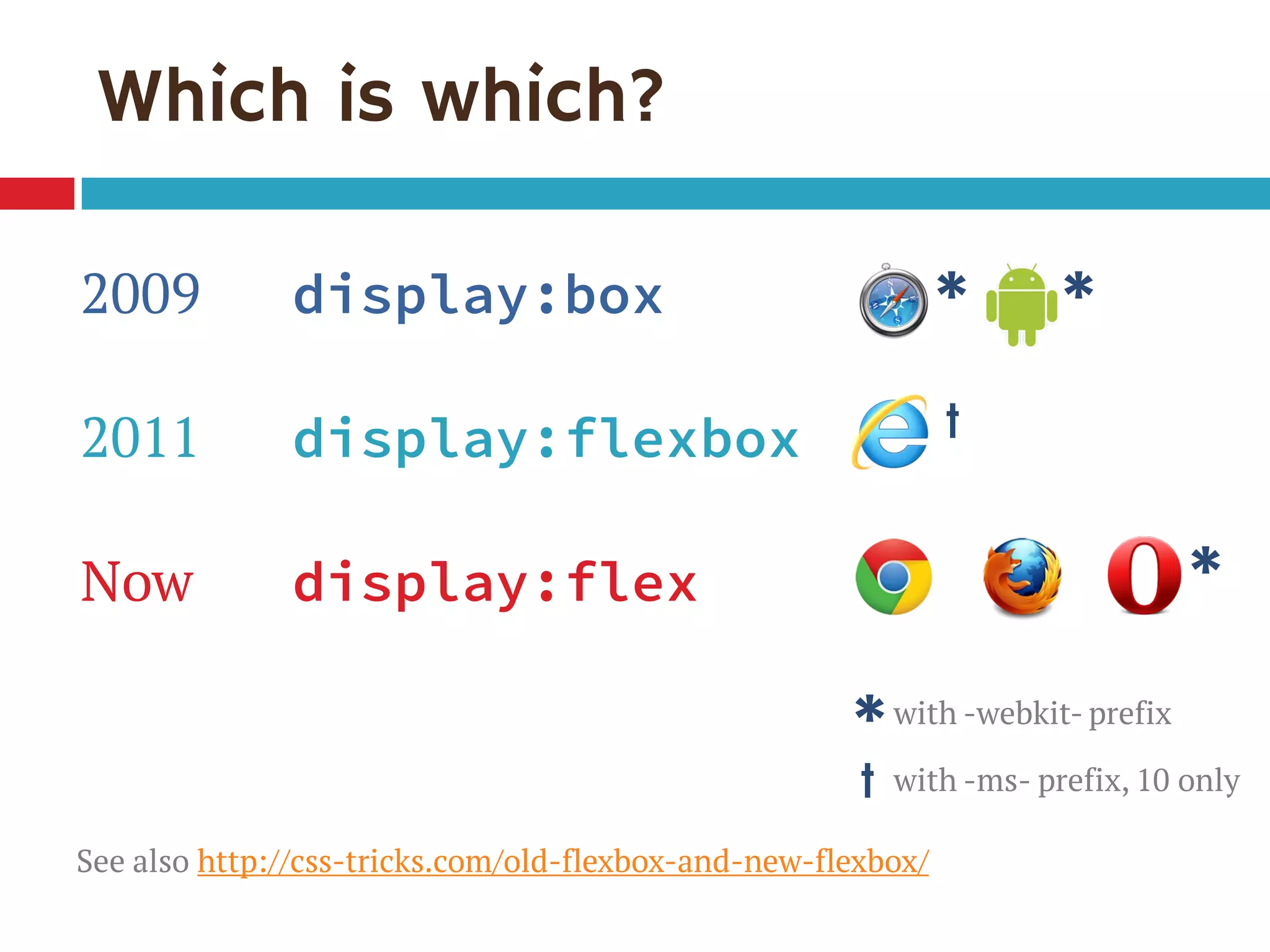
Which is which?
2009 display:box
2011 display:flexbox
Now display:flex
See also http://css-tricks.com/old-flexbox-and-new-flexbox/
*with -webkit- prefix
โ€  with -ms- prefix, 10 only
*
*
โ€ 
*
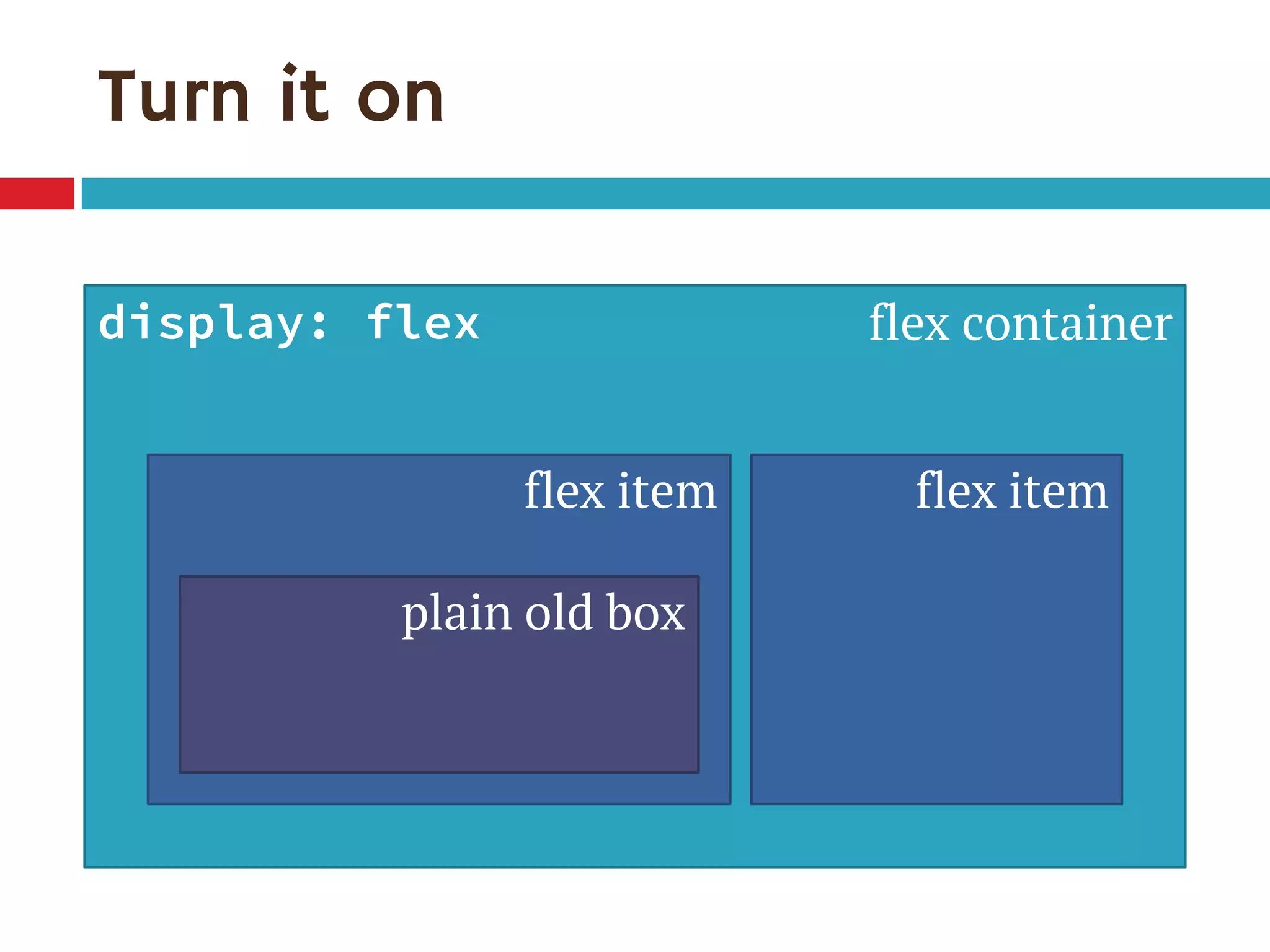
Turn it on
display: flex
flex item flex item
flex container
plain old box
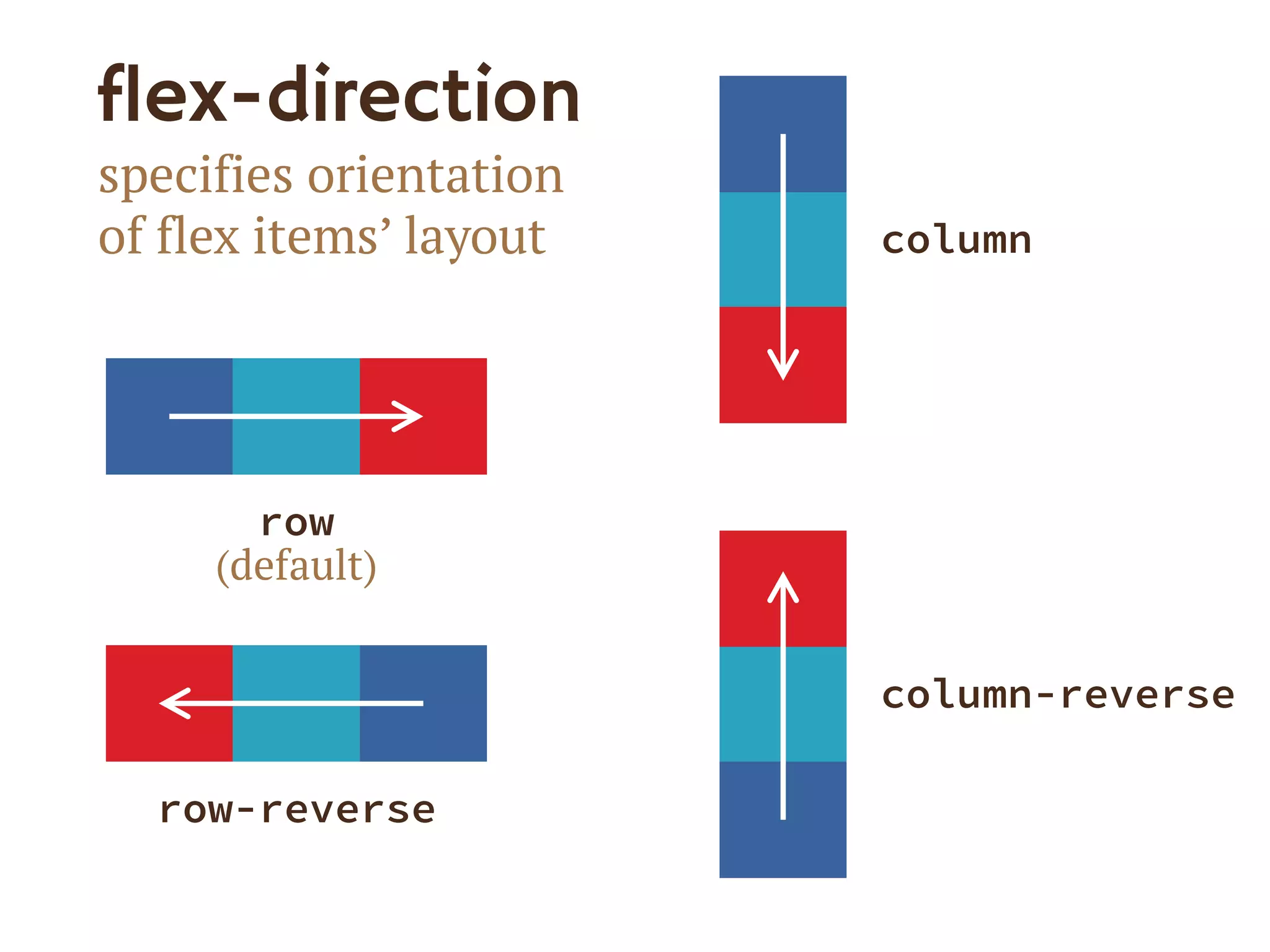
flex-direction
specifies orientation
of flex itemsโ€™ layout
row
(default)
row-reverse
column
column-reverse
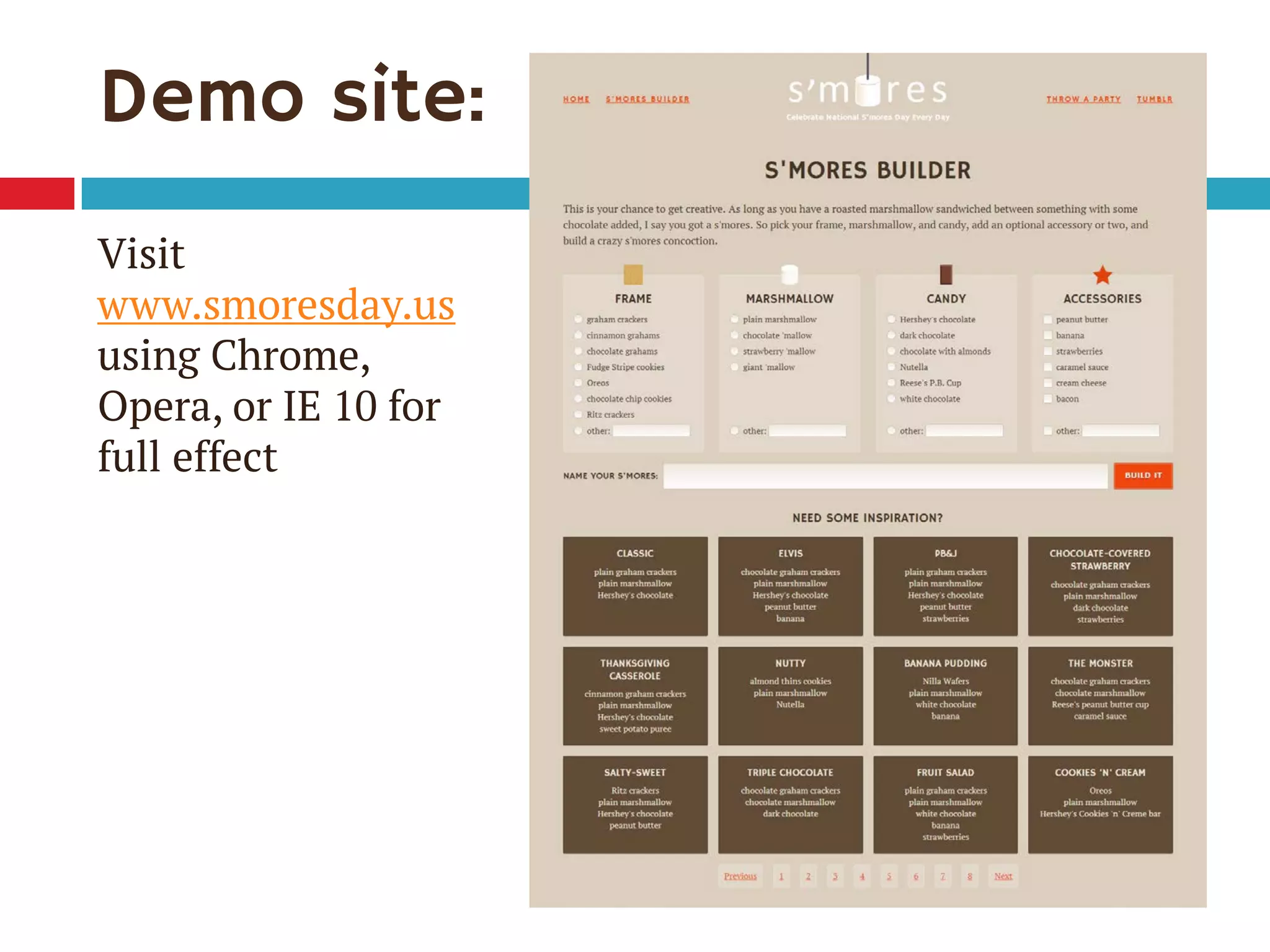
Demo site:
Visit
www.smoresday.us
using Chrome,
Opera, or IE 10 for
full effect
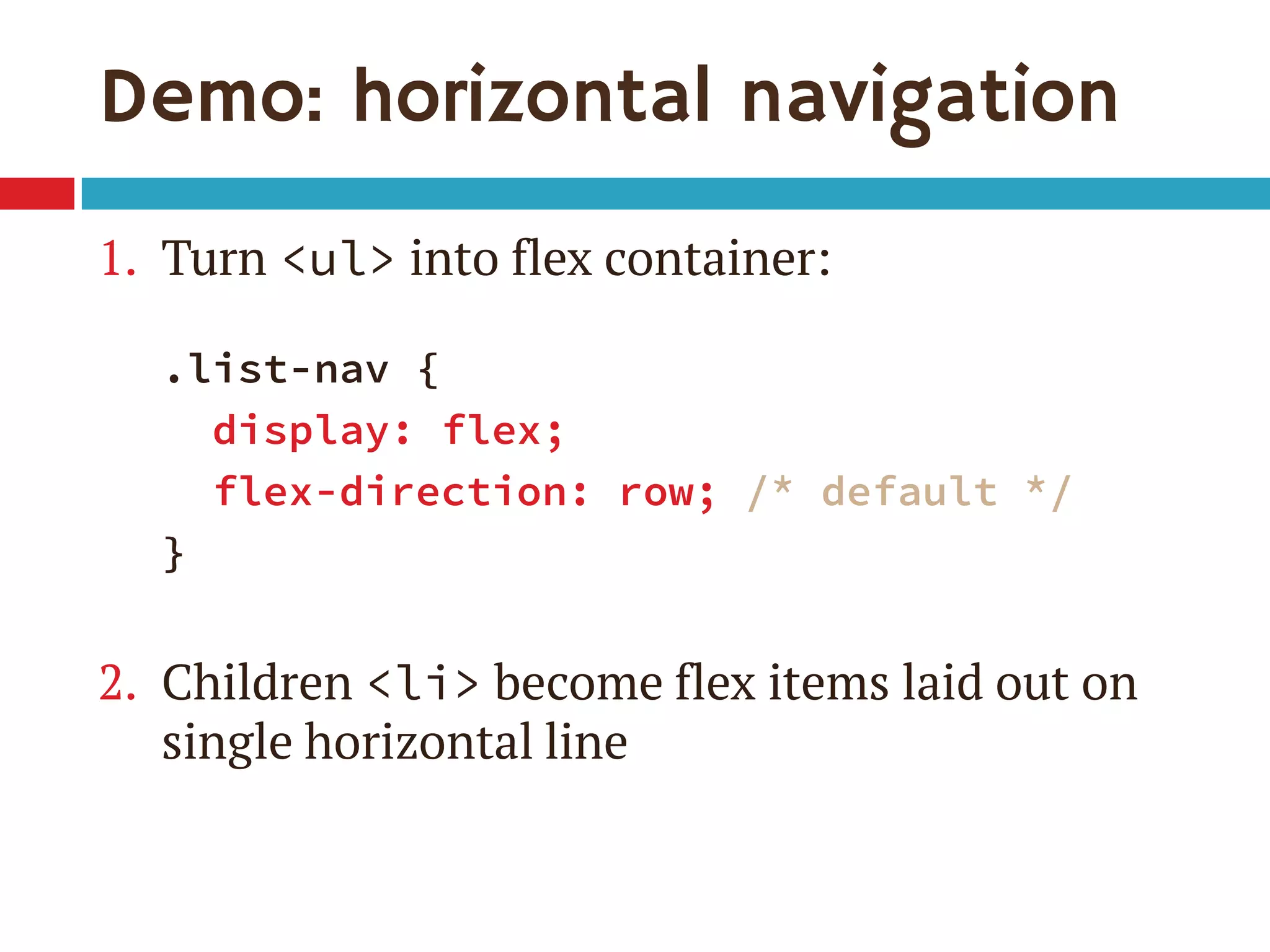
Demo: horizontal navigation
1. Turn <ul> into flex container:
.list-nav {
display: flex;
flex-direction: row; /* default */
}
2. Children <li> become flex items laid out on
single horizontal line
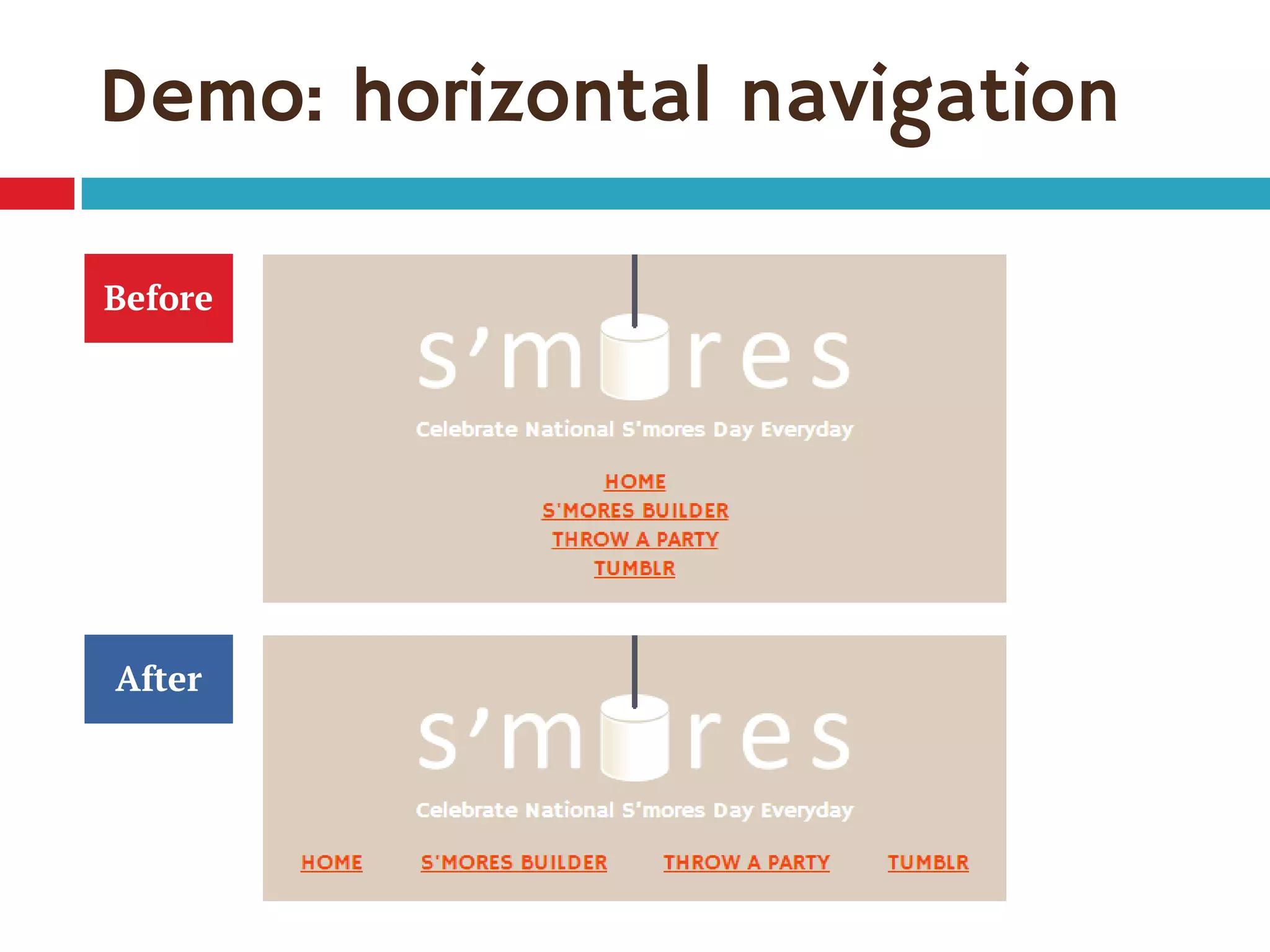
Demo: horizontal navigation
Before
After
I can do the same thing with display: inline.โ€
Whatโ€™s the big deal?
Yes, you can.
Weโ€™re just laying the groundwork for the
cool stuff thatโ€™s coming.
Baby steps.
โ€œ
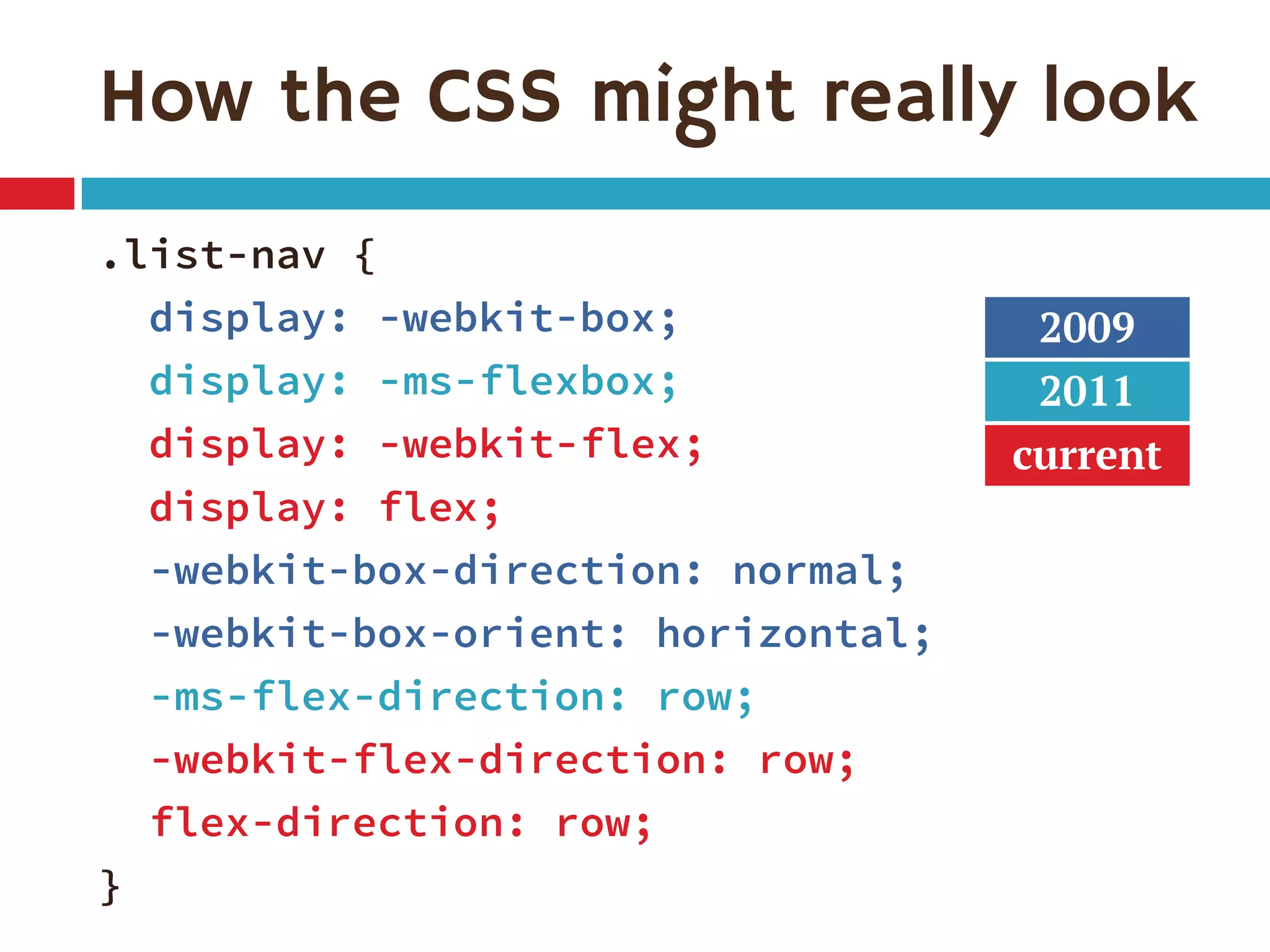
How the CSS might really look
.list-nav {
display: -webkit-box;
display: -ms-flexbox;
display: -webkit-flex;
display: flex;
-webkit-box-direction: normal;
-webkit-box-orient: horizontal;
-ms-flex-direction: row;
-webkit-flex-direction: row;
flex-direction: row;
}
2009
2011
current
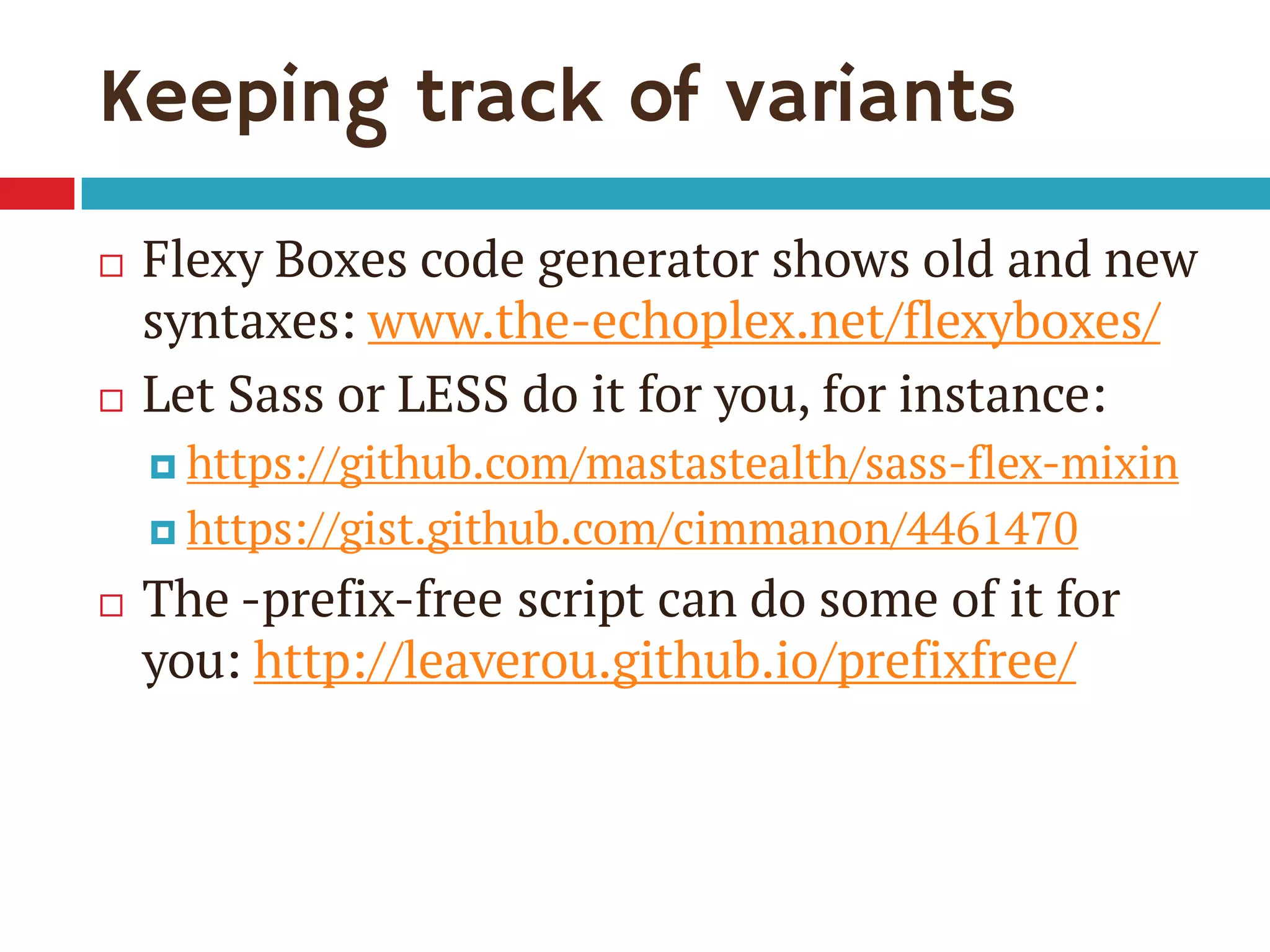
Keeping track of variants
๏‚จ Flexy Boxes code generator shows old and new
syntaxes: www.the-echoplex.net/flexyboxes/
๏‚จ Let Sass or LESS do it for you, for instance:
๏‚ค https://github.com/mastastealth/sass-flex-mixin
๏‚ค https://gist.github.com/cimmanon/4461470
๏‚จ The -prefix-free script can do some of it for
you: http://leaverou.github.io/prefixfree/
But for the sake of readability, Iโ€™m omitting
them from the code samples on these
slides. You can see them in the live demo.
Now back to flex-direction.
Use the variants you want.
Setting a point of reference
Main axis
Crossaxis
(for flex-direction: row)
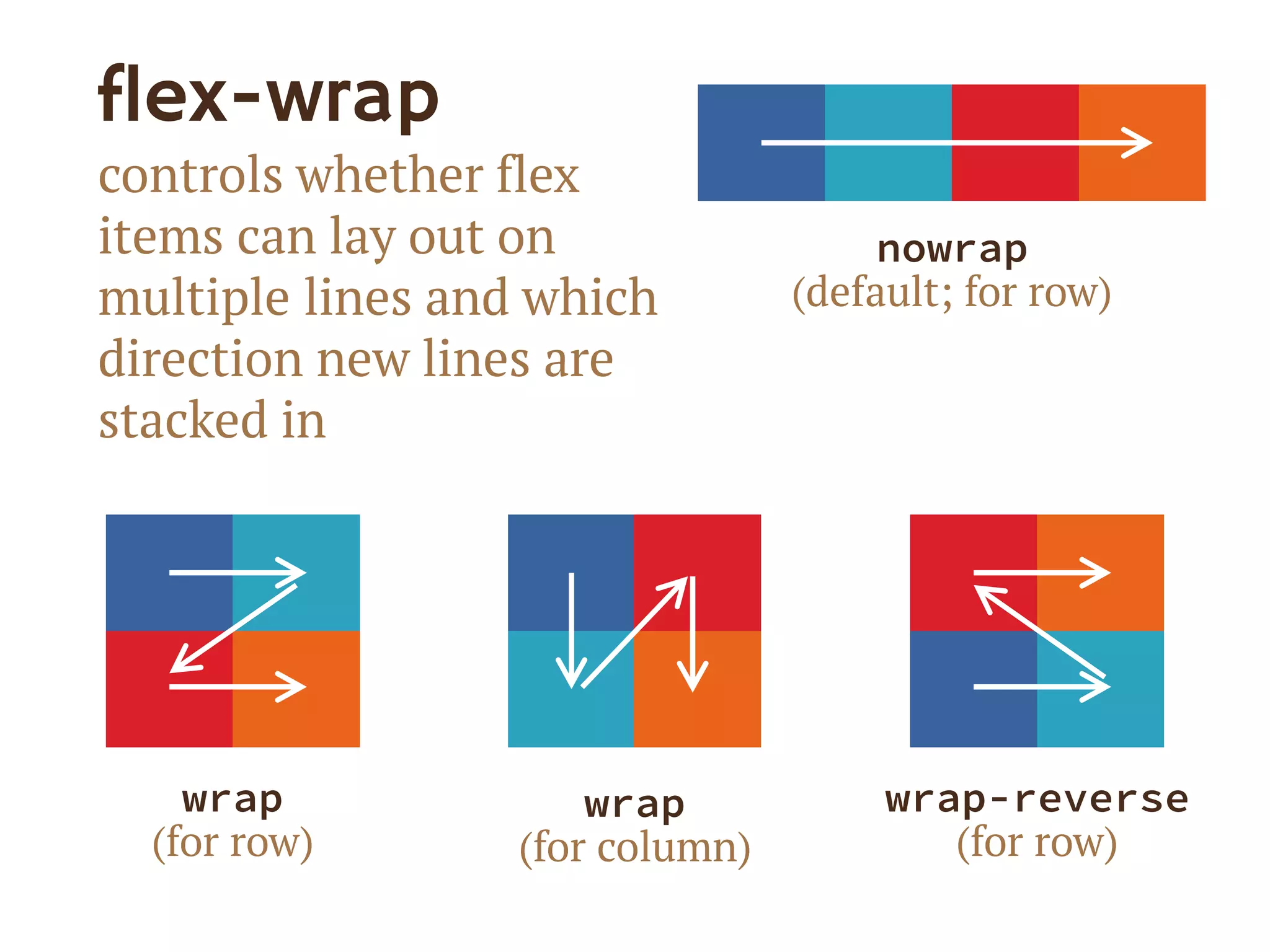
flex-wrap
controls whether flex
items can lay out on
multiple lines and which
direction new lines are
stacked in
wrap
(for row)
wrap
(for column)
nowrap
(default; for row)
wrap-reverse
(for row)
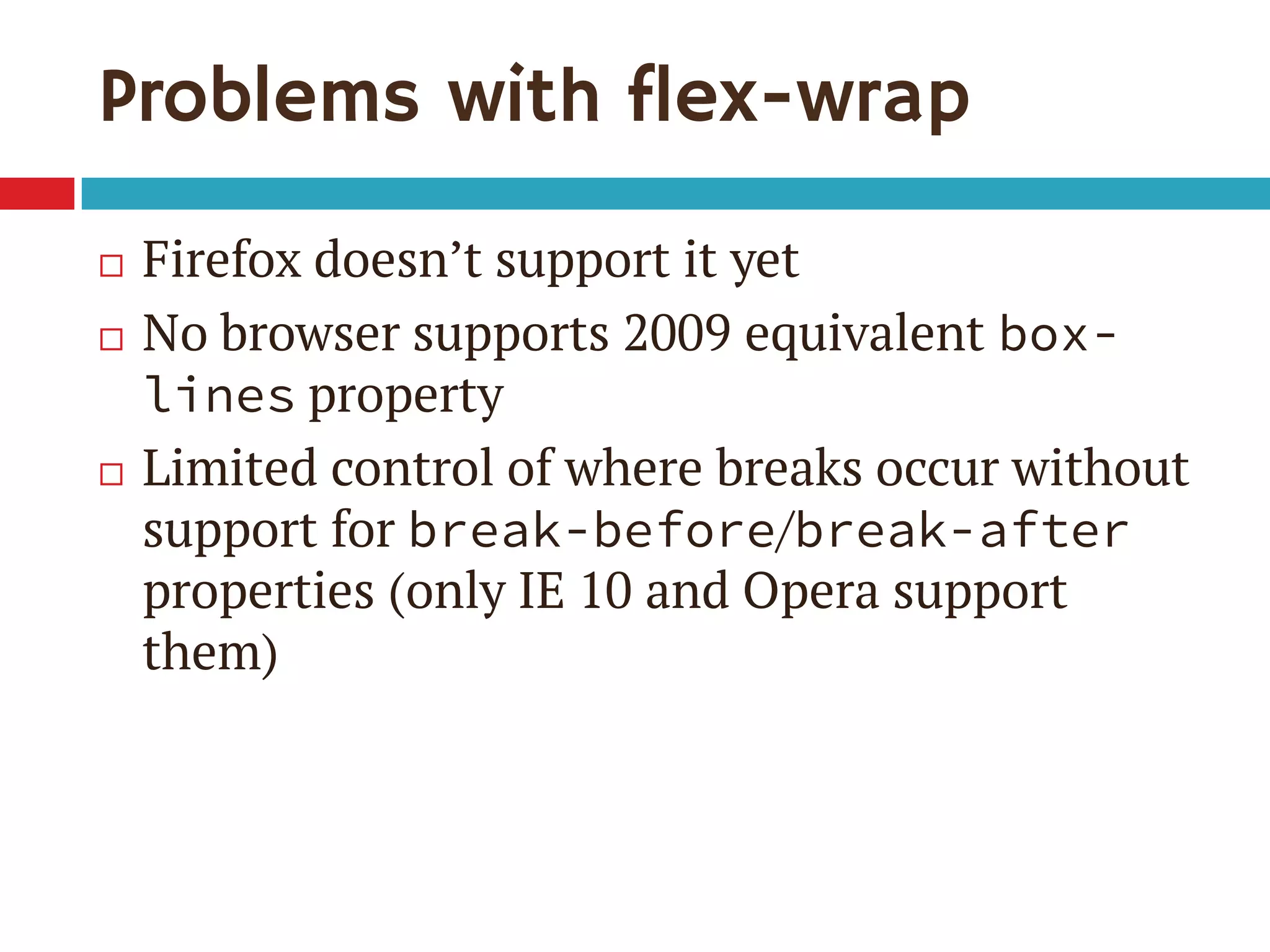
Problems with flex-wrap
๏‚จ Firefox doesnโ€™t support it yet
๏‚จ No browser supports 2009 equivalent box-
lines property
๏‚จ Limited control of where breaks occur without
support for break-before/break-after
properties (only IE 10 and Opera support
them)
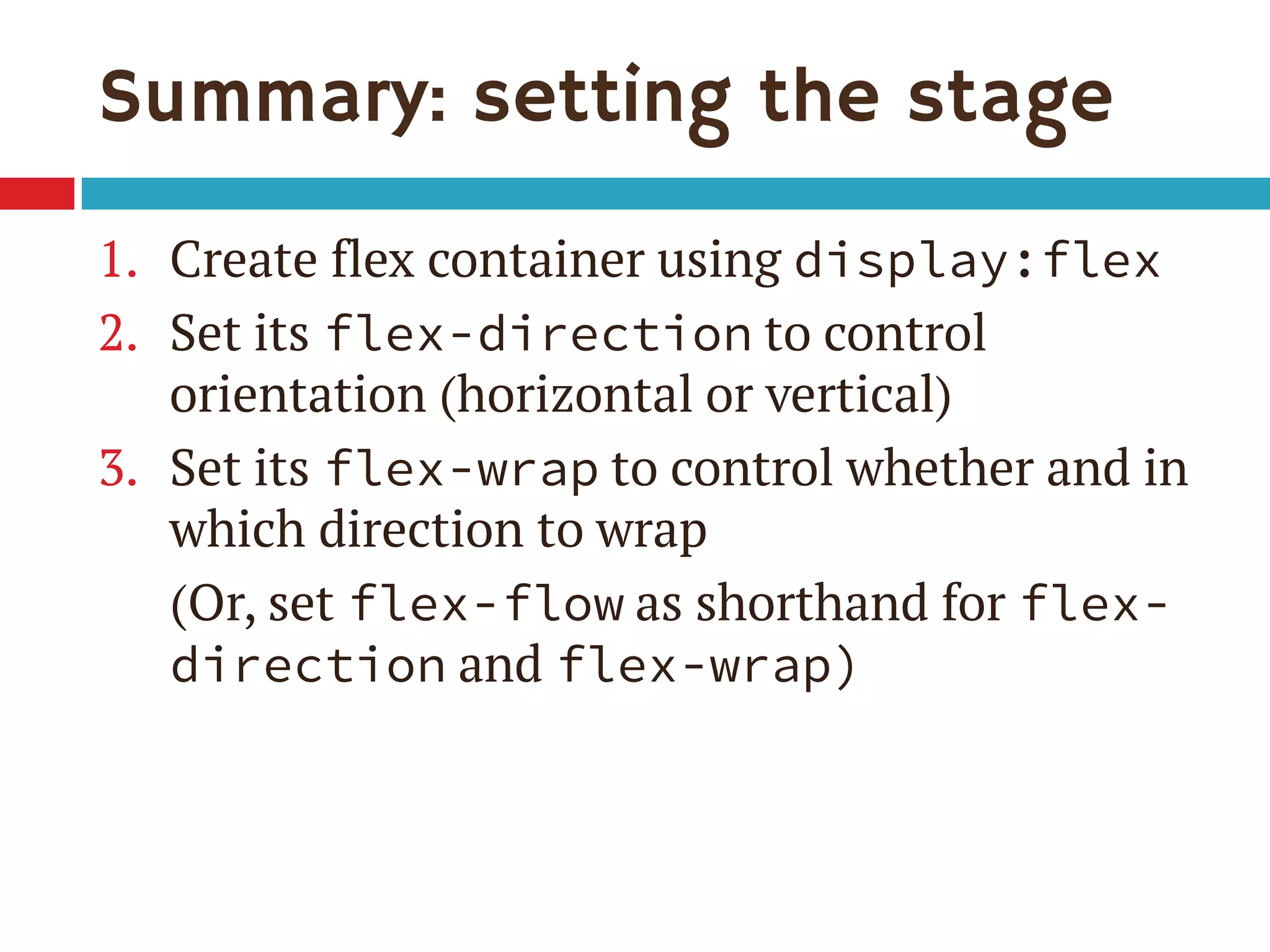
Summary: setting the stage
1. Create flex container using display:flex
2. Set its flex-direction to control
orientation (horizontal or vertical)
3. Set its flex-wrap to control whether and in
which direction to wrap
(Or, set flex-flow as shorthand for flex-
direction and flex-wrap)
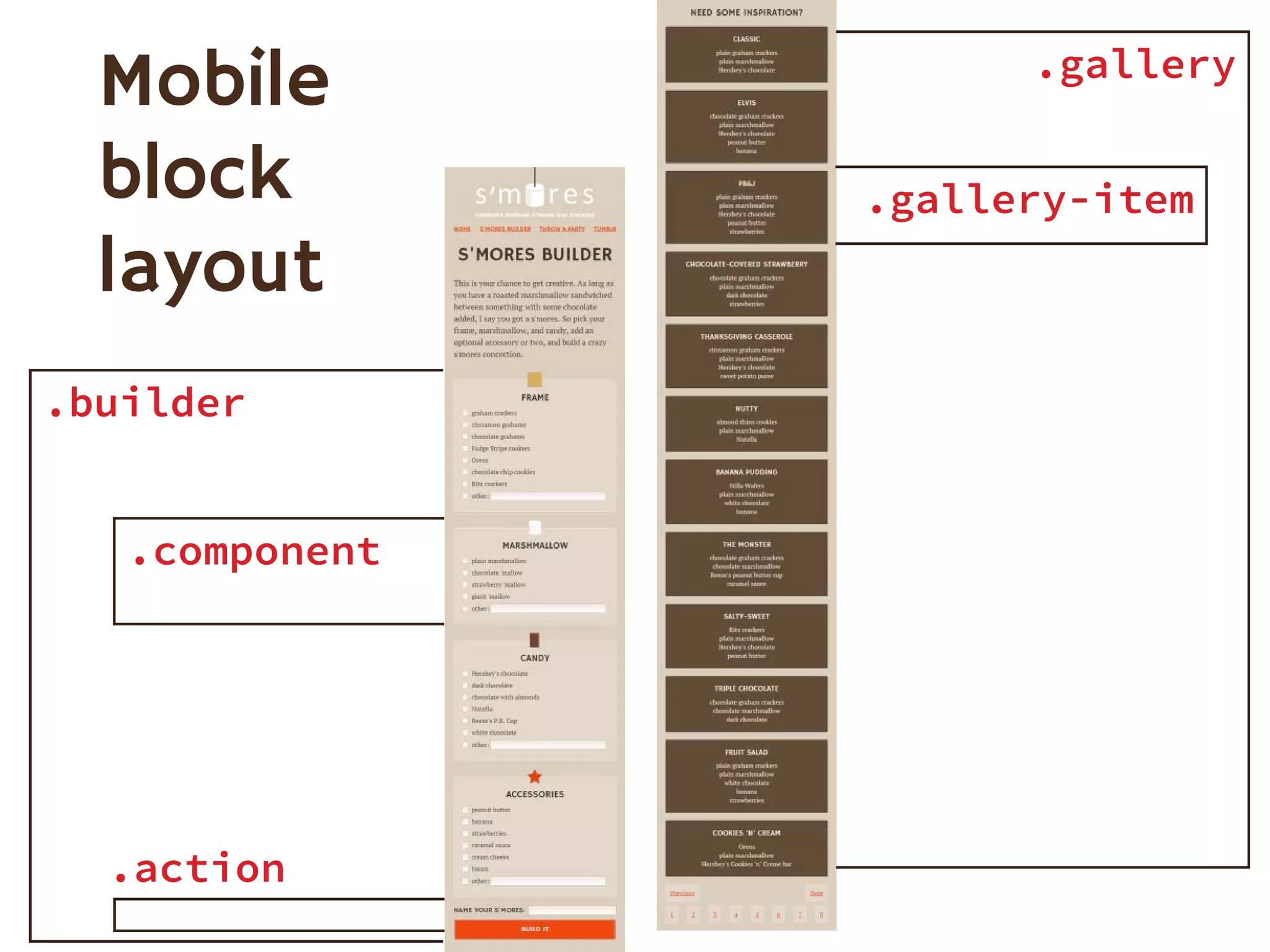
.builder
.component
.gallery
.gallery-item
Mobile
block
layout
.action
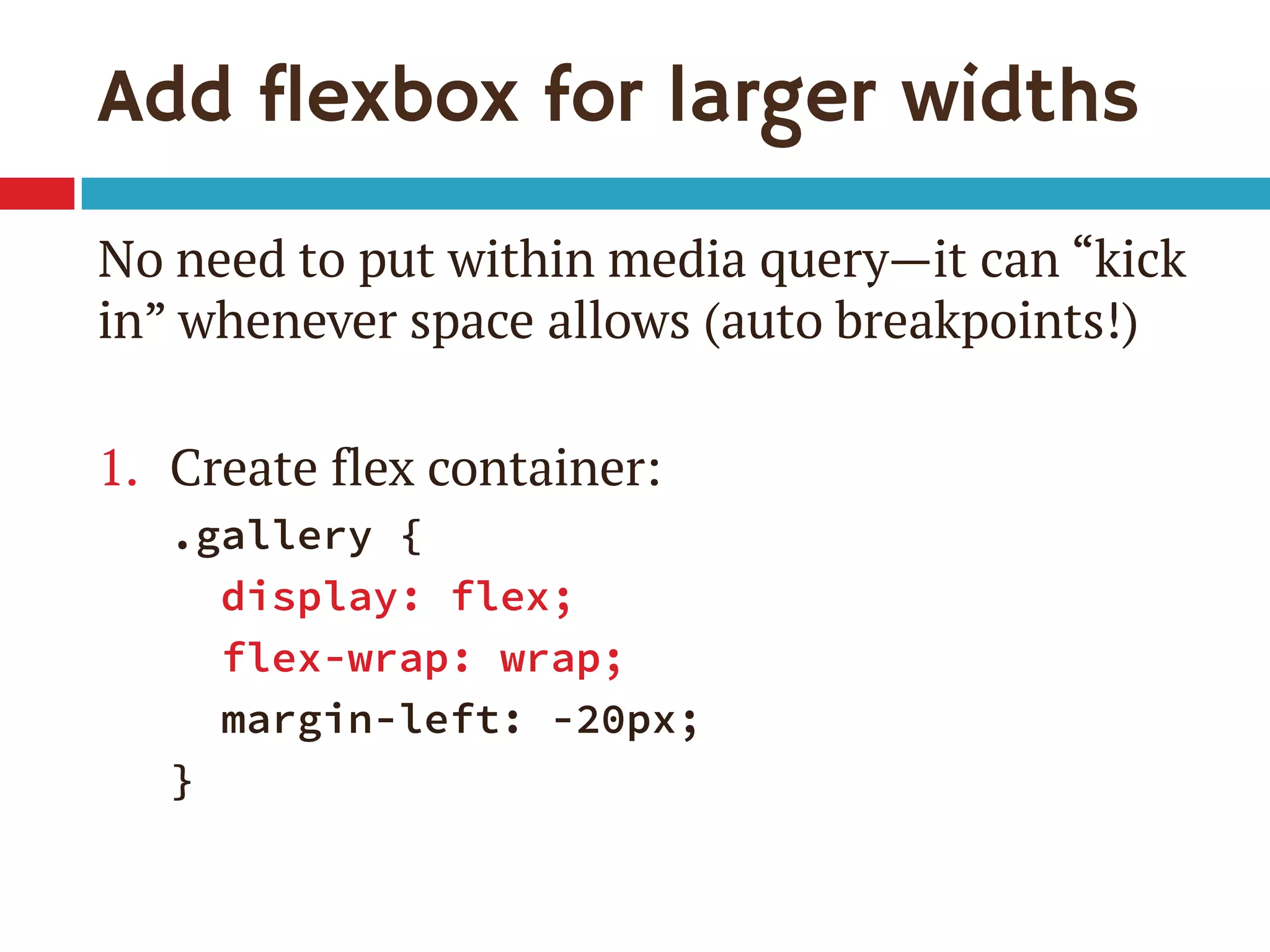
Add flexbox for larger widths
No need to put within media queryโ€”it can โ€œkick
inโ€ whenever space allows (auto breakpoints!)
1. Create flex container:
.gallery {
display: flex;
flex-wrap: wrap;
margin-left: -20px;
}
Add flexbox for larger widths
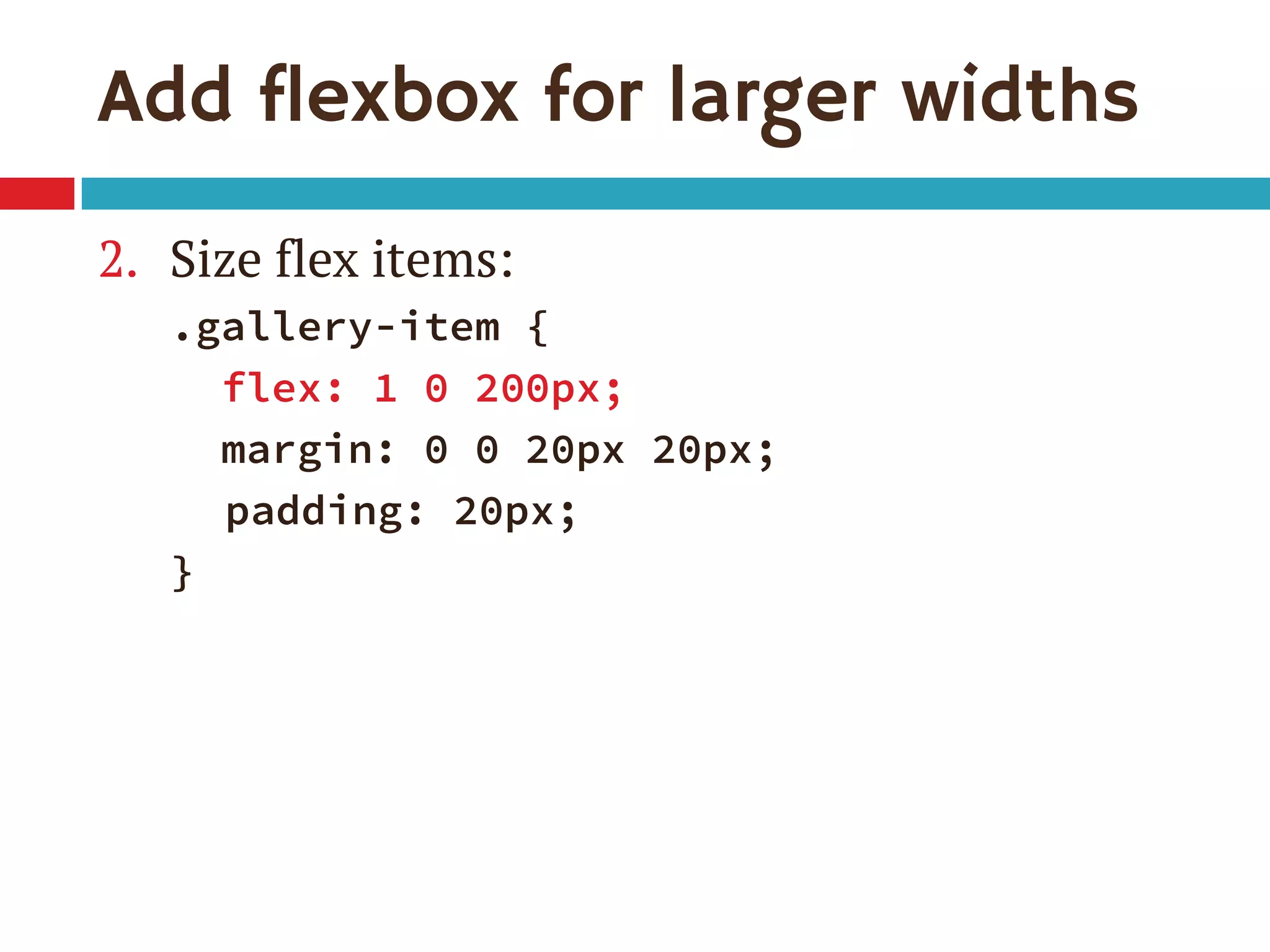
2. Size flex items:
.gallery-item {
flex: 1 0 200px;
margin: 0 0 20px 20px;
padding: 20px;
}
This is where flexbox gets flexible.
And kinda confusing.
The flex property
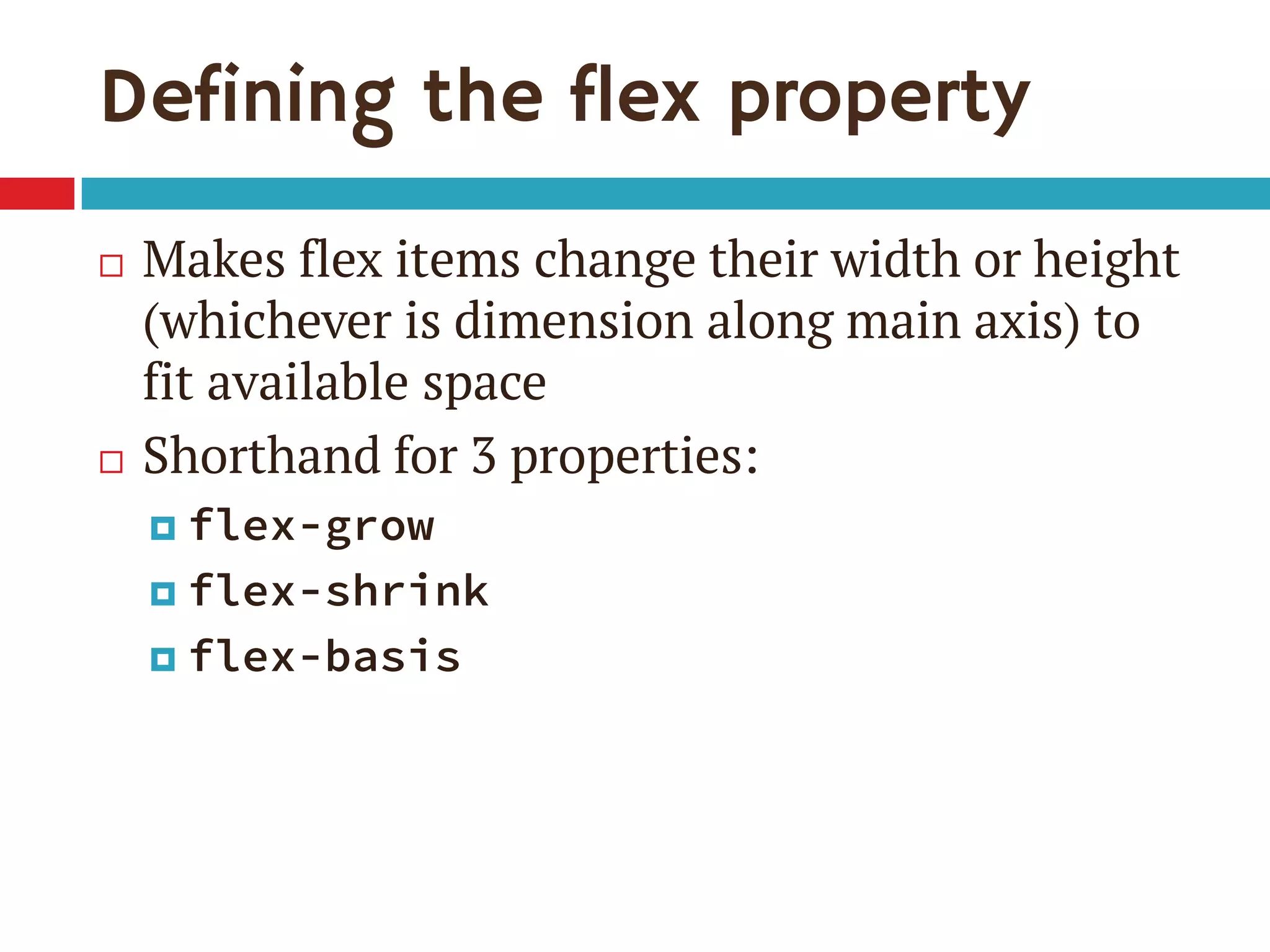
Defining the flex property
๏‚จ Makes flex items change their width or height
(whichever is dimension along main axis) to
fit available space
๏‚จ Shorthand for 3 properties:
๏‚ค flex-grow
๏‚ค flex-shrink
๏‚ค flex-basis
Defining the flex property
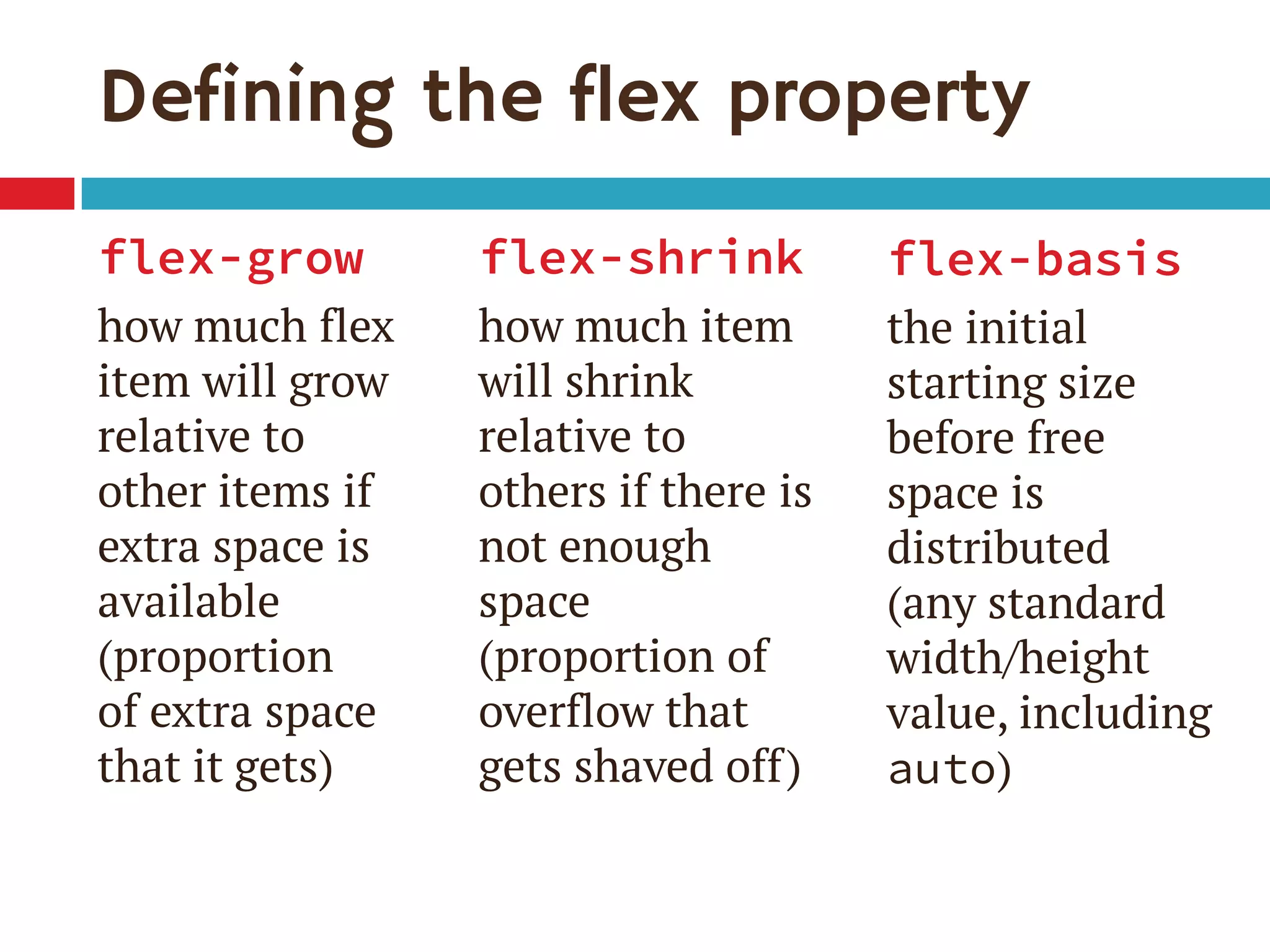
flex-grow
how much flex
item will grow
relative to
other items if
extra space is
available
(proportion
of extra space
that it gets)
flex-shrink
how much item
will shrink
relative to
others if there is
not enough
space
(proportion of
overflow that
gets shaved off)
flex-basis
the initial
starting size
before free
space is
distributed
(any standard
width/height
value, including
auto)
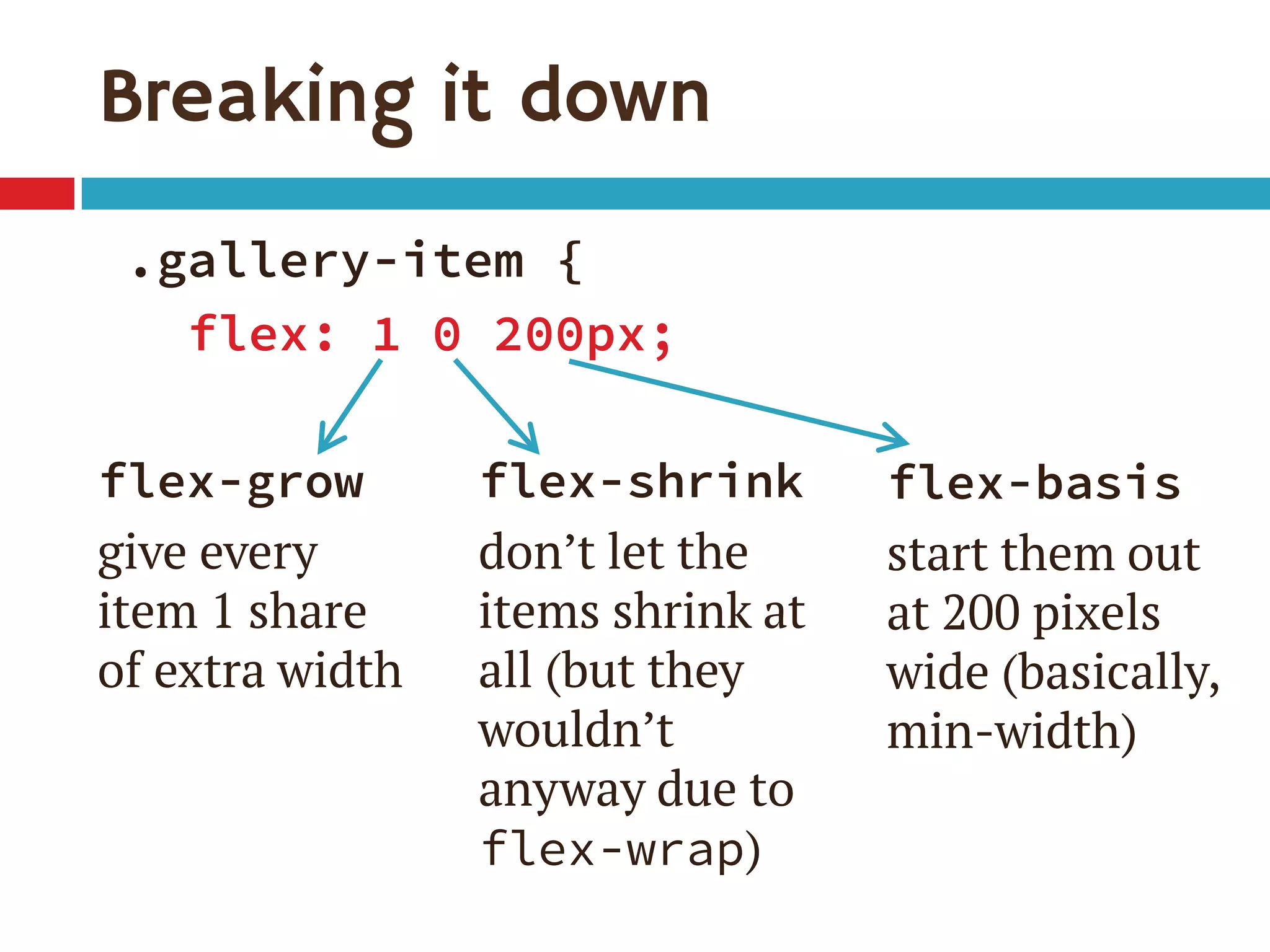
Breaking it down
.gallery-item {
flex: 1 0 200px;
flex-grow
give every
item 1 share
of extra width
flex-shrink
donโ€™t let the
items shrink at
all (but they
wouldnโ€™t
anyway due to
flex-wrap)
flex-basis
start them out
at 200 pixels
wide (basically,
min-width)
Letโ€™s see it flex live
Single-digit flex values
๏‚จ Common to see flex: 1 in demos
๏‚จ flex: [number] is equivalent to
flex: [number] 1 0px
๏‚จ Be sure you really want flex-basis to be 0
๏‚ค When wrap on, essentially min-width
๏‚ค 0px therefore means items can shrink to 0px
๏‚ค If everything can get down to 0px, nothing ever
has a reason to wrap
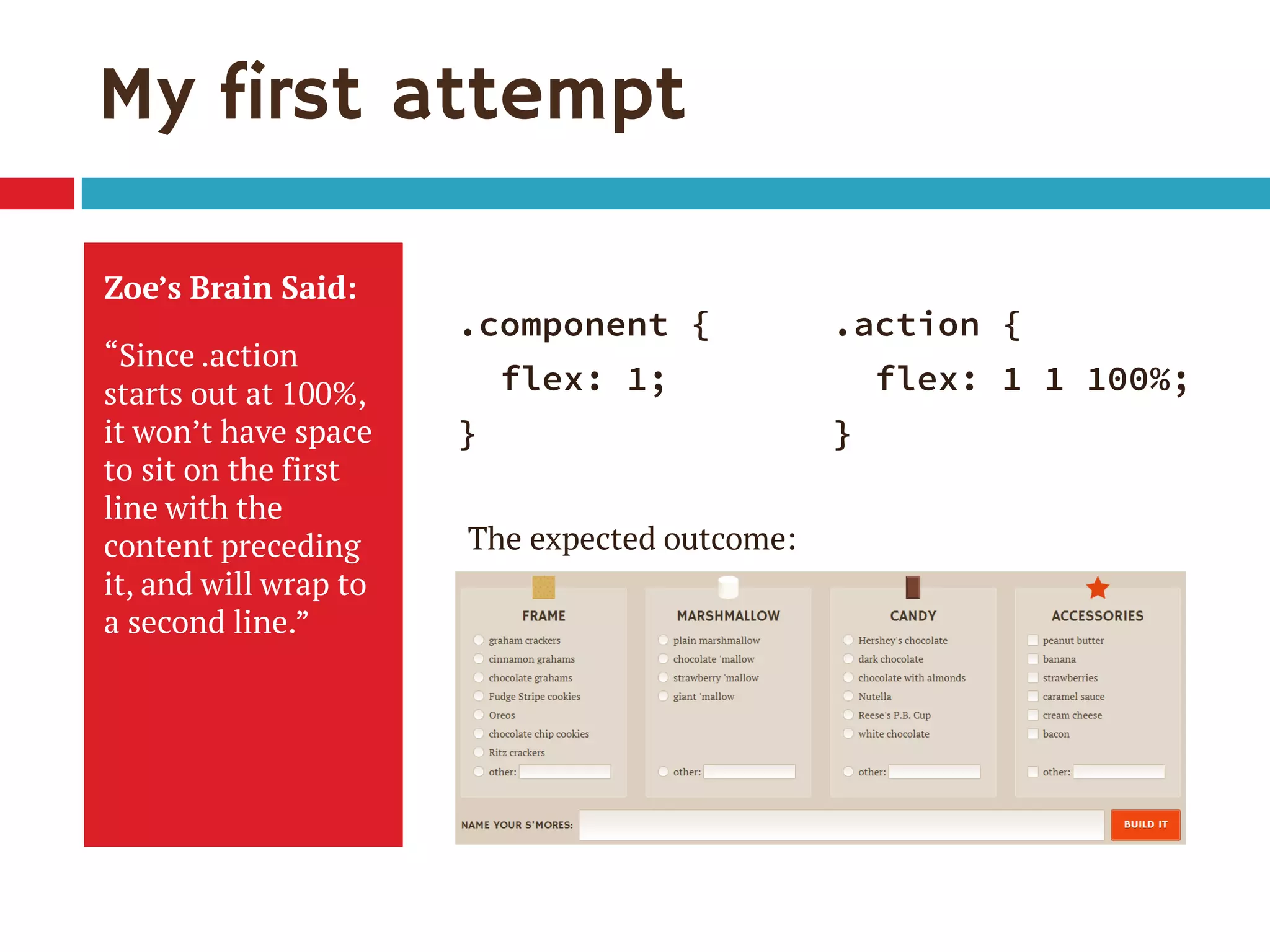
My first attempt
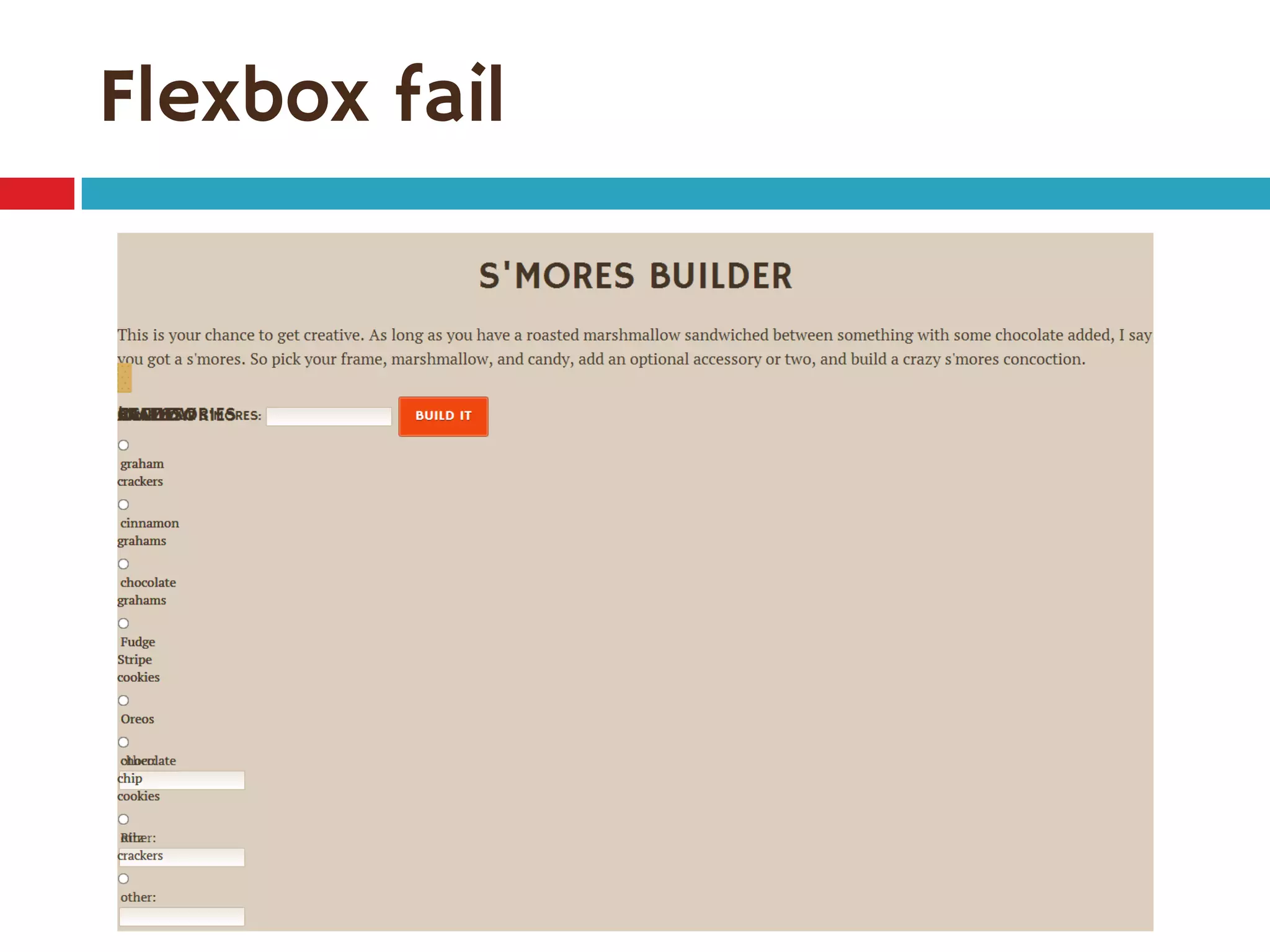
Zoeโ€™s Brain Said:
โ€œSince .action
starts out at 100%,
it wonโ€™t have space
to sit on the first
line with the
content preceding
it, and will wrap to
a second line.โ€
.component {
flex: 1;
}
.action {
flex: 1 1 100%;
}
The expected outcome:
Flexbox fail
My first attempt
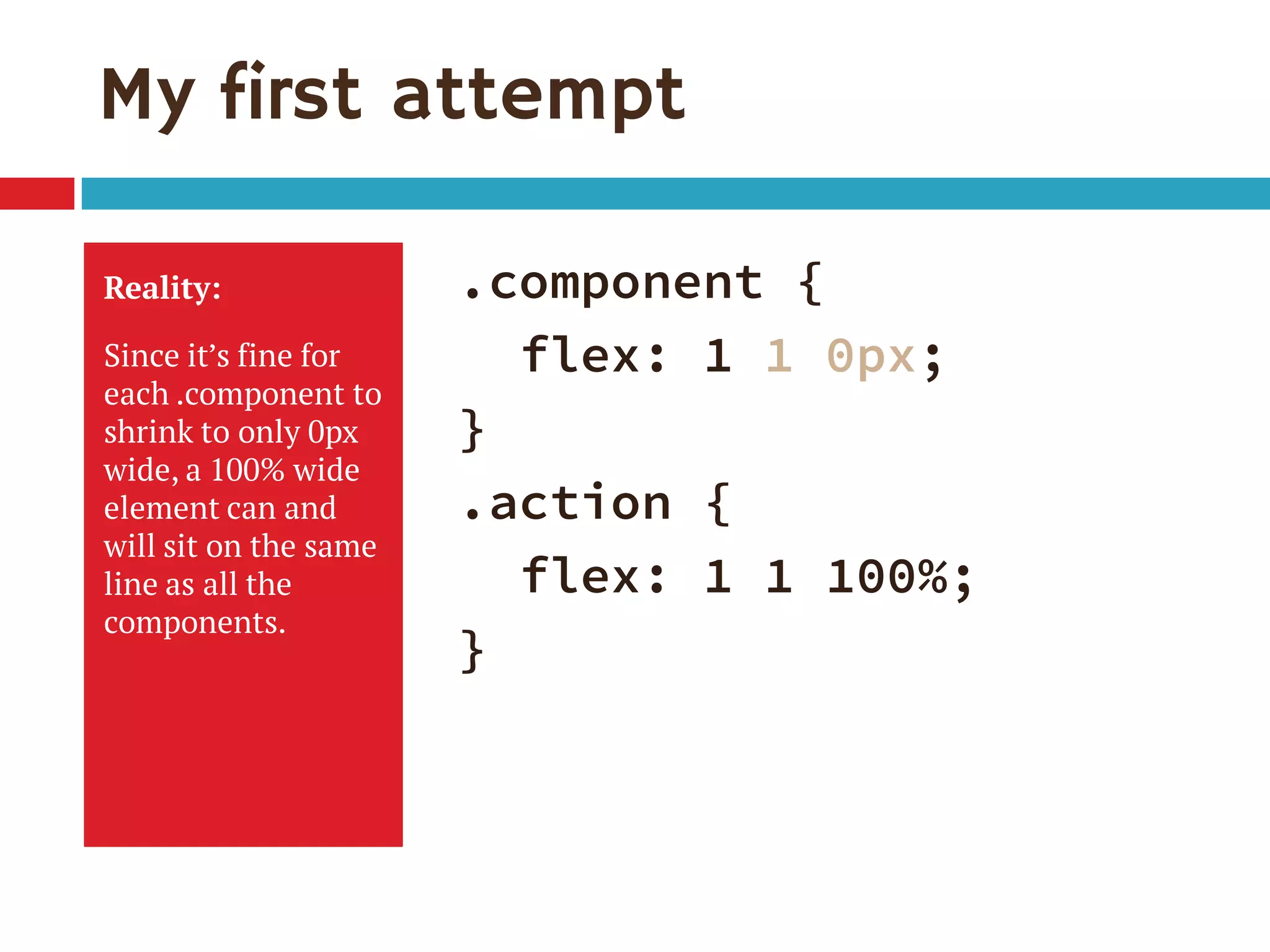
Reality:
Since itโ€™s fine for
each .component to
shrink to only 0px
wide, a 100% wide
element can and
will sit on the same
line as all the
components.
.component {
flex: 1 1 0px;
}
.action {
flex: 1 1 100%;
}
Forcing the wrap
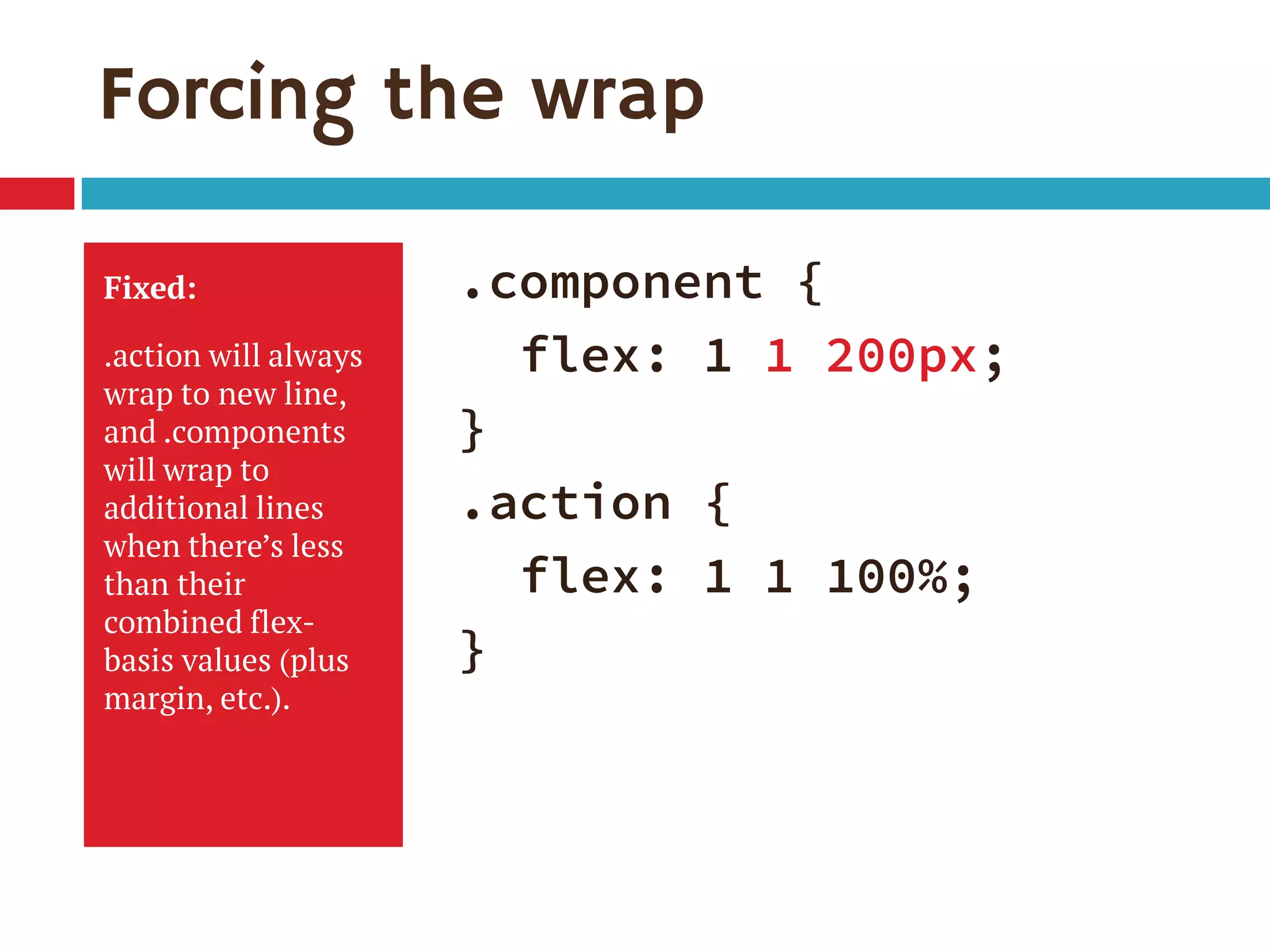
Fixed:
.action will always
wrap to new line,
and .components
will wrap to
additional lines
when thereโ€™s less
than their
combined flex-
basis values (plus
margin, etc.).
.component {
flex: 1 1 200px;
}
.action {
flex: 1 1 100%;
}
Live demo time again
Why flex is great
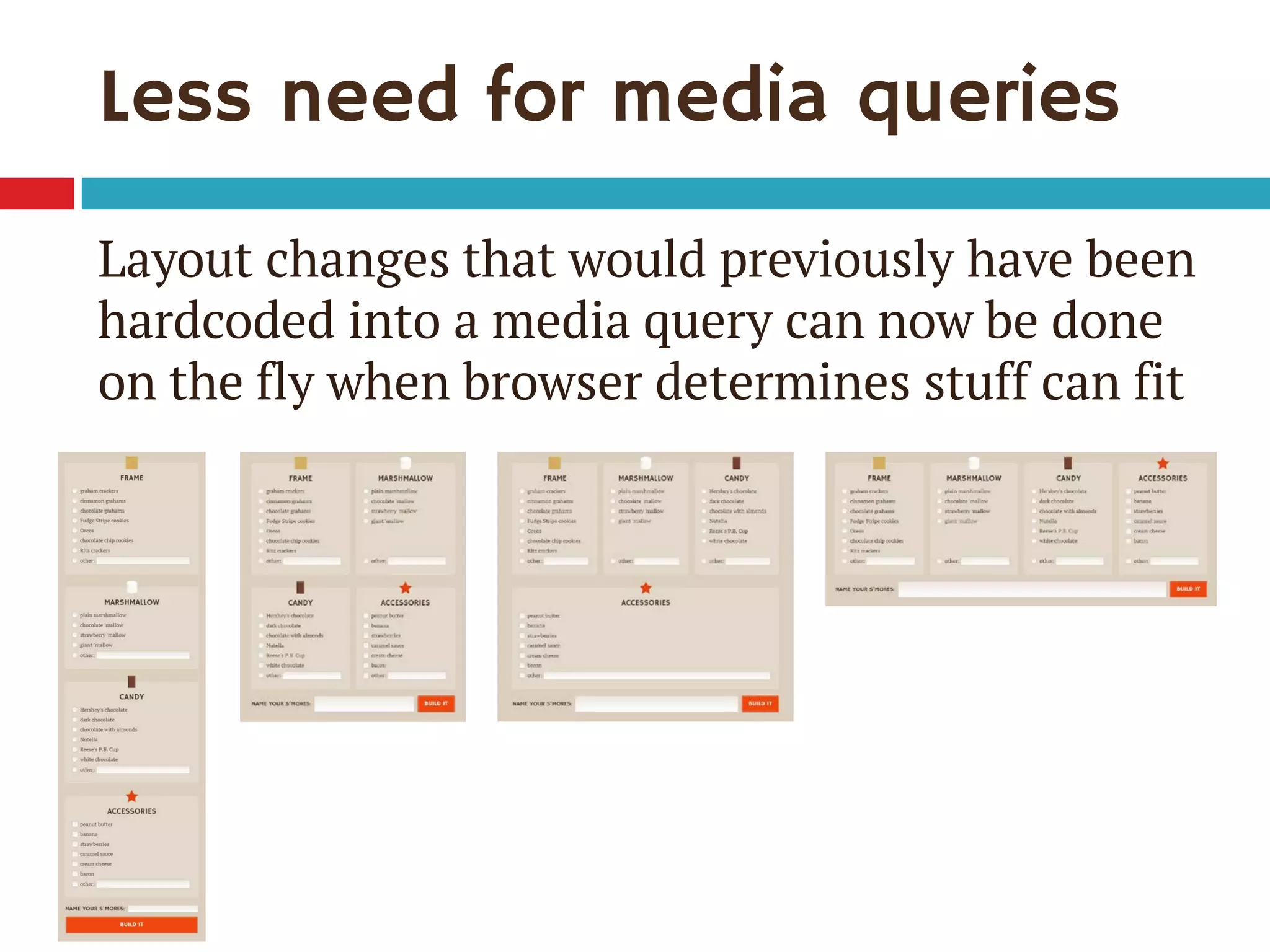
Less need for media queries
Layout changes that would previously have been
hardcoded into a media query can now be done
on the fly when browser determines stuff can fit
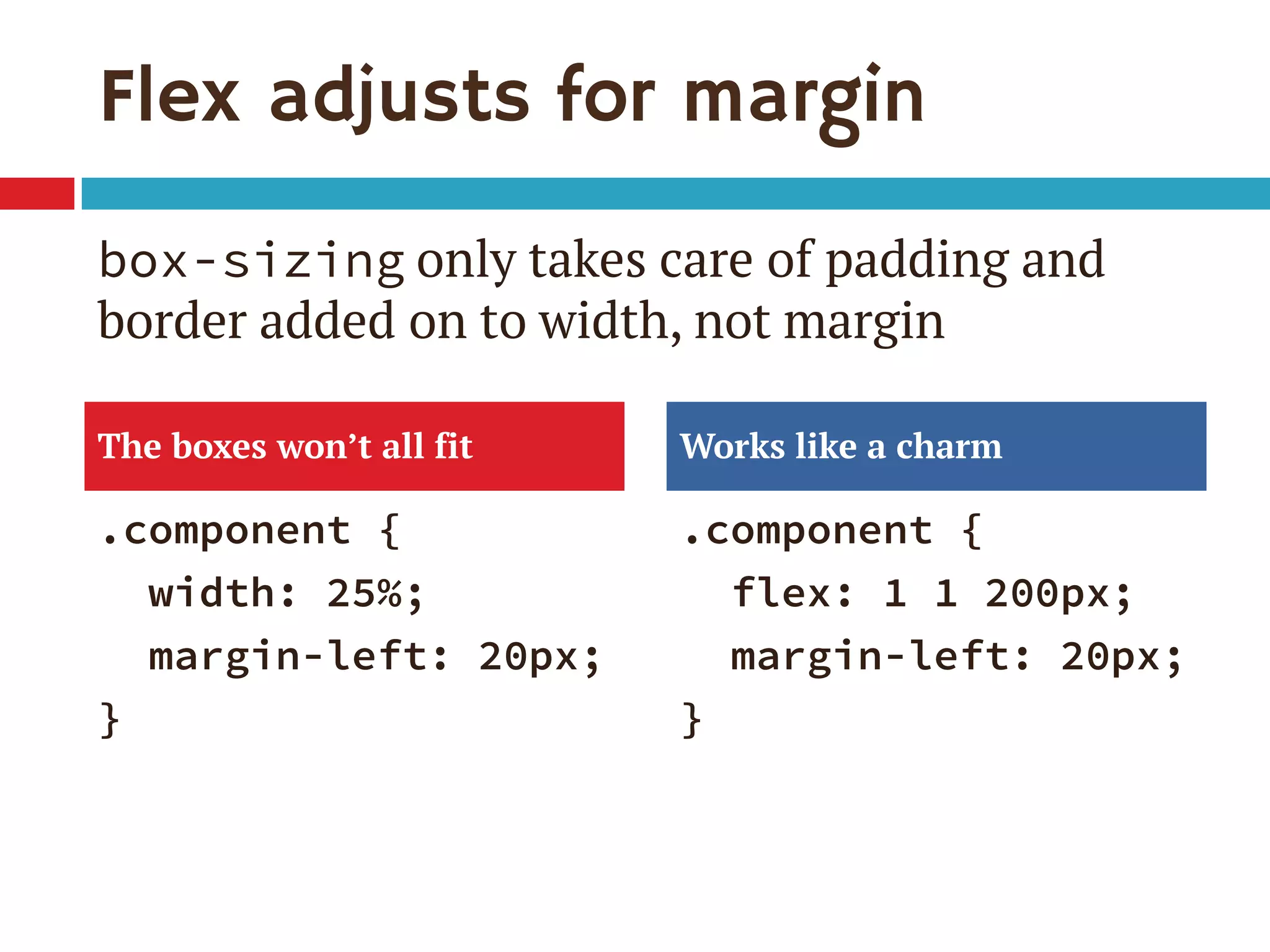
Flex adjusts for margin
.component {
width: 25%;
margin-left: 20px;
}
.component {
flex: 1 1 200px;
margin-left: 20px;
}
The boxes wonโ€™t all fit Works like a charm
box-sizing only takes care of padding and
border added on to width, not margin
Flex adjusts for quantity of items
๏‚จ Great for sites with dynamic or frequently
changing content blocks, e.g.:
๏‚ค News stories on home page vs inner page
๏‚ค Product or feature tiles
๏‚ค Pricing page with plans side by side
๏‚จ Makes HTML/CSS more modularโ€”an item can
move anywhere and adjust in size as needed
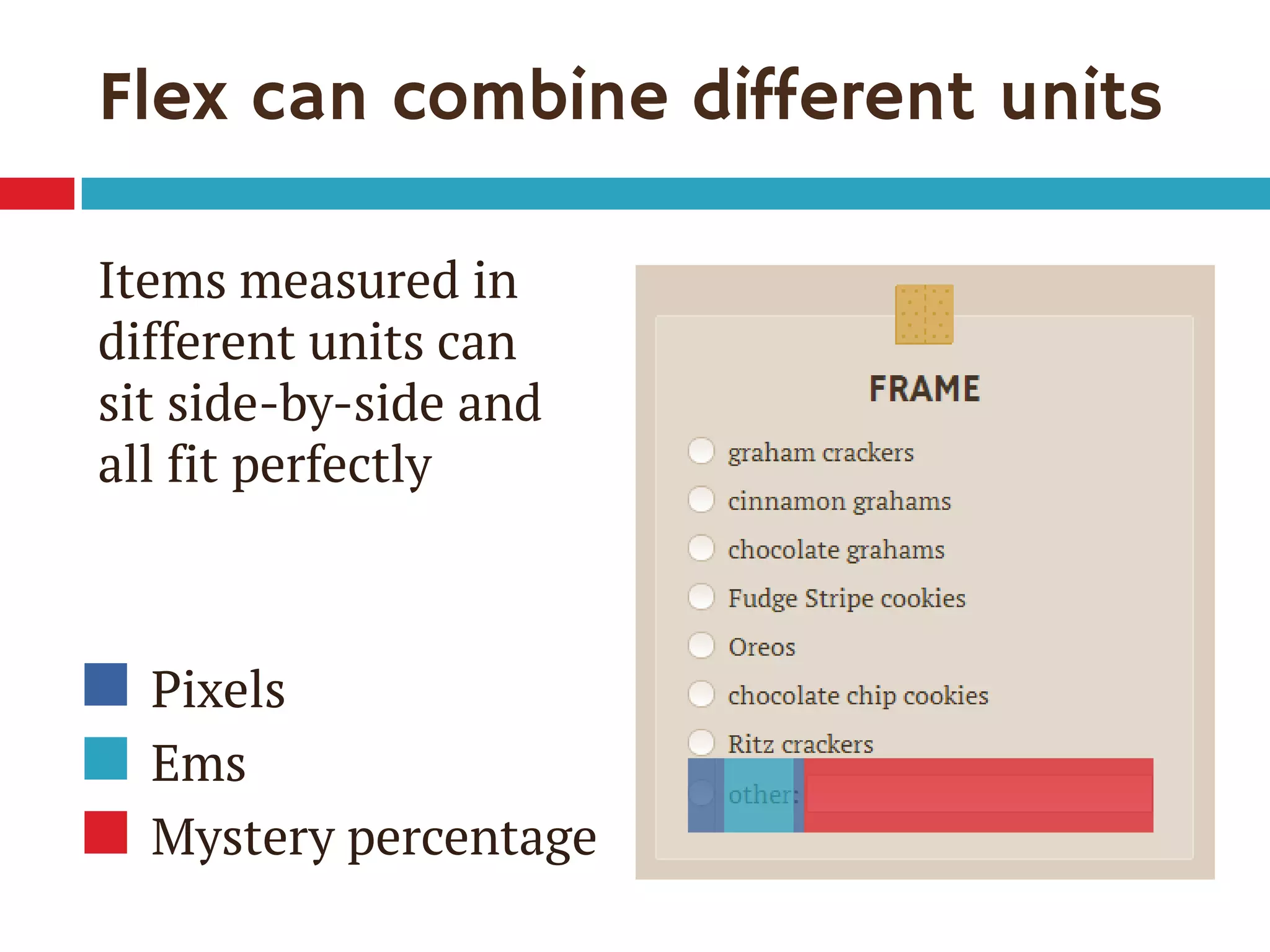
Flex can combine different units
Items measured in
different units can
sit side-by-side and
all fit perfectly
Pixels
Ems
Mystery percentage
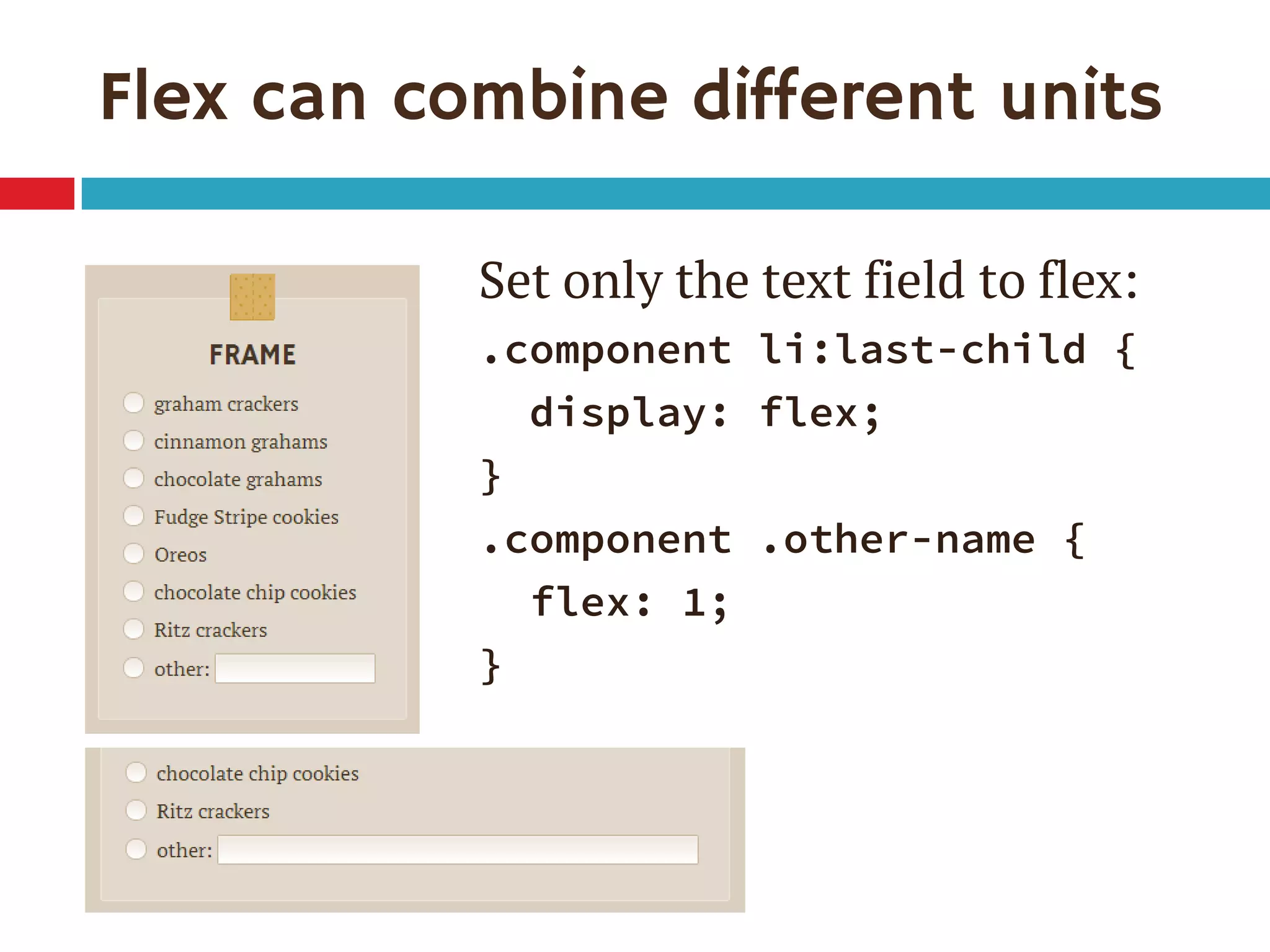
Flex can combine different units
Set only the text field to flex:
.component li:last-child {
display: flex;
}
.component .other-name {
flex: 1;
}
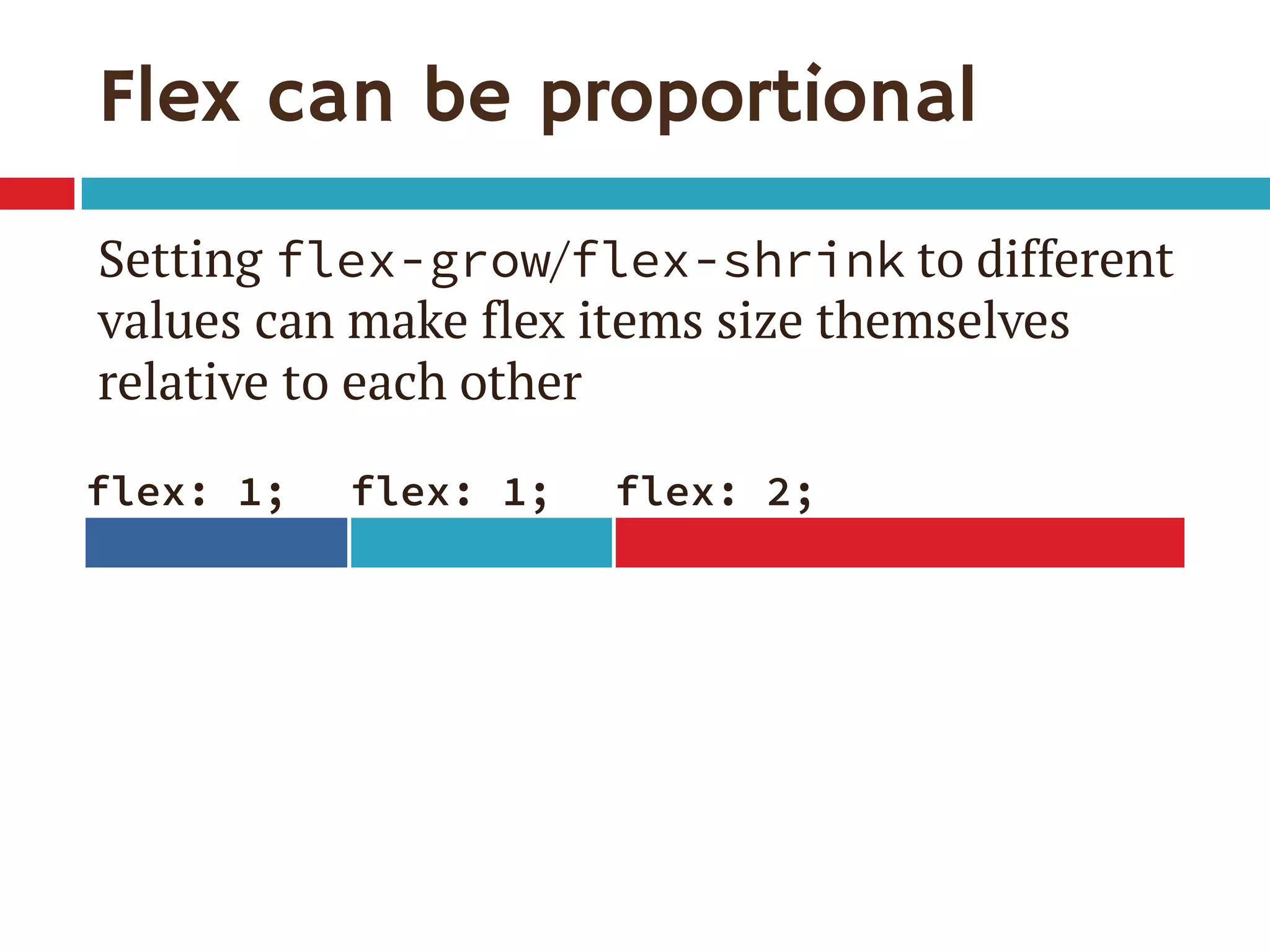
Flex can be proportional
Setting flex-grow/flex-shrink to different
values can make flex items size themselves
relative to each other
flex: 1; flex: 1; flex: 2;
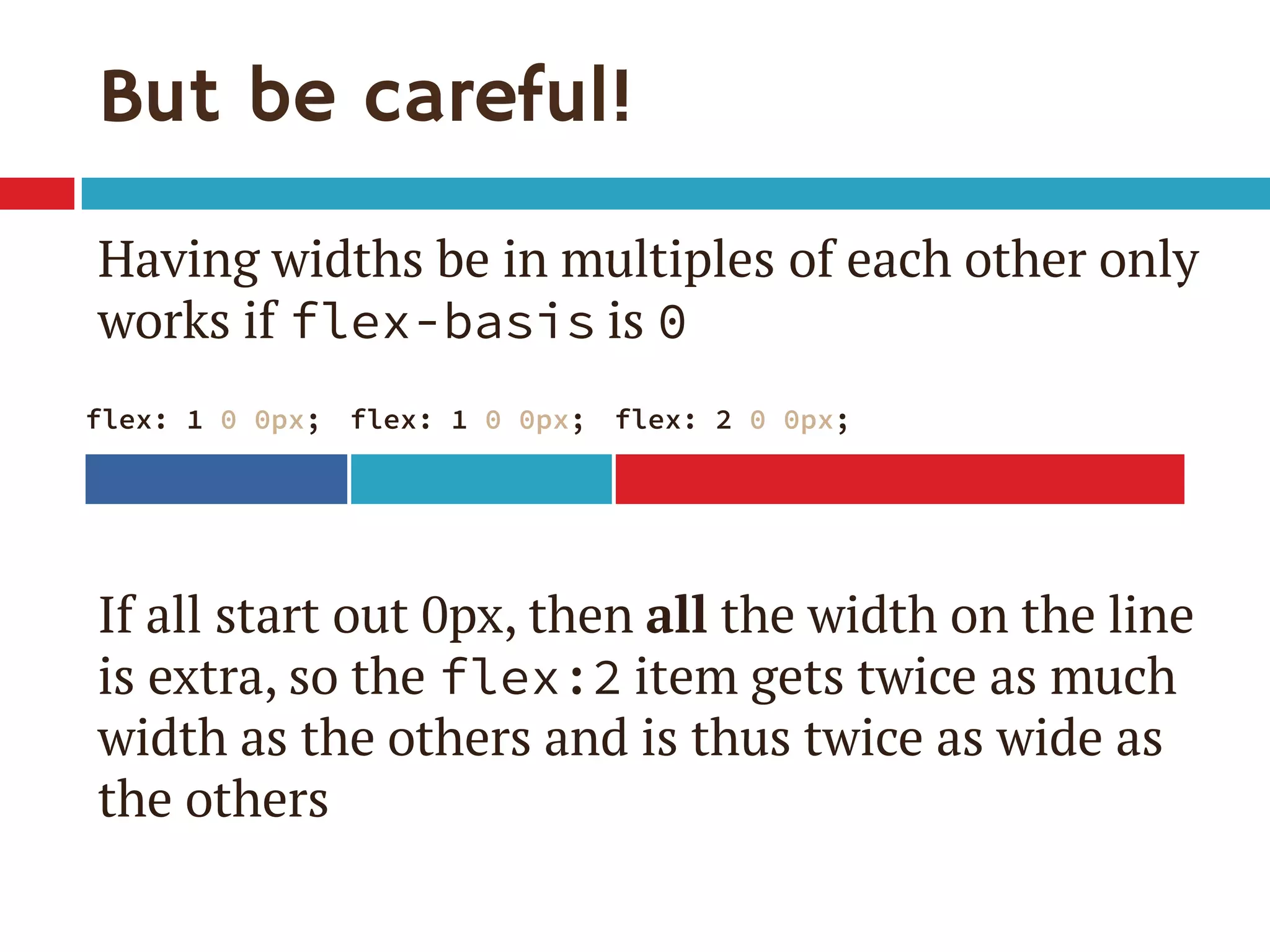
But be careful!
Having widths be in multiples of each other only
works if flex-basis is 0
If all start out 0px, then all the width on the line
is extra, so the flex:2 item gets twice as much
width as the others and is thus twice as wide as
the others
flex: 1 0 0px; flex: 1 0 0px; flex: 2 0 0px;
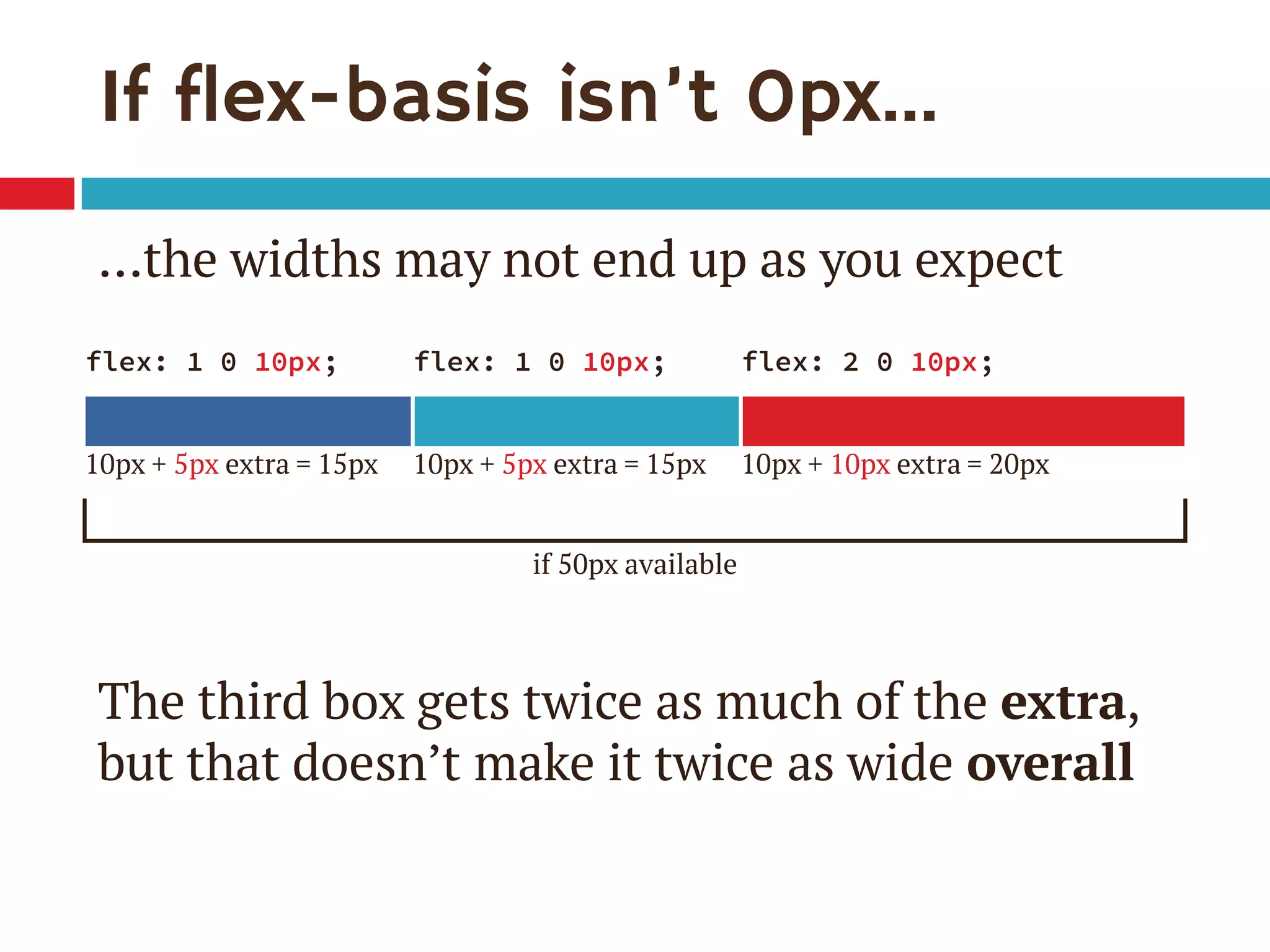
If flex-basis isnโ€™t 0pxโ€ฆ
โ€ฆthe widths may not end up as you expect
The third box gets twice as much of the extra,
but that doesnโ€™t make it twice as wide overall
flex: 1 0 10px; flex: 1 0 10px; flex: 2 0 10px;
10px + 5px extra = 15px 10px + 5px extra = 15px 10px + 10px extra = 20px
if 50px available
While support improves, consider using
flexbox now on small page components as
progressive enhancement.
Here are a few ideas.
You can use it now
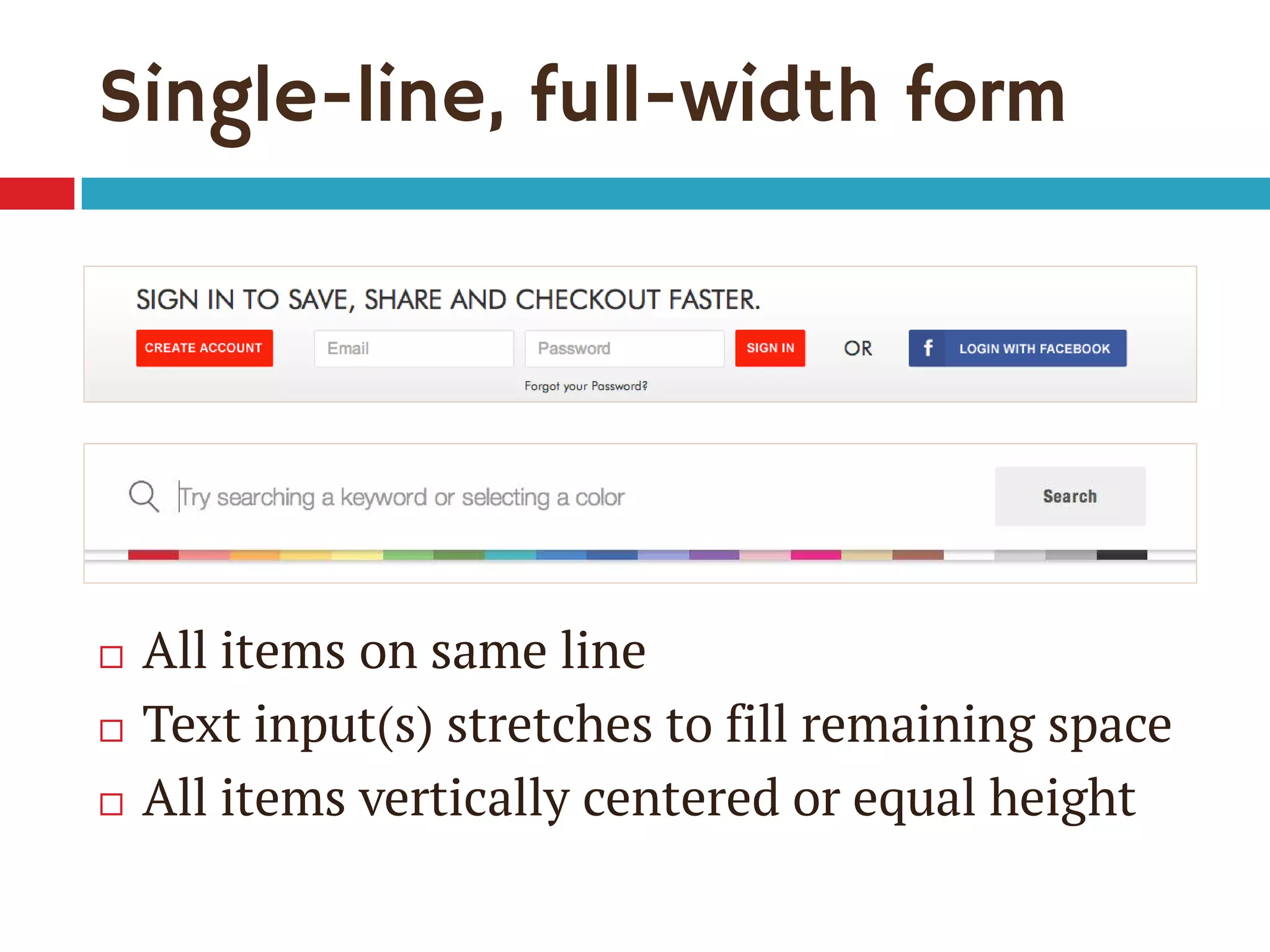
Single-line, full-width form
๏‚จ All items on same line
๏‚จ Text input(s) stretches to fill remaining space
๏‚จ All items vertically centered or equal height
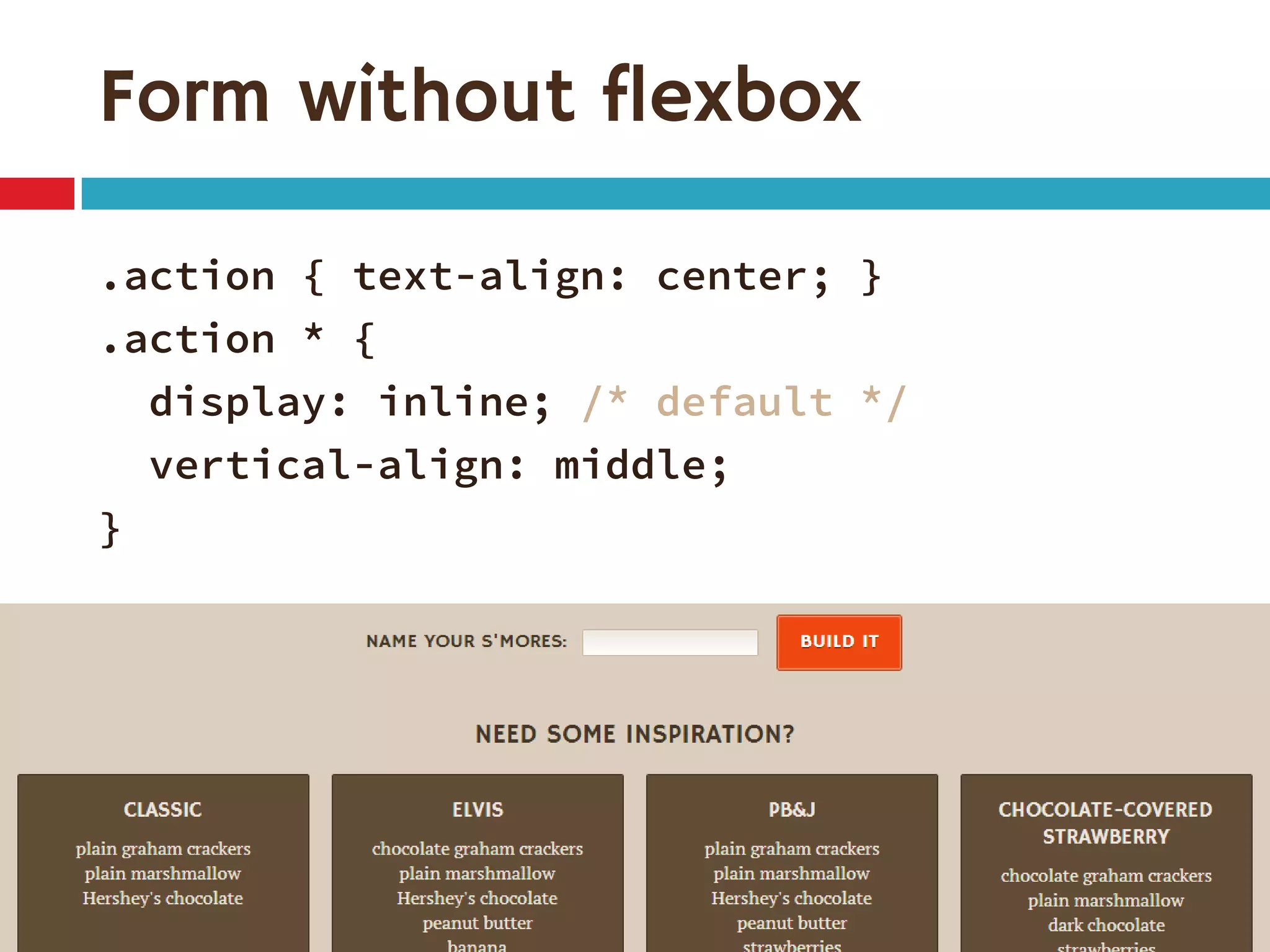
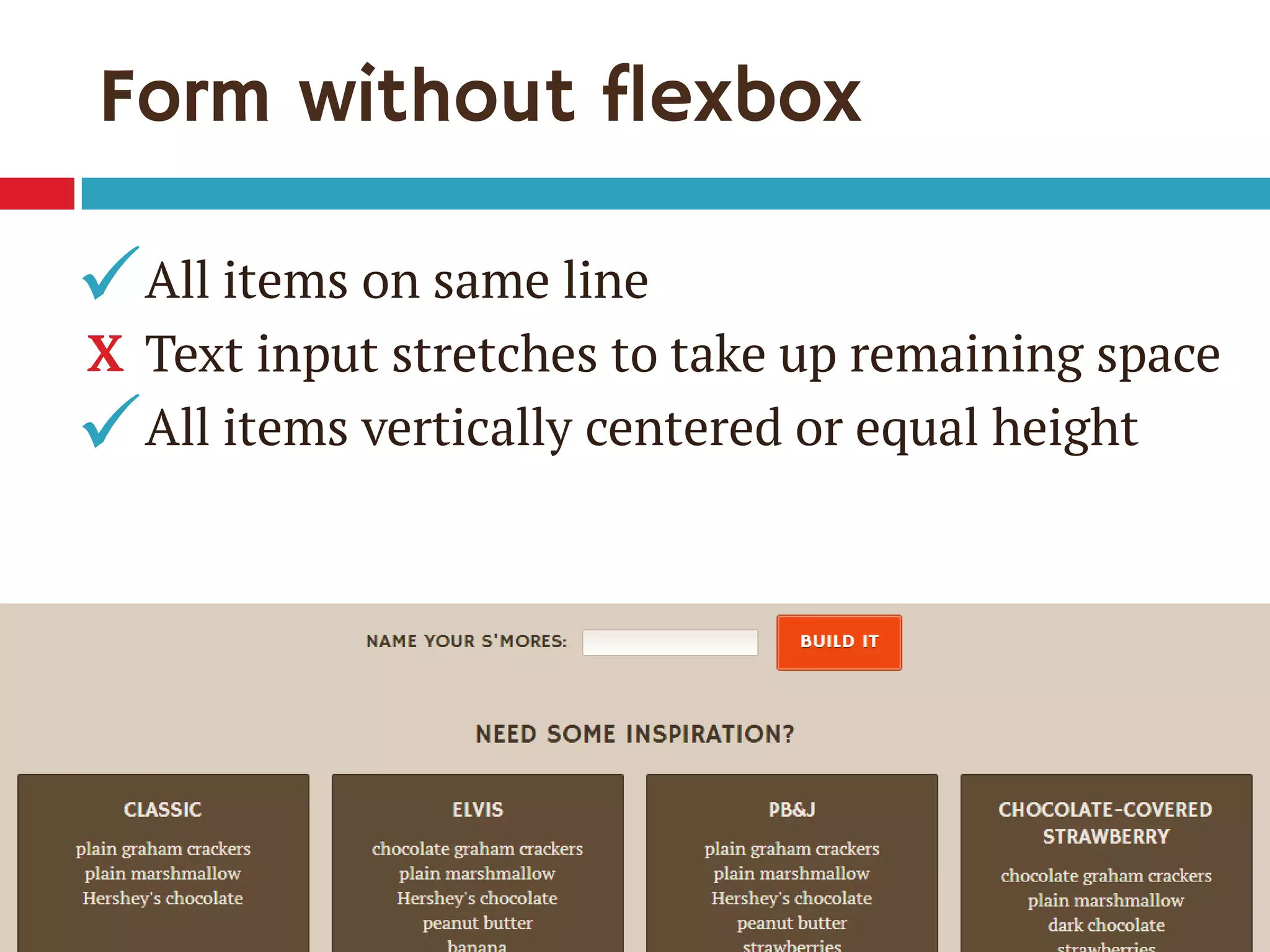
Form without flexbox
.action { text-align: center; }
.action * {
display: inline; /* default */
vertical-align: middle;
}
Form without flexbox
All items on same line
Text input stretches to take up remaining space
All items vertically centered or equal height
๏ƒผ
๏ƒผ
X
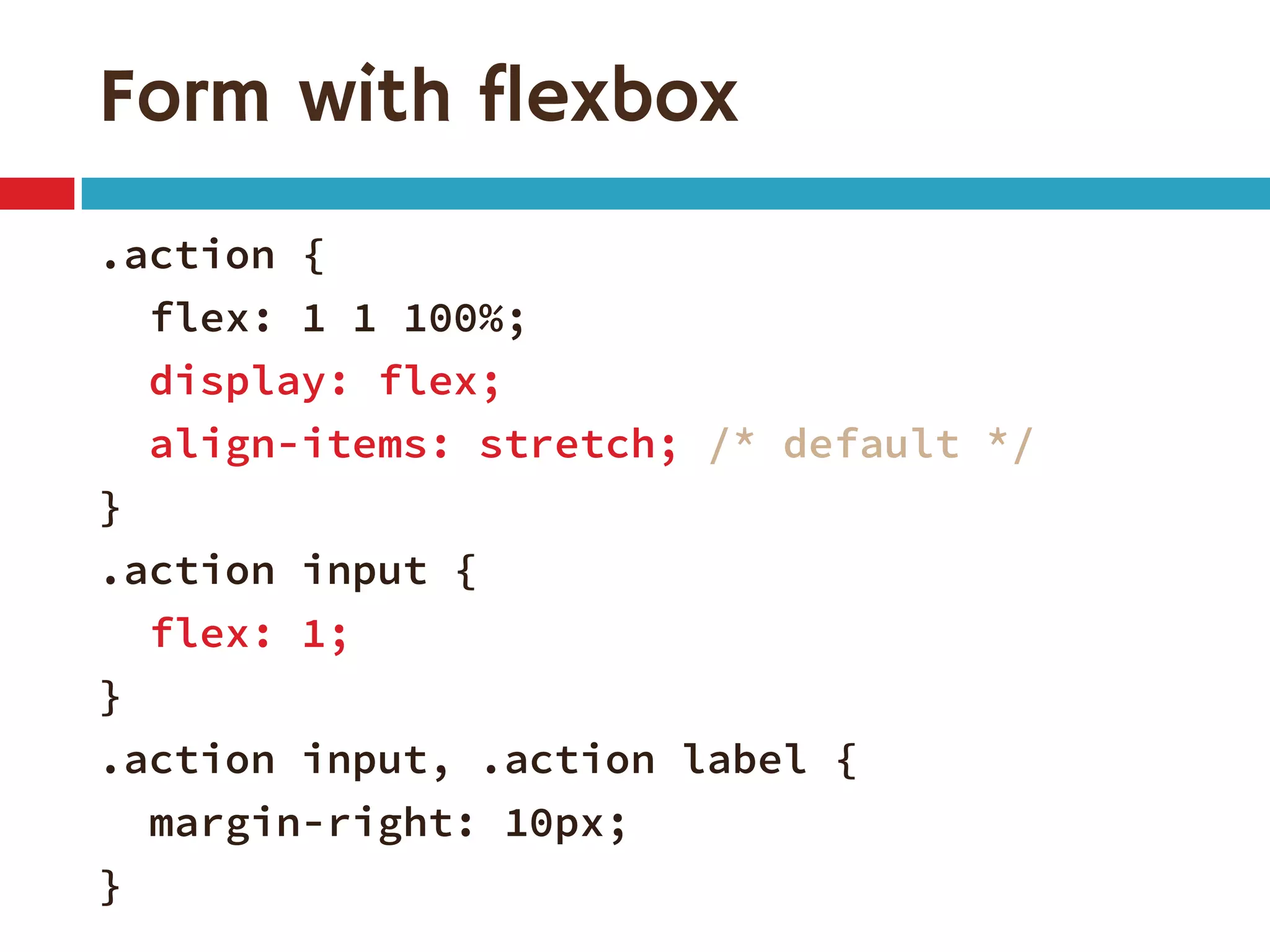
Form with flexbox
.action {
flex: 1 1 100%;
display: flex;
align-items: stretch; /* default */
}
.action input {
flex: 1;
}
.action input, .action label {
margin-right: 10px;
}
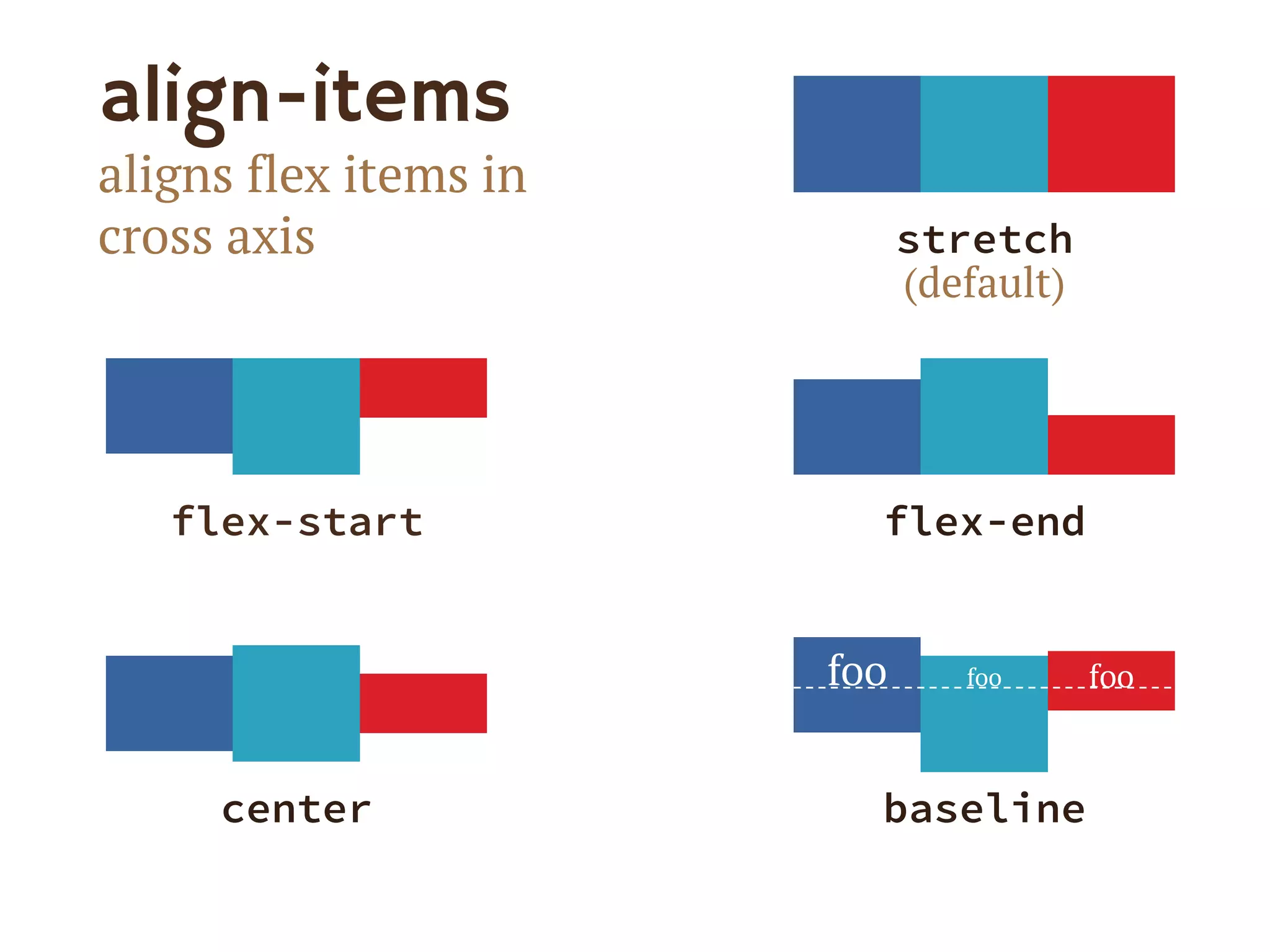
align-items
aligns flex items in
cross axis
flex-start flex-end
center baseline
stretch
(default)
foo foo foo
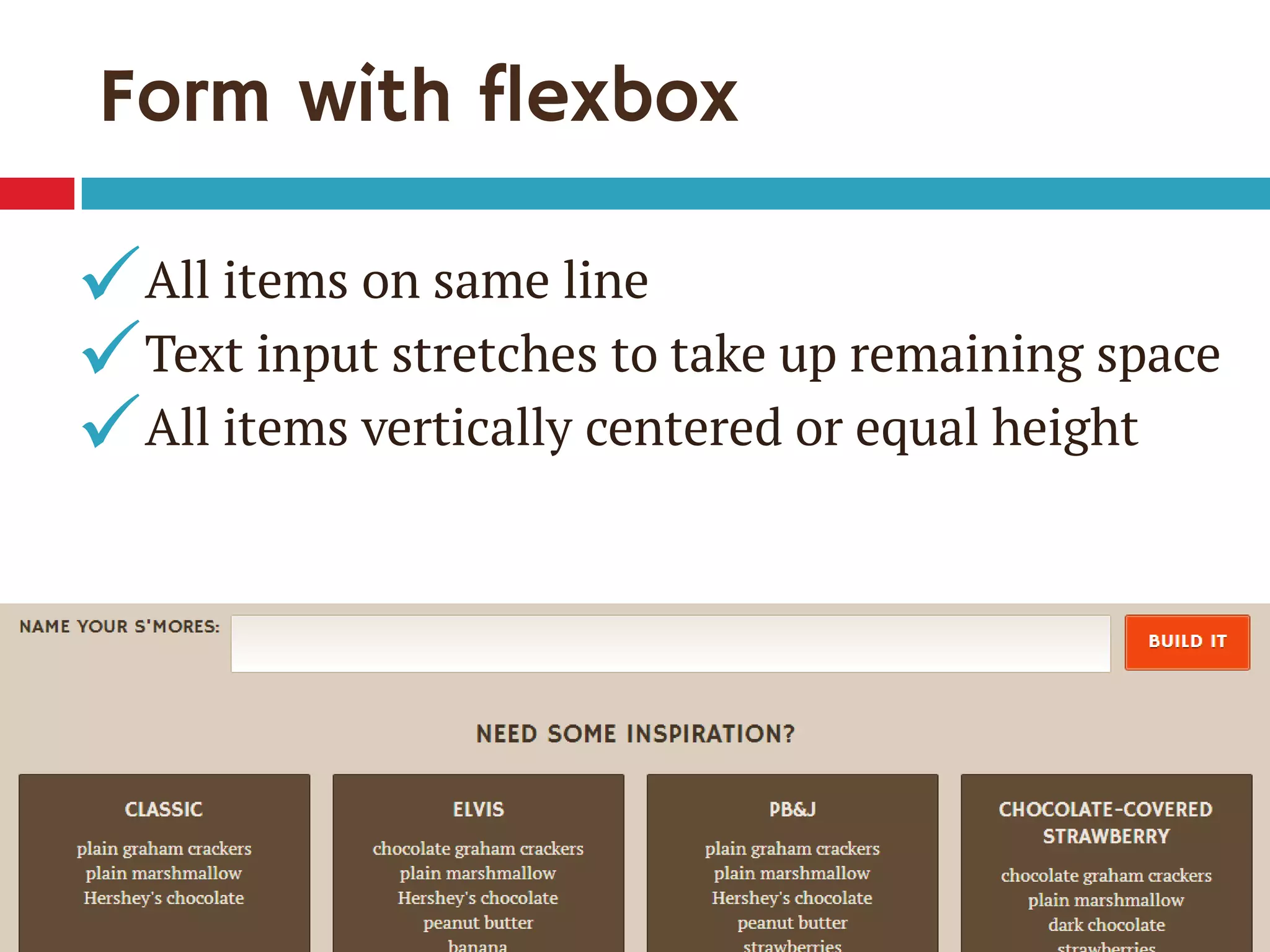
Form with flexbox
All items on same line
Text input stretches to take up remaining space
All items vertically centered or equal height
๏ƒผ
๏ƒผ
๏ƒผ
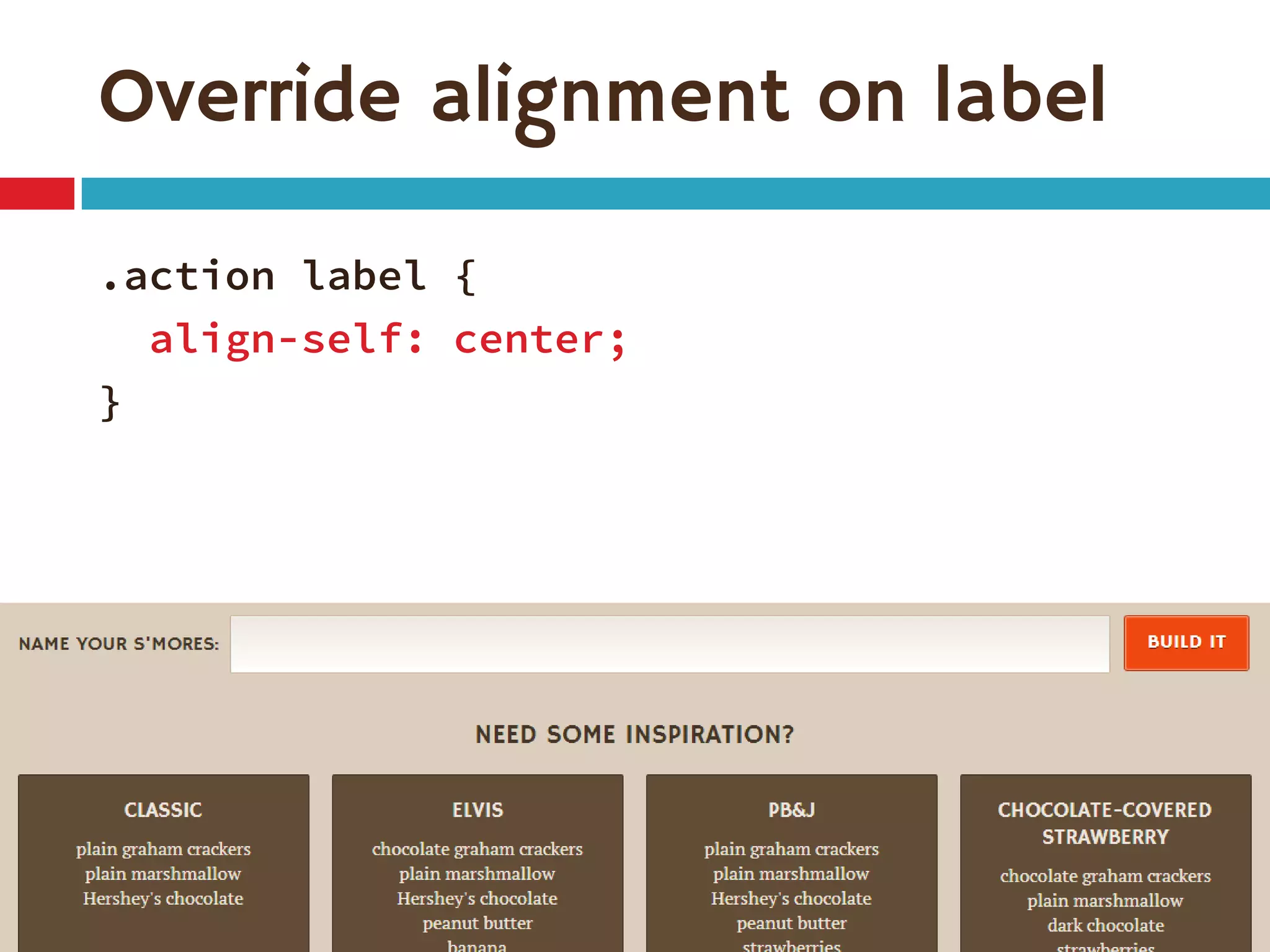
Override alignment on label
.action label {
align-self: center;
}
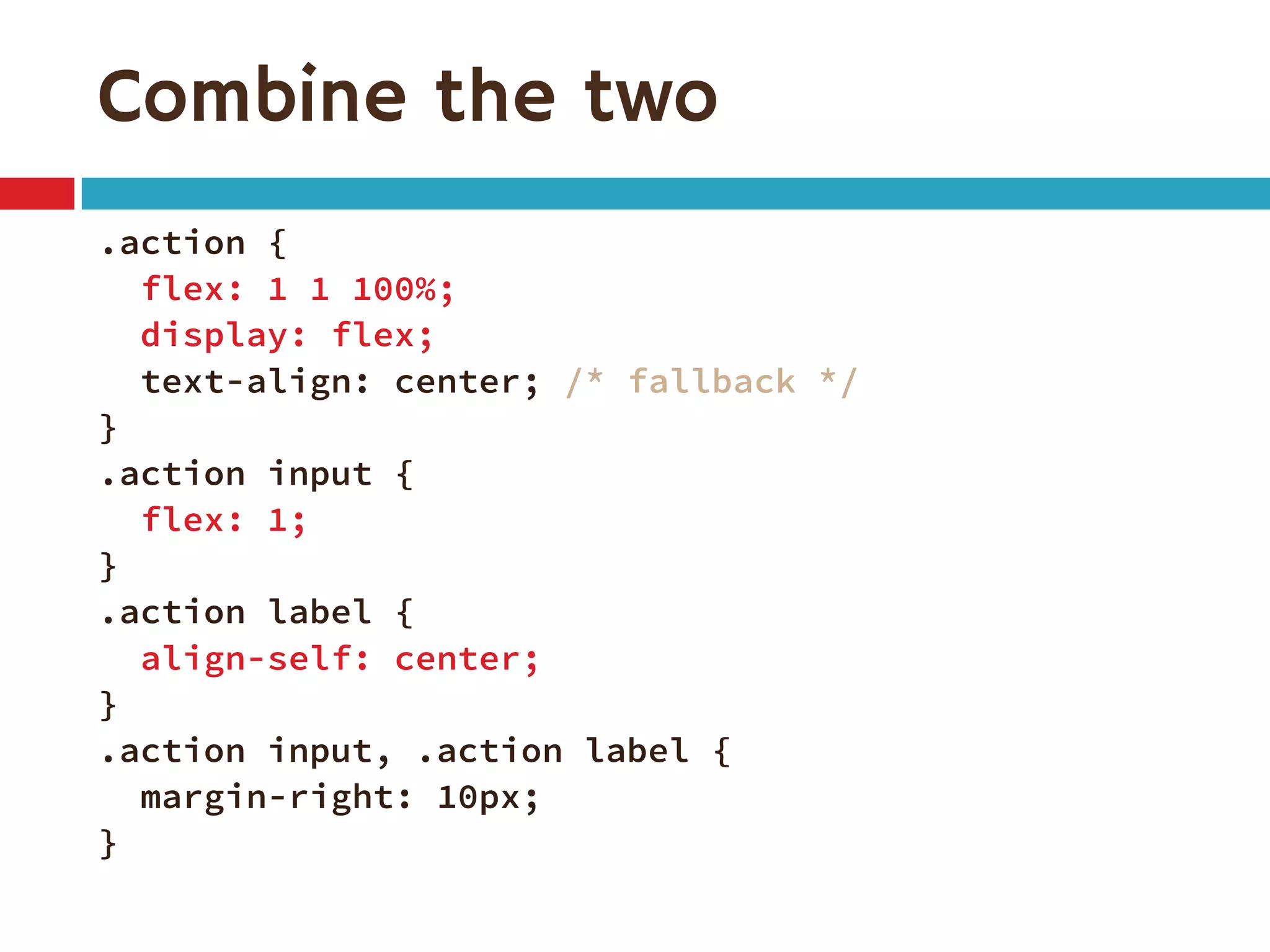
Combine the two
.action {
flex: 1 1 100%;
display: flex;
text-align: center; /* fallback */
}
.action input {
flex: 1;
}
.action label {
align-self: center;
}
.action input, .action label {
margin-right: 10px;
}
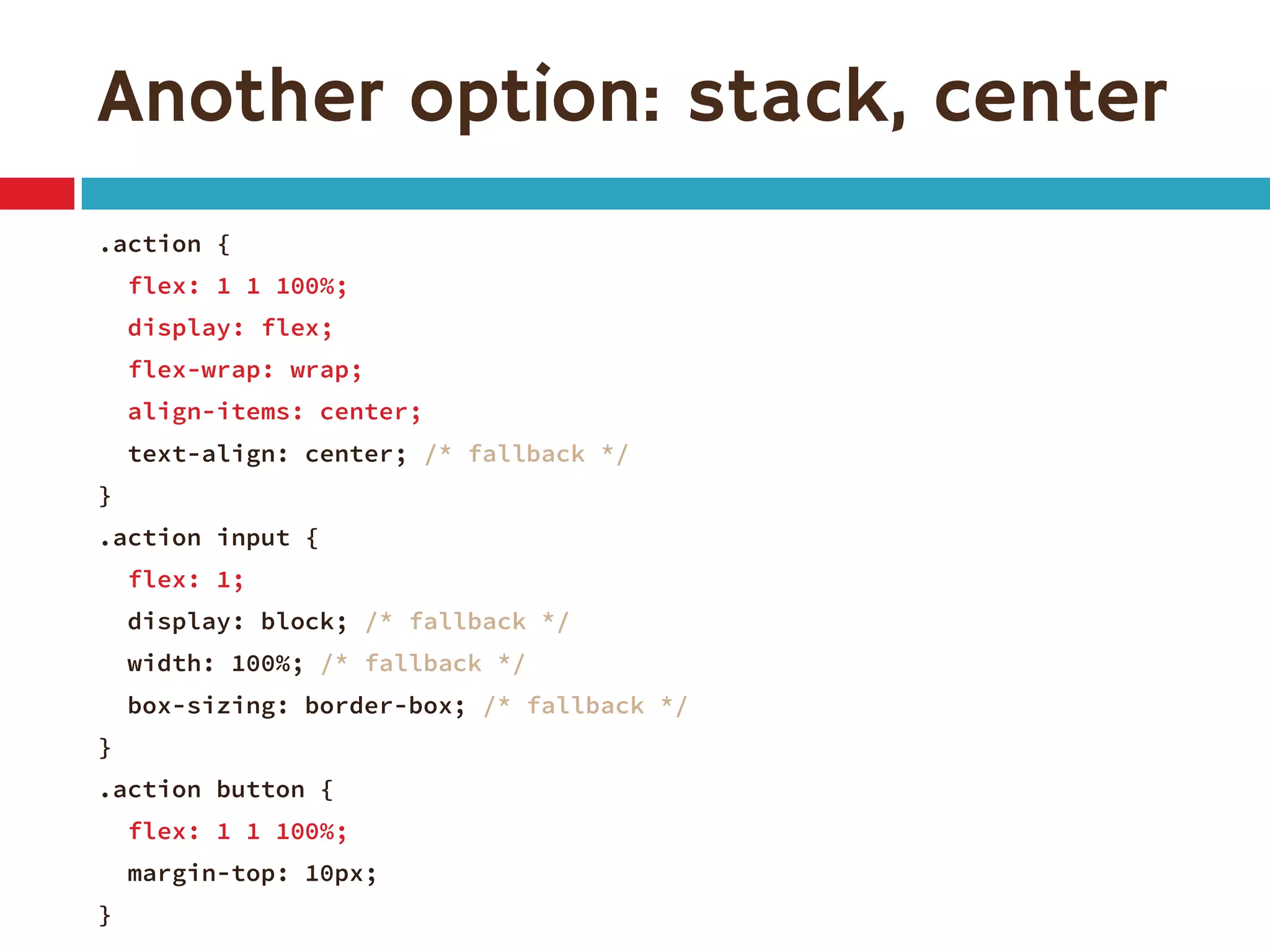
Another option: stack, center
.action {
flex: 1 1 100%;
display: flex;
flex-wrap: wrap;
align-items: center;
text-align: center; /* fallback */
}
.action input {
flex: 1;
display: block; /* fallback */
width: 100%; /* fallback */
box-sizing: border-box; /* fallback */
}
.action button {
flex: 1 1 100%;
margin-top: 10px;
}
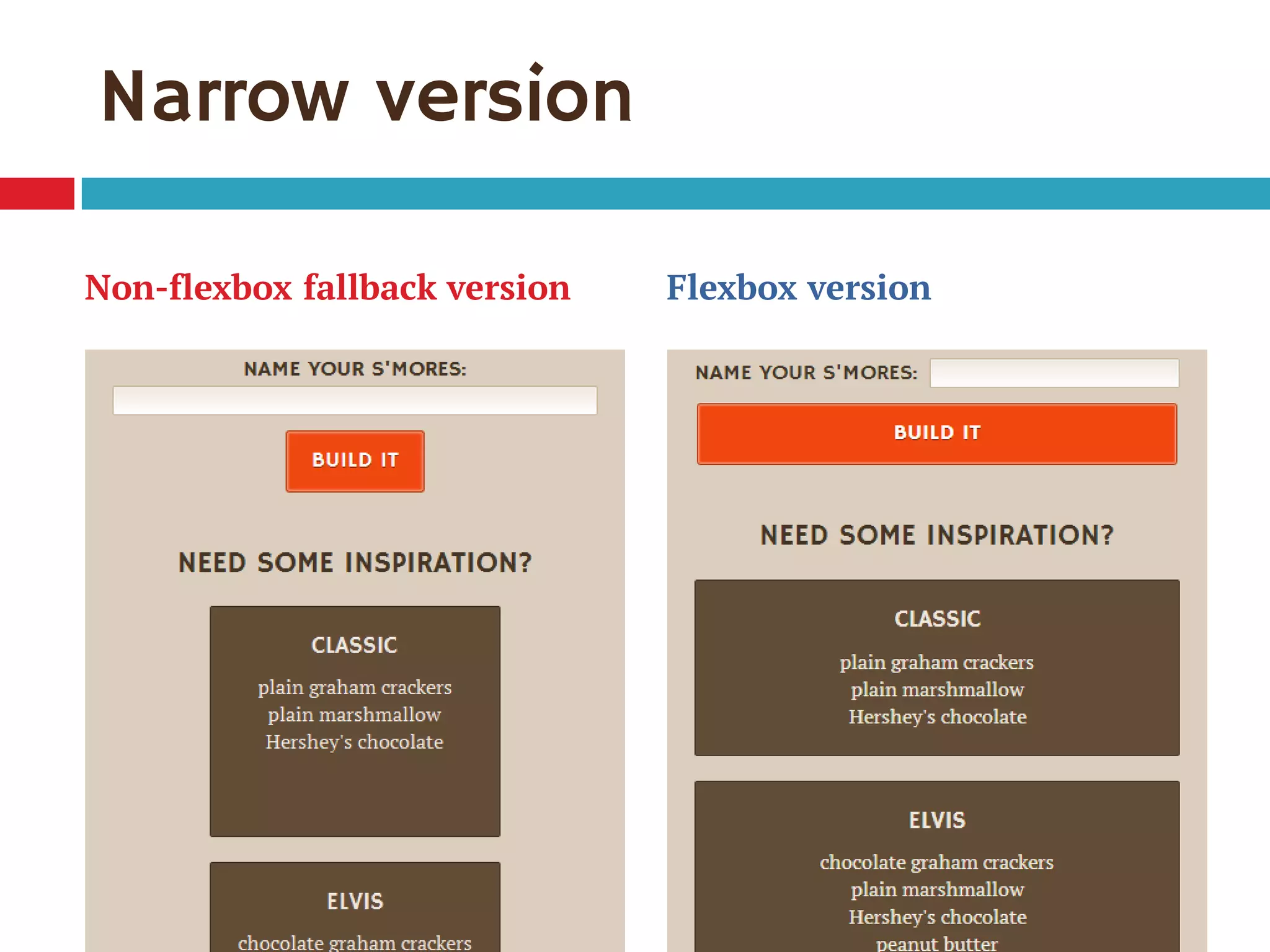
Narrow version
Non-flexbox fallback version Flexbox version
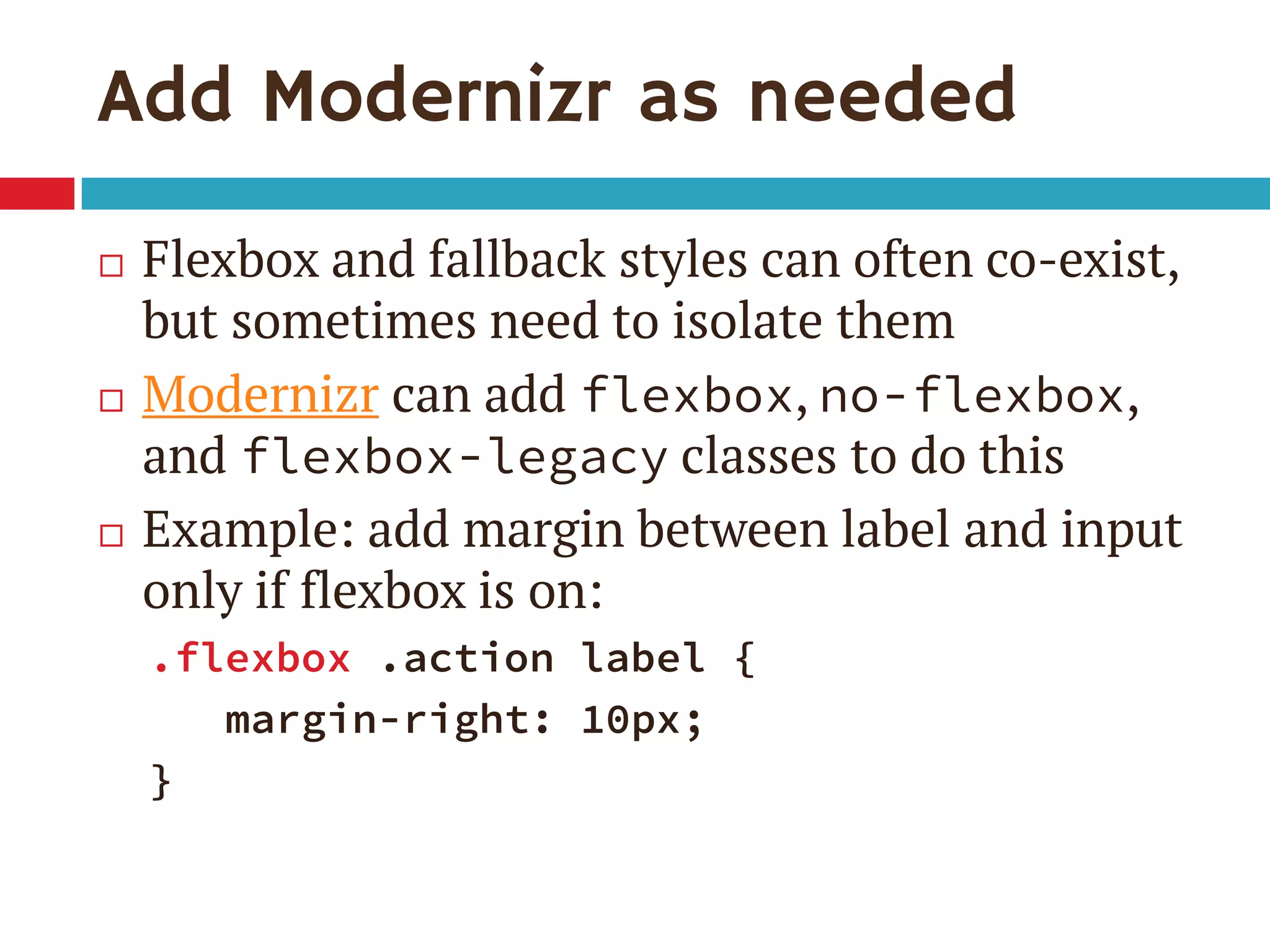
Add Modernizr as needed
๏‚จ Flexbox and fallback styles can often co-exist,
but sometimes need to isolate them
๏‚จ Modernizr can add flexbox, no-flexbox,
and flexbox-legacy classes to do this
๏‚จ Example: add margin between label and input
only if flexbox is on:
.flexbox .action label {
margin-right: 10px;
}
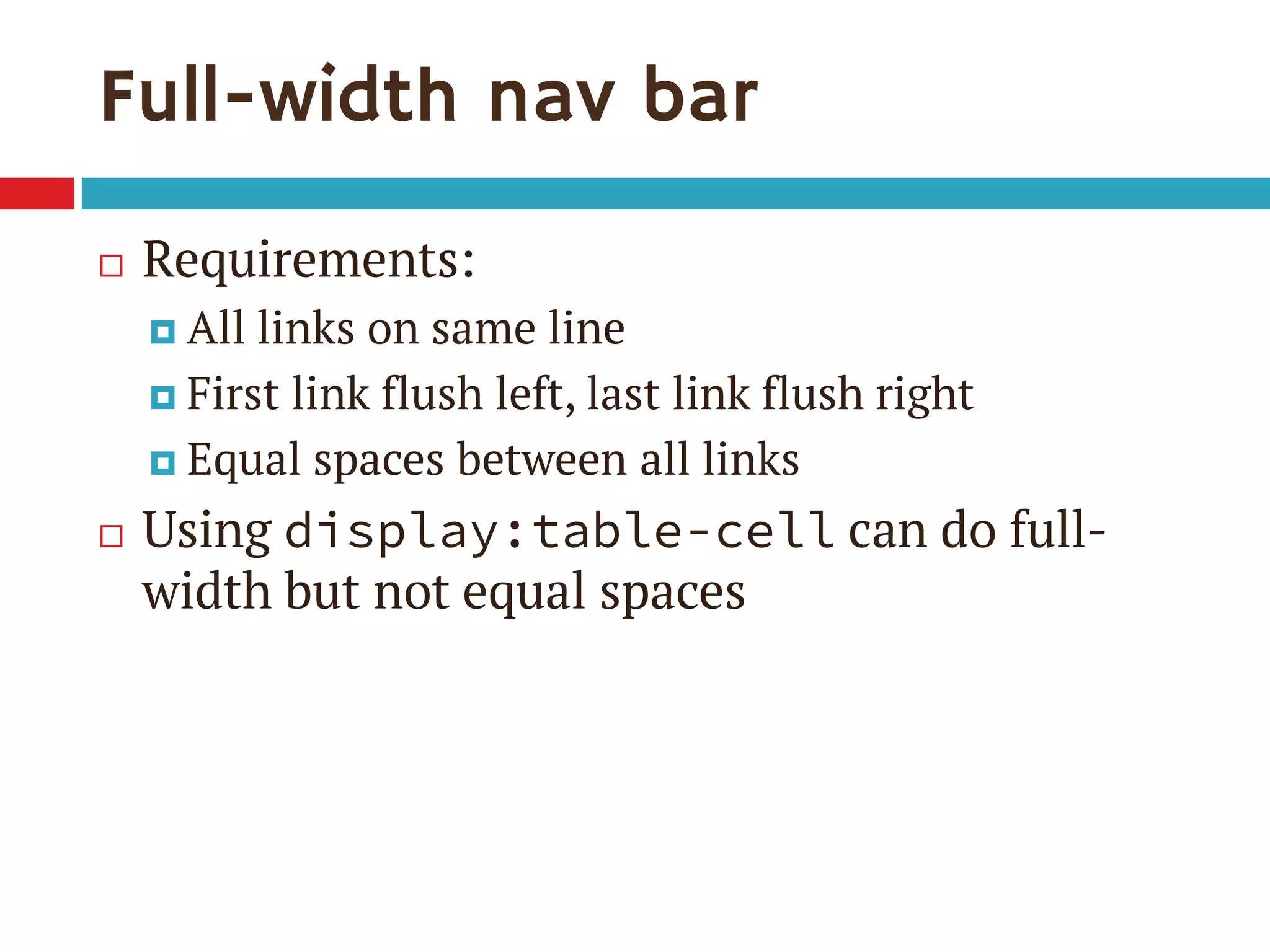
Full-width nav bar
๏‚จ Requirements:
๏‚ค All links on same line
๏‚ค First link flush left, last link flush right
๏‚ค Equal spaces between all links
๏‚จ Using display:table-cell can do full-
width but not equal spaces
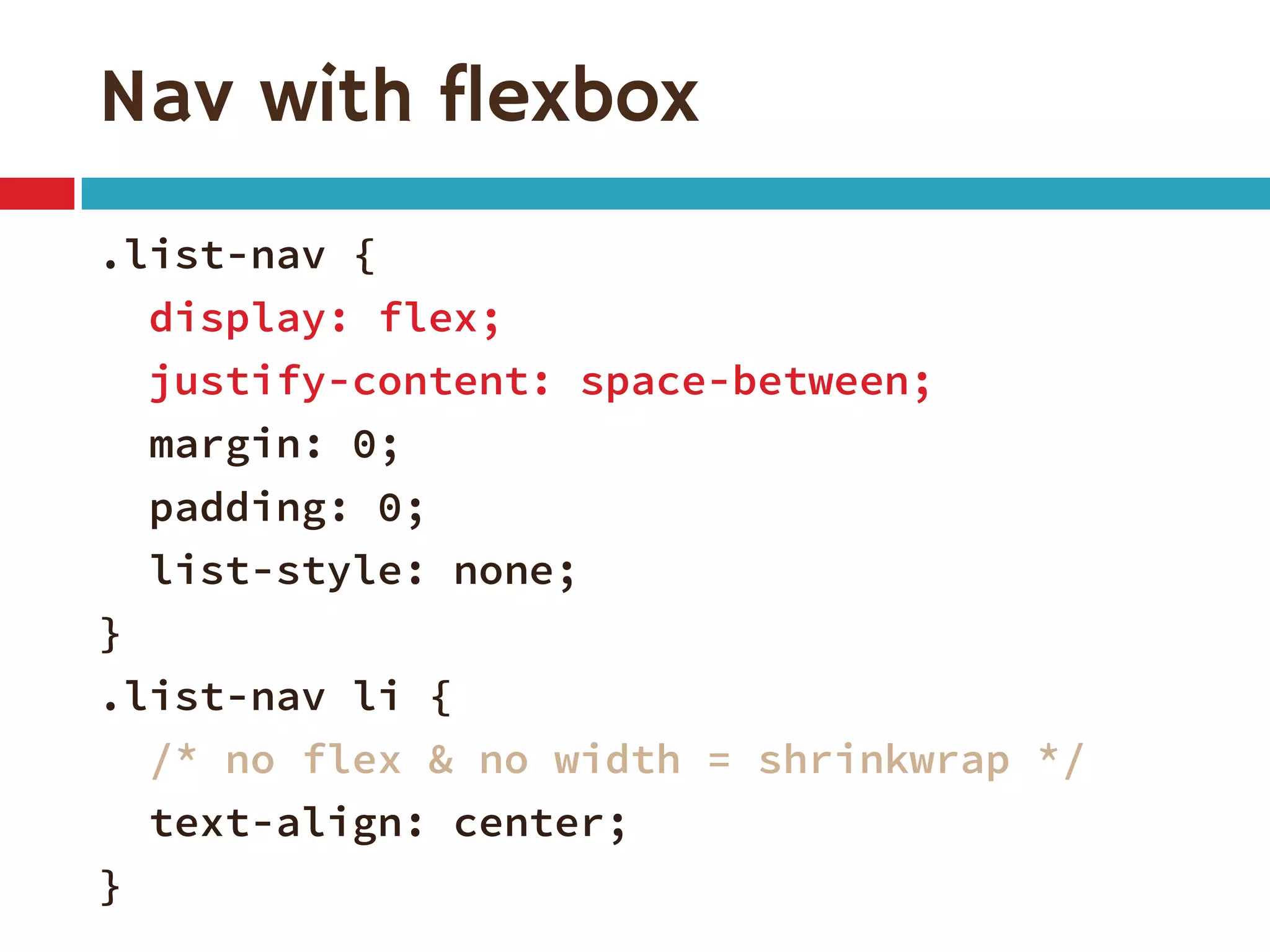
Nav with flexbox
.list-nav {
display: flex;
justify-content: space-between;
margin: 0;
padding: 0;
list-style: none;
}
.list-nav li {
/* no flex & no width = shrinkwrap */
text-align: center;
}
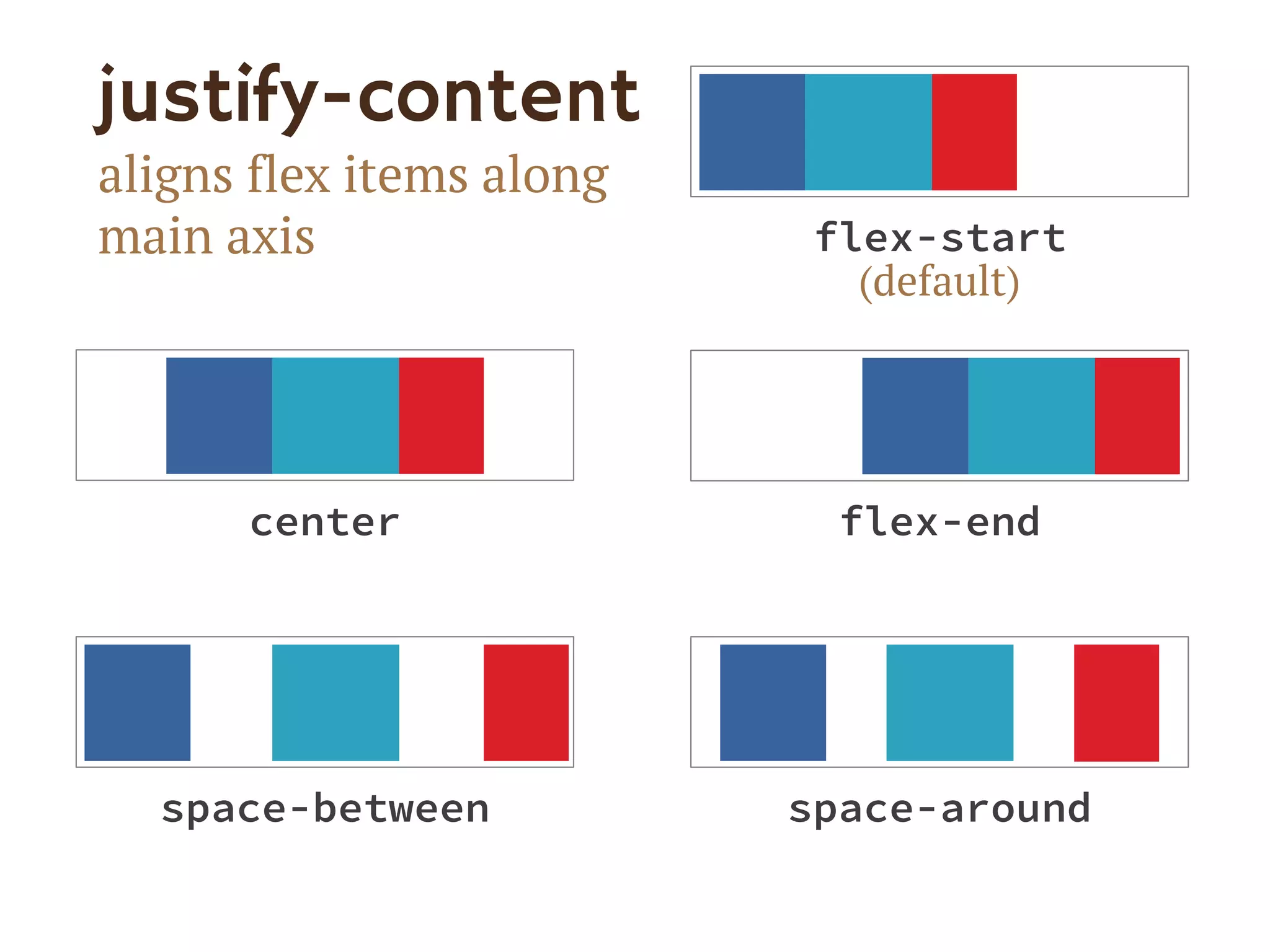
justify-content
aligns flex items along
main axis
space-around
flex-endcenter
flex-start
(default)
space-between
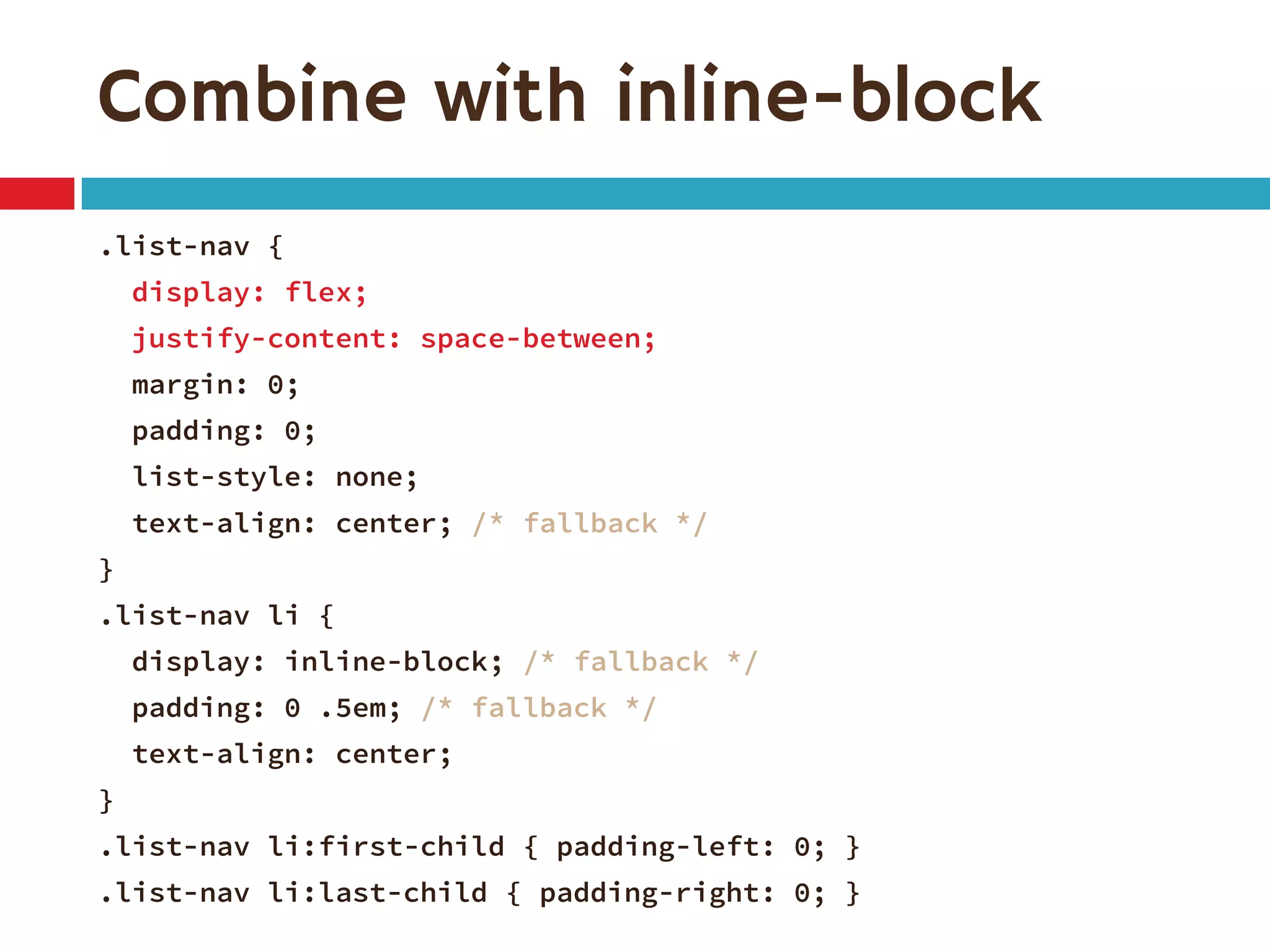
Combine with inline-block
.list-nav {
display: flex;
justify-content: space-between;
margin: 0;
padding: 0;
list-style: none;
text-align: center; /* fallback */
}
.list-nav li {
display: inline-block; /* fallback */
padding: 0 .5em; /* fallback */
text-align: center;
}
.list-nav li:first-child { padding-left: 0; }
.list-nav li:last-child { padding-right: 0; }
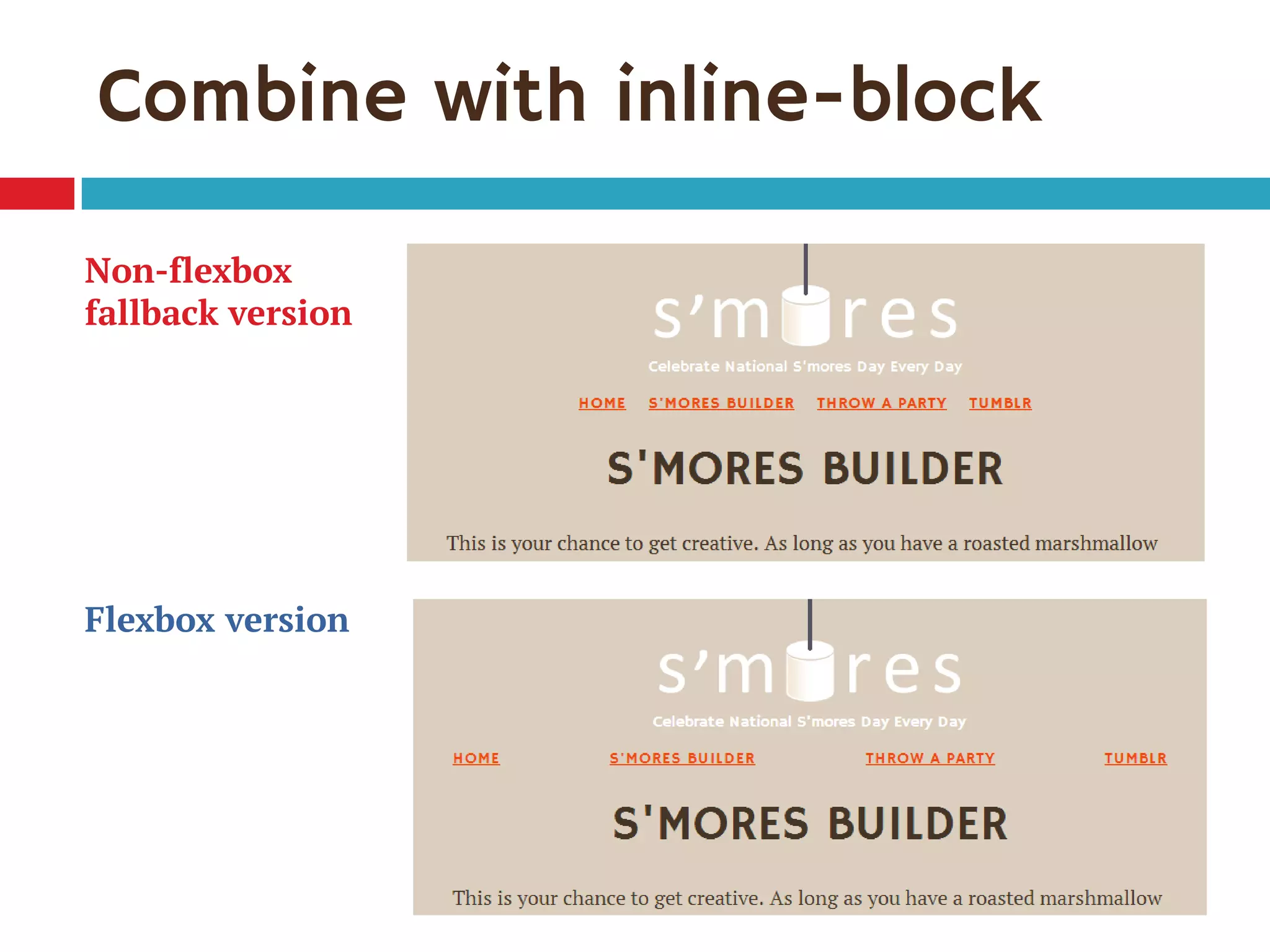
Non-flexbox
fallback version
Flexbox version
Combine with inline-block
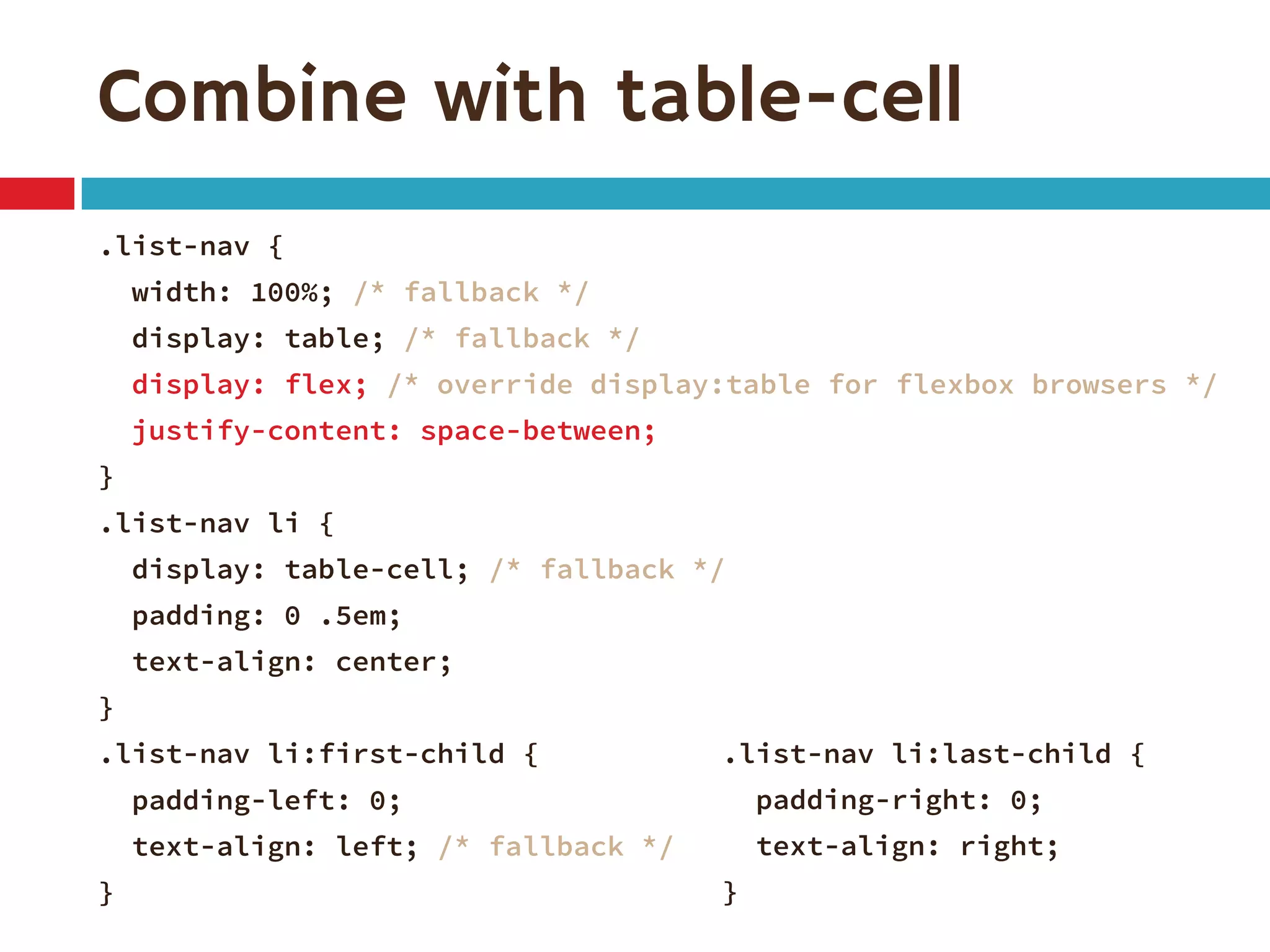
Combine with table-cell
.list-nav {
width: 100%; /* fallback */
display: table; /* fallback */
display: flex; /* override display:table for flexbox browsers */
justify-content: space-between;
}
.list-nav li {
display: table-cell; /* fallback */
padding: 0 .5em;
text-align: center;
}
.list-nav li:first-child {
padding-left: 0;
text-align: left; /* fallback */
}
.list-nav li:last-child {
padding-right: 0;
text-align: right;
}
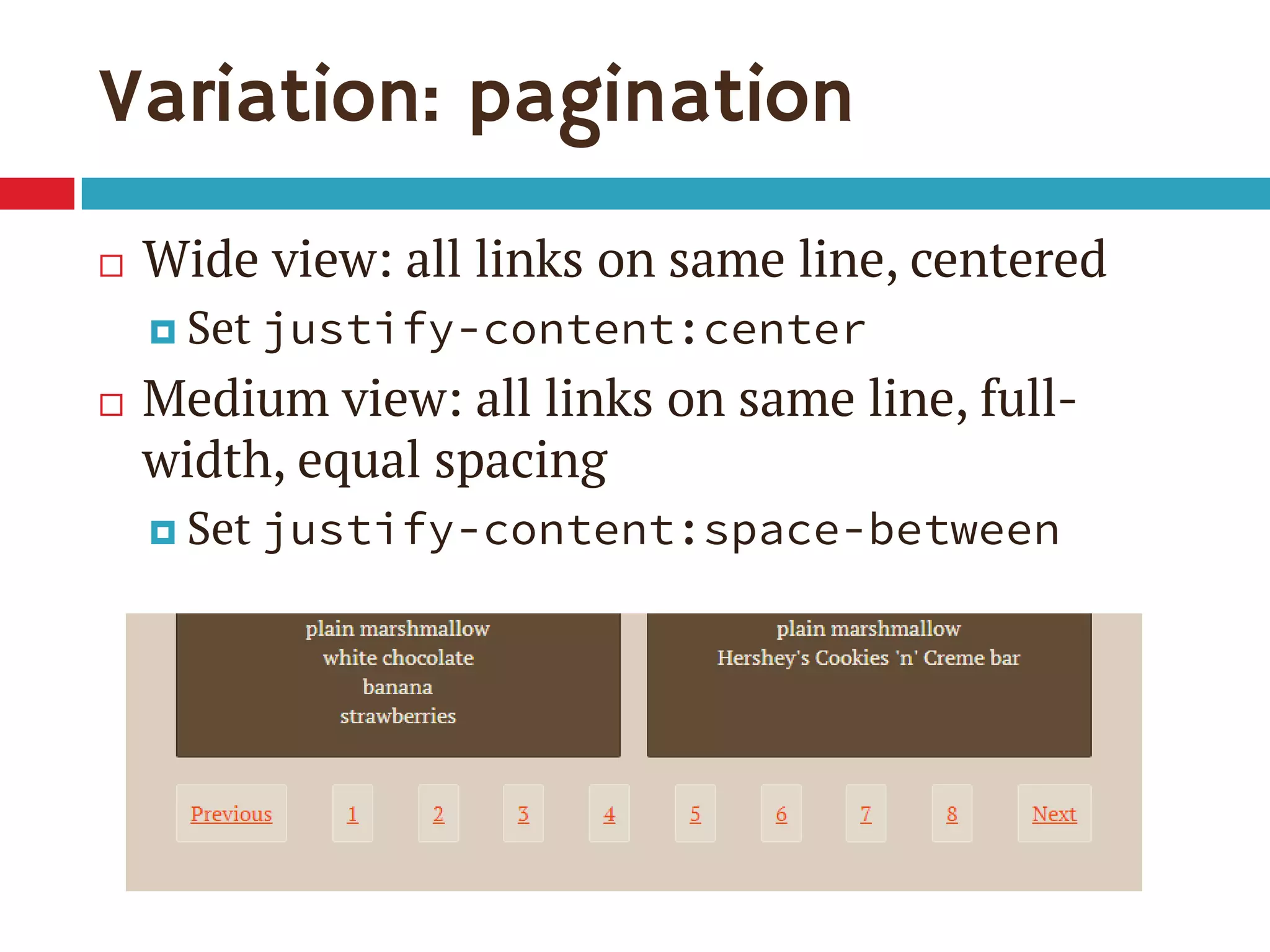
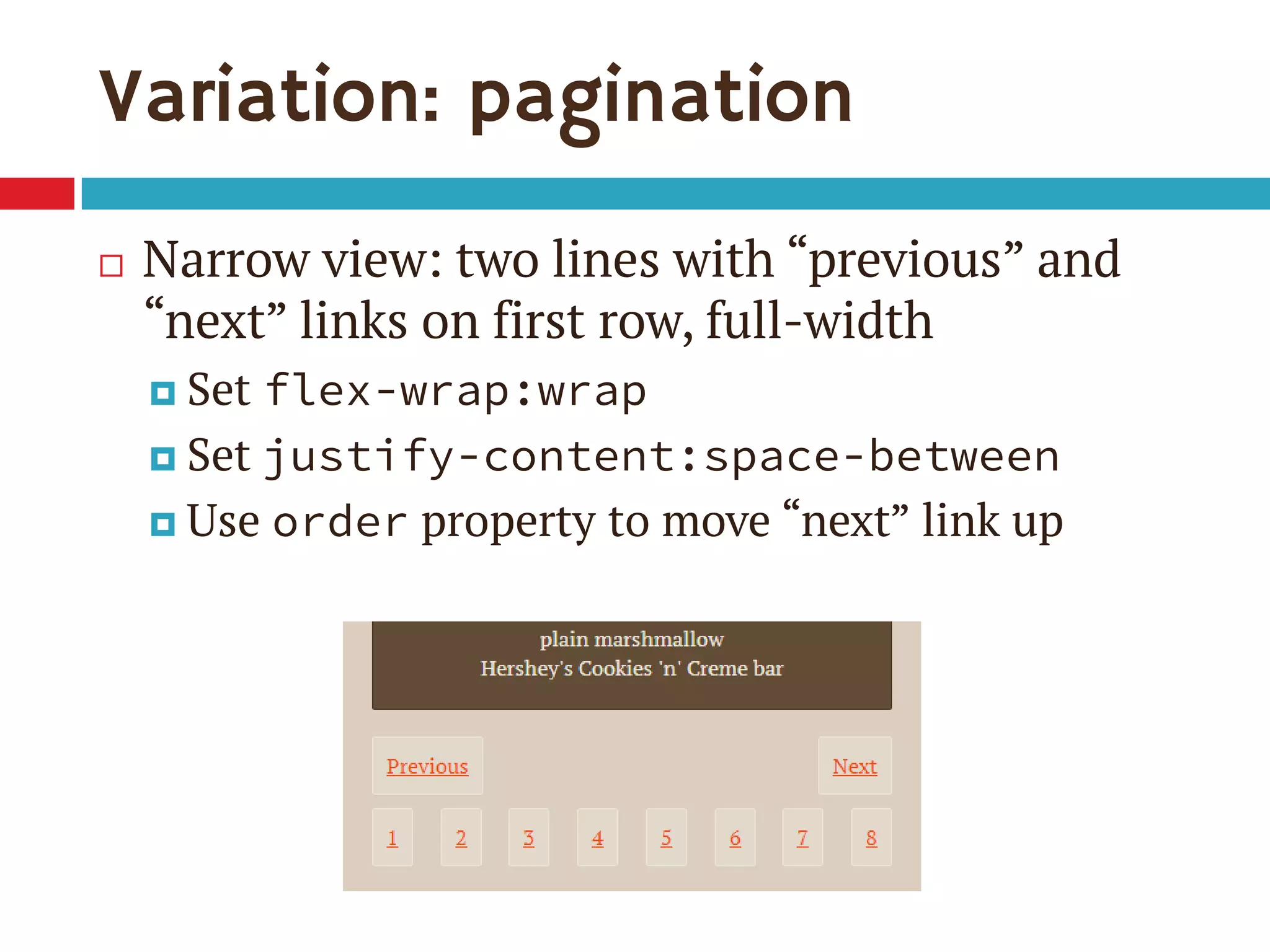
Variation: pagination
๏‚จ Wide view: all links on same line, centered
๏‚ค Set justify-content:center
๏‚จ Medium view: all links on same line, full-
width, equal spacing
๏‚ค Set justify-content:space-between
Variation: pagination
๏‚จ Narrow view: two lines with โ€œpreviousโ€ and
โ€œnextโ€ links on first row, full-width
๏‚ค Set flex-wrap:wrap
๏‚ค Set justify-content:space-between
๏‚ค Use order property to move โ€œnextโ€ link up
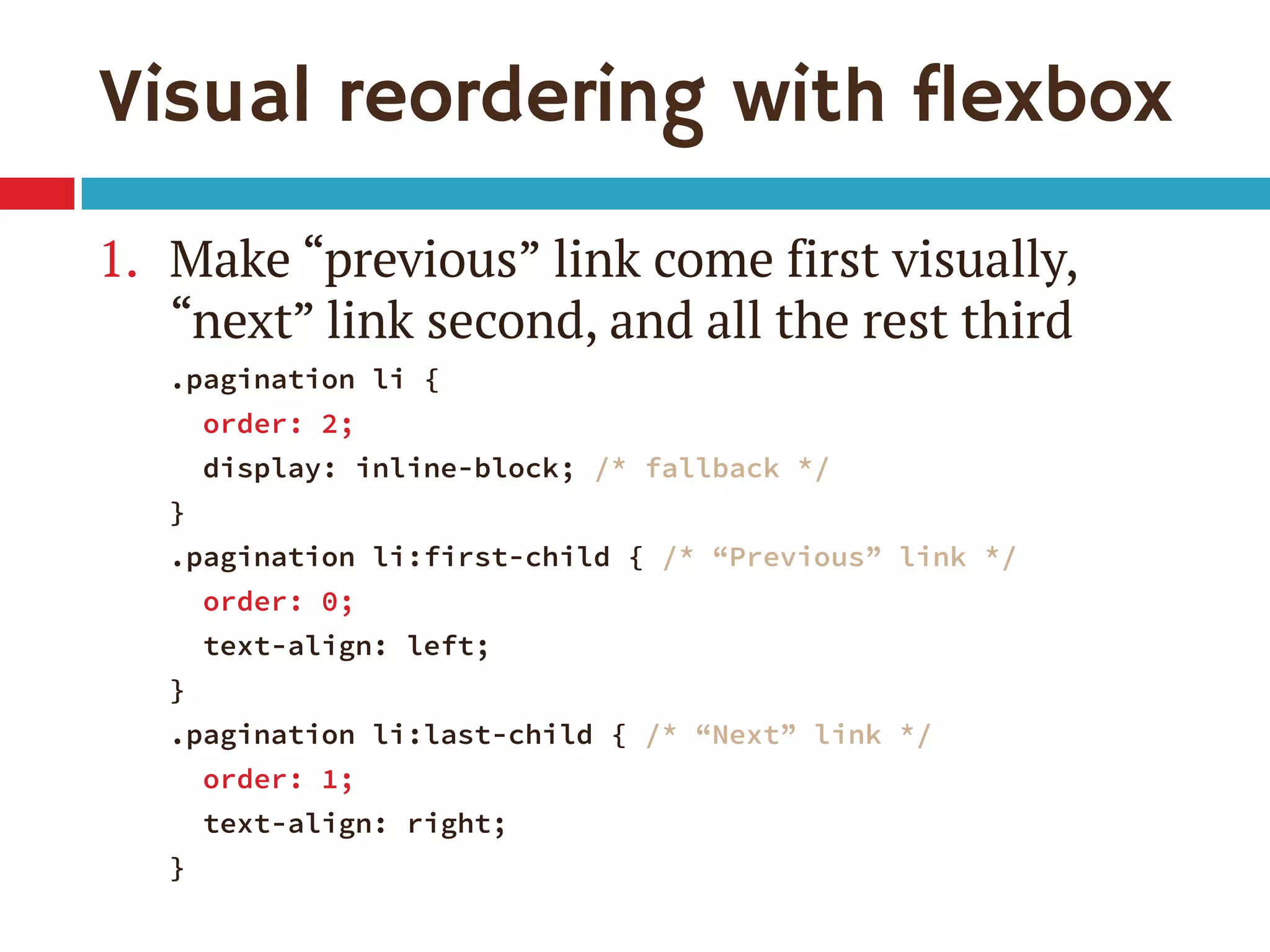
Visual reordering with flexbox
1. Make โ€œpreviousโ€ link come first visually,
โ€œnextโ€ link second, and all the rest third
.pagination li {
order: 2;
display: inline-block; /* fallback */
}
.pagination li:first-child { /* โ€œPreviousโ€ link */
order: 0;
text-align: left;
}
.pagination li:last-child { /* โ€œNextโ€ link */
order: 1;
text-align: right;
}
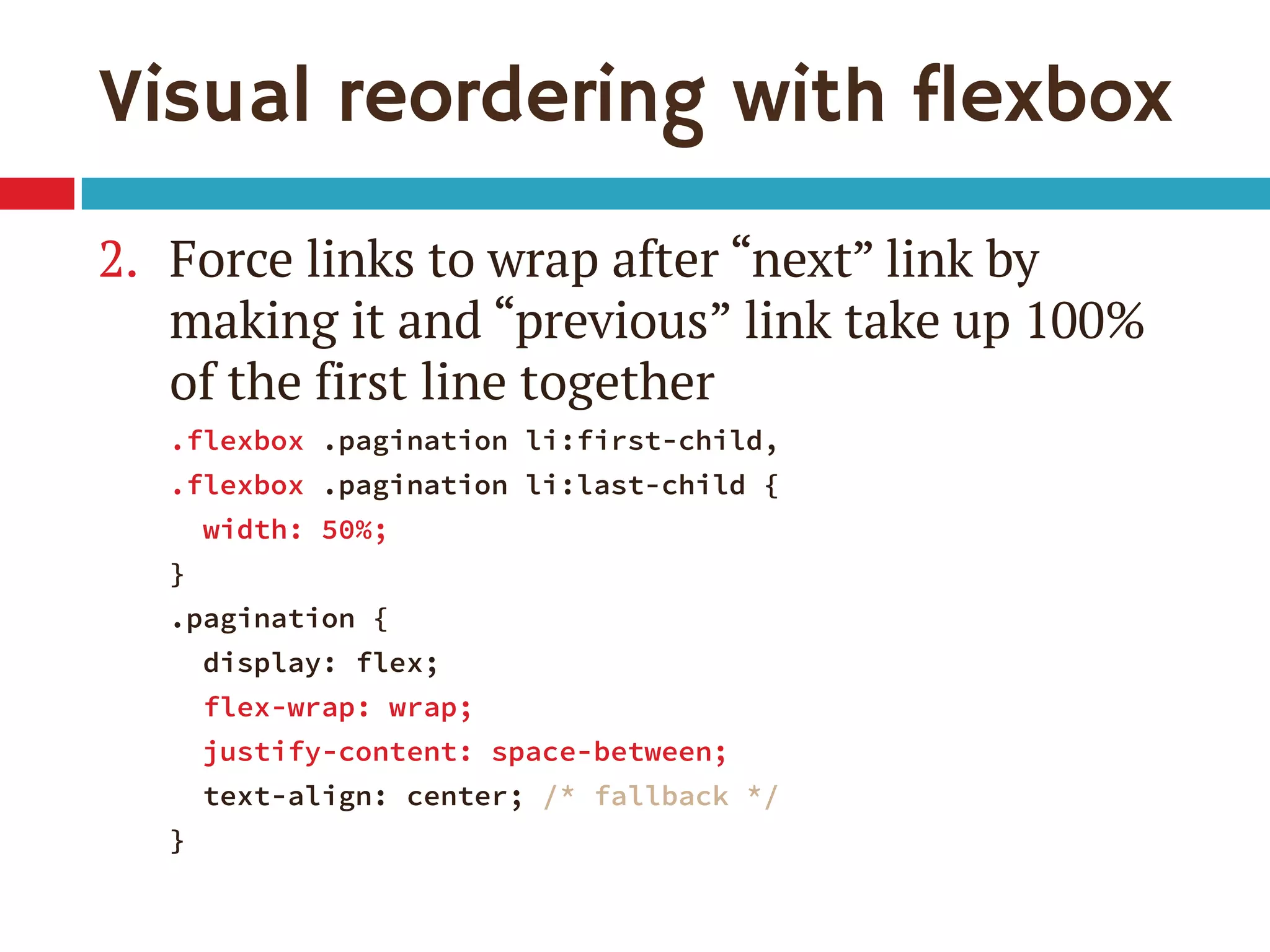
Visual reordering with flexbox
2. Force links to wrap after โ€œnextโ€ link by
making it and โ€œpreviousโ€ link take up 100%
of the first line together
.flexbox .pagination li:first-child,
.flexbox .pagination li:last-child {
width: 50%;
}
.pagination {
display: flex;
flex-wrap: wrap;
justify-content: space-between;
text-align: center; /* fallback */
}
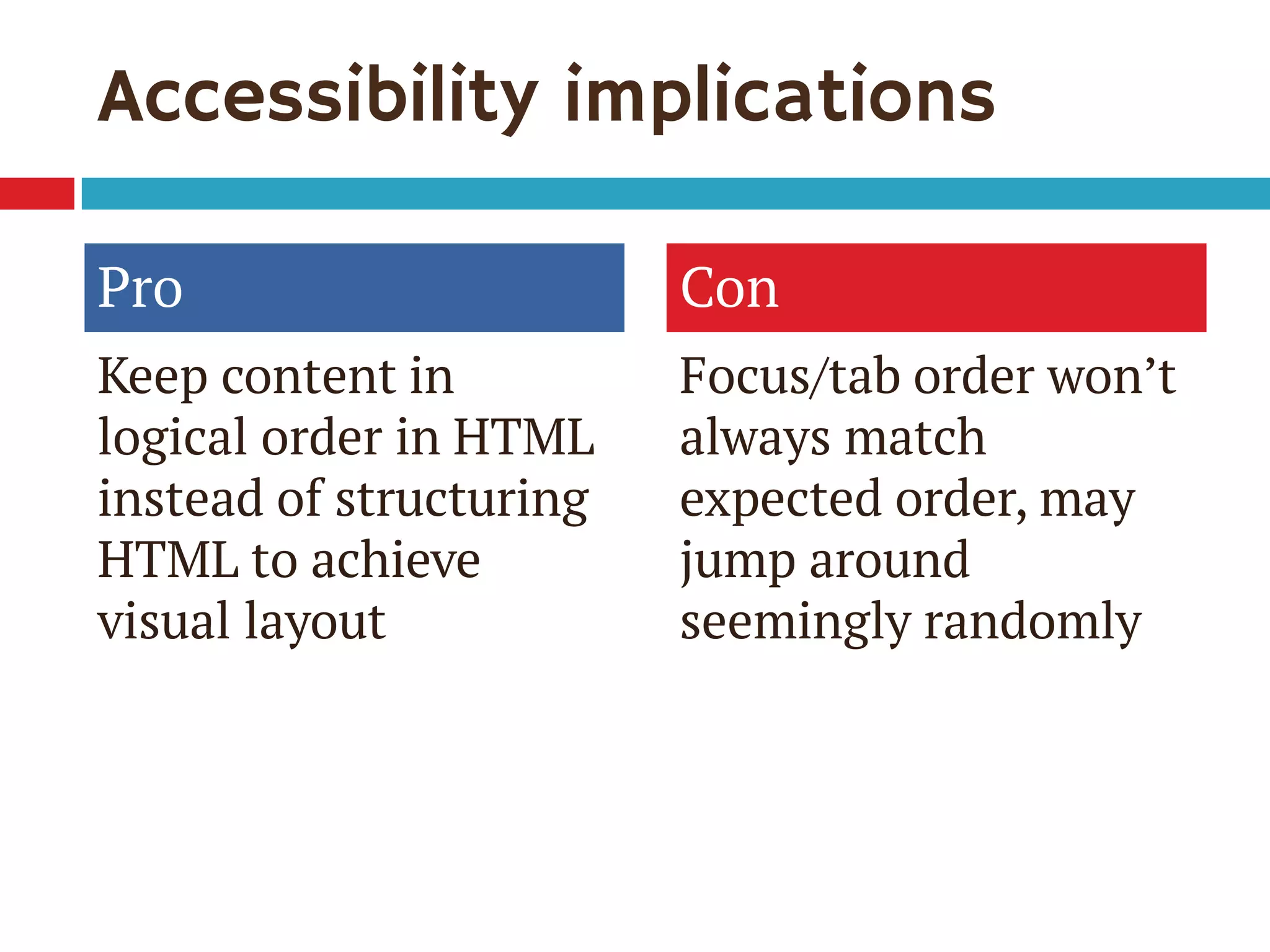
Accessibility implications
Pro
Keep content in
logical order in HTML
instead of structuring
HTML to achieve
visual layout
Con
Focus/tab order wonโ€™t
always match
expected order, may
jump around
seemingly randomly
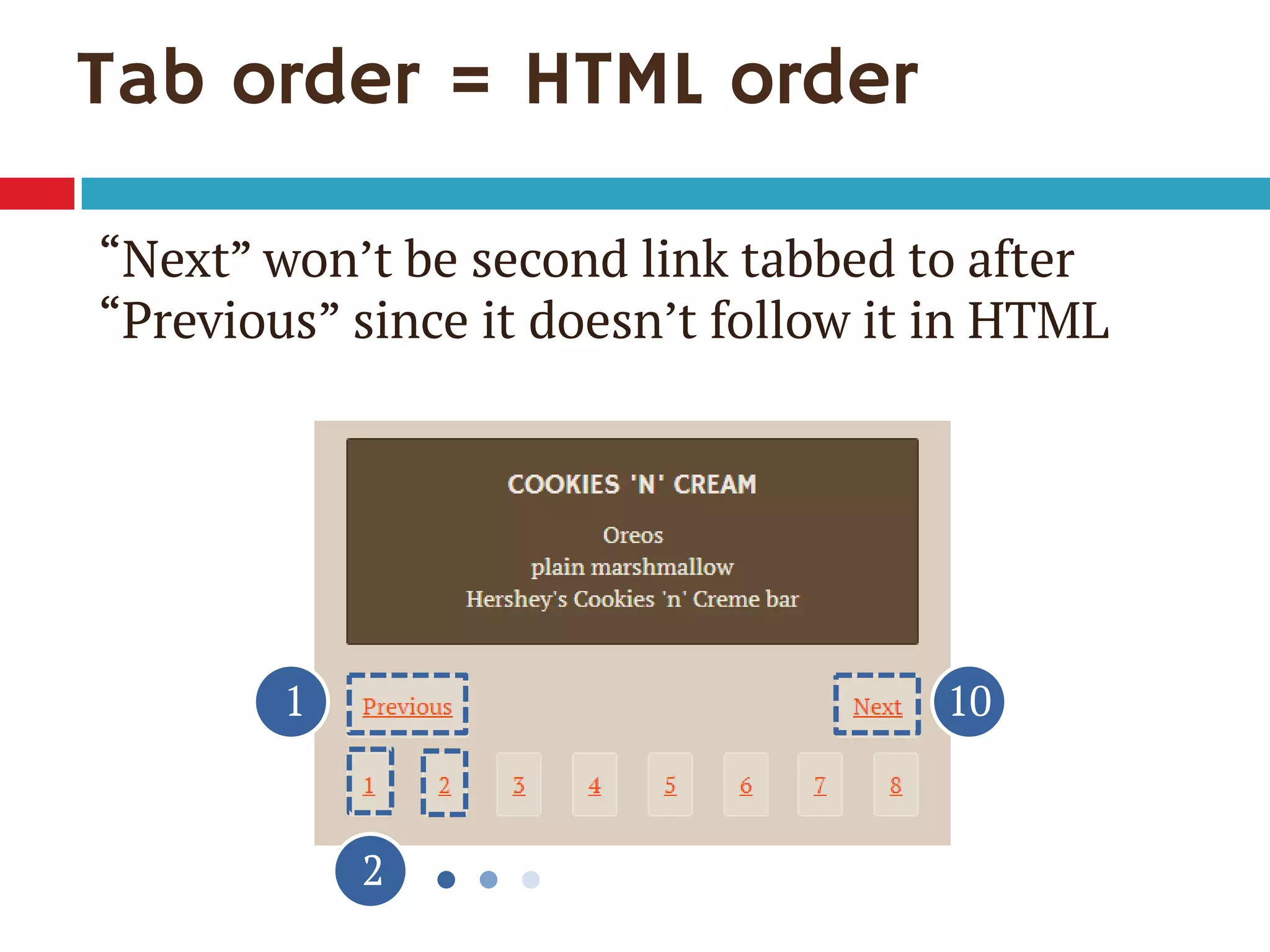
Tab order = HTML order
1
2
10
โ€œNextโ€ wonโ€™t be second link tabbed to after
โ€œPreviousโ€ since it doesnโ€™t follow it in HTML
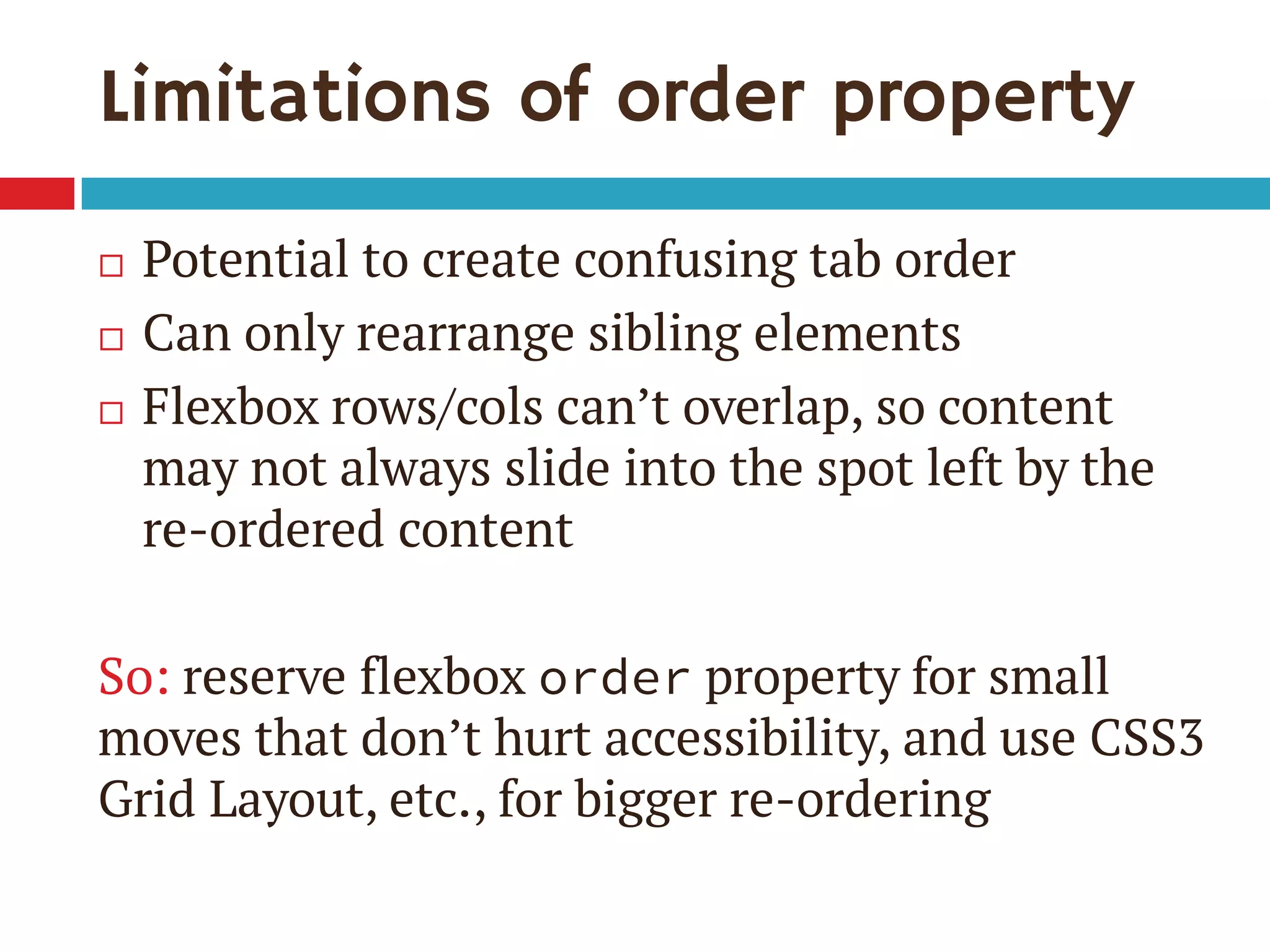
Limitations of order property
๏‚จ Potential to create confusing tab order
๏‚จ Can only rearrange sibling elements
๏‚จ Flexbox rows/cols canโ€™t overlap, so content
may not always slide into the spot left by the
re-ordered content
So: reserve flexbox order property for small
moves that donโ€™t hurt accessibility, and use CSS3
Grid Layout, etc., for bigger re-ordering
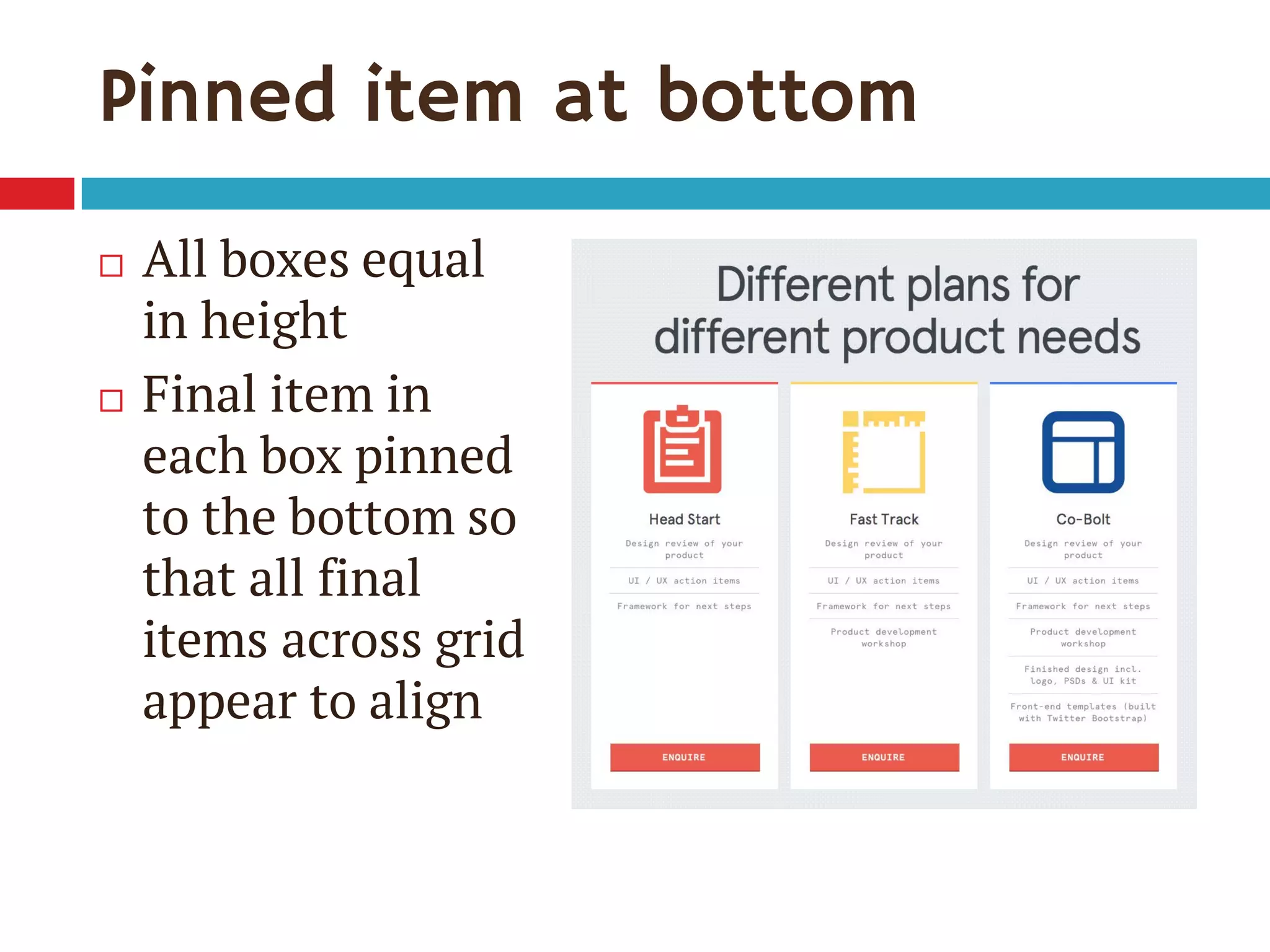
Pinned item at bottom
๏‚จ All boxes equal
in height
๏‚จ Final item in
each box pinned
to the bottom so
that all final
items across grid
appear to align
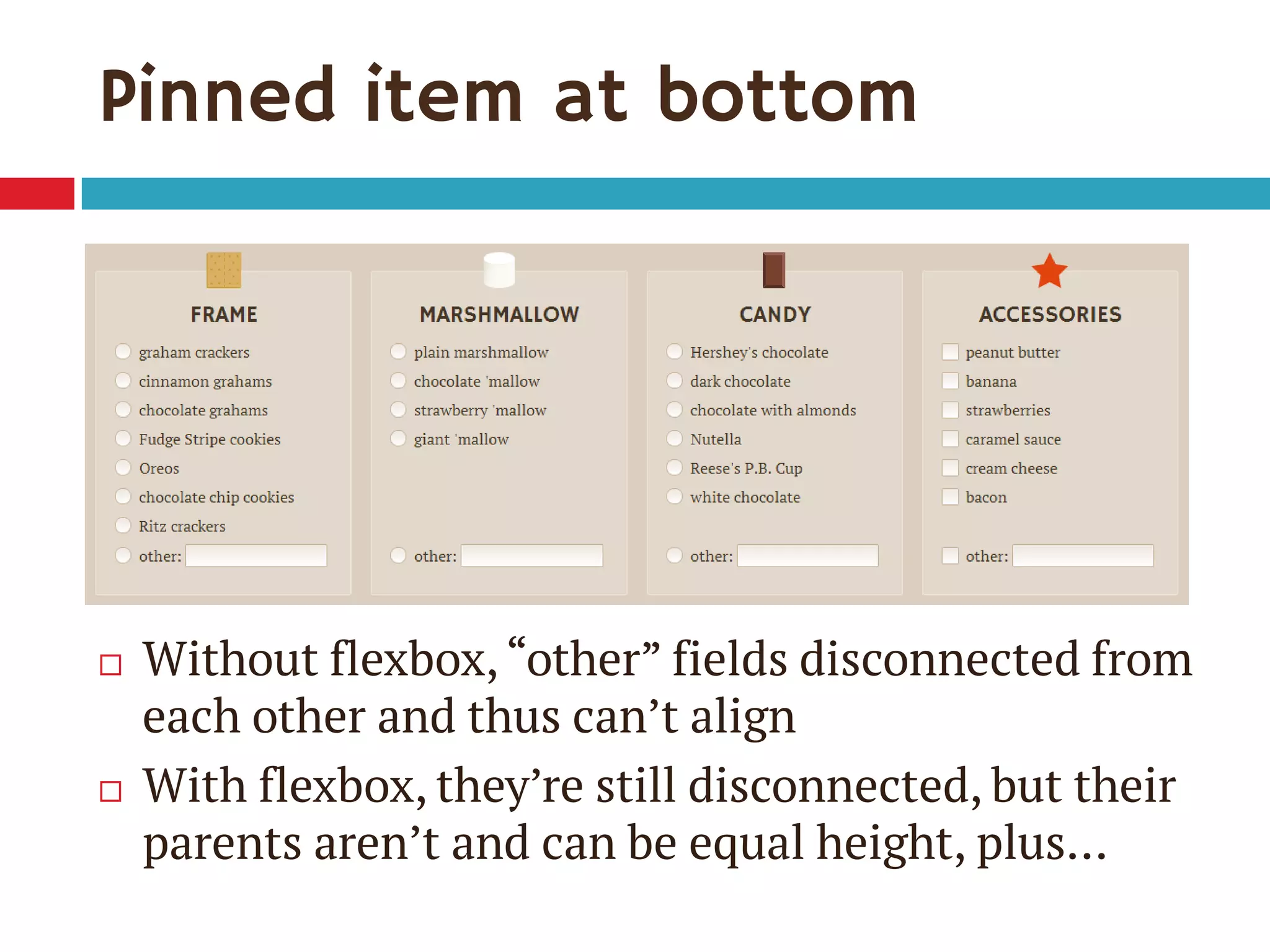
Pinned item at bottom
๏‚จ Without flexbox,โ€œotherโ€ fields disconnected from
each other and thus canโ€™t align
๏‚จ With flexbox, theyโ€™re still disconnected, but their
parents arenโ€™t and can be equal height, plusโ€ฆ
New โ€œautoโ€ margin behavior
๏‚จ Margins set to auto get all the free space left
๏‚จ So, to pin flex item to bottom of its flex
container:
๏‚ค set flex-direction:column on flex container
so items can fill its height
๏‚ค set margin-top:auto on item you want to pin
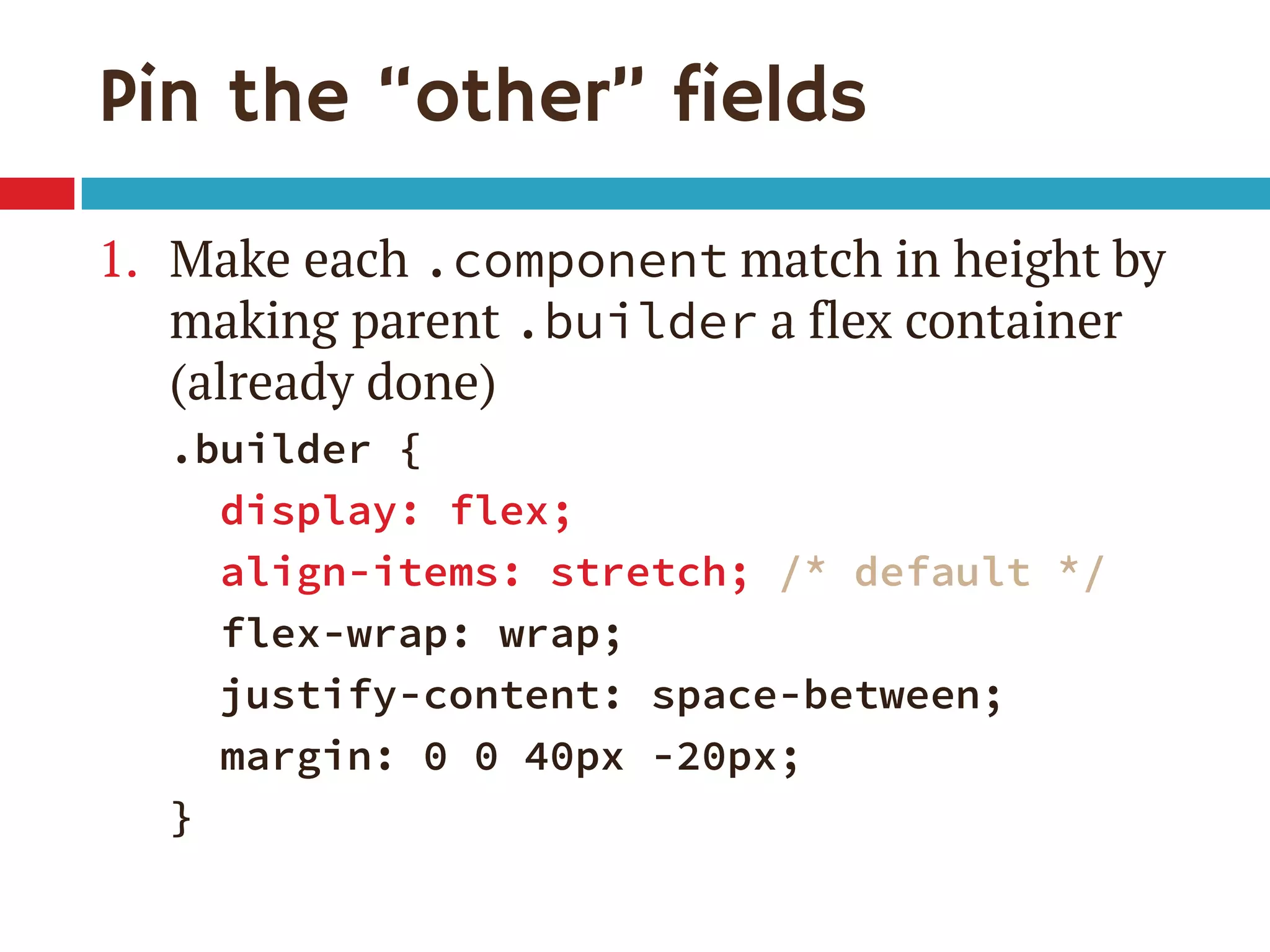
Pin the โ€œotherโ€ fields
1. Make each .component match in height by
making parent .builder a flex container
(already done)
.builder {
display: flex;
align-items: stretch; /* default */
flex-wrap: wrap;
justify-content: space-between;
margin: 0 0 40px -20px;
}
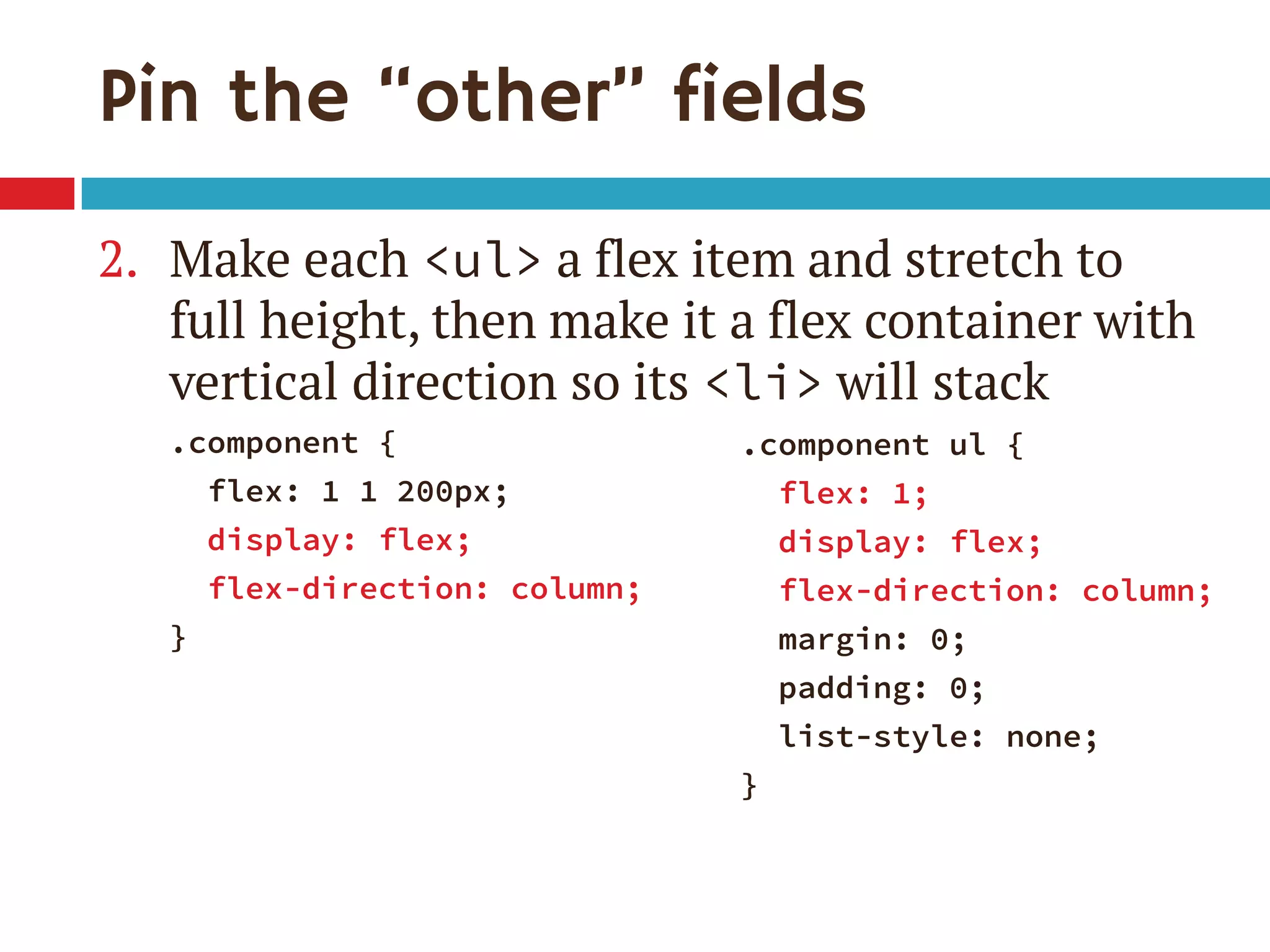
Pin the โ€œotherโ€ fields
2. Make each <ul> a flex item and stretch to
full height, then make it a flex container with
vertical direction so its <li> will stack
.component {
flex: 1 1 200px;
display: flex;
flex-direction: column;
}
.component ul {
flex: 1;
display: flex;
flex-direction: column;
margin: 0;
padding: 0;
list-style: none;
}
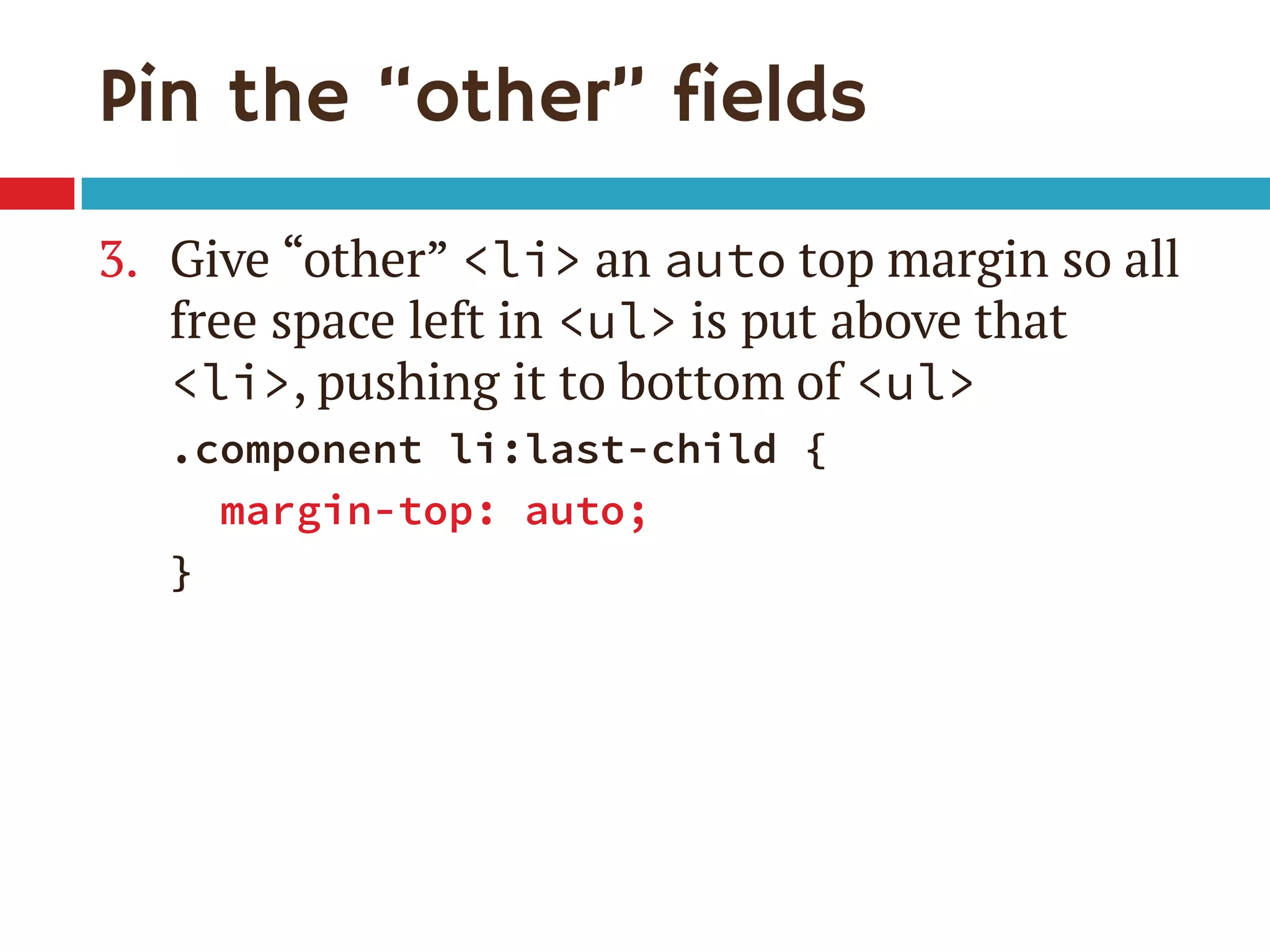
Pin the โ€œotherโ€ fields
3. Give โ€œotherโ€ <li> an auto top margin so all
free space left in <ul> is put above that
<li>, pushing it to bottom of <ul>
.component li:last-child {
margin-top: auto;
}
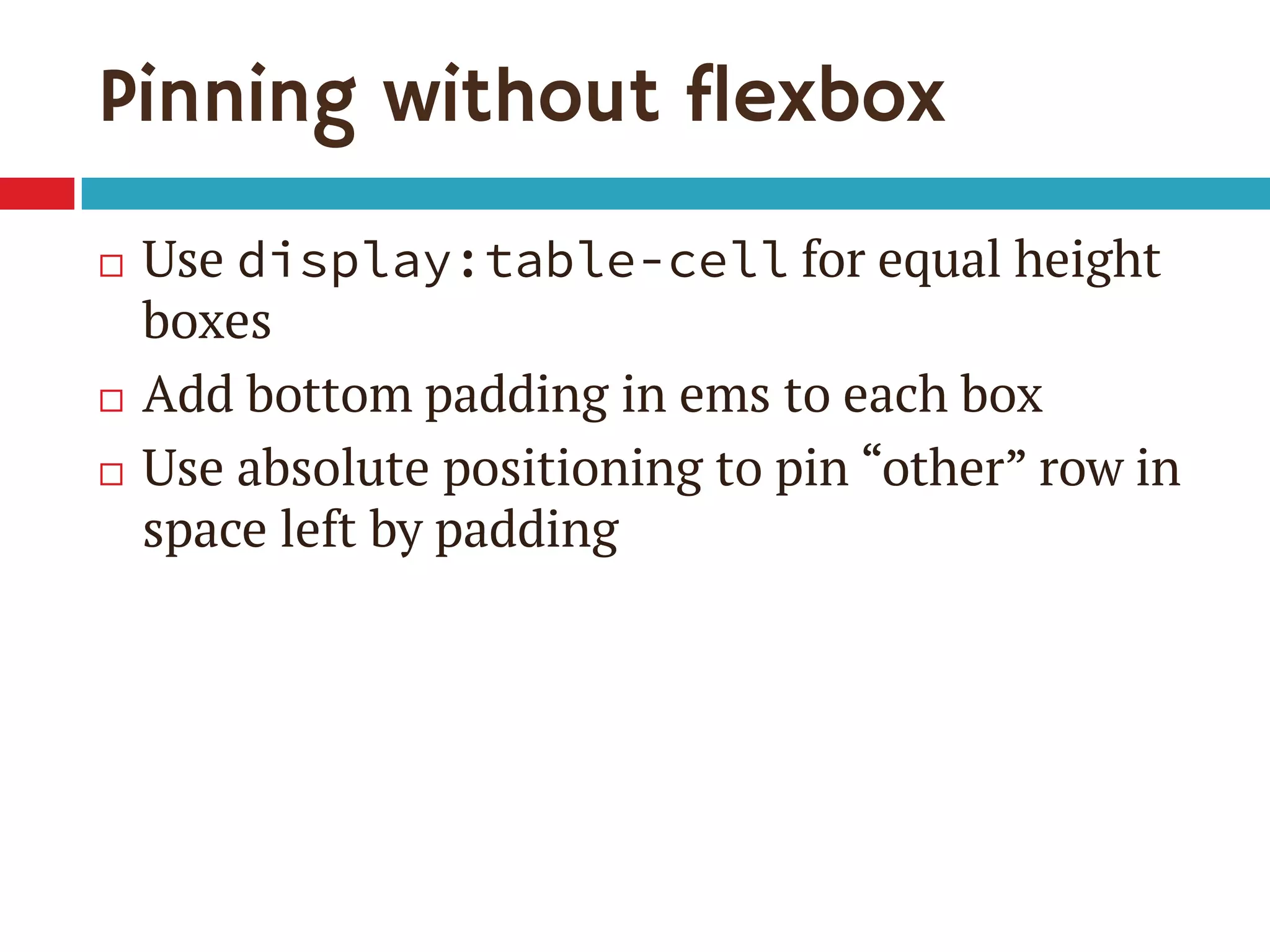
Pinning without flexbox
๏‚จ Use display:table-cell for equal height
boxes
๏‚จ Add bottom padding in ems to each box
๏‚จ Use absolute positioning to pin โ€œotherโ€ row in
space left by padding
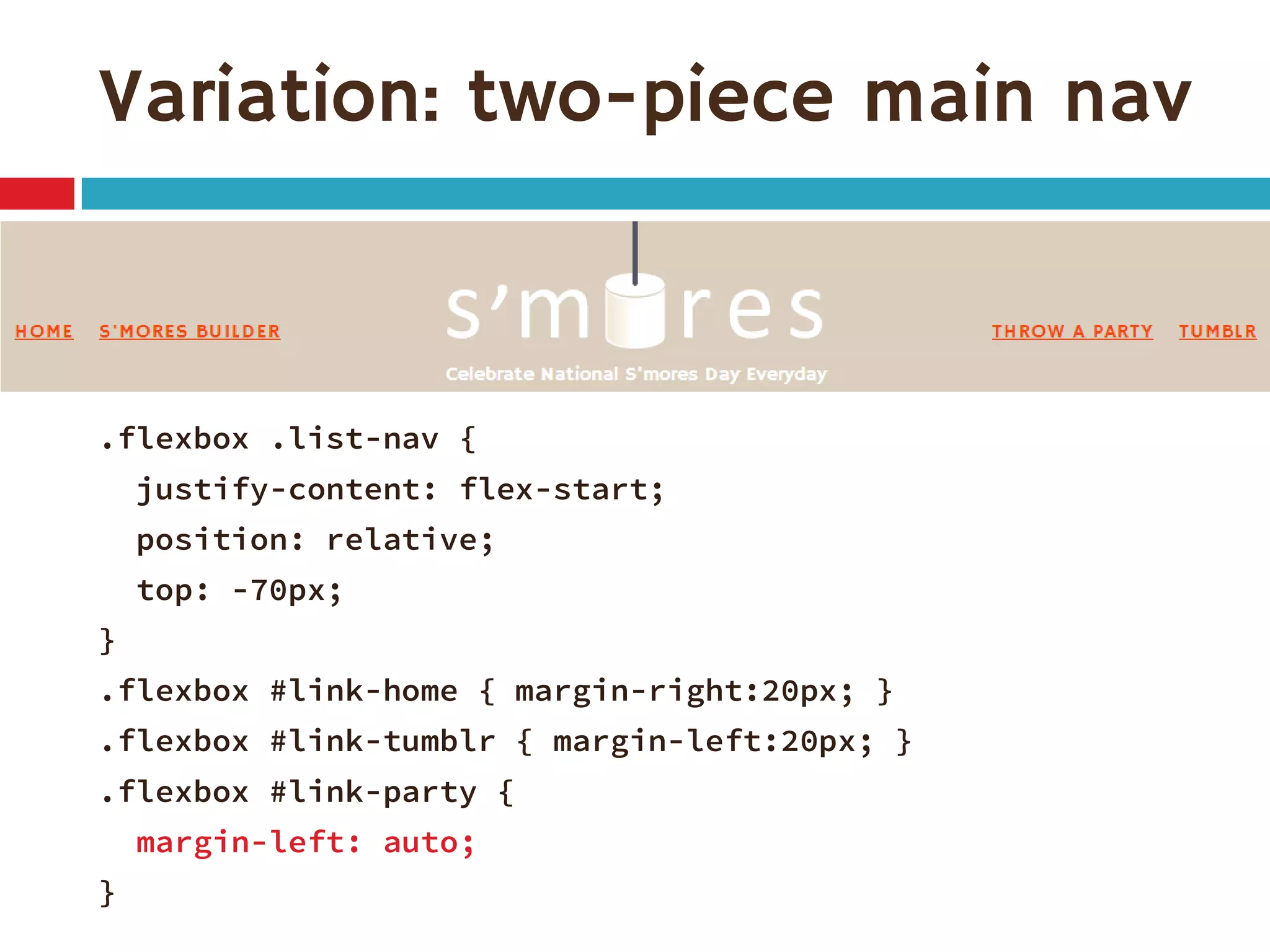
Variation: two-piece main nav
.flexbox .list-nav {
justify-content: flex-start;
position: relative;
top: -70px;
}
.flexbox #link-home { margin-right:20px; }
.flexbox #link-tumblr { margin-left:20px; }
.flexbox #link-party {
margin-left: auto;
}
Why go to the trouble to use flexbox as
progressive enhancement now?โ€
I can use it, but why should I?
โ€œ
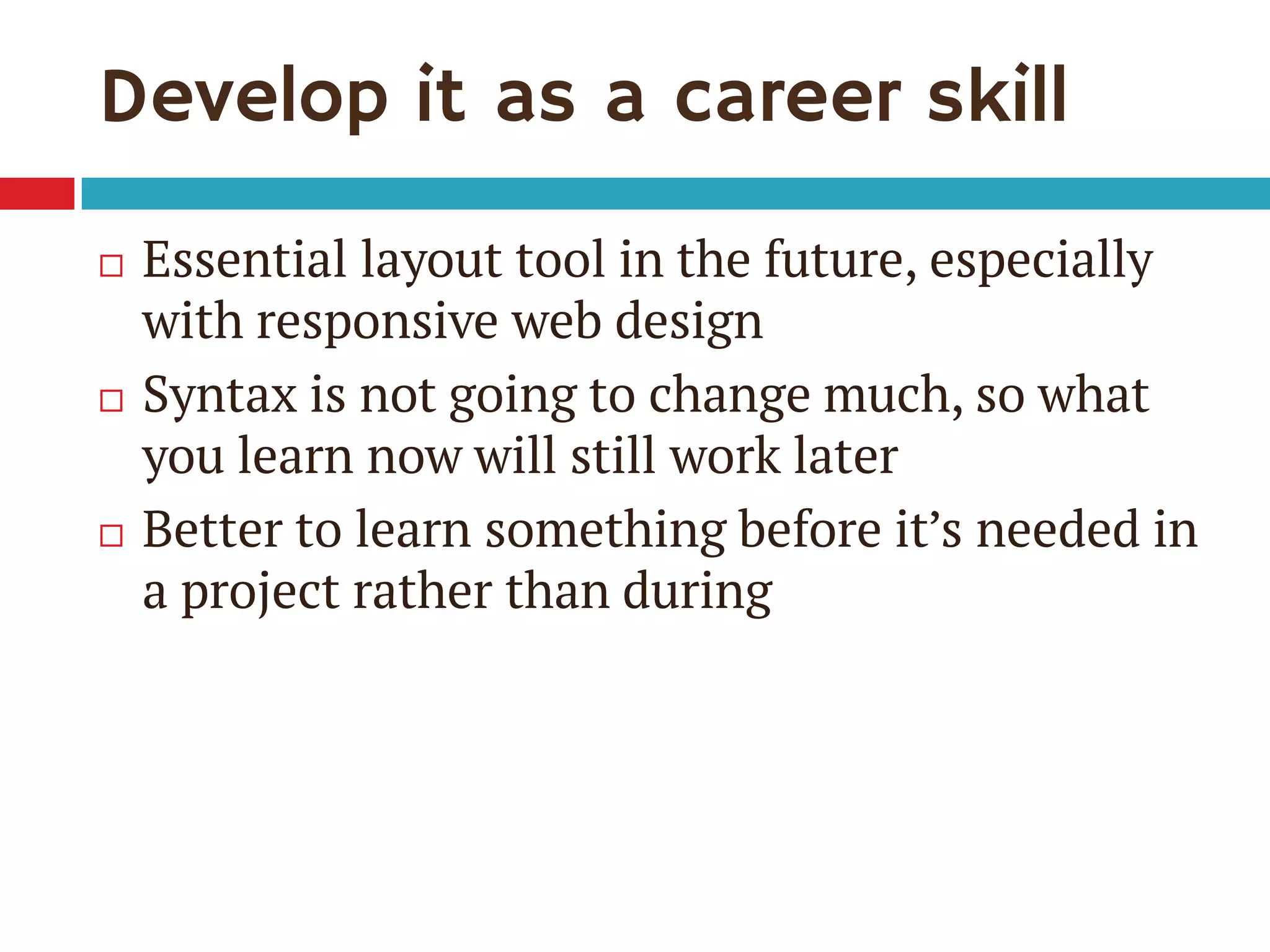
Develop it as a career skill
๏‚จ Essential layout tool in the future, especially
with responsive web design
๏‚จ Syntax is not going to change much, so what
you learn now will still work later
๏‚จ Better to learn something before itโ€™s needed in
a project rather than during
when I can do the same thing with <font> tags?โ€
Why should I do it with CSS
โ€œ โ€“Zoe, circa 2002
when I can do the same thing with floats?โ€
Why should I do it with flexbox
โ€œ
We all learn best by doing
๏‚จ I learned a lot more about flexbox by building
demo site for this presentationโ€”a lot
๏‚จ Have to try it to learn it
๏‚จ Using it for small cosmetic enhancements is
low-risk way to try it
Itโ€™s fun
๏‚จ Great user experience is important, but great
developer experience is worthwhile too
๏‚จ Enjoy your job to get better at your job
๏‚จ Sometimes the little extra time is worth the
fun challenge and reward at the end
Learn more
Download slides and get links at
www.zomigi.com/blog/flexbox-presentation
Thanks!
Zoe Mickley Gillenwater
@zomigi
design@zomigi.com
zomigi.com | stunningcss3.com | flexiblewebbook.com

Putting Flexbox into Practice

  • 1.
    FLEXBOX Zoe Mickley Gillenwater@zomigiBlend Conference September 2013 PUTTING INTO PRACTICE
  • 2.
    and I wrotethese books on CSS: Iโ€™m a web designer/front-end dev Stunning CSS3: A Project-based Guide to the Latest in CSS www.stunningcss3.com Flexible Web Design: Creating Liquid and Elastic Layouts with CSS www.flexiblewebbook.com
  • 3.
  • 4.
  • 5.
  • 6.
    Problems with floatlayout ๏‚จ Difficulty with containment ๏‚จ Wrapping/float drop ๏‚จ Visual location somewhat tied to HTML order ๏‚จ No built-in equal-height columns ๏‚จ No float:center
  • 7.
    The nickname forthe CSS Flexible Box Layout Module, a new layout mechanism and box model. What is flexbox?
  • 8.
    Which is which? 2009display:box 2011 display:flexbox Now display:flex See also http://css-tricks.com/old-flexbox-and-new-flexbox/ *with -webkit- prefix โ€  with -ms- prefix, 10 only * * โ€  *
  • 9.
    Turn it on display:flex flex item flex item flex container plain old box
  • 10.
    flex-direction specifies orientation of flexitemsโ€™ layout row (default) row-reverse column column-reverse
  • 11.
  • 12.
    Demo: horizontal navigation 1.Turn <ul> into flex container: .list-nav { display: flex; flex-direction: row; /* default */ } 2. Children <li> become flex items laid out on single horizontal line
  • 13.
  • 14.
    I can dothe same thing with display: inline.โ€ Whatโ€™s the big deal? Yes, you can. Weโ€™re just laying the groundwork for the cool stuff thatโ€™s coming. Baby steps. โ€œ
  • 15.
    How the CSSmight really look .list-nav { display: -webkit-box; display: -ms-flexbox; display: -webkit-flex; display: flex; -webkit-box-direction: normal; -webkit-box-orient: horizontal; -ms-flex-direction: row; -webkit-flex-direction: row; flex-direction: row; } 2009 2011 current
  • 16.
    Keeping track ofvariants ๏‚จ Flexy Boxes code generator shows old and new syntaxes: www.the-echoplex.net/flexyboxes/ ๏‚จ Let Sass or LESS do it for you, for instance: ๏‚ค https://github.com/mastastealth/sass-flex-mixin ๏‚ค https://gist.github.com/cimmanon/4461470 ๏‚จ The -prefix-free script can do some of it for you: http://leaverou.github.io/prefixfree/
  • 17.
    But for thesake of readability, Iโ€™m omitting them from the code samples on these slides. You can see them in the live demo. Now back to flex-direction. Use the variants you want.
  • 18.
    Setting a pointof reference Main axis Crossaxis (for flex-direction: row)
  • 19.
    flex-wrap controls whether flex itemscan lay out on multiple lines and which direction new lines are stacked in wrap (for row) wrap (for column) nowrap (default; for row) wrap-reverse (for row)
  • 20.
    Problems with flex-wrap ๏‚จFirefox doesnโ€™t support it yet ๏‚จ No browser supports 2009 equivalent box- lines property ๏‚จ Limited control of where breaks occur without support for break-before/break-after properties (only IE 10 and Opera support them)
  • 21.
    Summary: setting thestage 1. Create flex container using display:flex 2. Set its flex-direction to control orientation (horizontal or vertical) 3. Set its flex-wrap to control whether and in which direction to wrap (Or, set flex-flow as shorthand for flex- direction and flex-wrap)
  • 22.
  • 23.
    Add flexbox forlarger widths No need to put within media queryโ€”it can โ€œkick inโ€ whenever space allows (auto breakpoints!) 1. Create flex container: .gallery { display: flex; flex-wrap: wrap; margin-left: -20px; }
  • 24.
    Add flexbox forlarger widths 2. Size flex items: .gallery-item { flex: 1 0 200px; margin: 0 0 20px 20px; padding: 20px; }
  • 25.
    This is whereflexbox gets flexible. And kinda confusing. The flex property
  • 26.
    Defining the flexproperty ๏‚จ Makes flex items change their width or height (whichever is dimension along main axis) to fit available space ๏‚จ Shorthand for 3 properties: ๏‚ค flex-grow ๏‚ค flex-shrink ๏‚ค flex-basis
  • 27.
    Defining the flexproperty flex-grow how much flex item will grow relative to other items if extra space is available (proportion of extra space that it gets) flex-shrink how much item will shrink relative to others if there is not enough space (proportion of overflow that gets shaved off) flex-basis the initial starting size before free space is distributed (any standard width/height value, including auto)
  • 28.
    Breaking it down .gallery-item{ flex: 1 0 200px; flex-grow give every item 1 share of extra width flex-shrink donโ€™t let the items shrink at all (but they wouldnโ€™t anyway due to flex-wrap) flex-basis start them out at 200 pixels wide (basically, min-width)
  • 29.
  • 30.
    Single-digit flex values ๏‚จCommon to see flex: 1 in demos ๏‚จ flex: [number] is equivalent to flex: [number] 1 0px ๏‚จ Be sure you really want flex-basis to be 0 ๏‚ค When wrap on, essentially min-width ๏‚ค 0px therefore means items can shrink to 0px ๏‚ค If everything can get down to 0px, nothing ever has a reason to wrap
  • 31.
    My first attempt Zoeโ€™sBrain Said: โ€œSince .action starts out at 100%, it wonโ€™t have space to sit on the first line with the content preceding it, and will wrap to a second line.โ€ .component { flex: 1; } .action { flex: 1 1 100%; } The expected outcome:
  • 32.
  • 33.
    My first attempt Reality: Sinceitโ€™s fine for each .component to shrink to only 0px wide, a 100% wide element can and will sit on the same line as all the components. .component { flex: 1 1 0px; } .action { flex: 1 1 100%; }
  • 34.
    Forcing the wrap Fixed: .actionwill always wrap to new line, and .components will wrap to additional lines when thereโ€™s less than their combined flex- basis values (plus margin, etc.). .component { flex: 1 1 200px; } .action { flex: 1 1 100%; }
  • 35.
  • 36.
  • 37.
    Less need formedia queries Layout changes that would previously have been hardcoded into a media query can now be done on the fly when browser determines stuff can fit
  • 38.
    Flex adjusts formargin .component { width: 25%; margin-left: 20px; } .component { flex: 1 1 200px; margin-left: 20px; } The boxes wonโ€™t all fit Works like a charm box-sizing only takes care of padding and border added on to width, not margin
  • 39.
    Flex adjusts forquantity of items ๏‚จ Great for sites with dynamic or frequently changing content blocks, e.g.: ๏‚ค News stories on home page vs inner page ๏‚ค Product or feature tiles ๏‚ค Pricing page with plans side by side ๏‚จ Makes HTML/CSS more modularโ€”an item can move anywhere and adjust in size as needed
  • 40.
    Flex can combinedifferent units Items measured in different units can sit side-by-side and all fit perfectly Pixels Ems Mystery percentage
  • 41.
    Flex can combinedifferent units Set only the text field to flex: .component li:last-child { display: flex; } .component .other-name { flex: 1; }
  • 42.
    Flex can beproportional Setting flex-grow/flex-shrink to different values can make flex items size themselves relative to each other flex: 1; flex: 1; flex: 2;
  • 43.
    But be careful! Havingwidths be in multiples of each other only works if flex-basis is 0 If all start out 0px, then all the width on the line is extra, so the flex:2 item gets twice as much width as the others and is thus twice as wide as the others flex: 1 0 0px; flex: 1 0 0px; flex: 2 0 0px;
  • 44.
    If flex-basis isnโ€™t0pxโ€ฆ โ€ฆthe widths may not end up as you expect The third box gets twice as much of the extra, but that doesnโ€™t make it twice as wide overall flex: 1 0 10px; flex: 1 0 10px; flex: 2 0 10px; 10px + 5px extra = 15px 10px + 5px extra = 15px 10px + 10px extra = 20px if 50px available
  • 45.
    While support improves,consider using flexbox now on small page components as progressive enhancement. Here are a few ideas. You can use it now
  • 46.
    Single-line, full-width form ๏‚จAll items on same line ๏‚จ Text input(s) stretches to fill remaining space ๏‚จ All items vertically centered or equal height
  • 47.
    Form without flexbox .action{ text-align: center; } .action * { display: inline; /* default */ vertical-align: middle; }
  • 48.
    Form without flexbox Allitems on same line Text input stretches to take up remaining space All items vertically centered or equal height ๏ƒผ ๏ƒผ X
  • 49.
    Form with flexbox .action{ flex: 1 1 100%; display: flex; align-items: stretch; /* default */ } .action input { flex: 1; } .action input, .action label { margin-right: 10px; }
  • 50.
    align-items aligns flex itemsin cross axis flex-start flex-end center baseline stretch (default) foo foo foo
  • 51.
    Form with flexbox Allitems on same line Text input stretches to take up remaining space All items vertically centered or equal height ๏ƒผ ๏ƒผ ๏ƒผ
  • 52.
    Override alignment onlabel .action label { align-self: center; }
  • 53.
    Combine the two .action{ flex: 1 1 100%; display: flex; text-align: center; /* fallback */ } .action input { flex: 1; } .action label { align-self: center; } .action input, .action label { margin-right: 10px; }
  • 54.
    Another option: stack,center .action { flex: 1 1 100%; display: flex; flex-wrap: wrap; align-items: center; text-align: center; /* fallback */ } .action input { flex: 1; display: block; /* fallback */ width: 100%; /* fallback */ box-sizing: border-box; /* fallback */ } .action button { flex: 1 1 100%; margin-top: 10px; }
  • 55.
    Narrow version Non-flexbox fallbackversion Flexbox version
  • 56.
    Add Modernizr asneeded ๏‚จ Flexbox and fallback styles can often co-exist, but sometimes need to isolate them ๏‚จ Modernizr can add flexbox, no-flexbox, and flexbox-legacy classes to do this ๏‚จ Example: add margin between label and input only if flexbox is on: .flexbox .action label { margin-right: 10px; }
  • 57.
    Full-width nav bar ๏‚จRequirements: ๏‚ค All links on same line ๏‚ค First link flush left, last link flush right ๏‚ค Equal spaces between all links ๏‚จ Using display:table-cell can do full- width but not equal spaces
  • 58.
    Nav with flexbox .list-nav{ display: flex; justify-content: space-between; margin: 0; padding: 0; list-style: none; } .list-nav li { /* no flex & no width = shrinkwrap */ text-align: center; }
  • 59.
    justify-content aligns flex itemsalong main axis space-around flex-endcenter flex-start (default) space-between
  • 60.
    Combine with inline-block .list-nav{ display: flex; justify-content: space-between; margin: 0; padding: 0; list-style: none; text-align: center; /* fallback */ } .list-nav li { display: inline-block; /* fallback */ padding: 0 .5em; /* fallback */ text-align: center; } .list-nav li:first-child { padding-left: 0; } .list-nav li:last-child { padding-right: 0; }
  • 61.
  • 62.
    Combine with table-cell .list-nav{ width: 100%; /* fallback */ display: table; /* fallback */ display: flex; /* override display:table for flexbox browsers */ justify-content: space-between; } .list-nav li { display: table-cell; /* fallback */ padding: 0 .5em; text-align: center; } .list-nav li:first-child { padding-left: 0; text-align: left; /* fallback */ } .list-nav li:last-child { padding-right: 0; text-align: right; }
  • 63.
    Variation: pagination ๏‚จ Wideview: all links on same line, centered ๏‚ค Set justify-content:center ๏‚จ Medium view: all links on same line, full- width, equal spacing ๏‚ค Set justify-content:space-between
  • 64.
    Variation: pagination ๏‚จ Narrowview: two lines with โ€œpreviousโ€ and โ€œnextโ€ links on first row, full-width ๏‚ค Set flex-wrap:wrap ๏‚ค Set justify-content:space-between ๏‚ค Use order property to move โ€œnextโ€ link up
  • 65.
    Visual reordering withflexbox 1. Make โ€œpreviousโ€ link come first visually, โ€œnextโ€ link second, and all the rest third .pagination li { order: 2; display: inline-block; /* fallback */ } .pagination li:first-child { /* โ€œPreviousโ€ link */ order: 0; text-align: left; } .pagination li:last-child { /* โ€œNextโ€ link */ order: 1; text-align: right; }
  • 66.
    Visual reordering withflexbox 2. Force links to wrap after โ€œnextโ€ link by making it and โ€œpreviousโ€ link take up 100% of the first line together .flexbox .pagination li:first-child, .flexbox .pagination li:last-child { width: 50%; } .pagination { display: flex; flex-wrap: wrap; justify-content: space-between; text-align: center; /* fallback */ }
  • 67.
    Accessibility implications Pro Keep contentin logical order in HTML instead of structuring HTML to achieve visual layout Con Focus/tab order wonโ€™t always match expected order, may jump around seemingly randomly
  • 68.
    Tab order =HTML order 1 2 10 โ€œNextโ€ wonโ€™t be second link tabbed to after โ€œPreviousโ€ since it doesnโ€™t follow it in HTML
  • 69.
    Limitations of orderproperty ๏‚จ Potential to create confusing tab order ๏‚จ Can only rearrange sibling elements ๏‚จ Flexbox rows/cols canโ€™t overlap, so content may not always slide into the spot left by the re-ordered content So: reserve flexbox order property for small moves that donโ€™t hurt accessibility, and use CSS3 Grid Layout, etc., for bigger re-ordering
  • 70.
    Pinned item atbottom ๏‚จ All boxes equal in height ๏‚จ Final item in each box pinned to the bottom so that all final items across grid appear to align
  • 71.
    Pinned item atbottom ๏‚จ Without flexbox,โ€œotherโ€ fields disconnected from each other and thus canโ€™t align ๏‚จ With flexbox, theyโ€™re still disconnected, but their parents arenโ€™t and can be equal height, plusโ€ฆ
  • 72.
    New โ€œautoโ€ marginbehavior ๏‚จ Margins set to auto get all the free space left ๏‚จ So, to pin flex item to bottom of its flex container: ๏‚ค set flex-direction:column on flex container so items can fill its height ๏‚ค set margin-top:auto on item you want to pin
  • 73.
    Pin the โ€œotherโ€fields 1. Make each .component match in height by making parent .builder a flex container (already done) .builder { display: flex; align-items: stretch; /* default */ flex-wrap: wrap; justify-content: space-between; margin: 0 0 40px -20px; }
  • 74.
    Pin the โ€œotherโ€fields 2. Make each <ul> a flex item and stretch to full height, then make it a flex container with vertical direction so its <li> will stack .component { flex: 1 1 200px; display: flex; flex-direction: column; } .component ul { flex: 1; display: flex; flex-direction: column; margin: 0; padding: 0; list-style: none; }
  • 75.
    Pin the โ€œotherโ€fields 3. Give โ€œotherโ€ <li> an auto top margin so all free space left in <ul> is put above that <li>, pushing it to bottom of <ul> .component li:last-child { margin-top: auto; }
  • 76.
    Pinning without flexbox ๏‚จUse display:table-cell for equal height boxes ๏‚จ Add bottom padding in ems to each box ๏‚จ Use absolute positioning to pin โ€œotherโ€ row in space left by padding
  • 77.
    Variation: two-piece mainnav .flexbox .list-nav { justify-content: flex-start; position: relative; top: -70px; } .flexbox #link-home { margin-right:20px; } .flexbox #link-tumblr { margin-left:20px; } .flexbox #link-party { margin-left: auto; }
  • 78.
    Why go tothe trouble to use flexbox as progressive enhancement now?โ€ I can use it, but why should I? โ€œ
  • 79.
    Develop it asa career skill ๏‚จ Essential layout tool in the future, especially with responsive web design ๏‚จ Syntax is not going to change much, so what you learn now will still work later ๏‚จ Better to learn something before itโ€™s needed in a project rather than during
  • 80.
    when I cando the same thing with <font> tags?โ€ Why should I do it with CSS โ€œ โ€“Zoe, circa 2002
  • 81.
    when I cando the same thing with floats?โ€ Why should I do it with flexbox โ€œ
  • 82.
    We all learnbest by doing ๏‚จ I learned a lot more about flexbox by building demo site for this presentationโ€”a lot ๏‚จ Have to try it to learn it ๏‚จ Using it for small cosmetic enhancements is low-risk way to try it
  • 83.
    Itโ€™s fun ๏‚จ Greatuser experience is important, but great developer experience is worthwhile too ๏‚จ Enjoy your job to get better at your job ๏‚จ Sometimes the little extra time is worth the fun challenge and reward at the end
  • 84.
    Learn more Download slidesand get links at www.zomigi.com/blog/flexbox-presentation Thanks! Zoe Mickley Gillenwater @zomigi design@zomigi.com zomigi.com | stunningcss3.com | flexiblewebbook.com