Geopaparazzi 
WORKSHOP 
Andrea Antonello, Franceschi Silvia 
FOSS4G Osaka October 2014
GEOPAPARAZZI: INTRO 
Geopaparazzi is a tool for digital field mapping. 
Originally it has been developed for fast qualitative 
engineering/geologic surveys but it can be used also 
as a tool for emergency management, general field 
activities and tourism. 
Geopaparazzi is available on the Android Market. 
Search for Geopaparazzi on your phone or get it from 
the online android market. 
Note: Geopaparazzi doesn't work on iPhone or other 
MacOS devices.
GEOPAPARAZZI: INTRO 
The main aim of Geopaparazzi is to have a tool that: 
● can be always at hand when needed 
● gives the possibility to take georeferenced pictures 
during the survey, with further possibility to import 
them into a main GIS application 
● is extremely easy to use and intuitive, providing just 
few important functionalities
GEOPAPARAZZI: INTRO 
The main features available in Geopaparazzi are: 
● georeferenced notes: 
– text notes 
– pictures 
– sketches 
– forms 
● gps tracks logging 
● a map view for browsing and navigation of the data 
● easy export of collected data 
● easy access to a base background data
GEOPAPARAZZI: INSTALLATION 
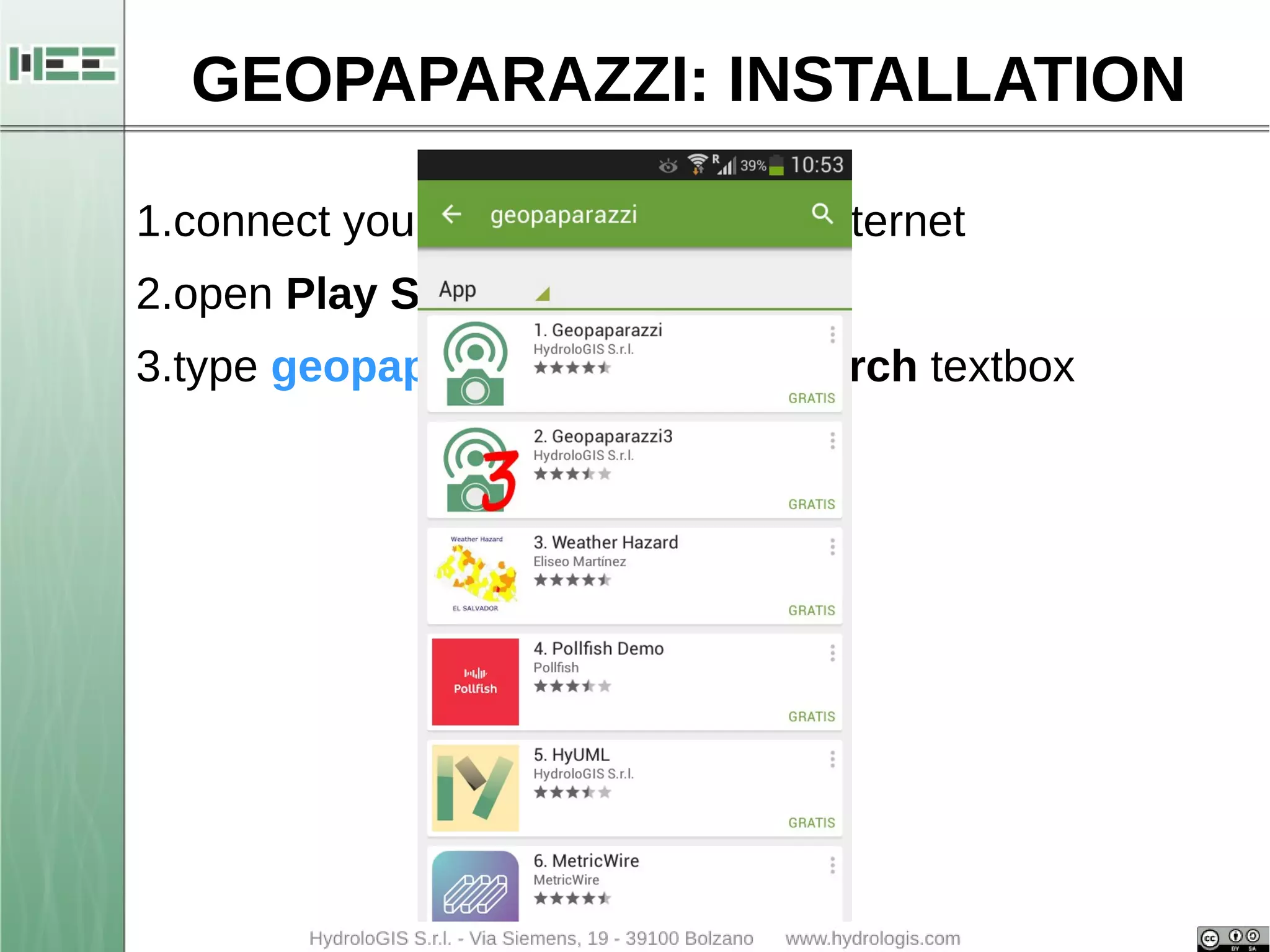
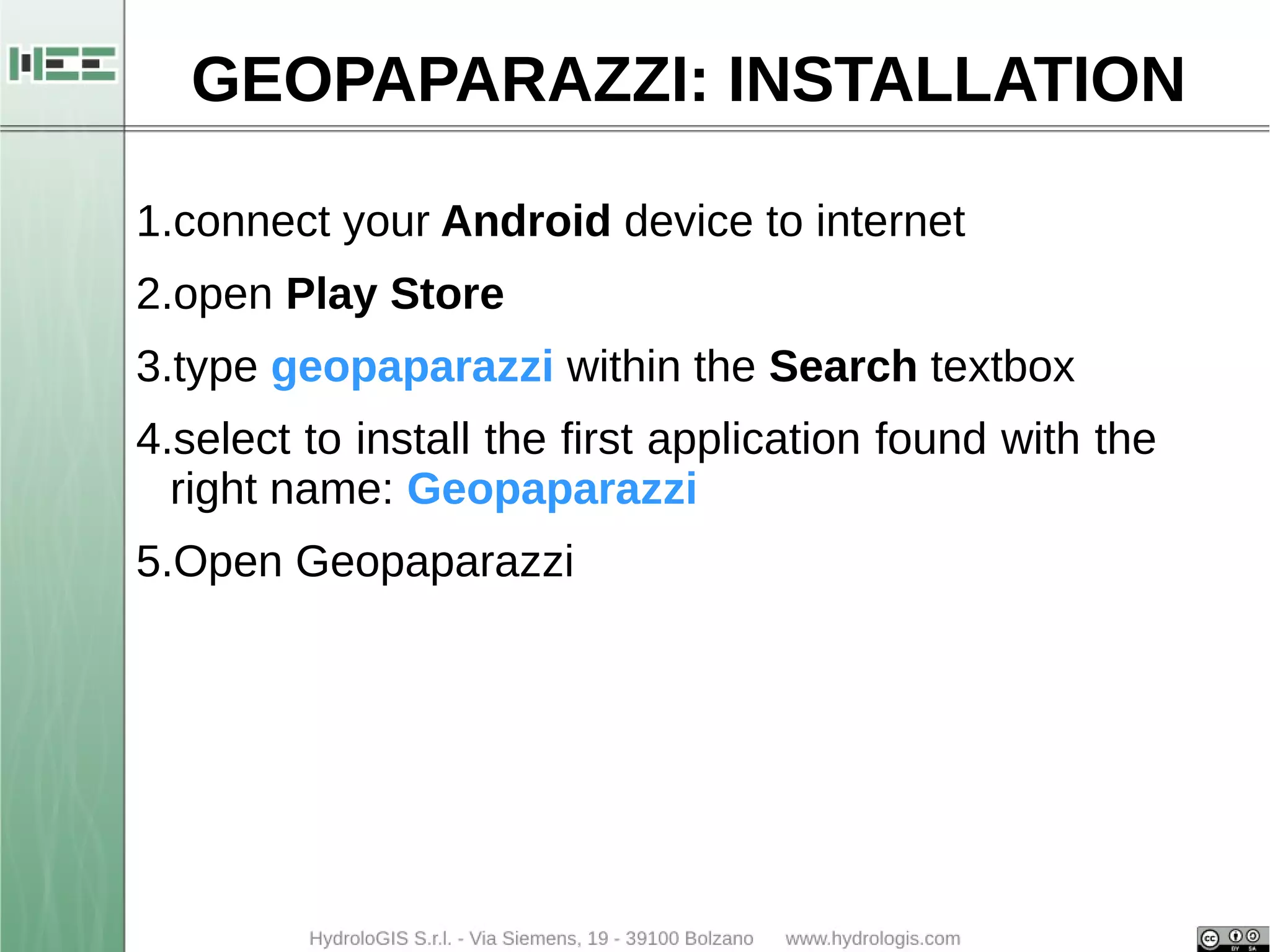
1.connect your Android device to internet 
2.open Play Store 
3.type geopaparazzi within the Search textbox
GEOPAPARAZZI: INSTALLATION 
1.connect your Android device to internet 
2.open Play Store 
3.type geopaparazzi within the Search textbox
GEOPAPARAZZI: INSTALLATION 
1.connect your Android device to internet 
2.open Play Store 
3.type geopaparazzi within the Search textbox 
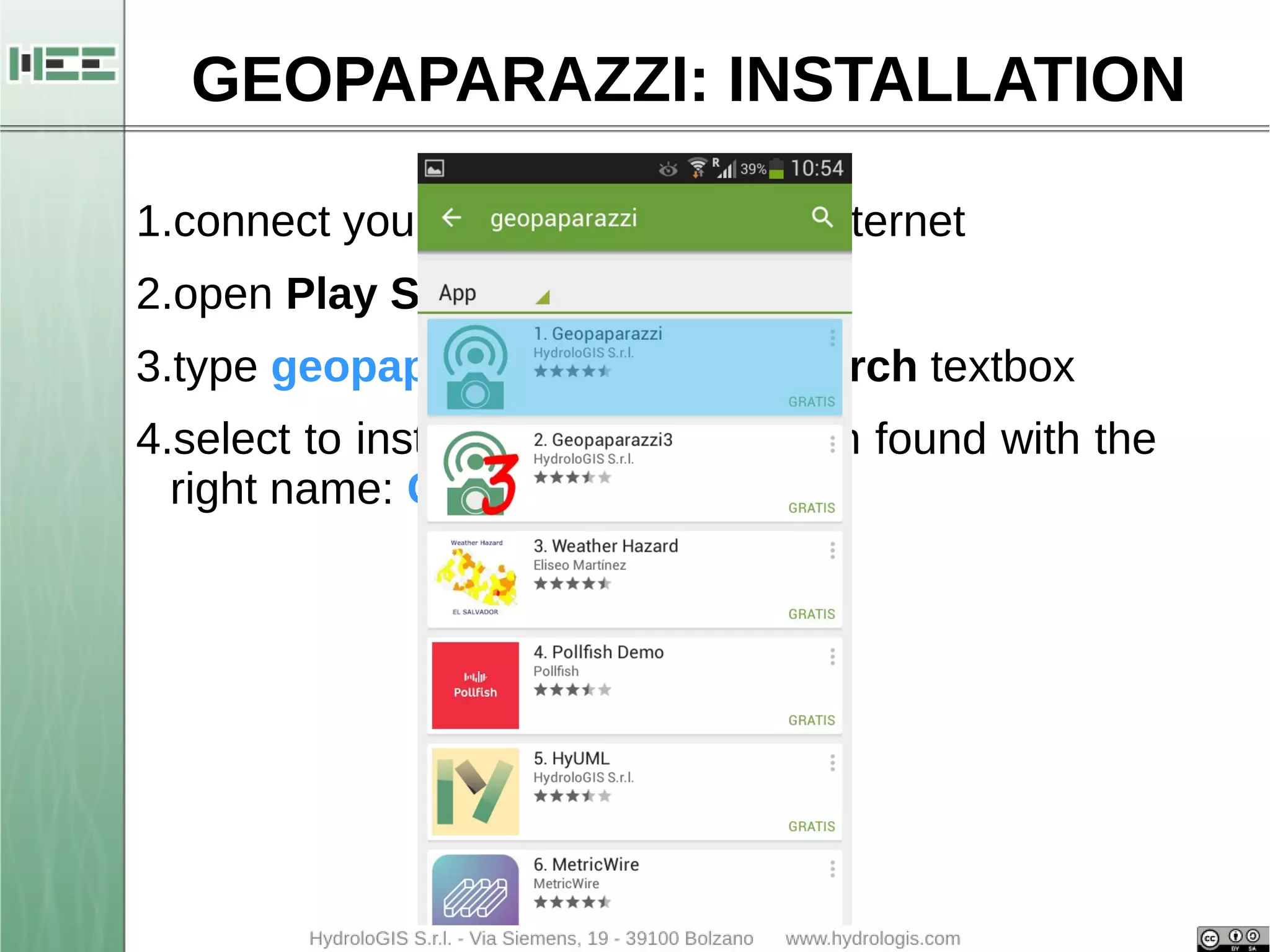
4.select to install the first application found with the 
right name: Geopaparazzi
GEOPAPARAZZI: INSTALLATION 
1.connect your Android device to internet 
2.open Play Store 
3.type geopaparazzi within the Search textbox 
4.select to install the first application found with the 
right name: Geopaparazzi 4.0
GEOPAPARAZZI: INSTALLATION 
1.connect your Android device to internet 
2.open Play Store 
3.type geopaparazzi within the Search textbox 
4.select to install the first application found with the 
right name: Geopaparazzi 
5.Open Geopaparazzi
GEOPAPARAZZI: START 
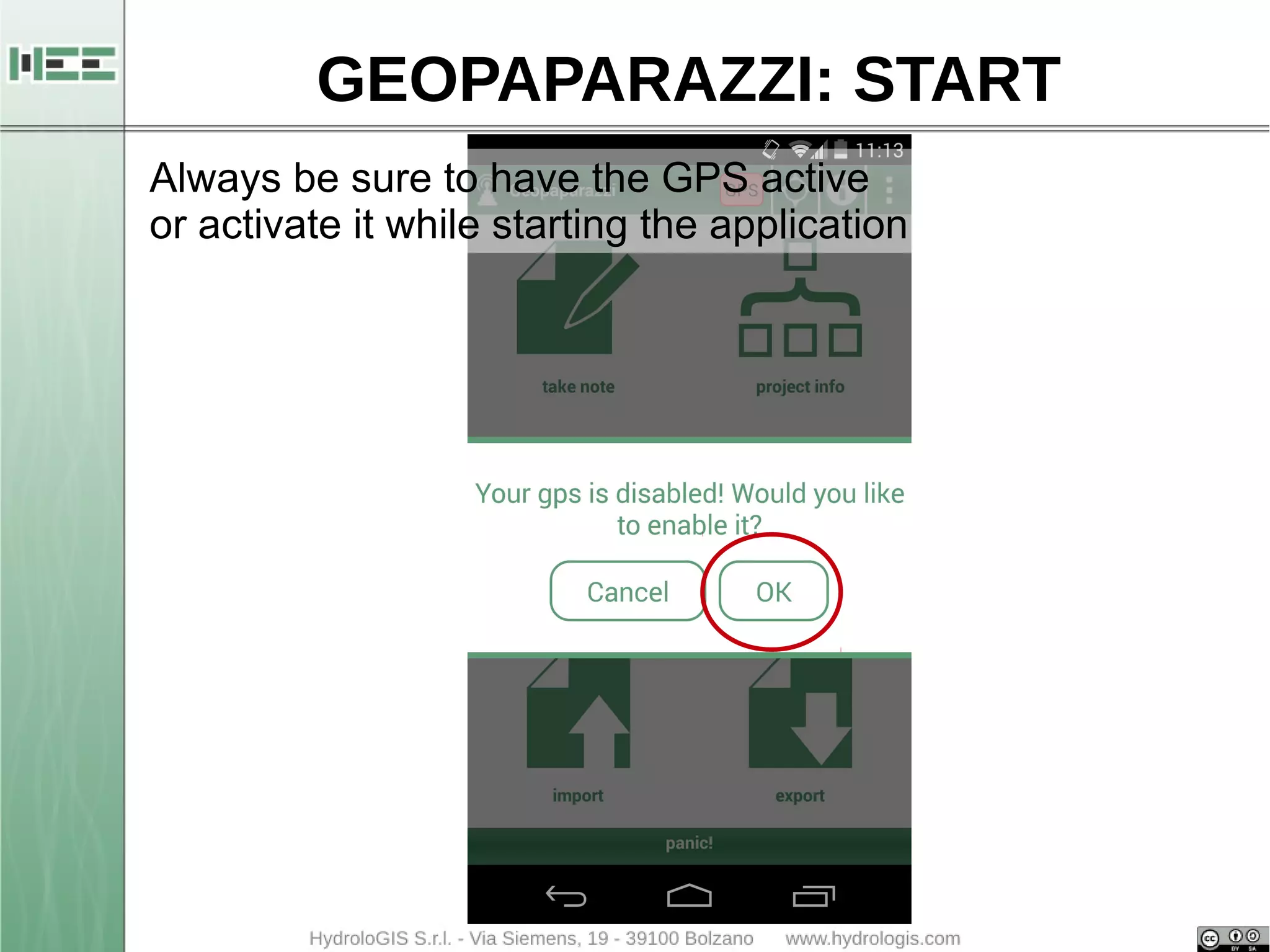
Always be sure to have the GPS active 
or activate it while starting the application
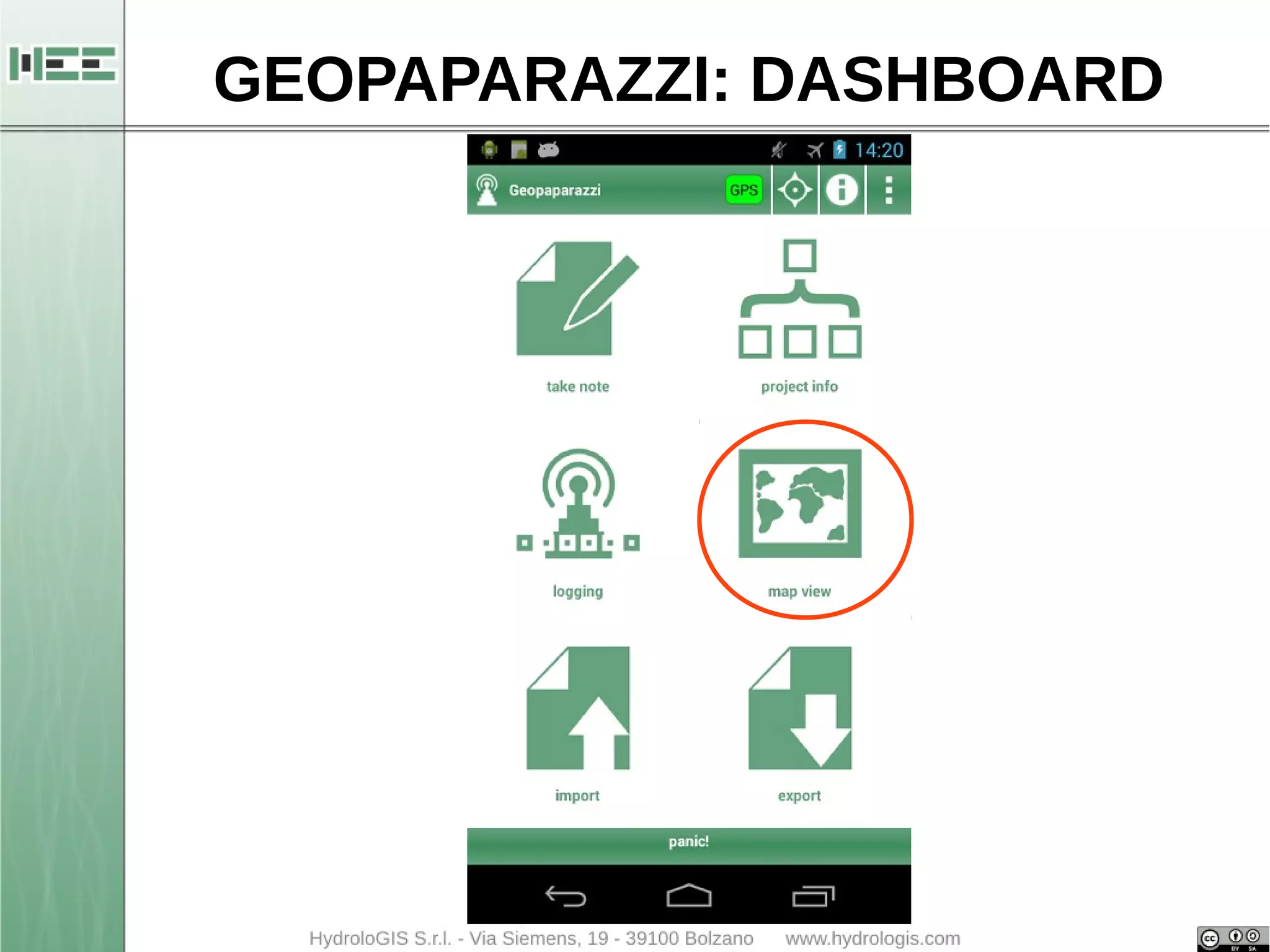
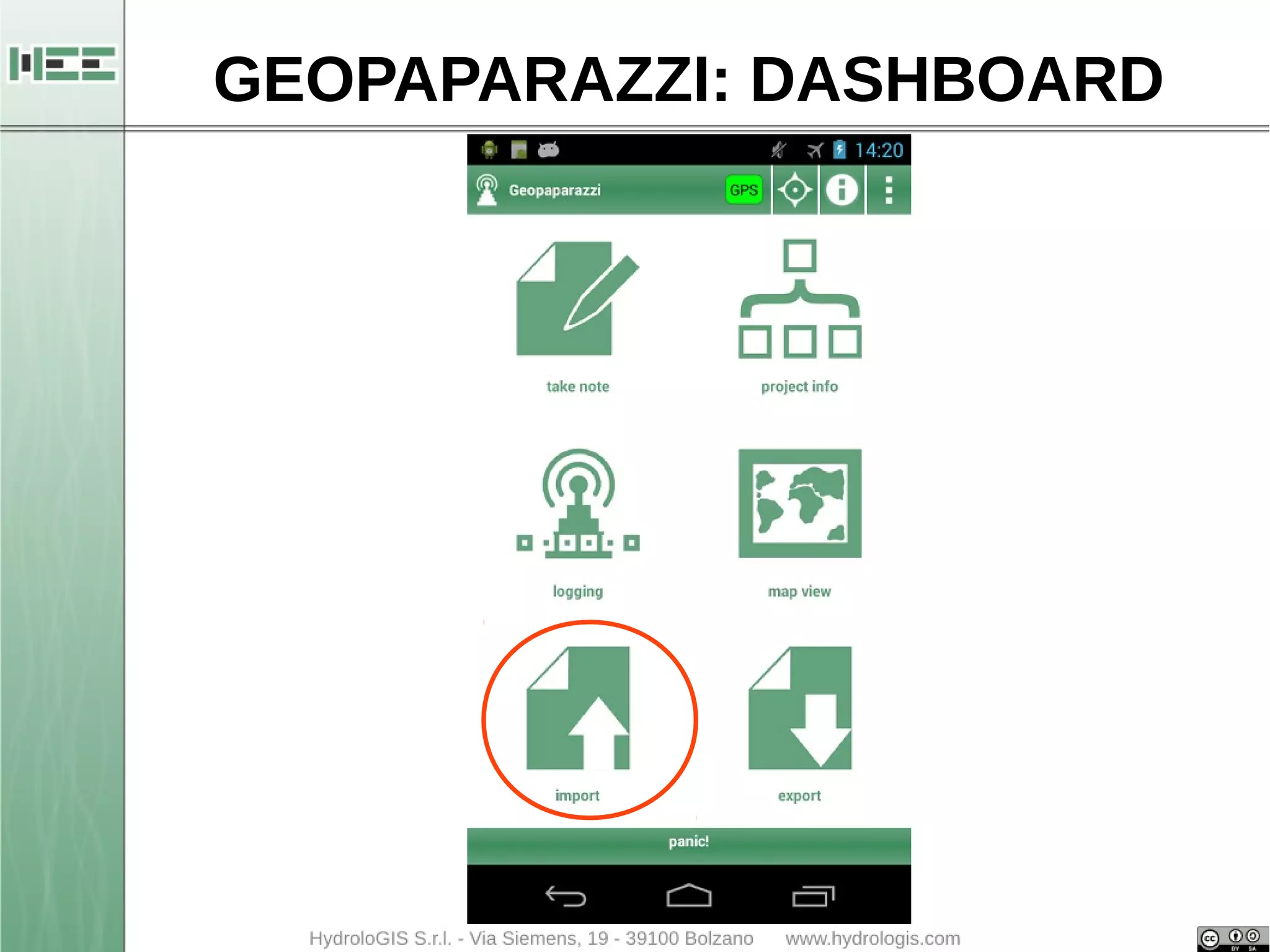
GEOPAPARAZZI: DASHBOARD
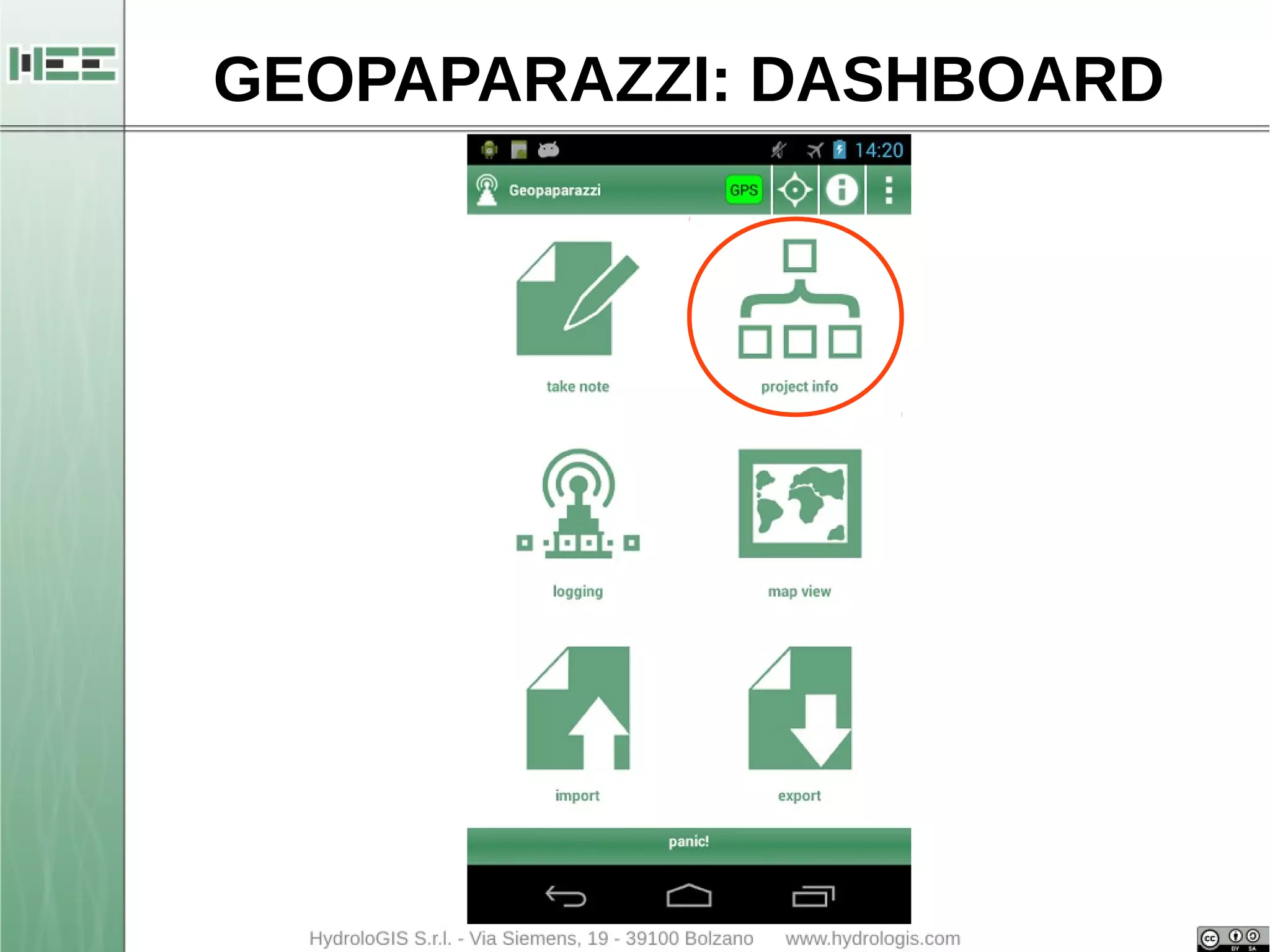
GEOPAPARAZZI: DASHBOARD 
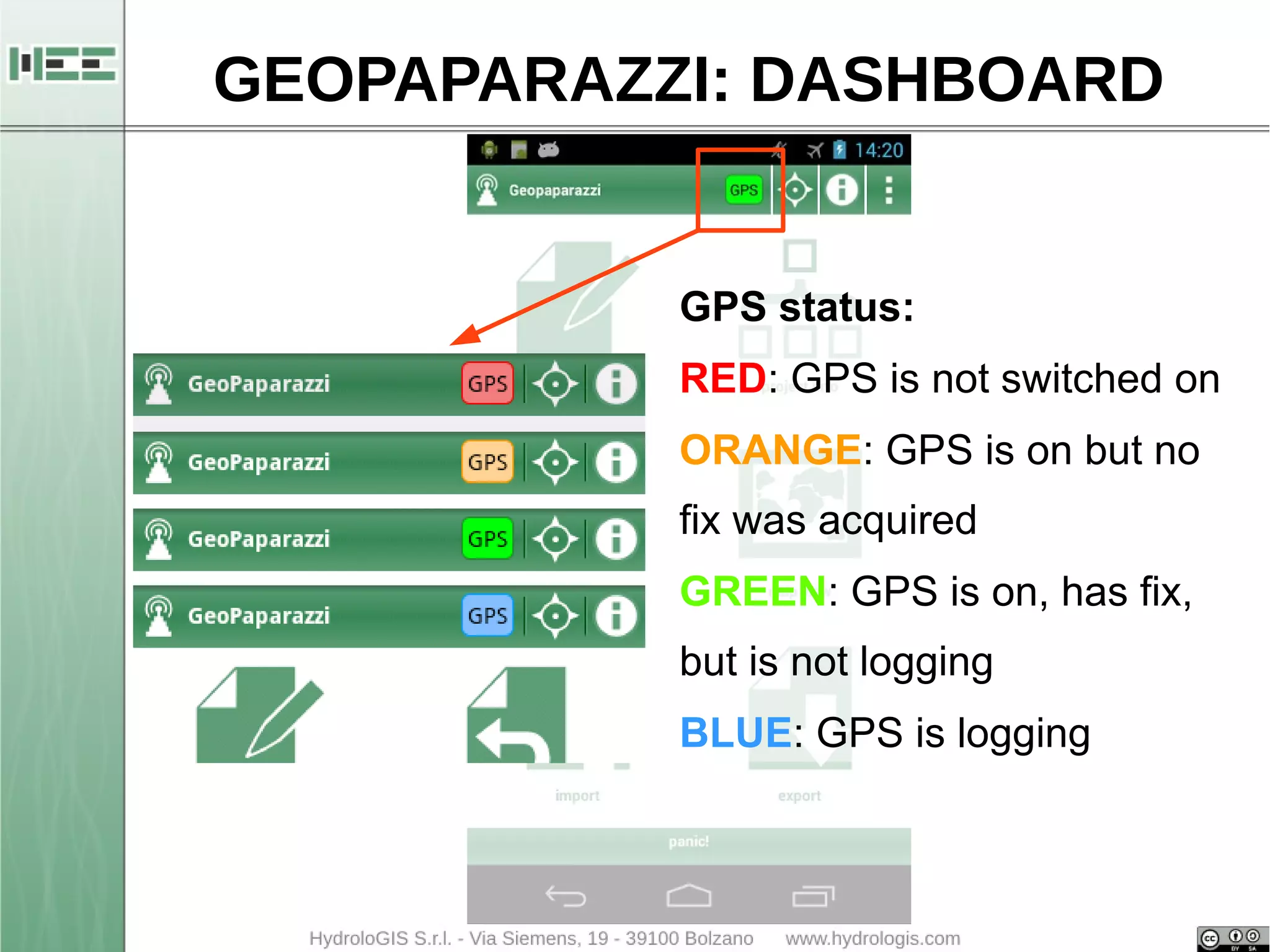
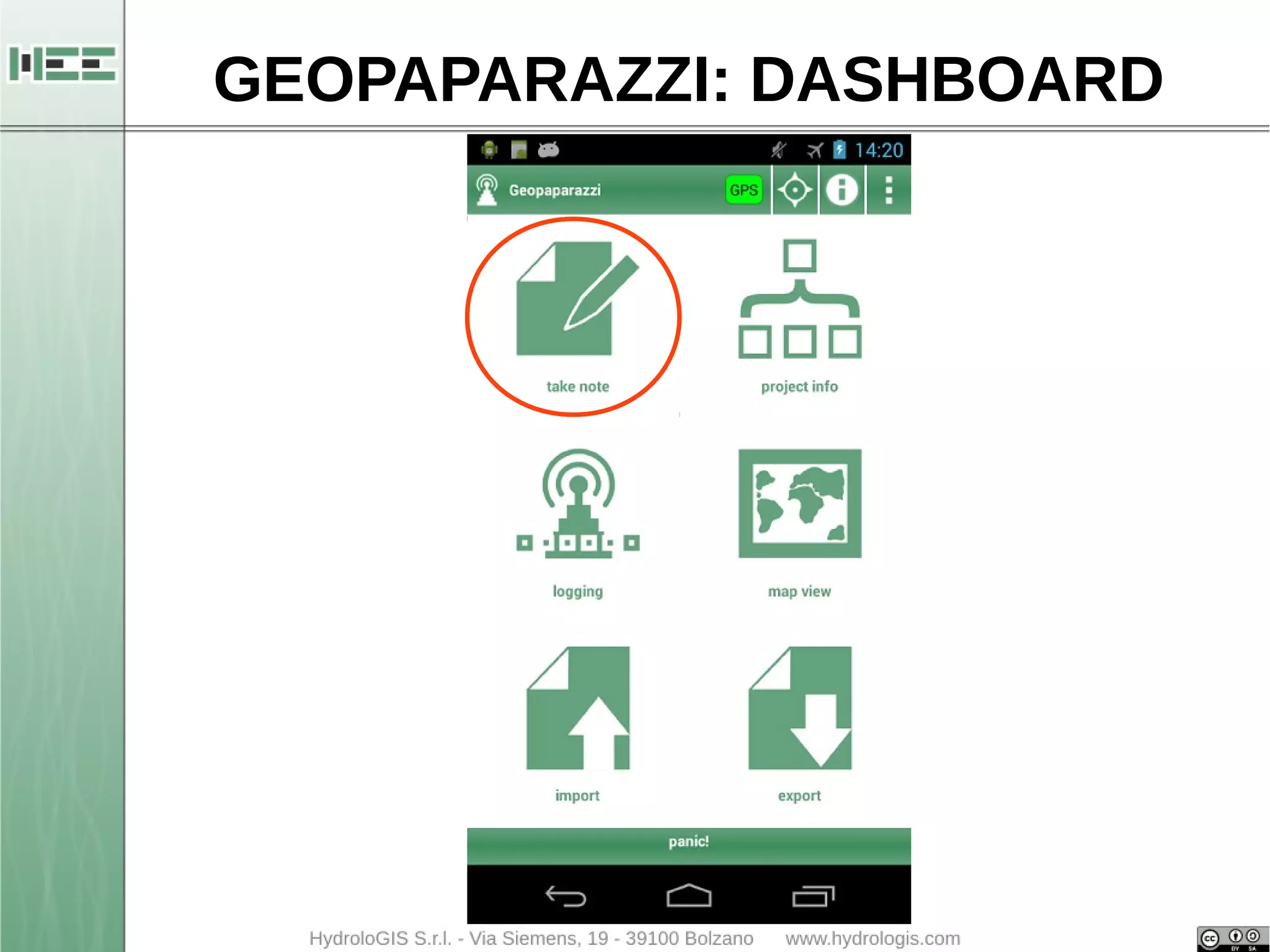
GPS status: 
RED: GPS is not switched on 
ORANGE: GPS is on but no 
fix was acquired 
GREEN: GPS is on, has fix, 
but is not logging 
BLUE: GPS is logging
GEOPAPARAZZI: DASHBOARD 
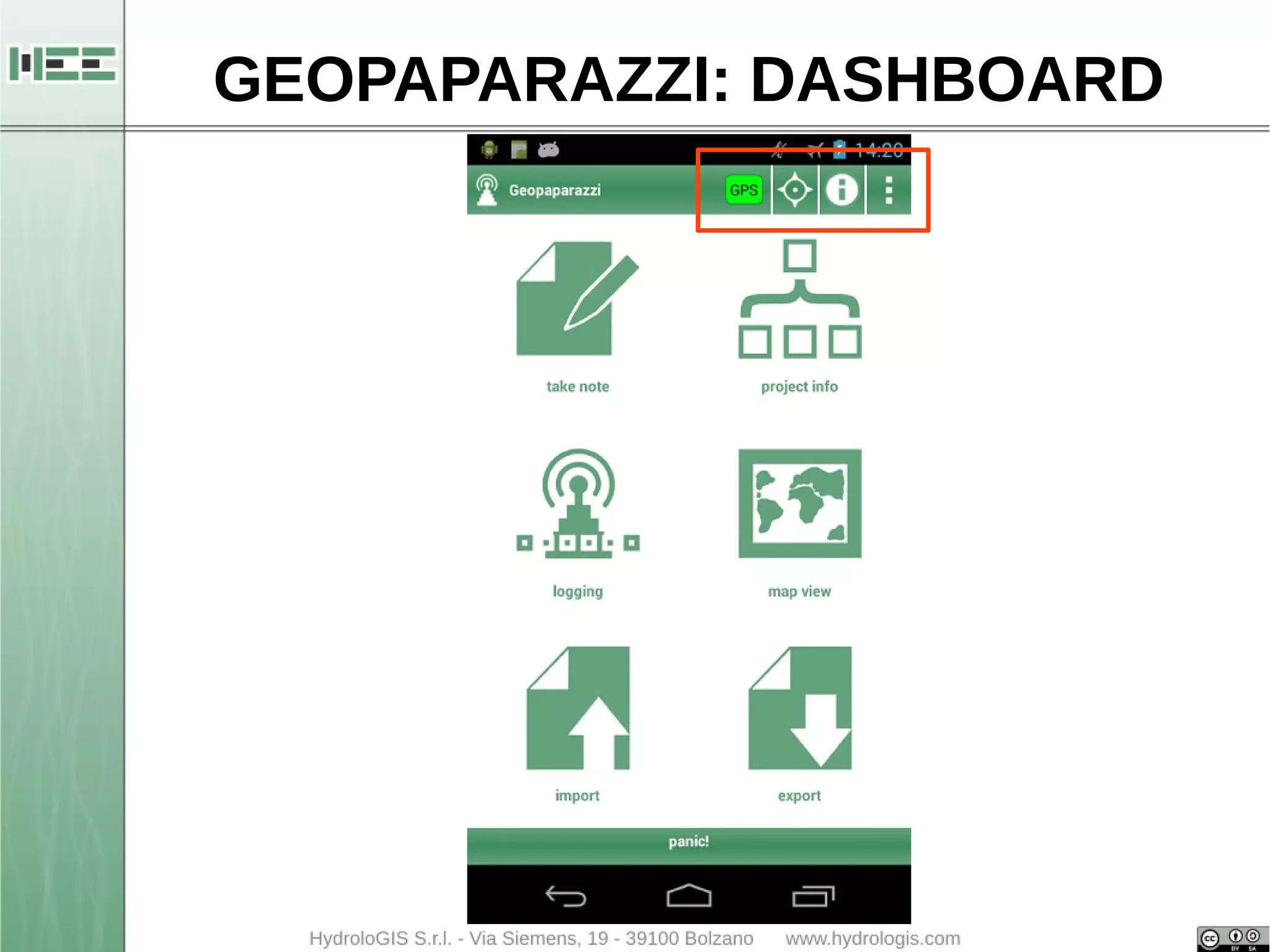
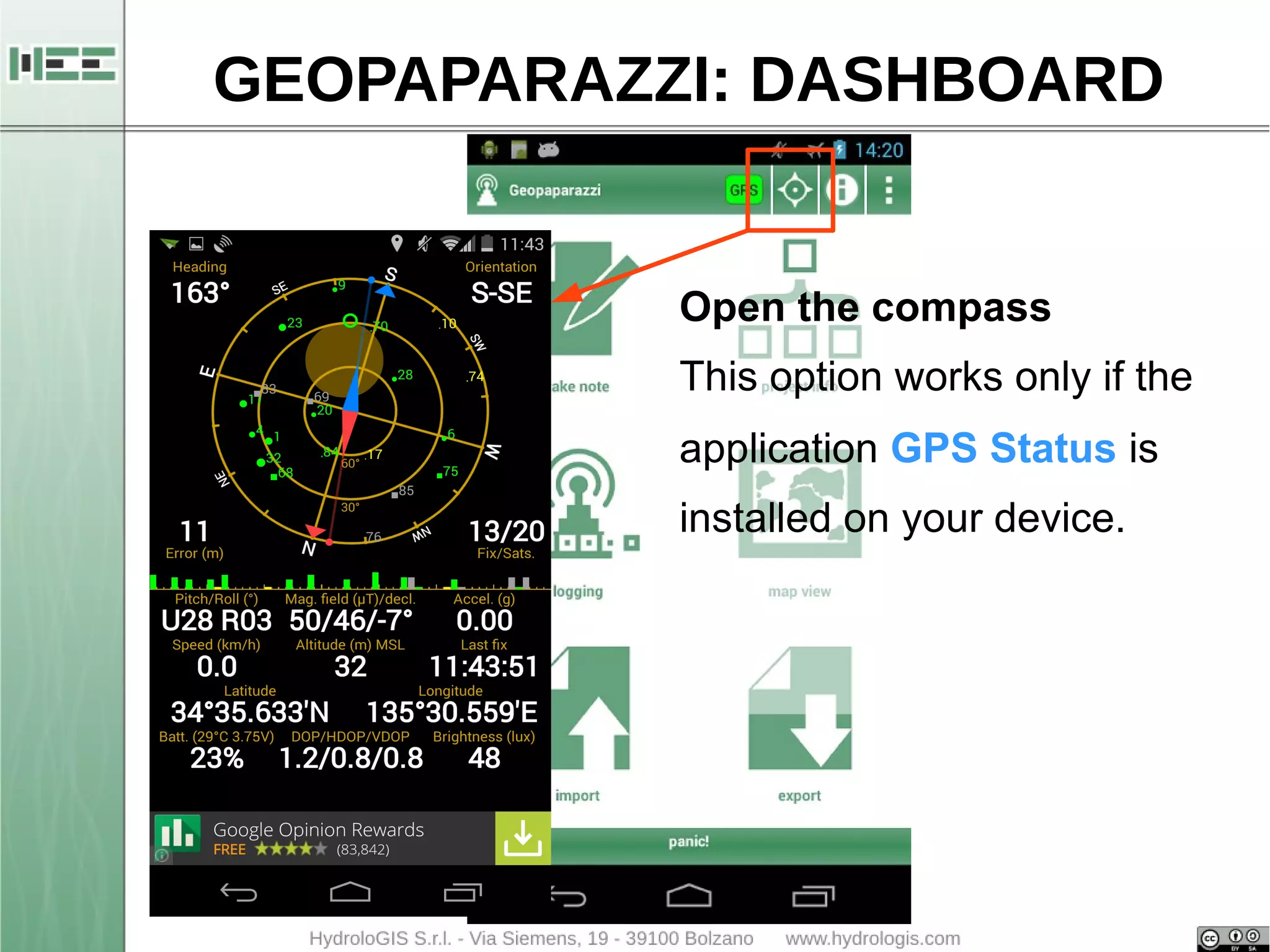
Open the compass 
This option works only if the 
application GPS Status is 
installed on your device.
GEOPAPARAZZI: DASHBOARD 
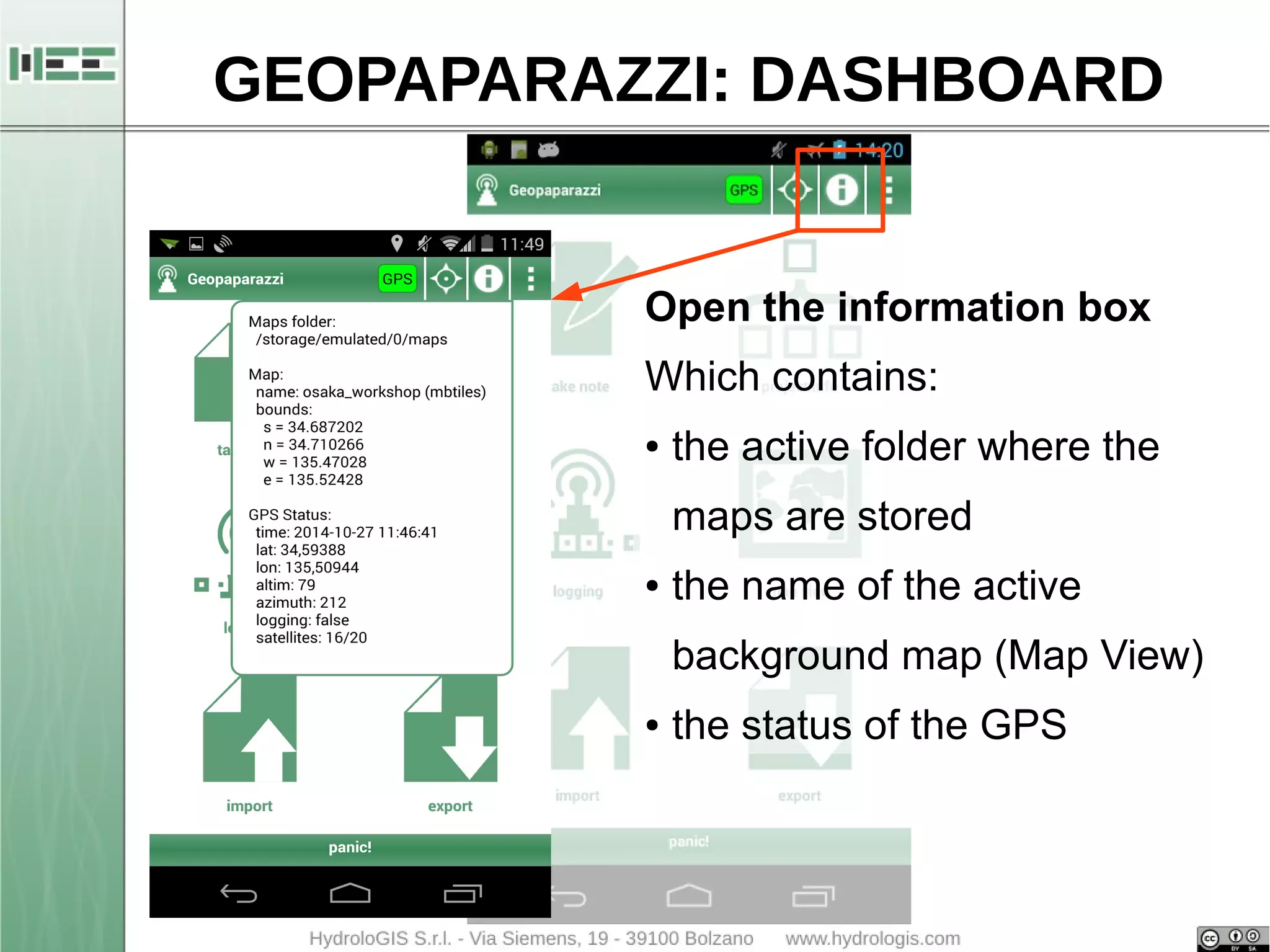
Open the information box 
Which contains: 
● the active folder where the 
maps are stored 
● the name of the active 
background map (Map View) 
● the status of the GPS
GEOPAPARAZZI: DASHBOARD 
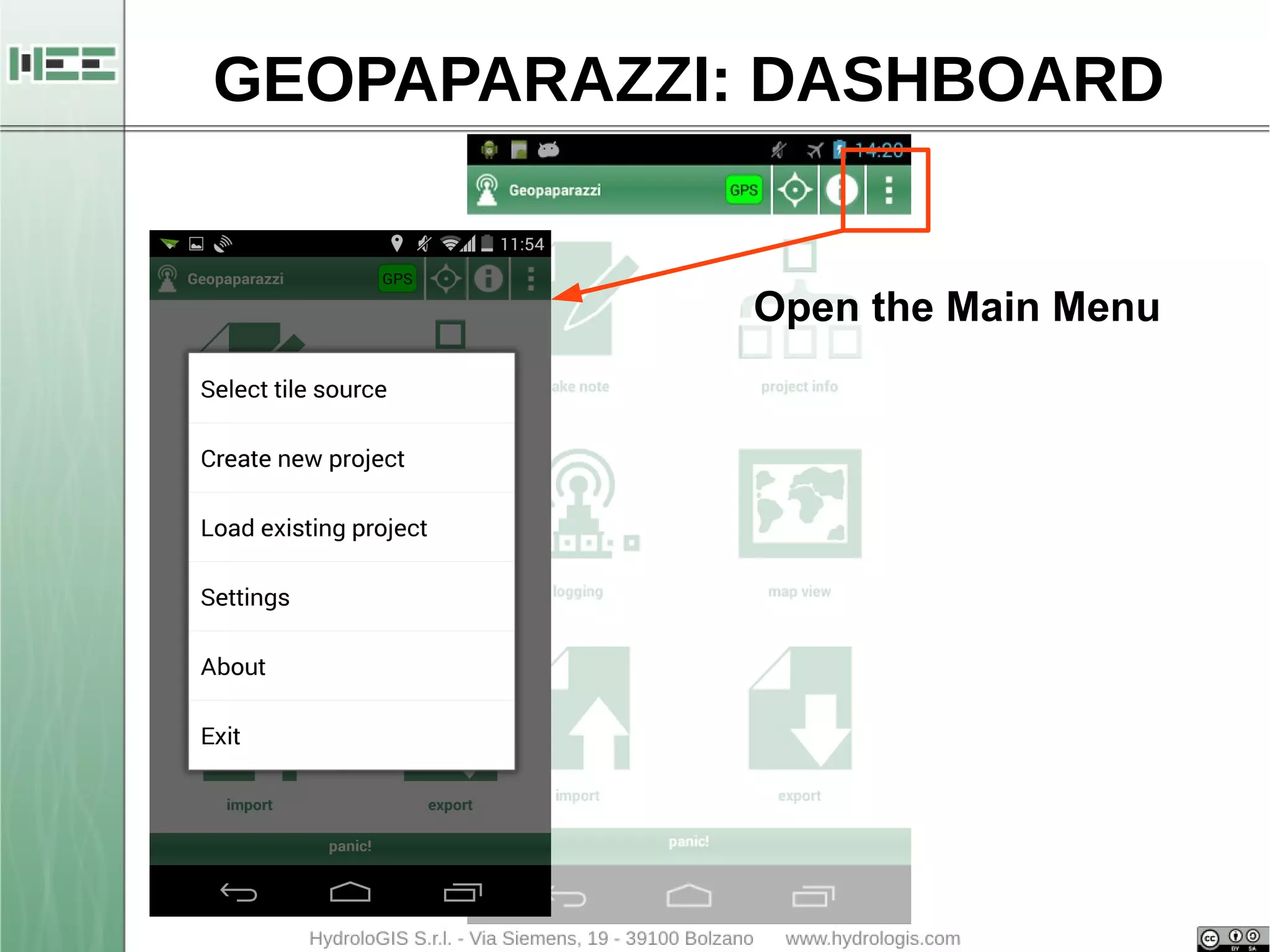
Open the Main Menu
GEOPAPARAZZI: DASHBOARD
GEOPAPARAZZI: SIMPLE NOTES 
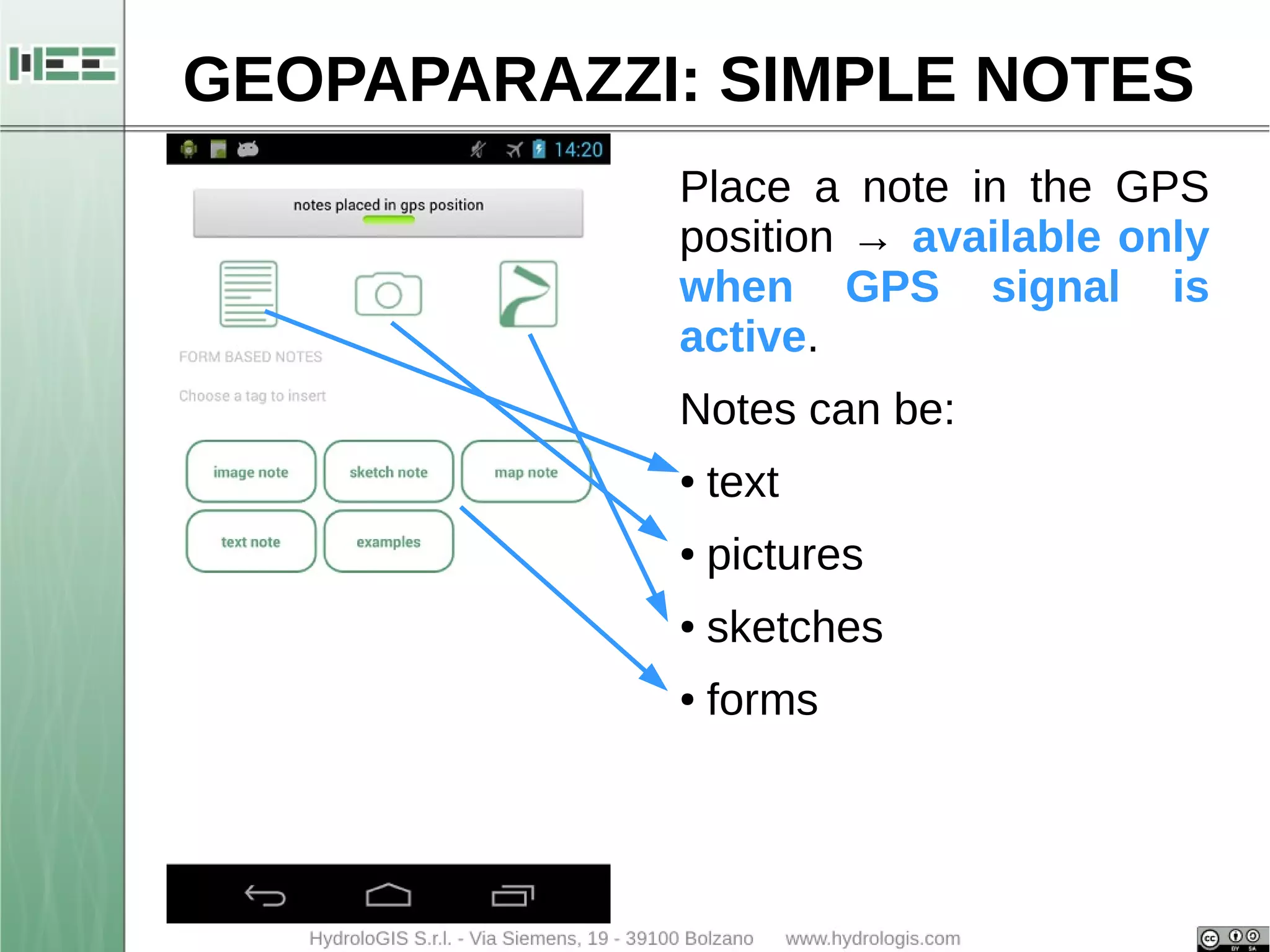
Place a note in the GPS 
position → available only 
when GPS signal is 
active. 
Notes can be: 
● text 
● pictures 
● sketches 
● forms
GEOPAPARAZZI: DASHBOARD
GEOPAPARAZZI: DASHBOARD 
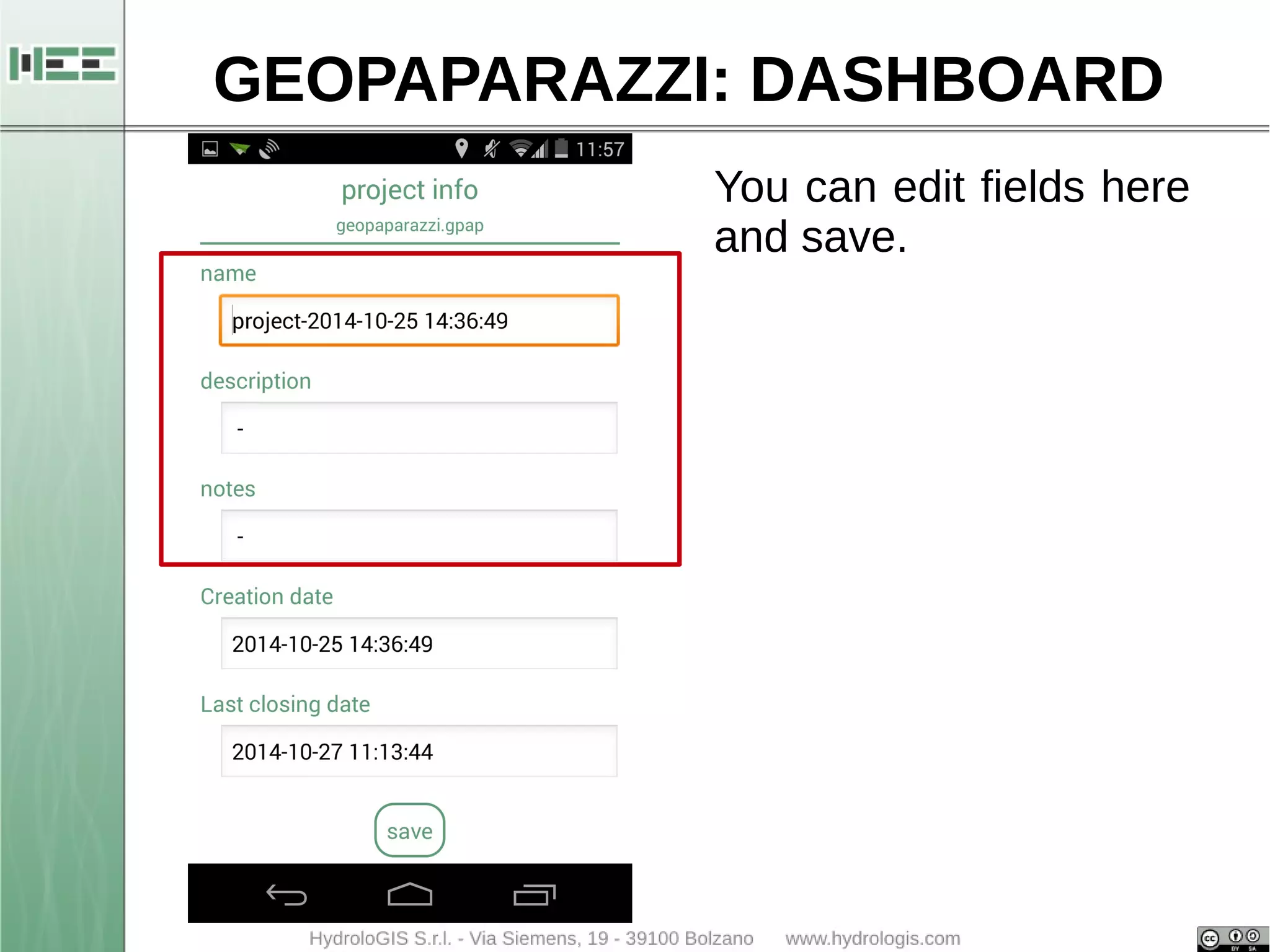
You can edit fields here 
and save.
GEOPAPARAZZI: DASHBOARD
GEOPAPARAZZI: DASHBOARD 
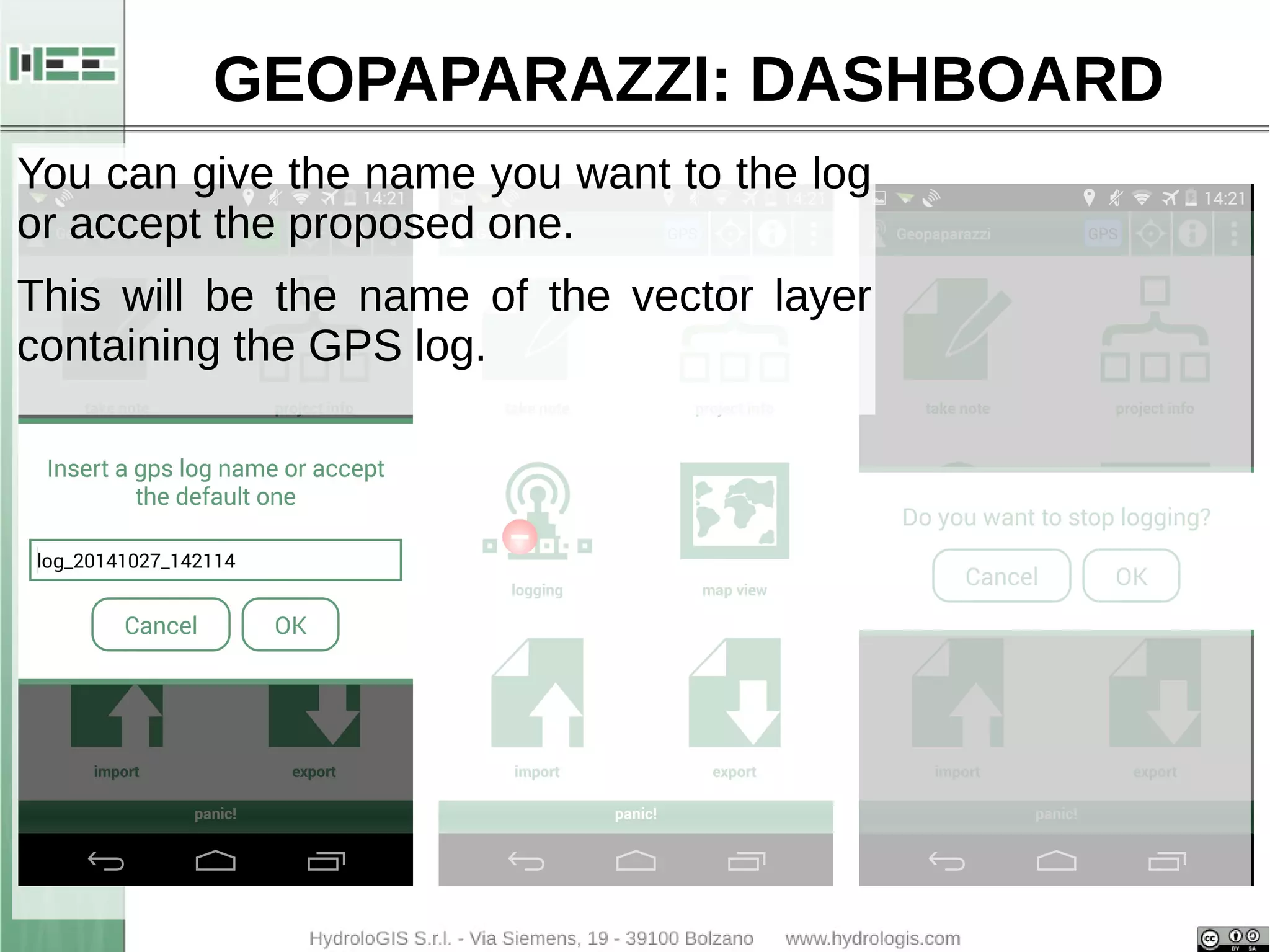
You can give the name you want to the log 
or accept the proposed one. 
This will be the name of the vector layer 
containing the GPS log.
GEOPAPARAZZI: DASHBOARD 
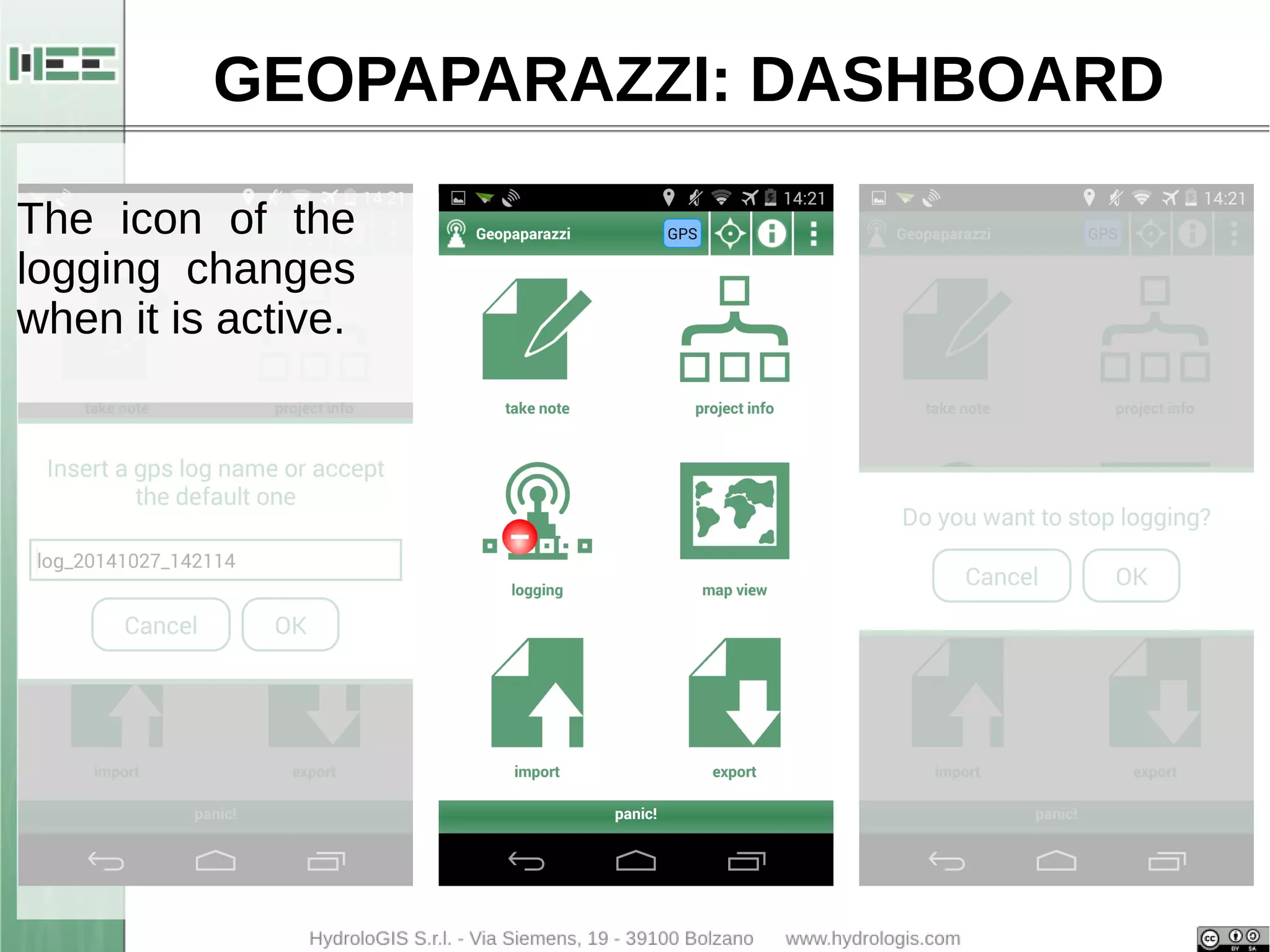
The icon of the 
logging changes 
when it is active.
GEOPAPARAZZI: DASHBOARD 
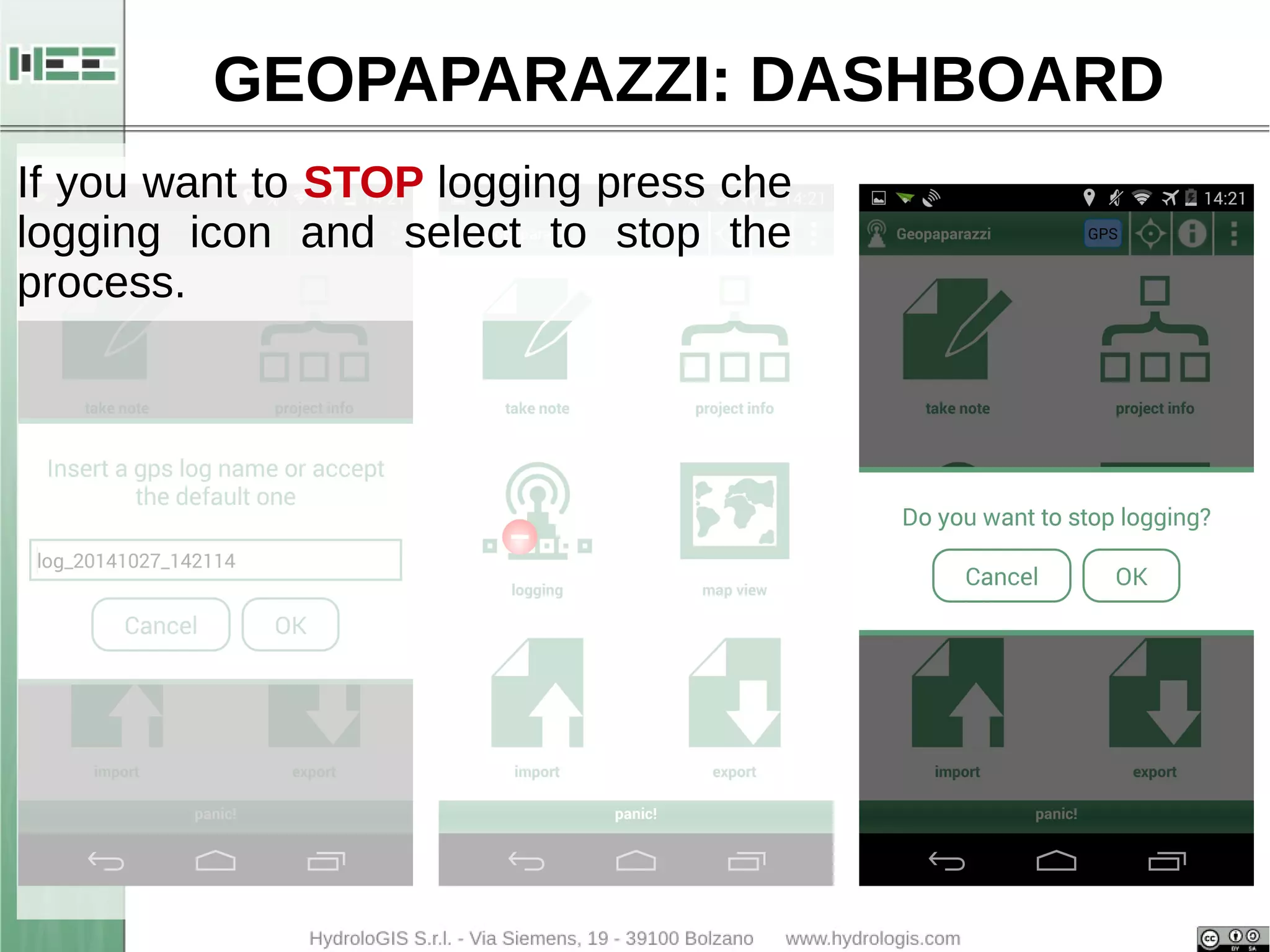
If you want to STOP logging press che 
logging icon and select to stop the 
process.
GEOPAPARAZZI: DASHBOARD
GEOPAPARAZZI: DASHBOARD 
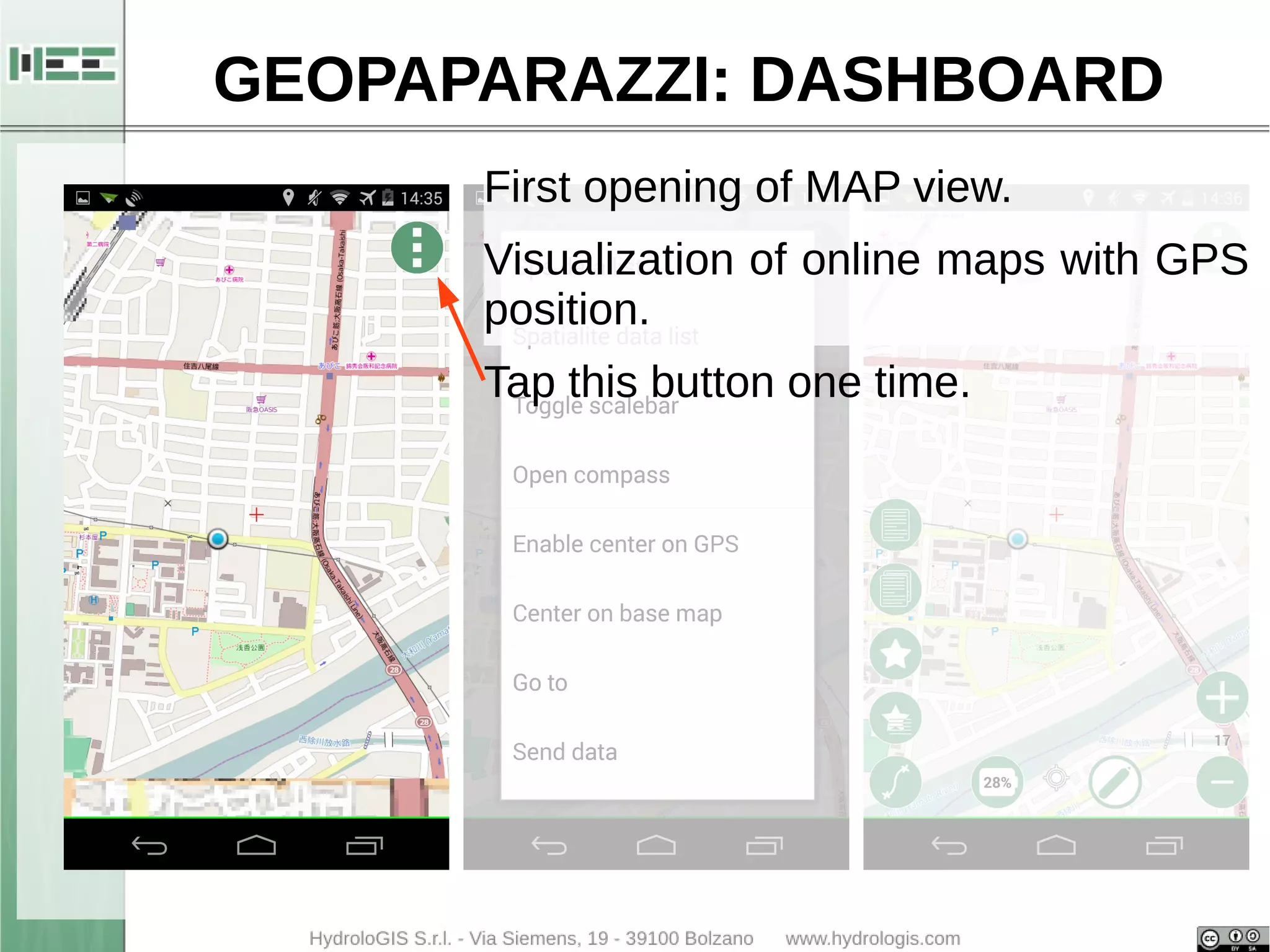
First opening of MAP view. 
Visualization of online maps with GPS 
position. 
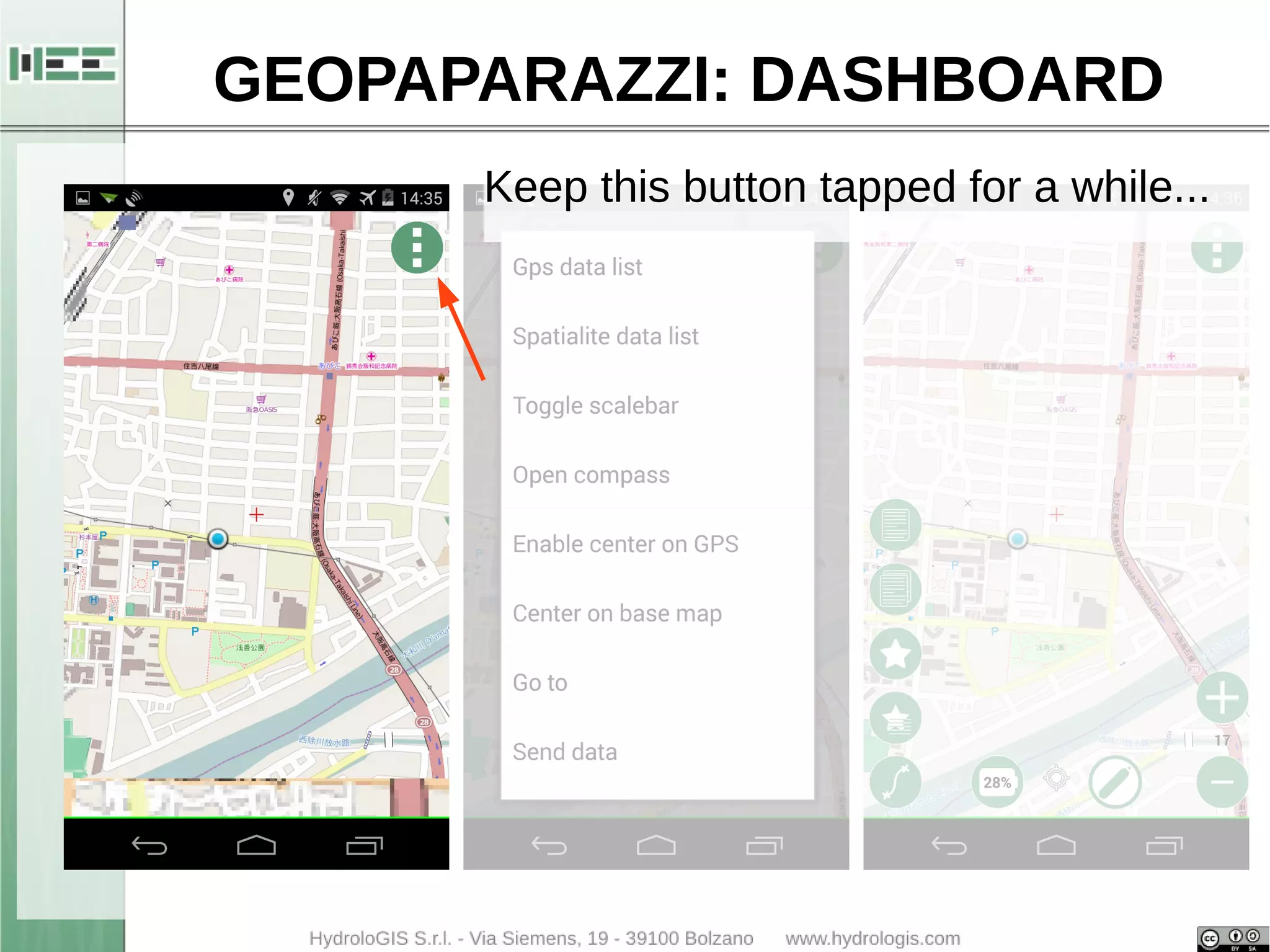
Tap this button one time.
GEOPAPARAZZI: DASHBOARD 
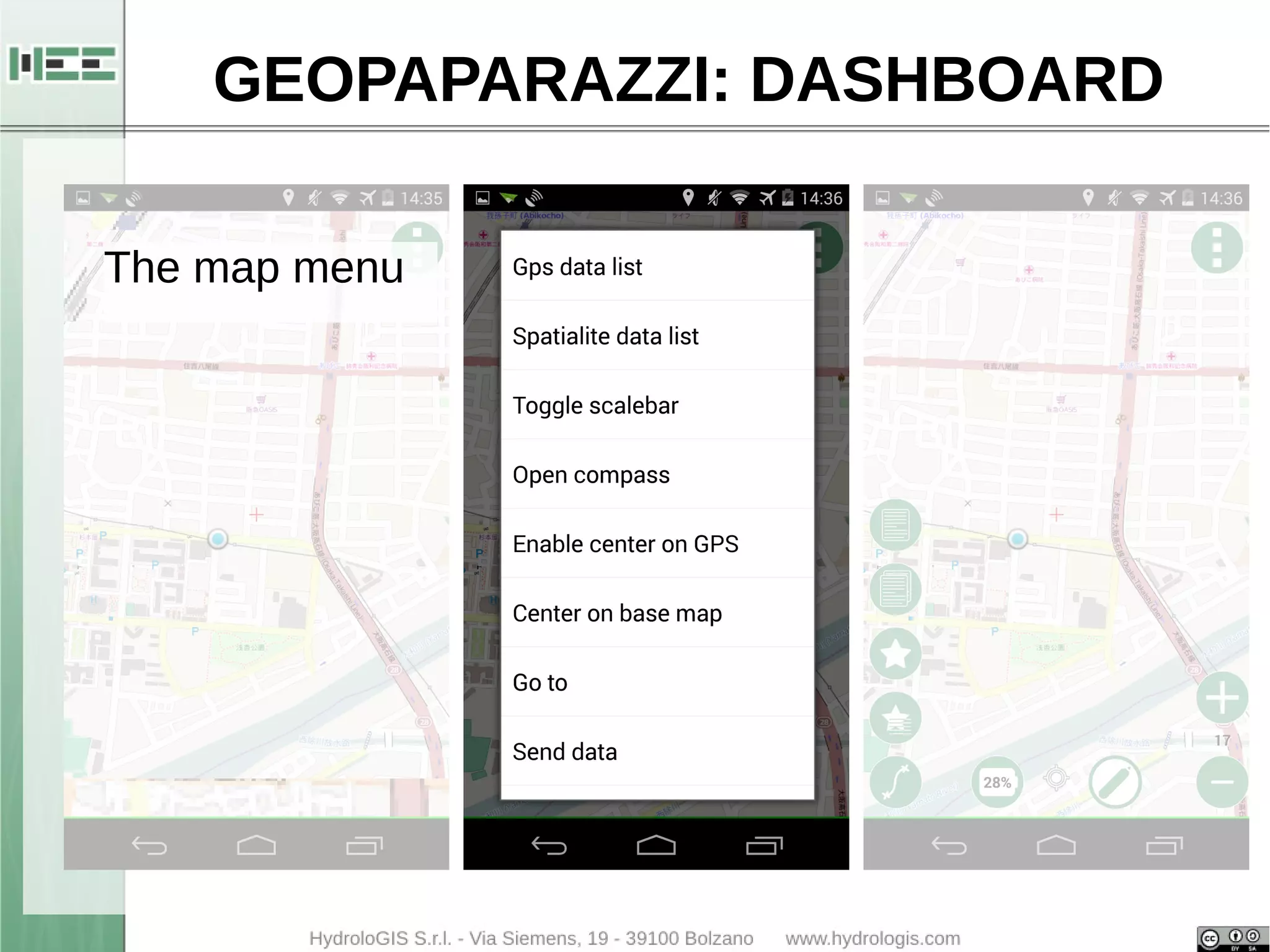
The map menu
GEOPAPARAZZI: DASHBOARD 
Keep this button tapped for a while...
GEOPAPARAZZI: DASHBOARD 
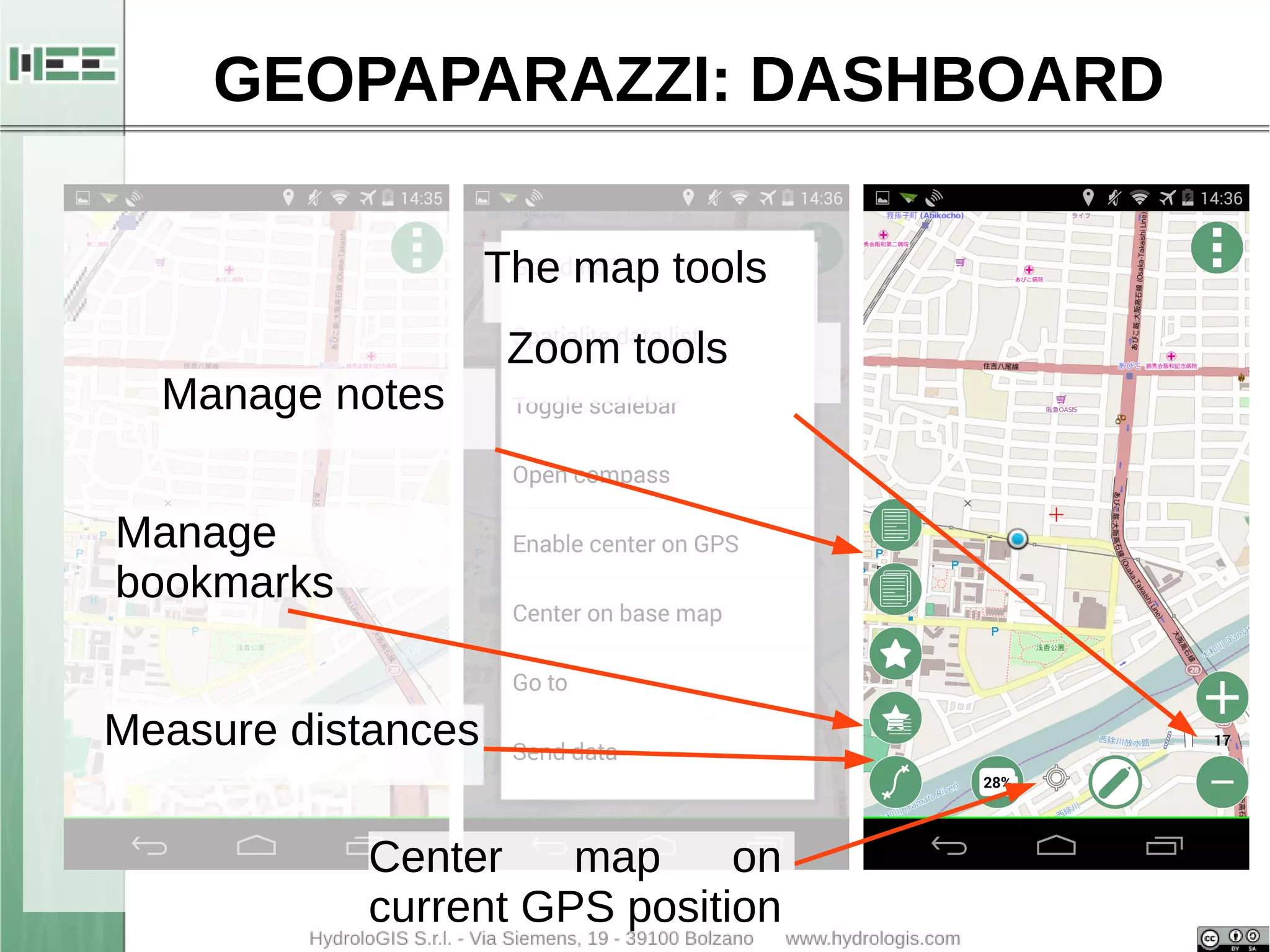
The map tools 
Manage notes 
Center map on 
current GPS position 
Manage 
bookmarks 
Zoom tools 
Measure distances
GEOPAPARAZZI: SIMPLE NOTES 
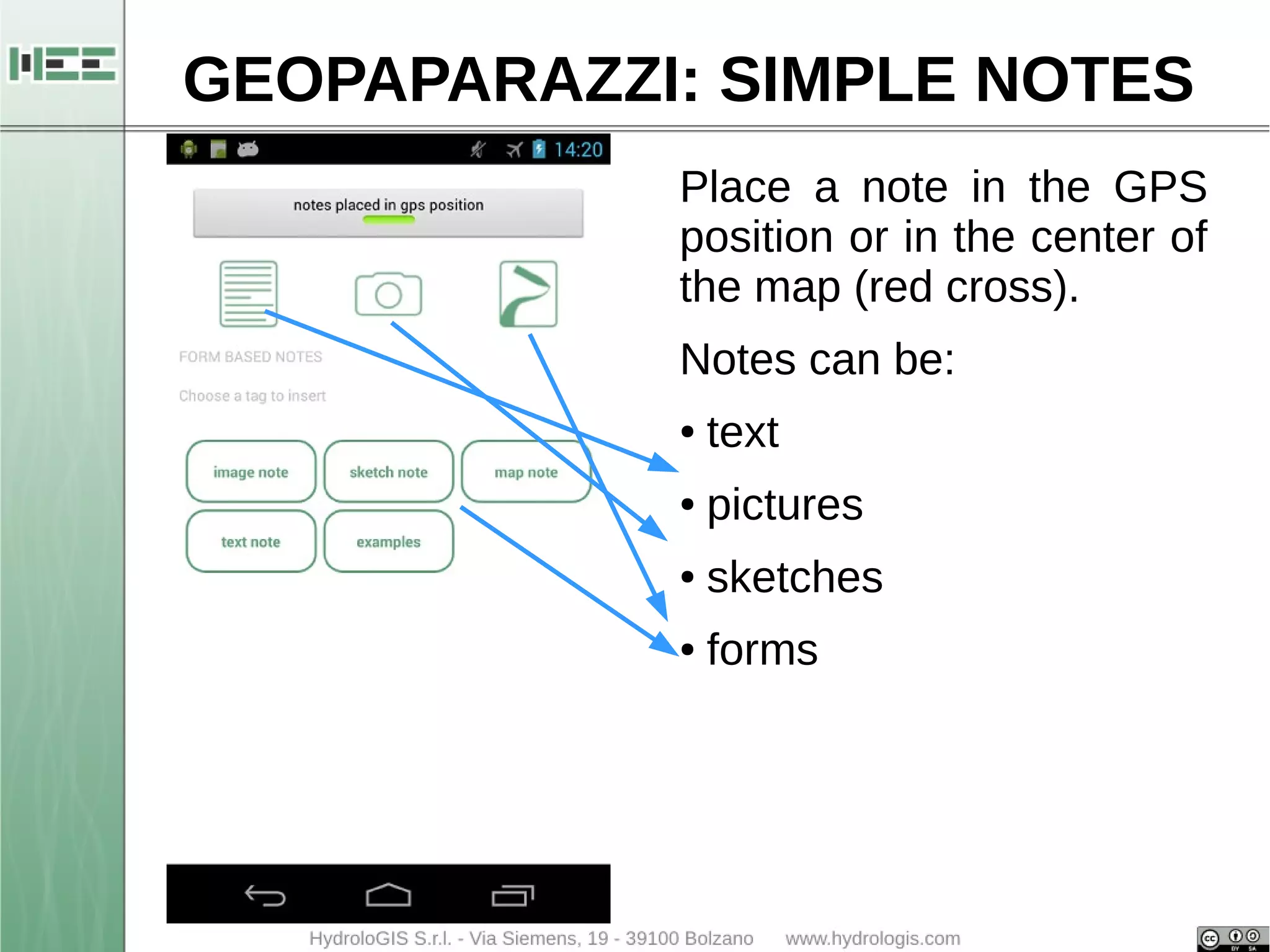
Place a note in the GPS 
position or in the center of 
the map (red cross). 
Notes can be: 
● text 
● pictures 
● sketches 
● forms
GEOPAPARAZZI: DASHBOARD
GEOPAPARAZZI: DASHBOARD 
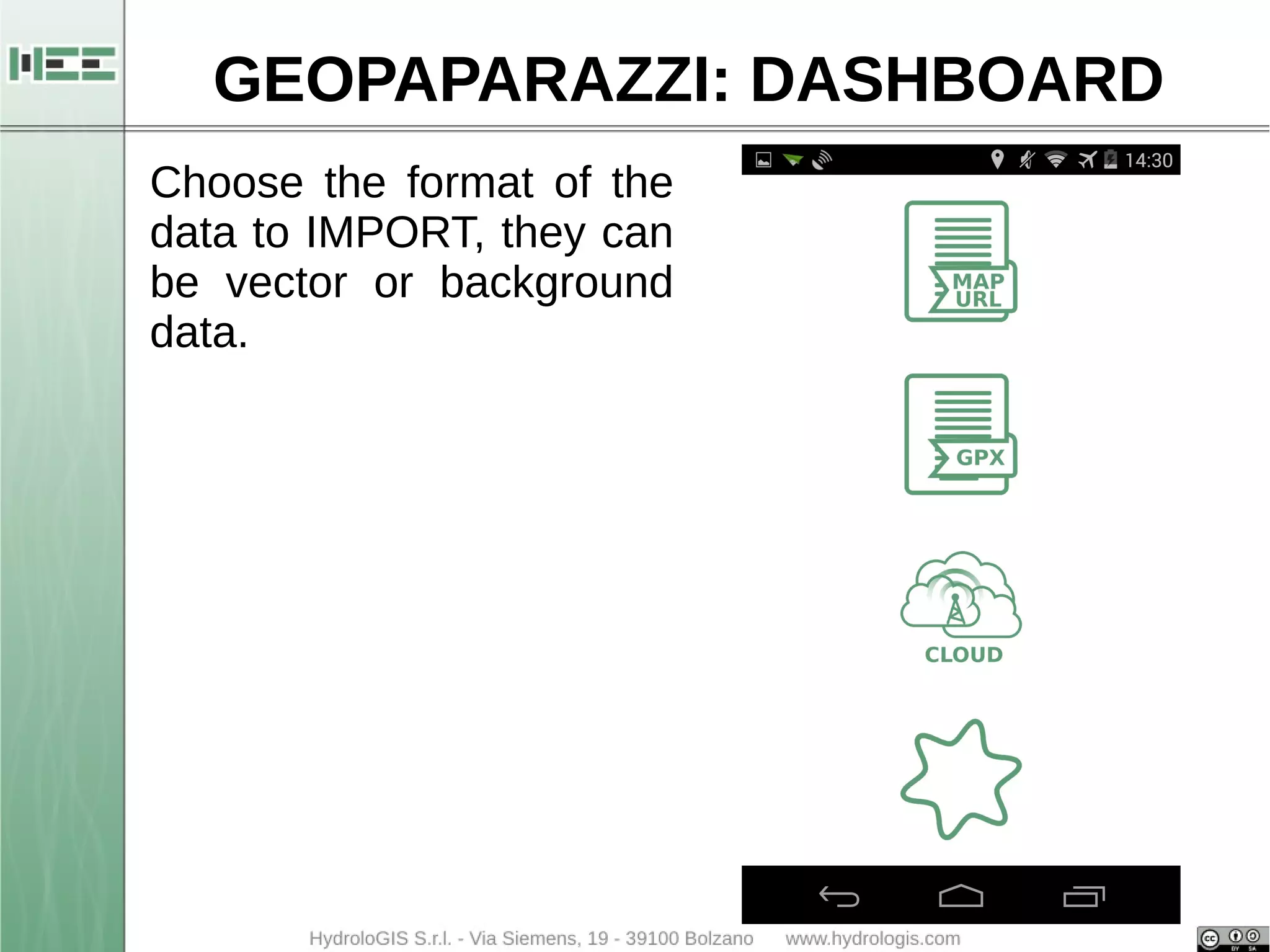
Choose the format of the 
data to IMPORT, they can 
be vector or background 
data.
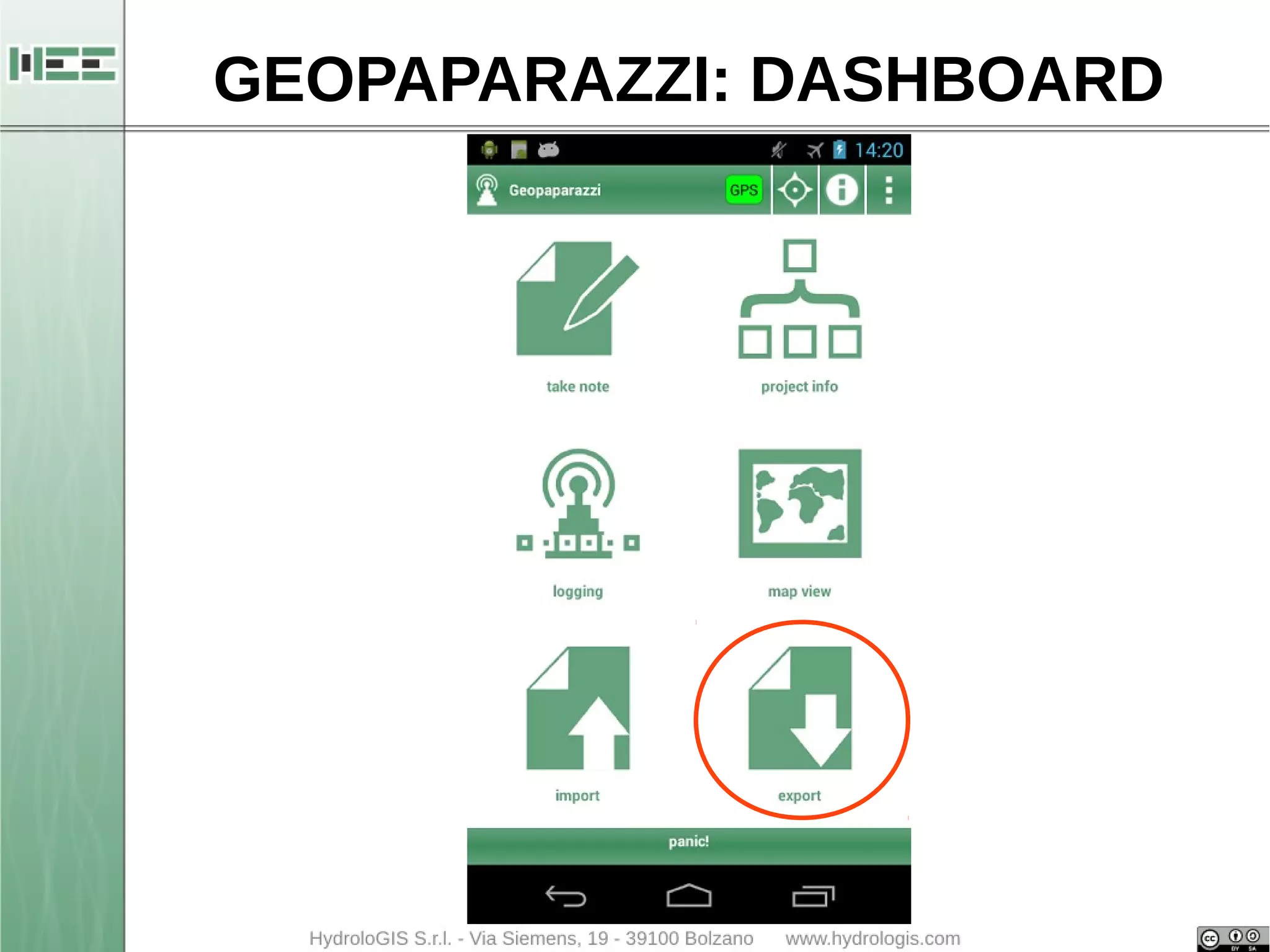
GEOPAPARAZZI: DASHBOARD
GEOPAPARAZZI: DASHBOARD 
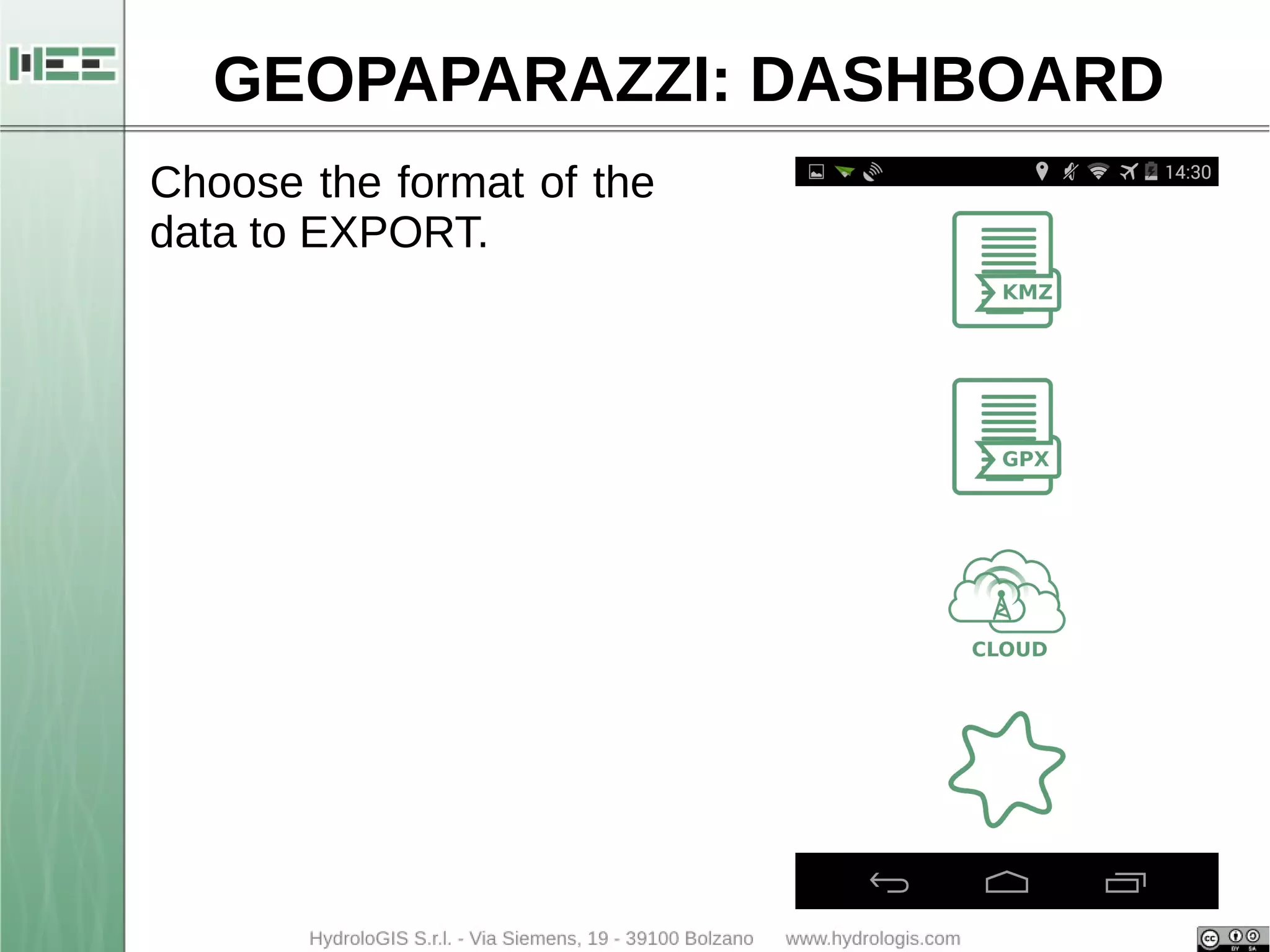
Choose the format of the 
data to EXPORT.
STAGE: INSTALLATION 
● Copy the zip file in a folder 
– stage_0.7_win64.zip for PC 64 bits 
– stage_0.7_win32.zip for PC 32 bits 
● Unzip the file in the proposed folder 
– stage_0.7_win64 
● Enter the unzipped folder 
● Run Stage application 
– stage.exe
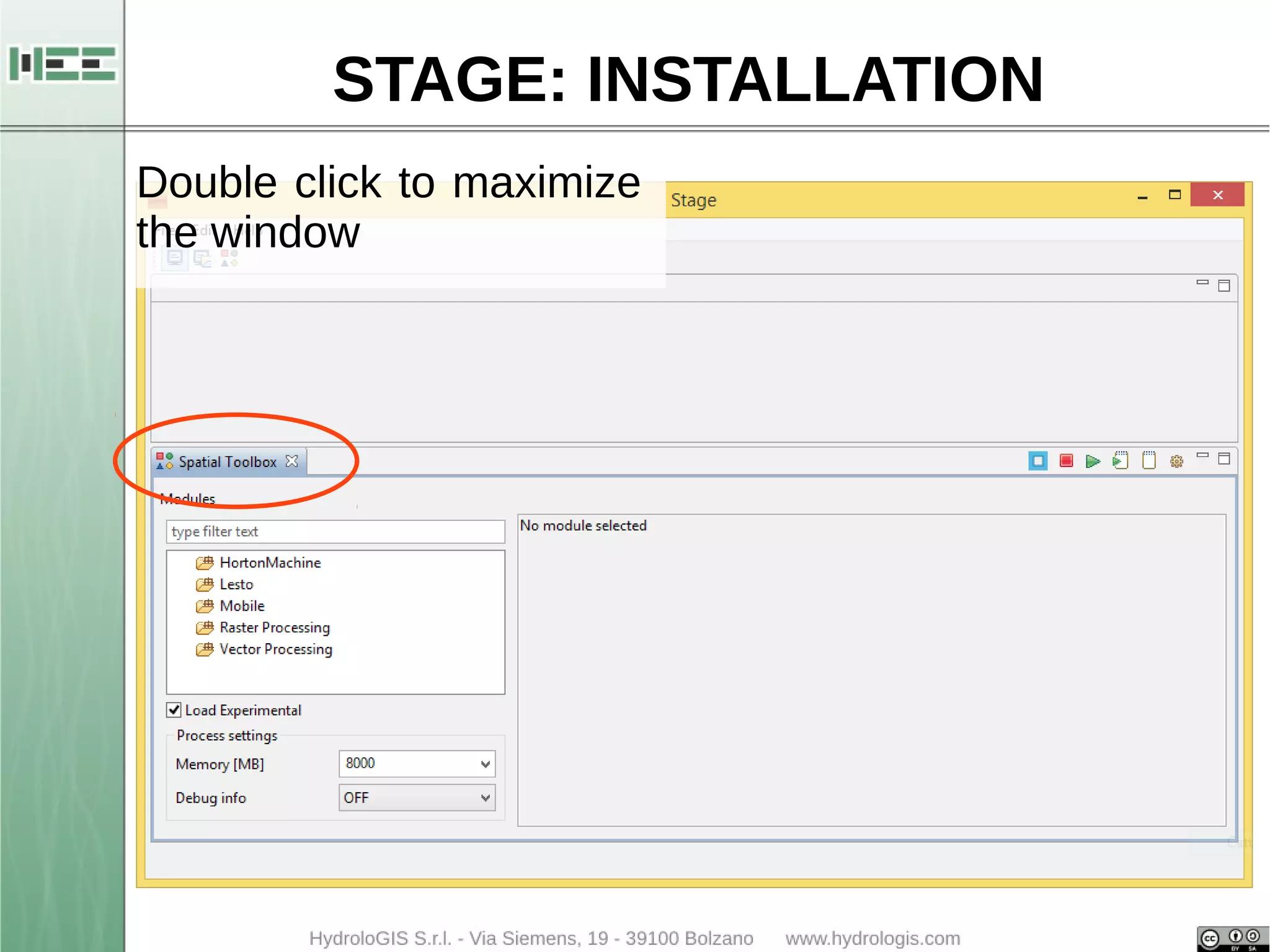
STAGE: INSTALLATION 
Double click to maximize 
the window
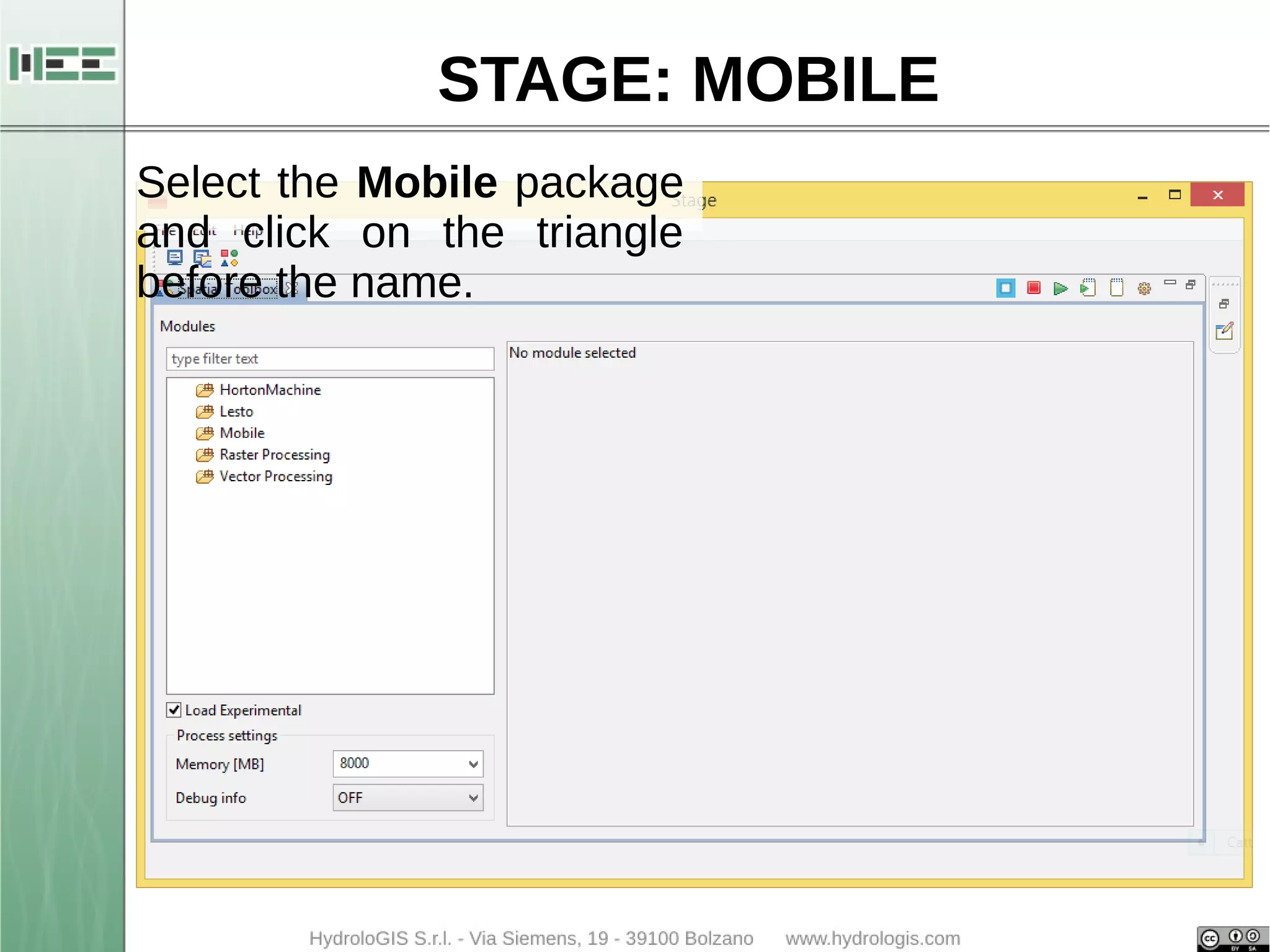
STAGE: MOBILE 
Select the Mobile package 
and click on the triangle 
before the name.
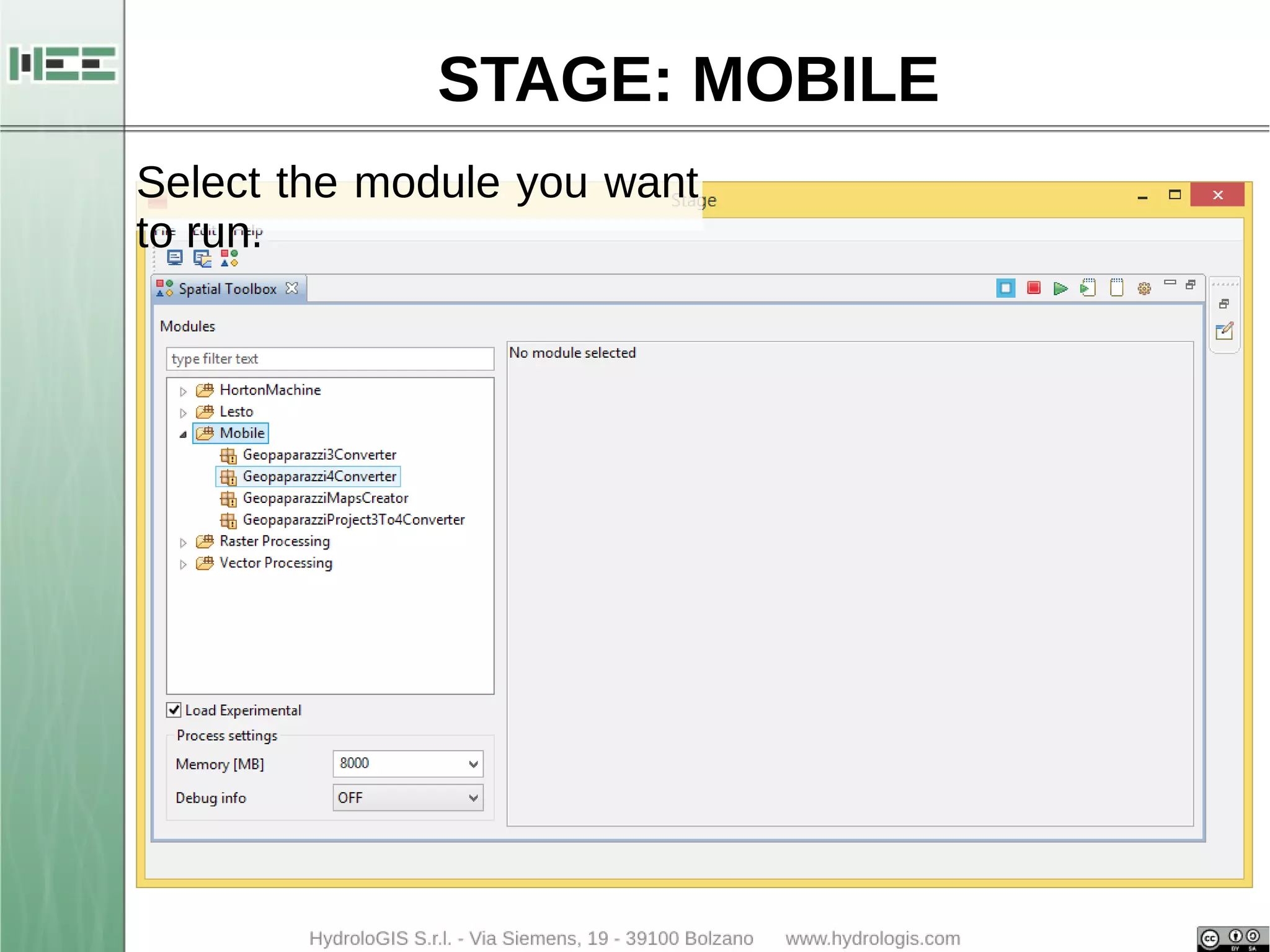
STAGE: MOBILE 
Select the module you want 
to run.
STAGE: MOBILE 
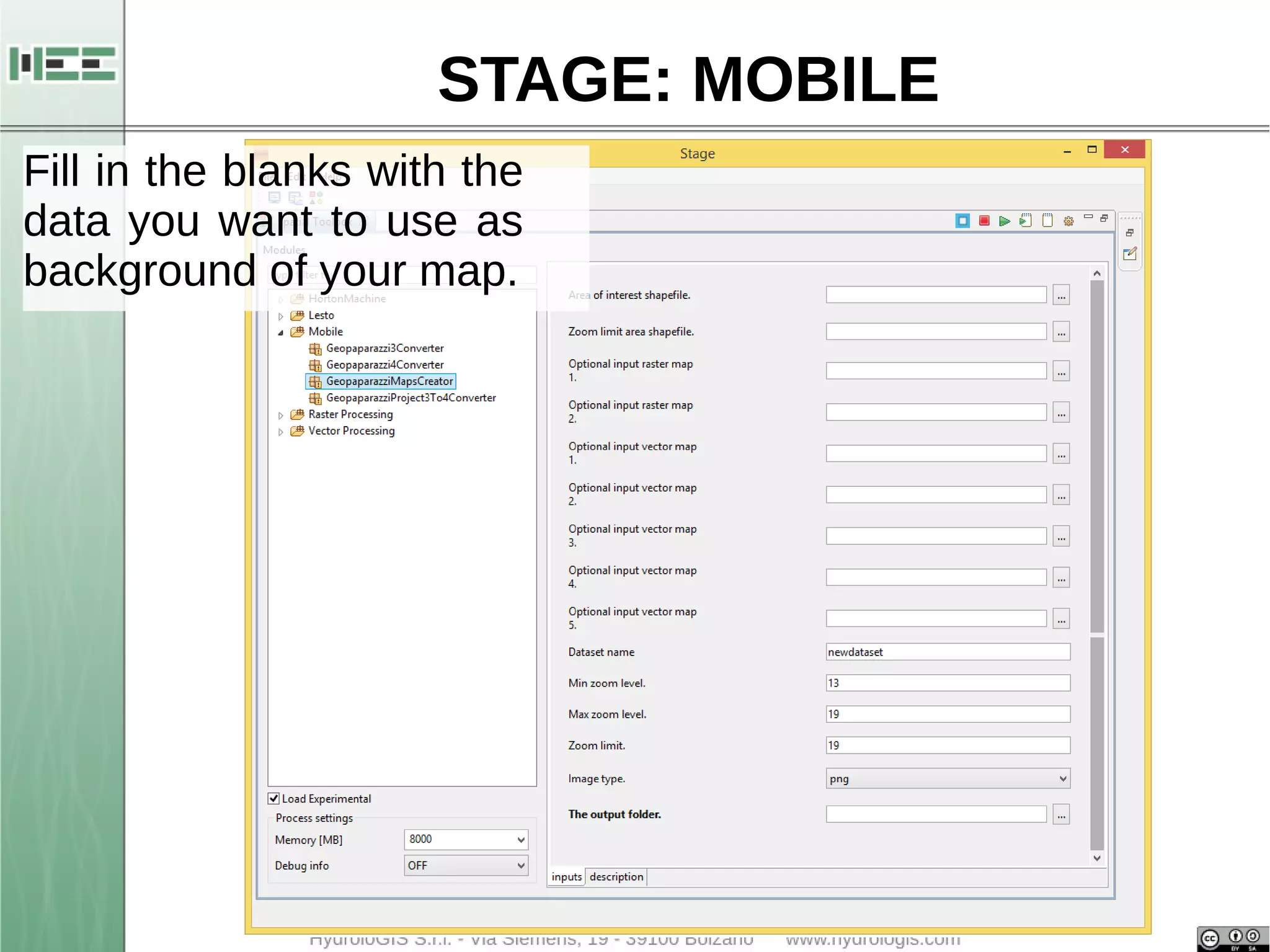
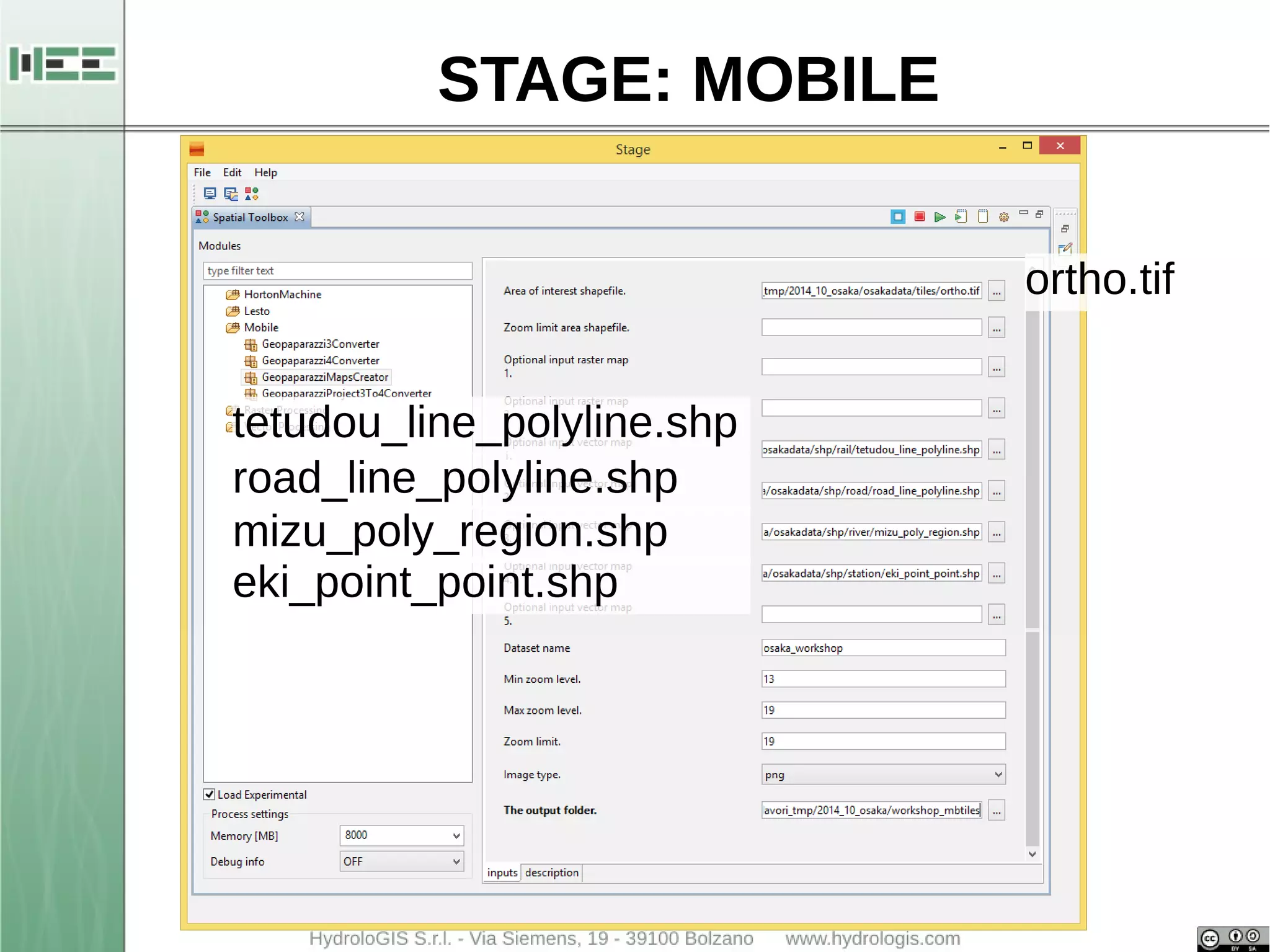
Fill in the blanks with the 
data you want to use as 
background of your map.
STAGE: MOBILE 
ortho.tif 
tetudou_line_polyline.shp 
road_line_polyline.shp 
mizu_poly_region.shp 
eki_point_point.shp
STAGE: MOBILE 
● copy the file you created on the Android device in the 
folder called map 
● restart Geopaparazzi (close and restart!!)
GEOPAPARAZZI: IMPORT MBTILES 
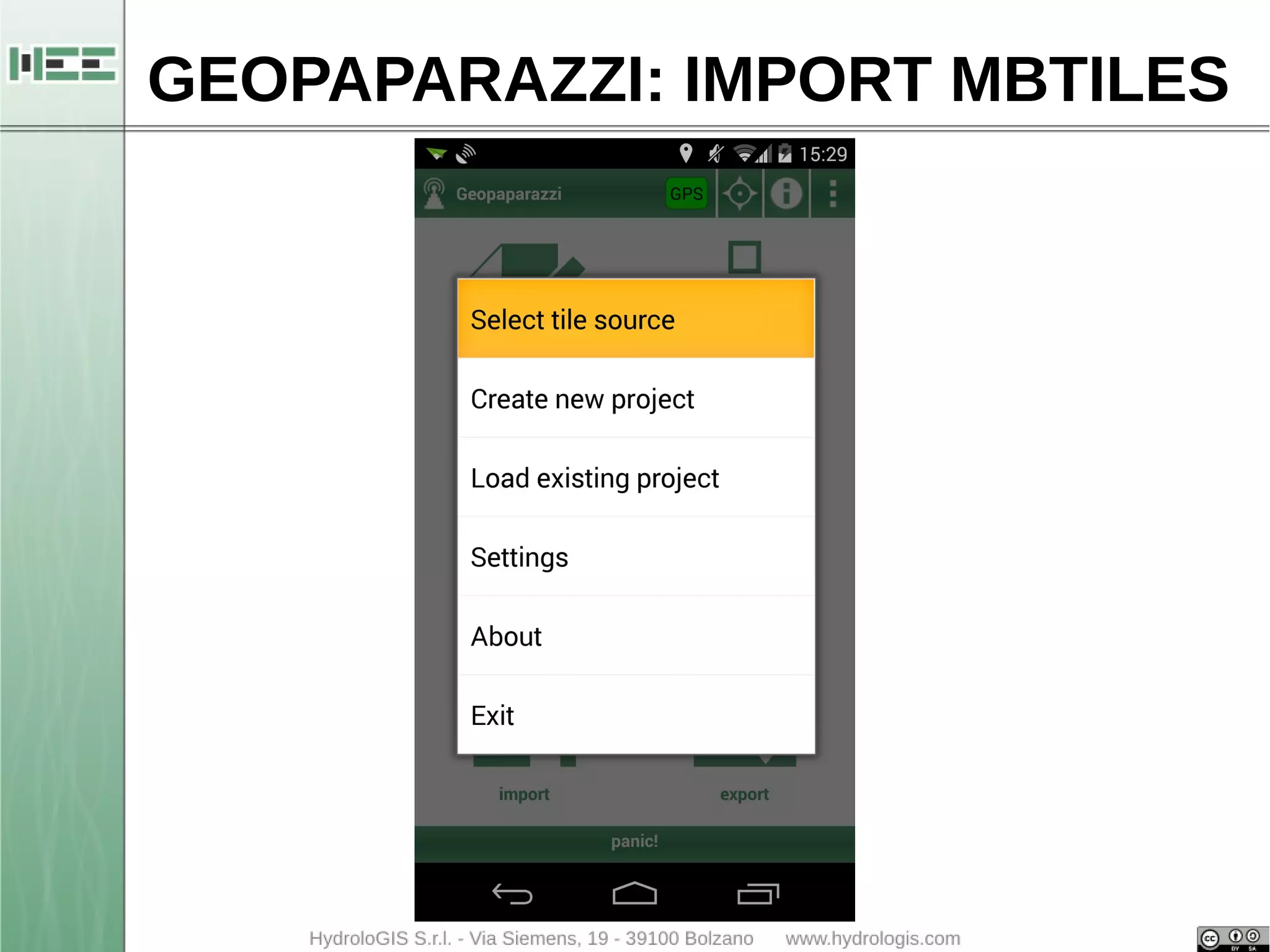
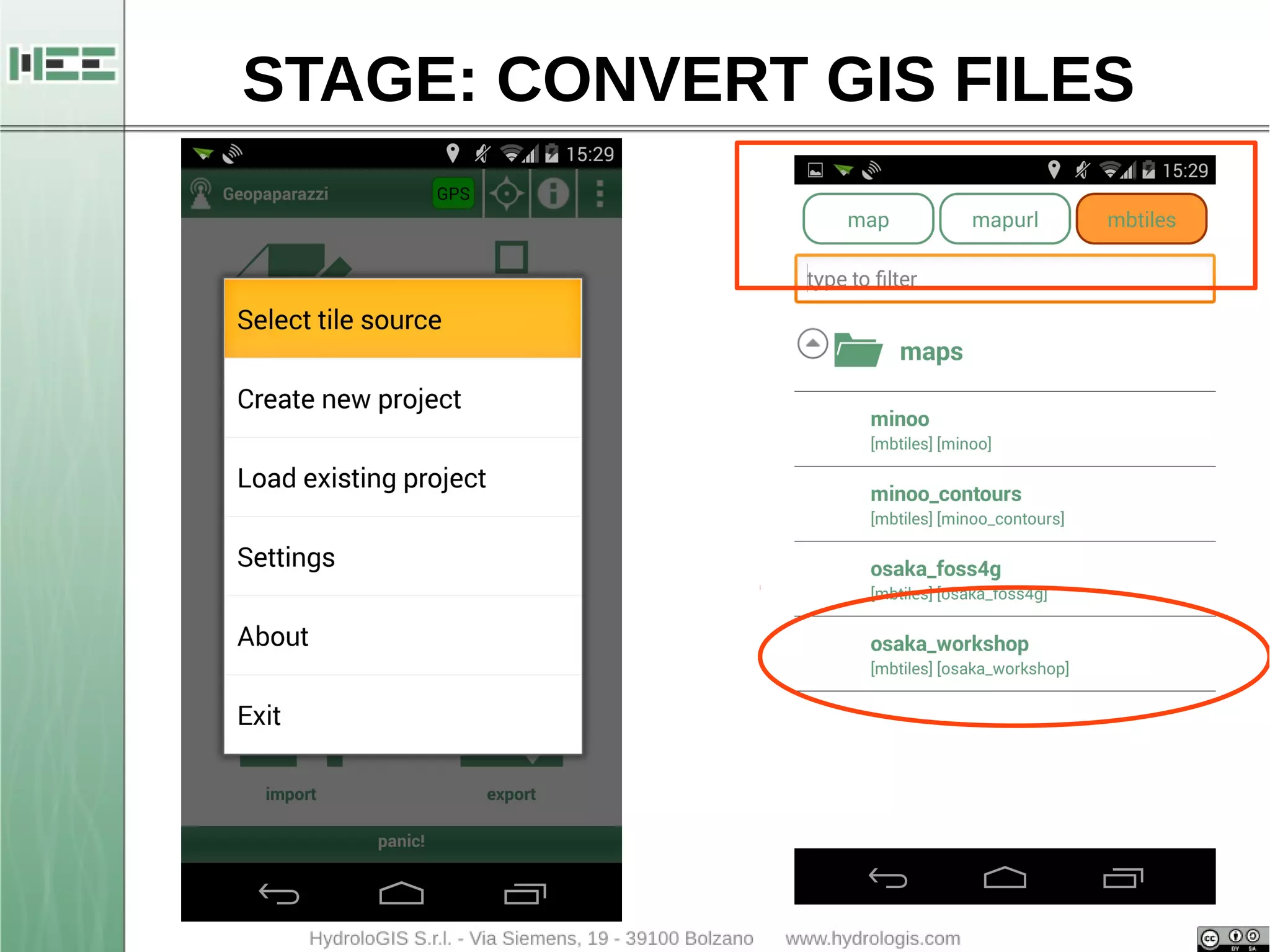
● Tap the main menu button on the dashboard 
● Select the first entry of the menu: Select tile source
GEOPAPARAZZI: IMPORT MBTILES
GEOPAPARAZZI: IMPORT MBTILES 
● Tap the main menu button on the dashboard 
● Select the first entry of the menu: Select tile source 
● Select mbtiles on the top of the screen (unselect the 
others (map and mapurl) just tapping the buttons 
● Open the map view
STAGE: CONVERT GIS FILES
STAGE: CONVERT GIS FILES 
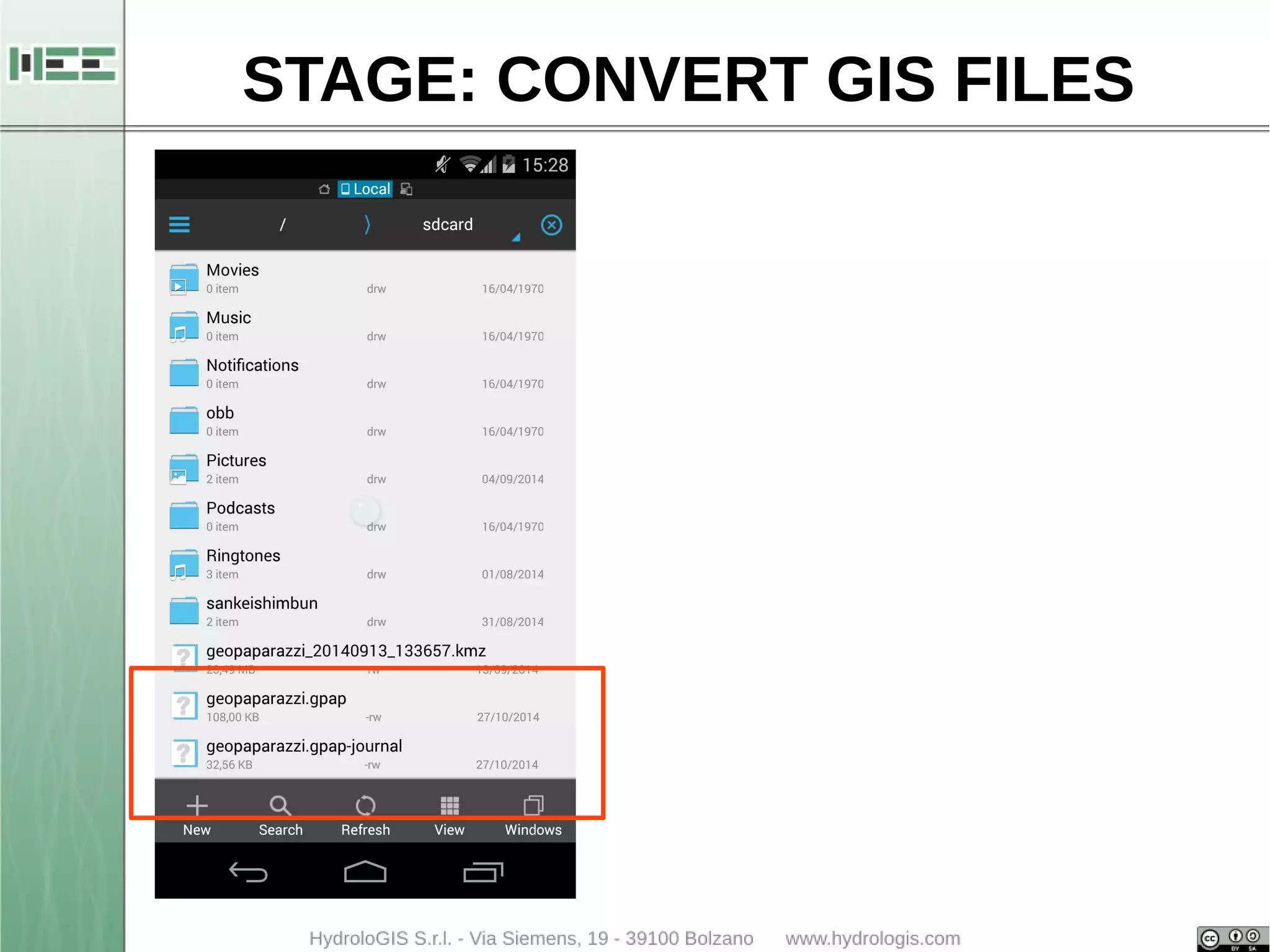
● Geopaparazzi saves all in a file in the home of the 
device 
● Copy the project file on the PC 
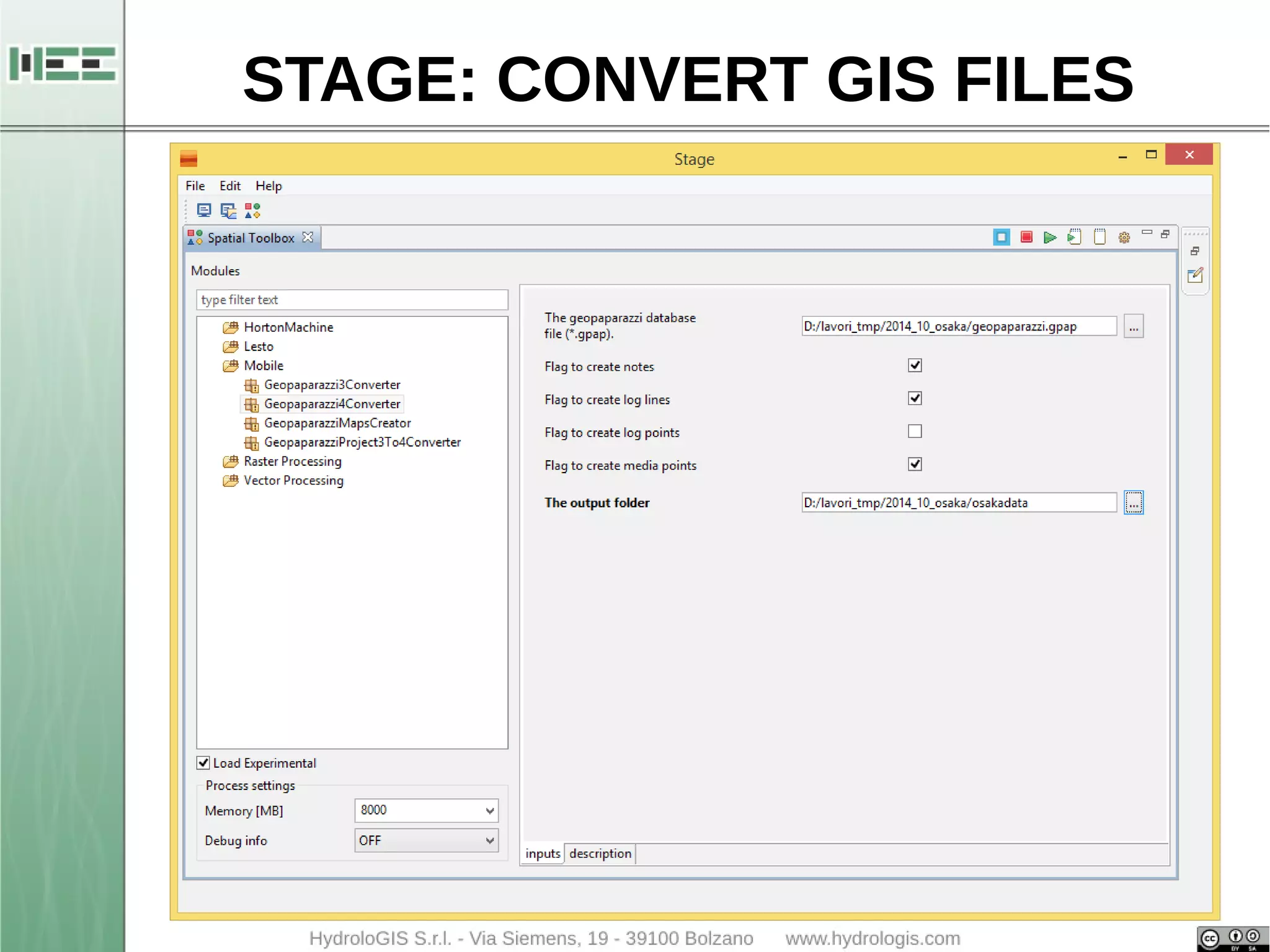
● Use STAGE to create shapefile
STAGE: CONVERT GIS FILES
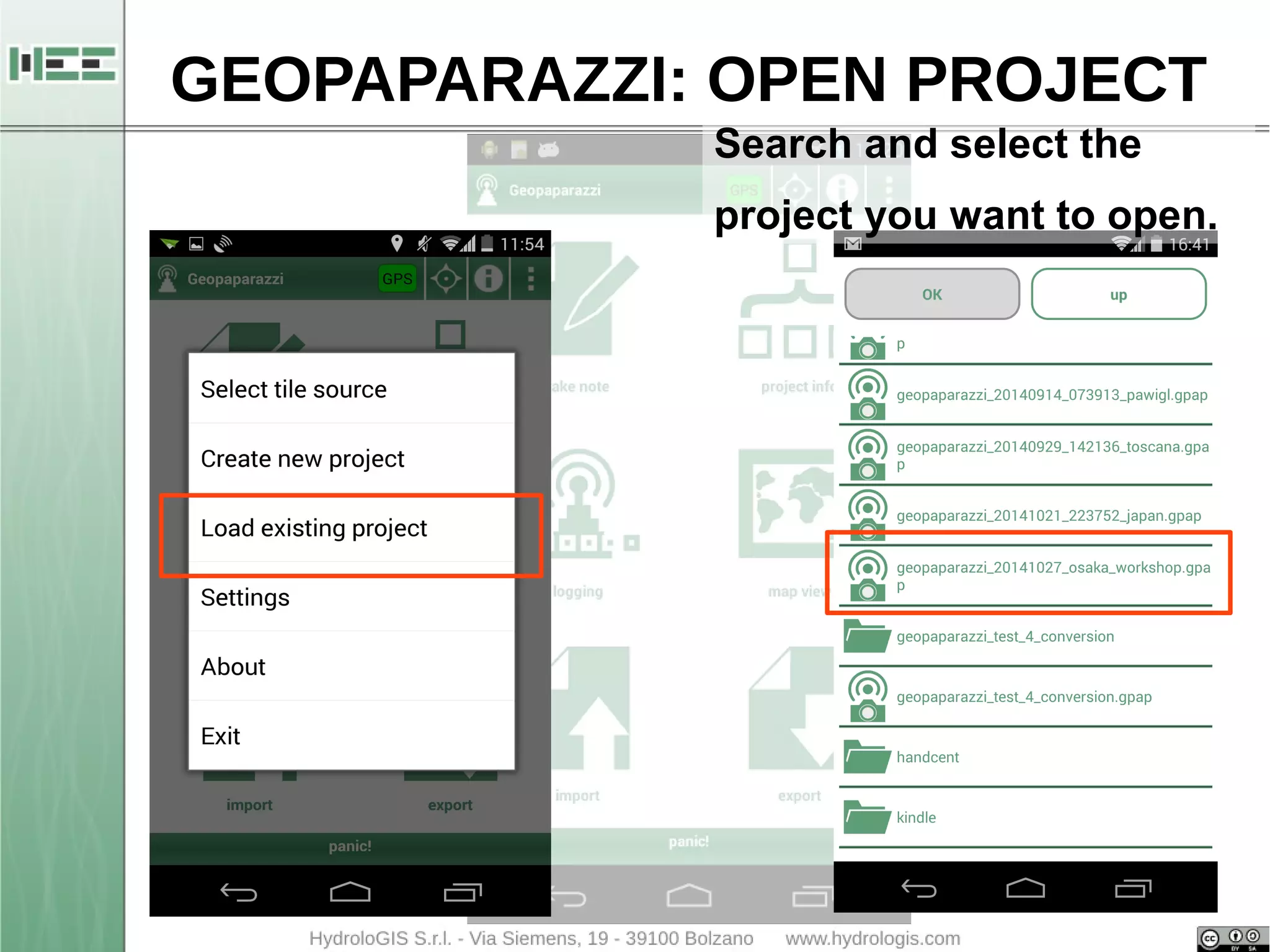
GEOPAPARAZZI: OPEN PROJECT 
● Copy the Geopaparazzi project called 
geopaparazzi_2014_10_27_osaka_workshop.gpap 
● Open Geopaparazzi 
● Open the main menu from the dashboard
GEOPAPARAZZI: OPEN PROJECT 
Search and select the 
project you want to open.
GEOPAPARAZZI: MAPPING 
Let the games begin!!!
USEFUL LINKS 
http://www.jgrasstools.org 
http://bit.ly/stage_downloads 
http://www.udig.eu 
www.geopaparazzi.eu

Basic operations with Geopaparazzi (start, import, export)