Introduction To Microsoft Access
Chhom karath
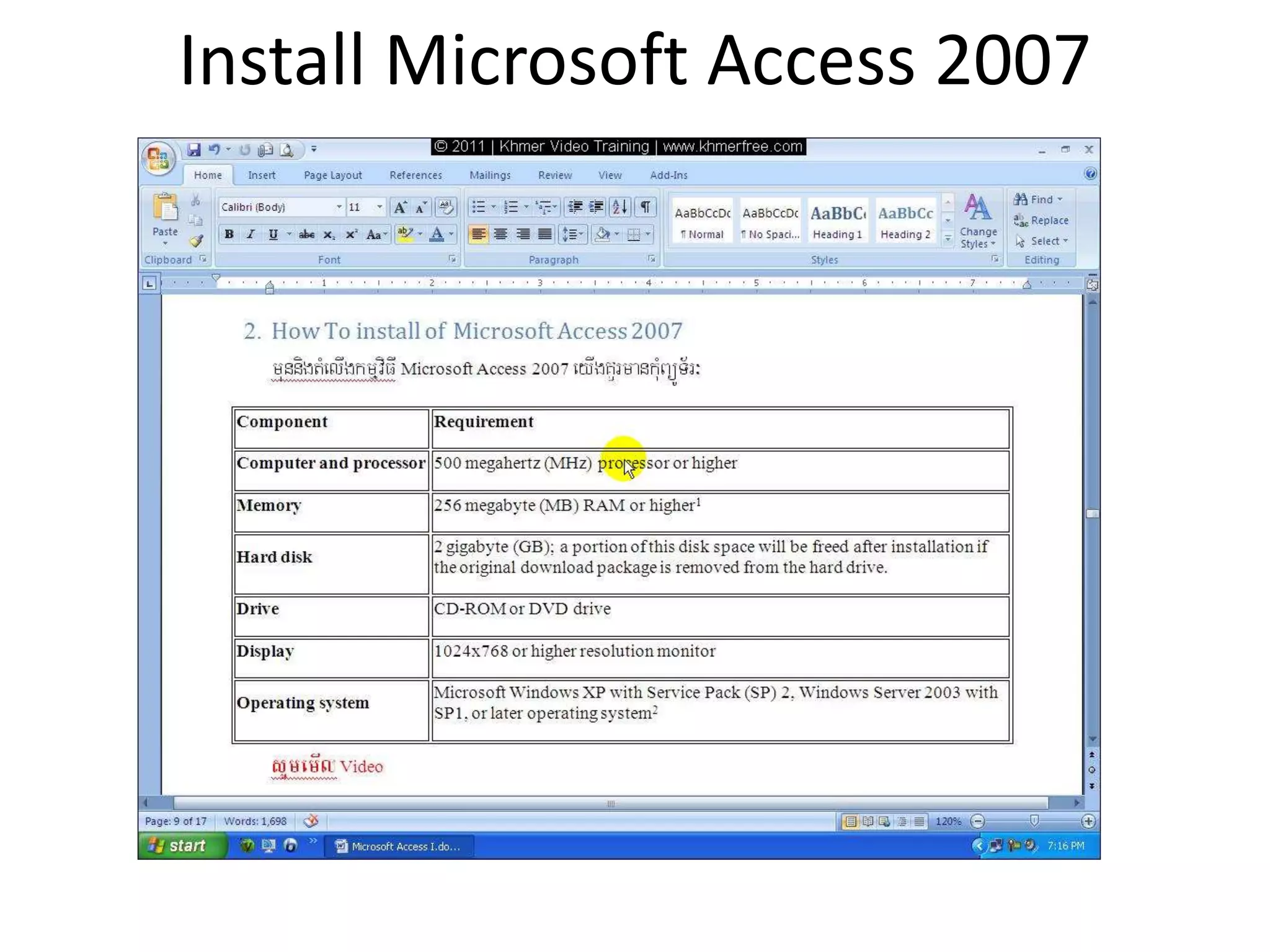
Install Microsoft Access 2007
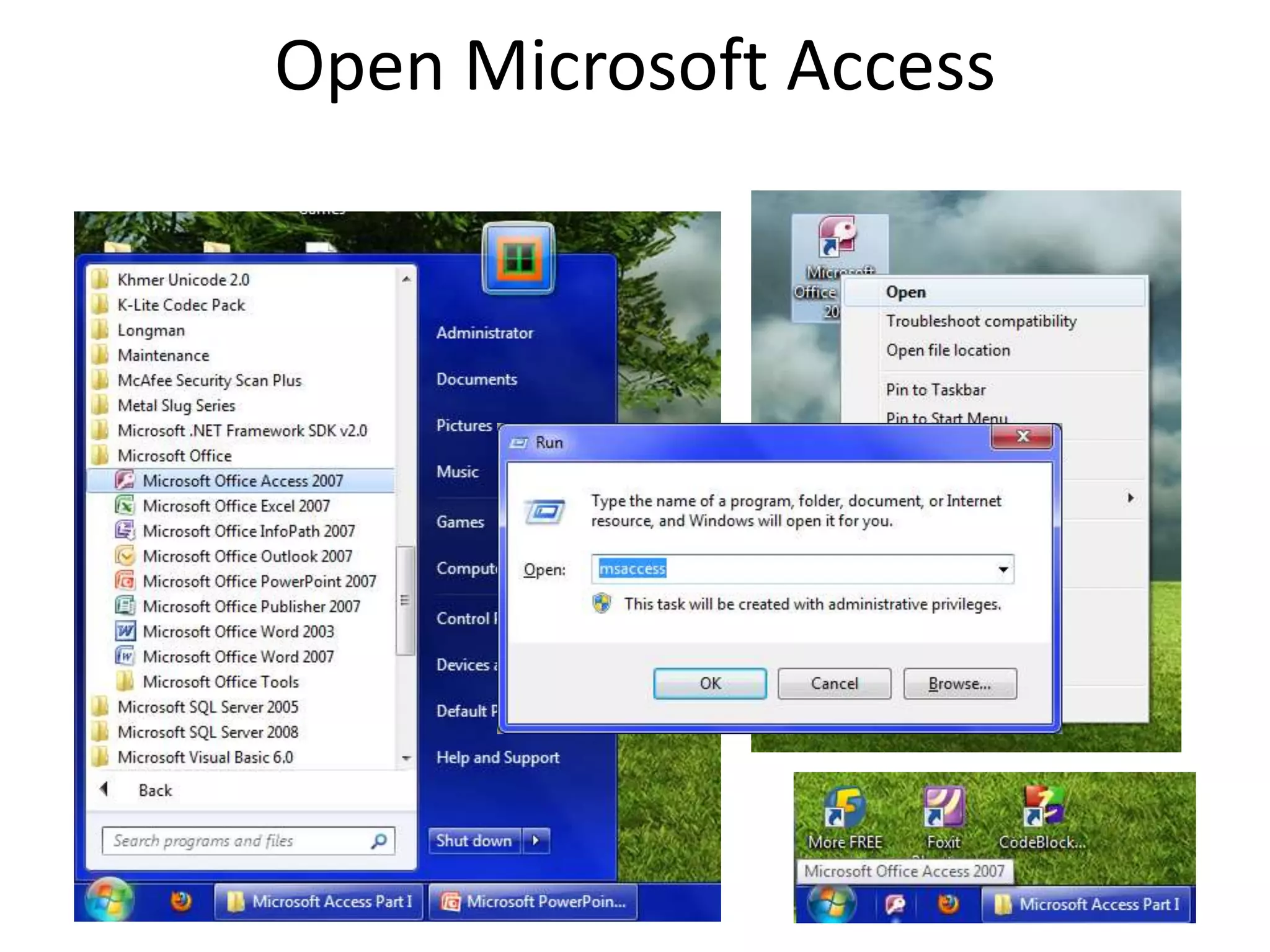
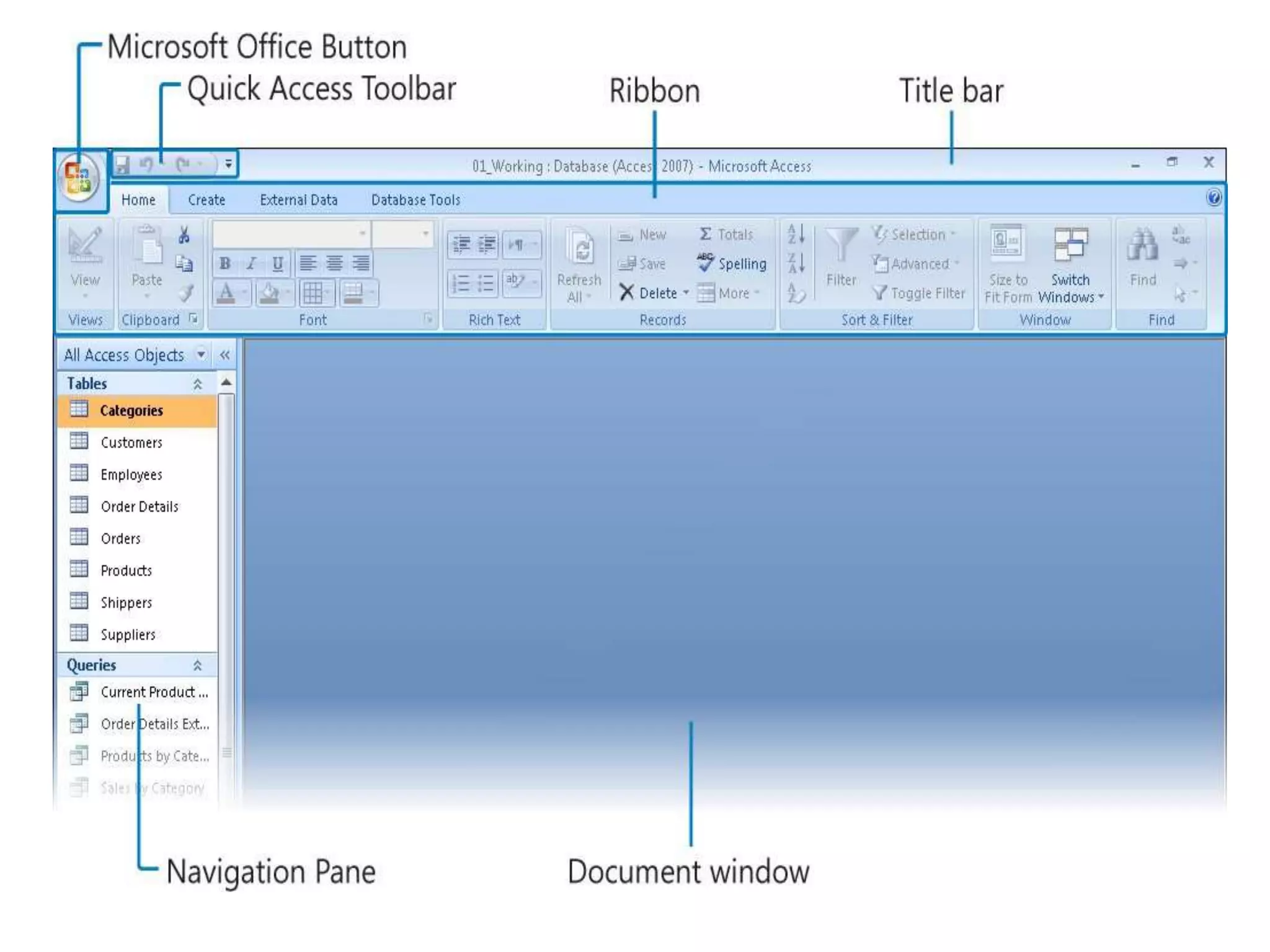
Open Microsoft Access
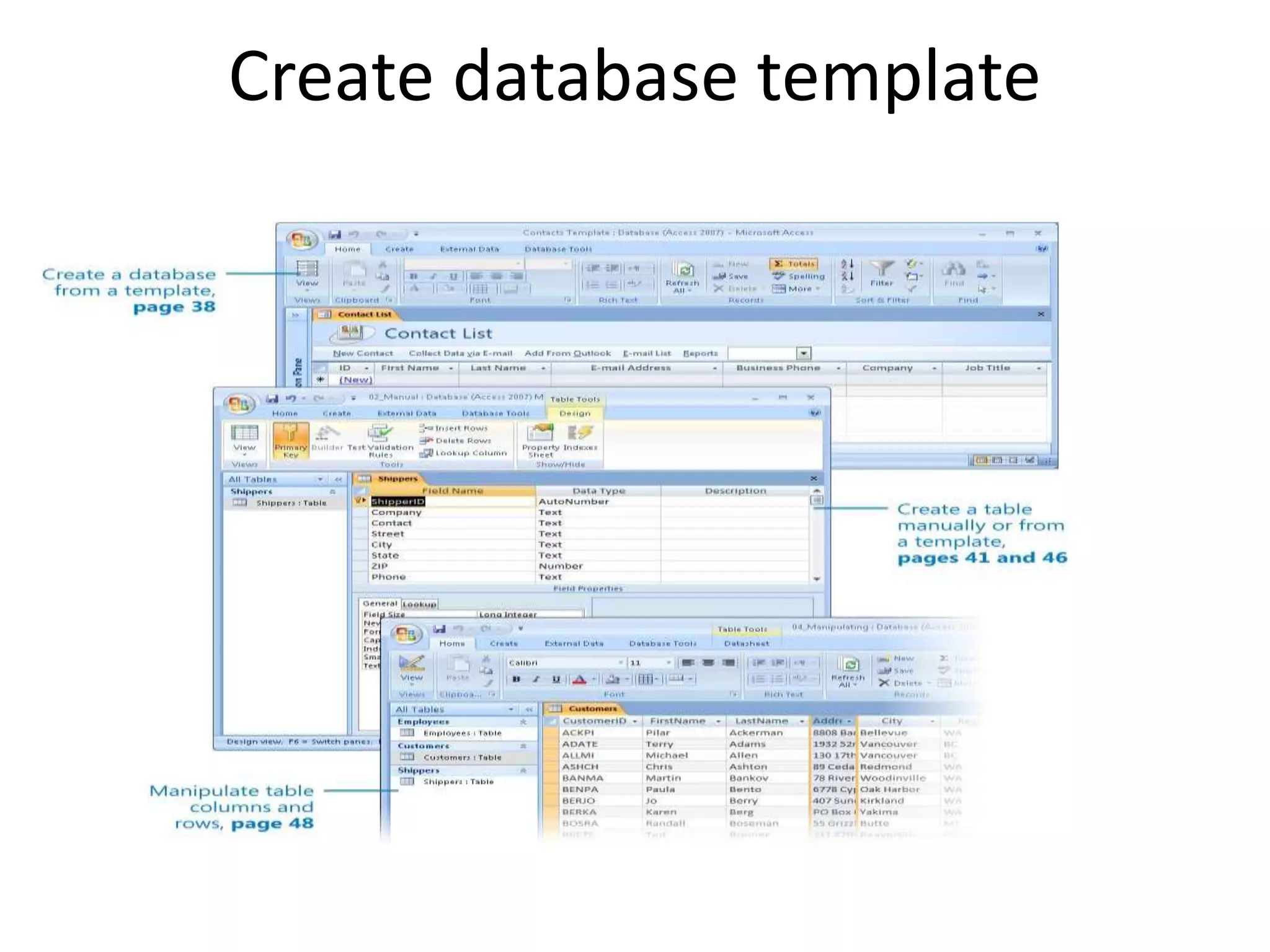
Create database template
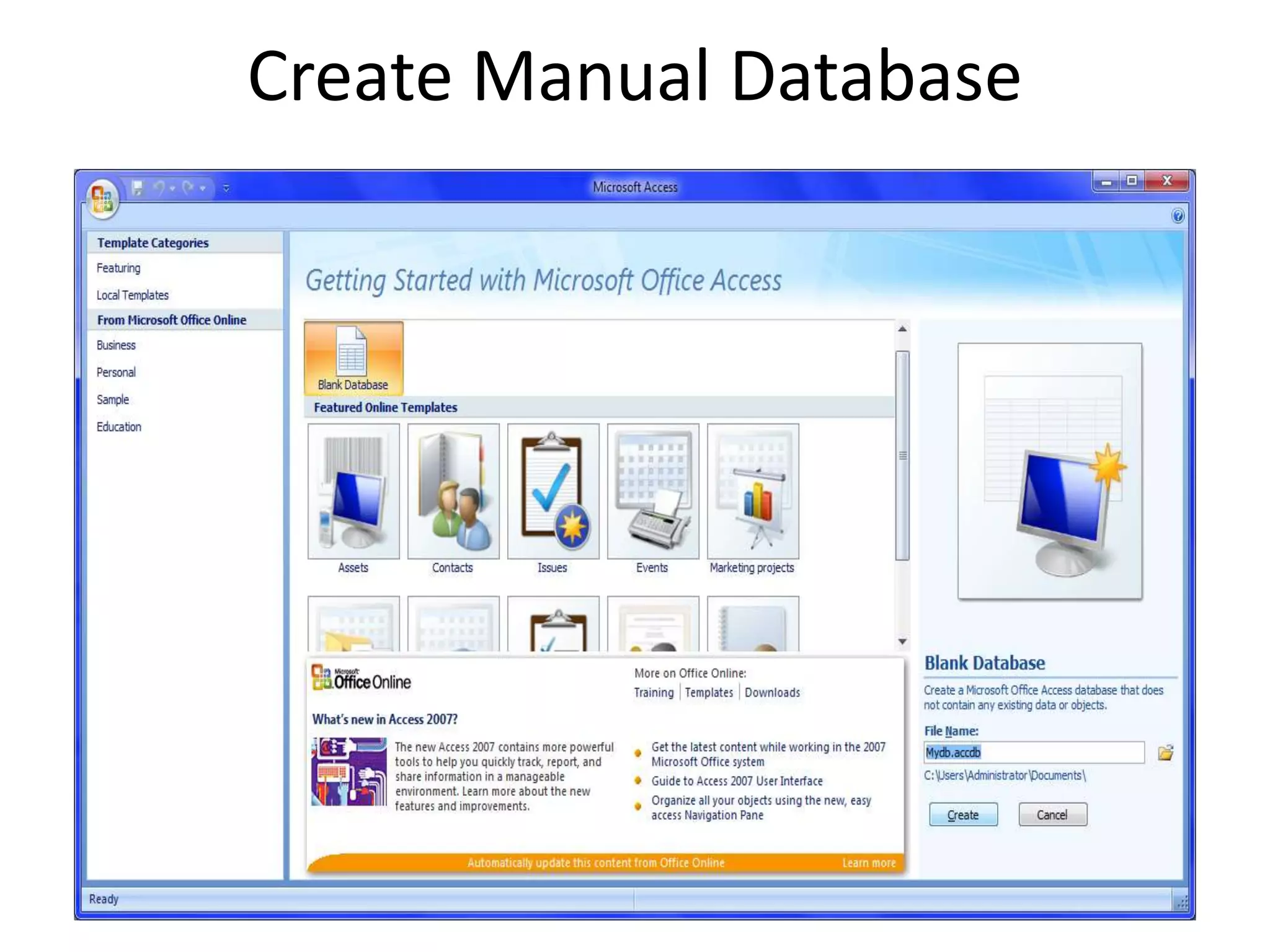
Create Manual Database
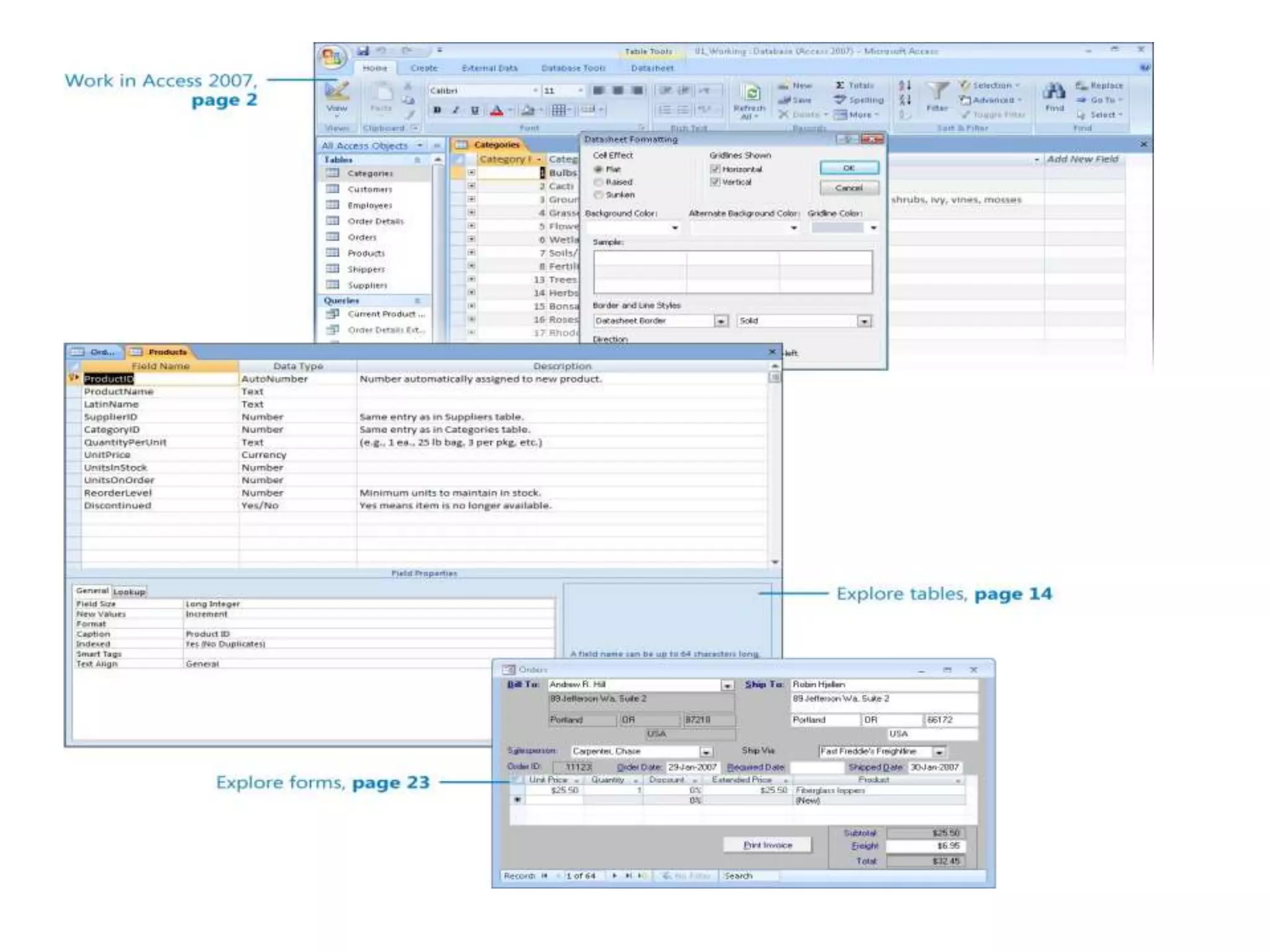
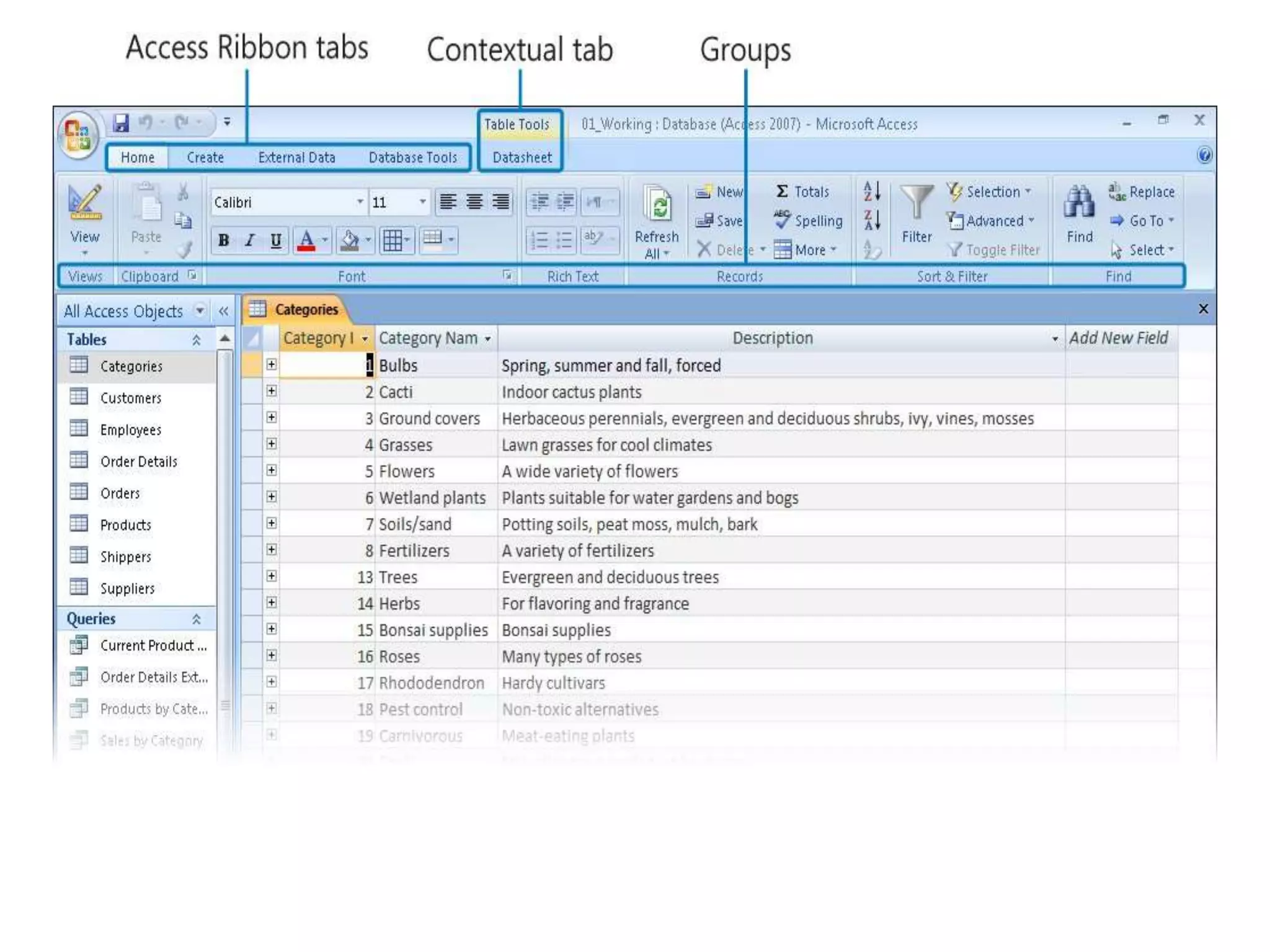
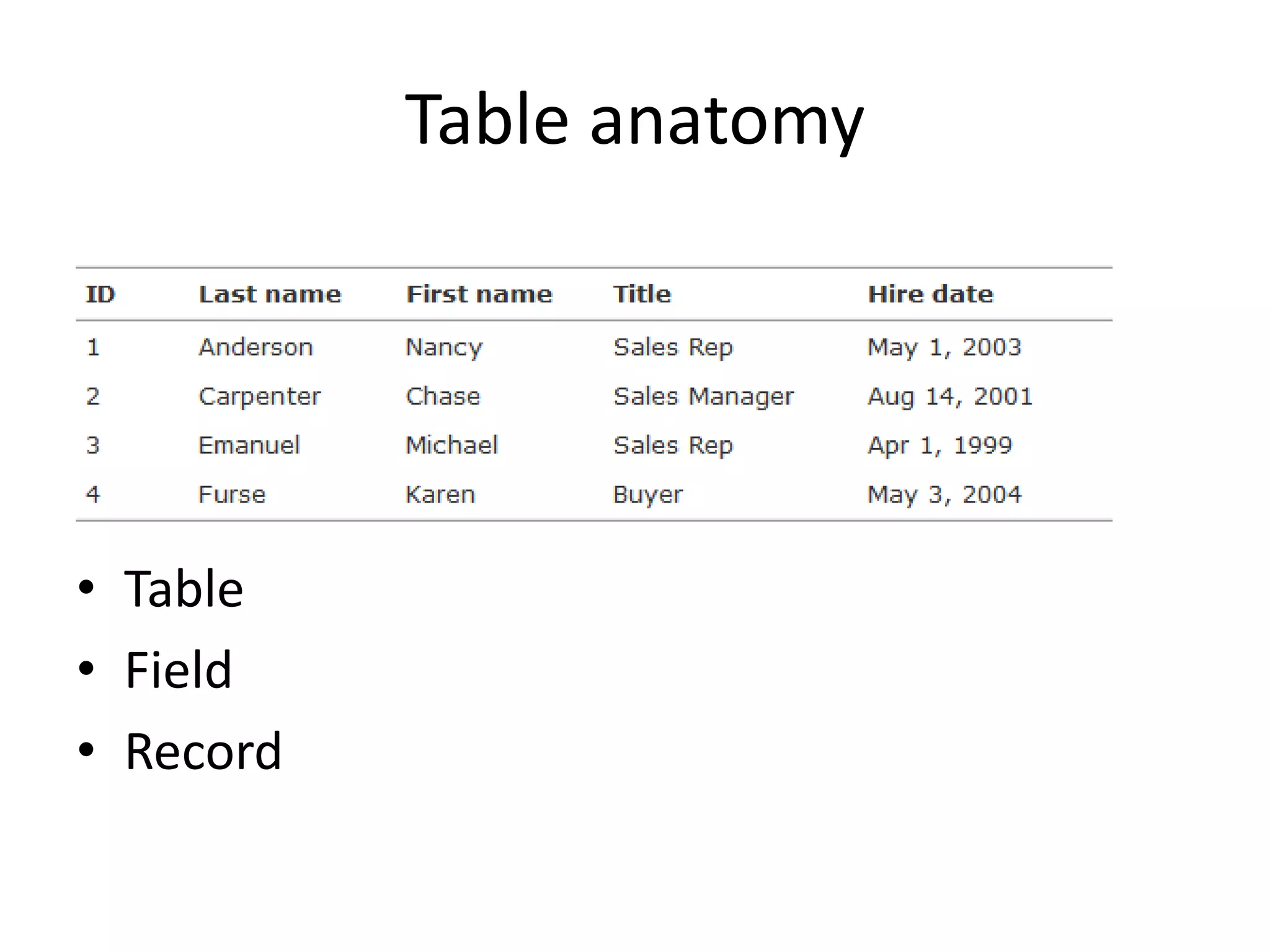
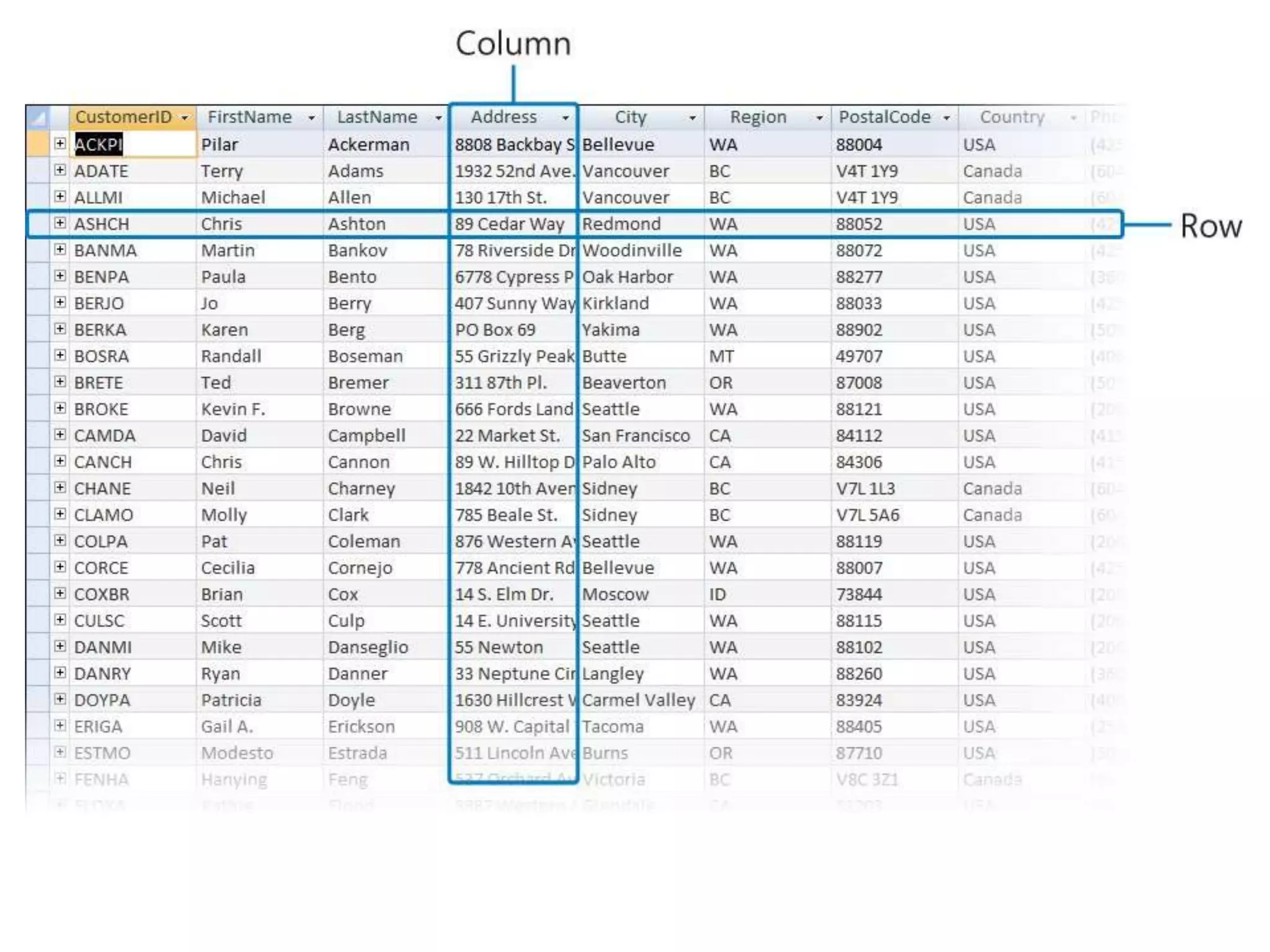
Table anatomy
• Table
• Field
• Record
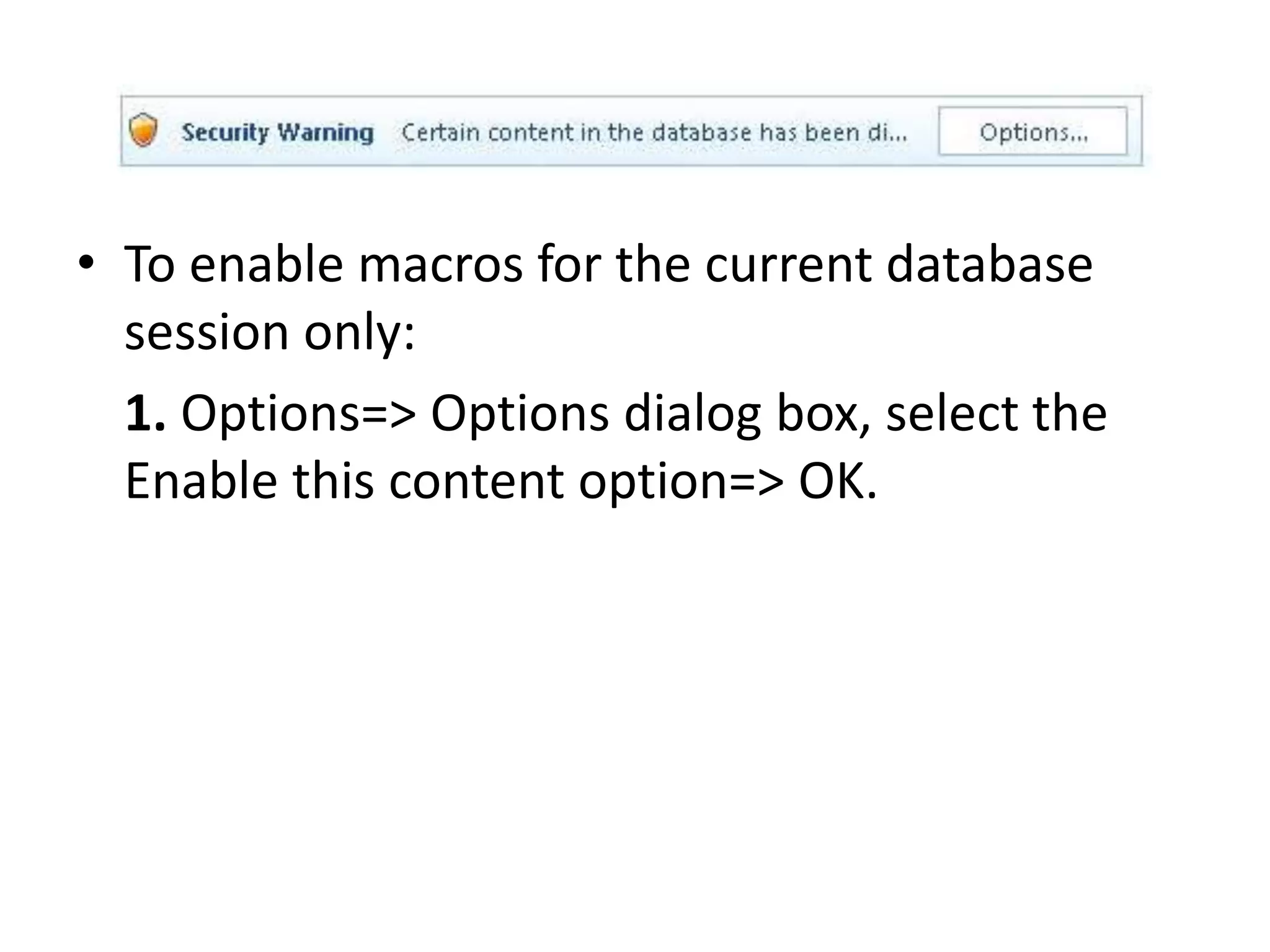
• To enable macros for the current database
session only:
1. Options=> Options dialog box, select the
Enable this content option=> OK.
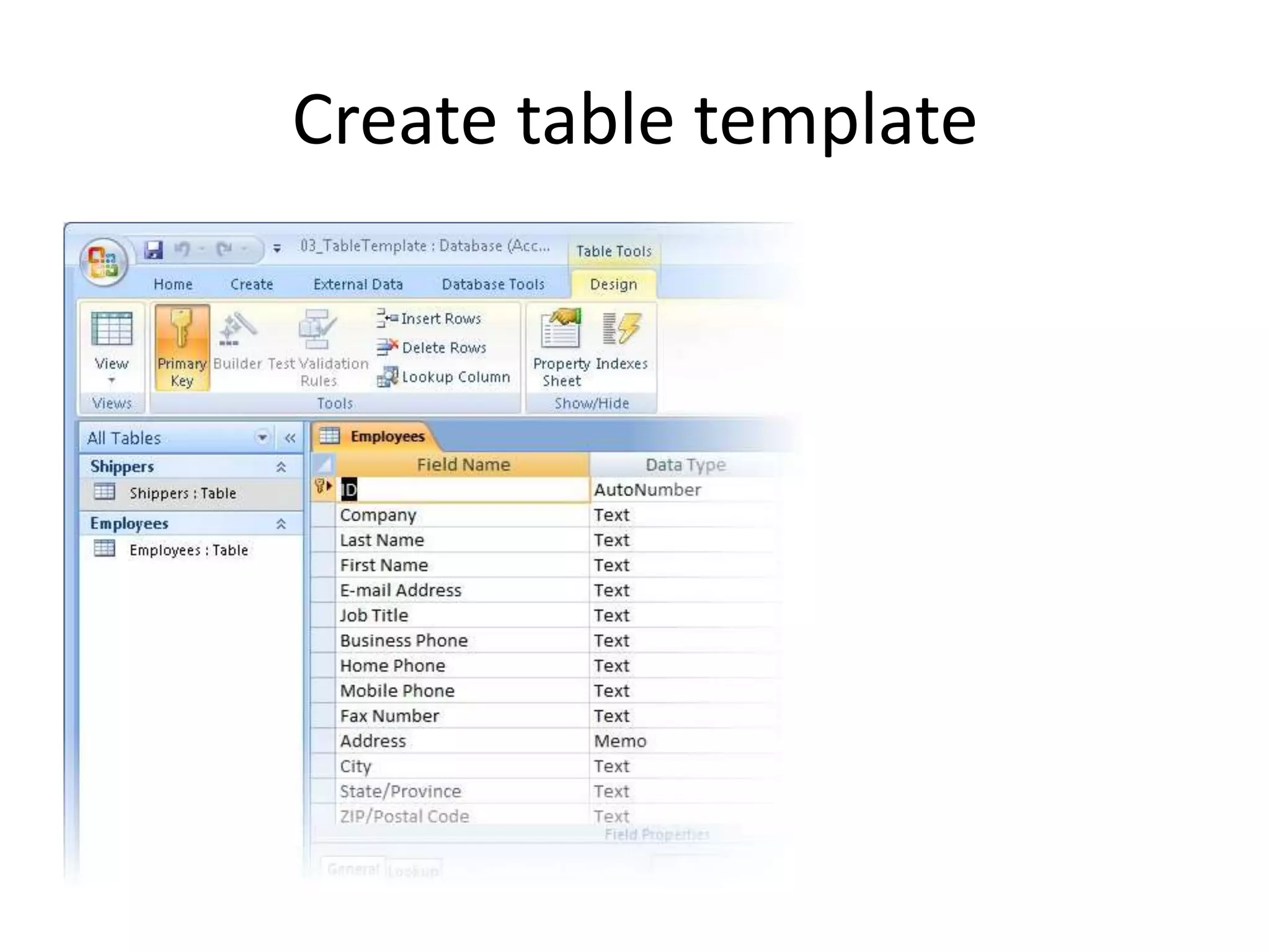
Create table template
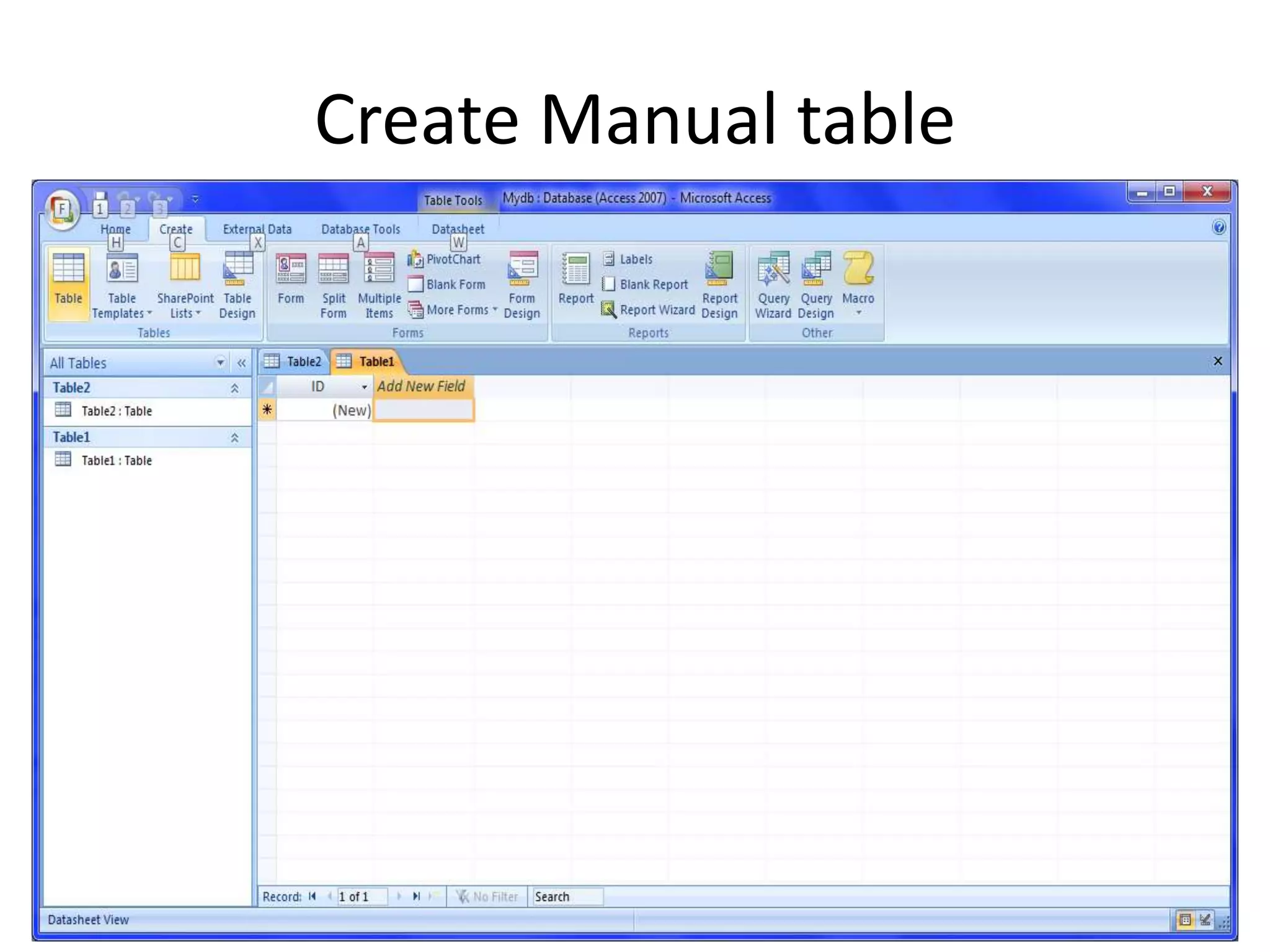
Create Manual table
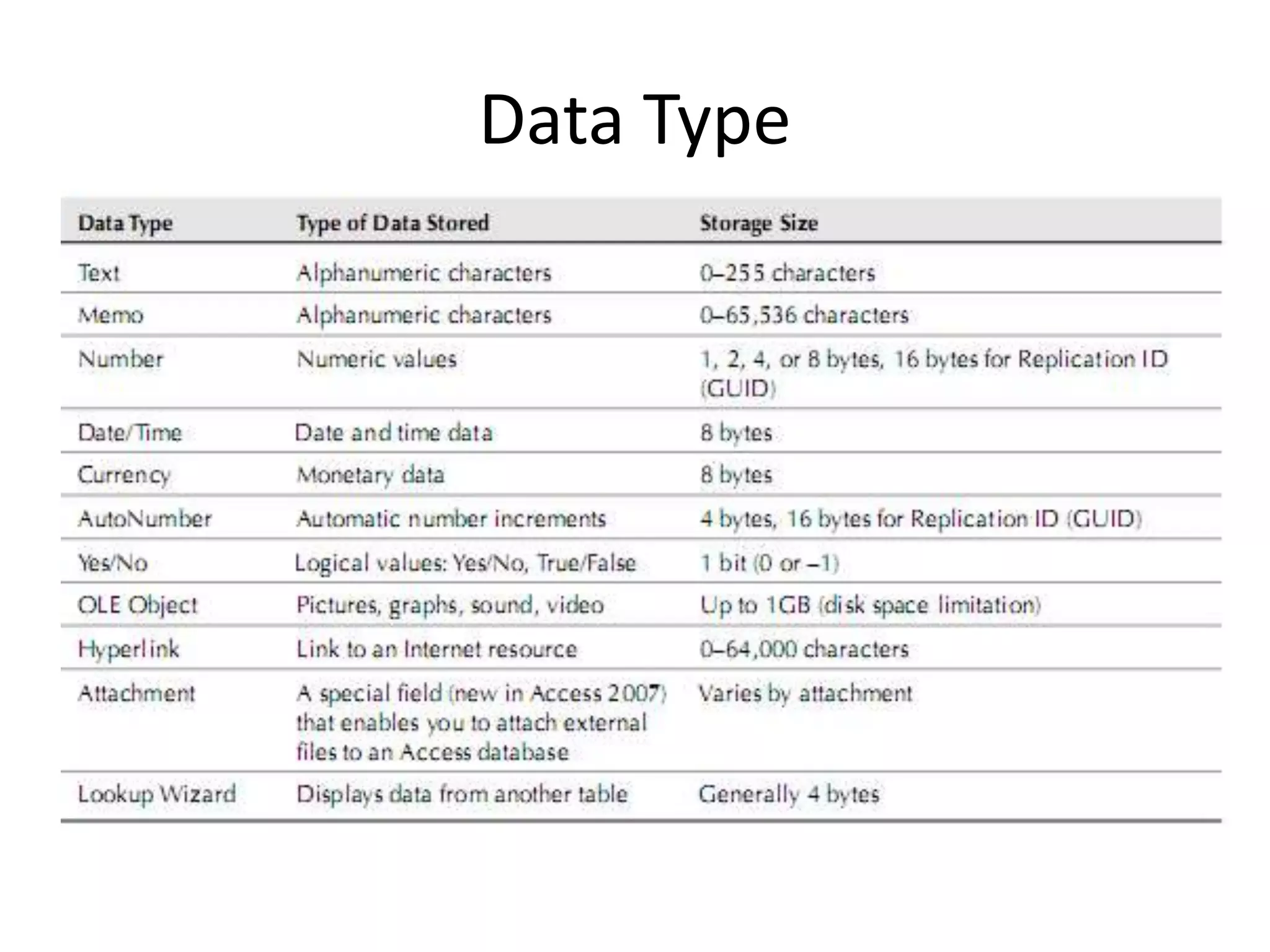
Data Type
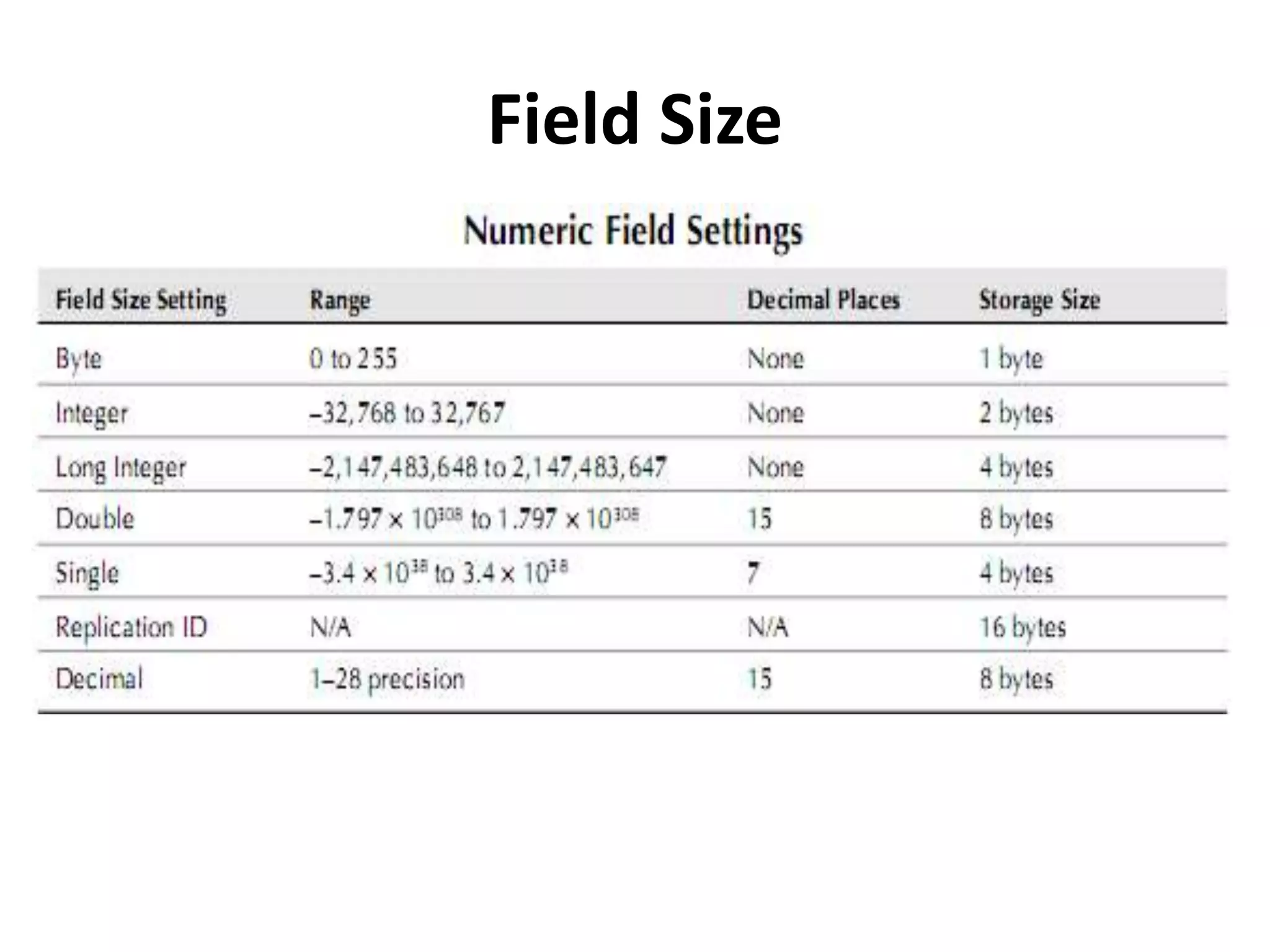
Field Size
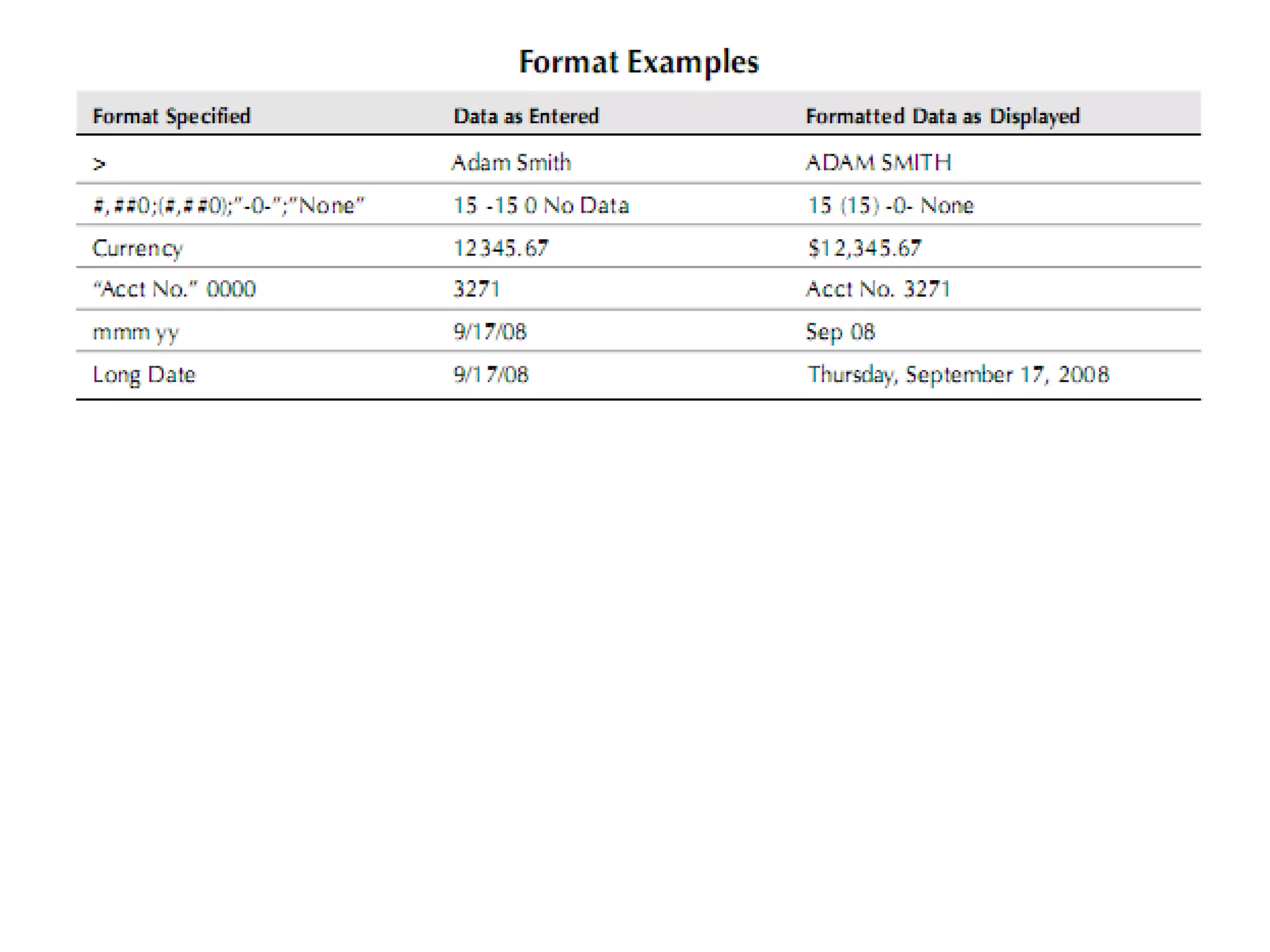
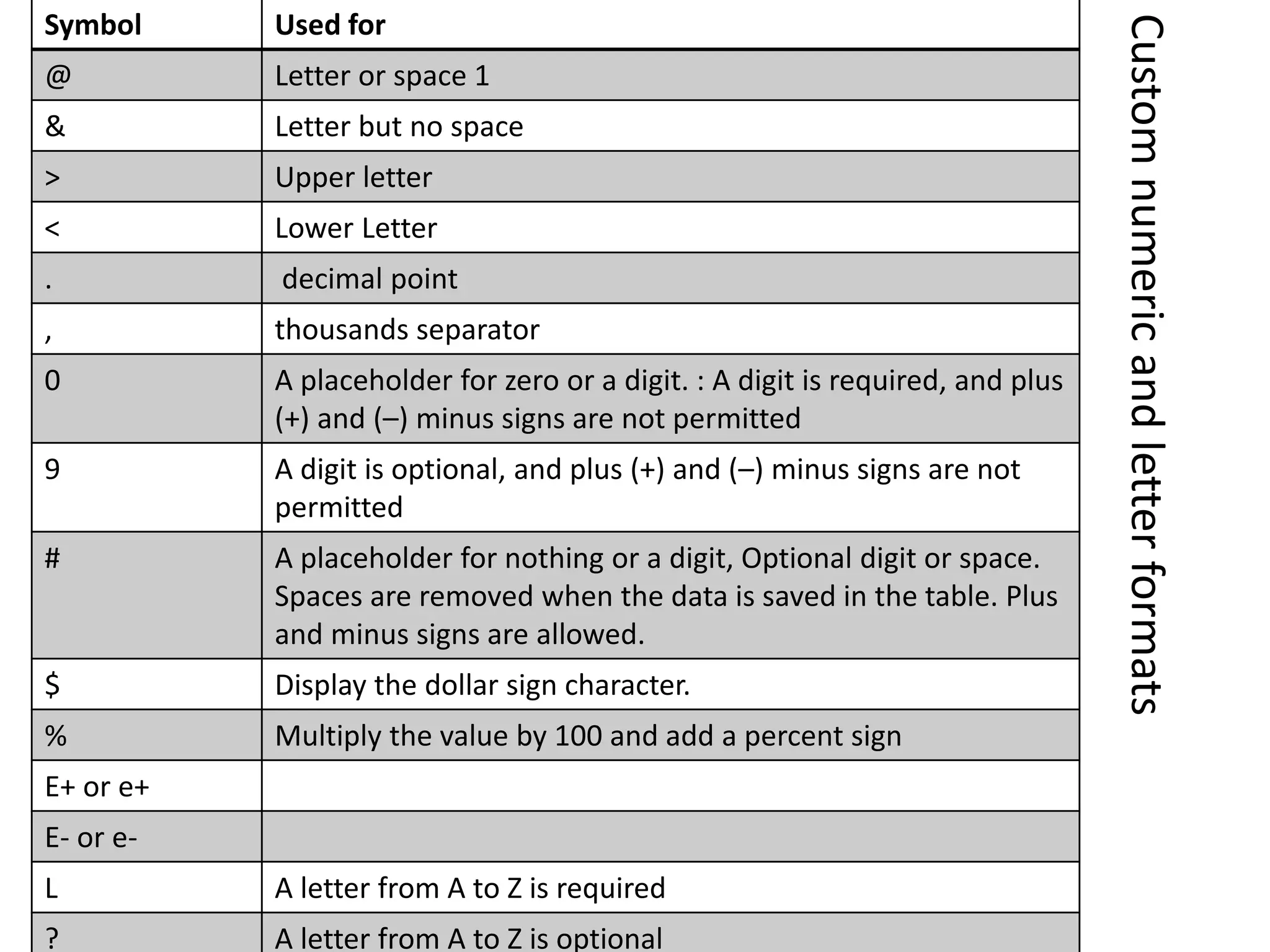
Customnumericandletterformats
Symbol Used for
@ Letter or space 1
& Letter but no space
> Upper letter
< Lower Letter
. decimal point
, thousands separator
0 A placeholder for zero or a digit. : A digit is required, and plus
(+) and (–) minus signs are not permitted
9 A digit is optional, and plus (+) and (–) minus signs are not
permitted
# A placeholder for nothing or a digit, Optional digit or space.
Spaces are removed when the data is saved in the table. Plus
and minus signs are allowed.
$ Display the dollar sign character.
% Multiply the value by 100 and add a percent sign
E+ or e+
E- or e-
L A letter from A to Z is required
? A letter from A to Z is optional
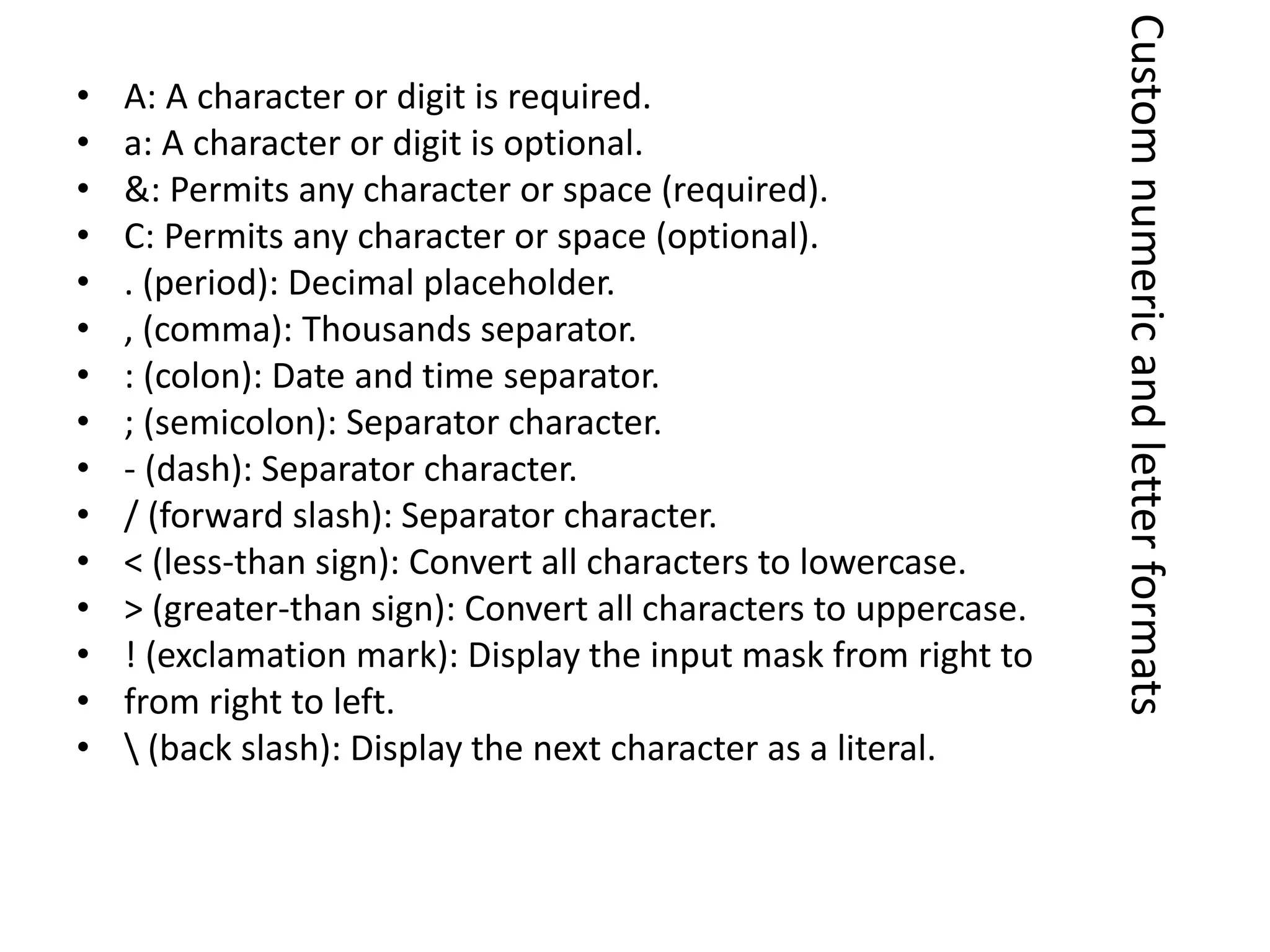
• A: A character or digit is required.
• a: A character or digit is optional.
• &: Permits any character or space (required).
• C: Permits any character or space (optional).
• . (period): Decimal placeholder.
• , (comma): Thousands separator.
• : (colon): Date and time separator.
• ; (semicolon): Separator character.
• - (dash): Separator character.
• / (forward slash): Separator character.
• < (less-than sign): Convert all characters to lowercase.
• > (greater-than sign): Convert all characters to uppercase.
• ! (exclamation mark): Display the input mask from right to
• from right to left.
•  (back slash): Display the next character as a literal.
Customnumericandletterformats
Example
000 or 00#
(000) 000-000
#
#.00
#.00%
#,###
#,###
#,###.00
$#,###.00
#,###.00 $
“R”#,###.00
#,###.00 “Riels”
[Blue]$#,###.00
[Red]-$#,###.00
[Green]$0.00
[Yellow]@
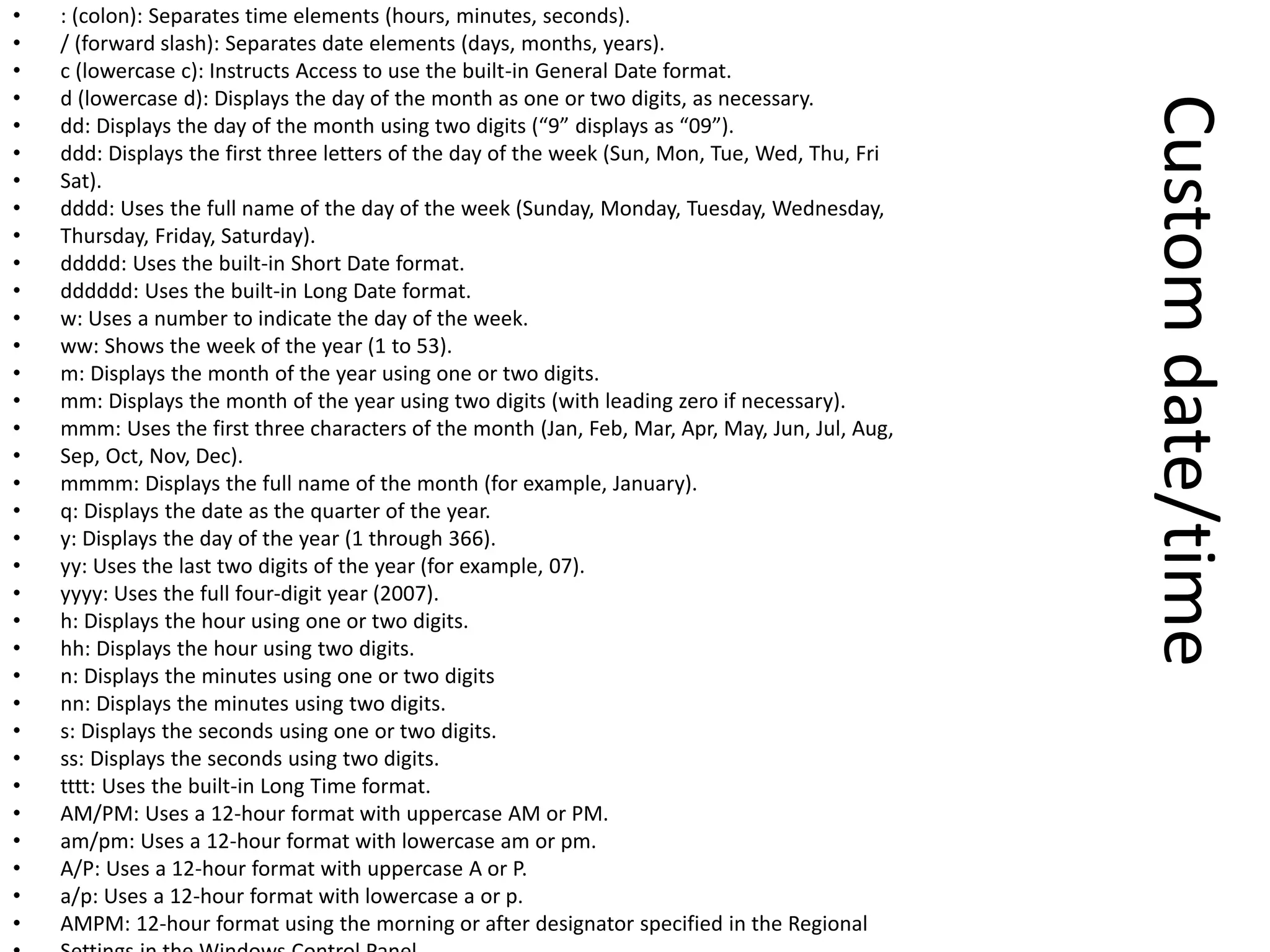
Customdate/time
• : (colon): Separates time elements (hours, minutes, seconds).
• / (forward slash): Separates date elements (days, months, years).
• c (lowercase c): Instructs Access to use the built-in General Date format.
• d (lowercase d): Displays the day of the month as one or two digits, as necessary.
• dd: Displays the day of the month using two digits (“9” displays as “09”).
• ddd: Displays the first three letters of the day of the week (Sun, Mon, Tue, Wed, Thu, Fri
• Sat).
• dddd: Uses the full name of the day of the week (Sunday, Monday, Tuesday, Wednesday,
• Thursday, Friday, Saturday).
• ddddd: Uses the built-in Short Date format.
• dddddd: Uses the built-in Long Date format.
• w: Uses a number to indicate the day of the week.
• ww: Shows the week of the year (1 to 53).
• m: Displays the month of the year using one or two digits.
• mm: Displays the month of the year using two digits (with leading zero if necessary).
• mmm: Uses the first three characters of the month (Jan, Feb, Mar, Apr, May, Jun, Jul, Aug,
• Sep, Oct, Nov, Dec).
• mmmm: Displays the full name of the month (for example, January).
• q: Displays the date as the quarter of the year.
• y: Displays the day of the year (1 through 366).
• yy: Uses the last two digits of the year (for example, 07).
• yyyy: Uses the full four-digit year (2007).
• h: Displays the hour using one or two digits.
• hh: Displays the hour using two digits.
• n: Displays the minutes using one or two digits
• nn: Displays the minutes using two digits.
• s: Displays the seconds using one or two digits.
• ss: Displays the seconds using two digits.
• tttt: Uses the built-in Long Time format.
• AM/PM: Uses a 12-hour format with uppercase AM or PM.
• am/pm: Uses a 12-hour format with lowercase am or pm.
• A/P: Uses a 12-hour format with uppercase A or P.
• a/p: Uses a 12-hour format with lowercase a or p.
• AMPM: 12-hour format using the morning or after designator specified in the Regional
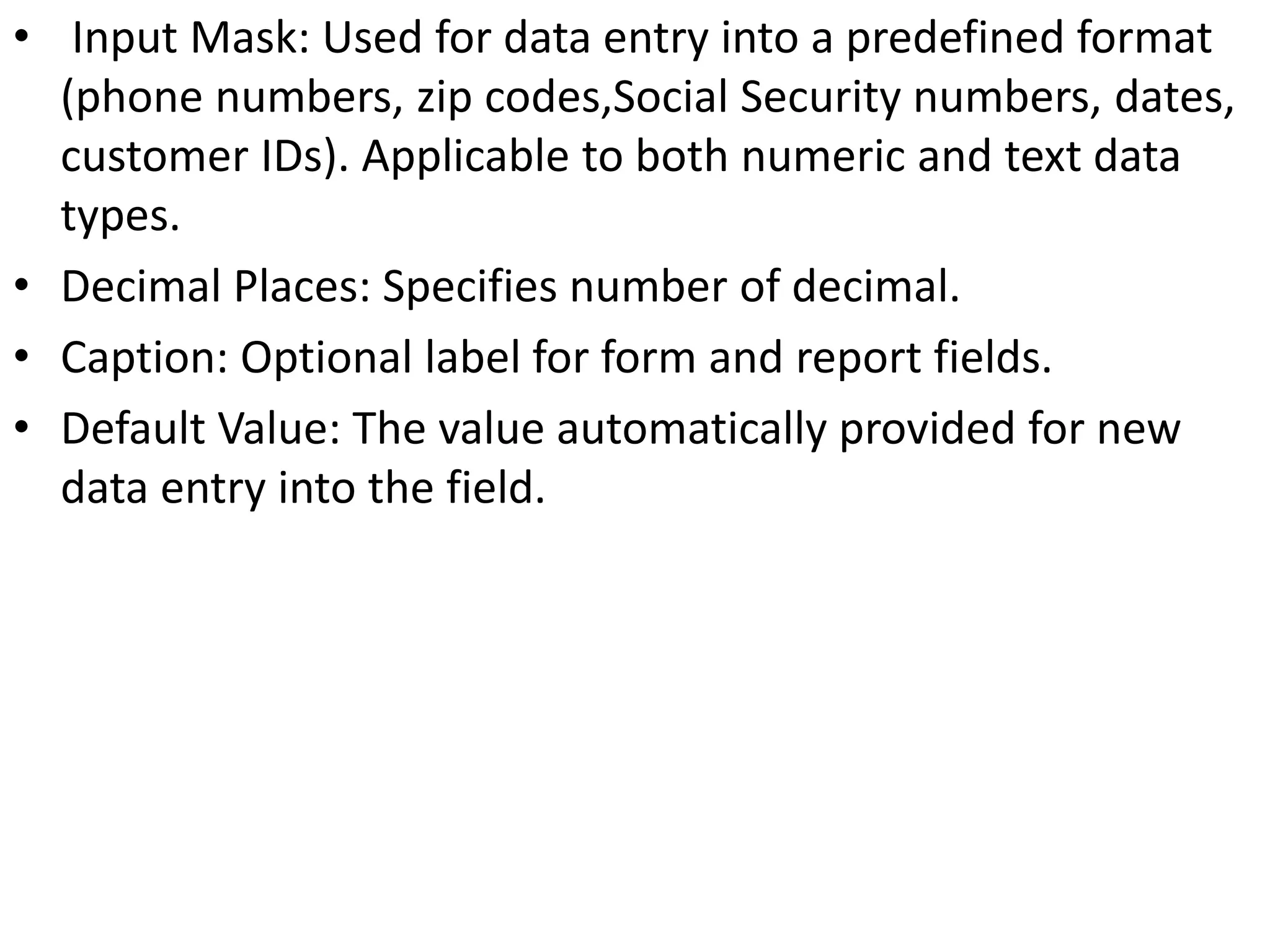
• Input Mask: Used for data entry into a predefined format
(phone numbers, zip codes,Social Security numbers, dates,
customer IDs). Applicable to both numeric and text data
types.
• Decimal Places: Specifies number of decimal.
• Caption: Optional label for form and report fields.
• Default Value: The value automatically provided for new
data entry into the field.
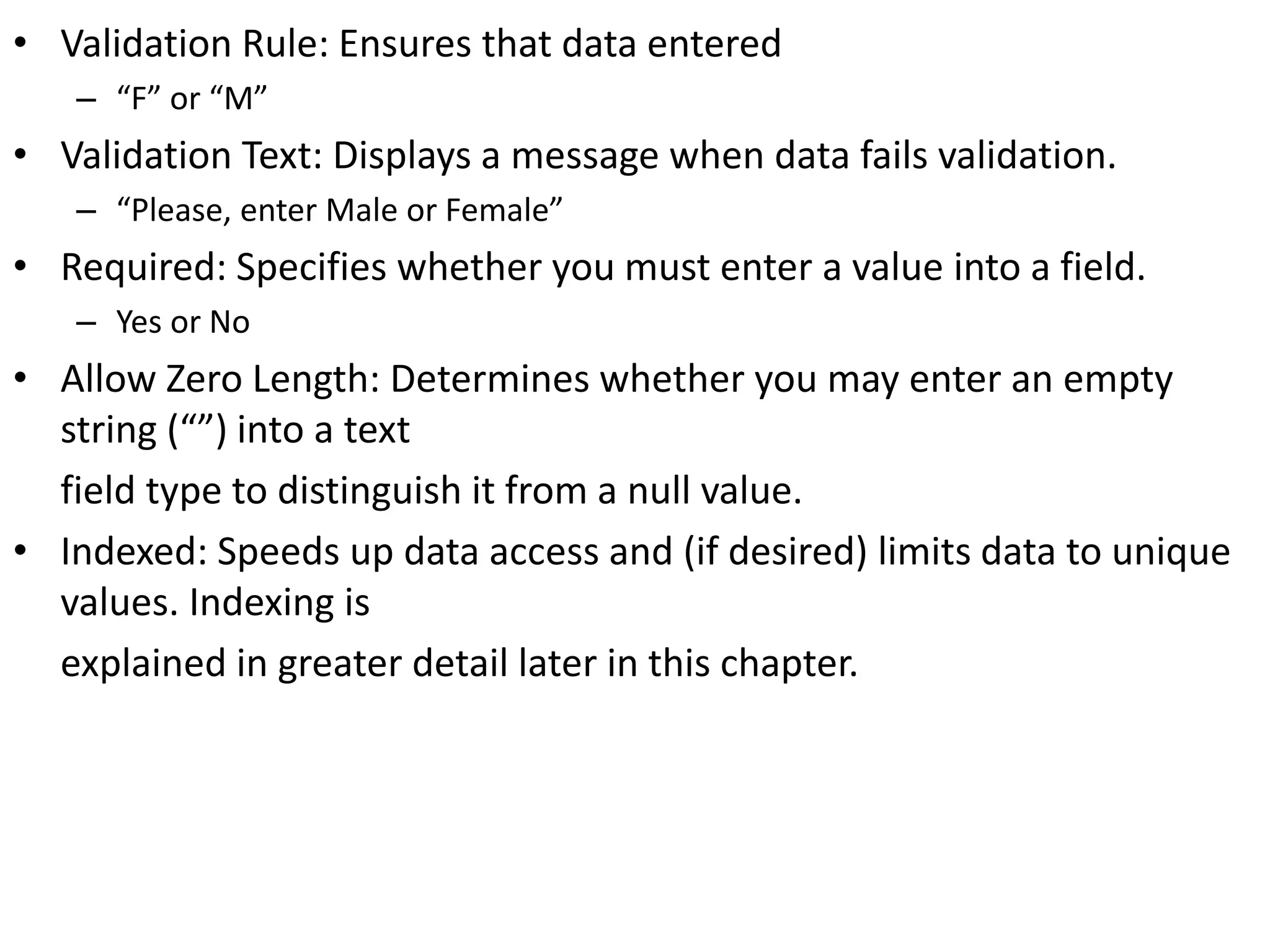
• Validation Rule: Ensures that data entered
– “F” or “M”
• Validation Text: Displays a message when data fails validation.
– “Please, enter Male or Female”
• Required: Specifies whether you must enter a value into a field.
– Yes or No
• Allow Zero Length: Determines whether you may enter an empty
string (“”) into a text
field type to distinguish it from a null value.
• Indexed: Speeds up data access and (if desired) limits data to unique
values. Indexing is
explained in greater detail later in this chapter.
The Input Mask Wizard
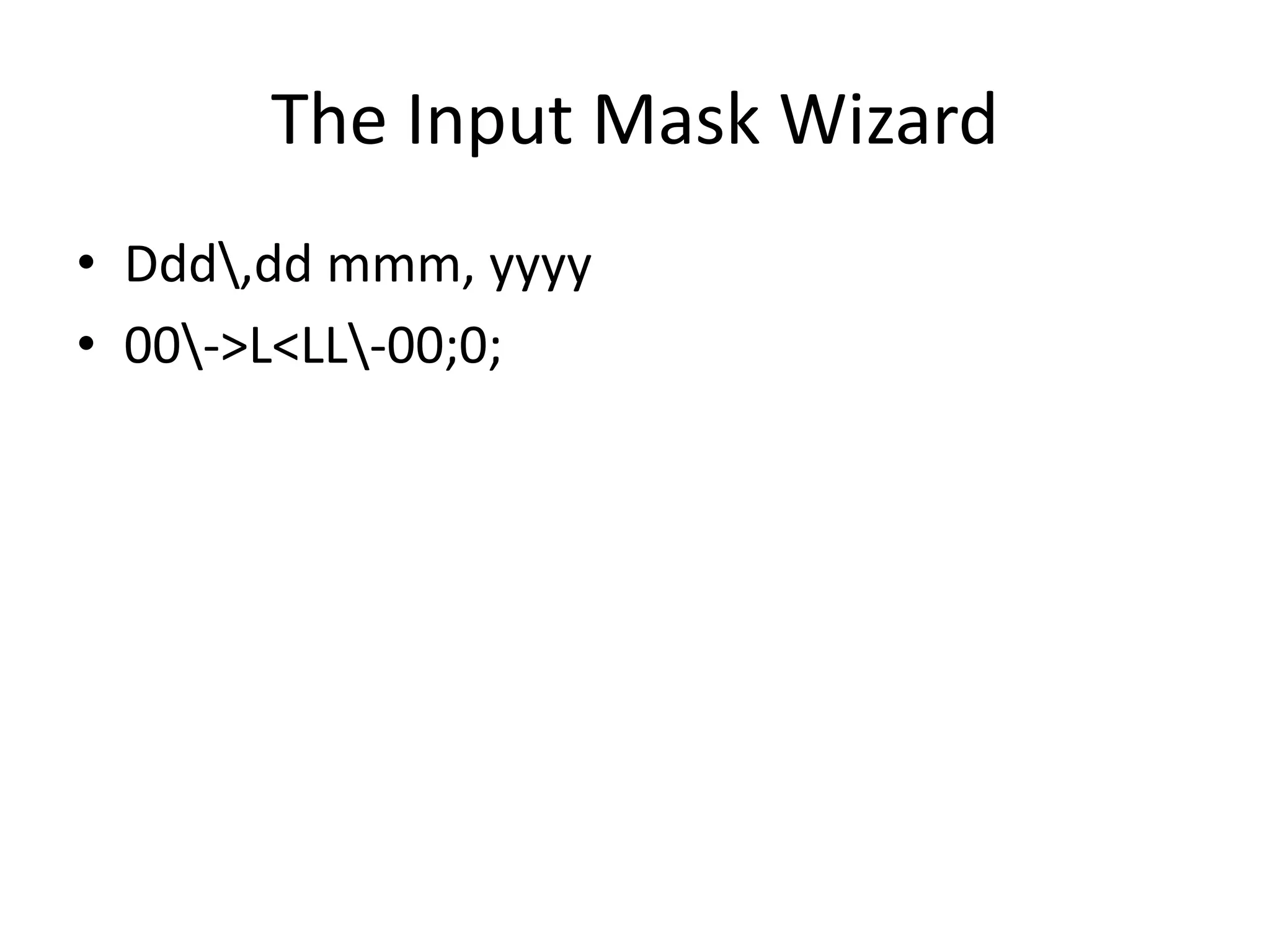
• Ddd,dd mmm, yyyy
• 00->L<LL-00;0;
Primary Key

Introduction TO Microsoft Access

  • 1.
    Introduction To MicrosoftAccess Chhom karath
  • 2.
  • 3.
  • 4.
  • 5.
  • 9.
  • 11.
    • To enablemacros for the current database session only: 1. Options=> Options dialog box, select the Enable this content option=> OK.
  • 12.
  • 13.
  • 15.
  • 16.
  • 17.
    Customnumericandletterformats Symbol Used for @Letter or space 1 & Letter but no space > Upper letter < Lower Letter . decimal point , thousands separator 0 A placeholder for zero or a digit. : A digit is required, and plus (+) and (–) minus signs are not permitted 9 A digit is optional, and plus (+) and (–) minus signs are not permitted # A placeholder for nothing or a digit, Optional digit or space. Spaces are removed when the data is saved in the table. Plus and minus signs are allowed. $ Display the dollar sign character. % Multiply the value by 100 and add a percent sign E+ or e+ E- or e- L A letter from A to Z is required ? A letter from A to Z is optional
  • 18.
    • A: Acharacter or digit is required. • a: A character or digit is optional. • &: Permits any character or space (required). • C: Permits any character or space (optional). • . (period): Decimal placeholder. • , (comma): Thousands separator. • : (colon): Date and time separator. • ; (semicolon): Separator character. • - (dash): Separator character. • / (forward slash): Separator character. • < (less-than sign): Convert all characters to lowercase. • > (greater-than sign): Convert all characters to uppercase. • ! (exclamation mark): Display the input mask from right to • from right to left. • (back slash): Display the next character as a literal. Customnumericandletterformats
  • 19.
    Example 000 or 00# (000)000-000 # #.00 #.00% #,### #,### #,###.00 $#,###.00 #,###.00 $ “R”#,###.00 #,###.00 “Riels” [Blue]$#,###.00 [Red]-$#,###.00 [Green]$0.00 [Yellow]@
  • 21.
    Customdate/time • : (colon):Separates time elements (hours, minutes, seconds). • / (forward slash): Separates date elements (days, months, years). • c (lowercase c): Instructs Access to use the built-in General Date format. • d (lowercase d): Displays the day of the month as one or two digits, as necessary. • dd: Displays the day of the month using two digits (“9” displays as “09”). • ddd: Displays the first three letters of the day of the week (Sun, Mon, Tue, Wed, Thu, Fri • Sat). • dddd: Uses the full name of the day of the week (Sunday, Monday, Tuesday, Wednesday, • Thursday, Friday, Saturday). • ddddd: Uses the built-in Short Date format. • dddddd: Uses the built-in Long Date format. • w: Uses a number to indicate the day of the week. • ww: Shows the week of the year (1 to 53). • m: Displays the month of the year using one or two digits. • mm: Displays the month of the year using two digits (with leading zero if necessary). • mmm: Uses the first three characters of the month (Jan, Feb, Mar, Apr, May, Jun, Jul, Aug, • Sep, Oct, Nov, Dec). • mmmm: Displays the full name of the month (for example, January). • q: Displays the date as the quarter of the year. • y: Displays the day of the year (1 through 366). • yy: Uses the last two digits of the year (for example, 07). • yyyy: Uses the full four-digit year (2007). • h: Displays the hour using one or two digits. • hh: Displays the hour using two digits. • n: Displays the minutes using one or two digits • nn: Displays the minutes using two digits. • s: Displays the seconds using one or two digits. • ss: Displays the seconds using two digits. • tttt: Uses the built-in Long Time format. • AM/PM: Uses a 12-hour format with uppercase AM or PM. • am/pm: Uses a 12-hour format with lowercase am or pm. • A/P: Uses a 12-hour format with uppercase A or P. • a/p: Uses a 12-hour format with lowercase a or p. • AMPM: 12-hour format using the morning or after designator specified in the Regional
  • 22.
    • Input Mask:Used for data entry into a predefined format (phone numbers, zip codes,Social Security numbers, dates, customer IDs). Applicable to both numeric and text data types. • Decimal Places: Specifies number of decimal. • Caption: Optional label for form and report fields. • Default Value: The value automatically provided for new data entry into the field.
  • 23.
    • Validation Rule:Ensures that data entered – “F” or “M” • Validation Text: Displays a message when data fails validation. – “Please, enter Male or Female” • Required: Specifies whether you must enter a value into a field. – Yes or No • Allow Zero Length: Determines whether you may enter an empty string (“”) into a text field type to distinguish it from a null value. • Indexed: Speeds up data access and (if desired) limits data to unique values. Indexing is explained in greater detail later in this chapter.
  • 24.
    The Input MaskWizard • Ddd,dd mmm, yyyy • 00->L<LL-00;0;
  • 25.