Objectives
   What makes a good material
   Diffusion patterns versus line screening
    (gray scaling)
   What makes a good photo
   Initial Prep on the Photo – what makes a
    good photo
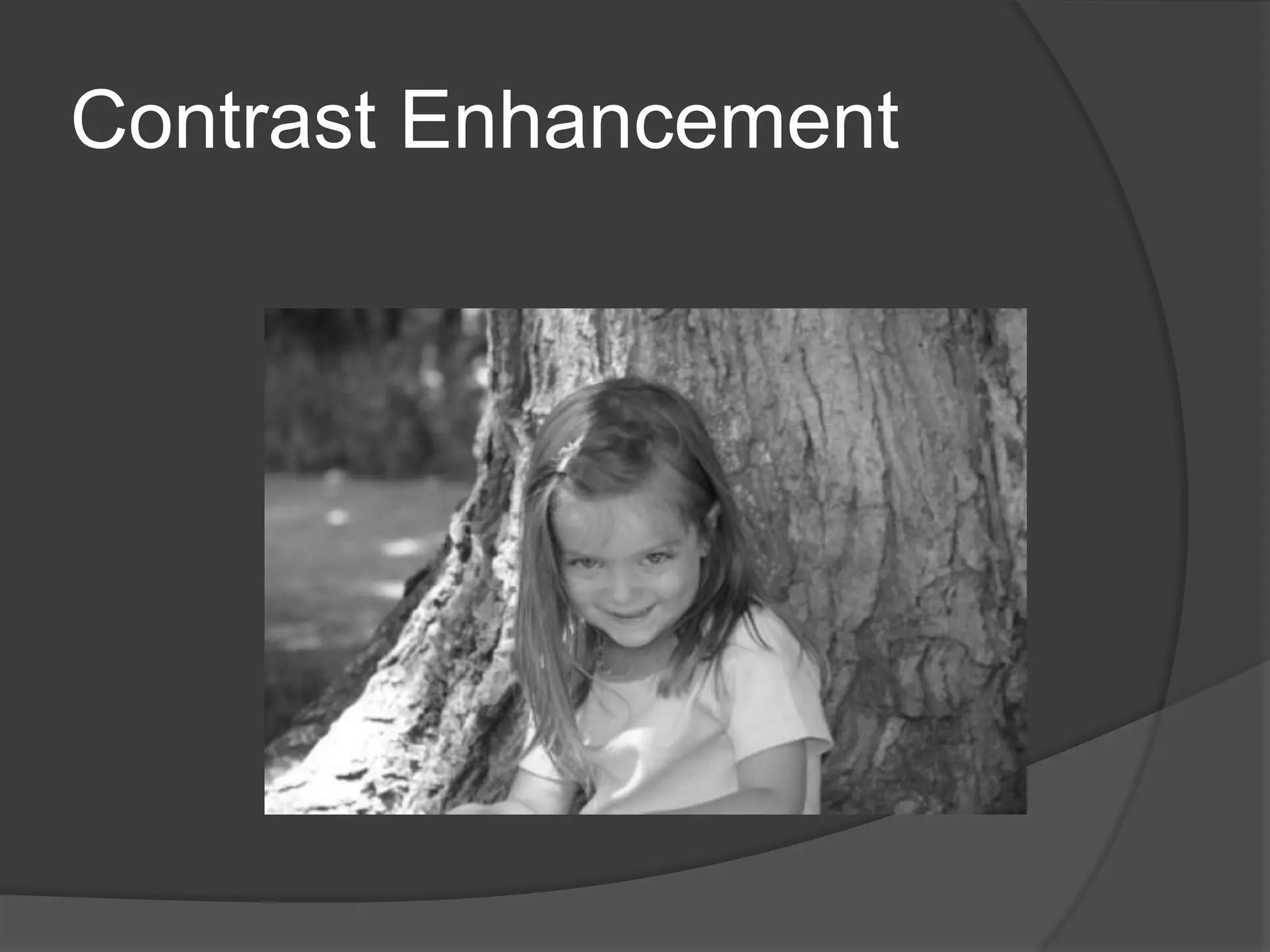
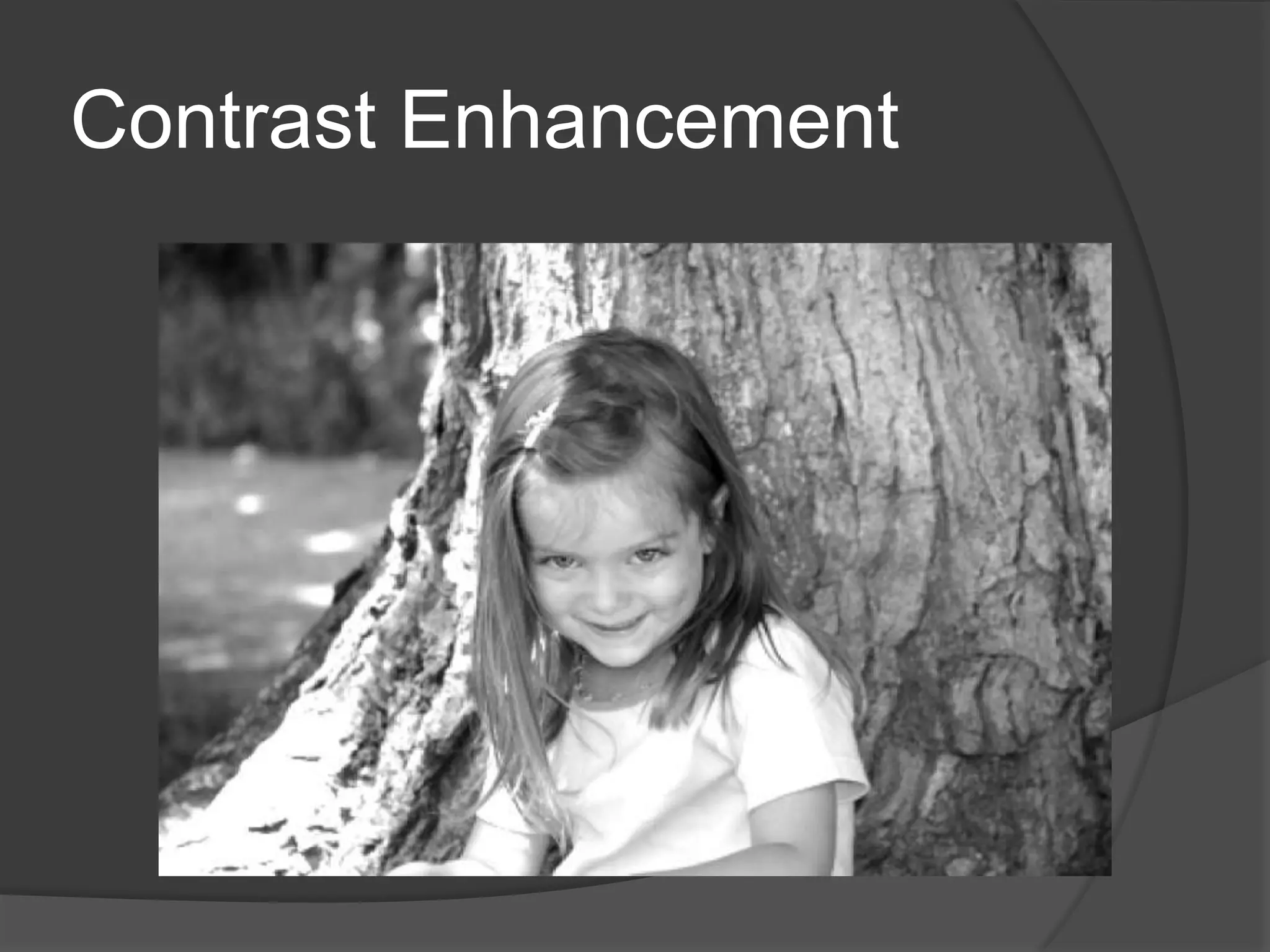
   Contrast Enhancement
   Sharpening the secret to success
   CorelDraw vsPhotoGRAVvs 1 Touch
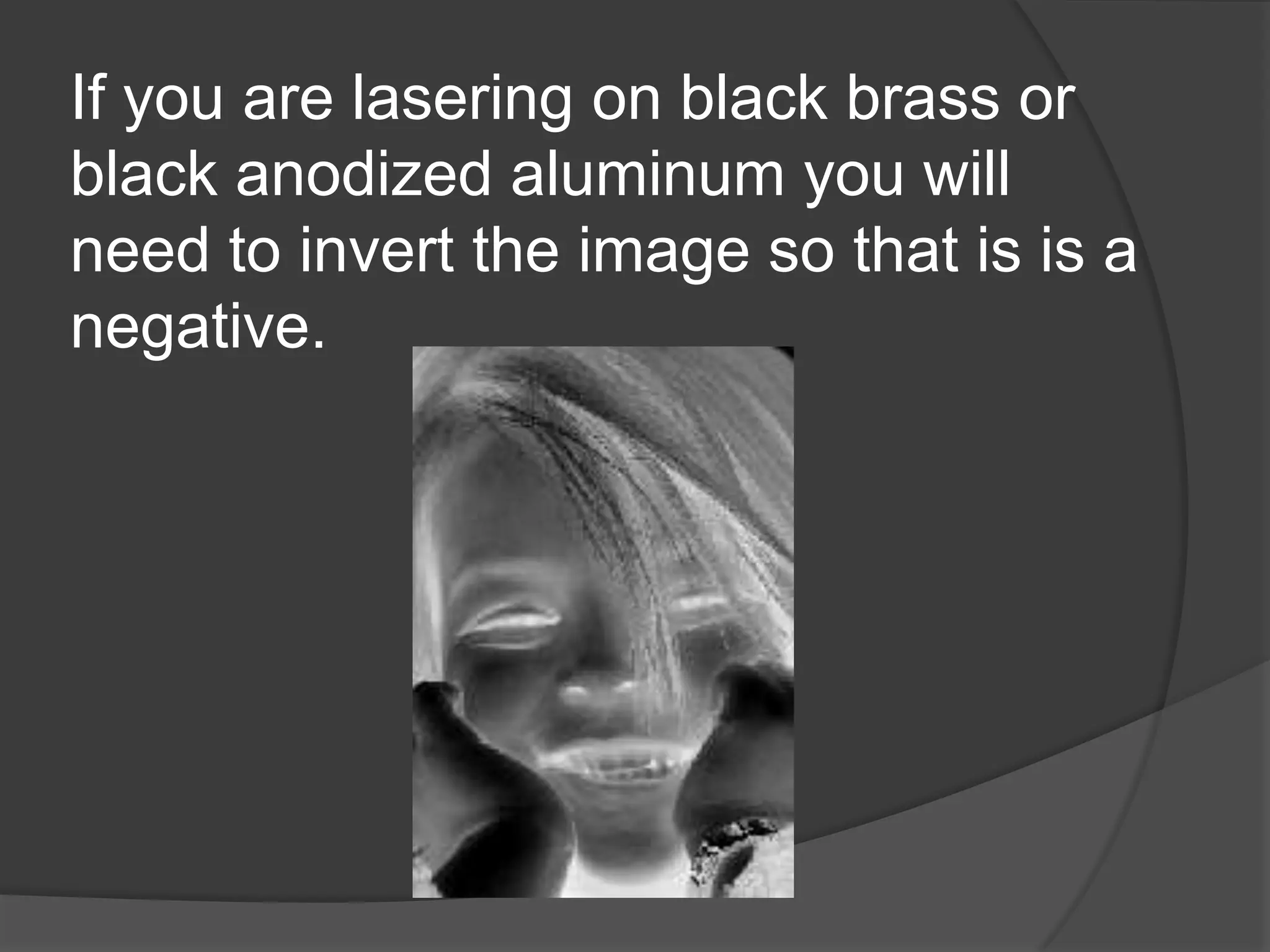
   Invert
   Vignette
   Cutout Lab in PhotoPaint
6 rules of lasering photo
   Always work in Gray scale (a continuous tone
    image) or Black and white this depends on the
    material you are going to laser on
   Know your materials that you want to work on
   Make sure that you know your speeds and
    powers
   Work only with good photos which shows only
    the focus no background images
   Know your adjustment commands
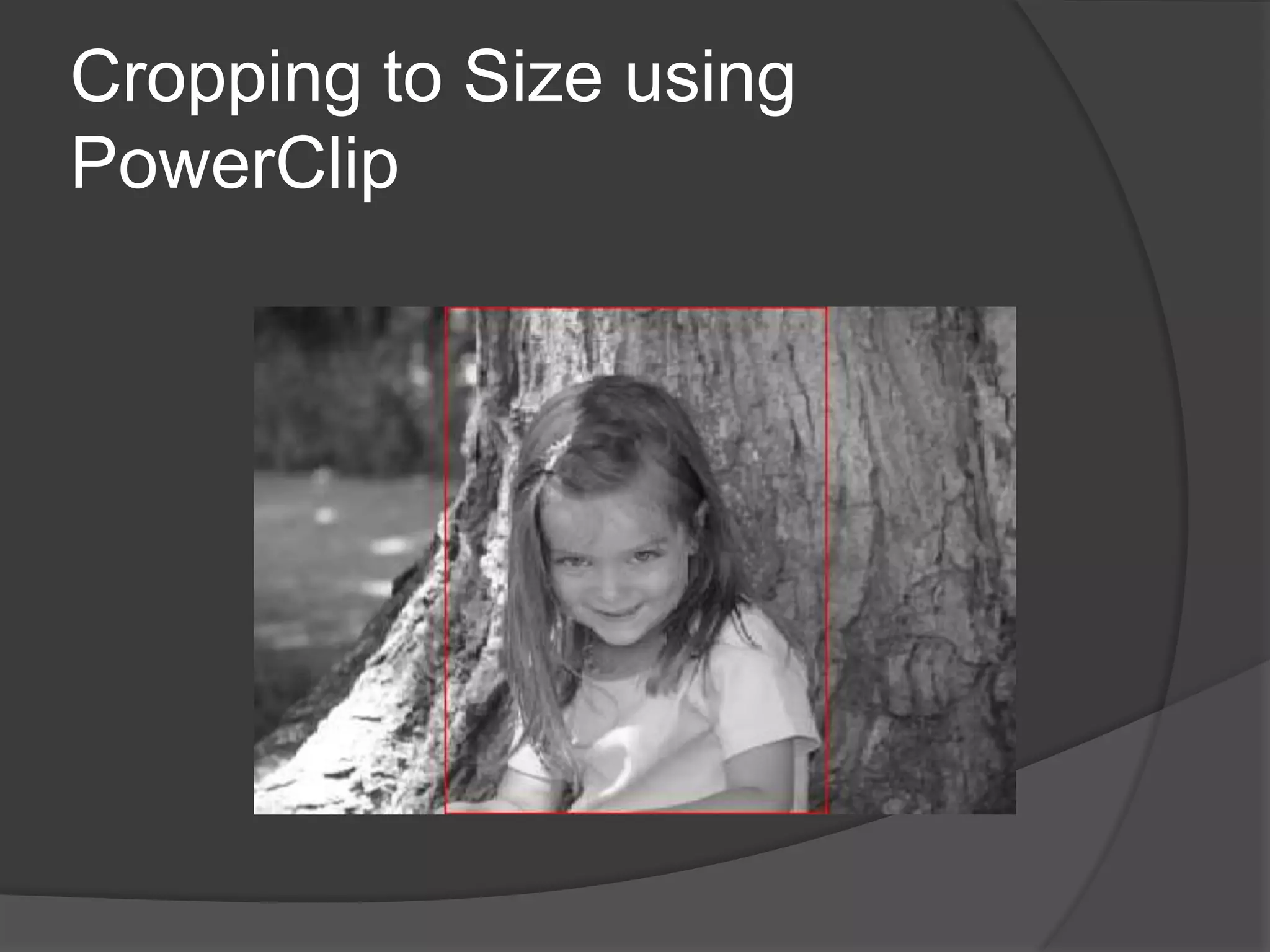
   Crop to Focus
What makes a good laserable material
When we look at materials there are
three characteristics that we need to
consider
1   The first is how well does the material that we
    are working with hold a small well formed laser
    dot
2   Secondly how well does that material display
    our image. In other word do we see good
    contrast. Is there a good difference in colour
    between the colour of the lasered and non
    lasered area. For example the best contrast is
    black and white.
3   The third is how good is the material in terms of
    being consistent. Wood is not good because it
    has a changing grain, anodized aluminum is
    very good because it has no grain
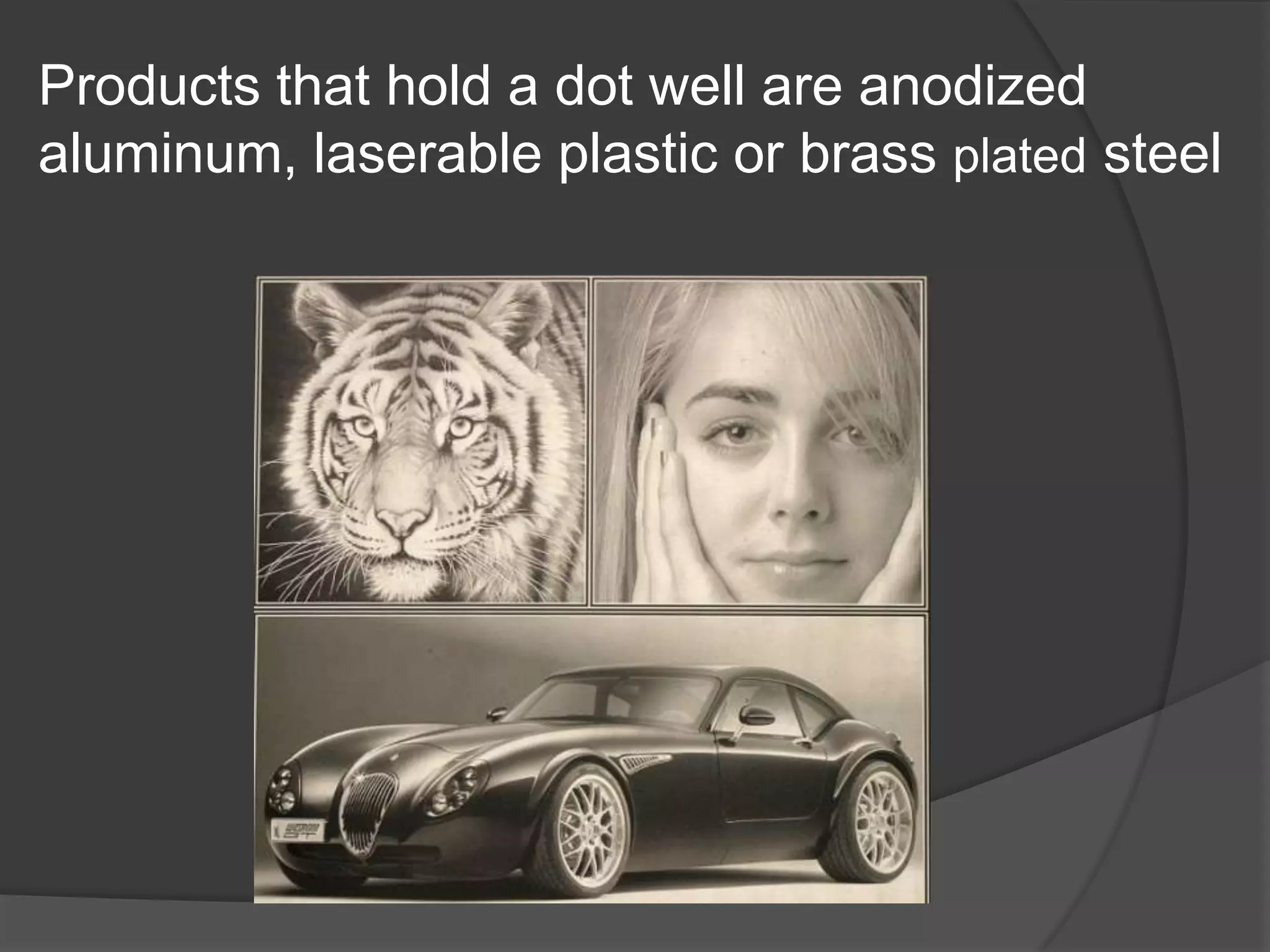
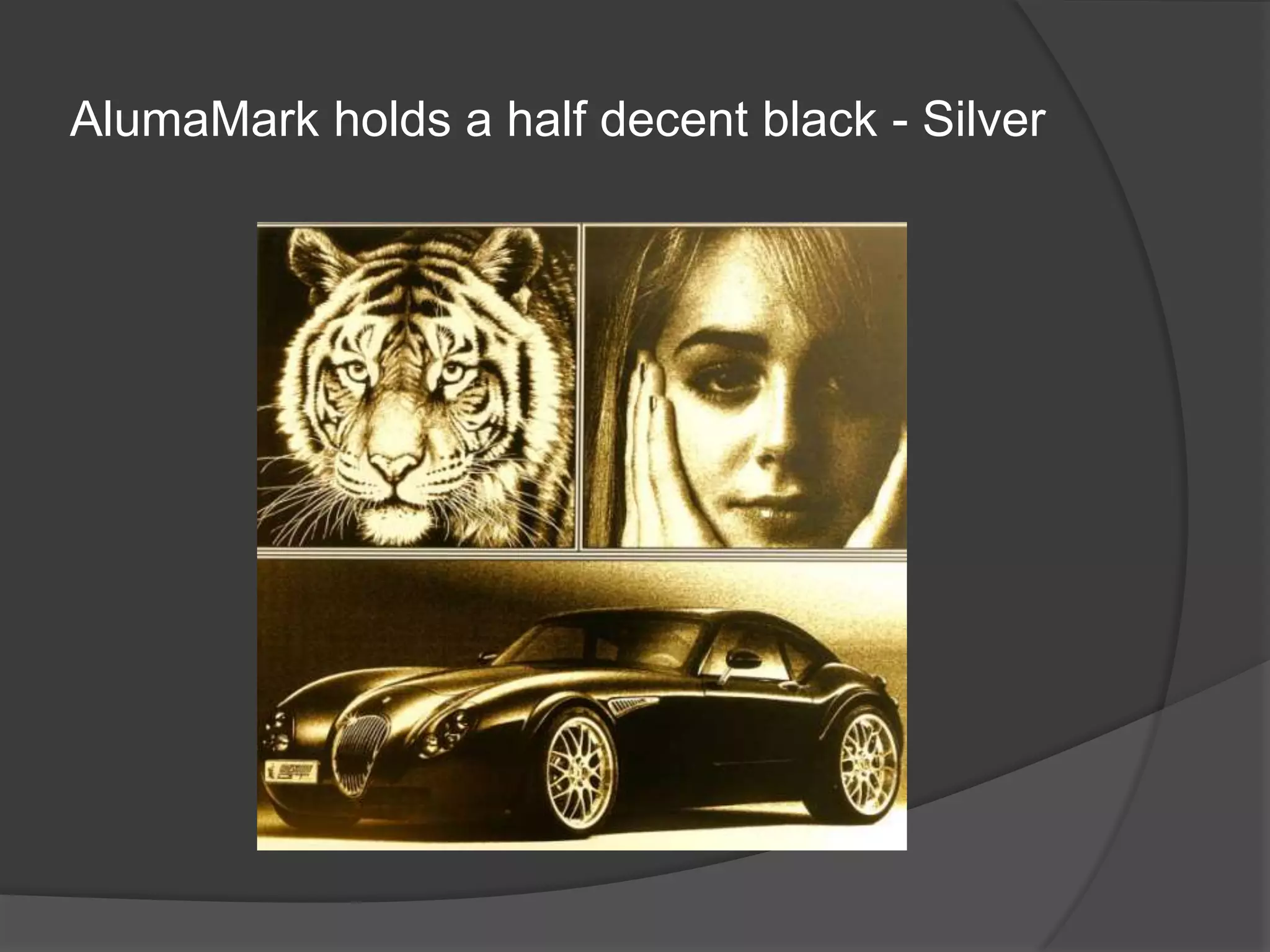
Products that hold a dot well are anodized
aluminum, laserable plastic or brass plated steel
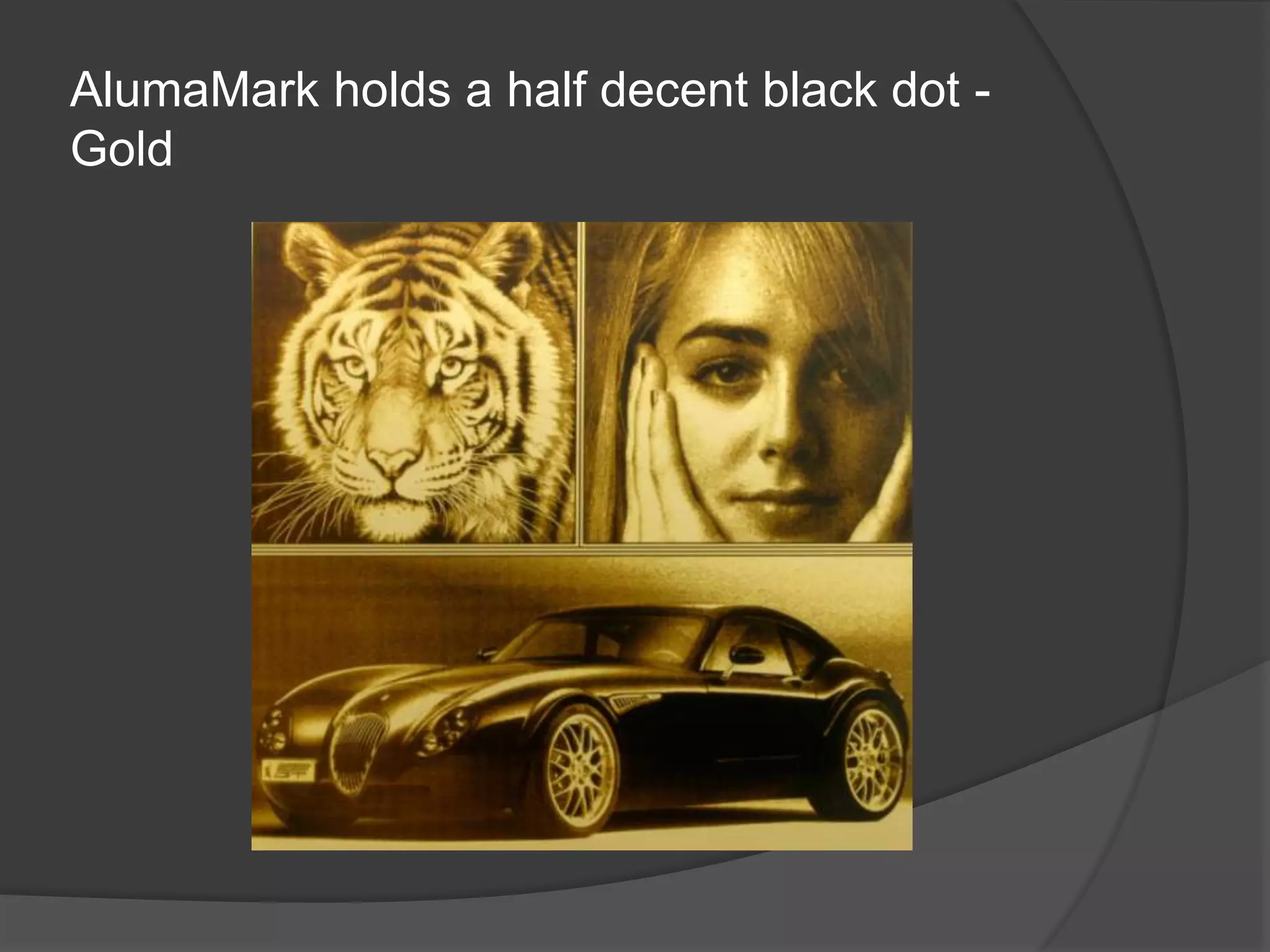
AlumaMark holds a half decent black dot -
Gold
AlumaMark holds a half decent black - Silver
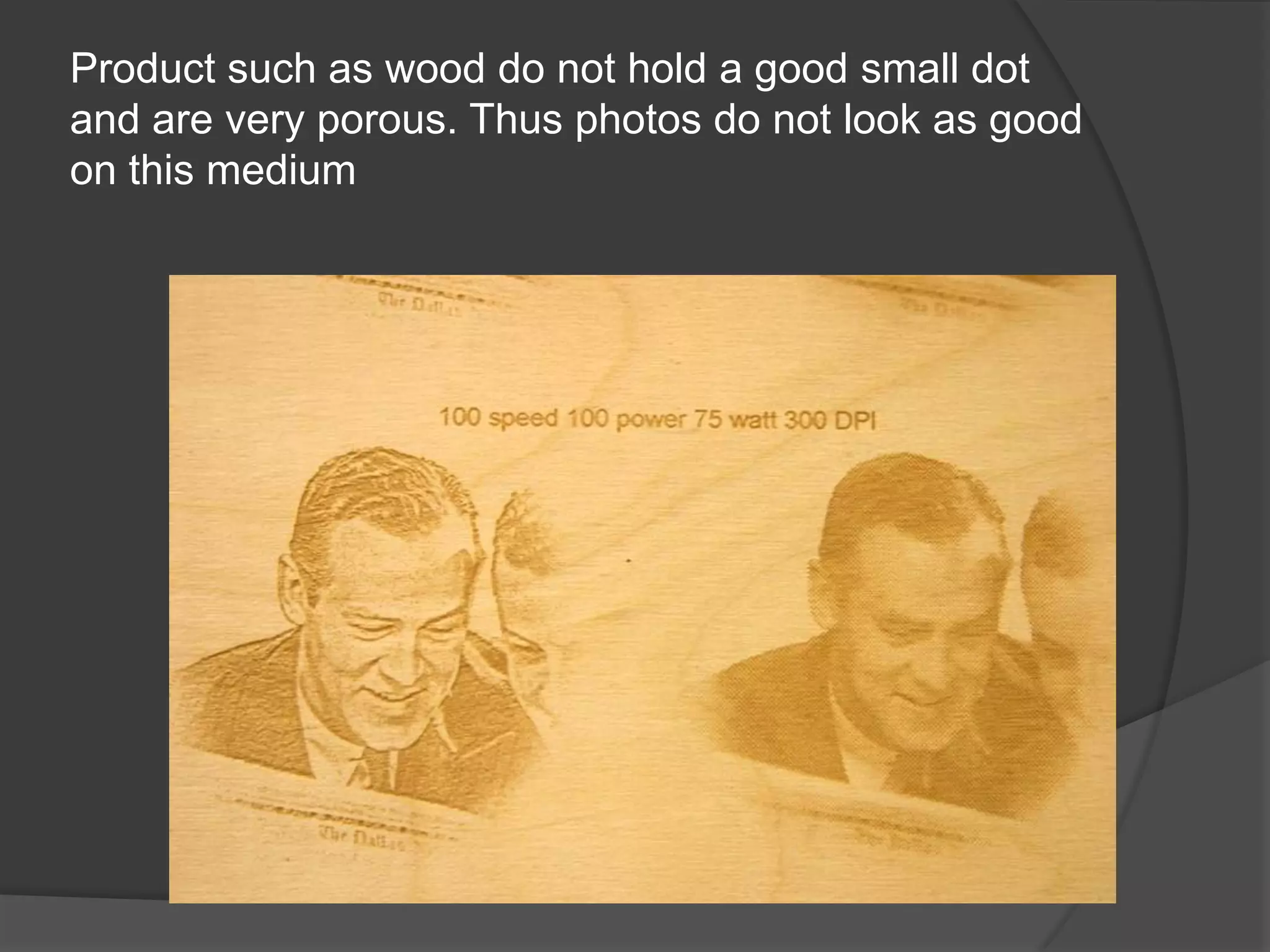
Product such as wood do not hold a good small dot
and are very porous. Thus photos do not look as good
on this medium
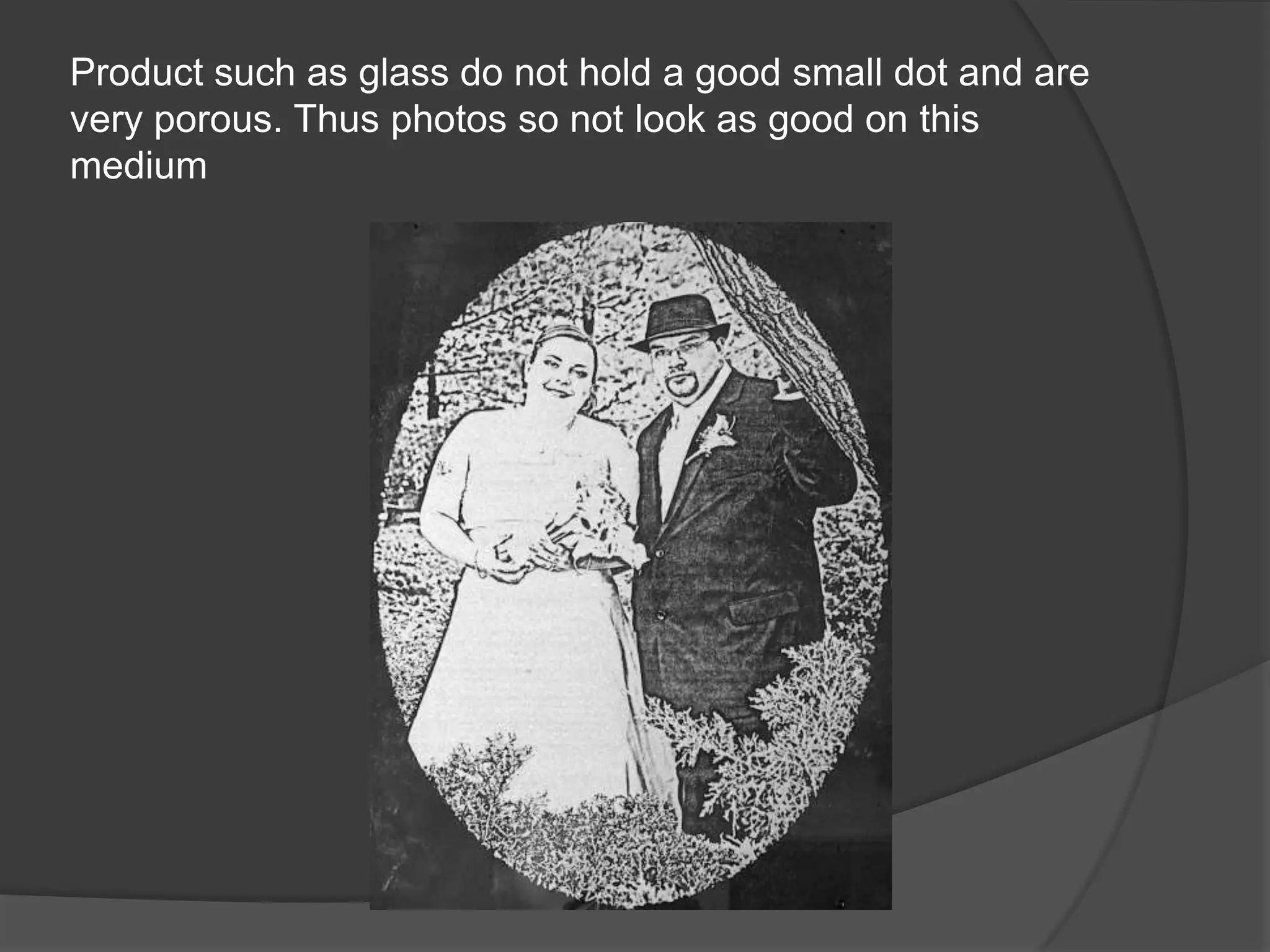
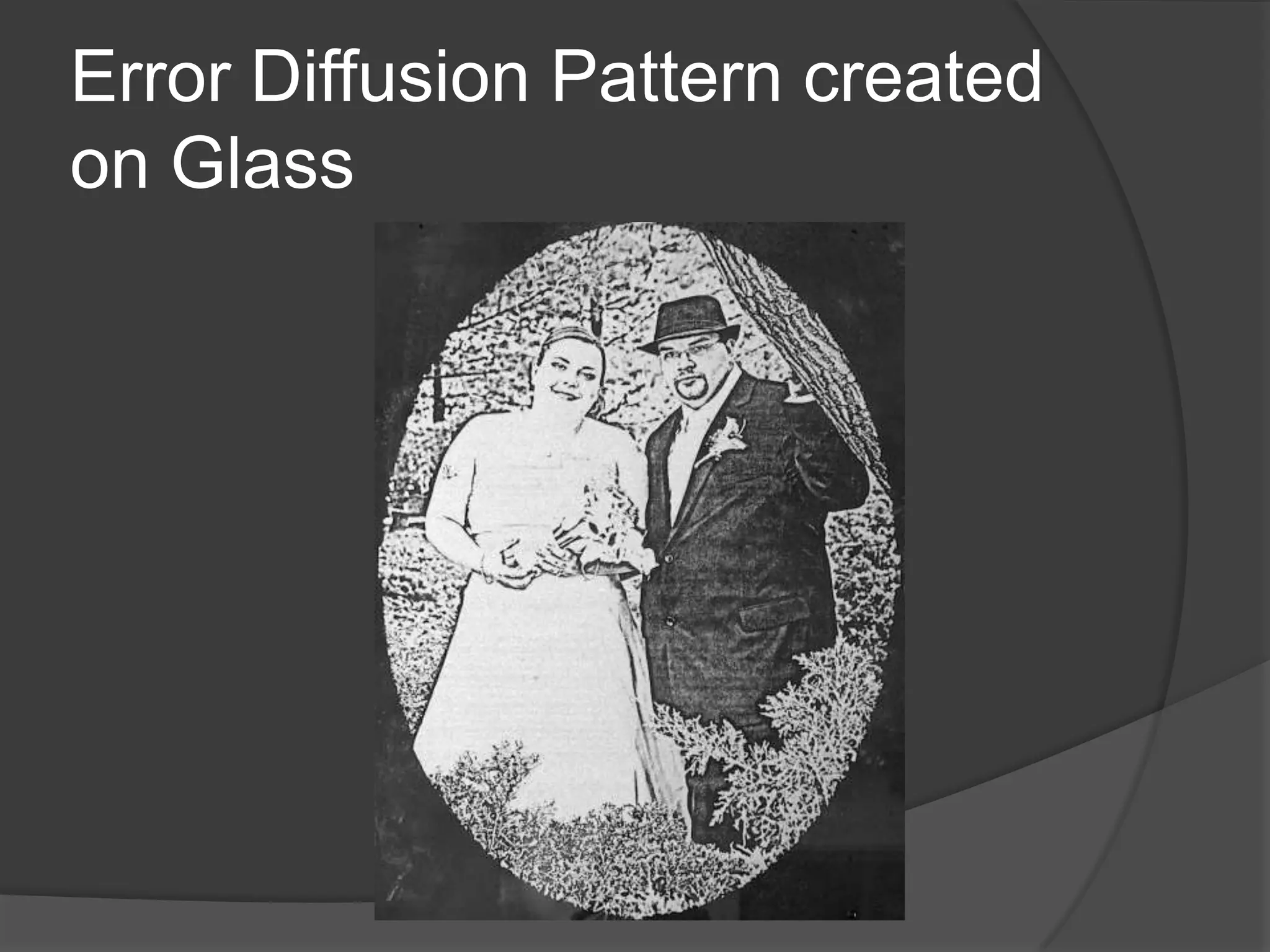
Product such as glass do not hold a good small dot and are
very porous. Thus photos so not look as good on this
medium
What this means is that
when we process a photo
we need to establish first
what type of material that
we are going to laser on.
Once we have our material
we can process the image
Before we go on let us look at the 3 main
  special programs for photo processing

 ULS – One Touch
 PhotoGrav
 PhotoLaser
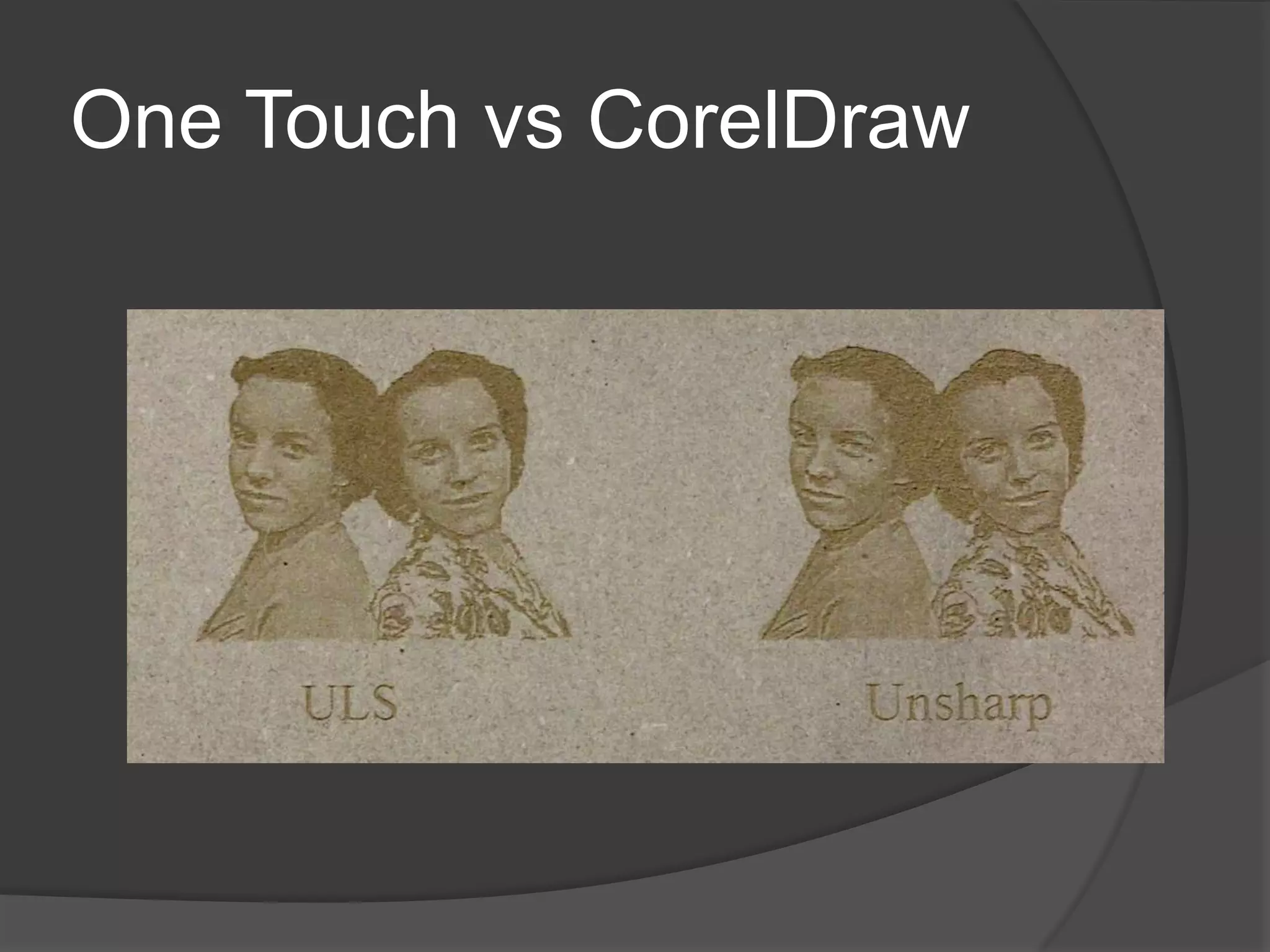
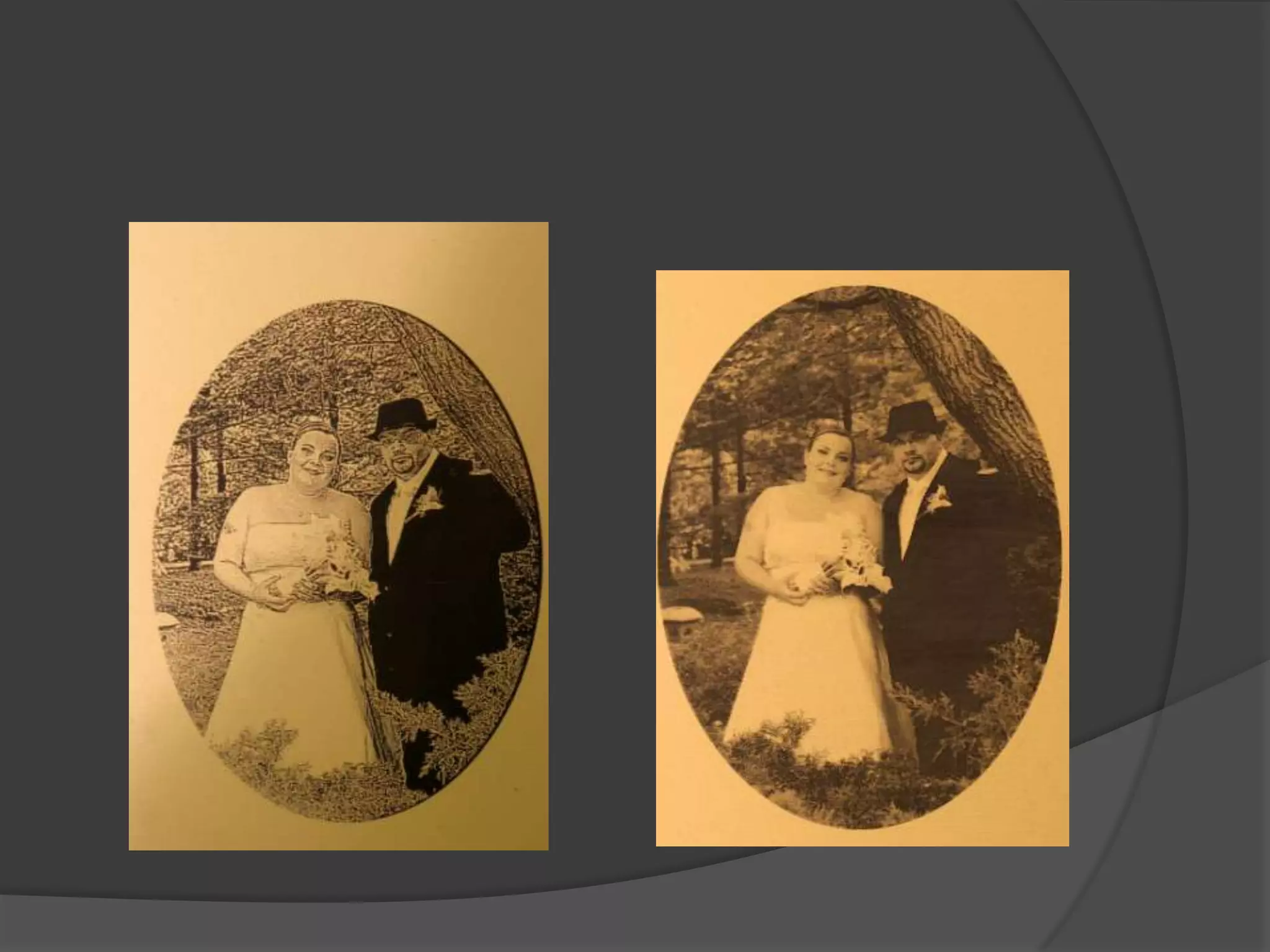
One Touch vs CorelDraw
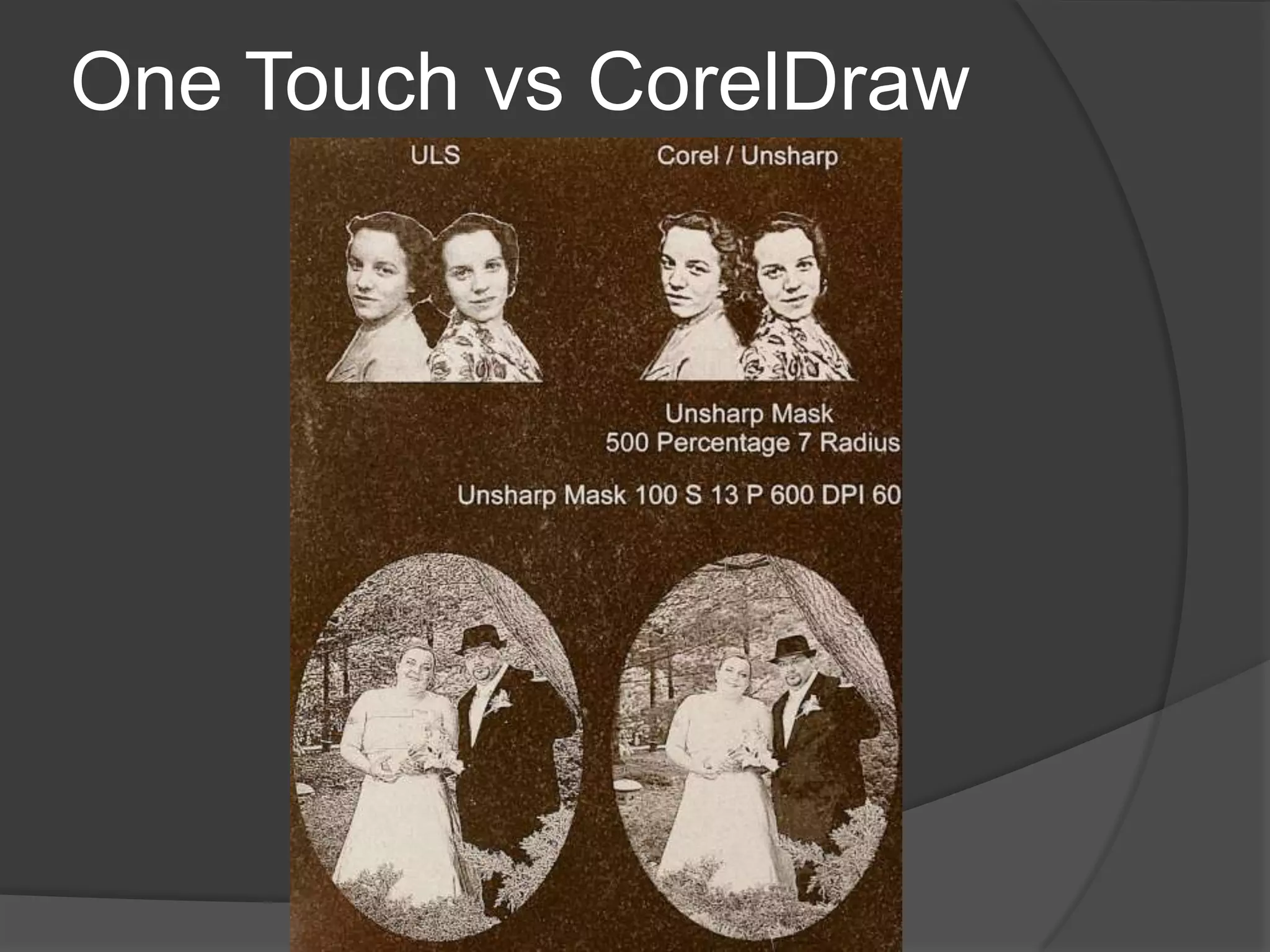
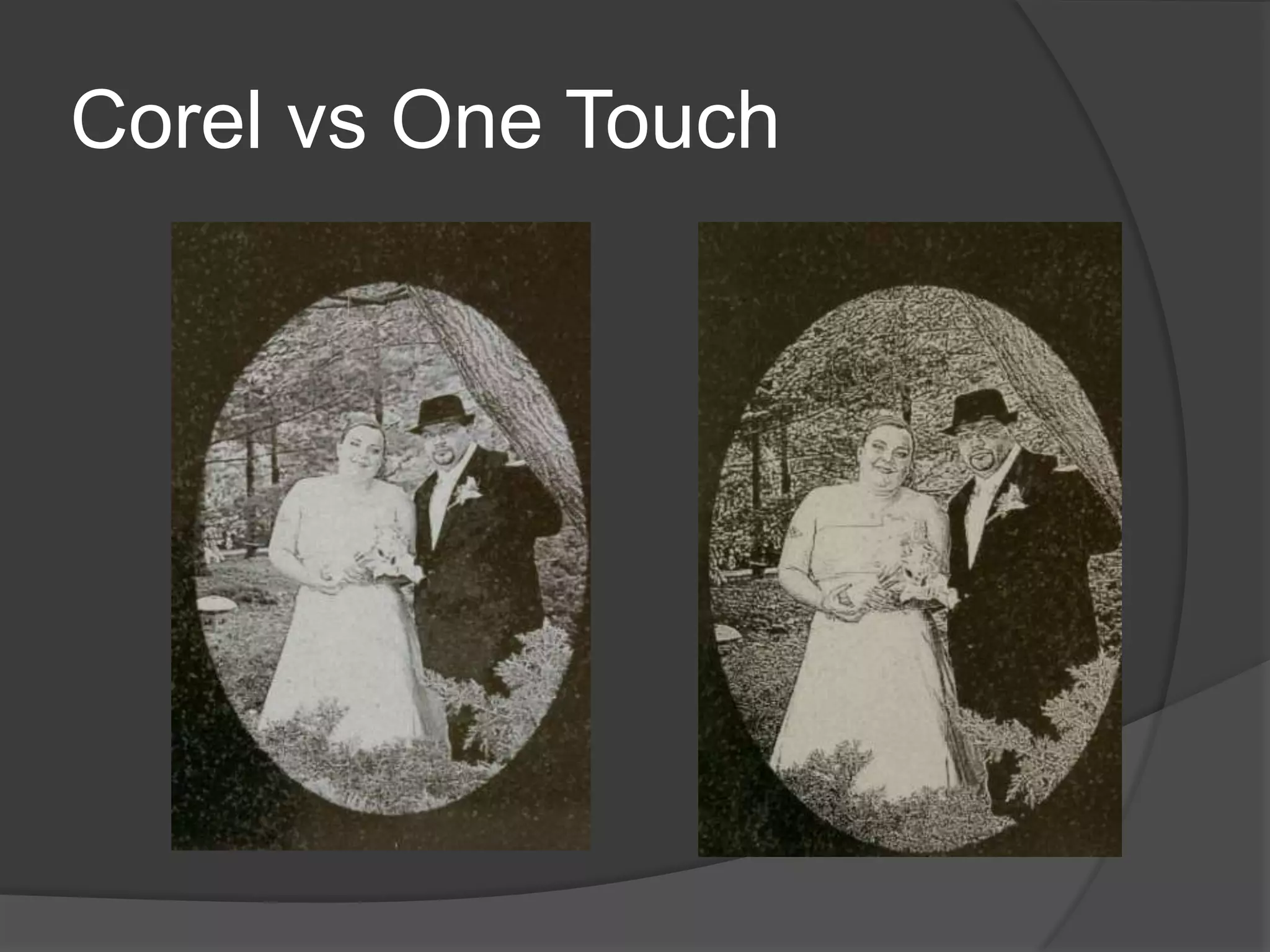
Corel vs One Touch
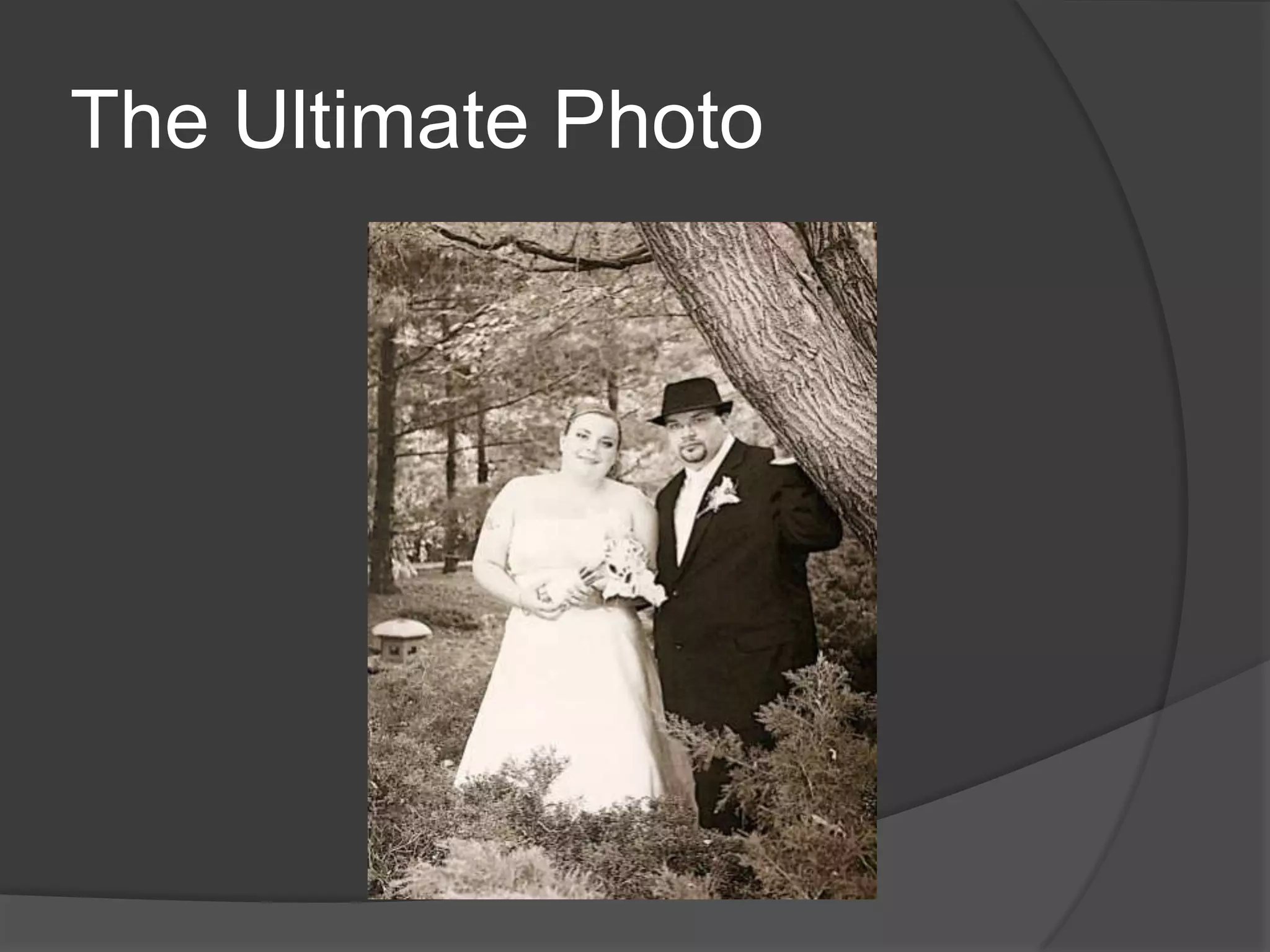
The Ultimate Photo
Our Number 1 Rule
 Thus materials that hold a good small dot
 need to be processed one way while those
 materials that do not hold a good dot need
 to be processed a different way
 Let us look at the two ways we can
 process an image.
Our two printing methods are:

1- Half Toning

2 -Error Diffusion
Our Number 2 Rule

1- Half Toning – Fine Materials

2 -Error Diffusion – Coarse
Materials
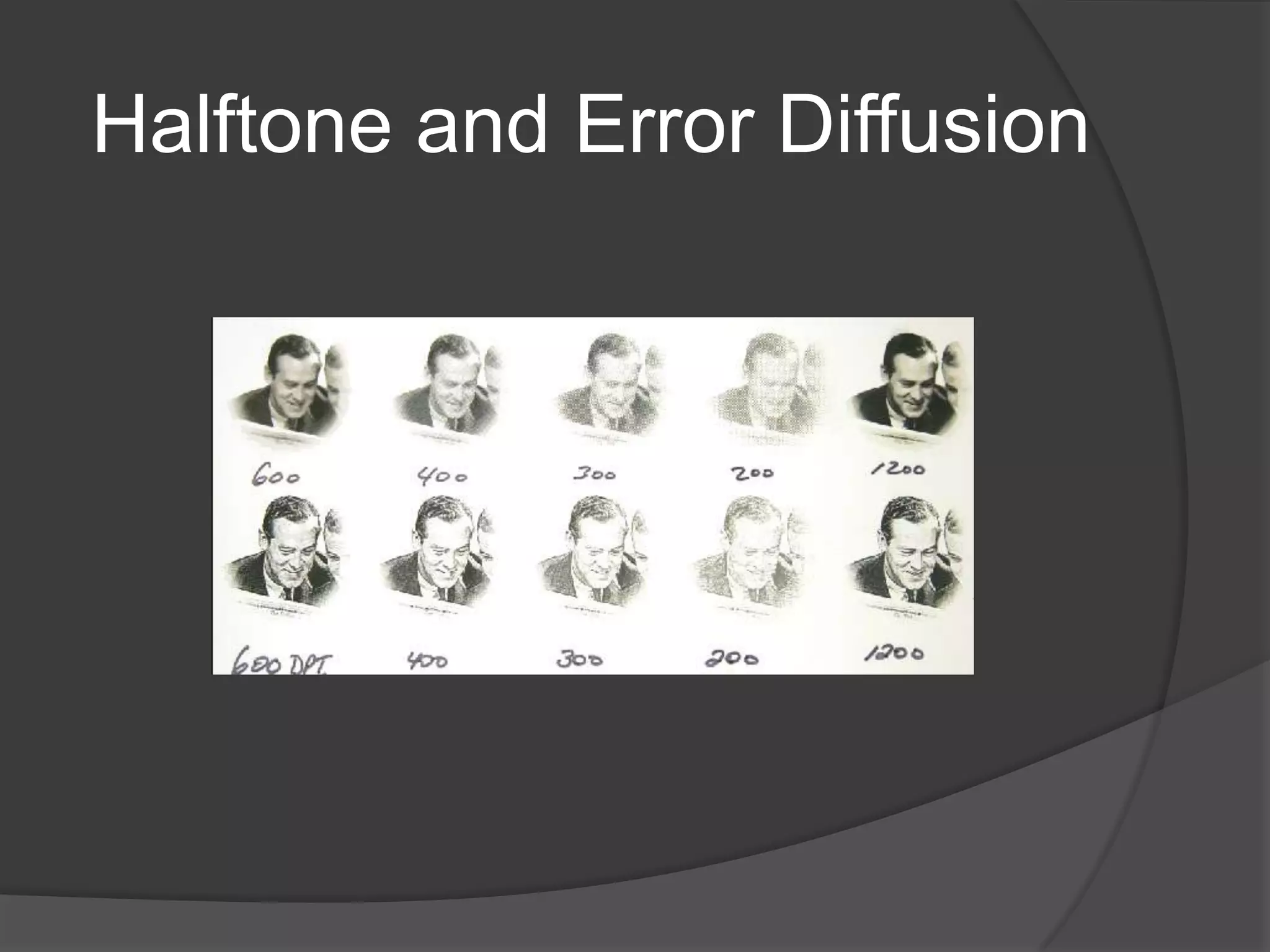
Halftone and Error Diffusion
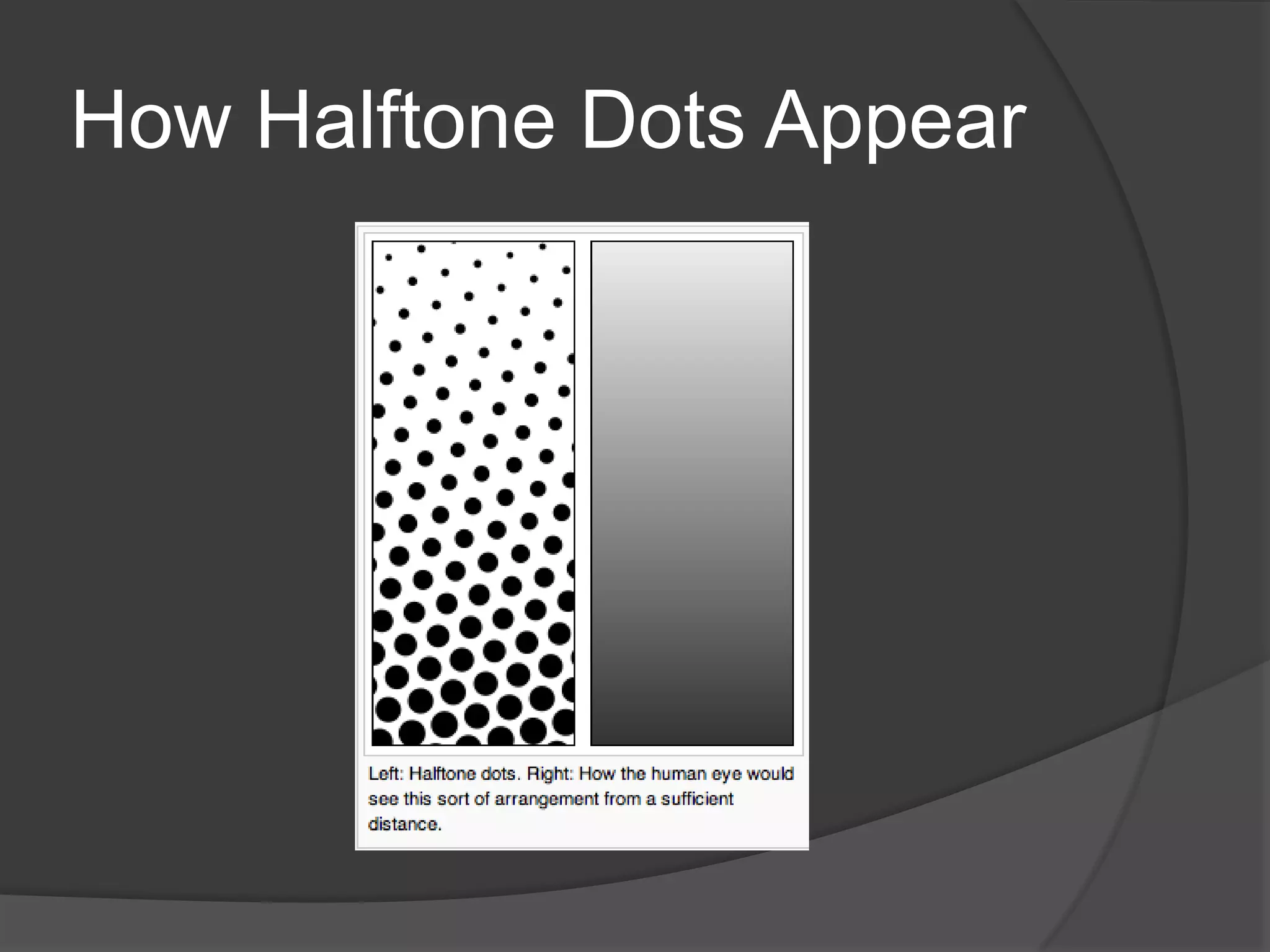
Half toning - Definition
   Halftone is the reprographic technique that
    simulates continuous tone imagery through the
    use of dots, varying either in size, in shape or
    in spacing. "Halftone" can also be used to
    refer specifically to the image that is produced
    by this process. Where continuous tone
    imagery contains an infinite range of colors or
    grays, the halftone process reduces visual
    reproductions to a binary image that is printed
    with only one color of ink. This binary
    reproduction relies on a basic optical illusion
    that these tiny halftone dots are blended into
    smooth tones by the human eye.
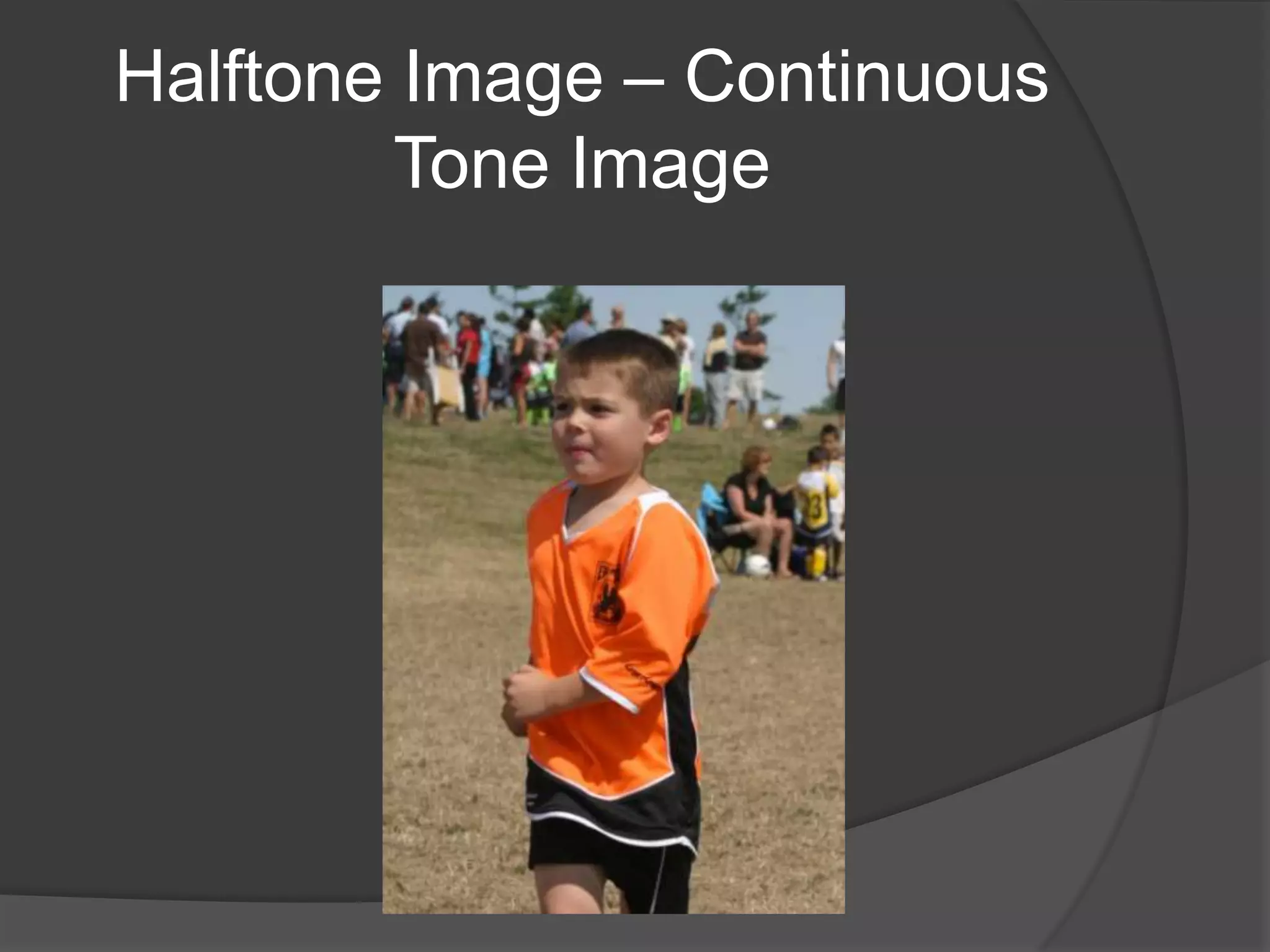
Halftone Image – Continuous
         Tone Image
How Halftone Dots Appear
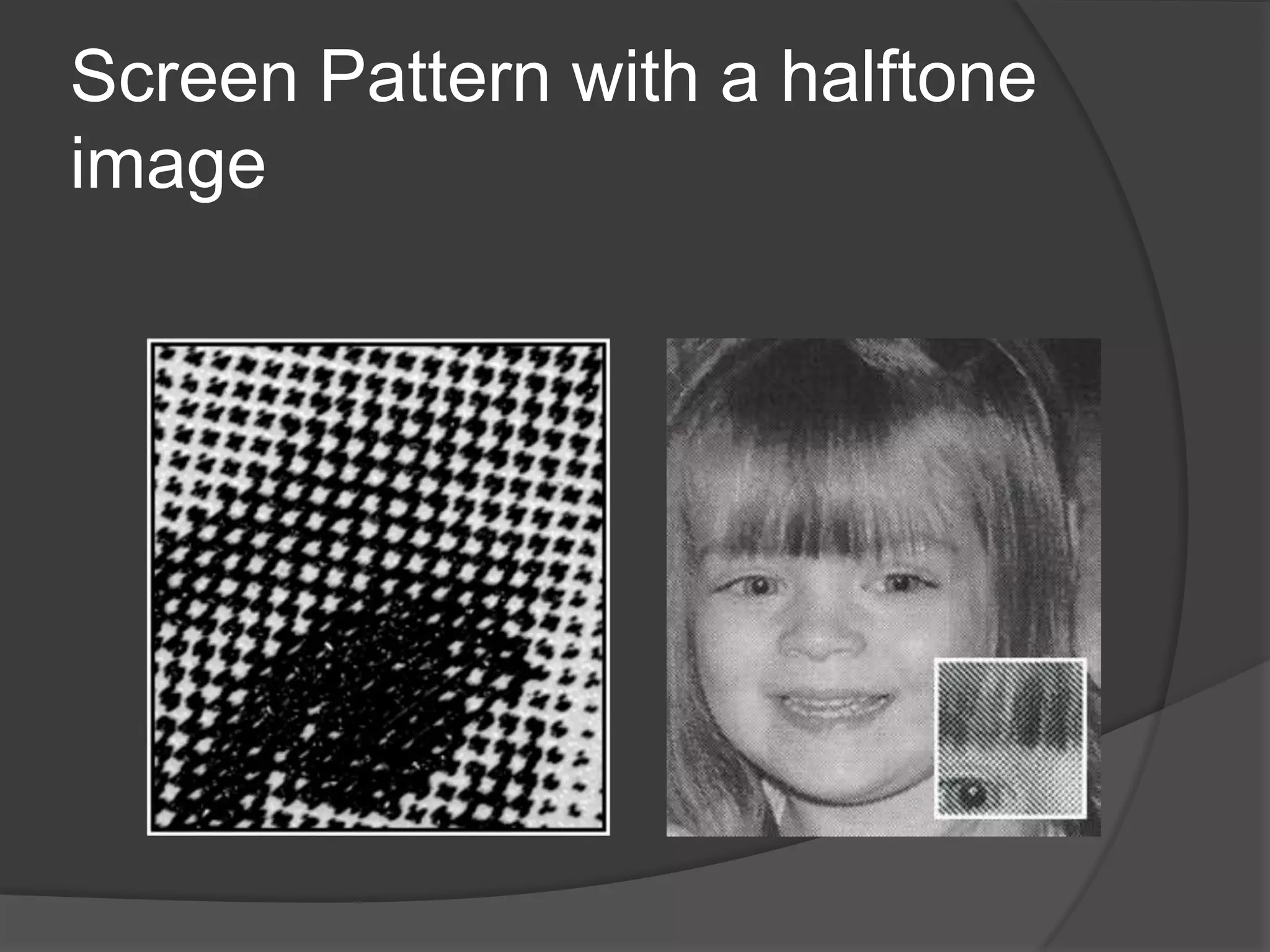
Screen Pattern with a halftone
image
Products that typically require
continuous tonal image – Fine
Materials
 Anodized Aluminum
 Black Brass Coated Steel
 Laserable Plastic
 Some Marbles
 Laser It
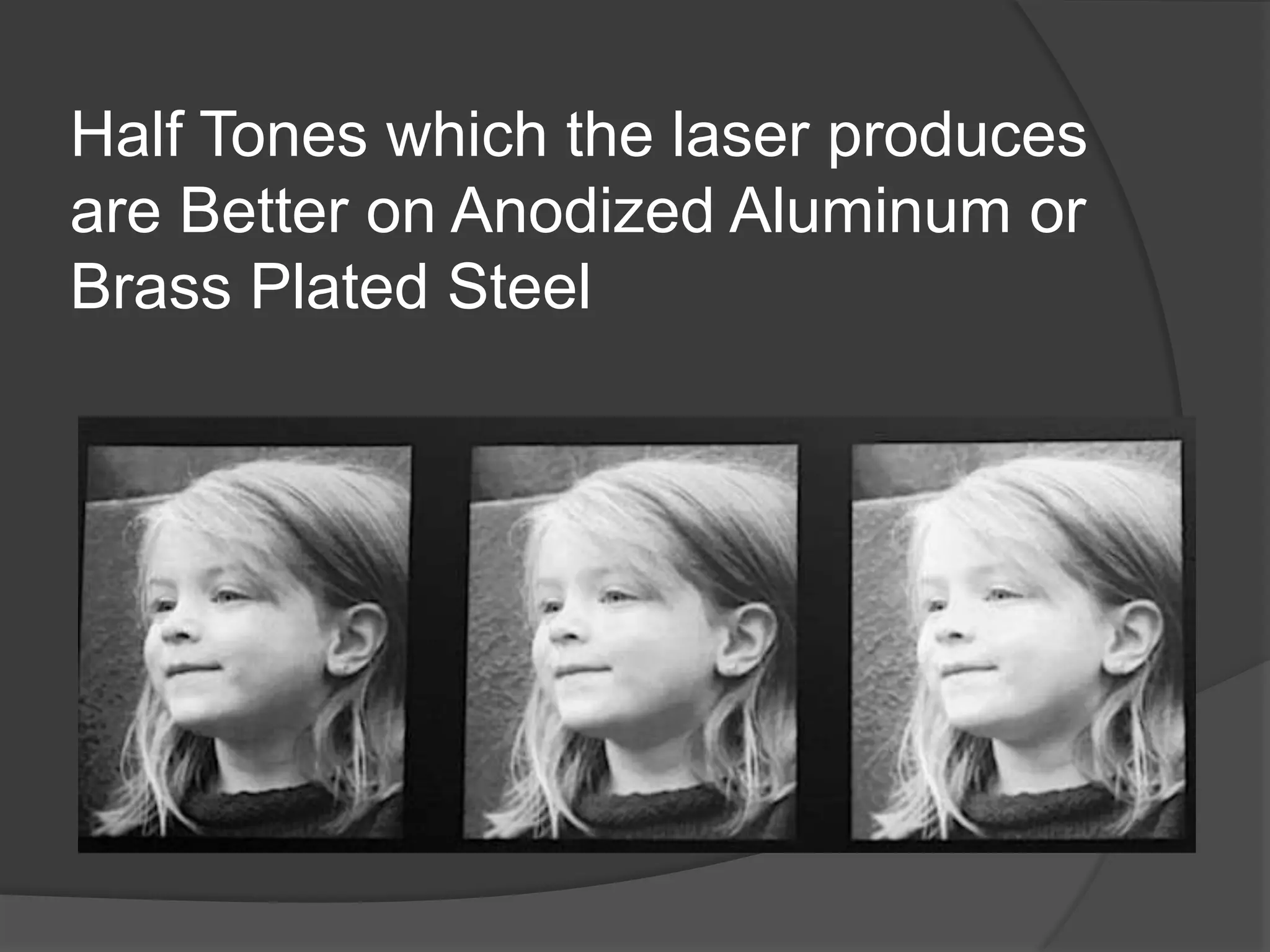
Half Tones which the laser produces
are Better on Anodized Aluminum or
Brass Plated Steel
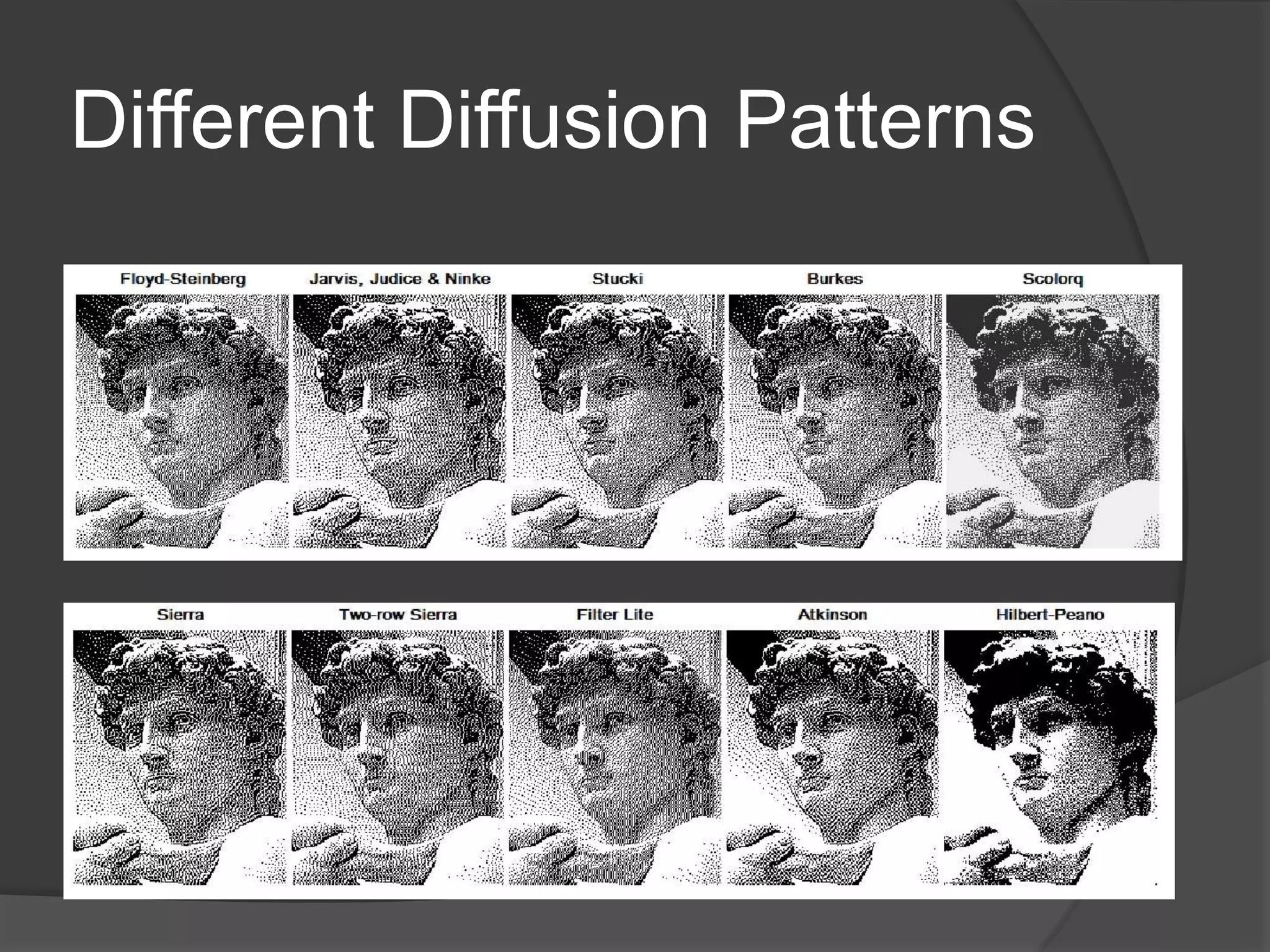
What is Error Diffusion?
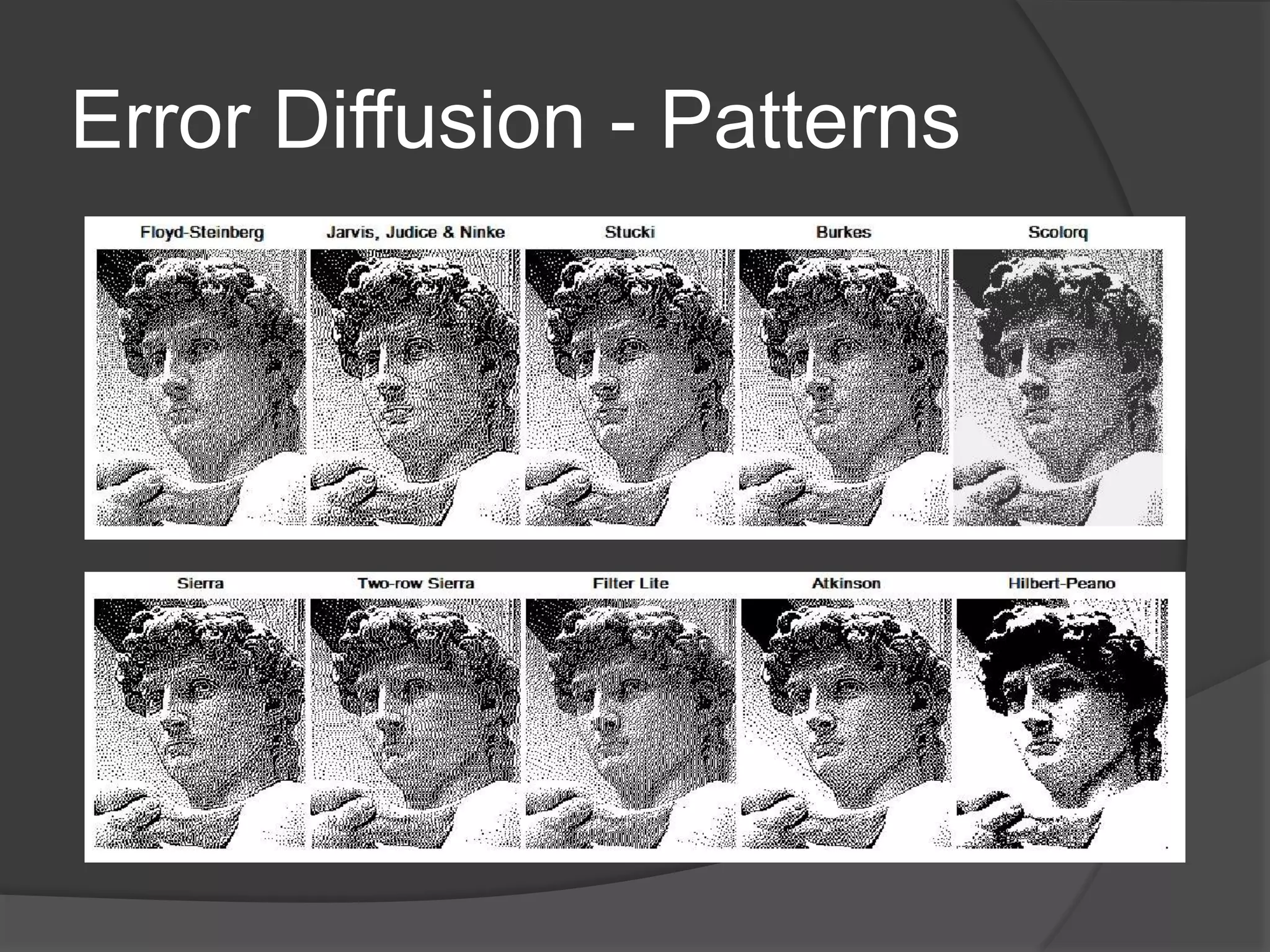
   There is a second set of dithering patterns and
    these are created using what is called an error
    diffusion algorithm. These use a technique of
    diffusing quantization error to neighbouring
    pixels. Ok let us not get to technical. All you
    need to understand is that there are a number
    of error diffusion techniques that are available.
    Which one that you use is up to you. In
    CorelDraw we have 3 error diffusion algorithm
    patterns available to us. These are “Floyd-
    Steinberg”, “Jarvis” and “Stucki”. Others are
    “Burkes”, “Scolorq”, “Sierra”, “Atkinson” and
    “Filter Lite”. Figure 2 and 3 shows some of the
    more popular patterns that are available to
    use.
Error Diffusion - Patterns
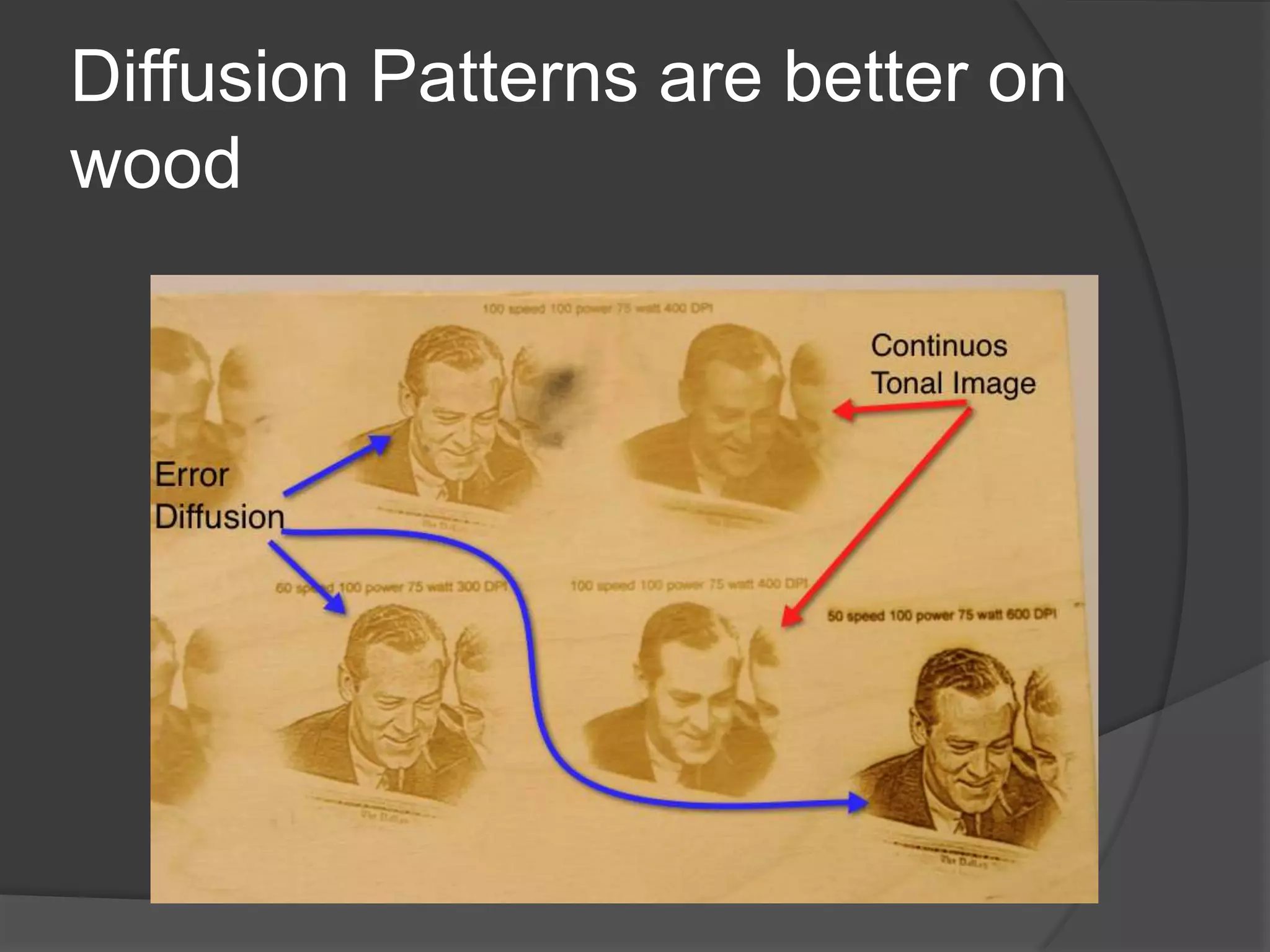
Diffusion Patterns are better on
wood
Products that typically require
error diffusion

  Wood
  Thermark Product
  Glass
  Marble / Granite
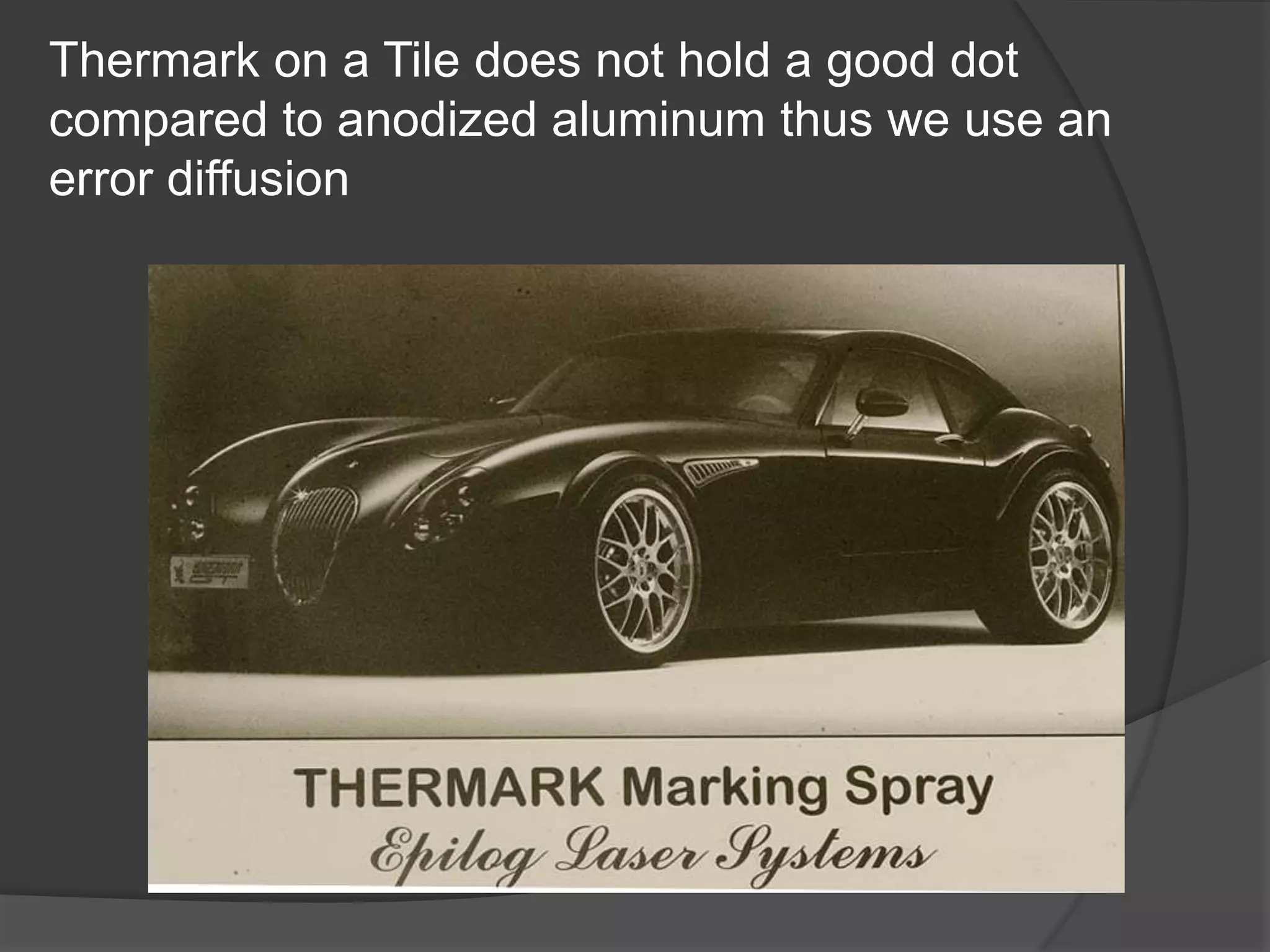
Thermark on a Tile does not hold a good dot
compared to anodized aluminum thus we use an
error diffusion
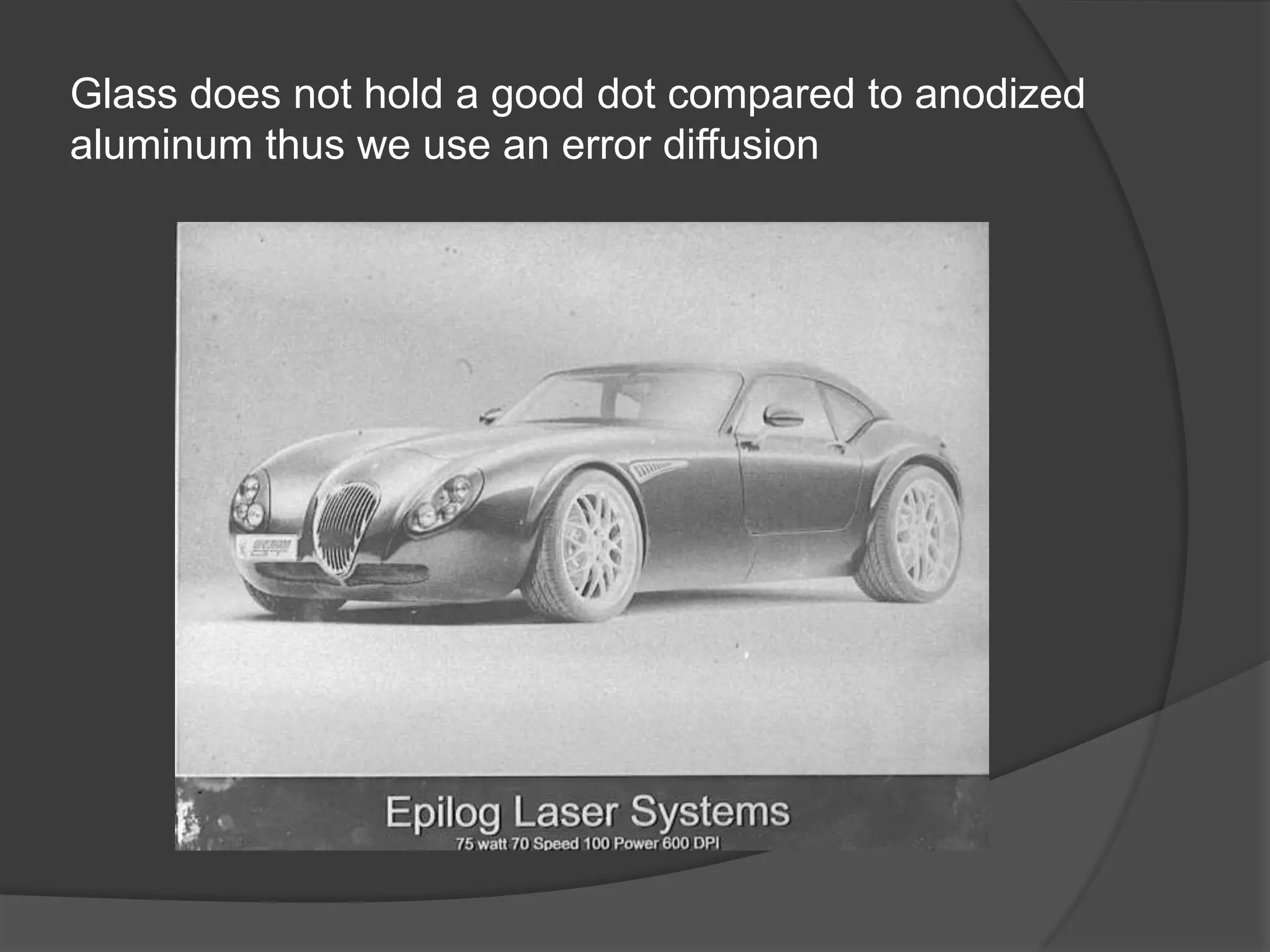
Glass does not hold a good dot compared to anodized
aluminum thus we use an error diffusion
The quality of our image can
greatly influence our final product.
Thus we need to establish
what is a good photograph
that we can use
We need a Good Quality
Image. The worse the image
quality the more chances we
have of not being able to
reproduce the proper image
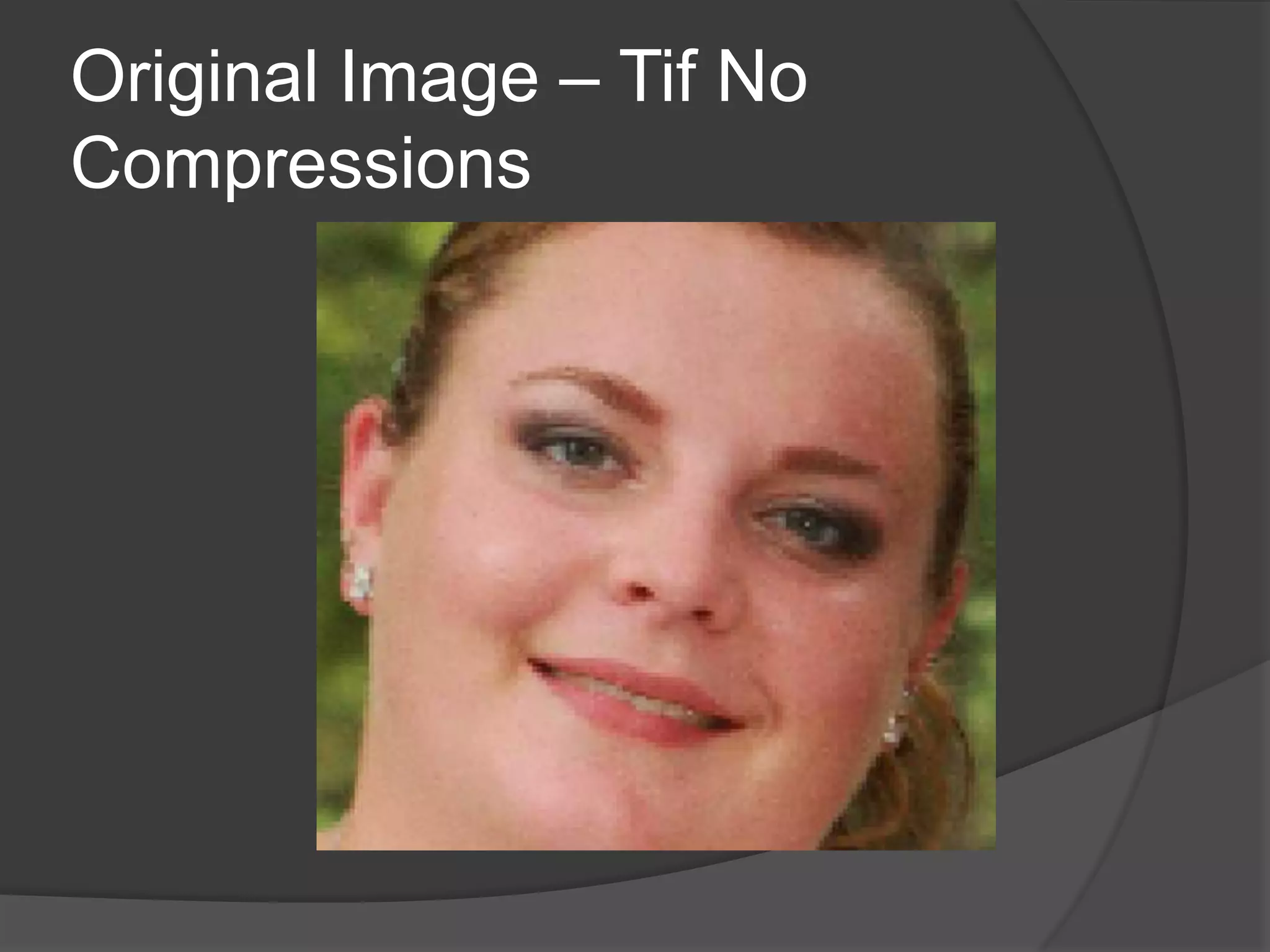
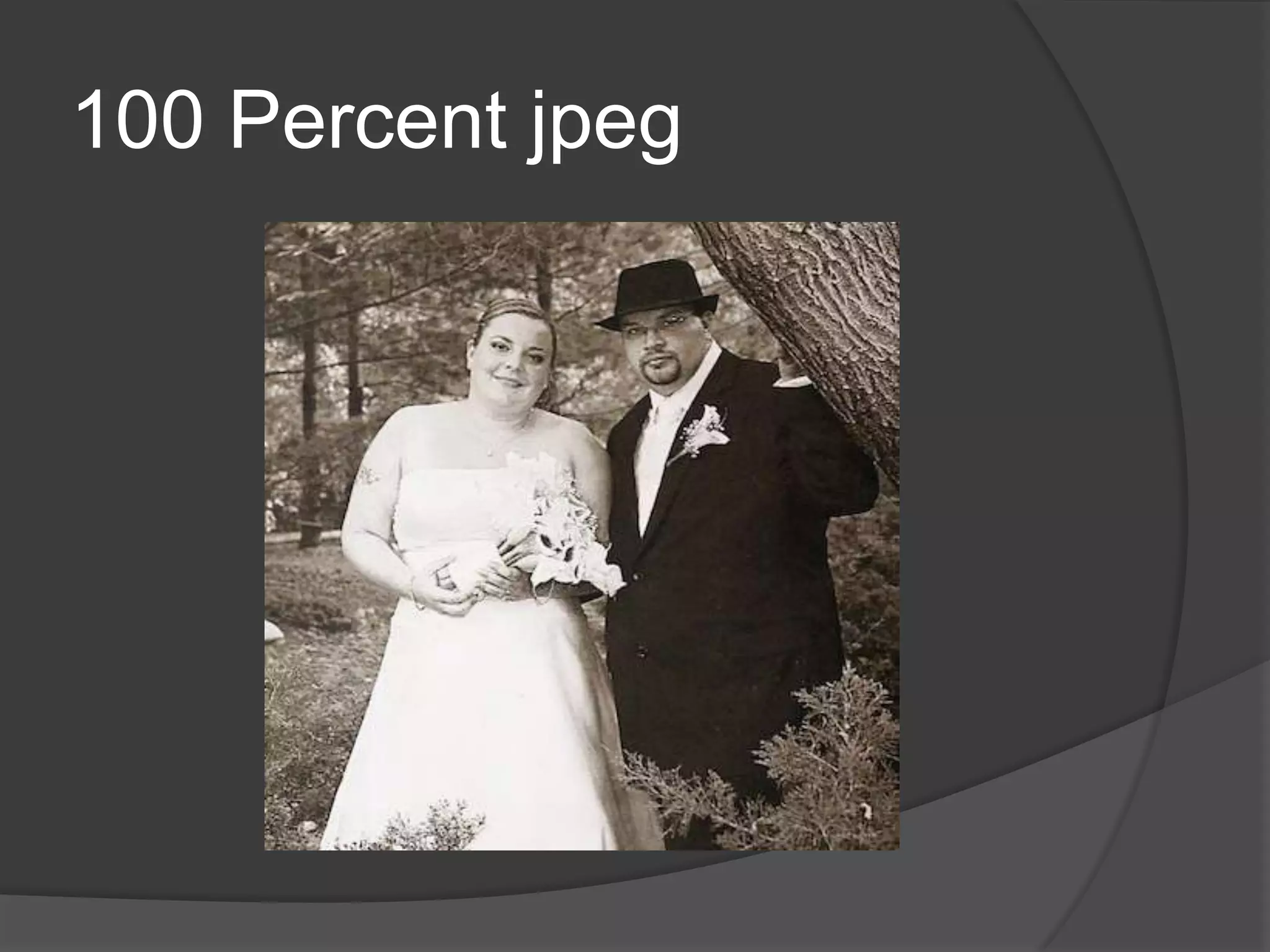
Original Image – Tif No
Compressions
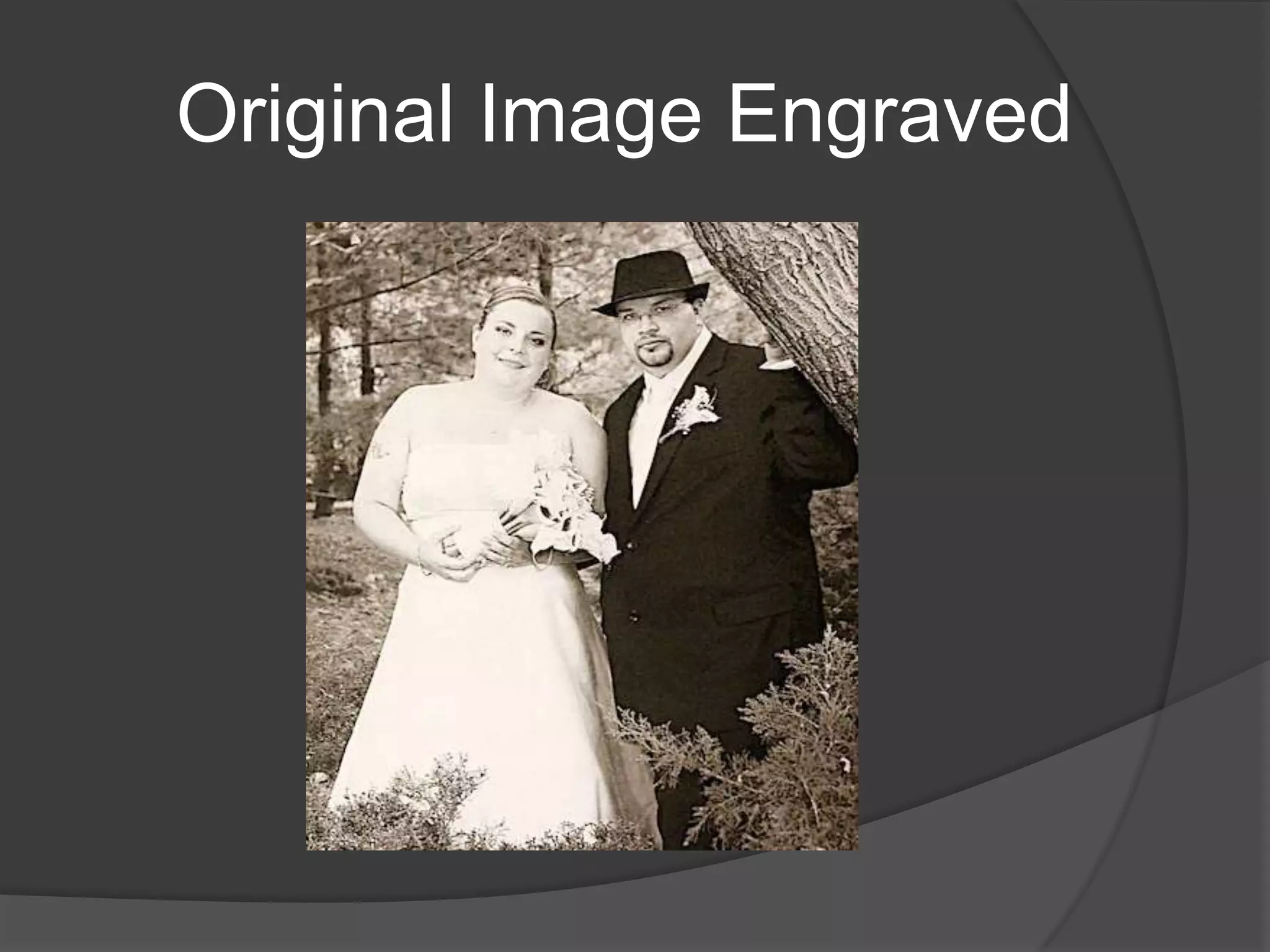
Original Image Engraved
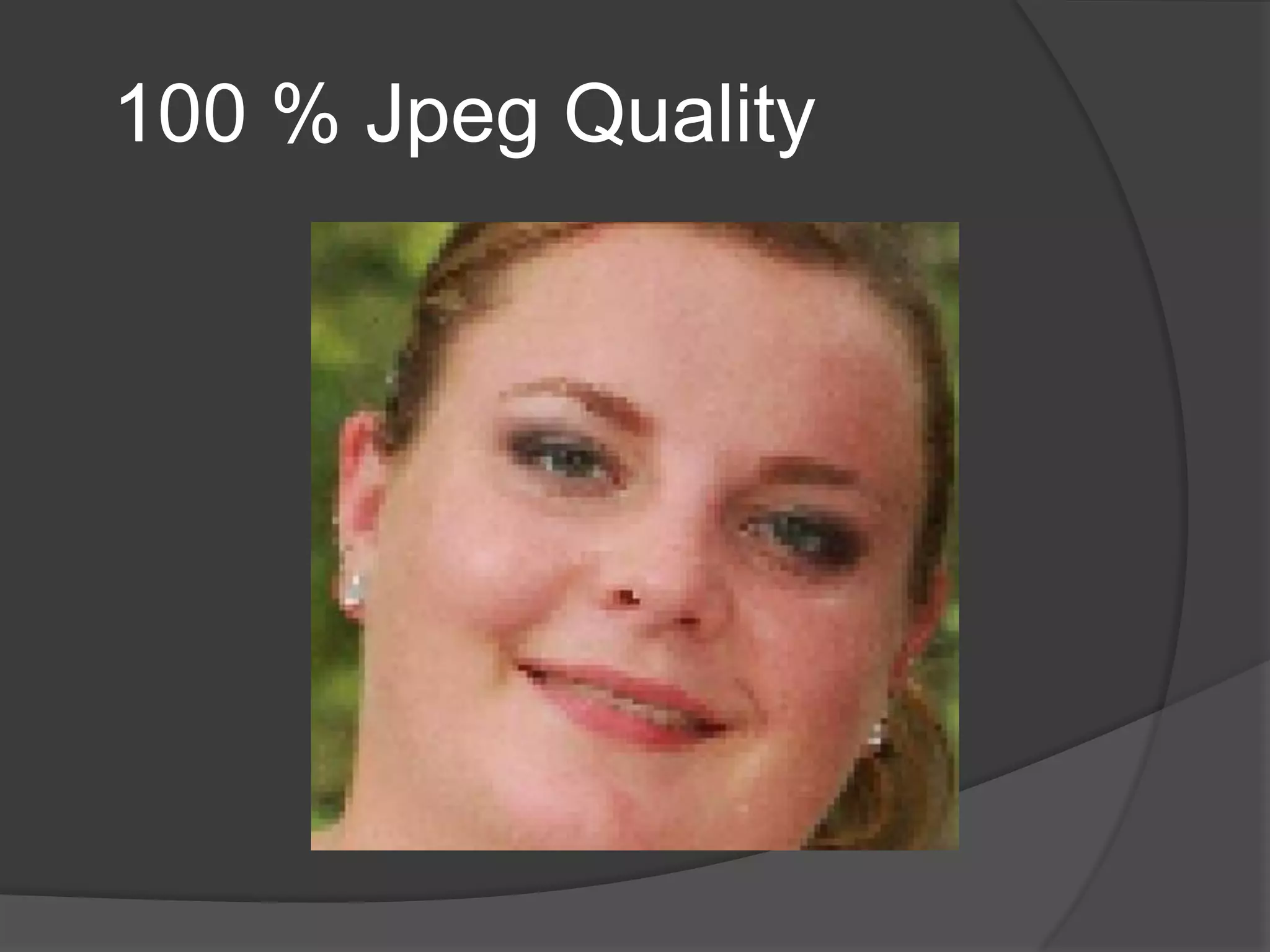
100 % Jpeg Quality
100 Percent jpeg
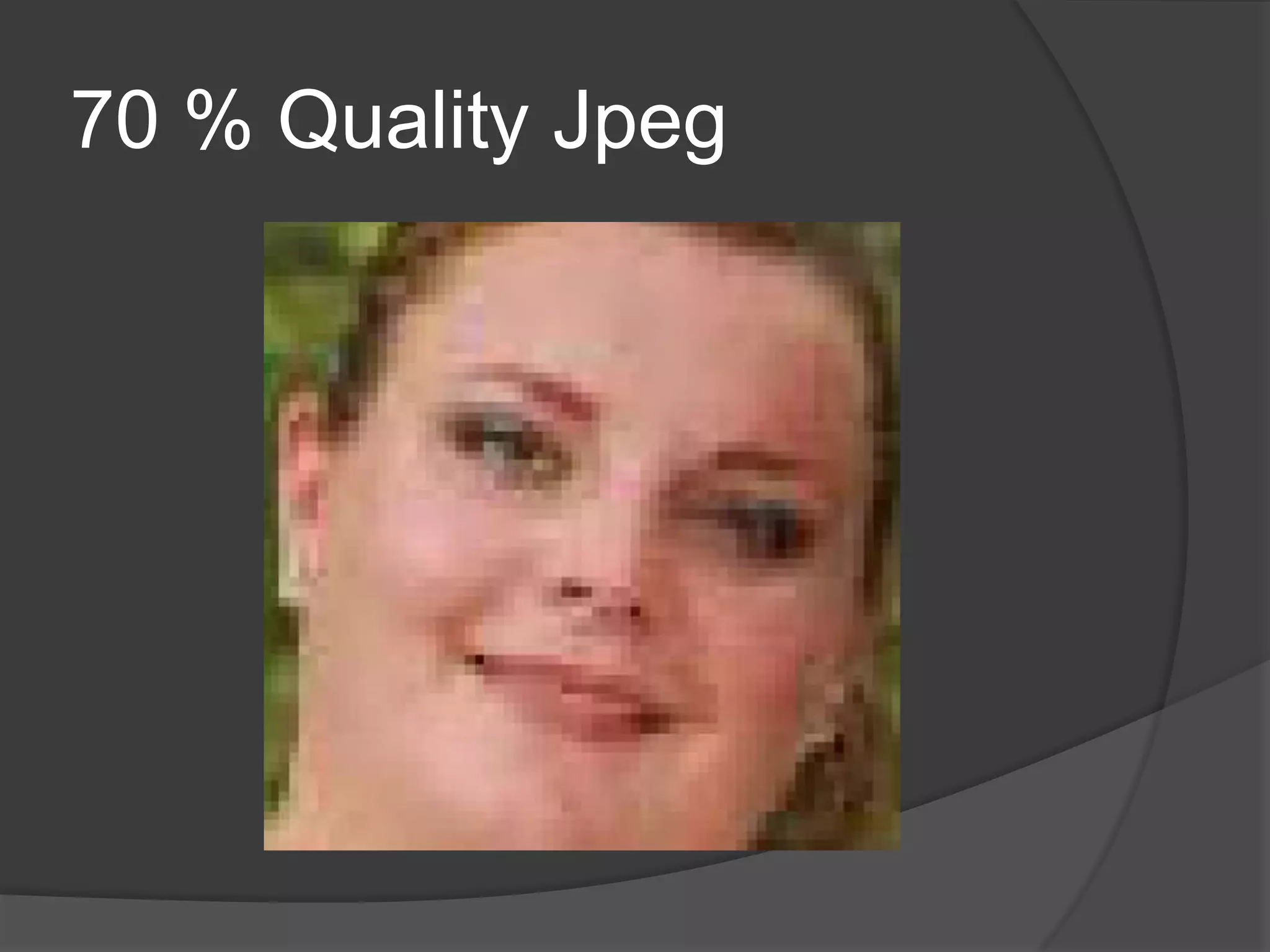
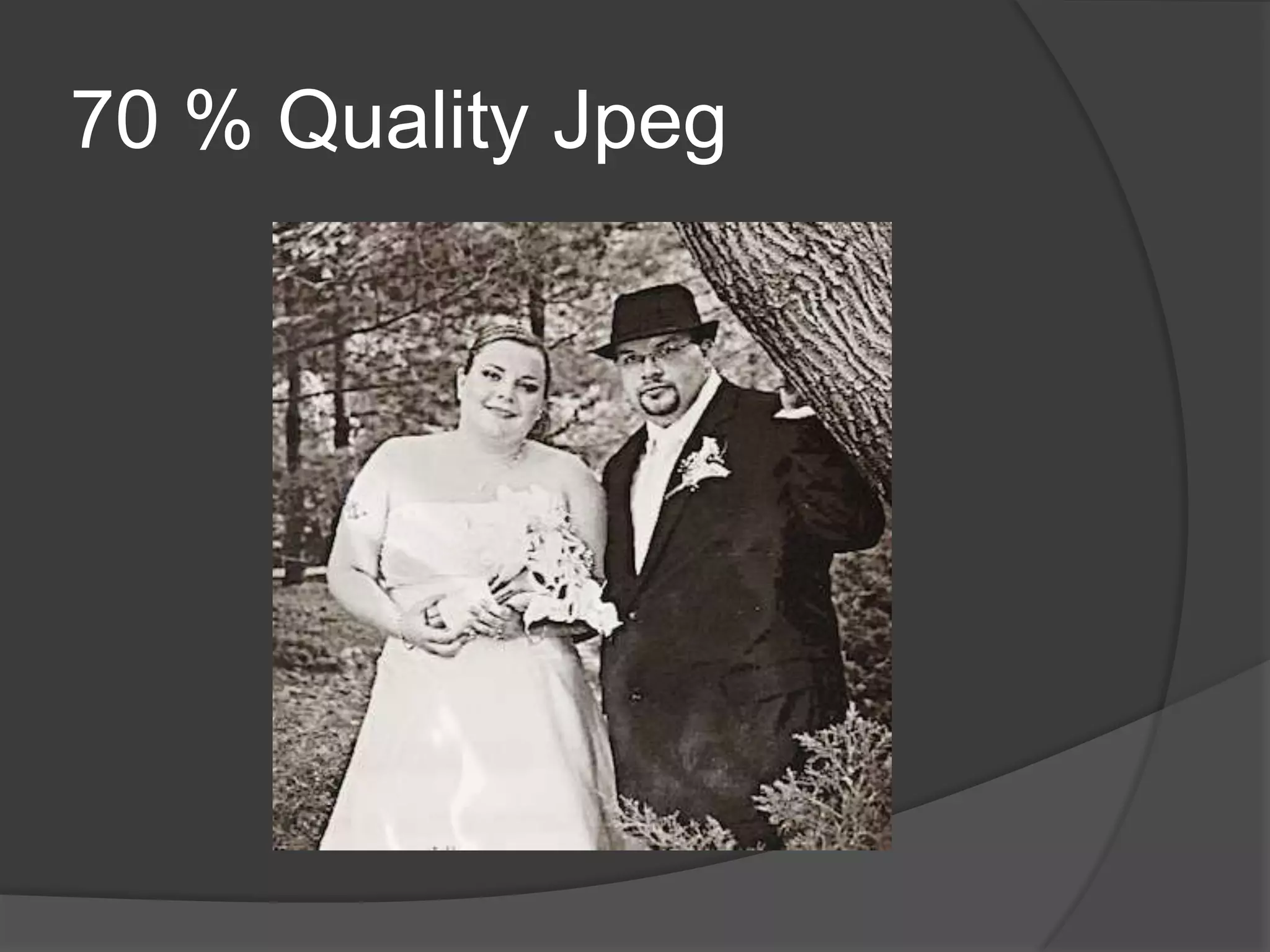
70 % Quality Jpeg
70 % Quality Jpeg
Other Bad Photos
Low Resolution and to dark
Low Resolution and
Background
Let Us Take a Close Look
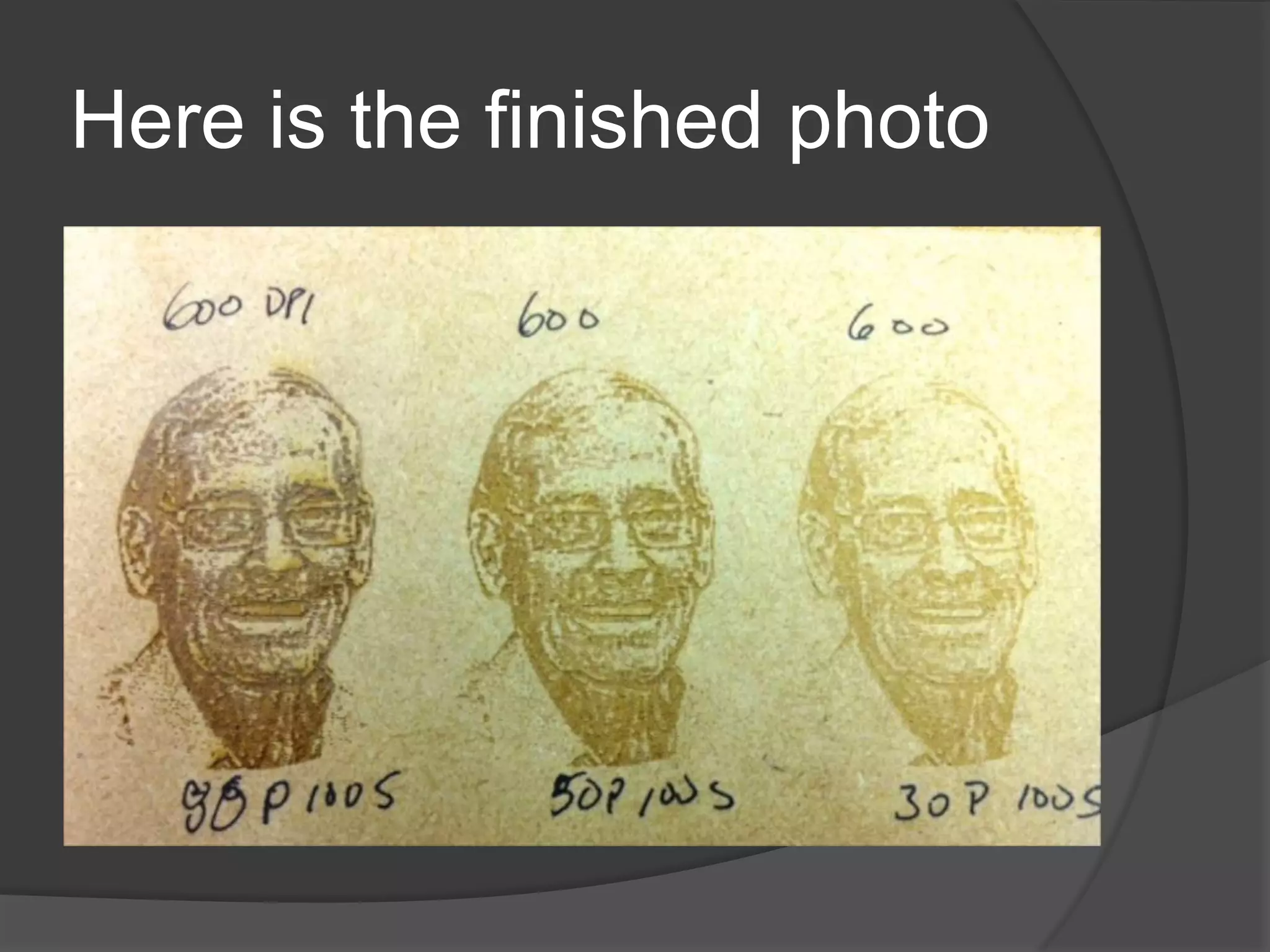
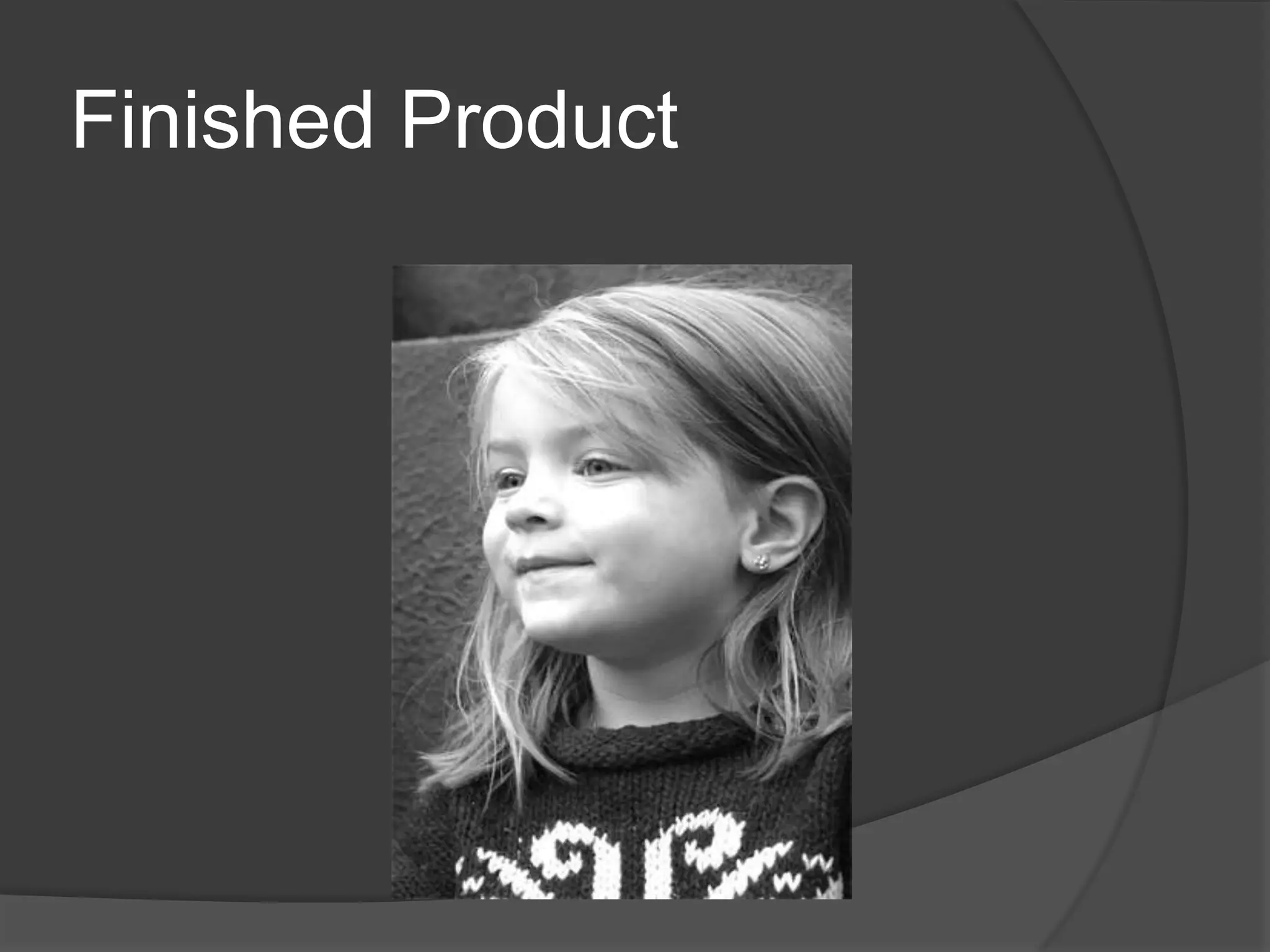
Here is the finished photo
Best Photos Formats to get
 Tiff or BMP are the best as long as they
  are not jpeg’s just saved as this format
 Jpeg is the next best but remember
  JPEG can comes in a lot of different
  qualities
 You may get a PDF but the original file
  may contain bad quality images
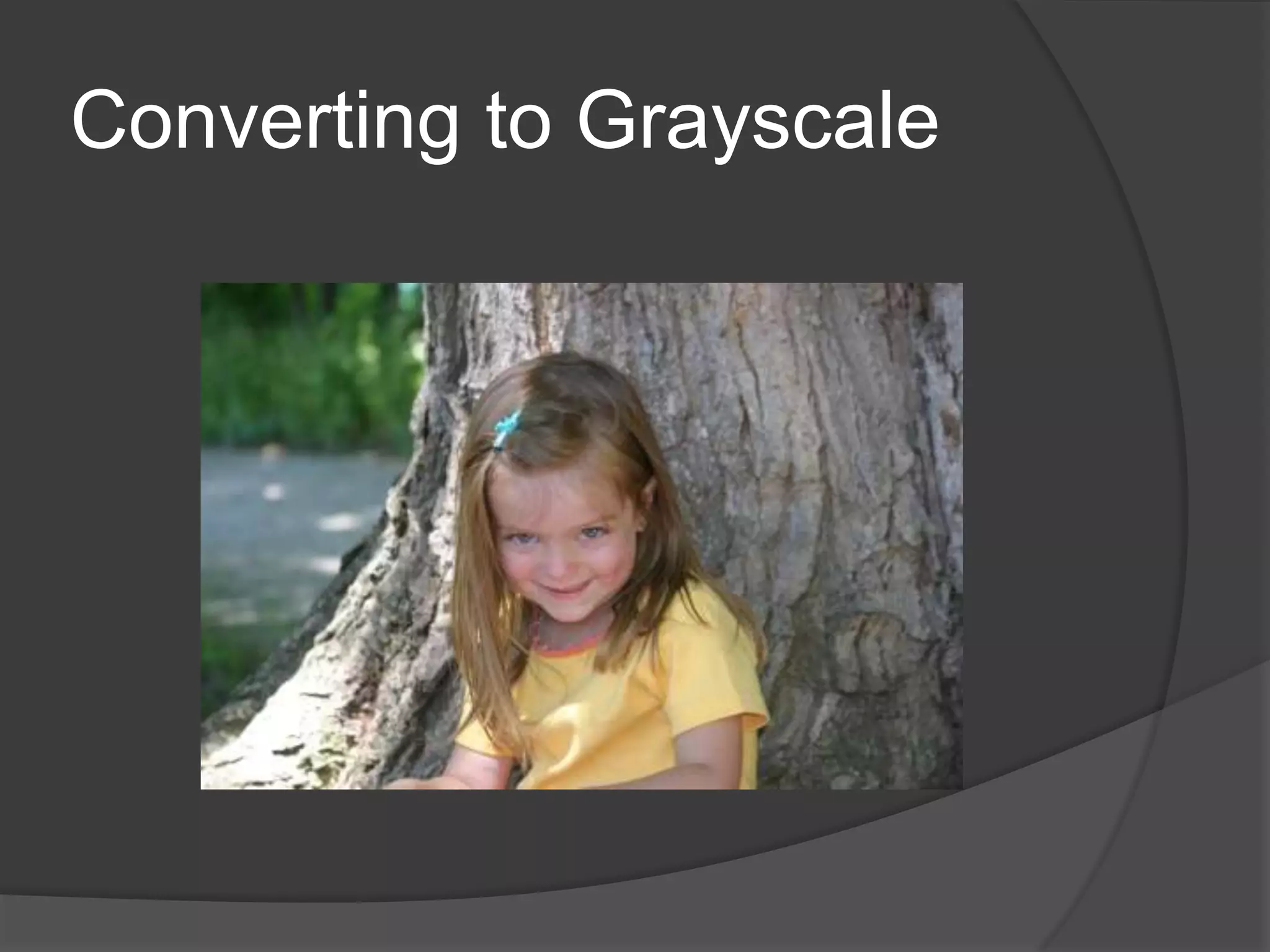
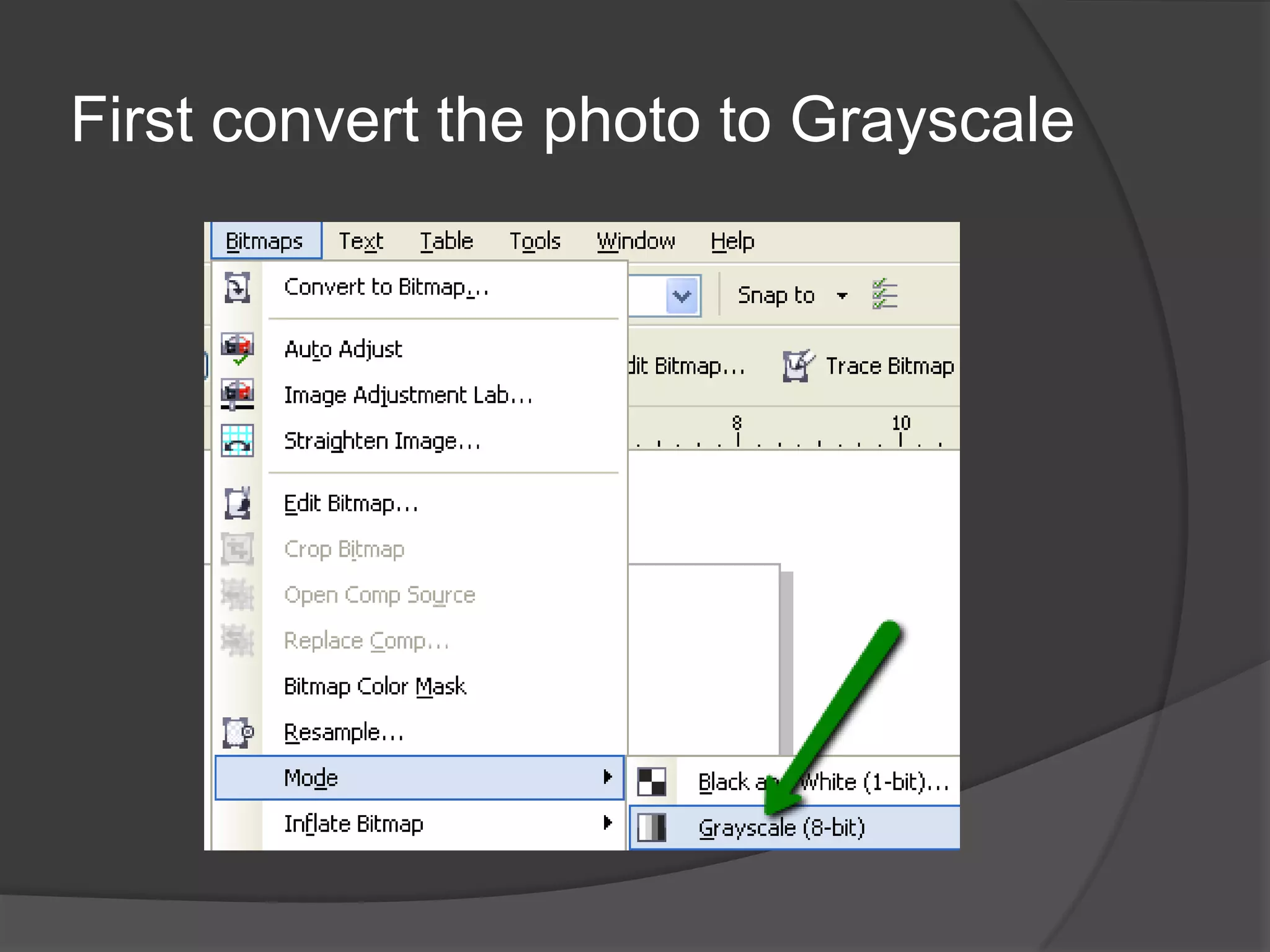
Converting to Grayscale
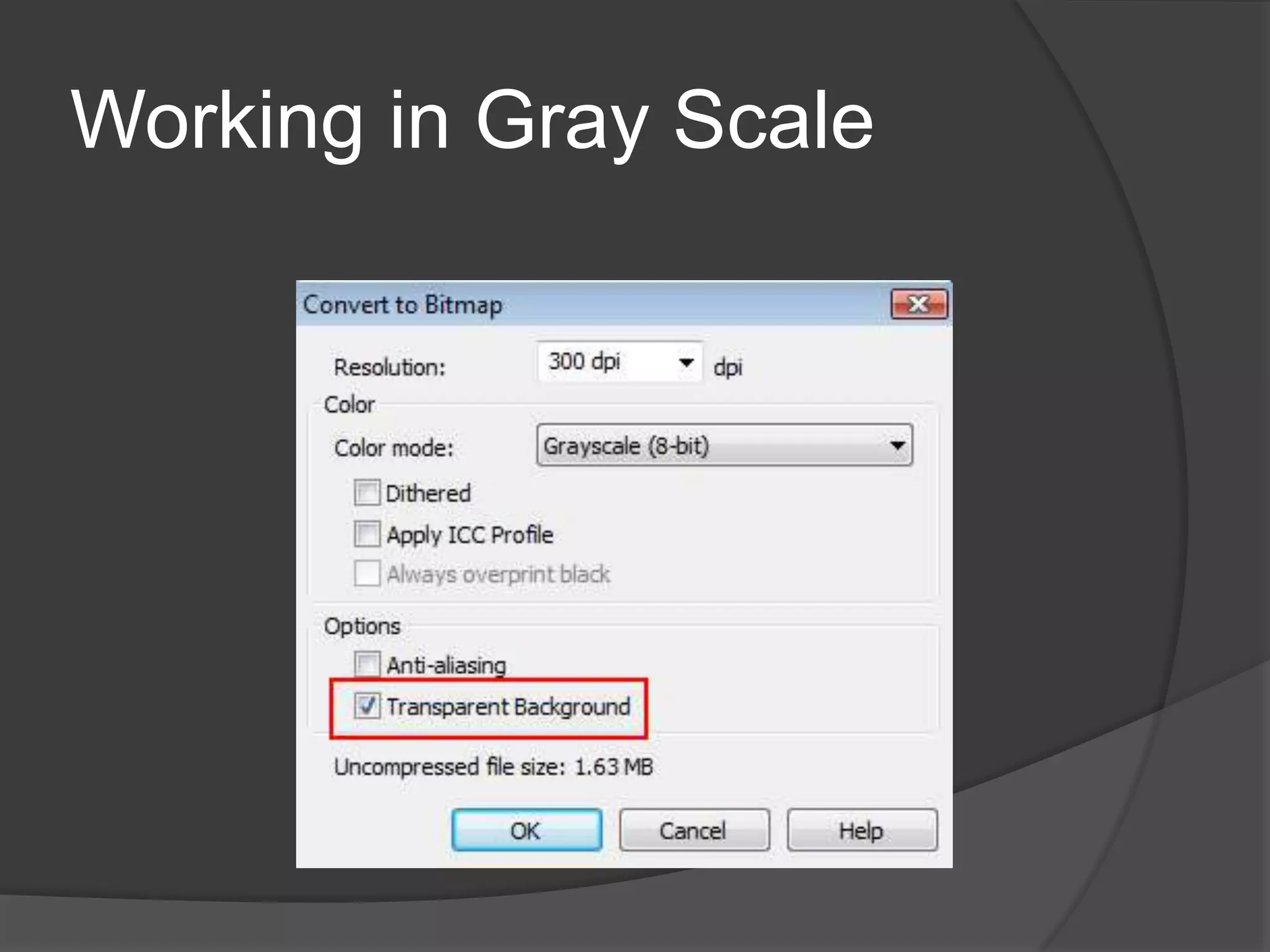
Working in Gray Scale
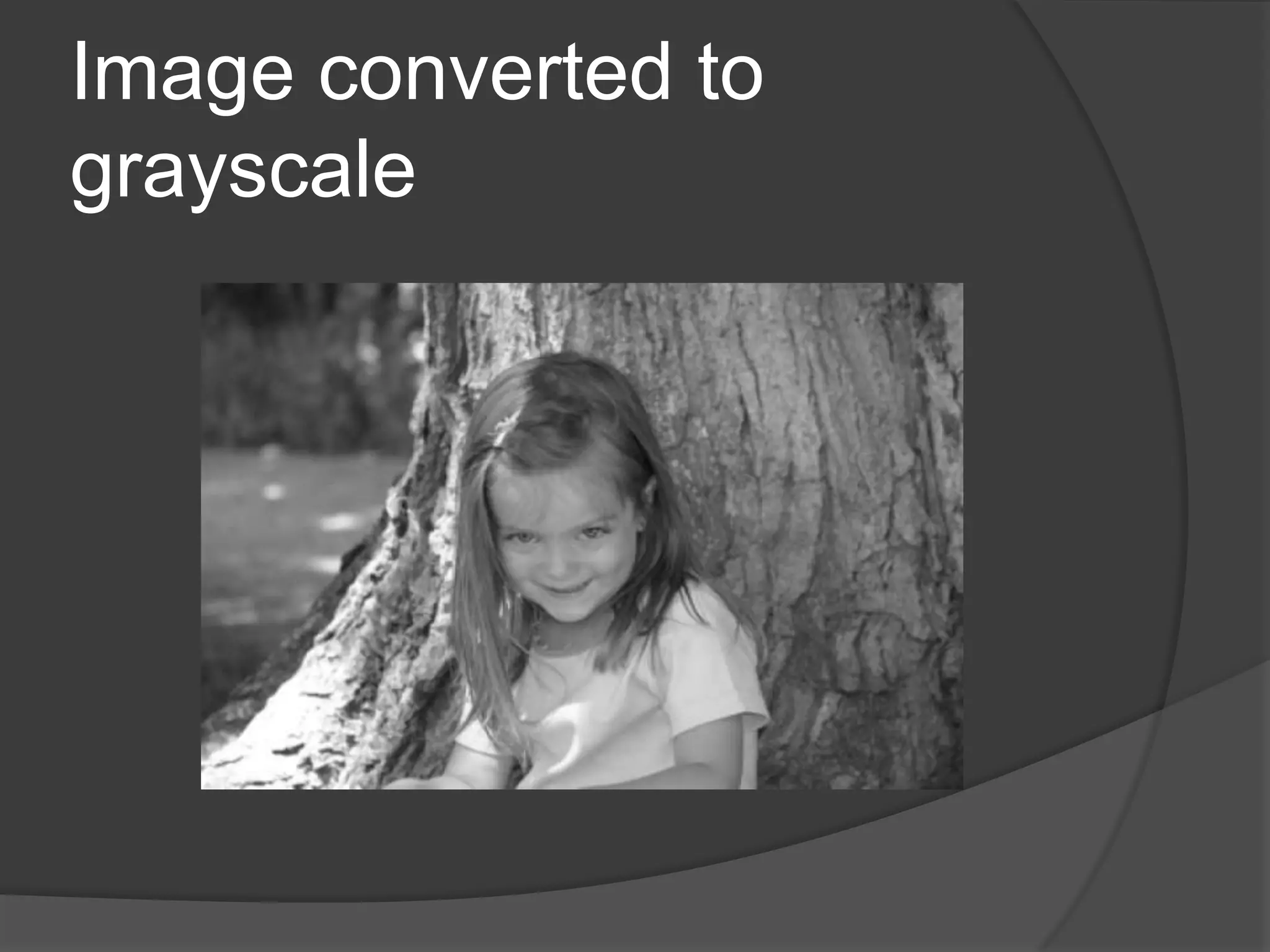
Image converted to
grayscale
Cropping to Size using
PowerClip
 Once we have converted the image to
  grayscale we will now need to process it
  to laser engrave it.
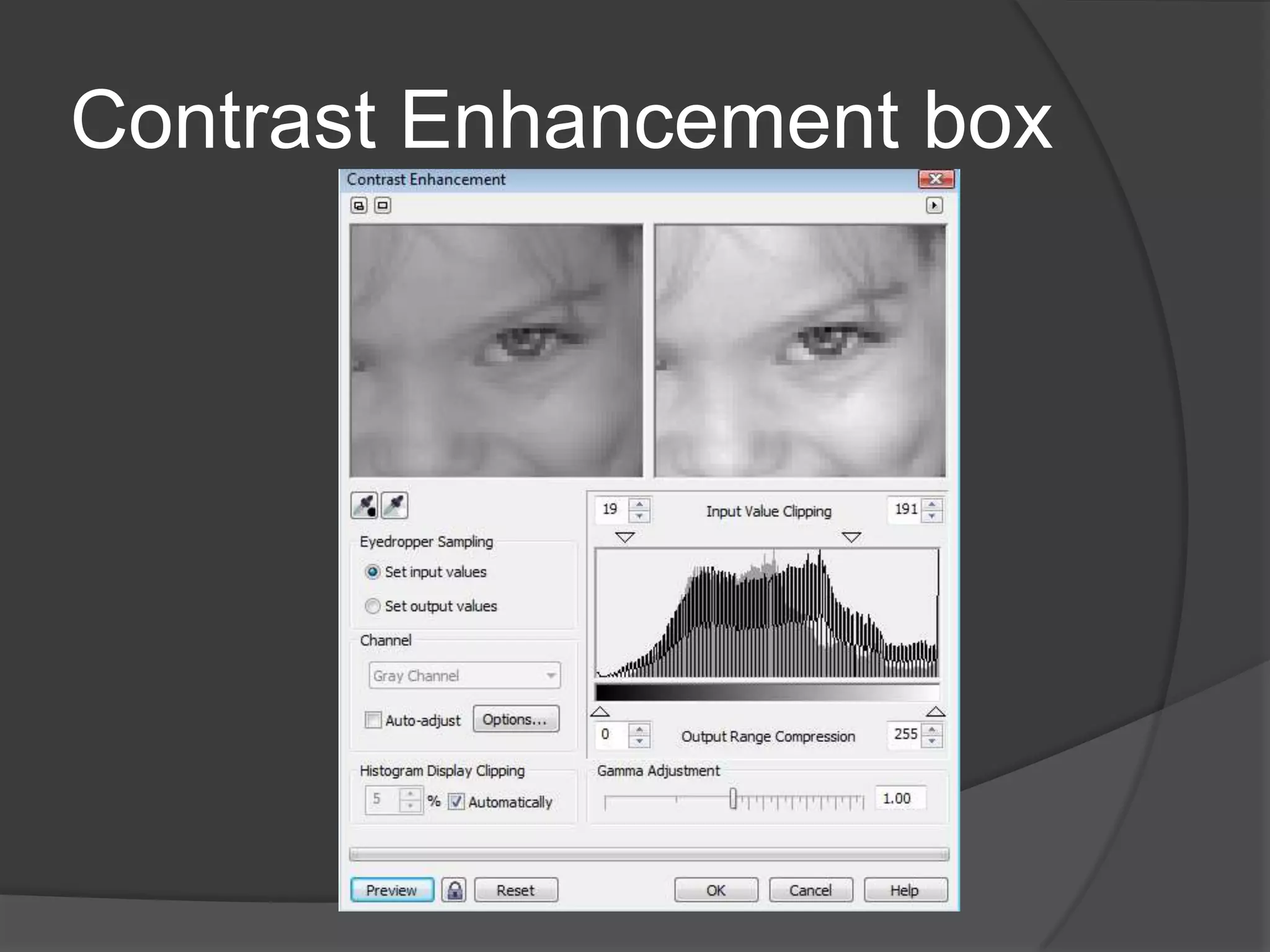
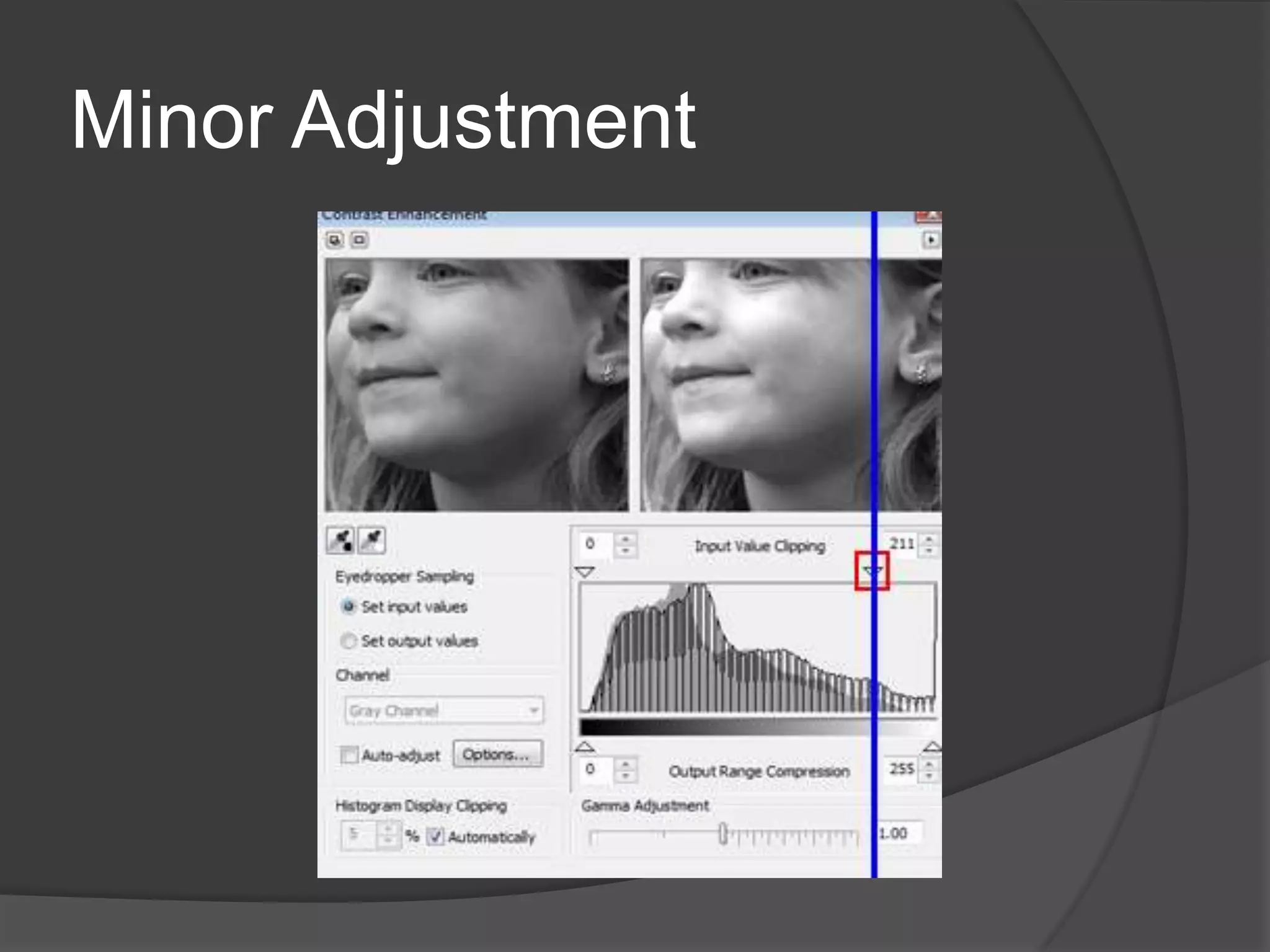
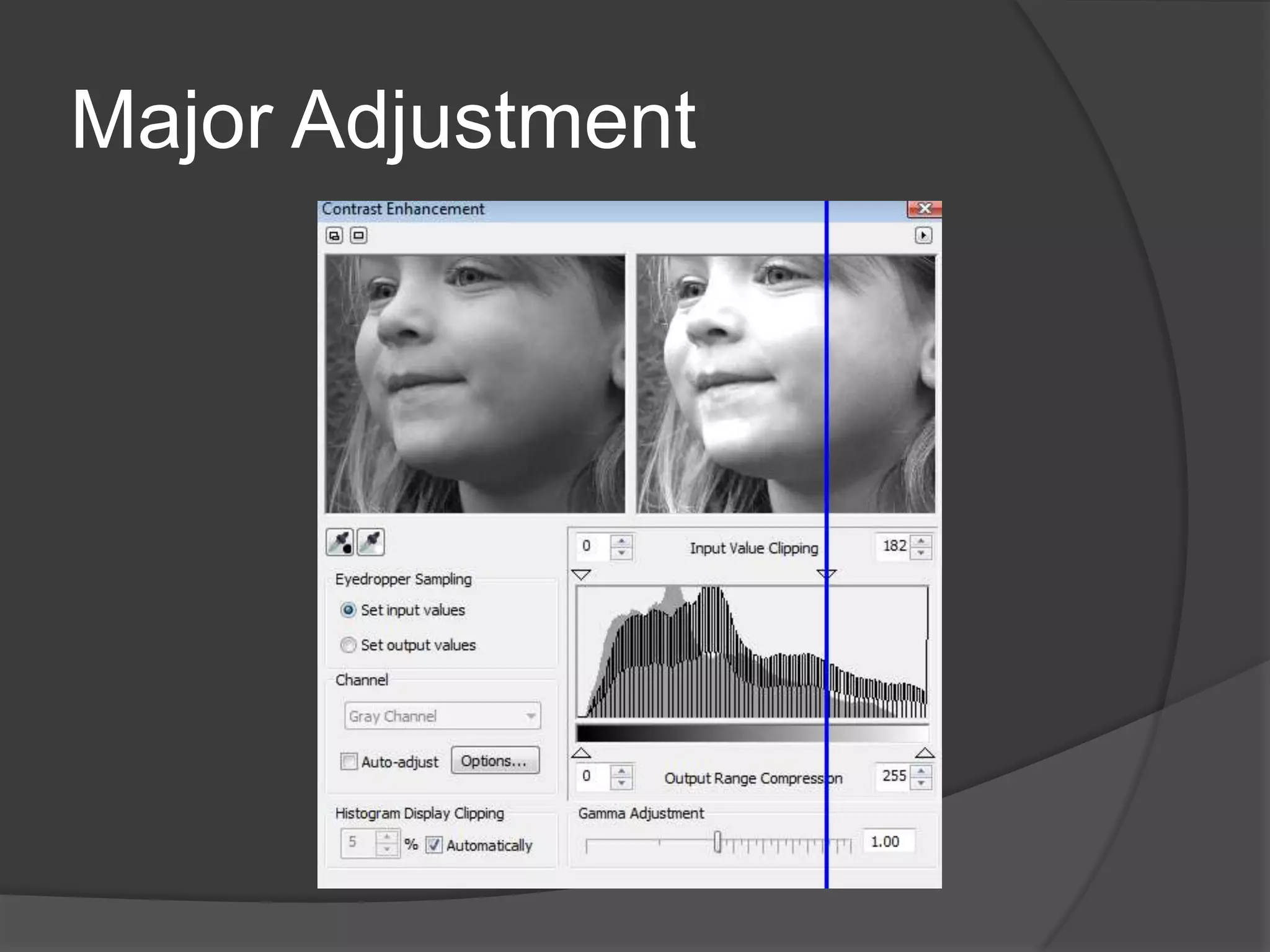
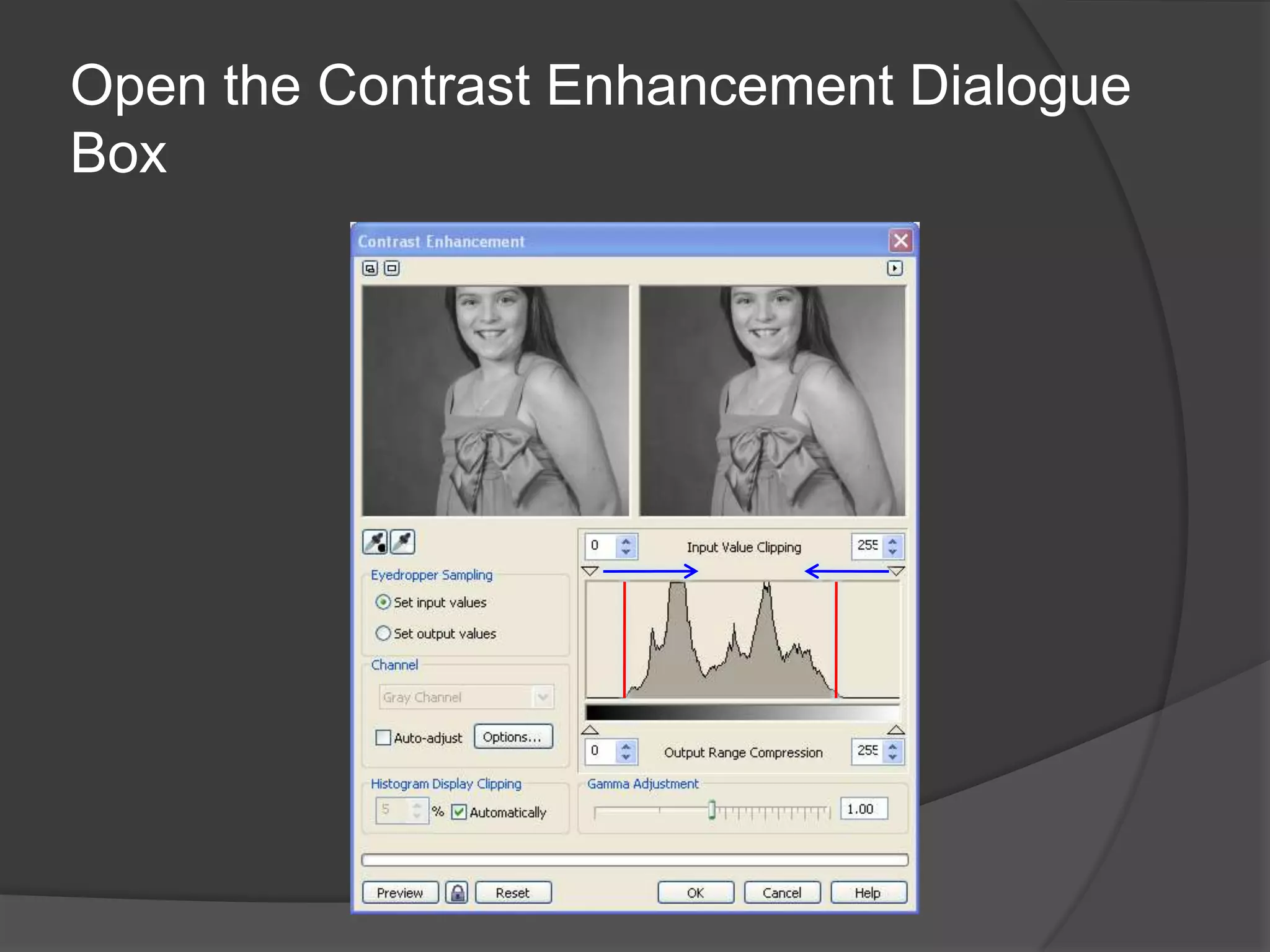
 The Contrast Enhancement Dialogue
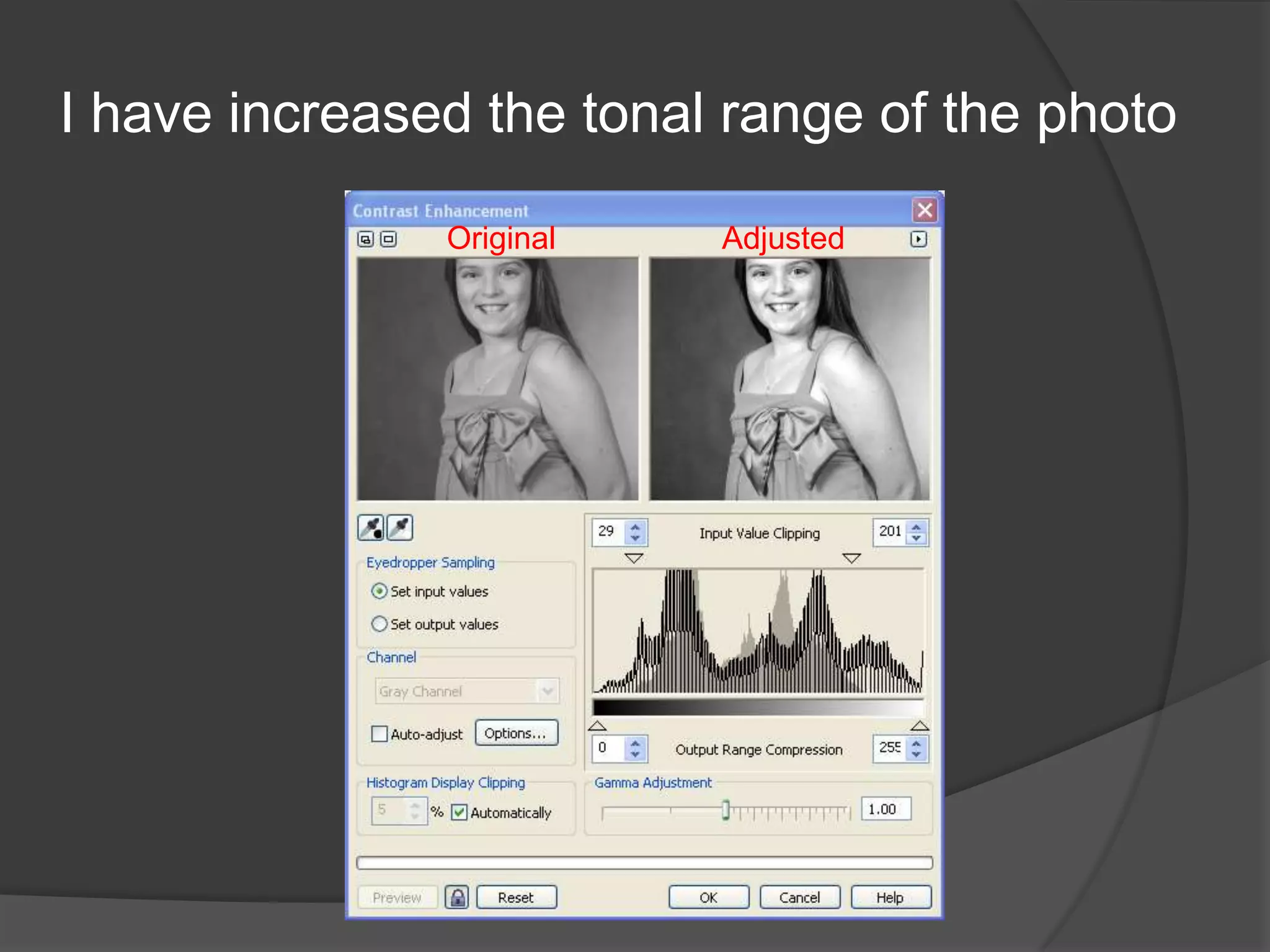
  box allows us to increase the tonal
  range of the photo that we are working
  on
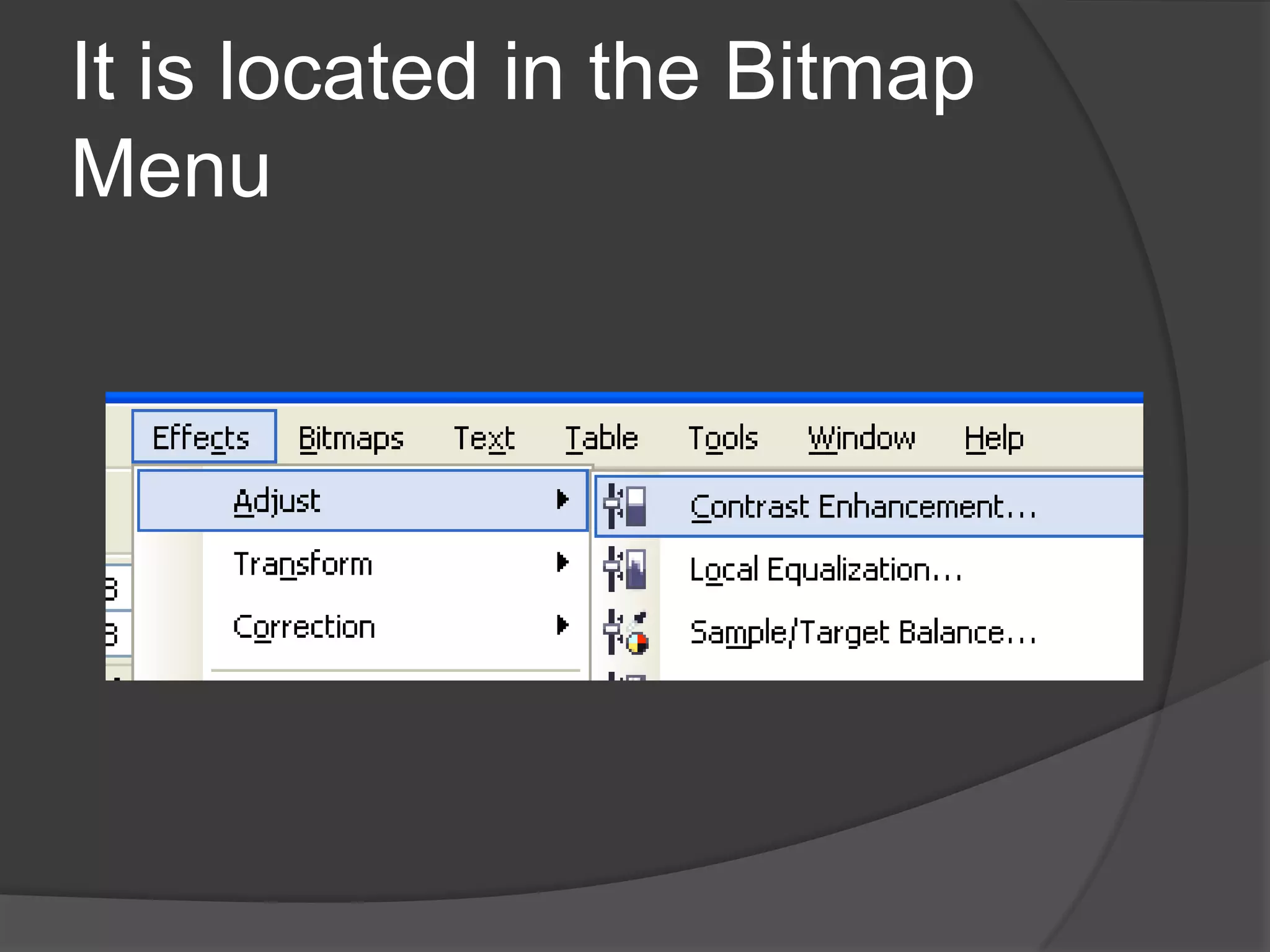
 To do this open up the Contrast
  Enhancement Dialogue Box
It is located in the Bitmap
Menu
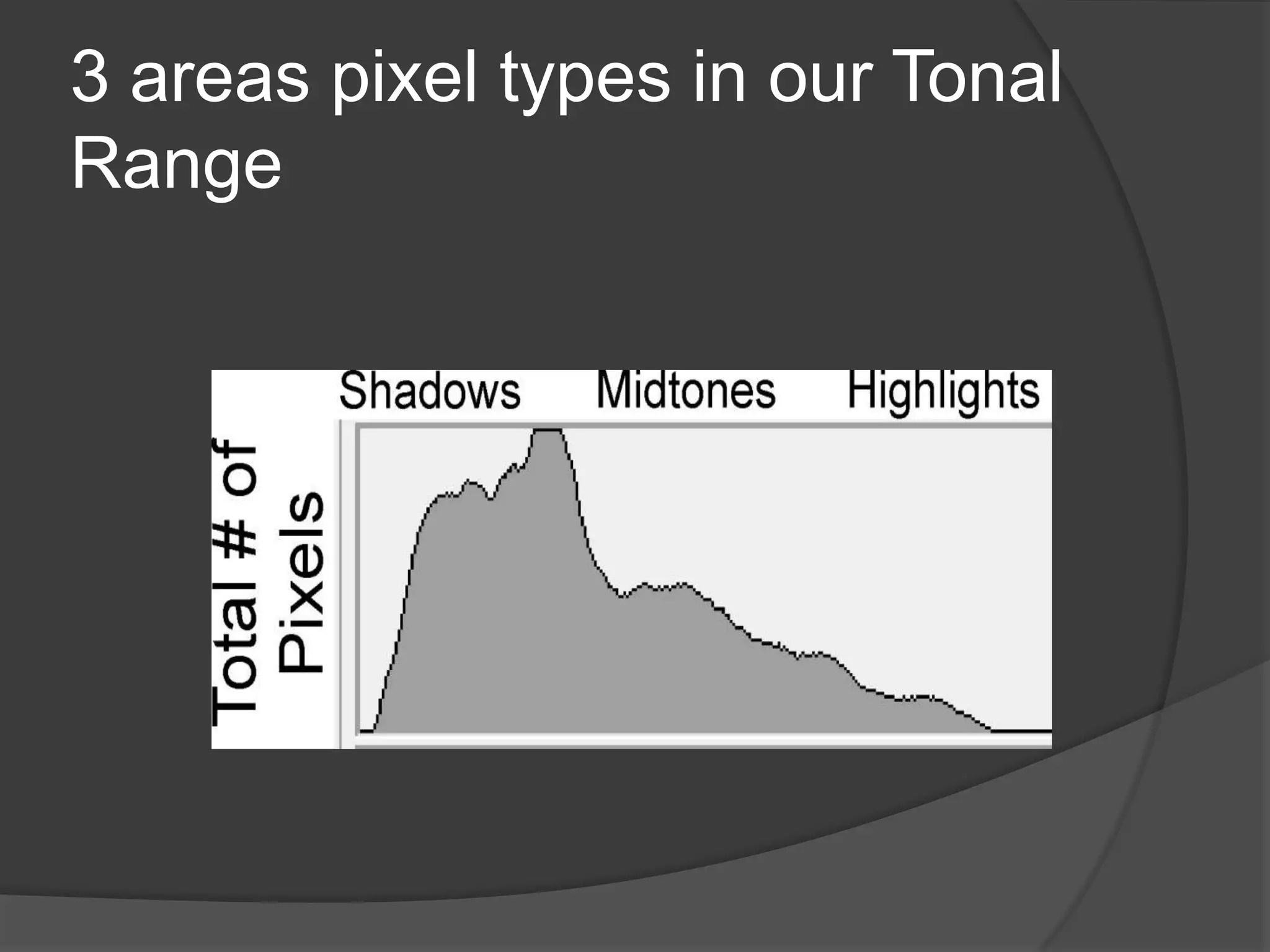
3 areas pixel types in our Tonal
Range
What is Tonal Range
   When we talk about the tonal range of an image we
    are referring to the range of tones between the
    lightest and darkest areas of an image. For example,
    an image with a wide tonal range will include both
    dark and light areas (and a range of tones in
    between). Whereas an image with a narrow tonal
    range will cover a more restricted range for example
    it could be predominantly composed of mid-tones.
    Note: when we look at an image that is a grayscale
    image we have an image that is comprised of gray
    pixels that have a value of 0 to 255. Values that are 0
    are solid black and values that are 255 are solid
    white. Pixels with a number in between 0 and 255
    are a shade of gray.
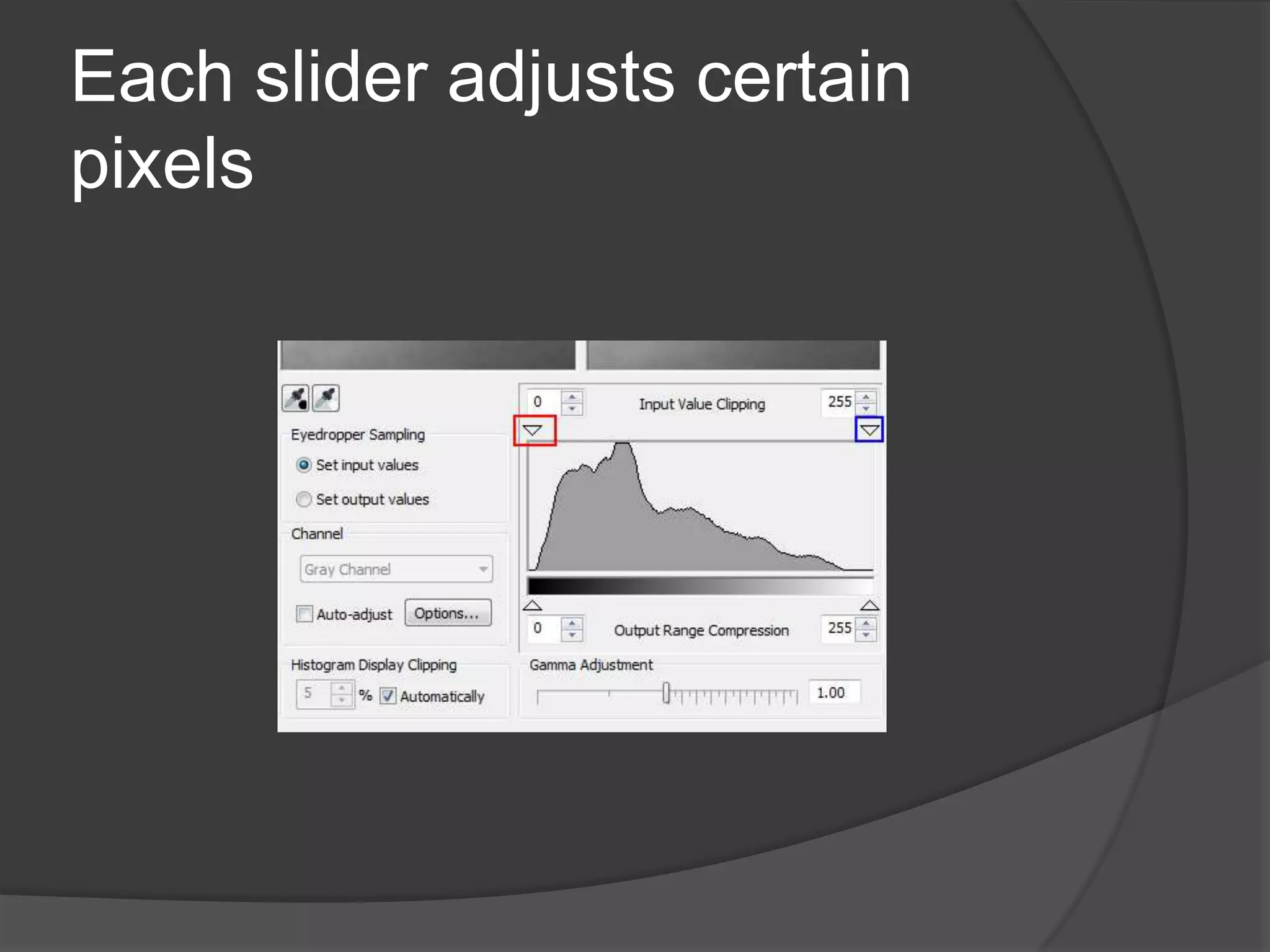
Each slider adjusts certain
pixels
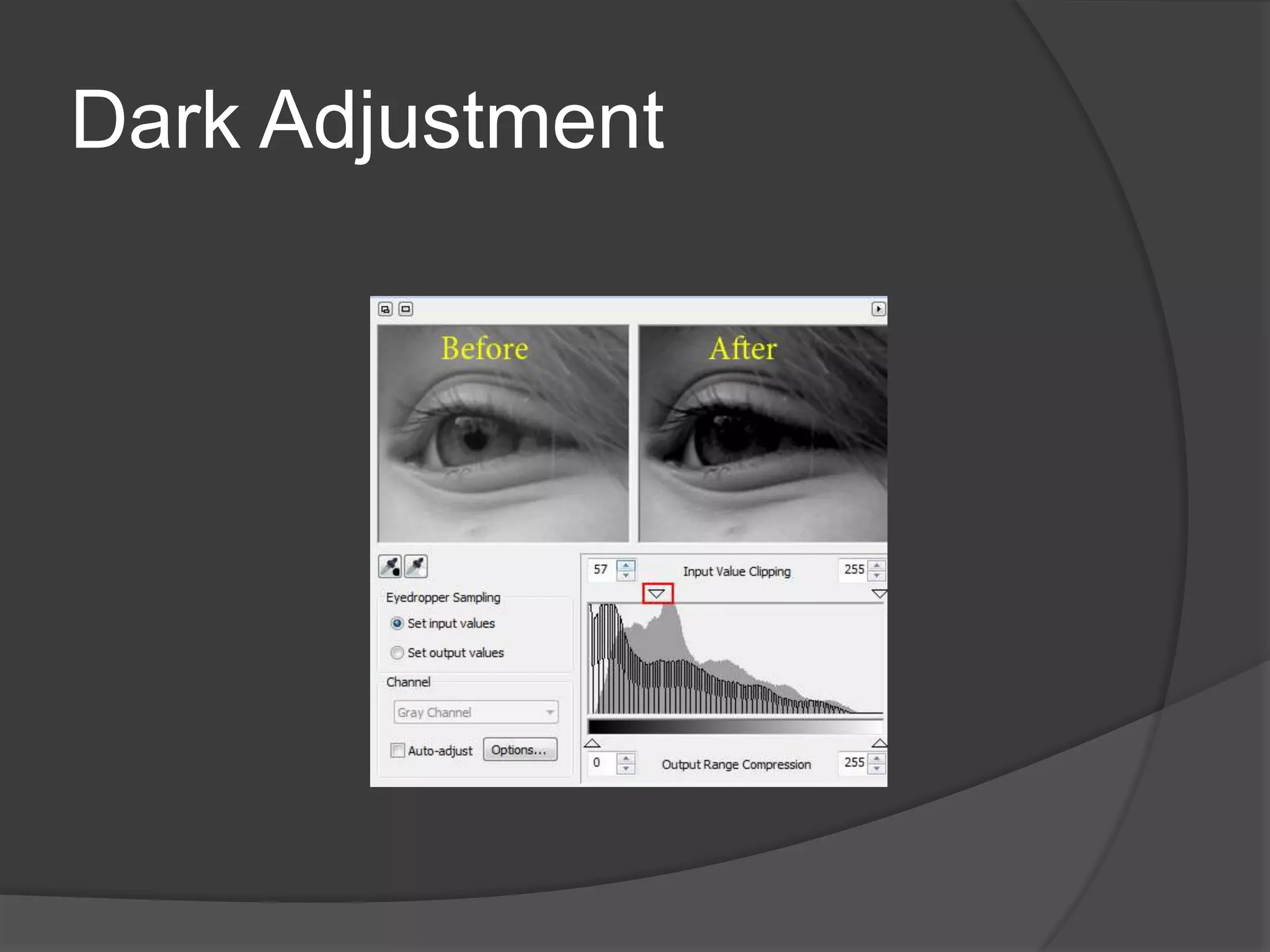
Dark Adjustment
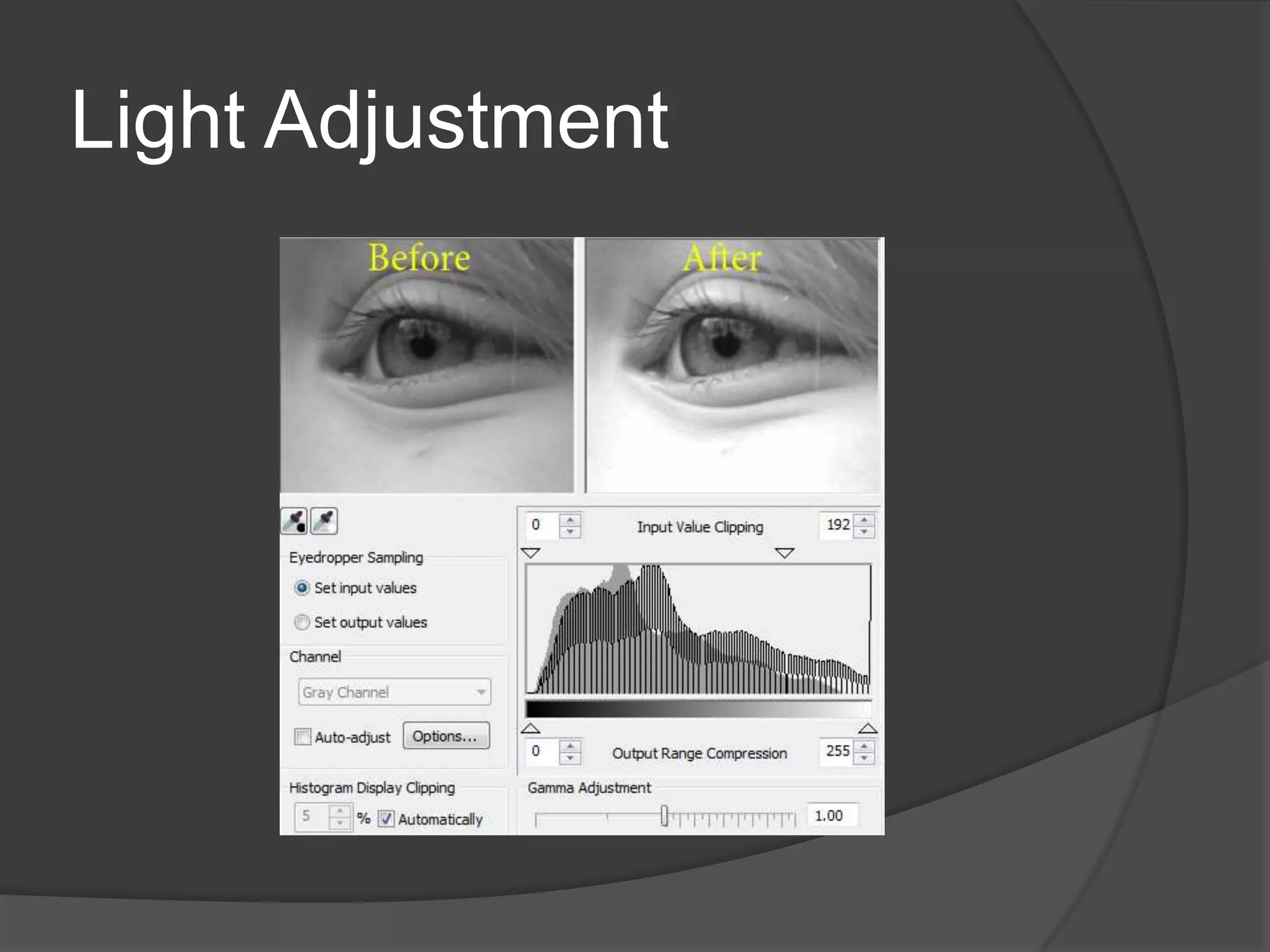
Light Adjustment
Contrast Enhancement
Contrast Enhancement box
Contrast Enhancement
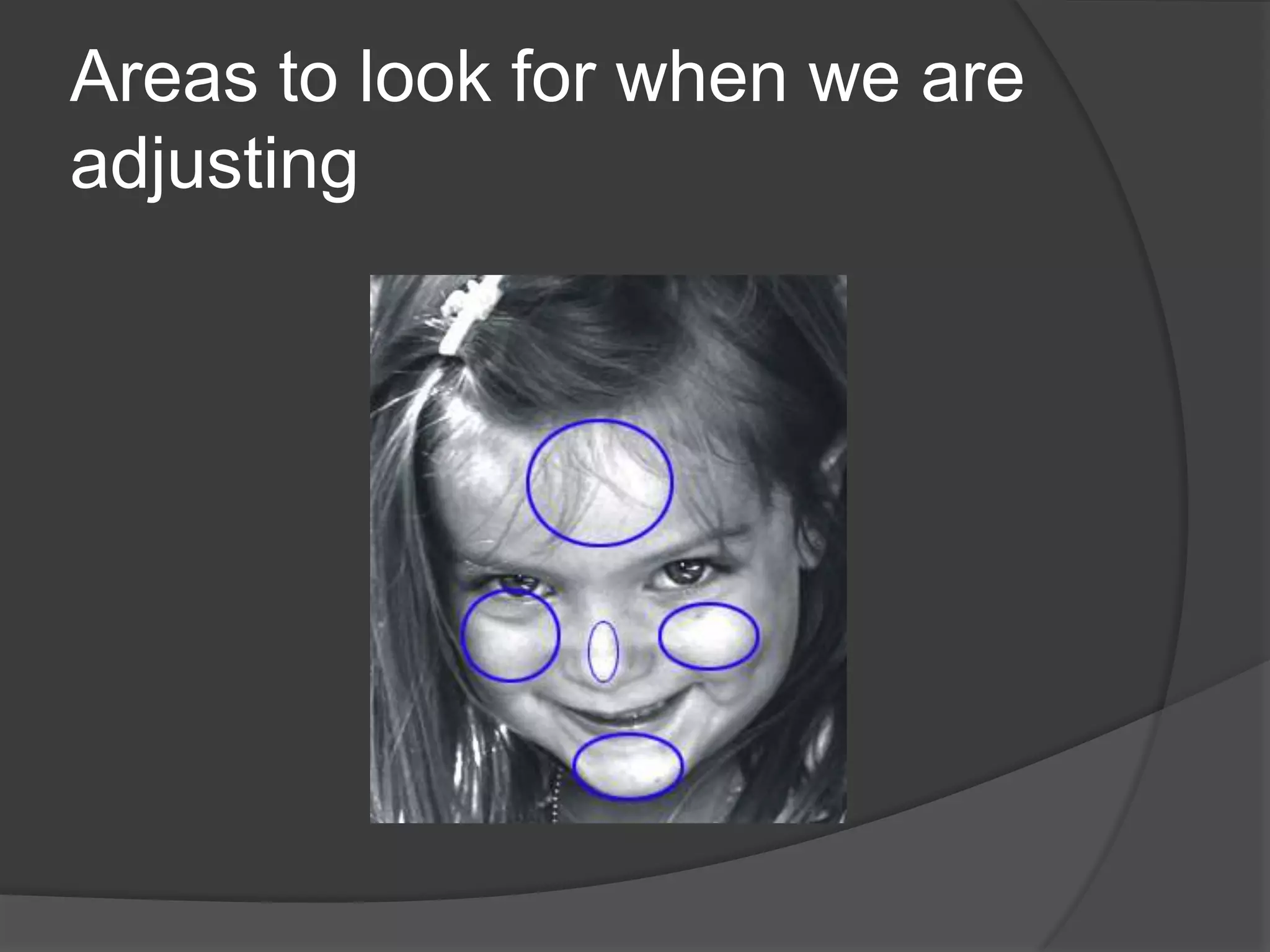
Areas to look for when we are
adjusting
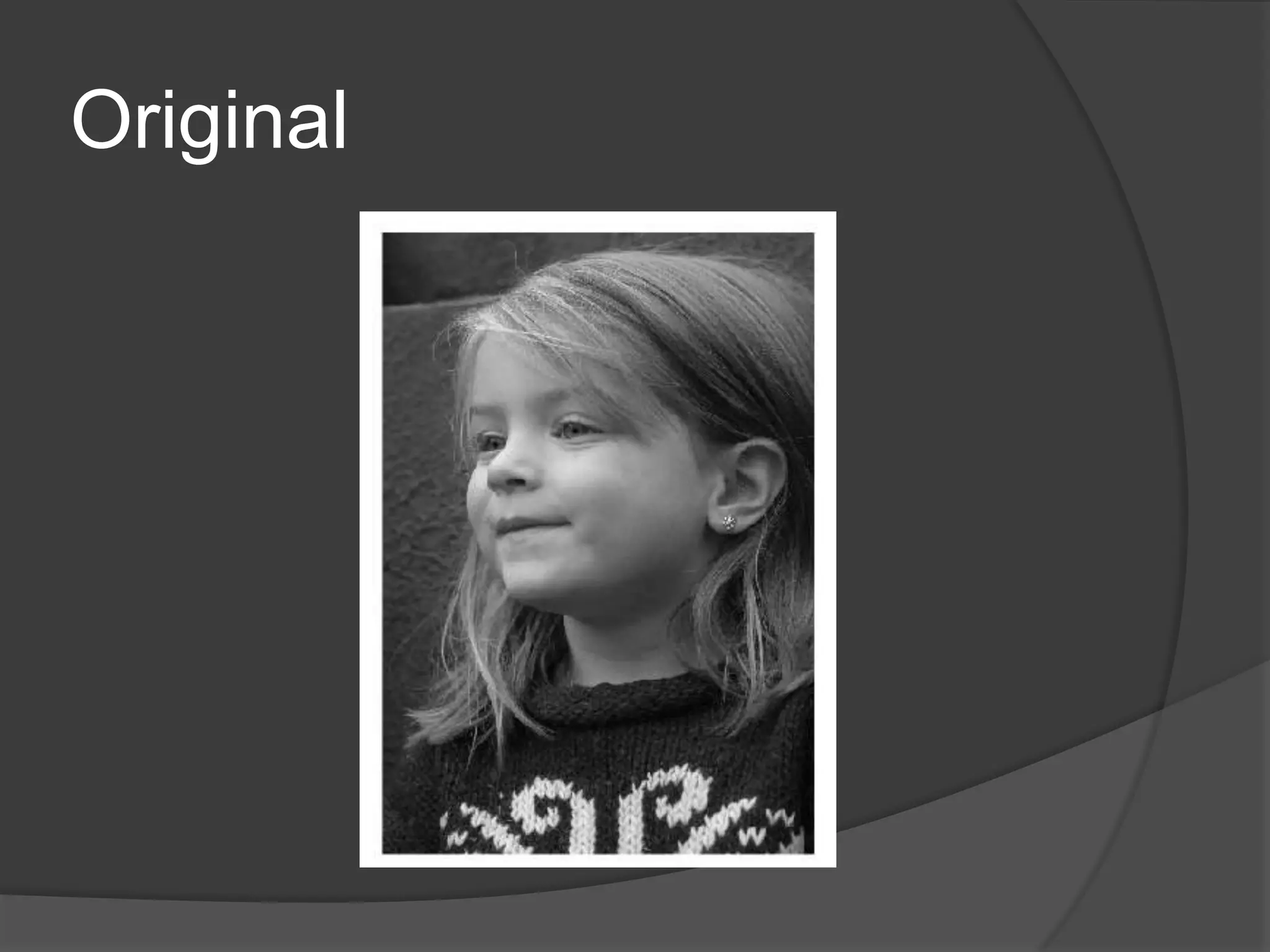
Original
Minor Adjustment
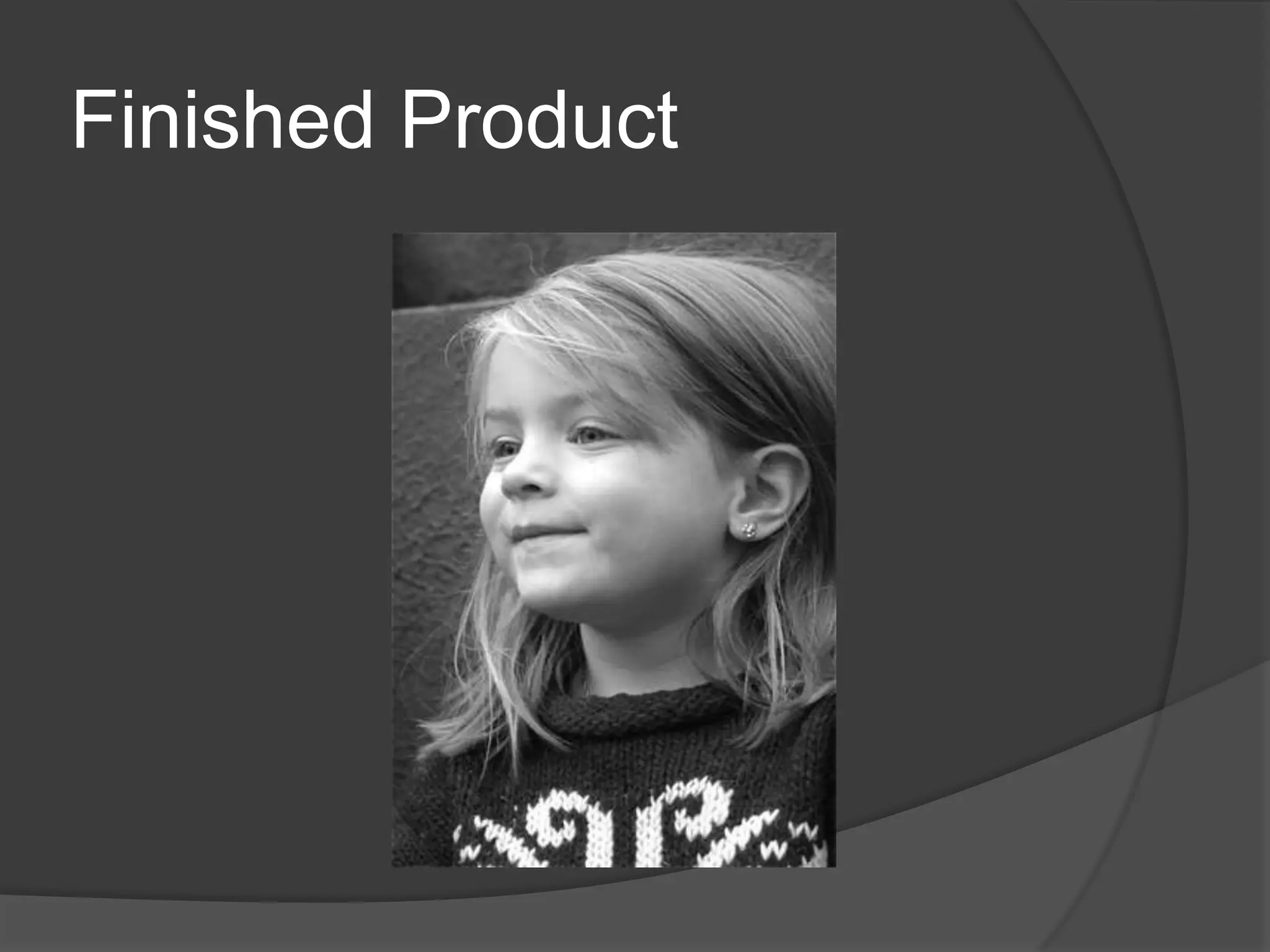
Finished Product
Major Adjustment
Finished Product
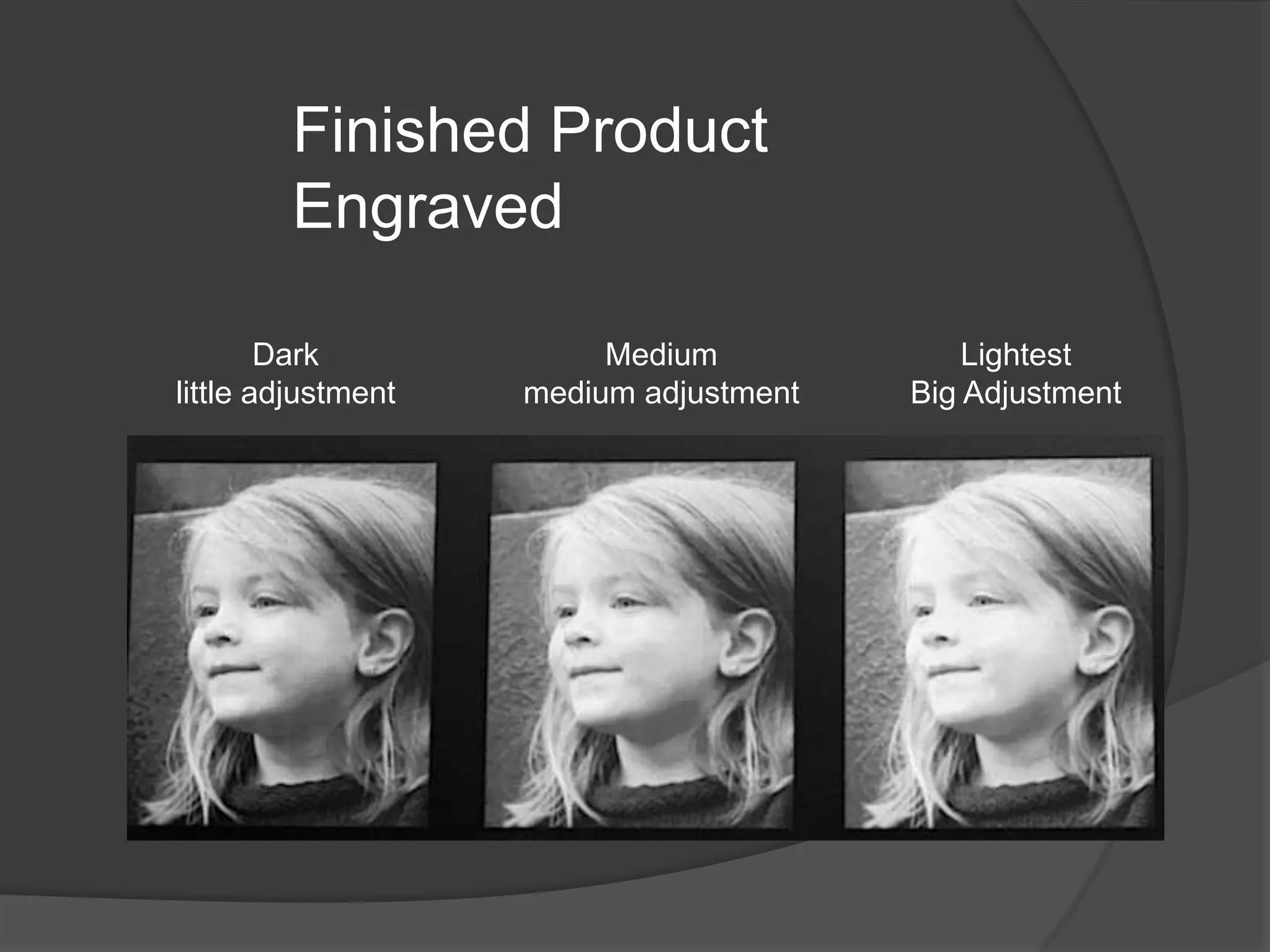
Finished Product
        Engraved

        Dark             Medium             Lightest
little adjustment   medium adjustment   Big Adjustment
If you are lasering on black brass or
black anodized aluminum you will
need to invert the image so that is is a
negative.
 We have worked with photos that would
  traditionally be laser engraved on good
  material such as laser brass or anodized
  aluminum. But what about wood, glass
  and granite?
 To engrave this material we use what is
  called the error diffusion technique
To Successfully Laser Engrave
Porous or Course Material like
Wood and Glass we need to do
an extra adjustment to our
photo
We need use an error diffusion
pattern
Different Diffusion Patterns
Error Diffusion Pattern created
on Glass
How do we create an error
diffusion on our original image
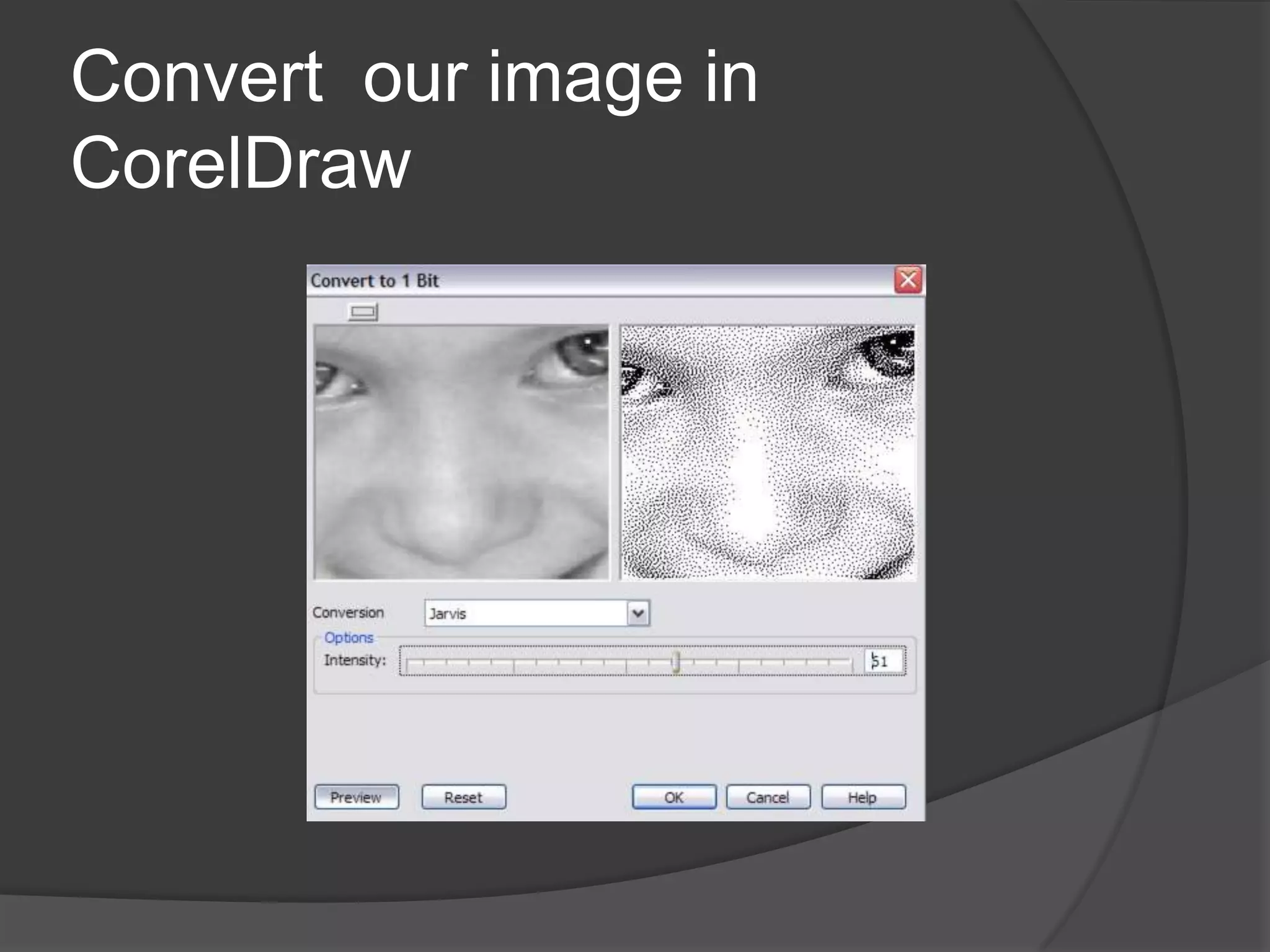
Convert our image in
CorelDraw
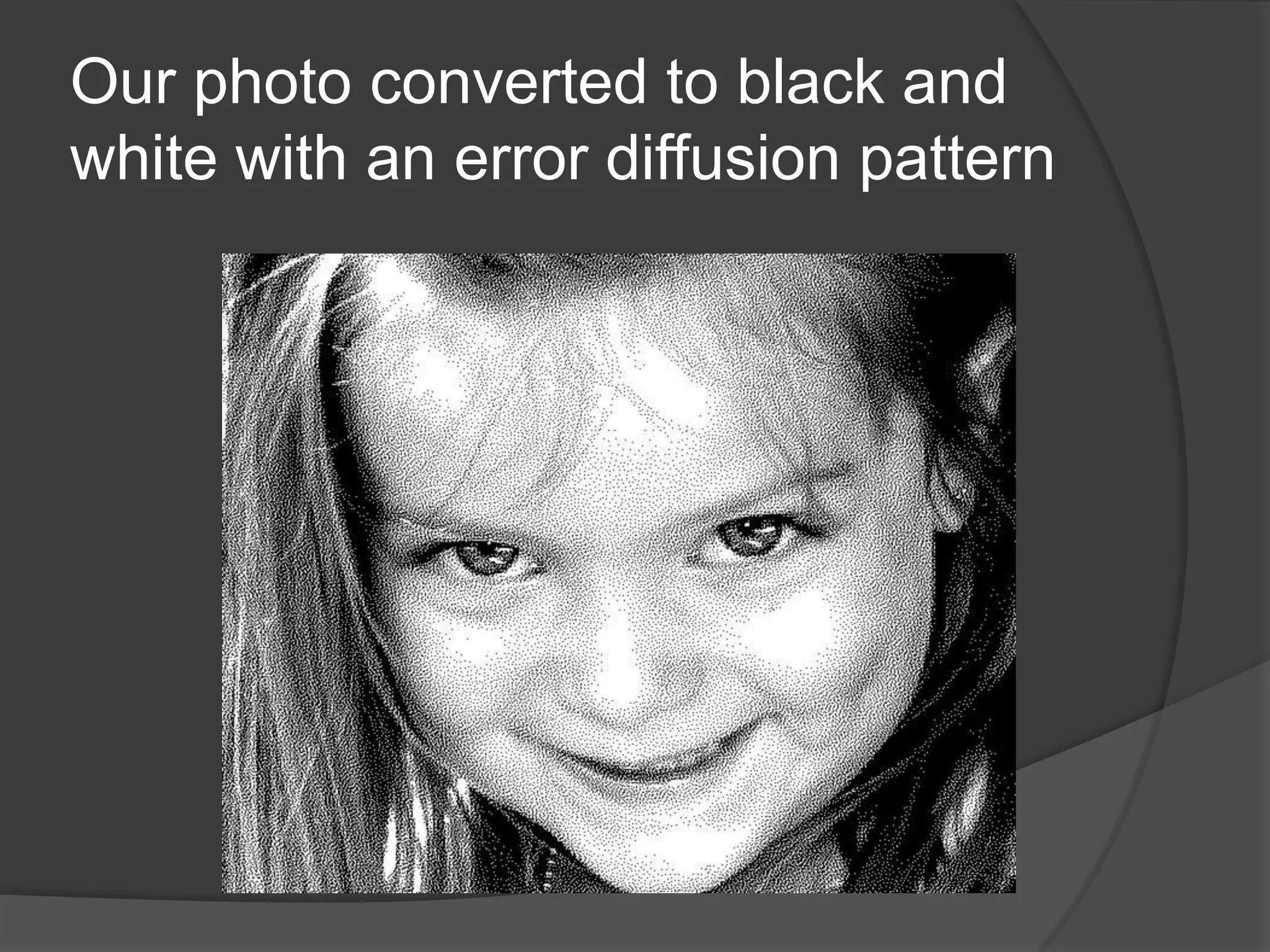
Our photo converted to black and
white with an error diffusion pattern
The Holy Grail for
 Doing Photos In
      CorelDraw
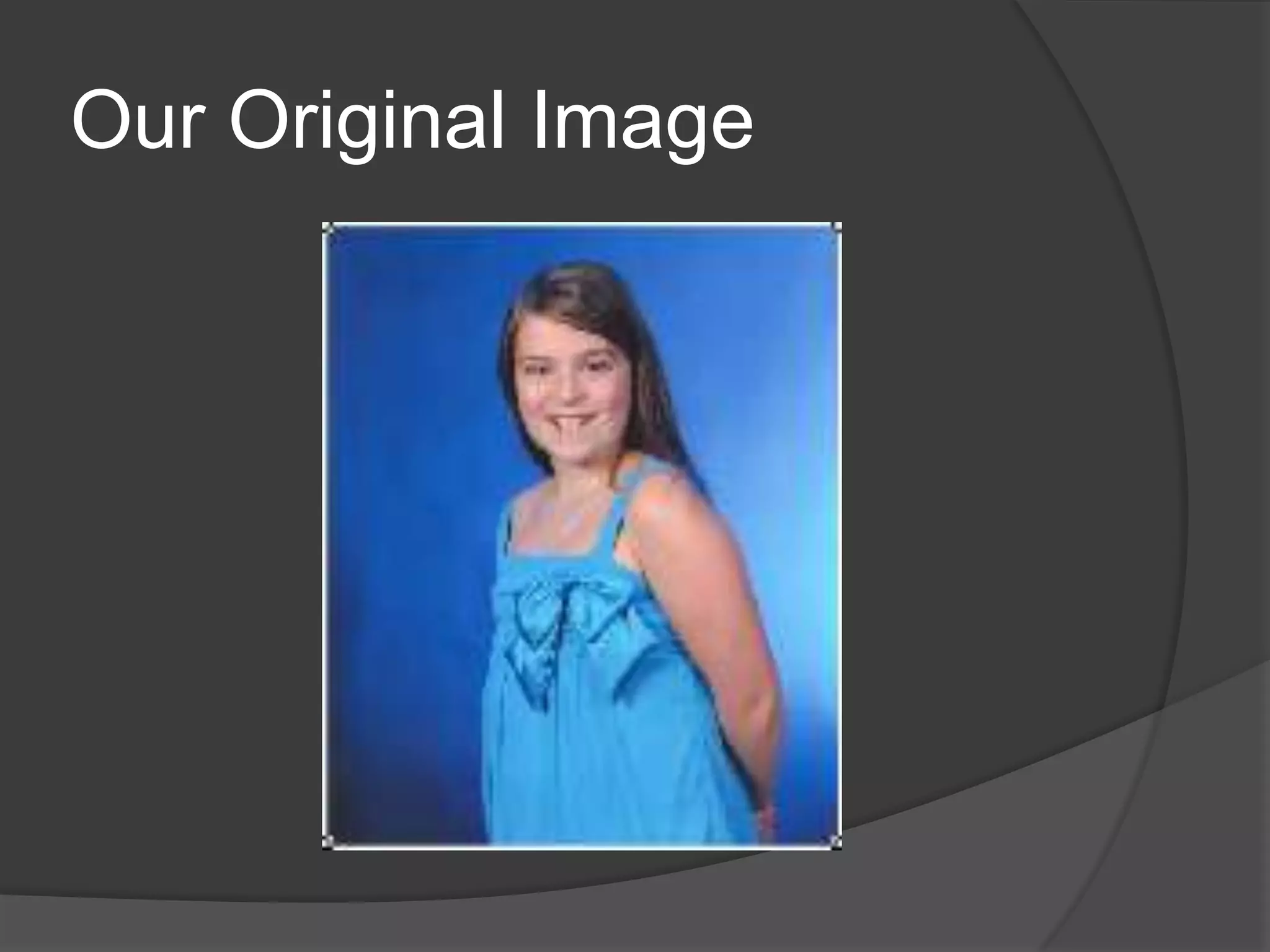
Our Original Image
First convert the photo to Grayscale
Open the Contrast Enhancement Dialogue
Box
I have increased the tonal range of the photo

               Original   Adjusted
Now the question as to how much I adjust is
dependent on what I am putting the image on.
If I am going onto metal or plastic I would do a
lighter adjustment as I can show more detail
on this material. If I am going onto wood I
would use a more drastic adjustment
So the rule of thumb is more detail in your
image if you are going to go on good material
such as laser brass. This is because I am
going to use the halftone image to print my
photo. Thus I use a smaller adjustment in the
contrast enhancement command
If I am going on a porous product such as
wood I need to get rid of detail. Thus I would
do larger adjustment in the contrast
enhancement command
Remember that the worse (the more
porous) the material that we are working
on the more that we have to remove
detail, Thus the better the material the
less detail that we need to remove in the
photo
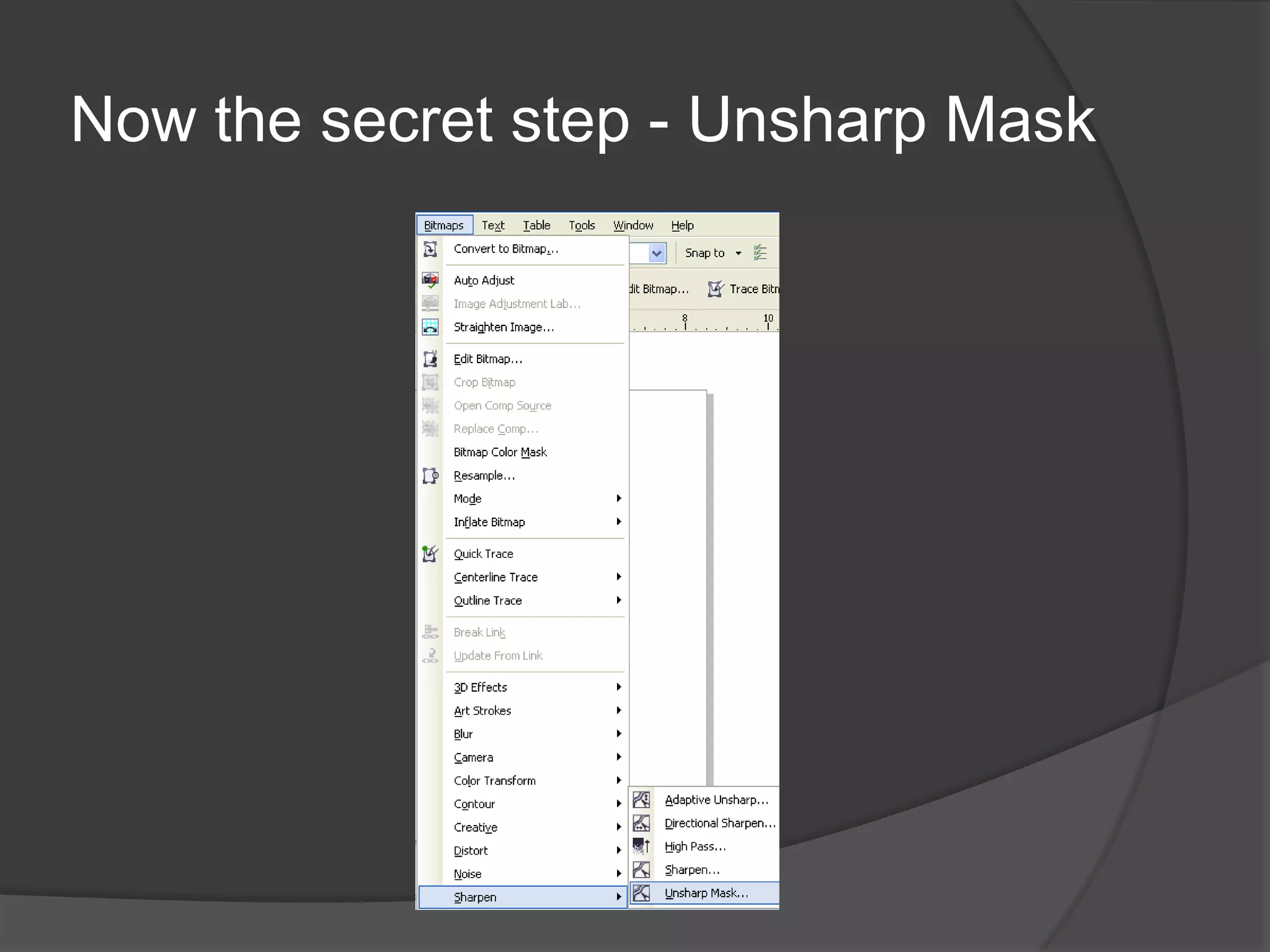
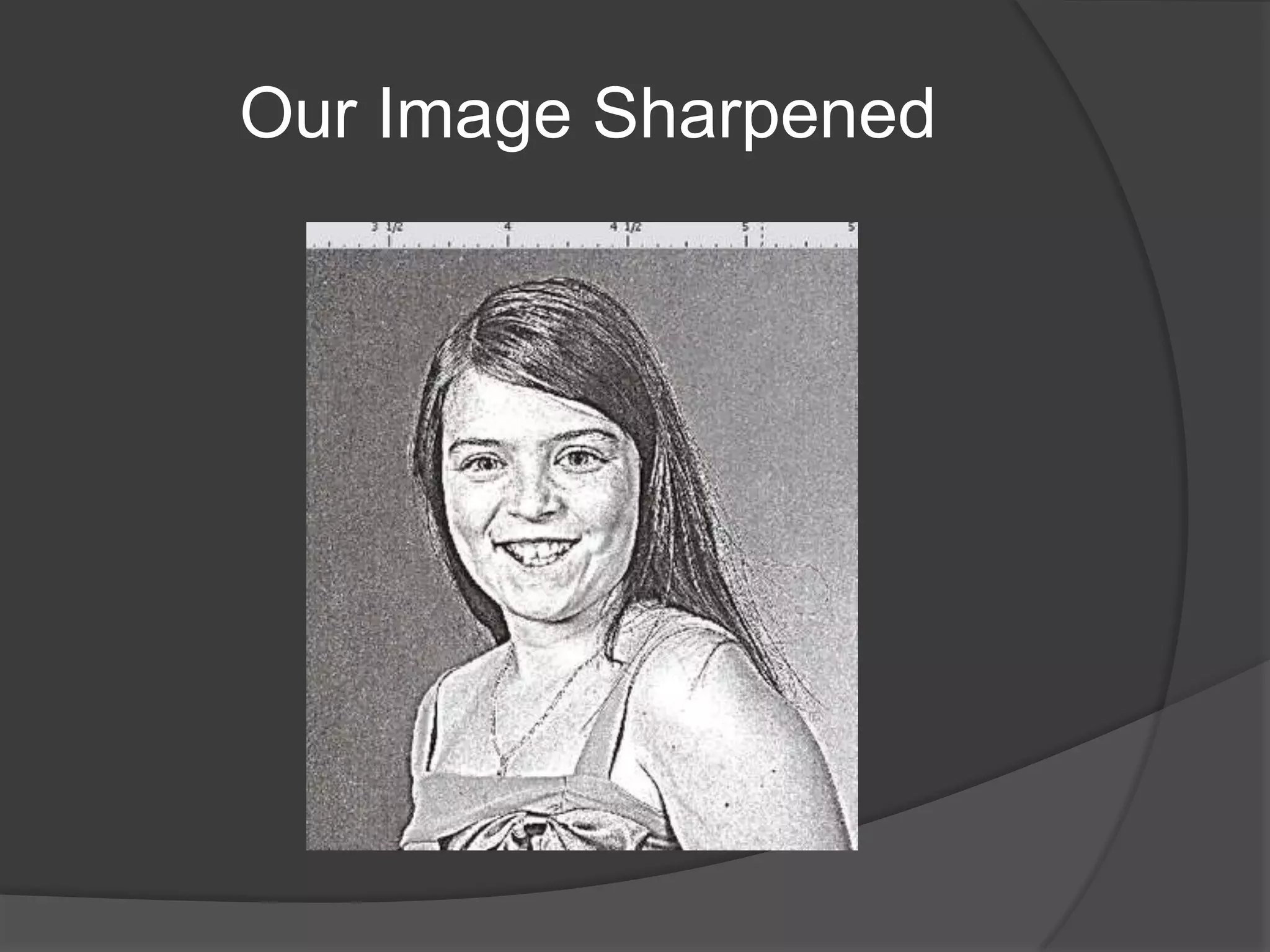
Now the secret step - Unsharp Mask
This technique is used all the time in
printing colour photographs because
more photos are digital and they suffer
from some sort of fuzziness. The
Unsharp mask will sharpen up these
photos. I use this technique because it
not only does it sharpens up my image
but it gets rid of some of the detail that I
can not produce. Thus the more detail
that I can not produce the more I use the
Unsharp mask
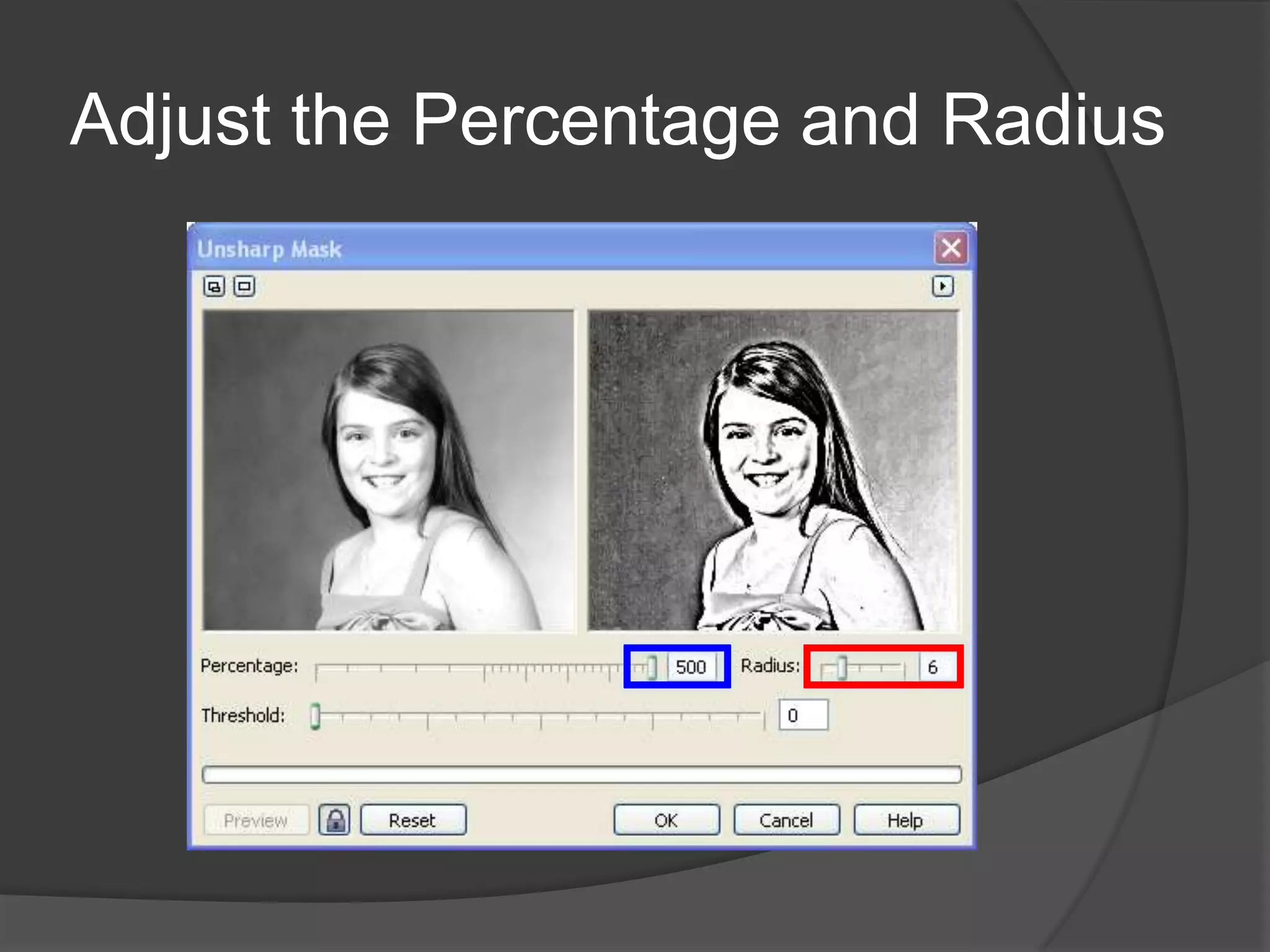
Adjust the Percentage and Radius
For laser engraving on metal I
adjust the percentage to around
200. For porous material I use 500
and than adjust the radius to suite.
Our Image Sharpened
Now if I was going to laser
engrave a fine material I would
now send it to the laser
machine.
If I am going to a porous
material I need to do one extra
step
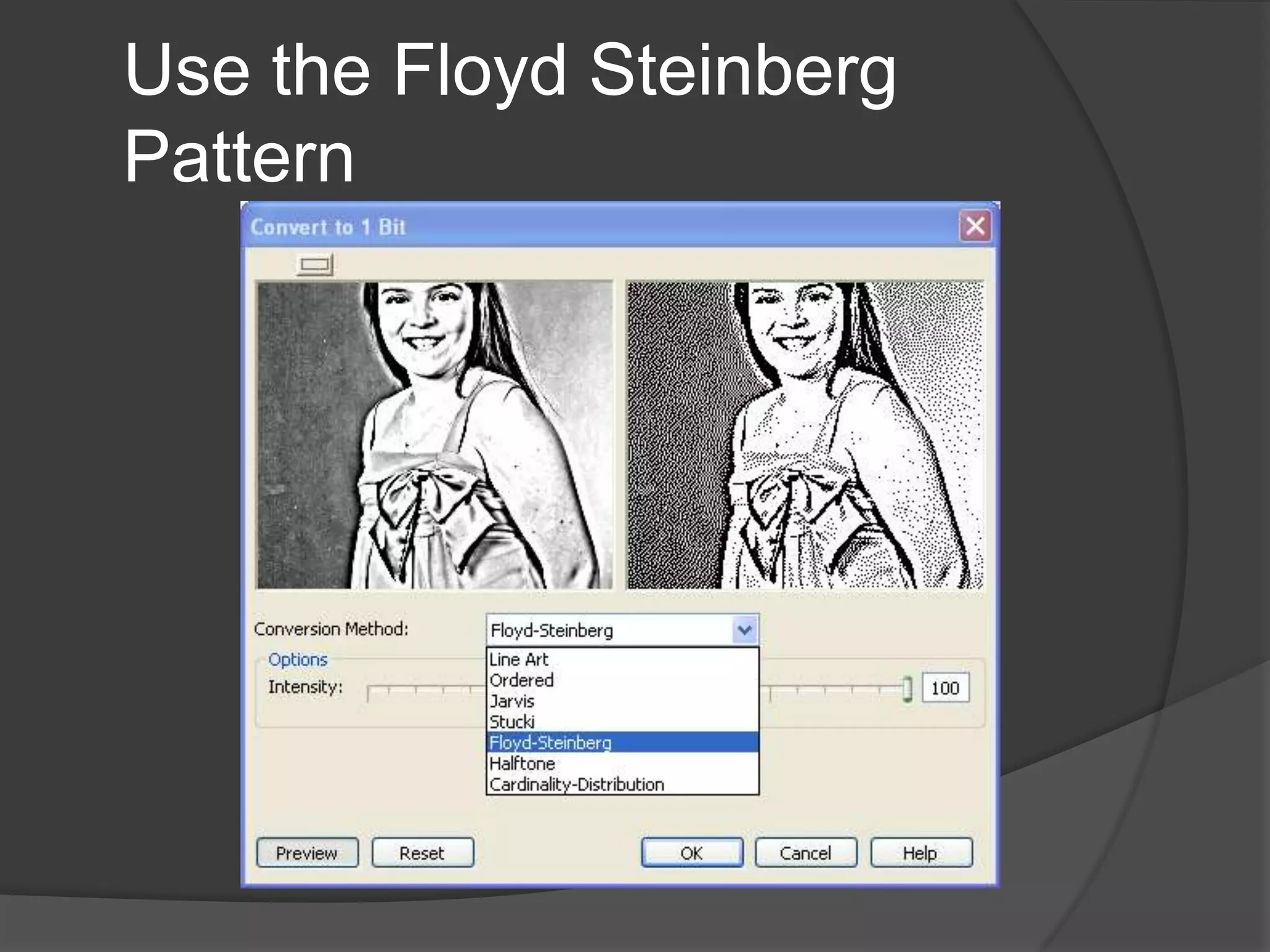
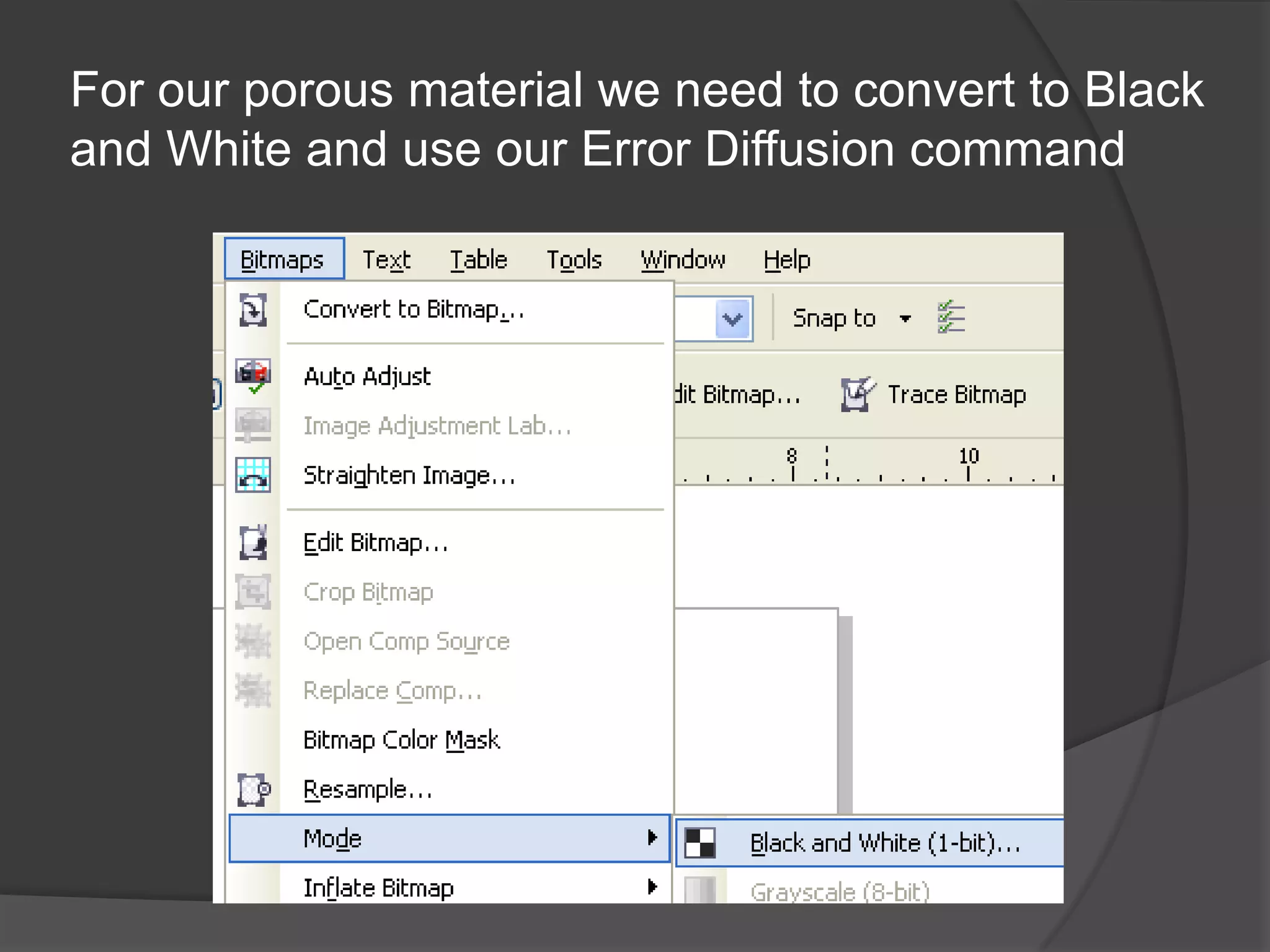
For our porous material we need to convert to Black
and White and use our Error Diffusion command
Use the Floyd Steinberg
Pattern
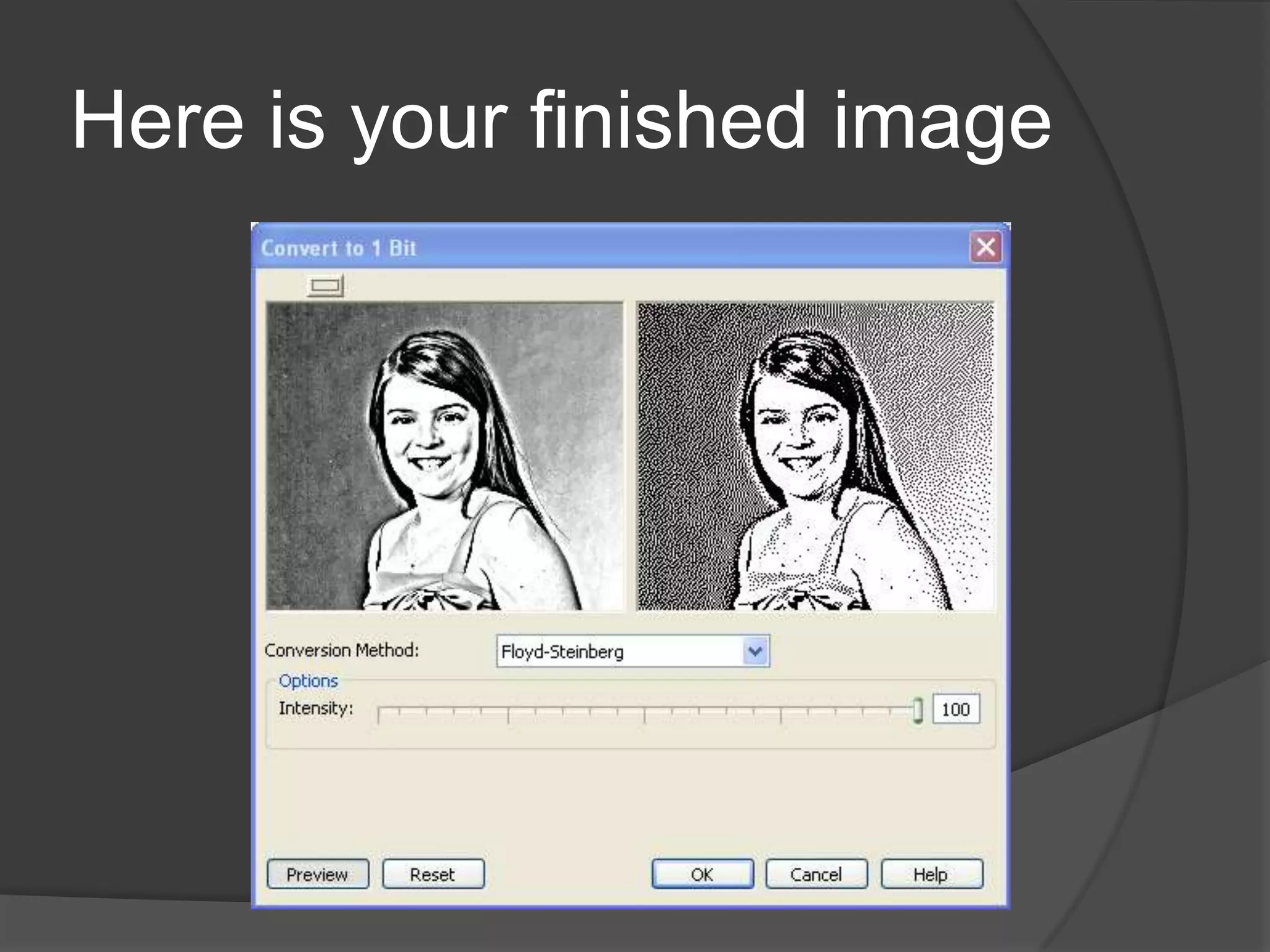
Here is your finished image
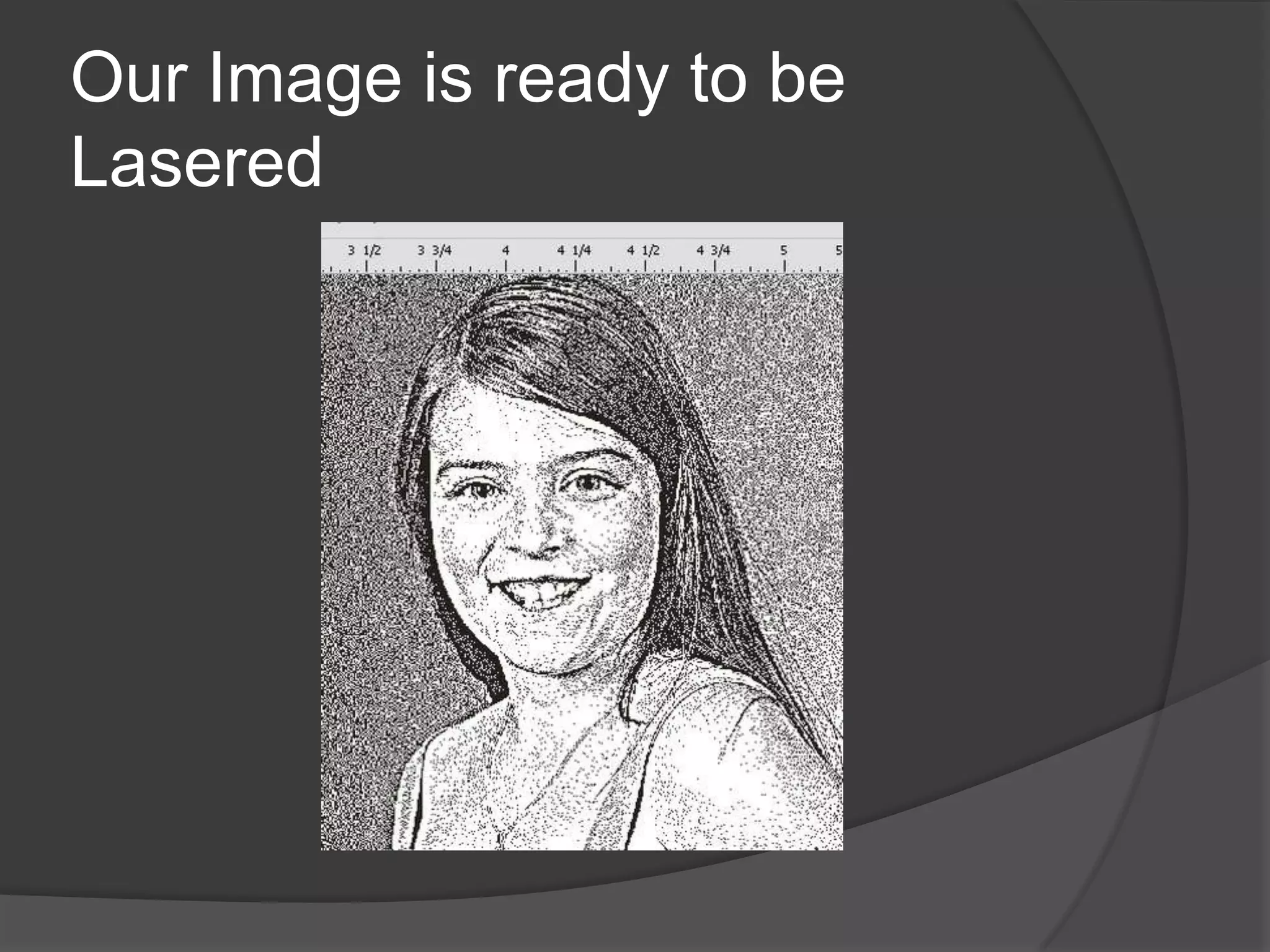
Our Image is ready to be
Lasered
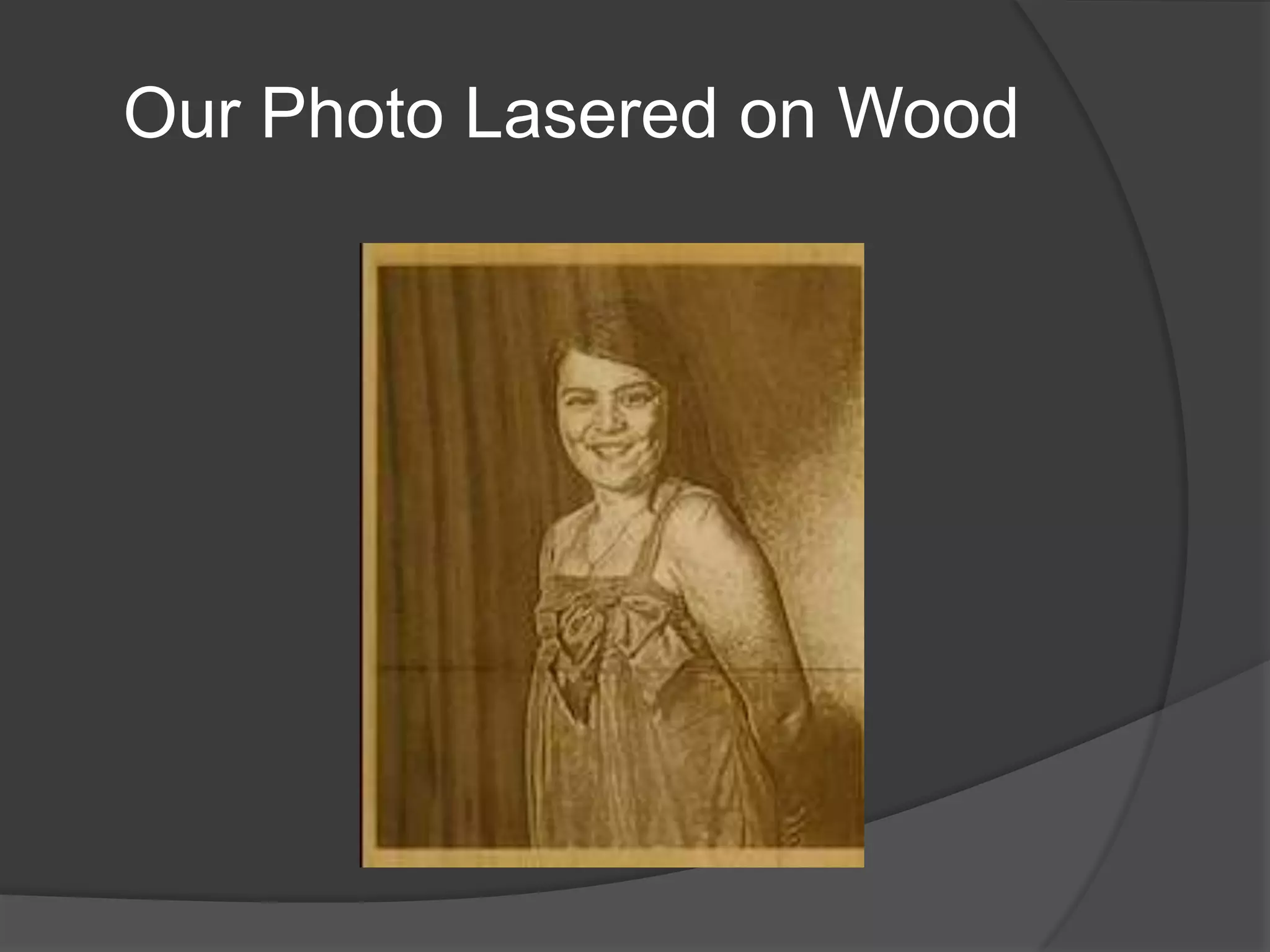
Our Photo Lasered on Wood

Working With Photographs on Your Laser in CorelDraw

  • 2.
    Objectives  What makes a good material  Diffusion patterns versus line screening (gray scaling)  What makes a good photo  Initial Prep on the Photo – what makes a good photo  Contrast Enhancement  Sharpening the secret to success  CorelDraw vsPhotoGRAVvs 1 Touch  Invert  Vignette  Cutout Lab in PhotoPaint
  • 3.
    6 rules oflasering photo  Always work in Gray scale (a continuous tone image) or Black and white this depends on the material you are going to laser on  Know your materials that you want to work on  Make sure that you know your speeds and powers  Work only with good photos which shows only the focus no background images  Know your adjustment commands  Crop to Focus
  • 4.
    What makes agood laserable material
  • 5.
    When we lookat materials there are three characteristics that we need to consider
  • 6.
    1 The first is how well does the material that we are working with hold a small well formed laser dot 2 Secondly how well does that material display our image. In other word do we see good contrast. Is there a good difference in colour between the colour of the lasered and non lasered area. For example the best contrast is black and white. 3 The third is how good is the material in terms of being consistent. Wood is not good because it has a changing grain, anodized aluminum is very good because it has no grain
  • 7.
    Products that holda dot well are anodized aluminum, laserable plastic or brass plated steel
  • 8.
    AlumaMark holds ahalf decent black dot - Gold
  • 9.
    AlumaMark holds ahalf decent black - Silver
  • 10.
    Product such aswood do not hold a good small dot and are very porous. Thus photos do not look as good on this medium
  • 11.
    Product such asglass do not hold a good small dot and are very porous. Thus photos so not look as good on this medium
  • 12.
    What this meansis that when we process a photo we need to establish first what type of material that we are going to laser on. Once we have our material we can process the image
  • 14.
    Before we goon let us look at the 3 main special programs for photo processing  ULS – One Touch  PhotoGrav  PhotoLaser
  • 15.
    One Touch vsCorelDraw
  • 16.
    One Touch vsCorelDraw
  • 18.
  • 19.
  • 20.
    Our Number 1Rule Thus materials that hold a good small dot need to be processed one way while those materials that do not hold a good dot need to be processed a different way Let us look at the two ways we can process an image.
  • 21.
    Our two printingmethods are: 1- Half Toning 2 -Error Diffusion
  • 22.
    Our Number 2Rule 1- Half Toning – Fine Materials 2 -Error Diffusion – Coarse Materials
  • 23.
  • 24.
    Half toning -Definition  Halftone is the reprographic technique that simulates continuous tone imagery through the use of dots, varying either in size, in shape or in spacing. "Halftone" can also be used to refer specifically to the image that is produced by this process. Where continuous tone imagery contains an infinite range of colors or grays, the halftone process reduces visual reproductions to a binary image that is printed with only one color of ink. This binary reproduction relies on a basic optical illusion that these tiny halftone dots are blended into smooth tones by the human eye.
  • 25.
    Halftone Image –Continuous Tone Image
  • 26.
  • 27.
    Screen Pattern witha halftone image
  • 28.
    Products that typicallyrequire continuous tonal image – Fine Materials  Anodized Aluminum  Black Brass Coated Steel  Laserable Plastic  Some Marbles  Laser It
  • 29.
    Half Tones whichthe laser produces are Better on Anodized Aluminum or Brass Plated Steel
  • 30.
    What is ErrorDiffusion?  There is a second set of dithering patterns and these are created using what is called an error diffusion algorithm. These use a technique of diffusing quantization error to neighbouring pixels. Ok let us not get to technical. All you need to understand is that there are a number of error diffusion techniques that are available. Which one that you use is up to you. In CorelDraw we have 3 error diffusion algorithm patterns available to us. These are “Floyd- Steinberg”, “Jarvis” and “Stucki”. Others are “Burkes”, “Scolorq”, “Sierra”, “Atkinson” and “Filter Lite”. Figure 2 and 3 shows some of the more popular patterns that are available to use.
  • 31.
  • 32.
    Diffusion Patterns arebetter on wood
  • 33.
    Products that typicallyrequire error diffusion  Wood  Thermark Product  Glass  Marble / Granite
  • 34.
    Thermark on aTile does not hold a good dot compared to anodized aluminum thus we use an error diffusion
  • 35.
    Glass does nothold a good dot compared to anodized aluminum thus we use an error diffusion
  • 37.
    The quality ofour image can greatly influence our final product.
  • 38.
    Thus we needto establish what is a good photograph that we can use
  • 39.
    We need aGood Quality Image. The worse the image quality the more chances we have of not being able to reproduce the proper image
  • 40.
    Original Image –Tif No Compressions
  • 41.
  • 42.
    100 % JpegQuality
  • 44.
  • 45.
  • 46.
  • 47.
  • 48.
  • 49.
  • 50.
    Let Us Takea Close Look
  • 51.
    Here is thefinished photo
  • 52.
    Best Photos Formatsto get  Tiff or BMP are the best as long as they are not jpeg’s just saved as this format  Jpeg is the next best but remember JPEG can comes in a lot of different qualities  You may get a PDF but the original file may contain bad quality images
  • 54.
  • 55.
  • 56.
  • 57.
    Cropping to Sizeusing PowerClip
  • 58.
     Once wehave converted the image to grayscale we will now need to process it to laser engrave it.  The Contrast Enhancement Dialogue box allows us to increase the tonal range of the photo that we are working on  To do this open up the Contrast Enhancement Dialogue Box
  • 59.
    It is locatedin the Bitmap Menu
  • 60.
    3 areas pixeltypes in our Tonal Range
  • 61.
    What is TonalRange  When we talk about the tonal range of an image we are referring to the range of tones between the lightest and darkest areas of an image. For example, an image with a wide tonal range will include both dark and light areas (and a range of tones in between). Whereas an image with a narrow tonal range will cover a more restricted range for example it could be predominantly composed of mid-tones. Note: when we look at an image that is a grayscale image we have an image that is comprised of gray pixels that have a value of 0 to 255. Values that are 0 are solid black and values that are 255 are solid white. Pixels with a number in between 0 and 255 are a shade of gray.
  • 62.
    Each slider adjustscertain pixels
  • 63.
  • 64.
  • 65.
  • 66.
  • 67.
  • 68.
    Areas to lookfor when we are adjusting
  • 70.
  • 71.
  • 72.
  • 73.
  • 74.
  • 75.
    Finished Product Engraved Dark Medium Lightest little adjustment medium adjustment Big Adjustment
  • 76.
    If you arelasering on black brass or black anodized aluminum you will need to invert the image so that is is a negative.
  • 77.
     We haveworked with photos that would traditionally be laser engraved on good material such as laser brass or anodized aluminum. But what about wood, glass and granite?  To engrave this material we use what is called the error diffusion technique
  • 79.
    To Successfully LaserEngrave Porous or Course Material like Wood and Glass we need to do an extra adjustment to our photo We need use an error diffusion pattern
  • 80.
  • 81.
    Error Diffusion Patterncreated on Glass
  • 82.
    How do wecreate an error diffusion on our original image
  • 83.
    Convert our imagein CorelDraw
  • 84.
    Our photo convertedto black and white with an error diffusion pattern
  • 85.
    The Holy Grailfor Doing Photos In CorelDraw
  • 86.
  • 87.
    First convert thephoto to Grayscale
  • 88.
    Open the ContrastEnhancement Dialogue Box
  • 89.
    I have increasedthe tonal range of the photo Original Adjusted
  • 90.
    Now the questionas to how much I adjust is dependent on what I am putting the image on. If I am going onto metal or plastic I would do a lighter adjustment as I can show more detail on this material. If I am going onto wood I would use a more drastic adjustment
  • 91.
    So the ruleof thumb is more detail in your image if you are going to go on good material such as laser brass. This is because I am going to use the halftone image to print my photo. Thus I use a smaller adjustment in the contrast enhancement command If I am going on a porous product such as wood I need to get rid of detail. Thus I would do larger adjustment in the contrast enhancement command
  • 92.
    Remember that theworse (the more porous) the material that we are working on the more that we have to remove detail, Thus the better the material the less detail that we need to remove in the photo
  • 93.
    Now the secretstep - Unsharp Mask
  • 94.
    This technique isused all the time in printing colour photographs because more photos are digital and they suffer from some sort of fuzziness. The Unsharp mask will sharpen up these photos. I use this technique because it not only does it sharpens up my image but it gets rid of some of the detail that I can not produce. Thus the more detail that I can not produce the more I use the Unsharp mask
  • 95.
  • 96.
    For laser engravingon metal I adjust the percentage to around 200. For porous material I use 500 and than adjust the radius to suite.
  • 97.
  • 98.
    Now if Iwas going to laser engrave a fine material I would now send it to the laser machine. If I am going to a porous material I need to do one extra step
  • 99.
    For our porousmaterial we need to convert to Black and White and use our Error Diffusion command
  • 100.
    Use the FloydSteinberg Pattern
  • 101.
    Here is yourfinished image
  • 102.
    Our Image isready to be Lasered
  • 103.

Editor's Notes

  • #4 Talk about the oak plaque and the photo of a customers
  • #7 t