Setting up
 Tracking Protection
in Internet Explorer 9


                         1
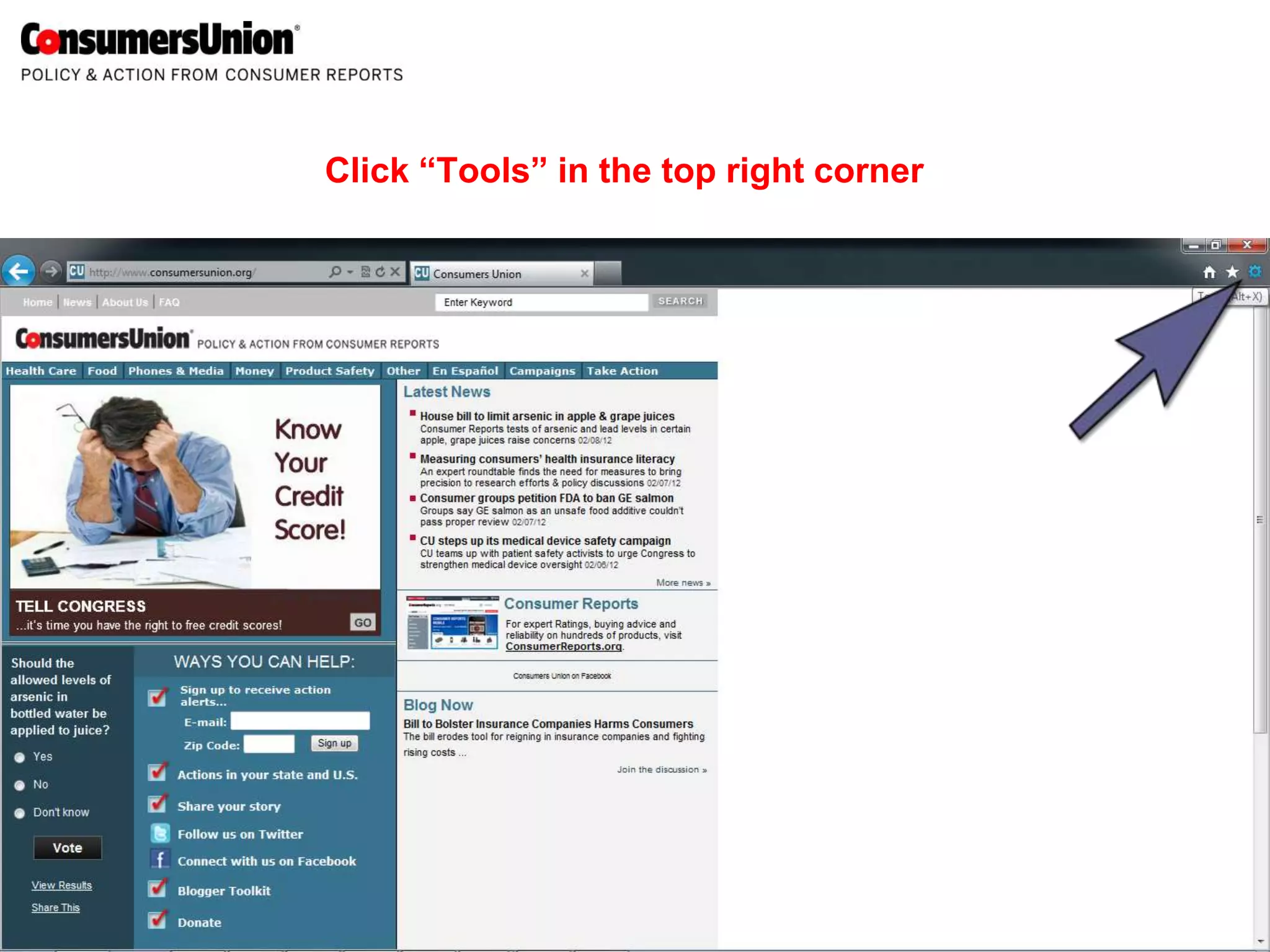
Click “Tools” in the top right corner
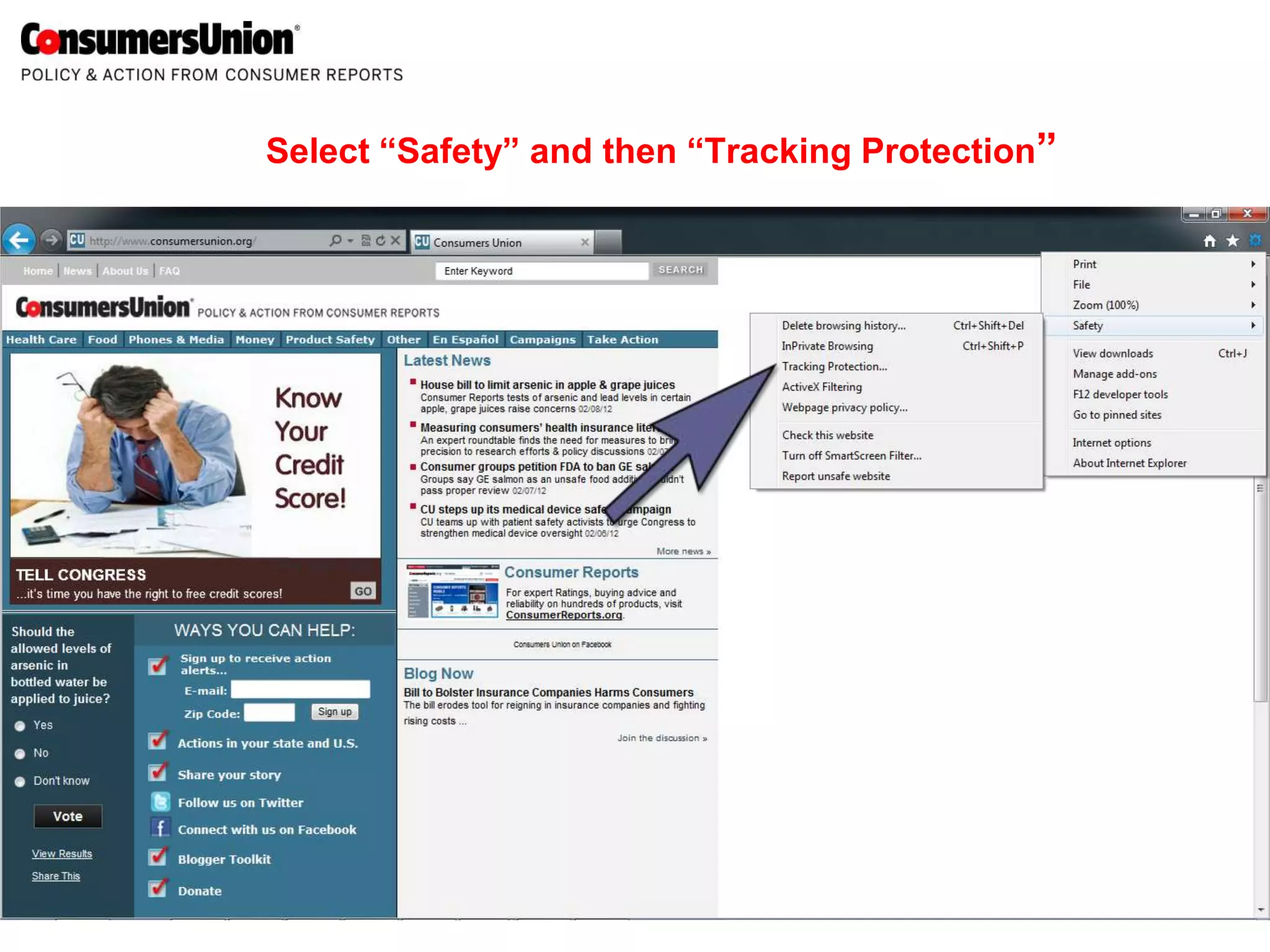
Select “Safety” and then “Tracking Protection”
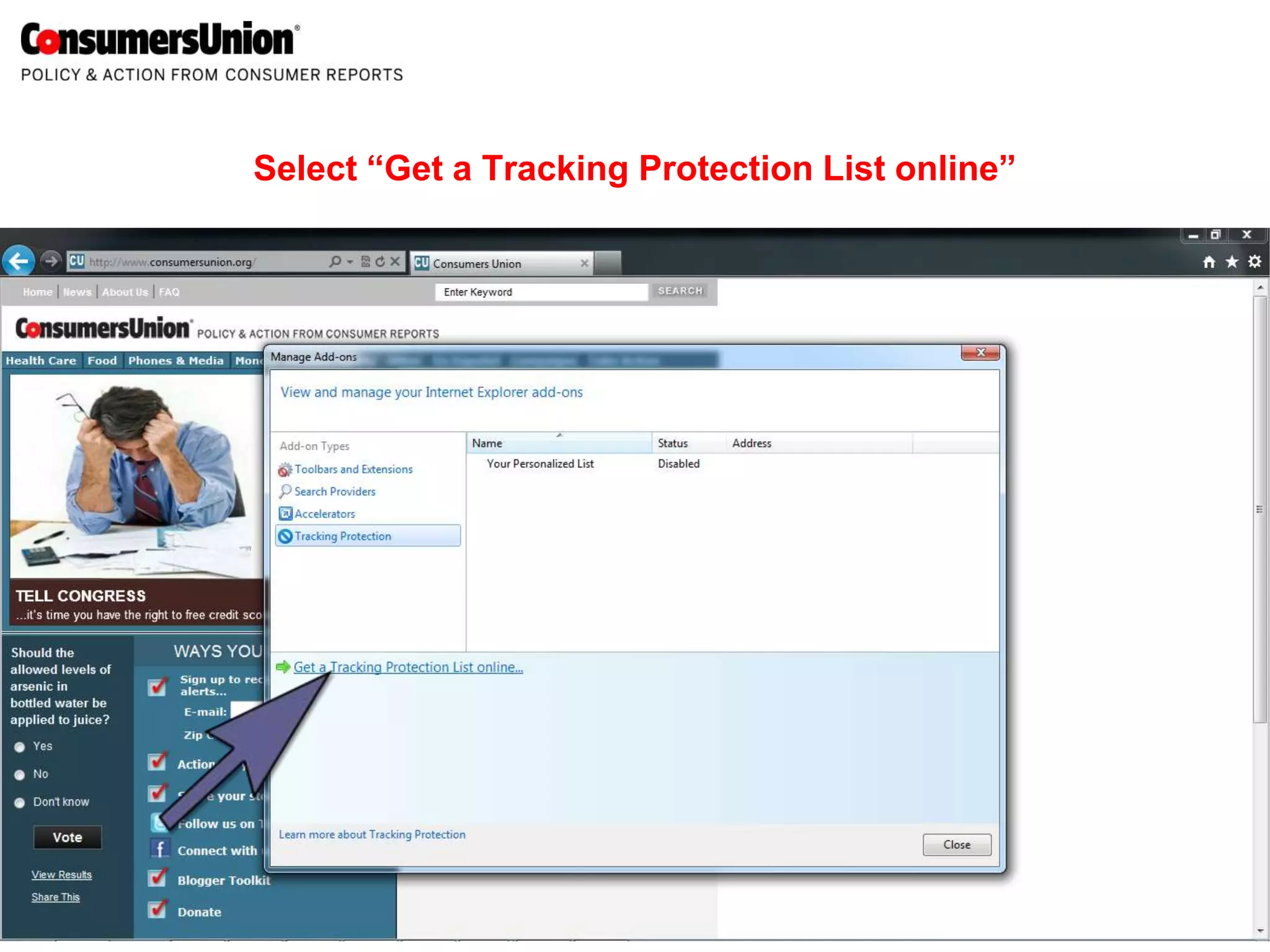
Select “Get a Tracking Protection List online”
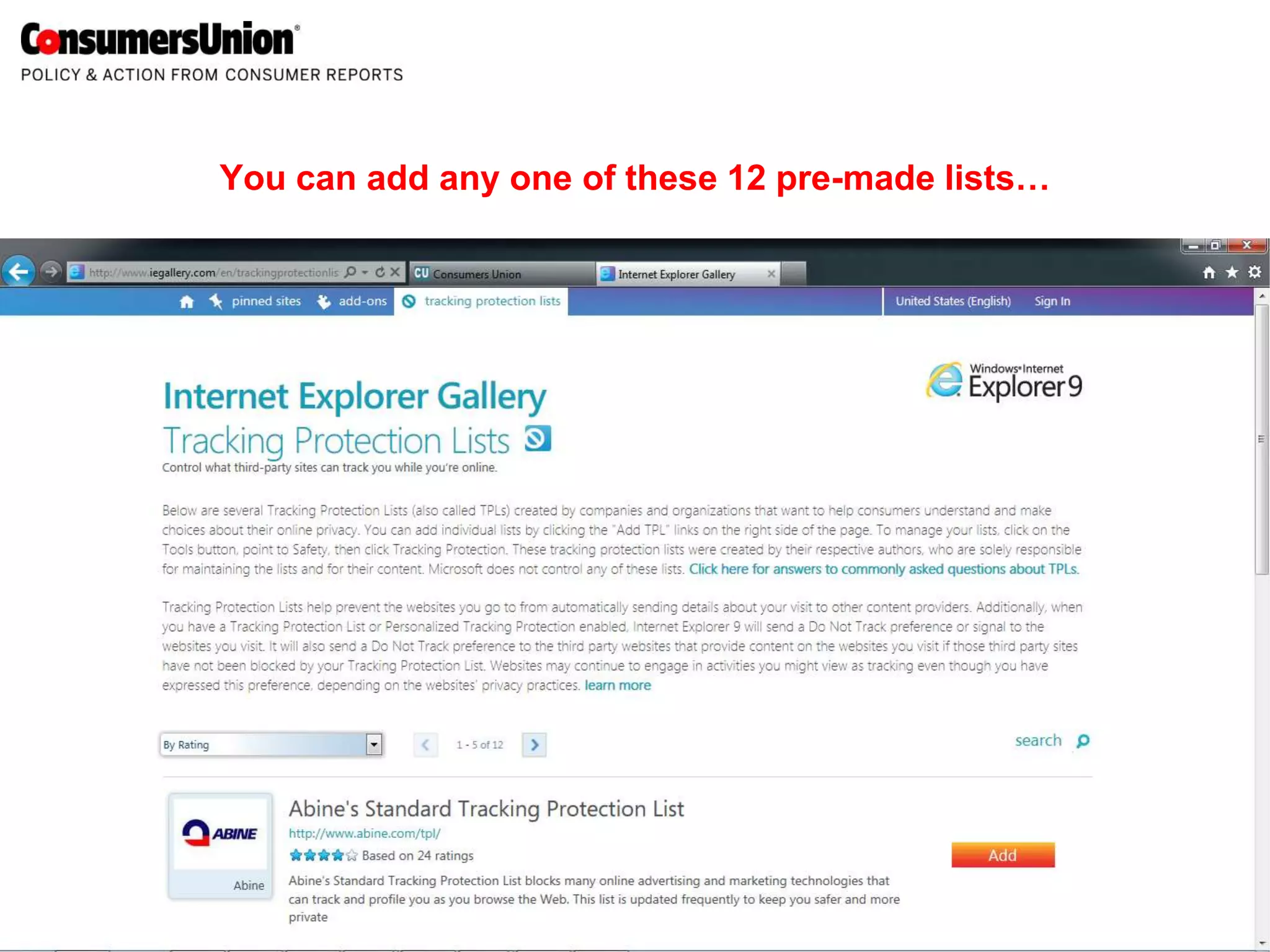
You can add any one of these 12 pre-made lists…
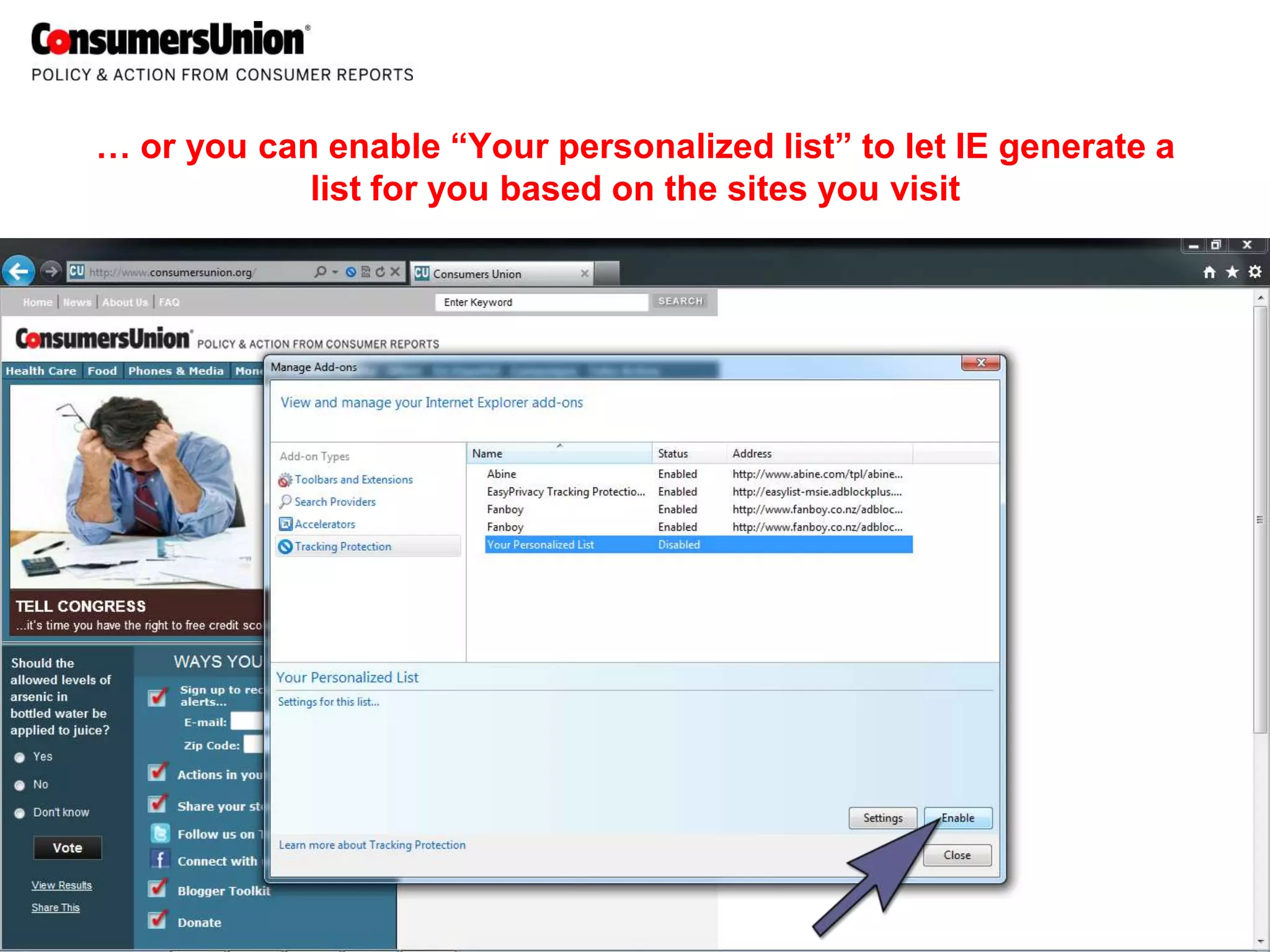
… or you can enable “Your personalized list” to let IE generate a
            list for you based on the sites you visit
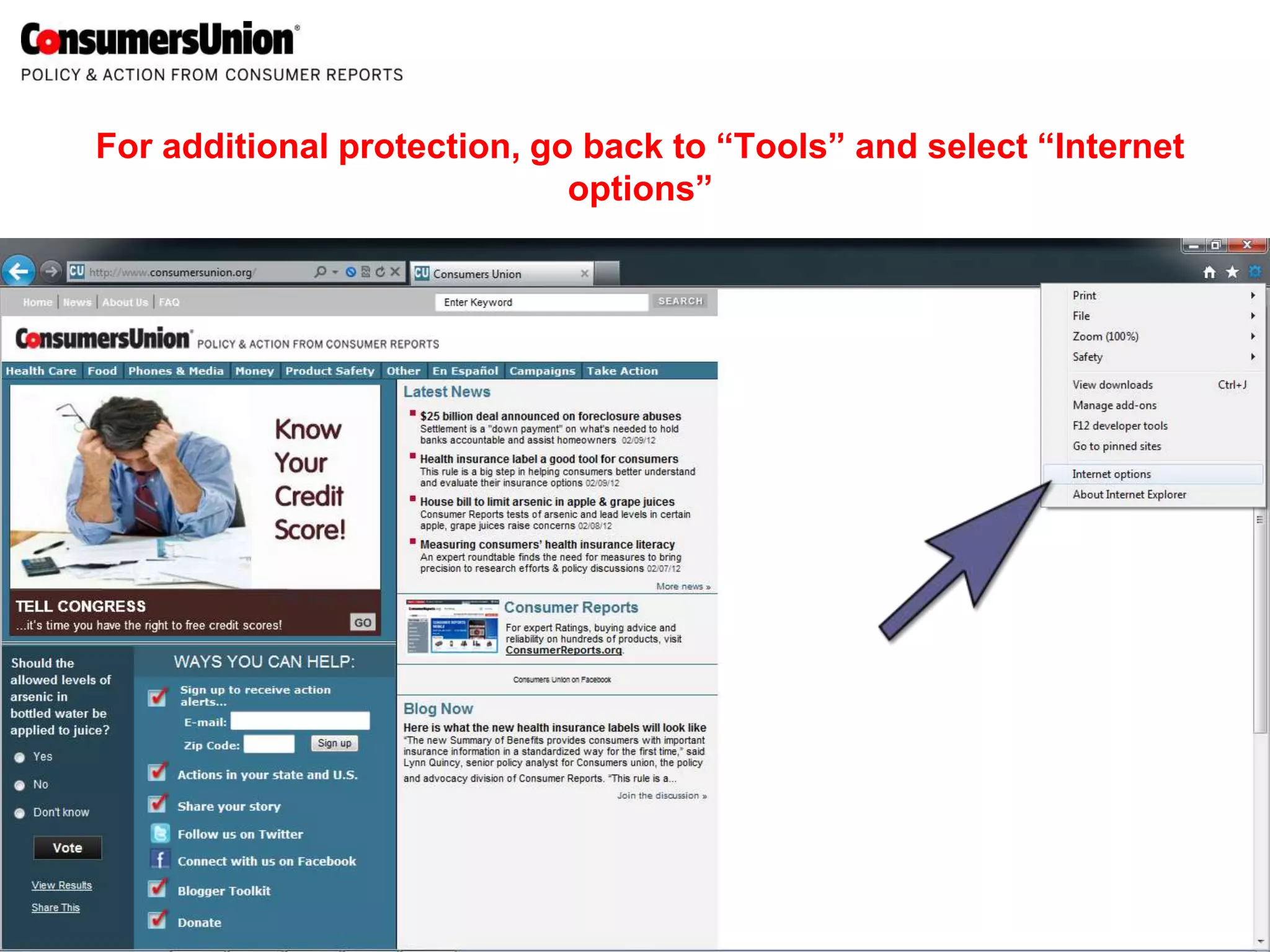
For additional protection, go back to “Tools” and select “Internet
                             options”
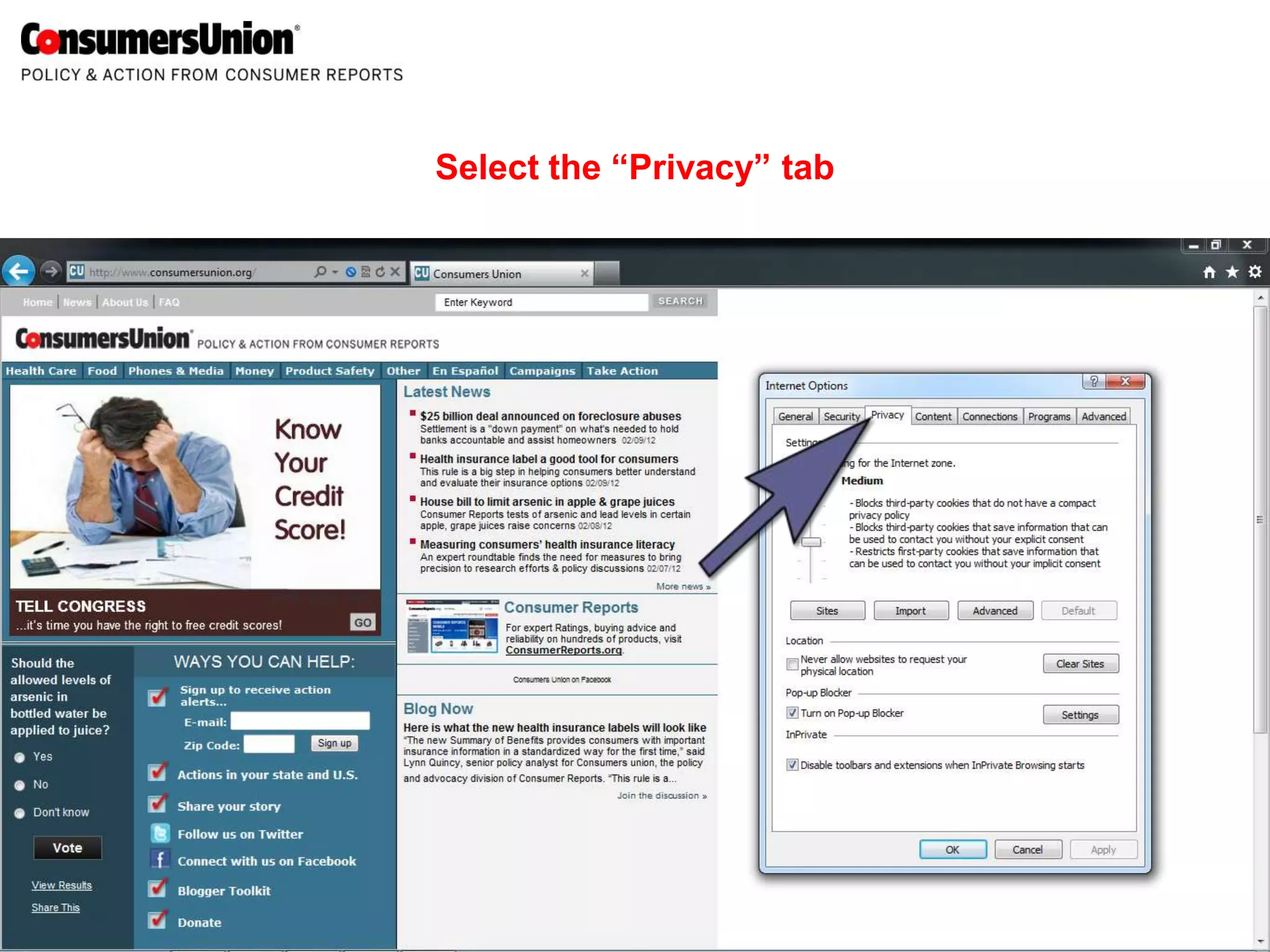
Select the “Privacy” tab
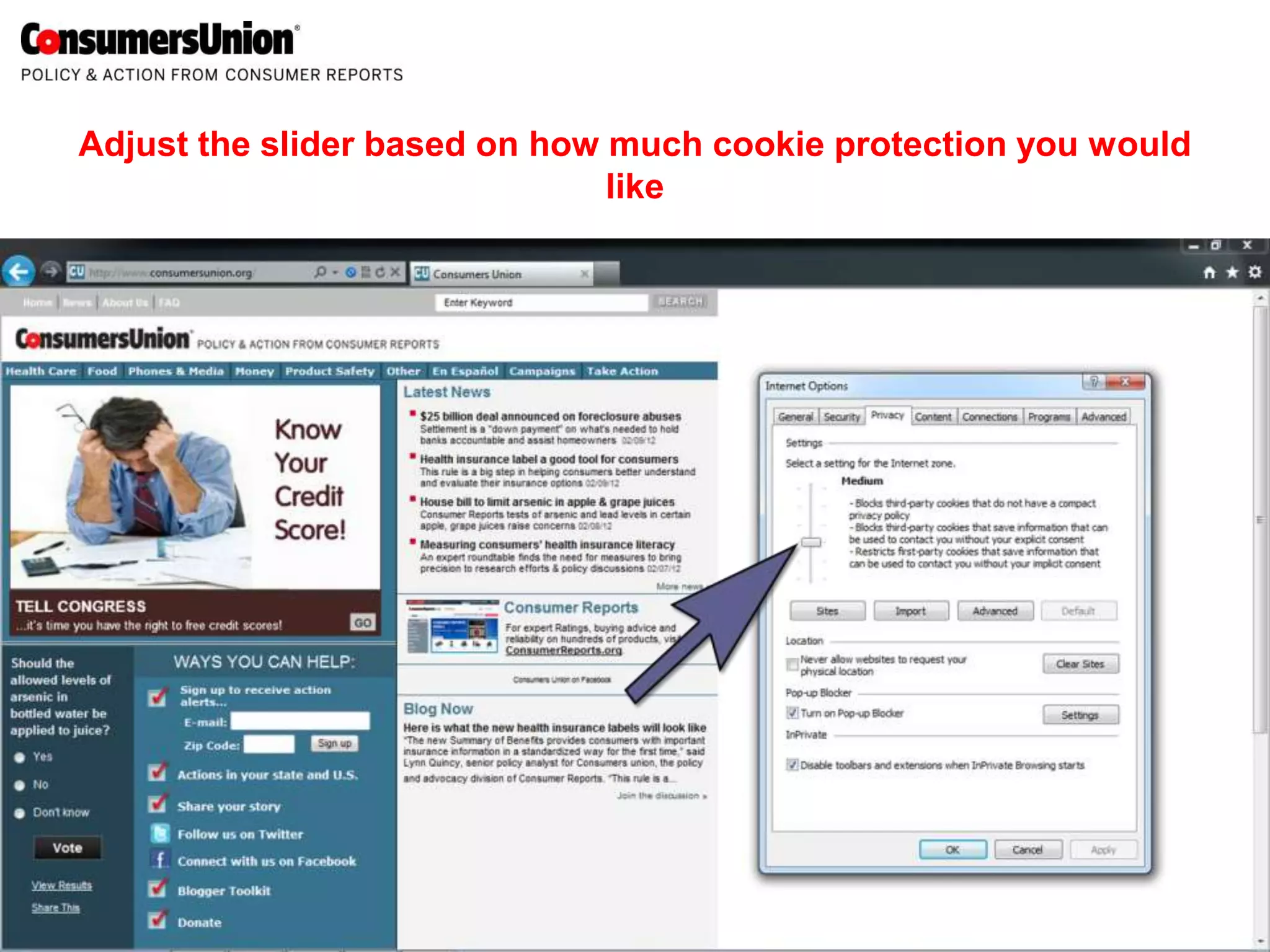
Adjust the slider based on how much cookie protection you would
                               like
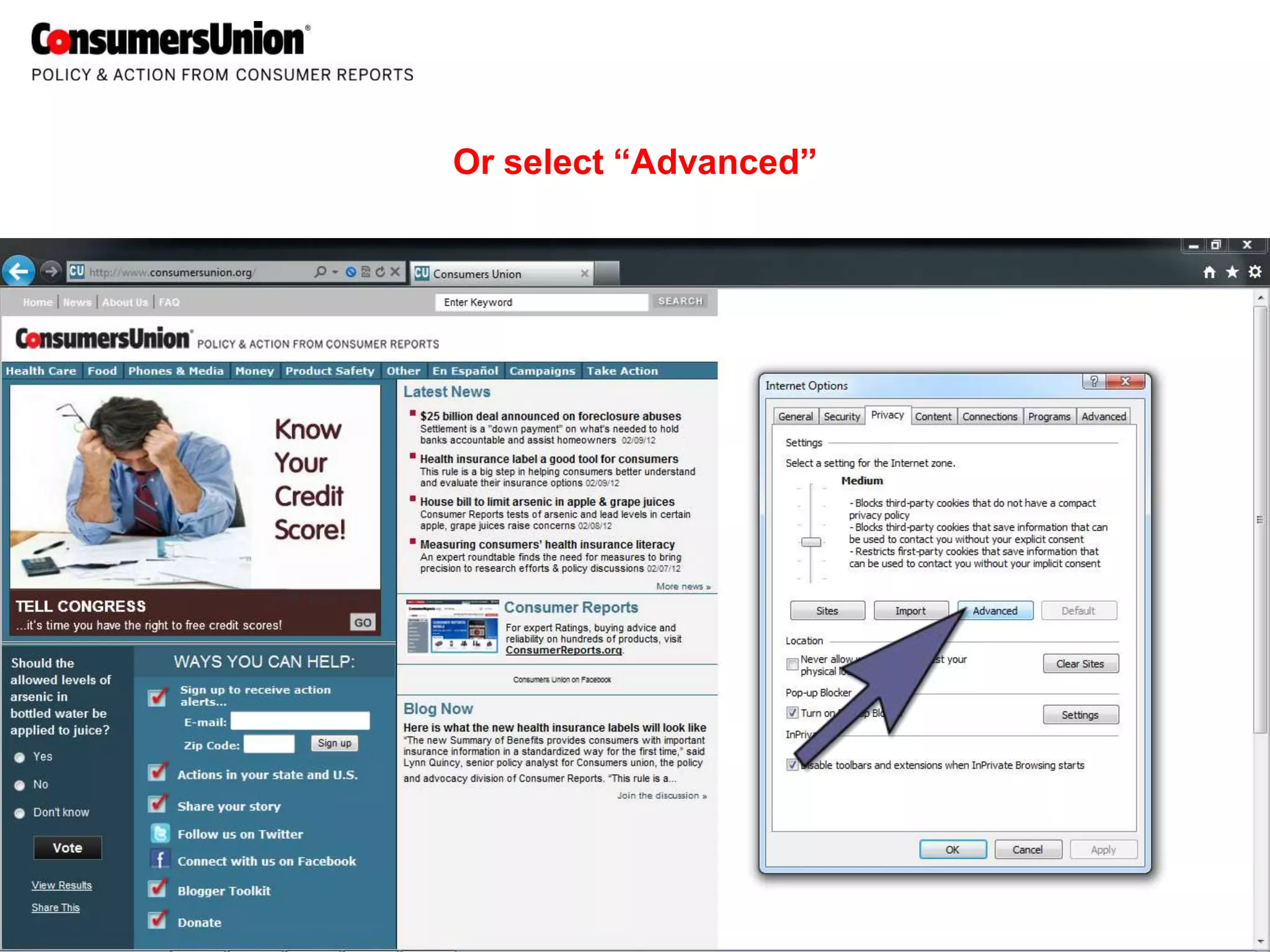
Or select “Advanced”
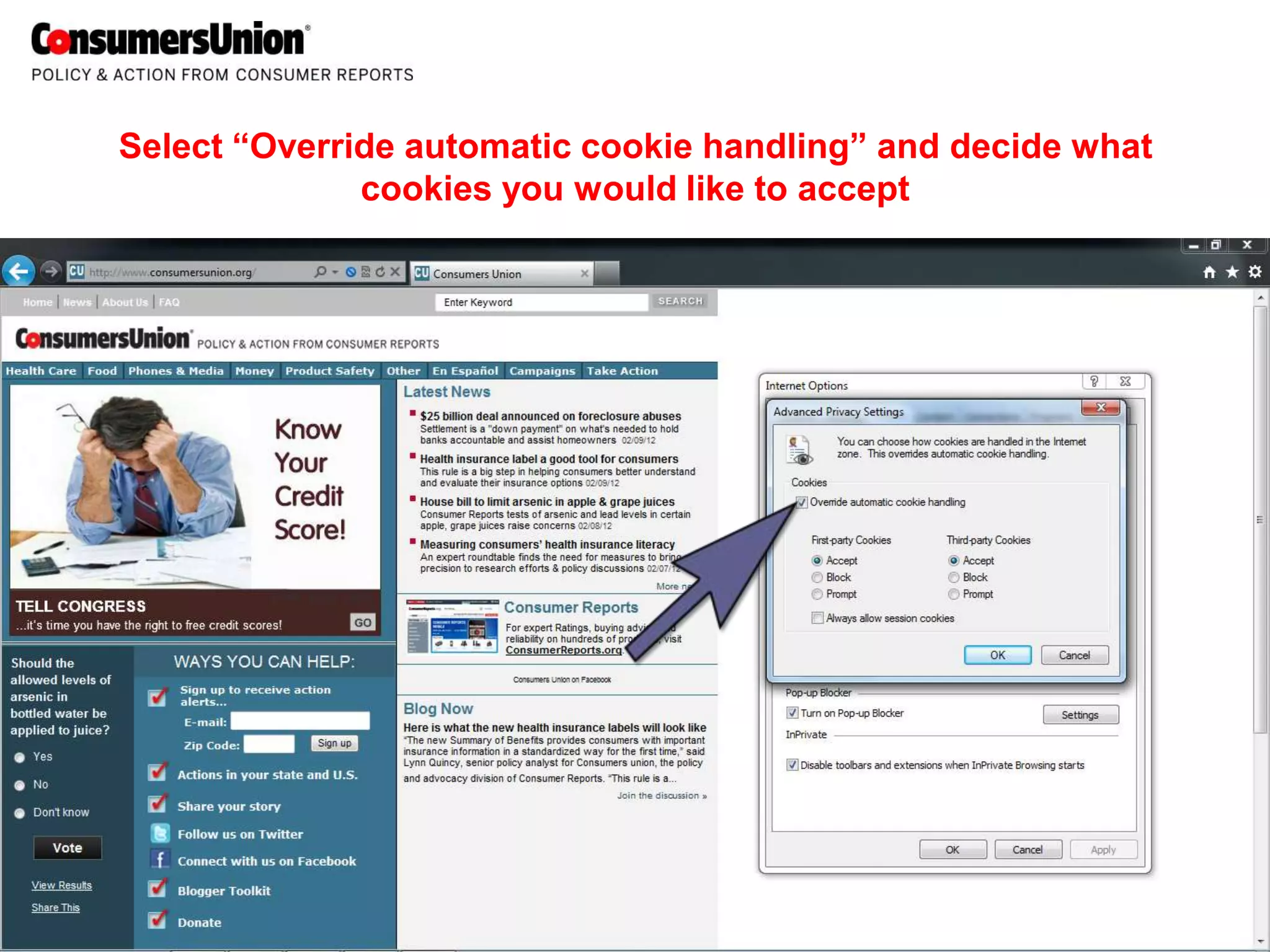
Select “Override automatic cookie handling” and decide what
              cookies you would like to accept
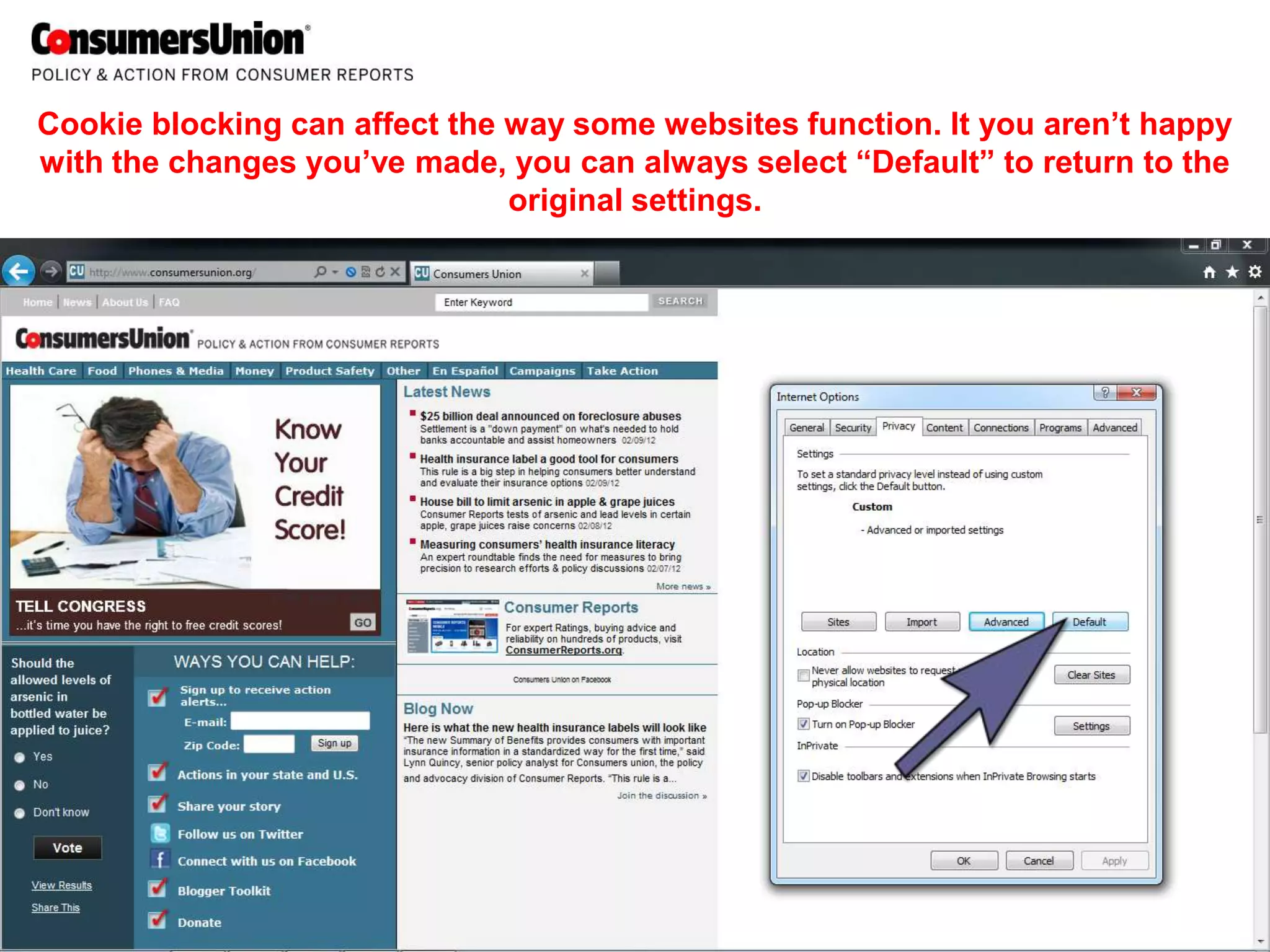
Cookie blocking can affect the way some websites function. It you aren’t happy
with the changes you’ve made, you can always select “Default” to return to the
                               original settings.
There are additional tools you can use to protect your
                       privacy online.

•    Adblock Plus (special IE version) blocks the display of ads and stops social
     networking sites from transmitting data about you after you leave those
     sites, even if the page you visit has a social plugin on it.

•    Do Not Track Plus is the Do Not Track app that sends a request to websites
     not to track you, with a “plus” of also stopping third-party data exchanges.
     So, when you visit a site with Facebook, Twitter and Google+ buttons on it,
     no information will be exchanged with those third parties unless you choose
     to click on those buttons.

•    Ghostery blocks the invisible tracking cookies and plug-ins on many web
     sites, shows it all to you, and then gives you the choice whether you want to
     block them one-by-one, or all together.
Finally, if you aren’t sure whether to accept cookies from a
website, read their privacy policy and find out what they do
        with the information they gather from users!

IE9TrackingProtection

  • 1.
    Setting up TrackingProtection in Internet Explorer 9 1
  • 2.
    Click “Tools” inthe top right corner
  • 3.
    Select “Safety” andthen “Tracking Protection”
  • 4.
    Select “Get aTracking Protection List online”
  • 5.
    You can addany one of these 12 pre-made lists…
  • 6.
    … or youcan enable “Your personalized list” to let IE generate a list for you based on the sites you visit
  • 7.
    For additional protection,go back to “Tools” and select “Internet options”
  • 8.
  • 9.
    Adjust the sliderbased on how much cookie protection you would like
  • 10.
  • 11.
    Select “Override automaticcookie handling” and decide what cookies you would like to accept
  • 12.
    Cookie blocking canaffect the way some websites function. It you aren’t happy with the changes you’ve made, you can always select “Default” to return to the original settings.
  • 13.
    There are additionaltools you can use to protect your privacy online. • Adblock Plus (special IE version) blocks the display of ads and stops social networking sites from transmitting data about you after you leave those sites, even if the page you visit has a social plugin on it. • Do Not Track Plus is the Do Not Track app that sends a request to websites not to track you, with a “plus” of also stopping third-party data exchanges. So, when you visit a site with Facebook, Twitter and Google+ buttons on it, no information will be exchanged with those third parties unless you choose to click on those buttons. • Ghostery blocks the invisible tracking cookies and plug-ins on many web sites, shows it all to you, and then gives you the choice whether you want to block them one-by-one, or all together.
  • 14.
    Finally, if youaren’t sure whether to accept cookies from a website, read their privacy policy and find out what they do with the information they gather from users!