Making 21 st  Century Learning Tools Safer for Your Children   Karen Pruitt Weddington Middle School
Technology is no longer limited to the machine that sits on your desk.  It is everywhere and an integral part of our lives. There is nothing elusive about a computer  It’s a tool.
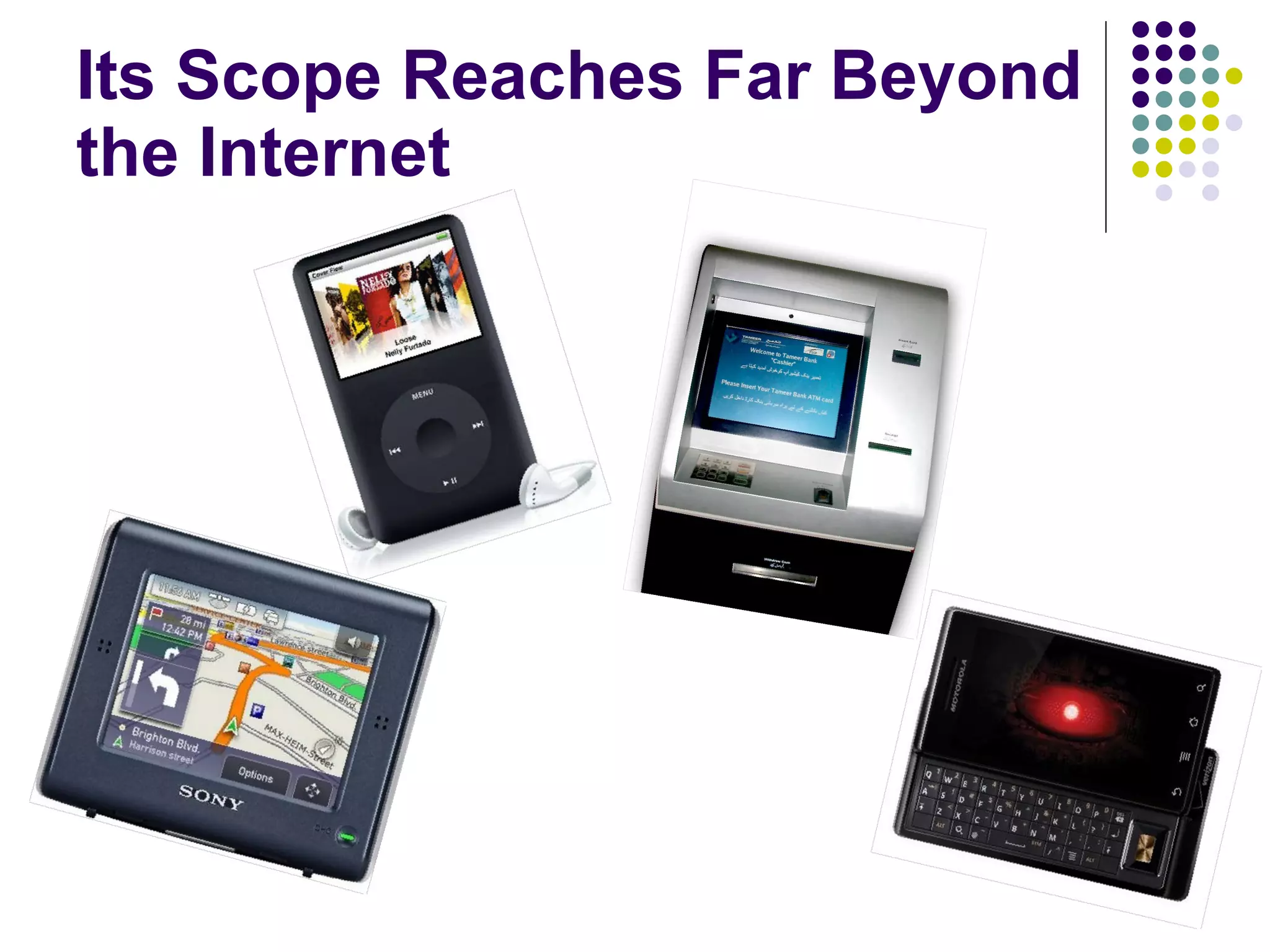
Its Scope Reaches Far Beyond the Internet
As recently as 1991, fewer than 50 percent of U.S. jobs required skilled workers. By 2015, 76 percent of American jobs will demand highly skilled employees. -Roberts Jones, Kathryn Scanland Steve Gunderson   The Jobs Revolution: Changing How America Works   “ None of the top 10 jobs that will exist in 2010 exist today.”  -Richard Riley (former US Secretary of Education) Employment in the 21 st  Century
Welcome to the Human Network
How do we balance safety and access in order to empower our students in the global marketplace?
The Internet Browser Use the tools that come pre-installed with your Internet browser. They’re free!
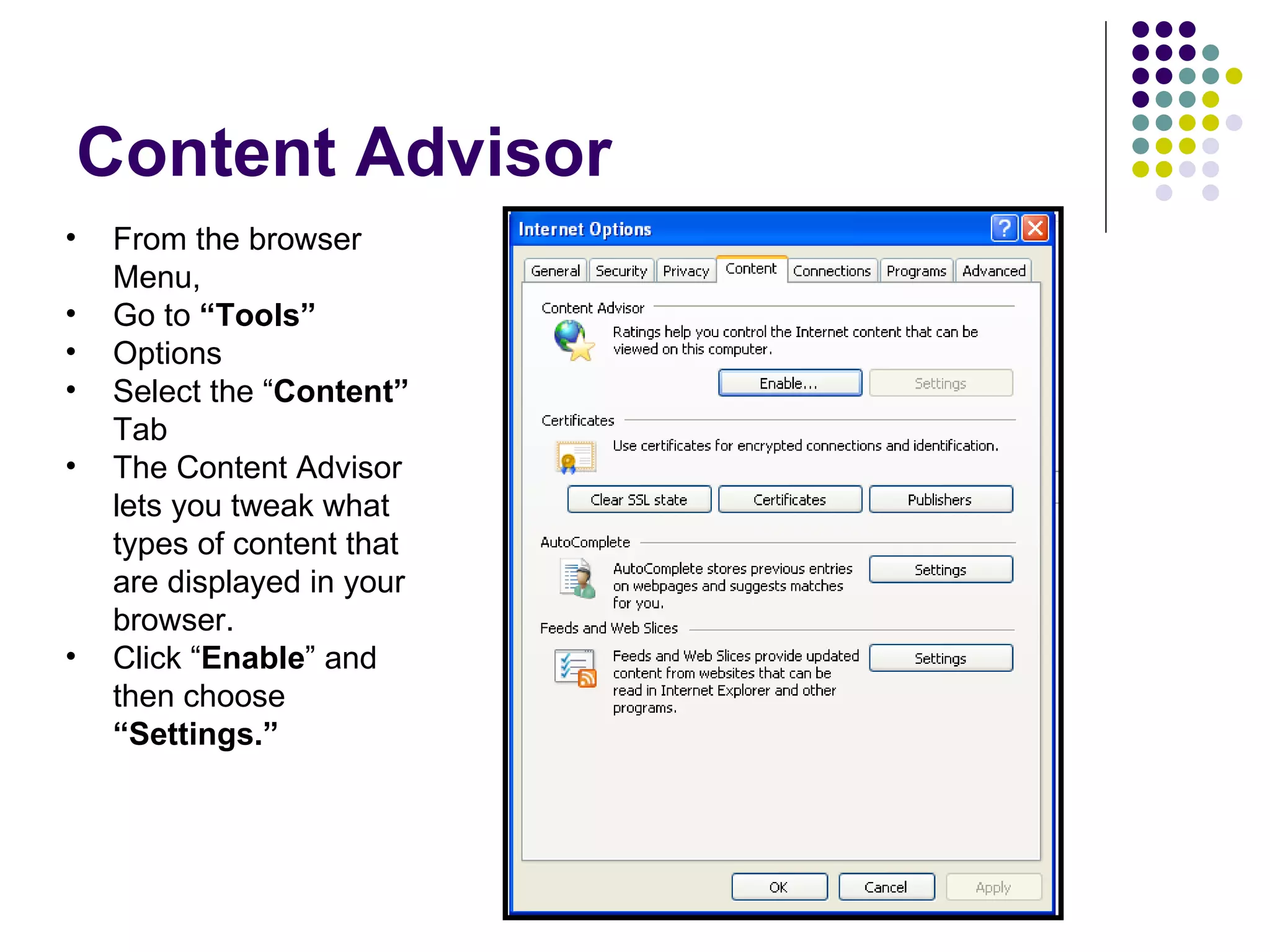
Content Advisor From the browser Menu, Go to  “Tools” Options Select the “ Content”  Tab The Content Advisor lets you tweak what types of content that are displayed in your browser. Click “ Enable ” and then choose  “Settings.”
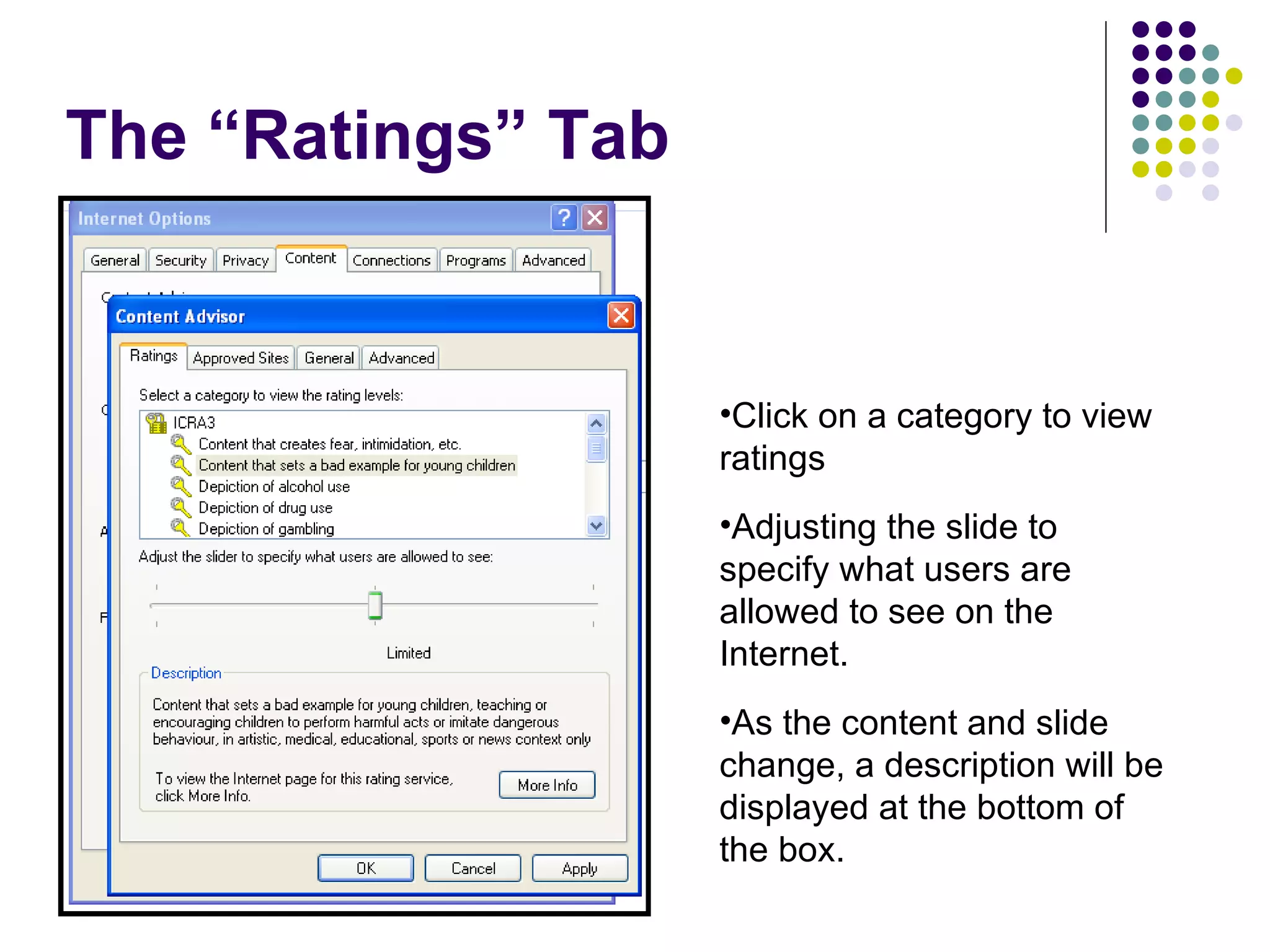
The “Ratings” Tab Click on a category to view ratings Adjusting the slide to specify what users are allowed to see on the Internet. As the content and slide change, a description will be displayed at the bottom of the box.
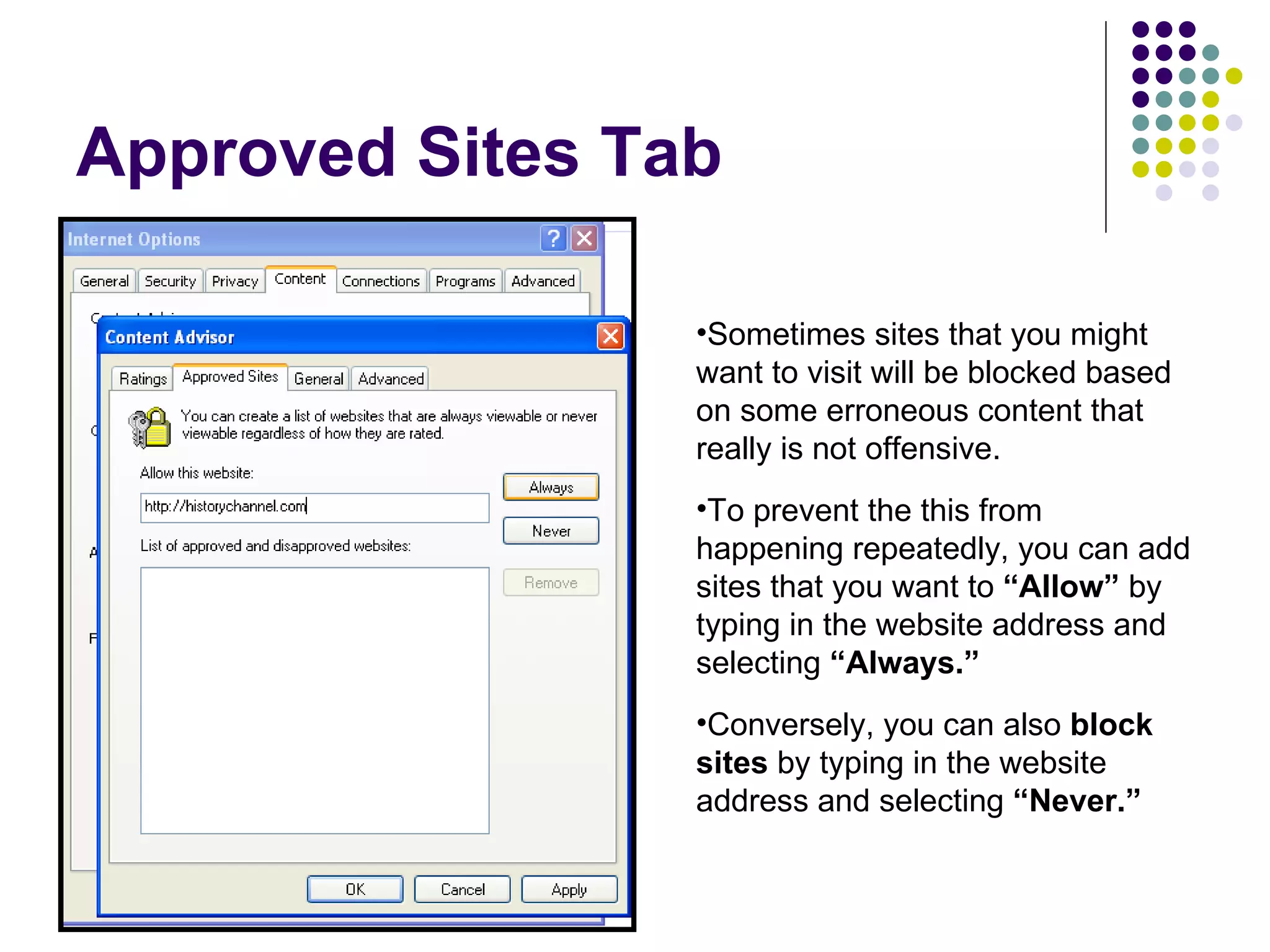
Approved Sites Tab Sometimes sites that you might want to visit will be blocked based on some erroneous content that really is not offensive. To prevent the this from happening repeatedly, you can add sites that you want to  “Allow”  by typing in the website address and selecting  “Always.” Conversely, you can also  block sites  by typing in the website address and selecting  “Never.”
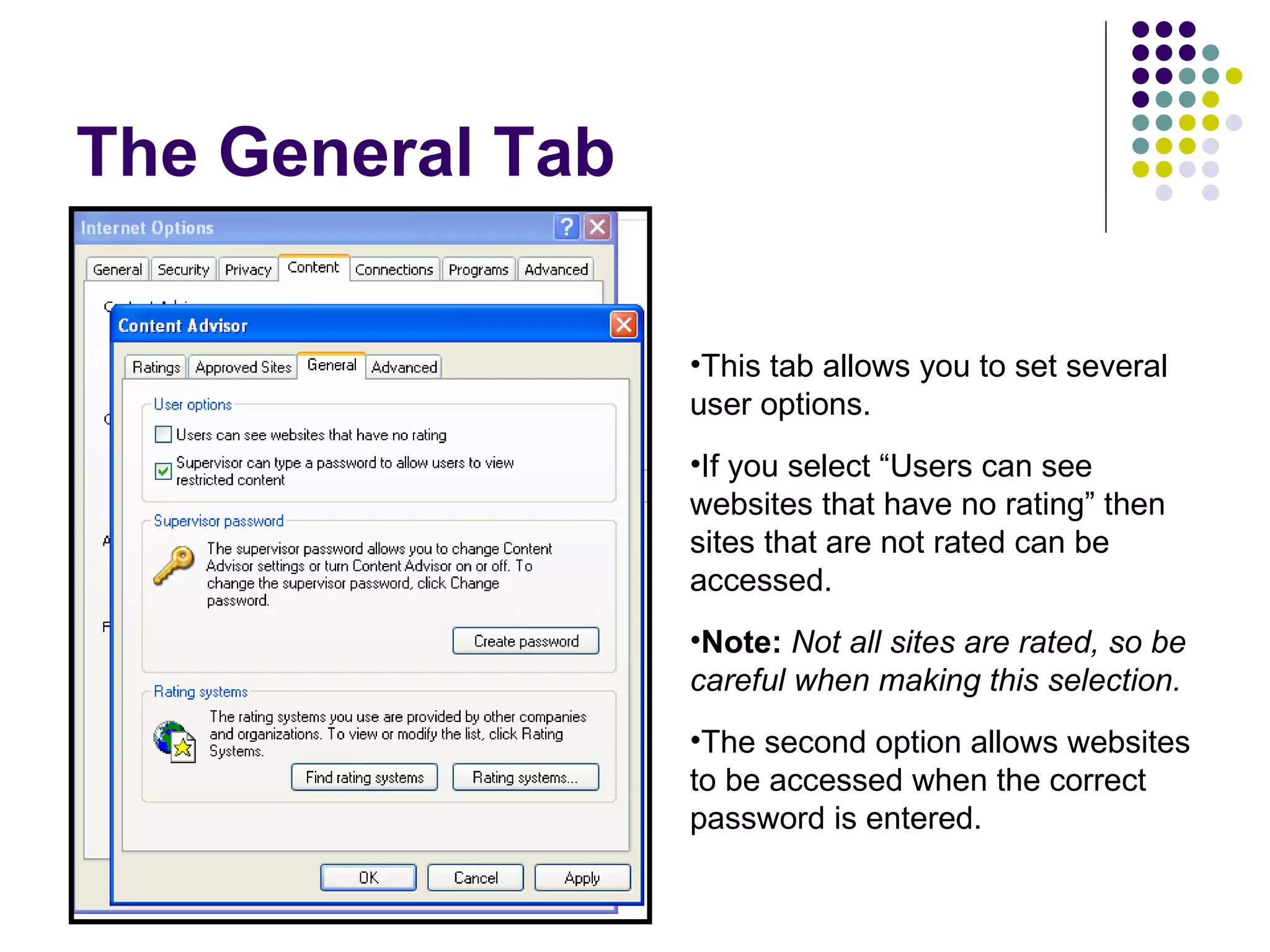
The General Tab This tab allows you to set several user options. If you select “Users can see websites that have no rating” then sites that are not rated can be accessed.  Note:   Not all sites are rated, so be careful when making this selection. The second option allows websites to be accessed when the correct password is entered.
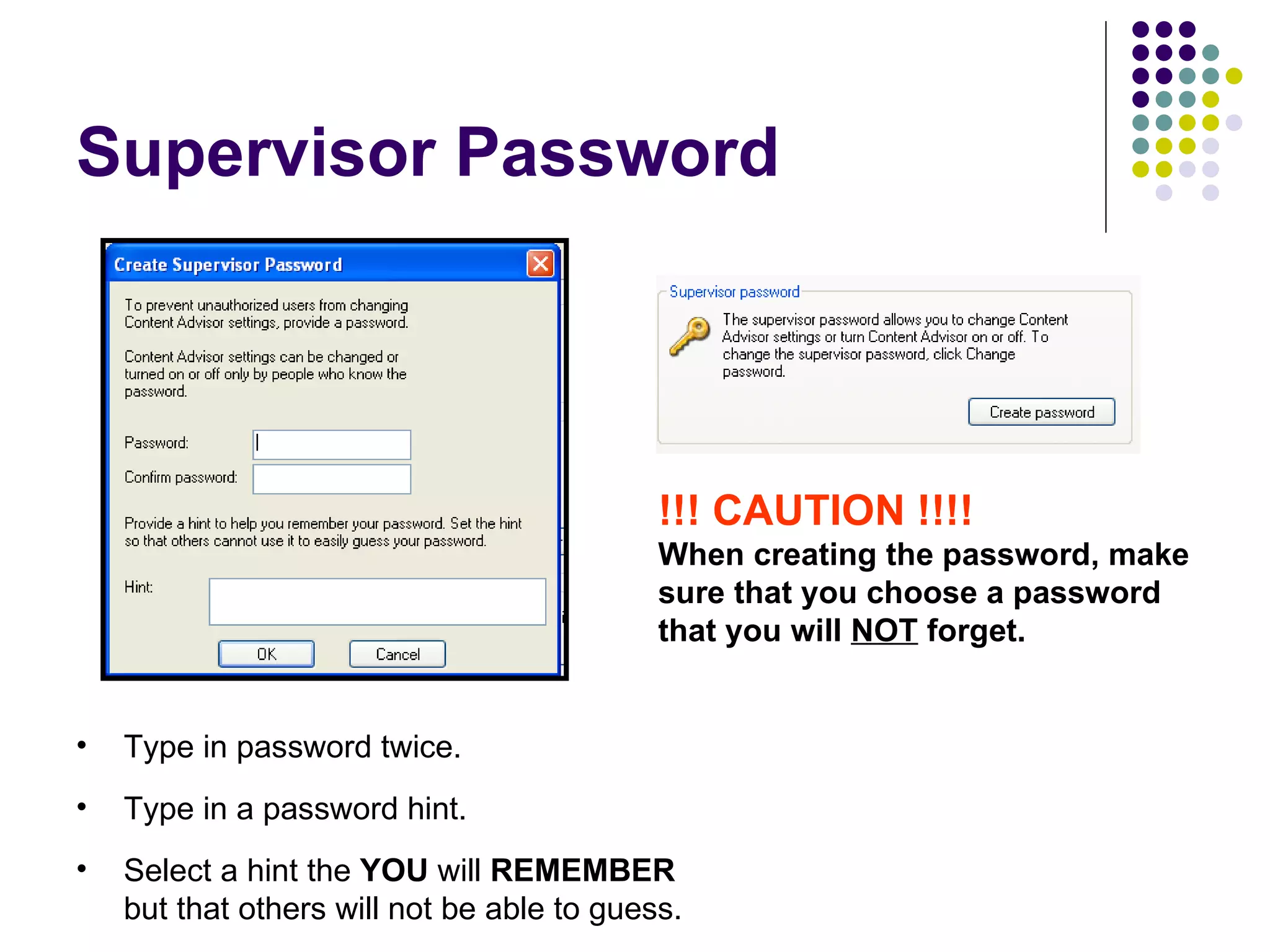
Supervisor Password !!! CAUTION !!!! When creating the password, make sure that you choose a password that you will  NOT  forget. Type in password twice. Type in a password hint. Select a hint the  YOU  will  REMEMBER  but that others will not be able to guess.
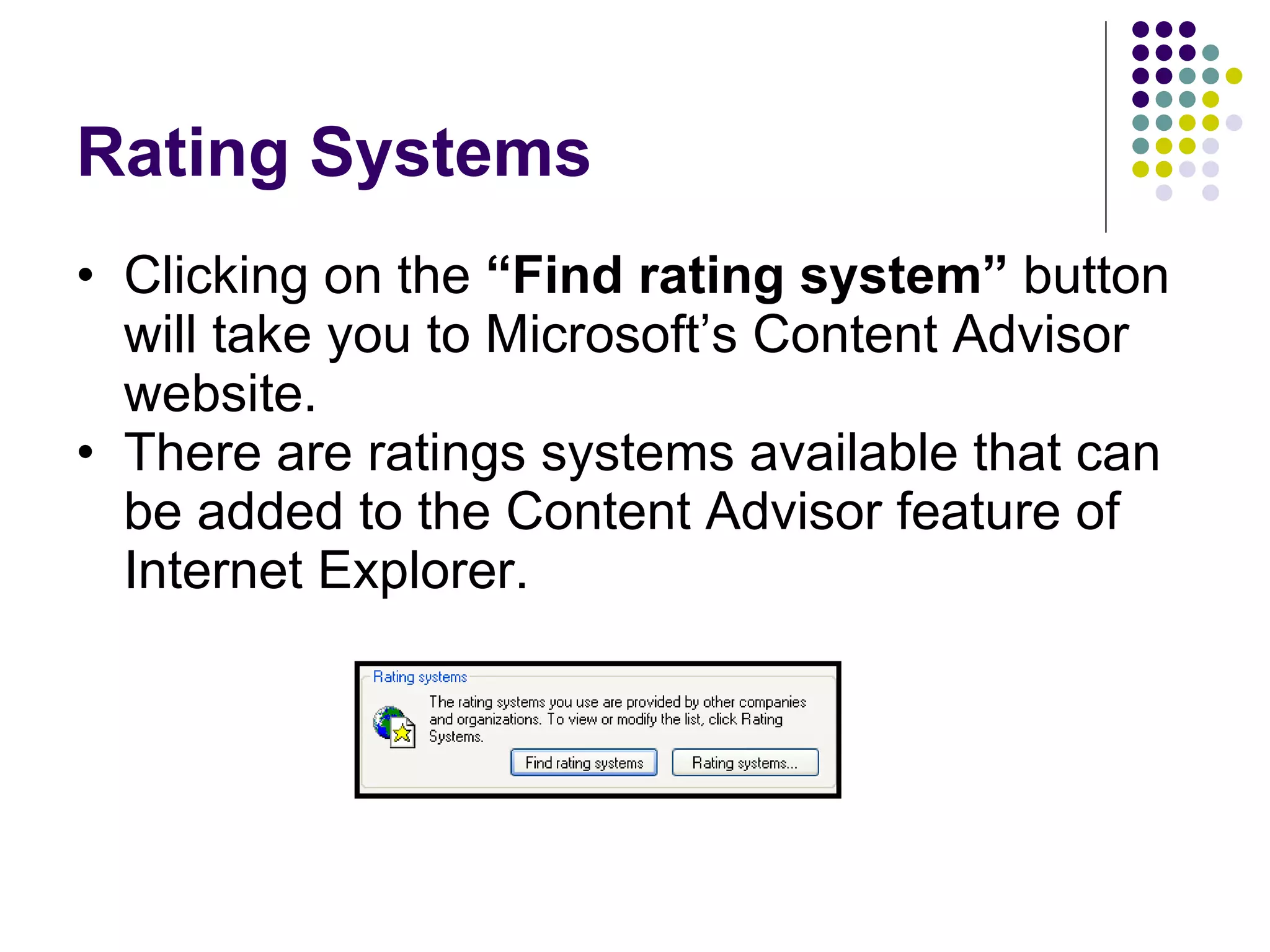
Rating Systems Clicking on the  “Find rating system”  button will take you to Microsoft’s Content Advisor website. There are ratings systems available that can be added to the Content Advisor feature of Internet Explorer.
Available Rating Systems The Internet Content Rating Association (ICRA) is a non-profit group that has developed a content advisory service for the Internet.  SafeSurf -The first rating system for the Internet, with a comprehensive 12 category system for rating content on the Web.  More information is available on the Microsoft website.
Turn off Content Advisor On the Internet Explorer Tools menu, click Internet Options.  Click the Content tab, and click the Disable button.  In the Password box, type your supervisor password, and click OK.  All users will once again have free access to all sites.
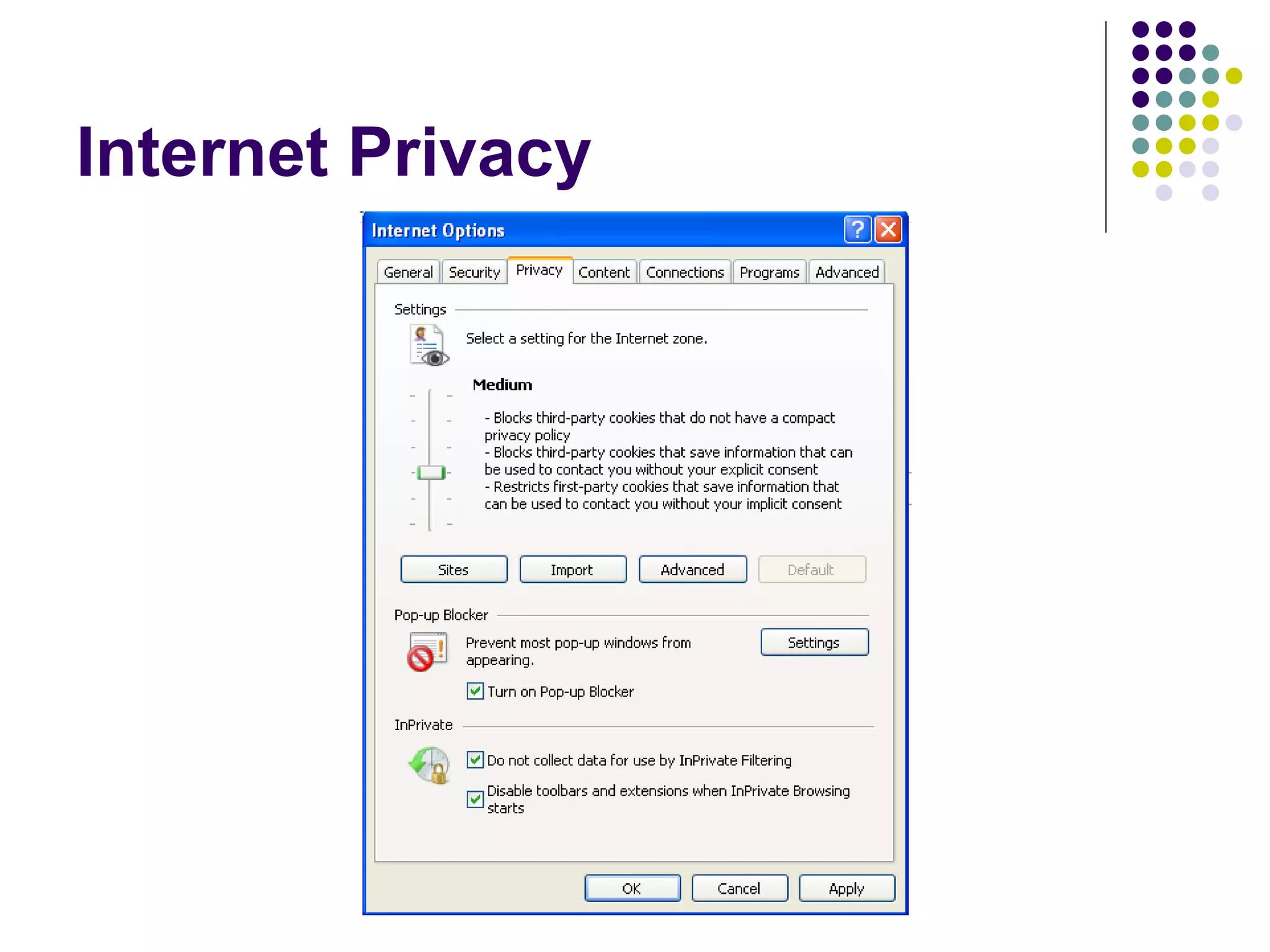
Internet Privacy
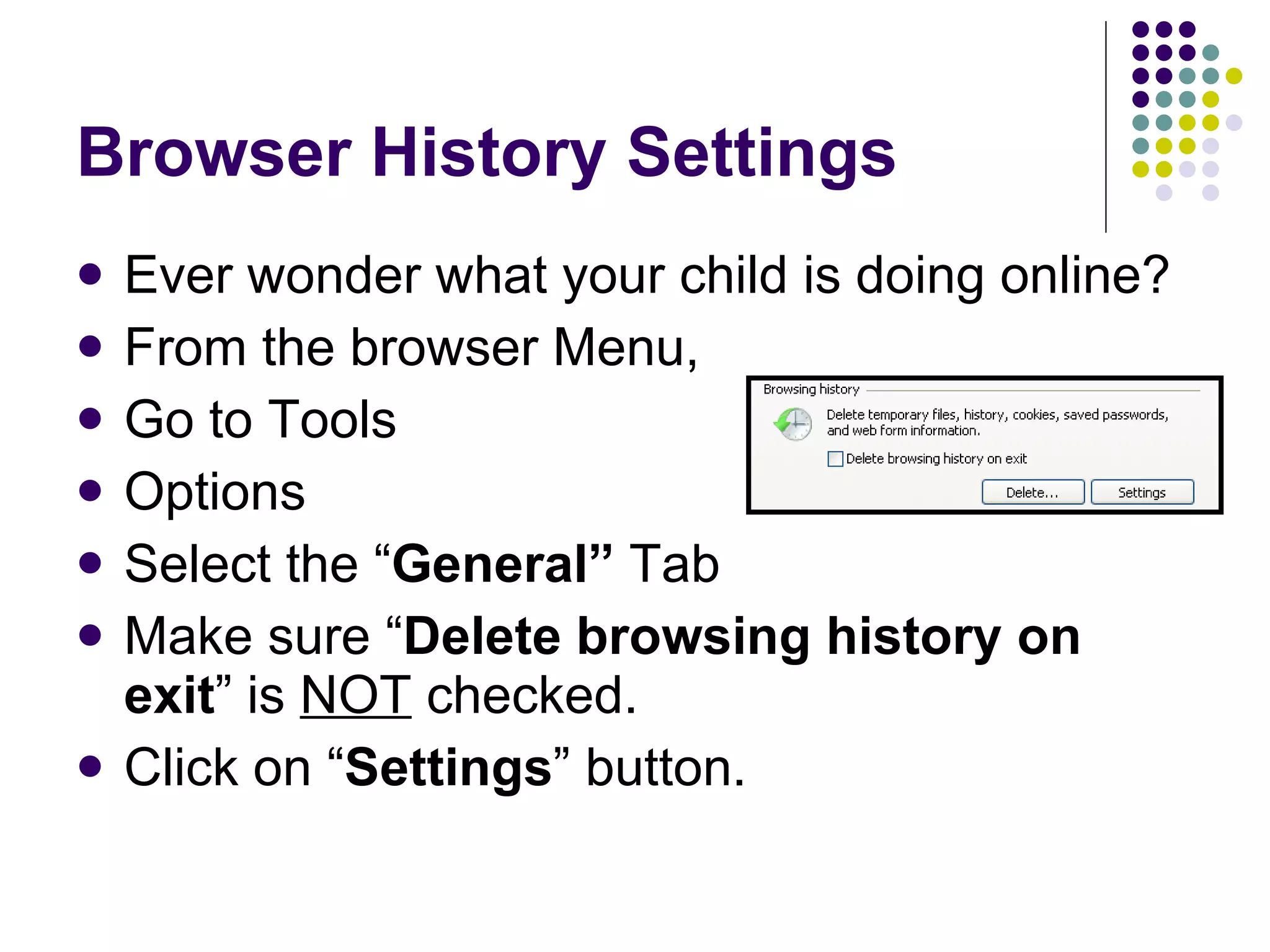
Browser History Settings Ever wonder what your child is doing online? From the browser Menu, Go to Tools Options Select the “ General”  Tab Make sure “ Delete browsing history on exit ” is  NOT  checked. Click on “ Settings ” button.
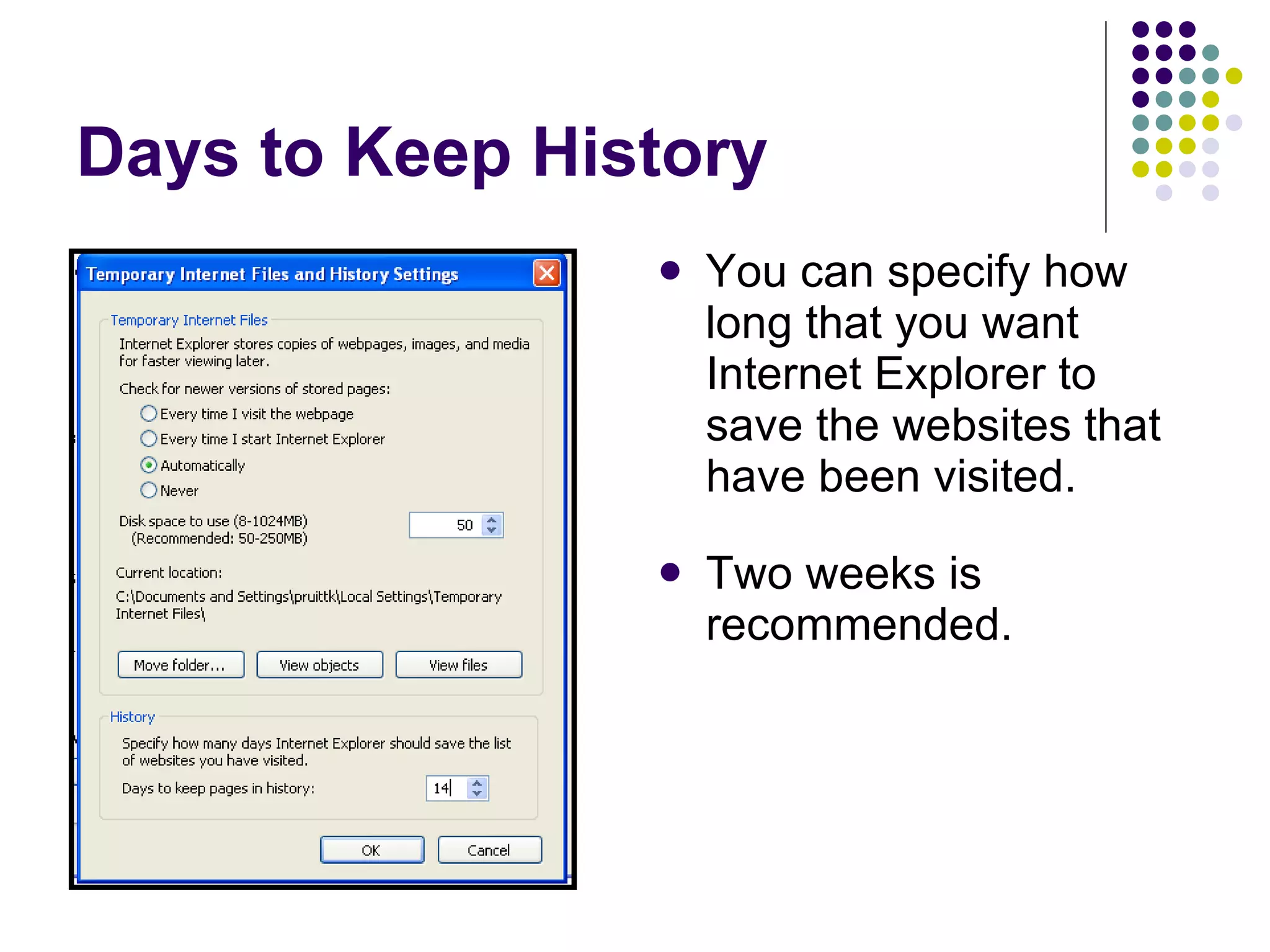
Days to Keep History You can specify how long that you want Internet Explorer to save the websites that have been visited. Two weeks is recommended.
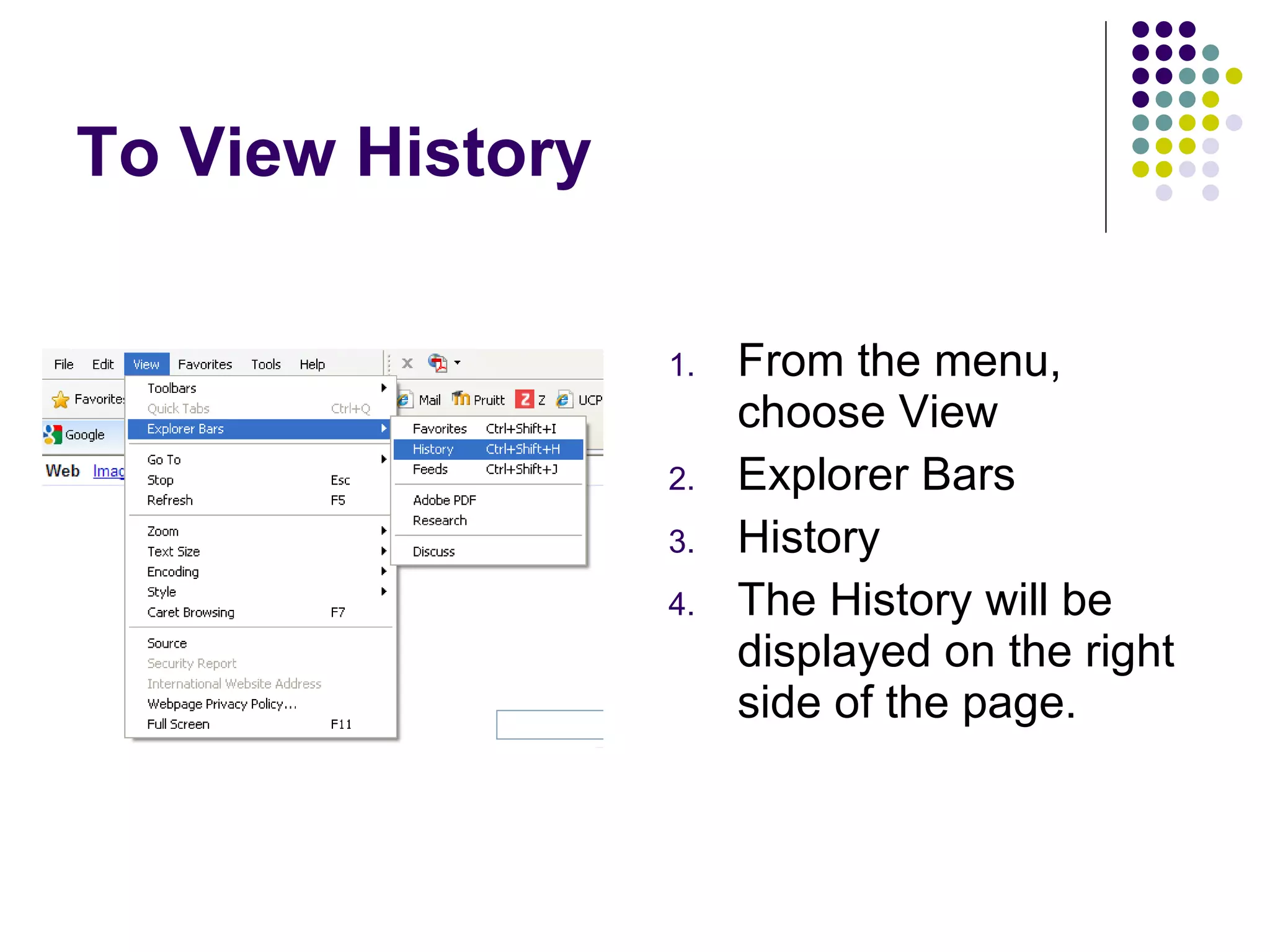
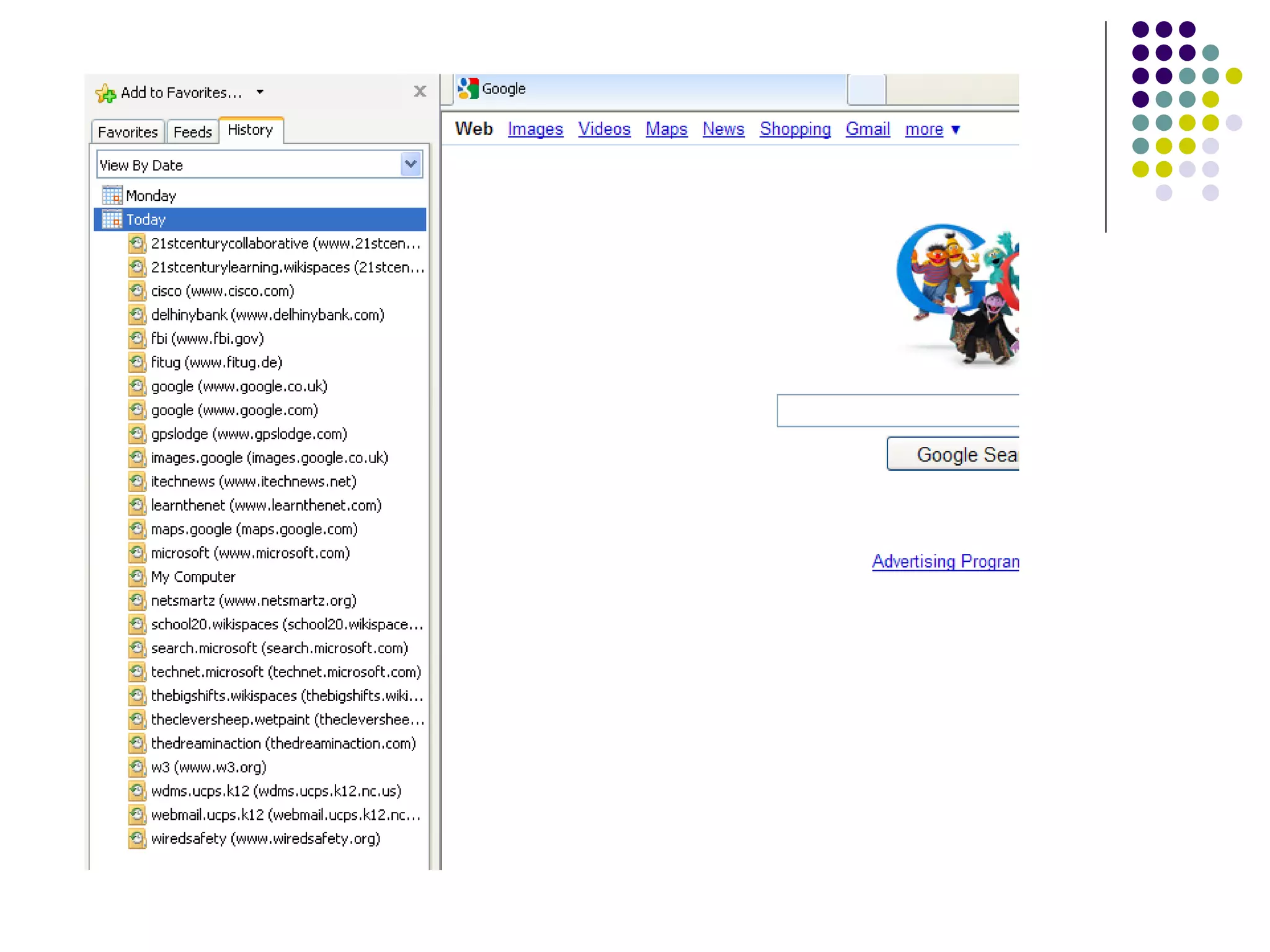
To View History From the menu, choose View Explorer Bars History The History will be displayed on the right side of the page.
 
Monitoring Software Spector Pro (spector.com) – $99.95 Parental Control Bar (download.cnet.com) – Free ICU Child Monitoring Software (download.cnet.com) – Free Try googling “child monitoring software” or “pc monitoring software.”
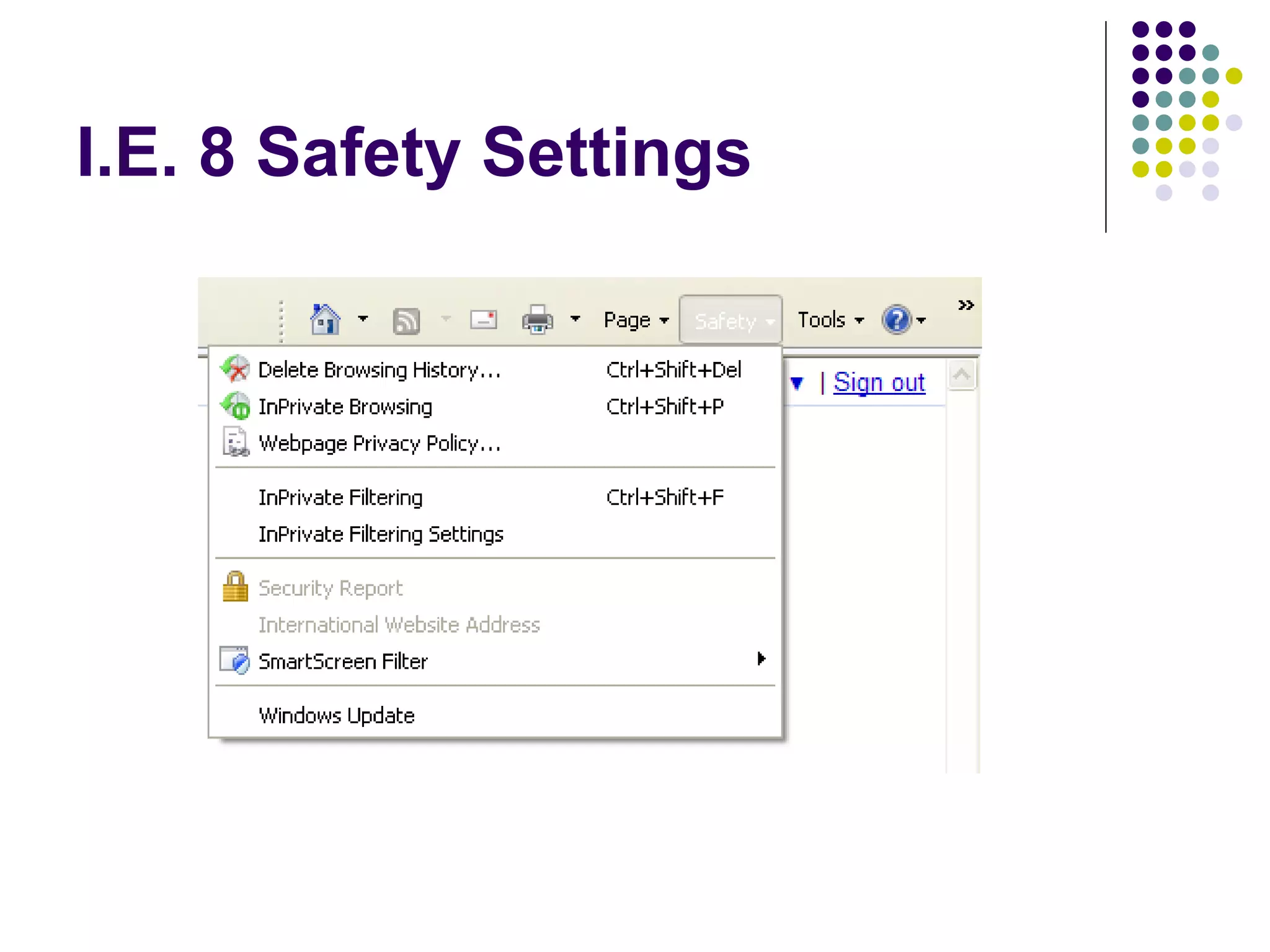
I.E. 8 Safety Settings
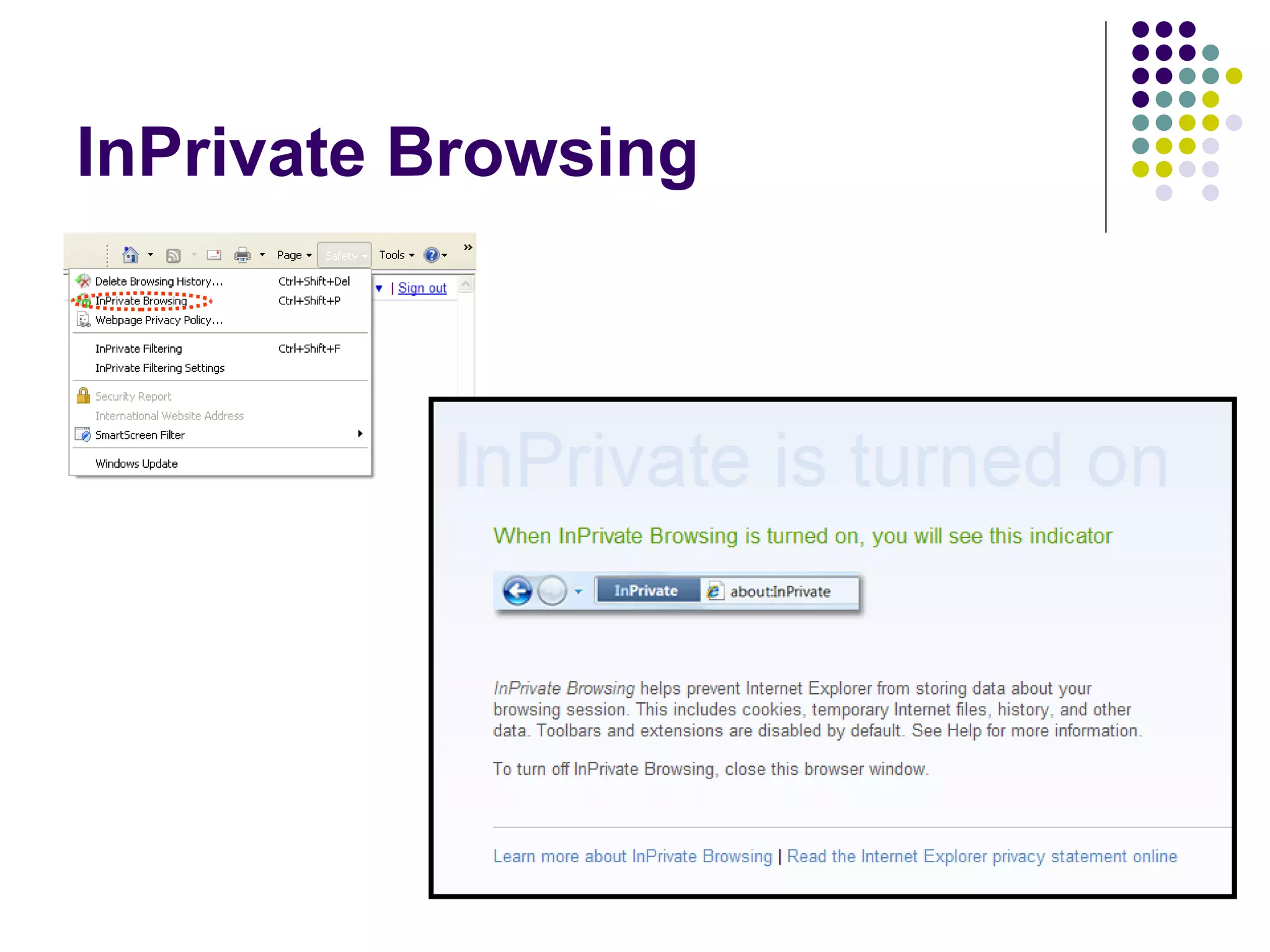
InPrivate Browsing
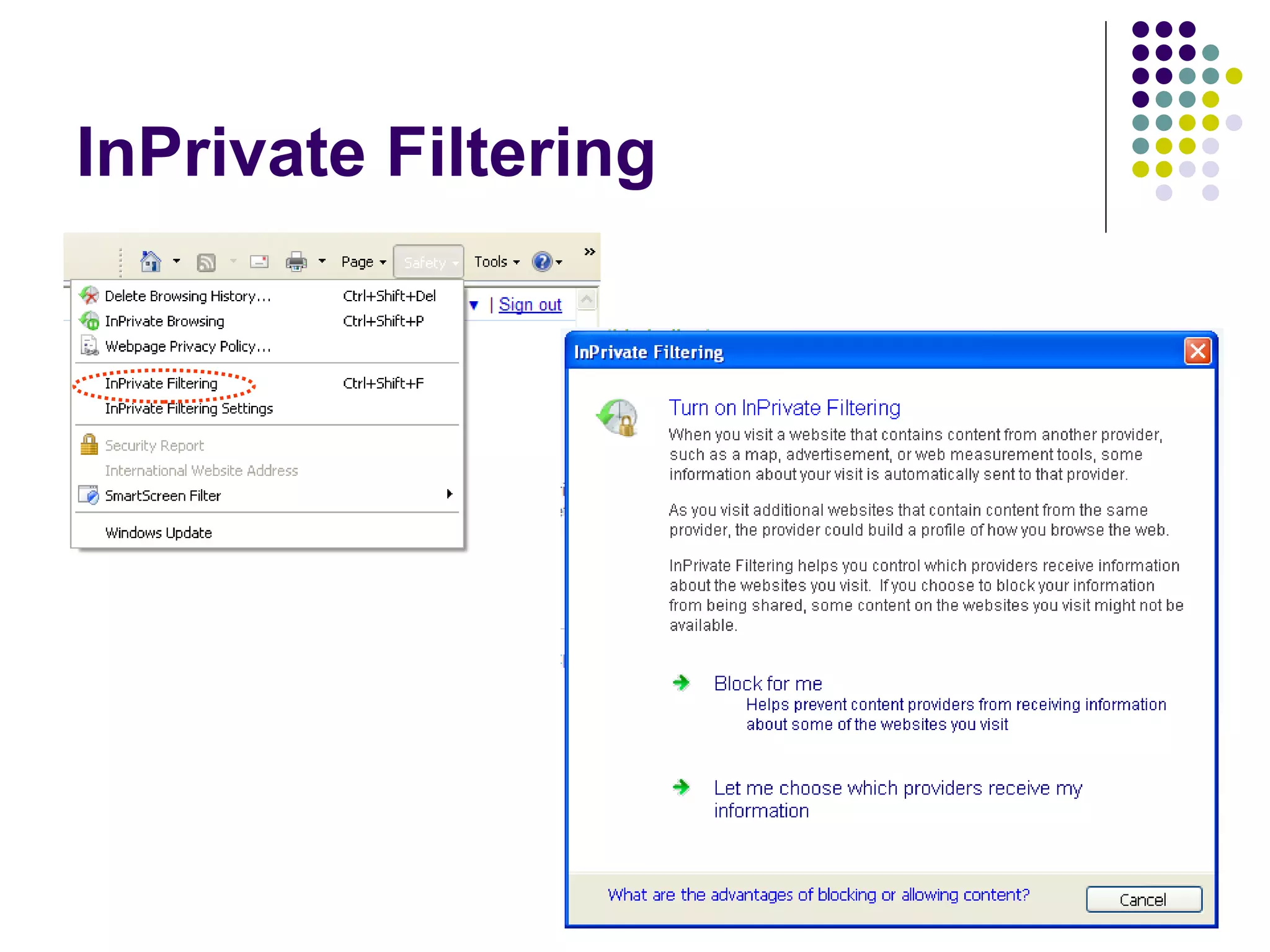
InPrivate Filtering
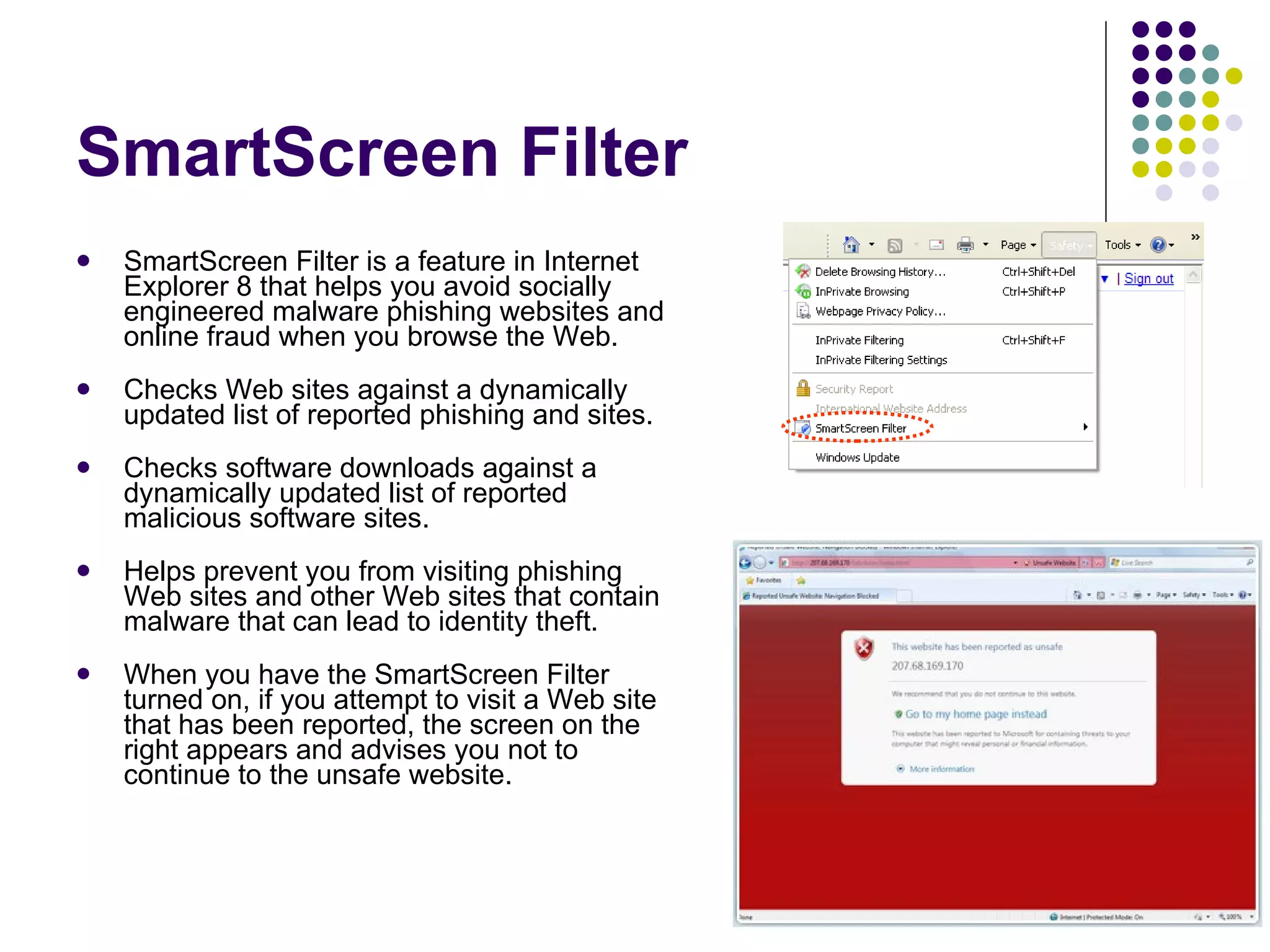
SmartScreen Filter SmartScreen Filter is a feature in Internet Explorer 8 that helps you avoid socially engineered malware phishing websites and online fraud when you browse the Web.  Checks Web sites against a dynamically updated list of reported phishing and sites.  Checks software downloads against a dynamically updated list of reported malicious software sites.  Helps prevent you from visiting phishing Web sites and other Web sites that contain malware that can lead to identity theft. When you have the SmartScreen Filter turned on, if you attempt to visit a Web site that has been reported, the screen on the right appears and advises you not to continue to the unsafe website.
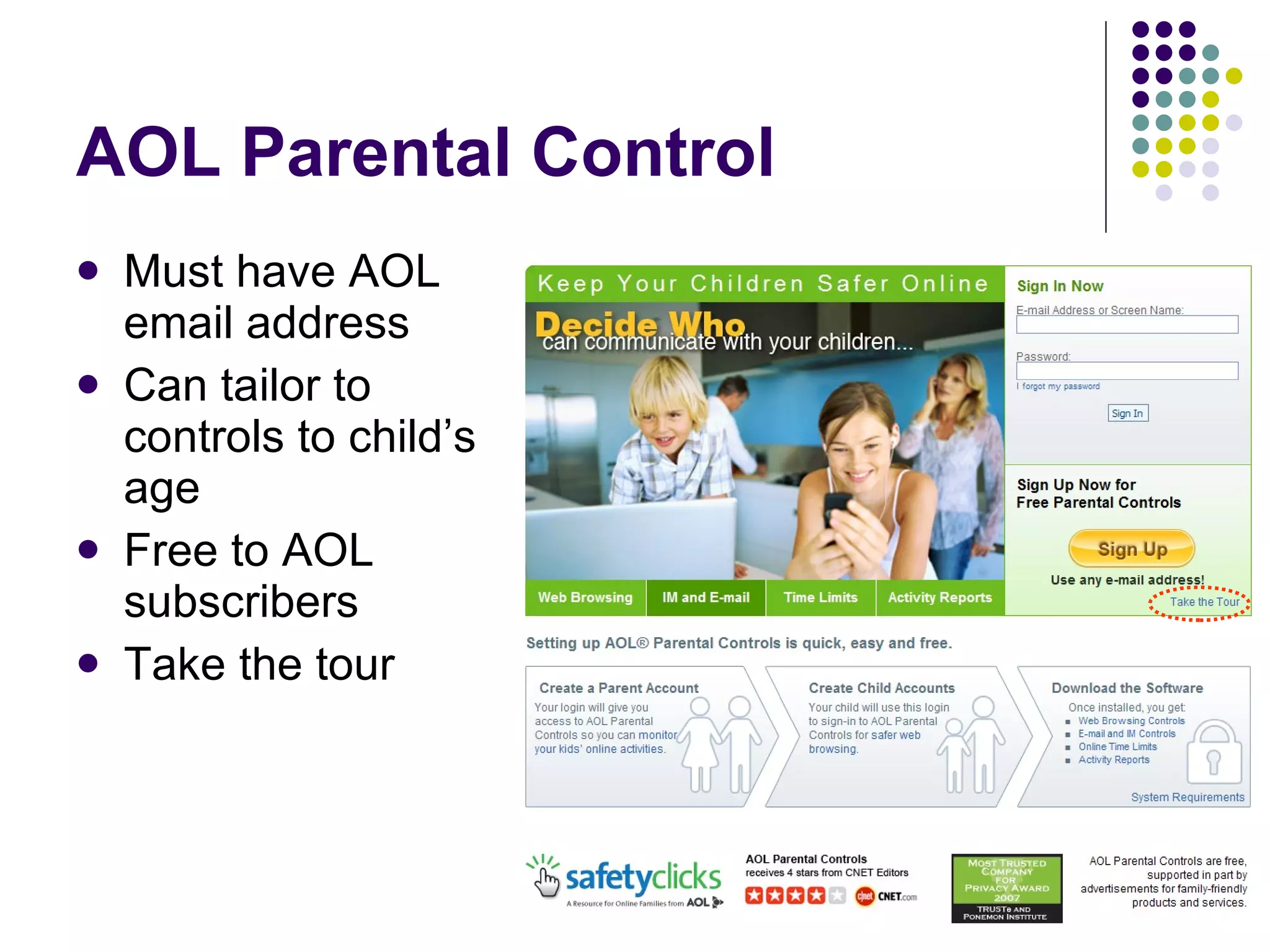
AOL Parental Control Must have AOL email address Can tailor to controls to child’s age Free to AOL subscribers Take the tour
Tips for Mobile Phone Safety Never reply to text messages from people you don’t know because  the message could be SMS spam,  a phone virus  or it could be from a predator  or bully who has obtained your number from someone else or has "guessed" your number.
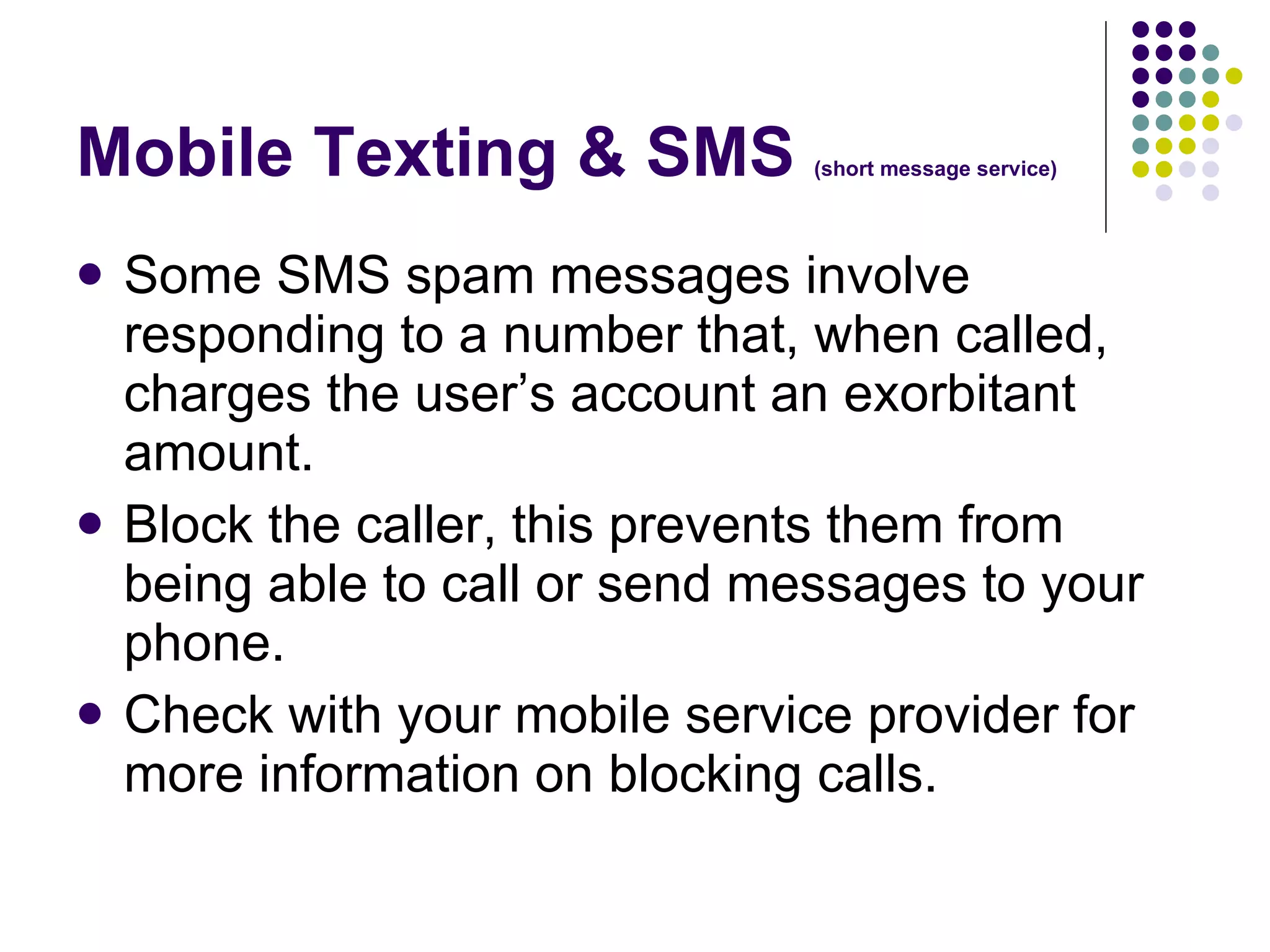
Mobile Texting & SMS  (short message service) Some SMS spam messages involve responding to a number that, when called, charges the user’s account an exorbitant amount.  Block the caller, this prevents them from being able to call or send messages to your phone.  Check with your mobile service provider for more information on blocking calls.
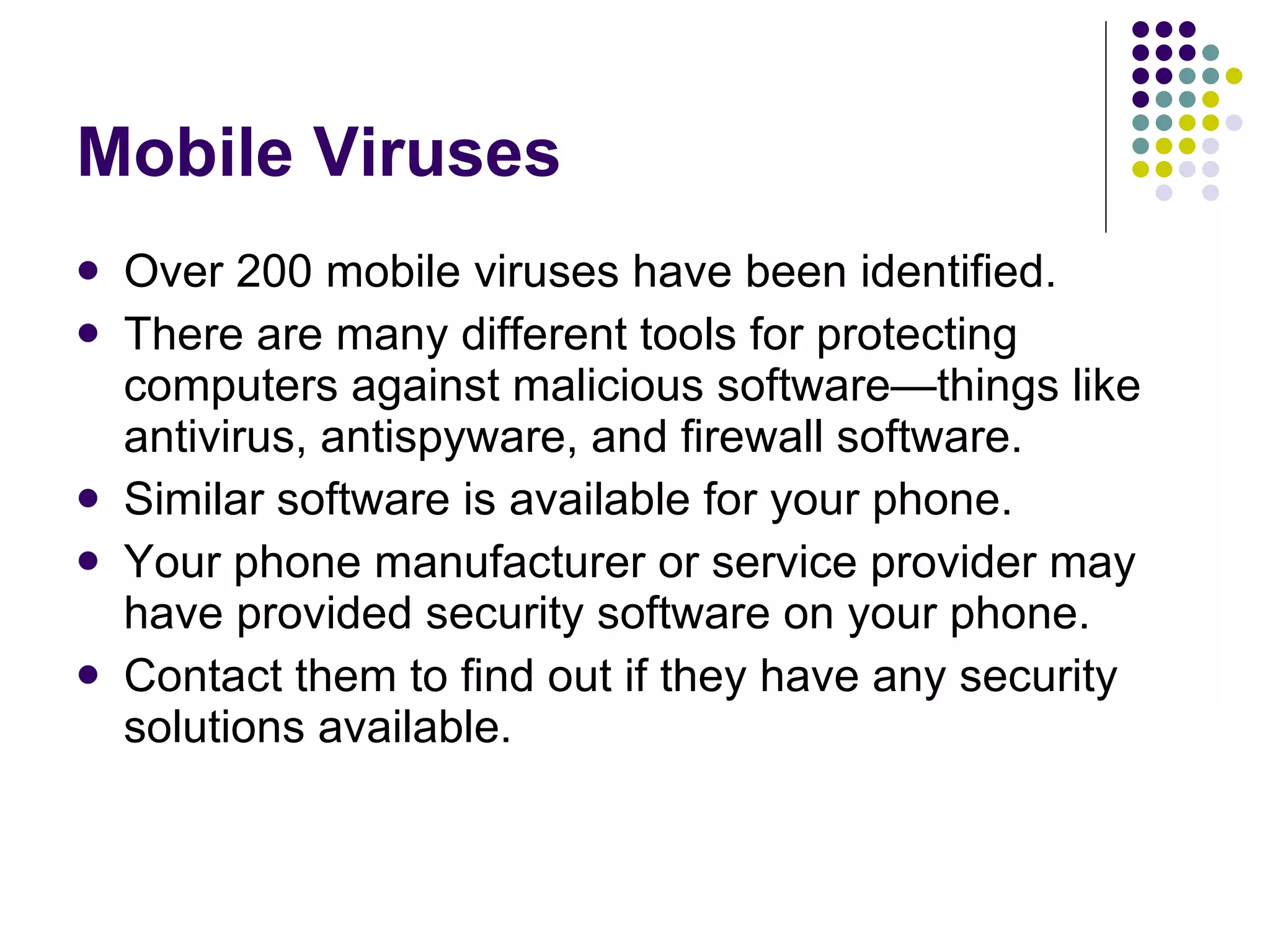
Mobile Viruses Over 200 mobile viruses have been identified. There are many different tools for protecting computers against malicious software—things like antivirus, antispyware, and firewall software.  Similar software is available for your phone. Your phone manufacturer or service provider may have provided security software on your phone.  Contact them to find out if they have any security solutions available.
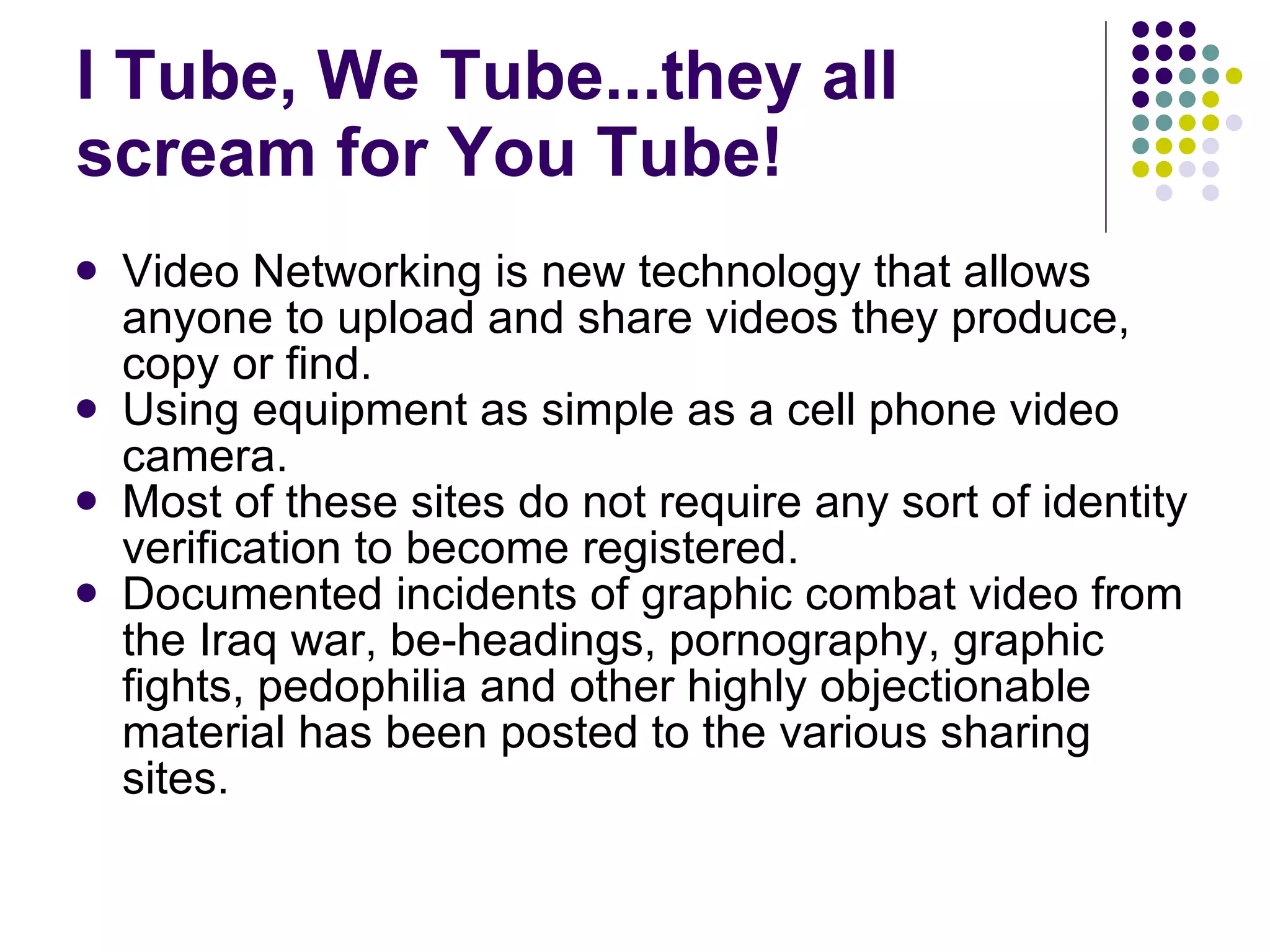
I Tube, We Tube...they all scream for You Tube!  Video Networking is new technology that allows anyone to upload and share videos they produce, copy or find.  Using equipment as simple as a cell phone video camera. Most of these sites do not require any sort of identity verification to become registered.  Documented incidents of graphic combat video from the Iraq war, be-headings, pornography, graphic fights, pedophilia and other highly objectionable material has been posted to the various sharing sites.
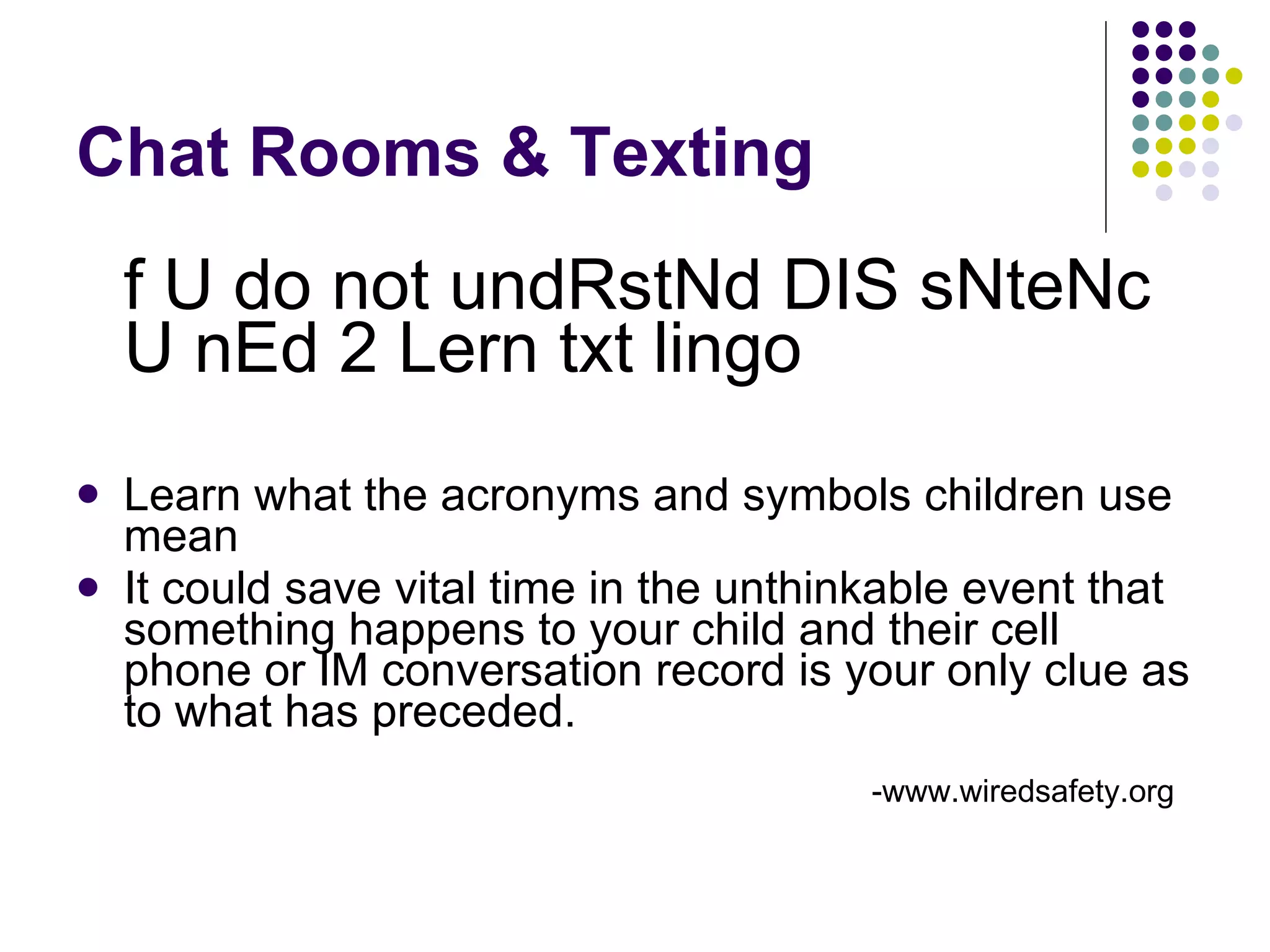
Chat Rooms & Texting f U do not undRstNd DIS sNteNc U nEd 2 Lern txt lingo Learn what the acronyms and symbols children use mean  It could save vital time in the unthinkable event that something happens to your child and their cell phone or IM conversation record is your only clue as to what has preceded.  -www.wiredsafety.org
ThinkB4UClick Adolescents often act without considering the consequences of the action. Stress (daily if you must) that once they hit the send or post button that they no longer have control material.
Social Networking Ask to see your child’s profile page. Check their account settings to make sure that their profile is not public and that only “Friends” can see their information. It’s not an invasion of their privacy if a stranger can see it.  Repeat after me – “I’m still the parent!” If they don’t listen or follow your rules, unplug the computer…
What Parents Can Do Take an on-going interest in what your child is doing online and on his/her phone. Work with your children,  teach them what is appropriate and what is inappropriate activity online.  Set down rules,  and ENFORCE them.
Resources www.wiredsafety.org Federal Bureau of Investigation - Cyber Division  www.netsmartz.org National Center for Missing & Exploited Children Microsoft Corporation

Techniques For Making 21st Century Learning Tools Safer

  • 1.
    Making 21 st Century Learning Tools Safer for Your Children Karen Pruitt Weddington Middle School
  • 2.
    Technology is nolonger limited to the machine that sits on your desk. It is everywhere and an integral part of our lives. There is nothing elusive about a computer It’s a tool.
  • 3.
    Its Scope ReachesFar Beyond the Internet
  • 4.
    As recently as1991, fewer than 50 percent of U.S. jobs required skilled workers. By 2015, 76 percent of American jobs will demand highly skilled employees. -Roberts Jones, Kathryn Scanland Steve Gunderson The Jobs Revolution: Changing How America Works “ None of the top 10 jobs that will exist in 2010 exist today.” -Richard Riley (former US Secretary of Education) Employment in the 21 st Century
  • 5.
    Welcome to theHuman Network
  • 6.
    How do webalance safety and access in order to empower our students in the global marketplace?
  • 7.
    The Internet BrowserUse the tools that come pre-installed with your Internet browser. They’re free!
  • 8.
    Content Advisor Fromthe browser Menu, Go to “Tools” Options Select the “ Content” Tab The Content Advisor lets you tweak what types of content that are displayed in your browser. Click “ Enable ” and then choose “Settings.”
  • 9.
    The “Ratings” TabClick on a category to view ratings Adjusting the slide to specify what users are allowed to see on the Internet. As the content and slide change, a description will be displayed at the bottom of the box.
  • 10.
    Approved Sites TabSometimes sites that you might want to visit will be blocked based on some erroneous content that really is not offensive. To prevent the this from happening repeatedly, you can add sites that you want to “Allow” by typing in the website address and selecting “Always.” Conversely, you can also block sites by typing in the website address and selecting “Never.”
  • 11.
    The General TabThis tab allows you to set several user options. If you select “Users can see websites that have no rating” then sites that are not rated can be accessed. Note: Not all sites are rated, so be careful when making this selection. The second option allows websites to be accessed when the correct password is entered.
  • 12.
    Supervisor Password !!!CAUTION !!!! When creating the password, make sure that you choose a password that you will NOT forget. Type in password twice. Type in a password hint. Select a hint the YOU will REMEMBER but that others will not be able to guess.
  • 13.
    Rating Systems Clickingon the “Find rating system” button will take you to Microsoft’s Content Advisor website. There are ratings systems available that can be added to the Content Advisor feature of Internet Explorer.
  • 14.
    Available Rating SystemsThe Internet Content Rating Association (ICRA) is a non-profit group that has developed a content advisory service for the Internet. SafeSurf -The first rating system for the Internet, with a comprehensive 12 category system for rating content on the Web. More information is available on the Microsoft website.
  • 15.
    Turn off ContentAdvisor On the Internet Explorer Tools menu, click Internet Options. Click the Content tab, and click the Disable button. In the Password box, type your supervisor password, and click OK. All users will once again have free access to all sites.
  • 16.
  • 17.
    Browser History SettingsEver wonder what your child is doing online? From the browser Menu, Go to Tools Options Select the “ General” Tab Make sure “ Delete browsing history on exit ” is NOT checked. Click on “ Settings ” button.
  • 18.
    Days to KeepHistory You can specify how long that you want Internet Explorer to save the websites that have been visited. Two weeks is recommended.
  • 19.
    To View HistoryFrom the menu, choose View Explorer Bars History The History will be displayed on the right side of the page.
  • 20.
  • 21.
    Monitoring Software SpectorPro (spector.com) – $99.95 Parental Control Bar (download.cnet.com) – Free ICU Child Monitoring Software (download.cnet.com) – Free Try googling “child monitoring software” or “pc monitoring software.”
  • 22.
    I.E. 8 SafetySettings
  • 23.
  • 24.
  • 25.
    SmartScreen Filter SmartScreenFilter is a feature in Internet Explorer 8 that helps you avoid socially engineered malware phishing websites and online fraud when you browse the Web. Checks Web sites against a dynamically updated list of reported phishing and sites. Checks software downloads against a dynamically updated list of reported malicious software sites. Helps prevent you from visiting phishing Web sites and other Web sites that contain malware that can lead to identity theft. When you have the SmartScreen Filter turned on, if you attempt to visit a Web site that has been reported, the screen on the right appears and advises you not to continue to the unsafe website.
  • 26.
    AOL Parental ControlMust have AOL email address Can tailor to controls to child’s age Free to AOL subscribers Take the tour
  • 27.
    Tips for MobilePhone Safety Never reply to text messages from people you don’t know because the message could be SMS spam, a phone virus or it could be from a predator or bully who has obtained your number from someone else or has "guessed" your number.
  • 28.
    Mobile Texting &SMS (short message service) Some SMS spam messages involve responding to a number that, when called, charges the user’s account an exorbitant amount. Block the caller, this prevents them from being able to call or send messages to your phone. Check with your mobile service provider for more information on blocking calls.
  • 29.
    Mobile Viruses Over200 mobile viruses have been identified. There are many different tools for protecting computers against malicious software—things like antivirus, antispyware, and firewall software. Similar software is available for your phone. Your phone manufacturer or service provider may have provided security software on your phone. Contact them to find out if they have any security solutions available.
  • 30.
    I Tube, WeTube...they all scream for You Tube! Video Networking is new technology that allows anyone to upload and share videos they produce, copy or find. Using equipment as simple as a cell phone video camera. Most of these sites do not require any sort of identity verification to become registered. Documented incidents of graphic combat video from the Iraq war, be-headings, pornography, graphic fights, pedophilia and other highly objectionable material has been posted to the various sharing sites.
  • 31.
    Chat Rooms &Texting f U do not undRstNd DIS sNteNc U nEd 2 Lern txt lingo Learn what the acronyms and symbols children use mean It could save vital time in the unthinkable event that something happens to your child and their cell phone or IM conversation record is your only clue as to what has preceded. -www.wiredsafety.org
  • 32.
    ThinkB4UClick Adolescents oftenact without considering the consequences of the action. Stress (daily if you must) that once they hit the send or post button that they no longer have control material.
  • 33.
    Social Networking Askto see your child’s profile page. Check their account settings to make sure that their profile is not public and that only “Friends” can see their information. It’s not an invasion of their privacy if a stranger can see it. Repeat after me – “I’m still the parent!” If they don’t listen or follow your rules, unplug the computer…
  • 34.
    What Parents CanDo Take an on-going interest in what your child is doing online and on his/her phone. Work with your children, teach them what is appropriate and what is inappropriate activity online. Set down rules, and ENFORCE them.
  • 35.
    Resources www.wiredsafety.org FederalBureau of Investigation - Cyber Division www.netsmartz.org National Center for Missing & Exploited Children Microsoft Corporation