Setting up
   Tracking Protection
in Safari 5.1.2 and higher
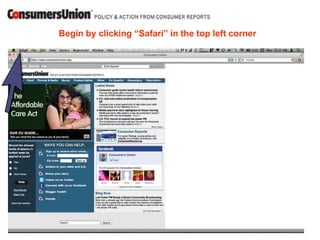
Begin by clicking “Safari” in the top left corner
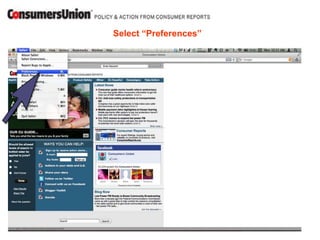
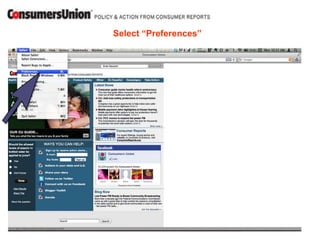
Select “Preferences”
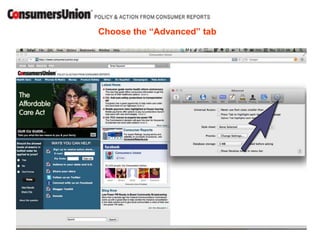
Choose the “Advanced” tab
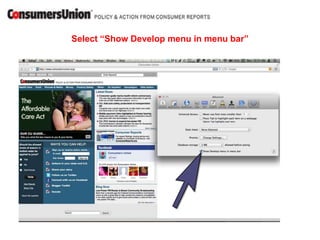
Select “Show Develop menu in menu bar”
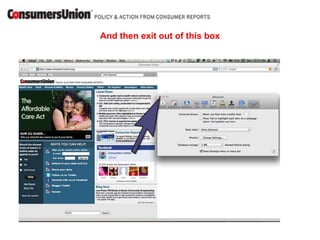
And then exit out of this box
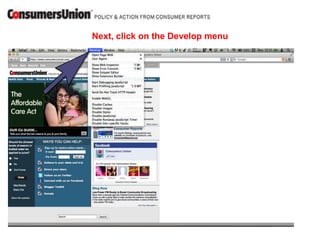
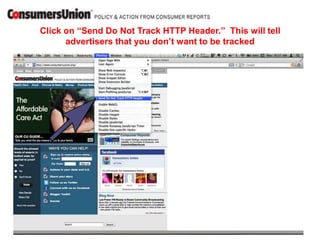
Next, click on the Develop menu
Click on “Send Do Not Track HTTP Header.” This will tell
      advertisers that you don’t want to be tracked
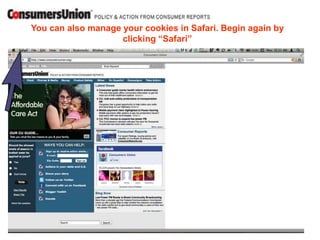
You can also manage your cookies in Safari. Begin again by
                    clicking “Safari”
Select “Preferences”
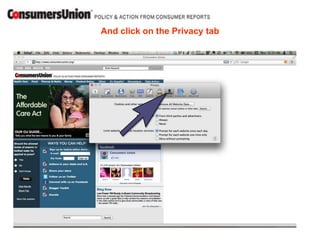
And click on the Privacy tab
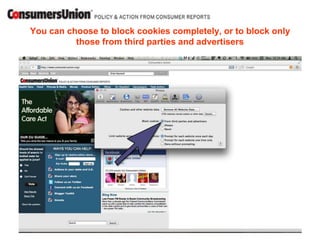
You can choose to block cookies completely, or to block only
          those from third parties and advertisers
In addition, Safari offers many Add-ons to protect user privacy.
      Here are some of the most popular Add-ons, which you can
                 download straight from their websites.

•    Ghostery blocks the invisible tracking cookies and plug-ins on many web
     sites, shows it all to you, and then gives you the choice whether you want to
     block them one-by-one, or all together.


•    Adblock Plus stops social networking sites from transmitting data about
     you after you leave those sites, even if the page you visit has a social plugin
     on it.


•    Do Not Track Plus is the Do Not Track app that sends a request to
     websites not to track you, with a “plus” of also stopping third-party data
     exchanges. So, when you visit a site with Facebook, Twitter and Google+
     buttons on it, your browser will tell the network that you're on a site with
     those buttons, and no information will be sent until you choose to click one.
Finally, if you aren’t sure whether to accept
cookies from a website, read their privacy
 policy and find out what they do with the
    information they gather from users!

Apple Safari for Mac

  • 1.
    Setting up Tracking Protection in Safari 5.1.2 and higher
  • 2.
    Begin by clicking“Safari” in the top left corner
  • 3.
  • 4.
  • 5.
    Select “Show Developmenu in menu bar”
  • 6.
    And then exitout of this box
  • 7.
    Next, click onthe Develop menu
  • 8.
    Click on “SendDo Not Track HTTP Header.” This will tell advertisers that you don’t want to be tracked
  • 9.
    You can alsomanage your cookies in Safari. Begin again by clicking “Safari”
  • 10.
  • 11.
    And click onthe Privacy tab
  • 12.
    You can chooseto block cookies completely, or to block only those from third parties and advertisers
  • 13.
    In addition, Safarioffers many Add-ons to protect user privacy. Here are some of the most popular Add-ons, which you can download straight from their websites. • Ghostery blocks the invisible tracking cookies and plug-ins on many web sites, shows it all to you, and then gives you the choice whether you want to block them one-by-one, or all together. • Adblock Plus stops social networking sites from transmitting data about you after you leave those sites, even if the page you visit has a social plugin on it. • Do Not Track Plus is the Do Not Track app that sends a request to websites not to track you, with a “plus” of also stopping third-party data exchanges. So, when you visit a site with Facebook, Twitter and Google+ buttons on it, your browser will tell the network that you're on a site with those buttons, and no information will be sent until you choose to click one.
  • 14.
    Finally, if youaren’t sure whether to accept cookies from a website, read their privacy policy and find out what they do with the information they gather from users!