

User Guide Book by Antonio Garcia
Table of Contents
Introduction to Adobe Test&Target ................................................................................................................ 17
   System Recommendations .......................................................................................................................... 17
   Supported Browsers .................................................................................................................................... 17
   Additional Resources ................................................................................................................................... 18
   Useful Firefox Entensions ............................................................................................................................ 18
How Test&Target Works ................................................................................................................................. 18
   More Details ................................................................................................................................................ 19
   Privacy ......................................................................................................................................................... 20
Understanding the Test&Target Campaign Life Cycle ..................................................................................... 20
Frequently Asked Questions............................................................................................................................ 21
Answers ........................................................................................................................................................... 22
   1. When will my campaign start? ................................................................................................................ 22
   2. How are impressions, visits and new visitors counted? .......................................................................... 22
   3. Do visitors see the same content throughout the life of the campaign? ................................................ 22
   4. I am concerned with visitor privacy. What data is sent to Test&Target servers? ................................... 23
   5. Can I display more than one offer in an mbox? ...................................................................................... 23
   6. How do offers and mboxes impact search engines and automated browsing utilities? ........................ 23
   7. Will an mbox add another cookie to the current list already returned by our Web application? .......... 23
   8. Will the mbox code, which automatically attaches to a body onLoad() event, conflict with other
   embedded JavaScript in our pages? ............................................................................................................ 23
   9. We have an internally-built proprietary content management system. Do we continue use this or have
   a separate interface to manage content with Test&Target? ...................................................................... 24
   10. Can I track conversion off-line? For example, people register on my Web site, then turn into actual
   clients after they speak to our representatives by phone. ......................................................................... 24
   11. Does Test&Target drop a first party cookie or a third party cookie onto the visitor's browser? ......... 24
   12. Can Test&Target track more than one conversion event? ................................................................... 24
   13. How many mboxes can I have on one page? ........................................................................................ 24
   14. Does the mbox.js reference need to be on every page of my site? ...................................................... 24
   15. What do the confidence bars in the reports indicate? ......................................................................... 24
   16. Can I insert an mbox within an mbox? For example, an mbox with a small piece of dynamic content
   inside a static page sized mbox? ................................................................................................................. 25
   17. Where should I host my images, code and other content? .................................................................. 25
   18. Why are some of the features grayed out in the interface? ................................................................. 25
   19. Which campaigns are using my mbox? ................................................................................................. 25
20. Can I control under which conditions a user is counted again after they convert for the first time? .. 25
   21. How can I control the experience a user sticks to after they convert? ................................................. 25
   22. Can I change the time zone that my reports refer to? .......................................................................... 25
Infrequently Asked Questions ......................................................................................................................... 25
Answers ........................................................................................................................................................... 26
   1. What is the character limit of the mbox name?...................................................................................... 26
   2. How big is the mbox.js? ........................................................................................................................... 26
   3. Can JavaScript exist in the default content? ........................................................................................... 26
   4. Can JavaScript be inserted in the HTML offer? ....................................................................................... 26
   5. Can JavaScript be used to create custom targets? .................................................................................. 26
Setting Up Your Site ......................................................................................................................................... 27
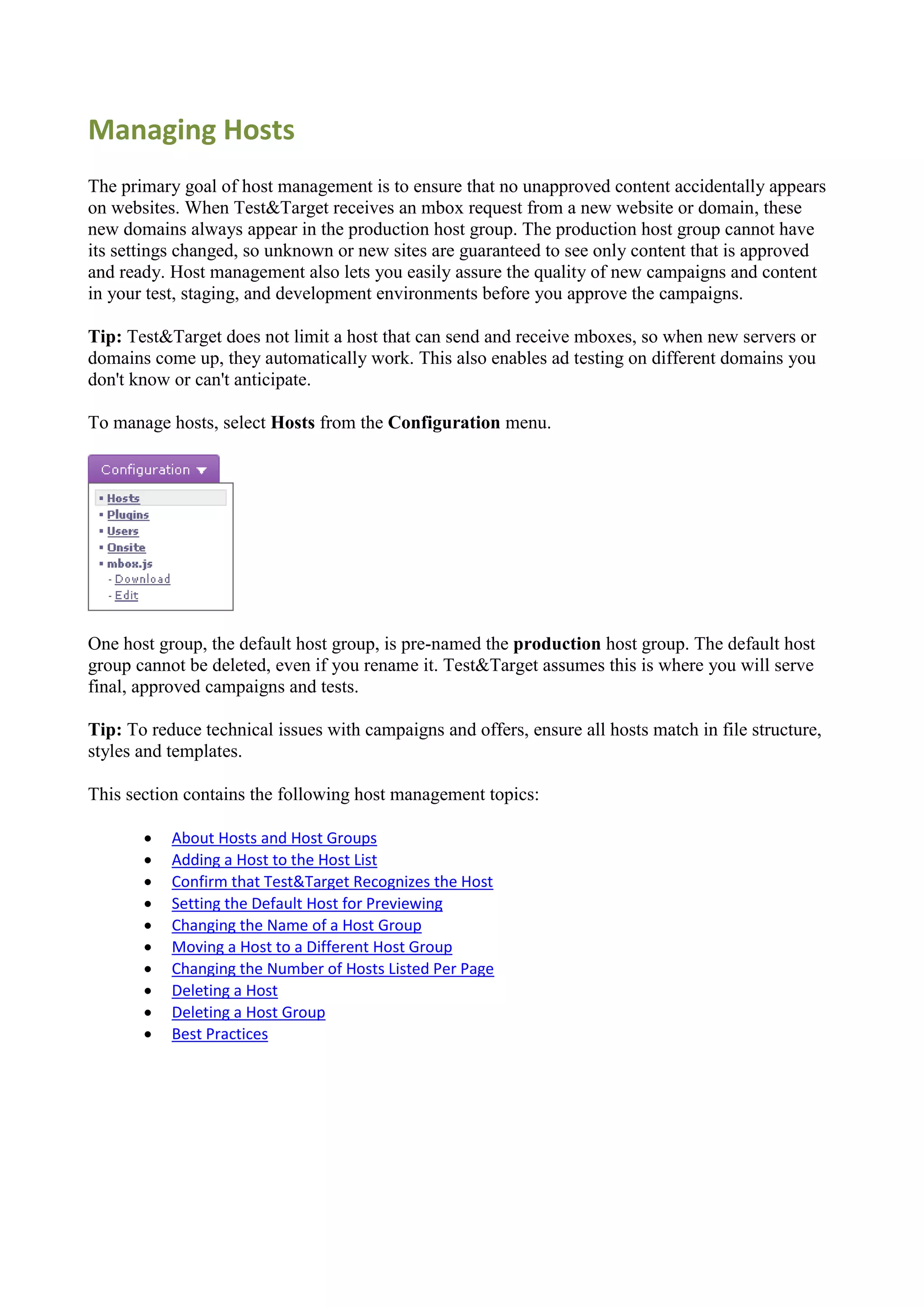
Managing Hosts ............................................................................................................................................... 28
   About Hosts and Host Groups ..................................................................................................................... 29
   Adding a Host to the Host List ..................................................................................................................... 29
   Confirm that Test&Target Recognizes the Host .......................................................................................... 30
   Setting the Default Host for Previewing ...................................................................................................... 30
   Changing the Name of a Host Group ........................................................................................................... 30
   Change the host group name. Moving a Host to a Different Host Group ................................................... 30
   Changing the Number of Hosts Listed Per Page .......................................................................................... 31
   Deleting a Host ............................................................................................................................................ 31
   Deleting a Host Group ................................................................................................................................. 31
   Best Practices............................................................................................................................................... 31
Troubleshooting Hosts .................................................................................................................................... 31
   Host does not appear in mbox list for your account. .................................................................................. 31
   Random or unknown domains appear in the host group lists. ................................................................... 32
Managing Users and Roles .............................................................................................................................. 32
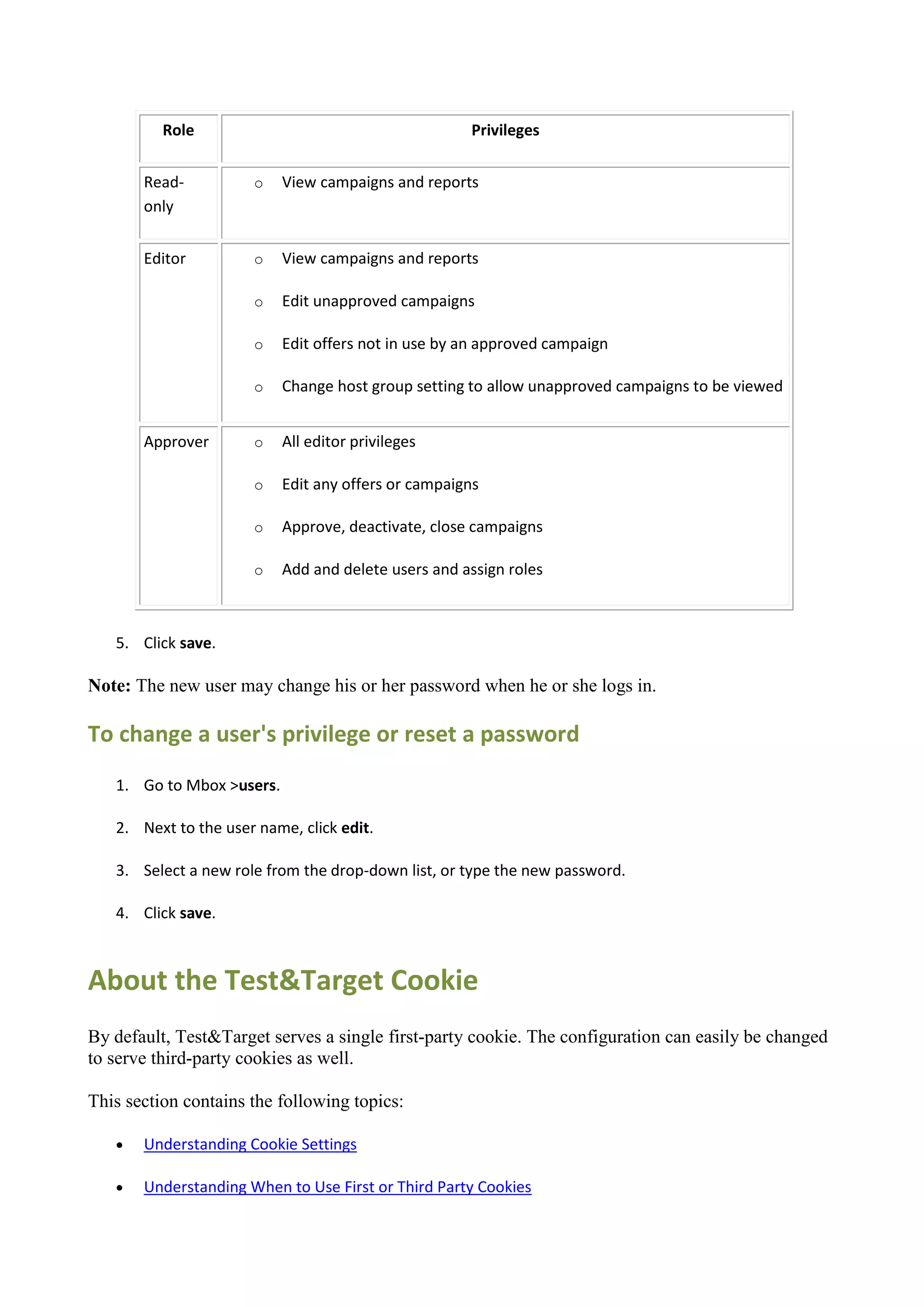
   To add a user ............................................................................................................................................... 32
   To change a user's privilege or reset a password........................................................................................ 33
About the Test&Target Cookie ........................................................................................................................ 33
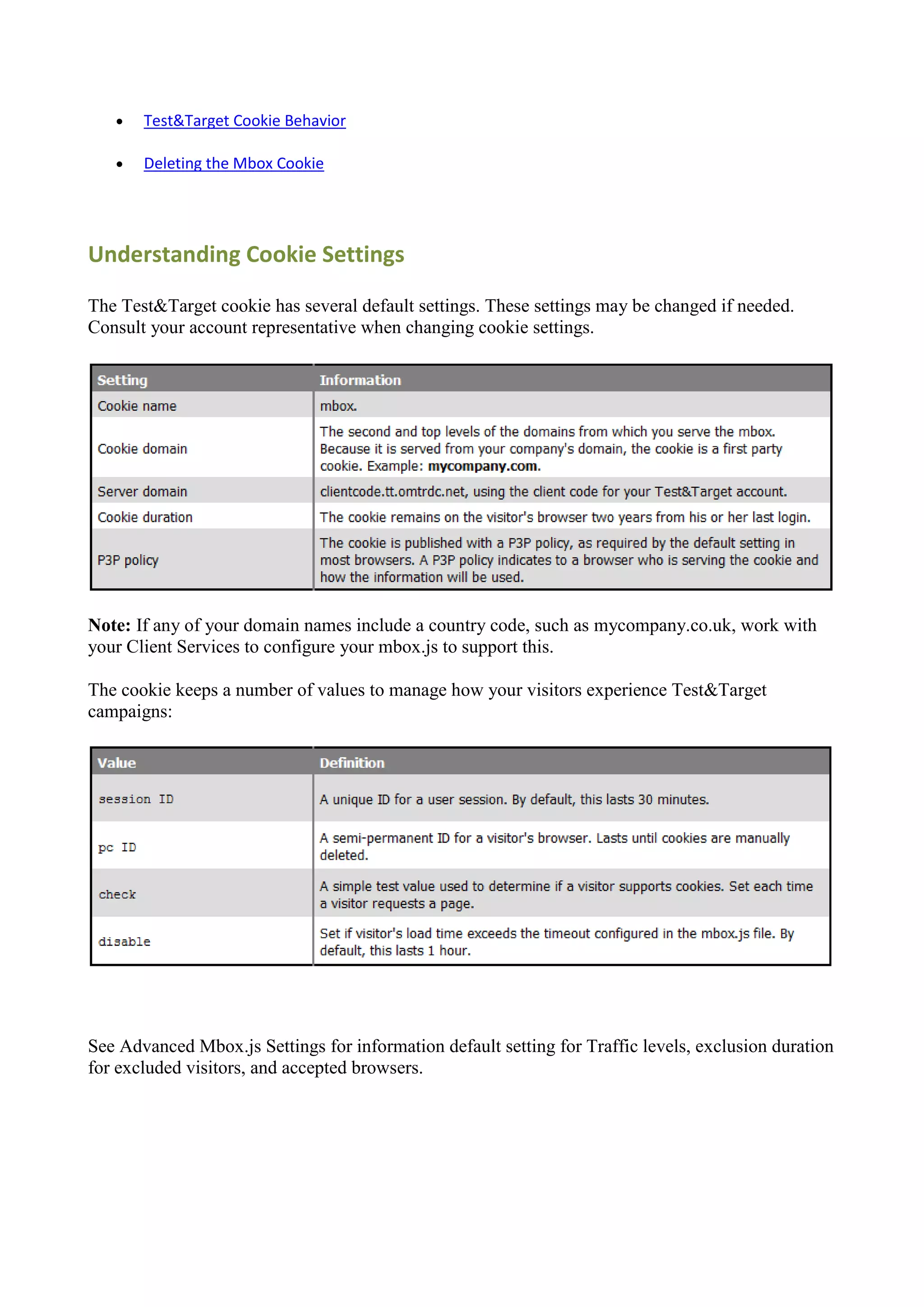
   Understanding Cookie Settings ................................................................................................................... 34
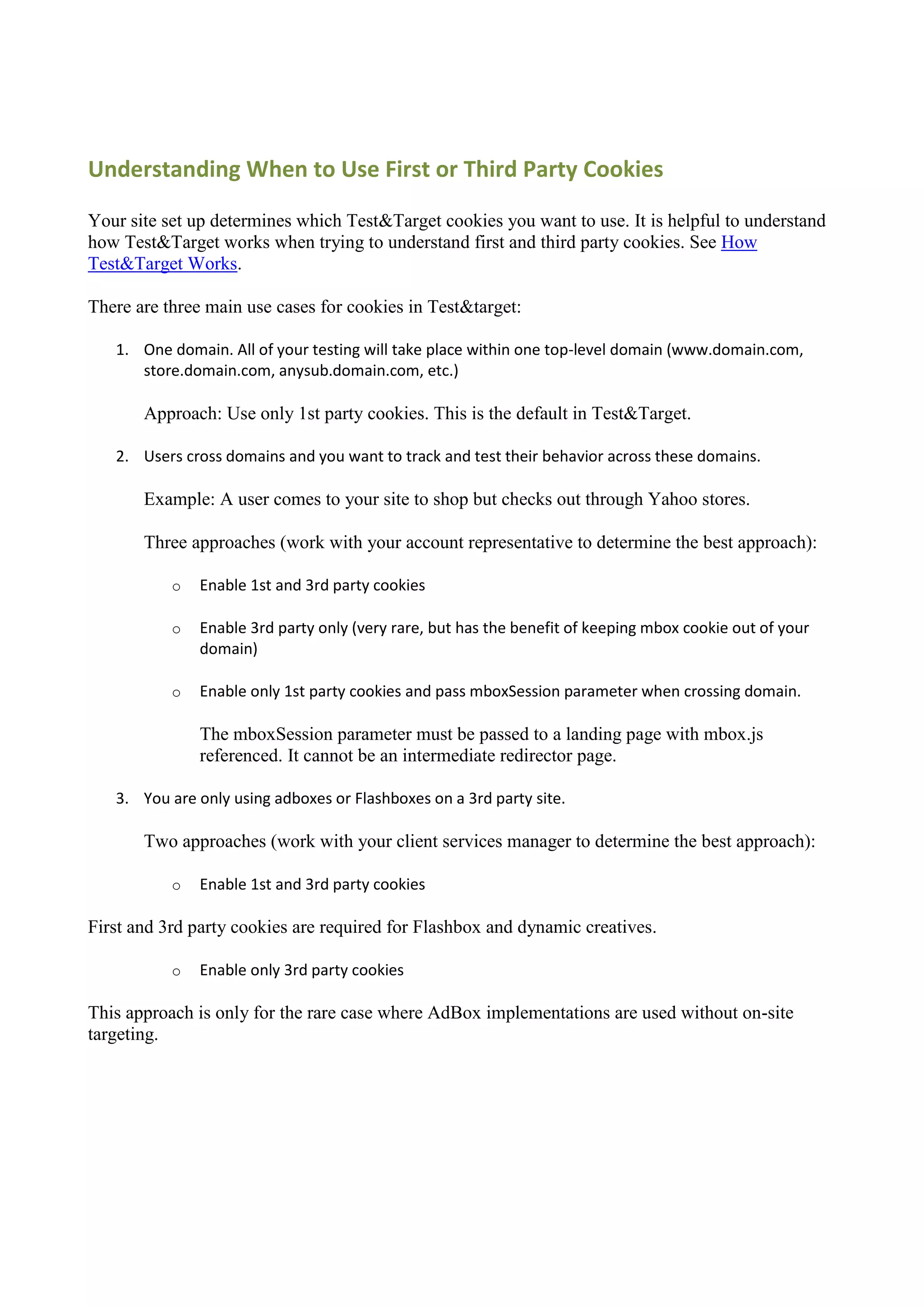
   Understanding When to Use First or Third Party Cookies........................................................................... 35
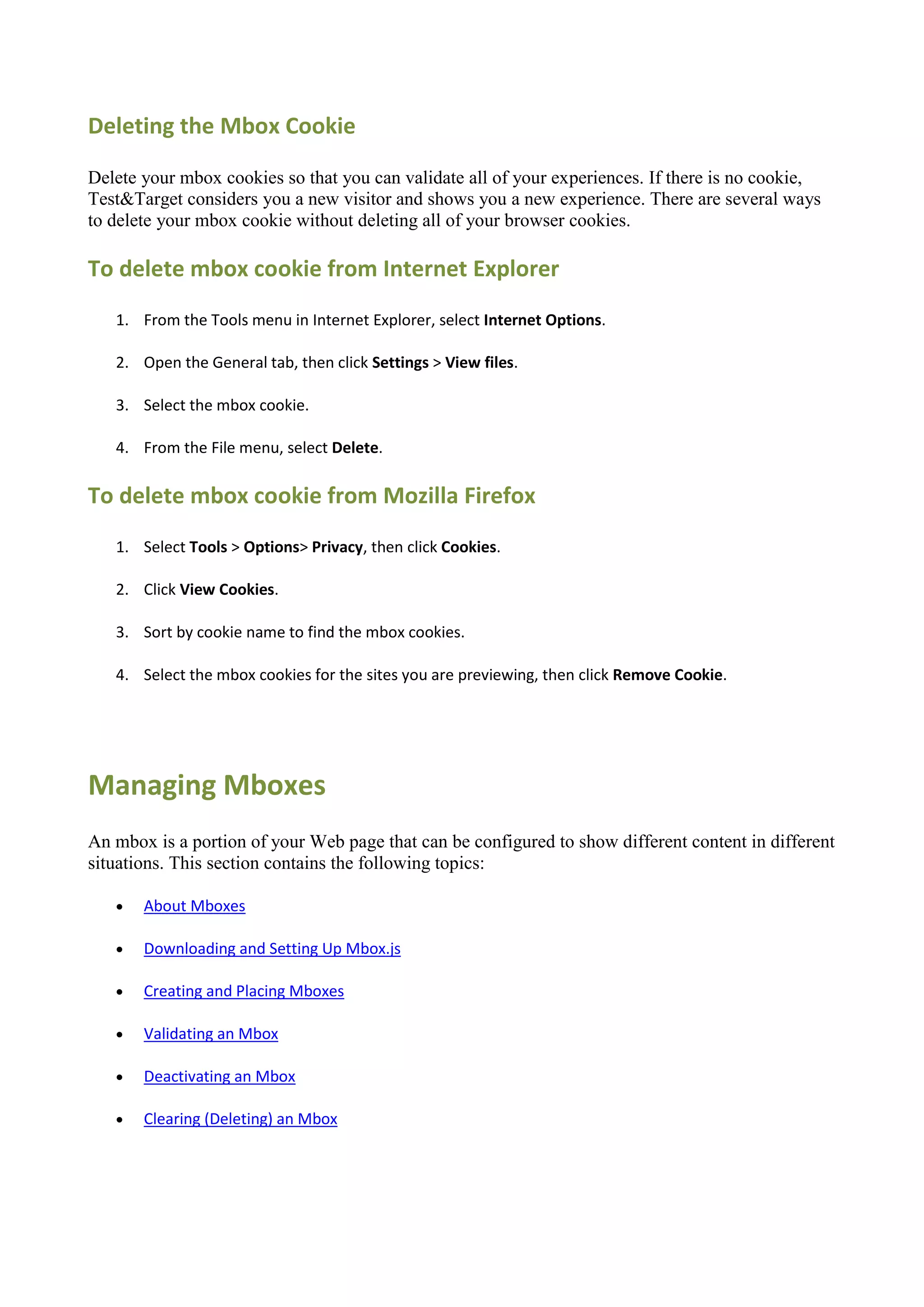
   Deleting the Mbox Cookie ........................................................................................................................... 36
   To delete mbox cookie from Internet Explorer ........................................................................................... 36
   To delete mbox cookie from Mozilla Firefox ............................................................................................... 36
Managing Mboxes ........................................................................................................................................... 36
   About Mboxes ............................................................................................................................................. 37
About Conversion Mboxes .............................................................................................................................. 37
About Default Content .................................................................................................................................... 38
   About Dynamic Mboxes .............................................................................................................................. 39
   Downloading and Setting Up Mbox.js ......................................................................................................... 40
   Downloading mbox.,js ................................................................................................................................. 40
   Validating the mbox.js Download................................................................................................................ 41
   Referencing mbox.js .................................................................................................................................... 41
   Setting the Default Mbox Timeout .............................................................................................................. 41
   Advanced Mbox.js Settings ......................................................................................................................... 42
   Determining Your mbox.js Version.............................................................................................................. 44
   Creating and Placing Mboxes ...................................................................................................................... 45
Creating a Single Mbox .................................................................................................................................... 45
   Placing Multiple Mboxes on a Page............................................................................................................. 47
   Example of three mboxes on a page: .......................................................................................................... 47
   Creating a Whole-Page-Sized Mbox ............................................................................................................ 49
   Placing an Mbox Around a Table ................................................................................................................. 50
   Placing an Mbox Around a Table Cell .......................................................................................................... 51
   Redirector .................................................................................................................................................... 52
   Creating a Redirector................................................................................................................................... 53
   Redirector Constraints................................................................................................................................. 54
   Passing Costs Per Click ................................................................................................................................. 54
   Passing Revenue Per Click ........................................................................................................................... 55
   Validating an Mbox...................................................................................................................................... 55
   Tips .............................................................................................................................................................. 56
   Deactivating an Mbox.................................................................................................................................. 56
   Clearing (Deleting) an Mbox ........................................................................................................................ 57
Troubleshooting Mboxes................................................................................................................................. 58
   A. If the Debug window does not appear .................................................................................................... 58
   B. If the Debug window appears but enabled = false.................................................................................. 58
   C. If the mboxes are not listed in the mboxDebug popup window, or if mboxes appear blank on the page,
   review your page code for the following: ................................................................................................... 59
   Mbox Troubleshooting Matrix..................................................................................................................... 59
Potential Root Cause Errors......................................................................................................................... 59
   Troubleshooting Resources ......................................................................................................................... 60
About Parameters and Values ......................................................................................................................... 60
   Parameter Types.......................................................................................................................................... 61
   Viewing an Mbox's Passed-In Parameter Values ........................................................................................ 63
   Deciding Which Parameters and Values You Need ..................................................................................... 64
   Mbox Specific Parameters ........................................................................................................................... 65
   Associating Mbox-Specific Parameters ....................................................................................................... 65
   Validating Parameters ................................................................................................................................. 66
   URL Parameters ........................................................................................................................................... 66
   Example URL Parameter/Value Pairs .......................................................................................................... 66
   I. Associate the URL Parameter to the Mbox .............................................................................................. 66
   II. Validate URL Parameters ......................................................................................................................... 67
   III. Targeting Content to URL Parameters and Values ................................................................................. 67
   Referring URL Parameters ........................................................................................................................... 67
   I. Associate the Referring URL Parameter to the Mbox .............................................................................. 68
   II. Validate Referring URL Parameters ......................................................................................................... 68
   III. Add Referring URL Targeting to Your Campaign or Test ........................................................................ 68
   Profile Parameters ....................................................................................................................................... 69
   Using In-mbox Profile Parameters............................................................................................................... 70
   Associate in-mbox profile parameters to an mbox ..................................................................................... 70
   Validate in-mbox profile parameters .......................................................................................................... 70
   Identify Mboxes using in-mbox profile parameters (and values) ............................................................... 71
   Using Script Profile Parameters ................................................................................................................... 71
   Validating script profile parameters ............................................................................................................ 71
   Identifying campaigns using script profile parameters ............................................................................... 72
   Using Smart Targeter Profile Parameters .................................................................................................... 72
   Cost and Revenue Reporting ....................................................................................................................... 72
   Business Scenarios ....................................................................................................................................... 72
   How to ......................................................................................................................................................... 72
Ecommerce Integration ................................................................................................................................... 73
   Integration Examples for PHP and OsCommerce ........................................................................................ 73
   mbox.js include for PHP............................................................................................................................... 73
   productPage Recorder mbox for PHP.......................................................................................................... 73
orderConfirmPage Recorder mbox for PHP ................................................................................................ 74
   Integration Examples for ATG ..................................................................................................................... 74
   mbox.js include for ATG .............................................................................................................................. 74
   Integration Examples for ASP ...................................................................................................................... 74
   mbox.js include for ASP ............................................................................................................................... 74
   productPage Recorder mbox for ASP Part A ............................................................................................... 75
   productPage Recorder mbox for ASP, Part B .............................................................................................. 75
   orderConfirmPage Recorder mbox for ASP, Part A ..................................................................................... 75
   orderConfirmPage Recorder mbox for ASP, Part B ..................................................................................... 76
   Tracking Clicks in Test&Target ..................................................................................................................... 76
   Tracking Flash Content ................................................................................................................................ 78
   Counting these clicks in campaigns ............................................................................................................. 79
Tracking Clicks to Offsite Domains .................................................................................................................. 79
   Business Case............................................................................................................................................... 79
   Options ........................................................................................................................................................ 79
   Implementing Redirector ............................................................................................................................ 80
   Tracking Revenue Per Offsite Click .............................................................................................................. 81
   Business Case............................................................................................................................................... 81
   Implementation ........................................................................................................................................... 81
Working with Analytics Packages .................................................................................................................... 81
   About Test&Target Data .............................................................................................................................. 81
   Compare Test&Target Data with Analytical Package Data ......................................................................... 82
   Capture Data Directly to Your Analytics Package ........................................................................................ 82
Managing Offers .............................................................................................................................................. 83
Offer Types ...................................................................................................................................................... 85
Hosting Offers .................................................................................................................................................. 85
Creating an HTML Offer ................................................................................................................................... 86
Passing Profile Attributes to the HTML Offer .................................................................................................. 87
   Business Case............................................................................................................................................... 87
   Technical Advantages .................................................................................................................................. 87
   Example ....................................................................................................................................................... 88
   Implementation ........................................................................................................................................... 88
Creating an Image Offer .................................................................................................................................. 88
   Creating an Image Offer with an Image Loaded into Test&Target ............................................................. 89
Adding Click-Through to an Image Offer ..................................................................................................... 91
Redirect Offer .................................................................................................................................................. 91
   Widget Offers .............................................................................................................................................. 92
About Dynamic Content .................................................................................................................................. 93
   Related Topics ............................................................................................................................................. 93
How Dynamic Offers Work .............................................................................................................................. 94
Using Styles to Test Dynamic Content ............................................................................................................. 94
   Implement ................................................................................................................................................... 94
Creating a Dynamic Offer Stored On Your Site................................................................................................ 95
Creating a Cached Offer Stored on Your Site .................................................................................................. 96
Creating a Cached Offer Stored Outside Test&Target .................................................................................... 97
Dynamic Offer Selection Matrix ...................................................................................................................... 98
Validating Offers .............................................................................................................................................. 98
   Previewing the Offers .................................................................................................................................. 98
   Troubleshooting Offers ............................................................................................................................... 99
Previewing Offers in an Mbox ....................................................................................................................... 100
Working with Offers ...................................................................................................................................... 101
   Searching for an Offer ............................................................................................................................... 101
   Creating an Offer Folder ............................................................................................................................ 101
   Deleting a Folder or Offer .......................................................................................................................... 102
   Moving an Offer to a Different Folder ....................................................................................................... 102
   Copying an Offer ........................................................................................................................................ 102
   Editing an Offer.......................................................................................................................................... 102
Creating a Campaign...................................................................................................................................... 103
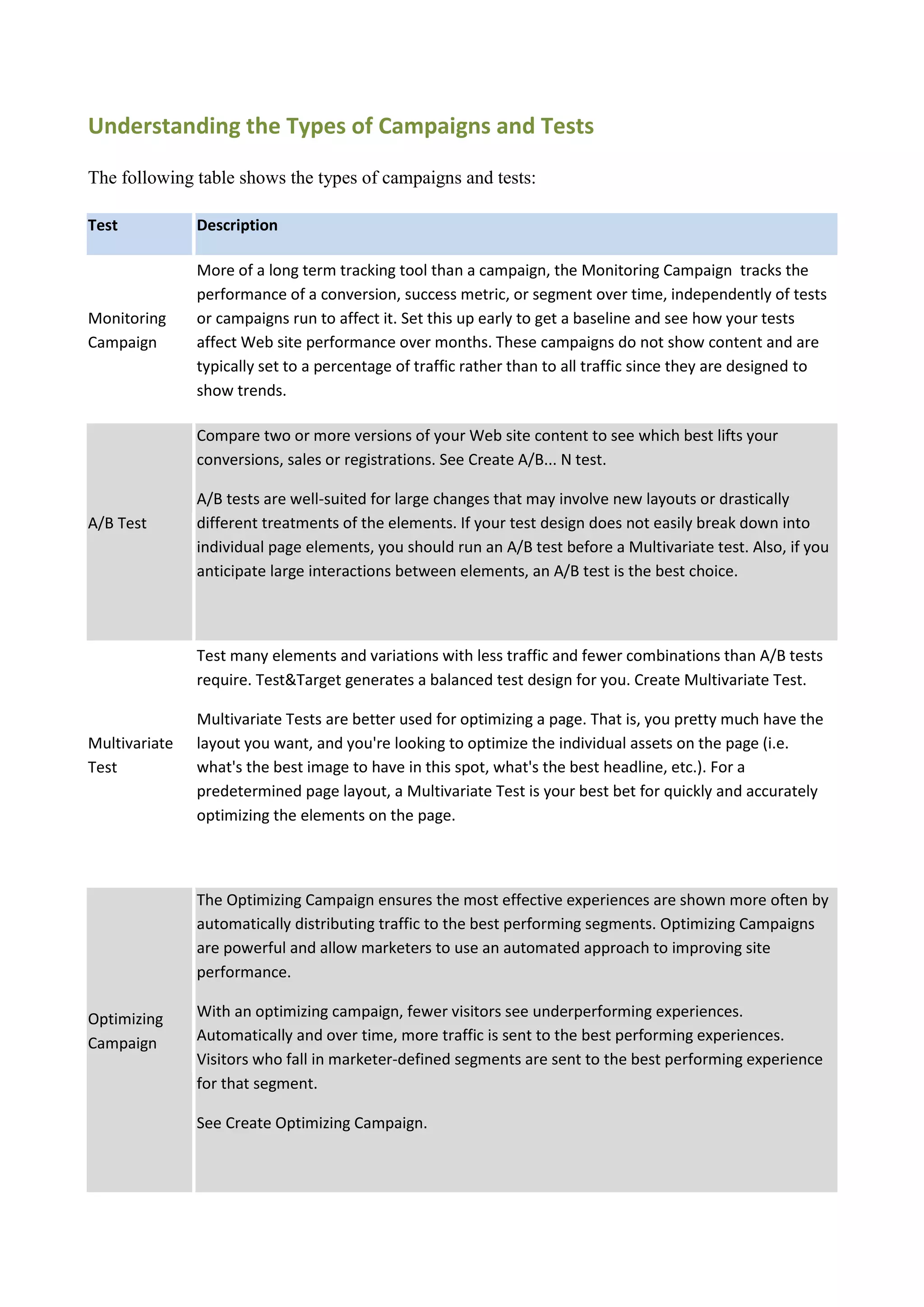
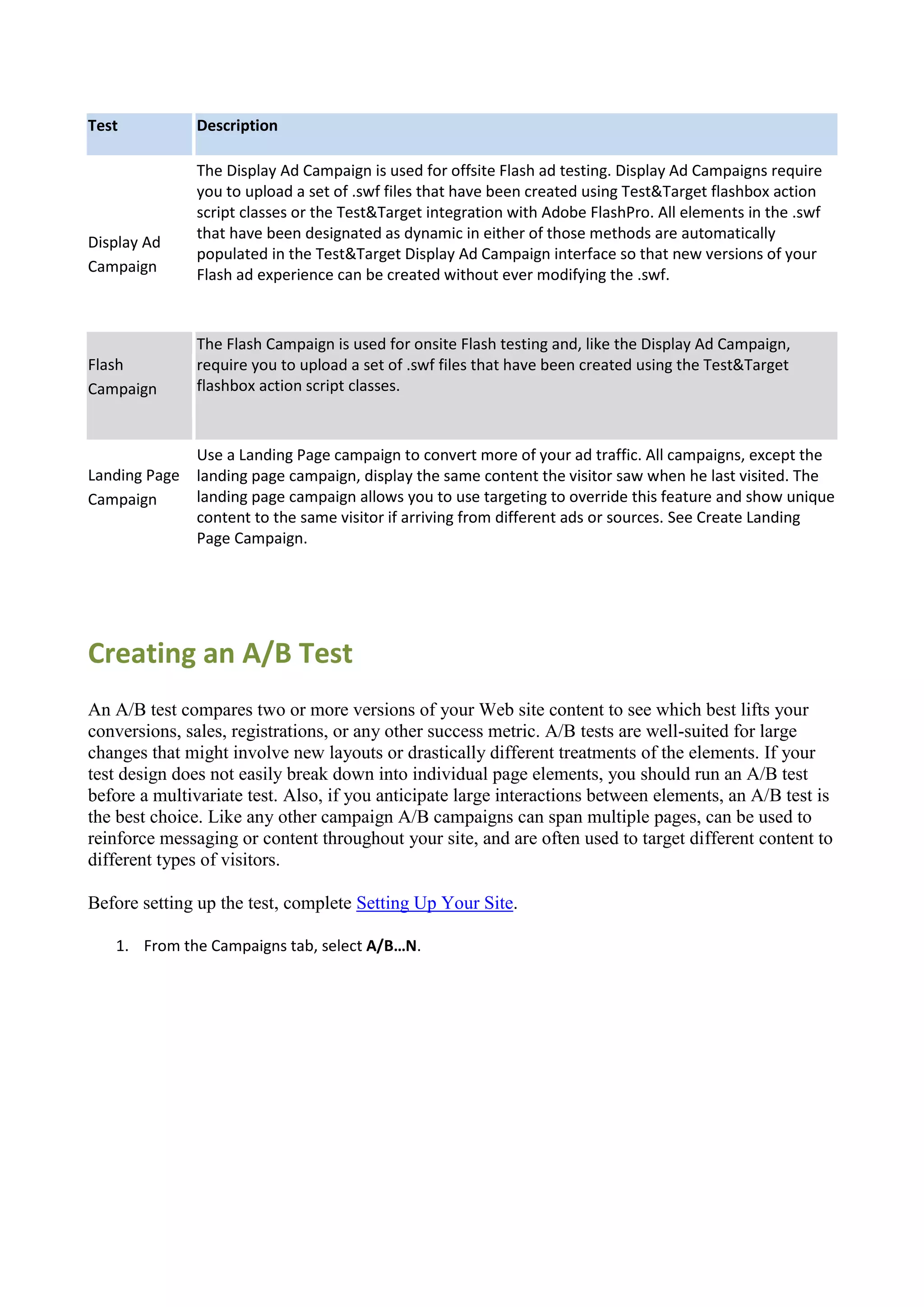
   Understanding the Types of Campaigns and Tests ................................................................................... 105
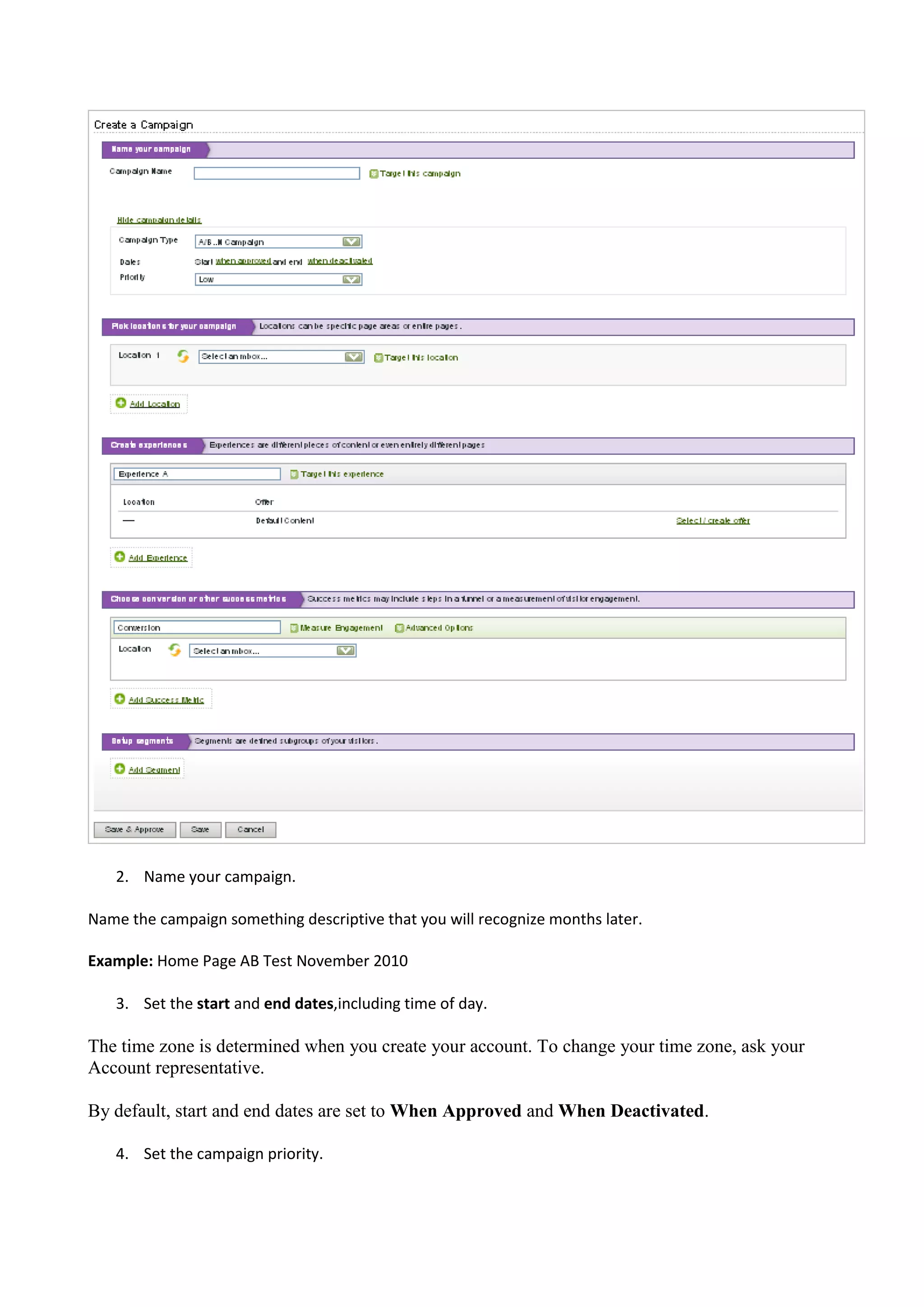
Creating an A/B Test ...................................................................................................................................... 106
Using a Multivariate Campaign ..................................................................................................................... 109
Creating a Multivariate Test .......................................................................................................................... 109
Best Practices for a Multivariate Test............................................................................................................ 111
Creating a 1:1 Campaign................................................................................................................................ 111
   Understanding Test&Target 1:1 ................................................................................................................ 112
   User Profile Variables ................................................................................................................................ 114
   Selecting or Creating Offers....................................................................................................................... 115
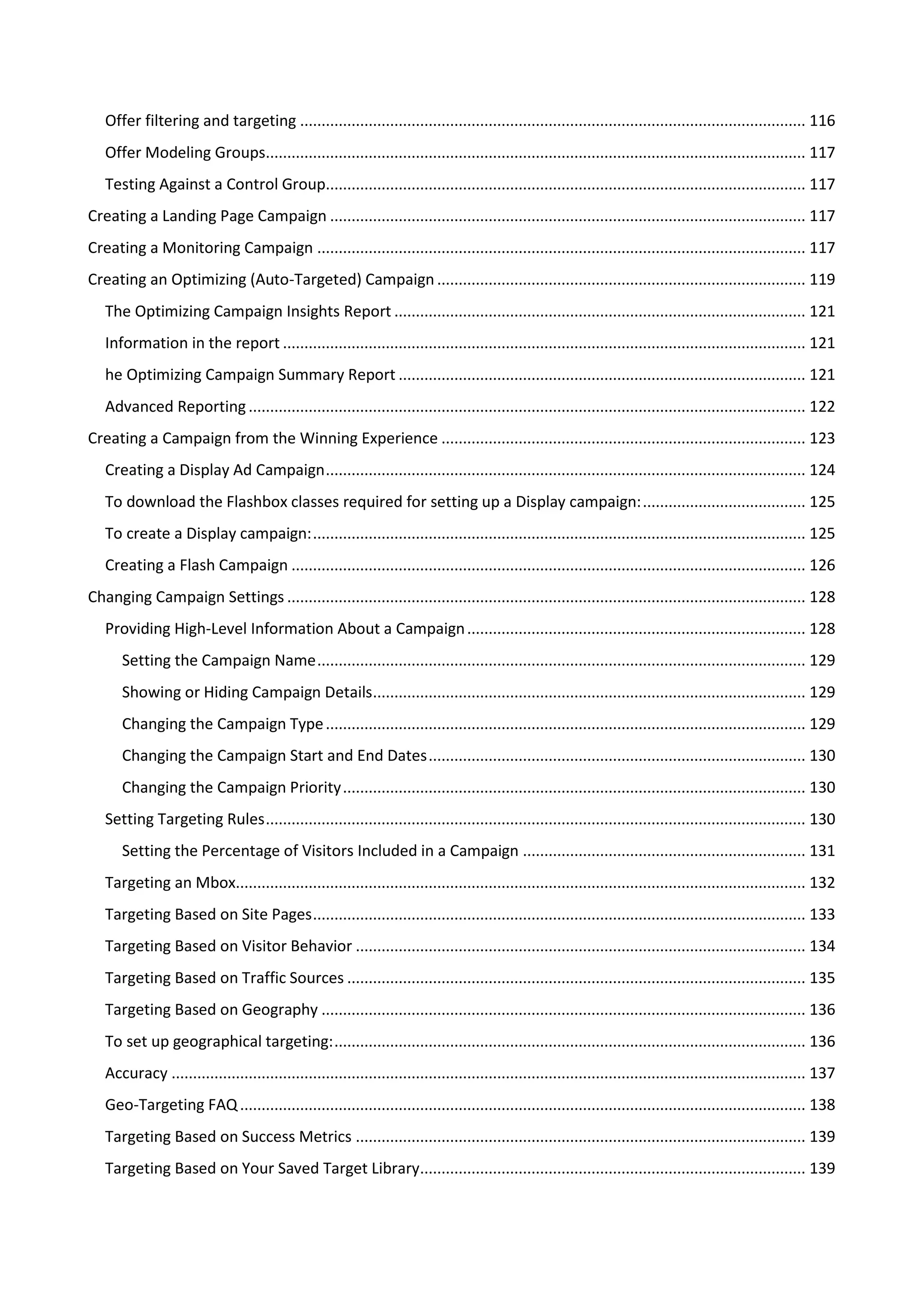
   Restricting the Content to be Displayed.................................................................................................... 116
Offer filtering and targeting ...................................................................................................................... 116
   Offer Modeling Groups.............................................................................................................................. 117
   Testing Against a Control Group................................................................................................................ 117
Creating a Landing Page Campaign ............................................................................................................... 117
Creating a Monitoring Campaign .................................................................................................................. 117
Creating an Optimizing (Auto-Targeted) Campaign ...................................................................................... 119
   The Optimizing Campaign Insights Report ................................................................................................ 121
   Information in the report .......................................................................................................................... 121
   he Optimizing Campaign Summary Report ............................................................................................... 121
   Advanced Reporting .................................................................................................................................. 122
Creating a Campaign from the Winning Experience ..................................................................................... 123
   Creating a Display Ad Campaign ................................................................................................................ 124
   To download the Flashbox classes required for setting up a Display campaign: ...................................... 125
   To create a Display campaign: ................................................................................................................... 125
   Creating a Flash Campaign ........................................................................................................................ 126
Changing Campaign Settings ......................................................................................................................... 128
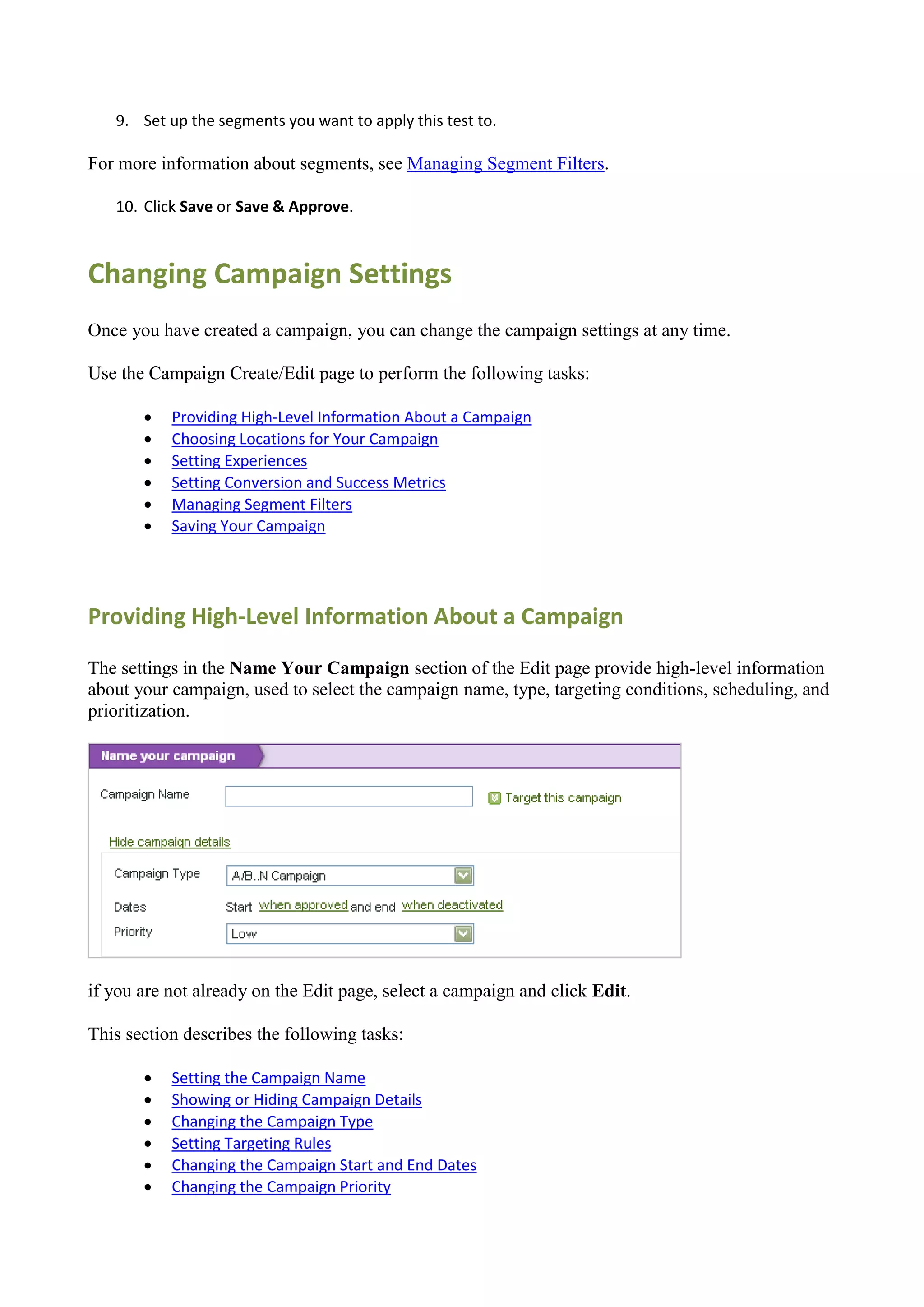
   Providing High-Level Information About a Campaign ............................................................................... 128
      Setting the Campaign Name .................................................................................................................. 129
      Showing or Hiding Campaign Details..................................................................................................... 129
      Changing the Campaign Type ................................................................................................................ 129
      Changing the Campaign Start and End Dates ........................................................................................ 130
      Changing the Campaign Priority ............................................................................................................ 130
   Setting Targeting Rules .............................................................................................................................. 130
      Setting the Percentage of Visitors Included in a Campaign .................................................................. 131
   Targeting an Mbox..................................................................................................................................... 132
   Targeting Based on Site Pages ................................................................................................................... 133
   Targeting Based on Visitor Behavior ......................................................................................................... 134
   Targeting Based on Traffic Sources ........................................................................................................... 135
   Targeting Based on Geography ................................................................................................................. 136
   To set up geographical targeting: .............................................................................................................. 136
   Accuracy .................................................................................................................................................... 137
   Geo-Targeting FAQ .................................................................................................................................... 138
   Targeting Based on Success Metrics ......................................................................................................... 139
   Targeting Based on Your Saved Target Library.......................................................................................... 139
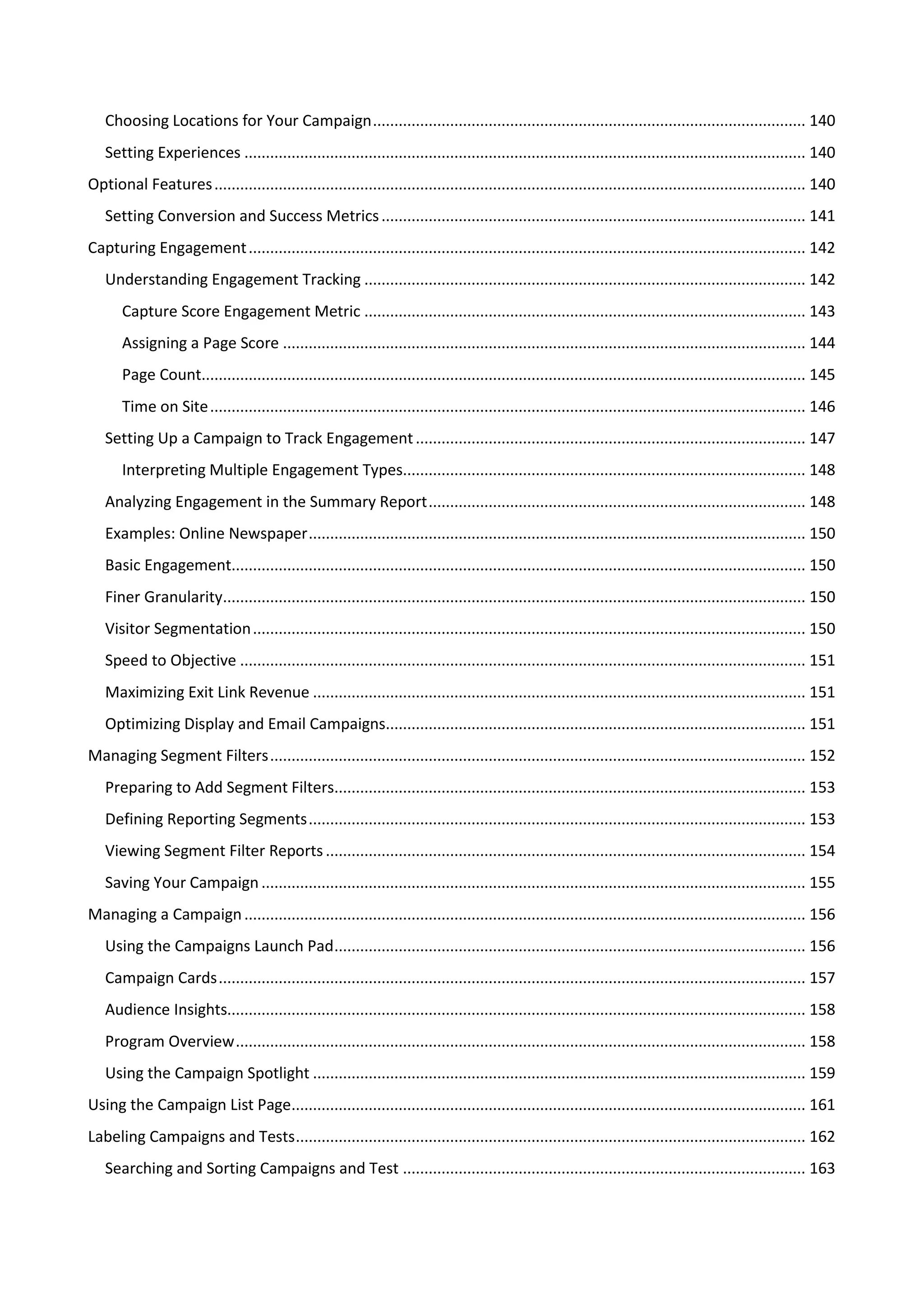
Choosing Locations for Your Campaign ..................................................................................................... 140
   Setting Experiences ................................................................................................................................... 140
Optional Features .......................................................................................................................................... 140
   Setting Conversion and Success Metrics ................................................................................................... 141
Capturing Engagement .................................................................................................................................. 142
   Understanding Engagement Tracking ....................................................................................................... 142
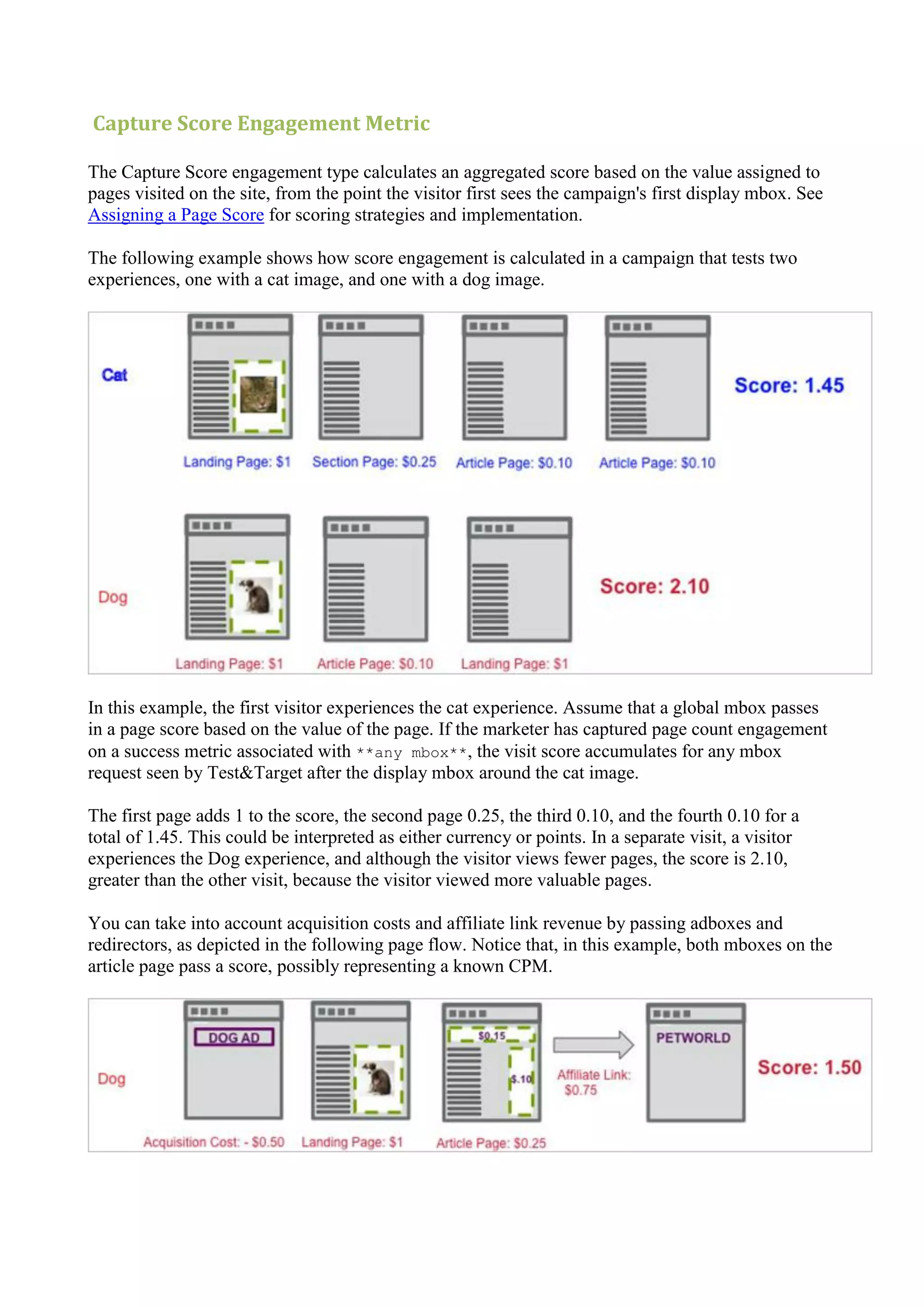
       Capture Score Engagement Metric ....................................................................................................... 143
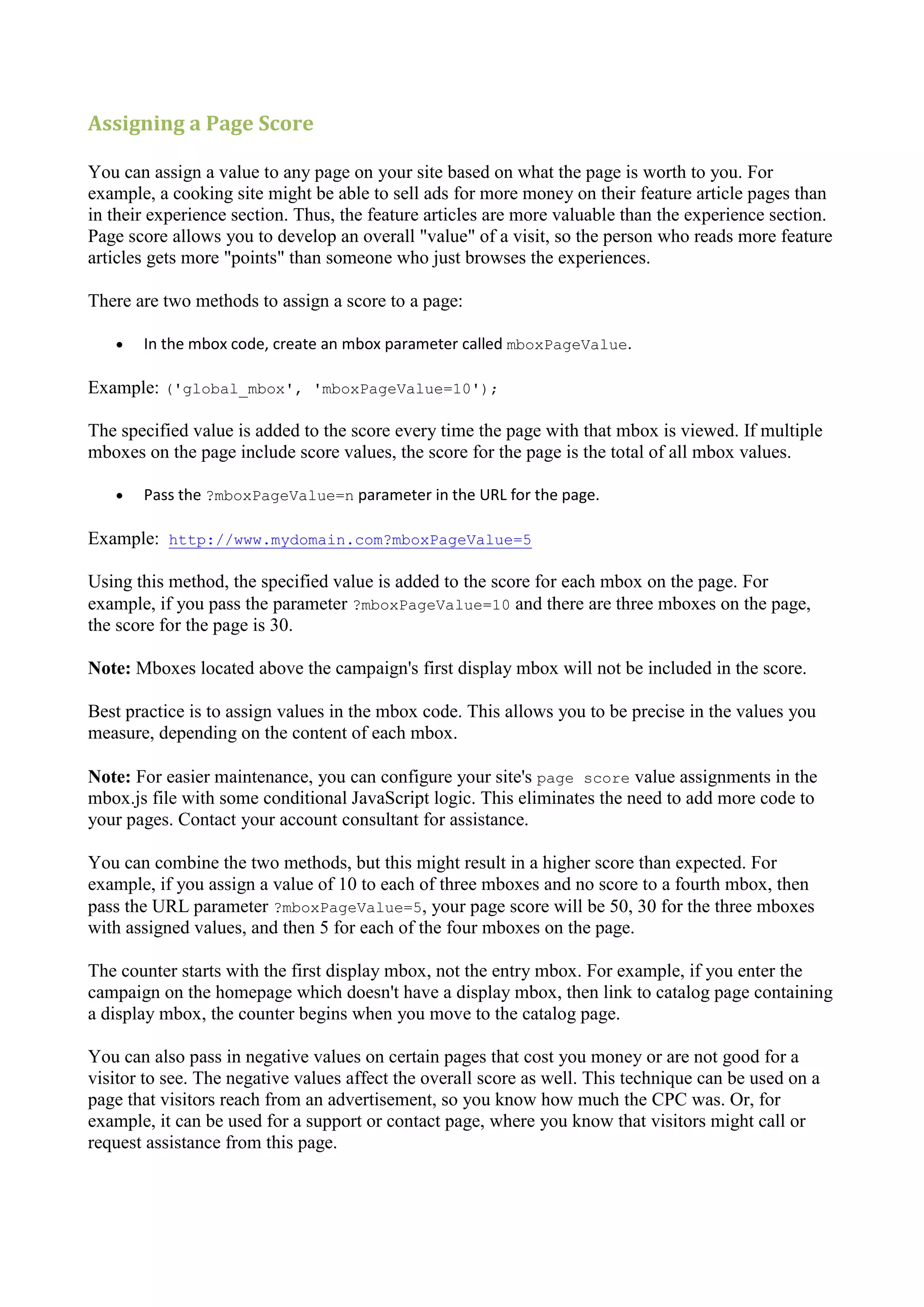
       Assigning a Page Score .......................................................................................................................... 144
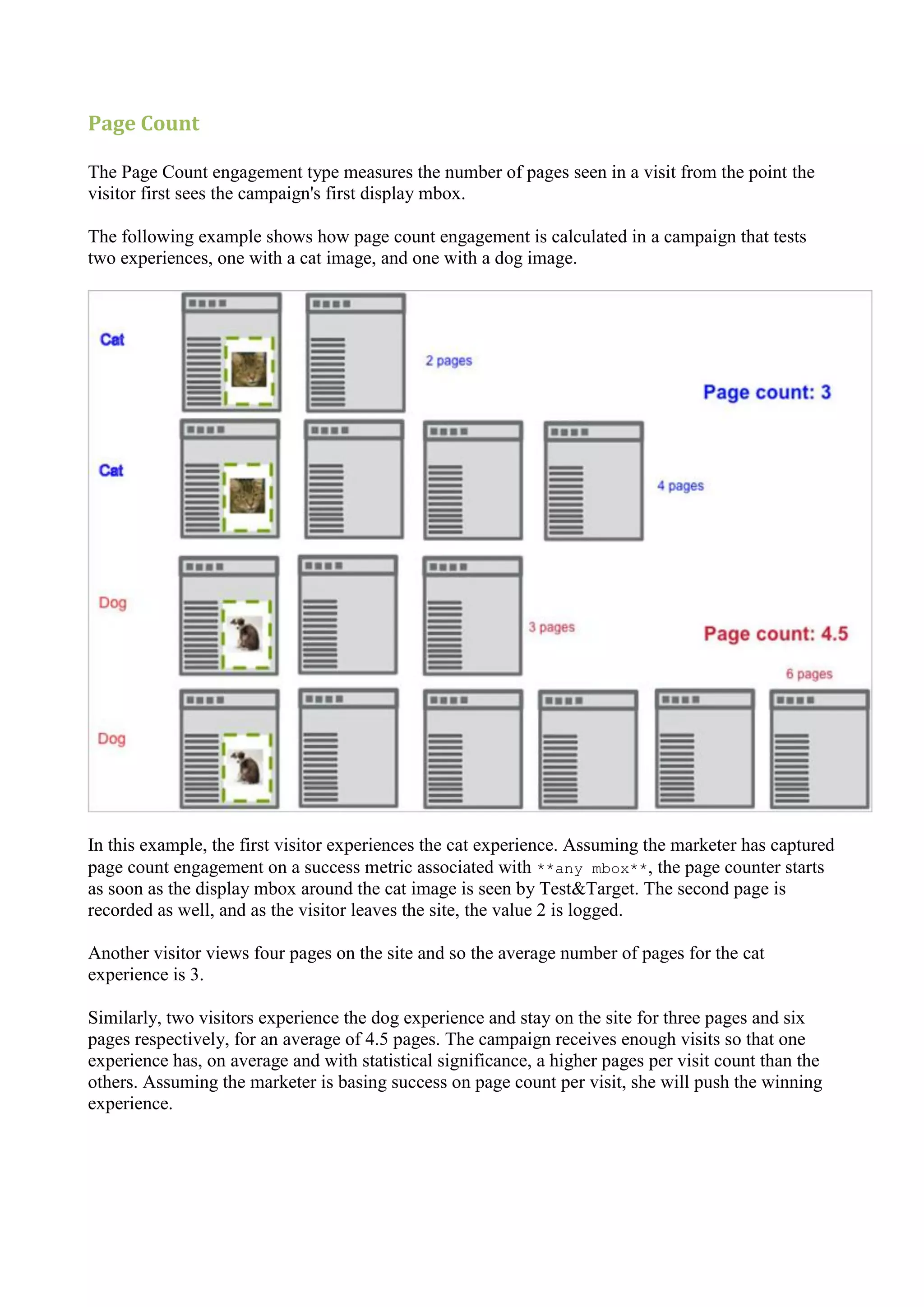
       Page Count............................................................................................................................................. 145
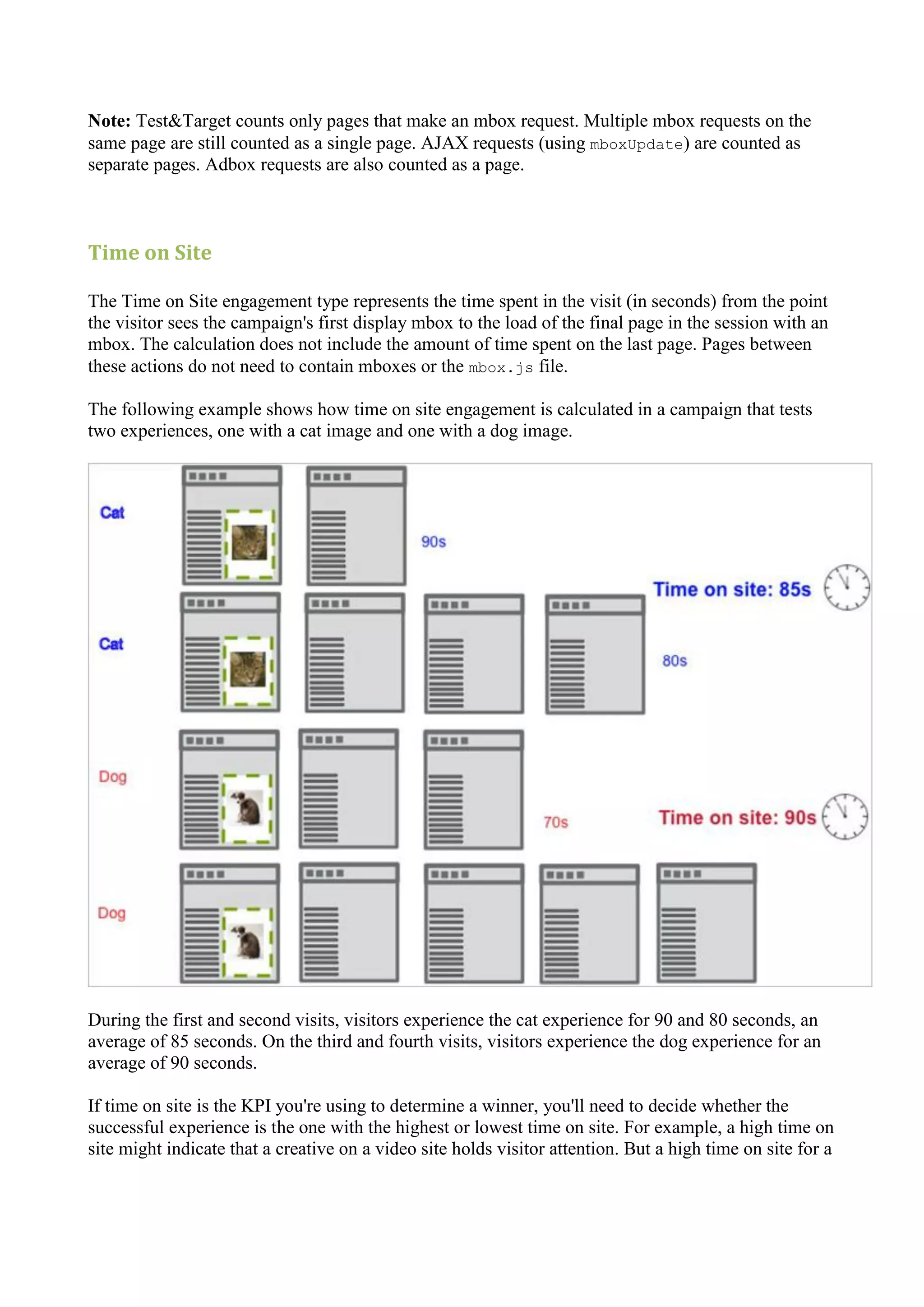
       Time on Site ........................................................................................................................................... 146
   Setting Up a Campaign to Track Engagement ........................................................................................... 147
       Interpreting Multiple Engagement Types.............................................................................................. 148
   Analyzing Engagement in the Summary Report ........................................................................................ 148
   Examples: Online Newspaper .................................................................................................................... 150
   Basic Engagement...................................................................................................................................... 150
   Finer Granularity........................................................................................................................................ 150
   Visitor Segmentation ................................................................................................................................. 150
   Speed to Objective .................................................................................................................................... 151
   Maximizing Exit Link Revenue ................................................................................................................... 151
   Optimizing Display and Email Campaigns.................................................................................................. 151
Managing Segment Filters ............................................................................................................................. 152
   Preparing to Add Segment Filters.............................................................................................................. 153
   Defining Reporting Segments .................................................................................................................... 153
   Viewing Segment Filter Reports ................................................................................................................ 154
   Saving Your Campaign ............................................................................................................................... 155
Managing a Campaign ................................................................................................................................... 156
   Using the Campaigns Launch Pad .............................................................................................................. 156
   Campaign Cards ......................................................................................................................................... 157
   Audience Insights....................................................................................................................................... 158
   Program Overview ..................................................................................................................................... 158
   Using the Campaign Spotlight ................................................................................................................... 159
Using the Campaign List Page........................................................................................................................ 161
Labeling Campaigns and Tests ....................................................................................................................... 162
   Searching and Sorting Campaigns and Test .............................................................................................. 163
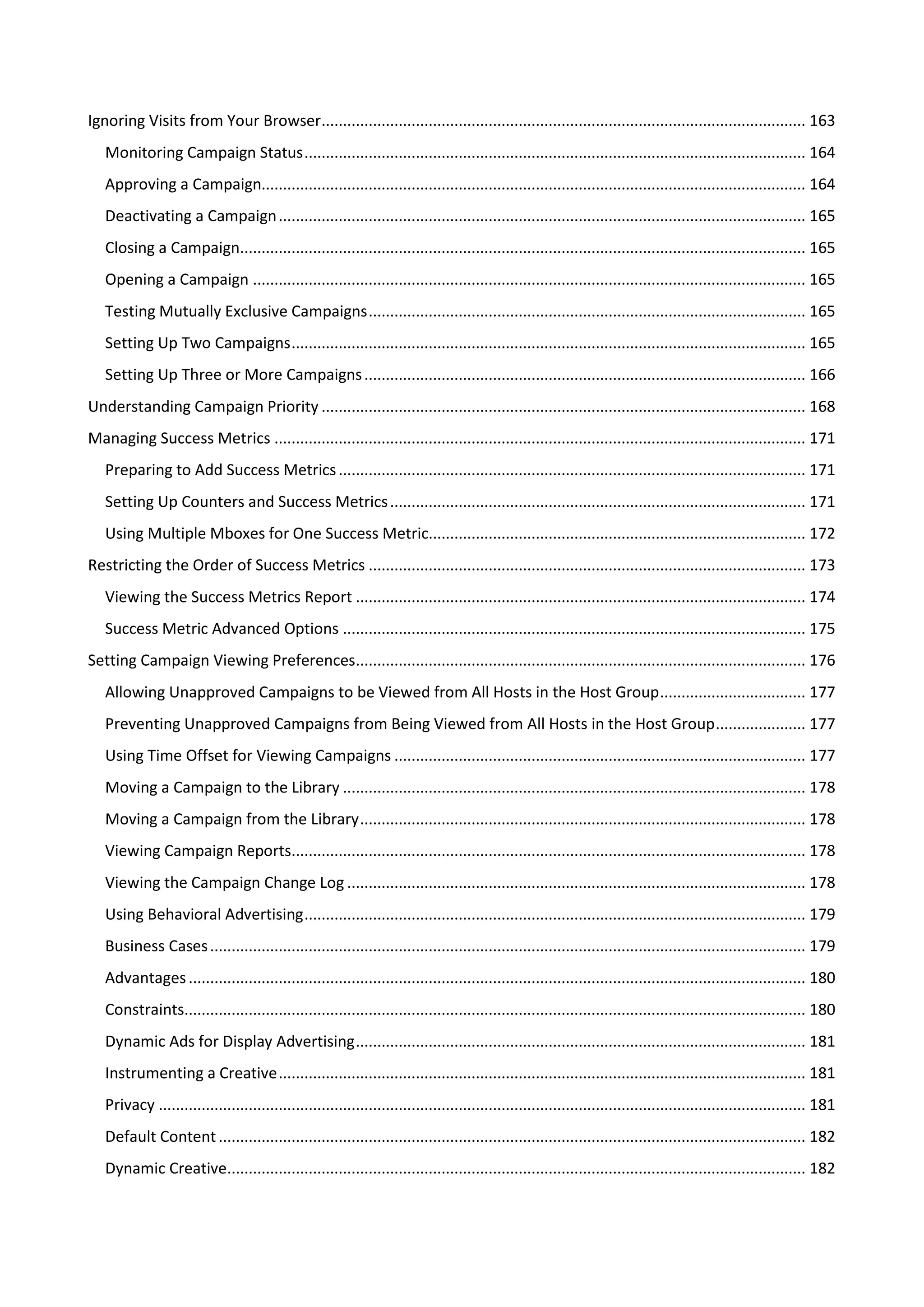
Ignoring Visits from Your Browser................................................................................................................. 163
   Monitoring Campaign Status ..................................................................................................................... 164
   Approving a Campaign............................................................................................................................... 164
   Deactivating a Campaign ........................................................................................................................... 165
   Closing a Campaign.................................................................................................................................... 165
   Opening a Campaign ................................................................................................................................. 165
   Testing Mutually Exclusive Campaigns ...................................................................................................... 165
   Setting Up Two Campaigns ........................................................................................................................ 165
   Setting Up Three or More Campaigns ....................................................................................................... 166
Understanding Campaign Priority ................................................................................................................. 168
Managing Success Metrics ............................................................................................................................ 171
   Preparing to Add Success Metrics ............................................................................................................. 171
   Setting Up Counters and Success Metrics ................................................................................................. 171
   Using Multiple Mboxes for One Success Metric........................................................................................ 172
Restricting the Order of Success Metrics ...................................................................................................... 173
   Viewing the Success Metrics Report ......................................................................................................... 174
   Success Metric Advanced Options ............................................................................................................ 175
Setting Campaign Viewing Preferences......................................................................................................... 176
   Allowing Unapproved Campaigns to be Viewed from All Hosts in the Host Group .................................. 177
   Preventing Unapproved Campaigns from Being Viewed from All Hosts in the Host Group ..................... 177
   Using Time Offset for Viewing Campaigns ................................................................................................ 177
   Moving a Campaign to the Library ............................................................................................................ 178
   Moving a Campaign from the Library ........................................................................................................ 178
   Viewing Campaign Reports........................................................................................................................ 178
   Viewing the Campaign Change Log ........................................................................................................... 178
   Using Behavioral Advertising ..................................................................................................................... 179
   Business Cases ........................................................................................................................................... 179
   Advantages ................................................................................................................................................ 180
   Constraints................................................................................................................................................. 180
   Dynamic Ads for Display Advertising ......................................................................................................... 181
   Instrumenting a Creative ........................................................................................................................... 181
   Privacy ....................................................................................................................................................... 181
   Default Content ......................................................................................................................................... 182
   Dynamic Creative....................................................................................................................................... 182
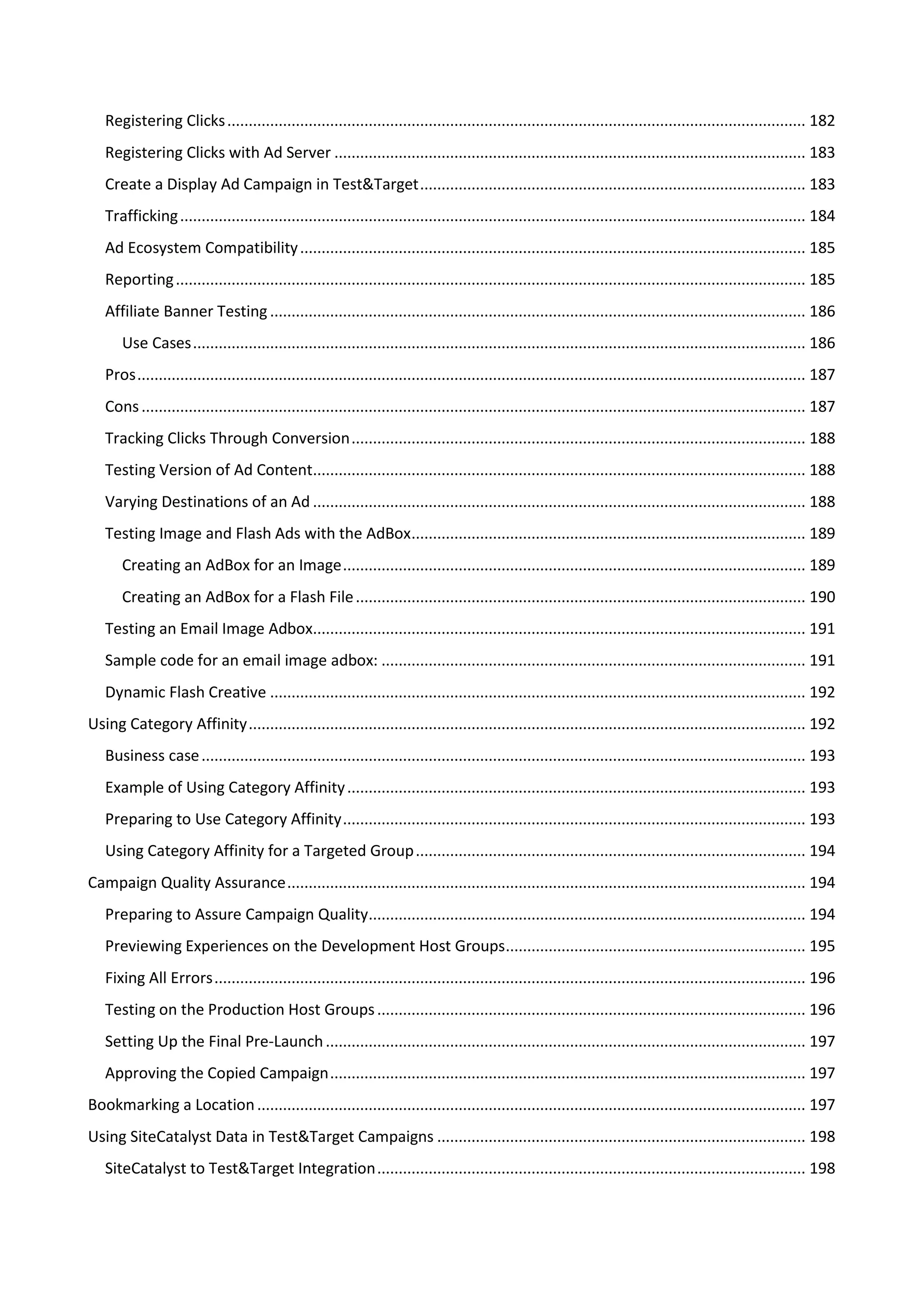
Registering Clicks ....................................................................................................................................... 182
   Registering Clicks with Ad Server .............................................................................................................. 183
   Create a Display Ad Campaign in Test&Target .......................................................................................... 183
   Trafficking .................................................................................................................................................. 184
   Ad Ecosystem Compatibility ...................................................................................................................... 185
   Reporting ................................................................................................................................................... 185
   Affiliate Banner Testing ............................................................................................................................. 186
       Use Cases ............................................................................................................................................... 186
   Pros ............................................................................................................................................................ 187
   Cons ........................................................................................................................................................... 187
   Tracking Clicks Through Conversion .......................................................................................................... 188
   Testing Version of Ad Content................................................................................................................... 188
   Varying Destinations of an Ad ................................................................................................................... 188
   Testing Image and Flash Ads with the AdBox ............................................................................................ 189
       Creating an AdBox for an Image ............................................................................................................ 189
       Creating an AdBox for a Flash File ......................................................................................................... 190
   Testing an Email Image Adbox................................................................................................................... 191
   Sample code for an email image adbox: ................................................................................................... 191
   Dynamic Flash Creative ............................................................................................................................. 192
Using Category Affinity .................................................................................................................................. 192
   Business case ............................................................................................................................................. 193
   Example of Using Category Affinity ........................................................................................................... 193
   Preparing to Use Category Affinity ............................................................................................................ 193
   Using Category Affinity for a Targeted Group ........................................................................................... 194
Campaign Quality Assurance ......................................................................................................................... 194
   Preparing to Assure Campaign Quality...................................................................................................... 194
   Previewing Experiences on the Development Host Groups ...................................................................... 195
   Fixing All Errors .......................................................................................................................................... 196
   Testing on the Production Host Groups .................................................................................................... 196
   Setting Up the Final Pre-Launch ................................................................................................................ 197
   Approving the Copied Campaign ............................................................................................................... 197
Bookmarking a Location ................................................................................................................................ 197
Using SiteCatalyst Data in Test&Target Campaigns ...................................................................................... 198
   SiteCatalyst to Test&Target Integration .................................................................................................... 198
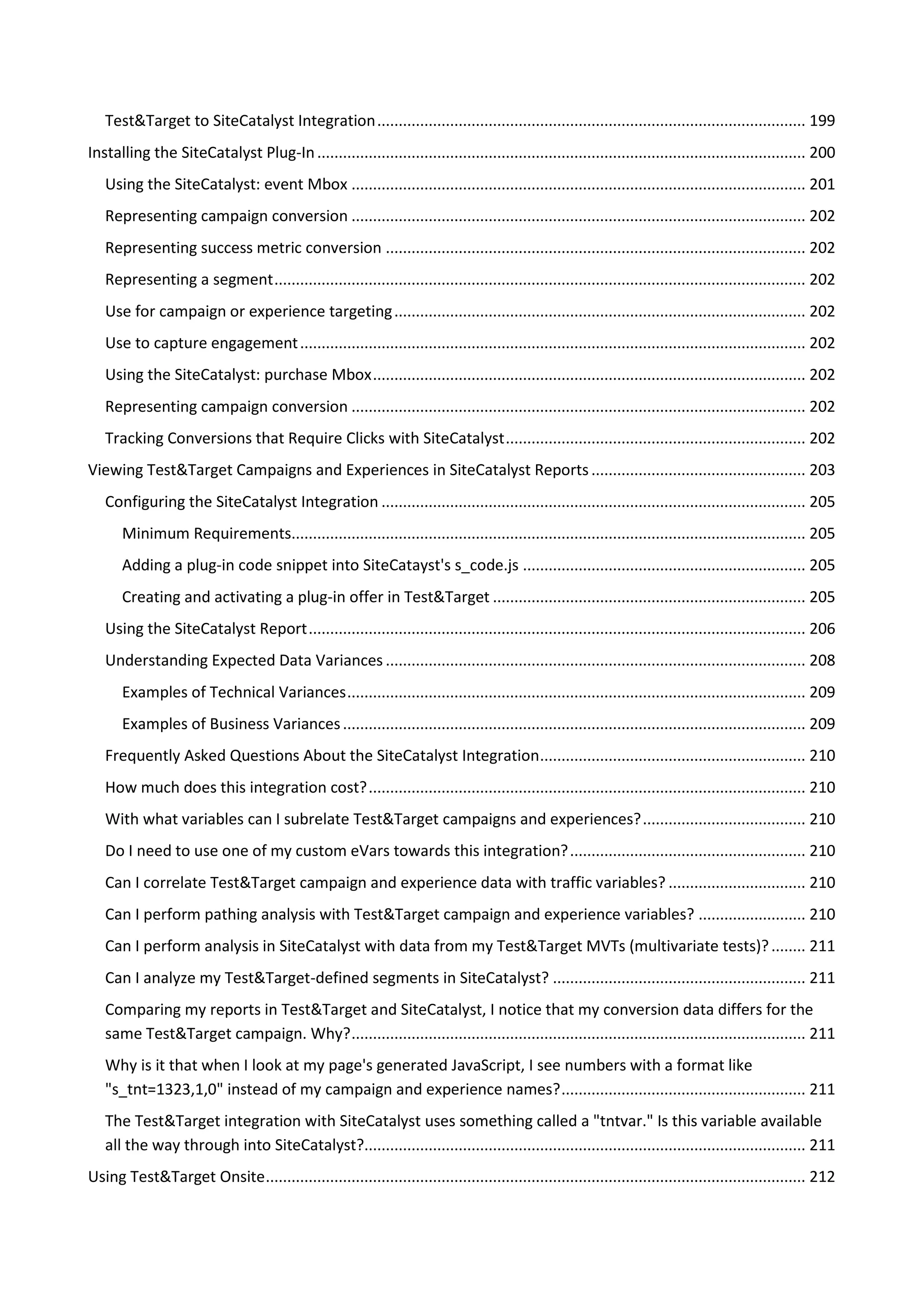
Test&Target to SiteCatalyst Integration .................................................................................................... 199
Installing the SiteCatalyst Plug-In .................................................................................................................. 200
   Using the SiteCatalyst: event Mbox .......................................................................................................... 201
   Representing campaign conversion .......................................................................................................... 202
   Representing success metric conversion .................................................................................................. 202
   Representing a segment ............................................................................................................................ 202
   Use for campaign or experience targeting ................................................................................................ 202
   Use to capture engagement ...................................................................................................................... 202
   Using the SiteCatalyst: purchase Mbox ..................................................................................................... 202
   Representing campaign conversion .......................................................................................................... 202
   Tracking Conversions that Require Clicks with SiteCatalyst ...................................................................... 202
Viewing Test&Target Campaigns and Experiences in SiteCatalyst Reports .................................................. 203
   Configuring the SiteCatalyst Integration ................................................................................................... 205
       Minimum Requirements........................................................................................................................ 205
       Adding a plug-in code snippet into SiteCatayst's s_code.js .................................................................. 205
       Creating and activating a plug-in offer in Test&Target ......................................................................... 205
   Using the SiteCatalyst Report .................................................................................................................... 206
   Understanding Expected Data Variances .................................................................................................. 208
       Examples of Technical Variances ........................................................................................................... 209
       Examples of Business Variances ............................................................................................................ 209
   Frequently Asked Questions About the SiteCatalyst Integration .............................................................. 210
   How much does this integration cost? ...................................................................................................... 210
   With what variables can I subrelate Test&Target campaigns and experiences? ...................................... 210
   Do I need to use one of my custom eVars towards this integration? ....................................................... 210
   Can I correlate Test&Target campaign and experience data with traffic variables? ................................ 210
   Can I perform pathing analysis with Test&Target campaign and experience variables? ......................... 210
   Can I perform analysis in SiteCatalyst with data from my Test&Target MVTs (multivariate tests)? ........ 211
   Can I analyze my Test&Target-defined segments in SiteCatalyst? ........................................................... 211
   Comparing my reports in Test&Target and SiteCatalyst, I notice that my conversion data differs for the
   same Test&Target campaign. Why? .......................................................................................................... 211
   Why is it that when I look at my page's generated JavaScript, I see numbers with a format like
   "s_tnt=1323,1,0" instead of my campaign and experience names? ......................................................... 211
   The Test&Target integration with SiteCatalyst uses something called a "tntvar." Is this variable available
   all the way through into SiteCatalyst?....................................................................................................... 211
Using Test&Target Onsite .............................................................................................................................. 212
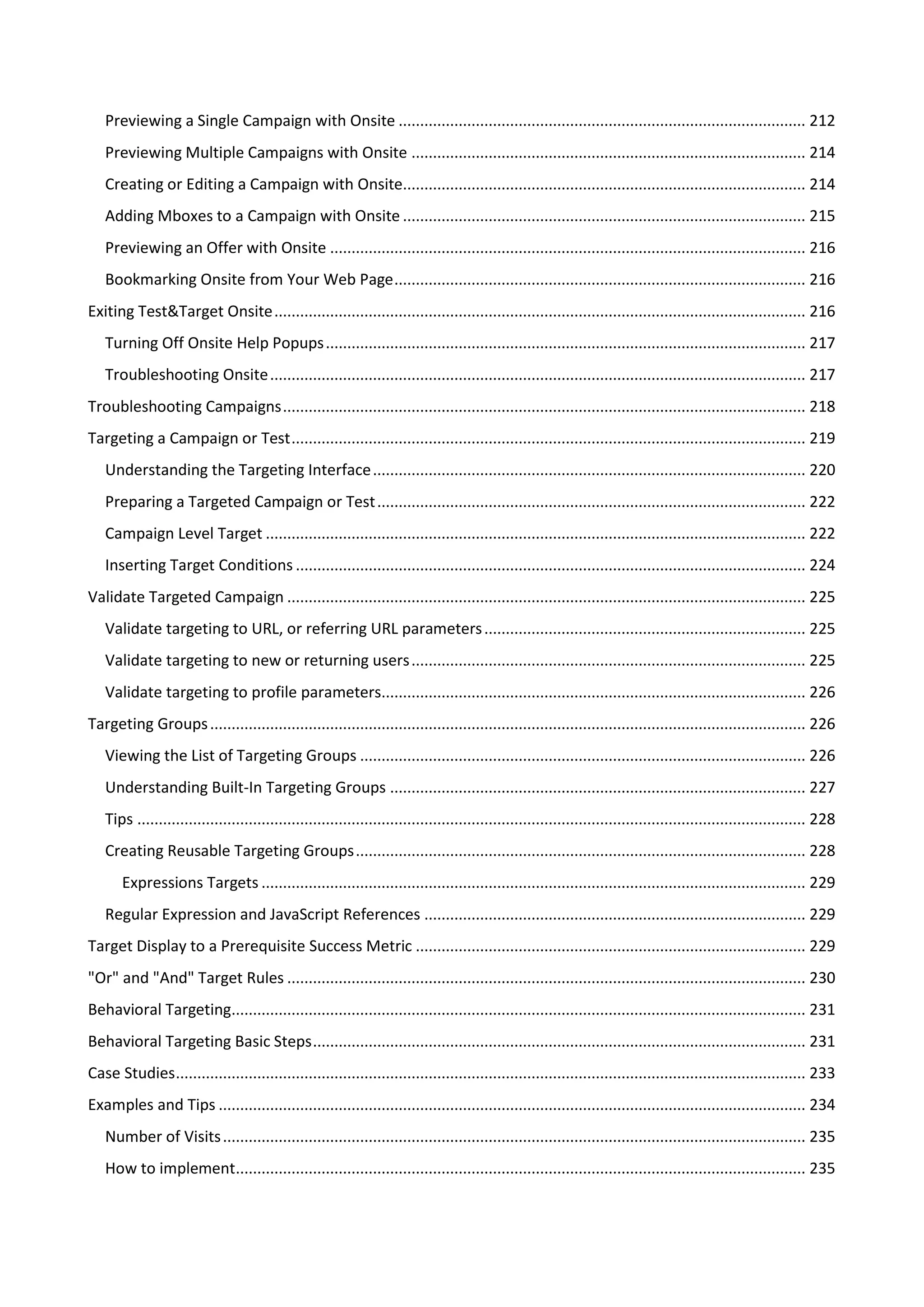
Previewing a Single Campaign with Onsite ............................................................................................... 212
   Previewing Multiple Campaigns with Onsite ............................................................................................ 214
   Creating or Editing a Campaign with Onsite.............................................................................................. 214
   Adding Mboxes to a Campaign with Onsite .............................................................................................. 215
   Previewing an Offer with Onsite ............................................................................................................... 216
   Bookmarking Onsite from Your Web Page ................................................................................................ 216
Exiting Test&Target Onsite ............................................................................................................................ 216
   Turning Off Onsite Help Popups ................................................................................................................ 217
   Troubleshooting Onsite ............................................................................................................................. 217
Troubleshooting Campaigns .......................................................................................................................... 218
Targeting a Campaign or Test ........................................................................................................................ 219
   Understanding the Targeting Interface ..................................................................................................... 220
   Preparing a Targeted Campaign or Test .................................................................................................... 222
   Campaign Level Target .............................................................................................................................. 222
   Inserting Target Conditions ....................................................................................................................... 224
Validate Targeted Campaign ......................................................................................................................... 225
   Validate targeting to URL, or referring URL parameters ........................................................................... 225
   Validate targeting to new or returning users ............................................................................................ 225
   Validate targeting to profile parameters................................................................................................... 226
Targeting Groups ........................................................................................................................................... 226
   Viewing the List of Targeting Groups ........................................................................................................ 226
   Understanding Built-In Targeting Groups ................................................................................................. 227
   Tips ............................................................................................................................................................ 228
   Creating Reusable Targeting Groups ......................................................................................................... 228
       Expressions Targets ............................................................................................................................... 229
   Regular Expression and JavaScript References ......................................................................................... 229
Target Display to a Prerequisite Success Metric ........................................................................................... 229
"Or" and "And" Target Rules ......................................................................................................................... 230
Behavioral Targeting...................................................................................................................................... 231
Behavioral Targeting Basic Steps ................................................................................................................... 231
Case Studies ................................................................................................................................................... 233
Examples and Tips ......................................................................................................................................... 234
   Number of Visits ........................................................................................................................................ 235
   How to implement..................................................................................................................................... 235
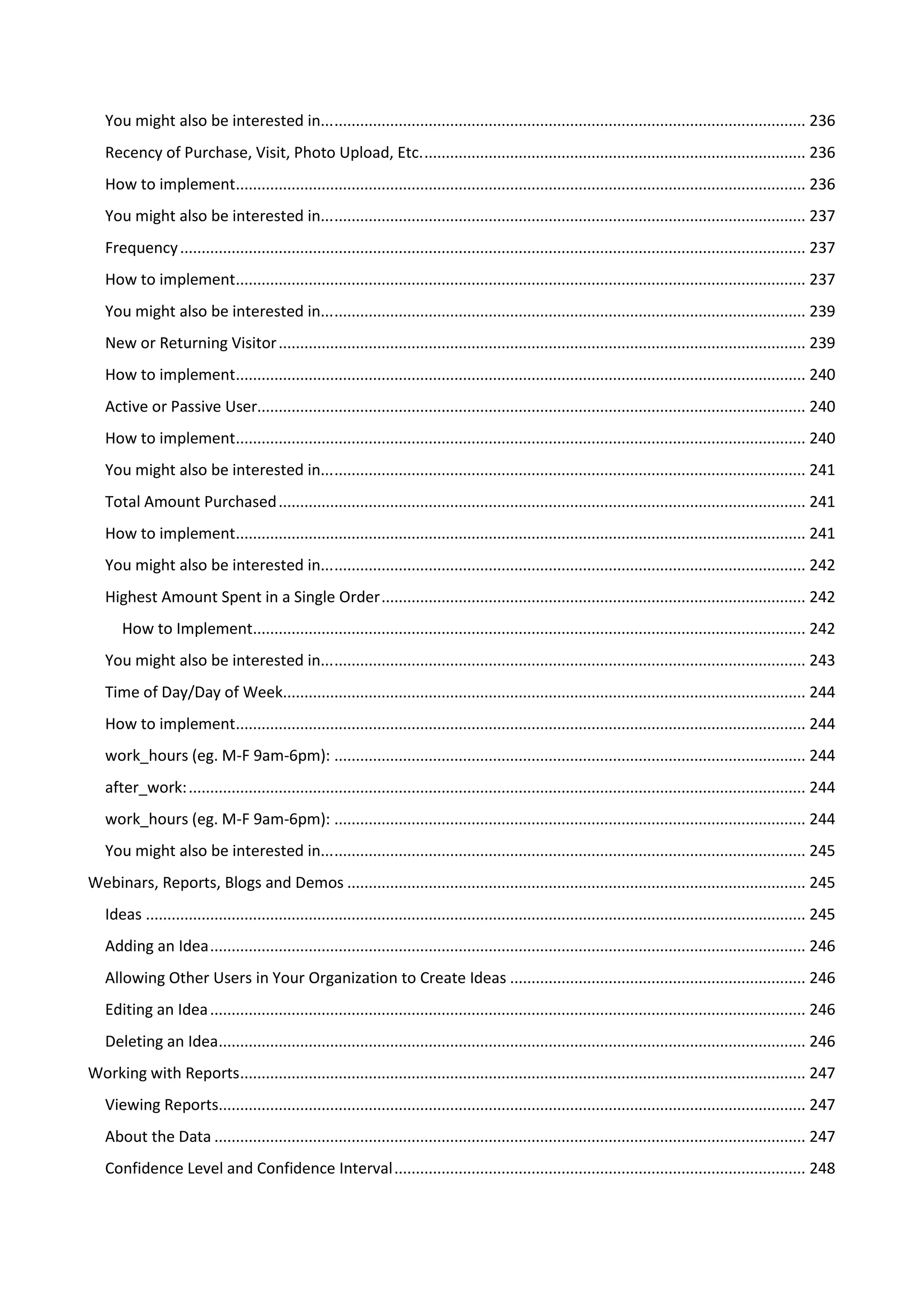
You might also be interested in... .............................................................................................................. 236
   Recency of Purchase, Visit, Photo Upload, Etc. ......................................................................................... 236
   How to implement..................................................................................................................................... 236
   You might also be interested in... .............................................................................................................. 237
   Frequency .................................................................................................................................................. 237
   How to implement..................................................................................................................................... 237
   You might also be interested in... .............................................................................................................. 239
   New or Returning Visitor ........................................................................................................................... 239
   How to implement..................................................................................................................................... 240
   Active or Passive User................................................................................................................................ 240
   How to implement..................................................................................................................................... 240
   You might also be interested in... .............................................................................................................. 241
   Total Amount Purchased ........................................................................................................................... 241
   How to implement..................................................................................................................................... 241
   You might also be interested in... .............................................................................................................. 242
   Highest Amount Spent in a Single Order ................................................................................................... 242
       How to Implement................................................................................................................................. 242
   You might also be interested in... .............................................................................................................. 243
   Time of Day/Day of Week.......................................................................................................................... 244
   How to implement..................................................................................................................................... 244
   work_hours (eg. M-F 9am-6pm): .............................................................................................................. 244
   after_work: ................................................................................................................................................ 244
   work_hours (eg. M-F 9am-6pm): .............................................................................................................. 244
   You might also be interested in... .............................................................................................................. 245
Webinars, Reports, Blogs and Demos ........................................................................................................... 245
   Ideas .......................................................................................................................................................... 245
   Adding an Idea ........................................................................................................................................... 246
   Allowing Other Users in Your Organization to Create Ideas ..................................................................... 246
   Editing an Idea ........................................................................................................................................... 246
   Deleting an Idea......................................................................................................................................... 246
Working with Reports.................................................................................................................................... 247
   Viewing Reports......................................................................................................................................... 247
   About the Data .......................................................................................................................................... 247
   Confidence Level and Confidence Interval ................................................................................................ 248
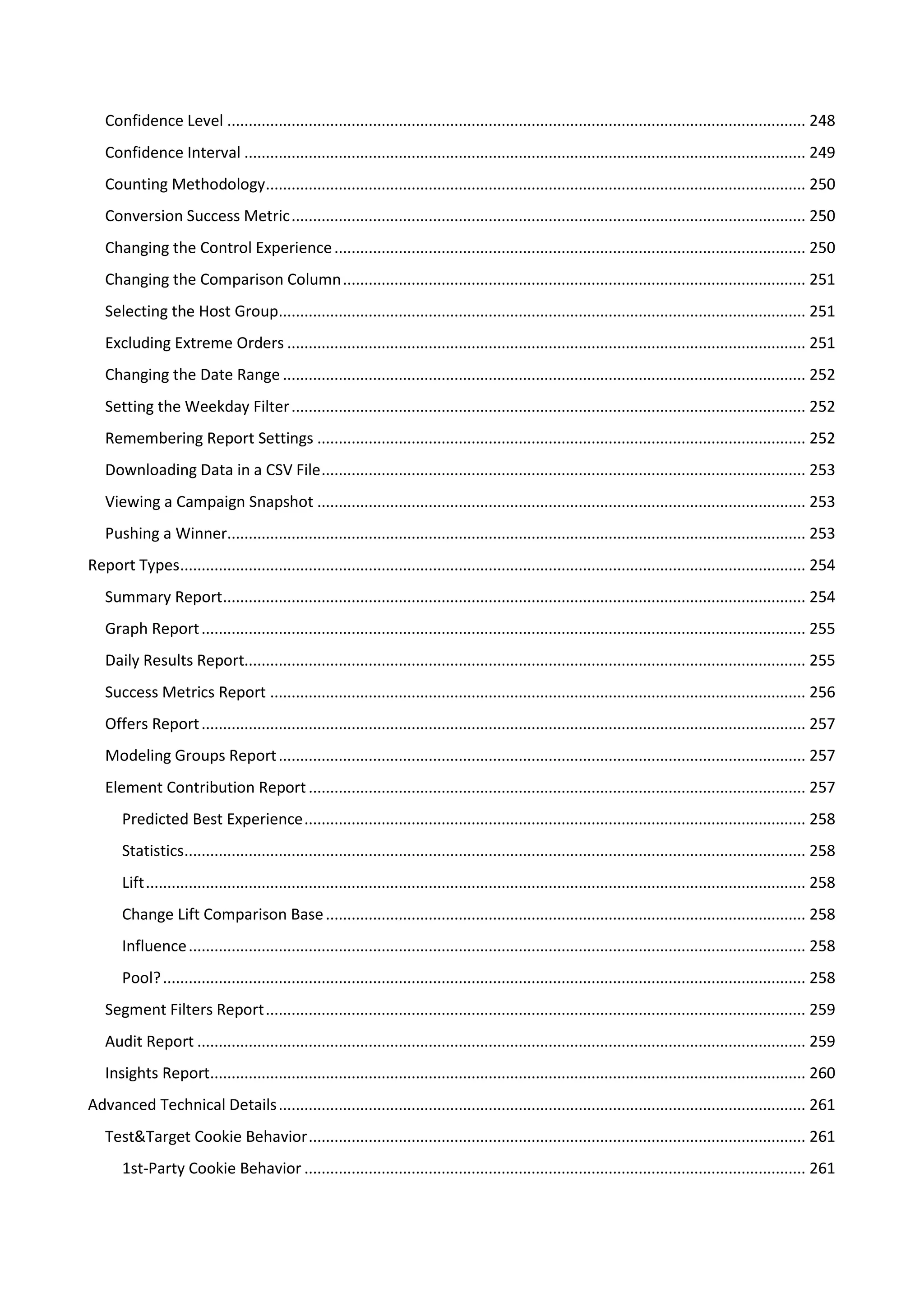
Confidence Level ....................................................................................................................................... 248
   Confidence Interval ................................................................................................................................... 249
   Counting Methodology.............................................................................................................................. 250
   Conversion Success Metric ........................................................................................................................ 250
   Changing the Control Experience .............................................................................................................. 250
   Changing the Comparison Column ............................................................................................................ 251
   Selecting the Host Group........................................................................................................................... 251
   Excluding Extreme Orders ......................................................................................................................... 251
   Changing the Date Range .......................................................................................................................... 252
   Setting the Weekday Filter ........................................................................................................................ 252
   Remembering Report Settings .................................................................................................................. 252
   Downloading Data in a CSV File ................................................................................................................. 253
   Viewing a Campaign Snapshot .................................................................................................................. 253
   Pushing a Winner....................................................................................................................................... 253
Report Types.................................................................................................................................................. 254
   Summary Report........................................................................................................................................ 254
   Graph Report ............................................................................................................................................. 255
   Daily Results Report................................................................................................................................... 255
   Success Metrics Report ............................................................................................................................. 256
   Offers Report ............................................................................................................................................. 257
   Modeling Groups Report ........................................................................................................................... 257
   Element Contribution Report .................................................................................................................... 257
       Predicted Best Experience ..................................................................................................................... 258
       Statistics................................................................................................................................................. 258
       Lift .......................................................................................................................................................... 258
       Change Lift Comparison Base ................................................................................................................ 258
       Influence ................................................................................................................................................ 258
       Pool? ...................................................................................................................................................... 258
   Segment Filters Report .............................................................................................................................. 259
   Audit Report .............................................................................................................................................. 259
   Insights Report........................................................................................................................................... 260
Advanced Technical Details ........................................................................................................................... 261
   Test&Target Cookie Behavior .................................................................................................................... 261
       1st-Party Cookie Behavior ..................................................................................................................... 261
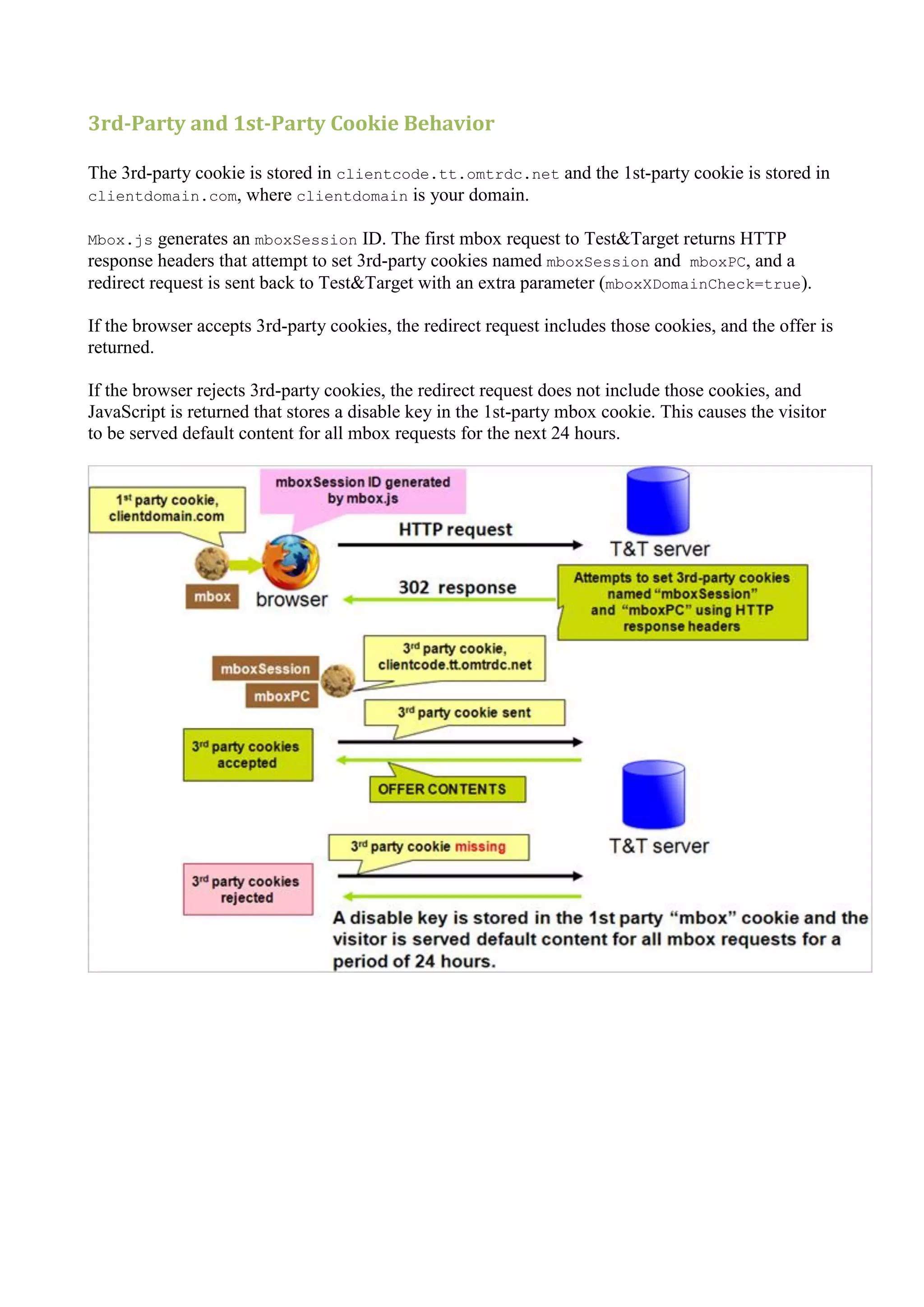
3rd-Party and 1st-Party Cookie Behavior .............................................................................................. 262
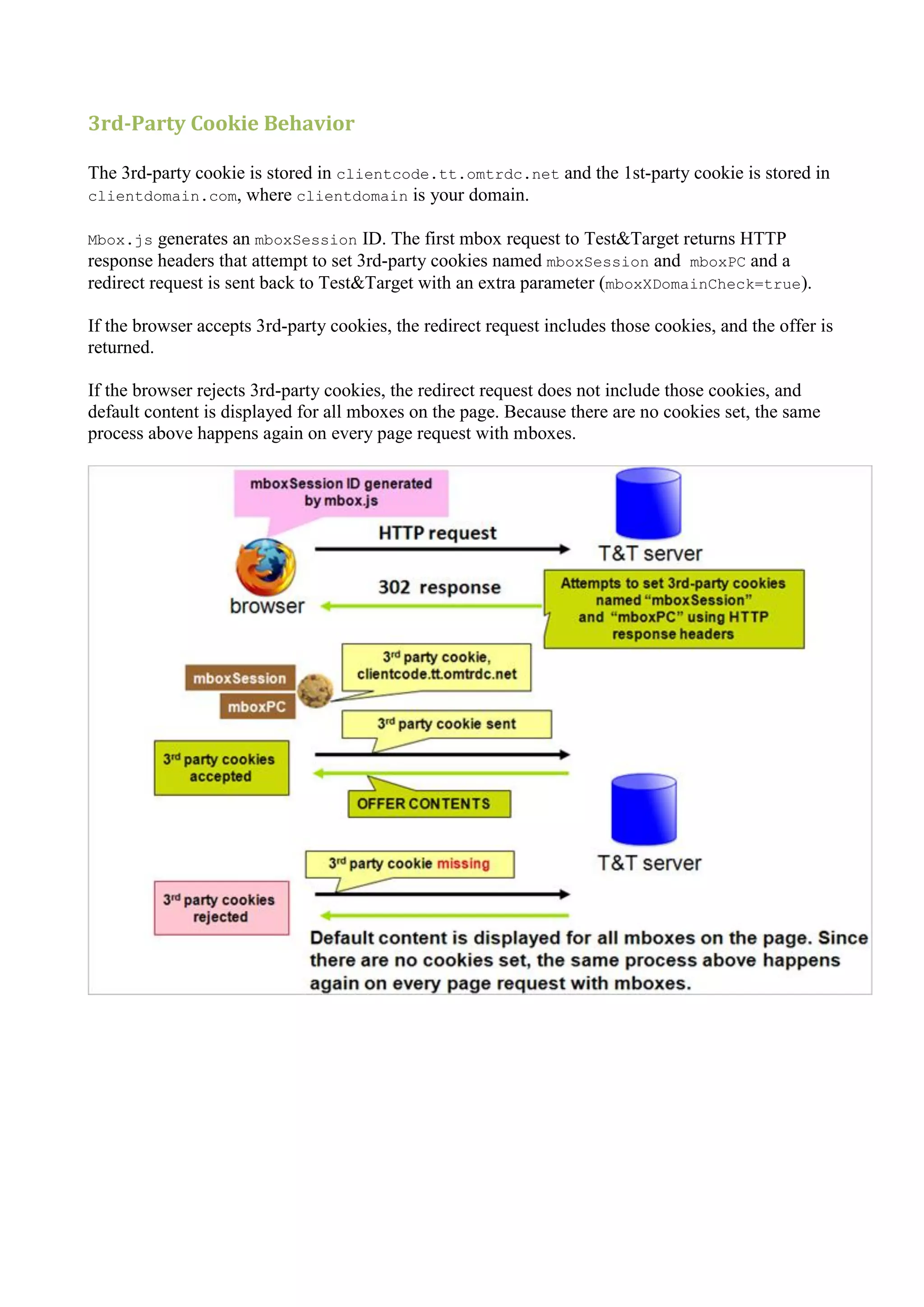
       3rd-Party Cookie Behavior..................................................................................................................... 263
Test&Target APIs ........................................................................................................................................... 264
Introduction to Adobe Test&Target
Test&Target provides a means for marketers to target content or report on specific populations. For
example, you could only permit visitors from Google to enter a campaign or view a report broken
down by visitors from Canada.

Test&Target helps you test a number of versions of a Web page against a baseline sample to
determine which version is most effective at improving the success of your site. For example, you
can test versions of your home page with different graphics and text to see which version leads the
highest percentage of site visitors to purchase your products.

You can also target Web page content to segments of visitors who respond most favorably to
different page configurations, then lead each segment of visitors toward a successful outcome. For
example, new visitors might be more likely to purchase less expensive products while loyal
customers buy more expensive items. You can set up your page to display the products most likely
to be purchased by each type of visitor.


System Recommendations

Effective use of this product depends on an understanding of JavaScript and the W3C DOM
specification.

It is highly recommended you take the Adobe.

Supported Browsers

Test&Target is supported on the following browsers:

      Internet Explorer 6.0 or later

      Firefox 1.5 or later

      Safari

In addition, mboxes have been tested on the following browsers:

      Internet Explorer 5.0 or later

      Netscape 7.0 or later

      Safari 1.2.4 or later

      Mozilla 5 or later (includes Firefox 1.0 and later)

      Opera 8 or later
Additional Resources
      JavaScript API reference:

http://www.mozilla.org/js/scripting/

      Document Object Model (DOM) reference:

http://www.w3.org/TR/1998/REC-DOM-Level-1-19981001/introduction.html

Useful Firefox Entensions
      Right-Click to remove cookies for site

https://addons.mozilla.org/en-US/firefox/addon/1595

      FireBug: View generated source with rendered mboxes

https://addons.mozilla.org/en-US/firefox/addon/1843


How Test&Target Works
The following diagram shows the flow of information when you use Test&Target to determine
which targeted offers to display to your site visitors:
1. A customer requests a page from your server.

   2. A first party cookie is set in the customer’s browser to store customer behavior.

   3. The mbox on the page calls Test&Target.

   4. Test&Target displays offers based on the rules of your campaign.


More Details
   1. The visitor navigates to a page that calls the mbox.js function library.

   2. This file causes the browser to save a unique cookie to the user’s system. The cookie name is mbox.

   3. Since the mbox.js is unique to your account, and the mbox.js library is installed on your system
      the cookies belong to your domain.

   4. The browser continues to create the DOM from the HTML and script code described on the page
      until it encounters the mboxCreate() function.

        Note: The mboxCreate() function is defined in the mbox.js library. This function is
        designed to accept any number of parameters, including the name of the mbox and other
        important information about the user‟s visit.

   5. The mboxCreate() function gathers variable values along with the current page URL and creates a
      message to Test&Target called an mboxURL.

   6. The mboxURL is sent via an http request to the Test&Target server and is responded to based on
      the rules you have set in your campaign or test.

   7. The Test&Target server parses the mboxURL and evaluates the parameters supplied against any
      campaign that has specified the mbox named in the mboxCreate function.

Note: Test&Target returns HTML provided that there is a campaign for that mbox and that the
targeting rules applied to that campaign evaluate to true based on the parameters passed from the
page.

Note: If there is no campaign that matches the mbox request, Test&Target does not change the
user‟s display.

   8.                                                                                       -time
        reports and to provide optimized automated product suggestion.
Privacy

Because of the way Test&Target works, it is recommended that you amend your privacy policy
with language that informs visitors that their online activity is tracked and used to provide a better
site experience. You can provide both the notice and a link that allows visitors to opt out.

Provide the following link to allow visitors to opt out:

<a href="http://clientcode.tt.omtrdc.net/optout">Your Opt Out Language Here</a>

This opt-out link sets a cookie for the visitor called "disableClient" in the clientcode.tt.omtrdc.net
domain. Clicking this link prevents mbox requests from their browsing sessions until the user
deletes their cookies or two years have passed, whichever comes first.


Understanding the Test&Target Campaign Life Cycle
At the highest level, the steps for creating a campaign in Test&Target are:

   1. Establish Campaign Strategy and Design

The first step in building an effective campaign in Test&Target is to determine where your
campaign will run, when it will run, which visitors will see the campaign, what content you will
show them, and how you will measure campaign success. The simplest campaigns are often A/B
campaigns running on your home page or a landing page, experienced by all your visitors, and
evaluated in terms of conversion. To understand all the options when designing your campaign,
refer to Creating a Campaign.

   2. Setup Site and Prepare Content

Once you understand your campaign design, mboxes need to be placed in the locations where your
campaign will run unless those locations already have mboxes. At the same time, your creative
team can prepare new images, text or other Web content needed to meet your campaign strategy
and design.

   3. Create Offers

Next, create the offers in Test&Target based on the content created by your design team.

   4. Setup Campaign or Test

Set up the campaign or test in Test&Target according to your strategy and design. Creating a test
consists of giving it a name, optionally specifying detailed start and end dates, selecting the mboxes,
creating the experiences that associate offers to mbox locations, and selecting the conversion event.
If applicable, you can also set up segment filters, targeting, and success metrics. These concepts are
all discussed in more detail in the Creating a Campaign section.
Tip! Set up a Monitoring Campaign before running your first test. This provides a baseline and
overview of your Web site through multiple tests. A Monitoring Campaign informs downstream
campaigns about the types of offers that are working and the audiences they are working for.

   5. Quality Assurance

Complete quality assurance on all experiences, on all browser types and on all environments.
Preview the experiences to ensure they match your design. See Campaign Quality Assurance

   6. Approve Campaign

Next, approve the campaign. See Approving a Campaign.

   7. View Reports

View reports real time as the campaign runs.

   8. Make Business Decisions

Finally, make business decisions, such as what to change permanently on your Web site, or what to
test next.


Frequently Asked Questions
   1. When will my campaign start?

   2. How are impressions, visits and new visitors counted?

   3. Do visitors see the same content throughout the life of the campaign?

   4. I am concerned with visitor privacy. What data is sent to Test&Target servers?

   5. Can I display more than one offer in an mbox?

   6. How do offers and mboxes impact search engines and automated browsing utilities?

   7. Will an mbox add another cookie to the current list already returned by our Web application?

   8. Will the mbox code, which automatically attaches to a body onLoad() event, conflict with other
      embedded JavaScript in our pages?

   9. We have an internally-built proprietary content management system. Do we continue use this or
      have a separate interface to manage content with Test&Target?

   10. How can I track conversion off-line? For example, people register on my Web site, then turn into
       actual clients after they speak to our representatives by phone.
11. Does Test&Target drop a first-party cookie or a third-party cookie onto the visitor's browser?

   12. Can Test&Target track more than one conversion event?

   13. How many mboxes can I have on one page?

   14. Does the mbox.js reference need to be on every page of my site?

   15. What do the confidence bars in the reports indicate?

   16. Can I insert an mbox within an mbox? For example, an mbox with a small piece of dynamic content
       inside a static page sized mbox?

   17. Where should I host my images, code and other content?

   18. Why are some of the features greyed out in my interface?

   19. Which campaigns are using my mbox?

   20. Can I control under which conditions a user is counted again after they convert for the first time?

   21. Can I change the experience that a user sticks to after they convert?

   22. Can I change the time zone that my reports refer to?


Answers
1. When will my campaign start?

Answer: By default, campaigns are set to begin "When approved" and to end "When deactivated."
However, you can set the start and end dates manually, including time of day, when you create or
edit a campaign. Campaigns that do not specify time of day begin at midnight and end at 23:59:59.

2. How are impressions, visits and new visitors counted?

Answer: See Report Data and Settings and Counting Methodology for a summary.

3. Do visitors see the same content throughout the life of the campaign?

Answer: By default in most campaigns and tests, returning visitors, even if converted, will see the
same content through the life of the campaign. This behavior can be changed by using the advanced
settings for success metrics. (See Success Metric Advanced Options.) The exception is the Landing
Page test which can use experience level targeting to force a returning visitor to see new content.
4. I am concerned with visitor privacy. What data is sent to Test&Target
servers?

Answer: Test&Target does not collect personally identifiable information. Test&Target collects at
a minimum, visitors, clicks and conversions for all tests. All data captured by Test&Target is linked
to a visitor ID, but there is no personal data related to that visitor ID. At an aggregate level,
Test&Target tracks the success metrics defined in a campaign. This data is not available at an
individual visitor level. Visitor profile data is stored per visitor, but is linked to the visitor only by
the anonymous visitor ID or mboxPCId value.


5. Can I display more than one offer in an mbox?

Answer: No. An mbox may display only one offer. However you may create a larger mbox and use
a larger offer to display several elements of the Web site. See Whole Page Mbox.


6. How do offers and mboxes impact search engines and automated
browsing utilities?

Answer: Most search engine robots do not execute JavaScript, so the content served in an offer
does not affect search results or search engine rankings. Your Default Content, because it is still on
the page, continues to influence the search engine results as it would without an mbox.


7. Will an mbox add another cookie to the current list already returned
by our Web application?

Answer: Yes, Test&Target will add another First Party cookie, named "mbox." Third party cookies
can be used as well in instances where you need to track the visitor across domains. Speak with
your account representative to set this up.

8. Will the mbox code, which automatically attaches to a body onLoad()
event, conflict with other embedded JavaScript in our pages?

Answer: No. Test&Target handles this concern by adding its code at the end of the onLoad()
event, in order to ensure that it does not conflict with other JavaScript calls in your pages.
9. We have an internally-built proprietary content management
system. Do we continue use this or have a separate interface to manage
content with Test&Target?

Answer: Test&Target coexists perfectly with your content management tool. You define the
content to be delivered by Test&Target and where it should reside. The tested content can be static
or dynamic HTML and uses the same format as your content management tool. In Test&Target,
you can choose to create offers that point to content stored on your content management system.
You can also store the content directly in Test&Target, bypassing your content management
system.

10. Can I track conversion off-line? For example, people register on my
Web site, then turn into actual clients after they speak to our
representatives by phone.

Answer: Use the combined offline conversion/third-party profile API.

11. Does Test&Target drop a first party cookie or a third party cookie
onto the visitor's browser?

Answer: By default, Test&Target drops a first party cookie. You can also use a third party cookie if
you need to track visitors across different domains. A first party cookie. See How Test&Target
Works for more information.

12. Can Test&Target track more than one conversion event?

Answer: Yes. See Success Metrics Test for more information.

13. How many mboxes can I have on one page?

Answer: It's recommended that you limit your mboxes to five to seven per page. However you can
also use a whole-paged-size mbox and use large offers to display as many elements of the Web site
as you need.

14. Does the mbox.js reference need to be on every page of my site?

Answer: The mbox.js must be referenced on every page with an mbox. See mbox.js or basic mbox
for more information.

15. What do the confidence bars in the reports indicate?

Answer: Four bars indicates the highest level of confidence. You can hover over the percentage
bars to see the confidence percentage. See confidence levels for more information.
16. Can I insert an mbox within an mbox? For example, an mbox with a
small piece of dynamic content inside a static page sized mbox?

Answer: Yes. Place a reference to the mbox within the HTML offer itself. Warning! Do not place
the smaller mbox within the default content of the larger mbox. The consequence will be a flashing
page for the visitor.

17. Where should I host my images, code and other content?

Answer: Test&Target allows you to host offers on your server, on Test&Target‟s or a third party
server. Use the method best suited to your architecture. In the offers, insert a relative or absolute
URL to refer to the content, as best suited to your file structure.

18. Why are some of the features grayed out in the interface?

Answer: Depending on your contract level, you may not have access to all the features. Speak with
your Sales Representative or account representative if you have questions about this.

19. Which campaigns are using my mbox?

Answer: To see the list of campaigns using your mbox, mouse over the Locations tab, then click
List.

20. Can I control under which conditions a user is counted again after
they convert for the first time?

Answer: Yes. See Success Metric Actions for more information.

21. How can I control the experience a user sticks to after they convert?

Answer: Yes. See Success Metric Actions for more information.

22. Can I change the time zone that my reports refer to?

Answer: Yes. To change your time zone after signup, ask your account representative to change it
for you.


Infrequently Asked Questions
   1. What is the character limit of the mbox name?
2. How big is the mbox.js?

   3. Can JavaScript exist in the default content?

   4. Can JavaScript be inserted in the HTML offer?

   5. Can JavaScript be used to create custom targets?


Answers
1. What is the character limit of the mbox name?

Answer: 255 characters.

2. How big is the mbox.js?

Answer: About 12k. This size can be affected in several different ways, including compression
level or adding custom JavaScript to your mbox.js. Compression can either be weakor strong, with
about a 3K variance between them.

3. Can JavaScript exist in the default content?

Answer: Yes.

4. Can JavaScript be inserted in the HTML offer?

Answer: Yes.

5. Can JavaScript be used to create custom targets?

Answer: Yes. These custom targets are known as profile scripts. Profile scripts can be created in
the Administration area and are used in the targeting interface in the Visitor Behavior parameter.
For more information, click here. Also see our JavaScript Expression cheat sheet (pdf).
Setting Up Your Site
Once strategy and design are complete, take the following steps to prepare your Web sites for a
Test&Target campaign or test.

First, start by reading the Test&Target Integration Guide and taking Test&Target Technical
Training.

   1. Download the mbox.js to each of your hosts that will serve content for the Test&Target campaign
      or tests.

More information

   2. Set-up host groups (domains) to serve development, staging and, production content.

More information

   3. Add the user accounts for your team members who will use Test&Target to create offers, create
      campaigns, or view reports.

More information

   4. On all Web pages that will have mboxes, insert a reference to the mbox.js.

More information

   5. Insert the mboxes on the Web pages, according to your strategy and design. This includes defining
      default content for all mboxes.

More information

   6. Run a non-display campaign for a few days to compare your Analytics metrics reports with
      Test&Target's reports.

There can be discrepancy's between Test&Target data and data in other analytics tools, such as
SiteCatalyst. For more information, see Understanding Expected Data Variances.

   7. If you are using Targeting, Reserved Name mboxes, Segment Filters, or Automated Product
      Suggestion Offers, or tracking orders or sales, ensure all needed parameters are associated with the
      mboxes in your campaign or test.

More information

   8. You are now ready to create offers and set up a campaign or test!

Offer content can be managed outside Test&Target. Test&Target can use a URL to reference this
content. If this kind of dynamic offers will be used, prepare the dynamic snippets on your host.
Managing Hosts
The primary goal of host management is to ensure that no unapproved content accidentally appears
on websites. When Test&Target receives an mbox request from a new website or domain, these
new domains always appear in the production host group. The production host group cannot have
its settings changed, so unknown or new sites are guaranteed to see only content that is approved
and ready. Host management also lets you easily assure the quality of new campaigns and content
in your test, staging, and development environments before you approve the campaigns.

Tip: Test&Target does not limit a host that can send and receive mboxes, so when new servers or
domains come up, they automatically work. This also enables ad testing on different domains you
don't know or can't anticipate.

To manage hosts, select Hosts from the Configuration menu.


One host group, the default host group, is pre-named the production host group. The default host
group cannot be deleted, even if you rename it. Test&Target assumes this is where you will serve
final, approved campaigns and tests.

Tip: To reduce technical issues with campaigns and offers, ensure all hosts match in file structure,
styles and templates.

This section contains the following host management topics:

          About Hosts and Host Groups
          Adding a Host to the Host List
          Confirm that Test&Target Recognizes the Host
          Setting the Default Host for Previewing
          Changing the Name of a Host Group
          Moving a Host to a Different Host Group
          Changing the Number of Hosts Listed Per Page
          Deleting a Host
          Deleting a Host Group
          Best Practices
About Hosts and Host Groups

A host is any Web server (or Web domain) from where you serve content during any stage of your
project. Test&Target will recognize any of your hosts serving an mbox.

Hosts are bundled into host groups for ease of management. For example, you might have dozens of
hosts grouped in two or three host groups.


The preset host groups are production, staging and development. However, you may add new host
groups and rename your host groups anything you wish.

Note: Sometimes domains from other sites appear in your host groups. A domain appears in the list
if the domain makes a call to your mbox.js. For example, if somebody copies one of your Web
pages to their server, that domain appears in your host group. You might also see domains from
spider engines, language translator sites, or local disk drives.

In cases where mboxHost is passed in an API call, conversion is recorded for the host group that is
passed in. If no host group is passed, the host in the call defaults to Production.

Adding a Host to the Host List

In order for Test&Target to recognize a host, the following must happen:

      The mbox.js for your account must be saved one of your directory

      At least one mbox must exist on the host

      A page on the host must have

           o   An accurate mbox.js reference

           o   An mbox
   The page with the mbox must be viewed in a browser

Once the page is viewed, the host will then be listed in Test&Target, allowing you to host group as
well as preview and launch campaigns and tests.

Note: This includes any personal development servers.


Confirm that Test&Target Recognizes the Host
   1. Mouse over the Configuration tab, then click Hosts.

   2. If your host is not listed, click the refresh button.

   3. By default, a newly recognized host is placed in the Production host group.

This is the safest host group because it does not allow unapproved campaigns to be viewed from
these hosts.

   4. If needed, move the host into the Development or Staging host group.

Note:The Production host group, cannot be deleted, even if you rename it. Test&Target assumes
this is where you will serve final, approved campaigns and tests. The default host group does not
allow unapproved campaigns to be viewed.

Setting the Default Host for Previewing

The default host is the first host Test&Target displays when you preview an offer in an mbox or an
experience.


In the host management page, select the radio button under the default column for your host.

Changing the Name of a Host Group

In the host management page, click the edit button for your host group.

Change the host group name. Moving a Host to a Different Host Group

In the host management page, to the right of your host name, select a new host group from the
choose alternate group drop down box.
Click the save button. You will return to the host management page.

Changing the Number of Hosts Listed Per Page

Note: This feature applies only if you have more 25 or more hosts to manage.

   1. Mouse over the Configuration tab, then click Hosts.

   2. Go to the Results Per Page drop-down box.

   3. Select the number of hosts to view per page.

Deleting a Host

In the host management page, click the delete button for your host.

Note: The mbox.js will again be listed if anyone browses to an mboxed page on the host.

Deleting a Host Group

In the host management page, click the delete button for your host group.

Note: You cannot delete the Production host group (usually the production host), but you can
rename it.

Best Practices

When setting up and managing your hosts, keep the following best practices in mind:

   1. Make sure the style sheets, file structure, and scripts in the development environment match the
      production environment as closely as possible.

   2. Make sure the hosts are in the correct environment (host group).


Troubleshooting Hosts
Host does not appear in mbox list for your account.
      Click refresh on the host management page.

      Confirm the mbox code is correct, including the mbox.js reference.

      Try browsing to one of the mboxes on the host. It's possible that no mbox on the host was ever
       rendered in a browser.
Random or unknown domains appear in the host group lists.

A domain appears in this list if a call to your mbox.js is made from the domain. Often, you could
see domains from spider engines, language translator sites, or local disk drives. If the listed domain
is not one your team uses, you can click Delete to remove it.


Managing Users and Roles
To add a user
   1. Mouse over the Configuration tab, then click Users.

   2. Select add new user.


   3. Type in new user's e-mail, name, and password.


   4. Select role.

       By default, a new user is given the approver role.

          Role                                      Privileges
Role                                       Privileges


       Read-          o    View campaigns and reports
       only


       Editor         o    View campaigns and reports

                      o    Edit unapproved campaigns

                      o    Edit offers not in use by an approved campaign

                      o    Change host group setting to allow unapproved campaigns to be viewed


       Approver       o    All editor privileges

                      o    Edit any offers or campaigns

                      o    Approve, deactivate, close campaigns

                      o    Add and delete users and assign roles


   5. Click save.

Note: The new user may change his or her password when he or she logs in.

To change a user's privilege or reset a password
   1. Go to Mbox >users.

   2. Next to the user name, click edit.

   3. Select a new role from the drop-down list, or type the new password.

   4. Click save.


About the Test&Target Cookie
By default, Test&Target serves a single first-party cookie. The configuration can easily be changed
to serve third-party cookies as well.

This section contains the following topics:

      Understanding Cookie Settings

      Understanding When to Use First or Third Party Cookies
   Test&Target Cookie Behavior

      Deleting the Mbox Cookie


Understanding Cookie Settings

The Test&Target cookie has several default settings. These settings may be changed if needed.
Consult your account representative when changing cookie settings.


Note: If any of your domain names include a country code, such as mycompany.co.uk, work with
your Client Services to configure your mbox.js to support this.

The cookie keeps a number of values to manage how your visitors experience Test&Target
campaigns:


See Advanced Mbox.js Settings for information default setting for Traffic levels, exclusion duration
for excluded visitors, and accepted browsers.
Understanding When to Use First or Third Party Cookies

Your site set up determines which Test&Target cookies you want to use. It is helpful to understand
how Test&Target works when trying to understand first and third party cookies. See How
Test&Target Works.

There are three main use cases for cookies in Test&target:

   1. One domain. All of your testing will take place within one top-level domain (www.domain.com,
      store.domain.com, anysub.domain.com, etc.)

       Approach: Use only 1st party cookies. This is the default in Test&Target.

   2. Users cross domains and you want to track and test their behavior across these domains.

       Example: A user comes to your site to shop but checks out through Yahoo stores.

       Three approaches (work with your account representative to determine the best approach):

           o   Enable 1st and 3rd party cookies

           o   Enable 3rd party only (very rare, but has the benefit of keeping mbox cookie out of your
               domain)

           o   Enable only 1st party cookies and pass mboxSession parameter when crossing domain.

               The mboxSession parameter must be passed to a landing page with mbox.js
               referenced. It cannot be an intermediate redirector page.

   3. You are only using adboxes or Flashboxes on a 3rd party site.

       Two approaches (work with your client services manager to determine the best approach):

           o   Enable 1st and 3rd party cookies

First and 3rd party cookies are required for Flashbox and dynamic creatives.

           o   Enable only 3rd party cookies

This approach is only for the rare case where AdBox implementations are used without on-site
targeting.
Deleting the Mbox Cookie

Delete your mbox cookies so that you can validate all of your experiences. If there is no cookie,
Test&Target considers you a new visitor and shows you a new experience. There are several ways
to delete your mbox cookie without deleting all of your browser cookies.

To delete mbox cookie from Internet Explorer
   1. From the Tools menu in Internet Explorer, select Internet Options.

   2. Open the General tab, then click Settings > View files.

   3. Select the mbox cookie.

   4. From the File menu, select Delete.

To delete mbox cookie from Mozilla Firefox
   1. Select Tools > Options> Privacy, then click Cookies.

   2. Click View Cookies.

   3. Sort by cookie name to find the mbox cookies.

   4. Select the mbox cookies for the sites you are previewing, then click Remove Cookie.


Managing Mboxes
An mbox is a portion of your Web page that can be configured to show different content in different
situations. This section contains the following topics:

      About Mboxes

      Downloading and Setting Up Mbox.js

      Creating and Placing Mboxes

      Validating an Mbox

      Deactivating an Mbox

      Clearing (Deleting) an Mbox
About Mboxes

An mbox is a "marketing box," a portion of your Web page that can be configured to show different
content in different situations. An mbox can also log the behavior of visitors to your site. Mboxes
are defined in the code for each Web page and are controlled with the Test&Target admin interface.


Mboxes are essential to campaigns and tests. You decide whether any mbox can do one, both, or
none of the following:

      Display and swap content for visitors.

      Log visitor behavior in real-time.

Tip: Prepare ahead for tests by mboxing all of your Web site's key elements and tracking locations.


About Conversion Mboxes
Every campaign or test must select a conversion activity. Often, an mbox is chosen as the
conversion activity. The conversion mbox logs your test or campaign results, such as registrations,
orders, or sales.
Typically, a conversion mbox displays nothing but merely listens. Common locations for the
conversion mbox are a registration completion page, an order thank you page, or a click-through.
You might also use a global mbox to calculate conversion metrics.

The conversion success metric can be associated with an engagement metric. Typically, the chosen
mbox is one that is seen on each page, such as a global mbox. You could also choose any mbox.

Tip: The on-success action for a conversion mbox defaults to restart same experience. The Visit
column in the summary report increments on each page, because the user constantly converts from
the campaign. To prevent this, best practice is to change the conversion success metric's on-success
action to count, the default for other success metric types.


If you want to track multiple conversion events, you can pass order information to any mbox.


About Default Content
Every display mbox must contain default content, in order to ensure 100% positive visitor
experience.

Default content will be displayed if:

      No campaign is running

      A visitor is not targeted by your campaign

      You use default content as a control in your tests

      Visitor's Web service is extremely slow, or browser does not accept cookies or JavaScript

Default content is tagged with div tags. See Create Single Mbox for sample code.

Warning! Adboxes and Redirectors appear in the mbox list of your account. However these behave
differently from mboxes. See About Remote Content.
About Dynamic Mboxes

Many Rich Internet Applications (RIAs) manipulate HTML after the page has already loaded by
using technologies like DHTML and AJAX. For example, after clicking a button, your Web page
may display a new section of content. Test&Target supports this scenario, allowing you to define
dynamic Mboxes through its mboxDefine() and mboxUpdate() functions.

For example, if you want Test&Target to serve content when an HTML node called
"dynamicElement" appears on the page:

<div id="dynamicElement"></div>

then you could trigger the following script on a JavaScript event:

<script language="JavaScript1.2">

  mboxDefine("dynamicElement", "mbox_dynamic", "parameter1=value1");

  mboxUpdate("mbox_dynamic", "parameter1=value1");

</script>

Of note:

      mboxDefine() defines an HTML element as a container for content to be served by Test&Target.
       It takes in the unique element id, the Test&Target mbox name, and any number of parameters. The
       parameters can be used for targeting by the active campaign, even if not passed in again with a
       later mboxUpdate() call.

       mboxDefine() does not actually serve content so it should be followed with mboxUpdate().

      mboxUpdate() retrieves the content from Test&Target. This function may be called multiple times
       if you want to further change the content. Like mboxCreate, it takes in the mbox name and any
       number of parameters.

      The usual mboxCreate() function only works for HTML elements that exist on the page on the
       initial load.

      mboxUpdate() can also be used for mboxes created with mboxCreate() rather than
       mboxDefine(). It allows the page to update content dynamically after the initial page load.
Downloading and Setting Up Mbox.js

The mbox.js library (currently at version 36) is a small but essential file that enables the
communication between Test&Target and your Web site. When you open a new Test&Target
account, you are provided with an account-specific mbox.js. The mbox.js file is a library of
JavaScript functions that:

      Sets cookies to uniquely identify your users

      Adds all of your mboxCreate() functions to the onLoad() function of your page body

This section contains the following topics:

      Downloading mbox.,js

      Validating the mbox.js Download

      Referencing mbox.js

      Setting the Default Mbox Timeout

      Advanced Mbox.js Settings

      Determining Your mbox.js Version


Downloading mbox.,js

Save the mbox.js file on all hosts (domains) serving mboxes. You need only one copy on each host.
All pages with mboxes must reference this file.

   1. From the Configuration tab, select Download under mbox.js.

   2. Select save.

   3. Browse to your destination host folder, save the file and close the save dialog box.

   4. Copy your mbox.js to one of your public hosts (domains).

Tip: Save the mbox.js in a directory at the root of your hosts, such as the js directory, the includes
directory, or a new directory named mbox.
Validating the mbox.js Download
   1. Open a Web browser and browse to your Web domain.

   2. Browse to the URL where you saved your mbox.js.

Example: If the mbox.js file is saved in a directory called /js, browse to
http://www.yourserver.com/js/mbox.js.

You have successfully downloaded mbox.js if any of the following occur:

      The mbox.js appears in your browser as a text file filled with JavaScript functions.

      Your browser attempts to download the file, prompting you for where to save it.

      Your browser warns you about JavaScript.

Referencing mbox.js

Any Web page that includes an mbox must reference the mbox.js file as it is saved on the host. This
allows the page to contact the Test&Target server.

   1. Add this reference to the head section of all Web pages that will have mbox.

       Tip. Add the mbox.js reference to an include or header file that exists in the head all of your
       Web pages.

   2. If the mbox.js file is saved in a directory called /js, the reference must be:

<head>

<script src="http://www.mycompany.com/js/mbox.js" language="JavaScript1.2"></script>

</head>

      Add the reference only once to the Web page, regardless of the number of mboxes on the page.

      Use a relative or absolute path depending on where you saved your mbox.js and as best suits your
       file structure. An absolute path is preferred.

      Best practice is to place the reference in the head. It must be before the first mbox on your page.


Setting the Default Mbox Timeout

The default mbox timeout value in the mbox.js script is a failsafe that is rarely, if ever, needed.
Only very specific and exceptional system problems would ever cause this failsafe to be invoked.
Based on this setting, the page renders default content if it doesn't receive a response from
Test&Target within the time specified in the timeout setting. The default is 15 seconds. To set a
lower timeout default, search for "15000" in mbox.js and replace it with the desired value. We
recommend that you do not set this value lower than 5 seconds (5000). However, note that in most
problem scenarios, default content is delivered by other system mechanisms rather than being a
result of this JavaScript value. We encourage most customers to leave the default value unchanged.

If you want your timeout change to be included when you download future versions of the mbox.js
script, you can set an advanced parameter called timeout. To set this parameter:

    1. Click Configuration > Edit.

The URL for the Edit page looks something like this:

https://admin5.testandtarget.omniture.com/admin/setup/mboxSettings.do?action=edi
t


Advanced Mbox.js Settings

The default settings of the mbox.js function library serve the needs of most Test&Target clients. If
needed, consult your account representative to change the mbox.js settings.

Setting                 Description

Client                  The client code for your account.

                        The unique domain name where mbox requests are sent. If you are using 3rd party
Server Domain
                        cookies, this is also the domain where your cookie is set.

                        Determines whether the browser sets cookies in your own domain (1st party
XDomain
                        cookies), Test&Target's domain, or both. See Test&Target Cookie Behavior.

                        Determines how compressed the mbox.js library file is. Increasing the compression
Compression Level
                        level decreases the page load time.


Client Session Id       Enables the ability to forcibly use your own sessionId as the mbox sessionId. This
Support                 identifier must contain 20 characters or less. This setting is useful for tracking.

                        Default: disabled

Client PC Id Support    Enables the ability to forcibly use your own unique identifier instead of
                        Test&Target's unique identifier (mboxPC). This identifier must contain 20
                        characters or less.
Setting               Description

Pass Page/Referring   Passes the page URL and referring URL to Test&Target on each request.
URL
                      Default: enabled


Traffic Level         Sets a limit on the total number of mbox requests to your account, regardless of
                      the campaign.

                      Some clients with high traffic volumes lower this percentage to keep tested visits
                      per day within contract. If you set this percentage below 100%, some new (or
                      converted) visitors might be blocked. People who are already part of a test remain
                      in the experience for every visit during the entire duration of the test or campaign.
Traffic Duration      Excludes a visitor for the specified duration. Applies only if you set your traffic
                      level to less than 100%.


mboxParameters()      Returns extra parameters to pass to each mbox call. For example:
function body
                      return "test=123";


mboxSupported()       Returns false to exclude specific users.
function body
                      For example:

                      return !navigator.userAgent.indexOf('Safari') != -1;

                      The following browsers can be accepted or excluded:

                             IE 5.0 or greater (Windows)

                             Netscape 5.0 or greater (Mac, Windows, Linux)

                             Safari 1.2.4 or greater (Mac)

                             Mozilla Firefox 1.0 or greater (Mac, Windows, Linux)


mboxCookieDomain()    Returns a string describing the domain to set first party cookies.
function body
                      For example:
Setting                 Description

                        return "YOUR-DOMAIN";


Extra JavaScript        Includes any additional JavaScript you want to execute on each page.


SiteCatalyst plug-in    Enables the SiteCatalyst Test&Target plug-in.

                        If enabled, the SiteCatalyst plug-in generates plug-in code in mbox.js. This sends
                        SiteCatalyst tag information to Test&Target servers as an mbox request on every
                        page tagged with SiteCatalyst. Note that the plug-in must still be referenced on
                        the page.


Determining Your mbox.js Version

Test&Target periodically releases new tool features which require you to install a new mbox.js.
Your account representative is notified when this happens and contacts you. You can always
download the most recent version of mbox.js.

To determine the current version of mbox.js:

    1. Your server (host) must have your mbox.js downloaded to it, and at least one page with an mbox.

    2. Browse to a page that references the mbox.js file. In the address bar, append the URL parameter
       mboxDebug=1 and click go.


          or


A pop-up window appears with information related to your Test&Target implementation.

The heading of the window contains the version number of your mbox.js script, for example:
"MboxDebug Window (version:36)."
Creating and Placing Mboxes

Mboxes are created as sections of your Web pages. The way they are created depends upon the type
of mbox and where you want to place it.

You can also create mboxes in Adobe Dreamweaver. See the following links for more information:

      Flash and Dreamweaver extension documentation

      Dreamweaver extension tutorial


This section includes the following topics:

      Creating a Single Mbox

      Placing Multiple Mboxes on a Page

      Creating a Whole-Page-Sized Mbox

      Placing an Mbox Around a Table

      Placing an Mbox Around a Table Cell

      Creating a Place Order Mbox


Creating a Single Mbox
To create a single mbox:

   1. Make sure the Web page contains a reference to mbox.js in the head.

   2. In the body of the HTML page where you want to insert an mbox, define the beginning and end of
      the default content.
3. Immediately follow the default content </div> with the mboxCreate function.

        Warning! Because the mboxCreate() function locates the content it will replace by
        searching just above itself in the DOM for <div class=”mboxDefault”>, it is critical that
        no other HTML be inserted between the close </div> tag and the mboxCreate() function.

    4. Give the mbox a unique name which makes sense for your campaign strategy and company
       procedures.

In the example below, the mbox is named myMbox.


Example of Javascript for Basic Mbox:

          Before                                             After

<head>                  <head>
                        <script src="http://www.mycompany.com/myfolder/mbox.js"
                        language="JavaScript1.2"></script>


</head>                 </head>

<body>                  <body>
My existing page.       My existing page.
                        <div class="mboxDefault">
Part that I'd like to
                        Part that I'd like to overlay during a campaign or test.
overlay during a        </div>
campaign or test.       <script type="text/javascript">
</body>                 mboxCreate('myMbox');
                        </script>
                        </body>


Tips:

When inserting an mbox, do not add or remove cells or rows from tables. Where possible, wrap
only the contents of table cells or whole table.

Do not use mboxes to remove inputs from forms. Mboxes are only capable of hiding or showing
content. They do not remove nodes from the DOM.

Where possible, wrap only paragraphs, not individual words.

Mbox names are case sensitive. Mymbox and myMbox will be recognized as two different mboxes.

   5. Browse to the page with the mbox and ensure there are no errors.

   6. Validate the mbox.

   7. Ensure the mbox is listed in the mbox list for your account.


Placing Multiple Mboxes on a Page

Since each mbox adds some load time (in milliseconds) to the page, try to limit the number of
mboxes on a page to five to seven. If your strategy involves changing several elements on a Web
page, create a page-sized mbox.

Note: Talk to your account representative if you have questions how many mboxes to place on a
page. The suggested limit depends on many factors.

To add more than one mbox on a page, simply repeat the procedures for inserting a basic mbox.
Define default content and mbox locations for each of the mboxes.

Example of three mboxes on a page:

In the example below, three unique mboxes are placed around the existing headline, main image
and cross-sell.

Before                                  After

                                        <body>
<body>
                                        My existing page.
My existing page.
                                        ...
Before                    After

...

My existing headline.     <div class="mboxDefault">

...                       My existing headline.

My existing main image.   </div>

...                       <script language="JavaScript1.2">

My existing cross-sell.   mboxCreate('HeadlineMbox');

...                       </script>

< /body>                  ...

                          <div class="mboxDefault">

                          My existing main image.

                          </div>

                          <script language="JavaScript1.2">

                          mboxCreate('MainImageMbox');

                          </script>

                          ...


                          <div class="mboxDefault">

                          My existing cross-sell.

                          </div>

                          <script language="JavaScript1.2">

                          mboxCreate('CrosssellMbox');

                          </script>

                          ...

                          </body>
Creating a Whole-Page-Sized Mbox
   1. Ensure the page includes a reference to mbox.js in the header.

<script src="http://www.mycompany.com/myfolder/mbox.js"
language="JavaScript1.2"></script>

   2. Insert mbox default and mboxcreate function just inside the page's body tags.

Give the mbox a unique name which makes sense for your campaign strategy and company
procedures. In the example below, the mbox is named myMbox.

Warning! Do not place mbox scripts before the open body tag <body> or after the close body tag
</body>. Mboxes depend on the <body> onLoad function to execute.

Tip: Do not add or remove cells or rows from tables.


Example of whole page mbox:

 Before                                          After

<head>    <head>
          <script src="/myfolder/mbox.js" language="JavaScript1.2">
          </script>
</head>

<body>    </head>
<...>
.         <body>
          <div class="mboxDefault">
.
        <...>
.
        .
</...>
        .
        .
</body>
        </...>
</html>
        </div>
          <script language="Javascript1.2">
          mboxCreate(‘myMbox’);
          </script>
          </body>
          </html>


   3. Validate the Mbox.
Placing an Mbox Around a Table

   1. Make sure the page includes a reference to mbox.js in the header.

   2. Insert mbox default function just before the table's tags.

   3. Immediately follow the default content close </div> with the mboxCreate function.

       Give the mbox a unique name which makes sense for your campaign strategy and company
       procedures. In the example below, the mbox is named myMbox.

Important: Ensure any tags left open before the mbox scripts are closed after the mbox scripts.

Important: Do not wrap rows. Wrap only entire table or a single cell.


Example of mbox around a table:

                    Before                                              After

<head>                                          <head>
                                                <script src="/myfolder/mbox.js"
</head>                                         language="JavaScript1.2"></script>

<body>                                          </head>

<center>                                        <body>

<table bordercolor="red" cellspacing="0"        <center>
cellpadding="0" width="560" align="left"
border="0">                                     <div class="mboxDefault">
<tbody>
<tr>                                            <table bordercolor="red"
<td align="left" width="12"></td>               cellspacing="0" cellpadding="0" width="560"
                                                align="left" border="0">
<td align="left" width="475">                   <tbody>
....                                            <tr>
</table>                                        <td align="left" width="12"></td>
</td>
</tr>                                           <td align="left" width="475">
</tbody></table>                                ....
</center>                                       </table>
Before                                              After

                                                </td>
                                                </tr>
                                                </tbody></table>
                                                </div>
                                                <script language="JavaScript1.2">
                                                mboxCreate('myMbox');
                                                </script>
                                                </center>


   4. Validate the mbox.


Placing an Mbox Around a Table Cell

   1. Ensure the page includes a reference to mbox.js in the header.

   2. Insert mbox default around the cell, not outside the cell.

   3. Immediately follow the default content close </div> with the mboxCreate function.

Give the mbox a unique name which makes sense for your campaign strategy and company
procedures. In the example below, the mbox is named myMbox.

   4. Validate the mbox.

Example of mbox around a cell:
Redirector

Redirectors are created with a special Redirector URL that loads a Redirector mbox (Redirector)
into your Test&Target account. Use this Redirector similarly to how you use an mbox in your tests.
Submit the Redirector URL to your Ad Network as the ad's destination link.


Use the Redirector to

      Track clicks from your display ads to your site

      Create a single centralized report to track clicks to display ads on multiple ad networks

      Vary display ad destinations. For example the same banner lands on your home page, category
       page and product page. Find which landing leads to the most conversions

For help deciding the right setup see Testing Ads .

This section contains the following topics:

      Creating a Redirector

      Redirector Constraints
   Passing Costs Per Click

      Passing Revenue Per Click

Creating a Redirector
   1. Determine the ad's destination variations, including the default destination.

   2. Create the Redirector URL.

http://<your_testandtarget_clientcode>.tt.omtrdc.net/m2/yourclientcode/ubox/page?mbox=redir
ectorlink_456&mboxDefault=http%3A%2F%2Fwww%2Eyourcompany%2Ecom%2Fusualdestinatio
n%2Ehtm


Where

      yourclientcode is your company’s Test&Target client code. Find this in your mbox.js listed as
       mboxClientCode = 'yourclientcode'. This is all lower case and has no special characters.

      redirectorlink_456is the name of the Redirector mbox which will appear in your account to use in
       campaigns and tests. ""

Warning! Redirectors function differently from other mboxes, but appear just as any other mbox in your
account. Name the redirector so it is easily distinguished them from the standard type mboxes in your
account.

Tip: Begin the mbox name with 'redirectorlink'.


      http%3A%2F%2Fwww%2Eyourcompany%2Ecom%2Fusualdestination%2Ehtm is the default
       destination.

Note: This must be URL encoded and must be an an absolute reference.

Tip: http://www.w3schools.com/tags/ref_urlencode.asp quickly encodes your URLs.


   3. Validate the Redirector

           a. Insert the Redirector URL into a browser and refresh.

           b. Log in to your account, refresh your mbox list and verify the new Redirector is listed as an
              mbox.

   4. If you will test different destinations for one ad, create Redirect Offers for each version.

   5. Create the campaign.
See Ad Test Implementation for the right setup to meet your goals.

   6. Complete QA on the campaign.

       Create a dummy page with an <a href> containing the Redirector URL. Example:

       <a
       href=http://<your_testandtarget_clientcode>.tt.omtrdc.net/m2/yourclientcode/ubox/page?mb
       ox=

       redirectorlink_456&mboxDefault=http%3A%2F%2Fwww%2Eyourcompany%2Ecom%2Fu
       sualdestination%2Ehtm>

   7. Verify that all experiences, default content, and reports act as expected on all browser types, for all
      of your environments.

       Notes

           o   Redirectors are not supported by Offer Preview or Browse for mbox. Preview experiences
               directly in a browser as explained in Previewing Experiences on the Development Host
               Groups.
           o   mboxDebug does not work with Redirectors

Redirector Constraints
      There is no client side timeout as with standard mboxes. If Test&Target is ever completely down
       (almost never) a visitor cannot click to your destination.

      Third party cookies are used to track the clicks on the ad. If the PCIds are different, by default
       Test&Target will merge the visitor's third party with any existing first party profiles.

      To use first party cookies to track ad clicks, you will need to pass the mbox session in the URL. Talk
       to your account representative to do this.

Passing Costs Per Click

Note: Best practice is to determine the cost value using the Score per visit engagement metric, as
described in Capturing Engagement.

Add &mboxPageValue=-value to the URL. Note the negative value.

Example: For a .10 cents cost per click:

http://<your_testandtarget_clientcode>.tt.omtrdc.net/m2/yourclientcode/ubox/page?mbox=redirecto
rlink_456&mboxPageValue=-
0.1&mboxDefault=http://www.yourcompany.com/usualdestination.htm
Passing Revenue Per Click

Note: Best practice is to determine the revenue value using the Score per visit engagement metric,
as described in Capturing Engagement.

Add &mboxPageValue=value to the URL.

Example: For a .10 cents revenue per click.

http://<your_testandtarget_clientcode>.tt.omtrdc.net/m2/yourclientcode/ubox/page?mbox=redirecto
rlink_456&mboxPageValue=0.1&mboxDefault=http%3A%2F%2Fwww%2Eyourcompany%2Eco
m%2Fusualdestination%2Ehtm

See Cost and Revenue Reporting for more information.


Validating an Mbox
   1. With a Web browser, open the Web page where you inserted the mbox.

   2. Refresh the Web page.

This causes Test&Target to recognize the mbox and list it in your account.

   3. Confirm the mbox is listed in the tool.

   4. Refresh the mbox list in one of two places.

           a. Mouse over the Locations tab, then click List > refresh
           b. Refresh List on the campaigns setup/edit page

   5. If your mbox is still not listed, use the mboxDebug pop-up to confirm the mbox is
      recognized by the browser.

           a. In your browser, navigate to the page containing the mbox.

           b. Ensure pop-ups are enabled on your browser.

           c. Add mboxDebug=1 to the end of the URL in your browser's navigation toolbar:

       Example: http://www.yoursite.com/yourpage.html?mboxDebug=1

           d. A pop-up window appears containing information about mboxes on the page and the
              cookies set by those mboxes.

In the example below, the text_mbox and image_mbox are listed.
Tips

      If the mbox is not listed or mbox debug window does not appear, use Mbox Troubleshooting
       section of the Help.

      Use the close link in the page to keep the pop-up from coming back.

      If you need to meet URL target conditions to see your page, include the required parameters and
       values in the Debug URL.

       Example:
       http://www.yoursite.com/yourpage.html?urlParam=urlValue&mboxDebug=1


Deactivating an Mbox

Users with the approver role can deactivate requests from an mbox on a page and reactivate inactive
mboxes.

Important: Deactivating an mbox could block requests from mboxes that are delivering content as
part of live campaigns or are important to profile scripts, success metrics, or segment filters. A
deactivated mbox can also still be selected from the campaign edit screen
When an mbox is deactivated, the call is still made from the page. As long as the mbox exists, the
call cannot be prevented. However, Test&Target rejects the call, so there is no cost, the mbox is not
tracked, and there is no data associated with it.

To deactivate requests from an mbox:

   1. Click Locations > List > manage.


   2. (Conditional) To deactivate requests from an active mbox, drag an mbox name to the Drag here to
      deactivate box.

   3. (Conditional) To activate requests from a deactivated mbox, drag an mbox name to the Drag here
      to activate box.


Clearing (Deleting) an Mbox

You may clear (delete) any mbox from your mboxes list at any time. Please note, however, that the
mbox will always reload itself to your mboxes list when you or anyone else browses to that mbox.

   1. Mouse over the Locations tab, then click List.

   2. To the right of the mbox you want to clear, click the clear button.
Troubleshooting Mboxes
Follow the process for validating mboxes.

A. If the Debug window does not appear
      Confirm the mbox.js reference exists on the page

      Confirm the mbox.js reference is written correctly.

      Confirm you have downloaded the mbox.js into the referenced directory.

      Confirm there are no JavaScript errors on the page.

B. If the Debug window appears but enabled = false

This means that Test&Target was unable to set the mbox cookie properly to deliver content and
track success.

   1. Delete your cookies and clear cache.

   2. Close and reopen a browser and reload the page.

   3. If enabled=false persists, seek and remove JavaScript errors.

Some common errors include:

      Improper termination of quotes in mbox arguments

      Spelling mistakes in your mbox functions

      Script tags that are not invoked or that are not closed
4. If enable=false persists, contact your account representative.

C. If the mboxes are not listed in the mboxDebug popup window, or if
mboxes appear blank on the page, review your page code for the
following:
 Confirm the mbox.js reference is correct on all Web pages with the mboxes.

 Check that the mbox default and mboxCreate scripts are written correctly.

 Confirm that any tag opened before the mbox script is closed after the mbox script.

 Remove JavaScript errors.

Mboxes insert new nodes into the DOM tree as the browser creates it. Since each brand of browser
has its own implementation of the W3C DOM specification, mboxes can affect page rendering
differently based on the browser type. Specify absolute sizes of table cells and images to help the
browser more accurately display a page's HTML layout.

Mbox Troubleshooting Matrix
    1. Browse to the page with your mbox.

    2. If the mbox appears blank in the browser, check and fix the potential errors listed for that
       symptom. Use the troubleshooting response flow below.

        Tip. After fixing the errors, delete your cookies and clear cache. Close and reopen a browser
        and reload the page.

    3. Ensure pop-ups are enabled. Append ?mboxDebug=1 to the end of the URL. If the Debug window
       reports any of the symptoms listed in the left column, check and fix the root cause errors.

    4. Again, clear cookies and cache, close browser and reload the page to verify the errors have been
       fixed.


Potential Root Cause Errors

The following table helps to discover the possible causes of mbox errors.
Troubleshooting Resources

The Mozilla Firefox browser includes a JavaScript console that quickly finds and lists the
JavaScript errors in your page. Firefox also offers an extension (https://addons.mozilla.org/en-
US/firefox/addon/1595/)that allows you to clear cookies from the site you are on. This helps you
test your campaigns without removing all of your browser cookies.

See Troubleshooting Mboxes for detailed mbox troubleshooting steps.


About Parameters and Values
Parameters are labels, or key names, for values you need in order to run some campaigns and tests.
Often the parameters and values correlate to your company's customer or merchandising database.
Your Web site may already be using parameters.

Parameters and values passed during a visitor‟s session can be used to support these Test&Target
features:
   Targeting or displaying unique content (on-site or off-site display ads) to visitor segments.

      Filtering campaign and test reports by visitor segments.

      Feeding the algorithms for Automated Product Suggestions.

      Reporting sales, Average Order Value (AOV) or Revenue Per Visitor (RPV) for your tests.

      Costs or revenue per page impression or click, useful for tracking display ad costs or income from
       your ad publishing incomes.

This section includes the following topics:

      Parameter Types

      Viewing an Mbox's Passed-In Parameter Values

      Deciding Which Parameters and Values You Need

      Mbox Specific Parameters

      URL Parameters

      Referring URL Parameters

      Profile Parameters

      Cost and Revenue Reporting


Parameter Types

There are several types of parameters in Test&Target:

Parameter
                                                      Description
  Type

           These parameters are in the address bar of any page linked to any page with an mbox. If the
Referring
           page link is clicked on, the parameters and values are passed to the destination page's mbox
URL
           as referring URL parameters and values. Use these to target on the visitor's source, for
Parameters
           example.

            All referring page and page URL variables are automatically passed to an mbox
URL
           whenever the page with the mbox is viewed by any visitor. These URL variables are
Parameters then available to use through the for display targeting or segment filters in reports.
Parameter
                                                      Description
  Type

             To force the parameters to load to the Test&Target tool,

                1. Browse to the page with the mbox.

                2. Mimic the visitor behavior which causes the desired parameters and values to be
                   passed.

             This browsing causes Test&Target to associate the passed parameters and values to the
             mbox. You can also simply add the parameters manually to the URL and refresh the
             page through the browser.

                3. View the mboxes in Test&Target, then click on the Locations tab > List.

                4. Click refresh button.

             The URL parameters of the page with the mbox should be listed for that mbox.

             URL parameters are in the address page of the page with the mbox.

             Example of URL parameter/value pairs:

             http://www.yourcompany.com/asp/feature_item.asp? keyword=chair&categoryId=45
Mbox       These parameters are passed in the page, not the URL. Rendered uniquely for each visitor,
(page)     they are used to pass data from your database and to track sales data or to run Adobe
Parameters Recommendations.

             Geo location parameters allow you to target campaigns and experiences based on your
             visitors' geography. You can include or exclude visitors based on their country,
             state/province, city, DMA, or zip/postal code. This data is sent to Test&Target with
Geo          each mbox request and is based on the visitor's IP address. Select these parameters just
Location     like any targeting values.
(geo-
targeting)   Contact your account manager to gain access to this feature.

             For more information, see Targeting Based on Geography.


           Profile parameters are specific to the visitor and are passed to the visitor's cookie. As the
In-mbox
           visitor continues to browse, or returns for another session, Test&Target can use the
           saved profile parameter values to target content. Returning visitor is an example of an
Profile
           in-mbox profile parameter. These parameters are passed in through page code when the
Parameters mbox is created:

             mboxCreate('myMbox', 'profile.myParam=value');
Script       Script Profile parameters are specific to the visitor and are passed to the visitor's cookie.
Parameter
                                                       Description
  Type

Profile    As the visitor browses the site or returns in another session, Test&Target uses the values
Parameters to target display or to better understand visitor preferences.

            Script Profile parameters are like in-mbox Profile Parameters except they are defined
            with JavaScript in the Test&Target tool itself rather than page code, giving the marketer
            additional flexibility. Here is an example of a parameter representing purchase
            frequency:

            if (mbox.name == 'orderConfirmPage') {

            return (user.get('frequency') || 0) + 1;

            }

            A Script Profile parameter's code snippet is evaluated on every mbox request and can
            store running totals like number of purchases and total purchase value per user.

            Once stored, these parameters can be referenced in custom targeters or in the
            Test&Target targeting tool.
Smart
Targeter
           Similar to Script Profile Parameters, except predefined in the tool to provide useful
Profile    targeting functionality. Includes category affinity and the list will grow in the future.
Parameters


Viewing an Mbox's Passed-In Parameter Values

To see the parameters associated to your mboxes, mouse over the Locations tab, then click List.
Expand or shrink each mbox, parameter and parameter type. Only referring url, url and mbox (page)
parameters are shown.
Deciding Which Parameters and Values You Need

The parameters and values you need depend on the goals of your campaign or test. Use the table
below to guide your choice.

                                                                 Parameter
Campaign or Test Feature                                                       How To Implement
                                                                 Type

target or segment filter on new or returning visitor             profile       See Profile Parameters

target or segment filter on profiles                             profile       See Profile Parameters

target or segment filter on visitor's category affinity          profile       See Category Affinity

target or segment filter on a URL Parameters                     URL           See URL Parameters

                                                                               See Referring URL
target or segment filter on source URL of visitor                URL
                                                                               Parameters

Reporting of sales, average order value (AOV), or revenue from                 See Creating a Place
                                                                 page
orders                                                                         Order Mbox


Engagement metrics: revenue per impression, page view or click   page or URL   See Cost and Revenue
Parameter
Campaign or Test Feature                                                       How To Implement
                                                                Type

(such as ad publishing revenue)                                                Reporting


Mbox Specific Parameters

Mbox specific parameters are coded directly into the mboxCreate function script. Use these for
targeting, segment filtering, and Automated Product Suggestion Offers. See Using Parameters and
Values for more information about which parameters and values you need to run your campaign or
test.

Note:When targeting, you can add parameters on the fly without waiting for the mbox parameters
to load. However, even when you add parameters on the fly, you must still "lazy load" the
parameter.

For more information, see:

Associating Mbox-Specific Parameters

Validating Parameters


Associating Mbox-Specific Parameters
   1. Follow the instructions for a inserting a basic mbox.

   2. After the mbox title, enter the parameters and values you wish to add to the mbox.

Note: Parameters and values are case sensitive. Match the case of the parameters and values you
will receive during the campaign or test.

<script language="JavaScript1.2">

mboxCreate('myMbox',"parameter1=value1","parameter2=value2","parameter3=value3");

</script>

For example:

<script language="JavaScript1.2">
mboxCreate('myMbox',"state=AL","categoryId=toys, books, accessories");

</script>


Validating Parameters

    1. In Test&Target, mouse over the Locations tab and click List.

The parameters will be listed beside your mbox. Mbox-specific parameters are at the top of the list.

   2. If the parameters do not appear, browse to the page with your mbox and refresh the page.

Return to the List page and click refresh.

   3. Click on the parameter label to see the last 10 values loaded.


URL Parameters

URL parameters and values are passed to Test&Target through the URL. Use these to target on the
visitor's source, or any parameter passed in the URL during the visitor's visit to your campaign.

Note: When targeting, you can add parameters on the fly without waiting for the mbox parameters to load.
However, even when you add parameters on the fly, you must still "lazy load" the parameter.


Example URL Parameter/Value Pairs
http://www.vintagagetubs.com/asp/feature_item.asp?keyword=chair&categoryId=45

Where:

        keyword is a parameter name and chair a value.

        categoryID is a parameter name and 45 is a value.

Note: Also see Referring URL parameters.

I. Associate the URL Parameter to the Mbox
   1. Browse to page with the mbox.

   2. At the end of the URL, append ?parameter=value.
II. Validate URL Parameters
   1. In Test&Target, mouse over the Locations tab and click List.

   2. Click the refresh button. The URL parameters are listed beside all mboxes on the page you browsed
      to above.

This is also known as "lazy loading."

   3. Expand the parameter to see the last 10 values loaded.

Tip: You do not need to load values to the parameter. You need only the value name.

III. Targeting Content to URL Parameters and Values
   1. Create or edit an A/B...N, Multivariate, Landing Page, or Display Only campaign or test.

   2. Click Target this campaign for the target level that matches your strategy: Campaign, experience,
      mbox, conversion or success metric.

       If you choose the campaign level, you must first choose a specific mbox that has the URL
       parameter associated with it. Then select the campaign level target link.

   3. Create the target condition.

               a) For display when, choose URL parameter.
               b) Choose from the parameters associated with the mbox (in the example above it is
                  "productId.")
               c) Select the comparison type. Insert all values relevant to this target condition. In the
                  example above a visitor must pass one of three values- 1, 5 and 28 - of the productId
                  parameter in order to be shown the content.
               d) To add conditions, click on <add another condition>. This permits you to create a more
                  restrictive "and rule."
               e) Click done. Your target rule will be summarized on the screen.


   4. To save the campaign, click the save button at the bottom of the screen.
   5. Validate the campaign.


Referring URL Parameters

When a page contains a link that sends (refers) your visitor to a page with an mbox, the mbox picks
up the parameters and values in the referring page's URL. These are useful when targeting or
segmenting on the source of the visitor.
Example URL: A search engine results page (A) contains a link to your site. After viewing the
search results page, a visitor clicks on at the link to your landing page (B). The parameters in the
address of the results page (A) will appear as referring URL parameters for all mboxes on the
landing page (B).

Example of Referring URL Parameter/Value Pair: http://www.searchengine.com/search?query=antique

Where: query is a parameter name and antique the value.

I. Associate the Referring URL Parameter to the Mbox
Note: Test&Target always provides the Referring Host Name parameter. You do not need to associate it.
To associate additional referring URL parameters:

   1. Browse to referring page.

This is the page which will send you to the page with the target mbox.

   2. Ensure the address bar of the referring includes the parameters you need.

   3. Click on the link that sends you to page with the target mbox.

Tip: If you do not have ready access to a Web site that contain links to your site, create a "dummy" page
with links to your target mboxed page. Browse to the dummy page, append needed parameters to the end
of the URL address, then the link to your mboxed page.


II. Validate Referring URL Parameters
   1. In Test&Target, mouse over the Locations tab and click List.
   2. Click refresh.

The Referring URL parameters are listed below URL parameters, next to all mboxes on the page
you browsed to above.

Although the Referring Host Name parameter is not listed in the mboxes list, the parameter is
always available for targeting.

   3. If needed, click on the parameter name to see the last 10 values loaded.

Tip: You do not need to load values to the parameter. You need only load the parameter name.

III. Add Referring URL Targeting to Your Campaign or Test
   1. Create or edit an A/B...N, Multivariate, Landing Page, or Display Only campaign or test.

   2. Select the target level.
If you choose the campaign level, first choose an mbox that has the Referring URL parameter
associated with it.

   3. Enter the target rule

   4. Create the target condition.

           a. For display when, choose Referring URL parameter.

           b. Choose from the parameters associated with the mbox.

       In the example above, it is Referring Host Name.

           c. Select the comparison type.

       In the example above, it is contains.

           d. Insert all values relevant to this target condition.

       In the example it is Yahoo, or Google. A visitor must meet one of these values to view the
       content.

           e. To add conditions, click add another condition.

           This permits you to create a more restrictive "and rule."

           f.   Click done and your target rule will be summarized on the screen.


   5. To save these target rules, save the campaign by clicking the save button at the bottom of the
      screen.
   6. Validate the campaign.


Profile Parameters

Profile parameters values are specific to the visitor. The values are passed to the visitor's profile. As
the visitor continues to browse, or returns for another session, Test&Target can use the saved
profile parameter values to target content, or log information for segment filtering.

There are three types of profile parameters:
Parameter
             Description
Type

             Passed in directly through page code when creating the mbox. See Using In-mbox Profile
In-mbox
             Parameters.

             Defined directly in Test&Target with a JavaScript code snippet. These can store running totals
Script       like total money spent by consumer and are executed on each mbox request. See Using Script
             Profile Parameters.

             Similar to Script Profile Parameters, except predefined in Test&Target. Includes
Smart
             categoryAffinity, and the list will grow in the future. See Using Smart Targeter Profile
Targeter
             Parameters.


Using In-mbox Profile Parameters

Insert parameter value pairs directly into the mboxCreate function. In-mbox parameters have the
profile tag inserted before the parameter names.


<script type="text/javascript">

mboxCreate('mboxTitle','profile.PARAMETER1=VALUE1','profile.PARAMETER2=VALUE2','profile.PARAME
TER3=VALUE3');

</script>

Associate in-mbox profile parameters to an mbox
    1. Follow the instructions for a inserting a basic mbox.

    2. After the mbox title, enter the in-mbox profile parameters and values you wish to add to the mbox.

Note: Parameters and values are case sensitive. Match the case of the parameters and values you
will receive during the campaign or test.

Validate in-mbox profile parameters
    1. In Test&Target, mouse over the Locations tab and click List.

The parameters are listed beside your mbox. In-mbox profile parameters are at the bottom of the
list.

    2. If the parameters do not appear, browse to the page with your mbox and refresh the page.

Return to the my mboxes list page and click refresh.
Note: Parameters load automatically when the mboxed page is viewed in a browser. They can also
be added dynamically using the Test&Target interface.

Tip: Use in-mbox profile parameters to target content or add segment filters to reports. Also, you may
display Test&Target profile values directly in an HTML Offer and update in-mbox profile attributes via the
HTML offer.

Identify Mboxes using in-mbox profile parameters (and values)

In Test&Target, Click Locations, then open the Profiles tab. Each in-box profile parameter is listed
with its associated mboxes and recent values.


Using Script Profile Parameters

Define a script profile parameter with its associated JavaScript code snippet under the profile tab in
Test&Target. These parameters have the user. tag inserted before the parameter name. An
example:


       Refer to script profile parameters (including itself) in the code with
        user.get('parameterName')

       Save variables that may be accessed the next time the script is run (on the next mbox request) with
        user.setLocal('variable_name', 'value').

Reference the variable with user.getLocal('variable_name'). This is useful for situations
where you want to reference the date and time of the last request.

       Parameters and values are case sensitive. Match the case of the parameters and values you will
        receive during the campaign or test.

       Reference the JavaScript Expressions for Targeters and Profile Scripts Cheat Sheet for more
        JavaScript syntax.

Validating script profile parameters
    1. Click Locations, then open the Profile tab.

Recent values are displayed next to the code snippet.
2. If the parameters do not appear, browse to any page with an mbox and refresh it and then revisit
       the Profile tab.

Because the code snippet is evaluated on every mbox request, a value should now appear.

Tip: Use profile parameters to target content or add segment filters to reports. Also, you can display
Test&Target script profile values directly in an HTML Offer using {user.parameterName}.

Identifying campaigns using script profile parameters
    1. Click Locations, then open the Profile tab.

Each script profile parameter is listed with all campaigns using it for targeting. Recent values are
also listed

Using Smart Targeter Profile Parameters

These parameters come out-of-the-box to provide a variety of targeting functionality.

Currently, Test&Target defines:

       Category Affinity: Determine a user's favorite product category for more relevant targeting in
        campaigns.

Cost and Revenue Reporting

Costs and revenues can be passed per page, impression or click. Costs and values inserted during
Site Setup are reported for your campaign or test. You may pass via URL or mboxCreate function.

Note: Revenues may also be tracked by product orders. See place order mbox for details.

Business Scenarios
 Easily monitor the costs of PPC ads or banners of each experience.

 Compare the net and gross revenue of each experience, including the order totals and the cost of the PPC
ads that drew customers to the experience.

 Monitor the revenue of the ad impressions for each experience.

 Find which success metrics provide the most revenue.

How to

See Assigning a Page Score.
Ecommerce Integration
This section provides the following integration examples:

      Integration Examples for PHP and OsCommerce

      Integration Examples for ATG

      Integration Examples for ASP

Integration Examples for PHP and OsCommerce

First, review background information on mbox.js, mboxes, uboxes, and parameters and values .

The following code examples are suggestions for creating Test&Target Recorder mboxes using an
open source PHP application called OsCommerce. It assumes the mbox.js function library for your
account is in a folder called mbox. These samples are provided for informational purposes only.
Please follow the guidance of your Web developers to ensure your code is valid.

mbox.js include for PHP


productPage Recorder mbox for PHP
orderConfirmPage Recorder mbox for PHP


Integration Examples for ATG

First, review background information on mbox.js, mboxes, and parameters and values.

The following code examples are suggestions for creating Test&Target Recorder mboxes using
ATG JSP tag libraries from the ATG 6.0.0 Pioneer Cycling Demo Store. These samples are
provided for informational purposes only. Please follow the guidance of your Web developers to
ensure your code is valid.

mbox.js include for ATG
<script src="/PioneerCycling/mbox/mbox.js" language="JavaScript1.2"></script>

Integration Examples for ASP

First, review background information on mbox.js, mboxes, and parameters and values.

The following code examples are suggestions for creating Test&Target Recorder mboxes using
ASP for the Microsoft Commerce Server 2002, using the sample application Retail 2002. The retail
application consists of a number of small projects. Since we want to use mboxes in a number of
projects we create a new VB project (Web Control Library) called "MboxLib" and a new VB class
"MboxControl" in that library.

These samples are provided for informational purposes only. Please follow the guidance of your
Web developers to ensure your code is valid.

mbox.js include for ASP
<-- insert following the < Page directive -->
<%@ Register TagPrefix="fortpoint" Namespace="MBoxLib.Fortpoint.Darwin.MBoxes"
assembly="MBoxLib" %@>

<-- insert in the <head> -->

<script language="JavaScript1.2" src="3mbox/mbox.js"></script>

productPage Recorder mbox for ASP Part A
<-- insert the control right after <form> tag: -->

<fortpoint:MBoxControl id="productMBox" runat="server"

name="productPage">

default content

</fortpoint:MBoxControl>


productPage Recorder mbox for ASP, Part B

Insert code to 'ProductDetails.aspx.vb'

' insert declaration of member variable right after declaration of 'ProductDetailsPage' class:

Protected productMBox as MBoxLib.Fortpoint.Darwin.MBoxes.MBoxControl ' set properties of
MBoxControl right before end of BindProductInfo procedure:

productMBox.Properties("productId") = CType(ViewState("ProductId"), String)

productMBox.Properties("productName") = prodName

productMBox.Properties("productPageURL") = Request.Url.GetLeftPart(UriPartial.Authority) +

Request.CurrentExecutionFilePath + "?productId=" +
Server.UrlEncode(CType(ViewState("ProductId"), String))

productMBox.Properties("productThumbnailURL") =
Request.Url.GetLeftPart(UriPartial.Authority) + Request.ApplicationPath

+ productImage.Src

orderConfirmPage Recorder mbox for ASP, Part A
<fortpoint:MBoxControl id="orderMBox" runat="server"
name="orderConfirmPage">

default content

</fortpoint:MBoxControl>

orderConfirmPage Recorder mbox for ASP, Part B

Insert code to 'controlstransactionsOrderReceipt.ascx.vb'

' insert declaration of member variable right after declaration of 'OrderReceipt' class:

Protected orderMBox as MBoxLib.Fortpoint.Darwin.MBoxes.MBoxControl

' set properties of MBoxControl right before end of Page_Load procedure:

Dim _userID As New System.Guid(CommerceContext.Current.UserID)

Dim _poID As New System.Guid(PurchaseOrderID)

Dim _currentPurchaseOrder As PurchaseOrder

Dim _purchaseOrderForm As OrderForm

_currentPurchaseOrder = CommerceContext.Current.OrderSystem.GetPurchaseOrder(_userID,
_poID)

_purchaseOrderForm = _currentPurchaseOrder.OrderForms(ReceiptOrderForm)

Dim _receiptLineItems As LineItemCollection = _purchaseOrderForm.LineItems

Dim productIds As System.Collections.ArrayList = New
System.Collections.ArrayList(_receiptLineItems.Count)

Dim item As LineItem

For Each item In _receiptLineItems

productIds.Add(item.ProductID)

Next

orderMBox.Properties("productPurchasedId") = productIds

Tracking Clicks in Test&Target

Clicks can be tracked as success events in Test&Target. Tracking clicks usually provides quicker
results with a higher confidence level than tracking success only at the end of the funnel.
Use Click From Display Mbox to track clicks. This is built-in functionality. When you add a
success metric to a campaign, the option Click From Display Mbox is always in the mbox drop
down. If you select this option, the success metric automatically counts anyone clicking on any link
within the mbox div area and landing on a page that has an mbox.js file. There must be an mbox.js
file on the destination page for a click to be tracked. Therefore, this is not a solution if you want to
track clicks to destinations on your site.

You can also track clicks by adding an onclick event to any link. This technique only tracks direct
links, can be used without an mbox, and can be used to return additional information, such as:

       Name for the click

       Weighting for a click

       Analytics information

       Incorporation into Sitecatalyst onClick tracking

This technique requires extra code in the mbox and in the links you want to track.

Add the following code to the Extra JavaScript section of the mbox.js setting page in Test&Target:

mboxDefine('','Customer_Name_onClick');

function tt_Log (URL) {

var mboxDestination = ("Destination="+URL);

mboxUpdate('Customer_Name_onClick', mboxDestination);

}

function tt_Redirect(URL){

var mboxDestination = ("Destination="+URL);

mboxUpdate('Customer_Name_onClick', mboxDestination);

window.setTimeout("window.location.href='" + URL + "'", 500);

}

Change your links on your page or in your Test&Target offers to include the onClick parameter (the
bold text in the "changed" examples), as shown in the following table:

Type of Link    Link Code Changes

Open in a new Original: <a title=“Test Link" href="http://www.adobe.com"
Type of Link    Link Code Changes

window          target="_blank"> Test Link </a>

                Changed: <a title=“Test Link" href="http://www.adobe.com"
                target="_blank" onclick="tt_Log(this.href);">Test Link</a>
                Original: <a title=“Test Link" href="http://www.adobe.com" >Test
Open in the     Link</a>
same window
                Changed: <a title=“Test Link" href="http://www.adobe.com"
                onclick="tt_Redirect(this.href); return false;">Test Link</a>


Finally, you can also track clicks using a redirector. This link calls out to Test&Target and then
redirects the visitor immediately to their destination site. This is done using the same redirector that
is used in ads for Test&Target, as explained in Testing Ads . By default, the redirector uses third
party cookies. However, you can modify the redirector URL to only use first party cookies. The
first party only version of the redirector, referred to as an "onsite redirector" looks like this:

http://clientcode.tt.omtrdc.net/clientcode/ubox/page?mbox=mbox_name_clicked&mboxDefault=rea
l_encoded_destination_URL&mboxPC=visitor_PC_ID&mboxXDomain=disabled

where

mbox_name_clicked     is a name given to this link tracker that will be used to select this in
Test&Target.

real_encoded_destination_URL         is the destination of the link.

visitor_PC_ID is Test&Target's      unique visitor identifier. This can be outputted in an offer with
this syntax: ${user.pcId}.

Tracking Flash Content

You can track links from flash buttons. Tracking Flash content enables you to track individual
buttons, without requiring an mbox on the landing page. Tracking Flash content also lets you track
interaction in the Flash content itself. For example, you might want to see how many different tabs
a visitor clicks in the Flash element before clicking off the page.

Make the following change to the Flash code to fire the mbox mbox-name-flashclick before
transferring the visitor to the specified url:

Original Code Changed Code

on(release) {
               loadVariables("http://clientcode.tt.omtrdc.net/m2/clientcode/ubox/raw?mbox=mbox-
getURL("..."); name-flashclick&mboxDefault=/images/log.gif&mboxContentType=image.gif",
               _root); getURL("...");
}
Counting these clicks in campaigns

The previous sections explain the technical options to track clicks in Test&Target. To complete the
tracking, add these elements as success metrics in a campaign. Each option includes a place where
you must name an mbox. Select that name from the mbox dropdown in the success metrics section
of the campaign edit page to select that click tracking as the particular success metric.


Tracking Clicks to Offsite Domains
Test&Target can track your visitors' clicks to offsite domains, or to any of your own domains where
you cannot refer to your mbox.js.

You may also track revenue per offsite click.

Business Case

While viewing your Web site, some visitors click to a partner Web site. You want to track these
clicks as a conversion event and see which experience leads to the most conversions.


Options

There are two solutions: the Redirector or the mboxTrackClickOffsite JavaScript function.

         Option                         Pros                                Cons

Redirector                Easy to implement.                 If Test&Target servers are down
                                                             (almost never happens) the user
                                                             will not be able to click anywhere.

mboxTrackClickOffsite     Users will always reach the offsite Much more complicated script
JavaScript function       destination even if Test&Target     required.
                          servers are down (extremely
                          rare).                              There is a risk that the visitor
                                                             will reach the destination
                                                             before the click is tracked.

For more information, see:

      Implementing Redirector
    Tracking Revenue Per Offsite Click

Implementing Redirector

Follow the instructions for creating a Redirector.

To implement mboxTrackClickOffsite JavaScript function:

    1. In the header of the page with the click link, insert the function below. This function allows a new
       mbox--for example, an mbox called "trackClicks"--to count the offsite clicks as a visit in your
       campaign reports. Insert the function below the mbox.js reference.

<script language="JavaScript1.2">

// Custom function to track clicks on links to offsite domains.

function mboxTrackClick(existingMboxName, trackedMboxName){

var url = mboxFactoryDefault.get(existingMboxName).getURL();

url = url.replace("mbox=" + existingMboxName,"mbox=" + trackedMboxName);

url = url.replace("mboxPage=" + mboxFactoryDefault.getPageId(),"mboxPage=" +
mboxGenerateId());

(new Image()).src = url;

}

</script>

    2. On the same page as the function, insert the following code:

<div class="mboxDefault">

</div>

<script type="text/javascript">

mboxCreate("tcTest");

</script>

<a href="http://google.com" onclick="javascript:mboxTrackClick('tcTest', 'testMbox');">Test</a>

    3. In Test&Target, select "trackClick" as the conversion mbox, or as a success metric for the campaign.

    4. Complete a thorough Quality Assurance to ensure the "trackClick" mbox reports as expected.
Tracking Revenue Per Offsite Click

Business Case

The partner company pays you 10 cents for each click to the partner Web site. You want to track
this revenue and see which experience has the highest revenue.

Implementation

Depending on the solution you chose above, either:

      Use the Redirector to Pass Revenue Per Click.

      Use the dummy mbox to pass the mboxPageValue to the "trackClicks" mbox

<script language="javascript1.2">

mboxCreate('dummy', 'mboxPageValue=0.10');

See also Passing Costs and Revenue. Please work with your representative to use this feature.

Note: The mboxPageValue parameter will report revenue for each click, even if a visitor clicks
several times. To report only one click per visit, pass the values from the Place order mbox to the
dummy mbox. Follow the instructions above but substitute orderConfirmPage mbox for the
"trackclicks" mbox. Be sure to pass a unique order id for each order.


Working with Analytics Packages
This section contains the following topics:

      About Test&Target Data

      Compare Test&Target Data with Analytical Package Data

      Capture Data Directly to Your Analytics Package

About Test&Target Data

Test&Target data may vary from data reported by analytics software such as Clicktracks, etc. The
reasons for this are:

      Test&Target does not include a visitor in campaign data if the visitor's browser has cookies
       disabled, or JavaScript disabled.
Each visitors browser may vary in acceptance of cookies and JavaScript and cookies. For example,
in Internet Explorer the default when Privacy settings are set to high, is to disable JavaScript
preventing the visitor from seeing the campaign or being counted.

      Test&Target does not report on visitors who fail to enter the campaign because they do not meet a
       targeting condition.

      Once converted, a returning visitor will be counted as a new visitor in Test&Target reports. This
       allows him or her to convert again, giving you a more accurate picture of an experience's impact on
       total conversions.

For additional information about using Test&Target data in SiteCatalyst, see Viewing Test&Target
Campaigns and Experiences in SiteCatalyst Reports.


Compare Test&Target Data with Analytical Package Data
It's important to compare TestTarget and analytical package data early in your Integration. Understand
differences before launching your campaign or test.

   1. Set-up a simple Monitoring Campaign with a single display mbox, the conversion mbox and at least
      one success metric in between.

   2. Serve default content so there is no change to the visitor's experience of your Web site.

   3. Approve the campaign and run it for a few days.

   4. When ready, compare Test&Target reports data and your analytical package data.

Any differences should be due to the differences listed above. If there is an inexplicable mismatch,
ask your representative to do further tests to gather more information about the visitors.

Capture Data Directly to Your Analytics Package

Your Web analytics package can also capture data about visits to a Test&Target campaign or test.
You can save the campaign name and experience name as variables that are recognized by your
analytics vendor.

Follow these steps to save the campaign name and experience name as variables on your page:

   1. Edit an offer that is displayed in the campaign that you want to send information about to your
      analytics vendor.
2. Add the following JavaScript to your offer where sCampaignName and sRecipeName are variable
      names recognized by your analytics vendor:

       <script type="text/javascript">

       var sCampaignName = ${campaign.name};

       var sRecipeName = ${campaign.recipe.name};

       </script>

${campaign.name}     and ${campaign.recipe.name} are Test&Target server-side string variables
that are replaced with the campaign and experience name that visitor is experiencing.

You can use these variables in other JavaScript code as well; work with your account representative
to determine the best implementation for your site.


Managing Offers
An offer is the content displayed within an mbox during campaigns and tests. When you test your
Web pages with Test&Target, you measure the success of each Web page configuration with
different offers in your mboxes.
This section includes the following topics:

       Offer Types
       Hosting Offers
       Creating an HTML Offer
       Passing Profile Attributes to the HTML Offer
       Creating an Image Offer
       Redirect Offer
       Widget Offers
       About Dynamic Content
       Validating Offers
       Previewing Offers in an Mbox
       Working with Offers


Offer Types
An offer can be anything found on a Web site, including the following:

   1.   Image

   2.   Html

   3.   Flash
   4.   Dynamic Content

There are several methods for serving dynamic content such as cross-sells, dynamic shopping cart
messages, forms, calculators, and interest rate updates. See About Dynamic Content for guidance
choosing between these.

       Redirect

Use the Redirect offer when controlling the content of remote content such as display ads or offsite
destinations.


Hosting Offers
Test&Target allows you to host offers on your server, on Test&Target's server, or a third party
server. Use the method best suited to your architecture. In the offers, insert a relative or absolute
URL to refer to the content, as best suited to your file structure. You must load your offers before
creating a campaign.

See About Dynamic Content for help choosing the best place to host your dynamic content.

See Host Management for details about managing your hosts.
Creating an HTML Offer
HTML Offers can be plain text, HTML, a reference to an image, or a code snippet stored on your
Web server.

Warning! The maximum size for an HTML offer is 68 kilobytes. For larger HTML offers, use a
link within the offer to refer to the larger HTML file.

To create an HTML offer:

   1.   From the Offers tab, choose HTML Offer.


   2. Name your offer.

   3. Select the folder where the offer will be stored.

   4. Enter plain text, HTML or a link to HTML, or any code snippet stored outside Test&Target. You may
      also enter an entire page of code if loading into a page-size mbox.
5. Click save.

    6. The new HTML offer shows up in the offers list.

    7. Validate offer.

To toggle between the normal view and a WYSIWIG HTML editor click HTML Editor in the
offer edit page.


Passing Profile Attributes to the HTML Offer
You can display Test&Target profile values directly in an HTML Offer.

Business Case

Visitor arrives to your landing page with keyword=world cup. You display the term World cup in
the offer.

Technical Advantages
Because it is stored in the user profile, you can repeat this message on his next visits. And because the
profile is used, you do not need to use cookie space. This reduces the risk of exceeding cookie size
limitations set by the user's browser.
Example
       mboxCreate("landingpage", "profile.keyword=World Cup");

       HTML Offer code: Get your ${profile.keyword} information here!

       User sees: Get your World Cup information here!


The following values can be "token replaced":

Values                               Examples
In-mbox profile parameters           ${profile.age}
Script profile parameters            ${user.lifetimeSpend}
Mbox parameters                      ${mbox.favoriteColor}
                                     ${campaign.name}, ${campaign.recipe.name},
                                     ${campaign.id},
Campaign information
                                     ${campaign.recipe.id}
Unique visitor id                    ${user. pcId}
Unique session id                    ${user.sessionId}
Visitor's first session (true or
                                     ${user.isFirstSession}
false)

Implementation

For profile parameters passed into an mbox, use the syntax: ${profile.parameter} For profile
parameters created in a script in the Test&Target interface, use the syntax:

${user.parameter}

These variables are replaced with the value on ther server side, so no quotes or other JavaScript is
required for the proper display.


Creating an Image Offer
The best way to create an image offer is to use the Create an HTML Offer command, and refer to
the image's URL. This method uses fewer steps and there are no size limitations.

However, you may also load an image into the Test&Target database.
To create an image offer:

    1. From the Offers tab, choose HTML Offer.

    2. Name the offer.

    3. Select the folder where the offer will be stored.

    4. In the HTML text box, enter a URL for the image. Choose one of the following:

Use a relative URL if your Web site uses a parallel image folder structure across domains. A
relative URL ensures the image reference is accurate on all development, staging and production
environments.

        If your Web site refers to a central image folder stored on another domain, use an absolute
        URL.

    5. Click save.

    6. The new offer shows up in the offers list.

    7. Validate offer.

Creating an Image Offer with an Image Loaded into Test&Target

Use this option if you need to load an image into the Test&Target database. This feature is rarely
used.

    1. From the Offers tab, choose Image Offer.

    2. Name your offer.
3. Under the Browse Images header on the right, select <upload image >.


   4. Name the image and browse to the image location.

   5. Click upload.

The new image is listed under Browse images on the right side of the screen.

   6. Next to the new image, click select.

The new image name shows up in the center gray box.

   7. Click save.

The new offer shows up in the offers list.

   8. Validate offer.
Adding Click-Through to an Image Offer

Use this option to designate the URL a visitor will reach when clicking on the image offer.

   1. When creating or editing an image offer, type the destination URL in the white box beneath Click-
      through link for image.

   2. Save the offer.

   3. Validate offer.


Redirect Offer
The Redirect Offer causes a browser to redirect to a new page and might be used in the following
way:

As a marketer, you want to test a click-path. For example, you want to determine whether a page in
your order process increases or decreases conversion? Setup an A/B test campaign with two
experiences: one with default content corresponding to the page in question, and the other
associated with a redirect offer. The offer is configured to redirect the visitor to a different page.

The redirect offer executes JavaScript code to redirect the browser. It uses the
window.location.replace(); method, so the page the visitor is redirected from does not get
stored in the browser history. This allows the visitor to still use the back button in their browser.

To create a Redirect Offer, from the Offers tab, choose Redirect Offer.


Name the offer, then insert either the URL for unique content or destination. This must be an
absolute URL.

Two checkboxes allow for customization to your redirect offer:

   1. Pass all URL parameters in redirect.

Check this box if you want all the URL parameters present on the previous page to be propagated to
the redirected page.

Example: You want to redirect people directly from a men's page to a men's shirts category page.
You also want the dynamic parameters in the URL to be passed because this is how you track if
people reached your site via email, banner ad, search ad, or organically. By checking this box, your
redirect offer on page http://www.mycompany.com/mens.html?emailId=123 will automatically
become http://www.mycompany.com/mensShirts.html?emailId=123 when all you entered in
the URL box was http://www.mycompany.com/mensShirts.html.

   2. Pass mboxSessionId in redirect (only needed when the redirect is going to a different domain).

Check this box if you want the Test&Target sessionId to automatically be included in the redirect.
This is only required when you are testing clicks from an email or clicks from one domain to
another. Test&Target uses these sessionIds to match the visitor's cookie so we can continute to
track the visitor and show the proper content.


See About Ad Testing to or About Testing Offsite Clicks.

Widget Offers

You can use Widget offers to host your own offer content outside of Test&Target. Widget offers
are similar to a standard offer hosted outside of Test&Target. They allow Test&Target to deploy
offer content that‟s stored on your server, allowing for more sophisticated and dynamic usage.
Widget offers retrieve content from a URL, caching and serving that content for approximately two
hours.

Widget offers provide some dynamic content generation capabilities that other offers outside of
Test&Target do not. if the mbox serving the offer contains mbox parameters such as
mboxProductID and mbox.offerId, the productId=[PRODUCT_ID] and offerID=[OFFERID]
URL parameters are appended to the requested URL.

These parameters can be used by a service available at the Widget offer URL to return content
outside of Test&Target that uses product or order information from your mboxes.

The Widget offer is also accessible through the API to programatically create offers outside of
Test&Target.
About Dynamic Content
Dynamic content can be part of any type of Test&Target test or campaign. No additional
programming is required. The visitor‟s session on your domain is preserved.

Some examples of dynamic content include:

      Different versions of your cross-sells

      Dynamic shopping cart messages

      Forms

      Calculators

      Interest rate updates

There are several ways to use dynamic content in your campaigns and tests:

      If you plan to test only the appearance of your existing dynamic content, use styles testing in an
       offer to hide, show, or reformat existing elements of your dynamic content.

      If your test involves data dynamically generated by your server, Offer Stored on Your Site
       (dynamic) might be the right choice.

Use the table in Dynamic Offer Selection Matrix to help you choose the offer best suited for your
specific case. Consult your account representative if you have questions.

      If your offer resides in the same domain as the mboxes, using Offer Stored on Your Site will allow
       you to use relative URLs in describing your offer location.

This means that when you move your campaign from your staging servers to production, it will
automatically be accessible without having to change the URL manually. Offers stored on your site
or outside Test&Target are both cached, meaning that Test&Target will grab the content from your
site and serve it to your visitors directly for maximum performance.

Related Topics

Create Offer Outside Test&Target (cached)

Create Offer Stored on Your Site (dynamic)

Create Offer Stored on Your Site (cached)

Use styles to test the appearance of existing dynamic content
How Dynamic Offers Work
Dynamic offers use your dynamic page technology to pass values to the offer. The offer is executed
after you render the page. An invisible iframe gathers the data, copies it out of the frame and inserts
in on the page, loading your passed values.


See Create Dynamic Offer.


Using Styles to Test Dynamic Content
Ensure you need a dynamic offer. See About Dynamic Offers to help guide your decision. There are
several methods for testing experiences with dynamic content.

Use styles if you plan to test only the appearance of your existing dynamic content, use styles in an
offer to hide, show, or reformat existing elements of your dynamic content.

Implement
   1. Create a stylesheet for each experience, which changes the formatting of elements, or makes some
      elements invisible.


   2. Create offers referring to the new stylesheets.
3. Position an mbox in your dynamic page, to override any standard page styles.

The last style referenced will control the appearance of the elements after it.

   4. Now create an A/B/…N, Multivariate or Landing Page campaign or test, and load the offers into the
      mbox for each experience.


Creating a Dynamic Offer Stored On Your Site
There are several methods for serving dynamic content. The Offer Stored on Your Site (dynamic) is
only one of these. See About Dynamic Content to help you guide your decision.

Dynamic offers use your dynamic page technology to pass values to the offer. The offer is executed
after you render the page, loading your passed values into an invisible iframe. See more about How
Dynamic Offers Work.


Some examples of dynamic offers stored on your site include:

      Dynamic cross-sells served by your server

      Dynamic shopping cart messages served by your server

      A templatized dynamic product page from your server

      Anything with lots of variants or high volume output, that cannot be output by the page code

To create a dynamic offer that is stored on your site:

   1. On your dynamic or static page, place on mbox where you want to show the dynamic offer.

   2. Create the variations of your dynamic output.
These must be saved on the same host as the page in Step 1.

   3. From the Offers menu, select Offer on Your Site.

   4. In the Choose offer type dropdown, select dynamic (iframe).

   5. For each offer, insert a relative URL referring to one of the variations in Step 2.

   6. Save the offer, then set up a campaign or test by loading the new offers into the mbox created in
      Step 1.


Creating a Cached Offer Stored on Your Site
Some examples of Offers Stored on Your Site (Cached) include:

      Content, such as images, served by your site

      Form supported by script self-contained within the Web page that you serve from your site

      HTML code stored on the same site your adboxes are on

      Output with fewer variations, or smaller volume outputs

To create a cached offer:

   1. Make sure you do not need to serve dynamic content.

See About Dynamic Content to help you guide your decision. This option will not support dynamic
content but will allow you to switch servers without requiring you to input the URL for the offer
again.

   2. From the Offers tab, choose Offer on your site.

   3. Name your offer.

   4. Select the folder where the offer will be stored.

   5. Enter a relative URL pointing to a code snippet stored on your site (on the same domain the mbox
      that will contain this offer is served from).

   6. Click save.

The new offer shows up in the offers list.

   7. Use the new offer in a campaign or test.

   8. Validate Offer.
Creating a Cached Offer Stored Outside Test&Target
Offers stored outside Test&Target are cached, meaning that Test&Target will grab the content from
your site and serve it to your visitors directly for maximum performance.

Examples of offers stored outside Test&Target include:

      Content from an adserver updated a few times a week

      Content, such as images, served by a third party server

      Form supported by script self-contained within the Web page

      HTML code stored by a third party

      Output with fewer variations, or smaller volume outputs stored on a third party site

To create a cached offer that is stored outside Test&Target:

   1. Ensure you need an Offer Outside Test&Target.

See About Dynamic Content to help you guide your decision.

Warning: Do not use the offer stored outside Test&Target if you are making use of dynamic
content.

   2. From the Offers Tab, choose Offers Outside Test&Target.

   3. Name your offer.

   4. Select the folder where the offer will be stored.

   5. Enter a link to code snippet stored outside Test&Target.

This may be an absolute URL.

   6. Click save.

The new offer shows up in the offers list.

   7. Use the new offer in a campaign or test.

   8. Validate Offer.
Dynamic Offer Selection Matrix
The following table helps you decide which type of dynamic offer to choose, depending on your
needs.

                            Offer Stored Outside       Offer Stored on Your   Offer Stored on Your Site
Feature
                            Test&Target (Cached)       Site (Cached)          (Dynamic)

Updates each time a
                            No                         No                     Yes
visitor makes a request
                                                                              Immediately upon each
Content updates             Cached every 2 hours       Cached every 2 hours
                                                                              request
                                                                              Slower due to request
Load time                   Faster                     Faster
                                                                              processing
Can see JavaScript on
                            Yes                        Yes                    No, but can pass via URL
page
Offers may include
                            Yes                        Yes                    No
JavaScript
Restricted to the host
that serves the mbox        No                         Yes                    Yes
serving the offer
Offer URL                   Absolute                   Relative               Relative
                                                                              The visitor's computer,
Requesting computer         Test&Target.com            Test&Target.com        which carries the visitor's
                                                                              cookies


Validating Offers
Make sure you followed the suggested guidelines for setting up your hosts.


Previewing the Offers

On all hosts and environments, for all target browsers:

    1. Preview the offer in its destination mbox, on each host.

Validate all aspects of the offer's functionality.

Tip: If you have already have set up your experiences, you may preview experiences as a shortcut
for previewing the offers in their mboxes.
Note: Because dynamic offers are less predictable than static HTML offers, use extra discipline
when validating them.

Mboxes saved on two different hosts in the same host group will update each other's value set. They will
not update the values set for on other host groups.


Troubleshooting Offers

If the offer is delivered to the browser as part of a campaign but doesn't render properly or looks
incorrect:

    1. If the content of the offer does not look correct when you view it outside of an mbox (for example,
       in your editing tool or in test html), validate the .html of the offer, confirm style sheet references
       are correct, and check the JavaScript.

    2. IIf the offer works or looks correct outside the mbox, validate the mbox.

Tip: Use Firefox "Tools/JavaScript Console" to quickly discover JavaScript errors. Use an on-line
HTML validator such as http://validator.w3.org/ to quickly validate HTML.

If the offer is not being delivered to the browser as part of a campaign:

    1. Delete mbox cookies, clear cache (history), then close and reopen your browser.

The browser detects you as a new visitor and displays the new experiences and their offers.

    2. If your offer still does not render correctly, try all of the following.

       Confirm the mbox on your page is properly associated with the expected offer as part of a
        campaign.

You can see which campaigns an offer appears in at the bottom of the offer edit page.

       Confirm that the campaign is approved.

On the offer edit page (and elsewhere in the Test&Target admin interface), approved campaigns
appear in green and the word "ongoing" appears in the right-hand status column.

       To see the mbox requests being made and the offer content being returned on your page, use
        mboxDebug=1 as a url parameter on the page where you expect the content to appear.

For example:

http://www.mysite.com?mboxDebug=1

Note: You must disable pop-up blockers to see the mboxDebug window.
Clicking on a link to an mbox in the mboxDebug pop-up shows the mbox offer response. The offer
content should be in the document.write portion of the response. If you don't see
document.write and instead see mboxDefaultOffer, then default content is being shown in this
mbox. In this case, verify that your campaign is set up properly and confirm that all traffic is getting
to the campaign (see below). If there is content in the document.write portion but the content
does not appear on the page, then it's likely that your offer content has somehow been incorrectly
written (see below).

      To confirm you are sending 100% of traffic to the campaign, look on the campaign edit page to see
       if any targeting criteria prevents you from receiving offer content.

Your campaign could have targeting criteria at the campaign, experience, or mbox level that
prevents you from seeing the offer.

      Isolate the offer from its page and view it to validate the HTML.

      Validate the mbox in which the offer is supposed to appear.

      Validate the HTML on your page.

Specifically, close any open code tags, including form tags.

      Double-check that references to styles are correct.

Incorrect styles can prevent content from appearing, even if it is actually being delivered.

Tip: Use Firefox "Tools/JavaScript Console" to quickly discover JavaScript errors. Use an on-line
HTML validator such as http://validator.w3.org/ to quickly validate HTML.


Previewing Offers in an Mbox
To preview the offer in an mbox:

   1. Select List from the Offers tab.

   2. For the offer you wish to view, click the magnifying glass icon to the right of the offer name.

Test&Target Preview opens in a new window, defaulted to a page on your site.

   3. To change the mbox the offer is displayed in, select a different mbox from the drop down menu.

The offer will be displayed in the mbox shown in the drop down list next to Choose an mbox to
preview your offer.

You can also browse your site or type in a URL in the browser's address bar to reach a different
page or host to preview your offer.

If you do not see your offer in the mbox, refer to Validate Offers and Troubleshooting mboxes.
4. If your offer contains JavaScript, click on a link in the Preview window to run the JavaScript and
      display the offer.


Working with Offers
This section explains ways to work effectively with offers. It covers offer folders as well as
creating, editing, and copying offers.

This section includes the following topics:

          Searching for an Offer
          Creating an Offer Folder
          Deleting a Folder or Offer
          Moving an Offer to a Different Folder
          Copying an Offer
          Editing an Offer


Searching for an Offer

Easily find your offers by searching on all or part of the offer name.

   1. Go to the search box at the top of the Offer Management page.


   2. Enter the word, or the beginning of the word.

There is no need to press Enter after entering your search criteria. Offers matching your search
criteria appear in the offer list.


Creating an Offer Folder

As the number of offers you create increases, it is often useful to use offer folders to keep your offer
list organized. When working with folders, consider a naming convention or approach. Test&Target
clients often use the current month, the type of offers, the location of the offer on the site, or even
the campaign as the naming convention.

   1. From the Offers tab, click List.
2. Click Create Folder.

    3. Name the folder.

    4. Choose the parent folder where you want to create the new folder.


Deleting a Folder or Offer
    1. From the Offers tab, click List.

    2. Select the folder or offer you wish to delete.

You cannot delete a folder that contains offers. However, you can delete a folder and its offers by
clicking multiple radio buttons on the offers list page.

    3. Click delete.


Moving an Offer to a Different Folder
    1. From the Offers tab, select List.

    2. Select the folder or offer you want to move.

    3. From the Folder dropdown, select the folder where you want the offers to be stored.

    4. Click Move.

Tip: You can also specify the folder for an offer by editing the offer, selecting its folder from the
folder drop down on the edit page, and then saving the offer.

Copying an Offer
From the Offers tab, select.


Editing an Offer
From the Offers tab,select
Creating a Campaign
A campaign is your means of controlling what content to show to whom, and when to show it.

There are several types of campaigns, including the following:

       Multivariate test

       A/B tests

       Optimizing campaigns

       1:1 campaigns

       Display ad campaigns

       Landing page campaign

       Monitoring campaigns

All campaigns track conversion rates and show results in reports. Tests compare the conversion
rates of different experiences.

Any campaign can target content to a specific audience. When your primary objective is targeting
content to different types of users, you will typically use an A/B Campaign, a Landing Page
Campaign, or a Display Ad Campaign.To create a campaign, click the button for the campaign type
you want to create.

In most campaigns, returning visitors, even if converted, see the same content through the life of the
campaign. The exception is the Landing Page campaign which permits you to use targeting to allow
a visitor to see new content with each impression.

Creating a campaign typically involves several steps:

    1. Name the campaign, set start and end dates, set a priority, and configure the targeting rules
       governing who sees this campaigns content.

With the exception of the campaign, all settings have appropriate defaults that simplify this step.

    2. Select the locations where the campaign's content appears.

Locations are the mboxes on your site.

    3. Create experiences and assign offers to your locations for each experience.

You can also assign targeting rules to different experiences.

    4. Select your success metrics, which measure the effectiveness of your campaign.
5. Apply any segment filters to your campaign.

Segments filters allow you to analyze campaign effectiveness for different types of visitors.

To create a campaign, click the button for the campaign type you want to create.


Or, click Campaigns. The Campaign menu opens. Under Create a campaign, select the type of
campaign you want to create.


Configure the campaign as explained in Changing Campaign Settings.
Understanding the Types of Campaigns and Tests

The following table shows the types of campaigns and tests:

Test           Description

               More of a long term tracking tool than a campaign, the Monitoring Campaign tracks the
               performance of a conversion, success metric, or segment over time, independently of tests
Monitoring     or campaigns run to affect it. Set this up early to get a baseline and see how your tests
Campaign       affect Web site performance over months. These campaigns do not show content and are
               typically set to a percentage of traffic rather than to all traffic since they are designed to
               show trends.

               Compare two or more versions of your Web site content to see which best lifts your
               conversions, sales or registrations. See Create A/B... N test.

               A/B tests are well-suited for large changes that may involve new layouts or drastically
A/B Test       different treatments of the elements. If your test design does not easily break down into
               individual page elements, you should run an A/B test before a Multivariate test. Also, if you
               anticipate large interactions between elements, an A/B test is the best choice.


               Test many elements and variations with less traffic and fewer combinations than A/B tests
               require. Test&Target generates a balanced test design for you. Create Multivariate Test.

               Multivariate Tests are better used for optimizing a page. That is, you pretty much have the
Multivariate   layout you want, and you're looking to optimize the individual assets on the page (i.e.
Test           what's the best image to have in this spot, what's the best headline, etc.). For a
               predetermined page layout, a Multivariate Test is your best bet for quickly and accurately
               optimizing the elements on the page.


               The Optimizing Campaign ensures the most effective experiences are shown more often by
               automatically distributing traffic to the best performing segments. Optimizing Campaigns
               are powerful and allow marketers to use an automated approach to improving site
               performance.

Optimizing     With an optimizing campaign, fewer visitors see underperforming experiences.
Campaign       Automatically and over time, more traffic is sent to the best performing experiences.
               Visitors who fall in marketer-defined segments are sent to the best performing experience
               for that segment.

               See Create Optimizing Campaign.
Test           Description

               The Display Ad Campaign is used for offsite Flash ad testing. Display Ad Campaigns require
               you to upload a set of .swf files that have been created using Test&Target flashbox action
               script classes or the Test&Target integration with Adobe FlashPro. All elements in the .swf
               that have been designated as dynamic in either of those methods are automatically
Display Ad
               populated in the Test&Target Display Ad Campaign interface so that new versions of your
Campaign       Flash ad experience can be created without ever modifying the .swf.


               The Flash Campaign is used for onsite Flash testing and, like the Display Ad Campaign,
Flash          require you to upload a set of .swf files that have been created using the Test&Target
Campaign       flashbox action script classes.


             Use a Landing Page campaign to convert more of your ad traffic. All campaigns, except the
Landing Page landing page campaign, display the same content the visitor saw when he last visited. The
Campaign     landing page campaign allows you to use targeting to override this feature and show unique
             content to the same visitor if arriving from different ads or sources. See Create Landing
             Page Campaign.


Creating an A/B Test
An A/B test compares two or more versions of your Web site content to see which best lifts your
conversions, sales, registrations, or any other success metric. A/B tests are well-suited for large
changes that might involve new layouts or drastically different treatments of the elements. If your
test design does not easily break down into individual page elements, you should run an A/B test
before a multivariate test. Also, if you anticipate large interactions between elements, an A/B test is
the best choice. Like any other campaign A/B campaigns can span multiple pages, can be used to
reinforce messaging or content throughout your site, and are often used to target different content to
different types of visitors.

Before setting up the test, complete Setting Up Your Site.

   1. From the Campaigns tab, select A/B…N.
2. Name your campaign.

Name the campaign something descriptive that you will recognize months later.

Example: Home Page AB Test November 2010

   3. Set the start and end dates,including time of day.

The time zone is determined when you create your account. To change your time zone, ask your
Account representative.

By default, start and end dates are set to When Approved and When Deactivated.

   4. Set the campaign priority.
5. Target the campaign to certain visitors.

By default, campaigns allow all visitors to view them. To target your campaign, set up targeting
conditions.

   6. Select the location where content in your campaign will appear by choosing your mbox.

Your campaign can deliver content to many locations. Click Add Location to add mboxes.

   7. In Experience A, select content for each location by clicking the select/create offer link associated
      with each location.

Note that Default Content is assigned to each location initially. After you click select/create offer,
you can select offers that you've created from the offer selection pop-up. Alternatively, you can
create a new offer by writing or pasting offer content and naming the offer.

An effective technique for creating new offers while setting up a campaign is to edit an existing
offer. Click the Edit link in the offer selection pop-up, make changes to the offer content, give the
offer a new name, and click Save. Note that you will only be able to edit HTML offers from the
offer select pop-up. Redirect offers and image offers must be edited from the main offer edit page.
Refer to Managing Offers for more information.

   8. Click Add Experience to add more experiences or alternatives to your campaign.

Select content for each location in each experience.

Note: When there is no targeting on your experiences, Test&Target randomly shows each
experience an equal number of times over time. Initially, however, the distribution of traffic is
slightly uneven. For example, in an A/B test with four experiences, each experience is shown to
25% of visitors. Note too that you may override the random equalization by adding targeting to
each experience. Please refer to the section on Experience Targeting for more information.

   9. Choose your conversion metric by assigning an mbox to your conversion success metric, which
      appears by default.

You might rename the conversion metric, but the first/default metric always appears at the bottom
of the list of success metrics because it is often the final and primary event in your conversion
funnel. Refer to Managing Success Metrics for more information.

   10. (Conditional) If you have no conversion activity in mind, select display mboxes as the conversion
       activity.

Anyone viewing any display mbox is counted as a converted visitor. You will also be able to see
impressions and visits to all display mboxes. This is especially useful for display ad tracking.

Select click from display mbox to count all clicks to display mboxes.

Note: A conversion is only counted if the click leads to a page that has an mbox.js and is in the
same domain. A click to another page without an mbox.js or in a different domain is only counted
if the visitor returns to a page that has an mbox.js and is in the original domain.
11. Add segment filtering or targeting as needed for your testing strategy.

   12. If this campaign shares mboxes with other approved campaigns, set campaign priority.

   13. Click Save.

You are returned to the Campaigns Home Page. Your new campaign should be listed.

   14. Complete quality assurance.


Using a Multivariate Campaign
A multivariate campaign helps you determine the best possible combination of content and also
explains which content element most contributes to campaign success. Instead of testing every
possible combination, a multivariate (MVT) campaign with Test&Target requires that a subset of
all possible combinations be tested. That subset determines the best possible combination even if
that combination wasn't actually tested. In this way, less traffic is required than if you were to test
all possible combinations.

A common use of multivariate tests is to optimize an entire page after you've used an A/B test to
determine an optimal layout. With the multivariate test, you can optimize the individual assets on
the page (such as the main image, the headline treatment, or main content promotion).

This section includes the following topics:

      Creating a Multivariate Test

      Best Practices for a Multivariate Test


Creating a Multivariate Test
The process of creating a multivariate test begins with designing the test and then setting up a
campaign much the same way you do an A/B campaign.

   1. Before setting up the multivariate test, complete the steps in Setting Up Your Site.

   2. From the Campaigns tab, select Multivariate Test to open the multivariate test design page.

   3. (Optional) Name your campaign and provide a description.

   4. Specify how you will measure success by selecting with Conversion, AOV, or RPV from the
      dropdown.
In most cases, select Conversion. AOV and RPV require that you provide sales data using an mbox
parameter called orderTotal on your conversion mbox. See About Conversion Mboxes for more
information.

   5. To design the test, specify the number of elements and alternatives.

   6. Enter meaningful titles for the elements and alternatives.


   7. Click Generate Experiences.

This produces creates a template of the experiences you need to build. This template is called the
test design.

   8. Click Create campaign to build the campaign specified by the test design.

You now see the Campaign Creation Page with the correct number of experiences for the test.
Follow the test design to build the experiences for your campaign. Select the correct mboxes and
offers for each experience. Follow the procedure to Create an AB...N Test .
Note: Although a one-to-one relationship between mboxes and elements is implied, it isn't
necessary. As long as the test design is implemented based on the experiences, the multivariate
insights can be determined regardless of the configuration of the mboxes or even the contents of the
offers.

If you do not yet have the mboxes and offers ready, you might want to select a placeholder mbox,
leave the default content offer for each experience, save the campaign, and return to the campaign
after you've created the appropriate offers..

   9. Click Save to save the campaign.

   10. Complete campaign quality assurance before launch.

   11. Approve the campaign for launch.

   12. Review reports for multivariate tests, including the Element Contribution Report.


Best Practices for a Multivariate Test
When working with multivariate tests, consider the following best practices:

      Select the page elements you believe will have the strongest impact on the results.

      You must have at least three elements to test. If you have fewer, run a series of A/B tests.

      It is recommended that elements be independent of each other. (For example, do not test your
       layout and content in the same test.)

      It is recommended that each element must have the same number of alternatives.

      It is recommended that each element's alternatives be significantly different from each other.


Creating a 1:1 Campaign
Creating a Test&Target 1:1 campaign requires several steps.

   1. Specify the campaign name, targeting settings, and other high-level information about the
      campaign, as described in Providing High-Level Information About a Campaign.

   2. Set one or more locations for your campaign, as described in Choosing Locations for Your
      Campaign.

   3. Select or create the offers to be used in the campaign, as described in Selecting or Creating Offers.
4. Find and remove any experiences that you don't want users to see, as described in Restricting the
      Content to be Displayed.

   5. Organize related offers in groups, as explained in Offer Modeling Groups.

   6. Choose conversion or other success metrics, as described in Setting Conversion and Success
      Metrics.

   7. Define segments for the campaign, as described in Managing Segment Filters.


Understanding Test&Target 1:1

Test&Target 1:1 uses data collected from visitor activities to display the content that is most likely
to interest a specific visitor. 1:1 records visitor activity on the site, building up a profile of each
individual visitor. It tracks responses to content, both for individuals and the population as a whole,
then uses sophisticated modeling approaches to automatically target each individual by accounting
for everything known about that visitor.

Note: It is recommended that you work with a Test&Target consultant when setting up a 1:1
campaign.

1:1 learns by itself and requires minimum human analysis. Fully automated, it learns continuously.

Test&Target uses two approaches to determine what to display to a visitor:

      Generalized Learning

1:1 learns what is most popular for the population as a whole, and watches for time variation.
Response rates to content are measured to provide sufficiently accurate assessments of content
performance. Sometimes less popular content is deliberately served to explore visitor response.

      Targeting

1:1 builds models and automatically learns what products an individual visitor is most likely to be
interested in. Every time a visitor interacts with the site, information is collected and stored in the
visitor profile.
To maximize generalized lift, 1:1 measures the popularity of different content over the whole
population, manages exploration carefully, and accounts for changes in performance over time.
Thus maximizes performance for new visitors, or visitors about whom little is known. Generalized
learning also takes into account market movements, such as TV advertising campaigns, changing
interest rates, and so on.

To maximize Targeted lift, 1:1 tracks comprehensive real-time visitor profiles and builds
multivariate models to understand user propensity. This maximizes relevance for those users for
whom comprehensive knowledge has been compiled. Creatives are grouped by theme so they can
be mapped to products or marketing messages. 1:1 uses the visitor profile to build multivariate
models that predict how well each visitor is likely to respond to a particular offer. Many User
Profile Variables can be tracked to measure behavior. The 1:1 targeting system automatically
extracts predictive information from the data. If a variable has no predictive power, it is ignored.
The system collects and manages the data without the need for human interaction.

When a 1:1 campaign is live, mbox requests are used to track the following additional information:

      Recent URL and referring URL parameters

      Session position (number of page views this session)

      Counts for each interest area.

You can view information about your 1:1 campaign in the following reports:

      Campaign spotlight

      Summary report

      Offers Report

      Insights report
User Profile Variables

When a display request is made (a request for an mbox in a 1:1 campaign that needs to show
content to the user), 1:1 records the standard set of variables. These variables come from:

       URL & referring parameters

       Segments

       Third-party data providers

       Environmental parameters

       Mbox parameters

       Profile parameters

Mbox parameters are only used in the modeling system when the mbox is a display mbox. For
mbox parameters on non-display mboxes to be included in the model, they need to be saved as
profile parameters, typically by creating a profile script.

Note: SiteCatalyst toTest&Target integration passes all SiteCatalyst variables as mbox parameters,
so these variables need to be saved as profile parameters through profile scripts to be included in the
modeling.

1:1 drops the variables that are not predictive. Variables can be combined manually as a segment to
provide the information required to display the best content for that campaign.

The following table provides examples of the data types.

Variable Types                       Variables

                                     Customer/prospect

                                     New/return visitor

                                     Previous visit patterns

                                     Previous Product interests – top level
Site behavior variables
                                     Previous Product interests – low level

                                     Searches

                                     Previous online purchases

                                     Previous Campaign exposure

                                     Previous Campaign responses
Variable Types                         Variables

                                       IP address

                                       Geodem/Psycho

                                       Country of origin
Environment variables
                                       Time zone

                                       Operating system

                                       Browser type

                                       Screen resolution
                                       Time of day

                                       Day of week
Temporal variables
                                       Recency

                                       Frequency
                                       Referring domain

                                       Campaign ID

                                       Affiliate
Referrer variables.
                                       PPC

                                       Natural search

                                       Direct/bookmark


Selecting or Creating Offers

For each 1:1 campaign, you must specify the offers to display in each location.

    1. Select the location where you want to show the selected offers, as described in Choosing Locations
       for Your Campaign.

    2. Click Select/create offers and select the offer you want to display in the selected location.

To create a new offer, click Select/create offers, then click Create new offer. Type a name for the
offer, then type or paste the HTML for the offer in the HTML field. Click Save after the offer is
created.
To edit an existing offer, click Select/create offers, then click Edit for the offer you want to edit.
Make the desired changes and click Save.

   3. Choose your optimizing metric.

Choose one of the following optimizing metrics:

      Conversion

      RPV

      AOV

Your choice affects the amount of traffic required, as shown in the traffic estimator. You can alter
your expected conversion rate in the calculator to get a good understanding of how much traffic you
will need to support the number of offers and mboxes you have chosen.

   4. After you add an offer, use the drop down for that offer to preview, target, or delete the offer.

As you add and change offers, the Traffic Estimator shows the number of visits and conversions
you need each day required for the algorithm modeling to work.

Restricting the Content to be Displayed

Although it is highly recommended that you allow the 1:1 system to determine what to display,
occasionally there might be business rules that require you to restrict your content so certain offers
do not display when it does not make sense to show them. Restricting content interferes with the 1:1
system's ability to find the most lift.

Each restriction has an opportunity cost, because they force the targeting system to serve something
other than what it decides will result in the highest return.

Use experience exclusions to remove an experience from the options so it never displays on the site.
This prevents the same offer from displaying in multiple mboxes on the same page, or keeps items
from appearing together if they do not look good when combined.

Offer filtering and targeting

Sometimes a situations arises where you do not want to show a certain offer in a particular situation
or to a specific population. Test&Target‟s complete targeting functionality is available within 1:1
campaigns to control which offers can be displayed to whom.

For example, in some states a banner with the word “free” cannot be displayed.
Offer Modeling Groups

Offer Modeling Groups connect similar offers so the models can be more efficient.

Offers are considered similar if they promote the same type of content. If you have multiple offers
that highlight a specific product category but have different messaging or a different look and feel,
place them in one modeling group. The model can determine generally which people like this
product category quickly, and then make a finer decision about which version of that category
content is best to show. Also, when a new creative or offer for that category is added to the
campaign and the modeling group, the algorithm can immediately make smart decisions about that
offer instead of starting from scratch.

New offers should be added to existing groups if possible so these new offers can immediately be
targeted based on prior modeling group data.

If your models are distinct, you do not need to create groups.

Note: An offer can belong to only one modeling group.


Testing Against a Control Group

1:1 always measures performance against a control group. A fraction of visitors (5-10%) are placed
into the control group, and served random content. Percentage of traffic to control varies because
that portion of traffic is also learning/exploration traffic and 1:1 maximizes exploitation.


Creating a Landing Page Campaign
In Test&Target, a visitor typically sees the same content for a campaign each visit. However, the landing
page campaign shows different content to the same visitor based on experience targeting.


Creating a Monitoring Campaign
Use a monitoring campaign to track the performance over time of a conversion, success metric, or
segment, independent of the tests or campaigns run to affect it.

Monitoring campaigns are useful in the following business cases:

       Monitor your Web site performance over many months. You may track segments, conversions, and
        other success metrics as usual.

       Gain a baseline of your Web site performance before you start testing. Set up success metrics and
        segments before you start testing. Compare with test results to quickly measure changes in
        conversions and traffic patterns.
To create a monitoring campaign:

   1. From the Campaigns menu choose Monitoring.


   2. Give the campaign a descriptive name, like "Monitor 2010-2011."

By default, Monitoring Campaigns are targeted to only 10% of traffic because they are designed to
track trends and, therefore, can use sampled data. Additional targeting criteria are often applied to
Monitoring Campaigns to produce more fine-grained monitoring.

Monitoring Campaigns do not have a campaign priority because they typically do not show content.
It is possible to assign content to the locations in your monitoring campaign, but it is not
recommended. Offers assigned as part of Monitoring Campaigns appear if no other campaigns are
running in the locations you select.

   3. To specify a location for your monitoring campaign, select an mbox.

Choosing a location for a monitoring campaign tells the campaign when to start counting, so base
your selection on what you are trying to monitor. It is not recommended that you assign offers in
these locations. Instead, leave the default content as the assigned offers.

   4. Add the conversion metrics and segments you want to track.

   5. Save the campaign.

   6. Review the campaign's reports to see trends over time for visitors, visits, and impressions to the
      conversion mbox, conversion metrics, and segment filters.
Creating an Optimizing (Auto-Targeted) Campaign
The Optimizing Campaign delivers the most effective experiences at any point in time by
automatically distributing traffic to the best performing experiences. Based on a proprietary
optimizing model, Optimizing Campaigns allow marketers to use an automated approach to
improving site performance. With an Optimizing Campaign, fewer visitors see under-performing
experiences. As visitors respond to different experiences over time, more traffic is automatically
sent to the best performing experiences. Visitors who fall in marketer-defined segments are sent to
the best performing experience for that segment.

When interpreting the Summary Report, ask the question: "Is my self-optimizing campaign
performing better or worse than if I showed random traffic (each experience evenly) to all
visitors?"

Look at the Insights Report to understand relationships between certain segments and experiences,
according to the rules generated by the algorithm.

Note: An optimizing campaign cannot be optimized for engagement metrics.

This campaign type is appropriate if:

      You want automation, while still maintaining control over the experience creative

      Your Web site tends to attract segments with significantly different behavior

Unlike A/B campaigns where a visitor has the same experience until he converts, optimizing
campaigns might serve a new experience per visit (or session). You should be aware of this fact if
your campaign goal requires users to see a consistent experience across visits. Conversion is
attributed to the experience served at that time. When viewing reports, it is most appropriate to
select "Visit" as the counting methodology.

If you've defined segments for your campaign and a visitor matches multiple segments, the
algorithm serves the visitor the best performing experience for just one of those matching segments,
rather than a combination of segments. You can define compound segments like:

      Windows and Firefox

      Windows and IE

      Mac and IE

      Mac and Firefox

However, it's best to use the Optimizing Campaign with a few distinct segments rather than many
granular segments. A rule of thumb is five segments. However, sites or pages with more traffic
might accommodate more segments. For optimum performance, consider using a 1:1 campaign,
which uses even more sophisticated modeling approaches to automatically target each individual by
accounting for everything known about that visitor.
To creating a self-optimizing campaign:


   1. From the Campaigns menu, select Optimizing
   2. Select the target metric:

              Conversion Rate

              Revenue Per Visitor

              Average Order Value

   3. Create the experience and load offers following the steps for an AB or Multivariate test or
      campaign including setting up targeting, segment filtering, and/or success metrics analysis as
      needed.

       In addition to directing traffic to the best performing experience at any given time, the self-
       optimizing campaign algorithm takes marketer-defined campaign segments into account.
       For example, if you define two segments, "IE browser" and "Firefox browser," the algorithm
       examines performance data for these segments and generates traffic serving rules like
       "Visitors with IE browsers should see Experience A, while visitors with Firefox browsers
       should see Experience B."

We recommend you define segments that are meaningful for your business. Other potentially useful
segments include "visitors from Affilate A," "visitors from Affilate B," "visitors from paid search,"
and "visitors from organic search":


   4. Alternatively, you can convert an existing A/B campaign into a self-optimizing campaign by clicking
      Automate at the top of the campaign pages.

Important: The campaign statistics associated with the original campaign are lost when you click
Automate. To keep a history of your existing campaign with its reports, consider first copying the
campaign and then auto-targeting the newly copied campaign.
The Optimizing Campaign Insights Report

The Optimizing Campaign Insights report describes which experiences your campaign segments
will respond to based on the campaign's predictive model. For example, if an optimizing campaign
defines an "on mobile device" segment and two experiences, "small screen creative" and "large
screen creative," the predictive model might identify a relationship between visitors belonging to
the "on mobile device" segment and conversion on the "small screen creative" experience.

While this example might seem obvious, the insight report might show more subtle relationships
that can be leveraged in future tests and targeting, both on your site and through other channels.

For example, a stated relationship between your urban professional segment and Experience B
might make you critically examine the content of Experience B and to notice that it includes
colorful, creative offers. You might choose to validate this insight in a future test and if confirmed,
construct a targeted Display Ad Campaign with colorful content to urban professional site visitors.

Information in the report
      The insights column describes the most relevant relationships between segments and experiences.

These insights are based on an analysis of the rules generated by the algorithm in response to traffic
patterns.

      The strength column measures how strongly the relationship exists between a segment and an
       experience.

Insights below a certain threshold are not listed.

      Click Create campaignto define a new campaign that targets that particular segment to that
       particular experience.

      Click the preview icon to experience your site with that particular experience.

Previewing the site with that experience might help you understand why it resonated with that
segment and provide ideas for future tests and targeted campaigns.

      Click view report for a shortcut to the segment report preconfigured to that particular segment.


he Optimizing Campaign Summary Report

The Optimizing Campaign summary report compares campaign performance with random traffic
(labeled Testing Traffic in the report). The comparison allows you to ask the question: Is my self-
optimizing campaign performing better or worse than if I served my experiences evenly?
Testing Traffic refers to the visits whose experiences are served randomly, rather than through rules
generated by the algorithm. By serving roughly 10% of total traffic as Testing Traffic, the algorithm
can measure campaign performance. Because the optimizing campaign is visit-based, it's important
to choose "Visit" as the counting methodology. The comparison column should reflect the success
metric chosen when defining the campaign.

Segment Targeted refers to the visits whose experiences are served through rules generated by the
algorithm. The summary report also displays lift and confidence for this traffic.

Because the optimizing campaign is visit-based, it's important to choose "Visit" as the counting
methodology. The key success metric should reflect the success metric chosen when defining the
campaign.

Advanced Reporting

Although the primary emphasis should be overall campaign performance versus the control
experience, the campaign row can be expanded for greater insight into the campaign traffic.

Both the Testing Traffic and Segment Targeted rows can be further expanded to view the number of
visits and conversions for their component experiences. Lift and confidence is only displayed for
the aggregated sections.
Creating a Campaign from the Winning Experience
The best performing experience and its comparison column are displayed for any active (approved)
campaign. The leading experience's lift over control is listed to the right. Click on this information
to access the full data set. Once you know the winning experience of your campaign, just click a
button to turn that experience into a new, single experience campaign. This saves time and effort
when transitioning a test's winning experience to standard content.

By default, the Leading Experience for the last two months is shown. To change this, go to reports,
change the date range in your reports and click Remember Report Settings.

Note: Early results can be misleading. It is recommended to run a campaign for two weeks before
analyzing the results. Work with your account representative to ensure confidence.

The push winner button appears when one experience is better than others strictly by comparing
the number of conversions or revenue data. Statistical confidence and stability are not evaluated.
Use your business rules to determine when you're ready to push the winner.

Creating a campaign from the winning experience is useful in the following business cases:

      Your recent campaign has found that Experience B is best for your general audience. In this case,
       run Experience B as your standard content for the audience.
      A recent campaign, with a segment filter on your sports affiliate sources, has found that experience
       D is best for your audience arriving from your sports affiliates.

To create a campaign from the winning experience:

   1. Review your reports.

Make sure to complete Best Practices for making reporting decisions, including:

      Selecting the right time period

      Ensuring confidence

      Removing extreme orders

   2. From the Summary Report or Segment Filter tab, click push winner for the winning experience.

The leading experience and its comparison column is displayed for any active (approved) campaign.
The leading experience's lift over control is listed to the right. Click on this information to access
the full data set.

By default, the Leading Experience for the last two months is shown. To change this, go to reports,
change the date range in your reports and click Remember Report Settings.

Note: Early results can be misleading. It is recommended to run a campaign for two weeks before
analyzing the results. Work with your account representative to ensure confidence.
For more information, see Create Campaign from a Winning Experience.

A new A/B campaign appears with a single experience: the winning experience.

Note: In the original campaign, select a segment filter before clicking push winner to turn that
filter into the target condition of the new campaign. If the filter was on entry to the campaign, the
targeting condition will also be set on entry to the campaign.

   3. Name the campaign and save.

The new campaign inherits the original conversion event, targeting conditions, and success metric
analysis.

Use this new campaign as your standard content or run it against a challenger experience.

   4. Approve the new campaign.

Note: The status of the original campaign remains the same until you change it. If the original
campaign was active, deactivate the original campaign before approving the new one. This will
ensure that visitors see the campaign you want them to.

Creating a Display Ad Campaign

Use a Display Ad Campaign for offsite Flash ad testing. This enables marketers to optimize a
dynamic Flash ad. To enable the Display Ad Campaign, work with your account manager. Once it's
enabled, upload a set of .swf files that have been instrumented using the Test&Target flashbox
action script classes and Adobe Flash. These flashbox scripts and an example of their use are
available from the download link under the Display Ad Campaign menu. You can also use a
Display Ad Campaign with Flash ads that have been instrumented using the Test&Target extension
for FlashPro. If you use this extension, you do not need to upload your .swfs manually.

After you've associated your .swfs with the Display Ad Campaign either using manual upload or the
FlashPro extensions, all fields specified in the .swf as dynamic become editable in Test&Target.
You can also set powerful targeting rules.

Keep the following points in mind when working with Display Ad Campaigns:

      You generally upload one .swf file per ad size, and you target once across all ad sizes. To enable
       this, you only need to target on the first tab and it cascades to the remaining sizes.

      After you set up your Display Campaign with all of your requirements, you traffic the .swf files to
       the Network, Exchange or Publisher in question. You can do this simply by uploading the .swf file to
       the Ad Server and then generating an ad tag that you send to the inventory sources.

      You can connect the Display Campaign to onsite mboxes using the Include Site Locations checkbox,
       which allows you to select an onsite location. The onsite location appears below the dynamic ad
       elements in the tabbed ad section.
   You can rotate landing pages by including code in your ActionScript to do it. This code will be
       outlined in the developer toolkit FlashDoc that is currently under development. This allows you to
       change your landing page from within Test&Target and have the ad link to it.

To download the Flashbox classes required for setting up a Display
campaign:

Click Display > Flashbox classes, then click the Download classes link for your ActionScript
version.

To create a Display campaign:
   1. Click Display > Display Ad Campaign.

The Create a Campaign page opens.

   2. Name your campaign.

Name the campaign something descriptive that you will recognize months later.

Example: Display Test April 2010

   3. To set up the targeting rules for the campaign, click Target this campaign and set the rules.

For information about setting targeting rules, see Targeting a Campaign or Test.

   4. Select Include Site Locations to select mboxes that appear on your site.

Use these locations to reinforce ad content and to easily coordinate the onsite and offsite
experiences (regardless of whether someone has clicked on the ad, which is useful for measuring
non-direct response campaigns).

   5. Set the start and end dates,including time of day.

The time zone is determined when you create your account. To change your time zone, ask your
account representative.

The default is set to When Approved and When Deactivated. This ensures that your campaign
begins and lasts for the duration of your test. Remember, you cannot view or preview a campaign
before the start date or after the end date.

   6. Select a priority from the Priority dropdown.

   7. Upload the flashbox to be used in the experience.

The flashbox name embedded in a .swf file appears as the label for the tab. You can add other .swf
files to your Display Ad Campaign by selecting the plus sign on the next tab and uploading another
.swf. Typically, the flashbox contains the creative size (for exaple, 300x250 or 728x90). The
dynamic elements of each additional .swf file you add to your Display Ad Campaign must exactly
match the dynamic elements of the previously added .swf files. A validation error occurs if the .swf
files are incompatible.

To create multiple display ad experiences, click Create Ad Experience. An ad experience spans all
the .swf files in the campaign.

For example, you could have ads that feature geckos and want to see how ads that feature a
caveman perform. Build flashboxes into your gecko creatives to turn the main image into a dynamic
element. For this example, assume you have both a 300x250 and a 728x90 ad. Upload two .swf files
and label the first ad experience "gecko" and the second ad experience "caveman." Then, update the
content of the caveman experience to swap out the gecko for a caveman in both the 300x250 and
the 728x90 ads. Remember to edit all the tabs as appropriate. Click Preview Ad to verify that your
changes look good. Also, note that if you've selected Include site locations each ad experience only
has a single associated offer for the site.

   8. Select the conversion mbox and success metrics required for your campaign strategy.

To select an engagement metric, click Measure Engagement, then select a metric from the
Engagement Metric dropdown. When you select an engagement metric, the name of the Measure
Engagement tab changes to show the engagement metric you have selected.

To select the action that occurs when a visitor encounters the specified success metric, click
Advanced Options and select an action from the drop-down list. For more information about
advanced options, see Success Metric Advanced Options.

   9. Select the location where you want the conversion or success metric to occur.

If you have no conversion activity in mind, select display mboxes as the conversion activity.

   10. Set up the segments you want to apply this test to.

For more information about segments, see Managing Segment Filters.

   11. Click Save or Save & Approve.

Creating a Flash Campaign

Flash campaigns are designed for testing Flash assets on your site. To use a Flash Campaign, you
must upload a set of .swf files that have been instrumented using the Test&Target flashbox
ActionScript classes and Adobe Flash. These flashbox and an example of their use are available
from the download link under the Display Ad Campaign menu item. Once you've uploaded your
.swf files to the Flash Campaign, all fields specified in the .swf file as dynamic become editable in
Test&Target, where you can also set powerful targeting rules.

Flashboxes and Flash campaigns can also be created directly from Flash Pro with the Test&Target
extension for Flash. For details see:

      Flash and Dreamweaver extension documentation
   Flash extension tutorial

To create a Flash campaign in Test&Target:

   1. Click Campaigns > Flash.

The Create a Campaign page opens.

   2. Name your campaign.

Name the campaign something descriptive that you will recognize months later.

Example: Flash Test April 2010

   3. Select Include mboxes to specify mboxes to include in your campaign.

Use these locations to reinforce the content that you show in the Flash asset.

   4. Set the start and end dates,including time of day.

The time zone is determined when you create your account. To change your time zone, ask your
account representative.

The default is set to When Approved and When Deactivated. This ensures that your campaign
begins and lasts for the duration of your test. You cannot view or preview a campaign before the
start date or after the end date.

   5. Select a priority from the Priority dropdown.

   6. Upload the .swf file.

The flashbox name, which is embedded in the .swf file, appears as label after you successfully
upload the .swf file.

You can create additional versions of the Flash asset by clicking Create Experience and updating
the editable portions of the .swf file. To make sure your new version looks good, click Preview.

   7. Select the conversion mbox andsuccess metrics required for your campaign strategy.

To select an engagement metric, click Measure Engagement, then select a metric from the
Engagement Metric dropdown. When you select an engagement metric, the name of the Measure
Engagement tab changes to show the engagement metric you have selected.

To select the action that occurs when a visitor encounters the specified success metric, click
Advanced Options and select an action from the drop-down list. For more information about
advanced options, see Success Metric Advanced Options.

   8. Select the location where you want the conversion or success metric to occur.

If you have no conversion activity in mind, select display mboxes as the conversion activity.
9. Set up the segments you want to apply this test to.

For more information about segments, see Managing Segment Filters.

   10. Click Save or Save & Approve.


Changing Campaign Settings
Once you have created a campaign, you can change the campaign settings at any time.

Use the Campaign Create/Edit page to perform the following tasks:

          Providing High-Level Information About a Campaign
          Choosing Locations for Your Campaign
          Setting Experiences
          Setting Conversion and Success Metrics
          Managing Segment Filters
          Saving Your Campaign


Providing High-Level Information About a Campaign

The settings in the Name Your Campaign section of the Edit page provide high-level information
about your campaign, used to select the campaign name, type, targeting conditions, scheduling, and
prioritization.


if you are not already on the Edit page, select a campaign and click Edit.

This section describes the following tasks:

          Setting the Campaign Name
          Showing or Hiding Campaign Details
          Changing the Campaign Type
          Setting Targeting Rules
          Changing the Campaign Start and End Dates
          Changing the Campaign Priority
Setting the Campaign Name

The campaign name helps you locate and recognize a campaign. When naming your campaign,
choose a descriptive name to help you quickly find the campaign in the campaign list.

   1. Under Name your campaign, type a new campaign name.

   2. Click Save or Save & Approve.

Showing or Hiding Campaign Details

To show the campaign type, targeting information, the campaign's start and end dates, and the
campaign priority, click Show campaign details.

If the details are already showing, you can hide them by clicking Hide campaign details.

Changing the Campaign Type

Campaign types determine campaign and test behavior. For information about the campaign types,
see Understanding the Types of Campaigns and Tests.

From the Campaign Type drop-down list, select the desired campaign type. If the Campaign Type
drop-down list is not showing, click Show campaign details.

You can choose from the following campaign types:

A/B..N Campaign: Compares two or more versions of your website content to see which best lifts
your conversions, sales, or registrations. See Creating an A/B Test

Landing Page Campaign: Compares two or more landing pages to determine which leads to the
most conversions. See Creating a Landing Page Campaign .

Monitoring Campaign: Use a monitoring campaign to track the performance over time of a
conversion, success metric, or segment, independent of the tests or campaigns run to affect it. See
Creating a Monitoring Campaign.

In addition to these campaign types that are available on the Edit page, you can create the following
campaign types by selecting them from the Campaigns menu:

1:1 Campaign: Uses sophisticated modeling approaches to automatically target each individual by
accounting for everything known about that visitor. It is recommended that you work with a
Test&Target consultant when setting up a 1:1 campaign.

Flash Campaign: Lets you upload a Test&Target-enabled Flash file (.swf) to Test&Target, and
create alternate experiences for Flash elements. A marketer can type in alternatives to Flash
elements without ever needing to open Flash Pro. When the Flash file is trafficked either on your
site or off your site, the Test&Target campaign kicks in, and visitors see different experiences based
on a random test or assigned targeting rules. See Creating a Flash Campaign.
Changing the Campaign Start and End Dates

The start and end dates define the length of the campaign. They are presented as a sentence with
links that show when the campaign starts and when it ends. The default is set to When Approved
and When Deactivated. This ensures that your campaign begins and lasts for the duration of your
test. Remember, you cannot view or preview a campaign before the start date or after the end date.

If the start and end dates are not showing, click Show campaign details.

To change the start date, click the start date link. (By default, the link says "when approved.") The
link changes to a box where you can type a new start date and time.


To change the end date, click the end date link and type a date and time. By default, the end date is
"When deactivated."

The time zone is determined when you create your account. To change your time zone, ask your
account representative.

Changing the Campaign Priority

The campaign priority determines which content displays when multiple campaigns target the same
location.

From the Priority drop-down list, select the desired campaign priority. If the Priority drop-down
list is not showing, click Show campaign details.

For information about the campaign priority, see Understanding Campaign Priority.

Setting Targeting Rules

Targeting rules determine which visitors will see the content defined in a selected campaign.

For information about targeting, see Targeting a Campaign or Test.

To set targeting rules:

   1. From the Name Your Campaign section of the Edit page, click Target this campaign.
The Target this campaign tab opens.


For more information about the targeting interface, see Understanding the Targeting Interface.

   2. Specify the percentage of visitors you want to include in the test.

   3. Select the location where you want the campaign to appear from the display mboxes dropdown
      list.

Click Refresh (    ) to refresh the list of mboxes.

   4. Set the targeting conditions in all categories that apply by selecting the category and entering the
      desired conditions.

   5. Click Save or Save & Approve.

Setting the Percentage of Visitors Included in a Campaign

The percentage of visitors to be included in the campaign or test defines the total percentage of your
qualifying visitors who will see one of the experiences of this campaign. The remaining percentage
of users will see the default content for the mbox.

For example, if you set percentage to 70%, and 100 customers qualify for the targeting conditions
of this campaign.

      70 customers will see the one of the experiences (either offer A, B, C, etc.)

      30 customers will see default content.

Note: When you create a new campaign or test, Test&Target's default setting is for 100% of visitors
to included.
Visitors excluded from the campaign are excluded from that particular campaign for the duration of
that session and all future sessions.

You might also choose to target a percentage of your traffic to an experience. At the experience
level, click on the population target icon. An option to choose percentage appears.

   1. Edit or create the campaign whose percentage you want to set.

   2. Click Target this campaign.


   3. Set the percentage of visitors.

   4. Click Save or Save & Approve.

Targeting an Mbox

You can target the mbox where the content will appear.

   1. From the Location drop-down list, select the mbox where you want the content to appear.


When you have selected a location, the Add Targeting Location option appears at the bottom of
the Targeting section.


   2. (Optional) Specify additional locations by clicking Add Targeting Location and selecting the new
      locations.

   3. Click Done.
Targeting Based on Site Pages

You can target visitors who view any of the following types of pages:

      Current page

The page the user is currently on, which is the page that contains an mbox in the campaign. If you
target at the campaign level, this could be a page with an mbox that you are using to define entry
conditions, or a page that displays content. If you are targeting by experience, then the current page
is the page that the display mbox is on. For Success metric or conversion targeting, then it is the
page that those mboxes are on.

      Previous page

The page the user was on before clicking to the current page. (The user has to click from the
previous page to the current page for the page to be tracked. The previous page is not tracked if the
user types a new URL in the browser.) The actual content of this page depends on the design of
your site. For example, if the current page displays information about a specific product, the
previous page might be a category page where the visitor selects the specific item (such as a page
displaying several cameras of a certain type), or it might be the home page that leads to the final
page.

      Landing Page

The landing page is the first page the visitor sees when accessing your site. For example, if the
visitor clicks a link on Google that leads to a category page, then the category page is the landing
page. If the link leads to your home page, then the home page is the landing page. The landing page
is remembered for the visitor's session. You can target deeper in the site based on what the visitor's
landing page was in this session.

      Mbox

The mbox you are targeting on. For example, if you want to count orders with an orderTotal of
$100 or more, you would pass orderTotal as an mbox parameter with that targeting specified here.

   1. From the Name Your Campaign section of the Edit page, click Target this campaign.

   2. Click Site Pages.

   3. Choose the type of page.


   4. From the second dropdown list, select the parameter you want to use to identify the page.
If you selected Mbox, choose from a list of mboxes.

   5. Choose an evaluator.

For example, if you want to target visitors from pages with a domain name other than
mydomain.com, select Does not equal.


   6. In the field provided, type the text used to identify the page.

For example, if you want to target visitors from pages with a domain name other than
mydomain.com, type mydomain.com after selecting Does not equal.


   7. If you want to use additional conditions, click Add Condition and set the next condition.

Multiple conditions are evaluated using And logic.

   8. Click Done.


Targeting Based on Visitor Behavior

You can target your campaign based on visitor behavior. For example, you can target based on the
number of conversions by a visitor, the visitor's browser, the visitor's operating system, or other
user profile parameters.

   1. From the Name Your Campaign section of the Edit page, click Target this campaign.
2. Click Visitor Behavior.

   3. Choose a user profile parameter.


Depending on the parameter you choose, the evaluator dropdown list might appear. Select an
evaluator and type the desired text.

   4. Click Done.

Targeting Based on Traffic Sources

You can target your campaign based on how the visitor accesses your site. For example, you can
target based on the visitor's browser, search engine or the referring landing page. The referring
landing page is the page you clicked from to reach the current site this session. (For example, if you
click on an ad on Google and it leads you to the adobe.com home page, then the referring landing
page is google.com.)

You can combine multiple traffic sources to create a complex targeting rule.

   1. From the Name Your Campaign section of the Edit page, click Target this campaign.

   2. Click Traffic Sources.

   3. (Optional) To target visitors from a specific search engine, select the search engine from the
      dropdown list.

You can target visitors from any of the following engines:

      Yahoo

      Google

      Microsoft
4. (Optional) To target visitors by search engine query, select Search Engine Query, then select an
      operator and type the query.

   5. (Optional) To target visitors based on the referring landing page, select one of the referring landing
      page options, then select an operator and type the landing page information.

You can target visitors based on the referring landing page URL, domain, or query.

   6. (Optional) Further refine the target sources by adding at least one more target source.

   7. Click Done.

Targeting Based on Geography

You can target your campaign based on the visitor's locations.

Note: Geo Targeting is an add-on feature. To add Geo Targeting, contact your account
representative.

Geo location parameters allow you to target campaigns and experiences based on your visitors'
geography. You can include or exclude visitors based on their country, state/province, city, DMA,
or zip/postal code. This data is sent to Test&Target with each mbox request and is based on the
visitor's IP address. Select these parameters just like any targeting values.

You can target based on one or more of the following geographical units:

      Country

      State

      City

      Zip Code

      DMA

      Latitude

      Longitude

To set up geographical targeting:
   1. From the Name Your Campaign section of the Edit page, click Target this campaign.

   2. Click Geo.
3. Select a geographical option from the dropdown list, then select an evaluator and type the desired
        value.

Use the location spellings listed in these csv files:

        Country, state/province/region, city spellings

        Country, state/province/region, DMA spellings

     4. (Optional) Add additional conditions.

     5. Click Done.

Accuracy

The following table shows the accuracy of IP-based geographical information in Test&Target from
our vendor, DigitalEnvoy:

                            State             City                       Region
Country
                            99.99%            96%                        94%
US
                            99.99%            96%                        94%
Canada
Europe                      99.99%

UK                          99.99%                                       87%

Germany                     99.99%            95%                        93%
State           City                        Region
Country
Scandinavia                99%             Low 90s                     Mid 80s

Spain                      99.99%          Around 90%                  Mid to high 90s

Asia                       99%             Mid 90s                     Low 90s

Japan                      99.99%          Mid 90s                     Low 90s

Australia                  99.99%          94%                         91%


Geo-Targeting FAQ

How does geo feature handle visitors from AOL?

Due to the way AOL proxies its traffic, we can only target them at a country level - so for example,
a campaign targeted to France will successfully target AOL users in France. But a campaign
targeted to Paris will not successfully target AOL users in Paris. If your intent is to specifically
target AOL users, you can set the region field to "aol." In fact, you can target US AOL users by
specifying two targeting conditions - country exactly matches "united states" and region exactly
matches "aol."

What location granularity does geo-targeting provide?

       Country - global

       State/province/region - global

       City - global

       Zip/postal code - US, Germany, Canada

       DMA/ITV (UK) - US, UK

Can I access geo information for expression targets and profile scripts?

Yes! Use profile.geolocation.country, profile.geolocation.state, profile.geolocation.city,
profile.geolocation.zip, and profile.geolocation.dma. So you can write a target expression called
"From North America" with the following code:

return profile.geolocation.country == 'united states' || profile.geolocation.country == 'canada' ||
profile.geolocation.country == 'mexico';

How can I test my campaigns as if I'm a user coming from a different location?

You can override your ip address with an ip address from a different location and use the
mboxOverride.browserIp url parameter. So if your company is in the UK, but your global
campaign targets visitors in Aukland, New Zealand, use this style of url assuming that 60.234.0.39
is an IP address in Auckland:

http://www.mycompany.com?mboxOverride.browserIp=60.234.0.39

You'll need to clear your cookies before doing this.

Targeting Based on Success Metrics

You can target your campaign based on success metrics. You can target based on one or more of the
following success metrics:

      Entry

      Conversion

   1. From the Name Your Campaign section of the Edit page, click Target this campaign.

   2. Click Success Metric.

   3. Choose the desired success metric, then the evaluator (either Seen or Not Seen).

   4. Click Done.

Targeting Based on Your Saved Target Library

You can target your campaign based on your saved target library.

   1. From the Name Your Campaign section of the Edit page, click Target this campaign.

   2. Click Target Library.

   3. Select the saved target you desire.

   4. (Optional) Add additional conditions.

   5. Click Done.
Choosing Locations for Your Campaign

The Pick locations for your campaign section allows you to choose the locations (also called
mboxes or marketing boxes) where your campaign content displays. For more information, see
About Mboxes.

    1. From the Location 1 drop-down list, select the mbox where you want your content to display.

See setting campaign priority if any of your campaigns share locations.

    2. To refresh the location list, click   .

    3. (Optional) Click the Information (        ) link to view a list of campaigns that use the selected location.

    4. To add a location, click Add Location and select another mbox.

Setting Experiences

An experience, also known as a recipe, defines the content that displays in an mbox.

To select an existing offer, click Select/create offer under Create experiences, then select an offer
from the list. If you select default content for an mbox, the experience will display default content
specific to that mbox.

To create a new offer, click Select/create offer, type the name of the new offer, type or paste the
HTML code that defines the offer, then click Save.

NOTE: For more information about offers, see Managing Offers.

To add an experience, click Add Experience, name the experience, then select or create new offers.

Test&Target randomly shows each experience an equal number of times. For example, in an
A/B/C/D test, each experience will be shown to 25% of visitors.


Optional Features
You can add the following optional features to your campaign or test.

Feature           Description

                All campaigns and tests report total visitors entering the campaign and total conversions.
Success Metrics If you want reports on intermediate success metrics, add these to your campaign or test.
(Funnel)        This is especially useful to find the leaks in your registration or ordering process, or if your
Analysis        converted traffic is too low to provide confident results. Add Counters/Success Metrics to
                any A/B, Multivariate, or Landing Page Test.
Feature          Description

                 By default, all campaigns have a conversion success metric that appears beneath any
                 user-added success metrics. A conversion is an action you have defined as a success event
Multiple
                 on your Web site, such as a complete purchase. You can turn any success metric into a
Conversions
                 conversion by passing it order information. Furthermore, you may have multiple
                 conversions in existence simultaneously.

                 Default behavior for users after visiting a conversion success metric is to require campaign
On Success       re-entry before being recounted. With this feature, you can control what conditions a
Metric Action    user must fulfill to be recounted as well as what content they will view after visiting a
                 success metric. For more details see Success Metric Actions.

                 Target content to visitors based on one or more parameter values, including source,
Targeted
                 keyword search terms, new or returning visitors, profiles, category affinity, products
Campaign or
                 ordered or viewed, and more. Add targeting to an A/B, Multivariate, Landing Page,
Test
                 Optimizing, or a Display Only campaign. See Target a campaign or test.

                Segment filtering permits you to see report detail for different population segments. Use
                this feature in conjunction with an A/B, Multivariate, Landing Page, or Self-Optimizing
Segment Filters
                Campaign. Segment filter your visitors by source, keyword search, profile or any other
                parameter.


Setting Conversion and Success Metrics

In the Select conversion and success metric section, set the location that contains a conversion or
other success metric. For more information about conversion, see About Conversion Mboxes. For
more information about success metrics, see Managing Success Metrics. For information about
using engagement metrics in your conversions and success metrics, see Capturing Engagement

   1. Provide a name for your conversion.

The conversion success metric is required. The conversion success metric must be named
"Conversion." Additional success metrics are optional.

   2. To choose a metric, click Measure Engagement, then select a metric from the Engagement Metric
      drop-down list.

   3. To select the action that occurs when a visitor encounters the specified success metric, click
      Advanced Options and select an action from the drop-down list.

   4. Specify a location for any conversion or other success metric from the Location drop-down list.

The location you select is the mbox containing the conversion.

   5. To target the location, click Target this location, then set up your targeting rules as explained in
      Setting Targeting Rules.
6. To refresh the location list, click Refresh (   ).

   7. To add a location, click Add Location and select another mbox.

   8. To create a new success metric, click Add Success Metric, name the metric, and select an mbox.


Capturing Engagement
Many online businesses consider visitor engagement as an indicator of success. Does something
about Experience B's creative resonate with visitors so they consume more (or more valuable)
content than Experience A? Test&Target enables you to capture information about your site visitors
and measure their level of engagement with statistical confidence. You can choose to capture
engagement when selecting your success metrics. This means that "success" for a campaign does
not have to be simply reaching a particular place on the site or performing a particular action. A
visitor's aggregate actions can be used to measure success.

      Understanding Engagement Tracking

      Setting Up a Campaign to Track Engagement

      Analyzing Engagement in the Summary Report

      Examples: Online Newspaper

Understanding Engagement Tracking

This section describes the available engagement types and how to use them. All engagement types
are visit-based, meaning each visit is calculated separately. The same visitor interacting with a
Test&Target campaign in different sessions is treated as two unrelated visits. Test&Target starts
recording engagement values when the visitor sees the first display mbox for the campaign and logs
the value on session expiration (30 minutes of session inactivity). For examples of how engagement
tracking can be used, see Examples: Online Newspaper.

Test&Target tracks the following engagement metrics:

      Page Count

      Score

      Time on Site

This section describes the following tasks:

Setting Up a Campaign to Track Engagement

Interpreting Multiple Engagement Types

Analyzing Engagement in the Summary Report
Capture Score Engagement Metric

The Capture Score engagement type calculates an aggregated score based on the value assigned to
pages visited on the site, from the point the visitor first sees the campaign's first display mbox. See
Assigning a Page Score for scoring strategies and implementation.

The following example shows how score engagement is calculated in a campaign that tests two
experiences, one with a cat image, and one with a dog image.


In this example, the first visitor experiences the cat experience. Assume that a global mbox passes
in a page score based on the value of the page. If the marketer has captured page count engagement
on a success metric associated with **any mbox**, the visit score accumulates for any mbox
request seen by Test&Target after the display mbox around the cat image.

The first page adds 1 to the score, the second page 0.25, the third 0.10, and the fourth 0.10 for a
total of 1.45. This could be interpreted as either currency or points. In a separate visit, a visitor
experiences the Dog experience, and although the visitor views fewer pages, the score is 2.10,
greater than the other visit, because the visitor viewed more valuable pages.

You can take into account acquisition costs and affiliate link revenue by passing adboxes and
redirectors, as depicted in the following page flow. Notice that, in this example, both mboxes on the
article page pass a score, possibly representing a known CPM.
Assigning a Page Score

You can assign a value to any page on your site based on what the page is worth to you. For
example, a cooking site might be able to sell ads for more money on their feature article pages than
in their experience section. Thus, the feature articles are more valuable than the experience section.
Page score allows you to develop an overall "value" of a visit, so the person who reads more feature
articles gets more "points" than someone who just browses the experiences.

There are two methods to assign a score to a page:

      In the mbox code, create an mbox parameter called mboxPageValue.

Example: ('global_mbox', 'mboxPageValue=10');

The specified value is added to the score every time the page with that mbox is viewed. If multiple
mboxes on the page include score values, the score for the page is the total of all mbox values.

      Pass the ?mboxPageValue=n parameter in the URL for the page.

Example: http://www.mydomain.com?mboxPageValue=5

Using this method, the specified value is added to the score for each mbox on the page. For
example, if you pass the parameter ?mboxPageValue=10 and there are three mboxes on the page,
the score for the page is 30.

Note: Mboxes located above the campaign's first display mbox will not be included in the score.

Best practice is to assign values in the mbox code. This allows you to be precise in the values you
measure, depending on the content of each mbox.

Note: For easier maintenance, you can configure your site's page score value assignments in the
mbox.js file with some conditional JavaScript logic. This eliminates the need to add more code to
your pages. Contact your account consultant for assistance.

You can combine the two methods, but this might result in a higher score than expected. For
example, if you assign a value of 10 to each of three mboxes and no score to a fourth mbox, then
pass the URL parameter ?mboxPageValue=5, your page score will be 50, 30 for the three mboxes
with assigned values, and then 5 for each of the four mboxes on the page.

The counter starts with the first display mbox, not the entry mbox. For example, if you enter the
campaign on the homepage which doesn't have a display mbox, then link to catalog page containing
a display mbox, the counter begins when you move to the catalog page.

You can also pass in negative values on certain pages that cost you money or are not good for a
visitor to see. The negative values affect the overall score as well. This technique can be used on a
page that visitors reach from an advertisement, so you know how much the CPC was. Or, for
example, it can be used for a support or contact page, where you know that visitors might call or
request assistance from this page.
Page Count

The Page Count engagement type measures the number of pages seen in a visit from the point the
visitor first sees the campaign's first display mbox.

The following example shows how page count engagement is calculated in a campaign that tests
two experiences, one with a cat image, and one with a dog image.


In this example, the first visitor experiences the cat experience. Assuming the marketer has captured
page count engagement on a success metric associated with **any mbox**, the page counter starts
as soon as the display mbox around the cat image is seen by Test&Target. The second page is
recorded as well, and as the visitor leaves the site, the value 2 is logged.

Another visitor views four pages on the site and so the average number of pages for the cat
experience is 3.

Similarly, two visitors experience the dog experience and stay on the site for three pages and six
pages respectively, for an average of 4.5 pages. The campaign receives enough visits so that one
experience has, on average and with statistical significance, a higher pages per visit count than the
others. Assuming the marketer is basing success on page count per visit, she will push the winning
experience.
Note: Test&Target counts only pages that make an mbox request. Multiple mbox requests on the
same page are still counted as a single page. AJAX requests (using mboxUpdate) are counted as
separate pages. Adbox requests are also counted as a page.


Time on Site

The Time on Site engagement type represents the time spent in the visit (in seconds) from the point
the visitor sees the campaign's first display mbox to the load of the final page in the session with an
mbox. The calculation does not include the amount of time spent on the last page. Pages between
these actions do not need to contain mboxes or the mbox.js file.

The following example shows how time on site engagement is calculated in a campaign that tests
two experiences, one with a cat image and one with a dog image.


During the first and second visits, visitors experience the cat experience for 90 and 80 seconds, an
average of 85 seconds. On the third and fourth visits, visitors experience the dog experience for an
average of 90 seconds.

If time on site is the KPI you're using to determine a winner, you'll need to decide whether the
successful experience is the one with the highest or lowest time on site. For example, a high time on
site might indicate that a creative on a video site holds visitor attention. But a high time on site for a
support site might suggest a confusing creative that doesn't help visitors find what they're looking
for.

Note: Targeting a success metric capturing time on site engagement with it will not impact the
logged value. For example, if an online newspaper targeted the success metric to pages in the sports
section, the value would not be limited to the time spent in the sports section of the site, but rather
would reflect the time of the entire session (after the visitor entered the campaign).

Setting Up a Campaign to Track Engagement

You can specify engagement tracking when creating or editing a campaign by capturing
engagement on a success event.

Best practices:

      Give the success metric a descriptive name that represents the engagement captured.

      To capture multiple types of engagement, select multiple success metrics and associate each with a
       different engagement type.

      Pick a location (or mbox) representing when the success metric should be fulfilled. As usual, you
       can pick multiple locations or the **any mbox** value, which captures engagement on every
       mbox. Note that targeting conditions cannot be applied to the **any mbox** value.

      Choose "any mbox" if you want the engagement metrics to increment on every mbox or page view.
       This is a typical selection. Select a specific mbox or several mboxes to track engagement only within
       a section. (For example, if you want to see how many articles visitors read in the "outdoors" section
       vs. the "arts+crafts" section.) To track engagement separately by section, set up targeted success
       metrics to each of those sections, perhaps based on URL structure or URL parameter.

   1. Create a campaign, or select an existing campaign

   2. Click Edit.

   3. In the Choose Conversion and Other Success Metrics section of the edit page you chose, click
      Measure Engagement.

   4. Select the engagement type you want to capture.

Your options are:

Page Count per visit: Tracks the number of pages visitors view during a site visit. See Page Count.

Time on Site per visit: Tracks the amount of time visitors spend on the site during a visit. See
Time on Site.

Score per visit: Tracks the total of the assigned score for each page viewed during a visit. See
Assigning a Page Score.
Success metrics capturing engagement can be targeted like any other success metric, which has the
effect of filtering the engagement. For an example of how this might be useful, see Examples:
Online Newspaper.

   5. Click Save or Save & Approve.

Interpreting Multiple Engagement Types

Typically, marketers analyze multiple engagement-related KPIs holistically. For example, an
experience that has a much higher score and page count might be a clear winner. However, what if
the score was high but the creative somehow cannibalized page count? Marketers use their
judgment to determine the meaning of success.

Analyzing Engagement in the Summary Report
Engagement should be analyzed in the summary report by looking at the engagement column, which shows
the engagement captured by the selected success metric. Engagement is not currently available in the
success metrics report.


To configure the filters:

   1. Select Visit as the counting methodology.

Because engagement is visit-based, this is the appropriate way to interpret them.

   2. Choose any success metric that has been configured in the campaign definition to capture
      engagement.

For example, if you've named your success metric Page Count, selecting it causes the engagement
column to show the average number of pages in a visit.

   3. Choose to evaluate success by Engagement

This tells Test&Target to calculate lift and confidence for the Engagement column.

   4. Click show to update the report.

   5. Optional: It might be useful to click remember my settings so the report will keep this
      settings for future analysis.
The following graphic shows a sample report. Notice the engagement column, which shows the
value of the engagement, as well as the aggregate value of engagement across all visits, the lift, and
statistical confidence.


Here's a detailed look at the report when a success metric capturing page count is selected:


   1. The percentage/number of visits who have reached the mbox associated with this success
      metric

In the example, **any mbox** is selected, so everyone has reached it. Note that this column does
not reflect engagement.

   2. The average number of pages per visit

   3. The total number of pages in all visits

Here's a detailed look at the report when a success metric capturing score is selected:


   1. The percentage/number of visits who have reached the mbox associated with this success
      metric

   2. The average value (score) of a visit

   3. The aggregate score of all visits

Here's a detailed look at the report when a success metric capturing time-on-site is selected:
1. The percentage/number of visits who have reached the mbox associated with this success
      metric.

We've selected **any mbox** so everyone has reached it. Note that this column does not reflect
engagement.

   2. The average time on site of a visit (in seconds)

   3. The aggregate time on site of all visits (in seconds)


Examples: Online Newspaper

This section provides the following examples of how an online newspaper might use engagement to
measure various levels of information:

      Basic Engagement

      Finer Granularity

      Visitor Segmentation

      Speed to Objective

      Maximizing Exit Link Revenue

      Optimizing Display and Email Campaigns

Basic Engagement

An online newspaper tags all pages with a global mbox to track site-wide page count, score, and
time on site. These engagement types are used to compare engagement of different experiences in a
test of two front page layouts: "Text heavy" and "Picture heavy."

Finer Granularity

In addition to defining a success metric called "Total Page Count" capturing "Page Count per visit"
engagement, the publisher decides to track how a different creative impacts engagement in different
site sections. The publisher defines additional success metrics, including "Sport Section Page
Count" targeted with a rule target matching "sports" in the url, which only counts pages in the
sports section, providing the marketer with more granular comparison of engagement for each
experience.

Visitor Segmentation

The online newspaper's search marketing team runs several ad campaigns on the major search
engines. By defining Test&Target segments like "From Google," "From Yahoo," and "From
Microsoft," the publisher breaks down these success metrics by search engine. They might discover
that Google adwords bring visitors with disproportionally high page counts for the "Text Heavy"
experience and justify a larger search spend in the future. Maybe Yahoo ads yield traffic with an
affinity to the Entertainment section when they see a "Picture Heavy" treatment, and justifies a
larger ad spend next summer when the newspaper plans to highlight summer movie blockbusters.
And maybe when presented with a "Text Heavy" experience, Microsoft visitors tend to navigate to
highly valuable pages as determined by a high visit score engagement. Similar segmentation can be
accomplished to determine the best creative to show visitors coming from specific affiliate traffic
partners.

Speed to Objective

The site is divided into three types of pages: the home page, section pages, and article pages. This
particular publisher specializes in placing extremely targeted (and lucrative!) ads in each article and
is curious which of the two layouts more quickly drive visitors to their first article. In addition to the
already defined success metric capturing time on site engagement on any mbox, the publisher
creates a second metric capturing time on site, which is targeted to article pages. Due to the
behavior of time on site engagement, this causes the timer to start when the user first reaches the
article page. By subtracting this time value from the total visit time value, the publisher can
determine the time needed to first view an article. For example, if total time spent is 130 seconds
and time spent after first seeing an article page is 90 seconds, it can be assumed that it took 40
seconds to click into an article. Of course, not every user clicked on an article, so this is just an
approximation.

Maximizing Exit Link Revenue

In addition to ad revenue, the newspaper publisher makes money when visitors click sponsored
links to its affiliate partners. By defining a success metric capturing "score" engagement, the
publisher can turn each affiliate link's destination URL into a Test&Target redirector, passing the
score (perhaps as a CPC dollar amount) to Test&Target before redirecting to the partner site.
Summary report analysis determines which experience is generating higher exit link revenue.

Optimizing Display and Email Campaigns

Test&Target can test display ads and email messaging. Success metrics capturing engagement, such
as number of pages and score per visit, can be used for display ads and email testing.
Managing Segment Filters
Segment filters (or segments) are groups of visitors who share a specific characteristic or set of
characteristics. For example, visitors who arrive at your page from a certain search engine might be
one segment. Other segments might be based on gender, age, location, registration status, purchase
history, or just about any other detail you can collect about your visitors. Use segment filters to
divide visitor traffic, and compare experience performance for each traffic segment.

Use segments to help you target content based on specific information about your visitors. For
example, you might want to understand whether your winners were different for the different traffic
sources, when compared to general traffic. This helps you discover segments that should be
potentially targeted to different creative. One winner does not fit all traffic in many cases.

When planning to use segment filters for a campaign, consider the following guidelines:

      Set up segments before launching the campaign.

Segment data cannot be retrieved retroactively. If you do not configure segment filters before you
start the campaign, then decide to use them after the campaign has run for a while, you will not
collect the data for the time that has already passed.

      Begin with two to four segments.

Focus on basic information, such as the traffic source.

      Rename segments as needed.

You can rename a segment without affecting the data to make the segment name more meaningful
for the results being collected, even if the campaign is active.

      Enter precise values.

Segment filter values are case-sensitive. For example, if you are using a segment that filters on
cities, you should use an "OR" condition to include possible spelling and capitalization variations,
such as "Vienna," "vienna," "wien," and "Wien."

To help you choose the right campaign or test type see About Campaigns and Tests.

Before setting up the test, complete Setting Up Your Site.

This section includes the following topics:

      Preparing to Add Segment Filters

      Defining Reporting Segments

      Viewing Segment Filter Reports
Preparing to Add Segment Filters

To prepare to add segment filters:

   1. Brainstorm on which visitor segments you want to know about. For each segment, choose the right
      parameter type.

   2. Associate the parameter with the mboxes.

   3. Based on the parameter you will use, decide which action will include a visitor in a segment during
      the campaign. Either:

      A visit to an mbox on the entry page of the campaign (a likely choice for segmenting on source)

      Only visitors who reach a certain success metric

      Only visitors who reach conversion

Defining Reporting Segments
   1. Create an A/B, Multivariate, or Landing Page campaign or test.

   2. If you will be segmenting on a success metric, set up your success metrics first.

   3. On the bottom left of the Campaign Create/Edit Page, click Setup Segments if the segments section
      is not already open.

   4. Click Add Segment.

Add as many segments as you need and rename them.

   5. Click Show Details and select the criteria for including a visitor in reports.

   6. Select the desired user qualification criteria.

Choose either:

      Any visitor to the campaign

      Only visitors who reach a certain success metric

      Only visitors who reach conversion
7. Choose the parameter type.

The available options are similar to those used for targeting. See Setting Targeting Rules for more
information.

   8. For your chosen parameter, insert all the conditions required for the new report segment.

You can add as many conditions as necessary to define your segment, including comparisons like
"contains," "does not contain," etc. Click to review comparison types. You can even take advantage
of regular expressions by using targeting groups.

For example, you can segment out all your referrals that come from Google domains outside the
US. You can create a segment for all users whose Landing Target is "From Google" but that does
not contain .com or .us.

Note: Multiple values can be assigned to a single condition by separating the values with a new
line. Learn more about using multiple conditions.

   9. Click Done when you have added all the conditions that define your segment.

   10. Click Save or Save & Approve.

   11. Complete Quality Assurance before approving the campaign.

Viewing Segment Filter Reports

To view segment filter reports:

   1. Under Reports, select the Summary or Success Metric Report.

   2. Select the Segment Filter tab

   3. Click the radio button for the segment, then click the show button.
In the report below, the segment filter tab permits you to view conversion data for each value and
success metric. Grouped values appear as a combined total.


Segments that have a different winner than the overall traffic are flagged with the word "interesting." You
should think about what it is about this traffic that has a different winning creative for it. This should help
with targeting efforts.

Saving Your Campaign

When you have finished setting your campaign parameters, save the campaign. You have two
options:

Save and Approve saves the campaign and activates it.

Save saves the campaign without making it active.
Managing a Campaign
Test&Target provides two views of your campaigns. You can view details of your campaigns in the
Campaigns Launch Pad or in the traditional Test&Target Campaigns list. Select a campaign to
access the management tools available on each campaign's Spotlight.

The management tools enable you to perform the following tasks:

          Using the Campaigns Launch Pad
          Using the Campaign Spotlight
          Approving a Campaign
          Deactivating a Campaign
          Moving a Campaign to the Library
          Moving a Campaign from the Library
          Closing a Campaign
          Opening a Campaign
          Viewing Campaign Reports
          Viewing the Campaign Change Log


Using the Campaigns Launch Pad

The Campaigns Launch Pad provides an overview of campaign performance and optimization.
Select campaigns you want to display from the Show menu, based on campaign status, when the
campaign went live, whether the campaign is in the trophy case, and the type of campaign.

The Campaigns Launch Pad contains a news feed that shows the latest account activities.
Campaign Cards

Campaign details are displayed on "cards." Each card shows the conversion rate and lift for the
winner of each campaign. Click the campaign's title bar to open the spotlight for that campaign, or
click the drop-down arrow and select an action from the Actions menu.


Edit opens the campaign edit page where you can make changes to the campaign. See Changing
Campaign Settings.

View Reports opens the reports for the campaign. See Viewing Reports.

Add to Trophy Case adds the campaign to the trophy case, where you can list the campaigns you
find especially interesting. The trophy case is a filtered view of the Campaigns Launch pad that
shows the campaigns that you've added. Select the Campaign Trophy Case label from the Show
menu to show your trophy case.

View in Onsite opens the campaign in Onsite. See Using Test&Target Onsite.

If notes or results have been added to the campaign, tabs at the bottom of the card enable you to
view that information.
Audience Insights
Following the campaign cards, the launch pad shows insights about your website audience and your
program overview. Audience Insights show you when a specific segment in a campaign performs differently
than the overall audience. This is determined the same way the "interesting" mark gets applied in the
segment filter section of the campaign reports. The goal is to make it easier to see when your segments are
performing differently than your overall audience and quickly exploit those changes through creating new
targeted experiences.


Click Create campaign from insight to create a new campaign built around the information
gathered for the selected insight.

Click the link in the insight to load the campaign used to gather the insight.

Program Overview
The Program Overview identifies several areas and tools in Test&Target that our customers use to run their
optimization program. The goal of the overview is to show which of these tools your team is using, and to
offer information to learn more about each one. Keep in mind that some of these may not be applicable to
your organization. This is intended to be used to "benchmark" your adoption of successful optimization
strategies.


The metrics are based on Test&Target usage in each of the focus areas. Increased usage in each area
moves you along the optimization path from stage 1 to stage 3 in each area and in your overall
status. The thresholds to reach each stage are based on the community's usage. About the top 30%
of organizations are in stage 3, middle 40% are in stage 2, lower 30% are in stage 1 and getting
started. Contact your account representative if you have questions about your optimization level.
Using the Campaign Spotlight

The Campaign Spotlight provides details about a campaign. It is designed to help you quickly see
how a campaign is doing so you can make decisions based on campaign data. The Spotlight also
enables you to compare the campaign objectives with the actual results.


You can share a campaign spotlight with another person for review. The person you share a
spotlight with does not have to be able to log in to test&Target. Click Share, then type the
recipient's email address and any other information you want to provide.

To open the campaign Spotlight, click a campaign name in the Campaigns Launch Pad or the
Campaigns list.

The Spotlight is divided into several sections:
Objective & Result: Specify the objective of the campaign and the result achieved. Typically, the
objective records the desired result and the result records the actual result.

Notes: Record notes about the campaign. Notes can include any information you want to record.
For example, a note might record statistics from a certain point in the campaign, information about
effectiveness of the campaign, or ideas for how the campaign could be improved. Notes are
displayed on the Campaigns Launch Pad.

Winning Experience: View data about the experience that is currently winning.

Data Overview: View graphs that provide a quick overview of the current campaign results.

Experience Snapshots: View the snapshots you have taken at various points during the campaign.
Snapshots preserve a record of how experiences perform or change during the life of the campaign.
Snapshots are automatically taken at intervals defined in the report settings. You can also take a
snapshot at other times and upload them to the Experience Snapshots section. You can download all
snapshots for use in reports or other records.

At the top of the Spotlight, a toolbar enables you to perform the following actions on the campaign:

Approve: Approve and activate the campaign. See Approving a Campaign.

Copy: Create a new campaign based on the selected campaign. The current campaign is not altered.

Delete: Delete the selected campaign.

Archive: Send the campaign to the archive. You can approve an archived campaign to make it
active again.

Automate: Change the campaign to an Optimizing campaign. The Optimizing campaign
automatically determines which experience is the best to show to each segment defined in the
campaign. See Optimizing Campaign.

Email: Email the campaign to another person.

Add MVT Design: Design a multivariate test for the campaign. You can design the test and specify
elements and alternatives to create the experiences used in the multivariate test.

View in OnSite: View the campaign in OnSite. See Using Test&Target Onsite for more
information.
Using the Campaign List Page
The Campaign List page is a dashboard to offer a quick overview of your Test&Target activity.
Click directly on the Campaigns tab to go to the Campaign List page, or select List from the
Campaigns menu.


By default, the Campaign List page shows your approved and unapproved campaigns. Use the
Show menu to filter the list to show only the campaigns that meet specific criteria.


Click a campaign title to open that campaign's Spotlight, where you perform
Labeling Campaigns and Tests
Labels provide a way to sort, tag, and easily find campaigns.Labels determine which campaigns
display in the Launch Pad and the Campaigns List. Test&Target automatically assigns labels
depending on campaign type, status, if the campaign is live in the last 7 or 30 days, whether the
campaign is added to the Trophy Case, and other factors.

The Trophy Case gives you a place to store the campaigns you find especially interesting. The
Trophy Case is available from the Campaign Launch Pad or the Campaigns list. Campaigns are
added to the Trophy Case by assigning the Trophy Case label.

In addition to the preconfigured labels, you can assign custom labels. You might want to assign
labels like "Jim" or "Sandra" to identify who is responsible for a campaign, or tags like "Holiday
Sales" or "Back-to-school" to group campaigns by purpose.

   1. To create custom labels, choose Edit labels from the search bar in the Campaigns list, which brings
      up a new page where you can create or rename labels:


       Type the name of the new label, and then click create button. When you are finished creating
       labels, click Home to return to the Campaign Home Page.

   2. To assign a label, click the underlined campaign type next to any campaign (for example, AN
      Campaign). You can assign multiple labels by selecting more than one tag. Click Close when you are
      finished. To remove all labels, click Clear All.

Campaign labels are underlined, just below the campaign name in the Campaign List Page. Once
you've set up labels, you can click more labels in the search bar and choose the labels
corresponding to the campaigns you'd like to see. Click Close to list those campaigns.
Searching and Sorting Campaigns and Test

To sort your campaigns and tests, use the search box, labels, and filter checkboxes on the upper
right of the Campaigns list or Launch Pad. The search box conducts a search each time you press a
key to find campaigns that contain the typed string in their names. The checkboxes and labels
function as follows:

      Unapproved: Displays all campaigns that have been saved but have not yet been approved and
       campaigns that have been deactivated and not sent to the library and campaigns that have been
       approved but passed their end date.

      Approved: Displays all campaigns that have been approved and are not yet past their end date.
       This includes campaigns that are closed.

      Library: Displays all campaigns that have been sent to the library.

      Select Label: Displays all campaigns that have been assigned the labels you select.

      Edit Label: Allows you to name, edit, and delete the labels available.


Ignoring Visits from Your Browser
During an active (approved) campaign period, remove yourself from the report results. Note that
you will still be able to experience campaigns, but no data from visits from your browser will be
reflected in reports.

On the Campaign Home Page, select ignore visits from this browser in all campaign reports.
Monitoring Campaign Status

The current status of a campaign is indicated by the color of the campaign name in the Launch Pad
and the Campaign list, and the information on the right side of the campaign's row in the Campaign
list:


Green campaigns are approved, orange campaigns are unapproved, gray campaigns have completed
or are in the library.

The information on the right side of the row indicates when the campaign will run. The statuses are:

      needs approval: campaign has not been approved.

      ongoing: campaign is approved and has no end date.

      ends xx/xx/xx or ended xx/xx/xx: campaign stops on the specified date and time (if time is
       specified).

      starts xx/xx/xx: campaign starts on the specified date and time (if time is specified).

      archived: campaign is in the library.

      closed: campaign has been closed to new visitors. (SeeClosing a CampaignMonitoring Campaign
       Statusfor more information.)

Approving a Campaign

To approve, or launch, a campaign, click approve on the campaign view page. The campaign will
be live on all of its hosts.

Once you approve a campaign, it automatically starts running at 12:00 am on the start date set in the
campaign.
Deactivating a Campaign

Click deactivate to shut down a campaign immediately. No visitors will see the campaign's content.
Its status will change to Unapproved.

When you deactivate a campaign, you are asked if you want to move the campaign to the library.
Choose yes to move it to library. Choose no to leave the campaign listed on the Campaigns Home
Page.

Closing a Campaign

Click close to immediately close a campaign to new visitors. A returning visitor continues to see the
campaign content until he converts. New visitors do not see campaign content and are not counted
in reports.

Opening a Campaign

You can reopen a closed campaign. Click open on any closed campaign.


Testing Mutually Exclusive Campaigns

You can use profile attributes to set up tests that compare two or more campaigns but do not let the
same visitors participate in each campaign. This prevents a visitor in one campaign from affecting
the test results for the other campaigns. When a visitor participates in multiple campaigns, it can be
difficult to determine whether positive or negative lift resulted from the visitor's experience with
one campaign, or if interactions between multiple campaigns affected the results of one or more of
the campaigns.

For example, you can test two areas of your ecommerce system. You might want to test making
your Add to Cart button red instead of blue. You might also test a new checkout process that
reduces the number of steps from five to two. If both campaigns have the same success event (a
completed purchase), it can be hard to determine whether the red button improves conversions, or
whether those same conversions were also increased because of the improved checkout process. By
separating the tests into mutually exclusive campaigns, you can independently test each change.

Setting Up Two Campaigns

To sort visitors into groups that each see a different campaign, you must create a profile attribute. A
profile attribute can sort a visitor into one of two or more groups. To set up a profile attribute called
"twogroups," create the following script:
if (!user.get('twogroups')) {

var ran_number=Math.floor(Math.random() *99);

if (ran_number <= 49) {

return 'GroupA';

} else {

return 'GroupB';

}

}

if (!user.get('twogroups'))          determines whether the twogroups profile attribute is set for the
current visitor. If they do, no further action is required.

var ran_number=Math.floor(Math.random() *99)             declares a new variable called ran_number,
sets its value to a random decimal between 0 and 1, then multiplies it by 99 and rounds it down to
create a range of 100 (0-99), useful for specifying a percentage of visitors who see the campaign.

if (ran_number <= 49)      begins a routine that determines which group the visitor belongs to. If the
number returned is 0-49, the visitor is assigned to GroupA. If the number is 50-99, the visitor is
assigned to GroupB. The group determines which campaign the visitor sees.

After you create the profile attribute, set up the first campaign to target the desired population by
requiring that the user profile parameter user.twogroups match the value specified for GroupA.

Note: Choose an mbox early on the page. This code determines whether a visitor experiences the
campaign. As long as an mbox is encountered first by the browser, it can be used to set this value.

Set up the second campaign so the user profile parameter user.twogroups matches the value
specified for GroupB.

Setting Up Three or More Campaigns

Setting up three or more mutually exclusive campaigns is similar to setting up two, but you must
change the profile attribute JavaScript to create a separate group for each campaign and determine
who sees each one. The random number generation is different, depending on whether you create an
odd or even number of groups.
For example, to create four groups, use the following JavaScript:

if (!user.get('fourgroups')) {

var ran_number=Math.floor(Math.random()*99);

if(ran_number <= 24) {

return 'GroupA';

} else if(ran_number <= 49) {

return 'GroupB';

} else if(ran_number <= 74) {

return 'GroupC';

} else {

return 'GroupD';

}

}

In this example, the math used to generate the random number that assigns a visitor to a group is the
same as it is with only two groups. A random decimal is generated, then rounded down to create an
integer.

If you create an odd number of groups, or any number that 100 does not divide evenly into, you
should not round the decimal down to an integer. Not rounding the decimal enables you to specify
non-integer ranges. You do this by changing this line:

var ran_number=Math.floor(Math.random()*99);

to:

var ran_number=Math.random()*99;

For example, to place visitors in three equal groups, use the following code:

if (!user.get('threegroups')) {

var ran_number=Math.random()*99;

if(ran_number <= 32.33) {
return 'GroupA';

} else if(ran_number <= 65.66) {

return 'GroupB';

} else { return 'GroupC';

}

}


Understanding Campaign Priority
If multiple campaigns match an mbox request, Test&Target uses a set of prioritization rules to
determine which campaign displays content in the mbox.

Go to Mbox > list to see which campaigns are using the mbox.


The highest priority campaign wins control of an mbox. A low-priority campaign cedes control to
the higher priority campaign. If two campaigns have the same priority, the campaign with campaign
targeting is displayed. If both campaigns have targeting, the campaign that was targeted most
recently has priority. Otherwise, the campaign created on the earliest date wins control of the mbox.


Even in cases where two campaigns share only one mbox, the higher priority campaign wins control
of the mbox. For example: Campaign A is low priority. Campaign B is high priority. Campaign A
and Campaign B share mbox3. A visitor enters Campaign A and for mbox 1 and mbox 2 sees
Campaign A's content. However, upon reaching mbox3, the visitor suddenly sees Campaign B
content.
A notice on the Campaign Edit page describes which other campaigns share a display mbox, useful
for understanding which campaigns take priority.


Click the notice for details.


Tip: Set all campaigns to low priority. Set an exclusive targeting rule on the new pending
campaigns to ensure only you can view the content. Example: URL Parameter testing=true.
Once only you can view the content, make the pending campaign high priority for the QA period.

The Monitoring Campaign tracks the performance over time of a conversion, success metric, or
segment, independent of tests or campaigns run to affect it.

Use this feature for cases where you use the same mbox for simultaneous campaigns. For example,
you are testing a future campaign that shares an mbox with a current campaign.

The following diagram summarizes these prioritization rules:
For example, if you have two campaigns, one targeting the branded search keyword Nike and the
second targeting the non-branded keyword sneakers, Test&Target first checks the priorities of both
campaigns. If the Nike campaign has a higher priority, that content displays. Likewise, if the
sneakers campaign has the higher priority, its content displays.

If both campaigns have the same priority, the one with targeting displays. If neither or both have
campaign targeting, then the campaign that was most recently viewed displays. If neither campaign
was viewed more recently than the other, then the campaign that was started earliest displays.
Managing Success Metrics
By default all campaigns show results for visitors' first landing and their final conversion activities.
Add success metrics to track visitor behavior between entry and conversion. Success metrics enable
you to perform funnel analysis.

Success metrics are especially helpful for discovering the leaks in your registration or ordering
process, or when your conversion levels are not high enough to give you confidence in results.


Preparing to Add Success Metrics
   1. Choose the Web pages where visitors are most likely to visit before conversion.

   2. Place mboxes on these pages, even if you will not display new content there.

See Setting Up Your Site for details on how to set up mboxes.

Setting Up Counters and Success Metrics
   1. Create or edit any campaign or test.

   2. Click Choose Conversion or Other Success Metrics to open that section.

   3. Click Add Success Metric.

Add as many success metrics as you need. Title each success metric and select a unique mbox for
each success metric.

Mbox Selection Options:

           o   An individual mbox

           o   **display mboxes**

               Any active display mbox on any page will be counted for that success metric.

           o   **clicks from display mboxes**
A click on any display mbox in the campaign is counted.

Tip: Because visitor's landings are already reported, there is no need to use success metrics for
these.

   4. Use other success metrics setup options to meet your needs including:

           o   Multiple mboxes for a success metric
           o   Engagement metrics
           o   Report only on a restricted order of success metrics
           o   Target display based on prerequisite success metric views

           o   Use Success Metric Actions to dictate recounting and branch viewing behavior

   5. Important! Save the campaign to save your success metrics setup.

Click the save button at the bottom of the campaign edit screen.

   6. Complete campaign quality assurance before approving it.


Using Multiple Mboxes for One Success Metric

Select multiple mboxes on a success metric when you want a single metric to combine the metrics
for multiple activities on your Web site.

For example, an automobile manufacturer wants a combined total for visits to any of three Web
pages:

      Dealer locator page

      Newsletter sign-up

      Request for quote

Each destination page has a unique mbox. All three mboxes are selected for a success metric. The
Success Metric Report provides the total impressions, visits, and visitors to these three mboxes
combined.

To set up multiple mboxes for one success metric:

   1. Set up success metrics as usual.

   2. For a single success metric, add the mboxes you want to combine in Success Metrics Reports.
Note: You can select any success metric from the dropdown. However, this value cannot be
targeted.

    3. Save the campaign.


Restricting the Order of Success Metrics
Restrict the order of success metrics when you are interested in reports only in cases where a certain
sequence was followed.

Note: Restricted order success metrics only restrict reports. Display is not impacted. To make a
success metric a prerequisite for display, see targeting display on prerequisite success metric.

For example, restricting the order of success metrics is useful in the following business scenarios:

       Report visits to your subscription form, only if the visitor saw an incentive message.

       Report visits only if the visitor followed a set sequence of success metrics.
To restricting the order of success metrics:

   1. Create a success metric following normal Success Metrics setup.

   2. For a subsequent success metric, select the target icon.

   3. Select Display when "Success Metric."

   4. Select the prerequisite success metric.

This restrains only your reports, not the visitors' display.

You have the option to select landing mbox impression if the entry page (success metric) of your
campaign is the only prerequisite. The mbox you choose at the campaign level target is the
prerequisite entry success metric. By default this is any display mbox.

Important: If the campaign level targeting is display mboxes (the default setting) do not choose
Landing Page Impression as the prerequisite or no one will be tracked for that success metric.

   5. Select the comparison type has been or has not been seen.

   6. Click done.

Viewing the Success Metrics Report
   1. From the Campaign Home page, click on reports, then click the success metrics report tab.

   2. As needed, change the comparison column or Counting methodology.

Click the show button. The lift and confidence will display. Mouse over to see Statistical
Significance and Confidence Intervals.

To view the statistics for a single success metric, select the desired success metric and click the
show button.

Note: If you chose **display mboxes** for a success metric, reports will count 1 impression per
page view even if there are multiple mboxes on a page.

If your campaign contains multiple success metrics, you can aggregate the conversion data across
success metrics by selecting the success metrics you wish to aggregate in Conversion Success
Metrics.
3. If used in your campaign or test, view Segment Filters for each success metric.

   4. For more information read about Report Data.

Success Metric Advanced Options

Success metric advanced options give you the ability to define custom behavior for both content
viewing and counting when visiting a success metric. The default behavior when visiting any
normal success metric is to continue to show the user campaign content on the same experience and
to never recount them. The default behavior for conversion is to enable a visitor to re-enter the
campaign if they meet the entry conditions, but always keep them on the same experience. To
change the default content viewing or counting behavior on a success metric, select the gear icon
next to the success metric and modify the value in the drop down.

The table below describes the functionality of each of the selections with regard to its content
viewing or counting behaviors.

               For Conversion
Name           or Other        Viewing Behavior                                  Counting Behavior
               Success Metric?

                                Continue to display content from the same        Never count the visitor
Count Once     Success metric
                                experience.                                      more than once.

                                                                                 Count the visitor again if
Count
                                Continue to display content from the same        they visit any other mbox
Landings (or   Success metric
                                experience.                                      before visiting this
Clicks)
                                                                                 success metric again.

Always                          Continue to display content from the same        Count the visitor again
               Success metric
Convert                         experience.                                      every time they visit this
For Conversion
Name          or Other        Viewing Behavior                                  Counting Behavior
              Success Metric?

                                                                                success metric (even on a
                                                                                page reload).

                                                                                Count the visitor again if
Restart -
                               Continue to display content from the same        they re-fulfill the
Same          Conversion
                               experience.                                      campaign entry
Experience
                                                                                conditions.

                                                                                Count the visitor again if
Restart -
                               Run experience selection again to determine      they re-fulfill the
Random        Conversion
                               the content to display.                          campaign entry
Experience
                                                                                conditions.

                               Run experience selection again to determine
                                                                                Count the visitor again if
                               the content to display, but exclude any
Restart - New                                                                   they re-fulfill the
              Conversion       experiences the visitor has already seen. This
Experience                                                                      campaign entry
                               might result in seeing default content if all
                                                                                conditions.
                               experiences have already been seen.

Exclude -
                               Continue to display content from the same        Never count the visitor
Same          Conversion
                               experience.                                      more than once.
Experience

Exclude -
                                                                                Never count the visitor
Default       Conversion       Display default content.
                                                                                more than once.
Content


Setting Campaign Viewing Preferences
When you create a new account, the hosts groups do not permit anyone to view unapproved
campaigns. You may override this for any host group, except the default host group (usually the live
production host). Only approved campaigns may be viewed from the default host group.

Warning! Never allow unapproved campaigns to be viewed for any public host.

To access the viewing preferences, select Manage Hosts from the mbox menu, then click Edit for
the Staging or Development groups.

This section describes the following tasks:
   Allowing Unapproved Campaigns to be Viewed from All Hosts in the Host Group

      Preventing Unapproved Campaigns from Being Viewed from All Hosts in the Host Group

      Using Time Offset for Viewing Campaigns


Allowing Unapproved Campaigns to be Viewed from All Hosts in the
Host Group

Only approved campaigns may be viewed from the default host group.

This is an option for staging and development hosts only.

   1. From the mbox menu, select Manage Hosts.

   2. On the Manage Hosts page, click Edit for your host group.

   3. In the Active Campaign Mode drop down box, select Show Approved and Unapproved Campaigns.

   4. Click Save.

Preventing Unapproved Campaigns from Being Viewed from All Hosts in
the Host Group

By default, all host groups show approved campaigns only. If you allowed unapproved campaigns
to be viewed for the host group (the action above) undo it as follows.

   1. In the host management page, click Edit for your host group.

   2. In the Active Campaign Mode drop down box, select show approved campaigns.

   3. Click Save.

Using Time Offset for Viewing Campaigns

Time offset enables you to view your site as it looked at a specified time in the past or will look in
the future. For example, you can see what your site looked like last week when you had five
campaigns running for a big promotion. Or, you could see how your site will look when the test you
set up to start next week is launched.

   1. In the host management page, click edit for your host group.

   2. In the Set Default Campaign Viewing Date drop down, select the offset.

       To view campaigns that start in the future, select 1 week, 1 month, etc.
To view campaigns as they appeared in the past, select -1 week, -1 month, etc.

Example: A new campaign has a start date of March 15. On March 12, you wish to view it as it will
appear on March 15. Select a time offset of 1 week.

Moving a Campaign to the Library

For unapproved campaigns, click Archive.

For closed or active campaigns, click deactivate before archiving the campaign. You cannot send
an active campaign to the library.

Moving a Campaign from the Library

Campaigns in the library cannot be approved. Move the campaign out of the library where it can be
approved.

From the campaign's view page, click the edit tab. Click save at the bottom of the screen. The
campaign appears in the main campaign list.

Viewing Campaign Reports

To see reports for your campaign, click reports or open the reports tab.

Viewing the Campaign Change Log

The campaign change log provides a record of who changed your campaigns and when the changes
occurred.

From the Campaign Home page, click the campaign name, then click Change Log. The date and
editor are listed anytime a campaign is saved, approved, deactivated, or closed. Changes to custom
targets and offers used in the campaign are also listed.
Using Behavioral Advertising

Test&Target can test and track visits to ads and other offsite content. Test&Target can also identify
the same user on and off your site and deliver a consistent experience throughout their web
experience. Using a single URL, the AdBox allows testing without JavaScript or the mbox.js.

Note: This help section is available as a PDF file at
http://microsite.omniture.com/t2/help/en_US/tnt/testandtarget_behavioralads.pdf.

An AdBox is useful for testing marketing from sites that do not have mbox.js, such as affiliates. If
your campaign needs dynamic creative (for example, you need to show a product in the ad that was
abandoned in the cart), you cannot use an AdBox. In this case, use the Flashbox combined with the
Display Campaign. Please contact your account representative for details.

The following table compares a Redirector, AdBox, and Flashbox and when to use each:

                            When To                                                                 Offer
             Purpose                                  URL Structure                  Offer Type
                             Use                                                                   Content

           Redirects a     To change
           visitor to a    the landing clientcode.tt.omtrdc.net/m2/clientcode/       redirect     URL for a
Redirector
           different web   page of an ubox/page?                                     offer        page
           page            ad

           Returns         To change
           different       the        clientcode.tt.omtrdc.net/m2/clientcode/        redirect     URL for an
AdBox
           images to       content of ubox/image?                                    offer        image
           the ad          an ad

           Returns         To change
                                                                                             Flash-
           content         content   See the Test&Target extension for Adobe CS5 Built in to
Flashbox                                                                                     readable
           elements to     within a  or Flashbox ActionScript classes.           campaign
                                                                                             content
           a Flash file    Flash ad


Redirector and AdBox ads can be used with any kind of campaign. Flashbox can only be used with
Flash or Display Ads.

Business Cases
       Monitor ad performance real time, from first click to final conversion. Compare multiple ads in a
        test.

       Track view throughs.

        A view through is when a user does not immediately click on the ad when he sees it, but
        later arrives at your site organically.
   Combine ad testing with cost and revenue tracking to quickly see real-time total revenue for that
      ad.

     Test and compare various landing locations of the ad, for example the home page, the category
      page, and product page.


Advantages
     Use a single URL to provide default content, alternative content and to track visitors, clicks, and
      impressions.

     Allows you a central point of control for ads, onsite content, and offsite clicks.

     Simpler to run tests across multiple publishers.

     Requires no JavaScript or mbox.js.

Constraints
     There is no client side timeout as with standard mboxes. If Test&Target is completely down, (which
      almost never happens), visitors to the ad will not see content, not even default.

     Third party cookies are used to track the visits to the ad. If the PCIds are different, by default
      Test&Target will merge the visitor's 3rd party with any existing 1st party profiles.

     To use first party cookies on the AdBox itself, you will need to pass the mBox session in the URL.
      Talk to your account representative to do this.

     To use more than one AdBox on the same page, you must pass the Mbox session in the URL. Talk to
      your account representative to do this. You may have one AdBox and one Redirector link on the
      same page (because the Redirector is actually on a second page).
Dynamic Ads for Display Advertising

You can use Test&Target to create dynamic ads for your Display Advertising campaigns.

Display Advertising is advertising that appears on paid media. Advertisers can purchase guaranteed
inventory direct on publisher sites or non-guaranteed inventory via an Ad Network, Demand Side
Platform (DSP) or a Supply Side Platform (SSP). The DSP or SSP delivers the ad across ad
exchanges.

Note: There is a separate Test&Target CPM fee for Display Advertising impressions.

Instrumenting a Creative

To get you started, Test&Target provides starter FLAs that explain how to develop dynamic ads.
An example of their use is available from the download link under the Display Ad Campaign menu
in Test&Target. If you do not see this menu, contact your account representative.

This section contains code examples that show different aspects when implementing dynamic
creative. The code snippets are included for illustration purposes only. Refer to the example FLA
for the supported version.

Privacy

Consumer privacy is an important consideration when using targeted advertising. Test&Target
provides an opt-out ad template to comply with the DAA Self Regulatory principles. To use this
template, you must purchase rights from the DAA. Please refer to DAA.com for more details. For a
comprehensive implementation of Opt Out, you should use a DAA compliant vendor such as
Evidon, Truste or DoubleVerify. To show you how your customers would be able to Opt Out of
Test&Target Behavioral Advertising within this template, here is an example.

Within the provided FLA template, the following snippet of code includes the power-I icon.

/ Add opt out option to right-click menu.

function callOptOutMethod() {

myConnection.optOut();

}

var myMenu:ContextMenu = new ContextMenu();

var optOutOption:ContextMenuItem = new ContextMenuItem("Opt out of Behavioral Advertising",
callOptOutMethod);

myMenu.customItems.push(optOutOption);

_root.menu = myMenu;
Default Content

If the Test&Target server cannot be contacted for some reason (very rare) or if your Display
Campaign is deactivated while your tags are live on the web, your ad needs to be able to serve up
default content. This is accomplished using the function below.

//Set the default XML property.

var myDefaultXML:String =

"<offer>n" +

" <sub_copy>FALL PREVIEW</sub_copy>n" +

" <show_women_image>image1</show_women_image>n" +

" <landing_page>http://www.jjesquire.com</landing_page>n" +

"</offer>";

myFlashbox.defaultXML = new XML(myDefaultXML);

Dynamic Creative

Your FLA defines a XML schema that represents the customizable attributes in the ad. Test&Target
reads this schema when you upload your FLA. It then allows you to define variants. Test&Target
matches the visitor to the appropriate variant and returns that to the ad for rendering.

// Define a function that will be used to consume the XML returned from Test&Target.

function renderDisplayAd(xmlResponse:XML) {

var _xmlOffer:XMLNode = xmlResponse.firstChild;

var _subCopy:String = _xmlOffer.childNodes[0].childNodes[0].nodeValue.toString();

subCopy._visible = true;

subCopy.text = _subCopy;

Registering Clicks

Test&Target reports on the number of impressions (via the flashbox) and conversions as part of the
campaign setup. To report on clicks and other success metrics, register another flashbox for the
click.
//Create a flashbox to capture the impression and another to capture the click.

// Create the Flashbox with "Flashbox_example" as the mbox name.

var myFlashbox:Flashbox = myConnection.addFlashbox("jjesquiredemo1flashbox");

var myFlashbox_Click:Flashbox = myConnection.addFlashbox("jjesquiredemo1flashbox_click”);

Registering Clicks with Ad Server

When 3rd party ad servers receive an ad request from a 1st party ad server (publisher or network),
the ad request looks up the advertiser and creative that is appropriate for the current request. The
advertiser and the creative chosen can depend on a number of factors such as yield optimization and
audience targeting. When the ad server returns the requisite SWF that is used for the ad, it is
possible to configure the ad server to pass a flashvar called clickTAG into the SWF. Passing this
clickTAG is required for Test&Target to register the click with the ad server and redirect the
request to a requisite landing page. Begin this process with the following code:

//Insert ClickTags into flashbox.

if (_landingPage.indexOf("http") == 0) {

_root.clickTag = myFlashbox.getModifiedClickTagURL(_root.clickTag, _landingPage);

}

Create a Display Ad Campaign in Test&Target

To create a display ad campaign, see Creating a Display Ad Campaign. Each section of the
campaign setup is addressed below:

       Upload SWF

Upload the SWF files (one per ad size) you created using the instrumentation techniques described
into the Display Ad campaign. You only have to target once to target across various ad sizes.

       Pick Locations

In the Pick Locations section, be sure to choose the mboxes on your site that have a creative that
should to be synchronized with the creative in the offer. This typically leads to a better conversion
rate because the messaging is synchronized across channels. Be sure to include the mbox that
identifies the visitor as a candidate for retargeting, as well as an orderConfirmMbox.

       Create Experiences

You can use token replace syntax in the dynamic fields. For example, the subCopy field can take
the syntax ${user.testAttribute default="seafoam green" show_blank="true"}. This
technique uses behavioral data for dynamic ads instead of hard coding the variations.
For a retargeting campaign, choose the audience that you want to find on the network or exchange.
To do this, set up an mbox on the site that reflects a point in your funnel where your audience is
considered to be in-market for your products. Map an offer that contains a retargeting pixel for the
ad network to this location. When the visitor visits the mbox, the browser receives a cookie from
the ad network that tracks the visitor as he browses the web. Consequently, your
orderConfirmMbox calls the ad network unpixel function so Test&Target does not show an ad to
a converted visitor.

      Conversion Metrics

In the Conversion Metrics section, use the impression and click flashboxes to implement your
attribution rules. For example, you might want to see a report that shows the number of times a user
viewed your ad and the number of times that user clicked your ad. This could be combined with
conversion data to provide your analysis team more insight into how your advertising was
consumed.

      Segments

In the segments section, set up reporting segments that match your goals. For example, you might
want a report filtered by Geo, Demo, or Intent behavior. Geo and Demo information might be
captured using 1st party data (passed using mbox or captured using profile scripts) or 3rd party data
(either built into the tool, such as Digital Envoy or Alliant or passed in using the REST based
profile passing API). Or, perhaps you‟d like to see whether the ad size or publisher affected the ad
consumption and conversion passed using the flashbox APIs. In all cases, you need to make sure
that Test&Target has captured the data you want to segment on.

As an example, consider capturing ad size or publisher name. This type of data can be passed from
the Ad into Test&Target during ad impression time using flashbox APIs. To pass ad size and
network data into the flashbox as parameters, you can add an mbox parameter to a segment to filter
it within the report:

var myFlashbox:Flashbox = myConnection.addFlashbox("jjesquiredemo1flashbox");

My_Flashbox.addParameter(“size”, “300x250”);

var myFlashbox_Click:Flashbox = myConnection.addFlashbox("jjesquiredemo1flashbox");

My_Flashbox_Click.addParameter(“network”, “Rubicon Project”);

Using this technique necessitates additional SWF creation for each publisher and size combination,
instead of just size.

Trafficking

After you test the campaign, create ad server tags from your creatives and then traffic those tags to
your ad networks. Ensure that the ad server is configured to pass the clickTag to the SWF, so
Test&Target can track clicks. Test&Target calls the clickTag and then renders the dynamic ad.
Make sure that the campaign is live within Test&Target at the time of trafficking so that default
content is not rendered for your ads.
Ad Ecosystem Compatibility

The following table lists compatibilities within the ad ecosystem.

Ecosystem                 Compatible Systems

                          Doubleclick Dart for Advertisers (DFA)
Ad Servers
                          Microsoft Atlas

                          MediaMind
                          Invite Media (Google)

                          Turn
Demand Side Platforms
                          MediaMath

                          DataXu
                          Rubicon Project
Supply Side Platforms
                          PubMatic
                          Collective Media

                          Tribal Fusion

                          Fox Audience Network (now part of Rubicon Project)

                          Traffic Marketplace
Ad Networks
                          24-7 Real Media

                          Yahoo Right Media

                          Google Display Network

                          AOL

                          ValueClick

Reporting

Use the Campaign Spotlight and Report to view information about your dynamic ads. The
campaign report shows see visits, visitors, impressions, clicks and conversion metrics from the
flashbox and onsite mbox locations of the campaign such as a product page or a shopping cart page.
Use filters to view results for a segment of traffic and use Success Metrics to see a consolidated
report from the ad through the site funnel.
Affiliate Banner Testing

The Display Campaign is appropriate to use on paid media for a variety of reasons. For one you are
able to target once across all ad sizes. Another reason is that you are able to return default content if
Test&Target is down instead of serving a blank ad. However, sometimes you‟d like to be able to do
ad testing for affiliate banners and not incur the Test&Target cost of Display Ad impressions. In
that case, using Test&Target‟s core ad testing functionality is appropriate.


Use Cases

There are two broad use cases for affiliate banner testing. If you need to rotate Images or Flash files,
you could use the AdBox/Redirector combined with the AB...n campaign. If you have Flash
banners that require a dynamic creative, you should use the FlashBox combined with the Flash
Campaign.

Test& Target can test and track visits to ads and other offsite content. Test&Target can also identify
the same user on and off your site and deliver a consistent experience throughout their web
experience. Using a single URL, the AdBox allows testing without JavaScript or the mbox.js. An
AdBox is useful for testing marketing from sites that do not use mbox.js, such as affiliates.

If your campaign needs dynamic creatives (for example, you need to show a product in the ad that
was abandoned in the cart), you cannot use an AdBox. In this case, use the Flashbox combined with
the Flash Campaign.
The following table compares a Redirector, AdBox, and Flashbox and when to use each:

                           When To                                                                    Offer
           Purpose                      URL Structure                                    Offer Type
                           Use                                                                        Content

           Redirects a     To change
           visitor to a    the landing clientcode.tt.omtrdc.net/m2/clientcode/           redirect     URL for a
Redirector
           different web   page of an ubox/page?                                         offer        page
           page            ad

           Returns         To change
           different       the        clientcode.tt.omtrdc.net/m2/clientcode/            redirect     URL for an
AdBox
           images to       content of ubox/image?                                        offer        image
           the ad          an ad

           Returns         To change
                                                                                             Flash-
           content         content   See the Test&Target extension for Adobe CS5 Built in to
Flashbox                                                                                     readable
           elements to     within a  or Flashbox ActionScript classes.           campaign
                                                                                             content
           a Flash file    Flash ad


AdBox and Redirector ads can be used with any kind of campaign. Flashbox should only be used
with the Flash campaign.

Pros
       Flexibility to use a single URL to provide default content, alternative content and to track visitors,
        clicks, and impressions for ads that do not require dynamic creative.

       Requires no JavaScript, ActionScript or mbox.js for ads that do not require dynamic creative.

Cons

With the AdBox, there is no client side timeout as with standard mboxes.

If a Test&Target edge cluster is completely down, (which almost never happens), visitors to the ad
will not see any content, not even default content. You must use the FlashBox to show default
content.

Optimizing image ads in banners is described in this topic and the following subtopics:

       Tracking Clicks Through Conversion

       Testing Version of Ad Content

       Varying Destinations of an Ad
   Testing Image and Flash Ads with the AdBox

Tracking Clicks Through Conversion

To track clicks on the ad, through to conversion:

    1. Create a Redirector.

The default content must be your Web site landing page.

    2. Create a campaign.

Choose the Redirector as the entry point, or a success metric in the campaign, and then load with default
content.

Testing Version of Ad Content

To test different versions of an ad's content:

    1. Create an AdBox.

    2. Create unique ad content and create a Redirect Offer for each content version.

    3. Create a campaign.

    4. Choose the AdBox as your display mbox.

    5. Create an experience for each content, load the unique Redirect Offer into the Adbox.

For a comparison of AdBox, Redirect, and Flashbox, see the table inTesting Ads Affiliate Banner
Testing.

    6. Submit the AdBox URL to your affiliate.

Varying Destinations of an Ad

To vary the destinations of an ad:

    1. Create a Redirector.

    2. Create a Redirect Offer for each unique landing location on your Web site.

    3. Create a campaign.

    4. Choose the Redirector as your display mbox, and one experience for each new Redirect Offer.

    5. Submit the Redirector URL as the ad's destination URL.
Testing Image and Flash Ads with the AdBox

Use the AdBox to test content and track visits to display ads and other offsite content.

An AdBox is like an mbox, but it is controlled by a URL rather than JavaScript. AdBoxes are
created with a special AdBox URL that loads an "ad" mbox (or AdBox) into your Test&Target
account. Use this AdBox in place of the mbox in your tests. Submit the AdBox URL to your Ad
Network in place of the ad's image reference.

Creating an AdBox for an Image

To create an AdBox for an image:

   1. Prepare creative content for ads, including the default content.

Tip: Make sure all content matches the ad size.

   2. Create the AdBox URL, replacing the bolded parameters below with your own information:

http://myClientCode.tt.omtrdc.net/m2/myClientCode/ubox/image?mbox=adimage123_320x200&
mboxDefault= http%3A%2F%2Fwww%2Eyourcompany%2Ecom%2Fimg%2Flogo%2Egif

Where:

      myclientcode is your company’s Test&Target client code. Find this in your mbox.js listed as
       mboxClientCode = 'myclientcode'. This is all lower case and has no special characters.

      image is the offer type. In this case it is an image. See below for Flash instruction.

      adimage123_320x200 is the name of the mbox

Warning! AdBoxes function differently from other mboxes, but appear just as any other mbox in
your account. Name the AdBox so it is easily distinguished them from the non-ad mboxes in your
account.

Tip: Begin the mbox name with adimage and the size of the ad.

      http%3A%2F%2Fwww%2Eyourcompany%2Ecom%2Fimg%2Flogo%2Egif is the
       mbox's default content.

Note: This must be URL encoded and must be an absolute reference.

Tip: http://www.w3schools.com/tags/ref_urlencode.asp quickly encodes your URLs

   3. Validate the AdBox.

           a. Insert the AdBox URL into a browser and refresh.
b. Log in to your account, refresh your mbox list and verify the new AdBox is listed in your
               account.

   4. If you plan to test different versions of the ad, create Redirect Offer(s) for each version.

Warning! AdBoxes must be loaded with a Redirect Offer or the default content offer. Other offers
types will not work.

   5. Create the campaign.

   6. Complete QA on the campaign.

   7. Create a dummy page and verify that all experiences, default content, and reports act as expected
      on all browser types, for all of your environments.

   8. Use an <img src> tag on the dummy page.

<img src=
http://myClientCode.tt.omtrdc.net/m2/myClientCode/ubox/image?mbox=ad123&mboxDefault=
http%3A%2F%2Fwww%2Eyourcompany%2Ecom%2Fimg%2Flogo%2Egif>

Notes:

        AdBoxes are not supported by Offer Preview or Browse for mbox.Use email experiences and
         preview experiences directly in a browser.

        Firefox will cache the image request, so you have to shift-reload to preview your changed AdBox
         content.

        mboxDebug does not work with Adbox

   9. Submit the full AdBox URL to your Display Ad Network, as the image reference.

Creating an AdBox for a Flash File

The process is the same as for an image Adbox (see Creating an AdBox for an Image), with these
differences:

   1. Use page as the content type and make the default link to your swf file.

http://myClientCode.tt.omtrdc.net/m2/myClientCode/ubox/page?mbox=adflash_abc_320x200&mb
oxDefault= http%3A%2F%2Fwww%2Eyourcompany%2Ecom%2Fimg%2Flogo%2Eswf

   2. To complete QA, use the embed src tag on the dummy page as you would a Flash file.

<embed src=http://myClientCode.tt.omtrdc.net/m2/myClientCode/ubox/page

?mbox=ad123&mboxDefault=
http%3A%2F%2Fwww%2Eyourcompany%2Ecom%2Fimg%2Flogo%2Eswf>
Testing an Email Image Adbox

Test&Target can be used to dynamically test images in email, and even change those images on the
fly when someone opens their email. By running a self-optimizing campaign on images in an email,
early responders to your email can influence what delayed email openers see in their email.
Redirectors can also be used in emails to track clicks and dynamically control which landing page
people reach.

Email image testing is achieved through using modified versions of adboxes. Since email clients do
not allow cookies to be set, a unique identifier must be generated for each email. This number is
appended to the adbox URL and to any redirectors used in the email to track clicks from the email.

Download a How-To Document about Email Testing

Sample code for an email image adbox:
< img
src="http://<clientcode>.tt.omtrdc.net/m2/clientcode/ubox/image?mbox=email_Header&mbo
xDefault=http%3A%2F%2Fwww.domain.com%2Fheader.jpg&
mboxXDomain=disabled&mboxSession=123456&mboxPC=123456" border="0" >


Where the bold values are specific to you:

      clientcode is your company's Test&Target client code. Find this in your mbox.js listed as
       clientCode='yourclientcode'. This is all lower case and has no special characters.

      image is the offer type. It is always "image" for graphic ads; it is "page" for redirectors.

      email_header is the name of the adbox.

      http%3A%2F%2Fwww.domain.com%2Fheader.jpg is the adbox's default content. This must be an
       absolute reference and must be URL encoded.

      mboxXDomain=disabled tells Test&Target to not attempt to set a cookie.

      mboxSession=123456 and mboxPC=123456 are two values required by Test&Target to merge this
       user's profile with their existing profile for your site. 123456 is the unique identifier generated per
       email. Dynamically insert this value into every adbox and redirector URL. This number must be
       unique for each email sent to each person. If a weekly email is sent to 1,000 people, 1,000 unique
       IDs need to be generated.

The unique identifier per email needs to be assigned to the mboxSession and mboxPC in each adbox
and redirector URL. The recommended format for this identifier is timestamp-NNNNN where NNNNN
is a random 5-digit number, but any alphanumeric format will work. Some mass e-mail services and
any programming language are capable of generating this unique identifier.
Dynamic Flash Creative

Test&Target provides multiple ways to test and target Flash content. Test&Target is pre-integrated
with Flash CS5, and generic ActionScript classes can be used to "instrument" any Flash file with
Test&Target capabilities. A Test&Target extension panel is available for Flash CS5. With this
panel, you can choose elements within your Flash file to change with Test&Target. You can choose
text, images, movie clips and more and then create different versions to test or target to different
populations.

Get the extension at http://www.adobe.com/products/creativesuite/omniture.

View the detailed documentation about the extension at
http://help.adobe.com/en_US/Extensions/TestTarget/index.html.

If you are using an earlier version than Flash CS5, then you can use the Flash ActionScript classes
available for Test&Target. With these classes you can create Flashboxes that work quite similarly to
mboxes to return different content to the Flash file from Test&Target to change the viewer's
experience.

Note: Flashbox developer documentation is available within Test&Target by clicking Display Ads
> Flashbox classes. Contact your Test&Target support professional for more information.


Using Category Affinity
The category affinity feature automatically captures the categories a user visits and calculates the
user's affinity for the category so it can be targeted and segmented on. This helps to ensure that
content is targeted to visitors who are most likely to act on that information.

Whenever a user visits your site, profile parameters specific to the visitor are recorded in
Test&Target's database. This data is tied to the user's cookie. One particularly useful parameter is
categoryId, an mbox parameter assigned on a product page. As the visitor continues to browse, or
returns for another session, Test&Target can record which categories of products a particular user
chooses to see. You can also record category information by passing it as the mbox parameter
user.categoryId in any mbox (including a nested mbox), or as a URL parameter
user.categoryId. Please ask your account representative for more details.

Based on the frequency and recency of visits to your product categories, Test&Target determines
what (if any) category affinity a user has. Category affinity can be used to target populations for
your campaigns.
Business case

A visitor's activity in one session, such as which category they visit the most often, can be used for
targeting in subsequent visits. Test&Target captures each category page a visitor views during their
session, and calculates their "favorite" category based on a recency and frequency model. Then,
every time the visitor returns to the home page, the hero image area can be targeted to show content
related to their favorite category.

Example of Using Category Affinity

Suppose you sell musical instruments online and want to target sales promotions on bass guitars to
visitors who have already expressed interest in guitars in the past. Using category affinity, you can
create offers that display only to visitors with this category affinity.

This section describes the following tasks:

      Preparing to Use Category Affinity

      Using Category Affinity for a Targeted Group

Preparing to Use Category Affinity

To use category affinity, you must first turn on the Category Activity Recorder.

   1. On the Locations Home Page, click Profiles.

   2. Press Start on the user.category Affinity row.

Recording of visitor activity begins.


Tip: Start recording right away. Because category affinity is based on users' returning visits, the
more data recorded, the more accurate category affinity will be.
Using Category Affinity for a Targeted Group
   1. Create an A/B, Multivariate, or Landing Page campaign or test.

   2. Choose the target population for a campaign location, experience, mbox, or conversion.

   3. Select user.categoryAffinity from the Visitor Behavior section under Targeting.

   4. Select the comparison type (contains, exactly matches, etc.) and enter the categoryId.

You may also enter multiple categoryIds if you would like different sets of users to all receive the
same content.


   5. Click Done.

   6. Click Save to save the campaign and rules.


Campaign Quality Assurance
Before approving (launching) a new campaign, confirm that it looks and behaves as you expect.
Below are some best practices for validating your campaign. These are only suggestions. Follow
your standard company quality assurance processes to validate your content and functionality.

Assuring campaign quality involves the following steps:

   1. Preparing to Assure Campaign Quality

   2. Previewing Experiences on the Development Host Groups

   3. Fixing All Errors

   4. Testing on the Production Host Groups

   5. Setting Up the Final Pre-Launch

   6. Approving the Copied Campaign

Preparing to Assure Campaign Quality
   1. Review your hosts and move each into the correct host group. See Host Management for details.
2. It is recommended that you validate mboxes and validate offers relevant to the campaign before
      validating the campaign.

   3. Set the campaign viewing preferences to permit you to view pending (unapproved) campaign from
      the Development and/or Staging host group.
   4.

A. Is today outside the campaign start and end dates? If yes, set time offset to allow you view the
campaign today.

B. Is today within the campaign start and end dates? If yes, and the campaign is not yet approved,
allow unapproved campaigns to be viewed from the Development and/or Staging host group.

Previewing Experiences on the Development Host Groups

Note. QA procedures for for all host groups besides "Production" are the same. You can create your
own custom host groups.

You can email experiences when you want other people to check the different experiences in a
campaign. An individual doing QA should use the normal preview where you can move between
each experience.

   1. From the Campaign list or Launch Pad, click on an unapproved campaign.

   2. From the campaign spotlight page, click on Email.

   3. In the pop-up window, click choose page to load the preview screen.

   4. Browse to the desired page or enter the URL in the browser's address bar.

   5. If your test includes targeting conditions, insert the parameter and values at the end of the URL,
      using URL encoded syntax.

Example: ?categoryId=123

   6. Click the bar labeled Click here to select this page as the page where you're displaying content.

   7. Enter your email in the to and from windows.

   8. Click send.

   9. Retrieve the email from your email program and use this as a reference.

   10. In a browser, go directly to the links listed in the email.

   11. Mimic all expected audience behavior.

Click through each success metric and conversion. Do this for all browser types.
To test that reports work, leave preview mode by clicking on the exit link on the right side of the
preview bar.

Note: You can also preview each experience individually. In the Campaign Edit Screen, click on
View in OnSite from the icon bar under the campaign name.

   12. If you included targeting or segment filtering in your campaign, also mimic visitor behavior to
       validate your target conditions.

   13. Review Reports to confirm visits and conversion data is collected as expected. If applicable to your
       campaign, review reports for the sales, order revenue, costs per click or page, and revenue per click
       or page.

Note: Remember to select the right host group for your reports.

Fixing All Errors

Confirm that each experience and report appears as you intended on all browsers. If something does
not look right, identify the source of the problem, fix it and reload the experiences. Repeat this
process until all experiences and reports look and behave as expected.

Warning! Always preview your content on Macs as well as PCs.

Testing on the Production Host Groups

Even a small inconsistency in your environments (such as an unmatched style sheet) can make your
offers appear differently on Production than on Development or Staging. Suggested best practices
are listed below. However, you should follow your company Quality Assurance procedures.

   1. Set-up an exclusive campaign level target condition that only you and your QA team can meet.

       Example parameter: testing=true.

       This ensures no visitors will see the campaign until you remove the target condition. Be very
       cautious. Do not risk showing new unvalidated campaign content to your visitors.

   2. If you have not already done so, move the campaign content, including mbox.js and all pages with
      mboxes to the Production server.

   3. Approve the campaign so you can view it.

Warning! Do not do this until you have set-up the exclusive campaign target rule above.

   4. Confirm that all offers and experiences look and behave correctly.

View the campaign with the exclusive target condition. Browse through success metrics and click-
through the conversion activity. Confirm target conditions and passing of values work. Review
report data.
Setting Up the Final Pre-Launch
    1. Copy the validated campaign.

This ensures your report data includes only future visits.

    2. Edit the copied campaign.

            a. Remove the exclusive targeting rule.

            b. Rename the campaign as needed.

            c. Update campaign dates to match your campaign strategy.

Tip: You are not required to enter an end date. Monitor the campaign traffic and manually deactivate it
when you have selected a winner. This ensures you control the campaign shut-off, even if it is later than
you expect.

    3. If there are other active campaigns sharing mboxes with the new campaign, set campaign priority
       as needed.

If you see an mbox collision notice or shared location notice under the mbox selection, then the
mbox you selected is used in another campaign. Click the link in the message to see the other
campaigns and their statuses.

    4. Save changes.

    5. Just before approval, you might want to set Test&Target to ignore visits from your browser.

Approving the Copied Campaign

Finally, approve the copied campaign. To approve, or launch, a campaign, click approve on the
campaign view page. The campaign will be live on all of its hosts.

Once you approve a campaign, it automatically starts running at 12:00 am on the Start Date set in
the campaign, or at the time you set when you created the campaign.


Bookmarking a Location
From any specific report, campaign, or screen, create a bookmark in your browser. Forward this
link to team members for quick access to specific campaigns or reports.
Note: Team members must log in to Test&target to see the information.


Using SiteCatalyst Data in Test&Target Campaigns
If your company has an existing SiteCatalyst site implementation, you can leverage your
SiteCatalyst tags when defining Test&Target campaigns by installing a plug-in. Possible uses:

    1. Use SiteCatalyst events in place of the conversion mbox.

    2. Use SiteCatalyst events in place of the campaign success metric mboxes.

    3. Target visitors based on SiteCatalyst page variables including pageName, custom conversion
       variables (eVars) or traffic variables (props).

While mboxCreate tags aren't required to pass SiteCatalyst data to Test&Target, pages must still
include a reference to mbox.js, as well as a JavaScript plug-in.

Note: For pricing information for this integration, please contact your account manager.


SiteCatalyst to Test&Target Integration

Use SiteCatalyst variables (props, eVars, events, etc.) for segmenting, targeting, success, and
conversion.

Note: SiteCatalyst to Test&Target integration requires s_code.js version H.17 or higher.

    1. Enable the SiteCatalyst plugin within the Test&Target Interface:

In the Configuration tab, click Edit beneath mbox.js, then enable the SiteCatalyst plugin and click
Save.


    2. Click Configuration > mbox.js > Download to download a new mbox.js file, then upload the file and
       reference it.
3. Add the mboxLoadSCPlugin(s); plugin call to the page code.

Put the plugin call after the SiteCatalyst variables are set and before the s.t() call.

s.pageName=""

s.prop1=""

s.events=""

s.eVar1=""

mboxLoadSCPlugin(s);

/************* DO NOT ALTER ANYTHING BELOW THIS LINE ! **************/

var s_code = s.t(); if (s_code) document.write(s_code)//--></script>

    4. To validate the integration, add mboxDebug=1 as a query string parameter to a page with the
       mboxLoadSCPlugin(s); on it.


Test&Target to SiteCatalyst Integration

View and understand Test&Target campaigns and recipes inside SiteCatalyst. Create segments after
collecting the data and compare Test&Target campaigns and recipes against other SiteCatalyst data.

Test&Target to SiteCatalyst requires the following:

        s_code.js version H.19 or higher

       mbox.js version 38 or higher

    1. Create a new HTML offer named TnT-SC Plugin with the following code in Test&Target:

<script type="text/javascript">if (typeof(s_tnt)=='undefined'){var s_tnt='';}s_tnt+=
'${campaign.id}:${campaign.recipe.id}:${campaign.recipe.trafficType},';</script>

    2. Create a Plugin Offer in Test&Target.

    a. Click Configuration > Plugins > add javascript plugin.

    b. Name the plugin.

    c. Select Display mbox requests only.

    d. Select the JavaScript (HTML) offer you created earlier (TnT-SC Plugin).

    e. Select to serve in the production host group.
3. Download and reference a new version of the mbox.js file.

   4. Add the Test&Target integration code to the SiteCatalyst s_code.js plugins section.

/* Plugin: TNT Integration v1.0 */

s.trackTNT=new Function("v","p","b",""

+"var s=this,n='s_tnt',p=p?p:n,v=v?v:n,r='',pm=false,b=b?b:true;if(s."

+"getQueryParam){pm=s.getQueryParam(p);}if(pm){r+=(pm+',');}if(s.wd[v"

+"]!=undefined){r+=s.wd[v];}if(b){s.wd[v]='';}return r;");


Installing the SiteCatalyst Plug-In
It is assumed that the page is already tagged with SiteCatalyst.

Work with your Test&Target consultant to generate mbox.js code with the SiteCatalyst plug-in
option enabled, which will generate extra plug-in code. This requires changing a setting in your
mbox.js file.

The page should reference mbox.js and include a call to the JavaScript function
mboxLoadSCPlugin. The page does not require any mboxCreate tags, but they may be present if
Test&Target offers are intended to be displayed. You may place the mboxLoadSCPlugin(s) call in
the Extra JavaScript section of mbox.js, provided s_code.js has been defined higher in the page
code and the s object is instantiated.

We recommend that you place the mboxLoadSCPlugin(s) on the page before making any calls to
SiteCatalyst.

<html>

<head>

<script language="JavaScript" type="text/javascript" src="mbox.js"></script>

</head>

<body>

<script language="JavaScript" type="text/javascript" src="s_code.js"></script>

<!-- SiteCatalyst code version: H.17.

Copyright 1997-2008 Omniture, Inc. More info available at http://www.omniture.com -->
<script language="JavaScript" type="text/javascript"><!--

s.pageName="Landing Page";

s.events="myCustomEvent";

s.eVar31="true"


if(typeof(mboxLoadSCPlugin) == "function") mboxLoadSCPlugin(s)


/************* DO NOT ALTER ANYTHING BELOW THIS LINE ! *************/

var s_code=s.t();if(s_code)document.write(s_code)//--></script>

<script language='"JavaScript" type="text/javascript"><!--

if(navigator.appVersion.indexOf('MSIE')>=0)document.write(unescape('%3C')+'!-'+'-')

//--></script><noscript><a href="http://www.omniture.com" title="Web Analytics">

<img src="http://omtrsfdev.112.207.net/b/ss/omtrsfdev/1/H.17--NS/0" height="1" width="1"
border="0" alt="" /></a>

</noscript><!--/DO NOT REMOVE/-->

<!-- End SiteCatalyst code version: H.17. -->

</body>

</html>


Using the SiteCatalyst: event Mbox

Once the plug-in is installed, SiteCatalyst data will be available as an mbox called SiteCatalyst:
event in the mbox select dropdown.

Note: When targeting mbox parameters, Test&Target displays the 20 most recent mbox parameters
in the list. If the SiteCatalyst property you're trying to target doesn't appear (eg. eVar21), you can
select choose a parameter in the Site Pages targeting section and type the name of the parameter.
Alternatively, you can target it explicitly with a profile script like:

eVar3IsTrue
return mbox.name('SiteCatalyst: event') && mbox.param('eVar3') == 'true';
Representing campaign conversion

All SiteCatalyst page variables including events, eVars, and props are accessible in Test&Target as
mbox parameters associated with the SiteCatalyst:event mbox. Associate SiteCatalyst events with
Test&Target campaign conversion by targeting on the events mbox parameter associated with the
SiteCatalyst:event mbox.

Representing success metric conversion

The SiteCatalyst: event mbox can be used similarly to represent a visitor reaching a campaign
success metric. Other SiteCatalyst variables can be used in addition to SiteCatalyst events.

Representing a segment

The SiteCatalyst: event mbox can be used similarly to represent a visitor being included in a
segment.

Use for campaign or experience targeting

The SiteCatalyst: event mbox can be used to target campaigns to visitors based on custom
SiteCatalyst variables like eVars and s.props. For example, if eVar3 describes the registration state
of a site visitor, you can target a campaign only to registered visitors as depicted in the image
below. Note that mboxes on the page won't be associated with this targeted campaign until the next
page load, because the visitor only qualifies for the campaign after the page has loaded.

Use to capture engagement

You can use the SiteCatalyst:event mbox as an mbox to capture visitor engagement such as time on
site or page views per visit. For information about capturing engagement, see Capturing
Engagement.

Using the SiteCatalyst: purchase Mbox

Once the plug-in is installed, the SiteCatalyst purchase event will be available as an mbox called
SiteCatalyst: purchase in the select an mbox dropdown.

Representing campaign conversion

When selected as the campaign conversion mbox, revenue will be recorded in Test&Target reports.

Tracking Conversions that Require Clicks with SiteCatalyst

By integrating with SiteCatalyst data, Test&Target can track conversions based on success events
that are already tracked in SiteCatalyst, even if these success events are only fired based on a click.
Often, conversions are only tracked after a click. For example, a user might click the “Add to Cart”
button, without going to another page. Test & Target cannot track this action. However, this
conversion data can be tracked if the client has SiteCatalyst and the SiteCatalyst to Test&Target
integration is enabled.

To track clicks, do the following:

    1. Make sure Test&Target is set up to receive SiteCatalyst data with the following:

       s.trackTNT plug-in

       s.tnt = s.trackTNT() inside s_doPugins(s) function

       mboxLoadSCPlugins(s) called inside s_code.js file (but outside s_doPlugins)

    2. Set up the SiteCatalyst Custom Link Tracking function.

    3. Set SiteCatalyst:event as your conversion event.

    4. Target on the mbox parameter for events that contain your event: event8.

Code Example:

function trackClick(s_account)

{

var s=s_gi(s_account);

s.linkTrackVars=”events”;

s.linkTrackEvents=”event8″;

s.events=”event8″;

s.tl(true,‟o',„name my link here‟);

}

<a href=”“#””>track this!</a>


Viewing Test&Target Campaigns and Experiences in
SiteCatalyst Reports
If your company owns SiteCatalyst, you can view and segment your Test&Target traffic data in a
SiteCatalyst report. Some possible uses include:
1. Measuring the success of Test&Target campaigns through your SiteCatalyst KPIs.

   2. Subrelating Test&Target campaign and experience data with SiteCatalyst conversion variables.

   3. Subrelating other SiteCatalyst reports with Test&Target campaign and experience traffic data.

By leveraging data in SiteCatalyst, you can drill into your Test&Target experiences using
subrelations and detect high performing segments that are ripe for future tests and potentially
targeted campaigns. Note that the SiteCatalyst report will display SiteCatalyst's conversion data
rather than Test&Target's conversion data.

When an integration offer is activated in Test&Target, this special offer is served to all display
mboxes, in addition to the regular offer. Think of it as "piggybacking" on a campaign's regular
offers. It is invisible to the visitor because it's JavaScript. You only need to configure it once and it
will send data about the current experiences for each Test&Target campaign on the page. With the
data now available on the page, the SiteCatalyst tag sends it to the SiteCatalyst server, along with
all other SiteCatalyst data. There is no additional contract or usage cost for this integration.

To visualize this, consider normal Test&Target behavior with no SiteCatalyst integration, depicted
in the image below. The Web site www.acme.com has two Test&Target campaigns on its home
page - a banner test and a hero image test. Each campaign contains a single mbox, so when the page
is rendered, the Test&Target server serves an offer for each experience (two total).


Now consider the behavior with the integration enabled in the image below. Notice how the
campaign name and experience name "piggybacks" on top of the regular offers. With the campaign
and experience data now available on the page, the SiteCatalyst tag sends the Test&Target data to
its own server so that a marketer can later examine campaign and experience data in a SiteCatalyst
report.
This topic is divided into the following sections:

      Configuring the SiteCatalyst Integration

      Using the SiteCatalyst Report

      Understanding Expected Data Variances

      Frequently Asked Questions About the SiteCatalyst Integration

Configuring the SiteCatalyst Integration

Before you can use the Test&Target Site Catalyst integration, you must contact an account
representative to enable it for your company. When you contact Adobe, your representative can
inform you of any obligations you may have in conjunction with enabling the integration. Once
enabled, you can begin to complete the remaining procedures.

Minimum Requirements

It is assumed that your site is already tagged with both SiteCatalyst (version H.19 or higher) and
Test&Target (version 36 or higher). Also, the integration requires a bottom-of-page SiteCatalyst
tagging implementation.

Adding a plug-in code snippet into SiteCatayst's s_code.js

Please contact Consulting Services for the appropriate plug-in code for s_code.js.

Creating and activating a plug-in offer in Test&Target

Once the s_code.js plug-in snippet is in place, you need to create a plug-in offer to attach to all of
your display mboxes. This offer creates the link between Test&Target and SiteCatalyst. When you
create it, it is automatically dispersed to all your mboxes. To create the plug-in offer:

   1. From the Offers tab, select HTML Offer or Image Offer.
2. Name the offer with descriptive name that you will not confuse with other offers.

A name like "SiteCatalyst Integration Offer" is appropriate.

    3. Select HTML Offer as the display type.

    4. Paste the specialized HTML code into the HTML field:

<script type="text/javascript">

if (typeof(s_tnt) == 'undefined') {

var s_tnt = '';

}

s_tnt +=
'${campaign.id}:${campaign.recipe.id}:${campaign.recipe.trafficType},';

</script>

    5. Save the offer.

    6. Associate the offer with a rule that always sends it to the browser with each campaign's
       display mbox response.

From the Configuration tab, click Plug-ins tab. Click the Add JavaScript plug-in button.

    7. Name the plug-in.

Specify a name like "SC plug-in."

    8. In the Serve Condition field, select Display mbox requests only so all offers served by
       Test&Target include campaign and experience information.

    9. In the JavaScript offer field, select the offer that you created previously in this procedure.

    10. Enable the Serve in production host group check box.

You can leave it unchecked if you only want the plug-in offer outputted to pages in non-production
host groups.

    11. Click Save.

Using the SiteCatalyst Report

The Test&Target report in SiteCatalyst provides the marketer with the ability to examine the
success of Test&Target campaigns and experiences using SiteCatalyst KPIs. Initially, you're shown
a report listing all campaigns. As in other reports, additional evetns and metrics may be added as
columns and subrelations can be performed. By clicking into a campaign, you're taken to a report
listing all experiences in that campaign, similar to the picture below:


You can perform several subrelations, as shown below:


In the image below, a campaign named Home Page Banner Test has been subrelated with Monitor
Resolutions. Why is this powerful? Looking at the data, a marketer might infer that although the
Default experience generates more revenue overall, Experience D performs better for the 1024x768
monitor resolution segment. A marketer might use this insight to conduct further tests in
Test&Target, and if validated, create a targeted campaign always showing Experience D to visitors
with that screen resolution. Breaking down experience performance data by segment is possible in
Test&Target as well, however the specific segments must be defined before the campaign is
activated.
Understanding Expected Data Variances

Because of the different ways that Test&Target and SiteCatalyst work, it is expected that data will
vary between the two systems. Variances of 15-20% are normal, even with similar data sets.
Systems that count differently can result in much higher data variances, as much as 35-50%. In
some cases, variances can be even higher.

Although actual data can vary significantly, trends are usually consistent. As long as the differences
and trends remain consistent, the data remains valuable and useful. If the differences and trends are
inconsistent, it could mean that something is set up incorrectly. In this case, contact your account
representative for assistance.

SiteCatalyst uses a system based on visits and transactions, but Test&Target uses visitor-based
metrics. That means that whenever a visitor opens a page, it counts as a visit in SiteCatalyst, but
Test&Target does not count the visit until the conditions set in the campaign are met.
Reports in Test&Target show performance based on the conversion mbox selected when defining
the campaign, but this conversion mbox data is not sent to SiteCatalyst, which has its own
conversion variables as defined by your SiteCatalyst tagging implementation. In cases where you
may expect identical data (for example, if a retailer's order confirm page contains both a conversion
mbox and a SiteCatalyst purchase event), data may differ due to the placement of these tags. In
general, trends in the two products' reports should be the similar.

Expected data variances can be caused by both technical and business variances.

Examples of Technical Variances

The following can cause data variances based on technical differences:

      Test&Target visitors must allow cookies and JavaScript

      First- and third-party cookies are processed differently; as a result, data from these cookie types do
       not match.

      Relative location of tags on pages and "leakage" caused by visitors who exit the page before it fully
       loads

      Time zone considerations

      Differences in which devices can be counted

Examples of Business Variances

The following can cause data variances based on business differences:

      Differences between visitor and visit metrics

      Targeting on Test&Target campaigns excludes some visitors

      A single mbox can be located on multiple pages, counting visitors on each of those pages

      Test&Target campaign priorities might include some visitors and exclude others on a page

      Test&Target visitors who have converted once can be counted again when they re-enter the
       campaign

      SiteCatalyst counts all conversions for all visits and visitors, but Test&Target only counts
       conversions for those visits and visitors that are included in the campaign
Frequently Asked Questions About the SiteCatalyst Integration

How much does this integration cost?

There's no charge for this integration, although professional services fees apply should they be
required.

With what variables can I subrelate Test&Target campaigns and
experiences?

You can subrelate with the variables listed below. Consult with your account representative about
enabling further subrelations.

      Monitor Resolutions

      Search Engines

      Search Keywords

      Referring Domains

      Time Spent on Site

      Visit Number

      Products

      Pages

      Your choice of 5 custom eVars

Do I need to use one of my custom eVars towards this integration?

No, the integration does not use one of your custom eVars.

Can I correlate Test&Target campaign and experience data with traffic
variables?

No, Test&Target campaign and experience data behave like conversion variables (eVars), hence
can't be correlated (with props, for example).

Can I perform pathing analysis with Test&Target campaign and
experience variables?

No, pathing reports are not possible at this time.
Can I perform analysis in SiteCatalyst with data from my Test&Target
MVTs (multivariate tests)?

You can analyze the experiences explicitly defined in the MVT campaign definition, but
SiteCatalyst does not provide information about best predicted experiences or element contribution.

Can I analyze my Test&Target-defined segments in SiteCatalyst?

No, segments explicitly defined in your Test&Target campaign definition are not available in
SiteCatalyst. Of course, you can breakdown your campaign and experience traffic with SiteCatalyst
variables.

Comparing my reports in Test&Target and SiteCatalyst, I notice that my
conversion data differs for the same Test&Target campaign. Why?

Reports in Test&Target show performance based on the conversion mbox selected when defining
the campaign, but this conversion mbox data is not sent to SiteCatalyst, which has its own
conversion variables as defined by your SiteCatalyst tagging implementation. In cases where you
may expect identical data (for example, if a retailer's order confirm page contains both a conversion
mbox and a SiteCatalyst purchase event), data may differ due to the placement of these tags. In
general, trends in the two products' reports should be the similar. See Understanding Expected Data
Variances for more information.

Why is it that when I look at my page's generated JavaScript, I see
numbers with a format like "s_tnt=1323,1,0" instead of my campaign
and experience names?

Test&Target in reality serves the ids of the campaign and experience, rather than the human-
readable names (if you examine the special integration offer, you can infer that ${campaign.id}
and ${campaign.recipe.id} are replaced by the campaign and experience ids, respectively. The
traffic type is also included (${campaign.recipe.trafficType}), but there's no need to pay
attention to that). Test&Target assigns this data to a global variable named s_tnt, which the
SiteCatalyst s_code.js later assigns to the s.tnt SiteCatalyst variable before sending it along with
other data to the SiteCatalyst server. Behind the scenes, Test&Target sends classification files to
SiteCatalyst, which perform the mapping. With this strategy, changes to the campaign or experience
name in Test&Target are automatically updated in SiteCatalyst reports.

The Test&Target integration with SiteCatalyst uses something called a
"tntvar." Is this variable available all the way through into SiteCatalyst?

The tntvar is in the raw Data Warehouse files. However, it is not available in the SiteCatalyst user
interface. You can always get at data in a Data Warehouse report, even if it is not available directly
in SiteCatalyst by using a VISTA rule to copy the value to an empty prop or eVar.
Using Test&Target Onsite
Onsite enables marketers to preview experiences (recipes) and modify content (offers) on a Web
site in a visually intuitive way.

Note: Onsite uses many advanced browser features and requires Internet Explorer version 7 or
Firefox to work properly.


This section includes the following topics:

Previewing a Single Campaign with Onsite

Previewing Multiple Campaigns with Onsite

Creating or Editing a Campaign with Onsite

Adding Mboxes to a Campaign with Onsite

Previewing an Offer with Onsite

Exiting Test&Target Onsite

Previewing a Single Campaign with Onsite

Previewing a campaign enables you to experience a campaign the way your visitors do by surfing
your site and toggling between experiences. Previewing the campaign helps you verify the content
in your mboxes before the campaign goes live.

There are two ways to preview a single campaign:

      Click Onsite on the campaign list page.

      Click the magnifying glass icon next to an experience on the campaign view page or reporting
       interface.

In either case, Test&Target attempts to determine the best starting page. If it opens the a page other
than the one you expect, type the url in the address bar.

The following image shows you Single Campaign Preview. Look below the image for a description
of each numbered area.
1. Name of the campaign. This campaign's name is "Recipe B."
2. Experience Data.
3. Experience slider. Use this slider to switch between experiences. The content on the page
   will change to show the different mbox content, and the report data will update.
4. Report data for the selected experience.
5. Edit button. Use the Onsite Editor (beta) to edit your campaign right on your site. (You
   must be a part of the beta program for access to this feature.)
6. The mboxes in the campaign: The mboxes on this page are shown in gray with an example
   of the offers highlighted in green.
Previewing Multiple Campaigns with Onsite

You can preview all campaigns displaying offers for your mboxes.

   1. Open your site.

   2. On each page, click the pencil icon next to the mboxes, then navigate to different campaigns.

Creating or Editing a Campaign with Onsite

You can use Onsite to change your campaign in a visually intuitive way. Add new mboxes, add or
remove experiences, and change offer content by surfing around your site.

   1. Open the campaign edit page.

Use one of the following methods:

Click New Campaign orEdit while viewing a single campaign preview.

Or, create a new Onsite campaign by clicking + Onsite Campaign on the campaign list page.
Test&Target will try to guess the best starting page. If it brings you to the wrong page, type the url
manually in the address bar.

   2. Name the campaign.

Give your campaign a unique name by typing into the text input field in the top header. We
recommend you do this when first creating your campaign in Onsite.

   3. Add one or more mboxes to the campaign, as explained in Adding Mboxes to a Campaign with
      Onsite.

   4. Edit and upload offers.

Upload an image from your computer to be displayed in the mbox area. Once saved, the offer is
stored in Test&Target for future use.

Type HTML that will be displayed in the mbox area. Once saved, the offer is stored in Test&Target
for future use.

Select from a list of existing offers to choose what to display in the mbox area.

In each case, the new offer displays in the mbox on the page so you can preview the content before
saving it to the campaign.

   5. Add an experience.

Add a new experience (or recipe) to a campaign by clicking add next to the experience slider in the
top green header so that you can present visitors with a different experience. Once you've added an
experience, you can add new offers to the mboxes already in your campaign in order to test
different combinations of content.

You can remove an existing experience from a campaign by clicking remove next to the experience
slider in the top green header.

    6. View different experiences.

While surfing your site, toggle between experiences to preview or edit different experiences. Click
the left or right arrows in the experience slider bar in the top green header.

    7. Name an experience.

Change the name of an experience to better describe the user experience for the set of offers. For
example, choose to change the name of Experience A to "Control," Experience B to "blue images,"
and Experience C to "red images." When you look at reports in the future, it will be more obvious
what set of content is winning. Name an experience by clicking the experience name in the top
green header.

    8. Save the campaign.

When you're done creating or editing your campaign, click save. Note that your campaign is deactivated if it
is already live (approved). If you'd like to keep it live, click save and approve.


Adding Mboxes to a Campaign with Onsite

You can use Onsite to browse for mboxes on your site, so you can choose one for your campaign
when creating or editing a campaign in Test&Target.

To browse for mboxes:

    1. Select Browse for mboxes from the mbox select dropdown box on the campaign edit page to open
       Onsite in a different browser window.

    2. In the new browser window, surf to the appropriate page (or enter a url manually).

Each mbox on your page is highlighted with a gray overlay.

    3. Click the desired mbox area to select that mbox for the campaign.

Once the mbox is selected, Onsite closes and you return to the campaign edit page with that mbox
selected in the dropdown.
Previewing an Offer with Onsite

You can preview any offer on the page where it appears, to make sure that it displays properly. To
preview an offer:

      Click an offer in the campaign edit page

      Click the magnifying glass icon next to an offer name on the Browse Offers page

In either case, Test&Target attempts to determine the best starting page. If it opens the a page other
than the one you expect, type the url in the address bar.

Once in this mode, select the appropriate offer from the select box in the header.

Bookmarking Onsite from Your Web Page

The Onsite bookmarklet is a bookmark you add to your browser's toolbar. The bookmark lets you
enter Onsite directly from your web page. The Onsite bookmarklet places you into multiple
campaign preview mode. Choose a particular campaign to preview, or click "new campaign" to start
creating a new campaign.

After you save the Onsite Bookmarklet to your browser's bookmark bar, you can enter Test&Target
Onsite mode from any page that has an mbox on it. Click the bookmark, and your page refreshes in
Onsite mode, allowing you to preview a campaign or immediately create a new campaign or test.

To create a bookmarklet:

   1. Click Configuration > Onsite in the main navigation.

   2. Follow the instructions to drag the bookmarklet link to your browser's bookmarks toolbar.

   3. Navigate to your site and click the bookmarklet to enter Onsite.

You can also watch a video that shows how to use the Onsite Bookmarklet. It's the second in the
series linked to here:
https://help.testandtarget.omniture.com/static/mediaplayer/trainingmodule_xml.html?id=usingonsit
e.


Exiting Test&Target Onsite
Onsite works by setting a cookie on your browser which tells Test&Target to open up the Onsite
pane at the top of any Web page containing an mbox. This means that any time you open a browser,
the Onsite pane appears on any page that contains one or more mboxes.
When you are done using Onsite, if you would like the Onsite pane to no longer show, you must
click the exit link in the top right corner. This will clear the Onsite cookie, and the Onsite pane will
no longer appear. To cause the Onsite pane to appear again, simply click any Onsite button inside
the Test&Target admin interface or use the Test&Target Onsite bookmarklet.


Turning Off Onsite Help Popups

Onsite often displays gray help popups. If you prefer not to see these popups:

   1. In Test&Target, click Configuration > Onsite.
   2. Click the Help Callouts
   3. Turn the help callouts off.

You can turn the callouts on by following the same steps.

Troubleshooting Onsite

Problem: Onsite doesn't start on the page I want it to.

Solution: Onsite looks for the best page to load based on the campaign or offer you are previewing.
It looks for recent page URLs that have sent data to Test&Target from the mboxes in the campaign.
If there have been no recent URL calls, Onsite loads a "popular" page, meaning a page on your site
that receives a lot of page views, and thus generates a lot of mbox requests. In offer preview, if the
offer is assigned to a particular mbox, Onsite tries to load a page with that mbox. If it cannot find an
associated mbox, it also chooses a popular page. To override this behavior, click make this my
starter page on the Onsite bar in multiple campaign preview mode.

Problem: Onsite makes my page look strange. For example, it pushes content down or messes up
the layout.

Solution: Onsite injects JavaScript into your page. Sometimes existing JavaScript functions and
styles can conflict with the way Onsite works by default. There is a mechanism called "custom
Onsite JavaScript" to fix these issues, on a per client basis. Contact your account representative or
ClientCare to have the Adobe team customize Onsite for your site, without requiring code changes
on your site.
Troubleshooting Campaigns
Problem: I have created a campaign but it is not showing up.

              Potential Root Causes                                     Fix/Troubleshoot

Your browser is showing you old content.             Clear your cookies and cache. Reload your page.

                                                     Also try closing and reopening the browser.
The dates of the campaign do not cover today.         Edit the campaign and change its start and end dates
Either the end date is before today or the start date to include today and the period you want to preview
is after today’s date.                                the campaign.

The mbox is shared with another campaign and         Review the campaigns' priority settings.
that other campaign has a higher priority.

You are not meeting the targeting conditions of the Review the target conditions and exactly match them
campaign                                            when previewing the campaign.

The campaign is not approved, and the campaign's     See Managing Hosts and Setting Campaign Viewing
host is in a host group which does not allow         Preferences.
unapproved campaigns to be seen.

The coding of the mbox is incorrect.                 Validate and the troubleshoot the mbox.

Something is wrong with the offer.                   Isolate and validate the offer.

The mbox.js reference is referring to an mbox.js the Using mboxDebug=1, verify the client ID in the URL is
for another account.                                 correct. If not, change your mbox.js reference to point
                                                     to the correct file.

You can also verify what content is being returned to any mbox by looking at the mboxDebug pop-
up window. View this document for a walkthrough of possible mbox responses.
Targeting a Campaign or Test
Targeting allows you to display different content and different campaigns to different customer
segments. Test&Target allows you to group visitors based on anything Test&Target knows about
the visitor, including how the visitor reached the site, technographic information such as the
browser and operating system, and visitor behavior attributes. You can specify parameters and
values passed on your Web site as preconditions for display. For more information about setting up
targeting conditions, see Setting Targeting Rules.

The following list shows some examples of targeting:

      A Landing Page Campaign which shows exclusive content to visitors coming from an email notice

Everyone else sees default content.

      An A/B/C/D test to only visitors from your sports affiliates

      An A/B/C/D test limited to a single category in your merchandising database

      A multivariate test only to visitors who searched on the keywords "mortgage" or "mortgage rate"

      An A/B...N campaign that shows different content based a returning visitor's category affinity

      An A/B...N campaign offering a high-margin product to consumers fitting into top cells, according to
       your RFM analysis

If you want to show the same content to everyone but break out report data by group, use segment
filters instead of targeting.

Before targeting a campaign or test, do the following:

      Take Targeting and Segmenting training.

      To help you choose the right campaign or test type, see Understanding the Types of Campaigns and
       Tests.

      Complete Setting Up Your Site and ensure you have associated the right parameters to your
       relevant mboxes.

For more information, see the following topics:

          Preparing a Targeted Campaign or Test
          Inserting Target Conditions
          Validate Targeted Campaign
          Targeting Based on Site Pages
          Understanding the Targeting Interface
Understanding the Targeting Interface

The targeting interface is organized into several categories. Each category functions as a tab that
enables you to create targeting rules (or groups) for each category.


You can create targeting rules for each of the following categories.

 Category                                              Description

Site Pages   Target visitors who are on a specific page or have a specific mbox parameter.

             Target visitors based on their behavior. Examples of visitor behavior include their choice of
Visitor
             operating system or browser, number of times they visit the site, and the number of
Behavior
             conversions.

Traffic
             Target visitors based on the search engine or landing page that refers them to your site.
Sources

             Target visitors who arrive on your site from Facebook, Twitter, Digg, and
             URL shorteners.
Social
             URL shorteners include any landing page referrer URL that contains bit.ly, tinyurl.com,
             is.gd, cli.gs, tr.im, ow.ly, zi.ma, nn.nf, pnt.me, url.ie, snipurl.com, doiop.com,
             dwarfurl.com, or ad.vu.
             Target users based on their geographical location. This option is only available for
             accounts configured with the geo option. Contact your account manager for details.
Geo
             Test&Target uses a visitor‟s IP address, which is passed with an mbox request, once per
             visit (session) to resolve Geo targeting parameters for that visitor.
Success
             Target users based on entries and conversions.
Metrics
Category                                             Description

Target
            Target users based on your saved target rules. Target rules are set under Locations > targets.
Library

            Target mobile devices based on parameters such as screen width and height, cookie
            acceptance, operating system, device vendor, and more.
Mobile
            Mobile targeting is only available for accounts configured with the mobile targeting
            feature. Consult your account manager for details.

For information about setting the parameters in each category, refer to Setting Targeting Rules For
information about target pages, see Targeting Based on Site Pages.

When a particular category tab is selected, you can apply one or more targeting conditions. For
example, in the Geo tab, define a rule like City=San Francisco. Adding multiple values creates an
OR condition. The visitor only has to match one of the values to meet the targeting condition. For
AND conditions on the same parameter, create a custom expression target,


After you have created a rule, click Done. A summary of the rule displays next to the targeting link
for the level you are targeting. The following example shows the rule created above, at the
Campaign level:


You can further refine a rule by adding more conditions, or by creating additional rules in other
categories. For example, to target only Firefox users from San Francisco who accessed your site
from Google, set the Geo category to target users from San Francisco, the Visitor Behavior category
to Firefox, and the Traffic Sources category to Google. All of the rules created across categories are
combined with "AND." To create complex targeting rules that include "OR" operations across
categories, create an expression target.
Preparing a Targeted Campaign or Test

Tests or campaigns can be targeted in many different ways to achieve different results. You can
target a campaign so only certain people enter the campaign, or include everyone in a campaign and
direct them to different experiences based on the targeting criteria. You can also add targeting
criteria to mboxes to show content only some of the times an mbox is loaded on a page. Details on
each type are described below.

Choose the level of the content to target by clicking Target this <level> on the Edit page.

Campaign level and experience level are the most commonly used.


Campaign Level Target

Use this to allow or disallow visitors into the campaign. If not allowed in, the visitor sees default
content or can be included in other campaigns approved for the same mbox locations. See the
Campaign Entry Process flowchart for information about how visitors are chosen for a campaign.
Campaign Level Target Options:

Choose **display mboxes** to allow a visitor to enter the campaign at any display mbox in the
entire campaign. The visitor's first view of any display mbox in the campaign causes him to be
counted as a visitor in reports. A display mbox is any mbox that displays offer content in the
campaign.

Choose an individual mbox to require a visitor's first visit to the campaign to be this mbox. If the
visitor does not view this mbox, he is not accepted into the campaign.

Targeting to multiple mboxes at the Campaign level creates an "or condition" for entry into the
campaign. You can target to multiple mboxes by first choosing an mbox from the dropdown, then
clicking add targeting location under the set of targeting tabs.

Warning! Do not use success metric targeting at the campaign level. The result is an infinite loop
that locks the visitor out of the campaign.

Experience Level Target

Experience-level targeting is typically used with a landing page Landing Page campaign. With
targeting rules on each experience, you can show relevant content to different groups in the same
mbox on your site. For example, you might want to "welcome" visitors from each of your affiliates.
You can set up a landing page campaign that shows a different welcome message in an mbox based
on which affiliate a visitor reached your site from. This can all be managed in one campaign. As
your list of affiliates change, you can remove or add new experiences targeted to that affiliate
source (using the traffic sources tab) and choose an offer for each experience that uses that
affiliate's logo or special offer.

You can also choose to target a percentage of your traffic to an experience. At the experience level,
click on the population target icon. An option to choose percentage appears.

Targeting experiences to specific visitor segments overrides the default randomization which shows
each experience an equal number of times.

Tip: It is recommended that, if you want to change percentages or greatly affect the flow of people
into each experience, you should create or copy a new campaign. Otherwise, if you change the
percentages on different experiences, it will take a few days for the data to normalize again if many
purchasers are return visitors. For example, if your A/B test is split 50/50, and then you change the
split to 80/20, for the first few days after that change, the results might look skewed. If the average
time to conversion is high, meaning it takes someone several hours or even days to make a
purchase, then these delayed conversions can affect the reports. So, in that first experience where
the number went from 50 to 80, and the average time to conversion is two days, only people from
the 50% of the population are converting on the first day of the test, although today 80% of the
population is entering the experience. This makes it look like the conversion rate plummeted, but it
will normalize again after these 80% of people have the two days to convert.

Order of Targeting Execution

A campaign can have targeted experiences and non-targeted experiences. To determine which
experience a visitor sees, Test&Target first tries to match the visitor to one of the targeted
experiences. Test&Target attempts each experience in order, the one listed top in the campaign is
attempted first, and so on. The visitor sees the first experience that matches. If the visitor does not
match any experience‟s targeting criteria, then that visitor sees a non-targeted experience, if there is
one. If there is more than one non-targeted experience, then the non-targeted traffic is split evenly
across all of the experiences. If there is no non-targeted experience, then the visitor is not included
in the campaign.

Mbox-Level Target

Mbox-level targeting gives you the ability to show content in an mbox only when the visitor meets
certain real-time conditions. This is most often used when an mbox is on every page of a site (the
logo for example) or on a templated page like a category or product page. For example, if you
wanted to promote a special offer on all women's products but not on any men's products, you
would either need a specially named mbox on the women's pages, or you can use mbox-level
targeting to limit when the content in the campaign actually displays. For example, if the women's
pages all share the same URL structure, you could target on the word "women" existing in the
current page URL.

Mbox-level targeting is checked first. In other words, a visitor must match the mbox-level targeting
before being considered to see a display mbox, and therefore be eligible for the campaign.

Other Target Levels

      Conversion Level Target

Target on conversion if you want to limit what counts as a conversion beyond merely reaching an
mbox. Conversion-level targeting could be used for something like only tracking conversions if the
user spent over $100, or signed up for a particular offer or product.

      Target Display to a Success Metric

Target Display on a Success Metric if you want to only count visitors who might have, or have not
seen a previous success metric. By default, success metrics are not consecutive, meaning you do not
have to reach success metric 1 to be counted on success metric 2. This targeting allows you to
override that default. This can be used to track people's progress through a strict order or
registration funnel. For example, people are only counted on a "billing page" success metric if they
have first gone through the "shipping page" success metric. In the targeting widget, select success
metrics, the name of the previous success metric, and then has been seen from the next dropdown.

Inserting Target Conditions

The following procedure shows how to set the conditions that determine how the campaign or test is
targeted.

   1. Create a campaign or test.

   2. Select the target level: campaign, experience, mbox, or conversion

   3. Specify the percentage of visitors included in the test and the location where the test appears.
4. Choose the parameter and set the targeting rules.

For more information, see Understanding the Targeting Interface.

   5. Click Done.


Validate Targeted Campaign
Begin with the Campaign Quality Assurance Process.

For each experience mimic each type of targeting situation in your campaign. This includes
meeting, and not meeting the targeting conditions.

Validate targeting to URL, or referring URL parameters
   1. Append the targeting parameters and values to the end of the URL, or referring page URL.

       The example below shows an appended target condition where your targeting condition is
       met when the keyword equals "chairs":

       http://www.yourcompany.com/asp/feature_item.asp?keyword=chair&categoryId=4
       5

   2. Confirm that you see the correct content for the targeting condition.

   3. Delete cookies and confirm you do not see the content when you do not meet the targeting
      condition.

   4. If segments filters are set, confirm reports correctly capture the URL parameter values.

Validate targeting to new or returning users
   1. In your browser, delete all mbox cookies.

This will allow you to appear as a new user (new visitor).

   2. Browse to the targeted campaign, experience or mbox, or conversion mbox.

   3. Verify you see the expected content for a new user.

   4. Test the expected content (or lack of content ) shows for a returning visitor.

Close your browser, and reopen it. Do not delete your mbox cookies. Confirm that as a returning
visitor, you see the expected content.

A "returning visitor" is someone who is on the website for at least their second session.
Tip: To imitate being a return visitor for testing purposes, there must be at least 30 minutes of
inactivity between site views.When a second session has started, a new sessionID appears in the
mboxDebug popup utility.

    5. If segments filters are set, confirm reports correctly capture the parameter values.

Validate targeting to profile parameters
    1. Perform any action that sets the required profile value.

    2. Close and reopen your browser.

Do not delete any files. The profile value is connected to your browser cookie.

    3. Return to the page where the campaign should display.

    4. Confirm that the correct offer content is shown to you.

    5. If segments filters are set, that reports correctly capture the parameter values.


Targeting Groups
Targeting groups provide a means for you to reuse commonly created targeting rules. You can use
them anywhere you would normally do targeting:

       Your campaign population selection

       Your experience population selection

       Success metrics

       Segments

Viewing the List of Targeting Groups

To view the list of targeting groups, click Configuration, then click the targets tab.
Understanding Built-In Targeting Groups

Test&Target includes several built-in targeting groups that are available wherever you can specify a
target. Targeting groups are incorporated into the targeting interface. (See Understanding the
Targeting Interface.) The groups are based on referring URL parameters, so they only function in
locations where the last page the visitor visited was on one of those domains. Furthermore, because
these groups are based on referring URLs, your application might not function properly if it does
redirection before sending the user to your page. (Ask your account representative for more details.)

Built-in targeting groups cannot be changed.

The following table describes the built-in targeting groups.

Built-In Targets      Type of Target Description

From Yahoo
                      Search engine Targets content according to the search engine the site visitor
From Google
                                      came from.
From Microsoft
                                      The search engine query allows you to target on a user-entered
                                      query, regardless of which of the following search engines the
                                      user used:

                                            Google
                      Search engine
Search engine query                         Yahoo
                      query
                                            MSN

                                            Live.com

                                            Ask

Browser: Internet
Explorer

Browser: Firefox

Browser: Safari       Browser
                                      Targets content according the visitor's browser.
Browser: Opera

Browser: iPad

Browser: iPhone
Operating System:     Operating       Targets content according to the visitor's operating system.
Built-In Targets       Type of Target Description

Windows                system

Operating System:
Windows

Operating System:
Windows
Visitor: New
                       Type of visitor Targets content depending on whether the visitor has accessed
                                        your site before.
Visitor: Returning
Social: Digg

Social: Facebook
                       Social           Targets content according to the social networking site the visitor
Social: Twitter
                       networking       comes from.
Social: MySpace

Social:
URL shorteners


Tips
       All standard JavaScript operators ( == != < > && || etc.) can be used, as well as accessible variables
        (for example, landing.page.url).

       You can reference both in-mbox and script profile parameters. By defining and collecting profile
        parameters including time-on-site, lifetime monetary value and purchase frequency, you can use
        them as building blocks in custom target group expressions. See the link below for a full list of
        accessible variables and more examples.

Creating Reusable Targeting Groups

You can also create your own reusable custom targeting groups, as explained in the following
sections:

       Using JavaScript Expressions in Targeting Groups

       Using Regular Expressions in Targeting Groups

       Regular Expression and JavaScript References
Expressions Targets

Expression targets allow you to create sophisticated targets once and use them repeatedly in
different campaigns, experiences, and so on. In an expression target, you can also use multiple OR
and AND conditions that are not allowed in the standard targeting interface.

For advanced users, these custom targeting groups permit targeting based on flexible JavaScript
expressions evaluating to a boolean value. You can select this target in the targeting interface for
the campaign, from Target Library tab. If the user matches the target (the target evaluates to
"true"), the targeting condition is met. If the target evaluates to "false," the targeting condition is not
met. You can also combine an expression target with other targeting options in the targeting
interface. (Refer to the cheat sheet here).

Using Regular Expressions in Targeting Groups

A regular expression is a set of letters, numbers, and special characters that together specify a
pattern of text. Using regular expressions to match text patterns is very similar to wildcard
searching, but far more powerful and flexible. For example:

Regular Expression: google.com/?.*q=([^&]*)

Matches: http://www.google.com/search?hl=en&q=my+product

Using the regular expression in our example, we can match any Referring URL that comes from a
Google search query containing "adobe.com/" and "?" and "=" even with unspecified text in
between.

For more information on regular expressions, see Regular Expression and JavaScript References.

Regular Expression and JavaScript References
       A nice walk-thru for understanding and using regular expressions (external link)

       Regular Expression Quick Reference (pdf)

       JavaScript Expressions for Targeters and Profile Scripts cheat sheet (pdf)


Target Display to a Prerequisite Success Metric
Targeting display to a prerequisite success metric requires a visitor to have seen (or not seen)
another mbox in order to see content.

Note: Do not confuse this feature with Success Metrics Reporting, which impacts only reporting,
not display.

    1. Set up success metrics as you would for a Success Metric Report.
One of these success metrics must have selected the prerequisite mbox.

   1. At the Experience or Mbox Level, target the content to display only when the Prerequisite success
      metric has been seen or has not been seen.

Warning! Do not target display to a success metric at the campaign level. The result will be that the
visitor is locked out of the campaign.

Be cautious using this feature. Complete a thorough QA and consult your account representative to
ensure this is the best solution to meet your needs.


"Or" and "And" Target Rules
"Or" and "And" rules enable you to determine how strict the conditions used for targeting are.


In the "or" rule example above, the current page URL could contain either "homepage" or
"landingpage." The text at the top of the targeting widget puts the rule in sentence form so you can
easily tell what the targeting conditions are.


An "And" rule creates stricter targeting rule by using multiple conditions. In the "and" rule example
below, visitors must use the Chrome browser and they must be new visitors.
You can create complex rules by combining "and" and "or" rules. For example, you can combine
the two examples above to create the following rule:


For additional control of your targeting rules, create an expression target as explained in Using
JavaScript Expressions in Targeting Groups.


Behavioral Targeting
Behavioral targeting in Test&Target refers to all of the visitor data that can be stored and used to
segment your population and target different content to different people based on their visitor
profile. Some of the information you can track includes (but is not limited to):

      How often someone comes to the site

      Whether they purchase items

      How much they spend

      Whether they are a member

All of these elements can greatly impact what you learn from your tests and other optimization
activities in Test&Target.


Behavioral Targeting Basic Steps
The following steps outline the process of setting up behavioral targeting.
1. Define your business objective

        o   Clear out old inventory?

        o   Highlight a niche product?

        o   Increase form completion from female visitors?

        o   Map your customer segmentation to your Web content

2. Define the user most likely to help you

        o   Who are these people?

        o   Start with simple, broad segments and refine them over time

3. Define the behaviors the user is most likely to exhibit

        o   Are they a return visitor?

        o   Are they a frequent visitor?

        o   What pages do they visit?

        o   Have they filled out a form before?

        o   Have they purchased something before?

        o   Are they weekend shoppers?

        o   Did they come from specific search engines? Social referrers?

        o   Do they come primarily from certain geographies?

4. Capture relevant behaviors in profiles

        o   Custom created labels for your users

        o   Stored in Test&Target databases and associated with your visitor through a cookie

        o   Two strategies: either in-mbox profile parameters or script profile parameters

        o   in-mbox profile parameters are placed in the page's mboxCreate call:

            <script type="text/javascript">

            mboxCreate('myMbox', 'profile.name1=value1', 'profile.name2=value2');

            </script>
<script type="text/javascript"> mboxCreate('myMbox',

              'profile.name1=value1', 'profile.name2=value2'); </script>

          o   Script profile parameters are defined with JavaScript in the Test&Target admin tool:

              Click Configuration, then open the profiles tab:


              Add a new parameter by clicking the add attribute button.


              Name your profile and type the JavaScript code into the text fields:


              Start the script by clicking the start button.


              The profile data is now available for use in campaigns.

   5. Target content to those users based on their profiles

          o   Create offers and use Test&Target's targeting features to send that content to specific
              users


Case Studies
Read how our customers have leveraged marketing controlled behavioral targeting to increase
relevancy for their customers:

CNET Moves the Relevance
AutoAnything.com Drives On-Site Behavioral Targeting to a Different Level

Magazines.com Subscribes to On-Site Behavioral Targeting


Examples and Tips
Here are some ideas for leveraging Test&Target's behavioral targeting capabilities. Some ideas are
clickable and describe a potential implementation strategy with in-mbox or script profile
parameters.

      Number of visits (for example, less than 10, between 10 and 20)

Surely a visitor coming to your site for the 20th time would welcome a different experience from a
newer user. You might replace instructional messaging with more advanced content, since they
already know their way around your Web site.

      Recency of purchase, visit, photo upload, etc

If a month has gone by since a shopper bought a pack of 30-day disposable contact lenses, maybe
it's time to offer it at a discount. How about reminding a user who hasn't uploaded a photo to your
site in three weeks that their gallery is getting stale?

      Frequency of purchase, category click, etc

If user intent is demonstrated by action, then repeated action increases confidence in that intent. So
why not deliver a different offer to a visitor who has purchased five times rather than once? You
can also gain insight by measuring the frequency of certain clicks. For example, clicking repeatedly
into a high-heeled shoe category provides information about a user's gender, valuable for targeted
content.

      New or Returning Visitor

Replace introductory content with something more appropriate for an informed user. Can you
"sweeten the deal" if a user hasn't converted the first time?

      Active or passive user

Imagine that you have a video site like YouTube, where you want to message users who upload
videos or post comments on videos differently from users who tend to just watch videos. You can
apply this concept to other types of sites as well. For example, does a user participate in your
support forums?

      Total amount purchased

On a retail site, a visitor's lifetime purchase history can predict future shopping behavior. Learn how
to target content based on amount spent.

      Highest amount spent in a single order
On a retail site, the highest amount spent by a user in a single visit can predict future shopping
behavior. Online marketers might want to test a hypothesis that big spenders will buy higher priced
items if they're highlighted on the landing page.

       Time of day/Day of week

Does a visitor behave differently based on the day or time? For example, is behavior different
during work hours than after work hours? Or weekday versus weekend?

       Recently viewed products or categories

       Labeling a user based on search history and category selection

Number of Visits

Does a user visiting for the twentieth time require as much instruction as a fifth time visitor?

How to implement

In the profile tab, write a script to increment a counter whenever Test&Target recognizes a new
session. You'll then reference the script profile parameter in several expression targeters (target tab),
which will be used in the campaign edit page. Here is the script:

user.numVisits

if(user.sessionId!=user.getLocal('lastSessionId')) {

user.setLocal('lastSessionId', user.sessionId);

return (user.get('numVisits') || 0) + 1;

}

Create five expression targets (you may choose more):

0visits:
return typeof(user.get('numVisits')) == 'undefined';

1visit:
return user.get('numVisits') == 1;

2to9visits:
return user.get('numVisits') > 1 && user.get('numVisits') < 10;

10to19visits:
return user.get('numVisits') >= 10 && user.get('numVisits') < 20;

over20visits:
return user.get('numVisits') >= 20;

You might also be interested in...

       JavaScript Expression Targeters and Profile Scripts Cheat Sheet

       Basic steps to implement behavioral targeting in Test&Target

Recency of Purchase, Visit, Photo Upload, Etc.

If a month has gone by since a shopper bought a pack of 30-day disposable contact lenses, maybe
it's time to offer it at a discount. How about reminding a user who hasn't uploaded a photo to your
site in three weeks that their gallery is getting stale?

How to implement

In the profile tab, write a script that calculates how many days elapsed since the last conversion. A
conversion doesn't have to be a purchase. It could be uploading a video, visit to a lead generation
form, etc. You'll then reference the script profile parameter in several expression targeters (target
tab), which will be used in the campaign edit page. Note that the "new Date()" function brings
back time in EDT. Here is the script:

user.recency

if (mbox.name == 'orderThankyouPage') {

user.setLocal('lastPurchaseTime', new Date().getTime());

}

if (mbox.name == 'someMbox') {

var lastPurchaseTime = user.getLocal('lastPurchaseTime');

if (lastPurchaseTime) {

return ((new Date()).getTime()-lastPurchaseTime) / (3600 * 24 * 1000);

}

}

Create some expression targets:

no_purchases:
return typeof(user.get('recency')) == 'undefined';

within_1day:
return user.get('recency') < 1;

within_1week:
return user.get('recency') >= 1 && user.get('recency') < 7;

within_1month:
return user.get('recency') >= 7 && user.get('recency') < 31;

over_1month:
return user.get('recency') >= 31


You might also be interested in...

      JavaScript Expression Targeters and Profile Scripts Cheat Sheet

      Basic steps to implement behavioral targeting in Test&Target

Frequency

If user intent is demonstrated by action, then repeated action increases confidence in that intent. So
why not deliver a different offer to a visitor who has purchased five times rather than once? You
can also gain insight by measuring the frequency of certain clicks. For example, clicking repeatedly
into a high-heeled shoe category provides information about a user's gender, valuable for targeted
content.

How to implement

In the profile tab, write a script that increments a counter whenever something notable occurs. This
could be:

      A purchase

      Uploading a picture or video

      Clicking on a special category or section of the site

      Using the search box

Here's a script that increments the counter whenever an mbox called orderConfirm is seen:

user.purchaseFrequency
if (mbox.name == 'orderConfirm') {

return (user.get('purchaseFrequency') || 0) + 1;

}

Create some expression targets:

buys_never:
return typeof(user.get('purchaseFrequency')) == 'undefined';

buys_sometimes:
return user.get('purchaseFrequency') > 0 && user.get('purchaseFrequency') < 3;

buys_often:
return user.get('purchaseFrequency') >= 3

This one looks for the video upload page in the url:

user.uploadFrequency

if (page.url.indexOf('upload_video.html) > -1) {

return (user.get('uploadFrequency') || 0) + 1;

}

Create some expression targets:

uploads_never:
return user.get('uploadFrequency') == 0;

uploads_sometimes:
return user.get('uploadFrequency') > 0 && user.get('uploadFrequency') < 10;

uploads_often:
return user.get('uploadFrequency') >= 10

These scripts determine a visitor's gender, giving a higher weight to search results than category
clicks, since a search term implies heavy intent:

user.femaleFrequency

if (page.param('category').indexOf('blouses')) {

return (user.get('femaleFrequency') || 0) + 1;
}

else if (page.param('search_query').indexOf('blouse')) {

return (user.get('femaleFrequency') || 0) + 5;

}

user.maleFrequency

if (page.param('category').indexOf('tuxedos')) {

return (user.get('maleFrequency') || 0) + 1;

}

else if (page.param('search_query').indexOf('tuxedo')) {

return (user.get('maleFrequency') || 0) + 5;

}

Create expression targets, which use a simple heuristic to determine a visitor's gender.

male:
var maleFrequency = user.get('maleFrequency');
return maleFrequency && maleFrequency > user.get('femaleFrequency') && maleFrequency
> 10;

female:
var femaleFrequency = user.get('femaleFrequency');
return femaleFrequency && femaleFrequency > user.get('maleFrequency') &&
femaleFrequency > 10;

You might also be interested in...

       JavaScript Expression Targeters and Profile Scripts Cheat Sheet

       Basic steps to implement behavioral targeting in Test&Target

New or Returning Visitor

Replace introductory content with something more appropriate for an informed user. Can you
"sweeten the deal" if a user hasn't converted the first time?
How to implement

When assigning a targeting condition at the campaign level or experience level, specify the number
of times the user has visited:


You might also be interested in...


       JavaScript Expression Targeters and Profile Scripts Cheat Sheet

       Basic steps to implement behavioral targeting in Test&Target

Active or Passive User

Imagine that you have a video site like YouTube, where you want to message active users who
upload videos or post comments on videos differently from passive users who tend to just watch
videos. You can apply this concept to other types of sites as well, such as whether a user
participates in your support forums.

How to implement

In the profile tab, write some scripts that capture the behaviors describing a visitor's engagement.
For example, if you run a video upload site, you may opt to watch the number of video uploads,
comments and video views for a user, and classify users with a higher ratio of uploads and
comments to video views as "active users."

Here are the scripts:

user.numUploads

if (page.url.indexOf('upload_video') > -1) {

return (user.get('numUploads') || 0) + 1;

}
user.numComments

if (page.url.indexOf('add_comment') > -1) {
return (user.get('numComments') || 0) + 1;

}
user.numViews

if (page.url.indexOf('view_video') > -1) {

return (user.get('numViews') || 0) + 1;

}

The above scripts assume that the url contains descriptive names like upload_video,
add_comment and view_video, but Test&Target can recognize these events in other ways if not
available in your urls, for example as mbox parameters.

Next, create some expression targets that use the values in the above profile scripts (think of them
as Lego blocks). Note how extra weight is given to uploads and comments (multiplying by 25 and
5, respectively) to determine whether a visitor is active or passive.

active_user:
return (25 * user.get('numUploads') + 5 * user.get('numComments') - user.get('numViews') > 0) ;

passive_user:
return (25 * user.get('numUploads') + 5 * user.get('numComments') - user.get('numViews') <= 0) ;

Now active_user and passive_user can be used for campaign or experience level targeting.

You might also be interested in...

       JavaScript Expression Targeters and Profile Scripts Cheat Sheet

       Basic steps to implement behavioral targeting in Test&Target

Total Amount Purchased

On a retail site, a visitor's lifetime purchase history can predict future shopping behavior. As a
marketer, you might have a hypothesis that users who have purchased over $200 are more likely to
buy products in the future, so your homepage should highlight higher margin products. Perhaps
shoppers under the $200 threshhold would welcome a coupon incentive?

How to implement

In the profile tab, write a script that calculates a user's total lifetime amount spent by adding the new
order total on the order confirm page.
The following script assumes that the amount for the current order is passed to Test&Target as an
mbox parameter named orderTotal:

user.amountSpent

if (mbox.name == 'orderConfirm') {

return (user.get('amountSpent') || 0) + parseInt(mbox.param('orderTotal'));

}

Next, create some expression targets that segment users based on their total amount purchased. In
this example, we categorize users as zero, low, medium, and high spenders.

zero_spender:
return typeof(user.get('amountSpent')) == 'undefined';

low_spender:
return user.get('amountSpent') > 0 && user.get('amountSpent') < 100;

medium_spender:
return user.get('amountSpent') >= 100 && user.get('amountSpent') < 500;

high_spender:
return user.get('amountSpent') >= 500;

Once the expression targets are created, create a campaign and target the experiences accordingly.

You might also be interested in...

       Highest Amount Spent in a Single Order Targeting Example

       JavaScript Expression Targeters and Profile Scripts Cheat Sheet

       Basic steps to implement behavioral targeting in Test&Target

Highest Amount Spent in a Single Order

On a retail site, the highest amount spent by a user during a single visit can predict future shopping
behavior. As a marketer, you might want to test a hypothesis that users who have purchased over
$100 are more likely to buy expensive products, so your home page should highlight products with
a higher cost.

How to Implement

In the profile tab, write a script that stores the highest amount spent in a single order.
The following script assumes that the cost for the current order is passed to Test&Target as an
mbox parameter named orderTotal in an mbox named orderConfirm.

user.mostSpent

if (mbox.name == 'orderConfirm') {

var orderTotal = parseInt(mbox.param('orderTotal'));

if (orderTotal > user.get('mostSpent')) {

return orderTotal;

}

}

Next, create some expression targets that segment users based on the most they've spent in one visit.

zero_spender:

return typeof(user.get('mostSpent')) == 'undefined';


low_spender:

return user.get('mostSpent') > 0 && user.get('amountSpent') < 100;


medium_spender:

return user.get('mostSpent') >= 100 && user.get('mostSpent') < 500;


high_spender:
return user.get('mostSpent') >= 500;

Once the expression targets are created, create a campaign and target the experiences accordingly.

You might also be interested in...

       Total Amount Purchased Targeting Example

       JavaScript Expression Targeters and Profile Scripts Cheat Sheet
   Basic steps to implement behavioral targeting in Test&Target

Time of Day/Day of Week

Does a visitor behave differently based on the day or time? For example, is behavior different
during work hours than after work hours?

How to implement

In the targets tab, write a script that examines the day and time. In order to use the visitor's local
time, use the special profile.browserTime variable. Note that this requires mbox.js version 36 or
later. Here is the strategy for work hours versus after work hours, but you can modify for your
unique situation:

Create two expression targets:

work_hours (eg. M-F 9am-6pm):
var today = profile.browserTime;

var hour = today.getHours();

var day = today.getDay();

return (day >= 1) && (day <= 5) && (hour >= 9) && (hour <= 17);

after_work:
var today = profile.browserTime;

var hour = today.getHours();

var day = today.getDay();

return !((day >= 1) && (day <= 5) && (hour >= 9) && (hour <= 17));

If you're not concerned with the visitor's local time, instantiate a JavaScript Date object instead. In
this case, you will be using the Test&Target server local time, which is EST, so adjust your times
appropriately:

work_hours (eg. M-F 9am-6pm):
var today = new Date();

var hour = today.getHours();

var day = today.getDay();

return (day >= 1) && (day <= 5) && (hour >= 9) && (hour <= 17);
after_work:

var today = new Date();

var hour = today.getHours();

var day = today.getDay();

return !((day >= 1) && (day <= 5) && (hour >= 9) && (hour <= 17));

Once the expression targets are created, create a campaign and target the experiences accordingly. Note
that you should use a landing page campaign if your intention is for visitors to switch experiences based on
the time. Otherwise, they won't switch to the after_work_hours experience

You might also be interested in...

       JavaScript Expression Targeters and Profile Scripts Cheat Sheet

       Basic steps to implement behavioral targeting in Test&Target


Webinars, Reports, Blogs and Demos
Explore ideas about adding relevance to the Web experience of your customers:

       A report about personalizing the online experience by Aberdeen Group

       A webinar on 6 ways to increase online conversions through targeting and personalization from
        AMA

       This cheatsheet describes JavaScript expressions targeters and profile scripts, two tools for
        behavioral targeting in Test&Target

Ideas

In many organizations, the person who manages Test&Target receives ideas from other people. To
enable ideas to be gathered and managed in one location, Test&Target includes an Ideas list. The
Ideas list eliminates the need to manage ideas in email or spreadsheets.

There are two ways to change the order of items in the ideas queue. You can type a number in the
order box when you create or edit an idea. You can also drag an idea and drop it into the desired
place in the queue.
Adding an Idea

To add an idea to the Test&Target Ideas list:

   1. Click the Ideas tab, then click Add Idea.

   2. Fill in the fields for your new idea.

Type a title and description for your idea. You can also include a URL to the page where your idea
applies. If appropriate, specify the place in the queue order where the idea should be placed.

   3. Specify the value of the idea, high, medium, or low.

   4. Click Save.

If you specified the place in the queue order where the idea should be listed, the new idea is placed
at that spot in the queue. If no place is specified, the idea appears in the New Ideas list, and the
person who manages the queue can place it in the proper spot by specifying a queue order position
or dragging and dropping the idea into its desired place in the queue.

Allowing Other Users in Your Organization to Create Ideas

You can create a bookmark to the dialog box where a user can enter an idea, and share it with other
people who might contribute ideas. Then, when somebody creates an idea using this bookmark, you
can drop it into the desired place in the queue. You can also edit or delete ideas submitted by other
people.

To use the bookmark, the user must log in. You can either create a user login for each person you
invite to create ideas, or use a generic login. The advantage to creating a separate login for each user
is that the person who created the idea is identified.

Editing an Idea

To change an idea, click the arrow next to the idea title, then click Edit.

Deleting an Idea

To delete an idea, click the arrow next to the idea title and click Delete, then click Delete when
prompted to confirm the deletion.
Working with Reports
This section provides information about reports, including how to use reports, descriptions of the
various report types, and information about reporting APIs.

          Viewing Reports
          Report Types
          Test&Target APIs

Reports show the progress and results of your campaigns so you can make decisions based on your
data. Report data can help you decide when to end a test, which campaign is the winner, and how to
get the most successful results from your site.

Keep the following best practices in mind when working with reports.

Evaluate the metrics you defined as the key metrics for the campaign.

Viewing Reports

From the Campaign Home Page, click on the reports button. The Summary report is automatically
displayed.


This section includes the following topics:

      About the Data
      Changing the Control Experience
      Changing the Comparison Column
      Selecting the Host Group
      Excluding Extreme Orders
      Changing the Date Range
      Setting the Weekday Filter
      Remembering Report Settings
      Downloading Data in a CSV File

About the Data

The conversion rate, lift, confidence (statistical significance) and confidence interval are reported
for each experience.

For information about engagement metrics, see Capturing Engagement

Note: In all data, duplicate orders are ignored if an orderID is passed to Test&Target. The audit
report lists the ignored duplicate orders.
   Conversion Rate is the percentage of visitors who reach conversion during a campaign (conversions
       divided by visitors, visits, or impressions).
      Conversion Rate (CR) Lift compares the conversion rate for each experience against the control
       experience. Lift = (Experience CR - Control CR) / Control CR. Note that if control is 0, there is no
       percentage lift.
      Confidence (statistical significance) This number represents the likelihood that the results would
       be duplicated if the test were run again.
      Confidence Interval This number represents how much the results could vary and still stay within a
       95% confidence level. More about confidence.
      Retail Data AOV, RPV and Sales data are displayed for each experience if you inserted a Place Order
       (orderConfirmPage) mbox and selected it as the conversion mbox.

Confidence Level and Confidence Interval

For each experience, Test&Target displays confidence level and confidence interval.

Confidence Level

The confidence level is represented by the filled-in bars in the confidence column for each
experience. To see the exact confidence level percentage, hover your mouse over the confidence
column for the experience. In the example below, the confidence level is four bars and 99.90%.


   The confidence level, or statistical significance indicates how likely it is that an experience's success was
   not due to chance. A higher confidence level indicates:

      The experience is performing significantly different from control.

      The experience performance is not just due to noise.

      If you ran this test again, it is likely that you would see same results.

If the confidence level is over 90% or 95%, then the result can be considered statistically
significant. Before making any business decisions, try to wait until your sample size is large enough
and that the 4 bars of confidence on one or more experiences stays consistent for a continuous
length of time to ensure the results are stable.
The following list shows the meaning of the number of confidence bars:

      One bar: significance < 60%

      Two bars: significance < 75%

      Three bars: significance < 90%

      Four bars: significance >= 90%

Confidence Interval

The confidence interval is a range within which the true value can be found at a given confidence
level.To view the confidence interval, rollover the “Lift” column of any experience. In the example
above, the confidence interval for Experience B's lift is -10.15 to 68.82%.


Example: An experience's RPV is $10, its confidence level is 95% and its confidence interval is
$5 to $15. If we ran this test multiple times, 95% of the time the RPV would be between $5 and
$15.

What impacts the confidence interval? The formula follows standard statistical methods for
calculating confidence intervals.

      Sample size: As sample grows the interval will shrink or narrow. This is preferred as it
       means your reports are getting closer to the true value of the success metric.

   Standard deviation smaller: More similar results, such as similar AOVs or similar numbers or
   visitors converting each day, reduces the standard deviation.
Counting Methodology

You can choose to view reports by different counting methodologies to understand how your
campaigns affect your users across their lifetimes or during a single session.

      Visitor: A unique participant in the campaign, for the life of the campaign. A person will be counted
       as a new visitor if he visits from a new computer, a new browser, deletes cookie, or converts and
       returns to the campaign with the same cookie. A visitor is identified by the PCID in the visitor's
       mbox cookie. If the PCID changes, the person is considered a new visitor.
      Visit: A unique participant in an experience during a single 30 minute browser session. If a
       conversion is achieved or a user comes back to the site after being away at least 30 minutes, a
       returning user counts as a new visit. A visit is identified by the sessionID in the visitor's mbox
       cookie. When the sessionID changes, the visit is considered new.
      Impression/Page View: Counted each time a user loads any page of the campaign. A single visit
       may include several impressions of, for example, your Homepage.
      Landing: Each time a user loads the entry page of the campaign, it is considered "landing" on the
       site or in the campaign.

Conversion Success Metric

The conversion success metric control will allow you to change the success metrics you aggregate
your reports on. It only appears when you have added multiple success metrics to your campaign. If
more than one success metric in your campaign contains order or conversion information, you can
select all of these success metrics in order for the report data to aggregate all of the conversion and
order information from all of the selected success metrics. To select multiple success metrics, shift-
click on each success metric in the list. then click Show to refresh the report.


Changing the Control Experience

By default, the first experience in your campaign is set as the control. Change this to a new
experience, then click the show button to change the display.
Changing the Comparison Column

In the Metrics Filter tab, change the control experience used to calculate lift, then click the show
button to change the display.

Note: All campaigns track conversion rate, or the rate of visits to your conversion mbox. If you inserted a
Place Order mbox in your campaign, you may choose AOV, RPV or Sales as your control experience.


For information about the Engagement option, see Capturing Engagement.

Selecting the Host Group

By default, reports show data for the Production host group. Change this to another host group if
needed. During the Quality Assurance period, for example, you can validate campaign reports on
the development or staging host groups.


Excluding Extreme Orders

You can exclude extreme orders from affecting reports so a few unusual orders (such as a coach
buying uniforms for an entire team instead of individual shoppers) don't affect your campaign
results. Extreme orders are automatically flagged based on the rules described below. You can
toggle between seeing and excluding the extreme orders from your reports. A campaign will have
its extreme orders excluded once the campaign has run for an hour or after 15 orders, whichever
comes first.
An order is considered extreme if it is more than +/- 3 standard deviations from the average order
value for the life of the campaign (up to the point in time in which the calculation was made.)

When an order is marked extreme, its order value is replaced with the Average Order Value of the
Experience for the life of the campaign up to that time, excluding the extremes. The order is also
marked as extreme in the Audit Report and in the CSV download for daily results.

To exclude extreme orders from your reports:

   1. Open a campaign and click the Reports tab.

   2. Click Extreme Order Filter.

   3. Click Exclude.

   4. Click Show.

Changing the Date Range

By default, the date range is set to the last two months. Change the range by changing the to and
from dates, or select the time range pre-sets. Click the show button to refresh the display.

Setting the Weekday Filter

The weekday filter allows you to filter reports on weekday or weekend traffic. It's based on
midnight to midnight in your local time zone. To change your local time zone, contact your account
representative.


Remembering Report Settings

When you click remember report settings, your report setting will be shown the next time you or
anyone else in your account views reports for the campaign.

Note: Changes to date range, control experience and comparison column will also affect the leading
experience on the Campaign Home Page.
Downloading Data in a CSV File

Download data in a .csv format for quick import into Excel, Access or other data analysis programs.

CSV data includes the following:

      Mean time to conversion in hours, so you can see how long it takes the average visitor to reach the
       conversion point

      Sum of revenues, squared, for offline statistical confidence calculations

Data is saved for 90 days from the visitor's last visit, or until the end of the campaign.

Note: Audit report data is stored for only four weeks. For more information, see Audit Report and
Campaign Audit Report API .

More information can be found at the following links:

White paper on statistical confidence

Excel spreadsheet showing offline statistical confidence calculations based on the CSV report

Viewing a Campaign Snapshot

A small camera icon sometimes appears to the left of each experience in a report, to indicate that a
"snapshot" of the experience has been taken. This snapshot is a picture of the display content in the
experience taken some time while the campaign was live. This enables you to see what the test
content looked like in place next to other site content when the campaign ran. Snapshots can be
great tools to share campaign success and to document what was tested and when it was tested.

To view a campaign snapshot, click the camera icon. The icon only appears if the snapshot is
avaiable.

Pushing a Winner

The winner is the experience that achieved the best results during your test. Test&Target designates
one experience as the winner. However, you can use the Push Winner icon ( ) to push any
experience, even if it is not the experience designated by Test&Target as the winner.

Click Push Winner next to the winning experience (or experiences when using the segment filters).
Pushing a winner creates a new campaign with only one experience and any targeting conditions
required. After you approve this new campaign and deactivate the original test, the winning content
displays to everyone on your site. If different experiences win for each segment, push each winner.
The appropriate targeting is enabled to ensure that members of each segment see the winning
content. Remember to deactivate the original test.
Report Types
Test&Target includes the following report types:

Summary Report

Graph Report

Daily Results Report

Success Metrics Report

Element Contribution Report

Segment Filters Report

Audit ReportViewing Campaign History

Insights Report

Summary Report

View a summary of overall campaign performance. (You can also access data programmatically
using a Web API.) You can use this information to determine a winner and create a campaign from
the winning experience. See Creating a Campaign from the Winning Experience and Pushing a
Winner for information about pushing a winner.

For optimizing campaigns, the Summary Report displays different information. The Summary
Report for optimizing campaigns shows the aggregate tested traffic vs. the aggregate targeted
traffic. This helps you understand, at a high level, how showing content targeted to different
segments is performing compared to random content shown to those segments. You can expand the
sections in the report to show how each targeted experience compares to the tested traffic. For more
information about the self-optimizing campaign Summary Report, see The Optimizing Campaign
Summary Report.
Graph Report

Display a graph of the conversion rates for all experiences, and easily narrow results to only the
experiences you want to see. This helps you understand when your campaign results have
stabilized, with experiences performing consistently.


Daily Results Report

Provides details for all activities, for each experience and for each day. The Daily Results Report
helps you spot quick changes in response rates and campaign activity. You can often connect these
changes to other business changes, such as advertising launches, news coverage, and so on.
Success Metrics Report

The Success Metrics Report helps you see the progression of visitors through the funnel identified
in the success metrics section of the campaign setup.
Offers Report

The Offers report shows the success of the offers in a selected campaign. Choose a success metric
and success evaluator, then use the report to compare the performance of each offer.


Modeling Groups Report

The Modeling Groups report helps you compare the success of your 1:1 campaign modeling groups.
The report shows all of your modeling groups. Expand a modeling group to list the offers in the
group.


Element Contribution Report

The Element Contribution Report is only available for multivariate tests. If you create a multivariate
test, the Element Contribution report is the main report you use for that report. The Element
Contribution Report shows the best overall combination for the test, even among combinations that
are not explicitly tested.
Predicted Best Experience

Test&Target provides a Predicted Best Experience, even if that specific experience was not
displayed during the campaign. The Predicted Best Experience is the combination of the winning
alternative for each element identified in the multivariate test design. The combination is not
necessarily an experience that was explicitly tested. The names of the elements and alternatives
shown in the report are the user-defined names entered during the design of the multivariate test.
The winning alternative is listed for each element.

Statistics

To display the details of an element's influence during the test, and its confidence, click show stats.
then click on the show button.

Only elements with at least 90% confidence are displayed in green. These are the only elements
taken into account for the predicted lift calculation.

Lift

Lift in the Element Contribution Report is the predicted lift the winning alternative would provide
over the comparison base metric, if the Predicted Best Experience were run.

Change Lift Comparison Base

Change the baseline for the predicted lift comparison.

For Show lift compared to, choose from Average of tested experiences, the Control experience, or
Worst performing experience.

Influence

Influence shows which elements have the most impact on the test results. Elements can have a
negative influence when that element has less influence on the results than the error factor. For the
same reason, the sum of all the influence does not add up to 100%, because not all of the lift can be
attributed to specific elements.

Pool?

Pooling allows you to ignore low contributing elements and focus on those with high influence.

Click on the pooling radio button to pool, or exclude, the least influential elements. These pooled elements
are considered part of the error factor. Any element with negative or low influence should be pooled.
Segment Filters Report

Apply segment filters in the Summary and Success Metrics reports. The Segment Filters Report
always displays, even if you didn't add segment filters during campaign setup.

The Segment Filters Report helps you understand how each segment set up in the campaign is
performing. To see the segment filters, click Segment Filters in the Filters area of the report. The
segment filter is available in the Summary, Graph, Success Metrics, and Element Contribution
reports.

Any segment that has a different winning experience and has reached statistical confidence on that
winner will be flagged with the word "interesting" next to its name in the list. This helps you
identify and focus on the segments that are different than your overall traffic.

To select one of these segment filters, select the filter and click Show. The report data updates to
show data only for people in the selected segment. You can toggle between segments to view the
differences between segments, and between each segment and the overall population.

Click Push Winner next to an experience name when the segment filter is applied to create a new
campaign targeted to that specific segment. The new campaign contains only one experience, the
winning experience from the original campaign. All of the success metrics and segment filters are
copied to the new campaign. You can edit the segments and success metrics before launching the
new targeted campaign. After you approve this new campaign and deactivate the original test, the
winning content displays to everyone from the selected segment who visits your site. If different
experiences win for each segment, push each winner. The appropriate targeting is enabled to ensure
that members of each segment see the winning content. Remember to deactivate the original test.


Audit Report

Drill down to all the campaign order details for each experience when using the place order or
orderConfirmPage mbox. At a minimum, an orderTotal is required.

Tip: The best practice is to include an orderID as well as an orderTotal. This allows Test&Target to
ignore duplicate orders automatically.

The Audit Report includes the following:

      Order date and time

      Order amount (if you inserted a Place Order mbox)

The Audit Report works only if you have orders.

      Order flag (duplicate or extreme orders)
Extreme orders are automatically flagged. In the reports, you can toggle between including or
excluding extreme orders, as explained in Excluding Extreme Orders.

      Product ID.

Note: Audit information is accessible for four weeks. If you'd like to save this information, either
download the data using the csv download button or use the Campaign Audit Report API to extract
the information programmatically.

In order to record an audit record, the orderTotal parameter must be passed.

Values passed via the ProductPurchasedId mbox parameter are now listed in the audit report.
ProductPurchaseID values are visible in the Audit Report for advanced offline analysis by product.


Insights Report

The Insights Report for 1:1 shows each variable and value for the variables the 1:1 algorithm
determined to be predictive of site activity and responses to offers. Each predictive value displays
with the offer or offer group and location it was predictive for. The report also displays the
predictive power meter, which is the same as the strength indicator on the self-optimizing insights
report.


This data is a snapshot in time. In the date dropdown, select a date to see the Insights Report for that
day.

You can download the data from the Insights Report in a CSV file for offline processing or analysis.
Advanced Technical Details
This section includes technical details for advanced users, including:

Test&Target Cookie Behavior

Test&Target APIs

Test&Target Cookie Behavior

The Test&Target cookie behavior depends on whether it is a 1st-party cookie, a 3rd-party cookie
with a 1st-party cookie, or a 3rd-party cookie alone.

This section includes the following topics:

      1st-Party Cookie Behavior
      3rd-Party and 1st-Party Cookie Behavior
      3rd-Party Cookie Behavior

1st-Party Cookie Behavior

The 1st-party cookie is stored in clientdomain.com, where clientdomain is your domain.
Mbox.js generates an mboxSession ID and stores it in the mbox cookie. The first mbox response
contains the offer, as well as the JavaScript to store the mboxPC ID generated by the application, in
the mbox cookie.
3rd-Party and 1st-Party Cookie Behavior

The 3rd-party cookie is stored in clientcode.tt.omtrdc.net and the 1st-party cookie is stored in
clientdomain.com, where clientdomain is your domain.

Mbox.js   generates an mboxSession ID. The first mbox request to Test&Target returns HTTP
response headers that attempt to set 3rd-party cookies named mboxSession and mboxPC, and a
redirect request is sent back to Test&Target with an extra parameter (mboxXDomainCheck=true).

If the browser accepts 3rd-party cookies, the redirect request includes those cookies, and the offer is
returned.

If the browser rejects 3rd-party cookies, the redirect request does not include those cookies, and
JavaScript is returned that stores a disable key in the 1st-party mbox cookie. This causes the visitor
to be served default content for all mbox requests for the next 24 hours.
3rd-Party Cookie Behavior

The 3rd-party cookie is stored in clientcode.tt.omtrdc.net and the 1st-party cookie is stored in
clientdomain.com, where clientdomain is your domain.

Mbox.js   generates an mboxSession ID. The first mbox request to Test&Target returns HTTP
response headers that attempt to set 3rd-party cookies named mboxSession and mboxPC and a
redirect request is sent back to Test&Target with an extra parameter (mboxXDomainCheck=true).

If the browser accepts 3rd-party cookies, the redirect request includes those cookies, and the offer is
returned.

If the browser rejects 3rd-party cookies, the redirect request does not include those cookies, and
default content is displayed for all mboxes on the page. Because there are no cookies set, the same
process above happens again on every page request with mboxes.
Test&Target APIs
Test&Target provides a set of APIs to help further integrate Test&T arget functionality into your
platform. The REST-based Test&Target APIs can be integrated neatly into a range of application
stacks. They can be used to connect your profile management services, your content management
systems, CRMs, and data collection suites.

There are three primary use cases supported by the Test&Target APIs:

      How do I get report information out of Test&Target programatically?
      How do synchronize Test&Target with my Website Visitor Profile data?
      How do I manage campaign-related assets outside of Test&Target?

Using the APIs to solve these use cases depend on your ability to do the following:

      Retrieve campaign report information

      Synchronize website visitor profiles between your platform and Test&Target

      Create offers outside of Test&Target

      Provide a mechanism to easily guide your users to the campaign creation process

For detailed specifications on the available APIs, visit the Developer Connection.

Some example APIs include,

Audit Report API: Extract audit report (sales) data for a campaign to manipulate outside of
Test&Target, and for longer-term audit data storage.

Campaign List API: Retrieve lists of campaign names and identifiers from Test&Target by
constructing a filtered request. The retrieved data can be passed into the Audit Report API.

Campaign State API: Approve or deactivate a campaign without logging into Test&Target.

Landing Page Tool API: Integrate a "create campaign" workflow into your content management
system that leads users to Test&target, where they can create Test&Target campaigns.

Performance Report API: Access detailed campaign performance data from Test&Target.

Profile Passing API /Offline Conversion API: Link a site visitor to your own user profile
database and pass information to Test&Target for better targeting and segmentation.

Widget Offer API: Create “widget offers” that reference content that exists outside Test&Target
but can be used in a campaign like a standard HTML offer.

Test and target book

  • 1.
    User Guide Bookby Antonio Garcia
  • 2.
    Table of Contents Introductionto Adobe Test&Target ................................................................................................................ 17 System Recommendations .......................................................................................................................... 17 Supported Browsers .................................................................................................................................... 17 Additional Resources ................................................................................................................................... 18 Useful Firefox Entensions ............................................................................................................................ 18 How Test&Target Works ................................................................................................................................. 18 More Details ................................................................................................................................................ 19 Privacy ......................................................................................................................................................... 20 Understanding the Test&Target Campaign Life Cycle ..................................................................................... 20 Frequently Asked Questions............................................................................................................................ 21 Answers ........................................................................................................................................................... 22 1. When will my campaign start? ................................................................................................................ 22 2. How are impressions, visits and new visitors counted? .......................................................................... 22 3. Do visitors see the same content throughout the life of the campaign? ................................................ 22 4. I am concerned with visitor privacy. What data is sent to Test&Target servers? ................................... 23 5. Can I display more than one offer in an mbox? ...................................................................................... 23 6. How do offers and mboxes impact search engines and automated browsing utilities? ........................ 23 7. Will an mbox add another cookie to the current list already returned by our Web application? .......... 23 8. Will the mbox code, which automatically attaches to a body onLoad() event, conflict with other embedded JavaScript in our pages? ............................................................................................................ 23 9. We have an internally-built proprietary content management system. Do we continue use this or have a separate interface to manage content with Test&Target? ...................................................................... 24 10. Can I track conversion off-line? For example, people register on my Web site, then turn into actual clients after they speak to our representatives by phone. ......................................................................... 24 11. Does Test&Target drop a first party cookie or a third party cookie onto the visitor's browser? ......... 24 12. Can Test&Target track more than one conversion event? ................................................................... 24 13. How many mboxes can I have on one page? ........................................................................................ 24 14. Does the mbox.js reference need to be on every page of my site? ...................................................... 24 15. What do the confidence bars in the reports indicate? ......................................................................... 24 16. Can I insert an mbox within an mbox? For example, an mbox with a small piece of dynamic content inside a static page sized mbox? ................................................................................................................. 25 17. Where should I host my images, code and other content? .................................................................. 25 18. Why are some of the features grayed out in the interface? ................................................................. 25 19. Which campaigns are using my mbox? ................................................................................................. 25
  • 3.
    20. Can Icontrol under which conditions a user is counted again after they convert for the first time? .. 25 21. How can I control the experience a user sticks to after they convert? ................................................. 25 22. Can I change the time zone that my reports refer to? .......................................................................... 25 Infrequently Asked Questions ......................................................................................................................... 25 Answers ........................................................................................................................................................... 26 1. What is the character limit of the mbox name?...................................................................................... 26 2. How big is the mbox.js? ........................................................................................................................... 26 3. Can JavaScript exist in the default content? ........................................................................................... 26 4. Can JavaScript be inserted in the HTML offer? ....................................................................................... 26 5. Can JavaScript be used to create custom targets? .................................................................................. 26 Setting Up Your Site ......................................................................................................................................... 27 Managing Hosts ............................................................................................................................................... 28 About Hosts and Host Groups ..................................................................................................................... 29 Adding a Host to the Host List ..................................................................................................................... 29 Confirm that Test&Target Recognizes the Host .......................................................................................... 30 Setting the Default Host for Previewing ...................................................................................................... 30 Changing the Name of a Host Group ........................................................................................................... 30 Change the host group name. Moving a Host to a Different Host Group ................................................... 30 Changing the Number of Hosts Listed Per Page .......................................................................................... 31 Deleting a Host ............................................................................................................................................ 31 Deleting a Host Group ................................................................................................................................. 31 Best Practices............................................................................................................................................... 31 Troubleshooting Hosts .................................................................................................................................... 31 Host does not appear in mbox list for your account. .................................................................................. 31 Random or unknown domains appear in the host group lists. ................................................................... 32 Managing Users and Roles .............................................................................................................................. 32 To add a user ............................................................................................................................................... 32 To change a user's privilege or reset a password........................................................................................ 33 About the Test&Target Cookie ........................................................................................................................ 33 Understanding Cookie Settings ................................................................................................................... 34 Understanding When to Use First or Third Party Cookies........................................................................... 35 Deleting the Mbox Cookie ........................................................................................................................... 36 To delete mbox cookie from Internet Explorer ........................................................................................... 36 To delete mbox cookie from Mozilla Firefox ............................................................................................... 36
  • 4.
    Managing Mboxes ...........................................................................................................................................36 About Mboxes ............................................................................................................................................. 37 About Conversion Mboxes .............................................................................................................................. 37 About Default Content .................................................................................................................................... 38 About Dynamic Mboxes .............................................................................................................................. 39 Downloading and Setting Up Mbox.js ......................................................................................................... 40 Downloading mbox.,js ................................................................................................................................. 40 Validating the mbox.js Download................................................................................................................ 41 Referencing mbox.js .................................................................................................................................... 41 Setting the Default Mbox Timeout .............................................................................................................. 41 Advanced Mbox.js Settings ......................................................................................................................... 42 Determining Your mbox.js Version.............................................................................................................. 44 Creating and Placing Mboxes ...................................................................................................................... 45 Creating a Single Mbox .................................................................................................................................... 45 Placing Multiple Mboxes on a Page............................................................................................................. 47 Example of three mboxes on a page: .......................................................................................................... 47 Creating a Whole-Page-Sized Mbox ............................................................................................................ 49 Placing an Mbox Around a Table ................................................................................................................. 50 Placing an Mbox Around a Table Cell .......................................................................................................... 51 Redirector .................................................................................................................................................... 52 Creating a Redirector................................................................................................................................... 53 Redirector Constraints................................................................................................................................. 54 Passing Costs Per Click ................................................................................................................................. 54 Passing Revenue Per Click ........................................................................................................................... 55 Validating an Mbox...................................................................................................................................... 55 Tips .............................................................................................................................................................. 56 Deactivating an Mbox.................................................................................................................................. 56 Clearing (Deleting) an Mbox ........................................................................................................................ 57 Troubleshooting Mboxes................................................................................................................................. 58 A. If the Debug window does not appear .................................................................................................... 58 B. If the Debug window appears but enabled = false.................................................................................. 58 C. If the mboxes are not listed in the mboxDebug popup window, or if mboxes appear blank on the page, review your page code for the following: ................................................................................................... 59 Mbox Troubleshooting Matrix..................................................................................................................... 59
  • 5.
    Potential Root CauseErrors......................................................................................................................... 59 Troubleshooting Resources ......................................................................................................................... 60 About Parameters and Values ......................................................................................................................... 60 Parameter Types.......................................................................................................................................... 61 Viewing an Mbox's Passed-In Parameter Values ........................................................................................ 63 Deciding Which Parameters and Values You Need ..................................................................................... 64 Mbox Specific Parameters ........................................................................................................................... 65 Associating Mbox-Specific Parameters ....................................................................................................... 65 Validating Parameters ................................................................................................................................. 66 URL Parameters ........................................................................................................................................... 66 Example URL Parameter/Value Pairs .......................................................................................................... 66 I. Associate the URL Parameter to the Mbox .............................................................................................. 66 II. Validate URL Parameters ......................................................................................................................... 67 III. Targeting Content to URL Parameters and Values ................................................................................. 67 Referring URL Parameters ........................................................................................................................... 67 I. Associate the Referring URL Parameter to the Mbox .............................................................................. 68 II. Validate Referring URL Parameters ......................................................................................................... 68 III. Add Referring URL Targeting to Your Campaign or Test ........................................................................ 68 Profile Parameters ....................................................................................................................................... 69 Using In-mbox Profile Parameters............................................................................................................... 70 Associate in-mbox profile parameters to an mbox ..................................................................................... 70 Validate in-mbox profile parameters .......................................................................................................... 70 Identify Mboxes using in-mbox profile parameters (and values) ............................................................... 71 Using Script Profile Parameters ................................................................................................................... 71 Validating script profile parameters ............................................................................................................ 71 Identifying campaigns using script profile parameters ............................................................................... 72 Using Smart Targeter Profile Parameters .................................................................................................... 72 Cost and Revenue Reporting ....................................................................................................................... 72 Business Scenarios ....................................................................................................................................... 72 How to ......................................................................................................................................................... 72 Ecommerce Integration ................................................................................................................................... 73 Integration Examples for PHP and OsCommerce ........................................................................................ 73 mbox.js include for PHP............................................................................................................................... 73 productPage Recorder mbox for PHP.......................................................................................................... 73
  • 6.
    orderConfirmPage Recorder mboxfor PHP ................................................................................................ 74 Integration Examples for ATG ..................................................................................................................... 74 mbox.js include for ATG .............................................................................................................................. 74 Integration Examples for ASP ...................................................................................................................... 74 mbox.js include for ASP ............................................................................................................................... 74 productPage Recorder mbox for ASP Part A ............................................................................................... 75 productPage Recorder mbox for ASP, Part B .............................................................................................. 75 orderConfirmPage Recorder mbox for ASP, Part A ..................................................................................... 75 orderConfirmPage Recorder mbox for ASP, Part B ..................................................................................... 76 Tracking Clicks in Test&Target ..................................................................................................................... 76 Tracking Flash Content ................................................................................................................................ 78 Counting these clicks in campaigns ............................................................................................................. 79 Tracking Clicks to Offsite Domains .................................................................................................................. 79 Business Case............................................................................................................................................... 79 Options ........................................................................................................................................................ 79 Implementing Redirector ............................................................................................................................ 80 Tracking Revenue Per Offsite Click .............................................................................................................. 81 Business Case............................................................................................................................................... 81 Implementation ........................................................................................................................................... 81 Working with Analytics Packages .................................................................................................................... 81 About Test&Target Data .............................................................................................................................. 81 Compare Test&Target Data with Analytical Package Data ......................................................................... 82 Capture Data Directly to Your Analytics Package ........................................................................................ 82 Managing Offers .............................................................................................................................................. 83 Offer Types ...................................................................................................................................................... 85 Hosting Offers .................................................................................................................................................. 85 Creating an HTML Offer ................................................................................................................................... 86 Passing Profile Attributes to the HTML Offer .................................................................................................. 87 Business Case............................................................................................................................................... 87 Technical Advantages .................................................................................................................................. 87 Example ....................................................................................................................................................... 88 Implementation ........................................................................................................................................... 88 Creating an Image Offer .................................................................................................................................. 88 Creating an Image Offer with an Image Loaded into Test&Target ............................................................. 89
  • 7.
    Adding Click-Through toan Image Offer ..................................................................................................... 91 Redirect Offer .................................................................................................................................................. 91 Widget Offers .............................................................................................................................................. 92 About Dynamic Content .................................................................................................................................. 93 Related Topics ............................................................................................................................................. 93 How Dynamic Offers Work .............................................................................................................................. 94 Using Styles to Test Dynamic Content ............................................................................................................. 94 Implement ................................................................................................................................................... 94 Creating a Dynamic Offer Stored On Your Site................................................................................................ 95 Creating a Cached Offer Stored on Your Site .................................................................................................. 96 Creating a Cached Offer Stored Outside Test&Target .................................................................................... 97 Dynamic Offer Selection Matrix ...................................................................................................................... 98 Validating Offers .............................................................................................................................................. 98 Previewing the Offers .................................................................................................................................. 98 Troubleshooting Offers ............................................................................................................................... 99 Previewing Offers in an Mbox ....................................................................................................................... 100 Working with Offers ...................................................................................................................................... 101 Searching for an Offer ............................................................................................................................... 101 Creating an Offer Folder ............................................................................................................................ 101 Deleting a Folder or Offer .......................................................................................................................... 102 Moving an Offer to a Different Folder ....................................................................................................... 102 Copying an Offer ........................................................................................................................................ 102 Editing an Offer.......................................................................................................................................... 102 Creating a Campaign...................................................................................................................................... 103 Understanding the Types of Campaigns and Tests ................................................................................... 105 Creating an A/B Test ...................................................................................................................................... 106 Using a Multivariate Campaign ..................................................................................................................... 109 Creating a Multivariate Test .......................................................................................................................... 109 Best Practices for a Multivariate Test............................................................................................................ 111 Creating a 1:1 Campaign................................................................................................................................ 111 Understanding Test&Target 1:1 ................................................................................................................ 112 User Profile Variables ................................................................................................................................ 114 Selecting or Creating Offers....................................................................................................................... 115 Restricting the Content to be Displayed.................................................................................................... 116
  • 8.
    Offer filtering andtargeting ...................................................................................................................... 116 Offer Modeling Groups.............................................................................................................................. 117 Testing Against a Control Group................................................................................................................ 117 Creating a Landing Page Campaign ............................................................................................................... 117 Creating a Monitoring Campaign .................................................................................................................. 117 Creating an Optimizing (Auto-Targeted) Campaign ...................................................................................... 119 The Optimizing Campaign Insights Report ................................................................................................ 121 Information in the report .......................................................................................................................... 121 he Optimizing Campaign Summary Report ............................................................................................... 121 Advanced Reporting .................................................................................................................................. 122 Creating a Campaign from the Winning Experience ..................................................................................... 123 Creating a Display Ad Campaign ................................................................................................................ 124 To download the Flashbox classes required for setting up a Display campaign: ...................................... 125 To create a Display campaign: ................................................................................................................... 125 Creating a Flash Campaign ........................................................................................................................ 126 Changing Campaign Settings ......................................................................................................................... 128 Providing High-Level Information About a Campaign ............................................................................... 128 Setting the Campaign Name .................................................................................................................. 129 Showing or Hiding Campaign Details..................................................................................................... 129 Changing the Campaign Type ................................................................................................................ 129 Changing the Campaign Start and End Dates ........................................................................................ 130 Changing the Campaign Priority ............................................................................................................ 130 Setting Targeting Rules .............................................................................................................................. 130 Setting the Percentage of Visitors Included in a Campaign .................................................................. 131 Targeting an Mbox..................................................................................................................................... 132 Targeting Based on Site Pages ................................................................................................................... 133 Targeting Based on Visitor Behavior ......................................................................................................... 134 Targeting Based on Traffic Sources ........................................................................................................... 135 Targeting Based on Geography ................................................................................................................. 136 To set up geographical targeting: .............................................................................................................. 136 Accuracy .................................................................................................................................................... 137 Geo-Targeting FAQ .................................................................................................................................... 138 Targeting Based on Success Metrics ......................................................................................................... 139 Targeting Based on Your Saved Target Library.......................................................................................... 139
  • 9.
    Choosing Locations forYour Campaign ..................................................................................................... 140 Setting Experiences ................................................................................................................................... 140 Optional Features .......................................................................................................................................... 140 Setting Conversion and Success Metrics ................................................................................................... 141 Capturing Engagement .................................................................................................................................. 142 Understanding Engagement Tracking ....................................................................................................... 142 Capture Score Engagement Metric ....................................................................................................... 143 Assigning a Page Score .......................................................................................................................... 144 Page Count............................................................................................................................................. 145 Time on Site ........................................................................................................................................... 146 Setting Up a Campaign to Track Engagement ........................................................................................... 147 Interpreting Multiple Engagement Types.............................................................................................. 148 Analyzing Engagement in the Summary Report ........................................................................................ 148 Examples: Online Newspaper .................................................................................................................... 150 Basic Engagement...................................................................................................................................... 150 Finer Granularity........................................................................................................................................ 150 Visitor Segmentation ................................................................................................................................. 150 Speed to Objective .................................................................................................................................... 151 Maximizing Exit Link Revenue ................................................................................................................... 151 Optimizing Display and Email Campaigns.................................................................................................. 151 Managing Segment Filters ............................................................................................................................. 152 Preparing to Add Segment Filters.............................................................................................................. 153 Defining Reporting Segments .................................................................................................................... 153 Viewing Segment Filter Reports ................................................................................................................ 154 Saving Your Campaign ............................................................................................................................... 155 Managing a Campaign ................................................................................................................................... 156 Using the Campaigns Launch Pad .............................................................................................................. 156 Campaign Cards ......................................................................................................................................... 157 Audience Insights....................................................................................................................................... 158 Program Overview ..................................................................................................................................... 158 Using the Campaign Spotlight ................................................................................................................... 159 Using the Campaign List Page........................................................................................................................ 161 Labeling Campaigns and Tests ....................................................................................................................... 162 Searching and Sorting Campaigns and Test .............................................................................................. 163
  • 10.
    Ignoring Visits fromYour Browser................................................................................................................. 163 Monitoring Campaign Status ..................................................................................................................... 164 Approving a Campaign............................................................................................................................... 164 Deactivating a Campaign ........................................................................................................................... 165 Closing a Campaign.................................................................................................................................... 165 Opening a Campaign ................................................................................................................................. 165 Testing Mutually Exclusive Campaigns ...................................................................................................... 165 Setting Up Two Campaigns ........................................................................................................................ 165 Setting Up Three or More Campaigns ....................................................................................................... 166 Understanding Campaign Priority ................................................................................................................. 168 Managing Success Metrics ............................................................................................................................ 171 Preparing to Add Success Metrics ............................................................................................................. 171 Setting Up Counters and Success Metrics ................................................................................................. 171 Using Multiple Mboxes for One Success Metric........................................................................................ 172 Restricting the Order of Success Metrics ...................................................................................................... 173 Viewing the Success Metrics Report ......................................................................................................... 174 Success Metric Advanced Options ............................................................................................................ 175 Setting Campaign Viewing Preferences......................................................................................................... 176 Allowing Unapproved Campaigns to be Viewed from All Hosts in the Host Group .................................. 177 Preventing Unapproved Campaigns from Being Viewed from All Hosts in the Host Group ..................... 177 Using Time Offset for Viewing Campaigns ................................................................................................ 177 Moving a Campaign to the Library ............................................................................................................ 178 Moving a Campaign from the Library ........................................................................................................ 178 Viewing Campaign Reports........................................................................................................................ 178 Viewing the Campaign Change Log ........................................................................................................... 178 Using Behavioral Advertising ..................................................................................................................... 179 Business Cases ........................................................................................................................................... 179 Advantages ................................................................................................................................................ 180 Constraints................................................................................................................................................. 180 Dynamic Ads for Display Advertising ......................................................................................................... 181 Instrumenting a Creative ........................................................................................................................... 181 Privacy ....................................................................................................................................................... 181 Default Content ......................................................................................................................................... 182 Dynamic Creative....................................................................................................................................... 182
  • 11.
    Registering Clicks .......................................................................................................................................182 Registering Clicks with Ad Server .............................................................................................................. 183 Create a Display Ad Campaign in Test&Target .......................................................................................... 183 Trafficking .................................................................................................................................................. 184 Ad Ecosystem Compatibility ...................................................................................................................... 185 Reporting ................................................................................................................................................... 185 Affiliate Banner Testing ............................................................................................................................. 186 Use Cases ............................................................................................................................................... 186 Pros ............................................................................................................................................................ 187 Cons ........................................................................................................................................................... 187 Tracking Clicks Through Conversion .......................................................................................................... 188 Testing Version of Ad Content................................................................................................................... 188 Varying Destinations of an Ad ................................................................................................................... 188 Testing Image and Flash Ads with the AdBox ............................................................................................ 189 Creating an AdBox for an Image ............................................................................................................ 189 Creating an AdBox for a Flash File ......................................................................................................... 190 Testing an Email Image Adbox................................................................................................................... 191 Sample code for an email image adbox: ................................................................................................... 191 Dynamic Flash Creative ............................................................................................................................. 192 Using Category Affinity .................................................................................................................................. 192 Business case ............................................................................................................................................. 193 Example of Using Category Affinity ........................................................................................................... 193 Preparing to Use Category Affinity ............................................................................................................ 193 Using Category Affinity for a Targeted Group ........................................................................................... 194 Campaign Quality Assurance ......................................................................................................................... 194 Preparing to Assure Campaign Quality...................................................................................................... 194 Previewing Experiences on the Development Host Groups ...................................................................... 195 Fixing All Errors .......................................................................................................................................... 196 Testing on the Production Host Groups .................................................................................................... 196 Setting Up the Final Pre-Launch ................................................................................................................ 197 Approving the Copied Campaign ............................................................................................................... 197 Bookmarking a Location ................................................................................................................................ 197 Using SiteCatalyst Data in Test&Target Campaigns ...................................................................................... 198 SiteCatalyst to Test&Target Integration .................................................................................................... 198
  • 12.
    Test&Target to SiteCatalystIntegration .................................................................................................... 199 Installing the SiteCatalyst Plug-In .................................................................................................................. 200 Using the SiteCatalyst: event Mbox .......................................................................................................... 201 Representing campaign conversion .......................................................................................................... 202 Representing success metric conversion .................................................................................................. 202 Representing a segment ............................................................................................................................ 202 Use for campaign or experience targeting ................................................................................................ 202 Use to capture engagement ...................................................................................................................... 202 Using the SiteCatalyst: purchase Mbox ..................................................................................................... 202 Representing campaign conversion .......................................................................................................... 202 Tracking Conversions that Require Clicks with SiteCatalyst ...................................................................... 202 Viewing Test&Target Campaigns and Experiences in SiteCatalyst Reports .................................................. 203 Configuring the SiteCatalyst Integration ................................................................................................... 205 Minimum Requirements........................................................................................................................ 205 Adding a plug-in code snippet into SiteCatayst's s_code.js .................................................................. 205 Creating and activating a plug-in offer in Test&Target ......................................................................... 205 Using the SiteCatalyst Report .................................................................................................................... 206 Understanding Expected Data Variances .................................................................................................. 208 Examples of Technical Variances ........................................................................................................... 209 Examples of Business Variances ............................................................................................................ 209 Frequently Asked Questions About the SiteCatalyst Integration .............................................................. 210 How much does this integration cost? ...................................................................................................... 210 With what variables can I subrelate Test&Target campaigns and experiences? ...................................... 210 Do I need to use one of my custom eVars towards this integration? ....................................................... 210 Can I correlate Test&Target campaign and experience data with traffic variables? ................................ 210 Can I perform pathing analysis with Test&Target campaign and experience variables? ......................... 210 Can I perform analysis in SiteCatalyst with data from my Test&Target MVTs (multivariate tests)? ........ 211 Can I analyze my Test&Target-defined segments in SiteCatalyst? ........................................................... 211 Comparing my reports in Test&Target and SiteCatalyst, I notice that my conversion data differs for the same Test&Target campaign. Why? .......................................................................................................... 211 Why is it that when I look at my page's generated JavaScript, I see numbers with a format like "s_tnt=1323,1,0" instead of my campaign and experience names? ......................................................... 211 The Test&Target integration with SiteCatalyst uses something called a "tntvar." Is this variable available all the way through into SiteCatalyst?....................................................................................................... 211 Using Test&Target Onsite .............................................................................................................................. 212
  • 13.
    Previewing a SingleCampaign with Onsite ............................................................................................... 212 Previewing Multiple Campaigns with Onsite ............................................................................................ 214 Creating or Editing a Campaign with Onsite.............................................................................................. 214 Adding Mboxes to a Campaign with Onsite .............................................................................................. 215 Previewing an Offer with Onsite ............................................................................................................... 216 Bookmarking Onsite from Your Web Page ................................................................................................ 216 Exiting Test&Target Onsite ............................................................................................................................ 216 Turning Off Onsite Help Popups ................................................................................................................ 217 Troubleshooting Onsite ............................................................................................................................. 217 Troubleshooting Campaigns .......................................................................................................................... 218 Targeting a Campaign or Test ........................................................................................................................ 219 Understanding the Targeting Interface ..................................................................................................... 220 Preparing a Targeted Campaign or Test .................................................................................................... 222 Campaign Level Target .............................................................................................................................. 222 Inserting Target Conditions ....................................................................................................................... 224 Validate Targeted Campaign ......................................................................................................................... 225 Validate targeting to URL, or referring URL parameters ........................................................................... 225 Validate targeting to new or returning users ............................................................................................ 225 Validate targeting to profile parameters................................................................................................... 226 Targeting Groups ........................................................................................................................................... 226 Viewing the List of Targeting Groups ........................................................................................................ 226 Understanding Built-In Targeting Groups ................................................................................................. 227 Tips ............................................................................................................................................................ 228 Creating Reusable Targeting Groups ......................................................................................................... 228 Expressions Targets ............................................................................................................................... 229 Regular Expression and JavaScript References ......................................................................................... 229 Target Display to a Prerequisite Success Metric ........................................................................................... 229 "Or" and "And" Target Rules ......................................................................................................................... 230 Behavioral Targeting...................................................................................................................................... 231 Behavioral Targeting Basic Steps ................................................................................................................... 231 Case Studies ................................................................................................................................................... 233 Examples and Tips ......................................................................................................................................... 234 Number of Visits ........................................................................................................................................ 235 How to implement..................................................................................................................................... 235
  • 14.
    You might alsobe interested in... .............................................................................................................. 236 Recency of Purchase, Visit, Photo Upload, Etc. ......................................................................................... 236 How to implement..................................................................................................................................... 236 You might also be interested in... .............................................................................................................. 237 Frequency .................................................................................................................................................. 237 How to implement..................................................................................................................................... 237 You might also be interested in... .............................................................................................................. 239 New or Returning Visitor ........................................................................................................................... 239 How to implement..................................................................................................................................... 240 Active or Passive User................................................................................................................................ 240 How to implement..................................................................................................................................... 240 You might also be interested in... .............................................................................................................. 241 Total Amount Purchased ........................................................................................................................... 241 How to implement..................................................................................................................................... 241 You might also be interested in... .............................................................................................................. 242 Highest Amount Spent in a Single Order ................................................................................................... 242 How to Implement................................................................................................................................. 242 You might also be interested in... .............................................................................................................. 243 Time of Day/Day of Week.......................................................................................................................... 244 How to implement..................................................................................................................................... 244 work_hours (eg. M-F 9am-6pm): .............................................................................................................. 244 after_work: ................................................................................................................................................ 244 work_hours (eg. M-F 9am-6pm): .............................................................................................................. 244 You might also be interested in... .............................................................................................................. 245 Webinars, Reports, Blogs and Demos ........................................................................................................... 245 Ideas .......................................................................................................................................................... 245 Adding an Idea ........................................................................................................................................... 246 Allowing Other Users in Your Organization to Create Ideas ..................................................................... 246 Editing an Idea ........................................................................................................................................... 246 Deleting an Idea......................................................................................................................................... 246 Working with Reports.................................................................................................................................... 247 Viewing Reports......................................................................................................................................... 247 About the Data .......................................................................................................................................... 247 Confidence Level and Confidence Interval ................................................................................................ 248
  • 15.
    Confidence Level .......................................................................................................................................248 Confidence Interval ................................................................................................................................... 249 Counting Methodology.............................................................................................................................. 250 Conversion Success Metric ........................................................................................................................ 250 Changing the Control Experience .............................................................................................................. 250 Changing the Comparison Column ............................................................................................................ 251 Selecting the Host Group........................................................................................................................... 251 Excluding Extreme Orders ......................................................................................................................... 251 Changing the Date Range .......................................................................................................................... 252 Setting the Weekday Filter ........................................................................................................................ 252 Remembering Report Settings .................................................................................................................. 252 Downloading Data in a CSV File ................................................................................................................. 253 Viewing a Campaign Snapshot .................................................................................................................. 253 Pushing a Winner....................................................................................................................................... 253 Report Types.................................................................................................................................................. 254 Summary Report........................................................................................................................................ 254 Graph Report ............................................................................................................................................. 255 Daily Results Report................................................................................................................................... 255 Success Metrics Report ............................................................................................................................. 256 Offers Report ............................................................................................................................................. 257 Modeling Groups Report ........................................................................................................................... 257 Element Contribution Report .................................................................................................................... 257 Predicted Best Experience ..................................................................................................................... 258 Statistics................................................................................................................................................. 258 Lift .......................................................................................................................................................... 258 Change Lift Comparison Base ................................................................................................................ 258 Influence ................................................................................................................................................ 258 Pool? ...................................................................................................................................................... 258 Segment Filters Report .............................................................................................................................. 259 Audit Report .............................................................................................................................................. 259 Insights Report........................................................................................................................................... 260 Advanced Technical Details ........................................................................................................................... 261 Test&Target Cookie Behavior .................................................................................................................... 261 1st-Party Cookie Behavior ..................................................................................................................... 261
  • 16.
    3rd-Party and 1st-PartyCookie Behavior .............................................................................................. 262 3rd-Party Cookie Behavior..................................................................................................................... 263 Test&Target APIs ........................................................................................................................................... 264
  • 17.
    Introduction to AdobeTest&Target Test&Target provides a means for marketers to target content or report on specific populations. For example, you could only permit visitors from Google to enter a campaign or view a report broken down by visitors from Canada. Test&Target helps you test a number of versions of a Web page against a baseline sample to determine which version is most effective at improving the success of your site. For example, you can test versions of your home page with different graphics and text to see which version leads the highest percentage of site visitors to purchase your products. You can also target Web page content to segments of visitors who respond most favorably to different page configurations, then lead each segment of visitors toward a successful outcome. For example, new visitors might be more likely to purchase less expensive products while loyal customers buy more expensive items. You can set up your page to display the products most likely to be purchased by each type of visitor. System Recommendations Effective use of this product depends on an understanding of JavaScript and the W3C DOM specification. It is highly recommended you take the Adobe. Supported Browsers Test&Target is supported on the following browsers:  Internet Explorer 6.0 or later  Firefox 1.5 or later  Safari In addition, mboxes have been tested on the following browsers:  Internet Explorer 5.0 or later  Netscape 7.0 or later  Safari 1.2.4 or later  Mozilla 5 or later (includes Firefox 1.0 and later)  Opera 8 or later
  • 18.
    Additional Resources  JavaScript API reference: http://www.mozilla.org/js/scripting/  Document Object Model (DOM) reference: http://www.w3.org/TR/1998/REC-DOM-Level-1-19981001/introduction.html Useful Firefox Entensions  Right-Click to remove cookies for site https://addons.mozilla.org/en-US/firefox/addon/1595  FireBug: View generated source with rendered mboxes https://addons.mozilla.org/en-US/firefox/addon/1843 How Test&Target Works The following diagram shows the flow of information when you use Test&Target to determine which targeted offers to display to your site visitors:
  • 19.
    1. A customerrequests a page from your server. 2. A first party cookie is set in the customer’s browser to store customer behavior. 3. The mbox on the page calls Test&Target. 4. Test&Target displays offers based on the rules of your campaign. More Details 1. The visitor navigates to a page that calls the mbox.js function library. 2. This file causes the browser to save a unique cookie to the user’s system. The cookie name is mbox. 3. Since the mbox.js is unique to your account, and the mbox.js library is installed on your system the cookies belong to your domain. 4. The browser continues to create the DOM from the HTML and script code described on the page until it encounters the mboxCreate() function. Note: The mboxCreate() function is defined in the mbox.js library. This function is designed to accept any number of parameters, including the name of the mbox and other important information about the user‟s visit. 5. The mboxCreate() function gathers variable values along with the current page URL and creates a message to Test&Target called an mboxURL. 6. The mboxURL is sent via an http request to the Test&Target server and is responded to based on the rules you have set in your campaign or test. 7. The Test&Target server parses the mboxURL and evaluates the parameters supplied against any campaign that has specified the mbox named in the mboxCreate function. Note: Test&Target returns HTML provided that there is a campaign for that mbox and that the targeting rules applied to that campaign evaluate to true based on the parameters passed from the page. Note: If there is no campaign that matches the mbox request, Test&Target does not change the user‟s display. 8. -time reports and to provide optimized automated product suggestion.
  • 20.
    Privacy Because of theway Test&Target works, it is recommended that you amend your privacy policy with language that informs visitors that their online activity is tracked and used to provide a better site experience. You can provide both the notice and a link that allows visitors to opt out. Provide the following link to allow visitors to opt out: <a href="http://clientcode.tt.omtrdc.net/optout">Your Opt Out Language Here</a> This opt-out link sets a cookie for the visitor called "disableClient" in the clientcode.tt.omtrdc.net domain. Clicking this link prevents mbox requests from their browsing sessions until the user deletes their cookies or two years have passed, whichever comes first. Understanding the Test&Target Campaign Life Cycle At the highest level, the steps for creating a campaign in Test&Target are: 1. Establish Campaign Strategy and Design The first step in building an effective campaign in Test&Target is to determine where your campaign will run, when it will run, which visitors will see the campaign, what content you will show them, and how you will measure campaign success. The simplest campaigns are often A/B campaigns running on your home page or a landing page, experienced by all your visitors, and evaluated in terms of conversion. To understand all the options when designing your campaign, refer to Creating a Campaign. 2. Setup Site and Prepare Content Once you understand your campaign design, mboxes need to be placed in the locations where your campaign will run unless those locations already have mboxes. At the same time, your creative team can prepare new images, text or other Web content needed to meet your campaign strategy and design. 3. Create Offers Next, create the offers in Test&Target based on the content created by your design team. 4. Setup Campaign or Test Set up the campaign or test in Test&Target according to your strategy and design. Creating a test consists of giving it a name, optionally specifying detailed start and end dates, selecting the mboxes, creating the experiences that associate offers to mbox locations, and selecting the conversion event. If applicable, you can also set up segment filters, targeting, and success metrics. These concepts are all discussed in more detail in the Creating a Campaign section.
  • 21.
    Tip! Set upa Monitoring Campaign before running your first test. This provides a baseline and overview of your Web site through multiple tests. A Monitoring Campaign informs downstream campaigns about the types of offers that are working and the audiences they are working for. 5. Quality Assurance Complete quality assurance on all experiences, on all browser types and on all environments. Preview the experiences to ensure they match your design. See Campaign Quality Assurance 6. Approve Campaign Next, approve the campaign. See Approving a Campaign. 7. View Reports View reports real time as the campaign runs. 8. Make Business Decisions Finally, make business decisions, such as what to change permanently on your Web site, or what to test next. Frequently Asked Questions 1. When will my campaign start? 2. How are impressions, visits and new visitors counted? 3. Do visitors see the same content throughout the life of the campaign? 4. I am concerned with visitor privacy. What data is sent to Test&Target servers? 5. Can I display more than one offer in an mbox? 6. How do offers and mboxes impact search engines and automated browsing utilities? 7. Will an mbox add another cookie to the current list already returned by our Web application? 8. Will the mbox code, which automatically attaches to a body onLoad() event, conflict with other embedded JavaScript in our pages? 9. We have an internally-built proprietary content management system. Do we continue use this or have a separate interface to manage content with Test&Target? 10. How can I track conversion off-line? For example, people register on my Web site, then turn into actual clients after they speak to our representatives by phone.
  • 22.
    11. Does Test&Targetdrop a first-party cookie or a third-party cookie onto the visitor's browser? 12. Can Test&Target track more than one conversion event? 13. How many mboxes can I have on one page? 14. Does the mbox.js reference need to be on every page of my site? 15. What do the confidence bars in the reports indicate? 16. Can I insert an mbox within an mbox? For example, an mbox with a small piece of dynamic content inside a static page sized mbox? 17. Where should I host my images, code and other content? 18. Why are some of the features greyed out in my interface? 19. Which campaigns are using my mbox? 20. Can I control under which conditions a user is counted again after they convert for the first time? 21. Can I change the experience that a user sticks to after they convert? 22. Can I change the time zone that my reports refer to? Answers 1. When will my campaign start? Answer: By default, campaigns are set to begin "When approved" and to end "When deactivated." However, you can set the start and end dates manually, including time of day, when you create or edit a campaign. Campaigns that do not specify time of day begin at midnight and end at 23:59:59. 2. How are impressions, visits and new visitors counted? Answer: See Report Data and Settings and Counting Methodology for a summary. 3. Do visitors see the same content throughout the life of the campaign? Answer: By default in most campaigns and tests, returning visitors, even if converted, will see the same content through the life of the campaign. This behavior can be changed by using the advanced settings for success metrics. (See Success Metric Advanced Options.) The exception is the Landing Page test which can use experience level targeting to force a returning visitor to see new content.
  • 23.
    4. I amconcerned with visitor privacy. What data is sent to Test&Target servers? Answer: Test&Target does not collect personally identifiable information. Test&Target collects at a minimum, visitors, clicks and conversions for all tests. All data captured by Test&Target is linked to a visitor ID, but there is no personal data related to that visitor ID. At an aggregate level, Test&Target tracks the success metrics defined in a campaign. This data is not available at an individual visitor level. Visitor profile data is stored per visitor, but is linked to the visitor only by the anonymous visitor ID or mboxPCId value. 5. Can I display more than one offer in an mbox? Answer: No. An mbox may display only one offer. However you may create a larger mbox and use a larger offer to display several elements of the Web site. See Whole Page Mbox. 6. How do offers and mboxes impact search engines and automated browsing utilities? Answer: Most search engine robots do not execute JavaScript, so the content served in an offer does not affect search results or search engine rankings. Your Default Content, because it is still on the page, continues to influence the search engine results as it would without an mbox. 7. Will an mbox add another cookie to the current list already returned by our Web application? Answer: Yes, Test&Target will add another First Party cookie, named "mbox." Third party cookies can be used as well in instances where you need to track the visitor across domains. Speak with your account representative to set this up. 8. Will the mbox code, which automatically attaches to a body onLoad() event, conflict with other embedded JavaScript in our pages? Answer: No. Test&Target handles this concern by adding its code at the end of the onLoad() event, in order to ensure that it does not conflict with other JavaScript calls in your pages.
  • 24.
    9. We havean internally-built proprietary content management system. Do we continue use this or have a separate interface to manage content with Test&Target? Answer: Test&Target coexists perfectly with your content management tool. You define the content to be delivered by Test&Target and where it should reside. The tested content can be static or dynamic HTML and uses the same format as your content management tool. In Test&Target, you can choose to create offers that point to content stored on your content management system. You can also store the content directly in Test&Target, bypassing your content management system. 10. Can I track conversion off-line? For example, people register on my Web site, then turn into actual clients after they speak to our representatives by phone. Answer: Use the combined offline conversion/third-party profile API. 11. Does Test&Target drop a first party cookie or a third party cookie onto the visitor's browser? Answer: By default, Test&Target drops a first party cookie. You can also use a third party cookie if you need to track visitors across different domains. A first party cookie. See How Test&Target Works for more information. 12. Can Test&Target track more than one conversion event? Answer: Yes. See Success Metrics Test for more information. 13. How many mboxes can I have on one page? Answer: It's recommended that you limit your mboxes to five to seven per page. However you can also use a whole-paged-size mbox and use large offers to display as many elements of the Web site as you need. 14. Does the mbox.js reference need to be on every page of my site? Answer: The mbox.js must be referenced on every page with an mbox. See mbox.js or basic mbox for more information. 15. What do the confidence bars in the reports indicate? Answer: Four bars indicates the highest level of confidence. You can hover over the percentage bars to see the confidence percentage. See confidence levels for more information.
  • 25.
    16. Can Iinsert an mbox within an mbox? For example, an mbox with a small piece of dynamic content inside a static page sized mbox? Answer: Yes. Place a reference to the mbox within the HTML offer itself. Warning! Do not place the smaller mbox within the default content of the larger mbox. The consequence will be a flashing page for the visitor. 17. Where should I host my images, code and other content? Answer: Test&Target allows you to host offers on your server, on Test&Target‟s or a third party server. Use the method best suited to your architecture. In the offers, insert a relative or absolute URL to refer to the content, as best suited to your file structure. 18. Why are some of the features grayed out in the interface? Answer: Depending on your contract level, you may not have access to all the features. Speak with your Sales Representative or account representative if you have questions about this. 19. Which campaigns are using my mbox? Answer: To see the list of campaigns using your mbox, mouse over the Locations tab, then click List. 20. Can I control under which conditions a user is counted again after they convert for the first time? Answer: Yes. See Success Metric Actions for more information. 21. How can I control the experience a user sticks to after they convert? Answer: Yes. See Success Metric Actions for more information. 22. Can I change the time zone that my reports refer to? Answer: Yes. To change your time zone after signup, ask your account representative to change it for you. Infrequently Asked Questions 1. What is the character limit of the mbox name?
  • 26.
    2. How bigis the mbox.js? 3. Can JavaScript exist in the default content? 4. Can JavaScript be inserted in the HTML offer? 5. Can JavaScript be used to create custom targets? Answers 1. What is the character limit of the mbox name? Answer: 255 characters. 2. How big is the mbox.js? Answer: About 12k. This size can be affected in several different ways, including compression level or adding custom JavaScript to your mbox.js. Compression can either be weakor strong, with about a 3K variance between them. 3. Can JavaScript exist in the default content? Answer: Yes. 4. Can JavaScript be inserted in the HTML offer? Answer: Yes. 5. Can JavaScript be used to create custom targets? Answer: Yes. These custom targets are known as profile scripts. Profile scripts can be created in the Administration area and are used in the targeting interface in the Visitor Behavior parameter. For more information, click here. Also see our JavaScript Expression cheat sheet (pdf).
  • 27.
    Setting Up YourSite Once strategy and design are complete, take the following steps to prepare your Web sites for a Test&Target campaign or test. First, start by reading the Test&Target Integration Guide and taking Test&Target Technical Training. 1. Download the mbox.js to each of your hosts that will serve content for the Test&Target campaign or tests. More information 2. Set-up host groups (domains) to serve development, staging and, production content. More information 3. Add the user accounts for your team members who will use Test&Target to create offers, create campaigns, or view reports. More information 4. On all Web pages that will have mboxes, insert a reference to the mbox.js. More information 5. Insert the mboxes on the Web pages, according to your strategy and design. This includes defining default content for all mboxes. More information 6. Run a non-display campaign for a few days to compare your Analytics metrics reports with Test&Target's reports. There can be discrepancy's between Test&Target data and data in other analytics tools, such as SiteCatalyst. For more information, see Understanding Expected Data Variances. 7. If you are using Targeting, Reserved Name mboxes, Segment Filters, or Automated Product Suggestion Offers, or tracking orders or sales, ensure all needed parameters are associated with the mboxes in your campaign or test. More information 8. You are now ready to create offers and set up a campaign or test! Offer content can be managed outside Test&Target. Test&Target can use a URL to reference this content. If this kind of dynamic offers will be used, prepare the dynamic snippets on your host.
  • 28.
    Managing Hosts The primarygoal of host management is to ensure that no unapproved content accidentally appears on websites. When Test&Target receives an mbox request from a new website or domain, these new domains always appear in the production host group. The production host group cannot have its settings changed, so unknown or new sites are guaranteed to see only content that is approved and ready. Host management also lets you easily assure the quality of new campaigns and content in your test, staging, and development environments before you approve the campaigns. Tip: Test&Target does not limit a host that can send and receive mboxes, so when new servers or domains come up, they automatically work. This also enables ad testing on different domains you don't know or can't anticipate. To manage hosts, select Hosts from the Configuration menu. One host group, the default host group, is pre-named the production host group. The default host group cannot be deleted, even if you rename it. Test&Target assumes this is where you will serve final, approved campaigns and tests. Tip: To reduce technical issues with campaigns and offers, ensure all hosts match in file structure, styles and templates. This section contains the following host management topics:  About Hosts and Host Groups  Adding a Host to the Host List  Confirm that Test&Target Recognizes the Host  Setting the Default Host for Previewing  Changing the Name of a Host Group  Moving a Host to a Different Host Group  Changing the Number of Hosts Listed Per Page  Deleting a Host  Deleting a Host Group  Best Practices
  • 29.
    About Hosts andHost Groups A host is any Web server (or Web domain) from where you serve content during any stage of your project. Test&Target will recognize any of your hosts serving an mbox. Hosts are bundled into host groups for ease of management. For example, you might have dozens of hosts grouped in two or three host groups. The preset host groups are production, staging and development. However, you may add new host groups and rename your host groups anything you wish. Note: Sometimes domains from other sites appear in your host groups. A domain appears in the list if the domain makes a call to your mbox.js. For example, if somebody copies one of your Web pages to their server, that domain appears in your host group. You might also see domains from spider engines, language translator sites, or local disk drives. In cases where mboxHost is passed in an API call, conversion is recorded for the host group that is passed in. If no host group is passed, the host in the call defaults to Production. Adding a Host to the Host List In order for Test&Target to recognize a host, the following must happen:  The mbox.js for your account must be saved one of your directory  At least one mbox must exist on the host  A page on the host must have o An accurate mbox.js reference o An mbox
  • 30.
    The page with the mbox must be viewed in a browser Once the page is viewed, the host will then be listed in Test&Target, allowing you to host group as well as preview and launch campaigns and tests. Note: This includes any personal development servers. Confirm that Test&Target Recognizes the Host 1. Mouse over the Configuration tab, then click Hosts. 2. If your host is not listed, click the refresh button. 3. By default, a newly recognized host is placed in the Production host group. This is the safest host group because it does not allow unapproved campaigns to be viewed from these hosts. 4. If needed, move the host into the Development or Staging host group. Note:The Production host group, cannot be deleted, even if you rename it. Test&Target assumes this is where you will serve final, approved campaigns and tests. The default host group does not allow unapproved campaigns to be viewed. Setting the Default Host for Previewing The default host is the first host Test&Target displays when you preview an offer in an mbox or an experience. In the host management page, select the radio button under the default column for your host. Changing the Name of a Host Group In the host management page, click the edit button for your host group. Change the host group name. Moving a Host to a Different Host Group In the host management page, to the right of your host name, select a new host group from the choose alternate group drop down box.
  • 31.
    Click the savebutton. You will return to the host management page. Changing the Number of Hosts Listed Per Page Note: This feature applies only if you have more 25 or more hosts to manage. 1. Mouse over the Configuration tab, then click Hosts. 2. Go to the Results Per Page drop-down box. 3. Select the number of hosts to view per page. Deleting a Host In the host management page, click the delete button for your host. Note: The mbox.js will again be listed if anyone browses to an mboxed page on the host. Deleting a Host Group In the host management page, click the delete button for your host group. Note: You cannot delete the Production host group (usually the production host), but you can rename it. Best Practices When setting up and managing your hosts, keep the following best practices in mind: 1. Make sure the style sheets, file structure, and scripts in the development environment match the production environment as closely as possible. 2. Make sure the hosts are in the correct environment (host group). Troubleshooting Hosts Host does not appear in mbox list for your account.  Click refresh on the host management page.  Confirm the mbox code is correct, including the mbox.js reference.  Try browsing to one of the mboxes on the host. It's possible that no mbox on the host was ever rendered in a browser.
  • 32.
    Random or unknowndomains appear in the host group lists. A domain appears in this list if a call to your mbox.js is made from the domain. Often, you could see domains from spider engines, language translator sites, or local disk drives. If the listed domain is not one your team uses, you can click Delete to remove it. Managing Users and Roles To add a user 1. Mouse over the Configuration tab, then click Users. 2. Select add new user. 3. Type in new user's e-mail, name, and password. 4. Select role. By default, a new user is given the approver role. Role Privileges
  • 33.
    Role Privileges Read- o View campaigns and reports only Editor o View campaigns and reports o Edit unapproved campaigns o Edit offers not in use by an approved campaign o Change host group setting to allow unapproved campaigns to be viewed Approver o All editor privileges o Edit any offers or campaigns o Approve, deactivate, close campaigns o Add and delete users and assign roles 5. Click save. Note: The new user may change his or her password when he or she logs in. To change a user's privilege or reset a password 1. Go to Mbox >users. 2. Next to the user name, click edit. 3. Select a new role from the drop-down list, or type the new password. 4. Click save. About the Test&Target Cookie By default, Test&Target serves a single first-party cookie. The configuration can easily be changed to serve third-party cookies as well. This section contains the following topics:  Understanding Cookie Settings  Understanding When to Use First or Third Party Cookies
  • 34.
    Test&Target Cookie Behavior  Deleting the Mbox Cookie Understanding Cookie Settings The Test&Target cookie has several default settings. These settings may be changed if needed. Consult your account representative when changing cookie settings. Note: If any of your domain names include a country code, such as mycompany.co.uk, work with your Client Services to configure your mbox.js to support this. The cookie keeps a number of values to manage how your visitors experience Test&Target campaigns: See Advanced Mbox.js Settings for information default setting for Traffic levels, exclusion duration for excluded visitors, and accepted browsers.
  • 35.
    Understanding When toUse First or Third Party Cookies Your site set up determines which Test&Target cookies you want to use. It is helpful to understand how Test&Target works when trying to understand first and third party cookies. See How Test&Target Works. There are three main use cases for cookies in Test&target: 1. One domain. All of your testing will take place within one top-level domain (www.domain.com, store.domain.com, anysub.domain.com, etc.) Approach: Use only 1st party cookies. This is the default in Test&Target. 2. Users cross domains and you want to track and test their behavior across these domains. Example: A user comes to your site to shop but checks out through Yahoo stores. Three approaches (work with your account representative to determine the best approach): o Enable 1st and 3rd party cookies o Enable 3rd party only (very rare, but has the benefit of keeping mbox cookie out of your domain) o Enable only 1st party cookies and pass mboxSession parameter when crossing domain. The mboxSession parameter must be passed to a landing page with mbox.js referenced. It cannot be an intermediate redirector page. 3. You are only using adboxes or Flashboxes on a 3rd party site. Two approaches (work with your client services manager to determine the best approach): o Enable 1st and 3rd party cookies First and 3rd party cookies are required for Flashbox and dynamic creatives. o Enable only 3rd party cookies This approach is only for the rare case where AdBox implementations are used without on-site targeting.
  • 36.
    Deleting the MboxCookie Delete your mbox cookies so that you can validate all of your experiences. If there is no cookie, Test&Target considers you a new visitor and shows you a new experience. There are several ways to delete your mbox cookie without deleting all of your browser cookies. To delete mbox cookie from Internet Explorer 1. From the Tools menu in Internet Explorer, select Internet Options. 2. Open the General tab, then click Settings > View files. 3. Select the mbox cookie. 4. From the File menu, select Delete. To delete mbox cookie from Mozilla Firefox 1. Select Tools > Options> Privacy, then click Cookies. 2. Click View Cookies. 3. Sort by cookie name to find the mbox cookies. 4. Select the mbox cookies for the sites you are previewing, then click Remove Cookie. Managing Mboxes An mbox is a portion of your Web page that can be configured to show different content in different situations. This section contains the following topics:  About Mboxes  Downloading and Setting Up Mbox.js  Creating and Placing Mboxes  Validating an Mbox  Deactivating an Mbox  Clearing (Deleting) an Mbox
  • 37.
    About Mboxes An mboxis a "marketing box," a portion of your Web page that can be configured to show different content in different situations. An mbox can also log the behavior of visitors to your site. Mboxes are defined in the code for each Web page and are controlled with the Test&Target admin interface. Mboxes are essential to campaigns and tests. You decide whether any mbox can do one, both, or none of the following:  Display and swap content for visitors.  Log visitor behavior in real-time. Tip: Prepare ahead for tests by mboxing all of your Web site's key elements and tracking locations. About Conversion Mboxes Every campaign or test must select a conversion activity. Often, an mbox is chosen as the conversion activity. The conversion mbox logs your test or campaign results, such as registrations, orders, or sales.
  • 38.
    Typically, a conversionmbox displays nothing but merely listens. Common locations for the conversion mbox are a registration completion page, an order thank you page, or a click-through. You might also use a global mbox to calculate conversion metrics. The conversion success metric can be associated with an engagement metric. Typically, the chosen mbox is one that is seen on each page, such as a global mbox. You could also choose any mbox. Tip: The on-success action for a conversion mbox defaults to restart same experience. The Visit column in the summary report increments on each page, because the user constantly converts from the campaign. To prevent this, best practice is to change the conversion success metric's on-success action to count, the default for other success metric types. If you want to track multiple conversion events, you can pass order information to any mbox. About Default Content Every display mbox must contain default content, in order to ensure 100% positive visitor experience. Default content will be displayed if:  No campaign is running  A visitor is not targeted by your campaign  You use default content as a control in your tests  Visitor's Web service is extremely slow, or browser does not accept cookies or JavaScript Default content is tagged with div tags. See Create Single Mbox for sample code. Warning! Adboxes and Redirectors appear in the mbox list of your account. However these behave differently from mboxes. See About Remote Content.
  • 39.
    About Dynamic Mboxes ManyRich Internet Applications (RIAs) manipulate HTML after the page has already loaded by using technologies like DHTML and AJAX. For example, after clicking a button, your Web page may display a new section of content. Test&Target supports this scenario, allowing you to define dynamic Mboxes through its mboxDefine() and mboxUpdate() functions. For example, if you want Test&Target to serve content when an HTML node called "dynamicElement" appears on the page: <div id="dynamicElement"></div> then you could trigger the following script on a JavaScript event: <script language="JavaScript1.2"> mboxDefine("dynamicElement", "mbox_dynamic", "parameter1=value1"); mboxUpdate("mbox_dynamic", "parameter1=value1"); </script> Of note:  mboxDefine() defines an HTML element as a container for content to be served by Test&Target. It takes in the unique element id, the Test&Target mbox name, and any number of parameters. The parameters can be used for targeting by the active campaign, even if not passed in again with a later mboxUpdate() call. mboxDefine() does not actually serve content so it should be followed with mboxUpdate().  mboxUpdate() retrieves the content from Test&Target. This function may be called multiple times if you want to further change the content. Like mboxCreate, it takes in the mbox name and any number of parameters.  The usual mboxCreate() function only works for HTML elements that exist on the page on the initial load.  mboxUpdate() can also be used for mboxes created with mboxCreate() rather than mboxDefine(). It allows the page to update content dynamically after the initial page load.
  • 40.
    Downloading and SettingUp Mbox.js The mbox.js library (currently at version 36) is a small but essential file that enables the communication between Test&Target and your Web site. When you open a new Test&Target account, you are provided with an account-specific mbox.js. The mbox.js file is a library of JavaScript functions that:  Sets cookies to uniquely identify your users  Adds all of your mboxCreate() functions to the onLoad() function of your page body This section contains the following topics:  Downloading mbox.,js  Validating the mbox.js Download  Referencing mbox.js  Setting the Default Mbox Timeout  Advanced Mbox.js Settings  Determining Your mbox.js Version Downloading mbox.,js Save the mbox.js file on all hosts (domains) serving mboxes. You need only one copy on each host. All pages with mboxes must reference this file. 1. From the Configuration tab, select Download under mbox.js. 2. Select save. 3. Browse to your destination host folder, save the file and close the save dialog box. 4. Copy your mbox.js to one of your public hosts (domains). Tip: Save the mbox.js in a directory at the root of your hosts, such as the js directory, the includes directory, or a new directory named mbox.
  • 41.
    Validating the mbox.jsDownload 1. Open a Web browser and browse to your Web domain. 2. Browse to the URL where you saved your mbox.js. Example: If the mbox.js file is saved in a directory called /js, browse to http://www.yourserver.com/js/mbox.js. You have successfully downloaded mbox.js if any of the following occur:  The mbox.js appears in your browser as a text file filled with JavaScript functions.  Your browser attempts to download the file, prompting you for where to save it.  Your browser warns you about JavaScript. Referencing mbox.js Any Web page that includes an mbox must reference the mbox.js file as it is saved on the host. This allows the page to contact the Test&Target server. 1. Add this reference to the head section of all Web pages that will have mbox. Tip. Add the mbox.js reference to an include or header file that exists in the head all of your Web pages. 2. If the mbox.js file is saved in a directory called /js, the reference must be: <head> <script src="http://www.mycompany.com/js/mbox.js" language="JavaScript1.2"></script> </head>  Add the reference only once to the Web page, regardless of the number of mboxes on the page.  Use a relative or absolute path depending on where you saved your mbox.js and as best suits your file structure. An absolute path is preferred.  Best practice is to place the reference in the head. It must be before the first mbox on your page. Setting the Default Mbox Timeout The default mbox timeout value in the mbox.js script is a failsafe that is rarely, if ever, needed. Only very specific and exceptional system problems would ever cause this failsafe to be invoked.
  • 42.
    Based on thissetting, the page renders default content if it doesn't receive a response from Test&Target within the time specified in the timeout setting. The default is 15 seconds. To set a lower timeout default, search for "15000" in mbox.js and replace it with the desired value. We recommend that you do not set this value lower than 5 seconds (5000). However, note that in most problem scenarios, default content is delivered by other system mechanisms rather than being a result of this JavaScript value. We encourage most customers to leave the default value unchanged. If you want your timeout change to be included when you download future versions of the mbox.js script, you can set an advanced parameter called timeout. To set this parameter: 1. Click Configuration > Edit. The URL for the Edit page looks something like this: https://admin5.testandtarget.omniture.com/admin/setup/mboxSettings.do?action=edi t Advanced Mbox.js Settings The default settings of the mbox.js function library serve the needs of most Test&Target clients. If needed, consult your account representative to change the mbox.js settings. Setting Description Client The client code for your account. The unique domain name where mbox requests are sent. If you are using 3rd party Server Domain cookies, this is also the domain where your cookie is set. Determines whether the browser sets cookies in your own domain (1st party XDomain cookies), Test&Target's domain, or both. See Test&Target Cookie Behavior. Determines how compressed the mbox.js library file is. Increasing the compression Compression Level level decreases the page load time. Client Session Id Enables the ability to forcibly use your own sessionId as the mbox sessionId. This Support identifier must contain 20 characters or less. This setting is useful for tracking. Default: disabled Client PC Id Support Enables the ability to forcibly use your own unique identifier instead of Test&Target's unique identifier (mboxPC). This identifier must contain 20 characters or less.
  • 43.
    Setting Description Pass Page/Referring Passes the page URL and referring URL to Test&Target on each request. URL Default: enabled Traffic Level Sets a limit on the total number of mbox requests to your account, regardless of the campaign. Some clients with high traffic volumes lower this percentage to keep tested visits per day within contract. If you set this percentage below 100%, some new (or converted) visitors might be blocked. People who are already part of a test remain in the experience for every visit during the entire duration of the test or campaign. Traffic Duration Excludes a visitor for the specified duration. Applies only if you set your traffic level to less than 100%. mboxParameters() Returns extra parameters to pass to each mbox call. For example: function body return "test=123"; mboxSupported() Returns false to exclude specific users. function body For example: return !navigator.userAgent.indexOf('Safari') != -1; The following browsers can be accepted or excluded:  IE 5.0 or greater (Windows)  Netscape 5.0 or greater (Mac, Windows, Linux)  Safari 1.2.4 or greater (Mac)  Mozilla Firefox 1.0 or greater (Mac, Windows, Linux) mboxCookieDomain() Returns a string describing the domain to set first party cookies. function body For example:
  • 44.
    Setting Description return "YOUR-DOMAIN"; Extra JavaScript Includes any additional JavaScript you want to execute on each page. SiteCatalyst plug-in Enables the SiteCatalyst Test&Target plug-in. If enabled, the SiteCatalyst plug-in generates plug-in code in mbox.js. This sends SiteCatalyst tag information to Test&Target servers as an mbox request on every page tagged with SiteCatalyst. Note that the plug-in must still be referenced on the page. Determining Your mbox.js Version Test&Target periodically releases new tool features which require you to install a new mbox.js. Your account representative is notified when this happens and contacts you. You can always download the most recent version of mbox.js. To determine the current version of mbox.js: 1. Your server (host) must have your mbox.js downloaded to it, and at least one page with an mbox. 2. Browse to a page that references the mbox.js file. In the address bar, append the URL parameter mboxDebug=1 and click go. or A pop-up window appears with information related to your Test&Target implementation. The heading of the window contains the version number of your mbox.js script, for example: "MboxDebug Window (version:36)."
  • 45.
    Creating and PlacingMboxes Mboxes are created as sections of your Web pages. The way they are created depends upon the type of mbox and where you want to place it. You can also create mboxes in Adobe Dreamweaver. See the following links for more information:  Flash and Dreamweaver extension documentation  Dreamweaver extension tutorial This section includes the following topics:  Creating a Single Mbox  Placing Multiple Mboxes on a Page  Creating a Whole-Page-Sized Mbox  Placing an Mbox Around a Table  Placing an Mbox Around a Table Cell  Creating a Place Order Mbox Creating a Single Mbox To create a single mbox: 1. Make sure the Web page contains a reference to mbox.js in the head. 2. In the body of the HTML page where you want to insert an mbox, define the beginning and end of the default content.
  • 46.
    3. Immediately followthe default content </div> with the mboxCreate function. Warning! Because the mboxCreate() function locates the content it will replace by searching just above itself in the DOM for <div class=”mboxDefault”>, it is critical that no other HTML be inserted between the close </div> tag and the mboxCreate() function. 4. Give the mbox a unique name which makes sense for your campaign strategy and company procedures. In the example below, the mbox is named myMbox. Example of Javascript for Basic Mbox: Before After <head> <head> <script src="http://www.mycompany.com/myfolder/mbox.js" language="JavaScript1.2"></script> </head> </head> <body> <body> My existing page. My existing page. <div class="mboxDefault"> Part that I'd like to Part that I'd like to overlay during a campaign or test. overlay during a </div> campaign or test. <script type="text/javascript"> </body> mboxCreate('myMbox'); </script> </body> Tips: When inserting an mbox, do not add or remove cells or rows from tables. Where possible, wrap
  • 47.
    only the contentsof table cells or whole table. Do not use mboxes to remove inputs from forms. Mboxes are only capable of hiding or showing content. They do not remove nodes from the DOM. Where possible, wrap only paragraphs, not individual words. Mbox names are case sensitive. Mymbox and myMbox will be recognized as two different mboxes. 5. Browse to the page with the mbox and ensure there are no errors. 6. Validate the mbox. 7. Ensure the mbox is listed in the mbox list for your account. Placing Multiple Mboxes on a Page Since each mbox adds some load time (in milliseconds) to the page, try to limit the number of mboxes on a page to five to seven. If your strategy involves changing several elements on a Web page, create a page-sized mbox. Note: Talk to your account representative if you have questions how many mboxes to place on a page. The suggested limit depends on many factors. To add more than one mbox on a page, simply repeat the procedures for inserting a basic mbox. Define default content and mbox locations for each of the mboxes. Example of three mboxes on a page: In the example below, three unique mboxes are placed around the existing headline, main image and cross-sell. Before After <body> <body> My existing page. My existing page. ...
  • 48.
    Before After ... My existing headline. <div class="mboxDefault"> ... My existing headline. My existing main image. </div> ... <script language="JavaScript1.2"> My existing cross-sell. mboxCreate('HeadlineMbox'); ... </script> < /body> ... <div class="mboxDefault"> My existing main image. </div> <script language="JavaScript1.2"> mboxCreate('MainImageMbox'); </script> ... <div class="mboxDefault"> My existing cross-sell. </div> <script language="JavaScript1.2"> mboxCreate('CrosssellMbox'); </script> ... </body>
  • 49.
    Creating a Whole-Page-SizedMbox 1. Ensure the page includes a reference to mbox.js in the header. <script src="http://www.mycompany.com/myfolder/mbox.js" language="JavaScript1.2"></script> 2. Insert mbox default and mboxcreate function just inside the page's body tags. Give the mbox a unique name which makes sense for your campaign strategy and company procedures. In the example below, the mbox is named myMbox. Warning! Do not place mbox scripts before the open body tag <body> or after the close body tag </body>. Mboxes depend on the <body> onLoad function to execute. Tip: Do not add or remove cells or rows from tables. Example of whole page mbox: Before After <head> <head> <script src="/myfolder/mbox.js" language="JavaScript1.2"> </script> </head> <body> </head> <...> . <body> <div class="mboxDefault"> . <...> . . </...> . . </body> </...> </html> </div> <script language="Javascript1.2"> mboxCreate(‘myMbox’); </script> </body> </html> 3. Validate the Mbox.
  • 50.
    Placing an MboxAround a Table 1. Make sure the page includes a reference to mbox.js in the header. 2. Insert mbox default function just before the table's tags. 3. Immediately follow the default content close </div> with the mboxCreate function. Give the mbox a unique name which makes sense for your campaign strategy and company procedures. In the example below, the mbox is named myMbox. Important: Ensure any tags left open before the mbox scripts are closed after the mbox scripts. Important: Do not wrap rows. Wrap only entire table or a single cell. Example of mbox around a table: Before After <head> <head> <script src="/myfolder/mbox.js" </head> language="JavaScript1.2"></script> <body> </head> <center> <body> <table bordercolor="red" cellspacing="0" <center> cellpadding="0" width="560" align="left" border="0"> <div class="mboxDefault"> <tbody> <tr> <table bordercolor="red" <td align="left" width="12"></td> cellspacing="0" cellpadding="0" width="560" align="left" border="0"> <td align="left" width="475"> <tbody> .... <tr> </table> <td align="left" width="12"></td> </td> </tr> <td align="left" width="475"> </tbody></table> .... </center> </table>
  • 51.
    Before After </td> </tr> </tbody></table> </div> <script language="JavaScript1.2"> mboxCreate('myMbox'); </script> </center> 4. Validate the mbox. Placing an Mbox Around a Table Cell 1. Ensure the page includes a reference to mbox.js in the header. 2. Insert mbox default around the cell, not outside the cell. 3. Immediately follow the default content close </div> with the mboxCreate function. Give the mbox a unique name which makes sense for your campaign strategy and company procedures. In the example below, the mbox is named myMbox. 4. Validate the mbox. Example of mbox around a cell:
  • 52.
    Redirector Redirectors are createdwith a special Redirector URL that loads a Redirector mbox (Redirector) into your Test&Target account. Use this Redirector similarly to how you use an mbox in your tests. Submit the Redirector URL to your Ad Network as the ad's destination link. Use the Redirector to  Track clicks from your display ads to your site  Create a single centralized report to track clicks to display ads on multiple ad networks  Vary display ad destinations. For example the same banner lands on your home page, category page and product page. Find which landing leads to the most conversions For help deciding the right setup see Testing Ads . This section contains the following topics:  Creating a Redirector  Redirector Constraints
  • 53.
    Passing Costs Per Click  Passing Revenue Per Click Creating a Redirector 1. Determine the ad's destination variations, including the default destination. 2. Create the Redirector URL. http://<your_testandtarget_clientcode>.tt.omtrdc.net/m2/yourclientcode/ubox/page?mbox=redir ectorlink_456&mboxDefault=http%3A%2F%2Fwww%2Eyourcompany%2Ecom%2Fusualdestinatio n%2Ehtm Where  yourclientcode is your company’s Test&Target client code. Find this in your mbox.js listed as mboxClientCode = 'yourclientcode'. This is all lower case and has no special characters.  redirectorlink_456is the name of the Redirector mbox which will appear in your account to use in campaigns and tests. "" Warning! Redirectors function differently from other mboxes, but appear just as any other mbox in your account. Name the redirector so it is easily distinguished them from the standard type mboxes in your account. Tip: Begin the mbox name with 'redirectorlink'.  http%3A%2F%2Fwww%2Eyourcompany%2Ecom%2Fusualdestination%2Ehtm is the default destination. Note: This must be URL encoded and must be an an absolute reference. Tip: http://www.w3schools.com/tags/ref_urlencode.asp quickly encodes your URLs. 3. Validate the Redirector a. Insert the Redirector URL into a browser and refresh. b. Log in to your account, refresh your mbox list and verify the new Redirector is listed as an mbox. 4. If you will test different destinations for one ad, create Redirect Offers for each version. 5. Create the campaign.
  • 54.
    See Ad TestImplementation for the right setup to meet your goals. 6. Complete QA on the campaign. Create a dummy page with an <a href> containing the Redirector URL. Example: <a href=http://<your_testandtarget_clientcode>.tt.omtrdc.net/m2/yourclientcode/ubox/page?mb ox= redirectorlink_456&mboxDefault=http%3A%2F%2Fwww%2Eyourcompany%2Ecom%2Fu sualdestination%2Ehtm> 7. Verify that all experiences, default content, and reports act as expected on all browser types, for all of your environments. Notes o Redirectors are not supported by Offer Preview or Browse for mbox. Preview experiences directly in a browser as explained in Previewing Experiences on the Development Host Groups. o mboxDebug does not work with Redirectors Redirector Constraints  There is no client side timeout as with standard mboxes. If Test&Target is ever completely down (almost never) a visitor cannot click to your destination.  Third party cookies are used to track the clicks on the ad. If the PCIds are different, by default Test&Target will merge the visitor's third party with any existing first party profiles.  To use first party cookies to track ad clicks, you will need to pass the mbox session in the URL. Talk to your account representative to do this. Passing Costs Per Click Note: Best practice is to determine the cost value using the Score per visit engagement metric, as described in Capturing Engagement. Add &mboxPageValue=-value to the URL. Note the negative value. Example: For a .10 cents cost per click: http://<your_testandtarget_clientcode>.tt.omtrdc.net/m2/yourclientcode/ubox/page?mbox=redirecto rlink_456&mboxPageValue=- 0.1&mboxDefault=http://www.yourcompany.com/usualdestination.htm
  • 55.
    Passing Revenue PerClick Note: Best practice is to determine the revenue value using the Score per visit engagement metric, as described in Capturing Engagement. Add &mboxPageValue=value to the URL. Example: For a .10 cents revenue per click. http://<your_testandtarget_clientcode>.tt.omtrdc.net/m2/yourclientcode/ubox/page?mbox=redirecto rlink_456&mboxPageValue=0.1&mboxDefault=http%3A%2F%2Fwww%2Eyourcompany%2Eco m%2Fusualdestination%2Ehtm See Cost and Revenue Reporting for more information. Validating an Mbox 1. With a Web browser, open the Web page where you inserted the mbox. 2. Refresh the Web page. This causes Test&Target to recognize the mbox and list it in your account. 3. Confirm the mbox is listed in the tool. 4. Refresh the mbox list in one of two places. a. Mouse over the Locations tab, then click List > refresh b. Refresh List on the campaigns setup/edit page 5. If your mbox is still not listed, use the mboxDebug pop-up to confirm the mbox is recognized by the browser. a. In your browser, navigate to the page containing the mbox. b. Ensure pop-ups are enabled on your browser. c. Add mboxDebug=1 to the end of the URL in your browser's navigation toolbar: Example: http://www.yoursite.com/yourpage.html?mboxDebug=1 d. A pop-up window appears containing information about mboxes on the page and the cookies set by those mboxes. In the example below, the text_mbox and image_mbox are listed.
  • 56.
    Tips  If the mbox is not listed or mbox debug window does not appear, use Mbox Troubleshooting section of the Help.  Use the close link in the page to keep the pop-up from coming back.  If you need to meet URL target conditions to see your page, include the required parameters and values in the Debug URL. Example: http://www.yoursite.com/yourpage.html?urlParam=urlValue&mboxDebug=1 Deactivating an Mbox Users with the approver role can deactivate requests from an mbox on a page and reactivate inactive mboxes. Important: Deactivating an mbox could block requests from mboxes that are delivering content as part of live campaigns or are important to profile scripts, success metrics, or segment filters. A deactivated mbox can also still be selected from the campaign edit screen
  • 57.
    When an mboxis deactivated, the call is still made from the page. As long as the mbox exists, the call cannot be prevented. However, Test&Target rejects the call, so there is no cost, the mbox is not tracked, and there is no data associated with it. To deactivate requests from an mbox: 1. Click Locations > List > manage. 2. (Conditional) To deactivate requests from an active mbox, drag an mbox name to the Drag here to deactivate box. 3. (Conditional) To activate requests from a deactivated mbox, drag an mbox name to the Drag here to activate box. Clearing (Deleting) an Mbox You may clear (delete) any mbox from your mboxes list at any time. Please note, however, that the mbox will always reload itself to your mboxes list when you or anyone else browses to that mbox. 1. Mouse over the Locations tab, then click List. 2. To the right of the mbox you want to clear, click the clear button.
  • 58.
    Troubleshooting Mboxes Follow theprocess for validating mboxes. A. If the Debug window does not appear  Confirm the mbox.js reference exists on the page  Confirm the mbox.js reference is written correctly.  Confirm you have downloaded the mbox.js into the referenced directory.  Confirm there are no JavaScript errors on the page. B. If the Debug window appears but enabled = false This means that Test&Target was unable to set the mbox cookie properly to deliver content and track success. 1. Delete your cookies and clear cache. 2. Close and reopen a browser and reload the page. 3. If enabled=false persists, seek and remove JavaScript errors. Some common errors include:  Improper termination of quotes in mbox arguments  Spelling mistakes in your mbox functions  Script tags that are not invoked or that are not closed
  • 59.
    4. If enable=falsepersists, contact your account representative. C. If the mboxes are not listed in the mboxDebug popup window, or if mboxes appear blank on the page, review your page code for the following:  Confirm the mbox.js reference is correct on all Web pages with the mboxes.  Check that the mbox default and mboxCreate scripts are written correctly.  Confirm that any tag opened before the mbox script is closed after the mbox script.  Remove JavaScript errors. Mboxes insert new nodes into the DOM tree as the browser creates it. Since each brand of browser has its own implementation of the W3C DOM specification, mboxes can affect page rendering differently based on the browser type. Specify absolute sizes of table cells and images to help the browser more accurately display a page's HTML layout. Mbox Troubleshooting Matrix 1. Browse to the page with your mbox. 2. If the mbox appears blank in the browser, check and fix the potential errors listed for that symptom. Use the troubleshooting response flow below. Tip. After fixing the errors, delete your cookies and clear cache. Close and reopen a browser and reload the page. 3. Ensure pop-ups are enabled. Append ?mboxDebug=1 to the end of the URL. If the Debug window reports any of the symptoms listed in the left column, check and fix the root cause errors. 4. Again, clear cookies and cache, close browser and reload the page to verify the errors have been fixed. Potential Root Cause Errors The following table helps to discover the possible causes of mbox errors.
  • 60.
    Troubleshooting Resources The MozillaFirefox browser includes a JavaScript console that quickly finds and lists the JavaScript errors in your page. Firefox also offers an extension (https://addons.mozilla.org/en- US/firefox/addon/1595/)that allows you to clear cookies from the site you are on. This helps you test your campaigns without removing all of your browser cookies. See Troubleshooting Mboxes for detailed mbox troubleshooting steps. About Parameters and Values Parameters are labels, or key names, for values you need in order to run some campaigns and tests. Often the parameters and values correlate to your company's customer or merchandising database. Your Web site may already be using parameters. Parameters and values passed during a visitor‟s session can be used to support these Test&Target features:
  • 61.
    Targeting or displaying unique content (on-site or off-site display ads) to visitor segments.  Filtering campaign and test reports by visitor segments.  Feeding the algorithms for Automated Product Suggestions.  Reporting sales, Average Order Value (AOV) or Revenue Per Visitor (RPV) for your tests.  Costs or revenue per page impression or click, useful for tracking display ad costs or income from your ad publishing incomes. This section includes the following topics:  Parameter Types  Viewing an Mbox's Passed-In Parameter Values  Deciding Which Parameters and Values You Need  Mbox Specific Parameters  URL Parameters  Referring URL Parameters  Profile Parameters  Cost and Revenue Reporting Parameter Types There are several types of parameters in Test&Target: Parameter Description Type These parameters are in the address bar of any page linked to any page with an mbox. If the Referring page link is clicked on, the parameters and values are passed to the destination page's mbox URL as referring URL parameters and values. Use these to target on the visitor's source, for Parameters example. All referring page and page URL variables are automatically passed to an mbox URL whenever the page with the mbox is viewed by any visitor. These URL variables are Parameters then available to use through the for display targeting or segment filters in reports.
  • 62.
    Parameter Description Type To force the parameters to load to the Test&Target tool, 1. Browse to the page with the mbox. 2. Mimic the visitor behavior which causes the desired parameters and values to be passed. This browsing causes Test&Target to associate the passed parameters and values to the mbox. You can also simply add the parameters manually to the URL and refresh the page through the browser. 3. View the mboxes in Test&Target, then click on the Locations tab > List. 4. Click refresh button. The URL parameters of the page with the mbox should be listed for that mbox. URL parameters are in the address page of the page with the mbox. Example of URL parameter/value pairs: http://www.yourcompany.com/asp/feature_item.asp? keyword=chair&categoryId=45 Mbox These parameters are passed in the page, not the URL. Rendered uniquely for each visitor, (page) they are used to pass data from your database and to track sales data or to run Adobe Parameters Recommendations. Geo location parameters allow you to target campaigns and experiences based on your visitors' geography. You can include or exclude visitors based on their country, state/province, city, DMA, or zip/postal code. This data is sent to Test&Target with Geo each mbox request and is based on the visitor's IP address. Select these parameters just Location like any targeting values. (geo- targeting) Contact your account manager to gain access to this feature. For more information, see Targeting Based on Geography. Profile parameters are specific to the visitor and are passed to the visitor's cookie. As the In-mbox visitor continues to browse, or returns for another session, Test&Target can use the saved profile parameter values to target content. Returning visitor is an example of an Profile in-mbox profile parameter. These parameters are passed in through page code when the Parameters mbox is created: mboxCreate('myMbox', 'profile.myParam=value'); Script Script Profile parameters are specific to the visitor and are passed to the visitor's cookie.
  • 63.
    Parameter Description Type Profile As the visitor browses the site or returns in another session, Test&Target uses the values Parameters to target display or to better understand visitor preferences. Script Profile parameters are like in-mbox Profile Parameters except they are defined with JavaScript in the Test&Target tool itself rather than page code, giving the marketer additional flexibility. Here is an example of a parameter representing purchase frequency: if (mbox.name == 'orderConfirmPage') { return (user.get('frequency') || 0) + 1; } A Script Profile parameter's code snippet is evaluated on every mbox request and can store running totals like number of purchases and total purchase value per user. Once stored, these parameters can be referenced in custom targeters or in the Test&Target targeting tool. Smart Targeter Similar to Script Profile Parameters, except predefined in the tool to provide useful Profile targeting functionality. Includes category affinity and the list will grow in the future. Parameters Viewing an Mbox's Passed-In Parameter Values To see the parameters associated to your mboxes, mouse over the Locations tab, then click List. Expand or shrink each mbox, parameter and parameter type. Only referring url, url and mbox (page) parameters are shown.
  • 64.
    Deciding Which Parametersand Values You Need The parameters and values you need depend on the goals of your campaign or test. Use the table below to guide your choice. Parameter Campaign or Test Feature How To Implement Type target or segment filter on new or returning visitor profile See Profile Parameters target or segment filter on profiles profile See Profile Parameters target or segment filter on visitor's category affinity profile See Category Affinity target or segment filter on a URL Parameters URL See URL Parameters See Referring URL target or segment filter on source URL of visitor URL Parameters Reporting of sales, average order value (AOV), or revenue from See Creating a Place page orders Order Mbox Engagement metrics: revenue per impression, page view or click page or URL See Cost and Revenue
  • 65.
    Parameter Campaign or TestFeature How To Implement Type (such as ad publishing revenue) Reporting Mbox Specific Parameters Mbox specific parameters are coded directly into the mboxCreate function script. Use these for targeting, segment filtering, and Automated Product Suggestion Offers. See Using Parameters and Values for more information about which parameters and values you need to run your campaign or test. Note:When targeting, you can add parameters on the fly without waiting for the mbox parameters to load. However, even when you add parameters on the fly, you must still "lazy load" the parameter. For more information, see: Associating Mbox-Specific Parameters Validating Parameters Associating Mbox-Specific Parameters 1. Follow the instructions for a inserting a basic mbox. 2. After the mbox title, enter the parameters and values you wish to add to the mbox. Note: Parameters and values are case sensitive. Match the case of the parameters and values you will receive during the campaign or test. <script language="JavaScript1.2"> mboxCreate('myMbox',"parameter1=value1","parameter2=value2","parameter3=value3"); </script> For example: <script language="JavaScript1.2">
  • 66.
    mboxCreate('myMbox',"state=AL","categoryId=toys, books, accessories"); </script> ValidatingParameters 1. In Test&Target, mouse over the Locations tab and click List. The parameters will be listed beside your mbox. Mbox-specific parameters are at the top of the list. 2. If the parameters do not appear, browse to the page with your mbox and refresh the page. Return to the List page and click refresh. 3. Click on the parameter label to see the last 10 values loaded. URL Parameters URL parameters and values are passed to Test&Target through the URL. Use these to target on the visitor's source, or any parameter passed in the URL during the visitor's visit to your campaign. Note: When targeting, you can add parameters on the fly without waiting for the mbox parameters to load. However, even when you add parameters on the fly, you must still "lazy load" the parameter. Example URL Parameter/Value Pairs http://www.vintagagetubs.com/asp/feature_item.asp?keyword=chair&categoryId=45 Where:  keyword is a parameter name and chair a value.  categoryID is a parameter name and 45 is a value. Note: Also see Referring URL parameters. I. Associate the URL Parameter to the Mbox 1. Browse to page with the mbox. 2. At the end of the URL, append ?parameter=value.
  • 67.
    II. Validate URLParameters 1. In Test&Target, mouse over the Locations tab and click List. 2. Click the refresh button. The URL parameters are listed beside all mboxes on the page you browsed to above. This is also known as "lazy loading." 3. Expand the parameter to see the last 10 values loaded. Tip: You do not need to load values to the parameter. You need only the value name. III. Targeting Content to URL Parameters and Values 1. Create or edit an A/B...N, Multivariate, Landing Page, or Display Only campaign or test. 2. Click Target this campaign for the target level that matches your strategy: Campaign, experience, mbox, conversion or success metric. If you choose the campaign level, you must first choose a specific mbox that has the URL parameter associated with it. Then select the campaign level target link. 3. Create the target condition. a) For display when, choose URL parameter. b) Choose from the parameters associated with the mbox (in the example above it is "productId.") c) Select the comparison type. Insert all values relevant to this target condition. In the example above a visitor must pass one of three values- 1, 5 and 28 - of the productId parameter in order to be shown the content. d) To add conditions, click on <add another condition>. This permits you to create a more restrictive "and rule." e) Click done. Your target rule will be summarized on the screen. 4. To save the campaign, click the save button at the bottom of the screen. 5. Validate the campaign. Referring URL Parameters When a page contains a link that sends (refers) your visitor to a page with an mbox, the mbox picks up the parameters and values in the referring page's URL. These are useful when targeting or segmenting on the source of the visitor.
  • 68.
    Example URL: Asearch engine results page (A) contains a link to your site. After viewing the search results page, a visitor clicks on at the link to your landing page (B). The parameters in the address of the results page (A) will appear as referring URL parameters for all mboxes on the landing page (B). Example of Referring URL Parameter/Value Pair: http://www.searchengine.com/search?query=antique Where: query is a parameter name and antique the value. I. Associate the Referring URL Parameter to the Mbox Note: Test&Target always provides the Referring Host Name parameter. You do not need to associate it. To associate additional referring URL parameters: 1. Browse to referring page. This is the page which will send you to the page with the target mbox. 2. Ensure the address bar of the referring includes the parameters you need. 3. Click on the link that sends you to page with the target mbox. Tip: If you do not have ready access to a Web site that contain links to your site, create a "dummy" page with links to your target mboxed page. Browse to the dummy page, append needed parameters to the end of the URL address, then the link to your mboxed page. II. Validate Referring URL Parameters 1. In Test&Target, mouse over the Locations tab and click List. 2. Click refresh. The Referring URL parameters are listed below URL parameters, next to all mboxes on the page you browsed to above. Although the Referring Host Name parameter is not listed in the mboxes list, the parameter is always available for targeting. 3. If needed, click on the parameter name to see the last 10 values loaded. Tip: You do not need to load values to the parameter. You need only load the parameter name. III. Add Referring URL Targeting to Your Campaign or Test 1. Create or edit an A/B...N, Multivariate, Landing Page, or Display Only campaign or test. 2. Select the target level.
  • 69.
    If you choosethe campaign level, first choose an mbox that has the Referring URL parameter associated with it. 3. Enter the target rule 4. Create the target condition. a. For display when, choose Referring URL parameter. b. Choose from the parameters associated with the mbox. In the example above, it is Referring Host Name. c. Select the comparison type. In the example above, it is contains. d. Insert all values relevant to this target condition. In the example it is Yahoo, or Google. A visitor must meet one of these values to view the content. e. To add conditions, click add another condition. This permits you to create a more restrictive "and rule." f. Click done and your target rule will be summarized on the screen. 5. To save these target rules, save the campaign by clicking the save button at the bottom of the screen. 6. Validate the campaign. Profile Parameters Profile parameters values are specific to the visitor. The values are passed to the visitor's profile. As the visitor continues to browse, or returns for another session, Test&Target can use the saved profile parameter values to target content, or log information for segment filtering. There are three types of profile parameters:
  • 70.
    Parameter Description Type Passed in directly through page code when creating the mbox. See Using In-mbox Profile In-mbox Parameters. Defined directly in Test&Target with a JavaScript code snippet. These can store running totals Script like total money spent by consumer and are executed on each mbox request. See Using Script Profile Parameters. Similar to Script Profile Parameters, except predefined in Test&Target. Includes Smart categoryAffinity, and the list will grow in the future. See Using Smart Targeter Profile Targeter Parameters. Using In-mbox Profile Parameters Insert parameter value pairs directly into the mboxCreate function. In-mbox parameters have the profile tag inserted before the parameter names. <script type="text/javascript"> mboxCreate('mboxTitle','profile.PARAMETER1=VALUE1','profile.PARAMETER2=VALUE2','profile.PARAME TER3=VALUE3'); </script> Associate in-mbox profile parameters to an mbox 1. Follow the instructions for a inserting a basic mbox. 2. After the mbox title, enter the in-mbox profile parameters and values you wish to add to the mbox. Note: Parameters and values are case sensitive. Match the case of the parameters and values you will receive during the campaign or test. Validate in-mbox profile parameters 1. In Test&Target, mouse over the Locations tab and click List. The parameters are listed beside your mbox. In-mbox profile parameters are at the bottom of the list. 2. If the parameters do not appear, browse to the page with your mbox and refresh the page. Return to the my mboxes list page and click refresh.
  • 71.
    Note: Parameters loadautomatically when the mboxed page is viewed in a browser. They can also be added dynamically using the Test&Target interface. Tip: Use in-mbox profile parameters to target content or add segment filters to reports. Also, you may display Test&Target profile values directly in an HTML Offer and update in-mbox profile attributes via the HTML offer. Identify Mboxes using in-mbox profile parameters (and values) In Test&Target, Click Locations, then open the Profiles tab. Each in-box profile parameter is listed with its associated mboxes and recent values. Using Script Profile Parameters Define a script profile parameter with its associated JavaScript code snippet under the profile tab in Test&Target. These parameters have the user. tag inserted before the parameter name. An example:  Refer to script profile parameters (including itself) in the code with user.get('parameterName')  Save variables that may be accessed the next time the script is run (on the next mbox request) with user.setLocal('variable_name', 'value'). Reference the variable with user.getLocal('variable_name'). This is useful for situations where you want to reference the date and time of the last request.  Parameters and values are case sensitive. Match the case of the parameters and values you will receive during the campaign or test.  Reference the JavaScript Expressions for Targeters and Profile Scripts Cheat Sheet for more JavaScript syntax. Validating script profile parameters 1. Click Locations, then open the Profile tab. Recent values are displayed next to the code snippet.
  • 72.
    2. If theparameters do not appear, browse to any page with an mbox and refresh it and then revisit the Profile tab. Because the code snippet is evaluated on every mbox request, a value should now appear. Tip: Use profile parameters to target content or add segment filters to reports. Also, you can display Test&Target script profile values directly in an HTML Offer using {user.parameterName}. Identifying campaigns using script profile parameters 1. Click Locations, then open the Profile tab. Each script profile parameter is listed with all campaigns using it for targeting. Recent values are also listed Using Smart Targeter Profile Parameters These parameters come out-of-the-box to provide a variety of targeting functionality. Currently, Test&Target defines:  Category Affinity: Determine a user's favorite product category for more relevant targeting in campaigns. Cost and Revenue Reporting Costs and revenues can be passed per page, impression or click. Costs and values inserted during Site Setup are reported for your campaign or test. You may pass via URL or mboxCreate function. Note: Revenues may also be tracked by product orders. See place order mbox for details. Business Scenarios  Easily monitor the costs of PPC ads or banners of each experience.  Compare the net and gross revenue of each experience, including the order totals and the cost of the PPC ads that drew customers to the experience.  Monitor the revenue of the ad impressions for each experience.  Find which success metrics provide the most revenue. How to See Assigning a Page Score.
  • 73.
    Ecommerce Integration This sectionprovides the following integration examples:  Integration Examples for PHP and OsCommerce  Integration Examples for ATG  Integration Examples for ASP Integration Examples for PHP and OsCommerce First, review background information on mbox.js, mboxes, uboxes, and parameters and values . The following code examples are suggestions for creating Test&Target Recorder mboxes using an open source PHP application called OsCommerce. It assumes the mbox.js function library for your account is in a folder called mbox. These samples are provided for informational purposes only. Please follow the guidance of your Web developers to ensure your code is valid. mbox.js include for PHP productPage Recorder mbox for PHP
  • 74.
    orderConfirmPage Recorder mboxfor PHP Integration Examples for ATG First, review background information on mbox.js, mboxes, and parameters and values. The following code examples are suggestions for creating Test&Target Recorder mboxes using ATG JSP tag libraries from the ATG 6.0.0 Pioneer Cycling Demo Store. These samples are provided for informational purposes only. Please follow the guidance of your Web developers to ensure your code is valid. mbox.js include for ATG <script src="/PioneerCycling/mbox/mbox.js" language="JavaScript1.2"></script> Integration Examples for ASP First, review background information on mbox.js, mboxes, and parameters and values. The following code examples are suggestions for creating Test&Target Recorder mboxes using ASP for the Microsoft Commerce Server 2002, using the sample application Retail 2002. The retail application consists of a number of small projects. Since we want to use mboxes in a number of projects we create a new VB project (Web Control Library) called "MboxLib" and a new VB class "MboxControl" in that library. These samples are provided for informational purposes only. Please follow the guidance of your Web developers to ensure your code is valid. mbox.js include for ASP <-- insert following the < Page directive -->
  • 75.
    <%@ Register TagPrefix="fortpoint"Namespace="MBoxLib.Fortpoint.Darwin.MBoxes" assembly="MBoxLib" %@> <-- insert in the <head> --> <script language="JavaScript1.2" src="3mbox/mbox.js"></script> productPage Recorder mbox for ASP Part A <-- insert the control right after <form> tag: --> <fortpoint:MBoxControl id="productMBox" runat="server" name="productPage"> default content </fortpoint:MBoxControl> productPage Recorder mbox for ASP, Part B Insert code to 'ProductDetails.aspx.vb' ' insert declaration of member variable right after declaration of 'ProductDetailsPage' class: Protected productMBox as MBoxLib.Fortpoint.Darwin.MBoxes.MBoxControl ' set properties of MBoxControl right before end of BindProductInfo procedure: productMBox.Properties("productId") = CType(ViewState("ProductId"), String) productMBox.Properties("productName") = prodName productMBox.Properties("productPageURL") = Request.Url.GetLeftPart(UriPartial.Authority) + Request.CurrentExecutionFilePath + "?productId=" + Server.UrlEncode(CType(ViewState("ProductId"), String)) productMBox.Properties("productThumbnailURL") = Request.Url.GetLeftPart(UriPartial.Authority) + Request.ApplicationPath + productImage.Src orderConfirmPage Recorder mbox for ASP, Part A <fortpoint:MBoxControl id="orderMBox" runat="server"
  • 76.
    name="orderConfirmPage"> default content </fortpoint:MBoxControl> orderConfirmPage Recordermbox for ASP, Part B Insert code to 'controlstransactionsOrderReceipt.ascx.vb' ' insert declaration of member variable right after declaration of 'OrderReceipt' class: Protected orderMBox as MBoxLib.Fortpoint.Darwin.MBoxes.MBoxControl ' set properties of MBoxControl right before end of Page_Load procedure: Dim _userID As New System.Guid(CommerceContext.Current.UserID) Dim _poID As New System.Guid(PurchaseOrderID) Dim _currentPurchaseOrder As PurchaseOrder Dim _purchaseOrderForm As OrderForm _currentPurchaseOrder = CommerceContext.Current.OrderSystem.GetPurchaseOrder(_userID, _poID) _purchaseOrderForm = _currentPurchaseOrder.OrderForms(ReceiptOrderForm) Dim _receiptLineItems As LineItemCollection = _purchaseOrderForm.LineItems Dim productIds As System.Collections.ArrayList = New System.Collections.ArrayList(_receiptLineItems.Count) Dim item As LineItem For Each item In _receiptLineItems productIds.Add(item.ProductID) Next orderMBox.Properties("productPurchasedId") = productIds Tracking Clicks in Test&Target Clicks can be tracked as success events in Test&Target. Tracking clicks usually provides quicker results with a higher confidence level than tracking success only at the end of the funnel.
  • 77.
    Use Click FromDisplay Mbox to track clicks. This is built-in functionality. When you add a success metric to a campaign, the option Click From Display Mbox is always in the mbox drop down. If you select this option, the success metric automatically counts anyone clicking on any link within the mbox div area and landing on a page that has an mbox.js file. There must be an mbox.js file on the destination page for a click to be tracked. Therefore, this is not a solution if you want to track clicks to destinations on your site. You can also track clicks by adding an onclick event to any link. This technique only tracks direct links, can be used without an mbox, and can be used to return additional information, such as:  Name for the click  Weighting for a click  Analytics information  Incorporation into Sitecatalyst onClick tracking This technique requires extra code in the mbox and in the links you want to track. Add the following code to the Extra JavaScript section of the mbox.js setting page in Test&Target: mboxDefine('','Customer_Name_onClick'); function tt_Log (URL) { var mboxDestination = ("Destination="+URL); mboxUpdate('Customer_Name_onClick', mboxDestination); } function tt_Redirect(URL){ var mboxDestination = ("Destination="+URL); mboxUpdate('Customer_Name_onClick', mboxDestination); window.setTimeout("window.location.href='" + URL + "'", 500); } Change your links on your page or in your Test&Target offers to include the onClick parameter (the bold text in the "changed" examples), as shown in the following table: Type of Link Link Code Changes Open in a new Original: <a title=“Test Link" href="http://www.adobe.com"
  • 78.
    Type of Link Link Code Changes window target="_blank"> Test Link </a> Changed: <a title=“Test Link" href="http://www.adobe.com" target="_blank" onclick="tt_Log(this.href);">Test Link</a> Original: <a title=“Test Link" href="http://www.adobe.com" >Test Open in the Link</a> same window Changed: <a title=“Test Link" href="http://www.adobe.com" onclick="tt_Redirect(this.href); return false;">Test Link</a> Finally, you can also track clicks using a redirector. This link calls out to Test&Target and then redirects the visitor immediately to their destination site. This is done using the same redirector that is used in ads for Test&Target, as explained in Testing Ads . By default, the redirector uses third party cookies. However, you can modify the redirector URL to only use first party cookies. The first party only version of the redirector, referred to as an "onsite redirector" looks like this: http://clientcode.tt.omtrdc.net/clientcode/ubox/page?mbox=mbox_name_clicked&mboxDefault=rea l_encoded_destination_URL&mboxPC=visitor_PC_ID&mboxXDomain=disabled where mbox_name_clicked is a name given to this link tracker that will be used to select this in Test&Target. real_encoded_destination_URL is the destination of the link. visitor_PC_ID is Test&Target's unique visitor identifier. This can be outputted in an offer with this syntax: ${user.pcId}. Tracking Flash Content You can track links from flash buttons. Tracking Flash content enables you to track individual buttons, without requiring an mbox on the landing page. Tracking Flash content also lets you track interaction in the Flash content itself. For example, you might want to see how many different tabs a visitor clicks in the Flash element before clicking off the page. Make the following change to the Flash code to fire the mbox mbox-name-flashclick before transferring the visitor to the specified url: Original Code Changed Code on(release) { loadVariables("http://clientcode.tt.omtrdc.net/m2/clientcode/ubox/raw?mbox=mbox- getURL("..."); name-flashclick&mboxDefault=/images/log.gif&mboxContentType=image.gif", _root); getURL("..."); }
  • 79.
    Counting these clicksin campaigns The previous sections explain the technical options to track clicks in Test&Target. To complete the tracking, add these elements as success metrics in a campaign. Each option includes a place where you must name an mbox. Select that name from the mbox dropdown in the success metrics section of the campaign edit page to select that click tracking as the particular success metric. Tracking Clicks to Offsite Domains Test&Target can track your visitors' clicks to offsite domains, or to any of your own domains where you cannot refer to your mbox.js. You may also track revenue per offsite click. Business Case While viewing your Web site, some visitors click to a partner Web site. You want to track these clicks as a conversion event and see which experience leads to the most conversions. Options There are two solutions: the Redirector or the mboxTrackClickOffsite JavaScript function. Option Pros Cons Redirector Easy to implement. If Test&Target servers are down (almost never happens) the user will not be able to click anywhere. mboxTrackClickOffsite Users will always reach the offsite Much more complicated script JavaScript function destination even if Test&Target required. servers are down (extremely rare). There is a risk that the visitor will reach the destination before the click is tracked. For more information, see:  Implementing Redirector
  • 80.
    Tracking Revenue Per Offsite Click Implementing Redirector Follow the instructions for creating a Redirector. To implement mboxTrackClickOffsite JavaScript function: 1. In the header of the page with the click link, insert the function below. This function allows a new mbox--for example, an mbox called "trackClicks"--to count the offsite clicks as a visit in your campaign reports. Insert the function below the mbox.js reference. <script language="JavaScript1.2"> // Custom function to track clicks on links to offsite domains. function mboxTrackClick(existingMboxName, trackedMboxName){ var url = mboxFactoryDefault.get(existingMboxName).getURL(); url = url.replace("mbox=" + existingMboxName,"mbox=" + trackedMboxName); url = url.replace("mboxPage=" + mboxFactoryDefault.getPageId(),"mboxPage=" + mboxGenerateId()); (new Image()).src = url; } </script> 2. On the same page as the function, insert the following code: <div class="mboxDefault"> </div> <script type="text/javascript"> mboxCreate("tcTest"); </script> <a href="http://google.com" onclick="javascript:mboxTrackClick('tcTest', 'testMbox');">Test</a> 3. In Test&Target, select "trackClick" as the conversion mbox, or as a success metric for the campaign. 4. Complete a thorough Quality Assurance to ensure the "trackClick" mbox reports as expected.
  • 81.
    Tracking Revenue PerOffsite Click Business Case The partner company pays you 10 cents for each click to the partner Web site. You want to track this revenue and see which experience has the highest revenue. Implementation Depending on the solution you chose above, either:  Use the Redirector to Pass Revenue Per Click.  Use the dummy mbox to pass the mboxPageValue to the "trackClicks" mbox <script language="javascript1.2"> mboxCreate('dummy', 'mboxPageValue=0.10'); See also Passing Costs and Revenue. Please work with your representative to use this feature. Note: The mboxPageValue parameter will report revenue for each click, even if a visitor clicks several times. To report only one click per visit, pass the values from the Place order mbox to the dummy mbox. Follow the instructions above but substitute orderConfirmPage mbox for the "trackclicks" mbox. Be sure to pass a unique order id for each order. Working with Analytics Packages This section contains the following topics:  About Test&Target Data  Compare Test&Target Data with Analytical Package Data  Capture Data Directly to Your Analytics Package About Test&Target Data Test&Target data may vary from data reported by analytics software such as Clicktracks, etc. The reasons for this are:  Test&Target does not include a visitor in campaign data if the visitor's browser has cookies disabled, or JavaScript disabled.
  • 82.
    Each visitors browsermay vary in acceptance of cookies and JavaScript and cookies. For example, in Internet Explorer the default when Privacy settings are set to high, is to disable JavaScript preventing the visitor from seeing the campaign or being counted.  Test&Target does not report on visitors who fail to enter the campaign because they do not meet a targeting condition.  Once converted, a returning visitor will be counted as a new visitor in Test&Target reports. This allows him or her to convert again, giving you a more accurate picture of an experience's impact on total conversions. For additional information about using Test&Target data in SiteCatalyst, see Viewing Test&Target Campaigns and Experiences in SiteCatalyst Reports. Compare Test&Target Data with Analytical Package Data It's important to compare TestTarget and analytical package data early in your Integration. Understand differences before launching your campaign or test. 1. Set-up a simple Monitoring Campaign with a single display mbox, the conversion mbox and at least one success metric in between. 2. Serve default content so there is no change to the visitor's experience of your Web site. 3. Approve the campaign and run it for a few days. 4. When ready, compare Test&Target reports data and your analytical package data. Any differences should be due to the differences listed above. If there is an inexplicable mismatch, ask your representative to do further tests to gather more information about the visitors. Capture Data Directly to Your Analytics Package Your Web analytics package can also capture data about visits to a Test&Target campaign or test. You can save the campaign name and experience name as variables that are recognized by your analytics vendor. Follow these steps to save the campaign name and experience name as variables on your page: 1. Edit an offer that is displayed in the campaign that you want to send information about to your analytics vendor.
  • 83.
    2. Add thefollowing JavaScript to your offer where sCampaignName and sRecipeName are variable names recognized by your analytics vendor: <script type="text/javascript"> var sCampaignName = ${campaign.name}; var sRecipeName = ${campaign.recipe.name}; </script> ${campaign.name} and ${campaign.recipe.name} are Test&Target server-side string variables that are replaced with the campaign and experience name that visitor is experiencing. You can use these variables in other JavaScript code as well; work with your account representative to determine the best implementation for your site. Managing Offers An offer is the content displayed within an mbox during campaigns and tests. When you test your Web pages with Test&Target, you measure the success of each Web page configuration with different offers in your mboxes.
  • 85.
    This section includesthe following topics:  Offer Types  Hosting Offers  Creating an HTML Offer  Passing Profile Attributes to the HTML Offer  Creating an Image Offer  Redirect Offer  Widget Offers  About Dynamic Content  Validating Offers  Previewing Offers in an Mbox  Working with Offers Offer Types An offer can be anything found on a Web site, including the following: 1. Image 2. Html 3. Flash 4. Dynamic Content There are several methods for serving dynamic content such as cross-sells, dynamic shopping cart messages, forms, calculators, and interest rate updates. See About Dynamic Content for guidance choosing between these.  Redirect Use the Redirect offer when controlling the content of remote content such as display ads or offsite destinations. Hosting Offers Test&Target allows you to host offers on your server, on Test&Target's server, or a third party server. Use the method best suited to your architecture. In the offers, insert a relative or absolute URL to refer to the content, as best suited to your file structure. You must load your offers before creating a campaign. See About Dynamic Content for help choosing the best place to host your dynamic content. See Host Management for details about managing your hosts.
  • 86.
    Creating an HTMLOffer HTML Offers can be plain text, HTML, a reference to an image, or a code snippet stored on your Web server. Warning! The maximum size for an HTML offer is 68 kilobytes. For larger HTML offers, use a link within the offer to refer to the larger HTML file. To create an HTML offer: 1. From the Offers tab, choose HTML Offer. 2. Name your offer. 3. Select the folder where the offer will be stored. 4. Enter plain text, HTML or a link to HTML, or any code snippet stored outside Test&Target. You may also enter an entire page of code if loading into a page-size mbox.
  • 87.
    5. Click save. 6. The new HTML offer shows up in the offers list. 7. Validate offer. To toggle between the normal view and a WYSIWIG HTML editor click HTML Editor in the offer edit page. Passing Profile Attributes to the HTML Offer You can display Test&Target profile values directly in an HTML Offer. Business Case Visitor arrives to your landing page with keyword=world cup. You display the term World cup in the offer. Technical Advantages Because it is stored in the user profile, you can repeat this message on his next visits. And because the profile is used, you do not need to use cookie space. This reduces the risk of exceeding cookie size limitations set by the user's browser.
  • 88.
    Example  mboxCreate("landingpage", "profile.keyword=World Cup");  HTML Offer code: Get your ${profile.keyword} information here!  User sees: Get your World Cup information here! The following values can be "token replaced": Values Examples In-mbox profile parameters ${profile.age} Script profile parameters ${user.lifetimeSpend} Mbox parameters ${mbox.favoriteColor} ${campaign.name}, ${campaign.recipe.name}, ${campaign.id}, Campaign information ${campaign.recipe.id} Unique visitor id ${user. pcId} Unique session id ${user.sessionId} Visitor's first session (true or ${user.isFirstSession} false) Implementation For profile parameters passed into an mbox, use the syntax: ${profile.parameter} For profile parameters created in a script in the Test&Target interface, use the syntax: ${user.parameter} These variables are replaced with the value on ther server side, so no quotes or other JavaScript is required for the proper display. Creating an Image Offer The best way to create an image offer is to use the Create an HTML Offer command, and refer to the image's URL. This method uses fewer steps and there are no size limitations. However, you may also load an image into the Test&Target database.
  • 89.
    To create animage offer: 1. From the Offers tab, choose HTML Offer. 2. Name the offer. 3. Select the folder where the offer will be stored. 4. In the HTML text box, enter a URL for the image. Choose one of the following: Use a relative URL if your Web site uses a parallel image folder structure across domains. A relative URL ensures the image reference is accurate on all development, staging and production environments. If your Web site refers to a central image folder stored on another domain, use an absolute URL. 5. Click save. 6. The new offer shows up in the offers list. 7. Validate offer. Creating an Image Offer with an Image Loaded into Test&Target Use this option if you need to load an image into the Test&Target database. This feature is rarely used. 1. From the Offers tab, choose Image Offer. 2. Name your offer.
  • 90.
    3. Under theBrowse Images header on the right, select <upload image >. 4. Name the image and browse to the image location. 5. Click upload. The new image is listed under Browse images on the right side of the screen. 6. Next to the new image, click select. The new image name shows up in the center gray box. 7. Click save. The new offer shows up in the offers list. 8. Validate offer.
  • 91.
    Adding Click-Through toan Image Offer Use this option to designate the URL a visitor will reach when clicking on the image offer. 1. When creating or editing an image offer, type the destination URL in the white box beneath Click- through link for image. 2. Save the offer. 3. Validate offer. Redirect Offer The Redirect Offer causes a browser to redirect to a new page and might be used in the following way: As a marketer, you want to test a click-path. For example, you want to determine whether a page in your order process increases or decreases conversion? Setup an A/B test campaign with two experiences: one with default content corresponding to the page in question, and the other associated with a redirect offer. The offer is configured to redirect the visitor to a different page. The redirect offer executes JavaScript code to redirect the browser. It uses the window.location.replace(); method, so the page the visitor is redirected from does not get stored in the browser history. This allows the visitor to still use the back button in their browser. To create a Redirect Offer, from the Offers tab, choose Redirect Offer. Name the offer, then insert either the URL for unique content or destination. This must be an absolute URL. Two checkboxes allow for customization to your redirect offer: 1. Pass all URL parameters in redirect. Check this box if you want all the URL parameters present on the previous page to be propagated to the redirected page. Example: You want to redirect people directly from a men's page to a men's shirts category page. You also want the dynamic parameters in the URL to be passed because this is how you track if
  • 92.
    people reached yoursite via email, banner ad, search ad, or organically. By checking this box, your redirect offer on page http://www.mycompany.com/mens.html?emailId=123 will automatically become http://www.mycompany.com/mensShirts.html?emailId=123 when all you entered in the URL box was http://www.mycompany.com/mensShirts.html. 2. Pass mboxSessionId in redirect (only needed when the redirect is going to a different domain). Check this box if you want the Test&Target sessionId to automatically be included in the redirect. This is only required when you are testing clicks from an email or clicks from one domain to another. Test&Target uses these sessionIds to match the visitor's cookie so we can continute to track the visitor and show the proper content. See About Ad Testing to or About Testing Offsite Clicks. Widget Offers You can use Widget offers to host your own offer content outside of Test&Target. Widget offers are similar to a standard offer hosted outside of Test&Target. They allow Test&Target to deploy offer content that‟s stored on your server, allowing for more sophisticated and dynamic usage. Widget offers retrieve content from a URL, caching and serving that content for approximately two hours. Widget offers provide some dynamic content generation capabilities that other offers outside of Test&Target do not. if the mbox serving the offer contains mbox parameters such as mboxProductID and mbox.offerId, the productId=[PRODUCT_ID] and offerID=[OFFERID] URL parameters are appended to the requested URL. These parameters can be used by a service available at the Widget offer URL to return content outside of Test&Target that uses product or order information from your mboxes. The Widget offer is also accessible through the API to programatically create offers outside of Test&Target.
  • 93.
    About Dynamic Content Dynamiccontent can be part of any type of Test&Target test or campaign. No additional programming is required. The visitor‟s session on your domain is preserved. Some examples of dynamic content include:  Different versions of your cross-sells  Dynamic shopping cart messages  Forms  Calculators  Interest rate updates There are several ways to use dynamic content in your campaigns and tests:  If you plan to test only the appearance of your existing dynamic content, use styles testing in an offer to hide, show, or reformat existing elements of your dynamic content.  If your test involves data dynamically generated by your server, Offer Stored on Your Site (dynamic) might be the right choice. Use the table in Dynamic Offer Selection Matrix to help you choose the offer best suited for your specific case. Consult your account representative if you have questions.  If your offer resides in the same domain as the mboxes, using Offer Stored on Your Site will allow you to use relative URLs in describing your offer location. This means that when you move your campaign from your staging servers to production, it will automatically be accessible without having to change the URL manually. Offers stored on your site or outside Test&Target are both cached, meaning that Test&Target will grab the content from your site and serve it to your visitors directly for maximum performance. Related Topics Create Offer Outside Test&Target (cached) Create Offer Stored on Your Site (dynamic) Create Offer Stored on Your Site (cached) Use styles to test the appearance of existing dynamic content
  • 94.
    How Dynamic OffersWork Dynamic offers use your dynamic page technology to pass values to the offer. The offer is executed after you render the page. An invisible iframe gathers the data, copies it out of the frame and inserts in on the page, loading your passed values. See Create Dynamic Offer. Using Styles to Test Dynamic Content Ensure you need a dynamic offer. See About Dynamic Offers to help guide your decision. There are several methods for testing experiences with dynamic content. Use styles if you plan to test only the appearance of your existing dynamic content, use styles in an offer to hide, show, or reformat existing elements of your dynamic content. Implement 1. Create a stylesheet for each experience, which changes the formatting of elements, or makes some elements invisible. 2. Create offers referring to the new stylesheets.
  • 95.
    3. Position anmbox in your dynamic page, to override any standard page styles. The last style referenced will control the appearance of the elements after it. 4. Now create an A/B/…N, Multivariate or Landing Page campaign or test, and load the offers into the mbox for each experience. Creating a Dynamic Offer Stored On Your Site There are several methods for serving dynamic content. The Offer Stored on Your Site (dynamic) is only one of these. See About Dynamic Content to help you guide your decision. Dynamic offers use your dynamic page technology to pass values to the offer. The offer is executed after you render the page, loading your passed values into an invisible iframe. See more about How Dynamic Offers Work. Some examples of dynamic offers stored on your site include:  Dynamic cross-sells served by your server  Dynamic shopping cart messages served by your server  A templatized dynamic product page from your server  Anything with lots of variants or high volume output, that cannot be output by the page code To create a dynamic offer that is stored on your site: 1. On your dynamic or static page, place on mbox where you want to show the dynamic offer. 2. Create the variations of your dynamic output.
  • 96.
    These must besaved on the same host as the page in Step 1. 3. From the Offers menu, select Offer on Your Site. 4. In the Choose offer type dropdown, select dynamic (iframe). 5. For each offer, insert a relative URL referring to one of the variations in Step 2. 6. Save the offer, then set up a campaign or test by loading the new offers into the mbox created in Step 1. Creating a Cached Offer Stored on Your Site Some examples of Offers Stored on Your Site (Cached) include:  Content, such as images, served by your site  Form supported by script self-contained within the Web page that you serve from your site  HTML code stored on the same site your adboxes are on  Output with fewer variations, or smaller volume outputs To create a cached offer: 1. Make sure you do not need to serve dynamic content. See About Dynamic Content to help you guide your decision. This option will not support dynamic content but will allow you to switch servers without requiring you to input the URL for the offer again. 2. From the Offers tab, choose Offer on your site. 3. Name your offer. 4. Select the folder where the offer will be stored. 5. Enter a relative URL pointing to a code snippet stored on your site (on the same domain the mbox that will contain this offer is served from). 6. Click save. The new offer shows up in the offers list. 7. Use the new offer in a campaign or test. 8. Validate Offer.
  • 97.
    Creating a CachedOffer Stored Outside Test&Target Offers stored outside Test&Target are cached, meaning that Test&Target will grab the content from your site and serve it to your visitors directly for maximum performance. Examples of offers stored outside Test&Target include:  Content from an adserver updated a few times a week  Content, such as images, served by a third party server  Form supported by script self-contained within the Web page  HTML code stored by a third party  Output with fewer variations, or smaller volume outputs stored on a third party site To create a cached offer that is stored outside Test&Target: 1. Ensure you need an Offer Outside Test&Target. See About Dynamic Content to help you guide your decision. Warning: Do not use the offer stored outside Test&Target if you are making use of dynamic content. 2. From the Offers Tab, choose Offers Outside Test&Target. 3. Name your offer. 4. Select the folder where the offer will be stored. 5. Enter a link to code snippet stored outside Test&Target. This may be an absolute URL. 6. Click save. The new offer shows up in the offers list. 7. Use the new offer in a campaign or test. 8. Validate Offer.
  • 98.
    Dynamic Offer SelectionMatrix The following table helps you decide which type of dynamic offer to choose, depending on your needs. Offer Stored Outside Offer Stored on Your Offer Stored on Your Site Feature Test&Target (Cached) Site (Cached) (Dynamic) Updates each time a No No Yes visitor makes a request Immediately upon each Content updates Cached every 2 hours Cached every 2 hours request Slower due to request Load time Faster Faster processing Can see JavaScript on Yes Yes No, but can pass via URL page Offers may include Yes Yes No JavaScript Restricted to the host that serves the mbox No Yes Yes serving the offer Offer URL Absolute Relative Relative The visitor's computer, Requesting computer Test&Target.com Test&Target.com which carries the visitor's cookies Validating Offers Make sure you followed the suggested guidelines for setting up your hosts. Previewing the Offers On all hosts and environments, for all target browsers: 1. Preview the offer in its destination mbox, on each host. Validate all aspects of the offer's functionality. Tip: If you have already have set up your experiences, you may preview experiences as a shortcut for previewing the offers in their mboxes.
  • 99.
    Note: Because dynamicoffers are less predictable than static HTML offers, use extra discipline when validating them. Mboxes saved on two different hosts in the same host group will update each other's value set. They will not update the values set for on other host groups. Troubleshooting Offers If the offer is delivered to the browser as part of a campaign but doesn't render properly or looks incorrect: 1. If the content of the offer does not look correct when you view it outside of an mbox (for example, in your editing tool or in test html), validate the .html of the offer, confirm style sheet references are correct, and check the JavaScript. 2. IIf the offer works or looks correct outside the mbox, validate the mbox. Tip: Use Firefox "Tools/JavaScript Console" to quickly discover JavaScript errors. Use an on-line HTML validator such as http://validator.w3.org/ to quickly validate HTML. If the offer is not being delivered to the browser as part of a campaign: 1. Delete mbox cookies, clear cache (history), then close and reopen your browser. The browser detects you as a new visitor and displays the new experiences and their offers. 2. If your offer still does not render correctly, try all of the following.  Confirm the mbox on your page is properly associated with the expected offer as part of a campaign. You can see which campaigns an offer appears in at the bottom of the offer edit page.  Confirm that the campaign is approved. On the offer edit page (and elsewhere in the Test&Target admin interface), approved campaigns appear in green and the word "ongoing" appears in the right-hand status column.  To see the mbox requests being made and the offer content being returned on your page, use mboxDebug=1 as a url parameter on the page where you expect the content to appear. For example: http://www.mysite.com?mboxDebug=1 Note: You must disable pop-up blockers to see the mboxDebug window.
  • 100.
    Clicking on alink to an mbox in the mboxDebug pop-up shows the mbox offer response. The offer content should be in the document.write portion of the response. If you don't see document.write and instead see mboxDefaultOffer, then default content is being shown in this mbox. In this case, verify that your campaign is set up properly and confirm that all traffic is getting to the campaign (see below). If there is content in the document.write portion but the content does not appear on the page, then it's likely that your offer content has somehow been incorrectly written (see below).  To confirm you are sending 100% of traffic to the campaign, look on the campaign edit page to see if any targeting criteria prevents you from receiving offer content. Your campaign could have targeting criteria at the campaign, experience, or mbox level that prevents you from seeing the offer.  Isolate the offer from its page and view it to validate the HTML.  Validate the mbox in which the offer is supposed to appear.  Validate the HTML on your page. Specifically, close any open code tags, including form tags.  Double-check that references to styles are correct. Incorrect styles can prevent content from appearing, even if it is actually being delivered. Tip: Use Firefox "Tools/JavaScript Console" to quickly discover JavaScript errors. Use an on-line HTML validator such as http://validator.w3.org/ to quickly validate HTML. Previewing Offers in an Mbox To preview the offer in an mbox: 1. Select List from the Offers tab. 2. For the offer you wish to view, click the magnifying glass icon to the right of the offer name. Test&Target Preview opens in a new window, defaulted to a page on your site. 3. To change the mbox the offer is displayed in, select a different mbox from the drop down menu. The offer will be displayed in the mbox shown in the drop down list next to Choose an mbox to preview your offer. You can also browse your site or type in a URL in the browser's address bar to reach a different page or host to preview your offer. If you do not see your offer in the mbox, refer to Validate Offers and Troubleshooting mboxes.
  • 101.
    4. If youroffer contains JavaScript, click on a link in the Preview window to run the JavaScript and display the offer. Working with Offers This section explains ways to work effectively with offers. It covers offer folders as well as creating, editing, and copying offers. This section includes the following topics:  Searching for an Offer  Creating an Offer Folder  Deleting a Folder or Offer  Moving an Offer to a Different Folder  Copying an Offer  Editing an Offer Searching for an Offer Easily find your offers by searching on all or part of the offer name. 1. Go to the search box at the top of the Offer Management page. 2. Enter the word, or the beginning of the word. There is no need to press Enter after entering your search criteria. Offers matching your search criteria appear in the offer list. Creating an Offer Folder As the number of offers you create increases, it is often useful to use offer folders to keep your offer list organized. When working with folders, consider a naming convention or approach. Test&Target clients often use the current month, the type of offers, the location of the offer on the site, or even the campaign as the naming convention. 1. From the Offers tab, click List.
  • 102.
    2. Click CreateFolder. 3. Name the folder. 4. Choose the parent folder where you want to create the new folder. Deleting a Folder or Offer 1. From the Offers tab, click List. 2. Select the folder or offer you wish to delete. You cannot delete a folder that contains offers. However, you can delete a folder and its offers by clicking multiple radio buttons on the offers list page. 3. Click delete. Moving an Offer to a Different Folder 1. From the Offers tab, select List. 2. Select the folder or offer you want to move. 3. From the Folder dropdown, select the folder where you want the offers to be stored. 4. Click Move. Tip: You can also specify the folder for an offer by editing the offer, selecting its folder from the folder drop down on the edit page, and then saving the offer. Copying an Offer From the Offers tab, select. Editing an Offer From the Offers tab,select
  • 103.
    Creating a Campaign Acampaign is your means of controlling what content to show to whom, and when to show it. There are several types of campaigns, including the following:  Multivariate test  A/B tests  Optimizing campaigns  1:1 campaigns  Display ad campaigns  Landing page campaign  Monitoring campaigns All campaigns track conversion rates and show results in reports. Tests compare the conversion rates of different experiences. Any campaign can target content to a specific audience. When your primary objective is targeting content to different types of users, you will typically use an A/B Campaign, a Landing Page Campaign, or a Display Ad Campaign.To create a campaign, click the button for the campaign type you want to create. In most campaigns, returning visitors, even if converted, see the same content through the life of the campaign. The exception is the Landing Page campaign which permits you to use targeting to allow a visitor to see new content with each impression. Creating a campaign typically involves several steps: 1. Name the campaign, set start and end dates, set a priority, and configure the targeting rules governing who sees this campaigns content. With the exception of the campaign, all settings have appropriate defaults that simplify this step. 2. Select the locations where the campaign's content appears. Locations are the mboxes on your site. 3. Create experiences and assign offers to your locations for each experience. You can also assign targeting rules to different experiences. 4. Select your success metrics, which measure the effectiveness of your campaign.
  • 104.
    5. Apply anysegment filters to your campaign. Segments filters allow you to analyze campaign effectiveness for different types of visitors. To create a campaign, click the button for the campaign type you want to create. Or, click Campaigns. The Campaign menu opens. Under Create a campaign, select the type of campaign you want to create. Configure the campaign as explained in Changing Campaign Settings.
  • 105.
    Understanding the Typesof Campaigns and Tests The following table shows the types of campaigns and tests: Test Description More of a long term tracking tool than a campaign, the Monitoring Campaign tracks the performance of a conversion, success metric, or segment over time, independently of tests Monitoring or campaigns run to affect it. Set this up early to get a baseline and see how your tests Campaign affect Web site performance over months. These campaigns do not show content and are typically set to a percentage of traffic rather than to all traffic since they are designed to show trends. Compare two or more versions of your Web site content to see which best lifts your conversions, sales or registrations. See Create A/B... N test. A/B tests are well-suited for large changes that may involve new layouts or drastically A/B Test different treatments of the elements. If your test design does not easily break down into individual page elements, you should run an A/B test before a Multivariate test. Also, if you anticipate large interactions between elements, an A/B test is the best choice. Test many elements and variations with less traffic and fewer combinations than A/B tests require. Test&Target generates a balanced test design for you. Create Multivariate Test. Multivariate Tests are better used for optimizing a page. That is, you pretty much have the Multivariate layout you want, and you're looking to optimize the individual assets on the page (i.e. Test what's the best image to have in this spot, what's the best headline, etc.). For a predetermined page layout, a Multivariate Test is your best bet for quickly and accurately optimizing the elements on the page. The Optimizing Campaign ensures the most effective experiences are shown more often by automatically distributing traffic to the best performing segments. Optimizing Campaigns are powerful and allow marketers to use an automated approach to improving site performance. Optimizing With an optimizing campaign, fewer visitors see underperforming experiences. Campaign Automatically and over time, more traffic is sent to the best performing experiences. Visitors who fall in marketer-defined segments are sent to the best performing experience for that segment. See Create Optimizing Campaign.
  • 106.
    Test Description The Display Ad Campaign is used for offsite Flash ad testing. Display Ad Campaigns require you to upload a set of .swf files that have been created using Test&Target flashbox action script classes or the Test&Target integration with Adobe FlashPro. All elements in the .swf that have been designated as dynamic in either of those methods are automatically Display Ad populated in the Test&Target Display Ad Campaign interface so that new versions of your Campaign Flash ad experience can be created without ever modifying the .swf. The Flash Campaign is used for onsite Flash testing and, like the Display Ad Campaign, Flash require you to upload a set of .swf files that have been created using the Test&Target Campaign flashbox action script classes. Use a Landing Page campaign to convert more of your ad traffic. All campaigns, except the Landing Page landing page campaign, display the same content the visitor saw when he last visited. The Campaign landing page campaign allows you to use targeting to override this feature and show unique content to the same visitor if arriving from different ads or sources. See Create Landing Page Campaign. Creating an A/B Test An A/B test compares two or more versions of your Web site content to see which best lifts your conversions, sales, registrations, or any other success metric. A/B tests are well-suited for large changes that might involve new layouts or drastically different treatments of the elements. If your test design does not easily break down into individual page elements, you should run an A/B test before a multivariate test. Also, if you anticipate large interactions between elements, an A/B test is the best choice. Like any other campaign A/B campaigns can span multiple pages, can be used to reinforce messaging or content throughout your site, and are often used to target different content to different types of visitors. Before setting up the test, complete Setting Up Your Site. 1. From the Campaigns tab, select A/B…N.
  • 107.
    2. Name yourcampaign. Name the campaign something descriptive that you will recognize months later. Example: Home Page AB Test November 2010 3. Set the start and end dates,including time of day. The time zone is determined when you create your account. To change your time zone, ask your Account representative. By default, start and end dates are set to When Approved and When Deactivated. 4. Set the campaign priority.
  • 108.
    5. Target thecampaign to certain visitors. By default, campaigns allow all visitors to view them. To target your campaign, set up targeting conditions. 6. Select the location where content in your campaign will appear by choosing your mbox. Your campaign can deliver content to many locations. Click Add Location to add mboxes. 7. In Experience A, select content for each location by clicking the select/create offer link associated with each location. Note that Default Content is assigned to each location initially. After you click select/create offer, you can select offers that you've created from the offer selection pop-up. Alternatively, you can create a new offer by writing or pasting offer content and naming the offer. An effective technique for creating new offers while setting up a campaign is to edit an existing offer. Click the Edit link in the offer selection pop-up, make changes to the offer content, give the offer a new name, and click Save. Note that you will only be able to edit HTML offers from the offer select pop-up. Redirect offers and image offers must be edited from the main offer edit page. Refer to Managing Offers for more information. 8. Click Add Experience to add more experiences or alternatives to your campaign. Select content for each location in each experience. Note: When there is no targeting on your experiences, Test&Target randomly shows each experience an equal number of times over time. Initially, however, the distribution of traffic is slightly uneven. For example, in an A/B test with four experiences, each experience is shown to 25% of visitors. Note too that you may override the random equalization by adding targeting to each experience. Please refer to the section on Experience Targeting for more information. 9. Choose your conversion metric by assigning an mbox to your conversion success metric, which appears by default. You might rename the conversion metric, but the first/default metric always appears at the bottom of the list of success metrics because it is often the final and primary event in your conversion funnel. Refer to Managing Success Metrics for more information. 10. (Conditional) If you have no conversion activity in mind, select display mboxes as the conversion activity. Anyone viewing any display mbox is counted as a converted visitor. You will also be able to see impressions and visits to all display mboxes. This is especially useful for display ad tracking. Select click from display mbox to count all clicks to display mboxes. Note: A conversion is only counted if the click leads to a page that has an mbox.js and is in the same domain. A click to another page without an mbox.js or in a different domain is only counted if the visitor returns to a page that has an mbox.js and is in the original domain.
  • 109.
    11. Add segmentfiltering or targeting as needed for your testing strategy. 12. If this campaign shares mboxes with other approved campaigns, set campaign priority. 13. Click Save. You are returned to the Campaigns Home Page. Your new campaign should be listed. 14. Complete quality assurance. Using a Multivariate Campaign A multivariate campaign helps you determine the best possible combination of content and also explains which content element most contributes to campaign success. Instead of testing every possible combination, a multivariate (MVT) campaign with Test&Target requires that a subset of all possible combinations be tested. That subset determines the best possible combination even if that combination wasn't actually tested. In this way, less traffic is required than if you were to test all possible combinations. A common use of multivariate tests is to optimize an entire page after you've used an A/B test to determine an optimal layout. With the multivariate test, you can optimize the individual assets on the page (such as the main image, the headline treatment, or main content promotion). This section includes the following topics:  Creating a Multivariate Test  Best Practices for a Multivariate Test Creating a Multivariate Test The process of creating a multivariate test begins with designing the test and then setting up a campaign much the same way you do an A/B campaign. 1. Before setting up the multivariate test, complete the steps in Setting Up Your Site. 2. From the Campaigns tab, select Multivariate Test to open the multivariate test design page. 3. (Optional) Name your campaign and provide a description. 4. Specify how you will measure success by selecting with Conversion, AOV, or RPV from the dropdown.
  • 110.
    In most cases,select Conversion. AOV and RPV require that you provide sales data using an mbox parameter called orderTotal on your conversion mbox. See About Conversion Mboxes for more information. 5. To design the test, specify the number of elements and alternatives. 6. Enter meaningful titles for the elements and alternatives. 7. Click Generate Experiences. This produces creates a template of the experiences you need to build. This template is called the test design. 8. Click Create campaign to build the campaign specified by the test design. You now see the Campaign Creation Page with the correct number of experiences for the test. Follow the test design to build the experiences for your campaign. Select the correct mboxes and offers for each experience. Follow the procedure to Create an AB...N Test .
  • 111.
    Note: Although aone-to-one relationship between mboxes and elements is implied, it isn't necessary. As long as the test design is implemented based on the experiences, the multivariate insights can be determined regardless of the configuration of the mboxes or even the contents of the offers. If you do not yet have the mboxes and offers ready, you might want to select a placeholder mbox, leave the default content offer for each experience, save the campaign, and return to the campaign after you've created the appropriate offers.. 9. Click Save to save the campaign. 10. Complete campaign quality assurance before launch. 11. Approve the campaign for launch. 12. Review reports for multivariate tests, including the Element Contribution Report. Best Practices for a Multivariate Test When working with multivariate tests, consider the following best practices:  Select the page elements you believe will have the strongest impact on the results.  You must have at least three elements to test. If you have fewer, run a series of A/B tests.  It is recommended that elements be independent of each other. (For example, do not test your layout and content in the same test.)  It is recommended that each element must have the same number of alternatives.  It is recommended that each element's alternatives be significantly different from each other. Creating a 1:1 Campaign Creating a Test&Target 1:1 campaign requires several steps. 1. Specify the campaign name, targeting settings, and other high-level information about the campaign, as described in Providing High-Level Information About a Campaign. 2. Set one or more locations for your campaign, as described in Choosing Locations for Your Campaign. 3. Select or create the offers to be used in the campaign, as described in Selecting or Creating Offers.
  • 112.
    4. Find andremove any experiences that you don't want users to see, as described in Restricting the Content to be Displayed. 5. Organize related offers in groups, as explained in Offer Modeling Groups. 6. Choose conversion or other success metrics, as described in Setting Conversion and Success Metrics. 7. Define segments for the campaign, as described in Managing Segment Filters. Understanding Test&Target 1:1 Test&Target 1:1 uses data collected from visitor activities to display the content that is most likely to interest a specific visitor. 1:1 records visitor activity on the site, building up a profile of each individual visitor. It tracks responses to content, both for individuals and the population as a whole, then uses sophisticated modeling approaches to automatically target each individual by accounting for everything known about that visitor. Note: It is recommended that you work with a Test&Target consultant when setting up a 1:1 campaign. 1:1 learns by itself and requires minimum human analysis. Fully automated, it learns continuously. Test&Target uses two approaches to determine what to display to a visitor:  Generalized Learning 1:1 learns what is most popular for the population as a whole, and watches for time variation. Response rates to content are measured to provide sufficiently accurate assessments of content performance. Sometimes less popular content is deliberately served to explore visitor response.  Targeting 1:1 builds models and automatically learns what products an individual visitor is most likely to be interested in. Every time a visitor interacts with the site, information is collected and stored in the visitor profile.
  • 113.
    To maximize generalizedlift, 1:1 measures the popularity of different content over the whole population, manages exploration carefully, and accounts for changes in performance over time. Thus maximizes performance for new visitors, or visitors about whom little is known. Generalized learning also takes into account market movements, such as TV advertising campaigns, changing interest rates, and so on. To maximize Targeted lift, 1:1 tracks comprehensive real-time visitor profiles and builds multivariate models to understand user propensity. This maximizes relevance for those users for whom comprehensive knowledge has been compiled. Creatives are grouped by theme so they can be mapped to products or marketing messages. 1:1 uses the visitor profile to build multivariate models that predict how well each visitor is likely to respond to a particular offer. Many User Profile Variables can be tracked to measure behavior. The 1:1 targeting system automatically extracts predictive information from the data. If a variable has no predictive power, it is ignored. The system collects and manages the data without the need for human interaction. When a 1:1 campaign is live, mbox requests are used to track the following additional information:  Recent URL and referring URL parameters  Session position (number of page views this session)  Counts for each interest area. You can view information about your 1:1 campaign in the following reports:  Campaign spotlight  Summary report  Offers Report  Insights report
  • 114.
    User Profile Variables Whena display request is made (a request for an mbox in a 1:1 campaign that needs to show content to the user), 1:1 records the standard set of variables. These variables come from:  URL & referring parameters  Segments  Third-party data providers  Environmental parameters  Mbox parameters  Profile parameters Mbox parameters are only used in the modeling system when the mbox is a display mbox. For mbox parameters on non-display mboxes to be included in the model, they need to be saved as profile parameters, typically by creating a profile script. Note: SiteCatalyst toTest&Target integration passes all SiteCatalyst variables as mbox parameters, so these variables need to be saved as profile parameters through profile scripts to be included in the modeling. 1:1 drops the variables that are not predictive. Variables can be combined manually as a segment to provide the information required to display the best content for that campaign. The following table provides examples of the data types. Variable Types Variables Customer/prospect New/return visitor Previous visit patterns Previous Product interests – top level Site behavior variables Previous Product interests – low level Searches Previous online purchases Previous Campaign exposure Previous Campaign responses
  • 115.
    Variable Types Variables IP address Geodem/Psycho Country of origin Environment variables Time zone Operating system Browser type Screen resolution Time of day Day of week Temporal variables Recency Frequency Referring domain Campaign ID Affiliate Referrer variables. PPC Natural search Direct/bookmark Selecting or Creating Offers For each 1:1 campaign, you must specify the offers to display in each location. 1. Select the location where you want to show the selected offers, as described in Choosing Locations for Your Campaign. 2. Click Select/create offers and select the offer you want to display in the selected location. To create a new offer, click Select/create offers, then click Create new offer. Type a name for the offer, then type or paste the HTML for the offer in the HTML field. Click Save after the offer is created.
  • 116.
    To edit anexisting offer, click Select/create offers, then click Edit for the offer you want to edit. Make the desired changes and click Save. 3. Choose your optimizing metric. Choose one of the following optimizing metrics:  Conversion  RPV  AOV Your choice affects the amount of traffic required, as shown in the traffic estimator. You can alter your expected conversion rate in the calculator to get a good understanding of how much traffic you will need to support the number of offers and mboxes you have chosen. 4. After you add an offer, use the drop down for that offer to preview, target, or delete the offer. As you add and change offers, the Traffic Estimator shows the number of visits and conversions you need each day required for the algorithm modeling to work. Restricting the Content to be Displayed Although it is highly recommended that you allow the 1:1 system to determine what to display, occasionally there might be business rules that require you to restrict your content so certain offers do not display when it does not make sense to show them. Restricting content interferes with the 1:1 system's ability to find the most lift. Each restriction has an opportunity cost, because they force the targeting system to serve something other than what it decides will result in the highest return. Use experience exclusions to remove an experience from the options so it never displays on the site. This prevents the same offer from displaying in multiple mboxes on the same page, or keeps items from appearing together if they do not look good when combined. Offer filtering and targeting Sometimes a situations arises where you do not want to show a certain offer in a particular situation or to a specific population. Test&Target‟s complete targeting functionality is available within 1:1 campaigns to control which offers can be displayed to whom. For example, in some states a banner with the word “free” cannot be displayed.
  • 117.
    Offer Modeling Groups OfferModeling Groups connect similar offers so the models can be more efficient. Offers are considered similar if they promote the same type of content. If you have multiple offers that highlight a specific product category but have different messaging or a different look and feel, place them in one modeling group. The model can determine generally which people like this product category quickly, and then make a finer decision about which version of that category content is best to show. Also, when a new creative or offer for that category is added to the campaign and the modeling group, the algorithm can immediately make smart decisions about that offer instead of starting from scratch. New offers should be added to existing groups if possible so these new offers can immediately be targeted based on prior modeling group data. If your models are distinct, you do not need to create groups. Note: An offer can belong to only one modeling group. Testing Against a Control Group 1:1 always measures performance against a control group. A fraction of visitors (5-10%) are placed into the control group, and served random content. Percentage of traffic to control varies because that portion of traffic is also learning/exploration traffic and 1:1 maximizes exploitation. Creating a Landing Page Campaign In Test&Target, a visitor typically sees the same content for a campaign each visit. However, the landing page campaign shows different content to the same visitor based on experience targeting. Creating a Monitoring Campaign Use a monitoring campaign to track the performance over time of a conversion, success metric, or segment, independent of the tests or campaigns run to affect it. Monitoring campaigns are useful in the following business cases:  Monitor your Web site performance over many months. You may track segments, conversions, and other success metrics as usual.  Gain a baseline of your Web site performance before you start testing. Set up success metrics and segments before you start testing. Compare with test results to quickly measure changes in conversions and traffic patterns.
  • 118.
    To create amonitoring campaign: 1. From the Campaigns menu choose Monitoring. 2. Give the campaign a descriptive name, like "Monitor 2010-2011." By default, Monitoring Campaigns are targeted to only 10% of traffic because they are designed to track trends and, therefore, can use sampled data. Additional targeting criteria are often applied to Monitoring Campaigns to produce more fine-grained monitoring. Monitoring Campaigns do not have a campaign priority because they typically do not show content. It is possible to assign content to the locations in your monitoring campaign, but it is not recommended. Offers assigned as part of Monitoring Campaigns appear if no other campaigns are running in the locations you select. 3. To specify a location for your monitoring campaign, select an mbox. Choosing a location for a monitoring campaign tells the campaign when to start counting, so base your selection on what you are trying to monitor. It is not recommended that you assign offers in these locations. Instead, leave the default content as the assigned offers. 4. Add the conversion metrics and segments you want to track. 5. Save the campaign. 6. Review the campaign's reports to see trends over time for visitors, visits, and impressions to the conversion mbox, conversion metrics, and segment filters.
  • 119.
    Creating an Optimizing(Auto-Targeted) Campaign The Optimizing Campaign delivers the most effective experiences at any point in time by automatically distributing traffic to the best performing experiences. Based on a proprietary optimizing model, Optimizing Campaigns allow marketers to use an automated approach to improving site performance. With an Optimizing Campaign, fewer visitors see under-performing experiences. As visitors respond to different experiences over time, more traffic is automatically sent to the best performing experiences. Visitors who fall in marketer-defined segments are sent to the best performing experience for that segment. When interpreting the Summary Report, ask the question: "Is my self-optimizing campaign performing better or worse than if I showed random traffic (each experience evenly) to all visitors?" Look at the Insights Report to understand relationships between certain segments and experiences, according to the rules generated by the algorithm. Note: An optimizing campaign cannot be optimized for engagement metrics. This campaign type is appropriate if:  You want automation, while still maintaining control over the experience creative  Your Web site tends to attract segments with significantly different behavior Unlike A/B campaigns where a visitor has the same experience until he converts, optimizing campaigns might serve a new experience per visit (or session). You should be aware of this fact if your campaign goal requires users to see a consistent experience across visits. Conversion is attributed to the experience served at that time. When viewing reports, it is most appropriate to select "Visit" as the counting methodology. If you've defined segments for your campaign and a visitor matches multiple segments, the algorithm serves the visitor the best performing experience for just one of those matching segments, rather than a combination of segments. You can define compound segments like:  Windows and Firefox  Windows and IE  Mac and IE  Mac and Firefox However, it's best to use the Optimizing Campaign with a few distinct segments rather than many granular segments. A rule of thumb is five segments. However, sites or pages with more traffic might accommodate more segments. For optimum performance, consider using a 1:1 campaign, which uses even more sophisticated modeling approaches to automatically target each individual by accounting for everything known about that visitor.
  • 120.
    To creating aself-optimizing campaign: 1. From the Campaigns menu, select Optimizing 2. Select the target metric:  Conversion Rate  Revenue Per Visitor  Average Order Value 3. Create the experience and load offers following the steps for an AB or Multivariate test or campaign including setting up targeting, segment filtering, and/or success metrics analysis as needed. In addition to directing traffic to the best performing experience at any given time, the self- optimizing campaign algorithm takes marketer-defined campaign segments into account. For example, if you define two segments, "IE browser" and "Firefox browser," the algorithm examines performance data for these segments and generates traffic serving rules like "Visitors with IE browsers should see Experience A, while visitors with Firefox browsers should see Experience B." We recommend you define segments that are meaningful for your business. Other potentially useful segments include "visitors from Affilate A," "visitors from Affilate B," "visitors from paid search," and "visitors from organic search": 4. Alternatively, you can convert an existing A/B campaign into a self-optimizing campaign by clicking Automate at the top of the campaign pages. Important: The campaign statistics associated with the original campaign are lost when you click Automate. To keep a history of your existing campaign with its reports, consider first copying the campaign and then auto-targeting the newly copied campaign.
  • 121.
    The Optimizing CampaignInsights Report The Optimizing Campaign Insights report describes which experiences your campaign segments will respond to based on the campaign's predictive model. For example, if an optimizing campaign defines an "on mobile device" segment and two experiences, "small screen creative" and "large screen creative," the predictive model might identify a relationship between visitors belonging to the "on mobile device" segment and conversion on the "small screen creative" experience. While this example might seem obvious, the insight report might show more subtle relationships that can be leveraged in future tests and targeting, both on your site and through other channels. For example, a stated relationship between your urban professional segment and Experience B might make you critically examine the content of Experience B and to notice that it includes colorful, creative offers. You might choose to validate this insight in a future test and if confirmed, construct a targeted Display Ad Campaign with colorful content to urban professional site visitors. Information in the report  The insights column describes the most relevant relationships between segments and experiences. These insights are based on an analysis of the rules generated by the algorithm in response to traffic patterns.  The strength column measures how strongly the relationship exists between a segment and an experience. Insights below a certain threshold are not listed.  Click Create campaignto define a new campaign that targets that particular segment to that particular experience.  Click the preview icon to experience your site with that particular experience. Previewing the site with that experience might help you understand why it resonated with that segment and provide ideas for future tests and targeted campaigns.  Click view report for a shortcut to the segment report preconfigured to that particular segment. he Optimizing Campaign Summary Report The Optimizing Campaign summary report compares campaign performance with random traffic (labeled Testing Traffic in the report). The comparison allows you to ask the question: Is my self- optimizing campaign performing better or worse than if I served my experiences evenly?
  • 122.
    Testing Traffic refersto the visits whose experiences are served randomly, rather than through rules generated by the algorithm. By serving roughly 10% of total traffic as Testing Traffic, the algorithm can measure campaign performance. Because the optimizing campaign is visit-based, it's important to choose "Visit" as the counting methodology. The comparison column should reflect the success metric chosen when defining the campaign. Segment Targeted refers to the visits whose experiences are served through rules generated by the algorithm. The summary report also displays lift and confidence for this traffic. Because the optimizing campaign is visit-based, it's important to choose "Visit" as the counting methodology. The key success metric should reflect the success metric chosen when defining the campaign. Advanced Reporting Although the primary emphasis should be overall campaign performance versus the control experience, the campaign row can be expanded for greater insight into the campaign traffic. Both the Testing Traffic and Segment Targeted rows can be further expanded to view the number of visits and conversions for their component experiences. Lift and confidence is only displayed for the aggregated sections.
  • 123.
    Creating a Campaignfrom the Winning Experience The best performing experience and its comparison column are displayed for any active (approved) campaign. The leading experience's lift over control is listed to the right. Click on this information to access the full data set. Once you know the winning experience of your campaign, just click a button to turn that experience into a new, single experience campaign. This saves time and effort when transitioning a test's winning experience to standard content. By default, the Leading Experience for the last two months is shown. To change this, go to reports, change the date range in your reports and click Remember Report Settings. Note: Early results can be misleading. It is recommended to run a campaign for two weeks before analyzing the results. Work with your account representative to ensure confidence. The push winner button appears when one experience is better than others strictly by comparing the number of conversions or revenue data. Statistical confidence and stability are not evaluated. Use your business rules to determine when you're ready to push the winner. Creating a campaign from the winning experience is useful in the following business cases:  Your recent campaign has found that Experience B is best for your general audience. In this case, run Experience B as your standard content for the audience.  A recent campaign, with a segment filter on your sports affiliate sources, has found that experience D is best for your audience arriving from your sports affiliates. To create a campaign from the winning experience: 1. Review your reports. Make sure to complete Best Practices for making reporting decisions, including:  Selecting the right time period  Ensuring confidence  Removing extreme orders 2. From the Summary Report or Segment Filter tab, click push winner for the winning experience. The leading experience and its comparison column is displayed for any active (approved) campaign. The leading experience's lift over control is listed to the right. Click on this information to access the full data set. By default, the Leading Experience for the last two months is shown. To change this, go to reports, change the date range in your reports and click Remember Report Settings. Note: Early results can be misleading. It is recommended to run a campaign for two weeks before analyzing the results. Work with your account representative to ensure confidence.
  • 124.
    For more information,see Create Campaign from a Winning Experience. A new A/B campaign appears with a single experience: the winning experience. Note: In the original campaign, select a segment filter before clicking push winner to turn that filter into the target condition of the new campaign. If the filter was on entry to the campaign, the targeting condition will also be set on entry to the campaign. 3. Name the campaign and save. The new campaign inherits the original conversion event, targeting conditions, and success metric analysis. Use this new campaign as your standard content or run it against a challenger experience. 4. Approve the new campaign. Note: The status of the original campaign remains the same until you change it. If the original campaign was active, deactivate the original campaign before approving the new one. This will ensure that visitors see the campaign you want them to. Creating a Display Ad Campaign Use a Display Ad Campaign for offsite Flash ad testing. This enables marketers to optimize a dynamic Flash ad. To enable the Display Ad Campaign, work with your account manager. Once it's enabled, upload a set of .swf files that have been instrumented using the Test&Target flashbox action script classes and Adobe Flash. These flashbox scripts and an example of their use are available from the download link under the Display Ad Campaign menu. You can also use a Display Ad Campaign with Flash ads that have been instrumented using the Test&Target extension for FlashPro. If you use this extension, you do not need to upload your .swfs manually. After you've associated your .swfs with the Display Ad Campaign either using manual upload or the FlashPro extensions, all fields specified in the .swf as dynamic become editable in Test&Target. You can also set powerful targeting rules. Keep the following points in mind when working with Display Ad Campaigns:  You generally upload one .swf file per ad size, and you target once across all ad sizes. To enable this, you only need to target on the first tab and it cascades to the remaining sizes.  After you set up your Display Campaign with all of your requirements, you traffic the .swf files to the Network, Exchange or Publisher in question. You can do this simply by uploading the .swf file to the Ad Server and then generating an ad tag that you send to the inventory sources.  You can connect the Display Campaign to onsite mboxes using the Include Site Locations checkbox, which allows you to select an onsite location. The onsite location appears below the dynamic ad elements in the tabbed ad section.
  • 125.
    You can rotate landing pages by including code in your ActionScript to do it. This code will be outlined in the developer toolkit FlashDoc that is currently under development. This allows you to change your landing page from within Test&Target and have the ad link to it. To download the Flashbox classes required for setting up a Display campaign: Click Display > Flashbox classes, then click the Download classes link for your ActionScript version. To create a Display campaign: 1. Click Display > Display Ad Campaign. The Create a Campaign page opens. 2. Name your campaign. Name the campaign something descriptive that you will recognize months later. Example: Display Test April 2010 3. To set up the targeting rules for the campaign, click Target this campaign and set the rules. For information about setting targeting rules, see Targeting a Campaign or Test. 4. Select Include Site Locations to select mboxes that appear on your site. Use these locations to reinforce ad content and to easily coordinate the onsite and offsite experiences (regardless of whether someone has clicked on the ad, which is useful for measuring non-direct response campaigns). 5. Set the start and end dates,including time of day. The time zone is determined when you create your account. To change your time zone, ask your account representative. The default is set to When Approved and When Deactivated. This ensures that your campaign begins and lasts for the duration of your test. Remember, you cannot view or preview a campaign before the start date or after the end date. 6. Select a priority from the Priority dropdown. 7. Upload the flashbox to be used in the experience. The flashbox name embedded in a .swf file appears as the label for the tab. You can add other .swf files to your Display Ad Campaign by selecting the plus sign on the next tab and uploading another .swf. Typically, the flashbox contains the creative size (for exaple, 300x250 or 728x90). The
  • 126.
    dynamic elements ofeach additional .swf file you add to your Display Ad Campaign must exactly match the dynamic elements of the previously added .swf files. A validation error occurs if the .swf files are incompatible. To create multiple display ad experiences, click Create Ad Experience. An ad experience spans all the .swf files in the campaign. For example, you could have ads that feature geckos and want to see how ads that feature a caveman perform. Build flashboxes into your gecko creatives to turn the main image into a dynamic element. For this example, assume you have both a 300x250 and a 728x90 ad. Upload two .swf files and label the first ad experience "gecko" and the second ad experience "caveman." Then, update the content of the caveman experience to swap out the gecko for a caveman in both the 300x250 and the 728x90 ads. Remember to edit all the tabs as appropriate. Click Preview Ad to verify that your changes look good. Also, note that if you've selected Include site locations each ad experience only has a single associated offer for the site. 8. Select the conversion mbox and success metrics required for your campaign strategy. To select an engagement metric, click Measure Engagement, then select a metric from the Engagement Metric dropdown. When you select an engagement metric, the name of the Measure Engagement tab changes to show the engagement metric you have selected. To select the action that occurs when a visitor encounters the specified success metric, click Advanced Options and select an action from the drop-down list. For more information about advanced options, see Success Metric Advanced Options. 9. Select the location where you want the conversion or success metric to occur. If you have no conversion activity in mind, select display mboxes as the conversion activity. 10. Set up the segments you want to apply this test to. For more information about segments, see Managing Segment Filters. 11. Click Save or Save & Approve. Creating a Flash Campaign Flash campaigns are designed for testing Flash assets on your site. To use a Flash Campaign, you must upload a set of .swf files that have been instrumented using the Test&Target flashbox ActionScript classes and Adobe Flash. These flashbox and an example of their use are available from the download link under the Display Ad Campaign menu item. Once you've uploaded your .swf files to the Flash Campaign, all fields specified in the .swf file as dynamic become editable in Test&Target, where you can also set powerful targeting rules. Flashboxes and Flash campaigns can also be created directly from Flash Pro with the Test&Target extension for Flash. For details see:  Flash and Dreamweaver extension documentation
  • 127.
    Flash extension tutorial To create a Flash campaign in Test&Target: 1. Click Campaigns > Flash. The Create a Campaign page opens. 2. Name your campaign. Name the campaign something descriptive that you will recognize months later. Example: Flash Test April 2010 3. Select Include mboxes to specify mboxes to include in your campaign. Use these locations to reinforce the content that you show in the Flash asset. 4. Set the start and end dates,including time of day. The time zone is determined when you create your account. To change your time zone, ask your account representative. The default is set to When Approved and When Deactivated. This ensures that your campaign begins and lasts for the duration of your test. You cannot view or preview a campaign before the start date or after the end date. 5. Select a priority from the Priority dropdown. 6. Upload the .swf file. The flashbox name, which is embedded in the .swf file, appears as label after you successfully upload the .swf file. You can create additional versions of the Flash asset by clicking Create Experience and updating the editable portions of the .swf file. To make sure your new version looks good, click Preview. 7. Select the conversion mbox andsuccess metrics required for your campaign strategy. To select an engagement metric, click Measure Engagement, then select a metric from the Engagement Metric dropdown. When you select an engagement metric, the name of the Measure Engagement tab changes to show the engagement metric you have selected. To select the action that occurs when a visitor encounters the specified success metric, click Advanced Options and select an action from the drop-down list. For more information about advanced options, see Success Metric Advanced Options. 8. Select the location where you want the conversion or success metric to occur. If you have no conversion activity in mind, select display mboxes as the conversion activity.
  • 128.
    9. Set upthe segments you want to apply this test to. For more information about segments, see Managing Segment Filters. 10. Click Save or Save & Approve. Changing Campaign Settings Once you have created a campaign, you can change the campaign settings at any time. Use the Campaign Create/Edit page to perform the following tasks:  Providing High-Level Information About a Campaign  Choosing Locations for Your Campaign  Setting Experiences  Setting Conversion and Success Metrics  Managing Segment Filters  Saving Your Campaign Providing High-Level Information About a Campaign The settings in the Name Your Campaign section of the Edit page provide high-level information about your campaign, used to select the campaign name, type, targeting conditions, scheduling, and prioritization. if you are not already on the Edit page, select a campaign and click Edit. This section describes the following tasks:  Setting the Campaign Name  Showing or Hiding Campaign Details  Changing the Campaign Type  Setting Targeting Rules  Changing the Campaign Start and End Dates  Changing the Campaign Priority
  • 129.
    Setting the CampaignName The campaign name helps you locate and recognize a campaign. When naming your campaign, choose a descriptive name to help you quickly find the campaign in the campaign list. 1. Under Name your campaign, type a new campaign name. 2. Click Save or Save & Approve. Showing or Hiding Campaign Details To show the campaign type, targeting information, the campaign's start and end dates, and the campaign priority, click Show campaign details. If the details are already showing, you can hide them by clicking Hide campaign details. Changing the Campaign Type Campaign types determine campaign and test behavior. For information about the campaign types, see Understanding the Types of Campaigns and Tests. From the Campaign Type drop-down list, select the desired campaign type. If the Campaign Type drop-down list is not showing, click Show campaign details. You can choose from the following campaign types: A/B..N Campaign: Compares two or more versions of your website content to see which best lifts your conversions, sales, or registrations. See Creating an A/B Test Landing Page Campaign: Compares two or more landing pages to determine which leads to the most conversions. See Creating a Landing Page Campaign . Monitoring Campaign: Use a monitoring campaign to track the performance over time of a conversion, success metric, or segment, independent of the tests or campaigns run to affect it. See Creating a Monitoring Campaign. In addition to these campaign types that are available on the Edit page, you can create the following campaign types by selecting them from the Campaigns menu: 1:1 Campaign: Uses sophisticated modeling approaches to automatically target each individual by accounting for everything known about that visitor. It is recommended that you work with a Test&Target consultant when setting up a 1:1 campaign. Flash Campaign: Lets you upload a Test&Target-enabled Flash file (.swf) to Test&Target, and create alternate experiences for Flash elements. A marketer can type in alternatives to Flash elements without ever needing to open Flash Pro. When the Flash file is trafficked either on your site or off your site, the Test&Target campaign kicks in, and visitors see different experiences based on a random test or assigned targeting rules. See Creating a Flash Campaign.
  • 130.
    Changing the CampaignStart and End Dates The start and end dates define the length of the campaign. They are presented as a sentence with links that show when the campaign starts and when it ends. The default is set to When Approved and When Deactivated. This ensures that your campaign begins and lasts for the duration of your test. Remember, you cannot view or preview a campaign before the start date or after the end date. If the start and end dates are not showing, click Show campaign details. To change the start date, click the start date link. (By default, the link says "when approved.") The link changes to a box where you can type a new start date and time. To change the end date, click the end date link and type a date and time. By default, the end date is "When deactivated." The time zone is determined when you create your account. To change your time zone, ask your account representative. Changing the Campaign Priority The campaign priority determines which content displays when multiple campaigns target the same location. From the Priority drop-down list, select the desired campaign priority. If the Priority drop-down list is not showing, click Show campaign details. For information about the campaign priority, see Understanding Campaign Priority. Setting Targeting Rules Targeting rules determine which visitors will see the content defined in a selected campaign. For information about targeting, see Targeting a Campaign or Test. To set targeting rules: 1. From the Name Your Campaign section of the Edit page, click Target this campaign.
  • 131.
    The Target thiscampaign tab opens. For more information about the targeting interface, see Understanding the Targeting Interface. 2. Specify the percentage of visitors you want to include in the test. 3. Select the location where you want the campaign to appear from the display mboxes dropdown list. Click Refresh ( ) to refresh the list of mboxes. 4. Set the targeting conditions in all categories that apply by selecting the category and entering the desired conditions. 5. Click Save or Save & Approve. Setting the Percentage of Visitors Included in a Campaign The percentage of visitors to be included in the campaign or test defines the total percentage of your qualifying visitors who will see one of the experiences of this campaign. The remaining percentage of users will see the default content for the mbox. For example, if you set percentage to 70%, and 100 customers qualify for the targeting conditions of this campaign.  70 customers will see the one of the experiences (either offer A, B, C, etc.)  30 customers will see default content. Note: When you create a new campaign or test, Test&Target's default setting is for 100% of visitors to included.
  • 132.
    Visitors excluded fromthe campaign are excluded from that particular campaign for the duration of that session and all future sessions. You might also choose to target a percentage of your traffic to an experience. At the experience level, click on the population target icon. An option to choose percentage appears. 1. Edit or create the campaign whose percentage you want to set. 2. Click Target this campaign. 3. Set the percentage of visitors. 4. Click Save or Save & Approve. Targeting an Mbox You can target the mbox where the content will appear. 1. From the Location drop-down list, select the mbox where you want the content to appear. When you have selected a location, the Add Targeting Location option appears at the bottom of the Targeting section. 2. (Optional) Specify additional locations by clicking Add Targeting Location and selecting the new locations. 3. Click Done.
  • 133.
    Targeting Based onSite Pages You can target visitors who view any of the following types of pages:  Current page The page the user is currently on, which is the page that contains an mbox in the campaign. If you target at the campaign level, this could be a page with an mbox that you are using to define entry conditions, or a page that displays content. If you are targeting by experience, then the current page is the page that the display mbox is on. For Success metric or conversion targeting, then it is the page that those mboxes are on.  Previous page The page the user was on before clicking to the current page. (The user has to click from the previous page to the current page for the page to be tracked. The previous page is not tracked if the user types a new URL in the browser.) The actual content of this page depends on the design of your site. For example, if the current page displays information about a specific product, the previous page might be a category page where the visitor selects the specific item (such as a page displaying several cameras of a certain type), or it might be the home page that leads to the final page.  Landing Page The landing page is the first page the visitor sees when accessing your site. For example, if the visitor clicks a link on Google that leads to a category page, then the category page is the landing page. If the link leads to your home page, then the home page is the landing page. The landing page is remembered for the visitor's session. You can target deeper in the site based on what the visitor's landing page was in this session.  Mbox The mbox you are targeting on. For example, if you want to count orders with an orderTotal of $100 or more, you would pass orderTotal as an mbox parameter with that targeting specified here. 1. From the Name Your Campaign section of the Edit page, click Target this campaign. 2. Click Site Pages. 3. Choose the type of page. 4. From the second dropdown list, select the parameter you want to use to identify the page.
  • 134.
    If you selectedMbox, choose from a list of mboxes. 5. Choose an evaluator. For example, if you want to target visitors from pages with a domain name other than mydomain.com, select Does not equal. 6. In the field provided, type the text used to identify the page. For example, if you want to target visitors from pages with a domain name other than mydomain.com, type mydomain.com after selecting Does not equal. 7. If you want to use additional conditions, click Add Condition and set the next condition. Multiple conditions are evaluated using And logic. 8. Click Done. Targeting Based on Visitor Behavior You can target your campaign based on visitor behavior. For example, you can target based on the number of conversions by a visitor, the visitor's browser, the visitor's operating system, or other user profile parameters. 1. From the Name Your Campaign section of the Edit page, click Target this campaign.
  • 135.
    2. Click VisitorBehavior. 3. Choose a user profile parameter. Depending on the parameter you choose, the evaluator dropdown list might appear. Select an evaluator and type the desired text. 4. Click Done. Targeting Based on Traffic Sources You can target your campaign based on how the visitor accesses your site. For example, you can target based on the visitor's browser, search engine or the referring landing page. The referring landing page is the page you clicked from to reach the current site this session. (For example, if you click on an ad on Google and it leads you to the adobe.com home page, then the referring landing page is google.com.) You can combine multiple traffic sources to create a complex targeting rule. 1. From the Name Your Campaign section of the Edit page, click Target this campaign. 2. Click Traffic Sources. 3. (Optional) To target visitors from a specific search engine, select the search engine from the dropdown list. You can target visitors from any of the following engines:  Yahoo  Google  Microsoft
  • 136.
    4. (Optional) Totarget visitors by search engine query, select Search Engine Query, then select an operator and type the query. 5. (Optional) To target visitors based on the referring landing page, select one of the referring landing page options, then select an operator and type the landing page information. You can target visitors based on the referring landing page URL, domain, or query. 6. (Optional) Further refine the target sources by adding at least one more target source. 7. Click Done. Targeting Based on Geography You can target your campaign based on the visitor's locations. Note: Geo Targeting is an add-on feature. To add Geo Targeting, contact your account representative. Geo location parameters allow you to target campaigns and experiences based on your visitors' geography. You can include or exclude visitors based on their country, state/province, city, DMA, or zip/postal code. This data is sent to Test&Target with each mbox request and is based on the visitor's IP address. Select these parameters just like any targeting values. You can target based on one or more of the following geographical units:  Country  State  City  Zip Code  DMA  Latitude  Longitude To set up geographical targeting: 1. From the Name Your Campaign section of the Edit page, click Target this campaign. 2. Click Geo.
  • 137.
    3. Select ageographical option from the dropdown list, then select an evaluator and type the desired value. Use the location spellings listed in these csv files:  Country, state/province/region, city spellings  Country, state/province/region, DMA spellings 4. (Optional) Add additional conditions. 5. Click Done. Accuracy The following table shows the accuracy of IP-based geographical information in Test&Target from our vendor, DigitalEnvoy: State City Region Country 99.99% 96% 94% US 99.99% 96% 94% Canada Europe 99.99% UK 99.99% 87% Germany 99.99% 95% 93%
  • 138.
    State City Region Country Scandinavia 99% Low 90s Mid 80s Spain 99.99% Around 90% Mid to high 90s Asia 99% Mid 90s Low 90s Japan 99.99% Mid 90s Low 90s Australia 99.99% 94% 91% Geo-Targeting FAQ How does geo feature handle visitors from AOL? Due to the way AOL proxies its traffic, we can only target them at a country level - so for example, a campaign targeted to France will successfully target AOL users in France. But a campaign targeted to Paris will not successfully target AOL users in Paris. If your intent is to specifically target AOL users, you can set the region field to "aol." In fact, you can target US AOL users by specifying two targeting conditions - country exactly matches "united states" and region exactly matches "aol." What location granularity does geo-targeting provide?  Country - global  State/province/region - global  City - global  Zip/postal code - US, Germany, Canada  DMA/ITV (UK) - US, UK Can I access geo information for expression targets and profile scripts? Yes! Use profile.geolocation.country, profile.geolocation.state, profile.geolocation.city, profile.geolocation.zip, and profile.geolocation.dma. So you can write a target expression called "From North America" with the following code: return profile.geolocation.country == 'united states' || profile.geolocation.country == 'canada' || profile.geolocation.country == 'mexico'; How can I test my campaigns as if I'm a user coming from a different location? You can override your ip address with an ip address from a different location and use the mboxOverride.browserIp url parameter. So if your company is in the UK, but your global
  • 139.
    campaign targets visitorsin Aukland, New Zealand, use this style of url assuming that 60.234.0.39 is an IP address in Auckland: http://www.mycompany.com?mboxOverride.browserIp=60.234.0.39 You'll need to clear your cookies before doing this. Targeting Based on Success Metrics You can target your campaign based on success metrics. You can target based on one or more of the following success metrics:  Entry  Conversion 1. From the Name Your Campaign section of the Edit page, click Target this campaign. 2. Click Success Metric. 3. Choose the desired success metric, then the evaluator (either Seen or Not Seen). 4. Click Done. Targeting Based on Your Saved Target Library You can target your campaign based on your saved target library. 1. From the Name Your Campaign section of the Edit page, click Target this campaign. 2. Click Target Library. 3. Select the saved target you desire. 4. (Optional) Add additional conditions. 5. Click Done.
  • 140.
    Choosing Locations forYour Campaign The Pick locations for your campaign section allows you to choose the locations (also called mboxes or marketing boxes) where your campaign content displays. For more information, see About Mboxes. 1. From the Location 1 drop-down list, select the mbox where you want your content to display. See setting campaign priority if any of your campaigns share locations. 2. To refresh the location list, click . 3. (Optional) Click the Information ( ) link to view a list of campaigns that use the selected location. 4. To add a location, click Add Location and select another mbox. Setting Experiences An experience, also known as a recipe, defines the content that displays in an mbox. To select an existing offer, click Select/create offer under Create experiences, then select an offer from the list. If you select default content for an mbox, the experience will display default content specific to that mbox. To create a new offer, click Select/create offer, type the name of the new offer, type or paste the HTML code that defines the offer, then click Save. NOTE: For more information about offers, see Managing Offers. To add an experience, click Add Experience, name the experience, then select or create new offers. Test&Target randomly shows each experience an equal number of times. For example, in an A/B/C/D test, each experience will be shown to 25% of visitors. Optional Features You can add the following optional features to your campaign or test. Feature Description All campaigns and tests report total visitors entering the campaign and total conversions. Success Metrics If you want reports on intermediate success metrics, add these to your campaign or test. (Funnel) This is especially useful to find the leaks in your registration or ordering process, or if your Analysis converted traffic is too low to provide confident results. Add Counters/Success Metrics to any A/B, Multivariate, or Landing Page Test.
  • 141.
    Feature Description By default, all campaigns have a conversion success metric that appears beneath any user-added success metrics. A conversion is an action you have defined as a success event Multiple on your Web site, such as a complete purchase. You can turn any success metric into a Conversions conversion by passing it order information. Furthermore, you may have multiple conversions in existence simultaneously. Default behavior for users after visiting a conversion success metric is to require campaign On Success re-entry before being recounted. With this feature, you can control what conditions a Metric Action user must fulfill to be recounted as well as what content they will view after visiting a success metric. For more details see Success Metric Actions. Target content to visitors based on one or more parameter values, including source, Targeted keyword search terms, new or returning visitors, profiles, category affinity, products Campaign or ordered or viewed, and more. Add targeting to an A/B, Multivariate, Landing Page, Test Optimizing, or a Display Only campaign. See Target a campaign or test. Segment filtering permits you to see report detail for different population segments. Use this feature in conjunction with an A/B, Multivariate, Landing Page, or Self-Optimizing Segment Filters Campaign. Segment filter your visitors by source, keyword search, profile or any other parameter. Setting Conversion and Success Metrics In the Select conversion and success metric section, set the location that contains a conversion or other success metric. For more information about conversion, see About Conversion Mboxes. For more information about success metrics, see Managing Success Metrics. For information about using engagement metrics in your conversions and success metrics, see Capturing Engagement 1. Provide a name for your conversion. The conversion success metric is required. The conversion success metric must be named "Conversion." Additional success metrics are optional. 2. To choose a metric, click Measure Engagement, then select a metric from the Engagement Metric drop-down list. 3. To select the action that occurs when a visitor encounters the specified success metric, click Advanced Options and select an action from the drop-down list. 4. Specify a location for any conversion or other success metric from the Location drop-down list. The location you select is the mbox containing the conversion. 5. To target the location, click Target this location, then set up your targeting rules as explained in Setting Targeting Rules.
  • 142.
    6. To refreshthe location list, click Refresh ( ). 7. To add a location, click Add Location and select another mbox. 8. To create a new success metric, click Add Success Metric, name the metric, and select an mbox. Capturing Engagement Many online businesses consider visitor engagement as an indicator of success. Does something about Experience B's creative resonate with visitors so they consume more (or more valuable) content than Experience A? Test&Target enables you to capture information about your site visitors and measure their level of engagement with statistical confidence. You can choose to capture engagement when selecting your success metrics. This means that "success" for a campaign does not have to be simply reaching a particular place on the site or performing a particular action. A visitor's aggregate actions can be used to measure success.  Understanding Engagement Tracking  Setting Up a Campaign to Track Engagement  Analyzing Engagement in the Summary Report  Examples: Online Newspaper Understanding Engagement Tracking This section describes the available engagement types and how to use them. All engagement types are visit-based, meaning each visit is calculated separately. The same visitor interacting with a Test&Target campaign in different sessions is treated as two unrelated visits. Test&Target starts recording engagement values when the visitor sees the first display mbox for the campaign and logs the value on session expiration (30 minutes of session inactivity). For examples of how engagement tracking can be used, see Examples: Online Newspaper. Test&Target tracks the following engagement metrics:  Page Count  Score  Time on Site This section describes the following tasks: Setting Up a Campaign to Track Engagement Interpreting Multiple Engagement Types Analyzing Engagement in the Summary Report
  • 143.
    Capture Score EngagementMetric The Capture Score engagement type calculates an aggregated score based on the value assigned to pages visited on the site, from the point the visitor first sees the campaign's first display mbox. See Assigning a Page Score for scoring strategies and implementation. The following example shows how score engagement is calculated in a campaign that tests two experiences, one with a cat image, and one with a dog image. In this example, the first visitor experiences the cat experience. Assume that a global mbox passes in a page score based on the value of the page. If the marketer has captured page count engagement on a success metric associated with **any mbox**, the visit score accumulates for any mbox request seen by Test&Target after the display mbox around the cat image. The first page adds 1 to the score, the second page 0.25, the third 0.10, and the fourth 0.10 for a total of 1.45. This could be interpreted as either currency or points. In a separate visit, a visitor experiences the Dog experience, and although the visitor views fewer pages, the score is 2.10, greater than the other visit, because the visitor viewed more valuable pages. You can take into account acquisition costs and affiliate link revenue by passing adboxes and redirectors, as depicted in the following page flow. Notice that, in this example, both mboxes on the article page pass a score, possibly representing a known CPM.
  • 144.
    Assigning a PageScore You can assign a value to any page on your site based on what the page is worth to you. For example, a cooking site might be able to sell ads for more money on their feature article pages than in their experience section. Thus, the feature articles are more valuable than the experience section. Page score allows you to develop an overall "value" of a visit, so the person who reads more feature articles gets more "points" than someone who just browses the experiences. There are two methods to assign a score to a page:  In the mbox code, create an mbox parameter called mboxPageValue. Example: ('global_mbox', 'mboxPageValue=10'); The specified value is added to the score every time the page with that mbox is viewed. If multiple mboxes on the page include score values, the score for the page is the total of all mbox values.  Pass the ?mboxPageValue=n parameter in the URL for the page. Example: http://www.mydomain.com?mboxPageValue=5 Using this method, the specified value is added to the score for each mbox on the page. For example, if you pass the parameter ?mboxPageValue=10 and there are three mboxes on the page, the score for the page is 30. Note: Mboxes located above the campaign's first display mbox will not be included in the score. Best practice is to assign values in the mbox code. This allows you to be precise in the values you measure, depending on the content of each mbox. Note: For easier maintenance, you can configure your site's page score value assignments in the mbox.js file with some conditional JavaScript logic. This eliminates the need to add more code to your pages. Contact your account consultant for assistance. You can combine the two methods, but this might result in a higher score than expected. For example, if you assign a value of 10 to each of three mboxes and no score to a fourth mbox, then pass the URL parameter ?mboxPageValue=5, your page score will be 50, 30 for the three mboxes with assigned values, and then 5 for each of the four mboxes on the page. The counter starts with the first display mbox, not the entry mbox. For example, if you enter the campaign on the homepage which doesn't have a display mbox, then link to catalog page containing a display mbox, the counter begins when you move to the catalog page. You can also pass in negative values on certain pages that cost you money or are not good for a visitor to see. The negative values affect the overall score as well. This technique can be used on a page that visitors reach from an advertisement, so you know how much the CPC was. Or, for example, it can be used for a support or contact page, where you know that visitors might call or request assistance from this page.
  • 145.
    Page Count The PageCount engagement type measures the number of pages seen in a visit from the point the visitor first sees the campaign's first display mbox. The following example shows how page count engagement is calculated in a campaign that tests two experiences, one with a cat image, and one with a dog image. In this example, the first visitor experiences the cat experience. Assuming the marketer has captured page count engagement on a success metric associated with **any mbox**, the page counter starts as soon as the display mbox around the cat image is seen by Test&Target. The second page is recorded as well, and as the visitor leaves the site, the value 2 is logged. Another visitor views four pages on the site and so the average number of pages for the cat experience is 3. Similarly, two visitors experience the dog experience and stay on the site for three pages and six pages respectively, for an average of 4.5 pages. The campaign receives enough visits so that one experience has, on average and with statistical significance, a higher pages per visit count than the others. Assuming the marketer is basing success on page count per visit, she will push the winning experience.
  • 146.
    Note: Test&Target countsonly pages that make an mbox request. Multiple mbox requests on the same page are still counted as a single page. AJAX requests (using mboxUpdate) are counted as separate pages. Adbox requests are also counted as a page. Time on Site The Time on Site engagement type represents the time spent in the visit (in seconds) from the point the visitor sees the campaign's first display mbox to the load of the final page in the session with an mbox. The calculation does not include the amount of time spent on the last page. Pages between these actions do not need to contain mboxes or the mbox.js file. The following example shows how time on site engagement is calculated in a campaign that tests two experiences, one with a cat image and one with a dog image. During the first and second visits, visitors experience the cat experience for 90 and 80 seconds, an average of 85 seconds. On the third and fourth visits, visitors experience the dog experience for an average of 90 seconds. If time on site is the KPI you're using to determine a winner, you'll need to decide whether the successful experience is the one with the highest or lowest time on site. For example, a high time on site might indicate that a creative on a video site holds visitor attention. But a high time on site for a
  • 147.
    support site mightsuggest a confusing creative that doesn't help visitors find what they're looking for. Note: Targeting a success metric capturing time on site engagement with it will not impact the logged value. For example, if an online newspaper targeted the success metric to pages in the sports section, the value would not be limited to the time spent in the sports section of the site, but rather would reflect the time of the entire session (after the visitor entered the campaign). Setting Up a Campaign to Track Engagement You can specify engagement tracking when creating or editing a campaign by capturing engagement on a success event. Best practices:  Give the success metric a descriptive name that represents the engagement captured.  To capture multiple types of engagement, select multiple success metrics and associate each with a different engagement type.  Pick a location (or mbox) representing when the success metric should be fulfilled. As usual, you can pick multiple locations or the **any mbox** value, which captures engagement on every mbox. Note that targeting conditions cannot be applied to the **any mbox** value.  Choose "any mbox" if you want the engagement metrics to increment on every mbox or page view. This is a typical selection. Select a specific mbox or several mboxes to track engagement only within a section. (For example, if you want to see how many articles visitors read in the "outdoors" section vs. the "arts+crafts" section.) To track engagement separately by section, set up targeted success metrics to each of those sections, perhaps based on URL structure or URL parameter. 1. Create a campaign, or select an existing campaign 2. Click Edit. 3. In the Choose Conversion and Other Success Metrics section of the edit page you chose, click Measure Engagement. 4. Select the engagement type you want to capture. Your options are: Page Count per visit: Tracks the number of pages visitors view during a site visit. See Page Count. Time on Site per visit: Tracks the amount of time visitors spend on the site during a visit. See Time on Site. Score per visit: Tracks the total of the assigned score for each page viewed during a visit. See Assigning a Page Score.
  • 148.
    Success metrics capturingengagement can be targeted like any other success metric, which has the effect of filtering the engagement. For an example of how this might be useful, see Examples: Online Newspaper. 5. Click Save or Save & Approve. Interpreting Multiple Engagement Types Typically, marketers analyze multiple engagement-related KPIs holistically. For example, an experience that has a much higher score and page count might be a clear winner. However, what if the score was high but the creative somehow cannibalized page count? Marketers use their judgment to determine the meaning of success. Analyzing Engagement in the Summary Report Engagement should be analyzed in the summary report by looking at the engagement column, which shows the engagement captured by the selected success metric. Engagement is not currently available in the success metrics report. To configure the filters: 1. Select Visit as the counting methodology. Because engagement is visit-based, this is the appropriate way to interpret them. 2. Choose any success metric that has been configured in the campaign definition to capture engagement. For example, if you've named your success metric Page Count, selecting it causes the engagement column to show the average number of pages in a visit. 3. Choose to evaluate success by Engagement This tells Test&Target to calculate lift and confidence for the Engagement column. 4. Click show to update the report. 5. Optional: It might be useful to click remember my settings so the report will keep this settings for future analysis.
  • 149.
    The following graphicshows a sample report. Notice the engagement column, which shows the value of the engagement, as well as the aggregate value of engagement across all visits, the lift, and statistical confidence. Here's a detailed look at the report when a success metric capturing page count is selected: 1. The percentage/number of visits who have reached the mbox associated with this success metric In the example, **any mbox** is selected, so everyone has reached it. Note that this column does not reflect engagement. 2. The average number of pages per visit 3. The total number of pages in all visits Here's a detailed look at the report when a success metric capturing score is selected: 1. The percentage/number of visits who have reached the mbox associated with this success metric 2. The average value (score) of a visit 3. The aggregate score of all visits Here's a detailed look at the report when a success metric capturing time-on-site is selected:
  • 150.
    1. The percentage/numberof visits who have reached the mbox associated with this success metric. We've selected **any mbox** so everyone has reached it. Note that this column does not reflect engagement. 2. The average time on site of a visit (in seconds) 3. The aggregate time on site of all visits (in seconds) Examples: Online Newspaper This section provides the following examples of how an online newspaper might use engagement to measure various levels of information:  Basic Engagement  Finer Granularity  Visitor Segmentation  Speed to Objective  Maximizing Exit Link Revenue  Optimizing Display and Email Campaigns Basic Engagement An online newspaper tags all pages with a global mbox to track site-wide page count, score, and time on site. These engagement types are used to compare engagement of different experiences in a test of two front page layouts: "Text heavy" and "Picture heavy." Finer Granularity In addition to defining a success metric called "Total Page Count" capturing "Page Count per visit" engagement, the publisher decides to track how a different creative impacts engagement in different site sections. The publisher defines additional success metrics, including "Sport Section Page Count" targeted with a rule target matching "sports" in the url, which only counts pages in the sports section, providing the marketer with more granular comparison of engagement for each experience. Visitor Segmentation The online newspaper's search marketing team runs several ad campaigns on the major search engines. By defining Test&Target segments like "From Google," "From Yahoo," and "From
  • 151.
    Microsoft," the publisherbreaks down these success metrics by search engine. They might discover that Google adwords bring visitors with disproportionally high page counts for the "Text Heavy" experience and justify a larger search spend in the future. Maybe Yahoo ads yield traffic with an affinity to the Entertainment section when they see a "Picture Heavy" treatment, and justifies a larger ad spend next summer when the newspaper plans to highlight summer movie blockbusters. And maybe when presented with a "Text Heavy" experience, Microsoft visitors tend to navigate to highly valuable pages as determined by a high visit score engagement. Similar segmentation can be accomplished to determine the best creative to show visitors coming from specific affiliate traffic partners. Speed to Objective The site is divided into three types of pages: the home page, section pages, and article pages. This particular publisher specializes in placing extremely targeted (and lucrative!) ads in each article and is curious which of the two layouts more quickly drive visitors to their first article. In addition to the already defined success metric capturing time on site engagement on any mbox, the publisher creates a second metric capturing time on site, which is targeted to article pages. Due to the behavior of time on site engagement, this causes the timer to start when the user first reaches the article page. By subtracting this time value from the total visit time value, the publisher can determine the time needed to first view an article. For example, if total time spent is 130 seconds and time spent after first seeing an article page is 90 seconds, it can be assumed that it took 40 seconds to click into an article. Of course, not every user clicked on an article, so this is just an approximation. Maximizing Exit Link Revenue In addition to ad revenue, the newspaper publisher makes money when visitors click sponsored links to its affiliate partners. By defining a success metric capturing "score" engagement, the publisher can turn each affiliate link's destination URL into a Test&Target redirector, passing the score (perhaps as a CPC dollar amount) to Test&Target before redirecting to the partner site. Summary report analysis determines which experience is generating higher exit link revenue. Optimizing Display and Email Campaigns Test&Target can test display ads and email messaging. Success metrics capturing engagement, such as number of pages and score per visit, can be used for display ads and email testing.
  • 152.
    Managing Segment Filters Segmentfilters (or segments) are groups of visitors who share a specific characteristic or set of characteristics. For example, visitors who arrive at your page from a certain search engine might be one segment. Other segments might be based on gender, age, location, registration status, purchase history, or just about any other detail you can collect about your visitors. Use segment filters to divide visitor traffic, and compare experience performance for each traffic segment. Use segments to help you target content based on specific information about your visitors. For example, you might want to understand whether your winners were different for the different traffic sources, when compared to general traffic. This helps you discover segments that should be potentially targeted to different creative. One winner does not fit all traffic in many cases. When planning to use segment filters for a campaign, consider the following guidelines:  Set up segments before launching the campaign. Segment data cannot be retrieved retroactively. If you do not configure segment filters before you start the campaign, then decide to use them after the campaign has run for a while, you will not collect the data for the time that has already passed.  Begin with two to four segments. Focus on basic information, such as the traffic source.  Rename segments as needed. You can rename a segment without affecting the data to make the segment name more meaningful for the results being collected, even if the campaign is active.  Enter precise values. Segment filter values are case-sensitive. For example, if you are using a segment that filters on cities, you should use an "OR" condition to include possible spelling and capitalization variations, such as "Vienna," "vienna," "wien," and "Wien." To help you choose the right campaign or test type see About Campaigns and Tests. Before setting up the test, complete Setting Up Your Site. This section includes the following topics:  Preparing to Add Segment Filters  Defining Reporting Segments  Viewing Segment Filter Reports
  • 153.
    Preparing to AddSegment Filters To prepare to add segment filters: 1. Brainstorm on which visitor segments you want to know about. For each segment, choose the right parameter type. 2. Associate the parameter with the mboxes. 3. Based on the parameter you will use, decide which action will include a visitor in a segment during the campaign. Either:  A visit to an mbox on the entry page of the campaign (a likely choice for segmenting on source)  Only visitors who reach a certain success metric  Only visitors who reach conversion Defining Reporting Segments 1. Create an A/B, Multivariate, or Landing Page campaign or test. 2. If you will be segmenting on a success metric, set up your success metrics first. 3. On the bottom left of the Campaign Create/Edit Page, click Setup Segments if the segments section is not already open. 4. Click Add Segment. Add as many segments as you need and rename them. 5. Click Show Details and select the criteria for including a visitor in reports. 6. Select the desired user qualification criteria. Choose either:  Any visitor to the campaign  Only visitors who reach a certain success metric  Only visitors who reach conversion
  • 154.
    7. Choose theparameter type. The available options are similar to those used for targeting. See Setting Targeting Rules for more information. 8. For your chosen parameter, insert all the conditions required for the new report segment. You can add as many conditions as necessary to define your segment, including comparisons like "contains," "does not contain," etc. Click to review comparison types. You can even take advantage of regular expressions by using targeting groups. For example, you can segment out all your referrals that come from Google domains outside the US. You can create a segment for all users whose Landing Target is "From Google" but that does not contain .com or .us. Note: Multiple values can be assigned to a single condition by separating the values with a new line. Learn more about using multiple conditions. 9. Click Done when you have added all the conditions that define your segment. 10. Click Save or Save & Approve. 11. Complete Quality Assurance before approving the campaign. Viewing Segment Filter Reports To view segment filter reports: 1. Under Reports, select the Summary or Success Metric Report. 2. Select the Segment Filter tab 3. Click the radio button for the segment, then click the show button.
  • 155.
    In the reportbelow, the segment filter tab permits you to view conversion data for each value and success metric. Grouped values appear as a combined total. Segments that have a different winner than the overall traffic are flagged with the word "interesting." You should think about what it is about this traffic that has a different winning creative for it. This should help with targeting efforts. Saving Your Campaign When you have finished setting your campaign parameters, save the campaign. You have two options: Save and Approve saves the campaign and activates it. Save saves the campaign without making it active.
  • 156.
    Managing a Campaign Test&Targetprovides two views of your campaigns. You can view details of your campaigns in the Campaigns Launch Pad or in the traditional Test&Target Campaigns list. Select a campaign to access the management tools available on each campaign's Spotlight. The management tools enable you to perform the following tasks:  Using the Campaigns Launch Pad  Using the Campaign Spotlight  Approving a Campaign  Deactivating a Campaign  Moving a Campaign to the Library  Moving a Campaign from the Library  Closing a Campaign  Opening a Campaign  Viewing Campaign Reports  Viewing the Campaign Change Log Using the Campaigns Launch Pad The Campaigns Launch Pad provides an overview of campaign performance and optimization. Select campaigns you want to display from the Show menu, based on campaign status, when the campaign went live, whether the campaign is in the trophy case, and the type of campaign. The Campaigns Launch Pad contains a news feed that shows the latest account activities.
  • 157.
    Campaign Cards Campaign detailsare displayed on "cards." Each card shows the conversion rate and lift for the winner of each campaign. Click the campaign's title bar to open the spotlight for that campaign, or click the drop-down arrow and select an action from the Actions menu. Edit opens the campaign edit page where you can make changes to the campaign. See Changing Campaign Settings. View Reports opens the reports for the campaign. See Viewing Reports. Add to Trophy Case adds the campaign to the trophy case, where you can list the campaigns you find especially interesting. The trophy case is a filtered view of the Campaigns Launch pad that shows the campaigns that you've added. Select the Campaign Trophy Case label from the Show menu to show your trophy case. View in Onsite opens the campaign in Onsite. See Using Test&Target Onsite. If notes or results have been added to the campaign, tabs at the bottom of the card enable you to view that information.
  • 158.
    Audience Insights Following thecampaign cards, the launch pad shows insights about your website audience and your program overview. Audience Insights show you when a specific segment in a campaign performs differently than the overall audience. This is determined the same way the "interesting" mark gets applied in the segment filter section of the campaign reports. The goal is to make it easier to see when your segments are performing differently than your overall audience and quickly exploit those changes through creating new targeted experiences. Click Create campaign from insight to create a new campaign built around the information gathered for the selected insight. Click the link in the insight to load the campaign used to gather the insight. Program Overview The Program Overview identifies several areas and tools in Test&Target that our customers use to run their optimization program. The goal of the overview is to show which of these tools your team is using, and to offer information to learn more about each one. Keep in mind that some of these may not be applicable to your organization. This is intended to be used to "benchmark" your adoption of successful optimization strategies. The metrics are based on Test&Target usage in each of the focus areas. Increased usage in each area moves you along the optimization path from stage 1 to stage 3 in each area and in your overall status. The thresholds to reach each stage are based on the community's usage. About the top 30% of organizations are in stage 3, middle 40% are in stage 2, lower 30% are in stage 1 and getting started. Contact your account representative if you have questions about your optimization level.
  • 159.
    Using the CampaignSpotlight The Campaign Spotlight provides details about a campaign. It is designed to help you quickly see how a campaign is doing so you can make decisions based on campaign data. The Spotlight also enables you to compare the campaign objectives with the actual results. You can share a campaign spotlight with another person for review. The person you share a spotlight with does not have to be able to log in to test&Target. Click Share, then type the recipient's email address and any other information you want to provide. To open the campaign Spotlight, click a campaign name in the Campaigns Launch Pad or the Campaigns list. The Spotlight is divided into several sections:
  • 160.
    Objective & Result:Specify the objective of the campaign and the result achieved. Typically, the objective records the desired result and the result records the actual result. Notes: Record notes about the campaign. Notes can include any information you want to record. For example, a note might record statistics from a certain point in the campaign, information about effectiveness of the campaign, or ideas for how the campaign could be improved. Notes are displayed on the Campaigns Launch Pad. Winning Experience: View data about the experience that is currently winning. Data Overview: View graphs that provide a quick overview of the current campaign results. Experience Snapshots: View the snapshots you have taken at various points during the campaign. Snapshots preserve a record of how experiences perform or change during the life of the campaign. Snapshots are automatically taken at intervals defined in the report settings. You can also take a snapshot at other times and upload them to the Experience Snapshots section. You can download all snapshots for use in reports or other records. At the top of the Spotlight, a toolbar enables you to perform the following actions on the campaign: Approve: Approve and activate the campaign. See Approving a Campaign. Copy: Create a new campaign based on the selected campaign. The current campaign is not altered. Delete: Delete the selected campaign. Archive: Send the campaign to the archive. You can approve an archived campaign to make it active again. Automate: Change the campaign to an Optimizing campaign. The Optimizing campaign automatically determines which experience is the best to show to each segment defined in the campaign. See Optimizing Campaign. Email: Email the campaign to another person. Add MVT Design: Design a multivariate test for the campaign. You can design the test and specify elements and alternatives to create the experiences used in the multivariate test. View in OnSite: View the campaign in OnSite. See Using Test&Target Onsite for more information.
  • 161.
    Using the CampaignList Page The Campaign List page is a dashboard to offer a quick overview of your Test&Target activity. Click directly on the Campaigns tab to go to the Campaign List page, or select List from the Campaigns menu. By default, the Campaign List page shows your approved and unapproved campaigns. Use the Show menu to filter the list to show only the campaigns that meet specific criteria. Click a campaign title to open that campaign's Spotlight, where you perform
  • 162.
    Labeling Campaigns andTests Labels provide a way to sort, tag, and easily find campaigns.Labels determine which campaigns display in the Launch Pad and the Campaigns List. Test&Target automatically assigns labels depending on campaign type, status, if the campaign is live in the last 7 or 30 days, whether the campaign is added to the Trophy Case, and other factors. The Trophy Case gives you a place to store the campaigns you find especially interesting. The Trophy Case is available from the Campaign Launch Pad or the Campaigns list. Campaigns are added to the Trophy Case by assigning the Trophy Case label. In addition to the preconfigured labels, you can assign custom labels. You might want to assign labels like "Jim" or "Sandra" to identify who is responsible for a campaign, or tags like "Holiday Sales" or "Back-to-school" to group campaigns by purpose. 1. To create custom labels, choose Edit labels from the search bar in the Campaigns list, which brings up a new page where you can create or rename labels: Type the name of the new label, and then click create button. When you are finished creating labels, click Home to return to the Campaign Home Page. 2. To assign a label, click the underlined campaign type next to any campaign (for example, AN Campaign). You can assign multiple labels by selecting more than one tag. Click Close when you are finished. To remove all labels, click Clear All. Campaign labels are underlined, just below the campaign name in the Campaign List Page. Once you've set up labels, you can click more labels in the search bar and choose the labels corresponding to the campaigns you'd like to see. Click Close to list those campaigns.
  • 163.
    Searching and SortingCampaigns and Test To sort your campaigns and tests, use the search box, labels, and filter checkboxes on the upper right of the Campaigns list or Launch Pad. The search box conducts a search each time you press a key to find campaigns that contain the typed string in their names. The checkboxes and labels function as follows:  Unapproved: Displays all campaigns that have been saved but have not yet been approved and campaigns that have been deactivated and not sent to the library and campaigns that have been approved but passed their end date.  Approved: Displays all campaigns that have been approved and are not yet past their end date. This includes campaigns that are closed.  Library: Displays all campaigns that have been sent to the library.  Select Label: Displays all campaigns that have been assigned the labels you select.  Edit Label: Allows you to name, edit, and delete the labels available. Ignoring Visits from Your Browser During an active (approved) campaign period, remove yourself from the report results. Note that you will still be able to experience campaigns, but no data from visits from your browser will be reflected in reports. On the Campaign Home Page, select ignore visits from this browser in all campaign reports.
  • 164.
    Monitoring Campaign Status Thecurrent status of a campaign is indicated by the color of the campaign name in the Launch Pad and the Campaign list, and the information on the right side of the campaign's row in the Campaign list: Green campaigns are approved, orange campaigns are unapproved, gray campaigns have completed or are in the library. The information on the right side of the row indicates when the campaign will run. The statuses are:  needs approval: campaign has not been approved.  ongoing: campaign is approved and has no end date.  ends xx/xx/xx or ended xx/xx/xx: campaign stops on the specified date and time (if time is specified).  starts xx/xx/xx: campaign starts on the specified date and time (if time is specified).  archived: campaign is in the library.  closed: campaign has been closed to new visitors. (SeeClosing a CampaignMonitoring Campaign Statusfor more information.) Approving a Campaign To approve, or launch, a campaign, click approve on the campaign view page. The campaign will be live on all of its hosts. Once you approve a campaign, it automatically starts running at 12:00 am on the start date set in the campaign.
  • 165.
    Deactivating a Campaign Clickdeactivate to shut down a campaign immediately. No visitors will see the campaign's content. Its status will change to Unapproved. When you deactivate a campaign, you are asked if you want to move the campaign to the library. Choose yes to move it to library. Choose no to leave the campaign listed on the Campaigns Home Page. Closing a Campaign Click close to immediately close a campaign to new visitors. A returning visitor continues to see the campaign content until he converts. New visitors do not see campaign content and are not counted in reports. Opening a Campaign You can reopen a closed campaign. Click open on any closed campaign. Testing Mutually Exclusive Campaigns You can use profile attributes to set up tests that compare two or more campaigns but do not let the same visitors participate in each campaign. This prevents a visitor in one campaign from affecting the test results for the other campaigns. When a visitor participates in multiple campaigns, it can be difficult to determine whether positive or negative lift resulted from the visitor's experience with one campaign, or if interactions between multiple campaigns affected the results of one or more of the campaigns. For example, you can test two areas of your ecommerce system. You might want to test making your Add to Cart button red instead of blue. You might also test a new checkout process that reduces the number of steps from five to two. If both campaigns have the same success event (a completed purchase), it can be hard to determine whether the red button improves conversions, or whether those same conversions were also increased because of the improved checkout process. By separating the tests into mutually exclusive campaigns, you can independently test each change. Setting Up Two Campaigns To sort visitors into groups that each see a different campaign, you must create a profile attribute. A profile attribute can sort a visitor into one of two or more groups. To set up a profile attribute called "twogroups," create the following script:
  • 166.
    if (!user.get('twogroups')) { varran_number=Math.floor(Math.random() *99); if (ran_number <= 49) { return 'GroupA'; } else { return 'GroupB'; } } if (!user.get('twogroups')) determines whether the twogroups profile attribute is set for the current visitor. If they do, no further action is required. var ran_number=Math.floor(Math.random() *99) declares a new variable called ran_number, sets its value to a random decimal between 0 and 1, then multiplies it by 99 and rounds it down to create a range of 100 (0-99), useful for specifying a percentage of visitors who see the campaign. if (ran_number <= 49) begins a routine that determines which group the visitor belongs to. If the number returned is 0-49, the visitor is assigned to GroupA. If the number is 50-99, the visitor is assigned to GroupB. The group determines which campaign the visitor sees. After you create the profile attribute, set up the first campaign to target the desired population by requiring that the user profile parameter user.twogroups match the value specified for GroupA. Note: Choose an mbox early on the page. This code determines whether a visitor experiences the campaign. As long as an mbox is encountered first by the browser, it can be used to set this value. Set up the second campaign so the user profile parameter user.twogroups matches the value specified for GroupB. Setting Up Three or More Campaigns Setting up three or more mutually exclusive campaigns is similar to setting up two, but you must change the profile attribute JavaScript to create a separate group for each campaign and determine who sees each one. The random number generation is different, depending on whether you create an odd or even number of groups.
  • 167.
    For example, tocreate four groups, use the following JavaScript: if (!user.get('fourgroups')) { var ran_number=Math.floor(Math.random()*99); if(ran_number <= 24) { return 'GroupA'; } else if(ran_number <= 49) { return 'GroupB'; } else if(ran_number <= 74) { return 'GroupC'; } else { return 'GroupD'; } } In this example, the math used to generate the random number that assigns a visitor to a group is the same as it is with only two groups. A random decimal is generated, then rounded down to create an integer. If you create an odd number of groups, or any number that 100 does not divide evenly into, you should not round the decimal down to an integer. Not rounding the decimal enables you to specify non-integer ranges. You do this by changing this line: var ran_number=Math.floor(Math.random()*99); to: var ran_number=Math.random()*99; For example, to place visitors in three equal groups, use the following code: if (!user.get('threegroups')) { var ran_number=Math.random()*99; if(ran_number <= 32.33) {
  • 168.
    return 'GroupA'; } elseif(ran_number <= 65.66) { return 'GroupB'; } else { return 'GroupC'; } } Understanding Campaign Priority If multiple campaigns match an mbox request, Test&Target uses a set of prioritization rules to determine which campaign displays content in the mbox. Go to Mbox > list to see which campaigns are using the mbox. The highest priority campaign wins control of an mbox. A low-priority campaign cedes control to the higher priority campaign. If two campaigns have the same priority, the campaign with campaign targeting is displayed. If both campaigns have targeting, the campaign that was targeted most recently has priority. Otherwise, the campaign created on the earliest date wins control of the mbox. Even in cases where two campaigns share only one mbox, the higher priority campaign wins control of the mbox. For example: Campaign A is low priority. Campaign B is high priority. Campaign A and Campaign B share mbox3. A visitor enters Campaign A and for mbox 1 and mbox 2 sees Campaign A's content. However, upon reaching mbox3, the visitor suddenly sees Campaign B content.
  • 169.
    A notice onthe Campaign Edit page describes which other campaigns share a display mbox, useful for understanding which campaigns take priority. Click the notice for details. Tip: Set all campaigns to low priority. Set an exclusive targeting rule on the new pending campaigns to ensure only you can view the content. Example: URL Parameter testing=true. Once only you can view the content, make the pending campaign high priority for the QA period. The Monitoring Campaign tracks the performance over time of a conversion, success metric, or segment, independent of tests or campaigns run to affect it. Use this feature for cases where you use the same mbox for simultaneous campaigns. For example, you are testing a future campaign that shares an mbox with a current campaign. The following diagram summarizes these prioritization rules:
  • 170.
    For example, ifyou have two campaigns, one targeting the branded search keyword Nike and the second targeting the non-branded keyword sneakers, Test&Target first checks the priorities of both campaigns. If the Nike campaign has a higher priority, that content displays. Likewise, if the sneakers campaign has the higher priority, its content displays. If both campaigns have the same priority, the one with targeting displays. If neither or both have campaign targeting, then the campaign that was most recently viewed displays. If neither campaign was viewed more recently than the other, then the campaign that was started earliest displays.
  • 171.
    Managing Success Metrics Bydefault all campaigns show results for visitors' first landing and their final conversion activities. Add success metrics to track visitor behavior between entry and conversion. Success metrics enable you to perform funnel analysis. Success metrics are especially helpful for discovering the leaks in your registration or ordering process, or when your conversion levels are not high enough to give you confidence in results. Preparing to Add Success Metrics 1. Choose the Web pages where visitors are most likely to visit before conversion. 2. Place mboxes on these pages, even if you will not display new content there. See Setting Up Your Site for details on how to set up mboxes. Setting Up Counters and Success Metrics 1. Create or edit any campaign or test. 2. Click Choose Conversion or Other Success Metrics to open that section. 3. Click Add Success Metric. Add as many success metrics as you need. Title each success metric and select a unique mbox for each success metric. Mbox Selection Options: o An individual mbox o **display mboxes** Any active display mbox on any page will be counted for that success metric. o **clicks from display mboxes**
  • 172.
    A click onany display mbox in the campaign is counted. Tip: Because visitor's landings are already reported, there is no need to use success metrics for these. 4. Use other success metrics setup options to meet your needs including: o Multiple mboxes for a success metric o Engagement metrics o Report only on a restricted order of success metrics o Target display based on prerequisite success metric views o Use Success Metric Actions to dictate recounting and branch viewing behavior 5. Important! Save the campaign to save your success metrics setup. Click the save button at the bottom of the campaign edit screen. 6. Complete campaign quality assurance before approving it. Using Multiple Mboxes for One Success Metric Select multiple mboxes on a success metric when you want a single metric to combine the metrics for multiple activities on your Web site. For example, an automobile manufacturer wants a combined total for visits to any of three Web pages:  Dealer locator page  Newsletter sign-up  Request for quote Each destination page has a unique mbox. All three mboxes are selected for a success metric. The Success Metric Report provides the total impressions, visits, and visitors to these three mboxes combined. To set up multiple mboxes for one success metric: 1. Set up success metrics as usual. 2. For a single success metric, add the mboxes you want to combine in Success Metrics Reports.
  • 173.
    Note: You canselect any success metric from the dropdown. However, this value cannot be targeted. 3. Save the campaign. Restricting the Order of Success Metrics Restrict the order of success metrics when you are interested in reports only in cases where a certain sequence was followed. Note: Restricted order success metrics only restrict reports. Display is not impacted. To make a success metric a prerequisite for display, see targeting display on prerequisite success metric. For example, restricting the order of success metrics is useful in the following business scenarios:  Report visits to your subscription form, only if the visitor saw an incentive message.  Report visits only if the visitor followed a set sequence of success metrics.
  • 174.
    To restricting theorder of success metrics: 1. Create a success metric following normal Success Metrics setup. 2. For a subsequent success metric, select the target icon. 3. Select Display when "Success Metric." 4. Select the prerequisite success metric. This restrains only your reports, not the visitors' display. You have the option to select landing mbox impression if the entry page (success metric) of your campaign is the only prerequisite. The mbox you choose at the campaign level target is the prerequisite entry success metric. By default this is any display mbox. Important: If the campaign level targeting is display mboxes (the default setting) do not choose Landing Page Impression as the prerequisite or no one will be tracked for that success metric. 5. Select the comparison type has been or has not been seen. 6. Click done. Viewing the Success Metrics Report 1. From the Campaign Home page, click on reports, then click the success metrics report tab. 2. As needed, change the comparison column or Counting methodology. Click the show button. The lift and confidence will display. Mouse over to see Statistical Significance and Confidence Intervals. To view the statistics for a single success metric, select the desired success metric and click the show button. Note: If you chose **display mboxes** for a success metric, reports will count 1 impression per page view even if there are multiple mboxes on a page. If your campaign contains multiple success metrics, you can aggregate the conversion data across success metrics by selecting the success metrics you wish to aggregate in Conversion Success Metrics.
  • 175.
    3. If usedin your campaign or test, view Segment Filters for each success metric. 4. For more information read about Report Data. Success Metric Advanced Options Success metric advanced options give you the ability to define custom behavior for both content viewing and counting when visiting a success metric. The default behavior when visiting any normal success metric is to continue to show the user campaign content on the same experience and to never recount them. The default behavior for conversion is to enable a visitor to re-enter the campaign if they meet the entry conditions, but always keep them on the same experience. To change the default content viewing or counting behavior on a success metric, select the gear icon next to the success metric and modify the value in the drop down. The table below describes the functionality of each of the selections with regard to its content viewing or counting behaviors. For Conversion Name or Other Viewing Behavior Counting Behavior Success Metric? Continue to display content from the same Never count the visitor Count Once Success metric experience. more than once. Count the visitor again if Count Continue to display content from the same they visit any other mbox Landings (or Success metric experience. before visiting this Clicks) success metric again. Always Continue to display content from the same Count the visitor again Success metric Convert experience. every time they visit this
  • 176.
    For Conversion Name or Other Viewing Behavior Counting Behavior Success Metric? success metric (even on a page reload). Count the visitor again if Restart - Continue to display content from the same they re-fulfill the Same Conversion experience. campaign entry Experience conditions. Count the visitor again if Restart - Run experience selection again to determine they re-fulfill the Random Conversion the content to display. campaign entry Experience conditions. Run experience selection again to determine Count the visitor again if the content to display, but exclude any Restart - New they re-fulfill the Conversion experiences the visitor has already seen. This Experience campaign entry might result in seeing default content if all conditions. experiences have already been seen. Exclude - Continue to display content from the same Never count the visitor Same Conversion experience. more than once. Experience Exclude - Never count the visitor Default Conversion Display default content. more than once. Content Setting Campaign Viewing Preferences When you create a new account, the hosts groups do not permit anyone to view unapproved campaigns. You may override this for any host group, except the default host group (usually the live production host). Only approved campaigns may be viewed from the default host group. Warning! Never allow unapproved campaigns to be viewed for any public host. To access the viewing preferences, select Manage Hosts from the mbox menu, then click Edit for the Staging or Development groups. This section describes the following tasks:
  • 177.
    Allowing Unapproved Campaigns to be Viewed from All Hosts in the Host Group  Preventing Unapproved Campaigns from Being Viewed from All Hosts in the Host Group  Using Time Offset for Viewing Campaigns Allowing Unapproved Campaigns to be Viewed from All Hosts in the Host Group Only approved campaigns may be viewed from the default host group. This is an option for staging and development hosts only. 1. From the mbox menu, select Manage Hosts. 2. On the Manage Hosts page, click Edit for your host group. 3. In the Active Campaign Mode drop down box, select Show Approved and Unapproved Campaigns. 4. Click Save. Preventing Unapproved Campaigns from Being Viewed from All Hosts in the Host Group By default, all host groups show approved campaigns only. If you allowed unapproved campaigns to be viewed for the host group (the action above) undo it as follows. 1. In the host management page, click Edit for your host group. 2. In the Active Campaign Mode drop down box, select show approved campaigns. 3. Click Save. Using Time Offset for Viewing Campaigns Time offset enables you to view your site as it looked at a specified time in the past or will look in the future. For example, you can see what your site looked like last week when you had five campaigns running for a big promotion. Or, you could see how your site will look when the test you set up to start next week is launched. 1. In the host management page, click edit for your host group. 2. In the Set Default Campaign Viewing Date drop down, select the offset. To view campaigns that start in the future, select 1 week, 1 month, etc.
  • 178.
    To view campaignsas they appeared in the past, select -1 week, -1 month, etc. Example: A new campaign has a start date of March 15. On March 12, you wish to view it as it will appear on March 15. Select a time offset of 1 week. Moving a Campaign to the Library For unapproved campaigns, click Archive. For closed or active campaigns, click deactivate before archiving the campaign. You cannot send an active campaign to the library. Moving a Campaign from the Library Campaigns in the library cannot be approved. Move the campaign out of the library where it can be approved. From the campaign's view page, click the edit tab. Click save at the bottom of the screen. The campaign appears in the main campaign list. Viewing Campaign Reports To see reports for your campaign, click reports or open the reports tab. Viewing the Campaign Change Log The campaign change log provides a record of who changed your campaigns and when the changes occurred. From the Campaign Home page, click the campaign name, then click Change Log. The date and editor are listed anytime a campaign is saved, approved, deactivated, or closed. Changes to custom targets and offers used in the campaign are also listed.
  • 179.
    Using Behavioral Advertising Test&Targetcan test and track visits to ads and other offsite content. Test&Target can also identify the same user on and off your site and deliver a consistent experience throughout their web experience. Using a single URL, the AdBox allows testing without JavaScript or the mbox.js. Note: This help section is available as a PDF file at http://microsite.omniture.com/t2/help/en_US/tnt/testandtarget_behavioralads.pdf. An AdBox is useful for testing marketing from sites that do not have mbox.js, such as affiliates. If your campaign needs dynamic creative (for example, you need to show a product in the ad that was abandoned in the cart), you cannot use an AdBox. In this case, use the Flashbox combined with the Display Campaign. Please contact your account representative for details. The following table compares a Redirector, AdBox, and Flashbox and when to use each: When To Offer Purpose URL Structure Offer Type Use Content Redirects a To change visitor to a the landing clientcode.tt.omtrdc.net/m2/clientcode/ redirect URL for a Redirector different web page of an ubox/page? offer page page ad Returns To change different the clientcode.tt.omtrdc.net/m2/clientcode/ redirect URL for an AdBox images to content of ubox/image? offer image the ad an ad Returns To change Flash- content content See the Test&Target extension for Adobe CS5 Built in to Flashbox readable elements to within a or Flashbox ActionScript classes. campaign content a Flash file Flash ad Redirector and AdBox ads can be used with any kind of campaign. Flashbox can only be used with Flash or Display Ads. Business Cases  Monitor ad performance real time, from first click to final conversion. Compare multiple ads in a test.  Track view throughs. A view through is when a user does not immediately click on the ad when he sees it, but later arrives at your site organically.
  • 180.
    Combine ad testing with cost and revenue tracking to quickly see real-time total revenue for that ad.  Test and compare various landing locations of the ad, for example the home page, the category page, and product page. Advantages  Use a single URL to provide default content, alternative content and to track visitors, clicks, and impressions.  Allows you a central point of control for ads, onsite content, and offsite clicks.  Simpler to run tests across multiple publishers.  Requires no JavaScript or mbox.js. Constraints  There is no client side timeout as with standard mboxes. If Test&Target is completely down, (which almost never happens), visitors to the ad will not see content, not even default.  Third party cookies are used to track the visits to the ad. If the PCIds are different, by default Test&Target will merge the visitor's 3rd party with any existing 1st party profiles.  To use first party cookies on the AdBox itself, you will need to pass the mBox session in the URL. Talk to your account representative to do this.  To use more than one AdBox on the same page, you must pass the Mbox session in the URL. Talk to your account representative to do this. You may have one AdBox and one Redirector link on the same page (because the Redirector is actually on a second page).
  • 181.
    Dynamic Ads forDisplay Advertising You can use Test&Target to create dynamic ads for your Display Advertising campaigns. Display Advertising is advertising that appears on paid media. Advertisers can purchase guaranteed inventory direct on publisher sites or non-guaranteed inventory via an Ad Network, Demand Side Platform (DSP) or a Supply Side Platform (SSP). The DSP or SSP delivers the ad across ad exchanges. Note: There is a separate Test&Target CPM fee for Display Advertising impressions. Instrumenting a Creative To get you started, Test&Target provides starter FLAs that explain how to develop dynamic ads. An example of their use is available from the download link under the Display Ad Campaign menu in Test&Target. If you do not see this menu, contact your account representative. This section contains code examples that show different aspects when implementing dynamic creative. The code snippets are included for illustration purposes only. Refer to the example FLA for the supported version. Privacy Consumer privacy is an important consideration when using targeted advertising. Test&Target provides an opt-out ad template to comply with the DAA Self Regulatory principles. To use this template, you must purchase rights from the DAA. Please refer to DAA.com for more details. For a comprehensive implementation of Opt Out, you should use a DAA compliant vendor such as Evidon, Truste or DoubleVerify. To show you how your customers would be able to Opt Out of Test&Target Behavioral Advertising within this template, here is an example. Within the provided FLA template, the following snippet of code includes the power-I icon. / Add opt out option to right-click menu. function callOptOutMethod() { myConnection.optOut(); } var myMenu:ContextMenu = new ContextMenu(); var optOutOption:ContextMenuItem = new ContextMenuItem("Opt out of Behavioral Advertising", callOptOutMethod); myMenu.customItems.push(optOutOption); _root.menu = myMenu;
  • 182.
    Default Content If theTest&Target server cannot be contacted for some reason (very rare) or if your Display Campaign is deactivated while your tags are live on the web, your ad needs to be able to serve up default content. This is accomplished using the function below. //Set the default XML property. var myDefaultXML:String = "<offer>n" + " <sub_copy>FALL PREVIEW</sub_copy>n" + " <show_women_image>image1</show_women_image>n" + " <landing_page>http://www.jjesquire.com</landing_page>n" + "</offer>"; myFlashbox.defaultXML = new XML(myDefaultXML); Dynamic Creative Your FLA defines a XML schema that represents the customizable attributes in the ad. Test&Target reads this schema when you upload your FLA. It then allows you to define variants. Test&Target matches the visitor to the appropriate variant and returns that to the ad for rendering. // Define a function that will be used to consume the XML returned from Test&Target. function renderDisplayAd(xmlResponse:XML) { var _xmlOffer:XMLNode = xmlResponse.firstChild; var _subCopy:String = _xmlOffer.childNodes[0].childNodes[0].nodeValue.toString(); subCopy._visible = true; subCopy.text = _subCopy; Registering Clicks Test&Target reports on the number of impressions (via the flashbox) and conversions as part of the campaign setup. To report on clicks and other success metrics, register another flashbox for the click.
  • 183.
    //Create a flashboxto capture the impression and another to capture the click. // Create the Flashbox with "Flashbox_example" as the mbox name. var myFlashbox:Flashbox = myConnection.addFlashbox("jjesquiredemo1flashbox"); var myFlashbox_Click:Flashbox = myConnection.addFlashbox("jjesquiredemo1flashbox_click”); Registering Clicks with Ad Server When 3rd party ad servers receive an ad request from a 1st party ad server (publisher or network), the ad request looks up the advertiser and creative that is appropriate for the current request. The advertiser and the creative chosen can depend on a number of factors such as yield optimization and audience targeting. When the ad server returns the requisite SWF that is used for the ad, it is possible to configure the ad server to pass a flashvar called clickTAG into the SWF. Passing this clickTAG is required for Test&Target to register the click with the ad server and redirect the request to a requisite landing page. Begin this process with the following code: //Insert ClickTags into flashbox. if (_landingPage.indexOf("http") == 0) { _root.clickTag = myFlashbox.getModifiedClickTagURL(_root.clickTag, _landingPage); } Create a Display Ad Campaign in Test&Target To create a display ad campaign, see Creating a Display Ad Campaign. Each section of the campaign setup is addressed below:  Upload SWF Upload the SWF files (one per ad size) you created using the instrumentation techniques described into the Display Ad campaign. You only have to target once to target across various ad sizes.  Pick Locations In the Pick Locations section, be sure to choose the mboxes on your site that have a creative that should to be synchronized with the creative in the offer. This typically leads to a better conversion rate because the messaging is synchronized across channels. Be sure to include the mbox that identifies the visitor as a candidate for retargeting, as well as an orderConfirmMbox.  Create Experiences You can use token replace syntax in the dynamic fields. For example, the subCopy field can take the syntax ${user.testAttribute default="seafoam green" show_blank="true"}. This technique uses behavioral data for dynamic ads instead of hard coding the variations.
  • 184.
    For a retargetingcampaign, choose the audience that you want to find on the network or exchange. To do this, set up an mbox on the site that reflects a point in your funnel where your audience is considered to be in-market for your products. Map an offer that contains a retargeting pixel for the ad network to this location. When the visitor visits the mbox, the browser receives a cookie from the ad network that tracks the visitor as he browses the web. Consequently, your orderConfirmMbox calls the ad network unpixel function so Test&Target does not show an ad to a converted visitor.  Conversion Metrics In the Conversion Metrics section, use the impression and click flashboxes to implement your attribution rules. For example, you might want to see a report that shows the number of times a user viewed your ad and the number of times that user clicked your ad. This could be combined with conversion data to provide your analysis team more insight into how your advertising was consumed.  Segments In the segments section, set up reporting segments that match your goals. For example, you might want a report filtered by Geo, Demo, or Intent behavior. Geo and Demo information might be captured using 1st party data (passed using mbox or captured using profile scripts) or 3rd party data (either built into the tool, such as Digital Envoy or Alliant or passed in using the REST based profile passing API). Or, perhaps you‟d like to see whether the ad size or publisher affected the ad consumption and conversion passed using the flashbox APIs. In all cases, you need to make sure that Test&Target has captured the data you want to segment on. As an example, consider capturing ad size or publisher name. This type of data can be passed from the Ad into Test&Target during ad impression time using flashbox APIs. To pass ad size and network data into the flashbox as parameters, you can add an mbox parameter to a segment to filter it within the report: var myFlashbox:Flashbox = myConnection.addFlashbox("jjesquiredemo1flashbox"); My_Flashbox.addParameter(“size”, “300x250”); var myFlashbox_Click:Flashbox = myConnection.addFlashbox("jjesquiredemo1flashbox"); My_Flashbox_Click.addParameter(“network”, “Rubicon Project”); Using this technique necessitates additional SWF creation for each publisher and size combination, instead of just size. Trafficking After you test the campaign, create ad server tags from your creatives and then traffic those tags to your ad networks. Ensure that the ad server is configured to pass the clickTag to the SWF, so Test&Target can track clicks. Test&Target calls the clickTag and then renders the dynamic ad. Make sure that the campaign is live within Test&Target at the time of trafficking so that default content is not rendered for your ads.
  • 185.
    Ad Ecosystem Compatibility Thefollowing table lists compatibilities within the ad ecosystem. Ecosystem Compatible Systems Doubleclick Dart for Advertisers (DFA) Ad Servers Microsoft Atlas MediaMind Invite Media (Google) Turn Demand Side Platforms MediaMath DataXu Rubicon Project Supply Side Platforms PubMatic Collective Media Tribal Fusion Fox Audience Network (now part of Rubicon Project) Traffic Marketplace Ad Networks 24-7 Real Media Yahoo Right Media Google Display Network AOL ValueClick Reporting Use the Campaign Spotlight and Report to view information about your dynamic ads. The campaign report shows see visits, visitors, impressions, clicks and conversion metrics from the flashbox and onsite mbox locations of the campaign such as a product page or a shopping cart page. Use filters to view results for a segment of traffic and use Success Metrics to see a consolidated report from the ad through the site funnel.
  • 186.
    Affiliate Banner Testing TheDisplay Campaign is appropriate to use on paid media for a variety of reasons. For one you are able to target once across all ad sizes. Another reason is that you are able to return default content if Test&Target is down instead of serving a blank ad. However, sometimes you‟d like to be able to do ad testing for affiliate banners and not incur the Test&Target cost of Display Ad impressions. In that case, using Test&Target‟s core ad testing functionality is appropriate. Use Cases There are two broad use cases for affiliate banner testing. If you need to rotate Images or Flash files, you could use the AdBox/Redirector combined with the AB...n campaign. If you have Flash banners that require a dynamic creative, you should use the FlashBox combined with the Flash Campaign. Test& Target can test and track visits to ads and other offsite content. Test&Target can also identify the same user on and off your site and deliver a consistent experience throughout their web experience. Using a single URL, the AdBox allows testing without JavaScript or the mbox.js. An AdBox is useful for testing marketing from sites that do not use mbox.js, such as affiliates. If your campaign needs dynamic creatives (for example, you need to show a product in the ad that was abandoned in the cart), you cannot use an AdBox. In this case, use the Flashbox combined with the Flash Campaign.
  • 187.
    The following tablecompares a Redirector, AdBox, and Flashbox and when to use each: When To Offer Purpose URL Structure Offer Type Use Content Redirects a To change visitor to a the landing clientcode.tt.omtrdc.net/m2/clientcode/ redirect URL for a Redirector different web page of an ubox/page? offer page page ad Returns To change different the clientcode.tt.omtrdc.net/m2/clientcode/ redirect URL for an AdBox images to content of ubox/image? offer image the ad an ad Returns To change Flash- content content See the Test&Target extension for Adobe CS5 Built in to Flashbox readable elements to within a or Flashbox ActionScript classes. campaign content a Flash file Flash ad AdBox and Redirector ads can be used with any kind of campaign. Flashbox should only be used with the Flash campaign. Pros  Flexibility to use a single URL to provide default content, alternative content and to track visitors, clicks, and impressions for ads that do not require dynamic creative.  Requires no JavaScript, ActionScript or mbox.js for ads that do not require dynamic creative. Cons With the AdBox, there is no client side timeout as with standard mboxes. If a Test&Target edge cluster is completely down, (which almost never happens), visitors to the ad will not see any content, not even default content. You must use the FlashBox to show default content. Optimizing image ads in banners is described in this topic and the following subtopics:  Tracking Clicks Through Conversion  Testing Version of Ad Content  Varying Destinations of an Ad
  • 188.
    Testing Image and Flash Ads with the AdBox Tracking Clicks Through Conversion To track clicks on the ad, through to conversion: 1. Create a Redirector. The default content must be your Web site landing page. 2. Create a campaign. Choose the Redirector as the entry point, or a success metric in the campaign, and then load with default content. Testing Version of Ad Content To test different versions of an ad's content: 1. Create an AdBox. 2. Create unique ad content and create a Redirect Offer for each content version. 3. Create a campaign. 4. Choose the AdBox as your display mbox. 5. Create an experience for each content, load the unique Redirect Offer into the Adbox. For a comparison of AdBox, Redirect, and Flashbox, see the table inTesting Ads Affiliate Banner Testing. 6. Submit the AdBox URL to your affiliate. Varying Destinations of an Ad To vary the destinations of an ad: 1. Create a Redirector. 2. Create a Redirect Offer for each unique landing location on your Web site. 3. Create a campaign. 4. Choose the Redirector as your display mbox, and one experience for each new Redirect Offer. 5. Submit the Redirector URL as the ad's destination URL.
  • 189.
    Testing Image andFlash Ads with the AdBox Use the AdBox to test content and track visits to display ads and other offsite content. An AdBox is like an mbox, but it is controlled by a URL rather than JavaScript. AdBoxes are created with a special AdBox URL that loads an "ad" mbox (or AdBox) into your Test&Target account. Use this AdBox in place of the mbox in your tests. Submit the AdBox URL to your Ad Network in place of the ad's image reference. Creating an AdBox for an Image To create an AdBox for an image: 1. Prepare creative content for ads, including the default content. Tip: Make sure all content matches the ad size. 2. Create the AdBox URL, replacing the bolded parameters below with your own information: http://myClientCode.tt.omtrdc.net/m2/myClientCode/ubox/image?mbox=adimage123_320x200& mboxDefault= http%3A%2F%2Fwww%2Eyourcompany%2Ecom%2Fimg%2Flogo%2Egif Where:  myclientcode is your company’s Test&Target client code. Find this in your mbox.js listed as mboxClientCode = 'myclientcode'. This is all lower case and has no special characters.  image is the offer type. In this case it is an image. See below for Flash instruction.  adimage123_320x200 is the name of the mbox Warning! AdBoxes function differently from other mboxes, but appear just as any other mbox in your account. Name the AdBox so it is easily distinguished them from the non-ad mboxes in your account. Tip: Begin the mbox name with adimage and the size of the ad.  http%3A%2F%2Fwww%2Eyourcompany%2Ecom%2Fimg%2Flogo%2Egif is the mbox's default content. Note: This must be URL encoded and must be an absolute reference. Tip: http://www.w3schools.com/tags/ref_urlencode.asp quickly encodes your URLs 3. Validate the AdBox. a. Insert the AdBox URL into a browser and refresh.
  • 190.
    b. Log into your account, refresh your mbox list and verify the new AdBox is listed in your account. 4. If you plan to test different versions of the ad, create Redirect Offer(s) for each version. Warning! AdBoxes must be loaded with a Redirect Offer or the default content offer. Other offers types will not work. 5. Create the campaign. 6. Complete QA on the campaign. 7. Create a dummy page and verify that all experiences, default content, and reports act as expected on all browser types, for all of your environments. 8. Use an <img src> tag on the dummy page. <img src= http://myClientCode.tt.omtrdc.net/m2/myClientCode/ubox/image?mbox=ad123&mboxDefault= http%3A%2F%2Fwww%2Eyourcompany%2Ecom%2Fimg%2Flogo%2Egif> Notes:  AdBoxes are not supported by Offer Preview or Browse for mbox.Use email experiences and preview experiences directly in a browser.  Firefox will cache the image request, so you have to shift-reload to preview your changed AdBox content.  mboxDebug does not work with Adbox 9. Submit the full AdBox URL to your Display Ad Network, as the image reference. Creating an AdBox for a Flash File The process is the same as for an image Adbox (see Creating an AdBox for an Image), with these differences: 1. Use page as the content type and make the default link to your swf file. http://myClientCode.tt.omtrdc.net/m2/myClientCode/ubox/page?mbox=adflash_abc_320x200&mb oxDefault= http%3A%2F%2Fwww%2Eyourcompany%2Ecom%2Fimg%2Flogo%2Eswf 2. To complete QA, use the embed src tag on the dummy page as you would a Flash file. <embed src=http://myClientCode.tt.omtrdc.net/m2/myClientCode/ubox/page ?mbox=ad123&mboxDefault= http%3A%2F%2Fwww%2Eyourcompany%2Ecom%2Fimg%2Flogo%2Eswf>
  • 191.
    Testing an EmailImage Adbox Test&Target can be used to dynamically test images in email, and even change those images on the fly when someone opens their email. By running a self-optimizing campaign on images in an email, early responders to your email can influence what delayed email openers see in their email. Redirectors can also be used in emails to track clicks and dynamically control which landing page people reach. Email image testing is achieved through using modified versions of adboxes. Since email clients do not allow cookies to be set, a unique identifier must be generated for each email. This number is appended to the adbox URL and to any redirectors used in the email to track clicks from the email. Download a How-To Document about Email Testing Sample code for an email image adbox: < img src="http://<clientcode>.tt.omtrdc.net/m2/clientcode/ubox/image?mbox=email_Header&mbo xDefault=http%3A%2F%2Fwww.domain.com%2Fheader.jpg& mboxXDomain=disabled&mboxSession=123456&mboxPC=123456" border="0" > Where the bold values are specific to you:  clientcode is your company's Test&Target client code. Find this in your mbox.js listed as clientCode='yourclientcode'. This is all lower case and has no special characters.  image is the offer type. It is always "image" for graphic ads; it is "page" for redirectors.  email_header is the name of the adbox.  http%3A%2F%2Fwww.domain.com%2Fheader.jpg is the adbox's default content. This must be an absolute reference and must be URL encoded.  mboxXDomain=disabled tells Test&Target to not attempt to set a cookie.  mboxSession=123456 and mboxPC=123456 are two values required by Test&Target to merge this user's profile with their existing profile for your site. 123456 is the unique identifier generated per email. Dynamically insert this value into every adbox and redirector URL. This number must be unique for each email sent to each person. If a weekly email is sent to 1,000 people, 1,000 unique IDs need to be generated. The unique identifier per email needs to be assigned to the mboxSession and mboxPC in each adbox and redirector URL. The recommended format for this identifier is timestamp-NNNNN where NNNNN is a random 5-digit number, but any alphanumeric format will work. Some mass e-mail services and any programming language are capable of generating this unique identifier.
  • 192.
    Dynamic Flash Creative Test&Targetprovides multiple ways to test and target Flash content. Test&Target is pre-integrated with Flash CS5, and generic ActionScript classes can be used to "instrument" any Flash file with Test&Target capabilities. A Test&Target extension panel is available for Flash CS5. With this panel, you can choose elements within your Flash file to change with Test&Target. You can choose text, images, movie clips and more and then create different versions to test or target to different populations. Get the extension at http://www.adobe.com/products/creativesuite/omniture. View the detailed documentation about the extension at http://help.adobe.com/en_US/Extensions/TestTarget/index.html. If you are using an earlier version than Flash CS5, then you can use the Flash ActionScript classes available for Test&Target. With these classes you can create Flashboxes that work quite similarly to mboxes to return different content to the Flash file from Test&Target to change the viewer's experience. Note: Flashbox developer documentation is available within Test&Target by clicking Display Ads > Flashbox classes. Contact your Test&Target support professional for more information. Using Category Affinity The category affinity feature automatically captures the categories a user visits and calculates the user's affinity for the category so it can be targeted and segmented on. This helps to ensure that content is targeted to visitors who are most likely to act on that information. Whenever a user visits your site, profile parameters specific to the visitor are recorded in Test&Target's database. This data is tied to the user's cookie. One particularly useful parameter is categoryId, an mbox parameter assigned on a product page. As the visitor continues to browse, or returns for another session, Test&Target can record which categories of products a particular user chooses to see. You can also record category information by passing it as the mbox parameter user.categoryId in any mbox (including a nested mbox), or as a URL parameter user.categoryId. Please ask your account representative for more details. Based on the frequency and recency of visits to your product categories, Test&Target determines what (if any) category affinity a user has. Category affinity can be used to target populations for your campaigns.
  • 193.
    Business case A visitor'sactivity in one session, such as which category they visit the most often, can be used for targeting in subsequent visits. Test&Target captures each category page a visitor views during their session, and calculates their "favorite" category based on a recency and frequency model. Then, every time the visitor returns to the home page, the hero image area can be targeted to show content related to their favorite category. Example of Using Category Affinity Suppose you sell musical instruments online and want to target sales promotions on bass guitars to visitors who have already expressed interest in guitars in the past. Using category affinity, you can create offers that display only to visitors with this category affinity. This section describes the following tasks:  Preparing to Use Category Affinity  Using Category Affinity for a Targeted Group Preparing to Use Category Affinity To use category affinity, you must first turn on the Category Activity Recorder. 1. On the Locations Home Page, click Profiles. 2. Press Start on the user.category Affinity row. Recording of visitor activity begins. Tip: Start recording right away. Because category affinity is based on users' returning visits, the more data recorded, the more accurate category affinity will be.
  • 194.
    Using Category Affinityfor a Targeted Group 1. Create an A/B, Multivariate, or Landing Page campaign or test. 2. Choose the target population for a campaign location, experience, mbox, or conversion. 3. Select user.categoryAffinity from the Visitor Behavior section under Targeting. 4. Select the comparison type (contains, exactly matches, etc.) and enter the categoryId. You may also enter multiple categoryIds if you would like different sets of users to all receive the same content. 5. Click Done. 6. Click Save to save the campaign and rules. Campaign Quality Assurance Before approving (launching) a new campaign, confirm that it looks and behaves as you expect. Below are some best practices for validating your campaign. These are only suggestions. Follow your standard company quality assurance processes to validate your content and functionality. Assuring campaign quality involves the following steps: 1. Preparing to Assure Campaign Quality 2. Previewing Experiences on the Development Host Groups 3. Fixing All Errors 4. Testing on the Production Host Groups 5. Setting Up the Final Pre-Launch 6. Approving the Copied Campaign Preparing to Assure Campaign Quality 1. Review your hosts and move each into the correct host group. See Host Management for details.
  • 195.
    2. It isrecommended that you validate mboxes and validate offers relevant to the campaign before validating the campaign. 3. Set the campaign viewing preferences to permit you to view pending (unapproved) campaign from the Development and/or Staging host group. 4. A. Is today outside the campaign start and end dates? If yes, set time offset to allow you view the campaign today. B. Is today within the campaign start and end dates? If yes, and the campaign is not yet approved, allow unapproved campaigns to be viewed from the Development and/or Staging host group. Previewing Experiences on the Development Host Groups Note. QA procedures for for all host groups besides "Production" are the same. You can create your own custom host groups. You can email experiences when you want other people to check the different experiences in a campaign. An individual doing QA should use the normal preview where you can move between each experience. 1. From the Campaign list or Launch Pad, click on an unapproved campaign. 2. From the campaign spotlight page, click on Email. 3. In the pop-up window, click choose page to load the preview screen. 4. Browse to the desired page or enter the URL in the browser's address bar. 5. If your test includes targeting conditions, insert the parameter and values at the end of the URL, using URL encoded syntax. Example: ?categoryId=123 6. Click the bar labeled Click here to select this page as the page where you're displaying content. 7. Enter your email in the to and from windows. 8. Click send. 9. Retrieve the email from your email program and use this as a reference. 10. In a browser, go directly to the links listed in the email. 11. Mimic all expected audience behavior. Click through each success metric and conversion. Do this for all browser types.
  • 196.
    To test thatreports work, leave preview mode by clicking on the exit link on the right side of the preview bar. Note: You can also preview each experience individually. In the Campaign Edit Screen, click on View in OnSite from the icon bar under the campaign name. 12. If you included targeting or segment filtering in your campaign, also mimic visitor behavior to validate your target conditions. 13. Review Reports to confirm visits and conversion data is collected as expected. If applicable to your campaign, review reports for the sales, order revenue, costs per click or page, and revenue per click or page. Note: Remember to select the right host group for your reports. Fixing All Errors Confirm that each experience and report appears as you intended on all browsers. If something does not look right, identify the source of the problem, fix it and reload the experiences. Repeat this process until all experiences and reports look and behave as expected. Warning! Always preview your content on Macs as well as PCs. Testing on the Production Host Groups Even a small inconsistency in your environments (such as an unmatched style sheet) can make your offers appear differently on Production than on Development or Staging. Suggested best practices are listed below. However, you should follow your company Quality Assurance procedures. 1. Set-up an exclusive campaign level target condition that only you and your QA team can meet. Example parameter: testing=true. This ensures no visitors will see the campaign until you remove the target condition. Be very cautious. Do not risk showing new unvalidated campaign content to your visitors. 2. If you have not already done so, move the campaign content, including mbox.js and all pages with mboxes to the Production server. 3. Approve the campaign so you can view it. Warning! Do not do this until you have set-up the exclusive campaign target rule above. 4. Confirm that all offers and experiences look and behave correctly. View the campaign with the exclusive target condition. Browse through success metrics and click- through the conversion activity. Confirm target conditions and passing of values work. Review report data.
  • 197.
    Setting Up theFinal Pre-Launch 1. Copy the validated campaign. This ensures your report data includes only future visits. 2. Edit the copied campaign. a. Remove the exclusive targeting rule. b. Rename the campaign as needed. c. Update campaign dates to match your campaign strategy. Tip: You are not required to enter an end date. Monitor the campaign traffic and manually deactivate it when you have selected a winner. This ensures you control the campaign shut-off, even if it is later than you expect. 3. If there are other active campaigns sharing mboxes with the new campaign, set campaign priority as needed. If you see an mbox collision notice or shared location notice under the mbox selection, then the mbox you selected is used in another campaign. Click the link in the message to see the other campaigns and their statuses. 4. Save changes. 5. Just before approval, you might want to set Test&Target to ignore visits from your browser. Approving the Copied Campaign Finally, approve the copied campaign. To approve, or launch, a campaign, click approve on the campaign view page. The campaign will be live on all of its hosts. Once you approve a campaign, it automatically starts running at 12:00 am on the Start Date set in the campaign, or at the time you set when you created the campaign. Bookmarking a Location From any specific report, campaign, or screen, create a bookmark in your browser. Forward this link to team members for quick access to specific campaigns or reports.
  • 198.
    Note: Team membersmust log in to Test&target to see the information. Using SiteCatalyst Data in Test&Target Campaigns If your company has an existing SiteCatalyst site implementation, you can leverage your SiteCatalyst tags when defining Test&Target campaigns by installing a plug-in. Possible uses: 1. Use SiteCatalyst events in place of the conversion mbox. 2. Use SiteCatalyst events in place of the campaign success metric mboxes. 3. Target visitors based on SiteCatalyst page variables including pageName, custom conversion variables (eVars) or traffic variables (props). While mboxCreate tags aren't required to pass SiteCatalyst data to Test&Target, pages must still include a reference to mbox.js, as well as a JavaScript plug-in. Note: For pricing information for this integration, please contact your account manager. SiteCatalyst to Test&Target Integration Use SiteCatalyst variables (props, eVars, events, etc.) for segmenting, targeting, success, and conversion. Note: SiteCatalyst to Test&Target integration requires s_code.js version H.17 or higher. 1. Enable the SiteCatalyst plugin within the Test&Target Interface: In the Configuration tab, click Edit beneath mbox.js, then enable the SiteCatalyst plugin and click Save. 2. Click Configuration > mbox.js > Download to download a new mbox.js file, then upload the file and reference it.
  • 199.
    3. Add themboxLoadSCPlugin(s); plugin call to the page code. Put the plugin call after the SiteCatalyst variables are set and before the s.t() call. s.pageName="" s.prop1="" s.events="" s.eVar1="" mboxLoadSCPlugin(s); /************* DO NOT ALTER ANYTHING BELOW THIS LINE ! **************/ var s_code = s.t(); if (s_code) document.write(s_code)//--></script> 4. To validate the integration, add mboxDebug=1 as a query string parameter to a page with the mboxLoadSCPlugin(s); on it. Test&Target to SiteCatalyst Integration View and understand Test&Target campaigns and recipes inside SiteCatalyst. Create segments after collecting the data and compare Test&Target campaigns and recipes against other SiteCatalyst data. Test&Target to SiteCatalyst requires the following:   s_code.js version H.19 or higher  mbox.js version 38 or higher 1. Create a new HTML offer named TnT-SC Plugin with the following code in Test&Target: <script type="text/javascript">if (typeof(s_tnt)=='undefined'){var s_tnt='';}s_tnt+= '${campaign.id}:${campaign.recipe.id}:${campaign.recipe.trafficType},';</script> 2. Create a Plugin Offer in Test&Target. a. Click Configuration > Plugins > add javascript plugin. b. Name the plugin. c. Select Display mbox requests only. d. Select the JavaScript (HTML) offer you created earlier (TnT-SC Plugin). e. Select to serve in the production host group.
  • 200.
    3. Download andreference a new version of the mbox.js file. 4. Add the Test&Target integration code to the SiteCatalyst s_code.js plugins section. /* Plugin: TNT Integration v1.0 */ s.trackTNT=new Function("v","p","b","" +"var s=this,n='s_tnt',p=p?p:n,v=v?v:n,r='',pm=false,b=b?b:true;if(s." +"getQueryParam){pm=s.getQueryParam(p);}if(pm){r+=(pm+',');}if(s.wd[v" +"]!=undefined){r+=s.wd[v];}if(b){s.wd[v]='';}return r;"); Installing the SiteCatalyst Plug-In It is assumed that the page is already tagged with SiteCatalyst. Work with your Test&Target consultant to generate mbox.js code with the SiteCatalyst plug-in option enabled, which will generate extra plug-in code. This requires changing a setting in your mbox.js file. The page should reference mbox.js and include a call to the JavaScript function mboxLoadSCPlugin. The page does not require any mboxCreate tags, but they may be present if Test&Target offers are intended to be displayed. You may place the mboxLoadSCPlugin(s) call in the Extra JavaScript section of mbox.js, provided s_code.js has been defined higher in the page code and the s object is instantiated. We recommend that you place the mboxLoadSCPlugin(s) on the page before making any calls to SiteCatalyst. <html> <head> <script language="JavaScript" type="text/javascript" src="mbox.js"></script> </head> <body> <script language="JavaScript" type="text/javascript" src="s_code.js"></script> <!-- SiteCatalyst code version: H.17. Copyright 1997-2008 Omniture, Inc. More info available at http://www.omniture.com -->
  • 201.
    <script language="JavaScript" type="text/javascript"><!-- s.pageName="LandingPage"; s.events="myCustomEvent"; s.eVar31="true" if(typeof(mboxLoadSCPlugin) == "function") mboxLoadSCPlugin(s) /************* DO NOT ALTER ANYTHING BELOW THIS LINE ! *************/ var s_code=s.t();if(s_code)document.write(s_code)//--></script> <script language='"JavaScript" type="text/javascript"><!-- if(navigator.appVersion.indexOf('MSIE')>=0)document.write(unescape('%3C')+'!-'+'-') //--></script><noscript><a href="http://www.omniture.com" title="Web Analytics"> <img src="http://omtrsfdev.112.207.net/b/ss/omtrsfdev/1/H.17--NS/0" height="1" width="1" border="0" alt="" /></a> </noscript><!--/DO NOT REMOVE/--> <!-- End SiteCatalyst code version: H.17. --> </body> </html> Using the SiteCatalyst: event Mbox Once the plug-in is installed, SiteCatalyst data will be available as an mbox called SiteCatalyst: event in the mbox select dropdown. Note: When targeting mbox parameters, Test&Target displays the 20 most recent mbox parameters in the list. If the SiteCatalyst property you're trying to target doesn't appear (eg. eVar21), you can select choose a parameter in the Site Pages targeting section and type the name of the parameter. Alternatively, you can target it explicitly with a profile script like: eVar3IsTrue return mbox.name('SiteCatalyst: event') && mbox.param('eVar3') == 'true';
  • 202.
    Representing campaign conversion AllSiteCatalyst page variables including events, eVars, and props are accessible in Test&Target as mbox parameters associated with the SiteCatalyst:event mbox. Associate SiteCatalyst events with Test&Target campaign conversion by targeting on the events mbox parameter associated with the SiteCatalyst:event mbox. Representing success metric conversion The SiteCatalyst: event mbox can be used similarly to represent a visitor reaching a campaign success metric. Other SiteCatalyst variables can be used in addition to SiteCatalyst events. Representing a segment The SiteCatalyst: event mbox can be used similarly to represent a visitor being included in a segment. Use for campaign or experience targeting The SiteCatalyst: event mbox can be used to target campaigns to visitors based on custom SiteCatalyst variables like eVars and s.props. For example, if eVar3 describes the registration state of a site visitor, you can target a campaign only to registered visitors as depicted in the image below. Note that mboxes on the page won't be associated with this targeted campaign until the next page load, because the visitor only qualifies for the campaign after the page has loaded. Use to capture engagement You can use the SiteCatalyst:event mbox as an mbox to capture visitor engagement such as time on site or page views per visit. For information about capturing engagement, see Capturing Engagement. Using the SiteCatalyst: purchase Mbox Once the plug-in is installed, the SiteCatalyst purchase event will be available as an mbox called SiteCatalyst: purchase in the select an mbox dropdown. Representing campaign conversion When selected as the campaign conversion mbox, revenue will be recorded in Test&Target reports. Tracking Conversions that Require Clicks with SiteCatalyst By integrating with SiteCatalyst data, Test&Target can track conversions based on success events that are already tracked in SiteCatalyst, even if these success events are only fired based on a click.
  • 203.
    Often, conversions areonly tracked after a click. For example, a user might click the “Add to Cart” button, without going to another page. Test & Target cannot track this action. However, this conversion data can be tracked if the client has SiteCatalyst and the SiteCatalyst to Test&Target integration is enabled. To track clicks, do the following: 1. Make sure Test&Target is set up to receive SiteCatalyst data with the following:  s.trackTNT plug-in  s.tnt = s.trackTNT() inside s_doPugins(s) function  mboxLoadSCPlugins(s) called inside s_code.js file (but outside s_doPlugins) 2. Set up the SiteCatalyst Custom Link Tracking function. 3. Set SiteCatalyst:event as your conversion event. 4. Target on the mbox parameter for events that contain your event: event8. Code Example: function trackClick(s_account) { var s=s_gi(s_account); s.linkTrackVars=”events”; s.linkTrackEvents=”event8″; s.events=”event8″; s.tl(true,‟o',„name my link here‟); } <a href=”“#””>track this!</a> Viewing Test&Target Campaigns and Experiences in SiteCatalyst Reports If your company owns SiteCatalyst, you can view and segment your Test&Target traffic data in a SiteCatalyst report. Some possible uses include:
  • 204.
    1. Measuring thesuccess of Test&Target campaigns through your SiteCatalyst KPIs. 2. Subrelating Test&Target campaign and experience data with SiteCatalyst conversion variables. 3. Subrelating other SiteCatalyst reports with Test&Target campaign and experience traffic data. By leveraging data in SiteCatalyst, you can drill into your Test&Target experiences using subrelations and detect high performing segments that are ripe for future tests and potentially targeted campaigns. Note that the SiteCatalyst report will display SiteCatalyst's conversion data rather than Test&Target's conversion data. When an integration offer is activated in Test&Target, this special offer is served to all display mboxes, in addition to the regular offer. Think of it as "piggybacking" on a campaign's regular offers. It is invisible to the visitor because it's JavaScript. You only need to configure it once and it will send data about the current experiences for each Test&Target campaign on the page. With the data now available on the page, the SiteCatalyst tag sends it to the SiteCatalyst server, along with all other SiteCatalyst data. There is no additional contract or usage cost for this integration. To visualize this, consider normal Test&Target behavior with no SiteCatalyst integration, depicted in the image below. The Web site www.acme.com has two Test&Target campaigns on its home page - a banner test and a hero image test. Each campaign contains a single mbox, so when the page is rendered, the Test&Target server serves an offer for each experience (two total). Now consider the behavior with the integration enabled in the image below. Notice how the campaign name and experience name "piggybacks" on top of the regular offers. With the campaign and experience data now available on the page, the SiteCatalyst tag sends the Test&Target data to its own server so that a marketer can later examine campaign and experience data in a SiteCatalyst report.
  • 205.
    This topic isdivided into the following sections:  Configuring the SiteCatalyst Integration  Using the SiteCatalyst Report  Understanding Expected Data Variances  Frequently Asked Questions About the SiteCatalyst Integration Configuring the SiteCatalyst Integration Before you can use the Test&Target Site Catalyst integration, you must contact an account representative to enable it for your company. When you contact Adobe, your representative can inform you of any obligations you may have in conjunction with enabling the integration. Once enabled, you can begin to complete the remaining procedures. Minimum Requirements It is assumed that your site is already tagged with both SiteCatalyst (version H.19 or higher) and Test&Target (version 36 or higher). Also, the integration requires a bottom-of-page SiteCatalyst tagging implementation. Adding a plug-in code snippet into SiteCatayst's s_code.js Please contact Consulting Services for the appropriate plug-in code for s_code.js. Creating and activating a plug-in offer in Test&Target Once the s_code.js plug-in snippet is in place, you need to create a plug-in offer to attach to all of your display mboxes. This offer creates the link between Test&Target and SiteCatalyst. When you create it, it is automatically dispersed to all your mboxes. To create the plug-in offer: 1. From the Offers tab, select HTML Offer or Image Offer.
  • 206.
    2. Name theoffer with descriptive name that you will not confuse with other offers. A name like "SiteCatalyst Integration Offer" is appropriate. 3. Select HTML Offer as the display type. 4. Paste the specialized HTML code into the HTML field: <script type="text/javascript"> if (typeof(s_tnt) == 'undefined') { var s_tnt = ''; } s_tnt += '${campaign.id}:${campaign.recipe.id}:${campaign.recipe.trafficType},'; </script> 5. Save the offer. 6. Associate the offer with a rule that always sends it to the browser with each campaign's display mbox response. From the Configuration tab, click Plug-ins tab. Click the Add JavaScript plug-in button. 7. Name the plug-in. Specify a name like "SC plug-in." 8. In the Serve Condition field, select Display mbox requests only so all offers served by Test&Target include campaign and experience information. 9. In the JavaScript offer field, select the offer that you created previously in this procedure. 10. Enable the Serve in production host group check box. You can leave it unchecked if you only want the plug-in offer outputted to pages in non-production host groups. 11. Click Save. Using the SiteCatalyst Report The Test&Target report in SiteCatalyst provides the marketer with the ability to examine the success of Test&Target campaigns and experiences using SiteCatalyst KPIs. Initially, you're shown a report listing all campaigns. As in other reports, additional evetns and metrics may be added as
  • 207.
    columns and subrelationscan be performed. By clicking into a campaign, you're taken to a report listing all experiences in that campaign, similar to the picture below: You can perform several subrelations, as shown below: In the image below, a campaign named Home Page Banner Test has been subrelated with Monitor Resolutions. Why is this powerful? Looking at the data, a marketer might infer that although the Default experience generates more revenue overall, Experience D performs better for the 1024x768 monitor resolution segment. A marketer might use this insight to conduct further tests in Test&Target, and if validated, create a targeted campaign always showing Experience D to visitors with that screen resolution. Breaking down experience performance data by segment is possible in Test&Target as well, however the specific segments must be defined before the campaign is activated.
  • 208.
    Understanding Expected DataVariances Because of the different ways that Test&Target and SiteCatalyst work, it is expected that data will vary between the two systems. Variances of 15-20% are normal, even with similar data sets. Systems that count differently can result in much higher data variances, as much as 35-50%. In some cases, variances can be even higher. Although actual data can vary significantly, trends are usually consistent. As long as the differences and trends remain consistent, the data remains valuable and useful. If the differences and trends are inconsistent, it could mean that something is set up incorrectly. In this case, contact your account representative for assistance. SiteCatalyst uses a system based on visits and transactions, but Test&Target uses visitor-based metrics. That means that whenever a visitor opens a page, it counts as a visit in SiteCatalyst, but Test&Target does not count the visit until the conditions set in the campaign are met.
  • 209.
    Reports in Test&Targetshow performance based on the conversion mbox selected when defining the campaign, but this conversion mbox data is not sent to SiteCatalyst, which has its own conversion variables as defined by your SiteCatalyst tagging implementation. In cases where you may expect identical data (for example, if a retailer's order confirm page contains both a conversion mbox and a SiteCatalyst purchase event), data may differ due to the placement of these tags. In general, trends in the two products' reports should be the similar. Expected data variances can be caused by both technical and business variances. Examples of Technical Variances The following can cause data variances based on technical differences:  Test&Target visitors must allow cookies and JavaScript  First- and third-party cookies are processed differently; as a result, data from these cookie types do not match.  Relative location of tags on pages and "leakage" caused by visitors who exit the page before it fully loads  Time zone considerations  Differences in which devices can be counted Examples of Business Variances The following can cause data variances based on business differences:  Differences between visitor and visit metrics  Targeting on Test&Target campaigns excludes some visitors  A single mbox can be located on multiple pages, counting visitors on each of those pages  Test&Target campaign priorities might include some visitors and exclude others on a page  Test&Target visitors who have converted once can be counted again when they re-enter the campaign  SiteCatalyst counts all conversions for all visits and visitors, but Test&Target only counts conversions for those visits and visitors that are included in the campaign
  • 210.
    Frequently Asked QuestionsAbout the SiteCatalyst Integration How much does this integration cost? There's no charge for this integration, although professional services fees apply should they be required. With what variables can I subrelate Test&Target campaigns and experiences? You can subrelate with the variables listed below. Consult with your account representative about enabling further subrelations.  Monitor Resolutions  Search Engines  Search Keywords  Referring Domains  Time Spent on Site  Visit Number  Products  Pages  Your choice of 5 custom eVars Do I need to use one of my custom eVars towards this integration? No, the integration does not use one of your custom eVars. Can I correlate Test&Target campaign and experience data with traffic variables? No, Test&Target campaign and experience data behave like conversion variables (eVars), hence can't be correlated (with props, for example). Can I perform pathing analysis with Test&Target campaign and experience variables? No, pathing reports are not possible at this time.
  • 211.
    Can I performanalysis in SiteCatalyst with data from my Test&Target MVTs (multivariate tests)? You can analyze the experiences explicitly defined in the MVT campaign definition, but SiteCatalyst does not provide information about best predicted experiences or element contribution. Can I analyze my Test&Target-defined segments in SiteCatalyst? No, segments explicitly defined in your Test&Target campaign definition are not available in SiteCatalyst. Of course, you can breakdown your campaign and experience traffic with SiteCatalyst variables. Comparing my reports in Test&Target and SiteCatalyst, I notice that my conversion data differs for the same Test&Target campaign. Why? Reports in Test&Target show performance based on the conversion mbox selected when defining the campaign, but this conversion mbox data is not sent to SiteCatalyst, which has its own conversion variables as defined by your SiteCatalyst tagging implementation. In cases where you may expect identical data (for example, if a retailer's order confirm page contains both a conversion mbox and a SiteCatalyst purchase event), data may differ due to the placement of these tags. In general, trends in the two products' reports should be the similar. See Understanding Expected Data Variances for more information. Why is it that when I look at my page's generated JavaScript, I see numbers with a format like "s_tnt=1323,1,0" instead of my campaign and experience names? Test&Target in reality serves the ids of the campaign and experience, rather than the human- readable names (if you examine the special integration offer, you can infer that ${campaign.id} and ${campaign.recipe.id} are replaced by the campaign and experience ids, respectively. The traffic type is also included (${campaign.recipe.trafficType}), but there's no need to pay attention to that). Test&Target assigns this data to a global variable named s_tnt, which the SiteCatalyst s_code.js later assigns to the s.tnt SiteCatalyst variable before sending it along with other data to the SiteCatalyst server. Behind the scenes, Test&Target sends classification files to SiteCatalyst, which perform the mapping. With this strategy, changes to the campaign or experience name in Test&Target are automatically updated in SiteCatalyst reports. The Test&Target integration with SiteCatalyst uses something called a "tntvar." Is this variable available all the way through into SiteCatalyst? The tntvar is in the raw Data Warehouse files. However, it is not available in the SiteCatalyst user interface. You can always get at data in a Data Warehouse report, even if it is not available directly in SiteCatalyst by using a VISTA rule to copy the value to an empty prop or eVar.
  • 212.
    Using Test&Target Onsite Onsiteenables marketers to preview experiences (recipes) and modify content (offers) on a Web site in a visually intuitive way. Note: Onsite uses many advanced browser features and requires Internet Explorer version 7 or Firefox to work properly. This section includes the following topics: Previewing a Single Campaign with Onsite Previewing Multiple Campaigns with Onsite Creating or Editing a Campaign with Onsite Adding Mboxes to a Campaign with Onsite Previewing an Offer with Onsite Exiting Test&Target Onsite Previewing a Single Campaign with Onsite Previewing a campaign enables you to experience a campaign the way your visitors do by surfing your site and toggling between experiences. Previewing the campaign helps you verify the content in your mboxes before the campaign goes live. There are two ways to preview a single campaign:  Click Onsite on the campaign list page.  Click the magnifying glass icon next to an experience on the campaign view page or reporting interface. In either case, Test&Target attempts to determine the best starting page. If it opens the a page other than the one you expect, type the url in the address bar. The following image shows you Single Campaign Preview. Look below the image for a description of each numbered area.
  • 213.
    1. Name ofthe campaign. This campaign's name is "Recipe B." 2. Experience Data. 3. Experience slider. Use this slider to switch between experiences. The content on the page will change to show the different mbox content, and the report data will update. 4. Report data for the selected experience. 5. Edit button. Use the Onsite Editor (beta) to edit your campaign right on your site. (You must be a part of the beta program for access to this feature.) 6. The mboxes in the campaign: The mboxes on this page are shown in gray with an example of the offers highlighted in green.
  • 214.
    Previewing Multiple Campaignswith Onsite You can preview all campaigns displaying offers for your mboxes. 1. Open your site. 2. On each page, click the pencil icon next to the mboxes, then navigate to different campaigns. Creating or Editing a Campaign with Onsite You can use Onsite to change your campaign in a visually intuitive way. Add new mboxes, add or remove experiences, and change offer content by surfing around your site. 1. Open the campaign edit page. Use one of the following methods: Click New Campaign orEdit while viewing a single campaign preview. Or, create a new Onsite campaign by clicking + Onsite Campaign on the campaign list page. Test&Target will try to guess the best starting page. If it brings you to the wrong page, type the url manually in the address bar. 2. Name the campaign. Give your campaign a unique name by typing into the text input field in the top header. We recommend you do this when first creating your campaign in Onsite. 3. Add one or more mboxes to the campaign, as explained in Adding Mboxes to a Campaign with Onsite. 4. Edit and upload offers. Upload an image from your computer to be displayed in the mbox area. Once saved, the offer is stored in Test&Target for future use. Type HTML that will be displayed in the mbox area. Once saved, the offer is stored in Test&Target for future use. Select from a list of existing offers to choose what to display in the mbox area. In each case, the new offer displays in the mbox on the page so you can preview the content before saving it to the campaign. 5. Add an experience. Add a new experience (or recipe) to a campaign by clicking add next to the experience slider in the top green header so that you can present visitors with a different experience. Once you've added an
  • 215.
    experience, you canadd new offers to the mboxes already in your campaign in order to test different combinations of content. You can remove an existing experience from a campaign by clicking remove next to the experience slider in the top green header. 6. View different experiences. While surfing your site, toggle between experiences to preview or edit different experiences. Click the left or right arrows in the experience slider bar in the top green header. 7. Name an experience. Change the name of an experience to better describe the user experience for the set of offers. For example, choose to change the name of Experience A to "Control," Experience B to "blue images," and Experience C to "red images." When you look at reports in the future, it will be more obvious what set of content is winning. Name an experience by clicking the experience name in the top green header. 8. Save the campaign. When you're done creating or editing your campaign, click save. Note that your campaign is deactivated if it is already live (approved). If you'd like to keep it live, click save and approve. Adding Mboxes to a Campaign with Onsite You can use Onsite to browse for mboxes on your site, so you can choose one for your campaign when creating or editing a campaign in Test&Target. To browse for mboxes: 1. Select Browse for mboxes from the mbox select dropdown box on the campaign edit page to open Onsite in a different browser window. 2. In the new browser window, surf to the appropriate page (or enter a url manually). Each mbox on your page is highlighted with a gray overlay. 3. Click the desired mbox area to select that mbox for the campaign. Once the mbox is selected, Onsite closes and you return to the campaign edit page with that mbox selected in the dropdown.
  • 216.
    Previewing an Offerwith Onsite You can preview any offer on the page where it appears, to make sure that it displays properly. To preview an offer:  Click an offer in the campaign edit page  Click the magnifying glass icon next to an offer name on the Browse Offers page In either case, Test&Target attempts to determine the best starting page. If it opens the a page other than the one you expect, type the url in the address bar. Once in this mode, select the appropriate offer from the select box in the header. Bookmarking Onsite from Your Web Page The Onsite bookmarklet is a bookmark you add to your browser's toolbar. The bookmark lets you enter Onsite directly from your web page. The Onsite bookmarklet places you into multiple campaign preview mode. Choose a particular campaign to preview, or click "new campaign" to start creating a new campaign. After you save the Onsite Bookmarklet to your browser's bookmark bar, you can enter Test&Target Onsite mode from any page that has an mbox on it. Click the bookmark, and your page refreshes in Onsite mode, allowing you to preview a campaign or immediately create a new campaign or test. To create a bookmarklet: 1. Click Configuration > Onsite in the main navigation. 2. Follow the instructions to drag the bookmarklet link to your browser's bookmarks toolbar. 3. Navigate to your site and click the bookmarklet to enter Onsite. You can also watch a video that shows how to use the Onsite Bookmarklet. It's the second in the series linked to here: https://help.testandtarget.omniture.com/static/mediaplayer/trainingmodule_xml.html?id=usingonsit e. Exiting Test&Target Onsite Onsite works by setting a cookie on your browser which tells Test&Target to open up the Onsite pane at the top of any Web page containing an mbox. This means that any time you open a browser, the Onsite pane appears on any page that contains one or more mboxes.
  • 217.
    When you aredone using Onsite, if you would like the Onsite pane to no longer show, you must click the exit link in the top right corner. This will clear the Onsite cookie, and the Onsite pane will no longer appear. To cause the Onsite pane to appear again, simply click any Onsite button inside the Test&Target admin interface or use the Test&Target Onsite bookmarklet. Turning Off Onsite Help Popups Onsite often displays gray help popups. If you prefer not to see these popups: 1. In Test&Target, click Configuration > Onsite. 2. Click the Help Callouts 3. Turn the help callouts off. You can turn the callouts on by following the same steps. Troubleshooting Onsite Problem: Onsite doesn't start on the page I want it to. Solution: Onsite looks for the best page to load based on the campaign or offer you are previewing. It looks for recent page URLs that have sent data to Test&Target from the mboxes in the campaign. If there have been no recent URL calls, Onsite loads a "popular" page, meaning a page on your site that receives a lot of page views, and thus generates a lot of mbox requests. In offer preview, if the offer is assigned to a particular mbox, Onsite tries to load a page with that mbox. If it cannot find an associated mbox, it also chooses a popular page. To override this behavior, click make this my starter page on the Onsite bar in multiple campaign preview mode. Problem: Onsite makes my page look strange. For example, it pushes content down or messes up the layout. Solution: Onsite injects JavaScript into your page. Sometimes existing JavaScript functions and styles can conflict with the way Onsite works by default. There is a mechanism called "custom Onsite JavaScript" to fix these issues, on a per client basis. Contact your account representative or ClientCare to have the Adobe team customize Onsite for your site, without requiring code changes on your site.
  • 218.
    Troubleshooting Campaigns Problem: Ihave created a campaign but it is not showing up. Potential Root Causes Fix/Troubleshoot Your browser is showing you old content. Clear your cookies and cache. Reload your page. Also try closing and reopening the browser. The dates of the campaign do not cover today. Edit the campaign and change its start and end dates Either the end date is before today or the start date to include today and the period you want to preview is after today’s date. the campaign. The mbox is shared with another campaign and Review the campaigns' priority settings. that other campaign has a higher priority. You are not meeting the targeting conditions of the Review the target conditions and exactly match them campaign when previewing the campaign. The campaign is not approved, and the campaign's See Managing Hosts and Setting Campaign Viewing host is in a host group which does not allow Preferences. unapproved campaigns to be seen. The coding of the mbox is incorrect. Validate and the troubleshoot the mbox. Something is wrong with the offer. Isolate and validate the offer. The mbox.js reference is referring to an mbox.js the Using mboxDebug=1, verify the client ID in the URL is for another account. correct. If not, change your mbox.js reference to point to the correct file. You can also verify what content is being returned to any mbox by looking at the mboxDebug pop- up window. View this document for a walkthrough of possible mbox responses.
  • 219.
    Targeting a Campaignor Test Targeting allows you to display different content and different campaigns to different customer segments. Test&Target allows you to group visitors based on anything Test&Target knows about the visitor, including how the visitor reached the site, technographic information such as the browser and operating system, and visitor behavior attributes. You can specify parameters and values passed on your Web site as preconditions for display. For more information about setting up targeting conditions, see Setting Targeting Rules. The following list shows some examples of targeting:  A Landing Page Campaign which shows exclusive content to visitors coming from an email notice Everyone else sees default content.  An A/B/C/D test to only visitors from your sports affiliates  An A/B/C/D test limited to a single category in your merchandising database  A multivariate test only to visitors who searched on the keywords "mortgage" or "mortgage rate"  An A/B...N campaign that shows different content based a returning visitor's category affinity  An A/B...N campaign offering a high-margin product to consumers fitting into top cells, according to your RFM analysis If you want to show the same content to everyone but break out report data by group, use segment filters instead of targeting. Before targeting a campaign or test, do the following:  Take Targeting and Segmenting training.  To help you choose the right campaign or test type, see Understanding the Types of Campaigns and Tests.  Complete Setting Up Your Site and ensure you have associated the right parameters to your relevant mboxes. For more information, see the following topics:  Preparing a Targeted Campaign or Test  Inserting Target Conditions  Validate Targeted Campaign  Targeting Based on Site Pages  Understanding the Targeting Interface
  • 220.
    Understanding the TargetingInterface The targeting interface is organized into several categories. Each category functions as a tab that enables you to create targeting rules (or groups) for each category. You can create targeting rules for each of the following categories. Category Description Site Pages Target visitors who are on a specific page or have a specific mbox parameter. Target visitors based on their behavior. Examples of visitor behavior include their choice of Visitor operating system or browser, number of times they visit the site, and the number of Behavior conversions. Traffic Target visitors based on the search engine or landing page that refers them to your site. Sources Target visitors who arrive on your site from Facebook, Twitter, Digg, and URL shorteners. Social URL shorteners include any landing page referrer URL that contains bit.ly, tinyurl.com, is.gd, cli.gs, tr.im, ow.ly, zi.ma, nn.nf, pnt.me, url.ie, snipurl.com, doiop.com, dwarfurl.com, or ad.vu. Target users based on their geographical location. This option is only available for accounts configured with the geo option. Contact your account manager for details. Geo Test&Target uses a visitor‟s IP address, which is passed with an mbox request, once per visit (session) to resolve Geo targeting parameters for that visitor. Success Target users based on entries and conversions. Metrics
  • 221.
    Category Description Target Target users based on your saved target rules. Target rules are set under Locations > targets. Library Target mobile devices based on parameters such as screen width and height, cookie acceptance, operating system, device vendor, and more. Mobile Mobile targeting is only available for accounts configured with the mobile targeting feature. Consult your account manager for details. For information about setting the parameters in each category, refer to Setting Targeting Rules For information about target pages, see Targeting Based on Site Pages. When a particular category tab is selected, you can apply one or more targeting conditions. For example, in the Geo tab, define a rule like City=San Francisco. Adding multiple values creates an OR condition. The visitor only has to match one of the values to meet the targeting condition. For AND conditions on the same parameter, create a custom expression target, After you have created a rule, click Done. A summary of the rule displays next to the targeting link for the level you are targeting. The following example shows the rule created above, at the Campaign level: You can further refine a rule by adding more conditions, or by creating additional rules in other categories. For example, to target only Firefox users from San Francisco who accessed your site from Google, set the Geo category to target users from San Francisco, the Visitor Behavior category to Firefox, and the Traffic Sources category to Google. All of the rules created across categories are combined with "AND." To create complex targeting rules that include "OR" operations across categories, create an expression target.
  • 222.
    Preparing a TargetedCampaign or Test Tests or campaigns can be targeted in many different ways to achieve different results. You can target a campaign so only certain people enter the campaign, or include everyone in a campaign and direct them to different experiences based on the targeting criteria. You can also add targeting criteria to mboxes to show content only some of the times an mbox is loaded on a page. Details on each type are described below. Choose the level of the content to target by clicking Target this <level> on the Edit page. Campaign level and experience level are the most commonly used. Campaign Level Target Use this to allow or disallow visitors into the campaign. If not allowed in, the visitor sees default content or can be included in other campaigns approved for the same mbox locations. See the Campaign Entry Process flowchart for information about how visitors are chosen for a campaign.
  • 223.
    Campaign Level TargetOptions: Choose **display mboxes** to allow a visitor to enter the campaign at any display mbox in the entire campaign. The visitor's first view of any display mbox in the campaign causes him to be counted as a visitor in reports. A display mbox is any mbox that displays offer content in the campaign. Choose an individual mbox to require a visitor's first visit to the campaign to be this mbox. If the visitor does not view this mbox, he is not accepted into the campaign. Targeting to multiple mboxes at the Campaign level creates an "or condition" for entry into the campaign. You can target to multiple mboxes by first choosing an mbox from the dropdown, then clicking add targeting location under the set of targeting tabs. Warning! Do not use success metric targeting at the campaign level. The result is an infinite loop that locks the visitor out of the campaign. Experience Level Target Experience-level targeting is typically used with a landing page Landing Page campaign. With targeting rules on each experience, you can show relevant content to different groups in the same mbox on your site. For example, you might want to "welcome" visitors from each of your affiliates. You can set up a landing page campaign that shows a different welcome message in an mbox based on which affiliate a visitor reached your site from. This can all be managed in one campaign. As your list of affiliates change, you can remove or add new experiences targeted to that affiliate source (using the traffic sources tab) and choose an offer for each experience that uses that affiliate's logo or special offer. You can also choose to target a percentage of your traffic to an experience. At the experience level, click on the population target icon. An option to choose percentage appears. Targeting experiences to specific visitor segments overrides the default randomization which shows each experience an equal number of times. Tip: It is recommended that, if you want to change percentages or greatly affect the flow of people into each experience, you should create or copy a new campaign. Otherwise, if you change the percentages on different experiences, it will take a few days for the data to normalize again if many purchasers are return visitors. For example, if your A/B test is split 50/50, and then you change the split to 80/20, for the first few days after that change, the results might look skewed. If the average time to conversion is high, meaning it takes someone several hours or even days to make a purchase, then these delayed conversions can affect the reports. So, in that first experience where the number went from 50 to 80, and the average time to conversion is two days, only people from the 50% of the population are converting on the first day of the test, although today 80% of the population is entering the experience. This makes it look like the conversion rate plummeted, but it will normalize again after these 80% of people have the two days to convert. Order of Targeting Execution A campaign can have targeted experiences and non-targeted experiences. To determine which experience a visitor sees, Test&Target first tries to match the visitor to one of the targeted
  • 224.
    experiences. Test&Target attemptseach experience in order, the one listed top in the campaign is attempted first, and so on. The visitor sees the first experience that matches. If the visitor does not match any experience‟s targeting criteria, then that visitor sees a non-targeted experience, if there is one. If there is more than one non-targeted experience, then the non-targeted traffic is split evenly across all of the experiences. If there is no non-targeted experience, then the visitor is not included in the campaign. Mbox-Level Target Mbox-level targeting gives you the ability to show content in an mbox only when the visitor meets certain real-time conditions. This is most often used when an mbox is on every page of a site (the logo for example) or on a templated page like a category or product page. For example, if you wanted to promote a special offer on all women's products but not on any men's products, you would either need a specially named mbox on the women's pages, or you can use mbox-level targeting to limit when the content in the campaign actually displays. For example, if the women's pages all share the same URL structure, you could target on the word "women" existing in the current page URL. Mbox-level targeting is checked first. In other words, a visitor must match the mbox-level targeting before being considered to see a display mbox, and therefore be eligible for the campaign. Other Target Levels  Conversion Level Target Target on conversion if you want to limit what counts as a conversion beyond merely reaching an mbox. Conversion-level targeting could be used for something like only tracking conversions if the user spent over $100, or signed up for a particular offer or product.  Target Display to a Success Metric Target Display on a Success Metric if you want to only count visitors who might have, or have not seen a previous success metric. By default, success metrics are not consecutive, meaning you do not have to reach success metric 1 to be counted on success metric 2. This targeting allows you to override that default. This can be used to track people's progress through a strict order or registration funnel. For example, people are only counted on a "billing page" success metric if they have first gone through the "shipping page" success metric. In the targeting widget, select success metrics, the name of the previous success metric, and then has been seen from the next dropdown. Inserting Target Conditions The following procedure shows how to set the conditions that determine how the campaign or test is targeted. 1. Create a campaign or test. 2. Select the target level: campaign, experience, mbox, or conversion 3. Specify the percentage of visitors included in the test and the location where the test appears.
  • 225.
    4. Choose theparameter and set the targeting rules. For more information, see Understanding the Targeting Interface. 5. Click Done. Validate Targeted Campaign Begin with the Campaign Quality Assurance Process. For each experience mimic each type of targeting situation in your campaign. This includes meeting, and not meeting the targeting conditions. Validate targeting to URL, or referring URL parameters 1. Append the targeting parameters and values to the end of the URL, or referring page URL. The example below shows an appended target condition where your targeting condition is met when the keyword equals "chairs": http://www.yourcompany.com/asp/feature_item.asp?keyword=chair&categoryId=4 5 2. Confirm that you see the correct content for the targeting condition. 3. Delete cookies and confirm you do not see the content when you do not meet the targeting condition. 4. If segments filters are set, confirm reports correctly capture the URL parameter values. Validate targeting to new or returning users 1. In your browser, delete all mbox cookies. This will allow you to appear as a new user (new visitor). 2. Browse to the targeted campaign, experience or mbox, or conversion mbox. 3. Verify you see the expected content for a new user. 4. Test the expected content (or lack of content ) shows for a returning visitor. Close your browser, and reopen it. Do not delete your mbox cookies. Confirm that as a returning visitor, you see the expected content. A "returning visitor" is someone who is on the website for at least their second session.
  • 226.
    Tip: To imitatebeing a return visitor for testing purposes, there must be at least 30 minutes of inactivity between site views.When a second session has started, a new sessionID appears in the mboxDebug popup utility. 5. If segments filters are set, confirm reports correctly capture the parameter values. Validate targeting to profile parameters 1. Perform any action that sets the required profile value. 2. Close and reopen your browser. Do not delete any files. The profile value is connected to your browser cookie. 3. Return to the page where the campaign should display. 4. Confirm that the correct offer content is shown to you. 5. If segments filters are set, that reports correctly capture the parameter values. Targeting Groups Targeting groups provide a means for you to reuse commonly created targeting rules. You can use them anywhere you would normally do targeting:  Your campaign population selection  Your experience population selection  Success metrics  Segments Viewing the List of Targeting Groups To view the list of targeting groups, click Configuration, then click the targets tab.
  • 227.
    Understanding Built-In TargetingGroups Test&Target includes several built-in targeting groups that are available wherever you can specify a target. Targeting groups are incorporated into the targeting interface. (See Understanding the Targeting Interface.) The groups are based on referring URL parameters, so they only function in locations where the last page the visitor visited was on one of those domains. Furthermore, because these groups are based on referring URLs, your application might not function properly if it does redirection before sending the user to your page. (Ask your account representative for more details.) Built-in targeting groups cannot be changed. The following table describes the built-in targeting groups. Built-In Targets Type of Target Description From Yahoo Search engine Targets content according to the search engine the site visitor From Google came from. From Microsoft The search engine query allows you to target on a user-entered query, regardless of which of the following search engines the user used:  Google Search engine Search engine query  Yahoo query  MSN  Live.com  Ask Browser: Internet Explorer Browser: Firefox Browser: Safari Browser Targets content according the visitor's browser. Browser: Opera Browser: iPad Browser: iPhone Operating System: Operating Targets content according to the visitor's operating system.
  • 228.
    Built-In Targets Type of Target Description Windows system Operating System: Windows Operating System: Windows Visitor: New Type of visitor Targets content depending on whether the visitor has accessed your site before. Visitor: Returning Social: Digg Social: Facebook Social Targets content according to the social networking site the visitor Social: Twitter networking comes from. Social: MySpace Social: URL shorteners Tips  All standard JavaScript operators ( == != < > && || etc.) can be used, as well as accessible variables (for example, landing.page.url).  You can reference both in-mbox and script profile parameters. By defining and collecting profile parameters including time-on-site, lifetime monetary value and purchase frequency, you can use them as building blocks in custom target group expressions. See the link below for a full list of accessible variables and more examples. Creating Reusable Targeting Groups You can also create your own reusable custom targeting groups, as explained in the following sections:  Using JavaScript Expressions in Targeting Groups  Using Regular Expressions in Targeting Groups  Regular Expression and JavaScript References
  • 229.
    Expressions Targets Expression targetsallow you to create sophisticated targets once and use them repeatedly in different campaigns, experiences, and so on. In an expression target, you can also use multiple OR and AND conditions that are not allowed in the standard targeting interface. For advanced users, these custom targeting groups permit targeting based on flexible JavaScript expressions evaluating to a boolean value. You can select this target in the targeting interface for the campaign, from Target Library tab. If the user matches the target (the target evaluates to "true"), the targeting condition is met. If the target evaluates to "false," the targeting condition is not met. You can also combine an expression target with other targeting options in the targeting interface. (Refer to the cheat sheet here). Using Regular Expressions in Targeting Groups A regular expression is a set of letters, numbers, and special characters that together specify a pattern of text. Using regular expressions to match text patterns is very similar to wildcard searching, but far more powerful and flexible. For example: Regular Expression: google.com/?.*q=([^&]*) Matches: http://www.google.com/search?hl=en&q=my+product Using the regular expression in our example, we can match any Referring URL that comes from a Google search query containing "adobe.com/" and "?" and "=" even with unspecified text in between. For more information on regular expressions, see Regular Expression and JavaScript References. Regular Expression and JavaScript References  A nice walk-thru for understanding and using regular expressions (external link)  Regular Expression Quick Reference (pdf)  JavaScript Expressions for Targeters and Profile Scripts cheat sheet (pdf) Target Display to a Prerequisite Success Metric Targeting display to a prerequisite success metric requires a visitor to have seen (or not seen) another mbox in order to see content. Note: Do not confuse this feature with Success Metrics Reporting, which impacts only reporting, not display. 1. Set up success metrics as you would for a Success Metric Report.
  • 230.
    One of thesesuccess metrics must have selected the prerequisite mbox. 1. At the Experience or Mbox Level, target the content to display only when the Prerequisite success metric has been seen or has not been seen. Warning! Do not target display to a success metric at the campaign level. The result will be that the visitor is locked out of the campaign. Be cautious using this feature. Complete a thorough QA and consult your account representative to ensure this is the best solution to meet your needs. "Or" and "And" Target Rules "Or" and "And" rules enable you to determine how strict the conditions used for targeting are. In the "or" rule example above, the current page URL could contain either "homepage" or "landingpage." The text at the top of the targeting widget puts the rule in sentence form so you can easily tell what the targeting conditions are. An "And" rule creates stricter targeting rule by using multiple conditions. In the "and" rule example below, visitors must use the Chrome browser and they must be new visitors.
  • 231.
    You can createcomplex rules by combining "and" and "or" rules. For example, you can combine the two examples above to create the following rule: For additional control of your targeting rules, create an expression target as explained in Using JavaScript Expressions in Targeting Groups. Behavioral Targeting Behavioral targeting in Test&Target refers to all of the visitor data that can be stored and used to segment your population and target different content to different people based on their visitor profile. Some of the information you can track includes (but is not limited to):  How often someone comes to the site  Whether they purchase items  How much they spend  Whether they are a member All of these elements can greatly impact what you learn from your tests and other optimization activities in Test&Target. Behavioral Targeting Basic Steps The following steps outline the process of setting up behavioral targeting.
  • 232.
    1. Define yourbusiness objective o Clear out old inventory? o Highlight a niche product? o Increase form completion from female visitors? o Map your customer segmentation to your Web content 2. Define the user most likely to help you o Who are these people? o Start with simple, broad segments and refine them over time 3. Define the behaviors the user is most likely to exhibit o Are they a return visitor? o Are they a frequent visitor? o What pages do they visit? o Have they filled out a form before? o Have they purchased something before? o Are they weekend shoppers? o Did they come from specific search engines? Social referrers? o Do they come primarily from certain geographies? 4. Capture relevant behaviors in profiles o Custom created labels for your users o Stored in Test&Target databases and associated with your visitor through a cookie o Two strategies: either in-mbox profile parameters or script profile parameters o in-mbox profile parameters are placed in the page's mboxCreate call: <script type="text/javascript"> mboxCreate('myMbox', 'profile.name1=value1', 'profile.name2=value2'); </script>
  • 233.
    <script type="text/javascript"> mboxCreate('myMbox', 'profile.name1=value1', 'profile.name2=value2'); </script> o Script profile parameters are defined with JavaScript in the Test&Target admin tool: Click Configuration, then open the profiles tab: Add a new parameter by clicking the add attribute button. Name your profile and type the JavaScript code into the text fields: Start the script by clicking the start button. The profile data is now available for use in campaigns. 5. Target content to those users based on their profiles o Create offers and use Test&Target's targeting features to send that content to specific users Case Studies Read how our customers have leveraged marketing controlled behavioral targeting to increase relevancy for their customers: CNET Moves the Relevance
  • 234.
    AutoAnything.com Drives On-SiteBehavioral Targeting to a Different Level Magazines.com Subscribes to On-Site Behavioral Targeting Examples and Tips Here are some ideas for leveraging Test&Target's behavioral targeting capabilities. Some ideas are clickable and describe a potential implementation strategy with in-mbox or script profile parameters.  Number of visits (for example, less than 10, between 10 and 20) Surely a visitor coming to your site for the 20th time would welcome a different experience from a newer user. You might replace instructional messaging with more advanced content, since they already know their way around your Web site.  Recency of purchase, visit, photo upload, etc If a month has gone by since a shopper bought a pack of 30-day disposable contact lenses, maybe it's time to offer it at a discount. How about reminding a user who hasn't uploaded a photo to your site in three weeks that their gallery is getting stale?  Frequency of purchase, category click, etc If user intent is demonstrated by action, then repeated action increases confidence in that intent. So why not deliver a different offer to a visitor who has purchased five times rather than once? You can also gain insight by measuring the frequency of certain clicks. For example, clicking repeatedly into a high-heeled shoe category provides information about a user's gender, valuable for targeted content.  New or Returning Visitor Replace introductory content with something more appropriate for an informed user. Can you "sweeten the deal" if a user hasn't converted the first time?  Active or passive user Imagine that you have a video site like YouTube, where you want to message users who upload videos or post comments on videos differently from users who tend to just watch videos. You can apply this concept to other types of sites as well. For example, does a user participate in your support forums?  Total amount purchased On a retail site, a visitor's lifetime purchase history can predict future shopping behavior. Learn how to target content based on amount spent.  Highest amount spent in a single order
  • 235.
    On a retailsite, the highest amount spent by a user in a single visit can predict future shopping behavior. Online marketers might want to test a hypothesis that big spenders will buy higher priced items if they're highlighted on the landing page.  Time of day/Day of week Does a visitor behave differently based on the day or time? For example, is behavior different during work hours than after work hours? Or weekday versus weekend?  Recently viewed products or categories  Labeling a user based on search history and category selection Number of Visits Does a user visiting for the twentieth time require as much instruction as a fifth time visitor? How to implement In the profile tab, write a script to increment a counter whenever Test&Target recognizes a new session. You'll then reference the script profile parameter in several expression targeters (target tab), which will be used in the campaign edit page. Here is the script: user.numVisits if(user.sessionId!=user.getLocal('lastSessionId')) { user.setLocal('lastSessionId', user.sessionId); return (user.get('numVisits') || 0) + 1; } Create five expression targets (you may choose more): 0visits: return typeof(user.get('numVisits')) == 'undefined'; 1visit: return user.get('numVisits') == 1; 2to9visits: return user.get('numVisits') > 1 && user.get('numVisits') < 10; 10to19visits: return user.get('numVisits') >= 10 && user.get('numVisits') < 20; over20visits:
  • 236.
    return user.get('numVisits') >=20; You might also be interested in...  JavaScript Expression Targeters and Profile Scripts Cheat Sheet  Basic steps to implement behavioral targeting in Test&Target Recency of Purchase, Visit, Photo Upload, Etc. If a month has gone by since a shopper bought a pack of 30-day disposable contact lenses, maybe it's time to offer it at a discount. How about reminding a user who hasn't uploaded a photo to your site in three weeks that their gallery is getting stale? How to implement In the profile tab, write a script that calculates how many days elapsed since the last conversion. A conversion doesn't have to be a purchase. It could be uploading a video, visit to a lead generation form, etc. You'll then reference the script profile parameter in several expression targeters (target tab), which will be used in the campaign edit page. Note that the "new Date()" function brings back time in EDT. Here is the script: user.recency if (mbox.name == 'orderThankyouPage') { user.setLocal('lastPurchaseTime', new Date().getTime()); } if (mbox.name == 'someMbox') { var lastPurchaseTime = user.getLocal('lastPurchaseTime'); if (lastPurchaseTime) { return ((new Date()).getTime()-lastPurchaseTime) / (3600 * 24 * 1000); } } Create some expression targets: no_purchases:
  • 237.
    return typeof(user.get('recency')) =='undefined'; within_1day: return user.get('recency') < 1; within_1week: return user.get('recency') >= 1 && user.get('recency') < 7; within_1month: return user.get('recency') >= 7 && user.get('recency') < 31; over_1month: return user.get('recency') >= 31 You might also be interested in...  JavaScript Expression Targeters and Profile Scripts Cheat Sheet  Basic steps to implement behavioral targeting in Test&Target Frequency If user intent is demonstrated by action, then repeated action increases confidence in that intent. So why not deliver a different offer to a visitor who has purchased five times rather than once? You can also gain insight by measuring the frequency of certain clicks. For example, clicking repeatedly into a high-heeled shoe category provides information about a user's gender, valuable for targeted content. How to implement In the profile tab, write a script that increments a counter whenever something notable occurs. This could be:  A purchase  Uploading a picture or video  Clicking on a special category or section of the site  Using the search box Here's a script that increments the counter whenever an mbox called orderConfirm is seen: user.purchaseFrequency
  • 238.
    if (mbox.name =='orderConfirm') { return (user.get('purchaseFrequency') || 0) + 1; } Create some expression targets: buys_never: return typeof(user.get('purchaseFrequency')) == 'undefined'; buys_sometimes: return user.get('purchaseFrequency') > 0 && user.get('purchaseFrequency') < 3; buys_often: return user.get('purchaseFrequency') >= 3 This one looks for the video upload page in the url: user.uploadFrequency if (page.url.indexOf('upload_video.html) > -1) { return (user.get('uploadFrequency') || 0) + 1; } Create some expression targets: uploads_never: return user.get('uploadFrequency') == 0; uploads_sometimes: return user.get('uploadFrequency') > 0 && user.get('uploadFrequency') < 10; uploads_often: return user.get('uploadFrequency') >= 10 These scripts determine a visitor's gender, giving a higher weight to search results than category clicks, since a search term implies heavy intent: user.femaleFrequency if (page.param('category').indexOf('blouses')) { return (user.get('femaleFrequency') || 0) + 1;
  • 239.
    } else if (page.param('search_query').indexOf('blouse')){ return (user.get('femaleFrequency') || 0) + 5; } user.maleFrequency if (page.param('category').indexOf('tuxedos')) { return (user.get('maleFrequency') || 0) + 1; } else if (page.param('search_query').indexOf('tuxedo')) { return (user.get('maleFrequency') || 0) + 5; } Create expression targets, which use a simple heuristic to determine a visitor's gender. male: var maleFrequency = user.get('maleFrequency'); return maleFrequency && maleFrequency > user.get('femaleFrequency') && maleFrequency > 10; female: var femaleFrequency = user.get('femaleFrequency'); return femaleFrequency && femaleFrequency > user.get('maleFrequency') && femaleFrequency > 10; You might also be interested in...  JavaScript Expression Targeters and Profile Scripts Cheat Sheet  Basic steps to implement behavioral targeting in Test&Target New or Returning Visitor Replace introductory content with something more appropriate for an informed user. Can you "sweeten the deal" if a user hasn't converted the first time?
  • 240.
    How to implement Whenassigning a targeting condition at the campaign level or experience level, specify the number of times the user has visited: You might also be interested in...  JavaScript Expression Targeters and Profile Scripts Cheat Sheet  Basic steps to implement behavioral targeting in Test&Target Active or Passive User Imagine that you have a video site like YouTube, where you want to message active users who upload videos or post comments on videos differently from passive users who tend to just watch videos. You can apply this concept to other types of sites as well, such as whether a user participates in your support forums. How to implement In the profile tab, write some scripts that capture the behaviors describing a visitor's engagement. For example, if you run a video upload site, you may opt to watch the number of video uploads, comments and video views for a user, and classify users with a higher ratio of uploads and comments to video views as "active users." Here are the scripts: user.numUploads if (page.url.indexOf('upload_video') > -1) { return (user.get('numUploads') || 0) + 1; } user.numComments if (page.url.indexOf('add_comment') > -1) {
  • 241.
    return (user.get('numComments') ||0) + 1; } user.numViews if (page.url.indexOf('view_video') > -1) { return (user.get('numViews') || 0) + 1; } The above scripts assume that the url contains descriptive names like upload_video, add_comment and view_video, but Test&Target can recognize these events in other ways if not available in your urls, for example as mbox parameters. Next, create some expression targets that use the values in the above profile scripts (think of them as Lego blocks). Note how extra weight is given to uploads and comments (multiplying by 25 and 5, respectively) to determine whether a visitor is active or passive. active_user: return (25 * user.get('numUploads') + 5 * user.get('numComments') - user.get('numViews') > 0) ; passive_user: return (25 * user.get('numUploads') + 5 * user.get('numComments') - user.get('numViews') <= 0) ; Now active_user and passive_user can be used for campaign or experience level targeting. You might also be interested in...  JavaScript Expression Targeters and Profile Scripts Cheat Sheet  Basic steps to implement behavioral targeting in Test&Target Total Amount Purchased On a retail site, a visitor's lifetime purchase history can predict future shopping behavior. As a marketer, you might have a hypothesis that users who have purchased over $200 are more likely to buy products in the future, so your homepage should highlight higher margin products. Perhaps shoppers under the $200 threshhold would welcome a coupon incentive? How to implement In the profile tab, write a script that calculates a user's total lifetime amount spent by adding the new order total on the order confirm page.
  • 242.
    The following scriptassumes that the amount for the current order is passed to Test&Target as an mbox parameter named orderTotal: user.amountSpent if (mbox.name == 'orderConfirm') { return (user.get('amountSpent') || 0) + parseInt(mbox.param('orderTotal')); } Next, create some expression targets that segment users based on their total amount purchased. In this example, we categorize users as zero, low, medium, and high spenders. zero_spender: return typeof(user.get('amountSpent')) == 'undefined'; low_spender: return user.get('amountSpent') > 0 && user.get('amountSpent') < 100; medium_spender: return user.get('amountSpent') >= 100 && user.get('amountSpent') < 500; high_spender: return user.get('amountSpent') >= 500; Once the expression targets are created, create a campaign and target the experiences accordingly. You might also be interested in...  Highest Amount Spent in a Single Order Targeting Example  JavaScript Expression Targeters and Profile Scripts Cheat Sheet  Basic steps to implement behavioral targeting in Test&Target Highest Amount Spent in a Single Order On a retail site, the highest amount spent by a user during a single visit can predict future shopping behavior. As a marketer, you might want to test a hypothesis that users who have purchased over $100 are more likely to buy expensive products, so your home page should highlight products with a higher cost. How to Implement In the profile tab, write a script that stores the highest amount spent in a single order.
  • 243.
    The following scriptassumes that the cost for the current order is passed to Test&Target as an mbox parameter named orderTotal in an mbox named orderConfirm. user.mostSpent if (mbox.name == 'orderConfirm') { var orderTotal = parseInt(mbox.param('orderTotal')); if (orderTotal > user.get('mostSpent')) { return orderTotal; } } Next, create some expression targets that segment users based on the most they've spent in one visit. zero_spender: return typeof(user.get('mostSpent')) == 'undefined'; low_spender: return user.get('mostSpent') > 0 && user.get('amountSpent') < 100; medium_spender: return user.get('mostSpent') >= 100 && user.get('mostSpent') < 500; high_spender: return user.get('mostSpent') >= 500; Once the expression targets are created, create a campaign and target the experiences accordingly. You might also be interested in...  Total Amount Purchased Targeting Example  JavaScript Expression Targeters and Profile Scripts Cheat Sheet
  • 244.
    Basic steps to implement behavioral targeting in Test&Target Time of Day/Day of Week Does a visitor behave differently based on the day or time? For example, is behavior different during work hours than after work hours? How to implement In the targets tab, write a script that examines the day and time. In order to use the visitor's local time, use the special profile.browserTime variable. Note that this requires mbox.js version 36 or later. Here is the strategy for work hours versus after work hours, but you can modify for your unique situation: Create two expression targets: work_hours (eg. M-F 9am-6pm): var today = profile.browserTime; var hour = today.getHours(); var day = today.getDay(); return (day >= 1) && (day <= 5) && (hour >= 9) && (hour <= 17); after_work: var today = profile.browserTime; var hour = today.getHours(); var day = today.getDay(); return !((day >= 1) && (day <= 5) && (hour >= 9) && (hour <= 17)); If you're not concerned with the visitor's local time, instantiate a JavaScript Date object instead. In this case, you will be using the Test&Target server local time, which is EST, so adjust your times appropriately: work_hours (eg. M-F 9am-6pm): var today = new Date(); var hour = today.getHours(); var day = today.getDay(); return (day >= 1) && (day <= 5) && (hour >= 9) && (hour <= 17);
  • 245.
    after_work: var today =new Date(); var hour = today.getHours(); var day = today.getDay(); return !((day >= 1) && (day <= 5) && (hour >= 9) && (hour <= 17)); Once the expression targets are created, create a campaign and target the experiences accordingly. Note that you should use a landing page campaign if your intention is for visitors to switch experiences based on the time. Otherwise, they won't switch to the after_work_hours experience You might also be interested in...  JavaScript Expression Targeters and Profile Scripts Cheat Sheet  Basic steps to implement behavioral targeting in Test&Target Webinars, Reports, Blogs and Demos Explore ideas about adding relevance to the Web experience of your customers:  A report about personalizing the online experience by Aberdeen Group  A webinar on 6 ways to increase online conversions through targeting and personalization from AMA  This cheatsheet describes JavaScript expressions targeters and profile scripts, two tools for behavioral targeting in Test&Target Ideas In many organizations, the person who manages Test&Target receives ideas from other people. To enable ideas to be gathered and managed in one location, Test&Target includes an Ideas list. The Ideas list eliminates the need to manage ideas in email or spreadsheets. There are two ways to change the order of items in the ideas queue. You can type a number in the order box when you create or edit an idea. You can also drag an idea and drop it into the desired place in the queue.
  • 246.
    Adding an Idea Toadd an idea to the Test&Target Ideas list: 1. Click the Ideas tab, then click Add Idea. 2. Fill in the fields for your new idea. Type a title and description for your idea. You can also include a URL to the page where your idea applies. If appropriate, specify the place in the queue order where the idea should be placed. 3. Specify the value of the idea, high, medium, or low. 4. Click Save. If you specified the place in the queue order where the idea should be listed, the new idea is placed at that spot in the queue. If no place is specified, the idea appears in the New Ideas list, and the person who manages the queue can place it in the proper spot by specifying a queue order position or dragging and dropping the idea into its desired place in the queue. Allowing Other Users in Your Organization to Create Ideas You can create a bookmark to the dialog box where a user can enter an idea, and share it with other people who might contribute ideas. Then, when somebody creates an idea using this bookmark, you can drop it into the desired place in the queue. You can also edit or delete ideas submitted by other people. To use the bookmark, the user must log in. You can either create a user login for each person you invite to create ideas, or use a generic login. The advantage to creating a separate login for each user is that the person who created the idea is identified. Editing an Idea To change an idea, click the arrow next to the idea title, then click Edit. Deleting an Idea To delete an idea, click the arrow next to the idea title and click Delete, then click Delete when prompted to confirm the deletion.
  • 247.
    Working with Reports Thissection provides information about reports, including how to use reports, descriptions of the various report types, and information about reporting APIs.  Viewing Reports  Report Types  Test&Target APIs Reports show the progress and results of your campaigns so you can make decisions based on your data. Report data can help you decide when to end a test, which campaign is the winner, and how to get the most successful results from your site. Keep the following best practices in mind when working with reports. Evaluate the metrics you defined as the key metrics for the campaign. Viewing Reports From the Campaign Home Page, click on the reports button. The Summary report is automatically displayed. This section includes the following topics:  About the Data  Changing the Control Experience  Changing the Comparison Column  Selecting the Host Group  Excluding Extreme Orders  Changing the Date Range  Setting the Weekday Filter  Remembering Report Settings  Downloading Data in a CSV File About the Data The conversion rate, lift, confidence (statistical significance) and confidence interval are reported for each experience. For information about engagement metrics, see Capturing Engagement Note: In all data, duplicate orders are ignored if an orderID is passed to Test&Target. The audit report lists the ignored duplicate orders.
  • 248.
    Conversion Rate is the percentage of visitors who reach conversion during a campaign (conversions divided by visitors, visits, or impressions).  Conversion Rate (CR) Lift compares the conversion rate for each experience against the control experience. Lift = (Experience CR - Control CR) / Control CR. Note that if control is 0, there is no percentage lift.  Confidence (statistical significance) This number represents the likelihood that the results would be duplicated if the test were run again.  Confidence Interval This number represents how much the results could vary and still stay within a 95% confidence level. More about confidence.  Retail Data AOV, RPV and Sales data are displayed for each experience if you inserted a Place Order (orderConfirmPage) mbox and selected it as the conversion mbox. Confidence Level and Confidence Interval For each experience, Test&Target displays confidence level and confidence interval. Confidence Level The confidence level is represented by the filled-in bars in the confidence column for each experience. To see the exact confidence level percentage, hover your mouse over the confidence column for the experience. In the example below, the confidence level is four bars and 99.90%. The confidence level, or statistical significance indicates how likely it is that an experience's success was not due to chance. A higher confidence level indicates:  The experience is performing significantly different from control.  The experience performance is not just due to noise.  If you ran this test again, it is likely that you would see same results. If the confidence level is over 90% or 95%, then the result can be considered statistically significant. Before making any business decisions, try to wait until your sample size is large enough and that the 4 bars of confidence on one or more experiences stays consistent for a continuous length of time to ensure the results are stable.
  • 249.
    The following listshows the meaning of the number of confidence bars:  One bar: significance < 60%  Two bars: significance < 75%  Three bars: significance < 90%  Four bars: significance >= 90% Confidence Interval The confidence interval is a range within which the true value can be found at a given confidence level.To view the confidence interval, rollover the “Lift” column of any experience. In the example above, the confidence interval for Experience B's lift is -10.15 to 68.82%. Example: An experience's RPV is $10, its confidence level is 95% and its confidence interval is $5 to $15. If we ran this test multiple times, 95% of the time the RPV would be between $5 and $15. What impacts the confidence interval? The formula follows standard statistical methods for calculating confidence intervals.  Sample size: As sample grows the interval will shrink or narrow. This is preferred as it means your reports are getting closer to the true value of the success metric. Standard deviation smaller: More similar results, such as similar AOVs or similar numbers or visitors converting each day, reduces the standard deviation.
  • 250.
    Counting Methodology You canchoose to view reports by different counting methodologies to understand how your campaigns affect your users across their lifetimes or during a single session.  Visitor: A unique participant in the campaign, for the life of the campaign. A person will be counted as a new visitor if he visits from a new computer, a new browser, deletes cookie, or converts and returns to the campaign with the same cookie. A visitor is identified by the PCID in the visitor's mbox cookie. If the PCID changes, the person is considered a new visitor.  Visit: A unique participant in an experience during a single 30 minute browser session. If a conversion is achieved or a user comes back to the site after being away at least 30 minutes, a returning user counts as a new visit. A visit is identified by the sessionID in the visitor's mbox cookie. When the sessionID changes, the visit is considered new.  Impression/Page View: Counted each time a user loads any page of the campaign. A single visit may include several impressions of, for example, your Homepage.  Landing: Each time a user loads the entry page of the campaign, it is considered "landing" on the site or in the campaign. Conversion Success Metric The conversion success metric control will allow you to change the success metrics you aggregate your reports on. It only appears when you have added multiple success metrics to your campaign. If more than one success metric in your campaign contains order or conversion information, you can select all of these success metrics in order for the report data to aggregate all of the conversion and order information from all of the selected success metrics. To select multiple success metrics, shift- click on each success metric in the list. then click Show to refresh the report. Changing the Control Experience By default, the first experience in your campaign is set as the control. Change this to a new experience, then click the show button to change the display.
  • 251.
    Changing the ComparisonColumn In the Metrics Filter tab, change the control experience used to calculate lift, then click the show button to change the display. Note: All campaigns track conversion rate, or the rate of visits to your conversion mbox. If you inserted a Place Order mbox in your campaign, you may choose AOV, RPV or Sales as your control experience. For information about the Engagement option, see Capturing Engagement. Selecting the Host Group By default, reports show data for the Production host group. Change this to another host group if needed. During the Quality Assurance period, for example, you can validate campaign reports on the development or staging host groups. Excluding Extreme Orders You can exclude extreme orders from affecting reports so a few unusual orders (such as a coach buying uniforms for an entire team instead of individual shoppers) don't affect your campaign results. Extreme orders are automatically flagged based on the rules described below. You can toggle between seeing and excluding the extreme orders from your reports. A campaign will have its extreme orders excluded once the campaign has run for an hour or after 15 orders, whichever comes first.
  • 252.
    An order isconsidered extreme if it is more than +/- 3 standard deviations from the average order value for the life of the campaign (up to the point in time in which the calculation was made.) When an order is marked extreme, its order value is replaced with the Average Order Value of the Experience for the life of the campaign up to that time, excluding the extremes. The order is also marked as extreme in the Audit Report and in the CSV download for daily results. To exclude extreme orders from your reports: 1. Open a campaign and click the Reports tab. 2. Click Extreme Order Filter. 3. Click Exclude. 4. Click Show. Changing the Date Range By default, the date range is set to the last two months. Change the range by changing the to and from dates, or select the time range pre-sets. Click the show button to refresh the display. Setting the Weekday Filter The weekday filter allows you to filter reports on weekday or weekend traffic. It's based on midnight to midnight in your local time zone. To change your local time zone, contact your account representative. Remembering Report Settings When you click remember report settings, your report setting will be shown the next time you or anyone else in your account views reports for the campaign. Note: Changes to date range, control experience and comparison column will also affect the leading experience on the Campaign Home Page.
  • 253.
    Downloading Data ina CSV File Download data in a .csv format for quick import into Excel, Access or other data analysis programs. CSV data includes the following:  Mean time to conversion in hours, so you can see how long it takes the average visitor to reach the conversion point  Sum of revenues, squared, for offline statistical confidence calculations Data is saved for 90 days from the visitor's last visit, or until the end of the campaign. Note: Audit report data is stored for only four weeks. For more information, see Audit Report and Campaign Audit Report API . More information can be found at the following links: White paper on statistical confidence Excel spreadsheet showing offline statistical confidence calculations based on the CSV report Viewing a Campaign Snapshot A small camera icon sometimes appears to the left of each experience in a report, to indicate that a "snapshot" of the experience has been taken. This snapshot is a picture of the display content in the experience taken some time while the campaign was live. This enables you to see what the test content looked like in place next to other site content when the campaign ran. Snapshots can be great tools to share campaign success and to document what was tested and when it was tested. To view a campaign snapshot, click the camera icon. The icon only appears if the snapshot is avaiable. Pushing a Winner The winner is the experience that achieved the best results during your test. Test&Target designates one experience as the winner. However, you can use the Push Winner icon ( ) to push any experience, even if it is not the experience designated by Test&Target as the winner. Click Push Winner next to the winning experience (or experiences when using the segment filters). Pushing a winner creates a new campaign with only one experience and any targeting conditions required. After you approve this new campaign and deactivate the original test, the winning content displays to everyone on your site. If different experiences win for each segment, push each winner. The appropriate targeting is enabled to ensure that members of each segment see the winning content. Remember to deactivate the original test.
  • 254.
    Report Types Test&Target includesthe following report types: Summary Report Graph Report Daily Results Report Success Metrics Report Element Contribution Report Segment Filters Report Audit ReportViewing Campaign History Insights Report Summary Report View a summary of overall campaign performance. (You can also access data programmatically using a Web API.) You can use this information to determine a winner and create a campaign from the winning experience. See Creating a Campaign from the Winning Experience and Pushing a Winner for information about pushing a winner. For optimizing campaigns, the Summary Report displays different information. The Summary Report for optimizing campaigns shows the aggregate tested traffic vs. the aggregate targeted traffic. This helps you understand, at a high level, how showing content targeted to different segments is performing compared to random content shown to those segments. You can expand the sections in the report to show how each targeted experience compares to the tested traffic. For more information about the self-optimizing campaign Summary Report, see The Optimizing Campaign Summary Report.
  • 255.
    Graph Report Display agraph of the conversion rates for all experiences, and easily narrow results to only the experiences you want to see. This helps you understand when your campaign results have stabilized, with experiences performing consistently. Daily Results Report Provides details for all activities, for each experience and for each day. The Daily Results Report helps you spot quick changes in response rates and campaign activity. You can often connect these changes to other business changes, such as advertising launches, news coverage, and so on.
  • 256.
    Success Metrics Report TheSuccess Metrics Report helps you see the progression of visitors through the funnel identified in the success metrics section of the campaign setup.
  • 257.
    Offers Report The Offersreport shows the success of the offers in a selected campaign. Choose a success metric and success evaluator, then use the report to compare the performance of each offer. Modeling Groups Report The Modeling Groups report helps you compare the success of your 1:1 campaign modeling groups. The report shows all of your modeling groups. Expand a modeling group to list the offers in the group. Element Contribution Report The Element Contribution Report is only available for multivariate tests. If you create a multivariate test, the Element Contribution report is the main report you use for that report. The Element Contribution Report shows the best overall combination for the test, even among combinations that are not explicitly tested.
  • 258.
    Predicted Best Experience Test&Targetprovides a Predicted Best Experience, even if that specific experience was not displayed during the campaign. The Predicted Best Experience is the combination of the winning alternative for each element identified in the multivariate test design. The combination is not necessarily an experience that was explicitly tested. The names of the elements and alternatives shown in the report are the user-defined names entered during the design of the multivariate test. The winning alternative is listed for each element. Statistics To display the details of an element's influence during the test, and its confidence, click show stats. then click on the show button. Only elements with at least 90% confidence are displayed in green. These are the only elements taken into account for the predicted lift calculation. Lift Lift in the Element Contribution Report is the predicted lift the winning alternative would provide over the comparison base metric, if the Predicted Best Experience were run. Change Lift Comparison Base Change the baseline for the predicted lift comparison. For Show lift compared to, choose from Average of tested experiences, the Control experience, or Worst performing experience. Influence Influence shows which elements have the most impact on the test results. Elements can have a negative influence when that element has less influence on the results than the error factor. For the same reason, the sum of all the influence does not add up to 100%, because not all of the lift can be attributed to specific elements. Pool? Pooling allows you to ignore low contributing elements and focus on those with high influence. Click on the pooling radio button to pool, or exclude, the least influential elements. These pooled elements are considered part of the error factor. Any element with negative or low influence should be pooled.
  • 259.
    Segment Filters Report Applysegment filters in the Summary and Success Metrics reports. The Segment Filters Report always displays, even if you didn't add segment filters during campaign setup. The Segment Filters Report helps you understand how each segment set up in the campaign is performing. To see the segment filters, click Segment Filters in the Filters area of the report. The segment filter is available in the Summary, Graph, Success Metrics, and Element Contribution reports. Any segment that has a different winning experience and has reached statistical confidence on that winner will be flagged with the word "interesting" next to its name in the list. This helps you identify and focus on the segments that are different than your overall traffic. To select one of these segment filters, select the filter and click Show. The report data updates to show data only for people in the selected segment. You can toggle between segments to view the differences between segments, and between each segment and the overall population. Click Push Winner next to an experience name when the segment filter is applied to create a new campaign targeted to that specific segment. The new campaign contains only one experience, the winning experience from the original campaign. All of the success metrics and segment filters are copied to the new campaign. You can edit the segments and success metrics before launching the new targeted campaign. After you approve this new campaign and deactivate the original test, the winning content displays to everyone from the selected segment who visits your site. If different experiences win for each segment, push each winner. The appropriate targeting is enabled to ensure that members of each segment see the winning content. Remember to deactivate the original test. Audit Report Drill down to all the campaign order details for each experience when using the place order or orderConfirmPage mbox. At a minimum, an orderTotal is required. Tip: The best practice is to include an orderID as well as an orderTotal. This allows Test&Target to ignore duplicate orders automatically. The Audit Report includes the following:  Order date and time  Order amount (if you inserted a Place Order mbox) The Audit Report works only if you have orders.  Order flag (duplicate or extreme orders)
  • 260.
    Extreme orders areautomatically flagged. In the reports, you can toggle between including or excluding extreme orders, as explained in Excluding Extreme Orders.  Product ID. Note: Audit information is accessible for four weeks. If you'd like to save this information, either download the data using the csv download button or use the Campaign Audit Report API to extract the information programmatically. In order to record an audit record, the orderTotal parameter must be passed. Values passed via the ProductPurchasedId mbox parameter are now listed in the audit report. ProductPurchaseID values are visible in the Audit Report for advanced offline analysis by product. Insights Report The Insights Report for 1:1 shows each variable and value for the variables the 1:1 algorithm determined to be predictive of site activity and responses to offers. Each predictive value displays with the offer or offer group and location it was predictive for. The report also displays the predictive power meter, which is the same as the strength indicator on the self-optimizing insights report. This data is a snapshot in time. In the date dropdown, select a date to see the Insights Report for that day. You can download the data from the Insights Report in a CSV file for offline processing or analysis.
  • 261.
    Advanced Technical Details Thissection includes technical details for advanced users, including: Test&Target Cookie Behavior Test&Target APIs Test&Target Cookie Behavior The Test&Target cookie behavior depends on whether it is a 1st-party cookie, a 3rd-party cookie with a 1st-party cookie, or a 3rd-party cookie alone. This section includes the following topics:  1st-Party Cookie Behavior  3rd-Party and 1st-Party Cookie Behavior  3rd-Party Cookie Behavior 1st-Party Cookie Behavior The 1st-party cookie is stored in clientdomain.com, where clientdomain is your domain. Mbox.js generates an mboxSession ID and stores it in the mbox cookie. The first mbox response contains the offer, as well as the JavaScript to store the mboxPC ID generated by the application, in the mbox cookie.
  • 262.
    3rd-Party and 1st-PartyCookie Behavior The 3rd-party cookie is stored in clientcode.tt.omtrdc.net and the 1st-party cookie is stored in clientdomain.com, where clientdomain is your domain. Mbox.js generates an mboxSession ID. The first mbox request to Test&Target returns HTTP response headers that attempt to set 3rd-party cookies named mboxSession and mboxPC, and a redirect request is sent back to Test&Target with an extra parameter (mboxXDomainCheck=true). If the browser accepts 3rd-party cookies, the redirect request includes those cookies, and the offer is returned. If the browser rejects 3rd-party cookies, the redirect request does not include those cookies, and JavaScript is returned that stores a disable key in the 1st-party mbox cookie. This causes the visitor to be served default content for all mbox requests for the next 24 hours.
  • 263.
    3rd-Party Cookie Behavior The3rd-party cookie is stored in clientcode.tt.omtrdc.net and the 1st-party cookie is stored in clientdomain.com, where clientdomain is your domain. Mbox.js generates an mboxSession ID. The first mbox request to Test&Target returns HTTP response headers that attempt to set 3rd-party cookies named mboxSession and mboxPC and a redirect request is sent back to Test&Target with an extra parameter (mboxXDomainCheck=true). If the browser accepts 3rd-party cookies, the redirect request includes those cookies, and the offer is returned. If the browser rejects 3rd-party cookies, the redirect request does not include those cookies, and default content is displayed for all mboxes on the page. Because there are no cookies set, the same process above happens again on every page request with mboxes.
  • 264.
    Test&Target APIs Test&Target providesa set of APIs to help further integrate Test&T arget functionality into your platform. The REST-based Test&Target APIs can be integrated neatly into a range of application stacks. They can be used to connect your profile management services, your content management systems, CRMs, and data collection suites. There are three primary use cases supported by the Test&Target APIs:  How do I get report information out of Test&Target programatically?  How do synchronize Test&Target with my Website Visitor Profile data?  How do I manage campaign-related assets outside of Test&Target? Using the APIs to solve these use cases depend on your ability to do the following:  Retrieve campaign report information  Synchronize website visitor profiles between your platform and Test&Target  Create offers outside of Test&Target  Provide a mechanism to easily guide your users to the campaign creation process For detailed specifications on the available APIs, visit the Developer Connection. Some example APIs include, Audit Report API: Extract audit report (sales) data for a campaign to manipulate outside of Test&Target, and for longer-term audit data storage. Campaign List API: Retrieve lists of campaign names and identifiers from Test&Target by constructing a filtered request. The retrieved data can be passed into the Audit Report API. Campaign State API: Approve or deactivate a campaign without logging into Test&Target. Landing Page Tool API: Integrate a "create campaign" workflow into your content management system that leads users to Test&target, where they can create Test&Target campaigns. Performance Report API: Access detailed campaign performance data from Test&Target. Profile Passing API /Offline Conversion API: Link a site visitor to your own user profile database and pass information to Test&Target for better targeting and segmentation. Widget Offer API: Create “widget offers” that reference content that exists outside Test&Target but can be used in a campaign like a standard HTML offer.