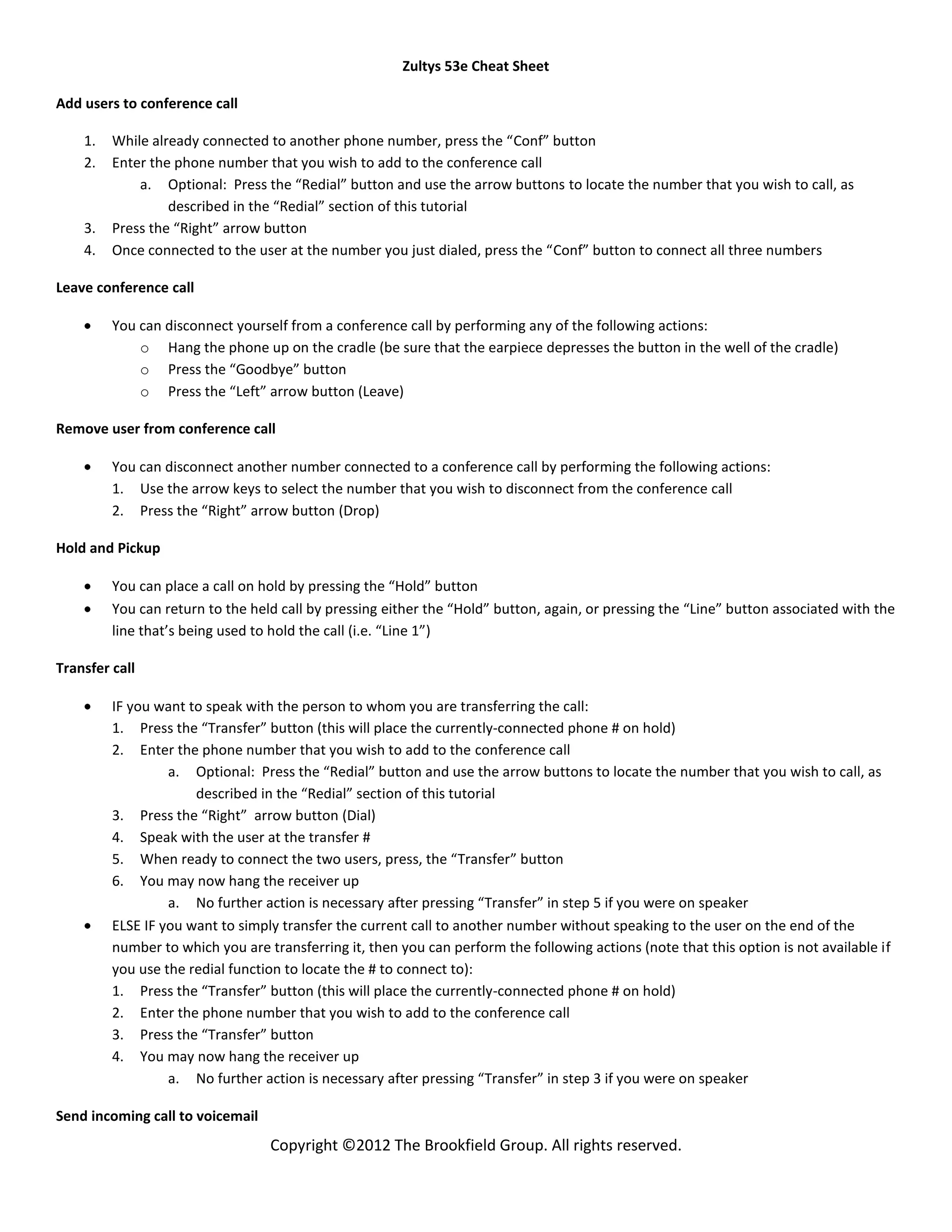
Zultys 53e Cheat Sheet

Add users to conference call

    1.   While already connected to another phone number, press the “Conf” button
    2.   Enter the phone number that you wish to add to the conference call
             a. Optional: Press the “Redial” button and use the arrow buttons to locate the number that you wish to call, as
                  described in the “Redial” section of this tutorial
    3.   Press the “Right” arrow button
    4.   Once connected to the user at the number you just dialed, press the “Conf” button to connect all three numbers

Leave conference call

         You can disconnect yourself from a conference call by performing any of the following actions:
             o Hang the phone up on the cradle (be sure that the earpiece depresses the button in the well of the cradle)
             o Press the “Goodbye” button
             o Press the “Left” arrow button (Leave)

Remove user from conference call

         You can disconnect another number connected to a conference call by performing the following actions:
         1. Use the arrow keys to select the number that you wish to disconnect from the conference call
         2. Press the “Right” arrow button (Drop)

Hold and Pickup

         You can place a call on hold by pressing the “Hold” button
         You can return to the held call by pressing either the “Hold” button, again, or pressing the “Line” button associated with the
         line that’s being used to hold the call (i.e. “Line 1”)

Transfer call

         IF you want to speak with the person to whom you are transferring the call:
         1. Press the “Transfer” button (this will place the currently-connected phone # on hold)
         2. Enter the phone number that you wish to add to the conference call
                  a. Optional: Press the “Redial” button and use the arrow buttons to locate the number that you wish to call, as
                      described in the “Redial” section of this tutorial
         3. Press the “Right” arrow button (Dial)
         4. Speak with the user at the transfer #
         5. When ready to connect the two users, press, the “Transfer” button
         6. You may now hang the receiver up
                  a. No further action is necessary after pressing “Transfer” in step 5 if you were on speaker
         ELSE IF you want to simply transfer the current call to another number without speaking to the user on the end of the
         number to which you are transferring it, then you can perform the following actions (note that this option is not available if
         you use the redial function to locate the # to connect to):
         1. Press the “Transfer” button (this will place the currently-connected phone # on hold)
         2. Enter the phone number that you wish to add to the conference call
         3. Press the “Transfer” button
         4. You may now hang the receiver up
                  a. No further action is necessary after pressing “Transfer” in step 3 if you were on speaker

Send incoming call to voicemail
                                  Copyright ©2012 The Brookfield Group. All rights reserved.
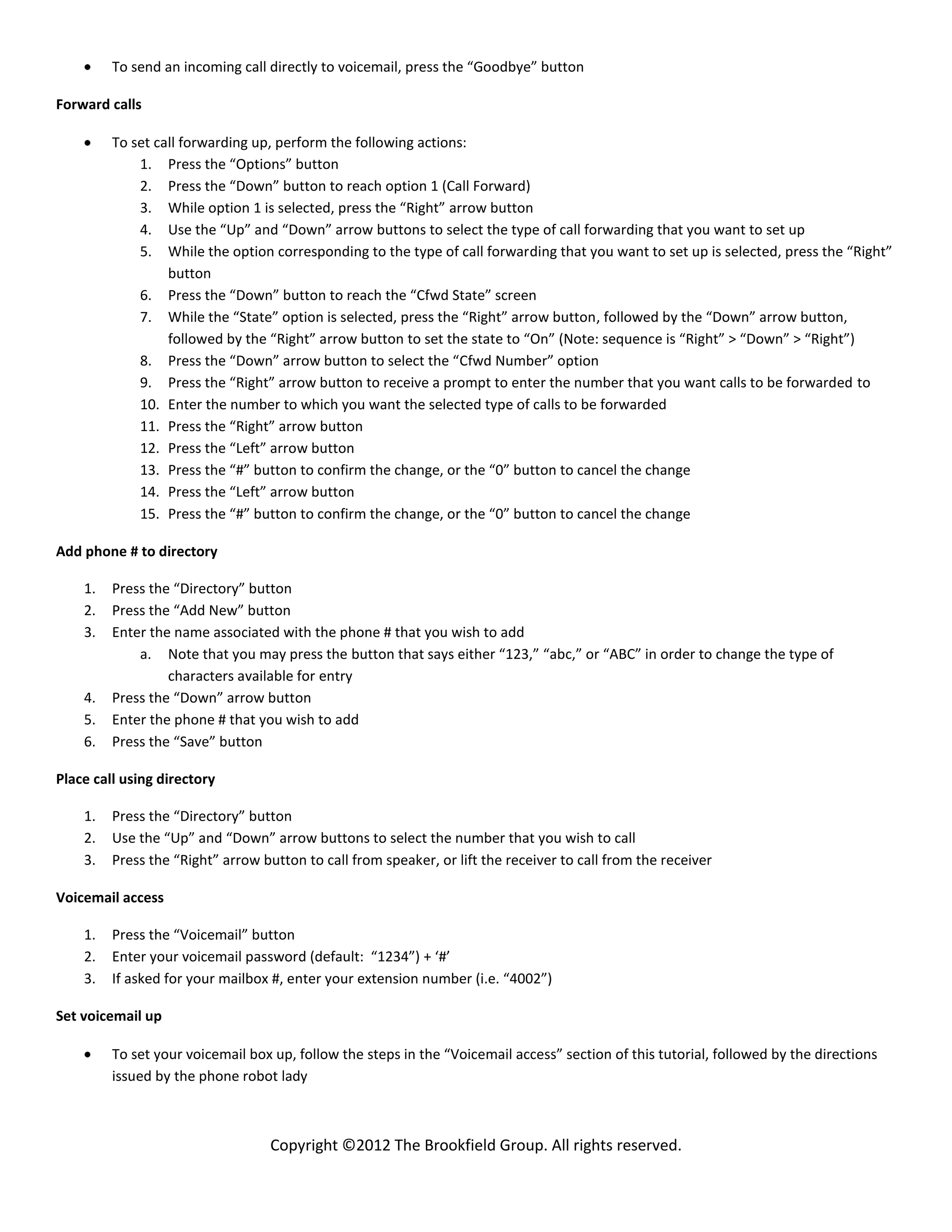
To send an incoming call directly to voicemail, press the “Goodbye” button

Forward calls

         To set call forwarding up, perform the following actions:
             1. Press the “Options” button
             2. Press the “Down” button to reach option 1 (Call Forward)
             3. While option 1 is selected, press the “Right” arrow button
             4. Use the “Up” and “Down” arrow buttons to select the type of call forwarding that you want to set up
             5. While the option corresponding to the type of call forwarding that you want to set up is selected, press the “Right”
                  button
             6. Press the “Down” button to reach the “Cfwd State” screen
             7. While the “State” option is selected, press the “Right” arrow button, followed by the “Down” arrow button,
                  followed by the “Right” arrow button to set the state to “On” (Note: sequence is “Right” > “Down” > “Right”)
             8. Press the “Down” arrow button to select the “Cfwd Number” option
             9. Press the “Right” arrow button to receive a prompt to enter the number that you want calls to be forwarded to
             10. Enter the number to which you want the selected type of calls to be forwarded
             11. Press the “Right” arrow button
             12. Press the “Left” arrow button
             13. Press the “#” button to confirm the change, or the “0” button to cancel the change
             14. Press the “Left” arrow button
             15. Press the “#” button to confirm the change, or the “0” button to cancel the change

Add phone # to directory

    1.   Press the “Directory” button
    2.   Press the “Add New” button
    3.   Enter the name associated with the phone # that you wish to add
             a. Note that you may press the button that says either “123,” “abc,” or “ABC” in order to change the type of
                  characters available for entry
    4.   Press the “Down” arrow button
    5.   Enter the phone # that you wish to add
    6.   Press the “Save” button

Place call using directory

    1.   Press the “Directory” button
    2.   Use the “Up” and “Down” arrow buttons to select the number that you wish to call
    3.   Press the “Right” arrow button to call from speaker, or lift the receiver to call from the receiver

Voicemail access

    1.   Press the “Voicemail” button
    2.   Enter your voicemail password (default: “1234”) + ‘#’
    3.   If asked for your mailbox #, enter your extension number (i.e. “4002”)

Set voicemail up

         To set your voicemail box up, follow the steps in the “Voicemail access” section of this tutorial, followed by the directions
         issued by the phone robot lady


                                   Copyright ©2012 The Brookfield Group. All rights reserved.

Zultys 53e Cheat Sheet

  • 1.
    Zultys 53e CheatSheet Add users to conference call 1. While already connected to another phone number, press the “Conf” button 2. Enter the phone number that you wish to add to the conference call a. Optional: Press the “Redial” button and use the arrow buttons to locate the number that you wish to call, as described in the “Redial” section of this tutorial 3. Press the “Right” arrow button 4. Once connected to the user at the number you just dialed, press the “Conf” button to connect all three numbers Leave conference call You can disconnect yourself from a conference call by performing any of the following actions: o Hang the phone up on the cradle (be sure that the earpiece depresses the button in the well of the cradle) o Press the “Goodbye” button o Press the “Left” arrow button (Leave) Remove user from conference call You can disconnect another number connected to a conference call by performing the following actions: 1. Use the arrow keys to select the number that you wish to disconnect from the conference call 2. Press the “Right” arrow button (Drop) Hold and Pickup You can place a call on hold by pressing the “Hold” button You can return to the held call by pressing either the “Hold” button, again, or pressing the “Line” button associated with the line that’s being used to hold the call (i.e. “Line 1”) Transfer call IF you want to speak with the person to whom you are transferring the call: 1. Press the “Transfer” button (this will place the currently-connected phone # on hold) 2. Enter the phone number that you wish to add to the conference call a. Optional: Press the “Redial” button and use the arrow buttons to locate the number that you wish to call, as described in the “Redial” section of this tutorial 3. Press the “Right” arrow button (Dial) 4. Speak with the user at the transfer # 5. When ready to connect the two users, press, the “Transfer” button 6. You may now hang the receiver up a. No further action is necessary after pressing “Transfer” in step 5 if you were on speaker ELSE IF you want to simply transfer the current call to another number without speaking to the user on the end of the number to which you are transferring it, then you can perform the following actions (note that this option is not available if you use the redial function to locate the # to connect to): 1. Press the “Transfer” button (this will place the currently-connected phone # on hold) 2. Enter the phone number that you wish to add to the conference call 3. Press the “Transfer” button 4. You may now hang the receiver up a. No further action is necessary after pressing “Transfer” in step 3 if you were on speaker Send incoming call to voicemail Copyright ©2012 The Brookfield Group. All rights reserved.
  • 2.
    To send anincoming call directly to voicemail, press the “Goodbye” button Forward calls To set call forwarding up, perform the following actions: 1. Press the “Options” button 2. Press the “Down” button to reach option 1 (Call Forward) 3. While option 1 is selected, press the “Right” arrow button 4. Use the “Up” and “Down” arrow buttons to select the type of call forwarding that you want to set up 5. While the option corresponding to the type of call forwarding that you want to set up is selected, press the “Right” button 6. Press the “Down” button to reach the “Cfwd State” screen 7. While the “State” option is selected, press the “Right” arrow button, followed by the “Down” arrow button, followed by the “Right” arrow button to set the state to “On” (Note: sequence is “Right” > “Down” > “Right”) 8. Press the “Down” arrow button to select the “Cfwd Number” option 9. Press the “Right” arrow button to receive a prompt to enter the number that you want calls to be forwarded to 10. Enter the number to which you want the selected type of calls to be forwarded 11. Press the “Right” arrow button 12. Press the “Left” arrow button 13. Press the “#” button to confirm the change, or the “0” button to cancel the change 14. Press the “Left” arrow button 15. Press the “#” button to confirm the change, or the “0” button to cancel the change Add phone # to directory 1. Press the “Directory” button 2. Press the “Add New” button 3. Enter the name associated with the phone # that you wish to add a. Note that you may press the button that says either “123,” “abc,” or “ABC” in order to change the type of characters available for entry 4. Press the “Down” arrow button 5. Enter the phone # that you wish to add 6. Press the “Save” button Place call using directory 1. Press the “Directory” button 2. Use the “Up” and “Down” arrow buttons to select the number that you wish to call 3. Press the “Right” arrow button to call from speaker, or lift the receiver to call from the receiver Voicemail access 1. Press the “Voicemail” button 2. Enter your voicemail password (default: “1234”) + ‘#’ 3. If asked for your mailbox #, enter your extension number (i.e. “4002”) Set voicemail up To set your voicemail box up, follow the steps in the “Voicemail access” section of this tutorial, followed by the directions issued by the phone robot lady Copyright ©2012 The Brookfield Group. All rights reserved.