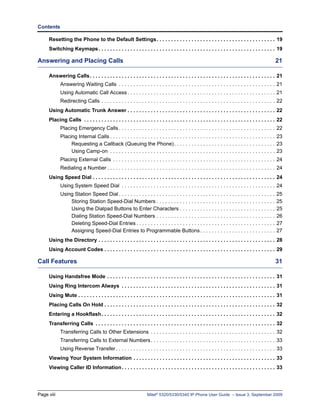
MITEL


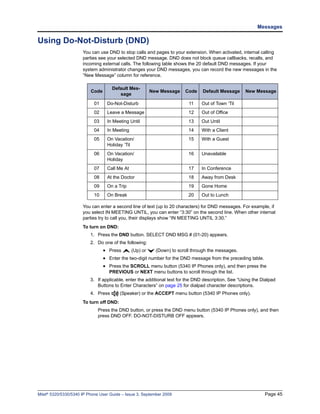
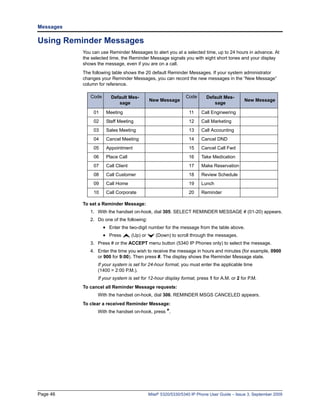
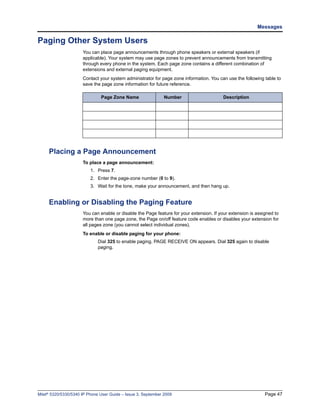
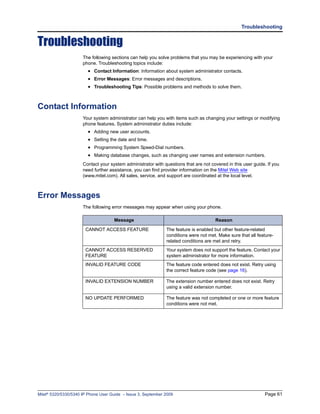
5320/5330/5340


                 IP Phone User Guide
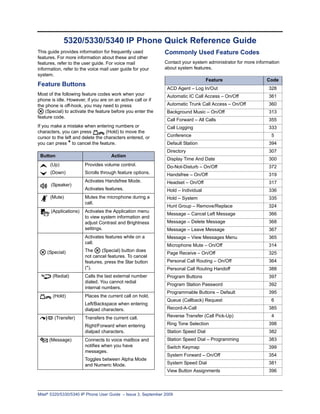
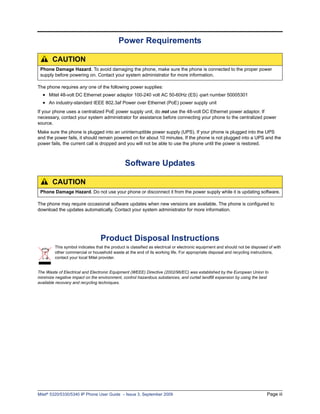
5320/5330/5340 IP Phone Quick Reference Guide
This guide provides information for frequently used           Commonly Used Feature Codes
features. For more information about these and other
features, refer to the user guide. For voice mail             Contact your system administrator for more information
information, refer to the voice mail user guide for your      about system features.
system.
                                                                                     Feature                  Code
Feature Buttons
                                                                ACD Agent – Log In/Out                         328
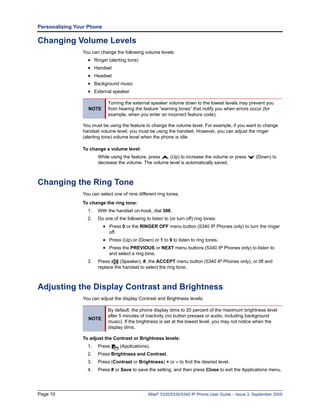
Most of the following feature codes work when your              Automatic IC Call Access – On/Off              361
phone is idle. However, if you are on an active call or if
the phone is off-hook, you may need to press                    Automatic Trunk Call Access – On/Off           360
    (Special) to activate the feature before you enter the      Background Music – On/Off                      313
feature code.
                                                                Call Forward – All Calls                       355
If you make a mistake when entering numbers or                  Call Logging                                   333
characters, you can press          (Hold) to move the
cursor to the left and delete the characters entered, or        Conference                                      5
you can press * to cancel the feature.                          Default Station                                394
                                                                Directory                                      307
 Button                              Action
                                                                Display Time And Date                          300
      (Up)             Provides volume control.                 Do-Not-Disturb – On/Off                        372
      (Down)           Scrolls through feature options.         Handsfree – On/Off                             319
                       Activates Handsfree Mode.                Headset – On/Off                               317
      (Speaker)
                       Activates features.                      Hold – Individual                              336
      (Mute)           Mutes the microphone during a            Hold – System                                  335
                       call.
                                                                Hunt Group – Remove/Replace                    324
      (Applications)   Activates the Application menu
                                                                Message – Cancel Left Message                  366
                       to view system information and
                       adjust Contrast and Brightness           Message – Delete Message                       368
                       settings.                                Message – Leave Message                        367
                       Activates features while on a            Message – View Messages Menu                   365
                       call.
                                                                Microphone Mute – On/Off                       314
    (Special)          The     (Special) button does
                                                                Page Receive – On/Off                          325
                       not cancel features. To cancel
                       features, press the Star button          Personal Call Routing – On/Off                 364
                       (*).                                     Personal Call Routing Handoff                  388
       (Redial)        Calls the last external number           Program Buttons                                397
                       dialed. You cannot redial
                                                                Program Station Password                       392
                       internal numbers.
                                                                Programmable Buttons – Default                 395
       (Hold)          Places the current call on hold.
                                                                Queue (Callback) Request                        6
                       Left/Backspace when entering
                       dialpad characters.                      Record-A-Call                                  385

        (Transfer)     Transfers the current call.              Reverse Transfer (Call Pick-Up)                 4

                       Right/Forward when entering              Ring Tone Selection                            398
                       dialpad characters.                      Station Speed Dial                             382
     (Message)         Connects to voice mailbox and            Station Speed Dial – Programming               383
                       notifies when you have                   Switch Keymap                                  399
                       messages.
                                                                System Forward – On/Off                        354
                       Toggles between Alpha Mode
                       and Numeric Mode.                        System Speed Dial                              381
                                                                View Button Assignments                        396


Mitel® 5320/5330/5340 IP Phone User Guide – Issue 3, September 2009
Answering Calls                                             Placing Conference Calls
     Lift the handset, or press     (Speaker) to                1. While on the first call, press the Conf button to
     answer a call while using a headset or to answer              place the call on hold. CALL NEXT PARTY TO
     a call in Handsfree Mode.                                     CNF appears.
                                                                2. Place a call to the next conference party. For
Placing Emergency Calls                                            external calls, press the Outgoing button or
     Dial the emergency number (911 U.S. or                        enter the Outgoing Call access code (8 is the
     999/112 Europe). The system immediately places                default code), and then dial the number.
     the emergency call as soon as you dial the                 3. After the party answers, announce the
     number, even if you do not select an outside line.            conference, and then press the Conf button to
                                                                   place the call on hold. If necessary, repeat this
Placing Internal (Intercom) Calls                                  step to add the remaining conference party.
     With or without the handset lifted, dial the               4. Press the Conf button again to start the
     extension number. If you enter incorrect digits,              conference. CNF IN PROGRESS appears.
     you can press        (Hold) to move the cursor
     backward, deleting the last digits entered. If you     Viewing and Responding to Messages
     are using Handsfree Mode, listen for the double
     tone, and then begin to speak.                             1. With the handset on-hook, press          (Message)
                                                                   or the VIEW MESSAGE menu button (5340 IP
                                                                   Phones only). Messages are displayed as first in/
Placing External Calls                                             first out. If there is more than one message, you
     Press the Outgoing button, an unlit Call button,              can repeatedly press          (Message) to scroll
     or enter the Outgoing Call access code (8 is the              through the messages.
     default code), and then dial the number.                   2. When the desired message is displayed, press #,
                                                                   or lift the handset for privacy, and then press # to
Redialing External Numbers                                         respond. (If your handset is off-hook and you
     With or without the handset lifted, press the                 press        [Message], you automatically place a
             (Redial). The system automatically selects            call to the party or message center who left the
     a line and dials the number.                                  message.)


Transferring Calls to Other Extensions                      Using Do-Not-Disturb
  1. While on the call, press     (Transfer), and               1. Press the DND button, and then do one of the
     then enter the extension number.                              following:

  2. Do one of the following:                                         • Press       (Up) or    (Down) to scroll
                                                                         through the messages.
        • Wait for an answer, announce the call, and
           then hang up. If the extension is                          • Enter the two-digit number for the DND
           unavailable, press the flashing IC or Call                    message.
           button to return to the caller.                      2. If applicable, enter the additional text for the
        • Hang up to transfer the call and disconnect              DND description.
           the call from your phone.                            3. Press       (Speaker), or lift and replace the
                                                                   handset.
Forwarding Calls
  1. Press the Fwd button, and then enter the feature       Placing a Page Announcement
     code, if applicable. ENTER FORWARD DEST                    1. Press 7.
     appears.
                                                                2. Enter the page-zone number (0 to 9).
  2. Enter the extension number, or press the
     Outgoing button or enter the Outgoing Call                 3. After the tone, make your announcement, and
     access code (8 is the default code), and then dial            then hang up.
     the telephone number.


                                                    Mitel® 5320/5330/5340 IP Phone User Guide – Issue 3, September 2009
Notice
This guide is released by Mitel Networks Corporation and provides information necessary to use the
5320/5330/5340 IP Phones. The guide contents, which reflect current Mitel standards, are subject to revision or
change without notice.
Some features or applications mentioned may require a future release and are not available in the initial release.
Future product features and applications are subject to availability and cost. Some features or applications may
require additional hardware, software, or system administrator assistance.


                 For sales, service, or technical support, contact your local authorized provider:


                                           Enter provider information above.

If you do not know the contact information for your local provider, use the “Partners” link at the top of the Mitel home
page (www.mitel.com) to find a location near you.


If you have any questions or comments regarding this user guide or other technical documentation, contact the
Technical Publications Department (USA) at:
                                                  tech_pubs@mitel.com


Mitel® is a registered trademark of Mitel Networks Corporation.
All other trademarks mentioned in this document are the property of their respective owners, including Mitel Networks
Corporation. All rights reserved.
© 2008-2009 Mitel Networks Corporation
Personal use of this material is permitted. However, permission to reprint/republish this material for advertising or
promotional purposes or for creating new collective works for resale or redistribution to servers or lists, or to reuse
any copyrighted component of this work in other works must be obtained from Mitel.


Mitel® 5320/5330/5340 IP Phone User Guide – Issue 3, September 2009                                                 Page i
Important Safety Instructions and Precautions
Remember the following safety guidelines when using the phone.


                         Programming Emergency Numbers
Make sure to do the following when programming emergency numbers and/or making test calls to emergency
numbers:
  • Remain on the line and briefly explain to the dispatcher the reason for the call.
  • Perform tests during off-peak hours such as early morning or late evenings.


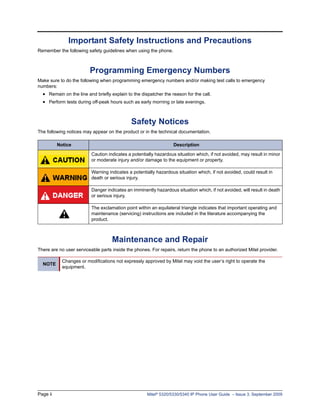
                                             Safety Notices
The following notices may appear on the product or in the technical documentation.

          Notice                                                  Description

                          Caution indicates a potentially hazardous situation which, if not avoided, may result in minor
                          or moderate injury and/or damage to the equipment or property.

                          Warning indicates a potentially hazardous situation which, if not avoided, could result in
                          death or serious injury.

                          Danger indicates an imminently hazardous situation which, if not avoided, will result in death
                          or serious injury.

                          The exclamation point within an equilateral triangle indicates that important operating and
                          maintenance (servicing) instructions are included in the literature accompanying the
                          product.


                                    Maintenance and Repair
There are no user serviceable parts inside the phones. For repairs, return the phone to an authorized Mitel provider.

            Changes or modifications not expressly approved by Mitel may void the user’s right to operate the
  NOTE
            equipment.


Page ii                                              Mitel® 5320/5330/5340 IP Phone User Guide – Issue 3, September 2009
Power Requirements

       CAUTION
 Phone Damage Hazard. To avoid damaging the phone, make sure the phone is connected to the proper power
 supply before powering on. Contact your system administrator for more information.

The phone requires any one of the following power supplies:
  • Mitel 48-volt DC Ethernet power adaptor 100-240 volt AC 50-60Hz (ES) -part number 50005301
  • An industry-standard IEEE 802.3af Power over Ethernet (PoE) power supply unit
If your phone uses a centralized PoE power supply unit, do not use the 48-volt DC Ethernet power adaptor. If
necessary, contact your system administrator for assistance before connecting your phone to the centralized power
source.
Make sure the phone is plugged into an uninterruptible power supply (UPS). If your phone is plugged into the UPS
and the power fails, it should remain powered on for about 10 minutes. If the phone is not plugged into a UPS and the
power fails, the current call is dropped and you will not be able to use the phone until the power is restored.


                                               Software Updates

       CAUTION
 Phone Damage Hazard. Do not use your phone or disconnect it from the power supply while it is updating software.

The phone may require occasional software updates when new versions are available. The phone is configured to
download the updates automatically. Contact your system administrator for more information.


                                  Product Disposal Instructions
         This symbol indicates that the product is classified as electrical or electronic equipment and should not be disposed of with
         other commercial or household waste at the end of its working life. For appropriate disposal and recycling instructions,
         contact your local Mitel provider.


The Waste of Electrical and Electronic Equipment (WEEE) Directive (2002/96/EC) was established by the European Union to
minimize negative impact on the environment, control hazardous substances, and curtail landfill expansion by using the best
available recovery and recycling techniques.


Mitel® 5320/5330/5340 IP Phone User Guide – Issue 3, September 2009                                                           Page iii
Phone Usage
This equipment is not for connection to the telephone network or public coin phone service. It is only for use when
connected to Mitel systems.


          WARNING
          When using your phone equipment, basic safety precautions should always be followed to reduce the risk of
          fire, electric shock and injury to persons, including the following:
            • Do not use this product near water, for example, near a bath tub, wash bowl, kitchen sink or laundry
               tub, in a wet basement, or near a swimming pool.
            • Avoid using a phone (other than a cordless type) during an electrical storm. There may be a remote
               risk of electric shock from lightning.
            • Do not use the phone to report a gas leak in the vicinity of a leak.
            • Do not connect directly to the Public Switched Telephone Network (PSTN). Any connection of this
               phone to an off premise application, an out of plant application, any other exposed plant application, or
               to any equipment other than the intended application may result in a safety hazard, and/or defective
               operation, and/or equipment damage. “Exposed plant” means where any portion of the circuit is subject
               to accidental contact with electric lighting or power conductors operating at a voltage exceeding 300
               volts between conductors or is subject to lightning strikes.
            • The socket outlet, if used, shall be located near the equipment and shall be easily located by the user.
            • Use only Mitel approved power adaptors. See “Power Requirements” on page iii.
            • The handset supplied with the phone is not certified for use with any other phone. Use of the handset
               with any other phone may have the potential to cause hearing loss in the event of a lighting strike on
               the outside plant wiring.


Page iv                                                 Mitel® 5320/5330/5340 IP Phone User Guide – Issue 3, September 2009
Notice to Canadian Customers
The Class B digital apparatus complies with Canadian ICES-003.


                                      Notice to U.S. Customers
This equipment has been tested and found to comply with the limits for a Class B digital device, pursuant to Part 15 of
the FCC Rules. These limits are designed to provide reasonable protection against harmful interference in a
residential installation. This equipment generates, uses, and can radiate radio frequency energy and, if not installed
and used in accordance with the instructions, may cause harmful interference to radio communications. However,
there is no guarantee that interference will not occur in a particular installation. If this equipment does cause harmful
interference to radio or television reception, which can be determined by turning the equipment off and on, the user is
encouraged to try to correct the interference by one or more of the following measures:
  • Reorient or relocate the receiving antenna.
  • Increase the separation between the equipment and receiver.
  • Connect the equipment into an outlet on a circuit different from that to which the receiver is connected.
  • Consult the dealer or an experienced radio/TV technician for help.


                                Notice to European Customers


                                                   We, Mitel Networks LTD.
                                              Of, Mitel Castlegate Business Park
                                                          Portskewett
                                                           Caldicot
                                                          NP26 5YR
                                                              UK
                               Declare that for the hereinafter mentioned product the presumption of
                                     conformity with the applicable essential requirements of
                                          DIRECTIVE 1999/5/EC OF THE EUROPEAN
                               PARLIAMENT (RTTE DIRECTIVE) AND OF THE COUNCIL is given.


                                                  Mitel Phones: 5320/5330/5340
                                Any unauthorized modification of the product voids this Declaration.
For a copy of the original signed Declaration of Conformity (in full conformance with EN45014), please contact the Regulatory
Approvals Manager at the above address.


Mitel® 5320/5330/5340 IP Phone User Guide – Issue 3, September 2009                                                         Page v
Contents


Contents
Getting Started                                                                                                                                             1

     Welcome . . . . . . . . . . . . . . . . . . . . . . . . . . . . . . . . . . . . . . . . . . . . . . . . . . . . . . . . . . . . . . . . . . . . . . . 1
     About Your Phone . . . . . . . . . . . . . . . . . . . . . . . . . . . . . . . . . . . . . . . . . . . . . . . . . . . . . . . . . . . . . . . 1
            5320/5330 IP Phone Features . . . . . . . . . . . . . . . . . . . . . . . . . . . . . . . . . . . . . . . . . . . . . . . . . . . 2
            5340 IP Phone Features . . . . . . . . . . . . . . . . . . . . . . . . . . . . . . . . . . . . . . . . . . . . . . . . . . . . . . . 3
            Phone Feature Descriptions. . . . . . . . . . . . . . . . . . . . . . . . . . . . . . . . . . . . . . . . . . . . . . . . . . . . .             3
                Handset . . . . . . . . . . . . . . . . . . . . . . . . . . . . . . . . . . . . . . . . . . . . . . . . . . . . . . . . . . . . . . . .     3
                Display . . . . . . . . . . . . . . . . . . . . . . . . . . . . . . . . . . . . . . . . . . . . . . . . . . . . . . . . . . . . . . . . .   4
                Ring/Message Indicator . . . . . . . . . . . . . . . . . . . . . . . . . . . . . . . . . . . . . . . . . . . . . . . . . . . .              4
                Speaker . . . . . . . . . . . . . . . . . . . . . . . . . . . . . . . . . . . . . . . . . . . . . . . . . . . . . . . . . . . . . . . .     4
                Feature Buttons . . . . . . . . . . . . . . . . . . . . . . . . . . . . . . . . . . . . . . . . . . . . . . . . . . . . . . . . . .         5
                Dialpad Buttons . . . . . . . . . . . . . . . . . . . . . . . . . . . . . . . . . . . . . . . . . . . . . . . . . . . . . . . . . .         5
                Programmable Buttons. . . . . . . . . . . . . . . . . . . . . . . . . . . . . . . . . . . . . . . . . . . . . . . . . . . . .               6
                Menu Buttons (5340 IP Phones only). . . . . . . . . . . . . . . . . . . . . . . . . . . . . . . . . . . . . . . . . .                       6
                Navigation Page Buttons . . . . . . . . . . . . . . . . . . . . . . . . . . . . . . . . . . . . . . . . . . . . . . . . . . .               6
     Phone Signals . . . . . . . . . . . . . . . . . . . . . . . . . . . . . . . . . . . . . . . . . . . . . . . . . . . . . . . . . . . . . . . . . . 7
     Comfort and Safety Tips . . . . . . . . . . . . . . . . . . . . . . . . . . . . . . . . . . . . . . . . . . . . . . . . . . . . . . . . . . 7
     Headset Instructions . . . . . . . . . . . . . . . . . . . . . . . . . . . . . . . . . . . . . . . . . . . . . . . . . . . . . . . . . . . . . 8
     System Information . . . . . . . . . . . . . . . . . . . . . . . . . . . . . . . . . . . . . . . . . . . . . . . . . . . . . . . . . . . . . . 8

Personalizing Your Phone                                                                                                                                    9

     Adjusting the Viewing Angle . . . . . . . . . . . . . . . . . . . . . . . . . . . . . . . . . . . . . . . . . . . . . . . . . . . . . . 9
     Changing Volume Levels . . . . . . . . . . . . . . . . . . . . . . . . . . . . . . . . . . . . . . . . . . . . . . . . . . . . . . . . 10
     Changing the Ring Tone . . . . . . . . . . . . . . . . . . . . . . . . . . . . . . . . . . . . . . . . . . . . . . . . . . . . . . . . . 10
     Adjusting the Display Contrast and Brightness . . . . . . . . . . . . . . . . . . . . . . . . . . . . . . . . . . . . . . 10
     Using the Screen Saver. . . . . . . . . . . . . . . . . . . . . . . . . . . . . . . . . . . . . . . . . . . . . . . . . . . . . . . . . . 11
     Changing the Text Size on a Display . . . . . . . . . . . . . . . . . . . . . . . . . . . . . . . . . . . . . . . . . . . . . . . 14
     Changing the Language . . . . . . . . . . . . . . . . . . . . . . . . . . . . . . . . . . . . . . . . . . . . . . . . . . . . . . . . . 14
     Listening to Background Music . . . . . . . . . . . . . . . . . . . . . . . . . . . . . . . . . . . . . . . . . . . . . . . . . . . 15
     Using Programmable Buttons . . . . . . . . . . . . . . . . . . . . . . . . . . . . . . . . . . . . . . . . . . . . . . . . . . . . 15
             Additional Programmable Buttons . . . . . . . . . . . . . . . . . . . . . . . . . . . . . . . . . . . . . . . . . . . 15
            Default Access Codes . . . . . . . . . . . . . . . . . . . . . . . . . . . . . . . . . . . . . . . . . . . . . . . . . . . . . . . . 16
                Outside Line Access Codes . . . . . . . . . . . . . . . . . . . . . . . . . . . . . . . . . . . . . . . . . . . . . . . . 16
                Extension Numbers . . . . . . . . . . . . . . . . . . . . . . . . . . . . . . . . . . . . . . . . . . . . . . . . . . . . . . 16
            Default Feature Codes . . . . . . . . . . . . . . . . . . . . . . . . . . . . . . . . . . . . . . . . . . . . . . . . . . . . . . . . 16
     Viewing Button Assignments . . . . . . . . . . . . . . . . . . . . . . . . . . . . . . . . . . . . . . . . . . . . . . . . . . . . . 19
     Resetting Programmable Buttons . . . . . . . . . . . . . . . . . . . . . . . . . . . . . . . . . . . . . . . . . . . . . . . . . 19


Mitel® 5320/5330/5340 IP Phone User Guide – Issue 3, September 2009                                                                              Page vii
Contents

     Resetting the Phone to the Default Settings . . . . . . . . . . . . . . . . . . . . . . . . . . . . . . . . . . . . . . . . . 19
     Switching Keymaps . . . . . . . . . . . . . . . . . . . . . . . . . . . . . . . . . . . . . . . . . . . . . . . . . . . . . . . . . . . . . 19

Answering and Placing Calls                                                                                                                          21

     Answering Calls. . . . . . . . . . . . . . . . . . . . . . . . . . . . . . . . . . . . . . . . . . . . . . . . . . . . . . . . . . . . . . . . 21
            Answering Waiting Calls . . . . . . . . . . . . . . . . . . . . . . . . . . . . . . . . . . . . . . . . . . . . . . . . . . . . . . 21
            Using Automatic Call Access . . . . . . . . . . . . . . . . . . . . . . . . . . . . . . . . . . . . . . . . . . . . . . . . . . . 21
            Redirecting Calls . . . . . . . . . . . . . . . . . . . . . . . . . . . . . . . . . . . . . . . . . . . . . . . . . . . . . . . . . . . . 22
     Using Automatic Trunk Answer . . . . . . . . . . . . . . . . . . . . . . . . . . . . . . . . . . . . . . . . . . . . . . . . . . . 22
     Placing Calls . . . . . . . . . . . . . . . . . . . . . . . . . . . . . . . . . . . . . . . . . . . . . . . . . . . . . . . . . . . . . . . . . . 22
            Placing Emergency Calls . . . . . . . . . . . . . . . . . . . . . . . . . . . . . . . . . . . . . . . . . . . . . . . . . . . . . . 22
            Placing Internal Calls . . . . . . . . . . . . . . . . . . . . . . . . . . . . . . . . . . . . . . . . . . . . . . . . . . . . . . . . . 23
                 Requesting a Callback (Queuing the Phone) . . . . . . . . . . . . . . . . . . . . . . . . . . . . . . . . . . . 23
                 Using Camp-on . . . . . . . . . . . . . . . . . . . . . . . . . . . . . . . . . . . . . . . . . . . . . . . . . . . . . . . . . 23
            Placing External Calls . . . . . . . . . . . . . . . . . . . . . . . . . . . . . . . . . . . . . . . . . . . . . . . . . . . . . . . . 24
            Redialing a Number . . . . . . . . . . . . . . . . . . . . . . . . . . . . . . . . . . . . . . . . . . . . . . . . . . . . . . . . . . 24
     Using Speed Dial . . . . . . . . . . . . . . . . . . . . . . . . . . . . . . . . . . . . . . . . . . . . . . . . . . . . . . . . . . . . . . . 24
            Using System Speed Dial . . . . . . . . . . . . . . . . . . . . . . . . . . . . . . . . . . . . . . . . . . . . . . . . . . . . . 24
            Using Station Speed Dial . . . . . . . . . . . . . . . . . . . . . . . . . . . . . . . . . . . . . . . . . . . . . . . . . . . . . .      25
                Storing Station Speed-Dial Numbers . . . . . . . . . . . . . . . . . . . . . . . . . . . . . . . . . . . . . . . . .                  25
                Using the Dialpad Buttons to Enter Characters . . . . . . . . . . . . . . . . . . . . . . . . . . . . . . . . .                       25
                Dialing Station Speed-Dial Numbers . . . . . . . . . . . . . . . . . . . . . . . . . . . . . . . . . . . . . . . . .                  26
                Deleting Speed-Dial Entries . . . . . . . . . . . . . . . . . . . . . . . . . . . . . . . . . . . . . . . . . . . . . . . .           27
                Assigning Speed-Dial Entries to Programmable Buttons . . . . . . . . . . . . . . . . . . . . . . . . . .                              27
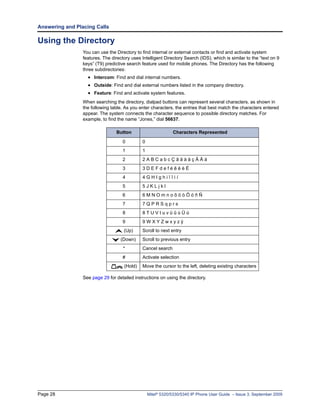
     Using the Directory . . . . . . . . . . . . . . . . . . . . . . . . . . . . . . . . . . . . . . . . . . . . . . . . . . . . . . . . . . . . . 28
     Using Account Codes . . . . . . . . . . . . . . . . . . . . . . . . . . . . . . . . . . . . . . . . . . . . . . . . . . . . . . . . . . . 29

Call Features                                                                                                                                        31

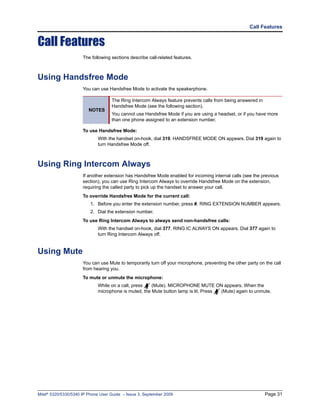
     Using Handsfree Mode . . . . . . . . . . . . . . . . . . . . . . . . . . . . . . . . . . . . . . . . . . . . . . . . . . . . . . . . . . 31
     Using Ring Intercom Always . . . . . . . . . . . . . . . . . . . . . . . . . . . . . . . . . . . . . . . . . . . . . . . . . . . . . 31
     Using Mute . . . . . . . . . . . . . . . . . . . . . . . . . . . . . . . . . . . . . . . . . . . . . . . . . . . . . . . . . . . . . . . . . . . . 31
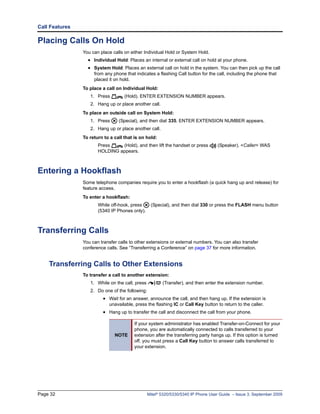
     Placing Calls On Hold . . . . . . . . . . . . . . . . . . . . . . . . . . . . . . . . . . . . . . . . . . . . . . . . . . . . . . . . . . . 32
     Entering a Hookflash. . . . . . . . . . . . . . . . . . . . . . . . . . . . . . . . . . . . . . . . . . . . . . . . . . . . . . . . . . . . 32
     Transferring Calls . . . . . . . . . . . . . . . . . . . . . . . . . . . . . . . . . . . . . . . . . . . . . . . . . . . . . . . . . . . . . . 32
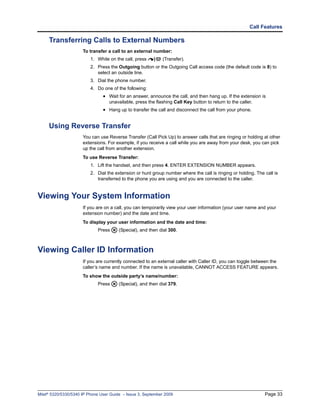
            Transferring Calls to Other Extensions . . . . . . . . . . . . . . . . . . . . . . . . . . . . . . . . . . . . . . . . . . . 32
            Transferring Calls to External Numbers . . . . . . . . . . . . . . . . . . . . . . . . . . . . . . . . . . . . . . . . . . . 33
            Using Reverse Transfer . . . . . . . . . . . . . . . . . . . . . . . . . . . . . . . . . . . . . . . . . . . . . . . . . . . . . . . 33
     Viewing Your System Information . . . . . . . . . . . . . . . . . . . . . . . . . . . . . . . . . . . . . . . . . . . . . . . . . 33
     Viewing Caller ID Information . . . . . . . . . . . . . . . . . . . . . . . . . . . . . . . . . . . . . . . . . . . . . . . . . . . . . 33


Page viii                                                          Mitel® 5320/5330/5340 IP Phone User Guide – Issue 3, September 2009
Contents

     Forwarding Calls . . . . . . . . . . . . . . . . . . . . . . . . . . . . . . . . . . . . . . . . . . . . . . . . . . . . . . . . . . . . . . . 34
            Manual Call Forwarding . . . . . . . . . . . . . . . . . . . . . . . . . . . . . . . . . . . . . . . . . . . . . . . . . . . . . . . 34
            System Forwarding . . . . . . . . . . . . . . . . . . . . . . . . . . . . . . . . . . . . . . . . . . . . . . . . . . . . . . . . . . 34
     Using Personal Call Routing. . . . . . . . . . . . . . . . . . . . . . . . . . . . . . . . . . . . . . . . . . . . . . . . . . . . . . 35
     Placing Conference Calls . . . . . . . . . . . . . . . . . . . . . . . . . . . . . . . . . . . . . . . . . . . . . . . . . . . . . . . . 37
            Adding a Conference Party . . . . . . . . . . . . . . . . . . . . . . . . . . . . . . . . . . . . . . . . . . . . . . . . . . . . 37
            Transferring a Conference . . . . . . . . . . . . . . . . . . . . . . . . . . . . . . . . . . . . . . . . . . . . . . . . . . . . . 37
            Dropping Out of a Conference . . . . . . . . . . . . . . . . . . . . . . . . . . . . . . . . . . . . . . . . . . . . . . . . . . 37
            Ending a Conference and Placing all Parties on Hold . . . . . . . . . . . . . . . . . . . . . . . . . . . . . . . . 38
     Using Record-A-Call . . . . . . . . . . . . . . . . . . . . . . . . . . . . . . . . . . . . . . . . . . . . . . . . . . . . . . . . . . . . 38
     Using Group Listen . . . . . . . . . . . . . . . . . . . . . . . . . . . . . . . . . . . . . . . . . . . . . . . . . . . . . . . . . . . . . 38
     Using Call Logging . . . . . . . . . . . . . . . . . . . . . . . . . . . . . . . . . . . . . . . . . . . . . . . . . . . . . . . . . . . . . 39
     Using Secondary Extension Buttons. . . . . . . . . . . . . . . . . . . . . . . . . . . . . . . . . . . . . . . . . . . . . . . 40
     Remote Programming . . . . . . . . . . . . . . . . . . . . . . . . . . . . . . . . . . . . . . . . . . . . . . . . . . . . . . . . . . . 40
            Entering a Remote Programming Password . . . . . . . . . . . . . . . . . . . . . . . . . . . . . . . . . . . . . . . 40
            Using Remote Programming to Change the Password . . . . . . . . . . . . . . . . . . . . . . . . . . . . . . . 41
            Using Remote Programming to Change DND Settings . . . . . . . . . . . . . . . . . . . . . . . . . . . . . . . 41
            Using Remote Programming to Forward Calls. . . . . . . . . . . . . . . . . . . . . . . . . . . . . . . . . . . . . . 42
            Using Remote Programming for Personal Call Routing. . . . . . . . . . . . . . . . . . . . . . . . . . . . . . . 42

Messages                                                                                                                                         43

     Leaving Messages at Other Extensions . . . . . . . . . . . . . . . . . . . . . . . . . . . . . . . . . . . . . . . . . . . . 43
     Viewing and Responding to Messages . . . . . . . . . . . . . . . . . . . . . . . . . . . . . . . . . . . . . . . . . . . . . 44
            Canceling Messages Left at Other Extensions . . . . . . . . . . . . . . . . . . . . . . . . . . . . . . . . . . . . . 44
            Deleting Waiting Inter-Station Messages . . . . . . . . . . . . . . . . . . . . . . . . . . . . . . . . . . . . . . . . . . 44
     Using Do-Not-Disturb (DND) . . . . . . . . . . . . . . . . . . . . . . . . . . . . . . . . . . . . . . . . . . . . . . . . . . . . . . 45
     Using Reminder Messages . . . . . . . . . . . . . . . . . . . . . . . . . . . . . . . . . . . . . . . . . . . . . . . . . . . . . . . 46
     Paging Other System Users . . . . . . . . . . . . . . . . . . . . . . . . . . . . . . . . . . . . . . . . . . . . . . . . . . . . . . 47
            Placing a Page Announcement . . . . . . . . . . . . . . . . . . . . . . . . . . . . . . . . . . . . . . . . . . . . . . . . . 47
            Enabling or Disabling the Paging Feature . . . . . . . . . . . . . . . . . . . . . . . . . . . . . . . . . . . . . . . . . 47

Hunt Groups                                                                                                                                      49

     Logging in to ACD Hunt Groups . . . . . . . . . . . . . . . . . . . . . . . . . . . . . . . . . . . . . . . . . . . . . . . . . . 49
     Logging out of ACD Hunt Groups . . . . . . . . . . . . . . . . . . . . . . . . . . . . . . . . . . . . . . . . . . . . . . . . . 50
     Stopping the ACD Hunt Group Wrap-up Timer . . . . . . . . . . . . . . . . . . . . . . . . . . . . . . . . . . . . . . . 50
     Other Hunt Group Features . . . . . . . . . . . . . . . . . . . . . . . . . . . . . . . . . . . . . . . . . . . . . . . . . . . . . . 50
            Requesting Agent Help . . . . . . . . . . . . . . . . . . . . . . . . . . . . . . . . . . . . . . . . . . . . . . . . . . . . . . . 50
            Diverting Hunt Group Calls . . . . . . . . . . . . . . . . . . . . . . . . . . . . . . . . . . . . . . . . . . . . . . . . . . . . 51


Mitel® 5320/5330/5340 IP Phone User Guide – Issue 3, September 2009                                                                         Page ix
Contents

    Hunt Group Supervisor Features . . . . . . . . . . . . . . . . . . . . . . . . . . . . . . . . . . . . . . . . . . . . . . . . . . 51
           Accepting or Rejecting Agent Help Calls . . . . . . . . . . . . . . . . . . . . . . . . . . . . . . . . . . . . . . . . . . 51
           Monitoring Calls . . . . . . . . . . . . . . . . . . . . . . . . . . . . . . . . . . . . . . . . . . . . . . . . . . . . . . . . . . . . . 52
           Using Barge-in . . . . . . . . . . . . . . . . . . . . . . . . . . . . . . . . . . . . . . . . . . . . . . . . . . . . . . . . . . . . . . 52
           Stealing Hunt Group Calls . . . . . . . . . . . . . . . . . . . . . . . . . . . . . . . . . . . . . . . . . . . . . . . . . . . . . 52

Cordless Devices (5330/5340 IP Phones Only)                                                                                                        53

    Cordless Module . . . . . . . . . . . . . . . . . . . . . . . . . . . . . . . . . . . . . . . . . . . . . . . . . . . . . . . . . . . . . . . 54
    Handset and Headset Combinations . . . . . . . . . . . . . . . . . . . . . . . . . . . . . . . . . . . . . . . . . . . . . . . 54
    Pairing the Cordless Module and Devices . . . . . . . . . . . . . . . . . . . . . . . . . . . . . . . . . . . . . . . . . . 55
    Using a Cordless Device as a Remote Control. . . . . . . . . . . . . . . . . . . . . . . . . . . . . . . . . . . . . . . 56
    Alerting Tones and LEDs . . . . . . . . . . . . . . . . . . . . . . . . . . . . . . . . . . . . . . . . . . . . . . . . . . . . . . . . 56
    Low Battery Level . . . . . . . . . . . . . . . . . . . . . . . . . . . . . . . . . . . . . . . . . . . . . . . . . . . . . . . . . . . . . . 56
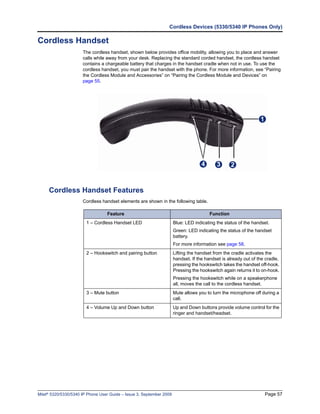
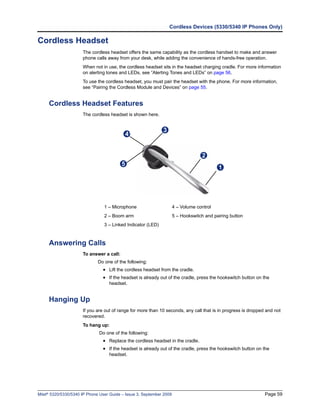
    Cordless Handset . . . . . . . . . . . . . . . . . . . . . . . . . . . . . . . . . . . . . . . . . . . . . . . . . . . . . . . . . . . . . . 57
           Cordless Handset Features . . . . . . . . . . . . . . . . . . . . . . . . . . . . . . . . . . . . . . . . . . . . . . . . . . . . 57
           Answering Calls . . . . . . . . . . . . . . . . . . . . . . . . . . . . . . . . . . . . . . . . . . . . . . . . . . . . . . . . . . . . . 58
           Hanging Up . . . . . . . . . . . . . . . . . . . . . . . . . . . . . . . . . . . . . . . . . . . . . . . . . . . . . . . . . . . . . . . . 58
           Cordless Handset LEDs. . . . . . . . . . . . . . . . . . . . . . . . . . . . . . . . . . . . . . . . . . . . . . . . . . . . . . . 58
    Cordless Headset . . . . . . . . . . . . . . . . . . . . . . . . . . . . . . . . . . . . . . . . . . . . . . . . . . . . . . . . . . . . . . 59
           Cordless Headset Features . . . . . . . . . . . . . . . . . . . . . . . . . . . . . . . . . . . . . . . . . . . . . . . . . . . . 59
           Answering Calls . . . . . . . . . . . . . . . . . . . . . . . . . . . . . . . . . . . . . . . . . . . . . . . . . . . . . . . . . . . . . 59
           Hanging Up . . . . . . . . . . . . . . . . . . . . . . . . . . . . . . . . . . . . . . . . . . . . . . . . . . . . . . . . . . . . . . . . 59
           Cordless Headset LEDs. . . . . . . . . . . . . . . . . . . . . . . . . . . . . . . . . . . . . . . . . . . . . . . . . . . . . . . 60
           Using the Cordless Devices Application . . . . . . . . . . . . . . . . . . . . . . . . . . . . . . . . . . . . . . . . . . 60

Troubleshooting                                                                                                                                    61

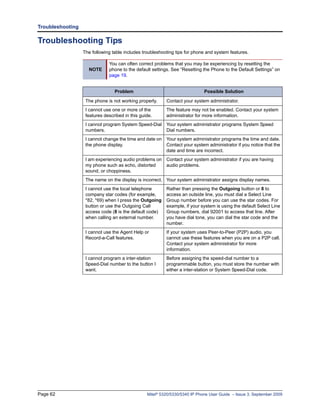
    Contact Information. . . . . . . . . . . . . . . . . . . . . . . . . . . . . . . . . . . . . . . . . . . . . . . . . . . . . . . . . . . . . 61
    Error Messages . . . . . . . . . . . . . . . . . . . . . . . . . . . . . . . . . . . . . . . . . . . . . . . . . . . . . . . . . . . . . . . . 61
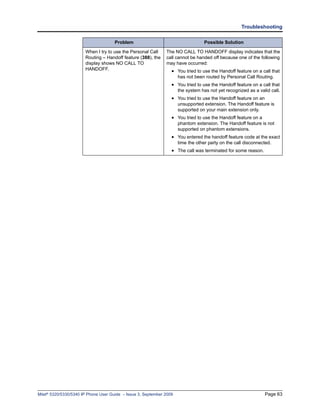
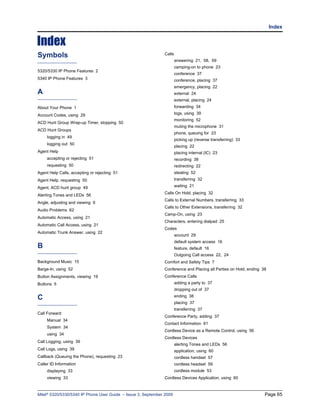
    Troubleshooting Tips . . . . . . . . . . . . . . . . . . . . . . . . . . . . . . . . . . . . . . . . . . . . . . . . . . . . . . . . . . . 62

Index                                                                                                                                              65


Page x                                                            Mitel® 5320/5330/5340 IP Phone User Guide – Issue 3, September 2009
Getting Started


Getting Started
Welcome
                      The instructions in this guide are for using the Mitel Model 5320/5330/5340 Internet Protocol
                      (IP) Phone on the Mitel 5000 Communications Platform (CP). The Quick Reference Guide is an
                      overview of frequently used features.
                      Your phone should be powered on and ready to use. If the display is blank, or if the display
                      name, extension number, or time or date are incorrect, contact your system administrator for
                      assistance.
                      Because a variety of voice mail products work with the 5000 CP, this guide does not include
                      voice mail instructions. For voice mail instructions, refer to the voice mail user guide for your
                      system. For example, refer to the Enterprise Messaging, Basic Voice Mail, and Embedded
                      Voice Mail Card User Guide, part number 835.3205, or the Mitel NuPoint Unified Messaging
                      User Guide on the Mitel Web site (http://edocs.mitel.com). Contact your system administrator
                      for more information about your voice mail system.

                                   Because many phone features can be programmed to perform various tasks,
                         NOTE      some features may work differently than the descriptions in this guide. Contact
                                   your system administrator for more information.


About Your Phone
                      The IP Phones are full-feature, dual port phones that provide voice communication over an IP
                      network. All phones have a 160 x 320 (pixels) liquid crystal display (LED), self-labeling
                      programmable buttons, on-hook dialing, and a Ring/Message Indicator.
                      For one-touch feature access, the 5320 IP Phone has 8 programmable buttons, the 5330 IP
                      Phone has 33 programmable buttons, and the 5340 IP Phone has 42 programmable buttons.


Mitel® 5320/5330/5340 IP Phone User Guide – Issue 3, September 2009                                               Page 1
Getting Started

    5320/5330 IP Phone Features
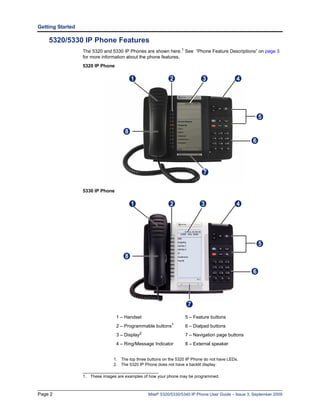
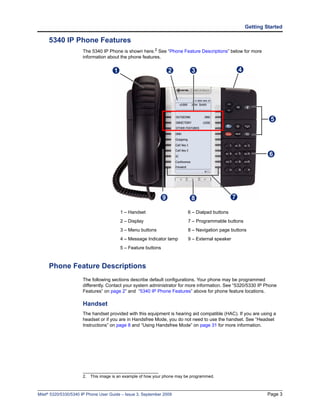
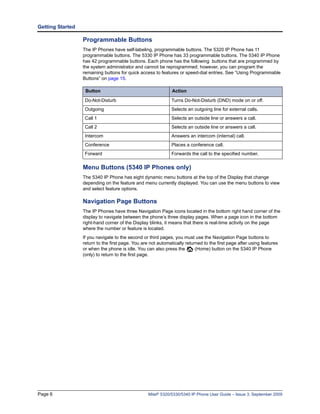
                  The 5320 and 5330 IP Phones are shown here.1 See “Phone Feature Descriptions” on page 3
                  for more information about the phone features.
                  5320 IP Phone

                                          1                 2                3                4


                                                                                                          5

                                      8
                                                                                                      6


                                                                             7

                  5330 IP Phone

                                          1                 2               3                 4


                                                                                                          5

                                      8

                                                                                                      6


                                                                     7

                                  1 – Handset                       5 – Feature buttons
                                  2 – Programmable   buttons1       6 – Dialpad buttons
                                              2
                                  3 – Display                       7 – Navigation page buttons
                                  4 – Ring/Message Indicator        8 – External speaker


                                1. The top three buttons on the 5320 IP Phone do not have LEDs.
                                2. The 5320 IP Phone does not have a backlit display.

                  1. These images are examples of how your phone may be programmed.


Page 2                                            Mitel® 5320/5330/5340 IP Phone User Guide – Issue 3, September 2009
Getting Started

     5340 IP Phone Features
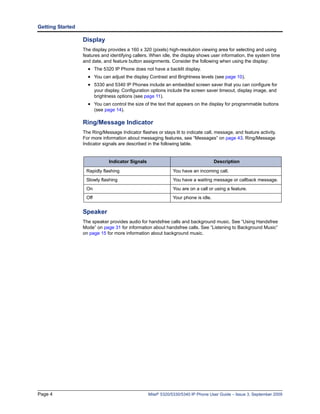
                      The 5340 IP Phone is shown here.2 See “Phone Feature Descriptions” below for more
                      information about the phone features.

                                      1                             2      3                        4


                                                                                                                  5


                                                                                                                 6


                                                                9         8                     7

                                          1 – Handset                    6 – Dialpad buttons
                                          2 – Display                    7 – Programmable buttons
                                          3 – Menu buttons               8 – Navigation page buttons
                                          4 – Message Indicator lamp     9 – External speaker
                                          5 – Feature buttons


     Phone Feature Descriptions
                      The following sections describe default configurations. Your phone may be programmed
                      differently. Contact your system administrator for more information. See “5320/5330 IP Phone
                      Features” on page 2“ and “5340 IP Phone Features” above for phone feature locations.

                      Handset
                      The handset provided with this equipment is hearing aid compatible (HAC). If you are using a
                      headset or if you are in Handsfree Mode, you do not need to use the handset. See “Headset
                      Instructions” on page 8 and “Using Handsfree Mode” on page 31 for more information.


                      2. This image is an example of how your phone may be programmed.


Mitel® 5320/5330/5340 IP Phone User Guide – Issue 3, September 2009                                              Page 3
Getting Started

                  Display
                  The display provides a 160 x 320 (pixels) high-resolution viewing area for selecting and using
                  features and identifying callers. When idle, the display shows user information, the system time
                  and date, and feature button assignments. Consider the following when using the display:
                    • The 5320 IP Phone does not have a backlit display.
                    • You can adjust the display Contrast and Brightness levels (see page 10).
                    • 5330 and 5340 IP Phones include an embedded screen saver that you can configure for
                         your display. Configuration options include the screen saver timeout, display image, and
                         brightness options (see page 11).
                    • You can control the size of the text that appears on the display for programmable buttons
                         (see page 14).

                  Ring/Message Indicator
                  The Ring/Message Indicator flashes or stays lit to indicate call, message, and feature activity.
                  For more information about messaging features, see “Messages” on page 43. Ring/Message
                  Indicator signals are described in the following table.


                                Indicator Signals                                     Description

                   Rapidly flashing                             You have an incoming call.
                   Slowly flashing                              You have a waiting message or callback message.
                   On                                           You are on a call or using a feature.
                   Off                                          Your phone is idle.


                  Speaker
                  The speaker provides audio for handsfree calls and background music. See “Using Handsfree
                  Mode” on page 31 for information about handsfree calls. See “Listening to Background Music”
                  on page 15 for more information about background music.


Page 4                                              Mitel® 5320/5330/5340 IP Phone User Guide – Issue 3, September 2009
Getting Started

                      Feature Buttons
                      Feature buttons provide quick access to commonly used features. See the following table for
                      descriptions.

                               Button                                            Action

                            (Up) or       (Down Provides volume control for the ringer, handset, and speaker.
                                                  Scrolls through feature options.
                             (Speaker)            Activates Handsfree Mode (speakerphone). See “Using Handsfree
                                                  Mode” on page 31.
                                                  Activates features.
                            (Mute)                Temporarily turns off your microphone during a call.
                             (Applications)       Activates the Application menu to view system information and
                                                  adjust Contrast and Brightness settings. See “Dial 317 (Headset on/
                                                  off). HEADSET MODE OFF appears.” on page 8 and “Adjusting the
                                                  Display Contrast and Brightness” on page 10.
                           (Special)              Activates features while on a call. The    (Special) button does not
                                                  cancel features. To cancel features, press the Star button (*).
                               (Redial)           Calls the last external number dialed. You cannot redial internal
                                                  numbers.
                              (Hold)              Places the current call on hold.
                                                  Left/backspace when entering dialpad characters. See “Using the
                                                  Dialpad Buttons to Enter Characters” on page 25.
                               (Transfer)         Transfers the current call.
                                                  Right/forward when entering dialpad characters. See “Using the
                                                  Dialpad Buttons to Enter Characters” on page 25.
                            (Message)             Connects to your voice mailbox and flashes to notify you of waiting
                                                  messages.
                                                  Toggles between Alpha Mode and Numeric Mode when entering
                                                  dialpad characters.

                      Dialpad Buttons
                      Use the dialpad buttons to dial phone numbers, enter feature codes, and to enter characters
                      when using features that require text input.


Mitel® 5320/5330/5340 IP Phone User Guide – Issue 3, September 2009                                               Page 5
Getting Started

                  Programmable Buttons
                  The IP Phones have self-labeling, programmable buttons. The 5320 IP Phone has 11
                  programmable buttons. The 5330 IP Phone has 33 programmable buttons. The 5340 IP Phone
                  has 42 programmable buttons. Each phone has the following buttons that are programmed by
                  the system administrator and cannot be reprogrammed; however, you can program the
                  remaining buttons for quick access to features or speed-dial entries. See “Using Programmable
                  Buttons” on page 15.

                   Button                                      Action

                   Do-Not-Disturb                              Turns Do-Not-Disturb (DND) mode on or off.
                   Outgoing                                    Selects an outgoing line for external calls.
                   Call 1                                      Selects an outside line or answers a call.
                   Call 2                                      Selects an outside line or answers a call.
                   Intercom                                    Answers an intercom (internal) call.
                   Conference                                  Places a conference call.
                   Forward                                     Forwards the call to the specified number.

                  Menu Buttons (5340 IP Phones only)
                  The 5340 IP Phone has eight dynamic menu buttons at the top of the Display that change
                  depending on the feature and menu currently displayed. You can use the menu buttons to view
                  and select feature options.

                  Navigation Page Buttons
                  The IP Phones have three Navigation Page icons located in the bottom right hand corner of the
                  display to navigate between the phone’s three display pages. When a page icon in the bottom
                  right-hand corner of the Display blinks, it means that there is real-time activity on the page
                  where the number or feature is located.
                  If you navigate to the second or third pages, you must use the Navigation Page buttons to
                  return to the first page. You are not automatically returned to the first page after using features
                  or when the phone is idle. You can also press the        (Home) button on the 5340 IP Phone
                  (only) to return to the first page.


Page 6                                             Mitel® 5320/5330/5340 IP Phone User Guide – Issue 3, September 2009
Getting Started

Phone Signals
                      The IP Phones have several audio and visual signals to indicate feature activity. The following
                      are a few helpful tips:
                         • Lit or blinking buttons indicate call or feature activity.
                         • All phone button lamps illuminate at the same time for a few seconds when the phone is
                            reset or powered on.
                         • The following actions may cause an error tone:
                            o   Pressing an invalid button combination.
                            o   Selecting a restricted feature.
                            o   Dialing a restricted or invalid number.
                            o   Dialing too slowly between digits.
                            o   Waiting too long before performing the next step.
                            To correct an error tone, hang up and try again.
                         • Many features “time-out” if you wait too long before performing the next step. If this
                            happens, you must start over.
                         • “Off-hook” means the handset is lifted. “On-hook” means the handset is in the cradle.
                         • If your phone does not have a lamp under the speaker button, the large message indicator
                            lamp on the top right of the phone indicates that the speakerphone is in use.


Comfort and Safety Tips
                      Observe the following comfort and safety tips when using the phone:
                         • Do not cradle the handset: Prolonged use of the handset can lead to neck, shoulder, or
                            back discomfort, especially if you cradle the handset between your neck and shoulder. If
                            you frequently use the phone, you might find a headset more comfortable. See “Headset
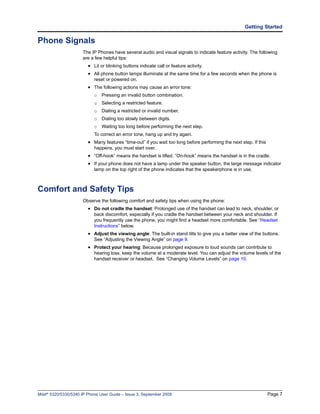
                            Instructions” below.
                         • Adjust the viewing angle: The built-in stand tilts to give you a better view of the buttons.
                            See “Adjusting the Viewing Angle” on page 9.
                         • Protect your hearing: Because prolonged exposure to loud sounds can contribute to
                            hearing loss, keep the volume at a moderate level. You can adjust the volume levels of the
                            handset receiver or headset. See “Changing Volume Levels” on page 10.


Mitel® 5320/5330/5340 IP Phone User Guide – Issue 3, September 2009                                                 Page 7
Getting Started

Headset Instructions
                  When using a headset, press     (Speaker) to connect to or disconnect from calls. The
                  Headset icon    appears when the headset is in use. You cannot use the handset or
                  speakerphone when the phone is in Headset Mode. Disconnecting the headset automatically
                  enables the handset.

                             The headset must be hearing aid compatible (HAC).

                   NOTES     If your headset has a power-saver mode, make sure the system administrator has
                             enabled the “Headset Connect Tone” feature. If this is not enabled, you may miss
                             the first few seconds of an incoming call.

                  To connect and activate the headset:
                    1.   Insert the headset jack into the Headset port    located on the back of the phone.
                    2.   Dial 317 (Headset on/off). HEADSET MODE ON appears.

                                       Because Headset Mode disables the handset and speakerphone, you
                            NOTE       must turn off Headset Mode before you can use the handset or
                                       speakerphone.

                  To turn off Headset Mode and activate the handset and speakerphone:
                  Dial 317 (Headset on/off). HEADSET MODE OFF appears.


System Information
                  You can use the phone to view system or phone information.
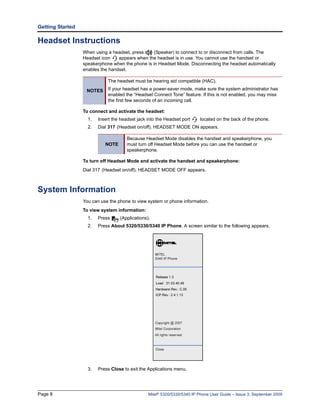
                  To view system information:
                    1.   Press     (Applications).
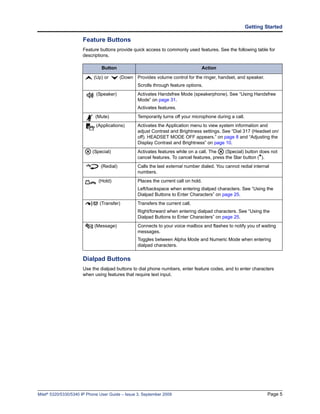
                    2.   Press About 5320/5330/5340 IP Phone. A screen similar to the following appears.


                    3.   Press Close to exit the Applications menu.


Page 8                                           Mitel® 5320/5330/5340 IP Phone User Guide – Issue 3, September 2009
Personalizing Your Phone


Personalizing Your Phone
                      This chapter describes features you can use to personalize your phone.


Adjusting the Viewing Angle
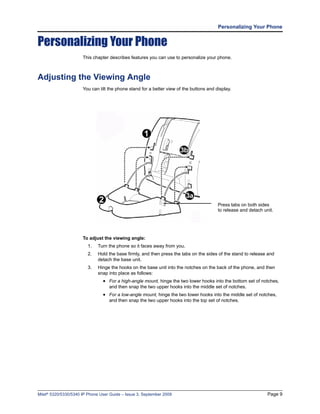
                      You can tilt the phone stand for a better view of the buttons and display.


                                                                                         Press tabs on both sides
                                                                                         to release and detach unit.


                      To adjust the viewing angle:
                         1.   Turn the phone so it faces away from you.
                         2.   Hold the base firmly, and then press the tabs on the sides of the stand to release and
                              detach the base unit.
                         3.   Hinge the hooks on the base unit into the notches on the back of the phone, and then
                              snap into place as follows:
                                • For a high-angle mount, hinge the two lower hooks into the bottom set of notches,
                                   and then snap the two upper hooks into the middle set of notches.
                                • For a low-angle mount, hinge the two lower hooks into the middle set of notches,
                                   and then snap the two upper hooks into the top set of notches.


Mitel® 5320/5330/5340 IP Phone User Guide – Issue 3, September 2009                                              Page 9
Personalizing Your Phone

Changing Volume Levels
                You can change the following volume levels:
                  • Ringer (alerting tone)
                  • Handset
                  • Headset
                  • Background music
                  • External speaker

                             Turning the external speaker volume down to the lowest levels may prevent you
                  NOTE       from hearing the feature “warning tones” that notify you when errors occur (for
                             example, when you enter an incorrect feature code).

                You must be using the feature to change the volume level. For example, if you want to change
                handset volume level, you must be using the handset. However, you can adjust the ringer
                (alerting tone) volume level when the phone is idle.

                To change a volume level:
                       While using the feature, press  (Up) to increase the volume or press             (Down) to
                       decrease the volume. The volume level is automatically saved.


Changing the Ring Tone
                You can select one of nine different ring tones.
                To change the ring tone:
                  1.   With the handset on-hook, dial 398.
                  2.   Do one of the following to listen to (or turn off) ring tones:
                           • Press 0 or the RINGER OFF menu button (5340 IP Phones only) to turn the ringer
                              off.
                           • Press (Up) or (Down) or 1 to 9 to listen to ring tones.
                           • Press the PREVIOUS or NEXT menu buttons (5340 IP Phones only) to listen to
                              and select a ring tone.
                  3.   Press      (Speaker), #, the ACCEPT menu button (5340 IP Phones only), or lift and
                       replace the handset to select the ring tone.


Adjusting the Display Contrast and Brightness
                You can adjust the display Contrast and Brightness levels.

                             By default, the phone display dims to 20 percent of the maximum brightness level
                             after 5 minutes of inactivity (no button presses or audio, including background
                  NOTE
                             music). If the brightness is set at the lowest level, you may not notice when the
                             display dims.

                To adjust the Contrast or Brightness levels:
                  1.   Press         (Applications).
                  2.   Press Brightness and Contrast.
                  3.   Press (Contrast or Brightness) + or – to find the desired level.
                  4.   Press # or Save to save the setting, and then press Close to exit the Applications menu.


Page 10                                            Mitel® 5320/5330/5340 IP Phone User Guide – Issue 3, September 2009
Personalizing Your Phone

Using the Screen Saver
                      The 5320, 5330, and 5340 IP Phones include an embedded screen saver that you can
                      configure for your display.
                      By default the screen saver image is disabled. When your phone enters screen saver mode,
                      only the phone’s backlight dims. All 5340 and newer 5330 IP Phones have a backlit display.
                      5320 IP Phones do not have a backlit display.
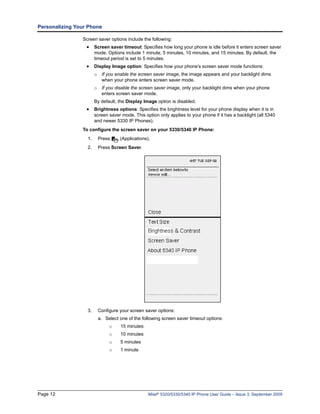
                      You can enable the screen saver image and when your phone enters screen saver mode, the
                      phone’s backlight dims and the embedded screen saver image, similar to the one below,
                      appears on your display.


                                   The screen saver image is the same image you see when you press
                         NOTE
                                   (Applications) and select the About 5330/5340 IP Phone menu option.


Mitel® 5320/5330/5340 IP Phone User Guide – Issue 3, September 2009                                        Page 11
Personalizing Your Phone

                Screen saver options include the following:
                  • Screen saver timeout: Specifies how long your phone is idle before it enters screen saver
                       mode. Options include 1 minute, 5 minutes, 10 minutes, and 15 minutes. By default, the
                       timeout period is set to 5 minutes.
                  • Display Image option: Specifies how your phone’s screen saver mode functions:
                       o    If you enable the screen saver image, the image appears and your backlight dims
                            when your phone enters screen saver mode.
                       o If you disable the screen saver image, only your backlight dims when your phone
                         enters screen saver mode.
                       By default, the Display Image option is disabled.
                  • Brightness options: Specifies the brightness level for your phone display when it is in
                       screen saver mode. This option only applies to your phone if it has a backlight (all 5340
                       and newer 5330 IP Phones).
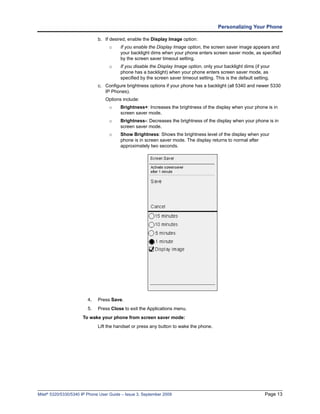
                To configure the screen saver on your 5330/5340 IP Phone:
                  1.       Press     (Applications).
                  2.       Press Screen Saver.


                  3.       Configure your screen saver options:
                           a. Select one of the following screen saver timeout options:
                                o    15 minutes
                                o    10 minutes
                                o    5 minutes
                                o    1 minute


Page 12                                            Mitel® 5320/5330/5340 IP Phone User Guide – Issue 3, September 2009
Personalizing Your Phone

                              b. If desired, enable the Display Image option:
                                   o     If you enable the Display Image option, the screen saver image appears and
                                         your backlight dims when your phone enters screen saver mode, as specified
                                         by the screen saver timeout setting.
                                   o     If you disable the Display Image option, only your backlight dims (if your
                                         phone has a backlight) when your phone enters screen saver mode, as
                                         specified by the screen saver timeout setting. This is the default setting.
                              c. Configure brightness options if your phone has a backlight (all 5340 and newer 5330
                                 IP Phones).
                                 Options include:
                                   o     Brightness+: Increases the brightness of the display when your phone is in
                                         screen saver mode.
                                   o     Brightness-: Decreases the brightness of the display when your phone is in
                                         screen saver mode.
                                   o     Show Brightness: Shows the brightness level of the display when your
                                         phone is in screen saver mode. The display returns to normal after
                                         approximately two seconds.


                         4.   Press Save.
                         5.   Press Close to exit the Applications menu.
                      To wake your phone from screen saver mode:
                              Lift the handset or press any button to wake the phone.


Mitel® 5320/5330/5340 IP Phone User Guide – Issue 3, September 2009                                              Page 13
Personalizing Your Phone

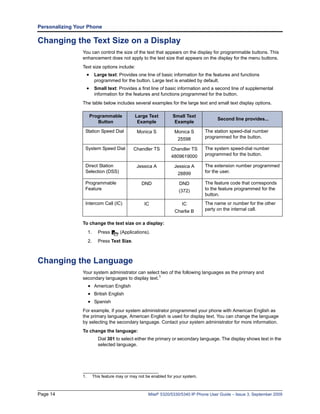
Changing the Text Size on a Display
                You can control the size of the text that appears on the display for programmable buttons. This
                enhancement does not apply to the text size that appears on the display for the menu buttons.
                Text size options include:
                     • Large text: Provides one line of basic information for the features and functions
                          programmed for the button. Large text is enabled by default.
                     • Small text: Provides a first line of basic information and a second line of supplemental
                          information for the features and functions programmed for the button.
                The table below includes several examples for the large text and small text display options.

                      Programmable              Large Text          Small Text
                                                                                         Second line provides...
                         Button                  Example             Example

                 Station Speed Dial              Monica S            Monica S       The station speed-dial number
                                                                      25598         programmed for the button.

                 System Speed Dial             Chandler TS         Chandler TS      The system speed-dial number
                                                                   4809619000       programmed for the button.

                 Direct Station                  Jessica A           Jessica A      The extension number programmed
                 Selection (DSS)                                      28899         for the user.

                 Programmable                      DND                 DND          The feature code that corresponds
                 Feature                                               (372)        to the feature programmed for the
                                                                                    button.
                 Intercom Call (IC)                  IC                  IC         The name or number for the other
                                                                     Charlie B      party on the internal call.


                To change the text size on a display:
                     1.     Press       (Applications).
                     2.     Press Text Size.


Changing the Language
                Your system administrator can select two of the following languages as the primary and
                secondary languages to display text.1
                     • American English
                     • British English
                     • Spanish
                For example, if your system administrator programmed your phone with American English as
                the primary language, American English is used for display text. You can change the language
                by selecting the secondary language. Contact your system administrator for more information.
                To change the language:
                            Dial 301 to select either the primary or secondary language. The display shows text in the
                            selected language.


                1.        This feature may or may not be enabled for your system.


Page 14                                                Mitel® 5320/5330/5340 IP Phone User Guide – Issue 3, September 2009
Personalizing Your Phone

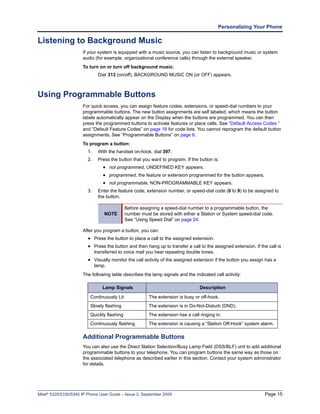
Listening to Background Music
                      If your system is equipped with a music source, you can listen to background music or system
                      audio (for example, organizational conference calls) through the external speaker.
                      To turn on or turn off background music:
                               Dial 313 (on/off). BACKGROUND MUSIC ON (or OFF) appears.


Using Programmable Buttons
                      For quick access, you can assign feature codes, extensions, or speed-dial numbers to your
                      programmable buttons. The new button assignments are self labeled, which means the button
                      labels automatically appear on the Display when the buttons are programmed. You can then
                      press the programmed buttons to activate features or place calls. See “Default Access Codes “
                      and “Default Feature Codes” on page 16 for code lists. You cannot reprogram the default button
                      assignments. See “Programmable Buttons” on page 6.
                      To program a button:
                         1.    With the handset on-hook, dial 397.
                         2.    Press the button that you want to program. If the button is:
                                  • not programmed, UNDEFINED KEY appears.
                                  • programmed, the feature or extension programmed for the button appears.
                                  • not programmable, NON-PROGRAMMABLE KEY appears.
                         3.    Enter the feature code, extension number, or speed-dial code (0 to 9) to be assigned to
                               the button.

                                             Before assigning a speed-dial number to a programmable button, the
                                  NOTE       number must be stored with either a Station or System speed-dial code.
                                             See “Using Speed Dial” on page 24.

                      After you program a button, you can:
                         • Press the button to place a call to the assigned extension.
                         • Press the button and then hang up to transfer a call to the assigned extension. If the call is
                              transferred to voice mail you hear repeating double tones.
                         • Visually monitor the call activity of the assigned extension if the button you assign has a
                              lamp.
                      The following table describes the lamp signals and the indicated call activity:

                                  Lamp Signals                                   Description

                          Continuously Lit              The extension is busy or off-hook.
                          Slowly flashing               The extension is in Do-Not-Disturb (DND).
                          Quickly flashing              The extension has a call ringing in.
                          Continuously flashing         The extension is causing a “Station Off-Hook” system alarm.

                      Additional Programmable Buttons
                      You can also use the Direct Station Selection/Busy Lamp Field (DSS/BLF) unit to add additional
                      programmable buttons to your telephone. You can program buttons the same way as those on
                      the associated telephone as described earlier in this section. Contact your system administrator
                      for details.


Mitel® 5320/5330/5340 IP Phone User Guide – Issue 3, September 2009                                             Page 15
Personalizing Your Phone

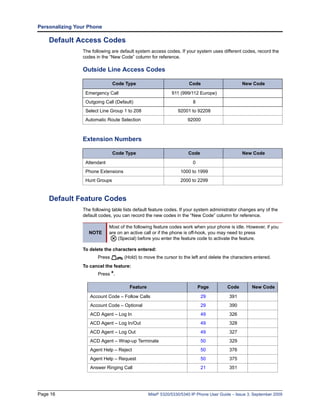
    Default Access Codes
                The following are default system access codes. If your system uses different codes, record the
                codes in the “New Code” column for reference.

                Outside Line Access Codes

                               Code Type                             Code                      New Code

                 Emergency Call                             911 (999/112 Europe)
                 Outgoing Call (Default)                               8
                 Select Line Group 1 to 208                    92001 to 92208
                 Automatic Route Selection                          92000


                Extension Numbers

                               Code Type                             Code                      New Code

                 Attendant                                             0
                 Phone Extensions                                1000 to 1999
                 Hunt Groups                                     2000 to 2299


    Default Feature Codes
                The following table lists default feature codes. If your system administrator changes any of the
                default codes, you can record the new codes in the “New Code” column for reference.

                             Most of the following feature codes work when your phone is idle. However, if you
                   NOTE      are on an active call or if the phone is off-hook, you may need to press
                                 (Special) before you enter the feature code to activate the feature.

                To delete the characters entered:
                       Press        (Hold) to move the cursor to the left and delete the characters entered.
                To cancel the feature:
                       Press *.

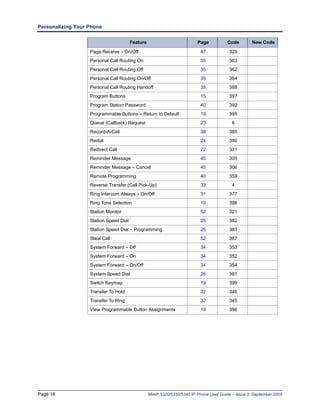
                                       Feature                             Page         Code        New Code

                   Account Code – Follow Calls                              29           391
                   Account Code – Optional                                  29           390
                   ACD Agent – Log In                                       49           326
                   ACD Agent – Log In/Out                                   49           328
                   ACD Agent – Log Out                                      49           327
                   ACD Agent – Wrap-up Terminate                            50           329
                   Agent Help – Reject                                      50           376
                   Agent Help – Request                                     50           375
                   Answer Ringing Call                                      21           351


Page 16                                          Mitel® 5320/5330/5340 IP Phone User Guide – Issue 3, September 2009
Personalizing Your Phone

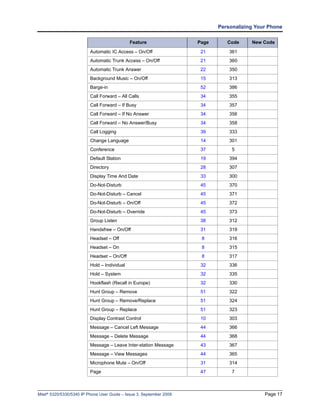
                                              Feature                 Page      Code     New Code

                          Automatic IC Access – On/Off                 21        361
                          Automatic Trunk Access – On/Off              21        360
                          Automatic Trunk Answer                       22        350
                          Background Music – On/Off                    15        313
                          Barge-in                                     52        386
                          Call Forward – All Calls                     34        355
                          Call Forward – If Busy                       34        357
                          Call Forward – If No Answer                  34        356
                          Call Forward – No Answer/Busy                34        358
                          Call Logging                                 39        333
                          Change Language                              14        301
                          Conference                                   37         5
                          Default Station                              19        394
                          Directory                                    28        307
                          Display Time And Date                        33        300
                          Do-Not-Disturb                               45        370
                          Do-Not-Disturb – Cancel                      45        371
                          Do-Not-Disturb – On/Off                      45        372
                          Do-Not-Disturb – Override                    45        373
                          Group Listen                                 38        312
                          Handsfree – On/Off                           31        319
                          Headset – Off                                8         316
                          Headset – On                                 8         315
                          Headset – On/Off                             8         317
                          Hold – Individual                            32        336
                          Hold – System                                32        335
                          Hookflash (Recall in Europe)                 32        330
                          Hunt Group – Remove                          51        322
                          Hunt Group – Remove/Replace                  51        324
                          Hunt Group – Replace                         51        323
                          Display Contrast Control                     10        303
                          Message – Cancel Left Message                44        366
                          Message – Delete Message                     44        368
                          Message – Leave Inter-station Message        43        367
                          Message – View Messages                      44        365
                          Microphone Mute – On/Off                     31        314
                          Page                                         47         7


Mitel® 5320/5330/5340 IP Phone User Guide – Issue 3, September 2009                           Page 17
Personalizing Your Phone

                                        Feature                           Page           Code        New Code

                   Page Receive – On/Off                                    47            325
                   Personal Call Routing On                                 35            363
                   Personal Call Routing Off                                35            362
                   Personal Call Routing On/Off                             35            364
                   Personal Call Routing Handoff                            35            388
                   Program Buttons                                          15            397
                   Program Station Password                                 40            392
                   Programmable Buttons – Return to Default                 19            395
                   Queue (Callback) Request                                 23             6
                   Record-A-Call                                            38            385
                   Redial                                                   24            380
                   Redirect Call                                            22            331
                   Reminder Message                                         45            305
                   Reminder Message – Cancel                                45            306
                   Remote Programming                                       40            359
                   Reverse Transfer (Call Pick-Up)                          33             4
                   Ring Intercom Always – On/Off                            31            377
                   Ring Tone Selection                                      10            398
                   Station Monitor                                          52            321
                   Station Speed Dial                                       25            382
                   Station Speed Dial – Programming                         25            383
                   Steal Call                                               52            387
                   System Forward – Off                                     34            353
                   System Forward – On                                      34            352
                   System Forward – On/Off                                  34            354
                   System Speed Dial                                        26            381
                   Switch Keymap                                            19            399
                   Transfer To Hold                                         32            346
                   Transfer To Ring                                         32            345
                   View Programmable Button Assignments                     19            396


Page 18                                           Mitel® 5320/5330/5340 IP Phone User Guide – Issue 3, September 2009
Personalizing Your Phone

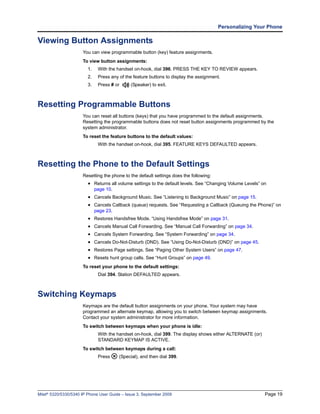
Viewing Button Assignments
                      You can view programmable button (key) feature assignments.
                      To view button assignments:
                         1.    With the handset on-hook, dial 396. PRESS THE KEY TO REVIEW appears.
                         2.    Press any of the feature buttons to display the assignment.
                         3.    Press # or     (Speaker) to exit.


Resetting Programmable Buttons
                      You can reset all buttons (keys) that you have programmed to the default assignments.
                      Resetting the programmable buttons does not reset button assignments programmed by the
                      system administrator.
                      To reset the feature buttons to the default values:
                               With the handset on-hook, dial 395. FEATURE KEYS DEFAULTED appears.


Resetting the Phone to the Default Settings
                      Resetting the phone to the default settings does the following:
                         • Returns all volume settings to the default levels. See “Changing Volume Levels” on
                              page 10.
                         • Cancels Background Music. See “Listening to Background Music” on page 15.
                         • Cancels Callback (queue) requests. See “Requesting a Callback (Queuing the Phone)” on
                              page 23.
                         • Restores Handsfree Mode. “Using Handsfree Mode” on page 31.
                         • Cancels Manual Call Forwarding. See “Manual Call Forwarding” on page 34.
                         • Cancels System Forwarding. See “System Forwarding” on page 34.
                         • Cancels Do-Not-Disturb (DND). See “Using Do-Not-Disturb (DND)” on page 45.
                         • Restores Page settings. See “Paging Other System Users” on page 47.
                         • Resets hunt group calls. See “Hunt Groups” on page 49.
                      To reset your phone to the default settings:
                               Dial 394. Station DEFAULTED appears.


Switching Keymaps
                      Keymaps are the default button assignments on your phone. Your system may have
                      programmed an alternate keymap, allowing you to switch between keymap assignments.
                      Contact your system administrator for more information.
                      To switch between keymaps when your phone is idle:
                               With the handset on-hook, dial 399. The display shows either ALTERNATE (or)
                               STANDARD KEYMAP IS ACTIVE.
                      To switch between keymaps during a call:
                               Press     (Special), and then dial 399.


Mitel® 5320/5330/5340 IP Phone User Guide – Issue 3, September 2009                                          Page 19
Answering and Placing Calls


Answering and Placing Calls
                      The following instructions describe how to answer and place internal and external calls and how
                      to use related features.

                                   By default, internal (intercom) calls are assigned to the IC button, and external calls
                         NOTE
                                   are assigned to the Call Key buttons.


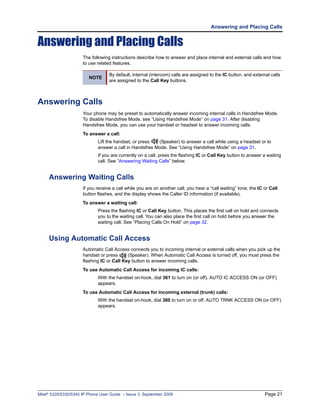
Answering Calls
                      Your phone may be preset to automatically answer incoming internal calls in Handsfree Mode.
                      To disable Handsfree Mode, see “Using Handsfree Mode” on page 31. After disabling
                      Handsfree Mode, you can use your handset or headset to answer incoming calls.
                      To answer a call:
                             Lift the handset, or press  (Speaker) to answer a call while using a headset or to
                             answer a call in Handsfree Mode. See “Using Handsfree Mode” on page 31.
                             If you are currently on a call, press the flashing IC or Call Key button to answer a waiting
                             call. See “Answering Waiting Calls” below.


     Answering Waiting Calls
                      If you receive a call while you are on another call, you hear a “call waiting” tone, the IC or Call
                      button flashes, and the display shows the Caller ID information (if available).
                      To answer a waiting call:
                             Press the flashing IC or Call Key button. This places the first call on hold and connects
                             you to the waiting call. You can also place the first call on hold before you answer the
                             waiting call. See “Placing Calls On Hold” on page 32.


     Using Automatic Call Access
                      Automatic Call Access connects you to incoming internal or external calls when you pick up the
                      handset or press      (Speaker). When Automatic Call Access is turned off, you must press the
                      flashing IC or Call Key button to answer incoming calls.
                      To use Automatic Call Access for incoming IC calls:
                             With the handset on-hook, dial 361 to turn on (or off). AUTO IC ACCESS ON (or OFF)
                             appears.
                      To use Automatic Call Access for incoming external (trunk) calls:
                             With the handset on-hook, dial 360 to turn on or off. AUTO TRNK ACCESS ON (or OFF)
                             appears.


Mitel® 5320/5330/5340 IP Phone User Guide – Issue 3, September 2009                                               Page 21
Answering and Placing Calls

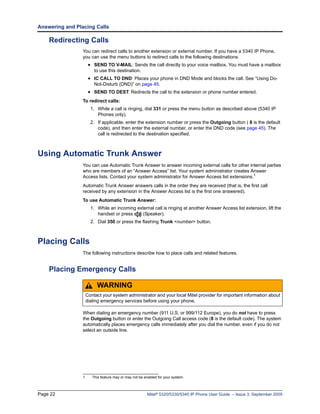
    Redirecting Calls
                 You can redirect calls to another extension or external number. If you have a 5340 IP Phone,
                 you can use the menu buttons to redirect calls to the following destinations:
                      • SEND TO V-MAIL: Sends the call directly to your voice mailbox. You must have a mailbox
                        to use this destination.
                      • IC CALL TO DND: Places your phone in DND Mode and blocks the call. See “Using Do-
                        Not-Disturb (DND)” on page 45.
                      • SEND TO DEST: Redirects the call to the extension or phone number entered.
                 To redirect calls:
                       1. While a call is ringing, dial 331 or press the menu button as described above (5340 IP
                          Phones only).
                       2. If applicable, enter the extension number or press the Outgoing button ( 8 is the default
                          code), and then enter the external number, or enter the DND code (see page 45). The
                          call is redirected to the destination specified.


Using Automatic Trunk Answer
                 You can use Automatic Trunk Answer to answer incoming external calls for other internal parties
                 who are members of an “Answer Access” list. Your system administrator creates Answer
                 Access lists. Contact your system administrator for Answer Access list extensions.1
                 Automatic Trunk Answer answers calls in the order they are received (that is, the first call
                 received by any extension in the Answer Access list is the first one answered).
                 To use Automatic Trunk Answer:
                       1. While an incoming external call is ringing at another Answer Access list extension, lift the
                          handset or press     (Speaker).
                       2. Dial 350 or press the flashing Trunk <number> button.


Placing Calls
                 The following instructions describe how to place calls and related features.


    Placing Emergency Calls

                          WARNING
                  Contact your system administrator and your local Mitel provider for important information about
                  dialing emergency services before using your phone.

                 When dialing an emergency number (911 U.S. or 999/112 Europe), you do not have to press
                 the Outgoing button or enter the Outgoing Call access code (8 is the default code). The system
                 automatically places emergency calls immediately after you dial the number, even if you do not
                 select an outside line.


                 1.    This feature may or may not be enabled for your system.


Page 22                                                Mitel® 5320/5330/5340 IP Phone User Guide – Issue 3, September 2009
Answering and Placing Calls

     Placing Internal Calls
                      Internal calls are calls placed to other extensions in the system. Internal calls are assigned to
                      the Intercom (IC) button on your phone. Contact your system administrator for a list of extension
                      numbers.
                      To place an internal call:
                             With or without the handset lifted, dial the extension number. If you enter incorrect digits,
                             you can press        (Hold) to move the cursor backward, deleting the last digits entered.
                             If you are using Handsfree Mode, speak after you hear a double tone.
                      If there is no answer or if the extension is busy, you can do the following:
                        • Request a callback (queue). See “Requesting a Callback (Queuing the Phone)” below.
                        • Camp-on to the busy extension. See “Using Camp-on” below.
                        • Leave a message. See “Leaving Messages at Other Extensions” on page 43.

                      Requesting a Callback (Queuing the Phone)
                      When you request a callback (queue the phone), the system calls you when the extension is
                      available and places a call to the phone.
                      To request a callback:
                             If there is no answer or if the extension is busy, press (Special) followed by 6 or the
                             QUEUE menu button (5340 IP Phones only), and then hang up. QUEUE REGISTERED
                             FOR <name> appears. When the extension becomes available, your extension rings.
                      To cancel the callback request:
                             Press 6 or the CANCEL QUEUE menu button (5340 IP Phones only). QUEUE
                             REQUEST CANCELED appears.

                      Using Camp-on
                      Camp-on keeps you connected to the called extension until it becomes available. You cannot
                      use Camp-on if the called extension is in DND, or if the call is forwarded to voice mail. See
                      “Using Do-Not-Disturb (DND)” on page 45.
                      To use Camp-on:
                             Stay on the line and wait for the extension to become available. Do not hang up. If Camp-
                             on is enabled, you hear Music-on-Hold while you are waiting.


Mitel® 5320/5330/5340 IP Phone User Guide – Issue 3, September 2009                                              Page 23
Answering and Placing Calls

    Placing External Calls
                 The following sections describe features used when placing external calls.
                 To place an external call:
                    1. Press the Outgoing button, an unlit Call Key button, or enter the Outgoing Call access
                       code (8 is the default code).
                    2. Dial the number.

                                     If you cannot place an external call because all outgoing lines are busy, you
                                     can request a callback, which prompts the system to contact you when a
                                     line becomes available. See “Requesting a Callback (Queuing the Phone)”
                           NOTES     on page 23 “.
                                     If you are prompted for an account code (indicated by a single beep), you
                                     must enter an account code before you can place your call. See “Using
                                     Account Codes” on page 29.

                 Depending on system configuration, you may also be able to use one of the following methods
                 to select an outgoing line:
                   • Enter the Select Line Group feature code. The default codes are 92001 to 92208.
                   • Enter the Automatic Route Selection (ARS) feature code. The default code is 92000.
                 Contact your system administrator for more information about using Select Line Group or ARS
                 access codes.


    Redialing a Number
                 You can quickly redial the last external number dialed. You cannot redial extension numbers.
                 To use Redial:
                        With or without the handset lifted, press       REDIAL. The system automatically selects
                        a line and dials the number.


Using Speed Dial
                 You can use speed dial to quickly dial stored phone numbers. Speed-dial numbers are either
                 stored in the system (System Speed Dial), or in your phone (Station Speed Dial).


    Using System Speed Dial
                 Your system administrator assigns Speed-Dial location numbers, which are available to anyone
                 in the system. Contact your system administrator for more information.
                 To view or dial System Speed-Dial numbers:
                    1. Dial 381. REVIEW SYS SPEED # <code range> appears.
                    2. Do one of the following:
                          • Press         (Up) or      (Down) to scroll through the speed-dial locations.
                          • Enter the speed-dial location (000 to 999 or 0000 to 4999).
                    3. Press # or the ACCEPT menu button (5340 IP Phones only) to dial the number.


Page 24                                           Mitel® 5320/5330/5340 IP Phone User Guide – Issue 3, September 2009
Answering and Placing Calls

     Using Station Speed Dial
                      You can use Station Speed Dial to store phone numbers for your personal use. Other system
                      users do not have access to your Station Speed-Dial numbers.

                      Storing Station Speed-Dial Numbers
                      You can store up to 10 station Speed-Dial numbers.
                      To store a Station Speed-Dial number:
                          1. With the handset on-hook, dial 383. PROGRAM STN SPD (0-9) OR SCROLL appears.
                          2. Do one of the following:
                                • Press       (Up) or      (Down) to scroll through the speed-dial locations.
                                • Enter the speed-dial location (0 to 9).
                             Press # or the ACCEPT menu button (5340 IP Phones only) to select the location.
                          3. Enter the name of the speed-dial contact (up to 10 characters). For dialpad character
                             descriptions, see “Using the Dialpad Buttons to Enter Characters” on page 25.
                          4. Press # or the ACCEPT menu button (5340 IP Phones only) to save the name.
                          5. Enter the extension number or external number. If you are storing an external number,
                             enter the Outgoing Call access code (8 is the default code) before you enter the number.
                             Do not use hyphens or colons in stored speed-dial numbers.
                          6. Press # or the ACCEPT menu button (5340 IP Phones only) to save the location. STN
                             SPD BIN # <number> UPDATED appears.

                      Using the Dialpad Buttons to Enter Characters
                      You can use the dialpad buttons to enter text or numbers for features such as
                      Do-Not-Disturb (see page 45) and Station Speed Dial (see page 25).
                      The following are guidelines when entering dialpad characters:
                        • Press       (Message) to switch from Alpha Mode to Numeric Mode. The             (Message)
                           button stays lit in Alpha Mode and is off in Numeric Mode.
                        • Press          (Hold) to move the cursor to the left and delete characters.
                        • Press           (Transfer) to move the cursor to the right.
                        • In Numeric Mode, press # for a hyphen (-).
                        • In Numeric Mode, press * for a colon (:).
                        • Press #,        (Speaker), or lift and replace the handset to save entries.


Mitel® 5320/5330/5340 IP Phone User Guide – Issue 3, September 2009                                             Page 25
Answering and Placing Calls

                 To use the dialpad to enter characters:
                        Press the dialpad buttons as shown in the following table.

                                                              Characters Represented
                                              Button
                                                                 (in Alpha Mode)

                                                    0       @:.,0
                                                    1       -&()1
                                                    2       ABC‘2
                                                    3       DEF!3
                                                    4       GHI*4
                                                    5       JKL#5
                                                    6       MNOñ6
                                                    7       PQRS7
                                                    8       TUV?8
                                                    9       WXYZ9

                 For example, to enter May 31, you could use the following sequence:
                    1. In Alpha Mode (       [Message] button is lit), press 6 once to enter an “M.”
                    2. Press 2 once to enter an “A.”
                    3. Press 9 three times to enter a “Y.”
                    4. Press          (Transfer) to enter a space.
                    5. Press       (Message) to switch to Numeric Mode.
                    6. Press 3.
                    7. Press 1.
                    8. Press       (Speaker), #, or lift the handset to save the entry.

                 Dialing Station Speed-Dial Numbers
                 To dial a Station Speed-Dial number:
                        Do one of the following:
                          • Dial 382, and then enter the Station Speed-Dial location number (0 to 9). The
                              system dials the number.
                          • Press        (Up) or      (Down) to scroll through the speed-dial locations, and then
                              press # to select the location and dial the number.

                                           You can also use a Station Speed-Dial button assigned to the number
                                  NOTE     you are dialing. See “Assigning Speed-Dial Entries to Programmable
                                           Buttons” on page 27.


Page 26                                            Mitel® 5320/5330/5340 IP Phone User Guide – Issue 3, September 2009
Answering and Placing Calls

                      Deleting Speed-Dial Entries
                      To delete a Station Speed-Dial entry:
                          1. With the handset on-hook, dial 383. PROGRAM STN SPD (0-9) OR SCROLL appears.
                          2. Do one of the following:
                                • Press        (Up) or     (Down) to scroll through the speed-dial locations.
                                • Enter the speed-dial location (0 to 9).
                          3. Press # or the ACCEPT menu button (5340 IP Phones only) to select the location.
                          4. Press    (Hold) repeatedly until the name is erased, and then press # or the
                             ACCEPT menu button (5340 IP Phones only) to continue.
                          5. Press    (Hold) repeatedly until the number is erased, and then press # or the
                             ACCEPT menu button (5340 IP Phones only). STN SPD BIN # <number> UPDATED
                             appears.

                      Assigning Speed-Dial Entries to Programmable Buttons
                      You can assign Station or System Speed-Dial numbers to your programmable buttons.

                                   Before assigning the speed-dial number to a programmable button, make sure the
                         NOTE
                                   number has either a Station or System Speed-Dial code assigned to it.

                      To program a System/Station Speed-Dial button:
                          1. With the handset on-hook, dial 397. PRESS THE BUTTON TO PROGRAM appears.
                          2. Press the feature button that you want to program as a speed-dial button.
                          3. Dial 382 (Station Speed Dial) or 381 (System Speed Dial).
                          4. Do one of the following:
                                • Press        (Up) or     (Down) to scroll through the speed-dial locations.
                                • Enter the speed-dial location (0 to 9 for Station Speed-Dial or 000 to 999 or 0000 to
                                   4999 for System Speed Dial), or select the menu button designation from the
                                   display (5340 IP Phones only).


Mitel® 5320/5330/5340 IP Phone User Guide – Issue 3, September 2009                                             Page 27
Answering and Placing Calls

Using the Directory
                 You can use the Directory to find internal or external contacts or find and activate system
                 features. The directory uses Intelligent Directory Search (IDS), which is similar to the “text on 9
                 keys” (T9) predictive search feature used for mobile phones. The Directory has the following
                 three subdirectories:
                   • Intercom: Find and dial internal numbers.
                   • Outside: Find and dial external numbers listed in the company directory.
                   • Feature: Find and activate system features.
                 When searching the directory, dialpad buttons can represent several characters, as shown in
                 the following table. As you enter characters, the entries that best match the characters entered
                 appear. The system connects the character sequence to possible directory matches. For
                 example, to find the name “Jones,” dial 56637.

                                 Button                        Characters Represented

                                     0         0
                                     1         1
                                     2         2ABCabcÇâäàåçÄÅá
                                     3         3DEFdeféêëèÉ
                                     4         4GHIghiïîìí
                                     5         5JKLjkl
                                     6         6MNOmnoôöòÖóñÑ
                                     7         7QPRSqprs
                                     8         8TUVtuvüûùÜú
                                     9         9WXYZwxyzÿ
                                     (Up)      Scroll to next entry
                                    (Down)     Scroll to previous entry
                                     *         Cancel search
                                     #         Activate selection
                                     (Hold)    Move the cursor to the left, deleting existing characters

                 See page 29 for detailed instructions on using the directory.


Page 28                                            Mitel® 5320/5330/5340 IP Phone User Guide – Issue 3, September 2009
Answering and Placing Calls

                      To search for a directory name or feature:
                          1. Dial 307, and then press one of the following:
                                • 1 for the IC directory.
                                • 2 for the Outside directory.
                                • 3 for the Feature directory.
                                • The directory menu button (IC, OUTSIDE, or FEATURE—5340 IP Phones only).
                          2. Press the dialpad buttons to enter (up to 20) characters. See the table on page 28 for
                             dialpad button character descriptions.
                          3. Press     (Up) or       (Down) or the >> (Next) or << (Previous) menu buttons (5340 IP
                             Phones only) to scroll through the entries.

                                           The IC directory may display two similar entries, one without an asterisk
                                 NOTE      and one with an asterisk. The entry without an asterisk is the primary
                                           extension—the entry with an asterisk is a secondary extension.

                          4. Press # (or the menu button next to the entry [5340 IP Phones only]) while the display
                             shows the entry to dial a number or activate a feature code.


Using Account Codes
                      Account codes record information for telephone record reports. You may be required to enter
                      account codes when placing calls. Contact your system administrator for more information
                      about using account codes.
                      There are three types of account codes:
                        • Standard account codes: Automatically entered into the telephone record report
                           whenever you place a call.
                        • Forced account codes: Entered before you can place an outside call.
                        • Optional account codes: Entered at any time during a call.
                      To enter an optional account code:
                          1. While off-hook, press      (Special), and then dial 390.
                          2. Enter the optional account code, and then press #.
                      To set an account code for all calls placed from your phone:
                             Dial 391 followed by the account code, and then press #. This code is used for all calls
                             made from your phone until it is disabled.
                      To disable the code:
                             Dial 391, and then press #. ACCOUNT CODE CLEARED appears.


Mitel® 5320/5330/5340 IP Phone User Guide – Issue 3, September 2009                                            Page 29
Call Features


Call Features
                      The following sections describe call-related features.


Using Handsfree Mode
                      You can use Handsfree Mode to activate the speakerphone.

                                    The Ring Intercom Always feature prevents calls from being answered in
                                    Handsfree Mode (see the following section).
                         NOTES
                                    You cannot use Handsfree Mode if you are using a headset, or if you have more
                                    than one phone assigned to an extension number.

                      To use Handsfree Mode:
                             With the handset on-hook, dial 319. HANDSFREE MODE ON appears. Dial 319 again to
                             turn Handsfree Mode off.


Using Ring Intercom Always
                      If another extension has Handsfree Mode enabled for incoming internal calls (see the previous
                      section), you can use Ring Intercom Always to override Handsfree Mode on the extension,
                      requiring the called party to pick up the handset to answer your call.
                      To override Handsfree Mode for the current call:
                          1. Before you enter the extension number, press #. RING EXTENSION NUMBER appears.
                          2. Dial the extension number.
                      To use Ring Intercom Always to always send non-handsfree calls:
                             With the handset on-hook, dial 377. RING IC ALWAYS ON appears. Dial 377 again to
                             turn Ring Intercom Always off.


Using Mute
                      You can use Mute to temporarily turn off your microphone, preventing the other party on the call
                      from hearing you.
                      To mute or unmute the microphone:
                             While on a call, press   (Mute). MICROPHONE MUTE ON appears. When the
                             microphone is muted, the Mute button lamp is lit. Press (Mute) again to unmute.


Mitel® 5320/5330/5340 IP Phone User Guide – Issue 3, September 2009                                           Page 31
Call Features

Placing Calls On Hold
                You can place calls on either Individual Hold or System Hold.
                  • Individual Hold: Places an internal or external call on hold at your phone.
                  • System Hold: Places an external call on hold in the system. You can then pick up the call
                     from any phone that indicates a flashing Call button for the call, including the phone that
                     placed it on hold.
                To place a call on Individual Hold:
                   1. Press         (Hold). ENTER EXTENSION NUMBER appears.
                   2. Hang up or place another call.
                To place an outside call on System Hold:
                   1. Press      (Special), and then dial 335. ENTER EXTENSION NUMBER appears.
                   2. Hang up or place another call.
                To return to a call that is on hold:
                       Press    (Hold), and then lift the handset or press         (Speaker). <Caller> WAS
                       HOLDING appears.


Entering a Hookflash
                Some telephone companies require you to enter a hookflash (a quick hang up and release) for
                feature access.
                To enter a hookflash:
                       While off-hook, press      (Special), and then dial 330 or press the FLASH menu button
                       (5340 IP Phones only).


Transferring Calls
                You can transfer calls to other extensions or external numbers. You can also transfer
                conference calls. See “Transferring a Conference” on page 37 for more information.


    Transferring Calls to Other Extensions
                To transfer a call to another extension:
                   1. While on the call, press          (Transfer), and then enter the extension number.
                   2. Do one of the following:
                         • Wait for an answer, announce the call, and then hang up. If the extension is
                            unavailable, press the flashing IC or Call Key button to return to the caller.
                         • Hang up to transfer the call and disconnect the call from your phone.

                                         If your system administrator has enabled Transfer-on-Connect for your
                                         phone, you are automatically connected to calls transferred to your
                               NOTE      extension after the transferring party hangs up. If this option is turned
                                         off, you must press a Call Key button to answer calls transferred to
                                         your extension.


Page 32                                          Mitel® 5320/5330/5340 IP Phone User Guide – Issue 3, September 2009
Call Features

     Transferring Calls to External Numbers
                      To transfer a call to an external number:
                          1. While on the call, press        (Transfer).
                          2. Press the Outgoing button or the Outgoing Call access code (the default code is 8) to
                             select an outside line.
                          3. Dial the phone number.
                          4. Do one of the following:
                                • Wait for an answer, announce the call, and then hang up. If the extension is
                                   unavailable, press the flashing Call Key button to return to the caller.
                                • Hang up to transfer the call and disconnect the call from your phone.


     Using Reverse Transfer
                      You can use Reverse Transfer (Call Pick Up) to answer calls that are ringing or holding at other
                      extensions. For example, if you receive a call while you are away from your desk, you can pick
                      up the call from another extension.
                      To use Reverse Transfer:
                          1. Lift the handset, and then press 4. ENTER EXTENSION NUMBER appears.
                          2. Dial the extension or hunt group number where the call is ringing or holding. The call is
                             transferred to the phone you are using and you are connected to the caller.


Viewing Your System Information
                      If you are on a call, you can temporarily view your user information (your user name and your
                      extension number) and the date and time.
                      To display your user information and the date and time:
                             Press      (Special), and then dial 300.


Viewing Caller ID Information
                      If you are currently connected to an external caller with Caller ID, you can toggle between the
                      caller’s name and number. If the name is unavailable, CANNOT ACCESS FEATURE appears.
                      To show the outside party’s name/number:
                             Press      (Special), and then dial 379.


Mitel® 5320/5330/5340 IP Phone User Guide – Issue 3, September 2009                                            Page 33
Call Features

Forwarding Calls
                You can use Manual Call Forwarding (see page 34) or System Forwarding (see page 34) to
                forward calls.


    Manual Call Forwarding
                The following table describes Manual Call Forwarding options.

                                                                                          Code/Menu Button
                    Call Forward Feature                    Description
                                                                                        (5340 IP Phones only)

                   Call Forward All Calls       All incoming calls are forwarded.                 355
                                                                                                  ALL
                   Call Forward if no           All incoming calls are forwarded if               356
                   Answer                       not answered. (The timer is set by           NO ANSWER
                                                the system administrator.)
                   Call Forward If Busy         When your phone is busy, all                      357
                                                incoming calls are forwarded without             BUSY
                                                ringing.
                   Call Forward If No           All incoming calls are forwarded if               358
                   Answer/Busy                  your phone is busy, or if you do not     NO ANSWER/BUSY
                                                answer.

                To use Manual Call Forwarding:
                   1. Press the Fwd All button (5320/5330 IP Phone) or Forward button followed by the
                      menu button designation (5340 IP Phone), or dial the Manual Call Forwarding feature
                      code from the previous table. ENTER FORWARD DEST appears.
                   2. Enter the extension number, or press the Outgoing button or the Outside menu button
                      (5340 IP Phones only), and then dial the telephone number. On the 5340 IP Phone, you
                      can press the MESSAGE CENTER menu button to forward calls to the Message Center
                      (voice mailbox). FWD ALL CALLS TO <number> appears.
                To cancel a Manual Call Forwarding request:
                         • 5320/5330 IP Phone: Press the Fwd All button, and then press #               (Speaker), or
                            lift the handset.
                         • 5340 IP Phone: Press Forward button, and then press the FWD OFF menu
                            button.


    System Forwarding
                You can use System Forwarding to route calls based on the type of call and the idle or busy
                status of your phone. You cannot program the System Forward destination. You can only turn it
                on or off. Contact your system administrator for more information.
                To turn on or turn off System Forwarding:
                       Dial 354. SYSTEM FORWARD ON appears. Dial 354 again to turn System Forwarding
                       off.


Page 34                                           Mitel® 5320/5330/5340 IP Phone User Guide – Issue 3, September 2009
Call Features

Using Personal Call Routing
                      When you enable Personal Call Routing on your phone, your incoming calls are automatically
                      routed to one or more preprogrammed associated destinations according to the routing steps
                      programmed for you.
                      Typically, your desk phone is configured to be your main extension. You may be programmed
                      for up to five associated destinations including:
                        • softphone
                        • home IP phone
                        • voice mail
                        • mobile phone
                        • home phone
                      Your desk phone, softphone, home IP phone and voice mail extensions are already
                      programmed in the system, so your system administrator can easily include them in your routing
                      steps. To include your mobile and home phone numbers in your routing steps, you will need to
                      provide these numbers to your system administrator.
                      Personal Call Routing also includes the Handoff feature, which includes the following functions:
                        • Push: The Handoff “push” function allows you to move an active call from your main
                           extension, typically your desk phone, to an associated destination without disconnecting
                           audio. The push function is useful if you are leaving the work area, but want to remain
                           connected to an active call. The push function rings all associated destinations (except
                           voice mail) and you select which device to use to answer the call. When you answer the
                           call, you are immediately connected to the other parties at the new destination. When the
                           call is switching over to the new destination, there may be a momentary break in audio,
                           which may be noticeable to the other parties on the call.
                        • Pull: The Handoff “pull” function allows you to pull a call that was previously routed to your
                           mobile or home phone back to the main extension. The pull function is useful if you
                           answer a call on your mobile phone and then return to your desk. After you pull a call back
                           to the main extension, the call is connected immediately and you can then access system
                           features such as conference, hold, and transfer.

                                        The Handoff feature is only supported on your main extension, typically your
                                        desk phone. However, if you share a desk phone with one or more coworkers
                              NOTE
                                        and your main extension is a phantom extension, you cannot use the Handoff
                                        feature.

                      Personal Call Routing includes the following feature codes:
                        • Personal Call Routing On: 363
                        • Personal Call Routing Off: 362
                        • Personal Call Routing On/Off: 364
                        • Personal Call Routing – Handoff (push and pull): 388
                      The following call types do not follow Personal Call Routing:
                        • Hunt group calls
                        • Hunt group announcement/overflow calls
                        • Transfer recalls, Hold recalls, Conference recalls, and Attendant recalls

                                       A recall occurs when a feature cannot be completed or the feature times out,
                                       and the call returns to the originating extension. For example, a holding call
                             NOTE
                                       will recall the extension where it was placed on hold when the hold timer
                                       expires.


Mitel® 5320/5330/5340 IP Phone User Guide – Issue 3, September 2009                                             Page 35
Call Features

                When you enable Personal Call Routing, your incoming calls are routed as specified by the
                routing type programmed for you by your system administrator. The table below provides
                descriptions for the default routing types.

                    Routing Type                                        Description

                Mobile Twinning        Calls simultaneously ring your desk phone and mobile phone, before
                                       going to voice mail.
                Delayed Mobile         Calls ring your desk phone first, and then ring both your desk phone and
                Twinning               mobile phone, before going to voice mail.

                Check with your system administrator to see which routing type has been programmed for you.
                Your administrator can modify these routing types by adding or removing routing steps, adding
                or removing destinations, and changing the ring timers, if required.
                To ensure that calls are routed correctly to your mobile and home phones, inform your system
                administrator if either of these phone numbers change.
                To enable Personal Call Routing:
                       Dial 363 or 364. PERSONAL ROUTING ON appears on the display.
                To disable Personal Call Routing:
                       Dial 362 or 364. PERSONAL ROUTING OFF appears on the display.
                To answer a call routed to your mobile or home phone:
                   1. Answer the call when it rings your phone. After you speak, the Personal Call Routing
                      prompt is played.
                   2. Do one of the following:
                         • Press # to accept the call.

                                        You do not need to wait for the prompt to accept the call. You can
                               NOTE
                                        accept the call immediately by pressing the # button.

                         • Press * to send the call to the voice mailbox associated with your main extension
                            (not your mobile phone or home phone voice mailbox). If you do not have a voice
                            mailbox, the “Press *...” prompt is not played and the call is routed to your main
                            extension.
                       If you hang up, the call continues to follow your programmed routing steps.
                To use the Personal Call Routing – Handoff “push” feature:
                   1. While on an active call at your phone, press (Special), and then dial 388. HANDOFF
                      IN PROGRESS appears on the display and the call rings all of your associated
                      destinations (except voice mail).
                   2. Answer the call at one of your associated destinations. For mobile and home phones,
                      press # to accept the call.
                To use the Personal Call Routing – Handoff “pull” feature:
                       While on an active call on an associated destination device, lift the phone handset and
                       dial 388. A confirmation tone is played and the call is pulled back to your phone.

                           If you enter the handoff feature code (388) and the display shows NO CALL TO
                  NOTE
                           HANDOFF, the call cannot be handed off (see page 63).

                To cancel the Personal Call Routing – Handoff feature:
                       While the handoff is in-progress, press (Special), and then dial 388. HANDOFF
                       CANCELLED appears on the display for your main extension.


Page 36                                          Mitel® 5320/5330/5340 IP Phone User Guide – Issue 3, September 2009
Call Features

Placing Conference Calls
                      You can place a conference call with up to three internal or external parties (for a total of four
                      parties, including yourself).
                      To place a conference call:
                          1. While on the first call, press the Conference button to place the call on hold. CALL
                             NEXT PARTY TO CNF appears.
                          2. Place a call to the next conference party (for external calls, press the Outgoing button
                             or the Outgoing Call access code [8 is the default code], and then dial the number).
                          3. After the party answers, announce the conference, and then press the Conference
                             button to place the call on hold. If necessary, repeat this step to add the remaining
                             conference party.
                          4. Press the Conference button again or the CONNECT TO CNF menu button (5340 IP
                             Phones only) to start the conference. CNF IN PROGRESS appears.


     Adding a Conference Party
                      You can add a conference party during the conference.
                      To add a conference party:
                          1. Press the Conference button or the ADD PARTY menu button (5340 IP Phones only).
                             This leaves the conference parties connected.
                          2. Place a call to the party to be added to the conference, and then announce the
                             conference. Press the Conference button (twice) or the CONNECT TO CNF menu
                             button (5340 IP Phones only) to add the party and rejoin the conference.


     Transferring a Conference
                      You can transfer an existing conference to another extension.
                      To transfer a conference:
                          1. During the conference, press             (Transfer), and then dial the extension number.
                          2. Announce the conference (if desired), and then hang up. CONFERENCE TFR from
                             <name> appears on the called party’s display. The party must then press the flashing
                             Conference button to connect to the conference.


     Dropping Out of a Conference
                      You can drop out of a conference and return to the conference later.
                      To drop out of a conference:
                             Press the Conference button or    (Hold), and then hang up. ENTER EXTENSION
                             NUMBER appears. This removes you from the conference but leaves the other parties
                             connected.
                      To return to the conference:
                             Press the flashing Call Key button. CONFERENCE WAS HOLDING appears, and you
                             are reconnected to the conference.


Mitel® 5320/5330/5340 IP Phone User Guide – Issue 3, September 2009                                               Page 37
Call Features

    Ending a Conference and Placing all Parties on Hold
                You can end a conference and place all conference parties on Individual Hold, allowing you to
                toggle between the held parties and speak to one party at a time.
                To end a conference and place all parties on Individual Hold:
                        Press the Conference button, and then press             (Hold). CONFERENCE PARTIES
                        ON HOLD appears.
                To toggle between the held callers:
                        Press         (Hold) twice for internal parties or the applicable Call Key button for external
                        parties.


Using Record-A-Call
                .


                              This feature is not supported for peer-to-peer (P2P) calls. Contact your system
                     NOTE
                              administrator for more information.

                You can use Record-A-Call to record an ongoing call as a mailbox message.1 You can then
                retrieve the message from your voice mailbox. The Record-A-Call feature stays active after the
                other party hangs up, so you can add to the recorded call with your own message.
                To use Record-A-Call:
                     1. While on a call, press (Special), and then dial 385, or press the RECORD-A-CALL
                        menu button (5340 IP Phones only). REQUESTING RECORD-A-CALL appears.
                     2. Enter the voice mailbox number where you want the recording to be saved.
                        RECORD-A-CALL IN PROGRESS appears, and both you and the calling party hear a
                        confirmation tone (if enabled).

                                       Your system administrator can assign the Record-a-Call voice mailbox
                            NOTE
                                       destination. If so, you do not need to enter the voice mailbox number.

                To stop Record-A-Call:
                        Do one of the following:
                            • Press      (Special), and then dial 385.
                            • Press the CANCEL RECORDING menu button (5340 IP Phones only).
                            • Hang up.


Using Group Listen
                You can use Group Listen to activate the speaker while you use the handset or headset to
                continue speaking. This allows other people to hear the other party on the call while the other
                party can only hear you (through the handset microphone). You cannot use Group Listen in
                Handsfree Mode.
                To use Group Listen:
                        While on a call, press   (Special), and then dial 312. GROUP LISTEN ON appears, and
                        you hear a confirmation tone. The other party does not hear the confirmation tone. Dial
                        312 again to turn Group Listen off.


                1.    This feature may or may not be enabled for your system.


Page 38                                            Mitel® 5320/5330/5340 IP Phone User Guide – Issue 3, September 2009
Call Features

Using Call Logging
                      Your call logs are records of your most recent missed, received, and dialed calls. A maximum of
                      20 entries are stored in each call log.2
                      You can use Call Logging to:
                           • View recent call activity.
                           • View caller ID information.
                           • Return or redial calls.
                      To use Call Logging:
                            1. Dial 333 or the LOGS menu button (5340 IP Phones only).
                            2. Select one of the following options:
                                  • Press 1 (MISS) or the MISSED CALLS menu button (5340 IP Phones only) for
                                     missed calls.
                                  • Press 2 (RCV) or the RECEIVED CALLS menu button (5340 IP Phones only) for
                                     received calls.
                                  • Press 3 (DL) or the DIALED CALLS menu button (5340 IP Phones only) for dialed
                                     calls.
                                  • Press 4 (CLR) or the CLEAR LOGS menu button (5340 IP Phones only) to clear
                                     all entries.
                            3. Press    (Up) or       (Down) or the >> (Next) or << (Previous) menu buttons (5340 IP
                               Phones only) to scroll through the entries.
                                The display shows the party’s name and the extension or outside number (if available)
                                and the date and time.
                                If no Caller ID information is available, UNKNOWN CALLER appears.
                      To return a call or redial a number listed in a call log:
                                Press # or the CALL NOW menu button (5340 IP Phones only) while the display shows
                                the number.
                      To delete individual call log entries:
                                Press 0 or the DELETE menu button to delete the displayed entry, or press the DEL ALL
                                menu button (5340 IP Phones only) to delete all entries in the current call log.


                      2.     This feature may or may not be enabled for your system.


Mitel® 5320/5330/5340 IP Phone User Guide – Issue 3, September 2009                                            Page 39
Call Features

Using Secondary Extension Buttons
                Secondary Extension buttons must be programmed by your system administrator. You can use
                programmable buttons as “secondary extensions.” Secondary Extensions are assigned to other
                extensions in the system (primary extensions) Because Secondary Extension buttons are
                programmed by the system administrator, you cannot change the buttons (for example, assign
                features to the buttons).
                When programmed, you can use Secondary Extension buttons to:
                     • Place an internal call to the primary extension.
                     • View the call activity at the primary extension.
                     • Transfer calls to the primary extension.
                     • Answer a call that is ringing or holding on any Call Key button at the primary extension.

                                     The system administrator must set up the Call Key buttons for internal calls or
                                     you cannot use Secondary Extensions at the primary extension.
                                     You can use Secondary Extension buttons to notify you when a given number
                                     of calls are waiting at the primary extension.
                          NOTES
                                     If a Secondary Extension button is flashing (the primary extension has an
                                     incoming call), you can press # before you press the flashing Secondary
                                     Extension button to call the primary extension and not answer the incoming
                                     call.


Remote Programming
                You can use Remote Programming to access the DND, Call Forwarding, and Personal Call
                Routing features from another system phone or an external phone.3

                               A Direct Inward System Access (DISA) number is required to use Remote
                     NOTE      Programming from an external phone. Contact your system administrator for more
                               information.


    Entering a Remote Programming Password
                Before using Remote Programming, you should enter a new password.
                To enter a Remote Programming password:
                      1. Dial 392. ENTER PASSWORD appears.
                      2. Enter your current password (the default password is your extension number), followed
                         by #. CHANGE PASSWORD TO appears.
                      3. Enter the new password followed by #. VERIFY PASSWORD appears.
                      4. Enter the new password again followed by #. DATABASE UPDATED appears.
                To change the station password from another phone, see “Using Remote Programming to
                Change the Password” on page 41.


                3.     This feature may or may not be enabled for your system.


Page 40                                            Mitel® 5320/5330/5340 IP Phone User Guide – Issue 3, September 2009
Call Features

     Using Remote Programming to Change the Password
                      You can use Remote Programming to change the station (phone) password.
                      To use Remote Programming to change the station password:
                          1. Do one of the following:
                                • Call your DISA number (provided by your system administrator). If necessary, enter
                                   your (DISA) password.
                                • Use any phone on the system.
                          2. Dial 359.
                          3. Enter your extension number.
                          4. Enter your password followed by #.
                          5. Dial 392.
                          6. Enter the new password followed by #.
                          7. Enter the new password again followed by #.


     Using Remote Programming to Change DND Settings
                      See “Using Do-Not-Disturb (DND)” on page 45 for more information about using DND.
                      To use Remote Programming to turn on DND:
                          1. Do one of the following:
                                • Call your DISA number (provided by your system administrator). If necessary, enter
                                   your (DISA) password.
                                • Use any phone on the system.
                          2. Dial 359.
                          3. Enter your extension number.
                          4. Enter your password followed by #.
                          5. Dial 370.
                          6. Enter the DND message number (01 to 20), and then enter the second-line message
                             text (if applicable).
                      To use Remote Programming to turn off DND:
                             Follow steps 1 through 4 above, and then dial 371.


Mitel® 5320/5330/5340 IP Phone User Guide – Issue 3, September 2009                                         Page 41
Call Features

    Using Remote Programming to Forward Calls
                See “Manual Call Forwarding” on page 34 for more information about Manual Call Forwarding.
                To use Remote Programming to turn on Manual Call Forwarding:
                   1. Do one of the following:
                           • Call your DISA number (provided by your system administrator). If necessary, enter
                             your (DISA) password.
                           • Use any phone on the system.
                   2. Dial 359.
                   3. Enter your extension number.
                   4. Enter your password followed by #.
                   5. Dial one of the following Call Forwarding feature codes:
                           • 355 (All)
                           • 356 (No answer)
                           • 357 (Busy)
                           • 358 (No Answer/Busy)
                   6. Enter either an extension number or (8) followed by a telephone number.
                To turn off Call Forwarding:
                       Dial 355, and then hang up.


    Using Remote Programming for Personal Call Routing
                See “Using Personal Call Routing” on page 35 for more information about Personal Call
                Routing.
                To use Remote Programming to enable Personal Call Routing:
                   1. Do one of the following:
                       •     Call your DISA number (provided by the system administrator). If necessary, enter
                             your DISA password.
                       •     Use any phone on the system.
                   2. Dial 359.
                   3. Enter your extension number.
                   4. Enter your password followed by #.
                   5. Dial 363 (Personal Call Routing On).
                To use Remote Programming to disable Personal Call Routing:
                       Follow steps 1 - 4 above, dial 362 (Personal Call Routing Off), and then hang up.


Page 42                                          Mitel® 5320/5330/5340 IP Phone User Guide – Issue 3, September 2009
Messages


Messages
                      This section describes the following system messaging features:
                         • Inter-station messages: Inter-station messages are alerts sent to your phone by other
                            internal parties, notifying you to contact the party who left the message. The
                                  (Message) button and Message/Ring Indicator flash to notify you of the new
                            message. You can then either delete the message or reply to the message, which
                            automatically places a call to the party who left the message.
                         • Do-Not-Disturb (DND) messages: Messages that other internal parties see when your
                            phone is in DND. See “Using Do-Not-Disturb (DND)” on page 45.
                         • Reminder Messages: Messages that you can use to notify yourself of upcoming
                            appointments, meetings, and so on. See “Using Reminder Messages” on page 46.
                         • Pages: Announcements sent over phone speakers or external speakers. See “Paging
                            Other System Users” on page 47.
                         • Voice messages: System voice mail messages.

                                          Because a variety of voice mail products work with the 5000 CP, this guide
                                          does not include voice mail instructions. For voice mail instructions, refer to
                                          the voice mail user guide for your system. For example, refer to the
                               NOTE       Enterprise Messaging, Basic Voice Mail, and Embedded Voice Mail Card
                                          User Guide, part number 835.3205, or the Mitel NuPoint Unified Messaging
                                          User Guide on the Mitel Web site (http://edocs.mitel.com). Contact your
                                          system administrator for more information about your voice mail system.


Leaving Messages at Other Extensions
                      You can leave inter-station or voice mail messages for other internal parties.
                      To leave an inter-station or voice message for a busy IC extension:
                          1. Press   (Message) or the LEAVE MESSAGE menu button (5340 IP Phones only).
                             HANG UP OR WAIT FOR MSG CENTER appears.
                          2. Do one of the following:
                                • Hang up to leave an inter-station message. MESSAGE LEFT FOR <name>
                                   appears.
                                • Stay on the line to connect to the message center (usually voice mail).
                      To leave an inter-station message without placing an internal call:
                          1. Dial 367 (Leave Message), or press (Message), and then press the LEAVE
                             MESSAGE menu button (5340 IP Phones only). LEAVE MESSAGE ON EXTENSION
                             appears.
                          2. Enter the extension number. MESSAGE LEFT FOR <name> appears.


Mitel® 5320/5330/5340 IP Phone User Guide – Issue 3, September 2009                                              Page 43
Messages

Viewing and Responding to Messages
             When you have waiting messages, the       (Message) button and Message/Ring Indicator flash
             and the display shows the number of waiting messages.

                         If your handset or speakerphone is off-hook when you view an inter-station
               NOTE
                         message, you automatically call the party who left the message.

             The display shows new messages as follows:
               • Inter-station messages sent by other internal parties are indicated by the party’s
                  programmed user name.
               • Voice messages are indicated by FROM MBOX <your extension number>.
             To view or respond to messages:
                1. With the handset on-hook, press    (Message) or the VIEW MESSAGE menu button
                   (5340 IP Phones only). Messages are displayed as first in/first out. If there is more than
                   one message, you can repeatedly press      (Message) to scroll through the messages.
                2. When the desired message is displayed, press #, or lift the handset for privacy, and then
                   press # to respond. [If your handset is off-hook and you press      (Message), you
                   automatically place a call to the party or message center who left the message.]


    Canceling Messages Left at Other Extensions
             You can cancel messages left at other extensions.
             To cancel a message left at another extension:
                1. Dial 366 or press (Message), and then press the CANCEL MESSAGE menu
                   button. CANCEL MESSAGE ON EXT # appears.
                2. Enter the extension number where you left the message. MESSAGE CANCELED FOR
                   <name> appears.


    Deleting Waiting Inter-Station Messages
             You can delete waiting inter-station messages.

               NOTE     To delete waiting voice messages, you must connect to your voice mailbox.

             To delete waiting inter-station messages:
                1. Press   (Message) or the VIEW MESSAGE menu button (5340 IP Phones only).
                   MSG <message information> appears.
                2. Press * or the DELETE menu button (5340 IP Phones only) to delete the displayed
                   message.


Page 44                                     Mitel® 5320/5330/5340 IP Phone User Guide – Issue 3, September 2009
Messages

Using Do-Not-Disturb (DND)
                      You can use DND to stop calls and pages to your extension. When activated, internal calling
                      parties see your selected DND message. DND does not block queue callbacks, recalls, and
                      incoming external calls. The following table shows the 20 default DND messages. If your
                      system administrator changes your DND messages, you can record the new messages in the
                      “New Message” column for reference.

                                     Default Mes-
                          Code                           New Message    Code     Default Message      New Message
                                        sage
                            01    Do-Not-Disturb                          11    Out of Town ‘Til
                            02    Leave a Message                         12    Out of Office
                            03    In Meeting Until                        13    Out Until
                            04    In Meeting                              14    With a Client
                            05    On Vacation/                            15    With a Guest
                                  Holiday ’Til
                            06    On Vacation/                            16    Unavailable
                                  Holiday
                            07    Call Me At                              17    In Conference
                            08    At the Doctor                           18    Away from Desk
                            09    On a Trip                               19    Gone Home
                            10    On Break                                20    Out to Lunch

                      You can enter a second line of text (up to 20 characters) for DND messages. For example, if
                      you select IN MEETING UNTIL, you can enter “3:30” on the second line. When other internal
                      parties try to call you, their displays show “IN MEETING UNTIL 3:30.”
                      To turn on DND:
                          1. Press the DND button. SELECT DND MSG # (01-20) appears.
                          2. Do one of the following:
                                 • Press       (Up) or     (Down) to scroll through the messages.
                                 • Enter the two-digit number for the DND message from the preceding table.
                                 • Press the SCROLL menu button (5340 IP Phones only), and then press the
                                   PREVIOUS or NEXT menu buttons to scroll through the list.
                          3. If applicable, enter the additional text for the DND description. See “Using the Dialpad
                             Buttons to Enter Characters” on page 25 for dialpad character descriptions.
                          4. Press       (Speaker) or the ACCEPT menu button (5340 IP Phones only).
                      To turn off DND:
                              Press the DND button, or press the DND menu button (5340 IP Phones only), and then
                              press DND OFF. DO-NOT-DISTURB OFF appears.


Mitel® 5320/5330/5340 IP Phone User Guide – Issue 3, September 2009                                            Page 45
Messages

Using Reminder Messages
           You can use Reminder Messages to alert you at a selected time, up to 24 hours in advance. At
           the selected time, the Reminder Message signals you with eight short tones and your display
           shows the message, even if you are on a call.
           The following table shows the 20 default Reminder Messages. If your system administrator
           changes your Reminder Messages, you can record the new messages in the “New Message”
           column for reference.

              Code      Default Mes-                            Code       Default Mes-
                                              New Message                                     New Message
                           sage                                               sage

                01    Meeting                                     11    Call Engineering
                02    Staff Meeting                               12    Call Marketing
                03    Sales Meeting                               13    Call Accounting
                04    Cancel Meeting                              14    Cancel DND
                05    Appointment                                 15    Cancel Call Fwd
                06    Place Call                                  16    Take Medication
                07    Call Client                                 17    Make Reservation
                08    Call Customer                               18    Review Schedule
                09    Call Home                                   19    Lunch
                10    Call Corporate                              20    Reminder

           To set a Reminder Message:
              1. With the handset on-hook, dial 305. SELECT REMINDER MESSAGE # (01-20) appears.
              2. Do one of the following:
                     • Enter the two-digit number for the message from the table above.
                     • Press        (Up) or      (Down) to scroll through the messages.
              3. Press # or the ACCEPT menu button (5340 IP Phones only) to select the message.
              4. Enter the time you wish to receive the message in hours and minutes (for example, 0900
                 or 900 for 9:00). Then press #. The display shows the Reminder Message state.
                  If your system is set for 24-hour format, you must enter the applicable time
                  (1400 = 2:00 P.M.).
                  If your system is set for 12-hour display format, press 1 for A.M. or 2 for P.M.
           To cancel all Reminder Message requests:
                  With the handset on-hook, dial 306. REMINDER MSGS CANCELED appears.
           To clear a received Reminder Message:
                  With the handset on-hook, press *.


Page 46                                       Mitel® 5320/5330/5340 IP Phone User Guide – Issue 3, September 2009
Messages

Paging Other System Users
                      You can place page announcements through phone speakers or external speakers (if
                      applicable). Your system may use page zones to prevent announcements from transmitting
                      through every phone in the system. Each page zone contains a different combination of
                      extensions and external paging equipment.
                      Contact your system administrator for page zone information. You can use the following table to
                      save the page zone information for future reference.

                               Page Zone Name                  Number                     Description


     Placing a Page Announcement
                      To place a page announcement:
                          1. Press 7.
                          2. Enter the page-zone number (0 to 9).
                          3. Wait for the tone, make your announcement, and then hang up.


     Enabling or Disabling the Paging Feature
                      You can enable or disable the Page feature for your extension. If your extension is assigned to
                      more than one page zone, the Page on/off feature code enables or disables your extension for
                      all pages zone (you cannot select individual zones).
                      To enable or disable paging for your phone:
                              Dial 325 to enable paging. PAGE RECEIVE ON appears. Dial 325 again to disable
                              paging.


Mitel® 5320/5330/5340 IP Phone User Guide – Issue 3, September 2009                                           Page 47
Hunt Groups


Hunt Groups
                      Hunt groups are groups of internal parties (agents) who share a common (hunt group)
                      extension number. Calls can either be placed to the hunt group (using the hunt group extension
                      number) or to a specific agent (using the agent’s extension number). Hunt groups are
                      programmed by the system administrator.
                      Hunt groups types are either “UCD” or “ACD.”
                        • UCD Hunt Groups: Uniform Call Distribution (UCD) agents do not log in to the hunt group
                           to receive calls.
                        • ACD Hunt Groups: Automatic Call Distribution (ACD) agents log in to the ACD hunt group
                           to receive calls. Calls are distributed by either Agent IDs or extensions:
                           o    Agent IDs: Each agent is assigned an Agent ID number for logging in to the hunt group
                                (see the next section). Hunt group calls are distributed to logged-in agents according to
                                their Agent ID number instead of their extension number. Agents can log in to any ACD
                                hunt group phone.
                           o    Extensions: Hunt group members do not use Agent IDs, and calls are distributed to
                                phones where the agents are logged in.


Logging in to ACD Hunt Groups
                      You must log in to an ACD hunt group to receive hunt group calls. To stop calls, you either log
                      out of the ACD hunt group or divert calls. See “Diverting Hunt Group Calls” on page 51.

                                    Only one agent can be logged in to a phone.
                                    If the ACD Agent ID Automatic Connect option is enabled for your hunt group and
                        NOTES       you are using a headset, you are automatically connected to waiting calls when you
                                    log in. The first call you receive after you log in rings until you answer it; however,
                                    you are automatically connected to subsequent calls.

                      To log in to or out of all ACD hunt groups in which you are a member:
                               Dial 328 to log in to ACD hunt groups followed by your Agent ID, if necessary. AGENT
                               LOGGED INTO ALL ACDS appears. Dial 328 again to log out of all ACD hunt groups.
                      To log in to one or more ACD hunt groups:
                          1. Dial 326. The display shows AGENT LOGIN ACD HG #.
                          2. Do one of the following:
                                 • Enter the ACD hunt group number.
                                 • Press # to log in to all of your ACD hunt groups.
                               The display shows AGENT LOGIN AGENT ID.
                          3. Enter your Agent ID (if applicable), or press # if you do not have an agent ID. The
                             display shows the log in status for one or all hunt groups.


Mitel® 5320/5330/5340 IP Phone User Guide – Issue 3, September 2009                                                Page 49
Hunt Groups

Logging out of ACD Hunt Groups
              You can log out of all ACD hunt groups at once or log out of each hunt group one at a time.
              To log out of one or more ACD hunt group:
                 1. Do one of the following:
                        • Dial 328 to log out of all of your ACD hunt groups. The display shows AGENT
                           LOGGED OUT OF ALL ACDS.
                        • Dial 327 to log out of one hunt group at a time.
                           If you were logged in to only one hunt group, the display shows AGENT LOGGED
                           OUT OF HUNT GROUP <number>.
                           If you were logged in to more than one hunt group, the display shows AGENT
                           LOGOUT HG #. Enter the extension number of the ACD hunt group.


Stopping the ACD Hunt Group Wrap-up Timer
              Each time you end an ACD hunt group call, a wrap-up timer starts. The default wrap-up time is
              15 seconds. Your system administrator can change the wrap-up timer settings.
              Until this timer expires, you will not receive another hunt group call; however, you can stop the
              wrap-up timer to allow calls to your extension.
              To stop the wrap-up timer:
                     With the handset on-hook, dial 329. The display shows ACD WRAP-UP TERMINATED.


Other Hunt Group Features
              The following features can be used by ACD or UCD hunt groups.


    Requesting Agent Help
              You can use Agent Help to request help from a designated “Agent Help Extension” (usually your
              supervisor) during a call. When your request call rings at the Agent Help Extension, the
              supervisor can join the call or reject the request.

                           Agent Help is not supported on peer-to-peer (P2P) calls. Contact your system
                 NOTE
                           administrator for more information.


Page 50                                        Mitel® 5320/5330/5340 IP Phone User Guide – Issue 3, September 2009
Hunt Groups

                      To use Agent Help:
                          1. While you are on a hunt group call, press     (Special), and then dial 375.
                             If you hear repeating tones, one of the following has occurred:
                                • The feature is not available at your phone.
                                • You already have four parties in your call.
                                • Not enough system circuits are currently available.
                                • The Agent Help Extension is in DND.

                                              If you hear repeating tones, one of the following has occurred:
                                                 • The feature is not available at your phone.
                                     NOTE        • You already have four parties in your call.
                                                 • Not enough system circuits are currently available.
                                                 • The Agent Help Extension is in DND.

                          2. If not preprogrammed, dial the Agent Help extension number.
                             If the Agent Help Extension accepts the call, AGENT HELP IN PROGRESS appears.
                             If the Agent Help Extension rejects the call, AGENT HELP REJECTED appears.


     Diverting Hunt Group Calls
                      You can temporarily divert hunt group calls, preventing hunt group calls to your extension.
                      To divert hunt group calls:
                             Dial 324 to divert calls. The display shows the feature state DIVERT HUNT GROUP
                             CALLS. Dial 324 again to program your phone to accept calls.


Hunt Group Supervisor Features
                      The following features can be used by hunt group supervisors only.


     Accepting or Rejecting Agent Help Calls
                      Supervisors can accept or reject Agent Help calls.
                      To accept an Agent Help request:
                             Answer as usual. Your microphone is automatically muted.
                      To reject an Agent Help request:
                             Dial 376 or press the REJECT HELP menu button (5340 IP Phones only). AGENT HELP
                             REJECTED appears.


Mitel® 5320/5330/5340 IP Phone User Guide – Issue 3, September 2009                                             Page 51
Hunt Groups

    Monitoring Calls
              You can use Station Monitor to connect to a hunt-group call and hear both parties, but you
              cannot be heard by either one. inter-station Monitor stops if the hunt group member terminates,
              transfers, or transfers the call. You can barge-in or “steal” monitored calls, as described in the
              following sections. You can also record the call. See “Using Record-A-Call” on page 38 for more
              information about recording calls.
              To use Station Monitor:
                     Dial 321 or press the SIL MONITOR menu button (5340 IP Phones only), and then enter
                     the extension number. MONITORING EXT <number> appears. Monitored hunt group
                     members may hear an “activation tone” when the feature is activated.


    Using Barge-in
              While monitoring a hunt group call, you can use Barge-in to join the call.
              To barge-in to a hunt-group call:
                     Dial 386 or press the Barge-in menu button (5340 IP Phones only). BARGE-IN
                     PROGRESS appears.


    Stealing Hunt Group Calls
              While monitoring a hunt group call, you can “steal” the call from the hunt group member, which
              disconnects the call from the agent and transfers the call to your extension.
              To steal a hunt group call:
                     Dial 387 or press the STEAL menu button (5340 IP Phones only). CALL STOLEN FROM
                     EXT <number> appears.


Page 52                                      Mitel® 5320/5330/5340 IP Phone User Guide – Issue 3, September 2009
Cordless Devices (5330/5340 IP Phones Only)


Cordless Devices (5330/5340 IP Phones Only)
                         NOTE       The 5320 IP Phone does not support a cordless module or cordless devices.

                      You can use the cordless handset and cordless headset to move around within your office or
                      adjacent offices. The cordless headset and handset are optional accessories, ordered
                      separately. For more information, contact your system administrator or local Mitel provider. Both
                      cordless devices connect to your phone through the cordless module, which attaches to the
                      back of the phone. The cordless headset rests and recharges in a headset cradle that attaches
                      to the side of the phone. The cordless handset recharges in the handset cradle.
                      The Cordless Devices Application provides access to the configuration settings and information
                      screens that apply to the cordless module and accessories. For more information, see “Pairing
                      the Cordless Module and Devices” on page 55.
                      The cordless module is shown here. The phones features are explained below.


                                                                                                     1          2

                            5


                                                                                                                    3


                                4

                      Feature                                          Function
         1 – Cordless Module                         Attached to the back of the phone, the module contains a light-
                                                     emitting diode (LED) indicating that a cordless device is in use;
                                                     also indicates the pairing of module and a cordless device.
         2 – Cordless Headset                        Cordless handsfree operation for calls. If you are using the
                                                     cordless headset, you do not need to use the handset.
         3 – Cordless Headset Charging Cradle        Provides power to recharge the cordless headset battery.
         4 – Cordless Handset Charging Cover         Provides power to recharge the cordless handset battery.
                                                     Replaces the cover supplied with the phone for corded handsets.
         5 – Cordless Handset                        Cordless operation for handset calls. (You can transfer from the
                                                     phone handset to the cordless headset at any time.)


Mitel® 5320/5330/5340 IP Phone User Guide – Issue 3, September 2009                                              Page 53
Cordless Devices (5330/5340 IP Phones Only)

Cordless Module
                 The cordless module is shown here.


                       CAUTION
                   Phone Damage Hazard. Attempting to remove the back plate on the phone to install the
                   cordless module before disconnecting the phone power supply may damage the phone. For
                   information about installing the cordless module, refer to the installation documentation that
                   is shipped with the unit.


                                                                                                         1


                  2


                            Feature                                           Function
                  1 – Cordless Module pairing button        Initiates pairing between the cordless module and a
                                                            cordless device.
                  2 – Cordless Headset Cradle cable         Connects to the cordless module to provide power
                                                            to the charging cradle.


Handset and Headset Combinations
                 The following combinations of corded and cordless headset and handset are supported on the
                 5330/5340 IP Phone:
                   • Corded handset only
                   • Corded headset only
                   • Corded handset and corded headset
                   • Cordless handset only
                   • Cordless headset only
                   • Cordless handset and cordless headset
                   • Corded handset and cordless headset
                   • Corded headset and cordless handset


Page 54                                         Mitel® 5320/5330/5340 IP Phone User Guide – Issue 3, September 2009
Cordless Devices (5330/5340 IP Phones Only)

Pairing the Cordless Module and Devices
                      Before using the cordless handset or headset, each device must establish communication with
                      the cordless module using a procedure called pairing.

                                     An IP phone can have only one cordless handset and one cordless headset.
                                     A cordless handset or headset can be paired with only one IP phone at a time.
                        NOTES        Pairing a new cordless handset or headset with the IP phone overwrites the
                                     configuration of any previous handset or headset.
                                     Pairing cannot be performed when the cordless device is already in use.

                      To pair a cordless device:
                         1.     Ensure that the battery of the cordless device to be paired is at least partially charged.
                         2.     Press and hold down the pairing button on the back of the cordless module
                                (see page 54) for five seconds to activate phone pairing mode. The LED on the cordless
                                module blinks. The Cordless Devices application opens on the phone and prompts you
                                to press the pairing button on the cordless device.
                         3.     Press and hold down the hookswitch on the cordless handset or headset for five
                                seconds to activate the device pairing mode. The LED on the cordless device blinks.
                                After a moment, the Cordless Devices application displays information for the device to
                                be paired.
                         4.     Press Yes to confirm pairing. The Cordless Devices application confirms the pairing by
                                displaying the paired device name and its battery level indicator and the number of
                                devices paired.
                         5.     Press Close to exit.
                      To unpair a cordless device:
                         1.     Press the blue      Applications key, and then press Cordless Devs.
                         2.     Press the device name you want to unpair. The information screen for the selected
                                device appears.
                         3.     Press Unpair this Device. If the device is in use, an error message appears. Otherwise,
                                the device is unpaired, removed from the display, and can no longer be used to interact
                                with the phone.
                         4.     Press Close.
                      The cordless module has a blue LED that indicates the current status of the module. The
                      handset is blinking, when the LED is on and off for an equal amount of time.

                                 Blue LED                                               Function
                        Solid                                         Audio is active between the module and either the
                                                                      handset or headset.
                        Blinking                                      Pairing mode is active or a firmware upgrade is in
                                                                      progress.
                        Off                                           No audio is active.
                        Solid for two seconds                         Pairing is successful.


Mitel® 5320/5330/5340 IP Phone User Guide – Issue 3, September 2009                                                 Page 55
Cordless Devices (5330/5340 IP Phones Only)

Using a Cordless Device as a Remote Control
                 When not being used to talk, the cordless handset/headset buttons can act as a remote control
                 device to change display contrast, volume, and mute settings on the host IP phone. For
                 example, in a remote handsfree conference setting, you can use the Volume and Mute buttons
                 on a cordless device to adjust speaker levels and mute the microphone on an IP phone that is
                 not within his reach.


Alerting Tones and LEDs
                 The cordless devices provide the following alerting tones:

                            Feature                                            Function
                  Mute key on cordless device ON/OFF         Two-pitch tone occurs immediately. Reminder tone
                                                             occurs 30 seconds after activation and then
                                                             regularly until deactivated
                  Mute key on phone ON/OFF                   No immediate tone. Reminder tone occurs 30
                                                             seconds after activation and then regularly until
                                                             deactivated.
                  Low battery (within 10 minutes left)       Three beeps and 20 second pause repeated three
                                                             times.
                  Low battery (within 2 minutes left)        Three rapid beeps and 1.5 second pause repeated
                                                             three times.
                  Out of range                               Repetitive 3-pitch tone until you are back in range.


                             Audio indications are heard in the handset only when it is in use, and may interrupt
                             voice transmission.
                  NOTES
                             If you are out of range for more than 10 seconds, any call that is in progress is
                             dropped and not recovered.


Low Battery Level
                 When the battery of a cordless device reaches a near-critical level, the phone displays a
                 warning. Until the battery is recharged (or until it becomes fully discharged), the warning is
                 repeated at each new call. To continue with a call while charging the cordless device, switch to
                 speakerphone and then cradle the cordless device.


Page 56                                          Mitel® 5320/5330/5340 IP Phone User Guide – Issue 3, September 2009
Cordless Devices (5330/5340 IP Phones Only)

Cordless Handset
                      The cordless handset, shown below provides office mobility, allowing you to place and answer
                      calls while away from your desk. Replacing the standard corded handset, the cordless handset
                      contains a chargeable battery that charges in the handset cradle when not in use. To use the
                      cordless handset, you must pair the handset with the phone. For more information, see “Pairing
                      the Cordless Module and Accessories” on “Pairing the Cordless Module and Devices” on
                      page 55.


     Cordless Handset Features
                      Cordless handset elements are shown in the following table.

                                  Feature                                               Function
                        1 – Cordless Handset LED                      Blue: LED indicating the status of the handset.
                                                                      Green: LED indicating the status of the handset
                                                                      battery.
                                                                      For more information see page 58.
                        2 – Hookswitch and pairing button             Lifting the handset from the cradle activates the
                                                                      handset. If the handset is already out of the cradle,
                                                                      pressing the hookswitch takes the handset off-hook.
                                                                      Pressing the hookswitch again returns it to on-hook.
                                                                      Pressing the hookswitch while on a speakerphone
                                                                      all, moves the call to the cordless handset.
                        3 – Mute button                               Mute allows you to turn the microphone off during a
                                                                      call.
                        4 – Volume Up and Down button                 Up and Down buttons provide volume control for the
                                                                      ringer and handset/headset.


Mitel® 5320/5330/5340 IP Phone User Guide – Issue 3, September 2009                                                Page 57
Cordless Devices (5330/5340 IP Phones Only)

    Answering Calls
                 To answer a call:
                          Do one of the following:
                            • Lift the cordless handset.
                            • If the handset is already out of the cradle, press the hookswitch button on the
                               handset.


    Hanging Up
                 To hang up:
                          Do one of the following:
                            • Replace the cordless handset in the cradle.
                            • Press the hookswitch button on the handset.


    Cordless Handset LEDs
                 The handset has two LEDs:
                   • Blue – indicates the operational status of the handset.
                   • Green – indicates the status of the electrical charge of the battery.
                 The handset is blinking, when the LED is on and off for an equal amount of time. The handset is
                 winking, when the LED is on for a short period of time and off for a longer period of time.

                      Led Color                LED State                             Indicates
                   Blue                Solid                           Handset is muted.
                                       Blinking                        Handset is in pairing mode.
                                       Winking                         Active audio path between handset and
                                                                       module.
                                       Off                             No audio path between handset and module.
                                                                       Battery is dead.
                   Green               Solid                           Battery is fully charged.
                                       Blinking                        Battery is charging.
                                       Off                             When handset is cradled and the LED does
                                                                       not flash or illuminate, this indicates an
                                                                       absence of battery power. During the first
                                                                       30 – 60 minutes that the light is off, the
                                                                       battery may be trickle charging. If that is the
                                                                       case, the LED resumes normal behavior
                                                                       within that 60–minute period. If the LED
                                                                       remains off for more than 60 minutes, then
                                                                       either the battery is no longer chargeable or
                                                                       there is a problem in the charging circuit.


                              It is normal for the handset LED to cycle between blinking and solid as battery
                   NOTE
                              charge is maintained.


Page 58                                              Mitel® 5320/5330/5340 IP Phone User Guide – Issue 3, September 2009
Cordless Devices (5330/5340 IP Phones Only)

Cordless Headset
                      The cordless headset offers the same capability as the cordless handset to make and answer
                      phone calls away from your desk, while adding the convenience of hands-free operation.
                      When not in use, the cordless headset sits in the headset charging cradle. For more information
                      on alerting tones and LEDs, see “Alerting Tones and LEDs” on page 56.
                      To use the cordless headset, you must pair the headset with the phone. For more information,
                      see “Pairing the Cordless Module and Devices” on page 55.


     Cordless Headset Features
                      The cordless headset is shown here.


                                                              3
                                           41


                                                                                   2
                                          5
                                                                                           1


                                 1 – Microphone                       4 – Volume control
                                 2 – Boom arm                         5 – Hookswitch and pairing button
                                 3 – Linked Indicator (LED)


     Answering Calls
                      To answer a call:
                              Do one of the following:
                                • Lift the cordless headset from the cradle.
                                • If the headset is already out of the cradle, press the hookswitch button on the
                                   headset.


     Hanging Up
                      If you are out of range for more than 10 seconds, any call that is in progress is dropped and not
                      recovered.
                      To hang up:
                              Do one of the following:
                                • Replace the cordless headset in the cradle.
                                • If the headset is already out of the cradle, press the hookswitch button on the
                                   headset.


Mitel® 5320/5330/5340 IP Phone User Guide – Issue 3, September 2009                                            Page 59
Cordless Devices (5330/5340 IP Phones Only)

    Cordless Headset LEDs
                 There are two LEDs associated with the cordless headset:
                   • Blue – Indicates the operational status of the headset
                   • Green – Indicates the status of the electrical charge of the battery
                 The handset is blinking, when the LED is on and off for an equal amount of time. The handset is
                 winking, when the LED is on for a short period of time and off for a longer period of time.

                      Led Color               LED State                            Indicates
                   Blue (on           Solid                          Headset microphone is muted.
                   headset)
                                      Blinking                       Headset is in pairing mode.
                                      Winking                        Active audio path between Headset and
                                                                     Module.
                                      Solid for 2 seconds            Indicates one of the following:
                                                                        • Pairing successful
                                                                        • New battery installed
                   Green (on          Solid                          Battery is fully charged.
                   cradle)
                                      Blinking                       Battery is charging.
                                      Winking                        Indicates low voltage when headset is
                                                                     uncradled.
                                      Off                            When headset is cradled, indicates battery is
                                                                     not charging.


    Using the Cordless Devices Application
                 The Cordless Devices Application provides access to module information and pairing for handor
                 headsets.
                 To access the Cordless Devices Application, do one of the following:
                   • Press the blue Applications key and then press Cordless Devices
                   • Press a feature key you have programmed as the Cordless Devices Application key.
                 For information about programming feature keys, see page 19.

                              When the pairing button on the Cordless Module is pressed, or when the battery
                   NOTE       level of a cordless accessory is critically low, the phone will automatically open the
                              Cordless Devices Application.

                 Viewing Cordless Module Information
                 You can use the Cordless Module Application to view protocol, firmware, and hardware
                 information about the module.
                 To view cordless module information:
                   • Access the Cordless Module Application.
                   • Press Cordless Module Info. Device information appears on the screen.
                   • Press Close to exit.


Page 60                                            Mitel® 5320/5330/5340 IP Phone User Guide – Issue 3, September 2009
Troubleshooting


Troubleshooting
                      The following sections can help you solve problems that you may be experiencing with your
                      phone. Troubleshooting topics include:
                        • Contact Information: Information about system administrator contacts.
                        • Error Messages: Error messages and descriptions.
                        • Troubleshooting Tips: Possible problems and methods to solve them.


Contact Information
                      Your system administrator can help you with items such as changing your settings or modifying
                      phone features. System administrator duties include:
                        • Adding new user accounts.
                        • Setting the date and time.
                        • Programming System Speed-Dial numbers.
                        • Making database changes, such as changing user names and extension numbers.
                      Contact your system administrator with questions that are not covered in this user guide. If you
                      need further assistance, you can find provider information on the Mitel Web site
                      (www.mitel.com). All sales, service, and support are coordinated at the local level.


Error Messages
                      The following error messages may appear when using your phone.

                                     Message                                          Reason

                       CANNOT ACCESS FEATURE                   The feature is enabled but other feature-related
                                                               conditions were not met. Make sure that all feature-
                                                               related conditions are met and retry.
                       CANNOT ACCESS RESERVED                  Your system does not support the feature. Contact your
                       FEATURE                                 system administrator for more information.
                       INVALID FEATURE CODE                    The feature code entered does not exist. Retry using
                                                               the correct feature code (see page 16).

                       INVALID EXTENSION NUMBER                The extension number entered does not exist. Retry
                                                               using a valid extension number.

                       NO UPDATE PERFORMED                     The feature was not completed or one or more feature
                                                               conditions were not met.


Mitel® 5320/5330/5340 IP Phone User Guide – Issue 3, September 2009                                           Page 61
Troubleshooting

Troubleshooting Tips
                  The following table includes troubleshooting tips for phone and system features.

                              You can often correct problems that you may be experiencing by resetting the
                    NOTE      phone to the default settings. See “Resetting the Phone to the Default Settings” on
                              page 19.


                                 Problem                                     Possible Solution

                   The phone is not working properly.     Contact your system administrator.
                   I cannot use one or more of the        The feature may not be enabled. Contact your system
                   features described in this guide.      administrator for more information.
                   I cannot program System Speed-Dial     Your system administrator programs System Speed
                   numbers.                               Dial numbers.
                   I cannot change the time and date on   Your system administrator programs the time and date.
                   the phone display.                     Contact your system administrator if you notice that the
                                                          date and time are incorrect.
                   I am experiencing audio problems on    Contact your system administrator if you are having
                   my phone such as echo, distorted       audio problems.
                   sound, or choppiness.
                   The name on the display is incorrect. Your system administrator assigns display names.
                   I cannot use the local telephone       Rather than pressing the Outgoing button or 8 to
                   company star codes (for example,       access an outside line, you must dial a Select Line
                   *82, *69) when I press the Outgoing    Group number before you can use the star codes. For
                   button or use the Outgoing Call        example, if your system is using the default Select Line
                   access code (8 is the default code)    Group numbers, dial 92001 to access that line. After
                   when calling an external number.       you have dial tone, you can dial the star code and the
                                                          number.
                   I cannot use the Agent Help or         If your system uses Peer-to-Peer (P2P) audio, you
                   Record-a-Call features.                cannot use these features when you are on a P2P call.
                                                          Contact your system administrator for more
                                                          information.
                   I cannot program a inter-station       Before assigning the speed-dial number to a
                   Speed-Dial number to the button I      programmable button, you must store the number with
                   want.                                  either a inter-station or System Speed-Dial code.


Page 62                                          Mitel® 5320/5330/5340 IP Phone User Guide – Issue 3, September 2009
Troubleshooting

                                      Problem                                      Possible Solution

                       When I try to use the Personal Call     The NO CALL TO HANDOFF display indicates that the
                       Routing – Handoff feature (388), the    call cannot be handed off because one of the following
                       display shows NO CALL TO                may have occurred:
                       HANDOFF.                                   • You tried to use the Handoff feature on a call that
                                                                      has not been routed by Personal Call Routing.
                                                                  • You tried to use the Handoff feature on a call that
                                                                      the system has not yet recognized as a valid call.
                                                                  • You tried to use the Handoff feature on an
                                                                      unsupported extension. The Handoff feature is
                                                                      supported on your main extension only.
                                                                  • You tried to use the Handoff feature on a
                                                                      phantom extension. The Handoff feature is not
                                                                      supported on phantom extensions.
                                                                  • You entered the handoff feature code at the exact
                                                                      time the other party on the call disconnected.
                                                                  • The call was terminated for some reason.


Mitel® 5320/5330/5340 IP Phone User Guide – Issue 3, September 2009                                              Page 63
Index


Index
Symbols                                                       Calls
                                                                      answering 21, 58, 59
                                                                      camping-on to phone 23
5320/5330 IP Phone Features 2
                                                                      conference 37
5340 IP Phone Features 3                                              conference, placing 37
                                                                      emergency, placing 22
A                                                                     external 24
                                                                      external, placing 24
About Your Phone 1                                                    forwarding 34

Account Codes, using 29                                               logs, using 39
                                                                      monitoring 52
ACD Hunt Group Wrap-up Timer, stopping 50
                                                                      muting the microphone 31
ACD Hunt Groups
                                                                      phone, queuing for 23
     logging in 49
                                                                      picking up (reverse transferring) 33
     logging out 50
                                                                      placing 22
Agent Help                                                            placing internal (IC) 23
     accepting or rejecting 51                                        recording 38
     requesting 50                                                    redirecting 22
Agent Help Calls, accepting or rejecting 51                           stealing 52
Agent Help, requesting 50                                             transferring 32

Agent, ACD hunt group 49                                              waiting 21
                                                              Calls On Hold, placing 32
Alerting Tones and LEDs 56
                                                              Calls to External Numbers, transferring 33
Angle, adjusting and viewing 9
                                                              Calls to Other Extensions, transferring 32
Audio Problems 62
                                                              Camp-On, using 23
Automatic Access, using 21
                                                              Characters, entering dialpad 25
Automatic Call Access, using 21
                                                              Codes
Automatic Trunk Answer, using 22
                                                                      account 29
                                                                      default system access 16
B                                                                     feature, default 16
                                                                      Outgoing Call access 22, 24
Background Music 15                                           Comfort and Safety Tips 7
Barge-In, using 52                                            Conference and Placing all Parties on Hold, ending 38
Button Assignments, viewing 19                                Conference Calls
Buttons 5                                                             adding a party to 37
                                                                      dropping out of 37

C                                                                     ending 38
                                                                      placing 37
                                                                      transferring 37
Call Forward
                                                              Conference Party, adding 37
     Manual 34
                                                              Contact Information 61
     System 34
                                                              Cordless Device as a Remote Control, using 56
     using 34
                                                              Cordless Devices
Call Logging, using 39
                                                                      alerting Tones and LEDs 56
Call Logs, using 39                                                   application, using 60
Callback (Queuing the Phone), requesting 23                           cordless handset 57
Caller ID Information                                                 cordless headset 59
     displaying 33                                                    cordless module 53
     viewing 33                                               Cordless Devices Application, using 60


Mitel® 5320/5330/5340 IP Phone User Guide – Issue 3, September 2009                                               Page 65
Index

Cordless Handset 57                                             G
        features 57
        LEDs 58
                                                                Group Listen, using 38
Cordless Headset 59
        features 59
        LEDs 60                                                 H
Cordless Module 54
Cordless Module and Devices, pairing 55                         Handset 3
Cordless Module Information, viewing 60                                off-hook 7
Cordless Modules and Devices, pairing 55                               off-hook, on-hook 7
                                                                       on-hook 7
D                                                               Handset and Headset Combinations 54
                                                                Handsfree Mode
Default
                                                                       overriding 31
        access codes 16
                                                                       using 31
        feature codes 16
                                                                Hang Up 58, 59
        programmable buttons, resetting to 19
        settings, returning the phone to 19                     Headset Instructions 8
        system access codes 16                                  Headset, using 8
Dialpad                                                         Hold
        buttons 5                                                      Individual 32
        characters, entering 25
                                                                       System 32
Dialpad Buttons to Enter Characters, using 25
                                                                Hookflash, entering 32
Direct Station Selection/Busy Lamp Field (DSS/BLF) unit 15
                                                                Hunt Group Calls
Directory, using 28
                                                                       diverting 51
Display 4
                                                                       stealing 52
Display Contrast and Brightness, adjusting 10
Display Name, changing 62                                       Hunt Group Calls, stealing 52

Diverting Hunt Group Calls 51                                   Hunt Group Supervisor Features 51
Do-Not-Disturb (DND), using 45                                  Hunt Groups
                                                                       accepting or rejecting Agent Help 51
E                                                                      Agent Help, requesting 50
                                                                       agent IDs 49
Emergency Calls, placing 22                                            Automatic Call Distribution (ACD) 49
Error                                                                  Barge-In, using 52
        messages 61
                                                                       calls
        tones, phone 7
                                                                               diverting 51
Error Messages 61
                                                                               monitoring 52
Extension Numbers 16
                                                                               stealing 52
External Calls, placing 24
                                                                       logging out of 50
External Numbers, redialing 24
                                                                       types 49
                                                                       Uniform Call Distribution (UCD) 49
F
                                                                       wrap-up timer 50

Feature
        buttons 5
                                                                I
        canceling 5
        codes, using 16                                         Individual Hold, using 32
Features to Programmable Buttons, assigning 15                  Internal Calls, placing 23


Page 66                                                 Mitel® 5320/5330/5340 IP Phone User Guide – Issue 3, September 2009
Index

K                                                         P

Keymaps                                                   Page Announcement, placing 47
    changing 19
                                                          Paging
    switching 19
                                                               enabling or disabling 47
                                                               other system users 47
L
                                                               using 47
                                                          Paging Feature, enabling or disabling 47
Language, changing 14
Logs, call 39                                             Password, Remote Programming

Low Battery Level 56                                           changing 41
                                                               entering 40
M                                                         Personal Call Routing
                                                               enabling and disabling 36
Manual Call Forwarding 34                                      handoff 36
Members, hunt group 49                                    Phone
Menu Buttons (5340 IP Phones only) 6                           5320 IP Phone 2
Messages                                                       5330 IP Phone 2
    canceling 44
                                                               5340 IP Phone 3
    deleting 44
                                                               blank display 1
    Do-Not-Disturb 45
                                                               changing volume levels 10
    error 61
    leaving 43                                                 comfort and safety 7

    pages 47                                                   default settings, returning to 19
    Reminder 46                                                error tones 7
    replying to 44                                             feature descriptions 3
    viewing 44                                                 features
    viewing and responding 44                                       dialpad buttons 5
    voice, listening to 44                                          feature buttons 5
Messages at Other Extensions, leaving 43                            menu buttons (5340 IP Phone) 6
Messages Left at Other Extensions, canceling 44                     Navigation Page Buttons 6
Microphone, muting 31                                               Ring/Message Indicator 4
Music, background 15                                                speaker 4
Mute, using 31                                                 ring tone, selecting 10
                                                               signals 7
N                                                              viewing angle, changing 9
                                                          Phone to the Default Settings, resetting 19
Navigation Page Buttons 6
                                                          Programmable Buttons 6
Number, redialing 24
                                                               resetting 19
Numbers, redialing external 24
                                                               resetting to default values 19

O                                                              using 15
                                                               viewing button assignments 19

Off-Hook 7
On-Hook 7                                                 R
Other Hunt Group Features 50
Outgoing Call Access Code 22, 24                          Record-A-Call, using 38
Outside Line Access Codes 16                              Reminder Messages, using 46


Page 67                                           Mitel® 5320/5330/5340 IP Phone User Guide – Issue 3, September 2009
Index

Remote Programming 40                                        System
     change DND settings , using 41
                                                                    forwarding 34
     change the password, using 41
                                                                    Hold 32
     forward calls, using 42
     password                                                       information 8
         changing 41
                                                                    information, displaying 33
         entering 40
     password, entering 40                                          time and date, setting 62
     Personal Call Routing 42                                System Speed Dial, using 24
     using 40
Reverse Transfer (Call Pickup), using 33
Ring Intercom Always, using 31
                                                             T
Ring Message Indicator 4
Ring Tone                                                    Text Size on a Display, changing 14
     changing 10                                             Time and Date, system 62
     selecting 10
                                                             Tips
Ring/Message Indicator 4
                                                                    comfort and safety 7
S                                                                   troubleshooting 62

                                                             Transferring Calls 32
Screen Saver, using 11
Secondary Extension Buttons, using 40                        Troubleshooting Tips 62

Settings, returning to default 19
Signals, phone 7                                             V
Speaker 4
Speaker, external 4
                                                             Viewing Angle, adjusting 9
Speakerphone
     description 4                                           Voice Mail User Guides 43

     Group Listen, using 38                                  Voice Messages
     handsfree calls 31
                                                                    deleting 44
Speed Dial
     entries to programmable buttons, assigning 27                  leaving 43
     entries, deleting 27                                           listening to 44
     station, using 25
                                                             Volume Levels 10
     system, using 24
     using 24                                                Volume Levels, changing 10
STAR Codes, telephone company 62
Station Messages                                             W
     canceling 44
     deleting 44
     leaving 43                                              Waiting Calls, answering 21

     replying to 44                                          Waiting Inter-Station Messages, deleting 44
     viewing 44
                                                             Welcome 1
Station Monitor, using 52
Station Speed Dial                                           Wrap-Up Timer, stopping 50
     numbers
         deleting 27
                                                             Y
         dialing 26
         storing 25
     using 25                                                Your System Information, viewing 33


Page 68                                              Mitel® 5320/5330/5340 IP Phone User Guide – Issue 3, September 2009
Part No. 550.8123
Issue 3, September 2009

A661/9234A

Mitel phoneguide

  • 1.
    MITEL 5320/5330/5340 IP Phone User Guide
  • 3.
    5320/5330/5340 IP PhoneQuick Reference Guide This guide provides information for frequently used Commonly Used Feature Codes features. For more information about these and other features, refer to the user guide. For voice mail Contact your system administrator for more information information, refer to the voice mail user guide for your about system features. system. Feature Code Feature Buttons ACD Agent – Log In/Out 328 Most of the following feature codes work when your Automatic IC Call Access – On/Off 361 phone is idle. However, if you are on an active call or if the phone is off-hook, you may need to press Automatic Trunk Call Access – On/Off 360 (Special) to activate the feature before you enter the Background Music – On/Off 313 feature code. Call Forward – All Calls 355 If you make a mistake when entering numbers or Call Logging 333 characters, you can press (Hold) to move the cursor to the left and delete the characters entered, or Conference 5 you can press * to cancel the feature. Default Station 394 Directory 307 Button Action Display Time And Date 300 (Up) Provides volume control. Do-Not-Disturb – On/Off 372 (Down) Scrolls through feature options. Handsfree – On/Off 319 Activates Handsfree Mode. Headset – On/Off 317 (Speaker) Activates features. Hold – Individual 336 (Mute) Mutes the microphone during a Hold – System 335 call. Hunt Group – Remove/Replace 324 (Applications) Activates the Application menu Message – Cancel Left Message 366 to view system information and adjust Contrast and Brightness Message – Delete Message 368 settings. Message – Leave Message 367 Activates features while on a Message – View Messages Menu 365 call. Microphone Mute – On/Off 314 (Special) The (Special) button does Page Receive – On/Off 325 not cancel features. To cancel features, press the Star button Personal Call Routing – On/Off 364 (*). Personal Call Routing Handoff 388 (Redial) Calls the last external number Program Buttons 397 dialed. You cannot redial Program Station Password 392 internal numbers. Programmable Buttons – Default 395 (Hold) Places the current call on hold. Queue (Callback) Request 6 Left/Backspace when entering dialpad characters. Record-A-Call 385 (Transfer) Transfers the current call. Reverse Transfer (Call Pick-Up) 4 Right/Forward when entering Ring Tone Selection 398 dialpad characters. Station Speed Dial 382 (Message) Connects to voice mailbox and Station Speed Dial – Programming 383 notifies when you have Switch Keymap 399 messages. System Forward – On/Off 354 Toggles between Alpha Mode and Numeric Mode. System Speed Dial 381 View Button Assignments 396 Mitel® 5320/5330/5340 IP Phone User Guide – Issue 3, September 2009
  • 4.
    Answering Calls Placing Conference Calls Lift the handset, or press (Speaker) to 1. While on the first call, press the Conf button to answer a call while using a headset or to answer place the call on hold. CALL NEXT PARTY TO a call in Handsfree Mode. CNF appears. 2. Place a call to the next conference party. For Placing Emergency Calls external calls, press the Outgoing button or Dial the emergency number (911 U.S. or enter the Outgoing Call access code (8 is the 999/112 Europe). The system immediately places default code), and then dial the number. the emergency call as soon as you dial the 3. After the party answers, announce the number, even if you do not select an outside line. conference, and then press the Conf button to place the call on hold. If necessary, repeat this Placing Internal (Intercom) Calls step to add the remaining conference party. With or without the handset lifted, dial the 4. Press the Conf button again to start the extension number. If you enter incorrect digits, conference. CNF IN PROGRESS appears. you can press (Hold) to move the cursor backward, deleting the last digits entered. If you Viewing and Responding to Messages are using Handsfree Mode, listen for the double tone, and then begin to speak. 1. With the handset on-hook, press (Message) or the VIEW MESSAGE menu button (5340 IP Phones only). Messages are displayed as first in/ Placing External Calls first out. If there is more than one message, you Press the Outgoing button, an unlit Call button, can repeatedly press (Message) to scroll or enter the Outgoing Call access code (8 is the through the messages. default code), and then dial the number. 2. When the desired message is displayed, press #, or lift the handset for privacy, and then press # to Redialing External Numbers respond. (If your handset is off-hook and you With or without the handset lifted, press the press [Message], you automatically place a (Redial). The system automatically selects call to the party or message center who left the a line and dials the number. message.) Transferring Calls to Other Extensions Using Do-Not-Disturb 1. While on the call, press (Transfer), and 1. Press the DND button, and then do one of the then enter the extension number. following: 2. Do one of the following: • Press (Up) or (Down) to scroll through the messages. • Wait for an answer, announce the call, and then hang up. If the extension is • Enter the two-digit number for the DND unavailable, press the flashing IC or Call message. button to return to the caller. 2. If applicable, enter the additional text for the • Hang up to transfer the call and disconnect DND description. the call from your phone. 3. Press (Speaker), or lift and replace the handset. Forwarding Calls 1. Press the Fwd button, and then enter the feature Placing a Page Announcement code, if applicable. ENTER FORWARD DEST 1. Press 7. appears. 2. Enter the page-zone number (0 to 9). 2. Enter the extension number, or press the Outgoing button or enter the Outgoing Call 3. After the tone, make your announcement, and access code (8 is the default code), and then dial then hang up. the telephone number. Mitel® 5320/5330/5340 IP Phone User Guide – Issue 3, September 2009
  • 5.
    Notice This guide isreleased by Mitel Networks Corporation and provides information necessary to use the 5320/5330/5340 IP Phones. The guide contents, which reflect current Mitel standards, are subject to revision or change without notice. Some features or applications mentioned may require a future release and are not available in the initial release. Future product features and applications are subject to availability and cost. Some features or applications may require additional hardware, software, or system administrator assistance. For sales, service, or technical support, contact your local authorized provider: Enter provider information above. If you do not know the contact information for your local provider, use the “Partners” link at the top of the Mitel home page (www.mitel.com) to find a location near you. If you have any questions or comments regarding this user guide or other technical documentation, contact the Technical Publications Department (USA) at: tech_pubs@mitel.com Mitel® is a registered trademark of Mitel Networks Corporation. All other trademarks mentioned in this document are the property of their respective owners, including Mitel Networks Corporation. All rights reserved. © 2008-2009 Mitel Networks Corporation Personal use of this material is permitted. However, permission to reprint/republish this material for advertising or promotional purposes or for creating new collective works for resale or redistribution to servers or lists, or to reuse any copyrighted component of this work in other works must be obtained from Mitel. Mitel® 5320/5330/5340 IP Phone User Guide – Issue 3, September 2009 Page i
  • 6.
    Important Safety Instructionsand Precautions Remember the following safety guidelines when using the phone. Programming Emergency Numbers Make sure to do the following when programming emergency numbers and/or making test calls to emergency numbers: • Remain on the line and briefly explain to the dispatcher the reason for the call. • Perform tests during off-peak hours such as early morning or late evenings. Safety Notices The following notices may appear on the product or in the technical documentation. Notice Description Caution indicates a potentially hazardous situation which, if not avoided, may result in minor or moderate injury and/or damage to the equipment or property. Warning indicates a potentially hazardous situation which, if not avoided, could result in death or serious injury. Danger indicates an imminently hazardous situation which, if not avoided, will result in death or serious injury. The exclamation point within an equilateral triangle indicates that important operating and maintenance (servicing) instructions are included in the literature accompanying the product. Maintenance and Repair There are no user serviceable parts inside the phones. For repairs, return the phone to an authorized Mitel provider. Changes or modifications not expressly approved by Mitel may void the user’s right to operate the NOTE equipment. Page ii Mitel® 5320/5330/5340 IP Phone User Guide – Issue 3, September 2009
  • 7.
    Power Requirements CAUTION Phone Damage Hazard. To avoid damaging the phone, make sure the phone is connected to the proper power supply before powering on. Contact your system administrator for more information. The phone requires any one of the following power supplies: • Mitel 48-volt DC Ethernet power adaptor 100-240 volt AC 50-60Hz (ES) -part number 50005301 • An industry-standard IEEE 802.3af Power over Ethernet (PoE) power supply unit If your phone uses a centralized PoE power supply unit, do not use the 48-volt DC Ethernet power adaptor. If necessary, contact your system administrator for assistance before connecting your phone to the centralized power source. Make sure the phone is plugged into an uninterruptible power supply (UPS). If your phone is plugged into the UPS and the power fails, it should remain powered on for about 10 minutes. If the phone is not plugged into a UPS and the power fails, the current call is dropped and you will not be able to use the phone until the power is restored. Software Updates CAUTION Phone Damage Hazard. Do not use your phone or disconnect it from the power supply while it is updating software. The phone may require occasional software updates when new versions are available. The phone is configured to download the updates automatically. Contact your system administrator for more information. Product Disposal Instructions This symbol indicates that the product is classified as electrical or electronic equipment and should not be disposed of with other commercial or household waste at the end of its working life. For appropriate disposal and recycling instructions, contact your local Mitel provider. The Waste of Electrical and Electronic Equipment (WEEE) Directive (2002/96/EC) was established by the European Union to minimize negative impact on the environment, control hazardous substances, and curtail landfill expansion by using the best available recovery and recycling techniques. Mitel® 5320/5330/5340 IP Phone User Guide – Issue 3, September 2009 Page iii
  • 8.
    Phone Usage This equipmentis not for connection to the telephone network or public coin phone service. It is only for use when connected to Mitel systems. WARNING When using your phone equipment, basic safety precautions should always be followed to reduce the risk of fire, electric shock and injury to persons, including the following: • Do not use this product near water, for example, near a bath tub, wash bowl, kitchen sink or laundry tub, in a wet basement, or near a swimming pool. • Avoid using a phone (other than a cordless type) during an electrical storm. There may be a remote risk of electric shock from lightning. • Do not use the phone to report a gas leak in the vicinity of a leak. • Do not connect directly to the Public Switched Telephone Network (PSTN). Any connection of this phone to an off premise application, an out of plant application, any other exposed plant application, or to any equipment other than the intended application may result in a safety hazard, and/or defective operation, and/or equipment damage. “Exposed plant” means where any portion of the circuit is subject to accidental contact with electric lighting or power conductors operating at a voltage exceeding 300 volts between conductors or is subject to lightning strikes. • The socket outlet, if used, shall be located near the equipment and shall be easily located by the user. • Use only Mitel approved power adaptors. See “Power Requirements” on page iii. • The handset supplied with the phone is not certified for use with any other phone. Use of the handset with any other phone may have the potential to cause hearing loss in the event of a lighting strike on the outside plant wiring. Page iv Mitel® 5320/5330/5340 IP Phone User Guide – Issue 3, September 2009
  • 9.
    Notice to CanadianCustomers The Class B digital apparatus complies with Canadian ICES-003. Notice to U.S. Customers This equipment has been tested and found to comply with the limits for a Class B digital device, pursuant to Part 15 of the FCC Rules. These limits are designed to provide reasonable protection against harmful interference in a residential installation. This equipment generates, uses, and can radiate radio frequency energy and, if not installed and used in accordance with the instructions, may cause harmful interference to radio communications. However, there is no guarantee that interference will not occur in a particular installation. If this equipment does cause harmful interference to radio or television reception, which can be determined by turning the equipment off and on, the user is encouraged to try to correct the interference by one or more of the following measures: • Reorient or relocate the receiving antenna. • Increase the separation between the equipment and receiver. • Connect the equipment into an outlet on a circuit different from that to which the receiver is connected. • Consult the dealer or an experienced radio/TV technician for help. Notice to European Customers We, Mitel Networks LTD. Of, Mitel Castlegate Business Park Portskewett Caldicot NP26 5YR UK Declare that for the hereinafter mentioned product the presumption of conformity with the applicable essential requirements of DIRECTIVE 1999/5/EC OF THE EUROPEAN PARLIAMENT (RTTE DIRECTIVE) AND OF THE COUNCIL is given. Mitel Phones: 5320/5330/5340 Any unauthorized modification of the product voids this Declaration. For a copy of the original signed Declaration of Conformity (in full conformance with EN45014), please contact the Regulatory Approvals Manager at the above address. Mitel® 5320/5330/5340 IP Phone User Guide – Issue 3, September 2009 Page v
  • 11.
    Contents Contents Getting Started 1 Welcome . . . . . . . . . . . . . . . . . . . . . . . . . . . . . . . . . . . . . . . . . . . . . . . . . . . . . . . . . . . . . . . . . . . . . . . 1 About Your Phone . . . . . . . . . . . . . . . . . . . . . . . . . . . . . . . . . . . . . . . . . . . . . . . . . . . . . . . . . . . . . . . 1 5320/5330 IP Phone Features . . . . . . . . . . . . . . . . . . . . . . . . . . . . . . . . . . . . . . . . . . . . . . . . . . . 2 5340 IP Phone Features . . . . . . . . . . . . . . . . . . . . . . . . . . . . . . . . . . . . . . . . . . . . . . . . . . . . . . . 3 Phone Feature Descriptions. . . . . . . . . . . . . . . . . . . . . . . . . . . . . . . . . . . . . . . . . . . . . . . . . . . . . 3 Handset . . . . . . . . . . . . . . . . . . . . . . . . . . . . . . . . . . . . . . . . . . . . . . . . . . . . . . . . . . . . . . . . 3 Display . . . . . . . . . . . . . . . . . . . . . . . . . . . . . . . . . . . . . . . . . . . . . . . . . . . . . . . . . . . . . . . . . 4 Ring/Message Indicator . . . . . . . . . . . . . . . . . . . . . . . . . . . . . . . . . . . . . . . . . . . . . . . . . . . . 4 Speaker . . . . . . . . . . . . . . . . . . . . . . . . . . . . . . . . . . . . . . . . . . . . . . . . . . . . . . . . . . . . . . . . 4 Feature Buttons . . . . . . . . . . . . . . . . . . . . . . . . . . . . . . . . . . . . . . . . . . . . . . . . . . . . . . . . . . 5 Dialpad Buttons . . . . . . . . . . . . . . . . . . . . . . . . . . . . . . . . . . . . . . . . . . . . . . . . . . . . . . . . . . 5 Programmable Buttons. . . . . . . . . . . . . . . . . . . . . . . . . . . . . . . . . . . . . . . . . . . . . . . . . . . . . 6 Menu Buttons (5340 IP Phones only). . . . . . . . . . . . . . . . . . . . . . . . . . . . . . . . . . . . . . . . . . 6 Navigation Page Buttons . . . . . . . . . . . . . . . . . . . . . . . . . . . . . . . . . . . . . . . . . . . . . . . . . . . 6 Phone Signals . . . . . . . . . . . . . . . . . . . . . . . . . . . . . . . . . . . . . . . . . . . . . . . . . . . . . . . . . . . . . . . . . . 7 Comfort and Safety Tips . . . . . . . . . . . . . . . . . . . . . . . . . . . . . . . . . . . . . . . . . . . . . . . . . . . . . . . . . . 7 Headset Instructions . . . . . . . . . . . . . . . . . . . . . . . . . . . . . . . . . . . . . . . . . . . . . . . . . . . . . . . . . . . . . 8 System Information . . . . . . . . . . . . . . . . . . . . . . . . . . . . . . . . . . . . . . . . . . . . . . . . . . . . . . . . . . . . . . 8 Personalizing Your Phone 9 Adjusting the Viewing Angle . . . . . . . . . . . . . . . . . . . . . . . . . . . . . . . . . . . . . . . . . . . . . . . . . . . . . . 9 Changing Volume Levels . . . . . . . . . . . . . . . . . . . . . . . . . . . . . . . . . . . . . . . . . . . . . . . . . . . . . . . . 10 Changing the Ring Tone . . . . . . . . . . . . . . . . . . . . . . . . . . . . . . . . . . . . . . . . . . . . . . . . . . . . . . . . . 10 Adjusting the Display Contrast and Brightness . . . . . . . . . . . . . . . . . . . . . . . . . . . . . . . . . . . . . . 10 Using the Screen Saver. . . . . . . . . . . . . . . . . . . . . . . . . . . . . . . . . . . . . . . . . . . . . . . . . . . . . . . . . . 11 Changing the Text Size on a Display . . . . . . . . . . . . . . . . . . . . . . . . . . . . . . . . . . . . . . . . . . . . . . . 14 Changing the Language . . . . . . . . . . . . . . . . . . . . . . . . . . . . . . . . . . . . . . . . . . . . . . . . . . . . . . . . . 14 Listening to Background Music . . . . . . . . . . . . . . . . . . . . . . . . . . . . . . . . . . . . . . . . . . . . . . . . . . . 15 Using Programmable Buttons . . . . . . . . . . . . . . . . . . . . . . . . . . . . . . . . . . . . . . . . . . . . . . . . . . . . 15 Additional Programmable Buttons . . . . . . . . . . . . . . . . . . . . . . . . . . . . . . . . . . . . . . . . . . . 15 Default Access Codes . . . . . . . . . . . . . . . . . . . . . . . . . . . . . . . . . . . . . . . . . . . . . . . . . . . . . . . . 16 Outside Line Access Codes . . . . . . . . . . . . . . . . . . . . . . . . . . . . . . . . . . . . . . . . . . . . . . . . 16 Extension Numbers . . . . . . . . . . . . . . . . . . . . . . . . . . . . . . . . . . . . . . . . . . . . . . . . . . . . . . 16 Default Feature Codes . . . . . . . . . . . . . . . . . . . . . . . . . . . . . . . . . . . . . . . . . . . . . . . . . . . . . . . . 16 Viewing Button Assignments . . . . . . . . . . . . . . . . . . . . . . . . . . . . . . . . . . . . . . . . . . . . . . . . . . . . . 19 Resetting Programmable Buttons . . . . . . . . . . . . . . . . . . . . . . . . . . . . . . . . . . . . . . . . . . . . . . . . . 19 Mitel® 5320/5330/5340 IP Phone User Guide – Issue 3, September 2009 Page vii
  • 12.
    Contents Resetting the Phone to the Default Settings . . . . . . . . . . . . . . . . . . . . . . . . . . . . . . . . . . . . . . . . . 19 Switching Keymaps . . . . . . . . . . . . . . . . . . . . . . . . . . . . . . . . . . . . . . . . . . . . . . . . . . . . . . . . . . . . . 19 Answering and Placing Calls 21 Answering Calls. . . . . . . . . . . . . . . . . . . . . . . . . . . . . . . . . . . . . . . . . . . . . . . . . . . . . . . . . . . . . . . . 21 Answering Waiting Calls . . . . . . . . . . . . . . . . . . . . . . . . . . . . . . . . . . . . . . . . . . . . . . . . . . . . . . 21 Using Automatic Call Access . . . . . . . . . . . . . . . . . . . . . . . . . . . . . . . . . . . . . . . . . . . . . . . . . . . 21 Redirecting Calls . . . . . . . . . . . . . . . . . . . . . . . . . . . . . . . . . . . . . . . . . . . . . . . . . . . . . . . . . . . . 22 Using Automatic Trunk Answer . . . . . . . . . . . . . . . . . . . . . . . . . . . . . . . . . . . . . . . . . . . . . . . . . . . 22 Placing Calls . . . . . . . . . . . . . . . . . . . . . . . . . . . . . . . . . . . . . . . . . . . . . . . . . . . . . . . . . . . . . . . . . . 22 Placing Emergency Calls . . . . . . . . . . . . . . . . . . . . . . . . . . . . . . . . . . . . . . . . . . . . . . . . . . . . . . 22 Placing Internal Calls . . . . . . . . . . . . . . . . . . . . . . . . . . . . . . . . . . . . . . . . . . . . . . . . . . . . . . . . . 23 Requesting a Callback (Queuing the Phone) . . . . . . . . . . . . . . . . . . . . . . . . . . . . . . . . . . . 23 Using Camp-on . . . . . . . . . . . . . . . . . . . . . . . . . . . . . . . . . . . . . . . . . . . . . . . . . . . . . . . . . 23 Placing External Calls . . . . . . . . . . . . . . . . . . . . . . . . . . . . . . . . . . . . . . . . . . . . . . . . . . . . . . . . 24 Redialing a Number . . . . . . . . . . . . . . . . . . . . . . . . . . . . . . . . . . . . . . . . . . . . . . . . . . . . . . . . . . 24 Using Speed Dial . . . . . . . . . . . . . . . . . . . . . . . . . . . . . . . . . . . . . . . . . . . . . . . . . . . . . . . . . . . . . . . 24 Using System Speed Dial . . . . . . . . . . . . . . . . . . . . . . . . . . . . . . . . . . . . . . . . . . . . . . . . . . . . . 24 Using Station Speed Dial . . . . . . . . . . . . . . . . . . . . . . . . . . . . . . . . . . . . . . . . . . . . . . . . . . . . . . 25 Storing Station Speed-Dial Numbers . . . . . . . . . . . . . . . . . . . . . . . . . . . . . . . . . . . . . . . . . 25 Using the Dialpad Buttons to Enter Characters . . . . . . . . . . . . . . . . . . . . . . . . . . . . . . . . . 25 Dialing Station Speed-Dial Numbers . . . . . . . . . . . . . . . . . . . . . . . . . . . . . . . . . . . . . . . . . 26 Deleting Speed-Dial Entries . . . . . . . . . . . . . . . . . . . . . . . . . . . . . . . . . . . . . . . . . . . . . . . . 27 Assigning Speed-Dial Entries to Programmable Buttons . . . . . . . . . . . . . . . . . . . . . . . . . . 27 Using the Directory . . . . . . . . . . . . . . . . . . . . . . . . . . . . . . . . . . . . . . . . . . . . . . . . . . . . . . . . . . . . . 28 Using Account Codes . . . . . . . . . . . . . . . . . . . . . . . . . . . . . . . . . . . . . . . . . . . . . . . . . . . . . . . . . . . 29 Call Features 31 Using Handsfree Mode . . . . . . . . . . . . . . . . . . . . . . . . . . . . . . . . . . . . . . . . . . . . . . . . . . . . . . . . . . 31 Using Ring Intercom Always . . . . . . . . . . . . . . . . . . . . . . . . . . . . . . . . . . . . . . . . . . . . . . . . . . . . . 31 Using Mute . . . . . . . . . . . . . . . . . . . . . . . . . . . . . . . . . . . . . . . . . . . . . . . . . . . . . . . . . . . . . . . . . . . . 31 Placing Calls On Hold . . . . . . . . . . . . . . . . . . . . . . . . . . . . . . . . . . . . . . . . . . . . . . . . . . . . . . . . . . . 32 Entering a Hookflash. . . . . . . . . . . . . . . . . . . . . . . . . . . . . . . . . . . . . . . . . . . . . . . . . . . . . . . . . . . . 32 Transferring Calls . . . . . . . . . . . . . . . . . . . . . . . . . . . . . . . . . . . . . . . . . . . . . . . . . . . . . . . . . . . . . . 32 Transferring Calls to Other Extensions . . . . . . . . . . . . . . . . . . . . . . . . . . . . . . . . . . . . . . . . . . . 32 Transferring Calls to External Numbers . . . . . . . . . . . . . . . . . . . . . . . . . . . . . . . . . . . . . . . . . . . 33 Using Reverse Transfer . . . . . . . . . . . . . . . . . . . . . . . . . . . . . . . . . . . . . . . . . . . . . . . . . . . . . . . 33 Viewing Your System Information . . . . . . . . . . . . . . . . . . . . . . . . . . . . . . . . . . . . . . . . . . . . . . . . . 33 Viewing Caller ID Information . . . . . . . . . . . . . . . . . . . . . . . . . . . . . . . . . . . . . . . . . . . . . . . . . . . . . 33 Page viii Mitel® 5320/5330/5340 IP Phone User Guide – Issue 3, September 2009
  • 13.
    Contents Forwarding Calls . . . . . . . . . . . . . . . . . . . . . . . . . . . . . . . . . . . . . . . . . . . . . . . . . . . . . . . . . . . . . . . 34 Manual Call Forwarding . . . . . . . . . . . . . . . . . . . . . . . . . . . . . . . . . . . . . . . . . . . . . . . . . . . . . . . 34 System Forwarding . . . . . . . . . . . . . . . . . . . . . . . . . . . . . . . . . . . . . . . . . . . . . . . . . . . . . . . . . . 34 Using Personal Call Routing. . . . . . . . . . . . . . . . . . . . . . . . . . . . . . . . . . . . . . . . . . . . . . . . . . . . . . 35 Placing Conference Calls . . . . . . . . . . . . . . . . . . . . . . . . . . . . . . . . . . . . . . . . . . . . . . . . . . . . . . . . 37 Adding a Conference Party . . . . . . . . . . . . . . . . . . . . . . . . . . . . . . . . . . . . . . . . . . . . . . . . . . . . 37 Transferring a Conference . . . . . . . . . . . . . . . . . . . . . . . . . . . . . . . . . . . . . . . . . . . . . . . . . . . . . 37 Dropping Out of a Conference . . . . . . . . . . . . . . . . . . . . . . . . . . . . . . . . . . . . . . . . . . . . . . . . . . 37 Ending a Conference and Placing all Parties on Hold . . . . . . . . . . . . . . . . . . . . . . . . . . . . . . . . 38 Using Record-A-Call . . . . . . . . . . . . . . . . . . . . . . . . . . . . . . . . . . . . . . . . . . . . . . . . . . . . . . . . . . . . 38 Using Group Listen . . . . . . . . . . . . . . . . . . . . . . . . . . . . . . . . . . . . . . . . . . . . . . . . . . . . . . . . . . . . . 38 Using Call Logging . . . . . . . . . . . . . . . . . . . . . . . . . . . . . . . . . . . . . . . . . . . . . . . . . . . . . . . . . . . . . 39 Using Secondary Extension Buttons. . . . . . . . . . . . . . . . . . . . . . . . . . . . . . . . . . . . . . . . . . . . . . . 40 Remote Programming . . . . . . . . . . . . . . . . . . . . . . . . . . . . . . . . . . . . . . . . . . . . . . . . . . . . . . . . . . . 40 Entering a Remote Programming Password . . . . . . . . . . . . . . . . . . . . . . . . . . . . . . . . . . . . . . . 40 Using Remote Programming to Change the Password . . . . . . . . . . . . . . . . . . . . . . . . . . . . . . . 41 Using Remote Programming to Change DND Settings . . . . . . . . . . . . . . . . . . . . . . . . . . . . . . . 41 Using Remote Programming to Forward Calls. . . . . . . . . . . . . . . . . . . . . . . . . . . . . . . . . . . . . . 42 Using Remote Programming for Personal Call Routing. . . . . . . . . . . . . . . . . . . . . . . . . . . . . . . 42 Messages 43 Leaving Messages at Other Extensions . . . . . . . . . . . . . . . . . . . . . . . . . . . . . . . . . . . . . . . . . . . . 43 Viewing and Responding to Messages . . . . . . . . . . . . . . . . . . . . . . . . . . . . . . . . . . . . . . . . . . . . . 44 Canceling Messages Left at Other Extensions . . . . . . . . . . . . . . . . . . . . . . . . . . . . . . . . . . . . . 44 Deleting Waiting Inter-Station Messages . . . . . . . . . . . . . . . . . . . . . . . . . . . . . . . . . . . . . . . . . . 44 Using Do-Not-Disturb (DND) . . . . . . . . . . . . . . . . . . . . . . . . . . . . . . . . . . . . . . . . . . . . . . . . . . . . . . 45 Using Reminder Messages . . . . . . . . . . . . . . . . . . . . . . . . . . . . . . . . . . . . . . . . . . . . . . . . . . . . . . . 46 Paging Other System Users . . . . . . . . . . . . . . . . . . . . . . . . . . . . . . . . . . . . . . . . . . . . . . . . . . . . . . 47 Placing a Page Announcement . . . . . . . . . . . . . . . . . . . . . . . . . . . . . . . . . . . . . . . . . . . . . . . . . 47 Enabling or Disabling the Paging Feature . . . . . . . . . . . . . . . . . . . . . . . . . . . . . . . . . . . . . . . . . 47 Hunt Groups 49 Logging in to ACD Hunt Groups . . . . . . . . . . . . . . . . . . . . . . . . . . . . . . . . . . . . . . . . . . . . . . . . . . 49 Logging out of ACD Hunt Groups . . . . . . . . . . . . . . . . . . . . . . . . . . . . . . . . . . . . . . . . . . . . . . . . . 50 Stopping the ACD Hunt Group Wrap-up Timer . . . . . . . . . . . . . . . . . . . . . . . . . . . . . . . . . . . . . . . 50 Other Hunt Group Features . . . . . . . . . . . . . . . . . . . . . . . . . . . . . . . . . . . . . . . . . . . . . . . . . . . . . . 50 Requesting Agent Help . . . . . . . . . . . . . . . . . . . . . . . . . . . . . . . . . . . . . . . . . . . . . . . . . . . . . . . 50 Diverting Hunt Group Calls . . . . . . . . . . . . . . . . . . . . . . . . . . . . . . . . . . . . . . . . . . . . . . . . . . . . 51 Mitel® 5320/5330/5340 IP Phone User Guide – Issue 3, September 2009 Page ix
  • 14.
    Contents Hunt Group Supervisor Features . . . . . . . . . . . . . . . . . . . . . . . . . . . . . . . . . . . . . . . . . . . . . . . . . . 51 Accepting or Rejecting Agent Help Calls . . . . . . . . . . . . . . . . . . . . . . . . . . . . . . . . . . . . . . . . . . 51 Monitoring Calls . . . . . . . . . . . . . . . . . . . . . . . . . . . . . . . . . . . . . . . . . . . . . . . . . . . . . . . . . . . . . 52 Using Barge-in . . . . . . . . . . . . . . . . . . . . . . . . . . . . . . . . . . . . . . . . . . . . . . . . . . . . . . . . . . . . . . 52 Stealing Hunt Group Calls . . . . . . . . . . . . . . . . . . . . . . . . . . . . . . . . . . . . . . . . . . . . . . . . . . . . . 52 Cordless Devices (5330/5340 IP Phones Only) 53 Cordless Module . . . . . . . . . . . . . . . . . . . . . . . . . . . . . . . . . . . . . . . . . . . . . . . . . . . . . . . . . . . . . . . 54 Handset and Headset Combinations . . . . . . . . . . . . . . . . . . . . . . . . . . . . . . . . . . . . . . . . . . . . . . . 54 Pairing the Cordless Module and Devices . . . . . . . . . . . . . . . . . . . . . . . . . . . . . . . . . . . . . . . . . . 55 Using a Cordless Device as a Remote Control. . . . . . . . . . . . . . . . . . . . . . . . . . . . . . . . . . . . . . . 56 Alerting Tones and LEDs . . . . . . . . . . . . . . . . . . . . . . . . . . . . . . . . . . . . . . . . . . . . . . . . . . . . . . . . 56 Low Battery Level . . . . . . . . . . . . . . . . . . . . . . . . . . . . . . . . . . . . . . . . . . . . . . . . . . . . . . . . . . . . . . 56 Cordless Handset . . . . . . . . . . . . . . . . . . . . . . . . . . . . . . . . . . . . . . . . . . . . . . . . . . . . . . . . . . . . . . 57 Cordless Handset Features . . . . . . . . . . . . . . . . . . . . . . . . . . . . . . . . . . . . . . . . . . . . . . . . . . . . 57 Answering Calls . . . . . . . . . . . . . . . . . . . . . . . . . . . . . . . . . . . . . . . . . . . . . . . . . . . . . . . . . . . . . 58 Hanging Up . . . . . . . . . . . . . . . . . . . . . . . . . . . . . . . . . . . . . . . . . . . . . . . . . . . . . . . . . . . . . . . . 58 Cordless Handset LEDs. . . . . . . . . . . . . . . . . . . . . . . . . . . . . . . . . . . . . . . . . . . . . . . . . . . . . . . 58 Cordless Headset . . . . . . . . . . . . . . . . . . . . . . . . . . . . . . . . . . . . . . . . . . . . . . . . . . . . . . . . . . . . . . 59 Cordless Headset Features . . . . . . . . . . . . . . . . . . . . . . . . . . . . . . . . . . . . . . . . . . . . . . . . . . . . 59 Answering Calls . . . . . . . . . . . . . . . . . . . . . . . . . . . . . . . . . . . . . . . . . . . . . . . . . . . . . . . . . . . . . 59 Hanging Up . . . . . . . . . . . . . . . . . . . . . . . . . . . . . . . . . . . . . . . . . . . . . . . . . . . . . . . . . . . . . . . . 59 Cordless Headset LEDs. . . . . . . . . . . . . . . . . . . . . . . . . . . . . . . . . . . . . . . . . . . . . . . . . . . . . . . 60 Using the Cordless Devices Application . . . . . . . . . . . . . . . . . . . . . . . . . . . . . . . . . . . . . . . . . . 60 Troubleshooting 61 Contact Information. . . . . . . . . . . . . . . . . . . . . . . . . . . . . . . . . . . . . . . . . . . . . . . . . . . . . . . . . . . . . 61 Error Messages . . . . . . . . . . . . . . . . . . . . . . . . . . . . . . . . . . . . . . . . . . . . . . . . . . . . . . . . . . . . . . . . 61 Troubleshooting Tips . . . . . . . . . . . . . . . . . . . . . . . . . . . . . . . . . . . . . . . . . . . . . . . . . . . . . . . . . . . 62 Index 65 Page x Mitel® 5320/5330/5340 IP Phone User Guide – Issue 3, September 2009
  • 15.
    Getting Started Getting Started Welcome The instructions in this guide are for using the Mitel Model 5320/5330/5340 Internet Protocol (IP) Phone on the Mitel 5000 Communications Platform (CP). The Quick Reference Guide is an overview of frequently used features. Your phone should be powered on and ready to use. If the display is blank, or if the display name, extension number, or time or date are incorrect, contact your system administrator for assistance. Because a variety of voice mail products work with the 5000 CP, this guide does not include voice mail instructions. For voice mail instructions, refer to the voice mail user guide for your system. For example, refer to the Enterprise Messaging, Basic Voice Mail, and Embedded Voice Mail Card User Guide, part number 835.3205, or the Mitel NuPoint Unified Messaging User Guide on the Mitel Web site (http://edocs.mitel.com). Contact your system administrator for more information about your voice mail system. Because many phone features can be programmed to perform various tasks, NOTE some features may work differently than the descriptions in this guide. Contact your system administrator for more information. About Your Phone The IP Phones are full-feature, dual port phones that provide voice communication over an IP network. All phones have a 160 x 320 (pixels) liquid crystal display (LED), self-labeling programmable buttons, on-hook dialing, and a Ring/Message Indicator. For one-touch feature access, the 5320 IP Phone has 8 programmable buttons, the 5330 IP Phone has 33 programmable buttons, and the 5340 IP Phone has 42 programmable buttons. Mitel® 5320/5330/5340 IP Phone User Guide – Issue 3, September 2009 Page 1
  • 16.
    Getting Started 5320/5330 IP Phone Features The 5320 and 5330 IP Phones are shown here.1 See “Phone Feature Descriptions” on page 3 for more information about the phone features. 5320 IP Phone 1 2 3 4 5 8 6 7 5330 IP Phone 1 2 3 4 5 8 6 7 1 – Handset 5 – Feature buttons 2 – Programmable buttons1 6 – Dialpad buttons 2 3 – Display 7 – Navigation page buttons 4 – Ring/Message Indicator 8 – External speaker 1. The top three buttons on the 5320 IP Phone do not have LEDs. 2. The 5320 IP Phone does not have a backlit display. 1. These images are examples of how your phone may be programmed. Page 2 Mitel® 5320/5330/5340 IP Phone User Guide – Issue 3, September 2009
  • 17.
    Getting Started 5340 IP Phone Features The 5340 IP Phone is shown here.2 See “Phone Feature Descriptions” below for more information about the phone features. 1 2 3 4 5 6 9 8 7 1 – Handset 6 – Dialpad buttons 2 – Display 7 – Programmable buttons 3 – Menu buttons 8 – Navigation page buttons 4 – Message Indicator lamp 9 – External speaker 5 – Feature buttons Phone Feature Descriptions The following sections describe default configurations. Your phone may be programmed differently. Contact your system administrator for more information. See “5320/5330 IP Phone Features” on page 2“ and “5340 IP Phone Features” above for phone feature locations. Handset The handset provided with this equipment is hearing aid compatible (HAC). If you are using a headset or if you are in Handsfree Mode, you do not need to use the handset. See “Headset Instructions” on page 8 and “Using Handsfree Mode” on page 31 for more information. 2. This image is an example of how your phone may be programmed. Mitel® 5320/5330/5340 IP Phone User Guide – Issue 3, September 2009 Page 3
  • 18.
    Getting Started Display The display provides a 160 x 320 (pixels) high-resolution viewing area for selecting and using features and identifying callers. When idle, the display shows user information, the system time and date, and feature button assignments. Consider the following when using the display: • The 5320 IP Phone does not have a backlit display. • You can adjust the display Contrast and Brightness levels (see page 10). • 5330 and 5340 IP Phones include an embedded screen saver that you can configure for your display. Configuration options include the screen saver timeout, display image, and brightness options (see page 11). • You can control the size of the text that appears on the display for programmable buttons (see page 14). Ring/Message Indicator The Ring/Message Indicator flashes or stays lit to indicate call, message, and feature activity. For more information about messaging features, see “Messages” on page 43. Ring/Message Indicator signals are described in the following table. Indicator Signals Description Rapidly flashing You have an incoming call. Slowly flashing You have a waiting message or callback message. On You are on a call or using a feature. Off Your phone is idle. Speaker The speaker provides audio for handsfree calls and background music. See “Using Handsfree Mode” on page 31 for information about handsfree calls. See “Listening to Background Music” on page 15 for more information about background music. Page 4 Mitel® 5320/5330/5340 IP Phone User Guide – Issue 3, September 2009
  • 19.
    Getting Started Feature Buttons Feature buttons provide quick access to commonly used features. See the following table for descriptions. Button Action (Up) or (Down Provides volume control for the ringer, handset, and speaker. Scrolls through feature options. (Speaker) Activates Handsfree Mode (speakerphone). See “Using Handsfree Mode” on page 31. Activates features. (Mute) Temporarily turns off your microphone during a call. (Applications) Activates the Application menu to view system information and adjust Contrast and Brightness settings. See “Dial 317 (Headset on/ off). HEADSET MODE OFF appears.” on page 8 and “Adjusting the Display Contrast and Brightness” on page 10. (Special) Activates features while on a call. The (Special) button does not cancel features. To cancel features, press the Star button (*). (Redial) Calls the last external number dialed. You cannot redial internal numbers. (Hold) Places the current call on hold. Left/backspace when entering dialpad characters. See “Using the Dialpad Buttons to Enter Characters” on page 25. (Transfer) Transfers the current call. Right/forward when entering dialpad characters. See “Using the Dialpad Buttons to Enter Characters” on page 25. (Message) Connects to your voice mailbox and flashes to notify you of waiting messages. Toggles between Alpha Mode and Numeric Mode when entering dialpad characters. Dialpad Buttons Use the dialpad buttons to dial phone numbers, enter feature codes, and to enter characters when using features that require text input. Mitel® 5320/5330/5340 IP Phone User Guide – Issue 3, September 2009 Page 5
  • 20.
    Getting Started Programmable Buttons The IP Phones have self-labeling, programmable buttons. The 5320 IP Phone has 11 programmable buttons. The 5330 IP Phone has 33 programmable buttons. The 5340 IP Phone has 42 programmable buttons. Each phone has the following buttons that are programmed by the system administrator and cannot be reprogrammed; however, you can program the remaining buttons for quick access to features or speed-dial entries. See “Using Programmable Buttons” on page 15. Button Action Do-Not-Disturb Turns Do-Not-Disturb (DND) mode on or off. Outgoing Selects an outgoing line for external calls. Call 1 Selects an outside line or answers a call. Call 2 Selects an outside line or answers a call. Intercom Answers an intercom (internal) call. Conference Places a conference call. Forward Forwards the call to the specified number. Menu Buttons (5340 IP Phones only) The 5340 IP Phone has eight dynamic menu buttons at the top of the Display that change depending on the feature and menu currently displayed. You can use the menu buttons to view and select feature options. Navigation Page Buttons The IP Phones have three Navigation Page icons located in the bottom right hand corner of the display to navigate between the phone’s three display pages. When a page icon in the bottom right-hand corner of the Display blinks, it means that there is real-time activity on the page where the number or feature is located. If you navigate to the second or third pages, you must use the Navigation Page buttons to return to the first page. You are not automatically returned to the first page after using features or when the phone is idle. You can also press the (Home) button on the 5340 IP Phone (only) to return to the first page. Page 6 Mitel® 5320/5330/5340 IP Phone User Guide – Issue 3, September 2009
  • 21.
    Getting Started Phone Signals The IP Phones have several audio and visual signals to indicate feature activity. The following are a few helpful tips: • Lit or blinking buttons indicate call or feature activity. • All phone button lamps illuminate at the same time for a few seconds when the phone is reset or powered on. • The following actions may cause an error tone: o Pressing an invalid button combination. o Selecting a restricted feature. o Dialing a restricted or invalid number. o Dialing too slowly between digits. o Waiting too long before performing the next step. To correct an error tone, hang up and try again. • Many features “time-out” if you wait too long before performing the next step. If this happens, you must start over. • “Off-hook” means the handset is lifted. “On-hook” means the handset is in the cradle. • If your phone does not have a lamp under the speaker button, the large message indicator lamp on the top right of the phone indicates that the speakerphone is in use. Comfort and Safety Tips Observe the following comfort and safety tips when using the phone: • Do not cradle the handset: Prolonged use of the handset can lead to neck, shoulder, or back discomfort, especially if you cradle the handset between your neck and shoulder. If you frequently use the phone, you might find a headset more comfortable. See “Headset Instructions” below. • Adjust the viewing angle: The built-in stand tilts to give you a better view of the buttons. See “Adjusting the Viewing Angle” on page 9. • Protect your hearing: Because prolonged exposure to loud sounds can contribute to hearing loss, keep the volume at a moderate level. You can adjust the volume levels of the handset receiver or headset. See “Changing Volume Levels” on page 10. Mitel® 5320/5330/5340 IP Phone User Guide – Issue 3, September 2009 Page 7
  • 22.
    Getting Started Headset Instructions When using a headset, press (Speaker) to connect to or disconnect from calls. The Headset icon appears when the headset is in use. You cannot use the handset or speakerphone when the phone is in Headset Mode. Disconnecting the headset automatically enables the handset. The headset must be hearing aid compatible (HAC). NOTES If your headset has a power-saver mode, make sure the system administrator has enabled the “Headset Connect Tone” feature. If this is not enabled, you may miss the first few seconds of an incoming call. To connect and activate the headset: 1. Insert the headset jack into the Headset port located on the back of the phone. 2. Dial 317 (Headset on/off). HEADSET MODE ON appears. Because Headset Mode disables the handset and speakerphone, you NOTE must turn off Headset Mode before you can use the handset or speakerphone. To turn off Headset Mode and activate the handset and speakerphone: Dial 317 (Headset on/off). HEADSET MODE OFF appears. System Information You can use the phone to view system or phone information. To view system information: 1. Press (Applications). 2. Press About 5320/5330/5340 IP Phone. A screen similar to the following appears. 3. Press Close to exit the Applications menu. Page 8 Mitel® 5320/5330/5340 IP Phone User Guide – Issue 3, September 2009
  • 23.
    Personalizing Your Phone PersonalizingYour Phone This chapter describes features you can use to personalize your phone. Adjusting the Viewing Angle You can tilt the phone stand for a better view of the buttons and display. Press tabs on both sides to release and detach unit. To adjust the viewing angle: 1. Turn the phone so it faces away from you. 2. Hold the base firmly, and then press the tabs on the sides of the stand to release and detach the base unit. 3. Hinge the hooks on the base unit into the notches on the back of the phone, and then snap into place as follows: • For a high-angle mount, hinge the two lower hooks into the bottom set of notches, and then snap the two upper hooks into the middle set of notches. • For a low-angle mount, hinge the two lower hooks into the middle set of notches, and then snap the two upper hooks into the top set of notches. Mitel® 5320/5330/5340 IP Phone User Guide – Issue 3, September 2009 Page 9
  • 24.
    Personalizing Your Phone ChangingVolume Levels You can change the following volume levels: • Ringer (alerting tone) • Handset • Headset • Background music • External speaker Turning the external speaker volume down to the lowest levels may prevent you NOTE from hearing the feature “warning tones” that notify you when errors occur (for example, when you enter an incorrect feature code). You must be using the feature to change the volume level. For example, if you want to change handset volume level, you must be using the handset. However, you can adjust the ringer (alerting tone) volume level when the phone is idle. To change a volume level: While using the feature, press (Up) to increase the volume or press (Down) to decrease the volume. The volume level is automatically saved. Changing the Ring Tone You can select one of nine different ring tones. To change the ring tone: 1. With the handset on-hook, dial 398. 2. Do one of the following to listen to (or turn off) ring tones: • Press 0 or the RINGER OFF menu button (5340 IP Phones only) to turn the ringer off. • Press (Up) or (Down) or 1 to 9 to listen to ring tones. • Press the PREVIOUS or NEXT menu buttons (5340 IP Phones only) to listen to and select a ring tone. 3. Press (Speaker), #, the ACCEPT menu button (5340 IP Phones only), or lift and replace the handset to select the ring tone. Adjusting the Display Contrast and Brightness You can adjust the display Contrast and Brightness levels. By default, the phone display dims to 20 percent of the maximum brightness level after 5 minutes of inactivity (no button presses or audio, including background NOTE music). If the brightness is set at the lowest level, you may not notice when the display dims. To adjust the Contrast or Brightness levels: 1. Press (Applications). 2. Press Brightness and Contrast. 3. Press (Contrast or Brightness) + or – to find the desired level. 4. Press # or Save to save the setting, and then press Close to exit the Applications menu. Page 10 Mitel® 5320/5330/5340 IP Phone User Guide – Issue 3, September 2009
  • 25.
    Personalizing Your Phone Usingthe Screen Saver The 5320, 5330, and 5340 IP Phones include an embedded screen saver that you can configure for your display. By default the screen saver image is disabled. When your phone enters screen saver mode, only the phone’s backlight dims. All 5340 and newer 5330 IP Phones have a backlit display. 5320 IP Phones do not have a backlit display. You can enable the screen saver image and when your phone enters screen saver mode, the phone’s backlight dims and the embedded screen saver image, similar to the one below, appears on your display. The screen saver image is the same image you see when you press NOTE (Applications) and select the About 5330/5340 IP Phone menu option. Mitel® 5320/5330/5340 IP Phone User Guide – Issue 3, September 2009 Page 11
  • 26.
    Personalizing Your Phone Screen saver options include the following: • Screen saver timeout: Specifies how long your phone is idle before it enters screen saver mode. Options include 1 minute, 5 minutes, 10 minutes, and 15 minutes. By default, the timeout period is set to 5 minutes. • Display Image option: Specifies how your phone’s screen saver mode functions: o If you enable the screen saver image, the image appears and your backlight dims when your phone enters screen saver mode. o If you disable the screen saver image, only your backlight dims when your phone enters screen saver mode. By default, the Display Image option is disabled. • Brightness options: Specifies the brightness level for your phone display when it is in screen saver mode. This option only applies to your phone if it has a backlight (all 5340 and newer 5330 IP Phones). To configure the screen saver on your 5330/5340 IP Phone: 1. Press (Applications). 2. Press Screen Saver. 3. Configure your screen saver options: a. Select one of the following screen saver timeout options: o 15 minutes o 10 minutes o 5 minutes o 1 minute Page 12 Mitel® 5320/5330/5340 IP Phone User Guide – Issue 3, September 2009
  • 27.
    Personalizing Your Phone b. If desired, enable the Display Image option: o If you enable the Display Image option, the screen saver image appears and your backlight dims when your phone enters screen saver mode, as specified by the screen saver timeout setting. o If you disable the Display Image option, only your backlight dims (if your phone has a backlight) when your phone enters screen saver mode, as specified by the screen saver timeout setting. This is the default setting. c. Configure brightness options if your phone has a backlight (all 5340 and newer 5330 IP Phones). Options include: o Brightness+: Increases the brightness of the display when your phone is in screen saver mode. o Brightness-: Decreases the brightness of the display when your phone is in screen saver mode. o Show Brightness: Shows the brightness level of the display when your phone is in screen saver mode. The display returns to normal after approximately two seconds. 4. Press Save. 5. Press Close to exit the Applications menu. To wake your phone from screen saver mode: Lift the handset or press any button to wake the phone. Mitel® 5320/5330/5340 IP Phone User Guide – Issue 3, September 2009 Page 13
  • 28.
    Personalizing Your Phone Changingthe Text Size on a Display You can control the size of the text that appears on the display for programmable buttons. This enhancement does not apply to the text size that appears on the display for the menu buttons. Text size options include: • Large text: Provides one line of basic information for the features and functions programmed for the button. Large text is enabled by default. • Small text: Provides a first line of basic information and a second line of supplemental information for the features and functions programmed for the button. The table below includes several examples for the large text and small text display options. Programmable Large Text Small Text Second line provides... Button Example Example Station Speed Dial Monica S Monica S The station speed-dial number 25598 programmed for the button. System Speed Dial Chandler TS Chandler TS The system speed-dial number 4809619000 programmed for the button. Direct Station Jessica A Jessica A The extension number programmed Selection (DSS) 28899 for the user. Programmable DND DND The feature code that corresponds Feature (372) to the feature programmed for the button. Intercom Call (IC) IC IC The name or number for the other Charlie B party on the internal call. To change the text size on a display: 1. Press (Applications). 2. Press Text Size. Changing the Language Your system administrator can select two of the following languages as the primary and secondary languages to display text.1 • American English • British English • Spanish For example, if your system administrator programmed your phone with American English as the primary language, American English is used for display text. You can change the language by selecting the secondary language. Contact your system administrator for more information. To change the language: Dial 301 to select either the primary or secondary language. The display shows text in the selected language. 1. This feature may or may not be enabled for your system. Page 14 Mitel® 5320/5330/5340 IP Phone User Guide – Issue 3, September 2009
  • 29.
    Personalizing Your Phone Listeningto Background Music If your system is equipped with a music source, you can listen to background music or system audio (for example, organizational conference calls) through the external speaker. To turn on or turn off background music: Dial 313 (on/off). BACKGROUND MUSIC ON (or OFF) appears. Using Programmable Buttons For quick access, you can assign feature codes, extensions, or speed-dial numbers to your programmable buttons. The new button assignments are self labeled, which means the button labels automatically appear on the Display when the buttons are programmed. You can then press the programmed buttons to activate features or place calls. See “Default Access Codes “ and “Default Feature Codes” on page 16 for code lists. You cannot reprogram the default button assignments. See “Programmable Buttons” on page 6. To program a button: 1. With the handset on-hook, dial 397. 2. Press the button that you want to program. If the button is: • not programmed, UNDEFINED KEY appears. • programmed, the feature or extension programmed for the button appears. • not programmable, NON-PROGRAMMABLE KEY appears. 3. Enter the feature code, extension number, or speed-dial code (0 to 9) to be assigned to the button. Before assigning a speed-dial number to a programmable button, the NOTE number must be stored with either a Station or System speed-dial code. See “Using Speed Dial” on page 24. After you program a button, you can: • Press the button to place a call to the assigned extension. • Press the button and then hang up to transfer a call to the assigned extension. If the call is transferred to voice mail you hear repeating double tones. • Visually monitor the call activity of the assigned extension if the button you assign has a lamp. The following table describes the lamp signals and the indicated call activity: Lamp Signals Description Continuously Lit The extension is busy or off-hook. Slowly flashing The extension is in Do-Not-Disturb (DND). Quickly flashing The extension has a call ringing in. Continuously flashing The extension is causing a “Station Off-Hook” system alarm. Additional Programmable Buttons You can also use the Direct Station Selection/Busy Lamp Field (DSS/BLF) unit to add additional programmable buttons to your telephone. You can program buttons the same way as those on the associated telephone as described earlier in this section. Contact your system administrator for details. Mitel® 5320/5330/5340 IP Phone User Guide – Issue 3, September 2009 Page 15
  • 30.
    Personalizing Your Phone Default Access Codes The following are default system access codes. If your system uses different codes, record the codes in the “New Code” column for reference. Outside Line Access Codes Code Type Code New Code Emergency Call 911 (999/112 Europe) Outgoing Call (Default) 8 Select Line Group 1 to 208 92001 to 92208 Automatic Route Selection 92000 Extension Numbers Code Type Code New Code Attendant 0 Phone Extensions 1000 to 1999 Hunt Groups 2000 to 2299 Default Feature Codes The following table lists default feature codes. If your system administrator changes any of the default codes, you can record the new codes in the “New Code” column for reference. Most of the following feature codes work when your phone is idle. However, if you NOTE are on an active call or if the phone is off-hook, you may need to press (Special) before you enter the feature code to activate the feature. To delete the characters entered: Press (Hold) to move the cursor to the left and delete the characters entered. To cancel the feature: Press *. Feature Page Code New Code Account Code – Follow Calls 29 391 Account Code – Optional 29 390 ACD Agent – Log In 49 326 ACD Agent – Log In/Out 49 328 ACD Agent – Log Out 49 327 ACD Agent – Wrap-up Terminate 50 329 Agent Help – Reject 50 376 Agent Help – Request 50 375 Answer Ringing Call 21 351 Page 16 Mitel® 5320/5330/5340 IP Phone User Guide – Issue 3, September 2009
  • 31.
    Personalizing Your Phone Feature Page Code New Code Automatic IC Access – On/Off 21 361 Automatic Trunk Access – On/Off 21 360 Automatic Trunk Answer 22 350 Background Music – On/Off 15 313 Barge-in 52 386 Call Forward – All Calls 34 355 Call Forward – If Busy 34 357 Call Forward – If No Answer 34 356 Call Forward – No Answer/Busy 34 358 Call Logging 39 333 Change Language 14 301 Conference 37 5 Default Station 19 394 Directory 28 307 Display Time And Date 33 300 Do-Not-Disturb 45 370 Do-Not-Disturb – Cancel 45 371 Do-Not-Disturb – On/Off 45 372 Do-Not-Disturb – Override 45 373 Group Listen 38 312 Handsfree – On/Off 31 319 Headset – Off 8 316 Headset – On 8 315 Headset – On/Off 8 317 Hold – Individual 32 336 Hold – System 32 335 Hookflash (Recall in Europe) 32 330 Hunt Group – Remove 51 322 Hunt Group – Remove/Replace 51 324 Hunt Group – Replace 51 323 Display Contrast Control 10 303 Message – Cancel Left Message 44 366 Message – Delete Message 44 368 Message – Leave Inter-station Message 43 367 Message – View Messages 44 365 Microphone Mute – On/Off 31 314 Page 47 7 Mitel® 5320/5330/5340 IP Phone User Guide – Issue 3, September 2009 Page 17
  • 32.
    Personalizing Your Phone Feature Page Code New Code Page Receive – On/Off 47 325 Personal Call Routing On 35 363 Personal Call Routing Off 35 362 Personal Call Routing On/Off 35 364 Personal Call Routing Handoff 35 388 Program Buttons 15 397 Program Station Password 40 392 Programmable Buttons – Return to Default 19 395 Queue (Callback) Request 23 6 Record-A-Call 38 385 Redial 24 380 Redirect Call 22 331 Reminder Message 45 305 Reminder Message – Cancel 45 306 Remote Programming 40 359 Reverse Transfer (Call Pick-Up) 33 4 Ring Intercom Always – On/Off 31 377 Ring Tone Selection 10 398 Station Monitor 52 321 Station Speed Dial 25 382 Station Speed Dial – Programming 25 383 Steal Call 52 387 System Forward – Off 34 353 System Forward – On 34 352 System Forward – On/Off 34 354 System Speed Dial 26 381 Switch Keymap 19 399 Transfer To Hold 32 346 Transfer To Ring 32 345 View Programmable Button Assignments 19 396 Page 18 Mitel® 5320/5330/5340 IP Phone User Guide – Issue 3, September 2009
  • 33.
    Personalizing Your Phone ViewingButton Assignments You can view programmable button (key) feature assignments. To view button assignments: 1. With the handset on-hook, dial 396. PRESS THE KEY TO REVIEW appears. 2. Press any of the feature buttons to display the assignment. 3. Press # or (Speaker) to exit. Resetting Programmable Buttons You can reset all buttons (keys) that you have programmed to the default assignments. Resetting the programmable buttons does not reset button assignments programmed by the system administrator. To reset the feature buttons to the default values: With the handset on-hook, dial 395. FEATURE KEYS DEFAULTED appears. Resetting the Phone to the Default Settings Resetting the phone to the default settings does the following: • Returns all volume settings to the default levels. See “Changing Volume Levels” on page 10. • Cancels Background Music. See “Listening to Background Music” on page 15. • Cancels Callback (queue) requests. See “Requesting a Callback (Queuing the Phone)” on page 23. • Restores Handsfree Mode. “Using Handsfree Mode” on page 31. • Cancels Manual Call Forwarding. See “Manual Call Forwarding” on page 34. • Cancels System Forwarding. See “System Forwarding” on page 34. • Cancels Do-Not-Disturb (DND). See “Using Do-Not-Disturb (DND)” on page 45. • Restores Page settings. See “Paging Other System Users” on page 47. • Resets hunt group calls. See “Hunt Groups” on page 49. To reset your phone to the default settings: Dial 394. Station DEFAULTED appears. Switching Keymaps Keymaps are the default button assignments on your phone. Your system may have programmed an alternate keymap, allowing you to switch between keymap assignments. Contact your system administrator for more information. To switch between keymaps when your phone is idle: With the handset on-hook, dial 399. The display shows either ALTERNATE (or) STANDARD KEYMAP IS ACTIVE. To switch between keymaps during a call: Press (Special), and then dial 399. Mitel® 5320/5330/5340 IP Phone User Guide – Issue 3, September 2009 Page 19
  • 35.
    Answering and PlacingCalls Answering and Placing Calls The following instructions describe how to answer and place internal and external calls and how to use related features. By default, internal (intercom) calls are assigned to the IC button, and external calls NOTE are assigned to the Call Key buttons. Answering Calls Your phone may be preset to automatically answer incoming internal calls in Handsfree Mode. To disable Handsfree Mode, see “Using Handsfree Mode” on page 31. After disabling Handsfree Mode, you can use your handset or headset to answer incoming calls. To answer a call: Lift the handset, or press (Speaker) to answer a call while using a headset or to answer a call in Handsfree Mode. See “Using Handsfree Mode” on page 31. If you are currently on a call, press the flashing IC or Call Key button to answer a waiting call. See “Answering Waiting Calls” below. Answering Waiting Calls If you receive a call while you are on another call, you hear a “call waiting” tone, the IC or Call button flashes, and the display shows the Caller ID information (if available). To answer a waiting call: Press the flashing IC or Call Key button. This places the first call on hold and connects you to the waiting call. You can also place the first call on hold before you answer the waiting call. See “Placing Calls On Hold” on page 32. Using Automatic Call Access Automatic Call Access connects you to incoming internal or external calls when you pick up the handset or press (Speaker). When Automatic Call Access is turned off, you must press the flashing IC or Call Key button to answer incoming calls. To use Automatic Call Access for incoming IC calls: With the handset on-hook, dial 361 to turn on (or off). AUTO IC ACCESS ON (or OFF) appears. To use Automatic Call Access for incoming external (trunk) calls: With the handset on-hook, dial 360 to turn on or off. AUTO TRNK ACCESS ON (or OFF) appears. Mitel® 5320/5330/5340 IP Phone User Guide – Issue 3, September 2009 Page 21
  • 36.
    Answering and PlacingCalls Redirecting Calls You can redirect calls to another extension or external number. If you have a 5340 IP Phone, you can use the menu buttons to redirect calls to the following destinations: • SEND TO V-MAIL: Sends the call directly to your voice mailbox. You must have a mailbox to use this destination. • IC CALL TO DND: Places your phone in DND Mode and blocks the call. See “Using Do- Not-Disturb (DND)” on page 45. • SEND TO DEST: Redirects the call to the extension or phone number entered. To redirect calls: 1. While a call is ringing, dial 331 or press the menu button as described above (5340 IP Phones only). 2. If applicable, enter the extension number or press the Outgoing button ( 8 is the default code), and then enter the external number, or enter the DND code (see page 45). The call is redirected to the destination specified. Using Automatic Trunk Answer You can use Automatic Trunk Answer to answer incoming external calls for other internal parties who are members of an “Answer Access” list. Your system administrator creates Answer Access lists. Contact your system administrator for Answer Access list extensions.1 Automatic Trunk Answer answers calls in the order they are received (that is, the first call received by any extension in the Answer Access list is the first one answered). To use Automatic Trunk Answer: 1. While an incoming external call is ringing at another Answer Access list extension, lift the handset or press (Speaker). 2. Dial 350 or press the flashing Trunk <number> button. Placing Calls The following instructions describe how to place calls and related features. Placing Emergency Calls WARNING Contact your system administrator and your local Mitel provider for important information about dialing emergency services before using your phone. When dialing an emergency number (911 U.S. or 999/112 Europe), you do not have to press the Outgoing button or enter the Outgoing Call access code (8 is the default code). The system automatically places emergency calls immediately after you dial the number, even if you do not select an outside line. 1. This feature may or may not be enabled for your system. Page 22 Mitel® 5320/5330/5340 IP Phone User Guide – Issue 3, September 2009
  • 37.
    Answering and PlacingCalls Placing Internal Calls Internal calls are calls placed to other extensions in the system. Internal calls are assigned to the Intercom (IC) button on your phone. Contact your system administrator for a list of extension numbers. To place an internal call: With or without the handset lifted, dial the extension number. If you enter incorrect digits, you can press (Hold) to move the cursor backward, deleting the last digits entered. If you are using Handsfree Mode, speak after you hear a double tone. If there is no answer or if the extension is busy, you can do the following: • Request a callback (queue). See “Requesting a Callback (Queuing the Phone)” below. • Camp-on to the busy extension. See “Using Camp-on” below. • Leave a message. See “Leaving Messages at Other Extensions” on page 43. Requesting a Callback (Queuing the Phone) When you request a callback (queue the phone), the system calls you when the extension is available and places a call to the phone. To request a callback: If there is no answer or if the extension is busy, press (Special) followed by 6 or the QUEUE menu button (5340 IP Phones only), and then hang up. QUEUE REGISTERED FOR <name> appears. When the extension becomes available, your extension rings. To cancel the callback request: Press 6 or the CANCEL QUEUE menu button (5340 IP Phones only). QUEUE REQUEST CANCELED appears. Using Camp-on Camp-on keeps you connected to the called extension until it becomes available. You cannot use Camp-on if the called extension is in DND, or if the call is forwarded to voice mail. See “Using Do-Not-Disturb (DND)” on page 45. To use Camp-on: Stay on the line and wait for the extension to become available. Do not hang up. If Camp- on is enabled, you hear Music-on-Hold while you are waiting. Mitel® 5320/5330/5340 IP Phone User Guide – Issue 3, September 2009 Page 23
  • 38.
    Answering and PlacingCalls Placing External Calls The following sections describe features used when placing external calls. To place an external call: 1. Press the Outgoing button, an unlit Call Key button, or enter the Outgoing Call access code (8 is the default code). 2. Dial the number. If you cannot place an external call because all outgoing lines are busy, you can request a callback, which prompts the system to contact you when a line becomes available. See “Requesting a Callback (Queuing the Phone)” NOTES on page 23 “. If you are prompted for an account code (indicated by a single beep), you must enter an account code before you can place your call. See “Using Account Codes” on page 29. Depending on system configuration, you may also be able to use one of the following methods to select an outgoing line: • Enter the Select Line Group feature code. The default codes are 92001 to 92208. • Enter the Automatic Route Selection (ARS) feature code. The default code is 92000. Contact your system administrator for more information about using Select Line Group or ARS access codes. Redialing a Number You can quickly redial the last external number dialed. You cannot redial extension numbers. To use Redial: With or without the handset lifted, press REDIAL. The system automatically selects a line and dials the number. Using Speed Dial You can use speed dial to quickly dial stored phone numbers. Speed-dial numbers are either stored in the system (System Speed Dial), or in your phone (Station Speed Dial). Using System Speed Dial Your system administrator assigns Speed-Dial location numbers, which are available to anyone in the system. Contact your system administrator for more information. To view or dial System Speed-Dial numbers: 1. Dial 381. REVIEW SYS SPEED # <code range> appears. 2. Do one of the following: • Press (Up) or (Down) to scroll through the speed-dial locations. • Enter the speed-dial location (000 to 999 or 0000 to 4999). 3. Press # or the ACCEPT menu button (5340 IP Phones only) to dial the number. Page 24 Mitel® 5320/5330/5340 IP Phone User Guide – Issue 3, September 2009
  • 39.
    Answering and PlacingCalls Using Station Speed Dial You can use Station Speed Dial to store phone numbers for your personal use. Other system users do not have access to your Station Speed-Dial numbers. Storing Station Speed-Dial Numbers You can store up to 10 station Speed-Dial numbers. To store a Station Speed-Dial number: 1. With the handset on-hook, dial 383. PROGRAM STN SPD (0-9) OR SCROLL appears. 2. Do one of the following: • Press (Up) or (Down) to scroll through the speed-dial locations. • Enter the speed-dial location (0 to 9). Press # or the ACCEPT menu button (5340 IP Phones only) to select the location. 3. Enter the name of the speed-dial contact (up to 10 characters). For dialpad character descriptions, see “Using the Dialpad Buttons to Enter Characters” on page 25. 4. Press # or the ACCEPT menu button (5340 IP Phones only) to save the name. 5. Enter the extension number or external number. If you are storing an external number, enter the Outgoing Call access code (8 is the default code) before you enter the number. Do not use hyphens or colons in stored speed-dial numbers. 6. Press # or the ACCEPT menu button (5340 IP Phones only) to save the location. STN SPD BIN # <number> UPDATED appears. Using the Dialpad Buttons to Enter Characters You can use the dialpad buttons to enter text or numbers for features such as Do-Not-Disturb (see page 45) and Station Speed Dial (see page 25). The following are guidelines when entering dialpad characters: • Press (Message) to switch from Alpha Mode to Numeric Mode. The (Message) button stays lit in Alpha Mode and is off in Numeric Mode. • Press (Hold) to move the cursor to the left and delete characters. • Press (Transfer) to move the cursor to the right. • In Numeric Mode, press # for a hyphen (-). • In Numeric Mode, press * for a colon (:). • Press #, (Speaker), or lift and replace the handset to save entries. Mitel® 5320/5330/5340 IP Phone User Guide – Issue 3, September 2009 Page 25
  • 40.
    Answering and PlacingCalls To use the dialpad to enter characters: Press the dialpad buttons as shown in the following table. Characters Represented Button (in Alpha Mode) 0 @:.,0 1 -&()1 2 ABC‘2 3 DEF!3 4 GHI*4 5 JKL#5 6 MNOñ6 7 PQRS7 8 TUV?8 9 WXYZ9 For example, to enter May 31, you could use the following sequence: 1. In Alpha Mode ( [Message] button is lit), press 6 once to enter an “M.” 2. Press 2 once to enter an “A.” 3. Press 9 three times to enter a “Y.” 4. Press (Transfer) to enter a space. 5. Press (Message) to switch to Numeric Mode. 6. Press 3. 7. Press 1. 8. Press (Speaker), #, or lift the handset to save the entry. Dialing Station Speed-Dial Numbers To dial a Station Speed-Dial number: Do one of the following: • Dial 382, and then enter the Station Speed-Dial location number (0 to 9). The system dials the number. • Press (Up) or (Down) to scroll through the speed-dial locations, and then press # to select the location and dial the number. You can also use a Station Speed-Dial button assigned to the number NOTE you are dialing. See “Assigning Speed-Dial Entries to Programmable Buttons” on page 27. Page 26 Mitel® 5320/5330/5340 IP Phone User Guide – Issue 3, September 2009
  • 41.
    Answering and PlacingCalls Deleting Speed-Dial Entries To delete a Station Speed-Dial entry: 1. With the handset on-hook, dial 383. PROGRAM STN SPD (0-9) OR SCROLL appears. 2. Do one of the following: • Press (Up) or (Down) to scroll through the speed-dial locations. • Enter the speed-dial location (0 to 9). 3. Press # or the ACCEPT menu button (5340 IP Phones only) to select the location. 4. Press (Hold) repeatedly until the name is erased, and then press # or the ACCEPT menu button (5340 IP Phones only) to continue. 5. Press (Hold) repeatedly until the number is erased, and then press # or the ACCEPT menu button (5340 IP Phones only). STN SPD BIN # <number> UPDATED appears. Assigning Speed-Dial Entries to Programmable Buttons You can assign Station or System Speed-Dial numbers to your programmable buttons. Before assigning the speed-dial number to a programmable button, make sure the NOTE number has either a Station or System Speed-Dial code assigned to it. To program a System/Station Speed-Dial button: 1. With the handset on-hook, dial 397. PRESS THE BUTTON TO PROGRAM appears. 2. Press the feature button that you want to program as a speed-dial button. 3. Dial 382 (Station Speed Dial) or 381 (System Speed Dial). 4. Do one of the following: • Press (Up) or (Down) to scroll through the speed-dial locations. • Enter the speed-dial location (0 to 9 for Station Speed-Dial or 000 to 999 or 0000 to 4999 for System Speed Dial), or select the menu button designation from the display (5340 IP Phones only). Mitel® 5320/5330/5340 IP Phone User Guide – Issue 3, September 2009 Page 27
  • 42.
    Answering and PlacingCalls Using the Directory You can use the Directory to find internal or external contacts or find and activate system features. The directory uses Intelligent Directory Search (IDS), which is similar to the “text on 9 keys” (T9) predictive search feature used for mobile phones. The Directory has the following three subdirectories: • Intercom: Find and dial internal numbers. • Outside: Find and dial external numbers listed in the company directory. • Feature: Find and activate system features. When searching the directory, dialpad buttons can represent several characters, as shown in the following table. As you enter characters, the entries that best match the characters entered appear. The system connects the character sequence to possible directory matches. For example, to find the name “Jones,” dial 56637. Button Characters Represented 0 0 1 1 2 2ABCabcÇâäàåçÄÅá 3 3DEFdeféêëèÉ 4 4GHIghiïîìí 5 5JKLjkl 6 6MNOmnoôöòÖóñÑ 7 7QPRSqprs 8 8TUVtuvüûùÜú 9 9WXYZwxyzÿ (Up) Scroll to next entry (Down) Scroll to previous entry * Cancel search # Activate selection (Hold) Move the cursor to the left, deleting existing characters See page 29 for detailed instructions on using the directory. Page 28 Mitel® 5320/5330/5340 IP Phone User Guide – Issue 3, September 2009
  • 43.
    Answering and PlacingCalls To search for a directory name or feature: 1. Dial 307, and then press one of the following: • 1 for the IC directory. • 2 for the Outside directory. • 3 for the Feature directory. • The directory menu button (IC, OUTSIDE, or FEATURE—5340 IP Phones only). 2. Press the dialpad buttons to enter (up to 20) characters. See the table on page 28 for dialpad button character descriptions. 3. Press (Up) or (Down) or the >> (Next) or << (Previous) menu buttons (5340 IP Phones only) to scroll through the entries. The IC directory may display two similar entries, one without an asterisk NOTE and one with an asterisk. The entry without an asterisk is the primary extension—the entry with an asterisk is a secondary extension. 4. Press # (or the menu button next to the entry [5340 IP Phones only]) while the display shows the entry to dial a number or activate a feature code. Using Account Codes Account codes record information for telephone record reports. You may be required to enter account codes when placing calls. Contact your system administrator for more information about using account codes. There are three types of account codes: • Standard account codes: Automatically entered into the telephone record report whenever you place a call. • Forced account codes: Entered before you can place an outside call. • Optional account codes: Entered at any time during a call. To enter an optional account code: 1. While off-hook, press (Special), and then dial 390. 2. Enter the optional account code, and then press #. To set an account code for all calls placed from your phone: Dial 391 followed by the account code, and then press #. This code is used for all calls made from your phone until it is disabled. To disable the code: Dial 391, and then press #. ACCOUNT CODE CLEARED appears. Mitel® 5320/5330/5340 IP Phone User Guide – Issue 3, September 2009 Page 29
  • 45.
    Call Features Call Features The following sections describe call-related features. Using Handsfree Mode You can use Handsfree Mode to activate the speakerphone. The Ring Intercom Always feature prevents calls from being answered in Handsfree Mode (see the following section). NOTES You cannot use Handsfree Mode if you are using a headset, or if you have more than one phone assigned to an extension number. To use Handsfree Mode: With the handset on-hook, dial 319. HANDSFREE MODE ON appears. Dial 319 again to turn Handsfree Mode off. Using Ring Intercom Always If another extension has Handsfree Mode enabled for incoming internal calls (see the previous section), you can use Ring Intercom Always to override Handsfree Mode on the extension, requiring the called party to pick up the handset to answer your call. To override Handsfree Mode for the current call: 1. Before you enter the extension number, press #. RING EXTENSION NUMBER appears. 2. Dial the extension number. To use Ring Intercom Always to always send non-handsfree calls: With the handset on-hook, dial 377. RING IC ALWAYS ON appears. Dial 377 again to turn Ring Intercom Always off. Using Mute You can use Mute to temporarily turn off your microphone, preventing the other party on the call from hearing you. To mute or unmute the microphone: While on a call, press (Mute). MICROPHONE MUTE ON appears. When the microphone is muted, the Mute button lamp is lit. Press (Mute) again to unmute. Mitel® 5320/5330/5340 IP Phone User Guide – Issue 3, September 2009 Page 31
  • 46.
    Call Features Placing CallsOn Hold You can place calls on either Individual Hold or System Hold. • Individual Hold: Places an internal or external call on hold at your phone. • System Hold: Places an external call on hold in the system. You can then pick up the call from any phone that indicates a flashing Call button for the call, including the phone that placed it on hold. To place a call on Individual Hold: 1. Press (Hold). ENTER EXTENSION NUMBER appears. 2. Hang up or place another call. To place an outside call on System Hold: 1. Press (Special), and then dial 335. ENTER EXTENSION NUMBER appears. 2. Hang up or place another call. To return to a call that is on hold: Press (Hold), and then lift the handset or press (Speaker). <Caller> WAS HOLDING appears. Entering a Hookflash Some telephone companies require you to enter a hookflash (a quick hang up and release) for feature access. To enter a hookflash: While off-hook, press (Special), and then dial 330 or press the FLASH menu button (5340 IP Phones only). Transferring Calls You can transfer calls to other extensions or external numbers. You can also transfer conference calls. See “Transferring a Conference” on page 37 for more information. Transferring Calls to Other Extensions To transfer a call to another extension: 1. While on the call, press (Transfer), and then enter the extension number. 2. Do one of the following: • Wait for an answer, announce the call, and then hang up. If the extension is unavailable, press the flashing IC or Call Key button to return to the caller. • Hang up to transfer the call and disconnect the call from your phone. If your system administrator has enabled Transfer-on-Connect for your phone, you are automatically connected to calls transferred to your NOTE extension after the transferring party hangs up. If this option is turned off, you must press a Call Key button to answer calls transferred to your extension. Page 32 Mitel® 5320/5330/5340 IP Phone User Guide – Issue 3, September 2009
  • 47.
    Call Features Transferring Calls to External Numbers To transfer a call to an external number: 1. While on the call, press (Transfer). 2. Press the Outgoing button or the Outgoing Call access code (the default code is 8) to select an outside line. 3. Dial the phone number. 4. Do one of the following: • Wait for an answer, announce the call, and then hang up. If the extension is unavailable, press the flashing Call Key button to return to the caller. • Hang up to transfer the call and disconnect the call from your phone. Using Reverse Transfer You can use Reverse Transfer (Call Pick Up) to answer calls that are ringing or holding at other extensions. For example, if you receive a call while you are away from your desk, you can pick up the call from another extension. To use Reverse Transfer: 1. Lift the handset, and then press 4. ENTER EXTENSION NUMBER appears. 2. Dial the extension or hunt group number where the call is ringing or holding. The call is transferred to the phone you are using and you are connected to the caller. Viewing Your System Information If you are on a call, you can temporarily view your user information (your user name and your extension number) and the date and time. To display your user information and the date and time: Press (Special), and then dial 300. Viewing Caller ID Information If you are currently connected to an external caller with Caller ID, you can toggle between the caller’s name and number. If the name is unavailable, CANNOT ACCESS FEATURE appears. To show the outside party’s name/number: Press (Special), and then dial 379. Mitel® 5320/5330/5340 IP Phone User Guide – Issue 3, September 2009 Page 33
  • 48.
    Call Features Forwarding Calls You can use Manual Call Forwarding (see page 34) or System Forwarding (see page 34) to forward calls. Manual Call Forwarding The following table describes Manual Call Forwarding options. Code/Menu Button Call Forward Feature Description (5340 IP Phones only) Call Forward All Calls All incoming calls are forwarded. 355 ALL Call Forward if no All incoming calls are forwarded if 356 Answer not answered. (The timer is set by NO ANSWER the system administrator.) Call Forward If Busy When your phone is busy, all 357 incoming calls are forwarded without BUSY ringing. Call Forward If No All incoming calls are forwarded if 358 Answer/Busy your phone is busy, or if you do not NO ANSWER/BUSY answer. To use Manual Call Forwarding: 1. Press the Fwd All button (5320/5330 IP Phone) or Forward button followed by the menu button designation (5340 IP Phone), or dial the Manual Call Forwarding feature code from the previous table. ENTER FORWARD DEST appears. 2. Enter the extension number, or press the Outgoing button or the Outside menu button (5340 IP Phones only), and then dial the telephone number. On the 5340 IP Phone, you can press the MESSAGE CENTER menu button to forward calls to the Message Center (voice mailbox). FWD ALL CALLS TO <number> appears. To cancel a Manual Call Forwarding request: • 5320/5330 IP Phone: Press the Fwd All button, and then press # (Speaker), or lift the handset. • 5340 IP Phone: Press Forward button, and then press the FWD OFF menu button. System Forwarding You can use System Forwarding to route calls based on the type of call and the idle or busy status of your phone. You cannot program the System Forward destination. You can only turn it on or off. Contact your system administrator for more information. To turn on or turn off System Forwarding: Dial 354. SYSTEM FORWARD ON appears. Dial 354 again to turn System Forwarding off. Page 34 Mitel® 5320/5330/5340 IP Phone User Guide – Issue 3, September 2009
  • 49.
    Call Features Using PersonalCall Routing When you enable Personal Call Routing on your phone, your incoming calls are automatically routed to one or more preprogrammed associated destinations according to the routing steps programmed for you. Typically, your desk phone is configured to be your main extension. You may be programmed for up to five associated destinations including: • softphone • home IP phone • voice mail • mobile phone • home phone Your desk phone, softphone, home IP phone and voice mail extensions are already programmed in the system, so your system administrator can easily include them in your routing steps. To include your mobile and home phone numbers in your routing steps, you will need to provide these numbers to your system administrator. Personal Call Routing also includes the Handoff feature, which includes the following functions: • Push: The Handoff “push” function allows you to move an active call from your main extension, typically your desk phone, to an associated destination without disconnecting audio. The push function is useful if you are leaving the work area, but want to remain connected to an active call. The push function rings all associated destinations (except voice mail) and you select which device to use to answer the call. When you answer the call, you are immediately connected to the other parties at the new destination. When the call is switching over to the new destination, there may be a momentary break in audio, which may be noticeable to the other parties on the call. • Pull: The Handoff “pull” function allows you to pull a call that was previously routed to your mobile or home phone back to the main extension. The pull function is useful if you answer a call on your mobile phone and then return to your desk. After you pull a call back to the main extension, the call is connected immediately and you can then access system features such as conference, hold, and transfer. The Handoff feature is only supported on your main extension, typically your desk phone. However, if you share a desk phone with one or more coworkers NOTE and your main extension is a phantom extension, you cannot use the Handoff feature. Personal Call Routing includes the following feature codes: • Personal Call Routing On: 363 • Personal Call Routing Off: 362 • Personal Call Routing On/Off: 364 • Personal Call Routing – Handoff (push and pull): 388 The following call types do not follow Personal Call Routing: • Hunt group calls • Hunt group announcement/overflow calls • Transfer recalls, Hold recalls, Conference recalls, and Attendant recalls A recall occurs when a feature cannot be completed or the feature times out, and the call returns to the originating extension. For example, a holding call NOTE will recall the extension where it was placed on hold when the hold timer expires. Mitel® 5320/5330/5340 IP Phone User Guide – Issue 3, September 2009 Page 35
  • 50.
    Call Features When you enable Personal Call Routing, your incoming calls are routed as specified by the routing type programmed for you by your system administrator. The table below provides descriptions for the default routing types. Routing Type Description Mobile Twinning Calls simultaneously ring your desk phone and mobile phone, before going to voice mail. Delayed Mobile Calls ring your desk phone first, and then ring both your desk phone and Twinning mobile phone, before going to voice mail. Check with your system administrator to see which routing type has been programmed for you. Your administrator can modify these routing types by adding or removing routing steps, adding or removing destinations, and changing the ring timers, if required. To ensure that calls are routed correctly to your mobile and home phones, inform your system administrator if either of these phone numbers change. To enable Personal Call Routing: Dial 363 or 364. PERSONAL ROUTING ON appears on the display. To disable Personal Call Routing: Dial 362 or 364. PERSONAL ROUTING OFF appears on the display. To answer a call routed to your mobile or home phone: 1. Answer the call when it rings your phone. After you speak, the Personal Call Routing prompt is played. 2. Do one of the following: • Press # to accept the call. You do not need to wait for the prompt to accept the call. You can NOTE accept the call immediately by pressing the # button. • Press * to send the call to the voice mailbox associated with your main extension (not your mobile phone or home phone voice mailbox). If you do not have a voice mailbox, the “Press *...” prompt is not played and the call is routed to your main extension. If you hang up, the call continues to follow your programmed routing steps. To use the Personal Call Routing – Handoff “push” feature: 1. While on an active call at your phone, press (Special), and then dial 388. HANDOFF IN PROGRESS appears on the display and the call rings all of your associated destinations (except voice mail). 2. Answer the call at one of your associated destinations. For mobile and home phones, press # to accept the call. To use the Personal Call Routing – Handoff “pull” feature: While on an active call on an associated destination device, lift the phone handset and dial 388. A confirmation tone is played and the call is pulled back to your phone. If you enter the handoff feature code (388) and the display shows NO CALL TO NOTE HANDOFF, the call cannot be handed off (see page 63). To cancel the Personal Call Routing – Handoff feature: While the handoff is in-progress, press (Special), and then dial 388. HANDOFF CANCELLED appears on the display for your main extension. Page 36 Mitel® 5320/5330/5340 IP Phone User Guide – Issue 3, September 2009
  • 51.
    Call Features Placing ConferenceCalls You can place a conference call with up to three internal or external parties (for a total of four parties, including yourself). To place a conference call: 1. While on the first call, press the Conference button to place the call on hold. CALL NEXT PARTY TO CNF appears. 2. Place a call to the next conference party (for external calls, press the Outgoing button or the Outgoing Call access code [8 is the default code], and then dial the number). 3. After the party answers, announce the conference, and then press the Conference button to place the call on hold. If necessary, repeat this step to add the remaining conference party. 4. Press the Conference button again or the CONNECT TO CNF menu button (5340 IP Phones only) to start the conference. CNF IN PROGRESS appears. Adding a Conference Party You can add a conference party during the conference. To add a conference party: 1. Press the Conference button or the ADD PARTY menu button (5340 IP Phones only). This leaves the conference parties connected. 2. Place a call to the party to be added to the conference, and then announce the conference. Press the Conference button (twice) or the CONNECT TO CNF menu button (5340 IP Phones only) to add the party and rejoin the conference. Transferring a Conference You can transfer an existing conference to another extension. To transfer a conference: 1. During the conference, press (Transfer), and then dial the extension number. 2. Announce the conference (if desired), and then hang up. CONFERENCE TFR from <name> appears on the called party’s display. The party must then press the flashing Conference button to connect to the conference. Dropping Out of a Conference You can drop out of a conference and return to the conference later. To drop out of a conference: Press the Conference button or (Hold), and then hang up. ENTER EXTENSION NUMBER appears. This removes you from the conference but leaves the other parties connected. To return to the conference: Press the flashing Call Key button. CONFERENCE WAS HOLDING appears, and you are reconnected to the conference. Mitel® 5320/5330/5340 IP Phone User Guide – Issue 3, September 2009 Page 37
  • 52.
    Call Features Ending a Conference and Placing all Parties on Hold You can end a conference and place all conference parties on Individual Hold, allowing you to toggle between the held parties and speak to one party at a time. To end a conference and place all parties on Individual Hold: Press the Conference button, and then press (Hold). CONFERENCE PARTIES ON HOLD appears. To toggle between the held callers: Press (Hold) twice for internal parties or the applicable Call Key button for external parties. Using Record-A-Call . This feature is not supported for peer-to-peer (P2P) calls. Contact your system NOTE administrator for more information. You can use Record-A-Call to record an ongoing call as a mailbox message.1 You can then retrieve the message from your voice mailbox. The Record-A-Call feature stays active after the other party hangs up, so you can add to the recorded call with your own message. To use Record-A-Call: 1. While on a call, press (Special), and then dial 385, or press the RECORD-A-CALL menu button (5340 IP Phones only). REQUESTING RECORD-A-CALL appears. 2. Enter the voice mailbox number where you want the recording to be saved. RECORD-A-CALL IN PROGRESS appears, and both you and the calling party hear a confirmation tone (if enabled). Your system administrator can assign the Record-a-Call voice mailbox NOTE destination. If so, you do not need to enter the voice mailbox number. To stop Record-A-Call: Do one of the following: • Press (Special), and then dial 385. • Press the CANCEL RECORDING menu button (5340 IP Phones only). • Hang up. Using Group Listen You can use Group Listen to activate the speaker while you use the handset or headset to continue speaking. This allows other people to hear the other party on the call while the other party can only hear you (through the handset microphone). You cannot use Group Listen in Handsfree Mode. To use Group Listen: While on a call, press (Special), and then dial 312. GROUP LISTEN ON appears, and you hear a confirmation tone. The other party does not hear the confirmation tone. Dial 312 again to turn Group Listen off. 1. This feature may or may not be enabled for your system. Page 38 Mitel® 5320/5330/5340 IP Phone User Guide – Issue 3, September 2009
  • 53.
    Call Features Using CallLogging Your call logs are records of your most recent missed, received, and dialed calls. A maximum of 20 entries are stored in each call log.2 You can use Call Logging to: • View recent call activity. • View caller ID information. • Return or redial calls. To use Call Logging: 1. Dial 333 or the LOGS menu button (5340 IP Phones only). 2. Select one of the following options: • Press 1 (MISS) or the MISSED CALLS menu button (5340 IP Phones only) for missed calls. • Press 2 (RCV) or the RECEIVED CALLS menu button (5340 IP Phones only) for received calls. • Press 3 (DL) or the DIALED CALLS menu button (5340 IP Phones only) for dialed calls. • Press 4 (CLR) or the CLEAR LOGS menu button (5340 IP Phones only) to clear all entries. 3. Press (Up) or (Down) or the >> (Next) or << (Previous) menu buttons (5340 IP Phones only) to scroll through the entries. The display shows the party’s name and the extension or outside number (if available) and the date and time. If no Caller ID information is available, UNKNOWN CALLER appears. To return a call or redial a number listed in a call log: Press # or the CALL NOW menu button (5340 IP Phones only) while the display shows the number. To delete individual call log entries: Press 0 or the DELETE menu button to delete the displayed entry, or press the DEL ALL menu button (5340 IP Phones only) to delete all entries in the current call log. 2. This feature may or may not be enabled for your system. Mitel® 5320/5330/5340 IP Phone User Guide – Issue 3, September 2009 Page 39
  • 54.
    Call Features Using SecondaryExtension Buttons Secondary Extension buttons must be programmed by your system administrator. You can use programmable buttons as “secondary extensions.” Secondary Extensions are assigned to other extensions in the system (primary extensions) Because Secondary Extension buttons are programmed by the system administrator, you cannot change the buttons (for example, assign features to the buttons). When programmed, you can use Secondary Extension buttons to: • Place an internal call to the primary extension. • View the call activity at the primary extension. • Transfer calls to the primary extension. • Answer a call that is ringing or holding on any Call Key button at the primary extension. The system administrator must set up the Call Key buttons for internal calls or you cannot use Secondary Extensions at the primary extension. You can use Secondary Extension buttons to notify you when a given number of calls are waiting at the primary extension. NOTES If a Secondary Extension button is flashing (the primary extension has an incoming call), you can press # before you press the flashing Secondary Extension button to call the primary extension and not answer the incoming call. Remote Programming You can use Remote Programming to access the DND, Call Forwarding, and Personal Call Routing features from another system phone or an external phone.3 A Direct Inward System Access (DISA) number is required to use Remote NOTE Programming from an external phone. Contact your system administrator for more information. Entering a Remote Programming Password Before using Remote Programming, you should enter a new password. To enter a Remote Programming password: 1. Dial 392. ENTER PASSWORD appears. 2. Enter your current password (the default password is your extension number), followed by #. CHANGE PASSWORD TO appears. 3. Enter the new password followed by #. VERIFY PASSWORD appears. 4. Enter the new password again followed by #. DATABASE UPDATED appears. To change the station password from another phone, see “Using Remote Programming to Change the Password” on page 41. 3. This feature may or may not be enabled for your system. Page 40 Mitel® 5320/5330/5340 IP Phone User Guide – Issue 3, September 2009
  • 55.
    Call Features Using Remote Programming to Change the Password You can use Remote Programming to change the station (phone) password. To use Remote Programming to change the station password: 1. Do one of the following: • Call your DISA number (provided by your system administrator). If necessary, enter your (DISA) password. • Use any phone on the system. 2. Dial 359. 3. Enter your extension number. 4. Enter your password followed by #. 5. Dial 392. 6. Enter the new password followed by #. 7. Enter the new password again followed by #. Using Remote Programming to Change DND Settings See “Using Do-Not-Disturb (DND)” on page 45 for more information about using DND. To use Remote Programming to turn on DND: 1. Do one of the following: • Call your DISA number (provided by your system administrator). If necessary, enter your (DISA) password. • Use any phone on the system. 2. Dial 359. 3. Enter your extension number. 4. Enter your password followed by #. 5. Dial 370. 6. Enter the DND message number (01 to 20), and then enter the second-line message text (if applicable). To use Remote Programming to turn off DND: Follow steps 1 through 4 above, and then dial 371. Mitel® 5320/5330/5340 IP Phone User Guide – Issue 3, September 2009 Page 41
  • 56.
    Call Features Using Remote Programming to Forward Calls See “Manual Call Forwarding” on page 34 for more information about Manual Call Forwarding. To use Remote Programming to turn on Manual Call Forwarding: 1. Do one of the following: • Call your DISA number (provided by your system administrator). If necessary, enter your (DISA) password. • Use any phone on the system. 2. Dial 359. 3. Enter your extension number. 4. Enter your password followed by #. 5. Dial one of the following Call Forwarding feature codes: • 355 (All) • 356 (No answer) • 357 (Busy) • 358 (No Answer/Busy) 6. Enter either an extension number or (8) followed by a telephone number. To turn off Call Forwarding: Dial 355, and then hang up. Using Remote Programming for Personal Call Routing See “Using Personal Call Routing” on page 35 for more information about Personal Call Routing. To use Remote Programming to enable Personal Call Routing: 1. Do one of the following: • Call your DISA number (provided by the system administrator). If necessary, enter your DISA password. • Use any phone on the system. 2. Dial 359. 3. Enter your extension number. 4. Enter your password followed by #. 5. Dial 363 (Personal Call Routing On). To use Remote Programming to disable Personal Call Routing: Follow steps 1 - 4 above, dial 362 (Personal Call Routing Off), and then hang up. Page 42 Mitel® 5320/5330/5340 IP Phone User Guide – Issue 3, September 2009
  • 57.
    Messages Messages This section describes the following system messaging features: • Inter-station messages: Inter-station messages are alerts sent to your phone by other internal parties, notifying you to contact the party who left the message. The (Message) button and Message/Ring Indicator flash to notify you of the new message. You can then either delete the message or reply to the message, which automatically places a call to the party who left the message. • Do-Not-Disturb (DND) messages: Messages that other internal parties see when your phone is in DND. See “Using Do-Not-Disturb (DND)” on page 45. • Reminder Messages: Messages that you can use to notify yourself of upcoming appointments, meetings, and so on. See “Using Reminder Messages” on page 46. • Pages: Announcements sent over phone speakers or external speakers. See “Paging Other System Users” on page 47. • Voice messages: System voice mail messages. Because a variety of voice mail products work with the 5000 CP, this guide does not include voice mail instructions. For voice mail instructions, refer to the voice mail user guide for your system. For example, refer to the NOTE Enterprise Messaging, Basic Voice Mail, and Embedded Voice Mail Card User Guide, part number 835.3205, or the Mitel NuPoint Unified Messaging User Guide on the Mitel Web site (http://edocs.mitel.com). Contact your system administrator for more information about your voice mail system. Leaving Messages at Other Extensions You can leave inter-station or voice mail messages for other internal parties. To leave an inter-station or voice message for a busy IC extension: 1. Press (Message) or the LEAVE MESSAGE menu button (5340 IP Phones only). HANG UP OR WAIT FOR MSG CENTER appears. 2. Do one of the following: • Hang up to leave an inter-station message. MESSAGE LEFT FOR <name> appears. • Stay on the line to connect to the message center (usually voice mail). To leave an inter-station message without placing an internal call: 1. Dial 367 (Leave Message), or press (Message), and then press the LEAVE MESSAGE menu button (5340 IP Phones only). LEAVE MESSAGE ON EXTENSION appears. 2. Enter the extension number. MESSAGE LEFT FOR <name> appears. Mitel® 5320/5330/5340 IP Phone User Guide – Issue 3, September 2009 Page 43
  • 58.
    Messages Viewing and Respondingto Messages When you have waiting messages, the (Message) button and Message/Ring Indicator flash and the display shows the number of waiting messages. If your handset or speakerphone is off-hook when you view an inter-station NOTE message, you automatically call the party who left the message. The display shows new messages as follows: • Inter-station messages sent by other internal parties are indicated by the party’s programmed user name. • Voice messages are indicated by FROM MBOX <your extension number>. To view or respond to messages: 1. With the handset on-hook, press (Message) or the VIEW MESSAGE menu button (5340 IP Phones only). Messages are displayed as first in/first out. If there is more than one message, you can repeatedly press (Message) to scroll through the messages. 2. When the desired message is displayed, press #, or lift the handset for privacy, and then press # to respond. [If your handset is off-hook and you press (Message), you automatically place a call to the party or message center who left the message.] Canceling Messages Left at Other Extensions You can cancel messages left at other extensions. To cancel a message left at another extension: 1. Dial 366 or press (Message), and then press the CANCEL MESSAGE menu button. CANCEL MESSAGE ON EXT # appears. 2. Enter the extension number where you left the message. MESSAGE CANCELED FOR <name> appears. Deleting Waiting Inter-Station Messages You can delete waiting inter-station messages. NOTE To delete waiting voice messages, you must connect to your voice mailbox. To delete waiting inter-station messages: 1. Press (Message) or the VIEW MESSAGE menu button (5340 IP Phones only). MSG <message information> appears. 2. Press * or the DELETE menu button (5340 IP Phones only) to delete the displayed message. Page 44 Mitel® 5320/5330/5340 IP Phone User Guide – Issue 3, September 2009
  • 59.
    Messages Using Do-Not-Disturb (DND) You can use DND to stop calls and pages to your extension. When activated, internal calling parties see your selected DND message. DND does not block queue callbacks, recalls, and incoming external calls. The following table shows the 20 default DND messages. If your system administrator changes your DND messages, you can record the new messages in the “New Message” column for reference. Default Mes- Code New Message Code Default Message New Message sage 01 Do-Not-Disturb 11 Out of Town ‘Til 02 Leave a Message 12 Out of Office 03 In Meeting Until 13 Out Until 04 In Meeting 14 With a Client 05 On Vacation/ 15 With a Guest Holiday ’Til 06 On Vacation/ 16 Unavailable Holiday 07 Call Me At 17 In Conference 08 At the Doctor 18 Away from Desk 09 On a Trip 19 Gone Home 10 On Break 20 Out to Lunch You can enter a second line of text (up to 20 characters) for DND messages. For example, if you select IN MEETING UNTIL, you can enter “3:30” on the second line. When other internal parties try to call you, their displays show “IN MEETING UNTIL 3:30.” To turn on DND: 1. Press the DND button. SELECT DND MSG # (01-20) appears. 2. Do one of the following: • Press (Up) or (Down) to scroll through the messages. • Enter the two-digit number for the DND message from the preceding table. • Press the SCROLL menu button (5340 IP Phones only), and then press the PREVIOUS or NEXT menu buttons to scroll through the list. 3. If applicable, enter the additional text for the DND description. See “Using the Dialpad Buttons to Enter Characters” on page 25 for dialpad character descriptions. 4. Press (Speaker) or the ACCEPT menu button (5340 IP Phones only). To turn off DND: Press the DND button, or press the DND menu button (5340 IP Phones only), and then press DND OFF. DO-NOT-DISTURB OFF appears. Mitel® 5320/5330/5340 IP Phone User Guide – Issue 3, September 2009 Page 45
  • 60.
    Messages Using Reminder Messages You can use Reminder Messages to alert you at a selected time, up to 24 hours in advance. At the selected time, the Reminder Message signals you with eight short tones and your display shows the message, even if you are on a call. The following table shows the 20 default Reminder Messages. If your system administrator changes your Reminder Messages, you can record the new messages in the “New Message” column for reference. Code Default Mes- Code Default Mes- New Message New Message sage sage 01 Meeting 11 Call Engineering 02 Staff Meeting 12 Call Marketing 03 Sales Meeting 13 Call Accounting 04 Cancel Meeting 14 Cancel DND 05 Appointment 15 Cancel Call Fwd 06 Place Call 16 Take Medication 07 Call Client 17 Make Reservation 08 Call Customer 18 Review Schedule 09 Call Home 19 Lunch 10 Call Corporate 20 Reminder To set a Reminder Message: 1. With the handset on-hook, dial 305. SELECT REMINDER MESSAGE # (01-20) appears. 2. Do one of the following: • Enter the two-digit number for the message from the table above. • Press (Up) or (Down) to scroll through the messages. 3. Press # or the ACCEPT menu button (5340 IP Phones only) to select the message. 4. Enter the time you wish to receive the message in hours and minutes (for example, 0900 or 900 for 9:00). Then press #. The display shows the Reminder Message state. If your system is set for 24-hour format, you must enter the applicable time (1400 = 2:00 P.M.). If your system is set for 12-hour display format, press 1 for A.M. or 2 for P.M. To cancel all Reminder Message requests: With the handset on-hook, dial 306. REMINDER MSGS CANCELED appears. To clear a received Reminder Message: With the handset on-hook, press *. Page 46 Mitel® 5320/5330/5340 IP Phone User Guide – Issue 3, September 2009
  • 61.
    Messages Paging Other SystemUsers You can place page announcements through phone speakers or external speakers (if applicable). Your system may use page zones to prevent announcements from transmitting through every phone in the system. Each page zone contains a different combination of extensions and external paging equipment. Contact your system administrator for page zone information. You can use the following table to save the page zone information for future reference. Page Zone Name Number Description Placing a Page Announcement To place a page announcement: 1. Press 7. 2. Enter the page-zone number (0 to 9). 3. Wait for the tone, make your announcement, and then hang up. Enabling or Disabling the Paging Feature You can enable or disable the Page feature for your extension. If your extension is assigned to more than one page zone, the Page on/off feature code enables or disables your extension for all pages zone (you cannot select individual zones). To enable or disable paging for your phone: Dial 325 to enable paging. PAGE RECEIVE ON appears. Dial 325 again to disable paging. Mitel® 5320/5330/5340 IP Phone User Guide – Issue 3, September 2009 Page 47
  • 63.
    Hunt Groups Hunt Groups Hunt groups are groups of internal parties (agents) who share a common (hunt group) extension number. Calls can either be placed to the hunt group (using the hunt group extension number) or to a specific agent (using the agent’s extension number). Hunt groups are programmed by the system administrator. Hunt groups types are either “UCD” or “ACD.” • UCD Hunt Groups: Uniform Call Distribution (UCD) agents do not log in to the hunt group to receive calls. • ACD Hunt Groups: Automatic Call Distribution (ACD) agents log in to the ACD hunt group to receive calls. Calls are distributed by either Agent IDs or extensions: o Agent IDs: Each agent is assigned an Agent ID number for logging in to the hunt group (see the next section). Hunt group calls are distributed to logged-in agents according to their Agent ID number instead of their extension number. Agents can log in to any ACD hunt group phone. o Extensions: Hunt group members do not use Agent IDs, and calls are distributed to phones where the agents are logged in. Logging in to ACD Hunt Groups You must log in to an ACD hunt group to receive hunt group calls. To stop calls, you either log out of the ACD hunt group or divert calls. See “Diverting Hunt Group Calls” on page 51. Only one agent can be logged in to a phone. If the ACD Agent ID Automatic Connect option is enabled for your hunt group and NOTES you are using a headset, you are automatically connected to waiting calls when you log in. The first call you receive after you log in rings until you answer it; however, you are automatically connected to subsequent calls. To log in to or out of all ACD hunt groups in which you are a member: Dial 328 to log in to ACD hunt groups followed by your Agent ID, if necessary. AGENT LOGGED INTO ALL ACDS appears. Dial 328 again to log out of all ACD hunt groups. To log in to one or more ACD hunt groups: 1. Dial 326. The display shows AGENT LOGIN ACD HG #. 2. Do one of the following: • Enter the ACD hunt group number. • Press # to log in to all of your ACD hunt groups. The display shows AGENT LOGIN AGENT ID. 3. Enter your Agent ID (if applicable), or press # if you do not have an agent ID. The display shows the log in status for one or all hunt groups. Mitel® 5320/5330/5340 IP Phone User Guide – Issue 3, September 2009 Page 49
  • 64.
    Hunt Groups Logging outof ACD Hunt Groups You can log out of all ACD hunt groups at once or log out of each hunt group one at a time. To log out of one or more ACD hunt group: 1. Do one of the following: • Dial 328 to log out of all of your ACD hunt groups. The display shows AGENT LOGGED OUT OF ALL ACDS. • Dial 327 to log out of one hunt group at a time. If you were logged in to only one hunt group, the display shows AGENT LOGGED OUT OF HUNT GROUP <number>. If you were logged in to more than one hunt group, the display shows AGENT LOGOUT HG #. Enter the extension number of the ACD hunt group. Stopping the ACD Hunt Group Wrap-up Timer Each time you end an ACD hunt group call, a wrap-up timer starts. The default wrap-up time is 15 seconds. Your system administrator can change the wrap-up timer settings. Until this timer expires, you will not receive another hunt group call; however, you can stop the wrap-up timer to allow calls to your extension. To stop the wrap-up timer: With the handset on-hook, dial 329. The display shows ACD WRAP-UP TERMINATED. Other Hunt Group Features The following features can be used by ACD or UCD hunt groups. Requesting Agent Help You can use Agent Help to request help from a designated “Agent Help Extension” (usually your supervisor) during a call. When your request call rings at the Agent Help Extension, the supervisor can join the call or reject the request. Agent Help is not supported on peer-to-peer (P2P) calls. Contact your system NOTE administrator for more information. Page 50 Mitel® 5320/5330/5340 IP Phone User Guide – Issue 3, September 2009
  • 65.
    Hunt Groups To use Agent Help: 1. While you are on a hunt group call, press (Special), and then dial 375. If you hear repeating tones, one of the following has occurred: • The feature is not available at your phone. • You already have four parties in your call. • Not enough system circuits are currently available. • The Agent Help Extension is in DND. If you hear repeating tones, one of the following has occurred: • The feature is not available at your phone. NOTE • You already have four parties in your call. • Not enough system circuits are currently available. • The Agent Help Extension is in DND. 2. If not preprogrammed, dial the Agent Help extension number. If the Agent Help Extension accepts the call, AGENT HELP IN PROGRESS appears. If the Agent Help Extension rejects the call, AGENT HELP REJECTED appears. Diverting Hunt Group Calls You can temporarily divert hunt group calls, preventing hunt group calls to your extension. To divert hunt group calls: Dial 324 to divert calls. The display shows the feature state DIVERT HUNT GROUP CALLS. Dial 324 again to program your phone to accept calls. Hunt Group Supervisor Features The following features can be used by hunt group supervisors only. Accepting or Rejecting Agent Help Calls Supervisors can accept or reject Agent Help calls. To accept an Agent Help request: Answer as usual. Your microphone is automatically muted. To reject an Agent Help request: Dial 376 or press the REJECT HELP menu button (5340 IP Phones only). AGENT HELP REJECTED appears. Mitel® 5320/5330/5340 IP Phone User Guide – Issue 3, September 2009 Page 51
  • 66.
    Hunt Groups Monitoring Calls You can use Station Monitor to connect to a hunt-group call and hear both parties, but you cannot be heard by either one. inter-station Monitor stops if the hunt group member terminates, transfers, or transfers the call. You can barge-in or “steal” monitored calls, as described in the following sections. You can also record the call. See “Using Record-A-Call” on page 38 for more information about recording calls. To use Station Monitor: Dial 321 or press the SIL MONITOR menu button (5340 IP Phones only), and then enter the extension number. MONITORING EXT <number> appears. Monitored hunt group members may hear an “activation tone” when the feature is activated. Using Barge-in While monitoring a hunt group call, you can use Barge-in to join the call. To barge-in to a hunt-group call: Dial 386 or press the Barge-in menu button (5340 IP Phones only). BARGE-IN PROGRESS appears. Stealing Hunt Group Calls While monitoring a hunt group call, you can “steal” the call from the hunt group member, which disconnects the call from the agent and transfers the call to your extension. To steal a hunt group call: Dial 387 or press the STEAL menu button (5340 IP Phones only). CALL STOLEN FROM EXT <number> appears. Page 52 Mitel® 5320/5330/5340 IP Phone User Guide – Issue 3, September 2009
  • 67.
    Cordless Devices (5330/5340IP Phones Only) Cordless Devices (5330/5340 IP Phones Only) NOTE The 5320 IP Phone does not support a cordless module or cordless devices. You can use the cordless handset and cordless headset to move around within your office or adjacent offices. The cordless headset and handset are optional accessories, ordered separately. For more information, contact your system administrator or local Mitel provider. Both cordless devices connect to your phone through the cordless module, which attaches to the back of the phone. The cordless headset rests and recharges in a headset cradle that attaches to the side of the phone. The cordless handset recharges in the handset cradle. The Cordless Devices Application provides access to the configuration settings and information screens that apply to the cordless module and accessories. For more information, see “Pairing the Cordless Module and Devices” on page 55. The cordless module is shown here. The phones features are explained below. 1 2 5 3 4 Feature Function 1 – Cordless Module Attached to the back of the phone, the module contains a light- emitting diode (LED) indicating that a cordless device is in use; also indicates the pairing of module and a cordless device. 2 – Cordless Headset Cordless handsfree operation for calls. If you are using the cordless headset, you do not need to use the handset. 3 – Cordless Headset Charging Cradle Provides power to recharge the cordless headset battery. 4 – Cordless Handset Charging Cover Provides power to recharge the cordless handset battery. Replaces the cover supplied with the phone for corded handsets. 5 – Cordless Handset Cordless operation for handset calls. (You can transfer from the phone handset to the cordless headset at any time.) Mitel® 5320/5330/5340 IP Phone User Guide – Issue 3, September 2009 Page 53
  • 68.
    Cordless Devices (5330/5340IP Phones Only) Cordless Module The cordless module is shown here. CAUTION Phone Damage Hazard. Attempting to remove the back plate on the phone to install the cordless module before disconnecting the phone power supply may damage the phone. For information about installing the cordless module, refer to the installation documentation that is shipped with the unit. 1 2 Feature Function 1 – Cordless Module pairing button Initiates pairing between the cordless module and a cordless device. 2 – Cordless Headset Cradle cable Connects to the cordless module to provide power to the charging cradle. Handset and Headset Combinations The following combinations of corded and cordless headset and handset are supported on the 5330/5340 IP Phone: • Corded handset only • Corded headset only • Corded handset and corded headset • Cordless handset only • Cordless headset only • Cordless handset and cordless headset • Corded handset and cordless headset • Corded headset and cordless handset Page 54 Mitel® 5320/5330/5340 IP Phone User Guide – Issue 3, September 2009
  • 69.
    Cordless Devices (5330/5340IP Phones Only) Pairing the Cordless Module and Devices Before using the cordless handset or headset, each device must establish communication with the cordless module using a procedure called pairing. An IP phone can have only one cordless handset and one cordless headset. A cordless handset or headset can be paired with only one IP phone at a time. NOTES Pairing a new cordless handset or headset with the IP phone overwrites the configuration of any previous handset or headset. Pairing cannot be performed when the cordless device is already in use. To pair a cordless device: 1. Ensure that the battery of the cordless device to be paired is at least partially charged. 2. Press and hold down the pairing button on the back of the cordless module (see page 54) for five seconds to activate phone pairing mode. The LED on the cordless module blinks. The Cordless Devices application opens on the phone and prompts you to press the pairing button on the cordless device. 3. Press and hold down the hookswitch on the cordless handset or headset for five seconds to activate the device pairing mode. The LED on the cordless device blinks. After a moment, the Cordless Devices application displays information for the device to be paired. 4. Press Yes to confirm pairing. The Cordless Devices application confirms the pairing by displaying the paired device name and its battery level indicator and the number of devices paired. 5. Press Close to exit. To unpair a cordless device: 1. Press the blue Applications key, and then press Cordless Devs. 2. Press the device name you want to unpair. The information screen for the selected device appears. 3. Press Unpair this Device. If the device is in use, an error message appears. Otherwise, the device is unpaired, removed from the display, and can no longer be used to interact with the phone. 4. Press Close. The cordless module has a blue LED that indicates the current status of the module. The handset is blinking, when the LED is on and off for an equal amount of time. Blue LED Function Solid Audio is active between the module and either the handset or headset. Blinking Pairing mode is active or a firmware upgrade is in progress. Off No audio is active. Solid for two seconds Pairing is successful. Mitel® 5320/5330/5340 IP Phone User Guide – Issue 3, September 2009 Page 55
  • 70.
    Cordless Devices (5330/5340IP Phones Only) Using a Cordless Device as a Remote Control When not being used to talk, the cordless handset/headset buttons can act as a remote control device to change display contrast, volume, and mute settings on the host IP phone. For example, in a remote handsfree conference setting, you can use the Volume and Mute buttons on a cordless device to adjust speaker levels and mute the microphone on an IP phone that is not within his reach. Alerting Tones and LEDs The cordless devices provide the following alerting tones: Feature Function Mute key on cordless device ON/OFF Two-pitch tone occurs immediately. Reminder tone occurs 30 seconds after activation and then regularly until deactivated Mute key on phone ON/OFF No immediate tone. Reminder tone occurs 30 seconds after activation and then regularly until deactivated. Low battery (within 10 minutes left) Three beeps and 20 second pause repeated three times. Low battery (within 2 minutes left) Three rapid beeps and 1.5 second pause repeated three times. Out of range Repetitive 3-pitch tone until you are back in range. Audio indications are heard in the handset only when it is in use, and may interrupt voice transmission. NOTES If you are out of range for more than 10 seconds, any call that is in progress is dropped and not recovered. Low Battery Level When the battery of a cordless device reaches a near-critical level, the phone displays a warning. Until the battery is recharged (or until it becomes fully discharged), the warning is repeated at each new call. To continue with a call while charging the cordless device, switch to speakerphone and then cradle the cordless device. Page 56 Mitel® 5320/5330/5340 IP Phone User Guide – Issue 3, September 2009
  • 71.
    Cordless Devices (5330/5340IP Phones Only) Cordless Handset The cordless handset, shown below provides office mobility, allowing you to place and answer calls while away from your desk. Replacing the standard corded handset, the cordless handset contains a chargeable battery that charges in the handset cradle when not in use. To use the cordless handset, you must pair the handset with the phone. For more information, see “Pairing the Cordless Module and Accessories” on “Pairing the Cordless Module and Devices” on page 55. Cordless Handset Features Cordless handset elements are shown in the following table. Feature Function 1 – Cordless Handset LED Blue: LED indicating the status of the handset. Green: LED indicating the status of the handset battery. For more information see page 58. 2 – Hookswitch and pairing button Lifting the handset from the cradle activates the handset. If the handset is already out of the cradle, pressing the hookswitch takes the handset off-hook. Pressing the hookswitch again returns it to on-hook. Pressing the hookswitch while on a speakerphone all, moves the call to the cordless handset. 3 – Mute button Mute allows you to turn the microphone off during a call. 4 – Volume Up and Down button Up and Down buttons provide volume control for the ringer and handset/headset. Mitel® 5320/5330/5340 IP Phone User Guide – Issue 3, September 2009 Page 57
  • 72.
    Cordless Devices (5330/5340IP Phones Only) Answering Calls To answer a call: Do one of the following: • Lift the cordless handset. • If the handset is already out of the cradle, press the hookswitch button on the handset. Hanging Up To hang up: Do one of the following: • Replace the cordless handset in the cradle. • Press the hookswitch button on the handset. Cordless Handset LEDs The handset has two LEDs: • Blue – indicates the operational status of the handset. • Green – indicates the status of the electrical charge of the battery. The handset is blinking, when the LED is on and off for an equal amount of time. The handset is winking, when the LED is on for a short period of time and off for a longer period of time. Led Color LED State Indicates Blue Solid Handset is muted. Blinking Handset is in pairing mode. Winking Active audio path between handset and module. Off No audio path between handset and module. Battery is dead. Green Solid Battery is fully charged. Blinking Battery is charging. Off When handset is cradled and the LED does not flash or illuminate, this indicates an absence of battery power. During the first 30 – 60 minutes that the light is off, the battery may be trickle charging. If that is the case, the LED resumes normal behavior within that 60–minute period. If the LED remains off for more than 60 minutes, then either the battery is no longer chargeable or there is a problem in the charging circuit. It is normal for the handset LED to cycle between blinking and solid as battery NOTE charge is maintained. Page 58 Mitel® 5320/5330/5340 IP Phone User Guide – Issue 3, September 2009
  • 73.
    Cordless Devices (5330/5340IP Phones Only) Cordless Headset The cordless headset offers the same capability as the cordless handset to make and answer phone calls away from your desk, while adding the convenience of hands-free operation. When not in use, the cordless headset sits in the headset charging cradle. For more information on alerting tones and LEDs, see “Alerting Tones and LEDs” on page 56. To use the cordless headset, you must pair the headset with the phone. For more information, see “Pairing the Cordless Module and Devices” on page 55. Cordless Headset Features The cordless headset is shown here. 3 41 2 5 1 1 – Microphone 4 – Volume control 2 – Boom arm 5 – Hookswitch and pairing button 3 – Linked Indicator (LED) Answering Calls To answer a call: Do one of the following: • Lift the cordless headset from the cradle. • If the headset is already out of the cradle, press the hookswitch button on the headset. Hanging Up If you are out of range for more than 10 seconds, any call that is in progress is dropped and not recovered. To hang up: Do one of the following: • Replace the cordless headset in the cradle. • If the headset is already out of the cradle, press the hookswitch button on the headset. Mitel® 5320/5330/5340 IP Phone User Guide – Issue 3, September 2009 Page 59
  • 74.
    Cordless Devices (5330/5340IP Phones Only) Cordless Headset LEDs There are two LEDs associated with the cordless headset: • Blue – Indicates the operational status of the headset • Green – Indicates the status of the electrical charge of the battery The handset is blinking, when the LED is on and off for an equal amount of time. The handset is winking, when the LED is on for a short period of time and off for a longer period of time. Led Color LED State Indicates Blue (on Solid Headset microphone is muted. headset) Blinking Headset is in pairing mode. Winking Active audio path between Headset and Module. Solid for 2 seconds Indicates one of the following: • Pairing successful • New battery installed Green (on Solid Battery is fully charged. cradle) Blinking Battery is charging. Winking Indicates low voltage when headset is uncradled. Off When headset is cradled, indicates battery is not charging. Using the Cordless Devices Application The Cordless Devices Application provides access to module information and pairing for handor headsets. To access the Cordless Devices Application, do one of the following: • Press the blue Applications key and then press Cordless Devices • Press a feature key you have programmed as the Cordless Devices Application key. For information about programming feature keys, see page 19. When the pairing button on the Cordless Module is pressed, or when the battery NOTE level of a cordless accessory is critically low, the phone will automatically open the Cordless Devices Application. Viewing Cordless Module Information You can use the Cordless Module Application to view protocol, firmware, and hardware information about the module. To view cordless module information: • Access the Cordless Module Application. • Press Cordless Module Info. Device information appears on the screen. • Press Close to exit. Page 60 Mitel® 5320/5330/5340 IP Phone User Guide – Issue 3, September 2009
  • 75.
    Troubleshooting Troubleshooting The following sections can help you solve problems that you may be experiencing with your phone. Troubleshooting topics include: • Contact Information: Information about system administrator contacts. • Error Messages: Error messages and descriptions. • Troubleshooting Tips: Possible problems and methods to solve them. Contact Information Your system administrator can help you with items such as changing your settings or modifying phone features. System administrator duties include: • Adding new user accounts. • Setting the date and time. • Programming System Speed-Dial numbers. • Making database changes, such as changing user names and extension numbers. Contact your system administrator with questions that are not covered in this user guide. If you need further assistance, you can find provider information on the Mitel Web site (www.mitel.com). All sales, service, and support are coordinated at the local level. Error Messages The following error messages may appear when using your phone. Message Reason CANNOT ACCESS FEATURE The feature is enabled but other feature-related conditions were not met. Make sure that all feature- related conditions are met and retry. CANNOT ACCESS RESERVED Your system does not support the feature. Contact your FEATURE system administrator for more information. INVALID FEATURE CODE The feature code entered does not exist. Retry using the correct feature code (see page 16). INVALID EXTENSION NUMBER The extension number entered does not exist. Retry using a valid extension number. NO UPDATE PERFORMED The feature was not completed or one or more feature conditions were not met. Mitel® 5320/5330/5340 IP Phone User Guide – Issue 3, September 2009 Page 61
  • 76.
    Troubleshooting Troubleshooting Tips The following table includes troubleshooting tips for phone and system features. You can often correct problems that you may be experiencing by resetting the NOTE phone to the default settings. See “Resetting the Phone to the Default Settings” on page 19. Problem Possible Solution The phone is not working properly. Contact your system administrator. I cannot use one or more of the The feature may not be enabled. Contact your system features described in this guide. administrator for more information. I cannot program System Speed-Dial Your system administrator programs System Speed numbers. Dial numbers. I cannot change the time and date on Your system administrator programs the time and date. the phone display. Contact your system administrator if you notice that the date and time are incorrect. I am experiencing audio problems on Contact your system administrator if you are having my phone such as echo, distorted audio problems. sound, or choppiness. The name on the display is incorrect. Your system administrator assigns display names. I cannot use the local telephone Rather than pressing the Outgoing button or 8 to company star codes (for example, access an outside line, you must dial a Select Line *82, *69) when I press the Outgoing Group number before you can use the star codes. For button or use the Outgoing Call example, if your system is using the default Select Line access code (8 is the default code) Group numbers, dial 92001 to access that line. After when calling an external number. you have dial tone, you can dial the star code and the number. I cannot use the Agent Help or If your system uses Peer-to-Peer (P2P) audio, you Record-a-Call features. cannot use these features when you are on a P2P call. Contact your system administrator for more information. I cannot program a inter-station Before assigning the speed-dial number to a Speed-Dial number to the button I programmable button, you must store the number with want. either a inter-station or System Speed-Dial code. Page 62 Mitel® 5320/5330/5340 IP Phone User Guide – Issue 3, September 2009
  • 77.
    Troubleshooting Problem Possible Solution When I try to use the Personal Call The NO CALL TO HANDOFF display indicates that the Routing – Handoff feature (388), the call cannot be handed off because one of the following display shows NO CALL TO may have occurred: HANDOFF. • You tried to use the Handoff feature on a call that has not been routed by Personal Call Routing. • You tried to use the Handoff feature on a call that the system has not yet recognized as a valid call. • You tried to use the Handoff feature on an unsupported extension. The Handoff feature is supported on your main extension only. • You tried to use the Handoff feature on a phantom extension. The Handoff feature is not supported on phantom extensions. • You entered the handoff feature code at the exact time the other party on the call disconnected. • The call was terminated for some reason. Mitel® 5320/5330/5340 IP Phone User Guide – Issue 3, September 2009 Page 63
  • 79.
    Index Index Symbols Calls answering 21, 58, 59 camping-on to phone 23 5320/5330 IP Phone Features 2 conference 37 5340 IP Phone Features 3 conference, placing 37 emergency, placing 22 A external 24 external, placing 24 About Your Phone 1 forwarding 34 Account Codes, using 29 logs, using 39 monitoring 52 ACD Hunt Group Wrap-up Timer, stopping 50 muting the microphone 31 ACD Hunt Groups phone, queuing for 23 logging in 49 picking up (reverse transferring) 33 logging out 50 placing 22 Agent Help placing internal (IC) 23 accepting or rejecting 51 recording 38 requesting 50 redirecting 22 Agent Help Calls, accepting or rejecting 51 stealing 52 Agent Help, requesting 50 transferring 32 Agent, ACD hunt group 49 waiting 21 Calls On Hold, placing 32 Alerting Tones and LEDs 56 Calls to External Numbers, transferring 33 Angle, adjusting and viewing 9 Calls to Other Extensions, transferring 32 Audio Problems 62 Camp-On, using 23 Automatic Access, using 21 Characters, entering dialpad 25 Automatic Call Access, using 21 Codes Automatic Trunk Answer, using 22 account 29 default system access 16 B feature, default 16 Outgoing Call access 22, 24 Background Music 15 Comfort and Safety Tips 7 Barge-In, using 52 Conference and Placing all Parties on Hold, ending 38 Button Assignments, viewing 19 Conference Calls Buttons 5 adding a party to 37 dropping out of 37 C ending 38 placing 37 transferring 37 Call Forward Conference Party, adding 37 Manual 34 Contact Information 61 System 34 Cordless Device as a Remote Control, using 56 using 34 Cordless Devices Call Logging, using 39 alerting Tones and LEDs 56 Call Logs, using 39 application, using 60 Callback (Queuing the Phone), requesting 23 cordless handset 57 Caller ID Information cordless headset 59 displaying 33 cordless module 53 viewing 33 Cordless Devices Application, using 60 Mitel® 5320/5330/5340 IP Phone User Guide – Issue 3, September 2009 Page 65
  • 80.
    Index Cordless Handset 57 G features 57 LEDs 58 Group Listen, using 38 Cordless Headset 59 features 59 LEDs 60 H Cordless Module 54 Cordless Module and Devices, pairing 55 Handset 3 Cordless Module Information, viewing 60 off-hook 7 Cordless Modules and Devices, pairing 55 off-hook, on-hook 7 on-hook 7 D Handset and Headset Combinations 54 Handsfree Mode Default overriding 31 access codes 16 using 31 feature codes 16 Hang Up 58, 59 programmable buttons, resetting to 19 settings, returning the phone to 19 Headset Instructions 8 system access codes 16 Headset, using 8 Dialpad Hold buttons 5 Individual 32 characters, entering 25 System 32 Dialpad Buttons to Enter Characters, using 25 Hookflash, entering 32 Direct Station Selection/Busy Lamp Field (DSS/BLF) unit 15 Hunt Group Calls Directory, using 28 diverting 51 Display 4 stealing 52 Display Contrast and Brightness, adjusting 10 Display Name, changing 62 Hunt Group Calls, stealing 52 Diverting Hunt Group Calls 51 Hunt Group Supervisor Features 51 Do-Not-Disturb (DND), using 45 Hunt Groups accepting or rejecting Agent Help 51 E Agent Help, requesting 50 agent IDs 49 Emergency Calls, placing 22 Automatic Call Distribution (ACD) 49 Error Barge-In, using 52 messages 61 calls tones, phone 7 diverting 51 Error Messages 61 monitoring 52 Extension Numbers 16 stealing 52 External Calls, placing 24 logging out of 50 External Numbers, redialing 24 types 49 Uniform Call Distribution (UCD) 49 F wrap-up timer 50 Feature buttons 5 I canceling 5 codes, using 16 Individual Hold, using 32 Features to Programmable Buttons, assigning 15 Internal Calls, placing 23 Page 66 Mitel® 5320/5330/5340 IP Phone User Guide – Issue 3, September 2009
  • 81.
    Index K P Keymaps Page Announcement, placing 47 changing 19 Paging switching 19 enabling or disabling 47 other system users 47 L using 47 Paging Feature, enabling or disabling 47 Language, changing 14 Logs, call 39 Password, Remote Programming Low Battery Level 56 changing 41 entering 40 M Personal Call Routing enabling and disabling 36 Manual Call Forwarding 34 handoff 36 Members, hunt group 49 Phone Menu Buttons (5340 IP Phones only) 6 5320 IP Phone 2 Messages 5330 IP Phone 2 canceling 44 5340 IP Phone 3 deleting 44 blank display 1 Do-Not-Disturb 45 changing volume levels 10 error 61 leaving 43 comfort and safety 7 pages 47 default settings, returning to 19 Reminder 46 error tones 7 replying to 44 feature descriptions 3 viewing 44 features viewing and responding 44 dialpad buttons 5 voice, listening to 44 feature buttons 5 Messages at Other Extensions, leaving 43 menu buttons (5340 IP Phone) 6 Messages Left at Other Extensions, canceling 44 Navigation Page Buttons 6 Microphone, muting 31 Ring/Message Indicator 4 Music, background 15 speaker 4 Mute, using 31 ring tone, selecting 10 signals 7 N viewing angle, changing 9 Phone to the Default Settings, resetting 19 Navigation Page Buttons 6 Programmable Buttons 6 Number, redialing 24 resetting 19 Numbers, redialing external 24 resetting to default values 19 O using 15 viewing button assignments 19 Off-Hook 7 On-Hook 7 R Other Hunt Group Features 50 Outgoing Call Access Code 22, 24 Record-A-Call, using 38 Outside Line Access Codes 16 Reminder Messages, using 46 Page 67 Mitel® 5320/5330/5340 IP Phone User Guide – Issue 3, September 2009
  • 82.
    Index Remote Programming 40 System change DND settings , using 41 forwarding 34 change the password, using 41 Hold 32 forward calls, using 42 password information 8 changing 41 information, displaying 33 entering 40 password, entering 40 time and date, setting 62 Personal Call Routing 42 System Speed Dial, using 24 using 40 Reverse Transfer (Call Pickup), using 33 Ring Intercom Always, using 31 T Ring Message Indicator 4 Ring Tone Text Size on a Display, changing 14 changing 10 Time and Date, system 62 selecting 10 Tips Ring/Message Indicator 4 comfort and safety 7 S troubleshooting 62 Transferring Calls 32 Screen Saver, using 11 Secondary Extension Buttons, using 40 Troubleshooting Tips 62 Settings, returning to default 19 Signals, phone 7 V Speaker 4 Speaker, external 4 Viewing Angle, adjusting 9 Speakerphone description 4 Voice Mail User Guides 43 Group Listen, using 38 Voice Messages handsfree calls 31 deleting 44 Speed Dial entries to programmable buttons, assigning 27 leaving 43 entries, deleting 27 listening to 44 station, using 25 Volume Levels 10 system, using 24 using 24 Volume Levels, changing 10 STAR Codes, telephone company 62 Station Messages W canceling 44 deleting 44 leaving 43 Waiting Calls, answering 21 replying to 44 Waiting Inter-Station Messages, deleting 44 viewing 44 Welcome 1 Station Monitor, using 52 Station Speed Dial Wrap-Up Timer, stopping 50 numbers deleting 27 Y dialing 26 storing 25 using 25 Your System Information, viewing 33 Page 68 Mitel® 5320/5330/5340 IP Phone User Guide – Issue 3, September 2009
  • 84.
    Part No. 550.8123 Issue3, September 2009 A661/9234A