Dual Handsets Digital Cordless Answering System

                                       Operating Instructions
                                       Model No.     KX-TG2361JX
                                                Pulse-or-tone dialing capability


The unit is Caller ID compatible. To display the caller’s phone number, you must
subscribe to Caller ID service.

PLEASE READ BEFORE USE AND SAVE.

            Charge the battery for 6 hours before initial use.
Thank you for purchasing your new Panasonic cordless
    telephone.
     Caller ID Service, where available, is a telephone company service. After
     subscribing to Caller ID, this phone will display a caller’s phone number.


    For your future reference
    Serial No.                           Date of purchase
    (found on the bottom of the unit)

    Name and address of dealer


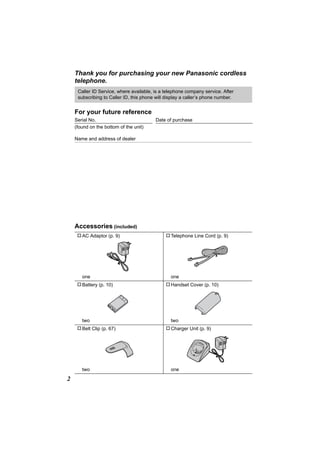
    Accessories (included)
    A AC Adaptor (p. 9)                       A Telephone Line Cord (p. 9)


       one                                       one
     A Battery (p. 10)                        A Handset Cover (p. 10)


       two                                       two
     A Belt Clip (p. 67)                      A Charger Unit (p. 9)


       two                                       one

2
For Best Performance
Battery Charge
The handset is powered by a rechargeable Nickel-
Metal Hydride (Ni-MH) battery. Charge the battery
for 6 hours before initial use (p. 10).


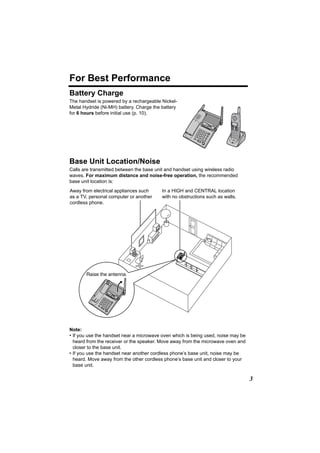
Base Unit Location/Noise
Calls are transmitted between the base unit and handset using wireless radio
waves. For maximum distance and noise-free operation, the recommended
base unit location is:
Away from electrical appliances such      In a HIGH and CENTRAL location
as a TV, personal computer or another     with no obstructions such as walls.
cordless phone.


       Raise the antenna.


Note:
• If you use the handset near a microwave oven which is being used, noise may be
  heard from the receiver or the speaker. Move away from the microwave oven and
  closer to the base unit.
• If you use the handset near another cordless phone’s base unit, noise may be
  heard. Move away from the other cordless phone’s base unit and closer to your
  base unit.

                                                                                   3
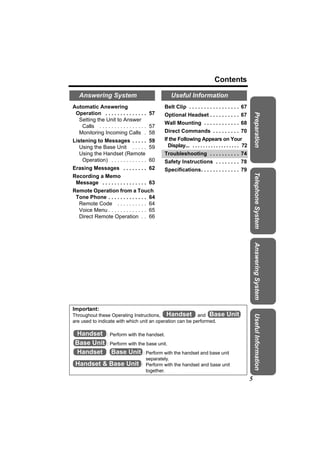
Contents
                                                        Erasing Caller Information . 37
       Preparation
                                                     Phone Book . . . . . . . . . . . . . . 38
    Location of Controls . . . . . . . 6               Storing Names and
    Installation . . . . . . . . . . . . . . . 9        Numbers . . . . . . . . . . . . . 38
       Connections . . . . . . . . . . . . . 9         Dialing from the Phone
       Installing the Battery in the                    Book . . . . . . . . . . . . . . . . 40
         Handset . . . . . . . . . . . . . . 10        Chain Dial . . . . . . . . . . . . . 41
       Battery Charge . . . . . . . . . . 10           Editing an Item in the Phone
                                                        Book . . . . . . . . . . . . . . . . 42
    Programmable Settings . . . .               12
                                                       Erasing an Item in the Phone
      Programming Guidelines .                  12
                                                        Book . . . . . . . . . . . . . . . . 42
      Function Menu Table . . . .               13
                                                       Copying Items in the Phone
      Date and Time . . . . . . . . .           14
                                                        Book . . . . . . . . . . . . . . . . 43
      Dialing Mode . . . . . . . . . . .        15
      Line Mode . . . . . . . . . . . . .       16   Intercom . . . . . . . . . . . . . . . .   45
      Auto Talk . . . . . . . . . . . . . .     16      Making Intercom Calls . . . .           45
      Ringer Volume . . . . . . . . . .         17      Answering Intercom Calls .              46
      Ringer Tone . . . . . . . . . . . .       18      Voice Paging . . . . . . . . . . .      47
      LCD Contrast . . . . . . . . . .          20   Transferring a Call . . . . . . . . 48
    Preparing the Answering                          Conference Calls . . . . . . . . . 50
     System . . . . . . . . . . . . . . . . .   20     Call Share . . . . . . . . . . . . . . 50
      Greeting Message . . . . . .              20   Special Features . . . . . . . . . . 51
      Caller’s Recording Time . .               22     Temporary Tone Dialing
      Number of Rings . . . . . . . .           23       (For Rotary or Pulse Service
      Recording Mode . . . . . . . .            24       Users) . . . . . . . . . . . . . . 51
      Message Alert . . . . . . . . . .         24     Muting Your Conversation . 51
                                                       For Call Waiting Service
                                                         Users . . . . . . . . . . . . . . . 51
       Telephone System
                                                       Using the PAUSE Key
    Making Calls . . . . . . . . . . . . . 25            (For PBX Line/Long Distance
      Using the Handset . . . . . . 25                   Calls) . . . . . . . . . . . . . . . . 52
      Using the Base Unit . . . . . 28                 FLASH Button . . . . . . . . . 52
                                                       Incoming Call Tone . . . . . 53
    Answering Calls . . . . . . . . . . 29             Key Tone . . . . . . . . . . . . . . 54
    Caller ID Service . . . . . . . . . . 30           Dial Lock . . . . . . . . . . . . . . 54
      Using Talking Caller ID . . . 31                 Re-registering the
    Using the Caller List . . . . . . 33                 Handset . . . . . . . . . . . . . . 56
      Viewing the Caller List . . . 33
      Calling Back from the Caller
       List . . . . . . . . . . . . . . . . . 34
      Editing the Caller’s Phone
       Number . . . . . . . . . . . . . . 35
      Storing Caller Information in the
       Phone Book . . . . . . . . . . 36
4
Contents

   Answering System                              Useful Information
Automatic Answering                           Belt Clip . . . . . . . . . . . . . . . . . 67
 Operation . . . . . . . . . . . . . . 57     Optional Headset . . . . . . . . . . 67


                                                                                                        Preparation
  Setting the Unit to Answer
                                              Wall Mounting . . . . . . . . . . . . 68
   Calls . . . . . . . . . . . . . . . . 57
  Monitoring Incoming Calls . 58              Direct Commands . . . . . . . . . 70
Listening to Messages . . . . . 59            If the Following Appears on Your
   Using the Base Unit . . . . . 59             Display... . . . . . . . . . . . . . . . . . . 72
   Using the Handset (Remote                  Troubleshooting . . . . . . . . . . 74
    Operation) . . . . . . . . . . . . 60     Safety Instructions . . . . . . . . 78
Erasing Messages . . . . . . . . 62           Specifications. . . . . . . . . . . . . 79


                                                                                                        Telephone System
Recording a Memo
 Message . . . . . . . . . . . . . . . 63
Remote Operation from a Touch
 Tone Phone . . . . . . . . . . . . . 64
  Remote Code . . . . . . . . . . 64
  Voice Menu . . . . . . . . . . . . . 65
  Direct Remote Operation . . 66


                                                                                                        Answering System


Important:
Throughout these Operating Instructions, Handset and Base                           Unit
                                                                                                        Useful Information


are used to indicate with which unit an operation can be performed.

 Handset : Perform with the handset.
 Base Unit : Perform with the base unit.
 Handset Base Unit : Perform with the handset and base unit
                                     separately.
 Handset & Base Unit               : Perform with the handset and base unit
                                     together.
                                                                                                    5
Location of Controls
    Base unit
                             [STOP] Button (p. 21, 61)
            [ANSWER ON] Button                         NEW MESSAGE
            and Indicator (p. 57)                      Indicator (p. 59)


            Display (p. 8)

            [MEMO]
            Button (p. 63)
                                                     [MESSAGE] Button
                                                     (p. 59)
            [GREETING REC] (Record)             [SKIP] Button (p. 61)
            Button (p. 21)
                                              [REPEAT] Button (p. 61)
                                    [ERASE] Button (p. 21, 62)
                 [GREETING CHECK] Button (p. 21)

                               Hook (p. 68)
                                                Speaker
           [*] (TONE) Button
           (p. 51)
                                                                    Antenna (p. 3)


     Charge Contacts
     (p. 11)


                                                       [LOCATOR/INTERCOM]
                                                       Button (p. 45)
                                                       [FLASH/CALL WAIT]
                                                       Button (p. 51, 52)

                                                       [MUTE] Button (p. 51)
    [REDIAL] Button (p. 28)
                                                       [HOLD/CONF]
    CHARGE Indicator (p. 10)                           (Conference) Button
                                                       (p. 28, 50)
                                  [SP-PHONE] (Speakerphone) Button and
                                  Indicator (p. 28)
                               MIC (Microphone) (p. 21)
      VOLUME Button [<], [>] (p. 18, 21)

6
Location of Controls
Handset

    Back side
                                                         Ringer/Message Alert


                                                                                       Preparation
                                                         Indicator (p. 24, 29)
                                                         Antenna
          Speaker


                                                         Receiver


                         Display
                                                         Soft Keys (p. 8)

                                                         [OFF] Button
                                                         (p. 12, 25)
             Headset Jack (p. 67)
       [C] (TALK) Button (p. 25)                         [MENU] Button (p. 12)

[s] (Speakerphone) Button (p. 25)
                                                         Navigator Key
                                                         ([d], [B]) (p. 8)
       [*] (TONE) Button (p. 51)
                                                         [REDIAL] Button (p. 26)
             [HOLD/INTERCOM]
                                                         [FLASH/CALL WAIT]
             Button (p. 27, 45)
                                                         Button (p. 51, 52)
                                                         Microphone (p. 25)
                                    Charge Contacts (p. 11)

Charger unit
                              Charge Contacts (p. 11)


     CHARGE Indicator
     (p. 10)


 This unit includes two handsets and one base unit. The included handsets are
 pre-registered at the factory and assigned the extension numbers 1 and 2.


                                                                                   7
Location of Controls
    Handset soft keys
                      J        5      Two soft keys are used to select functions displayed
     Talk                             directly above each key. Functions displayed above the
     00-00-32                         keys will change depending on the state of use.
     K(VE)               MuteL
                                      On this sample display, “K (VE)” and “MuteL ” are
                                      displayed above soft keys.

                  Pressing the right soft key selects mute “MuteL ”.
    Pressing the left soft key selects Voice Enhancer “K (VE)”.
    • When a function name does not appear above a soft key, the soft key has no
      function.

    Handset navigator key
                                      Scrolls up [B] and down [d] the function menu, the Caller
                                      List and the phone book.
                                      Increases [B] or decreases [d] the handset ringer and
                                      receiver/speaker volumes.

     Throughout these Operating Instructions:
     • The soft keys are indicated by what is displayed above the keys.
       Ex. “Press Mute.” indicates “Press the soft key below Mute ”.
     • The navigator key is indicated by the arrows [d] or [B].

    Base unit display
             2 3             5           1 “O” indicates the base unit ringer is off (p. 18).
             FULL
                                         2 “ FULL ” flashes when no new messages can be
                                            recorded. Erase unnecessary messages (p. 62).
    1        RINGER
                                         3 “E” flashes until you set the date and time, and
               OFF
    4        LINE     IN USE
                                            flashes after a power failure. If it is flashing, set the
                                            date and time (p. 14).
    4“    LINE      IN USE   ” functions as follows.
         Off (invisible)             The line is free.
         On                          The line is being used.
                                     A call is on hold on the handset or base unit or the
         Flashing
                                     Answering System is answering a call (p. 57).
         Flashing rapidly            A call is being received.
        •“   IN USE   ” displays when a handset is operating the Answering System.
    5 Message counter shows:
        — the total number of recorded messages. If the recording time is set to
          “Greeting only”, “     ” will be displayed (p. 22).
        — the selected volume level while you are adjusting the volume (p. 21, 28).
        — “ ” when your greeting message or memo message was not recorded
          correctly (p. 21, 63).

8
Installation
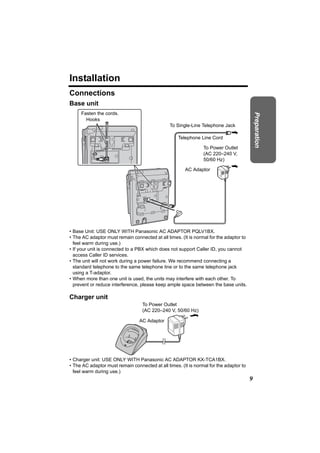
Connections
Base unit
     Fasten the cords.


                                                                                            Preparation
       Hooks
                                                To Single-Line Telephone Jack

                                                    Telephone Line Cord

                                                                To Power Outlet
                                                                (AC 220–240 V,
                                                                50/60 Hz)

                                                       AC Adaptor


• Base Unit: USE ONLY WITH Panasonic AC ADAPTOR PQLV1BX.
• The AC adaptor must remain connected at all times. (It is normal for the adaptor to
  feel warm during use.)
• If your unit is connected to a PBX which does not support Caller ID, you cannot
  access Caller ID services.
• The unit will not work during a power failure. We recommend connecting a
  standard telephone to the same telephone line or to the same telephone jack
  using a T-adaptor.
• When more than one unit is used, the units may interfere with each other. To
  prevent or reduce interference, please keep ample space between the base units.

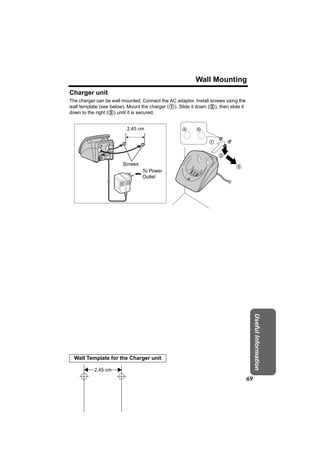
Charger unit
                                   To Power Outlet
                                   (AC 220–240 V, 50/60 Hz)

                                 AC Adaptor


• Charger unit: USE ONLY WITH Panasonic AC ADAPTOR KX-TCA1BX.
• The AC adaptor must remain connected at all times. (It is normal for the adaptor to
  feel warm during use.)
                                                                                        9
Installation
 Installing the Battery in the Handset
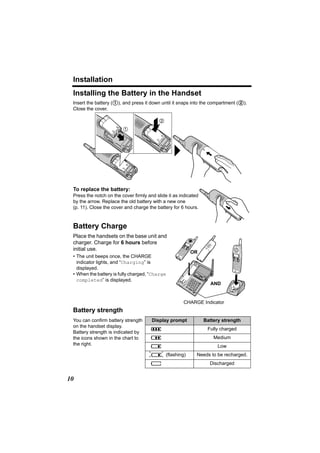
 Insert the battery (1), and press it down until it snaps into the compartment (2).
 Close the cover.

                                           2

                         1


 To replace the battery:
 Press the notch on the cover firmly and slide it as indicated
 by the arrow. Replace the old battery with a new one
 (p. 11). Close the cover and charge the battery for 6 hours.


 Battery Charge
 Place the handsets on the base unit and
 charger. Charge for 6 hours before
 initial use.
                                                          OR
 • The unit beeps once, the CHARGE
   indicator lights, and “Charging” is
   displayed.
 • When the battery is fully charged, “Charge
   completed” is displayed.
                                                                    AND


                                                      CHARGE Indicator
 Battery strength
 You can confirm battery strength      Display prompt            Battery strength
 on the handset display.
                                      5                           Fully charged
 Battery strength is indicated by
 the icons shown in the chart to      6                              Medium
 the right.                           7                                Low
                                     074 (flashing)          Needs to be recharged.
                                      8                            Discharged


10
Installation
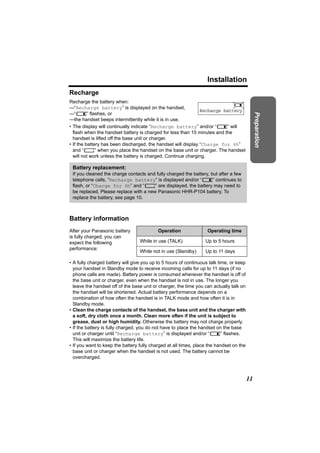
Recharge
Recharge the battery when:
—“Recharge battery” is displayed on the handset,
                                                               Recharge battery
—“7” flashes, or


                                                                                              Preparation
—the handset beeps intermittently while it is in use.
• The display will continually indicate “Recharge battery” and/or “7” will
  flash when the handset battery is charged for less than 15 minutes and the
  handset is lifted off the base unit or charger.
• If the battery has been discharged, the handset will display “Charge for 6h”
  and “8” when you place the handset on the base unit or charger. The handset
  will not work unless the battery is charged. Continue charging.

 Battery replacement:
 If you cleaned the charge contacts and fully charged the battery, but after a few
 telephone calls, “Recharge battery” is displayed and/or “7” continues to
 flash, or “Charge for 6h” and “8” are displayed, the battery may need to
 be replaced. Please replace with a new Panasonic HHR-P104 battery. To
 replace the battery, see page 10.


Battery information
After your Panasonic battery               Operation               Operating time
is fully charged, you can
expect the following              While in use (TALK)             Up to 5 hours
performance:
                                  While not in use (Standby)      Up to 11 days

• A fully charged battery will give you up to 5 hours of continuous talk time, or keep
  your handset in Standby mode to receive incoming calls for up to 11 days (if no
  phone calls are made). Battery power is consumed whenever the handset is off of
  the base unit or charger, even when the handset is not in use. The longer you
  leave the handset off of the base unit or charger, the time you can actually talk on
  the handset will be shortened. Actual battery performance depends on a
  combination of how often the handset is in TALK mode and how often it is in
  Standby mode.
• Clean the charge contacts of the handset, the base unit and the charger with
  a soft, dry cloth once a month. Clean more often if the unit is subject to
  grease, dust or high humidity. Otherwise the battery may not charge properly.
• If the battery is fully charged, you do not have to place the handset on the base
  unit or charger until “Recharge battery” is displayed and/or “7” flashes.
  This will maximize the battery life.
• If you want to keep the battery fully charged at all times, place the handset on the
  base unit or charger when the handset is not used. The battery cannot be
  overcharged.


                                                                                         11
Programmable Settings
 Programming Guidelines Handset
 This unit has several programmable functions which can be selected from the
 function menu on the display (p. 13).

     The soft keys selects the
                                          Back   Select
     functions displayed above
     each soft key.                                           [OFF] exits
                                                              programming.
     When “d” or “B” is displayed,
     navigator key scrolls through                            [MENU] enters the
     the menu.                                                function menu.
 How to select a function item from the menu
     Make sure the handset and base unit are not being used. The handset
     must be operated near the base unit and while off the base unit or charger.

 1 Press [MENU].
       • The main menu is displayed (p. 13).
 2 Scroll to the desired item by pressing [d] or
       [B].                                                  Initial setting
                                                             K Back dB SelectL

 3 Press Select to select the desired item.
                                                              Back        Select

 4 If the item has a sub-menu, select the menu item (p. 13). Repeat
       steps 2 and 3 until the desired item is displayed. If the item has no sub-
       menu, go to step 5.
 5 Select the desired setting by pressing [d] or
       [B], then press Save to save your setting.             Back          Save
       • A confirmation tone will be heard and the setting
         will be saved.
 6 Press [OFF] to exit programming mode.
 • To go back to the previous menu, press Back, or press Select while
   “---(Go back)----” is displayed. If you press this key in the main menu, the
   unit will exit programming mode.
 • After programming is complete, the display will return to the main menu or the
   sub-menu depending on which menu the selected item is located. (See the menu
   table on page 13.)
 • You can exit programming mode at any time by pressing [OFF].
 • If you do not press any buttons for 60 seconds, the handset will exit programming
   mode.
 • If the unit detects a problem, an error message will be displayed (p. 72–73) and/or
   error beeps will sound.
12
Programmable Settings
Function Menu Table Handset
You can use the following functions to customize your unit. See the corresponding
pages for function details.


                                                                                            Preparation
• After pressing [MENU], you can also program menu items directly by pressing [0]
  to [9], [*] and [#] instead of using the soft keys (p. 70–71).

        Main menu                  Sub-menu I                  Sub-menu II

   Message play      (p. 60)

   Ringer setting              Ringer volume     (p. 17)

                               Ringer tone       (p. 18)

   Date and time (p. 14)       Incoming call. (p. 53)

   Voice enhancer (p. 27)

   Dial lock         (p. 54)

   Copy phone book             Copy 1 item       (p. 43)
                               Copy all items (p. 44)
   Talk Caller ID (p. 32)

   Initial setting             Set answering               Number of rings (p. 23)
                                                           Recording time (p. 22)
                                                           Remote code       (p. 64)

                                                           Recording mode (p. 24)
                               Message alert     (p. 24)

                               LCD contrast      (p. 20)

                               Key tone          (p. 54)
                               Auto talk         (p. 16)


                               Set tel line                Set dial mode     (p. 15)

                                                           Set flash time (p. 52)
                                                           Set line mode     (p. 16)

                               Set base unit               Ringer tone       (p. 19)

                                                           Incoming call. (p. 53)
                                                           Talk Caller ID (p. 32)


• If you program the date and time, dial lock, dialing mode, flash time, line mode,
  number of rings, recording time, recording mode or the remote code using one of
  the handsets, you will not need to program the same item using another handset.

                                                                                       13
Programmable Settings
 Date and Time Handset
 You need to set the date and time;
 — to display the time and date the calls were received in the Caller List, and
 — to announce the day and time when each message was recorded, during a
   message playback.

 1 Press [MENU].
 2 Scroll to “Date and time” by pressing [d] or
      [B], then press Select.                                Date and time
                                                             KBack dB SelectL

 3 1 Enter 2 digits each for the day, month, and             Date:|1.12.2004
                                                                  3
         year. (Ex. To set May 15, 2004, enter “15           Time:12:00 AM
         05 04”.)                                            KAM/PM     SaveL
                                                             Example
      2 Enter 4 digits for the time (hour and minute).       Date:|5.05.2004
                                                                   1
        (Ex. To set 9:30, enter “0930”.)                     Time:09:30 AM
      • If you enter a wrong number, press [d] or [B] to     KAM/PM     SaveL
        move the cursor to the incorrect number. Enter the
        correct number.

 4 Select “AM” or “PM” by pressing AM/PM.                    Date:|5.05.2004
                                                                  1
                                                             Time:09:30 AM
                                                             KAM/PM     SaveL

 5 Press Save.
      • The date and time are set and “E” disappears
        from the base unit display.
      • If the handset beeps 3 times, the date and time
        were not set correctly. Start again from step 3.

 6 Press [OFF].
 • When entering the time in step 3, you cannot enter numbers greater than 12. Do
   not use military time. (To set 13:00 hours, enter “0100”, then select “PM” in
   step 4.)

     The date and time may be incorrect after a power failure. When “E” flashes on
     the base unit display or “E Press MENU.” flashes on the handset display,
     adjust the date and time.

 To adjust the date and time when “E Press MENU.” flashes on the
 handset display:
 Press [MENU], then go to step 3 above.
 To confirm the date and time, repeat steps 1 and 2 above.
 • The current date and time are displayed. When finished, press [OFF].
14
Programmable Settings
Dialing Mode Handset
If you have touch tone service, set the dialing mode to “Tone”. For rotary or pulse
service, set to “Pulse”. The factory preset is “Tone”.


                                                                                           Preparation
1 Press [MENU].
2 Scroll to “Initial setting” by pressing [d]
   or [B], then press Select.                              Initial setting
                                                            KBack dB SelectL

3 Scroll to “Set tel line” by pressing [d] or
   [B], then press Select.                                 Set tel line
                                                            KBack dB SelectL

4 Press Select at “Set dial mode”.
                                                            Set dial mode
                                                            KBack dB SelectL

5 Select “Pulse” or “Tone” by pressing [d] or               Set dial mode
   [B].                                                     :Tone
                                                            KBack dB SaveL

6 Press Save, then press [OFF].


                                                                                      15
Programmable Settings
 Line Mode Handset
 The line mode is preset to “B” and generally should not be adjusted. If “Line in
 use” on the handset and “ LINE IN USE ” on the base unit are not displayed properly,
 the line mode selection is incorrect. Set line mode to “A”.

 1 Press [MENU].
 2 Scroll to “Initial setting” by pressing [d]
     or [B], then press Select.                                Initial setting
                                                               KBack dB SelectL

 3 Scroll to “Set tel line” by pressing [d] or
     [B], then press Select.                                   Set tel line
                                                               KBack dB SelectL

 4 Scroll to “Set line mode” by pressing [d] or
     [B], then press Select.                                   Set line mode
                                                               KBack dB SelectL

 5 Select “A” or “B” by pressing [d] or [B].                   Set line mode
                                                               :B
                                                               KBack dB SaveL

 6 Press Save, then press [OFF].

 Auto Talk Handset
 The Auto Talk feature allows you to answer calls by simply lifting the handset off the
 base unit or charger. You do not need to press [C] or [s]. The factory preset is
 OFF.

 1 Press [MENU].
 2 Scroll to “Initial setting” by pressing [d]
     or [B], then press Select.                                Initial setting
                                                               KBack dB SelectL

 3 Scroll to “Auto talk” by pressing [d] or [B],
     then press Select.                                        Auto talk
                                                               KBack dB SelectL

 4 Select “On” or “Off” by pressing [d] or [B].                Auto talk
                                                               :Off
                                                               KBack dB        SaveL

 5 Press Save, then press [OFF].
 • In order to view Caller ID information after you lift the handset to answer a call,
   leave the Auto Talk feature turned off.

16
Programmable Settings
Ringer Volume
You can select the handset or base unit ringer volumes to high, medium, low, or off.
The factory preset is HIGH. If the handset and base unit ringer is turned off, the


                                                                                                 Preparation
handset or base unit will ring at the low level for intercom calls, and will not ring for
outside calls. Caller names will not be announced even if the Talking Caller ID
feature is turned on (p. 32).

Handset ringer volume Handset
1 Press [MENU].
2 Scroll to “Ringer setting” by pressing [d]
   or [B], then press Select.                                 Ringer setting
                                                              KBack dB SelectL

3 Press Select at “Ringer volume”.
                                                              Ringer volume
                                                              KBack dB SelectL

4 Select the desired volume level by pressing                 Ex. High
   [d] or [B].                                                Ringer volume
   • The volume will change and ring.                          Low        High
                                                              KBack dB SaveL
   • The number of steps indicates the volume level.
   • To turn the ringer off, press [d] repeatedly until
     “Off ?” is displayed.

5 Press Save.
• If the handset ringer is turned off, “Ringer off” will be displayed while not in
  use.
  “Ringer off” is not displayed, if the handset is off the base unit or charger
  when:
  — there are missed calls (p. 33) or new messages (p. 60), or
  — the Dial Lock is turned on (p. 54).
• You can adjust the ringer volume while an outside call is ringing. Press [d] or [B]
  while the handset is ringing.

Temporary ringer off
While the handset is ringing for an outside call, you can turn the ringer off
temporarily by pressing [OFF]. The handset will ring again as normal the next time
a call is received.


                                                                                            17
Programmable Settings
 Base unit ringer volume Base Unit
 Make sure the base unit is not being used.
 To set the ringer volume to high (preset), medium, or low, press
 VOLUME [<] or [>].
 • To increase volume, press VOLUME [>].
   To decrease volume, press VOLUME [<].
 • To stop ringing, press [STOP].
 To turn the ringer off, press and hold VOLUME [<] until 2 beeps sound.
 • “O” is displayed.
 To turn the ringer on, press VOLUME [<] or [>].
 • The base unit will ring at the low level.
 • You can adjust the ringer volume while an outside call is ringing.
   Press VOLUME [<] or [>] while the base unit is ringing.
   To turn the ringer off, press and hold VOLUME [<] until 2 beeps sound.
   “O” is displayed.


 Ringer Tone
 You can set the handset and base unit ringers to use one of 7 ringer patterns for
 outside calls. “Tone 1” to “Tone 3” are bell ringer patterns. “Melody 1” to “Melody 4”
 are melody patterns. The factory preset is “Tone 1”.
 • You cannot change the ringer tone for intercom calls.
 • If you select one of the melody ringer patterns, the ringer will continue to sound for
   several seconds if:
   — the caller hangs up before you answer the call, or
   — another person answers the call using another phone connected on the same
       line.

 Handset ringer tone Handset
 1 Press [MENU].
 2 Scroll to “Ringer setting” by pressing [d]
     or [B], then press Select.                                Ringer setting
                                                               KBack dB SelectL

 3 Scroll to “Ringer tone” by pressing [d] or
     [B], then press Select.                                   Ringer tone
                                                               KBack dB SelectL


18
Programmable Settings

4 Select the desired ringer tone by pressing [d]             Ringer tone
   or [B].                                                   1:Tone 1
                                                             KBack dB SaveL
   • The handset will ring and the ringer tone will


                                                                                             Preparation
     change. If the ringer volume has been turned off,
     the handset will not ring (p. 17).
   • You can also select the ringer tone by pressing [1]
     to [7].

5 Press Save, then press [OFF].


Base unit ringer tone
(use either the handset or the base unit)
 Base Unit
Make sure the base unit is not being used.

Press VOLUME [<] or [>], then select the desired ringer tone by pressing
[1] to [7].
[1] to [3] : Bell ringer patterns   [4] to [7] : Melody patterns
• After pressing VOLUME [<] or [>], the base unit will ring using the current ringer
  tone.
• The base unit will ring and the ringer tone will change.
• To stop ringing, press [STOP].


Setting the base unit ringer tone by using the              Handset
1 Press [MENU].
2 Scroll to “Initial setting” by pressing [d] or [B], then press
   Select.

3 Scroll to “Set base unit” by pressing [d] or [B], then press Select.
4 Press Select at “Ringer tone”.
5 Select the desired ringer tone by pressing [d] or [B].
   • The base unit will ring and the ringer tone will change. If the base unit ringer
     volume has been turned off, the base unit will not ring (p. 18).
   • You can also select the ringer tone by pressing [1] to [7].

6 Press Save, then press [OFF].


                                                                                        19
Programmable Settings
 LCD Contrast Handset
 There are 6 levels of LCD contrast. The factory preset is “level 3”.

 1 Press [MENU].
 2 Scroll to “Initial setting” by pressing [d]
      or [B], then press Select.                             Initial setting
                                                             KBack dB SelectL

 3 Scroll to “LCD contrast” by pressing [d] or
      [B], then press Select.                                LCD contrast
                                                             KBack dB SelectL

 4 Select the desired contrast by pressing [d] or            Ex. Level 3
      [B].                                                   LCD contrast
      • The contrast will change.                             Low         High
                                                             KBack dB SaveL

 5 Press Save, then press [OFF].


 Preparing the Answering System
 Greeting Message Base Unit
 You can record a personal greeting message of up to 2 minutes. If you do not
 record your own message, one of two pre-recorded greetings will be played for
 callers (p. 22).

     The total recording time of all messages (greeting, incoming and memo) is
     about 16 minutes.
     We recommend you record a brief greeting message in order to leave more
     time for recording new messages.

 • You can use the enhanced recording mode for clearer sound, if necessary (p. 24).


20
Preparing the Answering System
To record a greeting message
 Sample greeting message
 “Hello, this is (your name and/or number). Sorry, I cannot take your call. Please


                                                                                             Preparation
 leave a message after the beep. Thank you.”


1 Press [GREETING REC].                                [GREETING REC]
   • “To record greeting, press RECORD again” is            [GREETING CHECK]
     heard.                                                   [ERASE]
                                                                 [STOP]
2 Within 10 seconds, press [GREETING
   REC] again to record your greeting.

3 After the long beep, talk clearly, about
   20 cm away from the MIC (microphone).
   • The elapsed recording time is displayed.
   • If you record for over 2 minutes, the unit will
     stop recording.

4 When finished, press [GREETING REC]
   or [STOP].
   • To change the greeting, start again from
     step 1.

                                                               MIC
                                                       VOLUME [<], [>]

• If “ ” is displayed, 6 beeps sound and “Your greeting was not recorded. Record your
  greeting again.” is announced, start again from step 1.

To adjust the speaker volume, press VOLUME [<] or [>] during
playback.
• 9 levels (0–8) are available while using the Answering System. The level is
  displayed on the base unit.

To review the greeting
Press [GREETING CHECK].

To erase the greeting
Press [GREETING CHECK], then press [ERASE] while the recorded
message is being played.
• The unit will answer calls with a pre-recorded greeting (p. 22).


                                                                                        21
Preparing the Answering System
 Pre-recorded greeting
 If you do not record a greeting (p. 20, 21), one of two greetings will be played when
 a call is received, depending on the caller’s recording time (see below).
 To review the pre-recorded greeting, press [GREETING CHECK].
 • A pre-recorded greeting will be played as follows:
 n When the recording time is set to “1 minute”, “2 minutes” or “3 minutes”:
     “Hello, we are not available now. Please leave your name and phone number after the
     beep. We will return your call.”
 • If recording time runs out, the unit will automatically switch to the “Greeting only”
   mode (see below), and no new messages will be recorded.
 n When the recording time is set to “Greeting only”:
     “Hello, we are not available now. Please call again. Thank you for your call.”

     Flash Memory Message Backup (Message storage)
     Messages stored in memory will not be affected by power failures. All messages
     are saved until you erase them.


 Caller’s Recording Time Handset
 You can select “1 minute”, “2 minutes”, “3 minutes” or “Greeting only” for the caller’s
 recording time. The factory preset is “3 minutes”.

 1 Press [MENU].
 2 Scroll to “Initial setting” by pressing [d]
      or [B], then press Select.                               Initial setting
                                                               KBack dB SelectL

 3 Press Select at “Set answering”.
                                                               Set answering
                                                               KBack dB SelectL

 4 Scroll to “Recording time” by pressing [d]
      or [B], then press Select.                               Recording time
                                                               KBack dB SelectL

 5 Select the recording time by pressing [d] or                Recording time
      [B].                                                     :3min
                                                               KBack dB SaveL
      • You can also select the recording time by pressing
        [1], [2], [3] or [0] (Greeting only).

 6 Press Save, then press [OFF].


22
Preparing the Answering System
 If you select “Greeting only”, the unit will answer calls with the greeting
 message, and then hang up. The unit will not record any incoming messages.
 The base unit will display “ ” instead of the number of messages.


                                                                                          Preparation
Number of Rings Handset
You can select the number of times the unit rings before the Answering System
answers a call, from “2” to “7” or “Toll saver”*. The factory preset is “4”.

1 Press [MENU].
2 Scroll to “Initial setting” by pressing [d]
  or [B], then press Select.                               Initial setting
                                                           KBack dB SelectL

3 Press Select at “Set answering”.
                                                           Set answering
                                                           KBack dB SelectL

4 Press Select at “Number of rings”.
                                                           Number of rings
                                                           KBack dB SelectL

5 Select the number of rings by pressing [d] or            Number of rings
  [B].                                                     :4
                                                           KBack dB SaveL
  • You can also select the number of rings by
    pressing [0] (Toll saver*), or [2] to [7].

6 Press Save, then press [OFF].

 *Toll saver
 When you call the unit from a remote operation, the number of rings will tell you
 if there are any new messages. If the unit answers on the 2nd ring, there is at
 least one new message. If the unit answers on the 4th ring, there are no new
 messages. To save the toll charges for the call, hang up immediately when you
 hear the 3rd ring. The 3rd ring indicates that there are no new messages.


                                                                                     23
Preparing the Answering System
 Recording Mode Handset
 Two recording modes are available. The factory preset is “Standard recording
 (16min)”, which provides more recording time (16min) and standard sound quality.
 “Enhanced recording (8 min)” provides less recording time (8 min) but clearer
 sound quality.
 1 Press [MENU].
 2 Scroll to “Initial setting” by pressing [d]
     or [B], then press Select.
 3 Press Select at “Set answering”.
                                                              Set answering
                                                              KBack dB SelectL

 4 Scroll to “Recording mode” by pressing [d]
     or [B], then press Select.                               Recording mode
                                                              KBack dB SelectL

 5 Select the recording mode by pressing [d] or               Standard
     [B].                                                     recording(16min)
                                                              KBack dB SaveL
     • You can also select the recording mode by
       pressing [1] (Standard) or [2] (Enhanced).
 6 Press Save, then press [OFF].
 Message Alert Handset
 You can select whether or not the Ringer/Message Alert indicator on the handset
 will flash slowly when new messages have been recorded (p. 60). The factory
 preset is OFF.
 1 Press [MENU].
 2 Scroll to “Initial setting” by pressing [d]
     or [B], then press Select.
 3 Scroll to “Message alert” by pressing [d] or
     [B], then press Select.                                  Message alert
                                                              KBack dB SelectL

 4 Select “On” or “Off” by pressing [d] or [B].               Message alert
                                                              :Off
                                                              KBack dB SaveL

 5 Press Save, then press [OFF].
 • The Ringer/Message Alert indicator will not flash for new messages while the
   handset is in use.
 • The Ringer/Message Alert indicator acts both as a ringer indicator and as a
   message alert indicator. This indicator will flash rapidly when a call is received
   whether this feature is on or off.
 • Battery operating time may be shortened when using this feature (p. 11).

24
Making Calls
Using the Handset Handset
1 Press [C].
  • “Talk” is displayed.
                                                Display
2 Dial a phone number.
                                              Soft Keys
  • The dialed number is displayed.
                                                   [C]                   [OFF]
  • After a few seconds, the display
    will show the length of the call.               [s]                  [d], [B]

3 To hang up, press [OFF] or
  place the handset on the base
  unit or charger.
                                                                         [REDIAL]


                                                                                         Telephone System
                                                        Microphone
                                          [HOLD/INTERCOM]


To have a hands-free phone conversation
1 Press [s].
  • “SP-phone” is displayed.

2 Dial a phone number.
  • The dialed number is displayed.
  • After a few seconds, the display will show the length of the call.

3 When the other party answers, talk into the microphone.
4 To hang up, press [OFF] or place the handset on the base unit or
  charger.


 Hands-free Digital Duplex Speakerphone
 For best performance, please note the following:
 • Talk alternately with the other party in a quiet room.
 • If you or the other party has difficulty hearing, press [d] to decrease the
   speaker volume.
 • While talking using [C], you can switch to a hands-free phone conversation
   by pressing [s]. To switch back to the receiver, press [C].


                                                                                    25
Making Calls
 To dial after confirming the               To redial the last number
 entered number                             dialed
 1 Enter a phone number.                    Press [C] or [s], then press
                                            [REDIAL].
          3334444|
          KClear        PauseL

     • If you misdial, press Clear. Enter   To redial using the redial
       the correct number.                  list (Memory Redial)
     • If a pause is required when          The last 5 phone numbers dialed are
       dialing, press Pause where           stored in the redial list.
       needed (p. 52).
     • To cancel, press [OFF].              1 Press [REDIAL].
 2 Press [C] or [s].                                3334444
                                                    K Erase dB
 3 To hang up, press [OFF] or
     place the handset on the base            • The last number dialed is
     unit or charger.                           displayed.

                                            2 Scroll to the desired number by
 To adjust the receiver/                      pressing [d] or [B].
 speaker volume during a                      • You can also scroll down through
 conversation                                   the list by pressing [REDIAL].
 There are 3 volume levels for the            • To exit the list, press [OFF].
 receiver and 6 volume levels for the
                                            3 Press [C] or [s].
 speaker.
 To increase volume, press [B].             • To erase an item, scroll to the item
 To decrease volume, press [d].               then press Erase.
       Ex. Receiver volume: High            • If “No items stored” is displayed,
                                              the list is empty.
           Speaker volume: Level 6
       Volume
        Low             High
       K(VE)           MuteL
 • The display shows the current volume
   setting.
 • If you try to increase/decrease
   volume when it is at the maximum/
   minimum level, the handset will beep
   3 times.


26
Making Calls
To put a call on hold
1 Press [HOLD/INTERCOM] during a conversation.
   • “Line on hold.” is displayed.
   • To transfer the call to the base unit or another handset, see
     pages 48– 49.

2 Press [HOLD/INTERCOM] again.
   • “Hold” is displayed.
   • You can search the Caller List or phone book while a call is on hold. To exit the
     list, press [OFF]. The call will remain on hold.

To return to the call, press [C] or [s].
• The base unit user can also take the call by pressing [SP-PHONE].


                                                                                                Telephone System
• Another handset user can also take the call by pressing [C] or [s].
• If another phone is connected on the same line (p. 9), you can also take the call
  by lifting its handset.
• If a call is kept on hold for 6 minutes, an alarm tone will start to sound and the
  Ringer/Message Alert indicator will start to flash rapidly. After 4 additional minutes
  on hold, the call will be disconnected.

Voice Enhancer Technology
Panasonic’s Voice Enhancer Technology clarifies the voice of the person you are
talking to, reproducing a more natural-sounding voice that is easier to hear and
understand.
Voice Enhancer Technology can be turned on or off. The factory preset is OFF.
• Depending on the condition and quality of your telephone line, this feature may
  emphasize existing line noise. If it becomes difficult to hear, turn this feature off.

To turn this feature on, press(VE)during a                                  J       5
conversation.                                                   Talk
• “J” is displayed.                                             00-00-32
                                                                K(VE)       MuteL
• To turn this feature off, press (VE) again.
  “J” disappears from the display.
• After hanging up a call, the on/off setting will be retained.
When the handset is not in use, you can also turn this feature on or off by
programming as follows:
1. Press [MENU].
2. Scroll to “Voice enhancer” by pressing [d] or [B], then press Select.
3. Select “On” or “Off” by pressing [d] or [B].
4. Press Save, then press [OFF].

Backlit LCD display/Lighted handset keypad
The handset display and dialing buttons will light for a few seconds after pressing a
button or lifting the handset off the base unit or charger. They will also light when an
intercom/outside call is being received.
                                                                                           27
Making Calls
 Using the Base Unit Base Unit
 1 Press [SP-PHONE].
      • The SP-PHONE indicator lights.

 2 Dial a phone number.                                                 [HOLD/CONF]

 3 When the other party answers, talk                                   [SP-PHONE]
                                                                        and Indicator
      into the MIC (microphone).

 4 To hang up, press [SP-PHONE].               [REDIAL]
      • The indicator light goes out.                        MIC
                                                    VOLUME [<], [>]

 • To switch to the handset while using the base unit speakerphone:
   — If the handset is off the base unit or charger, press [C] or [s] on the handset,
      then press [SP-PHONE] on the base unit.
   — If the handset is on the base unit, just lift up.

     Hands-free Digital Duplex Speakerphone
     For best performance, please note the following:
     • Talk alternately with the other party in a quiet room.
     • If you or the other party has difficulty hearing, press VOLUME [<] to decrease
       the speaker volume.


 To adjust the speaker volume during a conversation
 To increase volume, press VOLUME [>].
 To decrease volume, press VOLUME [<].
 • There are 8 volume levels. If you try to increase/decrease volume when it is at the
   maximum/minimum level, the base unit will beep 3 times.

 To redial the last number dialed
 Press [SP-PHONE], then press [REDIAL].

 To put a call on hold
 Press [HOLD/CONF] during a conversation.
 • The SP-PHONE indicator flashes.
 To return to the call, press [SP-PHONE].
 • The handset user can also take the call by pressing [C] or [s].
 • If another phone is connected on the same line (p. 9), you can also take the call
   by lifting its handset.
 • If a call is kept on hold for 6 minutes, an alarm tone will start to sound. After
   4 additional minutes on hold, the call will be disconnected.


28
Answering Calls
When a call is received, the unit rings, “Incoming call” is displayed, and the
Ringer/Message Alert indicator on the handset and “ LINE IN USE ” on the base unit
flash rapidly. If you subscribe to Caller ID, see page 30.
  Handset                                         Ringer/Message
                                                  Alert Indicator

1 Press [C] or [s].
   • You can also answer a call by
     pressing any button except [d], [B]
     or [OFF].

2 To hang up, press [OFF] or place
   the handset on the base unit or
   charger.


                                                                                                  Telephone System
                                                   [C]                             [OFF]

                                                    [s]

Auto Talk
If the Auto Talk feature is turned on (p. 16), you can answer a call by simply lifting
the handset off the base unit or charger.
Temporary ringer off
You can turn the ringer off temporarily by pressing [OFF], while the handset is
ringing for an outside call. The handset will ring again as normal the next time a call
is received.


 Base Unit

1 Press [SP-PHONE].
2 Talk into the MIC.
3 To hang up, press [SP-PHONE].


                                                                             [SP-PHONE]
                                                                             and Indicator
                                                                      MIC

 • To transfer the call to another person, see pages 48–49.
 • If the ringer volume is turned off, the unit will not ring (p. 17, 18).

                                                                                             29
Caller ID Service
 This unit is compatible with Caller ID services offered by your telephone company. If
 you subscribe to Caller ID, caller’s information will be displayed and recorded in the
 Caller List.

 How Caller ID information is displayed
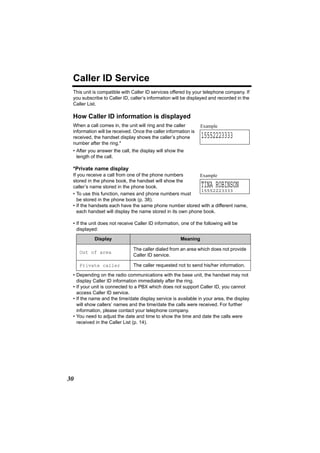
 When a call comes in, the unit will ring and the caller        Example
 information will be received. Once the caller information is
 received, the handset display shows the caller’s phone         15552223333
 number after the ring.*
 • After you answer the call, the display will show the
   length of the call.

 *Private name display
 If you receive a call from one of the phone numbers        Example
 stored in the phone book, the handset will show the
 caller’s name stored in the phone book.                        TINA ROBINSON
                                                             15552223333
 • To use this function, names and phone numbers must
   be stored in the phone book (p. 38).
 • If the handsets each have the same phone number stored with a different name,
   each handset will display the name stored in its own phone book.

 • If the unit does not receive Caller ID information, one of the following will be
   displayed:
           Display                                    Meaning

                               The caller dialed from an area which does not provide
     Out of area
                               Caller ID service.

     Private caller            The caller requested not to send his/her information.

 • Depending on the radio communications with the base unit, the handset may not
   display Caller ID information immediately after the ring.
 • If your unit is connected to a PBX which does not support Caller ID, you cannot
   access Caller ID service.
 • If the name and the time/date display service is available in your area, the display
   will show callers’ names and the time/date the calls were received. For further
   information, please contact your telephone company.
 • You need to adjust the date and time to show the time and date the calls were
   received in the Caller List (p. 14).


30
Caller ID Service
Using Talking Caller ID
To use this feature, you need to subscribe to Caller ID. For further information,
please contact your telephone company.
To activate this feature, you must turn this feature on (p. 32).

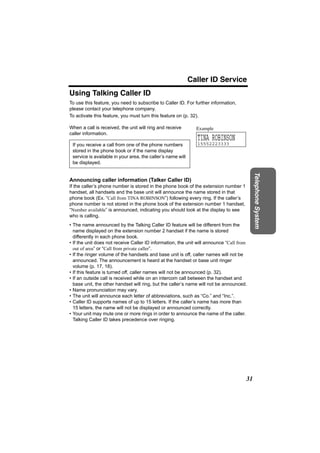
When a call is received, the unit will ring and receive        Example
caller information.
                                                               TINA ROBINSON
 If you receive a call from one of the phone numbers           15552223333
 stored in the phone book or if the name display
 service is available in your area, the caller’s name will
 be displayed.


                                                                                           Telephone System
Announcing caller information (Talker Caller ID)
If the caller’s phone number is stored in the phone book of the extension number 1
handset, all handsets and the base unit will announce the name stored in that
phone book (Ex. “Call from TINA ROBINSON”) following every ring. If the caller’s
phone number is not stored in the phone book of the extension number 1 handset,
“Number available” is announced, indicating you should look at the display to see
who is calling.
• The name announced by the Talking Caller ID feature will be different from the
  name displayed on the extension number 2 handset if the name is stored
  differently in each phone book.
• If the unit does not receive Caller ID information, the unit will announce “Call from
  out of area” or “Call from private caller”.
• If the ringer volume of the handsets and base unit is off, caller names will not be
  announced. The announcement is heard at the handset or base unit ringer
  volume (p. 17, 18).
• If this feature is turned off, caller names will not be announced (p. 32).
• If an outside call is received while on an intercom call between the handset and
  base unit, the other handset will ring, but the caller’s name will not be announced.
• Name pronunciation may vary.
• The unit will announce each letter of abbreviations, such as “Co.” and “Inc.”.
• Caller ID supports names of up to 15 letters. If the caller’s name has more than
  15 letters, the name will not be displayed or announced correctly.
• Your unit may mute one or more rings in order to announce the name of the caller.
  Talking Caller ID takes precedence over ringing.


                                                                                      31
Caller ID Service
 To turn Talking Caller ID on or off
 You can turn Talking Caller ID on or off for the handset and base unit separately. If
 this feature is off, the unit will not announce caller names. The factory preset is
 OFF.

 Handset Talking Caller ID feature          Handset
 1 Press [MENU].
 2 Scroll to “Talk Caller ID” by pressing [d]
     or [B], then press Select.                              Talk Caller ID
                                                             KBack dB SelectL

 3 Select “On” or “Off” by pressing [d] or [B].              Talk Caller ID
                                                             :Off
                                                             KBack dB SaveL

 4 Press Save, then press [OFF].


 Base unit Talking Caller ID feature          Handset
 This feature must be turned on or off for the base unit by using the handset.

 1 Press [MENU].
 2 Scroll to “Initial setting” by pressing [d]
     or [B], then press Select.                              Initial setting
                                                             KBack dB SelectL

 3 Scroll to “Set base unit” by pressing [d] or
     [B], then press Select.                                 Set base unit
                                                             KBack dB SelectL

 4 Scroll to “Talk Caller ID” by pressing [d]
     or [B], then press Select.                              Talk Caller ID
                                                             KBack dB SelectL

 5 Select “On” or “Off” by pressing [d] or [B].              Talk Caller ID
                                                             :Off
                                                             KBack dB SaveL

 6 Press Save, then press [OFF].


32
Using the Caller List
The unit can record information up to 50 different callers and store this information
in the Caller List. Caller information is sorted by the most recent call to the oldest.
When the 51st call is received, the information from the 1st call is deleted.
The unit will also tell you how many calls you missed while you were out or
unavailable to answer the phone.
Handset on the base unit or
charger
                             1 The display will show the number of calls you
                               missed.
                  [1]
  2 missed calls           1
     Charging                2 Press Rcvd calls to review other calls
Handset off the base unit or   logged in the Caller List.
charger                        • If there are no items in the Caller List, “Rcvd
  2 missed calls           1     calls” will not be displayed.
  Rcvd        Phone            • After viewing the missed call entries, “missed


                                                                                               Telephone System
Kcalls        book L             calls” will disappear from the display.
                             2
• When new messages have been recorded (p. 60), “New message” will be
  displayed in place of missed calls display.


Viewing the Caller List Handset
1 Press Rcvd calls, [d], or [B] to enter the                 Ex. 2 calls missed.
   Caller List.                                               2 missed calls
                                                              Rcvd           Phone
                                                             Kcalls          book L
                                                               2 missed calls
                                                               dB=Scroll list
                                                             KAll erase

2 To search from the most recent call, press [d].
   To search from the oldest call, press [B].

3 Press [OFF] to exit the list.
• Each handset has its own Caller List. If you viewed the Caller List or answered a
  call on one handset, the same information in the other handset will be displayed
  as “missed”.
• If you do not press any buttons for 60 seconds, the unit will exit the Caller List.


                                                                                          33
Using the Caller List
 • If a call has name information, the caller’s name and        JACK SMITH
   phone number are alternately displayed as shown on            3:10P 29JUN.
   the right in step 2 on page 33.                              KErase   SelectL


                                                                15553334444
                                                                 3:10P 29JUN.
                                                                KErase   SelectL
                →
 • If an arrow ( ) is displayed after the number                122233344445555→
   in step 2 on page 33, the whole phone number will not         3:10P 29JUN.
   be shown. Press [*] to see the remaining numbers or          KErase   SelectL
   to return to the previous display. Each time you press                 [*]
   [*], the display will change alternately.
                                                                1222333444455556
                                                                666
                                                                KErase   SelectL


 What “,” means
 “,” indicates you have already viewed this calling             15553334444
 information or answered the call. If the same caller calls      3:10P 29JUN. ,
 again, the call entry with the “,” will be replaced with the
 new call entry.

 If a caller calls more than once
 The number of times the same caller called is displayed        Ex. Called 2 times.
 (“×2” to “×9”). The date and time of the most recent call      15553215555
 will be recorded. After viewing a caller’s information,        11:20A 12JUN. ×2
 “×2” to “×9” will be replaced with “,”.


 Calling Back from the Caller List Handset
 1 Press Rcvd calls, [d], or [B] to enter the Caller List.
 2 Scroll to the desired caller by pressing [d] or [B].
 3 Press [C] or [s].
     • The phone number is dialed.

 • In some cases, you may have to edit the number before dialing (p. 35).
 • If a phone number is not displayed in the caller information, you cannot call that
   caller back from the Caller List.


34
Using the Caller List
Editing the Caller’s Phone Number Handset
You can edit a phone number in the Caller List to call it back or store it in the phone
book.

1 Press Rcvd calls, [d], or [B] to enter the                 2 missed calls
   Caller List.                                              Rcvd     Phone
                                                            Kcalls    book L
                                                             2 missed calls
                                                             dB=Scroll list
                                                            KAll erase

2 Scroll to the desired caller by pressing [d] or           15553215555
   [B].                                                     11:20A 12JAN.
                                                            KErase   SelectL


                                                                                               Telephone System
3 Press Select.
4 Press Edit.                                               15553215555

                                                            KEdit           SaveL

5 Add or erase digits to the beginning of the               |5553215555
                                                            1
   number as desired.
                                                            Kf MENU=Save        PL
   • To add a digit, enter a number.
   • To erase a digit, press f or [#].                      0|5553215555
                                                             1

                                                            Kf MENU=Save        PL

6 To make a call to the edited number, press [C] or [s].
   To store the edited number in the phone book, press [MENU].
   • If the phone number has no name information when it is stored, continue from
     (a) under step 4 of “Storing Caller Information in the Phone Book” on page 36.

• The number edited in step 5 will not be maintained in the Caller List.
• You cannot edit a phone number, if the Dial Lock is turned on (p. 54).

To quickly add or erase a digit at the beginning of a phone number in
the Caller List
1. Follow steps 1 and 2 above.
2. Add or erase digits to the beginning of the number as desired.
  • To add a digit, enter a number.
  • To erase a digit, press [#].
3. To make a call to the edited number, press [C] or [s].
   To store the edited number in the phone book, press [MENU].


                                                                                          35
Using the Caller List
 Storing Caller Information in the Phone Book
     Handset
 Caller phone numbers that are in the handset Caller List can be stored in each
 handset’s phone book.

 1 Press Rcvd calls, [d], or [B] to enter the               2 missed calls
     Caller List.                                           Rcvd     Phone
                                                           Kcalls    book L
                                                             2 missed calls
                                                            dB=Scroll list
                                                           KAll erase

 2 Scroll to the desired caller by pressing [d] or         15553215555
     [B].                                                  11:00A 12JAN. ×3
                                                           KErase   SelectL


 3 Press Select.
     • If the number requires editing, see page 35.

 4 Press Save.                                             15553215555

                                                           KEdit           SaveL

     (a) If there is no name information for the caller,   Enter name
         “Enter name” will be displayed.                   |
                                                                d=Next        gL
        — You can enter a name by performing the
          following steps:
          (1) enter the name (p. 39),                      CINDY TURNE|
                                                                      R
          (2) press [d], and                               Kf     d=Next      gL
          (3) press Save.
        — If a name is not required, press [d], then
          press Save.
     (b) If there is already name information for the
         caller, the item will be stored.
     • To continue storing other items, repeat from
       step 2.
     • To exit programming mode, press [OFF].

 • You cannot store Caller List item in the phone book if a phone number is not
   displayed or the Dial Lock is turned on (p. 54).


36
Using the Caller List
Erasing Caller Information Handset
To erase a specific caller
1 Press Rcvd calls, [d], or [B] to enter the                2 missed calls
   Caller List.                                             Rcvd     Phone
                                                           Kcalls    book L
                                                            2 missed calls
                                                            dB=Scroll list
                                                           KAll erase

2 Scroll to the desired caller by pressing [d] or          18887776666
   [B], then press Erase.                                  12:20A 12JAN.
                                                           KErase   SelectL
   • To erase other items, repeat step 2.


                                                                                       Telephone System
   • To exit the Caller List, press [OFF].
                                                                 Erased


To erase all entries
Before erasing all entries, make sure that you have viewed all missed calls.

1 Press Rcvd calls, [d], or [B] to enter the                               [1]
   Caller List.                                             Rcvd        Phone
                                                           Kcalls       book L

2 Press All erase.                                          0 missed call
                                                            dB=Scroll list
                                                           KAll erase

3 Press Yes.                                               All erase?
   • All entries in your Caller List are erased.
                                                           KNo             YesL

                                                               All erased


• To cancel erasing, press No after step 2.


                                                                                  37
Phone Book
 The handset can store up to 50 names and phone numbers in its phone book. You
 can make a call by selecting a name or number from the phone book, and copy
 phone book items from one handset to another (p. 43–44).

 Storing Names and Numbers Handset
 1 Press Phone book.                                                          [1]
                                                              Rcvd         Phone
                                                             Kcalls        book L

 2 Press Add.                                                   Phone book
      • The display will show the number of stored items.         7 items
                                                             KAdd     SearchL

 3 Enter a name of up to 16 characters with the              Enter name
      dialing buttons ([0] to [9]) (p. 39), then press       |
      [d].                                                        d=Next           gL

      • If a name is not required, press [d] then go to      Example
        step 4.
                                                             To|
                                                               m
                                                             Kf     d=Next         gL


 4 Enter a phone number of up to 32 digits.                  Enter phone no.
      • Each time you press f, a digit is erased. To erase
        all of the digits, press and hold f.                                       PL
      • If a pause is required when dialing, press P.        Example
        A pause is stored in a phone number as one digit     5557654321|
        (p. 52).
                                                             Kf     d=Next         PL

 5 Press [d].                                                Tom
      • If you want to change the name, press Edit. The      5557654321
        display returns to step 3. Change the name.          KEdit      SaveL
      • If you want to change the number, press [B]. The
        display returns to step 4. Change the number.

 6 Press Save.
      • To continue storing other items, repeat from
        step 2.

 7 Press [OFF].

     When the Dial Lock is turned on (p. 54), only numbers stored in the phone book
     as emergency numbers can be dialed.
     To store an emergency number:
     When storing a name, press [1] in step 3 to enter # at the beginning of the
     name (p. 39).

38
Phone Book
• To store numbers for calling card access (see “Chain Dial” on page 41), we
  recommend you add pauses after each item. Storing pauses with numbers will
  prevent misdialing (p. 52). The delay time necessary will depend on your
  telephone company.
• You cannot store a name and phone number in the phone book if the Dial Lock is
  turned on (p. 54).


Selecting characters to enter names
Enter names using the dialing buttons. Press each button until the desired
character is displayed.
• Pressing each button selects a character in the order shown below.

 Keys         Characters            Keys        Characters


                                                                                          Telephone System
 [1]    # & ’ ( ) ; , – . / 1       [6]     m n o M N O 6
 [2]    a b c A B C 2               [7]     p q r s P Q R S 7
 [3]    d e f D E F 3               [8]     t u v T U V 8
 [4]    g h i G H I 4               [9]     w x y z W X Y Z 9
 [5]    j k l J K L 5               [0]     0 Space
  f     Erases the character to the left.
        Moves the cursor to the right.
  g     (To enter another character using the same number key,
        move the cursor to the next space.)


For example, to enter “Tom”:

1 Press [8] four times.
                                                             T
                                                             |
2 Press [6] three times, then press g to move
   the cursor.                                               To|
3 Press [6] once.
                                                             To|
                                                               m
If you make a mistake when entering a name or number
Use f to erase the incorrect character. Each time you press f, a character is
erased. Re-enter the correct character. To erase all characters, press and hold f.


                                                                                     39
Phone Book
 Dialing from the Phone Book Handset

 1 Press Phone book.
 2 Press Search.                                                   Phone book
                                                                     7 items
                                                                KAdd     SearchL

 3 Scroll to the desired item. To scroll down,                  0-9=Name search
     press [d]. To scroll up, press [B].                         dB=Scroll list

       Phone book items are sorted in the following order:
      1           Alphabet letters (Alphabetical)
      2               Space & ’ ( ) , – . /
      3                   Numbers 0 to 9
      4                         #;
      5    Telephone numbers (If no name is stored)

 4 Press [C] or [s].                                            Frank
     • The displayed phone number is dialed.                    4445555
                                                                KErase          EditL

 • If “No items stored” is displayed in step 1, the phone book is empty.
 • To exit the phone book, press [OFF].
 • To view a phone number over 16 digits long, repeat steps 1 to 3, then press Edit
   and then [d]. When finished, press [OFF].
 • To quickly search the desired item, press [d] or [B] after step 1.

 To search for a name by initial
 1. Press Phone book.
 2. Press Search.
 3. Press the dialing button for the first letter of the desired name until any
    name with the same initial is displayed (see the Index on page 41).
     Ex. To find “Frank”, press [3] repeatedly until the first item under “F” is displayed.
     • If there are no items beginning with the character you selected, the first item in
       the next alphabetical index will be displayed.
 4. Press [d] repeatedly until the desired name is displayed.


40
Phone Book
Index table
  Keys                   Index                 Keys                     Index
   [1]      Symbols, 1                          [6]       M, N, O, 6

   [2]      A, B, C, 2                          [7]       P, Q, R, S, 7

   [3]      D, E, F, 3                          [8]       T, U, V, 8

   [4]      G, H, I, 4                          [9]       W, X, Y, Z, 9

   [5]      J, K, L, 5                          [0]       0, Space


Chain Dial Handset


                                                                                                 Telephone System
You can dial a combination of phone book or manual key pad entries while making
a call. This feature can be used, for example, to first automatically dial a calling card
access number that you have stored in the phone book, then manually or
automatically dial your PIN and then automatically dial the destination number from
the phone book.
Ex. Using a long distance calling card
• To prevent misdialing, we recommend you add pauses where needed when
  storing numbers. For example, add pauses after a calling card access number
  and your PIN when storing in the phone book (p. 38).
1. Search and dial from phone book: 18000123456 (Calling card access number)
   • The voice guidance may be announced.
2. Search and dial from phone book: 1234 (Calling card PIN)
3. Search and dial from phone book: 15550123456 (Destination number)

1 While you are on a call;
   Press [MENU].

2 Search for the desired item by pressing [d] or                       Phone book
   [B].                                                         dB=Scroll list
                                                               KBack    SearchL
   • To search for an item by initial, see page 40.

3 Press Call.                                                  Alan
   • The phone number is dialed.                               15550123456
   • If required, repeat steps 1 to 3 for any remaining        KBack       CallL
     numbers.

• If you have rotary or pulse service, you need to press [*] before pressing
  [MENU] in step 1 to change the dialing mode temporarily to tone.


                                                                                            41
Phone Book
 Editing an Item in the Phone Book Handset
 1 Press Phone book.
 2 Press Search.
 3 Scroll to the desired item by pressing [d] or              Jane
     [B], then press Edit.                                    3456789
                                                              KErase       EditL
     • To search for the item by initial, see page 40.

 4 Edit the name (p. 39), then press [d].
     • If you do not need to change the name, press [d]
                                                              Jane Walke|
                                                                        r
                                                              Kf      d=Next     gL
       then go to step 5.

 5 Edit the phone number, then press [d].                     5553456789|
     • If you do not need to change the number, press
                                                              Kf      d=Next     PL
       [d] then go to step 6.
     • Each time you press f, a digit is erased. To erase
       all of the digits, press and hold f.

 6 Press Save.
     • To continue editing other items, repeat from step 3.

 7 Press [OFF].
 • You cannot edit an item, if the Dial Lock is turned on (p. 54).

 Erasing an Item in the Phone Book Handset
 1 Press Phone book.
 2 Press Search.
 3 Scroll to the desired item by pressing [d] or              Helen
     [B], then press Erase.                                   5557778888
                                                              KErase     EditL
     • To search for the item by initial, see page 40.

 4 Press Yes.                                                 Erase?
     • To erase other items, repeat from step 3.
                                                              KNo              YesL

 5 Press [OFF].
 • To cancel erasing, press No after step 3.
 • You cannot erase an item, if the Dial Lock is turned on (p. 54).


42
Phone Book
Copying Items in the Phone Book Handset
You can copy one or all phone book items between two handsets. The destination
handset will save the entries in its phone book.
• If an outside call is received during the phone book copy, copying will stop. You
  will need to re-send the item(s) later.
• After the copy has started, do not place your handset on the base unit or charger
  until copying finishes, otherwise copying will stop.

To copy one phone book item to another handset
Make sure the destination handset is not in use.

1 Press [MENU].


                                                                                           Telephone System
2 Scroll to “Copy phone book” by pressing [d]
   or [B], then press Select.                             Copy phone book
                                                          KBack dB SelectL

3 Press Select at “Copy 1 item”.
                                                          Copy 1 item
                                                          KBack dB SelectL

4 Scroll to the desired phone book item by                Jane
   pressing [d] or [B], then press Send.                  3456789
                                                          KBack dB        SendL
   • To search for the item by initial, see page 40.
   • You can continue by copying to other items.
   • The destination handset displays “Phone book
     Receiving” then “Phone book Received”.                     Complete


5 Press [OFF].


                                                                                      43
Phone Book
 To copy all of the items in your phone book to another
 handset
 Make sure the destination handset is not in use.

 1 Press [MENU].
 2 Scroll to “Copy phone book” by pressing [d]
     or [B], then press Select.                         Copy phone book
                                                        KBack dB SelectL

 3 Scroll to “Copy all items” by pressing [d]
     or [B], then press Select.                         Copy all items
                                                        KBack dB SelectL
     • When all items have been copied, “Complete”
       is displayed.                                   Ex. Copying 1st item out of
     • The destination handset displays “Phone book        10 items
       Receiving” then “Phone book Received”.           Tom Jones
                                                        5557654321
                                                             01/10

 4 Press [OFF].
 • You can exit phone book copying mode by pressing [OFF].


44
Intercom
Intercom calls can be made between the handset and the base unit, and between
two handsets. You can page all handsets at once from the base unit, and announce
the page to all handsets (Voice Paging, page 47).
The handsets have the extension number 1 and 2 which has “[1]” and “[2]” on
the display.
• If the handset is off the base unit or charger when there are missed calls or new
  messages, the handset’s extension number “[1] or “[2]” is not displayed. To
  confirm the extension number, either place the handset on the base unit or
  charger, or view the missed calls (p. 33) and listen to the new messages (p. 60).

Making Intercom Calls
From Handset
1 Press [HOLD/INTERCOM].


                                                                                           Telephone System
2 To page the base unit, press Base.                      Select for
   To page another handset, press Handset.                Intercom
                                                          KBase       HandsetL
   • The paged unit will ring for 1 minute.
   • To stop paging, press [OFF].                         Ex. Calling Base unit
                                                          Calling Base
                                                          Ex.Calling Handset 2
                                                          Calling HS[2]

3 When the paged party answers, start talking.            Intercom
   • You can switch to the speaker by pressing [s]. To    00-00-05
     switch back to the receiver, press [C].                             MuteL

4 To disconnect the intercom, press [OFF].

From Base Unit
Using this feature, you can also locate a misplaced handset.

1 Press [LOCATOR/INTERCOM].
   • The SP-PHONE indicator lights.

2 To page all handsets, press [0].
   To page a specified handset, press its extension number [1] (          ) or [2]
   ( ).
   • The handset will ring for 1 minute.
   • To stop paging, press [SP-PHONE] or [LOCATOR/INTERCOM].

3 When the paged party answers, talk into the MIC.
4 To disconnect the intercom, press [SP-PHONE] or [LOCATOR/
   INTERCOM].
   • The indicator light goes out.

                                                                                      45
Intercom

     During an intercom call:
     • If you have difficulty hearing while using the handset speakerphone and base
       unit speaker, decrease the speaker volume by pressing VOLUME [ ] on the


                                                                          >
       base unit or [d] on the handset.
     • If an incoming call is being received, you will hear two tones (incoming call
       tone, page 53) and “ LINE IN USE ” will flash rapidly on the base unit.
       To answer the call;
       — if using the handset, press [OFF], then [C] or [s].
       — if using the base unit, press [SP-PHONE] twice.


 Answering Intercom Calls
     Handset
 When a handset is paged, it rings and the Ringer/Message Alert indicator flashes
 rapidly. The display shows the calling extension.

 1 Press [C], [s] or [HOLD/INTERCOM].                         Ex. Base calling
      • You can also answer a call by pressing any button     Call from Base
        except [d], [B] or [OFF].
                                                              Ex. Handset 2 calling
                                                              Call from HS[2]

 2 To disconnect the intercom, press [OFF].
 • If the Auto Talk feature is turned on (p. 16), you can also answer a page by simply
   lifting the handset off the base unit or charger.


     Base Unit
 When the base unit is being paged, it rings.

 1 Press [SP-PHONE] or [LOCATOR/INTERCOM].
 2 To disconnect the intercom, press [SP-PHONE] or [LOCATOR/
      INTERCOM].


     • When the ringer volume is turned off (p. 17, 18), the handset and the base unit
       will ring at the low level for intercom calls.
     • You cannot change the ringer tone for intercom calls.
     • When the base unit user pages all handsets, only the handset user who
       answers first can talk with the base unit user.


46
Intercom
Voice Paging Base Unit
The base unit user can make a voice announcement that is heard through the
speakers of all handsets.

1 Press [LOCATOR/INTERCOM].
   • The SP-PHONE indicator lights.

2 To make a voice announcement to all handsets, press [3] ( PAGE ).
   • You will hear a ringback tone (two short beeps) and the SP-PHONE indicator
     flashes.

3 When the SP-PHONE indicator stops flashing, speak into the MIC.
   • All handset users will hear your voice through their speakers after beeps, and
     “Call from Base” will be displayed and the Ringer/Message Alert indicator


                                                                                            Telephone System
     will flash rapidly on the handsets.
   • The handset on the base unit will not be paged.

4 When stop paging, press [SP-PHONE] or [LOCATOR/INTERCOM].
   OR
   When one of the handsets answers, talk into the MIC.
   To disconnect the intercom, press [SP-PHONE] or [LOCATOR/
   INTERCOM].

• Only the handset user who answers first can talk with the base unit user.
• To answer the page from the handsets, see “Answering Intercom Calls” on
  page 46.
• It is not possible to specify which handset will hear the voice announcement.
• If a handset is too close to the base unit, you may hear feedback while making the
  voice announcement.
  Place the handset on the base unit or charger or press [OFF].
• The announcement is heard at the handset ringer volume (p. 17).


                                                                                       47
Transferring a Call
 You can transfer an outside call to the base unit or the handset.

 From the Handset to the Base Unit
 1 Handset:
     (1) During a call, press [HOLD/INTERCOM].               Line on hold.
        • The call is put on hold.                           Transfer to
                                                             KBase   HandsetL
     (2) Press Base.                                         Hold
     (3) Wait for the paged party to answer, then            Calling Base
         you can announce the transfer.
        • After the paged party answers, “Intercom
          hold” is displayed.
        • If the paged party does not answer, press [C]
          or [s] to return to the outside call.

 2 Base unit:
     Press [SP-PHONE] or [LOCATOR/INTERCOM] to answer the page.

 3 Handset: To complete the transfer, press [OFF].

 From the Base Unit to the Handset

 1 Base unit:
     (1) During a call, press [LOCATOR/INTERCOM].
        • The call is put on hold.
     (2) To page a specified handset, press its extension number [1] ( ) or
         [2] ( ).
         To page all handsets, press [0].
         After the handset user answers, announce the transfer.
         OR
         To make a voice announcement to all handsets, press [3] ( PAGE ),
         then speak into the MIC when the SP-PHONE indicator stops
         flashing.
        • If the paged party does not answer, press [LOCATOR/INTERCOM] to
          return to the outside call.

 2 Handset:
     Press [C], [s] or [HOLD/INTERCOM] to answer the page.
     • You can also answer a call by pressing any button except [d], [B] or [OFF].

 3 Base unit: To complete the transfer, press [SP-PHONE].
 • When the base unit user calls all handsets, only the handset user who answers
   first can take the transferred call.

48
Transferring a Call
From a Handset to another Handset
1 During a call, press [HOLD/INTERCOM], then page another handset
   by pressing Handset.
2 Wait for the paged party to answer, then you can announce the transfer.
   • After the paged party answers, “Intercom hold” is displayed.
   • The paged handset user can answer by pressing [C], [s] or [HOLD/
     INTERCOM]. (Any button except [d], [B] or [OFF] can be pressed to answer
     the page.)
   • If the paged party does not answer, press [C] or [s] to return to the outside
     call.

3 To complete the transfer, press [OFF].


                                                                                           Telephone System
• If the Auto Talk feature is turned on (p. 16), the paged handset user can also
  answer a page by simply lifting the handset off the base unit or the charger.
• Any user can answer a transferred call by pressing [C], [s] or [SP-PHONE].

Quick call transfer
You can transfer a call without waiting for the paged party to answer.

  Handset
1 During a call, press [HOLD/INTERCOM], then press Base or
   Handset.

2 Press [OFF] to hang up.
 Base Unit
1 During a call, press [LOCATOR/INTERCOM].
2 Press the extension number [1] ( ) or [2] (           ) or press [0] to page all
   handsets.

3 Press [SP-PHONE] to hang up.
• The call will be transferred directly.
• The paged party can answer the transferred call by pressing [C], [s] or [SP-
  PHONE].
• After the paged party answers, the transfer is complete.
• If the paged party does not answer:
  —for the handset, press [C] or [s] to return to the outside call.
  —for the base unit, press [SP-PHONE] to return to the outside call.
• If the paged party does not answer within 60 seconds after you hang up, your
  phone will ring and the call will be returned to your phone. You may speak to the
  caller again by pressing [C], [s] or [SP-PHONE].
  If you do not answer the call within 4 minutes, the call will be disconnected.
                                                                                      49
Conference Calls
 While you are talking with an outside caller, the base unit user or a handset user
 can join the conversation and establish a conference call.

     Handset                                    Base Unit
 1 During a call, press [HOLD/                1 During a call, press
      INTERCOM].                                  [LOCATOR/INTERCOM].
      • The call is put on hold.                  • The call is put on hold.

 2 To page the base unit, press               2 To page a handset, press the
      Base.                                       extension number [1] (       ) or
      To page another handset, press              [2] ( ).
      Handset.
                                              3 When the paged party answers,
 3 When the paged party answers,                  press [HOLD/CONF] on your
      press Conf on your unit to                  unit to make a conference call.
      make a conference call.
      • “Conference” is displayed
        during a conference call.


 • To leave the conference, press [OFF] on the handset or press [SP-PHONE] on
   the base unit. The two other parties can continue the conversation.
 • During a conference, the outside call can be placed on hold by pressing [HOLD/
   INTERCOM] on the handset or [HOLD/CONF] on the base unit. Internal
   communications are not suspended. Only the person who placed the call on hold
   can resume the full conference by pressing Conf on the handset or [HOLD/
   CONF] on the base unit.


 Call Share
 This feature allows the base unit or the handset to join an existing outside call.

 To join a conversation (Call Share)
     Handset
 Press [C] or [s].
 • “Conference” is displayed.


     Base Unit
 Press [SP-PHONE].


50
Special Features
Temporary Tone Dialing
(For Rotary or Pulse Service Users)          Handset         Base Unit
Press [*] (TONE) before entering access numbers which require tone dialing.
• The dialing mode changes to tone. You can enter numbers to access an
  answering service, electronic banking service, etc. When you hang up, the dialing
  mode will return to pulse.


Muting Your Conversation
During a call, you can mute your phone so the other party cannot listen to you.
When muting your conversation, you can hear the other party.

  Handset


                                                                                           Telephone System
Press Mute.
                                                            Talk
• “Mute” will flash.                                        00-00-30
• To release the mute, press Mute again.                    K(VE)         0 Mute4
                                                                                L
• If you press [C] or [s] to switch between the receiver
  and speaker, the mute will be released.

 Base Unit
Press [MUTE].
• The SP-PHONE indicator flashes.
• To release the mute, press [MUTE] again.


For Call Waiting Service Users
  Handset         Base Unit
Press [FLASH/CALL WAIT] if you hear a call waiting tone during a conversation.
• The first call is put on hold and you can answer the second call.
• To return to the first caller, press [FLASH/CALL WAIT] again.
• Call Waiting service cannot be used when the first call is put on hold, or the
  Answering System is handling a call.
• If this function does not operate properly, consult your telephone company for
  details.


                                                                                      51
Special Features
 Using the PAUSE Key
 (For PBX Line/Long Distance Calls)                     Handset
 We recommend you press Pause or P if a pause is               Example
 required for dial with a PBX or to make a long distance call.
                                                              9P15556667777|
 Ex. Line access number [9] (PBX)                             KClear    PauseL
      [9] N Pause or P N Phone number                                OR
                                                              9P15551234567|
 • Pressing Pause or P once creates a 3.5 second pause.
   This prevents misdialing when you dial after confirming    Kf     d=Next       PL
   the entered number (p. 26) or dial a stored number
   (p. 40, 41).
 • Pressing Pause or P more than once increases the
   length of the pause between numbers.

 FLASH Button Handset                        Base Unit
 Pressing [FLASH/CALL WAIT] allows you to use special features of your host PBX
 such as transferring an extension call, or accessing optional telephone services
 such as call waiting.
 • Pressing [FLASH/CALL WAIT] cancels Temporary Tone Dialing mode or the
   mute (p. 51).

 Selecting the flash time             Handset
 The flash time required depends on your telephone exchange or host PBX.
 You can select the following flash times: “700, 600, 400, 300, 250, 110, 100 or
 90 ms (milliseconds)”. The factory preset is “700 ms”.
 • If PBX functions do not work correctly, consult your PBX supplier for the correct
   settings.
 1 Press [MENU].
 2 Scroll to “Initial setting” by pressing [d]
     or [B], then press Select.                              Initial setting
                                                             KBack dB SelectL

 3 Scroll to “Set tel line” by pressing [d] or
     [B], then press Select.                                 Set tel line
                                                             KBack dB SelectL

 4 Scroll to “Set flash time” by pressing [d]
     or [B], then press Select.                              Set flash time
                                                             KBack dB SelectL

 5 Select the desired time by pressing [d] or [B].           Set flash time
                                                             :700ms
                                                             KBack dB SaveL

 6 Press Save, then press [OFF].
52
Special Features
Incoming Call Tone Handset                             Base Unit
During an intercom call (p. 45), you can be informed of incoming calls by two tones.
If this feature is turned on, incoming call tones will be heard for as long as the line is
ringing. If this feature is set to “2”, incoming call tones will be heard only 2 times.
If this feature is turned off, no tones will be heard. The factory preset is “2”.
Using the handset, this feature can be set separately for the handset and base unit.

Handset incoming call tone Handset
1 Press [MENU].
2 Scroll to “Ringer setting” by pressing [d]
   or [B], then press Select.                                  Ringer setting
                                                               KBack dB SelectL


                                                                                              Telephone System
3 Scroll to “Incoming call.” by pressing [d]
   or [B], then press Select.                                  Incoming call.
                                                               KBack dB SelectL

4 Select “On”, “Off” or “2” by pressing [d] or [B].            Incoming call
                                                               tone :2
                                                               KBack dB SaveL

5 Press Save, then press [OFF].

Base unit incoming call tone Handset
1 Press [MENU].
2 Scroll to “Initial setting” by pressing [d]
   or [B], then press Select.                                  Initial setting
                                                               KBack dB SelectL

3 Scroll to “Set base unit” by pressing [d] or
   [B], then press Select.                                     Set base unit
                                                               KBack dB SelectL

4 Scroll to “Incoming call.” by pressing [d]
   or [B], then press Select.                                  Incoming call.
                                                               KBack dB SelectL

5 Select “On”, “Off” or “2” by pressing [d] or [B].            Incoming call
                                                               tone :2
                                                               KBack dB SaveL

6 Press Save, then press [OFF].


                                                                                         53
Special Features
 Key Tone Handset
 You can select whether or not the handset keys will sound tones (key tone,
 confirmation tone, error tone). The factory preset is ON.
 1 Press [MENU].
 2 Scroll to “Initial setting” by pressing [d]
      or [B], then press Select.                               Initial setting
                                                               KBack dB SelectL

 3 Scroll to “Key tone” by pressing [d] or [B],
      then press Select.                                       Key tone
                                                               KBack dB SelectL

 4 Select “Off” or “On” by pressing [d] or [B].                Key tone
                                                               :On
                                                               KBack dB      SaveL

 5 Press Save, then press [OFF].

 Dial Lock Handset
 The Dial Lock feature allows you to prevent others from making calls with the
 handset and base unit. To use this feature, turn the feature on. The factory preset is
 OFF.
     When the Dial Lock is turned on, only numbers stored in the phone book as
     emergency numbers (numbers stored with a # at the beginning of the name)
     can be dialed (p. 38). We recommend storing emergency numbers in the phone
     book before using this feature.


 To turn the Dial Lock on
 1 Press [MENU].
 2 Scroll to “Dial lock” by pressing [d] or [B],
      then press Select.                                       Dial lock
                                                               KBack dB SelectL

 3 Enter a 4-digit password.                                   Enter password
      • This password is required when canceling the Dial      :_ _ _ _
        Lock.                                                  KBack
      • If more than 4 digits are entered, the last 4 digits
        are the password.
 4 Press Save.                                                 Enter password
                                                               :1234
                                                               KBack      SaveL


54
Special Features
5 Press Yes, then press [OFF].                            Turn Dial lock
   • “Dial lock on” is displayed.                         on?
                                                          KBack       YesL

• If the Dial Lock is turned on, the handset displays “Dial lock” while there are
  not missed calls and new messages, and the handset is off the base unit.

 • If you make a call while the Dial Lock is turned on:
   — using the handset, the handset beeps 3 times and “Dial locked” is
       displayed.
   — using the base unit, the base unit beeps 3 times.
 • Please write down your password. If you forget your password, consult your
   nearest Panasonic service center.


                                                                                         Telephone System
To cancel the Dial Lock
1 Press [MENU].
2 Scroll to “Dial lock” by pressing [d] or [B],
   then press Select.                                     Dial lock
                                                          KBack dB SelectL

3 Enter the password set when the Dial Lock               Enter password
   was turned on.                                         :_ _ _ _
                                                          KBack

4 Press Save.                                             Enter password
                                                          :@@@@
                                                          KBack      SaveL

5 Press Yes, then press [OFF].                            Turn Dial lock
   • “Dial lock off” is displayed.                        off?
   • If you entered the wrong password, the handset       KBack       YesL
     beeps 3 times and “Save error” is displayed.
     Enter the correct password.


                                                                                    55
Special Features
 Re-registering the Handset Handset & Base Unit
 If “No link to base. Move closer to base, try again.” is displayed
 even when using the handset near the base unit, the handset may have lost
 communication with the base unit. You need to re-register the handset to the base
 unit.
 • Make sure the base unit is not being used.
 • Have both handsets and base unit nearby during registration.
 • Follow steps 1–3 listed below. You have about 1 minute to complete them.
 • Confirm the extension number of the handset which has lost the
   communication by placing the handset on the base unit or charger.
   If you re-register the handset using the other handset’s extension number, the
   other handset will not function.

 1 Base unit: Press and hold [LOCATOR/
                 INTERCOM] until a beep sounds.
     • The CHARGE indicator flashes.

 2 Base unit: Press the extension number [1]
                 ( ) or [2] ( ) of the handset
                 which has lost the communication.

 3 Handset: Press and hold [FLASH/CALL                     Handset
               WAIT] until “Handset                          Registering
               Registering” is displayed.
     • When registration is complete, a beep sounds
       from the handset and the display shows the         Ex. Extension number 1
       number.                                            Handset [1]
                                                               Registered
     • Wait for 20 seconds after registration is
       complete while the handset establishes
       communication with the base unit.

 • If the handset beeps 3 times and “Error!!” is displayed, an error occurred. Try
   again from step 1.
 • You can stop registration by pressing [OFF] on the handset, and pressing
   [LOCATOR/INTERCOM] on the base unit.


56
Automatic Answering Operation
When the unit answers a call, a greeting message is played and the caller’s
message is recorded.

 • The total recording time of all messages (greeting, incoming and memo) is
   about 16 minutes (about 8 minutes in “Enhanced recording” mode, p. 24). If
   messages are recorded in noisy rooms, the time may be shortened by up to
   3 minutes.
 • To select the caller’s recording time, see page 22.
 • A maximum of 64 messages (including greeting and memo message) can be
   recorded.


Setting the Unit to Answer Calls Base Unit
Press [ANSWER ON] to turn on the Answering System.
• The indicator lights and the unit announces “Answer
  set” and current day and time. If “Answer set. Set
  time” is heard, set the date and time (p. 14).
• The unit will announce the remaining recording
  time if it is less than 3 minutes.
• When no recording time is available, you will
  need to erase any unnecessary messages
  before new messages can be recorded (p. 62).
  The unit can indicate that memory is full in the
  following ways:
  — “ FULL ” will flash on the base unit and the
      ANSWER ON indicator will flash rapidly until

                                                                                          Answering System
      you erase a message.
                                                       [ANSWER ON] and Indicator
  — The unit will announce “Memory full” when you
      press [ANSWER ON], [GREETING REC], or
      [MEMO], and after playing back messages or recording a message.
• If you do not want the unit to answer calls, press [ANSWER ON] again to turn off
  the Answering System. The indicator light goes out and “Answer off” is heard.
• You can also turn on the Answering System remotely from an outside phone
  (p. 66).


  Handset
1 Press [MENU].
2 Press Select at “Message play”.
3 Press [8] to turn on the Answering System.
   • “Answer set” is heard.

4 Press [OFF].
• To turn the Answering System off, press [0] in step 3. “Answer off” is heard.

                                                                                     57
Automatic Answering Operation
 Monitoring Incoming Calls Base Unit
 While a caller is leaving a message, you can monitor the call through the base unit
 speaker.
 • To increase the speaker volume while monitoring, press VOLUME [>]. To
   decrease the volume, press VOLUME [<].

 To answer a call while monitoring, press [SP-PHONE] on the base unit or press
 [C] or [s] on the handset.

 To turn the incoming call monitoring feature off
 When the base unit is not in use, press [GREETING CHECK], then press
 VOLUME [<] repeatedly until “0” is displayed. (Make sure the Answering
 System is turned on.)
 OR
 While monitoring, press VOLUME [<] repeatedly until “0” is displayed.
 • If the incoming call monitoring feature is turned off, it will remain off when the next
   call is monitored.
 • If you adjust the speaker volume while playing back messages or using the
   speakerphone, the speaker volume for monitoring will be turned on again. To turn
   the speaker volume off, see “To turn the incoming call monitoring feature off” of
   above step.


58
Listening to Messages
 Voice Day/Time Stamp: During playback, the unit will announce the day and
 time when each message was recorded (p. 14).


Using the Base Unit Base Unit
You can see the total number of recorded messages on the base unit display. If the
NEW MESSAGE indicator flashes on the base unit, new messages have been
recorded.
• If the Message Alert is turned on (p. 24), the Ringer/Message Alert indicator on
  the handset will flash slowly when new messages have been recorded and the
  handset is not in use.


To play back messages
Press [MESSAGE].
• The unit announces the number of new
  messages and only new messages are played
  back.
• When you have no new messages, the unit
  announces “No new messages. All message
  playback” and plays back all messages.
• When you have no messages, the unit
  announces “No messages”.
                                                     NEW MESSAGE Indicator


                                                                                             Answering System
                                                                      [MESSAGE]
• During playback, the display shows the message number.
• At the end of the last message, “End of final message” is heard. The unit will
  announce the remaining recording time if it is less than 3 minutes.
• If a call is received during playback, the unit rings and playback stops. To answer
  the call, press [SP-PHONE]. For playback, start again from the beginning after
  hanging up.


                                                                                        59
Listening to Messages
 Using the Handset (Remote Operation) Handset
 If “New message” is displayed on the handset, new messages have been
 recorded.
 • If the Message Alert is turned on (p. 24), the Ringer/Message Alert indicator on
   the handset will flash slowly when new messages have been recorded and the
   handset is not in use.

 To play back messages
 1 Press [MENU].
 2 Press Select at “Message play”.
     • The unit announces the number of new messages
                                                             Message play
       and only new messages are played back from the        KBack dB SelectL
       speaker. To switch to the receiver, press [C]. To
       switch back to the speaker, press [s].                MENU=Call back
     • When you have no new messages, the unit                @4 =Erase msg
                                                             KRepeat    SkipL
       announces “No new messages. All message playback”
       and plays back all messages.
     • When you have no messages, the unit announces
       “No messages”.
     • To play all messages, press [5].
     • If you do not press any button, the voice menu will
       start (see below).

 3 To end remote operation, press [OFF].
 • If a call is received during playback, the unit rings and playback stops. To answer
   the call, press [C] or [s]. For playback, start again from the beginning after
   hanging up.
 • At the end of the last message, “End of final message” is heard. The unit will
   announce the remaining recording time if it is less than 3 minutes.
 • If you hear “Memory full” after playback, erase unnecessary messages (p. 62).
 • When memo messages are played (p. 63), “MEMO” is displayed.


 Voice menu
 If you do not press any buttons at the end of the last message, the unit will
 announce “End of final message” and the voice menu will begin.
 The unit announces, “Press 4 to play back new messages. Press 5 to play back all
 messages.”
 • You can press buttons for other playback options (p. 61) even if the voice menu
   has started.
 • If you do not press any button within 10 seconds after the voice menu, the
   handset will exit remote operation.


60
Listening to Messages

For Caller ID service users (p. 30)
During playback using the handset, the handset display will show the number of
the caller whose message is being played.
To call back the displayed number:
1. During playback, press [MENU].       5557778888

                                        KRepeat         SkipL
2. Press Call, [C] or [s].              5557778888

                                        KEdit           CallL

• The unit stops playback and dials the phone number.
• If you need to edit the phone number to call back, see page 35.
• You cannot call back, if the Dial Lock is turned on (p. 54).


During playback Base Unit                 Handset
To adjust the         Base unit: To increase volume, press VOLUME [>].
speaker volume                   To decrease volume, press
                                 VOLUME [<].
                      Handset: To increase volume, press [B].
                                 To decrease volume, press [d].
                      • You can also adjust the receiver volume on the handset.

To repeat a           Base unit: Press [REPEAT].                                       Answering System
message               Handset: Press Repeat or [1].
                      • If pressed within the first 5 seconds of playback, the
                        previous message will be played.

To skip a             Base unit: Press [SKIP].
message               Handset: Press Skip or [2].
To stop playback      Base unit: Press [STOP].
                      • To resume playback, press [MESSAGE].
                      • If you do not press any button for 60 seconds or if you
                        press [STOP] again, playback mode will be canceled.
                      Handset: Press [9].
                      • If you do not press any button within 15 seconds after
                        stopping playback, the voice menu will start (p. 60).


                                                                                  61
Erasing Messages
 The unit will announce the remaining recording time after playback if it is less than
 3 minutes.
 New messages cannot be recorded when:
 —“Memory full” is heard.
 —“ FULL ” flashes on the base unit.
 —the ANSWER ON indicator flashes rapidly (when the Answering System is on).
 Erase unnecessary messages. We recommend you erase unnecessary messages
 after each playback.

 Erasing a specific message
  Base Unit
 Press [ERASE] while the message you want
 to erase is being played.
 • The unit beeps, then plays back the next message.
 • To exit playback mode, press [STOP] twice.                            [STOP]
                                                                       [ERASE]
     Handset                                                   ANSWER ON Indicator
 Press [*] [4] while the message you want to
 erase is being played.
 • The unit beeps, then plays back the next message.
 • To exit remote operation mode, press [OFF].

 Erasing all messages
 All recorded messages, except the greeting message, can be erased at one time.
     Base Unit
 1 Press [ERASE] while the base unit is not being used.
      • “To erase all messages, press ERASE again” is heard.
 2 Within 10 seconds, press [ERASE] again.
      • The unit beeps, then announces “No messages”.
      • The base unit display shows “0”.

     Handset

 1 Press [MENU].
 2 Press Select at “Message play”.
 3 Press [*] [5].
      • The unit beeps, then announces “No messages”.
      • To end remote operation, press [OFF].

 • Information in the Caller List will not be erased. To erase caller information, see
   page 37.
62
Recording a Memo Message
 Base Unit
You can record a voice memo message of up to 3 minutes in memory.

1 Press [MEMO].                                        NEW MESSAGE Indicator
                                                                [STOP]
2 After the long beep, talk clearly 20 cm
   away from the MIC.
                                                      [MEMO]
   • The base unit display shows the elapsed
     recording time.
   • If the elapsed recording time exceeds 99
     seconds, the counter continues from 00 to
     indicate 100 seconds.

3 When finished, press [MEMO] or [STOP].
   • The NEW MESSAGE indicator flashes.


                                                                         MIC

• If you record for over 3 minutes in step 2, the unit will stop recording.
• If “ ” is displayed, 6 beeps sound and “Your message was not recorded. Record your
  message again.” is announced, start again from step 1.


                                                                                            Answering System


                                                                                       63
Remote Operation from a Touch Tone Phone
 While outside, you can operate the Answering System from any touch tone phone.
 A synthesized voice menu will guide you through the Answering System (p. 65).
 • To skip the voice menu and operate the unit directly, see page 66.
 Summary of remote operation
     Call your unit from a touch tone phone.
                              u
     Enter your remote code (see below) during or after
     the greeting message.
     • The number of new messages is heard, and the
       new messages will be played.*
                              u
     After 3 seconds, the voice menu will start (p. 65).
     Follow the menu or enter direct commands (p. 66).
                              u
     To end remote operation, hang up.
 • The unit will announce the remaining recording time after playback if it is less than
   3 minutes.
 • The messages are saved.
 * If “No new messages” is announced, the unit has only old messages.
   If “No messages” is announced, the unit has no messages.
 Remote Code Handset
 The remote code prevents unauthorized people from accessing your unit and
 listening to your messages. Choose any 2-digit number (00–99) for your remote
 code. The factory preset remote code is “11”. If you do not program your own
 remote code, you can use “11”.
 1 Press [MENU].
 2 Scroll to “Initial setting” by pressing [d] or [B], then press
      Select.
 3 Press Select at “Set answering”.
                                                              Set answering
                                                              KBack dB SelectL

 4 Scroll to “Remote code” by pressing [d] or
      [B], then press Select.
                                                              Remote code
                                                              KBack dB SelectL

 5 Enter a 2-digit remote code (00–99).                       Remote code
                                                              :11
                                                              KBack      SaveL
 6 Press Save, then press [OFF].
 To confirm the remote code, repeat steps 1 to 4.
 • The remote code is displayed. When finished, press [OFF].
64
Remote Operation from a Touch Tone Phone
Voice Menu
The shaded parts are voice prompts.
                                          Press [1].
     Press 1 to play back all messages.                All Message Playback.
     Press 2 for other functions.                      All recorded messages are
                                                       played back. At the end of the
            Press [2].                                 last message, “End of final
                                                       message” is heard.
                                          Press [1].
     Press 1 to play back new messages.                New Message Playback.
     Press 2 for other functions.                      Only new messages are played
                                                       back. At the end of the last
            Press [2].                                 message, “End of final message”
                                                       is heard.
                                          Press [1].
     Press 1 to record your message.                   Please leave your message.
     Press 2 for other functions.                      1. Talk after the long beep.
                                                       2. When you finish recording a
            Press [2].                                    memo message, hang up.

                                          Press [1].
     Press 1 to erase all messages.                    A long beep sounds and “No
                                                       messages” is heard and all
     Press 2 for other functions.                      recorded messages are erased.
            Press [2].
                                                                                               Answering System
                                          Press [1].
     Press 1 to record your greeting.                  Press 7 to record your greeting.
                                                       Press 9 to end recording.
     Press 2 for other functions.
                                                       1. Press [7].
            Press [2].                                 2. After the long beep, talk for
                                                          up to 2 minutes.
                                                       3. Press [9] to finish.
                                                       • Your greeting will be played
                                                         back for confirmation.


• 3 seconds after playback, the voice menu will start again from the beginning.
• The unit will announce the remaining recording time after playback if it is less than
  3 minutes.
• If you hear “Memory full” after playback, erase unnecessary messages (p. 66).
• If you do not press any buttons within 10 seconds after a voice prompt, “Thank you
  for your call.” will be heard and the call will be disconnected.


                                                                                          65
Remote Operation from a Touch Tone Phone
 Direct Remote Operation
 Once you have entered the remote code, you can also control your unit by direct
 commands instead of using the voice menu. To end remote operation, hang up at
 anytime.
 Direct commands
     [4] :   Plays back new                  [7] :       Records a greeting
             messages.                                   message.
                                                         After the long beep, talk for
     [5] :   Plays back all
                                                         up to 2 minutes.
             messages.
                                             [9]         Recording is stopped.
     [1] :   Repeats the current                         • The greeting is played.
             message.
                                             [*] [4] : Erases the current
             • If pressed within the first
                                                       message.
               5 seconds of playback,
               the previous message                      • A short beep will sound
               will be played.                             and the next message
                                                           will be played.
     [2] :   Skips the current
             message.                        [*] [5] : Erases all messages.
                                                         • A long beep will sound
     [9] :   Stops the current                             and “No messages” will be
             operation.                                    heard.
             • To resume, enter a direct
                                             [0] :       Turns off the Answering
               command within
                                                         System.
               15 seconds, or the voice
               menu will start (p. 65).                  • The unit hangs up.


 To turn on the Answering System:
 Call your unit and wait for 15 rings.
 • The unit will answer and the greeting will be played.
 • The Answering System will be turned on. Hang up or enter the remote code for
   other options.
 • When turning on the Answering System using a rotary or pulse service telephone,
   you cannot enter the remote code for other options.

 Skipping the greeting
 After calling your unit, press [*] during the greeting.
 • The unit skips the rest of the greeting and you can start recording your message
   after the long beep.


66
Belt Clip
You can hang the handset on your belt or pocket using the included belt clip.


To attach the belt clip                       To remove the belt clip


Optional Headset
Connecting an optional headset to the handset allows hands-free phone
conversation. Please use only the Panasonic KX-TCA89BX headset.
Connecting the optional headset
Open the headset jack cover, and insert the headset plug into the headset jack as
shown below.


                                                        Headset Jack
                                                                                         Useful Information


 To switch to the speakerphone while using the headset:
 Press [s]. To return to the headset, press [C].


                                                                                    67
Wall Mounting
 This unit can be mounted on a wall.
 Base unit
 1 Push the hook and turn it             4 Install screws using the wall
     upward. Turn the hook until a         template below. Connect the
     click is heard.                       telephone line cord. Mount the
                                           unit, then slide it down.
                                           • Raise the antenna.


                                                                  Screws
 2 Press the tabs in the direction
     of the arrows (1), then remove
     the wall mounting adaptor (2).
                                  2                                     8.3 cm


                                                                  To Single-Line
                                                                  Telephone Jack
       1        1
                                         5 To charge the handset battery:
 3 Connect the AC adaptor. Tuck            Rest the handset on the
     the telephone line cord inside        charge contacts (1), then
     the wall mounting adaptor, then       push the top of the handset so
     push the adaptor in the direction     the hook snaps into the slot at
     of the arrows (1 and 2).              the top of the handset (2).
     • The word “UP WALL” should face      • The unit beeps once and the
       upward.                               CHARGE indicator lights.
     • Fasten the AC adaptor cord to
       prevent it from being                         Hook
                                              Slot
       disconnected.


                    Hook

                                                       2
                    2

                  1                            OR
                                                            1
     To Power Outlet


     Wall Template
                             8.3 cm
68
Wall Mounting
Charger unit
The charger can be wall mounted. Connect the AC adaptor. Install screws using the
wall template (see below). Mount the charger (1). Slide it down (2), then slide it
down to the right (3) until it is secured.


                          2.45 cm

                                                                1

                                                                     2
                        Screws
                                                                             3
                                 To Power
                                 Outlet


                                                                                          Useful Information


  Wall Template for the Charger unit

           2.45 cm
                                                                                     69
Direct Commands
      Handset
 After pressing [MENU], you can also program menu items directly by pressing [0]
 to [9], [*] and [#] instead of using the soft keys.

            Menu item       Command               Selection items            Page

     Ringer volume          [1] [1]       [0] : Off [1] : Low [2] : Medium   p. 17
                                          [3] : High

     Ringer tone            [1] [2]       [1]–[3] : Tone pattern 1–3         p. 18
     (for handset)                        [4]–[7] : Melody pattern 1–4

     Incoming call tone     [1] [3]       [1] : On [2] : Twice [0] : Off     p. 53
     (for handset)

     Message play           [2]                                              p. 60

     Date and time          [4]           Go to Step 3 on page 14.           —

     Voice enhancer         [5]           [1] : On [0] : Off                 p. 27

     Dial lock              [6]           Go to Step 3 on page 54.           —

     Talking Caller ID      [9]           [1] : On [0] : Off                 p. 32
     (for handset)

     Copy phone book        [#] [1]       Go to Step 4 on page 43.           —
     –Copy 1 item

     Copy phone book        [#] [2]                                          p. 44
     –Copy all items

     LCD contrast           [0] [1]       [1]–[6] : Level 1–6                p. 20

     Key tone               [0] [2]       [1] : On [0] : Off                 p. 54

     Auto talk              [0] [3]       [1] : On [0] : Off                 p. 16

     Set dial mode          [0] [5] [1]   [1] : Pulse [2] : Tone             p. 15

     Set flash time         [0] [5] [2]   [1] : 700 ms      [2] : 600 ms     p. 52
                                          [3] : 400 ms      [4] : 300 ms
                                          [5] : 250 ms      [6] : 110 ms
                                          [7] : 100 ms      [8] : 90 ms

     Set line mode          [0] [5] [3]   [1] : A [2] : B                    p. 16

     Number of rings        [0] [6] [1]   [2]–[7] : 2–7 rings                p. 23
                                          [0] :     Toll saver


70
Direct Commands
       Menu item           Command               Selection items              Page

Recording time             [0] [6] [2]   [1] : 1 minute     [2] : 2 minutes   p. 22
                                         [3] : 3 minutes
                                         [0] : Greeting only

Remote code                [0] [6] [3]   Go to Step 5 on page 64.             —

Recording mode             [0] [6] [4]   [1] : Standard recording             p. 24
                                         [2] : Enhanced recording

Message alert              [0] [#]       [1] : On [0] : Off                   p. 24

Ringer tone                [0] [*] [1] [1]–[3] : Tone pattern 1-3             p. 19
(for base unit)                        [4]–[7] : Melody pattern 1-4

Incoming call tone         [0] [*] [2] [1] : On [2] : Twice [0] : Off         p. 53
(for base unit)

Talking Caller ID          [0] [*] [4] [1] : On [0] : Off                     p. 32
(for base unit)

During programming:
When “Save” is displayed, press the right soft key to save the new settings.
To exit programming, press [OFF].
• If you press the direct command incorrectly, press [OFF], then re-enter
  programming mode by pressing [MENU].
• For function details, see the corresponding pages.

                                                                                           Useful Information


                                                                                      71
If the Following Appears on Your Display...
 The following will be displayed when the unit needs your attention.

      Display message                         Cause & Remedy

     Recharge battery       • The battery needs to be charged. Recharge the
                              battery (p. 10).

     Charge for 6h          • The battery has been discharged. The handset will
                              not work. Fully charge the battery (p. 10).

     No link to base.       • The handset has lost communication with the base
     Move closer to           unit. Walk closer to the base unit and try again or re-
     base, try again.         register the handset (p. 56).
                            • Confirm the base unit’s AC adaptor is plugged in.
                            • Raise the base unit antenna.

     Please lift up         • A handset button was pressed while the handset
     and try again.           was on the base unit or charger. Lift the handset and
                              press the button again.

     Busy                   • The base unit and/or another handset is in use. Try
                              again later.
                            • The handset you tried to send phone book items to
                              is in use. Try again later.
                            • The handset you are calling is too far from the base
                              unit.
                            • Another handset is in programming mode. Try again
                              later.

        Error!!             • When you tried to re-register the handset, the
                              handset and base unit could not link for some
                              reason, such as interference from electrical
                              appliances. Move the handset and base unit away
                              from any electrical appliances and try again.
                            • Another handset tried to send phone book items to
                              you but the copying stopped (p. 43, 44).

     Phone book full        • When you tried to store an item in the phone book,
                              the phone book memory was full. Press [OFF] to exit
                              the programming mode. To erase other items from
                              the phone book, see page 42.

     System is busy.        • The handset has lost communication with the base
     Please try again         unit. Walk closer to the base unit and try again.
     later.                 • The Answering System is in use, such as answering
                              a call or playing back messages. Try again later.
                            • Another handset is in programming mode. Try again
                              later.


72
If the Following Appears on Your Display...
 Display message                       Cause & Remedy

---Incomplete---     • When phone book item(s) was(were) sent to another
Phone book full        handset, the phone book memory was full and
                       copying stopped. Press [OFF] to exit (p. 43, 44). To
                       erase items from another handset phone book, see
                       page 42. You can copy all of the items again or copy
                       the items which have not been copied one by one
                       (p. 43, 44).

Example              • When you tried to send phone book items, the other
Tom Jones              handset lost communication with the base unit, or
555-765-4321           the other handset made an outside call by pressing
                       [C] or [s].
                       The handset displays the phone book item which
                       was not copied to the other handset. Press [OFF],
                       then try again (p. 43, 44).

No items stored      • Your phone book is empty. No items were copied to
                       another handset.

  Save error         • The entered password was wrong in programming
                       the Dial Lock. Enter the correct password.
                     • While programming the Dial Lock, another handset
                       has changed the Dial Lock setting. Check whether
                       your desired setting has been complete or not.

 Dial locked         • The Dial Lock is turned on. If necessary, cancel the
                       Dial Lock (p. 55).

 Line in use         • The base unit or another handset is conducting an
                       outside call or a parallel connected telephone is in
                       use.

Line on hold         • The base unit or another handset is on hold for an
                       outside call.
                                                                                   Useful Information


                                                                              73
Troubleshooting
 If the handset display shows error messages, see “If the Following Appears
 on Your Display...” (p. 72–73) for the Cause & Remedy.

 Telephone System
                Problem                               Cause & Remedy
     “No link to base. Move              • You are too far from the base unit. Walk
     closer to base, try                   closer to the base unit.
     again.” is displayed and an         • Confirm the base unit’s AC adaptor is
     alarm tone sounds.                    plugged in.
                                         • Raise the base unit antenna.
                                         • If the above remedies do not solve the
                                           problem, the handset may have lost
                                           communication with the base unit. Register
                                           the handset again (p. 56).
     Static, sound cuts in/out, fades.   • Move the handset and base unit away from
     Interference from other               other electrical appliances (p. 3).
     electrical units.                   • Walk closer to the base unit.
                                         • Raise the base unit antenna.
     The handset and/or base unit        • The ringer volume is turned off. Set to high,
     does not ring.                        medium or, low (p. 17, 18).
     The handset display is blank.       • If the only handset display is blank, fully
                                           charge the battery (p. 10).
     You cannot program any              • Programming is not possible while the
     function items.                       handset and/or base unit is being used.
                                         • Do not pause for over 60 seconds while
                                           programming.
                                         • Walk closer to the base unit.
                                         • While another user is listening to messages
                                           or the Answering System is handling a call,
                                           you cannot program. Try again later.
                                         • When the Dial Lock is turned on (p. 54), you
                                           cannot store the phone number in the phone
                                           book.
     While programming or                • A call is coming in. To answer the call, press
     searching, the handset starts         [C], [s] or [SP-PHONE]. Start again from
     to ring and the program/search        the beginning after hanging up.
     stops.


74
Troubleshooting

          Problem                           Cause & Remedy
You cannot make an intercom/   • Your handset is in remote operation mode
outside call.                    (p. 60). Exit by pressing [OFF].
                               • The handset you called is too far from the
                                 base unit.
                               • If the handset or base unit is in use, you may
                                 not be able to make a call. Try again later.
                               • You cannot make an outside call when the
                                 Dial Lock is turned on. To cancel the mode,
                                 see page 55.
You cannot redial.             • If the last number dialed was more than
                                 48 digits long, the number will not be
                                 redialed correctly.
                               • You cannot redial when the Dial Lock is
                                 turned on. To cancel the mode, see page 55.
The handset does not display   • You need to subscribe to Caller ID.
the caller’s phone number.     • Other telephone equipment may be
                                 interfering with your phone. Disconnect it
                                 and try again.
                               • Other electrical appliances connected to the
                                 same outlet may be interfering with Caller
                                 ID.
                               • Telephone line noise may be affecting Caller
                                 ID.
                               • The caller requested not to send his/her
                                 Caller ID information (p. 30).
                               • If a call is being transferred to you, the
                                 Caller ID information will not be displayed.
                               • If a (separate) Caller ID box is connected
                                 between the unit and the telephone wall
                                 jack, disconnect the Caller ID box or plug
                                 the unit directly into the wall jack.
The handset and/or base unit   • The handset and/or base unit ringer
does not announce the            volumes are turned off. Set to high, medium,
displayed caller’s name.         or low (p. 17, 18).
                               • The Talking Caller ID feature is turned off.
                                                                                       Useful Information


                                 Turn it on (p. 32).
The handset and/or base unit   • Name pronunciation may vary.
does not announce the          • The handset and/or base unit will announce
displayed caller’s name          each letter of abbreviations, such as “Co.”
properly.                        and “Inc.”.
                               • Caller ID supports names of up to 15 letters.
                                 If the caller’s name has more than 15 letters,
                                 the name will not be announced correctly.


                                                                                  75
Troubleshooting

               Problem                             Cause & Remedy
     The handset display exits the    • Do not pause for over 60 seconds while
     Caller List or phone book.         searching.
     The Ringer/Message Alert         • The Message Alert is turned on and new
     indicator flashes slowly when      messages have been recorded. Turn the
     the handset is not ringing and     Message Alert off (p. 24) or listen to the new
     in use.                            messages (p. 59, 60, 64).
     You cannot have a                • Make sure the optional headset is
     conversation using the             connected properly (p. 67).
     headset.                         • If “SP-phone” is displayed on the handset,
                                        press [C] to switch to the headset.

 Answering System
               Problem                             Cause & Remedy
     The Answering System is on,      • The recording time is set to “Greeting only”.
     but incoming messages are not      Select “1 minute”, “2 minutes” or “3 minutes”
     recorded.                          (p. 22).
                                      • Memory is full. Erase unnecessary
                                        messages (p. 62).
     “ FULL ” flashes and the         • Memory is full. Erase unnecessary
     ANSWER ON indicator flashes        messages (p. 62).
     rapidly. No new messages are
     recorded.
     You cannot operate the           • If another user is in use, you may not be
     Answering System from the          able to operate the Answering System. Try
     base unit or the handset.          again later.
                                      • If another user is listening to messages or
                                        the Answering System is handling a call,
                                        you cannot operate the Answering System.
                                        Try again later.
     You cannot operate the           • Make sure you entered the correct remote
     Answering System from a            code (p. 64).
     touch tone phone.                • The Answering System may not respond if
                                        the tones are too short to activate the unit.
                                        Press each button firmly.
                                      • The Answering System is off. Turn it on
                                        (p. 66).
     You cannot erase messages.       • While another user is operating the
                                        Answering System or a caller is leaving a
                                        message, you cannot erase messages.


76
Troubleshooting

           Problem                              Cause & Remedy
When you play back messages        • The date and time may be set incorrectly.
or turn on the Answering             Set the date and time again (p. 14).
System, the handset and/or
base unit announces the wrong
day and time.

General
           Problem                               Cause & Remedy

The handset and/or base unit       • Check the settings (p. 9–11).
does not work.                     • Check whether the dialing mode setting is
                                     correct (p. 15).
                                   • Fully charge the battery (p. 10).
                                   • Clean the charge contacts and charge again
                                     (p. 11).
                                   • Check battery installation (p. 10).
                                   • Unplug the base unit’s AC adaptor to reset
                                     it. Plug in, and try again.
                                   • Re-install the battery (p. 10) and fully charge
                                     it.

Time setting is erased, and “E”    • If a power failure occurs, time setting may
flashes on the base unit             be erased. Set the date and time again
display or “E Press MENU.”           (p. 14).
flashes on the handset display.

“Recharge battery” is              • Fully charge the battery (p. 10).
displayed, “7” flashes, or
the handset beeps
intermittently.

“Charge for 6h” and “8”            • The battery has been discharged. Fully
are displayed and the handset        charge the battery (p. 10).
does not work.                     • Check battery installation (p. 10).

You charged the battery fully,     • Clean the charge contacts and charge again
                                                                                            Useful Information


but “Recharge battery” is            (p. 11).
still displayed and/or “7”         • The battery may need to be replaced. If you
continues to flash, or “Charge       install a new battery, fully charge it (p. 10).
for 6h” and “8” are
displayed.

The CHARGE indicator does          • This is normal.
not go out after the battery has
been charged.

                                                                                       77
Safety Instructions
 Take special care to follow the safety suggestions listed below.
 Safety
 1) The unit should be connected to a power supply only of the type described in the
    operating instructions or as marked on the unit.
 2) When left unused for a long period of time, the base unit should be unplugged
    from the household AC outlet.
 Installations
 Environment
 1) Do not use this unit near water—for example, near a bathtub, washbowl, sink,
    etc. Damp basements should also be avoided.
 2) The unit should be kept away from heat sources such as radiators, kitchen
    range, etc. It also should not be placed in rooms where the temperature is less
    than 5°C or greater than 40°C.
 3) The AC adaptor is used as the main disconnect device, ensure that the AC outlet
    is located/installed near the unit and is easily accessible.
 Placement
 1) Do not place heavy objects on top of this unit.
 2) Care should be taken so that objects do not fall onto, and liquids are not spilled
    into, the unit. Do not subject this unit to excessive smoke, dust, mechanical
    vibration or shock.
 3) Place the unit on a flat surface.
 For best performance
 1) If noise prevents the conversation from being understood at the handset,
    approach the base unit to lessen the noise.
 2) The handset should be used at the HIGH volume setting when the reception tone
    is difficult to hear.
 3) The handset should be fully recharged on the base unit when “Recharge
    battery” is displayed and/or “7” flashes.
 4) The handset antenna should not be touched during use because of its high
    sensitivity.
 5) The maximum calling distance may be shortened when the unit is used in the
    following places: Near obstacles such as hills, tunnels, undergrounds, near metal
    objects such as wire fences, etc.
 Medical
 Consult the manufacturer of any personal medical devices, such as pacemakers or
 hearing aids, to determine if they are adequately shielded from external RF (radio
 frequency) energy. (The unit operates in the frequency range of 2400 MHz to
 2481 MHz, and the power output level can range from 0.04 watts to 0.1 watts.) Do
 not use the unit in health care facilities if any regulations posted in the area instruct
 you not to do so. Hospitals or health care facilities may be using equipment that
 could be sensitive to external RF (radio frequency) energy.
 Operating near 2.4 GHz electrical appliances may cause interference. Move away
 from the electrical appliances.


78
Safety Instructions
WARNING:
TO PREVENT FIRE OR SHOCK HAZARD, DO NOT EXPOSE THIS PRODUCT
TO RAIN OR ANY TYPE OF MOISTURE.

If there is any trouble, disconnect the unit from the telephone line and connect a
known working phone. If the known working phone operates properly, do not
reconnect the unit to the telephone line until the trouble has been repaired. If the
known working phone does not operate properly, consult your telephone company.


Specifications
n Base Unit
  Power Supply:                  AC Adaptor (220–240 V AC, 50/60 Hz)
  Power Consumption:             Standby: Approx. 2.3 W
                                 Maximum: Approx. 5.2 W
  Frequency:                     2.4 GHz – 2.48 GHz
  Dimensions (H x W x D): Approx. 85 mm x 175 mm x 200 mm
  Mass (Weight):                 Approx. 470 g

n Charger
  Power Supply:                  AC Adaptor (220–240 V AC, 50/60 Hz)
  Power Consumption:             Standby: Approx. 1.1 W
                                 Maximum: Approx. 3.9 W
  Dimensions (H x W x D): Approx. 69 mm x 74 mm x 99 mm
  Mass (Weight):                 Approx. 110 g

n Handset
  Power Supply:                  Ni-MH battery (3.6 V, 830 mAh)
  Frequency:                     2.4 GHz – 2.48 GHz
  Dimensions (H x W x D): Approx. 208 mm x 52 mm x 39 mm
                                                                                            Useful Information


  Mass (Weight):                 Approx. 190 g
  Security Codes:                1,000,000

n Dialing Mode:                  Tone (DTMF)/Pulse

n Operating Environment: 5 °C – 40 °C

Specifications are subject to change without notice.

                                                                                       79
Panasonic Communications Co., Ltd.
1-62, 4-chome, Minoshima, Hakata-ku, Fukuoka 812-8531, Japan


                                          PQQX14264ZA F0504-0 D

Kx tg2361

  • 1.
    Dual Handsets DigitalCordless Answering System Operating Instructions Model No. KX-TG2361JX Pulse-or-tone dialing capability The unit is Caller ID compatible. To display the caller’s phone number, you must subscribe to Caller ID service. PLEASE READ BEFORE USE AND SAVE. Charge the battery for 6 hours before initial use.
  • 2.
    Thank you forpurchasing your new Panasonic cordless telephone. Caller ID Service, where available, is a telephone company service. After subscribing to Caller ID, this phone will display a caller’s phone number. For your future reference Serial No. Date of purchase (found on the bottom of the unit) Name and address of dealer Accessories (included) A AC Adaptor (p. 9) A Telephone Line Cord (p. 9) one one A Battery (p. 10) A Handset Cover (p. 10) two two A Belt Clip (p. 67) A Charger Unit (p. 9) two one 2
  • 3.
    For Best Performance BatteryCharge The handset is powered by a rechargeable Nickel- Metal Hydride (Ni-MH) battery. Charge the battery for 6 hours before initial use (p. 10). Base Unit Location/Noise Calls are transmitted between the base unit and handset using wireless radio waves. For maximum distance and noise-free operation, the recommended base unit location is: Away from electrical appliances such In a HIGH and CENTRAL location as a TV, personal computer or another with no obstructions such as walls. cordless phone. Raise the antenna. Note: • If you use the handset near a microwave oven which is being used, noise may be heard from the receiver or the speaker. Move away from the microwave oven and closer to the base unit. • If you use the handset near another cordless phone’s base unit, noise may be heard. Move away from the other cordless phone’s base unit and closer to your base unit. 3
  • 4.
    Contents Erasing Caller Information . 37 Preparation Phone Book . . . . . . . . . . . . . . 38 Location of Controls . . . . . . . 6 Storing Names and Installation . . . . . . . . . . . . . . . 9 Numbers . . . . . . . . . . . . . 38 Connections . . . . . . . . . . . . . 9 Dialing from the Phone Installing the Battery in the Book . . . . . . . . . . . . . . . . 40 Handset . . . . . . . . . . . . . . 10 Chain Dial . . . . . . . . . . . . . 41 Battery Charge . . . . . . . . . . 10 Editing an Item in the Phone Book . . . . . . . . . . . . . . . . 42 Programmable Settings . . . . 12 Erasing an Item in the Phone Programming Guidelines . 12 Book . . . . . . . . . . . . . . . . 42 Function Menu Table . . . . 13 Copying Items in the Phone Date and Time . . . . . . . . . 14 Book . . . . . . . . . . . . . . . . 43 Dialing Mode . . . . . . . . . . . 15 Line Mode . . . . . . . . . . . . . 16 Intercom . . . . . . . . . . . . . . . . 45 Auto Talk . . . . . . . . . . . . . . 16 Making Intercom Calls . . . . 45 Ringer Volume . . . . . . . . . . 17 Answering Intercom Calls . 46 Ringer Tone . . . . . . . . . . . . 18 Voice Paging . . . . . . . . . . . 47 LCD Contrast . . . . . . . . . . 20 Transferring a Call . . . . . . . . 48 Preparing the Answering Conference Calls . . . . . . . . . 50 System . . . . . . . . . . . . . . . . . 20 Call Share . . . . . . . . . . . . . . 50 Greeting Message . . . . . . 20 Special Features . . . . . . . . . . 51 Caller’s Recording Time . . 22 Temporary Tone Dialing Number of Rings . . . . . . . . 23 (For Rotary or Pulse Service Recording Mode . . . . . . . . 24 Users) . . . . . . . . . . . . . . 51 Message Alert . . . . . . . . . . 24 Muting Your Conversation . 51 For Call Waiting Service Users . . . . . . . . . . . . . . . 51 Telephone System Using the PAUSE Key Making Calls . . . . . . . . . . . . . 25 (For PBX Line/Long Distance Using the Handset . . . . . . 25 Calls) . . . . . . . . . . . . . . . . 52 Using the Base Unit . . . . . 28 FLASH Button . . . . . . . . . 52 Incoming Call Tone . . . . . 53 Answering Calls . . . . . . . . . . 29 Key Tone . . . . . . . . . . . . . . 54 Caller ID Service . . . . . . . . . . 30 Dial Lock . . . . . . . . . . . . . . 54 Using Talking Caller ID . . . 31 Re-registering the Using the Caller List . . . . . . 33 Handset . . . . . . . . . . . . . . 56 Viewing the Caller List . . . 33 Calling Back from the Caller List . . . . . . . . . . . . . . . . . 34 Editing the Caller’s Phone Number . . . . . . . . . . . . . . 35 Storing Caller Information in the Phone Book . . . . . . . . . . 36 4
  • 5.
    Contents Answering System Useful Information Automatic Answering Belt Clip . . . . . . . . . . . . . . . . . 67 Operation . . . . . . . . . . . . . . 57 Optional Headset . . . . . . . . . . 67 Preparation Setting the Unit to Answer Wall Mounting . . . . . . . . . . . . 68 Calls . . . . . . . . . . . . . . . . 57 Monitoring Incoming Calls . 58 Direct Commands . . . . . . . . . 70 Listening to Messages . . . . . 59 If the Following Appears on Your Using the Base Unit . . . . . 59 Display... . . . . . . . . . . . . . . . . . . 72 Using the Handset (Remote Troubleshooting . . . . . . . . . . 74 Operation) . . . . . . . . . . . . 60 Safety Instructions . . . . . . . . 78 Erasing Messages . . . . . . . . 62 Specifications. . . . . . . . . . . . . 79 Telephone System Recording a Memo Message . . . . . . . . . . . . . . . 63 Remote Operation from a Touch Tone Phone . . . . . . . . . . . . . 64 Remote Code . . . . . . . . . . 64 Voice Menu . . . . . . . . . . . . . 65 Direct Remote Operation . . 66 Answering System Important: Throughout these Operating Instructions, Handset and Base Unit Useful Information are used to indicate with which unit an operation can be performed. Handset : Perform with the handset. Base Unit : Perform with the base unit. Handset Base Unit : Perform with the handset and base unit separately. Handset & Base Unit : Perform with the handset and base unit together. 5
  • 6.
    Location of Controls Base unit [STOP] Button (p. 21, 61) [ANSWER ON] Button NEW MESSAGE and Indicator (p. 57) Indicator (p. 59) Display (p. 8) [MEMO] Button (p. 63) [MESSAGE] Button (p. 59) [GREETING REC] (Record) [SKIP] Button (p. 61) Button (p. 21) [REPEAT] Button (p. 61) [ERASE] Button (p. 21, 62) [GREETING CHECK] Button (p. 21) Hook (p. 68) Speaker [*] (TONE) Button (p. 51) Antenna (p. 3) Charge Contacts (p. 11) [LOCATOR/INTERCOM] Button (p. 45) [FLASH/CALL WAIT] Button (p. 51, 52) [MUTE] Button (p. 51) [REDIAL] Button (p. 28) [HOLD/CONF] CHARGE Indicator (p. 10) (Conference) Button (p. 28, 50) [SP-PHONE] (Speakerphone) Button and Indicator (p. 28) MIC (Microphone) (p. 21) VOLUME Button [<], [>] (p. 18, 21) 6
  • 7.
    Location of Controls Handset Back side Ringer/Message Alert Preparation Indicator (p. 24, 29) Antenna Speaker Receiver Display Soft Keys (p. 8) [OFF] Button (p. 12, 25) Headset Jack (p. 67) [C] (TALK) Button (p. 25) [MENU] Button (p. 12) [s] (Speakerphone) Button (p. 25) Navigator Key ([d], [B]) (p. 8) [*] (TONE) Button (p. 51) [REDIAL] Button (p. 26) [HOLD/INTERCOM] [FLASH/CALL WAIT] Button (p. 27, 45) Button (p. 51, 52) Microphone (p. 25) Charge Contacts (p. 11) Charger unit Charge Contacts (p. 11) CHARGE Indicator (p. 10) This unit includes two handsets and one base unit. The included handsets are pre-registered at the factory and assigned the extension numbers 1 and 2. 7
  • 8.
    Location of Controls Handset soft keys J 5 Two soft keys are used to select functions displayed Talk directly above each key. Functions displayed above the 00-00-32 keys will change depending on the state of use. K(VE) MuteL On this sample display, “K (VE)” and “MuteL ” are displayed above soft keys. Pressing the right soft key selects mute “MuteL ”. Pressing the left soft key selects Voice Enhancer “K (VE)”. • When a function name does not appear above a soft key, the soft key has no function. Handset navigator key Scrolls up [B] and down [d] the function menu, the Caller List and the phone book. Increases [B] or decreases [d] the handset ringer and receiver/speaker volumes. Throughout these Operating Instructions: • The soft keys are indicated by what is displayed above the keys. Ex. “Press Mute.” indicates “Press the soft key below Mute ”. • The navigator key is indicated by the arrows [d] or [B]. Base unit display 2 3 5 1 “O” indicates the base unit ringer is off (p. 18). FULL 2 “ FULL ” flashes when no new messages can be recorded. Erase unnecessary messages (p. 62). 1 RINGER 3 “E” flashes until you set the date and time, and OFF 4 LINE IN USE flashes after a power failure. If it is flashing, set the date and time (p. 14). 4“ LINE IN USE ” functions as follows. Off (invisible) The line is free. On The line is being used. A call is on hold on the handset or base unit or the Flashing Answering System is answering a call (p. 57). Flashing rapidly A call is being received. •“ IN USE ” displays when a handset is operating the Answering System. 5 Message counter shows: — the total number of recorded messages. If the recording time is set to “Greeting only”, “ ” will be displayed (p. 22). — the selected volume level while you are adjusting the volume (p. 21, 28). — “ ” when your greeting message or memo message was not recorded correctly (p. 21, 63). 8
  • 9.
    Installation Connections Base unit Fasten the cords. Preparation Hooks To Single-Line Telephone Jack Telephone Line Cord To Power Outlet (AC 220–240 V, 50/60 Hz) AC Adaptor • Base Unit: USE ONLY WITH Panasonic AC ADAPTOR PQLV1BX. • The AC adaptor must remain connected at all times. (It is normal for the adaptor to feel warm during use.) • If your unit is connected to a PBX which does not support Caller ID, you cannot access Caller ID services. • The unit will not work during a power failure. We recommend connecting a standard telephone to the same telephone line or to the same telephone jack using a T-adaptor. • When more than one unit is used, the units may interfere with each other. To prevent or reduce interference, please keep ample space between the base units. Charger unit To Power Outlet (AC 220–240 V, 50/60 Hz) AC Adaptor • Charger unit: USE ONLY WITH Panasonic AC ADAPTOR KX-TCA1BX. • The AC adaptor must remain connected at all times. (It is normal for the adaptor to feel warm during use.) 9
  • 10.
    Installation Installing theBattery in the Handset Insert the battery (1), and press it down until it snaps into the compartment (2). Close the cover. 2 1 To replace the battery: Press the notch on the cover firmly and slide it as indicated by the arrow. Replace the old battery with a new one (p. 11). Close the cover and charge the battery for 6 hours. Battery Charge Place the handsets on the base unit and charger. Charge for 6 hours before initial use. OR • The unit beeps once, the CHARGE indicator lights, and “Charging” is displayed. • When the battery is fully charged, “Charge completed” is displayed. AND CHARGE Indicator Battery strength You can confirm battery strength Display prompt Battery strength on the handset display. 5 Fully charged Battery strength is indicated by the icons shown in the chart to 6 Medium the right. 7 Low 074 (flashing) Needs to be recharged. 8 Discharged 10
  • 11.
    Installation Recharge Recharge the batterywhen: —“Recharge battery” is displayed on the handset, Recharge battery —“7” flashes, or Preparation —the handset beeps intermittently while it is in use. • The display will continually indicate “Recharge battery” and/or “7” will flash when the handset battery is charged for less than 15 minutes and the handset is lifted off the base unit or charger. • If the battery has been discharged, the handset will display “Charge for 6h” and “8” when you place the handset on the base unit or charger. The handset will not work unless the battery is charged. Continue charging. Battery replacement: If you cleaned the charge contacts and fully charged the battery, but after a few telephone calls, “Recharge battery” is displayed and/or “7” continues to flash, or “Charge for 6h” and “8” are displayed, the battery may need to be replaced. Please replace with a new Panasonic HHR-P104 battery. To replace the battery, see page 10. Battery information After your Panasonic battery Operation Operating time is fully charged, you can expect the following While in use (TALK) Up to 5 hours performance: While not in use (Standby) Up to 11 days • A fully charged battery will give you up to 5 hours of continuous talk time, or keep your handset in Standby mode to receive incoming calls for up to 11 days (if no phone calls are made). Battery power is consumed whenever the handset is off of the base unit or charger, even when the handset is not in use. The longer you leave the handset off of the base unit or charger, the time you can actually talk on the handset will be shortened. Actual battery performance depends on a combination of how often the handset is in TALK mode and how often it is in Standby mode. • Clean the charge contacts of the handset, the base unit and the charger with a soft, dry cloth once a month. Clean more often if the unit is subject to grease, dust or high humidity. Otherwise the battery may not charge properly. • If the battery is fully charged, you do not have to place the handset on the base unit or charger until “Recharge battery” is displayed and/or “7” flashes. This will maximize the battery life. • If you want to keep the battery fully charged at all times, place the handset on the base unit or charger when the handset is not used. The battery cannot be overcharged. 11
  • 12.
    Programmable Settings ProgrammingGuidelines Handset This unit has several programmable functions which can be selected from the function menu on the display (p. 13). The soft keys selects the Back Select functions displayed above each soft key. [OFF] exits programming. When “d” or “B” is displayed, navigator key scrolls through [MENU] enters the the menu. function menu. How to select a function item from the menu Make sure the handset and base unit are not being used. The handset must be operated near the base unit and while off the base unit or charger. 1 Press [MENU]. • The main menu is displayed (p. 13). 2 Scroll to the desired item by pressing [d] or [B]. Initial setting K Back dB SelectL 3 Press Select to select the desired item. Back Select 4 If the item has a sub-menu, select the menu item (p. 13). Repeat steps 2 and 3 until the desired item is displayed. If the item has no sub- menu, go to step 5. 5 Select the desired setting by pressing [d] or [B], then press Save to save your setting. Back Save • A confirmation tone will be heard and the setting will be saved. 6 Press [OFF] to exit programming mode. • To go back to the previous menu, press Back, or press Select while “---(Go back)----” is displayed. If you press this key in the main menu, the unit will exit programming mode. • After programming is complete, the display will return to the main menu or the sub-menu depending on which menu the selected item is located. (See the menu table on page 13.) • You can exit programming mode at any time by pressing [OFF]. • If you do not press any buttons for 60 seconds, the handset will exit programming mode. • If the unit detects a problem, an error message will be displayed (p. 72–73) and/or error beeps will sound. 12
  • 13.
    Programmable Settings Function MenuTable Handset You can use the following functions to customize your unit. See the corresponding pages for function details. Preparation • After pressing [MENU], you can also program menu items directly by pressing [0] to [9], [*] and [#] instead of using the soft keys (p. 70–71). Main menu Sub-menu I Sub-menu II Message play (p. 60) Ringer setting Ringer volume (p. 17) Ringer tone (p. 18) Date and time (p. 14) Incoming call. (p. 53) Voice enhancer (p. 27) Dial lock (p. 54) Copy phone book Copy 1 item (p. 43) Copy all items (p. 44) Talk Caller ID (p. 32) Initial setting Set answering Number of rings (p. 23) Recording time (p. 22) Remote code (p. 64) Recording mode (p. 24) Message alert (p. 24) LCD contrast (p. 20) Key tone (p. 54) Auto talk (p. 16) Set tel line Set dial mode (p. 15) Set flash time (p. 52) Set line mode (p. 16) Set base unit Ringer tone (p. 19) Incoming call. (p. 53) Talk Caller ID (p. 32) • If you program the date and time, dial lock, dialing mode, flash time, line mode, number of rings, recording time, recording mode or the remote code using one of the handsets, you will not need to program the same item using another handset. 13
  • 14.
    Programmable Settings Dateand Time Handset You need to set the date and time; — to display the time and date the calls were received in the Caller List, and — to announce the day and time when each message was recorded, during a message playback. 1 Press [MENU]. 2 Scroll to “Date and time” by pressing [d] or [B], then press Select. Date and time KBack dB SelectL 3 1 Enter 2 digits each for the day, month, and Date:|1.12.2004 3 year. (Ex. To set May 15, 2004, enter “15 Time:12:00 AM 05 04”.) KAM/PM SaveL Example 2 Enter 4 digits for the time (hour and minute). Date:|5.05.2004 1 (Ex. To set 9:30, enter “0930”.) Time:09:30 AM • If you enter a wrong number, press [d] or [B] to KAM/PM SaveL move the cursor to the incorrect number. Enter the correct number. 4 Select “AM” or “PM” by pressing AM/PM. Date:|5.05.2004 1 Time:09:30 AM KAM/PM SaveL 5 Press Save. • The date and time are set and “E” disappears from the base unit display. • If the handset beeps 3 times, the date and time were not set correctly. Start again from step 3. 6 Press [OFF]. • When entering the time in step 3, you cannot enter numbers greater than 12. Do not use military time. (To set 13:00 hours, enter “0100”, then select “PM” in step 4.) The date and time may be incorrect after a power failure. When “E” flashes on the base unit display or “E Press MENU.” flashes on the handset display, adjust the date and time. To adjust the date and time when “E Press MENU.” flashes on the handset display: Press [MENU], then go to step 3 above. To confirm the date and time, repeat steps 1 and 2 above. • The current date and time are displayed. When finished, press [OFF]. 14
  • 15.
    Programmable Settings Dialing ModeHandset If you have touch tone service, set the dialing mode to “Tone”. For rotary or pulse service, set to “Pulse”. The factory preset is “Tone”. Preparation 1 Press [MENU]. 2 Scroll to “Initial setting” by pressing [d] or [B], then press Select. Initial setting KBack dB SelectL 3 Scroll to “Set tel line” by pressing [d] or [B], then press Select. Set tel line KBack dB SelectL 4 Press Select at “Set dial mode”. Set dial mode KBack dB SelectL 5 Select “Pulse” or “Tone” by pressing [d] or Set dial mode [B]. :Tone KBack dB SaveL 6 Press Save, then press [OFF]. 15
  • 16.
    Programmable Settings LineMode Handset The line mode is preset to “B” and generally should not be adjusted. If “Line in use” on the handset and “ LINE IN USE ” on the base unit are not displayed properly, the line mode selection is incorrect. Set line mode to “A”. 1 Press [MENU]. 2 Scroll to “Initial setting” by pressing [d] or [B], then press Select. Initial setting KBack dB SelectL 3 Scroll to “Set tel line” by pressing [d] or [B], then press Select. Set tel line KBack dB SelectL 4 Scroll to “Set line mode” by pressing [d] or [B], then press Select. Set line mode KBack dB SelectL 5 Select “A” or “B” by pressing [d] or [B]. Set line mode :B KBack dB SaveL 6 Press Save, then press [OFF]. Auto Talk Handset The Auto Talk feature allows you to answer calls by simply lifting the handset off the base unit or charger. You do not need to press [C] or [s]. The factory preset is OFF. 1 Press [MENU]. 2 Scroll to “Initial setting” by pressing [d] or [B], then press Select. Initial setting KBack dB SelectL 3 Scroll to “Auto talk” by pressing [d] or [B], then press Select. Auto talk KBack dB SelectL 4 Select “On” or “Off” by pressing [d] or [B]. Auto talk :Off KBack dB SaveL 5 Press Save, then press [OFF]. • In order to view Caller ID information after you lift the handset to answer a call, leave the Auto Talk feature turned off. 16
  • 17.
    Programmable Settings Ringer Volume Youcan select the handset or base unit ringer volumes to high, medium, low, or off. The factory preset is HIGH. If the handset and base unit ringer is turned off, the Preparation handset or base unit will ring at the low level for intercom calls, and will not ring for outside calls. Caller names will not be announced even if the Talking Caller ID feature is turned on (p. 32). Handset ringer volume Handset 1 Press [MENU]. 2 Scroll to “Ringer setting” by pressing [d] or [B], then press Select. Ringer setting KBack dB SelectL 3 Press Select at “Ringer volume”. Ringer volume KBack dB SelectL 4 Select the desired volume level by pressing Ex. High [d] or [B]. Ringer volume • The volume will change and ring. Low High KBack dB SaveL • The number of steps indicates the volume level. • To turn the ringer off, press [d] repeatedly until “Off ?” is displayed. 5 Press Save. • If the handset ringer is turned off, “Ringer off” will be displayed while not in use. “Ringer off” is not displayed, if the handset is off the base unit or charger when: — there are missed calls (p. 33) or new messages (p. 60), or — the Dial Lock is turned on (p. 54). • You can adjust the ringer volume while an outside call is ringing. Press [d] or [B] while the handset is ringing. Temporary ringer off While the handset is ringing for an outside call, you can turn the ringer off temporarily by pressing [OFF]. The handset will ring again as normal the next time a call is received. 17
  • 18.
    Programmable Settings Baseunit ringer volume Base Unit Make sure the base unit is not being used. To set the ringer volume to high (preset), medium, or low, press VOLUME [<] or [>]. • To increase volume, press VOLUME [>]. To decrease volume, press VOLUME [<]. • To stop ringing, press [STOP]. To turn the ringer off, press and hold VOLUME [<] until 2 beeps sound. • “O” is displayed. To turn the ringer on, press VOLUME [<] or [>]. • The base unit will ring at the low level. • You can adjust the ringer volume while an outside call is ringing. Press VOLUME [<] or [>] while the base unit is ringing. To turn the ringer off, press and hold VOLUME [<] until 2 beeps sound. “O” is displayed. Ringer Tone You can set the handset and base unit ringers to use one of 7 ringer patterns for outside calls. “Tone 1” to “Tone 3” are bell ringer patterns. “Melody 1” to “Melody 4” are melody patterns. The factory preset is “Tone 1”. • You cannot change the ringer tone for intercom calls. • If you select one of the melody ringer patterns, the ringer will continue to sound for several seconds if: — the caller hangs up before you answer the call, or — another person answers the call using another phone connected on the same line. Handset ringer tone Handset 1 Press [MENU]. 2 Scroll to “Ringer setting” by pressing [d] or [B], then press Select. Ringer setting KBack dB SelectL 3 Scroll to “Ringer tone” by pressing [d] or [B], then press Select. Ringer tone KBack dB SelectL 18
  • 19.
    Programmable Settings 4 Selectthe desired ringer tone by pressing [d] Ringer tone or [B]. 1:Tone 1 KBack dB SaveL • The handset will ring and the ringer tone will Preparation change. If the ringer volume has been turned off, the handset will not ring (p. 17). • You can also select the ringer tone by pressing [1] to [7]. 5 Press Save, then press [OFF]. Base unit ringer tone (use either the handset or the base unit) Base Unit Make sure the base unit is not being used. Press VOLUME [<] or [>], then select the desired ringer tone by pressing [1] to [7]. [1] to [3] : Bell ringer patterns [4] to [7] : Melody patterns • After pressing VOLUME [<] or [>], the base unit will ring using the current ringer tone. • The base unit will ring and the ringer tone will change. • To stop ringing, press [STOP]. Setting the base unit ringer tone by using the Handset 1 Press [MENU]. 2 Scroll to “Initial setting” by pressing [d] or [B], then press Select. 3 Scroll to “Set base unit” by pressing [d] or [B], then press Select. 4 Press Select at “Ringer tone”. 5 Select the desired ringer tone by pressing [d] or [B]. • The base unit will ring and the ringer tone will change. If the base unit ringer volume has been turned off, the base unit will not ring (p. 18). • You can also select the ringer tone by pressing [1] to [7]. 6 Press Save, then press [OFF]. 19
  • 20.
    Programmable Settings LCDContrast Handset There are 6 levels of LCD contrast. The factory preset is “level 3”. 1 Press [MENU]. 2 Scroll to “Initial setting” by pressing [d] or [B], then press Select. Initial setting KBack dB SelectL 3 Scroll to “LCD contrast” by pressing [d] or [B], then press Select. LCD contrast KBack dB SelectL 4 Select the desired contrast by pressing [d] or Ex. Level 3 [B]. LCD contrast • The contrast will change. Low High KBack dB SaveL 5 Press Save, then press [OFF]. Preparing the Answering System Greeting Message Base Unit You can record a personal greeting message of up to 2 minutes. If you do not record your own message, one of two pre-recorded greetings will be played for callers (p. 22). The total recording time of all messages (greeting, incoming and memo) is about 16 minutes. We recommend you record a brief greeting message in order to leave more time for recording new messages. • You can use the enhanced recording mode for clearer sound, if necessary (p. 24). 20
  • 21.
    Preparing the AnsweringSystem To record a greeting message Sample greeting message “Hello, this is (your name and/or number). Sorry, I cannot take your call. Please Preparation leave a message after the beep. Thank you.” 1 Press [GREETING REC]. [GREETING REC] • “To record greeting, press RECORD again” is [GREETING CHECK] heard. [ERASE] [STOP] 2 Within 10 seconds, press [GREETING REC] again to record your greeting. 3 After the long beep, talk clearly, about 20 cm away from the MIC (microphone). • The elapsed recording time is displayed. • If you record for over 2 minutes, the unit will stop recording. 4 When finished, press [GREETING REC] or [STOP]. • To change the greeting, start again from step 1. MIC VOLUME [<], [>] • If “ ” is displayed, 6 beeps sound and “Your greeting was not recorded. Record your greeting again.” is announced, start again from step 1. To adjust the speaker volume, press VOLUME [<] or [>] during playback. • 9 levels (0–8) are available while using the Answering System. The level is displayed on the base unit. To review the greeting Press [GREETING CHECK]. To erase the greeting Press [GREETING CHECK], then press [ERASE] while the recorded message is being played. • The unit will answer calls with a pre-recorded greeting (p. 22). 21
  • 22.
    Preparing the AnsweringSystem Pre-recorded greeting If you do not record a greeting (p. 20, 21), one of two greetings will be played when a call is received, depending on the caller’s recording time (see below). To review the pre-recorded greeting, press [GREETING CHECK]. • A pre-recorded greeting will be played as follows: n When the recording time is set to “1 minute”, “2 minutes” or “3 minutes”: “Hello, we are not available now. Please leave your name and phone number after the beep. We will return your call.” • If recording time runs out, the unit will automatically switch to the “Greeting only” mode (see below), and no new messages will be recorded. n When the recording time is set to “Greeting only”: “Hello, we are not available now. Please call again. Thank you for your call.” Flash Memory Message Backup (Message storage) Messages stored in memory will not be affected by power failures. All messages are saved until you erase them. Caller’s Recording Time Handset You can select “1 minute”, “2 minutes”, “3 minutes” or “Greeting only” for the caller’s recording time. The factory preset is “3 minutes”. 1 Press [MENU]. 2 Scroll to “Initial setting” by pressing [d] or [B], then press Select. Initial setting KBack dB SelectL 3 Press Select at “Set answering”. Set answering KBack dB SelectL 4 Scroll to “Recording time” by pressing [d] or [B], then press Select. Recording time KBack dB SelectL 5 Select the recording time by pressing [d] or Recording time [B]. :3min KBack dB SaveL • You can also select the recording time by pressing [1], [2], [3] or [0] (Greeting only). 6 Press Save, then press [OFF]. 22
  • 23.
    Preparing the AnsweringSystem If you select “Greeting only”, the unit will answer calls with the greeting message, and then hang up. The unit will not record any incoming messages. The base unit will display “ ” instead of the number of messages. Preparation Number of Rings Handset You can select the number of times the unit rings before the Answering System answers a call, from “2” to “7” or “Toll saver”*. The factory preset is “4”. 1 Press [MENU]. 2 Scroll to “Initial setting” by pressing [d] or [B], then press Select. Initial setting KBack dB SelectL 3 Press Select at “Set answering”. Set answering KBack dB SelectL 4 Press Select at “Number of rings”. Number of rings KBack dB SelectL 5 Select the number of rings by pressing [d] or Number of rings [B]. :4 KBack dB SaveL • You can also select the number of rings by pressing [0] (Toll saver*), or [2] to [7]. 6 Press Save, then press [OFF]. *Toll saver When you call the unit from a remote operation, the number of rings will tell you if there are any new messages. If the unit answers on the 2nd ring, there is at least one new message. If the unit answers on the 4th ring, there are no new messages. To save the toll charges for the call, hang up immediately when you hear the 3rd ring. The 3rd ring indicates that there are no new messages. 23
  • 24.
    Preparing the AnsweringSystem Recording Mode Handset Two recording modes are available. The factory preset is “Standard recording (16min)”, which provides more recording time (16min) and standard sound quality. “Enhanced recording (8 min)” provides less recording time (8 min) but clearer sound quality. 1 Press [MENU]. 2 Scroll to “Initial setting” by pressing [d] or [B], then press Select. 3 Press Select at “Set answering”. Set answering KBack dB SelectL 4 Scroll to “Recording mode” by pressing [d] or [B], then press Select. Recording mode KBack dB SelectL 5 Select the recording mode by pressing [d] or Standard [B]. recording(16min) KBack dB SaveL • You can also select the recording mode by pressing [1] (Standard) or [2] (Enhanced). 6 Press Save, then press [OFF]. Message Alert Handset You can select whether or not the Ringer/Message Alert indicator on the handset will flash slowly when new messages have been recorded (p. 60). The factory preset is OFF. 1 Press [MENU]. 2 Scroll to “Initial setting” by pressing [d] or [B], then press Select. 3 Scroll to “Message alert” by pressing [d] or [B], then press Select. Message alert KBack dB SelectL 4 Select “On” or “Off” by pressing [d] or [B]. Message alert :Off KBack dB SaveL 5 Press Save, then press [OFF]. • The Ringer/Message Alert indicator will not flash for new messages while the handset is in use. • The Ringer/Message Alert indicator acts both as a ringer indicator and as a message alert indicator. This indicator will flash rapidly when a call is received whether this feature is on or off. • Battery operating time may be shortened when using this feature (p. 11). 24
  • 25.
    Making Calls Using theHandset Handset 1 Press [C]. • “Talk” is displayed. Display 2 Dial a phone number. Soft Keys • The dialed number is displayed. [C] [OFF] • After a few seconds, the display will show the length of the call. [s] [d], [B] 3 To hang up, press [OFF] or place the handset on the base unit or charger. [REDIAL] Telephone System Microphone [HOLD/INTERCOM] To have a hands-free phone conversation 1 Press [s]. • “SP-phone” is displayed. 2 Dial a phone number. • The dialed number is displayed. • After a few seconds, the display will show the length of the call. 3 When the other party answers, talk into the microphone. 4 To hang up, press [OFF] or place the handset on the base unit or charger. Hands-free Digital Duplex Speakerphone For best performance, please note the following: • Talk alternately with the other party in a quiet room. • If you or the other party has difficulty hearing, press [d] to decrease the speaker volume. • While talking using [C], you can switch to a hands-free phone conversation by pressing [s]. To switch back to the receiver, press [C]. 25
  • 26.
    Making Calls Todial after confirming the To redial the last number entered number dialed 1 Enter a phone number. Press [C] or [s], then press [REDIAL]. 3334444| KClear PauseL • If you misdial, press Clear. Enter To redial using the redial the correct number. list (Memory Redial) • If a pause is required when The last 5 phone numbers dialed are dialing, press Pause where stored in the redial list. needed (p. 52). • To cancel, press [OFF]. 1 Press [REDIAL]. 2 Press [C] or [s]. 3334444 K Erase dB 3 To hang up, press [OFF] or place the handset on the base • The last number dialed is unit or charger. displayed. 2 Scroll to the desired number by To adjust the receiver/ pressing [d] or [B]. speaker volume during a • You can also scroll down through conversation the list by pressing [REDIAL]. There are 3 volume levels for the • To exit the list, press [OFF]. receiver and 6 volume levels for the 3 Press [C] or [s]. speaker. To increase volume, press [B]. • To erase an item, scroll to the item To decrease volume, press [d]. then press Erase. Ex. Receiver volume: High • If “No items stored” is displayed, the list is empty. Speaker volume: Level 6 Volume Low High K(VE) MuteL • The display shows the current volume setting. • If you try to increase/decrease volume when it is at the maximum/ minimum level, the handset will beep 3 times. 26
  • 27.
    Making Calls To puta call on hold 1 Press [HOLD/INTERCOM] during a conversation. • “Line on hold.” is displayed. • To transfer the call to the base unit or another handset, see pages 48– 49. 2 Press [HOLD/INTERCOM] again. • “Hold” is displayed. • You can search the Caller List or phone book while a call is on hold. To exit the list, press [OFF]. The call will remain on hold. To return to the call, press [C] or [s]. • The base unit user can also take the call by pressing [SP-PHONE]. Telephone System • Another handset user can also take the call by pressing [C] or [s]. • If another phone is connected on the same line (p. 9), you can also take the call by lifting its handset. • If a call is kept on hold for 6 minutes, an alarm tone will start to sound and the Ringer/Message Alert indicator will start to flash rapidly. After 4 additional minutes on hold, the call will be disconnected. Voice Enhancer Technology Panasonic’s Voice Enhancer Technology clarifies the voice of the person you are talking to, reproducing a more natural-sounding voice that is easier to hear and understand. Voice Enhancer Technology can be turned on or off. The factory preset is OFF. • Depending on the condition and quality of your telephone line, this feature may emphasize existing line noise. If it becomes difficult to hear, turn this feature off. To turn this feature on, press(VE)during a J 5 conversation. Talk • “J” is displayed. 00-00-32 K(VE) MuteL • To turn this feature off, press (VE) again. “J” disappears from the display. • After hanging up a call, the on/off setting will be retained. When the handset is not in use, you can also turn this feature on or off by programming as follows: 1. Press [MENU]. 2. Scroll to “Voice enhancer” by pressing [d] or [B], then press Select. 3. Select “On” or “Off” by pressing [d] or [B]. 4. Press Save, then press [OFF]. Backlit LCD display/Lighted handset keypad The handset display and dialing buttons will light for a few seconds after pressing a button or lifting the handset off the base unit or charger. They will also light when an intercom/outside call is being received. 27
  • 28.
    Making Calls Usingthe Base Unit Base Unit 1 Press [SP-PHONE]. • The SP-PHONE indicator lights. 2 Dial a phone number. [HOLD/CONF] 3 When the other party answers, talk [SP-PHONE] and Indicator into the MIC (microphone). 4 To hang up, press [SP-PHONE]. [REDIAL] • The indicator light goes out. MIC VOLUME [<], [>] • To switch to the handset while using the base unit speakerphone: — If the handset is off the base unit or charger, press [C] or [s] on the handset, then press [SP-PHONE] on the base unit. — If the handset is on the base unit, just lift up. Hands-free Digital Duplex Speakerphone For best performance, please note the following: • Talk alternately with the other party in a quiet room. • If you or the other party has difficulty hearing, press VOLUME [<] to decrease the speaker volume. To adjust the speaker volume during a conversation To increase volume, press VOLUME [>]. To decrease volume, press VOLUME [<]. • There are 8 volume levels. If you try to increase/decrease volume when it is at the maximum/minimum level, the base unit will beep 3 times. To redial the last number dialed Press [SP-PHONE], then press [REDIAL]. To put a call on hold Press [HOLD/CONF] during a conversation. • The SP-PHONE indicator flashes. To return to the call, press [SP-PHONE]. • The handset user can also take the call by pressing [C] or [s]. • If another phone is connected on the same line (p. 9), you can also take the call by lifting its handset. • If a call is kept on hold for 6 minutes, an alarm tone will start to sound. After 4 additional minutes on hold, the call will be disconnected. 28
  • 29.
    Answering Calls When acall is received, the unit rings, “Incoming call” is displayed, and the Ringer/Message Alert indicator on the handset and “ LINE IN USE ” on the base unit flash rapidly. If you subscribe to Caller ID, see page 30. Handset Ringer/Message Alert Indicator 1 Press [C] or [s]. • You can also answer a call by pressing any button except [d], [B] or [OFF]. 2 To hang up, press [OFF] or place the handset on the base unit or charger. Telephone System [C] [OFF] [s] Auto Talk If the Auto Talk feature is turned on (p. 16), you can answer a call by simply lifting the handset off the base unit or charger. Temporary ringer off You can turn the ringer off temporarily by pressing [OFF], while the handset is ringing for an outside call. The handset will ring again as normal the next time a call is received. Base Unit 1 Press [SP-PHONE]. 2 Talk into the MIC. 3 To hang up, press [SP-PHONE]. [SP-PHONE] and Indicator MIC • To transfer the call to another person, see pages 48–49. • If the ringer volume is turned off, the unit will not ring (p. 17, 18). 29
  • 30.
    Caller ID Service This unit is compatible with Caller ID services offered by your telephone company. If you subscribe to Caller ID, caller’s information will be displayed and recorded in the Caller List. How Caller ID information is displayed When a call comes in, the unit will ring and the caller Example information will be received. Once the caller information is received, the handset display shows the caller’s phone 15552223333 number after the ring.* • After you answer the call, the display will show the length of the call. *Private name display If you receive a call from one of the phone numbers Example stored in the phone book, the handset will show the caller’s name stored in the phone book. TINA ROBINSON 15552223333 • To use this function, names and phone numbers must be stored in the phone book (p. 38). • If the handsets each have the same phone number stored with a different name, each handset will display the name stored in its own phone book. • If the unit does not receive Caller ID information, one of the following will be displayed: Display Meaning The caller dialed from an area which does not provide Out of area Caller ID service. Private caller The caller requested not to send his/her information. • Depending on the radio communications with the base unit, the handset may not display Caller ID information immediately after the ring. • If your unit is connected to a PBX which does not support Caller ID, you cannot access Caller ID service. • If the name and the time/date display service is available in your area, the display will show callers’ names and the time/date the calls were received. For further information, please contact your telephone company. • You need to adjust the date and time to show the time and date the calls were received in the Caller List (p. 14). 30
  • 31.
    Caller ID Service UsingTalking Caller ID To use this feature, you need to subscribe to Caller ID. For further information, please contact your telephone company. To activate this feature, you must turn this feature on (p. 32). When a call is received, the unit will ring and receive Example caller information. TINA ROBINSON If you receive a call from one of the phone numbers 15552223333 stored in the phone book or if the name display service is available in your area, the caller’s name will be displayed. Telephone System Announcing caller information (Talker Caller ID) If the caller’s phone number is stored in the phone book of the extension number 1 handset, all handsets and the base unit will announce the name stored in that phone book (Ex. “Call from TINA ROBINSON”) following every ring. If the caller’s phone number is not stored in the phone book of the extension number 1 handset, “Number available” is announced, indicating you should look at the display to see who is calling. • The name announced by the Talking Caller ID feature will be different from the name displayed on the extension number 2 handset if the name is stored differently in each phone book. • If the unit does not receive Caller ID information, the unit will announce “Call from out of area” or “Call from private caller”. • If the ringer volume of the handsets and base unit is off, caller names will not be announced. The announcement is heard at the handset or base unit ringer volume (p. 17, 18). • If this feature is turned off, caller names will not be announced (p. 32). • If an outside call is received while on an intercom call between the handset and base unit, the other handset will ring, but the caller’s name will not be announced. • Name pronunciation may vary. • The unit will announce each letter of abbreviations, such as “Co.” and “Inc.”. • Caller ID supports names of up to 15 letters. If the caller’s name has more than 15 letters, the name will not be displayed or announced correctly. • Your unit may mute one or more rings in order to announce the name of the caller. Talking Caller ID takes precedence over ringing. 31
  • 32.
    Caller ID Service To turn Talking Caller ID on or off You can turn Talking Caller ID on or off for the handset and base unit separately. If this feature is off, the unit will not announce caller names. The factory preset is OFF. Handset Talking Caller ID feature Handset 1 Press [MENU]. 2 Scroll to “Talk Caller ID” by pressing [d] or [B], then press Select. Talk Caller ID KBack dB SelectL 3 Select “On” or “Off” by pressing [d] or [B]. Talk Caller ID :Off KBack dB SaveL 4 Press Save, then press [OFF]. Base unit Talking Caller ID feature Handset This feature must be turned on or off for the base unit by using the handset. 1 Press [MENU]. 2 Scroll to “Initial setting” by pressing [d] or [B], then press Select. Initial setting KBack dB SelectL 3 Scroll to “Set base unit” by pressing [d] or [B], then press Select. Set base unit KBack dB SelectL 4 Scroll to “Talk Caller ID” by pressing [d] or [B], then press Select. Talk Caller ID KBack dB SelectL 5 Select “On” or “Off” by pressing [d] or [B]. Talk Caller ID :Off KBack dB SaveL 6 Press Save, then press [OFF]. 32
  • 33.
    Using the CallerList The unit can record information up to 50 different callers and store this information in the Caller List. Caller information is sorted by the most recent call to the oldest. When the 51st call is received, the information from the 1st call is deleted. The unit will also tell you how many calls you missed while you were out or unavailable to answer the phone. Handset on the base unit or charger 1 The display will show the number of calls you missed. [1] 2 missed calls 1 Charging 2 Press Rcvd calls to review other calls Handset off the base unit or logged in the Caller List. charger • If there are no items in the Caller List, “Rcvd 2 missed calls 1 calls” will not be displayed. Rcvd Phone • After viewing the missed call entries, “missed Telephone System Kcalls book L calls” will disappear from the display. 2 • When new messages have been recorded (p. 60), “New message” will be displayed in place of missed calls display. Viewing the Caller List Handset 1 Press Rcvd calls, [d], or [B] to enter the Ex. 2 calls missed. Caller List. 2 missed calls Rcvd Phone Kcalls book L 2 missed calls dB=Scroll list KAll erase 2 To search from the most recent call, press [d]. To search from the oldest call, press [B]. 3 Press [OFF] to exit the list. • Each handset has its own Caller List. If you viewed the Caller List or answered a call on one handset, the same information in the other handset will be displayed as “missed”. • If you do not press any buttons for 60 seconds, the unit will exit the Caller List. 33
  • 34.
    Using the CallerList • If a call has name information, the caller’s name and JACK SMITH phone number are alternately displayed as shown on 3:10P 29JUN. the right in step 2 on page 33. KErase SelectL 15553334444 3:10P 29JUN. KErase SelectL → • If an arrow ( ) is displayed after the number 122233344445555→ in step 2 on page 33, the whole phone number will not 3:10P 29JUN. be shown. Press [*] to see the remaining numbers or KErase SelectL to return to the previous display. Each time you press [*] [*], the display will change alternately. 1222333444455556 666 KErase SelectL What “,” means “,” indicates you have already viewed this calling 15553334444 information or answered the call. If the same caller calls 3:10P 29JUN. , again, the call entry with the “,” will be replaced with the new call entry. If a caller calls more than once The number of times the same caller called is displayed Ex. Called 2 times. (“×2” to “×9”). The date and time of the most recent call 15553215555 will be recorded. After viewing a caller’s information, 11:20A 12JUN. ×2 “×2” to “×9” will be replaced with “,”. Calling Back from the Caller List Handset 1 Press Rcvd calls, [d], or [B] to enter the Caller List. 2 Scroll to the desired caller by pressing [d] or [B]. 3 Press [C] or [s]. • The phone number is dialed. • In some cases, you may have to edit the number before dialing (p. 35). • If a phone number is not displayed in the caller information, you cannot call that caller back from the Caller List. 34
  • 35.
    Using the CallerList Editing the Caller’s Phone Number Handset You can edit a phone number in the Caller List to call it back or store it in the phone book. 1 Press Rcvd calls, [d], or [B] to enter the 2 missed calls Caller List. Rcvd Phone Kcalls book L 2 missed calls dB=Scroll list KAll erase 2 Scroll to the desired caller by pressing [d] or 15553215555 [B]. 11:20A 12JAN. KErase SelectL Telephone System 3 Press Select. 4 Press Edit. 15553215555 KEdit SaveL 5 Add or erase digits to the beginning of the |5553215555 1 number as desired. Kf MENU=Save PL • To add a digit, enter a number. • To erase a digit, press f or [#]. 0|5553215555 1 Kf MENU=Save PL 6 To make a call to the edited number, press [C] or [s]. To store the edited number in the phone book, press [MENU]. • If the phone number has no name information when it is stored, continue from (a) under step 4 of “Storing Caller Information in the Phone Book” on page 36. • The number edited in step 5 will not be maintained in the Caller List. • You cannot edit a phone number, if the Dial Lock is turned on (p. 54). To quickly add or erase a digit at the beginning of a phone number in the Caller List 1. Follow steps 1 and 2 above. 2. Add or erase digits to the beginning of the number as desired. • To add a digit, enter a number. • To erase a digit, press [#]. 3. To make a call to the edited number, press [C] or [s]. To store the edited number in the phone book, press [MENU]. 35
  • 36.
    Using the CallerList Storing Caller Information in the Phone Book Handset Caller phone numbers that are in the handset Caller List can be stored in each handset’s phone book. 1 Press Rcvd calls, [d], or [B] to enter the 2 missed calls Caller List. Rcvd Phone Kcalls book L 2 missed calls dB=Scroll list KAll erase 2 Scroll to the desired caller by pressing [d] or 15553215555 [B]. 11:00A 12JAN. ×3 KErase SelectL 3 Press Select. • If the number requires editing, see page 35. 4 Press Save. 15553215555 KEdit SaveL (a) If there is no name information for the caller, Enter name “Enter name” will be displayed. | d=Next gL — You can enter a name by performing the following steps: (1) enter the name (p. 39), CINDY TURNE| R (2) press [d], and Kf d=Next gL (3) press Save. — If a name is not required, press [d], then press Save. (b) If there is already name information for the caller, the item will be stored. • To continue storing other items, repeat from step 2. • To exit programming mode, press [OFF]. • You cannot store Caller List item in the phone book if a phone number is not displayed or the Dial Lock is turned on (p. 54). 36
  • 37.
    Using the CallerList Erasing Caller Information Handset To erase a specific caller 1 Press Rcvd calls, [d], or [B] to enter the 2 missed calls Caller List. Rcvd Phone Kcalls book L 2 missed calls dB=Scroll list KAll erase 2 Scroll to the desired caller by pressing [d] or 18887776666 [B], then press Erase. 12:20A 12JAN. KErase SelectL • To erase other items, repeat step 2. Telephone System • To exit the Caller List, press [OFF]. Erased To erase all entries Before erasing all entries, make sure that you have viewed all missed calls. 1 Press Rcvd calls, [d], or [B] to enter the [1] Caller List. Rcvd Phone Kcalls book L 2 Press All erase. 0 missed call dB=Scroll list KAll erase 3 Press Yes. All erase? • All entries in your Caller List are erased. KNo YesL All erased • To cancel erasing, press No after step 2. 37
  • 38.
    Phone Book Thehandset can store up to 50 names and phone numbers in its phone book. You can make a call by selecting a name or number from the phone book, and copy phone book items from one handset to another (p. 43–44). Storing Names and Numbers Handset 1 Press Phone book. [1] Rcvd Phone Kcalls book L 2 Press Add. Phone book • The display will show the number of stored items. 7 items KAdd SearchL 3 Enter a name of up to 16 characters with the Enter name dialing buttons ([0] to [9]) (p. 39), then press | [d]. d=Next gL • If a name is not required, press [d] then go to Example step 4. To| m Kf d=Next gL 4 Enter a phone number of up to 32 digits. Enter phone no. • Each time you press f, a digit is erased. To erase all of the digits, press and hold f. PL • If a pause is required when dialing, press P. Example A pause is stored in a phone number as one digit 5557654321| (p. 52). Kf d=Next PL 5 Press [d]. Tom • If you want to change the name, press Edit. The 5557654321 display returns to step 3. Change the name. KEdit SaveL • If you want to change the number, press [B]. The display returns to step 4. Change the number. 6 Press Save. • To continue storing other items, repeat from step 2. 7 Press [OFF]. When the Dial Lock is turned on (p. 54), only numbers stored in the phone book as emergency numbers can be dialed. To store an emergency number: When storing a name, press [1] in step 3 to enter # at the beginning of the name (p. 39). 38
  • 39.
    Phone Book • Tostore numbers for calling card access (see “Chain Dial” on page 41), we recommend you add pauses after each item. Storing pauses with numbers will prevent misdialing (p. 52). The delay time necessary will depend on your telephone company. • You cannot store a name and phone number in the phone book if the Dial Lock is turned on (p. 54). Selecting characters to enter names Enter names using the dialing buttons. Press each button until the desired character is displayed. • Pressing each button selects a character in the order shown below. Keys Characters Keys Characters Telephone System [1] # & ’ ( ) ; , – . / 1 [6] m n o M N O 6 [2] a b c A B C 2 [7] p q r s P Q R S 7 [3] d e f D E F 3 [8] t u v T U V 8 [4] g h i G H I 4 [9] w x y z W X Y Z 9 [5] j k l J K L 5 [0] 0 Space f Erases the character to the left. Moves the cursor to the right. g (To enter another character using the same number key, move the cursor to the next space.) For example, to enter “Tom”: 1 Press [8] four times. T | 2 Press [6] three times, then press g to move the cursor. To| 3 Press [6] once. To| m If you make a mistake when entering a name or number Use f to erase the incorrect character. Each time you press f, a character is erased. Re-enter the correct character. To erase all characters, press and hold f. 39
  • 40.
    Phone Book Dialingfrom the Phone Book Handset 1 Press Phone book. 2 Press Search. Phone book 7 items KAdd SearchL 3 Scroll to the desired item. To scroll down, 0-9=Name search press [d]. To scroll up, press [B]. dB=Scroll list Phone book items are sorted in the following order: 1 Alphabet letters (Alphabetical) 2 Space & ’ ( ) , – . / 3 Numbers 0 to 9 4 #; 5 Telephone numbers (If no name is stored) 4 Press [C] or [s]. Frank • The displayed phone number is dialed. 4445555 KErase EditL • If “No items stored” is displayed in step 1, the phone book is empty. • To exit the phone book, press [OFF]. • To view a phone number over 16 digits long, repeat steps 1 to 3, then press Edit and then [d]. When finished, press [OFF]. • To quickly search the desired item, press [d] or [B] after step 1. To search for a name by initial 1. Press Phone book. 2. Press Search. 3. Press the dialing button for the first letter of the desired name until any name with the same initial is displayed (see the Index on page 41). Ex. To find “Frank”, press [3] repeatedly until the first item under “F” is displayed. • If there are no items beginning with the character you selected, the first item in the next alphabetical index will be displayed. 4. Press [d] repeatedly until the desired name is displayed. 40
  • 41.
    Phone Book Index table Keys Index Keys Index [1] Symbols, 1 [6] M, N, O, 6 [2] A, B, C, 2 [7] P, Q, R, S, 7 [3] D, E, F, 3 [8] T, U, V, 8 [4] G, H, I, 4 [9] W, X, Y, Z, 9 [5] J, K, L, 5 [0] 0, Space Chain Dial Handset Telephone System You can dial a combination of phone book or manual key pad entries while making a call. This feature can be used, for example, to first automatically dial a calling card access number that you have stored in the phone book, then manually or automatically dial your PIN and then automatically dial the destination number from the phone book. Ex. Using a long distance calling card • To prevent misdialing, we recommend you add pauses where needed when storing numbers. For example, add pauses after a calling card access number and your PIN when storing in the phone book (p. 38). 1. Search and dial from phone book: 18000123456 (Calling card access number) • The voice guidance may be announced. 2. Search and dial from phone book: 1234 (Calling card PIN) 3. Search and dial from phone book: 15550123456 (Destination number) 1 While you are on a call; Press [MENU]. 2 Search for the desired item by pressing [d] or Phone book [B]. dB=Scroll list KBack SearchL • To search for an item by initial, see page 40. 3 Press Call. Alan • The phone number is dialed. 15550123456 • If required, repeat steps 1 to 3 for any remaining KBack CallL numbers. • If you have rotary or pulse service, you need to press [*] before pressing [MENU] in step 1 to change the dialing mode temporarily to tone. 41
  • 42.
    Phone Book Editingan Item in the Phone Book Handset 1 Press Phone book. 2 Press Search. 3 Scroll to the desired item by pressing [d] or Jane [B], then press Edit. 3456789 KErase EditL • To search for the item by initial, see page 40. 4 Edit the name (p. 39), then press [d]. • If you do not need to change the name, press [d] Jane Walke| r Kf d=Next gL then go to step 5. 5 Edit the phone number, then press [d]. 5553456789| • If you do not need to change the number, press Kf d=Next PL [d] then go to step 6. • Each time you press f, a digit is erased. To erase all of the digits, press and hold f. 6 Press Save. • To continue editing other items, repeat from step 3. 7 Press [OFF]. • You cannot edit an item, if the Dial Lock is turned on (p. 54). Erasing an Item in the Phone Book Handset 1 Press Phone book. 2 Press Search. 3 Scroll to the desired item by pressing [d] or Helen [B], then press Erase. 5557778888 KErase EditL • To search for the item by initial, see page 40. 4 Press Yes. Erase? • To erase other items, repeat from step 3. KNo YesL 5 Press [OFF]. • To cancel erasing, press No after step 3. • You cannot erase an item, if the Dial Lock is turned on (p. 54). 42
  • 43.
    Phone Book Copying Itemsin the Phone Book Handset You can copy one or all phone book items between two handsets. The destination handset will save the entries in its phone book. • If an outside call is received during the phone book copy, copying will stop. You will need to re-send the item(s) later. • After the copy has started, do not place your handset on the base unit or charger until copying finishes, otherwise copying will stop. To copy one phone book item to another handset Make sure the destination handset is not in use. 1 Press [MENU]. Telephone System 2 Scroll to “Copy phone book” by pressing [d] or [B], then press Select. Copy phone book KBack dB SelectL 3 Press Select at “Copy 1 item”. Copy 1 item KBack dB SelectL 4 Scroll to the desired phone book item by Jane pressing [d] or [B], then press Send. 3456789 KBack dB SendL • To search for the item by initial, see page 40. • You can continue by copying to other items. • The destination handset displays “Phone book Receiving” then “Phone book Received”. Complete 5 Press [OFF]. 43
  • 44.
    Phone Book Tocopy all of the items in your phone book to another handset Make sure the destination handset is not in use. 1 Press [MENU]. 2 Scroll to “Copy phone book” by pressing [d] or [B], then press Select. Copy phone book KBack dB SelectL 3 Scroll to “Copy all items” by pressing [d] or [B], then press Select. Copy all items KBack dB SelectL • When all items have been copied, “Complete” is displayed. Ex. Copying 1st item out of • The destination handset displays “Phone book 10 items Receiving” then “Phone book Received”. Tom Jones 5557654321 01/10 4 Press [OFF]. • You can exit phone book copying mode by pressing [OFF]. 44
  • 45.
    Intercom Intercom calls canbe made between the handset and the base unit, and between two handsets. You can page all handsets at once from the base unit, and announce the page to all handsets (Voice Paging, page 47). The handsets have the extension number 1 and 2 which has “[1]” and “[2]” on the display. • If the handset is off the base unit or charger when there are missed calls or new messages, the handset’s extension number “[1] or “[2]” is not displayed. To confirm the extension number, either place the handset on the base unit or charger, or view the missed calls (p. 33) and listen to the new messages (p. 60). Making Intercom Calls From Handset 1 Press [HOLD/INTERCOM]. Telephone System 2 To page the base unit, press Base. Select for To page another handset, press Handset. Intercom KBase HandsetL • The paged unit will ring for 1 minute. • To stop paging, press [OFF]. Ex. Calling Base unit Calling Base Ex.Calling Handset 2 Calling HS[2] 3 When the paged party answers, start talking. Intercom • You can switch to the speaker by pressing [s]. To 00-00-05 switch back to the receiver, press [C]. MuteL 4 To disconnect the intercom, press [OFF]. From Base Unit Using this feature, you can also locate a misplaced handset. 1 Press [LOCATOR/INTERCOM]. • The SP-PHONE indicator lights. 2 To page all handsets, press [0]. To page a specified handset, press its extension number [1] ( ) or [2] ( ). • The handset will ring for 1 minute. • To stop paging, press [SP-PHONE] or [LOCATOR/INTERCOM]. 3 When the paged party answers, talk into the MIC. 4 To disconnect the intercom, press [SP-PHONE] or [LOCATOR/ INTERCOM]. • The indicator light goes out. 45
  • 46.
    Intercom During an intercom call: • If you have difficulty hearing while using the handset speakerphone and base unit speaker, decrease the speaker volume by pressing VOLUME [ ] on the > base unit or [d] on the handset. • If an incoming call is being received, you will hear two tones (incoming call tone, page 53) and “ LINE IN USE ” will flash rapidly on the base unit. To answer the call; — if using the handset, press [OFF], then [C] or [s]. — if using the base unit, press [SP-PHONE] twice. Answering Intercom Calls Handset When a handset is paged, it rings and the Ringer/Message Alert indicator flashes rapidly. The display shows the calling extension. 1 Press [C], [s] or [HOLD/INTERCOM]. Ex. Base calling • You can also answer a call by pressing any button Call from Base except [d], [B] or [OFF]. Ex. Handset 2 calling Call from HS[2] 2 To disconnect the intercom, press [OFF]. • If the Auto Talk feature is turned on (p. 16), you can also answer a page by simply lifting the handset off the base unit or charger. Base Unit When the base unit is being paged, it rings. 1 Press [SP-PHONE] or [LOCATOR/INTERCOM]. 2 To disconnect the intercom, press [SP-PHONE] or [LOCATOR/ INTERCOM]. • When the ringer volume is turned off (p. 17, 18), the handset and the base unit will ring at the low level for intercom calls. • You cannot change the ringer tone for intercom calls. • When the base unit user pages all handsets, only the handset user who answers first can talk with the base unit user. 46
  • 47.
    Intercom Voice Paging BaseUnit The base unit user can make a voice announcement that is heard through the speakers of all handsets. 1 Press [LOCATOR/INTERCOM]. • The SP-PHONE indicator lights. 2 To make a voice announcement to all handsets, press [3] ( PAGE ). • You will hear a ringback tone (two short beeps) and the SP-PHONE indicator flashes. 3 When the SP-PHONE indicator stops flashing, speak into the MIC. • All handset users will hear your voice through their speakers after beeps, and “Call from Base” will be displayed and the Ringer/Message Alert indicator Telephone System will flash rapidly on the handsets. • The handset on the base unit will not be paged. 4 When stop paging, press [SP-PHONE] or [LOCATOR/INTERCOM]. OR When one of the handsets answers, talk into the MIC. To disconnect the intercom, press [SP-PHONE] or [LOCATOR/ INTERCOM]. • Only the handset user who answers first can talk with the base unit user. • To answer the page from the handsets, see “Answering Intercom Calls” on page 46. • It is not possible to specify which handset will hear the voice announcement. • If a handset is too close to the base unit, you may hear feedback while making the voice announcement. Place the handset on the base unit or charger or press [OFF]. • The announcement is heard at the handset ringer volume (p. 17). 47
  • 48.
    Transferring a Call You can transfer an outside call to the base unit or the handset. From the Handset to the Base Unit 1 Handset: (1) During a call, press [HOLD/INTERCOM]. Line on hold. • The call is put on hold. Transfer to KBase HandsetL (2) Press Base. Hold (3) Wait for the paged party to answer, then Calling Base you can announce the transfer. • After the paged party answers, “Intercom hold” is displayed. • If the paged party does not answer, press [C] or [s] to return to the outside call. 2 Base unit: Press [SP-PHONE] or [LOCATOR/INTERCOM] to answer the page. 3 Handset: To complete the transfer, press [OFF]. From the Base Unit to the Handset 1 Base unit: (1) During a call, press [LOCATOR/INTERCOM]. • The call is put on hold. (2) To page a specified handset, press its extension number [1] ( ) or [2] ( ). To page all handsets, press [0]. After the handset user answers, announce the transfer. OR To make a voice announcement to all handsets, press [3] ( PAGE ), then speak into the MIC when the SP-PHONE indicator stops flashing. • If the paged party does not answer, press [LOCATOR/INTERCOM] to return to the outside call. 2 Handset: Press [C], [s] or [HOLD/INTERCOM] to answer the page. • You can also answer a call by pressing any button except [d], [B] or [OFF]. 3 Base unit: To complete the transfer, press [SP-PHONE]. • When the base unit user calls all handsets, only the handset user who answers first can take the transferred call. 48
  • 49.
    Transferring a Call Froma Handset to another Handset 1 During a call, press [HOLD/INTERCOM], then page another handset by pressing Handset. 2 Wait for the paged party to answer, then you can announce the transfer. • After the paged party answers, “Intercom hold” is displayed. • The paged handset user can answer by pressing [C], [s] or [HOLD/ INTERCOM]. (Any button except [d], [B] or [OFF] can be pressed to answer the page.) • If the paged party does not answer, press [C] or [s] to return to the outside call. 3 To complete the transfer, press [OFF]. Telephone System • If the Auto Talk feature is turned on (p. 16), the paged handset user can also answer a page by simply lifting the handset off the base unit or the charger. • Any user can answer a transferred call by pressing [C], [s] or [SP-PHONE]. Quick call transfer You can transfer a call without waiting for the paged party to answer. Handset 1 During a call, press [HOLD/INTERCOM], then press Base or Handset. 2 Press [OFF] to hang up. Base Unit 1 During a call, press [LOCATOR/INTERCOM]. 2 Press the extension number [1] ( ) or [2] ( ) or press [0] to page all handsets. 3 Press [SP-PHONE] to hang up. • The call will be transferred directly. • The paged party can answer the transferred call by pressing [C], [s] or [SP- PHONE]. • After the paged party answers, the transfer is complete. • If the paged party does not answer: —for the handset, press [C] or [s] to return to the outside call. —for the base unit, press [SP-PHONE] to return to the outside call. • If the paged party does not answer within 60 seconds after you hang up, your phone will ring and the call will be returned to your phone. You may speak to the caller again by pressing [C], [s] or [SP-PHONE]. If you do not answer the call within 4 minutes, the call will be disconnected. 49
  • 50.
    Conference Calls Whileyou are talking with an outside caller, the base unit user or a handset user can join the conversation and establish a conference call. Handset Base Unit 1 During a call, press [HOLD/ 1 During a call, press INTERCOM]. [LOCATOR/INTERCOM]. • The call is put on hold. • The call is put on hold. 2 To page the base unit, press 2 To page a handset, press the Base. extension number [1] ( ) or To page another handset, press [2] ( ). Handset. 3 When the paged party answers, 3 When the paged party answers, press [HOLD/CONF] on your press Conf on your unit to unit to make a conference call. make a conference call. • “Conference” is displayed during a conference call. • To leave the conference, press [OFF] on the handset or press [SP-PHONE] on the base unit. The two other parties can continue the conversation. • During a conference, the outside call can be placed on hold by pressing [HOLD/ INTERCOM] on the handset or [HOLD/CONF] on the base unit. Internal communications are not suspended. Only the person who placed the call on hold can resume the full conference by pressing Conf on the handset or [HOLD/ CONF] on the base unit. Call Share This feature allows the base unit or the handset to join an existing outside call. To join a conversation (Call Share) Handset Press [C] or [s]. • “Conference” is displayed. Base Unit Press [SP-PHONE]. 50
  • 51.
    Special Features Temporary ToneDialing (For Rotary or Pulse Service Users) Handset Base Unit Press [*] (TONE) before entering access numbers which require tone dialing. • The dialing mode changes to tone. You can enter numbers to access an answering service, electronic banking service, etc. When you hang up, the dialing mode will return to pulse. Muting Your Conversation During a call, you can mute your phone so the other party cannot listen to you. When muting your conversation, you can hear the other party. Handset Telephone System Press Mute. Talk • “Mute” will flash. 00-00-30 • To release the mute, press Mute again. K(VE) 0 Mute4 L • If you press [C] or [s] to switch between the receiver and speaker, the mute will be released. Base Unit Press [MUTE]. • The SP-PHONE indicator flashes. • To release the mute, press [MUTE] again. For Call Waiting Service Users Handset Base Unit Press [FLASH/CALL WAIT] if you hear a call waiting tone during a conversation. • The first call is put on hold and you can answer the second call. • To return to the first caller, press [FLASH/CALL WAIT] again. • Call Waiting service cannot be used when the first call is put on hold, or the Answering System is handling a call. • If this function does not operate properly, consult your telephone company for details. 51
  • 52.
    Special Features Usingthe PAUSE Key (For PBX Line/Long Distance Calls) Handset We recommend you press Pause or P if a pause is Example required for dial with a PBX or to make a long distance call. 9P15556667777| Ex. Line access number [9] (PBX) KClear PauseL [9] N Pause or P N Phone number OR 9P15551234567| • Pressing Pause or P once creates a 3.5 second pause. This prevents misdialing when you dial after confirming Kf d=Next PL the entered number (p. 26) or dial a stored number (p. 40, 41). • Pressing Pause or P more than once increases the length of the pause between numbers. FLASH Button Handset Base Unit Pressing [FLASH/CALL WAIT] allows you to use special features of your host PBX such as transferring an extension call, or accessing optional telephone services such as call waiting. • Pressing [FLASH/CALL WAIT] cancels Temporary Tone Dialing mode or the mute (p. 51). Selecting the flash time Handset The flash time required depends on your telephone exchange or host PBX. You can select the following flash times: “700, 600, 400, 300, 250, 110, 100 or 90 ms (milliseconds)”. The factory preset is “700 ms”. • If PBX functions do not work correctly, consult your PBX supplier for the correct settings. 1 Press [MENU]. 2 Scroll to “Initial setting” by pressing [d] or [B], then press Select. Initial setting KBack dB SelectL 3 Scroll to “Set tel line” by pressing [d] or [B], then press Select. Set tel line KBack dB SelectL 4 Scroll to “Set flash time” by pressing [d] or [B], then press Select. Set flash time KBack dB SelectL 5 Select the desired time by pressing [d] or [B]. Set flash time :700ms KBack dB SaveL 6 Press Save, then press [OFF]. 52
  • 53.
    Special Features Incoming CallTone Handset Base Unit During an intercom call (p. 45), you can be informed of incoming calls by two tones. If this feature is turned on, incoming call tones will be heard for as long as the line is ringing. If this feature is set to “2”, incoming call tones will be heard only 2 times. If this feature is turned off, no tones will be heard. The factory preset is “2”. Using the handset, this feature can be set separately for the handset and base unit. Handset incoming call tone Handset 1 Press [MENU]. 2 Scroll to “Ringer setting” by pressing [d] or [B], then press Select. Ringer setting KBack dB SelectL Telephone System 3 Scroll to “Incoming call.” by pressing [d] or [B], then press Select. Incoming call. KBack dB SelectL 4 Select “On”, “Off” or “2” by pressing [d] or [B]. Incoming call tone :2 KBack dB SaveL 5 Press Save, then press [OFF]. Base unit incoming call tone Handset 1 Press [MENU]. 2 Scroll to “Initial setting” by pressing [d] or [B], then press Select. Initial setting KBack dB SelectL 3 Scroll to “Set base unit” by pressing [d] or [B], then press Select. Set base unit KBack dB SelectL 4 Scroll to “Incoming call.” by pressing [d] or [B], then press Select. Incoming call. KBack dB SelectL 5 Select “On”, “Off” or “2” by pressing [d] or [B]. Incoming call tone :2 KBack dB SaveL 6 Press Save, then press [OFF]. 53
  • 54.
    Special Features KeyTone Handset You can select whether or not the handset keys will sound tones (key tone, confirmation tone, error tone). The factory preset is ON. 1 Press [MENU]. 2 Scroll to “Initial setting” by pressing [d] or [B], then press Select. Initial setting KBack dB SelectL 3 Scroll to “Key tone” by pressing [d] or [B], then press Select. Key tone KBack dB SelectL 4 Select “Off” or “On” by pressing [d] or [B]. Key tone :On KBack dB SaveL 5 Press Save, then press [OFF]. Dial Lock Handset The Dial Lock feature allows you to prevent others from making calls with the handset and base unit. To use this feature, turn the feature on. The factory preset is OFF. When the Dial Lock is turned on, only numbers stored in the phone book as emergency numbers (numbers stored with a # at the beginning of the name) can be dialed (p. 38). We recommend storing emergency numbers in the phone book before using this feature. To turn the Dial Lock on 1 Press [MENU]. 2 Scroll to “Dial lock” by pressing [d] or [B], then press Select. Dial lock KBack dB SelectL 3 Enter a 4-digit password. Enter password • This password is required when canceling the Dial :_ _ _ _ Lock. KBack • If more than 4 digits are entered, the last 4 digits are the password. 4 Press Save. Enter password :1234 KBack SaveL 54
  • 55.
    Special Features 5 PressYes, then press [OFF]. Turn Dial lock • “Dial lock on” is displayed. on? KBack YesL • If the Dial Lock is turned on, the handset displays “Dial lock” while there are not missed calls and new messages, and the handset is off the base unit. • If you make a call while the Dial Lock is turned on: — using the handset, the handset beeps 3 times and “Dial locked” is displayed. — using the base unit, the base unit beeps 3 times. • Please write down your password. If you forget your password, consult your nearest Panasonic service center. Telephone System To cancel the Dial Lock 1 Press [MENU]. 2 Scroll to “Dial lock” by pressing [d] or [B], then press Select. Dial lock KBack dB SelectL 3 Enter the password set when the Dial Lock Enter password was turned on. :_ _ _ _ KBack 4 Press Save. Enter password :@@@@ KBack SaveL 5 Press Yes, then press [OFF]. Turn Dial lock • “Dial lock off” is displayed. off? • If you entered the wrong password, the handset KBack YesL beeps 3 times and “Save error” is displayed. Enter the correct password. 55
  • 56.
    Special Features Re-registeringthe Handset Handset & Base Unit If “No link to base. Move closer to base, try again.” is displayed even when using the handset near the base unit, the handset may have lost communication with the base unit. You need to re-register the handset to the base unit. • Make sure the base unit is not being used. • Have both handsets and base unit nearby during registration. • Follow steps 1–3 listed below. You have about 1 minute to complete them. • Confirm the extension number of the handset which has lost the communication by placing the handset on the base unit or charger. If you re-register the handset using the other handset’s extension number, the other handset will not function. 1 Base unit: Press and hold [LOCATOR/ INTERCOM] until a beep sounds. • The CHARGE indicator flashes. 2 Base unit: Press the extension number [1] ( ) or [2] ( ) of the handset which has lost the communication. 3 Handset: Press and hold [FLASH/CALL Handset WAIT] until “Handset Registering Registering” is displayed. • When registration is complete, a beep sounds from the handset and the display shows the Ex. Extension number 1 number. Handset [1] Registered • Wait for 20 seconds after registration is complete while the handset establishes communication with the base unit. • If the handset beeps 3 times and “Error!!” is displayed, an error occurred. Try again from step 1. • You can stop registration by pressing [OFF] on the handset, and pressing [LOCATOR/INTERCOM] on the base unit. 56
  • 57.
    Automatic Answering Operation Whenthe unit answers a call, a greeting message is played and the caller’s message is recorded. • The total recording time of all messages (greeting, incoming and memo) is about 16 minutes (about 8 minutes in “Enhanced recording” mode, p. 24). If messages are recorded in noisy rooms, the time may be shortened by up to 3 minutes. • To select the caller’s recording time, see page 22. • A maximum of 64 messages (including greeting and memo message) can be recorded. Setting the Unit to Answer Calls Base Unit Press [ANSWER ON] to turn on the Answering System. • The indicator lights and the unit announces “Answer set” and current day and time. If “Answer set. Set time” is heard, set the date and time (p. 14). • The unit will announce the remaining recording time if it is less than 3 minutes. • When no recording time is available, you will need to erase any unnecessary messages before new messages can be recorded (p. 62). The unit can indicate that memory is full in the following ways: — “ FULL ” will flash on the base unit and the ANSWER ON indicator will flash rapidly until Answering System you erase a message. [ANSWER ON] and Indicator — The unit will announce “Memory full” when you press [ANSWER ON], [GREETING REC], or [MEMO], and after playing back messages or recording a message. • If you do not want the unit to answer calls, press [ANSWER ON] again to turn off the Answering System. The indicator light goes out and “Answer off” is heard. • You can also turn on the Answering System remotely from an outside phone (p. 66). Handset 1 Press [MENU]. 2 Press Select at “Message play”. 3 Press [8] to turn on the Answering System. • “Answer set” is heard. 4 Press [OFF]. • To turn the Answering System off, press [0] in step 3. “Answer off” is heard. 57
  • 58.
    Automatic Answering Operation Monitoring Incoming Calls Base Unit While a caller is leaving a message, you can monitor the call through the base unit speaker. • To increase the speaker volume while monitoring, press VOLUME [>]. To decrease the volume, press VOLUME [<]. To answer a call while monitoring, press [SP-PHONE] on the base unit or press [C] or [s] on the handset. To turn the incoming call monitoring feature off When the base unit is not in use, press [GREETING CHECK], then press VOLUME [<] repeatedly until “0” is displayed. (Make sure the Answering System is turned on.) OR While monitoring, press VOLUME [<] repeatedly until “0” is displayed. • If the incoming call monitoring feature is turned off, it will remain off when the next call is monitored. • If you adjust the speaker volume while playing back messages or using the speakerphone, the speaker volume for monitoring will be turned on again. To turn the speaker volume off, see “To turn the incoming call monitoring feature off” of above step. 58
  • 59.
    Listening to Messages Voice Day/Time Stamp: During playback, the unit will announce the day and time when each message was recorded (p. 14). Using the Base Unit Base Unit You can see the total number of recorded messages on the base unit display. If the NEW MESSAGE indicator flashes on the base unit, new messages have been recorded. • If the Message Alert is turned on (p. 24), the Ringer/Message Alert indicator on the handset will flash slowly when new messages have been recorded and the handset is not in use. To play back messages Press [MESSAGE]. • The unit announces the number of new messages and only new messages are played back. • When you have no new messages, the unit announces “No new messages. All message playback” and plays back all messages. • When you have no messages, the unit announces “No messages”. NEW MESSAGE Indicator Answering System [MESSAGE] • During playback, the display shows the message number. • At the end of the last message, “End of final message” is heard. The unit will announce the remaining recording time if it is less than 3 minutes. • If a call is received during playback, the unit rings and playback stops. To answer the call, press [SP-PHONE]. For playback, start again from the beginning after hanging up. 59
  • 60.
    Listening to Messages Using the Handset (Remote Operation) Handset If “New message” is displayed on the handset, new messages have been recorded. • If the Message Alert is turned on (p. 24), the Ringer/Message Alert indicator on the handset will flash slowly when new messages have been recorded and the handset is not in use. To play back messages 1 Press [MENU]. 2 Press Select at “Message play”. • The unit announces the number of new messages Message play and only new messages are played back from the KBack dB SelectL speaker. To switch to the receiver, press [C]. To switch back to the speaker, press [s]. MENU=Call back • When you have no new messages, the unit @4 =Erase msg KRepeat SkipL announces “No new messages. All message playback” and plays back all messages. • When you have no messages, the unit announces “No messages”. • To play all messages, press [5]. • If you do not press any button, the voice menu will start (see below). 3 To end remote operation, press [OFF]. • If a call is received during playback, the unit rings and playback stops. To answer the call, press [C] or [s]. For playback, start again from the beginning after hanging up. • At the end of the last message, “End of final message” is heard. The unit will announce the remaining recording time if it is less than 3 minutes. • If you hear “Memory full” after playback, erase unnecessary messages (p. 62). • When memo messages are played (p. 63), “MEMO” is displayed. Voice menu If you do not press any buttons at the end of the last message, the unit will announce “End of final message” and the voice menu will begin. The unit announces, “Press 4 to play back new messages. Press 5 to play back all messages.” • You can press buttons for other playback options (p. 61) even if the voice menu has started. • If you do not press any button within 10 seconds after the voice menu, the handset will exit remote operation. 60
  • 61.
    Listening to Messages ForCaller ID service users (p. 30) During playback using the handset, the handset display will show the number of the caller whose message is being played. To call back the displayed number: 1. During playback, press [MENU]. 5557778888 KRepeat SkipL 2. Press Call, [C] or [s]. 5557778888 KEdit CallL • The unit stops playback and dials the phone number. • If you need to edit the phone number to call back, see page 35. • You cannot call back, if the Dial Lock is turned on (p. 54). During playback Base Unit Handset To adjust the Base unit: To increase volume, press VOLUME [>]. speaker volume To decrease volume, press VOLUME [<]. Handset: To increase volume, press [B]. To decrease volume, press [d]. • You can also adjust the receiver volume on the handset. To repeat a Base unit: Press [REPEAT]. Answering System message Handset: Press Repeat or [1]. • If pressed within the first 5 seconds of playback, the previous message will be played. To skip a Base unit: Press [SKIP]. message Handset: Press Skip or [2]. To stop playback Base unit: Press [STOP]. • To resume playback, press [MESSAGE]. • If you do not press any button for 60 seconds or if you press [STOP] again, playback mode will be canceled. Handset: Press [9]. • If you do not press any button within 15 seconds after stopping playback, the voice menu will start (p. 60). 61
  • 62.
    Erasing Messages Theunit will announce the remaining recording time after playback if it is less than 3 minutes. New messages cannot be recorded when: —“Memory full” is heard. —“ FULL ” flashes on the base unit. —the ANSWER ON indicator flashes rapidly (when the Answering System is on). Erase unnecessary messages. We recommend you erase unnecessary messages after each playback. Erasing a specific message Base Unit Press [ERASE] while the message you want to erase is being played. • The unit beeps, then plays back the next message. • To exit playback mode, press [STOP] twice. [STOP] [ERASE] Handset ANSWER ON Indicator Press [*] [4] while the message you want to erase is being played. • The unit beeps, then plays back the next message. • To exit remote operation mode, press [OFF]. Erasing all messages All recorded messages, except the greeting message, can be erased at one time. Base Unit 1 Press [ERASE] while the base unit is not being used. • “To erase all messages, press ERASE again” is heard. 2 Within 10 seconds, press [ERASE] again. • The unit beeps, then announces “No messages”. • The base unit display shows “0”. Handset 1 Press [MENU]. 2 Press Select at “Message play”. 3 Press [*] [5]. • The unit beeps, then announces “No messages”. • To end remote operation, press [OFF]. • Information in the Caller List will not be erased. To erase caller information, see page 37. 62
  • 63.
    Recording a MemoMessage Base Unit You can record a voice memo message of up to 3 minutes in memory. 1 Press [MEMO]. NEW MESSAGE Indicator [STOP] 2 After the long beep, talk clearly 20 cm away from the MIC. [MEMO] • The base unit display shows the elapsed recording time. • If the elapsed recording time exceeds 99 seconds, the counter continues from 00 to indicate 100 seconds. 3 When finished, press [MEMO] or [STOP]. • The NEW MESSAGE indicator flashes. MIC • If you record for over 3 minutes in step 2, the unit will stop recording. • If “ ” is displayed, 6 beeps sound and “Your message was not recorded. Record your message again.” is announced, start again from step 1. Answering System 63
  • 64.
    Remote Operation froma Touch Tone Phone While outside, you can operate the Answering System from any touch tone phone. A synthesized voice menu will guide you through the Answering System (p. 65). • To skip the voice menu and operate the unit directly, see page 66. Summary of remote operation Call your unit from a touch tone phone. u Enter your remote code (see below) during or after the greeting message. • The number of new messages is heard, and the new messages will be played.* u After 3 seconds, the voice menu will start (p. 65). Follow the menu or enter direct commands (p. 66). u To end remote operation, hang up. • The unit will announce the remaining recording time after playback if it is less than 3 minutes. • The messages are saved. * If “No new messages” is announced, the unit has only old messages. If “No messages” is announced, the unit has no messages. Remote Code Handset The remote code prevents unauthorized people from accessing your unit and listening to your messages. Choose any 2-digit number (00–99) for your remote code. The factory preset remote code is “11”. If you do not program your own remote code, you can use “11”. 1 Press [MENU]. 2 Scroll to “Initial setting” by pressing [d] or [B], then press Select. 3 Press Select at “Set answering”. Set answering KBack dB SelectL 4 Scroll to “Remote code” by pressing [d] or [B], then press Select. Remote code KBack dB SelectL 5 Enter a 2-digit remote code (00–99). Remote code :11 KBack SaveL 6 Press Save, then press [OFF]. To confirm the remote code, repeat steps 1 to 4. • The remote code is displayed. When finished, press [OFF]. 64
  • 65.
    Remote Operation froma Touch Tone Phone Voice Menu The shaded parts are voice prompts. Press [1]. Press 1 to play back all messages. All Message Playback. Press 2 for other functions. All recorded messages are played back. At the end of the Press [2]. last message, “End of final message” is heard. Press [1]. Press 1 to play back new messages. New Message Playback. Press 2 for other functions. Only new messages are played back. At the end of the last Press [2]. message, “End of final message” is heard. Press [1]. Press 1 to record your message. Please leave your message. Press 2 for other functions. 1. Talk after the long beep. 2. When you finish recording a Press [2]. memo message, hang up. Press [1]. Press 1 to erase all messages. A long beep sounds and “No messages” is heard and all Press 2 for other functions. recorded messages are erased. Press [2]. Answering System Press [1]. Press 1 to record your greeting. Press 7 to record your greeting. Press 9 to end recording. Press 2 for other functions. 1. Press [7]. Press [2]. 2. After the long beep, talk for up to 2 minutes. 3. Press [9] to finish. • Your greeting will be played back for confirmation. • 3 seconds after playback, the voice menu will start again from the beginning. • The unit will announce the remaining recording time after playback if it is less than 3 minutes. • If you hear “Memory full” after playback, erase unnecessary messages (p. 66). • If you do not press any buttons within 10 seconds after a voice prompt, “Thank you for your call.” will be heard and the call will be disconnected. 65
  • 66.
    Remote Operation froma Touch Tone Phone Direct Remote Operation Once you have entered the remote code, you can also control your unit by direct commands instead of using the voice menu. To end remote operation, hang up at anytime. Direct commands [4] : Plays back new [7] : Records a greeting messages. message. After the long beep, talk for [5] : Plays back all up to 2 minutes. messages. [9] Recording is stopped. [1] : Repeats the current • The greeting is played. message. [*] [4] : Erases the current • If pressed within the first message. 5 seconds of playback, the previous message • A short beep will sound will be played. and the next message will be played. [2] : Skips the current message. [*] [5] : Erases all messages. • A long beep will sound [9] : Stops the current and “No messages” will be operation. heard. • To resume, enter a direct [0] : Turns off the Answering command within System. 15 seconds, or the voice menu will start (p. 65). • The unit hangs up. To turn on the Answering System: Call your unit and wait for 15 rings. • The unit will answer and the greeting will be played. • The Answering System will be turned on. Hang up or enter the remote code for other options. • When turning on the Answering System using a rotary or pulse service telephone, you cannot enter the remote code for other options. Skipping the greeting After calling your unit, press [*] during the greeting. • The unit skips the rest of the greeting and you can start recording your message after the long beep. 66
  • 67.
    Belt Clip You canhang the handset on your belt or pocket using the included belt clip. To attach the belt clip To remove the belt clip Optional Headset Connecting an optional headset to the handset allows hands-free phone conversation. Please use only the Panasonic KX-TCA89BX headset. Connecting the optional headset Open the headset jack cover, and insert the headset plug into the headset jack as shown below. Headset Jack Useful Information To switch to the speakerphone while using the headset: Press [s]. To return to the headset, press [C]. 67
  • 68.
    Wall Mounting Thisunit can be mounted on a wall. Base unit 1 Push the hook and turn it 4 Install screws using the wall upward. Turn the hook until a template below. Connect the click is heard. telephone line cord. Mount the unit, then slide it down. • Raise the antenna. Screws 2 Press the tabs in the direction of the arrows (1), then remove the wall mounting adaptor (2). 2 8.3 cm To Single-Line Telephone Jack 1 1 5 To charge the handset battery: 3 Connect the AC adaptor. Tuck Rest the handset on the the telephone line cord inside charge contacts (1), then the wall mounting adaptor, then push the top of the handset so push the adaptor in the direction the hook snaps into the slot at of the arrows (1 and 2). the top of the handset (2). • The word “UP WALL” should face • The unit beeps once and the upward. CHARGE indicator lights. • Fasten the AC adaptor cord to prevent it from being Hook Slot disconnected. Hook 2 2 1 OR 1 To Power Outlet Wall Template 8.3 cm 68
  • 69.
    Wall Mounting Charger unit Thecharger can be wall mounted. Connect the AC adaptor. Install screws using the wall template (see below). Mount the charger (1). Slide it down (2), then slide it down to the right (3) until it is secured. 2.45 cm 1 2 Screws 3 To Power Outlet Useful Information Wall Template for the Charger unit 2.45 cm 69
  • 70.
    Direct Commands Handset After pressing [MENU], you can also program menu items directly by pressing [0] to [9], [*] and [#] instead of using the soft keys. Menu item Command Selection items Page Ringer volume [1] [1] [0] : Off [1] : Low [2] : Medium p. 17 [3] : High Ringer tone [1] [2] [1]–[3] : Tone pattern 1–3 p. 18 (for handset) [4]–[7] : Melody pattern 1–4 Incoming call tone [1] [3] [1] : On [2] : Twice [0] : Off p. 53 (for handset) Message play [2] p. 60 Date and time [4] Go to Step 3 on page 14. — Voice enhancer [5] [1] : On [0] : Off p. 27 Dial lock [6] Go to Step 3 on page 54. — Talking Caller ID [9] [1] : On [0] : Off p. 32 (for handset) Copy phone book [#] [1] Go to Step 4 on page 43. — –Copy 1 item Copy phone book [#] [2] p. 44 –Copy all items LCD contrast [0] [1] [1]–[6] : Level 1–6 p. 20 Key tone [0] [2] [1] : On [0] : Off p. 54 Auto talk [0] [3] [1] : On [0] : Off p. 16 Set dial mode [0] [5] [1] [1] : Pulse [2] : Tone p. 15 Set flash time [0] [5] [2] [1] : 700 ms [2] : 600 ms p. 52 [3] : 400 ms [4] : 300 ms [5] : 250 ms [6] : 110 ms [7] : 100 ms [8] : 90 ms Set line mode [0] [5] [3] [1] : A [2] : B p. 16 Number of rings [0] [6] [1] [2]–[7] : 2–7 rings p. 23 [0] : Toll saver 70
  • 71.
    Direct Commands Menu item Command Selection items Page Recording time [0] [6] [2] [1] : 1 minute [2] : 2 minutes p. 22 [3] : 3 minutes [0] : Greeting only Remote code [0] [6] [3] Go to Step 5 on page 64. — Recording mode [0] [6] [4] [1] : Standard recording p. 24 [2] : Enhanced recording Message alert [0] [#] [1] : On [0] : Off p. 24 Ringer tone [0] [*] [1] [1]–[3] : Tone pattern 1-3 p. 19 (for base unit) [4]–[7] : Melody pattern 1-4 Incoming call tone [0] [*] [2] [1] : On [2] : Twice [0] : Off p. 53 (for base unit) Talking Caller ID [0] [*] [4] [1] : On [0] : Off p. 32 (for base unit) During programming: When “Save” is displayed, press the right soft key to save the new settings. To exit programming, press [OFF]. • If you press the direct command incorrectly, press [OFF], then re-enter programming mode by pressing [MENU]. • For function details, see the corresponding pages. Useful Information 71
  • 72.
    If the FollowingAppears on Your Display... The following will be displayed when the unit needs your attention. Display message Cause & Remedy Recharge battery • The battery needs to be charged. Recharge the battery (p. 10). Charge for 6h • The battery has been discharged. The handset will not work. Fully charge the battery (p. 10). No link to base. • The handset has lost communication with the base Move closer to unit. Walk closer to the base unit and try again or re- base, try again. register the handset (p. 56). • Confirm the base unit’s AC adaptor is plugged in. • Raise the base unit antenna. Please lift up • A handset button was pressed while the handset and try again. was on the base unit or charger. Lift the handset and press the button again. Busy • The base unit and/or another handset is in use. Try again later. • The handset you tried to send phone book items to is in use. Try again later. • The handset you are calling is too far from the base unit. • Another handset is in programming mode. Try again later. Error!! • When you tried to re-register the handset, the handset and base unit could not link for some reason, such as interference from electrical appliances. Move the handset and base unit away from any electrical appliances and try again. • Another handset tried to send phone book items to you but the copying stopped (p. 43, 44). Phone book full • When you tried to store an item in the phone book, the phone book memory was full. Press [OFF] to exit the programming mode. To erase other items from the phone book, see page 42. System is busy. • The handset has lost communication with the base Please try again unit. Walk closer to the base unit and try again. later. • The Answering System is in use, such as answering a call or playing back messages. Try again later. • Another handset is in programming mode. Try again later. 72
  • 73.
    If the FollowingAppears on Your Display... Display message Cause & Remedy ---Incomplete--- • When phone book item(s) was(were) sent to another Phone book full handset, the phone book memory was full and copying stopped. Press [OFF] to exit (p. 43, 44). To erase items from another handset phone book, see page 42. You can copy all of the items again or copy the items which have not been copied one by one (p. 43, 44). Example • When you tried to send phone book items, the other Tom Jones handset lost communication with the base unit, or 555-765-4321 the other handset made an outside call by pressing [C] or [s]. The handset displays the phone book item which was not copied to the other handset. Press [OFF], then try again (p. 43, 44). No items stored • Your phone book is empty. No items were copied to another handset. Save error • The entered password was wrong in programming the Dial Lock. Enter the correct password. • While programming the Dial Lock, another handset has changed the Dial Lock setting. Check whether your desired setting has been complete or not. Dial locked • The Dial Lock is turned on. If necessary, cancel the Dial Lock (p. 55). Line in use • The base unit or another handset is conducting an outside call or a parallel connected telephone is in use. Line on hold • The base unit or another handset is on hold for an outside call. Useful Information 73
  • 74.
    Troubleshooting If thehandset display shows error messages, see “If the Following Appears on Your Display...” (p. 72–73) for the Cause & Remedy. Telephone System Problem Cause & Remedy “No link to base. Move • You are too far from the base unit. Walk closer to base, try closer to the base unit. again.” is displayed and an • Confirm the base unit’s AC adaptor is alarm tone sounds. plugged in. • Raise the base unit antenna. • If the above remedies do not solve the problem, the handset may have lost communication with the base unit. Register the handset again (p. 56). Static, sound cuts in/out, fades. • Move the handset and base unit away from Interference from other other electrical appliances (p. 3). electrical units. • Walk closer to the base unit. • Raise the base unit antenna. The handset and/or base unit • The ringer volume is turned off. Set to high, does not ring. medium or, low (p. 17, 18). The handset display is blank. • If the only handset display is blank, fully charge the battery (p. 10). You cannot program any • Programming is not possible while the function items. handset and/or base unit is being used. • Do not pause for over 60 seconds while programming. • Walk closer to the base unit. • While another user is listening to messages or the Answering System is handling a call, you cannot program. Try again later. • When the Dial Lock is turned on (p. 54), you cannot store the phone number in the phone book. While programming or • A call is coming in. To answer the call, press searching, the handset starts [C], [s] or [SP-PHONE]. Start again from to ring and the program/search the beginning after hanging up. stops. 74
  • 75.
    Troubleshooting Problem Cause & Remedy You cannot make an intercom/ • Your handset is in remote operation mode outside call. (p. 60). Exit by pressing [OFF]. • The handset you called is too far from the base unit. • If the handset or base unit is in use, you may not be able to make a call. Try again later. • You cannot make an outside call when the Dial Lock is turned on. To cancel the mode, see page 55. You cannot redial. • If the last number dialed was more than 48 digits long, the number will not be redialed correctly. • You cannot redial when the Dial Lock is turned on. To cancel the mode, see page 55. The handset does not display • You need to subscribe to Caller ID. the caller’s phone number. • Other telephone equipment may be interfering with your phone. Disconnect it and try again. • Other electrical appliances connected to the same outlet may be interfering with Caller ID. • Telephone line noise may be affecting Caller ID. • The caller requested not to send his/her Caller ID information (p. 30). • If a call is being transferred to you, the Caller ID information will not be displayed. • If a (separate) Caller ID box is connected between the unit and the telephone wall jack, disconnect the Caller ID box or plug the unit directly into the wall jack. The handset and/or base unit • The handset and/or base unit ringer does not announce the volumes are turned off. Set to high, medium, displayed caller’s name. or low (p. 17, 18). • The Talking Caller ID feature is turned off. Useful Information Turn it on (p. 32). The handset and/or base unit • Name pronunciation may vary. does not announce the • The handset and/or base unit will announce displayed caller’s name each letter of abbreviations, such as “Co.” properly. and “Inc.”. • Caller ID supports names of up to 15 letters. If the caller’s name has more than 15 letters, the name will not be announced correctly. 75
  • 76.
    Troubleshooting Problem Cause & Remedy The handset display exits the • Do not pause for over 60 seconds while Caller List or phone book. searching. The Ringer/Message Alert • The Message Alert is turned on and new indicator flashes slowly when messages have been recorded. Turn the the handset is not ringing and Message Alert off (p. 24) or listen to the new in use. messages (p. 59, 60, 64). You cannot have a • Make sure the optional headset is conversation using the connected properly (p. 67). headset. • If “SP-phone” is displayed on the handset, press [C] to switch to the headset. Answering System Problem Cause & Remedy The Answering System is on, • The recording time is set to “Greeting only”. but incoming messages are not Select “1 minute”, “2 minutes” or “3 minutes” recorded. (p. 22). • Memory is full. Erase unnecessary messages (p. 62). “ FULL ” flashes and the • Memory is full. Erase unnecessary ANSWER ON indicator flashes messages (p. 62). rapidly. No new messages are recorded. You cannot operate the • If another user is in use, you may not be Answering System from the able to operate the Answering System. Try base unit or the handset. again later. • If another user is listening to messages or the Answering System is handling a call, you cannot operate the Answering System. Try again later. You cannot operate the • Make sure you entered the correct remote Answering System from a code (p. 64). touch tone phone. • The Answering System may not respond if the tones are too short to activate the unit. Press each button firmly. • The Answering System is off. Turn it on (p. 66). You cannot erase messages. • While another user is operating the Answering System or a caller is leaving a message, you cannot erase messages. 76
  • 77.
    Troubleshooting Problem Cause & Remedy When you play back messages • The date and time may be set incorrectly. or turn on the Answering Set the date and time again (p. 14). System, the handset and/or base unit announces the wrong day and time. General Problem Cause & Remedy The handset and/or base unit • Check the settings (p. 9–11). does not work. • Check whether the dialing mode setting is correct (p. 15). • Fully charge the battery (p. 10). • Clean the charge contacts and charge again (p. 11). • Check battery installation (p. 10). • Unplug the base unit’s AC adaptor to reset it. Plug in, and try again. • Re-install the battery (p. 10) and fully charge it. Time setting is erased, and “E” • If a power failure occurs, time setting may flashes on the base unit be erased. Set the date and time again display or “E Press MENU.” (p. 14). flashes on the handset display. “Recharge battery” is • Fully charge the battery (p. 10). displayed, “7” flashes, or the handset beeps intermittently. “Charge for 6h” and “8” • The battery has been discharged. Fully are displayed and the handset charge the battery (p. 10). does not work. • Check battery installation (p. 10). You charged the battery fully, • Clean the charge contacts and charge again Useful Information but “Recharge battery” is (p. 11). still displayed and/or “7” • The battery may need to be replaced. If you continues to flash, or “Charge install a new battery, fully charge it (p. 10). for 6h” and “8” are displayed. The CHARGE indicator does • This is normal. not go out after the battery has been charged. 77
  • 78.
    Safety Instructions Takespecial care to follow the safety suggestions listed below. Safety 1) The unit should be connected to a power supply only of the type described in the operating instructions or as marked on the unit. 2) When left unused for a long period of time, the base unit should be unplugged from the household AC outlet. Installations Environment 1) Do not use this unit near water—for example, near a bathtub, washbowl, sink, etc. Damp basements should also be avoided. 2) The unit should be kept away from heat sources such as radiators, kitchen range, etc. It also should not be placed in rooms where the temperature is less than 5°C or greater than 40°C. 3) The AC adaptor is used as the main disconnect device, ensure that the AC outlet is located/installed near the unit and is easily accessible. Placement 1) Do not place heavy objects on top of this unit. 2) Care should be taken so that objects do not fall onto, and liquids are not spilled into, the unit. Do not subject this unit to excessive smoke, dust, mechanical vibration or shock. 3) Place the unit on a flat surface. For best performance 1) If noise prevents the conversation from being understood at the handset, approach the base unit to lessen the noise. 2) The handset should be used at the HIGH volume setting when the reception tone is difficult to hear. 3) The handset should be fully recharged on the base unit when “Recharge battery” is displayed and/or “7” flashes. 4) The handset antenna should not be touched during use because of its high sensitivity. 5) The maximum calling distance may be shortened when the unit is used in the following places: Near obstacles such as hills, tunnels, undergrounds, near metal objects such as wire fences, etc. Medical Consult the manufacturer of any personal medical devices, such as pacemakers or hearing aids, to determine if they are adequately shielded from external RF (radio frequency) energy. (The unit operates in the frequency range of 2400 MHz to 2481 MHz, and the power output level can range from 0.04 watts to 0.1 watts.) Do not use the unit in health care facilities if any regulations posted in the area instruct you not to do so. Hospitals or health care facilities may be using equipment that could be sensitive to external RF (radio frequency) energy. Operating near 2.4 GHz electrical appliances may cause interference. Move away from the electrical appliances. 78
  • 79.
    Safety Instructions WARNING: TO PREVENTFIRE OR SHOCK HAZARD, DO NOT EXPOSE THIS PRODUCT TO RAIN OR ANY TYPE OF MOISTURE. If there is any trouble, disconnect the unit from the telephone line and connect a known working phone. If the known working phone operates properly, do not reconnect the unit to the telephone line until the trouble has been repaired. If the known working phone does not operate properly, consult your telephone company. Specifications n Base Unit Power Supply: AC Adaptor (220–240 V AC, 50/60 Hz) Power Consumption: Standby: Approx. 2.3 W Maximum: Approx. 5.2 W Frequency: 2.4 GHz – 2.48 GHz Dimensions (H x W x D): Approx. 85 mm x 175 mm x 200 mm Mass (Weight): Approx. 470 g n Charger Power Supply: AC Adaptor (220–240 V AC, 50/60 Hz) Power Consumption: Standby: Approx. 1.1 W Maximum: Approx. 3.9 W Dimensions (H x W x D): Approx. 69 mm x 74 mm x 99 mm Mass (Weight): Approx. 110 g n Handset Power Supply: Ni-MH battery (3.6 V, 830 mAh) Frequency: 2.4 GHz – 2.48 GHz Dimensions (H x W x D): Approx. 208 mm x 52 mm x 39 mm Useful Information Mass (Weight): Approx. 190 g Security Codes: 1,000,000 n Dialing Mode: Tone (DTMF)/Pulse n Operating Environment: 5 °C – 40 °C Specifications are subject to change without notice. 79
  • 80.
    Panasonic Communications Co.,Ltd. 1-62, 4-chome, Minoshima, Hakata-ku, Fukuoka 812-8531, Japan PQQX14264ZA F0504-0 D