View the expanded manual:
http://aeotec.com/support
Aeotec by Aeon Labs Z-Stick.
Aeon Labs Z-Stick Gen5 is a self-
powered Z-Wave USB adapter with
remote network creation capabilities
(independent from external power and
host microprocessor). By being able
to remotely include/remove Z-Wave
network installation. When connected
to a host controller (via USB), it enables
the host controller to take part in the
Z-Wave Network.
The Z-Stick Gen5 is also device
firmware upgradeable by the end
consumer. This enables the product
to always have the latest Z-Wave
protocol, capabilities and commands.
By taking advantage of the Z-Wave
mesh network, commands can
be routed to their destination via
intermediary “listening” Z-Wave
products. Products that are Z-Wave
The Z-Stick operates in three distinct
modes: Inclusion-Mode, Removal-
Mode and SerialAPI-Mode. Both
Inclusion-Mode and Removal-Mode
require the Z-Stick to be unplugged
from the USB connector of the host,
while SerialAPI-Mode requires that
the Z-Stick to be plugged into the
USB connector of the host. Software
drivers for the “ZW050x_USB_VCP_
PC_Driver” may need to be installed in
order for the Z-Stick to be recognized
on some computers (drivers can
be found at http://www.aeotec.com/
support).
1. To initiate Inclusion-Mode, unplug the
Z-Stick from the USB connector and
then tap the Action Button. (The blue
LED will blink slowly.)
2. To include a new Z-Wave device into
the network, simply go to the device
with the Z-Stick and press the button
on the device you wish to include. (The
blue LED on the Z-Stick will blink fast
during a network neighbour discovery
and stay solid for 2 seconds to indicate
successful inclusion of the device into
the network.)
1. To initiate Removal-Mode, unplug
the Z-Stick from the USB connector.
Then press and hold down the Action
Button for approximately 2 seconds.
(The orange LED will blink fast.)
2. To remove a Z-Wave device from the
network, simply go to the device with
the Z-Stick and press the button on the
device you wish to remove. (The blue
LED on the Z-Stick will immediately
stay solid for 2 seconds to indicate
successful removal from the network.)
3. The orange LED will then return
to blink fast, indicating readiness for
further device exclusions. Repeat step
2 for each device you wish to exclude.
4. Tap the Z-Stick’s Action Button to
turn it off or it will automatically exit
the removal mode after 30 seconds of
inactivity.
To initiate SerialAPI-Mode, plug the
Z-Stick into the USB connector of the
host (i.e. PC, MAC, or Gateway).
Note:
1). While in SerialAPI-mode, the
Z-Stick is always listening (it is awake
and always in RX receive mode) for
instructions and acts as a Z-Wave
adapter and responds to commands
sent through USB by the host processor
software.
2). Pressing the Action Button will not
have any effect while in SerialAPI-
Mode. But short pressing the Reset
Button will reset the USB port.
This must be done through the host
software which takes control of the
Z-Stick USB adapter while the Z-Stick
is in SerialAPI-Mode. Please consult
the instruction manual of the host
software to add the Z-Stick to a pre-
existing Z-Wave network (i.e. “Learn”,
“Sync”, “Add as Secondary Controller”,
etc.). This function can only be
performed via host software.
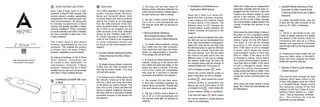
Familiarize yourself with your
Z-Stick.
Quick start.
Inclusion-Mode:Adding/Including
Z-Wave Devices into the Z-Wave
Network.
Removal-Mode: Deleting/
Removing/Excluding Z-Wave
DevicesfromtheZ-WaveNetwork.
SerialAPI-Mode: Allowing a Host
ProcessorToTake Control of the
Z-StickandTakePartintheZ-Wave
Network.
Installation and Maintenance
Application (IMA) feature.
Add the Z-Stick to a pre-existing
Z-Wave network.
When the Z-Stick acts an independent/
secondary controller that has been un-
plugged from the USB host, it also can
measure the network health for each
device in the network. The different
colour of LED on the Z-Stick indicates
the communication quality between the
Central Controller and devices in the
network.
Short press the Action Button 5 times, if
the colour of LED is changed to purple
and then it follows with fast blink, which
means it goes into the IMA feature.
The colour of LED will be changed
according to the network health
level. If the colour of LED is changed
to green, which means the current
communication quality is more than
95% on -7dBm. If the colour of LED
is changed to yellow, which means
the current communication quality is
more than 95% on 0dBm. If the colour
of LED is changed to purple, which
means the current communication
quality is less than 95% on 0dBm. If the
colour of LED is changed to red, which
means the current communication has
failed.
Short press the Action Button 5 times
again, the Z-Stick will automatically exit
the IMA feature.
When the Z-Stick is in Serial API-
Mode and acts a primary controller,
it can measure the network health
for each device in the network. The
different colour of LED indicates the
communication quality between the
Z-Stick Controller and devices in the
network.
the IMA tool can be downloaded from
here: http://www.aeotec.com/support).
Select the node device and then click
the IMA test button to start the IMA test
between the Central Controller and
the node devices. Your IMA tool client
will receive the test result and use
different colour of LED icon to indicate
the network health level, its colour will
be changed follow with the change of
network health level. If the colour of
LED is changed to green , which
means the current network quality is
good. If the colour of LED is changed
to yellow , which means the current
network quality is acceptable but
latency can occur. If the colour of LED
is changed to red , which means the
current network quality is insufficient.
If the IMA tool return a , which means
the current network is critical because
node is not responding.
®
Action Button
Reset Button
3. The blue LED will then return to
blinking slowly, indicating readiness for
further device inclusions. Repeat step 2
for each device you wish to include.
4. Tap the Z-Stick’s Action Button to
turn it off or it will automatically exit
the removal mode after 30 seconds of
inactivity.
or built-in rechargeable lithium battery
3.7V, 100mAh.
Max Standby Current: 30uA.
Max Operating Current: 98mA in PA
mode or 40mA in normal mode.
Operating Temperature: 0 to 50 .
Storage Temperature: -20 to 70 .
Operating Distance: Up to 500 feet/150
metres outdoors in normal mode or
1310 feet/400 metres outdoors in PA
mode.
CC
CC
Warranty.
Aeon Labs warrants to the original
purchaser of Products that for the
Warranty Period (as defined below),
the Products will be free from material
defects in materials and workmanship.
The foregoing warranty is subject
to the proper installation, operation
and maintenance of the Products in
accordance with installation instructions
and the operating manual supplied to
Customer. Warranty claims must be
made by Customer in writing within
thirty (30) days of the manifestation of
a problem. Aeon Labs' sole obligation
under the foregoing warranty is, at
Aeon Labs' option, to repair, replace
or correct any such defect that was
present at the time of delivery, or to
remove the Products and to refund the
purchase price to Customer.
The "Warranty Period" begins on the
date the Products is delivered and
continues for 12 months.
Any repairs under this warranty must
be conducted by an authorized Aeon
Labs service representative and under
Aeon Labs' RMA policy. Any repairs
conducted by unauthorized persons
shall void this warranty.
Excluded from the warranty are
problems due to accidents, acts of
God, civil or military authority, civil
disturbance, war, strikes, fires, other
catastrophes, misuse, misapplication,
storage damage, negligence, electrical
Products or its components.
Aeon Labs does not authorize any
person or party to assume or create
for it any other obligation or liability in
connection with the Products except as
set forth herein.
Aeon Labs will pass on to Customer
all manufacturers’ Material warranties
to the extent that they are transferable,
but will not independently warrant any
Material.
Customer must prepay shipping
and transportation charges for
returned Products, and insure the
shipment or accept the risk of loss or
damage during such shipment and
transportation. Aeon Labs will ship the
repaired or replacement products to
Customer freight prepaid.
Customer shall indemnify, defend,
and hold Aeon Labs and Aeon Labs'
IN NO EVENT SHALL AEON LABS BE
LIABLE FOR ANY INDIRECT, INCIDENTAL,
PUNITIVE, SPECIAL OR CONSEQUENTIAL
DAMAGES, OR DAMAGES FOR LOSS OF
PROFITS, REVENUE, OR USE INCURRED
BY CUSTOMER OR ANY THIRD PARTY,
WHETHER IN AN ACTION IN CONTRACT,
OR TORT, OR OTHERWISE EVEN IF ADVISED
OF THE POSSIBILITY OF SUCH DAMAGES.
AEON LABS' LIABILITY AND CUSTOMER'S
EXCLUSIVE REMEDY FOR ANY CAUSE OF
THE INDEMNITY AND WARRANTY IN
ABOVE ARE EXCLUSIVE AND IN LIEU
OF ALL OTHER INDEMNITIES OR
WARRANTIES, WHETHER EXPRESS
OR IMPLIED, INCLUDING THE IMPLIED
WARRANTIES OF MERCHANTABILITY AND
FITNESS FOR A PARTICULAR PURPOSE.
This device complies with Part 15 of
the FCC Rules. Operation is subject to
the following two conditions:
1
2
This device may not cause harmful
interference, and
This device must accept any interference
received, including interference that
may cause undesired operation.
This equipment has been tested
and found to comply with the
limits for a Class B digital device,
pursuant to part 15 of the FCC
Rules. These limits are designed
to provide reasonable protection
against harmful interference
in a residential installation. This
equipment generates, uses and
can radiate radio frequency energy
and, if not installed and used in
accordance with the instructions, may
cause harmful interference to radio
communications. However, there is
no guarantee that interference will
not occur in a particular installation.
If this equipment does cause harmful
interference to radio or television
reception, which can be determined
by turning the equipment off and
on, the user is encouraged to try to
correct the interference by one or
more of the following measures:
T H E M A N U F A C T U R E R I S N O T
RESPONSIBLE FOR ANY RADIO OR
T V I N T E R F E R E N C E C A U S E D B Y
UNAUTHORIZED MODIFICATIONS TO
THIS EQUIPMENT.SUCH MODIFICATIONS
COULD VOID THE USER’S AUTHORITY TO
OPERATE THE EQUIPMENT.
STORE INDOORS WHEN NOT IN USE.
SUITABLE FOR DRY LOCATIONS. DO
NOT IMMERSE IN WATER. NOT FOR USE
WHERE DIRECTLY EXPOSED TO WATER.
FCC NOTICE (for USA)
Reorient or relocate the receiving
antenna.
Increase the separation between
the equipment and receiver.
Connect the equipment into an
outlet on a circuit different from that
to which the receiver is connected.
Consul the dealer or an experienced
radio/TV technician for help.
Do not dispose of electrical appliances
as unsorted municipal waste, use
separate collection facilities.
Warning
Contact your local government for
information regarding the collection
systems available.
Version:501009000001-AA
www.aeotec.com
Z-Wave and Z-Wave Plus are registered
trademarks of Sigma Designs and its
subsidiaries in the United States and other
countries
Certifications (regional):
Power Supply: USB DC 4.75V to 5.25V
Technical specifications.
1. Download the Aeon Labs Z-Stick
upgrade software that contains the
firmware update and UART to USB
driver at http://www.aeotec.com/support
and run the downloaded program.
2. Follow the on screen instructions to
complete installation.
Upgrading the Z-Stick with the
Latest Software.
affiliates, shareholders, directors,
officers, employees, contractors,
agents and other representatives
harmless from all demands, claims,
actions, causes of action, proceedings,
suits, assessments, losses, damages,
penalties, interest, costs and expenses
(including fees and disbursements
of counsel) of every kind (i) based
upon personal injury or death or injury
to property to the extent any of the
foregoing is proximately caused either
by a defective product (including strict
liability in tort) or by the negligent or
willful acts or omissions of Customer or
or agents, and/or (ii) arising from
or relating to any actual or alleged
infringement or misappropriation of
any patent, trademark, mask work,
copyright, trade secret or any actual or
alleged violation of any other intellectual
property rights arising from or in
connection with the products, except to
the extent that such infringement exists
as a result of Aeon Labs' manufacturing
processes.
At some stage, you may wish to reset
all of your Z-Stick’s settings to their
factory defaults. To do this, press and
hold the Reset Button for 20 seconds
and then release it. The Z-Stick will
now be reset to its original settings, and
the blue LED will solid for 2 seconds as
The Z-Stick also can be reset to the
factory defaults settings via the host
software.
To do this, the host software must take
control of the Z-Stick USB adapter
while the Z-Stick is in SerialAPI-Mode.
Please consult the instruction manual
of the host software to perform a
network reset (i.e. factory reset on the
Z-Stick).
Reset your Z-Stick. ACTION ARISING IN CONNECTION WITH
THIS AGREEMENT OR THE SALE OR USE
OF THE PRODUCTS, WHETHER BASED
ON NEGLIGENCE, STRICT LIABILITY,
BREACH OF WARRANTY, BREACH OF
AGREEMENT, OR EQUITABLE PRINCIPLES,
IS EXPRESSLY LIMITED TO, AT AEON
LABS' OPTION, REPLACEMENT OF, OR
REPAYMENT OF THE PURCHASE PRICE
FOR THAT PORTION OF PRODUCTS
WITH RESPECT TO WHICH DAMAGES
ARE CLAIMED. ALL CLAIMS OF ANY KIND
ARISING IN CONNECTION WITH THIS
AGREEMENT OR THE SALE OR USE OF
PRODUCTS SHALL BE DEEMED WAIVED
UNLESS MADE IN WRITING WITHIN THIRTY
(30) DAYS FROM AEON LABS'S DELIVERY,
OR THE DATE FIXED FOR DELIVERY IN
THE EVENT OF NONDELIVERY.

Z-stick USB wave plus - aeon - manual

  • 1.
    View the expandedmanual: http://aeotec.com/support Aeotec by Aeon Labs Z-Stick. Aeon Labs Z-Stick Gen5 is a self- powered Z-Wave USB adapter with remote network creation capabilities (independent from external power and host microprocessor). By being able to remotely include/remove Z-Wave network installation. When connected to a host controller (via USB), it enables the host controller to take part in the Z-Wave Network. The Z-Stick Gen5 is also device firmware upgradeable by the end consumer. This enables the product to always have the latest Z-Wave protocol, capabilities and commands. By taking advantage of the Z-Wave mesh network, commands can be routed to their destination via intermediary “listening” Z-Wave products. Products that are Z-Wave The Z-Stick operates in three distinct modes: Inclusion-Mode, Removal- Mode and SerialAPI-Mode. Both Inclusion-Mode and Removal-Mode require the Z-Stick to be unplugged from the USB connector of the host, while SerialAPI-Mode requires that the Z-Stick to be plugged into the USB connector of the host. Software drivers for the “ZW050x_USB_VCP_ PC_Driver” may need to be installed in order for the Z-Stick to be recognized on some computers (drivers can be found at http://www.aeotec.com/ support). 1. To initiate Inclusion-Mode, unplug the Z-Stick from the USB connector and then tap the Action Button. (The blue LED will blink slowly.) 2. To include a new Z-Wave device into the network, simply go to the device with the Z-Stick and press the button on the device you wish to include. (The blue LED on the Z-Stick will blink fast during a network neighbour discovery and stay solid for 2 seconds to indicate successful inclusion of the device into the network.) 1. To initiate Removal-Mode, unplug the Z-Stick from the USB connector. Then press and hold down the Action Button for approximately 2 seconds. (The orange LED will blink fast.) 2. To remove a Z-Wave device from the network, simply go to the device with the Z-Stick and press the button on the device you wish to remove. (The blue LED on the Z-Stick will immediately stay solid for 2 seconds to indicate successful removal from the network.) 3. The orange LED will then return to blink fast, indicating readiness for further device exclusions. Repeat step 2 for each device you wish to exclude. 4. Tap the Z-Stick’s Action Button to turn it off or it will automatically exit the removal mode after 30 seconds of inactivity. To initiate SerialAPI-Mode, plug the Z-Stick into the USB connector of the host (i.e. PC, MAC, or Gateway). Note: 1). While in SerialAPI-mode, the Z-Stick is always listening (it is awake and always in RX receive mode) for instructions and acts as a Z-Wave adapter and responds to commands sent through USB by the host processor software. 2). Pressing the Action Button will not have any effect while in SerialAPI- Mode. But short pressing the Reset Button will reset the USB port. This must be done through the host software which takes control of the Z-Stick USB adapter while the Z-Stick is in SerialAPI-Mode. Please consult the instruction manual of the host software to add the Z-Stick to a pre- existing Z-Wave network (i.e. “Learn”, “Sync”, “Add as Secondary Controller”, etc.). This function can only be performed via host software. Familiarize yourself with your Z-Stick. Quick start. Inclusion-Mode:Adding/Including Z-Wave Devices into the Z-Wave Network. Removal-Mode: Deleting/ Removing/Excluding Z-Wave DevicesfromtheZ-WaveNetwork. SerialAPI-Mode: Allowing a Host ProcessorToTake Control of the Z-StickandTakePartintheZ-Wave Network. Installation and Maintenance Application (IMA) feature. Add the Z-Stick to a pre-existing Z-Wave network. When the Z-Stick acts an independent/ secondary controller that has been un- plugged from the USB host, it also can measure the network health for each device in the network. The different colour of LED on the Z-Stick indicates the communication quality between the Central Controller and devices in the network. Short press the Action Button 5 times, if the colour of LED is changed to purple and then it follows with fast blink, which means it goes into the IMA feature. The colour of LED will be changed according to the network health level. If the colour of LED is changed to green, which means the current communication quality is more than 95% on -7dBm. If the colour of LED is changed to yellow, which means the current communication quality is more than 95% on 0dBm. If the colour of LED is changed to purple, which means the current communication quality is less than 95% on 0dBm. If the colour of LED is changed to red, which means the current communication has failed. Short press the Action Button 5 times again, the Z-Stick will automatically exit the IMA feature. When the Z-Stick is in Serial API- Mode and acts a primary controller, it can measure the network health for each device in the network. The different colour of LED indicates the communication quality between the Z-Stick Controller and devices in the network. the IMA tool can be downloaded from here: http://www.aeotec.com/support). Select the node device and then click the IMA test button to start the IMA test between the Central Controller and the node devices. Your IMA tool client will receive the test result and use different colour of LED icon to indicate the network health level, its colour will be changed follow with the change of network health level. If the colour of LED is changed to green , which means the current network quality is good. If the colour of LED is changed to yellow , which means the current network quality is acceptable but latency can occur. If the colour of LED is changed to red , which means the current network quality is insufficient. If the IMA tool return a , which means the current network is critical because node is not responding. ® Action Button Reset Button 3. The blue LED will then return to blinking slowly, indicating readiness for further device inclusions. Repeat step 2 for each device you wish to include. 4. Tap the Z-Stick’s Action Button to turn it off or it will automatically exit the removal mode after 30 seconds of inactivity.
  • 2.
    or built-in rechargeablelithium battery 3.7V, 100mAh. Max Standby Current: 30uA. Max Operating Current: 98mA in PA mode or 40mA in normal mode. Operating Temperature: 0 to 50 . Storage Temperature: -20 to 70 . Operating Distance: Up to 500 feet/150 metres outdoors in normal mode or 1310 feet/400 metres outdoors in PA mode. CC CC Warranty. Aeon Labs warrants to the original purchaser of Products that for the Warranty Period (as defined below), the Products will be free from material defects in materials and workmanship. The foregoing warranty is subject to the proper installation, operation and maintenance of the Products in accordance with installation instructions and the operating manual supplied to Customer. Warranty claims must be made by Customer in writing within thirty (30) days of the manifestation of a problem. Aeon Labs' sole obligation under the foregoing warranty is, at Aeon Labs' option, to repair, replace or correct any such defect that was present at the time of delivery, or to remove the Products and to refund the purchase price to Customer. The "Warranty Period" begins on the date the Products is delivered and continues for 12 months. Any repairs under this warranty must be conducted by an authorized Aeon Labs service representative and under Aeon Labs' RMA policy. Any repairs conducted by unauthorized persons shall void this warranty. Excluded from the warranty are problems due to accidents, acts of God, civil or military authority, civil disturbance, war, strikes, fires, other catastrophes, misuse, misapplication, storage damage, negligence, electrical Products or its components. Aeon Labs does not authorize any person or party to assume or create for it any other obligation or liability in connection with the Products except as set forth herein. Aeon Labs will pass on to Customer all manufacturers’ Material warranties to the extent that they are transferable, but will not independently warrant any Material. Customer must prepay shipping and transportation charges for returned Products, and insure the shipment or accept the risk of loss or damage during such shipment and transportation. Aeon Labs will ship the repaired or replacement products to Customer freight prepaid. Customer shall indemnify, defend, and hold Aeon Labs and Aeon Labs' IN NO EVENT SHALL AEON LABS BE LIABLE FOR ANY INDIRECT, INCIDENTAL, PUNITIVE, SPECIAL OR CONSEQUENTIAL DAMAGES, OR DAMAGES FOR LOSS OF PROFITS, REVENUE, OR USE INCURRED BY CUSTOMER OR ANY THIRD PARTY, WHETHER IN AN ACTION IN CONTRACT, OR TORT, OR OTHERWISE EVEN IF ADVISED OF THE POSSIBILITY OF SUCH DAMAGES. AEON LABS' LIABILITY AND CUSTOMER'S EXCLUSIVE REMEDY FOR ANY CAUSE OF THE INDEMNITY AND WARRANTY IN ABOVE ARE EXCLUSIVE AND IN LIEU OF ALL OTHER INDEMNITIES OR WARRANTIES, WHETHER EXPRESS OR IMPLIED, INCLUDING THE IMPLIED WARRANTIES OF MERCHANTABILITY AND FITNESS FOR A PARTICULAR PURPOSE. This device complies with Part 15 of the FCC Rules. Operation is subject to the following two conditions: 1 2 This device may not cause harmful interference, and This device must accept any interference received, including interference that may cause undesired operation. This equipment has been tested and found to comply with the limits for a Class B digital device, pursuant to part 15 of the FCC Rules. These limits are designed to provide reasonable protection against harmful interference in a residential installation. This equipment generates, uses and can radiate radio frequency energy and, if not installed and used in accordance with the instructions, may cause harmful interference to radio communications. However, there is no guarantee that interference will not occur in a particular installation. If this equipment does cause harmful interference to radio or television reception, which can be determined by turning the equipment off and on, the user is encouraged to try to correct the interference by one or more of the following measures: T H E M A N U F A C T U R E R I S N O T RESPONSIBLE FOR ANY RADIO OR T V I N T E R F E R E N C E C A U S E D B Y UNAUTHORIZED MODIFICATIONS TO THIS EQUIPMENT.SUCH MODIFICATIONS COULD VOID THE USER’S AUTHORITY TO OPERATE THE EQUIPMENT. STORE INDOORS WHEN NOT IN USE. SUITABLE FOR DRY LOCATIONS. DO NOT IMMERSE IN WATER. NOT FOR USE WHERE DIRECTLY EXPOSED TO WATER. FCC NOTICE (for USA) Reorient or relocate the receiving antenna. Increase the separation between the equipment and receiver. Connect the equipment into an outlet on a circuit different from that to which the receiver is connected. Consul the dealer or an experienced radio/TV technician for help. Do not dispose of electrical appliances as unsorted municipal waste, use separate collection facilities. Warning Contact your local government for information regarding the collection systems available. Version:501009000001-AA www.aeotec.com Z-Wave and Z-Wave Plus are registered trademarks of Sigma Designs and its subsidiaries in the United States and other countries Certifications (regional): Power Supply: USB DC 4.75V to 5.25V Technical specifications. 1. Download the Aeon Labs Z-Stick upgrade software that contains the firmware update and UART to USB driver at http://www.aeotec.com/support and run the downloaded program. 2. Follow the on screen instructions to complete installation. Upgrading the Z-Stick with the Latest Software. affiliates, shareholders, directors, officers, employees, contractors, agents and other representatives harmless from all demands, claims, actions, causes of action, proceedings, suits, assessments, losses, damages, penalties, interest, costs and expenses (including fees and disbursements of counsel) of every kind (i) based upon personal injury or death or injury to property to the extent any of the foregoing is proximately caused either by a defective product (including strict liability in tort) or by the negligent or willful acts or omissions of Customer or or agents, and/or (ii) arising from or relating to any actual or alleged infringement or misappropriation of any patent, trademark, mask work, copyright, trade secret or any actual or alleged violation of any other intellectual property rights arising from or in connection with the products, except to the extent that such infringement exists as a result of Aeon Labs' manufacturing processes. At some stage, you may wish to reset all of your Z-Stick’s settings to their factory defaults. To do this, press and hold the Reset Button for 20 seconds and then release it. The Z-Stick will now be reset to its original settings, and the blue LED will solid for 2 seconds as The Z-Stick also can be reset to the factory defaults settings via the host software. To do this, the host software must take control of the Z-Stick USB adapter while the Z-Stick is in SerialAPI-Mode. Please consult the instruction manual of the host software to perform a network reset (i.e. factory reset on the Z-Stick). Reset your Z-Stick. ACTION ARISING IN CONNECTION WITH THIS AGREEMENT OR THE SALE OR USE OF THE PRODUCTS, WHETHER BASED ON NEGLIGENCE, STRICT LIABILITY, BREACH OF WARRANTY, BREACH OF AGREEMENT, OR EQUITABLE PRINCIPLES, IS EXPRESSLY LIMITED TO, AT AEON LABS' OPTION, REPLACEMENT OF, OR REPAYMENT OF THE PURCHASE PRICE FOR THAT PORTION OF PRODUCTS WITH RESPECT TO WHICH DAMAGES ARE CLAIMED. ALL CLAIMS OF ANY KIND ARISING IN CONNECTION WITH THIS AGREEMENT OR THE SALE OR USE OF PRODUCTS SHALL BE DEEMED WAIVED UNLESS MADE IN WRITING WITHIN THIRTY (30) DAYS FROM AEON LABS'S DELIVERY, OR THE DATE FIXED FOR DELIVERY IN THE EVENT OF NONDELIVERY.