Zotero basics
Prof. Monica Berger
Associate Professor, Library
NYCCT
Spring 2021
Workshop overview
• The capabilities of Zotero, client - cloud syncing,
why Zotero?
• Setting up preferences in the client
• Various ways to import citations
• Install and using Zotero Connector for Firefox or Chrome
• Editing and organizing citations
• Installing and using the Word plugin
• Generating in-text citations and bibliographies
What is a bibliographic
management tool? Have
you ever used one? Why
use one?
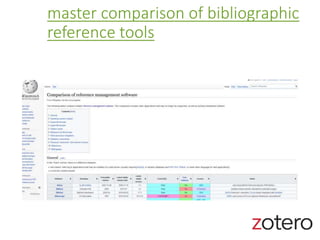
master comparison of bibliographic
reference tools
Demo
Share your research topic
Why Zotero is good
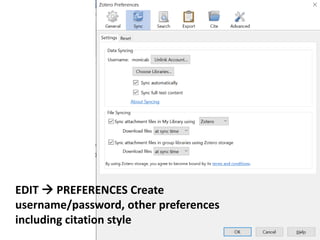
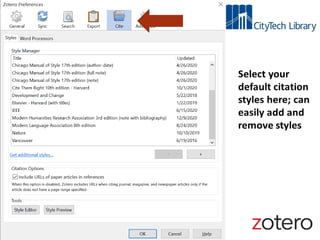
EDIT  PREFERENCES Create
username/password, other preferences
including citation style
Creating your Zotero
library
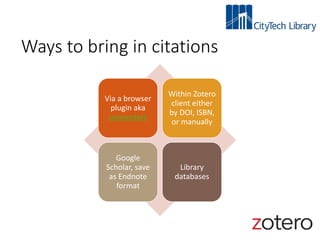
Ways to bring in citations
Via a browser
plugin aka
connectors
Within Zotero
client either
by DOI, ISBN,
or manually
Google
Scholar, save
as Endnote
format
Library
databases
Demo/practice bringing
in citations
BROWSER PLUGIN, CLIENT, SCHOLAR
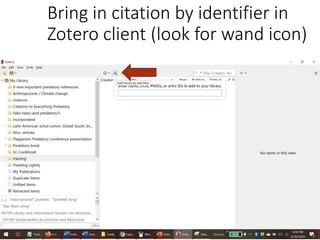
Bring in citation by identifier in
Zotero client (look for wand icon)
Editing and organizing
your citations
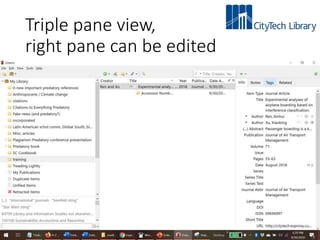
Triple pane view,
right pane can be edited
Two ways to create a
bibliography
• Via right clicking on a collection within Zotero
• By adding your citations into your MSWord doc
(need Zotero plugin in MSWord)
Demo/practice creating
a bibliography in Zotero
client
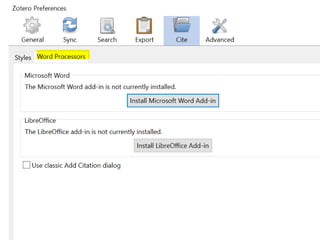
plugin for MSWord
demo/practice adding a
citation
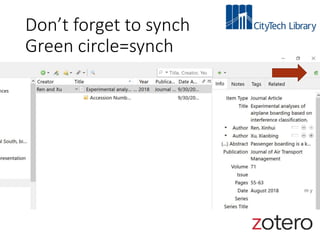
Don’t forget to synch
Green circle=synch
Miscellaneous tips +
Jason Puckett’s Zotero guide, handout
Questions?
Thank you
Monica Berger mberger@citytech.cuny.edu

Zotero basics

Editor's Notes

  • #4 Save time, reduce errors, keep you organized Record references in a variety of formats including primary sources Integration with word processors helps to generate in-text citations and bibliographies Switch citation styles easily
  • #5 Refer to this if you are considering other tools and want comparisons of functionalities
  • #6 Search Google Scholar. Select CITATION, and then ENDNOTE. This will bring the citation into Zotero
  • #7 Free integrates with a variety of word processors has many journal and specific styles It is an open source, non-profit service with a big user community Client plus cloud version Fast citation creation by identifiers including DOI and ISBN Can attach files (can pay nominal fee for extra storage) Add notes Add tags Allows collaboration Allows “public” collections
  • #8 Library= your entire personal collection of citations, notes, and attached files Collection=a folder. It can be for a topic or, probably more commonly, for a publication you are writing. Subcollection=a subfolder. Item=citation with attached notes, tags, and files Important to separate deleting and moving an item to trash versus removing it from a collection Easy to drag and drop an item from one collection to another, dynamic updating. Hold shift when you drag the item to move the citation rather than copying it
  • #10 Create username/password
  • #13 Yes, you can bring in a citation by a pdf in your web browser but you may not get all the metadata needed for a complete citation. If no landing page, use google scholar search and import that way
  • #15 Please find a citation to a book or article in google scholar and import by doi or isbn
  • #17 The item can easily be dragged and dropped to another folder. It will duplicate, not move!
  • #19 Find the plugin either in the client or on the Zotero website. It usually automatically adds to MSWord when the Zotero software is initially installed
  • #23 https://research.library.gsu.edu/c.php?g=115275&p=750658