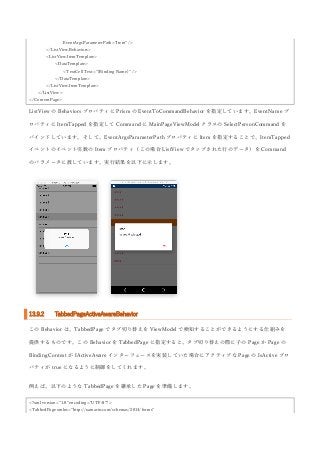
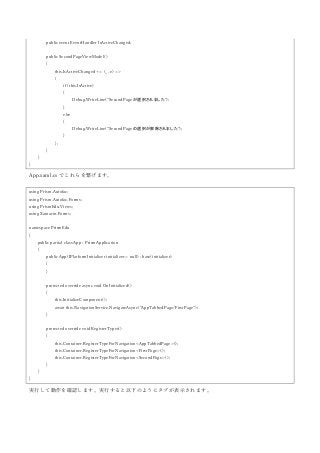
2017
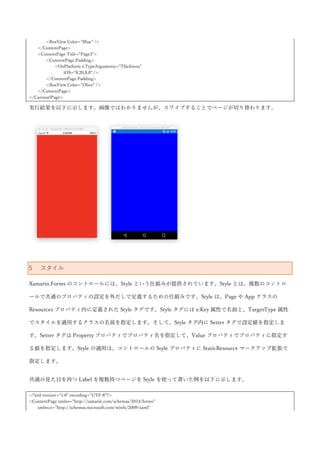
かずきの
Xamarin.Forms 入門
[文書のサブタイトル]
大田一希
1 内容
1 はじめに.....................................................................................................................................5
1.1 ターゲットプラットフォーム...................................................................................................5
1.2 Xamarin.Forms とは.................................................................................................................5
2 Hello world.................................................................................................................................7
2.1.1 実行して動作確認 ............................................................................................................12
3 XAML ...................................................................................................................................... 12
3.1 XAML と C#のコードの対比 .................................................................................................12
3.1.1 XAML の基本...................................................................................................................13
3.2 XAML の応用 .........................................................................................................................17
3.2.1 添付プロパティ................................................................................................................18
3.2.2 マークアップ拡張 ............................................................................................................19
3.2.3 StaticResource..................................................................................................................19
3.2.4 x:Static..............................................................................................................................20
3.2.5 TypeConverter.................................................................................................................20
3.2.6 データバインディング.....................................................................................................24
4 Xamarin.Forms のコントロール ................................................................................................ 36
4.1 BindableObject.......................................................................................................................37
4.1.1 バインダブルプロパティ .................................................................................................37
4.1.2 添付プロパティ................................................................................................................40
4.2 レイアウトコントロール........................................................................................................40
4.2.1 StackLayout......................................................................................................................41
4.2.2 Grid..................................................................................................................................47
4.2.3 AbsoluteLayout ................................................................................................................50
4.2.4 RelativeLayout .................................................................................................................51
4.2.5 ScrollView ........................................................................................................................53
4.2.6 余白の制御 .......................................................................................................................56
4.3 一般的なコントロール............................................................................................................56
4.3.1 Label.................................................................................................................................56
4.3.2 ActivityIndicator ..............................................................................................................63
4.3.3 BoxView ...........................................................................................................................64
4.3.4 Button ..............................................................................................................................65
4.3.5 DatePicker .......................................................................................................................72
4.3.6 Editor ...............................................................................................................................74
4.3.7 Entry.................................................................................................................................75
4.3.8 Image................................................................................................................................77
4.3.9 ListView ...........................................................................................................................81
4.3.10 OpenGLView..............................................................................................................105
4.3.11 Picker..........................................................................................................................105
4.3.12 ProgressBar.................................................................................................................107
4.3.13 SearchBar....................................................................................................................109
4.3.14 Slider...........................................................................................................................111
4.3.15 Stepper........................................................................................................................112
4.3.16 Switch .........................................................................................................................113
4.3.17 TableView...................................................................................................................114
4.3.18 TimePicker .................................................................................................................115
4.3.19 WebView.....................................................................................................................116
4.3.20 Map.............................................................................................................................120
4.3.21 CarouselView..............................................................................................................124
4.4 ページ ...................................................................................................................................126
4.4.1 Page................................................................................................................................126
4.4.2 ContentPage ..................................................................................................................126
4.4.3 MasterDetailPage ..........................................................................................................126
4.4.4 NavigationPage..............................................................................................................130
4.4.5 TabbedPage ...................................................................................................................141
4.4.6 CarouselPage .................................................................................................................143
5 スタイル................................................................................................................................. 144
6 ジェスチャー.......................................................................................................................... 152
6.1 TapGestureRecognizer.........................................................................................................152
6.2 PinchGestureRecognizer......................................................................................................153
6.3 PanGestureRecognizer.........................................................................................................155
7 アニメーション....................................................................................................................... 156
7.1 Xamarin.Forms のコントロールの移動や拡大縮小、回転 ..................................................157
7.2 シンプルなアニメーション ..................................................................................................159
7.3 イージング............................................................................................................................161
8 ビヘイビア ............................................................................................................................. 162
9 トリガー・アクション ............................................................................................................ 169
9.1 PropertyTrigger....................................................................................................................169
9.2 DataTrigger ..........................................................................................................................171
9.3 EventTrigger.........................................................................................................................172
9.4 MultiTrigger.........................................................................................................................173
10 メッセージングセンター...................................................................................................... 175
11 プラットフォーム固有機能.................................................................................................. 179
11.1 Device クラス....................................................................................................................179
11.1.1 Idiom...........................................................................................................................180
11.1.2 RuntimePlatform........................................................................................................180
11.1.3 Styles...........................................................................................................................181
11.1.4 GetNamedSize............................................................................................................181
11.1.5 OpenUri......................................................................................................................181
11.1.6 StartTimer ..................................................................................................................183
11.1.7 BeginInvokeOnMainThread ......................................................................................183
11.2 DependencyService...........................................................................................................183
11.3 Effect .................................................................................................................................186
11.4 CustomRenderer ...............................................................................................................192
11.5 Plugin ................................................................................................................................197
11.6 ネイティブのビュー..........................................................................................................201
12 永続化 ................................................................................................................................. 202
12.1 Application クラスの Properties.......................................................................................202
12.2 ローカルファイル..............................................................................................................204
12.3 SQLite ...............................................................................................................................205
13 Prism................................................................................................................................... 209
13.1 Prism の機能 .....................................................................................................................211
13.2 MVVM 開発のサポート....................................................................................................211
13.3 Dependency Injection .......................................................................................................213
13.4 Xamarin.Forms 組み込みの Command よりも高機能の Command.................................217
13.5 Page Dialog Service...........................................................................................................224
13.6 ページナビゲーション ......................................................................................................227
13.7 MessageingCenter よりも高機能なメッセージング機能 .................................................237
13.8 ロギング ............................................................................................................................237
13.9 各種 Behavior ....................................................................................................................238
13.9.1 EventToCommandBehavior.......................................................................................238
13.9.2 TabbedPageActiveAwareBehavior .............................................................................240
14 まとめ ................................................................................................................................. 244
1 はじめに
本書では、Xamarin.Forms について説明しています。 Xamarin.Forms の基本から応用的なことまで幅広く記
載して日本語による解説を行なっていきたいと思います。Xamarin.Forms の開発環境は、Visual Studio,
Visual Studio for Mac, Xamarin Studio など多岐にわたるため、本書では、特に IDE の使い方については記載
しません。Xamarin.Forms についてのみ解説を行います。また、C#の基本的な知識のある人を対象として解
説を行います。
1.1 ターゲットプラットフォーム
Xamarin.Forms は、以下のプラットフォームのアプリケーションを開発可能です。
 Android
 iOS
 Mac
 UWP
 Windows 8.1
 Windows Phone 8.1
 Tizen
本書では、Android と iOS をターゲットとして解説を行います。
また、Xamarin.Forms のプロジェクトの形式として PCL と Shared がありますが本書では、PCL を使用して
解説を行います。
Xamarin.Forms のバージョンは 2.3.4 を使用しています。
1.2 Xamarin.Forms とは
Xamarin とは、C#で Android, iOS アプリケーションの開発が可能なプラットフォームで Mono をベースに
作られています。Android と iOS のネイティブの API を C#から使えるようにラップしたものを Xamarin
Native(海外では Traditional Xamarin とも言われてるみたいです)と言います。Xamarin Native では、ロジッ
クは C#で共通化を行い UI は各プラットフォームの作法に従い作るという方法がとられています。
Xamarin が出た当初は、この方法しか開発の方法が無かったのですが、後から本書で解説する
Xamarin.Forms が追加されました。Xamarin.Forms は XAML(ザムル)と呼ばれる XML をベースとしたマ
ークアップ言語で UI を記述して UI 部分までコードを共通化するというものです。
これにより、ほぼ全て共通コードで Android, iOS アプリが作れるようになりました。本書では Android, iOS
しか扱いませんが、Xamarin.Forms 自体は先に示した通り様々なプラットフォームに対応しています。
Xamarin.Forms の特徴として、UI 部品のレンダリングは最終的にネイティブのコントロールが行なっている
という点です。コードは共通化しつつ、ネイティブの見た目を手に入れることに成功しています。
HTML/JavaScript などで UI まで共通化するタイプの Cordova などでは OS が変わっても見た目が共通だっ
たものが、Xamarin.Forms では、きちんと、そのプラットフォームの見た目になるという点が大きなアドバ
ンテージです。最近は HTML/JavaScript ベースの UI フレームワークも OS によって見た目を変えてくると
言ったことをしてくるので、必ずしもアドバンテージとは言えませんが、HTML/JavaScript がエミュレート
している点に対して Xamarin.Forms は真のネイティブのコントロールを使用している点が特徴です。
2 Hello world
Xamarin.Forms での Hello world について解説します。Xamarin.Forms でプロジェクトを新規作成すると、
どの IDE で行なっても以下のようなものが作成されます。
HelloWorld プロジェクトが PCL のプロジェクトになります。基本的には、ここにロジックや画面などを記
載していきます。HelloWorld.Droid プロジェクトが Android のプロジェクトになります。ここの、
MainActivity.cs が Android 上の実質的なエントリポイントになります。Xamarin.Forms の初期化処理が書か
れています。
using System;
using Android.App;
using Android.Content;
using Android.Content.PM;
using Android.Runtime;
using Android.Views;
using Android.Widget;
using Android.OS;
namespace HelloWorld.Droid
{
[Activity(Label = "HelloWorld.Droid", Icon = "@drawable/icon", Theme = "@style/MyTheme", MainLauncher = true,
ConfigurationChanges = ConfigChanges.ScreenSize | ConfigChanges.Orientation)]
public class MainActivity : global::Xamarin.Forms.Platform.Android.FormsAppCompatActivity
{
protected override void OnCreate(Bundle bundle)
{
TabLayoutResource = Resource.Layout.Tabbar;
ToolbarResource = Resource.Layout.Toolbar;
base.OnCreate(bundle);
global::Xamarin.Forms.Forms.Init(this, bundle);
LoadApplication(new App());
}
}
}
長いですが、基本的には global::Xamarin.Forms.Forms.Init(this, bundle)という行と LoadApplication(new
App())という行が初期化処理になります。次に HelloWorld.iOS プロジェクトを見ていきます。
HelloWorld.iOS プロジェクトは、AppDelegate.cs クラスがエントリポイントとなります。コードを以下に示
します。
using System;
using System.Collections.Generic;
using System.Linq;
using Foundation;
using UIKit;
namespace HelloWorld.iOS
{
[Register("AppDelegate")]
public partial class AppDelegate : global::Xamarin.Forms.Platform.iOS.FormsApplicationDelegate
{
public override bool FinishedLaunching(UIApplication app, NSDictionary options)
{
global::Xamarin.Forms.Forms.Init();
LoadApplication(new App());
return base.FinishedLaunching(app, options);
}
}
}
iOS も、global::Xamarin.Forms.Forms.Init()の行と LoadApplication(new App())が Xamarin.Forms の初期化
処理を行なっている部分になります。
次に、LoadApplication メソッドに渡されている App クラスについて見てみます。App クラスは、
HelloWorld プロジェクトに App.xaml と App.xaml.cs の 2 つのファイルで構成されています。後述します
が、XAML と呼ばれるマークアップ言語と、それに紐づいたコードビハインドクラスからできています。
App.xaml.cs を開くと以下のようなコードになっています。
using Xamarin.Forms;
namespace HelloWorld
{
public partial class App : Application
{
public App()
{
InitializeComponent();
MainPage = new HelloWorldPage();
}
protected override void OnStart()
{
// Handle when your app starts
}
protected override void OnSleep()
{
// Handle when your app sleeps
}
protected override void OnResume()
{
// Handle when your app resumes
}
}
}
コンストラクタで、MainPage プロパティに HelloWorldPage を設定しています。Xamarin.Forms では、この
ように App クラスの MainPage プロパティにページを設定することで初期画面を設定できます。
では、次に HelloWorldPage を見ていきたいと思います。HelloWorldPage も、App クラスと同様に、
HelloWorldPage.xaml と HelloWorldPage.xaml.cs から構成されています。HelloWorldPage.xaml で画面の見
た目を XAML で定義して、HelloWorldPage.xaml.cs で画面の処理を C#で記述するという流れになります。
見た目を定義している HelloWorldPage.xaml のコードを以下に示します。
<?xml version="1.0" encoding="utf-8"?>
<ContentPage xmlns="http://xamarin.com/schemas/2014/forms"
xmlns:x="http://schemas.microsoft.com/winfx/2009/xaml"
xmlns:local="clr-namespace:HelloWorld"
x:Class="HelloWorld.HelloWorldPage">
<Label Text="Welcome to Xamarin Forms!"
VerticalOptions="Center"
HorizontalOptions="Center" />
</ContentPage>
XAML は、基本的に XML をベースとした言語になります。詳細は後述しますが、XML 名前空間が C#の名
前空間に紐付き、タグ名がクラス名に紐付き、属性がプロパティに紐づくという感じになります。ここで
は、ContentPage という Xamarin.Forms の一般的なページに対して文字列を表示するための Label を中央寄
せで配置しています。
最後に、HelloWorldPage.xaml.cs を見ていきます。コードを以下に示します。
using Xamarin.Forms;
namespace HelloWorld
{
public partial class HelloWorldPage : ContentPage
{
public HelloWorldPage()
{
InitializeComponent();
}
}
}
Xamarin.Forms の基本的なページである ContentPage を継承しています。
2.1.1 実行して動作確認
では、実行して動作確認をします。iOS と Android で実行すると以下のようになります。
3 XAML
ここでは、Xamarin.Forms で UI を記述するための言語である XAML について説明します。XAML とは
XML をベースとした言語です。XML なのでツリー状の構造を持ったものを記述するのに向いています。UI
はページをルートとしたツリー構造のものなので、UI を記述するのに非常に親和性が高い言語となっていま
す。では、XAML について解説していきます。
3.1 XAML と C#のコードの対比
XAML は、オブジェクトのインスタンスを組み立てるための言語です。オブジェクトのインスタンスを組み
立てるだけなら C#でも可能です。実際に、XAML を使わずに C#で画面部品を組み立てた Xamarin.Forms の
サンプルプログラムや、リリースされているプログラムもあります。本書では、C#による画面構築は基本的
に行わずに、XAML を主体とした画面構築を行います。それでは、XAML を見て行ってみましょう。
3.1.1 XAML の基本
XAML は、Xamarin.Forms のページを作成するのに使われます。では、ページを作成してみましょう。IDE
によって若干生成されるページのコードは異なりますがおおむね以下のようになります。
<?xml version="1.0" encoding="UTF-8"?>
<ContentPage xmlns="http://xamarin.com/schemas/2014/forms"
xmlns:x="http://schemas.microsoft.com/winfx/2009/xaml"
x:Class="HelloWorld.MyPage">
</ContentPage>
XAML では、タグ名がクラス名に該当します。つまり、これは ContentPage クラスのインスタンスを組み立
てているということになります。いくつか XML 名前空間が定義されています。
http://xamarin.com/schemas/2014/forms 名前空間は Xamarin.Forms のクラスが定義されている特別な名前
空間です。x 名前空間の http://schemas.microsoft.com/winfx/2009/xaml も XAML 内で使用する様々なクラ
ス等が定義された名前空間になります。この 2 つの名前空間は新規作成するとデフォルトで付いてくるもの
なので、自分で打つ必要はありませんが特別なものだと覚えておきましょう。x:Class 属性は、コードビハイ
ンドと XAML ファイルを紐づけるためのタグになります。コードビハインドクラスは、HelloWorld.MyPage
クラスであるということが定義されています。
XAML では、XML の属性が C#のプロパティの設定に該当します。ContentPage クラスには、string 型の
Title プロパティがあるので、それに Hello world を設定すると XAML は以下のようになります。
<?xml version="1.0" encoding="UTF-8"?>
<ContentPage xmlns="http://xamarin.com/schemas/2014/forms"
xmlns:x="http://schemas.microsoft.com/winfx/2009/xaml"
x:Class="HelloWorld.MyPage"
Title="Hello world">
</ContentPage>
C#のコードで表すと以下のようなイメージになります。
var page = new ContentPage
{
Title = “Hello world”,
};
ContentPage にコントロールを配置するには、object 型の Content プロパティにコントロールを配置してい
きます。各種コントロールのような複雑なオブジェクトをプロパティに設定するための構文として、プロパ
ティ要素構文というものがあります。これは、タグ名としてプロパティを定義するための構文で、「クラス
名.プロパティ名」という形でタグを書くことで、タグとしてプロパティを設定できます。こうすることで、
オブジェクトのような複雑な型をプロパティに設定することができます。例えば、ContentPage に Hello
world と設定した Label(テキストを表示するためのコントロール)を設定した XAML を以下に示します。
<?xml version="1.0" encoding="UTF-8"?>
<ContentPage xmlns="http://xamarin.com/schemas/2014/forms"
xmlns:x="http://schemas.microsoft.com/winfx/2009/xaml"
x:Class="HelloWorld.MyPage"
Title="Hello world">
<ContentPage.Content>
<Label Text="Hello world" />
</ContentPage.Content>
</ContentPage>
XAML では、1 つのクラスに対して 1 つのコンテンツプロパティを定義することができます。コンテンツプ
ロパティは、XAML でタグを省略した時に設定されるデフォルトのプロパティのことです。ややこしいので
すが、ContentPage コントロールは、Content プロパティがコンテンツプロパティとして定義されていま
す。そのため、ContentPage.Content のタグは省略できるため、上記の XAML は以下のように書くことがで
きます。
<?xml version="1.0" encoding="UTF-8"?>
<ContentPage xmlns="http://xamarin.com/schemas/2014/forms"
xmlns:x="http://schemas.microsoft.com/winfx/2009/xaml"
x:Class="HelloWorld.MyPage"
Title="Hello world">
<Label Text="Hello world" />
</ContentPage>
複数のコントロールをページに置いてみましょう。ContentPage クラスの Content プロパティは単一の要素
しか置けないため、複数のコントロールを配置するときは、要素のレイアウトを行うコントロールを置い
て、その中にコントロールを配置して行います。よく使われるレイアウトコントロールとして StackLayout
というクラスがあります。これは子要素を縦や横に並べるコントロールです。StackLayout コントロールには
Children プロパティというコレクション型のコントロールがあり、そこにコントロールを追加していきま
す。
コレクション型のプロパティに対して要素を追加するにはコレクション構文というものがあり、コレクショ
ンのプロパティに対して直接子要素を設定することでコレクションに設定させることができます。そのた
め、StackLayout に対して Label コントロールと Button コントロールを配置するには以下のように書くこと
ができます。
<?xml version="1.0" encoding="UTF-8"?>
<ContentPage xmlns="http://xamarin.com/schemas/2014/forms"
xmlns:x="http://schemas.microsoft.com/winfx/2009/xaml"
x:Class="HelloWorld.MyPage"
Title="Hello world">
<StackLayout>
<StackLayout.Children>
<Label Text="Hello world" />
<Button Text="Click me" />
</StackLayout.Children>
</StackLayout>
</ContentPage>
このとき、StackLayout の Children プロパティは、コンテンツプロパティのため StackLayout.Children のタ
グは省略して書くことができます。そのため通常、以下のように XAML を記述します。
<?xml version="1.0" encoding="UTF-8"?>
<ContentPage xmlns="http://xamarin.com/schemas/2014/forms"
xmlns:x="http://schemas.microsoft.com/winfx/2009/xaml"
x:Class="HelloWorld.MyPage"
Title="Hello world">
<StackLayout>
<Label Text="Hello world" />
<Button Text="Click me" />
</StackLayout>
</ContentPage>
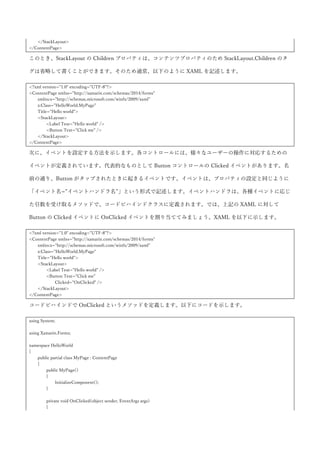
次に、イベントを設定する方法を示します。各コントロールには、様々なユーザーの操作に対応するための
イベントが定義されています。代表的なものとして Button コントロールの Clicked イベントがあります。名
前の通り、Button がタップされたときに起きるイベントです。イベントは、プロパティの設定と同じように
「イベント名=”イベントハンドラ名”」という形式で記述します。イベントハンドラは、各種イベントに応じ
た引数を受け取るメソッドで、コードビハインドクラスに定義されます。では、上記の XAML に対して
Button の Clicked イベントに OnClicked イベントを割り当ててみましょう。XAML を以下に示します。
<?xml version="1.0" encoding="UTF-8"?>
<ContentPage xmlns="http://xamarin.com/schemas/2014/forms"
xmlns:x="http://schemas.microsoft.com/winfx/2009/xaml"
x:Class="HelloWorld.MyPage"
Title="Hello world">
<StackLayout>
<Label Text="Hello world" />
<Button Text="Click me"
Clicked="OnClicked" />
</StackLayout>
</ContentPage>
コードビハインドで OnClicked というメソッドを定義します。以下にコードを示します。
using System;
using Xamarin.Forms;
namespace HelloWorld
{
public partial class MyPage : ContentPage
{
public MyPage()
{
InitializeComponent();
}
private void OnClicked(object sender, EventArgs args)
{
// ここに処理を書く
}
}
}
コードビハインドからコントロールを触るには、x:Name という属性を使用します。x 名前空間には、特殊な
動きをする様々な属性や要素が定義されています。詳細はリファレンスをみてください。本書では代表的な
ものについて適時説明していきます。
x 名前空間で定義されているもののリストのあるページ
https://developer.xamarin.com/guides/xamarin-forms/xaml/namespaces/
では、Label に x:Name 属性で名前をつけて Button がタップされた時に Text プロパティを書き換えるように
してみたいと思います。まず、XAML で Label に「x:Name=”labelHelloWorld”」という形で名前をつけま
す。
<Label x:Name="labelHelloWorld"
Text="Hello world" />
そして、先ほどコードビハインドに定義した OnClicked イベントハンドラに以下のように処理を記述しま
す。
private void OnClicked(object sender, EventArgs args)
{
this.labelHelloWorld.Text = "こんにちは世界";
}
この状態で実行すると以下のように Button を押すと Label の Text が書き換わります。
Button の選択前は以下のように表示されていますが
Button をタップすると以下のように Label の表示が変わります。
以上が、XAML を使用してアプリケーションを組む場合に必要最低限必要な部分になります。
3.2 XAML の応用
ここからは、XAML の応用的なことについて説明していきます。
3.2.1 添付プロパティ
XAML には、オブジェクトには本来存在していない他のクラスで定義されたプロパティを指定する添付プロ
パティというものが提供されています。添付プロパティは主に、画面レイアウトに必要な情報をコントロー
ルに設定するために使用されます。一番わかりやすい例が Grid コントロールです。Grid コントロールは、
画面を格子状に区切って、そこにコントロールを配置するというレイアウトコントロールです。
RowDefinitions プロパティで行を定義して、ColumnDefinitions プロパティで行と列が何個あるのか定義し
ます。定義したあとに、コントロールを Grid の中に配置していくのですがコントロールを何行何列目に配置
するのかという設定を Grid に定義された添付プロパティで行います。以下に、3x3 の Grid に斜めに Button
を置く場合のコード例を示します。
<?xml version="1.0" encoding="UTF-8"?>
<ContentPage xmlns="http://xamarin.com/schemas/2014/forms"
xmlns:x="http://schemas.microsoft.com/winfx/2009/xaml"
x:Class="HelloWorld.MyPage"
Title="Hello world">
<Grid>
<!-- 行の定義 -->
<Grid.RowDefinitions>
<RowDefinition />
<RowDefinition />
<RowDefinition />
</Grid.RowDefinitions>
<!-- 列の定義 -->
<Grid.ColumnDefinitions>
<ColumnDefinition />
</Grid.ColumnDefinitions>
<!-- Button を斜めに置いていく -->
<Button Text="0,0" />
<Button Text="1,1"
Grid.Row="1"
Grid.Column="1" />
<Button Text="2,2"
Grid.Row="2"
Grid.Column="2" />
</Grid>
</ContentPage>
添付プロパティは、コード中の「Grid.Row=”1”」や「Grid.Column=”1”」といった「クラス名.プロパティ
名」といった方法で指定している部分になります。実行結果を以下に示します。
3.2.2 マークアップ拡張
XAML を使うことで、入れ子構造になった複雑な形状のオブジェクトを構築することができます。しかし、
XML という形式で表現するのが冗長であったり、そもそも XML で表現が難しいものも中にはあります。そ
ういったものを表現するためにマークアップ拡張というものがあります。マークアップ拡張は、属性の設定
値の中に「{マークアップ拡張名 プロパティ名=値, プロパティ名=値…}」のような形で記載をしていきま
す。特によく使われるマークアップ拡張として StaticResource マークアップ拡張を、まず紹介します。
3.2.3 StaticResource
StaticResource は、Page などのコントロールに実装されている Resources プロパティに設定された
ResourceDictionary の中で定義された要素を参照するために使用します。ResourceDictionary に、共通の定
義を追加することで、文字列や色やスタイルなどを再利用することができます。ResourceDictionary に定義
したオブジェクトは、x:Key 属性で名前をつける必要があります。名前をつけると、StaticResource マークア
ップ拡張の Key プロパティで指定して取得することができます。文字列を ResourceDictionary で定義して、
StaticResource で取得する XAML の例を以下に示します。
<?xml version="1.0" encoding="UTF-8"?>
<ContentPage xmlns="http://xamarin.com/schemas/2014/forms"
xmlns:x="http://schemas.microsoft.com/winfx/2009/xaml"
x:Class="HelloWorld.MyPage"
Title="Hello world">
<ContentPage.Resources>
<ResourceDictionary>
<x:String x:Key="text">Hello world</x:String>
</ResourceDictionary>
</ContentPage.Resources>
<Label Text="{StaticResource text}"
HorizontalOptions="Center"
VerticalOptions="Center" />
</ContentPage>
実行すると、Label に Hello world と表示されます。
3.2.4 x:Static
x:Static マークアップ拡張は、クラスの static メンバを呼び出すためのマークアップ拡張になります。以下の
ような static な Message プロパティを持った StaticItem クラスがあるとします。
namespace HelloWorld
{
public static class StaticItem
{
public static string Message { get; } = "Hello static world";
}
}
このクラスの Message プロパティを Label の Text プロパティに設定する XAML は以下のようになります。
<?xml version="1.0" encoding="UTF-8"?>
<ContentPage xmlns="http://xamarin.com/schemas/2014/forms"
xmlns:x="http://schemas.microsoft.com/winfx/2009/xaml"
xmlns:local="clr-namespace:HelloWorld;assembly=HelloWorld"
x:Class="HelloWorld.MyPage"
Title="Hello world">
<Label Text="{x:Static local:StaticItem.Message}"
HorizontalOptions="Center"
VerticalOptions="Center" />
</ContentPage>
まず、StaticItem クラスが定義されている名前空間を XML 名前空間とマッピングする定義を追加します。
「xmlns:local=”clr-namespace:HelloWorld;assembly=HelloWorld”」が、その定義になります。clr-namespace
で C#の名前空間を定義して、assembly でアセンブリ名を定義します。XAML と同じアセンブリにある名前
空間を指定する場合は、assembly は省略して「xmlns:local=”clr-namespace:HelloWorld”」のように書くこと
もできます。上記 XAML を実行すると Label に Hello static world と表示されます。
3.2.5 TypeConverter
ここでは TypeConverter について説明します。TypeConverter は、XAML で指定した文字列を特定の型に変
換するための仕組みになります。例えば、ContentPage の Padding プロパティは Thickness 型なのですが、
以下のようにカンマ区切り文字列で指定可能です。
<?xml version="1.0" encoding="UTF-8"?>
<ContentPage xmlns="http://xamarin.com/schemas/2014/forms"
xmlns:x="http://schemas.microsoft.com/winfx/2009/xaml"
xmlns:local="clr-namespace:HelloWorld;assembly=HelloWorld"
x:Class="HelloWorld.MyPage"
Title="Hello world"
Padding="0,20,0,0">
<Label Text="{x:Static local:StaticItem.Message}"
HorizontalOptions="Center"
VerticalOptions="Center" />
</ContentPage>
カンマ区切りで順番に「左,上,右,下」の余白を指定します。また「左右,上下」といった指定方法や「上下左
右」といった指定方法があります。このように、XAML では Thickness 型の値などを文字列で指定すること
ができるようになっています。この間の変換を行うのが TypeConverter になります。
3.2.5.1 iOS でのページへの Padding の指定
Page への Padding の指定ですが、iOS のみ上側に 20px の余白を設けるのが Xamarin.Forms でのアプリ開発
では必要になります。これをしないと、以下のようにページ上部にコントロールがめり込んでしまいます。
以下のような Label を置いただけのシンプルな XAML があるとします。
<?xml version="1.0" encoding="UTF-8"?>
<ContentPage xmlns="http://xamarin.com/schemas/2014/forms"
xmlns:x="http://schemas.microsoft.com/winfx/2009/xaml"
x:Class="HelloWorld.MyPage">
<Label Text="Hello world" />
</ContentPage>
これを、iOS で実行すると以下のように表示されます。
以下のように上側に 20px の余白を持たせると意図した通りに表示されます。
<?xml version="1.0" encoding="UTF-8"?>
<ContentPage xmlns="http://xamarin.com/schemas/2014/forms"
xmlns:x="http://schemas.microsoft.com/winfx/2009/xaml"
x:Class="HelloWorld.MyPage"
Padding="0,20,0,0">
<Label Text="Hello world" />
</ContentPage>
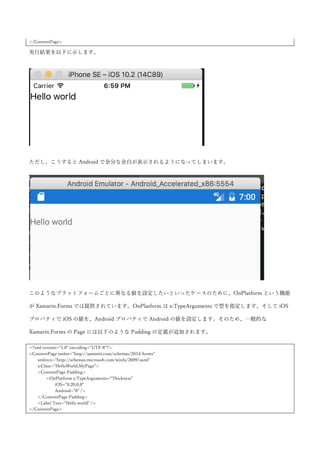
実行結果を以下に示します。
ただし、こうすると Android で余分な余白が表示されるようになってしまいます。
このようなプラットフォームごとに異なる値を設定したいといったケースのために、OnPlatform という機能
が Xamarin.Forms では提供されています。OnPlatform は x:TypeArguments で型を指定します。そして、On
の Platform プロパティで iOS、Android のプラットフォームを指定して、値を設定します。そのため、一般
的な Xamarin.Forms の Page には以下のような Padding の定義が追加されます。
<?xml version="1.0" encoding="utf-8"?>
<ContentPage xmlns="http://xamarin.com/schemas/2014/forms"
xmlns:x="http://schemas.microsoft.com/winfx/2009/xaml"
xmlns:local="clr-namespace:HelloWorld"
x:Class="HelloWorld.MyPage">
<ContentPage.Padding>
<OnPlatform x:TypeArguments="Thickness">
<On Platform="iOS">0,20,0,0</On>
</OnPlatform>
</ContentPage.Padding>
<Label Text="Hello world"
VerticalOptions="Center"
HorizontalOptions="Center" />
</ContentPage>
iOS で実行すると上側に余白が表示されて以下のような結果になります。
Android で実行すると先ほどはあった無駄な余白がなくなっていることが確認できます。
この OnPlatform タグと同じことは C#からも実行可能で以下のように記述します。
using Xamarin.Forms;
namespace HelloWorld
{
public partial class MyPage : ContentPage
{
public MyPage()
{
InitializeComponent();
switch(Device.RuntimePlatform)
{
case Device.iOS:
this.Padding = new Thickness(0, 20, 0, 0);
break;
}
}
}
}
3.2.6 データバインディング
ここでは、XAML を用いたアプリケーション開発の中で最も重要な要素の 1 つであるデータバインディング
について説明します。
データバインディングは、ソース(任意のオブジェクトのプロパティ)とターゲット(BindableObject を継
承したクラスで定義できる BindableProperty)の間の同期を取るための仕組みです。BindableObject を継承
した BindableProperty は、ほとんどのコントロールのプロパティが該当するため実質的には画面のコントロ
ールのプロパティと、任意のクラスのプロパティの同期を取るために使用されます。
3.2.6.1 コントロール同士のデータバインディング
一番シンプルなデータバインディングはコントロール同士のプロパティのデータバインディングになりま
す。データバインディングは、Binding マークアップ拡張を使って指定します。Source プロパティにデータ
バインディングのソースを指定して、Path プロパティに Source でデータバインディングしたいプロパティ
を指定します。Slider の Value プロパティと Label の Text プロパティの同期のコード例を以下に示します。
<?xml version="1.0" encoding="UTF-8"?>
<ContentPage xmlns="http://xamarin.com/schemas/2014/forms"
xmlns:x="http://schemas.microsoft.com/winfx/2009/xaml"
x:Class="HelloWorld.MyPage">
<StackLayout VerticalOptions="Center">
<Slider x:Name="slider"
Maximum="100"
Minimum="0"
VerticalOptions="StartAndExpand" />
<Label Text="{Binding Value, Source={x:Reference slider}}"
HorizontalOptions="Center" />
</StackLayout>
</ContentPage>
x:Reference で名前付きのコントロールのインスタンスを取得できるので、それを使用して Label の Text プ
ロパティと Slider の Value プロパティをバインドしています。Binding マークアップ拡張では、Path プロパ
ティは最初に書く場合省略可能なので上記の例では省略しています。このコードを実行すると以下のような
結果になります。
3.2.6.2 データバインディングのモード
データバインディングには Mode というプロパティがあります。このプロパティを指定することで、データ
バインディングの同期方向をカスタマイズすることができます。データバインディングの Mode には、以下
のものが定義されています。
 Default:バインドしているターゲットのプロパティに指定されたデフォルトの値が使用される。
 OneWay;ソースからターゲットへの一方通行で同期される。
 OneWayToSource:ターゲットからソースへの一方通行で同期される。
 TwoWay:ソースとターゲット間の双方向で同期される。
先ほどの Slider と Label の同期から Slider と Entry(テキスト入力用コントロール)の同期にかえて動作を
確認してみます。XAML を以下に示します。
<?xml version="1.0" encoding="UTF-8"?>
<ContentPage xmlns="http://xamarin.com/schemas/2014/forms"
xmlns:x="http://schemas.microsoft.com/winfx/2009/xaml"
x:Class="HelloWorld.MyPage">
<StackLayout VerticalOptions="Center">
<Slider x:Name="slider"
Maximum="100"
Minimum="0"
HorizontalOptions="Fill" />
<Entry Text="{Binding Value, Source={x:Reference slider}}"
HorizontalOptions="Fill" />
</StackLayout>
</ContentPage>
Entry の Text プロパティの Default の Mode は、TwoWay なので Slider の値を変更すると Entry の中の Text
が書き換わります。Entry の Text を 40 などのように書き換えると、Slider のバーの位置が変わります。
Mode を明示的に書くと以下のようになります。(Entry タグのみ抜粋)
<Entry Text="{Binding Value, Source={x:Reference slider}, Mode=TwoWay}"
HorizontalOptions="Fill" />
ここで、Mode を OneWay にすると Entry の内容を書き換えても Slider に値が反映されなくなります。
<Entry Text="{Binding Value, Source={x:Reference slider}, Mode=OneWay}"
HorizontalOptions="Fill" />
実行結果を以下に示します。
Entry の中身を 50 に変更しても、Slider の内容が更新されていないことが確認できます。
OneWayToSource は、逆に Slider の値が変化しても Entry の中身が変わらなくなります。Entry の値の変更
は Slider に反映されれます。XAML を以下に示します。
<Entry Text="{Binding Value, Source={x:Reference slider}, Mode=OneWayToSource}"
HorizontalOptions="Fill" />
実行結果を以下に示します。
Slider の値が Entry に反映されていないことが確認できます。
3.2.6.3 StringFormat
次にデータバインディングの出力のフォーマットについて説明します。データバインディングの値の出力
は、StringFormat プロパティで書式指定することができます。C#の string.Format メソッドと同じ書式指定
が使えます。コード例を以下に示します。
<?xml version="1.0" encoding="UTF-8"?>
<ContentPage xmlns="http://xamarin.com/schemas/2014/forms"
xmlns:x="http://schemas.microsoft.com/winfx/2009/xaml"
x:Class="HelloWorld.MyPage">
<StackLayout VerticalOptions="Center">
<Slider x:Name="slider"
Maximum="100"
Minimum="0"
HorizontalOptions="Fill" />
<Label Text="{Binding Value, Source={x:Reference slider}, StringFormat='Slider value is {0:000}.'}"
HorizontalOptions="Fill" />
</StackLayout>
</ContentPage>
実行すると以下のようになります。
StringFormat で指定した書式が設定されていることが確認できます。
3.2.6.4 Converter
データバインディングでは、ソースからターゲットに値が行くタイミングと、ターゲットからソースに値が
行くタイミングで値の変換処理を入れることができます。Converter プロパティに IValueConverter インター
フェースを実装したクラスを指定することが可能になります。IValueConverter インターフェースは以下のよ
うに定義されています。
public interface IValueConverter
{
object Convert(object value, Type targetType, object parameter, CultureInfo culture);
object ConvertBack(object value, Type targetType, object parameter, CultureInfo culture);
}
Convert メソッドがソースからターゲットに行くときに呼ばれるメソッドになります。ConvertBack メソッ
ドがターゲットからソースに行くときに呼ばれるメソッドになります。どちらのメソッドも、オリジナルの
値、変換先の型、変換に使用するパラメータ、カルチャーインフォの値が渡ってくるので、これを使用して
変換処理を行います。
例として、StringFormat プロパティと同じ機能を持つ StringFormatConverter を作成してみます。この
Converter は、ソースからターゲットに行くときにパラメータに指定した書式でフォーマットするというもの
になります。コード例を以下に示します。
using System;
using System.Globalization;
using Xamarin.Forms;
namespace HelloWorld
{
public class StringFormatConverter : IValueConverter
{
public object Convert(object value, Type targetType, object parameter, CultureInfo culture)
{
return string.Format((string)parameter, value);
}
public object ConvertBack(object value, Type targetType, object parameter, CultureInfo culture)
{
throw new NotSupportedException();
}
}
}
Converter は、Resources に定義して StaticResource マークアップ拡張で指定します。XAML を以下に示しま
す。
<?xml version="1.0" encoding="UTF-8"?>
<ContentPage xmlns="http://xamarin.com/schemas/2014/forms"
xmlns:x="http://schemas.microsoft.com/winfx/2009/xaml"
xmlns:local="clr-namespace:HelloWorld"
x:Class="HelloWorld.MyPage">
<ContentPage.Resources>
<ResourceDictionary>
<local:StringFormatConverter x:Key="StringFormatConverter" />
</ResourceDictionary>
</ContentPage.Resources>
<StackLayout VerticalOptions="Center">
<Slider x:Name="slider"
Maximum="100"
Minimum="0"
HorizontalOptions="Fill" />
<Label Text="{Binding Value, Source={x:Reference slider}, Converter={StaticResource StringFormatConverter},
ConverterParameter='Slider value is {0:000}.'}"
HorizontalOptions="Fill" />
</StackLayout>
</ContentPage>
Converter プロパティに IValueConverter の実装を指定して、ConverterParameter プロパティに Convert メ
ソッドや ConvertBack メソッドの parameter 引数に渡される値を指定します。実行結果は StringFormat で示
したものと同じになるため割愛します。
3.2.6.5 BindingContext
ここでは、データバインディングの BindingContext について説明します。BindingContext は、コントロー
ルの親クラスをたどって行くとたどり着く BindableObject クラスに定義されているプロパティになります。
このプロパティは、データバインディングの Source プロパティが指定されていないときに暗黙的に Source
として使われるというプロパティになります。さらに、BindingContext は、コントロールの階層の親から子
へと伝播して行くので Page の BindingContext に設定することで自動的に Page 内の全コントロールの
Binding の Source が設定可能です。この特徴を利用して、Page の BindingContext にオブジェクトを設定し
て、それとデータバインディングを行うことで C#のオブジェクトの世界と XAML の世界を接続するプログ
ラミングモデルがよく採用されます。BindingContext に設定するオブジェクトは、INotifyPropertyChanged
インターフェースを実装していることが多くのケースにおいて望ましいです。データバインディングは、
INotifyPropertyChanged インターフェースの PropertyChanged イベントを監視して、データの変更を検知し
てターゲットの値の更新を行います。逆にいうと、INotifyPropertyChanged インターフェースを実装してい
ないクラスを BindingContext に設定しても、ソースのプロパティが変わってもターゲットに伝搬されないた
め実質使い物になりません。
そのため、以下のような INotifyPropertyChanged の実装クラスを定義しておいて、そのクラスを継承する形
で BindingContext に設定するクラスを定義するという方法がよく取られています。
using System.ComponentModel;
using System.Runtime.CompilerServices;
namespace HelloWorld
{
public class BindableBase : INotifyPropertyChanged
{
protected BindableBase()
{
}
public event PropertyChangedEventHandler PropertyChanged;
protected virtual void OnPropertyChanged([CallerMemberName] string propertyName = null)
{
this.PropertyChanged?.Invoke(this, new PropertyChangedEventArgs(propertyName));
}
protected virtual bool SetProperty<T>(ref T field, T value, [CallerMemberName] string propertyName = null)
{
if (object.Equals(field, value)) { return false; }
field = value;
this.OnPropertyChanged(propertyName);
return true;
}
}
}
そして、以下のようなクラスを BindingContext に設定します。
namespace HelloWorld
{
public class MyPageViewModel : BindableBase
{
private double sliderValue;
public double SliderValue
{
get { return this.sliderValue; }
set { this.SetProperty(ref this.sliderValue, value); this.OnPropertyChanged(nameof(LabelValue)); }
}
public string LabelValue => string.Format("This is slider value '{0:000}'", this.SliderValue);
}
}
Page の BindingContext への設定は以下のように行います。
<?xml version="1.0" encoding="UTF-8"?>
<ContentPage xmlns="http://xamarin.com/schemas/2014/forms"
xmlns:x="http://schemas.microsoft.com/winfx/2009/xaml"
xmlns:local="clr-namespace:HelloWorld"
x:Class="HelloWorld.MyPage">
<ContentPage.BindingContext>
<local:MyPageViewModel />
</ContentPage.BindingContext>
<StackLayout VerticalOptions="Center">
<Slider Maximum="100"
Minimum="0"
HorizontalOptions="Fill"
Value="{Binding SliderValue}" />
<Label Text="{Binding LabelValue}"
HorizontalOptions="Fill" />
</StackLayout>
</ContentPage>
先ほど作成したクラスのインスタンスを、BindingContext に設定して Slider と Label には、BindingContext
に設定したクラスのプロパティをデータバインディングしています。プログラムの実行結果を以下に示しま
す。
3.2.6.6 コレクションのデータバインディング
Xamarin.Forms では、ListView というコントロールを使ってコレクションをデータバインディングすること
ができます。コレクションのデータバインディングは、ItemsSource プロパティにコレクションをデータバ
インディングすることで行います。このとき、コレクションの要素の増減に対応するためには
INotifyCollectionChanged インターフェースを実装して適切に CollectionChanged イベントを発行するコレ
クションである必要があります。このような条件があるため、通常 ItemsSource に設定する可変のコレクシ
ョンは、ObservableCollection<T>クラスという INotifyCollectionChanged インターフェースを実装したク
ラスを使用します。可変でない場合は、IEnumerable<T>インターフェースでも、List<T>クラスでも問題あ
りません。
コレクションのデータバインディングを見ていきます。まず、コレクションに格納するための Person クラス
を以下のように定義します。何の変哲も無いただの POCO です。
namespace HelloWorld
{
public class Person
{
public string Name { get; set; }
}
}
次に、BindingContext に設定する MyPageViewModel のコードを以下に示します。5 秒ごとに新しい Person
クラスが追加されます。Xamarin.Forms では Device クラスの StartTimer メソッドでタイマーを設定しま
す。
using System;
using System.Collections.ObjectModel;
using Xamarin.Forms;
namespace HelloWorld
{
public class MyPageViewModel : BindableBase
{
public ObservableCollection<Person> People { get; } = new ObservableCollection<Person>();
public MyPageViewModel()
{
var r = new Random();
Device.StartTimer(
TimeSpan.FromSeconds(5),
() =>
{
this.People.Add(new Person { Name = $"tanaka {r.Next()}" });
return true;
});
}
}
}
そして、XAML で ListView の ItemsSource プロパティに People プロパティをデータバインディングしてい
ます。XAML を以下に示します。
<?xml version="1.0" encoding="UTF-8"?>
<ContentPage xmlns="http://xamarin.com/schemas/2014/forms"
xmlns:x="http://schemas.microsoft.com/winfx/2009/xaml"
xmlns:local="clr-namespace:HelloWorld"
x:Class="HelloWorld.MyPage">
<ContentPage.Padding>
<OnPlatform x:TypeArguments="Thickness">
<On Platform="iOS">0,20,0,0</On>
</OnPlatform>
</ContentPage.Padding>
<ContentPage.BindingContext>
<local:MyPageViewModel />
</ContentPage.BindingContext>
<ListView ItemsSource="{Binding People}">
</ListView>
</ContentPage>
このプログラムを実行すると 5 秒ごとに ListView に要素が追加されていきます。実行結果を以下に示しま
す。
デフォルトの挙動では、ListView は ToString()の結果を表示します。ここの表示をカスタマイズするには
ItemTemplate プロパティを設定する必要があります。ItemTemplate プロパティには DataTemplate を設定
して、その中に Cell を設定します。Cell には様々な種類があるのですが、ここではテキストを表示するため
の TextCell を使用します。Person クラスの Name プロパティを表示する例を以下に示します。
<?xml version="1.0" encoding="UTF-8"?>
<ContentPage xmlns="http://xamarin.com/schemas/2014/forms"
xmlns:x="http://schemas.microsoft.com/winfx/2009/xaml"
xmlns:local="clr-namespace:HelloWorld"
x:Class="HelloWorld.MyPage">
<ContentPage.Padding>
<OnPlatform x:TypeArguments="Thickness">
<On Platform="iOS">0,20,0,0</On>
</OnPlatform>
</ContentPage.Padding>
<ContentPage.BindingContext>
<local:MyPageViewModel />
</ContentPage.BindingContext>
<ListView ItemsSource="{Binding People}">
<ListView.ItemTemplate>
<DataTemplate>
<TextCell Text="{Binding Name}" />
</DataTemplate>
</ListView.ItemTemplate>
</ListView>
</ContentPage>
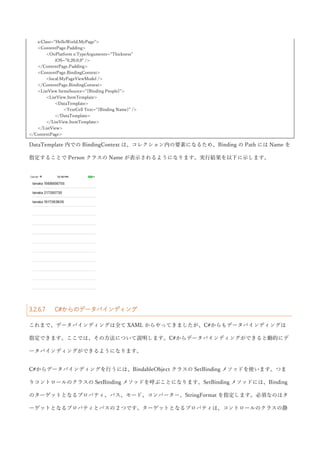
DataTemplate 内での BindingContext は、コレクション内の要素になるため、Binding の Path には Name を
指定することで Person クラスの Name が表示されるようになります。実行結果を以下に示します。
3.2.6.7 C#からのデータバインディング
これまで、データバインディングは全て XAML からやってきましたが、C#からもデータバインディングは
指定できます。ここでは、その方法について説明します。C#からデータバインディングができると動的にデ
ータバインディングができるようになります。
C#からデータバインディングを行うには、BindableObject クラスの SetBinding メソッドを使います。つま
りコントロールのクラスの SetBinding メソッドを呼ぶことになります。SetBinding メソッドには、Binding
のターゲットとなるプロパティ、パス、モード、コンバーター、StringFormat を指定します。必須なのはタ
ーゲットとなるプロパティとパスの 2 つです。ターゲットとなるプロパティは、コントロールのクラスの静
的な変数として定義されています。例として、Label の Text プロパティに Name を TwoWay バインディン
グしたコードを以下に示します。
label.SetBinding(
Label.TextProperty,
"Name",
BindingMode.TwoWay);
4 Xamarin.Forms のコントロール
ここでは、Xamarin.Forms のコントロールの重要な基本クラスについてや、各コントロールについて説明し
ていきます。
4.1 BindableObject
Xamarin.Forms のコントロールは、全て BindableObject を継承関係の祖先として持っています。この
BindableObject クラスは、データバインディングの機能やバインダブルプロパティや添付プロパティなどと
いった重要な機能を提供しています。
4.1.1 バインダブルプロパティ
バインダブルプロパティは、以下の特徴を持つ特別なプロパティです。
 データバインディングのターゲットとして使用可能
 スタイルが設定可能
 デフォルト値を設定可能
 値のバリデーションが可能
 値の変更を監視可能
バインダブルプロパティを定義するには、BindableObject を継承して、BindableProperty.Create メソッドを
呼び出します。結果は static readonly なフィールドとして保持します。Name というバインダブルプロパテ
ィを持った Person クラスの定義を以下に示します。
using Xamarin.Forms;
namespace HelloWorld
{
public class Person : BindableObject
{
public static readonly BindableProperty NameProperty = BindableProperty.Create(
"Name",
typeof(string),
typeof(Person));
public string Name
{
get { return (string)this.GetValue(NameProperty); }
set { this.SetValue(NameProperty, value); }
}
}
}
BindableProperty.Create にプロパティ名、プロパティの型、プロパティを所持するクラスの型を指定しま
す。戻ってくる BindableProperty のインスタンスを static readonly のフィールドで保持します。この時のフ
ィールド名は「プロパティ名 Property」にします。これでバインダブルプロパティは定義できたのですが、
C#から簡単にアクセスできるように CLR プロパティのラッパーを作ります。get アクセサで GetValue メソ
ッドをつかって BindableProperty をキーにして値を取得します。set アクセサで SetValue メソッドを使って
BIndableProperty をキーにして値を設定します。これが最低限なバインダブルプロパティの作成方法です。
バインダブルプロパティには、デフォルト値が指定可能です。BindableProperty.Create メソッドのプロパテ
ィを所持するクラスの型に続いてデフォルト値を設定するだけです。tanaka をデフォルト値としたい場合の
バインダブルプロパティの定義は以下のようになります。
public static readonly BindableProperty NameProperty = BindableProperty.Create(
"Name",
typeof(string),
typeof(Person),
"tanaka");
プロパティの変更時の処理を記述することもできます。BindableProperty.Create メソッドの
propertyChanged 引数を指定することでコールバックを指定できます。コールバックの引数は、第一引数に
変更があったクラスのインスタンス、第二引数に古い値、第三引数に新しい値になります。コード例を以下
に示します。
public static readonly BindableProperty NameProperty = BindableProperty.Create(
"Name",
typeof(string),
typeof(Person),
"tanaka",
propertyChanged: OnNameChanged);
private static void OnNameChanged(BindableObject bindable, object oldValue, object newValue)
{
// 変更前と変更後の値を使って何かする
}
valudateValue 引数を指定することで、値の検証ロジックを追加できます。第一引数にオブジェクトの参照、
第二引数に値が渡ってきます。戻り値として、検証結果を bool 型で返します。
public static readonly BindableProperty NameProperty = BindableProperty.Create(
"Name",
typeof(string),
typeof(Person),
"tanaka",
validateValue: OnNameValidateValue);
private static bool OnNameValidateValue(BindableObject bindable, object value)
{
// バリデーションロジックを書きます
var name = (string)value;
return !string.IsNullOrEmpty(name);
}
coerceValue 引数を指定することで、プロパティに設定された値を矯正することができます。用途としては、
最大値、最小値のプロパティがあるようなクラスで、値が最小値と最大値の間に来るように調整するといっ
たものがあります。コールバックの引数は、第一引数にオブジェクトの参照、第二引数に値が渡ってきま
す。戻り値として、矯正後の値を返します。例として、10 文字より長い名前は 10 文字に切り詰める場合の
コードを以下に示します。
public static readonly BindableProperty NameProperty = BindableProperty.Create(
"Name",
typeof(string),
typeof(Person),
"tanaka",
coerceValue: OnNameCoerceValue);
private static object OnNameCoerceValue(BindableObject bindable, object value)
{
// 値の調整ロジックを書く
var name = (string)value;
if (name.Length > 10)
{
name = name.Substring(0, 10);
}
return name;
}
バインダブルプロパティは、読み取り専用として定義することもできます。読み取り専用にするには、
BindableProperty.CreateReadOnly メソッドを使って BindablePropertyKey を取得します。この
BindablePropertyKey を private に管理します。値の書き込みは、この BindablePropertyKey を通して行いま
す。値の取得は、BindablePropertyKey クラスの BindableProperty プロパティで取得できる
BindableProperty クラスを使用して行います。一般的な読み取り専用のバインダブルプロパティの定義を以
下に示します。
// 読み取り専用の BindablePropertyKey を定義(private に管理する)
private static readonly BindablePropertyKey AgePropertyKey = BindableProperty.CreateReadOnly(
"Age",
typeof(int),
typeof(Person),
0);
// Key から BindableProperty を取得
public static readonly BindableProperty AgeProperty = AgePropertyKey.BindableProperty;
public int Age
{
// 読み取りは通常通り BindableProperty で行う。
get { return (int)this.GetValue(AgeProperty); }
// 書き込みは BindablePropertyKey で行う
private set { this.SetValue(AgePropertyKey, value); }
}
4.1.2 添付プロパティ
ここでは、他の BindableObject に対して別のオブジェクトで定義されたプロパティの値を設定、取得するこ
とができる添付プロパティについて説明します。添付プロパティは、XAML で解説したようにレイアウトの
コントロールでよく使われています。BindableObject の添付プロパティの仕組みと深く結びついています。
添付プロパティの定義は、BindableProperty.CreateAttached を使う点を除くとバインダブルプロパティとほ
ぼ同じです。添付プロパティは、インスタンスに紐づかないため、CLR のプロパティラッパーは作成しませ
ん。その代わりに「戻り値 Get プロパティ名(BindableObject)」「void Set プロパティ名(BindableObject, プ
ロパティの型)」といったシグネチャの static なメソッドでラップします。Row 添付プロパティの定義例を以
下に示します。
public static readonly BindableProperty RowProperty = BindableProperty.CreateAttached(
"Row",
typeof(int),
typeof(MyGrid),
0);
public static int GetRow(BindableObject obj)
{
return (int)obj.GetValue(RowProperty);
}
public static void SetRow(BindableObject obj, int value)
{
obj.SetValue(RowProperty, value);
}
4.2 レイアウトコントロール
ここでは、Xamarin.Forms でレイアウトに関係するコントロールについて紹介します。Xamarin.Forms で
は、以下のように様々なレイアウトコントロールが提供されています。
 StackLayout
 Grid
 AbsoluteLayout
 RelativeLayout
 ScrollView
4.2.1 StackLayout
StackLayout は、名前の通りスタック状にコントロールを並べて配置するコントロールです。デフォルトでは
縦にコントロールを並べますが、Orientation プロパティに Horizontal を指定することで横並びに配置するこ
ともできます。StackLayout の基本的な使い方の例を以下に示します。
<?xml version="1.0" encoding="UTF-8"?>
<ContentPage xmlns="http://xamarin.com/schemas/2014/forms"
xmlns:x="http://schemas.microsoft.com/winfx/2009/xaml"
xmlns:local="clr-namespace:HelloWorld"
x:Class="HelloWorld.MyPage">
<ContentPage.Padding>
<OnPlatform x:TypeArguments="Thickness">
<On Platform="iOS">0,20,0,0</On>
</OnPlatform>
</ContentPage.Padding>
<StackLayout>
<BoxView Color="Red" />
<BoxView Color="Blue" />
<BoxView Color="Yellow" />
</StackLayout>
</ContentPage>
実行すると、縦に赤、青、黄色の矩形が並んで表示されます。実行結果を以下に示します。
Orientation プロパティを Horizontal(デフォルトは Vertical)に設定することで横並びにすることができま
す。XAML を以下に示します。
<?xml version="1.0" encoding="UTF-8"?>
<ContentPage xmlns="http://xamarin.com/schemas/2014/forms"
xmlns:x="http://schemas.microsoft.com/winfx/2009/xaml"
xmlns:local="clr-namespace:HelloWorld"
x:Class="HelloWorld.MyPage">
<ContentPage.Padding>
<OnPlatform x:TypeArguments="Thickness">
<On Platform="iOS">0,20,0,0</On>
</OnPlatform>
</ContentPage.Padding>
<StackLayout Orientation="Horizontal">
<BoxView Color="Red" />
<BoxView Color="Blue" />
<BoxView Color="Yellow" />
</StackLayout>
</ContentPage>
実行結果を以下に示します。
Spacing プロパティに数字を指定すると、指定したサイズだけ要素間に空白ができます。XAML の例を以下
に示します。
<?xml version="1.0" encoding="UTF-8"?>
<ContentPage xmlns="http://xamarin.com/schemas/2014/forms"
xmlns:x="http://schemas.microsoft.com/winfx/2009/xaml"
xmlns:local="clr-namespace:HelloWorld"
x:Class="HelloWorld.MyPage">
<ContentPage.Padding>
<OnPlatform x:TypeArguments="Thickness">
<On Platform="iOS">0,20,0,0</On>
</OnPlatform>
</ContentPage.Padding>
<StackLayout Spacing="25">
<BoxView Color="Red" />
<BoxView Color="Blue" />
<BoxView Color="Yellow" />
</StackLayout>
</ContentPage>
実行すると以下のようになります。
余白があいていることが確認できます。
さらに、コントロールの HorizontalOptions プロパティ、VerticalOptions プロパティを使用することで表示
位置や表示領域をカスタマイズすることができます。HorizontalOptions プロパティと VerticalOptions プロ
パティは、LayoutOptions 型で、以下の値を持ちます。
 Start:開始位置に表示されます。
 Center:中央に表示されます。
 End:終端に表示されます。
 Fill:全体に広がって表示されます。
 StartAndExpand:開始位置に表示され余白を占有します。
 CenterAndExpand:中央に表示され余白を占有します。
 EndAndExpand:終端位置に表示され余白を占有します。
 FillAndExpand:全体に広がって表示され余白を占有します。
動作を確認するための XAML を以下に示します。
<?xml version="1.0" encoding="UTF-8"?>
<ContentPage xmlns="http://xamarin.com/schemas/2014/forms"
xmlns:x="http://schemas.microsoft.com/winfx/2009/xaml"
xmlns:local="clr-namespace:HelloWorld"
x:Class="HelloWorld.MyPage">
<ContentPage.Padding>
<OnPlatform x:TypeArguments="Thickness">
<On Platform="iOS">0,20,0,0</On>
</OnPlatform>
</ContentPage.Padding>
<StackLayout>
<BoxView Color="Red"
HorizontalOptions="Start" />
<BoxView Color="Blue"
HorizontalOptions="Center" />
<BoxView Color="Yellow"
HorizontalOptions="End" />
<BoxView Color="Silver"
HorizontalOptions="Fill" />
</StackLayout>
</ContentPage>
縦並びの BoxView に対して横方向の位置を指定しています。実行結果を以下に示します。
***AndExpand は、複数指定されると均等に余白を分割しようとします。そのため、以下のように複数指定
すると均等にコントロールが配置されます。
<?xml version="1.0" encoding="UTF-8"?>
<ContentPage xmlns="http://xamarin.com/schemas/2014/forms"
xmlns:x="http://schemas.microsoft.com/winfx/2009/xaml"
xmlns:local="clr-namespace:HelloWorld"
x:Class="HelloWorld.MyPage">
<ContentPage.Padding>
<OnPlatform x:TypeArguments="Thickness">
<On Platform="iOS">0,20,0,0</On>
</OnPlatform>
</ContentPage.Padding>
<StackLayout>
<BoxView Color="Red"
VerticalOptions="StartAndExpand" />
<BoxView Color="Blue"
VerticalOptions="CenterAndExpand" />
<BoxView Color="Yellow"
VerticalOptions="EndAndExpand" />
<BoxView Color="Silver"
VerticalOptions="FillAndExpand" />
</StackLayout>
</ContentPage>
実行すると以下のようになります。
画面が4分割されて、それぞれ開始位置、中央、終端、いっぱいに広がるというレイアウトがされているこ
とが確認できます。
これを組み合わせてネストさせることで、複雑なレイアウトが可能になります。複雑なレイアウトの例を以
下に示します。
<?xml version="1.0" encoding="UTF-8"?>
<ContentPage xmlns="http://xamarin.com/schemas/2014/forms"
xmlns:x="http://schemas.microsoft.com/winfx/2009/xaml"
xmlns:local="clr-namespace:HelloWorld"
x:Class="HelloWorld.MyPage">
<ContentPage.Padding>
<OnPlatform x:TypeArguments="Thickness">
<On Platform="iOS">0,20,0,0</On>
</OnPlatform>
</ContentPage.Padding>
<StackLayout VerticalOptions="Start">
<StackLayout Orientation="Horizontal">
<BoxView WidthRequest="50"
HeightRequest="50"
Color="Purple"
HorizontalOptions="Center"
VerticalOptions="Center" />
<StackLayout>
<StackLayout Orientation="Horizontal">
<Label Text="名前"
FontAttributes="Bold" />
<Label Text="@xxxxxxxx" />
</StackLayout>
<Label Text="本文本文本文本文本文本文本文本文本文本文本文本文本文本文"
VerticalOptions="FillAndExpand" />
<Label Text="tweeted by sample"
VerticalOptions="End" />
</StackLayout>
</StackLayout>
</StackLayout>
</ContentPage>
実行すると以下のようになります。ツイッターの 1 つの呟きのようなレイアウトになります。
4.2.2 Grid
Grid は格子状に領域を区切って、そこにコントロールを配置していく方法でレイアウトを行うコントロール
です。RowDefinitions プロパティの中に RowDefinition で行を定義して、ColumnDefinitions プロパティの
中に ColumnDefinition で列を定義します。RowDefinition には、Height プロパティで高さが指定できます。
ColumnDefinition には Width プロパティで幅が指定できます。
Height と Width は、GridLength という型で固定数値、Auto、数字*という3つの指定方法があります。
Auto が中身の大きさに応じてサイズを変える指定方法で、固定数値が指定したピクセル数で表示する方法に
なります。数字*という指定方法は、余白を比率で分割する指定方法になります。数字の部分を省略した場合
は 1 を指定したことになります。例えば、「3*」と「2*」を指定すると 3:2 に領域を分割することになりま
す。コントロールをどこに配置するかは、Grid.Row 添付プロパティと Grid.Column 添付プロパティで指定
します。インデックスは 0 始まりになります。コード例を以下に示します。
<?xml version="1.0" encoding="UTF-8"?>
<ContentPage xmlns="http://xamarin.com/schemas/2014/forms"
xmlns:x="http://schemas.microsoft.com/winfx/2009/xaml"
xmlns:local="clr-namespace:HelloWorld"
x:Class="HelloWorld.MyPage">
<ContentPage.Padding>
<OnPlatform x:TypeArguments="Thickness">
<On Platform="iOS">0,20,0,0</On>
</OnPlatform>
</ContentPage.Padding>
<Grid>
<Grid.RowDefinitions>
<RowDefinition Height="50" />
<RowDefinition Height="Auto" />
<RowDefinition Height="*" />
<RowDefinition Height="2*" />
</Grid.RowDefinitions>
<Grid.ColumnDefinitions>
<ColumnDefinition />
<!-- 指定を省略した時は*になる -->
<ColumnDefinition Width="100" />
<ColumnDefinition Width="Auto" />
</Grid.ColumnDefinitions>
<BoxView Color="Purple" /> <!-- 何も指定しないと 0,0 に配置される -->
<BoxView Color="Red"
Grid.Row="1"
Grid.Column="1" />
<BoxView Color="Blue"
Grid.Row="2"
Grid.Column="2" />
<BoxView Color="Yellow"
Grid.Row="3"
Grid.Column="1" />
</Grid>
</ContentPage>
実行すると以下のように表示されます。
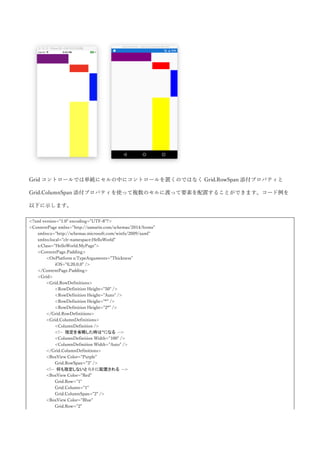
Grid コントロールでは単純にセルの中にコントロールを置くのではなく Grid.RowSpan 添付プロパティと
Grid.ColumnSpan 添付プロパティを使って複数のセルに渡って要素を配置することができます。コード例を
以下に示します。
<?xml version="1.0" encoding="UTF-8"?>
<ContentPage xmlns="http://xamarin.com/schemas/2014/forms"
xmlns:x="http://schemas.microsoft.com/winfx/2009/xaml"
xmlns:local="clr-namespace:HelloWorld"
x:Class="HelloWorld.MyPage">
<ContentPage.Padding>
<OnPlatform x:TypeArguments="Thickness">
<On Platform="iOS">0,20,0,0</On>
</OnPlatform>
</ContentPage.Padding>
<Grid>
<Grid.RowDefinitions>
<RowDefinition Height="50" />
<RowDefinition Height="Auto" />
<RowDefinition Height="*" />
<RowDefinition Height="2*" />
</Grid.RowDefinitions>
<Grid.ColumnDefinitions>
<ColumnDefinition />
<!-- 指定を省略した時は*になる -->
<ColumnDefinition Width="100" />
<ColumnDefinition Width="Auto" />
</Grid.ColumnDefinitions>
<BoxView Color="Purple"
Grid.RowSpan="3" />
<!-- 何も指定しないと 0,0 に配置される -->
<BoxView Color="Red"
Grid.Row="1"
Grid.Column="1"
Grid.ColumnSpan="2" />
<BoxView Color="Blue"
Grid.Row="2"
Grid.Column="2" />
<BoxView Color="Yellow"
Grid.Row="3"
Grid.Column="1" />
</Grid>
</ContentPage>
先ほどのコードの一部に Grid.RowSpan 添付プロパティと Grid.ColumnSpan 添付プロパティを指定していま
す。実行結果を以下に示します。
4.2.3 AbsoluteLayout
AbsoluteLayout は、絶対座標と比率でコントロールのレイアウトを指定できるレイアウトコントロールで
す。AbsoluteLayout.LayoutBounds 添付プロパティで「x, y, width, height」の形式で位置を指定します。この
時デフォルトでは絶対座標での指定が行われます。AbsoluteLayout.LayoutFlags 添付プロパティで絶対座標
指定か、比率による指定かを設定できます。AbsoluteLayout.LayoutFlags 添付プロパティに指定可能な値は
以下のものになります。
 None:デフォルト値。絶対座標による指定になります。
 All:全ての設定値が比率による指定になります。
 WidthProportional:幅が比率による指定になります。
 HeightProportional:高さが比率による指定になります。
 XProportional:X 座標が比率による指定になります。
 YProportional:Y 座標が比率による指定になります。
 PositionProportional:X 座標と Y 座標が比率による指定になります。
 SizeProportional:Width と Height が比率による指定になります。
比率による指定の場合は、指定可能な値は 0〜1 の間の数字になります。XAML の例を以下に示します。
<?xml version="1.0" encoding="UTF-8"?>
<ContentPage xmlns="http://xamarin.com/schemas/2014/forms"
xmlns:x="http://schemas.microsoft.com/winfx/2009/xaml"
xmlns:local="clr-namespace:HelloWorld"
x:Class="HelloWorld.MyPage">
<ContentPage.Padding>
<OnPlatform x:TypeArguments="Thickness">
<On Platform="iOS">0,20,0,0</On>
</OnPlatform>
</ContentPage.Padding>
<AbsoluteLayout>
<BoxView Color="Red"
AbsoluteLayout.LayoutBounds="10,10,100,100" />
<BoxView Color="Blue"
AbsoluteLayout.LayoutBounds=".5,.5,.5,.5"
AbsoluteLayout.LayoutFlags="All" />
<BoxView Color="Olive"
AbsoluteLayout.LayoutBounds="1,.5,25,250"
AbsoluteLayout.LayoutFlags="PositionProportional" />
<BoxView Color="Yellow"
AbsoluteLayout.LayoutBounds=".5,1,100,50"
AbsoluteLayout.LayoutFlags="PositionProportional" />
</AbsoluteLayout>
</ContentPage>
実行結果を以下に示します。
4.2.4 RelativeLayout
RelativeLayout は、親要素か他のコントロールからの相対位置によってレイアウトを決めることができま
す。以下の添付プロパティを使用して設定します。
 RelativeLayout.XConstraint:コントロールの X 座標を指定します。
 RelativeLayout.YConstraint:コントロールの Y 座標を指定します。
 RelativeLayout.WidthConstraint:コントロールの幅を指定します。
 RelativeLayout.HeihgtConstraint:コントロールの高さを指定します。
 RelativeLayout.BoundsConstraint:コントロールの領域を指定します。
上記の添付プロパティの値は ConstraintExpression マークアップ拡張を使って指定します。
ConstraintExpression マークアップ拡張は以下のプロパティを持っています。
 Type:RelativeToParent で親要素を指定するか、RelativeToView で ElementName で指定した View を
指定するか設定します。
 ElementName:Type で RelativeToView を指定した時に参照する View の名前(x:Name で指定)を設定
します。
 Property:親要素か他の View の、どのプロパティを参照するか指定します。
 Factor:Type と ElementName と Property で取得した値に掛ける比率を指定します。
 Constant:Type と ElementName と Property で取得して Factor を掛けた値に加算する値を指定しま
す。
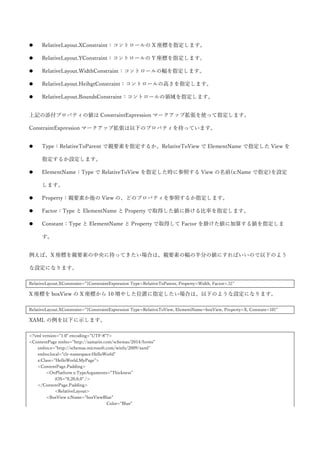
例えば、X 座標を親要素の中央に持ってきたい場合は、親要素の幅の半分の値にすればいいので以下のよう
な設定になります。
RelativeLayout.XConstraint=”{ConstraintExpression Type=RelativeToParent, Property=Width, Factor=.5}”
X 座標を boxView の X 座標から 10 増やした位置に指定したい場合は、以下のような設定になります。
RelativeLayout.XConstraint=”{ConstraintExpression Type=RelativeToView, ElementName=boxView, Property=X, Constant=10}”
XAML の例を以下に示します。
<?xml version="1.0" encoding="UTF-8"?>
<ContentPage xmlns="http://xamarin.com/schemas/2014/forms"
xmlns:x="http://schemas.microsoft.com/winfx/2009/xaml"
xmlns:local="clr-namespace:HelloWorld"
x:Class="HelloWorld.MyPage">
<ContentPage.Padding>
<OnPlatform x:TypeArguments="Thickness">
<On Platform="iOS">0,20,0,0</On>
</OnPlatform>
</ContentPage.Padding>
<RelativeLayout>
<BoxView x:Name="boxViewBlue"
Color="Blue"
RelativeLayout.XConstraint="{ConstraintExpression Type=RelativeToParent, Property=Width, Factor=.5, Constant=-50}"
RelativeLayout.YConstraint="{ConstraintExpression Type=RelativeToParent, Property=Height, Factor=.5, Constant=-50}"
RelativeLayout.WidthConstraint="{ConstraintExpression Type=RelativeToParent, Property=Width, Factor=.5}"
RelativeLayout.HeightConstraint="{ConstraintExpression Type=RelativeToParent, Property=Height, Factor=.5}" />
<BoxView Color="Red"
WidthRequest="100"
HeightRequest="100"
RelativeLayout.XConstraint="{ConstraintExpression Type=RelativeToView, ElementName=boxViewBlue, Property=X,
Constant=-100}"
RelativeLayout.YConstraint="{ConstraintExpression Type=RelativeToView, ElementName=boxViewBlue, Property=Y,
Constant=-100}" />
</RelativeLayout>
</ContentPage>
画面中央から左上に 50px 動かした位置に、青い BoxView を表示しています。そして、赤い BoxView を青い
BoxView の左上に表示しています。実行結果を以下に示します。
4.2.5 ScrollView
ScrollView は、スクロール可能な領域を提供するコントロールです。他のレイアウトコントロールとは多少
毛色が異なりますが、Layout を継承しているためここで紹介します。ScrollView は、主に以下のプロパティ
を使用します。
 Content:スクロールさせたいコンテンツを指定します。
 ContentSize:コンテンツのサイズを取得します。(読み取り専用)
 Orientation:スクロールの方向を指定します。ScrollOrientation 型の Horizontal(横方向)、Vertical
(縦方向)、Both(両方)が指定可能です。
 ScrollX:スクロールの X の位置を返します。(読み取り専用)
 ScrollY:スクロールの Y の位置を返します。(読み取り専用)
また、スクロール位置を制御するための以下のメソッドが提供されています。
 ScrollAsync(int x, int y, bool animated)
 ScrollAsync(Element element, ScrollToPosition position, bool animated)
最初のオーバーロードが、座標指定でのスクロールで 2 つ目のオーバーロードが、要素が表示されるまでス
クロールさせるメソッドになります。ScrollToPosition は、以下の値を持つ列挙型です。
 Center:中央に表示されるようにします。
 Start:開始位置に表示されるようにします。
 End:終了位置に表示されるようにします。
 MakeVisible:とりあえず表示されるようにします。
コード例を以下に示します。
<?xml version="1.0" encoding="UTF-8"?>
<ContentPage xmlns="http://xamarin.com/schemas/2014/forms"
xmlns:x="http://schemas.microsoft.com/winfx/2009/xaml"
xmlns:local="clr-namespace:HelloWorld"
x:Class="HelloWorld.MyPage">
<ContentPage.Padding>
<OnPlatform x:TypeArguments="Thickness">
<On Platform="iOS">0,20,0,0</On>
</OnPlatform>
</ContentPage.Padding>
<StackLayout>
<Button Text="Scroll"
Clicked="ButtonScrollTo_Clicked" />
<ScrollView x:Name="scrollView" VerticalOptions="FillAndExpand"
Orientation="Both">
<StackLayout>
<BoxView Color="Red"
WidthRequest="500"
HeightRequest="500" />
<BoxView Color="Blue"
WidthRequest="500"
HeightRequest="500" />
<BoxView x:Name="boxViewYellow" Color="Yellow"
WidthRequest="500"
HeightRequest="500" />
<BoxView Color="Olive"
WidthRequest="500"
HeightRequest="500" />
</StackLayout>
</ScrollView>
</StackLayout>
</ContentPage>
コードビハインドを以下に示します。黄色い BoxView に対してスクロールを行うように指定しています。
using System;
using System.Diagnostics;
using Xamarin.Forms;
namespace HelloWorld
{
public partial class MyPage : ContentPage
{
public MyPage()
{
InitializeComponent();
}
private async void ButtonScrollTo_Clicked(object sender, EventArgs e)
{
await this.scrollView.ScrollToAsync(this.boxViewYellow, ScrollToPosition.Start, true);
Debug.WriteLine($"Scroll position is {this.scrollView.ScrollX}, {this.scrollView.ScrollY}");
}
}
}
静止画では分かりにくいですがボタンをタップすると以下のように黄色い BoxView までスクロールできま
す。またパンでスクロールすることができます。実行結果を以下に示します。ボタンをタップした直後の画
面キャプチャになります。
またデバッグ出力に以下のような内容が出力されます。
Scroll position is 0, 1012
4.2.6 余白の制御
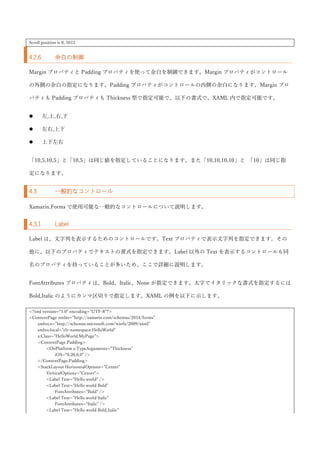
Margin プロパティと Padding プロパティを使って余白を制御できます。Margin プロパティがコントロール
の外側の余白の指定になります。Padding プロパティがコントロールの内側の余白になります。Margin プロ
パティも Padding プロパティも Thickness 型で指定可能で、以下の書式で、XAML 内で指定可能です。
 左,上,右,下
 左右,上下
 上下左右
「10,5,10,5」と「10,5」は同じ値を指定していることになります。また「10,10,10,10」と 「10」は同じ指
定になります。
4.3 一般的なコントロール
Xamarin.Forms で使用可能な一般的なコントロールについて説明します。
4.3.1 Label
Label は、文字列を表示するためのコントロールです。Text プロパティで表示文字列を指定できます。その
他に、以下のプロパティでテキストの書式を指定できます。Label 以外の Text を表示するコントロールも同
名のプロパティを持っていることが多いため、ここで詳細に説明します。
FontAttributes プロパティは、Bold、Italic、None が指定できます。太字でイタリックな書式を指定するには
Bold,Italic のようにカンマ区切りで指定します。XAML の例を以下に示します。
<?xml version="1.0" encoding="UTF-8"?>
<ContentPage xmlns="http://xamarin.com/schemas/2014/forms"
xmlns:x="http://schemas.microsoft.com/winfx/2009/xaml"
xmlns:local="clr-namespace:HelloWorld"
x:Class="HelloWorld.MyPage">
<ContentPage.Padding>
<OnPlatform x:TypeArguments="Thickness">
<On Platform="iOS">0,20,0,0</On>
</OnPlatform>
</ContentPage.Padding>
<StackLayout HorizontalOptions="Center"
VerticalOptions="Center">
<Label Text="Hello world" />
<Label Text="Hello world Bold"
FontAttributes="Bold" />
<Label Text="Hello world Italic"
FontAttributes="Italic" />
<Label Text="Hello world Bold,Italic"
FontAttributes="Bold,Italic" />
</StackLayout>
</ContentPage>
実行結果を以下に示します。
FontFamily プロパティで、フォント名を指定します。sans-serif と monospace などが指定できます。
FontSize で、フォントのサイズが指定できます。デバイス非依存のピクセルサイズの他に名前でサイズを指
定可能です。サイズの名前は Default, Large, Medium, Small, Micro が指定可能です。XAML の例を以下に示
します。
<?xml version="1.0" encoding="UTF-8"?>
<ContentPage xmlns="http://xamarin.com/schemas/2014/forms"
xmlns:x="http://schemas.microsoft.com/winfx/2009/xaml"
xmlns:local="clr-namespace:HelloWorld"
x:Class="HelloWorld.MyPage">
<ContentPage.Padding>
<OnPlatform x:TypeArguments="Thickness">
<On Platform="iOS">0,20,0,0</On>
</OnPlatform>
</ContentPage.Padding>
<StackLayout HorizontalOptions="Center"
VerticalOptions="Center">
<Label Text="Hello world Default."
FontSize="Default" />
<Label Text="Hello world Large."
FontSize="Large" />
<Label Text="Hello world Medium."
FontSize="Medium" />
<Label Text="Hello world Small."
FontSize="Small" />
<Label Text="Hello world Micro."
FontSize="Micro" />
<Label Text="Hello world Number."
FontSize="24" />
</StackLayout>
</ContentPage>
実行結果を以下に示します。
LineBreakMode プロパティで折り返し方法などが指定できます。設定できる値は、CharacterWrap,
HeadTruncation, MiddleTruncation, NoWrap, TailTruncation, WordWrap になります。Wrap とつくものが
横幅に収まりきらないときに折り返しを行う設定で、Truncation とつくものが…でトランケートする設定に
なります。XAML を以下に示します。
<?xml version="1.0" encoding="UTF-8"?>
<ContentPage xmlns="http://xamarin.com/schemas/2014/forms"
xmlns:x="http://schemas.microsoft.com/winfx/2009/xaml"
xmlns:local="clr-namespace:HelloWorld"
x:Class="HelloWorld.MyPage">
<ContentPage.Padding>
<OnPlatform x:TypeArguments="Thickness">
<On Platform="iOS">0,20,0,0</On>
</OnPlatform>
</ContentPage.Padding>
<StackLayout HorizontalOptions="Center"
VerticalOptions="Center">
<Frame WidthRequest="75">
<Label Text="This is a long long long long long long long long long text!!!!!!"
LineBreakMode="CharacterWrap" />
</Frame>
<Frame WidthRequest="75">
<Label Text="This is a long long long long long long long long long text!!!!!!"
LineBreakMode="TailTruncation" />
</Frame>
</StackLayout>
</ContentPage>
最初の Label は、文字単位での折り返しを指定しています。2 つ目の Label は、末尾でトランケートを指定し
ています。実行結果を以下に示します。
TextColor プロパティを指定することでテキストの色の指定が可能です。以下に XAML を示します。
<?xml version="1.0" encoding="UTF-8"?>
<ContentPage xmlns="http://xamarin.com/schemas/2014/forms"
xmlns:x="http://schemas.microsoft.com/winfx/2009/xaml"
xmlns:local="clr-namespace:HelloWorld"
x:Class="HelloWorld.MyPage">
<ContentPage.Padding>
<OnPlatform x:TypeArguments="Thickness">
<On Platform="iOS">0,20,0,0</On>
</OnPlatform>
</ContentPage.Padding>
<StackLayout HorizontalOptions="Center"
VerticalOptions="Center">
<Label Text="Red"
TextColor="Red" />
<Label Text="Blue"
TextColor="Blue" />
<Label Text="Yellow"
TextColor="Yellow" />
</StackLayout>
</ContentPage>
実行すると以下のように色付きのテキストが表示されます。
HorizontalTextAlign と VerticalTextAlign で水平方向、垂直方向のテキストの位置を指定できます。指定で
きる値は Start, End, Center になります。XAML の例を以下に示します。
<?xml version="1.0" encoding="UTF-8"?>
<ContentPage xmlns="http://xamarin.com/schemas/2014/forms"
xmlns:x="http://schemas.microsoft.com/winfx/2009/xaml"
xmlns:local="clr-namespace:HelloWorld"
x:Class="HelloWorld.MyPage">
<ContentPage.Padding>
<OnPlatform x:TypeArguments="Thickness">
<On Platform="iOS">0,20,0,0</On>
</OnPlatform>
</ContentPage.Padding>
<StackLayout HorizontalOptions="Center"
VerticalOptions="Center">
<Frame WidthRequest="100"
HeightRequest="100">
<Label Text="Start"
HorizontalTextAlignment="Start"
VerticalTextAlignment="Start" />
</Frame>
<Frame WidthRequest="100"
HeightRequest="100">
<Label Text="Center"
HorizontalTextAlignment="Center"
VerticalTextAlignment="Center" />
</Frame>
<Frame WidthRequest="100"
HeightRequest="100">
<Label Text="End"
HorizontalTextAlignment="End"
VerticalTextAlignment="End" />
</Frame>
</StackLayout>
</ContentPage>
実行結果を以下に示します。
最後に、FormattedText プロパティについて説明します。FormattedText プロパティは、名前の通り書式付
きのテキストを指定することができます。FormattedString 型を指定します。FormattedString 型の Spans プ
ロパティに Span のコレクションを指定して書式付きテキストを表現します。Span 型は、BackgorundColor,
FontAttributes, FontFamily, FontSize, ForegroundColor, Text プロパティがあり、それぞれ名前の通り背景色
やフォントの属性などが指定できます。FormattedText を使用した XAML の例を以下に示します。
<?xml version="1.0" encoding="UTF-8"?>
<ContentPage xmlns="http://xamarin.com/schemas/2014/forms"
xmlns:x="http://schemas.microsoft.com/winfx/2009/xaml"
xmlns:local="clr-namespace:HelloWorld"
x:Class="HelloWorld.MyPage">
<ContentPage.Padding>
<OnPlatform x:TypeArguments="Thickness">
<On Platform="iOS">0,20,0,0</On>
</OnPlatform>
</ContentPage.Padding>
<StackLayout HorizontalOptions="Center"
VerticalOptions="Center">
<Label>
<Label.FormattedText>
<FormattedString>
<Span Text="H"
FontAttributes="Bold"
ForegroundColor="Red" />
<Span Text="e"
BackgroundColor="Silver" />
<Span Text="l"
FontAttributes="Bold,Italic"
FontSize="Small" />
<Span Text="l"
ForegroundColor="Aqua"
FontSize="Large" />
<Span Text="o" />
</FormattedString>
</Label.FormattedText>
</Label>
</StackLayout>
</ContentPage>
実行結果を以下に示します。
4.3.2 ActivityIndicator
処理中を表すインジケータのコントロールです。Color プロパティでインジケータの色を指定して、
IsRunning プロパティでインジケータの表示・非表示を制御します。
以下に XAML の例を示します。
<?xml version="1.0" encoding="UTF-8"?>
<ContentPage xmlns="http://xamarin.com/schemas/2014/forms"
xmlns:x="http://schemas.microsoft.com/winfx/2009/xaml"
xmlns:local="clr-namespace:HelloWorld"
x:Class="HelloWorld.MyPage">
<ContentPage.Padding>
<OnPlatform x:TypeArguments="Thickness">
<On Platform="iOS">0,20,0,0</On>
</OnPlatform>
</ContentPage.Padding>
<StackLayout>
<ActivityIndicator Color="Red"
HorizontalOptions="Center"
VerticalOptions="Center"
IsRunning="true" />
</StackLayout>
</ContentPage>
実行結果を以下に示します。
実際に使う場合は、IsVisible プロパティ(bool 型)で表示・非表示を切り替えて使うと非表示時に UI 操作の
邪魔をしないため良いと思います。
4.3.3 BoxView
BoxView は、矩形を表示するためのコントロールです。Color プロパティで色を指定できます。以下に
XAML を示します。
<?xml version="1.0" encoding="UTF-8"?>
<ContentPage xmlns="http://xamarin.com/schemas/2014/forms"
xmlns:x="http://schemas.microsoft.com/winfx/2009/xaml"
xmlns:local="clr-namespace:HelloWorld"
x:Class="HelloWorld.MyPage">
<ContentPage.Padding>
<OnPlatform x:TypeArguments="Thickness">
<On Platform="iOS">0,20,0,0</On>
</OnPlatform>
</ContentPage.Padding>
<StackLayout HorizontalOptions="Center"
VerticalOptions="Center">
<BoxView Color="Red"
WidthRequest="50"
HeightRequest="50" />
</StackLayout>
</ContentPage>
実行すると以下のようになります。
4.3.4 Button
Button は、タップ可能な領域を提供するコントロールです。一般的にユーザーがアクションを起こすときの
きっかけとして使用されます。Button には、Label で説明したのと同様に FontAttributes, FintFamily,
FintSize, TextColor プロパティでテキストの書式を指定できます。これに加えて、BorderColor で枠線の色、
BorderRadius で枠線の角の丸まり具合、BorderWidth で枠線の幅を指定できます。XAML の例を以下に示し
ます。
<?xml version="1.0" encoding="UTF-8"?>
<ContentPage xmlns="http://xamarin.com/schemas/2014/forms"
xmlns:x="http://schemas.microsoft.com/winfx/2009/xaml"
xmlns:local="clr-namespace:HelloWorld"
x:Class="HelloWorld.MyPage">
<ContentPage.Padding>
<OnPlatform x:TypeArguments="Thickness">
<On Platform="iOS">0,20,0,0</On>
</OnPlatform>
</ContentPage.Padding>
<StackLayout HorizontalOptions="Center"
VerticalOptions="Center">
<Button Text="Default" />
<Button Text="Border"
BorderColor="Olive"
BorderRadius="30"
BorderWidth="2"
WidthRequest="60"
HeightRequest="60"
BackgroundColor="Teal"
TextColor="White" />
</StackLayout>
</ContentPage>
実行結果を以下に示します。
Android では、Border 系のプロパティが効いていないことが確認できます。このような見た目の差異がある
ことに注意して Border 系プロパティは指定しましょう。
Button コントロールは、Clicked イベントを購読することでボタンがタップされた時の処理を記述できま
す。コード例を以下に示します。
<?xml version="1.0" encoding="UTF-8"?>
<ContentPage xmlns="http://xamarin.com/schemas/2014/forms"
xmlns:x="http://schemas.microsoft.com/winfx/2009/xaml"
xmlns:local="clr-namespace:HelloWorld"
x:Class="HelloWorld.MyPage">
<ContentPage.Padding>
<OnPlatform x:TypeArguments="Thickness">
<On Platform="iOS">0,20,0,0</On>
</OnPlatform>
</ContentPage.Padding>
<StackLayout HorizontalOptions="Center"
VerticalOptions="Center">
<Label x:Name="label" />
<Button Text="Default"
Clicked="ButtonLabelChange_Clicked" />
</StackLayout>
</ContentPage>
コードビハインドに、イベントハンドラを記述します。コードを以下に示します。
using System;
using Xamarin.Forms;
namespace HelloWorld
{
public partial class MyPage : ContentPage
{
public MyPage()
{
InitializeComponent();
}
private void ButtonLabelChange_Clicked(object sender, System.EventArgs e)
{
this.label.Text = DateTime.Now.ToString();
}
}
}
実行してボタンをタップした結果を以下に示します。
Button コントロールには、ユーザーからの操作を受け取る方法としてイベントの他に Command というもの
が提供されています。これはデータバインディングと共に使用されることが多いプロパティです。Command
プロパティは、ICommand インターフェース型で実行を行う Execute メソッドと、実行可否を返す
CanExecute メソッドと、実行可否のステータスが変わったことを示す CanExecuteChanged イベントが定義
されています。Xamarin.Forms では、デフォルトの ICommand インターフェースの実装クラスとして
Command クラスを提供しています。このクラスは、デリゲートで Execute と CanExecute の指定が可能にな
っています。使用例を以下に示します。
まず、BindingContext に設定するための以下のようなクラスを用意します。このクラスに Command をもた
せています。Command では Execute 時に Message プロパティを更新するようにしています。
using System;
using Xamarin.Forms;
namespace HelloWorld
{
public class MyPageViewModel : BindableBase
{
private string message;
public string Message
{
get { return this.message; }
set { this.SetProperty(ref this.message, value); }
}
public Command NowCommand { get; }
public MyPageViewModel()
{
this.NowCommand = new Command(_ => this.Message = DateTime.Now.ToString());
}
}
}
XAML で上記クラスを BindingContext に設定してデータバインディングしています。
<?xml version="1.0" encoding="UTF-8"?>
<ContentPage xmlns="http://xamarin.com/schemas/2014/forms"
xmlns:x="http://schemas.microsoft.com/winfx/2009/xaml"
xmlns:local="clr-namespace:HelloWorld"
x:Class="HelloWorld.MyPage">
<ContentPage.Padding>
<OnPlatform x:TypeArguments="Thickness">
<On Platform="iOS">0,20,0,0</On>
</OnPlatform>
</ContentPage.Padding>
<ContentPage.BindingContext>
<local:MyPageViewModel />
</ContentPage.BindingContext>
<StackLayout HorizontalOptions="Center"
VerticalOptions="Center">
<Label Text="{Binding Message}" />
<Button Text="Default"
Command="{Binding NowCommand}" />
</StackLayout>
</ContentPage>
実行してボタンをタップした結果を以下に示します。
これに、実行可否の機能を追加したいと思います。実行可否の状態を保持するための CanExecute という名
前のプロパティを MyPageViewModel クラスに定義します。そして、Command の CanExecute の処理で、
その値を返します。CanExecute プロパティの変更のタイミングで NowCommand の実行可否状態に変化があ
ったことを通知するために ChangeCanExecute メソッドを呼び出しています。コードを以下に示します。
using System;
using Xamarin.Forms;
namespace HelloWorld
{
public class MyPageViewModel : BindableBase
{
private string message;
public string Message
{
get { return this.message; }
set { this.SetProperty(ref this.message, value); }
}
private bool canExecute;
public bool CanExecute
{
get { return this.canExecute; }
set
{
this.SetProperty(ref this.canExecute, value);
this.NowCommand.ChangeCanExecute();
}
}
public Command NowCommand { get; }
public MyPageViewModel()
{
this.NowCommand = new Command(
_ => this.Message = DateTime.Now.ToString(),
_ => this.CanExecute);
}
}
}
XAML 側では、Switch という ON/OFF 状態を表すコントロールを使って MyPageViewModel クラスの
CanExecute プロパティの切り替えを行なっています。XAML を以下に示します。
<?xml version="1.0" encoding="UTF-8"?>
<ContentPage xmlns="http://xamarin.com/schemas/2014/forms"
xmlns:x="http://schemas.microsoft.com/winfx/2009/xaml"
xmlns:local="clr-namespace:HelloWorld"
x:Class="HelloWorld.MyPage">
<ContentPage.Padding>
<OnPlatform x:TypeArguments="Thickness">
<On Platform="iOS">0,20,0,0</On>
</OnPlatform>
</ContentPage.Padding>
<ContentPage.BindingContext>
<local:MyPageViewModel />
</ContentPage.BindingContext>
<StackLayout HorizontalOptions="Center"
VerticalOptions="Center">
<Label Text="{Binding Message}" />
<Button Text="Default"
Command="{Binding NowCommand}" />
<Switch IsToggled="{Binding CanExecute, Mode=TwoWay}" />
</StackLayout>
</ContentPage>
実行結果を以下に示します。まず、起動直後は、Switch が OFF の状態になっているため Button が無効化さ
れていることが確認できます。
Switch をタップして ON の状態にすると Button がタップできるようになります。タップした後の結果を以
下に示します。
Command にはパラメータを渡すことができます。Button クラスの CommandParameter クラスで指定しま
す。このプロパティを設定すると、Command の Execute と CanExecute にパラメータを渡すことができるよ
うになります。日付の書式指定を CommandParameter で渡すようにしたコード例を以下に示します。まず、
MyPageViewModel を、パラメータを使うように変更します。
this.NowCommand = new Command(
x => this.Message = DateTime.Now.ToString((string)x),
_ => this.CanExecute);
そして、Button の CommandParameter に以下のように書式文字列を指定するようにします。
<Button Text="Default"
Command="{Binding NowCommand}"
CommandParameter="yyyy/MM/dd" />
実行すると、CommandParameter で指定した書式になっていることが確認できます。実行結果を以下に示し
ます。
4.3.5 DatePicker
DatePicker は、日付を選択する UI を提供するコントロールです。Date プロパティで選択日付を DateTime
型で取得や設定できます。MaximumDate プロパティ, MinimumDate プロパティで DatePicker で選択可能な
日付の範囲を指定できます。Format プロパティで yyyy-MM-dd などのように日付の表示時のフォーマット
を指定できます。XAML の例を以下に示します。
<?xml version="1.0" encoding="UTF-8"?>
<ContentPage xmlns="http://xamarin.com/schemas/2014/forms"
xmlns:x="http://schemas.microsoft.com/winfx/2009/xaml"
xmlns:sys="clr-namespace:System;assembly=mscorlib"
x:Class="HelloWorld.MyPage">
<ContentPage.Padding>
<OnPlatform x:TypeArguments="Thickness">
<On Platform="iOS">0,20,0,0</On>
</OnPlatform>
</ContentPage.Padding>
<StackLayout HorizontalOptions="Center"
VerticalOptions="Center">
<Label Text="{Binding Date, Source={x:Reference datePicker}, StringFormat='{0:yyyy-MM-dd}'}" />
<DatePicker x:Name="datePicker"
Format="yyyy/MM/dd"
VerticalOptions="CenterAndExpand">
<DatePicker.MaximumDate>
<sys:DateTime x:FactoryMethod="Parse">
<x:Arguments>
<sys:String>2050/12/31</sys:String>
</x:Arguments>
</sys:DateTime>
</DatePicker.MaximumDate>
<DatePicker.MinimumDate>
<sys:DateTime x:FactoryMethod="Parse">
<x:Arguments>
<sys:String>1900/1/1</sys:String>
</x:Arguments>
</sys:DateTime>
</DatePicker.MinimumDate>
</DatePicker>
</StackLayout>
</ContentPage>
MaximumDate プロパティと MinimumDate プロパティを指定する箇所で若干 XAML の紹介していない機能
を使用しているため説明します。x:FactoryMethod 属性は、オブジェクトのインスタンスを生成するときの
ファクトリメソッドを指定できます。今回の例では、DateTime 型の Parse メソッドを使用してインスタンス
を指定するという意味になります。そして、x:Arguments でファクトリメソッドの引数を指定しています。
引数には、それぞれ 2050/12/31 と 1900/1/1 という文字列を渡しています。
つまり、上記 XAML で、1900/1/1 から 2050/12/31 までの間の日付が選択可能でフォーマットが
yyyy/MM/dd で表示される DatePicker が定義されています。そして選択日付は、Label コントロールに
yyyy-MM-dd というフォーマットで表示されるように指定しています。実行結果を以下に示します。
4.3.6 Editor
Editor は、複数行のテキストを入力する機能を提供するコントロールです。FontAttributes, FontFamily,
FontSize, TextColor のプロパティでテキストの書式指定が可能です。Text プロパティで、テキストの取得や
設定ができます。XAML の例を以下に示します。
<?xml version="1.0" encoding="UTF-8"?>
<ContentPage xmlns="http://xamarin.com/schemas/2014/forms"
xmlns:x="http://schemas.microsoft.com/winfx/2009/xaml"
x:Class="HelloWorld.MyPage">
<ContentPage.Padding>
<OnPlatform x:TypeArguments="Thickness">
<On Platform="iOS">0,20,0,0</On>
</OnPlatform>
</ContentPage.Padding>
<StackLayout>
<Editor HorizontalOptions="FillAndExpand"
HeightRequest="150" />
</StackLayout>
</ContentPage>
実行結果を以下に示します。
4.3.7 Entry
Entry コントロールは、1 行表示のテキストを入力するための機能を提供するコントロールです。IsPassword
プロパティを true にすることでパスワード入力欄として使えるようになります。Placeholder プロパティに
文字列を設定することで未入力時にウォーターマークを表示することができます。PlaceholderColor プロパ
ティで、Placeholder の色を設定できます。TextColor プロパティで文字の色を設定することも可能です。
XAML の例を以下に示します。
<?xml version="1.0" encoding="UTF-8"?>
<ContentPage xmlns="http://xamarin.com/schemas/2014/forms"
xmlns:x="http://schemas.microsoft.com/winfx/2009/xaml"
x:Class="HelloWorld.MyPage">
<ContentPage.Padding>
<OnPlatform x:TypeArguments="Thickness">
<On Platform="iOS">0,20,0,0</On>
</OnPlatform>
</ContentPage.Padding>
<StackLayout>
<Entry Text="Hello world"
TextColor="Blue" />
<Entry Placeholder="Placeholder"
PlaceholderColor="Red" />
<Entry IsPassword="true" />
</StackLayout>
</ContentPage>
実行結果を以下に示します。
また、Text プロパティに変更があったことを伝える TextChanged イベントがあります。使用例を以下に示
します。
<?xml version="1.0" encoding="UTF-8"?>
<ContentPage xmlns="http://xamarin.com/schemas/2014/forms"
xmlns:x="http://schemas.microsoft.com/winfx/2009/xaml"
x:Class="HelloWorld.MyPage">
<ContentPage.Padding>
<OnPlatform x:TypeArguments="Thickness">
<On Platform="iOS">0,20,0,0</On>
</OnPlatform>
</ContentPage.Padding>
<StackLayout>
<Entry TextChanged="Handle_TextChanged" />
</StackLayout>
</ContentPage>
コードビハインドでテキストの変更をデバッグ出力に出力しています。
using System;
using System.Diagnostics;
using Xamarin.Forms;
namespace HelloWorld
{
public partial class MyPage : ContentPage
{
public MyPage()
{
InitializeComponent();
}
private void Handle_TextChanged(object sender, TextChangedEventArgs e)
{
Debug.WriteLine($"{e.OldTextValue} -> ${e.NewTextValue}");
}
}
}
実行して Hello world と入力したときの出力結果を以下に示します。
H -> $He
He -> $Hel
Hel -> $Hell
Hell -> $Hello
Hello -> $Hello
Hello -> $Hello w
Hello w -> $Hello wo
Hello wo -> $Hello wor
Hello wor -> $Hello worl
Hello worl -> $Hello world
4.3.8 Image
Image コントロールは画像を表示するためのコントロールです。Source プロパティに ImageSource 型の画像
を表すクラスを指定して画像を表示させます。Aspect プロパティで画像の表示方法を指定できます。
 AspectFit:縦横比を保ったまま、Image のサイズ内に収まるように表示されます。デフォルト値です。
 AspectFill:縦横比を保ったまま、Image のサイズ内いっぱいに広がるように表示されます。
 Fill:縦横比を維持せずに、Image のサイズ内いっぱいに広がるように表示されます。
一番簡単な画像の表示方法は、ローカルの画像ファイルを表示する方法です。Android なら
Resources¥drawable フォルダ以下に画像を置きます。iOS なら Resources フォルダ以下に画像を置きます。
表示するプラットフォームの解像度に応じた画像の用意の仕方は各プラットフォームのドキュメントを参照
してください。ここでは profile.jpg という画像を各フォルダ以下に配置した状態で説明を行います。Aspect
プロパティの表示方法を示した XAML を以下に示します。
<?xml version="1.0" encoding="UTF-8"?>
<ContentPage xmlns="http://xamarin.com/schemas/2014/forms"
xmlns:x="http://schemas.microsoft.com/winfx/2009/xaml"
x:Class="HelloWorld.MyPage">
<ContentPage.Padding>
<OnPlatform x:TypeArguments="Thickness">
<On Platform="iOS">0,20,0,0</On>
</OnPlatform>
</ContentPage.Padding>
<StackLayout>
<Image HeightRequest="150"
Source="profile.jpg"
Aspect="Fill" />
<Image HeightRequest="150"
Source="profile.jpg"
Aspect="AspectFill" />
<Image HeightRequest="150"
Source="profile.jpg"
Aspect="AspectFit" />
</StackLayout>
</ContentPage>
実行結果を以下に示します。
また、Source プロパティに URL を指定することでインターネット上の画像を表示することができます。
Source プロパティに C#から画像を設定する方法について説明します。ImageSource クラスに以下の静的メ
ソッドが定義されていて、それぞれ適切なものを呼び出すことで様々な場所から画像を読み込むことができ
ます。
 FromFile(string)メソッド:ローカルファイルから読み込む。
 FromUri(Uri)メソッド:Uri で指定した場所から読み込む。
 FromResource(string, Type)メソッド:ビルドアクションが EmbeddedResource に指定されているファ
イルから読み込む。
 FromStream(Func<Stream>)メソッド:ストリームから読み込む。
コード例として、FromFile メソッドの使用例を以下に示します。
<?xml version="1.0" encoding="UTF-8"?>
<ContentPage xmlns="http://xamarin.com/schemas/2014/forms"
xmlns:x="http://schemas.microsoft.com/winfx/2009/xaml"
x:Class="HelloWorld.MyPage">
<ContentPage.Padding>
<OnPlatform x:TypeArguments="Thickness">
<On Platform="iOS">0,20,0,0</On>
</OnPlatform>
</ContentPage.Padding>
<StackLayout>
<Image x:Name="image" />
</StackLayout>
</ContentPage>
コードビハインドで、FromFile メソッドを使って ImageSource を作成します。
using System;
using System.Diagnostics;
using Xamarin.Forms;
namespace HelloWorld
{
public partial class MyPage : ContentPage
{
public MyPage()
{
InitializeComponent();
this.image.Source = ImageSource.FromFile("profile.jpg");
}
}
}
実行結果を以下に示します。
各プラットフォームの解像度に最適なリソースを用意するのが理想的ですが、画像を一箇所で管理したい場
合などの要件があるときは、FromResource メソッドを使って PCL に画像を集約させることが出来ます。例
えば、HelloWorld プロジェクトの直下に profile.jpg を EmbeddedResource として設定した場合、以下のコー
ドで画像の読み込みが可能です。
using System;
using System.Diagnostics;
using Xamarin.Forms;
namespace HelloWorld
{
public partial class MyPage : ContentPage
{
public MyPage()
{
InitializeComponent();
this.image.Source = ImageSource.FromResource("HelloWorld.profile.jpg");
}
}
}
本書では紹介しませんが、EmbeddedResource から ImageSource を生成する処理をマークアップ拡張として
定義することで、XAML から EmbeddedResource の画像を直接指定することができます。詳細は以下の
URL を参照してください。
https://developer.xamarin.com/guides/xamarin-forms/working-with/images/
また、Stream から画像を読み込むこともできます。API などから画像のバイナリ列が取得できるケースなど
が考えられます。そのような場合には、以下のように FromStream メソッドを使います。
using System;
using System.Diagnostics;
using System.IO;
using Xamarin.Forms;
namespace HelloWorld
{
public partial class MyPage : ContentPage
{
public MyPage()
{
InitializeComponent();
this.image.Source = ImageSource.FromStream(() =>
{
var ms = new MemoryStream();
// MemoryStream などに画像データを流し込む
// 初期位置に戻して返す
ms.Seek(0, SeekOrigin.Begin);
return ms;
});
}
}
}
4.3.9 ListView
ListView は、選択可能なリストを表示するためのコントロールです。ListView は、ItemsSource プロパティ
に IEnumerable を指定することで、その要素を ItemTemplate で定義した表示方法に従って表示します。
ItemsSource プロパティの要素が増減した場合に ListView の表示も追随する必要がある場合は、
INotifyCollectionChanged インターフェースを実装した ObservableCollection<T>クラスを使用します。使
用例を以下に示します。
<?xml version="1.0" encoding="UTF-8"?>
<ContentPage xmlns="http://xamarin.com/schemas/2014/forms"
xmlns:x="http://schemas.microsoft.com/winfx/2009/xaml"
x:Class="HelloWorld.MyPage">
<ContentPage.Padding>
<OnPlatform x:TypeArguments="Thickness">
<On Platform="iOS">0,20,0,0</On>
</OnPlatform>
</ContentPage.Padding>
<StackLayout>
<Button Text="AddItem"
Clicked="ButtonAddItem_Clicked" />
<ListView x:Name="listView"
VerticalOptions="FillAndExpand">
<ListView.ItemTemplate>
<DataTemplate>
<TextCell Text="{Binding Name}" />
</DataTemplate>
</ListView.ItemTemplate>
</ListView>
</StackLayout>
</ContentPage>
コードビハインドで Button がタップされた時に ListView の ItemsSource に設定した
ObservableCollection<T>クラスに要素を追加しています。
using System;
using System.Collections.ObjectModel;
using Xamarin.Forms;
namespace HelloWorld
{
public partial class MyPage : ContentPage
{
private ObservableCollection<Person> People { get; } = new ObservableCollection<Person>();
public MyPage()
{
InitializeComponent();
this.listView.ItemsSource = this.People;
}
private void ButtonAddItem_Clicked(object sender, System.EventArgs e)
{
this.People.Add(new Person { Name = $"okazuki {DateTime.Now}" });
}
}
public class Person
{
public string Name { get; set; }
}
}
実行して Button を何回かタップした後の画面を以下に示します。
SelectedItem プロパティを使うことで現在の選択項目を取得または設定できます。先ほどの例に選択項目の
Name プロパティを表示する場合の XAML を以下に示します。
<?xml version="1.0" encoding="UTF-8"?>
<ContentPage xmlns="http://xamarin.com/schemas/2014/forms"
xmlns:x="http://schemas.microsoft.com/winfx/2009/xaml"
x:Class="HelloWorld.MyPage">
<ContentPage.Padding>
<OnPlatform x:TypeArguments="Thickness">
<On Platform="iOS">0,20,0,0</On>
</OnPlatform>
</ContentPage.Padding>
<StackLayout>
<Button Text="AddItem"
Clicked="ButtonAddItem_Clicked" />
<Label Text="{Binding SelectedItem.Name, Source={x:Reference listView}}" />
<ListView x:Name="listView"
VerticalOptions="FillAndExpand">
<ListView.ItemTemplate>
<DataTemplate>
<TextCell Text="{Binding Name}" />
</DataTemplate>
</ListView.ItemTemplate>
</ListView>
</StackLayout>
</ContentPage>
実行結果を以下に示します。
ItemSelected イベントをハンドリングすることで、ListView の項目が選択されたときの処理を記述すること
ができます。イベント引数から選択項目を取得することができます。コード例を以下に示します。
<?xml version="1.0" encoding="UTF-8"?>
<ContentPage xmlns="http://xamarin.com/schemas/2014/forms"
xmlns:x="http://schemas.microsoft.com/winfx/2009/xaml"
x:Class="HelloWorld.MyPage">
<ContentPage.Padding>
<OnPlatform x:TypeArguments="Thickness">
<On Platform="iOS">0,20,0,0</On>
</OnPlatform>
</ContentPage.Padding>
<StackLayout>
<Button Text="AddItem"
Clicked="ButtonAddItem_Clicked" />
<Label x:Name="labelSelectedItem" />
<ListView x:Name="listView"
VerticalOptions="FillAndExpand"
ItemSelected="ListView_ItemSelected">
<ListView.ItemTemplate>
<DataTemplate>
<TextCell Text="{Binding Name}" />
</DataTemplate>
</ListView.ItemTemplate>
</ListView>
</StackLayout>
</ContentPage>
イベントハンドラで、選択項目の Name プロパティを Label の Text プロパティに設定しています。
using System;
using System.Collections.ObjectModel;
using Xamarin.Forms;
namespace HelloWorld
{
public partial class MyPage : ContentPage
{
private ObservableCollection<Person> People { get; } = new ObservableCollection<Person>();
public MyPage()
{
InitializeComponent();
this.listView.ItemsSource = this.People;
}
private void ButtonAddItem_Clicked(object sender, System.EventArgs e)
{
this.People.Add(new Person { Name = $"okazuki {DateTime.Now}" });
}
private void ListView_ItemSelected(object sender, SelectedItemChangedEventArgs e)
{
var selectedItem = (Person)e.SelectedItem;
this.labelSelectedItem.Text = selectedItem.Name;
}
}
public class Person
{
public string Name { get; set; }
}
}
実行結果は先ほどと同じため割愛します。
ItemSelected イベントの中で、ListView の SelectedItem プロパティに null を設定することで選択不可能な
ListView を実現できます。注意点としては、SelectedItem プロパティに null を設定したタイミングでも
ItemSelected イベントが発行されるため、null が来た場合には何もしない処理を入れる必要がある点です。
コード例を以下に示します。
private void ListView_ItemSelected(object sender, SelectedItemChangedEventArgs e)
{
if (e.SelectedItem == null) { return; }
this.listView.SelectedItem = null;
// TODO : 何か必要があれば処理をする
}
Header プロパティと Footer プロパティを指定することでヘッダーとフッターを指定可能です。Header プロ
パティと Footer プロパティには文字列だけでなくコントロールも指定可能なため複雑なヘッダーやフッター
を指定可能です。コード例を以下に示します。
<?xml version="1.0" encoding="UTF-8"?>
<ContentPage xmlns="http://xamarin.com/schemas/2014/forms"
xmlns:x="http://schemas.microsoft.com/winfx/2009/xaml"
x:Class="HelloWorld.MyPage">
<ContentPage.Padding>
<OnPlatform x:TypeArguments="Thickness">
<On Platform="iOS">0,20,0,0</On>
</OnPlatform>
</ContentPage.Padding>
<StackLayout>
<Button Text="AddItem"
Clicked="ButtonAddItem_Clicked" />
<Label x:Name="labelSelectedItem" />
<ListView x:Name="listView"
VerticalOptions="FillAndExpand"
ItemSelected="ListView_ItemSelected"
Header="Header">
<ListView.ItemTemplate>
<DataTemplate>
<TextCell Text="{Binding Name}" />
</DataTemplate>
</ListView.ItemTemplate>
<ListView.Footer>
<Label>
<Label.FormattedText>
<FormattedString>
<Span Text="Foo"
ForegroundColor="Red" />
<Span Text="ter"
BackgroundColor="Lime" />
</FormattedString>
</Label.FormattedText>
</Label>
</ListView.Footer>
</ListView>
</StackLayout>
</ContentPage>
Header プロパティに文字列を指定して、Footer プロパティに書式を指定した Label を指定しています。実行
結果を以下に示します。
行の区切りは、SeparatorVisibility プロパティで指定できます。Default が今まで見た来てように水平線が表
示される状態になります。None を設定することで行区切りを無くすことができます。XAML の例を以下に
示します。
<?xml version="1.0" encoding="UTF-8"?>
<ContentPage xmlns="http://xamarin.com/schemas/2014/forms"
xmlns:x="http://schemas.microsoft.com/winfx/2009/xaml"
x:Class="HelloWorld.MyPage">
<ContentPage.Padding>
<OnPlatform x:TypeArguments="Thickness">
<On Platform="iOS">0,20,0,0</On>
</OnPlatform>
</ContentPage.Padding>
<StackLayout>
<Button Text="AddItem"
Clicked="ButtonAddItem_Clicked" />
<Label x:Name="labelSelectedItem" />
<ListView x:Name="listView"
VerticalOptions="FillAndExpand"
ItemSelected="ListView_ItemSelected"
SeparatorVisibility="None">
<ListView.ItemTemplate>
<DataTemplate>
<TextCell Text="{Binding Name}" />
</DataTemplate>
</ListView.ItemTemplate>
</ListView>
</StackLayout>
</ContentPage>
実行結果を以下に示します。
SeparatorColor プロパティで行区切り表示時の線の色の指定も可能です。
行の高さを指定するには RowHeight プロパティに数字で高さを指定します。また、複雑な表示で行ごとに高
さが異なるケースでは、HasUnevenRow プロパティを true に指定することで行ごとに内容によってサイズが
決められます。
ListView は、グルーピング表示に対応しています。List の List のようなデータ構造を ItemsSource に指定し
て、IsGroupingEnable プロパティを true に設定します。そして、GroupDisplayBinding プロパティにグルー
プヘッダーに表示する項目へのバインディングを指定します。オプションで、GroupShortNameBinding プロ
パティを指定することも可能です。使用例を以下に示します。
<?xml version="1.0" encoding="UTF-8"?>
<ContentPage xmlns="http://xamarin.com/schemas/2014/forms"
xmlns:x="http://schemas.microsoft.com/winfx/2009/xaml"
x:Class="HelloWorld.MyPage">
<ContentPage.Padding>
<OnPlatform x:TypeArguments="Thickness">
<On Platform="iOS">0,20,0,0</On>
</OnPlatform>
</ContentPage.Padding>
<StackLayout>
<ListView x:Name="listView"
VerticalOptions="FillAndExpand"
IsGroupingEnabled="true"
GroupDisplayBinding="{Binding Name}"
GroupShortNameBinding="{Binding ShortName}">
<ListView.ItemTemplate>
<DataTemplate>
<TextCell Text="{Binding Name}" />
</DataTemplate>
</ListView.ItemTemplate>
</ListView>
</StackLayout>
</ContentPage>
コードビハインドで、List の List を組み立てて ItemsSource プロパティに設定しています。コードを以下に
示します。
using System;
using System.Collections.ObjectModel;
using Xamarin.Forms;
namespace HelloWorld
{
public partial class MyPage : ContentPage
{
private ObservableCollection<Family> People { get; }
public MyPage()
{
InitializeComponent();
this.People = new ObservableCollection<Family>
{
new Family("okazuki family", "o")
{
new Person { Name = "okazuki1" },
new Person { Name = "okazuki2" },
new Person { Name = "okazuki3" },
new Person { Name = "okazuki4" },
},
new Family("tanaka family", "t")
{
new Person { Name = "tanaka1" },
new Person { Name = "tanaka2" },
new Person { Name = "tanaka3" },
new Person { Name = "tanaka4" },
},
new Family("kimura family", "k")
{
new Person { Name = "kimura1" },
new Person { Name = "kimura2" },
new Person { Name = "kimura3" },
new Person { Name = "kimura4" },
},
};
this.listView.ItemsSource = this.People;
}
}
public class Family : ObservableCollection<Person>
{
public string Name { get; set; }
public string ShortName { get; set; }
public Family(string name, string shortName)
{
this.Name = name;
this.ShortName = shortName;
}
}
public class Person
{
public string Name { get; set; }
}
}
実行結果を以下に示します。
ListView には引っ張って更新(Pull To Refresh)の機能が付いています。IsPullToRefreshEnabled プロパテ
ィを true にすることで有効になります。Refreshing イベントで処理を行うか、RefreshCommand プロパティ
にバインドされた Command の Execute で更新処理を行います。更新処理の完了時には、IsRefreshing プロ
パティを false に設定するか、EndRefresh メソッドを呼び出して ListView に更新処理が終わったことを通知
します。コード例を以下に示します。
<?xml version="1.0" encoding="UTF-8"?>
<ContentPage xmlns="http://xamarin.com/schemas/2014/forms"
xmlns:x="http://schemas.microsoft.com/winfx/2009/xaml"
x:Class="HelloWorld.MyPage">
<ContentPage.Padding>
<OnPlatform x:TypeArguments="Thickness">
<On Platform="iOS">0,20,0,0</On>
</OnPlatform>
</ContentPage.Padding>
<StackLayout>
<ListView x:Name="listView"
VerticalOptions="FillAndExpand"
IsPullToRefreshEnabled="true"
Refreshing="Handle_Refreshing">
<ListView.ItemTemplate>
<DataTemplate>
<TextCell Text="{Binding Name}" />
</DataTemplate>
</ListView.ItemTemplate>
</ListView>
</StackLayout>
</ContentPage>
引っ張って更新を有効にした ListView を画面においています。コードビハインドを以下に示します。
using System;
using System.Collections.ObjectModel;
using System.Linq;
using System.Threading.Tasks;
using Xamarin.Forms;
namespace HelloWorld
{
public partial class MyPage : ContentPage
{
private ObservableCollection<Person> People { get; } = new ObservableCollection<Person>(
Enumerable.Range(1, 5).Select(x => new Person { Name = $"okazuki {x}" }));
public MyPage()
{
InitializeComponent();
this.listView.ItemsSource = this.People;
}
private async void Handle_Refreshing(object sender, EventArgs e)
{
await Task.Delay(3000);
for (int i = 0; i < 5; i++)
{
this.People.Add(new Person { Name = $"okazuki {this.People.Count + 1}" });
}
this.listView.IsRefreshing = false;
}
}
public class Person
{
public string Name { get; set; }
}
}
リフレッシュ処理では、3 秒待って要素を追加した後に、IsRefreshing プロパティに false を設定してリフレ
ッシュが終了したことを ListView に通知しています。実行結果を以下に示します。
更新中は、以下のようなアニメーションが表示されます。
リフレッシュが終わると要素が追加されていることが確認できます。
ListView コントロールは、各要素に対してアクションを紐づけることができます。コンテキストアクション
という機能が、それにあたります。コンテキストアクションを使うには、ItemTemplate プロパティに設定し
ている DataTemplate 内の各種 Cell(これまで TextCell を使っている箇所になります)の ContextActions プ
ロパティに MenuItem クラスを指定して使います。MenuItem クラスは、Text プロパティでメニューの文字
列を指定します。Icon プロパティを指定することでメニューのアイコンを指定できます。メニューが選択さ
れたときの処理は、Command プロパティで Command を指定するか、Clicked イベントを購読して行いま
す。使用例を以下に示します。
<?xml version="1.0" encoding="UTF-8"?>
<ContentPage xmlns="http://xamarin.com/schemas/2014/forms"
xmlns:x="http://schemas.microsoft.com/winfx/2009/xaml"
x:Class="HelloWorld.MyPage">
<ContentPage.Padding>
<OnPlatform x:TypeArguments="Thickness">
<On Platform="iOS">0,20,0,0</On>
</OnPlatform>
</ContentPage.Padding>
<StackLayout>
<ListView x:Name="listView"
VerticalOptions="FillAndExpand">
<ListView.ItemTemplate>
<DataTemplate>
<TextCell Text="{Binding Name}">
<TextCell.ContextActions>
<MenuItem Text="Menu1"
Icon="profile.jpg"
Clicked="MenuItem1_Clicked" />
<MenuItem Text="Menu2"
Clicked="MenuItem2_Clicked" />
<MenuItem Text="Menu3"
Clicked="MenuItem3_Clicked" />
</TextCell.ContextActions>
</TextCell>
</DataTemplate>
</ListView.ItemTemplate>
</ListView>
</StackLayout>
</ContentPage>
MenuItem を 3 つ指定して、そのうち 1 つに Icon を設定しています。コードビハインドでは、sender を
MenuItem にキャストして、その BindingContext プロパティからコンテキストアクションが実行された行の
データを取得しています。そして、アラートで現在のデータを表示しています。
using System;
using System.Collections.ObjectModel;
using System.Linq;
using System.Threading.Tasks;
using Xamarin.Forms;
namespace HelloWorld
{
public partial class MyPage : ContentPage
{
private ObservableCollection<Person> People { get; } = new ObservableCollection<Person>(
Enumerable.Range(1, 5).Select(x => new Person { Name = $"okazuki {x}" }));
public MyPage()
{
InitializeComponent();
this.listView.ItemsSource = this.People;
}
private void MenuItem1_Clicked(object sender, EventArgs e)
{
var selectedItem = ((MenuItem)sender).BindingContext as Person;
this.DisplayAlert(
"Info",
$"{selectedItem.Name} selected.",
"OK");
}
private void MenuItem2_Clicked(object sender, EventArgs e)
{
var selectedItem = ((MenuItem)sender).BindingContext as Person;
this.DisplayAlert(
"Info",
$"{selectedItem.Name} selected.",
"OK");
}
private void MenuItem3_Clicked(object sender, EventArgs e)
{
var selectedItem = ((MenuItem)sender).BindingContext as Person;
this.DisplayAlert(
"Info",
$"{selectedItem.Name} selected.",
"OK");
}
}
public class Person
{
public string Name { get; set; }
}
}
実行結果を以下に示します。
iOS では、項目を左にスワイプするとコンテキストアクションが表示されます。表示されるのは最初の 1 つ
だけで残りは More を選択することで、追加の選択肢が表示されます。Android では、項目を長押しすると
画面上部にコンテキストアクションが表示されます。iOS では Icon の設定が無意味でしたが Android では
Icon の設定が効いていることが確認できます。
Command を使用する場合は、以下のような指定方法になります。
<?xml version="1.0" encoding="UTF-8"?>
<ContentPage xmlns="http://xamarin.com/schemas/2014/forms"
xmlns:x="http://schemas.microsoft.com/winfx/2009/xaml"
xmlns:local="clr-namespace:HelloWorld"
x:Class="HelloWorld.MyPage"
x:Name="root">
<ContentPage.Padding>
<OnPlatform x:TypeArguments="Thickness">
<On Platform="iOS">0,20,0,0</On>
</OnPlatform>
</ContentPage.Padding>
<ContentPage.BindingContext>
<local:MyPageViewModel />
</ContentPage.BindingContext>
<StackLayout>
<ListView ItemsSource="{Binding People}"
VerticalOptions="FillAndExpand">
<ListView.ItemTemplate>
<DataTemplate>
<TextCell Text="{Binding Name}">
<TextCell.ContextActions>
<MenuItem Text="Menu1"
Command="{Binding BindingContext.ContextActionCommand, Source={x:Reference root}}"
CommandParameter="{Binding}" />
</TextCell.ContextActions>
</TextCell>
</DataTemplate>
</ListView.ItemTemplate>
</ListView>
</StackLayout>
</ContentPage>
ページ自体に名前をつけて、それを経由して BindingContext に設定されたクラスの Command をバインドし
ます。選択項目の渡し方は、CommandParameter にデータバインディングで行います。MyPageViewModel
のコードを以下に示します。
using System;
using System.Collections.ObjectModel;
using System.Diagnostics;
using System.Linq;
using Xamarin.Forms;
namespace HelloWorld
{
public class MyPageViewModel : BindableBase
{
public ObservableCollection<Person> People { get; } = new ObservableCollection<Person>(
Enumerable.Range(1, 5).Select(x => new Person { Name = $"okazuki {x}" }));
public Command ContextActionCommand { get; }
public MyPageViewModel()
{
this.ContextActionCommand = new Command(x =>
{
var p = (Person)x;
Debug.WriteLine(p.Name);
});
}
}
}
CachingStrategy プロパティを使用することで、ListView 内のセルの再利用の方法を指定できます。
RetainElement がデフォルト値で、セルの仮想化を行わない設定になります。セル内のデータバインディン
グの数が多いときや、セル内のデータが頻繁に変わるケースなどに向いています。RecycleElement を指定す
るとセルの仮想化が行われます。件数の大きなデータを表示してもメモリ使用量などが少ないなどの利点が
あります。
4.3.9.1 Cell
ここでは ListView で指定可能なセルについて説明します。これまでのサンプルでは、TextCell というセルを
使用してきました。ListView には、この他にも指定可能なセルがいくつも定義されています。
4.3.9.1.1 EntryCell
Entry を表示するセルになります。Keyboard プロパティで Entry にフォーカスが当たったときのキーボード
を指定できます。指定可能なキーボードは、Chat, Default, Email, Numeric, Telephone, Text, Url になりま
す。Label プロパティで Entry のラベルを指定できます。LabelColor プロパティでラベルの色を指定できま
す。Placeholder プロパティで Entry のウォーターマークを指定できます。Text プロパティで入力テキストの
指定や取得ができます。HorizontalTextAlignment プロパティで水平方向のテキストの位置を指定できます。
指定可能な値は、Center, End, Start になります。
使用例を以下に示します。
<?xml version="1.0" encoding="UTF-8"?>
<ContentPage xmlns="http://xamarin.com/schemas/2014/forms"
xmlns:x="http://schemas.microsoft.com/winfx/2009/xaml"
xmlns:local="clr-namespace:HelloWorld"
x:Class="HelloWorld.MyPage"
x:Name="root">
<ContentPage.Padding>
<OnPlatform x:TypeArguments="Thickness">
<On Platform="iOS">0,20,0,0</On>
</OnPlatform>
</ContentPage.Padding>
<ContentPage.BindingContext>
<local:MyPageViewModel />
</ContentPage.BindingContext>
<StackLayout>
<ListView ItemsSource="{Binding People}"
VerticalOptions="FillAndExpand">
<ListView.ItemTemplate>
<DataTemplate>
<EntryCell Text="{Binding Name}"
Label="名前"
Keyboard="Text" />
</DataTemplate>
</ListView.ItemTemplate>
</ListView>
</StackLayout>
</ContentPage>
実行結果を以下に示します。
4.3.9.1.2 SwitchCell
SwitchCell は、Switch を表示するセルになります。Text プロパティでラベルを指定して On プロパティで
Switch の ON/OFF を指定できます。使用例を以下に示します。
<?xml version="1.0" encoding="UTF-8"?>
<ContentPage xmlns="http://xamarin.com/schemas/2014/forms"
xmlns:x="http://schemas.microsoft.com/winfx/2009/xaml"
xmlns:local="clr-namespace:HelloWorld"
x:Class="HelloWorld.MyPage"
x:Name="root">
<ContentPage.Padding>
<OnPlatform x:TypeArguments="Thickness">
<On Platform="iOS">0,20,0,0</On>
</OnPlatform>
</ContentPage.Padding>
<ContentPage.BindingContext>
<local:MyPageViewModel />
</ContentPage.BindingContext>
<StackLayout>
<ListView ItemsSource="{Binding People}"
VerticalOptions="FillAndExpand">
<ListView.ItemTemplate>
<DataTemplate>
<SwitchCell Text="{Binding Name}"
On="true" />
</DataTemplate>
</ListView.ItemTemplate>
</ListView>
</StackLayout>
</ContentPage>
実行結果を以下に示します。
4.3.9.1.3 TextCell
Text を表示するためのセルです。Text プロパティでメインのテキストを指定します。Detail プロパティでメ
インのテキストの下に表示される詳細用のテキストを指定します。TextColor プロパティで Text の色を指定
できます。DetailColor プロパティで Detail の色を指定できます。使用例を以下に示します。
<?xml version="1.0" encoding="UTF-8"?>
<ContentPage xmlns="http://xamarin.com/schemas/2014/forms"
xmlns:x="http://schemas.microsoft.com/winfx/2009/xaml"
xmlns:local="clr-namespace:HelloWorld"
x:Class="HelloWorld.MyPage"
x:Name="root">
<ContentPage.Padding>
<OnPlatform x:TypeArguments="Thickness">
<On Platform="iOS">0,20,0,0</On>
</OnPlatform>
</ContentPage.Padding>
<ContentPage.BindingContext>
<local:MyPageViewModel />
</ContentPage.BindingContext>
<StackLayout>
<ListView ItemsSource="{Binding People}"
VerticalOptions="FillAndExpand">
<ListView.ItemTemplate>
<DataTemplate>
<TextCell Text="{Binding Name}"
Detail="ここに詳細文字列を指定可能です"
TextColor="Black"
DetailColor="Fuchsia" />
</DataTemplate>
</ListView.ItemTemplate>
</ListView>
</StackLayout>
</ContentPage>
実行結果を以下に示します。
4.3.9.1.4 ImageCell
TextCell に画像を追加したセルになります。TextCell のプロパティに加えて ImageSource プロパティで画像
を指定できます。使用例を以下に示します。
<?xml version="1.0" encoding="UTF-8"?>
<ContentPage xmlns="http://xamarin.com/schemas/2014/forms"
xmlns:x="http://schemas.microsoft.com/winfx/2009/xaml"
xmlns:local="clr-namespace:HelloWorld"
x:Class="HelloWorld.MyPage"
x:Name="root">
<ContentPage.Padding>
<OnPlatform x:TypeArguments="Thickness">
<On Platform="iOS">0,20,0,0</On>
</OnPlatform>
</ContentPage.Padding>
<ContentPage.BindingContext>
<local:MyPageViewModel />
</ContentPage.BindingContext>
<StackLayout>
<ListView ItemsSource="{Binding People}"
VerticalOptions="FillAndExpand">
<ListView.ItemTemplate>
<DataTemplate>
<ImageCell ImageSource="profile.jpg"
Text="{Binding Name}"
Detail="ここに詳細文字列を指定可能です"
TextColor="Black"
DetailColor="Fuchsia" />
</DataTemplate>
</ListView.ItemTemplate>
</ListView>
</StackLayout>
</ContentPage>
実行結果を以下に示します。
4.3.9.1.5 ViewCell
ViewCell は、任意のレイアウトを実現可能なセルです。内部にレイアウトパネルなどを組み込むことが可能
です。使用例を以下に示します。
<?xml version="1.0" encoding="UTF-8"?>
<ContentPage xmlns="http://xamarin.com/schemas/2014/forms"
xmlns:x="http://schemas.microsoft.com/winfx/2009/xaml"
xmlns:local="clr-namespace:HelloWorld"
x:Class="HelloWorld.MyPage"
x:Name="root">
<ContentPage.Padding>
<OnPlatform x:TypeArguments="Thickness">
<On Platform="iOS">0,20,0,0</On>
</OnPlatform>
</ContentPage.Padding>
<ContentPage.BindingContext>
<local:MyPageViewModel />
</ContentPage.BindingContext>
<StackLayout>
<ListView ItemsSource="{Binding People}"
VerticalOptions="FillAndExpand"
HasUnevenRows="true">
<ListView.ItemTemplate>
<DataTemplate>
<ViewCell>
<StackLayout>
<Label Text="{Binding Name}"
FontAttributes="Italic" />
<Image Source="profile.jpg"
HeightRequest="25" />
</StackLayout>
</ViewCell>
</DataTemplate>
</ListView.ItemTemplate>
</ListView>
</StackLayout>
</ContentPage>
実行結果を以下に示します。
4.3.9.2 DataTemplateSelector
ここでは、データの内容によって表示を切り替える DataTemplateSelector という機能について説明します。
DataTemplateSelector は、DataTemplateSelector クラスを継承して OnSelectTemplate(object,
BindableObject)というメソッドをオーバーライドして使用します。この OnSelectTemplate メソッドで第一
引数に渡ってきたデータを見て条件に応じて DataTemplate を返すことでデータの表示を切り替えます。
DataTemplateSelector の適用方法は DataTemplate と同様で、ListView の ItemTemplate プロパティに設定
して使用します。例として、Person クラスの Age プロパティが 65 以上か未満かで表示に使用する
DataTemplate を切り替えるコード例を以下に示します。
まず、Person クラスと Age プロパティを見て DataTemplate を切り替えるロジックを持った
DataTemplateSelector のコードを以下に示します。
public class Person
{
public string Name { get; set; }
public int Age { get; set; }
}
public class PersonDataTemplateSelector : DataTemplateSelector
{
public DataTemplate SilverTemplate { get; set; }
public DataTemplate NormalTemplate { get; set; }
protected override DataTemplate OnSelectTemplate(object item, BindableObject container)
{
return ((Person)item).Age >= 65 ? this.SilverTemplate : this.NormalTemplate;
}
}
これを XAML で使用すると以下のようになります。ListView の ItemTemplate 内に直接書いてもいいですが
今回は Resources に記載して StaticResource で取ってくるようにしました。
<?xml version="1.0" encoding="UTF-8"?>
<ContentPage xmlns="http://xamarin.com/schemas/2014/forms"
xmlns:x="http://schemas.microsoft.com/winfx/2009/xaml"
xmlns:local="clr-namespace:HelloWorld"
x:Class="HelloWorld.MyPage"
NavigationPage.BackButtonTitle="Back">
<ContentPage.Padding>
<OnPlatform x:TypeArguments="Thickness">
<On Platform="iOS">0,20,0,0</On>
</OnPlatform>
</ContentPage.Padding>
<ContentPage.Resources>
<ResourceDictionary>
<DataTemplate x:Key="normalTemplate">
<ViewCell>
<Label Text="{Binding Name}" />
</ViewCell>
</DataTemplate>
<DataTemplate x:Key="silverTemplate">
<ViewCell>
<StackLayout Orientation="Horizontal">
<Label Text="☆"
HorizontalOptions="Start" />
<Label Text="{Binding Name}" />
</StackLayout>
</ViewCell>
</DataTemplate>
<local:PersonDataTemplateSelector x:Key="personDataTemplateSelector"
SilverTemplate="{StaticResource silverTemplate}"
NormalTemplate="{StaticResource normalTemplate}" />
</ResourceDictionary>
</ContentPage.Resources>
<ListView x:Name="listView"
ItemTemplate="{StaticResource personDataTemplateSelector}">
</ListView>
</ContentPage>
コードビハインドで、ListView にランダムにデータを設定しています。
public partial class MyPage : ContentPage
{
public MyPage()
{
InitializeComponent();
var r = new Random();
this.listView.ItemsSource = Enumerable
.Range(1, 100)
.Select(x => new Person { Name = $"tanaka {x}", Age = 30 + r.Next(50) })
.ToArray();
}
}
実行結果を以下に示します。
表示が切り替わっていることが確認できます。
4.3.10 OpenGLView
OpenGL のコンテンツを表示するコントロールです。本書では詳細は割愛します。ドキュメントを参照して
ください。
https://developer.xamarin.com/api/type/Xamarin.Forms.OpenGLView/
4.3.11 Picker
Picker コントロールは、文字列の選択肢から 1 つを選択するためのコントロールです。ItemsSource プロパ
ティに Picker に表示するための選択項目を含んだの IList インタフェースのインスタンスを渡します。そし
て、ItemDisplayBinding プロパティに ItemsSource プロパティに設定されたオブジェクトの中から実際に画
面に表示するプロパティを指定する Binding を指定します。SelectedItem プロパティで Picker で選択された
項目を取得できます。使用例を以下に示します。
まず、Picker に設定するための Person クラスを定義します。
namespace HelloWorld
{
public class Person
{
public string Name { get; set; }
}
}
そして、ページに Picker を設定します。
<?xml version="1.0" encoding="UTF-8"?>
<ContentPage xmlns="http://xamarin.com/schemas/2014/forms"
xmlns:x="http://schemas.microsoft.com/winfx/2009/xaml"
x:Class="HelloWorld.MyPage">
<StackLayout VerticalOptions="Center">
<Picker x:Name="picker"
ItemDisplayBinding="{Binding Name}" />
<Label Text="{Binding SelectedItem.Name, Source={x:Reference picker}, StringFormat='{0}さん'}" />
</StackLayout>
</ContentPage>
Picker は、ItemDisplayBinding プロパティで Name プロパティを表示するように設定しています。選択項目
を Label に表示するように Binding しています。実行結果を以下に示します。
Picker を選択すると選択肢が表示されます。
選択肢を選ぶと Label に現在選んだ項目が表示されます。
このほかに、SelectedIndex で選択された項目のインデックスを取得したり SelectedIndexChanged イベント
で選択された項目が変わった時に処理をしたりすることができます。
4.3.12 ProgressBar
ProgressBar コントロールは進捗状況をバーで表すコントロールです。Progress プロパティで 0〜1 の範囲で
バーの位置を調整できます。ProgressTo メソッドで、指定した値に指定した時間で指定したアニメーション
方法で移動させることが出来ます。コード例を以下に示します。
<?xml version="1.0" encoding="UTF-8"?>
<ContentPage xmlns="http://xamarin.com/schemas/2014/forms"
xmlns:x="http://schemas.microsoft.com/winfx/2009/xaml"
xmlns:local="clr-namespace:HelloWorld"
x:Class="HelloWorld.MyPage"
x:Name="root">
<ContentPage.Padding>
<OnPlatform x:TypeArguments="Thickness">
<On Platform="iOS">0,20,0,0</On>
</OnPlatform>
</ContentPage.Padding>
<StackLayout VerticalOptions="Center">
<Button Text="ProgressTo"
Clicked="Handle_Clicked" />
<ProgressBar x:Name="progressBar"
Progress="0.2" />
</StackLayout>
</ContentPage>
初期状態で、ProgressBar の表示を 20%まで指定しています。コードビハインドで、Button をタップしたタ
イミングで 80%まで 5 秒かけてアニメーションさせています。コードを以下に示します。
using System;
using Xamarin.Forms;
namespace HelloWorld
{
public partial class MyPage : ContentPage
{
public MyPage()
{
InitializeComponent();
}
private async void Handle_Clicked(object sender, EventArgs e)
{
await this.progressBar.ProgressTo(0.8, 5000, Easing.Linear);
}
}
}
実行結果を以下に示します。
Button をタップすると、ProgressBar が 80%の位置まで移動します。
4.3.13 SearchBar
SearchBar コントロールは、検索のためのテキストボックスとボタンを提供するためのコントロールです。
Placeholder プロパティでウォーターマークを指定できます。SearchCommand プロパティで検索時の処理を
記述するための Command が指定できます。CommandParameter プロパティで Command 実行時のパラメー
タを指定できます。Text プロパティで SearchBar のテキストを取得または設定できます。コード例を以下に
示します。
<?xml version="1.0" encoding="UTF-8"?>
<ContentPage xmlns="http://xamarin.com/schemas/2014/forms"
xmlns:x="http://schemas.microsoft.com/winfx/2009/xaml"
xmlns:local="clr-namespace:HelloWorld"
x:Class="HelloWorld.MyPage"
x:Name="root">
<ContentPage.Padding>
<OnPlatform x:TypeArguments="Thickness">
<On Platform="iOS">0,20,0,0</On>
</OnPlatform>
</ContentPage.Padding>
<StackLayout VerticalOptions="Center">
<SearchBar x:Name="searchBar"
Placeholder="検索条件を入力してください" />
<Label x:Name="label"
HorizontalOptions="Center" />
</StackLayout>
</ContentPage>
コードビハインドで Command を指定しています。コードを以下に示します。
using Xamarin.Forms;
namespace HelloWorld
{
public partial class MyPage : ContentPage
{
public MyPage()
{
InitializeComponent();
this.searchBar.SearchCommand = new Command(_ =>
{
this.label.Text = $"{this.searchBar.Text} で検索しました。";
});
}
}
}
実行結果を以下に示します。
4.3.14 Slider
Slider コントロールは、数値の範囲を入力する機能を提供するコントロールです。Maximum プロパティで値
の最大値を指定します。Minimum プロパティで値の最小値を指定します。Value プロパティで現在の選択し
ている値を指定または取得します。コード例を以下に示します。
<?xml version="1.0" encoding="UTF-8"?>
<ContentPage xmlns="http://xamarin.com/schemas/2014/forms"
xmlns:x="http://schemas.microsoft.com/winfx/2009/xaml"
xmlns:local="clr-namespace:HelloWorld"
x:Class="HelloWorld.MyPage"
x:Name="root">
<ContentPage.Padding>
<OnPlatform x:TypeArguments="Thickness">
<On Platform="iOS">0,20,0,0</On>
</OnPlatform>
</ContentPage.Padding>
<StackLayout VerticalOptions="Center">
<Slider x:Name="slider"
Maximum="100"
Minimum="20" />
<Label Text="{Binding Value, Source={x:Reference slider}}"
HorizontalOptions="Center" />
</StackLayout>
</ContentPage>
実行結果を以下に示します。
4.3.15 Stepper
Stepper コントロールは、一定間隔区切りの数値を入力するための機能を提供するコントロールです。Slider
コントロールと同じように Maximum プロパティ、Minimum プロパティ、Value プロパティで範囲と値を指
定します。Stepper コントロールは、これに加えて Increment プロパティで値の刻み幅を指定します。使用
例を以下に示します。
<?xml version="1.0" encoding="UTF-8"?>
<ContentPage xmlns="http://xamarin.com/schemas/2014/forms"
xmlns:x="http://schemas.microsoft.com/winfx/2009/xaml"
xmlns:local="clr-namespace:HelloWorld"
x:Class="HelloWorld.MyPage"
x:Name="root">
<ContentPage.Padding>
<OnPlatform x:TypeArguments="Thickness">
<On Platform="iOS">0,20,0,0</On>
</OnPlatform>
</ContentPage.Padding>
<StackLayout VerticalOptions="Center">
<Stepper x:Name="stepper"
Maximum="100"
Minimum="20"
Increment="5"
HorizontalOptions="Center" />
<Label Text="{Binding Value, Source={x:Reference stepper}}"
HorizontalOptions="Center" />
</StackLayout>
</ContentPage>
実行結果を以下に示します。5 刻みで数値がインクリメント、デクリメントされます。
4.3.16 Switch
Switch コントロールは、ON/OFF の切り替え機能を提供するコントロールです。IsToggled プロパティで
bool 型で ON/OFF が取得または設定できます。Toggled イベントで、IsToggled プロパティが切り替わった
タイミングで処理ができます。コード例を以下に示します。
<?xml version="1.0" encoding="UTF-8"?>
<ContentPage xmlns="http://xamarin.com/schemas/2014/forms"
xmlns:x="http://schemas.microsoft.com/winfx/2009/xaml"
xmlns:local="clr-namespace:HelloWorld"
x:Class="HelloWorld.MyPage"
x:Name="root">
<ContentPage.Padding>
<OnPlatform x:TypeArguments="Thickness">
<On Platform="iOS">0,20,0,0</On>
</OnPlatform>
</ContentPage.Padding>
<StackLayout VerticalOptions="Center">
<Switch x:Name="switch"
HorizontalOptions="Center" />
<Label Text="{Binding IsToggled, Source={x:Reference switch}}"
HorizontalOptions="Center" />
</StackLayout>
</ContentPage>
実行結果を以下に示します。
4.3.17 TableView
TableView コントロールは、スクロール可能なデータのリストを表示するためのコントロールです。コレク
ションをリスト状に表示したい場合は ListView を使用してください。TableView は、1 つの入力フォームの
ような使い方に向いています。
TableView コントロールは Root プロパティに TableRoot コントロールを指定して、TableRoot の中に
TableSection を並べていきます。TableSection の中には Cell を並べます。Intent プロパティで表示方法を指
定します。Intent プロパティには以下の値が設定可能です。
 Data:ListView のように表示します。
 Form:入力フォームのように表示します。
 Menu:メニューとして表示します。(正直 Form との違いがわからない…)
 Settings:設定画面のように表示します。
使用例を以下に示します。
<?xml version="1.0" encoding="UTF-8"?>
<ContentPage xmlns="http://xamarin.com/schemas/2014/forms"
xmlns:x="http://schemas.microsoft.com/winfx/2009/xaml"
xmlns:local="clr-namespace:HelloWorld"
x:Class="HelloWorld.MyPage"
x:Name="root">
<ContentPage.Padding>
<OnPlatform x:TypeArguments="Thickness">
<On Platform="iOS">0,20,0,0</On>
</OnPlatform>
</ContentPage.Padding>
<StackLayout>
<TableView Intent="Settings">
<TableRoot>
<TableSection Title="Section1">
<SwitchCell Text="Item1"
On="true" />
<EntryCell Label="Item2"
Text="Item2 text" />
</TableSection>
<TableSection Title="Section2">
<SwitchCell Text="Item3"
On="false" />
<EntryCell Label="Item4"
Text="Item2 text" />
</TableSection>
<TableSection Title="Section3">
<SwitchCell Text="Item5"
On="true" />
<EntryCell Label="Item6"
Text="Item2 text" />
</TableSection>
</TableRoot>
</TableView>
</StackLayout>
</ContentPage>
実行結果を以下に示します。
4.3.18 TimePicker
TimePicker コントロールは、時間の選択機能を持つコントロールです。Format プロパティで表示の書式を
指定します。Time プロパティで TimeSpan 型で選択された時間を取得したり設定します。使用例を以下に示
します。
<?xml version="1.0" encoding="UTF-8"?>
<ContentPage xmlns="http://xamarin.com/schemas/2014/forms"
xmlns:x="http://schemas.microsoft.com/winfx/2009/xaml"
xmlns:local="clr-namespace:HelloWorld"
x:Class="HelloWorld.MyPage"
x:Name="root">
<ContentPage.Padding>
<OnPlatform x:TypeArguments="Thickness">
<On Platform="iOS">0,20,0,0</On>
</OnPlatform>
</ContentPage.Padding>
<StackLayout>
<TimePicker x:Name="timePicker" />
<Label Text="{Binding Time, Source={x:Reference timePicker}, StringFormat='{0} selected.'}"
HorizontalOptions="Center" />
</StackLayout>
</ContentPage>
実行結果を以下に示します。
4.3.19 WebView
WebView は、ブラウザ領域を提供するコントロールです。Web 上の HTML コンテンツや各プラットフォー
ムの WebView がサポートするコンテンツ(PDF など)やローカルファイルや HTML 文字列が表示可能で
す。
4.3.19.1 セキュリティ設定
WebView を使用してインターネット上の Web コンテンツを表示するには、プラットフォームごとに設定が
必要です。Android は、AndroidManifest.xml を開いて INTERNET のパーミッションを追加します。iOS は
ATS の関係で http の通信が遮断されます。ドメイン単位などでの回避方法は iOS のドキュメントを参照し
てください。ここでは、以下の定義を info.plist に追加して WebView からの http 通信を許可して動作確認を
しています。
<key>NSAppTransportSecurity</key>
<dict>
<key>NSAllowsArbitraryLoadsInWebContent</key>
<true/>
</dict>
4.3.19.2 Web コンテンツの読み込み
Web 上のコンテンツを読み込むには、WebView の Source プロパティに URL を指定します。XAML を以下
に示します。
<?xml version="1.0" encoding="UTF-8"?>
<ContentPage xmlns="http://xamarin.com/schemas/2014/forms"
xmlns:x="http://schemas.microsoft.com/winfx/2009/xaml"
xmlns:local="clr-namespace:HelloWorld"
x:Class="HelloWorld.MyPage"
x:Name="root">
<ContentPage.Padding>
<OnPlatform x:TypeArguments="Thickness">
<On Platform="iOS">0,20,0,0</On>
</OnPlatform>
</ContentPage.Padding>
<Grid>
<WebView Source="http://www.google.co.jp" />
</Grid>
</ContentPage>
実行結果を以下に示します。
C#から画面遷移するには UrlWebViewSource クラスを WebView の Source プロパティに指定します。コー
ド例を以下に示します。
<?xml version="1.0" encoding="UTF-8"?>
<ContentPage xmlns="http://xamarin.com/schemas/2014/forms"
xmlns:x="http://schemas.microsoft.com/winfx/2009/xaml"
xmlns:local="clr-namespace:HelloWorld"
x:Class="HelloWorld.MyPage"
x:Name="root">
<ContentPage.Padding>
<OnPlatform x:TypeArguments="Thickness">
<On Platform="iOS">0,20,0,0</On>
</OnPlatform>
</ContentPage.Padding>
<Grid>
<Grid.RowDefinitions>
<RowDefinition Height="Auto" />
<RowDefinition />
</Grid.RowDefinitions>
<Button Text="Navigate to yahoo"
Clicked="Handle_Clicked" />
<WebView x:Name="webView"
Source="http://www.google.co.jp"
Grid.Row="1" />
</Grid>
</ContentPage>
コードビハインドを以下に示します。
using System;
using Xamarin.Forms;
namespace HelloWorld
{
public partial class MyPage : ContentPage
{
public MyPage()
{
InitializeComponent();
}
private void Handle_Clicked(object sender, EventArgs e)
{
this.webView.Source = new UrlWebViewSource { Url = "http://www.yahoo.co.jp" };
}
}
}
暗黙の型変換が定義されているので、UrlWebViewSource を作らずに直接文字列を代入しても動作します。
4.3.19.3 HTML 文字列の表示
HTML の文字列を表示するには HtmlWebViewSource クラスを作成して WebView の Source プロパティに指
定します。HtmlWebViewSource クラスの Html プロパティに HTML 形式の文字列を指定します。コード例
を以下に示します。
using System;
using Xamarin.Forms;
namespace HelloWorld
{
public partial class MyPage : ContentPage
{
public MyPage()
{
InitializeComponent();
}
private void Handle_Clicked(object sender, EventArgs e)
{
this.webView.Source = new HtmlWebViewSource
{
Html = @"
<html>
<body>
<h1>Hello world</h1>
</body>
</html>"
};
}
}
}
XAML は、Web コンテンツのものと同じため割愛します。実行して Button をタップすると以下のようにな
ります。
4.3.19.4 画面遷移
画面遷移は、以下のメソッドとプロパティを使って行います。
 GoForward()メソッド:次のページへ遷移します。
 GoBack()メソッド:1つ前のページへ遷移します。
 CanGoForward プロパティ:次のページへ遷移可能かどうか返します。
 CanGoBack プロパティ:前のページへ遷移可能かどうか返します。
画面遷移をハンドリングするために以下のイベントが提供されています。
 Navigating イベント:画面遷移が始まった時に呼び出されます。
 Navigated イベント:画面遷移が完了した時に呼び出されます。
4.3.20 Map
Map コントロールは基本的な地図の機能を提供します。Map コントロールは NuGet で配布されているため
「Xamarin.Forms.Maps」パッケージをすべてのプロジェクトに追加する必要があります。
4.3.20.1 プラットフォーム固有の準備
iOS では、以下の定義を info.plist に追加します。
<key>NSLocationAlwaysUsageDescription</key>
<string>Can we use your location</string>
<key>NSLocationWhenInUseUsageDescription</key>
<string>We are using your location</string>
Android では、以下のパーミッションを AndroidManifest.xml に追加します。
 AccessCoarseLocation
 AccessFineLocation
 AccessLocationExtraCommands
 AccessMockLocation
 AccessNetworkState
 AccessWifiState
 Internet
そして、以下の Google Map API v2 のサイトから API Key を生成してください。
https://developers.google.com/maps/documentation/android-api/
API Key を作成したら、以下の定義を AndroidManifest.xml の application タグに追加してください。
<meta-data android:name="com.google.android.maps.v2.API_KEY" android:value="生成したキー" />
4.3.20.2 プラットフォーム固有の初期化処理
各プラットフォームの Xamarin.Forms.Init()メソッドの呼び出しの後にマップの初期化処理を追加します。
iOS は AppDelegate.cs に、Android は MainActivity.cs にあります。以下のコードを追加します。
// iOS
Xamarin.FormsMaps.Init();
// Android
Xamarin.FormsMaps.Init(this, bundle);
4.3.20.3 Map の使用
Map を使用した XAML の例を以下に示します。
<?xml version="1.0" encoding="UTF-8"?>
<ContentPage xmlns="http://xamarin.com/schemas/2014/forms"
xmlns:x="http://schemas.microsoft.com/winfx/2009/xaml"
xmlns:maps="clr-namespace:Xamarin.Forms.Maps;assembly=Xamarin.Forms.Maps"
x:Class="HelloWorld.MyPage"
x:Name="root">
<ContentPage.Padding>
<OnPlatform x:TypeArguments="Thickness">
<On Platform="iOS">0,20,0,0</On>
</OnPlatform>
</ContentPage.Padding>
<Grid>
<maps:Map x:Name="map"
IsShowingUser="true"
MapType="Street" />
</Grid>
</ContentPage>
IsShowingUser プロパティがユーザーを表示するかどうかを指定して、MapType が、Hybrid, Satellite,
Street(デフォルト)から選べます。Satellite が衛星画像で Street が地図画像になります。
以下のコードスニペットは、以下のドキュメントからの抜粋になります。マップのズームレベルを 18 段階で
指定するコードになります。
var slider = new Slider (1, 18, 1);
slider.ValueChanged += (sender, e) => {
var zoomLevel = e.NewValue; // between 1 and 18
var latlongdegrees = 360 / (Math.Pow(2, zoomLevel));
map.MoveToRegion(new MapSpan (map.VisibleRegion.Center, latlongdegrees, latlongdegrees));
};
https://developer.xamarin.com/guides/xamarin-forms/user-interface/map/
緯度経度を指定してマップ上にピンを立てることが出来ます。ピンは、Pin クラスで表されていて、Type と
Position(緯度経度)と Label と Address を指定して作成します。Type には Generic, Place, SavedPin
SearchResult が指定できます。Button をクリックすると Pin を立てるコードを以下に示します。
<?xml version="1.0" encoding="UTF-8"?>
<ContentPage xmlns="http://xamarin.com/schemas/2014/forms"
xmlns:x="http://schemas.microsoft.com/winfx/2009/xaml"
xmlns:maps="clr-namespace:Xamarin.Forms.Maps;assembly=Xamarin.Forms.Maps"
x:Class="HelloWorld.MyPage"
x:Name="root">
<ContentPage.Padding>
<OnPlatform x:TypeArguments="Thickness">
<On Platform="iOS">0,20,0,0</On>
</OnPlatform>
</ContentPage.Padding>
<Grid>
<Grid.RowDefinitions>
<RowDefinition Height="Auto" />
<RowDefinition />
</Grid.RowDefinitions>
<Button Text="Pin"
Clicked="Handle_Clicked" />
<maps:Map x:Name="map"
IsShowingUser="true"
MapType="Street"
Grid.Row="1" />
</Grid>
</ContentPage>
コードビハインドを以下に示します。
using System;
using System.Linq;
using Xamarin.Forms;
using Xamarin.Forms.Maps;
namespace HelloWorld
{
public partial class MyPage : ContentPage
{
public MyPage()
{
InitializeComponent();
}
private void Handle_Clicked(object sender, EventArgs e)
{
var pinTypes = new[]
{
PinType.Generic,
PinType.Place,
PinType.SavedPin,
PinType.SearchResult,
};
var pins = pinTypes.Select((x, i) => new Pin
{
Type = x,
Position = new Position(this.map.VisibleRegion.Center.Latitude, this.map.VisibleRegion.Center.Longitude + i * 0.01),
Label = $"Label {i}",
Address = $"Address {i}",
});
this.map.Pins.Clear();
foreach (var pin in pins)
{
this.map.Pins.Add(pin);
}
}
}
}
実行結果を以下に示します。PinType の形がプラットフォームによって異なることが確認できます。(という
か実質プラットフォームごとに 1 種類みたいですね)
4.3.21 CarouselView
カルーセルを提供するコントロールです。Map コントロールと同様に NuGet から入手して使用します。執
筆時点で preview リリースとなるので正式版では動作が異なっている可能性があります。NuGet で以下のパ
ッケージを取得してきて PCL, iOS, Android のプロジェクトに追加します。(プレリリースを含めるにチェッ
クを入れて取得してください)
 Xamarin.Forms.CarouselView
CarouselView は ListView と同じように ItemsSource プロパティにコレクションを指定して、ItemTemplate
に 1 つの項目ごとの見た目を定義します。使用例を以下に示します。
<?xml version="1.0" encoding="UTF-8"?>
<ContentPage xmlns="http://xamarin.com/schemas/2014/forms"
xmlns:x="http://schemas.microsoft.com/winfx/2009/xaml"
xmlns:cv="clr-namespace:Xamarin.Forms;assembly=Xamarin.Forms.CarouselView"
x:Class="HelloWorld.MyPage"
Title="MyPage">
<ContentPage.Padding>
<OnPlatform x:TypeArguments="Thickness">
<On Platform="iOS">0,20,0,0</On>
</OnPlatform>
</ContentPage.Padding>
<Grid>
<cv:CarouselView x:Name="carouselView">
<cv:CarouselView.ItemTemplate>
<DataTemplate>
<Grid>
<Grid.RowDefinitions>
<RowDefinition Height="3*" />
<RowDefinition Height="7*" />
</Grid.RowDefinitions>
<Label Text="{Binding Label}"
FontSize="Large" />
<Image Source="{Binding Image}"
Grid.Row="1" />
</Grid>
</DataTemplate>
</cv:CarouselView.ItemTemplate>
</cv:CarouselView>
</Grid>
</ContentPage>
コードビハインドで CarouselView にデータを設定しています。
using Xamarin.Forms;
namespace HelloWorld
{
public partial class MyPage : ContentPage
{
public MyPage()
{
InitializeComponent();
this.carouselView.ItemsSource = new[]
{
new Item { Label = "Label1", Image = "profile.jpg" },
new Item { Label = "Label2", Image = "profile.jpg" },
new Item { Label = "Label3", Image = "profile.jpg" },
};
}
}
public class Item
{
public string Image { get; set; }
public string Label { get; set; }
}
}
実行結果を以下に示します。スワイプでコンテンツを切り替えることができます。
また、ListView と同様に ItemSelected イベントで選択項目が変わったタイミングで処理をすることができま
す。イベント引数の SelectedItem プロパティで選択項目を取得できます。
4.4 ページ
ここでは、ページ系のコントロールについて説明します。
4.4.1 Page
Page 系クラスは、Appearing イベントと Disappearing イベントを持っています。Appering イベントがペー
ジが表示されるタイミングで呼び出され、Disappering イベントがページが非表示になるタイミングで呼び出
されます。もう 1 つ LayoutChanged イベントがあり、これはレイアウトが変更される時に呼び出されます。
LayoutChanged イベントをハンドリングすることで、細かいレイアウトの変更を行うことができます。
4.4.2 ContentPage
ContentPage は、Content プロパティに様々なコントロールを配置して使用する一般的なページです。ここ
まで使用してきたサンプルはすべてこのページを使用しています。
4.4.3 MasterDetailPage
左からスワイプで表示されるメニューでマスター情報を表示して、ページのメインコンテンツ領域に詳細情
報を表示するタイプのページです。Master プロパティにマスター情報を表示するページを指定します。
Detail プロパティに詳細情報を表示するページを指定します。IsPresented プロパティでマスターのメニュー
が表示されているかどうかを指定したり取得できます。コード例を以下に示します。
<?xml version="1.0" encoding="UTF-8"?>
<MasterDetailPage xmlns="http://xamarin.com/schemas/2014/forms"
xmlns:x="http://schemas.microsoft.com/winfx/2009/xaml"
x:Class="HelloWorld.MyPage">
<MasterDetailPage.Master>
<ContentPage Title="MasterPage">
<ContentPage.Padding>
<OnPlatform x:TypeArguments="Thickness">
<On Platform="iOS">0,20,0,0</On>
</OnPlatform>
</ContentPage.Padding>
<StackLayout>
<Button Text="Page1"
Clicked="Handle_Clicked" />
<Button Text="Page2"
Clicked="Handle_Clicked" />
<Button Text="Page3"
Clicked="Handle_Clicked" />
</StackLayout>
</ContentPage>
</MasterDetailPage.Master>
<MasterDetailPage.Detail>
<ContentPage Title="DetailPage">
<ContentPage.Padding>
<OnPlatform x:TypeArguments="Thickness">
<On Platform="iOS">0,20,0,0</On>
</OnPlatform>
</ContentPage.Padding>
<Label x:Name="labelPageName"
Text="Page1" />
</ContentPage>
</MasterDetailPage.Detail>
</MasterDetailPage>
マスターのメニューに Button を 3 つ置いています。Detail には Label を 1 つ置いたページを配置していま
す。コードビハインドで、押されたボタンに応じて Label のテキストを書き換えます。コードビハインドを
以下に示します。
using Xamarin.Forms;
namespace HelloWorld
{
public partial class MyPage : MasterDetailPage
{
public MyPage()
{
InitializeComponent();
}
private void Handle_Clicked(object sender, System.EventArgs e)
{
this.labelPageName.Text = ((Button)sender).Text;
this.IsPresented = false;
}
}
}
Button の Clicked イベントハンドラで、Label の値を書き換えた後にマスターのメニューを非表示にするた
めに IsPresented プロパティを false にしています。実行結果を以下に示します。
左からスワイプしてメニューを出した状態です。
Page3 ボタンをタップすると、以下のように Detail ページの Label のテキストが書き換わります。
また、Detail ページを後述する NavigationPage でホストするとハンバーバーメニューのように表示すること
が出来ます。XAML の例を以下に示します。
<?xml version="1.0" encoding="UTF-8"?>
<MasterDetailPage xmlns="http://xamarin.com/schemas/2014/forms"
xmlns:x="http://schemas.microsoft.com/winfx/2009/xaml"
x:Class="HelloWorld.MyPage">
<MasterDetailPage.Master>
<ContentPage Title="MasterPage">
<ContentPage.Padding>
<OnPlatform x:TypeArguments="Thickness">
<On Platform="iOS">0,20,0,0</On>
</OnPlatform>
</ContentPage.Padding>
<StackLayout>
<Button Text="Page1"
Clicked="Handle_Clicked" />
<Button Text="Page2"
Clicked="Handle_Clicked" />
<Button Text="Page3"
Clicked="Handle_Clicked" />
</StackLayout>
</ContentPage>
</MasterDetailPage.Master>
<MasterDetailPage.Detail>
<NavigationPage>
<x:Arguments>
<ContentPage Title="DetailPage">
<Label x:Name="labelPageName"
Text="Page1" />
</ContentPage>
</x:Arguments>
</NavigationPage>
</MasterDetailPage.Detail>
</MasterDetailPage>
実行結果を以下に示します。
iOS では、Master ページの Title に設定した文字列をタップすると、Android では、ハンバーガーアイコン
をタップすると Master ページが表示されます。
4.4.4 NavigationPage
NavigationPage は、ページナビゲーションを提供するページです。
4.4.4.1 Xamarin.Forms の画面遷移
Xamarin.Forms での画面遷移について説明を行います。Xamarin.Forms の画面遷移には2種類の画面遷移が
あります。モーダルとページナビゲーションです。Xamarin.Forms で画面遷移を行うには、Page クラスの
Navigation プロパティから取得できる INavigation インターフェースに対して PushModalAsync メソッドを
呼び出すか PushAsync メソッドを呼び出します。PushModalAsync メソッドがモーダルで PushAsync がペー
ジナビゲーションです。モーダルの画面遷移は、既存のページの上に新しいページが乗るイメージです。ペ
ージナビゲーションが NavigationPage でホストされた画面遷移になります。そのため、PushAsync メソッド
を NavigationPage でホストされていないページで呼び出すとエラーになります。
モーダルの画面遷移がページ全体を置き換えるのに対して、ページナビゲーションはページの中身を置き換
えると言ったイメージになります。これは後述する TabbedPage や MasterDetail ページなどのように画面内
のコンテンツ部分のみ遷移してほしいという時に使用できると言った点が特徴です。
モーダルの画面遷移を行うために、NextPage という名前で Page を作成して以下のよう XAML を定義しま
す。
<?xml version="1.0" encoding="UTF-8"?>
<ContentPage xmlns="http://xamarin.com/schemas/2014/forms"
xmlns:x="http://schemas.microsoft.com/winfx/2009/xaml"
x:Class="HelloWorld.NextPage">
<StackLayout HorizontalOptions="Center"
VerticalOptions="Center">
<Label Text="Hello NextPage"
FontSize="Large" />
</StackLayout>
</ContentPage>
そして、初期表示のページの XAML を以下のように定義します。
<?xml version="1.0" encoding="UTF-8"?>
<ContentPage xmlns="http://xamarin.com/schemas/2014/forms"
xmlns:x="http://schemas.microsoft.com/winfx/2009/xaml"
x:Class="HelloWorld.MyPage">
<ContentPage.Padding>
<OnPlatform x:TypeArguments="Thickness">
<On Platform="iOS">0,20,0,0</On>
</OnPlatform>
</ContentPage.Padding>
<StackLayout HorizontalOptions="Center">
<Button Text="NavigateTo NextPage"
Clicked="Handle_Clicked" />
</StackLayout>
</ContentPage>
コードビハインドで PushModalAsync メソッドを使って画面遷移を行います。引数に、遷移先のページを指
定します。
using System;
using Xamarin.Forms;
namespace HelloWorld
{
public partial class MyPage : ContentPage
{
public MyPage()
{
InitializeComponent();
}
private async void Handle_Clicked(object sender, EventArgs e)
{
await this.Navigation.PushModalAsync(new NextPage());
}
}
}
実行結果を以下に示します。初期状態で、Button の置いてあるページが表示されます。
Button をタップすると以下のように NextPage に遷移します。
画面間でパラメータを渡しは、PushModalAsync の呼び出しの時にコンストラクタの引数かプロパティで渡
すことで可能です。コード例を以下に示します。パラメータを受け取る側の NextPage の XAML を以下に示
します。
<?xml version="1.0" encoding="UTF-8"?>
<ContentPage xmlns="http://xamarin.com/schemas/2014/forms"
xmlns:x="http://schemas.microsoft.com/winfx/2009/xaml"
x:Class="HelloWorld.NextPage">
<StackLayout HorizontalOptions="Center"
VerticalOptions="Center">
<Label x:Name="label"
FontSize="Large" />
</StackLayout>
</ContentPage>
コードビハインドを以下に示します。コンストラクタでパラメータを受け取り Label の Text プロパティに設
定しています。
using Xamarin.Forms;
namespace HelloWorld
{
public partial class NextPage : ContentPage
{
public NextPage(string parameter)
{
InitializeComponent();
this.label.Text = parameter;
}
}
}
画面遷移を行う箇所のコードを以下に示します。NextPage を生成する時にコンストラクタでパラメータを渡
しています。
using System;
using Xamarin.Forms;
namespace HelloWorld
{
public partial class MyPage : ContentPage
{
public MyPage()
{
InitializeComponent();
}
private async void Handle_Clicked(object sender, EventArgs e)
{
await this.Navigation.PushModalAsync(new NextPage("これはパラメータです"));
}
}
}
実行結果を以下に示します。初期ページからボタンを押して画面遷移をしたところになります。
画面遷移を行なった後に元のページに戻る方法は、Android の場合戻るボタンがあるため、それをタップす
ることで戻れます。iOS の場合は戻るボタンがないため戻れません。プログラムから戻る処理を書く必要が
あります。戻る処理は、PopModalAsync メソッドで行います。現在のナビゲーションスタックの先頭にある
ページが取り出されます。NextPage に Button を置いて動作確認をしてみます。NextPage の XAML を以下
に示します。
<?xml version="1.0" encoding="UTF-8"?>
<ContentPage xmlns="http://xamarin.com/schemas/2014/forms"
xmlns:x="http://schemas.microsoft.com/winfx/2009/xaml"
x:Class="HelloWorld.NextPage">
<StackLayout HorizontalOptions="Center"
VerticalOptions="Center">
<Label x:Name="label"
FontSize="Large" />
<Button Text="GoBack"
Clicked="Handle_Clicked" />
</StackLayout>
</ContentPage>
コードビハインドで、PopModalAsync を呼び出し 1 つ前のページに戻っています。コードを以下に示しま
す。
using System;
using Xamarin.Forms;
namespace HelloWorld
{
public partial class NextPage : ContentPage
{
public NextPage(string parameter)
{
InitializeComponent();
this.label.Text = parameter;
}
private async void Handle_Clicked(object sender, EventArgs e)
{
await this.Navigation.PopModalAsync();
}
}
}
実行結果を以下に示します。起動して NextPage に遷移します。
Button をタップすることで初期ページに戻ります。
また、ナビゲーションスタックの先頭まで戻る PopToRootAsync メソッドもあります。
4.4.4.2 NavigationPage の使用
NavigationPage を使用するには、NavigationPage 内に初期表示したい Page をコンストラクタに渡して初期
化します。その後、PushAsync, PopAsync メソッドを使って画面遷移を行います。初期状態で、
NavigationPage を使用した画面遷移を行うには、App.xaml.cs で MainPage プロパティに以下のように
NavigationPage を指定します。
using Xamarin.Forms;
namespace HelloWorld
{
public partial class App : Application
{
public App()
{
InitializeComponent();
MainPage = new NavigationPage(new MyPage());
}
protected override void OnStart()
{
// Handle when your app starts
}
protected override void OnSleep()
{
// Handle when your app sleeps
}
protected override void OnResume()
{
// Handle when your app resumes
}
}
}
実行結果を以下に示します。
NavigationPage にホストされると、ページ上部にナビゲーションバーが表示されます。この部分には Page
の Title プロパティに指定した文字列が表示されます。例として MyPage に以下のように Title を指定しま
す。
<?xml version="1.0" encoding="UTF-8"?>
<ContentPage xmlns="http://xamarin.com/schemas/2014/forms"
xmlns:x="http://schemas.microsoft.com/winfx/2009/xaml"
x:Class="HelloWorld.MyPage"
Title="MyPage">
<StackLayout HorizontalOptions="Center">
<Button Text="NavigateTo NextPage"
Clicked="Handle_Clicked" />
</StackLayout>
</ContentPage>
実行結果を以下に示します。
画面遷移の処理を以下のように PushModalAsync メソッドから PushAsync メソッドに、PopModalAsync メ
ソッドを PopAsync メソッドに置き換えます。
// MyPage.xaml.cs
using System;
using Xamarin.Forms;
namespace HelloWorld
{
public partial class MyPage : ContentPage
{
public MyPage()
{
InitializeComponent();
}
private async void Handle_Clicked(object sender, EventArgs e)
{
await this.Navigation.PushAsync(new NextPage("これはパラメータです"));
}
}
}
// NextPage.xaml.cs
using System;
using Xamarin.Forms;
namespace HelloWorld
{
public partial class NextPage : ContentPage
{
public NextPage(string parameter)
{
InitializeComponent();
this.label.Text = parameter;
}
private async void Handle_Clicked(object sender, EventArgs e)
{
await this.Navigation.PopAsync();
}
}
}
NextPage.xaml に Title プロパティを設定してタイトルが表示されるようにします。
<?xml version="1.0" encoding="UTF-8"?>
<ContentPage xmlns="http://xamarin.com/schemas/2014/forms"
xmlns:x="http://schemas.microsoft.com/winfx/2009/xaml"
x:Class="HelloWorld.NextPage"
Title="NextPage">
<StackLayout HorizontalOptions="Center"
VerticalOptions="Center">
<Label x:Name="label"
FontSize="Large" />
<Button Text="GoBack"
Clicked="Handle_Clicked" />
</StackLayout>
</ContentPage>
実行して NextPage に画面遷移した結果を以下に示します。
タイトルバーに戻るボタンが表示されていることが確認できます。このボタンをタップすることで iOS でも
Android でも 1 つ前の画面に戻ることが出来ます。
4.4.4.3 NavigationPage の添付プロパティ
NavigationPage でホストされる Page に対して NavigationPage の添付プロパティを指定することで
NavigationPage の外観をある程度カスタマイズできます。
 BackButtonTitle 添付プロパティ:戻るボタンのタイトルを指定します。1つ前のページに指定した値
が有効になります。例えば MainPage -> NextPage と画面遷移した時に、NextPage に表示される戻る
ボタンのタイトルを設定するには、MainPage で、このプロパティを設定する必要があります。
 HasBackButton 添付プロパティ:戻るボタンの有無を bool 型で指定します。
 HasNavigationBar 添付プロパティ:ナビゲーションのナビゲーションバーの有無を bool 型で指定しま
す。
 TitleIcon 添付プロパティ:ナビゲーションバーのアイコンを指定します。(設定して見たが何が変わる
のかわかりませんでした。)
4.4.4.4 ナビゲーションバーへのメニューの表示
NavigationPage にホストされた Page の ToolbarItems プロパティに ToolbarItem を指定することで、ナビゲ
ーションバーにメニューを表示できます。ToolbarItem クラスは、Text プロパティでラベルを指定して、
Icon プロパティで画像を指定します。タップされた時の処理は、Clicked イベントか Command プロパティ
で指定します。XAML の例を以下に示します。
<?xml version="1.0" encoding="UTF-8"?>
<ContentPage xmlns="http://xamarin.com/schemas/2014/forms"
xmlns:x="http://schemas.microsoft.com/winfx/2009/xaml"
x:Class="HelloWorld.MyPage"
Title="MyPage">
<ContentPage.ToolbarItems>
<ToolbarItem Text="Menu1"
Clicked="Handle_Clicked" />
<ToolbarItem Text="Menu2"
Clicked="Handle_Clicked" />
</ContentPage.ToolbarItems>
<StackLayout HorizontalOptions="Center">
<Button Text="NavigateTo NextPage"
Clicked="Handle_Clicked" />
</StackLayout>
</ContentPage>
実行結果を以下に示します。
4.4.5 TabbedPage
TabbedPage は、タブを表示するためのページです。iOS の場合はタブが画面下部に表示されてコンテンツ
領域が画面上部にあります。Android の場合はタブが画面上部に表示されてコンテンツ領域が画面下部にあ
ります。TabbedPage は、Children プロパティに Page を配置することでタブが表示できます。Page の Title
プロパティと Icon プロパティがタブに表示されます。XAML の例を以下に示します。
<?xml version="1.0" encoding="UTF-8"?>
<TabbedPage xmlns="http://xamarin.com/schemas/2014/forms"
xmlns:x="http://schemas.microsoft.com/winfx/2009/xaml"
x:Class="HelloWorld.MyPage"
Title="MyPage">
<ContentPage.Padding>
<OnPlatform x:TypeArguments="Thickness">
<On Platform="iOS">0,20,0,0</On>
</OnPlatform>
</ContentPage.Padding>
<ContentPage Title="Tab1">
<BoxView Color="Red" />
</ContentPage>
<ContentPage Title="Tab2">
<BoxView Color="Blue" />
</ContentPage>
<ContentPage Title="Tab3">
<BoxView Color="Olive" />
</ContentPage>
</TabbedPage>
実行結果を以下に示します。
また、ListView のように ItemsSource にコレクションを設定して ItemTemplate で見た目を定義する方法も
あります。コード例を以下に示します。
using Xamarin.Forms;
namespace HelloWorld
{
public partial class MyPage : TabbedPage
{
public MyPage()
{
InitializeComponent();
this.ItemsSource = new[]
{
new Item { Title = "Tab1", Color = "Red" },
new Item { Title = "Tab2", Color = "Blue" },
new Item { Title = "Tab3", Color = "Olive" },
};
}
}
public class Item
{
public string Title { get; set; }
public string Color { get; set; }
}
}
このデータを表示するための DataTemplate を XAML で指定します。
<?xml version="1.0" encoding="UTF-8"?>
<TabbedPage xmlns="http://xamarin.com/schemas/2014/forms"
xmlns:x="http://schemas.microsoft.com/winfx/2009/xaml"
x:Class="HelloWorld.MyPage"
Title="MyPage">
<ContentPage.Padding>
<OnPlatform x:TypeArguments="Thickness">
<On Platform="iOS">0,20,0,0</On>
</OnPlatform>
</ContentPage.Padding>
<TabbedPage.ItemTemplate>
<DataTemplate>
<ContentPage Title="{Binding Title}">
<BoxView Color="{Binding Color}" />
</ContentPage>
</DataTemplate>
</TabbedPage.ItemTemplate>
</TabbedPage>
実行結果を以下に示します。
4.4.6 CarouselPage
CarouselPage は、スワイプでページを切り替えることができるページです。Children プロパティに Page を
指定することで使用できます。コード例を以下に示します。
<?xml version="1.0" encoding="UTF-8"?>
<CarouselPage xmlns="http://xamarin.com/schemas/2014/forms"
xmlns:x="http://schemas.microsoft.com/winfx/2009/xaml"
x:Class="HelloWorld.MyPage"
Title="MyPage">
<ContentPage Title="Page1">
<ContentPage.Padding>
<OnPlatform x:TypeArguments="Thickness">
<On Platform="iOS">0,20,0,0</On>
</OnPlatform>
</ContentPage.Padding>
<BoxView Color="Red" />
</ContentPage>
<ContentPage Title="Page2">
<ContentPage.Padding>
<OnPlatform x:TypeArguments="Thickness">
<On Platform="iOS">0,20,0,0</On>
</OnPlatform>
</ContentPage.Padding>
<BoxView Color="Blue" />
</ContentPage>
<ContentPage Title="Page3">
<ContentPage.Padding>
<OnPlatform x:TypeArguments="Thickness">
<On Platform="iOS">0,20,0,0</On>
</OnPlatform>
</ContentPage.Padding>
<BoxView Color="Olive" />
</ContentPage>
</CarouselPage>
実行結果を以下に示します。画像ではわかりませんが、スワイプすることでページが切り替わります。
5 スタイル
Xamarin.Forms のコントロールには、Style という仕組みが提供されています。Style とは、複数のコントロ
ールで共通のプロパティの設定を外だしで定義するための仕組みです。Style は、Page や App クラスの
Resources プロパティ内に定義された Style タグです。Style タグには x:Key 属性で名前と、TargetType 属性
でスタイルを適用するクラスの名前を指定します。そして、Style タグ内に Setter タグで設定値を指定しま
す。Setter タグは Property プロパティでプロパティ名を指定して、Value プロパティでプロパティに指定す
る値を指定します。Style の適用は、コントロールの Style プロパティに StaticResource マークアップ拡張で
指定します。
共通の見た目を持つ Label を複数持つページを Style を使って書いた例を以下に示します。
<?xml version="1.0" encoding="UTF-8"?>
<ContentPage xmlns="http://xamarin.com/schemas/2014/forms"
xmlns:x="http://schemas.microsoft.com/winfx/2009/xaml"
x:Class="HelloWorld.MyPage”>
<ContentPage.Padding>
<OnPlatform x:TypeArguments="Thickness">
<On Platform="iOS">0,20,0,0</On>
</OnPlatform>
</ContentPage.Padding>
<ContentPage.Resources>
<ResourceDictionary>
<Style x:Key="labelStyle"
TargetType="Label">
<Setter Property="HorizontalOptions"
Value="Center" />
<Setter Property="FontSize"
Value="Large" />
<Setter Property="FontAttributes"
Value="Bold,Italic" />
</Style>
</ResourceDictionary>
</ContentPage.Resources>
<StackLayout>
<Label Text="同じスタイルを"
Style="{StaticResource labelStyle}" />
<Label Text="適用したラベルを"
Style="{StaticResource labelStyle}" />
<Label Text="設定する例"
Style="{StaticResource labelStyle}" />
<Label Text="Hello"
Style="{StaticResource labelStyle}" />
<Label Text="world"
Style="{StaticResource labelStyle}" />
</StackLayout>
</ContentPage>
実行結果を以下に示します。
Style を指定するだけで同じ見た目の Label が定義できていることが確認できます。
x:Key を指定しない Style は、TargetType に指定したコントロールに暗黙的に適用されます。この特徴を利
用すると先ほどのコードは以下のように書き換えることができます。
<?xml version="1.0" encoding="UTF-8"?>
<ContentPage xmlns="http://xamarin.com/schemas/2014/forms"
xmlns:x="http://schemas.microsoft.com/winfx/2009/xaml"
x:Class="HelloWorld.MyPage">
<ContentPage.Padding>
<OnPlatform x:TypeArguments="Thickness">
<On Platform="iOS">0,20,0,0</On>
</OnPlatform>
</ContentPage.Padding>
<ContentPage.Resources>
<ResourceDictionary>
<Style TargetType="Label">
<Setter Property="HorizontalOptions"
Value="Center" />
<Setter Property="FontSize"
Value="Large" />
<Setter Property="FontAttributes"
Value="Bold,Italic" />
</Style>
</ResourceDictionary>
</ContentPage.Resources>
<StackLayout>
<Label Text="同じスタイルを" />
<Label Text="適用したラベルを" />
<Label Text="設定する例" />
<Label Text="Hello" />
<Label Text="world" />
</StackLayout>
</ContentPage>
実行結果は先ほどを同じになるため割愛します。
Style は、Style を継承する機能があります。Style の BaseOn プロパティに継承元のプロパティを設定するこ
とで継承が可能です。この機能を使うことで、共通の Style を少しカスタマイズした Style などが簡単に作れ
るようになります。コード例を以下に示します。
<?xml version="1.0" encoding="UTF-8"?>
<ContentPage xmlns="http://xamarin.com/schemas/2014/forms"
xmlns:x="http://schemas.microsoft.com/winfx/2009/xaml"
x:Class="HelloWorld.MyPage">
<ContentPage.Padding>
<OnPlatform x:TypeArguments="Thickness">
<On Platform="iOS">0,20,0,0</On>
</OnPlatform>
</ContentPage.Padding>
<ContentPage.Resources>
<ResourceDictionary>
<Style x:Key="labelStyle"
TargetType="Label">
<Setter Property="HorizontalOptions"
Value="Center" />
<Setter Property="FontSize"
Value="Large" />
<Setter Property="FontAttributes"
Value="Bold,Italic" />
</Style>
<Style x:Key="redLabelStyle"
TargetType="Label"
BasedOn="{StaticResource labelStyle}">
<Setter Property="TextColor"
Value="Red" />
</Style>
<Style x:Key="blueLabelStyle"
TargetType="Label"
BasedOn="{StaticResource labelStyle}">
<Setter Property="TextColor"
Value="Blue" />
</Style>
<Style x:Key="yellowLabelStyle"
TargetType="Label"
BasedOn="{StaticResource labelStyle}">
<Setter Property="TextColor"
Value="Yellow" />
</Style>
</ResourceDictionary>
</ContentPage.Resources>
<StackLayout>
<Label Text="ベースとなるスタイル"
Style="{StaticResource labelStyle}" />
<Label Text="赤色のスタイル"
Style="{StaticResource redLabelStyle}" />
<Label Text="黄色のスタイル"
Style="{StaticResource yellowLabelStyle}" />
<Label Text="青色のスタイル"
Style="{StaticResource blueLabelStyle}" />
</StackLayout>
</ContentPage>
ベースの Style を継承して赤色、青色、黄色の Label の Style を定義しています。実行結果を以下に示しま
す。
今まで Style は Page 単位で定義してきましたが、StaticResource マークアップ拡張の特性上、コントロール
のツリー構造の中で一番近くのコントロールに定義されている Resources プロパティの中の同名の Style が適
用されます。Page までさかのぼって見つからない場合は、App クラスの Resources を検索します。そのた
め、Page をまたいで利用したい Style の定義は App クラスの Resources に定義します。StaticResource マー
クアップ拡張の他に、DynamicResource マークアップ拡張というものがあります。DynamicResource マーク
アップ拡張を使うことで実行時に Resources の中身が書き換わっても変更に追随することができます。使用
例を以下に示します。
<?xml version="1.0" encoding="UTF-8"?>
<ContentPage xmlns="http://xamarin.com/schemas/2014/forms"
xmlns:x="http://schemas.microsoft.com/winfx/2009/xaml"
x:Class="HelloWorld.MyPage">
<ContentPage.Padding>
<OnPlatform x:TypeArguments="Thickness">
<On Platform="iOS">0,20,0,0</On>
</OnPlatform>
</ContentPage.Padding>
<ContentPage.Resources>
<ResourceDictionary>
<Style x:Key="labelStyle"
TargetType="Label">
<Setter Property="HorizontalOptions"
Value="Center" />
<Setter Property="FontSize"
Value="Large" />
<Setter Property="FontAttributes"
Value="Bold,Italic" />
</Style>
<Style x:Key="redLabelStyle"
TargetType="Label"
BasedOn="{StaticResource labelStyle}">
<Setter Property="TextColor"
Value="Red" />
</Style>
<Style x:Key="blueLabelStyle"
TargetType="Label"
BasedOn="{StaticResource labelStyle}">
<Setter Property="TextColor"
Value="Blue" />
</Style>
</ResourceDictionary>
</ContentPage.Resources>
<StackLayout>
<Label Text="ここのスタイルを実行時に切り替えます"
Style="{DynamicResource dynamicLabelStyle}" />
<Button Text="スタイルの切替"
Clicked="Handle_Clicked" />
</StackLayout>
</ContentPage>
コードビハインドで dynamicLabelStyle を動的に切り替えています。コードを以下に示します。
using System;
using Xamarin.Forms;
namespace HelloWorld
{
public partial class MyPage : ContentPage
{
public MyPage()
{
InitializeComponent();
this.Resources["dynamicLabelStyle"] = this.Resources["redLabelStyle"];
}
private void Handle_Clicked(object sender, EventArgs e)
{
this.Resources["dynamicLabelStyle"] = this.Resources["blueLabelStyle"];
}
}
}
実行結果を以下に示します。実行直後は赤色のテキストが表示されています。
Button をタップすると Styleg が入れ替わり青色の Label になります。
また、Style には組み込みの device style というものが定義されています。BodyStyle, CaptionStyle,
ListItemDetailTextStyle, ListItemTextStyle, SubtitleStyle, TitleStyle になります。それぞれ Label の Style に
なります。以下に使用例を示します。
<?xml version="1.0" encoding="UTF-8"?>
<ContentPage xmlns="http://xamarin.com/schemas/2014/forms"
xmlns:x="http://schemas.microsoft.com/winfx/2009/xaml"
x:Class="HelloWorld.MyPage">
<ContentPage.Padding>
<OnPlatform x:TypeArguments="Thickness">
<On Platform="iOS">0,20,0,0</On>
</OnPlatform>
</ContentPage.Padding>
<ContentPage.Resources>
<ResourceDictionary>
<Style x:Key="customTitleStyle"
TargetType="Label"
BaseResourceKey="TitleStyle">
<Setter Property="TextColor"
Value="Red" />
</Style>
</ResourceDictionary>
</ContentPage.Resources>
<StackLayout>
<Label Text="カスタムのタイトル"
Style="{StaticResource customTitleStyle}" />
<Label Text="タイトル"
Style="{DynamicResource TitleStyle}" />
<Label Text="サブタイトル"
Style="{DynamicResource SubtitleStyle}" />
<Label Text="キャプション"
Style="{DynamicResource CaptionStyle}" />
<Label Text="リストのテキスト"
Style="{DynamicResource ListItemTextStyle}" />
<Label Text="リストの詳細テキスト"
Style="{DynamicResource ListItemDetailTextStyle}" />
<Label Text="ボディ"
Style="{DynamicResource BodyStyle}" />
<Label Text="未指定" />
</StackLayout>
</ContentPage>
TitleStyle を継承して customTitleStyle を定義しています。この時 BaseOn ではなく、BaseResourceKey を使
うのがポイントです。また、TitleStyle や CaptionStyle などの device style を指定するときは StaticResource
ではなく DynamicResource を使用する必要があります。実行結果を以下に示します。
6 ジェスチャー
ここでは、ジェスチャーのサポートについて説明します。Xamarin.Forms では GestureRecognizer クラスの
派生クラスを使って Tap, Pinch, Pan の3種類のジェスチャーを各種コントロールで拾うことができます。そ
れぞれ、TapGestureRecognizer, PinchGestureRecognizer, PanGestureRecognizer クラスになります。各コン
トロールに定義されている、GestureRecognizers プロパティに追加することでジェスチャーが有効になりま
す。
6.1 TapGestureRecognizer
TapGestureRecognizer クラスは、何回のタップで反応するかという NumberOfTapsRequired プロパティ
と、タップ時に発行される Tapped イベントを持っています。使用例を以下に示します。
<?xml version="1.0" encoding="UTF-8"?>
<ContentPage xmlns="http://xamarin.com/schemas/2014/forms"
xmlns:x="http://schemas.microsoft.com/winfx/2009/xaml"
x:Class="HelloWorld.MyPage">
<ContentPage.Padding>
<OnPlatform x:TypeArguments="Thickness">
<On Platform="iOS">0,20,0,0</On>
</OnPlatform>
</ContentPage.Padding>
<StackLayout>
<Label Text="Double tap!!">
<Label.GestureRecognizers>
<TapGestureRecognizer Tapped="Handle_Tapped"
NumberOfTapsRequired="2" />
</Label.GestureRecognizers>
</Label>
</StackLayout>
</ContentPage>
コードビハインドを以下に示します。
using System;
using Xamarin.Forms;
namespace HelloWorld
{
public partial class MyPage : ContentPage
{
private int TapCount { get; set; }
public MyPage()
{
InitializeComponent();
}
private void Handle_Tapped(object sender, EventArgs e)
{
((Label)sender).Text = $"Tap count is {++this.TapCount}";
}
}
}
実行結果を以下に示します。何回かダブルタップすると Label の値が書き換わります。
6.2 PinchGestureRecognizer
PinchGestureRecognizer は PinchUpdated イベントを持つだけのシンプルなクラスです。PinchUpdated イベ
ントのイベント引数の PinchGestureUpdatedEventArgs にピンチに関する様々な情報が入ってきます。Status
プロパティに GestureStatus 列挙体の値が入っています。以下の値が定義されています。
 Canceled:ジェスチャーがキャンセルされた。
 Completed:ジェスチャーが完了した。
 Running:ジェスチャーが実行中。
 Started:ジェスチャーが開始された。
ScaleOrigin プロパティに、ピンチの中央の Point が指定されています。Scale プロパティに初期のピンチの
幅で現在のピンチの幅を割った値が入っています。コード例を以下に示します。
<?xml version="1.0" encoding="UTF-8"?>
<ContentPage xmlns="http://xamarin.com/schemas/2014/forms"
xmlns:x="http://schemas.microsoft.com/winfx/2009/xaml"
x:Class="HelloWorld.MyPage">
<ContentPage.Padding>
<OnPlatform x:TypeArguments="Thickness">
<On Platform="iOS">0,20,0,0</On>
</OnPlatform>
</ContentPage.Padding>
<Grid>
<Grid.GestureRecognizers>
<PinchGestureRecognizer PinchUpdated="Handle_PinchUpdated" />
</Grid.GestureRecognizers>
<Label x:Name="labelStatus"
Text="Display status"
FontSize="Large" />
</Grid>
</ContentPage>
コードビハインドで、イベント引数の値を Label に逐次表示しています。
using System;
using Xamarin.Forms;
namespace HelloWorld
{
public partial class MyPage : ContentPage
{
public MyPage()
{
InitializeComponent();
}
private void Handle_PinchUpdated(object sender, PinchGestureUpdatedEventArgs e)
{
this.labelStatus.Text = $"{e.Status}: {e.Scale}: ({e.ScaleOrigin.X}, {e.ScaleOrigin.Y})";
}
}
}
実行結果を以下に示します。
6.3 PanGestureRecognizer
PanGestureRecognizer は PanUpdated イベントを持つだけのシンプルなクラスです。PanUpdated イベント
のイベント引数の PanUpdatedEventArgs は、StatusType プロパティで GestureStatus 列挙体を返します。
TotalX プロパティでパンの X 方向の移動距離と TotalY プロパティでパンの Y 方向の移動距離が取れます。
コード例を以下に示します。
<?xml version="1.0" encoding="UTF-8"?>
<ContentPage xmlns="http://xamarin.com/schemas/2014/forms"
xmlns:x="http://schemas.microsoft.com/winfx/2009/xaml"
x:Class="HelloWorld.MyPage">
<ContentPage.Padding>
<OnPlatform x:TypeArguments="Thickness">
<On Platform="iOS">0,20,0,0</On>
</OnPlatform>
</ContentPage.Padding>
<Grid>
<Grid.GestureRecognizers>
<PanGestureRecognizer PanUpdated="Handle_PanUpdated" />
</Grid.GestureRecognizers>
<Label x:Name="labelStatus"
Text="Display status"
FontSize="Large" />
</Grid>
</ContentPage>
コードビハインドで、Label にイベントの状態を反映しています。
using System;
using Xamarin.Forms;
namespace HelloWorld
{
public partial class MyPage : ContentPage
{
public MyPage()
{
InitializeComponent();
}
private void Handle_PanUpdated(object sender, PanUpdatedEventArgs e)
{
this.labelStatus.Text = $"{e.StatusType}: ({e.TotalX}, {e.TotalY})";
}
}
}
実行結果を以下に示します。
7 アニメーション
ここでは、Xamarin.Forms のアニメーションについて説明します。
7.1 Xamarin.Forms のコントロールの移動や拡大縮小、回転
アニメーションに入る前に、Xamarin.Forms のコントロールの移動や拡大縮小、回転について説明します。
アニメーションでは、これらのプロパティを操作してアニメーションさせることが多いです。TranslationX
プロパティと TranslationY プロパティを変更することで、指定した量だけコントロールを移動させることが
できます。コード例を以下に示します。
<?xml version="1.0" encoding="UTF-8"?>
<ContentPage xmlns="http://xamarin.com/schemas/2014/forms"
xmlns:x="http://schemas.microsoft.com/winfx/2009/xaml"
x:Class="HelloWorld.MyPage">
<ContentPage.Padding>
<OnPlatform x:TypeArguments="Thickness">
<On Platform="iOS">0,20,0,0</On>
</OnPlatform>
</ContentPage.Padding>
<Grid>
<Label Text="Default" />
<Label Text="Translation"
TranslationX="100"
TranslationY="100" />
</Grid>
</ContentPage>
実行結果を以下に示します。Translation の Label が移動していることが確認できます。
Scale プロパティを使用することでコントロールの拡大縮小ができます。Scale プロパティのデフォルト値は
1.0 になります。また、Scale プロパティで拡大縮小するときに、どこを起点に拡大縮小するかを制御するプ
ロパティとして AnchorX プロパティと AnchorY プロパティがあります。これは 0〜1 の間でどこを起点とす
るか指定します。コード例を以下に示します。
<?xml version="1.0" encoding="UTF-8"?>
<ContentPage xmlns="http://xamarin.com/schemas/2014/forms"
xmlns:x="http://schemas.microsoft.com/winfx/2009/xaml"
x:Class="HelloWorld.MyPage">
<ContentPage.Padding>
<OnPlatform x:TypeArguments="Thickness">
<On Platform="iOS">0,20,0,0</On>
</OnPlatform>
</ContentPage.Padding>
<StackLayout HorizontalOptions="Start">
<Label Text="Default" />
<Label Text="Scale"
AnchorX="0.5"
AnchorY="0"
Scale="3" />
</StackLayout>
</ContentPage>
実行結果を以下に示します。
AnchorX を 0.5 に指定しているため、中央をベースに横方向が拡大されていることが確認できます。
Rotation プロパティで Z 軸方向の回転、RotationX プロパティで X 軸方向の回転、RotationY プロパティで Y
軸方向の回転が指定できます。この時の値は度で指定します。コード例を以下に示します。
<?xml version="1.0" encoding="UTF-8"?>
<ContentPage xmlns="http://xamarin.com/schemas/2014/forms"
xmlns:x="http://schemas.microsoft.com/winfx/2009/xaml"
x:Class="HelloWorld.MyPage">
<ContentPage.Padding>
<OnPlatform x:TypeArguments="Thickness">
<On Platform="iOS">0,20,0,0</On>
</OnPlatform>
</ContentPage.Padding>
<StackLayout HorizontalOptions="Start">
<Label Text="Default" />
<Label Text="Rotation"
Rotation="45"
RotationX="-45"
RotationY="70"
FontSize="45" />
</StackLayout>
</ContentPage>
実行結果を以下に示します。
7.2 シンプルなアニメーション
アニメーションは、以下の拡張メソッドを使用して先ほど紹介した TranslateX や Scale や Rotate を操作して
行います。
 TranslateTo:TranslateX と TranslateY を指定した時間でアニメーションさせます。
 ScaleTo:Scale を指定した時間でアニメーションさせます。
 RelScaleTo:Scale を指定した値の差分だけ、指定した時間でアニメーションさせます。
 RotateTo:Rotate を指定した時間でアニメーションさせます。
 RelRotateTo:Rotate を指定した値の差分だけ、指定した時間でアニメーションさせます。
 RotateXTo:RotateX を指定した時間でアニメーションさせます。
 RotateYTo:RotateY を指定した時間でアニメーションさせます。
 FadeTo:Opacity を指定した時間でアニメーションさせます。
Rel が付いている拡張メソッドは、引数で指定した値を現在の値に加算したものがアニメーション完了時の値
になります。付いていないものは、引数で指定した値がアニメーション完了時の値になります。アニメーシ
ョン時間をミリ秒単位で指定します。省略した場合は 250ms がデフォルト値になります。これらのアニメー
ションのメソッドは Task<bool>を返すため、await を行うことでアニメーション完了まで待つことができま
す。Task.WhenAll や Task.WhenAny と組み合わせることで複雑なアニメーションが定義可能です。コード
例を以下に示します。
using System;
using System.Threading.Tasks;
using Xamarin.Forms;
namespace HelloWorld
{
public partial class MyPage : ContentPage
{
public MyPage()
{
InitializeComponent();
}
private async void Handle_Appearing(object sender, EventArgs e)
{
await this.labelAnimation.TranslateTo(100, 100);
await Task.WhenAll<bool>(
this.labelAnimation.RotateTo(1000, 100000),
this.labelAnimation.RotateXTo(800, 100000),
this.labelAnimation.RotateYTo(500, 100000));
}
}
}
長時間かけて Label を回転させています。実行結果を以下に示します。
7.3 イージング
アニメーションの拡張メソッドの最後の引数には、イージングのデリゲートを渡せます。組み込みで、以下
のものが Easing クラスに定義されています。
 BounceIn:最初にバウンドするようなアニメーションを行います。
 BounceOut:最後にバウンドするようなアニメーションを行います。
 CubicIn:最初がゆっくりとしたアニメーションになります。
 CubicInOut:最初と最後がゆっくりとしたアニメーションになります。
 CubicOut:最後がゆっくりとしたアニメーションになります。
 Linear:常に同じ速度でアニメーションをします。
 SinIn:最初がスムーズにアニメーションします。
 SinInOut:最初と最後がスムーズにアニメーションします。
 SinOut:最後がスムーズにアニメーションします。
 SpringIn:開始がゆっくりとしたアニメーションになります。
 SpringOut:終了がゆっくりとしたアニメーションになります。
In とついているものがアニメーションの開始に効果を発揮するもので、Out とついているものがアニメーシ
ョンの最後に効果を発揮するものです。InOut とついているものは両方です。
使用例を以下に示します。
await this.labelAnimation.TranslateTo(100, 100, 5000, Easing.SpringIn);
await this.labelAnimation.TranslateTo(0, 0, 5000, Easing.SpringOut);
Easing は、ただのデリゲートなので自作することができます。0〜1 の値が渡ってくるので、それを 0〜1 の
範囲で変換して返すだけです。コード例を以下に示します。
Func<double, double> customEasing = t => t == 0 || t == 1 ? t : t * Math.Sin(t * Math.PI / 2);
await this.labelAnimation.TranslateTo(100, 100, 5000, customEasing);
await this.labelAnimation.TranslateTo(0, 0, 5000, customEasing);
アニメーションをキャンセルするには、以下のメソッドを使います。
ViewExtensions.CancelAnimations(this.labelAnimation);
これらのアニメーションを組み合わせることでかなりのアニメーションを作成することが出来ます。さら
に、カスタムのアニメーションを作成する機能も提供されています。本書では説明は割愛しますので、興味
のある方は下記の公式ドキュメントを参照してください。
https://developer.xamarin.com/guides/xamarin-forms/user-interface/animation/custom/
8 ビヘイビア
ビヘイビアは、コントロールに対して後付けで機能を追加するための仕組みです。主に、コントロールのイ
ベントを購読して、任意の動作を追加するのに使用します。ビハイビアは Behavior<T>クラスを継承して作
成します。型引数がビヘイビアを適用したいコントロールになります。ビヘイビアの適用は、コントロール
の Behaviors プロパティに対して追加することで行います。以下にビヘイビアの基本的な定義方法を示しま
す。
using System;
using Xamarin.Forms;
namespace HelloWorld
{
public class SampleBehavior : Behavior<View>
{
protected override void OnAttachedTo(View bindable)
{
base.OnAttachedTo(bindable);
// custom initial logic
}
protected override void OnDetachingFrom(View bindable)
{
base.OnDetachingFrom(bindable);
// cleanup logic
}
}
}
OnAttachedTo メソッドが、ビヘイビアがコントロールに適用された時に呼び出されるメソッドになりま
す。ここでコントロールのイベントを購読してカスタムの処理を追加したりします。OnDetachingFrom メソ
ッドが、ビヘイビアがコントロールから削除される時に呼び出されるメソッドになります。例として、
ListView コントロールの項で説明した、ItemSelected イベントで SelectedItem プロパティに null を設定する
ことで選択しても ListView コントロールの項目の色が変わらないようにする機能をビヘイビアで実装しま
す。
using Xamarin.Forms;
namespace HelloWorld
{
public class NotSelectableListViewBehavior : Behavior<ListView>
{
protected override void OnAttachedTo(ListView bindable)
{
base.OnAttachedTo(bindable);
bindable.ItemSelected += this.Bindable_ItemSelected;
}
protected override void OnDetachingFrom(ListView bindable)
{
base.OnDetachingFrom(bindable);
bindable.ItemSelected -= this.Bindable_ItemSelected;
}
private void Bindable_ItemSelected(object sender, SelectedItemChangedEventArgs e)
{
((ListView)sender).SelectedItem = null;
}
}
}
このビヘイビアを ListView コントロールに適用します。
<?xml version="1.0" encoding="UTF-8"?>
<ContentPage xmlns="http://xamarin.com/schemas/2014/forms"
xmlns:x="http://schemas.microsoft.com/winfx/2009/xaml"
xmlns:local="clr-namespace:HelloWorld"
x:Class="HelloWorld.MyPage">
<ContentPage.Padding>
<OnPlatform x:TypeArguments="Thickness">
<On Platform="iOS">0,20,0,0</On>
</OnPlatform>
</ContentPage.Padding>
<StackLayout>
<ListView …>
<ListView.Behaviors>
<local:NotSelectableListViewBehavior />
</ListView.Behaviors>
<!—ItemTemplate などの定義 -->
</ListView>
</StackLayout>
</ContentPage>
このようにビヘイビアを使用すると、コードビハインドを使ってイベントを購読して行なっていた処理を部
品化することができます。
ビヘイビアですが、デフォルトの状態だと BindingContext に何も設定されていない状態になるためデータバ
インディングが使用できません。これを使用可能にするには、以下のように自前で BindingContext を、ビヘ
イビアを設定したコントロールから引き継ぐ処理を追加する必要があります。
using System;
using Xamarin.Forms;
namespace HelloWorld
{
public class BehaviorBase<T> : Behavior<T>
where T : BindableObject
{
protected T AssociatedObject { get; private set; }
protected override void OnAttachedTo(T bindable)
{
base.OnAttachedTo(bindable);
this.AssociatedObject = bindable;
this.BindingContext = bindable.BindingContext;
bindable.BindingContextChanged += this.Bindable_BindingContextChanged;
}
private void Bindable_BindingContextChanged(object sender, EventArgs e)
{
this.OnBindingContextChanged();
}
protected override void OnDetachingFrom(T bindable)
{
base.OnDetachingFrom(bindable);
bindable.BindingContextChanged -= this.Bindable_BindingContextChanged;
}
protected override void OnBindingContextChanged()
{
base.OnBindingContextChanged();
this.BindingContext = this.AssociatedObject.BindingContext;
}
}
}
このビヘイビアを継承することでビヘイビアのバインダブルプロパティに対してもデータバインディングが
可能になります。バインド可能なビヘイビアの例としてよく使われるのがイベントをコマンドに紐づけるビ
ヘイビアです。公式ドキュメントにも同じ例が載っています。コード例を以下に示します。
using System;
using System.Reflection;
using System.Windows.Input;
using Xamarin.Forms;
namespace HelloWorld
{
public class EventToCommandBehavior : BehaviorBase<VisualElement>
{
Delegate eventHandler;
public static readonly BindableProperty EventNameProperty =
BindableProperty.Create("EventName", typeof(string), typeof(EventToCommandBehavior), null, propertyChanged:
OnEventNameChanged);
public static readonly BindableProperty CommandProperty =
BindableProperty.Create("Command", typeof(ICommand), typeof(EventToCommandBehavior), null);
public static readonly BindableProperty CommandParameterProperty =
BindableProperty.Create("CommandParameter", typeof(object), typeof(EventToCommandBehavior), null);
public static readonly BindableProperty InputConverterProperty =
BindableProperty.Create("Converter", typeof(IValueConverter), typeof(EventToCommandBehavior), null);
public string EventName
{
get { return (string)GetValue(EventNameProperty); }
set { SetValue(EventNameProperty, value); }
}
public ICommand Command
{
get { return (ICommand)GetValue(CommandProperty); }
set { SetValue(CommandProperty, value); }
}
public object CommandParameter
{
get { return GetValue(CommandParameterProperty); }
set { SetValue(CommandParameterProperty, value); }
}
public IValueConverter Converter
{
get { return (IValueConverter)GetValue(InputConverterProperty); }
set { SetValue(InputConverterProperty, value); }
}
protected override void OnAttachedTo(VisualElement bindable)
{
base.OnAttachedTo(bindable);
RegisterEvent(EventName);
}
protected override void OnDetachingFrom(VisualElement bindable)
{
DeregisterEvent(EventName);
base.OnDetachingFrom(bindable);
}
void RegisterEvent(string name)
{
if (string.IsNullOrWhiteSpace(name))
{
return;
}
EventInfo eventInfo = AssociatedObject.GetType().GetRuntimeEvent(name);
if (eventInfo == null)
{
throw new ArgumentException(string.Format("EventToCommandBehavior: Can't register the '{0}' event.",
EventName));
}
MethodInfo methodInfo = typeof(EventToCommandBehavior).GetTypeInfo().GetDeclaredMethod("OnEvent");
eventHandler = methodInfo.CreateDelegate(eventInfo.EventHandlerType, this);
eventInfo.AddEventHandler(AssociatedObject, eventHandler);
}
void DeregisterEvent(string name)
{
if (string.IsNullOrWhiteSpace(name))
{
return;
}
if (eventHandler == null)
{
return;
}
EventInfo eventInfo = AssociatedObject.GetType().GetRuntimeEvent(name);
if (eventInfo == null)
{
throw new ArgumentException(string.Format("EventToCommandBehavior: Can't de-register the '{0}' event.",
EventName));
}
eventInfo.RemoveEventHandler(AssociatedObject, eventHandler);
eventHandler = null;
}
void OnEvent(object sender, object eventArgs)
{
if (Command == null)
{
return;
}
object resolvedParameter;
if (CommandParameter != null)
{
resolvedParameter = CommandParameter;
}
else if (Converter != null)
{
resolvedParameter = Converter.Convert(eventArgs, typeof(object), null, null);
}
else
{
resolvedParameter = eventArgs;
}
if (Command.CanExecute(resolvedParameter))
{
Command.Execute(resolvedParameter);
}
}
static void OnEventNameChanged(BindableObject bindable, object oldValue, object newValue)
{
var behavior = (EventToCommandBehavior)bindable;
if (behavior.AssociatedObject == null)
{
return;
}
string oldEventName = (string)oldValue;
string newEventName = (string)newValue;
behavior.DeregisterEvent(oldEventName);
behavior.RegisterEvent(newEventName);
}
}
}
ListView コントロールの ItemSelected イベントに対して Command を結びつける例を以下に示します。
<ListView>
<ListView.Behaviors>
<local:EventToCommandBehavior EventName="ItemSelected"
Command="{Binding SomeCommand}" />
</ListView.Behaviors>
</ListView>
ビヘイビアをコントロールから削除する方法について説明します。ビヘイビアをコントロールから削除する
には、コントロールの Behaviors プロパティから特定の型のビヘイビアを探してきて Remove します。コー
ド例を以下に示します。
var b = this.listView.Behaviors.FirstOrDefault(x => x is EventToCommandBehavior);
if (b != null)
{
this.listView.Behaviors.Remove(b);
}
ここまで説明してきたビヘイビアですが、Style の中では設定することができません。そのため以下のような
方法がよく取られています。添付プロパティを定義して、それを経由してコードからビヘイビアを指定しま
す。先ほど示した NotSelectableListViewBehavior を例にコードを以下に示します。
using System;
using System.Linq;
using Xamarin.Forms;
namespace HelloWorld
{
public class NotSelectableListViewBehavior : Behavior<ListView>
{
public static BindableProperty AttachProperty = BindableProperty.CreateAttached(
"Attach",
typeof(bool),
typeof(NotSelectableListViewBehavior),
false,
propertyChanged: AttachChanged);
private static void AttachChanged(BindableObject bindable, object oldValue, object newValue)
{
var attach = (bool)newValue;
if (attach)
{
((ListView)bindable).Behaviors.Add(new NotSelectableListViewBehavior());
}
else
{
var b = ((ListView)bindable).Behaviors.FirstOrDefault(x => x is NotSelectableListViewBehavior);
if (b != null)
{
((ListView)bindable).Behaviors.Remove(b);
}
}
}
protected override void OnAttachedTo(ListView bindable)
{
base.OnAttachedTo(bindable);
bindable.ItemSelected += this.Bindable_ItemSelected;
}
protected override void OnDetachingFrom(ListView bindable)
{
base.OnDetachingFrom(bindable);
bindable.ItemSelected -= this.Bindable_ItemSelected;
}
private void Bindable_ItemSelected(object sender, SelectedItemChangedEventArgs e)
{
((ListView)sender).SelectedItem = null;
}
}
}
Style の中で使用するには以下のように行います。
<Style x:Key="notSelectableListViewStyle"
TargetType="ListView">
<Setter Property="local:NotSelectableListViewBehavior.Attach"
Value="true" />
</Style>
9 トリガー・アクション
Xamarin.Forms には、トリガーという任意の処理をきっかけにして任意の処理を実行することを XAML で記
述するための仕組みが提供されています。以下のトリガーが提供されています。
 PropertyTrigger
 DataTrigger
 EventTrigger
 MultiTrigger
トリガーの下には Setter を使用してプロパティを任意の値に変更したり、自作のアクションを指定すること
ができます。
9.1 PropertyTrigger
プロパティの値が指定した値になった時に、処理を実行するトリガーです。TargetType でトリガーを設定す
るコントロールの型を指定して、Property プロパティで監視対象のプロパティを指定します。Value プロパ
ティでトリガーが処理を実行する時の値を指定します。使用例を以下に示します。
<?xml version="1.0" encoding="UTF-8"?>
<ContentPage xmlns="http://xamarin.com/schemas/2014/forms"
xmlns:x="http://schemas.microsoft.com/winfx/2009/xaml"
x:Class="HelloWorld.MyPage">
<ContentPage.Padding>
<OnPlatform x:TypeArguments="Thickness">
<On Platform="iOS">0,20,0,0</On>
</OnPlatform>
</ContentPage.Padding>
<StackLayout>
<Entry>
<Entry.Triggers>
<Trigger TargetType="Entry"
Property="IsFocused"
Value="true">
<Setter Property="BackgroundColor"
Value="Olive" />
</Trigger>
</Entry.Triggers>
</Entry>
</StackLayout>
</ContentPage>
フォーカスが当たると背景色をオリーブ色にしています。実行結果を以下に示します。
フォーカスを当てると Entry の背景色が変わります。
また、このトリガーは Style の Triggers プロパティ内でも使用可能です。
9.2 DataTrigger
DataTrigger は、データバインディングを監視して指定した値になった時に処理を実行します。TargetType
プロパティと Binding プロパティと Value プロパティを指定します。使用例を以下に示します。
<?xml version="1.0" encoding="UTF-8"?>
<ContentPage xmlns="http://xamarin.com/schemas/2014/forms"
xmlns:x="http://schemas.microsoft.com/winfx/2009/xaml"
x:Class="HelloWorld.MyPage">
<ContentPage.Padding>
<OnPlatform x:TypeArguments="Thickness">
<On Platform="iOS">0,20,0,0</On>
</OnPlatform>
</ContentPage.Padding>
<StackLayout>
<Entry x:Name="entry"
Text="" />
<Button Text="OK">
<Button.Triggers>
<DataTrigger TargetType="Button"
Binding="{Binding Text.Length, Source={x:Reference entry}"
Value="0">
<Setter Property="IsEnabled"
Value="false" />
</DataTrigger>
</Button.Triggers>
</Button>
</StackLayout>
</ContentPage>
Entry が空文字の時に Button を押せなくしています。実行結果を以下に示します。
文字を入力すると Button が押せるようになります。
9.3 EventTrigger
イベントに対応するアクションを実行できます。アクションは TriggerAction<T>クラスを継承して作成しま
す。ビヘイビアのところでも紹介した NotSelectableListViewBehavior をアクションで書き直すと以下のよう
になります。
using System;
using Xamarin.Forms;
namespace HelloWorld
{
public class NotSelectableListViewTriggerAction : TriggerAction<ListView>
{
protected override void Invoke(ListView sender)
{
sender.SelectedItem = null;
}
}
}
EventTrigger と紐づけて以下のように使用します。
<?xml version="1.0" encoding="UTF-8"?>
<ContentPage xmlns="http://xamarin.com/schemas/2014/forms"
xmlns:x="http://schemas.microsoft.com/winfx/2009/xaml"
xmlns:local="clr-namespace:HelloWorld"
x:Class="HelloWorld.MyPage">
<ContentPage.Padding>
<OnPlatform x:TypeArguments="Thickness">
<On Platform="iOS">0,20,0,0</On>
</OnPlatform>
</ContentPage.Padding>
<StackLayout>
<ListView>
<ListView.Triggers>
<EventTrigger Event="ItemSelected">
<local:NotSelectableListViewTriggerAction />
</EventTrigger>
</ListView.Triggers>
</ListView>
</StackLayout>
</ContentPage>
9.4 MultiTrigger
MultiTrigger は、Conditions プロパティに BindingCondition と PropertyCondition を指定して複数条件が成
り立つ時に何かをするための Trigger です。BindingCondition が DataTrigger のような動きをして、
PropertyCondition が Trigger のような動きをします。使用例として複数入力項目が入力された時に Button
が押せるようになるコード例を以下に示します。
<?xml version="1.0" encoding="UTF-8"?>
<ContentPage xmlns="http://xamarin.com/schemas/2014/forms"
xmlns:x="http://schemas.microsoft.com/winfx/2009/xaml"
xmlns:local="clr-namespace:HelloWorld"
x:Class="HelloWorld.MyPage">
<ContentPage.Padding>
<OnPlatform x:TypeArguments="Thickness">
<On Platform="iOS">0,20,0,0</On>
</OnPlatform>
</ContentPage.Padding>
<ContentPage.Resources>
<ResourceDictionary>
<local:IsGreaterZeroConverter x:Key="isGreaterZeroConverter" />
</ResourceDictionary>
</ContentPage.Resources>
<StackLayout>
<Entry x:Name="entryUserName"
Text="" />
<Entry x:Name="entryPassword"
IsPassword="true"
Text="" />
<Button Text="Login"
IsEnabled="false">
<Button.Triggers>
<MultiTrigger TargetType="Button">
<MultiTrigger.Conditions>
<BindingCondition Binding="{Binding Text.Length, Source={x:Reference entryUserName},
Converter={StaticResource isGreaterZeroConverter}}"
Value="true" />
<BindingCondition Binding="{Binding Text.Length, Source={x:Reference entryPassword},
Converter={StaticResource isGreaterZeroConverter}}"
Value="true" />
</MultiTrigger.Conditions>
<Setter Property="IsEnabled"
Value="true" />
</MultiTrigger>
</Button.Triggers>
</Button>
</StackLayout>
</ContentPage>
IsGreaterZeroConverter クラスの定義は以下のようになっています。
using System;
using System.Globalization;
using Xamarin.Forms;
namespace HelloWorld
{
public class IsGreaterZeroConverter : IValueConverter
{
public object Convert(object value, Type targetType, object parameter, CultureInfo culture)
{
return ((int)value) > 0;
}
public object ConvertBack(object value, Type targetType, object parameter, CultureInfo culture)
{
throw new NotSupportedException();
}
}
}
実行結果を以下に示します。
両方の Entry に入力すると Button が押せるようになります。
10 メッセージングセンター
Xamarin.Forms では、イベントの発行・購読を行うためのメッセージングセンター(実体は MessegingCenter
クラス)というものを提供しています。これを使うことでページ間やオブジェクト間で、イベントのやりとり
を疎結合に行うことができます。メッセージングセンターは以下のメソッドを提供しています。
 Subscribe<TSender>(object subscriber, string message, Action<TSender> callback)
特定の型のメッセージ送信者が送信したメッセージを受信してコールバックで処理します。
 Subscribe<TSender, TArgs>(object subscriber, string message Action<TSender, TArgs> callback)
引数付きのメッセージ受信登録メソッドです。
 Send<TSender>(TSender sender, string message)
メッセージを送信します。
 Send<TSender, TArgs>(TSender sender, string message, TArgs args)
引数付きでメッセージを送信します。
 Unsbscribe<TSender>(object subscriber, string message)
指定したメッセージの受信を解除します。
 Unsbscribe<TSender, TArgs>(object subscriber, string message)
指定したメッセージの受信を解除します。
コード例を以下に示します。MyPage と NextPage というページ間でメッセージの送受信をしてみます。
MyPage のコードを以下に示します。
<?xml version="1.0" encoding="UTF-8"?>
<ContentPage xmlns="http://xamarin.com/schemas/2014/forms"
xmlns:x="http://schemas.microsoft.com/winfx/2009/xaml"
xmlns:local="clr-namespace:HelloWorld"
x:Class="HelloWorld.MyPage">
<ContentPage.Padding>
<OnPlatform x:TypeArguments="Thickness">
<On Platform="iOS">0,20,0,0</On>
</OnPlatform>
</ContentPage.Padding>
<StackLayout>
<Button Text="NextPage"
Clicked="ButtonNextPage_Clicked" />
<Label x:Name="labelState"
FontSize="Large" />
</StackLayout>
</ContentPage>
コードビハインドで、メッセージセンターのメッセージの受信の登録と、NextPage への遷移を行なっていま
す。
using System;
using Xamarin.Forms;
namespace HelloWorld
{
public partial class MyPage : ContentPage
{
public MyPage()
{
InitializeComponent();
MessagingCenter.Subscribe<NextPage, DateTime>(
this,
"completed",
(sender, args) =>
{
this.labelState.Text = $"Completed at {args}";
});
}
private async void ButtonNextPage_Clicked(object sender, EventArgs e)
{
await this.Navigation.PushModalAsync(new NextPage());
}
}
}
NextPage では、Button がクリックされたらメッセージを送信しています。
<?xml version="1.0" encoding="UTF-8"?>
<ContentPage xmlns="http://xamarin.com/schemas/2014/forms"
xmlns:x="http://schemas.microsoft.com/winfx/2009/xaml"
x:Class="HelloWorld.NextPage"
Title="NextPage">
<StackLayout HorizontalOptions="Center"
VerticalOptions="Center">
<Button Text="Do something"
Clicked="Handle_Clicked" />
</StackLayout>
</ContentPage>
コードビハインドを以下に示します。
using System;
using Xamarin.Forms;
namespace HelloWorld
{
public partial class NextPage : ContentPage
{
public NextPage()
{
InitializeComponent();
}
private async void Handle_Clicked(object sender, EventArgs e)
{
MessagingCenter.Send<NextPage, DateTime>(
this,
"completed",
DateTime.Now);
await this.Navigation.PopModalAsync();
}
}
}
実行結果を以下に示します。
Button をタップすると NextPage へ遷移します。
NextPage で Button をタップすると、メッセージが送られ MyPage に遷移します。
引数が渡されて、コールバックが呼ばれていることが確認できます。
11 プラットフォーム固有機能
11.1 Device クラス
Xamarin.Forms には、デバイスに関する情報などを参照したりデバイスに依存する処理を行うための Device
クラスが提供されています。ここでは、Device クラスで提供されている機能について説明します。
11.1.1 Idiom
Device.Idiom プロパティは以下の値を返します。
 Tablet
 Phone
 Desktop
 Unsupported
この値を見ることで今自分が、どんな大きさの画面で動いているのか確認できます。
11.1.2 RuntimePlatform
Device.RuntimePlatform プロパティは以下の文字列を返します。
 iOS
 Android
 WinPhone
 Windows
この値を見ることで今自分が、どの OS で動いているのか確認できます。これらの文字列は Device クラスに
定数として定義されています。このプロパティを確認して if 文や switch 文を書くことでプラットフォームご
とに別の処理を行うことができます。
例えば iOS の時のみ、上部に 20 の余白を持たせるコードは以下のようになります。
using Xamarin.Forms;
namespace HelloWorld
{
public partial class MyPage : ContentPage
{
public MyPage()
{
InitializeComponent();
switch (Device.RuntimePlatform)
{
case Device.iOS:
this.Padding = new Thickness(0, 20, 0, 0);
break;
}
}
}
}
11.1.3 Styles
Device の Styles プロパティは、以下のプロパティを提供しています。スタイルの章で説明したデバイスで定
義されている Style にコードからアクセスできます。
 BodyStyle
 CaptionStyle
 ListItemDetailTextStyle
 ListItemTextStyle
 SubtitleStyle
 TitleStyle
11.1.4 GetNamedSize
GetNamedSize メソッドは、FontSize プロパティで指定していた Large などの名前付きのサイズを C#から指
定したりする時に使用できます。
this.label.FontSize = Device.GetNamedSize(NamedSize.Large, this.label);
11.1.5 OpenUri
Uri を開くことができます。Web ページや Map などを開くことができます。コード例を以下に示します。
<?xml version="1.0" encoding="UTF-8"?>
<ContentPage xmlns="http://xamarin.com/schemas/2014/forms"
xmlns:x="http://schemas.microsoft.com/winfx/2009/xaml"
xmlns:local="clr-namespace:HelloWorld"
x:Class="HelloWorld.MyPage">
<ContentPage.Padding>
<OnPlatform x:TypeArguments="Thickness">
<On Platform="iOS">0,20,0,0</On>
</OnPlatform>
</ContentPage.Padding>
<StackLayout>
<Button Text="Open map"
Clicked="Handle_Clicked" />
</StackLayout>
</ContentPage>
コードビハインドで、OpenUri を使いマップで東京を表示しています。
using System;
using Xamarin.Forms;
namespace HelloWorld
{
public partial class MyPage : ContentPage
{
public MyPage()
{
InitializeComponent();
}
private void Handle_Clicked(object sender, EventArgs e)
{
if (Device.OS == TargetPlatform.iOS)
{
Device.OpenUri(new Uri("http://maps.apple.com/?q=Tokyo"));
}
else if (Device.OS == TargetPlatform.Android)
{
Device.OpenUri(new Uri("geo:0,0?q=Tokyo"));
}
}
}
}
実行結果を以下に示します。
Button をタップすると地図が開きます。
11.1.6 StartTimer
PCL 内でタイマーを使用することができます。
Device.StartTimer(
TimeSpan.FromSeconds(1),
() =>
{
// 何か処理
return true; // false を返すとタイマーが停止します。
});
11.1.7 BeginInvokeOnMainThread
UI スレッド上で処理を実行します。バックグラウンドの処理からのコールバックなどで使用します。
Device.BeginInvokeOnMainThread(() =>
{
// コントロールなどを触る処理
});
11.2 DependencyService
DependencyService は、プラットフォーム固有の処理を PCL で使うための仕組みになります。PCL でイン
ターフェースを定義して、各プラットフォーム固有のプロジェクトで、その実装を書いて実行時にプラット
フォーム固有実装をインターフェース経由で取得するための仕組みになります。
DependencyService を使うことで PCL では使用できないプラットフォーム固有の処理(GPS, スピーチ, 各
種センサーなど)を使用することができます。ただ、現在はプラットフォーム固有の処理を自前で
DependencyService を使用しなくても使用できる後述する Plugin という仕組みがあるので、そちらを探して
みたなかった場合に、DependencyService を検討するという順番がいいです。
DependencyService の作り方について説明します。DependencyService を作成するには、まず PCL プロジェ
クトにインターフェースを作成します。ここでは、プラットフォーム名を返すだけの機能を持ったインター
フェースを作ります。
namespace HelloWorld
{
public interface IPlatformNameProvider
{
string GetName();
}
}
Droid プロジェクトに IPlatformNameProvider の実装クラスを作成します。この時、Dependency 属性をア
センブリにつけることで DependencyService として使えるようにします。
[assembly: Xamarin.Forms.Dependency(typeof(HelloWorld.Droid.PlatformNameProvider))]
namespace HelloWorld.Droid
{
public class PlatformNameProvider : IPlatformNameProvider
{
public string GetName()
{
return "Android";
}
}
}
同じように iOS プロジェクトにも IPlatformNameProvider の実装クラスを作り Dependency 属性を指定しま
す。
[assembly: Xamarin.Forms.Dependency(typeof(HelloWorld.iOS.PlatformNameProvider))]
namespace HelloWorld.iOS
{
public class PlatformNameProvider : IPlatformNameProvider
{
public string GetName()
{
return "iOS";
}
}
}
そして、PCL で DependencyService を使います。まず、文字列を表示するための Label を置いた XAML を
示します。
<?xml version="1.0" encoding="UTF-8"?>
<ContentPage xmlns="http://xamarin.com/schemas/2014/forms"
xmlns:x="http://schemas.microsoft.com/winfx/2009/xaml"
xmlns:local="clr-namespace:HelloWorld"
x:Class="HelloWorld.MyPage">
<ContentPage.Padding>
<OnPlatform x:TypeArguments="Thickness">
<On Platform="iOS">0,20,0,0</On>
</OnPlatform>
</ContentPage.Padding>
<StackLayout>
<Label x:Name="labelPlatform" />
</StackLayout>
</ContentPage>
コードビハインドで、DependencyService を使いプラットフォーム固有の実装を取得して使用しています。
using Xamarin.Forms;
namespace HelloWorld
{
public partial class MyPage : ContentPage
{
public MyPage()
{
InitializeComponent();
this.labelPlatform.Text = DependencyService
.Get<IPlatformNameProvider>()
.GetName();
}
}
}
DependencyService クラスの Get メソッドにインターフェースを指定することでプラットフォームごとの実
装を取得できます。実行結果を以下に示します。
プラットフォームごとの実装の結果が表示されていることが確認できます。
11.3 Effect
Effect は、Xamarin.Forms のコントロールのプロパティとしては提供されていないがネイティブのコントロ
ールをいじることで実現が可能な機能を使用するためのものです。各プラットフォームで PlatformEffect ク
ラスを実装して Effect が追加された時に呼び出される OnAttached メソッド, Effect が外された時に呼び出さ
れる OnDetached メソッド, プロパティが変化した時に呼び出される OnElementPropertyChanged メソッド
をオーバーライドして作成します。各クラス内では、Element プロパティで Xamarin.Forms のコントロール
を参照できます。Control プロパティでネイティブのコントロールを参照できます。作成した Effect は、
DependencyService と同じように属性で外部に Effect であるということを知らせる必要があります。以下の
属性を使用します。
 ResolutionGroupName 属性:Effect の名前空間を指定します。アセンブリに 1 つの指定になります。
 ExportEffect 属性:Effect を Export します。Effect の型と、Effect 名を指定します。
例として、Label に下線を引く Effect を作成します。Android プロジェクトに以下のような UnderlineEffect
クラスを作成します。
using System;
using Android.Widget;
using Xamarin.Forms;
using Xamarin.Forms.Platform.Android;
[assembly: ResolutionGroupName("HelloWorld")]
[assembly: ExportEffect(typeof(HelloWorld.Droid.UnderlineEffect), "UnderlineEffect")]
namespace HelloWorld.Droid
{
public class UnderlineEffect : PlatformEffect
{
protected override void OnAttached()
{
var label = this.Control as TextView;
if (label == null) { return; }
label.PaintFlags = label.PaintFlags | Android.Graphics.PaintFlags.UnderlineText;
}
protected override void OnDetached()
{
}
}
}
iOS プロジェクトにも下線を引くための Effect を作成します。こちらは、Text プロパティが変更するたびに
書式付きのテキストを設定するようにしています。
using System;
using System.ComponentModel;
using UIKit;
using Xamarin.Forms;
using Xamarin.Forms.Platform.iOS;
[assembly: ResolutionGroupName("HelloWorld")]
[assembly: ExportEffect(typeof(HelloWorld.iOS.UnderlineEffect), "UnderlineEffect")]
namespace HelloWorld.iOS
{
public class UnderlineEffect : PlatformEffect
{
protected override void OnAttached()
{
var label = this.Control as UILabel;
if (label == null) { return; }
label.AttributedText = new Foundation.NSAttributedString(
label.Text ?? "",
underlineStyle: Foundation.NSUnderlineStyle.Single);
}
protected override void OnDetached()
{
}
protected override void OnElementPropertyChanged(PropertyChangedEventArgs args)
{
if (args.PropertyName == nameof(UILabel.Text))
{
var label = this.Control as UILabel;
if (label == null) { return; }
label.AttributedText = new Foundation.NSAttributedString(
label.Text ?? "",
underlineStyle: Foundation.NSUnderlineStyle.Single);
}
}
}
}
そして、PCL プロジェクトに、この Effect を使用するためのクラスを定義します。
using System;
using Xamarin.Forms;
namespace HelloWorld
{
public class UnderlineEffect : RoutingEffect
{
public UnderlineEffect() : base("HelloWorld.UnderlineEffect")
{
}
}
}
RoutingEffect クラスのコンストラクタには、「ResolutionNameGroup 属性で指定した名前.ExportEffect 属性
で指定した名前」の文字列を指定します。ここでは「HelloWorld.UnderlineEffect」になります。
この Effect を使用するにはコントロールの Effects プロパティに PCL で作成した Effect クラスを指定しま
す。コードを以下に示します。
<?xml version="1.0" encoding="UTF-8"?>
<ContentPage xmlns="http://xamarin.com/schemas/2014/forms"
xmlns:x="http://schemas.microsoft.com/winfx/2009/xaml"
xmlns:local="clr-namespace:HelloWorld"
x:Class="HelloWorld.MyPage">
<ContentPage.Padding>
<OnPlatform x:TypeArguments="Thickness">
<On Platform="iOS">0,20,0,0</On>
</OnPlatform>
</ContentPage.Padding>
<StackLayout HorizontalOptions="Center"
VerticalOptions="Center">
<Label x:Name="labelTimer"
FontSize="Large">
<Label.Effects>
<local:UnderlineEffect />
</Label.Effects>
</Label>
</StackLayout>
</ContentPage>
実行結果を以下に示します。
Effect にパラメータを追加するには PCL の Effect クラスにプロパティを追加します。ここでは、あまり意味
はありませんが下線を無効化する IsEnabled プロパティを追加してみようと思います。
using System;
using Xamarin.Forms;
namespace HelloWorld
{
public class UnderlineEffect : RoutingEffect
{
public bool IsEnabled { get; set; } = true;
public UnderlineEffect() : base("HelloWorld.UnderlineEffect")
{
}
}
}
このプロパティをプラットフォーム固有実装から使うには、Element プロパティでコントロールのインスタ
ンスを取得して Effects プロパティから指定した型のインスタンスを取得して参照します。コード例を以下に
示します。
まず、Android です。
using System;
using System.Linq;
using Android.Widget;
using Xamarin.Forms;
using Xamarin.Forms.Platform.Android;
[assembly: ResolutionGroupName("HelloWorld")]
[assembly: ExportEffect(typeof(HelloWorld.Droid.UnderlineEffect), "UnderlineEffect")]
namespace HelloWorld.Droid
{
public class UnderlineEffect : PlatformEffect
{
protected override void OnAttached()
{
var label = this.Control as TextView;
if (label == null) { return; }
var effect = this.Element.Effects.First(x => x is HelloWorld.UnderlineEffect) as HelloWorld.UnderlineEffect;
if (effect.IsEnabled)
{
label.PaintFlags = label.PaintFlags | Android.Graphics.PaintFlags.UnderlineText;
}
}
protected override void OnDetached()
{
}
}
}
iOS のコードを以下に示します。
using System;
using System.Linq;
using System.ComponentModel;
using UIKit;
using Xamarin.Forms;
using Xamarin.Forms.Platform.iOS;
[assembly: ResolutionGroupName("HelloWorld")]
[assembly: ExportEffect(typeof(HelloWorld.iOS.UnderlineEffect), "UnderlineEffect")]
namespace HelloWorld.iOS
{
public class UnderlineEffect : PlatformEffect
{
private bool IsEnabled { get; set; }
protected override void OnAttached()
{
var label = this.Control as UILabel;
if (label == null) { return; }
var effect = this.Element.Effects.First(x => x is HelloWorld.UnderlineEffect) as HelloWorld.UnderlineEffect;
this.IsEnabled = effect.IsEnabled;
if (this.IsEnabled)
{
label.AttributedText = new Foundation.NSAttributedString(
label.Text ?? "",
underlineStyle: Foundation.NSUnderlineStyle.Single);
}
}
protected override void OnDetached()
{
}
protected override void OnElementPropertyChanged(PropertyChangedEventArgs args)
{
if (args.PropertyName == nameof(UILabel.Text))
{
var label = this.Control as UILabel;
if (label == null) { return; }
if (this.IsEnabled)
{
label.AttributedText = new Foundation.NSAttributedString(
label.Text ?? "",
underlineStyle: Foundation.NSUnderlineStyle.Single);
}
}
}
}
}
これで IsEnabled を false にすることで Effect を適用しても下線が引かれなくなります。コード例を以下に示
します。
<?xml version="1.0" encoding="UTF-8"?>
<ContentPage xmlns="http://xamarin.com/schemas/2014/forms"
xmlns:x="http://schemas.microsoft.com/winfx/2009/xaml"
xmlns:local="clr-namespace:HelloWorld"
x:Class="HelloWorld.MyPage">
<ContentPage.Padding>
<OnPlatform x:TypeArguments="Thickness">
<On Platform="iOS">0,20,0,0</On>
</OnPlatform>
</ContentPage.Padding>
<StackLayout HorizontalOptions="Center"
VerticalOptions="Center">
<Label x:Name="labelTimer"
FontSize="Large">
<Label.Effects>
<local:UnderlineEffect IsEnabled="false" />
</Label.Effects>
</Label>
</StackLayout>
</ContentPage>
実行結果を以下に示します。
Effect を作成する上で、どのコントロールが、どのネイティブコントロールにマッピングされているか知り
たくなることがあります。それを知るためには、公式ドキュメントの以下のページを参照してください。
https://developer.xamarin.com/guides/xamarin-forms/custom-renderer/renderers/
11.4 CustomRenderer
CustomRenderer は、Effect が既存のコントロールに対するカスタマイズだったのに対して、コントロールを
丸ごと置き換えるアプローチになります。CustomRenderer を使うと Xamarin.Forms に無いコントロールを
作り出すこともできます。(対応するネイティブのコントロールが存在することが前提ですが)
Xamarin.Forms のコントロールは、コントロールのクラスと、それをネイティブのコントロールとしてレン
ダリングするレンダラーの 2 つで成り立っています。ここでは、簡単なカスタムの Button コントロールを作
成しながら CustomRenderer を説明していきます。
まず、CustomRenderer を作る前に PCL プロジェクトに Xamarin.Forms のコントロールを作成します。名前
は CustomButton として View クラスから継承します。ラベルを指定するための Text プロパティとタップさ
れた時のイベントの Clicked イベントを定義しています。
using System;
using Xamarin.Forms;
namespace HelloWorld
{
public class CustomButton : View
{
public static readonly BindableProperty TextProperty = BindableProperty.Create(
"Text",
typeof(string),
typeof(CustomButton));
public string Text
{
get { return (string)this.GetValue(TextProperty); }
set { this.SetValue(TextProperty, value); }
}
public event EventHandler Clicked;
internal void OnClicked()
{
this.Clicked?.Invoke(this, EventArgs.Empty);
}
}
}
CustomRenderer から Clicked イベントを発行するために internal なメソッドを作っています。これをネイテ
ィブのプロジェクトから呼べるように AssemblyInfo.cs に以下の 2 行を追加します。
[assembly: InternalsVisibleTo("HelloWorld.Droid")]
[assembly: InternalsVisibleTo("HelloWorld.iOS")]
まず、Android 側のプロジェクトに CustomRenderer を作成します。CustomRenderer は、
ViewCustomRendere<TView, TNativeView>を継承して作成します。TView が先ほど PCL に定義したクラ
スで TNativeView がマッピングするためのネイティブコントロールになります。今回は Android の Button
コントロールにマッピングさせます。CustomRenderer は、OnElementChanged メソッドで this.Control を
チェックしてコントロールが生成されていなかったらネイティブのコントロールを生成して
SetNativeControl メソッドで設定します。そして、イベント引数の NewElement に値が入っていた場合は、
ネイティブコントロールのプロパティ値などを設定します。一般的に、コントロールのプロパティの初期化
はプロパティ単位にメソッドを作って行います。これは後述する OnElementPropertyChanged メソッドでプ
ロパティ単位の更新で再利用するためです。OnElementProeprtyChanged メソッドでは、変更のあったプロ
パティをネイティブコントロールに伝搬します。最後に Dispose メソッドで後始末を行います。作成した
CustomRenderer クラスは、ExportRenderer 属性でエクスポートします。Android の CustomRenderer のコ
ードを以下に示します。
using System;
using System.ComponentModel;
using Android.Widget;
using Xamarin.Forms.Platform.Android;
[assembly: Xamarin.Forms.ExportRenderer(typeof(HelloWorld.CustomButton), typeof(HelloWorld.Droid.CustomButtonRenderer))]
namespace HelloWorld.Droid
{
public class CustomButtonRenderer : ViewRenderer<CustomButton, Button>
{
protected override void OnElementChanged(ElementChangedEventArgs<CustomButton> e)
{
base.OnElementChanged(e);
if (this.Control == null)
{
var button = new Button(this.Context);
button.Click += this.OnClick;
this.SetNativeControl(button);
}
if (e.NewElement != null)
{
this.UpdateText();
}
}
protected override void OnElementPropertyChanged(object sender, PropertyChangedEventArgs e)
{
base.OnElementPropertyChanged(sender, e);
if (e.PropertyName == CustomButton.TextProperty.PropertyName)
{
this.UpdateText();
}
}
private void UpdateText()
{
this.Control.Text = this.Element.Text;
}
private void OnClick(object sender, EventArgs e)
{
this.Element.OnClicked();
}
protected override void Dispose(bool disposing)
{
if (disposing)
{
this.Control.Click -= this.OnClick;
}
base.Dispose(disposing);
}
}
}
iOS 側も同様に作成します。iOS では UIButton にマッピングを行います。コードを以下に示します。
using System;
using System.ComponentModel;
using UIKit;
using Xamarin.Forms.Platform.iOS;
[assembly: Xamarin.Forms.ExportRenderer(typeof(HelloWorld.CustomButton), typeof(HelloWorld.iOS.CustomButtonRenderer))]
namespace HelloWorld.iOS
{
public class CustomButtonRenderer : ViewRenderer<CustomButton, UIButton>
{
protected override void OnElementChanged(ElementChangedEventArgs<CustomButton> e)
{
base.OnElementChanged(e);
if (this.Control == null)
{
var button = new UIButton(UIButtonType.RoundedRect);
button.TouchDown += this.OnTouchDown;
this.SetNativeControl(button);
}
if (e.NewElement != null)
{
this.UpdateText();
}
}
protected override void OnElementPropertyChanged(object sender, PropertyChangedEventArgs e)
{
base.OnElementPropertyChanged(sender, e);
if (e.PropertyName == CustomButton.TextProperty.PropertyName)
{
this.UpdateText();
}
}
private void UpdateText()
{
this.Control.SetTitle(
this.Element.Text,
UIControlState.Normal);
}
private void OnTouchDown(object sender, EventArgs e)
{
this.Element.OnClicked();
}
protected override void Dispose(bool disposing)
{
if (disposing)
{
this.Control.TouchDown -= this.OnTouchDown;
}
base.Dispose(disposing);
}
}
}
定義したコントロールを使用してみます。XAML を以下に示します。
<?xml version="1.0" encoding="UTF-8"?>
<ContentPage xmlns="http://xamarin.com/schemas/2014/forms"
xmlns:x="http://schemas.microsoft.com/winfx/2009/xaml"
xmlns:local="clr-namespace:HelloWorld"
x:Class="HelloWorld.MyPage">
<ContentPage.Padding>
<OnPlatform x:TypeArguments="Thickness">
<On Platform="iOS">0,20,0,0</On>
</OnPlatform>
</ContentPage.Padding>
<StackLayout HorizontalOptions="Center"
VerticalOptions="Center">
<local:CustomButton Text="Hello custom renderer"
Clicked="Handle_Clicked" />
<Label x:Name="label"
FontSize="Large" />
</StackLayout>
</ContentPage>
コードビハインドで、イベントを購読しています。
using System;
using Xamarin.Forms;
namespace HelloWorld
{
public partial class MyPage : ContentPage
{
public MyPage()
{
InitializeComponent();
}
private void Handle_Clicked(object sender, EventArgs e)
{
this.label.Text = DateTime.Now.ToString();
}
}
}
実行結果を以下に示します。CustomRenderer がきちんと動作していることが確認できます。
11.5 Plugin
Plugin は、PCL にインターフェースや空の実装クラスを定義しておいて、Android や iOS で実際に使用する
アセンブリに実装を含めたクラスを定義することで、PCL で同じコードを使用しつつ実行時には各プラット
フォームネイティブの機能を呼び出す仕組みです。Plugin を使うことで非常に簡単にプラットフォーム固有
機能を呼び出すことができます。
Plugin は以下から探すことができます。
https://github.com/xamarin/XamarinComponents
ここでは、画像をライブラリやカメラから取得する Media plugin を使用して Plugin の使用方法について説
明したいと思います。
Media plugin は、以下の GitHub で開発されています。
https://github.com/jamesmontemagno/MediaPlugin
導入は簡単で、以下の NuGet から入手します。
https://www.nuget.org/packages/Xam.Plugin.Media/
PCL, Android, iOS のプロジェクトに Xam.Plugin.Media パッケージを追加します。Android のプロジェクト
の設定を行います。MainActivity.cs に以下のメソッドを追加します。ランタイムパーミッションへの対応に
なります。
public override void OnRequestPermissionsResult(int requestCode, string[] permissions, Permission[] grantResults)
{
PermissionsImplementation.Current.OnRequestPermissionsResult(requestCode, permissions, grantResults);
}
以下のパーミッションを許可します。
 WRITE_EXTERNAL_STORAGE
 READ_EXTERNAL_STORAGE
以下のコードを追加します。
[assembly: UsesFeature("android.hardware.camera", Required = false)]
[assembly: UsesFeature("android.hardware.camera.autofocus", Required = false)]
Android N の場合は、追加の手順が必要ですが今回は Android 6.0 をターゲットとしてるのでここまでで終わ
りです。iOS の設定は以下の記述を info.plist に追加します。
<key>NSCameraUsageDescription</key>
<string>This app needs access to the camera to take photos.</string>
<key>NSPhotoLibraryUsageDescription</key>
<string>This app needs access to photos.</string>
<key>NSMicrophoneUsageDescription</key>
<string>This app needs access to microphone.</string>
下準備ができたので Media plugin を使用します。まず、画面に Button と Image を置きます。
<?xml version="1.0" encoding="UTF-8"?>
<ContentPage xmlns="http://xamarin.com/schemas/2014/forms"
xmlns:x="http://schemas.microsoft.com/winfx/2009/xaml"
xmlns:local="clr-namespace:HelloWorld"
x:Class="HelloWorld.MyPage">
<ContentPage.Padding>
<OnPlatform x:TypeArguments="Thickness">
<On Platform="iOS">0,20,0,0</On>
</OnPlatform>
</ContentPage.Padding>
<StackLayout HorizontalOptions="Center"
VerticalOptions="Center">
<Button Text="Take photo"
Clicked="Handle_Clicked" />
<Image x:Name="image" />
</StackLayout>
</ContentPage>
そして、Button の Clicked イベントで Media plugin を使って写真をストレージから取得して画面に表示しま
す。
using System;
using System.IO;
using Plugin.Media;
using Xamarin.Forms;
namespace HelloWorld
{
public partial class MyPage : ContentPage
{
public MyPage()
{
InitializeComponent();
}
private async void Handle_Clicked(object sender, EventArgs e)
{
CrossMedia.Current.Initialize();
if (CrossMedia.Current.IsPickPhotoSupported)
{
var file = await CrossMedia.Current.PickPhotoAsync();
if (file == null) { return; }
this.image.Source = ImageSource.FromStream(() =>
{
var ms = new MemoryStream();
using (var fs = file.GetStream())
{
fs.CopyTo(ms);
}
ms.Seek(0, SeekOrigin.Begin);
return ms;
});
}
}
}
}
非常に簡単に画像を取得できることがわかります。実行結果を以下に示します。Android のエミュレータに
は画像がなかったので画像が取得できませんでした。
11.6 ネイティブのビュー
Xamarin.Forms には、ネイティブのコントロールを XAML に埋め込む仕組みが提供されています。それにつ
いて簡単に説明します。まず、XAML を以下に示します。
<?xml version="1.0" encoding="UTF-8"?>
<ContentPage xmlns="http://xamarin.com/schemas/2014/forms"
xmlns:x="http://schemas.microsoft.com/winfx/2009/xaml"
xmlns:ios="clr-namespace:UIKit;assembly=Xamarin.iOS;targetPlatform=iOS"
xmlns:androidWidget="clr-namespace:Android.Widget;assembly=Mono.Android;targetPlatform=Android"
xmlns:formsAndroid="clr-namespace:Xamarin.Forms;assembly=Xamarin.Forms.Platform.Android;targetPlatform=Android"
x:Class="HelloWorld.MyPage">
<ContentPage.Padding>
<OnPlatform x:TypeArguments="Thickness">
<On Platform="iOS">0,20,0,0</On>
</OnPlatform>
</ContentPage.Padding>
<StackLayout HorizontalOptions="Center"
VerticalOptions="Center">
<ios:UILabel Text="Hello iOS" />
<androidWidget:TextView Text="Hello Android"
x:Arguments="{x:Static formsAndroid:Forms.Context}" />
</StackLayout>
</ContentPage>
実行結果を以下に示します。
このサンプルで注目すべき点は、iOS では UILabel コントロールを、Android では TextView コントロールを
直接 XAML に埋め込んで指定している点です。仕掛けは簡単で、実行時に必要のない XAML の要素は無視
しているだけです。そのための仕掛けが XML 名前空間の定義に入っています。
xmlns:ios="clr-namespace:UIKit;assembly=Xamarin.iOS;targetPlatform=iOS"
xmlns:androidWidget="clr-namespace:Android.Widget;assembly=Mono.Android;targetPlatform=Android"
xmlns:formsAndroid="clr-namespace:Xamarin.Forms;assembly=Xamarin.Forms.Platform.Android;targetPlatform=Android"
最後の targetPlatform の部分で iOS と Android を指定しています。これをつけることで、指定された名前空
間の要素は iOS の時 Android の時と必要に応じて無視されます。
本機能については詳細に説明は行いません。必要に応じて以下の公式ドキュメントを参照してください。
https://developer.xamarin.com/guides/xamarin-forms/user-interface/native-views/
12 永続化
ここでは、データの永続化について説明します。
12.1 Application クラスの Properties
Application クラスの Properties プロパティで取得できるディクショナリにデータを保存したり取得したりで
きます。この Properties プロパティで取得できるディクショナリは、自動的に永続化されます。ただ、重要
なデータを書き込んだ直後などに明示的に保存するためのメソッドとして SavePropertiesAsync メソッドも
提供されています。Properties プロパティの使用例を以下に示します。
<?xml version="1.0" encoding="UTF-8"?>
<ContentPage xmlns="http://xamarin.com/schemas/2014/forms"
xmlns:x="http://schemas.microsoft.com/winfx/2009/xaml"
x:Class="HelloWorld.MyPage">
<ContentPage.Padding>
<OnPlatform x:TypeArguments="Thickness">
<On Platform="iOS">0,20,0,0</On>
</OnPlatform>
</ContentPage.Padding>
<StackLayout VerticalOptions="Center">
<Entry x:Name="entry" />
<Button Text="Store"
Clicked="ButtonStore_Clicked" />
<Button Text="Restore"
Clicked="ButtonRestore_Clicked" />
</StackLayout>
</ContentPage>
コードビハインドを以下に示します。
using System;
using Xamarin.Forms;
namespace HelloWorld
{
public partial class MyPage : ContentPage
{
public MyPage()
{
InitializeComponent();
}
private async void ButtonStore_Clicked(object sender, EventArgs e)
{
Application.Current.Properties["input"] = this.entry.Text;
await Application.Current.SavePropertiesAsync();
}
private void ButtonRestore_Clicked(object sender, EventArgs e)
{
if (Application.Current.Properties.ContainsKey("input"))
{
this.entry.Text = (string)Application.Current.Properties["input"];
}
}
}
}
実行して Store ボタンをタップするとデータを保存して、Restore ボタンをタップするとデータを復元しま
す。アプリケーションが終了されてもデータは永続化されます。
12.2 ローカルファイル
ローカルファイルの扱い方は Android と iOS で共通のコードでできますが、PCL で対応していないため
DepdnencyService で実装する必要があります。コード自体は一般的な C#のコードで、Personal フォルダ以
下に読み書きを行うものになります。
まず、以下のようなインターフェースを PCL に作成します。
namespace HelloWorld
{
public interface IFileIO
{
void Save(string fileName, string text);
string Read(string fileName);
}
}
そして、Android と iOS プロジェクトに以下のコードを追加します。リンクとして追加するのをお勧めしま
す。
using System;
using System.IO;
[assembly: Xamarin.Forms.Dependency(typeof(HelloWorld.FileIO))]
namespace HelloWorld
{
public class FileIO : IFileIO
{
public string Read(string fileName)
{
var path = Path.Combine(
Environment.GetFolderPath(Environment.SpecialFolder.Personal),
fileName);
if (!File.Exists(path))
{
return "";
}
return File.ReadAllText(path);
}
public void Save(string fileName, string text)
{
var path = Path.Combine(
Environment.GetFolderPath(Environment.SpecialFolder.Personal),
fileName);
File.WriteAllText(path, text);
}
}
}
このクラスを使うように先ほどの Application.Current.Properties のサンプルプログラムのコードビハインド
を以下のように書き換えます。
using System;
using Xamarin.Forms;
namespace HelloWorld
{
public partial class MyPage : ContentPage
{
public MyPage()
{
InitializeComponent();
}
private void ButtonStore_Clicked(object sender, EventArgs e)
{
DependencyService
.Get<IFileIO>()
.Save("sample.txt", this.entry.Text);
}
private void ButtonRestore_Clicked(object sender, EventArgs e)
{
this.entry.Text = DependencyService
.Get<IFileIO>()
.Read("sample.txt");
}
}
}
以上で、ファイルの保存先がローカルファイルになります。一度アプリケーションを終了してもデータが残
っていることが確認できます。
12.3 SQLite
SQLite を Xamarin.Forms で使うには sqlite-net-pcl という NuGet のパッケージを使用します。ここでは簡単
に使用方法について説明します。sqlite-net-pcl を使う方法は簡単です。SQLiteAsyncConnection クラスのイ
ンスタンスを生成時に DB のファイルパスを渡します。その後、以下のメソッドを実行して CRUD 処理を行
います。
 CreateTableAsync<T>メソッド:クラスの定義に基づいてテーブルを作成する。
 Table<T>メソッド:このメソッドの戻り値に LINQ を書いて ToListAsync メソッドを呼ぶことでデー
タを取得できる。
 QueryAsync<T>:SQL を指定してデータを取得できる。
 UpdateAsync メソッド:引数に渡されたクラスをもとに更新する。
 InsertAsync メソッド:引数に渡されたクラスをもとに更新する。
 DeleteAsync メソッド:引数に渡されたクラスをもとに削除する。
SQLiteConnection クラスのインスタンスの生成時の DB のファイルパスの指定方法がプラットフォーム固有
になります。そのため、SQLite の DB のパスを返す部分を DependencyServicev で作成する必要がありま
す。コード例を以下に示します。
PCL プロジェクトに以下のようなインターフェースを定義します。
namespace HelloWorld
{
public interface IDbPathProvider
{
string GetPath();
}
}
Android 側は以下のように実装します。
using System;
using System.IO;
[assembly: Xamarin.Forms.Dependency(typeof(HelloWorld.Droid.DbPathProvider))]
namespace HelloWorld.Droid
{
public class DbPathProvider : IDbPathProvider
{
public string GetPath()
{
return Path.Combine(
Environment.GetFolderPath(Environment.SpecialFolder.Personal),
"database.db3");
}
}
}
iOS 側は以下のように実装します。
using System;
using System.IO;
[assembly: Xamarin.Forms.Dependency(typeof(HelloWorld.iOS.DbPathProvider))]
namespace HelloWorld.iOS
{
public class DbPathProvider : IDbPathProvider
{
public string GetPath()
{
var path = Path.Combine(
Environment.GetFolderPath(Environment.SpecialFolder.Personal),
"..",
"Library",
"Databases");
if (!Directory.Exists(path))
{
Directory.CreateDirectory(path);
}
return Path.Combine(path, "database.db3");
}
}
}
このクラスを使って Xamarin.Forms の画面を作ります。XAML を以下に示します。
<?xml version="1.0" encoding="UTF-8"?>
<ContentPage xmlns="http://xamarin.com/schemas/2014/forms"
xmlns:x="http://schemas.microsoft.com/winfx/2009/xaml"
x:Class="HelloWorld.MyPage">
<ContentPage.Padding>
<OnPlatform x:TypeArguments="Thickness">
<On Platform="iOS">0,20,0,0</On>
</OnPlatform>
</ContentPage.Padding>
<StackLayout>
<StackLayout Orientation="Horizontal"
VerticalOptions="Start">
<Entry x:Name="entryName"
HorizontalOptions="FillAndExpand" />
<Button Text="Add"
Clicked="Handle_Clicked" />
</StackLayout>
<ListView x:Name="listView"
VerticalOptions="FillAndExpand">
<ListView.ItemTemplate>
<DataTemplate>
<TextCell Text="{Binding Name}" />
</DataTemplate>
</ListView.ItemTemplate>
</ListView>
</StackLayout>
</ContentPage>
コードビハインドを以下に示します。
using System;
using System.Threading.Tasks;
using SQLite;
using Xamarin.Forms;
namespace HelloWorld
{
public partial class MyPage : ContentPage
{
private SQLiteAsyncConnection Connection { get; }
public MyPage()
{
InitializeComponent();
this.Connection = new SQLiteAsyncConnection(
DependencyService.Get<IDbPathProvider>().GetPath());
this.Connection.CreateTableAsync<Person>().Wait();
this.LoadAsync();
}
private async void Handle_Clicked(object sender, System.EventArgs e)
{
if (string.IsNullOrWhiteSpace(this.entryName.Text)) { return; }
await this.Connection.InsertAsync(new Person { Name = this.entryName.Text });
this.entryName.Text = "";
await this.LoadAsync();
}
private async Task LoadAsync()
{
this.listView.ItemsSource = await this.Connection
.Table<Person>()
.OrderBy(x => x.Id)
.ToListAsync();
}
}
public class Person
{
[PrimaryKey]
[AutoIncrement]
public int Id { get; set; }
public string Name { get; set; }
}
}
Person クラスが DB のテーブルに紐づくクラスです。PrimaryKey と AutoIncrement 属性の付いている Id 列
が主キーになります。この属性をもとに CreateTableAsync<T>メソッドがテーブルを作成します。実行結果
を以下に示します。
13 Prism
Prism は、WPF, UWP そして Xamarin.Forms に対応した MVVM アプリケーション開発のためのライブラリ
です。Prism.Forms は、現在活発に開発が行われているためバージョンによっては破壊的変更がある場合が
あります。本書では 6.3.0 をベースに解説を行います。
Prism を Xamarin.Forms のプロジェクトに導入する方法について説明します。まず、NuGet で
「Prism.Autofac.Forms」パッケージをすべてのプロジェクトに導入します。導入したら App.xaml.cs クラス
の基本クラスを PrismApplication クラスに変更します。
using Prism.Autofac;
using Prism.Autofac.Forms;
namespace PrismEdu
{
public partial class App : PrismApplication
{
protected App(IPlatformInitializer initializer = null) : base(initializer)
{
}
protected override void OnInitialized()
{
this.InitializeComponent();
}
protected override void RegisterTypes()
{
}
}
}
App.xaml.cs も以下のように書き換えます。
<?xml version="1.0" encoding="utf-8"?>
<prism:PrismApplication xmlns="http://xamarin.com/schemas/2014/forms"
xmlns:x="http://schemas.microsoft.com/winfx/2009/xaml"
xmlns:prism="clr-namespace:Prism.Autofac;assembly=Prism.Autofac.Forms"
x:Class="PrismEdu.App">
<Application.Resources>
<!-- Application resource dictionary -->
</Application.Resources>
</prism:PrismApplication>
そして、Views フォルダを作成して、その下に MainPage を XAML で作成します。MainPage.xaml を作成し
たら、App.xaml.cs にページの登録と初期画面への遷移を追加します。
using Prism.Autofac;
using Prism.Autofac.Forms;
using PrismEdu.Views;
namespace PrismEdu
{
public partial class App : PrismApplication
{
protected override async void OnInitialized()
{
this.InitializeComponent();
await this.NavigationService.NavigateAsync("MainPage");
}
protected override void RegisterTypes()
{
this.Container.RegisterTypeForNavigation<MainPage>();
}
}
}
実行して画面が表示されれば Prism 化の成功です。
開発環境によっては Prism Template Pack というものが提供されています。これを使うと新規作成で Prism
がインストールされて今回やった作業が不要なようにセットアップされたプロジェクトが作られるテンプレ
ートがインストールされます。(Visual Studio と Xamarin Studio に提供されていますが、触った感じ Visual
Studio の方が完成度高いです。Xamarin Studio の方は使わない方がいいかもです)
13.1 Prism の機能
Prism.Forms を使うと以下の機能を使うことができます。
 MVVM 開発のサポート
 Dependency Injection
 Xamarin.Forms 組み込みの Command よりも高機能の Command
 MessegingCenter よりも高機能なメッセージング機能
 ページナビゲーション
 Page Dialog Service
 ロギング
 各種 Behavior
では順番に見ていきたいと思います。
13.2 MVVM 開発のサポート
MVVM とは、Model View ViewModel という開発の方法で XAML を使用したアプリケーションにおいてよ
く採用される設計手法です。View(見た目)と View のための Model である ViewModel と、見た目以外を担当
する Model に分割されます。View が XAML とコードビハインド、ViewModel が BindingContext に設定さ
れるクラス、Model が、それ以外のコアロジックなどになります。
MVVM では、View と ViewModel 間をデータバインディングで紐付けます。そのため
INotifyPropertyChanged の実装が必須になります。また、ViewModel も Model の変更通知を監視すること
があるため Model も INotifyPropertyChanged を実装することが多いです。そのため
INotifyPropertyChanged インタフェースを実装する機会がとても多くなります。
Prism では、INotifyPropertyChanged の実装を助けるために BindableBase というクラスを提供しています。
このクラスを使うことで変更通知機能のついたクラスは以下のように簡単に定義することができます。
using System;
using Prism.Mvvm;
namespace PrismEdu.Models
{
public class Person : BindableBase
{
private string name;
public string Name
{
get { return this.name; }
set { this.SetProperty(ref this.name, value); }
}
}
}
非常にシンプルに変更通知プロパティが定義できることがわかると思います。
また、View と ViewModel の紐付け機能も提供されています。これは命名規約によって紐付けが行われま
す。「プロジェクトのルート名前空間.Views.View のクラス名」と言った名前の View があった場合、それに
紐づく ViewModel のクラス名は「プロジェクトのルート名前空間.ViewModels.View のクラス名
ViewModel」となります。この命名規約を無効化するには View に対して以下のコードを追加します。
xmlns:mvvm="clr-namespace:Prism.Mvvm;assembly=Prism.Forms"
mvvm:ViewModelLocator.AutowireViewModel="false "
動作を確認するために、ViewModels 名前空間に MainPageViewModel クラスを作成して以下のようにコード
を書きます。
using System;
using Prism.Mvvm;
namespace PrismEdu.ViewModels
{
public class MainPageViewModel : BindableBase
{
private string message = "Hello world Prism.Forms";
public string Message
{
get { return this.message; }
set { this.SetProperty(ref this.message, value); }
}
}
}
そして、MainPage.xaml で Message プロパティをデータバインディングするようにします。
<?xml version="1.0" encoding="UTF-8"?>
<ContentPage xmlns="http://xamarin.com/schemas/2014/forms"
xmlns:x="http://schemas.microsoft.com/winfx/2009/xaml"
x:Class="PrismEdu.Views.MainPage">
<StackLayout HorizontalOptions="Center"
VerticalOptions="Center">
<Label Text="{Binding Message}"
FontSize="Large" />
</StackLayout>
</ContentPage>
実行すると以下のようになります。命名規約に従って View の BindingContext に自動的に ViewModel が設
定されていることが確認できます。
13.3 Dependency Injection
Prism は、DI コンテナを主軸に作られていると言っても過言ではないくらい DI に依存しています。(好き嫌
いはあると思いますが…)画面遷移の時のページのインスタンス生成や、ページに紐づく ViewModel のイン
スタンスの生成が Autofac と呼ばれる DI コンテナにより行われています。DI コンテナは差し替え可能なよ
うに設計されていて、様々な DI コンテナ用のパッケージが公開されています。本書では、Autofac を使用し
ています。Autofac の詳細な使い方は以下のサイトを参照してください。
https://autofac.org/
DI 自体についての説明は本書では行いません。以下のサイトなどを参考にしてください。
https://ja.wikipedia.org/wiki/依存性の注入
ViewModel のインスタンスが DI コンテナによって作られるということは、ViewModel に対して様々なイン
スタンスをインジェクション可能だということになります。App.xaml.cs の RegisterTypes メソッドで自前で
追加したインスタンスはもちろんのこと、Prism が提供する様々な機能も DI でインジェクションして使用し
ます。このように Prism にとって DI は切っても切れない関係にあります。
Prism の DI 関連の機能として、IPlatformInitializer インターフェースがあります。これは App クラスのコン
ストラクタに実装クラスを渡すことで DI コンテナへのインスタンスの登録が行うタイミングを、
RegisterTypes 以外にも提供してくれます。使用方法としては、IPlatformInitializer インターフェースの実装
クラスを iOS, Android プロジェクトで実装して、App クラスのコンストラクタに渡すことでプラットフォー
ム固有のインスタンスを DI コンテナに登録するのに使用します。使用例を以下に示します。
まず、DependencyService と同じように PCL プロジェクトにプラットフォーム固有の処理を抽象化するイン
ターフェースを作成します。
namespace PrismEdu
{
public interface IPlatformNameProvider
{
string GetName();
}
}
そして、iOS と Android に実装クラスを作成します。
// iOS
namespace PrismEdu.iOS
{
public class PlatformNameProvider : IPlatformNameProvider
{
public string GetName() => "iOS";
}
}
// Android
namespace PrismEdu.Droid
{
public class PlatformNameProvider : IPlatformNameProvider
{
public string GetName() => "Android";
}
}
DI するクラスが出来たので、IPlatformInitializer の実装クラスを作成します。iOS は、AppDelegate.cs に作
成します。
using System;
using System.Collections.Generic;
using System.Linq;
using Autofac;
using Foundation;
using Prism.Autofac.Forms;
using UIKit;
namespace PrismEdu.iOS
{
[Register("AppDelegate")]
public partial class AppDelegate : global::Xamarin.Forms.Platform.iOS.FormsApplicationDelegate
{
public override bool FinishedLaunching(UIApplication app, NSDictionary options)
{
global::Xamarin.Forms.Forms.Init();
LoadApplication(new App(new iOSPlatformInitializer()));
return base.FinishedLaunching(app, options);
}
}
public class iOSPlatformInitializer : IPlatformInitializer
{
public void RegisterTypes(IContainer container)
{
var builder = new ContainerBuilder();
builder.RegisterType<PlatformNameProvider>().As<IPlatformNameProvider>().SingleInstance();
builder.Update(container);
}
}
}
Android は、MainActivity.cs に作成します。
using System;
using Android.App;
using Android.Content;
using Android.Content.PM;
using Android.Runtime;
using Android.Views;
using Android.Widget;
using Android.OS;
using Prism.Autofac.Forms;
using Autofac;
namespace PrismEdu.Droid
{
[Activity(Label = "PrismEdu.Droid", Icon = "@drawable/icon", Theme = "@style/MyTheme", MainLauncher = true,
ConfigurationChanges = ConfigChanges.ScreenSize | ConfigChanges.Orientation)]
public class MainActivity : global::Xamarin.Forms.Platform.Android.FormsAppCompatActivity
{
protected override void OnCreate(Bundle bundle)
{
TabLayoutResource = Resource.Layout.Tabbar;
ToolbarResource = Resource.Layout.Toolbar;
base.OnCreate(bundle);
global::Xamarin.Forms.Forms.Init(this, bundle);
LoadApplication(new App(new AndroidPlatformInitializer()));
}
}
public class AndroidPlatformInitializer : IPlatformInitializer
{
public void RegisterTypes(IContainer container)
{
var builder = new ContainerBuilder();
builder.RegisterType<PlatformNameProvider>().As<IPlatformNameProvider>().SingleInstance();
builder.Update(container);
}
}
}
App クラスに IPlatformInitializer を受け取るコンストラクタを追加します。
using Prism.Autofac;
using Prism.Autofac.Forms;
using PrismEdu.Views;
namespace PrismEdu
{
public partial class App : PrismApplication
{
public App(IPlatformInitializer initializer = null) : base(initializer)
{
}
protected override async void OnInitialized()
{
this.InitializeComponent();
await this.NavigationService.NavigateAsync("MainPage");
}
protected override void RegisterTypes()
{
this.Container.RegisterTypeForNavigation<MainPage>();
}
}
}
あとは、IPlatformNameProvider インターフェースを ViewModel などのコンストラクタでインジェクション
することで使用できます。
using Prism.Mvvm;
namespace PrismEdu.ViewModels
{
public class MainPageViewModel : BindableBase
{
private string message;
public string Message
{
get { return this.message; }
set { this.SetProperty(ref this.message, value); }
}
public MainPageViewModel(IPlatformNameProvider platformNameProvider)
{
this.Message = platformNameProvider.GetName();
}
}
}
このようにして、プラットフォーム固有の機能を PCL で使用することができます。DependencyService との
違いは、DependencyService がデフォルトのコンストラクタからしか生成できないのに対して、この方法で
は他の DI コンテナに登録されているインスタンスをコンストラクタで受け取って使用できる点が異なりま
す。つまり Prism が提供する様々な機能がプラットフォーム固有機能で使用することができるようになるな
ど、柔軟性が高くなります。また、性能面でもこちらの方法の方が優れています。基本的に Prism を使う場
合は DependencyService ではなく、こちらの IPlatformInitializer を使う方が良いでしょう。
13.4 Xamarin.Forms 組み込みの Command よりも高機能の Command
Prism には DelegateCommand という ICommand の実装クラスが提供されています。このクラスは基本的に
コンストラクタで Execute の処理と、CanExecute の処理を渡すという点で Xamarin.Forms で提供されてい
る Command クラスと同じです。簡単に使用例を示します。Button をタップすると画面のメッセージが書き
換わるだけのサンプルになります。ViewModel のコードを以下に示します。
using System;
using Prism.Commands;
using Prism.Mvvm;
namespace PrismEdu.ViewModels
{
public class MainPageViewModel : BindableBase
{
private string message = "Hello world Prism.Forms";
public string Message
{
get { return this.message; }
set { this.SetProperty(ref this.message, value); }
}
public DelegateCommand UpdateMessageCommand { get; }
public MainPageViewModel()
{
this.UpdateMessageCommand = new DelegateCommand(UpdateMessageAction);
}
private void UpdateMessageAction()
{
this.Message = DateTime.Now.ToString();
}
}
}
XAML を以下に示します。
<?xml version="1.0" encoding="UTF-8"?>
<ContentPage xmlns="http://xamarin.com/schemas/2014/forms"
xmlns:x="http://schemas.microsoft.com/winfx/2009/xaml"
xmlns:mvvm="clr-namespace:Prism.Mvvm;assembly=Prism.Forms"
mvvm:ViewModelLocator.AutowireViewModel="true"
x:Class="PrismEdu.Views.MainPage">
<StackLayout HorizontalOptions="Center"
VerticalOptions="Center">
<Label Text="{Binding Message}"
FontSize="Large" />
<Button Text="Update message"
Command="{Binding UpdateMessageCommand}" />
</StackLayout>
</ContentPage>
実行して Button をタップすると以下のように現在の日付が画面に表示されます。
Xamarin.Forms の Command より高機能な点としては、プロパティを監視して CanExecuteChanged イベン
トを自動発行するという機能がある点です。例として以下のように Switch を画面に追加して、それの
On/Off で Command の実行可否を切り替えてみます。
<?xml version="1.0" encoding="UTF-8"?>
<ContentPage xmlns="http://xamarin.com/schemas/2014/forms"
xmlns:x="http://schemas.microsoft.com/winfx/2009/xaml"
xmlns:mvvm="clr-namespace:Prism.Mvvm;assembly=Prism.Forms"
mvvm:ViewModelLocator.AutowireViewModel="true"
x:Class="PrismEdu.Views.MainPage">
<StackLayout HorizontalOptions="Center"
VerticalOptions="Center">
<Label Text="{Binding Message}"
FontSize="Large" />
<Button Text="Update message"
Command="{Binding UpdateMessageCommand}" />
<Switch IsToggled="{Binding IsOk}" />
</StackLayout>
</ContentPage>
ViewModel を以下に示します。
using System;
using Prism.Commands;
using Prism.Mvvm;
namespace PrismEdu.ViewModels
{
public class MainPageViewModel : BindableBase
{
private string message = "Hello world Prism.Forms";
public string Message
{
get { return this.message; }
set { this.SetProperty(ref this.message, value); }
}
private bool isOk;
public bool IsOk
{
get { return this.isOk; }
set { this.SetProperty(ref this.isOk, value); }
}
public DelegateCommand UpdateMessageCommand { get; }
public MainPageViewModel()
{
this.UpdateMessageCommand = new DelegateCommand(UpdateMessageAction, CanUpdateMessageAction)
.ObservesProperty(() => this.IsOk);
}
private void UpdateMessageAction()
{
this.Message = DateTime.Now.ToString();
}
private bool CanUpdateMessageAction()
{
return this.IsOk;
}
}
}
ポイントは、DelegateCommand の ObservesProperty メソッドです。ここでラムダ式で指定したプロパティ
を監視してプロパティに変更があった時に自動的に CanExecuteChanged を発行してくれます。実行結果を以
下に示します。
Switch を On にすると Button が有効化されます。
さらに、今回のようにプロパティの値が、そのまま CanExecute の結果になる場合は、ObservesCanExecute
で bool を返すプロパティを指定することで自動的に CanExecute を適切に扱うようにしてくれます。コード
例を以下に示します。
using System;
using Prism.Commands;
using Prism.Mvvm;
namespace PrismEdu.ViewModels
{
public class MainPageViewModel : BindableBase
{
private string message = "Hello world Prism.Forms";
public string Message
{
get { return this.message; }
set { this.SetProperty(ref this.message, value); }
}
private bool isOk;
public bool IsOk
{
get { return this.isOk; }
set { this.SetProperty(ref this.isOk, value); }
}
public DelegateCommand UpdateMessageCommand { get; }
public MainPageViewModel()
{
this.UpdateMessageCommand = new DelegateCommand(UpdateMessageAction)
.ObservesCanExecute(_ => this.IsOk);
}
private void UpdateMessageAction()
{
this.Message = DateTime.Now.ToString();
}
}
}
実行結果は同じになるため割愛します。
Prism では、この他に複数の Command を束ねて管理する CompositeCommand クラスを提供しています。
CompositeCommand に対して RegisterCommand で Command を追加していくことで複数の Command を 1
つの Command として扱うことができます。複数の保存 Command があって、それを一括保存すると言った
ケースなどで使えます。コード例を以下に示します。
using System;
using Prism.Commands;
using Prism.Mvvm;
namespace PrismEdu.ViewModels
{
public class MainPageViewModel : BindableBase
{
private string message = "Hello world Prism.Forms";
public string Message
{
get { return this.message; }
set { this.SetProperty(ref this.message, value); }
}
private string alert;
public string Alert
{
get { return this.alert; }
set { this.SetProperty(ref this.alert, value); }
}
private bool isOk;
public bool IsOk
{
get { return this.isOk; }
set { this.SetProperty(ref this.isOk, value); }
}
public DelegateCommand UpdateMessageCommand { get; }
public DelegateCommand UpdateAlertCommand { get; }
public CompositeCommand UpdateAllCommand { get; }
public MainPageViewModel()
{
this.UpdateMessageCommand = new DelegateCommand(UpdateMessageAction)
.ObservesCanExecute(_ => this.IsOk);
this.UpdateAlertCommand = new DelegateCommand(UpdateAlertAction)
.ObservesCanExecute(_ => this.IsOk);
// composite command!
this.UpdateAllCommand = new CompositeCommand();
this.UpdateAllCommand.RegisterCommand(this.UpdateMessageCommand);
this.UpdateAllCommand.RegisterCommand(this.UpdateAlertCommand);
}
private void UpdateMessageAction()
{
this.Message = DateTime.Now.ToString();
}
private void UpdateAlertAction()
{
this.Alert = DateTime.Now.ToString("F");
}
}
}
2 つの Command をまとめて1つの Command として扱っています。
13.5 Page Dialog Service
Prism では、ViewModel でアラートダイアログを出すための IPageDialogService インターフェースが提供さ
れています。このインターフェースは、ViewModel のコンストラクタの引数として受け取るようにするだけ
で、自動的に設定されます。IPageDialogService には以下のようなメソッドが定義されています。
 DisplayAlertAsync メソッド:アラートメッセージや確認メッセージを表示します。
 DisplayActionSheetAsync メソッド:複数の選択肢を持つアクションシートを表示します。
それぞれの使用方法についてコード例を以下に示します。
using System;
using System.Diagnostics;
using System.Threading.Tasks;
using Prism.Commands;
using Prism.Mvvm;
using Prism.Services;
namespace PrismEdu.ViewModels
{
public class MainPageViewModel : BindableBase
{
private IPageDialogService PageDialogService { get; }
public DelegateCommand AlertCommand { get; }
public DelegateCommand ConfirmCommand { get; }
public DelegateCommand ActionSheetCommand { get; }
public MainPageViewModel(IPageDialogService pageDialogService)
{
this.PageDialogService = pageDialogService;
this.AlertCommand = new DelegateCommand(async () => await this.AlertAsync());
this.ConfirmCommand = new DelegateCommand(async () => await this.ConfirmAsync());
this.ActionSheetCommand = new DelegateCommand(async () => await this.ActionSheetAsync());
}
private async Task AlertAsync()
{
await this.PageDialogService.DisplayAlertAsync(
"Title",
"Message",
"OK");
}
private async Task ConfirmAsync()
{
var result = await this.PageDialogService.DisplayAlertAsync(
"Title",
"Message",
"Accept",
"Cancel");
Debug.WriteLine(result);
}
private async Task ActionSheetAsync()
{
await this.PageDialogService.DisplayActionSheetAsync(
"Title",
ActionSheetButton.CreateButton("Action1", new DelegateCommand(() => Debug.WriteLine("Action1 Execute"))),
ActionSheetButton.CreateButton("Action2", new DelegateCommand(() => Debug.WriteLine("Action2 Execute"))),
ActionSheetButton.CreateDestroyButton("Destroy", new DelegateCommand(() => Debug.WriteLine("Destroy
Execute"))),
ActionSheetButton.CreateCancelButton("Cancel", new DelegateCommand(() => Debug.WriteLine("Cancel
Execute"))));
}
}
}
DisplayAlertAsync メソッドは、3 引数と 4 引数のオーバーロードがあります。3 引数はアラートメッセージ
で、4引数は確認メッセージになります。表示例を以下に示します。
アラートメッセージは以下のように表示されます。
確認メッセージは以下のように表示されます。結果が bool で返る点が先ほどと異なります。
DisplayActionSheetAsync は、Command を実行することができます。もう一度 ActionSheet の部分のみコー
ドを抜粋して示します。
await this.PageDialogService.DisplayActionSheetAsync(
"Title",
ActionSheetButton.CreateButton("Action1", new DelegateCommand(() => Debug.WriteLine("Action1 Execute"))),
ActionSheetButton.CreateButton("Action2", new DelegateCommand(() => Debug.WriteLine("Action2 Execute"))),
ActionSheetButton.CreateDestroyButton("Destroy", new DelegateCommand(() => Debug.WriteLine("Destroy Execute"))),
ActionSheetButton.CreateCancelButton("Cancel", new DelegateCommand(() => Debug.WriteLine("Cancel Execute"))));
ActionSheetButton の各種ファクトリメソッドで選択肢を作ります。テキストと Command を渡して作成し
ます。実行すると以下のように表示され、選択肢を選択すると対応した Command が実行されます。
13.6 ページナビゲーション
Prism には、高度なページナビゲーション機能が用意されています。シンプルなページナビゲーションか
ら、NavigatoinPage にページをホストしたようなもの、MasterDetailPage に NavigationPage をホストして
さらに内部にページを持つようなケースにも対応できます。さらにページ遷移のライフサイクルを
ViewModel でハンドリングする方法や、ページ遷移をキャンセルする方法などが提供されています。順番に
見て行こうと思います。
Prism のページナビゲーションは、INavigationService というサービスで提供されています。このクラスは
ViewModel に対して INavigationService navigationService というシグネチャ(変数名も固定)でインジェク
ションされてきます。また、App クラスに定義されている NavigationService プロパティでも取得できます。
INavigationService では NavigateAsync というメソッドが提供されていて、これに画面遷移の URL を渡して
画面遷移を行います。この時 URL にはページ名を/で区切って指定します。URL で使えるページ名は、App
クラスの RegisterTypes で Container に RegisterTypeForNavigation で登録したページのクラス名になりま
す。
まず、シンプルな画面遷移として MainPage と NextPage クラスが以下のように登録されているものとして
話を進めていきます。
using Prism.Autofac;
using PrismEdu.Views;
namespace PrismEdu
{
public partial class App : PrismApplication
{
protected override async void OnInitialized()
{
this.InitializeComponent();
await this.NavigationService.NavigateAsync("MainPage");
}
protected override void RegisterTypes()
{
this.Container.RegisterTypeForNavigation<MainPage>();
this.Container.RegisterTypeForNavigation<NextPage>();
}
}
}
MainPage で NextPage に画面遷移するには、以下のように記述します。
using System.Threading.Tasks;
using Prism.Commands;
using Prism.Mvvm;
using Prism.Navigation;
namespace PrismEdu.ViewModels
{
public class MainPageViewModel : BindableBase
{
private INavigationService NavigationService { get; }
public DelegateCommand NavigateNextPageCommand { get; }
public MainPageViewModel(INavigationService navigationService)
{
this.NavigationService = navigationService;
this.NavigateNextPageCommand = new DelegateCommand(async () => await this.NavigateNextPageExecuteAsync());
}
private async Task NavigateNextPageExecuteAsync()
{
await this.NavigationService.NavigateAsync("NextPage");
}
}
}
XAML 側のコードを以下に示します。
<?xml version="1.0" encoding="UTF-8"?>
<ContentPage xmlns="http://xamarin.com/schemas/2014/forms"
xmlns:x="http://schemas.microsoft.com/winfx/2009/xaml"
x:Class="PrismEdu.Views.MainPage">
<StackLayout HorizontalOptions="Center"
VerticalOptions="Center">
<Button Text="Navigate NextPage"
Command="{Binding NavigateNextPageCommand}" />
</StackLayout>
</ContentPage>
実行結果を以下に示します。
Button をタップすると NextPage に画面遷移します。
画面遷移ではパラメータを渡すことができます。NavigationParameters クラスにディクショナリ型のように
パラメータを追加して渡すことができます。コード例を以下に示します。
using System.Threading.Tasks;
using Prism.Commands;
using Prism.Mvvm;
using Prism.Navigation;
namespace PrismEdu.ViewModels
{
public class MainPageViewModel : BindableBase
{
private INavigationService NavigationService { get; }
public DelegateCommand NavigateNextPageCommand { get; }
public MainPageViewModel(INavigationService navigationService)
{
this.NavigationService = navigationService;
this.NavigateNextPageCommand = new DelegateCommand(async () => await this.NavigateNextPageExecuteAsync());
}
private async Task NavigateNextPageExecuteAsync()
{
var parameter = new NavigationParameters
{
{ “id”, 1 },
};
await this.NavigationService.NavigateAsync("NextPage", parameter);
}
}
}
シンプルなパラメータ渡しの場合は、URL に埋め込んで以下のようにすることができます。
using System.Threading.Tasks;
using Prism.Commands;
using Prism.Mvvm;
using Prism.Navigation;
namespace PrismEdu.ViewModels
{
public class MainPageViewModel : BindableBase
{
private INavigationService NavigationService { get; }
public DelegateCommand NavigateNextPageCommand { get; }
public MainPageViewModel(INavigationService navigationService)
{
this.NavigationService = navigationService;
this.NavigateNextPageCommand = new DelegateCommand(async () => await this.NavigateNextPageExecuteAsync());
}
private async Task NavigateNextPageExecuteAsync()
{
int id = 1;
await this.NavigationService.NavigateAsync($"NextPage?id={id}");
}
}
}
なるべくパラメータで渡す値はシンプルなプリミティブ型で識別子のみを渡して遷移先で Model から識別子
を元にデータを取ってくる方法が作りやすいので URL に埋め込めることができる程度のパラメータを渡すと
いうのは良い制約かもしれません。もちろん NavigationParameters を使うことで、どんなオブジェクトでも
渡すことができるので、そのようにプログラムを組んでも構いませんが、後述するナビゲーションのフル機
能にアクセスできなくなる点が注意点です。パラメータを受け取る側では、ページ遷移のライフサイクルメ
ソッドが定義された INavigationAware インターフェースを実装する必要があります。INavigationAware イン
ターフェースには以下のメソッドが定義されています。
 NavigatingTo メソッド:画面に来た時に最初に呼び出されるメソッド(画面表示前)
 NavigatedTo メソッド:画面に来た時に呼び出されるメソッド(画面表示後)
 NavigatedFrom メソッド:別画面へ遷移する時に呼び出されるメソッド
この NavigatingTo メソッドと NavigatedTo メソッドでパラメータを受け取ることができます。どのメソッ
ドも NavigationParameters オブジェクトを受け取るので、これを使いパラメータを取得します。先ほどの id
を取得する例を以下に示します。NavigatoinParameters 引数はページを戻って来たりした時などは、何も入
ってなかったりするので必ず値の存在チェックをしてから使用しましょう。
using System;
using Prism.Mvvm;
using Prism.Navigation;
namespace PrismEdu.ViewModels
{
public class NextPageViewModel : BindableBase, INavigationAware
{
private string message;
public string Message
{
get { return this.message; }
set { this.SetProperty(ref this.message, value); }
}
public NextPageViewModel()
{
}
public void OnNavigatedFrom(NavigationParameters parameters)
{
}
public void OnNavigatedTo(NavigationParameters parameters)
{
}
public void OnNavigatingTo(NavigationParameters parameters)
{
if (parameters != null)
{
if (parameters.ContainsKey("id"))
{
this.Message = $"Id: {parameters["id"]}";
}
}
}
}
}
NextPage は Message プロパティを表示するだけのシンプルなものです。
<?xml version="1.0" encoding="UTF-8"?>
<ContentPage xmlns="http://xamarin.com/schemas/2014/forms"
xmlns:x="http://schemas.microsoft.com/winfx/2009/xaml"
x:Class="PrismEdu.Views.NextPage">
<StackLayout HorizontalOptions="Center"
VerticalOptions="Center">
<Label Text="{Binding Message}"
FontSize="Large" />
</StackLayout>
</ContentPage>
実行結果を以下に示します。
パラメータが渡されていることが確認できます。
この他に、INavigationService の URL は/で区切ることでページをネストすることが出来ます。例えば
NavigationPage/MainPage のようにすると NavigationPage にホストされた MainPage になります。その状態
で NextPage に遷移すると Prism が NavigationPage にいることを判断してモーダルでない画面遷移を行うな
ど Xamarin.Forms を生で使っていると人間が気をつけないといけない部分を自動で面倒を見てくれます。初
期表示時に NavigationPage にホストさせるためには、RegisterTypes で NavigationPage を Container に登録
して、OnInitialized メソッドで NavigationPage/MainPage といった URL で遷移させることで出来ます。コ
ード例を以下に示します。
using Prism.Unity;
using PrismEdu.Views;
using Xamarin.Forms;
namespace PrismEdu
{
public partial class App : PrismApplication
{
protected override void OnInitialized()
{
InitializeComponent();
this.NavigationService.NavigateAsync("NavigationPage/MainPage");
}
protected override void RegisterTypes()
{
this.Container.RegisterTypeForNavigation<NavigationPage>();
this.Container.RegisterTypeForNavigation<MainPage>();
this.Container.RegisterTypeForNavigation<NextPage>();
}
}
}
実行すると、以下のように NavigationPage にホストされていることが確認できます。
MasterDetail ページの場合は Detail ページを起点に遷移を行います。MyMasterDetailPage というページを
用意した場合は「MyMasterDetailPage/NavigationPage/MainPage」という URL で MasterDetailPage 内に
NavigationPage を配置して、さらに MainPage を表示したページが実現できます。
さらに、この URL の 1 ページ 1 ページに対して
「MyMasterDetailPage?id=10/NavigationPage?id=3/MainPage?id=9」のようにパラメータを埋め込むこと
ができます。これは NavigationParameters オブジェクトではできないことなので、かなり強力です。
IConfirmNavigation インターフェースを実装して bool CanNavigate(NavigationParameters parameters)メソ
ッドを実装した場合、false を返すと画面遷移をキャンセルするということができます。この機能を使うと画
面に未入力項目や不正な入力項目がある場合には画面遷移させないといったことができます。さらに
IConfirmNavigationAsync というインターフェースは Task<bool> CanNavigateAsync(NavigationParameters
parameters)という非同期の形になるので、以下のように IPageDialogService と組み合わせてユーザーが OK
をしたら画面遷移を行うようにするといったことが簡単にできるようになっています。
using System;
using System.Threading.Tasks;
using Prism.Commands;
using Prism.Mvvm;
using Prism.Navigation;
using Prism.Services;
namespace PrismEdu.ViewModels
{
public class MainPageViewModel : BindableBase, IConfirmNavigationAsync
{
private INavigationService NavigationService { get; }
private IPageDialogService PageDialogService { get; }
public DelegateCommand NavigateNextPageCommand { get; }
public MainPageViewModel(INavigationService navigationService, IPageDialogService pageDialogService)
{
this.NavigationService = navigationService;
this.PageDialogService = pageDialogService;
this.NavigateNextPageCommand = new DelegateCommand(async () => await this.NavigateNextPageExecuteAsync());
}
private async Task NavigateNextPageExecuteAsync()
{
int id = 1;
await this.NavigationService.NavigateAsync($"NextPage?id={id}");
}
public Task<bool> CanNavigateAsync(NavigationParameters parameters)
{
return this.PageDialogService.DisplayAlertAsync(
"確認",
"画面遷移をしていいですか?",
"OK",
"Cancel");
}
}
}
実行結果を以下に示します。
また、ページがナビゲーションスタックから削除された時に呼び出されるコールバックとして、
IDestructible インターフェースが提供されています。このインターフェースには Destroy メソッドが定義さ
れていて、このメソッドがページナビゲーションからページが削除された時に呼び出されます。ViewModel
に実装して使用します。
13.7 MessageingCenter よりも高機能なメッセージング機能
Prism では IEventAggregator というインタフェースを提供しています。これは MessageingCenter よりも高
機能なメッセージング機能を提供しています。使用方法は、まず以下のように PubSubEvent<T>を継承した
クラスを作成します。
using Prism.Events;
namespace PrismEdu.Models
{
public class MyEvent : PubSubEvent<string>
{
}
}
PubSubEvent<T>クラスの型引数が、イベントで渡したい引数の型になります。今回は string 型にしまし
た。そして、ViewModel などで IEventAggregator インターフェースをインジェクションして、以下のように
イベントを購読したり、発行したりします。購読には Subscribe メソッドを使用します。この時、サブスク
ライブをどのスレッドで実行するか引数で指定できます。この例では戻り値を無視していますが、戻り値に
対して Dispose メソッドを呼ぶと購読を明示的に解除できます。
this.EventAggregator.GetEvent<MyEvent>().Subscribe(x =>
{
Debug.WriteLine($"{x}を受信しました");
}, ThreadOption.UIThread);
発行は Publish メソッドを使用します。
this.EventAggregator.GetEvent<MyEvent>().Publish("Hello world");
13.8 ロギング
Prism ではロギングの機能も提供しています。ILoggerFacade インターフェースを実装することで任意のロガ
ーを入れることができます。例えば Visual Studio Mobile Center へ重要なエラーだけ飛ばすようなロガーな
ども実現可能です。デフォルトでは System.Diagnostics.Debug.WriteLine へログを出力するロガーが定義さ
れています。ロガーのカスタマイズは ILoggerFacade を実装して App クラスの CreateLogger メソッドをオ
ーバーライドして、カスタムのロガークラスを返すだけです。
protected override ILoggerFacade CreateLogger()
{
return new MobileCenterLogger();
}
ViewModel などでは ILoggerFacade をコンストラクタで受け取ることで、上記で生成したロガーがインジェ
クションされます。
13.9 各種 Behavior
Prism では、MVVM パターンで開発する際によく使用する便利な Behavior をいくつか提供しています。
13.9.1 EventToCommandBehavior
MVVM パターンでは、ViewModel に対して Command を定義して View でのユーザーからのイベントに対し
て処理を行います。しかし、Command をバインドするための Command プロパティは Button や
ToolbarItem などのごく限られたコントロールしか持っていません。任意のイベントに対して Command を
実行するという機能は標準では提供されていません。そのため、イベントを購読して Command を実行する
Behavior がよく使用されます。Prism の EventToCommandBehavior は、このような機能を提供します。
EventName プロパティで購読するイベントの名前を指定して、Command プロパティで実行する Command
を指定します。この時実行する Command のパラメータの値は、色々な指定の仕方があります。一番シンプ
ルなのが CommandParameter プロパティに値を指定することです。このほかに、EventArgsConverter プロ
パティに IValueConverter を指定してイベント引数を変換して Command のパラメータに渡すことができま
す。EventArgsConverterParameter プロパティを指定することで EventArgsConverter の Convert メソッドに
渡すパラメータを設定することもできます。そして、恐らく一番使う指定の方法として
EventArgsParameterPath プロパティがあります。これは、このプロパティで指定した名前のプロパティをイ
ベント引数から取得して、Command のパラメータに渡す機能になります。使用例を以下に示します。
ListView の ItemTapped イベントを購読して ViewModel の Command にタップした項目のデータを渡して
実行します。まず、ListView に表示するための Person クラスを作成します。
namespace PrismEdu.Models
{
public class Person
{
public string Name { get; set; }
}
}
そして、MainPageViewModel クラスに ListView に表示するための IEnumerable<Person>型のプロパティを
作成するのと、ItemTapped イベントで実行される Command を作成します。
using System.Collections.Generic;
using System.Linq;
using Prism.Commands;
using Prism.Mvvm;
using Prism.Services;
using PrismEdu.Models;
namespace PrismEdu.ViewModels
{
public class MainPageViewModel : BindableBase
{
public IEnumerable<Person> People { get; }
public DelegateCommand<Person> SelectPersonCommand { get; }
public MainPageViewModel(IPageDialogService pageDialogService)
{
this.People = Enumerable.Range(1, 10)
.Select(x => new Person
{
Name = $"tanaka {x}",
})
.ToArray();
this.SelectPersonCommand = new DelegateCommand<Person>(async x =>
{
await pageDialogService.DisplayAlertAsync(
"Info",
$"{x.Name} selected",
"OK");
});
}
}
}
Command に渡された Person クラスの Name を IPageDialogService を使って Alert として表示しています。
MainPage.xaml は以下のようになります。
<?xml version="1.0" encoding="UTF-8"?>
<ContentPage xmlns="http://xamarin.com/schemas/2014/forms"
xmlns:x="http://schemas.microsoft.com/winfx/2009/xaml"
xmlns:Behaviors="clr-namespace:Prism.Behaviors;assembly=Prism.Forms"
x:Class="PrismEdu.Views.MainPage">
<ListView ItemsSource="{Binding People}">
<ListView.Behaviors>
<Behaviors:EventToCommandBehavior EventName="ItemTapped"
Command="{Binding SelectPersonCommand}"
EventArgsParameterPath="Item" />
</ListView.Behaviors>
<ListView.ItemTemplate>
<DataTemplate>
<TextCell Text="{Binding Name}" />
</DataTemplate>
</ListView.ItemTemplate>
</ListView>
</ContentPage>
ListView の Behaviors プロパティに Prism の EventToCommandBehavior を指定しています。EventName プ
ロパティに ItemTapped を指定して Command に MainPageViewModel クラスの SelectPersonCommand を
バインドしています。そして、EventArgsParameterPath プロパティに Item を指定することで、ItemTapped
イベントのイベント引数の Item プロパティ(この場合 ListView でタップされた行のデータ)を Command
のパラメータに渡しています。実行結果を以下に示します。
13.9.2 TabbedPageActiveAwareBehavior
この Behavior は、TabbedPage でタブ切り替えを ViewModel で検知することができるようにする仕組みを
提供するものです。この Behavior を TabbedPage に指定すると、タブ切り替えの際に子の Page か Page の
BindingContext が IActiveAware インターフェースを実装していた場合にアクティブな Page の IsActive プロ
パティが true になるように制御をしてくれます。
例えば、以下のような TabbedPage を継承した Page を準備します。
<?xml version="1.0" encoding="UTF-8"?>
<TabbedPage xmlns="http://xamarin.com/schemas/2014/forms"
xmlns:x="http://schemas.microsoft.com/winfx/2009/xaml"
xmlns:Behaviors="clr-namespace:Prism.Behaviors;assembly=Prism.Forms"
xmlns:Views="clr-namespace:PrismEdu.Views;"
x:Class="PrismEdu.Views.AppTabbedPage">
<TabbedPage.Behaviors>
<Behaviors:TabbedPageActiveAwareBehavior />
</TabbedPage.Behaviors>
<Views:FirstPage />
<Views:SecondPage />
</TabbedPage>
FirstPage と SecondPage は ViewModelLocator の AutowireViewModel を True に設定します。これは、ペー
ジがコンテナから取得されないので、ViewModel の自動紐付け機能を明示的に True にする必要がありま
す。
FirstPage.xaml を以下に示します。
<?xml version="1.0" encoding="UTF-8"?>
<ContentPage xmlns="http://xamarin.com/schemas/2014/forms"
xmlns:x="http://schemas.microsoft.com/winfx/2009/xaml"
xmlns:prism="clr-namespace:Prism.Mvvm;assembly=Prism.Forms"
prism:ViewModelLocator.AutowireViewModel="True"
x:Class="PrismEdu.Views.FirstPage"
Title="First">
</ContentPage>
SecondPage.xaml は以下のようになります。
<?xml version="1.0" encoding="UTF-8"?>
<ContentPage xmlns="http://xamarin.com/schemas/2014/forms"
xmlns:x="http://schemas.microsoft.com/winfx/2009/xaml"
x:Class="PrismEdu.Views.SecondPage"
xmlns:prism="clr-namespace:Prism.Mvvm;assembly=Prism.Forms"
prism:ViewModelLocator.AutowireViewModel="True"
Title="Second">
</ContentPage>
そして、FirstPageViewModel を以下のように定義します。IActiveAware インターフェースを実装している点
がポイントです。IsActiveChanged イベントでタブ切り替えがあったことを検知しています。
using System;
using System.Diagnostics;
using Prism;
using Prism.Commands;
using Prism.Events;
using Prism.Mvvm;
using Prism.Navigation;
using PrismEdu.Events;
namespace PrismEdu.ViewModels
{
public class FirstPageViewModel : BindableBase, IActiveAware
{
private bool isActive;
public bool IsActive
{
get { return this.isActive; }
set { this.SetProperty(ref this.isActive, value, () => this.IsActiveChanged?.Invoke(this, EventArgs.Empty)); }
}
public event EventHandler IsActiveChanged;
public FirstPageViewModel()
{
this.IsActiveChanged += (_, e) =>
{
if (this.IsActive)
{
Debug.WriteLine("FirstPage が選択されました");
}
else
{
Debug.WriteLine("FirstPage の選択が解除されました");
}
};
}
}
}
SecondPageViewModel クラスは以下のようになります。FirstPageViewModel クラスと同じになります。
using System;
using System.Diagnostics;
using Prism;
using Prism.Events;
using Prism.Mvvm;
using PrismEdu.Events;
namespace PrismEdu.ViewModels
{
public class SecondPageViewModel : BindableBase, IActiveAware
{
private bool isActive;
public bool IsActive
{
get { return this.isActive; }
set { this.SetProperty(ref this.isActive, value, () => this.IsActiveChanged?.Invoke(this, EventArgs.Empty)); }
}
public event EventHandler IsActiveChanged;
public SecondPageViewModel()
{
this.IsActiveChanged += (_, e) =>
{
if (this.IsActive)
{
Debug.WriteLine("SecondPage が選択されました");
}
else
{
Debug.WriteLine("SecondPage の選択が解除されました");
}
};
}
}
}
App.xaml.cs でこれらを繋げます。
using Prism.Autofac;
using Prism.Autofac.Forms;
using PrismEdu.Views;
using Xamarin.Forms;
namespace PrismEdu
{
public partial class App : PrismApplication
{
public App(IPlatformInitializer initializer = null) : base(initializer)
{
}
protected override async void OnInitialized()
{
this.InitializeComponent();
await this.NavigationService.NavigateAsync("AppTabbedPage/FirstPage");
}
protected override void RegisterTypes()
{
this.Container.RegisterTypeForNavigation<AppTabbedPage>();
this.Container.RegisterTypeForNavigation<FirstPage>();
this.Container.RegisterTypeForNavigation<SecondPage>();
}
}
}
実行して動作を確認します。実行すると以下のようにタブが表示されます。
タブを切り替えるとアプリケーションの出力に以下のように表示されます。
FirstPage が選択されました
FirstPage の選択が解除されました
SecondPage が選択されました
SecondPage の選択が解除されました
FirstPage が選択されました
FirstPage の選択が解除されました
SecondPage が選択されました
タブ切り替えを検知できていることが確認できます。
14 まとめ
駆け足でしたが、Xamarin.Forms に関することを一通り説明してきました。本書をきっかけにして公式のド
キュメントを読んでいただくと日本語の前提知識がある状態なので理解が深まると思います。日本語の
Xamarin.Forms の技術文書が今後も増えていくことを願って最後にまとめとしたいと思います。では、最後
まで読んでいただいてありがとうございました。

Xamarin.forms入門

  • 1.
  • 2.
    1 内容 1 はじめに.....................................................................................................................................5 1.1ターゲットプラットフォーム...................................................................................................5 1.2 Xamarin.Forms とは.................................................................................................................5 2 Hello world.................................................................................................................................7 2.1.1 実行して動作確認 ............................................................................................................12 3 XAML ...................................................................................................................................... 12 3.1 XAML と C#のコードの対比 .................................................................................................12 3.1.1 XAML の基本...................................................................................................................13 3.2 XAML の応用 .........................................................................................................................17 3.2.1 添付プロパティ................................................................................................................18 3.2.2 マークアップ拡張 ............................................................................................................19 3.2.3 StaticResource..................................................................................................................19 3.2.4 x:Static..............................................................................................................................20 3.2.5 TypeConverter.................................................................................................................20 3.2.6 データバインディング.....................................................................................................24 4 Xamarin.Forms のコントロール ................................................................................................ 36 4.1 BindableObject.......................................................................................................................37 4.1.1 バインダブルプロパティ .................................................................................................37 4.1.2 添付プロパティ................................................................................................................40 4.2 レイアウトコントロール........................................................................................................40 4.2.1 StackLayout......................................................................................................................41 4.2.2 Grid..................................................................................................................................47 4.2.3 AbsoluteLayout ................................................................................................................50 4.2.4 RelativeLayout .................................................................................................................51 4.2.5 ScrollView ........................................................................................................................53 4.2.6 余白の制御 .......................................................................................................................56 4.3 一般的なコントロール............................................................................................................56
  • 3.
    4.3.1 Label.................................................................................................................................56 4.3.2 ActivityIndicator..............................................................................................................63 4.3.3 BoxView ...........................................................................................................................64 4.3.4 Button ..............................................................................................................................65 4.3.5 DatePicker .......................................................................................................................72 4.3.6 Editor ...............................................................................................................................74 4.3.7 Entry.................................................................................................................................75 4.3.8 Image................................................................................................................................77 4.3.9 ListView ...........................................................................................................................81 4.3.10 OpenGLView..............................................................................................................105 4.3.11 Picker..........................................................................................................................105 4.3.12 ProgressBar.................................................................................................................107 4.3.13 SearchBar....................................................................................................................109 4.3.14 Slider...........................................................................................................................111 4.3.15 Stepper........................................................................................................................112 4.3.16 Switch .........................................................................................................................113 4.3.17 TableView...................................................................................................................114 4.3.18 TimePicker .................................................................................................................115 4.3.19 WebView.....................................................................................................................116 4.3.20 Map.............................................................................................................................120 4.3.21 CarouselView..............................................................................................................124 4.4 ページ ...................................................................................................................................126 4.4.1 Page................................................................................................................................126 4.4.2 ContentPage ..................................................................................................................126 4.4.3 MasterDetailPage ..........................................................................................................126 4.4.4 NavigationPage..............................................................................................................130 4.4.5 TabbedPage ...................................................................................................................141 4.4.6 CarouselPage .................................................................................................................143
  • 4.
    5 スタイル................................................................................................................................. 144 6ジェスチャー.......................................................................................................................... 152 6.1 TapGestureRecognizer.........................................................................................................152 6.2 PinchGestureRecognizer......................................................................................................153 6.3 PanGestureRecognizer.........................................................................................................155 7 アニメーション....................................................................................................................... 156 7.1 Xamarin.Forms のコントロールの移動や拡大縮小、回転 ..................................................157 7.2 シンプルなアニメーション ..................................................................................................159 7.3 イージング............................................................................................................................161 8 ビヘイビア ............................................................................................................................. 162 9 トリガー・アクション ............................................................................................................ 169 9.1 PropertyTrigger....................................................................................................................169 9.2 DataTrigger ..........................................................................................................................171 9.3 EventTrigger.........................................................................................................................172 9.4 MultiTrigger.........................................................................................................................173 10 メッセージングセンター...................................................................................................... 175 11 プラットフォーム固有機能.................................................................................................. 179 11.1 Device クラス....................................................................................................................179 11.1.1 Idiom...........................................................................................................................180 11.1.2 RuntimePlatform........................................................................................................180 11.1.3 Styles...........................................................................................................................181 11.1.4 GetNamedSize............................................................................................................181 11.1.5 OpenUri......................................................................................................................181 11.1.6 StartTimer ..................................................................................................................183 11.1.7 BeginInvokeOnMainThread ......................................................................................183 11.2 DependencyService...........................................................................................................183 11.3 Effect .................................................................................................................................186
  • 5.
    11.4 CustomRenderer ...............................................................................................................192 11.5Plugin ................................................................................................................................197 11.6 ネイティブのビュー..........................................................................................................201 12 永続化 ................................................................................................................................. 202 12.1 Application クラスの Properties.......................................................................................202 12.2 ローカルファイル..............................................................................................................204 12.3 SQLite ...............................................................................................................................205 13 Prism................................................................................................................................... 209 13.1 Prism の機能 .....................................................................................................................211 13.2 MVVM 開発のサポート....................................................................................................211 13.3 Dependency Injection .......................................................................................................213 13.4 Xamarin.Forms 組み込みの Command よりも高機能の Command.................................217 13.5 Page Dialog Service...........................................................................................................224 13.6 ページナビゲーション ......................................................................................................227 13.7 MessageingCenter よりも高機能なメッセージング機能 .................................................237 13.8 ロギング ............................................................................................................................237 13.9 各種 Behavior ....................................................................................................................238 13.9.1 EventToCommandBehavior.......................................................................................238 13.9.2 TabbedPageActiveAwareBehavior .............................................................................240 14 まとめ ................................................................................................................................. 244
  • 6.
    1 はじめに 本書では、Xamarin.Forms について説明しています。Xamarin.Forms の基本から応用的なことまで幅広く記 載して日本語による解説を行なっていきたいと思います。Xamarin.Forms の開発環境は、Visual Studio, Visual Studio for Mac, Xamarin Studio など多岐にわたるため、本書では、特に IDE の使い方については記載 しません。Xamarin.Forms についてのみ解説を行います。また、C#の基本的な知識のある人を対象として解 説を行います。 1.1 ターゲットプラットフォーム Xamarin.Forms は、以下のプラットフォームのアプリケーションを開発可能です。  Android  iOS  Mac  UWP  Windows 8.1  Windows Phone 8.1  Tizen 本書では、Android と iOS をターゲットとして解説を行います。 また、Xamarin.Forms のプロジェクトの形式として PCL と Shared がありますが本書では、PCL を使用して 解説を行います。 Xamarin.Forms のバージョンは 2.3.4 を使用しています。 1.2 Xamarin.Forms とは Xamarin とは、C#で Android, iOS アプリケーションの開発が可能なプラットフォームで Mono をベースに 作られています。Android と iOS のネイティブの API を C#から使えるようにラップしたものを Xamarin Native(海外では Traditional Xamarin とも言われてるみたいです)と言います。Xamarin Native では、ロジッ クは C#で共通化を行い UI は各プラットフォームの作法に従い作るという方法がとられています。
  • 7.
    Xamarin が出た当初は、この方法しか開発の方法が無かったのですが、後から本書で解説する Xamarin.Forms が追加されました。Xamarin.Formsは XAML(ザムル)と呼ばれる XML をベースとしたマ ークアップ言語で UI を記述して UI 部分までコードを共通化するというものです。 これにより、ほぼ全て共通コードで Android, iOS アプリが作れるようになりました。本書では Android, iOS しか扱いませんが、Xamarin.Forms 自体は先に示した通り様々なプラットフォームに対応しています。 Xamarin.Forms の特徴として、UI 部品のレンダリングは最終的にネイティブのコントロールが行なっている という点です。コードは共通化しつつ、ネイティブの見た目を手に入れることに成功しています。 HTML/JavaScript などで UI まで共通化するタイプの Cordova などでは OS が変わっても見た目が共通だっ たものが、Xamarin.Forms では、きちんと、そのプラットフォームの見た目になるという点が大きなアドバ ンテージです。最近は HTML/JavaScript ベースの UI フレームワークも OS によって見た目を変えてくると 言ったことをしてくるので、必ずしもアドバンテージとは言えませんが、HTML/JavaScript がエミュレート している点に対して Xamarin.Forms は真のネイティブのコントロールを使用している点が特徴です。
  • 8.
    2 Hello world Xamarin.Formsでの Hello world について解説します。Xamarin.Forms でプロジェクトを新規作成すると、 どの IDE で行なっても以下のようなものが作成されます。
  • 10.
    HelloWorld プロジェクトが PCLのプロジェクトになります。基本的には、ここにロジックや画面などを記 載していきます。HelloWorld.Droid プロジェクトが Android のプロジェクトになります。ここの、 MainActivity.cs が Android 上の実質的なエントリポイントになります。Xamarin.Forms の初期化処理が書か れています。 using System; using Android.App; using Android.Content; using Android.Content.PM; using Android.Runtime; using Android.Views; using Android.Widget; using Android.OS; namespace HelloWorld.Droid { [Activity(Label = "HelloWorld.Droid", Icon = "@drawable/icon", Theme = "@style/MyTheme", MainLauncher = true, ConfigurationChanges = ConfigChanges.ScreenSize | ConfigChanges.Orientation)] public class MainActivity : global::Xamarin.Forms.Platform.Android.FormsAppCompatActivity { protected override void OnCreate(Bundle bundle) { TabLayoutResource = Resource.Layout.Tabbar; ToolbarResource = Resource.Layout.Toolbar; base.OnCreate(bundle); global::Xamarin.Forms.Forms.Init(this, bundle); LoadApplication(new App()); } } } 長いですが、基本的には global::Xamarin.Forms.Forms.Init(this, bundle)という行と LoadApplication(new App())という行が初期化処理になります。次に HelloWorld.iOS プロジェクトを見ていきます。 HelloWorld.iOS プロジェクトは、AppDelegate.cs クラスがエントリポイントとなります。コードを以下に示 します。 using System; using System.Collections.Generic; using System.Linq; using Foundation; using UIKit;
  • 11.
    namespace HelloWorld.iOS { [Register("AppDelegate")] public partialclass AppDelegate : global::Xamarin.Forms.Platform.iOS.FormsApplicationDelegate { public override bool FinishedLaunching(UIApplication app, NSDictionary options) { global::Xamarin.Forms.Forms.Init(); LoadApplication(new App()); return base.FinishedLaunching(app, options); } } } iOS も、global::Xamarin.Forms.Forms.Init()の行と LoadApplication(new App())が Xamarin.Forms の初期化 処理を行なっている部分になります。 次に、LoadApplication メソッドに渡されている App クラスについて見てみます。App クラスは、 HelloWorld プロジェクトに App.xaml と App.xaml.cs の 2 つのファイルで構成されています。後述します が、XAML と呼ばれるマークアップ言語と、それに紐づいたコードビハインドクラスからできています。 App.xaml.cs を開くと以下のようなコードになっています。 using Xamarin.Forms; namespace HelloWorld { public partial class App : Application { public App() { InitializeComponent(); MainPage = new HelloWorldPage(); } protected override void OnStart() { // Handle when your app starts } protected override void OnSleep() { // Handle when your app sleeps }
  • 12.
    protected override voidOnResume() { // Handle when your app resumes } } } コンストラクタで、MainPage プロパティに HelloWorldPage を設定しています。Xamarin.Forms では、この ように App クラスの MainPage プロパティにページを設定することで初期画面を設定できます。 では、次に HelloWorldPage を見ていきたいと思います。HelloWorldPage も、App クラスと同様に、 HelloWorldPage.xaml と HelloWorldPage.xaml.cs から構成されています。HelloWorldPage.xaml で画面の見 た目を XAML で定義して、HelloWorldPage.xaml.cs で画面の処理を C#で記述するという流れになります。 見た目を定義している HelloWorldPage.xaml のコードを以下に示します。 <?xml version="1.0" encoding="utf-8"?> <ContentPage xmlns="http://xamarin.com/schemas/2014/forms" xmlns:x="http://schemas.microsoft.com/winfx/2009/xaml" xmlns:local="clr-namespace:HelloWorld" x:Class="HelloWorld.HelloWorldPage"> <Label Text="Welcome to Xamarin Forms!" VerticalOptions="Center" HorizontalOptions="Center" /> </ContentPage> XAML は、基本的に XML をベースとした言語になります。詳細は後述しますが、XML 名前空間が C#の名 前空間に紐付き、タグ名がクラス名に紐付き、属性がプロパティに紐づくという感じになります。ここで は、ContentPage という Xamarin.Forms の一般的なページに対して文字列を表示するための Label を中央寄 せで配置しています。 最後に、HelloWorldPage.xaml.cs を見ていきます。コードを以下に示します。 using Xamarin.Forms; namespace HelloWorld { public partial class HelloWorldPage : ContentPage { public HelloWorldPage() { InitializeComponent(); } } } Xamarin.Forms の基本的なページである ContentPage を継承しています。
  • 13.
    2.1.1 実行して動作確認 では、実行して動作確認をします。iOS とAndroid で実行すると以下のようになります。 3 XAML ここでは、Xamarin.Forms で UI を記述するための言語である XAML について説明します。XAML とは XML をベースとした言語です。XML なのでツリー状の構造を持ったものを記述するのに向いています。UI はページをルートとしたツリー構造のものなので、UI を記述するのに非常に親和性が高い言語となっていま す。では、XAML について解説していきます。 3.1 XAML と C#のコードの対比 XAML は、オブジェクトのインスタンスを組み立てるための言語です。オブジェクトのインスタンスを組み 立てるだけなら C#でも可能です。実際に、XAML を使わずに C#で画面部品を組み立てた Xamarin.Forms の
  • 14.
    サンプルプログラムや、リリースされているプログラムもあります。本書では、C#による画面構築は基本的 に行わずに、XAML を主体とした画面構築を行います。それでは、XAML を見て行ってみましょう。 3.1.1XAML の基本 XAML は、Xamarin.Forms のページを作成するのに使われます。では、ページを作成してみましょう。IDE によって若干生成されるページのコードは異なりますがおおむね以下のようになります。 <?xml version="1.0" encoding="UTF-8"?> <ContentPage xmlns="http://xamarin.com/schemas/2014/forms" xmlns:x="http://schemas.microsoft.com/winfx/2009/xaml" x:Class="HelloWorld.MyPage"> </ContentPage> XAML では、タグ名がクラス名に該当します。つまり、これは ContentPage クラスのインスタンスを組み立 てているということになります。いくつか XML 名前空間が定義されています。 http://xamarin.com/schemas/2014/forms 名前空間は Xamarin.Forms のクラスが定義されている特別な名前 空間です。x 名前空間の http://schemas.microsoft.com/winfx/2009/xaml も XAML 内で使用する様々なクラ ス等が定義された名前空間になります。この 2 つの名前空間は新規作成するとデフォルトで付いてくるもの なので、自分で打つ必要はありませんが特別なものだと覚えておきましょう。x:Class 属性は、コードビハイ ンドと XAML ファイルを紐づけるためのタグになります。コードビハインドクラスは、HelloWorld.MyPage クラスであるということが定義されています。 XAML では、XML の属性が C#のプロパティの設定に該当します。ContentPage クラスには、string 型の Title プロパティがあるので、それに Hello world を設定すると XAML は以下のようになります。 <?xml version="1.0" encoding="UTF-8"?> <ContentPage xmlns="http://xamarin.com/schemas/2014/forms" xmlns:x="http://schemas.microsoft.com/winfx/2009/xaml" x:Class="HelloWorld.MyPage" Title="Hello world"> </ContentPage> C#のコードで表すと以下のようなイメージになります。 var page = new ContentPage { Title = “Hello world”, }; ContentPage にコントロールを配置するには、object 型の Content プロパティにコントロールを配置してい きます。各種コントロールのような複雑なオブジェクトをプロパティに設定するための構文として、プロパ
  • 15.
    ティ要素構文というものがあります。これは、タグ名としてプロパティを定義するための構文で、「クラス 名.プロパティ名」という形でタグを書くことで、タグとしてプロパティを設定できます。こうすることで、 オブジェクトのような複雑な型をプロパティに設定することができます。例えば、ContentPage に Hello worldと設定した Label(テキストを表示するためのコントロール)を設定した XAML を以下に示します。 <?xml version="1.0" encoding="UTF-8"?> <ContentPage xmlns="http://xamarin.com/schemas/2014/forms" xmlns:x="http://schemas.microsoft.com/winfx/2009/xaml" x:Class="HelloWorld.MyPage" Title="Hello world"> <ContentPage.Content> <Label Text="Hello world" /> </ContentPage.Content> </ContentPage> XAML では、1 つのクラスに対して 1 つのコンテンツプロパティを定義することができます。コンテンツプ ロパティは、XAML でタグを省略した時に設定されるデフォルトのプロパティのことです。ややこしいので すが、ContentPage コントロールは、Content プロパティがコンテンツプロパティとして定義されていま す。そのため、ContentPage.Content のタグは省略できるため、上記の XAML は以下のように書くことがで きます。 <?xml version="1.0" encoding="UTF-8"?> <ContentPage xmlns="http://xamarin.com/schemas/2014/forms" xmlns:x="http://schemas.microsoft.com/winfx/2009/xaml" x:Class="HelloWorld.MyPage" Title="Hello world"> <Label Text="Hello world" /> </ContentPage> 複数のコントロールをページに置いてみましょう。ContentPage クラスの Content プロパティは単一の要素 しか置けないため、複数のコントロールを配置するときは、要素のレイアウトを行うコントロールを置い て、その中にコントロールを配置して行います。よく使われるレイアウトコントロールとして StackLayout というクラスがあります。これは子要素を縦や横に並べるコントロールです。StackLayout コントロールには Children プロパティというコレクション型のコントロールがあり、そこにコントロールを追加していきま す。 コレクション型のプロパティに対して要素を追加するにはコレクション構文というものがあり、コレクショ ンのプロパティに対して直接子要素を設定することでコレクションに設定させることができます。そのた
  • 16.
    め、StackLayout に対して Labelコントロールと Button コントロールを配置するには以下のように書くこと ができます。 <?xml version="1.0" encoding="UTF-8"?> <ContentPage xmlns="http://xamarin.com/schemas/2014/forms" xmlns:x="http://schemas.microsoft.com/winfx/2009/xaml" x:Class="HelloWorld.MyPage" Title="Hello world"> <StackLayout> <StackLayout.Children> <Label Text="Hello world" /> <Button Text="Click me" /> </StackLayout.Children> </StackLayout> </ContentPage> このとき、StackLayout の Children プロパティは、コンテンツプロパティのため StackLayout.Children のタ グは省略して書くことができます。そのため通常、以下のように XAML を記述します。 <?xml version="1.0" encoding="UTF-8"?> <ContentPage xmlns="http://xamarin.com/schemas/2014/forms" xmlns:x="http://schemas.microsoft.com/winfx/2009/xaml" x:Class="HelloWorld.MyPage" Title="Hello world"> <StackLayout> <Label Text="Hello world" /> <Button Text="Click me" /> </StackLayout> </ContentPage> 次に、イベントを設定する方法を示します。各コントロールには、様々なユーザーの操作に対応するための イベントが定義されています。代表的なものとして Button コントロールの Clicked イベントがあります。名 前の通り、Button がタップされたときに起きるイベントです。イベントは、プロパティの設定と同じように 「イベント名=”イベントハンドラ名”」という形式で記述します。イベントハンドラは、各種イベントに応じ た引数を受け取るメソッドで、コードビハインドクラスに定義されます。では、上記の XAML に対して Button の Clicked イベントに OnClicked イベントを割り当ててみましょう。XAML を以下に示します。 <?xml version="1.0" encoding="UTF-8"?> <ContentPage xmlns="http://xamarin.com/schemas/2014/forms" xmlns:x="http://schemas.microsoft.com/winfx/2009/xaml" x:Class="HelloWorld.MyPage" Title="Hello world"> <StackLayout> <Label Text="Hello world" /> <Button Text="Click me" Clicked="OnClicked" />
  • 17.
    </StackLayout> </ContentPage> コードビハインドで OnClicked というメソッドを定義します。以下にコードを示します。 usingSystem; using Xamarin.Forms; namespace HelloWorld { public partial class MyPage : ContentPage { public MyPage() { InitializeComponent(); } private void OnClicked(object sender, EventArgs args) { // ここに処理を書く } } } コードビハインドからコントロールを触るには、x:Name という属性を使用します。x 名前空間には、特殊な 動きをする様々な属性や要素が定義されています。詳細はリファレンスをみてください。本書では代表的な ものについて適時説明していきます。 x 名前空間で定義されているもののリストのあるページ https://developer.xamarin.com/guides/xamarin-forms/xaml/namespaces/ では、Label に x:Name 属性で名前をつけて Button がタップされた時に Text プロパティを書き換えるように してみたいと思います。まず、XAML で Label に「x:Name=”labelHelloWorld”」という形で名前をつけま す。 <Label x:Name="labelHelloWorld" Text="Hello world" /> そして、先ほどコードビハインドに定義した OnClicked イベントハンドラに以下のように処理を記述しま す。 private void OnClicked(object sender, EventArgs args) { this.labelHelloWorld.Text = "こんにちは世界"; }
  • 18.
    この状態で実行すると以下のように Button を押すとLabel の Text が書き換わります。 Button の選択前は以下のように表示されていますが Button をタップすると以下のように Label の表示が変わります。 以上が、XAML を使用してアプリケーションを組む場合に必要最低限必要な部分になります。 3.2 XAML の応用 ここからは、XAML の応用的なことについて説明していきます。
  • 19.
    3.2.1 添付プロパティ XAML には、オブジェクトには本来存在していない他のクラスで定義されたプロパティを指定する添付プロ パティというものが提供されています。添付プロパティは主に、画面レイアウトに必要な情報をコントロー ルに設定するために使用されます。一番わかりやすい例がGrid コントロールです。Grid コントロールは、 画面を格子状に区切って、そこにコントロールを配置するというレイアウトコントロールです。 RowDefinitions プロパティで行を定義して、ColumnDefinitions プロパティで行と列が何個あるのか定義し ます。定義したあとに、コントロールを Grid の中に配置していくのですがコントロールを何行何列目に配置 するのかという設定を Grid に定義された添付プロパティで行います。以下に、3x3 の Grid に斜めに Button を置く場合のコード例を示します。 <?xml version="1.0" encoding="UTF-8"?> <ContentPage xmlns="http://xamarin.com/schemas/2014/forms" xmlns:x="http://schemas.microsoft.com/winfx/2009/xaml" x:Class="HelloWorld.MyPage" Title="Hello world"> <Grid> <!-- 行の定義 --> <Grid.RowDefinitions> <RowDefinition /> <RowDefinition /> <RowDefinition /> </Grid.RowDefinitions> <!-- 列の定義 --> <Grid.ColumnDefinitions> <ColumnDefinition /> <ColumnDefinition /> <ColumnDefinition /> </Grid.ColumnDefinitions> <!-- Button を斜めに置いていく --> <Button Text="0,0" /> <Button Text="1,1" Grid.Row="1" Grid.Column="1" /> <Button Text="2,2" Grid.Row="2" Grid.Column="2" /> </Grid> </ContentPage> 添付プロパティは、コード中の「Grid.Row=”1”」や「Grid.Column=”1”」といった「クラス名.プロパティ 名」といった方法で指定している部分になります。実行結果を以下に示します。
  • 20.
    3.2.2 マークアップ拡張 XAML を使うことで、入れ子構造になった複雑な形状のオブジェクトを構築することができます。しかし、 XMLという形式で表現するのが冗長であったり、そもそも XML で表現が難しいものも中にはあります。そ ういったものを表現するためにマークアップ拡張というものがあります。マークアップ拡張は、属性の設定 値の中に「{マークアップ拡張名 プロパティ名=値, プロパティ名=値…}」のような形で記載をしていきま す。特によく使われるマークアップ拡張として StaticResource マークアップ拡張を、まず紹介します。 3.2.3 StaticResource StaticResource は、Page などのコントロールに実装されている Resources プロパティに設定された ResourceDictionary の中で定義された要素を参照するために使用します。ResourceDictionary に、共通の定 義を追加することで、文字列や色やスタイルなどを再利用することができます。ResourceDictionary に定義 したオブジェクトは、x:Key 属性で名前をつける必要があります。名前をつけると、StaticResource マークア ップ拡張の Key プロパティで指定して取得することができます。文字列を ResourceDictionary で定義して、 StaticResource で取得する XAML の例を以下に示します。 <?xml version="1.0" encoding="UTF-8"?> <ContentPage xmlns="http://xamarin.com/schemas/2014/forms" xmlns:x="http://schemas.microsoft.com/winfx/2009/xaml" x:Class="HelloWorld.MyPage" Title="Hello world"> <ContentPage.Resources>
  • 21.
    <ResourceDictionary> <x:String x:Key="text">Hello world</x:String> </ResourceDictionary> </ContentPage.Resources> <LabelText="{StaticResource text}" HorizontalOptions="Center" VerticalOptions="Center" /> </ContentPage> 実行すると、Label に Hello world と表示されます。 3.2.4 x:Static x:Static マークアップ拡張は、クラスの static メンバを呼び出すためのマークアップ拡張になります。以下の ような static な Message プロパティを持った StaticItem クラスがあるとします。 namespace HelloWorld { public static class StaticItem { public static string Message { get; } = "Hello static world"; } } このクラスの Message プロパティを Label の Text プロパティに設定する XAML は以下のようになります。 <?xml version="1.0" encoding="UTF-8"?> <ContentPage xmlns="http://xamarin.com/schemas/2014/forms" xmlns:x="http://schemas.microsoft.com/winfx/2009/xaml" xmlns:local="clr-namespace:HelloWorld;assembly=HelloWorld" x:Class="HelloWorld.MyPage" Title="Hello world"> <Label Text="{x:Static local:StaticItem.Message}" HorizontalOptions="Center" VerticalOptions="Center" /> </ContentPage> まず、StaticItem クラスが定義されている名前空間を XML 名前空間とマッピングする定義を追加します。 「xmlns:local=”clr-namespace:HelloWorld;assembly=HelloWorld”」が、その定義になります。clr-namespace で C#の名前空間を定義して、assembly でアセンブリ名を定義します。XAML と同じアセンブリにある名前 空間を指定する場合は、assembly は省略して「xmlns:local=”clr-namespace:HelloWorld”」のように書くこと もできます。上記 XAML を実行すると Label に Hello static world と表示されます。 3.2.5 TypeConverter
  • 22.
    ここでは TypeConverter について説明します。TypeConverterは、XAML で指定した文字列を特定の型に変 換するための仕組みになります。例えば、ContentPage の Padding プロパティは Thickness 型なのですが、 以下のようにカンマ区切り文字列で指定可能です。 <?xml version="1.0" encoding="UTF-8"?> <ContentPage xmlns="http://xamarin.com/schemas/2014/forms" xmlns:x="http://schemas.microsoft.com/winfx/2009/xaml" xmlns:local="clr-namespace:HelloWorld;assembly=HelloWorld" x:Class="HelloWorld.MyPage" Title="Hello world" Padding="0,20,0,0"> <Label Text="{x:Static local:StaticItem.Message}" HorizontalOptions="Center" VerticalOptions="Center" /> </ContentPage> カンマ区切りで順番に「左,上,右,下」の余白を指定します。また「左右,上下」といった指定方法や「上下左 右」といった指定方法があります。このように、XAML では Thickness 型の値などを文字列で指定すること ができるようになっています。この間の変換を行うのが TypeConverter になります。 3.2.5.1 iOS でのページへの Padding の指定 Page への Padding の指定ですが、iOS のみ上側に 20px の余白を設けるのが Xamarin.Forms でのアプリ開発 では必要になります。これをしないと、以下のようにページ上部にコントロールがめり込んでしまいます。 以下のような Label を置いただけのシンプルな XAML があるとします。 <?xml version="1.0" encoding="UTF-8"?> <ContentPage xmlns="http://xamarin.com/schemas/2014/forms" xmlns:x="http://schemas.microsoft.com/winfx/2009/xaml" x:Class="HelloWorld.MyPage"> <Label Text="Hello world" /> </ContentPage> これを、iOS で実行すると以下のように表示されます。
  • 23.
    以下のように上側に 20px の余白を持たせると意図した通りに表示されます。 <?xmlversion="1.0" encoding="UTF-8"?> <ContentPage xmlns="http://xamarin.com/schemas/2014/forms" xmlns:x="http://schemas.microsoft.com/winfx/2009/xaml" x:Class="HelloWorld.MyPage" Padding="0,20,0,0"> <Label Text="Hello world" /> </ContentPage> 実行結果を以下に示します。 ただし、こうすると Android で余分な余白が表示されるようになってしまいます。
  • 24.
    このようなプラットフォームごとに異なる値を設定したいといったケースのために、OnPlatform という機能 が Xamarin.Formsでは提供されています。OnPlatform は x:TypeArguments で型を指定します。そして、On の Platform プロパティで iOS、Android のプラットフォームを指定して、値を設定します。そのため、一般 的な Xamarin.Forms の Page には以下のような Padding の定義が追加されます。 <?xml version="1.0" encoding="utf-8"?> <ContentPage xmlns="http://xamarin.com/schemas/2014/forms" xmlns:x="http://schemas.microsoft.com/winfx/2009/xaml" xmlns:local="clr-namespace:HelloWorld" x:Class="HelloWorld.MyPage"> <ContentPage.Padding> <OnPlatform x:TypeArguments="Thickness"> <On Platform="iOS">0,20,0,0</On> </OnPlatform> </ContentPage.Padding> <Label Text="Hello world" VerticalOptions="Center" HorizontalOptions="Center" /> </ContentPage> iOS で実行すると上側に余白が表示されて以下のような結果になります。
  • 25.
    Android で実行すると先ほどはあった無駄な余白がなくなっていることが確認できます。 この OnPlatformタグと同じことは C#からも実行可能で以下のように記述します。 using Xamarin.Forms; namespace HelloWorld { public partial class MyPage : ContentPage { public MyPage() { InitializeComponent(); switch(Device.RuntimePlatform) { case Device.iOS: this.Padding = new Thickness(0, 20, 0, 0); break; } } } } 3.2.6 データバインディング ここでは、XAML を用いたアプリケーション開発の中で最も重要な要素の 1 つであるデータバインディング について説明します。 データバインディングは、ソース(任意のオブジェクトのプロパティ)とターゲット(BindableObject を継 承したクラスで定義できる BindableProperty)の間の同期を取るための仕組みです。BindableObject を継承 した BindableProperty は、ほとんどのコントロールのプロパティが該当するため実質的には画面のコントロ ールのプロパティと、任意のクラスのプロパティの同期を取るために使用されます。
  • 26.
    3.2.6.1 コントロール同士のデータバインディング 一番シンプルなデータバインディングはコントロール同士のプロパティのデータバインディングになりま す。データバインディングは、Binding マークアップ拡張を使って指定します。Sourceプロパティにデータ バインディングのソースを指定して、Path プロパティに Source でデータバインディングしたいプロパティ を指定します。Slider の Value プロパティと Label の Text プロパティの同期のコード例を以下に示します。 <?xml version="1.0" encoding="UTF-8"?> <ContentPage xmlns="http://xamarin.com/schemas/2014/forms" xmlns:x="http://schemas.microsoft.com/winfx/2009/xaml" x:Class="HelloWorld.MyPage"> <StackLayout VerticalOptions="Center"> <Slider x:Name="slider" Maximum="100" Minimum="0" VerticalOptions="StartAndExpand" /> <Label Text="{Binding Value, Source={x:Reference slider}}" HorizontalOptions="Center" /> </StackLayout> </ContentPage> x:Reference で名前付きのコントロールのインスタンスを取得できるので、それを使用して Label の Text プ ロパティと Slider の Value プロパティをバインドしています。Binding マークアップ拡張では、Path プロパ ティは最初に書く場合省略可能なので上記の例では省略しています。このコードを実行すると以下のような 結果になります。 3.2.6.2 データバインディングのモード
  • 27.
    データバインディングには Mode というプロパティがあります。このプロパティを指定することで、データ バインディングの同期方向をカスタマイズすることができます。データバインディングのMode には、以下 のものが定義されています。  Default:バインドしているターゲットのプロパティに指定されたデフォルトの値が使用される。  OneWay;ソースからターゲットへの一方通行で同期される。  OneWayToSource:ターゲットからソースへの一方通行で同期される。  TwoWay:ソースとターゲット間の双方向で同期される。 先ほどの Slider と Label の同期から Slider と Entry(テキスト入力用コントロール)の同期にかえて動作を 確認してみます。XAML を以下に示します。 <?xml version="1.0" encoding="UTF-8"?> <ContentPage xmlns="http://xamarin.com/schemas/2014/forms" xmlns:x="http://schemas.microsoft.com/winfx/2009/xaml" x:Class="HelloWorld.MyPage"> <StackLayout VerticalOptions="Center"> <Slider x:Name="slider" Maximum="100" Minimum="0" HorizontalOptions="Fill" /> <Entry Text="{Binding Value, Source={x:Reference slider}}" HorizontalOptions="Fill" /> </StackLayout> </ContentPage> Entry の Text プロパティの Default の Mode は、TwoWay なので Slider の値を変更すると Entry の中の Text が書き換わります。Entry の Text を 40 などのように書き換えると、Slider のバーの位置が変わります。 Mode を明示的に書くと以下のようになります。(Entry タグのみ抜粋) <Entry Text="{Binding Value, Source={x:Reference slider}, Mode=TwoWay}" HorizontalOptions="Fill" /> ここで、Mode を OneWay にすると Entry の内容を書き換えても Slider に値が反映されなくなります。 <Entry Text="{Binding Value, Source={x:Reference slider}, Mode=OneWay}" HorizontalOptions="Fill" /> 実行結果を以下に示します。
  • 28.
    Entry の中身を 50に変更しても、Slider の内容が更新されていないことが確認できます。 OneWayToSource は、逆に Slider の値が変化しても Entry の中身が変わらなくなります。Entry の値の変更 は Slider に反映されれます。XAML を以下に示します。 <Entry Text="{Binding Value, Source={x:Reference slider}, Mode=OneWayToSource}" HorizontalOptions="Fill" /> 実行結果を以下に示します。
  • 29.
    Slider の値が Entryに反映されていないことが確認できます。 3.2.6.3 StringFormat 次にデータバインディングの出力のフォーマットについて説明します。データバインディングの値の出力 は、StringFormat プロパティで書式指定することができます。C#の string.Format メソッドと同じ書式指定 が使えます。コード例を以下に示します。 <?xml version="1.0" encoding="UTF-8"?> <ContentPage xmlns="http://xamarin.com/schemas/2014/forms" xmlns:x="http://schemas.microsoft.com/winfx/2009/xaml" x:Class="HelloWorld.MyPage"> <StackLayout VerticalOptions="Center"> <Slider x:Name="slider" Maximum="100" Minimum="0" HorizontalOptions="Fill" /> <Label Text="{Binding Value, Source={x:Reference slider}, StringFormat='Slider value is {0:000}.'}" HorizontalOptions="Fill" /> </StackLayout> </ContentPage> 実行すると以下のようになります。
  • 30.
    StringFormat で指定した書式が設定されていることが確認できます。 3.2.6.4 Converter データバインディングでは、ソースからターゲットに値が行くタイミングと、ターゲットからソースに値が 行くタイミングで値の変換処理を入れることができます。Converterプロパティに IValueConverter インター フェースを実装したクラスを指定することが可能になります。IValueConverter インターフェースは以下のよ うに定義されています。 public interface IValueConverter { object Convert(object value, Type targetType, object parameter, CultureInfo culture); object ConvertBack(object value, Type targetType, object parameter, CultureInfo culture); } Convert メソッドがソースからターゲットに行くときに呼ばれるメソッドになります。ConvertBack メソッ ドがターゲットからソースに行くときに呼ばれるメソッドになります。どちらのメソッドも、オリジナルの 値、変換先の型、変換に使用するパラメータ、カルチャーインフォの値が渡ってくるので、これを使用して 変換処理を行います。 例として、StringFormat プロパティと同じ機能を持つ StringFormatConverter を作成してみます。この Converter は、ソースからターゲットに行くときにパラメータに指定した書式でフォーマットするというもの になります。コード例を以下に示します。 using System; using System.Globalization;
  • 31.
    using Xamarin.Forms; namespace HelloWorld { publicclass StringFormatConverter : IValueConverter { public object Convert(object value, Type targetType, object parameter, CultureInfo culture) { return string.Format((string)parameter, value); } public object ConvertBack(object value, Type targetType, object parameter, CultureInfo culture) { throw new NotSupportedException(); } } } Converter は、Resources に定義して StaticResource マークアップ拡張で指定します。XAML を以下に示しま す。 <?xml version="1.0" encoding="UTF-8"?> <ContentPage xmlns="http://xamarin.com/schemas/2014/forms" xmlns:x="http://schemas.microsoft.com/winfx/2009/xaml" xmlns:local="clr-namespace:HelloWorld" x:Class="HelloWorld.MyPage"> <ContentPage.Resources> <ResourceDictionary> <local:StringFormatConverter x:Key="StringFormatConverter" /> </ResourceDictionary> </ContentPage.Resources> <StackLayout VerticalOptions="Center"> <Slider x:Name="slider" Maximum="100" Minimum="0" HorizontalOptions="Fill" /> <Label Text="{Binding Value, Source={x:Reference slider}, Converter={StaticResource StringFormatConverter}, ConverterParameter='Slider value is {0:000}.'}" HorizontalOptions="Fill" /> </StackLayout> </ContentPage> Converter プロパティに IValueConverter の実装を指定して、ConverterParameter プロパティに Convert メ ソッドや ConvertBack メソッドの parameter 引数に渡される値を指定します。実行結果は StringFormat で示 したものと同じになるため割愛します。 3.2.6.5 BindingContext
  • 32.
    ここでは、データバインディングの BindingContext について説明します。BindingContextは、コントロー ルの親クラスをたどって行くとたどり着く BindableObject クラスに定義されているプロパティになります。 このプロパティは、データバインディングの Source プロパティが指定されていないときに暗黙的に Source として使われるというプロパティになります。さらに、BindingContext は、コントロールの階層の親から子 へと伝播して行くので Page の BindingContext に設定することで自動的に Page 内の全コントロールの Binding の Source が設定可能です。この特徴を利用して、Page の BindingContext にオブジェクトを設定し て、それとデータバインディングを行うことで C#のオブジェクトの世界と XAML の世界を接続するプログ ラミングモデルがよく採用されます。BindingContext に設定するオブジェクトは、INotifyPropertyChanged インターフェースを実装していることが多くのケースにおいて望ましいです。データバインディングは、 INotifyPropertyChanged インターフェースの PropertyChanged イベントを監視して、データの変更を検知し てターゲットの値の更新を行います。逆にいうと、INotifyPropertyChanged インターフェースを実装してい ないクラスを BindingContext に設定しても、ソースのプロパティが変わってもターゲットに伝搬されないた め実質使い物になりません。 そのため、以下のような INotifyPropertyChanged の実装クラスを定義しておいて、そのクラスを継承する形 で BindingContext に設定するクラスを定義するという方法がよく取られています。 using System.ComponentModel; using System.Runtime.CompilerServices; namespace HelloWorld { public class BindableBase : INotifyPropertyChanged { protected BindableBase() { } public event PropertyChangedEventHandler PropertyChanged; protected virtual void OnPropertyChanged([CallerMemberName] string propertyName = null) { this.PropertyChanged?.Invoke(this, new PropertyChangedEventArgs(propertyName)); } protected virtual bool SetProperty<T>(ref T field, T value, [CallerMemberName] string propertyName = null) { if (object.Equals(field, value)) { return false; } field = value;
  • 33.
    this.OnPropertyChanged(propertyName); return true; } } } そして、以下のようなクラスを BindingContextに設定します。 namespace HelloWorld { public class MyPageViewModel : BindableBase { private double sliderValue; public double SliderValue { get { return this.sliderValue; } set { this.SetProperty(ref this.sliderValue, value); this.OnPropertyChanged(nameof(LabelValue)); } } public string LabelValue => string.Format("This is slider value '{0:000}'", this.SliderValue); } } Page の BindingContext への設定は以下のように行います。 <?xml version="1.0" encoding="UTF-8"?> <ContentPage xmlns="http://xamarin.com/schemas/2014/forms" xmlns:x="http://schemas.microsoft.com/winfx/2009/xaml" xmlns:local="clr-namespace:HelloWorld" x:Class="HelloWorld.MyPage"> <ContentPage.BindingContext> <local:MyPageViewModel /> </ContentPage.BindingContext> <StackLayout VerticalOptions="Center"> <Slider Maximum="100" Minimum="0" HorizontalOptions="Fill" Value="{Binding SliderValue}" /> <Label Text="{Binding LabelValue}" HorizontalOptions="Fill" /> </StackLayout> </ContentPage> 先ほど作成したクラスのインスタンスを、BindingContext に設定して Slider と Label には、BindingContext に設定したクラスのプロパティをデータバインディングしています。プログラムの実行結果を以下に示しま す。
  • 34.
    3.2.6.6 コレクションのデータバインディング Xamarin.Forms では、ListViewというコントロールを使ってコレクションをデータバインディングすること ができます。コレクションのデータバインディングは、ItemsSource プロパティにコレクションをデータバ インディングすることで行います。このとき、コレクションの要素の増減に対応するためには INotifyCollectionChanged インターフェースを実装して適切に CollectionChanged イベントを発行するコレ クションである必要があります。このような条件があるため、通常 ItemsSource に設定する可変のコレクシ ョンは、ObservableCollection<T>クラスという INotifyCollectionChanged インターフェースを実装したク ラスを使用します。可変でない場合は、IEnumerable<T>インターフェースでも、List<T>クラスでも問題あ りません。 コレクションのデータバインディングを見ていきます。まず、コレクションに格納するための Person クラス を以下のように定義します。何の変哲も無いただの POCO です。 namespace HelloWorld { public class Person { public string Name { get; set; } } } 次に、BindingContext に設定する MyPageViewModel のコードを以下に示します。5 秒ごとに新しい Person クラスが追加されます。Xamarin.Forms では Device クラスの StartTimer メソッドでタイマーを設定しま す。
  • 35.
    using System; using System.Collections.ObjectModel; usingXamarin.Forms; namespace HelloWorld { public class MyPageViewModel : BindableBase { public ObservableCollection<Person> People { get; } = new ObservableCollection<Person>(); public MyPageViewModel() { var r = new Random(); Device.StartTimer( TimeSpan.FromSeconds(5), () => { this.People.Add(new Person { Name = $"tanaka {r.Next()}" }); return true; }); } } } そして、XAML で ListView の ItemsSource プロパティに People プロパティをデータバインディングしてい ます。XAML を以下に示します。 <?xml version="1.0" encoding="UTF-8"?> <ContentPage xmlns="http://xamarin.com/schemas/2014/forms" xmlns:x="http://schemas.microsoft.com/winfx/2009/xaml" xmlns:local="clr-namespace:HelloWorld" x:Class="HelloWorld.MyPage"> <ContentPage.Padding> <OnPlatform x:TypeArguments="Thickness"> <On Platform="iOS">0,20,0,0</On> </OnPlatform> </ContentPage.Padding> <ContentPage.BindingContext> <local:MyPageViewModel /> </ContentPage.BindingContext> <ListView ItemsSource="{Binding People}"> </ListView> </ContentPage> このプログラムを実行すると 5 秒ごとに ListView に要素が追加されていきます。実行結果を以下に示しま す。
  • 36.
    デフォルトの挙動では、ListView は ToString()の結果を表示します。ここの表示をカスタマイズするには ItemTemplateプロパティを設定する必要があります。ItemTemplate プロパティには DataTemplate を設定 して、その中に Cell を設定します。Cell には様々な種類があるのですが、ここではテキストを表示するため の TextCell を使用します。Person クラスの Name プロパティを表示する例を以下に示します。 <?xml version="1.0" encoding="UTF-8"?> <ContentPage xmlns="http://xamarin.com/schemas/2014/forms" xmlns:x="http://schemas.microsoft.com/winfx/2009/xaml" xmlns:local="clr-namespace:HelloWorld" x:Class="HelloWorld.MyPage"> <ContentPage.Padding> <OnPlatform x:TypeArguments="Thickness"> <On Platform="iOS">0,20,0,0</On> </OnPlatform> </ContentPage.Padding> <ContentPage.BindingContext> <local:MyPageViewModel /> </ContentPage.BindingContext> <ListView ItemsSource="{Binding People}"> <ListView.ItemTemplate> <DataTemplate> <TextCell Text="{Binding Name}" /> </DataTemplate> </ListView.ItemTemplate> </ListView> </ContentPage> DataTemplate 内での BindingContext は、コレクション内の要素になるため、Binding の Path には Name を 指定することで Person クラスの Name が表示されるようになります。実行結果を以下に示します。
  • 37.
    3.2.6.7 C#からのデータバインディング これまで、データバインディングは全て XAMLからやってきましたが、C#からもデータバインディングは 指定できます。ここでは、その方法について説明します。C#からデータバインディングができると動的にデ ータバインディングができるようになります。 C#からデータバインディングを行うには、BindableObject クラスの SetBinding メソッドを使います。つま りコントロールのクラスの SetBinding メソッドを呼ぶことになります。SetBinding メソッドには、Binding のターゲットとなるプロパティ、パス、モード、コンバーター、StringFormat を指定します。必須なのはタ ーゲットとなるプロパティとパスの 2 つです。ターゲットとなるプロパティは、コントロールのクラスの静 的な変数として定義されています。例として、Label の Text プロパティに Name を TwoWay バインディン グしたコードを以下に示します。 label.SetBinding( Label.TextProperty, "Name", BindingMode.TwoWay); 4 Xamarin.Forms のコントロール ここでは、Xamarin.Forms のコントロールの重要な基本クラスについてや、各コントロールについて説明し ていきます。
  • 38.
    4.1 BindableObject Xamarin.Forms のコントロールは、全てBindableObject を継承関係の祖先として持っています。この BindableObject クラスは、データバインディングの機能やバインダブルプロパティや添付プロパティなどと いった重要な機能を提供しています。 4.1.1 バインダブルプロパティ バインダブルプロパティは、以下の特徴を持つ特別なプロパティです。  データバインディングのターゲットとして使用可能  スタイルが設定可能  デフォルト値を設定可能  値のバリデーションが可能  値の変更を監視可能 バインダブルプロパティを定義するには、BindableObject を継承して、BindableProperty.Create メソッドを 呼び出します。結果は static readonly なフィールドとして保持します。Name というバインダブルプロパテ ィを持った Person クラスの定義を以下に示します。 using Xamarin.Forms; namespace HelloWorld { public class Person : BindableObject { public static readonly BindableProperty NameProperty = BindableProperty.Create( "Name", typeof(string), typeof(Person)); public string Name { get { return (string)this.GetValue(NameProperty); } set { this.SetValue(NameProperty, value); } } } } BindableProperty.Create にプロパティ名、プロパティの型、プロパティを所持するクラスの型を指定しま す。戻ってくる BindableProperty のインスタンスを static readonly のフィールドで保持します。この時のフ ィールド名は「プロパティ名 Property」にします。これでバインダブルプロパティは定義できたのですが、
  • 39.
    C#から簡単にアクセスできるように CLR プロパティのラッパーを作ります。getアクセサで GetValue メソ ッドをつかって BindableProperty をキーにして値を取得します。set アクセサで SetValue メソッドを使って BIndableProperty をキーにして値を設定します。これが最低限なバインダブルプロパティの作成方法です。 バインダブルプロパティには、デフォルト値が指定可能です。BindableProperty.Create メソッドのプロパテ ィを所持するクラスの型に続いてデフォルト値を設定するだけです。tanaka をデフォルト値としたい場合の バインダブルプロパティの定義は以下のようになります。 public static readonly BindableProperty NameProperty = BindableProperty.Create( "Name", typeof(string), typeof(Person), "tanaka"); プロパティの変更時の処理を記述することもできます。BindableProperty.Create メソッドの propertyChanged 引数を指定することでコールバックを指定できます。コールバックの引数は、第一引数に 変更があったクラスのインスタンス、第二引数に古い値、第三引数に新しい値になります。コード例を以下 に示します。 public static readonly BindableProperty NameProperty = BindableProperty.Create( "Name", typeof(string), typeof(Person), "tanaka", propertyChanged: OnNameChanged); private static void OnNameChanged(BindableObject bindable, object oldValue, object newValue) { // 変更前と変更後の値を使って何かする } valudateValue 引数を指定することで、値の検証ロジックを追加できます。第一引数にオブジェクトの参照、 第二引数に値が渡ってきます。戻り値として、検証結果を bool 型で返します。 public static readonly BindableProperty NameProperty = BindableProperty.Create( "Name", typeof(string), typeof(Person), "tanaka", validateValue: OnNameValidateValue); private static bool OnNameValidateValue(BindableObject bindable, object value) { // バリデーションロジックを書きます var name = (string)value;
  • 40.
    return !string.IsNullOrEmpty(name); } coerceValue 引数を指定することで、プロパティに設定された値を矯正することができます。用途としては、 最大値、最小値のプロパティがあるようなクラスで、値が最小値と最大値の間に来るように調整するといっ たものがあります。コールバックの引数は、第一引数にオブジェクトの参照、第二引数に値が渡ってきま す。戻り値として、矯正後の値を返します。例として、10文字より長い名前は 10 文字に切り詰める場合の コードを以下に示します。 public static readonly BindableProperty NameProperty = BindableProperty.Create( "Name", typeof(string), typeof(Person), "tanaka", coerceValue: OnNameCoerceValue); private static object OnNameCoerceValue(BindableObject bindable, object value) { // 値の調整ロジックを書く var name = (string)value; if (name.Length > 10) { name = name.Substring(0, 10); } return name; } バインダブルプロパティは、読み取り専用として定義することもできます。読み取り専用にするには、 BindableProperty.CreateReadOnly メソッドを使って BindablePropertyKey を取得します。この BindablePropertyKey を private に管理します。値の書き込みは、この BindablePropertyKey を通して行いま す。値の取得は、BindablePropertyKey クラスの BindableProperty プロパティで取得できる BindableProperty クラスを使用して行います。一般的な読み取り専用のバインダブルプロパティの定義を以 下に示します。 // 読み取り専用の BindablePropertyKey を定義(private に管理する) private static readonly BindablePropertyKey AgePropertyKey = BindableProperty.CreateReadOnly( "Age", typeof(int), typeof(Person), 0); // Key から BindableProperty を取得 public static readonly BindableProperty AgeProperty = AgePropertyKey.BindableProperty; public int Age {
  • 41.
    // 読み取りは通常通り BindablePropertyで行う。 get { return (int)this.GetValue(AgeProperty); } // 書き込みは BindablePropertyKey で行う private set { this.SetValue(AgePropertyKey, value); } } 4.1.2 添付プロパティ ここでは、他の BindableObject に対して別のオブジェクトで定義されたプロパティの値を設定、取得するこ とができる添付プロパティについて説明します。添付プロパティは、XAML で解説したようにレイアウトの コントロールでよく使われています。BindableObject の添付プロパティの仕組みと深く結びついています。 添付プロパティの定義は、BindableProperty.CreateAttached を使う点を除くとバインダブルプロパティとほ ぼ同じです。添付プロパティは、インスタンスに紐づかないため、CLR のプロパティラッパーは作成しませ ん。その代わりに「戻り値 Get プロパティ名(BindableObject)」「void Set プロパティ名(BindableObject, プ ロパティの型)」といったシグネチャの static なメソッドでラップします。Row 添付プロパティの定義例を以 下に示します。 public static readonly BindableProperty RowProperty = BindableProperty.CreateAttached( "Row", typeof(int), typeof(MyGrid), 0); public static int GetRow(BindableObject obj) { return (int)obj.GetValue(RowProperty); } public static void SetRow(BindableObject obj, int value) { obj.SetValue(RowProperty, value); } 4.2 レイアウトコントロール ここでは、Xamarin.Forms でレイアウトに関係するコントロールについて紹介します。Xamarin.Forms で は、以下のように様々なレイアウトコントロールが提供されています。  StackLayout  Grid  AbsoluteLayout
  • 42.
     RelativeLayout  ScrollView 4.2.1StackLayout StackLayout は、名前の通りスタック状にコントロールを並べて配置するコントロールです。デフォルトでは 縦にコントロールを並べますが、Orientation プロパティに Horizontal を指定することで横並びに配置するこ ともできます。StackLayout の基本的な使い方の例を以下に示します。 <?xml version="1.0" encoding="UTF-8"?> <ContentPage xmlns="http://xamarin.com/schemas/2014/forms" xmlns:x="http://schemas.microsoft.com/winfx/2009/xaml" xmlns:local="clr-namespace:HelloWorld" x:Class="HelloWorld.MyPage"> <ContentPage.Padding> <OnPlatform x:TypeArguments="Thickness"> <On Platform="iOS">0,20,0,0</On> </OnPlatform> </ContentPage.Padding> <StackLayout> <BoxView Color="Red" /> <BoxView Color="Blue" /> <BoxView Color="Yellow" /> </StackLayout> </ContentPage> 実行すると、縦に赤、青、黄色の矩形が並んで表示されます。実行結果を以下に示します。
  • 43.
    Orientation プロパティを Horizontal(デフォルトはVertical)に設定することで横並びにすることができま す。XAML を以下に示します。 <?xml version="1.0" encoding="UTF-8"?> <ContentPage xmlns="http://xamarin.com/schemas/2014/forms" xmlns:x="http://schemas.microsoft.com/winfx/2009/xaml" xmlns:local="clr-namespace:HelloWorld" x:Class="HelloWorld.MyPage"> <ContentPage.Padding> <OnPlatform x:TypeArguments="Thickness"> <On Platform="iOS">0,20,0,0</On> </OnPlatform> </ContentPage.Padding> <StackLayout Orientation="Horizontal"> <BoxView Color="Red" /> <BoxView Color="Blue" /> <BoxView Color="Yellow" /> </StackLayout> </ContentPage> 実行結果を以下に示します。 Spacing プロパティに数字を指定すると、指定したサイズだけ要素間に空白ができます。XAML の例を以下 に示します。 <?xml version="1.0" encoding="UTF-8"?> <ContentPage xmlns="http://xamarin.com/schemas/2014/forms" xmlns:x="http://schemas.microsoft.com/winfx/2009/xaml" xmlns:local="clr-namespace:HelloWorld" x:Class="HelloWorld.MyPage">
  • 44.
    <ContentPage.Padding> <OnPlatform x:TypeArguments="Thickness"> <On Platform="iOS">0,20,0,0</On> </OnPlatform> </ContentPage.Padding> <StackLayoutSpacing="25"> <BoxView Color="Red" /> <BoxView Color="Blue" /> <BoxView Color="Yellow" /> </StackLayout> </ContentPage> 実行すると以下のようになります。 余白があいていることが確認できます。 さらに、コントロールの HorizontalOptions プロパティ、VerticalOptions プロパティを使用することで表示 位置や表示領域をカスタマイズすることができます。HorizontalOptions プロパティと VerticalOptions プロ パティは、LayoutOptions 型で、以下の値を持ちます。  Start:開始位置に表示されます。  Center:中央に表示されます。  End:終端に表示されます。  Fill:全体に広がって表示されます。  StartAndExpand:開始位置に表示され余白を占有します。  CenterAndExpand:中央に表示され余白を占有します。
  • 45.
     EndAndExpand:終端位置に表示され余白を占有します。  FillAndExpand:全体に広がって表示され余白を占有します。 動作を確認するためのXAML を以下に示します。 <?xml version="1.0" encoding="UTF-8"?> <ContentPage xmlns="http://xamarin.com/schemas/2014/forms" xmlns:x="http://schemas.microsoft.com/winfx/2009/xaml" xmlns:local="clr-namespace:HelloWorld" x:Class="HelloWorld.MyPage"> <ContentPage.Padding> <OnPlatform x:TypeArguments="Thickness"> <On Platform="iOS">0,20,0,0</On> </OnPlatform> </ContentPage.Padding> <StackLayout> <BoxView Color="Red" HorizontalOptions="Start" /> <BoxView Color="Blue" HorizontalOptions="Center" /> <BoxView Color="Yellow" HorizontalOptions="End" /> <BoxView Color="Silver" HorizontalOptions="Fill" /> </StackLayout> </ContentPage> 縦並びの BoxView に対して横方向の位置を指定しています。実行結果を以下に示します。
  • 46.
    ***AndExpand は、複数指定されると均等に余白を分割しようとします。そのため、以下のように複数指定 すると均等にコントロールが配置されます。 <?xml version="1.0"encoding="UTF-8"?> <ContentPage xmlns="http://xamarin.com/schemas/2014/forms" xmlns:x="http://schemas.microsoft.com/winfx/2009/xaml" xmlns:local="clr-namespace:HelloWorld" x:Class="HelloWorld.MyPage"> <ContentPage.Padding> <OnPlatform x:TypeArguments="Thickness"> <On Platform="iOS">0,20,0,0</On> </OnPlatform> </ContentPage.Padding> <StackLayout> <BoxView Color="Red" VerticalOptions="StartAndExpand" /> <BoxView Color="Blue" VerticalOptions="CenterAndExpand" /> <BoxView Color="Yellow" VerticalOptions="EndAndExpand" /> <BoxView Color="Silver" VerticalOptions="FillAndExpand" /> </StackLayout> </ContentPage> 実行すると以下のようになります。 画面が4分割されて、それぞれ開始位置、中央、終端、いっぱいに広がるというレイアウトがされているこ とが確認できます。
  • 47.
    これを組み合わせてネストさせることで、複雑なレイアウトが可能になります。複雑なレイアウトの例を以 下に示します。 <?xml version="1.0" encoding="UTF-8"?> <ContentPagexmlns="http://xamarin.com/schemas/2014/forms" xmlns:x="http://schemas.microsoft.com/winfx/2009/xaml" xmlns:local="clr-namespace:HelloWorld" x:Class="HelloWorld.MyPage"> <ContentPage.Padding> <OnPlatform x:TypeArguments="Thickness"> <On Platform="iOS">0,20,0,0</On> </OnPlatform> </ContentPage.Padding> <StackLayout VerticalOptions="Start"> <StackLayout Orientation="Horizontal"> <BoxView WidthRequest="50" HeightRequest="50" Color="Purple" HorizontalOptions="Center" VerticalOptions="Center" /> <StackLayout> <StackLayout Orientation="Horizontal"> <Label Text="名前" FontAttributes="Bold" /> <Label Text="@xxxxxxxx" /> </StackLayout> <Label Text="本文本文本文本文本文本文本文本文本文本文本文本文本文本文" VerticalOptions="FillAndExpand" /> <Label Text="tweeted by sample" VerticalOptions="End" /> </StackLayout> </StackLayout> </StackLayout> </ContentPage> 実行すると以下のようになります。ツイッターの 1 つの呟きのようなレイアウトになります。
  • 48.
    4.2.2 Grid Grid は格子状に領域を区切って、そこにコントロールを配置していく方法でレイアウトを行うコントロール です。RowDefinitionsプロパティの中に RowDefinition で行を定義して、ColumnDefinitions プロパティの 中に ColumnDefinition で列を定義します。RowDefinition には、Height プロパティで高さが指定できます。 ColumnDefinition には Width プロパティで幅が指定できます。 Height と Width は、GridLength という型で固定数値、Auto、数字*という3つの指定方法があります。 Auto が中身の大きさに応じてサイズを変える指定方法で、固定数値が指定したピクセル数で表示する方法に なります。数字*という指定方法は、余白を比率で分割する指定方法になります。数字の部分を省略した場合 は 1 を指定したことになります。例えば、「3*」と「2*」を指定すると 3:2 に領域を分割することになりま す。コントロールをどこに配置するかは、Grid.Row 添付プロパティと Grid.Column 添付プロパティで指定 します。インデックスは 0 始まりになります。コード例を以下に示します。 <?xml version="1.0" encoding="UTF-8"?> <ContentPage xmlns="http://xamarin.com/schemas/2014/forms" xmlns:x="http://schemas.microsoft.com/winfx/2009/xaml" xmlns:local="clr-namespace:HelloWorld" x:Class="HelloWorld.MyPage"> <ContentPage.Padding> <OnPlatform x:TypeArguments="Thickness"> <On Platform="iOS">0,20,0,0</On> </OnPlatform> </ContentPage.Padding> <Grid> <Grid.RowDefinitions>
  • 49.
    <RowDefinition Height="50" /> <RowDefinitionHeight="Auto" /> <RowDefinition Height="*" /> <RowDefinition Height="2*" /> </Grid.RowDefinitions> <Grid.ColumnDefinitions> <ColumnDefinition /> <!-- 指定を省略した時は*になる --> <ColumnDefinition Width="100" /> <ColumnDefinition Width="Auto" /> </Grid.ColumnDefinitions> <BoxView Color="Purple" /> <!-- 何も指定しないと 0,0 に配置される --> <BoxView Color="Red" Grid.Row="1" Grid.Column="1" /> <BoxView Color="Blue" Grid.Row="2" Grid.Column="2" /> <BoxView Color="Yellow" Grid.Row="3" Grid.Column="1" /> </Grid> </ContentPage> 実行すると以下のように表示されます。 Grid コントロールでは単純にセルの中にコントロールを置くのではなく Grid.RowSpan 添付プロパティと Grid.ColumnSpan 添付プロパティを使って複数のセルに渡って要素を配置することができます。コード例を 以下に示します。 <?xml version="1.0" encoding="UTF-8"?>
  • 50.
    <ContentPage xmlns="http://xamarin.com/schemas/2014/forms" xmlns:x="http://schemas.microsoft.com/winfx/2009/xaml" xmlns:local="clr-namespace:HelloWorld" x:Class="HelloWorld.MyPage"> <ContentPage.Padding> <OnPlatform x:TypeArguments="Thickness"> <OnPlatform="iOS">0,20,0,0</On> </OnPlatform> </ContentPage.Padding> <Grid> <Grid.RowDefinitions> <RowDefinition Height="50" /> <RowDefinition Height="Auto" /> <RowDefinition Height="*" /> <RowDefinition Height="2*" /> </Grid.RowDefinitions> <Grid.ColumnDefinitions> <ColumnDefinition /> <!-- 指定を省略した時は*になる --> <ColumnDefinition Width="100" /> <ColumnDefinition Width="Auto" /> </Grid.ColumnDefinitions> <BoxView Color="Purple" Grid.RowSpan="3" /> <!-- 何も指定しないと 0,0 に配置される --> <BoxView Color="Red" Grid.Row="1" Grid.Column="1" Grid.ColumnSpan="2" /> <BoxView Color="Blue" Grid.Row="2" Grid.Column="2" /> <BoxView Color="Yellow" Grid.Row="3" Grid.Column="1" /> </Grid> </ContentPage> 先ほどのコードの一部に Grid.RowSpan 添付プロパティと Grid.ColumnSpan 添付プロパティを指定していま す。実行結果を以下に示します。
  • 51.
    4.2.3 AbsoluteLayout AbsoluteLayout は、絶対座標と比率でコントロールのレイアウトを指定できるレイアウトコントロールで す。AbsoluteLayout.LayoutBounds添付プロパティで「x, y, width, height」の形式で位置を指定します。この 時デフォルトでは絶対座標での指定が行われます。AbsoluteLayout.LayoutFlags 添付プロパティで絶対座標 指定か、比率による指定かを設定できます。AbsoluteLayout.LayoutFlags 添付プロパティに指定可能な値は 以下のものになります。  None:デフォルト値。絶対座標による指定になります。  All:全ての設定値が比率による指定になります。  WidthProportional:幅が比率による指定になります。  HeightProportional:高さが比率による指定になります。  XProportional:X 座標が比率による指定になります。  YProportional:Y 座標が比率による指定になります。  PositionProportional:X 座標と Y 座標が比率による指定になります。  SizeProportional:Width と Height が比率による指定になります。 比率による指定の場合は、指定可能な値は 0〜1 の間の数字になります。XAML の例を以下に示します。 <?xml version="1.0" encoding="UTF-8"?> <ContentPage xmlns="http://xamarin.com/schemas/2014/forms" xmlns:x="http://schemas.microsoft.com/winfx/2009/xaml" xmlns:local="clr-namespace:HelloWorld"
  • 52.
    x:Class="HelloWorld.MyPage"> <ContentPage.Padding> <OnPlatform x:TypeArguments="Thickness"> <On Platform="iOS">0,20,0,0</On> </OnPlatform> </ContentPage.Padding> <AbsoluteLayout> <BoxViewColor="Red" AbsoluteLayout.LayoutBounds="10,10,100,100" /> <BoxView Color="Blue" AbsoluteLayout.LayoutBounds=".5,.5,.5,.5" AbsoluteLayout.LayoutFlags="All" /> <BoxView Color="Olive" AbsoluteLayout.LayoutBounds="1,.5,25,250" AbsoluteLayout.LayoutFlags="PositionProportional" /> <BoxView Color="Yellow" AbsoluteLayout.LayoutBounds=".5,1,100,50" AbsoluteLayout.LayoutFlags="PositionProportional" /> </AbsoluteLayout> </ContentPage> 実行結果を以下に示します。 4.2.4 RelativeLayout RelativeLayout は、親要素か他のコントロールからの相対位置によってレイアウトを決めることができま す。以下の添付プロパティを使用して設定します。  RelativeLayout.XConstraint:コントロールの X 座標を指定します。  RelativeLayout.YConstraint:コントロールの Y 座標を指定します。
  • 53.
     RelativeLayout.WidthConstraint:コントロールの幅を指定します。  RelativeLayout.HeihgtConstraint:コントロールの高さを指定します。 RelativeLayout.BoundsConstraint:コントロールの領域を指定します。 上記の添付プロパティの値は ConstraintExpression マークアップ拡張を使って指定します。 ConstraintExpression マークアップ拡張は以下のプロパティを持っています。  Type:RelativeToParent で親要素を指定するか、RelativeToView で ElementName で指定した View を 指定するか設定します。  ElementName:Type で RelativeToView を指定した時に参照する View の名前(x:Name で指定)を設定 します。  Property:親要素か他の View の、どのプロパティを参照するか指定します。  Factor:Type と ElementName と Property で取得した値に掛ける比率を指定します。  Constant:Type と ElementName と Property で取得して Factor を掛けた値に加算する値を指定しま す。 例えば、X 座標を親要素の中央に持ってきたい場合は、親要素の幅の半分の値にすればいいので以下のよう な設定になります。 RelativeLayout.XConstraint=”{ConstraintExpression Type=RelativeToParent, Property=Width, Factor=.5}” X 座標を boxView の X 座標から 10 増やした位置に指定したい場合は、以下のような設定になります。 RelativeLayout.XConstraint=”{ConstraintExpression Type=RelativeToView, ElementName=boxView, Property=X, Constant=10}” XAML の例を以下に示します。 <?xml version="1.0" encoding="UTF-8"?> <ContentPage xmlns="http://xamarin.com/schemas/2014/forms" xmlns:x="http://schemas.microsoft.com/winfx/2009/xaml" xmlns:local="clr-namespace:HelloWorld" x:Class="HelloWorld.MyPage"> <ContentPage.Padding> <OnPlatform x:TypeArguments="Thickness"> <On Platform="iOS">0,20,0,0</On> </OnPlatform> </ContentPage.Padding> <RelativeLayout> <BoxView x:Name="boxViewBlue" Color="Blue" RelativeLayout.XConstraint="{ConstraintExpression Type=RelativeToParent, Property=Width, Factor=.5, Constant=-50}"
  • 54.
    RelativeLayout.YConstraint="{ConstraintExpression Type=RelativeToParent, Property=Height,Factor=.5, Constant=-50}" RelativeLayout.WidthConstraint="{ConstraintExpression Type=RelativeToParent, Property=Width, Factor=.5}" RelativeLayout.HeightConstraint="{ConstraintExpression Type=RelativeToParent, Property=Height, Factor=.5}" /> <BoxView Color="Red" WidthRequest="100" HeightRequest="100" RelativeLayout.XConstraint="{ConstraintExpression Type=RelativeToView, ElementName=boxViewBlue, Property=X, Constant=-100}" RelativeLayout.YConstraint="{ConstraintExpression Type=RelativeToView, ElementName=boxViewBlue, Property=Y, Constant=-100}" /> </RelativeLayout> </ContentPage> 画面中央から左上に 50px 動かした位置に、青い BoxView を表示しています。そして、赤い BoxView を青い BoxView の左上に表示しています。実行結果を以下に示します。 4.2.5 ScrollView ScrollView は、スクロール可能な領域を提供するコントロールです。他のレイアウトコントロールとは多少 毛色が異なりますが、Layout を継承しているためここで紹介します。ScrollView は、主に以下のプロパティ を使用します。  Content:スクロールさせたいコンテンツを指定します。  ContentSize:コンテンツのサイズを取得します。(読み取り専用)  Orientation:スクロールの方向を指定します。ScrollOrientation 型の Horizontal(横方向)、Vertical (縦方向)、Both(両方)が指定可能です。
  • 55.
     ScrollX:スクロールの Xの位置を返します。(読み取り専用)  ScrollY:スクロールの Y の位置を返します。(読み取り専用) また、スクロール位置を制御するための以下のメソッドが提供されています。  ScrollAsync(int x, int y, bool animated)  ScrollAsync(Element element, ScrollToPosition position, bool animated) 最初のオーバーロードが、座標指定でのスクロールで 2 つ目のオーバーロードが、要素が表示されるまでス クロールさせるメソッドになります。ScrollToPosition は、以下の値を持つ列挙型です。  Center:中央に表示されるようにします。  Start:開始位置に表示されるようにします。  End:終了位置に表示されるようにします。  MakeVisible:とりあえず表示されるようにします。 コード例を以下に示します。 <?xml version="1.0" encoding="UTF-8"?> <ContentPage xmlns="http://xamarin.com/schemas/2014/forms" xmlns:x="http://schemas.microsoft.com/winfx/2009/xaml" xmlns:local="clr-namespace:HelloWorld" x:Class="HelloWorld.MyPage"> <ContentPage.Padding> <OnPlatform x:TypeArguments="Thickness"> <On Platform="iOS">0,20,0,0</On> </OnPlatform> </ContentPage.Padding> <StackLayout> <Button Text="Scroll" Clicked="ButtonScrollTo_Clicked" /> <ScrollView x:Name="scrollView" VerticalOptions="FillAndExpand" Orientation="Both"> <StackLayout> <BoxView Color="Red" WidthRequest="500" HeightRequest="500" /> <BoxView Color="Blue" WidthRequest="500" HeightRequest="500" /> <BoxView x:Name="boxViewYellow" Color="Yellow" WidthRequest="500" HeightRequest="500" /> <BoxView Color="Olive"
  • 56.
    WidthRequest="500" HeightRequest="500" /> </StackLayout> </ScrollView> </StackLayout> </ContentPage> コードビハインドを以下に示します。黄色い BoxViewに対してスクロールを行うように指定しています。 using System; using System.Diagnostics; using Xamarin.Forms; namespace HelloWorld { public partial class MyPage : ContentPage { public MyPage() { InitializeComponent(); } private async void ButtonScrollTo_Clicked(object sender, EventArgs e) { await this.scrollView.ScrollToAsync(this.boxViewYellow, ScrollToPosition.Start, true); Debug.WriteLine($"Scroll position is {this.scrollView.ScrollX}, {this.scrollView.ScrollY}"); } } } 静止画では分かりにくいですがボタンをタップすると以下のように黄色い BoxView までスクロールできま す。またパンでスクロールすることができます。実行結果を以下に示します。ボタンをタップした直後の画 面キャプチャになります。
  • 57.
    またデバッグ出力に以下のような内容が出力されます。 Scroll position is0, 1012 4.2.6 余白の制御 Margin プロパティと Padding プロパティを使って余白を制御できます。Margin プロパティがコントロール の外側の余白の指定になります。Padding プロパティがコントロールの内側の余白になります。Margin プロ パティも Padding プロパティも Thickness 型で指定可能で、以下の書式で、XAML 内で指定可能です。  左,上,右,下  左右,上下  上下左右 「10,5,10,5」と「10,5」は同じ値を指定していることになります。また「10,10,10,10」と 「10」は同じ指 定になります。 4.3 一般的なコントロール Xamarin.Forms で使用可能な一般的なコントロールについて説明します。 4.3.1 Label
  • 58.
    Label は、文字列を表示するためのコントロールです。Text プロパティで表示文字列を指定できます。その 他に、以下のプロパティでテキストの書式を指定できます。Label以外の Text を表示するコントロールも同 名のプロパティを持っていることが多いため、ここで詳細に説明します。 FontAttributes プロパティは、Bold、Italic、None が指定できます。太字でイタリックな書式を指定するには Bold,Italic のようにカンマ区切りで指定します。XAML の例を以下に示します。 <?xml version="1.0" encoding="UTF-8"?> <ContentPage xmlns="http://xamarin.com/schemas/2014/forms" xmlns:x="http://schemas.microsoft.com/winfx/2009/xaml" xmlns:local="clr-namespace:HelloWorld" x:Class="HelloWorld.MyPage"> <ContentPage.Padding> <OnPlatform x:TypeArguments="Thickness"> <On Platform="iOS">0,20,0,0</On> </OnPlatform> </ContentPage.Padding> <StackLayout HorizontalOptions="Center" VerticalOptions="Center"> <Label Text="Hello world" /> <Label Text="Hello world Bold" FontAttributes="Bold" /> <Label Text="Hello world Italic" FontAttributes="Italic" /> <Label Text="Hello world Bold,Italic" FontAttributes="Bold,Italic" /> </StackLayout> </ContentPage> 実行結果を以下に示します。
  • 59.
    FontFamily プロパティで、フォント名を指定します。sans-serif とmonospace などが指定できます。 FontSize で、フォントのサイズが指定できます。デバイス非依存のピクセルサイズの他に名前でサイズを指 定可能です。サイズの名前は Default, Large, Medium, Small, Micro が指定可能です。XAML の例を以下に示 します。 <?xml version="1.0" encoding="UTF-8"?> <ContentPage xmlns="http://xamarin.com/schemas/2014/forms" xmlns:x="http://schemas.microsoft.com/winfx/2009/xaml" xmlns:local="clr-namespace:HelloWorld" x:Class="HelloWorld.MyPage"> <ContentPage.Padding> <OnPlatform x:TypeArguments="Thickness"> <On Platform="iOS">0,20,0,0</On> </OnPlatform> </ContentPage.Padding> <StackLayout HorizontalOptions="Center" VerticalOptions="Center"> <Label Text="Hello world Default." FontSize="Default" /> <Label Text="Hello world Large." FontSize="Large" /> <Label Text="Hello world Medium." FontSize="Medium" /> <Label Text="Hello world Small." FontSize="Small" /> <Label Text="Hello world Micro." FontSize="Micro" /> <Label Text="Hello world Number." FontSize="24" /> </StackLayout> </ContentPage> 実行結果を以下に示します。
  • 60.
    LineBreakMode プロパティで折り返し方法などが指定できます。設定できる値は、CharacterWrap, HeadTruncation, MiddleTruncation,NoWrap, TailTruncation, WordWrap になります。Wrap とつくものが 横幅に収まりきらないときに折り返しを行う設定で、Truncation とつくものが…でトランケートする設定に なります。XAML を以下に示します。 <?xml version="1.0" encoding="UTF-8"?> <ContentPage xmlns="http://xamarin.com/schemas/2014/forms" xmlns:x="http://schemas.microsoft.com/winfx/2009/xaml" xmlns:local="clr-namespace:HelloWorld" x:Class="HelloWorld.MyPage"> <ContentPage.Padding> <OnPlatform x:TypeArguments="Thickness"> <On Platform="iOS">0,20,0,0</On> </OnPlatform> </ContentPage.Padding> <StackLayout HorizontalOptions="Center" VerticalOptions="Center"> <Frame WidthRequest="75"> <Label Text="This is a long long long long long long long long long text!!!!!!" LineBreakMode="CharacterWrap" /> </Frame> <Frame WidthRequest="75"> <Label Text="This is a long long long long long long long long long text!!!!!!" LineBreakMode="TailTruncation" /> </Frame> </StackLayout> </ContentPage> 最初の Label は、文字単位での折り返しを指定しています。2 つ目の Label は、末尾でトランケートを指定し ています。実行結果を以下に示します。
  • 61.
    TextColor プロパティを指定することでテキストの色の指定が可能です。以下に XAMLを示します。 <?xml version="1.0" encoding="UTF-8"?> <ContentPage xmlns="http://xamarin.com/schemas/2014/forms" xmlns:x="http://schemas.microsoft.com/winfx/2009/xaml" xmlns:local="clr-namespace:HelloWorld" x:Class="HelloWorld.MyPage"> <ContentPage.Padding> <OnPlatform x:TypeArguments="Thickness"> <On Platform="iOS">0,20,0,0</On> </OnPlatform> </ContentPage.Padding> <StackLayout HorizontalOptions="Center" VerticalOptions="Center"> <Label Text="Red" TextColor="Red" /> <Label Text="Blue" TextColor="Blue" /> <Label Text="Yellow" TextColor="Yellow" /> </StackLayout> </ContentPage> 実行すると以下のように色付きのテキストが表示されます。
  • 62.
    HorizontalTextAlign と VerticalTextAlignで水平方向、垂直方向のテキストの位置を指定できます。指定で きる値は Start, End, Center になります。XAML の例を以下に示します。 <?xml version="1.0" encoding="UTF-8"?> <ContentPage xmlns="http://xamarin.com/schemas/2014/forms" xmlns:x="http://schemas.microsoft.com/winfx/2009/xaml" xmlns:local="clr-namespace:HelloWorld" x:Class="HelloWorld.MyPage"> <ContentPage.Padding> <OnPlatform x:TypeArguments="Thickness"> <On Platform="iOS">0,20,0,0</On> </OnPlatform> </ContentPage.Padding> <StackLayout HorizontalOptions="Center" VerticalOptions="Center"> <Frame WidthRequest="100" HeightRequest="100"> <Label Text="Start" HorizontalTextAlignment="Start" VerticalTextAlignment="Start" /> </Frame> <Frame WidthRequest="100" HeightRequest="100"> <Label Text="Center" HorizontalTextAlignment="Center" VerticalTextAlignment="Center" /> </Frame> <Frame WidthRequest="100" HeightRequest="100"> <Label Text="End" HorizontalTextAlignment="End" VerticalTextAlignment="End" />
  • 63.
    </Frame> </StackLayout> </ContentPage> 実行結果を以下に示します。 最後に、FormattedText プロパティについて説明します。FormattedText プロパティは、名前の通り書式付 きのテキストを指定することができます。FormattedString型を指定します。FormattedString 型の Spans プ ロパティに Span のコレクションを指定して書式付きテキストを表現します。Span 型は、BackgorundColor, FontAttributes, FontFamily, FontSize, ForegroundColor, Text プロパティがあり、それぞれ名前の通り背景色 やフォントの属性などが指定できます。FormattedText を使用した XAML の例を以下に示します。 <?xml version="1.0" encoding="UTF-8"?> <ContentPage xmlns="http://xamarin.com/schemas/2014/forms" xmlns:x="http://schemas.microsoft.com/winfx/2009/xaml" xmlns:local="clr-namespace:HelloWorld" x:Class="HelloWorld.MyPage"> <ContentPage.Padding> <OnPlatform x:TypeArguments="Thickness"> <On Platform="iOS">0,20,0,0</On> </OnPlatform> </ContentPage.Padding> <StackLayout HorizontalOptions="Center" VerticalOptions="Center"> <Label> <Label.FormattedText> <FormattedString> <Span Text="H" FontAttributes="Bold"
  • 64.
    ForegroundColor="Red" /> <Span Text="e" BackgroundColor="Silver"/> <Span Text="l" FontAttributes="Bold,Italic" FontSize="Small" /> <Span Text="l" ForegroundColor="Aqua" FontSize="Large" /> <Span Text="o" /> </FormattedString> </Label.FormattedText> </Label> </StackLayout> </ContentPage> 実行結果を以下に示します。 4.3.2 ActivityIndicator 処理中を表すインジケータのコントロールです。Color プロパティでインジケータの色を指定して、 IsRunning プロパティでインジケータの表示・非表示を制御します。 以下に XAML の例を示します。 <?xml version="1.0" encoding="UTF-8"?> <ContentPage xmlns="http://xamarin.com/schemas/2014/forms" xmlns:x="http://schemas.microsoft.com/winfx/2009/xaml" xmlns:local="clr-namespace:HelloWorld" x:Class="HelloWorld.MyPage"> <ContentPage.Padding>
  • 65.
    <OnPlatform x:TypeArguments="Thickness"> <On Platform="iOS">0,20,0,0</On> </OnPlatform> </ContentPage.Padding> <StackLayout> <ActivityIndicatorColor="Red" HorizontalOptions="Center" VerticalOptions="Center" IsRunning="true" /> </StackLayout> </ContentPage> 実行結果を以下に示します。 実際に使う場合は、IsVisible プロパティ(bool 型)で表示・非表示を切り替えて使うと非表示時に UI 操作の 邪魔をしないため良いと思います。 4.3.3 BoxView BoxView は、矩形を表示するためのコントロールです。Color プロパティで色を指定できます。以下に XAML を示します。 <?xml version="1.0" encoding="UTF-8"?> <ContentPage xmlns="http://xamarin.com/schemas/2014/forms" xmlns:x="http://schemas.microsoft.com/winfx/2009/xaml" xmlns:local="clr-namespace:HelloWorld" x:Class="HelloWorld.MyPage"> <ContentPage.Padding> <OnPlatform x:TypeArguments="Thickness"> <On Platform="iOS">0,20,0,0</On> </OnPlatform>
  • 66.
    </ContentPage.Padding> <StackLayout HorizontalOptions="Center" VerticalOptions="Center"> <BoxView Color="Red" WidthRequest="50" HeightRequest="50"/> </StackLayout> </ContentPage> 実行すると以下のようになります。 4.3.4 Button Button は、タップ可能な領域を提供するコントロールです。一般的にユーザーがアクションを起こすときの きっかけとして使用されます。Button には、Label で説明したのと同様に FontAttributes, FintFamily, FintSize, TextColor プロパティでテキストの書式を指定できます。これに加えて、BorderColor で枠線の色、 BorderRadius で枠線の角の丸まり具合、BorderWidth で枠線の幅を指定できます。XAML の例を以下に示し ます。 <?xml version="1.0" encoding="UTF-8"?> <ContentPage xmlns="http://xamarin.com/schemas/2014/forms" xmlns:x="http://schemas.microsoft.com/winfx/2009/xaml" xmlns:local="clr-namespace:HelloWorld" x:Class="HelloWorld.MyPage"> <ContentPage.Padding> <OnPlatform x:TypeArguments="Thickness"> <On Platform="iOS">0,20,0,0</On> </OnPlatform> </ContentPage.Padding> <StackLayout HorizontalOptions="Center"
  • 67.
    VerticalOptions="Center"> <Button Text="Default" /> <ButtonText="Border" BorderColor="Olive" BorderRadius="30" BorderWidth="2" WidthRequest="60" HeightRequest="60" BackgroundColor="Teal" TextColor="White" /> </StackLayout> </ContentPage> 実行結果を以下に示します。 Android では、Border 系のプロパティが効いていないことが確認できます。このような見た目の差異がある ことに注意して Border 系プロパティは指定しましょう。 Button コントロールは、Clicked イベントを購読することでボタンがタップされた時の処理を記述できま す。コード例を以下に示します。 <?xml version="1.0" encoding="UTF-8"?> <ContentPage xmlns="http://xamarin.com/schemas/2014/forms" xmlns:x="http://schemas.microsoft.com/winfx/2009/xaml" xmlns:local="clr-namespace:HelloWorld" x:Class="HelloWorld.MyPage"> <ContentPage.Padding> <OnPlatform x:TypeArguments="Thickness"> <On Platform="iOS">0,20,0,0</On> </OnPlatform> </ContentPage.Padding>
  • 68.
    <StackLayout HorizontalOptions="Center" VerticalOptions="Center"> <Label x:Name="label"/> <Button Text="Default" Clicked="ButtonLabelChange_Clicked" /> </StackLayout> </ContentPage> コードビハインドに、イベントハンドラを記述します。コードを以下に示します。 using System; using Xamarin.Forms; namespace HelloWorld { public partial class MyPage : ContentPage { public MyPage() { InitializeComponent(); } private void ButtonLabelChange_Clicked(object sender, System.EventArgs e) { this.label.Text = DateTime.Now.ToString(); } } } 実行してボタンをタップした結果を以下に示します。
  • 69.
    Button コントロールには、ユーザーからの操作を受け取る方法としてイベントの他に Commandというもの が提供されています。これはデータバインディングと共に使用されることが多いプロパティです。Command プロパティは、ICommand インターフェース型で実行を行う Execute メソッドと、実行可否を返す CanExecute メソッドと、実行可否のステータスが変わったことを示す CanExecuteChanged イベントが定義 されています。Xamarin.Forms では、デフォルトの ICommand インターフェースの実装クラスとして Command クラスを提供しています。このクラスは、デリゲートで Execute と CanExecute の指定が可能にな っています。使用例を以下に示します。 まず、BindingContext に設定するための以下のようなクラスを用意します。このクラスに Command をもた せています。Command では Execute 時に Message プロパティを更新するようにしています。 using System; using Xamarin.Forms; namespace HelloWorld { public class MyPageViewModel : BindableBase { private string message; public string Message { get { return this.message; } set { this.SetProperty(ref this.message, value); } } public Command NowCommand { get; } public MyPageViewModel() { this.NowCommand = new Command(_ => this.Message = DateTime.Now.ToString()); } } } XAML で上記クラスを BindingContext に設定してデータバインディングしています。 <?xml version="1.0" encoding="UTF-8"?> <ContentPage xmlns="http://xamarin.com/schemas/2014/forms" xmlns:x="http://schemas.microsoft.com/winfx/2009/xaml" xmlns:local="clr-namespace:HelloWorld" x:Class="HelloWorld.MyPage"> <ContentPage.Padding> <OnPlatform x:TypeArguments="Thickness"> <On Platform="iOS">0,20,0,0</On>
  • 70.
    </OnPlatform> </ContentPage.Padding> <ContentPage.BindingContext> <local:MyPageViewModel /> </ContentPage.BindingContext> <StackLayout HorizontalOptions="Center" VerticalOptions="Center"> <LabelText="{Binding Message}" /> <Button Text="Default" Command="{Binding NowCommand}" /> </StackLayout> </ContentPage> 実行してボタンをタップした結果を以下に示します。 これに、実行可否の機能を追加したいと思います。実行可否の状態を保持するための CanExecute という名 前のプロパティを MyPageViewModel クラスに定義します。そして、Command の CanExecute の処理で、 その値を返します。CanExecute プロパティの変更のタイミングで NowCommand の実行可否状態に変化があ ったことを通知するために ChangeCanExecute メソッドを呼び出しています。コードを以下に示します。 using System; using Xamarin.Forms; namespace HelloWorld { public class MyPageViewModel : BindableBase { private string message; public string Message
  • 71.
    { get { returnthis.message; } set { this.SetProperty(ref this.message, value); } } private bool canExecute; public bool CanExecute { get { return this.canExecute; } set { this.SetProperty(ref this.canExecute, value); this.NowCommand.ChangeCanExecute(); } } public Command NowCommand { get; } public MyPageViewModel() { this.NowCommand = new Command( _ => this.Message = DateTime.Now.ToString(), _ => this.CanExecute); } } } XAML 側では、Switch という ON/OFF 状態を表すコントロールを使って MyPageViewModel クラスの CanExecute プロパティの切り替えを行なっています。XAML を以下に示します。 <?xml version="1.0" encoding="UTF-8"?> <ContentPage xmlns="http://xamarin.com/schemas/2014/forms" xmlns:x="http://schemas.microsoft.com/winfx/2009/xaml" xmlns:local="clr-namespace:HelloWorld" x:Class="HelloWorld.MyPage"> <ContentPage.Padding> <OnPlatform x:TypeArguments="Thickness"> <On Platform="iOS">0,20,0,0</On> </OnPlatform> </ContentPage.Padding> <ContentPage.BindingContext> <local:MyPageViewModel /> </ContentPage.BindingContext> <StackLayout HorizontalOptions="Center" VerticalOptions="Center"> <Label Text="{Binding Message}" /> <Button Text="Default" Command="{Binding NowCommand}" /> <Switch IsToggled="{Binding CanExecute, Mode=TwoWay}" /> </StackLayout>
  • 72.
    </ContentPage> 実行結果を以下に示します。まず、起動直後は、Switch が OFFの状態になっているため Button が無効化さ れていることが確認できます。 Switch をタップして ON の状態にすると Button がタップできるようになります。タップした後の結果を以 下に示します。 Command にはパラメータを渡すことができます。Button クラスの CommandParameter クラスで指定しま す。このプロパティを設定すると、Command の Execute と CanExecute にパラメータを渡すことができるよ
  • 73.
    うになります。日付の書式指定を CommandParameter で渡すようにしたコード例を以下に示します。まず、 MyPageViewModelを、パラメータを使うように変更します。 this.NowCommand = new Command( x => this.Message = DateTime.Now.ToString((string)x), _ => this.CanExecute); そして、Button の CommandParameter に以下のように書式文字列を指定するようにします。 <Button Text="Default" Command="{Binding NowCommand}" CommandParameter="yyyy/MM/dd" /> 実行すると、CommandParameter で指定した書式になっていることが確認できます。実行結果を以下に示し ます。 4.3.5 DatePicker DatePicker は、日付を選択する UI を提供するコントロールです。Date プロパティで選択日付を DateTime 型で取得や設定できます。MaximumDate プロパティ, MinimumDate プロパティで DatePicker で選択可能な 日付の範囲を指定できます。Format プロパティで yyyy-MM-dd などのように日付の表示時のフォーマット を指定できます。XAML の例を以下に示します。 <?xml version="1.0" encoding="UTF-8"?> <ContentPage xmlns="http://xamarin.com/schemas/2014/forms" xmlns:x="http://schemas.microsoft.com/winfx/2009/xaml" xmlns:sys="clr-namespace:System;assembly=mscorlib" x:Class="HelloWorld.MyPage">
  • 74.
    <ContentPage.Padding> <OnPlatform x:TypeArguments="Thickness"> <On Platform="iOS">0,20,0,0</On> </OnPlatform> </ContentPage.Padding> <StackLayoutHorizontalOptions="Center" VerticalOptions="Center"> <Label Text="{Binding Date, Source={x:Reference datePicker}, StringFormat='{0:yyyy-MM-dd}'}" /> <DatePicker x:Name="datePicker" Format="yyyy/MM/dd" VerticalOptions="CenterAndExpand"> <DatePicker.MaximumDate> <sys:DateTime x:FactoryMethod="Parse"> <x:Arguments> <sys:String>2050/12/31</sys:String> </x:Arguments> </sys:DateTime> </DatePicker.MaximumDate> <DatePicker.MinimumDate> <sys:DateTime x:FactoryMethod="Parse"> <x:Arguments> <sys:String>1900/1/1</sys:String> </x:Arguments> </sys:DateTime> </DatePicker.MinimumDate> </DatePicker> </StackLayout> </ContentPage> MaximumDate プロパティと MinimumDate プロパティを指定する箇所で若干 XAML の紹介していない機能 を使用しているため説明します。x:FactoryMethod 属性は、オブジェクトのインスタンスを生成するときの ファクトリメソッドを指定できます。今回の例では、DateTime 型の Parse メソッドを使用してインスタンス を指定するという意味になります。そして、x:Arguments でファクトリメソッドの引数を指定しています。 引数には、それぞれ 2050/12/31 と 1900/1/1 という文字列を渡しています。 つまり、上記 XAML で、1900/1/1 から 2050/12/31 までの間の日付が選択可能でフォーマットが yyyy/MM/dd で表示される DatePicker が定義されています。そして選択日付は、Label コントロールに yyyy-MM-dd というフォーマットで表示されるように指定しています。実行結果を以下に示します。
  • 75.
    4.3.6 Editor Editor は、複数行のテキストを入力する機能を提供するコントロールです。FontAttributes,FontFamily, FontSize, TextColor のプロパティでテキストの書式指定が可能です。Text プロパティで、テキストの取得や 設定ができます。XAML の例を以下に示します。 <?xml version="1.0" encoding="UTF-8"?> <ContentPage xmlns="http://xamarin.com/schemas/2014/forms" xmlns:x="http://schemas.microsoft.com/winfx/2009/xaml" x:Class="HelloWorld.MyPage"> <ContentPage.Padding> <OnPlatform x:TypeArguments="Thickness"> <On Platform="iOS">0,20,0,0</On> </OnPlatform> </ContentPage.Padding> <StackLayout> <Editor HorizontalOptions="FillAndExpand" HeightRequest="150" /> </StackLayout> </ContentPage> 実行結果を以下に示します。
  • 76.
    4.3.7 Entry Entry コントロールは、1行表示のテキストを入力するための機能を提供するコントロールです。IsPassword プロパティを true にすることでパスワード入力欄として使えるようになります。Placeholder プロパティに 文字列を設定することで未入力時にウォーターマークを表示することができます。PlaceholderColor プロパ ティで、Placeholder の色を設定できます。TextColor プロパティで文字の色を設定することも可能です。 XAML の例を以下に示します。 <?xml version="1.0" encoding="UTF-8"?> <ContentPage xmlns="http://xamarin.com/schemas/2014/forms" xmlns:x="http://schemas.microsoft.com/winfx/2009/xaml" x:Class="HelloWorld.MyPage"> <ContentPage.Padding> <OnPlatform x:TypeArguments="Thickness"> <On Platform="iOS">0,20,0,0</On> </OnPlatform> </ContentPage.Padding> <StackLayout> <Entry Text="Hello world" TextColor="Blue" /> <Entry Placeholder="Placeholder" PlaceholderColor="Red" /> <Entry IsPassword="true" /> </StackLayout> </ContentPage> 実行結果を以下に示します。
  • 77.
    また、Text プロパティに変更があったことを伝える TextChangedイベントがあります。使用例を以下に示 します。 <?xml version="1.0" encoding="UTF-8"?> <ContentPage xmlns="http://xamarin.com/schemas/2014/forms" xmlns:x="http://schemas.microsoft.com/winfx/2009/xaml" x:Class="HelloWorld.MyPage"> <ContentPage.Padding> <OnPlatform x:TypeArguments="Thickness"> <On Platform="iOS">0,20,0,0</On> </OnPlatform> </ContentPage.Padding> <StackLayout> <Entry TextChanged="Handle_TextChanged" /> </StackLayout> </ContentPage> コードビハインドでテキストの変更をデバッグ出力に出力しています。 using System; using System.Diagnostics; using Xamarin.Forms; namespace HelloWorld { public partial class MyPage : ContentPage { public MyPage() { InitializeComponent(); }
  • 78.
    private void Handle_TextChanged(objectsender, TextChangedEventArgs e) { Debug.WriteLine($"{e.OldTextValue} -> ${e.NewTextValue}"); } } } 実行して Hello world と入力したときの出力結果を以下に示します。 H -> $He He -> $Hel Hel -> $Hell Hell -> $Hello Hello -> $Hello Hello -> $Hello w Hello w -> $Hello wo Hello wo -> $Hello wor Hello wor -> $Hello worl Hello worl -> $Hello world 4.3.8 Image Image コントロールは画像を表示するためのコントロールです。Source プロパティに ImageSource 型の画像 を表すクラスを指定して画像を表示させます。Aspect プロパティで画像の表示方法を指定できます。  AspectFit:縦横比を保ったまま、Image のサイズ内に収まるように表示されます。デフォルト値です。  AspectFill:縦横比を保ったまま、Image のサイズ内いっぱいに広がるように表示されます。  Fill:縦横比を維持せずに、Image のサイズ内いっぱいに広がるように表示されます。 一番簡単な画像の表示方法は、ローカルの画像ファイルを表示する方法です。Android なら Resources¥drawable フォルダ以下に画像を置きます。iOS なら Resources フォルダ以下に画像を置きます。 表示するプラットフォームの解像度に応じた画像の用意の仕方は各プラットフォームのドキュメントを参照 してください。ここでは profile.jpg という画像を各フォルダ以下に配置した状態で説明を行います。Aspect プロパティの表示方法を示した XAML を以下に示します。 <?xml version="1.0" encoding="UTF-8"?> <ContentPage xmlns="http://xamarin.com/schemas/2014/forms" xmlns:x="http://schemas.microsoft.com/winfx/2009/xaml" x:Class="HelloWorld.MyPage"> <ContentPage.Padding> <OnPlatform x:TypeArguments="Thickness"> <On Platform="iOS">0,20,0,0</On> </OnPlatform> </ContentPage.Padding> <StackLayout>
  • 79.
    <Image HeightRequest="150" Source="profile.jpg" Aspect="Fill" /> <ImageHeightRequest="150" Source="profile.jpg" Aspect="AspectFill" /> <Image HeightRequest="150" Source="profile.jpg" Aspect="AspectFit" /> </StackLayout> </ContentPage> 実行結果を以下に示します。 また、Source プロパティに URL を指定することでインターネット上の画像を表示することができます。 Source プロパティに C#から画像を設定する方法について説明します。ImageSource クラスに以下の静的メ ソッドが定義されていて、それぞれ適切なものを呼び出すことで様々な場所から画像を読み込むことができ ます。  FromFile(string)メソッド:ローカルファイルから読み込む。  FromUri(Uri)メソッド:Uri で指定した場所から読み込む。  FromResource(string, Type)メソッド:ビルドアクションが EmbeddedResource に指定されているファ イルから読み込む。  FromStream(Func<Stream>)メソッド:ストリームから読み込む。
  • 80.
    コード例として、FromFile メソッドの使用例を以下に示します。 <?xml version="1.0"encoding="UTF-8"?> <ContentPage xmlns="http://xamarin.com/schemas/2014/forms" xmlns:x="http://schemas.microsoft.com/winfx/2009/xaml" x:Class="HelloWorld.MyPage"> <ContentPage.Padding> <OnPlatform x:TypeArguments="Thickness"> <On Platform="iOS">0,20,0,0</On> </OnPlatform> </ContentPage.Padding> <StackLayout> <Image x:Name="image" /> </StackLayout> </ContentPage> コードビハインドで、FromFile メソッドを使って ImageSource を作成します。 using System; using System.Diagnostics; using Xamarin.Forms; namespace HelloWorld { public partial class MyPage : ContentPage { public MyPage() { InitializeComponent(); this.image.Source = ImageSource.FromFile("profile.jpg"); } } } 実行結果を以下に示します。
  • 81.
    各プラットフォームの解像度に最適なリソースを用意するのが理想的ですが、画像を一箇所で管理したい場 合などの要件があるときは、FromResource メソッドを使って PCLに画像を集約させることが出来ます。例 えば、HelloWorld プロジェクトの直下に profile.jpg を EmbeddedResource として設定した場合、以下のコー ドで画像の読み込みが可能です。 using System; using System.Diagnostics; using Xamarin.Forms; namespace HelloWorld { public partial class MyPage : ContentPage { public MyPage() { InitializeComponent(); this.image.Source = ImageSource.FromResource("HelloWorld.profile.jpg"); } } } 本書では紹介しませんが、EmbeddedResource から ImageSource を生成する処理をマークアップ拡張として 定義することで、XAML から EmbeddedResource の画像を直接指定することができます。詳細は以下の URL を参照してください。 https://developer.xamarin.com/guides/xamarin-forms/working-with/images/
  • 82.
    また、Stream から画像を読み込むこともできます。API などから画像のバイナリ列が取得できるケースなど が考えられます。そのような場合には、以下のようにFromStream メソッドを使います。 using System; using System.Diagnostics; using System.IO; using Xamarin.Forms; namespace HelloWorld { public partial class MyPage : ContentPage { public MyPage() { InitializeComponent(); this.image.Source = ImageSource.FromStream(() => { var ms = new MemoryStream(); // MemoryStream などに画像データを流し込む // 初期位置に戻して返す ms.Seek(0, SeekOrigin.Begin); return ms; }); } } } 4.3.9 ListView ListView は、選択可能なリストを表示するためのコントロールです。ListView は、ItemsSource プロパティ に IEnumerable を指定することで、その要素を ItemTemplate で定義した表示方法に従って表示します。 ItemsSource プロパティの要素が増減した場合に ListView の表示も追随する必要がある場合は、 INotifyCollectionChanged インターフェースを実装した ObservableCollection<T>クラスを使用します。使 用例を以下に示します。 <?xml version="1.0" encoding="UTF-8"?> <ContentPage xmlns="http://xamarin.com/schemas/2014/forms" xmlns:x="http://schemas.microsoft.com/winfx/2009/xaml" x:Class="HelloWorld.MyPage"> <ContentPage.Padding> <OnPlatform x:TypeArguments="Thickness"> <On Platform="iOS">0,20,0,0</On> </OnPlatform> </ContentPage.Padding> <StackLayout>
  • 83.
    <Button Text="AddItem" Clicked="ButtonAddItem_Clicked" /> <ListViewx:Name="listView" VerticalOptions="FillAndExpand"> <ListView.ItemTemplate> <DataTemplate> <TextCell Text="{Binding Name}" /> </DataTemplate> </ListView.ItemTemplate> </ListView> </StackLayout> </ContentPage> コードビハインドで Button がタップされた時に ListView の ItemsSource に設定した ObservableCollection<T>クラスに要素を追加しています。 using System; using System.Collections.ObjectModel; using Xamarin.Forms; namespace HelloWorld { public partial class MyPage : ContentPage { private ObservableCollection<Person> People { get; } = new ObservableCollection<Person>(); public MyPage() { InitializeComponent(); this.listView.ItemsSource = this.People; } private void ButtonAddItem_Clicked(object sender, System.EventArgs e) { this.People.Add(new Person { Name = $"okazuki {DateTime.Now}" }); } } public class Person { public string Name { get; set; } } } 実行して Button を何回かタップした後の画面を以下に示します。
  • 84.
    SelectedItem プロパティを使うことで現在の選択項目を取得または設定できます。先ほどの例に選択項目の Name プロパティを表示する場合のXAML を以下に示します。 <?xml version="1.0" encoding="UTF-8"?> <ContentPage xmlns="http://xamarin.com/schemas/2014/forms" xmlns:x="http://schemas.microsoft.com/winfx/2009/xaml" x:Class="HelloWorld.MyPage"> <ContentPage.Padding> <OnPlatform x:TypeArguments="Thickness"> <On Platform="iOS">0,20,0,0</On> </OnPlatform> </ContentPage.Padding> <StackLayout> <Button Text="AddItem" Clicked="ButtonAddItem_Clicked" /> <Label Text="{Binding SelectedItem.Name, Source={x:Reference listView}}" /> <ListView x:Name="listView" VerticalOptions="FillAndExpand"> <ListView.ItemTemplate> <DataTemplate> <TextCell Text="{Binding Name}" /> </DataTemplate> </ListView.ItemTemplate> </ListView> </StackLayout> </ContentPage> 実行結果を以下に示します。
  • 85.
    ItemSelected イベントをハンドリングすることで、ListView の項目が選択されたときの処理を記述すること ができます。イベント引数から選択項目を取得することができます。コード例を以下に示します。 <?xmlversion="1.0" encoding="UTF-8"?> <ContentPage xmlns="http://xamarin.com/schemas/2014/forms" xmlns:x="http://schemas.microsoft.com/winfx/2009/xaml" x:Class="HelloWorld.MyPage"> <ContentPage.Padding> <OnPlatform x:TypeArguments="Thickness"> <On Platform="iOS">0,20,0,0</On> </OnPlatform> </ContentPage.Padding> <StackLayout> <Button Text="AddItem" Clicked="ButtonAddItem_Clicked" /> <Label x:Name="labelSelectedItem" /> <ListView x:Name="listView" VerticalOptions="FillAndExpand" ItemSelected="ListView_ItemSelected"> <ListView.ItemTemplate> <DataTemplate> <TextCell Text="{Binding Name}" /> </DataTemplate> </ListView.ItemTemplate> </ListView> </StackLayout> </ContentPage> イベントハンドラで、選択項目の Name プロパティを Label の Text プロパティに設定しています。 using System; using System.Collections.ObjectModel;
  • 86.
    using Xamarin.Forms; namespace HelloWorld { publicpartial class MyPage : ContentPage { private ObservableCollection<Person> People { get; } = new ObservableCollection<Person>(); public MyPage() { InitializeComponent(); this.listView.ItemsSource = this.People; } private void ButtonAddItem_Clicked(object sender, System.EventArgs e) { this.People.Add(new Person { Name = $"okazuki {DateTime.Now}" }); } private void ListView_ItemSelected(object sender, SelectedItemChangedEventArgs e) { var selectedItem = (Person)e.SelectedItem; this.labelSelectedItem.Text = selectedItem.Name; } } public class Person { public string Name { get; set; } } } 実行結果は先ほどと同じため割愛します。 ItemSelected イベントの中で、ListView の SelectedItem プロパティに null を設定することで選択不可能な ListView を実現できます。注意点としては、SelectedItem プロパティに null を設定したタイミングでも ItemSelected イベントが発行されるため、null が来た場合には何もしない処理を入れる必要がある点です。 コード例を以下に示します。 private void ListView_ItemSelected(object sender, SelectedItemChangedEventArgs e) { if (e.SelectedItem == null) { return; } this.listView.SelectedItem = null; // TODO : 何か必要があれば処理をする }
  • 87.
    Header プロパティと Footerプロパティを指定することでヘッダーとフッターを指定可能です。Header プロ パティと Footer プロパティには文字列だけでなくコントロールも指定可能なため複雑なヘッダーやフッター を指定可能です。コード例を以下に示します。 <?xml version="1.0" encoding="UTF-8"?> <ContentPage xmlns="http://xamarin.com/schemas/2014/forms" xmlns:x="http://schemas.microsoft.com/winfx/2009/xaml" x:Class="HelloWorld.MyPage"> <ContentPage.Padding> <OnPlatform x:TypeArguments="Thickness"> <On Platform="iOS">0,20,0,0</On> </OnPlatform> </ContentPage.Padding> <StackLayout> <Button Text="AddItem" Clicked="ButtonAddItem_Clicked" /> <Label x:Name="labelSelectedItem" /> <ListView x:Name="listView" VerticalOptions="FillAndExpand" ItemSelected="ListView_ItemSelected" Header="Header"> <ListView.ItemTemplate> <DataTemplate> <TextCell Text="{Binding Name}" /> </DataTemplate> </ListView.ItemTemplate> <ListView.Footer> <Label> <Label.FormattedText> <FormattedString> <Span Text="Foo" ForegroundColor="Red" /> <Span Text="ter" BackgroundColor="Lime" /> </FormattedString> </Label.FormattedText> </Label> </ListView.Footer> </ListView> </StackLayout> </ContentPage> Header プロパティに文字列を指定して、Footer プロパティに書式を指定した Label を指定しています。実行 結果を以下に示します。
  • 88.
    行の区切りは、SeparatorVisibility プロパティで指定できます。Default が今まで見た来てように水平線が表 示される状態になります。Noneを設定することで行区切りを無くすことができます。XAML の例を以下に 示します。 <?xml version="1.0" encoding="UTF-8"?> <ContentPage xmlns="http://xamarin.com/schemas/2014/forms" xmlns:x="http://schemas.microsoft.com/winfx/2009/xaml" x:Class="HelloWorld.MyPage"> <ContentPage.Padding> <OnPlatform x:TypeArguments="Thickness"> <On Platform="iOS">0,20,0,0</On> </OnPlatform> </ContentPage.Padding> <StackLayout> <Button Text="AddItem" Clicked="ButtonAddItem_Clicked" /> <Label x:Name="labelSelectedItem" /> <ListView x:Name="listView" VerticalOptions="FillAndExpand" ItemSelected="ListView_ItemSelected" SeparatorVisibility="None"> <ListView.ItemTemplate> <DataTemplate> <TextCell Text="{Binding Name}" /> </DataTemplate> </ListView.ItemTemplate> </ListView> </StackLayout> </ContentPage> 実行結果を以下に示します。
  • 89.
    SeparatorColor プロパティで行区切り表示時の線の色の指定も可能です。 行の高さを指定するには RowHeightプロパティに数字で高さを指定します。また、複雑な表示で行ごとに高 さが異なるケースでは、HasUnevenRow プロパティを true に指定することで行ごとに内容によってサイズが 決められます。 ListView は、グルーピング表示に対応しています。List の List のようなデータ構造を ItemsSource に指定し て、IsGroupingEnable プロパティを true に設定します。そして、GroupDisplayBinding プロパティにグルー プヘッダーに表示する項目へのバインディングを指定します。オプションで、GroupShortNameBinding プロ パティを指定することも可能です。使用例を以下に示します。 <?xml version="1.0" encoding="UTF-8"?> <ContentPage xmlns="http://xamarin.com/schemas/2014/forms" xmlns:x="http://schemas.microsoft.com/winfx/2009/xaml" x:Class="HelloWorld.MyPage"> <ContentPage.Padding> <OnPlatform x:TypeArguments="Thickness"> <On Platform="iOS">0,20,0,0</On> </OnPlatform> </ContentPage.Padding> <StackLayout> <ListView x:Name="listView" VerticalOptions="FillAndExpand" IsGroupingEnabled="true" GroupDisplayBinding="{Binding Name}" GroupShortNameBinding="{Binding ShortName}"> <ListView.ItemTemplate>
  • 90.
    <DataTemplate> <TextCell Text="{Binding Name}"/> </DataTemplate> </ListView.ItemTemplate> </ListView> </StackLayout> </ContentPage> コードビハインドで、List の List を組み立てて ItemsSource プロパティに設定しています。コードを以下に 示します。 using System; using System.Collections.ObjectModel; using Xamarin.Forms; namespace HelloWorld { public partial class MyPage : ContentPage { private ObservableCollection<Family> People { get; } public MyPage() { InitializeComponent(); this.People = new ObservableCollection<Family> { new Family("okazuki family", "o") { new Person { Name = "okazuki1" }, new Person { Name = "okazuki2" }, new Person { Name = "okazuki3" }, new Person { Name = "okazuki4" }, }, new Family("tanaka family", "t") { new Person { Name = "tanaka1" }, new Person { Name = "tanaka2" }, new Person { Name = "tanaka3" }, new Person { Name = "tanaka4" }, }, new Family("kimura family", "k") { new Person { Name = "kimura1" }, new Person { Name = "kimura2" }, new Person { Name = "kimura3" }, new Person { Name = "kimura4" }, }, }; this.listView.ItemsSource = this.People;
  • 91.
    } } public class Family: ObservableCollection<Person> { public string Name { get; set; } public string ShortName { get; set; } public Family(string name, string shortName) { this.Name = name; this.ShortName = shortName; } } public class Person { public string Name { get; set; } } } 実行結果を以下に示します。 ListView には引っ張って更新(Pull To Refresh)の機能が付いています。IsPullToRefreshEnabled プロパテ ィを true にすることで有効になります。Refreshing イベントで処理を行うか、RefreshCommand プロパティ にバインドされた Command の Execute で更新処理を行います。更新処理の完了時には、IsRefreshing プロ パティを false に設定するか、EndRefresh メソッドを呼び出して ListView に更新処理が終わったことを通知 します。コード例を以下に示します。
  • 92.
    <?xml version="1.0" encoding="UTF-8"?> <ContentPagexmlns="http://xamarin.com/schemas/2014/forms" xmlns:x="http://schemas.microsoft.com/winfx/2009/xaml" x:Class="HelloWorld.MyPage"> <ContentPage.Padding> <OnPlatform x:TypeArguments="Thickness"> <On Platform="iOS">0,20,0,0</On> </OnPlatform> </ContentPage.Padding> <StackLayout> <ListView x:Name="listView" VerticalOptions="FillAndExpand" IsPullToRefreshEnabled="true" Refreshing="Handle_Refreshing"> <ListView.ItemTemplate> <DataTemplate> <TextCell Text="{Binding Name}" /> </DataTemplate> </ListView.ItemTemplate> </ListView> </StackLayout> </ContentPage> 引っ張って更新を有効にした ListView を画面においています。コードビハインドを以下に示します。 using System; using System.Collections.ObjectModel; using System.Linq; using System.Threading.Tasks; using Xamarin.Forms; namespace HelloWorld { public partial class MyPage : ContentPage { private ObservableCollection<Person> People { get; } = new ObservableCollection<Person>( Enumerable.Range(1, 5).Select(x => new Person { Name = $"okazuki {x}" })); public MyPage() { InitializeComponent(); this.listView.ItemsSource = this.People; } private async void Handle_Refreshing(object sender, EventArgs e) { await Task.Delay(3000); for (int i = 0; i < 5; i++) { this.People.Add(new Person { Name = $"okazuki {this.People.Count + 1}" }); }
  • 93.
    this.listView.IsRefreshing = false; } } publicclass Person { public string Name { get; set; } } } リフレッシュ処理では、3 秒待って要素を追加した後に、IsRefreshing プロパティに false を設定してリフレ ッシュが終了したことを ListView に通知しています。実行結果を以下に示します。 更新中は、以下のようなアニメーションが表示されます。 リフレッシュが終わると要素が追加されていることが確認できます。
  • 94.
    ListView コントロールは、各要素に対してアクションを紐づけることができます。コンテキストアクション という機能が、それにあたります。コンテキストアクションを使うには、ItemTemplate プロパティに設定し ているDataTemplate 内の各種 Cell(これまで TextCell を使っている箇所になります)の ContextActions プ ロパティに MenuItem クラスを指定して使います。MenuItem クラスは、Text プロパティでメニューの文字 列を指定します。Icon プロパティを指定することでメニューのアイコンを指定できます。メニューが選択さ れたときの処理は、Command プロパティで Command を指定するか、Clicked イベントを購読して行いま す。使用例を以下に示します。 <?xml version="1.0" encoding="UTF-8"?> <ContentPage xmlns="http://xamarin.com/schemas/2014/forms" xmlns:x="http://schemas.microsoft.com/winfx/2009/xaml" x:Class="HelloWorld.MyPage"> <ContentPage.Padding> <OnPlatform x:TypeArguments="Thickness"> <On Platform="iOS">0,20,0,0</On> </OnPlatform> </ContentPage.Padding> <StackLayout> <ListView x:Name="listView" VerticalOptions="FillAndExpand"> <ListView.ItemTemplate> <DataTemplate> <TextCell Text="{Binding Name}"> <TextCell.ContextActions> <MenuItem Text="Menu1" Icon="profile.jpg" Clicked="MenuItem1_Clicked" /> <MenuItem Text="Menu2"
  • 95.
    Clicked="MenuItem2_Clicked" /> <MenuItem Text="Menu3" Clicked="MenuItem3_Clicked"/> </TextCell.ContextActions> </TextCell> </DataTemplate> </ListView.ItemTemplate> </ListView> </StackLayout> </ContentPage> MenuItem を 3 つ指定して、そのうち 1 つに Icon を設定しています。コードビハインドでは、sender を MenuItem にキャストして、その BindingContext プロパティからコンテキストアクションが実行された行の データを取得しています。そして、アラートで現在のデータを表示しています。 using System; using System.Collections.ObjectModel; using System.Linq; using System.Threading.Tasks; using Xamarin.Forms; namespace HelloWorld { public partial class MyPage : ContentPage { private ObservableCollection<Person> People { get; } = new ObservableCollection<Person>( Enumerable.Range(1, 5).Select(x => new Person { Name = $"okazuki {x}" })); public MyPage() { InitializeComponent(); this.listView.ItemsSource = this.People; } private void MenuItem1_Clicked(object sender, EventArgs e) { var selectedItem = ((MenuItem)sender).BindingContext as Person; this.DisplayAlert( "Info", $"{selectedItem.Name} selected.", "OK"); } private void MenuItem2_Clicked(object sender, EventArgs e) { var selectedItem = ((MenuItem)sender).BindingContext as Person; this.DisplayAlert( "Info", $"{selectedItem.Name} selected.",
  • 96.
    "OK"); } private void MenuItem3_Clicked(objectsender, EventArgs e) { var selectedItem = ((MenuItem)sender).BindingContext as Person; this.DisplayAlert( "Info", $"{selectedItem.Name} selected.", "OK"); } } public class Person { public string Name { get; set; } } } 実行結果を以下に示します。 iOS では、項目を左にスワイプするとコンテキストアクションが表示されます。表示されるのは最初の 1 つ だけで残りは More を選択することで、追加の選択肢が表示されます。Android では、項目を長押しすると 画面上部にコンテキストアクションが表示されます。iOS では Icon の設定が無意味でしたが Android では Icon の設定が効いていることが確認できます。 Command を使用する場合は、以下のような指定方法になります。 <?xml version="1.0" encoding="UTF-8"?> <ContentPage xmlns="http://xamarin.com/schemas/2014/forms"
  • 97.
    xmlns:x="http://schemas.microsoft.com/winfx/2009/xaml" xmlns:local="clr-namespace:HelloWorld" x:Class="HelloWorld.MyPage" x:Name="root"> <ContentPage.Padding> <OnPlatform x:TypeArguments="Thickness"> <On Platform="iOS">0,20,0,0</On> </OnPlatform> </ContentPage.Padding> <ContentPage.BindingContext> <local:MyPageViewModel/> </ContentPage.BindingContext> <StackLayout> <ListView ItemsSource="{Binding People}" VerticalOptions="FillAndExpand"> <ListView.ItemTemplate> <DataTemplate> <TextCell Text="{Binding Name}"> <TextCell.ContextActions> <MenuItem Text="Menu1" Command="{Binding BindingContext.ContextActionCommand, Source={x:Reference root}}" CommandParameter="{Binding}" /> </TextCell.ContextActions> </TextCell> </DataTemplate> </ListView.ItemTemplate> </ListView> </StackLayout> </ContentPage> ページ自体に名前をつけて、それを経由して BindingContext に設定されたクラスの Command をバインドし ます。選択項目の渡し方は、CommandParameter にデータバインディングで行います。MyPageViewModel のコードを以下に示します。 using System; using System.Collections.ObjectModel; using System.Diagnostics; using System.Linq; using Xamarin.Forms; namespace HelloWorld { public class MyPageViewModel : BindableBase { public ObservableCollection<Person> People { get; } = new ObservableCollection<Person>( Enumerable.Range(1, 5).Select(x => new Person { Name = $"okazuki {x}" })); public Command ContextActionCommand { get; } public MyPageViewModel()
  • 98.
    { this.ContextActionCommand = newCommand(x => { var p = (Person)x; Debug.WriteLine(p.Name); }); } } } CachingStrategy プロパティを使用することで、ListView 内のセルの再利用の方法を指定できます。 RetainElement がデフォルト値で、セルの仮想化を行わない設定になります。セル内のデータバインディン グの数が多いときや、セル内のデータが頻繁に変わるケースなどに向いています。RecycleElement を指定す るとセルの仮想化が行われます。件数の大きなデータを表示してもメモリ使用量などが少ないなどの利点が あります。 4.3.9.1 Cell ここでは ListView で指定可能なセルについて説明します。これまでのサンプルでは、TextCell というセルを 使用してきました。ListView には、この他にも指定可能なセルがいくつも定義されています。 4.3.9.1.1 EntryCell Entry を表示するセルになります。Keyboard プロパティで Entry にフォーカスが当たったときのキーボード を指定できます。指定可能なキーボードは、Chat, Default, Email, Numeric, Telephone, Text, Url になりま す。Label プロパティで Entry のラベルを指定できます。LabelColor プロパティでラベルの色を指定できま す。Placeholder プロパティで Entry のウォーターマークを指定できます。Text プロパティで入力テキストの 指定や取得ができます。HorizontalTextAlignment プロパティで水平方向のテキストの位置を指定できます。 指定可能な値は、Center, End, Start になります。 使用例を以下に示します。 <?xml version="1.0" encoding="UTF-8"?> <ContentPage xmlns="http://xamarin.com/schemas/2014/forms" xmlns:x="http://schemas.microsoft.com/winfx/2009/xaml" xmlns:local="clr-namespace:HelloWorld" x:Class="HelloWorld.MyPage" x:Name="root"> <ContentPage.Padding> <OnPlatform x:TypeArguments="Thickness"> <On Platform="iOS">0,20,0,0</On> </OnPlatform>
  • 99.
    </ContentPage.Padding> <ContentPage.BindingContext> <local:MyPageViewModel /> </ContentPage.BindingContext> <StackLayout> <ListView ItemsSource="{BindingPeople}" VerticalOptions="FillAndExpand"> <ListView.ItemTemplate> <DataTemplate> <EntryCell Text="{Binding Name}" Label="名前" Keyboard="Text" /> </DataTemplate> </ListView.ItemTemplate> </ListView> </StackLayout> </ContentPage> 実行結果を以下に示します。 4.3.9.1.2 SwitchCell SwitchCell は、Switch を表示するセルになります。Text プロパティでラベルを指定して On プロパティで Switch の ON/OFF を指定できます。使用例を以下に示します。 <?xml version="1.0" encoding="UTF-8"?> <ContentPage xmlns="http://xamarin.com/schemas/2014/forms" xmlns:x="http://schemas.microsoft.com/winfx/2009/xaml" xmlns:local="clr-namespace:HelloWorld" x:Class="HelloWorld.MyPage" x:Name="root"> <ContentPage.Padding>
  • 100.
    <OnPlatform x:TypeArguments="Thickness"> <On Platform="iOS">0,20,0,0</On> </OnPlatform> </ContentPage.Padding> <ContentPage.BindingContext> <local:MyPageViewModel/> </ContentPage.BindingContext> <StackLayout> <ListView ItemsSource="{Binding People}" VerticalOptions="FillAndExpand"> <ListView.ItemTemplate> <DataTemplate> <SwitchCell Text="{Binding Name}" On="true" /> </DataTemplate> </ListView.ItemTemplate> </ListView> </StackLayout> </ContentPage> 実行結果を以下に示します。 4.3.9.1.3 TextCell Text を表示するためのセルです。Text プロパティでメインのテキストを指定します。Detail プロパティでメ インのテキストの下に表示される詳細用のテキストを指定します。TextColor プロパティで Text の色を指定 できます。DetailColor プロパティで Detail の色を指定できます。使用例を以下に示します。 <?xml version="1.0" encoding="UTF-8"?> <ContentPage xmlns="http://xamarin.com/schemas/2014/forms" xmlns:x="http://schemas.microsoft.com/winfx/2009/xaml"
  • 101.
    xmlns:local="clr-namespace:HelloWorld" x:Class="HelloWorld.MyPage" x:Name="root"> <ContentPage.Padding> <OnPlatform x:TypeArguments="Thickness"> <On Platform="iOS">0,20,0,0</On> </OnPlatform> </ContentPage.Padding> <ContentPage.BindingContext> <local:MyPageViewModel/> </ContentPage.BindingContext> <StackLayout> <ListView ItemsSource="{Binding People}" VerticalOptions="FillAndExpand"> <ListView.ItemTemplate> <DataTemplate> <TextCell Text="{Binding Name}" Detail="ここに詳細文字列を指定可能です" TextColor="Black" DetailColor="Fuchsia" /> </DataTemplate> </ListView.ItemTemplate> </ListView> </StackLayout> </ContentPage> 実行結果を以下に示します。 4.3.9.1.4 ImageCell TextCell に画像を追加したセルになります。TextCell のプロパティに加えて ImageSource プロパティで画像 を指定できます。使用例を以下に示します。
  • 102.
    <?xml version="1.0" encoding="UTF-8"?> <ContentPagexmlns="http://xamarin.com/schemas/2014/forms" xmlns:x="http://schemas.microsoft.com/winfx/2009/xaml" xmlns:local="clr-namespace:HelloWorld" x:Class="HelloWorld.MyPage" x:Name="root"> <ContentPage.Padding> <OnPlatform x:TypeArguments="Thickness"> <On Platform="iOS">0,20,0,0</On> </OnPlatform> </ContentPage.Padding> <ContentPage.BindingContext> <local:MyPageViewModel /> </ContentPage.BindingContext> <StackLayout> <ListView ItemsSource="{Binding People}" VerticalOptions="FillAndExpand"> <ListView.ItemTemplate> <DataTemplate> <ImageCell ImageSource="profile.jpg" Text="{Binding Name}" Detail="ここに詳細文字列を指定可能です" TextColor="Black" DetailColor="Fuchsia" /> </DataTemplate> </ListView.ItemTemplate> </ListView> </StackLayout> </ContentPage> 実行結果を以下に示します。 4.3.9.1.5 ViewCell
  • 103.
    ViewCell は、任意のレイアウトを実現可能なセルです。内部にレイアウトパネルなどを組み込むことが可能 です。使用例を以下に示します。 <?xml version="1.0"encoding="UTF-8"?> <ContentPage xmlns="http://xamarin.com/schemas/2014/forms" xmlns:x="http://schemas.microsoft.com/winfx/2009/xaml" xmlns:local="clr-namespace:HelloWorld" x:Class="HelloWorld.MyPage" x:Name="root"> <ContentPage.Padding> <OnPlatform x:TypeArguments="Thickness"> <On Platform="iOS">0,20,0,0</On> </OnPlatform> </ContentPage.Padding> <ContentPage.BindingContext> <local:MyPageViewModel /> </ContentPage.BindingContext> <StackLayout> <ListView ItemsSource="{Binding People}" VerticalOptions="FillAndExpand" HasUnevenRows="true"> <ListView.ItemTemplate> <DataTemplate> <ViewCell> <StackLayout> <Label Text="{Binding Name}" FontAttributes="Italic" /> <Image Source="profile.jpg" HeightRequest="25" /> </StackLayout> </ViewCell> </DataTemplate> </ListView.ItemTemplate> </ListView> </StackLayout> </ContentPage> 実行結果を以下に示します。
  • 104.
    4.3.9.2 DataTemplateSelector ここでは、データの内容によって表示を切り替える DataTemplateSelectorという機能について説明します。 DataTemplateSelector は、DataTemplateSelector クラスを継承して OnSelectTemplate(object, BindableObject)というメソッドをオーバーライドして使用します。この OnSelectTemplate メソッドで第一 引数に渡ってきたデータを見て条件に応じて DataTemplate を返すことでデータの表示を切り替えます。 DataTemplateSelector の適用方法は DataTemplate と同様で、ListView の ItemTemplate プロパティに設定 して使用します。例として、Person クラスの Age プロパティが 65 以上か未満かで表示に使用する DataTemplate を切り替えるコード例を以下に示します。 まず、Person クラスと Age プロパティを見て DataTemplate を切り替えるロジックを持った DataTemplateSelector のコードを以下に示します。 public class Person { public string Name { get; set; } public int Age { get; set; } } public class PersonDataTemplateSelector : DataTemplateSelector { public DataTemplate SilverTemplate { get; set; } public DataTemplate NormalTemplate { get; set; } protected override DataTemplate OnSelectTemplate(object item, BindableObject container)
  • 105.
    { return ((Person)item).Age >=65 ? this.SilverTemplate : this.NormalTemplate; } } これを XAML で使用すると以下のようになります。ListView の ItemTemplate 内に直接書いてもいいですが 今回は Resources に記載して StaticResource で取ってくるようにしました。 <?xml version="1.0" encoding="UTF-8"?> <ContentPage xmlns="http://xamarin.com/schemas/2014/forms" xmlns:x="http://schemas.microsoft.com/winfx/2009/xaml" xmlns:local="clr-namespace:HelloWorld" x:Class="HelloWorld.MyPage" NavigationPage.BackButtonTitle="Back"> <ContentPage.Padding> <OnPlatform x:TypeArguments="Thickness"> <On Platform="iOS">0,20,0,0</On> </OnPlatform> </ContentPage.Padding> <ContentPage.Resources> <ResourceDictionary> <DataTemplate x:Key="normalTemplate"> <ViewCell> <Label Text="{Binding Name}" /> </ViewCell> </DataTemplate> <DataTemplate x:Key="silverTemplate"> <ViewCell> <StackLayout Orientation="Horizontal"> <Label Text="☆" HorizontalOptions="Start" /> <Label Text="{Binding Name}" /> </StackLayout> </ViewCell> </DataTemplate> <local:PersonDataTemplateSelector x:Key="personDataTemplateSelector" SilverTemplate="{StaticResource silverTemplate}" NormalTemplate="{StaticResource normalTemplate}" /> </ResourceDictionary> </ContentPage.Resources> <ListView x:Name="listView" ItemTemplate="{StaticResource personDataTemplateSelector}"> </ListView> </ContentPage> コードビハインドで、ListView にランダムにデータを設定しています。 public partial class MyPage : ContentPage { public MyPage() {
  • 106.
    InitializeComponent(); var r =new Random(); this.listView.ItemsSource = Enumerable .Range(1, 100) .Select(x => new Person { Name = $"tanaka {x}", Age = 30 + r.Next(50) }) .ToArray(); } } 実行結果を以下に示します。 表示が切り替わっていることが確認できます。 4.3.10 OpenGLView OpenGL のコンテンツを表示するコントロールです。本書では詳細は割愛します。ドキュメントを参照して ください。 https://developer.xamarin.com/api/type/Xamarin.Forms.OpenGLView/ 4.3.11 Picker Picker コントロールは、文字列の選択肢から 1 つを選択するためのコントロールです。ItemsSource プロパ ティに Picker に表示するための選択項目を含んだの IList インタフェースのインスタンスを渡します。そし て、ItemDisplayBinding プロパティに ItemsSource プロパティに設定されたオブジェクトの中から実際に画 面に表示するプロパティを指定する Binding を指定します。SelectedItem プロパティで Picker で選択された 項目を取得できます。使用例を以下に示します。
  • 107.
    まず、Picker に設定するための Personクラスを定義します。 namespace HelloWorld { public class Person { public string Name { get; set; } } } そして、ページに Picker を設定します。 <?xml version="1.0" encoding="UTF-8"?> <ContentPage xmlns="http://xamarin.com/schemas/2014/forms" xmlns:x="http://schemas.microsoft.com/winfx/2009/xaml" x:Class="HelloWorld.MyPage"> <StackLayout VerticalOptions="Center"> <Picker x:Name="picker" ItemDisplayBinding="{Binding Name}" /> <Label Text="{Binding SelectedItem.Name, Source={x:Reference picker}, StringFormat='{0}さん'}" /> </StackLayout> </ContentPage> Picker は、ItemDisplayBinding プロパティで Name プロパティを表示するように設定しています。選択項目 を Label に表示するように Binding しています。実行結果を以下に示します。 Picker を選択すると選択肢が表示されます。
  • 108.
    選択肢を選ぶと Label に現在選んだ項目が表示されます。 このほかに、SelectedIndexで選択された項目のインデックスを取得したり SelectedIndexChanged イベント で選択された項目が変わった時に処理をしたりすることができます。 4.3.12 ProgressBar ProgressBar コントロールは進捗状況をバーで表すコントロールです。Progress プロパティで 0〜1 の範囲で バーの位置を調整できます。ProgressTo メソッドで、指定した値に指定した時間で指定したアニメーション 方法で移動させることが出来ます。コード例を以下に示します。
  • 109.
    <?xml version="1.0" encoding="UTF-8"?> <ContentPagexmlns="http://xamarin.com/schemas/2014/forms" xmlns:x="http://schemas.microsoft.com/winfx/2009/xaml" xmlns:local="clr-namespace:HelloWorld" x:Class="HelloWorld.MyPage" x:Name="root"> <ContentPage.Padding> <OnPlatform x:TypeArguments="Thickness"> <On Platform="iOS">0,20,0,0</On> </OnPlatform> </ContentPage.Padding> <StackLayout VerticalOptions="Center"> <Button Text="ProgressTo" Clicked="Handle_Clicked" /> <ProgressBar x:Name="progressBar" Progress="0.2" /> </StackLayout> </ContentPage> 初期状態で、ProgressBar の表示を 20%まで指定しています。コードビハインドで、Button をタップしたタ イミングで 80%まで 5 秒かけてアニメーションさせています。コードを以下に示します。 using System; using Xamarin.Forms; namespace HelloWorld { public partial class MyPage : ContentPage { public MyPage() { InitializeComponent(); } private async void Handle_Clicked(object sender, EventArgs e) { await this.progressBar.ProgressTo(0.8, 5000, Easing.Linear); } } } 実行結果を以下に示します。
  • 110.
    Button をタップすると、ProgressBar が80%の位置まで移動します。 4.3.13 SearchBar SearchBar コントロールは、検索のためのテキストボックスとボタンを提供するためのコントロールです。 Placeholder プロパティでウォーターマークを指定できます。SearchCommand プロパティで検索時の処理を 記述するための Command が指定できます。CommandParameter プロパティで Command 実行時のパラメー タを指定できます。Text プロパティで SearchBar のテキストを取得または設定できます。コード例を以下に 示します。
  • 111.
    <?xml version="1.0" encoding="UTF-8"?> <ContentPagexmlns="http://xamarin.com/schemas/2014/forms" xmlns:x="http://schemas.microsoft.com/winfx/2009/xaml" xmlns:local="clr-namespace:HelloWorld" x:Class="HelloWorld.MyPage" x:Name="root"> <ContentPage.Padding> <OnPlatform x:TypeArguments="Thickness"> <On Platform="iOS">0,20,0,0</On> </OnPlatform> </ContentPage.Padding> <StackLayout VerticalOptions="Center"> <SearchBar x:Name="searchBar" Placeholder="検索条件を入力してください" /> <Label x:Name="label" HorizontalOptions="Center" /> </StackLayout> </ContentPage> コードビハインドで Command を指定しています。コードを以下に示します。 using Xamarin.Forms; namespace HelloWorld { public partial class MyPage : ContentPage { public MyPage() { InitializeComponent(); this.searchBar.SearchCommand = new Command(_ => { this.label.Text = $"{this.searchBar.Text} で検索しました。"; }); } } } 実行結果を以下に示します。
  • 112.
    4.3.14 Slider Slider コントロールは、数値の範囲を入力する機能を提供するコントロールです。Maximumプロパティで値 の最大値を指定します。Minimum プロパティで値の最小値を指定します。Value プロパティで現在の選択し ている値を指定または取得します。コード例を以下に示します。 <?xml version="1.0" encoding="UTF-8"?> <ContentPage xmlns="http://xamarin.com/schemas/2014/forms" xmlns:x="http://schemas.microsoft.com/winfx/2009/xaml" xmlns:local="clr-namespace:HelloWorld" x:Class="HelloWorld.MyPage" x:Name="root"> <ContentPage.Padding> <OnPlatform x:TypeArguments="Thickness"> <On Platform="iOS">0,20,0,0</On> </OnPlatform> </ContentPage.Padding> <StackLayout VerticalOptions="Center"> <Slider x:Name="slider" Maximum="100" Minimum="20" /> <Label Text="{Binding Value, Source={x:Reference slider}}" HorizontalOptions="Center" /> </StackLayout> </ContentPage> 実行結果を以下に示します。
  • 113.
    4.3.15 Stepper Stepper コントロールは、一定間隔区切りの数値を入力するための機能を提供するコントロールです。Slider コントロールと同じようにMaximum プロパティ、Minimum プロパティ、Value プロパティで範囲と値を指 定します。Stepper コントロールは、これに加えて Increment プロパティで値の刻み幅を指定します。使用 例を以下に示します。 <?xml version="1.0" encoding="UTF-8"?> <ContentPage xmlns="http://xamarin.com/schemas/2014/forms" xmlns:x="http://schemas.microsoft.com/winfx/2009/xaml" xmlns:local="clr-namespace:HelloWorld" x:Class="HelloWorld.MyPage" x:Name="root"> <ContentPage.Padding> <OnPlatform x:TypeArguments="Thickness"> <On Platform="iOS">0,20,0,0</On> </OnPlatform> </ContentPage.Padding> <StackLayout VerticalOptions="Center"> <Stepper x:Name="stepper" Maximum="100" Minimum="20" Increment="5" HorizontalOptions="Center" /> <Label Text="{Binding Value, Source={x:Reference stepper}}" HorizontalOptions="Center" /> </StackLayout> </ContentPage> 実行結果を以下に示します。5 刻みで数値がインクリメント、デクリメントされます。
  • 114.
    4.3.16 Switch Switch コントロールは、ON/OFFの切り替え機能を提供するコントロールです。IsToggled プロパティで bool 型で ON/OFF が取得または設定できます。Toggled イベントで、IsToggled プロパティが切り替わった タイミングで処理ができます。コード例を以下に示します。 <?xml version="1.0" encoding="UTF-8"?> <ContentPage xmlns="http://xamarin.com/schemas/2014/forms" xmlns:x="http://schemas.microsoft.com/winfx/2009/xaml" xmlns:local="clr-namespace:HelloWorld" x:Class="HelloWorld.MyPage" x:Name="root"> <ContentPage.Padding> <OnPlatform x:TypeArguments="Thickness"> <On Platform="iOS">0,20,0,0</On> </OnPlatform> </ContentPage.Padding> <StackLayout VerticalOptions="Center"> <Switch x:Name="switch" HorizontalOptions="Center" /> <Label Text="{Binding IsToggled, Source={x:Reference switch}}" HorizontalOptions="Center" /> </StackLayout> </ContentPage> 実行結果を以下に示します。
  • 115.
    4.3.17 TableView TableView コントロールは、スクロール可能なデータのリストを表示するためのコントロールです。コレク ションをリスト状に表示したい場合はListView を使用してください。TableView は、1 つの入力フォームの ような使い方に向いています。 TableView コントロールは Root プロパティに TableRoot コントロールを指定して、TableRoot の中に TableSection を並べていきます。TableSection の中には Cell を並べます。Intent プロパティで表示方法を指 定します。Intent プロパティには以下の値が設定可能です。  Data:ListView のように表示します。  Form:入力フォームのように表示します。  Menu:メニューとして表示します。(正直 Form との違いがわからない…)  Settings:設定画面のように表示します。 使用例を以下に示します。 <?xml version="1.0" encoding="UTF-8"?> <ContentPage xmlns="http://xamarin.com/schemas/2014/forms" xmlns:x="http://schemas.microsoft.com/winfx/2009/xaml" xmlns:local="clr-namespace:HelloWorld" x:Class="HelloWorld.MyPage" x:Name="root"> <ContentPage.Padding> <OnPlatform x:TypeArguments="Thickness">
  • 116.
    <On Platform="iOS">0,20,0,0</On> </OnPlatform> </ContentPage.Padding> <StackLayout> <TableView Intent="Settings"> <TableRoot> <TableSectionTitle="Section1"> <SwitchCell Text="Item1" On="true" /> <EntryCell Label="Item2" Text="Item2 text" /> </TableSection> <TableSection Title="Section2"> <SwitchCell Text="Item3" On="false" /> <EntryCell Label="Item4" Text="Item2 text" /> </TableSection> <TableSection Title="Section3"> <SwitchCell Text="Item5" On="true" /> <EntryCell Label="Item6" Text="Item2 text" /> </TableSection> </TableRoot> </TableView> </StackLayout> </ContentPage> 実行結果を以下に示します。 4.3.18 TimePicker
  • 117.
    TimePicker コントロールは、時間の選択機能を持つコントロールです。Format プロパティで表示の書式を 指定します。Timeプロパティで TimeSpan 型で選択された時間を取得したり設定します。使用例を以下に示 します。 <?xml version="1.0" encoding="UTF-8"?> <ContentPage xmlns="http://xamarin.com/schemas/2014/forms" xmlns:x="http://schemas.microsoft.com/winfx/2009/xaml" xmlns:local="clr-namespace:HelloWorld" x:Class="HelloWorld.MyPage" x:Name="root"> <ContentPage.Padding> <OnPlatform x:TypeArguments="Thickness"> <On Platform="iOS">0,20,0,0</On> </OnPlatform> </ContentPage.Padding> <StackLayout> <TimePicker x:Name="timePicker" /> <Label Text="{Binding Time, Source={x:Reference timePicker}, StringFormat='{0} selected.'}" HorizontalOptions="Center" /> </StackLayout> </ContentPage> 実行結果を以下に示します。 4.3.19 WebView WebView は、ブラウザ領域を提供するコントロールです。Web 上の HTML コンテンツや各プラットフォー ムの WebView がサポートするコンテンツ(PDF など)やローカルファイルや HTML 文字列が表示可能で す。
  • 118.
    4.3.19.1 セキュリティ設定 WebView を使用してインターネット上のWeb コンテンツを表示するには、プラットフォームごとに設定が 必要です。Android は、AndroidManifest.xml を開いて INTERNET のパーミッションを追加します。iOS は ATS の関係で http の通信が遮断されます。ドメイン単位などでの回避方法は iOS のドキュメントを参照し てください。ここでは、以下の定義を info.plist に追加して WebView からの http 通信を許可して動作確認を しています。 <key>NSAppTransportSecurity</key> <dict> <key>NSAllowsArbitraryLoadsInWebContent</key> <true/> </dict> 4.3.19.2 Web コンテンツの読み込み Web 上のコンテンツを読み込むには、WebView の Source プロパティに URL を指定します。XAML を以下 に示します。 <?xml version="1.0" encoding="UTF-8"?> <ContentPage xmlns="http://xamarin.com/schemas/2014/forms" xmlns:x="http://schemas.microsoft.com/winfx/2009/xaml" xmlns:local="clr-namespace:HelloWorld" x:Class="HelloWorld.MyPage" x:Name="root"> <ContentPage.Padding> <OnPlatform x:TypeArguments="Thickness"> <On Platform="iOS">0,20,0,0</On> </OnPlatform> </ContentPage.Padding> <Grid> <WebView Source="http://www.google.co.jp" /> </Grid> </ContentPage> 実行結果を以下に示します。
  • 119.
    C#から画面遷移するには UrlWebViewSource クラスをWebView の Source プロパティに指定します。コー ド例を以下に示します。 <?xml version="1.0" encoding="UTF-8"?> <ContentPage xmlns="http://xamarin.com/schemas/2014/forms" xmlns:x="http://schemas.microsoft.com/winfx/2009/xaml" xmlns:local="clr-namespace:HelloWorld" x:Class="HelloWorld.MyPage" x:Name="root"> <ContentPage.Padding> <OnPlatform x:TypeArguments="Thickness"> <On Platform="iOS">0,20,0,0</On> </OnPlatform> </ContentPage.Padding> <Grid> <Grid.RowDefinitions> <RowDefinition Height="Auto" /> <RowDefinition /> </Grid.RowDefinitions> <Button Text="Navigate to yahoo" Clicked="Handle_Clicked" /> <WebView x:Name="webView" Source="http://www.google.co.jp" Grid.Row="1" /> </Grid> </ContentPage> コードビハインドを以下に示します。 using System; using Xamarin.Forms;
  • 120.
    namespace HelloWorld { public partialclass MyPage : ContentPage { public MyPage() { InitializeComponent(); } private void Handle_Clicked(object sender, EventArgs e) { this.webView.Source = new UrlWebViewSource { Url = "http://www.yahoo.co.jp" }; } } } 暗黙の型変換が定義されているので、UrlWebViewSource を作らずに直接文字列を代入しても動作します。 4.3.19.3 HTML 文字列の表示 HTML の文字列を表示するには HtmlWebViewSource クラスを作成して WebView の Source プロパティに指 定します。HtmlWebViewSource クラスの Html プロパティに HTML 形式の文字列を指定します。コード例 を以下に示します。 using System; using Xamarin.Forms; namespace HelloWorld { public partial class MyPage : ContentPage { public MyPage() { InitializeComponent(); } private void Handle_Clicked(object sender, EventArgs e) { this.webView.Source = new HtmlWebViewSource { Html = @" <html> <body> <h1>Hello world</h1> </body> </html>" }; } } }
  • 121.
    XAML は、Web コンテンツのものと同じため割愛します。実行してButton をタップすると以下のようにな ります。 4.3.19.4 画面遷移 画面遷移は、以下のメソッドとプロパティを使って行います。  GoForward()メソッド:次のページへ遷移します。  GoBack()メソッド:1つ前のページへ遷移します。  CanGoForward プロパティ:次のページへ遷移可能かどうか返します。  CanGoBack プロパティ:前のページへ遷移可能かどうか返します。 画面遷移をハンドリングするために以下のイベントが提供されています。  Navigating イベント:画面遷移が始まった時に呼び出されます。  Navigated イベント:画面遷移が完了した時に呼び出されます。 4.3.20 Map Map コントロールは基本的な地図の機能を提供します。Map コントロールは NuGet で配布されているため 「Xamarin.Forms.Maps」パッケージをすべてのプロジェクトに追加する必要があります。 4.3.20.1 プラットフォーム固有の準備
  • 122.
    iOS では、以下の定義を info.plistに追加します。 <key>NSLocationAlwaysUsageDescription</key> <string>Can we use your location</string> <key>NSLocationWhenInUseUsageDescription</key> <string>We are using your location</string> Android では、以下のパーミッションを AndroidManifest.xml に追加します。  AccessCoarseLocation  AccessFineLocation  AccessLocationExtraCommands  AccessMockLocation  AccessNetworkState  AccessWifiState  Internet そして、以下の Google Map API v2 のサイトから API Key を生成してください。 https://developers.google.com/maps/documentation/android-api/ API Key を作成したら、以下の定義を AndroidManifest.xml の application タグに追加してください。 <meta-data android:name="com.google.android.maps.v2.API_KEY" android:value="生成したキー" /> 4.3.20.2 プラットフォーム固有の初期化処理 各プラットフォームの Xamarin.Forms.Init()メソッドの呼び出しの後にマップの初期化処理を追加します。 iOS は AppDelegate.cs に、Android は MainActivity.cs にあります。以下のコードを追加します。 // iOS Xamarin.FormsMaps.Init(); // Android Xamarin.FormsMaps.Init(this, bundle); 4.3.20.3 Map の使用 Map を使用した XAML の例を以下に示します。 <?xml version="1.0" encoding="UTF-8"?> <ContentPage xmlns="http://xamarin.com/schemas/2014/forms"
  • 123.
    xmlns:x="http://schemas.microsoft.com/winfx/2009/xaml" xmlns:maps="clr-namespace:Xamarin.Forms.Maps;assembly=Xamarin.Forms.Maps" x:Class="HelloWorld.MyPage" x:Name="root"> <ContentPage.Padding> <OnPlatform x:TypeArguments="Thickness"> <On Platform="iOS">0,20,0,0</On> </OnPlatform> </ContentPage.Padding> <Grid> <maps:Mapx:Name="map" IsShowingUser="true" MapType="Street" /> </Grid> </ContentPage> IsShowingUser プロパティがユーザーを表示するかどうかを指定して、MapType が、Hybrid, Satellite, Street(デフォルト)から選べます。Satellite が衛星画像で Street が地図画像になります。 以下のコードスニペットは、以下のドキュメントからの抜粋になります。マップのズームレベルを 18 段階で 指定するコードになります。 var slider = new Slider (1, 18, 1); slider.ValueChanged += (sender, e) => { var zoomLevel = e.NewValue; // between 1 and 18 var latlongdegrees = 360 / (Math.Pow(2, zoomLevel)); map.MoveToRegion(new MapSpan (map.VisibleRegion.Center, latlongdegrees, latlongdegrees)); }; https://developer.xamarin.com/guides/xamarin-forms/user-interface/map/ 緯度経度を指定してマップ上にピンを立てることが出来ます。ピンは、Pin クラスで表されていて、Type と Position(緯度経度)と Label と Address を指定して作成します。Type には Generic, Place, SavedPin SearchResult が指定できます。Button をクリックすると Pin を立てるコードを以下に示します。 <?xml version="1.0" encoding="UTF-8"?> <ContentPage xmlns="http://xamarin.com/schemas/2014/forms" xmlns:x="http://schemas.microsoft.com/winfx/2009/xaml" xmlns:maps="clr-namespace:Xamarin.Forms.Maps;assembly=Xamarin.Forms.Maps" x:Class="HelloWorld.MyPage" x:Name="root"> <ContentPage.Padding> <OnPlatform x:TypeArguments="Thickness"> <On Platform="iOS">0,20,0,0</On> </OnPlatform> </ContentPage.Padding> <Grid> <Grid.RowDefinitions>
  • 124.
    <RowDefinition Height="Auto" /> <RowDefinition/> </Grid.RowDefinitions> <Button Text="Pin" Clicked="Handle_Clicked" /> <maps:Map x:Name="map" IsShowingUser="true" MapType="Street" Grid.Row="1" /> </Grid> </ContentPage> コードビハインドを以下に示します。 using System; using System.Linq; using Xamarin.Forms; using Xamarin.Forms.Maps; namespace HelloWorld { public partial class MyPage : ContentPage { public MyPage() { InitializeComponent(); } private void Handle_Clicked(object sender, EventArgs e) { var pinTypes = new[] { PinType.Generic, PinType.Place, PinType.SavedPin, PinType.SearchResult, }; var pins = pinTypes.Select((x, i) => new Pin { Type = x, Position = new Position(this.map.VisibleRegion.Center.Latitude, this.map.VisibleRegion.Center.Longitude + i * 0.01), Label = $"Label {i}", Address = $"Address {i}", }); this.map.Pins.Clear(); foreach (var pin in pins) { this.map.Pins.Add(pin); } }
  • 125.
    } } 実行結果を以下に示します。PinType の形がプラットフォームによって異なることが確認できます。(という か実質プラットフォームごとに 1種類みたいですね) 4.3.21 CarouselView カルーセルを提供するコントロールです。Map コントロールと同様に NuGet から入手して使用します。執 筆時点で preview リリースとなるので正式版では動作が異なっている可能性があります。NuGet で以下のパ ッケージを取得してきて PCL, iOS, Android のプロジェクトに追加します。(プレリリースを含めるにチェッ クを入れて取得してください)  Xamarin.Forms.CarouselView CarouselView は ListView と同じように ItemsSource プロパティにコレクションを指定して、ItemTemplate に 1 つの項目ごとの見た目を定義します。使用例を以下に示します。 <?xml version="1.0" encoding="UTF-8"?> <ContentPage xmlns="http://xamarin.com/schemas/2014/forms" xmlns:x="http://schemas.microsoft.com/winfx/2009/xaml" xmlns:cv="clr-namespace:Xamarin.Forms;assembly=Xamarin.Forms.CarouselView" x:Class="HelloWorld.MyPage" Title="MyPage"> <ContentPage.Padding> <OnPlatform x:TypeArguments="Thickness"> <On Platform="iOS">0,20,0,0</On> </OnPlatform>
  • 126.
    </ContentPage.Padding> <Grid> <cv:CarouselView x:Name="carouselView"> <cv:CarouselView.ItemTemplate> <DataTemplate> <Grid> <Grid.RowDefinitions> <RowDefinition Height="3*"/> <RowDefinition Height="7*" /> </Grid.RowDefinitions> <Label Text="{Binding Label}" FontSize="Large" /> <Image Source="{Binding Image}" Grid.Row="1" /> </Grid> </DataTemplate> </cv:CarouselView.ItemTemplate> </cv:CarouselView> </Grid> </ContentPage> コードビハインドで CarouselView にデータを設定しています。 using Xamarin.Forms; namespace HelloWorld { public partial class MyPage : ContentPage { public MyPage() { InitializeComponent(); this.carouselView.ItemsSource = new[] { new Item { Label = "Label1", Image = "profile.jpg" }, new Item { Label = "Label2", Image = "profile.jpg" }, new Item { Label = "Label3", Image = "profile.jpg" }, }; } } public class Item { public string Image { get; set; } public string Label { get; set; } } } 実行結果を以下に示します。スワイプでコンテンツを切り替えることができます。
  • 127.
    また、ListView と同様に ItemSelectedイベントで選択項目が変わったタイミングで処理をすることができま す。イベント引数の SelectedItem プロパティで選択項目を取得できます。 4.4 ページ ここでは、ページ系のコントロールについて説明します。 4.4.1 Page Page 系クラスは、Appearing イベントと Disappearing イベントを持っています。Appering イベントがペー ジが表示されるタイミングで呼び出され、Disappering イベントがページが非表示になるタイミングで呼び出 されます。もう 1 つ LayoutChanged イベントがあり、これはレイアウトが変更される時に呼び出されます。 LayoutChanged イベントをハンドリングすることで、細かいレイアウトの変更を行うことができます。 4.4.2 ContentPage ContentPage は、Content プロパティに様々なコントロールを配置して使用する一般的なページです。ここ まで使用してきたサンプルはすべてこのページを使用しています。 4.4.3 MasterDetailPage 左からスワイプで表示されるメニューでマスター情報を表示して、ページのメインコンテンツ領域に詳細情 報を表示するタイプのページです。Master プロパティにマスター情報を表示するページを指定します。
  • 128.
    Detail プロパティに詳細情報を表示するページを指定します。IsPresented プロパティでマスターのメニュー が表示されているかどうかを指定したり取得できます。コード例を以下に示します。 <?xmlversion="1.0" encoding="UTF-8"?> <MasterDetailPage xmlns="http://xamarin.com/schemas/2014/forms" xmlns:x="http://schemas.microsoft.com/winfx/2009/xaml" x:Class="HelloWorld.MyPage"> <MasterDetailPage.Master> <ContentPage Title="MasterPage"> <ContentPage.Padding> <OnPlatform x:TypeArguments="Thickness"> <On Platform="iOS">0,20,0,0</On> </OnPlatform> </ContentPage.Padding> <StackLayout> <Button Text="Page1" Clicked="Handle_Clicked" /> <Button Text="Page2" Clicked="Handle_Clicked" /> <Button Text="Page3" Clicked="Handle_Clicked" /> </StackLayout> </ContentPage> </MasterDetailPage.Master> <MasterDetailPage.Detail> <ContentPage Title="DetailPage"> <ContentPage.Padding> <OnPlatform x:TypeArguments="Thickness"> <On Platform="iOS">0,20,0,0</On> </OnPlatform> </ContentPage.Padding> <Label x:Name="labelPageName" Text="Page1" /> </ContentPage> </MasterDetailPage.Detail> </MasterDetailPage> マスターのメニューに Button を 3 つ置いています。Detail には Label を 1 つ置いたページを配置していま す。コードビハインドで、押されたボタンに応じて Label のテキストを書き換えます。コードビハインドを 以下に示します。 using Xamarin.Forms; namespace HelloWorld { public partial class MyPage : MasterDetailPage { public MyPage() {
  • 129.
    InitializeComponent(); } private void Handle_Clicked(objectsender, System.EventArgs e) { this.labelPageName.Text = ((Button)sender).Text; this.IsPresented = false; } } } Button の Clicked イベントハンドラで、Label の値を書き換えた後にマスターのメニューを非表示にするた めに IsPresented プロパティを false にしています。実行結果を以下に示します。 左からスワイプしてメニューを出した状態です。 Page3 ボタンをタップすると、以下のように Detail ページの Label のテキストが書き換わります。
  • 130.
    また、Detail ページを後述する NavigationPageでホストするとハンバーバーメニューのように表示すること が出来ます。XAML の例を以下に示します。 <?xml version="1.0" encoding="UTF-8"?> <MasterDetailPage xmlns="http://xamarin.com/schemas/2014/forms" xmlns:x="http://schemas.microsoft.com/winfx/2009/xaml" x:Class="HelloWorld.MyPage"> <MasterDetailPage.Master> <ContentPage Title="MasterPage"> <ContentPage.Padding> <OnPlatform x:TypeArguments="Thickness"> <On Platform="iOS">0,20,0,0</On> </OnPlatform> </ContentPage.Padding> <StackLayout> <Button Text="Page1" Clicked="Handle_Clicked" /> <Button Text="Page2" Clicked="Handle_Clicked" /> <Button Text="Page3" Clicked="Handle_Clicked" /> </StackLayout> </ContentPage> </MasterDetailPage.Master> <MasterDetailPage.Detail> <NavigationPage> <x:Arguments> <ContentPage Title="DetailPage"> <Label x:Name="labelPageName" Text="Page1" /> </ContentPage> </x:Arguments>
  • 131.
    </NavigationPage> </MasterDetailPage.Detail> </MasterDetailPage> 実行結果を以下に示します。 iOS では、Master ページのTitle に設定した文字列をタップすると、Android では、ハンバーガーアイコン をタップすると Master ページが表示されます。 4.4.4 NavigationPage NavigationPage は、ページナビゲーションを提供するページです。 4.4.4.1 Xamarin.Forms の画面遷移 Xamarin.Forms での画面遷移について説明を行います。Xamarin.Forms の画面遷移には2種類の画面遷移が あります。モーダルとページナビゲーションです。Xamarin.Forms で画面遷移を行うには、Page クラスの Navigation プロパティから取得できる INavigation インターフェースに対して PushModalAsync メソッドを 呼び出すか PushAsync メソッドを呼び出します。PushModalAsync メソッドがモーダルで PushAsync がペー ジナビゲーションです。モーダルの画面遷移は、既存のページの上に新しいページが乗るイメージです。ペ ージナビゲーションが NavigationPage でホストされた画面遷移になります。そのため、PushAsync メソッド を NavigationPage でホストされていないページで呼び出すとエラーになります。
  • 132.
    モーダルの画面遷移がページ全体を置き換えるのに対して、ページナビゲーションはページの中身を置き換 えると言ったイメージになります。これは後述する TabbedPage やMasterDetail ページなどのように画面内 のコンテンツ部分のみ遷移してほしいという時に使用できると言った点が特徴です。 モーダルの画面遷移を行うために、NextPage という名前で Page を作成して以下のよう XAML を定義しま す。 <?xml version="1.0" encoding="UTF-8"?> <ContentPage xmlns="http://xamarin.com/schemas/2014/forms" xmlns:x="http://schemas.microsoft.com/winfx/2009/xaml" x:Class="HelloWorld.NextPage"> <StackLayout HorizontalOptions="Center" VerticalOptions="Center"> <Label Text="Hello NextPage" FontSize="Large" /> </StackLayout> </ContentPage> そして、初期表示のページの XAML を以下のように定義します。 <?xml version="1.0" encoding="UTF-8"?> <ContentPage xmlns="http://xamarin.com/schemas/2014/forms" xmlns:x="http://schemas.microsoft.com/winfx/2009/xaml" x:Class="HelloWorld.MyPage"> <ContentPage.Padding> <OnPlatform x:TypeArguments="Thickness"> <On Platform="iOS">0,20,0,0</On> </OnPlatform> </ContentPage.Padding> <StackLayout HorizontalOptions="Center"> <Button Text="NavigateTo NextPage" Clicked="Handle_Clicked" /> </StackLayout> </ContentPage> コードビハインドで PushModalAsync メソッドを使って画面遷移を行います。引数に、遷移先のページを指 定します。 using System; using Xamarin.Forms; namespace HelloWorld { public partial class MyPage : ContentPage { public MyPage() { InitializeComponent();
  • 133.
    } private async voidHandle_Clicked(object sender, EventArgs e) { await this.Navigation.PushModalAsync(new NextPage()); } } } 実行結果を以下に示します。初期状態で、Button の置いてあるページが表示されます。 Button をタップすると以下のように NextPage に遷移します。
  • 134.
    画面間でパラメータを渡しは、PushModalAsync の呼び出しの時にコンストラクタの引数かプロパティで渡 すことで可能です。コード例を以下に示します。パラメータを受け取る側の NextPageの XAML を以下に示 します。 <?xml version="1.0" encoding="UTF-8"?> <ContentPage xmlns="http://xamarin.com/schemas/2014/forms" xmlns:x="http://schemas.microsoft.com/winfx/2009/xaml" x:Class="HelloWorld.NextPage"> <StackLayout HorizontalOptions="Center" VerticalOptions="Center"> <Label x:Name="label" FontSize="Large" /> </StackLayout> </ContentPage> コードビハインドを以下に示します。コンストラクタでパラメータを受け取り Label の Text プロパティに設 定しています。 using Xamarin.Forms; namespace HelloWorld { public partial class NextPage : ContentPage { public NextPage(string parameter) { InitializeComponent(); this.label.Text = parameter; } } } 画面遷移を行う箇所のコードを以下に示します。NextPage を生成する時にコンストラクタでパラメータを渡 しています。 using System; using Xamarin.Forms; namespace HelloWorld { public partial class MyPage : ContentPage { public MyPage() { InitializeComponent(); } private async void Handle_Clicked(object sender, EventArgs e)
  • 135.
    { await this.Navigation.PushModalAsync(new NextPage("これはパラメータです")); } } } 実行結果を以下に示します。初期ページからボタンを押して画面遷移をしたところになります。 画面遷移を行なった後に元のページに戻る方法は、Androidの場合戻るボタンがあるため、それをタップす ることで戻れます。iOS の場合は戻るボタンがないため戻れません。プログラムから戻る処理を書く必要が あります。戻る処理は、PopModalAsync メソッドで行います。現在のナビゲーションスタックの先頭にある ページが取り出されます。NextPage に Button を置いて動作確認をしてみます。NextPage の XAML を以下 に示します。 <?xml version="1.0" encoding="UTF-8"?> <ContentPage xmlns="http://xamarin.com/schemas/2014/forms" xmlns:x="http://schemas.microsoft.com/winfx/2009/xaml" x:Class="HelloWorld.NextPage"> <StackLayout HorizontalOptions="Center" VerticalOptions="Center"> <Label x:Name="label" FontSize="Large" /> <Button Text="GoBack" Clicked="Handle_Clicked" /> </StackLayout> </ContentPage> コードビハインドで、PopModalAsync を呼び出し 1 つ前のページに戻っています。コードを以下に示しま す。
  • 136.
    using System; using Xamarin.Forms; namespaceHelloWorld { public partial class NextPage : ContentPage { public NextPage(string parameter) { InitializeComponent(); this.label.Text = parameter; } private async void Handle_Clicked(object sender, EventArgs e) { await this.Navigation.PopModalAsync(); } } } 実行結果を以下に示します。起動して NextPage に遷移します。 Button をタップすることで初期ページに戻ります。
  • 137.
    また、ナビゲーションスタックの先頭まで戻る PopToRootAsync メソッドもあります。 4.4.4.2NavigationPage の使用 NavigationPage を使用するには、NavigationPage 内に初期表示したい Page をコンストラクタに渡して初期 化します。その後、PushAsync, PopAsync メソッドを使って画面遷移を行います。初期状態で、 NavigationPage を使用した画面遷移を行うには、App.xaml.cs で MainPage プロパティに以下のように NavigationPage を指定します。 using Xamarin.Forms; namespace HelloWorld { public partial class App : Application { public App() { InitializeComponent(); MainPage = new NavigationPage(new MyPage()); } protected override void OnStart() { // Handle when your app starts } protected override void OnSleep() {
  • 138.
    // Handle whenyour app sleeps } protected override void OnResume() { // Handle when your app resumes } } } 実行結果を以下に示します。 NavigationPage にホストされると、ページ上部にナビゲーションバーが表示されます。この部分には Page の Title プロパティに指定した文字列が表示されます。例として MyPage に以下のように Title を指定しま す。 <?xml version="1.0" encoding="UTF-8"?> <ContentPage xmlns="http://xamarin.com/schemas/2014/forms" xmlns:x="http://schemas.microsoft.com/winfx/2009/xaml" x:Class="HelloWorld.MyPage" Title="MyPage"> <StackLayout HorizontalOptions="Center"> <Button Text="NavigateTo NextPage" Clicked="Handle_Clicked" /> </StackLayout> </ContentPage> 実行結果を以下に示します。
  • 139.
    画面遷移の処理を以下のように PushModalAsync メソッドからPushAsync メソッドに、PopModalAsync メ ソッドを PopAsync メソッドに置き換えます。 // MyPage.xaml.cs using System; using Xamarin.Forms; namespace HelloWorld { public partial class MyPage : ContentPage { public MyPage() { InitializeComponent(); } private async void Handle_Clicked(object sender, EventArgs e) { await this.Navigation.PushAsync(new NextPage("これはパラメータです")); } } } // NextPage.xaml.cs using System; using Xamarin.Forms; namespace HelloWorld { public partial class NextPage : ContentPage { public NextPage(string parameter)
  • 140.
    { InitializeComponent(); this.label.Text = parameter; } privateasync void Handle_Clicked(object sender, EventArgs e) { await this.Navigation.PopAsync(); } } } NextPage.xaml に Title プロパティを設定してタイトルが表示されるようにします。 <?xml version="1.0" encoding="UTF-8"?> <ContentPage xmlns="http://xamarin.com/schemas/2014/forms" xmlns:x="http://schemas.microsoft.com/winfx/2009/xaml" x:Class="HelloWorld.NextPage" Title="NextPage"> <StackLayout HorizontalOptions="Center" VerticalOptions="Center"> <Label x:Name="label" FontSize="Large" /> <Button Text="GoBack" Clicked="Handle_Clicked" /> </StackLayout> </ContentPage> 実行して NextPage に画面遷移した結果を以下に示します。 タイトルバーに戻るボタンが表示されていることが確認できます。このボタンをタップすることで iOS でも Android でも 1 つ前の画面に戻ることが出来ます。
  • 141.
    4.4.4.3 NavigationPage の添付プロパティ NavigationPageでホストされる Page に対して NavigationPage の添付プロパティを指定することで NavigationPage の外観をある程度カスタマイズできます。  BackButtonTitle 添付プロパティ:戻るボタンのタイトルを指定します。1つ前のページに指定した値 が有効になります。例えば MainPage -> NextPage と画面遷移した時に、NextPage に表示される戻る ボタンのタイトルを設定するには、MainPage で、このプロパティを設定する必要があります。  HasBackButton 添付プロパティ:戻るボタンの有無を bool 型で指定します。  HasNavigationBar 添付プロパティ:ナビゲーションのナビゲーションバーの有無を bool 型で指定しま す。  TitleIcon 添付プロパティ:ナビゲーションバーのアイコンを指定します。(設定して見たが何が変わる のかわかりませんでした。) 4.4.4.4 ナビゲーションバーへのメニューの表示 NavigationPage にホストされた Page の ToolbarItems プロパティに ToolbarItem を指定することで、ナビゲ ーションバーにメニューを表示できます。ToolbarItem クラスは、Text プロパティでラベルを指定して、 Icon プロパティで画像を指定します。タップされた時の処理は、Clicked イベントか Command プロパティ で指定します。XAML の例を以下に示します。 <?xml version="1.0" encoding="UTF-8"?> <ContentPage xmlns="http://xamarin.com/schemas/2014/forms" xmlns:x="http://schemas.microsoft.com/winfx/2009/xaml" x:Class="HelloWorld.MyPage" Title="MyPage"> <ContentPage.ToolbarItems> <ToolbarItem Text="Menu1" Clicked="Handle_Clicked" /> <ToolbarItem Text="Menu2" Clicked="Handle_Clicked" /> </ContentPage.ToolbarItems> <StackLayout HorizontalOptions="Center"> <Button Text="NavigateTo NextPage" Clicked="Handle_Clicked" /> </StackLayout> </ContentPage> 実行結果を以下に示します。
  • 142.
    4.4.5 TabbedPage TabbedPage は、タブを表示するためのページです。iOSの場合はタブが画面下部に表示されてコンテンツ 領域が画面上部にあります。Android の場合はタブが画面上部に表示されてコンテンツ領域が画面下部にあ ります。TabbedPage は、Children プロパティに Page を配置することでタブが表示できます。Page の Title プロパティと Icon プロパティがタブに表示されます。XAML の例を以下に示します。 <?xml version="1.0" encoding="UTF-8"?> <TabbedPage xmlns="http://xamarin.com/schemas/2014/forms" xmlns:x="http://schemas.microsoft.com/winfx/2009/xaml" x:Class="HelloWorld.MyPage" Title="MyPage"> <ContentPage.Padding> <OnPlatform x:TypeArguments="Thickness"> <On Platform="iOS">0,20,0,0</On> </OnPlatform> </ContentPage.Padding> <ContentPage Title="Tab1"> <BoxView Color="Red" /> </ContentPage> <ContentPage Title="Tab2"> <BoxView Color="Blue" /> </ContentPage> <ContentPage Title="Tab3"> <BoxView Color="Olive" /> </ContentPage> </TabbedPage> 実行結果を以下に示します。
  • 143.
    また、ListView のように ItemsSourceにコレクションを設定して ItemTemplate で見た目を定義する方法も あります。コード例を以下に示します。 using Xamarin.Forms; namespace HelloWorld { public partial class MyPage : TabbedPage { public MyPage() { InitializeComponent(); this.ItemsSource = new[] { new Item { Title = "Tab1", Color = "Red" }, new Item { Title = "Tab2", Color = "Blue" }, new Item { Title = "Tab3", Color = "Olive" }, }; } } public class Item { public string Title { get; set; } public string Color { get; set; } } } このデータを表示するための DataTemplate を XAML で指定します。 <?xml version="1.0" encoding="UTF-8"?> <TabbedPage xmlns="http://xamarin.com/schemas/2014/forms"
  • 144.
    xmlns:x="http://schemas.microsoft.com/winfx/2009/xaml" x:Class="HelloWorld.MyPage" Title="MyPage"> <ContentPage.Padding> <OnPlatform x:TypeArguments="Thickness"> <On Platform="iOS">0,20,0,0</On> </OnPlatform> </ContentPage.Padding> <TabbedPage.ItemTemplate> <DataTemplate> <ContentPageTitle="{Binding Title}"> <BoxView Color="{Binding Color}" /> </ContentPage> </DataTemplate> </TabbedPage.ItemTemplate> </TabbedPage> 実行結果を以下に示します。 4.4.6 CarouselPage CarouselPage は、スワイプでページを切り替えることができるページです。Children プロパティに Page を 指定することで使用できます。コード例を以下に示します。 <?xml version="1.0" encoding="UTF-8"?> <CarouselPage xmlns="http://xamarin.com/schemas/2014/forms" xmlns:x="http://schemas.microsoft.com/winfx/2009/xaml" x:Class="HelloWorld.MyPage" Title="MyPage"> <ContentPage Title="Page1"> <ContentPage.Padding> <OnPlatform x:TypeArguments="Thickness">
  • 145.
    <On Platform="iOS">0,20,0,0</On> </OnPlatform> </ContentPage.Padding> <BoxView Color="Red"/> </ContentPage> <ContentPage Title="Page2"> <ContentPage.Padding> <OnPlatform x:TypeArguments="Thickness"> <On Platform="iOS">0,20,0,0</On> </OnPlatform> </ContentPage.Padding> <BoxView Color="Blue" /> </ContentPage> <ContentPage Title="Page3"> <ContentPage.Padding> <OnPlatform x:TypeArguments="Thickness"> <On Platform="iOS">0,20,0,0</On> </OnPlatform> </ContentPage.Padding> <BoxView Color="Olive" /> </ContentPage> </CarouselPage> 実行結果を以下に示します。画像ではわかりませんが、スワイプすることでページが切り替わります。 5 スタイル Xamarin.Forms のコントロールには、Style という仕組みが提供されています。Style とは、複数のコントロ ールで共通のプロパティの設定を外だしで定義するための仕組みです。Style は、Page や App クラスの Resources プロパティ内に定義された Style タグです。Style タグには x:Key 属性で名前と、TargetType 属性
  • 146.
    でスタイルを適用するクラスの名前を指定します。そして、Style タグ内に Setterタグで設定値を指定しま す。Setter タグは Property プロパティでプロパティ名を指定して、Value プロパティでプロパティに指定す る値を指定します。Style の適用は、コントロールの Style プロパティに StaticResource マークアップ拡張で 指定します。 共通の見た目を持つ Label を複数持つページを Style を使って書いた例を以下に示します。 <?xml version="1.0" encoding="UTF-8"?> <ContentPage xmlns="http://xamarin.com/schemas/2014/forms" xmlns:x="http://schemas.microsoft.com/winfx/2009/xaml" x:Class="HelloWorld.MyPage”> <ContentPage.Padding> <OnPlatform x:TypeArguments="Thickness"> <On Platform="iOS">0,20,0,0</On> </OnPlatform> </ContentPage.Padding> <ContentPage.Resources> <ResourceDictionary> <Style x:Key="labelStyle" TargetType="Label"> <Setter Property="HorizontalOptions" Value="Center" /> <Setter Property="FontSize" Value="Large" /> <Setter Property="FontAttributes" Value="Bold,Italic" /> </Style> </ResourceDictionary> </ContentPage.Resources> <StackLayout> <Label Text="同じスタイルを" Style="{StaticResource labelStyle}" /> <Label Text="適用したラベルを" Style="{StaticResource labelStyle}" /> <Label Text="設定する例" Style="{StaticResource labelStyle}" /> <Label Text="Hello" Style="{StaticResource labelStyle}" /> <Label Text="world" Style="{StaticResource labelStyle}" /> </StackLayout> </ContentPage> 実行結果を以下に示します。
  • 147.
    Style を指定するだけで同じ見た目の Labelが定義できていることが確認できます。 x:Key を指定しない Style は、TargetType に指定したコントロールに暗黙的に適用されます。この特徴を利 用すると先ほどのコードは以下のように書き換えることができます。 <?xml version="1.0" encoding="UTF-8"?> <ContentPage xmlns="http://xamarin.com/schemas/2014/forms" xmlns:x="http://schemas.microsoft.com/winfx/2009/xaml" x:Class="HelloWorld.MyPage"> <ContentPage.Padding> <OnPlatform x:TypeArguments="Thickness"> <On Platform="iOS">0,20,0,0</On> </OnPlatform> </ContentPage.Padding> <ContentPage.Resources> <ResourceDictionary> <Style TargetType="Label"> <Setter Property="HorizontalOptions" Value="Center" /> <Setter Property="FontSize" Value="Large" /> <Setter Property="FontAttributes" Value="Bold,Italic" /> </Style> </ResourceDictionary> </ContentPage.Resources> <StackLayout> <Label Text="同じスタイルを" /> <Label Text="適用したラベルを" /> <Label Text="設定する例" /> <Label Text="Hello" />
  • 148.
    <Label Text="world" /> </StackLayout> </ContentPage> 実行結果は先ほどを同じになるため割愛します。 Styleは、Style を継承する機能があります。Style の BaseOn プロパティに継承元のプロパティを設定するこ とで継承が可能です。この機能を使うことで、共通の Style を少しカスタマイズした Style などが簡単に作れ るようになります。コード例を以下に示します。 <?xml version="1.0" encoding="UTF-8"?> <ContentPage xmlns="http://xamarin.com/schemas/2014/forms" xmlns:x="http://schemas.microsoft.com/winfx/2009/xaml" x:Class="HelloWorld.MyPage"> <ContentPage.Padding> <OnPlatform x:TypeArguments="Thickness"> <On Platform="iOS">0,20,0,0</On> </OnPlatform> </ContentPage.Padding> <ContentPage.Resources> <ResourceDictionary> <Style x:Key="labelStyle" TargetType="Label"> <Setter Property="HorizontalOptions" Value="Center" /> <Setter Property="FontSize" Value="Large" /> <Setter Property="FontAttributes" Value="Bold,Italic" /> </Style> <Style x:Key="redLabelStyle" TargetType="Label" BasedOn="{StaticResource labelStyle}"> <Setter Property="TextColor" Value="Red" /> </Style> <Style x:Key="blueLabelStyle" TargetType="Label" BasedOn="{StaticResource labelStyle}"> <Setter Property="TextColor" Value="Blue" /> </Style> <Style x:Key="yellowLabelStyle" TargetType="Label" BasedOn="{StaticResource labelStyle}"> <Setter Property="TextColor" Value="Yellow" /> </Style> </ResourceDictionary> </ContentPage.Resources>
  • 149.
    <StackLayout> <Label Text="ベースとなるスタイル" Style="{StaticResource labelStyle}"/> <Label Text="赤色のスタイル" Style="{StaticResource redLabelStyle}" /> <Label Text="黄色のスタイル" Style="{StaticResource yellowLabelStyle}" /> <Label Text="青色のスタイル" Style="{StaticResource blueLabelStyle}" /> </StackLayout> </ContentPage> ベースの Style を継承して赤色、青色、黄色の Label の Style を定義しています。実行結果を以下に示しま す。 今まで Style は Page 単位で定義してきましたが、StaticResource マークアップ拡張の特性上、コントロール のツリー構造の中で一番近くのコントロールに定義されている Resources プロパティの中の同名の Style が適 用されます。Page までさかのぼって見つからない場合は、App クラスの Resources を検索します。そのた め、Page をまたいで利用したい Style の定義は App クラスの Resources に定義します。StaticResource マー クアップ拡張の他に、DynamicResource マークアップ拡張というものがあります。DynamicResource マーク アップ拡張を使うことで実行時に Resources の中身が書き換わっても変更に追随することができます。使用 例を以下に示します。 <?xml version="1.0" encoding="UTF-8"?> <ContentPage xmlns="http://xamarin.com/schemas/2014/forms" xmlns:x="http://schemas.microsoft.com/winfx/2009/xaml" x:Class="HelloWorld.MyPage">
  • 150.
    <ContentPage.Padding> <OnPlatform x:TypeArguments="Thickness"> <On Platform="iOS">0,20,0,0</On> </OnPlatform> </ContentPage.Padding> <ContentPage.Resources> <ResourceDictionary> <Stylex:Key="labelStyle" TargetType="Label"> <Setter Property="HorizontalOptions" Value="Center" /> <Setter Property="FontSize" Value="Large" /> <Setter Property="FontAttributes" Value="Bold,Italic" /> </Style> <Style x:Key="redLabelStyle" TargetType="Label" BasedOn="{StaticResource labelStyle}"> <Setter Property="TextColor" Value="Red" /> </Style> <Style x:Key="blueLabelStyle" TargetType="Label" BasedOn="{StaticResource labelStyle}"> <Setter Property="TextColor" Value="Blue" /> </Style> </ResourceDictionary> </ContentPage.Resources> <StackLayout> <Label Text="ここのスタイルを実行時に切り替えます" Style="{DynamicResource dynamicLabelStyle}" /> <Button Text="スタイルの切替" Clicked="Handle_Clicked" /> </StackLayout> </ContentPage> コードビハインドで dynamicLabelStyle を動的に切り替えています。コードを以下に示します。 using System; using Xamarin.Forms; namespace HelloWorld { public partial class MyPage : ContentPage { public MyPage() { InitializeComponent(); this.Resources["dynamicLabelStyle"] = this.Resources["redLabelStyle"]; }
  • 151.
    private void Handle_Clicked(objectsender, EventArgs e) { this.Resources["dynamicLabelStyle"] = this.Resources["blueLabelStyle"]; } } } 実行結果を以下に示します。実行直後は赤色のテキストが表示されています。 Button をタップすると Styleg が入れ替わり青色の Label になります。
  • 152.
    また、Style には組み込みの devicestyle というものが定義されています。BodyStyle, CaptionStyle, ListItemDetailTextStyle, ListItemTextStyle, SubtitleStyle, TitleStyle になります。それぞれ Label の Style に なります。以下に使用例を示します。 <?xml version="1.0" encoding="UTF-8"?> <ContentPage xmlns="http://xamarin.com/schemas/2014/forms" xmlns:x="http://schemas.microsoft.com/winfx/2009/xaml" x:Class="HelloWorld.MyPage"> <ContentPage.Padding> <OnPlatform x:TypeArguments="Thickness"> <On Platform="iOS">0,20,0,0</On> </OnPlatform> </ContentPage.Padding> <ContentPage.Resources> <ResourceDictionary> <Style x:Key="customTitleStyle" TargetType="Label" BaseResourceKey="TitleStyle"> <Setter Property="TextColor" Value="Red" /> </Style> </ResourceDictionary> </ContentPage.Resources> <StackLayout> <Label Text="カスタムのタイトル" Style="{StaticResource customTitleStyle}" /> <Label Text="タイトル" Style="{DynamicResource TitleStyle}" /> <Label Text="サブタイトル" Style="{DynamicResource SubtitleStyle}" /> <Label Text="キャプション" Style="{DynamicResource CaptionStyle}" /> <Label Text="リストのテキスト" Style="{DynamicResource ListItemTextStyle}" /> <Label Text="リストの詳細テキスト" Style="{DynamicResource ListItemDetailTextStyle}" /> <Label Text="ボディ" Style="{DynamicResource BodyStyle}" /> <Label Text="未指定" /> </StackLayout> </ContentPage> TitleStyle を継承して customTitleStyle を定義しています。この時 BaseOn ではなく、BaseResourceKey を使 うのがポイントです。また、TitleStyle や CaptionStyle などの device style を指定するときは StaticResource ではなく DynamicResource を使用する必要があります。実行結果を以下に示します。
  • 153.
    6 ジェスチャー ここでは、ジェスチャーのサポートについて説明します。Xamarin.Forms ではGestureRecognizer クラスの 派生クラスを使って Tap, Pinch, Pan の3種類のジェスチャーを各種コントロールで拾うことができます。そ れぞれ、TapGestureRecognizer, PinchGestureRecognizer, PanGestureRecognizer クラスになります。各コン トロールに定義されている、GestureRecognizers プロパティに追加することでジェスチャーが有効になりま す。 6.1 TapGestureRecognizer TapGestureRecognizer クラスは、何回のタップで反応するかという NumberOfTapsRequired プロパティ と、タップ時に発行される Tapped イベントを持っています。使用例を以下に示します。 <?xml version="1.0" encoding="UTF-8"?> <ContentPage xmlns="http://xamarin.com/schemas/2014/forms" xmlns:x="http://schemas.microsoft.com/winfx/2009/xaml" x:Class="HelloWorld.MyPage"> <ContentPage.Padding> <OnPlatform x:TypeArguments="Thickness"> <On Platform="iOS">0,20,0,0</On> </OnPlatform> </ContentPage.Padding> <StackLayout> <Label Text="Double tap!!"> <Label.GestureRecognizers> <TapGestureRecognizer Tapped="Handle_Tapped"
  • 154.
    NumberOfTapsRequired="2" /> </Label.GestureRecognizers> </Label> </StackLayout> </ContentPage> コードビハインドを以下に示します。 using System; usingXamarin.Forms; namespace HelloWorld { public partial class MyPage : ContentPage { private int TapCount { get; set; } public MyPage() { InitializeComponent(); } private void Handle_Tapped(object sender, EventArgs e) { ((Label)sender).Text = $"Tap count is {++this.TapCount}"; } } } 実行結果を以下に示します。何回かダブルタップすると Label の値が書き換わります。 6.2 PinchGestureRecognizer
  • 155.
    PinchGestureRecognizer は PinchUpdatedイベントを持つだけのシンプルなクラスです。PinchUpdated イベ ントのイベント引数の PinchGestureUpdatedEventArgs にピンチに関する様々な情報が入ってきます。Status プロパティに GestureStatus 列挙体の値が入っています。以下の値が定義されています。  Canceled:ジェスチャーがキャンセルされた。  Completed:ジェスチャーが完了した。  Running:ジェスチャーが実行中。  Started:ジェスチャーが開始された。 ScaleOrigin プロパティに、ピンチの中央の Point が指定されています。Scale プロパティに初期のピンチの 幅で現在のピンチの幅を割った値が入っています。コード例を以下に示します。 <?xml version="1.0" encoding="UTF-8"?> <ContentPage xmlns="http://xamarin.com/schemas/2014/forms" xmlns:x="http://schemas.microsoft.com/winfx/2009/xaml" x:Class="HelloWorld.MyPage"> <ContentPage.Padding> <OnPlatform x:TypeArguments="Thickness"> <On Platform="iOS">0,20,0,0</On> </OnPlatform> </ContentPage.Padding> <Grid> <Grid.GestureRecognizers> <PinchGestureRecognizer PinchUpdated="Handle_PinchUpdated" /> </Grid.GestureRecognizers> <Label x:Name="labelStatus" Text="Display status" FontSize="Large" /> </Grid> </ContentPage> コードビハインドで、イベント引数の値を Label に逐次表示しています。 using System; using Xamarin.Forms; namespace HelloWorld { public partial class MyPage : ContentPage { public MyPage() { InitializeComponent(); }
  • 156.
    private void Handle_PinchUpdated(objectsender, PinchGestureUpdatedEventArgs e) { this.labelStatus.Text = $"{e.Status}: {e.Scale}: ({e.ScaleOrigin.X}, {e.ScaleOrigin.Y})"; } } } 実行結果を以下に示します。 6.3 PanGestureRecognizer PanGestureRecognizer は PanUpdated イベントを持つだけのシンプルなクラスです。PanUpdated イベント のイベント引数の PanUpdatedEventArgs は、StatusType プロパティで GestureStatus 列挙体を返します。 TotalX プロパティでパンの X 方向の移動距離と TotalY プロパティでパンの Y 方向の移動距離が取れます。 コード例を以下に示します。 <?xml version="1.0" encoding="UTF-8"?> <ContentPage xmlns="http://xamarin.com/schemas/2014/forms" xmlns:x="http://schemas.microsoft.com/winfx/2009/xaml" x:Class="HelloWorld.MyPage"> <ContentPage.Padding> <OnPlatform x:TypeArguments="Thickness"> <On Platform="iOS">0,20,0,0</On> </OnPlatform> </ContentPage.Padding> <Grid> <Grid.GestureRecognizers> <PanGestureRecognizer PanUpdated="Handle_PanUpdated" /> </Grid.GestureRecognizers> <Label x:Name="labelStatus"
  • 157.
    Text="Display status" FontSize="Large" /> </Grid> </ContentPage> コードビハインドで、Labelにイベントの状態を反映しています。 using System; using Xamarin.Forms; namespace HelloWorld { public partial class MyPage : ContentPage { public MyPage() { InitializeComponent(); } private void Handle_PanUpdated(object sender, PanUpdatedEventArgs e) { this.labelStatus.Text = $"{e.StatusType}: ({e.TotalX}, {e.TotalY})"; } } } 実行結果を以下に示します。 7 アニメーション ここでは、Xamarin.Forms のアニメーションについて説明します。
  • 158.
    7.1 Xamarin.Forms のコントロールの移動や拡大縮小、回転 アニメーションに入る前に、Xamarin.Formsのコントロールの移動や拡大縮小、回転について説明します。 アニメーションでは、これらのプロパティを操作してアニメーションさせることが多いです。TranslationX プロパティと TranslationY プロパティを変更することで、指定した量だけコントロールを移動させることが できます。コード例を以下に示します。 <?xml version="1.0" encoding="UTF-8"?> <ContentPage xmlns="http://xamarin.com/schemas/2014/forms" xmlns:x="http://schemas.microsoft.com/winfx/2009/xaml" x:Class="HelloWorld.MyPage"> <ContentPage.Padding> <OnPlatform x:TypeArguments="Thickness"> <On Platform="iOS">0,20,0,0</On> </OnPlatform> </ContentPage.Padding> <Grid> <Label Text="Default" /> <Label Text="Translation" TranslationX="100" TranslationY="100" /> </Grid> </ContentPage> 実行結果を以下に示します。Translation の Label が移動していることが確認できます。 Scale プロパティを使用することでコントロールの拡大縮小ができます。Scale プロパティのデフォルト値は 1.0 になります。また、Scale プロパティで拡大縮小するときに、どこを起点に拡大縮小するかを制御するプ
  • 159.
    ロパティとして AnchorX プロパティとAnchorY プロパティがあります。これは 0〜1 の間でどこを起点とす るか指定します。コード例を以下に示します。 <?xml version="1.0" encoding="UTF-8"?> <ContentPage xmlns="http://xamarin.com/schemas/2014/forms" xmlns:x="http://schemas.microsoft.com/winfx/2009/xaml" x:Class="HelloWorld.MyPage"> <ContentPage.Padding> <OnPlatform x:TypeArguments="Thickness"> <On Platform="iOS">0,20,0,0</On> </OnPlatform> </ContentPage.Padding> <StackLayout HorizontalOptions="Start"> <Label Text="Default" /> <Label Text="Scale" AnchorX="0.5" AnchorY="0" Scale="3" /> </StackLayout> </ContentPage> 実行結果を以下に示します。 AnchorX を 0.5 に指定しているため、中央をベースに横方向が拡大されていることが確認できます。 Rotation プロパティで Z 軸方向の回転、RotationX プロパティで X 軸方向の回転、RotationY プロパティで Y 軸方向の回転が指定できます。この時の値は度で指定します。コード例を以下に示します。 <?xml version="1.0" encoding="UTF-8"?> <ContentPage xmlns="http://xamarin.com/schemas/2014/forms"
  • 160.
    xmlns:x="http://schemas.microsoft.com/winfx/2009/xaml" x:Class="HelloWorld.MyPage"> <ContentPage.Padding> <OnPlatform x:TypeArguments="Thickness"> <On Platform="iOS">0,20,0,0</On> </OnPlatform> </ContentPage.Padding> <StackLayoutHorizontalOptions="Start"> <Label Text="Default" /> <Label Text="Rotation" Rotation="45" RotationX="-45" RotationY="70" FontSize="45" /> </StackLayout> </ContentPage> 実行結果を以下に示します。 7.2 シンプルなアニメーション アニメーションは、以下の拡張メソッドを使用して先ほど紹介した TranslateX や Scale や Rotate を操作して 行います。  TranslateTo:TranslateX と TranslateY を指定した時間でアニメーションさせます。  ScaleTo:Scale を指定した時間でアニメーションさせます。  RelScaleTo:Scale を指定した値の差分だけ、指定した時間でアニメーションさせます。  RotateTo:Rotate を指定した時間でアニメーションさせます。
  • 161.
     RelRotateTo:Rotate を指定した値の差分だけ、指定した時間でアニメーションさせます。 RotateXTo:RotateX を指定した時間でアニメーションさせます。  RotateYTo:RotateY を指定した時間でアニメーションさせます。  FadeTo:Opacity を指定した時間でアニメーションさせます。 Rel が付いている拡張メソッドは、引数で指定した値を現在の値に加算したものがアニメーション完了時の値 になります。付いていないものは、引数で指定した値がアニメーション完了時の値になります。アニメーシ ョン時間をミリ秒単位で指定します。省略した場合は 250ms がデフォルト値になります。これらのアニメー ションのメソッドは Task<bool>を返すため、await を行うことでアニメーション完了まで待つことができま す。Task.WhenAll や Task.WhenAny と組み合わせることで複雑なアニメーションが定義可能です。コード 例を以下に示します。 using System; using System.Threading.Tasks; using Xamarin.Forms; namespace HelloWorld { public partial class MyPage : ContentPage { public MyPage() { InitializeComponent(); } private async void Handle_Appearing(object sender, EventArgs e) { await this.labelAnimation.TranslateTo(100, 100); await Task.WhenAll<bool>( this.labelAnimation.RotateTo(1000, 100000), this.labelAnimation.RotateXTo(800, 100000), this.labelAnimation.RotateYTo(500, 100000)); } } } 長時間かけて Label を回転させています。実行結果を以下に示します。
  • 162.
    7.3 イージング アニメーションの拡張メソッドの最後の引数には、イージングのデリゲートを渡せます。組み込みで、以下 のものが Easingクラスに定義されています。  BounceIn:最初にバウンドするようなアニメーションを行います。  BounceOut:最後にバウンドするようなアニメーションを行います。  CubicIn:最初がゆっくりとしたアニメーションになります。  CubicInOut:最初と最後がゆっくりとしたアニメーションになります。  CubicOut:最後がゆっくりとしたアニメーションになります。  Linear:常に同じ速度でアニメーションをします。  SinIn:最初がスムーズにアニメーションします。  SinInOut:最初と最後がスムーズにアニメーションします。  SinOut:最後がスムーズにアニメーションします。  SpringIn:開始がゆっくりとしたアニメーションになります。  SpringOut:終了がゆっくりとしたアニメーションになります。 In とついているものがアニメーションの開始に効果を発揮するもので、Out とついているものがアニメーシ ョンの最後に効果を発揮するものです。InOut とついているものは両方です。 使用例を以下に示します。
  • 163.
    await this.labelAnimation.TranslateTo(100, 100,5000, Easing.SpringIn); await this.labelAnimation.TranslateTo(0, 0, 5000, Easing.SpringOut); Easing は、ただのデリゲートなので自作することができます。0〜1 の値が渡ってくるので、それを 0〜1 の 範囲で変換して返すだけです。コード例を以下に示します。 Func<double, double> customEasing = t => t == 0 || t == 1 ? t : t * Math.Sin(t * Math.PI / 2); await this.labelAnimation.TranslateTo(100, 100, 5000, customEasing); await this.labelAnimation.TranslateTo(0, 0, 5000, customEasing); アニメーションをキャンセルするには、以下のメソッドを使います。 ViewExtensions.CancelAnimations(this.labelAnimation); これらのアニメーションを組み合わせることでかなりのアニメーションを作成することが出来ます。さら に、カスタムのアニメーションを作成する機能も提供されています。本書では説明は割愛しますので、興味 のある方は下記の公式ドキュメントを参照してください。 https://developer.xamarin.com/guides/xamarin-forms/user-interface/animation/custom/ 8 ビヘイビア ビヘイビアは、コントロールに対して後付けで機能を追加するための仕組みです。主に、コントロールのイ ベントを購読して、任意の動作を追加するのに使用します。ビハイビアは Behavior<T>クラスを継承して作 成します。型引数がビヘイビアを適用したいコントロールになります。ビヘイビアの適用は、コントロール の Behaviors プロパティに対して追加することで行います。以下にビヘイビアの基本的な定義方法を示しま す。 using System; using Xamarin.Forms; namespace HelloWorld { public class SampleBehavior : Behavior<View> { protected override void OnAttachedTo(View bindable) { base.OnAttachedTo(bindable); // custom initial logic } protected override void OnDetachingFrom(View bindable) { base.OnDetachingFrom(bindable);
  • 164.
    // cleanup logic } } } OnAttachedToメソッドが、ビヘイビアがコントロールに適用された時に呼び出されるメソッドになりま す。ここでコントロールのイベントを購読してカスタムの処理を追加したりします。OnDetachingFrom メソ ッドが、ビヘイビアがコントロールから削除される時に呼び出されるメソッドになります。例として、 ListView コントロールの項で説明した、ItemSelected イベントで SelectedItem プロパティに null を設定する ことで選択しても ListView コントロールの項目の色が変わらないようにする機能をビヘイビアで実装しま す。 using Xamarin.Forms; namespace HelloWorld { public class NotSelectableListViewBehavior : Behavior<ListView> { protected override void OnAttachedTo(ListView bindable) { base.OnAttachedTo(bindable); bindable.ItemSelected += this.Bindable_ItemSelected; } protected override void OnDetachingFrom(ListView bindable) { base.OnDetachingFrom(bindable); bindable.ItemSelected -= this.Bindable_ItemSelected; } private void Bindable_ItemSelected(object sender, SelectedItemChangedEventArgs e) { ((ListView)sender).SelectedItem = null; } } } このビヘイビアを ListView コントロールに適用します。 <?xml version="1.0" encoding="UTF-8"?> <ContentPage xmlns="http://xamarin.com/schemas/2014/forms" xmlns:x="http://schemas.microsoft.com/winfx/2009/xaml" xmlns:local="clr-namespace:HelloWorld" x:Class="HelloWorld.MyPage"> <ContentPage.Padding> <OnPlatform x:TypeArguments="Thickness"> <On Platform="iOS">0,20,0,0</On> </OnPlatform>
  • 165.
    </ContentPage.Padding> <StackLayout> <ListView …> <ListView.Behaviors> <local:NotSelectableListViewBehavior /> </ListView.Behaviors> <!—ItemTemplateなどの定義 --> </ListView> </StackLayout> </ContentPage> このようにビヘイビアを使用すると、コードビハインドを使ってイベントを購読して行なっていた処理を部 品化することができます。 ビヘイビアですが、デフォルトの状態だと BindingContext に何も設定されていない状態になるためデータバ インディングが使用できません。これを使用可能にするには、以下のように自前で BindingContext を、ビヘ イビアを設定したコントロールから引き継ぐ処理を追加する必要があります。 using System; using Xamarin.Forms; namespace HelloWorld { public class BehaviorBase<T> : Behavior<T> where T : BindableObject { protected T AssociatedObject { get; private set; } protected override void OnAttachedTo(T bindable) { base.OnAttachedTo(bindable); this.AssociatedObject = bindable; this.BindingContext = bindable.BindingContext; bindable.BindingContextChanged += this.Bindable_BindingContextChanged; } private void Bindable_BindingContextChanged(object sender, EventArgs e) { this.OnBindingContextChanged(); } protected override void OnDetachingFrom(T bindable) { base.OnDetachingFrom(bindable); bindable.BindingContextChanged -= this.Bindable_BindingContextChanged; } protected override void OnBindingContextChanged()
  • 166.
    { base.OnBindingContextChanged(); this.BindingContext = this.AssociatedObject.BindingContext; } } } このビヘイビアを継承することでビヘイビアのバインダブルプロパティに対してもデータバインディングが 可能になります。バインド可能なビヘイビアの例としてよく使われるのがイベントをコマンドに紐づけるビ ヘイビアです。公式ドキュメントにも同じ例が載っています。コード例を以下に示します。 usingSystem; using System.Reflection; using System.Windows.Input; using Xamarin.Forms; namespace HelloWorld { public class EventToCommandBehavior : BehaviorBase<VisualElement> { Delegate eventHandler; public static readonly BindableProperty EventNameProperty = BindableProperty.Create("EventName", typeof(string), typeof(EventToCommandBehavior), null, propertyChanged: OnEventNameChanged); public static readonly BindableProperty CommandProperty = BindableProperty.Create("Command", typeof(ICommand), typeof(EventToCommandBehavior), null); public static readonly BindableProperty CommandParameterProperty = BindableProperty.Create("CommandParameter", typeof(object), typeof(EventToCommandBehavior), null); public static readonly BindableProperty InputConverterProperty = BindableProperty.Create("Converter", typeof(IValueConverter), typeof(EventToCommandBehavior), null); public string EventName { get { return (string)GetValue(EventNameProperty); } set { SetValue(EventNameProperty, value); } } public ICommand Command { get { return (ICommand)GetValue(CommandProperty); } set { SetValue(CommandProperty, value); } } public object CommandParameter { get { return GetValue(CommandParameterProperty); } set { SetValue(CommandParameterProperty, value); } }
  • 167.
    public IValueConverter Converter { get{ return (IValueConverter)GetValue(InputConverterProperty); } set { SetValue(InputConverterProperty, value); } } protected override void OnAttachedTo(VisualElement bindable) { base.OnAttachedTo(bindable); RegisterEvent(EventName); } protected override void OnDetachingFrom(VisualElement bindable) { DeregisterEvent(EventName); base.OnDetachingFrom(bindable); } void RegisterEvent(string name) { if (string.IsNullOrWhiteSpace(name)) { return; } EventInfo eventInfo = AssociatedObject.GetType().GetRuntimeEvent(name); if (eventInfo == null) { throw new ArgumentException(string.Format("EventToCommandBehavior: Can't register the '{0}' event.", EventName)); } MethodInfo methodInfo = typeof(EventToCommandBehavior).GetTypeInfo().GetDeclaredMethod("OnEvent"); eventHandler = methodInfo.CreateDelegate(eventInfo.EventHandlerType, this); eventInfo.AddEventHandler(AssociatedObject, eventHandler); } void DeregisterEvent(string name) { if (string.IsNullOrWhiteSpace(name)) { return; } if (eventHandler == null) { return; } EventInfo eventInfo = AssociatedObject.GetType().GetRuntimeEvent(name); if (eventInfo == null) { throw new ArgumentException(string.Format("EventToCommandBehavior: Can't de-register the '{0}' event.", EventName));
  • 168.
    } eventInfo.RemoveEventHandler(AssociatedObject, eventHandler); eventHandler =null; } void OnEvent(object sender, object eventArgs) { if (Command == null) { return; } object resolvedParameter; if (CommandParameter != null) { resolvedParameter = CommandParameter; } else if (Converter != null) { resolvedParameter = Converter.Convert(eventArgs, typeof(object), null, null); } else { resolvedParameter = eventArgs; } if (Command.CanExecute(resolvedParameter)) { Command.Execute(resolvedParameter); } } static void OnEventNameChanged(BindableObject bindable, object oldValue, object newValue) { var behavior = (EventToCommandBehavior)bindable; if (behavior.AssociatedObject == null) { return; } string oldEventName = (string)oldValue; string newEventName = (string)newValue; behavior.DeregisterEvent(oldEventName); behavior.RegisterEvent(newEventName); } } } ListView コントロールの ItemSelected イベントに対して Command を結びつける例を以下に示します。 <ListView>
  • 169.
    <ListView.Behaviors> <local:EventToCommandBehavior EventName="ItemSelected" Command="{Binding SomeCommand}"/> </ListView.Behaviors> </ListView> ビヘイビアをコントロールから削除する方法について説明します。ビヘイビアをコントロールから削除する には、コントロールの Behaviors プロパティから特定の型のビヘイビアを探してきて Remove します。コー ド例を以下に示します。 var b = this.listView.Behaviors.FirstOrDefault(x => x is EventToCommandBehavior); if (b != null) { this.listView.Behaviors.Remove(b); } ここまで説明してきたビヘイビアですが、Style の中では設定することができません。そのため以下のような 方法がよく取られています。添付プロパティを定義して、それを経由してコードからビヘイビアを指定しま す。先ほど示した NotSelectableListViewBehavior を例にコードを以下に示します。 using System; using System.Linq; using Xamarin.Forms; namespace HelloWorld { public class NotSelectableListViewBehavior : Behavior<ListView> { public static BindableProperty AttachProperty = BindableProperty.CreateAttached( "Attach", typeof(bool), typeof(NotSelectableListViewBehavior), false, propertyChanged: AttachChanged); private static void AttachChanged(BindableObject bindable, object oldValue, object newValue) { var attach = (bool)newValue; if (attach) { ((ListView)bindable).Behaviors.Add(new NotSelectableListViewBehavior()); } else { var b = ((ListView)bindable).Behaviors.FirstOrDefault(x => x is NotSelectableListViewBehavior); if (b != null) { ((ListView)bindable).Behaviors.Remove(b); }
  • 170.
    } } protected override voidOnAttachedTo(ListView bindable) { base.OnAttachedTo(bindable); bindable.ItemSelected += this.Bindable_ItemSelected; } protected override void OnDetachingFrom(ListView bindable) { base.OnDetachingFrom(bindable); bindable.ItemSelected -= this.Bindable_ItemSelected; } private void Bindable_ItemSelected(object sender, SelectedItemChangedEventArgs e) { ((ListView)sender).SelectedItem = null; } } } Style の中で使用するには以下のように行います。 <Style x:Key="notSelectableListViewStyle" TargetType="ListView"> <Setter Property="local:NotSelectableListViewBehavior.Attach" Value="true" /> </Style> 9 トリガー・アクション Xamarin.Forms には、トリガーという任意の処理をきっかけにして任意の処理を実行することを XAML で記 述するための仕組みが提供されています。以下のトリガーが提供されています。  PropertyTrigger  DataTrigger  EventTrigger  MultiTrigger トリガーの下には Setter を使用してプロパティを任意の値に変更したり、自作のアクションを指定すること ができます。 9.1 PropertyTrigger
  • 171.
    プロパティの値が指定した値になった時に、処理を実行するトリガーです。TargetType でトリガーを設定す るコントロールの型を指定して、Property プロパティで監視対象のプロパティを指定します。Valueプロパ ティでトリガーが処理を実行する時の値を指定します。使用例を以下に示します。 <?xml version="1.0" encoding="UTF-8"?> <ContentPage xmlns="http://xamarin.com/schemas/2014/forms" xmlns:x="http://schemas.microsoft.com/winfx/2009/xaml" x:Class="HelloWorld.MyPage"> <ContentPage.Padding> <OnPlatform x:TypeArguments="Thickness"> <On Platform="iOS">0,20,0,0</On> </OnPlatform> </ContentPage.Padding> <StackLayout> <Entry> <Entry.Triggers> <Trigger TargetType="Entry" Property="IsFocused" Value="true"> <Setter Property="BackgroundColor" Value="Olive" /> </Trigger> </Entry.Triggers> </Entry> </StackLayout> </ContentPage> フォーカスが当たると背景色をオリーブ色にしています。実行結果を以下に示します。 フォーカスを当てると Entry の背景色が変わります。
  • 172.
    また、このトリガーは Style のTriggers プロパティ内でも使用可能です。 9.2 DataTrigger DataTrigger は、データバインディングを監視して指定した値になった時に処理を実行します。TargetType プロパティと Binding プロパティと Value プロパティを指定します。使用例を以下に示します。 <?xml version="1.0" encoding="UTF-8"?> <ContentPage xmlns="http://xamarin.com/schemas/2014/forms" xmlns:x="http://schemas.microsoft.com/winfx/2009/xaml" x:Class="HelloWorld.MyPage"> <ContentPage.Padding> <OnPlatform x:TypeArguments="Thickness"> <On Platform="iOS">0,20,0,0</On> </OnPlatform> </ContentPage.Padding> <StackLayout> <Entry x:Name="entry" Text="" /> <Button Text="OK"> <Button.Triggers> <DataTrigger TargetType="Button" Binding="{Binding Text.Length, Source={x:Reference entry}" Value="0"> <Setter Property="IsEnabled" Value="false" /> </DataTrigger> </Button.Triggers> </Button> </StackLayout> </ContentPage>
  • 173.
    Entry が空文字の時に Buttonを押せなくしています。実行結果を以下に示します。 文字を入力すると Button が押せるようになります。 9.3 EventTrigger イベントに対応するアクションを実行できます。アクションは TriggerAction<T>クラスを継承して作成しま す。ビヘイビアのところでも紹介した NotSelectableListViewBehavior をアクションで書き直すと以下のよう になります。 using System;
  • 174.
    using Xamarin.Forms; namespace HelloWorld { publicclass NotSelectableListViewTriggerAction : TriggerAction<ListView> { protected override void Invoke(ListView sender) { sender.SelectedItem = null; } } } EventTrigger と紐づけて以下のように使用します。 <?xml version="1.0" encoding="UTF-8"?> <ContentPage xmlns="http://xamarin.com/schemas/2014/forms" xmlns:x="http://schemas.microsoft.com/winfx/2009/xaml" xmlns:local="clr-namespace:HelloWorld" x:Class="HelloWorld.MyPage"> <ContentPage.Padding> <OnPlatform x:TypeArguments="Thickness"> <On Platform="iOS">0,20,0,0</On> </OnPlatform> </ContentPage.Padding> <StackLayout> <ListView> <ListView.Triggers> <EventTrigger Event="ItemSelected"> <local:NotSelectableListViewTriggerAction /> </EventTrigger> </ListView.Triggers> </ListView> </StackLayout> </ContentPage> 9.4 MultiTrigger MultiTrigger は、Conditions プロパティに BindingCondition と PropertyCondition を指定して複数条件が成 り立つ時に何かをするための Trigger です。BindingCondition が DataTrigger のような動きをして、 PropertyCondition が Trigger のような動きをします。使用例として複数入力項目が入力された時に Button が押せるようになるコード例を以下に示します。 <?xml version="1.0" encoding="UTF-8"?> <ContentPage xmlns="http://xamarin.com/schemas/2014/forms" xmlns:x="http://schemas.microsoft.com/winfx/2009/xaml" xmlns:local="clr-namespace:HelloWorld" x:Class="HelloWorld.MyPage"> <ContentPage.Padding>
  • 175.
    <OnPlatform x:TypeArguments="Thickness"> <On Platform="iOS">0,20,0,0</On> </OnPlatform> </ContentPage.Padding> <ContentPage.Resources> <ResourceDictionary> <local:IsGreaterZeroConverterx:Key="isGreaterZeroConverter" /> </ResourceDictionary> </ContentPage.Resources> <StackLayout> <Entry x:Name="entryUserName" Text="" /> <Entry x:Name="entryPassword" IsPassword="true" Text="" /> <Button Text="Login" IsEnabled="false"> <Button.Triggers> <MultiTrigger TargetType="Button"> <MultiTrigger.Conditions> <BindingCondition Binding="{Binding Text.Length, Source={x:Reference entryUserName}, Converter={StaticResource isGreaterZeroConverter}}" Value="true" /> <BindingCondition Binding="{Binding Text.Length, Source={x:Reference entryPassword}, Converter={StaticResource isGreaterZeroConverter}}" Value="true" /> </MultiTrigger.Conditions> <Setter Property="IsEnabled" Value="true" /> </MultiTrigger> </Button.Triggers> </Button> </StackLayout> </ContentPage> IsGreaterZeroConverter クラスの定義は以下のようになっています。 using System; using System.Globalization; using Xamarin.Forms; namespace HelloWorld { public class IsGreaterZeroConverter : IValueConverter { public object Convert(object value, Type targetType, object parameter, CultureInfo culture) { return ((int)value) > 0; } public object ConvertBack(object value, Type targetType, object parameter, CultureInfo culture) {
  • 176.
    throw new NotSupportedException(); } } } 実行結果を以下に示します。 両方のEntry に入力すると Button が押せるようになります。 10 メッセージングセンター
  • 177.
    Xamarin.Forms では、イベントの発行・購読を行うためのメッセージングセンター(実体は MessegingCenter クラス)というものを提供しています。これを使うことでページ間やオブジェクト間で、イベントのやりとり を疎結合に行うことができます。メッセージングセンターは以下のメソッドを提供しています。 Subscribe<TSender>(object subscriber, string message, Action<TSender> callback) 特定の型のメッセージ送信者が送信したメッセージを受信してコールバックで処理します。  Subscribe<TSender, TArgs>(object subscriber, string message Action<TSender, TArgs> callback) 引数付きのメッセージ受信登録メソッドです。  Send<TSender>(TSender sender, string message) メッセージを送信します。  Send<TSender, TArgs>(TSender sender, string message, TArgs args) 引数付きでメッセージを送信します。  Unsbscribe<TSender>(object subscriber, string message) 指定したメッセージの受信を解除します。  Unsbscribe<TSender, TArgs>(object subscriber, string message) 指定したメッセージの受信を解除します。 コード例を以下に示します。MyPage と NextPage というページ間でメッセージの送受信をしてみます。 MyPage のコードを以下に示します。 <?xml version="1.0" encoding="UTF-8"?> <ContentPage xmlns="http://xamarin.com/schemas/2014/forms" xmlns:x="http://schemas.microsoft.com/winfx/2009/xaml" xmlns:local="clr-namespace:HelloWorld" x:Class="HelloWorld.MyPage"> <ContentPage.Padding> <OnPlatform x:TypeArguments="Thickness"> <On Platform="iOS">0,20,0,0</On> </OnPlatform> </ContentPage.Padding> <StackLayout> <Button Text="NextPage" Clicked="ButtonNextPage_Clicked" /> <Label x:Name="labelState" FontSize="Large" /> </StackLayout> </ContentPage>
  • 178.
    コードビハインドで、メッセージセンターのメッセージの受信の登録と、NextPage への遷移を行なっていま す。 using System; usingXamarin.Forms; namespace HelloWorld { public partial class MyPage : ContentPage { public MyPage() { InitializeComponent(); MessagingCenter.Subscribe<NextPage, DateTime>( this, "completed", (sender, args) => { this.labelState.Text = $"Completed at {args}"; }); } private async void ButtonNextPage_Clicked(object sender, EventArgs e) { await this.Navigation.PushModalAsync(new NextPage()); } } } NextPage では、Button がクリックされたらメッセージを送信しています。 <?xml version="1.0" encoding="UTF-8"?> <ContentPage xmlns="http://xamarin.com/schemas/2014/forms" xmlns:x="http://schemas.microsoft.com/winfx/2009/xaml" x:Class="HelloWorld.NextPage" Title="NextPage"> <StackLayout HorizontalOptions="Center" VerticalOptions="Center"> <Button Text="Do something" Clicked="Handle_Clicked" /> </StackLayout> </ContentPage> コードビハインドを以下に示します。 using System; using Xamarin.Forms; namespace HelloWorld {
  • 179.
    public partial classNextPage : ContentPage { public NextPage() { InitializeComponent(); } private async void Handle_Clicked(object sender, EventArgs e) { MessagingCenter.Send<NextPage, DateTime>( this, "completed", DateTime.Now); await this.Navigation.PopModalAsync(); } } } 実行結果を以下に示します。 Button をタップすると NextPage へ遷移します。
  • 180.
    NextPage で Buttonをタップすると、メッセージが送られ MyPage に遷移します。 引数が渡されて、コールバックが呼ばれていることが確認できます。 11 プラットフォーム固有機能 11.1 Device クラス Xamarin.Forms には、デバイスに関する情報などを参照したりデバイスに依存する処理を行うための Device クラスが提供されています。ここでは、Device クラスで提供されている機能について説明します。
  • 181.
    11.1.1 Idiom Device.Idiom プロパティは以下の値を返します。 Tablet  Phone  Desktop  Unsupported この値を見ることで今自分が、どんな大きさの画面で動いているのか確認できます。 11.1.2 RuntimePlatform Device.RuntimePlatform プロパティは以下の文字列を返します。  iOS  Android  WinPhone  Windows この値を見ることで今自分が、どの OS で動いているのか確認できます。これらの文字列は Device クラスに 定数として定義されています。このプロパティを確認して if 文や switch 文を書くことでプラットフォームご とに別の処理を行うことができます。 例えば iOS の時のみ、上部に 20 の余白を持たせるコードは以下のようになります。 using Xamarin.Forms; namespace HelloWorld { public partial class MyPage : ContentPage { public MyPage() { InitializeComponent(); switch (Device.RuntimePlatform) { case Device.iOS: this.Padding = new Thickness(0, 20, 0, 0); break; }
  • 182.
    } } } 11.1.3 Styles Device のStyles プロパティは、以下のプロパティを提供しています。スタイルの章で説明したデバイスで定 義されている Style にコードからアクセスできます。  BodyStyle  CaptionStyle  ListItemDetailTextStyle  ListItemTextStyle  SubtitleStyle  TitleStyle 11.1.4 GetNamedSize GetNamedSize メソッドは、FontSize プロパティで指定していた Large などの名前付きのサイズを C#から指 定したりする時に使用できます。 this.label.FontSize = Device.GetNamedSize(NamedSize.Large, this.label); 11.1.5 OpenUri Uri を開くことができます。Web ページや Map などを開くことができます。コード例を以下に示します。 <?xml version="1.0" encoding="UTF-8"?> <ContentPage xmlns="http://xamarin.com/schemas/2014/forms" xmlns:x="http://schemas.microsoft.com/winfx/2009/xaml" xmlns:local="clr-namespace:HelloWorld" x:Class="HelloWorld.MyPage"> <ContentPage.Padding> <OnPlatform x:TypeArguments="Thickness"> <On Platform="iOS">0,20,0,0</On> </OnPlatform> </ContentPage.Padding> <StackLayout> <Button Text="Open map" Clicked="Handle_Clicked" /> </StackLayout> </ContentPage>
  • 183.
    コードビハインドで、OpenUri を使いマップで東京を表示しています。 using System; usingXamarin.Forms; namespace HelloWorld { public partial class MyPage : ContentPage { public MyPage() { InitializeComponent(); } private void Handle_Clicked(object sender, EventArgs e) { if (Device.OS == TargetPlatform.iOS) { Device.OpenUri(new Uri("http://maps.apple.com/?q=Tokyo")); } else if (Device.OS == TargetPlatform.Android) { Device.OpenUri(new Uri("geo:0,0?q=Tokyo")); } } } } 実行結果を以下に示します。 Button をタップすると地図が開きます。
  • 184.
    11.1.6 StartTimer PCL 内でタイマーを使用することができます。 Device.StartTimer( TimeSpan.FromSeconds(1), ()=> { // 何か処理 return true; // false を返すとタイマーが停止します。 }); 11.1.7 BeginInvokeOnMainThread UI スレッド上で処理を実行します。バックグラウンドの処理からのコールバックなどで使用します。 Device.BeginInvokeOnMainThread(() => { // コントロールなどを触る処理 }); 11.2 DependencyService DependencyService は、プラットフォーム固有の処理を PCL で使うための仕組みになります。PCL でイン ターフェースを定義して、各プラットフォーム固有のプロジェクトで、その実装を書いて実行時にプラット フォーム固有実装をインターフェース経由で取得するための仕組みになります。 DependencyService を使うことで PCL では使用できないプラットフォーム固有の処理(GPS, スピーチ, 各 種センサーなど)を使用することができます。ただ、現在はプラットフォーム固有の処理を自前で
  • 185.
    DependencyService を使用しなくても使用できる後述する Pluginという仕組みがあるので、そちらを探して みたなかった場合に、DependencyService を検討するという順番がいいです。 DependencyService の作り方について説明します。DependencyService を作成するには、まず PCL プロジェ クトにインターフェースを作成します。ここでは、プラットフォーム名を返すだけの機能を持ったインター フェースを作ります。 namespace HelloWorld { public interface IPlatformNameProvider { string GetName(); } } Droid プロジェクトに IPlatformNameProvider の実装クラスを作成します。この時、Dependency 属性をア センブリにつけることで DependencyService として使えるようにします。 [assembly: Xamarin.Forms.Dependency(typeof(HelloWorld.Droid.PlatformNameProvider))] namespace HelloWorld.Droid { public class PlatformNameProvider : IPlatformNameProvider { public string GetName() { return "Android"; } } } 同じように iOS プロジェクトにも IPlatformNameProvider の実装クラスを作り Dependency 属性を指定しま す。 [assembly: Xamarin.Forms.Dependency(typeof(HelloWorld.iOS.PlatformNameProvider))] namespace HelloWorld.iOS { public class PlatformNameProvider : IPlatformNameProvider { public string GetName() { return "iOS"; } } } そして、PCL で DependencyService を使います。まず、文字列を表示するための Label を置いた XAML を 示します。
  • 186.
    <?xml version="1.0" encoding="UTF-8"?> <ContentPagexmlns="http://xamarin.com/schemas/2014/forms" xmlns:x="http://schemas.microsoft.com/winfx/2009/xaml" xmlns:local="clr-namespace:HelloWorld" x:Class="HelloWorld.MyPage"> <ContentPage.Padding> <OnPlatform x:TypeArguments="Thickness"> <On Platform="iOS">0,20,0,0</On> </OnPlatform> </ContentPage.Padding> <StackLayout> <Label x:Name="labelPlatform" /> </StackLayout> </ContentPage> コードビハインドで、DependencyService を使いプラットフォーム固有の実装を取得して使用しています。 using Xamarin.Forms; namespace HelloWorld { public partial class MyPage : ContentPage { public MyPage() { InitializeComponent(); this.labelPlatform.Text = DependencyService .Get<IPlatformNameProvider>() .GetName(); } } } DependencyService クラスの Get メソッドにインターフェースを指定することでプラットフォームごとの実 装を取得できます。実行結果を以下に示します。
  • 187.
    プラットフォームごとの実装の結果が表示されていることが確認できます。 11.3 Effect Effect は、Xamarin.Formsのコントロールのプロパティとしては提供されていないがネイティブのコントロ ールをいじることで実現が可能な機能を使用するためのものです。各プラットフォームで PlatformEffect ク ラスを実装して Effect が追加された時に呼び出される OnAttached メソッド, Effect が外された時に呼び出さ れる OnDetached メソッド, プロパティが変化した時に呼び出される OnElementPropertyChanged メソッド をオーバーライドして作成します。各クラス内では、Element プロパティで Xamarin.Forms のコントロール を参照できます。Control プロパティでネイティブのコントロールを参照できます。作成した Effect は、 DependencyService と同じように属性で外部に Effect であるということを知らせる必要があります。以下の 属性を使用します。  ResolutionGroupName 属性:Effect の名前空間を指定します。アセンブリに 1 つの指定になります。  ExportEffect 属性:Effect を Export します。Effect の型と、Effect 名を指定します。 例として、Label に下線を引く Effect を作成します。Android プロジェクトに以下のような UnderlineEffect クラスを作成します。 using System; using Android.Widget; using Xamarin.Forms; using Xamarin.Forms.Platform.Android;
  • 188.
    [assembly: ResolutionGroupName("HelloWorld")] [assembly: ExportEffect(typeof(HelloWorld.Droid.UnderlineEffect),"UnderlineEffect")] namespace HelloWorld.Droid { public class UnderlineEffect : PlatformEffect { protected override void OnAttached() { var label = this.Control as TextView; if (label == null) { return; } label.PaintFlags = label.PaintFlags | Android.Graphics.PaintFlags.UnderlineText; } protected override void OnDetached() { } } } iOS プロジェクトにも下線を引くための Effect を作成します。こちらは、Text プロパティが変更するたびに 書式付きのテキストを設定するようにしています。 using System; using System.ComponentModel; using UIKit; using Xamarin.Forms; using Xamarin.Forms.Platform.iOS; [assembly: ResolutionGroupName("HelloWorld")] [assembly: ExportEffect(typeof(HelloWorld.iOS.UnderlineEffect), "UnderlineEffect")] namespace HelloWorld.iOS { public class UnderlineEffect : PlatformEffect { protected override void OnAttached() { var label = this.Control as UILabel; if (label == null) { return; } label.AttributedText = new Foundation.NSAttributedString( label.Text ?? "", underlineStyle: Foundation.NSUnderlineStyle.Single); } protected override void OnDetached() { } protected override void OnElementPropertyChanged(PropertyChangedEventArgs args)
  • 189.
    { if (args.PropertyName ==nameof(UILabel.Text)) { var label = this.Control as UILabel; if (label == null) { return; } label.AttributedText = new Foundation.NSAttributedString( label.Text ?? "", underlineStyle: Foundation.NSUnderlineStyle.Single); } } } } そして、PCL プロジェクトに、この Effect を使用するためのクラスを定義します。 using System; using Xamarin.Forms; namespace HelloWorld { public class UnderlineEffect : RoutingEffect { public UnderlineEffect() : base("HelloWorld.UnderlineEffect") { } } } RoutingEffect クラスのコンストラクタには、「ResolutionNameGroup 属性で指定した名前.ExportEffect 属性 で指定した名前」の文字列を指定します。ここでは「HelloWorld.UnderlineEffect」になります。 この Effect を使用するにはコントロールの Effects プロパティに PCL で作成した Effect クラスを指定しま す。コードを以下に示します。 <?xml version="1.0" encoding="UTF-8"?> <ContentPage xmlns="http://xamarin.com/schemas/2014/forms" xmlns:x="http://schemas.microsoft.com/winfx/2009/xaml" xmlns:local="clr-namespace:HelloWorld" x:Class="HelloWorld.MyPage"> <ContentPage.Padding> <OnPlatform x:TypeArguments="Thickness"> <On Platform="iOS">0,20,0,0</On> </OnPlatform> </ContentPage.Padding> <StackLayout HorizontalOptions="Center" VerticalOptions="Center"> <Label x:Name="labelTimer" FontSize="Large"> <Label.Effects>
  • 190.
    <local:UnderlineEffect /> </Label.Effects> </Label> </StackLayout> </ContentPage> 実行結果を以下に示します。 Effect にパラメータを追加するにはPCL の Effect クラスにプロパティを追加します。ここでは、あまり意味 はありませんが下線を無効化する IsEnabled プロパティを追加してみようと思います。 using System; using Xamarin.Forms; namespace HelloWorld { public class UnderlineEffect : RoutingEffect { public bool IsEnabled { get; set; } = true; public UnderlineEffect() : base("HelloWorld.UnderlineEffect") { } } } このプロパティをプラットフォーム固有実装から使うには、Element プロパティでコントロールのインスタ ンスを取得して Effects プロパティから指定した型のインスタンスを取得して参照します。コード例を以下に 示します。
  • 191.
    まず、Android です。 using System; usingSystem.Linq; using Android.Widget; using Xamarin.Forms; using Xamarin.Forms.Platform.Android; [assembly: ResolutionGroupName("HelloWorld")] [assembly: ExportEffect(typeof(HelloWorld.Droid.UnderlineEffect), "UnderlineEffect")] namespace HelloWorld.Droid { public class UnderlineEffect : PlatformEffect { protected override void OnAttached() { var label = this.Control as TextView; if (label == null) { return; } var effect = this.Element.Effects.First(x => x is HelloWorld.UnderlineEffect) as HelloWorld.UnderlineEffect; if (effect.IsEnabled) { label.PaintFlags = label.PaintFlags | Android.Graphics.PaintFlags.UnderlineText; } } protected override void OnDetached() { } } } iOS のコードを以下に示します。 using System; using System.Linq; using System.ComponentModel; using UIKit; using Xamarin.Forms; using Xamarin.Forms.Platform.iOS; [assembly: ResolutionGroupName("HelloWorld")] [assembly: ExportEffect(typeof(HelloWorld.iOS.UnderlineEffect), "UnderlineEffect")] namespace HelloWorld.iOS { public class UnderlineEffect : PlatformEffect { private bool IsEnabled { get; set; } protected override void OnAttached() {
  • 192.
    var label =this.Control as UILabel; if (label == null) { return; } var effect = this.Element.Effects.First(x => x is HelloWorld.UnderlineEffect) as HelloWorld.UnderlineEffect; this.IsEnabled = effect.IsEnabled; if (this.IsEnabled) { label.AttributedText = new Foundation.NSAttributedString( label.Text ?? "", underlineStyle: Foundation.NSUnderlineStyle.Single); } } protected override void OnDetached() { } protected override void OnElementPropertyChanged(PropertyChangedEventArgs args) { if (args.PropertyName == nameof(UILabel.Text)) { var label = this.Control as UILabel; if (label == null) { return; } if (this.IsEnabled) { label.AttributedText = new Foundation.NSAttributedString( label.Text ?? "", underlineStyle: Foundation.NSUnderlineStyle.Single); } } } } } これで IsEnabled を false にすることで Effect を適用しても下線が引かれなくなります。コード例を以下に示 します。 <?xml version="1.0" encoding="UTF-8"?> <ContentPage xmlns="http://xamarin.com/schemas/2014/forms" xmlns:x="http://schemas.microsoft.com/winfx/2009/xaml" xmlns:local="clr-namespace:HelloWorld" x:Class="HelloWorld.MyPage"> <ContentPage.Padding> <OnPlatform x:TypeArguments="Thickness"> <On Platform="iOS">0,20,0,0</On> </OnPlatform> </ContentPage.Padding> <StackLayout HorizontalOptions="Center" VerticalOptions="Center"> <Label x:Name="labelTimer"
  • 193.
    FontSize="Large"> <Label.Effects> <local:UnderlineEffect IsEnabled="false" /> </Label.Effects> </Label> </StackLayout> </ContentPage> 実行結果を以下に示します。 Effectを作成する上で、どのコントロールが、どのネイティブコントロールにマッピングされているか知り たくなることがあります。それを知るためには、公式ドキュメントの以下のページを参照してください。 https://developer.xamarin.com/guides/xamarin-forms/custom-renderer/renderers/ 11.4 CustomRenderer CustomRenderer は、Effect が既存のコントロールに対するカスタマイズだったのに対して、コントロールを 丸ごと置き換えるアプローチになります。CustomRenderer を使うと Xamarin.Forms に無いコントロールを 作り出すこともできます。(対応するネイティブのコントロールが存在することが前提ですが) Xamarin.Forms のコントロールは、コントロールのクラスと、それをネイティブのコントロールとしてレン ダリングするレンダラーの 2 つで成り立っています。ここでは、簡単なカスタムの Button コントロールを作 成しながら CustomRenderer を説明していきます。
  • 194.
    まず、CustomRenderer を作る前に PCLプロジェクトに Xamarin.Forms のコントロールを作成します。名前 は CustomButton として View クラスから継承します。ラベルを指定するための Text プロパティとタップさ れた時のイベントの Clicked イベントを定義しています。 using System; using Xamarin.Forms; namespace HelloWorld { public class CustomButton : View { public static readonly BindableProperty TextProperty = BindableProperty.Create( "Text", typeof(string), typeof(CustomButton)); public string Text { get { return (string)this.GetValue(TextProperty); } set { this.SetValue(TextProperty, value); } } public event EventHandler Clicked; internal void OnClicked() { this.Clicked?.Invoke(this, EventArgs.Empty); } } } CustomRenderer から Clicked イベントを発行するために internal なメソッドを作っています。これをネイテ ィブのプロジェクトから呼べるように AssemblyInfo.cs に以下の 2 行を追加します。 [assembly: InternalsVisibleTo("HelloWorld.Droid")] [assembly: InternalsVisibleTo("HelloWorld.iOS")] まず、Android 側のプロジェクトに CustomRenderer を作成します。CustomRenderer は、 ViewCustomRendere<TView, TNativeView>を継承して作成します。TView が先ほど PCL に定義したクラ スで TNativeView がマッピングするためのネイティブコントロールになります。今回は Android の Button コントロールにマッピングさせます。CustomRenderer は、OnElementChanged メソッドで this.Control を チェックしてコントロールが生成されていなかったらネイティブのコントロールを生成して SetNativeControl メソッドで設定します。そして、イベント引数の NewElement に値が入っていた場合は、 ネイティブコントロールのプロパティ値などを設定します。一般的に、コントロールのプロパティの初期化
  • 195.
    はプロパティ単位にメソッドを作って行います。これは後述する OnElementPropertyChanged メソッドでプ ロパティ単位の更新で再利用するためです。OnElementProeprtyChangedメソッドでは、変更のあったプロ パティをネイティブコントロールに伝搬します。最後に Dispose メソッドで後始末を行います。作成した CustomRenderer クラスは、ExportRenderer 属性でエクスポートします。Android の CustomRenderer のコ ードを以下に示します。 using System; using System.ComponentModel; using Android.Widget; using Xamarin.Forms.Platform.Android; [assembly: Xamarin.Forms.ExportRenderer(typeof(HelloWorld.CustomButton), typeof(HelloWorld.Droid.CustomButtonRenderer))] namespace HelloWorld.Droid { public class CustomButtonRenderer : ViewRenderer<CustomButton, Button> { protected override void OnElementChanged(ElementChangedEventArgs<CustomButton> e) { base.OnElementChanged(e); if (this.Control == null) { var button = new Button(this.Context); button.Click += this.OnClick; this.SetNativeControl(button); } if (e.NewElement != null) { this.UpdateText(); } } protected override void OnElementPropertyChanged(object sender, PropertyChangedEventArgs e) { base.OnElementPropertyChanged(sender, e); if (e.PropertyName == CustomButton.TextProperty.PropertyName) { this.UpdateText(); } } private void UpdateText() { this.Control.Text = this.Element.Text; }
  • 196.
    private void OnClick(objectsender, EventArgs e) { this.Element.OnClicked(); } protected override void Dispose(bool disposing) { if (disposing) { this.Control.Click -= this.OnClick; } base.Dispose(disposing); } } } iOS 側も同様に作成します。iOS では UIButton にマッピングを行います。コードを以下に示します。 using System; using System.ComponentModel; using UIKit; using Xamarin.Forms.Platform.iOS; [assembly: Xamarin.Forms.ExportRenderer(typeof(HelloWorld.CustomButton), typeof(HelloWorld.iOS.CustomButtonRenderer))] namespace HelloWorld.iOS { public class CustomButtonRenderer : ViewRenderer<CustomButton, UIButton> { protected override void OnElementChanged(ElementChangedEventArgs<CustomButton> e) { base.OnElementChanged(e); if (this.Control == null) { var button = new UIButton(UIButtonType.RoundedRect); button.TouchDown += this.OnTouchDown; this.SetNativeControl(button); } if (e.NewElement != null) { this.UpdateText(); } } protected override void OnElementPropertyChanged(object sender, PropertyChangedEventArgs e) { base.OnElementPropertyChanged(sender, e); if (e.PropertyName == CustomButton.TextProperty.PropertyName) { this.UpdateText();
  • 197.
    } } private void UpdateText() { this.Control.SetTitle( this.Element.Text, UIControlState.Normal); } privatevoid OnTouchDown(object sender, EventArgs e) { this.Element.OnClicked(); } protected override void Dispose(bool disposing) { if (disposing) { this.Control.TouchDown -= this.OnTouchDown; } base.Dispose(disposing); } } } 定義したコントロールを使用してみます。XAML を以下に示します。 <?xml version="1.0" encoding="UTF-8"?> <ContentPage xmlns="http://xamarin.com/schemas/2014/forms" xmlns:x="http://schemas.microsoft.com/winfx/2009/xaml" xmlns:local="clr-namespace:HelloWorld" x:Class="HelloWorld.MyPage"> <ContentPage.Padding> <OnPlatform x:TypeArguments="Thickness"> <On Platform="iOS">0,20,0,0</On> </OnPlatform> </ContentPage.Padding> <StackLayout HorizontalOptions="Center" VerticalOptions="Center"> <local:CustomButton Text="Hello custom renderer" Clicked="Handle_Clicked" /> <Label x:Name="label" FontSize="Large" /> </StackLayout> </ContentPage> コードビハインドで、イベントを購読しています。 using System; using Xamarin.Forms;
  • 198.
    namespace HelloWorld { public partialclass MyPage : ContentPage { public MyPage() { InitializeComponent(); } private void Handle_Clicked(object sender, EventArgs e) { this.label.Text = DateTime.Now.ToString(); } } } 実行結果を以下に示します。CustomRenderer がきちんと動作していることが確認できます。 11.5 Plugin Plugin は、PCL にインターフェースや空の実装クラスを定義しておいて、Android や iOS で実際に使用する アセンブリに実装を含めたクラスを定義することで、PCL で同じコードを使用しつつ実行時には各プラット フォームネイティブの機能を呼び出す仕組みです。Plugin を使うことで非常に簡単にプラットフォーム固有 機能を呼び出すことができます。 Plugin は以下から探すことができます。 https://github.com/xamarin/XamarinComponents
  • 199.
    ここでは、画像をライブラリやカメラから取得する Media pluginを使用して Plugin の使用方法について説 明したいと思います。 Media plugin は、以下の GitHub で開発されています。 https://github.com/jamesmontemagno/MediaPlugin 導入は簡単で、以下の NuGet から入手します。 https://www.nuget.org/packages/Xam.Plugin.Media/ PCL, Android, iOS のプロジェクトに Xam.Plugin.Media パッケージを追加します。Android のプロジェクト の設定を行います。MainActivity.cs に以下のメソッドを追加します。ランタイムパーミッションへの対応に なります。 public override void OnRequestPermissionsResult(int requestCode, string[] permissions, Permission[] grantResults) { PermissionsImplementation.Current.OnRequestPermissionsResult(requestCode, permissions, grantResults); } 以下のパーミッションを許可します。  WRITE_EXTERNAL_STORAGE  READ_EXTERNAL_STORAGE 以下のコードを追加します。 [assembly: UsesFeature("android.hardware.camera", Required = false)] [assembly: UsesFeature("android.hardware.camera.autofocus", Required = false)] Android N の場合は、追加の手順が必要ですが今回は Android 6.0 をターゲットとしてるのでここまでで終わ りです。iOS の設定は以下の記述を info.plist に追加します。 <key>NSCameraUsageDescription</key> <string>This app needs access to the camera to take photos.</string> <key>NSPhotoLibraryUsageDescription</key> <string>This app needs access to photos.</string> <key>NSMicrophoneUsageDescription</key> <string>This app needs access to microphone.</string> 下準備ができたので Media plugin を使用します。まず、画面に Button と Image を置きます。 <?xml version="1.0" encoding="UTF-8"?> <ContentPage xmlns="http://xamarin.com/schemas/2014/forms"
  • 200.
    xmlns:x="http://schemas.microsoft.com/winfx/2009/xaml" xmlns:local="clr-namespace:HelloWorld" x:Class="HelloWorld.MyPage"> <ContentPage.Padding> <OnPlatform x:TypeArguments="Thickness"> <On Platform="iOS">0,20,0,0</On> </OnPlatform> </ContentPage.Padding> <StackLayoutHorizontalOptions="Center" VerticalOptions="Center"> <Button Text="Take photo" Clicked="Handle_Clicked" /> <Image x:Name="image" /> </StackLayout> </ContentPage> そして、Button の Clicked イベントで Media plugin を使って写真をストレージから取得して画面に表示しま す。 using System; using System.IO; using Plugin.Media; using Xamarin.Forms; namespace HelloWorld { public partial class MyPage : ContentPage { public MyPage() { InitializeComponent(); } private async void Handle_Clicked(object sender, EventArgs e) { CrossMedia.Current.Initialize(); if (CrossMedia.Current.IsPickPhotoSupported) { var file = await CrossMedia.Current.PickPhotoAsync(); if (file == null) { return; } this.image.Source = ImageSource.FromStream(() => { var ms = new MemoryStream(); using (var fs = file.GetStream()) { fs.CopyTo(ms); } ms.Seek(0, SeekOrigin.Begin); return ms; });
  • 201.
  • 202.
    11.6 ネイティブのビュー Xamarin.Forms には、ネイティブのコントロールをXAML に埋め込む仕組みが提供されています。それにつ いて簡単に説明します。まず、XAML を以下に示します。 <?xml version="1.0" encoding="UTF-8"?> <ContentPage xmlns="http://xamarin.com/schemas/2014/forms" xmlns:x="http://schemas.microsoft.com/winfx/2009/xaml" xmlns:ios="clr-namespace:UIKit;assembly=Xamarin.iOS;targetPlatform=iOS" xmlns:androidWidget="clr-namespace:Android.Widget;assembly=Mono.Android;targetPlatform=Android" xmlns:formsAndroid="clr-namespace:Xamarin.Forms;assembly=Xamarin.Forms.Platform.Android;targetPlatform=Android" x:Class="HelloWorld.MyPage"> <ContentPage.Padding> <OnPlatform x:TypeArguments="Thickness"> <On Platform="iOS">0,20,0,0</On> </OnPlatform> </ContentPage.Padding> <StackLayout HorizontalOptions="Center" VerticalOptions="Center"> <ios:UILabel Text="Hello iOS" /> <androidWidget:TextView Text="Hello Android" x:Arguments="{x:Static formsAndroid:Forms.Context}" /> </StackLayout> </ContentPage> 実行結果を以下に示します。
  • 203.
    このサンプルで注目すべき点は、iOS では UILabelコントロールを、Android では TextView コントロールを 直接 XAML に埋め込んで指定している点です。仕掛けは簡単で、実行時に必要のない XAML の要素は無視 しているだけです。そのための仕掛けが XML 名前空間の定義に入っています。 xmlns:ios="clr-namespace:UIKit;assembly=Xamarin.iOS;targetPlatform=iOS" xmlns:androidWidget="clr-namespace:Android.Widget;assembly=Mono.Android;targetPlatform=Android" xmlns:formsAndroid="clr-namespace:Xamarin.Forms;assembly=Xamarin.Forms.Platform.Android;targetPlatform=Android" 最後の targetPlatform の部分で iOS と Android を指定しています。これをつけることで、指定された名前空 間の要素は iOS の時 Android の時と必要に応じて無視されます。 本機能については詳細に説明は行いません。必要に応じて以下の公式ドキュメントを参照してください。 https://developer.xamarin.com/guides/xamarin-forms/user-interface/native-views/ 12 永続化 ここでは、データの永続化について説明します。 12.1 Application クラスの Properties Application クラスの Properties プロパティで取得できるディクショナリにデータを保存したり取得したりで きます。この Properties プロパティで取得できるディクショナリは、自動的に永続化されます。ただ、重要
  • 204.
    なデータを書き込んだ直後などに明示的に保存するためのメソッドとして SavePropertiesAsync メソッドも 提供されています。Propertiesプロパティの使用例を以下に示します。 <?xml version="1.0" encoding="UTF-8"?> <ContentPage xmlns="http://xamarin.com/schemas/2014/forms" xmlns:x="http://schemas.microsoft.com/winfx/2009/xaml" x:Class="HelloWorld.MyPage"> <ContentPage.Padding> <OnPlatform x:TypeArguments="Thickness"> <On Platform="iOS">0,20,0,0</On> </OnPlatform> </ContentPage.Padding> <StackLayout VerticalOptions="Center"> <Entry x:Name="entry" /> <Button Text="Store" Clicked="ButtonStore_Clicked" /> <Button Text="Restore" Clicked="ButtonRestore_Clicked" /> </StackLayout> </ContentPage> コードビハインドを以下に示します。 using System; using Xamarin.Forms; namespace HelloWorld { public partial class MyPage : ContentPage { public MyPage() { InitializeComponent(); } private async void ButtonStore_Clicked(object sender, EventArgs e) { Application.Current.Properties["input"] = this.entry.Text; await Application.Current.SavePropertiesAsync(); } private void ButtonRestore_Clicked(object sender, EventArgs e) { if (Application.Current.Properties.ContainsKey("input")) { this.entry.Text = (string)Application.Current.Properties["input"]; } } } }
  • 205.
    実行して Store ボタンをタップするとデータを保存して、Restoreボタンをタップするとデータを復元しま す。アプリケーションが終了されてもデータは永続化されます。 12.2 ローカルファイル ローカルファイルの扱い方は Android と iOS で共通のコードでできますが、PCL で対応していないため DepdnencyService で実装する必要があります。コード自体は一般的な C#のコードで、Personal フォルダ以 下に読み書きを行うものになります。 まず、以下のようなインターフェースを PCL に作成します。 namespace HelloWorld { public interface IFileIO { void Save(string fileName, string text); string Read(string fileName); } } そして、Android と iOS プロジェクトに以下のコードを追加します。リンクとして追加するのをお勧めしま す。 using System; using System.IO; [assembly: Xamarin.Forms.Dependency(typeof(HelloWorld.FileIO))] namespace HelloWorld { public class FileIO : IFileIO { public string Read(string fileName) { var path = Path.Combine( Environment.GetFolderPath(Environment.SpecialFolder.Personal), fileName); if (!File.Exists(path)) { return ""; } return File.ReadAllText(path); } public void Save(string fileName, string text) { var path = Path.Combine(
  • 206.
    Environment.GetFolderPath(Environment.SpecialFolder.Personal), fileName); File.WriteAllText(path, text); } } } このクラスを使うように先ほどの Application.Current.Propertiesのサンプルプログラムのコードビハインド を以下のように書き換えます。 using System; using Xamarin.Forms; namespace HelloWorld { public partial class MyPage : ContentPage { public MyPage() { InitializeComponent(); } private void ButtonStore_Clicked(object sender, EventArgs e) { DependencyService .Get<IFileIO>() .Save("sample.txt", this.entry.Text); } private void ButtonRestore_Clicked(object sender, EventArgs e) { this.entry.Text = DependencyService .Get<IFileIO>() .Read("sample.txt"); } } } 以上で、ファイルの保存先がローカルファイルになります。一度アプリケーションを終了してもデータが残 っていることが確認できます。 12.3 SQLite SQLite を Xamarin.Forms で使うには sqlite-net-pcl という NuGet のパッケージを使用します。ここでは簡単 に使用方法について説明します。sqlite-net-pcl を使う方法は簡単です。SQLiteAsyncConnection クラスのイ ンスタンスを生成時に DB のファイルパスを渡します。その後、以下のメソッドを実行して CRUD 処理を行 います。
  • 207.
     CreateTableAsync<T>メソッド:クラスの定義に基づいてテーブルを作成する。  Table<T>メソッド:このメソッドの戻り値にLINQ を書いて ToListAsync メソッドを呼ぶことでデー タを取得できる。  QueryAsync<T>:SQL を指定してデータを取得できる。  UpdateAsync メソッド:引数に渡されたクラスをもとに更新する。  InsertAsync メソッド:引数に渡されたクラスをもとに更新する。  DeleteAsync メソッド:引数に渡されたクラスをもとに削除する。 SQLiteConnection クラスのインスタンスの生成時の DB のファイルパスの指定方法がプラットフォーム固有 になります。そのため、SQLite の DB のパスを返す部分を DependencyServicev で作成する必要がありま す。コード例を以下に示します。 PCL プロジェクトに以下のようなインターフェースを定義します。 namespace HelloWorld { public interface IDbPathProvider { string GetPath(); } } Android 側は以下のように実装します。 using System; using System.IO; [assembly: Xamarin.Forms.Dependency(typeof(HelloWorld.Droid.DbPathProvider))] namespace HelloWorld.Droid { public class DbPathProvider : IDbPathProvider { public string GetPath() { return Path.Combine( Environment.GetFolderPath(Environment.SpecialFolder.Personal), "database.db3"); } } } iOS 側は以下のように実装します。 using System;
  • 208.
    using System.IO; [assembly: Xamarin.Forms.Dependency(typeof(HelloWorld.iOS.DbPathProvider))] namespaceHelloWorld.iOS { public class DbPathProvider : IDbPathProvider { public string GetPath() { var path = Path.Combine( Environment.GetFolderPath(Environment.SpecialFolder.Personal), "..", "Library", "Databases"); if (!Directory.Exists(path)) { Directory.CreateDirectory(path); } return Path.Combine(path, "database.db3"); } } } このクラスを使って Xamarin.Forms の画面を作ります。XAML を以下に示します。 <?xml version="1.0" encoding="UTF-8"?> <ContentPage xmlns="http://xamarin.com/schemas/2014/forms" xmlns:x="http://schemas.microsoft.com/winfx/2009/xaml" x:Class="HelloWorld.MyPage"> <ContentPage.Padding> <OnPlatform x:TypeArguments="Thickness"> <On Platform="iOS">0,20,0,0</On> </OnPlatform> </ContentPage.Padding> <StackLayout> <StackLayout Orientation="Horizontal" VerticalOptions="Start"> <Entry x:Name="entryName" HorizontalOptions="FillAndExpand" /> <Button Text="Add" Clicked="Handle_Clicked" /> </StackLayout> <ListView x:Name="listView" VerticalOptions="FillAndExpand"> <ListView.ItemTemplate> <DataTemplate> <TextCell Text="{Binding Name}" /> </DataTemplate> </ListView.ItemTemplate> </ListView> </StackLayout>
  • 209.
    </ContentPage> コードビハインドを以下に示します。 using System; using System.Threading.Tasks; usingSQLite; using Xamarin.Forms; namespace HelloWorld { public partial class MyPage : ContentPage { private SQLiteAsyncConnection Connection { get; } public MyPage() { InitializeComponent(); this.Connection = new SQLiteAsyncConnection( DependencyService.Get<IDbPathProvider>().GetPath()); this.Connection.CreateTableAsync<Person>().Wait(); this.LoadAsync(); } private async void Handle_Clicked(object sender, System.EventArgs e) { if (string.IsNullOrWhiteSpace(this.entryName.Text)) { return; } await this.Connection.InsertAsync(new Person { Name = this.entryName.Text }); this.entryName.Text = ""; await this.LoadAsync(); } private async Task LoadAsync() { this.listView.ItemsSource = await this.Connection .Table<Person>() .OrderBy(x => x.Id) .ToListAsync(); } } public class Person { [PrimaryKey] [AutoIncrement] public int Id { get; set; } public string Name { get; set; } } }
  • 210.
    Person クラスが DBのテーブルに紐づくクラスです。PrimaryKey と AutoIncrement 属性の付いている Id 列 が主キーになります。この属性をもとに CreateTableAsync<T>メソッドがテーブルを作成します。実行結果 を以下に示します。 13 Prism Prism は、WPF, UWP そして Xamarin.Forms に対応した MVVM アプリケーション開発のためのライブラリ です。Prism.Forms は、現在活発に開発が行われているためバージョンによっては破壊的変更がある場合が あります。本書では 6.3.0 をベースに解説を行います。 Prism を Xamarin.Forms のプロジェクトに導入する方法について説明します。まず、NuGet で 「Prism.Autofac.Forms」パッケージをすべてのプロジェクトに導入します。導入したら App.xaml.cs クラス の基本クラスを PrismApplication クラスに変更します。 using Prism.Autofac; using Prism.Autofac.Forms; namespace PrismEdu { public partial class App : PrismApplication { protected App(IPlatformInitializer initializer = null) : base(initializer) { }
  • 211.
    protected override voidOnInitialized() { this.InitializeComponent(); } protected override void RegisterTypes() { } } } App.xaml.cs も以下のように書き換えます。 <?xml version="1.0" encoding="utf-8"?> <prism:PrismApplication xmlns="http://xamarin.com/schemas/2014/forms" xmlns:x="http://schemas.microsoft.com/winfx/2009/xaml" xmlns:prism="clr-namespace:Prism.Autofac;assembly=Prism.Autofac.Forms" x:Class="PrismEdu.App"> <Application.Resources> <!-- Application resource dictionary --> </Application.Resources> </prism:PrismApplication> そして、Views フォルダを作成して、その下に MainPage を XAML で作成します。MainPage.xaml を作成し たら、App.xaml.cs にページの登録と初期画面への遷移を追加します。 using Prism.Autofac; using Prism.Autofac.Forms; using PrismEdu.Views; namespace PrismEdu { public partial class App : PrismApplication { protected override async void OnInitialized() { this.InitializeComponent(); await this.NavigationService.NavigateAsync("MainPage"); } protected override void RegisterTypes() { this.Container.RegisterTypeForNavigation<MainPage>(); } } } 実行して画面が表示されれば Prism 化の成功です。
  • 212.
    開発環境によっては Prism TemplatePack というものが提供されています。これを使うと新規作成で Prism がインストールされて今回やった作業が不要なようにセットアップされたプロジェクトが作られるテンプレ ートがインストールされます。(Visual Studio と Xamarin Studio に提供されていますが、触った感じ Visual Studio の方が完成度高いです。Xamarin Studio の方は使わない方がいいかもです) 13.1 Prism の機能 Prism.Forms を使うと以下の機能を使うことができます。  MVVM 開発のサポート  Dependency Injection  Xamarin.Forms 組み込みの Command よりも高機能の Command  MessegingCenter よりも高機能なメッセージング機能  ページナビゲーション  Page Dialog Service  ロギング  各種 Behavior では順番に見ていきたいと思います。 13.2 MVVM 開発のサポート MVVM とは、Model View ViewModel という開発の方法で XAML を使用したアプリケーションにおいてよ く採用される設計手法です。View(見た目)と View のための Model である ViewModel と、見た目以外を担当 する Model に分割されます。View が XAML とコードビハインド、ViewModel が BindingContext に設定さ れるクラス、Model が、それ以外のコアロジックなどになります。 MVVM では、View と ViewModel 間をデータバインディングで紐付けます。そのため INotifyPropertyChanged の実装が必須になります。また、ViewModel も Model の変更通知を監視すること があるため Model も INotifyPropertyChanged を実装することが多いです。そのため INotifyPropertyChanged インタフェースを実装する機会がとても多くなります。 Prism では、INotifyPropertyChanged の実装を助けるために BindableBase というクラスを提供しています。 このクラスを使うことで変更通知機能のついたクラスは以下のように簡単に定義することができます。
  • 213.
    using System; using Prism.Mvvm; namespacePrismEdu.Models { public class Person : BindableBase { private string name; public string Name { get { return this.name; } set { this.SetProperty(ref this.name, value); } } } } 非常にシンプルに変更通知プロパティが定義できることがわかると思います。 また、View と ViewModel の紐付け機能も提供されています。これは命名規約によって紐付けが行われま す。「プロジェクトのルート名前空間.Views.View のクラス名」と言った名前の View があった場合、それに 紐づく ViewModel のクラス名は「プロジェクトのルート名前空間.ViewModels.View のクラス名 ViewModel」となります。この命名規約を無効化するには View に対して以下のコードを追加します。 xmlns:mvvm="clr-namespace:Prism.Mvvm;assembly=Prism.Forms" mvvm:ViewModelLocator.AutowireViewModel="false " 動作を確認するために、ViewModels 名前空間に MainPageViewModel クラスを作成して以下のようにコード を書きます。 using System; using Prism.Mvvm; namespace PrismEdu.ViewModels { public class MainPageViewModel : BindableBase { private string message = "Hello world Prism.Forms"; public string Message { get { return this.message; } set { this.SetProperty(ref this.message, value); } } } } そして、MainPage.xaml で Message プロパティをデータバインディングするようにします。
  • 214.
    <?xml version="1.0" encoding="UTF-8"?> <ContentPagexmlns="http://xamarin.com/schemas/2014/forms" xmlns:x="http://schemas.microsoft.com/winfx/2009/xaml" x:Class="PrismEdu.Views.MainPage"> <StackLayout HorizontalOptions="Center" VerticalOptions="Center"> <Label Text="{Binding Message}" FontSize="Large" /> </StackLayout> </ContentPage> 実行すると以下のようになります。命名規約に従って View の BindingContext に自動的に ViewModel が設 定されていることが確認できます。 13.3 Dependency Injection Prism は、DI コンテナを主軸に作られていると言っても過言ではないくらい DI に依存しています。(好き嫌 いはあると思いますが…)画面遷移の時のページのインスタンス生成や、ページに紐づく ViewModel のイン スタンスの生成が Autofac と呼ばれる DI コンテナにより行われています。DI コンテナは差し替え可能なよ うに設計されていて、様々な DI コンテナ用のパッケージが公開されています。本書では、Autofac を使用し ています。Autofac の詳細な使い方は以下のサイトを参照してください。 https://autofac.org/ DI 自体についての説明は本書では行いません。以下のサイトなどを参考にしてください。 https://ja.wikipedia.org/wiki/依存性の注入
  • 215.
    ViewModel のインスタンスが DIコンテナによって作られるということは、ViewModel に対して様々なイン スタンスをインジェクション可能だということになります。App.xaml.cs の RegisterTypes メソッドで自前で 追加したインスタンスはもちろんのこと、Prism が提供する様々な機能も DI でインジェクションして使用し ます。このように Prism にとって DI は切っても切れない関係にあります。 Prism の DI 関連の機能として、IPlatformInitializer インターフェースがあります。これは App クラスのコン ストラクタに実装クラスを渡すことで DI コンテナへのインスタンスの登録が行うタイミングを、 RegisterTypes 以外にも提供してくれます。使用方法としては、IPlatformInitializer インターフェースの実装 クラスを iOS, Android プロジェクトで実装して、App クラスのコンストラクタに渡すことでプラットフォー ム固有のインスタンスを DI コンテナに登録するのに使用します。使用例を以下に示します。 まず、DependencyService と同じように PCL プロジェクトにプラットフォーム固有の処理を抽象化するイン ターフェースを作成します。 namespace PrismEdu { public interface IPlatformNameProvider { string GetName(); } } そして、iOS と Android に実装クラスを作成します。 // iOS namespace PrismEdu.iOS { public class PlatformNameProvider : IPlatformNameProvider { public string GetName() => "iOS"; } } // Android namespace PrismEdu.Droid { public class PlatformNameProvider : IPlatformNameProvider { public string GetName() => "Android"; } }
  • 216.
    DI するクラスが出来たので、IPlatformInitializer の実装クラスを作成します。iOSは、AppDelegate.cs に作 成します。 using System; using System.Collections.Generic; using System.Linq; using Autofac; using Foundation; using Prism.Autofac.Forms; using UIKit; namespace PrismEdu.iOS { [Register("AppDelegate")] public partial class AppDelegate : global::Xamarin.Forms.Platform.iOS.FormsApplicationDelegate { public override bool FinishedLaunching(UIApplication app, NSDictionary options) { global::Xamarin.Forms.Forms.Init(); LoadApplication(new App(new iOSPlatformInitializer())); return base.FinishedLaunching(app, options); } } public class iOSPlatformInitializer : IPlatformInitializer { public void RegisterTypes(IContainer container) { var builder = new ContainerBuilder(); builder.RegisterType<PlatformNameProvider>().As<IPlatformNameProvider>().SingleInstance(); builder.Update(container); } } } Android は、MainActivity.cs に作成します。 using System; using Android.App; using Android.Content; using Android.Content.PM; using Android.Runtime; using Android.Views; using Android.Widget; using Android.OS; using Prism.Autofac.Forms; using Autofac;
  • 217.
    namespace PrismEdu.Droid { [Activity(Label ="PrismEdu.Droid", Icon = "@drawable/icon", Theme = "@style/MyTheme", MainLauncher = true, ConfigurationChanges = ConfigChanges.ScreenSize | ConfigChanges.Orientation)] public class MainActivity : global::Xamarin.Forms.Platform.Android.FormsAppCompatActivity { protected override void OnCreate(Bundle bundle) { TabLayoutResource = Resource.Layout.Tabbar; ToolbarResource = Resource.Layout.Toolbar; base.OnCreate(bundle); global::Xamarin.Forms.Forms.Init(this, bundle); LoadApplication(new App(new AndroidPlatformInitializer())); } } public class AndroidPlatformInitializer : IPlatformInitializer { public void RegisterTypes(IContainer container) { var builder = new ContainerBuilder(); builder.RegisterType<PlatformNameProvider>().As<IPlatformNameProvider>().SingleInstance(); builder.Update(container); } } } App クラスに IPlatformInitializer を受け取るコンストラクタを追加します。 using Prism.Autofac; using Prism.Autofac.Forms; using PrismEdu.Views; namespace PrismEdu { public partial class App : PrismApplication { public App(IPlatformInitializer initializer = null) : base(initializer) { } protected override async void OnInitialized() { this.InitializeComponent(); await this.NavigationService.NavigateAsync("MainPage"); } protected override void RegisterTypes()
  • 218.
    { this.Container.RegisterTypeForNavigation<MainPage>(); } } } あとは、IPlatformNameProvider インターフェースを ViewModelなどのコンストラクタでインジェクション することで使用できます。 using Prism.Mvvm; namespace PrismEdu.ViewModels { public class MainPageViewModel : BindableBase { private string message; public string Message { get { return this.message; } set { this.SetProperty(ref this.message, value); } } public MainPageViewModel(IPlatformNameProvider platformNameProvider) { this.Message = platformNameProvider.GetName(); } } } このようにして、プラットフォーム固有の機能を PCL で使用することができます。DependencyService との 違いは、DependencyService がデフォルトのコンストラクタからしか生成できないのに対して、この方法で は他の DI コンテナに登録されているインスタンスをコンストラクタで受け取って使用できる点が異なりま す。つまり Prism が提供する様々な機能がプラットフォーム固有機能で使用することができるようになるな ど、柔軟性が高くなります。また、性能面でもこちらの方法の方が優れています。基本的に Prism を使う場 合は DependencyService ではなく、こちらの IPlatformInitializer を使う方が良いでしょう。 13.4 Xamarin.Forms 組み込みの Command よりも高機能の Command Prism には DelegateCommand という ICommand の実装クラスが提供されています。このクラスは基本的に コンストラクタで Execute の処理と、CanExecute の処理を渡すという点で Xamarin.Forms で提供されてい る Command クラスと同じです。簡単に使用例を示します。Button をタップすると画面のメッセージが書き 換わるだけのサンプルになります。ViewModel のコードを以下に示します。
  • 219.
    using System; using Prism.Commands; usingPrism.Mvvm; namespace PrismEdu.ViewModels { public class MainPageViewModel : BindableBase { private string message = "Hello world Prism.Forms"; public string Message { get { return this.message; } set { this.SetProperty(ref this.message, value); } } public DelegateCommand UpdateMessageCommand { get; } public MainPageViewModel() { this.UpdateMessageCommand = new DelegateCommand(UpdateMessageAction); } private void UpdateMessageAction() { this.Message = DateTime.Now.ToString(); } } } XAML を以下に示します。 <?xml version="1.0" encoding="UTF-8"?> <ContentPage xmlns="http://xamarin.com/schemas/2014/forms" xmlns:x="http://schemas.microsoft.com/winfx/2009/xaml" xmlns:mvvm="clr-namespace:Prism.Mvvm;assembly=Prism.Forms" mvvm:ViewModelLocator.AutowireViewModel="true" x:Class="PrismEdu.Views.MainPage"> <StackLayout HorizontalOptions="Center" VerticalOptions="Center"> <Label Text="{Binding Message}" FontSize="Large" /> <Button Text="Update message" Command="{Binding UpdateMessageCommand}" /> </StackLayout> </ContentPage> 実行して Button をタップすると以下のように現在の日付が画面に表示されます。
  • 220.
    Xamarin.Forms の Commandより高機能な点としては、プロパティを監視して CanExecuteChanged イベン トを自動発行するという機能がある点です。例として以下のように Switch を画面に追加して、それの On/Off で Command の実行可否を切り替えてみます。 <?xml version="1.0" encoding="UTF-8"?> <ContentPage xmlns="http://xamarin.com/schemas/2014/forms" xmlns:x="http://schemas.microsoft.com/winfx/2009/xaml" xmlns:mvvm="clr-namespace:Prism.Mvvm;assembly=Prism.Forms" mvvm:ViewModelLocator.AutowireViewModel="true" x:Class="PrismEdu.Views.MainPage"> <StackLayout HorizontalOptions="Center" VerticalOptions="Center"> <Label Text="{Binding Message}" FontSize="Large" /> <Button Text="Update message" Command="{Binding UpdateMessageCommand}" /> <Switch IsToggled="{Binding IsOk}" /> </StackLayout> </ContentPage> ViewModel を以下に示します。 using System; using Prism.Commands; using Prism.Mvvm; namespace PrismEdu.ViewModels { public class MainPageViewModel : BindableBase { private string message = "Hello world Prism.Forms";
  • 221.
    public string Message { get{ return this.message; } set { this.SetProperty(ref this.message, value); } } private bool isOk; public bool IsOk { get { return this.isOk; } set { this.SetProperty(ref this.isOk, value); } } public DelegateCommand UpdateMessageCommand { get; } public MainPageViewModel() { this.UpdateMessageCommand = new DelegateCommand(UpdateMessageAction, CanUpdateMessageAction) .ObservesProperty(() => this.IsOk); } private void UpdateMessageAction() { this.Message = DateTime.Now.ToString(); } private bool CanUpdateMessageAction() { return this.IsOk; } } } ポイントは、DelegateCommand の ObservesProperty メソッドです。ここでラムダ式で指定したプロパティ を監視してプロパティに変更があった時に自動的に CanExecuteChanged を発行してくれます。実行結果を以 下に示します。
  • 222.
    Switch を Onにすると Button が有効化されます。 さらに、今回のようにプロパティの値が、そのまま CanExecute の結果になる場合は、ObservesCanExecute で bool を返すプロパティを指定することで自動的に CanExecute を適切に扱うようにしてくれます。コード 例を以下に示します。 using System; using Prism.Commands; using Prism.Mvvm; namespace PrismEdu.ViewModels {
  • 223.
    public class MainPageViewModel: BindableBase { private string message = "Hello world Prism.Forms"; public string Message { get { return this.message; } set { this.SetProperty(ref this.message, value); } } private bool isOk; public bool IsOk { get { return this.isOk; } set { this.SetProperty(ref this.isOk, value); } } public DelegateCommand UpdateMessageCommand { get; } public MainPageViewModel() { this.UpdateMessageCommand = new DelegateCommand(UpdateMessageAction) .ObservesCanExecute(_ => this.IsOk); } private void UpdateMessageAction() { this.Message = DateTime.Now.ToString(); } } } 実行結果は同じになるため割愛します。 Prism では、この他に複数の Command を束ねて管理する CompositeCommand クラスを提供しています。 CompositeCommand に対して RegisterCommand で Command を追加していくことで複数の Command を 1 つの Command として扱うことができます。複数の保存 Command があって、それを一括保存すると言った ケースなどで使えます。コード例を以下に示します。 using System; using Prism.Commands; using Prism.Mvvm; namespace PrismEdu.ViewModels { public class MainPageViewModel : BindableBase { private string message = "Hello world Prism.Forms";
  • 224.
    public string Message { get{ return this.message; } set { this.SetProperty(ref this.message, value); } } private string alert; public string Alert { get { return this.alert; } set { this.SetProperty(ref this.alert, value); } } private bool isOk; public bool IsOk { get { return this.isOk; } set { this.SetProperty(ref this.isOk, value); } } public DelegateCommand UpdateMessageCommand { get; } public DelegateCommand UpdateAlertCommand { get; } public CompositeCommand UpdateAllCommand { get; } public MainPageViewModel() { this.UpdateMessageCommand = new DelegateCommand(UpdateMessageAction) .ObservesCanExecute(_ => this.IsOk); this.UpdateAlertCommand = new DelegateCommand(UpdateAlertAction) .ObservesCanExecute(_ => this.IsOk); // composite command! this.UpdateAllCommand = new CompositeCommand(); this.UpdateAllCommand.RegisterCommand(this.UpdateMessageCommand); this.UpdateAllCommand.RegisterCommand(this.UpdateAlertCommand); } private void UpdateMessageAction() { this.Message = DateTime.Now.ToString(); } private void UpdateAlertAction() { this.Alert = DateTime.Now.ToString("F"); } }
  • 225.
    } 2 つの Commandをまとめて1つの Command として扱っています。 13.5 Page Dialog Service Prism では、ViewModel でアラートダイアログを出すための IPageDialogService インターフェースが提供さ れています。このインターフェースは、ViewModel のコンストラクタの引数として受け取るようにするだけ で、自動的に設定されます。IPageDialogService には以下のようなメソッドが定義されています。  DisplayAlertAsync メソッド:アラートメッセージや確認メッセージを表示します。  DisplayActionSheetAsync メソッド:複数の選択肢を持つアクションシートを表示します。 それぞれの使用方法についてコード例を以下に示します。 using System; using System.Diagnostics; using System.Threading.Tasks; using Prism.Commands; using Prism.Mvvm; using Prism.Services; namespace PrismEdu.ViewModels { public class MainPageViewModel : BindableBase { private IPageDialogService PageDialogService { get; } public DelegateCommand AlertCommand { get; } public DelegateCommand ConfirmCommand { get; } public DelegateCommand ActionSheetCommand { get; } public MainPageViewModel(IPageDialogService pageDialogService) { this.PageDialogService = pageDialogService; this.AlertCommand = new DelegateCommand(async () => await this.AlertAsync()); this.ConfirmCommand = new DelegateCommand(async () => await this.ConfirmAsync()); this.ActionSheetCommand = new DelegateCommand(async () => await this.ActionSheetAsync()); } private async Task AlertAsync() { await this.PageDialogService.DisplayAlertAsync( "Title", "Message",
  • 226.
    "OK"); } private async TaskConfirmAsync() { var result = await this.PageDialogService.DisplayAlertAsync( "Title", "Message", "Accept", "Cancel"); Debug.WriteLine(result); } private async Task ActionSheetAsync() { await this.PageDialogService.DisplayActionSheetAsync( "Title", ActionSheetButton.CreateButton("Action1", new DelegateCommand(() => Debug.WriteLine("Action1 Execute"))), ActionSheetButton.CreateButton("Action2", new DelegateCommand(() => Debug.WriteLine("Action2 Execute"))), ActionSheetButton.CreateDestroyButton("Destroy", new DelegateCommand(() => Debug.WriteLine("Destroy Execute"))), ActionSheetButton.CreateCancelButton("Cancel", new DelegateCommand(() => Debug.WriteLine("Cancel Execute")))); } } } DisplayAlertAsync メソッドは、3 引数と 4 引数のオーバーロードがあります。3 引数はアラートメッセージ で、4引数は確認メッセージになります。表示例を以下に示します。 アラートメッセージは以下のように表示されます。
  • 227.
    確認メッセージは以下のように表示されます。結果が bool で返る点が先ほどと異なります。 DisplayActionSheetAsyncは、Command を実行することができます。もう一度 ActionSheet の部分のみコー ドを抜粋して示します。 await this.PageDialogService.DisplayActionSheetAsync( "Title", ActionSheetButton.CreateButton("Action1", new DelegateCommand(() => Debug.WriteLine("Action1 Execute"))), ActionSheetButton.CreateButton("Action2", new DelegateCommand(() => Debug.WriteLine("Action2 Execute"))), ActionSheetButton.CreateDestroyButton("Destroy", new DelegateCommand(() => Debug.WriteLine("Destroy Execute"))), ActionSheetButton.CreateCancelButton("Cancel", new DelegateCommand(() => Debug.WriteLine("Cancel Execute")))); ActionSheetButton の各種ファクトリメソッドで選択肢を作ります。テキストと Command を渡して作成し ます。実行すると以下のように表示され、選択肢を選択すると対応した Command が実行されます。
  • 228.
    13.6 ページナビゲーション Prism には、高度なページナビゲーション機能が用意されています。シンプルなページナビゲーションか ら、NavigatoinPageにページをホストしたようなもの、MasterDetailPage に NavigationPage をホストして さらに内部にページを持つようなケースにも対応できます。さらにページ遷移のライフサイクルを ViewModel でハンドリングする方法や、ページ遷移をキャンセルする方法などが提供されています。順番に 見て行こうと思います。 Prism のページナビゲーションは、INavigationService というサービスで提供されています。このクラスは ViewModel に対して INavigationService navigationService というシグネチャ(変数名も固定)でインジェク ションされてきます。また、App クラスに定義されている NavigationService プロパティでも取得できます。 INavigationService では NavigateAsync というメソッドが提供されていて、これに画面遷移の URL を渡して 画面遷移を行います。この時 URL にはページ名を/で区切って指定します。URL で使えるページ名は、App クラスの RegisterTypes で Container に RegisterTypeForNavigation で登録したページのクラス名になりま す。 まず、シンプルな画面遷移として MainPage と NextPage クラスが以下のように登録されているものとして 話を進めていきます。 using Prism.Autofac; using PrismEdu.Views;
  • 229.
    namespace PrismEdu { public partialclass App : PrismApplication { protected override async void OnInitialized() { this.InitializeComponent(); await this.NavigationService.NavigateAsync("MainPage"); } protected override void RegisterTypes() { this.Container.RegisterTypeForNavigation<MainPage>(); this.Container.RegisterTypeForNavigation<NextPage>(); } } } MainPage で NextPage に画面遷移するには、以下のように記述します。 using System.Threading.Tasks; using Prism.Commands; using Prism.Mvvm; using Prism.Navigation; namespace PrismEdu.ViewModels { public class MainPageViewModel : BindableBase { private INavigationService NavigationService { get; } public DelegateCommand NavigateNextPageCommand { get; } public MainPageViewModel(INavigationService navigationService) { this.NavigationService = navigationService; this.NavigateNextPageCommand = new DelegateCommand(async () => await this.NavigateNextPageExecuteAsync()); } private async Task NavigateNextPageExecuteAsync() { await this.NavigationService.NavigateAsync("NextPage"); } } } XAML 側のコードを以下に示します。 <?xml version="1.0" encoding="UTF-8"?> <ContentPage xmlns="http://xamarin.com/schemas/2014/forms"
  • 230.
    xmlns:x="http://schemas.microsoft.com/winfx/2009/xaml" x:Class="PrismEdu.Views.MainPage"> <StackLayout HorizontalOptions="Center" VerticalOptions="Center"> <Button Text="NavigateNextPage" Command="{Binding NavigateNextPageCommand}" /> </StackLayout> </ContentPage> 実行結果を以下に示します。 Button をタップすると NextPage に画面遷移します。
  • 231.
    画面遷移ではパラメータを渡すことができます。NavigationParameters クラスにディクショナリ型のように パラメータを追加して渡すことができます。コード例を以下に示します。 using System.Threading.Tasks; usingPrism.Commands; using Prism.Mvvm; using Prism.Navigation; namespace PrismEdu.ViewModels { public class MainPageViewModel : BindableBase { private INavigationService NavigationService { get; } public DelegateCommand NavigateNextPageCommand { get; } public MainPageViewModel(INavigationService navigationService) { this.NavigationService = navigationService; this.NavigateNextPageCommand = new DelegateCommand(async () => await this.NavigateNextPageExecuteAsync()); } private async Task NavigateNextPageExecuteAsync() { var parameter = new NavigationParameters { { “id”, 1 }, }; await this.NavigationService.NavigateAsync("NextPage", parameter); } } } シンプルなパラメータ渡しの場合は、URL に埋め込んで以下のようにすることができます。 using System.Threading.Tasks; using Prism.Commands; using Prism.Mvvm; using Prism.Navigation; namespace PrismEdu.ViewModels { public class MainPageViewModel : BindableBase { private INavigationService NavigationService { get; } public DelegateCommand NavigateNextPageCommand { get; } public MainPageViewModel(INavigationService navigationService)
  • 232.
    { this.NavigationService = navigationService; this.NavigateNextPageCommand= new DelegateCommand(async () => await this.NavigateNextPageExecuteAsync()); } private async Task NavigateNextPageExecuteAsync() { int id = 1; await this.NavigationService.NavigateAsync($"NextPage?id={id}"); } } } なるべくパラメータで渡す値はシンプルなプリミティブ型で識別子のみを渡して遷移先で Model から識別子 を元にデータを取ってくる方法が作りやすいので URL に埋め込めることができる程度のパラメータを渡すと いうのは良い制約かもしれません。もちろん NavigationParameters を使うことで、どんなオブジェクトでも 渡すことができるので、そのようにプログラムを組んでも構いませんが、後述するナビゲーションのフル機 能にアクセスできなくなる点が注意点です。パラメータを受け取る側では、ページ遷移のライフサイクルメ ソッドが定義された INavigationAware インターフェースを実装する必要があります。INavigationAware イン ターフェースには以下のメソッドが定義されています。  NavigatingTo メソッド:画面に来た時に最初に呼び出されるメソッド(画面表示前)  NavigatedTo メソッド:画面に来た時に呼び出されるメソッド(画面表示後)  NavigatedFrom メソッド:別画面へ遷移する時に呼び出されるメソッド この NavigatingTo メソッドと NavigatedTo メソッドでパラメータを受け取ることができます。どのメソッ ドも NavigationParameters オブジェクトを受け取るので、これを使いパラメータを取得します。先ほどの id を取得する例を以下に示します。NavigatoinParameters 引数はページを戻って来たりした時などは、何も入 ってなかったりするので必ず値の存在チェックをしてから使用しましょう。 using System; using Prism.Mvvm; using Prism.Navigation; namespace PrismEdu.ViewModels { public class NextPageViewModel : BindableBase, INavigationAware { private string message; public string Message
  • 233.
    { get { returnthis.message; } set { this.SetProperty(ref this.message, value); } } public NextPageViewModel() { } public void OnNavigatedFrom(NavigationParameters parameters) { } public void OnNavigatedTo(NavigationParameters parameters) { } public void OnNavigatingTo(NavigationParameters parameters) { if (parameters != null) { if (parameters.ContainsKey("id")) { this.Message = $"Id: {parameters["id"]}"; } } } } } NextPage は Message プロパティを表示するだけのシンプルなものです。 <?xml version="1.0" encoding="UTF-8"?> <ContentPage xmlns="http://xamarin.com/schemas/2014/forms" xmlns:x="http://schemas.microsoft.com/winfx/2009/xaml" x:Class="PrismEdu.Views.NextPage"> <StackLayout HorizontalOptions="Center" VerticalOptions="Center"> <Label Text="{Binding Message}" FontSize="Large" /> </StackLayout> </ContentPage> 実行結果を以下に示します。
  • 234.
    パラメータが渡されていることが確認できます。 この他に、INavigationService の URLは/で区切ることでページをネストすることが出来ます。例えば NavigationPage/MainPage のようにすると NavigationPage にホストされた MainPage になります。その状態 で NextPage に遷移すると Prism が NavigationPage にいることを判断してモーダルでない画面遷移を行うな ど Xamarin.Forms を生で使っていると人間が気をつけないといけない部分を自動で面倒を見てくれます。初 期表示時に NavigationPage にホストさせるためには、RegisterTypes で NavigationPage を Container に登録 して、OnInitialized メソッドで NavigationPage/MainPage といった URL で遷移させることで出来ます。コ ード例を以下に示します。 using Prism.Unity; using PrismEdu.Views; using Xamarin.Forms; namespace PrismEdu { public partial class App : PrismApplication { protected override void OnInitialized() { InitializeComponent(); this.NavigationService.NavigateAsync("NavigationPage/MainPage"); } protected override void RegisterTypes() {
  • 235.
    this.Container.RegisterTypeForNavigation<NavigationPage>(); this.Container.RegisterTypeForNavigation<MainPage>(); this.Container.RegisterTypeForNavigation<NextPage>(); } } } 実行すると、以下のように NavigationPage にホストされていることが確認できます。 MasterDetailページの場合は Detail ページを起点に遷移を行います。MyMasterDetailPage というページを 用意した場合は「MyMasterDetailPage/NavigationPage/MainPage」という URL で MasterDetailPage 内に NavigationPage を配置して、さらに MainPage を表示したページが実現できます。
  • 236.
    さらに、この URL の1 ページ 1 ページに対して 「MyMasterDetailPage?id=10/NavigationPage?id=3/MainPage?id=9」のようにパラメータを埋め込むこと ができます。これは NavigationParameters オブジェクトではできないことなので、かなり強力です。 IConfirmNavigation インターフェースを実装して bool CanNavigate(NavigationParameters parameters)メソ ッドを実装した場合、false を返すと画面遷移をキャンセルするということができます。この機能を使うと画 面に未入力項目や不正な入力項目がある場合には画面遷移させないといったことができます。さらに IConfirmNavigationAsync というインターフェースは Task<bool> CanNavigateAsync(NavigationParameters parameters)という非同期の形になるので、以下のように IPageDialogService と組み合わせてユーザーが OK をしたら画面遷移を行うようにするといったことが簡単にできるようになっています。 using System; using System.Threading.Tasks; using Prism.Commands; using Prism.Mvvm; using Prism.Navigation; using Prism.Services; namespace PrismEdu.ViewModels { public class MainPageViewModel : BindableBase, IConfirmNavigationAsync { private INavigationService NavigationService { get; } private IPageDialogService PageDialogService { get; }
  • 237.
    public DelegateCommand NavigateNextPageCommand{ get; } public MainPageViewModel(INavigationService navigationService, IPageDialogService pageDialogService) { this.NavigationService = navigationService; this.PageDialogService = pageDialogService; this.NavigateNextPageCommand = new DelegateCommand(async () => await this.NavigateNextPageExecuteAsync()); } private async Task NavigateNextPageExecuteAsync() { int id = 1; await this.NavigationService.NavigateAsync($"NextPage?id={id}"); } public Task<bool> CanNavigateAsync(NavigationParameters parameters) { return this.PageDialogService.DisplayAlertAsync( "確認", "画面遷移をしていいですか?", "OK", "Cancel"); } } } 実行結果を以下に示します。 また、ページがナビゲーションスタックから削除された時に呼び出されるコールバックとして、 IDestructible インターフェースが提供されています。このインターフェースには Destroy メソッドが定義さ
  • 238.
    れていて、このメソッドがページナビゲーションからページが削除された時に呼び出されます。ViewModel に実装して使用します。 13.7 MessageingCenter よりも高機能なメッセージング機能 Prismでは IEventAggregator というインタフェースを提供しています。これは MessageingCenter よりも高 機能なメッセージング機能を提供しています。使用方法は、まず以下のように PubSubEvent<T>を継承した クラスを作成します。 using Prism.Events; namespace PrismEdu.Models { public class MyEvent : PubSubEvent<string> { } } PubSubEvent<T>クラスの型引数が、イベントで渡したい引数の型になります。今回は string 型にしまし た。そして、ViewModel などで IEventAggregator インターフェースをインジェクションして、以下のように イベントを購読したり、発行したりします。購読には Subscribe メソッドを使用します。この時、サブスク ライブをどのスレッドで実行するか引数で指定できます。この例では戻り値を無視していますが、戻り値に 対して Dispose メソッドを呼ぶと購読を明示的に解除できます。 this.EventAggregator.GetEvent<MyEvent>().Subscribe(x => { Debug.WriteLine($"{x}を受信しました"); }, ThreadOption.UIThread); 発行は Publish メソッドを使用します。 this.EventAggregator.GetEvent<MyEvent>().Publish("Hello world"); 13.8 ロギング Prism ではロギングの機能も提供しています。ILoggerFacade インターフェースを実装することで任意のロガ ーを入れることができます。例えば Visual Studio Mobile Center へ重要なエラーだけ飛ばすようなロガーな ども実現可能です。デフォルトでは System.Diagnostics.Debug.WriteLine へログを出力するロガーが定義さ れています。ロガーのカスタマイズは ILoggerFacade を実装して App クラスの CreateLogger メソッドをオ ーバーライドして、カスタムのロガークラスを返すだけです。
  • 239.
    protected override ILoggerFacadeCreateLogger() { return new MobileCenterLogger(); } ViewModel などでは ILoggerFacade をコンストラクタで受け取ることで、上記で生成したロガーがインジェ クションされます。 13.9 各種 Behavior Prism では、MVVM パターンで開発する際によく使用する便利な Behavior をいくつか提供しています。 13.9.1 EventToCommandBehavior MVVM パターンでは、ViewModel に対して Command を定義して View でのユーザーからのイベントに対し て処理を行います。しかし、Command をバインドするための Command プロパティは Button や ToolbarItem などのごく限られたコントロールしか持っていません。任意のイベントに対して Command を 実行するという機能は標準では提供されていません。そのため、イベントを購読して Command を実行する Behavior がよく使用されます。Prism の EventToCommandBehavior は、このような機能を提供します。 EventName プロパティで購読するイベントの名前を指定して、Command プロパティで実行する Command を指定します。この時実行する Command のパラメータの値は、色々な指定の仕方があります。一番シンプ ルなのが CommandParameter プロパティに値を指定することです。このほかに、EventArgsConverter プロ パティに IValueConverter を指定してイベント引数を変換して Command のパラメータに渡すことができま す。EventArgsConverterParameter プロパティを指定することで EventArgsConverter の Convert メソッドに 渡すパラメータを設定することもできます。そして、恐らく一番使う指定の方法として EventArgsParameterPath プロパティがあります。これは、このプロパティで指定した名前のプロパティをイ ベント引数から取得して、Command のパラメータに渡す機能になります。使用例を以下に示します。 ListView の ItemTapped イベントを購読して ViewModel の Command にタップした項目のデータを渡して 実行します。まず、ListView に表示するための Person クラスを作成します。 namespace PrismEdu.Models { public class Person { public string Name { get; set; } } }
  • 240.
    そして、MainPageViewModel クラスに ListViewに表示するための IEnumerable<Person>型のプロパティを 作成するのと、ItemTapped イベントで実行される Command を作成します。 using System.Collections.Generic; using System.Linq; using Prism.Commands; using Prism.Mvvm; using Prism.Services; using PrismEdu.Models; namespace PrismEdu.ViewModels { public class MainPageViewModel : BindableBase { public IEnumerable<Person> People { get; } public DelegateCommand<Person> SelectPersonCommand { get; } public MainPageViewModel(IPageDialogService pageDialogService) { this.People = Enumerable.Range(1, 10) .Select(x => new Person { Name = $"tanaka {x}", }) .ToArray(); this.SelectPersonCommand = new DelegateCommand<Person>(async x => { await pageDialogService.DisplayAlertAsync( "Info", $"{x.Name} selected", "OK"); }); } } } Command に渡された Person クラスの Name を IPageDialogService を使って Alert として表示しています。 MainPage.xaml は以下のようになります。 <?xml version="1.0" encoding="UTF-8"?> <ContentPage xmlns="http://xamarin.com/schemas/2014/forms" xmlns:x="http://schemas.microsoft.com/winfx/2009/xaml" xmlns:Behaviors="clr-namespace:Prism.Behaviors;assembly=Prism.Forms" x:Class="PrismEdu.Views.MainPage"> <ListView ItemsSource="{Binding People}"> <ListView.Behaviors> <Behaviors:EventToCommandBehavior EventName="ItemTapped" Command="{Binding SelectPersonCommand}"
  • 241.
    EventArgsParameterPath="Item" /> </ListView.Behaviors> <ListView.ItemTemplate> <DataTemplate> <TextCell Text="{BindingName}" /> </DataTemplate> </ListView.ItemTemplate> </ListView> </ContentPage> ListView の Behaviors プロパティに Prism の EventToCommandBehavior を指定しています。EventName プ ロパティに ItemTapped を指定して Command に MainPageViewModel クラスの SelectPersonCommand を バインドしています。そして、EventArgsParameterPath プロパティに Item を指定することで、ItemTapped イベントのイベント引数の Item プロパティ(この場合 ListView でタップされた行のデータ)を Command のパラメータに渡しています。実行結果を以下に示します。 13.9.2 TabbedPageActiveAwareBehavior この Behavior は、TabbedPage でタブ切り替えを ViewModel で検知することができるようにする仕組みを 提供するものです。この Behavior を TabbedPage に指定すると、タブ切り替えの際に子の Page か Page の BindingContext が IActiveAware インターフェースを実装していた場合にアクティブな Page の IsActive プロ パティが true になるように制御をしてくれます。 例えば、以下のような TabbedPage を継承した Page を準備します。 <?xml version="1.0" encoding="UTF-8"?> <TabbedPage xmlns="http://xamarin.com/schemas/2014/forms"
  • 242.
    xmlns:x="http://schemas.microsoft.com/winfx/2009/xaml" xmlns:Behaviors="clr-namespace:Prism.Behaviors;assembly=Prism.Forms" xmlns:Views="clr-namespace:PrismEdu.Views;" x:Class="PrismEdu.Views.AppTabbedPage"> <TabbedPage.Behaviors> <Behaviors:TabbedPageActiveAwareBehavior /> </TabbedPage.Behaviors> <Views:FirstPage /> <Views:SecondPage/> </TabbedPage> FirstPage と SecondPage は ViewModelLocator の AutowireViewModel を True に設定します。これは、ペー ジがコンテナから取得されないので、ViewModel の自動紐付け機能を明示的に True にする必要がありま す。 FirstPage.xaml を以下に示します。 <?xml version="1.0" encoding="UTF-8"?> <ContentPage xmlns="http://xamarin.com/schemas/2014/forms" xmlns:x="http://schemas.microsoft.com/winfx/2009/xaml" xmlns:prism="clr-namespace:Prism.Mvvm;assembly=Prism.Forms" prism:ViewModelLocator.AutowireViewModel="True" x:Class="PrismEdu.Views.FirstPage" Title="First"> </ContentPage> SecondPage.xaml は以下のようになります。 <?xml version="1.0" encoding="UTF-8"?> <ContentPage xmlns="http://xamarin.com/schemas/2014/forms" xmlns:x="http://schemas.microsoft.com/winfx/2009/xaml" x:Class="PrismEdu.Views.SecondPage" xmlns:prism="clr-namespace:Prism.Mvvm;assembly=Prism.Forms" prism:ViewModelLocator.AutowireViewModel="True" Title="Second"> </ContentPage> そして、FirstPageViewModel を以下のように定義します。IActiveAware インターフェースを実装している点 がポイントです。IsActiveChanged イベントでタブ切り替えがあったことを検知しています。 using System; using System.Diagnostics; using Prism; using Prism.Commands; using Prism.Events; using Prism.Mvvm; using Prism.Navigation; using PrismEdu.Events;
  • 243.
    namespace PrismEdu.ViewModels { public classFirstPageViewModel : BindableBase, IActiveAware { private bool isActive; public bool IsActive { get { return this.isActive; } set { this.SetProperty(ref this.isActive, value, () => this.IsActiveChanged?.Invoke(this, EventArgs.Empty)); } } public event EventHandler IsActiveChanged; public FirstPageViewModel() { this.IsActiveChanged += (_, e) => { if (this.IsActive) { Debug.WriteLine("FirstPage が選択されました"); } else { Debug.WriteLine("FirstPage の選択が解除されました"); } }; } } } SecondPageViewModel クラスは以下のようになります。FirstPageViewModel クラスと同じになります。 using System; using System.Diagnostics; using Prism; using Prism.Events; using Prism.Mvvm; using PrismEdu.Events; namespace PrismEdu.ViewModels { public class SecondPageViewModel : BindableBase, IActiveAware { private bool isActive; public bool IsActive { get { return this.isActive; } set { this.SetProperty(ref this.isActive, value, () => this.IsActiveChanged?.Invoke(this, EventArgs.Empty)); } }
  • 244.
    public event EventHandlerIsActiveChanged; public SecondPageViewModel() { this.IsActiveChanged += (_, e) => { if (this.IsActive) { Debug.WriteLine("SecondPage が選択されました"); } else { Debug.WriteLine("SecondPage の選択が解除されました"); } }; } } } App.xaml.cs でこれらを繋げます。 using Prism.Autofac; using Prism.Autofac.Forms; using PrismEdu.Views; using Xamarin.Forms; namespace PrismEdu { public partial class App : PrismApplication { public App(IPlatformInitializer initializer = null) : base(initializer) { } protected override async void OnInitialized() { this.InitializeComponent(); await this.NavigationService.NavigateAsync("AppTabbedPage/FirstPage"); } protected override void RegisterTypes() { this.Container.RegisterTypeForNavigation<AppTabbedPage>(); this.Container.RegisterTypeForNavigation<FirstPage>(); this.Container.RegisterTypeForNavigation<SecondPage>(); } } } 実行して動作を確認します。実行すると以下のようにタブが表示されます。
  • 245.
    タブを切り替えるとアプリケーションの出力に以下のように表示されます。 FirstPage が選択されました FirstPage の選択が解除されました SecondPageが選択されました SecondPage の選択が解除されました FirstPage が選択されました FirstPage の選択が解除されました SecondPage が選択されました タブ切り替えを検知できていることが確認できます。 14 まとめ 駆け足でしたが、Xamarin.Forms に関することを一通り説明してきました。本書をきっかけにして公式のド キュメントを読んでいただくと日本語の前提知識がある状態なので理解が深まると思います。日本語の Xamarin.Forms の技術文書が今後も増えていくことを願って最後にまとめとしたいと思います。では、最後 まで読んでいただいてありがとうございました。