
in 37 minutesXMetaL Dialog Programming Odds & EndsMurray Smith, Director of Technical ServicesBrought to you by XMetaL Technical Services
AnnouncementsNext time: Derek Read will talk about DITA Open Toolkit Deployment with XMetaL Author Enterprise 6.0
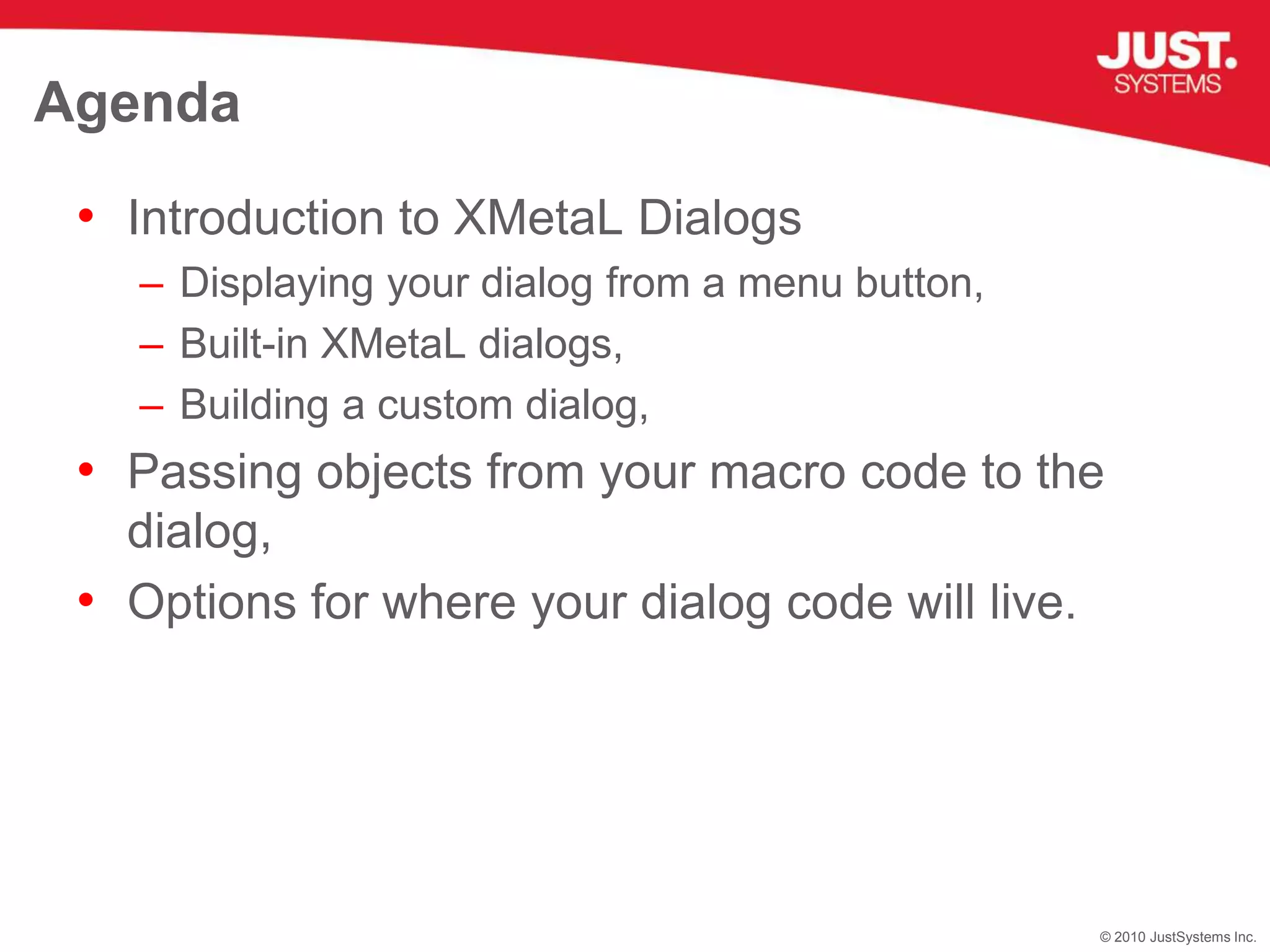
Introduction to XMetaL DialogsDisplaying your dialog from a menu button,Built-in XMetaL dialogs,Building a custom dialog,Passing objects from your macro code to the dialog,Options for where your dialog code will live.Agenda
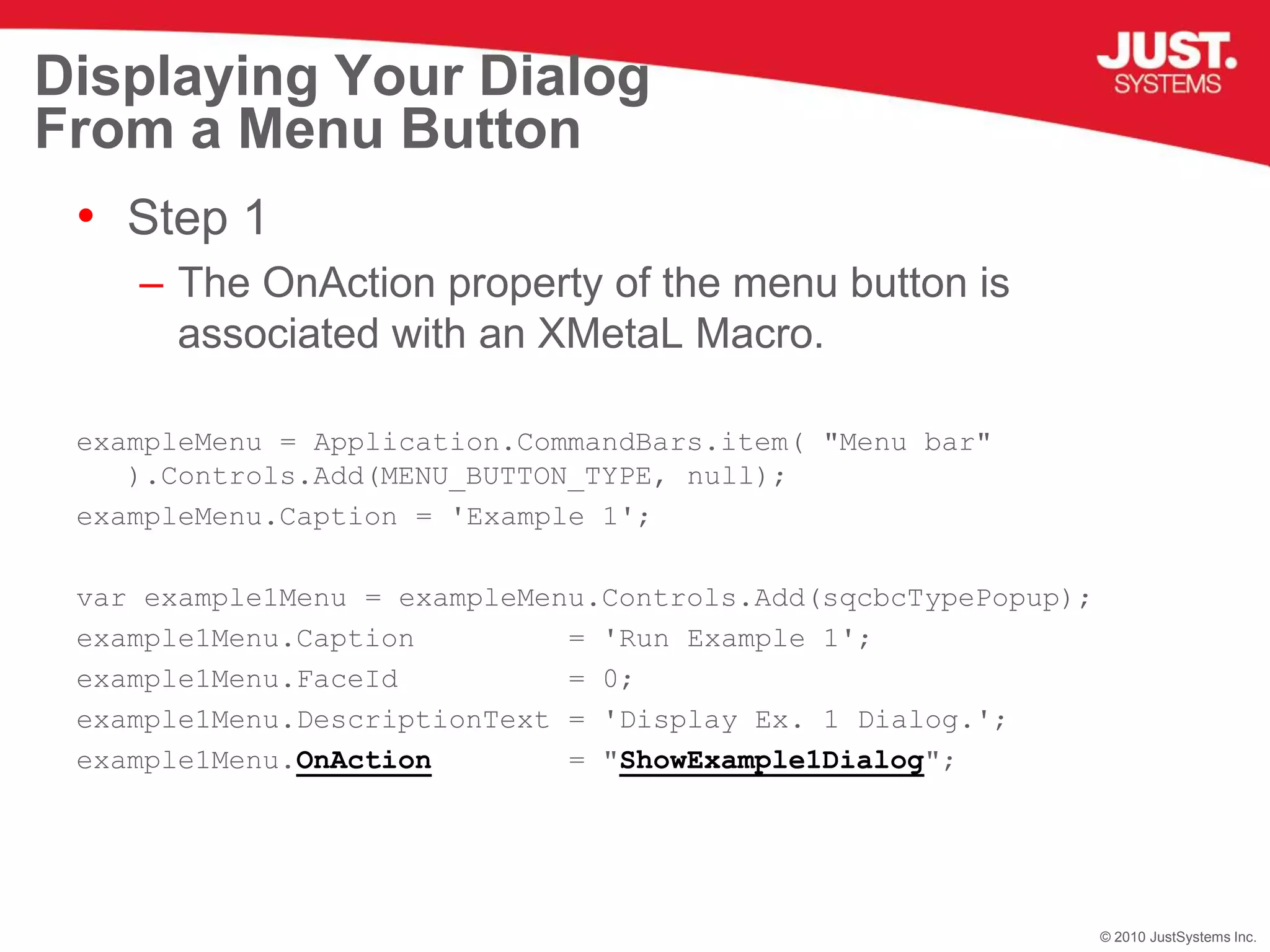
Displaying Your Dialog From a Menu ButtonStep 1The OnAction property of the menu button is associated with an XMetaL Macro.exampleMenu = Application.CommandBars.item( "Menu bar" ).Controls.Add(MENU_BUTTON_TYPE, null); exampleMenu.Caption = 'Example 1';var example1Menu = exampleMenu.Controls.Add(sqcbcTypePopup);example1Menu.Caption         = 'Run Example 1';example1Menu.FaceId          = 0;example1Menu.DescriptionText = 'Display Ex. 1 Dialog.';example1Menu.OnAction        = "ShowExample1Dialog";
Displaying Your Dialog From a Menu ButtonStep 2The XMetaL macro associated with the menu button will create the dialog and display it by calling it’s DoModal() method.<MACRO name="ShowExample1Dialog" hide="true" lang="JScript"><![CDATA[  // XMetaL Script Language JSCRIPT:  var XMetaLPath = Application.Path;  var xftPath    = XMetaLPath + "\\XFT\\Example1.xft";var dlg=Application.CreateFormDlg( xftPath );  dlg.DoModal();  dlg=null;  ]]></MACRO>
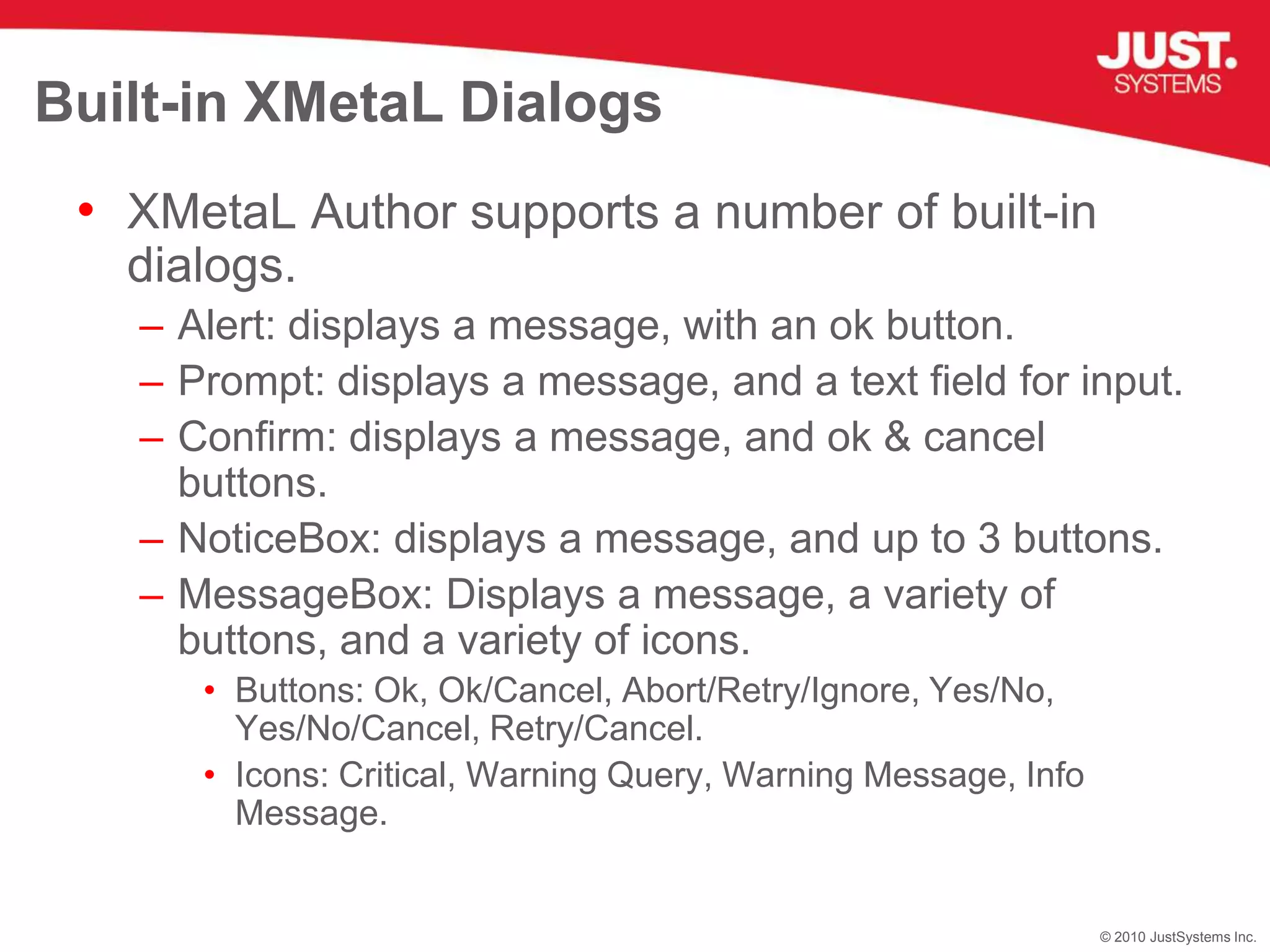
Built-in XMetaL DialogsXMetaL Author supports a number of built-in dialogs.Alert: displays a message, with an ok button.Prompt: displays a message, and a text field for input.Confirm: displays a message, and ok & cancel buttons.NoticeBox: displays a message, and up to 3 buttons.MessageBox: Displays a message, a variety of buttons, and a variety of icons.Buttons: Ok, Ok/Cancel, Abort/Retry/Ignore, Yes/No, Yes/No/Cancel, Retry/Cancel.Icons: Critical, Warning Query, Warning Message, Info Message.
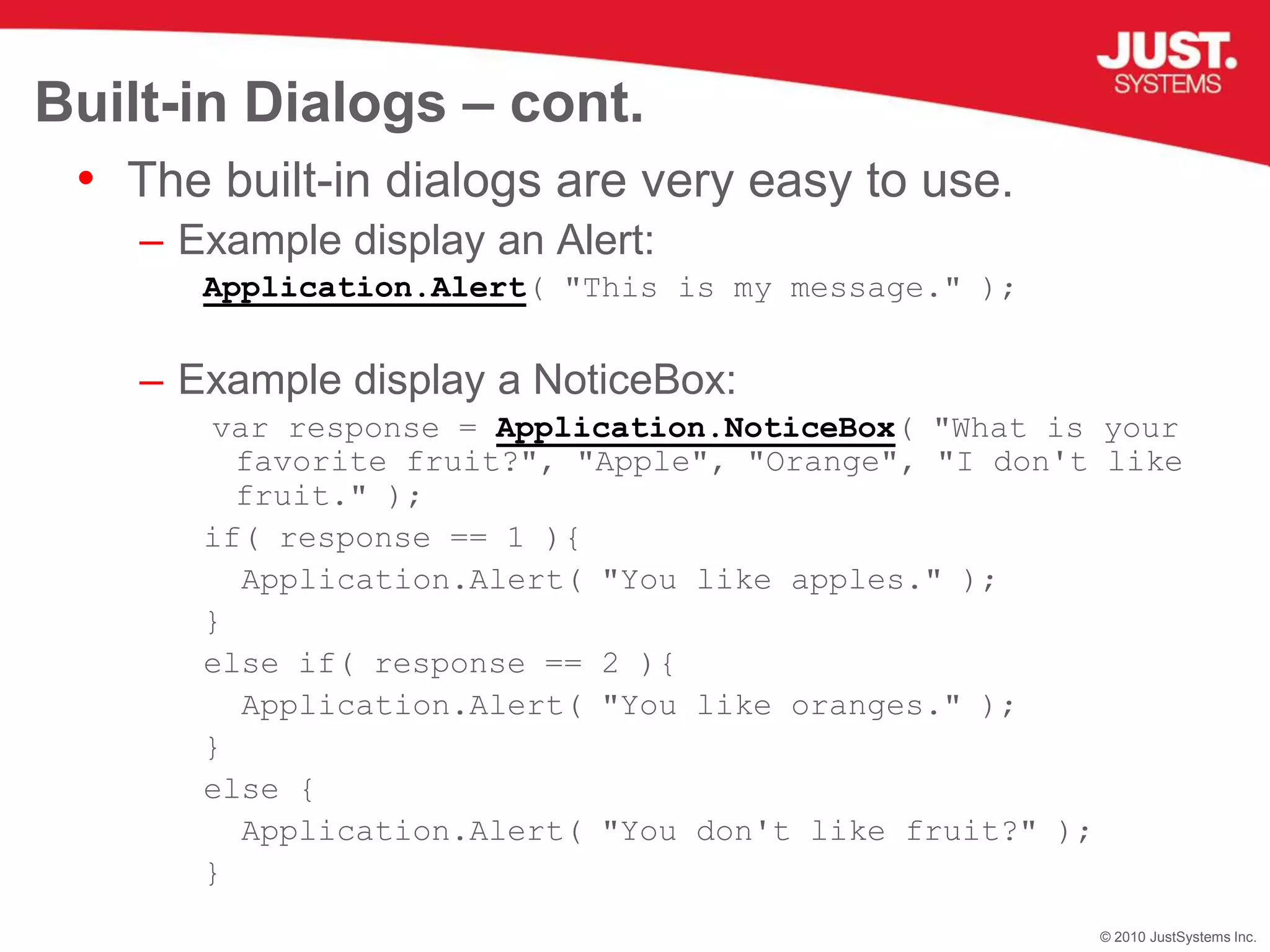
Built-in Dialogs – cont.The built-in dialogs are very easy to use.Example display an Alert:Application.Alert( "This is my message." );Example display a NoticeBox:var response = Application.NoticeBox( "What is your favorite fruit?", "Apple", "Orange", "I don't like fruit." );if( response == 1 ){  Application.Alert( "You like apples." );}else if( response == 2 ){  Application.Alert( "You like oranges." );}else{  Application.Alert( "You don't like fruit?" );}
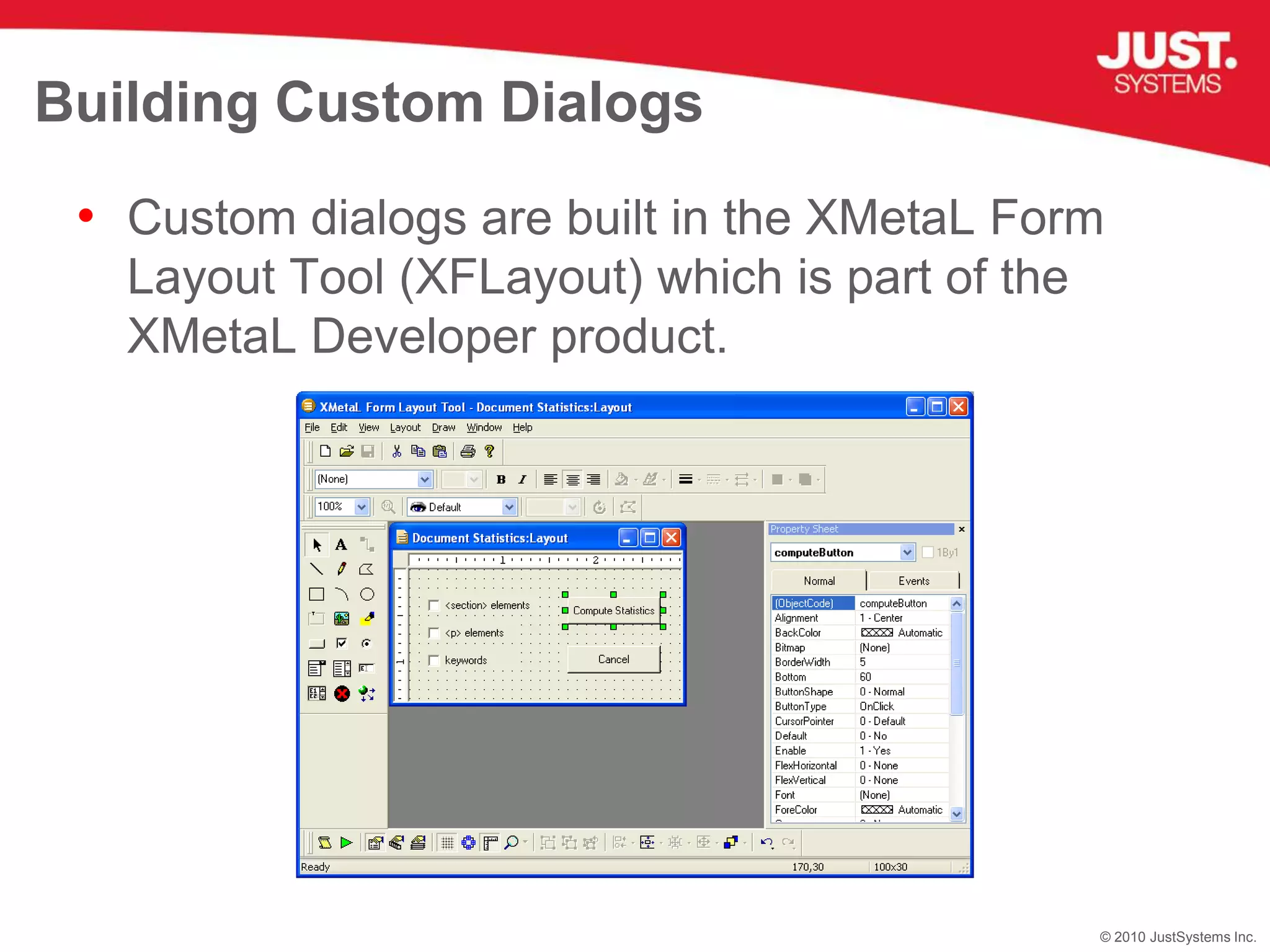
Building Custom DialogsCustom dialogs are built in the XMetaL Form Layout Tool (XFLayout) which is part of the XMetaL Developer product.
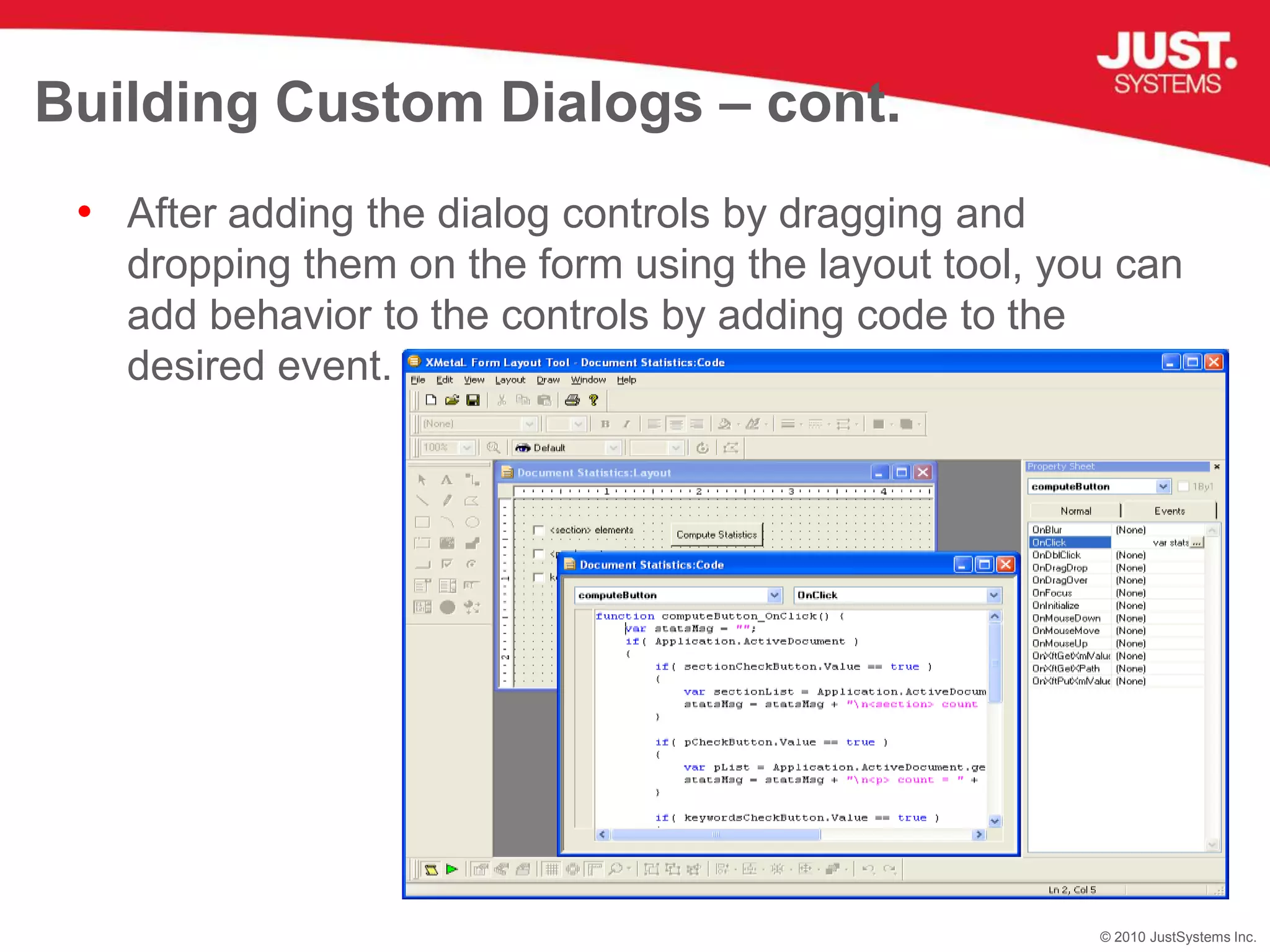
Building Custom Dialogs – cont.After adding the dialog controls by dragging and dropping them on the form using the layout tool, you can add behavior to the controls by adding code to the desired event.
Passing Objects to Your DialogThis is simple. The script to create your dialog and display it is just slightly different from the approach we saw in example 1.var listEntries = new Array( "I don't like fruit", "Apple", "Orange", "Peach", "Pineapple" );var returnVal   = new Object();returnVal.response = 0;var xftPath = Application.Path + "\\XFT\\Example4.xft";      var xft = new ActiveXObject("XF.XFTForm");        xft.AddTopLevelObject( "fruitOptions", listEntries );xft.AddTopLevelObject( "returnVal",    returnVal );xft.AddTopLevelObject( "Application",  Application );var dlg = xft.StartForm( xftPath, 0 );if( dlg.DoModal() == 1 ){   Application.Alert( "You said: " + listEntries[returnVal.response] );}dlg         = null;xft         = null;listEntries = null;
Passing Objects to Your Dialog – cont.In the script code inside your dialog, you access the object using the name given to it when calling AddTopLevelObject().xft.AddTopLevelObject( "fruitOptions", listEntries );xft.AddTopLevelObject( "returnVal",    returnVal );xft.AddTopLevelObject( "Application",  Application );
Passing Objects to Your Dialog – cont.Note: When using this approach to create your dialog, you need to explicitly pass the Application object to the dialog in order to be able to access it from your dialog code.xft.AddTopLevelObject( "Application",  Application );
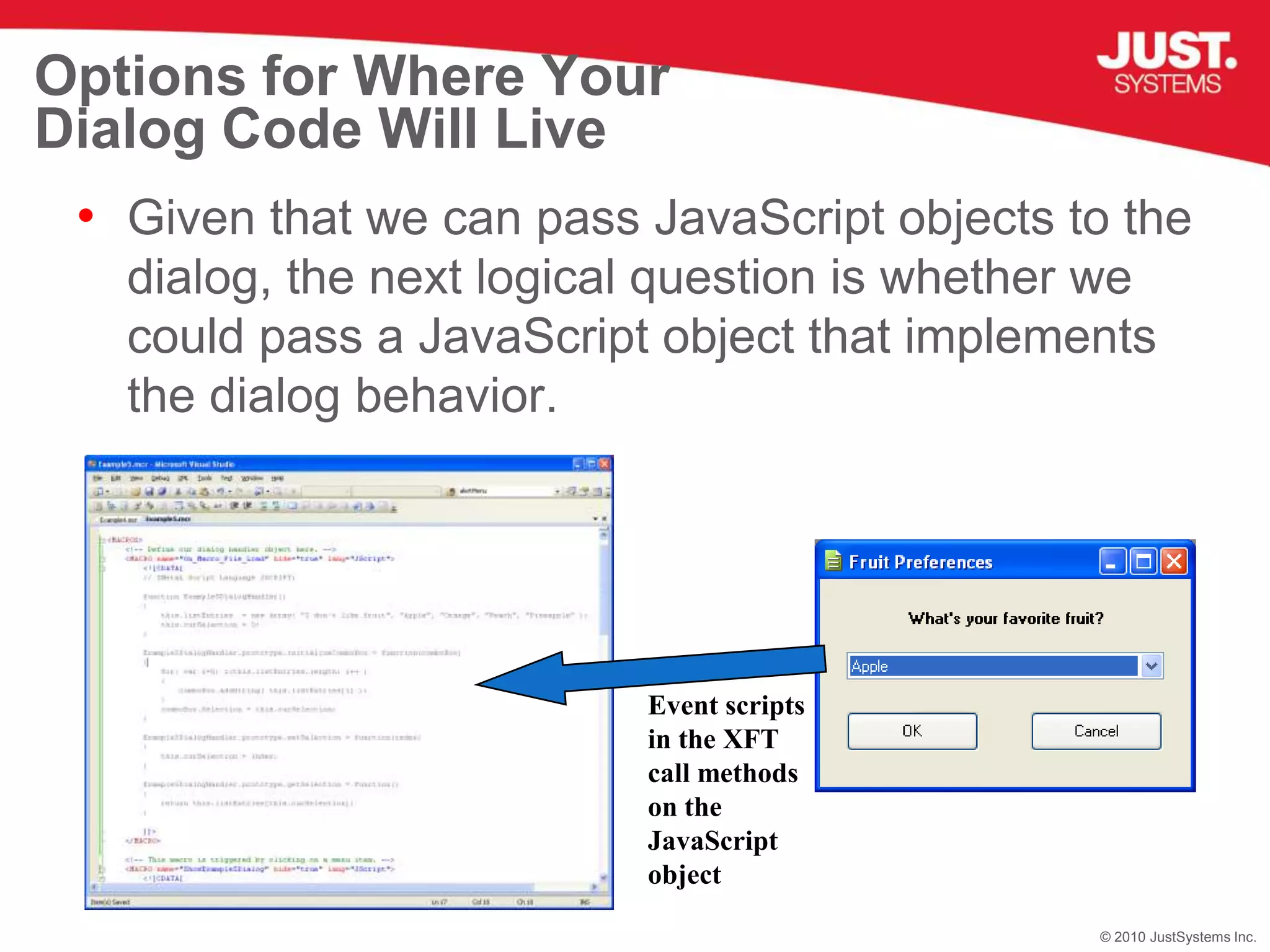
Options for Where Your Dialog Code Will LiveGiven that we can pass JavaScript objects to the dialog, the next logical question is whether we could pass a JavaScript object that implements the dialog behavior.Event scripts in the XFT call methods on the JavaScript object
Options for Where Your Dialog Code Will Live – cont.AdvantagesScript code is more easily viewed. (In the XFLayout tool you can only view the code for one event macro at a time.)Since the JavaScript object is instantiated in XMetaL Author’s script engine, you have access to the script debugger in your code by adding a “debugger;” statement.Further if you pass XFT controls into those methods, you can view the property values for those controls at run time. (Whereas, if the code is all in the XFT you will need to use Alerts to be able to view the property values.)
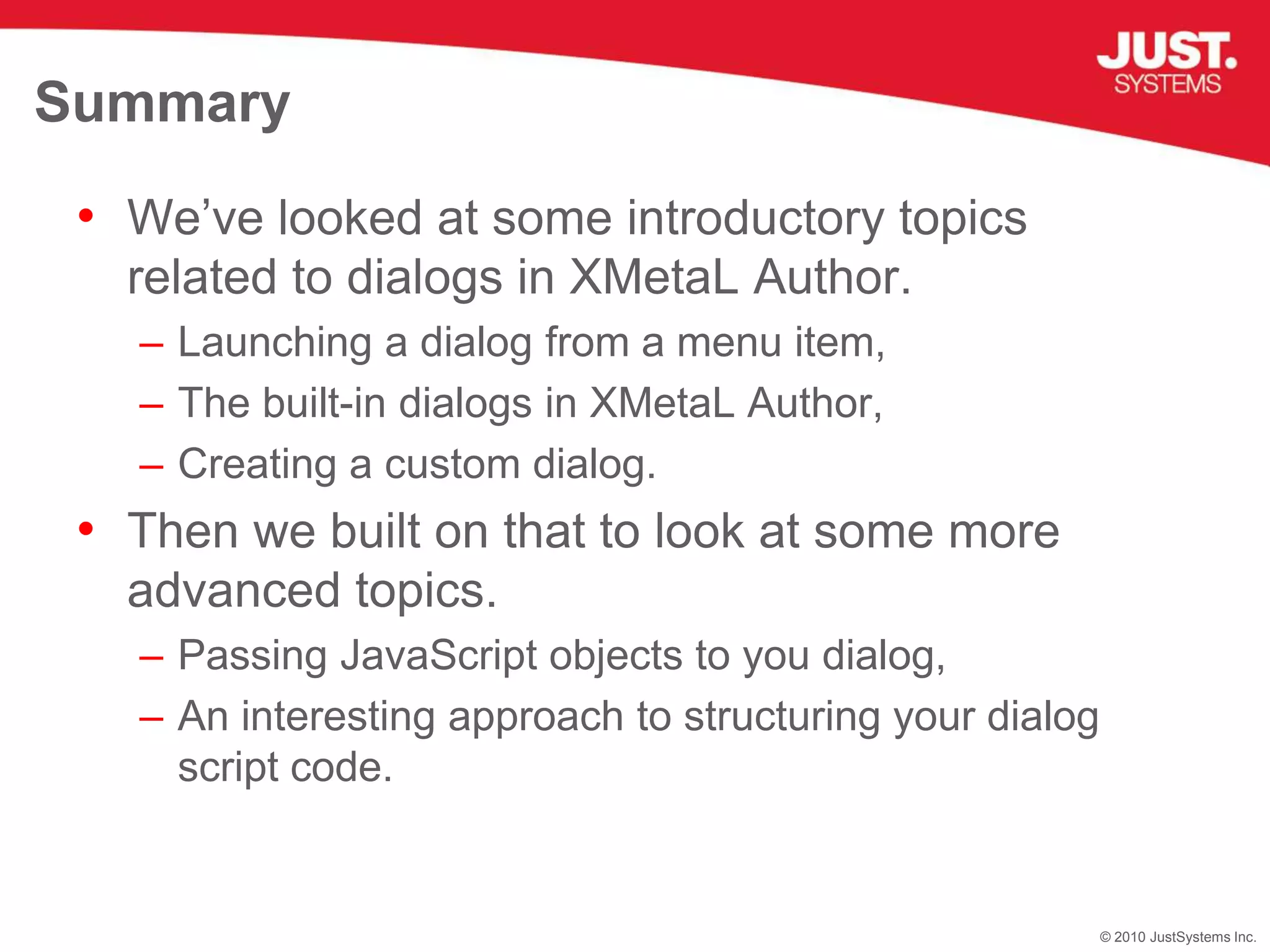
SummaryWe’ve looked at some introductory topics related to dialogs in XMetaL Author.Launching a dialog from a menu item,The built-in dialogs in XMetaL Author,Creating a custom dialog.Then we built on that to look at some more advanced topics.Passing JavaScript objects to you dialog,An interesting approach to structuring your dialog script code.
Thank you for attending!Q&A

XMetaL Dialog Odds & Ends

  • 1.
    in 37 minutesXMetaLDialog Programming Odds & EndsMurray Smith, Director of Technical ServicesBrought to you by XMetaL Technical Services
  • 2.
    AnnouncementsNext time: DerekRead will talk about DITA Open Toolkit Deployment with XMetaL Author Enterprise 6.0
  • 3.
    Introduction to XMetaLDialogsDisplaying your dialog from a menu button,Built-in XMetaL dialogs,Building a custom dialog,Passing objects from your macro code to the dialog,Options for where your dialog code will live.Agenda
  • 4.
    Displaying Your DialogFrom a Menu ButtonStep 1The OnAction property of the menu button is associated with an XMetaL Macro.exampleMenu = Application.CommandBars.item( "Menu bar" ).Controls.Add(MENU_BUTTON_TYPE, null); exampleMenu.Caption = 'Example 1';var example1Menu = exampleMenu.Controls.Add(sqcbcTypePopup);example1Menu.Caption = 'Run Example 1';example1Menu.FaceId = 0;example1Menu.DescriptionText = 'Display Ex. 1 Dialog.';example1Menu.OnAction = "ShowExample1Dialog";
  • 5.
    Displaying Your DialogFrom a Menu ButtonStep 2The XMetaL macro associated with the menu button will create the dialog and display it by calling it’s DoModal() method.<MACRO name="ShowExample1Dialog" hide="true" lang="JScript"><![CDATA[ // XMetaL Script Language JSCRIPT: var XMetaLPath = Application.Path; var xftPath = XMetaLPath + "\\XFT\\Example1.xft";var dlg=Application.CreateFormDlg( xftPath ); dlg.DoModal(); dlg=null; ]]></MACRO>
  • 6.
    Built-in XMetaL DialogsXMetaLAuthor supports a number of built-in dialogs.Alert: displays a message, with an ok button.Prompt: displays a message, and a text field for input.Confirm: displays a message, and ok & cancel buttons.NoticeBox: displays a message, and up to 3 buttons.MessageBox: Displays a message, a variety of buttons, and a variety of icons.Buttons: Ok, Ok/Cancel, Abort/Retry/Ignore, Yes/No, Yes/No/Cancel, Retry/Cancel.Icons: Critical, Warning Query, Warning Message, Info Message.
  • 7.
    Built-in Dialogs –cont.The built-in dialogs are very easy to use.Example display an Alert:Application.Alert( "This is my message." );Example display a NoticeBox:var response = Application.NoticeBox( "What is your favorite fruit?", "Apple", "Orange", "I don't like fruit." );if( response == 1 ){ Application.Alert( "You like apples." );}else if( response == 2 ){ Application.Alert( "You like oranges." );}else{ Application.Alert( "You don't like fruit?" );}
  • 8.
    Building Custom DialogsCustomdialogs are built in the XMetaL Form Layout Tool (XFLayout) which is part of the XMetaL Developer product.
  • 9.
    Building Custom Dialogs– cont.After adding the dialog controls by dragging and dropping them on the form using the layout tool, you can add behavior to the controls by adding code to the desired event.
  • 10.
    Passing Objects toYour DialogThis is simple. The script to create your dialog and display it is just slightly different from the approach we saw in example 1.var listEntries = new Array( "I don't like fruit", "Apple", "Orange", "Peach", "Pineapple" );var returnVal = new Object();returnVal.response = 0;var xftPath = Application.Path + "\\XFT\\Example4.xft"; var xft = new ActiveXObject("XF.XFTForm"); xft.AddTopLevelObject( "fruitOptions", listEntries );xft.AddTopLevelObject( "returnVal", returnVal );xft.AddTopLevelObject( "Application", Application );var dlg = xft.StartForm( xftPath, 0 );if( dlg.DoModal() == 1 ){ Application.Alert( "You said: " + listEntries[returnVal.response] );}dlg = null;xft = null;listEntries = null;
  • 11.
    Passing Objects toYour Dialog – cont.In the script code inside your dialog, you access the object using the name given to it when calling AddTopLevelObject().xft.AddTopLevelObject( "fruitOptions", listEntries );xft.AddTopLevelObject( "returnVal", returnVal );xft.AddTopLevelObject( "Application", Application );
  • 12.
    Passing Objects toYour Dialog – cont.Note: When using this approach to create your dialog, you need to explicitly pass the Application object to the dialog in order to be able to access it from your dialog code.xft.AddTopLevelObject( "Application", Application );
  • 13.
    Options for WhereYour Dialog Code Will LiveGiven that we can pass JavaScript objects to the dialog, the next logical question is whether we could pass a JavaScript object that implements the dialog behavior.Event scripts in the XFT call methods on the JavaScript object
  • 14.
    Options for WhereYour Dialog Code Will Live – cont.AdvantagesScript code is more easily viewed. (In the XFLayout tool you can only view the code for one event macro at a time.)Since the JavaScript object is instantiated in XMetaL Author’s script engine, you have access to the script debugger in your code by adding a “debugger;” statement.Further if you pass XFT controls into those methods, you can view the property values for those controls at run time. (Whereas, if the code is all in the XFT you will need to use Alerts to be able to view the property values.)
  • 15.
    SummaryWe’ve looked atsome introductory topics related to dialogs in XMetaL Author.Launching a dialog from a menu item,The built-in dialogs in XMetaL Author,Creating a custom dialog.Then we built on that to look at some more advanced topics.Passing JavaScript objects to you dialog,An interesting approach to structuring your dialog script code.
  • 16.
    Thank you forattending!Q&A