Fundamentals of Web designing
Ministry of Higher Education
Bamyan University
Computer Science Department
1
Presented by : Mustafa Kamel Mohammadi
Email : bamian.cs@gmail.com
Working with Links and Images
learning objective
 In this chapter you will learn
 How to work with text in HTML
 Define paragraphs and headings
 Define different types of lists
2
What are links?
 Hyperlinks, or simply links, connect HTML pages to other resources on the Web.
 Links causes to connect you pages with
 Other pages in other website
 Pages within your site
 Some area in your page
3
How to create links?
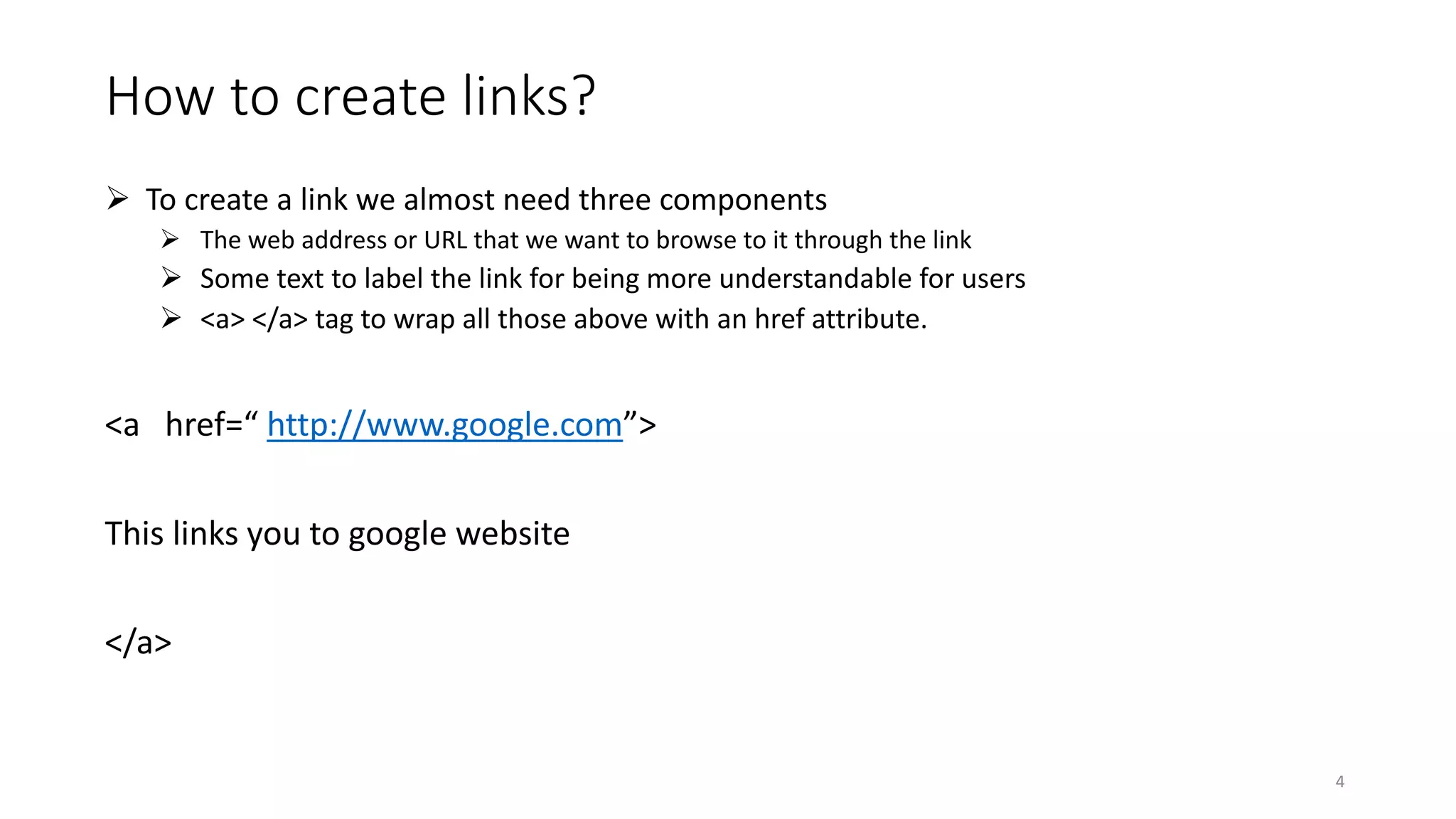
 To create a link we almost need three components
 The web address or URL that we want to browse to it through the link
 Some text to label the link for being more understandable for users
 <a> </a> tag to wrap all those above with an href attribute.
<a href=“ http://www.google.com”>
This links you to google website
</a>
4
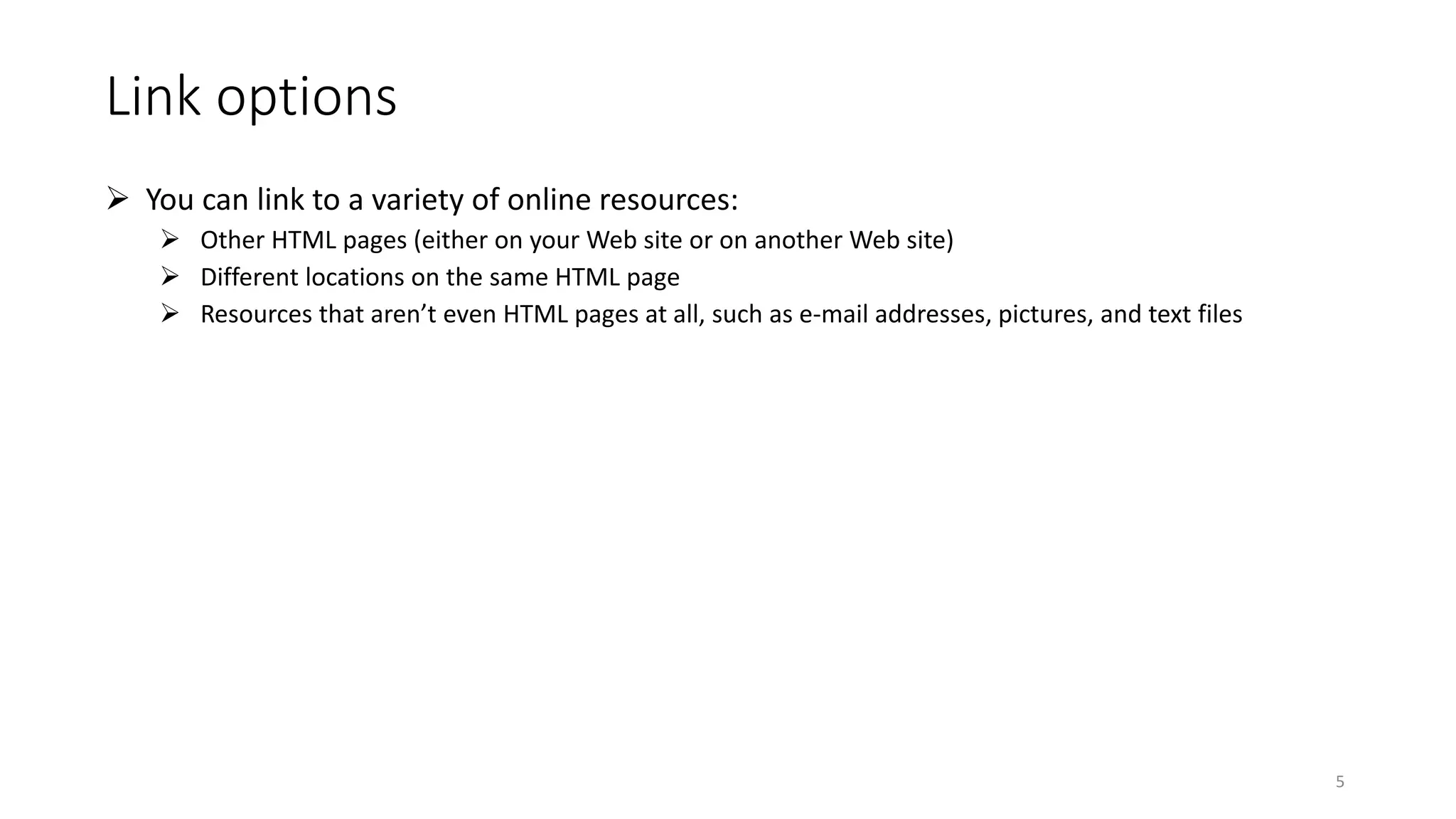
Link options
 You can link to a variety of online resources:
 Other HTML pages (either on your Web site or on another Web site)
 Different locations on the same HTML page
 Resources that aren’t even HTML pages at all, such as e-mail addresses, pictures, and text files
5
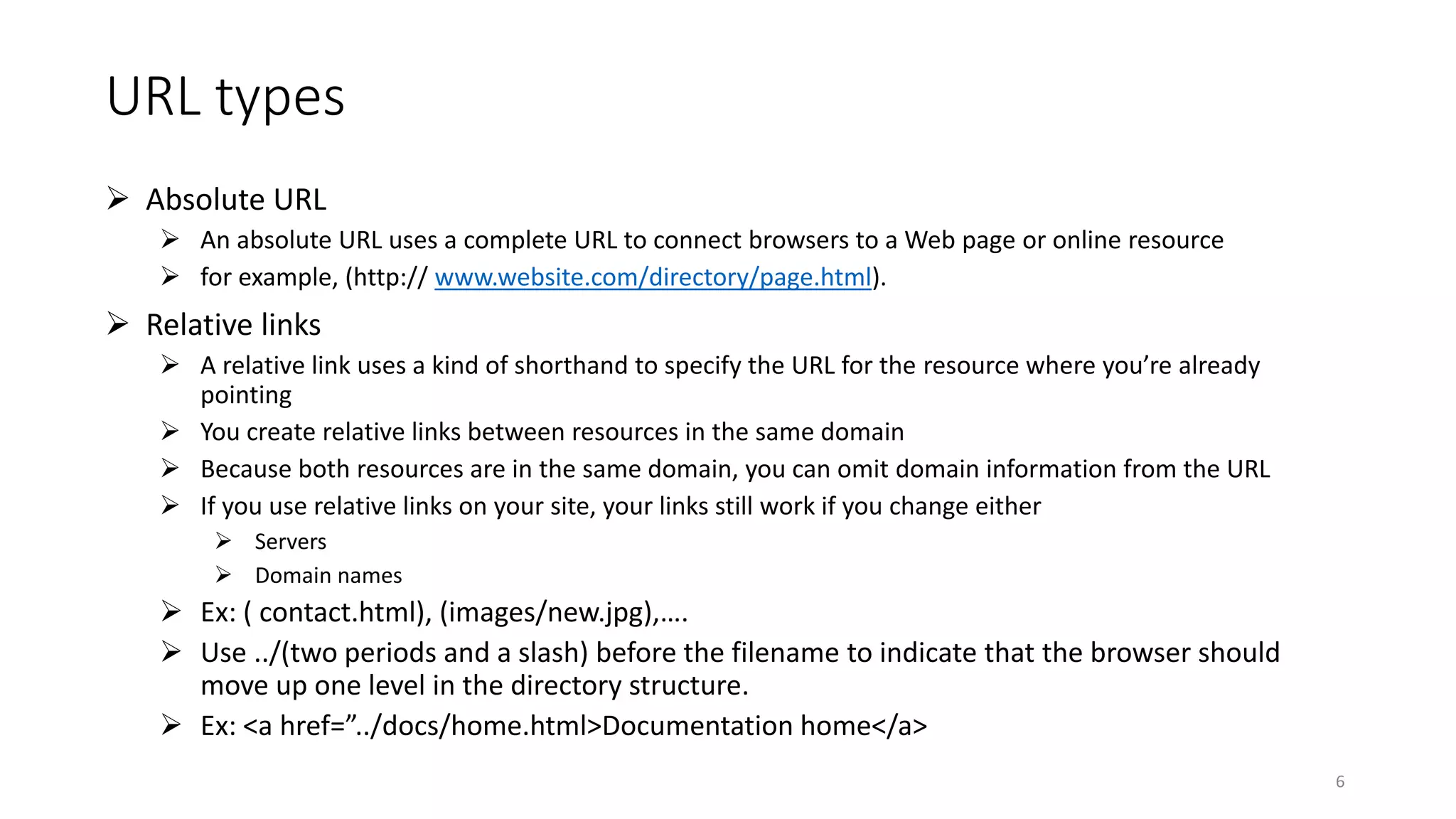
URL types
 Absolute URL
 An absolute URL uses a complete URL to connect browsers to a Web page or online resource
 for example, (http:// www.website.com/directory/page.html).
 Relative links
 A relative link uses a kind of shorthand to specify the URL for the resource where you’re already
pointing
 You create relative links between resources in the same domain
 Because both resources are in the same domain, you can omit domain information from the URL
 If you use relative links on your site, your links still work if you change either
 Servers
 Domain names
 Ex: ( contact.html), (images/new.jpg),….
 Use ../(two periods and a slash) before the filename to indicate that the browser should
move up one level in the directory structure.
 Ex: <a href=”../docs/home.html>Documentation home</a>
6
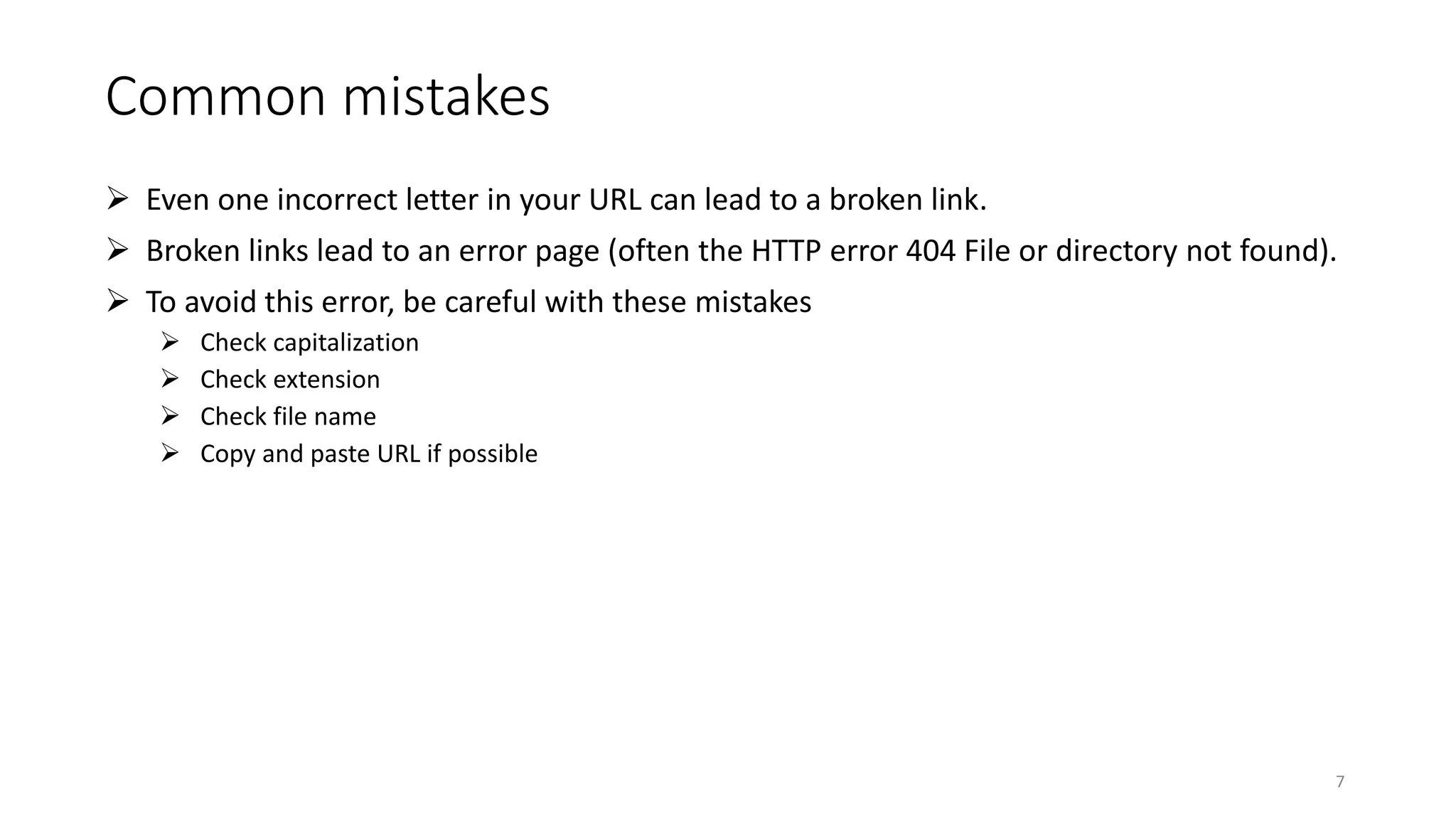
Common mistakes
 Even one incorrect letter in your URL can lead to a broken link.
 Broken links lead to an error page (often the HTTP error 404 File or directory not found).
 To avoid this error, be careful with these mistakes
 Check capitalization
 Check extension
 Check file name
 Copy and paste URL if possible
7
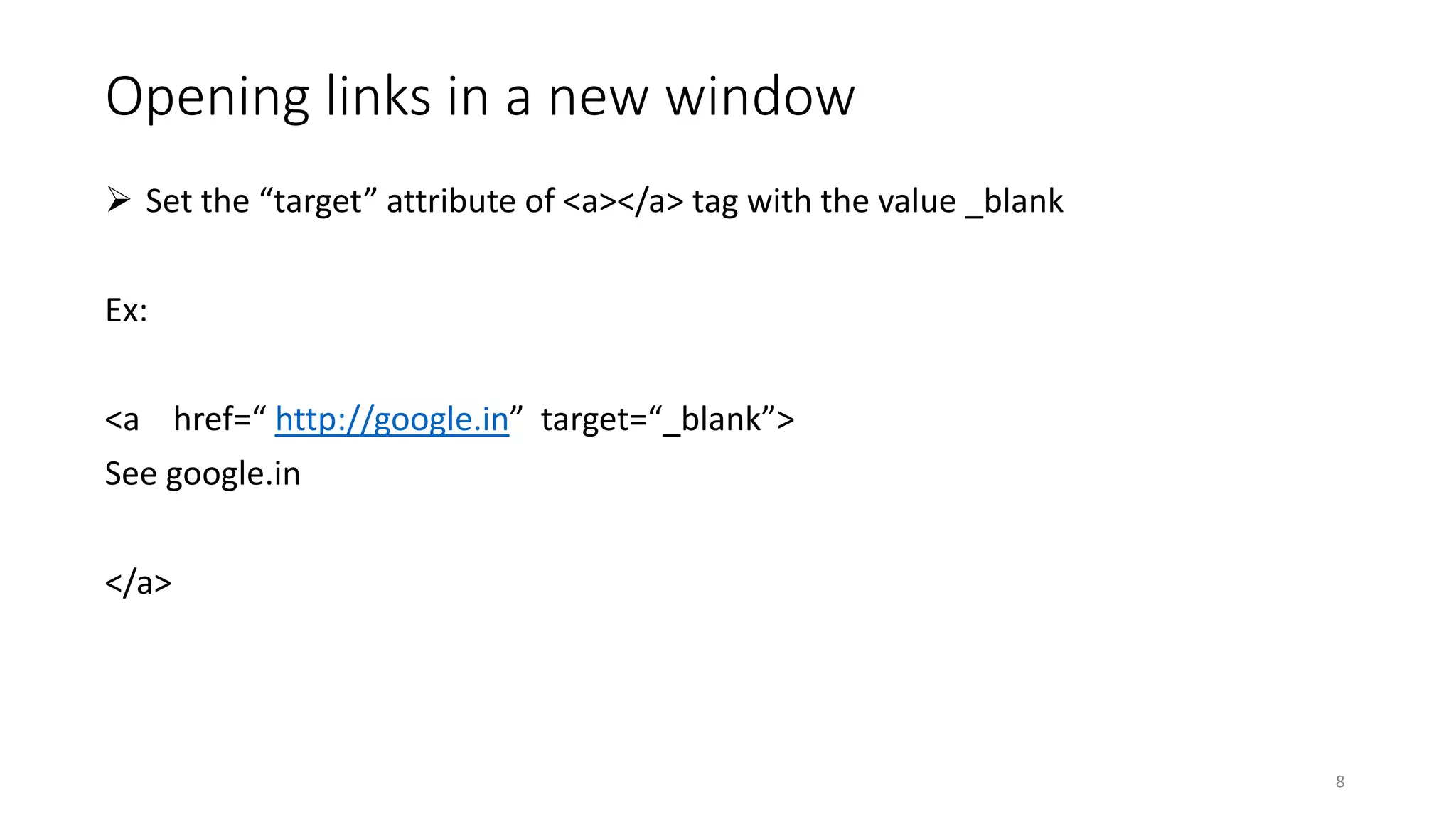
Opening links in a new window
 Set the “target” attribute of <a></a> tag with the value _blank
Ex:
<a href=“ http://google.in” target=“_blank”>
See google.in
</a>
8
Linking to a location in the same webpage
 In order to do this you must
 Spot the location you want to go by assigning ID attribute
 Set link to point at the spotted location by setting the href attribute of link to the value of ID
Ex:
<h2 id=“top” > Welcome to this page</h2>
The pound sign (#) indicates that you’re pointing to a spot on the same page ,not on
another page.
<a href=“#top” >go to top of page </a>
9
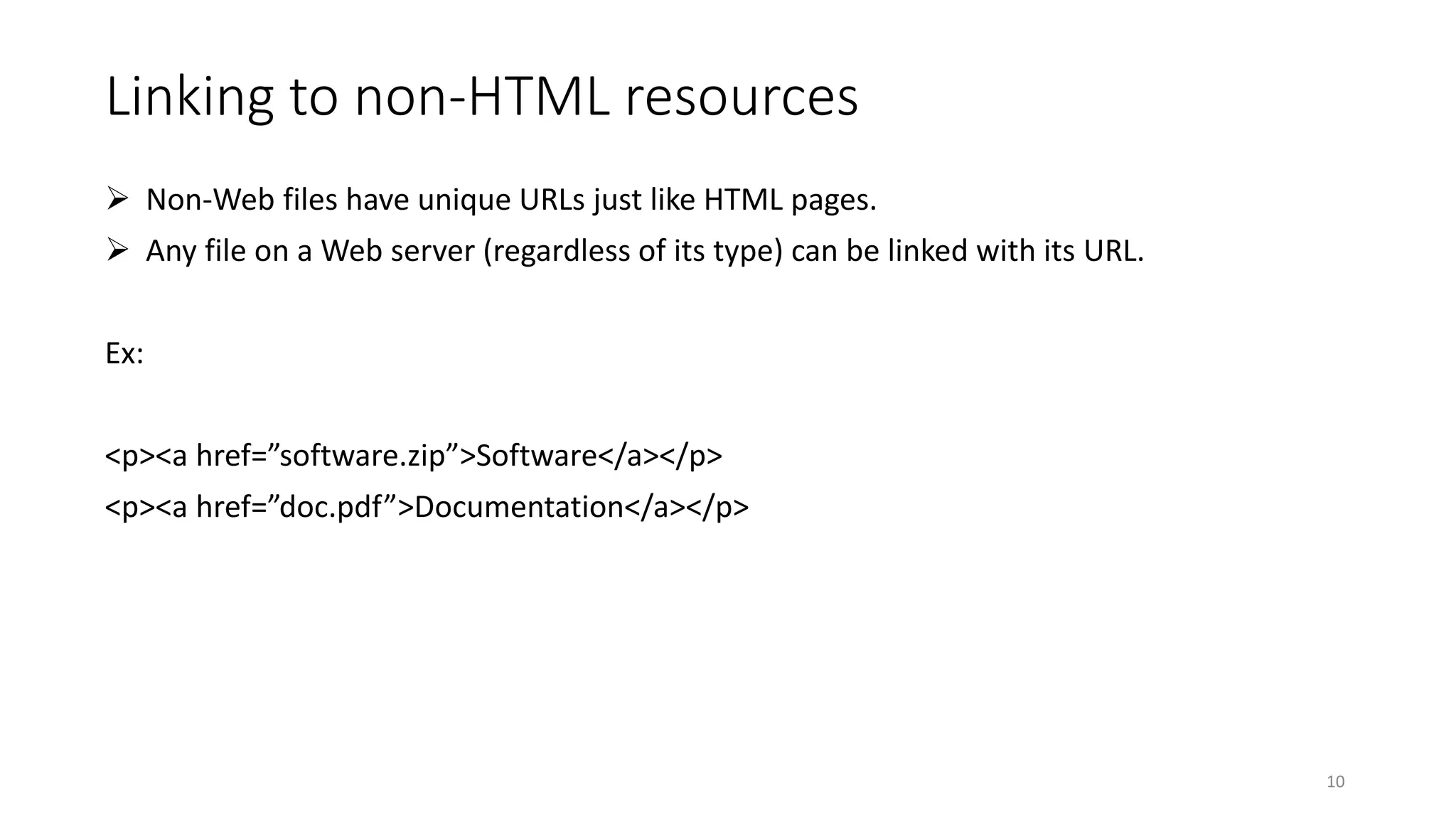
Linking to non-HTML resources
 Non-Web files have unique URLs just like HTML pages.
 Any file on a Web server (regardless of its type) can be linked with its URL.
Ex:
<p><a href=”software.zip”>Software</a></p>
<p><a href=”doc.pdf”>Documentation</a></p>
10
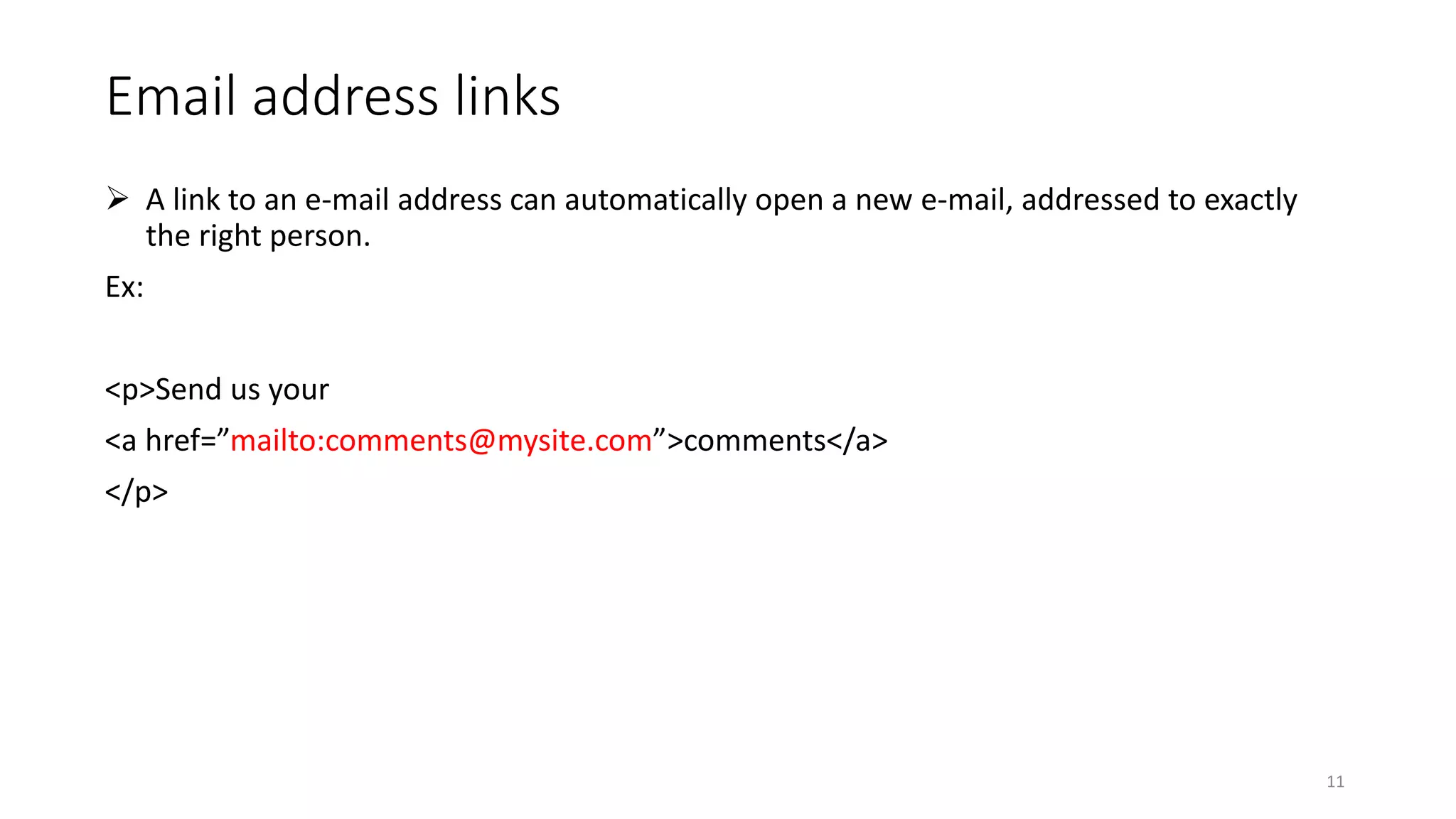
Email address links
 A link to an e-mail address can automatically open a new e-mail, addressed to exactly
the right person.
Ex:
<p>Send us your
<a href=”mailto:comments@mysite.com”>comments</a>
</p>
11
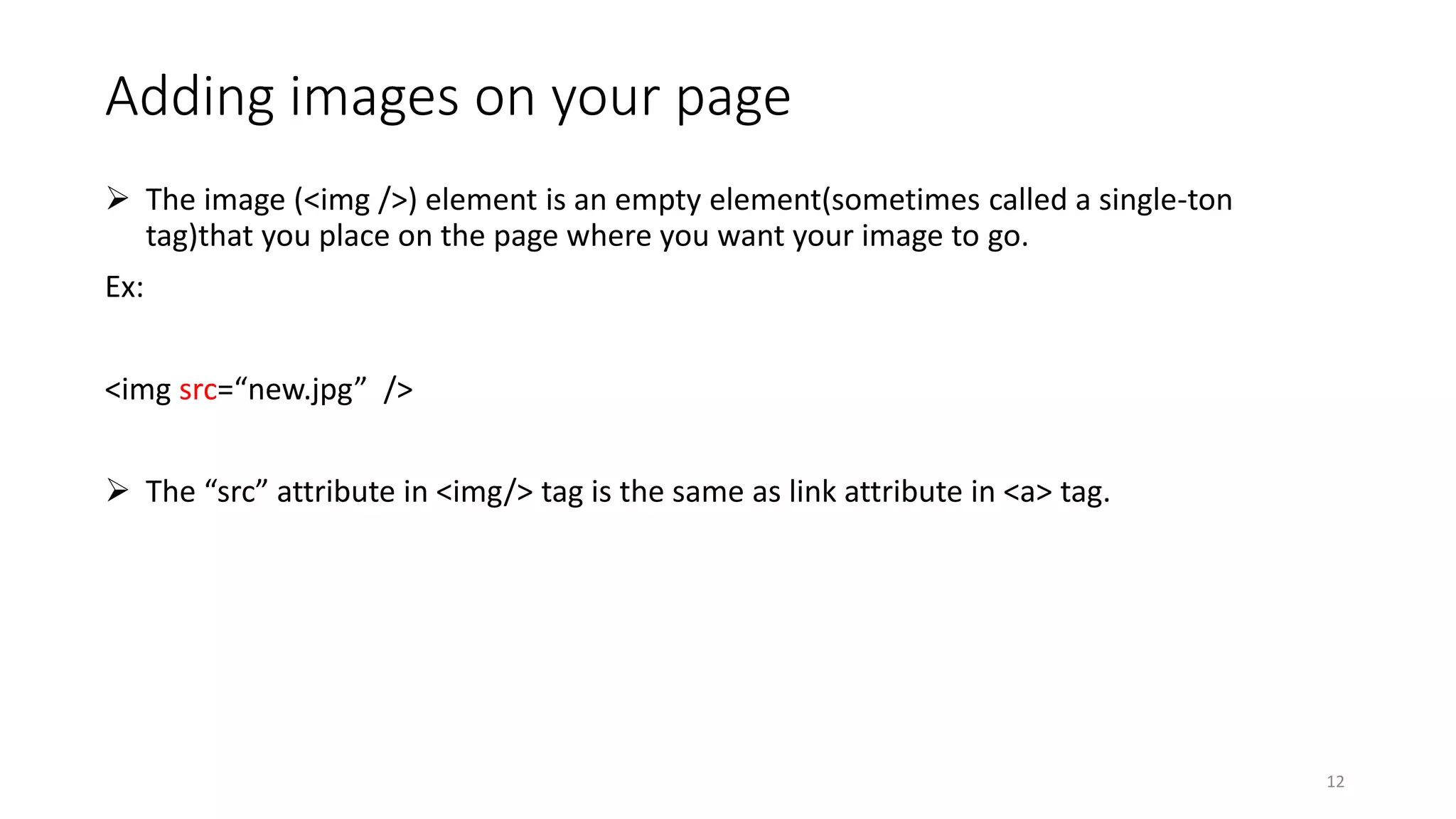
Adding images on your page
 The image (<img />) element is an empty element(sometimes called a single-ton
tag)that you place on the page where you want your image to go.
Ex:
<img src=“new.jpg” />
 The “src” attribute in <img/> tag is the same as link attribute in <a> tag.
12
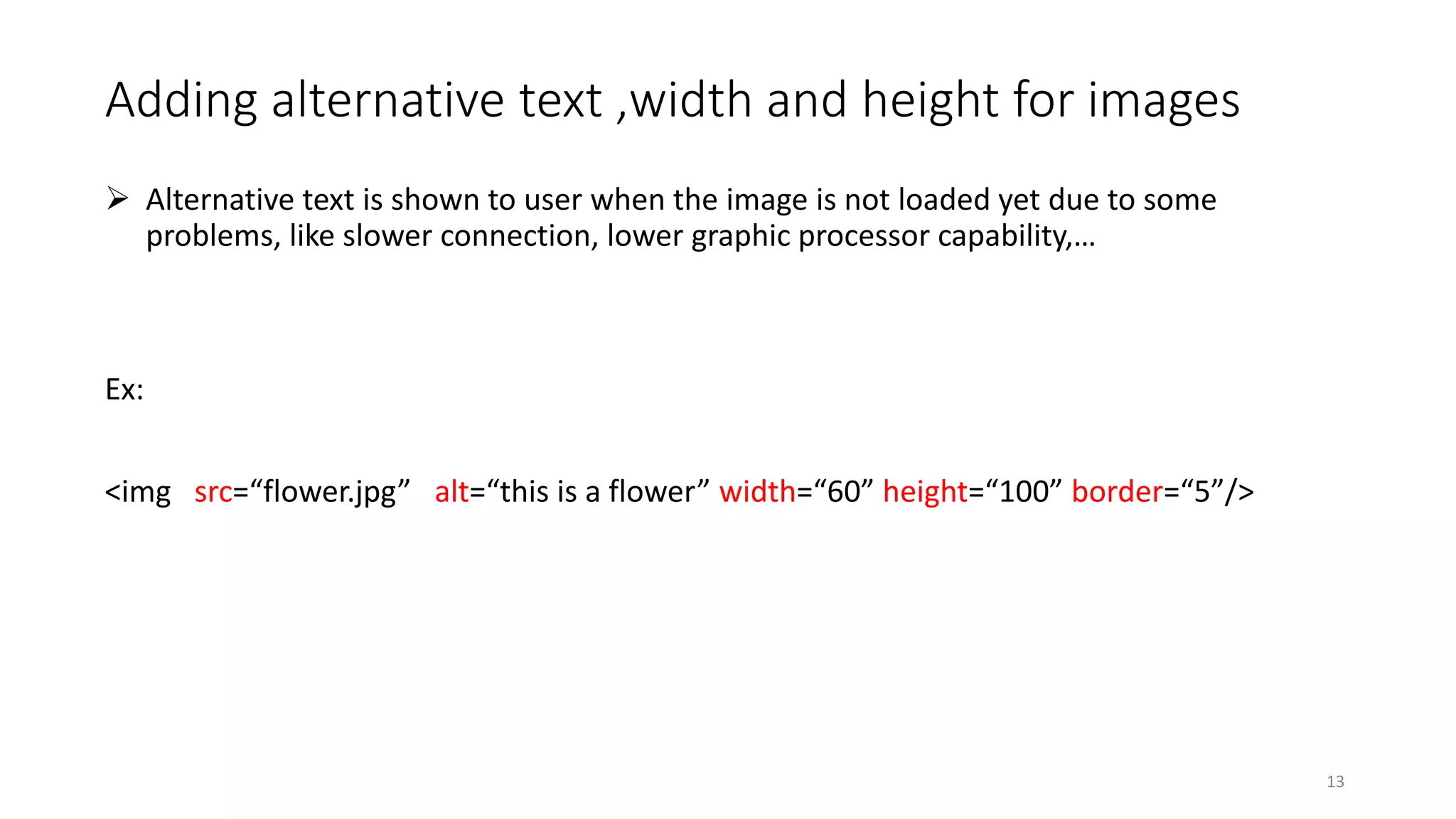
Adding alternative text ,width and height for images
 Alternative text is shown to user when the image is not loaded yet due to some
problems, like slower connection, lower graphic processor capability,…
Ex:
<img src=“flower.jpg” alt=“this is a flower” width=“60” height=“100” border=“5”/>
13
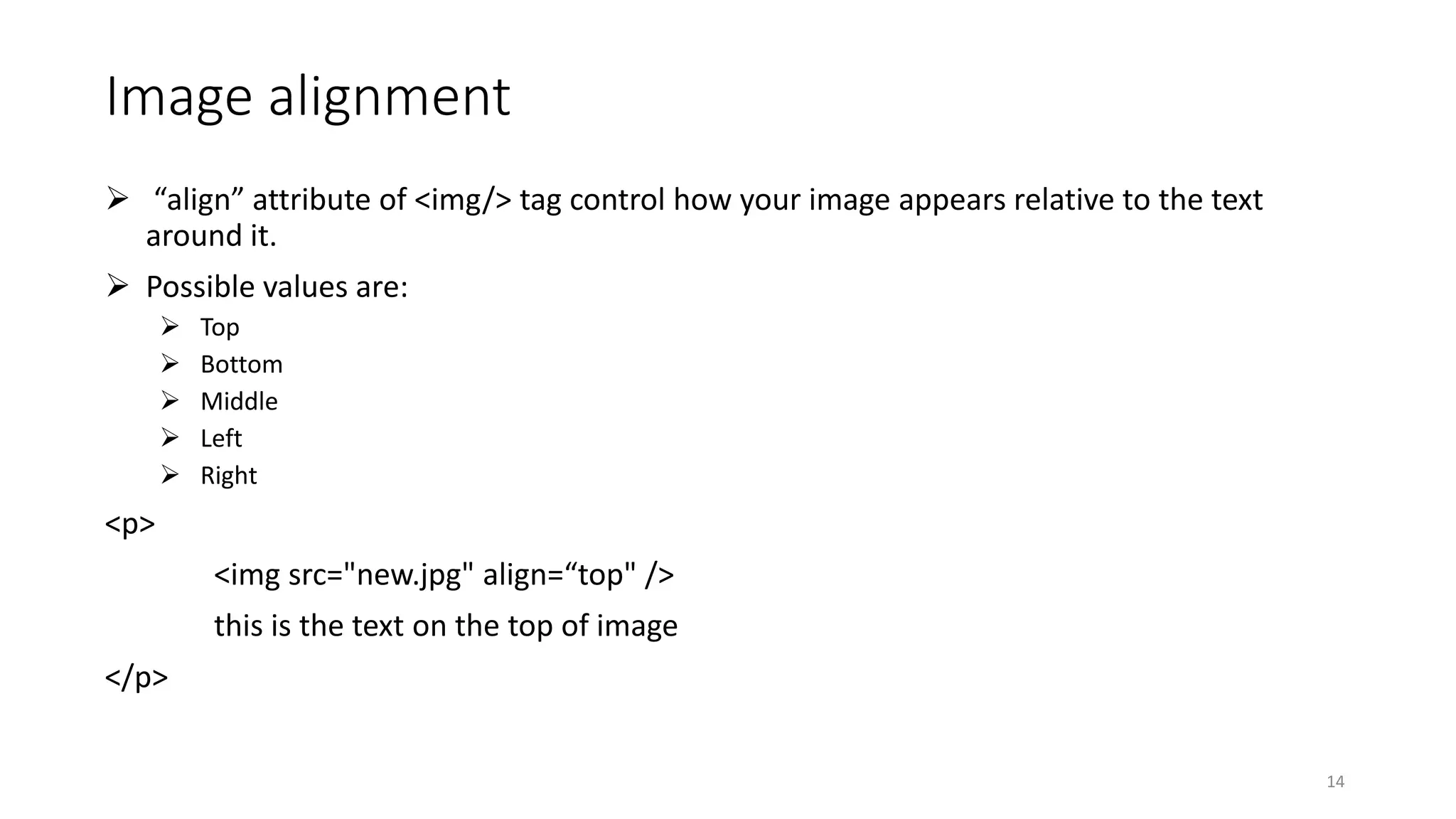
Image alignment
 “align” attribute of <img/> tag control how your image appears relative to the text
around it.
 Possible values are:
 Top
 Bottom
 Middle
 Left
 Right
<p>
<img src="new.jpg" align=“top" />
this is the text on the top of image
</p>
14
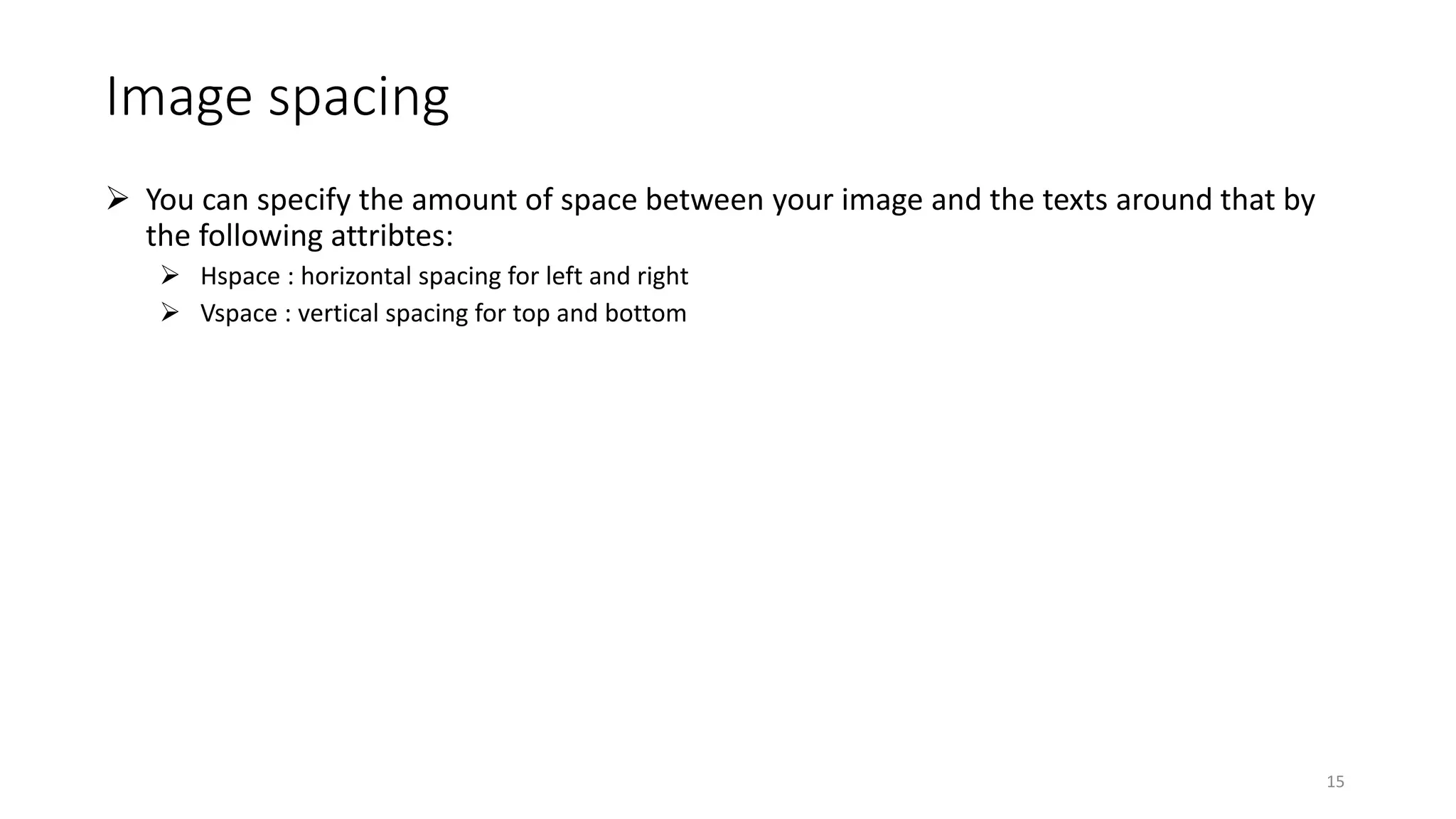
Image spacing
 You can specify the amount of space between your image and the texts around that by
the following attribtes:
 Hspace : horizontal spacing for left and right
 Vspace : vertical spacing for top and bottom
15
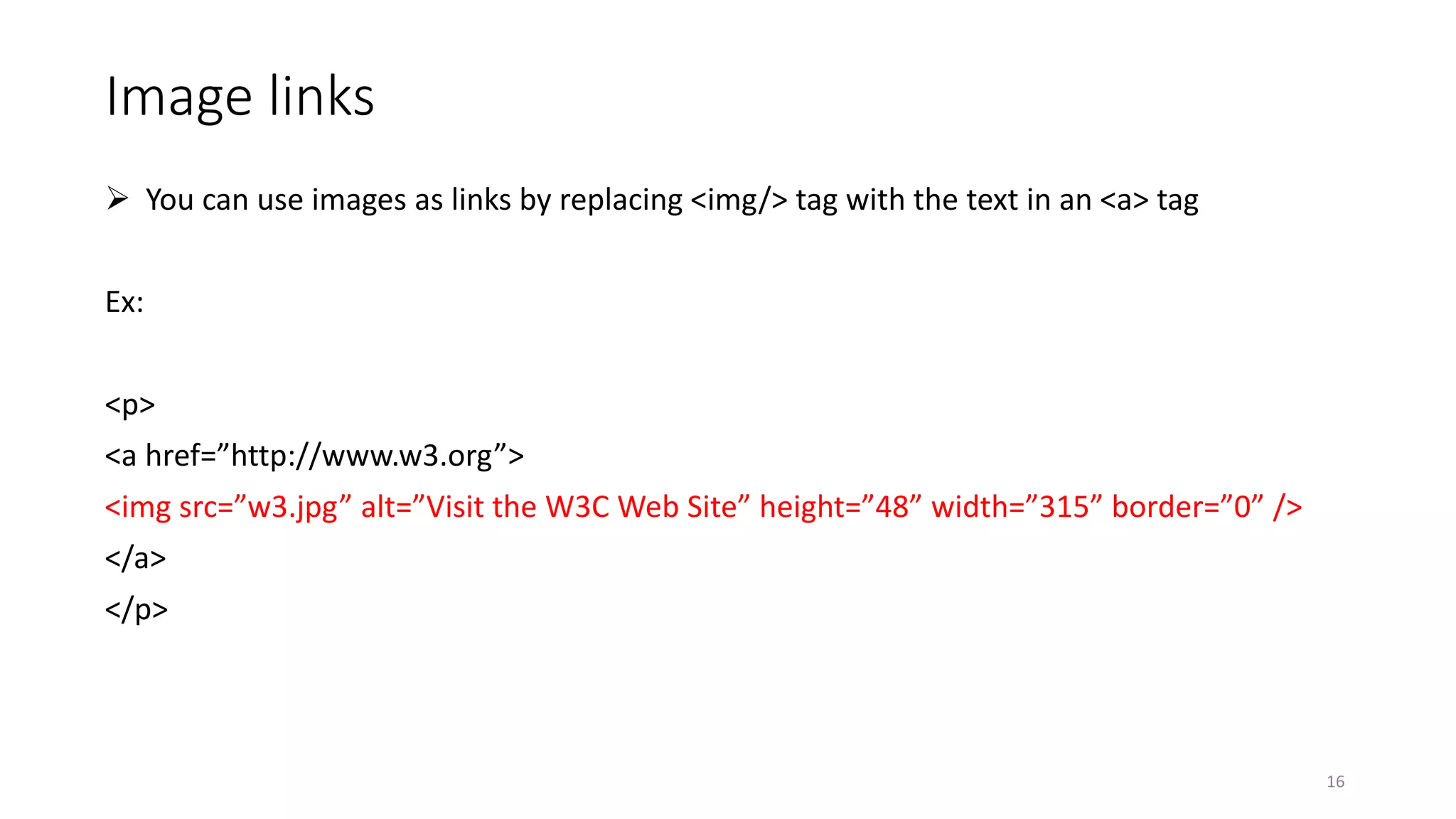
Image links
 You can use images as links by replacing <img/> tag with the text in an <a> tag
Ex:
<p>
<a href=”http://www.w3.org”>
<img src=”w3.jpg” alt=”Visit the W3C Web Site” height=”48” width=”315” border=”0” />
</a>
</p>
16
17
References
• “HTML 4 dummies 5th edition” by Ed Tittel & Mary Burmeister
• “HTML 5 designing rich internet applications” by Mathew Dawid
• “HTML in ten simple steps” by Robert G. fuller
18

Web design - Working with Links and Images

  • 1.
    Fundamentals of Webdesigning Ministry of Higher Education Bamyan University Computer Science Department 1 Presented by : Mustafa Kamel Mohammadi Email : bamian.cs@gmail.com Working with Links and Images
  • 2.
    learning objective  Inthis chapter you will learn  How to work with text in HTML  Define paragraphs and headings  Define different types of lists 2
  • 3.
    What are links? Hyperlinks, or simply links, connect HTML pages to other resources on the Web.  Links causes to connect you pages with  Other pages in other website  Pages within your site  Some area in your page 3
  • 4.
    How to createlinks?  To create a link we almost need three components  The web address or URL that we want to browse to it through the link  Some text to label the link for being more understandable for users  <a> </a> tag to wrap all those above with an href attribute. <a href=“ http://www.google.com”> This links you to google website </a> 4
  • 5.
    Link options  Youcan link to a variety of online resources:  Other HTML pages (either on your Web site or on another Web site)  Different locations on the same HTML page  Resources that aren’t even HTML pages at all, such as e-mail addresses, pictures, and text files 5
  • 6.
    URL types  AbsoluteURL  An absolute URL uses a complete URL to connect browsers to a Web page or online resource  for example, (http:// www.website.com/directory/page.html).  Relative links  A relative link uses a kind of shorthand to specify the URL for the resource where you’re already pointing  You create relative links between resources in the same domain  Because both resources are in the same domain, you can omit domain information from the URL  If you use relative links on your site, your links still work if you change either  Servers  Domain names  Ex: ( contact.html), (images/new.jpg),….  Use ../(two periods and a slash) before the filename to indicate that the browser should move up one level in the directory structure.  Ex: <a href=”../docs/home.html>Documentation home</a> 6
  • 7.
    Common mistakes  Evenone incorrect letter in your URL can lead to a broken link.  Broken links lead to an error page (often the HTTP error 404 File or directory not found).  To avoid this error, be careful with these mistakes  Check capitalization  Check extension  Check file name  Copy and paste URL if possible 7
  • 8.
    Opening links ina new window  Set the “target” attribute of <a></a> tag with the value _blank Ex: <a href=“ http://google.in” target=“_blank”> See google.in </a> 8
  • 9.
    Linking to alocation in the same webpage  In order to do this you must  Spot the location you want to go by assigning ID attribute  Set link to point at the spotted location by setting the href attribute of link to the value of ID Ex: <h2 id=“top” > Welcome to this page</h2> The pound sign (#) indicates that you’re pointing to a spot on the same page ,not on another page. <a href=“#top” >go to top of page </a> 9
  • 10.
    Linking to non-HTMLresources  Non-Web files have unique URLs just like HTML pages.  Any file on a Web server (regardless of its type) can be linked with its URL. Ex: <p><a href=”software.zip”>Software</a></p> <p><a href=”doc.pdf”>Documentation</a></p> 10
  • 11.
    Email address links A link to an e-mail address can automatically open a new e-mail, addressed to exactly the right person. Ex: <p>Send us your <a href=”mailto:comments@mysite.com”>comments</a> </p> 11
  • 12.
    Adding images onyour page  The image (<img />) element is an empty element(sometimes called a single-ton tag)that you place on the page where you want your image to go. Ex: <img src=“new.jpg” />  The “src” attribute in <img/> tag is the same as link attribute in <a> tag. 12
  • 13.
    Adding alternative text,width and height for images  Alternative text is shown to user when the image is not loaded yet due to some problems, like slower connection, lower graphic processor capability,… Ex: <img src=“flower.jpg” alt=“this is a flower” width=“60” height=“100” border=“5”/> 13
  • 14.
    Image alignment  “align”attribute of <img/> tag control how your image appears relative to the text around it.  Possible values are:  Top  Bottom  Middle  Left  Right <p> <img src="new.jpg" align=“top" /> this is the text on the top of image </p> 14
  • 15.
    Image spacing  Youcan specify the amount of space between your image and the texts around that by the following attribtes:  Hspace : horizontal spacing for left and right  Vspace : vertical spacing for top and bottom 15
  • 16.
    Image links  Youcan use images as links by replacing <img/> tag with the text in an <a> tag Ex: <p> <a href=”http://www.w3.org”> <img src=”w3.jpg” alt=”Visit the W3C Web Site” height=”48” width=”315” border=”0” /> </a> </p> 16
  • 17.
  • 18.
    References • “HTML 4dummies 5th edition” by Ed Tittel & Mary Burmeister • “HTML 5 designing rich internet applications” by Mathew Dawid • “HTML in ten simple steps” by Robert G. fuller 18