WordPress Q&A
#wpmelb
Anthony Hortin
@maddisondesigns
maddisondesigns.com
Dee Teal
@thewebprincess
thewebprincess.com
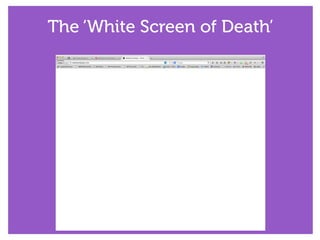
The ‘White Screen of Death’
The ‘White Screen of Death’ is exactly how it sounds.
A simple blank white screen, with no errors! Aargh!
It can be caused by numerous issues.
!
Try increasing the PHP Memory Limit
!
Deactivate all plugins
!
Change to one of the default WordPress themes
!
Enable Debug in your wp-config.php file
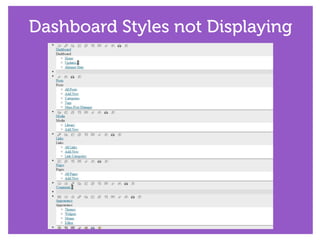
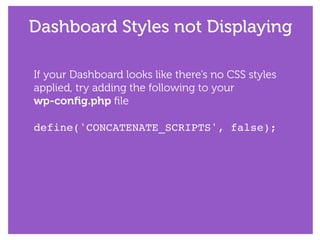
Dashboard Styles not Displaying
If your Dashboard looks like there’s no CSS styles
applied, try adding the following to your 

wp-config.php file
!
define('CONCATENATE_SCRIPTS', false);!
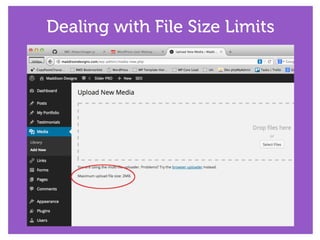
Dealing with File Size Limits
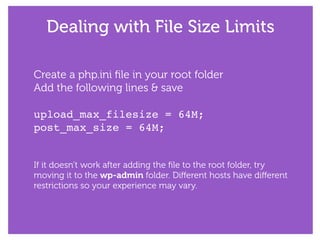
Create a php.ini file in your root folder
Add the following lines & save
!
upload_max_filesize = 64M;!
post_max_size = 64M;!
!
!
If it doesn’t work after adding the file to the root folder, try
moving it to the wp-admin folder. Different hosts have different
restrictions so your experience may vary.
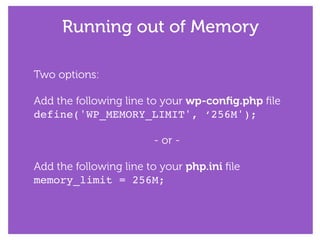
Running out of Memory
Two options:
!
Add the following line to your wp-config.php file
define('WP_MEMORY_LIMIT', ‘256M');!
!
- or -
!
Add the following line to your php.ini file
memory_limit = 256M;
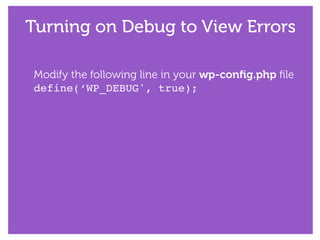
Turning on Debug to View Errors
Modify the following line in your wp-config.php file
define(‘WP_DEBUG', true);
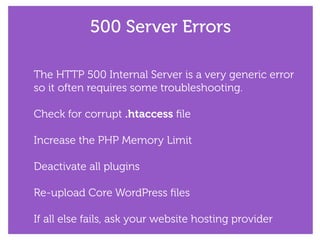
500 Server Errors
The HTTP 500 Internal Server is a very generic error
so it often requires some troubleshooting.
!
Check for corrupt .htaccess file
!
Increase the PHP Memory Limit
!
Deactivate all plugins
!
Re-upload Core WordPress files
!
If all else fails, ask your website hosting provider
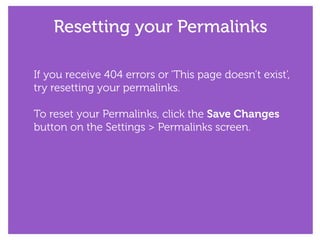
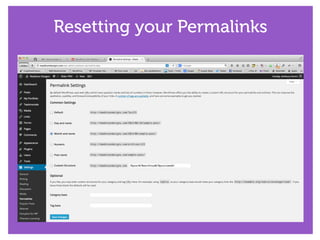
Resetting your Permalinks
If you receive 404 errors or ‘This page doesn’t exist’,
try resetting your permalinks.
!
To reset your Permalinks, click the Save Changes
button on the Settings > Permalinks screen.
Resetting your Permalinks
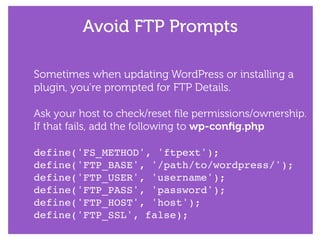
Avoid FTP Prompts
Sometimes when updating WordPress or installing a
plugin, you’re prompted for FTP Details.
!
Ask your host to check/reset file permissions/ownership.
If that fails, add the following to wp-config.php
!
define('FS_METHOD', 'ftpext');!
define('FTP_BASE', '/path/to/wordpress/');!
define('FTP_USER', 'username');!
define('FTP_PASS', 'password');!
define('FTP_HOST', 'host');!
define('FTP_SSL', false);
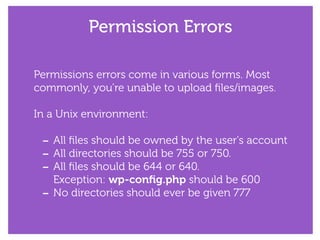
Permission Errors
Permissions errors come in various forms. Most
commonly, you’re unable to upload files/images.
!
In a Unix environment:
!
- All files should be owned by the user's account
- All directories should be 755 or 750.
- All files should be 644 or 640.

Exception: wp-config.php should be 600
- No directories should ever be given 777
Thanks!
Questions?
You can find Anthony here
!
@maddisondesigns
maddisondesigns.com
!
@easywpguide
easywpguide.com
You can find Dee here
!
@thewebprincess
thewebprincess.com

WordPress Q&A

  • 1.
  • 2.
  • 3.
    The ‘White Screenof Death’ The ‘White Screen of Death’ is exactly how it sounds. A simple blank white screen, with no errors! Aargh! It can be caused by numerous issues. ! Try increasing the PHP Memory Limit ! Deactivate all plugins ! Change to one of the default WordPress themes ! Enable Debug in your wp-config.php file
  • 4.
  • 5.
    Dashboard Styles notDisplaying If your Dashboard looks like there’s no CSS styles applied, try adding the following to your 
 wp-config.php file ! define('CONCATENATE_SCRIPTS', false);!
  • 6.
    Dealing with FileSize Limits
  • 7.
    Dealing with FileSize Limits Create a php.ini file in your root folder Add the following lines & save ! upload_max_filesize = 64M;! post_max_size = 64M;! ! ! If it doesn’t work after adding the file to the root folder, try moving it to the wp-admin folder. Different hosts have different restrictions so your experience may vary.
  • 8.
    Running out ofMemory Two options: ! Add the following line to your wp-config.php file define('WP_MEMORY_LIMIT', ‘256M');! ! - or - ! Add the following line to your php.ini file memory_limit = 256M;
  • 9.
    Turning on Debugto View Errors Modify the following line in your wp-config.php file define(‘WP_DEBUG', true);
  • 10.
    500 Server Errors TheHTTP 500 Internal Server is a very generic error so it often requires some troubleshooting. ! Check for corrupt .htaccess file ! Increase the PHP Memory Limit ! Deactivate all plugins ! Re-upload Core WordPress files ! If all else fails, ask your website hosting provider
  • 11.
    Resetting your Permalinks Ifyou receive 404 errors or ‘This page doesn’t exist’, try resetting your permalinks. ! To reset your Permalinks, click the Save Changes button on the Settings > Permalinks screen.
  • 12.
  • 13.
    Avoid FTP Prompts Sometimeswhen updating WordPress or installing a plugin, you’re prompted for FTP Details. ! Ask your host to check/reset file permissions/ownership. If that fails, add the following to wp-config.php ! define('FS_METHOD', 'ftpext');! define('FTP_BASE', '/path/to/wordpress/');! define('FTP_USER', 'username');! define('FTP_PASS', 'password');! define('FTP_HOST', 'host');! define('FTP_SSL', false);
  • 14.
    Permission Errors Permissions errorscome in various forms. Most commonly, you’re unable to upload files/images. ! In a Unix environment: ! - All files should be owned by the user's account - All directories should be 755 or 750. - All files should be 644 or 640.
 Exception: wp-config.php should be 600 - No directories should ever be given 777
  • 15.
    Thanks! Questions? You can findAnthony here ! @maddisondesigns maddisondesigns.com ! @easywpguide easywpguide.com You can find Dee here ! @thewebprincess thewebprincess.com