1
Microsoft Word 2016
Creating Documents with Word 2016
© 2017 Cengage Learning. All Rights Reserved. May not be copied, scanned, or duplicated, in whole in in part, except for use as
permitted in a license distributed with a certain product or service or otherwise on a password-protected website for classroom use.
2
© 2017 Cengage Learning. All Rights Reserved. May not be copied, scanned, or duplicated, in whole or in part, except for use as
permitted in a license distributed with a certain product or service or otherwise on a password-protected website for classroom use.
Module Objectives
• Understand word processing software
• Explore the Word window
• Start a document
• Save a document
• Select text
• Format text using the Mini toolbar and the Ribbon
• Use a document template
• Navigate a document
3
© 2017 Cengage Learning. All Rights Reserved. May not be copied, scanned, or duplicated, in whole or in part, except for use as
permitted in a license distributed with a certain product or service or otherwise on a password-protected website for classroom use.
• A word processing program is software that allows
you to enter, edit, and format text and graphics
• The files you create using Word are called
documents
Understand Word Processing Software
(1 of 3)
4
© 2017 Cengage Learning. All Rights Reserved. May not be copied, scanned, or duplicated, in whole or in part, except for use as
permitted in a license distributed with a certain product or service or otherwise on a password-protected website for classroom use.
Understand Word Processing Software
(2 of 3)
A report created using Word
5
© 2017 Cengage Learning. All Rights Reserved. May not be copied, scanned, or duplicated, in whole or in part, except for use as
permitted in a license distributed with a certain product or service or otherwise on a password-protected website for classroom use.
Understand Word Processing Software
(3 of 3)
• Plan a document before you create it
• The purpose of and audience for a document determine
its design
6
© 2017 Cengage Learning. All Rights Reserved. May not be copied, scanned, or duplicated, in whole or in part, except for use as
permitted in a license distributed with a certain product or service or otherwise on a password-protected website for classroom use.
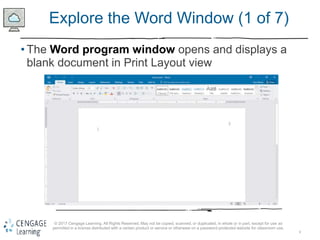
Explore the Word Window (1 of 7)
• The Word program window opens and displays a
blank document in Print Layout view
7
© 2017 Cengage Learning. All Rights Reserved. May not be copied, scanned, or duplicated, in whole or in part, except for use as
permitted in a license distributed with a certain product or service or otherwise on a password-protected website for classroom use.
Explore the Word Window (2 of 7)
• The insertion point indicates where text appears when
you type
• The mouse pointer changes shape depending on its
location in the Word program window
• Each pointer is used for a different purpose
• A Screen Tip appears when you point to a button or
element in the Word program window
8
© 2017 Cengage Learning. All Rights Reserved. May not be copied, scanned, or duplicated, in whole or in part, except for use as
permitted in a license distributed with a certain product or service or otherwise on a password-protected website for classroom use.
Explore the Word Window (3 of 7)
• Quick Access toolbar contains frequently used
commands and is customizable
• The Ribbon Display Options button hides or shows
the Ribbon and tabs, the resizing buttons, and the
program.
• The Ribbon contains tabs
• Tabs include buttons for commands related to editing
and formatting documents
• Commands are organized in groups
9
© 2017 Cengage Learning. All Rights Reserved. May not be copied, scanned, or duplicated, in whole or in part, except for use as
permitted in a license distributed with a certain product or service or otherwise on a password-protected website for classroom use.
Explore the Word Window (4 of 7)
• The Word program window
• Title bar displays the program and document names
• File tab provides access to Backstage view, which contains
commands related to managing and sharing documents:
-Create, open, save, and print a document
-Share a document
-Access Word Options dialog box
• The Tell Me box is used to find a command or access the
Word Help system
• The Share button saves a document to the Cloud
10
© 2017 Cengage Learning. All Rights Reserved. May not be copied, scanned, or duplicated, in whole or in part, except for use as
permitted in a license distributed with a certain product or service or otherwise on a password-protected website for classroom use.
Explore the Word Window (5 of 7)
• The Word program window
• Document window displays the current document
• Rulers show margin, tab, and indent settings
• Scroll bars are used to display different parts of the
document in the document window
11
© 2017 Cengage Learning. All Rights Reserved. May not be copied, scanned, or duplicated, in whole or in part, except for use as
permitted in a license distributed with a certain product or service or otherwise on a password-protected website for classroom use.
Explore the Word Window (6 of 7)
• The Word program window
• Status bar shows page information, the location of the
insertion point, and the on/off status of several Word
features
• Status bar includes:
-View buttons
-Zoom level button and Zoom slider
12
© 2017 Cengage Learning. All Rights Reserved. May not be copied, scanned, or duplicated, in whole or in part, except for use as
permitted in a license distributed with a certain product or service or otherwise on a password-protected website for classroom use.
Explore the Word Window (7 of 7)
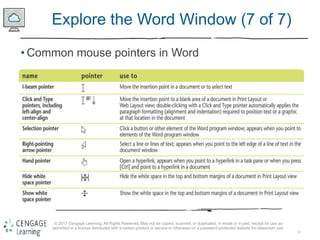
• Common mouse pointers in Word
13
© 2017 Cengage Learning. All Rights Reserved. May not be copied, scanned, or duplicated, in whole or in part, except for use as
permitted in a license distributed with a certain product or service or otherwise on a password-protected website for classroom use.
Start a Document (1 of 2)
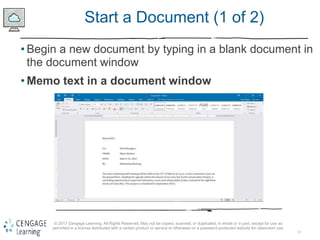
• Begin a new document by typing in a blank document in
the document window
• Memo text in a document window
14
© 2017 Cengage Learning. All Rights Reserved. May not be copied, scanned, or duplicated, in whole or in part, except for use as
permitted in a license distributed with a certain product or service or otherwise on a password-protected website for classroom use.
Start a Document (2 of 2)
• Automatic features that appear as you type in Word
feature what appears to use
AutoComplete A ScreenTip suggesting text to insert appears as
you type
Press [Enter] to insert the text suggested by
the ScreenTip; continue typing to reject the
suggestion
AutoCorrect A small blue box appears when you place the
pointer over text corrected by AutoCorrect; an
AutoCorrect Options button appears when you
point to the blue box
Word automatically corrects typos, minor
spelling errors, and capitalization, and adds
typographical symbols (such as © and TM) as
you type; to reverse an AutoCorrect
adjustment, click the AutoCorrect Options list
arrow, then click the option that will undo the
action
Spelling and Grammar A red wavy line under a word indicates a
possible misspelling or a repeated word; a blue
wavy line under text indicates a possible grammar
error
Right-click red- or blue-underlined text to
display a shortcut menu of correction options;
click a correction option to accept it and
remove the wavy underline
15
© 2017 Cengage Learning. All Rights Reserved. May not be copied, scanned, or duplicated, in whole or in part, except for use as
permitted in a license distributed with a certain product or service or otherwise on a password-protected website for classroom use.
Save a Document (1 of 3)
• To store a document permanently, you must save it as a
file
• When you save a file you give it a name, called a
filename, and indicate the location to store the file
• Saving a file allows you to close the file and open it later
for editing or printing
16
© 2017 Cengage Learning. All Rights Reserved. May not be copied, scanned, or duplicated, in whole or in part, except for use as
permitted in a license distributed with a certain product or service or otherwise on a password-protected website for classroom use.
Save a Document (2 of 3)
• Save a file for the first time using the Save button on
the Quick Access toolbar or the Save command on the
File tab
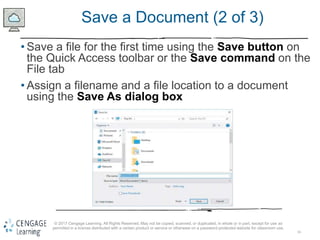
• Assign a filename and a file location to a document
using the Save As dialog box
17
© 2017 Cengage Learning. All Rights Reserved. May not be copied, scanned, or duplicated, in whole or in part, except for use as
permitted in a license distributed with a certain product or service or otherwise on a password-protected website for classroom use.
Save a Document (3 of 3)
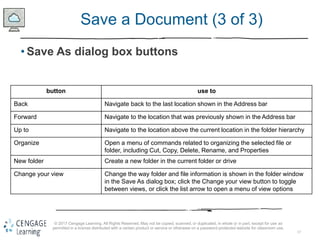
• Save As dialog box buttons
button use to
Back Navigate back to the last location shown in the Address bar
Forward Navigate to the location that was previously shown in the Address bar
Up to Navigate to the location above the current location in the folder hierarchy
Organize Open a menu of commands related to organizing the selected file or
folder, including Cut, Copy, Delete, Rename, and Properties
New folder Create a new folder in the current folder or drive
Change your view Change the way folder and file information is shown in the folder window
in the Save As dialog box; click the Change your view button to toggle
between views, or click the list arrow to open a menu of view options
18
© 2017 Cengage Learning. All Rights Reserved. May not be copied, scanned, or duplicated, in whole or in part, except for use as
permitted in a license distributed with a certain product or service or otherwise on a password-protected website for classroom use.
Select Text (1 of 2)
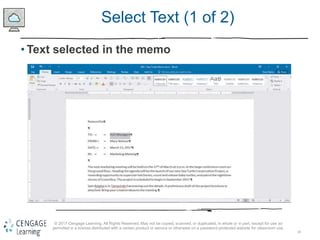
• Text selected in the memo
19
© 2017 Cengage Learning. All Rights Reserved. May not be copied, scanned, or duplicated, in whole or in part, except for use as
permitted in a license distributed with a certain product or service or otherwise on a password-protected website for classroom use.
Select Text ( 2 of 2)
• Methods for selecting text
to select use the pointer to
Any amount of text Drag over the text
A word Double-click the word
Alineoftext Move the pointer to the left of the line, then click
Asentence Press and hold [Ctrl], then click the sentence
Aparagraph Triple-click the paragraph or double-click with the pointer
to the left of the paragraph
Alargeblockoftext Click at the beginning of the selection, press and hold
[Shift], then click at the end of the selection
Multiple nonconsecutive selections Select the first selection, then press and hold [Ctrl] as you
select each additional selection
Anentiredocument Triple-click with the pointer to the left of any text; press
[Ctrl][A]; or click the Select button in the Editing group on
the Home tab, and then click Select All
20
© 2017 Cengage Learning. All Rights Reserved. May not be copied, scanned, or duplicated, in whole or in part, except for use as
permitted in a license distributed with a certain product or service or otherwise on a password-protected website for classroom use.
Format Text Using the Mini Toolbar and
the Ribbon (1 of 2)
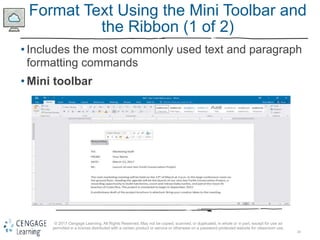
• Includes the most commonly used text and paragraph
formatting commands
• Mini toolbar
21
© 2017 Cengage Learning. All Rights Reserved. May not be copied, scanned, or duplicated, in whole or in part, except for use as
permitted in a license distributed with a certain product or service or otherwise on a password-protected website for classroom use.
Format Text Using the Mini Toolbar and
the Ribbon (2 of 2)
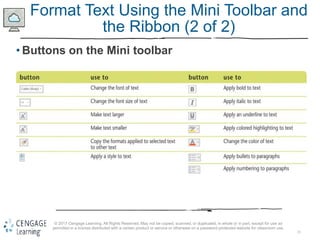
• Buttons on the Mini toolbar
22
© 2017 Cengage Learning. All Rights Reserved. May not be copied, scanned, or duplicated, in whole or in part, except for use as
permitted in a license distributed with a certain product or service or otherwise on a password-protected website for classroom use.
Use a Document Template (1 of 3)
• A template helps you create a formatted document
quickly
• A template is a formatted document that contains
placeholder text
• You replace the placeholder text with your own text and
save the file with a new filename
• Word includes templates for faxes, letters, reports,
brochures, and other types of documents
23
© 2017 Cengage Learning. All Rights Reserved. May not be copied, scanned, or duplicated, in whole or in part, except for use as
permitted in a license distributed with a certain product or service or otherwise on a password-protected website for classroom use.
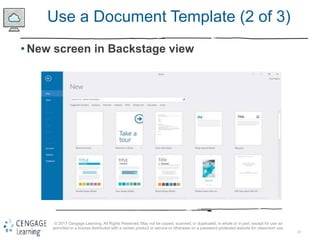
Use a Document Template (2 of 3)
• New screen in Backstage view
24
© 2017 Cengage Learning. All Rights Reserved. May not be copied, scanned, or duplicated, in whole or in part, except for use as
permitted in a license distributed with a certain product or service or otherwise on a password-protected website for classroom use.
Use a Document Template (3 of 3)
• Using the Undo, Redo, and Repeat commands
• Reverse the last action with the Undo button
• Restore a change that you reversed with the Redo button
• Repeat a change with the Repeat command on the Edit
menu
25
© 2017 Cengage Learning. All Rights Reserved. May not be copied, scanned, or duplicated, in whole or in part, except for use as
permitted in a license distributed with a certain product or service or otherwise on a password-protected website for classroom use.
Navigate a Document (1 of 3)
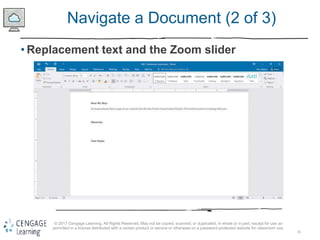
• Word Zoom feature
• Enlarge document for a close-up view
• Reduce document for an overview of the layout
• Use tools in the Zoom group on the View tab
26
© 2017 Cengage Learning. All Rights Reserved. May not be copied, scanned, or duplicated, in whole or in part, except for use as
permitted in a license distributed with a certain product or service or otherwise on a password-protected website for classroom use.
Navigate a Document (2 of 3)
• Replacement text and the Zoom slider
27
© 2017 Cengage Learning. All Rights Reserved. May not be copied, scanned, or duplicated, in whole or in part, except for use as
permitted in a license distributed with a certain product or service or otherwise on a password-protected website for classroom use.
Navigate a Document (3 of 3)
• Using Word document views
• Print Layout view
• Read Mode view
• Web Layout view
• Outline view
• Draft view

Word_2016_Module_1_PPT__Presentation_accessible.pptx

  • 1.
    1 Microsoft Word 2016 CreatingDocuments with Word 2016 © 2017 Cengage Learning. All Rights Reserved. May not be copied, scanned, or duplicated, in whole in in part, except for use as permitted in a license distributed with a certain product or service or otherwise on a password-protected website for classroom use.
  • 2.
    2 © 2017 CengageLearning. All Rights Reserved. May not be copied, scanned, or duplicated, in whole or in part, except for use as permitted in a license distributed with a certain product or service or otherwise on a password-protected website for classroom use. Module Objectives • Understand word processing software • Explore the Word window • Start a document • Save a document • Select text • Format text using the Mini toolbar and the Ribbon • Use a document template • Navigate a document
  • 3.
    3 © 2017 CengageLearning. All Rights Reserved. May not be copied, scanned, or duplicated, in whole or in part, except for use as permitted in a license distributed with a certain product or service or otherwise on a password-protected website for classroom use. • A word processing program is software that allows you to enter, edit, and format text and graphics • The files you create using Word are called documents Understand Word Processing Software (1 of 3)
  • 4.
    4 © 2017 CengageLearning. All Rights Reserved. May not be copied, scanned, or duplicated, in whole or in part, except for use as permitted in a license distributed with a certain product or service or otherwise on a password-protected website for classroom use. Understand Word Processing Software (2 of 3) A report created using Word
  • 5.
    5 © 2017 CengageLearning. All Rights Reserved. May not be copied, scanned, or duplicated, in whole or in part, except for use as permitted in a license distributed with a certain product or service or otherwise on a password-protected website for classroom use. Understand Word Processing Software (3 of 3) • Plan a document before you create it • The purpose of and audience for a document determine its design
  • 6.
    6 © 2017 CengageLearning. All Rights Reserved. May not be copied, scanned, or duplicated, in whole or in part, except for use as permitted in a license distributed with a certain product or service or otherwise on a password-protected website for classroom use. Explore the Word Window (1 of 7) • The Word program window opens and displays a blank document in Print Layout view
  • 7.
    7 © 2017 CengageLearning. All Rights Reserved. May not be copied, scanned, or duplicated, in whole or in part, except for use as permitted in a license distributed with a certain product or service or otherwise on a password-protected website for classroom use. Explore the Word Window (2 of 7) • The insertion point indicates where text appears when you type • The mouse pointer changes shape depending on its location in the Word program window • Each pointer is used for a different purpose • A Screen Tip appears when you point to a button or element in the Word program window
  • 8.
    8 © 2017 CengageLearning. All Rights Reserved. May not be copied, scanned, or duplicated, in whole or in part, except for use as permitted in a license distributed with a certain product or service or otherwise on a password-protected website for classroom use. Explore the Word Window (3 of 7) • Quick Access toolbar contains frequently used commands and is customizable • The Ribbon Display Options button hides or shows the Ribbon and tabs, the resizing buttons, and the program. • The Ribbon contains tabs • Tabs include buttons for commands related to editing and formatting documents • Commands are organized in groups
  • 9.
    9 © 2017 CengageLearning. All Rights Reserved. May not be copied, scanned, or duplicated, in whole or in part, except for use as permitted in a license distributed with a certain product or service or otherwise on a password-protected website for classroom use. Explore the Word Window (4 of 7) • The Word program window • Title bar displays the program and document names • File tab provides access to Backstage view, which contains commands related to managing and sharing documents: -Create, open, save, and print a document -Share a document -Access Word Options dialog box • The Tell Me box is used to find a command or access the Word Help system • The Share button saves a document to the Cloud
  • 10.
    10 © 2017 CengageLearning. All Rights Reserved. May not be copied, scanned, or duplicated, in whole or in part, except for use as permitted in a license distributed with a certain product or service or otherwise on a password-protected website for classroom use. Explore the Word Window (5 of 7) • The Word program window • Document window displays the current document • Rulers show margin, tab, and indent settings • Scroll bars are used to display different parts of the document in the document window
  • 11.
    11 © 2017 CengageLearning. All Rights Reserved. May not be copied, scanned, or duplicated, in whole or in part, except for use as permitted in a license distributed with a certain product or service or otherwise on a password-protected website for classroom use. Explore the Word Window (6 of 7) • The Word program window • Status bar shows page information, the location of the insertion point, and the on/off status of several Word features • Status bar includes: -View buttons -Zoom level button and Zoom slider
  • 12.
    12 © 2017 CengageLearning. All Rights Reserved. May not be copied, scanned, or duplicated, in whole or in part, except for use as permitted in a license distributed with a certain product or service or otherwise on a password-protected website for classroom use. Explore the Word Window (7 of 7) • Common mouse pointers in Word
  • 13.
    13 © 2017 CengageLearning. All Rights Reserved. May not be copied, scanned, or duplicated, in whole or in part, except for use as permitted in a license distributed with a certain product or service or otherwise on a password-protected website for classroom use. Start a Document (1 of 2) • Begin a new document by typing in a blank document in the document window • Memo text in a document window
  • 14.
    14 © 2017 CengageLearning. All Rights Reserved. May not be copied, scanned, or duplicated, in whole or in part, except for use as permitted in a license distributed with a certain product or service or otherwise on a password-protected website for classroom use. Start a Document (2 of 2) • Automatic features that appear as you type in Word feature what appears to use AutoComplete A ScreenTip suggesting text to insert appears as you type Press [Enter] to insert the text suggested by the ScreenTip; continue typing to reject the suggestion AutoCorrect A small blue box appears when you place the pointer over text corrected by AutoCorrect; an AutoCorrect Options button appears when you point to the blue box Word automatically corrects typos, minor spelling errors, and capitalization, and adds typographical symbols (such as © and TM) as you type; to reverse an AutoCorrect adjustment, click the AutoCorrect Options list arrow, then click the option that will undo the action Spelling and Grammar A red wavy line under a word indicates a possible misspelling or a repeated word; a blue wavy line under text indicates a possible grammar error Right-click red- or blue-underlined text to display a shortcut menu of correction options; click a correction option to accept it and remove the wavy underline
  • 15.
    15 © 2017 CengageLearning. All Rights Reserved. May not be copied, scanned, or duplicated, in whole or in part, except for use as permitted in a license distributed with a certain product or service or otherwise on a password-protected website for classroom use. Save a Document (1 of 3) • To store a document permanently, you must save it as a file • When you save a file you give it a name, called a filename, and indicate the location to store the file • Saving a file allows you to close the file and open it later for editing or printing
  • 16.
    16 © 2017 CengageLearning. All Rights Reserved. May not be copied, scanned, or duplicated, in whole or in part, except for use as permitted in a license distributed with a certain product or service or otherwise on a password-protected website for classroom use. Save a Document (2 of 3) • Save a file for the first time using the Save button on the Quick Access toolbar or the Save command on the File tab • Assign a filename and a file location to a document using the Save As dialog box
  • 17.
    17 © 2017 CengageLearning. All Rights Reserved. May not be copied, scanned, or duplicated, in whole or in part, except for use as permitted in a license distributed with a certain product or service or otherwise on a password-protected website for classroom use. Save a Document (3 of 3) • Save As dialog box buttons button use to Back Navigate back to the last location shown in the Address bar Forward Navigate to the location that was previously shown in the Address bar Up to Navigate to the location above the current location in the folder hierarchy Organize Open a menu of commands related to organizing the selected file or folder, including Cut, Copy, Delete, Rename, and Properties New folder Create a new folder in the current folder or drive Change your view Change the way folder and file information is shown in the folder window in the Save As dialog box; click the Change your view button to toggle between views, or click the list arrow to open a menu of view options
  • 18.
    18 © 2017 CengageLearning. All Rights Reserved. May not be copied, scanned, or duplicated, in whole or in part, except for use as permitted in a license distributed with a certain product or service or otherwise on a password-protected website for classroom use. Select Text (1 of 2) • Text selected in the memo
  • 19.
    19 © 2017 CengageLearning. All Rights Reserved. May not be copied, scanned, or duplicated, in whole or in part, except for use as permitted in a license distributed with a certain product or service or otherwise on a password-protected website for classroom use. Select Text ( 2 of 2) • Methods for selecting text to select use the pointer to Any amount of text Drag over the text A word Double-click the word Alineoftext Move the pointer to the left of the line, then click Asentence Press and hold [Ctrl], then click the sentence Aparagraph Triple-click the paragraph or double-click with the pointer to the left of the paragraph Alargeblockoftext Click at the beginning of the selection, press and hold [Shift], then click at the end of the selection Multiple nonconsecutive selections Select the first selection, then press and hold [Ctrl] as you select each additional selection Anentiredocument Triple-click with the pointer to the left of any text; press [Ctrl][A]; or click the Select button in the Editing group on the Home tab, and then click Select All
  • 20.
    20 © 2017 CengageLearning. All Rights Reserved. May not be copied, scanned, or duplicated, in whole or in part, except for use as permitted in a license distributed with a certain product or service or otherwise on a password-protected website for classroom use. Format Text Using the Mini Toolbar and the Ribbon (1 of 2) • Includes the most commonly used text and paragraph formatting commands • Mini toolbar
  • 21.
    21 © 2017 CengageLearning. All Rights Reserved. May not be copied, scanned, or duplicated, in whole or in part, except for use as permitted in a license distributed with a certain product or service or otherwise on a password-protected website for classroom use. Format Text Using the Mini Toolbar and the Ribbon (2 of 2) • Buttons on the Mini toolbar
  • 22.
    22 © 2017 CengageLearning. All Rights Reserved. May not be copied, scanned, or duplicated, in whole or in part, except for use as permitted in a license distributed with a certain product or service or otherwise on a password-protected website for classroom use. Use a Document Template (1 of 3) • A template helps you create a formatted document quickly • A template is a formatted document that contains placeholder text • You replace the placeholder text with your own text and save the file with a new filename • Word includes templates for faxes, letters, reports, brochures, and other types of documents
  • 23.
    23 © 2017 CengageLearning. All Rights Reserved. May not be copied, scanned, or duplicated, in whole or in part, except for use as permitted in a license distributed with a certain product or service or otherwise on a password-protected website for classroom use. Use a Document Template (2 of 3) • New screen in Backstage view
  • 24.
    24 © 2017 CengageLearning. All Rights Reserved. May not be copied, scanned, or duplicated, in whole or in part, except for use as permitted in a license distributed with a certain product or service or otherwise on a password-protected website for classroom use. Use a Document Template (3 of 3) • Using the Undo, Redo, and Repeat commands • Reverse the last action with the Undo button • Restore a change that you reversed with the Redo button • Repeat a change with the Repeat command on the Edit menu
  • 25.
    25 © 2017 CengageLearning. All Rights Reserved. May not be copied, scanned, or duplicated, in whole or in part, except for use as permitted in a license distributed with a certain product or service or otherwise on a password-protected website for classroom use. Navigate a Document (1 of 3) • Word Zoom feature • Enlarge document for a close-up view • Reduce document for an overview of the layout • Use tools in the Zoom group on the View tab
  • 26.
    26 © 2017 CengageLearning. All Rights Reserved. May not be copied, scanned, or duplicated, in whole or in part, except for use as permitted in a license distributed with a certain product or service or otherwise on a password-protected website for classroom use. Navigate a Document (2 of 3) • Replacement text and the Zoom slider
  • 27.
    27 © 2017 CengageLearning. All Rights Reserved. May not be copied, scanned, or duplicated, in whole or in part, except for use as permitted in a license distributed with a certain product or service or otherwise on a password-protected website for classroom use. Navigate a Document (3 of 3) • Using Word document views • Print Layout view • Read Mode view • Web Layout view • Outline view • Draft view