Module 2
Configuring local storage
Module Overview
Managing disks in Windows Server
• Managing volumes in Windows Server
Lesson 1: Managing disks in Windows Server
Selecting a partition table format
Selecting a disk type
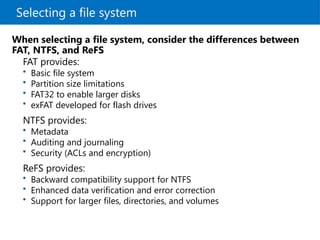
Selecting a file system
Implementing ReFS
Demonstration: Configuring ReFS
Using .vhd and .vhdx file types
• Selecting a disk type
Selecting a partition table format
 Use MBR for disks smaller than 2 TB
 Use GPT for disks larger than 2 TB
MBR
• Standard partition table format since early 1980s
• Supports a maximum of four primary partitions per
drive
• Can partition a disk up to 2 TB
GPT
• GPT is the successor of the MBR partition table format
• Supports a maximum of 128 partitions per drive
• Can partition a disk up to 18 exabytes
Selecting a disk type
Basic disks are:
• Disks initialized for basic storage
• The default storage for the Windows operating system
Dynamic disks can:
• Be modified without restarting the Windows system
• Provide several options for configuring volumes
Disk volume requirements include:
• A system volume for hardware-specific files that are
required to start the server
• A boot volume for the Windows operating system files
Selecting a file system
FAT provides:
• Basic file system
• Partition size limitations
• FAT32 to enable larger disks
• exFAT developed for flash drives
NTFS provides:
• Metadata
• Auditing and journaling
• Security (ACLs and encryption)
ReFS provides:
• Backward compatibility support for NTFS
• Enhanced data verification and error correction
• Support for larger files, directories, and volumes
When selecting a file system, consider the differences between
FAT, NTFS, and ReFS
Implementing ReFS
ReFS has a number of advantages over NTFS:
• Metadata integrity with checksums
• Integrity streams with user data integrity
• Allocation on write transactional model
• Large volume, file, and directory sizes (2^78 bytes with
16 KB cluster size)
• Storage pooling and virtualization
• Data striping for performance and redundancy
• Disk scrubbing for protection against latent disk errors
• Resiliency to corruptions with recovery
• Shared storage pools across machines
Demonstration: Configuring ReFS
In this demonstration, you will see how to:
• Retrieve the volume and sector information for an
NTFS volume by using the fsutil command
• Reformat the NTFS volume as an ReFS volume
• Retrieve the volume and sector information for the
ReFS volume by using the fsutil command
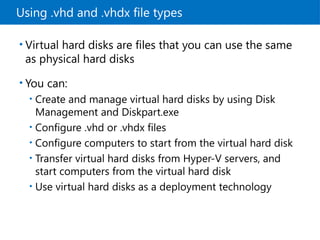
Using .vhd and .vhdx file types
• Virtual hard disks are files that you can use the same
as physical hard disks
• You can:
• Create and manage virtual hard disks by using Disk
Management and Diskpart.exe
• Configure .vhd or .vhdx files
• Configure computers to start from the virtual hard disk
• Transfer virtual hard disks from Hyper-V servers, and
start computers from the virtual hard disk
• Use virtual hard disks as a deployment technology
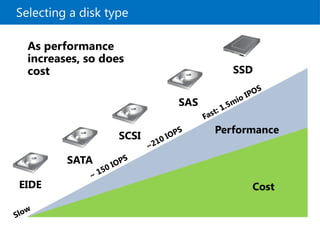
Selecting a disk type
EIDE
SCSI
SATA
SAS
Cost
Performance
Slow
~ 150 IOPS
~210 IOPS
Fast: 1.5mio IPOS
SSD
As performance
increases, so does
cost
Lesson 2: Managing volumes in Windows Server
What are disk volumes?
Options for managing volumes
Demonstration: Managing volumes
Extending and shrinking a volume
What is RAID?
• RAID levels
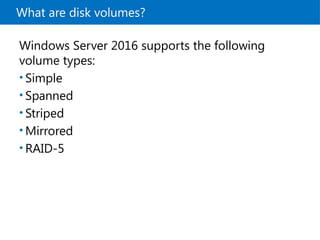
What are disk volumes?
Windows Server 2016 supports the following
volume types:
• Simple
• Spanned
• Striped
• Mirrored
• RAID-5
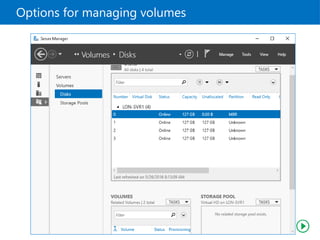
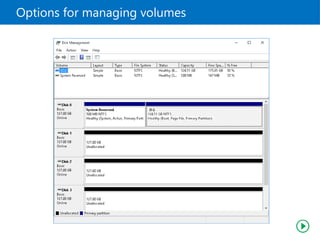
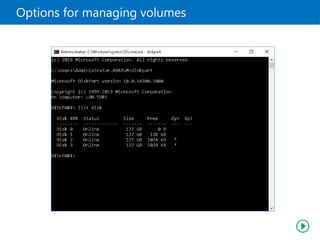
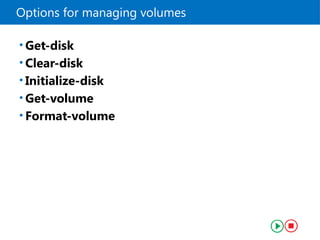
Options for managing volumes
• Get-disk
• Clear-disk
• Initialize-disk
• Get-volume
• Format-volume
Demonstration: Managing volumes
In this demonstration, you will see how to:
• Create a new volume with Diskpart
• Create a mirrored volume
Extending and shrinking a volume
• You can resize volumes with Windows Server
2016
• When you want to resize a disk, consider the
following:
• You can extend or shrink NTFS volumes
• You can only extend ReFS volumes
• You cannot resize FAT/FAT32/exFAT volumes
• You can shrink a volume only up to immovable files
• You cannot shrink a volume with bad clusters
What is RAID?
RAID:
• Combines multiple disks into a single logical unit to
provide fault tolerance and performance
• Provides fault tolerance by using:
• Disk mirroring
• Parity information
• Can provide performance benefits by spreading disk
I/O across multiple disks
• Can be configured using several different levels
• Should not replace server backups
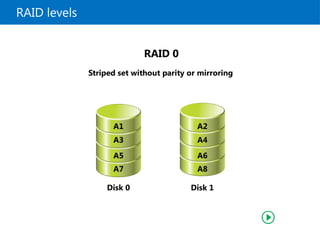
RAID levels
Striped set without parity or mirroring
RAID 0
A2
A1
A4
A6
A8
A3
A5
A7
Disk 0 Disk 1
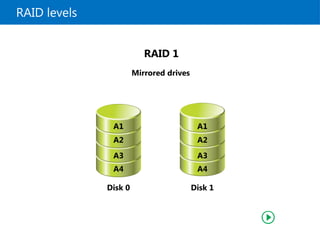
RAID levels
Mirrored drives
RAID 1
A1
A1
A2
A3
A4
A2
A3
A4
Disk 0 Disk 1
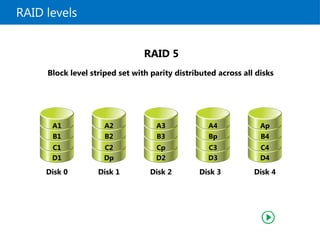
RAID levels
Block level striped set with parity distributed across all disks
RAID 5
A1
B1
C1
D1
A2
B2
C2
Dp
A3
B3
Cp
D2
A4
Bp
C3
D3
Ap
B4
C4
D4
Disk 0 Disk 1 Disk 2 Disk 3 Disk 4
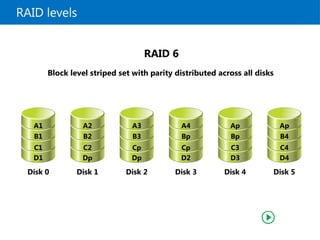
RAID levels
Block level striped set with parity distributed across all disks
RAID 6
A1
B1
C1
D1
Disk 0
A2
B2
C2
Dp
Disk 1
A3
B3
Cp
Dp
Disk 2
A4
Bp
Cp
D2
Disk 3
Ap
Bp
C3
D3
Disk 4
Ap
B4
C4
D4
Disk 5
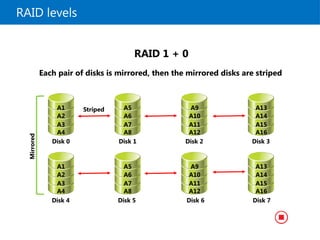
RAID levels
Each pair of disks is mirrored, then the mirrored disks are striped
RAID 1 + 0
A1
A2
A3
A4
A5
A6
A7
A8
A9
A10
A11
A12
A13
A14
A15
A16
Mirrored
A1
A2
A3
A4
Disk 0
A5
A6
A7
A8
Disk 1
A9
A10
A11
A12
Disk 2
A13
A14
A15
A16
Disk 3
Disk 4 Disk 5 Disk 6 Disk 7
Striped
Lab: Configuring local storage
Exercise 1: Creating and managing volumes
Exercise 2: Resizing volumes
• Exercise 3: Managing virtual hard disks
Logon Information
Virtual machines: 20740A-LON-DC1
20740A-LON-SVR1
20740A-LON-HOST1
User name: AdatumAdministrator
Password: Pa$$w0rd
Estimated Time: 40 minutes
Lab Scenario
Your manager has asked you to add disk space to
a file server that is running on a virtual machine.
This virtual machine will potentially grow
significantly in size in the upcoming months and
you might need flexibility in your storage options.
Your manager has asked you to optimize the
cluster and sector size for virtual machines usage
to accommodate large file sizes for storage on
virtual machines. You need to assess the best
options for storage and ease of expansion for
potential future use.
Lab Review
In the lab, you used the Diskpart.exe command-line
tool to create and resize volumes. What alternate
Windows PowerShell cmdlets could you have used?
• Your current volume runs out of disk space. You
have another disk available in the same server.
What actions in the Windows operating system
can you perform to help you add disk space?
Module Review and Takeaways
Review Questions
Tools
• Best Practice

Windows Server 2016 MCSA Module2 - Configure Storage

  • 1.
  • 2.
    Module Overview Managing disksin Windows Server • Managing volumes in Windows Server
  • 3.
    Lesson 1: Managingdisks in Windows Server Selecting a partition table format Selecting a disk type Selecting a file system Implementing ReFS Demonstration: Configuring ReFS Using .vhd and .vhdx file types • Selecting a disk type
  • 4.
    Selecting a partitiontable format  Use MBR for disks smaller than 2 TB  Use GPT for disks larger than 2 TB MBR • Standard partition table format since early 1980s • Supports a maximum of four primary partitions per drive • Can partition a disk up to 2 TB GPT • GPT is the successor of the MBR partition table format • Supports a maximum of 128 partitions per drive • Can partition a disk up to 18 exabytes
  • 5.
    Selecting a disktype Basic disks are: • Disks initialized for basic storage • The default storage for the Windows operating system Dynamic disks can: • Be modified without restarting the Windows system • Provide several options for configuring volumes Disk volume requirements include: • A system volume for hardware-specific files that are required to start the server • A boot volume for the Windows operating system files
  • 6.
    Selecting a filesystem FAT provides: • Basic file system • Partition size limitations • FAT32 to enable larger disks • exFAT developed for flash drives NTFS provides: • Metadata • Auditing and journaling • Security (ACLs and encryption) ReFS provides: • Backward compatibility support for NTFS • Enhanced data verification and error correction • Support for larger files, directories, and volumes When selecting a file system, consider the differences between FAT, NTFS, and ReFS
  • 7.
    Implementing ReFS ReFS hasa number of advantages over NTFS: • Metadata integrity with checksums • Integrity streams with user data integrity • Allocation on write transactional model • Large volume, file, and directory sizes (2^78 bytes with 16 KB cluster size) • Storage pooling and virtualization • Data striping for performance and redundancy • Disk scrubbing for protection against latent disk errors • Resiliency to corruptions with recovery • Shared storage pools across machines
  • 8.
    Demonstration: Configuring ReFS Inthis demonstration, you will see how to: • Retrieve the volume and sector information for an NTFS volume by using the fsutil command • Reformat the NTFS volume as an ReFS volume • Retrieve the volume and sector information for the ReFS volume by using the fsutil command
  • 9.
    Using .vhd and.vhdx file types • Virtual hard disks are files that you can use the same as physical hard disks • You can: • Create and manage virtual hard disks by using Disk Management and Diskpart.exe • Configure .vhd or .vhdx files • Configure computers to start from the virtual hard disk • Transfer virtual hard disks from Hyper-V servers, and start computers from the virtual hard disk • Use virtual hard disks as a deployment technology
  • 10.
    Selecting a disktype EIDE SCSI SATA SAS Cost Performance Slow ~ 150 IOPS ~210 IOPS Fast: 1.5mio IPOS SSD As performance increases, so does cost
  • 11.
    Lesson 2: Managingvolumes in Windows Server What are disk volumes? Options for managing volumes Demonstration: Managing volumes Extending and shrinking a volume What is RAID? • RAID levels
  • 12.
    What are diskvolumes? Windows Server 2016 supports the following volume types: • Simple • Spanned • Striped • Mirrored • RAID-5
  • 13.
  • 14.
  • 15.
  • 16.
    Options for managingvolumes • Get-disk • Clear-disk • Initialize-disk • Get-volume • Format-volume
  • 17.
    Demonstration: Managing volumes Inthis demonstration, you will see how to: • Create a new volume with Diskpart • Create a mirrored volume
  • 18.
    Extending and shrinkinga volume • You can resize volumes with Windows Server 2016 • When you want to resize a disk, consider the following: • You can extend or shrink NTFS volumes • You can only extend ReFS volumes • You cannot resize FAT/FAT32/exFAT volumes • You can shrink a volume only up to immovable files • You cannot shrink a volume with bad clusters
  • 19.
    What is RAID? RAID: •Combines multiple disks into a single logical unit to provide fault tolerance and performance • Provides fault tolerance by using: • Disk mirroring • Parity information • Can provide performance benefits by spreading disk I/O across multiple disks • Can be configured using several different levels • Should not replace server backups
  • 20.
    RAID levels Striped setwithout parity or mirroring RAID 0 A2 A1 A4 A6 A8 A3 A5 A7 Disk 0 Disk 1
  • 21.
    RAID levels Mirrored drives RAID1 A1 A1 A2 A3 A4 A2 A3 A4 Disk 0 Disk 1
  • 22.
    RAID levels Block levelstriped set with parity distributed across all disks RAID 5 A1 B1 C1 D1 A2 B2 C2 Dp A3 B3 Cp D2 A4 Bp C3 D3 Ap B4 C4 D4 Disk 0 Disk 1 Disk 2 Disk 3 Disk 4
  • 23.
    RAID levels Block levelstriped set with parity distributed across all disks RAID 6 A1 B1 C1 D1 Disk 0 A2 B2 C2 Dp Disk 1 A3 B3 Cp Dp Disk 2 A4 Bp Cp D2 Disk 3 Ap Bp C3 D3 Disk 4 Ap B4 C4 D4 Disk 5
  • 24.
    RAID levels Each pairof disks is mirrored, then the mirrored disks are striped RAID 1 + 0 A1 A2 A3 A4 A5 A6 A7 A8 A9 A10 A11 A12 A13 A14 A15 A16 Mirrored A1 A2 A3 A4 Disk 0 A5 A6 A7 A8 Disk 1 A9 A10 A11 A12 Disk 2 A13 A14 A15 A16 Disk 3 Disk 4 Disk 5 Disk 6 Disk 7 Striped
  • 25.
    Lab: Configuring localstorage Exercise 1: Creating and managing volumes Exercise 2: Resizing volumes • Exercise 3: Managing virtual hard disks Logon Information Virtual machines: 20740A-LON-DC1 20740A-LON-SVR1 20740A-LON-HOST1 User name: AdatumAdministrator Password: Pa$$w0rd Estimated Time: 40 minutes
  • 26.
    Lab Scenario Your managerhas asked you to add disk space to a file server that is running on a virtual machine. This virtual machine will potentially grow significantly in size in the upcoming months and you might need flexibility in your storage options. Your manager has asked you to optimize the cluster and sector size for virtual machines usage to accommodate large file sizes for storage on virtual machines. You need to assess the best options for storage and ease of expansion for potential future use.
  • 27.
    Lab Review In thelab, you used the Diskpart.exe command-line tool to create and resize volumes. What alternate Windows PowerShell cmdlets could you have used? • Your current volume runs out of disk space. You have another disk available in the same server. What actions in the Windows operating system can you perform to help you add disk space?
  • 28.
    Module Review andTakeaways Review Questions Tools • Best Practice

Editor's Notes

  • #1 Presentation: 50 minutes Lab: 40 minutes After completing this module, students will be able to: Manage disks in Windows Server 2016. Manage volumes in Windows Server 2016. Required materials To teach this module, you need the Microsoft PowerPoint file 20740A_02.pptx. Preparation tasks To prepare for this module: Read all of the materials for this module. Practice performing the demonstrations and labs. Work through the Module Review and Takeaways section to determine how you will use the information to reinforce student learning and promote knowledge transfer to on-the-job performance. As you prepare for this class, it is imperative that you complete the labs yourself. This gives you an understanding of how the labs work, in addition to the concepts that each lab covers. This enables you to provide meaningful hints to students who might have issues while working in the labs. Furthermore, it will help guide your lecture to ensure that you discuss the concepts that the labs cover.
  • #2 Briefly describe the lessons in this module.
  • #3 Briefly describe the topics included in this lesson. Question What disk types are you most commonly using in your organization, and do you have a management and provisioning strategy for storage usage in particular scenarios? Answer Answers will vary based on student experiences. Question ReFS supports data deduplication in Windows Server 2016. ( ) False ( ) True Answer ( √) False ( ) True
  • #4 Provide an overview of the two partition table formats that are available in the Windows operating system: Master boot record (MBR) Globally unique identifier (GUID) partition table (GPT) Mention that MBR has been around for more than 30 years, and that GPT is the enhanced version of MBR that addresses larger disks.
  • #5 Provide an overview of a basic disk and a dynamic disk.
  • #6 Provide an overview of the available file systems in Windows operating systems: file allocation table (FAT), NTFS file system, and Resilient File System (ReFS). In particular, be sure to explain that Windows Server 2012 introduced ReFS to ensure that error verification and correction was still possible on very large volumes. Discuss when you would use which file system, but stress that ReFS currently is the best solution for servers. This is because it provides better error checking, better reliability, and less corruption. Question What file system do you currently use on your file server and will you continue to use it? Answer Answers could vary. A common answer is NTFS, because NTFS should be the basis for any file system used on a Windows Server operating system. If you use FAT32 or Extended FAT (exFAT), you should be able to support your decision, because these file systems do not support security access control lists (ACLs) on files and folders. The second part of the question focuses on switching to ReFS when upgrading to Windows Server 2016. You might answer yes because it is more reliable, or you might answer no, because you want to wait until it is used more widely in the market.
  • #8 Mention that even though the demonstration uses Windows PowerShell, the demonstrated commands are actually command-line tools, not Windows PowerShell cmdlets. Leave the virtual machines running after you complete the demonstration. Preparation Steps If necessary, start 20740A-LON-DC1 and 20740A-LON-SVR1. Sign in to LON-SVR1 with the username Adatum\Administrator and the password Pa$$w0rd. Demonstration Steps Retrieve information for an NTFS volume On LON‑SVR1 right-click Start, and then click Disk Management. In the lower half of the display, scroll down and right-click Disk 2 and then click Online. Repeat for Disk 3 and Disk 4. Close and reopen Disk Management. In the Initialize Disk dialog box, click OK. Right-click the Unallocated space on Disk 2, and then click New Simple Volume. In the New Simple Volume Wizard, click Next. On the Specify Volume Size page, click Next. On the Assign Drive Letter or Path page, in the Assign the following drive letter list, click F, and then click Next. On the Format Partition page, in the Volume label text box, type New Volume, and then click Next. Click Finish. Right-click Start, and then click Windows PowerShell (Admin).
  • #9 At the Windows PowerShell prompt, run the following command to view information about the NTFS volume: fsutil fsinfo volumeinfo f: At the Windows PowerShell prompt, run the following command to view the sector information: fsutil fsinfo sectorinfo f: Reformat the volume At the Windows PowerShell prompt, run the following command to reformat the NTFS volume as a ReFS volume: Format-Volume –DriveLetter F –FileSystem ReFS If prompted to confirm the format, type Y, and then press Enter. Retrieve Information for an ReFS volume At the Windows PowerShell prompt, run the following command to view information about the ReFS volume: fsutil fsinfo volumeinfo f: At the Windows PowerShell prompt, run the following command to view the sector information about the ReFS volume: fsutil fsinfo sectorinfo f: Scroll back through the output to view the differences between the file system capabilities.
  • #10 Ask students if they have worked with virtual hard disks in Microsoft Hyper-V. If students have used virtual hard disks in this context, ask them what they use the disks for in Hyper-V. Students should be aware that the virtual machines in Hyper-V use virtual hard disk files to run the operating system and to store data. Point out that they can use the same virtual hard disk files outside of Hyper-V by using the native virtual hard disk boot feature. Consider demonstrating the following cmdlets to students by starting your computer to LON-HOST1. You can, if you prefer, run the last exercise in the lab. Get‑Partition. Run the Get‑Partition cmdlet to list all disks and their associated partition numbers. Get‑Disk. Use the Get‑Disk cmdlet to obtain detailed disk information about a disk. Use the partition number of a disk that is shown in the output of Get‑Partition. For example, if you want to obtain information on partition number 0, you can run the following command: Get‑Disk ‑Number 0 | FL Get‑Volume. Run the Get‑Volume cmdlet to obtain a list of volumes, their labels, the file systems in use, the drive types, the health status, the space remaining, and the total size of each volume. Piping If students show interest, you can demonstrate simple piping by running the following command: Get‑Partition | Get‑Disk | FL Then, show how to filter output. This is useful on a system that contains many volumes. For example, to list all of the volumes that only have the ReFS file system and display their drive letters and the file system types, you can run the following command: Get‑Volume | Where {$_.FileSystem ‑eq “ReFS”} | FL DriveLetter,FileSystem
  • #11 Provide an overview of the types of disks that are available options for storage. Mention that in servers, you typically find serial attached SCSI (SAS) disks because they are the most reliable. Serial Advanced Technology Attachment (SATA) disks are cheap and provide mass storage, but are not built for 24 hours a day, seven days a week (24/7) server operations. Finally, discuss the role of solid-state drives (SSDs), which are capable of providing extremely fast performance, but also are extremely expensive. Ask students what types of storage their companies use, and why they think that type was chosen.
  • #12 Briefly describe the topics in this lesson. Question Should you configure all disks with the same amount of fault tolerance? Answer No, not all disks need the same tolerance. A common practice is to use RAID 1 for the operating system volume and RAID 5 for the data volumes.
  • #13 Describe the volume types and explain when you might use each type. The demonstration at the end of the lesson shows students how to create and manage volumes.
  • #14 This topic has three additional slides, each with a screenshot of one of the tools that you use for managing volumes in Windows Server 2016. Consider performing the demonstration in the next topic as you discuss this content. Describe how to use Server Manager to add and configure disk volumes.
  • #16 Use the subsequent demonstration to show how to create volumes with Diskpart.exe.
  • #17 Use the subsequent demonstration to show how to create volumes with Windows PowerShell.
  • #18 After the demonstration revert all virtual machines. Preparation Steps If necessary, start 20740A-LON-DC1 and 20740A-LON-SVR1. Sign in to LON-SVR1 with the username Adatum\Administrator and the password Pa$$w0rd. Demonstration Steps Create a new volume with Diskpart On LON-SVR1, in the Windows PowerShell window, type diskpart, and then press Enter. At the Windows PowerShell command prompt, type the following command, and then press Enter: List disk At the command prompt, type the following command, and then press Enter: Select disk 3 At the command prompt, type the following command, and then press Enter: Convert dynamic At the command prompt, type the following command, and then press Enter: Create volume simple size=500 disk=3 At the command prompt, type the following command, and then press Enter: assign letter=G At the command prompt, type the following command, and then press Enter: Format Switch to Disk Management. Click Action, and then click Refresh. Point out that you can see the newly created Drive G formatted for NTFS.
  • #19 Create a mirrored volume In Disk Management, right-click an area of unallocated space on Disk 3, and then click New Mirrored Volume. In the New Mirrored Volume Wizard, click Next. On the Select Disks page, in the Available list, click Disk 4, click Add >, and then click Next. On the Assign Drive Letter or Path page, click Next. On the Format Volume page, in the File system list, click ReFS. In the Volume label text box, type Mirror, select the Perform a quick format check box, and then click Next. Click Finish to create your mirrored volume. In the Disk Management dialog box, click Yes to convert the disk to dynamic.
  • #20 In this topic, explain how to resize volumes. Start with a short discussion about when you would need to resize a volume. For example, you might want to extend a disk if a volume runs out of disk space. Mention that another way to make file space available in your system is to create mount points to other volumes. Also, mention that you can extend ReFS volumes only; you cannot shrink them.
  • #21 Explain to students that Redundant Array of Independent Disks (RAID) is important when you want to provide failover capability if your hard disks fail. Explain the benefits of RAID, and explain that it relies on disk mirroring and parity information to provide fault tolerance. Explain that there are different RAID levels available.
  • #22 This topic has four additional static slides, which illustrate the five different RAID levels. Make sure that you spend enough time on the slides, so that students understand the differences between each RAID level. Additionally, relate each RAID level on the slide to the RAID table in the student manual. Focus on the concepts of performance, redundancy, and storage utilization as you discuss each type of RAID. Students should see that the different RAID levels provide different options for addressing these three primary considerations. Mention that the most common types of RAID are RAID 1, RAID 5, and RAID 1+0.
  • #23  RAID 1, Mirrored drives
  • #24 RAID 5: Block level striped set with parity distributed across all disks
  • #27 Before the students begin the lab, read the lab scenario and display the next slide. Before each exercise, read the scenario associated with the exercise to the class. The scenarios give context to the lab and exercises, and help to facilitate the discussion at the end of the lab. Remind the students to complete the discussion questions after the last lab exercise. Exercise 1: Creating and managing volumes In the test lab, you start by creating a number of volumes on the installed hard disks. Instructor Note: Be available to help students with the syntax of the Windows PowerShell cmdlets. Exercise 2: Resizing volumes You create a new volume, and then realize that you must resize it. You decide to use Diskpart.exe to complete this process. Exercise 3: Managing virtual hard disks You are required to create and configure virtual hard disks for use in a Windows Server 2016 server computer. The virtual hard disk is for the Sales department. You decide to use Windows PowerShell to achieve these objectives. First you must install the Windows PowerShell Hyper-V module. Instructor Note: Your students must restart their computers and select 20740A-LON-HOST1. Be prepared to help them with this process.
  • #29 Question In the lab, you used the Diskpart.exe command-line tool to create and resize volumes. What alternate Windows PowerShell cmdlets could you have used? Answer You could use some of the more common disk management cmdlets: Get-disk. Lists all available disks installed in the server computer. Clear-disk. Removes all partitions and volumes from the specified disk. Initialize-disk. Enables you to initialize a disk in readiness for creation of volumes. Get-volume. Lists all accessible volumes. Format-volume. Enables you to format a volume with NTFS. Question Your current volume runs out of disk space. You have another disk available in the same server. What actions in the Windows operating system can you perform to help you add disk space? Answer Your answers can include converting the disk to a dynamic disk, and extending the volume with the second disk. You also can use the second disk as a mount point to move some large files and reassign their path. You also could use links to move large files to the new volume, and then create a link from their original location.
  • #30 Review Questions Question What are the two disk types in Disk Management? Answer The two types of disks are basic and dynamic. Question What are the most important implementations of RAID? Answer The most important implementations of RAID are: RAID 1: Mirrored set without parity or striping. RAID 5: Striped set with parity. RAID 6: Striped set with dual distributed parity. RAID 1+0: Mirrored drives configured as a strip set.
  • #31  Tools The following table lists the tools that this module references. Best Practice: The following list is of recommended best practices: If you want to shrink a volume, defragment the volume first so you can reclaim more space from the volume. Use the GPT partition table format for disks larger than 2 TB. For very large volumes, use ReFS. Do not use FAT or FAT32 on Windows Server operating system disks.