
Software Defined Storage
Aidan Finn
About Aidan Finn
• Technical Sales Lead at MicroWarehouse
• Working in IT since 1996
• MVP (Virtual Machine)
• Experienced with Windows Server/Desktop,
System Center, virtualisation, and IT
infrastructure
• @joe_elway
• http://www.aidanfinn.com
• http://www.petri.co.il/author/aidan-finn
• Published author/contributor of several books
Agenda
• Software-defined storage
• Storage Spaces
• SMB 3.0
• Scale-Out File Server (SOFS)
• Building a SOFS
Software-Defined Storage
What is Software-Defined Storage
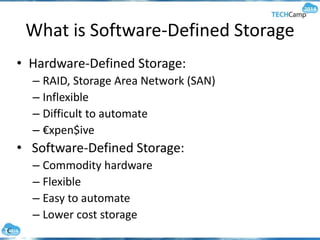
• Hardware-Defined Storage:
– RAID, Storage Area Network (SAN)
– Inflexible
– Difficult to automate
– €xpen$ive
• Software-Defined Storage:
– Commodity hardware
– Flexible
– Easy to automate
– Lower cost storage
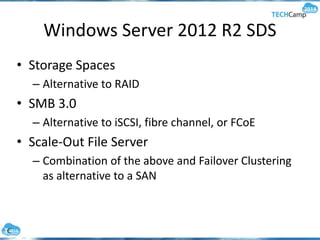
Windows Server 2012 R2 SDS
• Storage Spaces
– Alternative to RAID
• SMB 3.0
– Alternative to iSCSI, fibre channel, or FCoE
• Scale-Out File Server
– Combination of the above and Failover Clustering
as alternative to a SAN
Storage Spaces
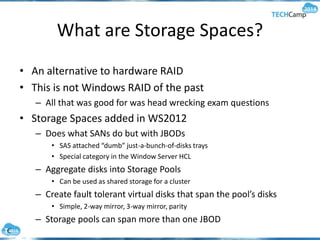
What are Storage Spaces?
• An alternative to hardware RAID
• This is not Windows RAID of the past
– All that was good for was head wrecking exam questions
• Storage Spaces added in WS2012
– Does what SANs do but with JBODs
• SAS attached “dumb” just-a-bunch-of-disks trays
• Special category in the Window Server HCL
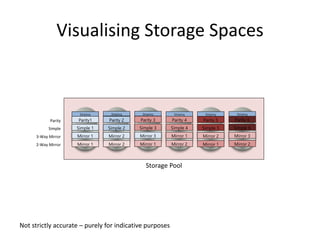
– Aggregate disks into Storage Pools
• Can be used as shared storage for a cluster
– Create fault tolerant virtual disks that span the pool’s disks
• Simple, 2-way mirror, 3-way mirror, parity
– Storage pools can span more than one JBOD
Storage Pool
Mirror 1 Mirror 1 Mirror 1Mirror 2 Mirror 2 Mirror 2
Mirror 1 Mirror 3 Mirror 2Mirror 2 Mirror 1 Mirror 3
2-Way Mirror
3-Way Mirror
Simple 1 Simple 3 Simple 5Simple 2 Simple 4 Simple 6Simple
Parity1 Parity 3 Parity 5Parity 2 Parity 4 Parity 6Parity
Striping Striping Striping Striping Striping Striping
Not strictly accurate – purely for indicative purposes
Visualising Storage Spaces
Features of Storage Spaces
• Disk fault tolerance
– No data loss when a disk dies
• Repair process
– Hot spare: limited to lightly managed installations
– Parrallelised restore: uses free space on each disk to
repair
• Tiered storage
– Mix fast SSD with affordable 4 TB or 6 TB drives
• Write-Back Cache
– Absorb spikes in write activity using the SSD tier
SMB 3.0
What is SMB 3.0
• Server Message Block (SMB):
– Version 3.0 (WS2012) and 3.01 (WS2012 R2)
• Use for client/server file sharing
• Designed to rival and beat legacy protocols for
applications accessing networked storage:
– iSCSI
– Fiber Channel
• SMB 3.0 is Microsoft’s enterprise data protocol
– 10 Gbps + Live Migration
– Hyper-V over SMB 3.0
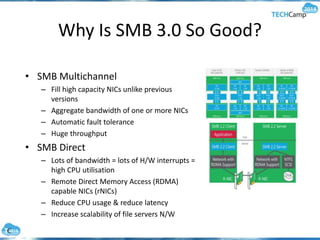
Why Is SMB 3.0 So Good?
• SMB Multichannel
– Fill high capacity NICs unlike previous
versions
– Aggregate bandwidth of one or more NICs
– Automatic fault tolerance
– Huge throughput
• SMB Direct
– Lots of bandwidth = lots of H/W interrupts =
high CPU utilisation
– Remote Direct Memory Access (RDMA)
capable NICs (rNICs)
– Reduce CPU usage & reduce latency
– Increase scalability of file servers N/W
The Goal
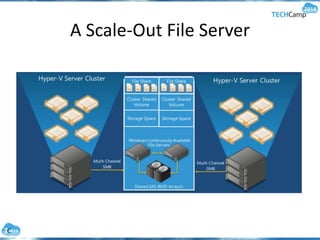
A Scale-Out File Server
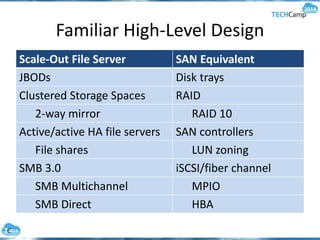
Familiar High-Level Design
Scale-Out File Server SAN Equivalent
JBODs Disk trays
Clustered Storage Spaces RAID
2-way mirror RAID 10
Active/active HA file servers SAN controllers
File shares LUN zoning
SMB 3.0 iSCSI/fiber channel
SMB Multichannel MPIO
SMB Direct HBA
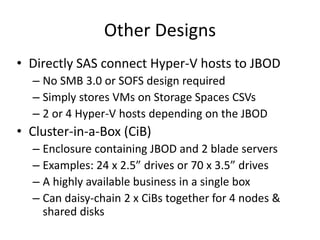
Other Designs
• Directly SAS connect Hyper-V hosts to JBOD
– No SMB 3.0 or SOFS design required
– Simply stores VMs on Storage Spaces CSVs
– 2 or 4 Hyper-V hosts depending on the JBOD
• Cluster-in-a-Box (CiB)
– Enclosure containing JBOD and 2 blade servers
– Examples: 24 x 2.5” drives or 70 x 3.5” drives
– A highly available business in a single box
– Can daisy-chain 2 x CiBs together for 4 nodes &
shared disks
Backup
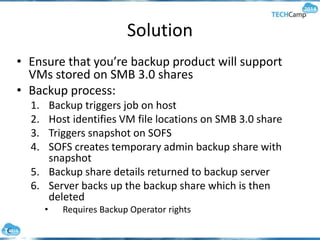
Solution
• Ensure that you’re backup product will support
VMs stored on SMB 3.0 shares
• Backup process:
1. Backup triggers job on host
2. Host identifies VM file locations on SMB 3.0 share
3. Triggers snapshot on SOFS
4. SOFS creates temporary admin backup share with
snapshot
5. Backup share details returned to backup server
6. Server backs up the backup share which is then
deleted
• Requires Backup Operator rights
Hardware - JBODs
Storage Spaces Hardware
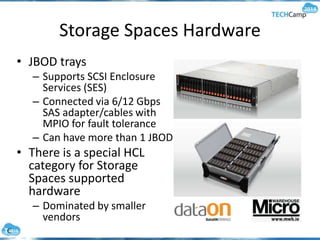
• JBOD trays
– Supports SCSI Enclosure
Services (SES)
– Connected via 6/12 Gbps
SAS adapter/cables with
MPIO for fault tolerance
– Can have more than 1 JBOD
• There is a special HCL
category for Storage
Spaces supported
hardware
– Dominated by smaller
vendors
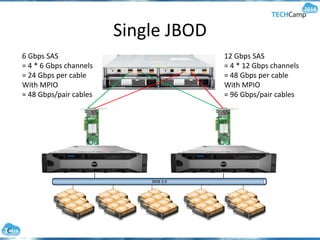
Single JBOD
6 Gbps SAS
= 4 * 6 Gbps channels
= 24 Gbps per cable
With MPIO
= 48 Gbps/pair cables
12 Gbps SAS
= 4 * 12 Gbps channels
= 48 Gbps per cable
With MPIO
= 96 Gbps/pair cables
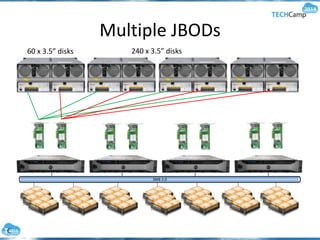
Multiple JBODs
60 x 3.5” disks 240 x 3.5” disks
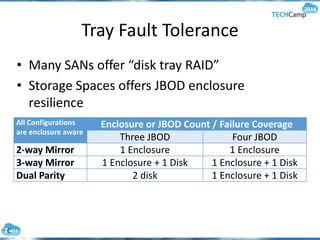
Tray Fault Tolerance
• Many SANs offer “disk tray RAID”
• Storage Spaces offers JBOD enclosure
resilience
All Configurations
are enclosure aware
Enclosure or JBOD Count / Failure Coverage
Three JBOD Four JBOD
2-way Mirror 1 Enclosure 1 Enclosure
3-way Mirror 1 Enclosure + 1 Disk 1 Enclosure + 1 Disk
Dual Parity 2 disk 1 Enclosure + 1 Disk
Hardware - Disks
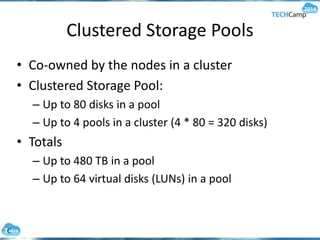
Clustered Storage Pools
• Co-owned by the nodes in a cluster
• Clustered Storage Pool:
– Up to 80 disks in a pool
– Up to 4 pools in a cluster (4 * 80 = 320 disks)
• Totals
– Up to 480 TB in a pool
– Up to 64 virtual disks (LUNs) in a pool
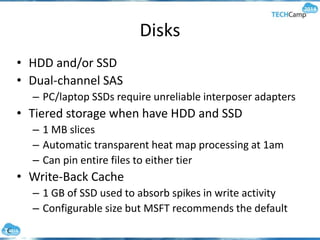
Disks
• HDD and/or SSD
• Dual-channel SAS
– PC/laptop SSDs require unreliable interposer adapters
• Tiered storage when have HDD and SSD
– 1 MB slices
– Automatic transparent heat map processing at 1am
– Can pin entire files to either tier
• Write-Back Cache
– 1 GB of SSD used to absorb spikes in write activity
– Configurable size but MSFT recommends the default
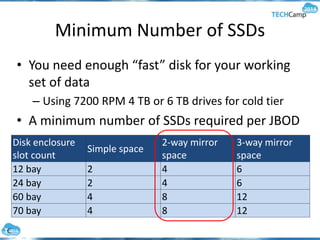
Minimum Number of SSDs
• You need enough “fast” disk for your working
set of data
– Using 7200 RPM 4 TB or 6 TB drives for cold tier
• A minimum number of SSDs required per JBOD
Disk enclosure
slot count
Simple space
2-way mirror
space
3-way mirror
space
12 bay 2 4 6
24 bay 2 4 6
60 bay 4 8 12
70 bay 4 8 12
Windows
Install & Configure Windows Server
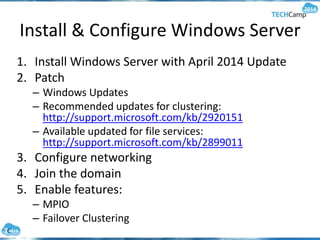
1. Install Windows Server with April 2014 Update
2. Patch
– Windows Updates
– Recommended updates for clustering:
http://support.microsoft.com/kb/2920151
– Available updated for file services:
http://support.microsoft.com/kb/2899011
3. Configure networking
4. Join the domain
5. Enable features:
– MPIO
– Failover Clustering
Configure MPIO
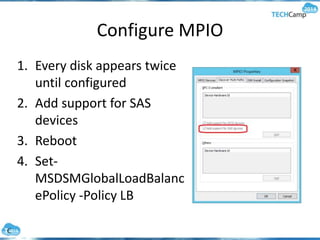
1. Every disk appears twice
until configured
2. Add support for SAS
devices
3. Reboot
4. Set-
MSDSMGlobalLoadBalanc
ePolicy -Policy LB
Networking
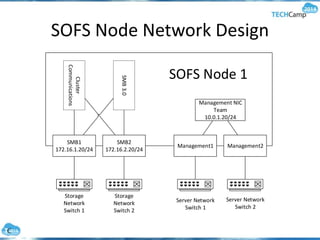
SOFS Node Network Design
Management2Management1
SMB2
172.16.2.20/24
SMB1
172.16.1.20/24
Management NIC
Team
10.0.1.20/24
SMB3.0
Cluster
Communications
Storage
Network
Switch 1
Storage
Network
Switch 2
Server Network
Switch 1
Server Network
Switch 2
SOFS Node 1
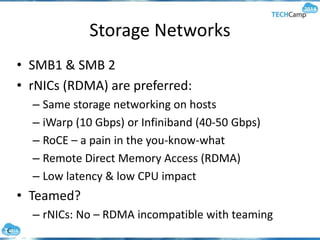
Storage Networks
• SMB1 & SMB 2
• rNICs (RDMA) are preferred:
– Same storage networking on hosts
– iWarp (10 Gbps) or Infiniband (40-50 Gbps)
– RoCE – a pain in the you-know-what
– Remote Direct Memory Access (RDMA)
– Low latency & low CPU impact
• Teamed?
– rNICs: No – RDMA incompatible with teaming
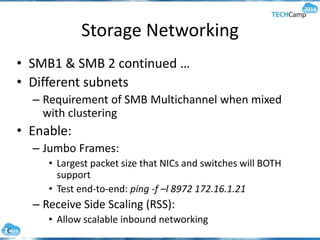
Storage Networking
• SMB1 & SMB 2 continued …
• Different subnets
– Requirement of SMB Multichannel when mixed
with clustering
• Enable:
– Jumbo Frames:
• Largest packet size that NICs and switches will BOTH
support
• Test end-to-end: ping -f –l 8972 172.16.1.21
– Receive Side Scaling (RSS):
• Allow scalable inbound networking
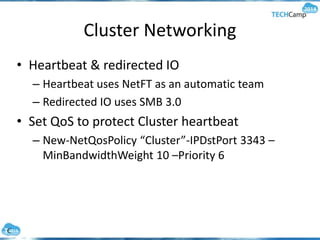
Cluster Networking
• Heartbeat & redirected IO
– Heartbeat uses NetFT as an automatic team
– Redirected IO uses SMB 3.0
• Set QoS to protect Cluster heartbeat
– New-NetQosPolicy “Cluster”-IPDstPort 3343 –
MinBandwidthWeight 10 –Priority 6
Management Networking
• Primary purpose: management
• Secondary purpose: backup
– You can converge backup to the storage network
• Typically a simple NIC team
– E.g. 2 x 1 GbE NICs
– Single team interface with single IP address
Demo – Networking & MPIO
Prep Hardware
Update Firmware
• Just like you would with a new SAN
• Upgrade the firmware & drivers of:
– Servers (all components)
– SAS cards
– JBOD (if applicable)
– NICs
– Disks … including those in the JBOD
– Everything
• Note: I have seen an issue with a bad batch of
SanDisk “Optimus Extreme” SSDs
– Any connected server becomes S-L-O-W
– Batch shipped with OLD firmware & mismatched labels
Test & Wipe Disks
• Some vendors stress test disks
– Can leave behind “difficult” partitions
– Clear-SpacesConfig.ps1
http://gallery.technet.microsoft.com/scriptcenter/
Completely-Clearing-an-ab745947
• Careful – it erases everything!
• Not all disks made equal
– Test the disks yourself
– Validate-StoragePool.ps1
http://gallery.technet.microsoft.com/scriptcenter/
Storage-Spaces-Physical-7ca9f304
Cluster
Create The Cluster
• Before, you will need:
– Cluster name: e.g. demo-fsc1.demo.internal
– Cluster IP address
• Validate the configuration
• Create the cluster
– Do not add any storage – nothing is configured in
Storage Spaces at this point.
• Note that a computer account is created in AD
for the cluster
– E.g. demo-fsc1.demo.internal
Post Cluster Creation
• Double-check the cluster networks
– Should be 3, each with 1 NIC from each node
• Rename networks from meaningless “Cluster
Network 1”
– Name after the NICs that make up the network
– For example, SMB1, SMB2, Management
• Check the box to allow client connections on
SMB1 and SMB2
– This will enable the SOFS role to register the IP
addresses of the storage NICs in DNS
• Tip: Configure Cluster Aware Updating (CAU)
– Out of scope for today (time)
Active Directory
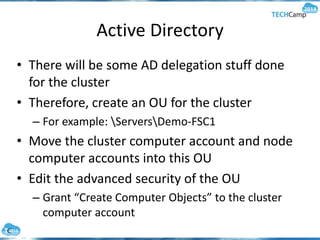
• There will be some AD delegation stuff done
for the cluster
• Therefore, create an OU for the cluster
– For example: ServersDemo-FSC1
• Move the cluster computer account and node
computer accounts into this OU
• Edit the advanced security of the OU
– Grant “Create Computer Objects” to the cluster
computer account
Demo – Building The Cluster
Storage Spaces
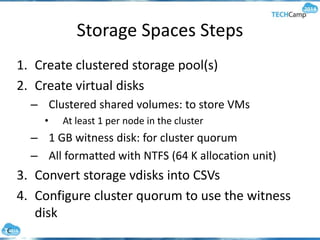
Storage Spaces Steps
1. Create clustered storage pool(s)
2. Create virtual disks
– Clustered shared volumes: to store VMs
• At least 1 per node in the cluster
– 1 GB witness disk: for cluster quorum
– All formatted with NTFS (64 K allocation unit)
3. Convert storage vdisks into CSVs
4. Configure cluster quorum to use the witness
disk
Virtual Disks
• Also known as spaces
– Think of them as LUNs
• This is where you define disk fault tolerance
– 2-way mirror: Data stored on 2 disks
– 3-way mirror: Data stored on 3 disks
– Parity: Like RAID5. Supported for archive data only
• Recovery
– Hot spares are possible
– Parallelised restore is much quicker
Demo – Storage Spaces & CSVs
SOFS
Add the SOFS Role
• Tip: If rebuilding an SOFS cluster then:
– Delete all previous DNS records
– Run IPCONFIG /FLUSHDNS on DNS servers and nodes
• Before: have a computer name for the new SOFS,
e.g. demo-sofs1.demo.internal
• In FCM, add a role called File Server – Scale-Out
File Server For Application Data
– Enter the desired SOFS computer name
• Note – no additional IP is needed. The SOFS will
reuse the IP addresses of the nodes’ physical NICs
Post SOFS Role
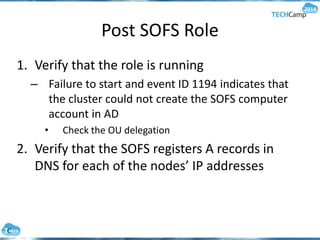
1. Verify that the role is running
– Failure to start and event ID 1194 indicates that
the cluster could not create the SOFS computer
account in AD
• Check the OU delegation
2. Verify that the SOFS registers A records in
DNS for each of the nodes’ IP addresses
Demo – Add SOFS Role
File Shares
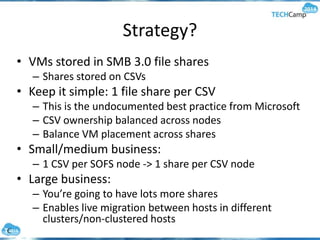
Strategy?
• VMs stored in SMB 3.0 file shares
– Shares stored on CSVs
• Keep it simple: 1 file share per CSV
– This is the undocumented best practice from Microsoft
– CSV ownership balanced across nodes
– Balance VM placement across shares
• Small/medium business:
– 1 CSV per SOFS node -> 1 share per CSV node
• Large business:
– You’re going to have lots more shares
– Enables live migration between hosts in different
clusters/non-clustered hosts
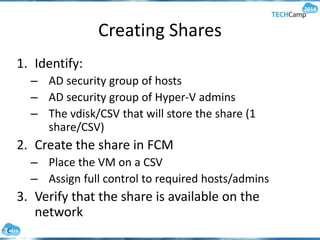
Creating Shares
1. Identify:
– AD security group of hosts
– AD security group of Hyper-V admins
– The vdisk/CSV that will store the share (1
share/CSV)
2. Create the share in FCM
– Place the VM on a CSV
– Assign full control to required hosts/admins
3. Verify that the share is available on the
network
Creating Virtual Machines
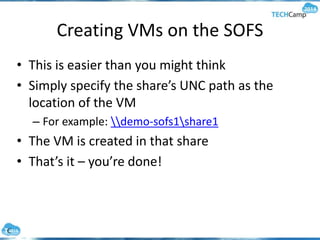
Creating VMs on the SOFS
• This is easier than you might think
• Simply specify the share’s UNC path as the
location of the VM
– For example: demo-sofs1share1
• The VM is created in that share
• That’s it – you’re done!
Demo – Create Shares & VMs
System Center
Using Virtual Machine Manager
• System Center 2012 R2 – Virtual Machine
Manager (SCVMM) offers:
– Bare-metal deployment of the SOFS cluster
– Basic Storage Spaces configuration
• Note: Storage Tiering is missing at this point
– Easy creation of file shares, including permissions
and host connection
– Classification (platinum, gold, silver) of storage
• It makes life easier
Demo – SCVMM & SOFS
… If We Have Time
Wrapping Up
Additional Reading
• Achieving Over 1-Million IOPS from Hyper-V VMs
in a Scale-Out File Server Cluster Using Windows
Server 2012 R2
– http://www.microsoft.com/download/details.aspx?id=
42960
– Done using DataOn DNS-1660
• Windows Server 2012 R2 Technical Scenarios and
Storage
– http://download.microsoft.com/download/9/4/A/94A
15682-02D6-47AD-B209-
79D6E2758A24/Windows_Server_2012_R2_Storage_
White_Paper.pdf
Thank you!
Aidan Finn, Hyper-V MVP
Technical Sales Lead, MicroWarehouse Ltd.
http://www.mwh.ie
Twitter: @joe_elway
Blog: http://www.aidanfinn.com
Petri IT Knowledgebase: http://www.petri.co.il/author/aidan-finn

Windows Server 2012 R2 Software-Defined Storage

  • 1.
  • 2.
    About Aidan Finn •Technical Sales Lead at MicroWarehouse • Working in IT since 1996 • MVP (Virtual Machine) • Experienced with Windows Server/Desktop, System Center, virtualisation, and IT infrastructure • @joe_elway • http://www.aidanfinn.com • http://www.petri.co.il/author/aidan-finn • Published author/contributor of several books
  • 3.
    Agenda • Software-defined storage •Storage Spaces • SMB 3.0 • Scale-Out File Server (SOFS) • Building a SOFS
  • 4.
  • 5.
    What is Software-DefinedStorage • Hardware-Defined Storage: – RAID, Storage Area Network (SAN) – Inflexible – Difficult to automate – €xpen$ive • Software-Defined Storage: – Commodity hardware – Flexible – Easy to automate – Lower cost storage
  • 6.
    Windows Server 2012R2 SDS • Storage Spaces – Alternative to RAID • SMB 3.0 – Alternative to iSCSI, fibre channel, or FCoE • Scale-Out File Server – Combination of the above and Failover Clustering as alternative to a SAN
  • 7.
  • 8.
    What are StorageSpaces? • An alternative to hardware RAID • This is not Windows RAID of the past – All that was good for was head wrecking exam questions • Storage Spaces added in WS2012 – Does what SANs do but with JBODs • SAS attached “dumb” just-a-bunch-of-disks trays • Special category in the Window Server HCL – Aggregate disks into Storage Pools • Can be used as shared storage for a cluster – Create fault tolerant virtual disks that span the pool’s disks • Simple, 2-way mirror, 3-way mirror, parity – Storage pools can span more than one JBOD
  • 9.
    Storage Pool Mirror 1Mirror 1 Mirror 1Mirror 2 Mirror 2 Mirror 2 Mirror 1 Mirror 3 Mirror 2Mirror 2 Mirror 1 Mirror 3 2-Way Mirror 3-Way Mirror Simple 1 Simple 3 Simple 5Simple 2 Simple 4 Simple 6Simple Parity1 Parity 3 Parity 5Parity 2 Parity 4 Parity 6Parity Striping Striping Striping Striping Striping Striping Not strictly accurate – purely for indicative purposes Visualising Storage Spaces
  • 10.
    Features of StorageSpaces • Disk fault tolerance – No data loss when a disk dies • Repair process – Hot spare: limited to lightly managed installations – Parrallelised restore: uses free space on each disk to repair • Tiered storage – Mix fast SSD with affordable 4 TB or 6 TB drives • Write-Back Cache – Absorb spikes in write activity using the SSD tier
  • 11.
  • 12.
    What is SMB3.0 • Server Message Block (SMB): – Version 3.0 (WS2012) and 3.01 (WS2012 R2) • Use for client/server file sharing • Designed to rival and beat legacy protocols for applications accessing networked storage: – iSCSI – Fiber Channel • SMB 3.0 is Microsoft’s enterprise data protocol – 10 Gbps + Live Migration – Hyper-V over SMB 3.0
  • 13.
    Why Is SMB3.0 So Good? • SMB Multichannel – Fill high capacity NICs unlike previous versions – Aggregate bandwidth of one or more NICs – Automatic fault tolerance – Huge throughput • SMB Direct – Lots of bandwidth = lots of H/W interrupts = high CPU utilisation – Remote Direct Memory Access (RDMA) capable NICs (rNICs) – Reduce CPU usage & reduce latency – Increase scalability of file servers N/W
  • 14.
  • 15.
  • 16.
    Familiar High-Level Design Scale-OutFile Server SAN Equivalent JBODs Disk trays Clustered Storage Spaces RAID 2-way mirror RAID 10 Active/active HA file servers SAN controllers File shares LUN zoning SMB 3.0 iSCSI/fiber channel SMB Multichannel MPIO SMB Direct HBA
  • 17.
    Other Designs • DirectlySAS connect Hyper-V hosts to JBOD – No SMB 3.0 or SOFS design required – Simply stores VMs on Storage Spaces CSVs – 2 or 4 Hyper-V hosts depending on the JBOD • Cluster-in-a-Box (CiB) – Enclosure containing JBOD and 2 blade servers – Examples: 24 x 2.5” drives or 70 x 3.5” drives – A highly available business in a single box – Can daisy-chain 2 x CiBs together for 4 nodes & shared disks
  • 18.
  • 19.
    Solution • Ensure thatyou’re backup product will support VMs stored on SMB 3.0 shares • Backup process: 1. Backup triggers job on host 2. Host identifies VM file locations on SMB 3.0 share 3. Triggers snapshot on SOFS 4. SOFS creates temporary admin backup share with snapshot 5. Backup share details returned to backup server 6. Server backs up the backup share which is then deleted • Requires Backup Operator rights
  • 20.
  • 21.
    Storage Spaces Hardware •JBOD trays – Supports SCSI Enclosure Services (SES) – Connected via 6/12 Gbps SAS adapter/cables with MPIO for fault tolerance – Can have more than 1 JBOD • There is a special HCL category for Storage Spaces supported hardware – Dominated by smaller vendors
  • 22.
    Single JBOD 6 GbpsSAS = 4 * 6 Gbps channels = 24 Gbps per cable With MPIO = 48 Gbps/pair cables 12 Gbps SAS = 4 * 12 Gbps channels = 48 Gbps per cable With MPIO = 96 Gbps/pair cables
  • 23.
    Multiple JBODs 60 x3.5” disks 240 x 3.5” disks
  • 24.
    Tray Fault Tolerance •Many SANs offer “disk tray RAID” • Storage Spaces offers JBOD enclosure resilience All Configurations are enclosure aware Enclosure or JBOD Count / Failure Coverage Three JBOD Four JBOD 2-way Mirror 1 Enclosure 1 Enclosure 3-way Mirror 1 Enclosure + 1 Disk 1 Enclosure + 1 Disk Dual Parity 2 disk 1 Enclosure + 1 Disk
  • 25.
  • 26.
    Clustered Storage Pools •Co-owned by the nodes in a cluster • Clustered Storage Pool: – Up to 80 disks in a pool – Up to 4 pools in a cluster (4 * 80 = 320 disks) • Totals – Up to 480 TB in a pool – Up to 64 virtual disks (LUNs) in a pool
  • 27.
    Disks • HDD and/orSSD • Dual-channel SAS – PC/laptop SSDs require unreliable interposer adapters • Tiered storage when have HDD and SSD – 1 MB slices – Automatic transparent heat map processing at 1am – Can pin entire files to either tier • Write-Back Cache – 1 GB of SSD used to absorb spikes in write activity – Configurable size but MSFT recommends the default
  • 28.
    Minimum Number ofSSDs • You need enough “fast” disk for your working set of data – Using 7200 RPM 4 TB or 6 TB drives for cold tier • A minimum number of SSDs required per JBOD Disk enclosure slot count Simple space 2-way mirror space 3-way mirror space 12 bay 2 4 6 24 bay 2 4 6 60 bay 4 8 12 70 bay 4 8 12
  • 29.
  • 30.
    Install & ConfigureWindows Server 1. Install Windows Server with April 2014 Update 2. Patch – Windows Updates – Recommended updates for clustering: http://support.microsoft.com/kb/2920151 – Available updated for file services: http://support.microsoft.com/kb/2899011 3. Configure networking 4. Join the domain 5. Enable features: – MPIO – Failover Clustering
  • 31.
    Configure MPIO 1. Everydisk appears twice until configured 2. Add support for SAS devices 3. Reboot 4. Set- MSDSMGlobalLoadBalanc ePolicy -Policy LB
  • 32.
  • 33.
    SOFS Node NetworkDesign Management2Management1 SMB2 172.16.2.20/24 SMB1 172.16.1.20/24 Management NIC Team 10.0.1.20/24 SMB3.0 Cluster Communications Storage Network Switch 1 Storage Network Switch 2 Server Network Switch 1 Server Network Switch 2 SOFS Node 1
  • 34.
    Storage Networks • SMB1& SMB 2 • rNICs (RDMA) are preferred: – Same storage networking on hosts – iWarp (10 Gbps) or Infiniband (40-50 Gbps) – RoCE – a pain in the you-know-what – Remote Direct Memory Access (RDMA) – Low latency & low CPU impact • Teamed? – rNICs: No – RDMA incompatible with teaming
  • 35.
    Storage Networking • SMB1& SMB 2 continued … • Different subnets – Requirement of SMB Multichannel when mixed with clustering • Enable: – Jumbo Frames: • Largest packet size that NICs and switches will BOTH support • Test end-to-end: ping -f –l 8972 172.16.1.21 – Receive Side Scaling (RSS): • Allow scalable inbound networking
  • 36.
    Cluster Networking • Heartbeat& redirected IO – Heartbeat uses NetFT as an automatic team – Redirected IO uses SMB 3.0 • Set QoS to protect Cluster heartbeat – New-NetQosPolicy “Cluster”-IPDstPort 3343 – MinBandwidthWeight 10 –Priority 6
  • 37.
    Management Networking • Primarypurpose: management • Secondary purpose: backup – You can converge backup to the storage network • Typically a simple NIC team – E.g. 2 x 1 GbE NICs – Single team interface with single IP address
  • 38.
  • 39.
  • 40.
    Update Firmware • Justlike you would with a new SAN • Upgrade the firmware & drivers of: – Servers (all components) – SAS cards – JBOD (if applicable) – NICs – Disks … including those in the JBOD – Everything • Note: I have seen an issue with a bad batch of SanDisk “Optimus Extreme” SSDs – Any connected server becomes S-L-O-W – Batch shipped with OLD firmware & mismatched labels
  • 41.
    Test & WipeDisks • Some vendors stress test disks – Can leave behind “difficult” partitions – Clear-SpacesConfig.ps1 http://gallery.technet.microsoft.com/scriptcenter/ Completely-Clearing-an-ab745947 • Careful – it erases everything! • Not all disks made equal – Test the disks yourself – Validate-StoragePool.ps1 http://gallery.technet.microsoft.com/scriptcenter/ Storage-Spaces-Physical-7ca9f304
  • 42.
  • 43.
    Create The Cluster •Before, you will need: – Cluster name: e.g. demo-fsc1.demo.internal – Cluster IP address • Validate the configuration • Create the cluster – Do not add any storage – nothing is configured in Storage Spaces at this point. • Note that a computer account is created in AD for the cluster – E.g. demo-fsc1.demo.internal
  • 44.
    Post Cluster Creation •Double-check the cluster networks – Should be 3, each with 1 NIC from each node • Rename networks from meaningless “Cluster Network 1” – Name after the NICs that make up the network – For example, SMB1, SMB2, Management • Check the box to allow client connections on SMB1 and SMB2 – This will enable the SOFS role to register the IP addresses of the storage NICs in DNS • Tip: Configure Cluster Aware Updating (CAU) – Out of scope for today (time)
  • 45.
    Active Directory • Therewill be some AD delegation stuff done for the cluster • Therefore, create an OU for the cluster – For example: ServersDemo-FSC1 • Move the cluster computer account and node computer accounts into this OU • Edit the advanced security of the OU – Grant “Create Computer Objects” to the cluster computer account
  • 46.
    Demo – BuildingThe Cluster
  • 47.
  • 48.
    Storage Spaces Steps 1.Create clustered storage pool(s) 2. Create virtual disks – Clustered shared volumes: to store VMs • At least 1 per node in the cluster – 1 GB witness disk: for cluster quorum – All formatted with NTFS (64 K allocation unit) 3. Convert storage vdisks into CSVs 4. Configure cluster quorum to use the witness disk
  • 49.
    Virtual Disks • Alsoknown as spaces – Think of them as LUNs • This is where you define disk fault tolerance – 2-way mirror: Data stored on 2 disks – 3-way mirror: Data stored on 3 disks – Parity: Like RAID5. Supported for archive data only • Recovery – Hot spares are possible – Parallelised restore is much quicker
  • 50.
    Demo – StorageSpaces & CSVs
  • 51.
  • 52.
    Add the SOFSRole • Tip: If rebuilding an SOFS cluster then: – Delete all previous DNS records – Run IPCONFIG /FLUSHDNS on DNS servers and nodes • Before: have a computer name for the new SOFS, e.g. demo-sofs1.demo.internal • In FCM, add a role called File Server – Scale-Out File Server For Application Data – Enter the desired SOFS computer name • Note – no additional IP is needed. The SOFS will reuse the IP addresses of the nodes’ physical NICs
  • 53.
    Post SOFS Role 1.Verify that the role is running – Failure to start and event ID 1194 indicates that the cluster could not create the SOFS computer account in AD • Check the OU delegation 2. Verify that the SOFS registers A records in DNS for each of the nodes’ IP addresses
  • 54.
    Demo – AddSOFS Role
  • 55.
  • 56.
    Strategy? • VMs storedin SMB 3.0 file shares – Shares stored on CSVs • Keep it simple: 1 file share per CSV – This is the undocumented best practice from Microsoft – CSV ownership balanced across nodes – Balance VM placement across shares • Small/medium business: – 1 CSV per SOFS node -> 1 share per CSV node • Large business: – You’re going to have lots more shares – Enables live migration between hosts in different clusters/non-clustered hosts
  • 57.
    Creating Shares 1. Identify: –AD security group of hosts – AD security group of Hyper-V admins – The vdisk/CSV that will store the share (1 share/CSV) 2. Create the share in FCM – Place the VM on a CSV – Assign full control to required hosts/admins 3. Verify that the share is available on the network
  • 58.
  • 59.
    Creating VMs onthe SOFS • This is easier than you might think • Simply specify the share’s UNC path as the location of the VM – For example: demo-sofs1share1 • The VM is created in that share • That’s it – you’re done!
  • 60.
    Demo – CreateShares & VMs
  • 61.
  • 62.
    Using Virtual MachineManager • System Center 2012 R2 – Virtual Machine Manager (SCVMM) offers: – Bare-metal deployment of the SOFS cluster – Basic Storage Spaces configuration • Note: Storage Tiering is missing at this point – Easy creation of file shares, including permissions and host connection – Classification (platinum, gold, silver) of storage • It makes life easier
  • 63.
    Demo – SCVMM& SOFS … If We Have Time
  • 64.
  • 65.
    Additional Reading • AchievingOver 1-Million IOPS from Hyper-V VMs in a Scale-Out File Server Cluster Using Windows Server 2012 R2 – http://www.microsoft.com/download/details.aspx?id= 42960 – Done using DataOn DNS-1660 • Windows Server 2012 R2 Technical Scenarios and Storage – http://download.microsoft.com/download/9/4/A/94A 15682-02D6-47AD-B209- 79D6E2758A24/Windows_Server_2012_R2_Storage_ White_Paper.pdf
  • 66.
    Thank you! Aidan Finn,Hyper-V MVP Technical Sales Lead, MicroWarehouse Ltd. http://www.mwh.ie Twitter: @joe_elway Blog: http://www.aidanfinn.com Petri IT Knowledgebase: http://www.petri.co.il/author/aidan-finn