CIS 216
Highline Community College
Dan Morrill
 Get-help - The first PowerShell cmdlet every administrator should learn is Get-
Help. You can use this command to get help with any other command. For
example, if you want to know how the Get-Process command works, you can
type:
 Get-Help -Name Get-Process and Windows will display the full command
syntax.
 Set-ExecutionPolicy
 Restricted — Restricted is the default execution policy and locks PowerShell
down so that commands can be entered only interactively. PowerShell scripts
are not allowed to run.
 All Signed — If the execution policy is set to All Signed then scripts will be
allowed to run, but only if they are signed by a trusted publisher.
 Remote Signed — If the execution policy is set to Remote Signed, any
PowerShell scripts that have been locally created will be allowed to run. Scripts
created remotely are allowed to run only if they are signed by a trusted
publisher.
 Unrestricted — As the name implies, Unrestricted removes all restrictions
from the execution policy.
 Get-ExcutionPolicy
 If you’re working on an unfamiliar server, you’ll need to
know what execution policy is in use before you attempt
to run a script. You can find out by using the Get-
ExecutionPolicy command.
 Get-service
 The Get-Service command provides a list of all of the
services that are installed on the system. If you are
interested in a specific service you can append the -
Name switch and the name of the service (wildcards are
permitted) When you do, Windows will show you the
service’s state.
 ConvertTo-HTML
 PowerShell can provide a wealth of information about the system, but
sometimes you need to do more than just view the information onscreen.
Sometimes, it’s helpful to create a report you can send to someone. One way of
accomplishing this is by using the ConvertTo-HTML command.
 To use this command, simply pipe the output from another command into the
ConvertTo-HTML command. You will have to use the -Property switch to
control which output properties are included in the HTML file and you will
have to provide a filename.
 Get-Service | ConvertTo-HTML -Property Name, Status > C:services.htm
 Export-CSV
 Just as you can create an HTML report based on PowerShell data, you can also
export data from PowerShell into a CSV file that you can open using Microsoft
Excel. The syntax is similar to that of converting a command’s output to HTML.
At a minimum, you must provide an output filename. For example, to export
the list of system services to a CSV file, you could use the following command:
 Get-Service | Export-CSV c:service.csv
 Select-Object
 If you tried using the command above, you know that there were
numerous properties included in the CSV file. It’s often helpful to
narrow things down by including only the properties you are really
interested in. This is where the Select-Object command comes into
play. The Select-Object command allows you to specify specific
properties for inclusion. For example, to create a CSV file containing
the name of each system service and its status, you could use the
following command:
 Get-Service | Select-Object Name, Status | Export-CSV c:service.csv
 Get-EventLog
 You can actually use PowerShell to parse your computer’s event logs.
There are several parameters available, but you can try out the
command by simply providing the -Log switch followed by the name of
the log file. For example, to see the Application log, you could use the
following command:
 Get-EventLog -Log "Application"
 Get-Process
 Just as you can use the Get-Service command to display a list
of all of the system services, you can use the Get-Process
command to display a list of all of the processes that are
currently running on the system.
 Stop-Process
 Sometimes, a process will freeze up. When this happens, you
can use the Get-Process command to get the name or the
process ID for the process that has stopped responding. You
can then terminate the process by using the Stop-Process
command. You can terminate a process based on its name or
on its process ID. For example, you could terminate Notepad
by using one of the following commands:
 Stop-Process -Name notepad
 Stop-Process -ID 2668
 Search-ADAccount -PasswordNeverExpires | FT
Name, ObjectClass, UserPrincipalName
 Show user accounts with a non-expiring password
 Get-AdUser -Filter * -Properties OfficePhone | FT
OfficePhone,UserPrincipalName
 Display the phone number values for all user accounts
 Psdrive
 Shows all connected drives, local and network
 Remember that to run scripts you need to be
authorized to do so:
 Get-ExcutionPolicy
 Set-ExecutionPolicy unrestricted
 Allows you to run anything once you know the current
execution policy, and how to set it to run your script
 Running your script is all about syntax
 & "C:My ScriptsTest.ps1“
 If there is a space in the directory name, must be in quotes
 & tells the script to run
 PS1 is for Power Shell 1 – a good naming convention to know
what version of powershell you were running when it was
made
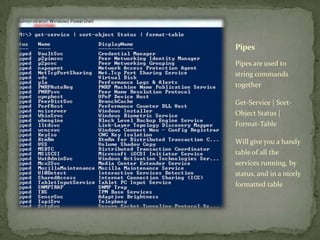
Pipes
Pipes are used to
string commands
together
Get-Service | Sort-
Object Status |
Format-Table
Will give you a handy
table of all the
services running, by
status, and in a nicely
formatted table
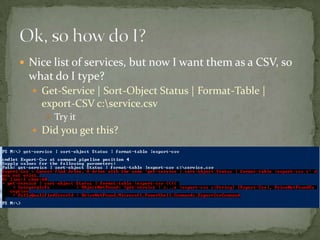
 Nice list of services, but now I want them as a CSV, so
what do I type?
 Get-Service | Sort-Object Status | Format-Table |
export-CSV c:service.csv
 Try it
 Did you get this?
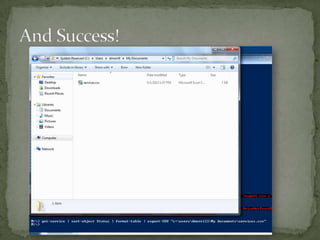
 Did I have permission to write to the C:?
 Did I make an error in syntax?
 What happens if I try to write it to my own home
directory?
 get-service | sort-object Status | format-table | export-
CSV "c:usersdmorrillMy documentsservices.csv"
 Permissions on where you can write files
 Permissions on what can run when writing a
PowerShell Script
 Permissions on Directories
 Your permissions when accessing remote services like
Active Directory (who you are running the script as)
 All of these can keep a script from executing at all, or
erring out when we try to execute the file
 Using powershell
 Get a list of running services (screen cap)
 Get a list of running services formatted as a table (screen
cap)
 Get a list of running services formatted as a table and
output as a CSV file
 Get a list of running services formatted as a table and
output as a HTML file
 Zip all the files (2 images, 1 CSV, and 1 HTML file) and
upload to Angel

Windows power shell basics

  • 1.
    CIS 216 Highline CommunityCollege Dan Morrill
  • 2.
     Get-help -The first PowerShell cmdlet every administrator should learn is Get- Help. You can use this command to get help with any other command. For example, if you want to know how the Get-Process command works, you can type:  Get-Help -Name Get-Process and Windows will display the full command syntax.  Set-ExecutionPolicy  Restricted — Restricted is the default execution policy and locks PowerShell down so that commands can be entered only interactively. PowerShell scripts are not allowed to run.  All Signed — If the execution policy is set to All Signed then scripts will be allowed to run, but only if they are signed by a trusted publisher.  Remote Signed — If the execution policy is set to Remote Signed, any PowerShell scripts that have been locally created will be allowed to run. Scripts created remotely are allowed to run only if they are signed by a trusted publisher.  Unrestricted — As the name implies, Unrestricted removes all restrictions from the execution policy.
  • 3.
     Get-ExcutionPolicy  Ifyou’re working on an unfamiliar server, you’ll need to know what execution policy is in use before you attempt to run a script. You can find out by using the Get- ExecutionPolicy command.  Get-service  The Get-Service command provides a list of all of the services that are installed on the system. If you are interested in a specific service you can append the - Name switch and the name of the service (wildcards are permitted) When you do, Windows will show you the service’s state.
  • 4.
     ConvertTo-HTML  PowerShellcan provide a wealth of information about the system, but sometimes you need to do more than just view the information onscreen. Sometimes, it’s helpful to create a report you can send to someone. One way of accomplishing this is by using the ConvertTo-HTML command.  To use this command, simply pipe the output from another command into the ConvertTo-HTML command. You will have to use the -Property switch to control which output properties are included in the HTML file and you will have to provide a filename.  Get-Service | ConvertTo-HTML -Property Name, Status > C:services.htm  Export-CSV  Just as you can create an HTML report based on PowerShell data, you can also export data from PowerShell into a CSV file that you can open using Microsoft Excel. The syntax is similar to that of converting a command’s output to HTML. At a minimum, you must provide an output filename. For example, to export the list of system services to a CSV file, you could use the following command:  Get-Service | Export-CSV c:service.csv
  • 5.
     Select-Object  Ifyou tried using the command above, you know that there were numerous properties included in the CSV file. It’s often helpful to narrow things down by including only the properties you are really interested in. This is where the Select-Object command comes into play. The Select-Object command allows you to specify specific properties for inclusion. For example, to create a CSV file containing the name of each system service and its status, you could use the following command:  Get-Service | Select-Object Name, Status | Export-CSV c:service.csv  Get-EventLog  You can actually use PowerShell to parse your computer’s event logs. There are several parameters available, but you can try out the command by simply providing the -Log switch followed by the name of the log file. For example, to see the Application log, you could use the following command:  Get-EventLog -Log "Application"
  • 6.
     Get-Process  Justas you can use the Get-Service command to display a list of all of the system services, you can use the Get-Process command to display a list of all of the processes that are currently running on the system.  Stop-Process  Sometimes, a process will freeze up. When this happens, you can use the Get-Process command to get the name or the process ID for the process that has stopped responding. You can then terminate the process by using the Stop-Process command. You can terminate a process based on its name or on its process ID. For example, you could terminate Notepad by using one of the following commands:  Stop-Process -Name notepad  Stop-Process -ID 2668
  • 7.
     Search-ADAccount -PasswordNeverExpires| FT Name, ObjectClass, UserPrincipalName  Show user accounts with a non-expiring password  Get-AdUser -Filter * -Properties OfficePhone | FT OfficePhone,UserPrincipalName  Display the phone number values for all user accounts  Psdrive  Shows all connected drives, local and network
  • 8.
     Remember thatto run scripts you need to be authorized to do so:  Get-ExcutionPolicy  Set-ExecutionPolicy unrestricted  Allows you to run anything once you know the current execution policy, and how to set it to run your script  Running your script is all about syntax  & "C:My ScriptsTest.ps1“  If there is a space in the directory name, must be in quotes  & tells the script to run  PS1 is for Power Shell 1 – a good naming convention to know what version of powershell you were running when it was made
  • 9.
    Pipes Pipes are usedto string commands together Get-Service | Sort- Object Status | Format-Table Will give you a handy table of all the services running, by status, and in a nicely formatted table
  • 10.
     Nice listof services, but now I want them as a CSV, so what do I type?  Get-Service | Sort-Object Status | Format-Table | export-CSV c:service.csv  Try it  Did you get this?
  • 11.
     Did Ihave permission to write to the C:?  Did I make an error in syntax?  What happens if I try to write it to my own home directory?  get-service | sort-object Status | format-table | export- CSV "c:usersdmorrillMy documentsservices.csv"
  • 13.
     Permissions onwhere you can write files  Permissions on what can run when writing a PowerShell Script  Permissions on Directories  Your permissions when accessing remote services like Active Directory (who you are running the script as)  All of these can keep a script from executing at all, or erring out when we try to execute the file
  • 14.
     Using powershell Get a list of running services (screen cap)  Get a list of running services formatted as a table (screen cap)  Get a list of running services formatted as a table and output as a CSV file  Get a list of running services formatted as a table and output as a HTML file  Zip all the files (2 images, 1 CSV, and 1 HTML file) and upload to Angel

Editor's Notes

  • #7 Source: http://www.techrepublic.com/blog/10things/10-powershell-commands-every-windows-admin-should-know/2052
  • #9 http://technet.microsoft.com/en-us/library/ee176949.aspx